NAD Theater T751 T755 EN
User Manual: NAD Theater T751
Open the PDF directly: View PDF  .
.
Page Count: 42
ENGLISHFRANÇAISESPAÑOLITALIANODEUTSCHNEDERLANDSSVENSKAРУССКИЙ
®
Owner’s Manual
Manuel d’Installation
Manual del Usuario
Manuale delle Istruzioni
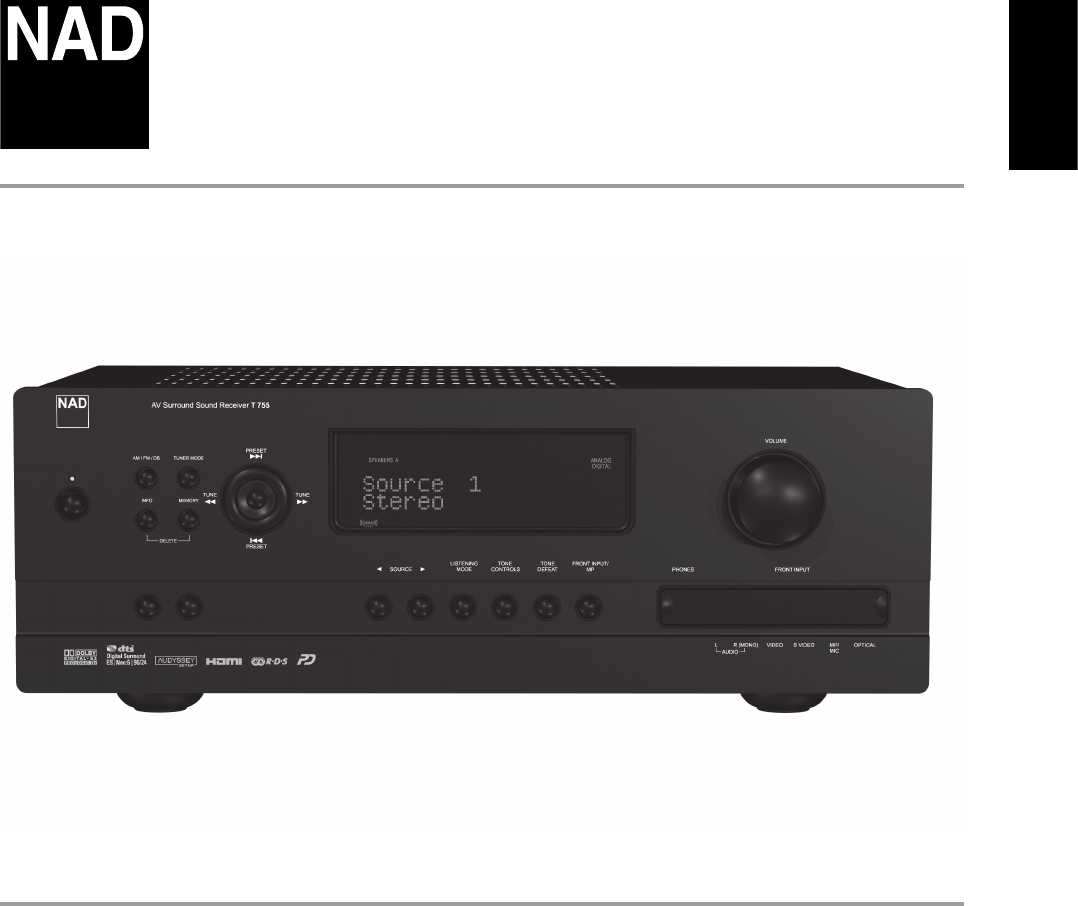
T 755
AV Surround Sound Receiver
1. Read instructions - All the safety and operating instructions should be
read before the product is operated.
2. Retain instructions - The safety and operating instructions should be
retained for future reference.
3. Heed Warnings - All warnings on the product and in the operating
instructions should be adhered to.
4. Follow Instructions - All operating and use instructions should be
followed.
5. Cleaning - Unplug this product from the wall outlet before cleaning.
Do not use liquid cleaners or aerosol cleaners. Use a damp cloth for
cleaning.
6. Attachments - Do not use attachments not recommended by the
product manufacturer as they may cause hazards.
7. Water and Moisture - Do not use this product near water-for example,
near a bath tub, wash bowl, kitchen sink, or laundry tub; in a wet
basement; or near a swimming pool; and the like.
8. Accessories - Do not place this product on an unstable cart, stand,
tripod, bracket, or table. The product may fall, causing serious injury
to a child or adult and serious damage to the product. Use only with a
cart, stand, tripod, bracket, or table recommended by the manufacturer,
or sold with the product. Any mounting of the product should follow
the manufacturer’s instructions, and should use a mounting accessory
recommended by the manufacturer.
9. Cart - A product and cart combination should be moved
with care. Quick stops, excessive force, and uneven surfaces
may cause the product and cart combination to overturn.
10. Ventilation - Slots and openings in the cabinet are provided for
ventilation to ensure reliable operation of the product and to protect it
from overheating. These openings must not be blocked or covered. The
openings should never be blocked by placing the product on a bed,
sofa, rug, or other similar surface. This product should not be placed in a
built-in installation such as a bookcase or rack unless proper ventilation
is provided or the manufacturer’s instructions have been adhered to.
11. Power Sources - This product should be operated only from the type
of power source indicated on the marking label and connected to
a MAINS socket outlet with a protective earthing connection. If you
are not sure of the type of power supply to your home, consult your
product dealer or local power company.
12. Power-Cord Protection - Power-supply cords should be routed so that
they are not likely to be walked on or pinched by items placed upon or
against them, paying particular attention to cords at plugs, convenience
receptacles, and the point where they exit from the product.
13. Mains Plug - Where the mains plug or an appliance coupler is used
as the disconnect device, the disconnect device shall remain readily
operable.
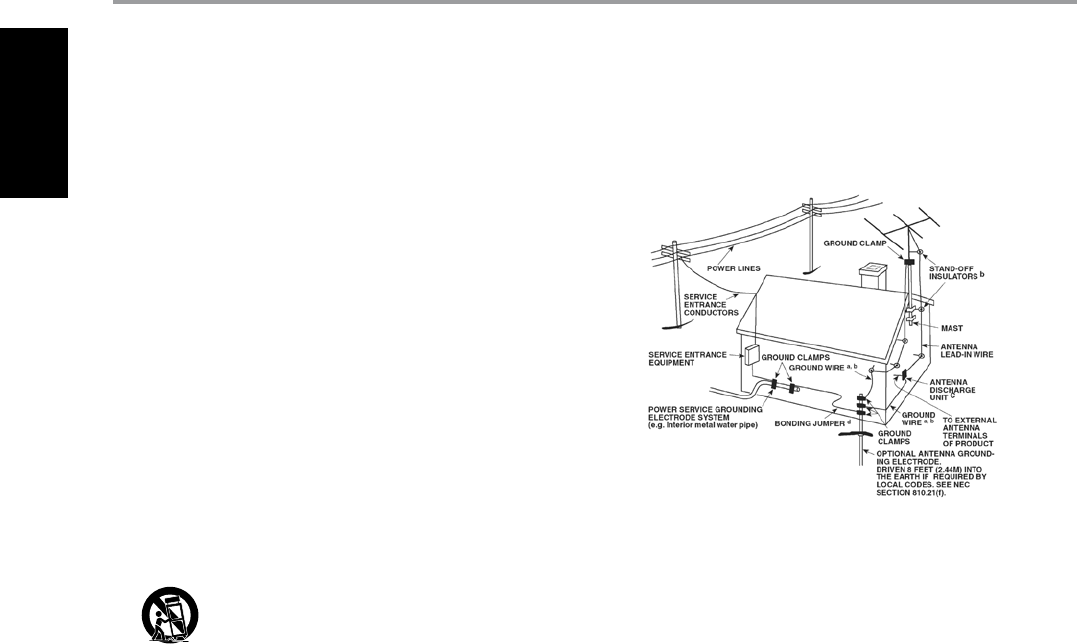
14. Outdoor Antenna Grounding - If an outside antenna or cable system
is connected to the product, be sure the antenna or cable system is
grounded so as to provide some protection against voltage surges
and built-up static charges. Article 810 of the National Electrical Code,
ANSI/NFPA 70, provides information with regard to proper grounding
of the mast and supporting structure, grounding of the lead-in wire
to an antenna discharge unit, size of grounding conductors, location
of antenna discharge unit, connection to grounding electrodes, and
requirements for the grounding electrode.
NOTE TO CATV SYSTEM INSTALLER
This reminder is provided to call the CATV system installer’s attention to Section 820-40 of
the NEC which provides guidelines for proper grounding and, in particular, specifies that
the cable ground shall be connected to the grounding system of the building, as close
to the point of cable entry as practical.
15. Lightning - For added protection for this product during a lightning
storm, or when it is left unattended and unused for long periods of
time, unplug it from the wall outlet and disconnect the antenna or
cable system. This will prevent damage to the product due to lightning
and power-line surges.
16. Power Lines - An outside antenna system should not be located in the
vicinity of overhead power lines or other electric light or power circuits,
or where it can fall into such power lines or circuits. When installing an
outside antenna system, extreme care should be taken to keep from
touching such power lines or circuits as contact with them might be
fatal.
17. Overloading - Do not overload wall outlets, extension cords, or
integral convenience receptacles as this can result in a risk of re or
electric shock.
18. Flame Sources - No naked ame sources, such as lighted candles,
should be placed on the product.
19. Object and Liquid Entry - Never push objects of any kind into this
product through openings as they may touch dangerous voltage points
or short-out parts that could result in a re or electric shock. Never spill
liquid of any kind on the product.
20. Headphones - Excessive sound pressure form earphones and
headphones can cause hearing loss.
21. Damage Requiring Service - Unplug this product from the wall outlet
and refer servicing to qualied service personnel under the following
conditions:
a. When the power-supply cord or plug is damaged.
b. If liquid has been spilled, or objects have fallen into the product.
c. If the product has been exposed to rain or water.
d. If the product does not operate normally by following the operating
instructions. Adjust only those controls that are covered by the
operating instructions as an improper adjustment of other controls
may result in damage and will often require extensive work by a
qualied technician to restore the product to its normal operation.
e. If the product has been dropped or damaged in any way.
f. When the product exhibits a distinct change in performance-this
indicates a need for service.
22. Replacement Parts - When replacement parts are required, be sure
the service technician has used replacement parts specied by the
manufacturer or have the same characteristics as the original part.
Unauthorized substitutions may result in re, electric shock, or other
hazards.
IMPORTANT SAFETY INSTRUCTIONS
2
ENGLISH FRANÇAIS ESPAÑOL ITALIANO DEUTSCH NEDERLANDS SVENSKA РУССКИЙ
23. Battery Disposal - When disposing of used batteries, please comply
with governmental regulations or environmental public instruction’s
rules that apply in your country or area.
24. Safety Check - Upon completion of any service or repairs to this
product, ask the service technician to perform safety checks to
determine that the product is in proper operating condition.
25. Wall or Ceiling Mounting - The product should be mounted to a wall
or ceiling only as recommended by the manufacturer.
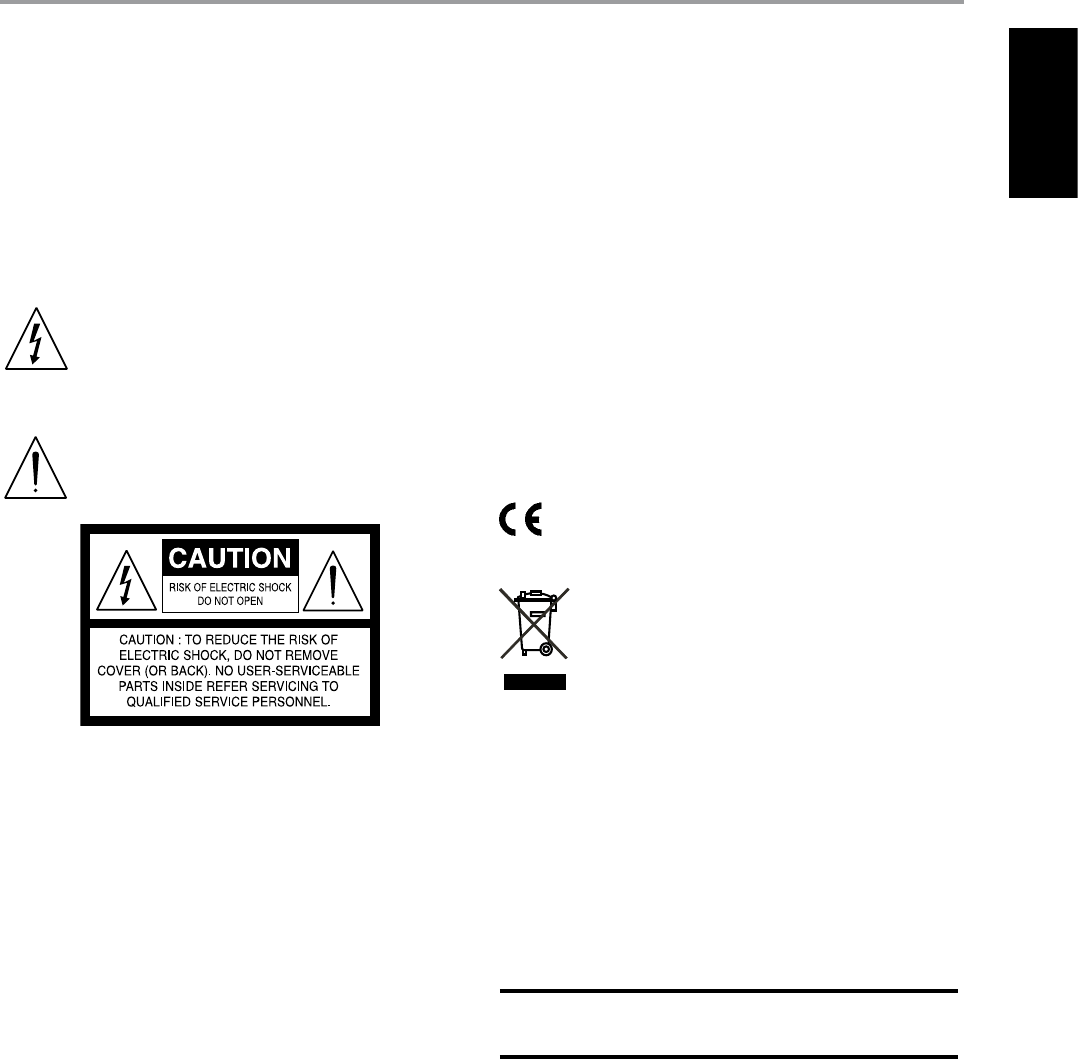
WARNING
The lightning ash with arrowhead symbol, within an
equilateral triangle, is intended to alert the user to the presence
of uninsulated “dangerous voltage” within the product’s
enclosure that may be of sucient magnitude to constitute a
risk of electric shock to persons
The exclamation point within an equilateral triangle is intended
to alert the user to the presence of important operating
and maintenance (servicing) instructions in the literature
accompanying the appliance.
WARNING: TO REDUCE THE RISK OF FIRE OR ELECTRIC SHOCK,
DO NOT EXPOSE THIS APPARATUS TO RAIN OR MOISTURE AND
OBJECTS FILLED WITH LIQUIDS, SUCH AS VASES, SHOULD NOT BE
PLACED ON THIS APPARATUS.
THE EQUIPMENT MUST BE CONNECTED TO AN EARTHED MAINS SOCKET-
OUTLET.
CAUTION REGARDING PLACEMENT
To maintain proper ventilation, be sure to leave a space around the unit
(from the largest outer dimensions including projections) than is equal to,
or greater than shown below.
Left and Right Panels: 10 cm
Rear Panel: 10 cm
Top Panel: 50 cm
IMPORTANT INFORMATION TO UK CUSTOMERS
DO NOT cut o the mains plug from this equipment. If the plug tted is not
suitable for the power points in your home or the cable is too short to reach
a power point, then obtain an appropriate safety approved extension lead
or consult your dealer. If nonetheless, the mains plug is cut o, REMOVE
THE FUSE and dispose of the PLUG immediately, to avoid possible shock
hazard by inadvertent connection to the mains supply. If this product is
not provided with a mains plug, or one has to be tted, then follow the
instructions given below:
IMPORTANT
DO NOT make any connection to the larger terminal which is marked
with the letter ‘E’ or by the safety earth symbol or colored GREEN or GREEN
AND YELLOW. The wires in the mains lead on this product are colored in
accordance with the following code:
BLUE - NEUTRAL
BROWN - LIVE
As these colors may not correspond with the colored markings identifying
the terminals in your plug, proceed as follows:
• The BLUE wire must be connected to the terminal marked with the
letter ‘N’ or colored BLACK.
• The BROWN wire must be connected to the terminal marked with the
letter ‘L’ or colored RED
• When replacing the fuse, only a correctly rated and approved type
should be used, and be sure to re-t the fuse cover.
IF IN DOUBT CONSULT A COMPETENT ELECTRICIAN.
This product is manufactured to comply with the radio
interference requirements of EEC DIRECTIVE 2004/108/EC.
NOTES ON ENVIRONMENTAL PROTECTION
At the end of its useful life, this product must not be disposed
of with regular household waste but must be returned to a
collection point for the recycling of electrical and electronic
equipment. The symbol on the product, user’s manual and
packaging point this out.
The materials can be reused in accordance with their markings. Through
re-use, recycling of raw materials, or other forms of recycling of old
products, you are making an important contribution to the protection of
our environment.
Your local administrative oce can advise you of the responsible waste
disposal point.
RECORD YOUR MODEL NUMBER NOW, WHILE YOU CAN SEE IT
The model and serial number of your new T 755 are located on the back of
the cabinet. For your future convenience, we suggest that you record these
numbers here:
Model number : . . . . . . . . . . . . . . . . . . . . . . . . . . . . . . . . . . . . . .
Serial number : ......................................
IMPORTANT SAFETY INSTRUCTIONS
NAD is a trademark of NAD Electronics International, a division of Lenbrook Industries Limited
Copyright 2008, NAD Electronics International, a division of Lenbrook Industries Limited
3
ENGLISHFRANÇAISESPAÑOLITALIANODEUTSCHNEDERLANDSSVENSKAРУССКИЙ

THANK YOU FOR CHOOSING NAD.
The T 755 A/V Receiver is a technologically advanced and highly capable
product — yet we have invested great eort in making it simple and easy
to use. The T 755 delivers a range of genuinely useful options for surround
sound and stereo listening, using powerful digital signal processing and
superbly accurate digital-audio circuitry. However, we have also been
careful to ensure that the T 755 is as musically transparent and spatially
accurate as possible, incorporating much of what we’ve learned from
a quarter century’s experience designing audio and home-theater
components. As with all our products, NAD’s “Music First” design philosophy
guided the T 755’s design, such that it can condently promise you both
state-of-the-art surround home-theater and audiophile-quality music
listening for years to come.
We encourage you to take a few minutes now to read right through this
manual. Investing a little time here at the outset might save you a good
deal of time later, and is by far the best way to ensure that you make the
most of your investment in the NAD T 755, and get the most from this
powerful and exible home-theater component.
One more thing: We urge you to register your T 755 ownership on the NAD
Worldwide Web site:
<http://NADelectronics.com/warranty>
For warranty information contact your local distributor.
INTRODUCTION
TABLE OF CONTENTS
IMPORTANT SAFETY INSTRUCTIONS .............................2
INTRODUCTION
ABOUT THE T 755 ................................................5
E.A.R.S. AND DIGITAL SURROUND ....................................5
EASE OF USE .........................................................5
INTEGRATION ........................................................5
ZONE .................................................................5
RS 232 ................................................................5
UPGRADABILITY ......................................................5
ABOUT THE HTR 3 SYSTEM REMOTE CONTROL . . . . . . . . . . . . . . . . . . . . . . .5
GETTING STARTED ................................................6
WHAT’S IN THE BOX ..................................................6
CHOOSING A LOCATION .............................................6
QUICK START .........................................................6
DEALING WITH HUM AND NOISE .....................................6
IDENTIFICATION OF CONTROLS
FRONT PANEL ....................................................7
REAR PANEL ......................................................9
OPERATION
USING THE T 755 – MAIN MENU ..................................12
ABOUT THE ONSCREEN DISPLAY OSD . . . . . . . . . . . . . . . . . . . . . . . . . . . . 12
MAIN MENU ........................................................ 12
LISTENING MODE .................................................. 12
ADJUSTING LISTENING MODES .................................... 14
DSP OPTIONS ...................................................... 14
TONE CONTROLS ................................................... 14
ZONE CONTROLS. . . . . . . . . . . . . . . . . . . . . . . . . . . . . . . . . . . . . . . . . . . . . . . . . . . 15
USING THE T 755 –SETUP MENU ..................................16
SETUP MENU ....................................................... 16
SOURCE SETUP .................................................... 16
SOURCE SETUP NORMAL VIEW ................................... 16
SOURCE SETUP TABLE VIEW ....................................... 18
iPod SETUP ......................................................... 19
SPEAKER SETUP .................................................... 19
AUDYSSEY SETUP .................................................. 19
SPEAKER CONFIGURATION ......................................... 20
SPEAKER LEVELS .................................................... 22
SPEAKER DISTANCE ................................................ 23
ADJUSTING THE VOLUME .......................................... 23
ADJUSTING CHANNEL LEVELS “ON THE FLY” . . . . . . . . . . . . . . . . . . . . . . . . 24
ZONE SETUP ....................................................... 24
TRIGGER SETUP .................................................... 24
LISTENING MODE SETUP ........................................... 25
DOLBY SETUP ...................................................... 27
DTS SETUP ......................................................... 27
DTS SURROUND MODES ........................................... 27
ENHANCED STEREO ................................................ 28
DISPLAY SETUP ..................................................... 28
A/V PRESETS ........................................................ 29
USING THE T 755 – AM/FM/DB/iPod . . . . . . . . . . . . . . . . . . . . . . . . . . . . . . . 30
LISTENING TO RADIO ............................................... 30
ABOUT USER NAMES ............................................... 30
ABOUT RDS ........................................................ 31
ABOUT XM RADIO .................................................. 31
CONNECTING THE XM ANTENNA .................................. 31
ABOUT DAB RADIO ................................................. 31
CONNECTING THE DAB MODULE .................................. 31
DAB OPERATION ................................................... 32
SERVICE LIST ....................................................... 32
DAB TUNER MODE ................................................. 32
STATION ORDER .................................................... 32
DRC ................................................................ 32
MANUAL SCAN ..................................................... 33
PRUNE LIST ......................................................... 33
RESET .............................................................. 33
INFORMATION SETTINGS ........................................... 33
ABOUT THE iPod INPUT FEATURE ................................... 33
CONNECTING THE OPTIONAL “NAD IPD 1 DOCK WITH
iPod” AND iPod PLAYER TO THE T 755 . . . . . . . . . . . . . . . . . . . . . . . . . . . . . . . 34
USING THE HTR 3 REMOTE CONTROL . . . . . . . . . . . . . . . . . . . . . . . . . . . . .35
SPECIFICATIONS .................................................... 35
CONTROLLING THE T 755 ........................................... 35
LEARNING CODES FROM OTHER REMOTES . . . . . . . . . . . . . . . . . . . . . . . . . 36
PUNCH THROUGH .................................................. 36
COPY A COMMAND FROM ANOTHER KEY . . . . . . . . . . . . . . . . . . . . . . . . . . 36
MACRO COMMANDS ............................................... 36
BUTTON ILLUMINATION TIMEOUT .................................. 37
FACTORY RESET .................................................... 37
DELETE MODE ...................................................... 37
LOADING CODELIBRARIES ......................................... 38
SEARCH MODE ..................................................... 38
CHECKING CODELIBRARY NUMBER . . . . . . . . . . . . . . . . . . . . . . . . . . . . . . . . 38
USING THE ZR 4 REMOTE CONTROL . . . . . . . . . . . . . . . . . . . . . . . . . . . . . . . . 39
REFERENCE
TROUBLESHOOTING .............................................40
SPECIFICATIONS .................................................41
4
ENGLISH FRANÇAIS ESPAÑOL ITALIANO DEUTSCH NEDERLANDS SVENSKA РУССКИЙ

INTRODUCTION
ABOUT THE T 755
Though the T 755 is among the most technically sophisticated A/V receiver,
we worked hard to make it one of the most musically transparent home-
theater components available as well; this is what we mean by NAD’s “Music
First” design philosophy. Here are just few examples:
• The T 755 uses NAD’s proprietary Power Drive™ amplier technology
for all channels to preserve accurate, linear reproduction regardless
of the loudspeaker. This uniquely ecient power-supply topology
provides the real-world benets of high dynamic power that remains
uncompromised by low-impedance speakers. The result is dynamic,
detailed,”un-receiver-like” sound in stereo and multi-channel modes
alike. NAD’s exclusive Soft Clipping™ circuitry further enhances sound
quality and dynamic potential.
• High-performance components used throughout the receiver’s analog
audio circuits to maximize quality from all sources, including multi-
channel analog sources such as DVD-Audio and SACD.
• Preamp output (all channels) and main-amp input jacks make potential
expansion as exible as possible.
• Zone pre-amp and video feed with assignable 12 V DC trigger control.
• A Second set of Speaker terminals (Speakers B) for remote listening.
• An RS-232 port for advanced zone control and software update through
a Windows® compatible PC.
• Gold-surfaced connectors are employed throughout to ensure
maximum signal integrity.
E.A.R.S. AND DIGITAL SURROUND
A key element of the T 755’s unique musical aptitude is NAD’s proprietary
Enhanced Ambience Recovery System (EARS). In sharp contrast to many
“ambience-synthesis” music-surround modes, EARS exploits the T 755’s
substantial DSP power to route the ambient content that is “encrypted” in
virtually all natural-acoustic recordings to the appropriate main, center and
surround speakers, without resorting to articially generated reections
or regeneration. EARS’ natural ambience yields a subtle but exceptionally
eective surround mode that naturally enhances the spatial presentation in
a fashion suitable for serious music listening.
Dolby Pro Logic IIx Music and DTS Neo:6 Music modes can also create
enjoyable experience from 2-channel sources.
On the digital side, the T 755 combines extraordinarily high-speed DSP
processing employing one of the most advanced high-speed DSP “engines”
available, with fully 24-bit, 192 kHz-sampling-capable D/A converters for
all channels. A single, high-precision master clock synchronizes all digital
circuits to eliminate the timing errors (jitter) that otherwise compromise
sonics. The result is legitimately state-of-the-art surround decoding from
Dolby Digital and DTS sources, and 6.1/7.1-channel reproduction, with
genuinely superior sound quality in all modes.
EASE OF USE
Despite the eort NAD has invested in the T 755 A/V Receiver’s sonic
performance, we expended no less in making it powerfully easy to use.
Its design is uniquely simple for so sophisticated a component, and the
HTR 3 universal remote control is equally understandable, as are the T 755’s
own front-panel and on-screen displays. Its simple yet powerful system
of “presets” permits you to ne-tune your listening setup for dierent
conditions, sources, or listeners, and to recall these multiple parameters
with a single key press.
INTEGRATION
The T 755 A/V Receiver oers extensive, exible system-integration options
through its congurable DC trigger outputs and input, and its standard-
protocol IR communications links. The DC trigger outputs can be assigned
to Main, Zone and Source Setup locations.
ZONE
The T 755 A/V Receiver is equipped with a congurable Zone 2 that makes
full use of video and pre-amp level audio outputs. The ZR 4 remote control
will allow you complete access to Zone 2 applications including access to
volume On/O and all sources inputs.
RS 232
Flexible system conguration is possible with the RS-232 interface and
NAD’s proprietary Windows® compatible software. We are also certied
partners with AMX and Crestron and fully support these external devices.
This interface allows complete remote control of the T 755 from any remote
location via the PC. Complete remote control functionality is available to
the user by interface software. See your NAD audio specialist for further
information.
UPGRADABILITY
The T 755 A/V Receiver permits exible system growth via individually
accessible pre-out and main-in jacks for all channels. We have made the
more likely scenario of software upgrades easy to accomplish via the high
speed RS-232 port on the rear panel of the T 755. Owners who register
their T 755 on our international web site www.NADelectronics.com will be
advised of updates. Some of these may be free of charge, and some may
require royalty payments depending on the type of upgrade. The advanced
user will be able to perform these upgrades by downloading les from our
web site, via e-mail and installing them by connecting the T 755 to a PC.
Alternatively the dealer from whom you purchased your T 755 should be
able to assist in performing these upgrades.
ABOUT THE HTR 3 SYSTEM REMOTE CONTROL
Packed with your T 755 is the NAD HTR 3 remote control, a full-system
remote especially designed for easy use and understanding. Be sure to read
the section “Using the HTR 3 Remote Control”, to familiarize yourself with
the remote’s layout and operations before proceeding to setup your T 755.
You may opt to use your HTR 3 as your primary way to command your
entire AV system. The HTR 3 can be employed to operate additional NAD or
other-brand components such as a DVD/CD player, television, satellite/
HDTV tuner, VCR, or virtually anything else that operates via standard
infrared remote.
5
ENGLISHFRANÇAISESPAÑOLITALIANODEUTSCHNEDERLANDSSVENSKAРУССКИЙ
INTRODUCTION
GETTING STARTED
WHAT’S IN THE BOX
Packed with your T 755 A/V Receiver you will nd
• An AM loop antenna.
• A FM ribbon-wire antenna with balun.
• A removable AC cable (if you wish, any IEC-standard AC cable of suitable
wattage may be substituted).
• The HTR 3 remote control with 4 (four) AAA batteries.
• The ZR 4 zone remote control with 3V CR2025 battery.
• This owner’s manual.
SAVE THE PACKAGING
Please save the box and all of the packaging in which your T 755 arrived.
Should you move or otherwise need to transport your T 755, this is by far
the safest container in which to do so. We’ve seen too many otherwise
perfect components damaged in transit for lack of a proper shipping
carton, so please: Save that box!
CHOOSING A LOCATION
Choose a location that is well ventilated (with at least several inches to both
sides and behind), and that will provide a clear line of sight, within 23 feet/7
meters, between the T 755’s front panel and your primary listening/viewing
position—this will ensure reliable infrared remote control communications.
The T 755 generates a modest amount of heat, but nothing that should
trouble adjacent components.
It is especially important that sucient ventilation be provided. If you are
contemplating on locating the T 755 within a cabinet or other furniture,
consult your NAD audio/video specialist for advice on providing adequate
airow.
QUICK START
Packed with your T 755 is a Quick Start Guide that will guide you through
typical setup congurations in combination with your ancillary devices. The
Quick Start Guide also features the contents of your T 755 package as well
as start up procedures.
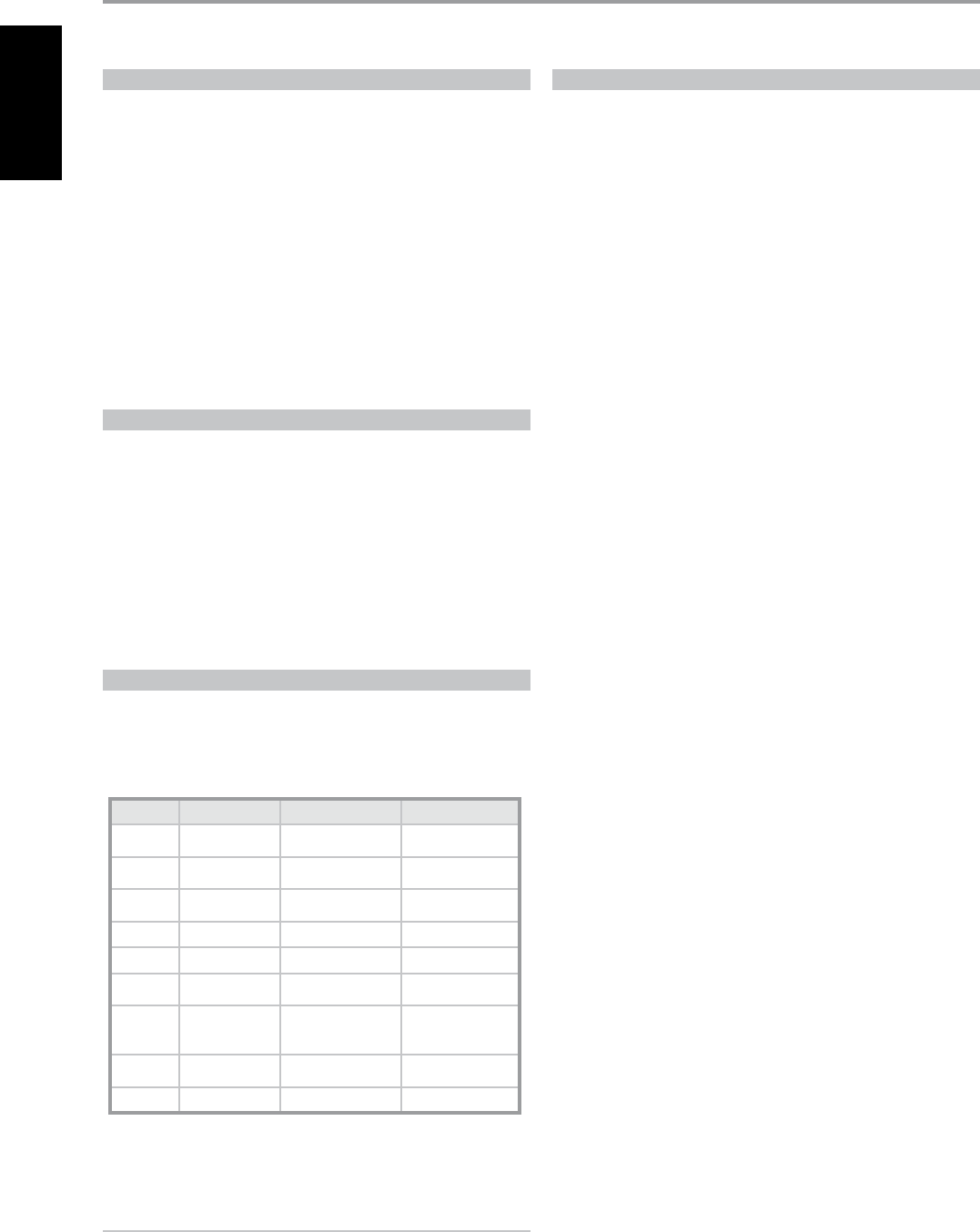
The T 755 is defaulted to the following settings:
Source Audio Input Video Input Video Output
Source 1 Optical 1/
Audio 1 IN Component Video 1 IN Component Video
OUT
Source 2 Optical 2 IN/
Audio 2 IN/ HDMI 2 IN HDMI Monitor OUT
Source 3 Coaxial 3 IN /
Audio 3 IN S Video 3 IN S-Video Monitor OUT
Source 4 Audio 4 IN Video 4 IN Video Monitor OUT
iPod Audio 5 IN S-Video 5 IN S-Video Monitor OUT
Source 7 7.1 Input Component Video 3 IN Component Video
OUT
Front
Input
Audio Front
Input/Optical
Front Input
S-Video Front IN S-Video Monitor OUT
Media
Player Audio MP input
Tuner
To modify the above default settings and for a better understanding of
source setting and combinations, please refer to the section on ‘Source
Setup’ of the Setup Menu discussion.
NOTES
• Digital input will always take precedence over analog audio input even
if both are present.
• The T 755 is optimized for Component Video Output. Composite
video and S-video sources may be viewed in their native format or via
Component Video OUT.
DEALING WITH HUM AND NOISE
Hum and noise may sometimes prove a challenge in complex, multi-
channel audio systems. Note these considerations to help prevent hum and
noise problems:
• Power all your system’s audio component from AC outlets originating
from the same circuit of your house wiring. As far as possible, power
all audio components from the same outlet, or adjacent outlets on the
same circuit. It may be useful to power video displays (and computers!)
from outlets on another circuit, especially if that circuit is supplied from
the other “leg” of the house wiring.
• Do not bundle analog audio cables with AC power cables, or with
coaxial digital-audio cables. It is best if they cross at right angles if they
must be in close proximity.
• Employ high-quality, well-shielded audio cable throughout, and ensure
that all connections are secure.
• A pencil-eraser can be used to burnish copper- and gold-plated
contacts to ensure good, low-resistance contact; specialized contact-
cleaners can also be useful. Avoid unnecessary unplugging and
re-plugging since the gold (or copper) contact plating of typical cable
connectors, even very high-quality ones, is very thin and easily worn.
Track down hum/noise problems one component at a time, working
backwards from the A/V Receiver. That is
1 Connect the speakers to the A/V Receiver only, and check for hum.
2 Then connect one component only (a CD player, for example) alone,
with no other components connected and check for hum.
3 Connect additional components, one at a time, to the A/V Receiver and
check for hum.
At each stage, if hum/noise appears, examine the audio cabling and AC-
power routing of the new component. In some cases, moving the new
component’s AC cord to a dierent outlet, or installing a ground-lift (3-to-2-
prong adapter) on its power cord, will eliminate the hum.
6
ENGLISH FRANÇAIS ESPAÑOL ITALIANO DEUTSCH NEDERLANDS SVENSKA РУССКИЙ
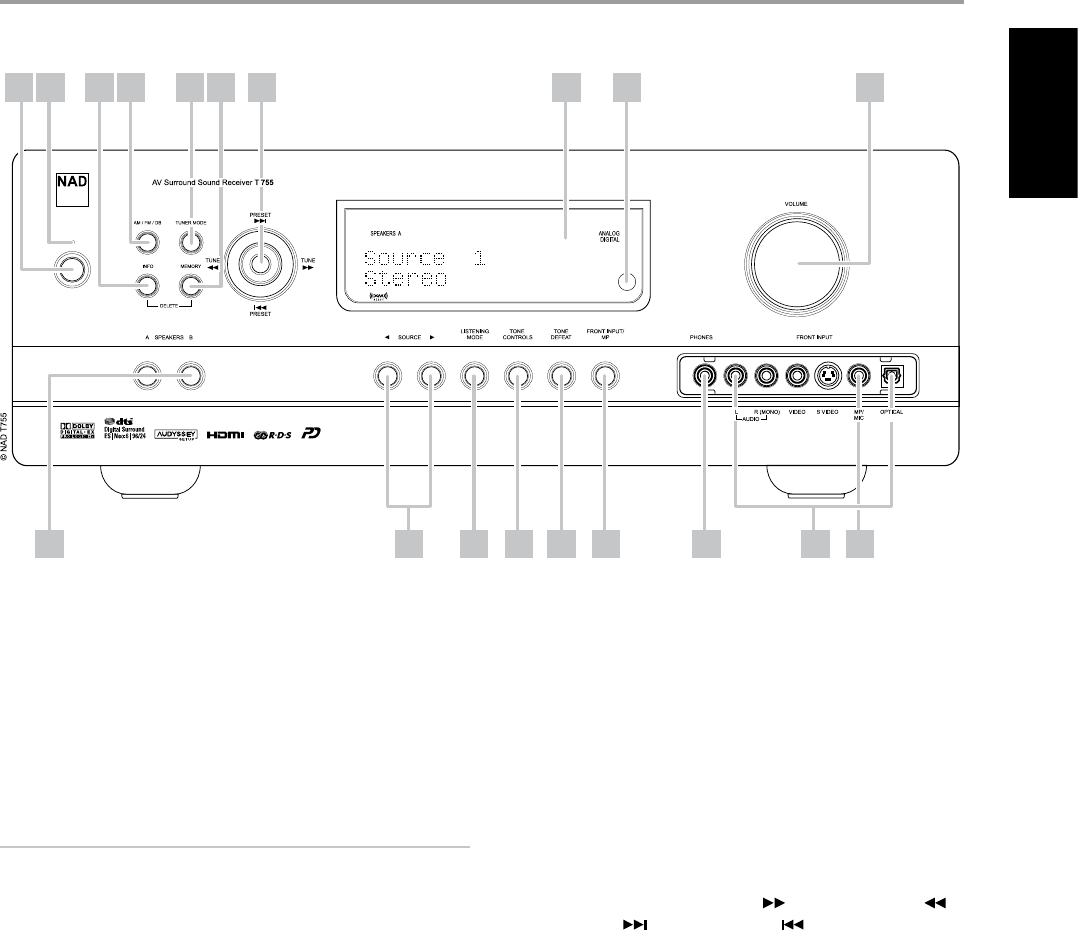
1 POWER BUTTON: Press this button or the HTR 3 remote’s [ON] button
to switch ON the T 755. The Standby LED indicator will turn from amber
to blue and illuminate the VFD. Pressing the power button again turns
the unit back to standby mode.
The T 755 can also be switched ON from standby mode by pressing any of
the front panel buttons. When both Main and Zone 2 are ON, press and hold
this button for more than ve seconds to place them at standby mode.
NOTES
• The rear panel POWER switch must be in the ON position for the Power
button to activate.
• If Auto Trigger IN at Trigger Setup menu is assigned to “Main” or “All” and
the TRIGGER switch is set to “AUTO” mode, the Power button in the front
panel as well as the corresponding ON/OFF function keys in the HTR 3
remote control will be disabled eectively handing this function to an
external controller. Switch TRIGGER to “OFF” to maintain normal power
ON/OFF function procedures. (See section also about “TRIGGER SETUP”
under the “SETUP MENU” discussions.)
2 STANDBY LED: This indicator will light up amber when the T 755 is
in standby state. When the T 755 main or zone 2 are in the ON state,
this indicator will illuminate blue. In the unlikely event that the T 755
switches to protection state, then this indicator will illuminate red.
When an infrared command from the HTR 3 is received, this indicator
will also ash momentarily.
3 INFO: Repeatedly toggle this button (press/hold rst if in Tuner mode
and then toggle) to display both at the Vacuum Fluorescent Display
(VFD) and On-Screen Display (OSD) the following – Current Source,
Volume level, Listening mode, Audio Source Format, and active Zone 2
with corresponding Source Input. While at Tuner mode, toggle this
button to cycle through RDS name and RDS text.
4 AM/FM/DB: Toggle this button to select either AM, FM, DAB (Europe
version) or XM (North America version) tuner functions.
5 TUNER MODE: In FM mode, this button will toggle between FM Stereo
and FM mono. Select FM Mono (FM stereo and FM Mute icons at VFD
are extinguished) for stations that have too much interference or are
too weak. In DAB (European version only) or XM (North America version
only) radio, this button enables the digital radio menus in conjunction
with the Navigation button and Enter buttons.
6 MEMORY: Press this button to store tuned AM, FM and digital radio
stations to the T 755’s 40 preset-memory locations. One can store a mix
of any AM, FM and digital radio stations to the 40 available presets.
7 NAVIGATION and ENTER buttons: These buttons are used to
navigate the T 755 OSD, Tune Forward [ ] and Tune Backward [ ],
Preset Forward [ ] and Preset Reverse [ ] as well as navigation of
DAB (European version), XM (North American version) tuner functions
and iPod. The middle round button is designated as “ENTER” button; this
is normally pressed to complete a selection, procedure, sequence or
other applicable functions.
8 VACUUM FLUORESCENT DISPLAY (VFD): Provide visual information
on all important modes of the T 755 as well as the settings and
functions for both Main and Zone 2 locations.
9 REMOTE SENSOR: Point the HTR 3 remote control at the remote sensor
and press the buttons. Do not expose the remote sensor of the T 755 to a
strong light source such as direct sunlight or illumination. If you do so, you
may not be able to operate the T 755 with the remote control.
Distance: About 23ft (7m) from the front of the remote sensor.
Angle: About 30o in each direction of the front of the remote sensor.
10 VOLUME: Use this control to adjust the volume level of the main speakers.
The default volume level is -20dB. The VOLUME knob is also used to
increment/ decrement other adjustable parameters like Tone Controls.
IDENTIFICATION OF CONTROLS
FRONT PANEL
3 4 5 6 7 9 10
11 171615
1 2
18 19141312
8
7
ENGLISHFRANÇAISESPAÑOLITALIANODEUTSCHNEDERLANDSSVENSKAРУССКИЙ
11 A SPEAKERS B: Press either speaker A or B or both to select the
set of speakers you wish to listen to. Speaker A is the main set of 5
multichannel and surround speakers. Speaker B is an auxiliary set
for remote locations such as other rooms of your home. For Speaker
B selection, all surround sound sources are downmixed to stereo.
Combining Speaker A and Speaker B (SPEAKERS A + B) will also result to
the source being downmixed to stereo.
12 [ ] SOURCE [ ] : Press these buttons to toggle through the input
selections – Source 1, Source 2, Source 3, Source 4, iPod, Source 7, Front
Input, Media Player and Tuner. More Sources could be directly recalled
through these buttons upon enabling them at the Setup Menu (See the
section “SOURCE SETUP” at Setup Menu discussion).
13 LISTENING MODE: Use to step through the T 755’s Listening mode as
discussed in the section “LISTENING MODE”. Depending on the format of
the currently selected input (digital or analog, stereo or multichannel),
various listening modes are available.
14 TONE CONTROLS: Press to adjust TREBLE control using the VOLUME
knob over a ± 10dB range. Press again to adjust BASS control. See also
section about “TONE CONTROLS” under “MAIN MENU” discussions.
15 TONE DEFEAT: Tone Controls are enabled or disabled by pressing
this button. Tone controls are bypassed at “Tone Defeat” while at “Tone
Active”; the tone controls are enabled again. See also section about
“TONE CONTROLS” under “MAIN MENU” discussions.
16 FRONT INPUT/MP: Use this button to directly select Front Input and
Media Player. Toggle button to switch between Front Input and Media
Player input.
17 PHONES: Accepts stereo headphone using a standard 1/4-inch stereo
phone plug (use a suitable adapter for headphones equipped with a
smaller plug). Plugging in headphones will automatically switch the
T 755 to Stereo, Stereo Downmix or Analog Bypass modes.
18 FRONT INPUT jacks: Use these convenience jacks for occasional
sources such as a camcorder, tape player, video game console, any
analog audio or optical digital audio and composite or S-Video video
sources. If your source has a single audio out jack only or is marked
“Mono output”, plug this into the T 755’s Front “R (Mono)” input. On
the other hand, if your source has two output jacks indicative of stereo
output, insert both jacks into the T 755’s corresponding Front “L” and “R
(Mono)” input to achieve stereo output as well.
19 MP/MIC input: Connect your MP3’s standard stereo phone jack to
this input. This is the same input where Audyssey microphone jack is
connected. See also discussion about “AUDYSSEY SETUP”.
IDENTIFICATION OF CONTROLS
FRONT PANEL
8
ENGLISH FRANÇAIS ESPAÑOL ITALIANO DEUTSCH NEDERLANDS SVENSKA РУССКИЙ
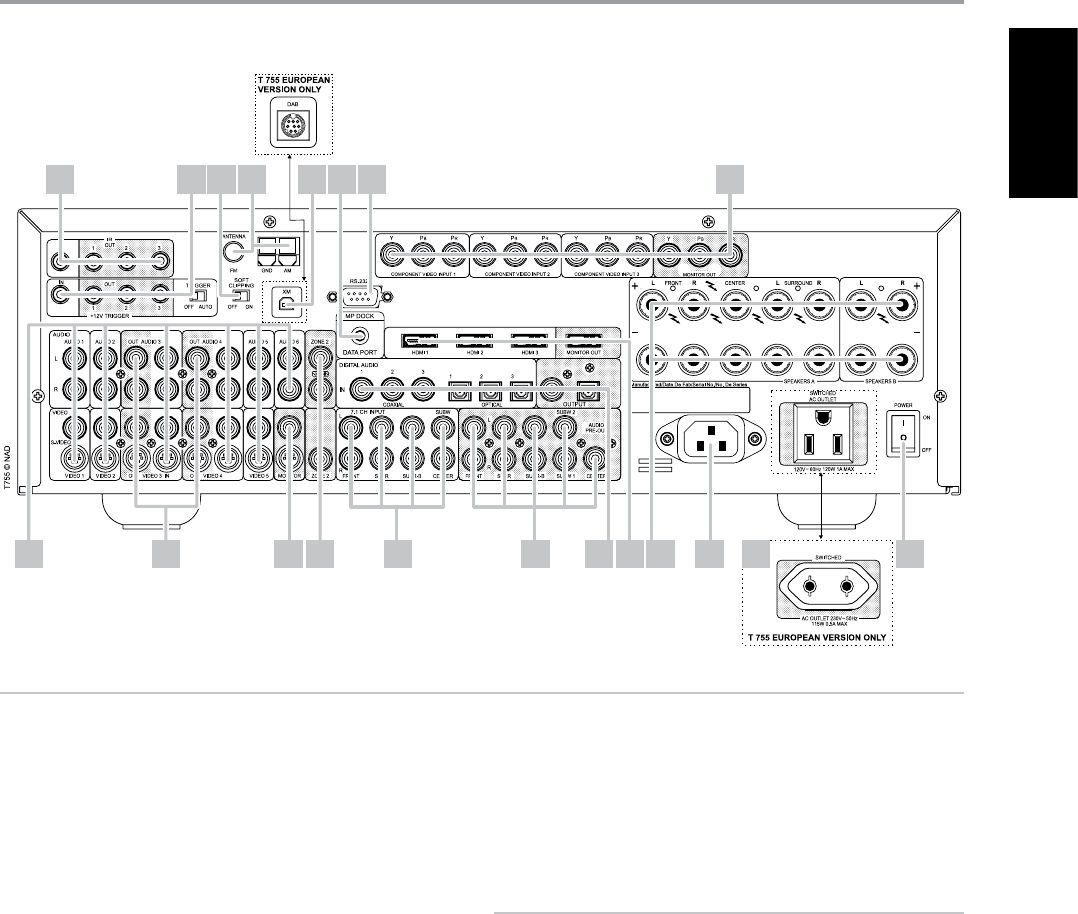
1 IR IN/OUT: These mini-jacks accept and output remote-controlled
codes in electrical format, using industry-standard protocols, for use
with “IR-repeater” and multi-room systems and related technologies.
IR IN : This input is connected to the output of an IR (infrared) repeater
(Xantech or similar) or the IR output of another component to allow
control of the T 755 from a remote location.
IR OUT 2 : When connected to the IR IN of ancillary equipment, direct
the ancillary equipment’s own remote control to the T 755’s infrared
receiver to command or control the linked unit.
IR IN and IR OUT 3 : Connect the T 755’s IR IN to the IR OUT of ancillary
equipment. Connect also the T 755’s IR OUT 3 to another equipment
with IR IN feature. With this setup, the T 755 acts as an “IR-repeater”
allowing the equipment connected to the T 755’ s IR IN control or
command of the other equipment linked to the T 755’s IR OUT 3.
IR OUT 1 : In conjunction with IR IN, IR OUT 1 can be used as an “IR-
repeater” just like the IR OUT 3 as described above. It can also stand
alone as an IR OUT similar to that of IR OUT 2 function.
All NAD products with IR IN/IR OUT features are fully compatible with
the T 755. For non-NAD models, please check with your other product’s
service specialists as to their compatibility to the T 755’s IR features.
2 +12 V TRIGGER OUT: There are three congurable +12V TRIGGER
OUTPUT. Use a 3.5mm mini-jack connector to pass +12 volts at a
maximum current of 200 milliamps to auxiliary equipment such as a
multichannel amplier or subwoofer. The centre conductor (hot) of the
3.5mm jack is the control signal. The outside conductor (shield) is the
ground return-path.
TRIGGER IN accepts 12V Trigger output of compatible components such
as power controllers and home automation devices.
TRIGGER OFF/AUTO. When at AUTO position, the T 755 selects the 12V
Trigger Input to turn ON (if so assigned at the “Trigger Setup” menu) and
at the same time disables the HTR 3 and ON/OFF function of the front
panel. When set to [OFF] position, the trigger input is disabled.
See discussion on “TRIGGER SETUP” at the “SETUP MENU” literature for
guidelines on how to congure TRIGGER IN/OUT.
WARNING
If Auto Trigger IN at Trigger Setup menu is assigned to “Main” or “All” and
the TRIGGER switch is set to “AUTO” mode, the Power button in the front
panel as well as the corresponding ON/OFF function keys in the HTR 3
remote control will be disabled eectively handing this function to an
external controller. Switch TRIGGER to”OFF” to maintain normal power
ON/OFF function procedures.
3 SOFT CLIPPING: Enables NAD’s proprietary Soft Clipping circuitry on
all channels. At [ON] position, Soft Clipping gently limits the output of
the T 755 to minimize audible distortion should the A/V Receiver be
over-driven. Soft Clipping may simply be left ON at all times to reduce
the likelihood of audible distortion from excessive volume settings.
However, for critical listening and to preserve optimum dynamics, you
may wish to defeat it by setting this switch OFF.
4 FM, AM ANTENNA INPUT: The supplied wire “dipole” FM antenna will
connect to the FM connector using the supplied “balun” adapter. It will
usually work best when mounted on a vertical surface such as a wall,
with arms fully outstretched forming a horizontal “T” perpendicular to
the origin point of the signal.
Connect the supplied AM loop antenna to these terminals. If an external
AM antenna is used, make connections to the AM and GND terminals
in accordance with the instructions supplied with the antenna. See also
section about “LISTENING TO RADIO”.
IDENTIFICATION OF CONTROLS
REAR PANEL
ATTENTION!
Please make sure that the T 755 is powered o or unplugged before making any connections. It is also advisable to power-down or unplug all associated
components while making or breaking any signal or AC power connections.
1 2 3 4 6 7 8
10 14 2011 15
5
9 12 13 19181716
9
ENGLISHFRANÇAISESPAÑOLITALIANODEUTSCHNEDERLANDSSVENSKAРУССКИЙ

5 XM MODULE INPUT (North America version only): Connect XM
radio cable to this socket. Follow the instructions that came with your
XM radio. With XM radio, there are more than 100 channels of music,
news, sports, comedy, talk and entertainment. You will nd that the
coverage is continent wide. The music quality is digital with many
commercial-free music channels.
NOTES
Questions? Visit www.xmradio.com
Listeners can subscribe by visiting XM on the Web at www.xmradio.com
or by calling (at the time of printing this manual) XM’s Listener Care at
(800) 853 9696. Be ready with your Radio ID that can be found on the
radio by selecting Channel 0.
DAB MODULE INPUT (Europe version only): Plug-in the other end
of the Mini-Din connector from the NAD DAB Adaptor DB 1 module
output port into this socket. The T 755 is compatible only with NAD
DAB Adaptor DB 1 so check with your NAD dealer for this module’s
availability. With DAB, you can receive CD-like quality programs without
any annoying interference and signal distortion.
6 MP DOCK: The T 755 is equipped with a data port in the rear panel
where an optional “NAD IPD 1 Dock with iPod” (NAD IPD 1) can be
plugged in. Connect the “MP DOCK (DATA PORT)” jack of the T 755 to
the corresponding “DATA PORT” socket of the optional NAD IPD 1.
7 RS-232: Connect this interface via RS-232 serial cable (not supplied) to any
Windows® compatible PC to allow remote control of the T 755 through
NAD’s proprietary PC software or other compatible external controllers.
NAD is a certied partner of AMX and Crestron and fully supports these
external devices. See your NAD audio specialist for more information.
8 COMPONENT VIDEO 1-3 IN, COMPONENT VIDEO OUT : Connect
the Component Video IN 1-3 inputs to Component Video outputs
from compatible source components, typically a DVD player and
terrestrial or satellite HDTV tuner. Connect Component Video OUT to
the Component Video input of a compatible video monitor/TV. Be
sure to observe consistency in connecting the Y/Pb/Pr jacks to the
corresponding sources/inputs. The routing of the component video
inputs is fully congurable via the Setup Menu. The T 755’s component
video inputs and outputs are fully wideband and compatible with
allowable HDTV formats.
The T 755 is optimized for Component Video Output. Composite
video and S-video sources may be viewed in their native format or via
Component Video OUT.
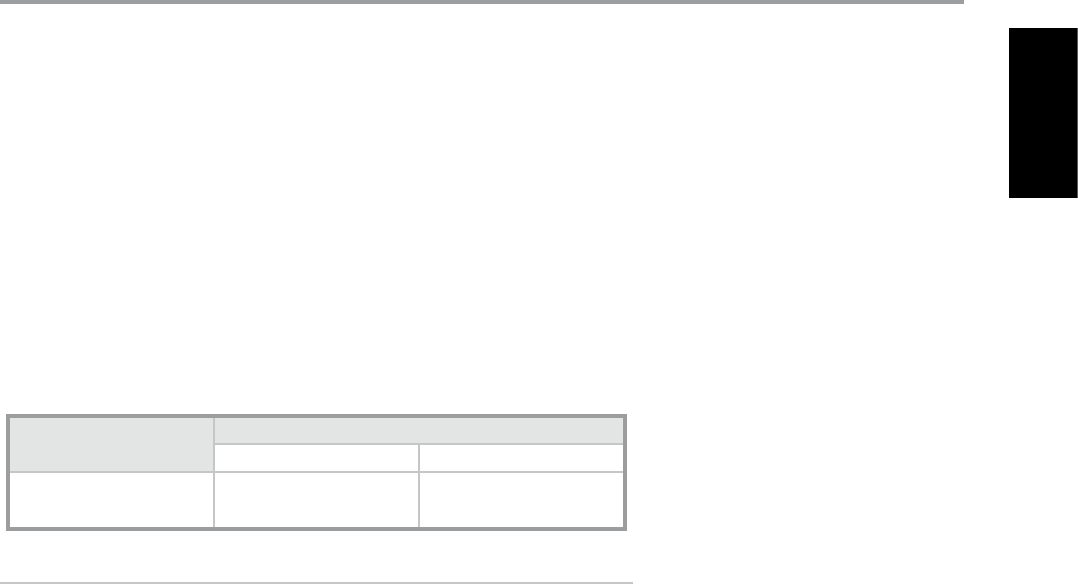
MONITOR TYPE
VIDEO INPUT Component
Video OUT
S-Video Monitor
OUT
Composite Video
OUT
Composite Video
Input Yes Yes Yes
S-Video Input Yes Yes Yes
Component Video
Input Yes Yes (Component Video
Input - 480i only)
Yes (Component Video
Input - 480i only)
9 AUDIO 1 IN/VIDEO 1 IN, AUDIO 2 IN/VIDEO 2 IN, AUDIO 3
IN/VIDEO 3 IN, AUDIO 4 IN/VIDEO 4 IN, AUDIO 5 IN/VIDEO 5
IN, AUDIO 6 IN: These comprise the T 755’s principal input. Connect
S-Video, composite video, and analog stereo audio from source
components such as DVD players and HDTV/satellite tuners.
AUDIO 3 IN/VIDEO 3 IN, AUDIO 4 IN/VIDEO 4 IN may be used with
recording components such as videocassette or DVD-recorders by
connecting these components’ record-inputs to the corresponding
T 755 AUDIO 3 IN/VIDEO 3 IN or AUDIO 4 IN/VIDEO 4 IN jacks. AUDIO
3 IN/VIDEO 3 IN or AUDIO 4 IN/VIDEO 4 IN may freely be used for
play-only components, in which case their OUT jacks would remain
unconnected. Refer also to “AUDIO 3 OUT/VIDEO 3 OUT, AUDIO 4 OUT/
VIDEO 4 OUT” discussion below.
AUDIO 6 IN is advisable to connect to dedicated analog output from
line-level audio sources like a CD player or Stereo tuner.
10 AUDIO 3 OUT/VIDEO 3 OUT, AUDIO 4 OUT/VIDEO 4 OUT: Connect
the T 755’s AUDIO 3 OUT/VIDEO 3 OUT or AUDIO 4 OUT/VIDEO 4 OUT
jacks to the analog audio/video input of a recording component
such as a cassette deck, DVD recorder or to an outboard audio/video
processor. Connect the T 755’s AUDIO 3 IN/VIDEO 3 IN or AUDIO 4
IN/VIDEO 4 IN jacks to the component’s corresponding output.
The signal present at these T 755 AUDIO/VIDEO OUT jacks is determined
by the source last selected via the front panel Source keys or the HTR 3’s
input select keys with the exception of Source 3 or Source 4. There will
be no output when Source 3 (Audio 3 IN/Video 3 IN) or Source 4 (Audio
4 IN/Video 4 in) is the selected source input. This prevents feedback
through the recording component thereby preventing possible
damage to your speakers.
11 MONITOR (S-VIDEO, VIDEO): Connect to video input of the monitor/
television using quality dual-RCA and/or S-Video cables designed for
video signals. In general, the S-Video connection is superior and should
be used if your TV/monitor provides the corresponding input.
12 ZONE 2: Sends zone selected audio and video output sources to the
corresponding audio and video input of another separate zone. Use
high quality patch cables to reduce noise pickup over long distance
runs. For a better understanding of zone settings, study below the
section on “ZONE CONTROLS” of the “MAIN MENU” discussion as well as
the item on “ZONE SETUP” under the “SETUP MENU” literatures.
13 7.1 CH INPUT: Connect to the corresponding analog audio outputs of a
multichannel source component such as a DVD-Audio or multichannel-
SACD player or external multichannel decoder (disc copy protected
formats only allow analog signal transfer). Typically, these sources will
produce 5.1-channel output, in which case the Surround Back jacks are left
unconnected. The signals present at these jacks may be heard by selecting
Source 7 (7.1 Channel Input is defaulted to this Source).
There is no bass-management or other processing (other than master-
volume control) available to this 7.1 Channel Input. While the multi-
channel audio outputs of a DVD-Video player can be connected to
these jacks, using the T 755’s own Dolby Digital and DTS decoding and
digital-analog converters via a digital connection will usually produce
superior results.
IDENTIFICATION OF CONTROLS
REAR PANEL
10
ENGLISH FRANÇAIS ESPAÑOL ITALIANO DEUTSCH NEDERLANDS SVENSKA РУССКИЙ

14 AUDIO PRE-OUT: The Audio PRE- OUT makes it possible to use the
T 755 as a pre-amplier to external power ampliers for some or all
channels. Connect FRONT L, FRONT R, SURR R, SURR L, SURR-BL, SURR-
BR and CENTER to the respective channel input of a power amplier or
an amplier driving the corresponding applicable speakers.
Unlike the full range channels, there is no power amplier built-into the
T 755 for a subwoofer. Connect the SUBW 1 or SUBW 2 output or both
to powered (“active”) subwoofers or to power amplier channels driving
a passive system.
NOTE
Never connect both the external amplier and T 755’s speaker outputs to
the same set of speakers.
15 DIGITAL AUDIO IN (OPTICAL 1-3, COAXIAL 1-3): Connect to the
optical or coaxial S/PDIF-format digital output of sources such as CD or
DVD players, HDTV or satellite tuners and other components. Coaxial
and Optical digital input association is congurable via the Setup Menu.
DIGITAL AUDIO OUTPUT (OPTICAL, COAXIAL): Connect the optical
or coaxial digital OUTPUT port to the corresponding S/PDIF digital
input of a compatible device such as CD recorders, receivers, computer
soundcard or other digital processors.
16 HDMI (HDMI 1-3, HDMI MONITOR OUT) : Connect HDMI inputs to
the HDMI OUT connectors of source components such as DVD player or
HDTV satellite/cable box. Connect the HDMI Monitor OUT to a HDTV or
projector with HDMI input.
NOTE
HDMI supports transmission of video signals only. For audio signal, you
may feed into any digital inputs of the T 755 your HDMI source’s optical
or coaxial digital audio output and correspondingly assign it as your
particular HDMI input’s digital audio source.
WARNING
Before connecting and disconnecting any HDMI cables, both the T 755
and the ancillary source must be powered OFF and unplugged from the
AC outlet. Failure to observe this practice may cause permanent damage
to all equipment connected via HDMI sockets.
17 SPEAKERS A, SPEAKERS B : Connect the respective SPEAKER A’s
FRONT L, FRONT R, SURR R, SURR L and CENTER channels to their
corresponding loudspeakers. Make sure the “+” (red) terminal and
“-“(black) terminal are connected to the corresponding “+” and
“-“terminals of the loudspeaker. Use extra care to ensure that no stray
wires or strands cross between posts or terminals at either end.
Connect left and right channels of Speakers B to the corresponding
remote loudspeakers. When Speakers B is activated, the output is
converted to “Stereo” as indicated in the VFD. Combining Speaker A
and Speaker B (SPEAKERS A + B) will also result to the source being
downmixed to stereo.
The T 755 is designed to produce optimum sound quality when
connected to speakers with impedances within its operating range.
Please make sure that all the speakers are rated 4 ohms minimum per
speaker.
NOTE
Use stranded wire of at least 16 gauge (AWG). Connections to the T 755
can be made with banana plugs (US model only) or by using bare wire
or pins. Use the transverse hole through the post for bare-wire or pin
connections. By loosening the terminal’s plastic nut, make a clean, neat
connection and re-tighten carefully. To minimize the danger of short-
circuit, ensure that only 1/2-inch of exposed wire or pin is employed
when connecting.
18 AC POWER INLET: Connect to the supplied IEC-standard removable
AC power cord or a compatible cord.
19 SWITCHED AC OUTLET: This convenience outlet can supply switched
power to another component or accessory. It is powered ON and OFF
by the front panel POWER SWITCH or by the HTR 3’s ON and OFF keys.
The total draw of all devices connected to this outlet must not exceed
120 watts for North America version and 115W for European version.
20 POWER: The POWER switch supplies the master AC mains power for
the T 755. When this switch is at ON position, the T 755 is in standby
mode as shown by the amber status condition of the standby LED. If
you intend not to use the T 755 for long periods of time (such as when
on vacation), switch the POWER switch to the OFF position. When the
POWER switch is at OFF position, the front panel power button, HTR 3
remote control or ZR 4 cannot activate the T 755.
IDENTIFICATION OF CONTROLS
REAR PANEL
11
ENGLISHFRANÇAISESPAÑOLITALIANODEUTSCHNEDERLANDSSVENSKAРУССКИЙ

ABOUT THE ON-SCREEN DISPLAY (OSD)
The T 755 employs a simple, self-explanatory system of on-screen display “menus” that will appear on the
connected video monitor/TV. These are required during the setup process (and are useful in day-to-day
operation), so be sure to connect the monitor/TV before proceeding with setup.
DISPLAY THE OSD
Press either [ ] or [ENTER] buttons of the HTR 3 remote control or front panel to display the T 755’s Main
Menu on your video monitor/TV. If the OSD does not appear, check your MONITOR OUT connections.
NAVIGATING THE OSD AND MAKING CHANGES
To navigate through the OSD menu options, please do the following using the HTR 3 or corresponding
front panel buttons:
1 Press [ ] or [ENTER] to select a menu item. Use [ ] keys or in some cases, [ENTER] to move up or
down the Menu selections. Repeatedly press [ ] to advance or go further into sub-menus of a desired
menu item.
2 Use [ ] keys to set or change the parameter value (setting) of a menu item.
3 Press [ ] to save the settings or changes done on the current menu or sub-menu. Pressing [ ]
will also return the user to the previous menu or exit from a particular menu.
MAIN MENU
The Main Menu contains the menu options for “Listening Mode”, “DSP Options”, “Tone Controls”, “Zone
Controls” and access to “Setup Menu”.
To navigate through these Main Menu options and their sub-menu selections, please refer to and
follow the directions stated in the sections “DISPLAY THE OSD” and “NAVIGATING THE OSD AND
MAKING CHANGES”.
NOTE
The individual congurations set forth at “Listening Mode”, “DSP Options” and “Tone Controls”
are carried over whenever they are enabled during A/V Preset setting. Please see the section “A/V
PRESETS” for reference.
LISTENING MODE
The T 755 oers distinct listening modes, tailored for dierent types of recording or program material.
With a two-channel (Stereo) source, the following listening modes can be selected:
STEREO
All output is directed to the front left/right channels. Low frequencies are directed to the subwoofer
if one is present in the Speaker settings. Select “Stereo” when you wish to listen to a stereo (or
monaural) production, such as music CD or FM broadcast, without surround enhancement. Stereo
recordings whether in PCM/digital or analog form and whether surround-encoded or not encoded,
are reproduced as recorded. Multi-channel digital recordings (Dolby Digital and DTS) are reproduced in
“Stereo Downmix” mode via the front left/right channels only as Lt/Rt (left/right-total) signals.
PRO LOGIC
Two-channel recordings, whether stereo or surround-encoded, are reproduced with Dolby Pro
Logic surround processing, yielding output to front left/right, center and discrete left/right surround
channels (assuming these are present in the current “Speaker Conguration”). The surround channel is
monophonic, but it is reproduced in both surround speakers.
OPERATION
USING THE T 755 MAIN MENU
12
ENGLISH FRANÇAIS ESPAÑOL ITALIANO DEUTSCH NEDERLANDS SVENSKA РУССКИЙ
PRO LOGIC PLII
Dolby Pro Logic II is a more recent evolution of the original Dolby Pro Logic surround processing that
yields more stable imaging and full bandwidth sound to the rear channels in Movie mode, oering
sound that is more similar to Dolby Digital decoding.
PRO LOGIC IIx
Dolby Pro Logic IIx processes both stereo and 5.1 signals into a 6.1 or 7.1 channel output. At Dolby
Pro Logic IIx, you can choose PLIIx Movie or PLIIx Music modes to tailor your listening experience
to the source material. Dolby Pro Logic IIx surround processing yields more stable imaging and
full bandwidth sound to the rear channels in Movie mode oering sound that is more similar to
Dolby Digital decoding. For two channel signals, Dolby Pro Logic IIx Music mode also features three
additional user controls - Dimension, Center Width, and Panorama. See also section about “ADJUSTING
LISTENING MODES” below.
The following chart shows the channels available assuming they are enabled in the “Speaker
Conguration” menu;
Listening Mode
Two-Channel Sources
Active Decoded Output Channels
6.1 Speaker System 7.1 Speaker System
Dolby Pro Logic IIx Music
Dolby Pro Logic IIx Movie
Front (left & right), Center, Surround
(left & right), Back Surround,
Subwoofer
Front (left & right), Center, Surround
(left & right) and Back Surround (left
and right) and subwoofer
NOTE
The mention of “Back Surround (left, right)” refers to your external amplier’s corresponding “Back
Right” and “Back Left” speakers (if any) as interfaced with the T 755. The Audio PRE- OUT makes it
possible to use the T 755 as a pre-amplier to external power ampliers for some or all channels.
NEO:6
Two-channel recordings, whether stereo or surround-encoded, are reproduced with Neo:6 surround
with output to front left/right, center and discrete left/right surround channels plus subwoofer
(assuming these are present in the current “Speaker Conguration”). The T 755 provides two DTS Neo:6
variations - CINEMA and MUSIC. See also section about “ADJUSTING LISTENING MODES” below.
EARS
Two-channel recordings, whether stereo or surround-encoded, are reproduced with proprietary NAD
surround processing with signals output to the front left/right, center and discrete left/right surround
channels, plus subwoofer (assuming these are present in the current “Speaker Conguration”). EARS
does not employ the surround back speakers (if any).
EARS extracts the natural ambience present in nearly all well-produced stereo recordings. It does not
synthesize any ambience or other sonic elements and thus remains truer to the sound of the original
musical performance than most other music-surround options.
Select EARS for listening to stereo music recordings and broadcasts. EARS produces a subtle but highly
natural and believable ambience from nearly all “natural-acoustic” stereo recordings. Typically, these
include classical, jazz, and folk genres as well as numerous examples from others. Its virtues include
realistic, stable “front-stage” sonic imaging and spacious but unexaggerated ambient “virtual acoustics”
that remain faithful to the original recording.
ENHANCED STEREO
All recordings reproduced in stereo via the maximum speaker complement congured in the current
“Speaker Conguration”. Enhanced stereo can be useful for maximum volume from all channels or for
multi-speaker background music (cocktail party) listening. For this mode, Front, Center, Surround and
Back speakers can be turned ON/OFF as desired.
ANALOG BYPASS
All analog signals remain in the analog domain without analog-to-digital conversions. At Analog
Bypass, the DSP circuitry is bypassed but full tone control functions remain. “Bass management” or
“Speaker Setup” settingare also not in eect as these are DSP functions.
OPERATION
USING THE T 755 MAIN MENU
13
ENGLISHFRANÇAISESPAÑOLITALIANODEUTSCHNEDERLANDSSVENSKAРУССКИЙ
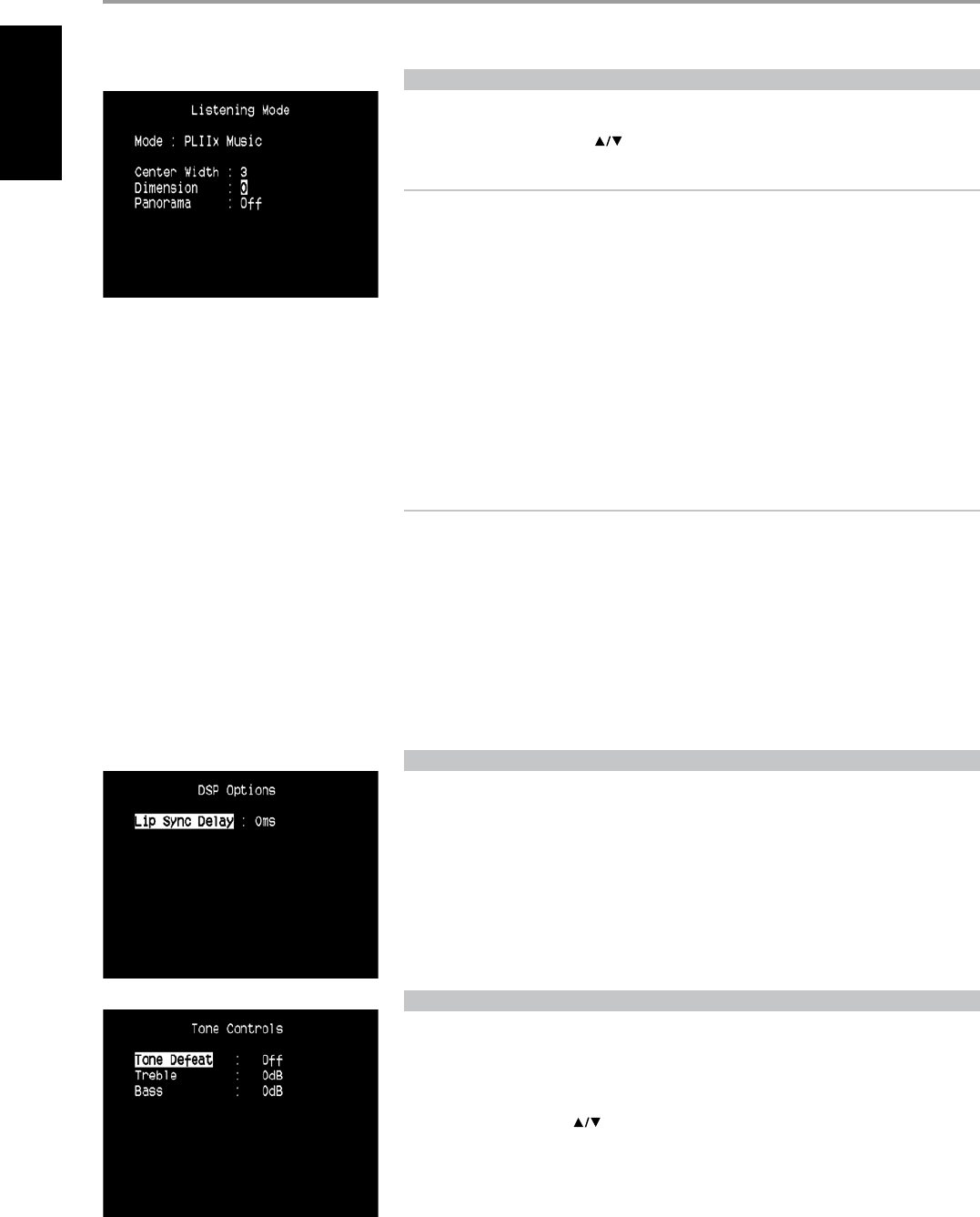
ADJUSTING LISTENING MODES
Several of the T 755’s listening modes have one or more selectable variations and adjustable
parameters that you can modify to suit your personal preferences. At Listening Mode menu, use a
combination of the [ENTER] and [ ] keys to navigate and eect desired settings.
NOTE
Listening Mode parameter changes are maintained when you change listening modes. You may
also save a modied Listening Mode for easy recall by saving it to a Preset (See “A/V PRESETS” below
under Setup Menu discussions).
PRO LOGIC IIx
PLIIx MOVIE is optimized for lm soundtracks.
PLIIx MUSIC for music recordings.
CENTER WIDTH (0 to 7): Modies the “hard-centeredness” of the center image, by gradually mixing
mono center content to the Front left/right speakers as well. A setting of 0 retains the center-
channel-only default while a setting of 7 yields a fully phantom center channel.
DIMENSION (-7 to +7): Adjusts front-rear emphasis of the surround eect independently from the
relative channel levels.
PANORAMA (On/O ): Adds a “wrap around” eect by extending some stereo content into the
surround channels.
NOTES
• Pro Logic IIx mode will decode as Pro Logic II mode when the BACK surround speakers are set to
“O” from “Speaker Conguration” menu. See also section about “SPEAKER CONFIGURATION”
under “SPEAKER SETUP” of the Setup Menu.
• The mention of “Back Right” and “Back Left” refer to your external amplier’s corresponding “Back
Right” and “Back Left” speakers (if any) as interfaced with the T 755. The Audio PRE- OUT makes it
possible to use the T 755 as a pre-amplier to external power ampliers for some or all channels.
NEO:6
Neo:6 Cinema is optimized for lm soundtracks.
Neo:6 Music for music recordings.
CENTER GAIN (0 to 0.5): Adjust for better center image in relation to the surround sound channels.
DSP OPTIONS
DSP Options has the feature “Lip Sync Delay” whose function is to match any delay that may occur in
the picture relative to the audio.
By varying “Lip Sync Delay” from 0ms to 120ms, one can delay the audio output in order to synchronize
it with the video image.
TONE CONTROLS
The T 755 has Bass and Treble Tone Control levels which only aect the low bass and high treble
leaving the critical midrange frequencies free of coloration.
These controls allow one to tweak on-the-y, the frequency response of the source during playback.
The control setting could be adjusted by navigating through the Tone Controls OSD menu via a
combination of [ENTER] and [ ] keys. The same can be managed directly by pressing the front
panel’s “TONE CONTROLS” button and then rotating the Volume knob to select desired setting.
Maximum and minimum values for both Tone Control levels are +/- 10 dB.
“Tone Defeat” gives one the choice of varying or completely bypassing the tone control section of the
T 755. If “O” (Tone Active in the VFD) is selected, the Tone Control circuits are active.
Select “On” to bypass the Tone Controls eectively defeating the eect of the tone control circuits.
OPERATION
USING THE T 755 MAIN MENU
14
ENGLISH FRANÇAIS ESPAÑOL ITALIANO DEUTSCH NEDERLANDS SVENSKA РУССКИЙ
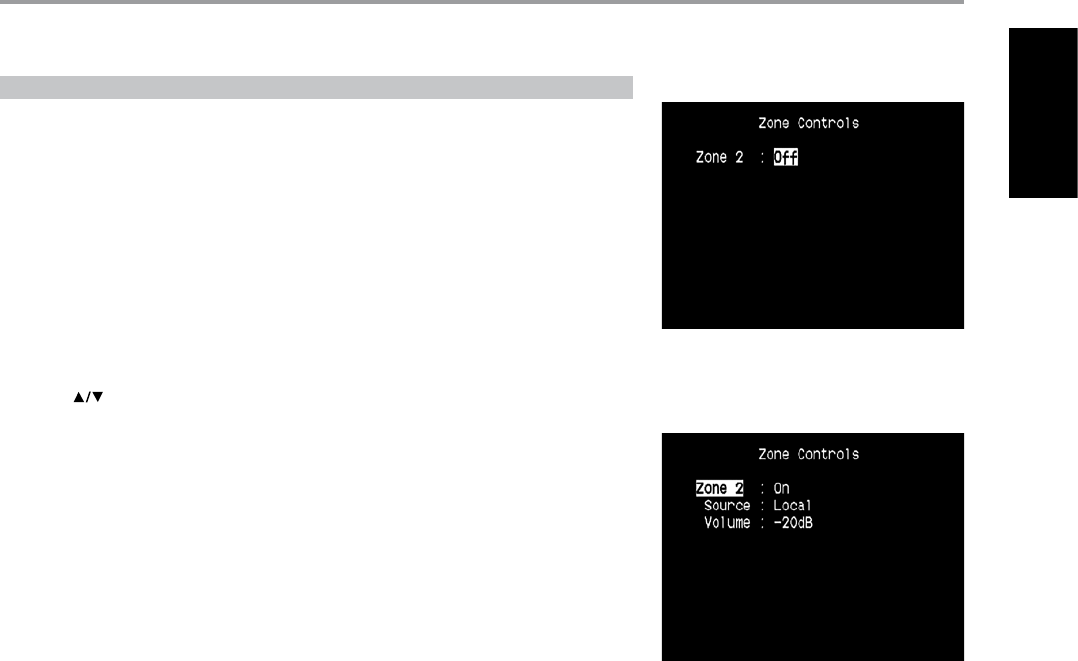
ZONE CONTROLS
Depending on the settings made at the separate “Zone Setup” menu under the “Setup Menu” section
discussion, Zone 2 can be congured and managed via this “Zone Controls” window.
Select “On” to activate Zone 2. When activated, the Source input for Zone 2 can be allocated by
selecting through the following inputs – All enabled Sources, Front Input, Media Player, Tuner and
Local.
Select “Local” as Zone 2’s Source input if you wish to enjoy the same source as the main Zone and allow
simultaneous listening, but with full separate volume levels.
If Zone 2 is set to “O”, it is deactivated or powered o.
“Volume” refers to the adjustable secondary Zone Volume level that can be increased or decreased
using the [ ] buttons of the HTR 3 or front panel’s.
When Zone 2 is activated, a corresponding Zone 2 icon is illuminated at the VFD.
OPERATION
USING THE T 755 MAIN MENU
15
ENGLISHFRANÇAISESPAÑOLITALIANODEUTSCHNEDERLANDSSVENSKAРУССКИЙ
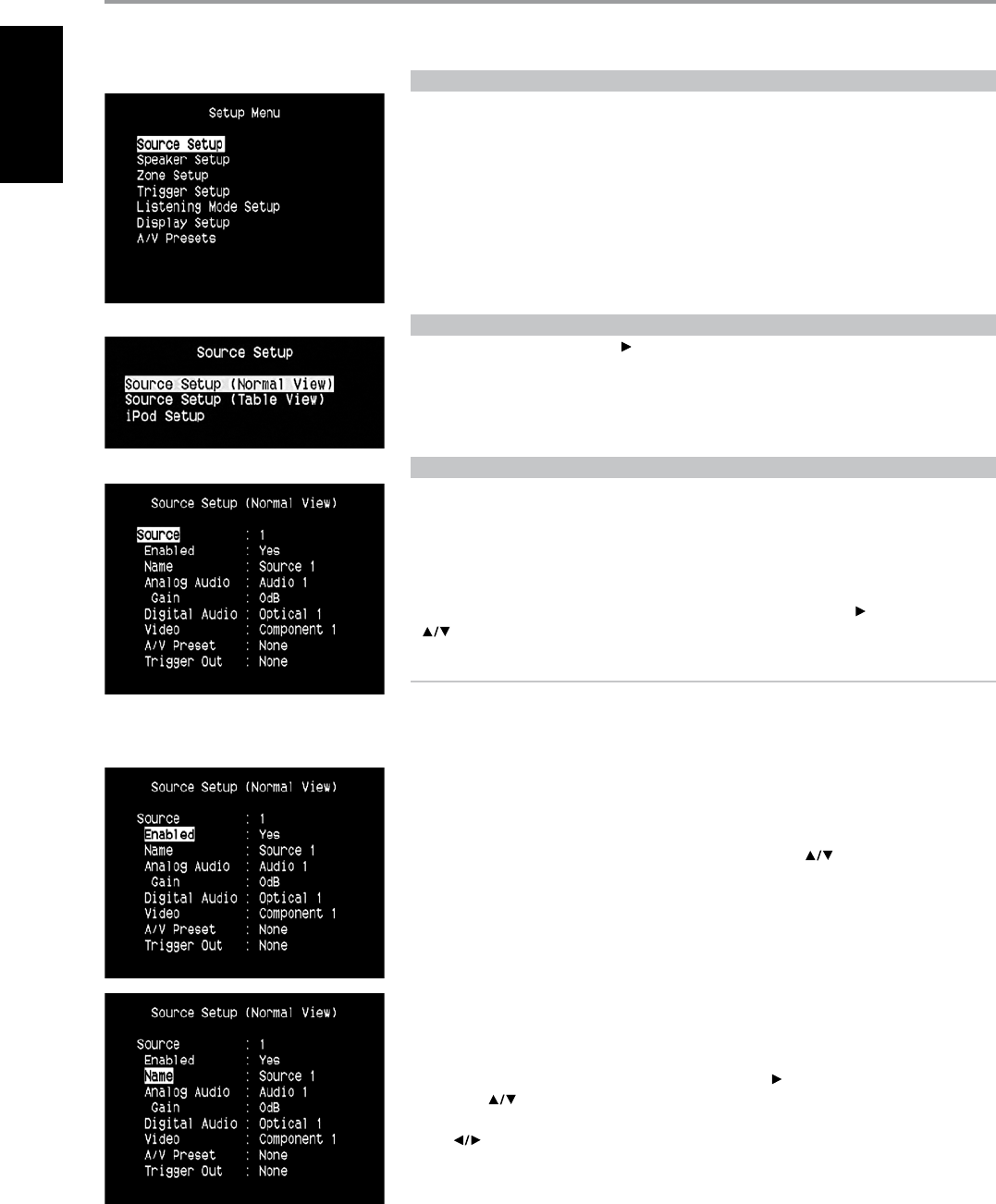
SETUP MENU
The Setup Menu allows one to customize the operation of the T 755 to the ancillary equipment used
in one’s specic AV system. Unless your system exactly matches the factory defaults as shown in the
accompanying Quick Start Guide, you will need to use the setup menu to congure the inputs of the T 755.
At Setup Menu, the following are congurable – Source Setup, Speaker Setup, Zone Setup, Trigger
Setup, Listening Mode Setup, Display Setup and A/V Presets.
To access and navigate through Setup Menu and its sub-menu selections, please refer to and follow
the directions stated in the sections “DISPLAY THE OSD” and “NAVIGATING THE OSD AND MAKING
CHANGES”.
SOURCE SETUP
From Source Setup menu, pressing [ ] will direct you to the Source Setup menu wherein you could
adjust allocate or change the settings of the following – Source Setup (Normal View), Source Setup
(Table View) and iPod Setup.
SOURCE SETUP (NORMAL VIEW)
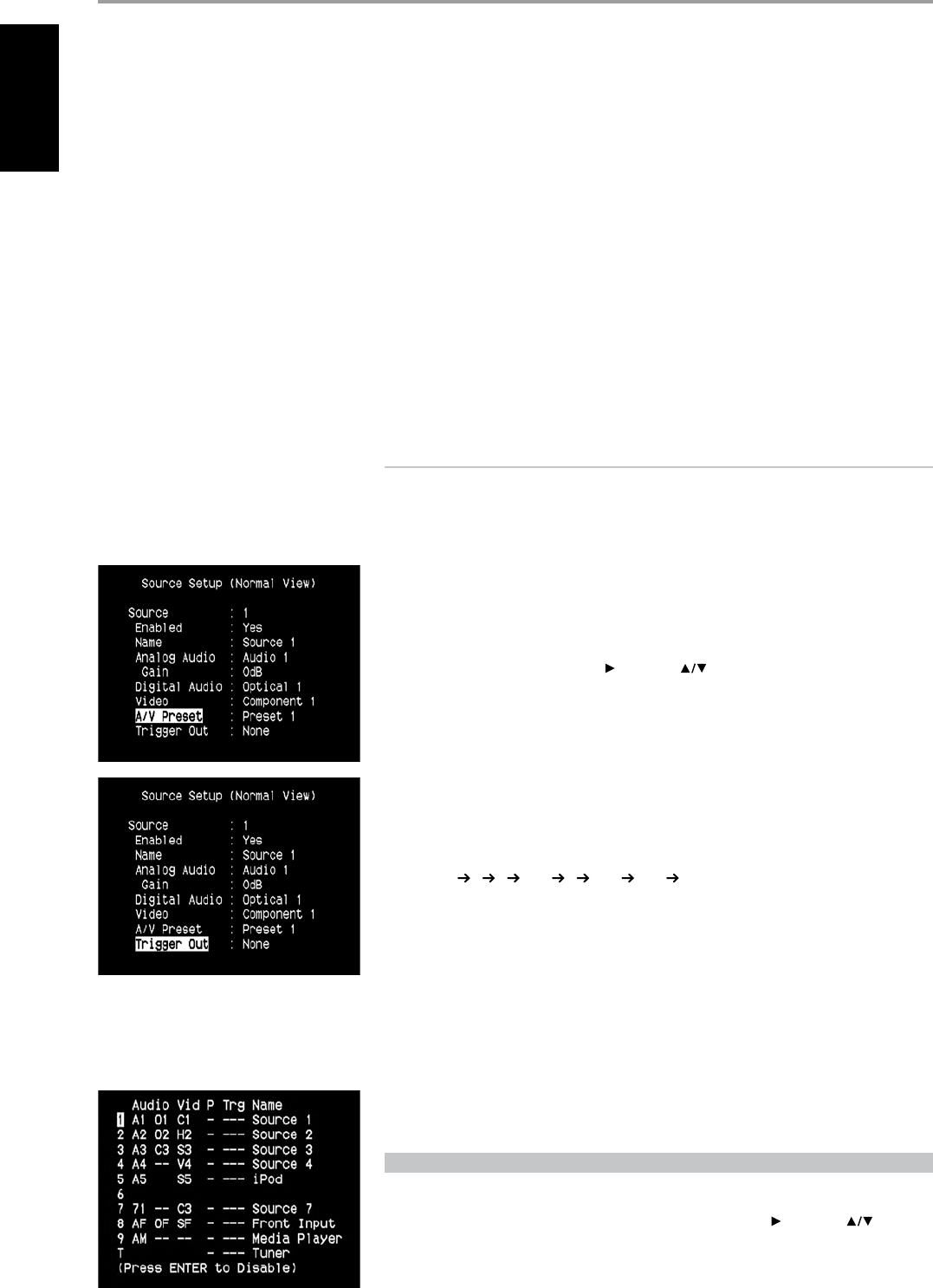
The Source Setup (Normal View) makes it possible to set, allocate or change the following settings.
SOURCE
The T 755 is equipped with ten congurable Sources. The settings for each Source are dependent on
the congurations set forth in the parameters for that particular Source window.
To change or toggle through the Sources, scroll to “Source”, press the buttons [ ] and then ENTER or
[ ] to move up or down the Source selections.
NOTE
Source 5 is defaulted to iPod. For Source 5 to be changed and allocated for other inputs, go to “iPod
Setup” menu under the “Source Setup” menu. At iPod Setup menu, set “Enabled” to “No” – you can
now assign Source 5 to other inputs or settings as desired.
ENABLED
One can enable/disable a Source via this option. This is particularly useful if only few Sources are used
and one directly selects the Source from the front panel, bypassing unused sources.
To enable or disable a particular Source, scroll to “Enabled” and press [ ] keys to select “Yes” or “No”.
NAME
A new Name maybe assigned to a Source label. For example, if your DVD player is attached to “Source
1”, it is possible to rename “Source 1” to “DVD Player”.
In order to rename the Source label, scroll to “Name” and press [ ] to go the character.
Then, press [ ] to pick through the alphanumeric selections.
Press [ ] to move to the next character and at the same time save the changes done on the
current character. The name can be as long as twelve characters.
The new Name will be shown in the VFD as well as on the OSD.
OPERATION
USING THE T 755 –SETUP MENU
16
ENGLISH FRANÇAIS ESPAÑOL ITALIANO DEUTSCH NEDERLANDS SVENSKA РУССКИЙ
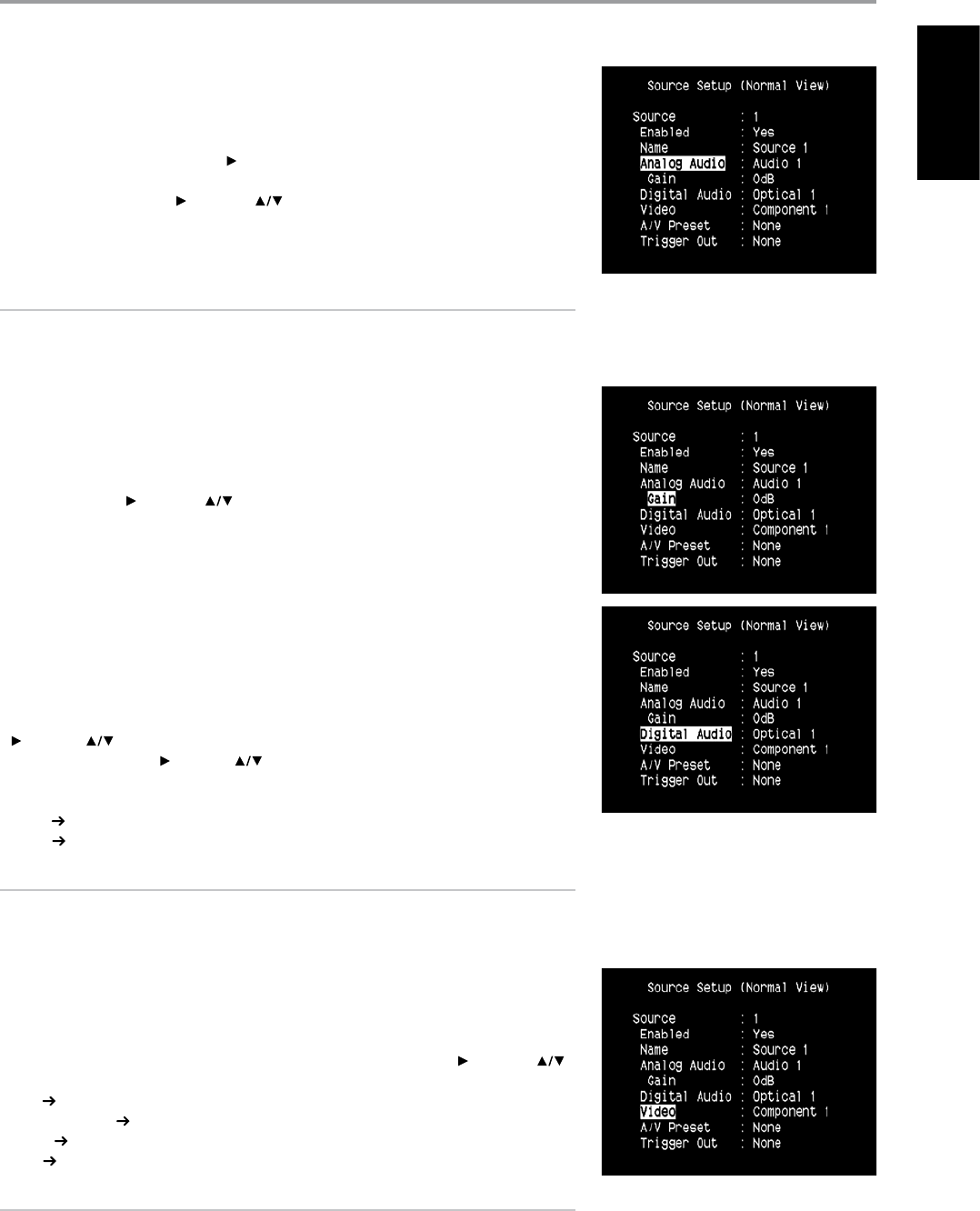
ANALOG AUDIO
The T 755 has nine analog audio inputs including 7.1 input. These analog inputs - Audio 1, Audio 2,
Audio 3, Audio 4, Audio 5, Audio 6, Audio Front, Audio MP and 7.1 Input can be variably assigned to
each Source.
Scroll to “Analog Audio” and then press [ ] to select and assign an analog audio input to the particular
Source. There are three choices – Audio, 7.1 Input or O.
When “Audio” is chosen, press [ ] and then [ ] keys to select and assign the desired audio input
– 1 to 6, Front and MP.
Select “7.1 Input” to choose the audio signal fed to “7.1 Channel Input”. If “O” is selected, no incoming
analog audio signal is selected by the particular Source.
NOTE
An incoming digital signal present at the assigned digital input will always take precedence over the
assigned analog audio input, even if both are present. To maintain the analog audio input for the
particular Source, select “O” at the “Digital Audio” setting of the same ”Source” menu.
GAIN
Gain adjustment allows all sources to play back at the same volume so you don’t need to adjust the
volume every time a new source is selected. It is generally preferable to reduce the level of the loudest
source rather than making louder the softer sources.
Scroll to “Gain”, press [ ] and then [ ] to step through the desired level from -12dB to 12dB.
DIGITAL AUDIO
To take advantage of the T 755’s high performance surround and digital audio circuitry, it is advisable
that its Digital Audio inputs are selected.
There are two types of Digital Audio input for the T 755: Optical and Coaxial. A third option is “O” whereby
no incoming digital audio signal is selected by the particular Source.
The desired digital audio input for a particular Source can be selected by scrolling to “Digital Audio”, press
[ ] and then [ ] to step through the desired digital input source. After nalizing which type of Digital
Audio input is desired, press [ ] and then [ ] again to select the specic Digital Audio input.
There are seven Digital Audio inputs selectable for the T 755. They are the following
Optical Optical 1, Optical 2, Optical 3, Optical Front
Coaxial Coaxial 1, Coaxial 2, Coaxial 3
NOTE
An incoming digital signal present at the assigned digital input will always take precedence over the
assigned analog audio input, even if both are present. To maintain the analog audio input for the
particular Source, select “O” at the “Digital Audio” setting of the same “Source” menu.
VIDEO
There are four types of video input a particular Source could be assigned. These are HDMI, Component,
S-Video and Video inputs. A fth option is “O” wherein the particular Source is prompted not to select
any Video input.
Navigating through the Video input selections involve a combination of pressing [ ] and then [ ]
to step through the selections. The following are the assignable Video inputs
HDMI HDMI 1, HDMI 2, HDMI 3
Component Video Component 1, Component 2, Component 3
S-Video S-Video 1, S-Video 2, S-Video 3, S-Video 4, S-Video 5, S-Video Front
Video Video 1, Video 2, Video 3, Video 4, Video 5, Video Front
NOTE
An audio input and video input should always be associated to a selected Source setting to ensure audio and video
output. If “O” is selected for any of the Analog Audio, Video or Digital Audio settings, there will be no corresponding
audio or video for the associated Source. For example, if the selected Video setting for a particular Source is
Component 1 and both Digital and Analog Audio are set to “O”, only video output will be available but no audio.
Ideally, when the selected Video input is Component 1, it follows that the Digital Audio input is set to Optical 1 or any
of the digital inputs. Refer also to the QUICK START section under the INTRODUCTION – GETTING STARTED page.
OPERATION
USING THE T 755 SETUP MENU
17
ENGLISHFRANÇAISESPAÑOLITALIANODEUTSCHNEDERLANDSSVENSKAРУССКИЙ
ABOUT VIDEO FORMATS
For many years, there was only one type of video format used. Composite video signals include the
Luminance (black & White) and Chroma (color) signals combined on one wire. S-Video uses separate
wires in a single cable for Luminance and Chroma signals. Component Video goes a step further
with separate cables for Luminance and the two elements of Chroma. For NTSC (America, Japan)
as well as PAL signals(Europe, Asia) these are labeled Y, Cr, Cb. Television studios use the Component
Video format to keep these signals separate in order to maintain the best quality. As consumer video
equipment has improved this higher quality format has been included.
VIDEO FORMAT CONVERSION
The T 755 is equipped with a Video Format Converter. This allows for a simplied video connectionbetween
the T 755 and your TV Monitor when using multiple video formats such as Composite (CVBS), S-Video, and
Component (YUV). This format change is accomplished by encoding the analog video signal intoa digital
signal using a very high quality digital encoder to maintain the best possible picture quality. Once in a
digital format, it can be decoded into any of the three standard analog video formats.
It is suggested that you select the highest quality video format available on your TV Monitor and utilize this
for your Monitor OUT connection from the T 755 to the TV Monitor. In most cases this will be Component
Video, but on some older TV’s S-Video may be the best quality connection. See also the item “3 COMPONENT
VIDEO 1-3, COMPONENT VIDEO OUT” under “Identication of Controls – Rear Panel” discussions.
NOTES
Video signals are converted between all three formats:
• Composite, S-video and Component Video.
• All three monitor outputs will always be active no mater what the source format is.
• OSD menu is always available on all three output formats.
A/V PRESET
A particular Source can be assigned a stored Preset. The parameters set up in the selected Preset
number will be adopted into the particular Source it is assigned (Please refer to the separate section on
“A/V PRESETS” for further understanding of Preset settings).
Scrolling to “A/V Preset” and by pressing [ ] and then [ ] keys, a Source could be assigned a
Preset number ranging from Preset 1 to 5.
If it is desired not to assign the particular Source a Preset setting, select “None”.
TRIGGER OUT
The Trigger Out for a particular Source is dependent on the congurations done in a separate menu on Trigger
Setup (See “TRIGGER SETUP” below). If all three available Trigger outputs are assigned to “Source Setup” in the
separate “Trigger Setup” window, a particular Source can have the following Trigger Out combinations
Trigger Out 1 2 1 + 2 3 1 + 3 2 + 3 1+2+ 3
These combinations are dependent on the assignment of “Source Setup” for “Trigger 1 Out, Trigger 2
Out or Trigger 3 Out” at the Trigger Setup menu.
Another option is “O” whereby the particular Source is not assigned any Trigger Out.
For “Trigger Out” to become enabled and assignable at “Source Setup (Normal View)” menu, make sure
to carry out or note the following beforehand
• In the separate “Trigger Setup” menu, assign “Trigger 1 Out, Trigger 2 Out or Trigger 3 Out” to
“Source Setup”.
• “Trigger Out” will not appear as an option at the Source Setup (Normal View) menu if at the
separate “Trigger Setup” menu, “Trigger 1 Out, Trigger 2 Out or Trigger 3 Out” are all assigned to
“Main” or “Zone 2” without a single “Trigger Out” port allocated to “Source Setup”.
SOURCE SETUP (TABLE VIEW)
The Source Setup (Table View) reects the settings made in the Source Setup (Normal View) menu. All
the Source settings are summarized and displayed in tabulated form in the Source Setup (Table View).
Navigating through the Source Setup (Table View) via a combination of [ ] and then [ ] keys,
one will have the benet of directly changing the settings for “Audio, Video, Preset, Trigger and Source
Name” without going back to the Source Setup (Normal View) menu.
OPERATION
USING THE T 755 SETUP MENU
18
ENGLISH FRANÇAIS ESPAÑOL ITALIANO DEUTSCH NEDERLANDS SVENSKA РУССКИЙ
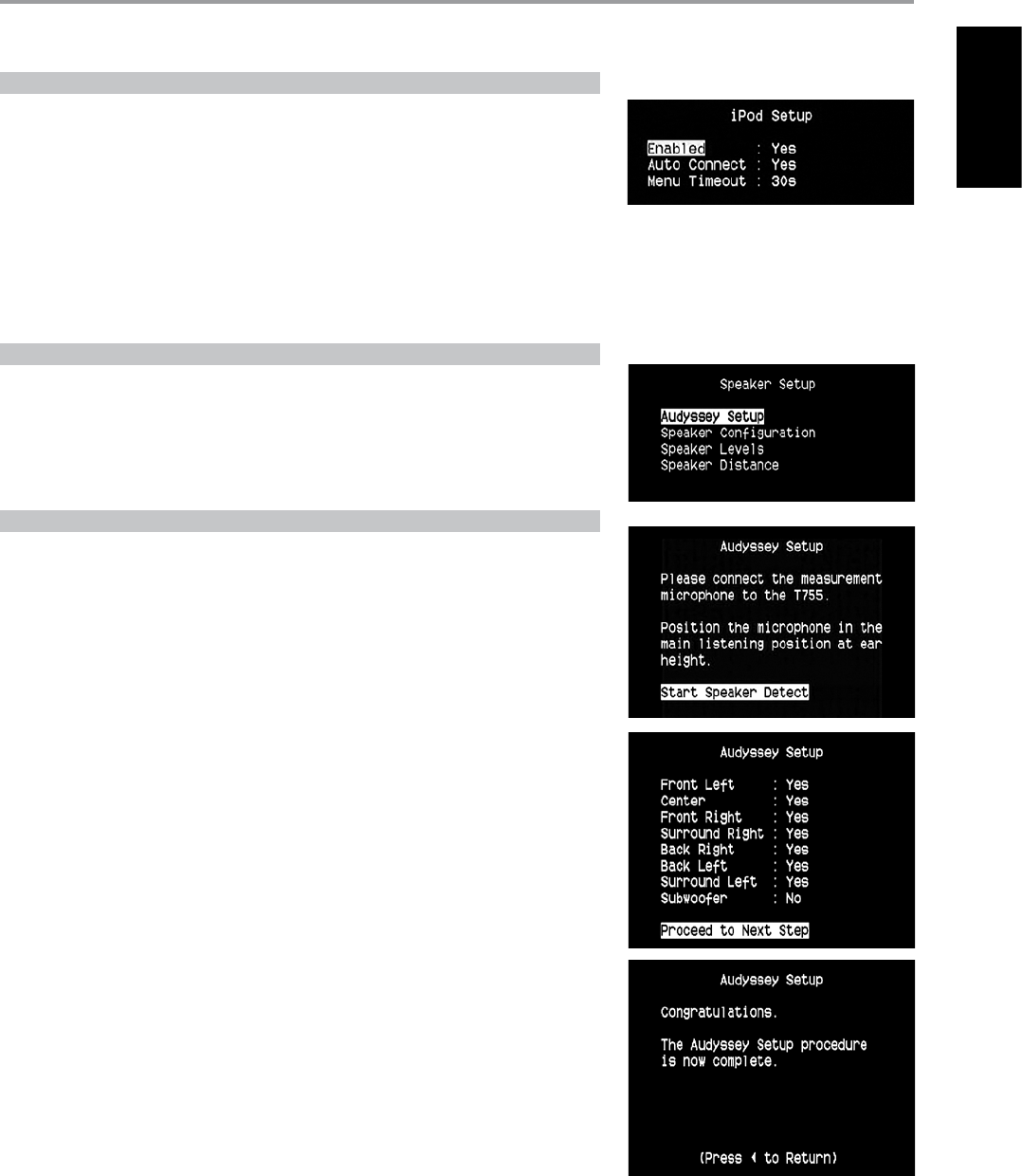
iPod SETUP
The iPod Setup menu allows you to preset the following associated settings when iPod is the selected
source:
Enabled: Select “Yes” to enable iPod as a Source or “No” to disable it.
Auto: Select “Yes” to automatically enable and connect the iPod player docked in the linked NAD
iPod docking station when Source 5 (the default iPod source allocation in the T 755) is selected.
Select “No” if you do not want for the iPod connection automatically connected.
Menu Timeout: Set the time for the OSD to revert to the “Now Playing” display when the iPod
menu has been left idle (no scrolling or navigation being done) for the specied time out time. For
the “Now Playing” OSD to be shown, there should be a song paused or being played before going
to the iPod menu. You can set the “Menu Timeout” between the range 5s to 60s at 5s increments. If
you do not want for the menu to timeout, select “O”.
SPEAKER SETUP
After connecting all ancillary sources and other combinations, the Speaker Setup menu will guide
you on how to manage and setup your speakers in order to achieve optimum sound acoustics in your
listening environment.
The following are the Speaker Setup Menu sections.
AUDYSSEY SETUP
It has been shown that many, if not most, surround sound systems are not accurately congured and setup.
This requires special knowledge and instrumentation that the average person probably doesn’t possess.
The T 755 has the capability to automatically setup your own unique Home Theatre’s speaker system.
This is achievable through the T 755’s Audyssey Setup feature along with the sophisticated digital
electronics built into your unit.
The installation of your new T 755 is greatly simplied by Audyssey Setup with the end result of
delivering the best quality sound possible given the type of speakers you have as well as your listening
room’s dimensions.
Audyssey Setup takes up only a fraction of time to run compared with setting up your speakers
manually and then achieve results that rival other expensive test and setup measuring devices.
The following measurements are performed:
• Detection : Speaker conguration is detected including the number of surround speakers and
whether a subwoofer and center channel is connected.
• Size : T 755 crossover is set based on each channel’s signal handling capability and the subwoofer
crossover is automatically set.
• Level : SPL of each speaker is matched within 1dB at the microphone position.
• Distance : is accurately set to within 1 foot (30 centimeters) of the microphone for each speaker
position.
• Polarity : the setup program will detect and notify the user if any speakers are connected
improperly. Incorrect polarity can ruin the illusion of realism oered by surround sound.
This is a one-time setup, unless speakers are moved or changed, in which case Audyssey Setup should
be performed again.
OPERATION
USING THE T 755 SETUP MENU
19
ENGLISHFRANÇAISESPAÑOLITALIANODEUTSCHNEDERLANDSSVENSKAРУССКИЙ
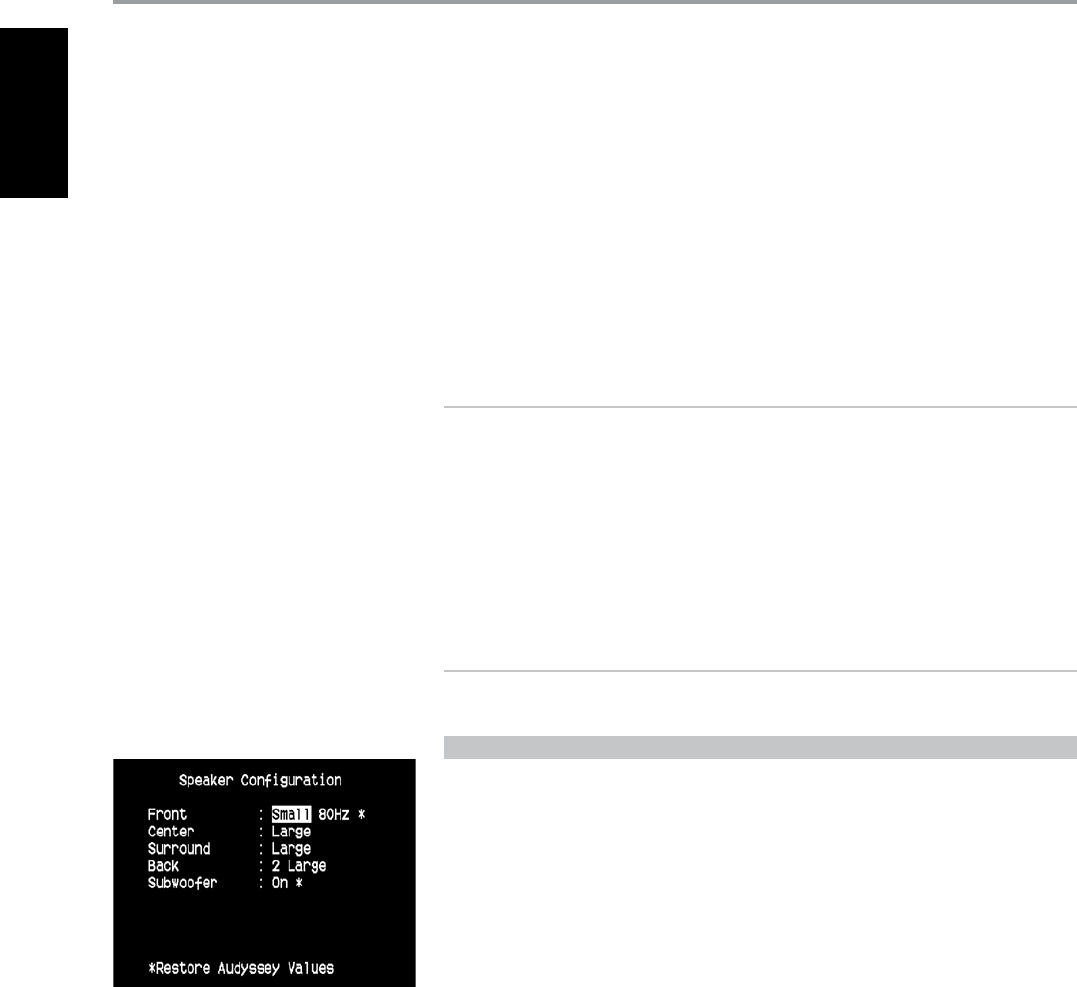
MEASUREMENT IS THE FIRST STEP
Connect the Audyssey microphone jack into the front panel’s MP/MIC input and the Audyssey Setup
wizard will guide you through a simple step-by-step conguration.
The sound at your main listening position is setup using the supplied Audyssey microphone. A special
test tone is sent to each speaker and the data is memorized by the T 755. The duration of setup may
take some time depending on the number of speakers. After the measurements, Audyssey calculates
the ideal system response for your particular room and speaker setup.
If some inconsistencies or discrepancies are detected during the Audyssey setup, the process
maybe interrupted or the problem is shown in the particular setup window. A notice screen is
correspondingly displayed. After following and undertaking the displayed instructions, re-start the
Audyssey setup again. When the measurements are nalized, Audyssey calculates the ideal system
response for your particular room and speaker setup.
NOTES
• The test tone emitted during measurement is loud. This maybe bothersome for you and may aect
as well your other household members and even your neighbor.
• The mention of “Back Right” and “Back Left” refer to your external amplier’s corresponding “Back
Right” and “Back Left” speakers (if any) as interfaced with the T 755. The Audio PRE- OUT makes it
possible to use the T 755 as a pre-amplier to external power ampliers for some or all channels.
It is recommended that you take full advantage of the T 755’s Audyssey Setup feature for your speaker
setup. However, if you desire to setup your speakers manually or if you already had run Audyssey Setup
but would like to make adjustments, the following sections on Speaker Conguration, Speaker Levels
and Speaker Distance can also be followed and implemented.
NOTE
During manual setting of your speakers, previously calibrated Audyssey settings could be retrieved
by re-adjusting back the altered congurations as highlighted by an asterisk.
SPEAKER CONFIGURATION
Every surround-sound system requires “bass-management” to direct low-frequency content from any
or all channels to the speakers best able to reproduce it. For this function to operate correctly, it is
important that you correctly identify your speakers’ capabilities. We use the terms “Small” and “Large”
(and “O”), but note that physical size may be irrelevant.
• A “Small” speaker is any model, regardless of physical size, that lacks signicant deep-bass response,
that is, below about 80 Hz.
• A “Large” speaker is any full-range model, that is, one with deep-bass response
• An “O” speaker is one that is not present in your system. For example, you might not have any
surround-back speakers installed; in that case, you would set the “Back” setup item to “O”.
OPERATION
USING THE T 755 SETUP MENU
20
ENGLISH FRANÇAIS ESPAÑOL ITALIANO DEUTSCH NEDERLANDS SVENSKA РУССКИЙ
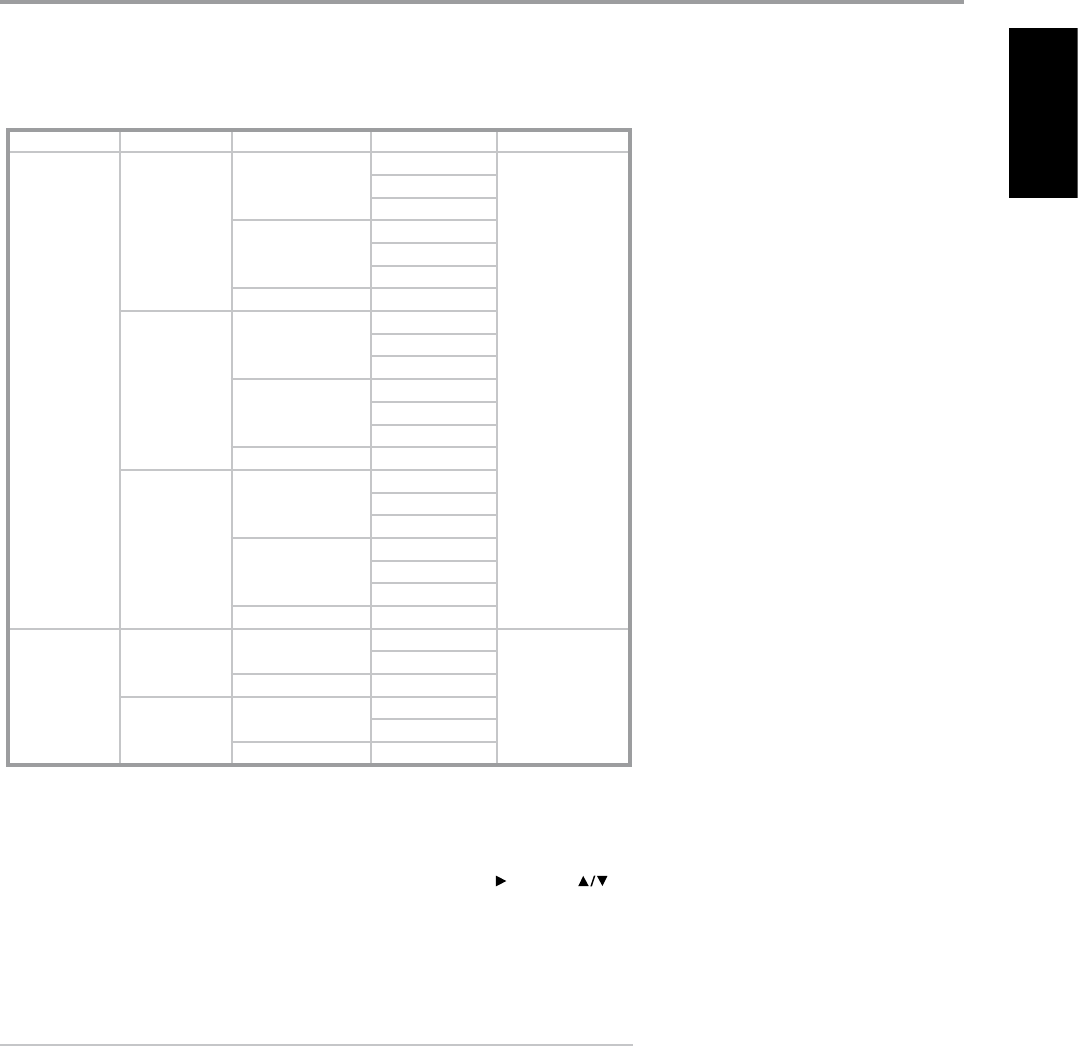
Depending on the relationship between speakers, the possible selections for each speaker are as
follows:
Front L/R Center Surround L/R Back Subwoofer 1/2
Large
Large
Large
Large
On or O
Small
O
Small
Large
Small
O
O O
Small
Large
Large
Small
O
Small
Large
Small
O
O O
O
Large
Large
Small
O
Small
Large
Small
O
O O
Small
Small Small Small
On
O
O O
O Small Small
O
O O
The Speaker Conguration is “global”; that is, it remains in force with all inputs and in all listening
modes. However, speaker settings are part of the T 755’s Preset system. Consequently, multiple speaker
settings can be stored for easy recall as dierent types of recordings or listening modes require.
Speaker Conguration can be managed and adjusted by pressing a combination of [ ] and then [ ]
keys. Set “Front”, “Center”, and “Surround” to “Large”, “Small” or “O” as your subsystem’s speakers require.
The “Back” speakers can either be one or two speakers. Set “Back” to either 1 or 2 speakers as per
availability. Set “Subwoofer” to “On” or “O”, selecting “On” only if you have a subwoofer connected to
the T 755’s SUBW1 or SUBW2 output jack.
NOTE
The mention of “Back” speakers refer to your external amplier’s corresponding “Back Right” and
“Back Left” speakers (if any) as interfaced with the T 755. The Audio PRE- OUT makes it possible to
use the T 755 as a pre-amplier to external power ampliers for some or all channels.
OPERATION
USING THE T 755 SETUP MENU
21
ENGLISHFRANÇAISESPAÑOLITALIANODEUTSCHNEDERLANDSSVENSKAРУССКИЙ
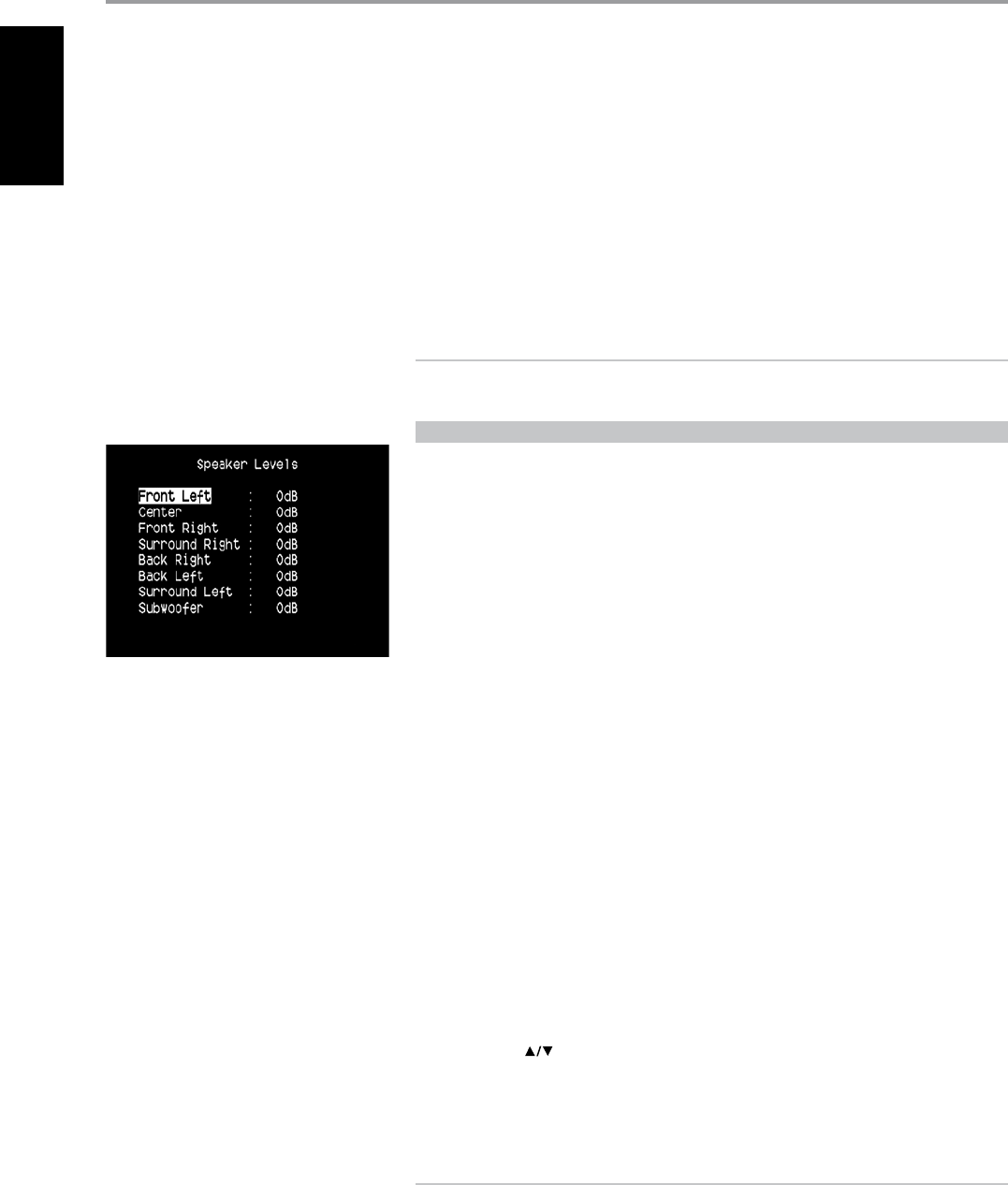
ENHANCED BASS
When the subwoofer is set to ON and one or more speakers are set to “Large”, Enhanced Bass is also
available. Normally, with speakers set to “Large” the subwoofer is not active. The Enhanced Bass option
allows full range operation of the speakers with the additional bass contribution of the subwoofer. This
feature is particularly useful when one wants to experience maximum bass output. Please note that
due to acoustic cancellation eects, the bass response may be uneven when using this setting.
You can set Subwoofer to “On” even with “Large” front speakers, in which case bass content from any
channels set to “Small” will be routed to both the subwoofer and to the front speakers; LFE-channel
signal will pass only to the sub. In most subwoofer-equipped systems, setting front speakers to “Small”
is usually the better option.
All the speakers’ low frequency content can be directly adjusted within the range 40Hz to 200Hz.
NOTE
The congurations set forth at “Speaker Setup” are carried over whenever it is enabled during A/V
Preset setting. Please see also the section “A/V PRESETS” for reference.
SPEAKER LEVELS
Adjusting the relative balance of your system’s loudspeakers ensures that surround-sound recordings,
whether music or lm, will present the balance of eects, music, and dialog that the artists intended.
Additionally, if your system incorporates a subwoofer it establishes a correct relationship between the
volume of the subwoofer and the other speakers, and thus of low-frequencies (bass) to other sonic
elements.
USING AN SPL METER
It is quite practical to perform the T 755 level setup routines “by ear”, and careful work will produce
acceptably accurate results. However, the use of an inexpensive sound-pressure level (SPL) meter,
such as Radio Shack part number 33-2050, makes this task easier, more accurate and more repeatable.
Ownership of such a meter could prove a valuable audio tool. Your NAD audio specialist may be able
to help you with temporary use of a meter.
The SPL meter should be placed at the primary listening position, at approximately the height of
the seated listener’s head. A tripod is helpful but with a little duct tape almost anything — a pole
lamp, music-stand, or ladder-backed chair, for example — can do as well. Just be sure that no large
acoustically reective surfaces obstruct or are near the microphone element.
Orient the meter with its microphone (usually at one end) pointing straight up toward the ceiling (not
toward the speakers) and ensure that “C” weighting scale is selected. Set the meter to display 75 dB
SPL. On Radio Shack meters, this necessitates either setting the meter to its 80 dB range and taking
your readings at the -5 point or selecting the 70 dB range and reading at the +5 point.
SETTING SPEAKER LEVELS AT TEST MODE
While at “Speaker Levels” menu, press the HTR 3 remote’s “Test” key activating the T 755’s Speaker Levels
balancing test signal. You will hear a “surf” sound as you step through your speakers (“test” appears to
the right side of the current speaker), beginning with the Front Left. If you do not hear the test signal,
check your speaker connections or your “Speaker setup” menu settings.
Use the remote’s [ ] keys to adjust the loudness of the noise output from the currently playing
channel to the required level (it’s usually simplest to begin with the Front Left). As you cycle the test
signal around the speakers, the OSD will highlight the currently playing channel. The “level oset”
reading on the right will change by 1 dB increments; ±12 dB adjustment is available. Press [ENTER] to
adjust the next speaker.
NOTE
If you are balancing levels “by ear”, choose one speaker—usually the center— as a reference and
adjust each of the others in turn to “sound as loud” as the reference. Be sure that you remain in the
primary listening position while balancing all channels.
OPERATION
USING THE T 755 SETUP MENU
22
ENGLISH FRANÇAIS ESPAÑOL ITALIANO DEUTSCH NEDERLANDS SVENSKA РУССКИЙ
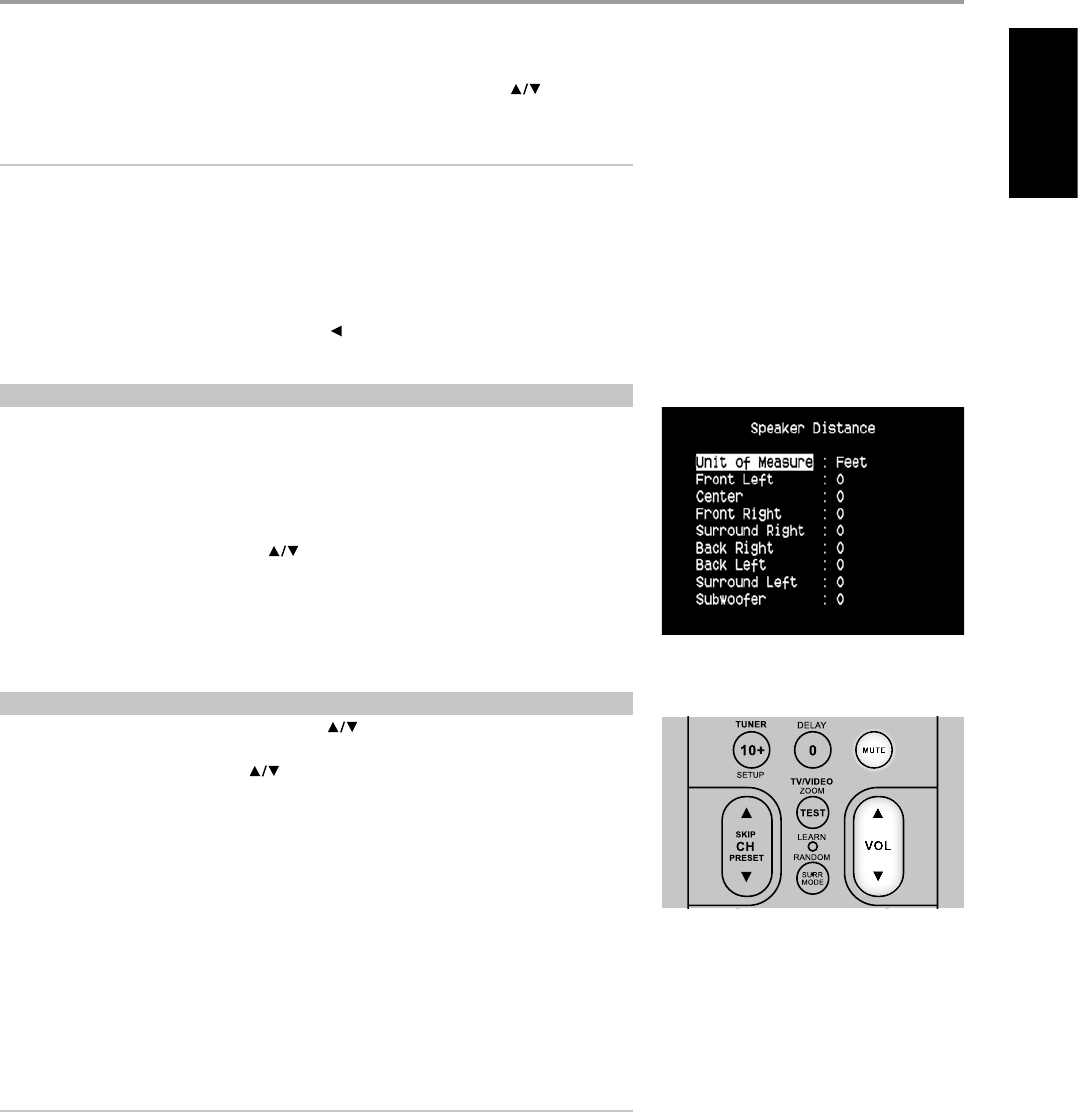
To produce the same SPL meter reading (or subjective loudness), use the remote’s [ ] keys to
adjust each speaker.
NOTES
• All speakers must be in their nal locations before level-setting.
• Your subwoofer (if any) should be set with its integral crossover defeated, or if undefeatable, set to
its highest-possible frequency if you are using the T 755's Subwoofer output. Final subwoofer-level
adjustment “by-ear”, using music and lm sound material, is frequently useful.
• Due to the eects of room acoustics, matched-pair speakers (front; surround; back) will not always
calibrate to exactly the same level oset readings.
You can exit “Test” mode at any time by pressing the [ ] key twice, bringing you back to “Speaker
Setup” menu.
SPEAKER DISTANCE
Your system’s speaker distance settings are a subtle but important renement of your setup. Informing
the T 755 of the loudspeaker-to-listener dimensions of each speaker automatically imposes the correct
delays, optimizing imaging, intelligibility and surround-sound ambience. Enter your dimensions with
precision within about 1 foot (30 cm).
SETTING SPEAKER DISTANCE
While at “Speaker Distance” menu, use the [ ] keys to individually set Front Left, Center, Front Right,
Surround Right, Back, Surround Left and Subwoofer to the distance measuring from your principal
listening position to the front surface of their corresponding loudspeakers. Distance can be set up to
30 feet or 9.1 meters.
Distance can be displayed as feet or meters selectable at the “Unit of Measure” item.
ADJUSTING THE VOLUME
In addition to the Volume knob, use the HTR 3’s [VOL ] to adjust the “master volume” of the T 755
raising or lowering the channels altogether. A momentary keypress will change the master volume by
1 dB increments. If you hold down [VOL ] the master-volume change will “run-on” until the key is
released.
Since recordings vary considerably in overall average level, there is no imperative to listen at any
particular master-volume setting. A setting of -20 may sound “as loud” from one CD or DVD as -10 does
from another.
The T 755 will power-up from Standby mode at whatever master volume setting was last used;
however, if the prior setting was greater than –20 dB, the T 755 will power up at –20 dB. This prevents
inadvertently beginning a session at excessive volume.
MUTING THE SOUND
Use the HTR 3’s “Mute” key to silence all channels completely. Muting is always available regardless of
the source or listening mode selections.
NOTES
• Changing input or listening-mode selections does not release muting.
• Adjusting the master-volume upward via the HTR 3 or the front-panel knob automatically releases
the mute function.
OPERATION
USING THE T 755 SETUP MENU
23
ENGLISHFRANÇAISESPAÑOLITALIANODEUTSCHNEDERLANDSSVENSKAРУССКИЙ
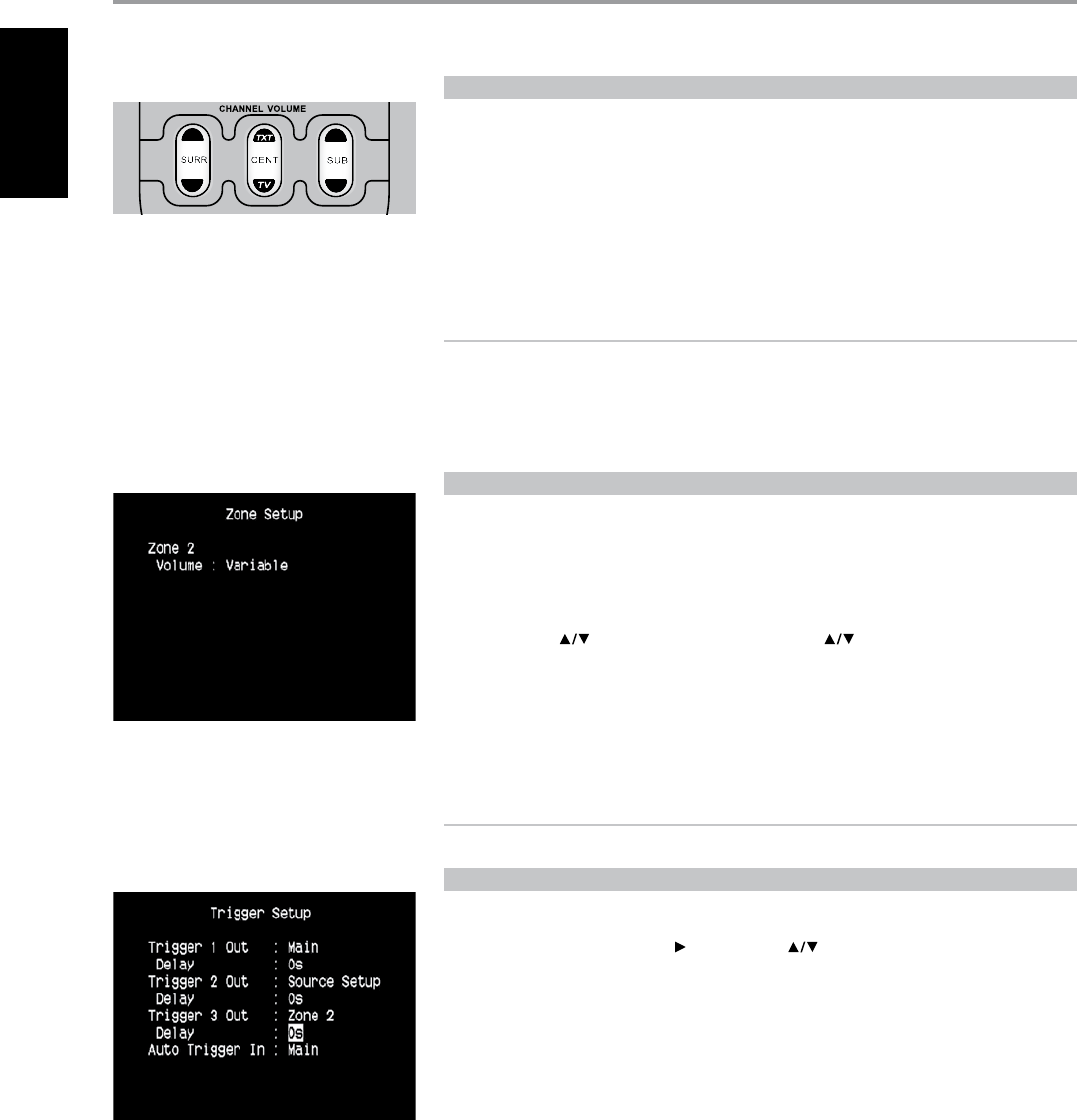
ADJUSTING CHANNEL LEVELS “ON THE FLY”
You can make changes to the relative levels of center, surround and subwoofer outputs without
having to go into the “Speaker Levels” menu. This is very convenient in circumstances like increasing
(or tone down) a lm’s dialog level by rising (lowering) the center channel or reducing excessive deep
bass (or enhance deep bass) by lowering (rising) the subwoofer level.
Use the HTR 3’s [SURR], [CENT] and [SUB] keys for direct-access level adjustment of these channels over
a range of ±6dB.
The surround back channels (if any) adjust in lockstep with the surround channels.
NOTE
Level settings adjusted “On the Fly” are added or subtracted to the setup levels established at the
T 755 level-calibration routine as invoked by the HTR 3 “Test” key. However, selecting any Preset
will revert the channel levels to those stored in the preset. It will also take T 755 o the levels set via
Audyssey Setup.
ZONE SETUP
The Zone feature allows one to simultaneously experience in dierent zones of the house multiple
sound and applicable video sources from all enabled Sources as well as from Front Input, Media Player
and Tuner.
VOLUME
Zone 2 have Fixed and Variable volume control. When set to “Variable”, the Zone 2 Volume is directly
adjustable using [ ] cursor keys of the HTR 3 or [VOLUME ] keys of ZR 4.
On the other hand, if Volume is set to “Fixed”, the Zone 2 Volume is set to a preset dB level and
thereafter the zone’s volume can be varied via the volume control of the separate amplier it is fed
into.
See discussion also on “ZONE CONTROLS” at the Main Menu.
NOTE
The ZR 4 remote control will only control Zone 2 applications.
TRIGGER SETUP
The T 755 features three congurable +12V DC Trigger Output that can be used to activate a
component or system it is fed into. A Trigger Input is also available to turn on the applicable link it is
associated to. Use a combination of [ ] or ENTER and [ ] keys to navigate through the Trigger
Setup menu parameters.
TRIGGER OUT
Triggers are low voltage signals used to turn on/o other compliant devices. The T 755’s three +12V DC
Trigger Outputs (Trigger 1 Out, Trigger 2 Out and Trigger 3 Out) are dependent on which mode they
are associated with. There are three choices where +12V DC output can be assigned and these are
– Main, Zone 2 and Source Setup.
Main: +12V DC is available at the assigned Trigger Out when the T 755 is at powered state.
Zone 2: When Zone 2 is at powered state, +1 2V DC is available at the assigned Trigger Out.
Source Setup: If Trigger Output is linked to “Source Setup”, +12V DC is available at Trigger Out
whenever the particularly assigned Source is selected. Please see also separate discussion about
“TRIGGER OUT” under the “SOURCE SETUP (NORMAL VIEW)” section.
OPERATION
USING THE T 755 SETUP MENU
24
ENGLISH FRANÇAIS ESPAÑOL ITALIANO DEUTSCH NEDERLANDS SVENSKA РУССКИЙ
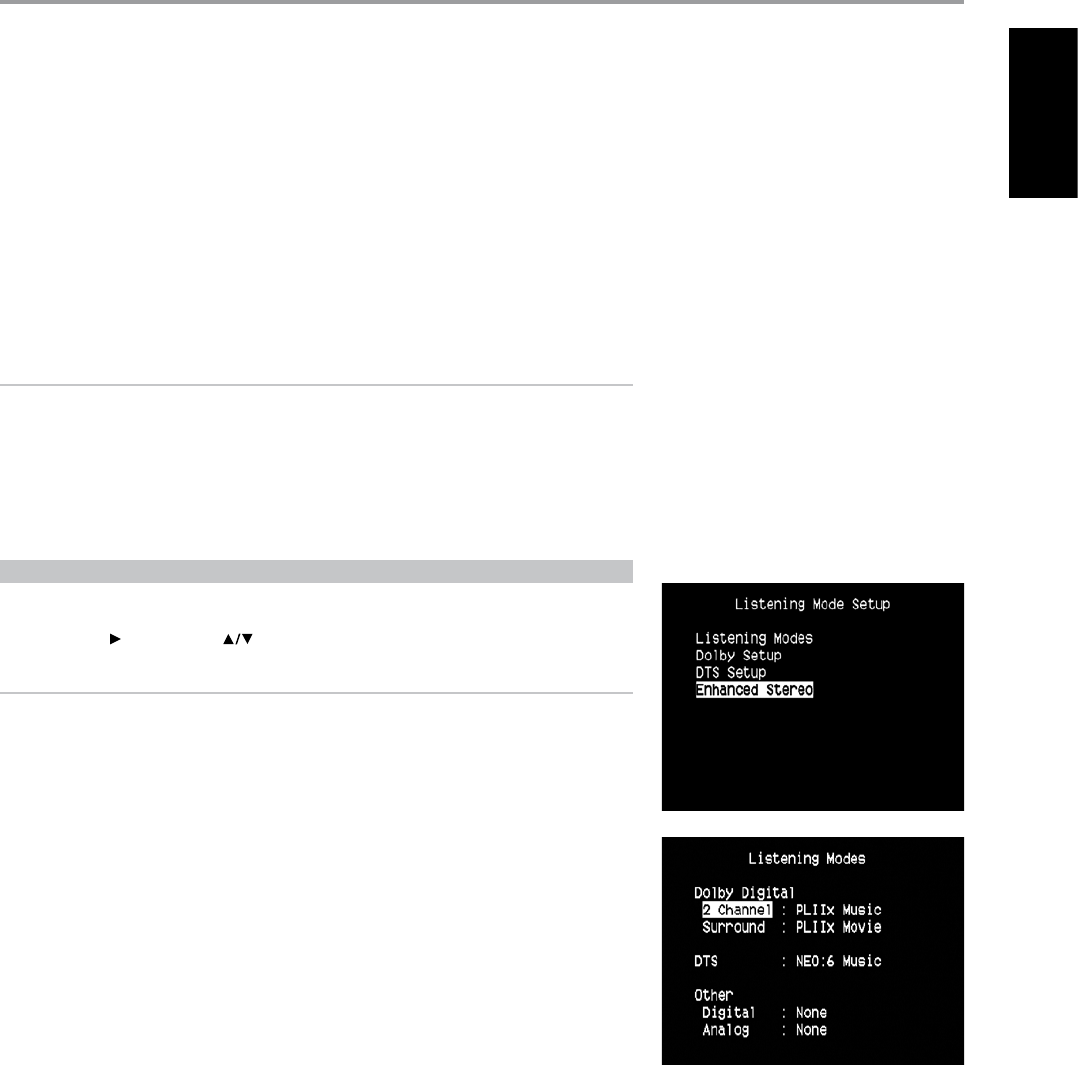
DELAY
The availability of +12V DC at Trigger OUT can be regulated. If it is desired that +12V DC is available
without delay the moment Trigger OUT is linked to its assigned setting, set Delay to 0s. Otherwise, one
can select through a delay time of 1s to 15s.
AUTO TRIGGER IN
Auto Trigger IN allows external system controllers to toggle the associated section of the T 755 from
“Standby” to “On” and vice versa. When the TRIGGER switch at the rear panel is set to ON, a +12V DC
input at Trigger IN will power ON the section where Trigger IN is assigned,
Main: From standby mode, the T 755 is powered ON when +12V DC is applied at Trigger IN.
Zone 2: Zone 2 is turned ON whenever +1 2V DC is present at Trigger IN.
All: Main and Zone 2 as described above will all be activated given a +12V DC input at Trigger IN.
WARNING
If Auto Trigger IN at Trigger Setup menu is assigned to “Main” or “All” and the TRIGGER switch is set
to “AUTO” mode, the Power button in the front panel as well as the corresponding ON/OFF function
keys in the HTR 3 remote control will be disabled eectively handing this function to an external
controller. Switch TRIGGER to “OFF” to maintain normal power ON/OFF function procedures.
See also item “2. +12 V TRIGGER OUT, TRIGGER IN, TRIGGER AUTO/OFF” of REAR PANEL discussion as well
as the “TRIGGER OUT” discussion under “SOURCE SETUP (NORMAL VIEW)”.
LISTENING MODE SETUP
The T 755 has various listening mode options and is mostly congurable. These are provided to
reproduce a variety of sound eects depending upon the content of the source to be played. Use a
combination of [ ] or ENTER and [ ] keys to congure the following settings.
NOTE
The mention of “Back” speakers refer to your external amplier’s corresponding “Back Right” and
“Back Left” speakers (if any) as interfaced with the T 755. The Audio PRE- OUT makes it possible to
use the T 755 as a pre-amplier to external power ampliers for some or all channels.
LISTENING MODES
The audio format as detected by the selected Source can be automatically congured and processed
through the following options:
DOLBY DIGITAL
Dolby Digital is the multi-channel digital signal format developed in the Dolby laboratories. Discs
bearing the double-D symbol were recorded with up to 5.1 channels of digital signals, reproducing a
much better sound quality, with dynamic and spatial sound sensations that are much better than in
the previous Dolby Surround.
A Dolby Digital audio input can be congured relative to its format.
2 Channel: If the detected audio is a 2 Channel Dolby Digital signal, you can default it to one of
the following settings – Pro Logic, PLIIx Movie, PLIIx Music or None.
Surround: If the detected audio is a Surround Dolby Digital signal, you can default it to one of the
following settings –Surround EX, PLIIx Movie, and PLIIx Music, Stereo Downmix or None.
None: If “None” is selected, the Dolby Digital format will follow the “Digital” setting set forth at
“Other” option under this menu section. See discussion below about “OTHER”.
OPERATION
USING THE T 755 SETUP MENU
25
ENGLISHFRANÇAISESPAÑOLITALIANODEUTSCHNEDERLANDSSVENSKAРУССКИЙ

DOLBY DIGITAL EX
Using a Matrix decoder, this method creates the back channel (sometimes also called the “surround
center”) by means of signals on the left and right surround channels recorded in Dolby Digital 5.1,
reproduction being provided in Surround 6.1. This method should be selected with sources bearing
the (double-D symbol)-EX, recorded in Dolby Digital Surround EX.
With this additional channel you will experience improved dynamics and a better sensation of
movement within the sound eld. If media sources recorded in Dolby Digital EX are decoded with a
Digital EX decoder, the format is detected automatically, and the Dolby Digital EX mode is selected.
However, some media sources recorded in Dolby Digital EX can be detected as simple Dolby Digital
media sources. In this case Dolby Digital EX should be selected manually.
NOTE
Please refer to the section “LISTENING MODE” at the Main Menu discussions for a description of Pro
Logic, PLIIx Movie, PLIIx Music and Stereo Downmix modes.
DTS
The Digital Theater System Digital Surround (simply called DTS) is a multi-channel digital signal format
that can process higher data rates than with Dolby Digital. Although both Dolby Digital and DTS are
5.1 channel media formats, discs bearing the “DTS” symbol are thought to provide better sound quality
due to the lower audio compression required. It also oers a broader dynamic, producing magnicent
sound quality.
A DTS input can be defaulted to one of the following options: - Neo:6 Music, Stereo Downmix or None.
If “None” is selected, the DTS signal will follow the “Digital” setting set forth at “Other” option under this
menu section. See discussion below about “Other”.
NOTE
Please refer to the section “LISTENING MODE” at the Main Menu discussions for a description of
Stereo Downmix and DTS Neo:6 surround modes.
OTHER
If “None” is selected above for any of the Dolby Digital 2 Channel, Dolby Digital Surround and DTS
options or if the audio input is an analog signal, this “Other” section will manage the default audio
format as per the “Digital” or “Analog” settings.
Digital: The detected digital input can be congured by way of one of the following options
- Pro Logic, PLIIx Movie, PLIIx Music, Neo:6 Cinema, Neo:6 Music, EARS, Enhanced Stereo, Stereo
Downmix and None.
Analog: If the audio input is an analog signal, the following are the surround modes the input
can be defaulted - Pro Logic, PLIIx Movie, PLIIx Music, Neo:6 Cinema, Neo:6 Music, EARS, Enhanced
Stereo, Analog Bypass and None.
NOTE
All these Listening Modes for “Dolby Digital”, “DTS” and “Other” can be directly changed by pressing
the “LISTENING MODE” button on the front panel or through the “Listening Mode” option at the
Main Menu window. The chosen audio format will be reected back to the appropriate setting at
the “Listening Mode Setup”.
OPERATION
USING THE T 755 SETUP MENU
26
ENGLISH FRANÇAIS ESPAÑOL ITALIANO DEUTSCH NEDERLANDS SVENSKA РУССКИЙ
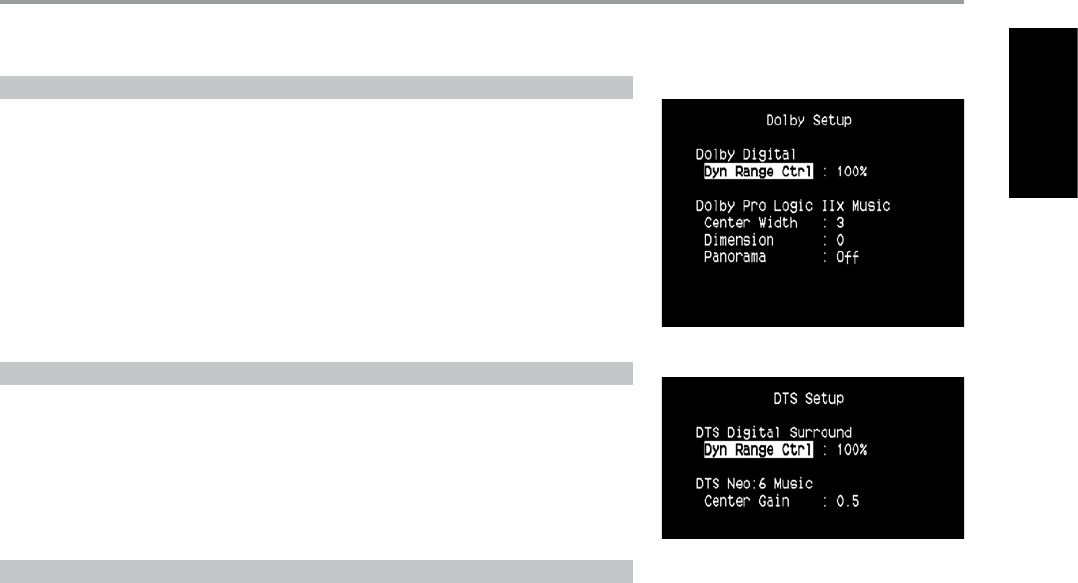
DOLBY SETUP
Under this menu, the Dolby Digital’s Dynamic Range Control can be adjusted as well as the settings for
Dolby Digital Pro Logic IIx Music.
Dynamic Range Control: You can select the eective dynamic range (subjective range from soft
to loud) for playback of Dolby Digital soundtracks. For fully cinematic eect, always select 100%, the
default. Settings of 75%, 50%, and 25% progressively reduce dynamic range, making soft sounds
comparatively louder while limiting the peak loudness of loud ones.
The 25% setting will yield the least dynamic range and is best for late-night sessions or other times
when you wish to retain maximum dialog intelligibility while minimizing overall volume levels.
Dolby Pro Logic IIx Music: Please refer to the same description about “ADJUSTING LISTENING MODES”
under the “LISTENING MODE” of the Main Menu discussions.
DTS SETUP
Under this menu, the Dynamic Range Control of DTS Digital Surround can be adjusted as well as the
settings for DTS Neo:6 Music.
Dynamic Range Control : This is the same congurable Dynamic Range Control feature as described
above at Dolby Setup, the only dierence being the soundtrack is now in DTS format.
DTS Neo:6 Music : Please refer to the same description about “ADJUSTING LISTENING MODES” under
the “LISTENING MODE” of the Main Menu discussions.
DTS SURROUND MODES
The following are further descriptions about the DTS surround modes.
DTS ES EXPANDED SURROUND ™ DTS ES
This is a new multi-channel digital format which greatly improves the 360° spatial sensation of the
Surround impression thanks to the greater space expansion of the surround signals, providing high
compatibility with the conventional DTS format.
In addition to the 5.1 channels, the expanded DTS-ES Surround also oers the back surround (also
sometimes called the “surround centre”) in reproduction, providing a total of 6.1 channels. The
expanded DTS-ES Surround includes two formats, with two dierent methods of surround signal
recording, as follows:
DTSES™ DISCRETE 6.1
Since the signals of the 6.1 Surround channels (including the back channel) are completely
independent, it is possible to achieve the sensation that the acoustic image is moving about freely
among the background sounds, 360 degrees surrounding the listener.
Although maximum quality is achieved with sound tracks recorded using this system and reproduced
using the DTS-ES decoder, when played with a conventional DTS decoder, the back surround channel
is automatically downmixed in the surround right and surround left channels of the surround system,
in such a way that none of the signal components are lost.
OPERATION
USING THE T 755 SETUP MENU
27
ENGLISHFRANÇAISESPAÑOLITALIANODEUTSCHNEDERLANDSSVENSKAРУССКИЙ
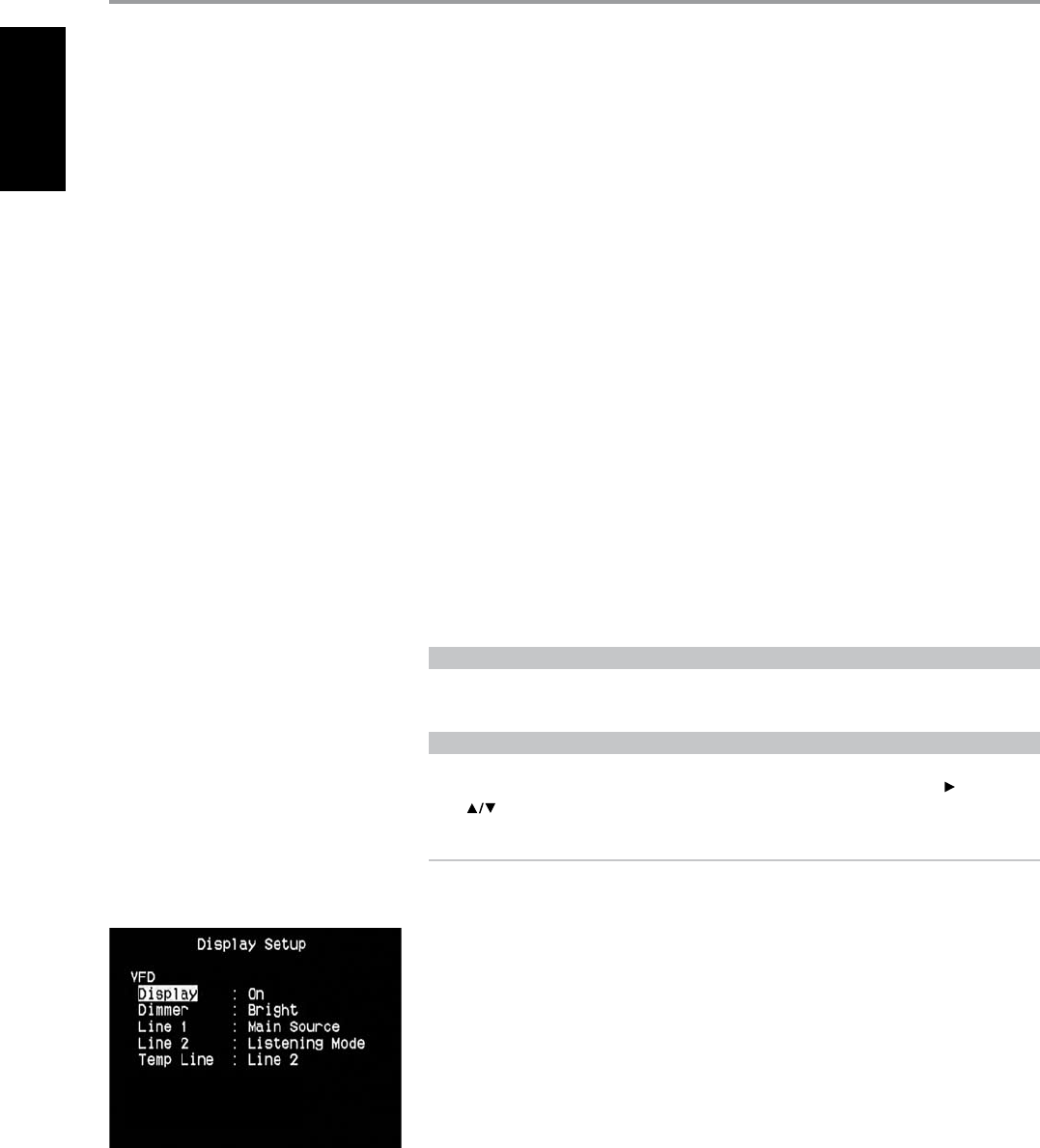
DTS ES™ MATRIX 6.1
In this format, the additional signals of the back channel receive a matrix encoding and are inputted
into the right and left surround channels. During reproduction they are decoded to the right, left and
back surround channels.
Since this bit-stream format is 100% compatible with conventional DTS signals, the DTS-ES Matrix 6.1
format eect can also be achieved from sources with DTS-ES 5.1 signals.
Naturally, it is also possible to reproduce from a DTS 5.1 channel decoder, signals recorded in DTS-ES 6.1.
When a DTS-ES decoder processes a discrete DTS-ES 6.1 or in Matrix 6.1, these formats are
automatically detected and the Optimum Surround mode is selected. However, some DTS-ES Matrix
6.1 sources may be detected as DTS. In this case the DTS-ES Matrix mode should be selected manually
in order to reproduce them.
DTS NEO:6™ SURROUND
This mode applies the conventional 2-channel signals such as digital PCM or analog stereo signals to the
high precision digital matrix decoder used for DTS-ES Matrix 6.1 to achieve 6.1-channel surround playback.
DTS Neo:6 surround includes two modes for selecting the optimum decoding of the signal sources:
DTS NEO:6 CINEMA : This method is ideal for the reproduction of movies. The decoding takes
place by emphasizing the separation in order to achieve the same atmosphere with 2-channel, as
with 6.1-channel sources.
DTS NEO:6 MUSIC : Mainly recommended for music reproduction. The right and left front
channels do not pass through the decoder and are reproduced directly so there is no loss in sound
quality, and the eects of the right surround, left surround, central and back surround channels add
a natural sensation of expansion of the sound eld.
ENHANCED STEREO
Please refer to the same description about “ENHANCED STEREO” under the “LISTENING MODE” of the
Main Menu discussions.
DISPLAY SETUP
The Vacuum Fluorescent Display (VFD) and On-Screen Display (OSD) can be shown in various ways by
navigating through the parameters at the “Display Setup” menu. Use a combination of [ ] or [ENTER]
and [ ] keys to step through the “Display Setup” menu items.
NOTE
The congurations set forth at “Display Setup” are carried over whenever it is enabled during A/V
Preset setting. Please see also the section below about “A/V PRESETS”.
VACUUM FLUORESCENT DISPLAY VFD
Display: Select “On” to display all applicable data or characters at the VFD. Nothing will be shown at
VFD if “Temp” is selected. However at “Temp” setting, whenever any of the front panel controls or their
corresponding keys in the remote control are activated, the appropriate VFD characters will be shown
temporarily and then fade away. Note that if Zone 2 is at powered state, it will be continually shown at
VFD even at “Temp” setting.
Dimmer: If it is desired to reduce the brightness of the VFD, set Dimmer to “Dim”. Otherwise, select
“Bright” to return to normal VFD brightness.
Line 1, Line 2: The VFD shows two main lines of data or characters. Line 2 is the line of data or
characters located at the lower bottom of the VFD while directly above it is Line 1. For both lines, one
can select which display could be shown by choosing through the following
Main Source: Shows the active Source.
Volume: Current Volume level is shown.
Listening Mode: Selected Listening Mode is shown.
Audio Src Format: Shows the audio format detected at the active Source.
Zone 2 Source: The assigned Source for Zone 2 is shown.
O: Select “O” if it is desired not to show any data at the applicable Line.
Temp Line: Choose between Line 1 and Line 2 as the desired line where VFD will be temporarily
shown if “Temp” is selected at “Display” option as described above.
OPERATION
USING THE T 755 SETUP MENU
28
ENGLISH FRANÇAIS ESPAÑOL ITALIANO DEUTSCH NEDERLANDS SVENSKA РУССКИЙ
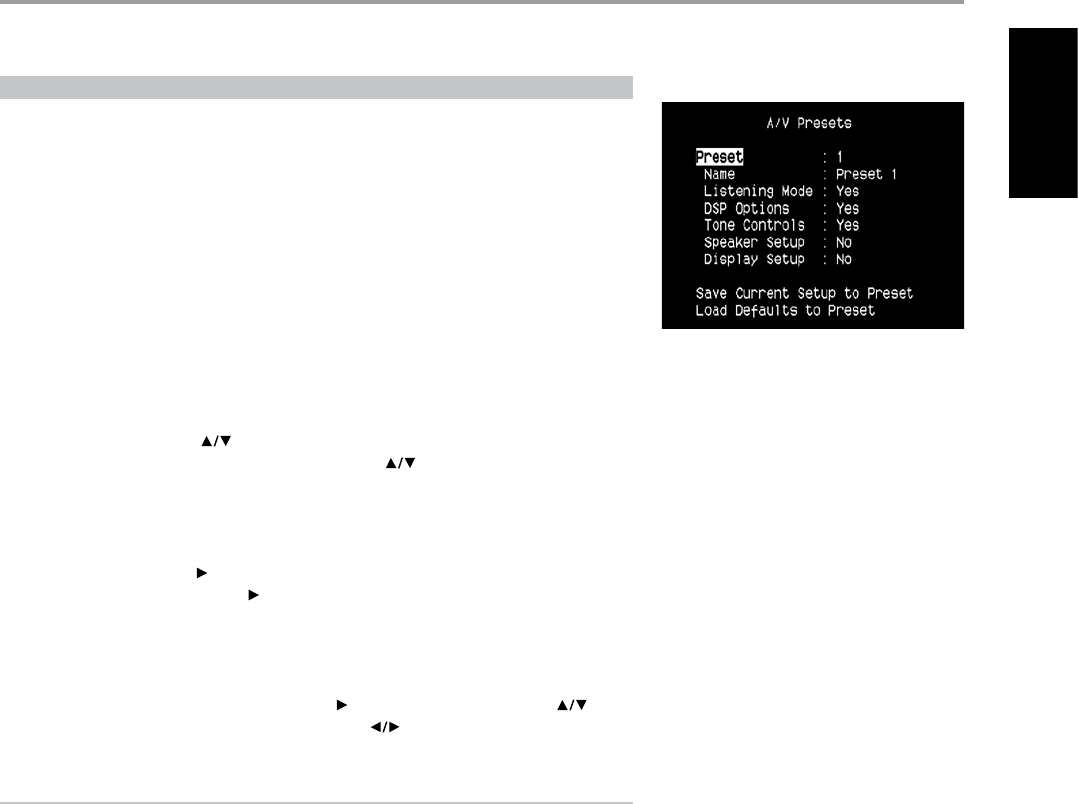
A/V PRESETS
The T 755’s simple but powerfully exible system of “Presets” allows you to customize virtually every
aspect of your audio-video playback, and recall them with a single key-press. The parameters “Listening
Mode”, “DSP Options” and “Tone Controls” accessible via the “Main Menu” together with “Speaker Setup”
and “Display Setup” congurable through “Setup Menu” are stored together as a single Preset.
You might create one Preset optimized for pop music and another for classical. One more Preset can
be set up to recall each family member’s favorite setting or one for fully cinematic home-theater
playback and yet another one for late-night movies, with each Preset ne-tuned to a particular
scenario or preference.
CREATING PRESETS
Creating a Preset consists simply of storing a complete set of the parameters set forth in the “Listening
Mode”, “DSP Options” and “Tone Controls” accessible via the “Main Menu” together with “Speaker Setup”
and “Display Setup” congurable through “Setup Menu”.
Scroll to “A/V Presets” using the [ ] keys to save a collection of said parameter settings to a Preset.
Select a Preset number and by a combination of pressing the [ ] keys, you can selectively include
in the particular Preset any of the above-mentioned parameter settings by choosing “Yes”. If you decide
not to include in the particular Preset a certain parameter setting, select “No”.
Now in order to save the settings chosen for the particular Preset number, scroll down to “Save Current
Setup to Preset” and press the [ ] key. If you chose to load instead the default settings, scroll down to
“Load Defaults to Preset” and press the [ ] key to restore the default settings.
In addition to the parameter settings, the Preset label itself can be assigned a new name. This new
Name will be shown in the VFD as well as on the OSD.
To rename the Preset label, scroll to “Name” and press [ ] to go the character. Then, press [ ] to
pick and select through the alphanumeric selections. Press [ ] to move to the next character or
back to the previous character and at the same time save the changes done on the current character.
NOTE
The selected Preset remains in force until you select a dierent Preset.
RECALLING PRESETS
You may recall a Preset at any time using the HTR 3 remote control.
Press the HTR 3’s AVPS key and then the numeric key 1-5 corresponding to the desired preset number.
The newly recalled Preset will then manifest or replace the previous Preset (if any).
OPERATION
USING THE T 755 SETUP MENU
29
ENGLISHFRANÇAISESPAÑOLITALIANODEUTSCHNEDERLANDSSVENSKAРУССКИЙ
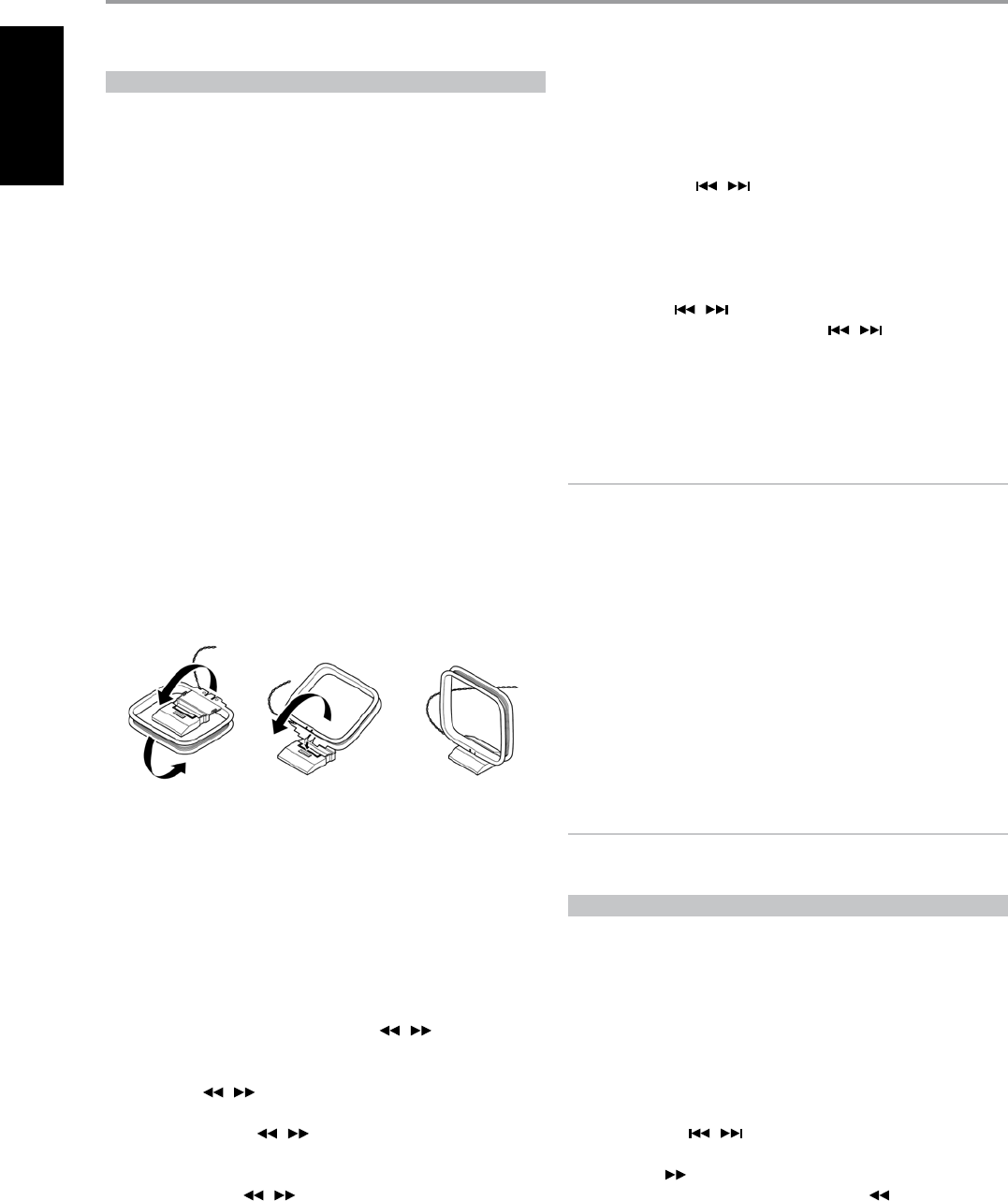
LISTENING TO RADIO
The T 755’s internal AM/FM tuner oers very high quality sound from radio
broadcasts. The reception and sound quality will always be dependent to a
degree however on the type of antenna(s) used as well as proximity to the
broadcast origin, geography and weather conditions.
ABOUT ANTENNAS
The supplied ribbon-wire FM antenna can be connected to the rear-panel FM-
antenna input using the included “balun” adapter and should be fully extended
to form a “T”. This folded-dipole antenna will usually work best when oriented
vertically, with the arms of its “T” fully outstretched and arranged perpendicular
to the origin of the desired broadcast. There are no rules however, and
experimenting freely with antenna placement and orientation may yield the
clearest sound and lowest background noise.
In areas of poor FM reception, an exterior FM antenna can improve
performance dramatically. If radio listening is important to you, consider
consulting an antenna installation professional to optimize your system.
The supplied AM “loop” antenna will usually provide adequate reception.
However, an exterior AM antenna can be used to improve reception.
Consult an antenna professional for more information.
ASSEMBLING THE LOOP ANTENNA
1 Rotate the outer frame of the antenna.
2 Insert the bottom edge of the outer frame into the groove on the stand.
3 Extend the antenna cord.
SELECTING THE RADIO
Press the [AM/FM/DB] button on the T 755 front panel or the numeric [+10]
of the HTR 3 while at AMP or TUNER device selector page to select the
T 755’s radio mode. Each subsequent press of either key will toggle the unit
among AM, FM and XM (or DAB) radio.
TUNING STATIONS
After rst pressing [TUNER] at the Device Selector page of HTR 3 to set the
remote to control Tuner functions, press [TUNE / ] on the HTR 3
– toggle in to perform slow manual search, press and hold to automatically
search.
1 Press [TUNE / ] on the front panel momentarily to step up or
down between AM or FM frequencies.
2 Press and hold [TUNE / ] for more than 2 seconds to search up
or down - the T 755’s tuner will stop at the next suciently strong signal
it encounters.
3 Pressing the [TUNE / ] during the search process will stop the
search.
SETTING RADIO PRESETS
The T 755 can store a mix of your 40 favorite AM, FM and digital radio for
immediate recall.
1 To store a radio preset, rst tune the desired frequency (see above), then
press the front panel [MEMORY] key.
2 Press the [PRESET / ] keys to select a “Preset Free” number to be
assigned.
3 Then, press the [MEMORY] key once again to save the station to the
particular Preset number and displaying “P_ _” (the two blank spaces
will correspond to the preset stored number that could be from “01” to
the maximum of “40”) on the VFD.
4 Press [PRESET / ] on the front panel to step up or down
between presets. Press and hold [PRESET / ] to “scroll”
continuously up or down. The HTR 3 remote’s “PRESET” keys work
similarly.
The Radio Presets must be stored from the front panel. This setup function
is not accessible from the HTR 3 remote control.
NOTE
The T 755’s Radio Presets are distinct from its “global” Presets that can
be used to manage listening and setup modes and levels. See “A/V
PRESETS” above.
CHOOSING THE TUNER MODE
The front-panel [TUNER MODE] key is a dual-purpose control. In the normal
position, FM Mute FM Stereo icons on the VFD are illuminated, only the
stations with a strong signal can be listened to, and the noise between
stations is muted.
Pressing the [TUNER MODE] button again (FM Mute FM Stereo icons on the
VFD are extinguished) allows distant and potentially noisy stations to be
received. Noise is reduced if the FM station signal level is less than the FM
Stereo threshold (since mono FM is inherently less noise-prone) though at
the sacrice of the stereo eect.
NOTE
One can store the same channel in two preset locations - one with
TUNER MODE On and another with TUNER MODE O.
ABOUT USER NAMES
You can assign an eight character “User Name” to each radio preset, which
will show in the front-panel readout whenever that preset is recalled.
ENTERING USER NAMES
To name a radio preset “NEWS”, follow the procedure as below (The buttons
mentioned apply to the front panel’s buttons. The applicable HTR 3 keys
also execute the same functions as described).
1 Recall the desired radio preset.
2 Then, press the [MEMORY] button once and then within ve (5)
seconds, press the [INFO] button - the readout shows a blinking box.
3 Use the [PRESET / ] buttons to select the rst character of the
name (“N” from the alphabetical list).
4 Press [TUNE ] button to select the character and correspondingly
move forward to the next position. (Press [TUNE ] to go back to the
previous character). Repeat this process for each character in sequence.
5 Press the [MEMORY] key again to store the User Name and exit the text-
entry mode.
OPERATION
USING THE T 755 AM/FM/DB/iPod
30
ENGLISH FRANÇAIS ESPAÑOL ITALIANO DEUTSCH NEDERLANDS SVENSKA РУССКИЙ

ABOUT RDS
The Radio Data System (RDS) permits sending small amounts of digital
information using conventional FM radio broadcasts. The T 755 supports
two RDS modes, station-name (PS mode) and radio-text (RT mode). Not
every FM station incorporates RDS in its broadcast signal. In most areas you
will nd from one to several RDS-enabled stations, but it is by no means
impossible that your favorite stations will not be broadcasting RDS data.
VIEW RDS TEXT
When an RDS-enabled FM broadcast is tuned, after a brief delay the “RDS”
symbol will illuminate in the T 755’s front-panel readout and the readout’s
character section will show its station-name (PS) text: “ROCK101”, for
example.
Press the front-panel INFO key to toggle the readout between this and the
station’s radio-text (RT) readout, if any, which might scroll song- or artist-
name, or any other text of the station’s choosing.
ABOUT XM RADIO
The T 755 is “XM Ready” which means that with the addition of separately
sold XM Mini-Tuner CPC-9000 and XM Mini-Tuner Home Dock, it has
everything you need to listen to live XM. Everything else is built right in.
Just subscribe to the XM service and your T 755 will be ready to receive XM
content.
NOTES
• Questions? Visit www.xmradio.com
Listeners can subscribe by visiting XM on the Web at www.xmradio.com
or by calling (at the time of printing this manual) XM’s Listener Care at
(800) 853 9696. Be ready with your Radio ID that can be found on the
radio by selecting Channel 0.
• Check with your NAD audio specialist for other versions of XM Mini-
Tuner compatible with T 755.
CONNECTING THE XM ANTENNA
1 Plug the end of the XM antenna into the corresponding XM antenna
port on the rear panel of the T 755.
2 Press and hold [TUNER MODE] button on the front panel to check the
current XM channel’s signal strength as shown in the VFD and OSD.
Press [TUNER MODE] again to exit signal strength check.
Refer also to your XM radio’s guide on how to install the XM antenna for
optimum signal reception.
TUNING STATIONS
There are three ways to tune to the XM channel you wish to listen. Make
sure to set your HTR 3’s Device Selector to [TUNER] prior to undertaking
the following tuning options. The [ ] buttons refer to the
corresponding keys on the HTR 3. The same keys correspond to the front
panel navigation buttons [TUNE / / PRESET / ].
1 Manual Tuning: Toggle the [ ] buttons to step up or down each
available XM channel. Press and hold [ ] for faster scanning of XM
channels. The HTR 3 keys [TUNE / ] will likewise execute these
same functions.
2 Direct Channel Call: Using the numeric keypads of the HTR 3,
key-in directly the desired available channel number and it will be
automatically tuned.
3 Category: Toggle [TUNER MODE] until “CATXM” and a corresponding
category is displayed on the VFD. “CATXM” stands for the categories
channels are grouped into – i.e., Country, Rock, Jazz & Blues, etc. Toggle
[ ] buttons to step up or down the available categories.
After selecting the desired category, use the same steps as that of
XM Manual Tuning. Tuning will only be limited to within the selected
category. Toggle the [ ] buttons to choose another category and
then tune again.
VIEW XM INFORMATION
Toggle [INFO] button to display the XM information of the selected channel
such as the artist name, song title, category or any other text as supplied for
the channel.
PRESETS
The procedure for storing XM channels is the same method as stated in the
section “SETTING RADIO PRESETS” under “LISTENING TO RADIO”.
For immediate recall of stored XM presets, toggle [TUNER MODE] button until
“P__” (the two blank spaces corresponding to the preset number) is shown in
VFD. Press the front panel’s [PRESET / ] button or HTR 3’s [ ] keys
to step up or down the stored presets that can be a combination of AM, FM
and XM channels.
ABOUT DAB RADIO
Until now, analogue radio signals such as FM or AM have been subject to
numerous kinds of interference on their way from the transmitter to your
radio. These problems were caused by mountains, high-rise buildings
and weather conditions. With Digital Audio Broadcast (DAB), you can now
receive CD-like quality radio programs without any annoying interference
and signal distortion. DAB broadcasts use digital signals rather than
traditional analogue transmissions, thus providing clear high quality
reception. You get far more robust reception and virtually hiss or crackle
free sound with DAB as long as you are within a good coverage area.
With DAB, the listener can scroll through a list of available stations - then
instantly tune to the station of his choice. There is no need either to
remember channel frequencies. All broadcasts are selected by simply
selecting the service name.
The T 755 makes it possible for you to enjoy listening to DAB broadcasts.
The T 755 has a Digital Audio Broadcast (DAB) module socket on the rear
panel for adding a separately sold and NAD-specied outboard DAB
module – the NAD DAB Adaptor DB 1. All the control software for this
format is included; just plug-in the module and start enjoying the CD-like
quality sound and expansive content selection available with DAB.
CONNECTING THE DAB MODULE
Plug-in the other end of the DIN connector (supplied with your NAD DAB
Adaptor DB 1) from the DAB module’s output port into the corresponding
DAB module input socket on the rear panel of the T 755. Select DAB mode
on the T 755 by toggling the [AM/FM/DB] button in the front panel.
NOTES
• Please refer to NAD DAB Adaptor DB 1 installation guide for proper setup
connection of the DB1 with respect to the T 755.
• If there is no NAD DAB Adaptor DB 1 connected, the VFD will show
“Check DAB Tuner”.
OPERATION
USING THE T 755 AM/FM/DB/iPod
31
ENGLISHFRANÇAISESPAÑOLITALIANODEUTSCHNEDERLANDSSVENSKAРУССКИЙ
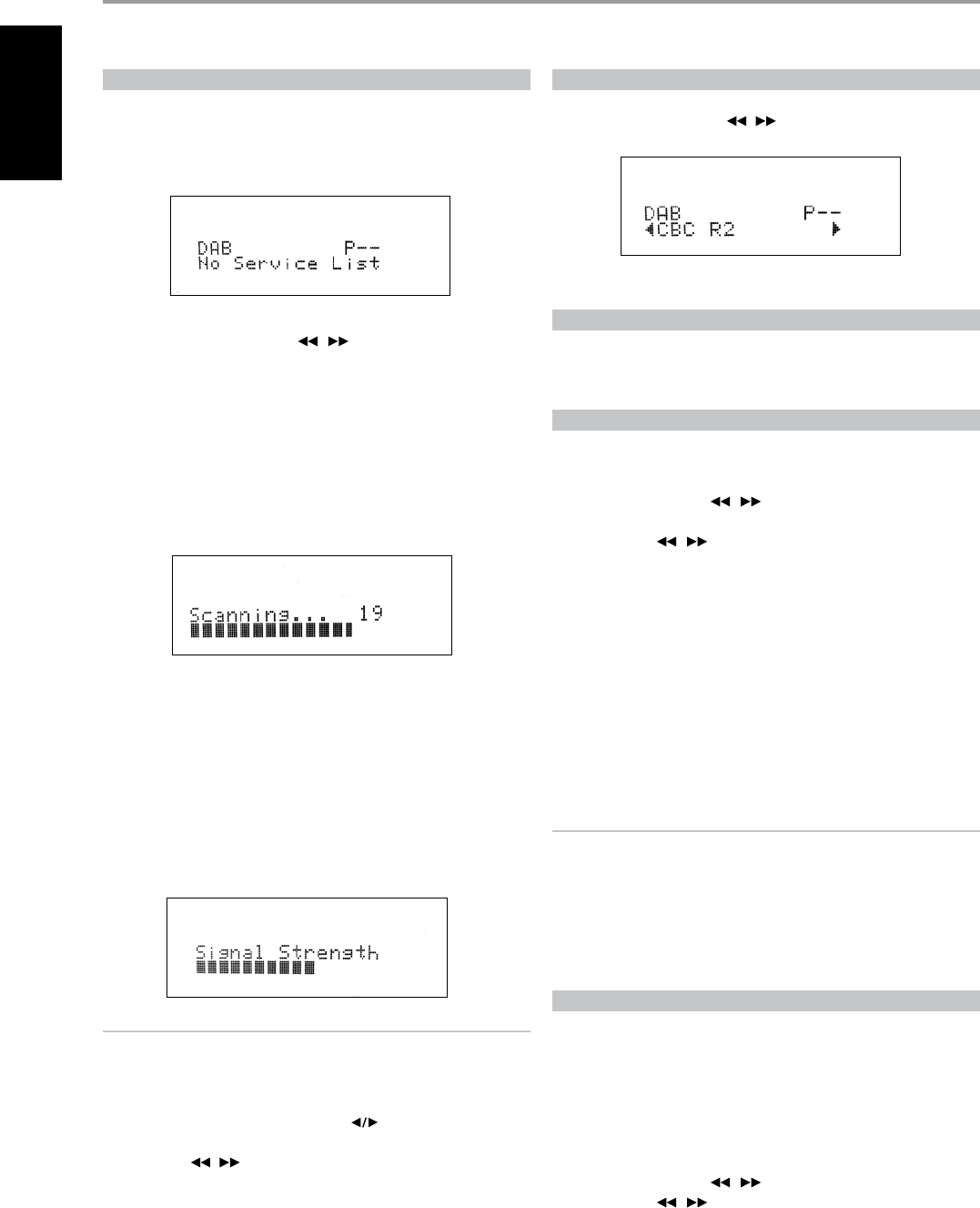
DAB OPERATION
With the separately sold NAD DAB Adaptor DB1 already connected to the
T 755, you can now carry out the T 755 to receive DAB broadcasts.
1 Toggle [AM/FM/DB] button until DAB mode. The VFD will show “No
Service List” indicating that there are no scanned DAB broadcast
services yet. This is the default mode of the DB1.
2 To tune to DAB broadcast services, press [TUNER MODE] and then
toggle the front panel’s [TUNE / ] to select either “Full Scan” or
“Local Scan”.
FULL SCAN will enable the scanning of the full range of digital
frequencies (Band III and L-Band).
LOCAL SCAN performs local scanning of available DAB services in your
area. Check with your dealer or visit www.WorldDAB.org to check the
applicable digital transmission frequencies in your area.
3 Upon selecting either “Full Scan” or “Local Scan”, automatic scanning
will be performed. This sequence cannot be interrupted. During the
sequence, the following message will be visible in the VFD.
The bars show the progress of the sequence. When scanning is
completed, the last number shown on the right side of the VFD
corresponds to the total number of DAB broadcast stations found. Then,
the rst station is tuned in (See “ALPHANUMERIC” section below to
understand the order or arrangement of stations).
4 The strength of the incoming signal can be shown on the VFD by
pressing the [ENTER] button. The more segments visible in the lower
display line, the stronger the signal. By changing the position of the
antenna, you can increase the signal strength. You can also opt for an
external antenna. Consult an antenna professional for more information.
NOTES
• “No Service List” will also be shown in the VFD when no stations are
found after the scanning process. If this occurs, check the connection
and position of the DAB antenna or call your local DAB broadcast
providers for coverage information.
• HTR 3’s [MENU/FM MUTE], [ENTER] and [ ] are the equivalent
remote control keys for the front panel buttons [TUNER MODE], [ENTER]
and [TUNE / ]. When using these HTR 3 buttons to navigate DAB
options, ensure that the “DEVICE SELECTOR” setting of your HTR 3 is set
to “TUNER”.
SERVICE LIST
Follow the steps below to select through the DAB service stations found.
1 At DAB mode, press [TUNE / ] to step through the list of
available stations as shown in the lower display line of the VFD.
2 Press [ENTER] to select the desired station.
DAB TUNER MODE
Aside from “Full Scan” and “Local Scan” as already described above, pressing
the [TUNER MODE] button will also present you with other options namely
– Station Order, DRC, Manual Scan, Prune List and Reset
STATION ORDER
Use “Station Order” to sort the sequence of the listed stations. There are
three orders – Alphanumeric, Ensemble and Active.
1 While listening to a DAB broadcast, press front panel’s [TUNER MODE]
button and then [TUNE / ] to select “Station Order”. Press
[ENTER].
2 Toggle [TUNE / ] to select through “Alphanumeric”, “Ensemble”
and “Active”.
3 Press [ENTER] to select desired station order.
ALPHANUMERIC
This is the default setting. Stations are arranged by numbers rst and then
alphabetically by letters.
ENSEMBLE
Digital radio is broadcast as groups of data called ensemble. Each ensemble
contains a number of stations, transmitted at a set frequency. When
“Ensemble” is selected as the mode of station order, the radio stations are
arranged in the order of their ensemble names.
NOTE
Ensemble is also interchangeably termed as “multiplex” by other
broadcast providers.
ACTIVE
Active stations are listed at the top of the channel list. Those channels
that are in list but have no service in the area will be displayed last in the
channel list.
DRC
The level of compression of stations can be set to eliminate the dierences
in dynamic range or sound level between radio stations. Popular music
would normally be more compressed than classical music, resulting in
possible dierent audio levels when changing from one station to the
other. Setting the DRC to “0” means no compression, “1/2” indicates medium
compression and “1” shows maximum compression. No compression is
recommended, especially for classical music.
1 While listening to a DAB broadcast, press front panel’s [TUNER MODE]
button and then [TUNE / ] to select “DRC”. Press [ENTER].
2 Toggle [TUNE / ] to select through “DRC 0”, “DRC ½”and “DRC 1”.
3 Press [ENTER] to select desired DRC level.
OPERATION
USING THE T 755 AM/FM/DB/iPod
32
ENGLISH FRANÇAIS ESPAÑOL ITALIANO DEUTSCH NEDERLANDS SVENSKA РУССКИЙ
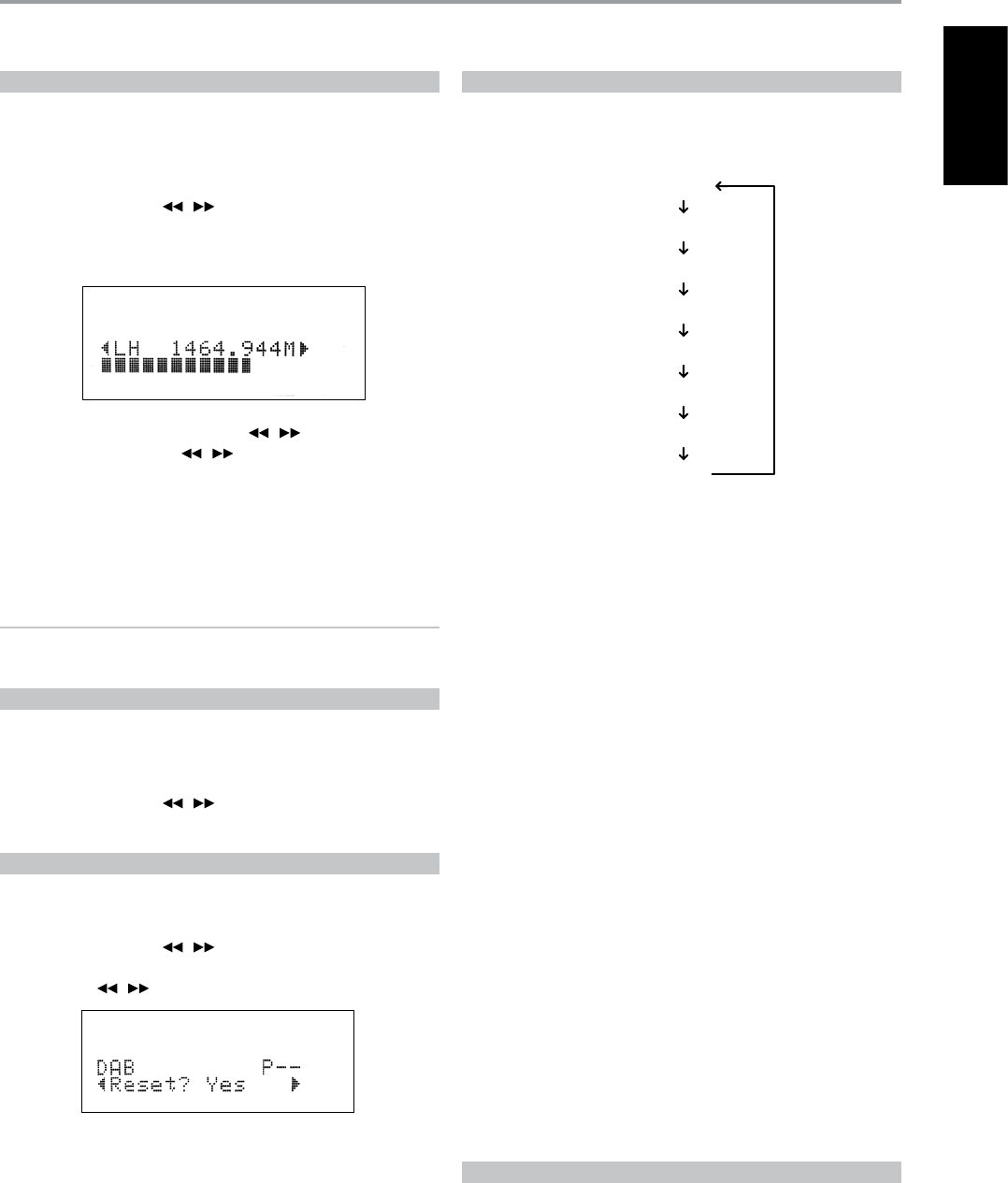
MANUAL SCAN
This option allows you to directly tune to a desired channel and include it
in the service list (if not yet available at the time). You can also use manual
scan to assist you in positioning the DAB antenna for best reception of the
desired channel.
1 While listening to a DAB broadcast, press front panel’s [TUNER MODE]
button and then [TUNE / ] to select “Manual Scan”. Press
[ENTER]. The current channel and frequency are shown in the upper line
of the VFD. The “bars” at the lower line of the VFD indicate the signal
strength level of the current channel.
2 To select other channels, toggle [TUNE / ] to step through the
channel list. Release [TUNE / ] when you have arrived at your
desired channel. Channel and frequency are shown in the upper line
of the VFD. The “bars” at the lower line of the VFD indicate the signal
strength level of the current channel. To improve the reception of the
selected channel, adjust or reposition the DAB antenna until the best
reception is indicated.
3 Press [ENTER] to tune the selected channel.
NOTE
The number of ensembles and stations that could be scanned will vary
depending on your location.
PRUNE LIST
There maybe situations wherein certain stations become inactive. The
“Prune List” option enables the deletion of these inactive stations in the
service list.
1 While listening to a DAB broadcast, press front panel’s [TUNER MODE]
button and then [TUNE / ] to select “Prune List”.
2 Press [ENTER]. Any inactive stations are automatically deleted.
RESET
The “Reset” option allows the connected (and separately sold) NAD DAB
Adaptor DB1 to be reset to its factory default settings.
1 While listening to a DAB broadcast, press front panel’s [TUNER MODE]
button and then [TUNE / ] to select “Reset”.
2 Press [ENTER]. “Reset? No” will be shown in the lower line of the VFD.
Press [TUNE / ] to switch to “Reset? Yes” option.
3 To select “Reset? No” or “Reset? Yes”, press [ENTER] while at the desired
option. Selecting “Reset? Yes” will cause the DB1 to be reset to its factory
default settings.
INFORMATION SETTINGS
While listening to a DAB broadcast, the type of information displayed in the
lower line of the VFD can be varied. Toggle front panel’s [INFO] button to
step through the following display options:
Station Name
DLS
Channel and Frequency
Ensemble Name
Program Type
Time and Date
Audio Signal information
Error Rate
STATION NAME
The name or identication of the DAB broadcast station is shown. This is
the default display.
DLS
Dynamic Label Segment (DLS) is the scrolling text supplied by the
broadcasting station. It may contain information on music titles or details
regarding the program or station.
CHANNEL AND FREQUENCY
The channel and frequency of the currently tuned DAB broadcast are
displayed.
ENSEMBLE NAME
The name of the ensemble that is broadcasting the program is displayed.
PROGRAM TYPE
This is a description of the type of broadcast supplied by the station, such
as Pop, Rock, Drama and the likes.
TIME AND DATE
The current time and date as supplied by the DAB station are displayed.
AUDIO SIGNAL INFORMATION
Displays the bit rate and audio type (stereo, mono or joint stereo)
as transmitted by the DAB broadcast provider. These are set by the
broadcaster to suit the type and quality of material being transmitted.
ERROR RATE
This displays the digital error rate (0 to 99) of the currently tuned channel
- the lower the gure, the better the quality of the received broadcast.
ABOUT THE iPod INPUT FEATURE
The T 755 is equipped with a data port in the rear panel where an optional
“NAD IPD 1 Dock with iPod” (NAD IPD 1) can be plugged in. With the NAD
IPD 1 linking the T 755 with your own iPod player, you can enjoy listening
to your favorite tracks and playlists as well as view applicable still image and
video playback.
OPERATION
USING THE T 755 AM/FM/DB/iPod
33
ENGLISHFRANÇAISESPAÑOLITALIANODEUTSCHNEDERLANDSSVENSKAРУССКИЙ
You can control your iPod player using the assigned buttons in the T 755
front panel. And with the corresponding HTR 3 remote control function
keys, you can select the materials stored in your iPod for playback as well as
access many of its functions even from across the room. The optional NAD
IPD 1 also charges your iPod player while it is connected to the T 755.
NOTES
• NAD IPD 1 and iPod player are optional and not supplied with your
T 755.
• iPod player functions, features and playback capabilities accessible
through T 755 may vary depending on your iPod player model.
• When using the HTR 3 to control the iPod functions, make sure that the
Device Selector is set to “AMP”.
CONNECTING THE OPTIONAL “NAD IPD 1 DOCK WITH
iPod” AND iPod PLAYER TO THE T 755
Make sure that all the devices are unplugged before making the
connections.
1 Connect the NAD IPD 1’s plug into the T 755’s “MP DOCK” data port.
2 Connect also the NAD IPD 1’s S-Video out and audio out to the T 755
Audio 5/Video 5 input (the default iPod source allocation in the T 755).
You can also connect both audio and video out connectors to any
available assignable input of the T 755.
3 Dock your iPod player into the NAD IPD 1.
NAVIGATING THE iPod PLAYER’S FUNCTIONS AND FEATURES
After linking together your iPod player, NAD IPD 1 and the T 755, you can
now plug them IN to their applicable power sources.
1 With your T 755, iPod player and NAD IPD 1 all at power ON state, select
SOURCE 5 of your T 755. Your iPod player will show in its display the NAD
logo and below it “OK to disconnect”. On the other hand, the T 755 VFD will
show in the upper line “iPod Menu” and the lower line “Playlists”. The lower
line will vary depending on the current menu selected. At the same time,
the T 755 OSD will display the whole iPod Menu selections like Playlists,
Artists, Albums, Songs, Podcasts, Genres, Composers and Audiobooks.
2 Navigate through the iPod menu selections using a combination of the
[ ] buttons.
NOTES
• The iPod player’s click wheel and controls will not operate when it is
properly connected to the T 755 via the NAD IPD 1.
• To exit from the iPod Menu at Source 5, press [ ] bringing you to “Menu
Select” OSD. Follow the instructions as shown.
CONTROL FEATURES AND SETTINGS
The following control functions and settings are selectable or enabled
using the front panel and HTR 3 remote control buttons. Since the HTR 3
will be the primary controller in most cases, we will focus on remote-
controlled operations.
ENTER
Press [ENTER] to go “iPod Settings” menu where you can setup the following
options:
Shue: Select “Shue” to enable random playback of either “Songs” or
“Albums” lists. To turn o shue mode, select “O”.
Repeat: Select “One” for repeated playback of the current song. Select
“All” for repeated playback of your entire list under “Songs” selection.
Audiobook Speed: The playback speed of your audiobook can be
varied according to your preference. During audiobook playback,
adjust the reading speed to “Normal”, “Fast” or “Slow”.
DISP
During playback, toggle [DISP] key of HTR 3 to show in the T 755 VFD upper
line the Song title, Artist Name and Album title. If there is no information
available, the display will show “No Song”, “No Artist” or “No Album” as
applicable. Aside from this information, the lower line will display the
current title’s track number allocation and time elapsed.
The equivalent front panel key for [DISP] is [INFO].
NAVIGATION BUTTONS
During playback mode, press [ ] to skip forward to the next song or [ ]
to skip back to the previous song. For quicker scrolling up or down the list,
press and hold [ ].
While at menu options or selection lists, toggle [ ] to go up or down
the options or lists.
The equivalent front panel keys for [ ] are [TUNE / /
PRESET / ].
SKIP/CH/PRESET
Press [SKIP/CH/PRESET ] to scroll up and down the Songs list one
page or at least 8 titles at a time. Press and hold [SKIP/CH/PRESET ]
to quickly scroll through the song titles. During fast scrolling, the rst letter
of the song is displayed on the bottom right corner of the OSD as the title
changes.
SCAN / / PAUSE / PLAY
Press PAUSE [ ] during playback to stop playback temporarily. Resume play
by pressing PAUSE [ ] again or PLAY [ ].
During playback or PAUSE mode, press [SCAN / ] for fast forward or
backward scanning of current song.
TO VIEW VIDEOS LOADED IN YOUR iPod
Videos uploaded in your iPod can be viewed directly via the T 755. The
following are the steps
1 Make sure that the “TV Out” setting of your iPod’s Video Settings menu is
at “On” mode and appropriate “TV Signal” is chosen.
2 Video le selection and playback procedures are managed directly from
your iPod player and not through the T 755. You must exit completely from
the T 755’s Setup Menu or Menu Select OSD for you to be able to navigate
through your iPod player’s video playback menu options. A more direct way
is by going to the “iPod Setup” menu and set “Enabled” to “No”.
3 With the iPod dock’s S-VIDEO OUT and AUDIO OUT ports connected to
the T 755’s AUDIO/VIDEO 5 input or to any other assignable input, you
can now directly enjoy via T 755 your video selections as uploaded in
your iPod. Make sure that you select the correct “Source Number” of the
T 755.
NOTE
For other navigation functions, please refer to your iPod player’s owner’s
manual. Depending on the iPod player model, some other functions
maybe controlled using the applicable T 755 navigation controls.
iPod is a trademark of Apple Inc., registered in the U.S. and other countries.
OPERATION
USING THE T 755 AM/FM/DB/iPod
34
ENGLISH FRANÇAIS ESPAÑOL ITALIANO DEUTSCH NEDERLANDS SVENSKA РУССКИЙ
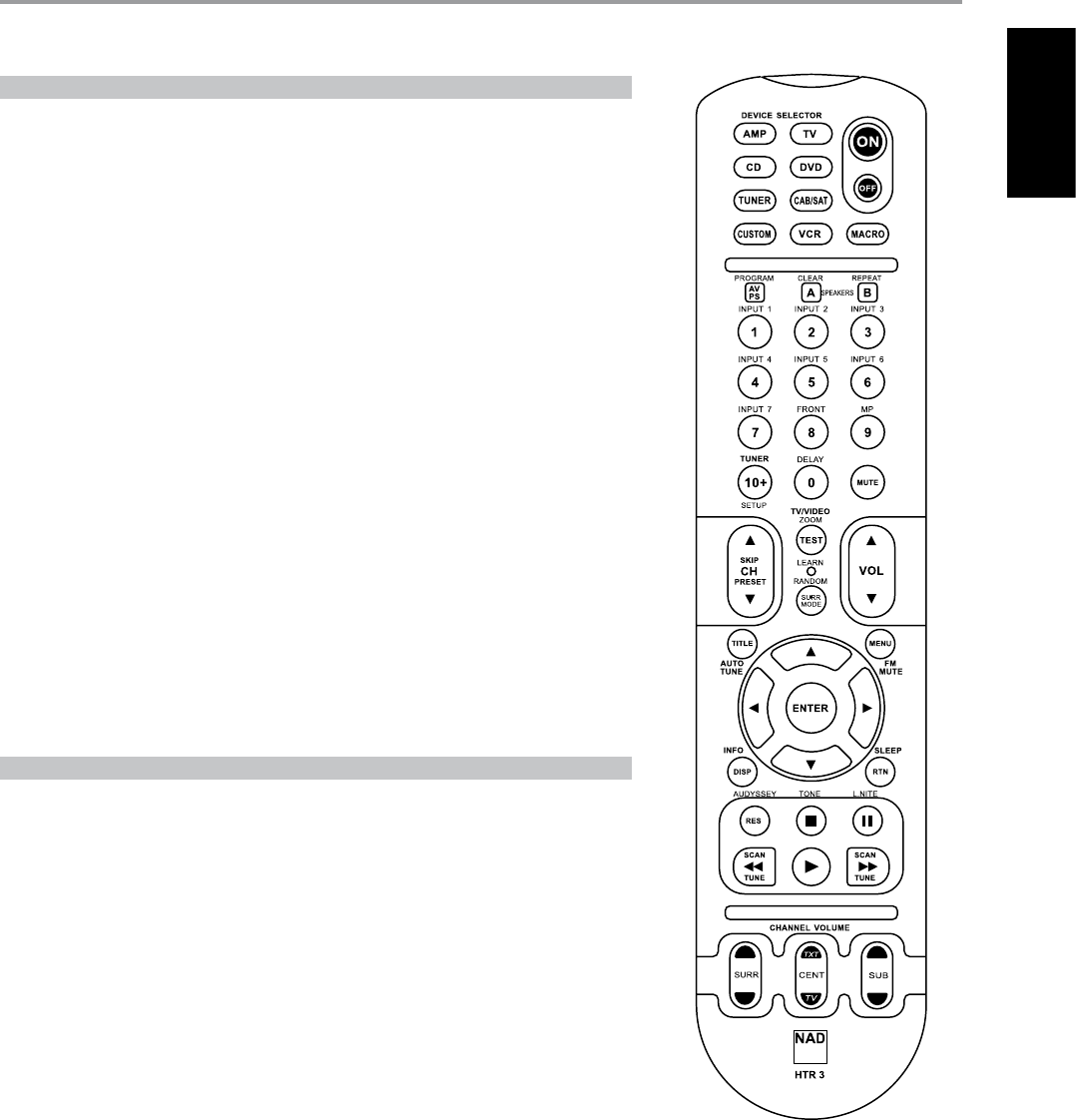
SPECIFICATIONS
• Controls up to 8 devices.
• 44 function keys.
• Learns up to 352 commands.
• Records up to 44 macros with a maximum of 64 commands each.
• Congurable punch-through.
• Key illumination with programmable timeout.
• Upgradable.
• Contains pre-programmed library of NAD remote codes.
The NAD HTR 3 is ready to operate the T 755 A/V Receiver right out of the box, but it is really eight
remotes in one. Each of the 8 Device Selector keys at the top of the handset can call up a new “page”
of remote control codes to be transmitted by the remaining 44 keys. You may “teach” codes from any
infrared-remote controlled component, regardless of brand, to any or all of these.
Obviously, the most logical system is that you teach the codes from your DVD player to the [DVD]
Device Selector “page,” your television’s codes to the [TV] “page,” and so on, but there is no required
scheme: You may load any commands to any key on any page (see “Learning Codes From Other
Remotes,” below).
The HTR 3 is already preprogrammed with a full complement of commands for the T 755 A/V Receiver
on its [AMP] Device Selector page, and as well as with library commands to operate most NAD-brand
DVD or CD components on the corresponding Device Selector “pages.” These default commands are
permanent: Even if you teach the HTR 3 new commands to take their place, the underlying library
commands remain in place and can easily be recalled should you add an NAD component to your
system later (see “Delete Mode”, below).
Note: For use with the T 755, it should not be necessary to re-program any keys on the HTR 3 [AMP]
page. However, in order for the HTR 3 to control your specic NAD-brand components you may need
to load one or more dierent code-libraries (see “Loading Code Libraries,” below).
CONTROLLING THE T 755
The HTR 3 is divided into two main sections. Eight Device Selector keys at the top—[AMP], [DVD,]
[TV,] and so on—set the handset’s remaining keys to a “page” of commands to control a particular
component. A Device Select key determines only what component the HTR 3 will command; it does
not perform any function on the A/V Receiver. All of the remaining keys are function keys that can
“learn” control codes from virtually any infrared remote controller, allowing you to teach the codes of
your equipment, regardless of brand, to the HTR 3.
However, the HTR 3 is already preprogrammed to operate the T 755. All of the function keys on the
[AMP] Device Selector “page” perform T 755 functions. (The HTR 3 can also command many other NAD
components, from its [DVD,] [CD,] [TUNER,] and [CUSTOM] pages.)
It is important to note that certain HTR 3 keys perform dierent functions depending on the selected
Device Selector “page.” The color of the Device Selector key-labeling corresponds to the labeling of the
function keys. Most centrally, the black [AMP] Device Selector “page” corresponds to the black as well
as white input-select labeling above the numeric keys: When the HTR 3’s [AMP] Device Selector page
is active, these keys select the A/V Receiver inputs. Similarly, the purple [DVD] Device Selector “page”
corresponds to several purple labels, the green [TV] page to green labels, and so on.
OPERATION
USING THE HTR 3 REMOTE CONTROL
35
ENGLISHFRANÇAISESPAÑOLITALIANODEUTSCHNEDERLANDSSVENSKAРУССКИЙ

LEARNING CODES FROM OTHER REMOTES
Begin by positioning the HTR 3 “nose-to-nose” with the source remote so
the two devices’ infrared windows are about 2 inches apart.
• Enter Learning Mode: On the HTR 3, simultaneously press-and-hold for
3 seconds both a Device Selector key and the [RES] key (just below the
DISP key) until the Learn LED at the center of the HTR 3 turns steady
green.
• Press the HTR 3’s function key you wish to teach a command; the Learn
LED will turn amber.
• Press-and-hold the function key on the source remote: The HTR 3’s
Learn LED will icker amber for a second or two, then turn solid green.
The command is learned.
• Press the HTR 3’s Device Selector key again to exit the learning mode.
If the Learn LED does not icker amber you may need to vary the distance
between the remotes. If the Learn LED turns red rather than green, that
particular command of that source remote command could not be learned.
Example: Learning “DVD Pause”
Position the HTR 3 and your DVD player’s remote as described above.
• On the HTR 3, simultaneously press-and-hold [DVD] and [RES]; the Learn
LED turns steady green.
• Press the HTR 3’s Pause [ ] key; the Learn LED turns amber.
• Press-and-hold the corresponding Pause key of your DVD player’s
remote control; the HTR 3’s Learn LED ickers amber and then turns
solid green. The command is learned.
• Press [DVD] again to exit the learning mode.
CANCEL OPERATION
You can cancel conguring a key, by pressing the active Device Selector key
before the learn process is complete; the Learn LED will turn red.
PUNCH THROUGH
The HTR 3’s “punch-through” function allows you to retain a function key
from one Device Select “page” to another, so that, for example, the AMP
[SURR MODE] function might still control the T 755 when the DVD Device
Selector page is active.
NOTE
The HTR 3’s [VOL] keys are pre-programmed as “punched-through” for
all Device Select pages: [VOL] will operate the T 755’s master-volume
regardless of the currently selected device. The [SURR] [CENTER,] and
[SUB] Channel Volume controls similarly are pre-programmed as
punched-through.
To set a punch through, after entering the Learning Mode, and pressing the
desired key to be punched through, simply press the device key twice of
the device to punch through to. The status LED will turn green; press the
Device Selector key again to exit Learning Mode.
Example: Punch-through AMP [SURR MODE] key to the DVD “page”
• On the HTR 3, simultaneously press-and-hold [DVD] and [RES]; the Learn
LED turns steady green.
• Press [SURR MODE]; the Learn LED turns amber.
• Press [AMP] twice; the Learn LED turns green.
• Press [DVD] again to exit the learning mode.
COPY A COMMAND FROM ANOTHER KEY
You may copy a command from any HTR 3 key to any other. To copy a key
function, after entering the Learning Mode, and pressing the desired key
to be copied to, simply press the device key from which you wish to copy,
having rst pressed its Device Selector key if it resides on another “page.”
The status LED will turn green; press the Device Selector key again to exit
Learning Mode.
Example: Copy the Pause command from the CD page to the AMP [ ]
button:
• On the HTR 3, simultaneously press-and-hold [AMP] and [RES]; the Learn
LED turns steady green.
• Press Pause [ ] ; the Learn LED turns amber.
• Press [CD]; press Pause [ ] ; the Learn LED turns green.
• Press [AMP] again to exit the learning mode.
NOTE
The copy and punch-through functions are similar. However, if you
copy a command and then subsequently delete, or over-write the
original (source-key) command , the copied-to key’s command remains
unchanged. If you punch-through to a command and then delete or
over-write the original key, the punched-through functions also change
accordingly.
MACRO COMMANDS
A “macro” command is a series of two or more remote codes issued
automatically from a single keypress. You might use a macro to automate
a simple command sequence, such as, “Turn on the DVD player and then
press ‘play.’” Or you might compose an elaborate macro to power up
an entire system, select a source, choose a Listening Mode, and begin
playback—again, all from a single keypress. The HTR 3 can store one macro
on each of its function keys (these exclude the Device Selector keys).
NOTE
Macros are independent of the currently selected device.
RECORDING MACROS
To record a macro, simultaneously press-and-hold for 3 seconds both the
[MACRO] key and the HTR 3 function key to which you wish to assign the
macro, until the status LED turns green. The macro button will also light up.
Press the sequence of function keys to be recorded into the macro, being
sure to rst press the requisite Device Selector key for each function (you
may switch devices while recording the macro as many times as necessary),
allowing you to create macro containing commands from more than one
Device Selector “page.”
When you have nished entering the desired command sequence,
press [MACRO] againto store the macro; the Learn LED and [MACRO] key
illumination will turn o.
NOTE
Each macro can store a maximum of 64 command steps. If you exceed
this number, the macro will be stored automatically after the 64th
command is added.
OPERATION
USING THE HTR 3 REMOTE CONTROL
36
ENGLISH FRANÇAIS ESPAÑOL ITALIANO DEUTSCH NEDERLANDS SVENSKA РУССКИЙ
Example: Record a Macro to the [0] key to Turn on the T 755, Select “Input
1” (Source 1), and Commence Playback of connected Source 1 device (as in
DVD player):
• On the HTR 3, simultaneously press-and-hold [MACRO] and [0] (numeric
zero); the Learn LED turns steady green.
• Press [AMP]; press [ON]; press [1] (“Input or Source 1”); press [DVD]; press
[ ] (Play) - the Learn LED blinks as each step is added.
• Press [MACRO] again to exit the macro-record mode.
To clear a macro, perform the above steps without entering any functions.
EXECUTING MACROS
To execute a macro, press and release [MACRO]; its key illumination lights
for 5 seconds. While it remains lit, press an HTR 3 key to which a macro has
previously been stored.
The corresponding macro will run; as each step executes, its “parent” Device
Selector’s key ashes lights briey; when execution is nished, the [MACRO]
key illumination goes out. Pressing any other HTR 3 key while a macro is
executing will abort the macro. Remember that you must hold the HTR 3 so
that its infrared emitter can activate the target components.
NOTE
When a macro executes, a 1 second delay is automatically inserted
between its commands. If you need more than a 1 second delay between
particular commands—for example, to permit a component to power
up completely—you can record “empty” steps into the macro by
changing Device Selector “pages” without entering actual command
functions.
BUTTON ILLUMINATION TIMEOUT
The HTR 3’s key-illumination can be set to remain lit for 0-9 seconds. The
default value is 2 seconds. To set the illumination timeout, simultaneously
press-and-hold for 3 seconds both the HTR 3’s [DISP] and the [0-9] key, with
the digit corresponding to the desired timeout duration; the Learn LED will
ash twice to conrm the new setting. When set to zero, the illumination
will not turn on at all.
NOTE
Key illumination is the biggest drain on the HTR 3’s batteries. A short
key-illumination timeout will extend battery life appreciably; turning it
o altogether (set it to 0 seconds) will lengthen it still further.
FACTORY RESET
The HTR 3 can be reset to its factory state, deleting all learned commands,
copied and punched-through keys, macros, and other setup information,
reverting all keys to their pre-programmed library commands.
To perform a factory reset simultaneously press-and-hold for 10 seconds
the HTR 3’s [ON] and [RTN] keys; the Learn LED will start to ash green.
Release [ON] and [RTN] before the second ash is complete; the Learn LED
will turn red, indicating the remote has been reset.
NOTE
You must release [ON] and [RTN] before the second ash goes out,
otherwise the unit will not reset; should this occur, repeat the full
procedure.
DELETE MODE
The HTR 3 can store learned, copied, and “default library” commands on any
single key (The default library commands are the pre-programmed NAD
codes, such as the native T 755 commands on the [AMP] “page.”).
You can delete commands by layers back “down” to the default library
command on any key, removing learned commands, punched-through
functions, and copied keys.
NOTE
The default library commands cannot be deleted, so you need not worry
that using Delete Mode might cause irreparable changes.
To enter Delete Mode, simultaneously press-and-hold for 3 seconds both
the desired key’s Device Selector key and the [RTN] key, until the Learn LED
turns green. Press the function key whose command you wish to delete;
the Learn LED ashes; the number of times indicates which type of function
has become active - see the table below. Press the active Device Selector
key again to exit Delete Mode.
NOTE
You may delete multiple function-key commands on the same Device
Selector “page,” but to delete from more than one Device Selector page
you must exit Delete Mode and then re-enter it on the required page.
Flashes Command Type
1 Default Library Command
2 Copied Library Command
3 Learned Command
OPERATION
USING THE HTR 3 REMOTE CONTROL
37
ENGLISHFRANÇAISESPAÑOLITALIANODEUTSCHNEDERLANDSSVENSKAРУССКИЙ
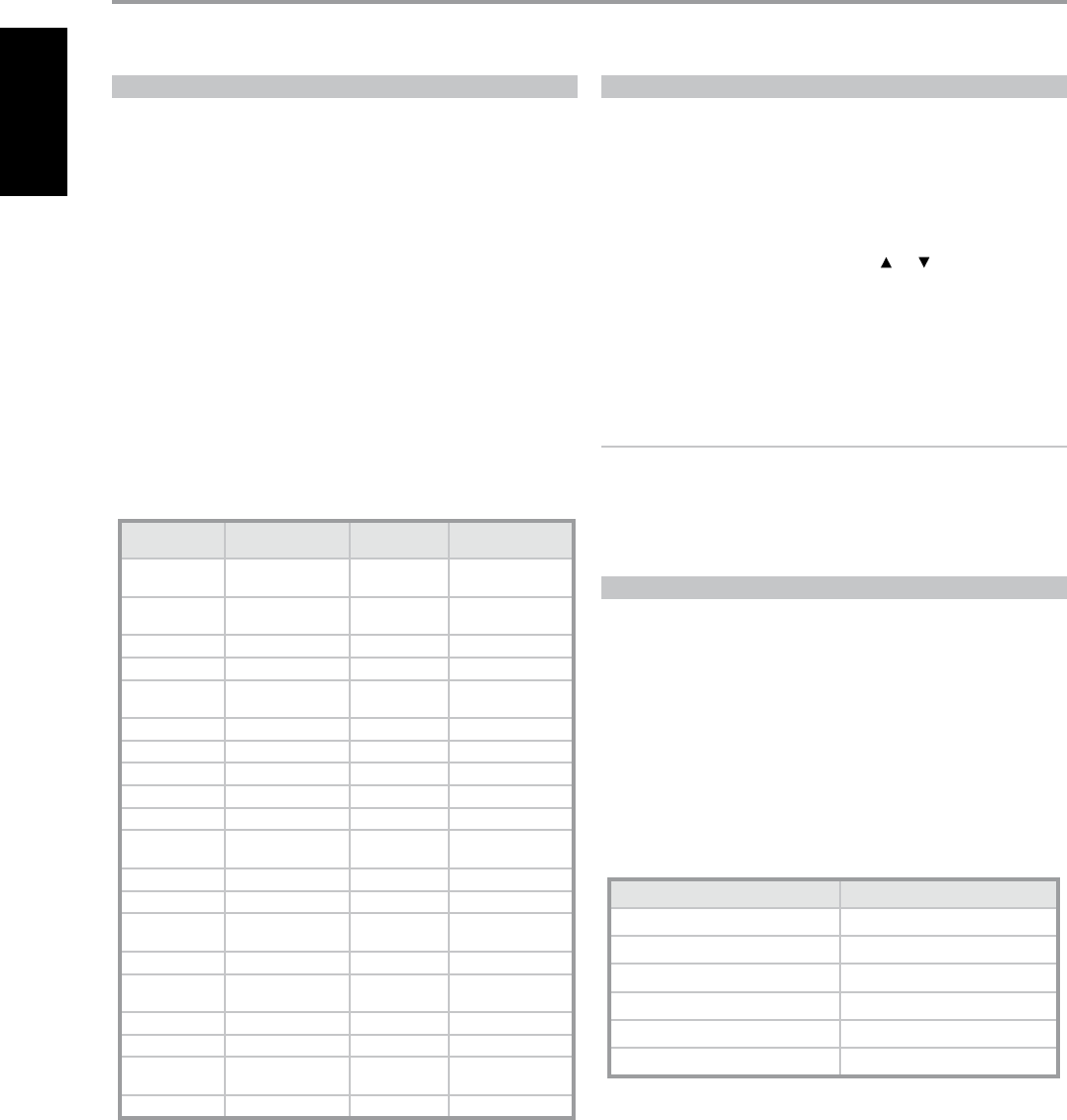
LOADING CODE-LIBRARIES
The HTR 3 can store a dierent library of default NAD codes for each of its
Device Selector “pages.” If the original default library does not control your
NAD CD player, tape deck, DVD player, or other component, follow the
procedure below to change the code-library.
Begin by ensuring that the component you wish the HTR 3 to control is
plugged in and powered-up (“on,” not merely in standby). To enter the
HTR 3s Library Mode, simultaneously press-and-hold for 3 seconds both the
desired Device Selector key and the [AVPS] key, until the Learn LED turns
green.
While keeping the HTR 3 pointed toward the component, enter the rst
appropriate three-digit code-library number from the table below. Press
[OFF]. If the component turns o, press [ENTER] to accept that code-library
number and exit the Library Mode. If the component does not turn o,
enter the next three-digit code-library number from the table.
When you enter the correct number the component will turn o; press
[ENTER] to accept that code library number and exit the Library Mode.
LIBRARY CODE NAD PRODUCT
DESCRIPTION LIBRARY CODE NAD PRODUCT
DESCRIPTION
100 Receiver/Processor
(Discrete ON/OFF) 301 L75, L76 Tuner
101 Receiver/Processor
(Toggle ON/OFF) 302 L70 Tuner
102 S170 303 L53 Tuner
103 L75 304 L73 Tuner
104 Second Zone
Commands 305 C425
105 L70 306 C445
106 L76 307 Txx5 Series Tuner
107 118 400 Tape Deck B
108 L53 401 TAPE Deck A
109 L73 500 TV 280
110 Stereo Receiver/
Amplier 501 MR13
111 Stereo Second Zone 502 MR20
112 Txx5 Series 503 PMR45
200 CD Player 600 T535, T562, T585,
M55
201 CD Player (old) 601 T550, L55
202 5170, 5240, 5340 602 T512, T531, T532,
T571, T572
203 5325 603 L70, L73 DVD
204 5060 604 L56
205 M5 605 T513, T514, T515,
T524, T533, T534
300 Tuner 606 L53 DVD
SEARCH MODE
If none of the codes from the table, when entered, turns on the
component, and if you are quite sure you have followed the above
procedure completely and carefully, you may want to try the “search”
method as follows:
Enter Library Mode by simultaneously pressing-and-holding for 3 seconds
both the desired Device Selector key and the [AVPS] key, until the Learn LED
turns green. Now press-and-hold the HTR 3’s [ ] or [ ]) key; the remote will
step through all the available codes at a rate of approximately 1 per second.
When the component turns o, immediately release the cursor key; press
[ENTER] to accept that code-library and exit the Library Mode. Try a few
commands; should you prove to have stepped past the needed code-
library, re-enter the Library Mode and use the cursor key to step back to it.
NOTE
It is possible that search mode will nd code-libraries that operate, at
least partially, some other brand (non-NAD) components. You may
certainly exploit such capabilities as you nd them. However, since we
can only ensure the completeness or accuracy of NAD code-libraries, we
cannot support the HTR 3’s operation with other-brand components.
CHECKING CODE-LIBRARY NUMBER
You can check the current code-library on any Device Selector key as
follows. Enter Library Mode by simultaneously pressing-and-holding for
3 seconds both the desired component’s Device Selector key and the
[AVPS] key, until the Learn LED turns green. Press the [DISP] key; the HTR 3
indicates the current code-library by ashing its [CUSTOM], [VCR], and
[MACRO] keys.
For example, to indicate code-library #501, the HTR 3 will ash [CUSTOM] 5
times, pause, and then ash [MACRO] once. You might wish to make a note
of your components’ code-library numbers.
SUMMARY OF THE HTR 3 MODES
Mode Keys To Press (for 3 seconds)
Learn/Copy/Punch Through Device Key + RES Key
Delete Mode Device Key + RTN Key
Macro Record Macro Key + Function Key
Library Mode Device Key + AVPS Key
Back Light Timeout DISP Key + Digit Key
Factory Reset See “Factory Reset” above
OPERATION
USING THE HTR 3 REMOTE CONTROL
38
ENGLISH FRANÇAIS ESPAÑOL ITALIANO DEUTSCH NEDERLANDS SVENSKA РУССКИЙ

SLEEP MODE
The Sleep Mode timer will switch the T 755 to Standby mode automatically
after a preset number of minutes. Pressing the HTR 3’s SLEEP button once
will display the setting of the sleep time increment. Pressing the HTR 3’s
SLEEP button a second time within a 3-second period will change the
sleep time increment in 15-minute intervals, after which time the T 755 will
automatically switch into Standby mode.
To adjust the sleep delay, press the HTR 3’s SLEEP button twice; rst to
display the sleep time increment, and a second time to change the
sleep time increment. The sleep time increment and a “SLEEP” icon will
continuously display on the T 755’s front panel Vacuum Fluorescent Display
(VFD). Each consecutive press increases the sleep time in 15-minute
increments from 15 to 90 minutes. To cancel the sleep mode, continue
pressing the HTR 3’s SLEEP button until “SLEEP OFF” displays on the VFD.
Switching the T 755 to standby from either the HTR 3’s OFF or the T 755’s
POWER button will also cancel the sleep mode
USING THE ZR 4 REMOTE CONTROL
The ZR 4 remote control is a discrete compact remote for controlling the
T 755 from various rooms other than the main room. The ZR 4 remote
allows full separate control of the source selection irrespective to the main
room. This means the zone input may be completely dierent, audio and
video, from the main input and thus corresponding volume levels as well.
If one wishes to enjoy the same source, as the main room the ZR 4 remote
has a [LOCAL] button to allow simultaneous listening, but with full separate
volume levels.
To mute the Zone Volume level, press [MUTE] on the ZR 4. If the “Zone Controls”
OSD menu is ON, the Zone “Volume” level section will display “Mute”.
The T 755’s front orescent display will show activity of the zone control
so that main room occupants are aware of the zone remote activity.
Furthermore if there is no main room activity, only the zone indicator will
be active in the T 755’s uorescent display.
NOTE
The ZR 4 remote control will only control Zone 2 applications. The HTR 3’s
“CUSTOM” device is also defaulted to Zone 2 remote control codes.
OPERATION
USING THE HTR 3 REMOTE CONTROL
39
ENGLISHFRANÇAISESPAÑOLITALIANODEUTSCHNEDERLANDSSVENSKAРУССКИЙ
REFERENCE
TROUBLESHOOTING
CONDITION POSSIBLE CAUSES POSSIBLE SOLUTIONS
No sound from all channels. AC power unplugged.
•
Check AC cable connection and outlet
•
Power not switched on.
•
Outlet has no power.
•
Speaker A (or Speaker B) is not activated.
•
Activate Speaker A (or Speaker B) by pressing
the corresponding front panel.
•
No sound from some channels. Faulty/missing cables.
•
Check cables.
•
“Speaker Conguration” channel (s) set to “OFF”.
•
Check “Speaker Conguration” menu.
•
Power-amp or speaker-connections faulty.
•
Check power amp, cabling, and speakers.
•
No sound from surround
channels.
No surround listening mode is engaged.
•
Select appropriate listening mode.
•
Surround-channels set to “OFF” on “Speaker Conguration”
menu.
•
Correct “Speaker Conguration” or “Speaker
Levels” settings.
•
Surround-channels level set too low on “Speaker Levels”
menu.
•
No sound from Subwoofer. Subwoofer is o, not powered or improperly connected.
•
Power-up subwoofer, check Sub’s AC outlet
or check connections.
•
Subwoofer set to “OFF” on “Speaker Conguration” menu.
•
Correct “Speaker Conguration” or “Speaker
Levels” settings.
•
Sub level set too low on “Speaker Levels” menu.
•
No sound from Center channel. Source is a 2/0 (etc.).
•
Play a known 5.1-channel recording or select
Dolby Pro Logic IIx Music mode.
•
Dolby Digital or DTS recording without center channel;
Center set to “OFF” on “Speaker Conguration” menu.
•
Correct “Speaker Conguration” or “Speaker
Levels” settings.
•
Center level set too low on “Speaker Levels” menu.
•
No Dolby Digital/ DTS. Source’s digital output is not connected to a T 755 digital
input.
•
Check connections.
•
Source component not congured for multichannel digital
output.
•
Check source component setup.
•
T 755 does not respond to
HTR 3 remote.
Batteries are at or incorrectly inserted.
•
Check batteries.
•
IR transmitter window on remote or IR Receiver window on
T 755 is obstructed.
•
Check IR windows and ensure clear line-of-
sight from remote to T 755.
•
T 755 front panel is in very bright sunlight or ambient light.
•
Reduce sunlight/room lighting.
•
T 755 does not respond to
front panel commands or
remote control.
Microprocessor error.
•
Power-down the T 755 via the rear panel
Power switch and unplug it from the AC
outlet.
•
T 755 may have over heated.
•
Wait ve minutes, re-connect and power up.
•
12V TRIGGER IN/OUT is set to AUTO position.
•
Switch to 12V TRIGGER IN/OUT OFF position.
•
NOTES
• Factory defaults for North American (AH) version : Press simultaneously [Source ]+ [Front Input/MP]
• Factory defaults for European (C) version: Press simultaneously [ Source ]+[ Front Input/MP]
• Audyssey Setup settings along with other stored presets and settings will all be deleted upon restoring your T 755 to its factory defaults.
40
ENGLISH FRANÇAIS ESPAÑOL ITALIANO DEUTSCH NEDERLANDS SVENSKA РУССКИЙ
REFERENCE
SPECIFICATIONS
AMPLIFIER SECTION
Power output Stereo Mode 110 W ( 20.4dBW) (8Ω within rated distortion)
IHF dynamic power; 8 Ω 160 W ( 22dBW)
IHF dynamic power; 4 Ω 200 W ( 23dBW)
IHF dynamic power; 2 Ω 280W (24.4 dBW)
Power output Surround Mode 5 x 80 W ( 19dBW)
Total harmonic distortion at rated power < 0.08%
IM distortion at rated power < 0.08%
Damping factor, 8 Ω >80
Input sensitivity and impedance 200mV/ 47KΩ
Frequency response ± 0.8 dB (ref. 1kHz, 20Hz – 20kHz)
Signal/noise ratio > 100 dB (ref. rated power at 8 Ω, A-WTD)
Signal/noise ratio > 90 dB (ref. 1W at 8 Ω, A-WTD)
PREAMPLIFIER SECTION
Input sensitivity and impedance 210mV/ 50KΩ
Frequency response ± 0.5 dB (20Hz – 20kHz)
Signal/noise ratio >100 dB (ref. 2V, A-WTD)
Input sensitivity 150mV (ref. 2V)
Maximum output level > 3.5V
TUNER SECTION
AM SECTION
Tuning range 530kHz -1710kHz (North America version, 10kHz steps)
531kHz -1602kHz (Europe version, 9kHz steps)
Usable sensitivity 30dBu
S/N ratio 40dB
Total Harmonic Distortion < 5%
Loop sensitivity 20dB S/N 65dBu
FM SECTION
Tuning range 87.50MHz -108.50MHz
Usable sensitivity, MONO < 16dBf
IHF (3% THD) 18 dBu
S/N Ratio MONO 60 dB
S/N Ratio STEREO 55 dB
Total Harmonic Distortion, MONO 0.6%
Total Harmonic Distortion, STEREO 0.8%
Channel Separation 40dB
RDS decode sensitivity 30dBu
PHYSICAL SPECIFICATIONS
Unit Dimensions (W x H x D) 435x160x393mm
Net Weight 17.9kg
Shipping Weight 22.7kg
Specications are subject to change without notice. For updated documentation and features, please log onto www.NADelectronics.com for the latest
information about T 755.
Manufactured under license under U.S. Patent #’s: 5,451,942; 5,956,674; 5,974,380; 5,978,762; 6,226,616; 6,487,535 & other U.S. and worldwide patents issued & pending. DTS, DTS Digital Surround, and ES are registered
trademarks and the DTS logos, Symbol and DTS 96/24 are trademarks of DTS, Inc. ©1996-2007 DTS, Inc. All Rights Reserved.
Manufactured under license from Dolby Laboratories.
“Dolby”, “Pro Logic”, and the double-D symbol are registered trademarks of Dolby Laboratories.
HDMI, the HDMI logo and High-Definition Multimedia Interface are trademarks or registered trademarks of HDMI Licensing LLC.
The XM name, XM Ready and related logos are registered trademarks of XM Satellite Radio Inc.
Manufactured under license from Audyssey Laboratories. U.S. and foreign patents pending. Audyssey MultEQ XT is a trade-mark of Audyssey Laboratories.
This product incorporates copyright protection technology that is protected by method claims of certain U.S. patents and other intellectual property rights owned by Macrovision Corporation and other rights owners.
Use of this copyright protection technology must be authorized by Macrovision Corporation, and is intended for home and other limited viewing uses only unless otherwise authorized by Macrovision Corporation.
Reverse engineering or disassembly is prohibited.
41
ENGLISHFRANÇAISESPAÑOLITALIANODEUTSCHNEDERLANDSSVENSKAРУССКИЙ

www.NADelectronics.com
©2008 NAD ELECTRONICS INTERNATIONAL
A DIVISION OF LENBROOK INDUSTRIES LIMITED
All rights reserved. No part of this publication may be reproduced, stored or transmitted in any form without the written permission of NAD Electronics International
T 755 Manual Volume 1 01/08
