Proper Battery Usage* NURIT 8000 Credit Card Terminal User Guide
User Manual: NURIT 8000 Credit Card Terminal User Guide Credit Card Machine Manuals - 1st National Payment Solutions
Open the PDF directly: View PDF  .
.
Page Count: 7
Proper Battery Usage*
Merchant when you first plug in your unit allow the
battery to charge for at least 12 hours before you
unplug it, after that time we recommend allowing
the unit to discharge ¾’s of the way, that is to say
let the battery go ¾’s the way down before you
charge it again. While we realize this is not always
feasible we ask that you do it more often then not.
This will give your battery a longer shelf life and
keep you from experiencing battery issues. In order
to let your unit discharge you must turn off battery-
saver mode.
Screen Says Do This
Credit …..Sale Account Menu
Menu screen
1. Reports
Force down to #3 merchant
options
Merchant Options
1. Paper Type Force down to #5 Battery
Saver
Battery Saver
1.off
2. Auto Off only
Enter on #1 to turn off (to
turn back on go to auto off
only press enter twice)
Menu back up to credit….. sale account
* Batteries usually last about one year before you need to replace them.

Attention all Mobile
And
Store And Forward Merchants
Extremely important!!
For all merchants using a manual imprinter, or using any
terminal which performs store and forward, please be
sure to obtain the following information to avoid any
complications when obtaining authorizations:
1) Complete Credit Card # (Visa, MasterCard and Discover
are 16 digits, American Express is 15 digits)
2) Expiration Date (4 digits only – mm/yy)
3) Complete Billing Address including Zip Code
4) CVV2 (or CID) This is the 3 digit number on the back of
the Visa, MasterCard and Discover card, located on the
back of the card, above or on the signature line. On
Amex it is the 4 digit number above the card number
5) Also remember to get the card holders name and phone
number

NURIT 8000S E
ASY
U
SER
G
UIDE
A
PPLICATION
POS 4.80
OR
H
IGHER
- R
ETAIL AND
R
ESTAURANT
Cards are swiped with magnetic stripe down and to the front. They can be swiped either left to right or right to left.
CREDIT CARD PURCHASE
STEP
TERMINAL
PROMPT
ACTION
1.
Idle Prompt
Swipe card or manually enter credit card number. ENTER
2.
Expiration date
(manual)Enter card expiration date (MMYY). ENTER
3.
Amount
Enter the amount of the sale.
4.
Server ID
(optional)
Enter Server ID.
ENTER
5.
Tip (3 tips optional)
Enter tip then
ENTER
or ENTER
to bypass tips. (Tips can be added later for
restaurant.)
6.
Signature
Have customer sign receipt on screen
with stylus or o
ENTER
to
bypass.
7.
Second Receipt
Press any key to
print second receipt.
DEBIT CARD PURCHASE
STEP
TERMINAL
PROMPT
ACTION
1
.
Idle Prompt
Press
ENTER
until terminal displays debit prompt.
2
.
Debit Prompt
Swipe card.
3
.
Amount
Enter the amount of the sale.
ENTER
4
.
Tip (3 tips optional)
Enter tip then ENTER
or ENTER to bypass tips. (Tips cannot be added later.)
5
.
Cash Back
Enter cash back amount then
ENTER
or
ENTER
to bypass.
6.
Server ID
(optional)
Enter Server ID. ENTER
.
PIN
Have the customer enter their PIN code. ENTER
7
8.
Second Receipt
Press any key to
print the second
receipt. Paper type must be set to custom for second
debit receipt.
CASH PURCHASE
TEPS
TERMINAL
PROMPT
ACTION
1.
Idle Prompt
Press
ENTER
until terminal displays cash prompt.
2
.
Cash Prompt / Amount
Enter the amount of the sale. ENTER
3.
Tip (3 tips optional)
Enter tip then ENTER
or ENTER to bypass tips.
4
.
Server ID
(optional)
Enter Server ID. ENTER
5.
Second Receipt
Press any key to
print the second
receipt. Paper type must be set to custom for second
cash receipt.
VOID
STEP
TERMINAL
PROMPT
ACTION
1.
Idle Prompt
Press
(down
arrow) until terminal displays VOID/SALE, VOID/FRCD
or VOID/RTRN
prompt.
2
.
Void
Swipe card or manually enter credit card number. ENTER
3
.
Expiration date
(manual)
Enter card expiration date (MMYY). ENTER
4.
Amount
Enter amount. ENTER
5.
Second Receipt
Press any key to
print the second
receipt.
NOTE: Transactions
that have
batched cannot be
voided, they
must be returned. Debit transactions cannot be
voided.

RETURN – CREDIT CARD
STEP
TERMINAL
PROMPT
ACTION
1
.
Idle Prompt
Press
↓
(down arrow) until terminal displays RETURN prompt.
2
.
Return
Swipe card or manually enter credit card number.
ENTER
3
.
Expiration date
(manual) Enter card expiration date (MMYY). ENTER
4
.
Amount
Enter amount. ENTER
5
.
Authorization Number
Enter the authorization number from the original receipt. ENTER
6
.
Signature
Have customer sign receipt on screen
with stylus or
ENTER
to
bypass.
7.
Second Receipt
Press any key to
print the second
receipt.
RETURN – DEBIT CARD
STEP
TERMINAL
PROMPT
ACTION
1
.
Idle Prompt
Press
ENTER
until terminal displays debit prompt.
2.
Debit Prompt
Press
The ↓
(down arrow) until terminal displays RETURN prompt.
3.
Return
Swipe card.
.
Amount
Enter amount.
ENTER
4
5.
Authorization Number
Enter the authorization number from the original receipt.
ENTER
6.
PIN
Have the customer enter their PIN code.
.
Second Receipt
Press any key to
print the second
receipt.
ENTER
7
The surcharge
amount
will be added to the Return if surcharge is set
for Transaction not just
Cash Back.
VERIFY
STEP
TERMINAL
PROMPT
ACTION
1.
Idle Prompt
Press
T
until terminal displays verify prompt.
2
.
Verify
Swipe card or manually enter credit card number.
ENTER
4
.
Expiration date
(manual)
Enter card expiration date (MMYY).
ENTER
5.
Amount
Enter amount.
ENTER
FORCED
STEP
TERMINAL
PROMPT
ACTION
1.
Idle Prompt
Press
T
until terminal displays forced prompt.
2.
Forced
Swipe card or manually enter credit card number.
ENTER
3
.
Expiration date
(manual)
Enter card expiration date (MMYY).
4
.
Amount
Enter amount.
ENTER
5
.
Authorization Number
Enter the Auth
No received via voice authorization or from the Verify receipt.
6
.
Signature
Have customer sign receipt on screen
with stylus or o
ENTER
to
bypass.
7.
Second receipt
Press any key to
print the second
receipt.
ENTER
PRINT LAST MERCHANT RECEIPT
STEP
TERMINAL
PROMPT
ACTION
1.
Idle Prompt
Press the
ALPHA
key. Enter
the daily password.
2
.
Receipt Menu
Press
3
to print the last merchant
receipt.
ENTER
3.
Not Available
The last receipt is not available to print. A cancelled or declined transaction
can void this Function.
PRINT LAST CUSTOMER
RECEIPT
STEP
TERMINAL
PROMPT
ACTION
1.
Idle Prompt
Press the
ALPHA
key. Enter
the daily password.
2
.
Receipt Menu
Press
1
to print
the last customer receipt.
3.
Not Available
The last receipt is not available to print. A cancelled or declined transaction
can void this function.
PRINT ANY
RECEIPT
STEP
TERMINAL
PROMPT
ACTION
.
Idle Prompt
Press the
ALPHA
key. Enter
the daily password.
1
2
.
Receipt Menu
Press
2
to print
any receipt.
3
.
Choose EDC
Press the number that corresponds with the EDC type of original receipt.
4.
Transaction?
Enter the transaction number.
ENTER
ADD TIPS
STEP
TERMINAL
PROMPT
ACTION
1
.
Idle Prompt
Press the
F
and
MENU
keys at the same time.
2
.
Tab Menu
Press
1
to add tips.
3.
Add Tips Menu
Press u
3
to scroll through untipped transactions.
*
4.
1st Untipped trans info. To add a tip to this transaction, press T
ENTER.
To bypass and display next transaction,
press
the down arrow.
5
.
Tip Entry
Enter tip amount.
ENTER
6.
Next trans info.
Enter tips or bypass as necessary. If last trans
was
tipped, terminal returns to Add
Tips Menu.
7.
Add Tips Menu If last transaction should not be tipped,
press
MENU
to exit.
* Tips can also
be added
via 4.
By Server#, 5. By
Transaction#,
6. By Card Type and 7.
By Card#. If one of these options is
chosen, all transactions,
tipped and untipped, are displayed
EDIT TIPS
STEP
TERMINAL
PROMPT
ACTION
1
.
Idle Prompt
Press the
F
and
MENU
keys at the same time.
2
.
Tab Menu
Press
to add tips.
3
.
Add Tips Menu
Press the number that corresponds with the desired access method.
4.
1st trans info.
To add a tip to this transaction or to edit
an existing tip, press b
ENTER.
To bypass and
display next transaction, press
T.
5.
Tip Entry
Enter tip amount.
ENTER
6.
Next trans info
Enter/edit tips or
bypass as necessary. If last trans
was tipped,
terminal returns to Add Tips
Menu.
7.
Add Tips Menu If last transaction should not be tipped, press
MENU
to exit.
CLOSE CURRENT
BATCH
TEPS
TERMINAL
PROMPT
ACTION
1
.
Idle Prompt
Press the
F
key to access the Function menu.
2
.
Function Menu
Press
2
to start the batch process.
3.
Open
Tab or Untipped You may be prompted that the terminal has open tabs or untipped transactions. Close all
open tabs. Scroll through untipped transactions adding tips where necessary. If all tips have
been added, press to ignore.
2
4.
EDC Choice
Depending upon
the host and terminal setup, the terminal will start
the batch process or offer
a choice of EDC types to
batch.
5.
EDC Choice
Press
1
to batch all EDC types
or choose the EDC type to be batched.
GENERAL FUNCTIONS
ESIRED
FUNCTIOND
ACTION
P
ower On
Press and hold the
ON/OFF
for five seconds.
P
ower Off
Press the
F
and
ON/OFF
keys
at the same time.
H
ot Keys
Press thee
F
key
at the same time
as the number
assigned to your
Hot Key function
D
arken Screen
Contrast
Hold down the
F
key
while tapping the( (up arrow).
L
ighten Screen
Contrast
Hold down the
F
key
while tapping the (
T
(down arrow).
Feed Paper
Hold down the
F
key
while tapping the k
CLEAR
key
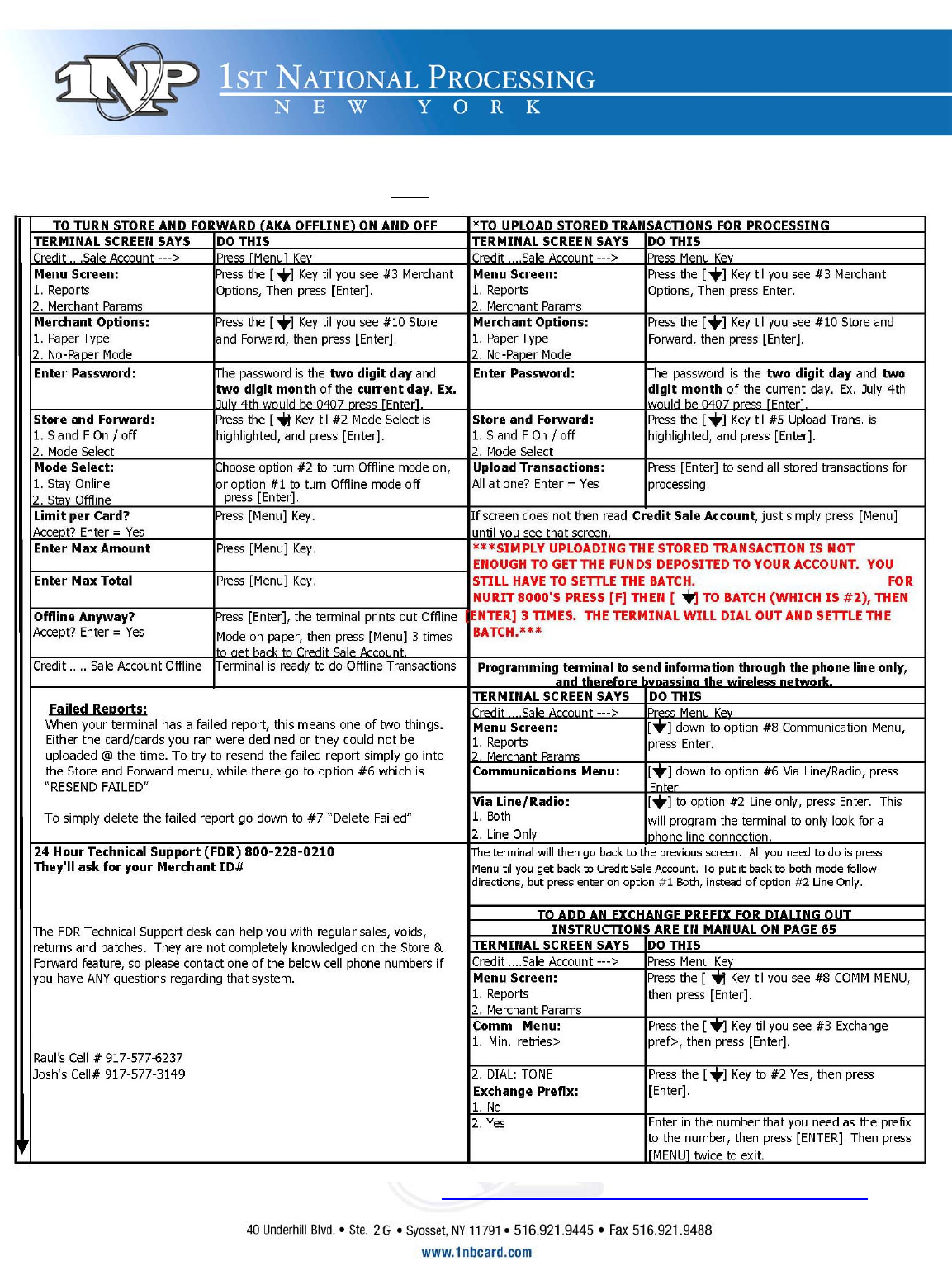
Nurit 8000 Ram Store Forward
*When uploading transaction, you MUST use a telephone line, with the modem your terminal came with
To check wireless coverage for an un-familiar area log on to: http://apriva.com/cingularcoveragequery.cfm
This site provides you with an option for Zip Code coverage information and also provides a map for coverage in the United States.
