Capital Planning Tool (CPT) OCDP Trans AM Administrative User Guide
User Manual:
Open the PDF directly: View PDF  .
.
Page Count: 77

Updated as of Release 2.4.0 www.camsys.com
TransAM
Administrative User
prepared for
Orange County Department of Planning (OCDP)
prepared by
Cambridge Systematics, Inc.
User Guide

user guide
TransAM
Administrative User
prepared for
Orange County Department of Planning (OCDP)
prepared by
Cambridge Systematics, Inc.
101 Station Landing, Suite 410
Medford, MA 02155
date
January 11, 2019

TransAM
Cambridge Systematics, Inc.
i
Table of Contents
1.0 Welcome! ................................................................................................................................................ 1
1.1 Initial Log In and Password Reset ................................................................................................. 1
1.2 Ongoing Site Access ...................................................................................................................... 2
2.0 Dashboard ............................................................................................................................................... 3
2.1 Dashboard Elements ..................................................................................................................... 3
2.2 Header Menu and Controls ............................................................................................................ 3
3.0 General Features and Tools .................................................................................................................. 5
3.1 Table Controls ................................................................................................................................ 5
3.2 Site Filters ...................................................................................................................................... 5
3.3 Messages ....................................................................................................................................... 6
3.4 Organizations Filter ........................................................................................................................ 7
3.5 Search ............................................................................................................................................ 8
3.6 User and Organization Options ..................................................................................................... 8
3.7 Notifications ................................................................................................................................. 11
3.8 Help .............................................................................................................................................. 11
4.0 Asset Inventory .................................................................................................................................... 13
4.1 Add an Asset ................................................................................................................................ 14
4.2 Accessing Existing Assets ........................................................................................................... 16
4.3 Editing or Updating Existing Asset Profile Data ........................................................................... 18
4.4 Updating Existing Asset Lifecycle Data ....................................................................................... 19
4.5 Action Events (Disposition and Transfer Review) ....................................................................... 19
4.6 Adding or Updating Assets by Bulk Update ................................................................................. 21
4.7 Groups ......................................................................................................................................... 25
5.0 Policies .................................................................................................................................................. 27
5.1 Asset Replacement/Rehabilitation Policy .................................................................................... 27
5.2 TAM Policy ................................................................................................................................... 35
6.0 Funding ................................................................................................................................................. 45
6.1 Programs ..................................................................................................................................... 45
7.0 Reports .................................................................................................................................................. 47
7.1 Inventory Reports ......................................................................................................................... 47
7.2 Capital Needs Reports ................................................................................................................. 48
7.3 System Reports ........................................................................................................................... 49
7.4 Planning Reports ......................................................................................................................... 50

Capital Planning Tool (CPT)
Cambridge Systematics, Inc.
ii
8.0 Specialized Reports ............................................................................................................................. 53
8.1 Asset Fleet Builder ....................................................................................................................... 53
8.2 NTD Asset Reports ...................................................................................................................... 56
9.0 Admin Tools .......................................................................................................................................... 61
9.1 Organizations ............................................................................................................................... 62
9.2 Users ............................................................................................................................................ 63
9.3 Notices ......................................................................................................................................... 64
9.4 Online Users ................................................................................................................................ 66
9.5 Admin Interface ............................................................................................................................ 67

TransAM
Cambridge Systematics, Inc.
iii
List of Figures
Figure 1 Password Reset Request Screen ............................................................................................. 1
Figure 2 Set/Reset Password Screen ..................................................................................................... 1
Figure 3 Login Screen ............................................................................................................................. 2
Figure 4 Dashboard Elements ................................................................................................................ 3
Figure 5 Header Menu ............................................................................................................................ 3
Figure 6 Sorting Controls ........................................................................................................................ 5
Figure 7 Export Button ............................................................................................................................ 5
Figure 8 Table Tools ............................................................................................................................... 5
Figure 9 Filter Icon .................................................................................................................................. 5
Figure 10 User Profile Messages ............................................................................................................. 6
Figure 11 Messages ................................................................................................................................. 6
Figure 12 Message Interface .................................................................................................................... 7
Figure 13 Organization Filter .................................................................................................................... 7
Figure 14 Organization Filter Selections ................................................................................................... 8
Figure 15 Search Box ............................................................................................................................... 8
Figure 16 User Menu ................................................................................................................................ 8
Figure 17 User Menu Dropdown ............................................................................................................... 9
Figure 18 Organization Details ................................................................................................................. 9
Figure 19 Profile Details .......................................................................................................................... 10
Figure 20 Report an Issue ...................................................................................................................... 10
Figure 21 Notification Drawer ................................................................................................................. 11
Figure 22 Help Icon ................................................................................................................................. 11
Figure 23 Help Content ........................................................................................................................... 11
Figure 24 Asset Inventory Dropdown ..................................................................................................... 13
Figure 25 Adding an Asset ...................................................................................................................... 14
Figure 26 Select the Organization and Asset Class ............................................................................... 14
Figure 27 Adding Asset Required Details ............................................................................................... 15
Figure 28 Add the Asset and Go To The New Record ........................................................................... 15
Figure 29 Existing Assets ....................................................................................................................... 16
Figure 30 Existing Asset Interface .......................................................................................................... 17
Figure 31 Asset Record: Highlights ........................................................................................................ 17
Figure 32 Asset Record: Profile and Summary ...................................................................................... 18
Figure 33 Editing the Profile of an Existing Asset ................................................................................... 18
Figure 34 Updating the Lifecycle of an Existing Asset ........................................................................... 19
Figure 35 Asset Action Events (Disposition and Transfer) ..................................................................... 20

Capital Planning Tool (CPT)
Cambridge Systematics, Inc.
iv
Figure 36 Early Disposition Requests ..................................................................................................... 20
Figure 37 Bulk Updates .......................................................................................................................... 21
Figure 38 Bulk Update Tools .................................................................................................................. 21
Figure 39 Bulk Update Details ................................................................................................................ 22
Figure 40 Bulk Update Spreadsheet Download ...................................................................................... 22
Figure 41 Bulk Update Spreadsheet ....................................................................................................... 23
Figure 42 Bulk Update Upload ................................................................................................................ 23
Figure 43 Bulk Upload Processing ......................................................................................................... 24
Figure 44 Bulk Update Edit ..................................................................................................................... 24
Figure 45 Asset Groups .......................................................................................................................... 25
Figure 46 Adding an Asset to a Group ................................................................................................... 25
Figure 47 Policies Dropdown .................................................................................................................. 27
Figure 48 Policy Rule Sets ...................................................................................................................... 27
Figure 49 Asset Replacement/Rehabilitation Policy ............................................................................... 28
Figure 50 Asset Replacement/Rehabilitation Policy Filters .................................................................... 28
Figure 51 Policy Rules ............................................................................................................................ 29
Figure 52 Policy Rules Actions Dropdown .............................................................................................. 29
Figure 53 Export rules to Excel (Windows dialog box) ........................................................................... 29
Figure 54 Modify (Update) Organization Policy Dialog ........................................................................... 30
Figure 55 Distribute Policy ...................................................................................................................... 30
Figure 56 Copy Organization Policy Dialog ............................................................................................ 31
Figure 57 Asset Types ............................................................................................................................ 31
Figure 58 Additional Assets Dropdown Icon ........................................................................................... 32
Figure 59 Asset Type Rules .................................................................................................................... 32
Figure 60 Add an Asset Type Rule Dialog Box ...................................................................................... 32
Figure 61 Edit Icon .................................................................................................................................. 32
Figure 62 Modify Asset Policy Rule ........................................................................................................ 33
Figure 63 Asset Type and Asset Subtype rules ...................................................................................... 33
Figure 64 Add an Asset Subtype Rule Icon ............................................................................................ 33
Figure 65 Add an Asset Subtype Rule Dialog ........................................................................................ 34
Figure 66 Modify Asset Subtype Rule .................................................................................................... 34
Figure 67 Remove Asset Subtype Rule .................................................................................................. 35
Figure 68 TAM Policy Dropdown Menu Selection .................................................................................. 35
Figure 69 TAM Policy Group Management ............................................................................................ 36
Figure 70 TAM Policy Year ..................................................................................................................... 36
Figure 71 Add New TAM Policy Year ..................................................................................................... 37
Figure 72 Group Management Period and Year ..................................................................................... 37

TransAM
Cambridge Systematics, Inc.
v
Figure 73 Add Group Button ................................................................................................................... 37
Figure 74 Add TAM Group Dialog .......................................................................................................... 38
Figure 75 Add TAM Group Dialog With Selections................................................................................. 38
Figure 76 Add TAM Group Selections, Asset Categories ...................................................................... 39
Figure 77 TAM Group Management Status ............................................................................................ 39
Figure 78 TAM Policy Group Metrics ...................................................................................................... 40
Figure 79 Editable and Locked Assets ................................................................................................... 40
Figure 80 Asset Type Percentage Settings ............................................................................................ 40
Figure 81 Distribute TAM Policy ............................................................................................................. 41
Figure 82 Distributed TAM Policy ........................................................................................................... 41
Figure 83 TAM Policy Performance Measures ....................................................................................... 42
Figure 84 Policy Year Filters ................................................................................................................... 42
Figure 85 Asset Type Percentage Settings ............................................................................................ 42
Figure 86 Activate Perfomance Measures .............................................................................................. 43
Figure 87 Available Funding Programs .................................................................................................. 45
Figure 88 Funding Program Details ........................................................................................................ 45
Figure 89 Reports Dropdown .................................................................................................................. 47
Figure 90 Report Exports ........................................................................................................................ 47
Figure 91 Asset Condition Report ........................................................................................................... 47
Figure 92 Asset Age Report .................................................................................................................... 48
Figure 93 Asset Funding Source Report ................................................................................................ 48
Figure 94 Backlog Report ....................................................................................................................... 49
Figure 95 User Login Report ................................................................................................................... 49
Figure 96 Issues Report .......................................................................................................................... 50
Figure 97 Vehicle Replacement Report .................................................................................................. 50
Figure 98 State of Good Repair Report .................................................................................................. 51
Figure 99 Disposition Report .................................................................................................................. 51
Figure 100 Asset Service Life Summary Report ....................................................................................... 51
Figure 101 TAM Service Life Summary Report ........................................................................................ 52
Figure 102 Asset Fleet Builder .................................................................................................................. 53
Figure 103 Asset Fleet Builder—Orphaned Assets .................................................................................. 54
Figure 104 Adding an Orphaned Asset to a Fleet .................................................................................... 54
Figure 105 Adding a New Fleet ................................................................................................................ 55
Figure 106 Update Asset Fleet Details ..................................................................................................... 55
Figure 107 Update Odometer Readings ................................................................................................... 56
Figure 108 Remove or Add Assets from within a Fleet ............................................................................ 56
Figure 109 Access NTD Reports .............................................................................................................. 57

Capital Planning Tool (CPT)
Cambridge Systematics, Inc.
vi
Figure 110 Table of Previously Generated NTD Reports ......................................................................... 57
Figure 111 Create New Reporting Year Forms ........................................................................................ 58
Figure 112 NTD Report Details and Data ................................................................................................. 58
Figure 113 Download each NTD Form ..................................................................................................... 59
Figure 114 Admin User and Organization Options ................................................................................... 61
Figure 115 Organizations .......................................................................................................................... 61
Figure 116 Admin User Options ................................................................................................................ 62
Figure 117 Admin Organizations .............................................................................................................. 62
Figure 118 Add an Organization ............................................................................................................... 63
Figure 119 Admin Users ........................................................................................................................... 63
Figure 120 Add a User .............................................................................................................................. 64
Figure 121 Notices .................................................................................................................................... 64
Figure 122 Add a Notice ........................................................................................................................... 65
Figure 123 Notice on the Dashboard ........................................................................................................ 65
Figure 124 Active Users ............................................................................................................................ 66
Figure 125 Admin Interface ....................................................................................................................... 67
TransAM
Cambridge Systematics, Inc.
1
1.0 Welcome!
TransAM is an asset management system designed to support the needs of State DOTs, Planning Agencies,
and Transit Agencies. The system manages assets of all types, including revenue vehicles, equipment,
facilities, and infrastructure. The system stores crucial information about every asset category and maintains
a complete history of the asset as it ages, including; changes in condition, usage, value/depreciation, and
other lifecycle events are, that are recorded and can be reviewed at any time. A variety of reports can be
generated on asset condition, value, and capital replacement needs.
TransAM, an open-source asset management platform developed by Cambridge Systematics. TransAM
focuses on transit assets and project planning, and is designed to make it easier for State DOTs, Planning
Agencies, and Transit Agencies to share and exchange information related to assets, projects, and funding.
1.1 Initial Log In and Password Reset
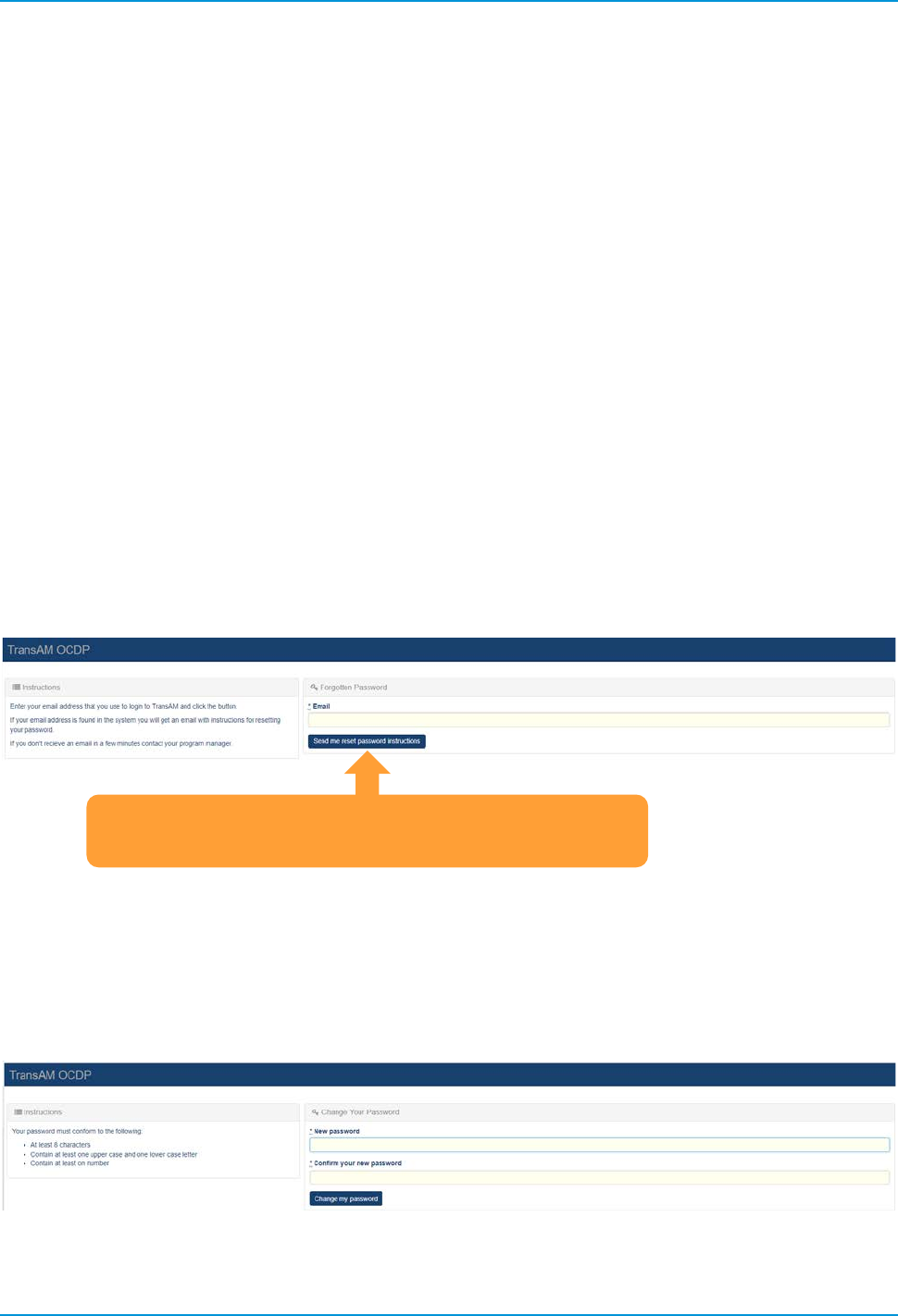
If this is your first time logging in, you should receive an email following the creation of your user account,
with a link instructing you to reset your password. Click the link in the email and you will be directed to enter
your email address in order to reset your password; enter your email address and click the “Send me reset
password instructions” button. If you are an existing user and you forgot your password, you will be taken to
the same screen by clicking on the “Forgot Your Password” link on the login page.
Figure 1 Password Reset Request Screen
Once you receive your “Reset Password Instructions” email, click on the “Change my password” link within
the email, you will be redirected to the system site in your web browser, and you will be prompted to enter
your new password twice. Once you enter your password twice, if it meets the password requirements, you
will be automatically logged in.
Figure 2 Set/Reset Password Screen
The email address you enter, must match the email
address entered when your account was established
TransAM
Cambridge Systematics, Inc.
2
1.2 Ongoing Site Access
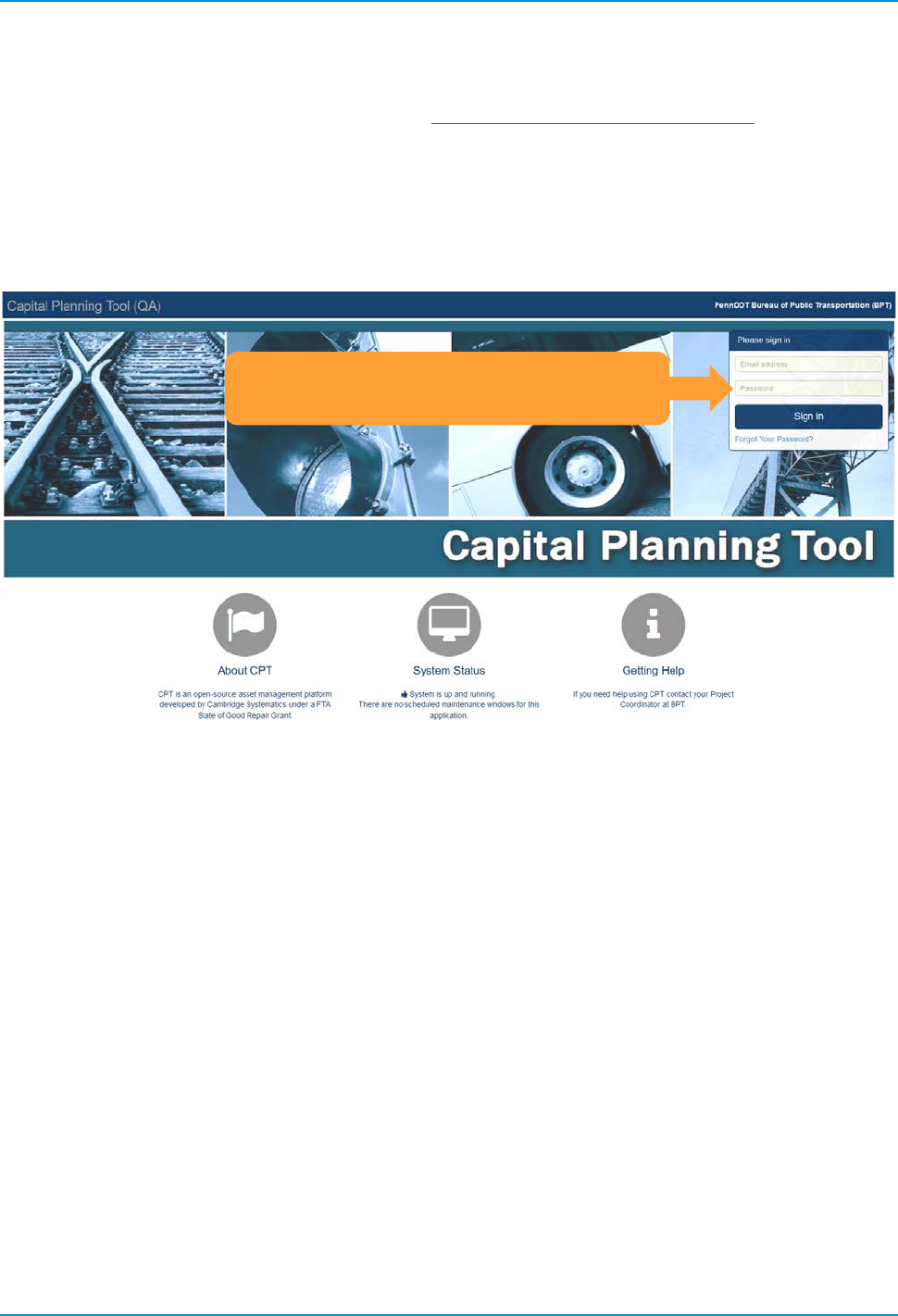
The system can be accessed via the following URL: https://transam-ocdp.camsys-apps.com.
Ongoing access can be obtained by bookmarking the site URL in your web browser and clicking on the link,
upon which you’ll be greeted with a login screen. Enter your credentials in the appropriate fields to login. You
also can request a password reset by pressing the “Forgot Your Password?” button.
Figure 3 Login Screen
Log in with your username and password
or retrieve a forgotten password
TransAM
Cambridge Systematics, Inc.
3
2.0 Dashboard
2.1 Dashboard Elements
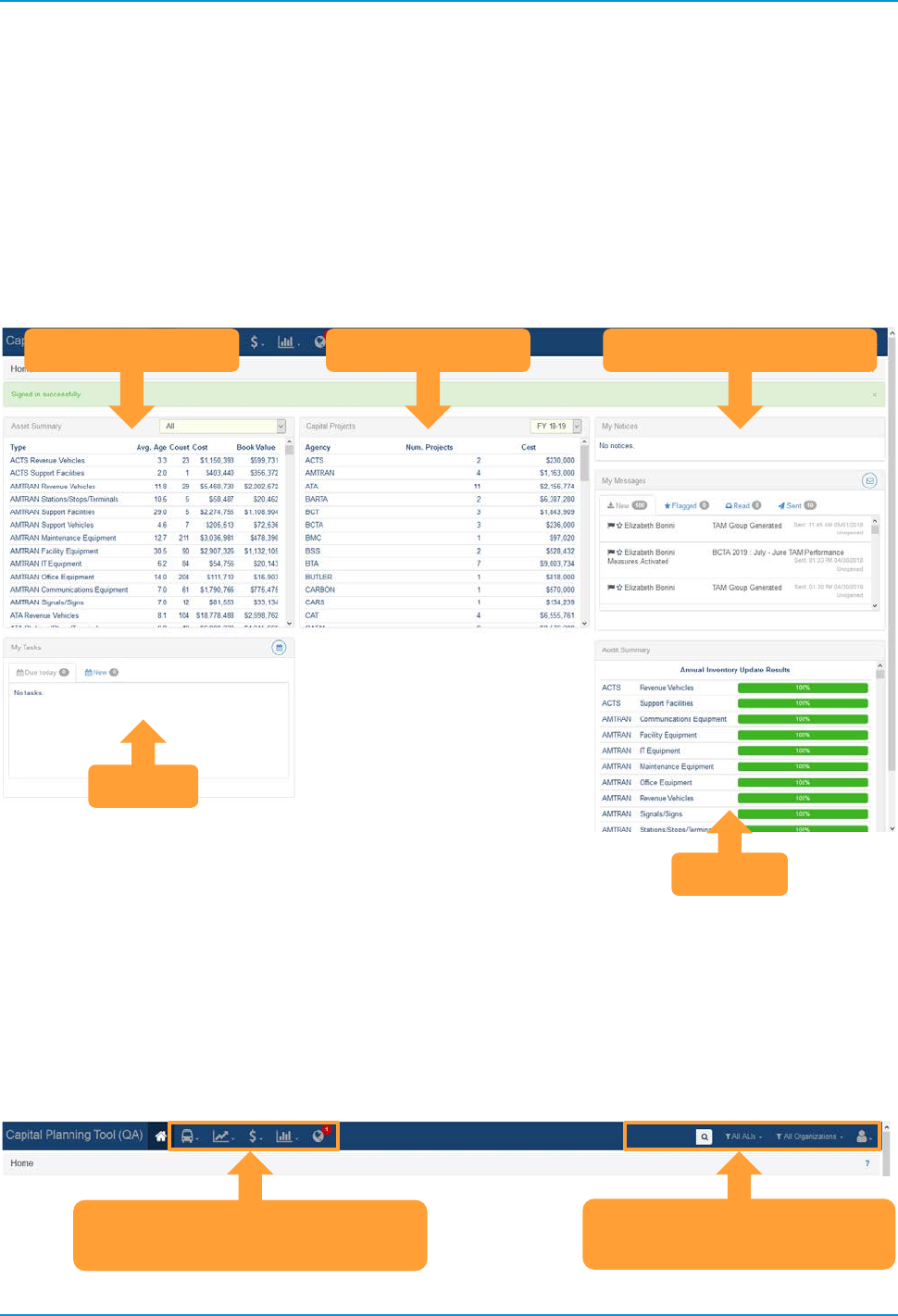
Once you’re logged in, your first experience will be the dashboard. The dashboard has a variety of elements.
The dashboard widgets highlighted below are: Asset Summary, Capital Projects, My Notices, My Messages,
My Tasks, and Audit Summary. These provide a quick glance at the contents within the system.
Figure 4 Dashboard Elements
2.2 Header Menu and Controls
The menu icons at the top guide you to the deeper content pages within the system: Inventory, Policies,
Accounting, Reports, and Notifications. There also are controls to search, filter Activity Line Items (ALI) or
organizations, and user settings.
Figure 5 Header Menu
Asset Summary
Capital Projects
Messages and Notices
Audit
Tasks
Inventory, Policies, Accounting,
Reports, Notification
Search, Filter, and User
Settings
TransAM
Cambridge Systematics, Inc.
5
3.0 General Features and Tools
As you progress through the system, there are some common interface elements that you’ll encounter often.
3.1 Table Controls
There are lots of tables inside the system. The tables have common control tools that allow you to
manipulate the table contents and export the table.
On header elements, you’ll notice two arrows to the right of each column. These controls sort the table
ascending or descending based on this column.
Figure 6 Sorting Controls
The Export All button to the top right of the table exports all table elements into an Excel table.
Figure 7 Export Button
There also are a set of tools to the top right of the table. The left button either displays the table with
pagination (e.g., the table shows only a configurable number of rows per page), or the entire table.
The center button allows the user to show or hide different columns. Check marks next to the column
indicate if a column will be shown and allow the user to toggle the column on or off.
The right button exports the current table view (complete with filters and excluding hidden elements) into
a.CSV,.TXT, or an.XLSX (Excel) file format.
Figure 8 Table Tools
3.2 Site Filters
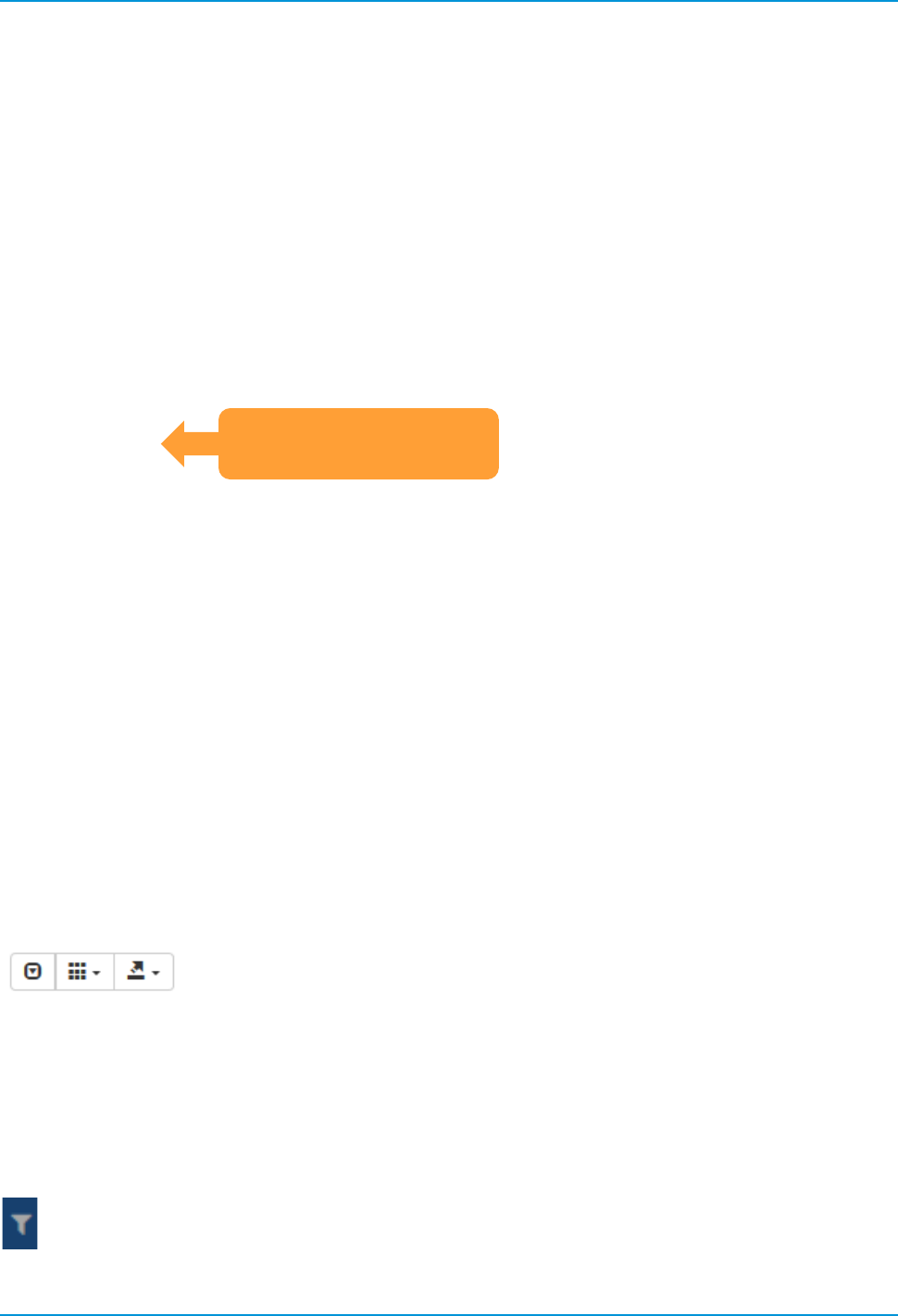
Throughout the site, there are various opportunities to filter data. When you see the following icon it means
you can pare down displayed data with a filter.
Figure 9 Filter Icon
Ascending and
Descending Sort
TransAM
Cambridge Systematics, Inc.
6
3.3 Messages
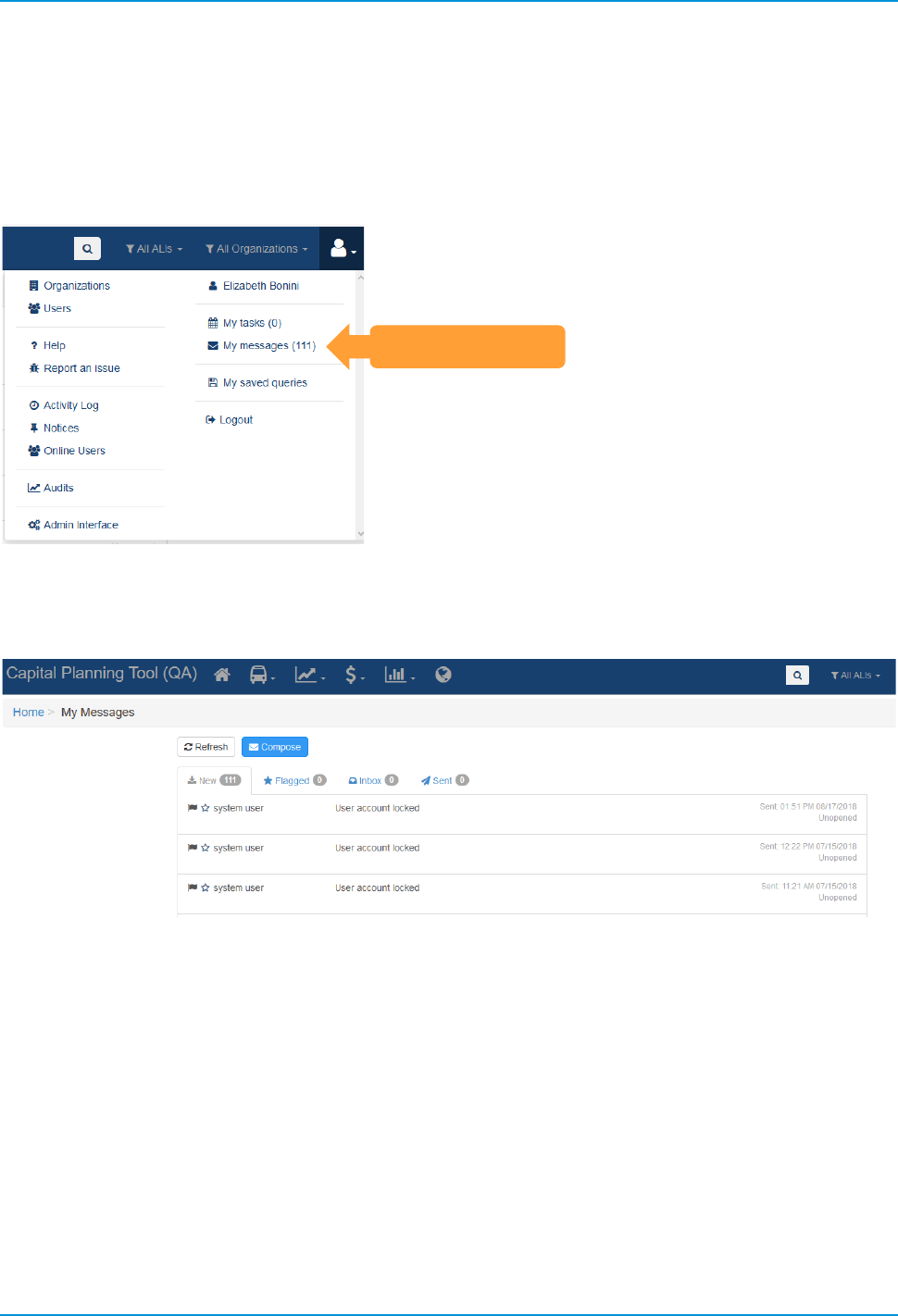
You can access Messages through the User Profile drop down menu.
Figure 10 User Profile
Messages
Users are able to send and receive messages to one or more users through the interface.
Figure 11 Messages
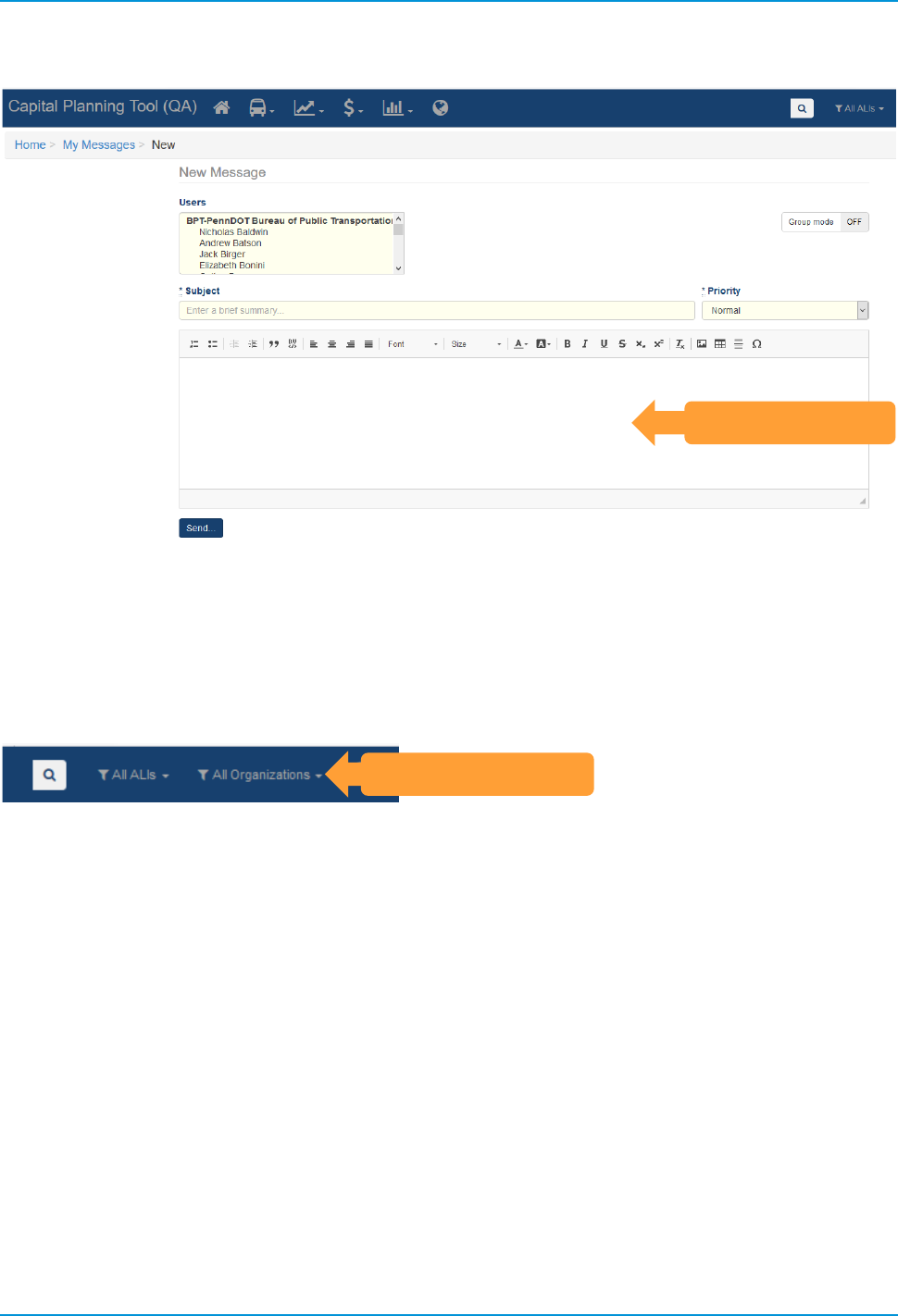
Selecting Compose will allow you to create a new message. Recipients options will be a list of users in your
organization. You can enter the Subject and choose Low, Normal, or High Priority for the message. Type the
intended message into the Message Body and press “Send…” when complete.
My Messages
TransAM
Cambridge Systematics, Inc.
7
Figure 12 Message Interface
3.4 Organizations Filter
If you have oversight of several organizations, you can limit your scope down to certain organizations, in
order to only view organization-specific data across the system.
Figure 13 Organization Filter
Message Body
Organizations Filter
TransAM
Cambridge Systematics, Inc.
8
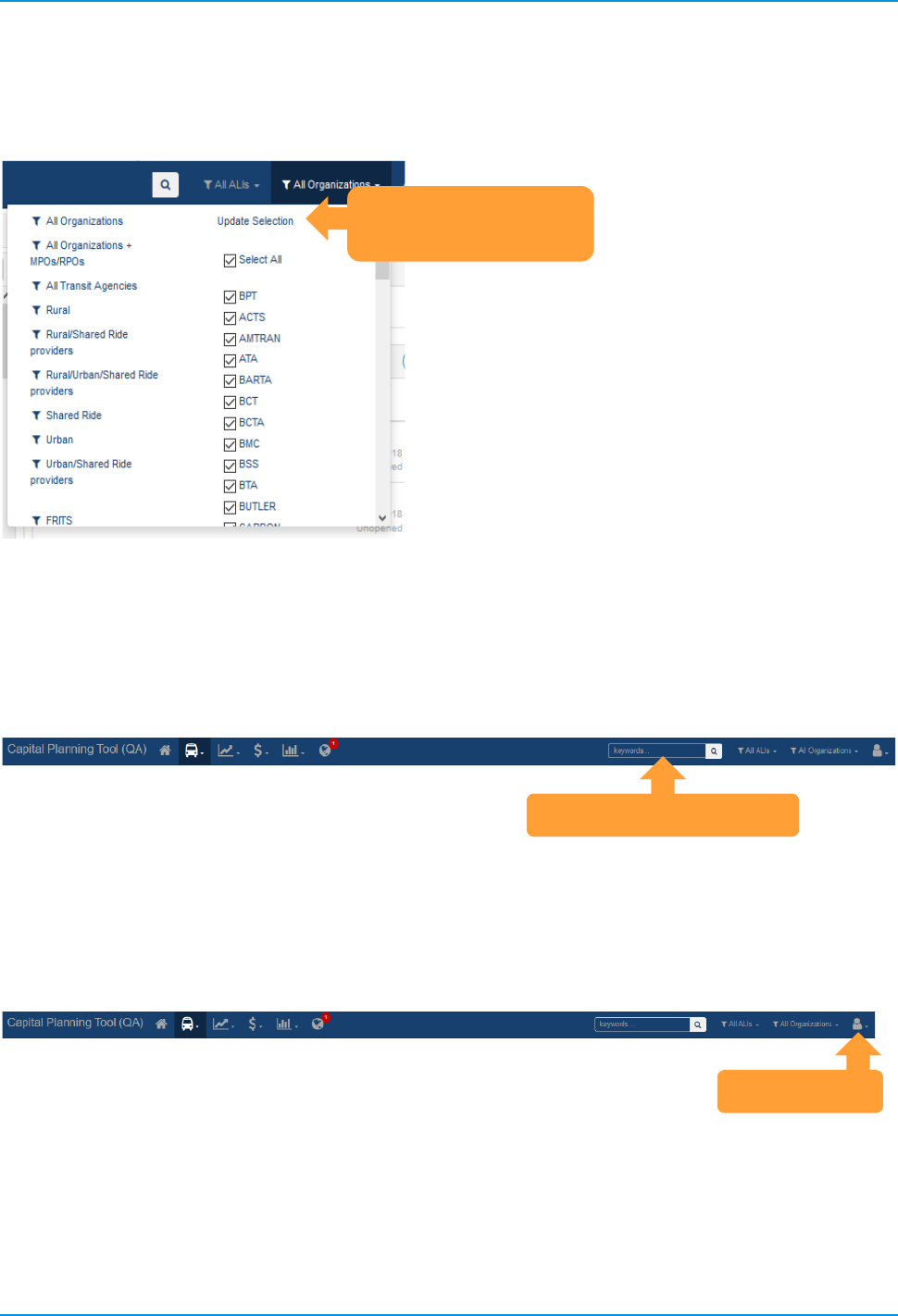
After you select the organizations you desire, make sure to click Update Selection at the top of the dropdown
menu.
Figure 14 Organization Filter Selections
3.5 Search
The system includes a sitewide search feature. It can be found in the top center-right of each page. Click the
magnifying glass icon and enter keywords to search sitewide for content.
Figure 15 Search Box
3.6 User and Organization Options
Each user has a menu with personal, organizational, and heads-up information at the top right of the screen.
Figure 16 User Menu
Update Your
Organization
Persistent Search Box
User Menu
TransAM
Cambridge Systematics, Inc.
9
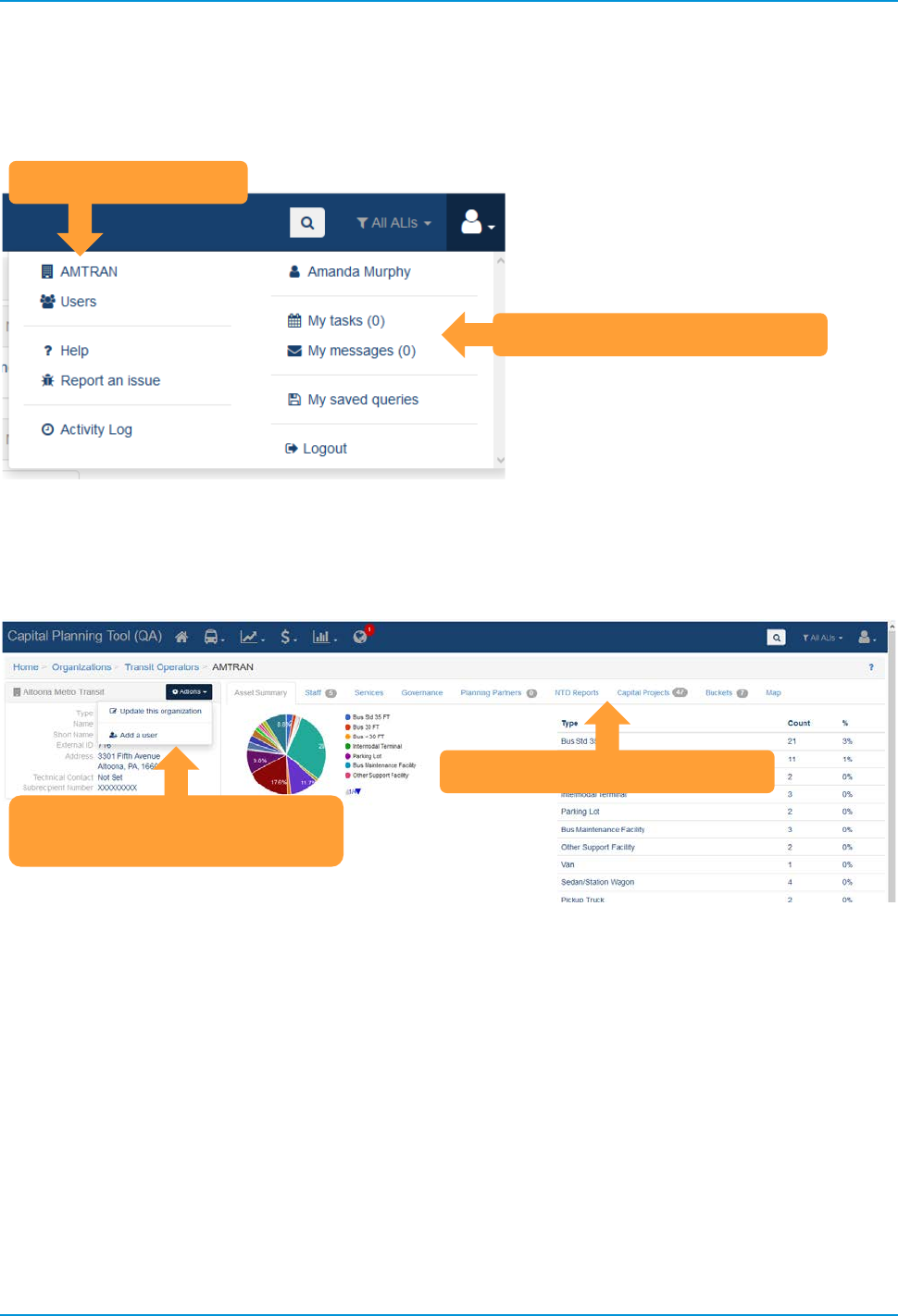
From here, users can explore information about their own organization and their coworkers in the
Organization and Users section.
Figure 17 User Menu Dropdown
Clicking on your organization name, will allow you to view and edit organization-specific information, and
perform certain functions such as adding users.
Figure 18 Organization Details
User Detail
Organization Details
Organization Details
Edit Organization Details or
Add Users
TransAM
Cambridge Systematics, Inc.
10
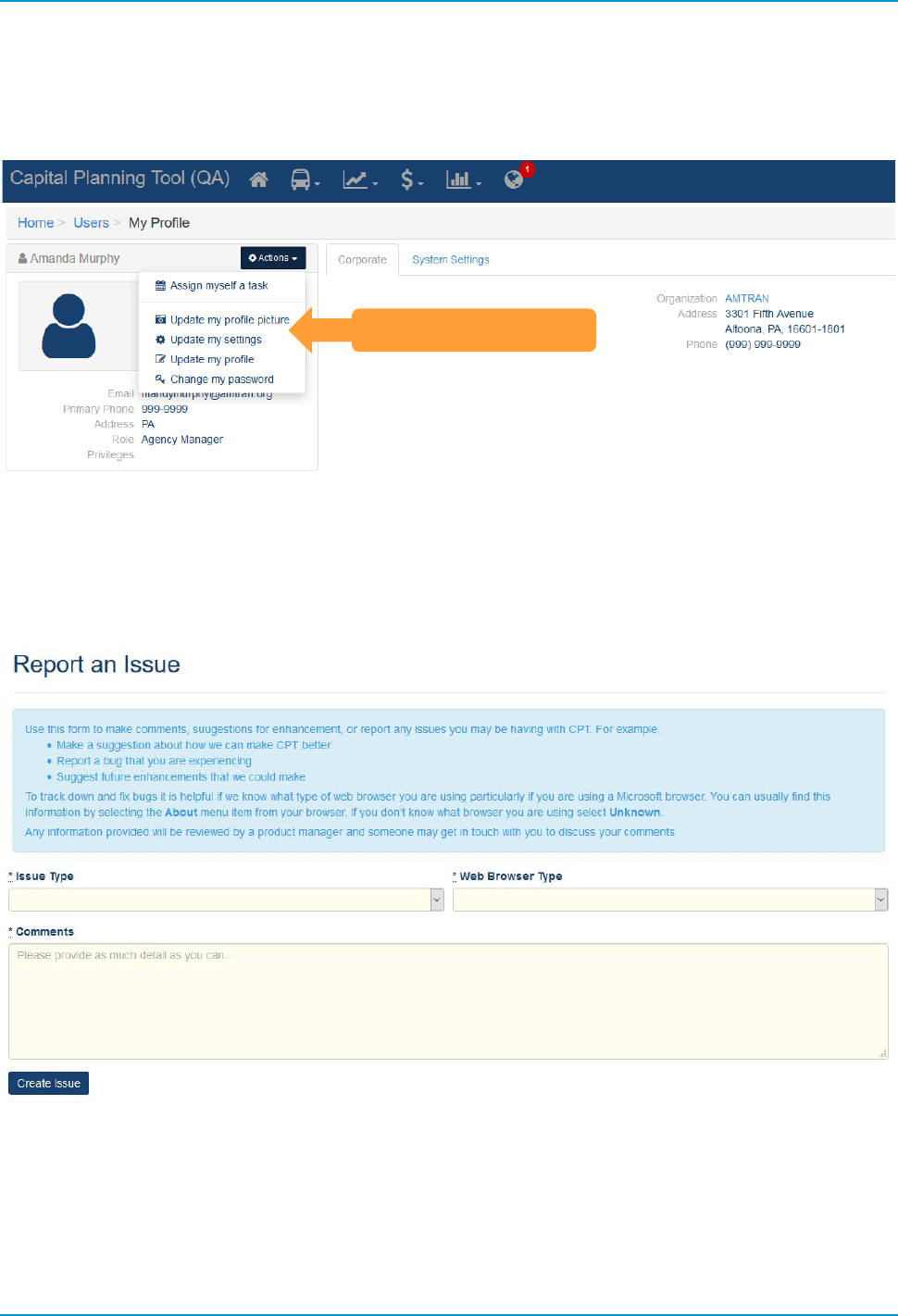
If you click your own name, you can see details about your profile and edit them. You also can assign
yourself a task to complete.
Figure 19 Profile Details
You can browse this help document or submit an issue in the Help and Report an issue section. Reporting
an issue is easy—just fill out the required information with as much detail as you can provide.
Figure 20 Report an Issue
Edit Profile Details
TransAM
Cambridge Systematics, Inc.
11
3.7 Notifications
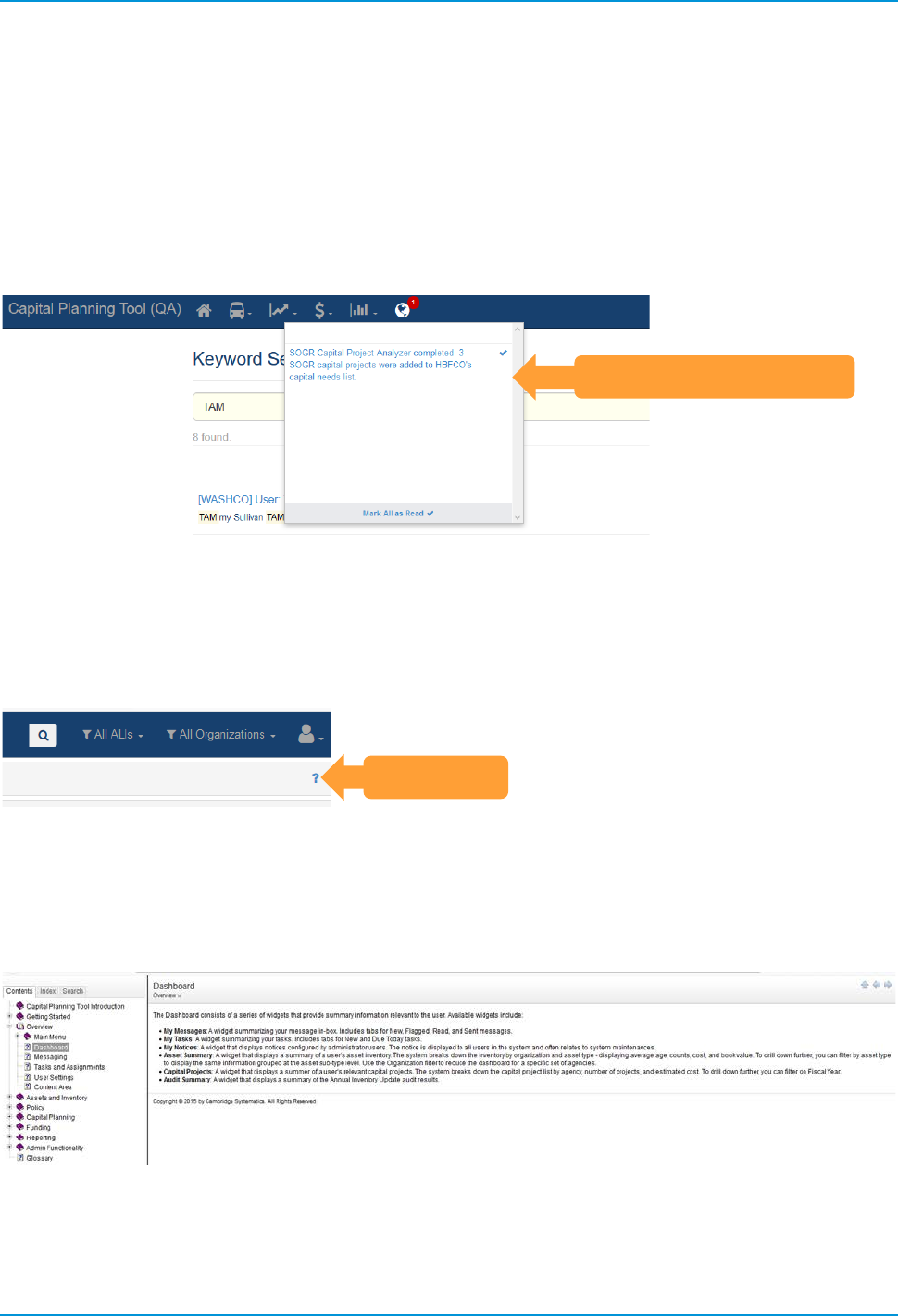
The notifications dropdown alerts you when there’s activity in the system that you should be aware of. The
globe at the top of the page will display a number with the count of “unread” notifications since your last
check. Clicking on a notification item will take you to the change and mark the notification as read. You also
can click individual checkmarks to dismiss individual notifications or “Mark All as Read” to quickly dismiss all
notifications.
Figure 21 Notification Drawer
3.8 Help
At the top right of each page is a “?” icon.
Figure 22 Help Icon
Clicking the help icon will bring you to the help content regarding that page. The help content provides
detailed descriptions of each of the page elements. You also can navigate to help content for other pages.
Via the contents, index, or search tabs in the left pane.
Figure 23 Help Content
Notifications Window
Help Icon

TransAM
Cambridge Systematics, Inc.
13
4.0 Asset Inventory
Management of organization assets is carried out through the Asset Inventory dropdown menu. It contains a
variety of tools and functions that streamline asset management.
Figure 24 Asset Inventory Dropdown
Asset Inventory Dropdown
TransAM
Cambridge Systematics, Inc.
14
4.1 Add an Asset
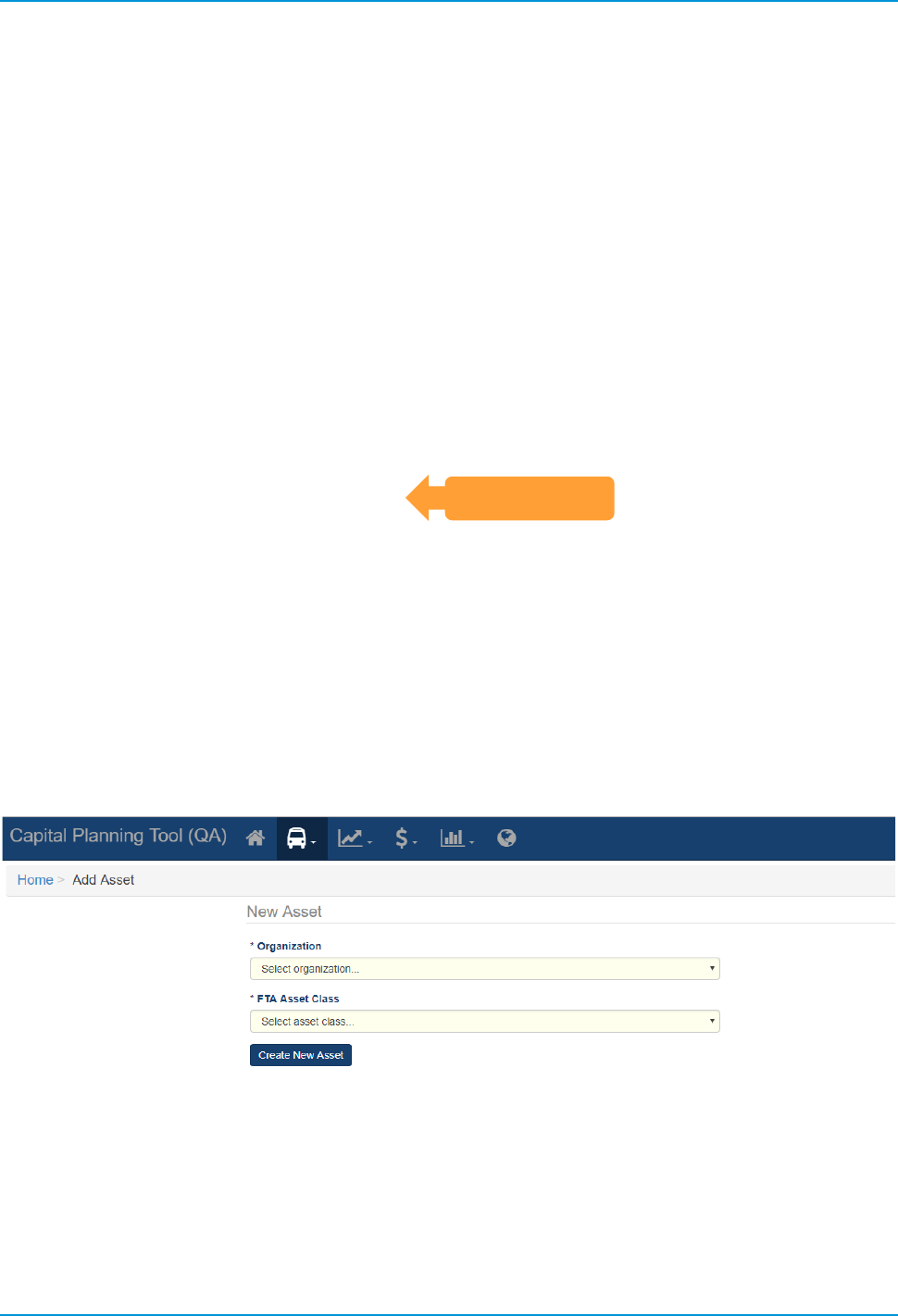
Adding new assets to the asset inventory is simple. First select “Add Asset” from the Asset Inventory
dropdown.
Figure 25 Adding an Asset
Select an Organization and an Asset Class, then click “Create New Asset.”
Figure 26 Select the Organization and Asset Class
Add an Asset
TransAM
Cambridge Systematics, Inc.
15
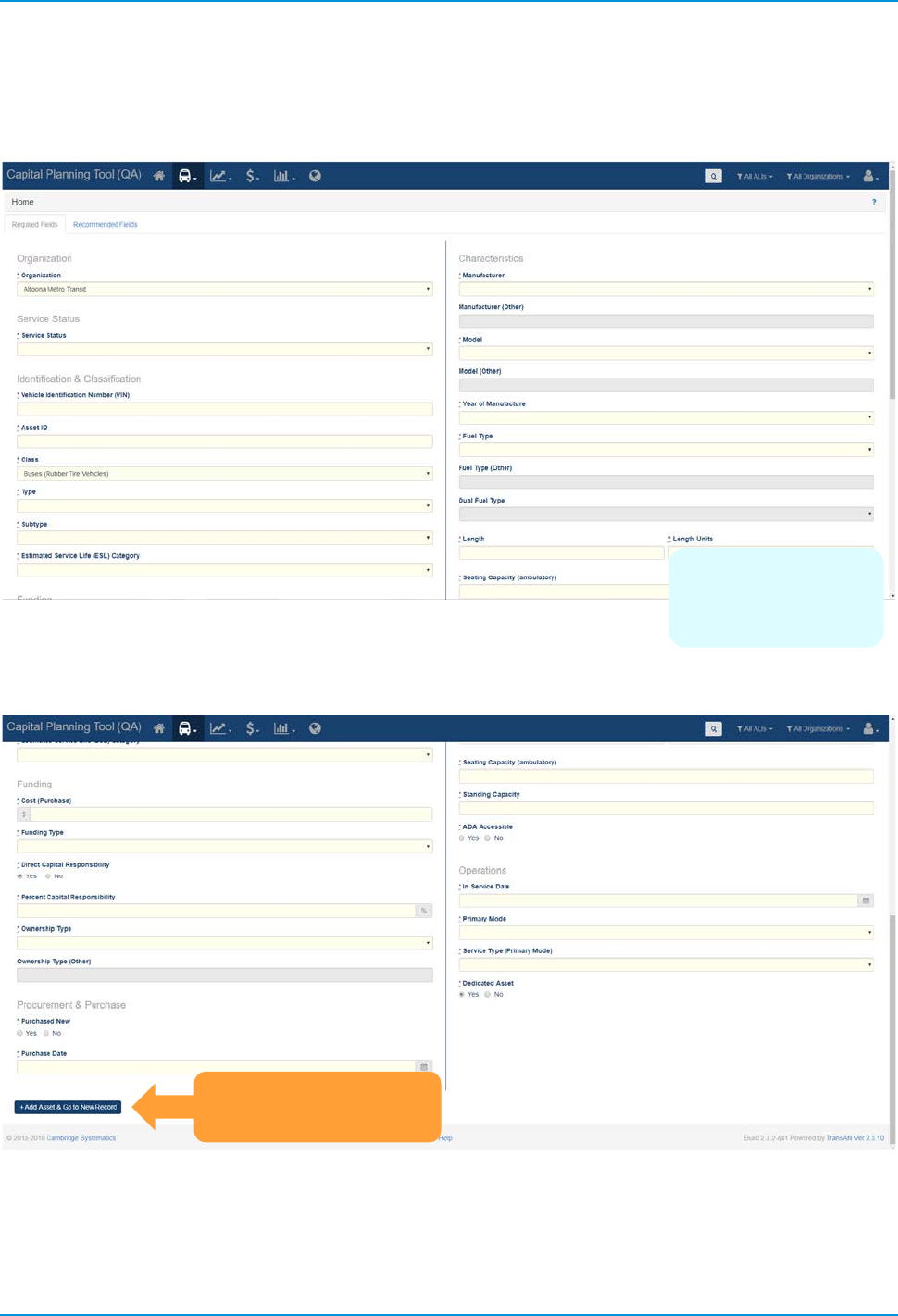
You’ll then be directed to fill out all required fields, as depicted on the required tab, and the option of filling
out any optional fields on the recommended tab.
Figure 27 Adding Asset Required Details
Figure 28 Add the Asset and Go To The New Record
Any field on the
required tab must
be filled out
Add Asset and Go To
New Record Button
TransAM
Cambridge Systematics, Inc.
16
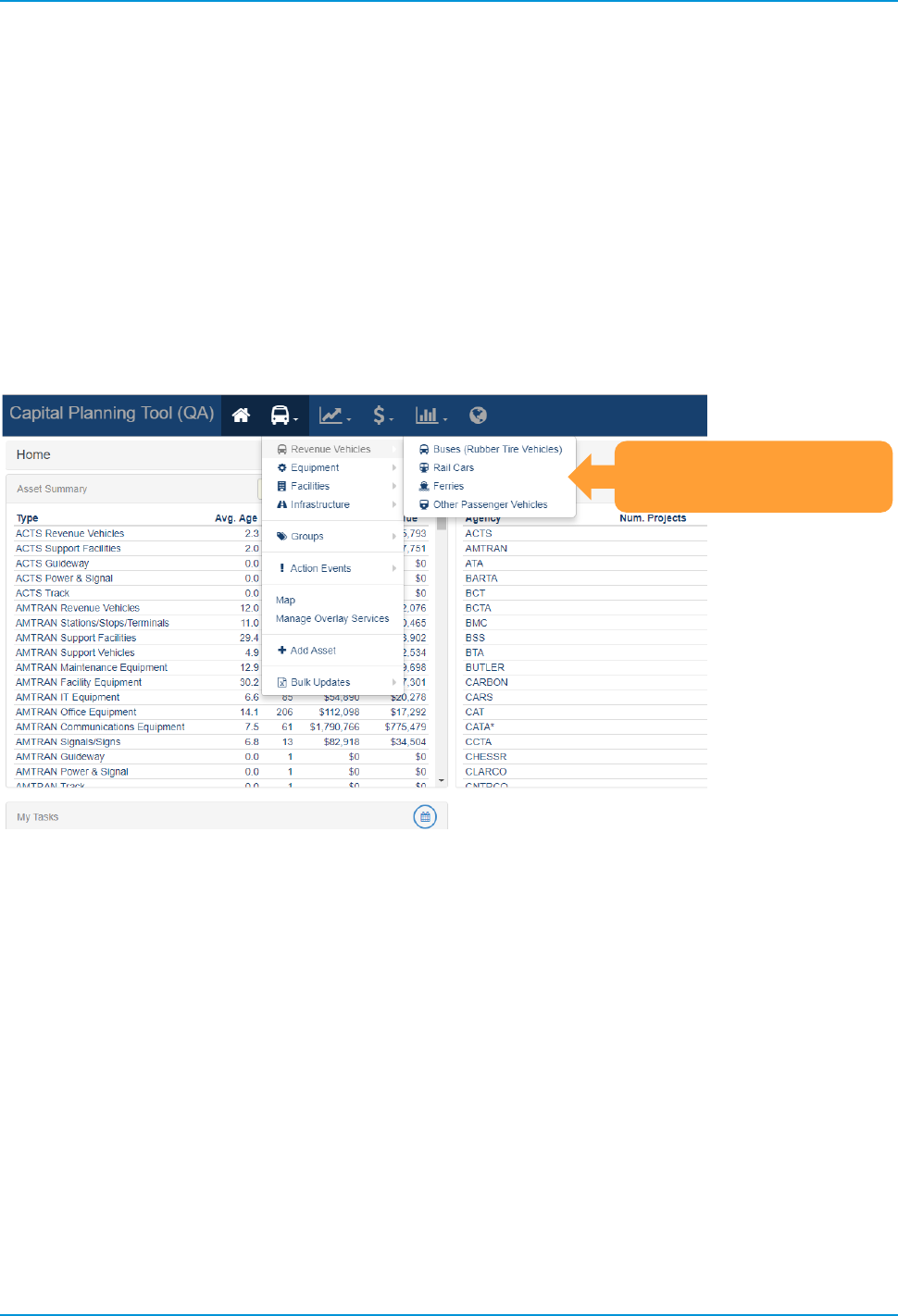
4.2 Accessing Existing Assets
Every asset is categorized by category (e.g., Revenue Vehicles, Equipment), class (e.g., Buses (Rubber Tire
Vehicles, Rail Cars), type (e.g., BU-Bus, RL-Commuter Rail Locomotive), and a subtype (e.g., Bus Std 40
FT, Bus Articulated) as part of a standardized hierarchy. The asset category, class, type, and subtype
relationship is the taxonomy that defines your inventory and dictates the attributes or data fields that exist for
assets. The list of available category, class, and type options are standardized across the system, while
subtype options and some data fields have been specifically configured for your specific system deployment.
Clicking on an asset class will drill down on the assets an organization possesses within that particular
category and class.
Figure 29 Existing Assets
Click Asset Class to
access a list of assets
TransAM
Cambridge Systematics, Inc.
17
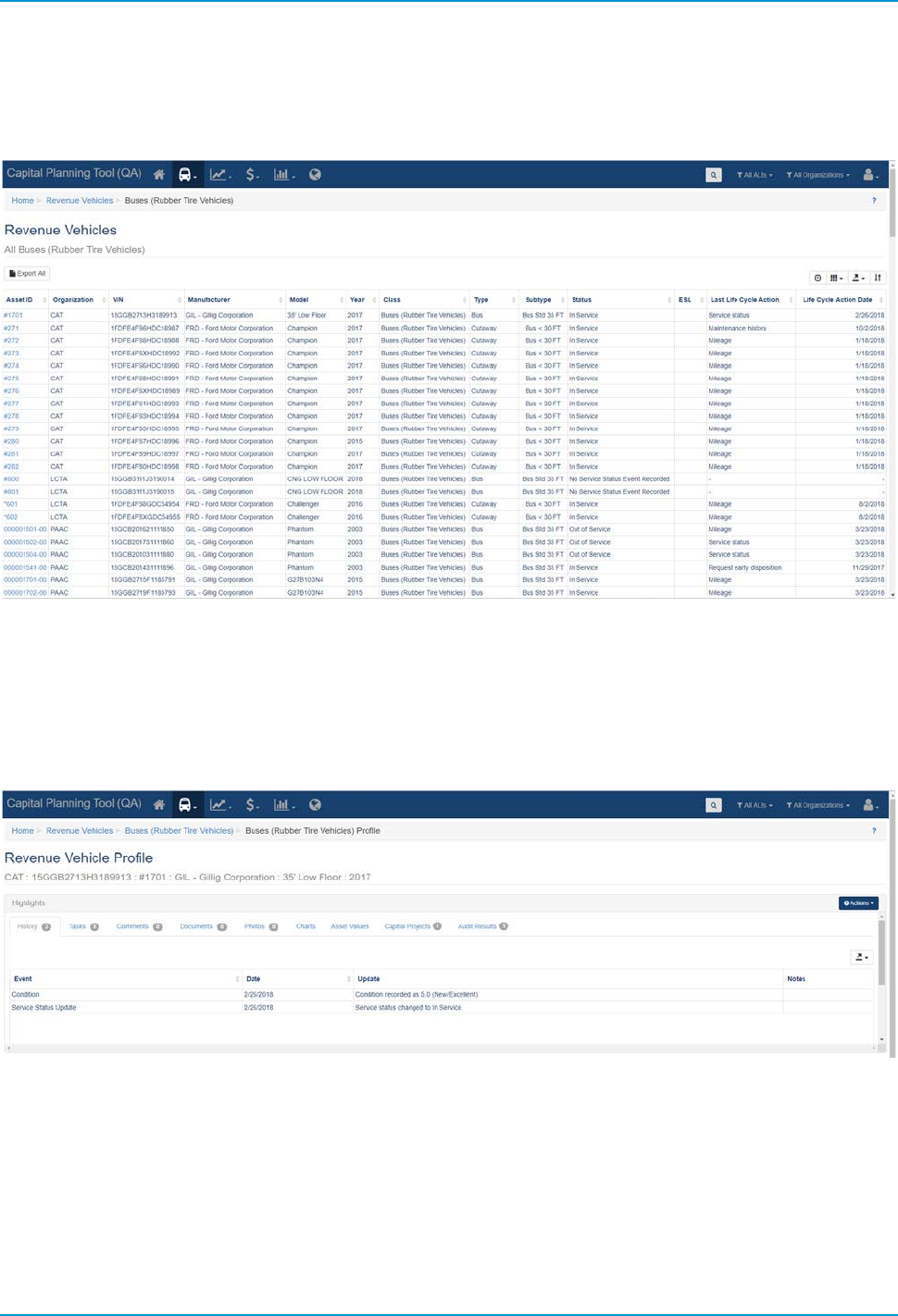
Clicking on the Asset ID text within the row of an asset record, will provide detailed information about that
specific asset.
Figure 30 Existing Asset Interface
When you access the specific asset record, users can view the highlights section. The highlights sections
contains asset summary information such as: a history log, location information, asset charts, asset value
information, associated capital projects, and audit results. In addition, tasks, comments, documents, and
photos can all be viewed, updated, and edited.
Figure 31 Asset Record: Highlights
TransAM
Cambridge Systematics, Inc.
18
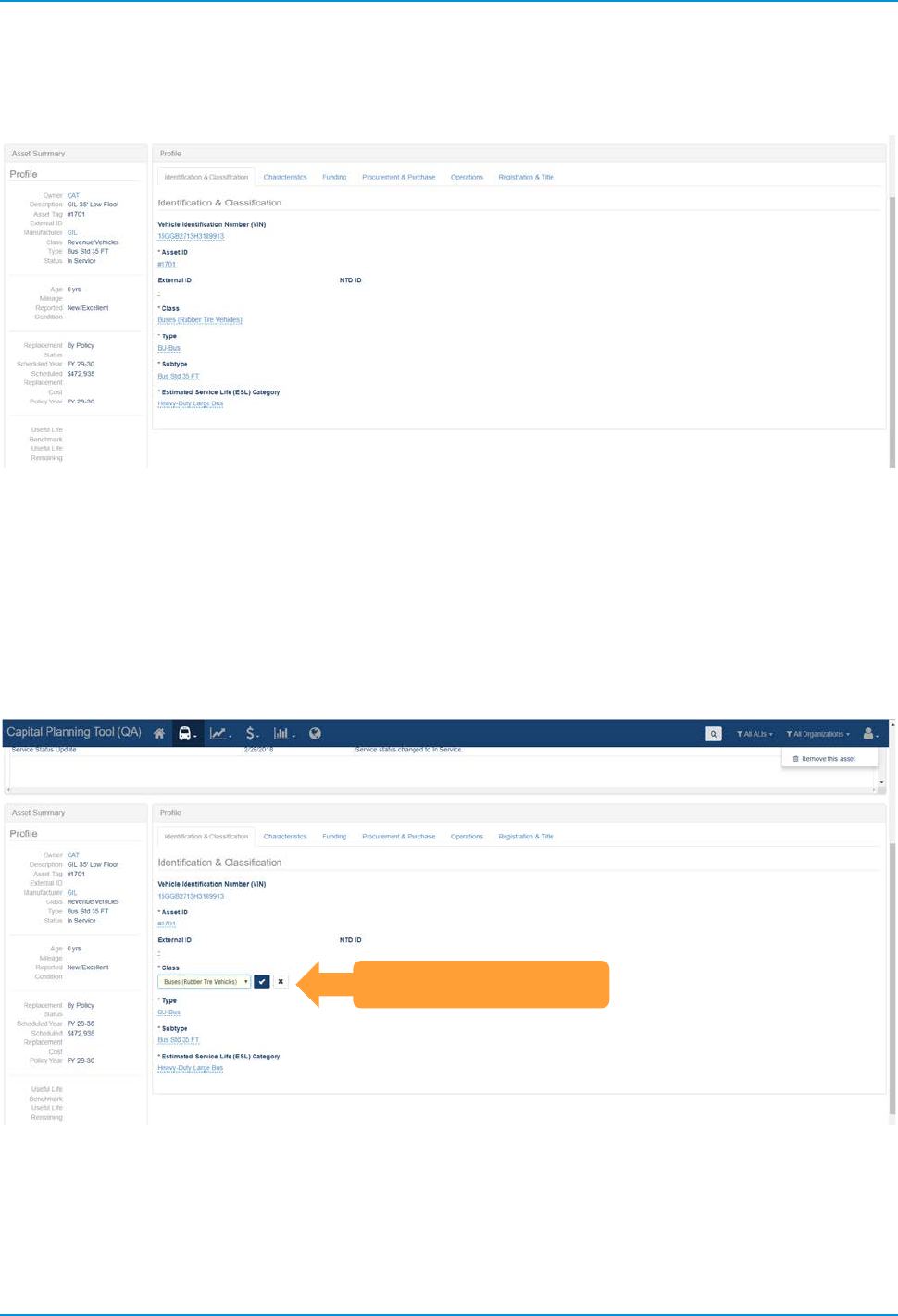
In additional to accessing asset highlight information, users can view profile or summary data for that asset.
Figure 32 Asset Record: Profile and Summary
4.3 Editing or Updating Existing Asset Profile Data
Editing asset profile data allows users to modify core attributes that are not expected to change, but
corrections may be necessary from time to time. Profile data can be modified by clicking on the field, editing
the data, and clicking the check mark; clicking the “X” or clicking outside the field will result in any changes
not being saved.
Figure 33 Editing the Profile of an Existing Asset
Click on a field to edit
TransAM
Cambridge Systematics, Inc.
19
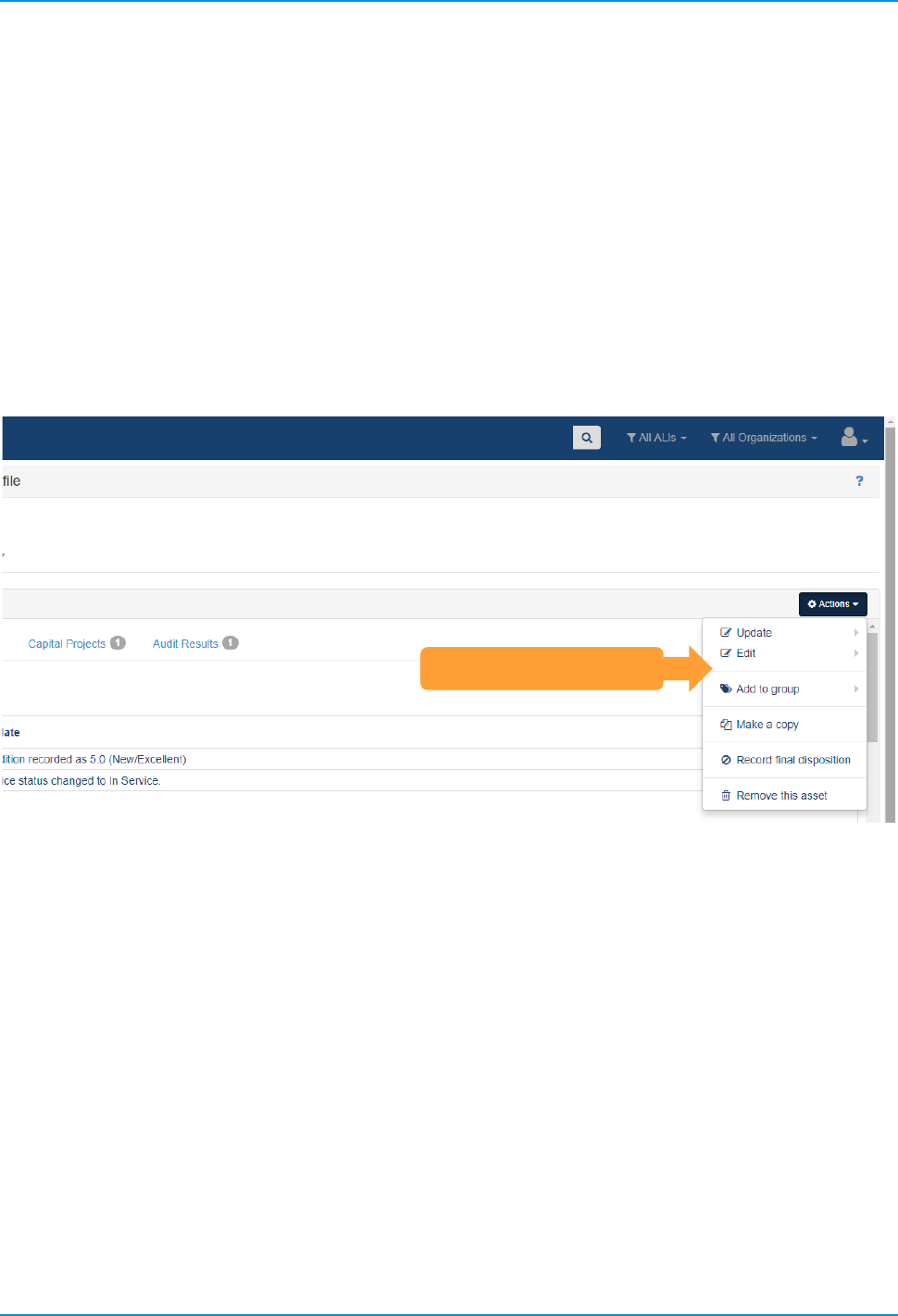
4.4 Updating Existing Asset Lifecycle Data
Asset lifecycle-related information can be edited, updated, changed, or deleted from the action menu in the
top right of the screen.
Updating an asset will allow changes to attributes that are expected over the lifecycle of an asset. Asset
details such as replacement status, mileage, etc. are expected to be updated periodically. Other actions
should only need to happen one time during the life of an asset, such as requesting early or final disposition
of an asset.
Removing an asset will permanently delete the asset and should be used only when absolutely necessary.
This may option may only be available at certain permission levels.
Figure 34 Updating the Lifecycle of an Existing Asset
4.5 Action Events (Disposition and Transfer Review)
During an asset's service life, it is possible that the asset might be sold, reprovisioned, traded in, or
transferred. As a result, a special event exists to record relevant information, and review any disposition
requests that may be submitted, in order to complete the disposition effort.
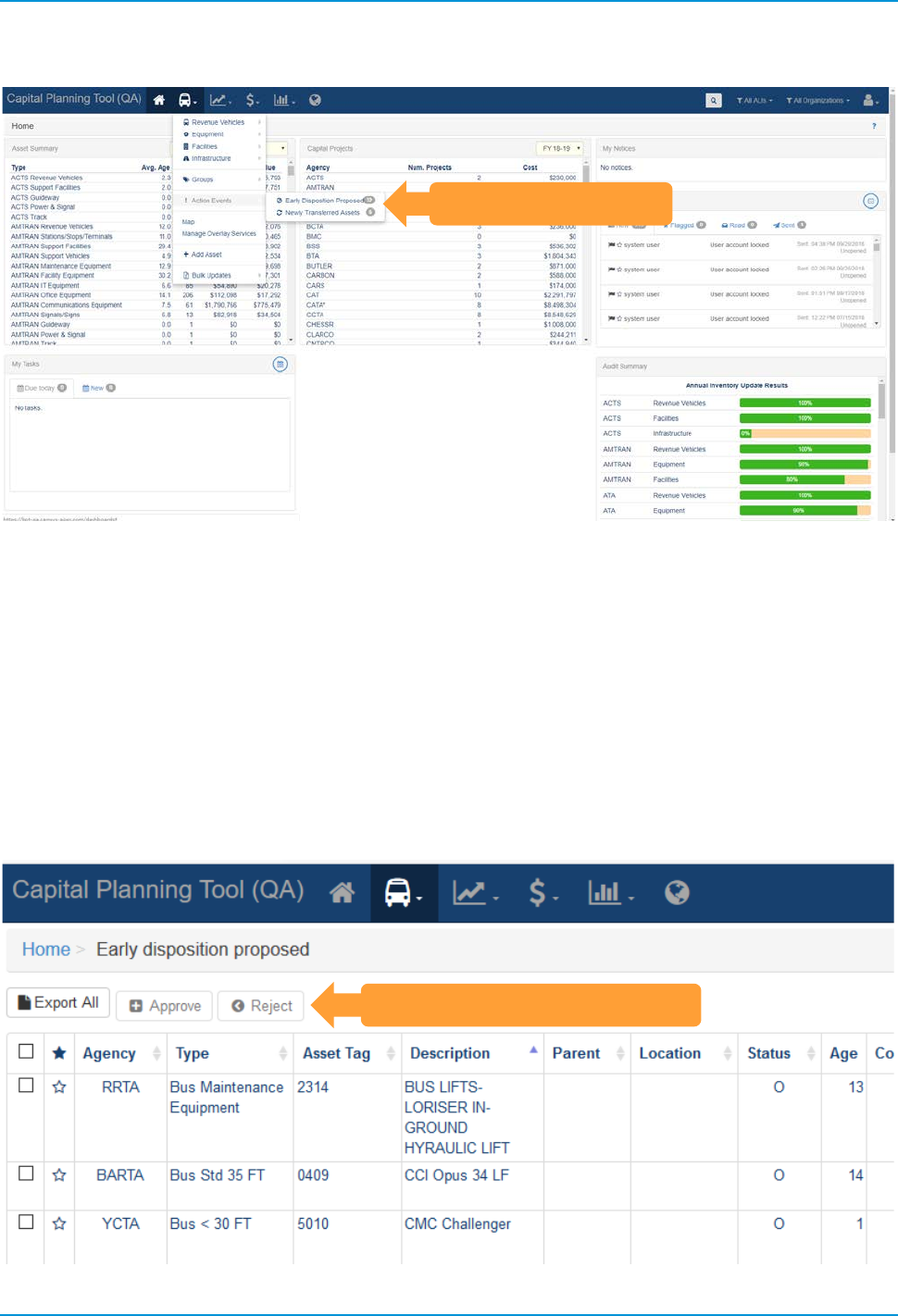
Action Events depend on the disposition of an asset to perform certain functions. The available functions will
vary depending on individual permissions and organizational policy. Action Events occur when an asset is
proposed for an early disposition or an asset is newly transferred. You can submit a request for early
disposition from the action menu on an asset.
Asset Action Menu
TransAM
Cambridge Systematics, Inc.
20
Figure 35 Asset Action Events (Disposition and Transfer)
An early disposition instance is where a vehicle fails to fulfill its expected life span. The real world is messy
and sometimes mishaps such as accidents occur. Under these circumstances, the asset might require
disposition before originally intended.
Record final disposition will keep a record of an asset’s existence when it is no longer in service. This option
will essentially archive an asset so that the history exists, but the asset is no longer considered in the pool of
operational assets for an organization.
Early disposition requests can be reviewed from the Early Disposition Proposed page. Select the check box
next to an asset, then the select the button to Approve or Reject a proposed early disposition.
Figure 36 Early Disposition Requests
Action Events Menu
Approve or Reject requests
TransAM
Cambridge Systematics, Inc.
21
4.6 Adding or Updating Assets by Bulk Update
Bulk updates are a faster way to create and edit asset inventories when working with large quantities of
asset data. This tool allows users to update service status, condition and mileage of existing inventory,
record the last maintenance performed for assets, and identify assets that are going to be reprovisioned or
disposed in this planning cycle using their favorite spreadsheet software externally.
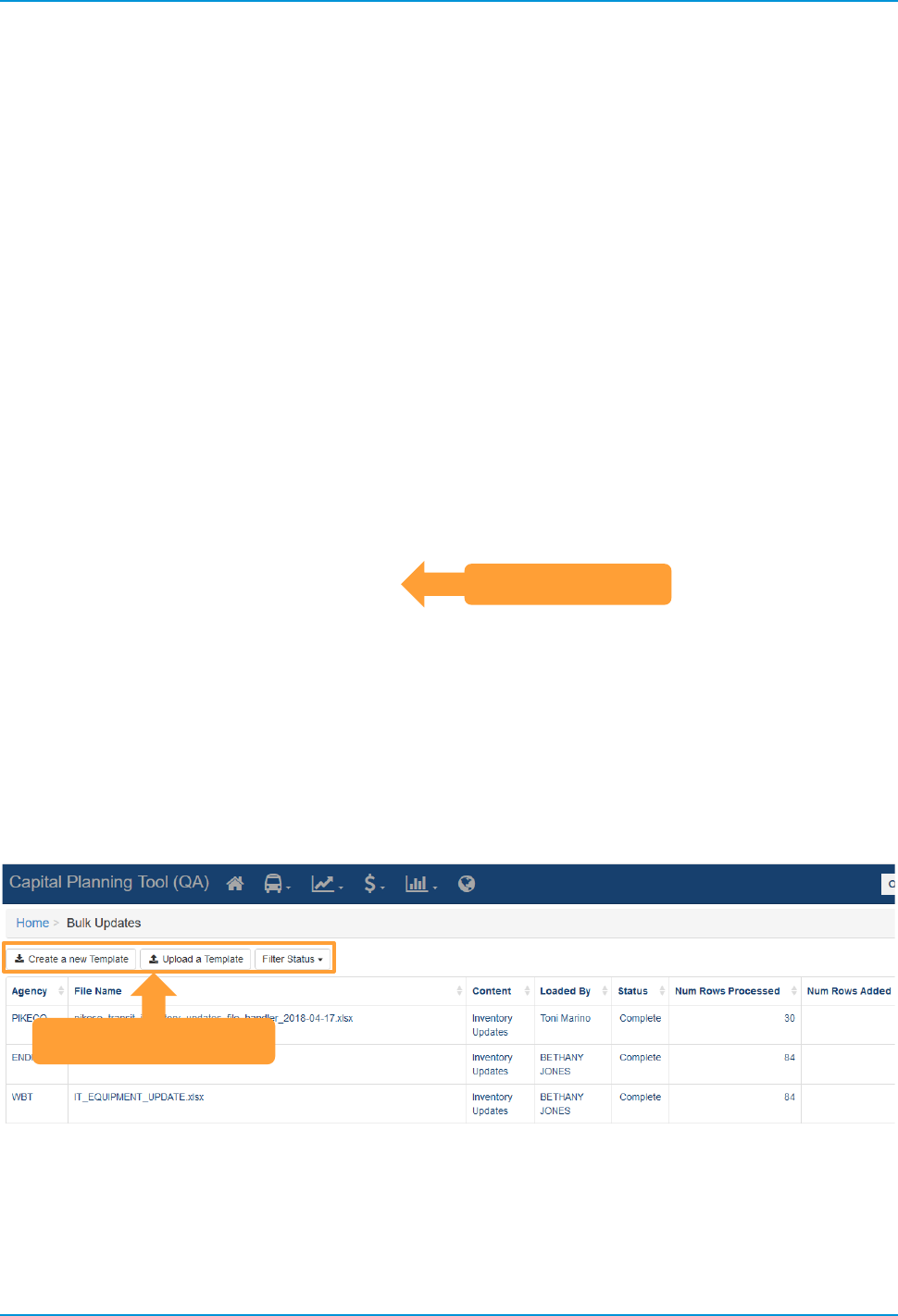
Figure 37 Bulk Updates
Selecting “Bulk Updates” allows you to Create a new Template, Upload a Template, or see the status of an
uploaded template. The main screen also shows previous bulk updates, their content, uploader, status, and
stats about the contents of that update and the upload process.
Figure 38 Bulk Update Tools
Bulk Updates
Bulk Update Tools
TransAM
Cambridge Systematics, Inc.
22
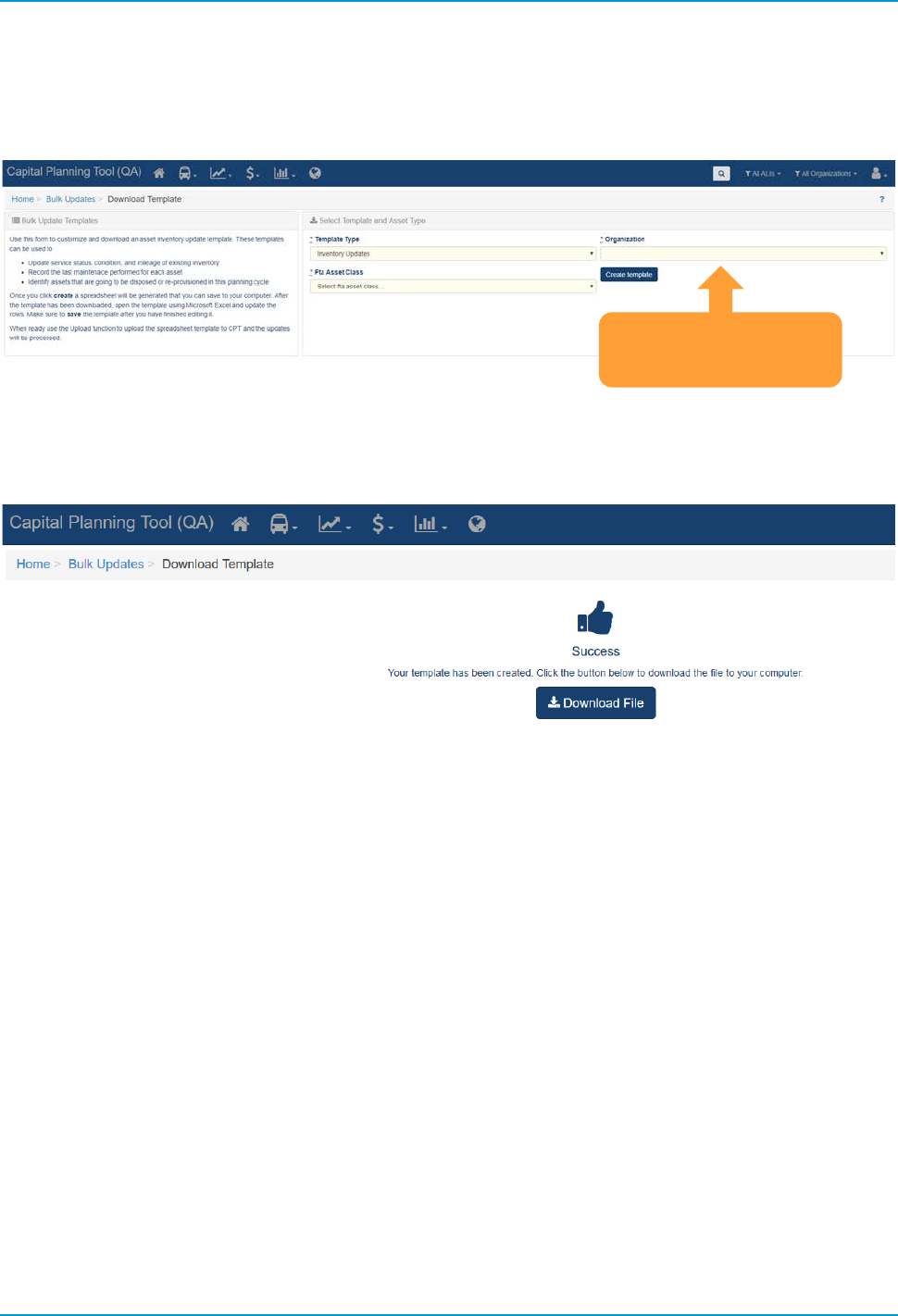
The first step to a bulk update is Creating a Template. Click “Create a new Template”, then select your
Template Type, Organization, and Asset Class, then select “Create Template.”
Figure 39 Bulk Update Details
Select “Download File” and save the resulting spreadsheet on your computer.
Figure 40 Bulk Update Spreadsheet Download
Choose these
parameters
TransAM
Cambridge Systematics, Inc.
23
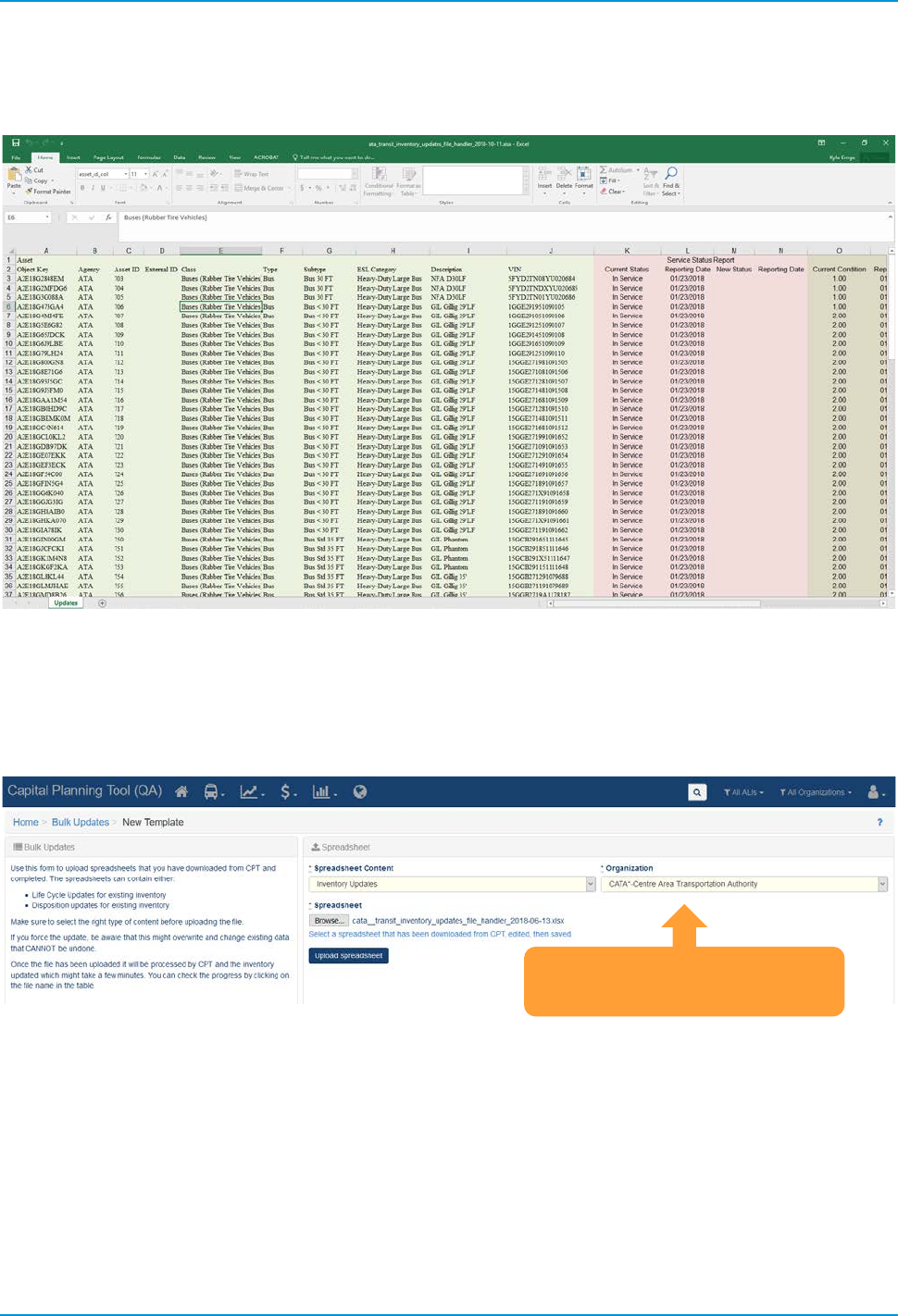
Edit the resulting spreadsheet and make sure you save your changes.
Figure 41 Bulk Update Spreadsheet
Head back to the Bulk Updates page and at the top select “Upload a Template.” Select the parameters on
the right that were used to create the template and then click browse and find your edited spreadsheet. Then
click Upload spreadsheet.
Figure 42 Bulk Update Upload
Select the parameters again
and upload spreadsheet
TransAM
Cambridge Systematics, Inc.
24
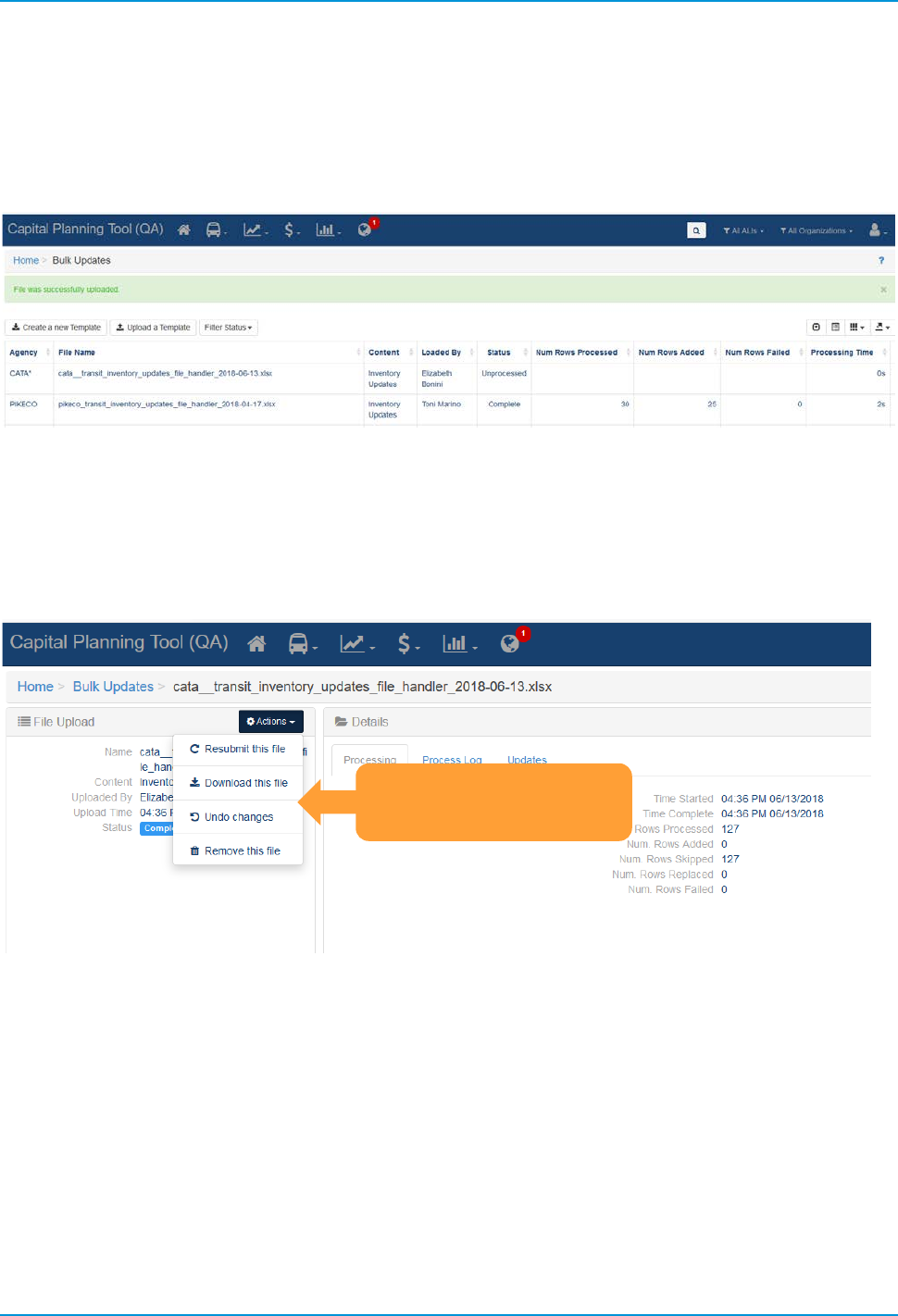
If your file uploads successfully, the main Bulk Update screen should reappear with a “File was successfully
uploaded banner” and you should see the most recent update appear at the top of the bulk update history.
The system will perform the updates and a new notification will appear in your notification tray once all
updates are complete.
Figure 43 Bulk Upload Processing
Each row in the Bulk Update table contains additional information and options if you click that update. Use
this interface to identify any issues that might have occurred during the bulk upload process. From the
actions menu, you can resubmit the file for processing, download that specific spreadsheet again, revert the
changes made by this update, or remove the file used to update from the list.
Figure 44 Bulk Update Edit
Make changes to this
bulk upload job
TransAM
Cambridge Systematics, Inc.
25
4.7 Groups
Agencies can create an on-the-fly collection of assets called groups so that they can quickly recall commonly
viewed assets all at once. They can be accessed from the Asset Inventory Menu.
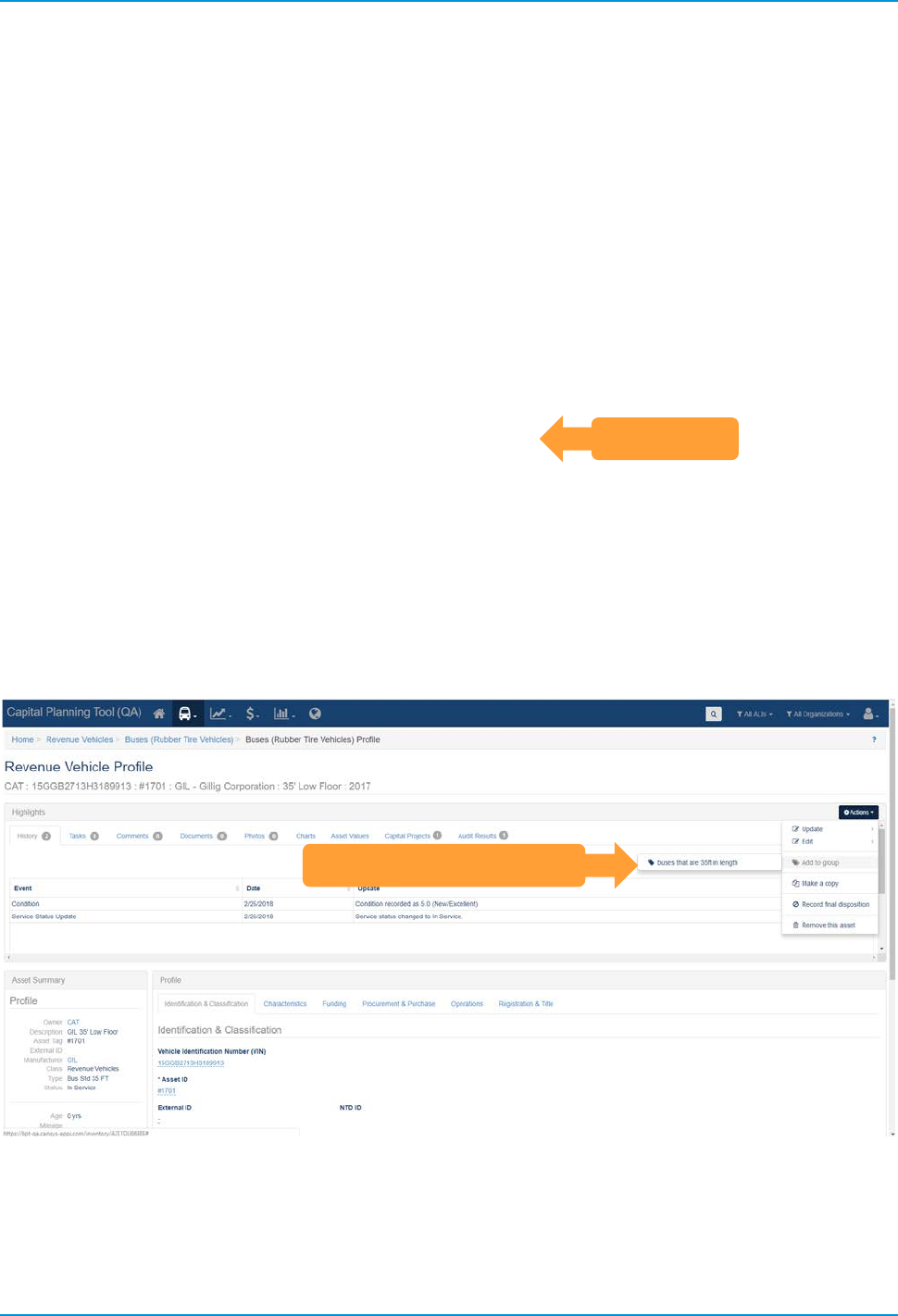
Figure 45 Asset Groups
Individual assets can be added to the group from their details menu.
Figure 46 Adding an Asset to a Group
Groups
Add an Asset to a Group
TransAM
Cambridge Systematics, Inc.
27
5.0 Policies
A Policy is a set of parameters that establishes rules related to assets saved within the system. While an
organization can create and modify multiple policies, each organization can only have one current policy at a
time. The policy is applied to an organization’s inventory on an asset by asset basis so that policy rules are
reflected on every individual asset.
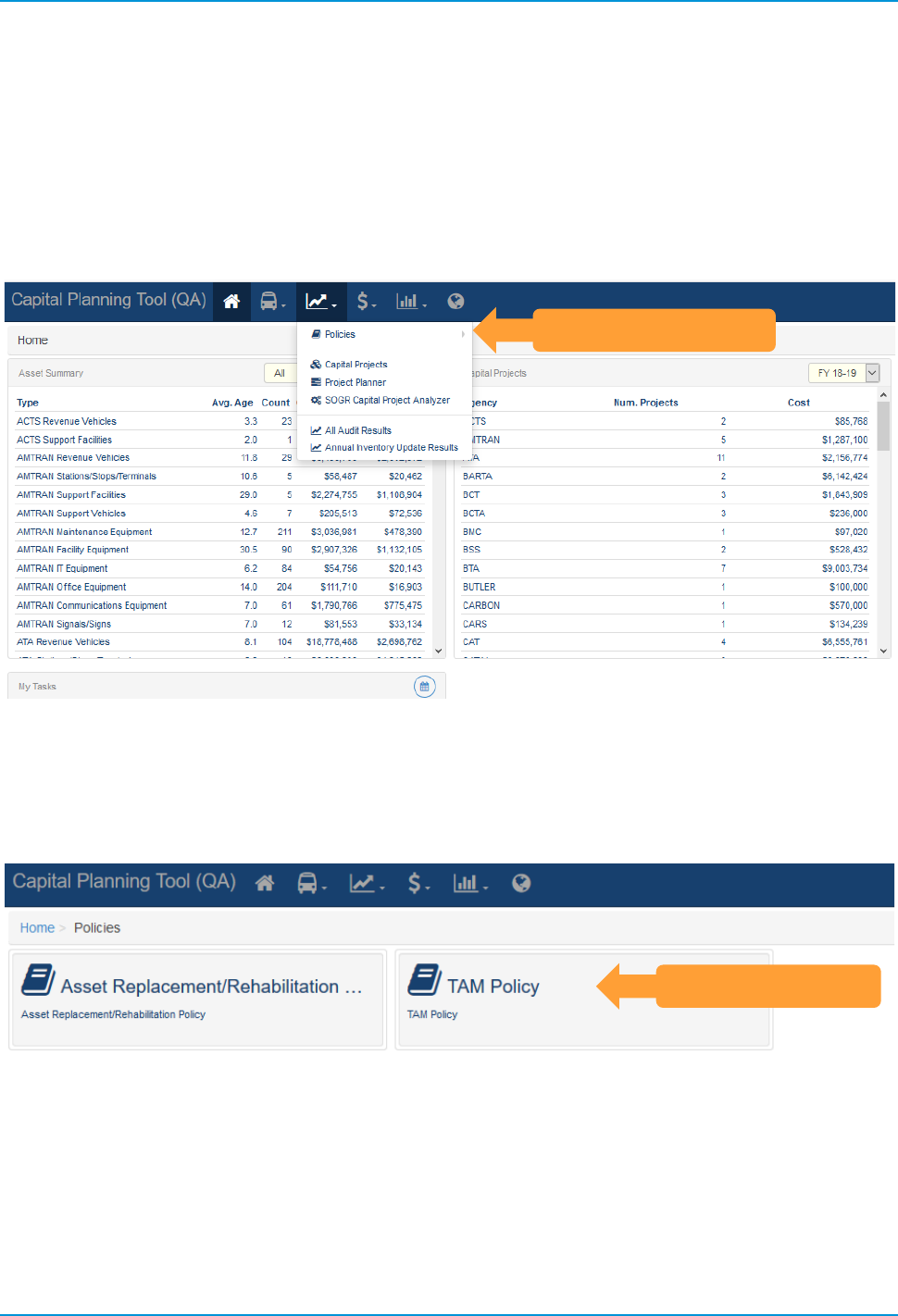
Figure 47 Policies Dropdown
Clicking “Policies” in the dropdown will display the Policy options that are available. Each individual policy
also can be accessed through the submenu navigation options, by hovering over the policies selection in the
main navigation dropdown.
Figure 48 Policy Rule Sets
5.1 Asset Replacement/Rehabilitation Policy
Asset Replacement and Rehabilitation Polices can be chosen under the Policies submenu. The SOGR
Capital Project Analyzer, Capital Projects, and Project Planner tools apply this policy to determine the
estimated service life, replacement cost, and depreciation of an asset. Asset Replacement/Rehabilitation
Policy Rules here can be set at the State or individual organization level. This type of policy set will persist
from year to year, unless edited or removed.
Policies Dropdown
Policy Rule Sets
TransAM
Cambridge Systematics, Inc.
28
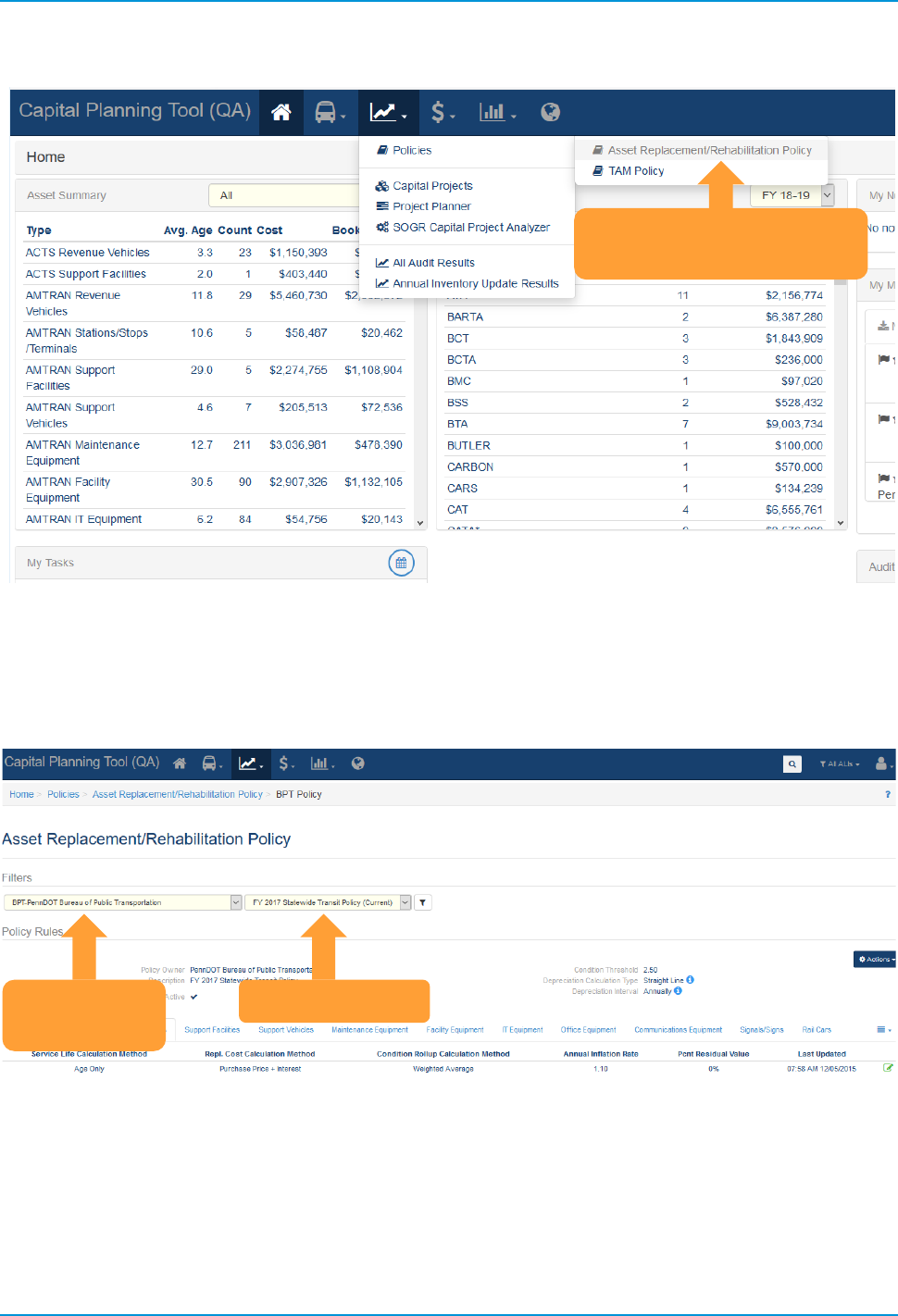
Figure 49 Asset Replacement/Rehabilitation Policy
Use the organization filter dropdown to choose the correct organization. You will then need to select the
policy year that you wish to work with. Pressing the Filter Button will display the policy rules for the
organization and policy year that you have chosen.
Figure 50 Asset Replacement/Rehabilitation Policy Filters
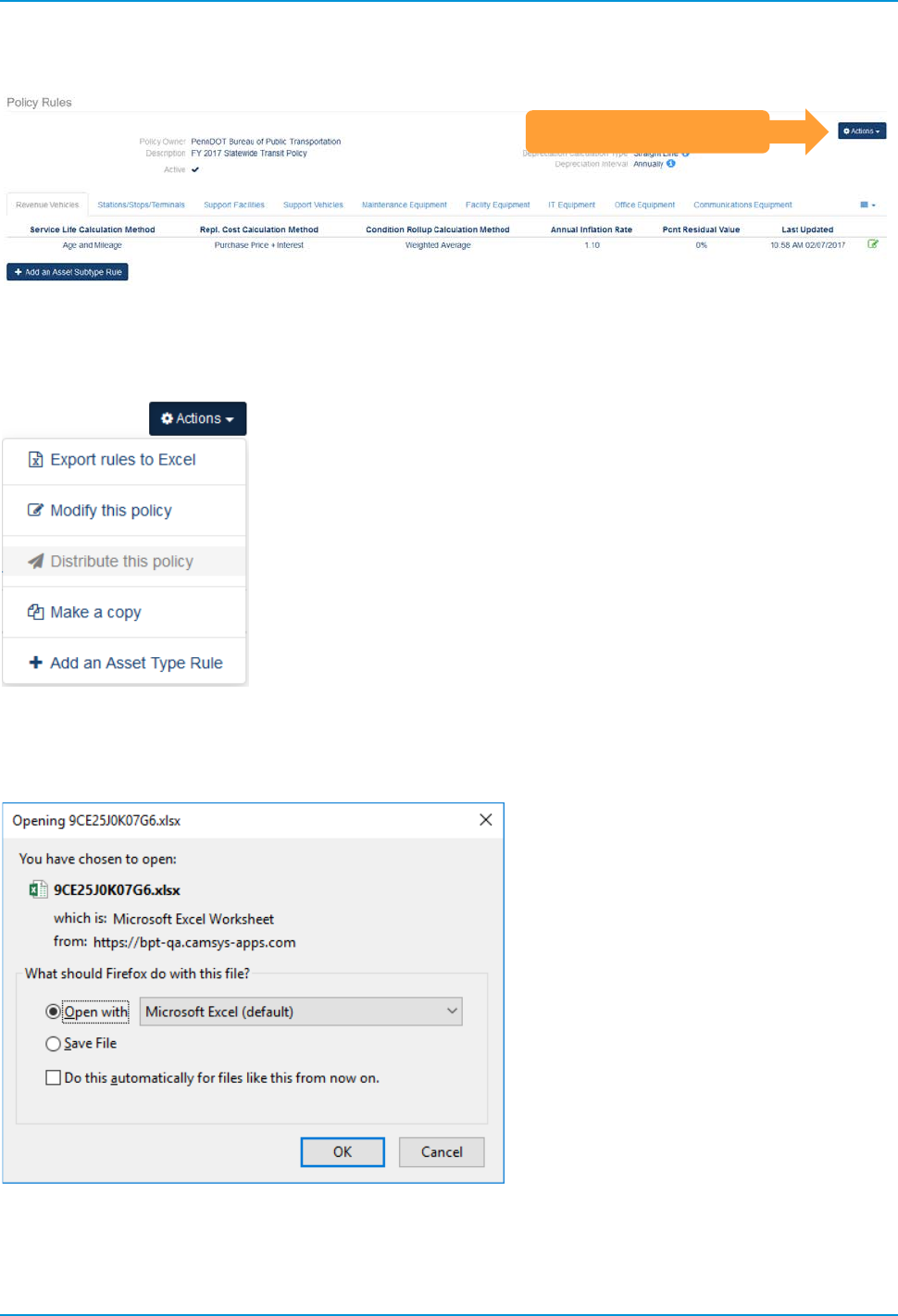
Policy Rules are displayed at one of three levels: organization-wide, asset type, and asset subtype.
Organization-wide policy rules can be exported, modified, distributed, copied, and created through the
Actions button.
Asset Replacement/
Rehabilitation Selection
Organization
Filter
Policy Year
TransAM
Cambridge Systematics, Inc.
29
Figure 51 Policy Rules
The Actions button will display a list of options as shown.
Figure 52 Policy Rules Actions Dropdown
Export rules to Excel opens a dialog box to save the Policy Rule as an Excel spreadsheet file.
Figure 53 Export rules to Excel (Windows dialog box)
Policy Rules Actions
TransAM
Cambridge Systematics, Inc.
30
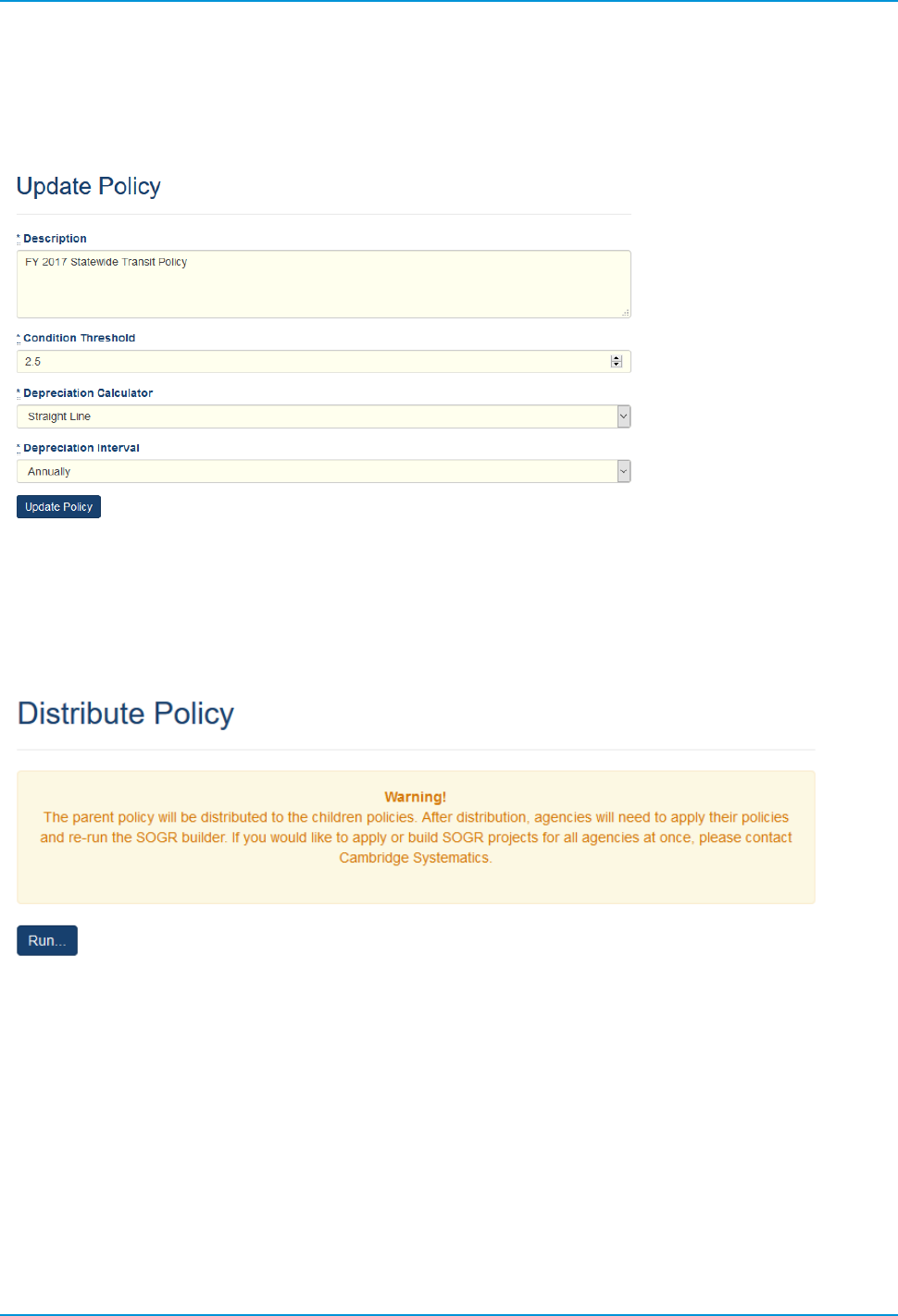
Modify this Policy will open a dialog box that displays the editable fields at the organization level. When you
are done making edits, click “Update Policy” button to apply changes.
Figure 54 Modify (Update) Organization Policy Dialog
If you are content with a parent policy and wish to distribute the policy rules through to one or more child
organizations, select “Distribute this Policy.” A warning will display, as shown, to inform you that child
organizations will need to choose whether to apply this policy.
Figure 55 Distribute Policy
TransAM
Cambridge Systematics, Inc.
31
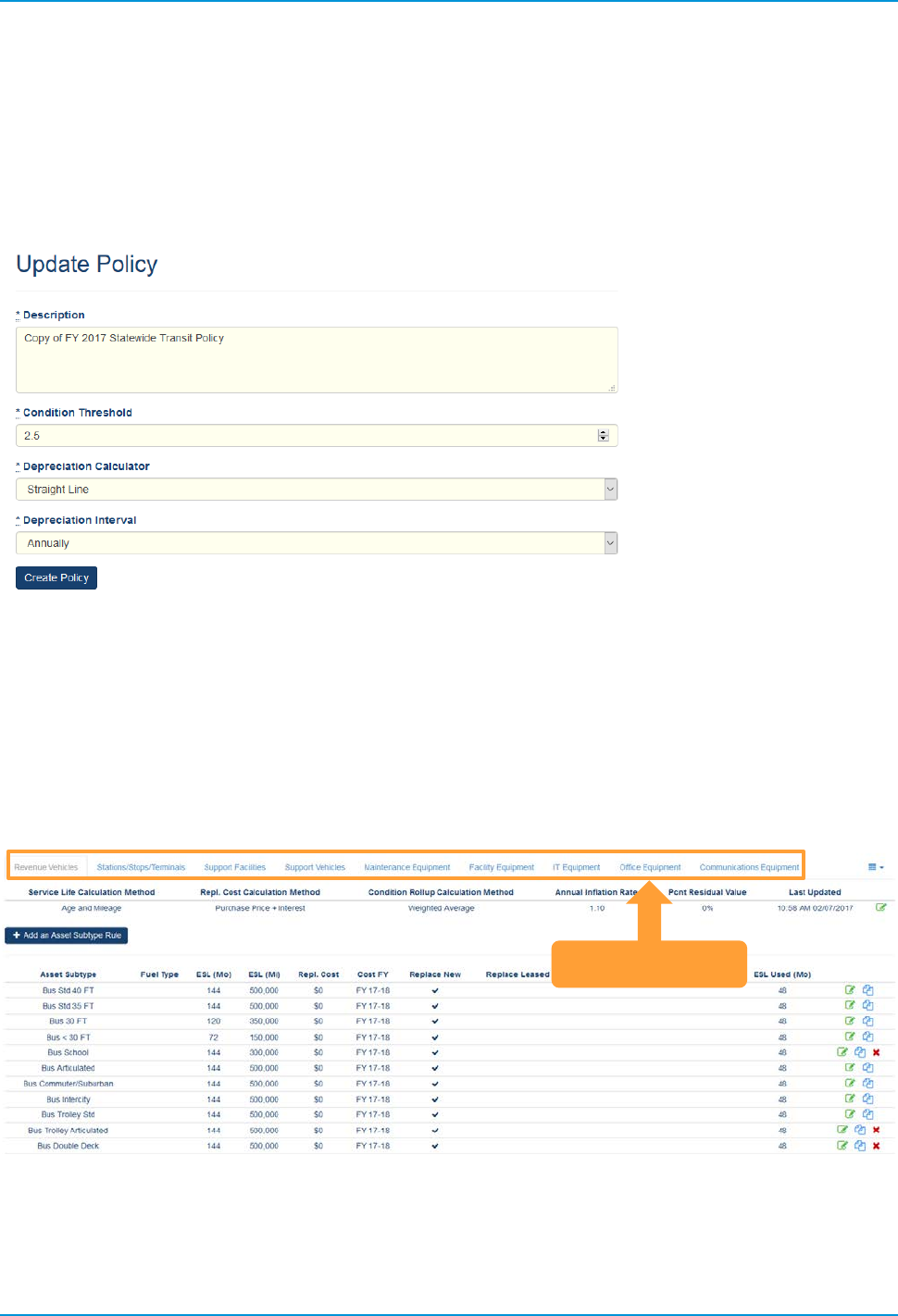
Users can create new policies by copying an existing policy. Make a Copy displays the same dialog as
Update Policy but once saved, a new policy is created based on the copied policy. When copying a policy,
you can set the initial organization wide parameters. For example, Depreciation Calculator can be changed
from “straight line” to “declining balance.” The new created Policy is named according to the Description text
box shown.
Figure 56 Copy Organization Policy Dialog
Asset types are shown as a series of clickable tabs. Asset subtypes and corresponding asset type rules are
listed below each Asset type.
There are a set of rules for each asset type which deal with service life calculation, replacement cost
calculation type, condition rollup calculation, annual inflation rate, percent residual value, and condition rollup
weight.
Figure 57 Asset Types
Asset Types
TransAM
Cambridge Systematics, Inc.
32
If there are too many asset types to fit in the tabs, you will see the dropdown icon, as depicted below.
Figure 58 Additional Assets Dropdown Icon
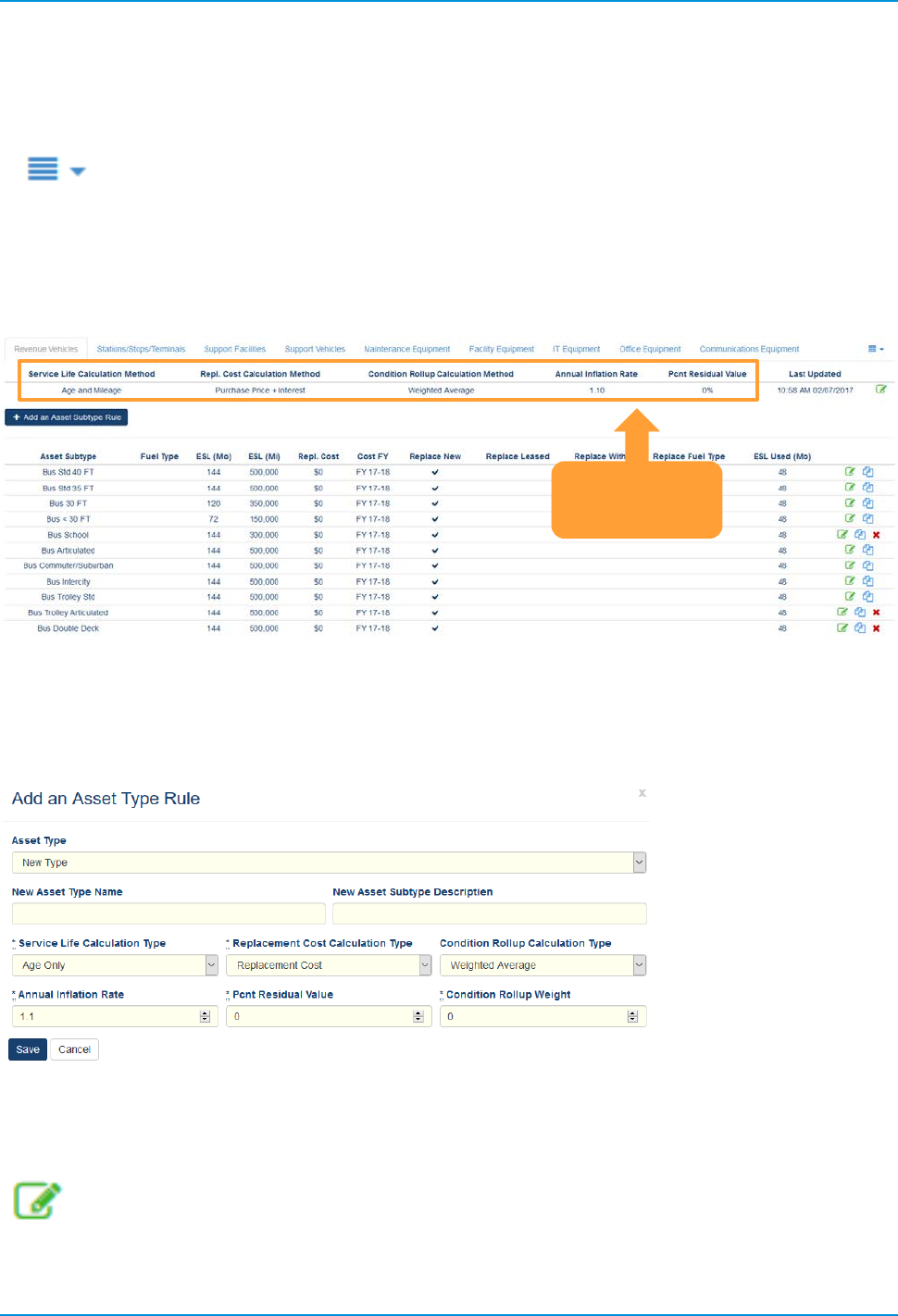
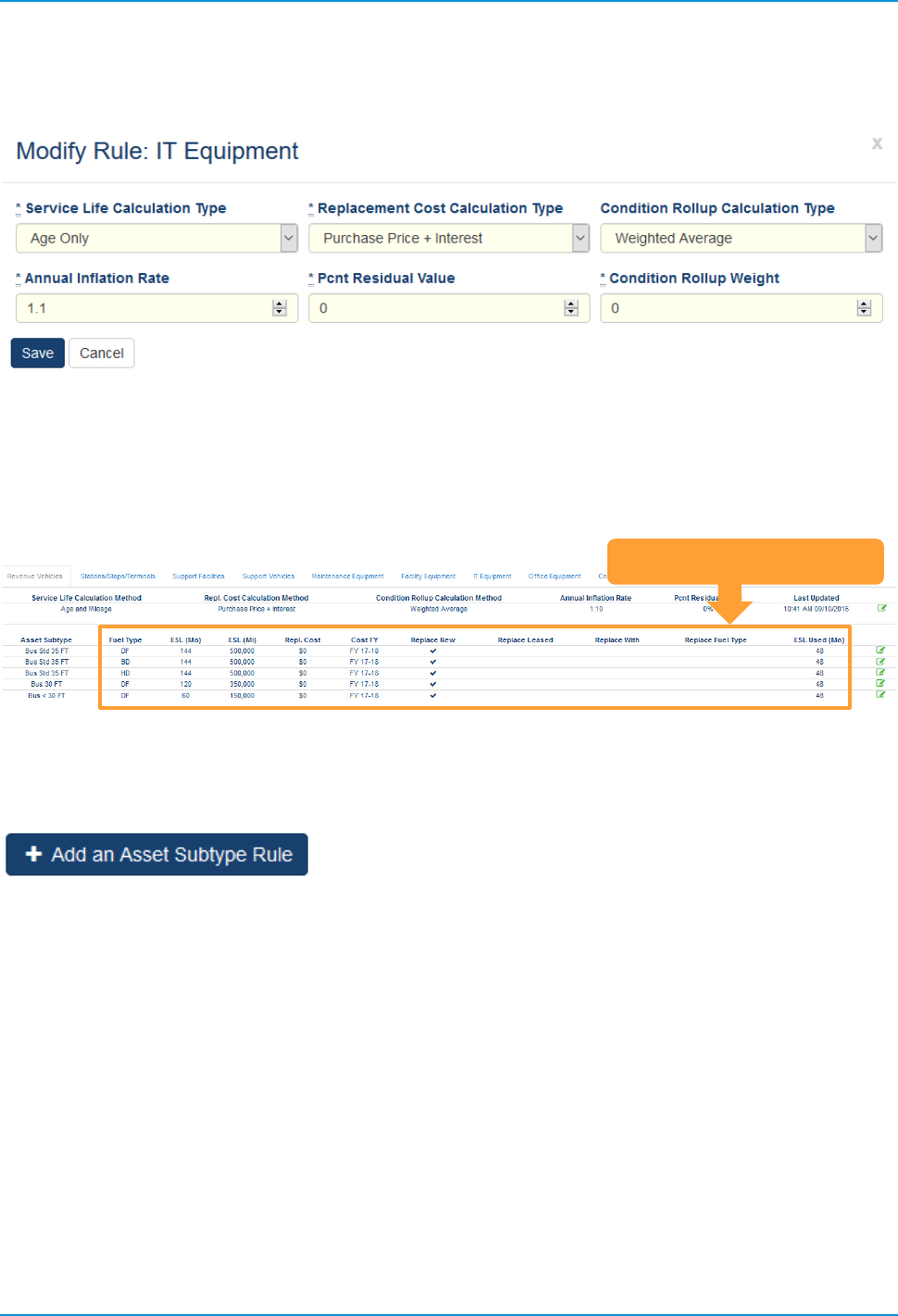
The Asset Type Rules are listed below the Asset Types.
Figure 59 Asset Type Rules
You can add an Asset Type Rule by selecting the option in the Actions dropdown. Selecting that option will
display the following dialog box.
Figure 60 Add an Asset Type Rule Dialog Box
You can edit the Asset Type Rule for a specific asset, by clicking on the edit icon as depicted below.
Figure 61 Edit Icon
Asset
Type Rules
TransAM
Cambridge Systematics, Inc.
33
Clicking edit on an “Asset Type Rule” will display a dialog box, allowing you to modify the Asset Policy Rule.
Figure 62 Modify Asset Policy Rule
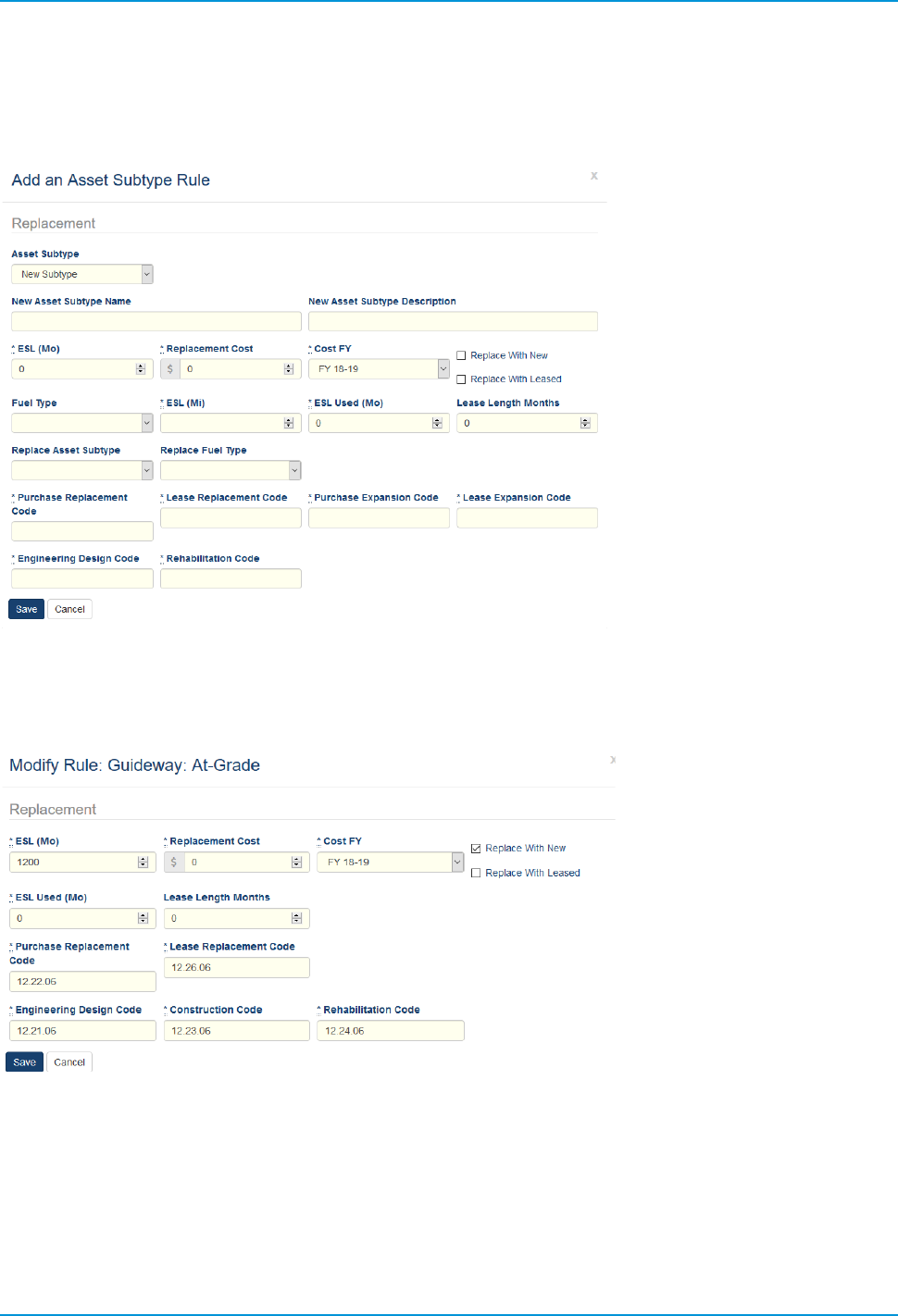
The Asset Subtypes that are displayed will correspond to the Asset Type tab. The available Asset Subtype
rules are the same as the Subtypes in your inventory. The estimated service life information at the Asset
Subtype level describes the asset and its expected lifespan.
Figure 63 Asset Type and Asset Subtype rules
If you click the add an “Asset Subtype Rule” button, you will be able to create a new entry.
Figure 64 Add an Asset Subtype Rule Icon
Asset Subtype Rules
TransAM
Cambridge Systematics, Inc.
34
Select or fill out each text box in the Add an Asset Subtype dialog box to create a new rule. Click the “Save”
button when you are satisfied with your entries.
Figure 65 Add an Asset Subtype Rule Dialog
Clicking the Edit icon will bring up a dialog box to modify an Asset Subtype Rule.
Figure 66 Modify Asset Subtype Rule
TransAM
Cambridge Systematics, Inc.
35
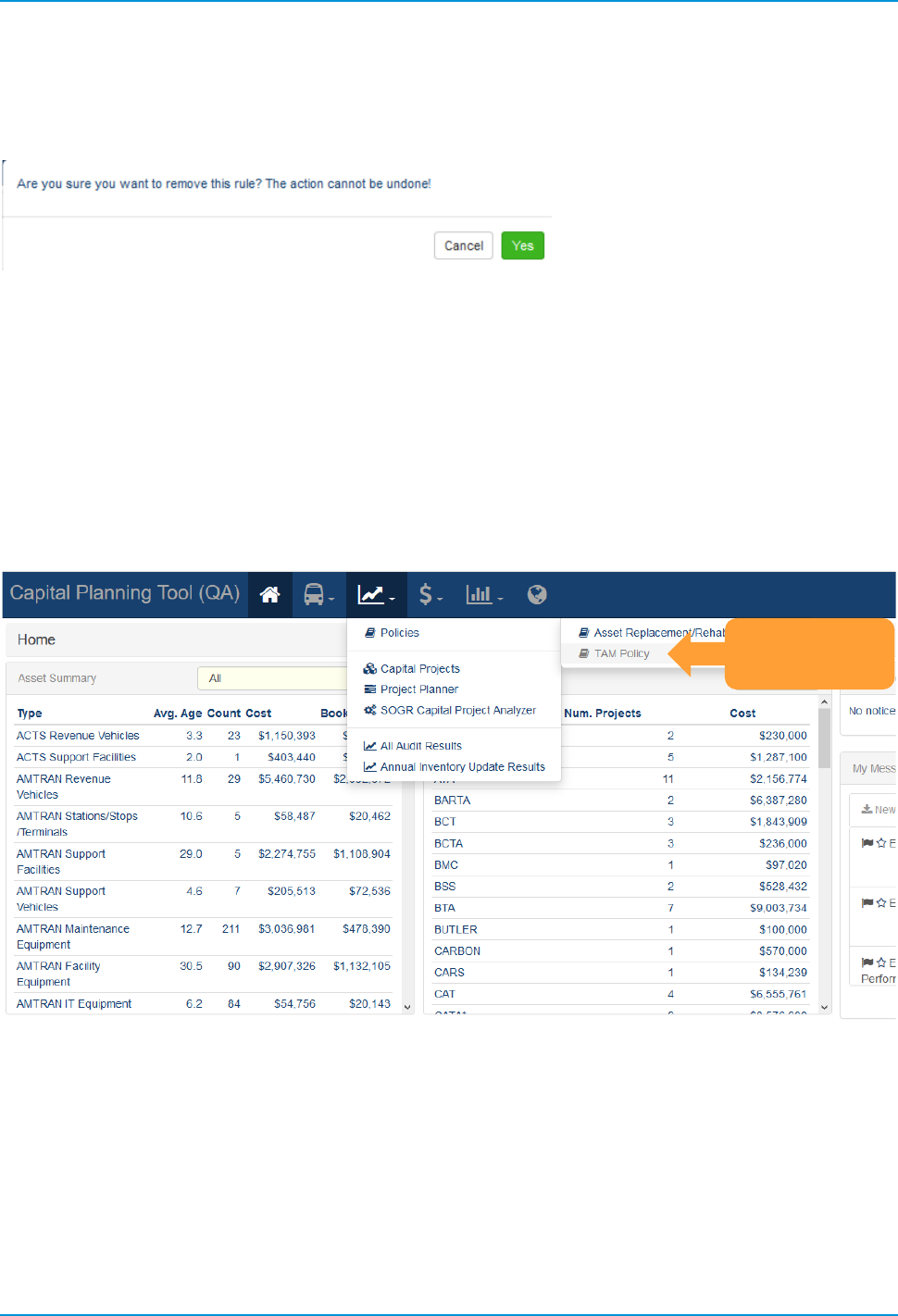
You also can choose to delete an asset subtype rule when the icon is displayed. You will be prompted with a
dialog box before this action is taken!
Figure 67 Remove Asset Subtype Rule
5.2 TAM Policy
TAM Policies are used to set Useful Life Benchmark (ULB), Transit Economic Requirements Model (TERM),
and Performance Measure Percent targets for asset categories on an annual basis. The TAM Policy will be
used to conduct performance calculations for the NTD A-90 report. Ideally, TAM Policies should be set at the
beginning of an NTD Reporting year (e.g., July–June, October–September, or January–December).
Organizations can be grouped by a common characteristic, and policies can be distributed through the
group.
Figure 68 TAM Policy Dropdown Menu Selection
TAM Policy
Selection
TransAM
Cambridge Systematics, Inc.
36
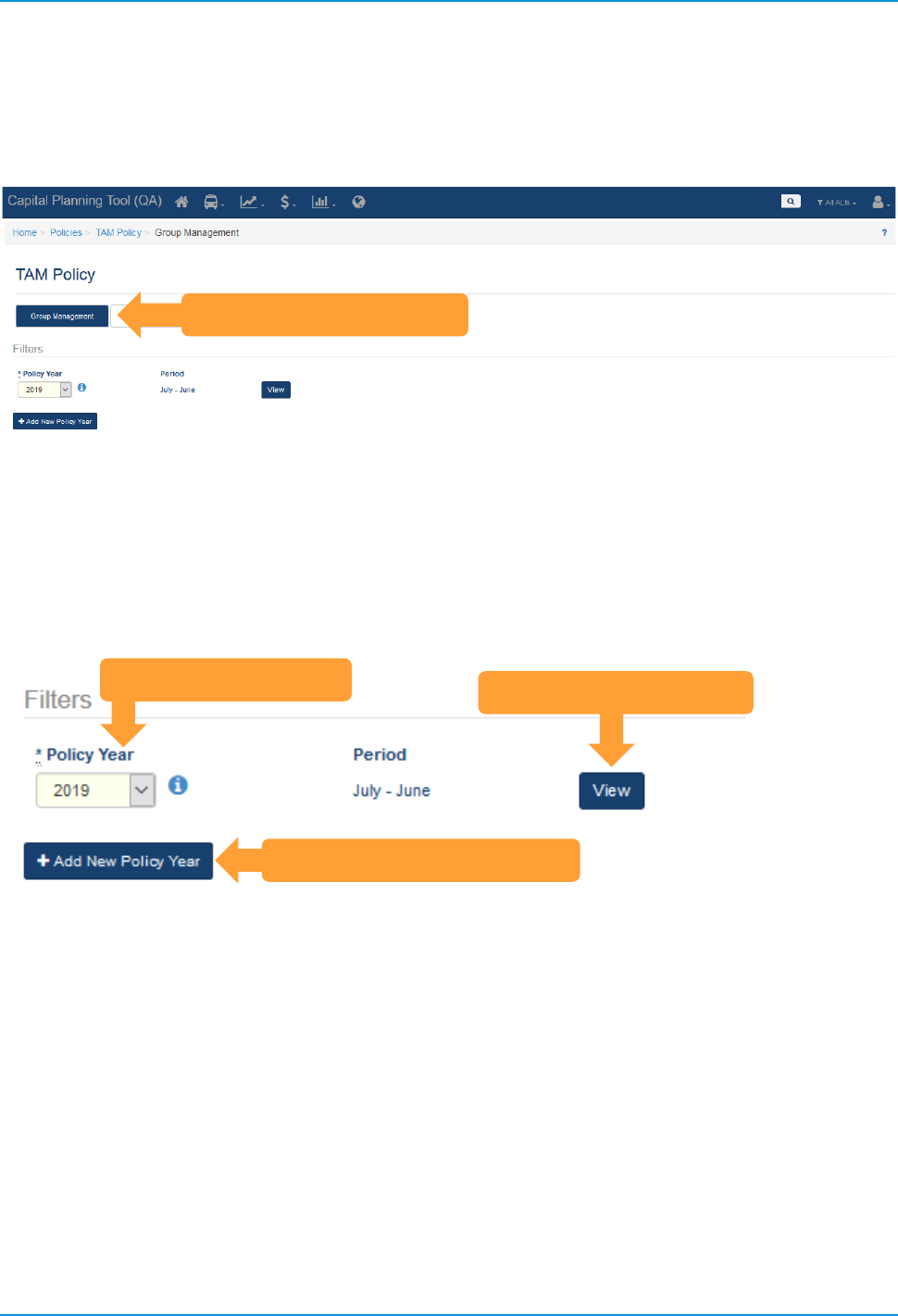
The first step in the creation of a TAM Policy, is to Add a New Policy Year, followed by creating groups.
These initial steps can only be completed on the Group Management tab, which is only accessible by users
with the TAM Group Manager or Admin permission.
Figure 69 TAM Policy Group Management
Select a Policy Year that you wish to view and click the “View” button. If a Policy Year does not exist or you
need to create a policy for a new year, click the “Add New Policy Year” button and select the TAM Policy
year you wish to create. The Period will populate based on individual client reporting period, based on initial
system configuration. Below the Policy Year Filter, Group Management is performed on the chosen Policy
Year.
Figure 70 TAM Policy Year
Group Management tab
Select Policy Year
Add New Policy Year Button
Click to view Policy Year
TransAM
Cambridge Systematics, Inc.
37
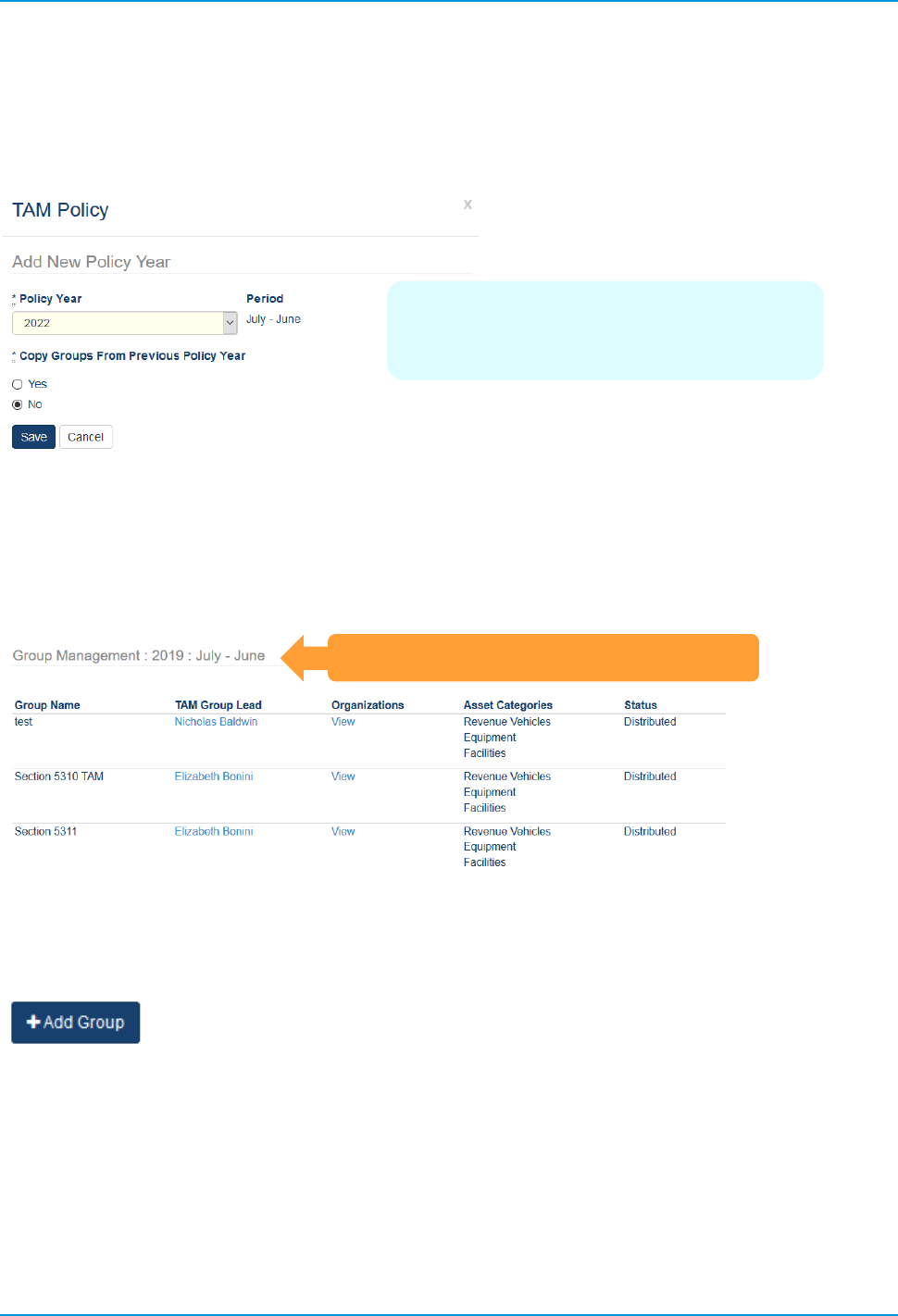
If you select the “Add New Policy Year” button, a dialog box will appear and the year selection will default to
the next available year. If there are no existing Policy Years, the current year will be available. If there is an
existing Policy Year, you will have the option to Copy Groups From Previous Policy Year.
Figure 71 Add New TAM Policy Year
Once a new year has been created or you filtered for an existing year, the Policy Year that you have chosen
will display all available groups below. If you have created a new Policy Year, and did not copy from the
previous year, you will need to create new groups.
Figure 72 Group Management Period and Year
You may click the “Add Group” button to add a new Group for that Policy Year.
Figure 73 Add Group Button
Group Management by Period and Year
Copying groups from the previous year,
will save you the effort of recreating
groups and performance measures
TransAM
Cambridge Systematics, Inc.
38
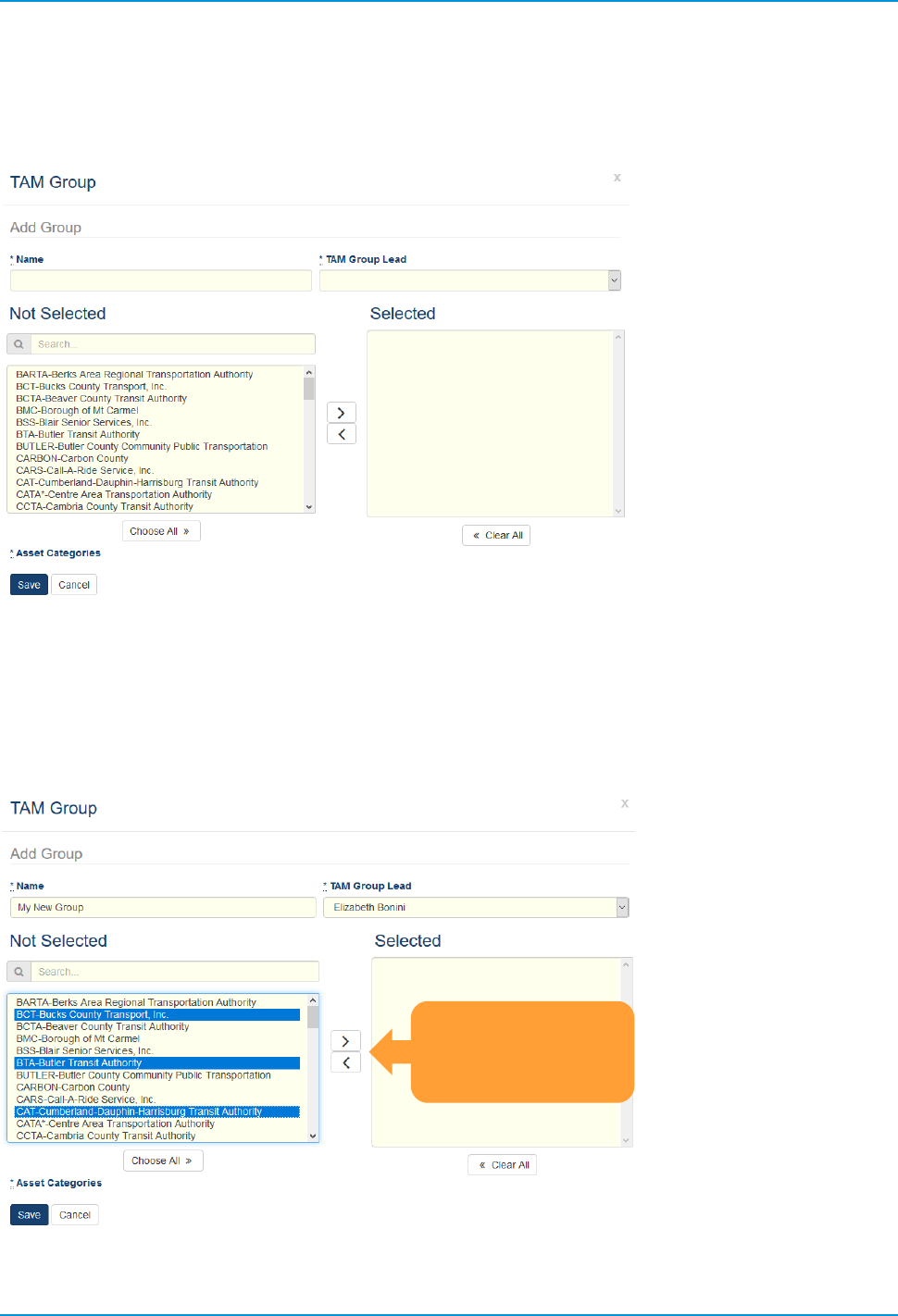
In order to create a new TAM Policy Group, you will name the group in Name and select the user that will be
the TAM Group Lead. Next, select the applicable organizations to associate with the new TAM Group.
Figure 74 Add TAM Group Dialog
One you have made the proper selections, you will need to move the selected organizations to Selected by
clicking on the arrows.
Figure 75 Add TAM Group Dialog
With Selections
Click the arrows to
add or remove
organizations
TransAM
Cambridge Systematics, Inc.
39
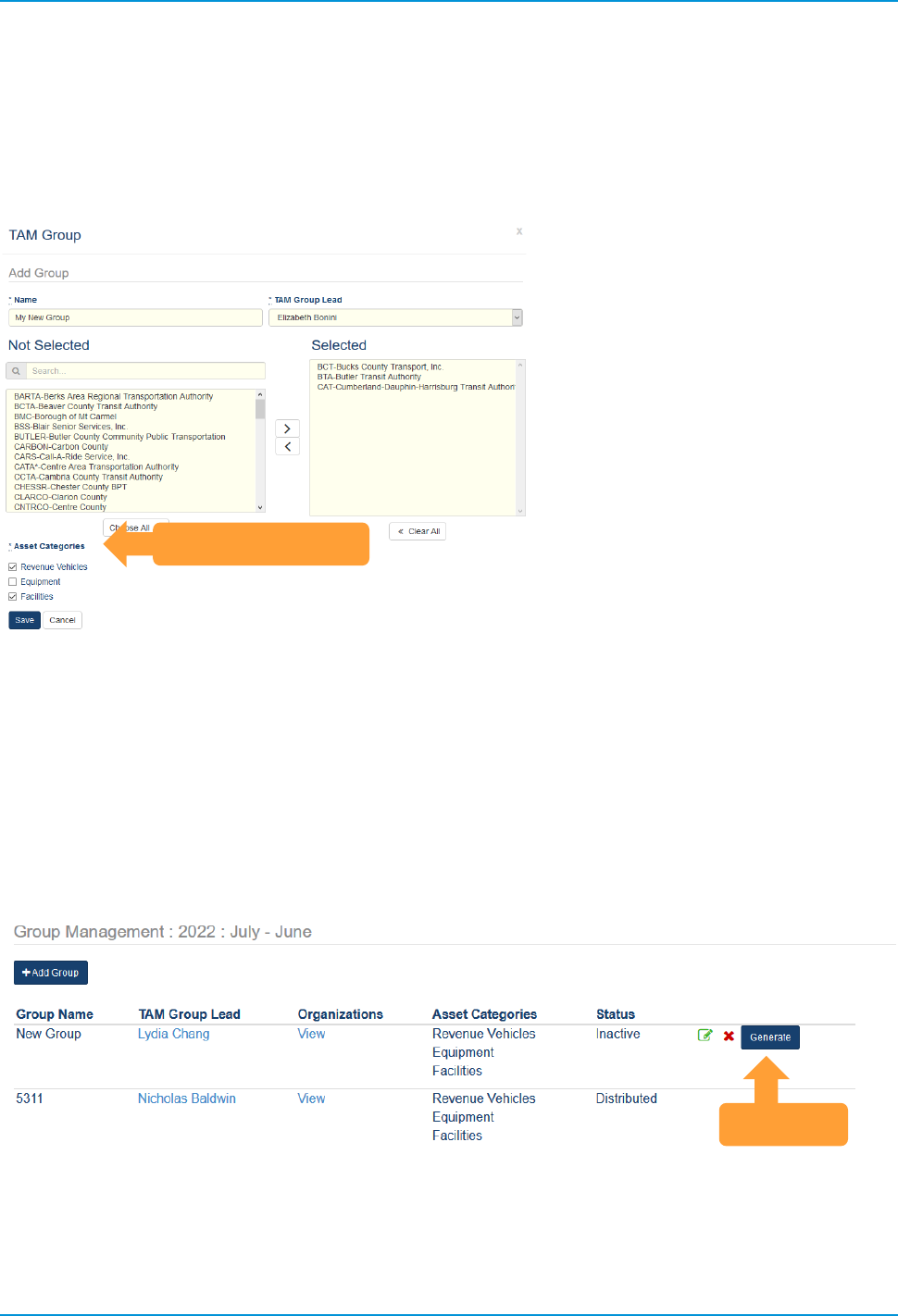
Select the Asset Categories you wish to include in the TAM Policy Group you are creating. Please note, the
listed Asset Categories only appear upon selecting organizations and if those organizations have those asset
categories saved within their inventory. Click “Save” when Satisfied with your selection.
Figure 76 Add TAM Group
Selections, Asset Categories
Once the new group is created, the Status is set to Inactive. You have the option to edit, delete or Generate
that Group. Click “Generate” when you are ready to proceed and you will notice that the group Status will
change to In Development. Clicking the “Generate” button adds the group to the Group Metrics tab, so the
assigned TAM Group Lead can start the process of setting performance measures and editing rules for all
organizations within the group. The Group Management tab, is only viewable and editable by users with the
TAM Group Manager or Admin permission, and TAM Group Leads who can only access groups to which
they have been assigned.
Figure 77 TAM Group Management Status
Asset Categories
Generate
TransAM
Cambridge Systematics, Inc.
40
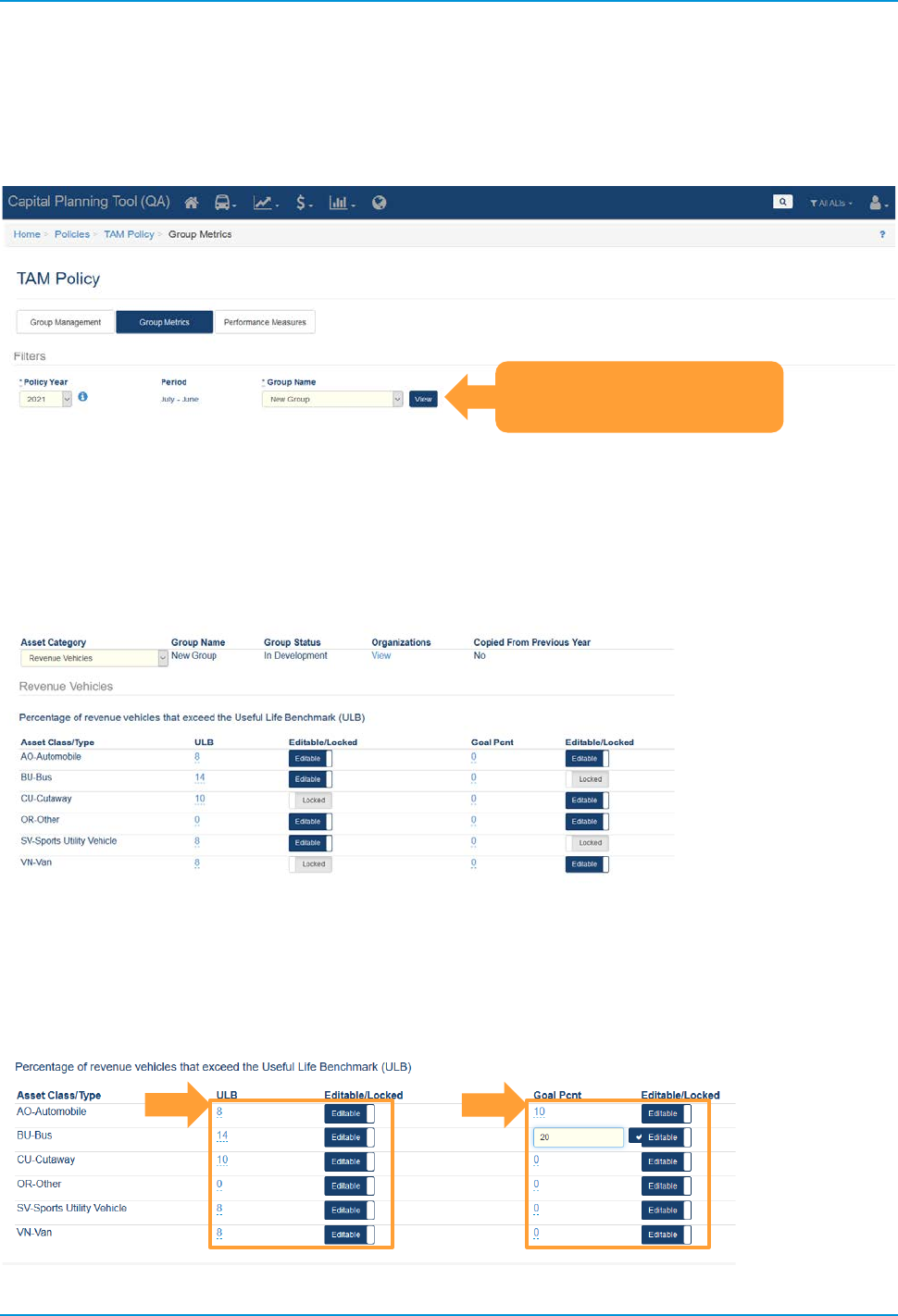
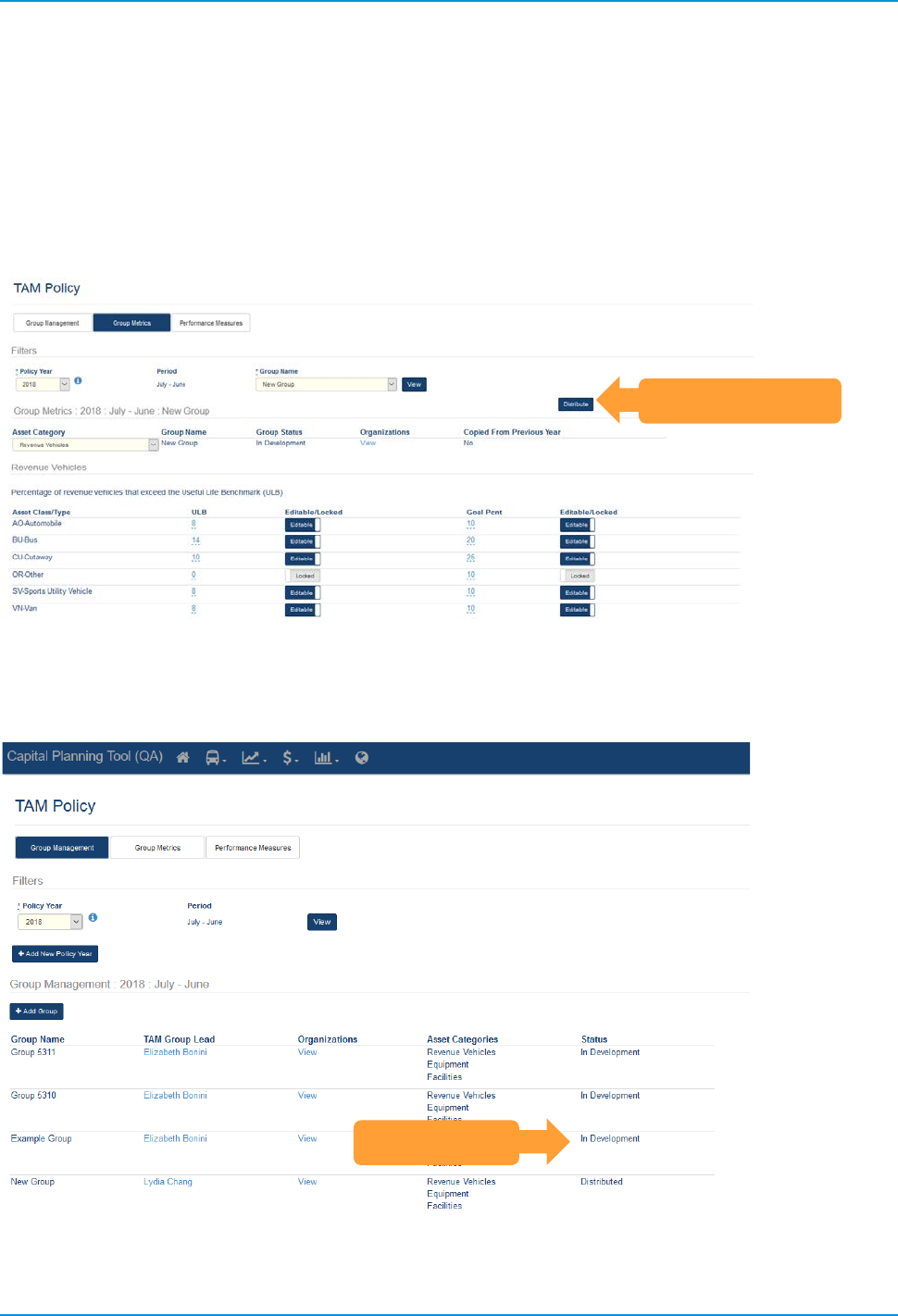
Newly created and previously existing TAM Groups will appear in the Group Metrics tab of TAM Policy.
Select the Policy Year and Group Name you wish to work with from the selection menu and click the “View”
button.
Figure 78 TAM Policy Group Metrics
Metrics can be set for each asset category, by selecting the category you wish to edit in the Asset
Category dropdown. Assets can be set to locked or editable. Locked assets cannot be changed in the
Performance Measures tab for each organization within that group. If you leave any asset as editable, then
each organization in that group can modify the metrics within the Performance Measures tab.
Figure 79 Editable and Locked Assets
The TAM Policy Group Lead should edit Useful Life Benchmark (ULB), Goal Percent (Goal Pcnt), or other
applicable asset metrics as necessary. Fields can be edited by clicking directly on the value in the field, and
clicking the checkmark box. Editable/Locked toggles automatically save any changes made.
Figure 80 Asset Type Percentage Settings
Select Policy Year, Group
Name and click View
TransAM
Cambridge Systematics, Inc.
41
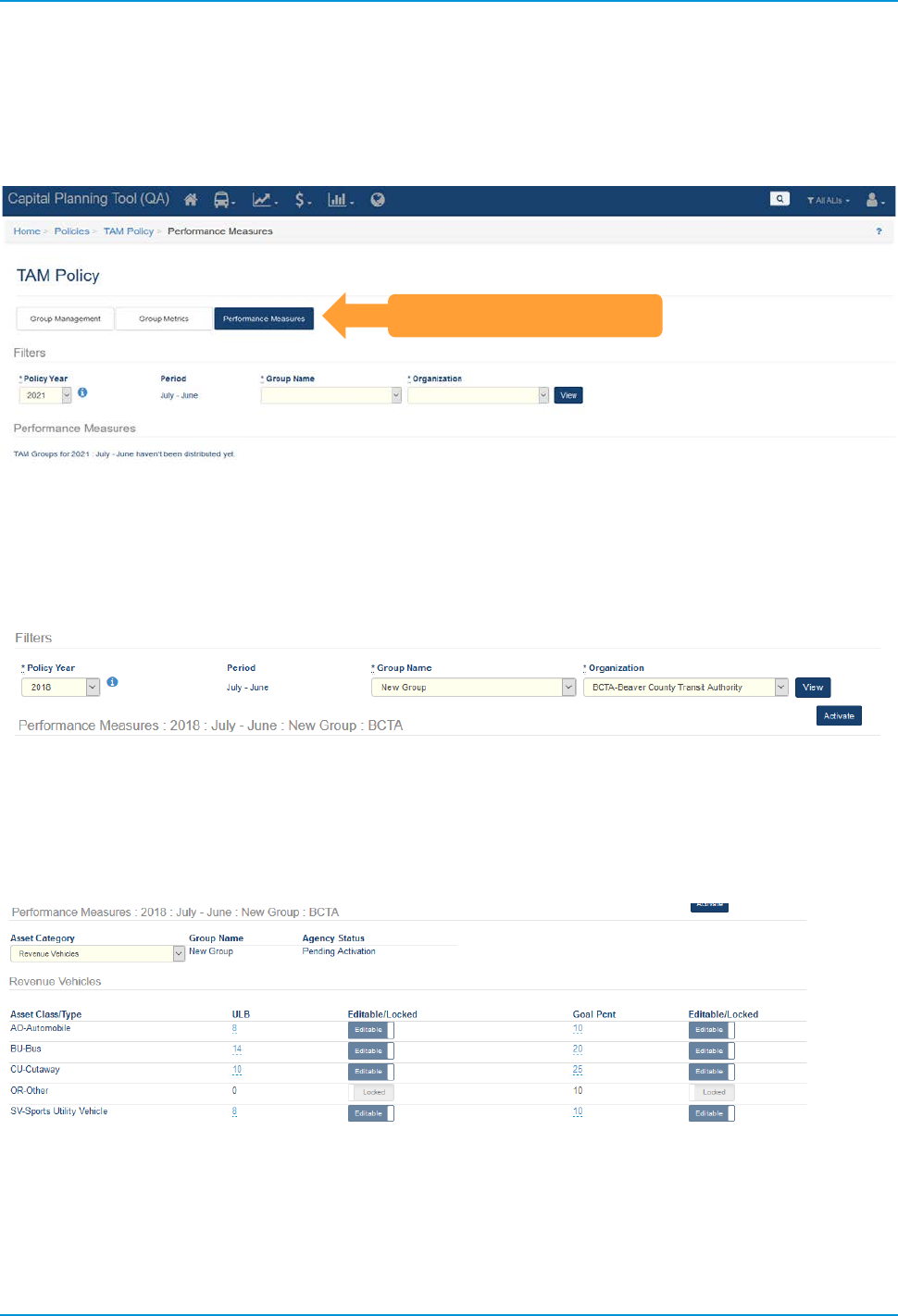
Once completed, click the “Distribute” button to push the group metrics over to the Performance Measures
tab for each organization within the group. Each group within a Policy Year can be distributed on an
individual basis. If all the Editable/Locked toggles were in a state of “Locked” for every asset within each
Asset Category for a group, the status for each organization’s Performance Measures will automatically
update to Active status. If at least one Editable/Locked toggle is in a state of “Editable,” each organization will
need to manually Activate the metrics on the Performance Measures tab.
Figure 81 Distribute TAM Policy
Notice that the group that has been distributed shows Status: Distributed.
Figure 82 Distributed TAM Policy
Distribute Button
Group Status
TransAM
Cambridge Systematics, Inc.
42
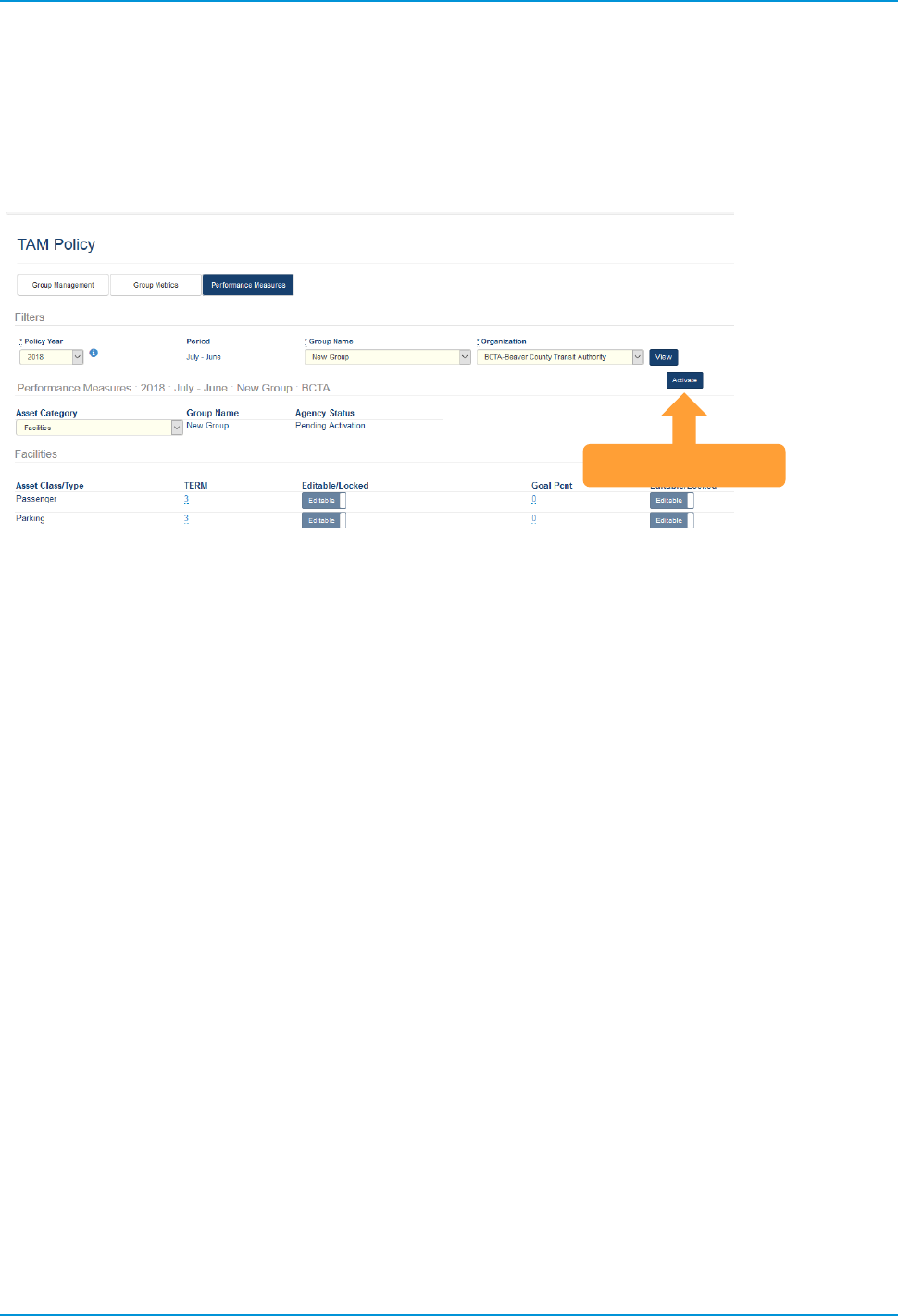
The Performance Measures tab will detail the Useful Life Benchmark, TERM value, and Goal Percent Values
that have been distributed to each organization within the group. Individual organizations users will only be
able to view or edit the Performance Measures tab, and only for organizations to which the user belongs.
Figure 83 TAM Policy Performance Measures
To view an organizations Performance Measures, select the correct Policy Year, Group Name, and
Organization and click the “View” button.
Figure 84 Policy Year Filters
You can select the Asset Category that you wish to view by selecting from the Asset Category dropdown.
You can adjust each ULB, TERM value (for Facilities only) or Goal Percent (Goal Pcnt) based on your
organization’s need. Any Asset Class/Type that is Locked will not be editable.
Figure 85 Asset Type Percentage Settings
Performance Measures
TransAM
Cambridge Systematics, Inc.
43
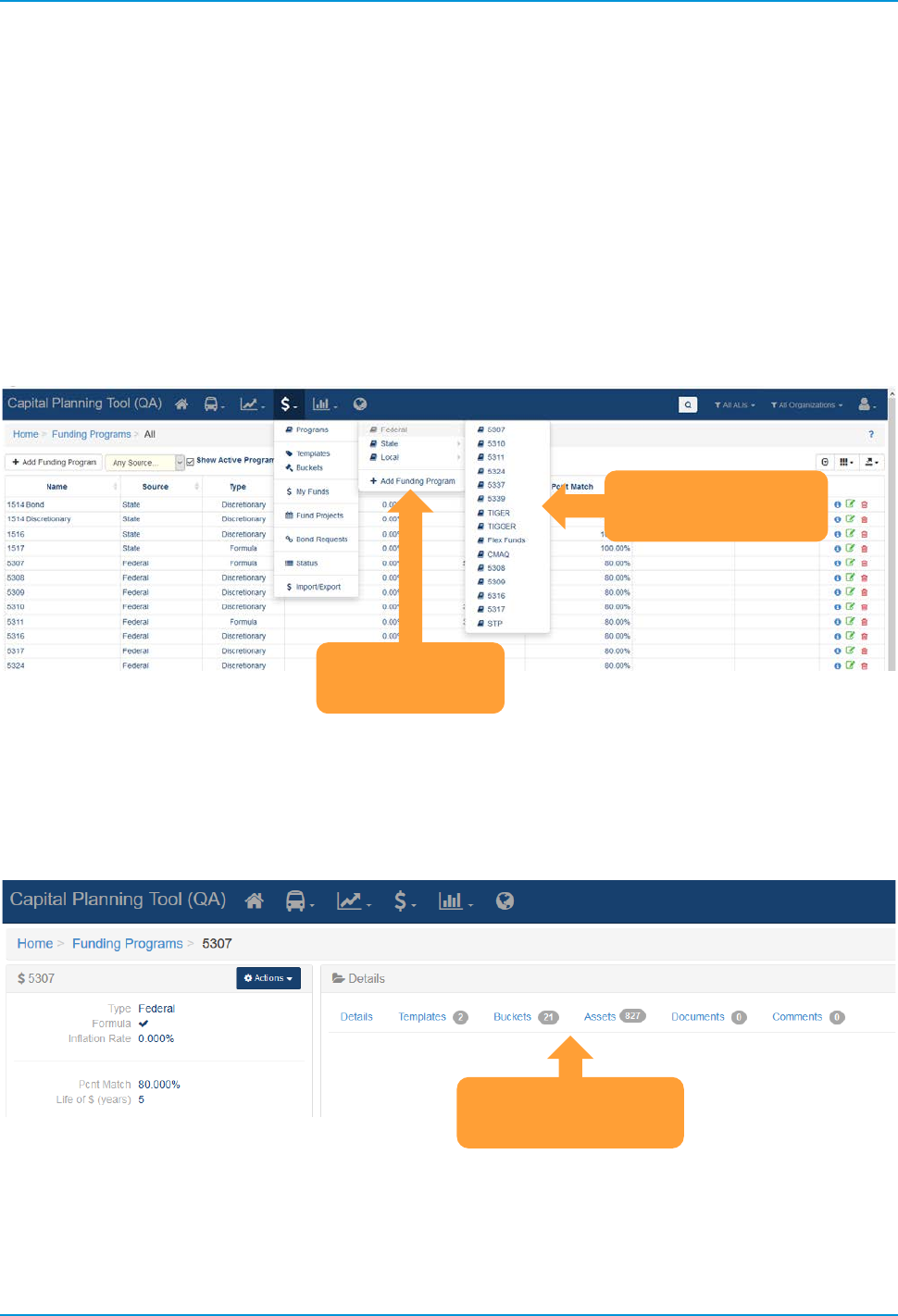
Select the “Activate” button when you are satisfied with the Performance Measures shown. If all of the
Editable/Locked toggles were in a state of “Locked” for every asset within each Asset Category, you do not
need to Activate the Performance Measures, as they changed to an Active status upon distribution to the
Performance Measures tab.
Figure 86 Activate Perfomance Measures
Activate Button
TransAM
Cambridge Systematics, Inc.
45
6.0 Funding
Organizations can establish and manage different types of Federal, State, and Local Programs.
6.1 Programs
Programs are different types of funding programs which address specific sets of needs and/or objectives.
You can see available programs from the Funding dropdown. All funding programs are categorized into an
appropriate Source, such as: Federal, State, and Local. New programs can be added by selecting the “Add
Funding Program” link.
Figure 87 Available Funding Programs
Clicking on an individual program will give you specific details about that program, like Templates, Buckets,
Assets that were funded by the selected program, as well as other pertinent information such as documents,
comments, and program details.
Figure 88 Funding Program Details
Available Funding
Programs
Add Funding
Programs
Additional Program
Information
TransAM
Cambridge Systematics, Inc.
47
7.0 Reports
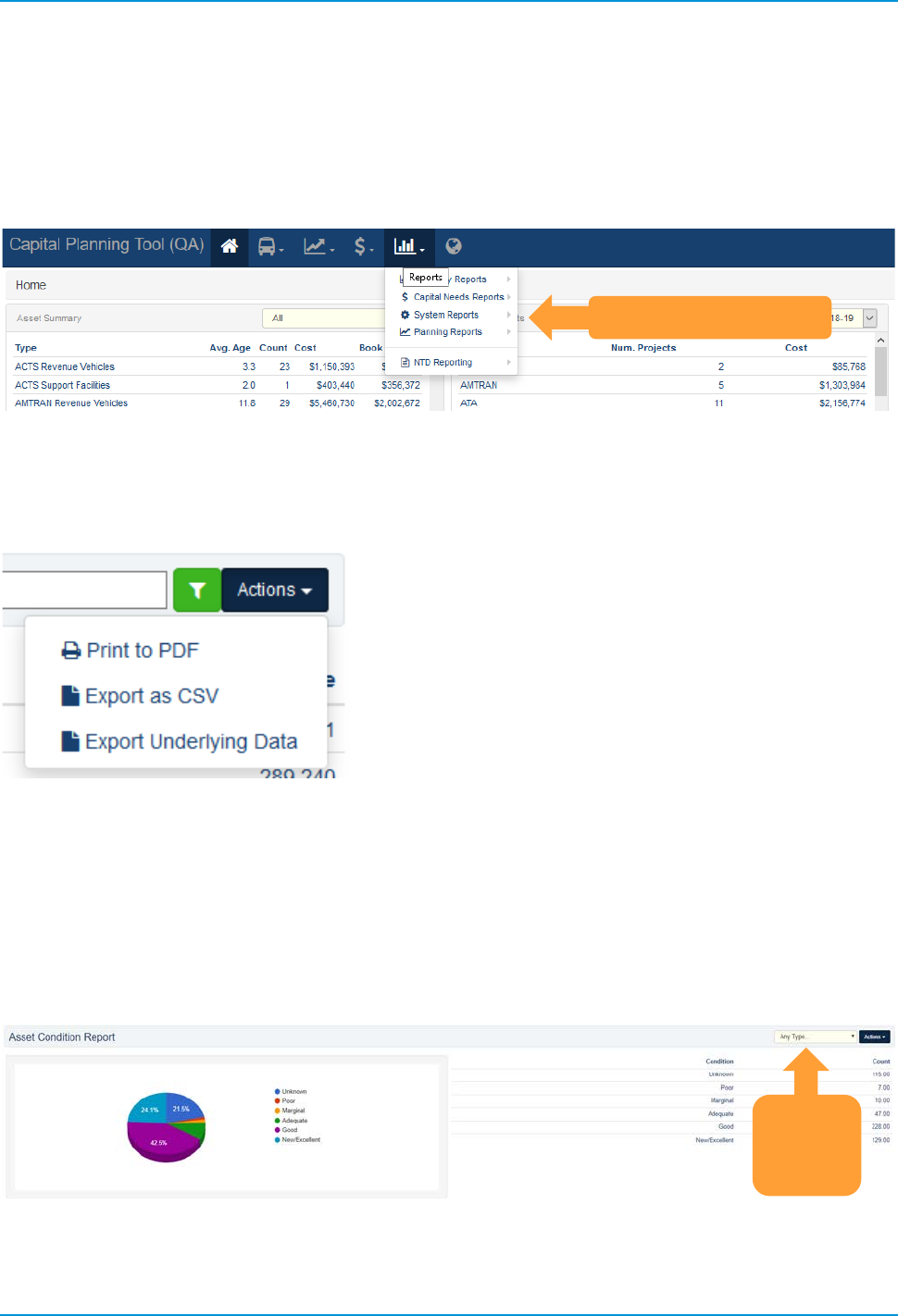
A variety of preconfigured (canned) reports can be generated, ranging in topic areas from Inventory, Capital
Needs, System Reports, and Planning.
Figure 89 Reports Dropdown
Reports can be exported into multiple file formats for distribution or further analysis. In the top right corner of
each report, look for the Actions menu for available download links.
Figure 90 Report Exports
7.1 Inventory Reports
Inventory reports are a rollup of asset inventory data, including age, condition, and funding related calculations.
Asset Condition Report—The Asset Condition Report displays the count of assets of different types for a
range of asset condition ratings (excellent, good, adequate, etc.). The report can filter data by Asset Type.
Figure 91 Asset Condition Report
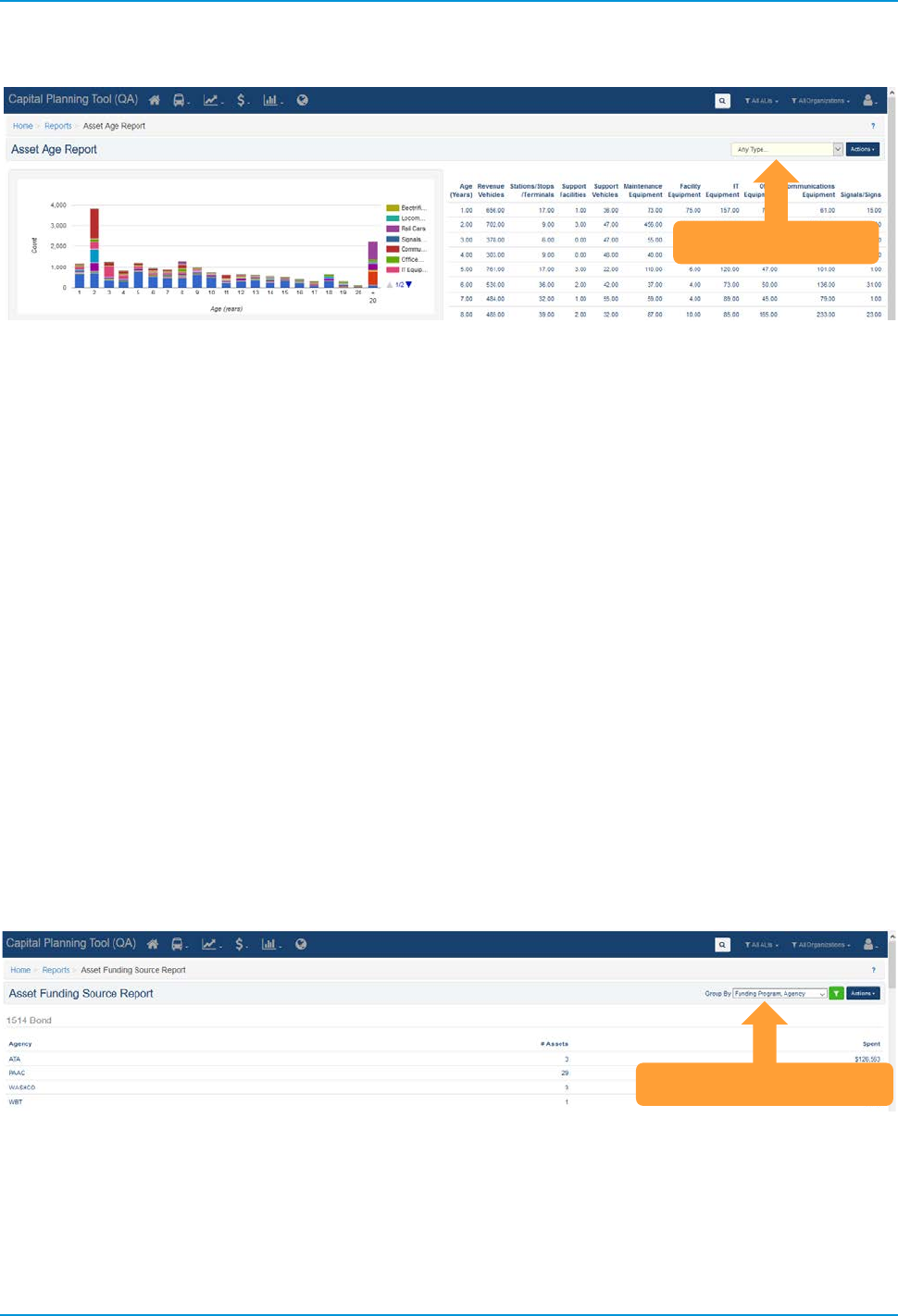
Asset Age Report—The Asset Age Report displays the count of assets of different types for a range of asset
ages (one year old, two years old, etc.). The report can filter data by Asset Type.
Reports Dropdown
Filter
Asset
Type
TransAM
Cambridge Systematics, Inc.
48
Figure 92 Asset Age Report
The Asset Funding Source Report computes for every funding program, organization (agency), and fiscal
year, the number of assets that were purchased using a particular funding program as well as the cost
associated with that particular funding program. Drill-down functionality allows the user to see the exact lists
of assets, and the dollars spent on each asset for that funding source. Multiple filtering options are available,
providing the ability to filter by multiple combinations of data:
• Agency, Funding Program.
• Agency, Funding Program, Fiscal Year.
• Funding Program, Agency.
• Funding Program, Agency, Fiscal Year.
• Funding Program, Fiscal Year.
• Funding Program, FY, Agency.
• FY, Funding Program.
• FY, Funding Program, Agency.
Figure 93 Asset Funding Source Report
7.2 Capital Needs Reports
Capital Needs Reports are rollups of information about different asset, projects, ALIs and funding.
Filter Asset Type
Multiple Filter Options
TransAM
Cambridge Systematics, Inc.
49
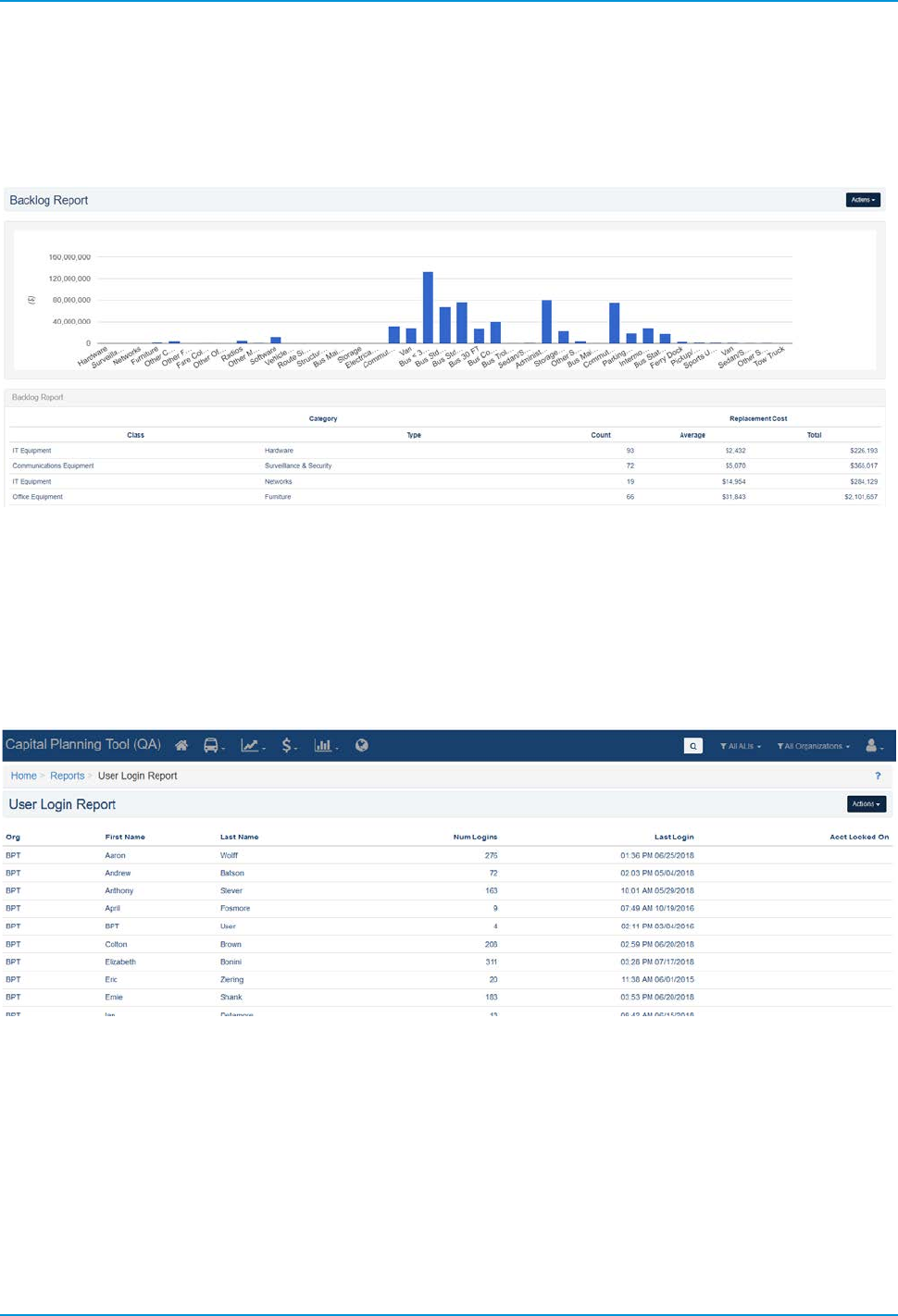
The Backlog Report is a list of all system assets associated with individual organizations. The report entails
summary data of assets by Subtype, including total count, average replacement cost, and total replacement
cost.
Figure 94 Backlog Report
7.3 System Reports
System reports keep track of system-related functional metrics.
The User Login Report keeps track of users, the number of logins made, and the pervious login of each user.
Figure 95 User Login Report
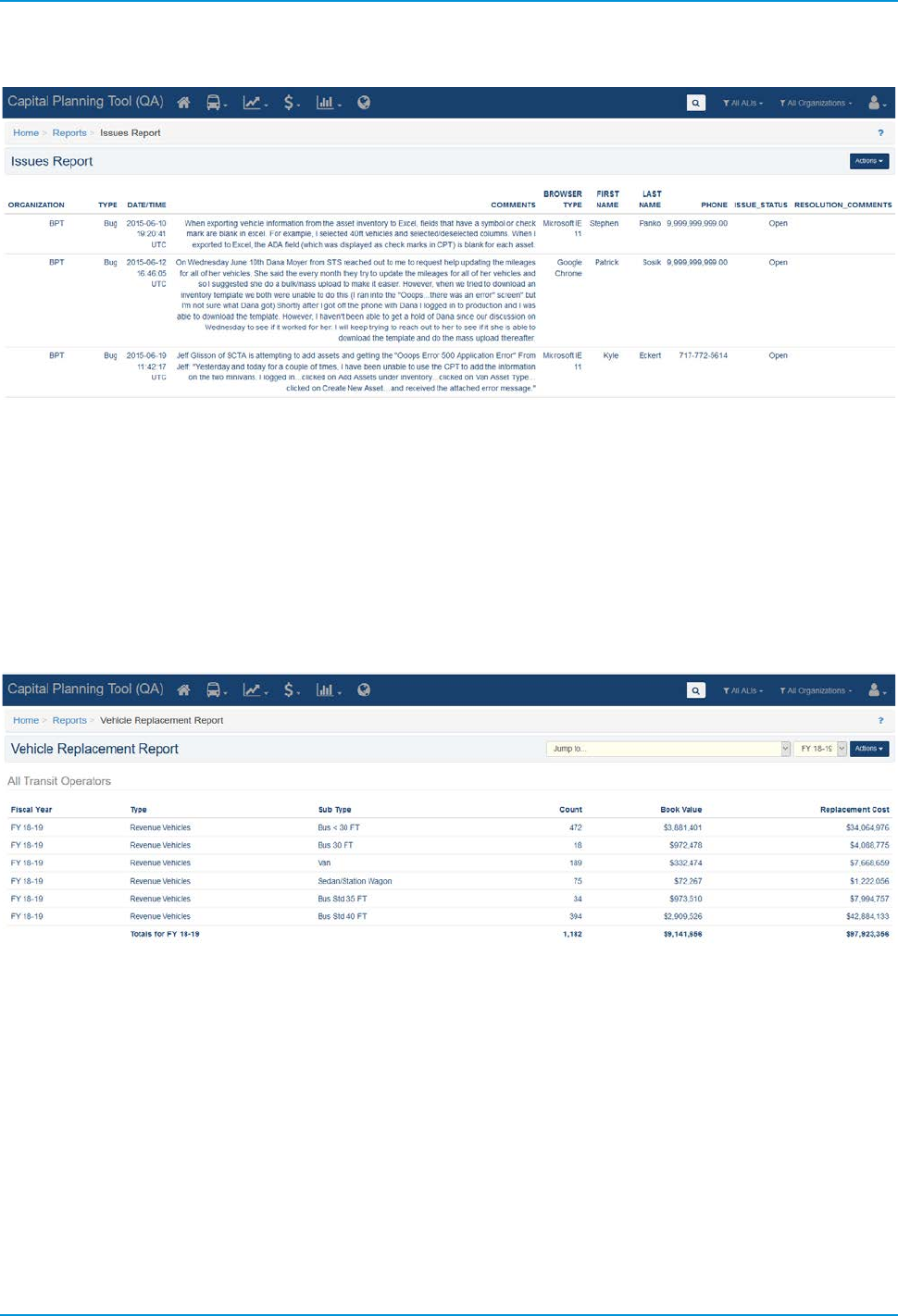
The Issues Report keeps a log of reported issues within TransAM and the status of any submitted issues.
TransAM
Cambridge Systematics, Inc.
50
Figure 96 Issues Report
7.4 Planning Reports
Planning Reports are reports that analyze asset-based data such as state of good repair, asset status, and
metrics related to service life goals and performance.
The Vehicle Replacement Report finds and displays summary data for all revenue vehicles that are
scheduled to be replaced within a fiscal year.
Figure 97 Vehicle Replacement Report
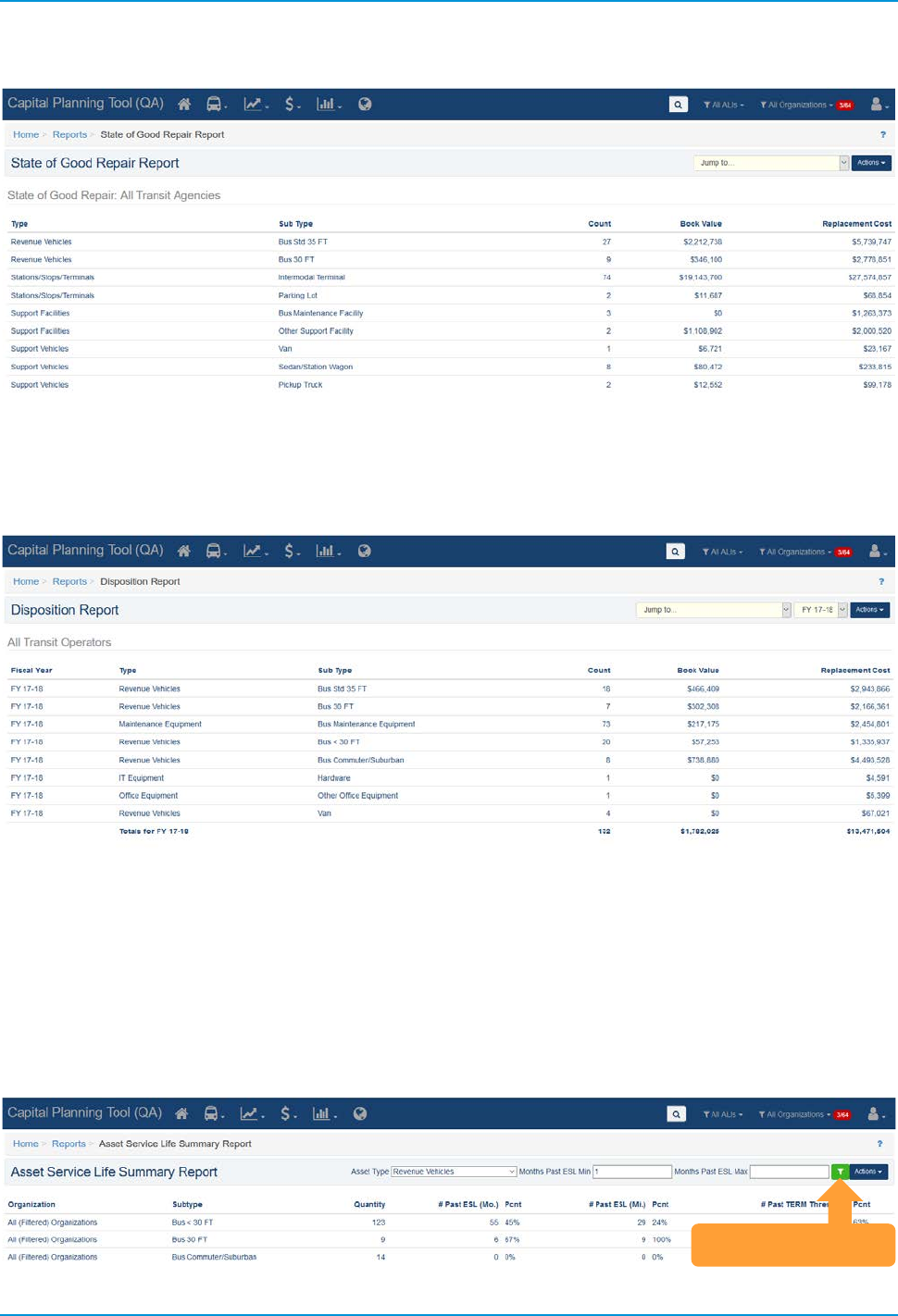
The State of Good Repair Report finds and displays summary data for all asset subtypes that are scheduled
to be replaced across all planning years. The report is the same as the Vehicle Replacement Report except it
is not limited to revenue vehicles and rolls up values across all planning years.
TransAM
Cambridge Systematics, Inc.
51
Figure 98 State of Good Repair Report
The Disposition Report finds and displays summary data for all asset subtypes that are scheduled to meet
their Estimated Service Life within a particular fiscal year and are ready to be disposed.
Figure 99 Disposition Report
The Asset Service Life Summary Report displays all asset categories, listed by subtype, and calculates the
quantity and percentage of assets that are past their Estimated Service Life in month, miles, and the quantity
and percentage that have fallen below the TERM threshold as set in the Asset Replacement/Rehabilitation
Policy. Data can be filtered by Asset Category, and by a minimum and maximum range in months of assets
beyond their Estimated Service Life. A drill-down of data is provided on an organization-level basis, while the
table, and the underlying data used to make the calculations can be exported as well.
Figure 100 Asset Service Life Summary Report
Filter or Export
TransAM
Cambridge Systematics, Inc.
52
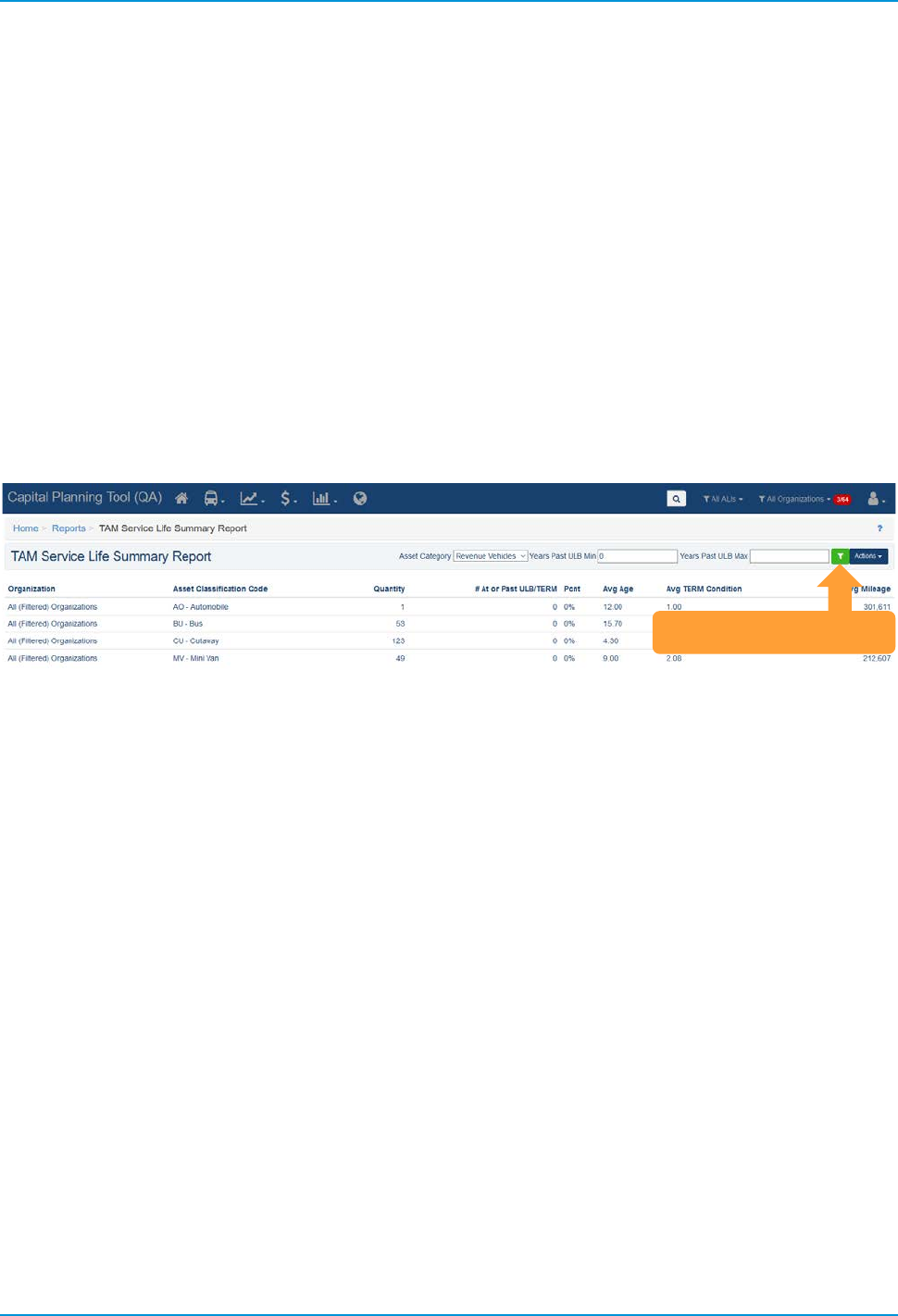
The TAM Service Life Summary Report displays all asset categories, listed by subtype, and calculates the
following:
• Revenue Vehicles and Equipment—Service Vehicles: Quantity and percentage that are past their Useful
Life Benchmark in months;
• Facilities (Primary): Quantity and percentage of Facilities (Primary) that have fallen below the TERM
Policy value; and
• Infrastructure—Track: Linear asset miles of Infrastructure that have Active Performance Restrictions.
The ULB, and TERM values pull from the most recent year of the TAM Policy for each organization that are
either in a Pending Activation or Active status. Data can be filtered by Asset Category, and a drill-down of
data is provided on an organization-level basis, while the table, and the underlying data used to make the
calculations can be exported as well.
Figure 101 TAM Service Life Summary Report
Filter or Export
TransAM
Cambridge Systematics, Inc.
53
8.0 Specialized Reports
8.1 Asset Fleet Builder
A fleet is a number of vehicles that share the same characteristics. Organizing vehicles into fleets is
advantageous because it summarizes rolling stock inventories at a higher level.
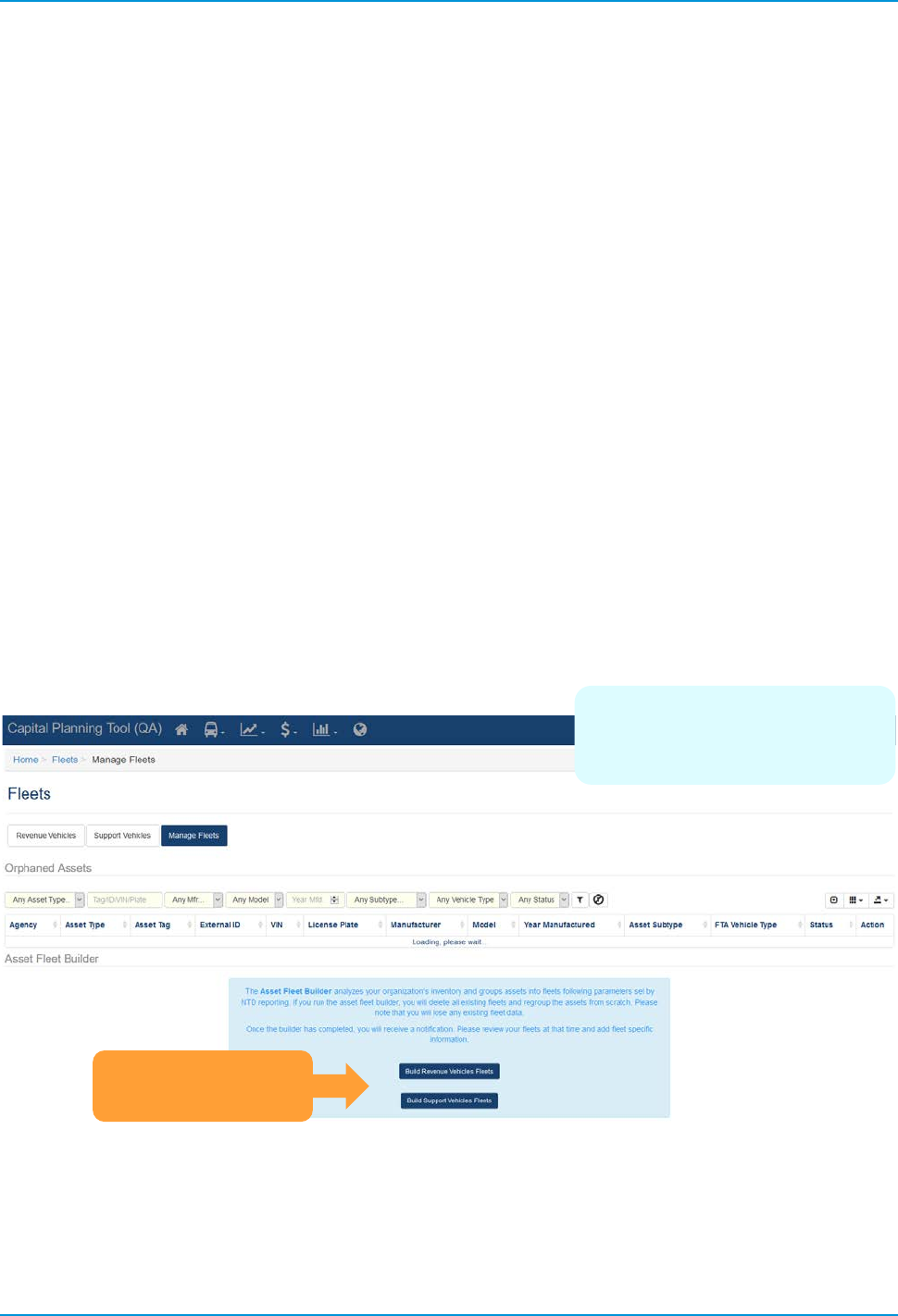
The Asset Fleet Builder is a tool specifically designed to assist with the creation of the Revenue Vehicles (A-
30), and Service Vehicles (Nonrevenue) (A-35) National Transit Database (NTD) asset reports. Both of these
NTD asset forms require data be reported by fleet, and the Asset Fleet Builder provides an interface to auto-
create and easily manage both Revenue Vehicle and Service Vehicle (Nonrevenue) fleets.
When building fleets for the first time, you can choose to use the Asset Fleet Builder. The builder analyzes
organization inventories and automatically groups assets into fleets based on the unique fleet definitions and
sorts those assets into either the Revenue Vehicles or Service Vehicles section. All assets grouped within a
fleet will no longer be listed within the Orphaned Assets portion of the Manage Fleets section. When you run
the builder, it will function as a background job in the system and notify you once complete in the notifications
section. From there, users can review the fleets, add fleet-specific information or manually regroup assets as
needed.
You should only use the builder tool the first time you create a fleet, otherwise you will delete
existing fleets.
Figure 102 Asset Fleet Builder
Note: Running the Fleet
Builder will delete all existing
fleet data, if previously run.
Build Revenue or
Support Fleets
TransAM
Cambridge Systematics, Inc.
54
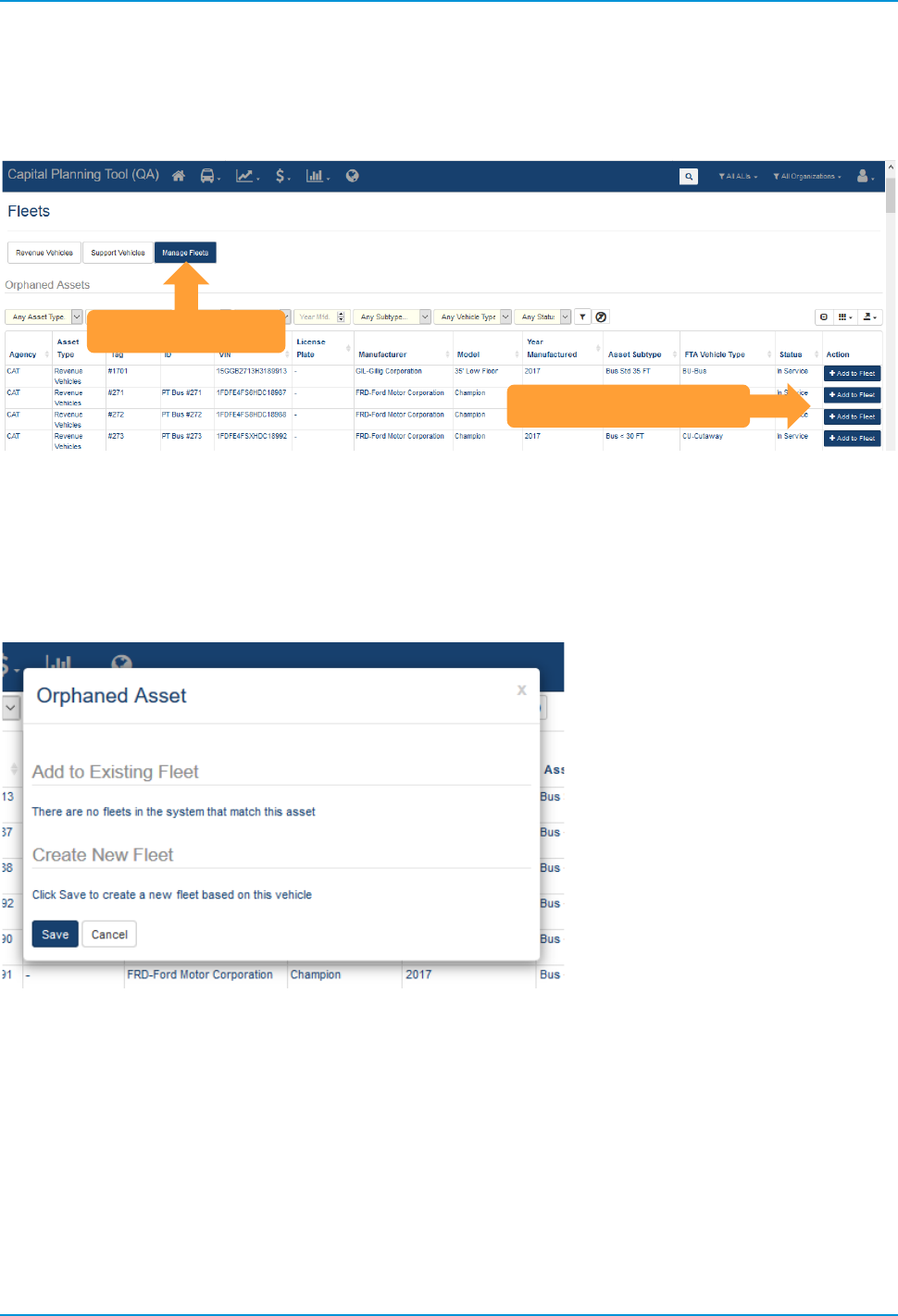
When you add a new asset to the system, the new asset will be added as an Orphaned Asset within the
Manage Fleets section.
Figure 103 Asset Fleet Builder—Orphaned Assets
Selecting “Add to Fleet” on the right allows users to add assets to a current fleet or create a new fleet, and
will limit options of existing fleets only if all shared characteristics match. Clicking “Save” will either add to an
existing fleet, or create a new fleet, depending on what you choose, and allow you to specify details about
that fleet.
Figure 104 Adding an Orphaned Asset to a Fleet
Add Asset to Fleet
Manage Fleets
TransAM
Cambridge Systematics, Inc.
55
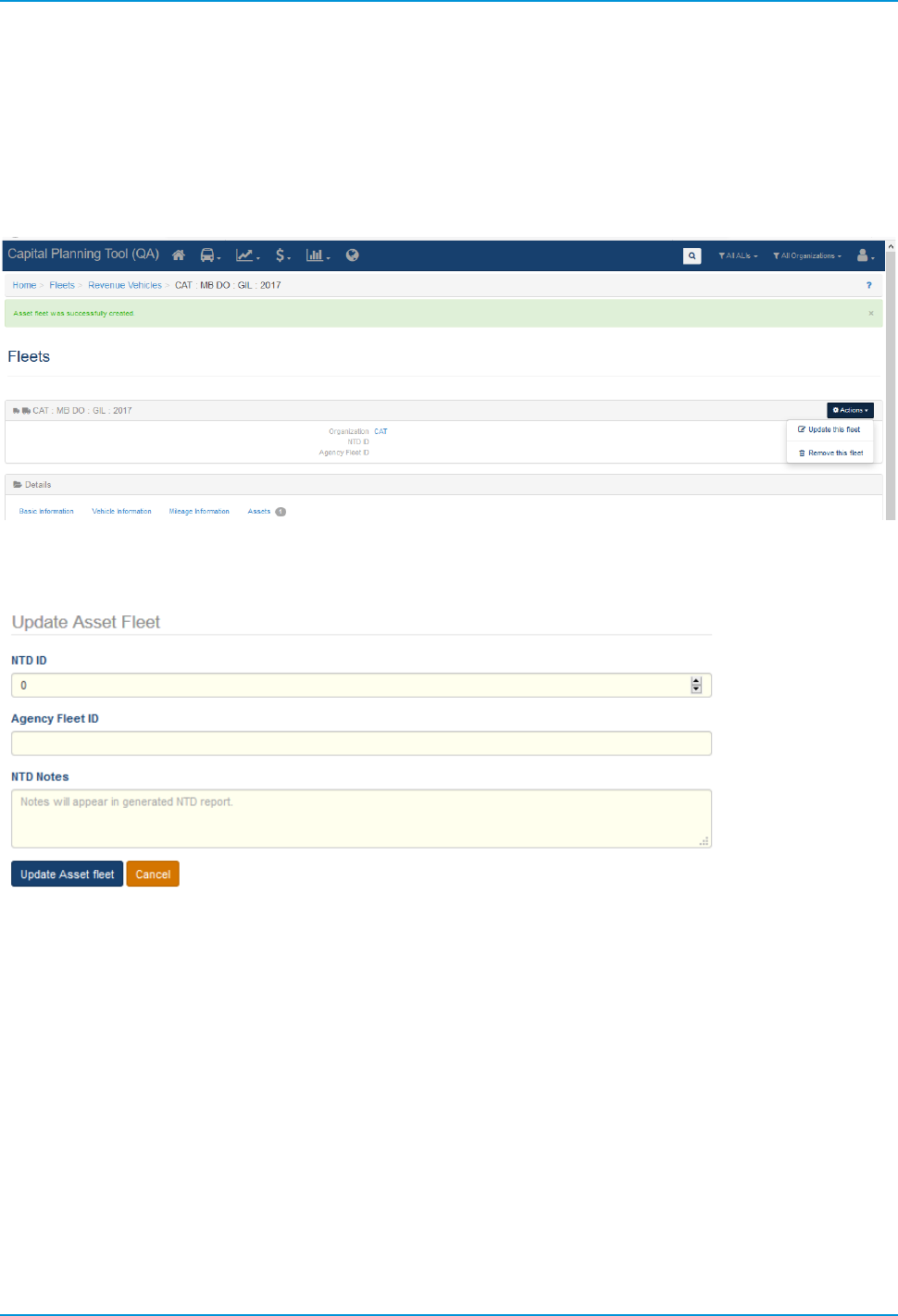
When you add the asset to a new fleet, if you wish to update fleet-specific details, look for the actions button,
and click “Update this Fleet” to add details. Users also can remove the fleet completely, at which point all
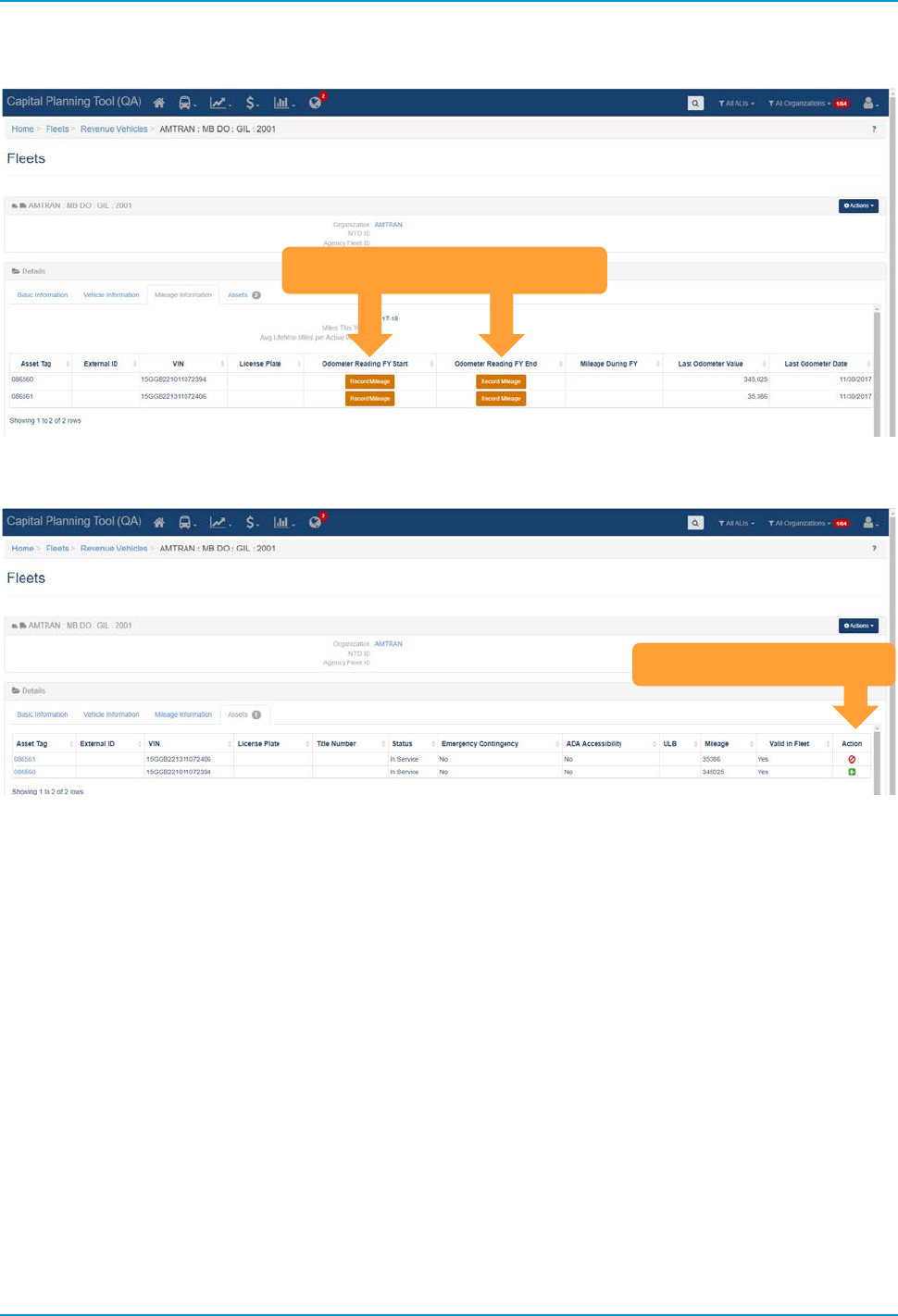
fleet assets will return to the Orphaned Assets portion of the Manage Fleets section. Users also can edit
other fleet and asset-specific data such as NTD ID, asset odometer readings, and remove or add assets to
the fleet from directly within the fleet.
Figure 105 Adding a New Fleet
Figure 106 Update Asset Fleet Details
TransAM
Cambridge Systematics, Inc.
56
Figure 107 Update Odometer Readings
Figure 108 Remove or Add Assets from within a Fleet
8.2 NTD Asset Reports
The NTD Asset Reports are forms that must be submitted on an annual basis for every organization that
receives Federal public transit funding. Required forms differ between organization, based on the category of
assets in operation for each organization. The specific forms are as follows:
• Facilities (A-15) — Pulls asset data for primary facilities.
• Infrastructure (A-20) — Pulls asset data for infrastructure assets, and produces a separate report for
each Primary Mode/Type of Service unique combination.
• Revenue Vehicles (A-30) — Pulls asset data for revenue vehicles, which are included as part of a fleet.
• Service Vehicles (Non-revenue) (A-35) — Pulls asset data for Service Vehicle (Non-Revenue), which are
included as part of a fleet.
Update Odometer Readings
Add or Remove Assets
TransAM
Cambridge Systematics, Inc.
57
• Performance Measure Targets (A-90) — Pulls ULB, TERM value, and goal percentages for the TAM
Policy associated with the corresponding NTD Report year, and calculates performance.
Each report pulls and calculates data according to the reporting year selected, and the activities associated
with the system reporting period, i.e., July—June, October—September, or January—December.
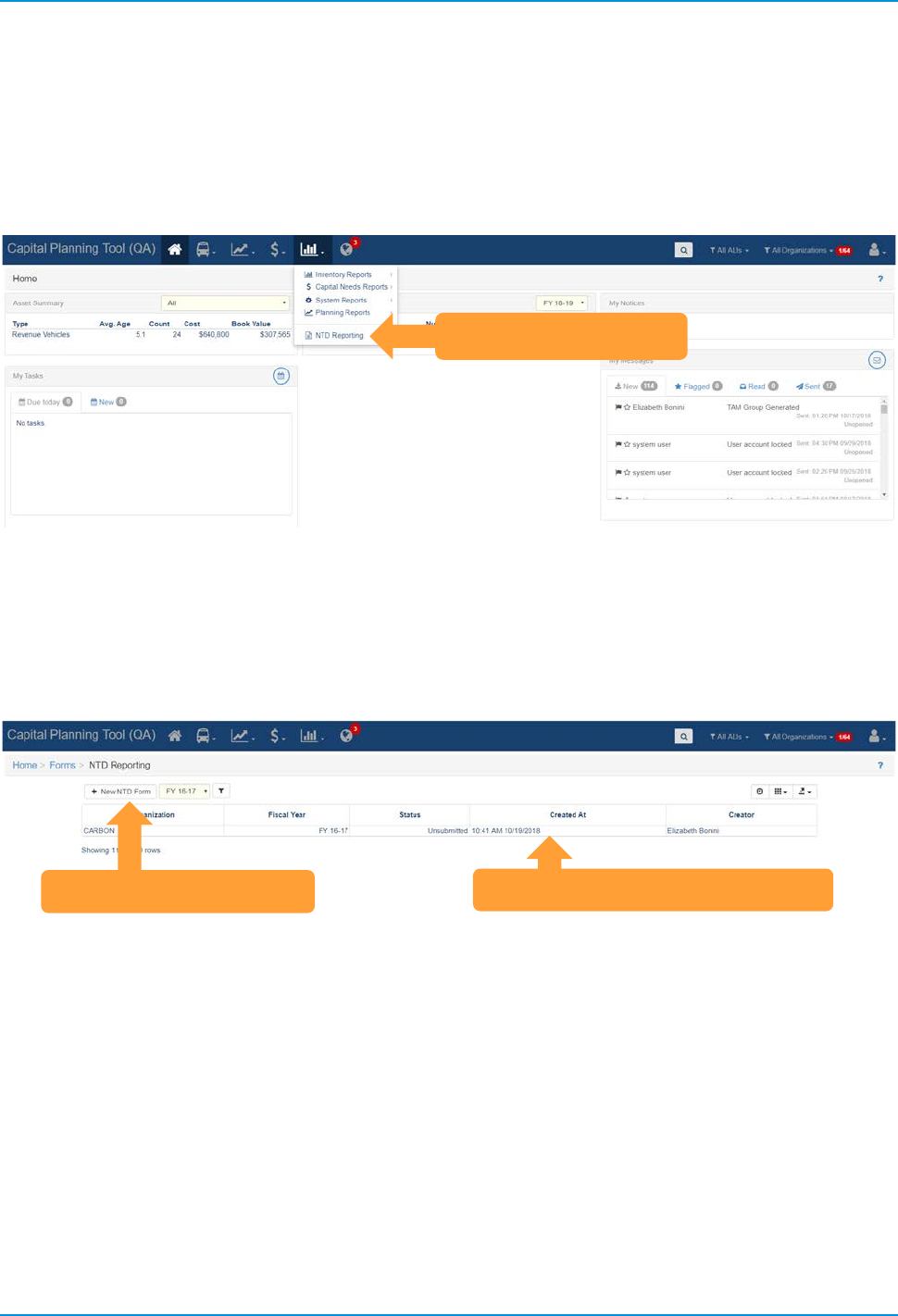
Figure 109 Access NTD Reports
Any NTD reports that have been previously generated can be viewed on the initial report table available
when clicking on the NTD Reports module. Existing report data can be accessed by clicking on the row for
an individual organization upon which point it can be downloaded, submitted for review, have comments
added, updated, or removed. New reports can be generated by clicking on the New NTD Form button.
Figure 110 Table of Previously Generated NTD Reports
Access NTD Reports
Click to Access Existing Forms
Create New NTD Forms
TransAM
Cambridge Systematics, Inc.
58
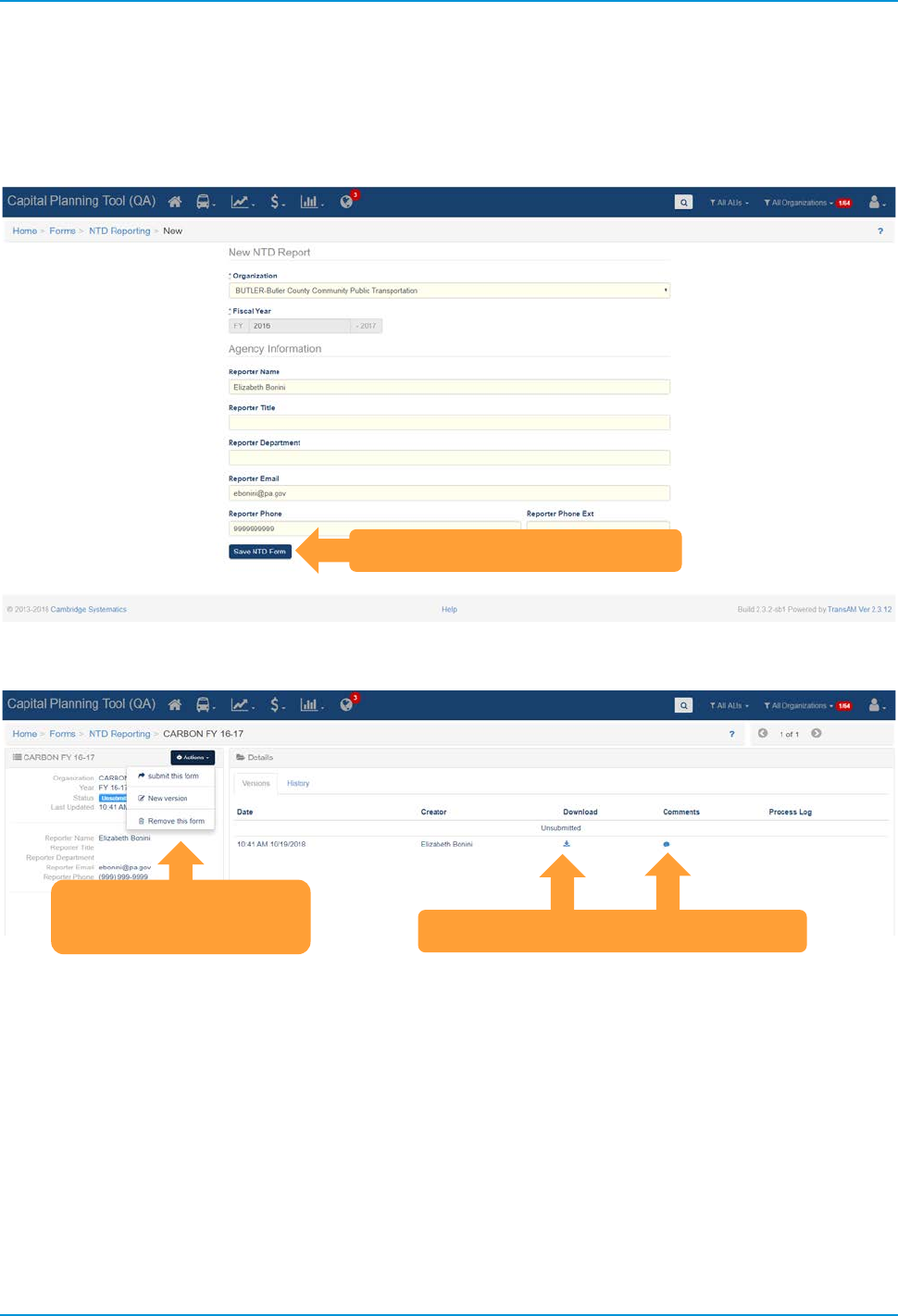
When you click on the “New NTD Form” button, you will be prompted to select an organization, reporting
year, and enter other user-specific information. Upon clicking “Save NTD Form”, you will be directed to the
newly created NTD Details and Data page.
Figure 111 Create New Reporting Year Forms
Figure 112 NTD Report Details and Data
Click Save NTD Form Button
Submit, Create a New
Version, or Remove
Access Forms or Add a Comment
TransAM
Cambridge Systematics, Inc.
59
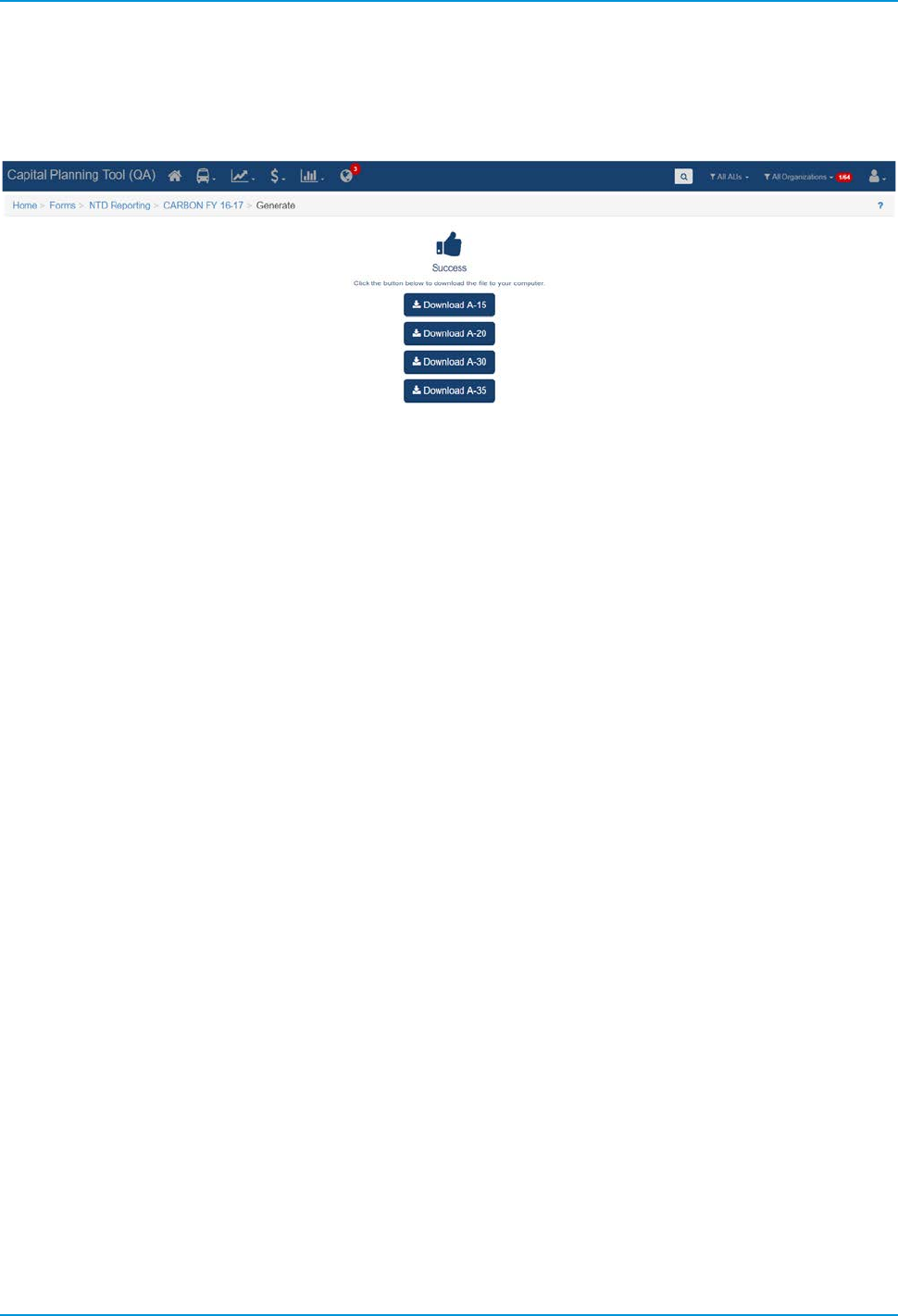
When you click on the Download icon, the already generated forms appear and can be downloaded by
clicking on the form-specific button. Excel file downloads will initiate upon clicking each form-specific button.
Figure 113 Download each NTD Form
TransAM
Cambridge Systematics, Inc.
61
9.0 Admin Tools
As an administrator, you have access to additional functionality within the User and Organization options at
the top right of the screen.
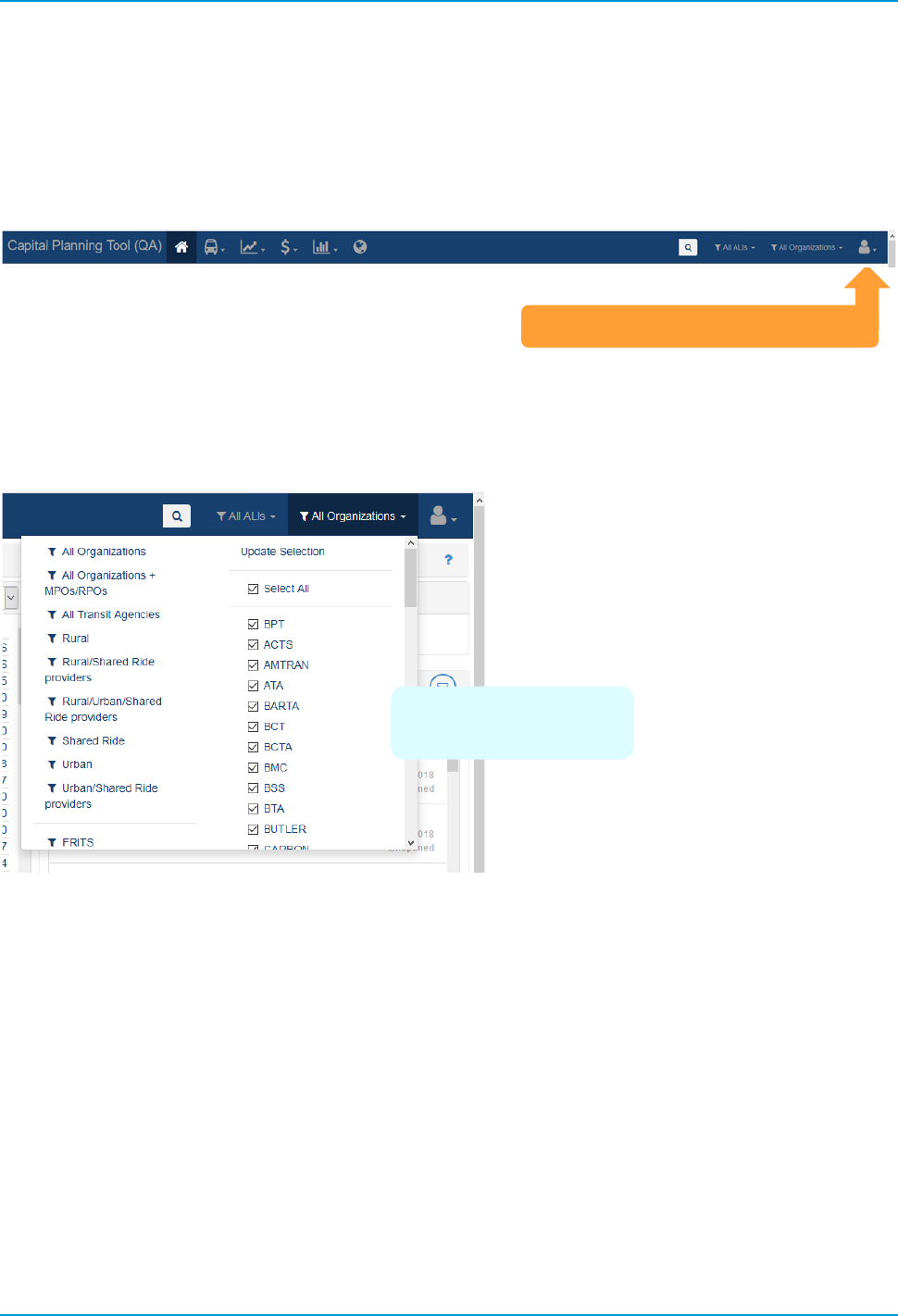
Figure 114 Admin User and Organization Options
Clicking “All Organizations” provides a filter to pare down the different agencies you see. This also greatly
reduces the time it takes to process certain content-rich pages.
Figure 115 Organizations
User and Organization Options
Remember to click
Update Selection
TransAM
Cambridge Systematics, Inc.
62
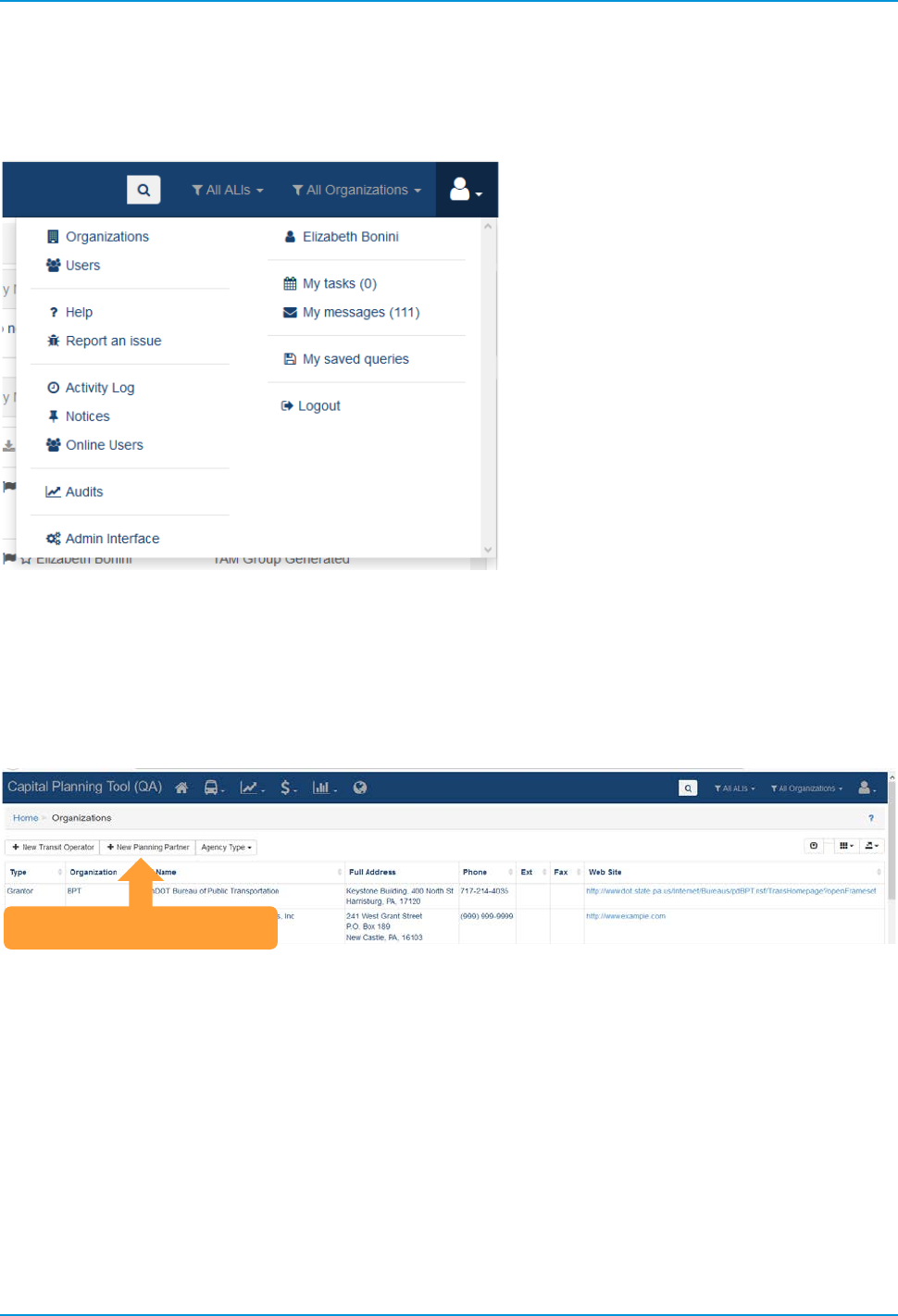
In your User Options, you’ll also see some common elements with other users (though they have been
revamped for admins) and some additional functionality.
Figure 116 Admin User Options
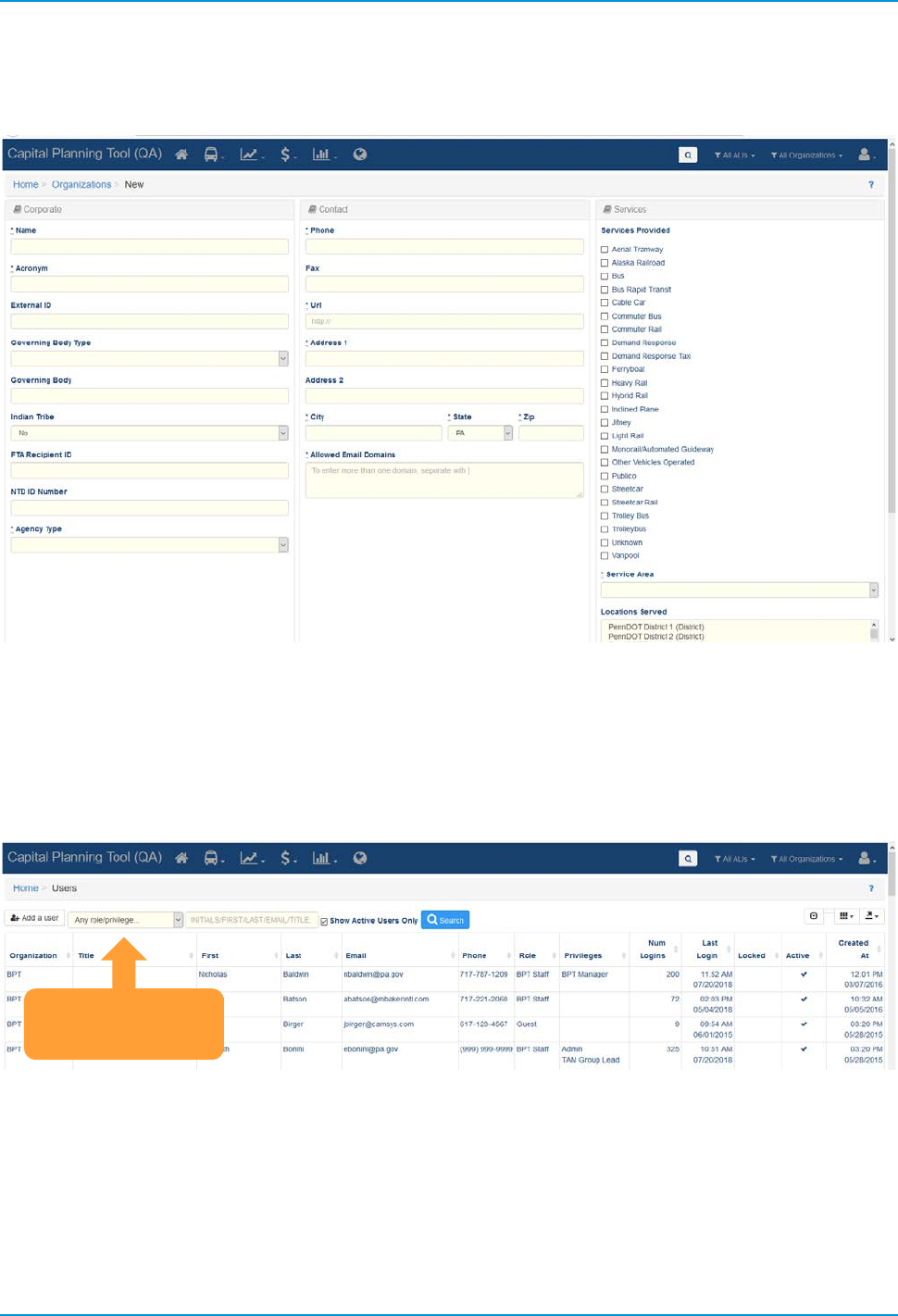
9.1 Organizations
The organizations page provides an overview of each organization, its type, and an interface for adding new
agencies.
Figure 117 Admin Organizations
Add new organizations
TransAM
Cambridge Systematics, Inc.
63
Click the buttons at the top to create a new Transit Operator or Planning partner.
Figure 118 Add an Organization
9.2 Users
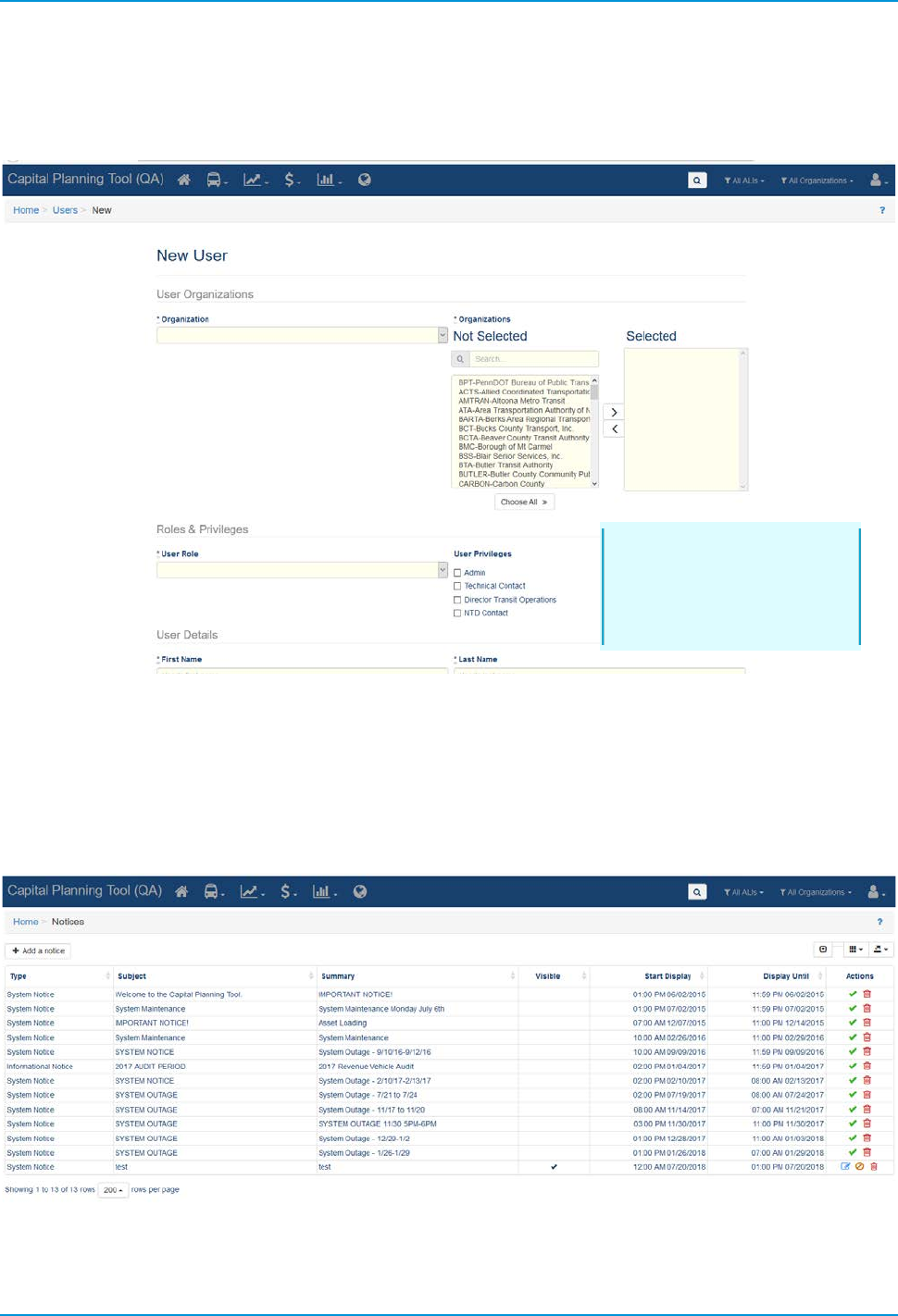
The users page also has some additional functionality. It provides an overview of all users in the system, and
provides the ability to add new users or filter user data.
Figure 119 Admin Users
Filter and add
new users
TransAM
Cambridge Systematics, Inc.
64
Click “Add a User” to create an account for a new user. An email requesting the user reset his/her password
will be automatically sent upon creation.
Figure 120 Add a User
9.3 Notices
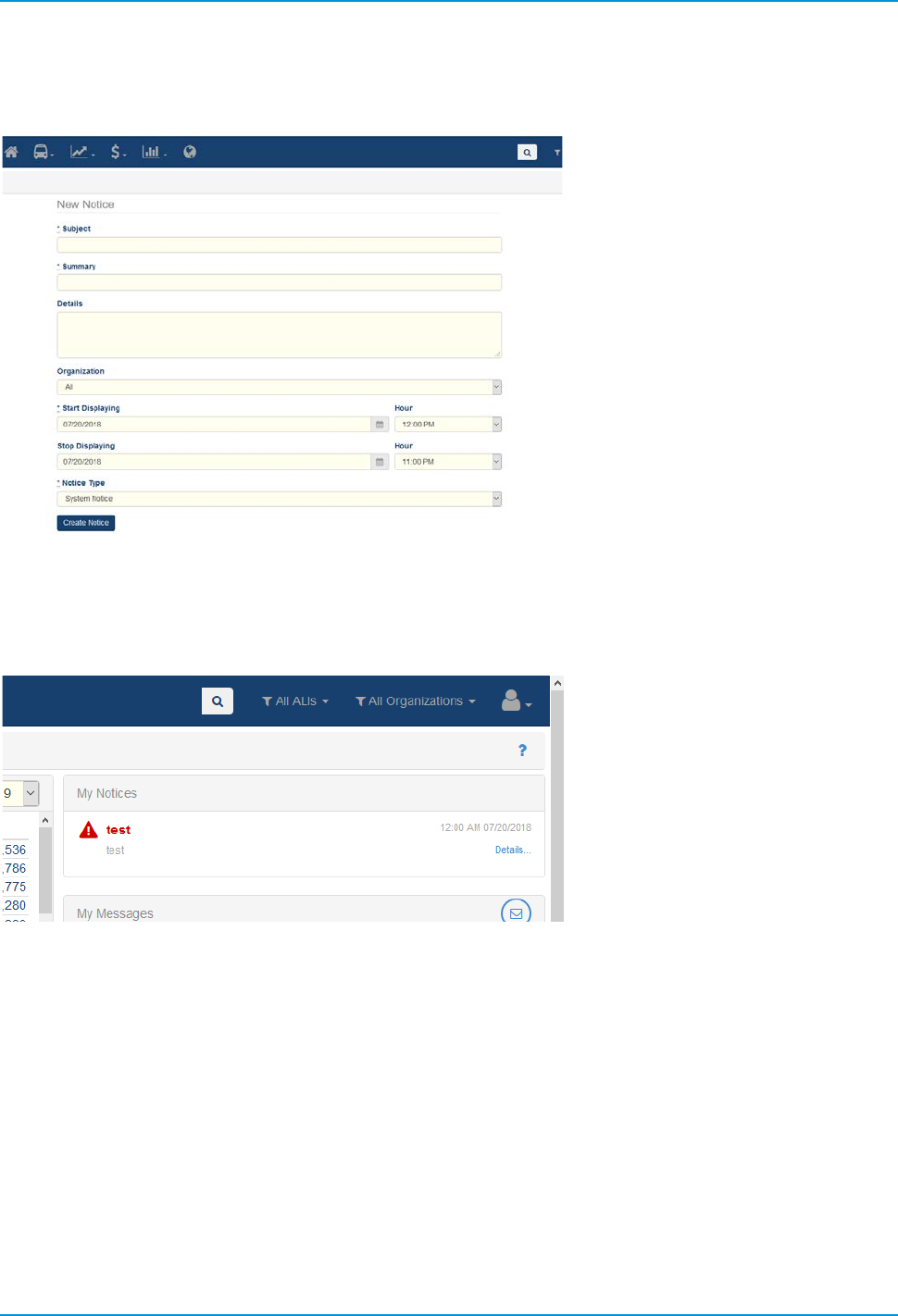
Notices provide information on the dashboard to user-defined sets of other users. The Notices interface
manages this process.
Figure 121 Notices
Take care about who
you grant admin
privileges—they’ll be
able to modify anything
TransAM
Cambridge Systematics, Inc.
65
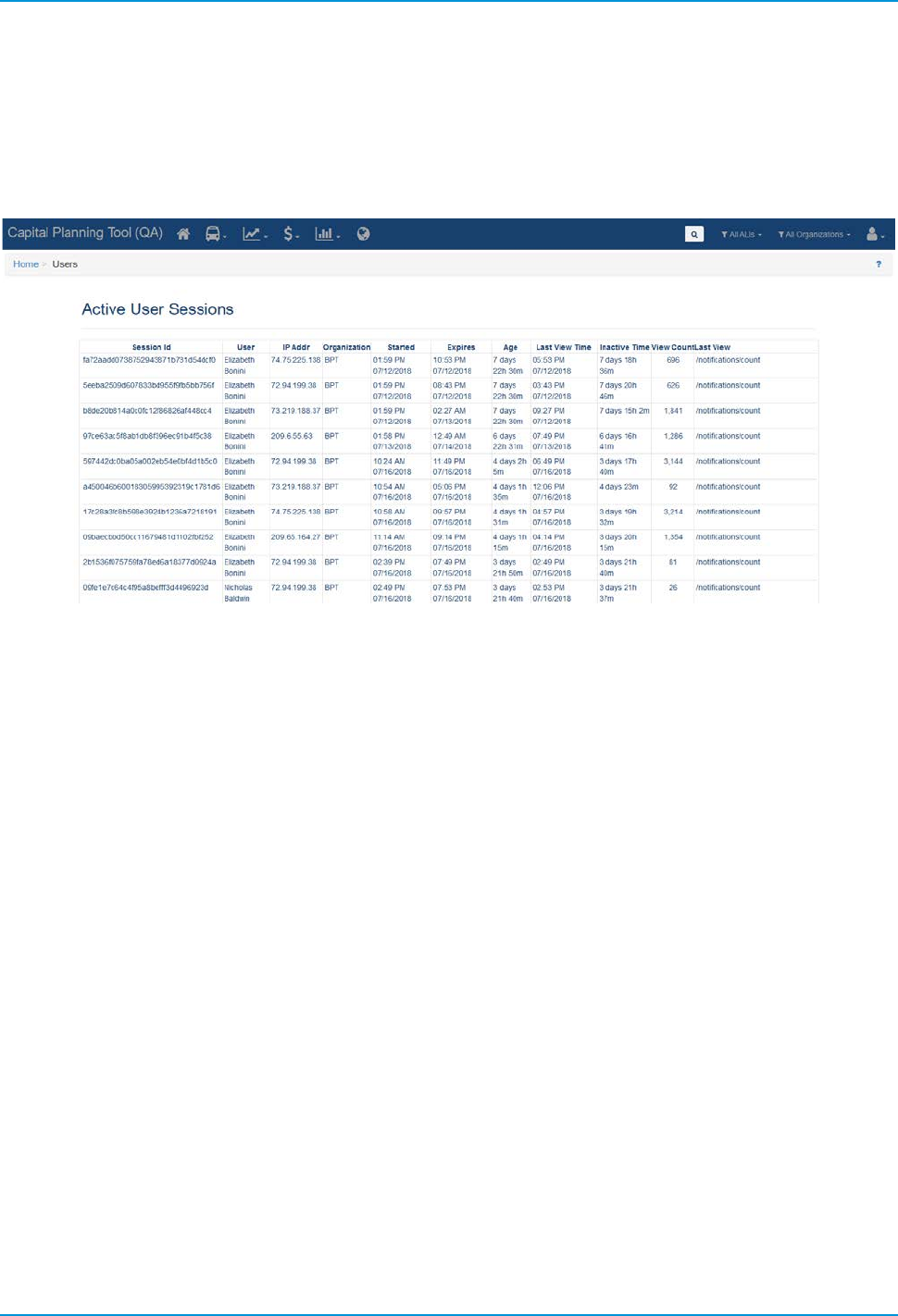
Click Add a notice to create a new one. You can specify temporal and organization parameters.
Figure 122 Add a Notice
Once a noticed is created, it will display on the dashboard according to the parameters set.
Figure 123 Notice on the Dashboard
TransAM
Cambridge Systematics, Inc.
66
9.4 Online Users
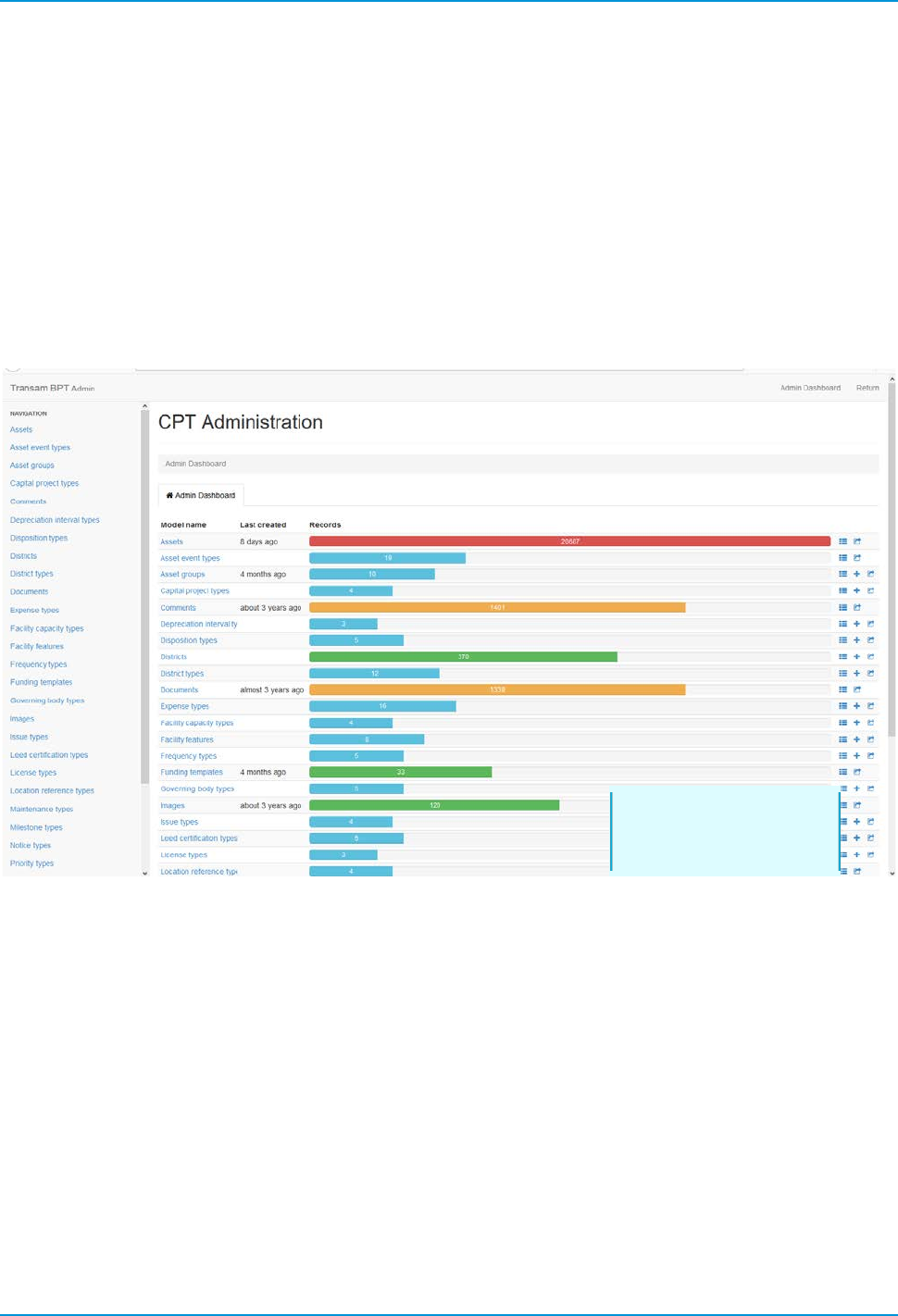
Administrators can see active user sessions and details about those logins, by accessing the Users link
within the User Menu.
Figure 124 Active Users
TransAM
Cambridge Systematics, Inc.
67
9.5 Admin Interface
The Admin Interface is a graphic representation of some of the databases used within the system. From
here, you can adjust the content that is displayed in the various interfaces. For instance, you can adjust what
capital project types are displayed in the dropdown when adding a new capital project.
Be very careful when modifying or deleting any of the information in the admin interface, as much of the
system functionality resides within the Admin Interface, and any changes made may cause systemwide data
inaccuracies. Always consult your primary Cambridge Systematics (CS) point of contact should you wish to
make modifications to the admin interface, or are unsure of how to perform a specific function.
Figure 125 Admin Interface
Consult your CS
primary contact if
you have questions
