Oculus Spatializer For FMOD Integration Guide
User Manual:
Open the PDF directly: View PDF  .
.
Page Count: 6

Oculus Spatializer for FMOD Integra-
tion Guide
The Oculus Spatializer Plugin (OSP) is an add-on plug-in for FMOD Studio that allows
monophonic sound sources to be properly spatialized in 3D relative to the user’s head lo-
cation. This integration guide outlines how to install and use OSP in both FMOD Studio
and the end-user application.
Known Issues
Note: This is an ALPHA release. Please keep the following caveats in mind when using this plugin!
1. HQ path is slower than the Fast path. Also, CPU usage increases when early reec-
tions are turned on, and continue to increase relative to room dimensions.
2. Some functionality is still not complete (e.g., boost and priority systems).
3. Users may hear a click when a sound is stolen by one with higher priority.
Directory Structure
The following directories may be found within this distribution le:
\Win32 and \x64
Contains the plugin dll for Windows 32-bit and 64-bit, respectively.
Adding OVR FMOD Plugin to your FMOD Studio
project
1. Create a directory named “Plugins” in your FMOD Studio project directory, if one
does not already exist.
2. Copy ovrfmod32.dll into that directory.
How to Use Within FMOD Studio
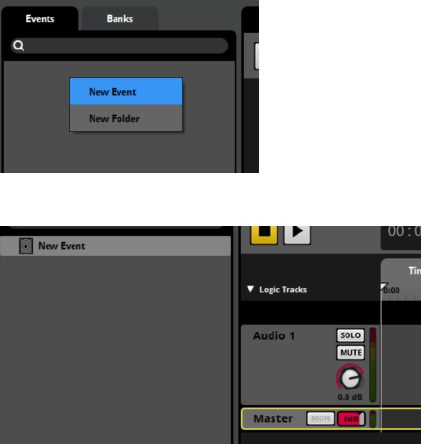
●Create a new event.
1.
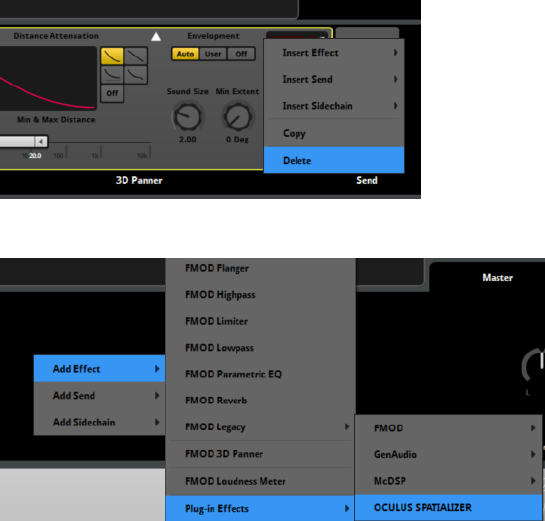
●Select the master track.
●
●Delete the 3D panner.
●
●Add the Oculus Spatializer plugin.
●
Note: For distance attenuation, automate the master track volume with a distance parameter.
Notes
When using the main (High Quality) spatializer, up to eight sounds running through the
bus may be spatialized. If the Fast spatializer is selected, up to 64 sounds may be spatial-
ized.
Make sure that your Project Output Format is set to stereo in FMOD Studio (Edit →Pref-
erences →Format →Stereo).
Note that the room represents a box that follows the listeners position and rotates along
with the listener’s orientation. Future implementation of early reections will allow lis-
teners to walk freely around the room.
When using early reections, be sure to set non-symmetrical room dimensions. A per-
fectly cubical room may create re-enforcing echoes which cause the sound to be poorly
spatialized.
PRIORITY
You may assign the priority to a sound. When all spatialized voices within the bus are be-
ing used, a spatialized sound will yield spatialization to any sound with a higher priority.
The default is set to Highest; there are 10 levels of priority available for a sound.
FREQUENCY HINT
You can set a frequency hint for a given sound. The choices are None,Wideband and
Narrowband. The hint is used to determine the trade o between smoothness and re-
sponsiveness. Wideband is good for sounds with a broad frequency content, such as
music and speech. Narrowbandshould be used for highly tonal sounds with narrow
frequency content which will require greater smoothing.None is in between, and is the
default. As a rule of thumb if a certain sound is producing discontinuities such as click-
ing or crackling as it’s position changes, this can be resolved by choosing a narrower fre-
quency hint.
BASS BOOST
You may set bass boost for a given sound to compensate for HRTF bass attenuation. De-
fault is o.
ALTERNATE
This sound will use the fast spatializer. This will allow you to have more than 8 spatial-
ized sounds playing using a combination of fast and HQ encoded sounds.
SOUND PROPERTIES
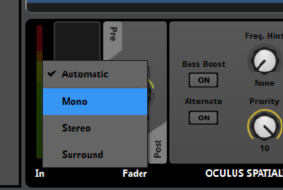
Prefer mono sounds and/or set the the master track input format to mono (by right-
clicking on the metering bars on the left side).
Integrating the Oculus Spatializer in the application
Note: This section is for programmers who are integrating FMOD runtime libraries and plug-in
registration within their application code-base.
Include theOculusFMODSpatializerSettings.h in your project.

Copy ovrfmod32.dllto your application directory.
Link project to ovrfmod32.lib.
AT APPLICATION START UP
Call OSP_FMOD_Initialize - use getDSPBuerSize and getSoftwareFormat for the param-
eters.
CallOSP_FMOD_SetSimpleBoxRoomParameters to congure the room size for reec-
tions.
Call the FMOD::System::loadPlugin to register the plugin with FMOD before loading any
banks.
START UP CODE EXAMPLE
FMOD::Studio::System* system;
ERRCHECK( FMOD::Studio::System::create(&system) );
FMOD::System* lowLevelSystem;
ERRCHECK( system->getLowLevelSystem(&lowLevelSystem) );
intsampleRate = 0;
ERRCHECK(lowLevelSystem->getSoftwareFormat(&rate, NULL, NULL));
intbufferSize=0;
ERRCHECK(lowLevelSystem->getDSPBufferSize(&bufferSize,NULL));
OSP_FMOD_Initialize(sampleRate, bufferSize);
OSP_FMOD_SetSimpleBoxRoomParameters(5.0f, 2.1f, 3.7f, 0.75f, 0.65f,
0.55f, 0.25f, 0.65f, 0.65f);
ERRCHECK( system->initialize(32, FMOD_STUDIO_INIT_NORMAL,
FMOD_INIT_NORMAL, extraDriverData) );
ERRCHECK(lowLevelSystem->loadPlugin(''arhrtf32.dll'', NULL) );

OSP FMOD API
OSP_FMOD_Initialize
Initializes the plugin, use this to specify the sample rate and block size.
OSP_FMOD_SetEarlyReflectionsEnabled
Enables early reection, based on the room size. This may be toggled dynamically, how-
ever a slight hitch in performance during the transition may occur. Default is o.
OSP_FMOD_SetLateReverberationEnabled
Enables the late reverberation, based on the room size. This may be toggled dynami-
cally, however a slight hitch in performance during the transition may occur. Default is
o, note that late reverberation requires early reections enabled as well.
OSP_FMOD_SetGlobalScale
Sets the scaling factor meters to game units. For example, if the game units are de-
scribed in feet, the global scale would be0.3048. Default value is 1.0.
OSP_FMOD_SetSimpleBoxRoomParameters
Sets the size of the room for reections.
Size: in meters, default is 10x11x12
Reections: 0.0 = fully anechoic (i.e., no reection), 1.0 = fully reective, but we cap at
0.95. Default is 0.25
Provided that the listener and sounds are properly updated within the application,
sounds set to the OSP bus will have a greater sense of 3D presence.
Copyrights and Trademarks
© 2015 Oculus VR, LLC. All Rights Reserved.
OCULUS VR, OCULUS, and RIFT are trademarks of Oculus VR, LLC. (C) Oculus VR,
LLC. All rights reserved. BLUETOOTH is a registered trademark of Bluetooth SIG, Inc.
All other trademarks are the property of their respective owners. Certain materials in-
cluded in this publication are reprinted with the permission of the copyright holder.
