KX NCP500/1000 Pure IP PBX Installation Manual Panasonic NCP500 1000
User Manual: KX-NCP500/1000 Pure IP-PBX Installation Manual Panasonic KX-NCP Series Network Communications Platform (NCP) - Telecomuserguides.com
Open the PDF directly: View PDF  .
.
Page Count: 142 [warning: Documents this large are best viewed by clicking the View PDF Link!]
- Table of Contents
- 1 System Outline
- 2 Activation Key Installation
- 3 Installation
- 3.1 Before Installation
- 3.2 Installation of the PBX
- 3.3 Information about the Main Processing Card
- 3.4 Information about the Virtual Cards
- 3.5 Information about the Physical CO Line Cards
- 3.6 Information about the Physical Extension Cards
- 3.7 Information about the Other Physical Cards
- 3.8 Connection of Extensions
- 3.9 Connection of Doorphones, Door Openers, External Sensors, and External Relays
- 3.10 Connection of Peripherals
- 3.11 LAN Connection
- 3.12 Power Failure Connections
- 3.13 Starting the PBX
- 4 Guide for the Maintenance Console
- 5 Troubleshooting
- 6 Appendix
- Index
Model No.
KX-NCP500
KX-NCP1000
Pure IP-PBX
Installation Manual
Document Version: 2011-10
Thank you for purchasing a Panasonic Pure IP-PBX.
Please read this manual carefully before using this product and save this manual for future use.
KX-NCP500/KX-NCP1000: PBMPR Software File Version 5.0000 or later SD Logo is
a trademark of
SD-3C, LLC.

System Components
System Components Table
Category Model No. Description
Main Unit KX-NCP500 Main Unit
KX-NCP1000 Main Unit
Main Processing Card IP Convergence Main Processing Card (IPCMPR)
IPCMPR Option Cards KX-NCP1104 4-Channel VoIP DSP Card (DSP4)
KX-TDE0110 16-Channel VoIP DSP Card (DSP16)
KX-TDE0111 64-Channel VoIP DSP Card (DSP64)
KX-TDA0196 Remote Card (RMT)
Activation Key Codes*1 KX-NCS3102 2-Channel IP Trunk Activation Key (2 IP Trunk)
KX-NCS3104 4-Channel IP Trunk Activation Key (4 IP Trunk)
KX-NCS3201 1-Channel IP Softphone/IP Proprietary Telephone
Activation Key (1 IP Softphone/IP PT)
KX-NCS3204 4-Channel IP Softphone/IP Proprietary Telephone
Activation Key (4 IP Softphone/IP PT)
KX-NCS3208 8-Channel IP Softphone/IP Proprietary Telephone
Activation Key (8 IP Softphone/IP PT)
KX-NCS3216 16-Channel IP Softphone/IP Proprietary Telephone
Activation Key (16 IP Softphone/IP PT)
KX-NCS3501 1-Channel IP Proprietary Telephone Activation Key (1
IP PT)
KX-NCS3504 4-Channel IP Proprietary Telephone Activation Key (4
IP PT)
KX-NCS3508 8-Channel IP Proprietary Telephone Activation Key (8
IP PT)
KX-NCS3516 16-Channel IP Proprietary Telephone Activation Key
(16 IP PT)
KX-NCS3701 1-Channel SIP Extension Activation Key (1 SIP
Extension)
KX-NCS3704 4-Channel SIP Extension Activation Key (4 SIP
Extension)
KX-NCS3708 8-Channel SIP Extension Activation Key (8 SIP
Extension)
KX-NCS3716 16-Channel SIP Extension Activation Key (16 SIP
Extension)
KX-NCS3910 Activation Key for Software Upgrade to Enhanced
Version (Software Upgrade 01)
KX-NCS2201 Activation Key for CA PRO for 1 User (CA Pro 1user)
2 Installation Manual Document Version 2011-10
System Components
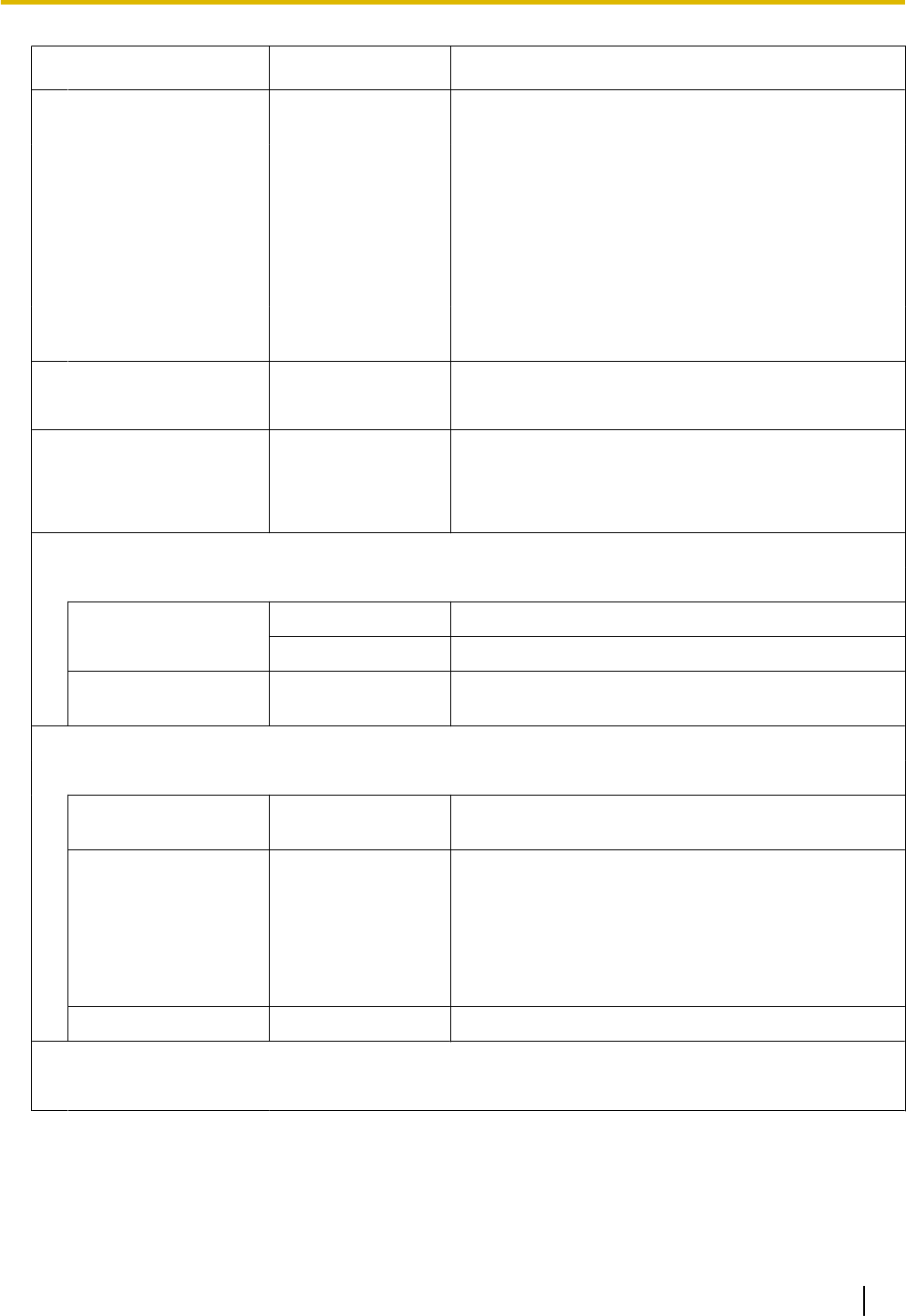
Category Model No. Description
KX-NCS2205 Activation Key for CA PRO for 5 Users (CA Pro
5users)
KX-NCS2210 Activation Key for CA PRO for 10 Users (CA Pro
10users)
KX-NCS2240 Activation Key for CA PRO for 40 Users (CA Pro
40users)
KX-NCS2249 Activation Key for CA PRO for 128 Users (CA Pro
128users)
KX-NCS2301 Activation Key for CA ACD Monitor for 1 ICD
Supervisor (CA Supervisor 1user)
Virtual CO Line Cards - Virtual 16-Channel VoIP Gateway Card (V-IPGW16)
Virtual 16-Channel SIP CO Line Card (V-SIPGW16)
Virtual Extension Cards - Virtual 32-Channel VoIP Extension Card (V-IPEXT32)
- Virtual 32-Channel SIP Extension Card (V-SIPEXT32)
- Virtual 4 IP Cell Station Interface Card (V-IPCS4)
Small Free Slot
Physical CO Line
Cards
KX-NCP1180 4-Port Analog Trunk Card (LCOT4)
KX-NCP1290 PRI Card (PRI23)
Physical Extension
Card
KX-NCP1170 4-Port Digital Hybrid Extension Card (DHLC4)
Regular Free Slot
Physical CO Line
Card
KX-NCP1187 T-1 Trunk Card (T1)
Physical Extension
Cards
KX-NCP1171 8-Port Digital Extension Card (DLC8)
KX-NCP1172 16-Port Digital Extension Card (DLC16)
KX-NCP1173 8-Port Single Line Telephone Extension Card (SLC8)
KX-NCP1174 16-Port Single Line Telephone Extension Card
(SLC16)
Other Physical Card KX-NCP1190 Optional 3-Slot Base Card (OPB3)
OPB3
Document Version 2011-10 Installation Manual 3
System Components

Category Model No. Description
Other Physical
Cards
KX-TDA0161 4-Port Doorphone Card (DPH4)
KX-TDA0164 4-Port External Input/Output Card (EIO4)
KX-TDA0166 16-Channel Echo Canceller Card (ECHO16)
KX-TDA0191 4-Channel Message Card (MSG4)
KX-TDA0194 4-Channel Simplified Voice Message Card (ESVM4)
Cell Stations
(CSs)
2.4 GHz KX-T0141 2-Channel Cell Station Unit Using a DHLC/DLC Card
(PT-interface CS) for 2.4 GHz Portable Station
KX-T0151 2-Channel Cell Station Unit Using a DHLC/DLC Card
(PT-interface CS) for 2.4 GHz Portable Station
DECT 6.0 KX-T0155 DECT 6.0 2-Channel Cell Station Unit Using a DHLC/
DLC Card (PT-interface CS) for DECT 6.0 Portable
Station
KX-T0158 DECT 6.0 8-Channel Cell Station Unit Using a DHLC/
DLC Card (PT-interface CS) for DECT 6.0 Portable
Station
KX-NCP0158 DECT 6.0 8-Channel IP Cell Station Unit Using a
V-IPCS4 Card for DECT 6.0 Portable Station
Proprietary Equipment KX-T30865
KX-T7765
KX-T7775
Doorphone
*1 Note that the types of activation keys are subject to change without notice. For CA activation keys, refer to the documentation for
CA.
Equipment Compatibility
Compatible Panasonic Proprietary Telephones
The PBX supports the following telephones:
•IP proprietary telephones (e.g., KX-NT300 series)
•IP softphones (e.g., KX-TDA0350)
•Digital proprietary telephones (e.g., KX-DT300 series)
•Analog proprietary telephones (e.g., KX-T7700 series)
•Portable stations (e.g., KX-WT125, KX-TD7690)
•DSS consoles (e.g., KX-DT390)
•Single line telephones
Incompatible Panasonic Proprietary Telephones
The PBX does not support the following telephones:
•KX-T30800 series proprietary telephones and DSS consoles
•KX-T61600 series proprietary telephones and DSS consoles
•KX-T123200 series proprietary telephones and DSS consoles
•KX-NT136 IP proprietary telephone
•KX-NT265 IP proprietary telephone (apart from software version 2.00 or later)
4 Installation Manual Document Version 2011-10
System Components

Note
•For the equipment (e.g., Add-on Key Module, USB Module, Headset*1) that can be connected to a
particular telephone, refer to the telephone's manual.
•For other equipment that can be connected to the PBX, refer to "1.1.2 System Connection Diagram".
*1 The KX-T7090 headset can be connected to the KX-T7000, KX-T7200, KX-T7300, and KX-T7400 series telephones.
Notice
•This PBX supports SIP Extensions. However, some PBX features may not be available for SIP Extensions,
depending on your telephone type.
•Under power failure conditions, the connected telephones may not operate. Please ensure that a separate
telephone, not dependent on local power, is available for emergency use.
•Prior to connection of this product, please verify that the intended operating environment is supported.
Satisfactory performance cannot be guaranteed for the following:
–interoperability and compatibility with all devices and systems connected to this product
–proper operation and compatibility with services provided by telecommunications companies over
connected networks
List of Abbreviations
•APT ® Analog Proprietary Telephone
•CA ® Communication Assistant
•DPT ® Digital Proprietary Telephone
•IP-PT ® IP Proprietary Telephone
•PS ® Portable Station
•PT ® Proprietary Telephone
•SIP Extension ® Session Initiation Protocol Extension (SIP hardphones/SIP softphones)
•SLT ® Single Line Telephone
Document Version 2011-10 Installation Manual 5
System Components
Safety Notices
Please observe the safety notices in this manual in order to avoid danger to users or other people, and prevent
damage to property.
The notices are classified as follows, according to the severity of injury or damage:
WARNING
This notice means that misuse could result in death
or serious injury.
CAUTION
This notice means that misuse could result in injury
or damage to property.
6 Installation Manual Document Version 2011-10
Safety Notices

Important Information
SAVE THESE INSTRUCTIONS
WARNING
SAFETY REQUIREMENTS
For All Telephone Equipment
•Do not install the product in any other way than described in relevant manuals.
•The product must only be installed and serviced by qualified service personnel. The product should be
used as-is from the time of purchase; it should not be disassembled or modified. Disassembly or
modification can cause a fire, electric shock, or damage to the product.
•Do not install the product in a place exposed to rain or moisture, or a place where water, oil, or other liquids
can drip or splash onto on the product. Such conditions can lead to fire or electric shock, and may impair
the performance of the product.
•Follow all warnings and instructions marked on the product.
•Do not place the product on an unstable or uneven surface. If the product were to fall over, it may cause
injury or damage to the product.
•Products that require a power source should only be connected to the type of electrical power supply
specified on the product label. If you are not sure of the type of power supply to your home, consult your
dealer or local power company.
•For safety purposes some products are equipped with a grounded plug. If you do not have a grounded
outlet, please have one installed. Do not bypass this safety feature by tampering with the plug.
•Do not supply power to a combination of devices that exceeds the total rated capacity of the wall outlets
or extension cables used. If outlets, power strips, extension cords, etc. are used in a manner that exceeds
their rated capacity, they emit large amounts of heat, which could cause a fire.
•Unplug the product from the wall outlet and have it serviced by qualified service personnel in the following
cases:
a. When the power supply cord or plug is damaged or frayed.
b. If liquid has been spilled into the product.
c. If the product has been exposed to rain or water.
d. If the product does not operate according to the operating instructions. Adjust only the controls that are
explained in the operating instructions. Improper adjustment of other controls may result in damage
and may require service by a qualified technician to restore the product to normal operation.
e. If the product has been dropped or the cabinet has been damaged.
f. If product performance deteriorates.
For the PBX
•Only use the 19-inch rack mounting equipment (attachment bracket, screws) included with the PBX.
•If damage to the unit exposes any internal parts, disconnect the power supply cord immediately and return
the unit to your dealer.
•To prevent fires, electric shock, injury, or damage to the product, be sure to follow these guidelines when
performing any wiring or cabling:
a. Before performing any wiring or cabling, unplug the product's power cord from the outlet. After
completing all wiring and cabling, plug the power cord back into the outlet.
b. When laying cables, do not bundle the product's power cord with the power cords of other devices.
c. Do not place any objects on top of the cables connected to the PBX.
d. When running cables along the floor, use protectors to prevent the cables from being stepped on.
Document Version 2011-10 Installation Manual 7
Important Information

e. Do not run any cables under carpeting.
•Unplug this unit from the AC outlet if it emits smoke, an abnormal smell or makes unusual noise. These
conditions can cause fire or electric shock. Confirm that smoke has stopped and contact an authorized
Panasonic Factory Service Center.
•Do not insert objects of any kind into this product, as they may touch dangerous voltage points or short out
parts that could result in a fire or electric shock.
CAUTION
SAFETY REQUIREMENTS
For All Telephone Equipment
•The product should be kept free of dust, moisture, high temperature (more than 40 °C [104 °F]) and
vibration, and should not be exposed to direct sunlight.
•Unplug the product from the wall outlet before cleaning. Wipe the product with a soft cloth. Do not clean
with abrasive powders or with chemical agents such as benzene or thinner. Do not use liquid cleaners or
aerosol cleaners.
For the PBX
•Before touching the product (PBX, cards, etc.), discharge static electricity by touching ground or wearing
a grounding strap. Failure to do so may cause the PBX to malfunction due to static electricity.
•When relocating the equipment, first disconnect the telecom connection before disconnecting the power
connection. When the unit is installed in the new location, reconnect the power first, and then reconnect
the telecom connection.
•The power supply cord is used as the main disconnect device. Ensure that the AC outlet is located near
the equipment and is easily accessible.
•The SD Memory Card poses a choking hazard. Keep the SD Memory Card out of reach of children.
•Slots and openings in the front, back and bottom of the cabinet are provided for ventilation; to protect it
from overheating, these openings must not be blocked or covered. The openings should never be blocked
by placing the product on a bed, sofa, rug, or other similar surface while in use. The product should never
be placed near or over a radiator or other heat source. This product should not be placed in a sealed
environment unless proper ventilation is provided.
•When this product is no longer in use, make sure to detach it from the rack.
SECURITY REQUIREMENTS
In order to use the PBX safely and correctly, the Security Requirements below must be observed. Failure to
do so may result in:
•Loss, leakage, falsification or theft of user information.
•Illegal use of the PBX by a third party.
•Interference or suspension of service caused by a third party.
What is User Information?
User Information is defined as:
1. Information stored on the SD Memory Card
Phonebook data, user IDs, system settings data, passwords (User/Administrator/Installer), Personal
Identification Numbers (PINs), etc.
2. Information sent from the PBX to a PC or other external device:
Phone call data (including telephone numbers of outside parties), call charge data, etc.
8 Installation Manual Document Version 2011-10
Important Information

Requirements
1. The SD Memory Card contains software for all the processes of the PBX and all customer data. It can be
easily removed and taken away from the PBX by a third party. Therefore, do not allow unauthorized access
to prevent data leakage.
2. Always make backups of data stored on the SD Memory Card. For details, refer to "2.6.2 Utility—File
Transfer PC to PBX (SD Card)" and "2.6.3 Utility—File Transfer PBX (SD Card) to PC" in the PC
Programming Manual.
3. To prevent illegal access from the Internet, activate a Firewall.
4. To avoid unauthorized access and possible abuse of the PBX, we strongly recommend:
a. Keeping the password secret.
b. Selecting a complex, random password that cannot be easily guessed.
c. Changing your password regularly.
5. Perform the following when sending the PBX for repair or handing it over to a third party.
a. Make a backup of data stored on the SD Memory Card.
b. Using an SD formatter, format the SD Memory Card so that information cannot be retrieved from it.
6. To prevent data leakage, render the SD Memory Card physically unusable before disposal.
7. When user information is sent from the PBX to a PC or other external device, the confidentiality of that
information becomes the responsibility of the customer. Before disposing of the PC or other external device,
ensure that data cannot be retrieved from it by formatting the hard disk and/or rendering it physically
unusable.
Notice
SAFETY REQUIREMENTS
For All Telephone Equipment
•Read and understand all instructions.
For the PBX
•Keep the unit away from heating appliances and devices that generate electrical noise such as fluorescent
lamps, motors and televisions. These noise sources can interfere with the performance of the PBX.
•If you are having problems making calls to outside destinations, follow this procedure to test the CO lines:
a. Disconnect the PBX from all CO lines.
b. Connect known working SLTs to those CO lines.
c. Make a call to an external destination using those SLTs.
If a call cannot be carried out correctly, there may be a problem with the CO line that the SLT is connected
to. Contact your telephone company.
If all SLTs operate properly, there may be a problem with your PBX. Do not reconnect the PBX to the CO
lines until it has been serviced by an authorized Panasonic Factory Service Center
Document Version 2011-10 Installation Manual 9
Important Information

Important Safety Instructions
When using your telephone equipment, basic safety precautions should always be followed to reduce the risk
of fire, electric shock and injury to persons, including the following:
•Do not use the product near water, for example, near a bathtub, wash bowl, kitchen sink, or laundry tub,
in a wet basement, or near a swimming pool.
•Avoid using wired telephones during an electrical storm. There is a remote risk of electric shock from
lightning.
•Do not use a telephone in the vicinity of a gas leak to report the leak.
•Rack Mount Instructions—The following or similar rack-mount instructions are included with the installation
instructions:
a. Elevated Operating Ambient—If installed in a closed or multi-unit rack assembly, the operating ambient
temperature of the rack environment may be greater than room ambient. Therefore, consideration
should be given to installing the equipment in an environment compatible with the maximum ambient
temperature (Tma) specified by the manufacturer.
b. Reliable Earthing—Reliable earthing of rack-mounted equipment should be maintained. Particular
attention should be given to supply connections other than direct connections to the branch circuit (e.g.,
use of power strips).
SAVE THESE INSTRUCTIONS
10 Installation Manual Document Version 2011-10
Important Safety Instructions

Precaution
WARNING
DO NOT REMOVE
SD MEMORY CARD
WHILE POWER IS
SUPPLIED TO THE PBX
Doing so may cause the PBX to fail to
start when you try to restart the system.
Document Version 2011-10 Installation Manual 11
Precaution

Password Security
CAUTION
To the Administrator or Installer regarding the system password
1. Please provide all system passwords to the customer.
2. To avoid unauthorized access and possible abuse of the PBX, keep the passwords secret, and inform
the customer of the importance of the passwords, and the possible dangers if they become known to
others.
3. The PBX has default passwords preset. For security, change these passwords the first time that you
program the PBX.
4. Change the passwords periodically.
5. It is strongly recommended that passwords of 10 numbers or characters be used for maximum
protection against unauthorized access. For a list of numbers and characters that can be used in system
passwords, refer to "1.1.2 Entering Characters" in the PC Programming Manual.
6. If a system password is forgotten, it can be found by loading a backup of the system data into a PC,
and checking the password using the Maintenance Console software. If you do not have a backup of
the system data, you must reset the PBX to its factory defaults and reprogram it. Therefore, we strongly
recommend maintaining a backup of the system data. For more information on how to back up the
system data, refer to "2.5.1 Tool—SD memory backup" in the PC Programming Manual.
However, as system passwords can be extracted from backup copies of the system data file, do not
allow unauthorized access to these files.
Notice for users in California
This product contains a CR coin cell lithium battery that
contains perchlorate material—special handling may
apply.
See www.dtsc.ca.gov/hazardouswaste/perchlorate
12 Installation Manual Document Version 2011-10
Precaution

Introduction
This Installation Manual is designed to serve as an overall technical reference for the Panasonic Pure IP-PBX,
KX-NCP500/KX-NCP1000. It provides instructions for installing the hardware, and programming the PBX using
the Maintenance Console.
The Structure of this Manual
This manual contains the following sections:
Section 1 System Outline
Provides general information on the PBX, including the system capacity and specifications.
Section 2 Activation Key Installation
Describes information on activation keys, including how to obtain an activation key and install it in the SD
Memory Card.
Section 3 Installation
Describes the procedures to install the PBX. Detailed instructions for planning the installation site, installing
the shelves and optional service cards, and cabling of peripheral equipment are provided. Further
information on system expansion and peripheral equipment installation is included.
Section 4 Guide for the Maintenance Console
Explains the installation procedure, structure, and basic information of the Maintenance Console.
Section 5 Troubleshooting
Provides information on the PBX and telephone troubleshooting.
About the Other Manuals
Along with this Installation Manual, the following manuals are available:
Feature Manual
Describes all basic, optional and programmable features of the PBX.
PC Programming Manual
Provides step-by-step instructions for performing system programming using a PC.
PT Programming Manual
Provides step-by-step instructions for performing system programming using a PT.
Operating Manual
Provides operating instructions for end users using a PT, SLT, PS, or DSS Console.
About the software version of your PBX
The contents of this manual apply to PBXs with a certain software version, as indicated on the cover of this
manual. To confirm the software version of your PBX, see "How do I confirm the software version of the PBX
or installed cards?" in 2.7.1 Frequently Asked Questions (FAQ) of the PC Programming Manual, or "[190]
Main Processing (MPR) Software Version Reference" in the PT Programming Manual.
Trademarks
•The Bluetooth® word mark and logos are owned by the Bluetooth SIG, Inc. and any use of such marks by
Panasonic Corporation is under license.
•Microsoft, Windows and Windows Vista are either registered trademarks or trademarks of Microsoft
Corporation in the United States and/or other countries.
•All other trademarks identified herein are the property of their respective owners.
•Microsoft product screen shot(s) reprinted with permission from Microsoft Corporation.
Document Version 2011-10 Installation Manual 13
Introduction

F.C.C. REQUIREMENTS AND RELEVANT
INFORMATION
1. Notification to the Telephone Company
This equipment complies with Part 68 of the FCC rules and the requirements adopted by the ACTA. On
the side of this equipment is a label that contains, among other information, a product identifier in the format
US: ACJMF04BKX-NCP500. If requested, this number must be provided to the telephone company.
Installation must be performed by a qualified professional installer. If required, provide the telephone
company with the following technical information:
•Telephone numbers to which the system will be connected
•Make: Panasonic
•Model: KX-NCP500 and KX-NCP1000
•Certification No.: found on the side of the unit
•Ringer Equivalence No.: 0.4B
•Facility Interface Code: 02LS2, 04DU9.BN/DN/1KN/1SN
•Service Order Code: 9.0F, 6.0P
•Required Network Interface Jack: RJ45S, RJ48C
2. Ringer Equivalence Number (REN)
The REN is used to determine the number of devices that may be connected to a telephone line. Excessive
RENs on a telephone line may result in the devices not ringing in response to an incoming call. In most
but not all areas, the sum of RENs should not exceed five (5.0). To be certain of the number of devices
that may be connected to a line, as determined by the total RENs, contact the local telephone company.
The REN for this product is part of the product identifier that has the format US: ACJMF04BKX-NCP500.
The digits represented by 04 are the REN without a decimal point (e.g., 04 is a REN of 0.4). For earlier
products, the REN is separately shown on the label.
3. Incidence of Harm to the Telephone Lines
If this equipment causes harm to the telephone network, the telephone company will notify you in advance
that temporary discontinuance of service may be required. But if advance notice isn't practical, the
telephone company will notify the customer as soon as possible. Also, you will be advised of your right to
file a complaint with the FCC if you believe it is necessary.
4. Changes in Telephone Company Communications Facilities, Equipment, Operations and
Procedures
The telephone company may make changes in its facilities, equipment, operations or procedures that could
affect the operation of the equipment. If this happens the telephone company will provide advance notice
in order for you to make necessary modifications to maintain uninterrupted service.
5. Trouble with this equipment
If trouble is experienced with this equipment, for repair or warranty information, please see the attached
warranty, which includes the Service Center Directory. If the equipment is causing harm to the telephone
network, the telephone company may request that you disconnect the equipment until the problem is
resolved.
6. Connection to Party Line
Connection to party line service is subject to state tariffs. Contact the state public utility commission, public
service commission or corporation commission for information.
7. Combined Use with Alarm Equipment
If your home has specially wired alarm equipment connected to the telephone line, ensure the installation
of this equipment does not disable your alarm equipment. If you have questions about what will disable
alarm equipment, consult your telephone company or a qualified installer.
Note
This equipment has been tested and found to comply with the limits for a Class B digital device, pursuant
to Part 15 of the FCC Rules. These limits are designed to provide reasonable protection against harmful
14 Installation Manual Document Version 2011-10
F.C.C. REQUIREMENTS AND RELEVANT INFORMATION

interference in a residential installation. This equipment generates, uses, and can radiate radio frequency
energy and, if not installed and used in accordance with the instructions, may cause harmful interference
to radio communications. However, there is no guarantee that interference will not occur in a particular
installation. If this equipment does cause harmful interference to radio or television reception, which can
be determined by turning the equipment off and on, the user is encouraged to try to correct the interference
by one or more of the following measures:
•Reorient or relocate the receiving antenna.
•Increase the separation between the equipment and receiver.
•Connect the equipment into an outlet on a circuit different from that to which the receiver is connected.
•Consult the dealer or an experienced radio/TV technician for help.
CAUTION
•Any changes or modifications not expressly approved by the party responsible for compliance could
void the user's authority to operate this device.
•When programming emergency numbers and/or making test calls to emergency numbers:
1. Remain on the line and briefly explain to the dispatcher the reason for the call before hanging up.
2. Perform such activities in the off-peak hours, such as early morning hours or late evenings.
•The software contained in the ARS and TRS features to allow user access to the network must be
upgraded to recognize newly established network area codes and exchange codes as they are placed
into service. Failure to upgrade the premises PBXs or peripheral equipment to recognize the new codes
as they are established will restrict the customer and the customer's employees from gaining access
to the network and to these codes.
KEEP THE SOFTWARE UP-TO-DATE WITH THE LATEST DATA.
Document Version 2011-10 Installation Manual 15
F.C.C. REQUIREMENTS AND RELEVANT INFORMATION

Table of Contents
1System Outline .......................................................................................19
1.1 Basic System Construction ...........................................................................................20
1.1.1 Main Unit ........................................................................................................................20
1.1.2 System Connection Diagram ..........................................................................................21
1.2 Optional Equipment ........................................................................................................23
1.2.1 Optional Equipment ........................................................................................................23
1.3 Specifications ..................................................................................................................25
1.3.1 General Description ........................................................................................................25
1.3.2 Characteristics ................................................................................................................27
1.3.3 System Capacity ............................................................................................................28
2 Activation Key Installation ....................................................................37
2.1 Information about the Activation Keys .........................................................................38
2.1.1 Activation Keys ...............................................................................................................38
2.1.2 Activation Key Code and Key Management System ......................................................43
2.1.3 Activation Key File ..........................................................................................................44
3 Installation ..............................................................................................45
3.1 Before Installation ...........................................................................................................46
3.1.1 Before Installation ...........................................................................................................46
3.2 Installation of the PBX ....................................................................................................48
3.2.1 Unpacking ......................................................................................................................48
3.2.2 Names and Locations .....................................................................................................49
3.2.3 Frame Ground Connection .............................................................................................50
3.2.4 Installing/Removing the Optional Service Cards ............................................................51
3.2.5 Types of Connectors ......................................................................................................53
3.2.6 Attaching a Ferrite Core .................................................................................................54
3.2.7 19-inch Rack Mounting ...................................................................................................55
3.2.8 Floor Standing ................................................................................................................56
3.2.9 Surge Protector Installation ............................................................................................57
3.3 Information about the Main Processing Card ..............................................................60
3.3.1 IPCMPR Card .................................................................................................................60
3.3.2 DSP4 Card (KX-NCP1104), DSP16 Card (KX-TDE0110), and DSP64 Card
(KX-TDE0111) ................................................................................................................63
3.3.3 RMT Card (KX-TDA0196) ..............................................................................................65
3.4 Information about the Virtual Cards ..............................................................................66
3.4.1 Virtual Cards ...................................................................................................................66
3.5 Information about the Physical CO Line Cards ............................................................67
3.5.1 LCOT4 Card (KX-NCP1180) ..........................................................................................67
3.5.2 T1 Card (KX-NCP1187) .................................................................................................69
3.5.3 PRI23 Card (KX-NCP1290) ............................................................................................71
3.6 Information about the Physical Extension Cards ........................................................73
3.6.1 DHLC4 Card (KX-NCP1170) ..........................................................................................73
3.6.2 DLC8 Card (KX-NCP1171) ............................................................................................75
3.6.3 DLC16 Card (KX-NCP1172) ..........................................................................................76
3.6.4 SLC8 Card (KX-NCP1173) .............................................................................................77
3.6.5 SLC16 Card (KX-NCP1174) ...........................................................................................78
3.7 Information about the Other Physical Cards ................................................................79
3.7.1 OPB3 Card (KX-NCP1190) ............................................................................................79
3.7.2 DPH4 Card (KX-TDA0161) ............................................................................................80
3.7.3 EIO4 Card (KX-TDA0164) ..............................................................................................82
3.7.4 ECHO16 Card (KX-TDA0166) ........................................................................................85
16 Installation Manual Document Version 2011-10
Table of Contents

3.7.5 MSG4 Card (KX-TDA0191) ............................................................................................86
3.7.6 ESVM4 Card (KX-TDA0194) ..........................................................................................87
3.8 Connection of Extensions ..............................................................................................88
3.8.1 Maximum Cabling Distances of the Extension Wiring (Twisted Cable) ..........................88
3.8.2 Parallel Connection of the Extensions ............................................................................90
3.8.3 Digital EXtra Device Port (Digital XDP) Connection .......................................................93
3.8.4 First Party Call Control CTI Connection .........................................................................97
3.9 Connection of Doorphones, Door Openers, External Sensors, and External
Relays ...............................................................................................................................98
3.9.1 Connection of Doorphones, Door Openers, External Sensors, and External
Relays ............................................................................................................................98
3.10 Connection of Peripherals ...........................................................................................101
3.10.1 Connection of Peripherals ............................................................................................101
3.11 LAN Connection ............................................................................................................105
3.11.1 LAN Connection ...........................................................................................................105
3.12 Power Failure Connections ..........................................................................................106
3.12.1 Power Failure Connections ..........................................................................................106
3.13 Starting the PBX ............................................................................................................108
3.13.1 Starting the PBX ...........................................................................................................108
4 Guide for the Maintenance Console ...................................................111
4.1 Overview ........................................................................................................................112
4.1.1 Overview ......................................................................................................................112
4.2 PC Connection ..............................................................................................................113
4.2.1 PC Connection .............................................................................................................113
4.3 Installation of the Maintenance Console ....................................................................115
4.3.1 Installing and Starting the Maintenance Console .........................................................115
5 Troubleshooting ...................................................................................119
5.1 Troubleshooting ............................................................................................................120
5.1.1 Installation ....................................................................................................................120
5.1.2 Connection ...................................................................................................................123
5.1.3 Operation ......................................................................................................................125
5.1.4 Using the Reset Button ................................................................................................127
5.1.5 Troubleshooting by Error Log .......................................................................................128
6 Appendix ...............................................................................................131
6.1 Revision History ............................................................................................................132
6.1.1 PBMPR Software File Version 1.01xx ..........................................................................132
6.1.2 PBMPR Software File Version 2.02xx ..........................................................................133
6.1.3 PBMPR Software File Version 4.1xxx ..........................................................................134
6.1.4 PBMPR Software File Version 5.0xxx ..........................................................................135
Index............................................................................................................137
Document Version 2011-10 Installation Manual 17
Table of Contents

18 Installation Manual Document Version 2011-10
Table of Contents

Section 1
System Outline
This section provides general information on the PBX,
including the system capacity and specifications.
Document Version 2011-10 Installation Manual 19
1.1 Basic System Construction
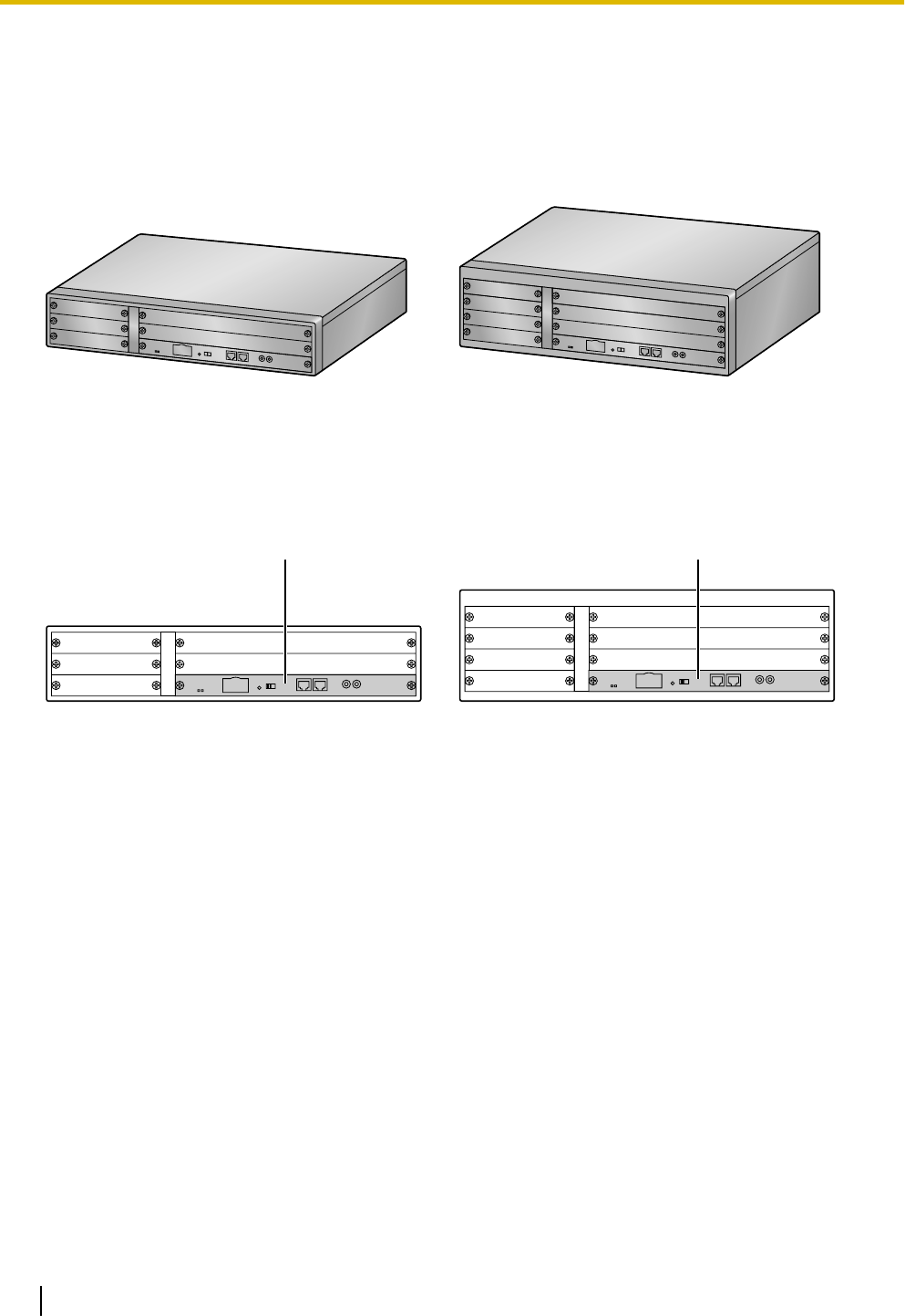
1.1.1 Main Unit
The main unit contains a power supply unit (PSU) and an IPCMPR card for starting and controlling the PBX.
KX-NCP500 KX-NCP1000
Construction of the Main Unit
A. IPCMPR Card
A
A
KX-NCP500 KX-NCP1000
20 Installation Manual Document Version 2011-10
1.1.1 Main Unit
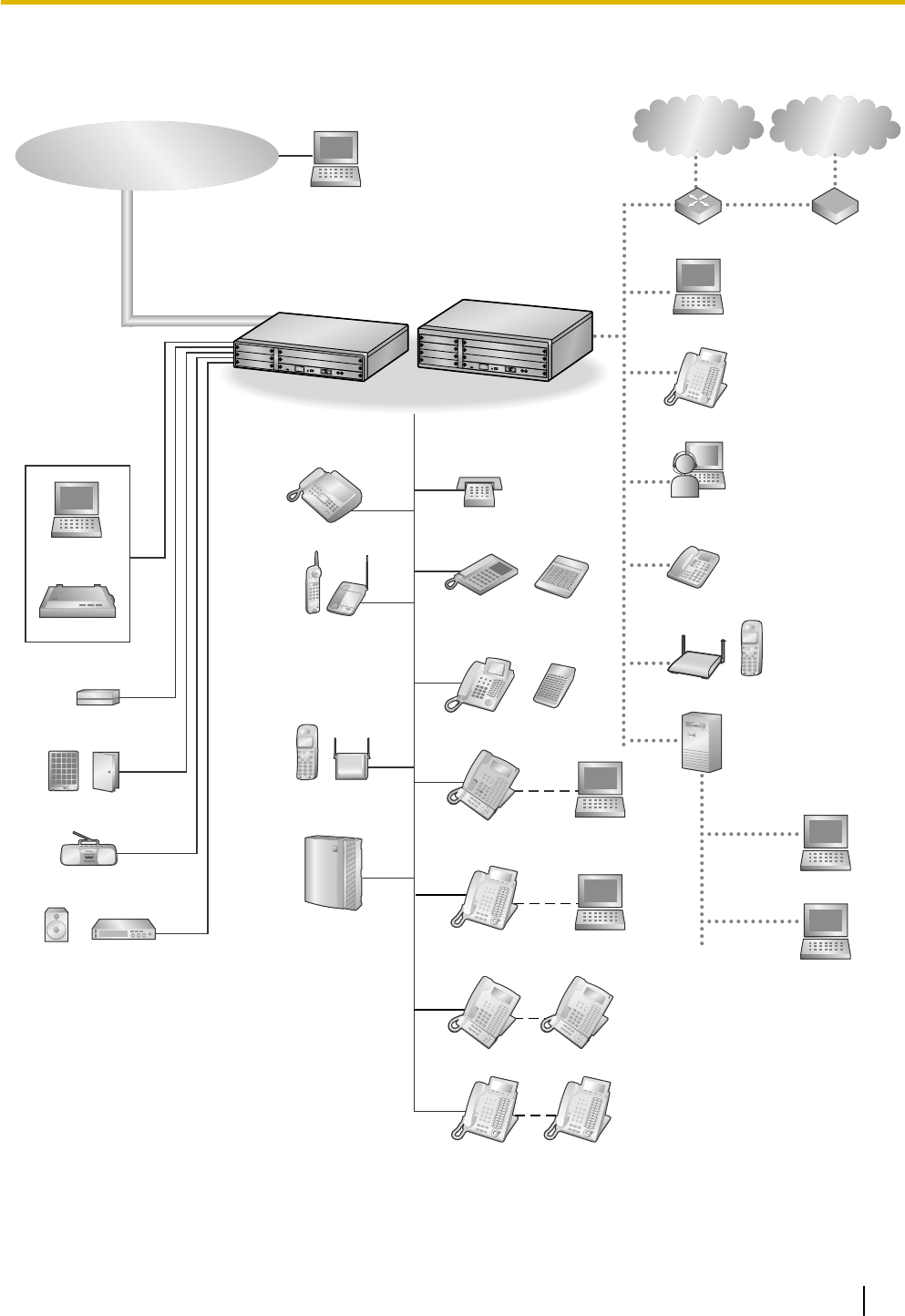
1.1.2 System Connection Diagram
KX-T7600 KX-T7600
Doorphone & Door Opener
BGM/Music On Hold (MOH)
Pager/
Speaker
Voice Processing
System
KX-T7636/
KX-T7633
Remote PC
PC
Printer
CO (Telephone Company Lines)
Analog/PRI/T1
Pure IP-PBX
PC
CSPS
Wireless Phone
Fax Machine
PC
USB
APT
DPT
Amplifier
SLT
DSS Console
DSS Console
External Sensor/
External Relay Device
IP-PT
IP Softphone, CA
*3
Client PC
PC
PC
CTI Server
SIP Extension
Private
IP Network
KX-DT346/
KX-DT343
PC
USB
KX-DT300 KX-DT300
ITSP
*1
Network
DCE*2
(e.g., ADSL
Modem)
WAN
Router
IP-CS PS
*1 ITSP: Internet Telephony Service Provider
*2 DCE: Data Circuit Terminating Equipment
*3 CA: Communication Assistant
Document Version 2011-10 Installation Manual 21
1.1.2 System Connection Diagram
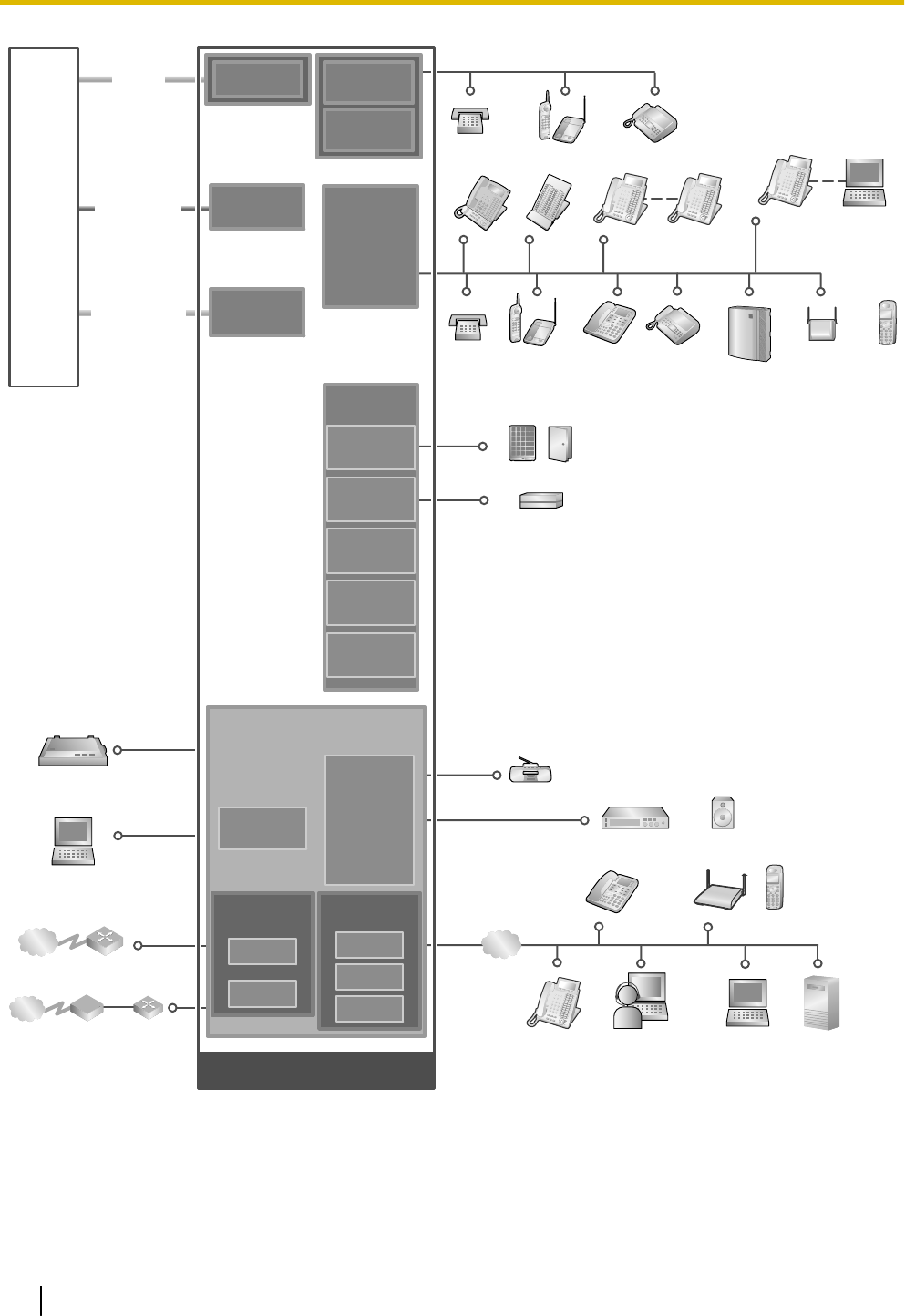
PRI23
(KX-NCP1290)
SLC8
(KX-NCP1173)
LCOT4
(KX-NCP1180)
DLC16
(KX-NCP1172)
DLC8
(KX-NCP1171)
DHLC4
(KX-NCP1170)
SLC16
(KX-NCP1174)
OPB3
(KX-NCP1190)
DPH4
(KX-TDA0161)
ECHO16
(KX-TDA0166)
MSG4
(KX-TDA0191)
EIO4
(KX-TDA0164)
ESVM4
(KX-TDA0194)
DSP4
(KX-NCP1104)
DSP16
(KX-TDE0110)
DSP64
(KX-TDE0111)
RMT
(KX-TDA0196)
V-IPGW16
V-SIPGW16
IPCMPR
(Installed by default)
Virtual CO
Line Slot
V-IPEXT32
V-SIPEXT32
V-IPCS4
Virtual
Extension Slot
Station Message
Detail Recording (SMDR)
PC
Router
Radio
Amplifier Pager/Speaker
PC
IP Softphone,
CA Client PC
LAN
CTI Server
IP-PT
SIP Extension IP-CS
Private IP
Network
ITSP
Network
DCE
(e.g., ADSL
Modem)
WAN
Router
PS
Doorphone & Door Opener
SLT Wireless Phone Fax Machine
Mountable Equipment
External Sensor/External Relay Device
Telephone
Company
Analog
CO Line
ISDN PRI Line
(Digital CO Line)
T1
(KX-NCP1187)
T1 Line
(Digital CO Line)
PC
SLT
(DHLC
only)
Wireless Phone
(DHLC only)
Fax Machine
(DHLC only)
DPT DSS
Console
PT-interface CS PS
Voice
Processing
System
KX-DT346/
KX-DT343/
KX-T7636/
KX-T7633 DPT
KX-DT300/
KX-T7600
DPT
KX-DT300/
KX-T7600
DPT
APT
(DHLC only)
22 Installation Manual Document Version 2011-10
1.1.2 System Connection Diagram

1.2 Optional Equipment
1.2.1 Optional Equipment
Model No. Model Name Description
KX-NCP1104 4-Channel VoIP DSP Card (DSP4) 4-channel digital signal processor card with a
4-Channel IP Trunk activation key and an
8-Channel IP Proprietary Telephone activation
key preinstalled. Compliant with ITU-T G.729A
and G.711 codec methods. To be mounted on
the IPCMPR card.
KX-NCP1170 4-Port Digital Hybrid Extension
Card (DHLC4)
4-port digital hybrid extension card for DPTs,
APTs, SLTs, DSS consoles, and PT-interface
CSs, with 1 power failure transfer (PFT) port.
KX-NCP1171 8-Port Digital Extension Card
(DLC8)
8-port digital extension card for DPTs, DSS
consoles, and PT-interface CSs.
KX-NCP1172 16-Port Digital Extension Card
(DLC16)
16-port digital extension card for DPTs, DSS
consoles, and PT-interface CSs.
KX-NCP1173 8-Port Single Line Telephone
Extension Card (SLC8)
8-Port Single Line Telephone Extension Card
(SLC8)
KX-NCP1174 16-Port Single Line Telephone
Extension Card (SLC16)
16-Port Single Line Telephone Extension Card
(SLC16)
KX-NCP1180 4-Port Analog Trunk Card
(LCOT4)
4-port analog CO line card with 1 power failure
transfer (PFT) port.
KX-NCP1187 T-1 Trunk Card (T1) 1-port T1 CO line card. EIA/TIA standard
compliant.
KX-NCP1190 Optional 3-Slot Base Card (OPB3) Optional 3-slot base card for mounting a
maximum of 3 option cards.
KX-NCP1290 PRI Card (PRI23) 1-port ISDN Primary Rate Interface card (23B
channels). NI (North American standard ISDN
protocol) compliant.
KX-TDA0161 4-Port Doorphone Card (DPH4) 4-port doorphone card for 4 doorphones and 4
door openers. To be mounted on the OPB3 card.
KX-TDA0164 4-Port External Input/Output Card
(EIO4)
4-port external input/output card. To be mounted
on the OPB3 card.
KX-TDA0166 16-Channel Echo Canceller Card
(ECHO16)
16-channel card for echo cancellation during
conferences. To be mounted on the OPB3 card.
KX-TDA0191 4-Channel Message Card (MSG4) 4-channel message card. To be mounted on the
OPB3 card.
KX-TDA0194 4-Channel Simplified Voice
Message Card (ESVM4)
4-channel simplified voice message card for
Simplified Voice Message feature. Also supports
MSG card features. To be mounted on the
OPB3 card.
Document Version 2011-10 Installation Manual 23
1.2.1 Optional Equipment

Model No. Model Name Description
KX-TDA0196 Remote Card (RMT) Analog modem card for remote communication
with the PBX. ITU-T V.90 support. To be
mounted on the IPCMPR card.
KX-TDE0110 16-Channel VoIP DSP Card
(DSP16)
16-channel digital signal processor card with a
4-Channel IP Trunk activation key and an
8-Channel IP Proprietary Telephone activation
key preinstalled. Compliant with ITU-T G.729A
and G.711 codec methods. To be mounted on
the IPCMPR card.
KX-TDE0111 64-Channel VoIP DSP Card
(DSP64)
64-channel digital signal processor card with four
4-Channel IP Trunk activation keys and four
8-Channel IP Proprietary Telephone activation
keys preinstalled. Compliant with ITU-T G.729A
and G.711 codec methods. To be mounted on
the IPCMPR card.
Note
For the maximum number of optional service cards that can be installed in the PBX, refer to "1.3.3 System
Capacity".
24 Installation Manual Document Version 2011-10
1.2.1 Optional Equipment
1.3 Specifications
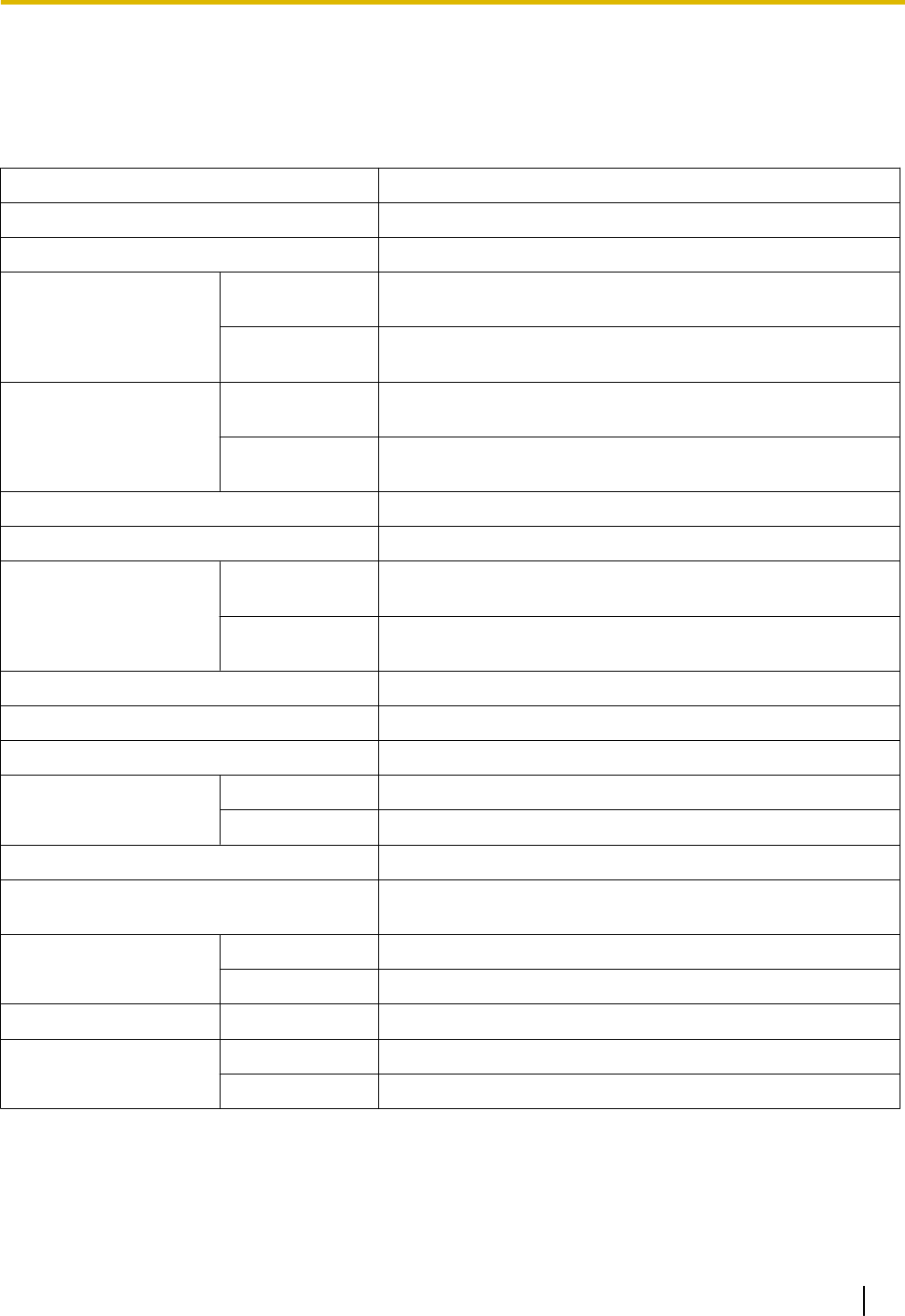
1.3.1 General Description
Control Bus Original bus (16-bit, 8 MHz, 10 megabytes per second)
Communication Bus H.100 bus conformity (1024 time slots)
Switching Non-blocking
Power Input KX-NCP500 100 V AC to 130 V AC; 1.0 A/200 V AC to 240 V AC; 0.6 A; 50
Hz/60 Hz
KX-NCP1000 100 V AC to 130 V AC; 1.3 A/200 V AC to 240 V AC; 0.8 A; 50
Hz/60 Hz
Power Consumption
(when fully mounted)
KX-NCP500 51 W
(240 V: 122 VA, 200 V: 113 VA, 130 V: 100 VA, 100 V: 92 VA)
KX-NCP1000 65 W
(240 V: 142 VA, 200 V: 134 VA, 130 V: 119 VA, 100 V: 113 VA)
Maximum Power Failure Tolerance*1 300 ms
Memory Backup Duration 7 years
Dialing CO Line Dial Pulse (DP) 10 pps, 20 pps
Tone (DTMF) Dialing
Extension Dial Pulse (DP) 10 pps, 20 pps
Tone (DTMF) Dialing
Mode Conversion DP-DTMF, DTMF-DP
Ring Frequency 20 Hz/25 Hz (selectable)
Central Office Loop Limit 1600 W maximum
Operating
Environment
Temperature 0 °C to 40 °C (32 °F to 104 °F)
Humidity 10 % to 90 % (non-condensing)
Conference Call CO Line From 10 ´ 3-party conference call to 4 ´ 8-party conference call
Music on Hold (MOH) 1 port (Level Control: -6 dB to +6 dB per 3 dB)
MOH1: Selectable Internal/External Music Source port
Paging Internal Level Control: -6 dB to +3 dB per 3 dB
External 1 port (Volume Control: -15 dB to +6 dB per 3 dB)
Serial Interface Port RS-232C 1 (maximum 115.2 kbps)
RJ45 Port MNT Port 1 (for PC connection)
LAN Port 1 (for LAN connection)
Document Version 2011-10 Installation Manual 25
1.3.1 General Description
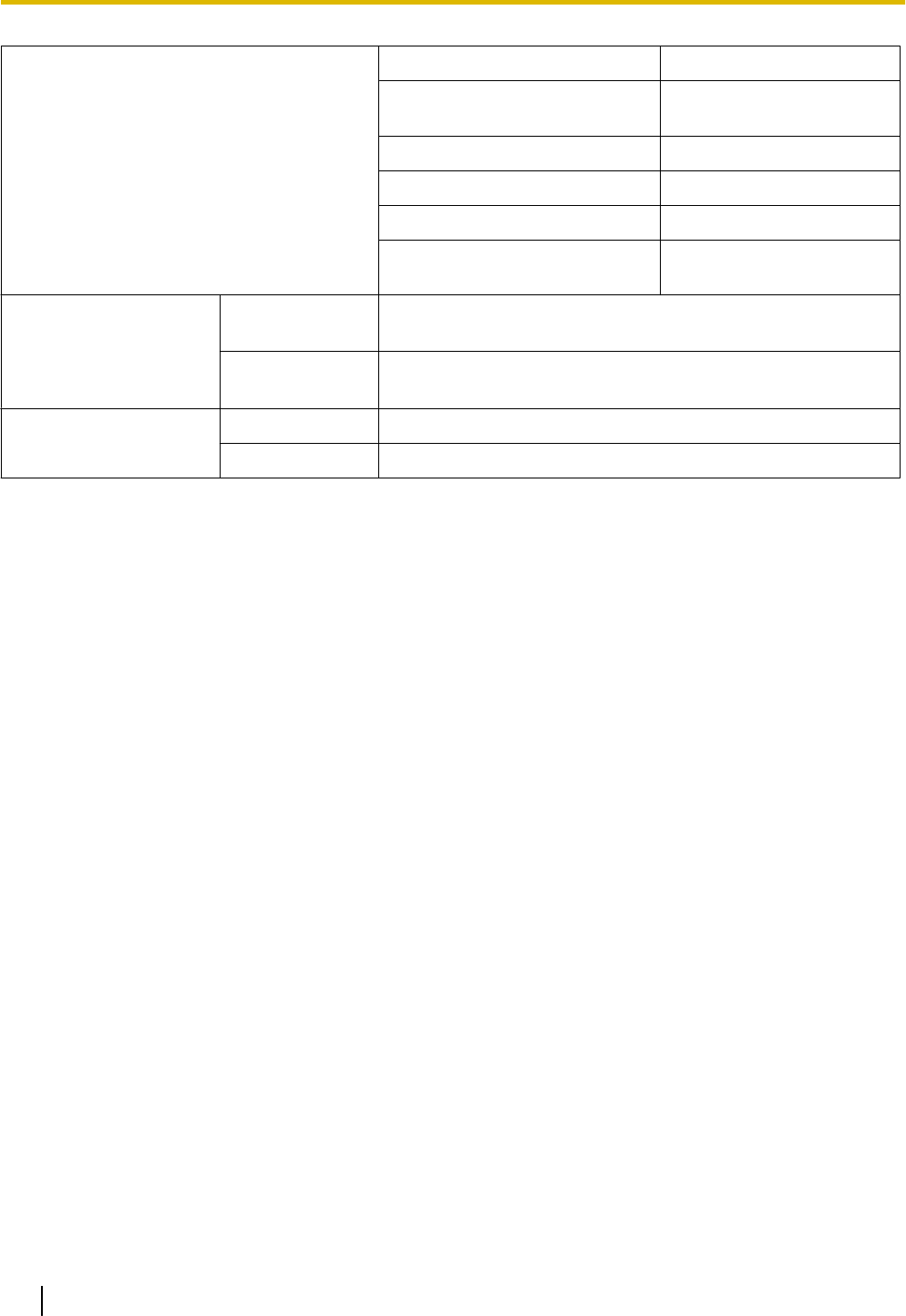
Extension Connection Cable SLT 1-pair wire (T, R)
DPT 1-pair wire (D1, D2) or
2-pair wire (T, R, D1, D2)
APT 2-pair wire (T, R, D1, D2)
PT-interface CS (2-channel) 1-pair wire (D1, D2)
PT-interface CS (8-channel) 4-pair wire (D1, D2)
DSS Console and Add-on Key
Module
1-pair wire (D1, D2)
Dimension KX-NCP500 430 mm (W) ´ 88 mm (H) ´ 340 mm (D)
(17 in ´ 3-1/2 in ´ 13-3/8 in)
KX-NCP1000 430 mm (W) ´ 130 mm (H) ´ 340 mm (D)
(17 in ´ 5-1/8 in ´ 13-3/8 in)
Weight (when fully
mounted)
KX-NCP500 Under 7 kg (15.4 lb)
KX-NCP1000 Under 8 kg (17.6 lb)
*1 If tolerance may be exceeded, an Uninterruptible Power Supply (UPS) is recommended.
26 Installation Manual Document Version 2011-10
1.3.1 General Description
1.3.2 Characteristics
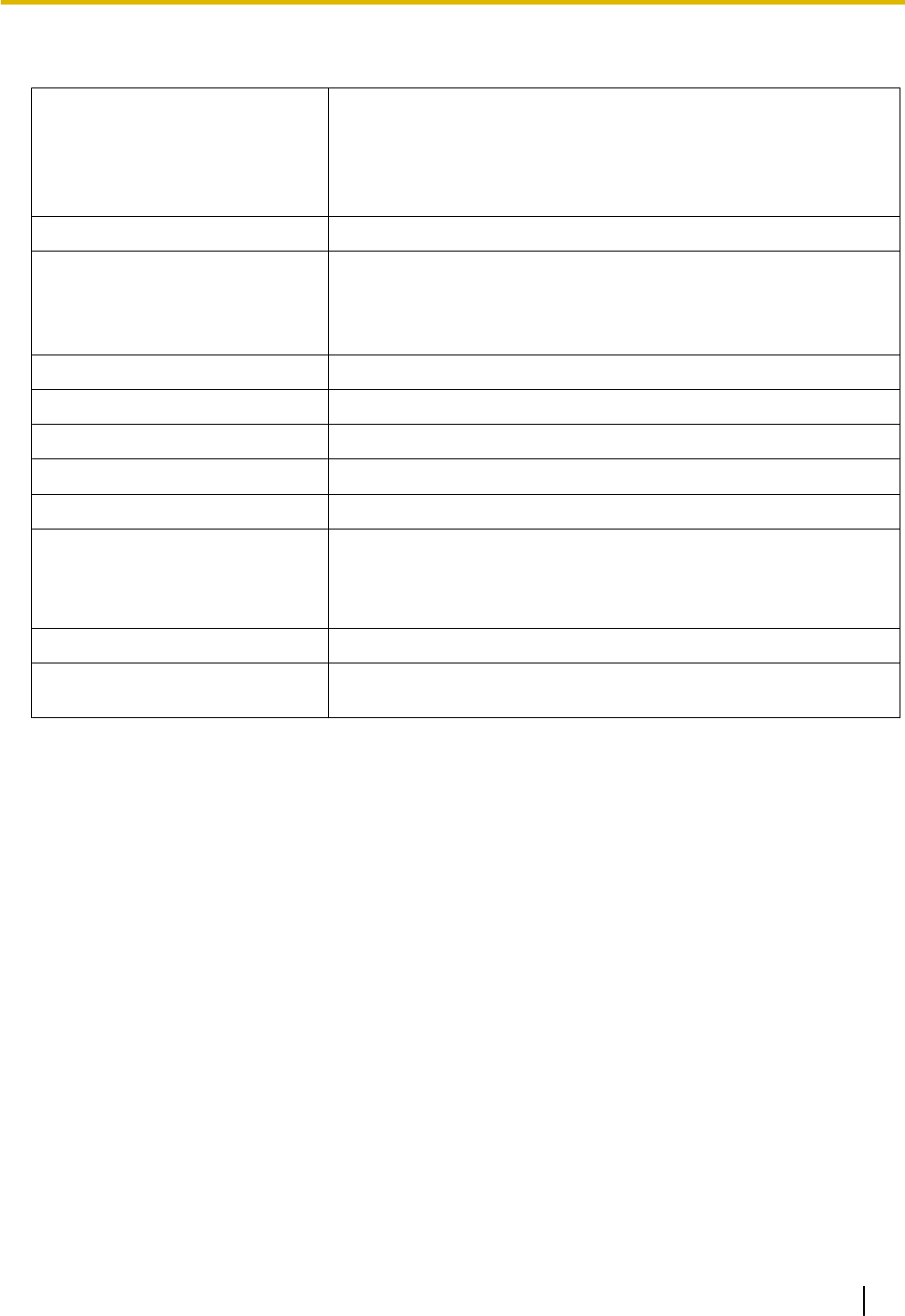
Terminal Equipment Loop Limit •PT: KX-DT300/KX-T7600 series DPT: 90 W; all other DPTs/APTs:
40 W
•SLT: 600 W including set
•Doorphone: 20 W
•CS: 65 W
Minimum Leakage Resistance 15 000 W minimum
Maximum Number of Extension
Instruments per Line
1. for PT or SLT
2. by Parallel or eXtra Device Port connection of an APT/DPT and
an SLT
3. by Digital eXtra Device Port connection of 2 DPTs and an SLT
Ring Voltage 75 Vrms at 20 Hz/25 Hz depending on the Ringing Load
Central Office Loop Limit 1600 W maximum
Hookswitch Flash Timing Range 24 ms to 2032 ms
Door Opener Current Limit 24 V DC/30 V AC, 1 A maximum
External Relay Current Limit 24 V DC/30 V AC, 1 A maximum
External Sensor Current Limit Power to the external sensor is provided from the EIO4 card and must
be grounded through the EIO4 card. For the connection diagram, refer
to "3.7.3 EIO4 Card (KX-TDA0164)". The PBX detects input from the
sensor when the signal is under 100 W.
Paging Terminal Impedance 600 W
MOH (Music on Hold) Terminal
Impedance
10 000 W
Document Version 2011-10 Installation Manual 27
1.3.2 Characteristics
1.3.3 System Capacity
Type and Maximum Number of Slots
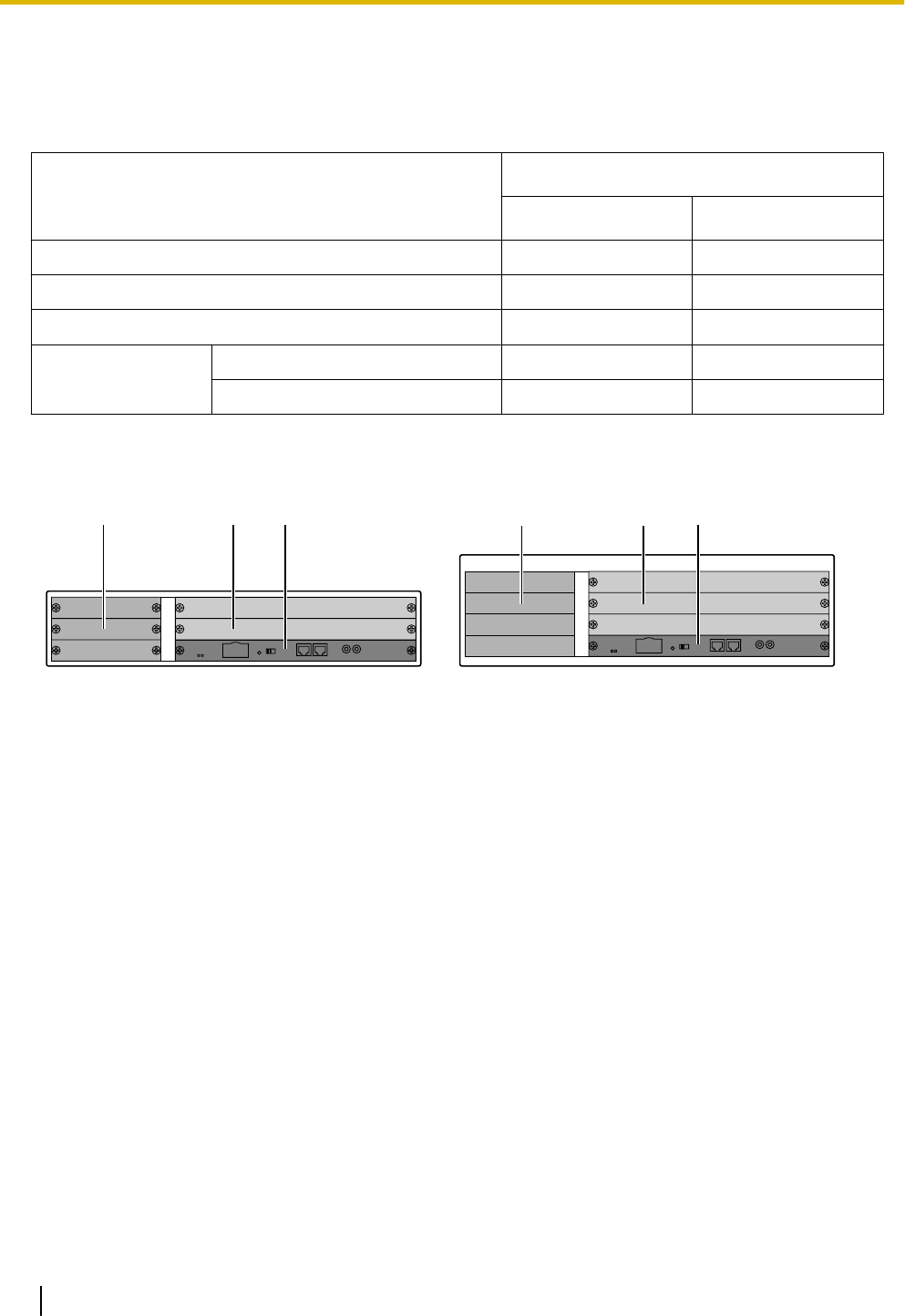
The PBX supports the following type and number of slots.
Slot Type
Maximum Number
KX-NCP500 KX-NCP1000
IPCMPR Card Slot 1 1
Regular Free Slot 2 3
Small Free Slot 3 4
Virtual Slot
Virtual CO Line Slot 4 4
Virtual Extension Slot 4 4
IPCMPR Card Slot and Free Slots
KX-NCP500 KX-NCP1000
AB C
B C
A
A. Small Free Slots
B. Regular Free Slots
C. IPCMPR Card Slot
28 Installation Manual Document Version 2011-10
1.3.3 System Capacity
Virtual Slots of the IPCMPR Card
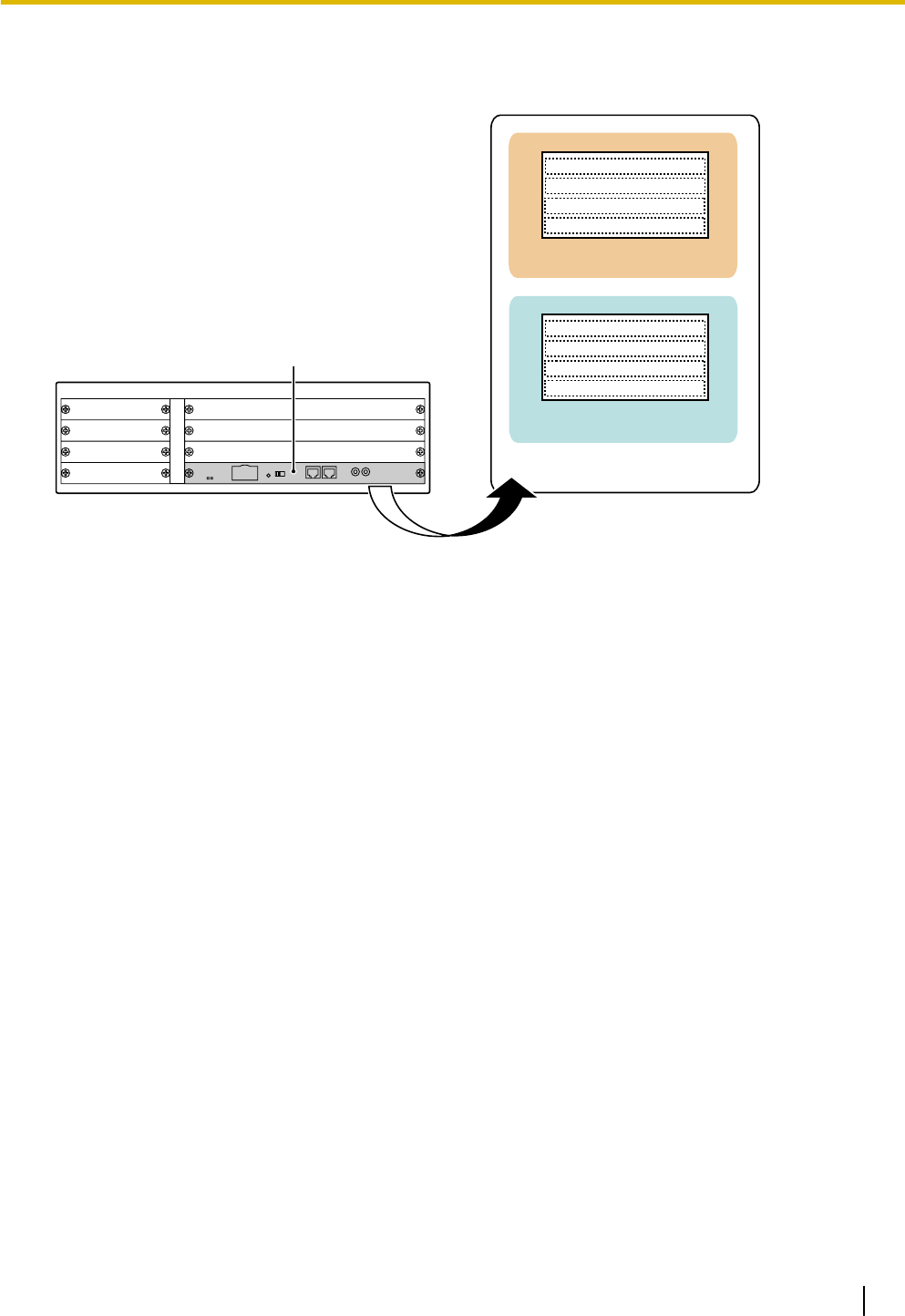
Example: Virtual Slots of the KX-NCP1000
IPCMPR Card
Virtual Slots
Virtual CO Line Slots
Virtual Extension Slots
Document Version 2011-10 Installation Manual 29
1.3.3 System Capacity
Maximum Optional Service Cards
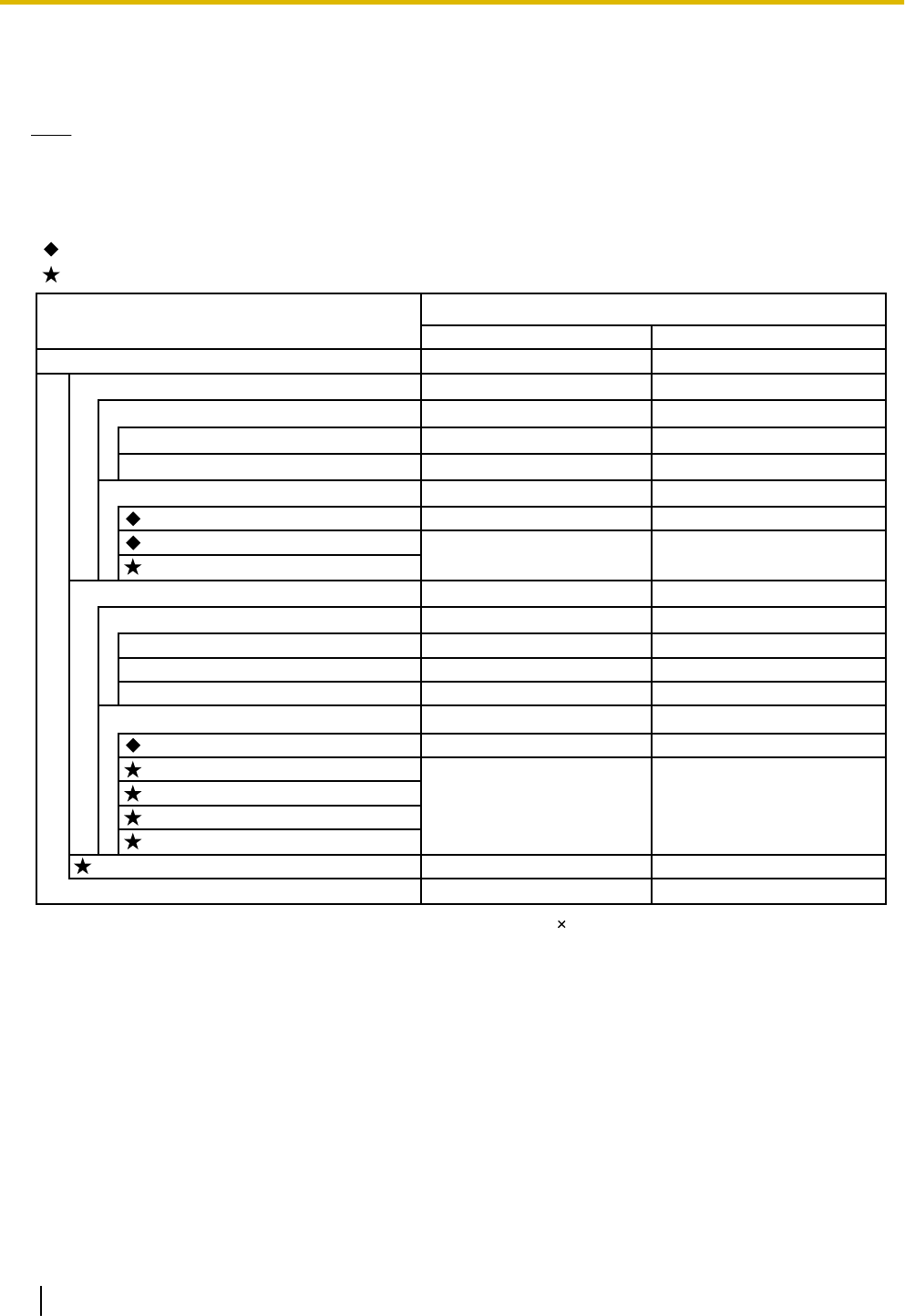
The following number of cards can be installed in the Free Slots or Virtual Slots of the PBX.
Note
•Any card that exceeds the capacity of the PBX will be ignored.
•When the PBX starts up with an invalid configuration, some cards will be ignored.
Cards Installed in Free Slots or Virtual Slots
44
44
44
7
4
22
34
7
4
LCOT4
T1
PRI23
V-IPEXT32
V-SIPEXT32
V-IPCS4
IPCMPR
KX-NCP500 KX-NCP1000
11
2
4
2
4
99
44
V-IPGW16
V-SIPGW16
CO Line Card
Card Type
Maximum Number
Virtual CO Line Card
Total 5
Physical CO Line Card Total 5
Virtual Extension Card
Extension Card
*2*2
*1 *1
One T1 or PRI23 card counts as 2 cards.
*1 When installing T1, PRI23 cards, make sure that the number of these cards 2 + the number of the other cards does not
exceed 9.
*2
11
22
DHLC4
DLC8
DLC16
SLC8
SLC16
23OPB3
33
13 15
Total
Physical Extension Card
: For Small Free Slots
: For Regular Free Slots
30 Installation Manual Document Version 2011-10
1.3.3 System Capacity
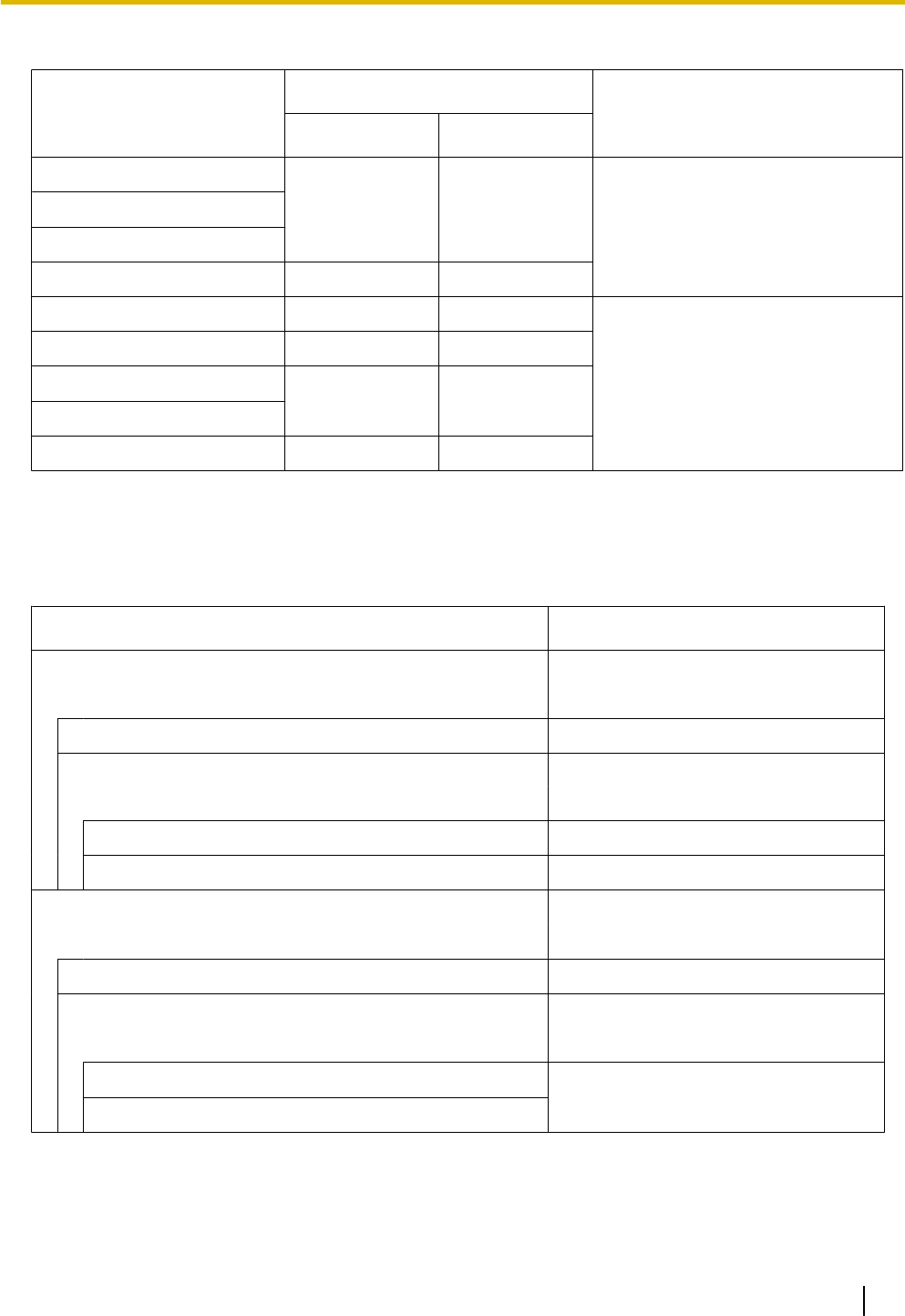
Cards Mounted on Other Optional Service Cards
Card Type
Maximum Number
Mounted on
KX-NCP500 KX-NCP1000
DSP4
1 1
IPCMPR Card
DSP16
DSP64
RMT 11
DPH4 4 4
OPB3 Card
ECHO16 2*1 2*1
MSG4
4 4
ESVM4
EIO4 4 4
*1 Only 1 ECHO16 card can be mounted on each OPB3 card.
Maximum CO Lines and Extensions
The PBX supports the following number of CO lines and extensions.
Type Maximum Number
Total Number of CO lines 128
CO line (Physical CO line Card) 64
CO line (Virtual CO line Card) 64
H.323 CO lines 32
SIP CO lines 64
Total Number of Extensions 172
Extension (Physical Extension Card) 44
Extension (Virtual Extension Card) 128
IP-PT and IP Softphone
128
SIP Extension
Document Version 2011-10 Installation Manual 31
1.3.3 System Capacity
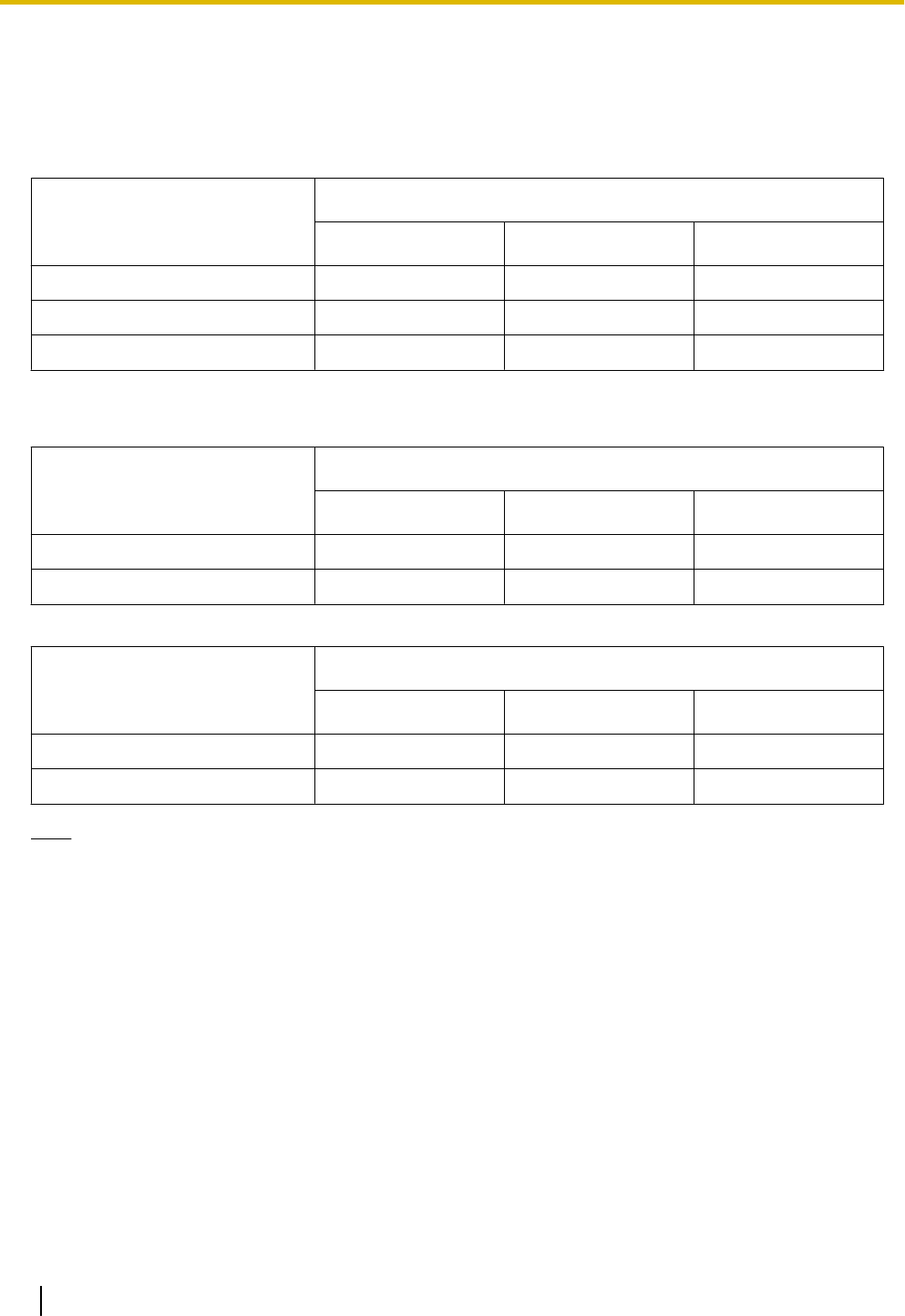
DSP Card Resources
The maximum number of simultaneous calls using IP protocols is determined by the type of call, codec(s) used,
and digital signal processor (DSP) card installed in the PBX.
Below are some example configurations and the maximum number of simultaneous calls for each.
For Calls between Virtual CO Lines and Virtual Extensions
Codec(s) Used
Maximum Number of Simultaneous Calls
DSP4 Card DSP16 Card DSP64 Card
G.711 8 32 64
G.711+G.729A*1 2 12 42
G.729A 2 8 32
*1 For example, when a virtual extension uses G.711 and a virtual CO line uses G.729A for the same call.
For Calls between Virtual CO Lines and Physical Card Extensions (e.g., DPTs, etc.)
Codec Used
Maximum Number of Simultaneous Calls
DSP4 Card DSP16 Card DSP64 Card
G.711 5 32 64
G.729A 2 12 50
For Calls between Virtual Extensions and Physical Card Extensions/CO Lines (e.g., PRI, etc.)
Codec Used
Maximum Number of Simultaneous Calls
DSP4 Card DSP16 Card DSP64 Card
G.711 16 64 113
G.729A 4 16 64
Note
For non-peer-to-peer calls via the DSP card, calls cannot be made or received when all of the card's
resources are being used.
32 Installation Manual Document Version 2011-10
1.3.3 System Capacity
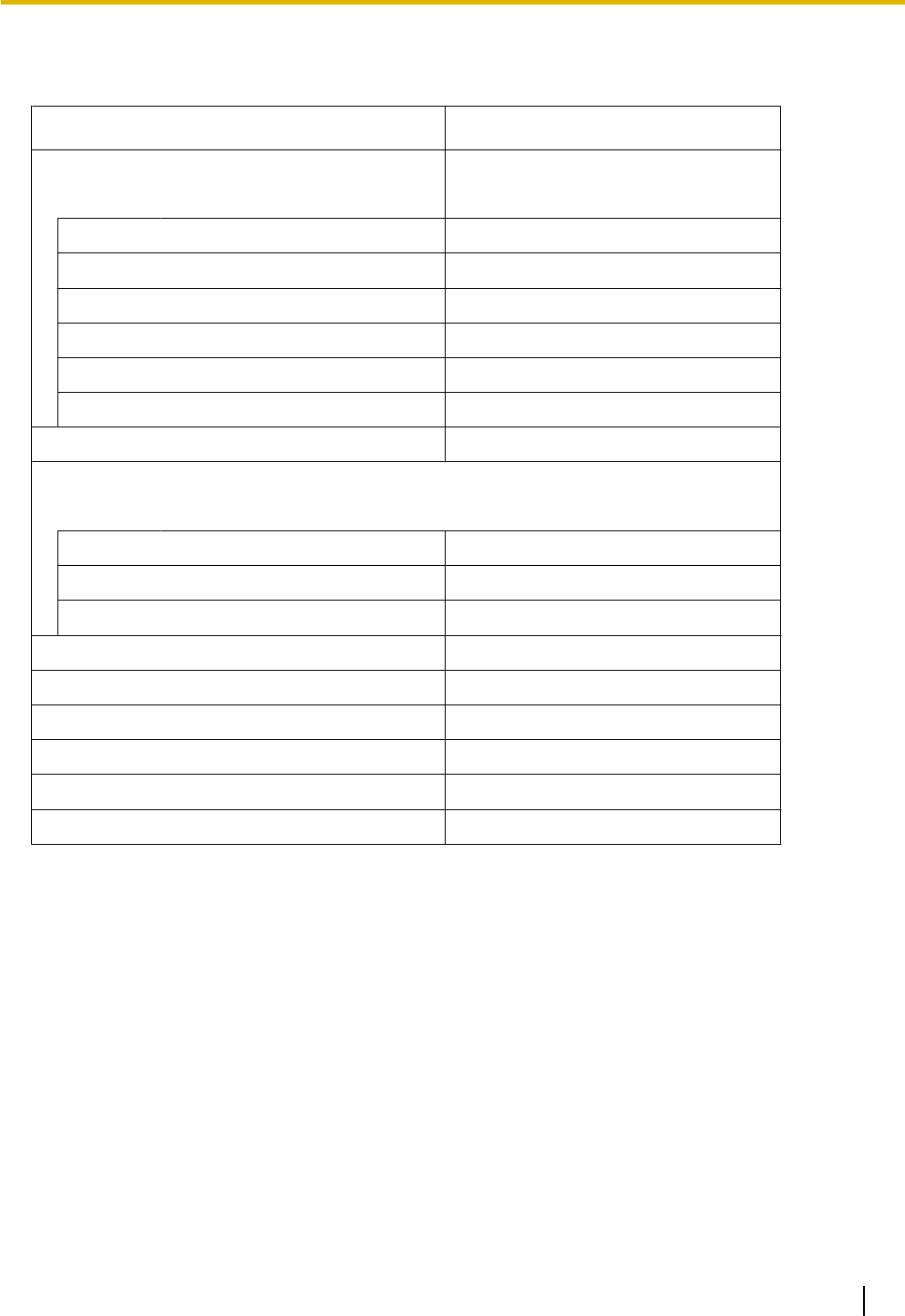
Maximum Terminal Equipment
The following shows the number of each terminal equipment type supported by the PBX.
Terminal Equipment Type Maximum Number
Telephone 172
SLT 36
KX-DT300/KX-T7600 series DPT 40
Other DPT 10
APT 4
IP-PT*1 128*2
SIP Extension 128
DSS console 8
CS 21*3
PT-interface CS (2-channel) 11
PT-interface CS (8-channel) 5
IP-CS (8-channel) 16
PS 64
Voice Processing System (VPS) 2
Doorphone 16
Door Opener 16
External Sensor 16
External Relay 16
*1 KX-NT400, KX-NT300 series and KX-NT265 (software version 2.00 or later only)
*2 For the KX-NT400, the maximum number of extensions that can be connected to the PBX is 64.
*3 One 8-channel PT-interface CS or IP-CS counts as 2 CSs, up to a maximum of 32 CSs. Therefore, the maximum number of CSs is
21 (eleven 2-channel CSs + ten 8-channel CSs).
Document Version 2011-10 Installation Manual 33
1.3.3 System Capacity
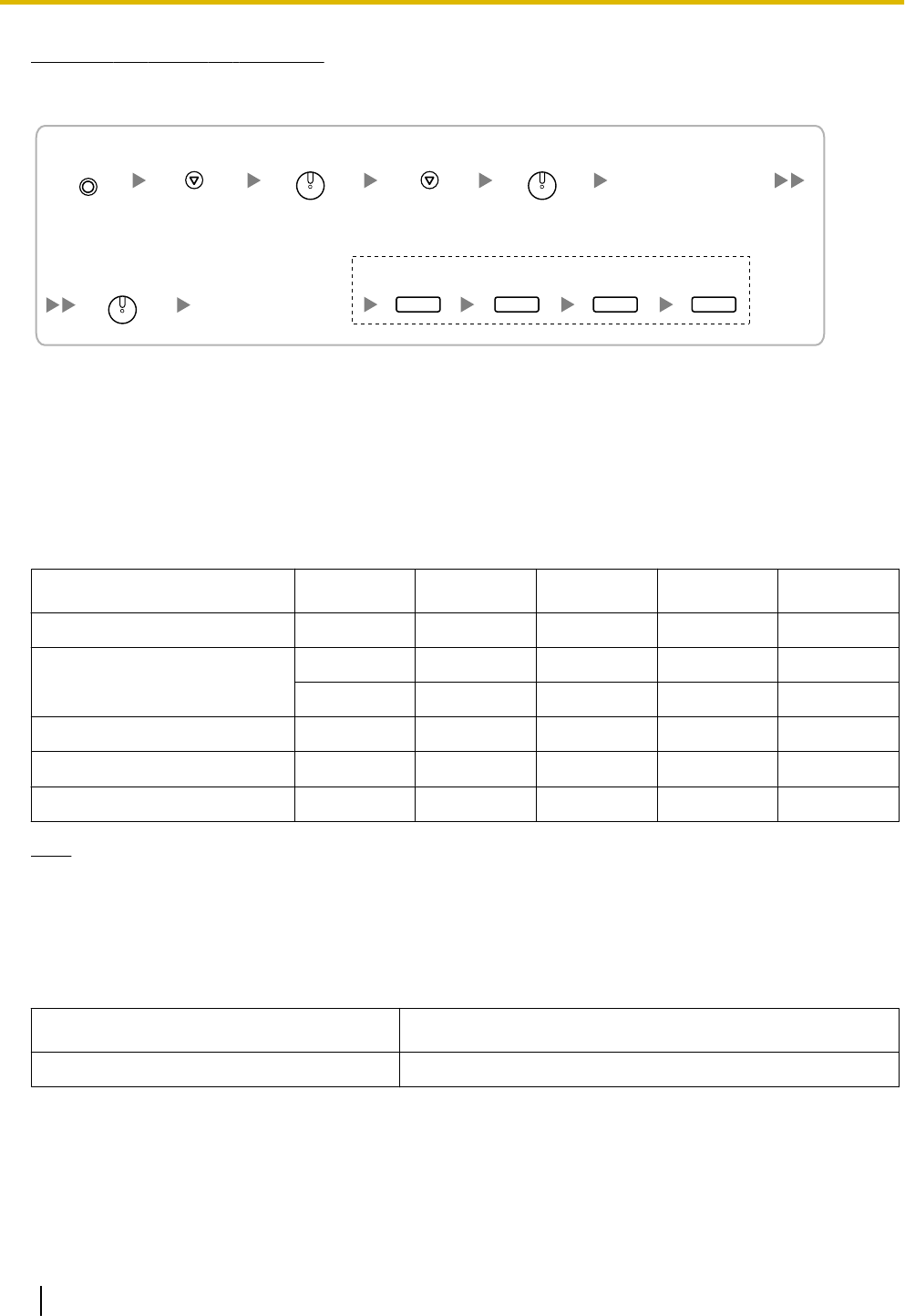
Note for KX-NT265 IP-PT users
The supported card varies depending on the software version of your KX-NT265 IP-PT. To confirm the version,
follow the procedure below:
"AP Version".
Select
"Maintenance".
Software version
is displayed.
While starting up
Select
"Version display".
To exit the programming mode
PROGRAM SP-PHONE
SP-PHONE
SP-PHONE
HOLD HOLD HOLD HOLD
Digital EXtra Device Port (Digital XDP) Connection Capacity
The number of Digital XDP ports that can be assigned depends on the following:
–the number of connected DPTs
–the maximum number of DPTs the PBX can support
The table below shows examples of how many Digital XDP ports can be assigned with different configurations.
For details about the Digital XDP connection, refer to "3.8.3 Digital EXtra Device Port (Digital XDP)
Connection".
Config.1 Config.2 Config.3 Config.4 Config.5
Small Free Slot – DHLC4 – – DHLC4
Regular Free Slot
DLC16 DLC16 DLC8 DLC16 DLC16
– – DLC16 DLC16 DLC16
No. of DPT ports 16 20 24 32 36
No. of Digital XDP ports 16 20 16 8 4
Total No. of DPTs (max. 40) 32 40 40 40 40
Note
With Config.3, Config.4, and Config.5, the combination of 20 DPT ports and 20 Digital XDP ports is also
possible.
Power Supply Unit Capacity
The pre-installed power supply unit (PSU) in each PBX supports a different load figure.
PBX Model Maximum Load Figure
KX-NCP500/KX-NCP1000 44
34 Installation Manual Document Version 2011-10
1.3.3 System Capacity
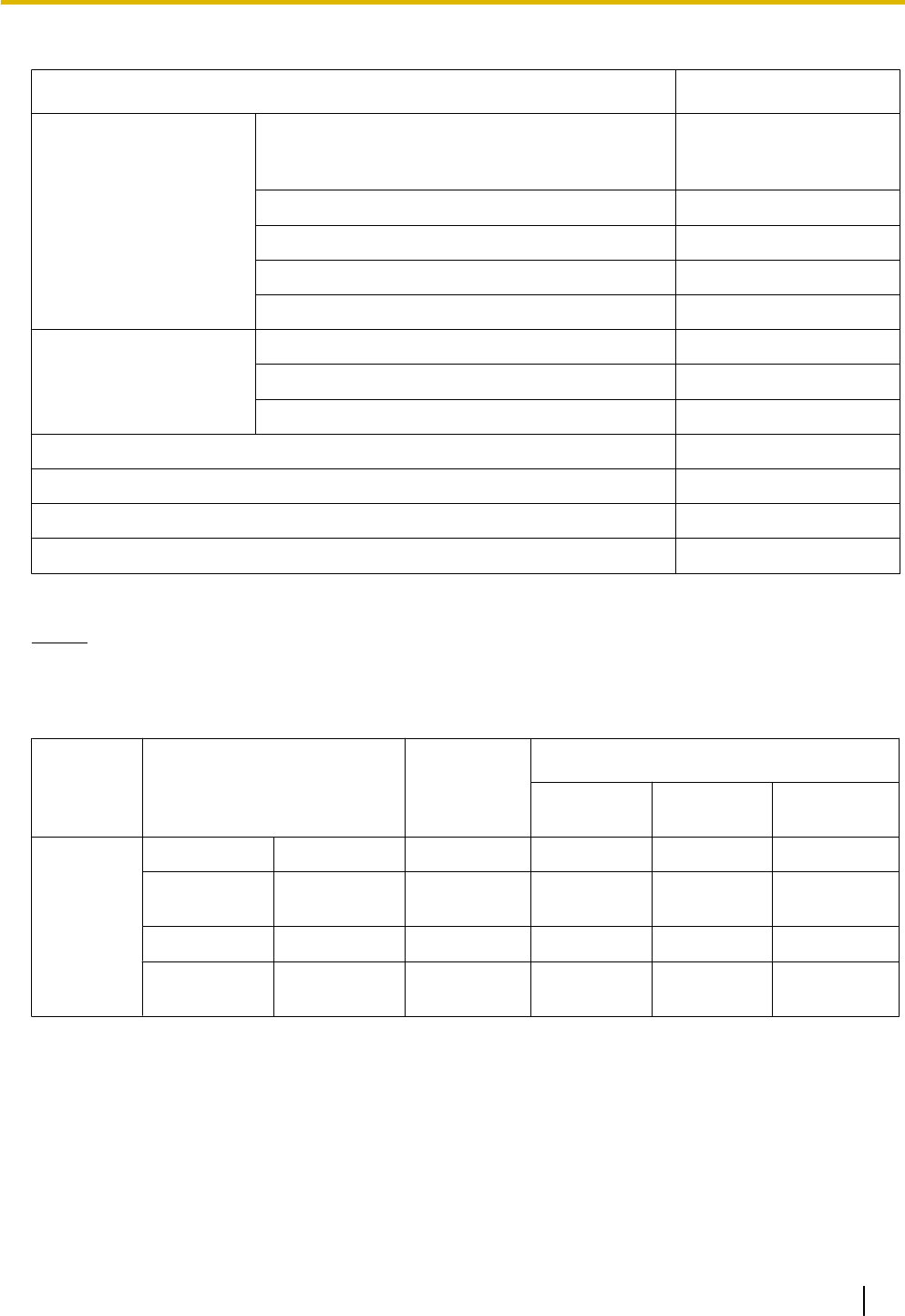
Load Figure Calculation
Equipment Type Load Figure
PT KX-DT300 series DPT/KX-DT300 series DSS
console/KX-T7600 series DPT/KX-T7600 series
DSS console
1
Other DPT/Other DSS console 4
APT 4
IP-PT 0
SIP Extension 0
Extension Card*1 DHLC4 4
SLC8 8
SLC16 16
PT-interface CS (2-channel) (1 unit) 4
PT-interface CS (8-channel) (1 unit) 8
IP-CS (8-channel) (1 unit) 0
VPS (1 port) 1
*1 Only the extension cards that can support SLTs count for the load figures.
Notice
If the total load figure exceeds the maximum load figure of the PBX by 3, the corresponding extension card
cannot be supported by the PBX.
Calculation Example
Lines and Equipment Load Figure
Required Card
Small Free
Slot
Regular
Free Slot Virtual Slot
CO Line PRI 1 line (23ch) – PRI23 – –
Analog CO
line 4 lines – LCOT4 – –
SIP CO line 4 lines – – – V-SIPGW16
H.323 CO
line 4 lines – – – V-IPGW16
Document Version 2011-10 Installation Manual 35
1.3.3 System Capacity

Lines and Equipment Load Figure
Required Card
Small Free
Slot
Regular
Free Slot Virtual Slot
Extension KX-DT300
series DPT 24 units 28
DHLC4*1
DLC16*1 –
SLT 16 units 16 SLC16 –
KX-NT300
series IP-PT 40 units 0 – – V-IPEXT32
´ 2
SIP
Extension 0 0 – – –
VPS 0 0 – – –
CS 0 0 – – –
*1 At least 4 of the 20 DPT ports of DHLC4 and DLC16 cards must be assigned as Digital XDP ports.
The total load figure in the example is 44, and is calculated as follows:
(24 units ´ 1) + (1 DHLC4 card ´ 4) + (1 SLC16 card ´ 16) = 44
36 Installation Manual Document Version 2011-10
1.3.3 System Capacity

Section 2
Activation Key Installation
This section describes information on activation keys,
including how to obtain an activation key and install it in
the SD Memory Card.
Document Version 2011-10 Installation Manual 37
2.1 Information about the Activation Keys
2.1.1 Activation Keys
To use IP CO lines and IP telephones on a private IP network using the IPCMPR card or to upgrade the software
for enhanced features, you need the appropriate activation keys.
Activation keys are provided via the DSP cards and optional activation key files.
Type and Maximum Number of Activation Keys
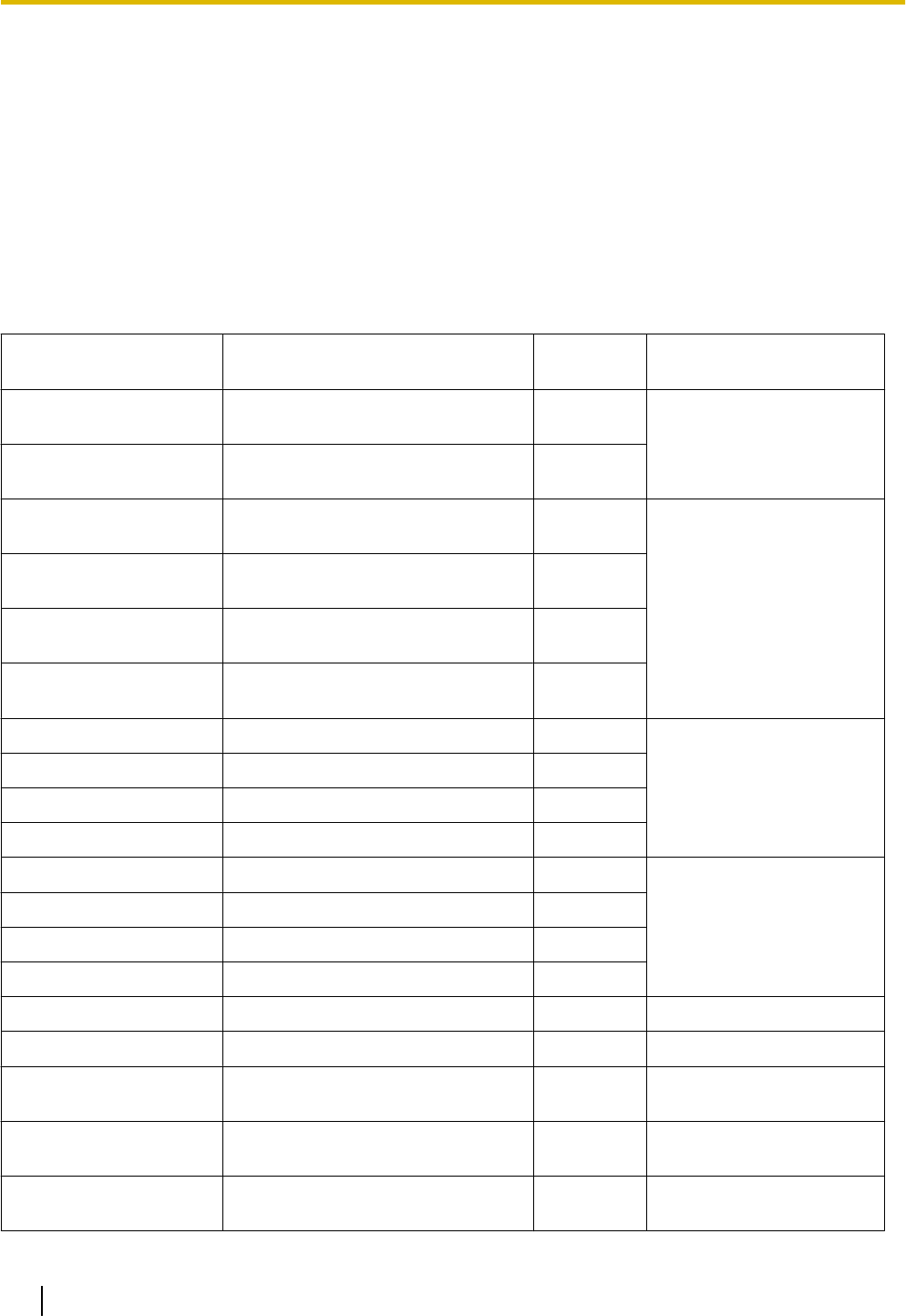
The PBX supports the following type and number of activation keys:
Activation Key Type Description Maximum
Number
Supported IP CO Lines/IP
Telephones/CA Users
2 IP Trunk*1 Allows the use of 2 IP CO lines (H.
323/SIP). 32
64 IP CO lines (H.323/SIP)
4 IP Trunk*1 Allows the use of 4 IP CO lines (H.
323/SIP). 16
1 IP Softphone/IP PT*2 Allows the use of 1 IP-PT/IP
softphone. 128
128 IP-PTs/IP softphones
4 IP Softphone/IP PT*2 Allows the use of 4 IP-PTs/IP
softphones. 32
8 IP Softphone/IP PT*2 Allows the use of 8 IP-PTs/IP
softphones. 16
16 IP Softphone/IP PT*2 Allows the use of 16 IP-PTs/IP
softphones. 8
1 IP PT Allows the use of 1 IP-PT. 128
128 IP-PTs
4 IP PT Allows the use of 4 IP-PTs. 32
8 IP PT Allows the use of 8 IP-PTs. 16
16 IP PT Allows the use of 16 IP-PTs. 8
1 SIP Extension Allows the use of 1 SIP Extension. 128
128 SIP Extensions
4 SIP Extension Allows the use of 4 SIP Extensions. 32
8 SIP Extension Allows the use of 8 SIP Extensions. 16
16 SIP Extension Allows the use of 16 SIP Extensions. 8
CA Pro 1user Allows the use of CA Pro for 1 user. 128 128 users
CA Pro 5users Allows the use of CA Pro for 5 users. 25 125 users
CA Pro 10users Allows the use of CA Pro for 10
users. 12 120 users
CA Pro 40users Allows the use of CA Pro for 40
users. 3 120 users
CA Pro 128users Allows the use of CA Pro for 128
users. 1 128 users
38 Installation Manual Document Version 2011-10
2.1.1 Activation Keys
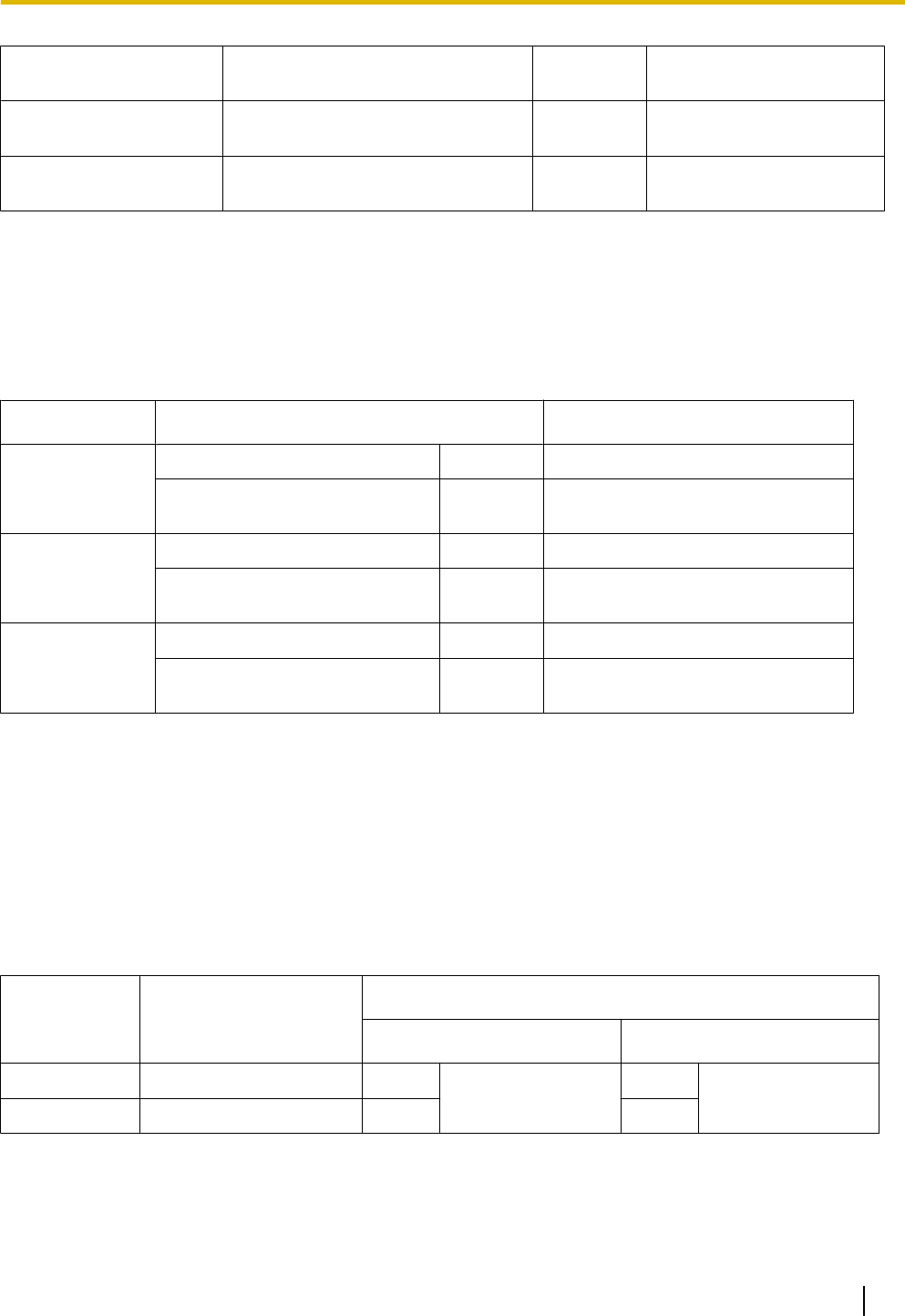
Activation Key Type Description Maximum
Number
Supported IP CO Lines/IP
Telephones/CA Users
CA Supervisor 1user Allows the use of CA ACD Monitor
for 1 ICD Supervisor. 4 4 users
Software Upgrade 01 Upgrades software to use enhanced
features. 1 -
*1 You need to set the number of the installed activation key to be used for H.323 CO lines through system programming. By default,
all the installed activation keys will be used for SIP CO lines.
*2 You can set how many IP softphones can be used with the installed activation keys through system programming. By default, only
IP softphones can be used with the installed activation keys.
Preinstalled Activation Keys in the DSP Cards
The following type and number of activation keys are preinstalled on the DSP card:
Card Type Activation Key Supported IP CO Lines/IP-PTs
DSP4
4-Channel IP Trunk 1 4 IP CO lines (H.323/SIP)
8-Channel IP Proprietary
Telephone 1 8 IP-PTs
DSP16
4-Channel IP Trunk 1 4 IP CO lines (H.323/SIP)
8-Channel IP Proprietary
Telephone 1 8 IP-PTs
DSP64
4-Channel IP Trunk 4 16 IP CO lines (H.323/SIP)
8-Channel IP Proprietary
Telephone 4 32 IP-PTs
Depending on the number of IP CO lines and IP-PTs to be used, you need to select the DSP card from the
above.
Additional Activation Keys in the SD Memory Card (Activation Key Files)
When the number of preinstalled activation keys on the DSP card is not enough for the desired configuration
or when you wish to use enhanced features, additional activation keys in the form of activation key files can
be installed on the SD Memory Card.
The following type and number of additional activation keys can be installed on the SD Memory Card:
Activation Keys for IP CO Lines
Model No. Activation Key Type
Maximum Number/Supported IP CO Lines
with DSP4/DSP16 with DSP64
KX-NCS3102 2 IP Trunk 30 60 IP CO lines
(H.323/SIP)
24 48 IP CO lines
(H.323/SIP)
KX-NCS3104 4 IP Trunk 15 12
Document Version 2011-10 Installation Manual 39
2.1.1 Activation Keys
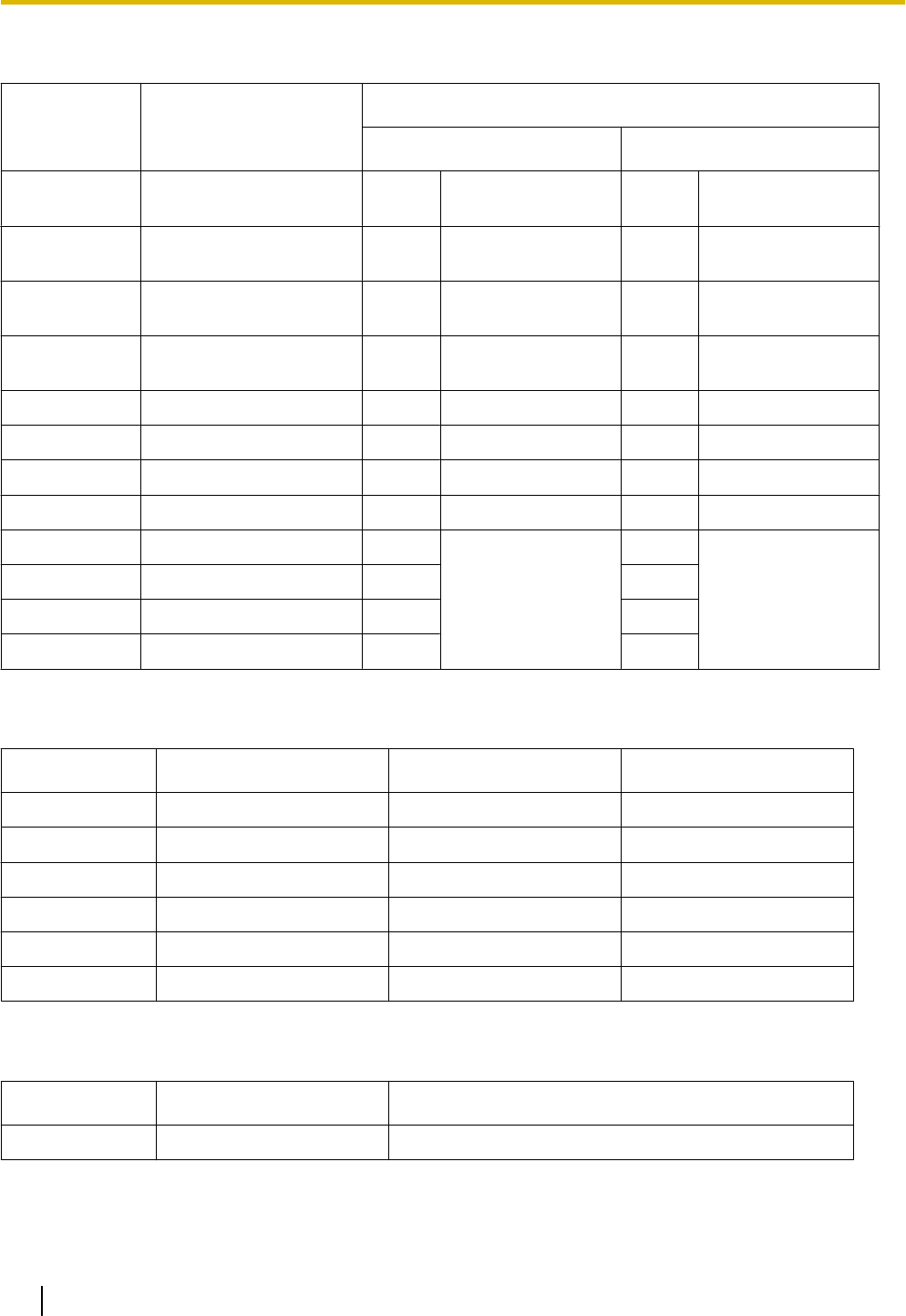
Activation Keys for IP Telephones
Model No. Activation Key Type
Maximum Number/Supported IP Telephones
with DSP4/DSP16 with DSP64
KX-NCS3201 1 IP Softphone/IP PT 120 120 IP-PTs/IP
softphones 96 96 IP-PTs/IP
softphones
KX-NCS3204 4 IP Softphone/IP PT 30 120 IP-PTs/IP
softphones 24 96 IP-PTs/IP
softphones
KX-NCS3208 8 IP Softphone/IP PT 15 120 IP-PTs/IP
softphones 12 96 IP-PTs/IP
softphones
KX-NCS3216 16 IP Softphone/IP PT 7112 IP-PTs/IP
softphones 696 IP-PTs/IP
softphones
KX-NCS3501 1 IP PT 120 120 IP-PTs 96 96 IP-PTs
KX-NCS3504 4 IP PT 30 120 IP-PTs 24 96 IP-PTs
KX-NCS3508 8 IP PT 15 120 IP-PTs 12 96 IP-PTs
KX-NCS3516 16 IP PT 7 112 IP-PTs 6 96 IP-PTs
KX-NCS3701 1 SIP Extension 128
128 SIP Extensions
128
128 SIP Extensions
KX-NCS3704 4 SIP Extension 32 32
KX-NCS3708 8 SIP Extension 16 16
KX-NCS3716 16 SIP Extension 8 8
Activation Keys for CA Users
Model No. Activation Key Type Maximum Number Supported CA Users
KX-NCS2201 CA Pro 1user 128 128 users
KX-NCS2205 CA Pro 5users 25 125 users
KX-NCS2210 CA Pro 10users 12 120 users
KX-NCS2240 CA Pro 40users 3 120 users
KX-NCS2249 CA Pro 128users 1 128 users
KX-NCS2301 CA Supervisor 1user 4 4 users
Activation Keys for Software Upgrading
Model No. Activation Key Type Maximum Number
KX-NCS3910 Software Upgrade 01 1
40 Installation Manual Document Version 2011-10
2.1.1 Activation Keys

Note
•For information about how to obtain the additional activation keys, refer to "2.1.2 Activation Key Code
and Key Management System".
•For information about how to install the activation key files on the SD Memory Card, refer to
"2.1.3 Activation Key File".
Document Version 2011-10 Installation Manual 41
2.1.1 Activation Keys
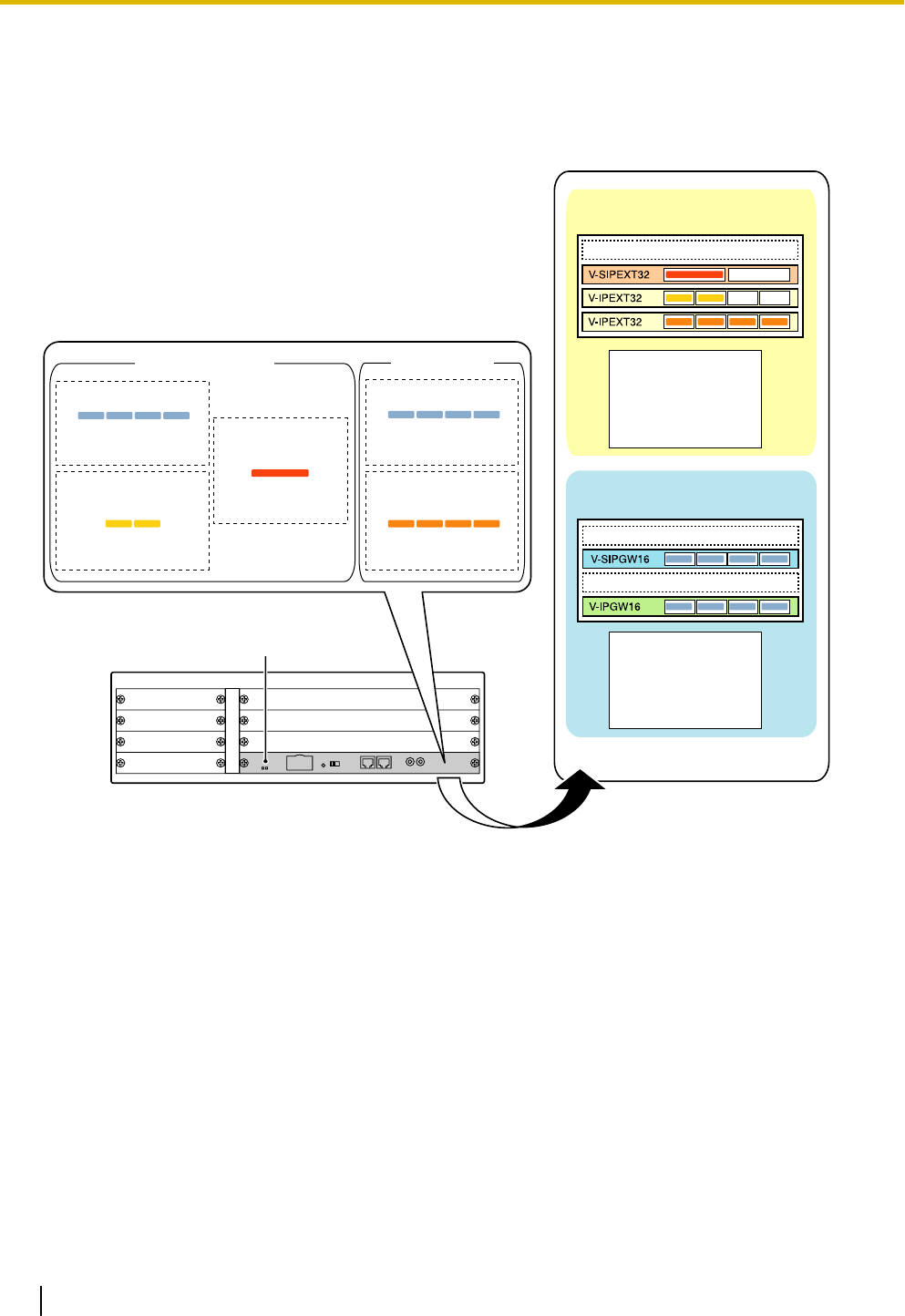
Activation Key Installation Example
The following shows an example of when using 16 H.323 CO lines, 16 SIP CO lines, 32 IP-PTs, 16 IP
softphones, and 16 SIP Extensions on a private IP network using the IPCMPR card.
Example: KX-NCP1000
IPCMPR Card
8-Channel IP
Proprietary Telephone
8-Channel IP Softphone/
IP Proprietary Telephone
SD Memory Card DSP64 Card
32 IP-PTs16 IP softphones
16-Channel SIP
Extension
16 SIP Extensions
4-Channel IP Trunk
16 IP CO lines
(H.323/SIP)
4-Channel IP Trunk
16 IP CO lines
(H.323/SIP)
Virtual Slots
Virtual CO Line Slots
Total
16 H.323 CO lines
16 SIP CO lines
Virtual Extension Slots
Total
32 IP-PTs
16 IP softphones
16 SIP Extensions
42 Installation Manual Document Version 2011-10
2.1.1 Activation Keys

2.1.2 Activation Key Code and Key Management System
To obtain additional activation keys, you need to purchase the appropriate activation key codes and access
the Key Management System. You can download the activation keys as an activation key file from the Key
Management System.
To download the activation keys, enter the MPR ID number shown on the IPCMPR card in the PBX, and
activation key number and registration ID provided on each activation key code.
For information about the type of activation key codes available, refer to "Additional Activation Keys in the SD
Memory Card (Activation Key Files)".
Note
•You can only download the activation key file once using the activation key number and registration ID
provided on the activation key code.
•Up to 8 activation keys can be downloaded as one activation key file.
•Up to 100 activation key files can be installed in the SD Memory Card.
•It is possible to send the activation key file to a specified e-mail address at the same time as
downloading it to a PC.
•Make sure to backup the downloaded activation key files on your PC.
•In the event of a system malfunction, you need a temporary activation key for maintenance purposes.
The temporary activation key can only be used for a limited time period, and can be downloaded from
the Key Management System in the same way as downloading activation key files.
Document Version 2011-10 Installation Manual 43
2.1.2 Activation Key Code and Key Management System

2.1.3 Activation Key File
The corresponding number of IP CO lines and IP telephones or enhanced features can be activated by installing
the downloaded activation key file(s) in the SD Memory Card of the IPCMPR card using the Maintenance
Console.
Installing the Activation Key File in the SD Memory Card
Make sure to install the Maintenance Console on the PC in advance, and connect the PC to the PBX. For
details about the Maintenance Console, refer to "Section 4 Guide for the Maintenance Console".
1. Start the Maintenance Console from the Start menu on the PC.
2. From the Utility menu, select File Transfer PC to PBX (SD Card).
A dialog box will be displayed.
3. Select the file to upload.
A window showing the upload progress will be displayed.
While transferring files to the SD memory card, the PBX automatically renames them according to the
header information.
A message will be displayed when the transfer is complete.
4. Click OK.
5. Under Configuration, click Slot.
6. Click Activation Key.
7. For IP Trunk activation key file(s), click Execute.
A confirmation message will be displayed. Click Yes.
Notice
The activation key file can only be installed in the PBX with the MPR ID number entered when the activation
key file was downloaded. The activation key file cannot be reissued unless the IPCMPR card crashes.
Note
•It is necessary to restart the PBX to activate the Software Upgrade 01 activation key after performing
the procedure above. To restart the PBX, refer to "5.1.4 Using the Reset Button".
•For information about programming activation keys using the Maintenance Console, refer to "3.3 [1-1]
Slot—Activation Key" in the PC Programming Manual.
44 Installation Manual Document Version 2011-10
2.1.3 Activation Key File

Section 3
Installation
This section describes the procedures to install the
PBX. Detailed instructions for planning the installation
site, installing the main unit and optional service cards,
and cabling of peripheral equipment are provided.
Further information on peripheral equipment installation
is included.
Document Version 2011-10 Installation Manual 45

3.1 Before Installation
3.1.1 Before Installation
Please read the following notes concerning installation and connection before installing the PBX and terminal
equipment.
Be sure to comply with all applicable laws, regulations, and guidelines.
Safety Installation Instructions
WARNING
When installing telephone wiring, basic safety precautions should always be followed to reduce
the risk of fire, electric shock and injury to persons, including the following:
•Never install telephone wiring during a lightning storm.
•Never install telephone jacks in wet locations unless the jack is specifically designed for wet
locations.
•Never touch uninsulated telephone wires or terminals unless the telephone line has been
disconnected at the network interface.
•Use caution when installing or modifying telephone lines.
•Anti-static precautions should be taken during installation.
Installation Precautions
The PBX is made for 19-inch rack mounting or floor standing, and should be installed in a location where it is
accessible for inspections and maintenance.
To prevent malfunction, noise, or discoloration, follow the instructions below:
WARNING
Do not install the system in the following locations:
•Areas where shocks or vibrations are frequent or strong. Such activity may lead to the product
falling over and causing injury, or may impair the product's performance.
•Areas with high amounts of dust. High amounts of dust can lead to fire or electric shock, and
impair the performance of the product.
CAUTION
Do not install the system in the following locations:
•In direct sunlight and hot, cold, or humid places. Temperature range: 0 °C to 40 °C (32 °F to 104 °F)
•Areas where sulfuric gases may be present, such as near thermal springs.
•Near devices that generate high frequencies, such as sewing machines or electric welders.
•Locations where other objects will obstruct the area around the PBX. Be especially careful to leave at
least 5 cm (2 in) to the sides of the PBX for ventilation.
Notice
Do not install the system in the following locations:
•On or near computers, telexes, or other office equipment, as well as microwave ovens or air
conditioners. (It is preferable not to install the system in the same room as the above equipment.)
•Within 1.8 m (6 ft) of radios and televisions. (Both the PBX and PTs should be at least 1.8 m (6 ft) away
from such devices.)
Do not perform the following:
•Do not block the openings of the PBX.
46 Installation Manual Document Version 2011-10
3.1.1 Before Installation

•Do not stack up the optional service cards.
Wiring Precautions
Be sure to follow these instructions when wiring the unit:
CAUTION
•Avoid using the same AC outlet for computers, telexes, and other office equipment, as noise generated
by such equipment may hamper system performance or interrupt the system.
•Unplug the system from its power source when wiring, and plug the system back in only after all wiring
is completed.
•CO lines should be installed with surge protectors. For details, refer to "3.2.9 Surge Protector
Installation".
Notice
•Use 2-pair telephone cables when connecting PTs.
Use 1-pair telephone cables when connecting SLTs, data terminals, answering machines, computers,
Voice Processing Systems, etc.
•Mis-wiring may cause the PBX to operate improperly. Refer to Section 3 "Section 3 Installation" when
wiring the system.
•If an extension does not operate properly, disconnect the telephone from the extension line and connect
it again, or turn off the PBX using the power switch, then turn it on again.
•Use twisted pair cable for CO line connection.
•To prevent signal noise from interfering with the performance of the product, do not run unshielded
telephone cables near AC power cables, computer cables, AC power sources, etc. When running
cables near other noise-generating devices or cables, use shielded telephone cables or shield the
telephone cables with metal tubing.
•To assure good quality telephone connection, it is recommended new and modifications to existing
installation of customer premise wiring shall use solid twisted pair copper conductors with minimum 24
gauge that comply with the electrical specifications for Category 3 wiring as detailed in ANSI/EIA/
TIA-570A Building Wiring Standards.
Document Version 2011-10 Installation Manual 47
3.1.1 Before Installation
3.2 Installation of the PBX
3.2.1 Unpacking
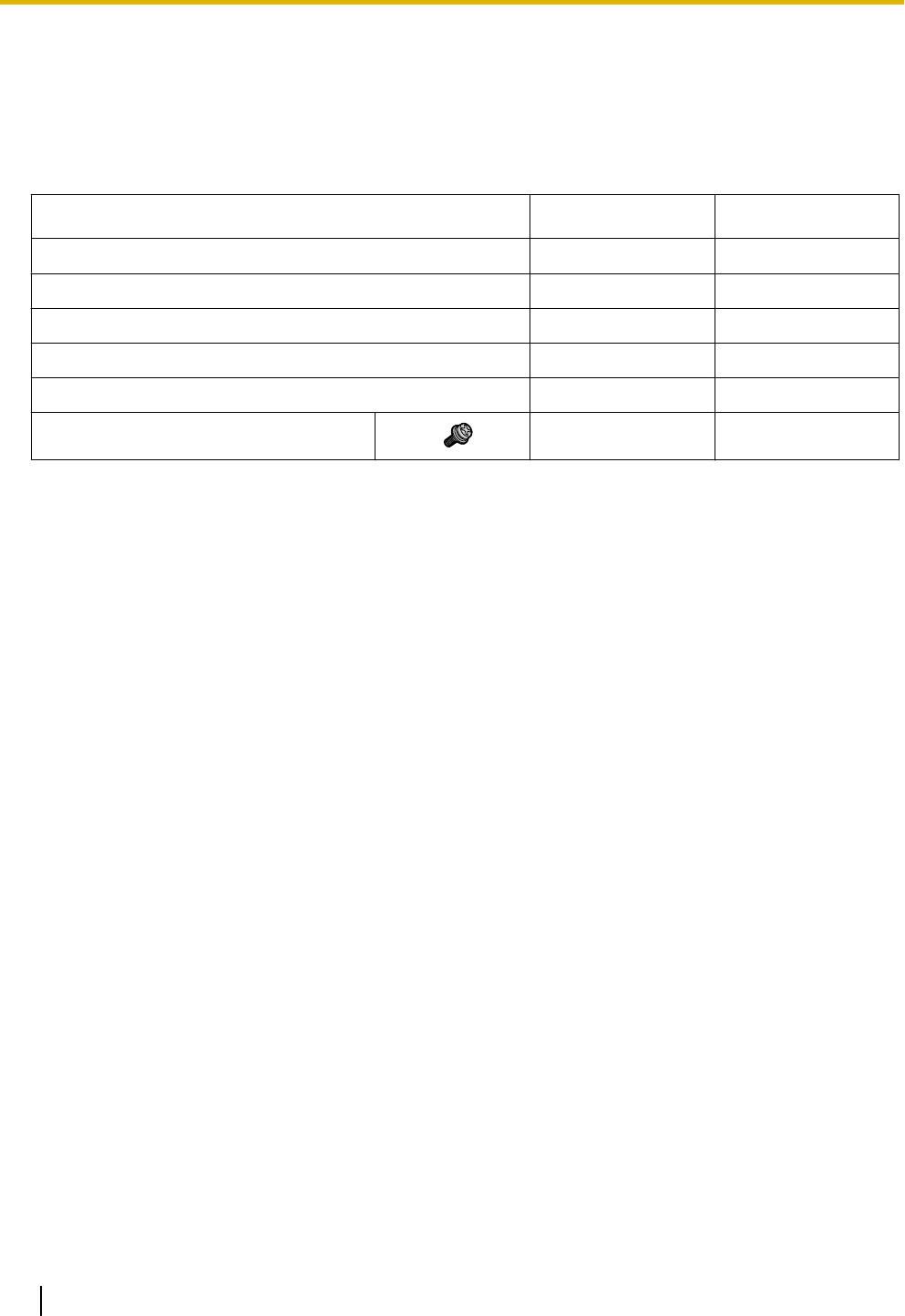
Unpack the box and check the items below:
KX-NCP500 KX-NCP1000
Main Unit 1 1
Ferrite Core (for the IPCMPR card) 2 2
AC Cord 1 1
19-inch Rack Attachment Bracket 2 2
SD Memory Card 1 1
Screw 6 6
48 Installation Manual Document Version 2011-10
3.2.1 Unpacking
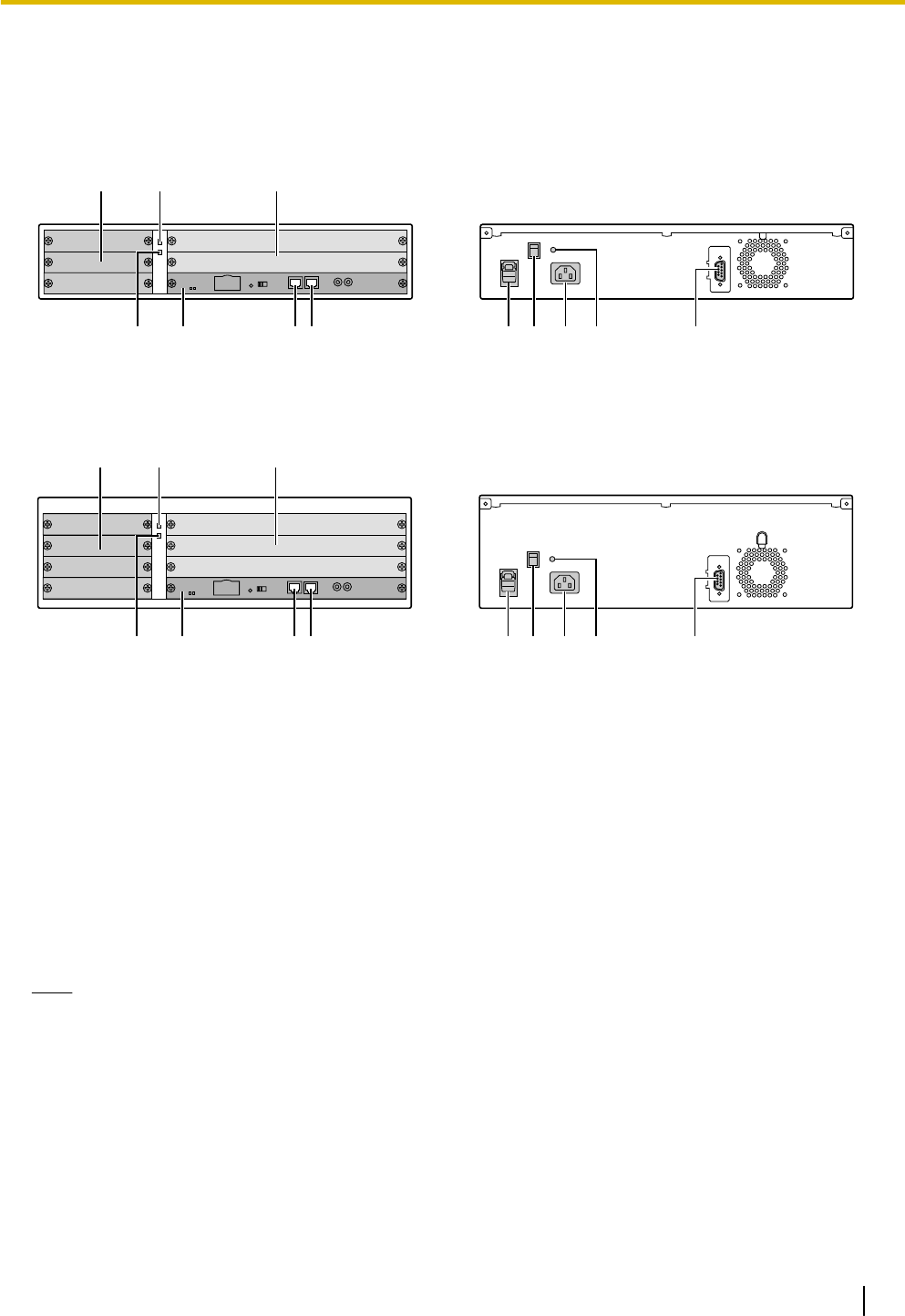
3.2.2 Names and Locations
KX-NCP500
ACB
DE FG JHI K L
Front Back
KX-NCP1000
ACB
GDE F
Front Back
L
JKHI
A. Small Free Slots
B. RUN Indicator
C. Regular Free Slots
D. ALARM Indicator
E. IPCMPR Card Slot
F. MNT Port
G. LAN Port
H. Hook Clip
I. Power Switch
J. AC Inlet
K. Ground Terminal
L. RS-232C Port
Note
A Power Supply Unit (PSU) is pre-installed.
Document Version 2011-10 Installation Manual 49
3.2.2 Names and Locations
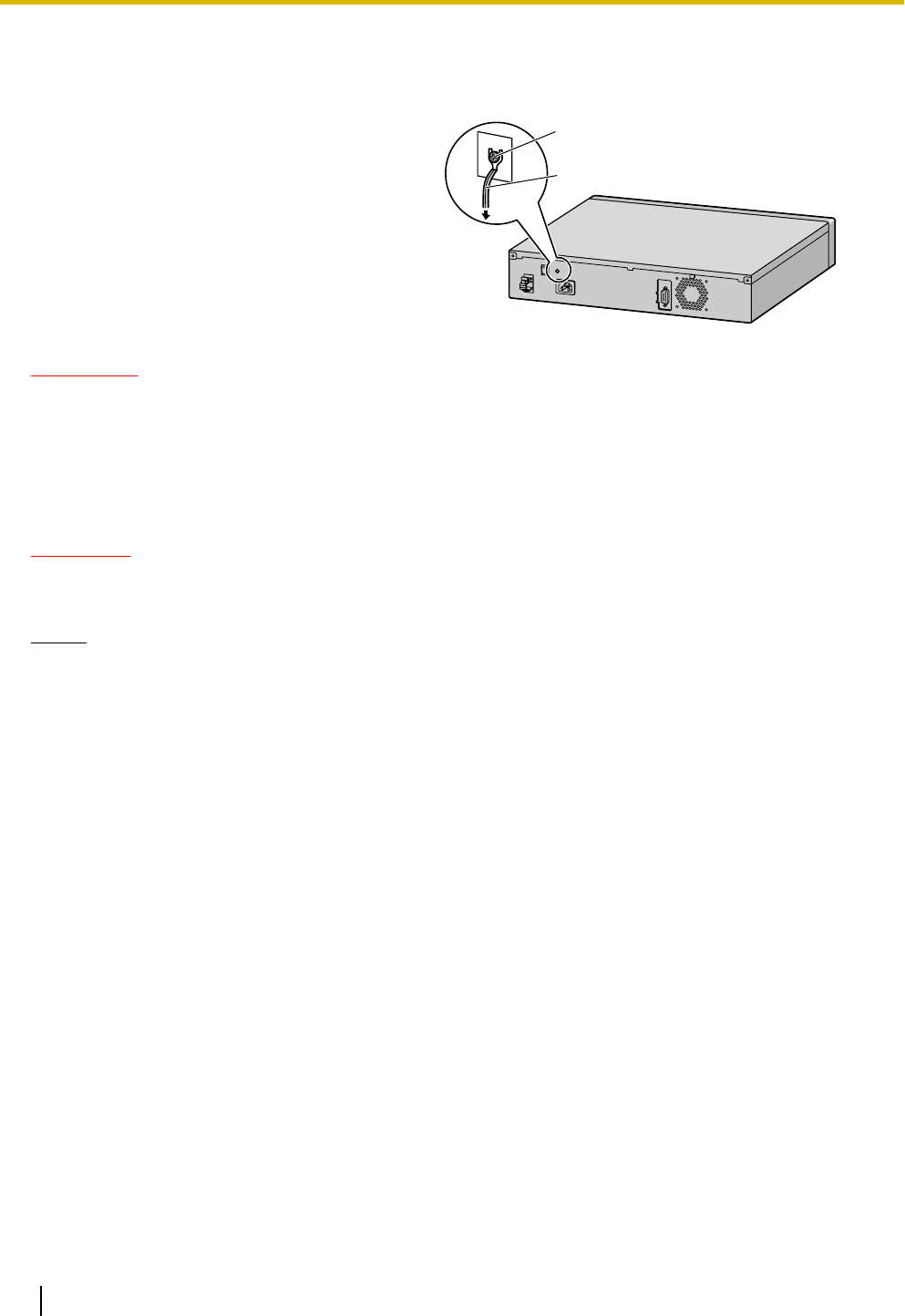
3.2.3 Frame Ground Connection
1. Loosen the screw.
2. Insert a grounding wire (user-supplied).
3. Tighten the screw.
4. Connect the grounding wire to ground.
Screw
Grounding wire
To ground
WARNING
•Proper grounding (connection to ground) is very important to reduce the risk to the user of
electrocution or to protect the PBX from the bad effects of external noise in the case of a
lightning strike.
•The grounding wire of the AC cable has an effect against external noise and lightning strikes,
but it may not be enough to protect the PBX. A permanent connection between ground and the
ground terminal of the PBX must be made.
CAUTION
For grounding wire, green-and-yellow insulation is required, and the cross-sectional area of the conductor
must be more than 0.75 mm2 or 18 AWG.
Notice
Be sure to comply with applicable local regulations (e.g., laws, guidelines).
In most of the continental United States, the ground provided by the "Third wire ground" at the commercial
power outlet will be satisfactory. However, in a small percentage of cases this ground may be installed
incorrectly. Therefore, the following test procedure should be performed.
Test Procedure
1. Obtain a suitable voltmeter and set it for a possible reading of up to 250 V AC.
2. Connect the meter probes between the 2 main AC voltage points on the wall outlet. The reading obtained
should be 108 V AC to 132 V AC.
3. Move one of the meter probes to the 3rd prong terminal (GND).
Either the same reading or a reading of 0 volt should be obtained.
4. If a reading of 0 volt at one terminal and a reading of 108 V AC to 132 V AC at the other terminal is not
obtained, the outlet is not properly grounded.
This condition should be corrected by a qualified electrician (per article 250 of the National Electrical Code).
5. If a reading of 0 volt at one terminal and a reading of 108 V AC to 132 V AC at the other terminal is obtained,
then set the meter to the "OHMS/RX1" scale, place one probe at the GND Terminal and the other probe
at the terminal which gave a reading of 0 volt.
A reading of less than 1 ohm should be obtained. If the reading is not obtained, the outlet is not adequately
grounded. See qualified electrician.
50 Installation Manual Document Version 2011-10
3.2.3 Frame Ground Connection
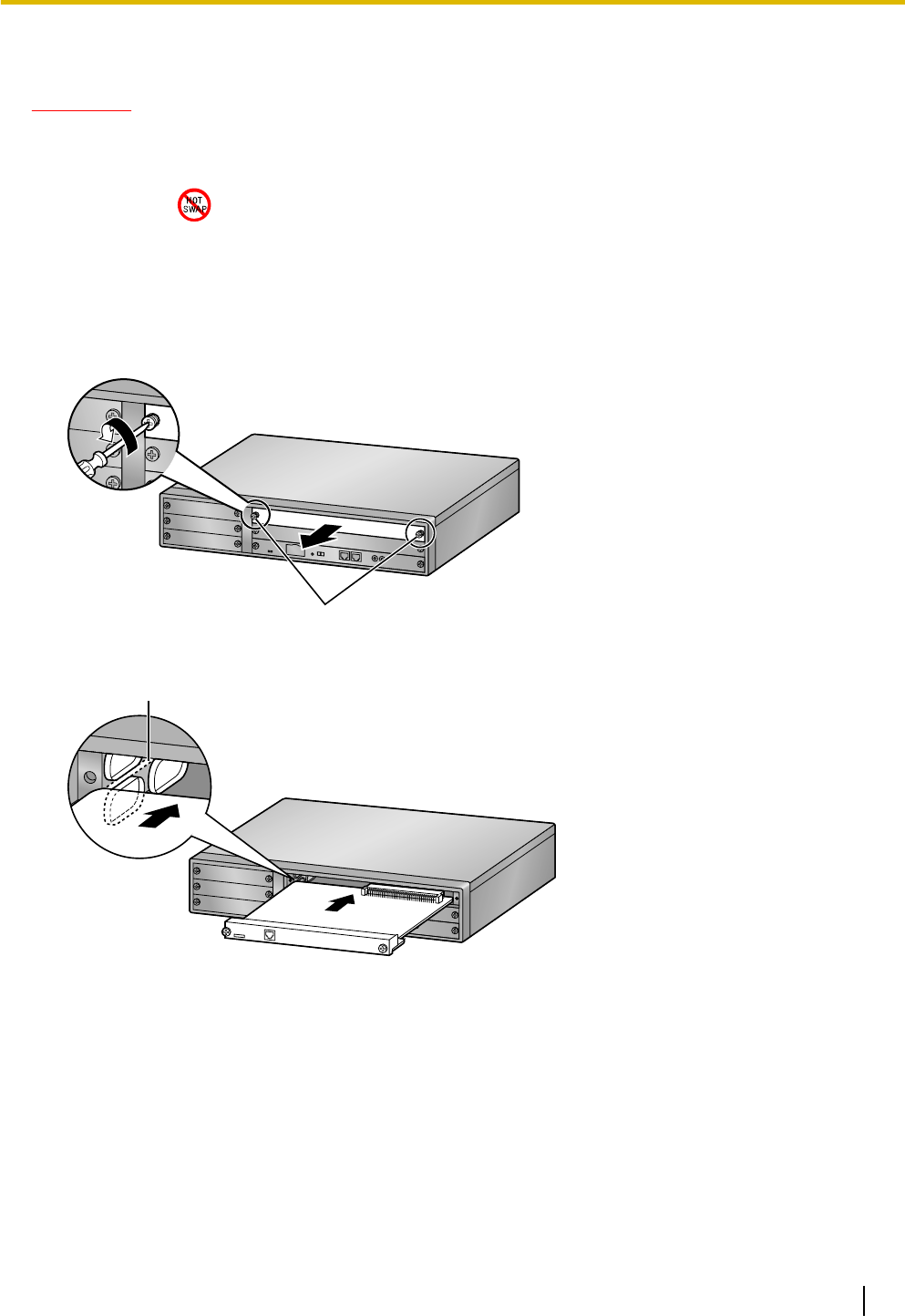
3.2.4 Installing/Removing the Optional Service Cards
CAUTION
•To protect the back board from static electricity, do not touch parts on the back board in the main unit
and on the optional service cards. To discharge static electricity, touch ground or wear a grounding
strap.
•When the label is attached to an optional service card (for small free slots), be sure to turn the
power switch off before installing or removing the card.
•When installing or removing the IPCMPR card, the DC power supply must be turned off.
Installing/Removing Optional Service Cards
1. Turn the 2 screws anticlockwise to remove the appropriate slot panel.
Screws
2. Insert the card along the guide rails.
Guide Rail
Document Version 2011-10 Installation Manual 51
3.2.4 Installing/Removing the Optional Service Cards
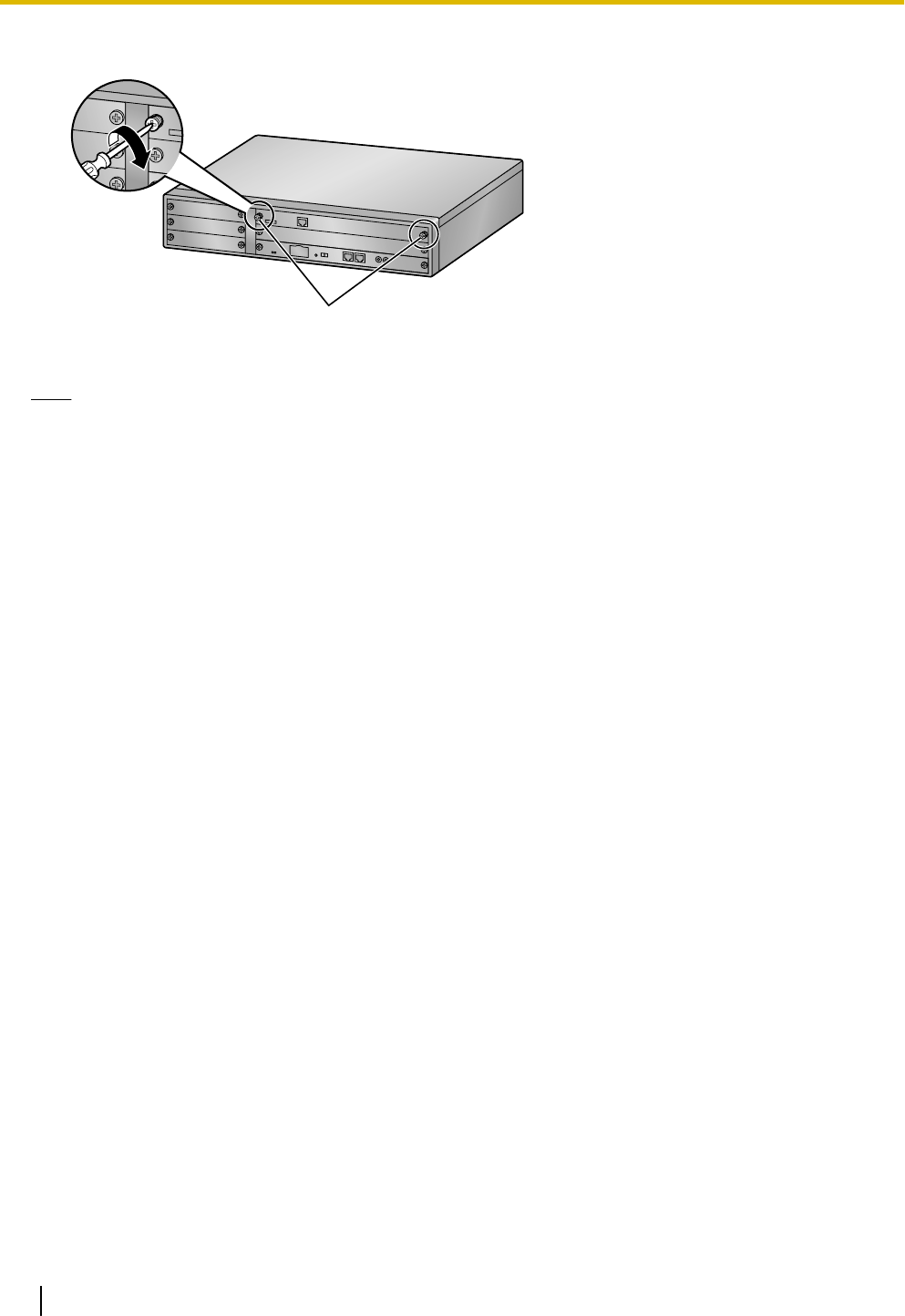
3. Turn the 2 screws clockwise to fix the card in place.
Screws
4. To remove the card, reverse the procedure above.
Note
Make sure the screws are tightened to ground the card securely.
52 Installation Manual Document Version 2011-10
3.2.4 Installing/Removing the Optional Service Cards
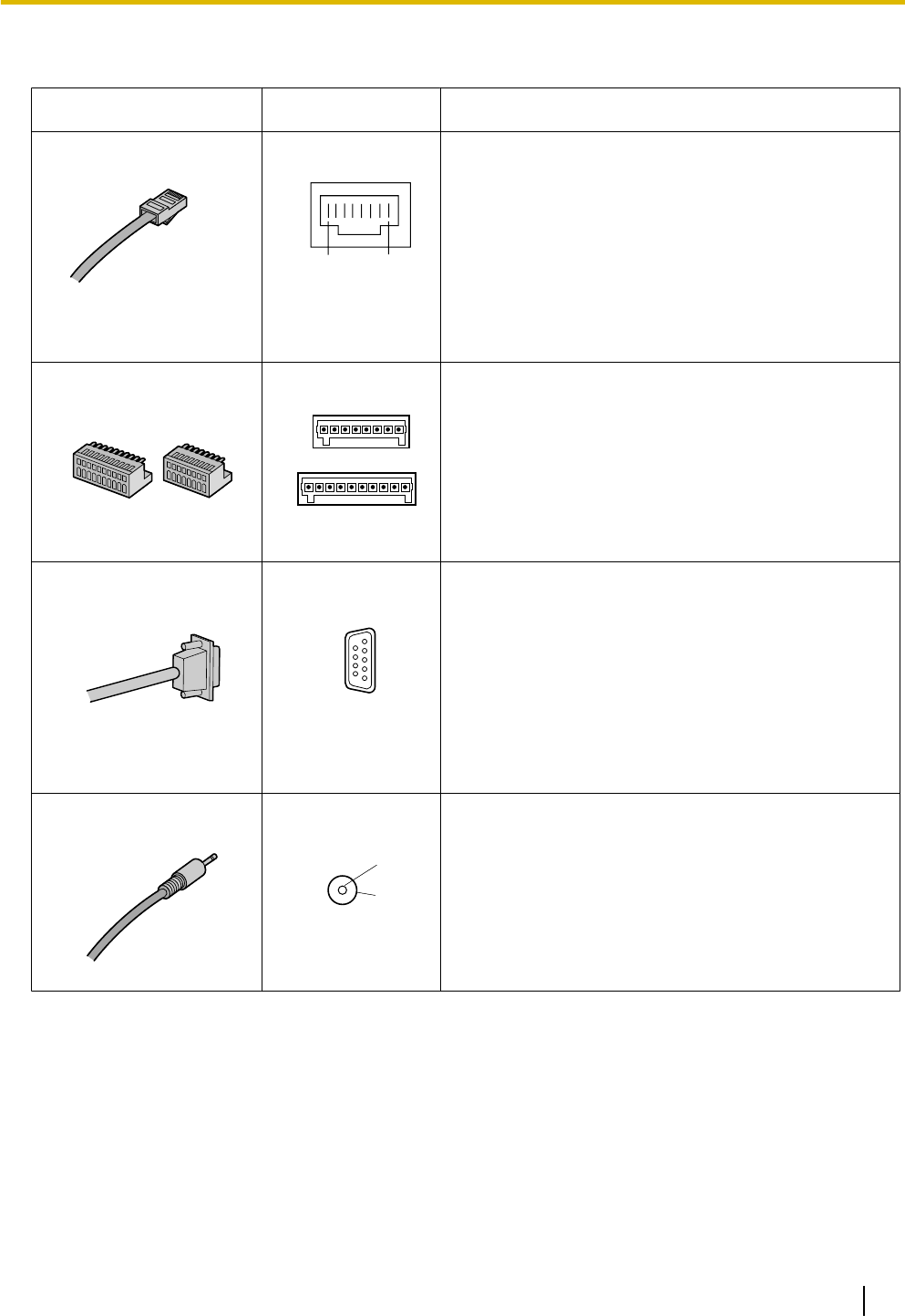
3.2.5 Types of Connectors
Connector Type Pin Number Used for
RJ45
(Twisted pair cable)
81
•IPCMPR
•DHLC4 (KX-NCP1170)
•DLC8 (KX-NCP1171)
•DLC16 (KX-NCP1172)
•SLC8 (KX-NCP1173)
•SLC16 (KX-NCP1174)
•LCOT4 (KX-NCP1180)
•T1 (KX-NCP1187)
•PRI23 (KX-NCP1290)
10-pin
Terminal
Block
8-pin
Terminal
Block
81
10 1
•DPH4 (KX-TDA0161)
•EIO4 (KX-TDA0164)
RS-232C
9 5
6 1
•Main Unit
(Shielded cable)
Mini Plug
2
4
•IPCMPR
Document Version 2011-10 Installation Manual 53
3.2.5 Types of Connectors
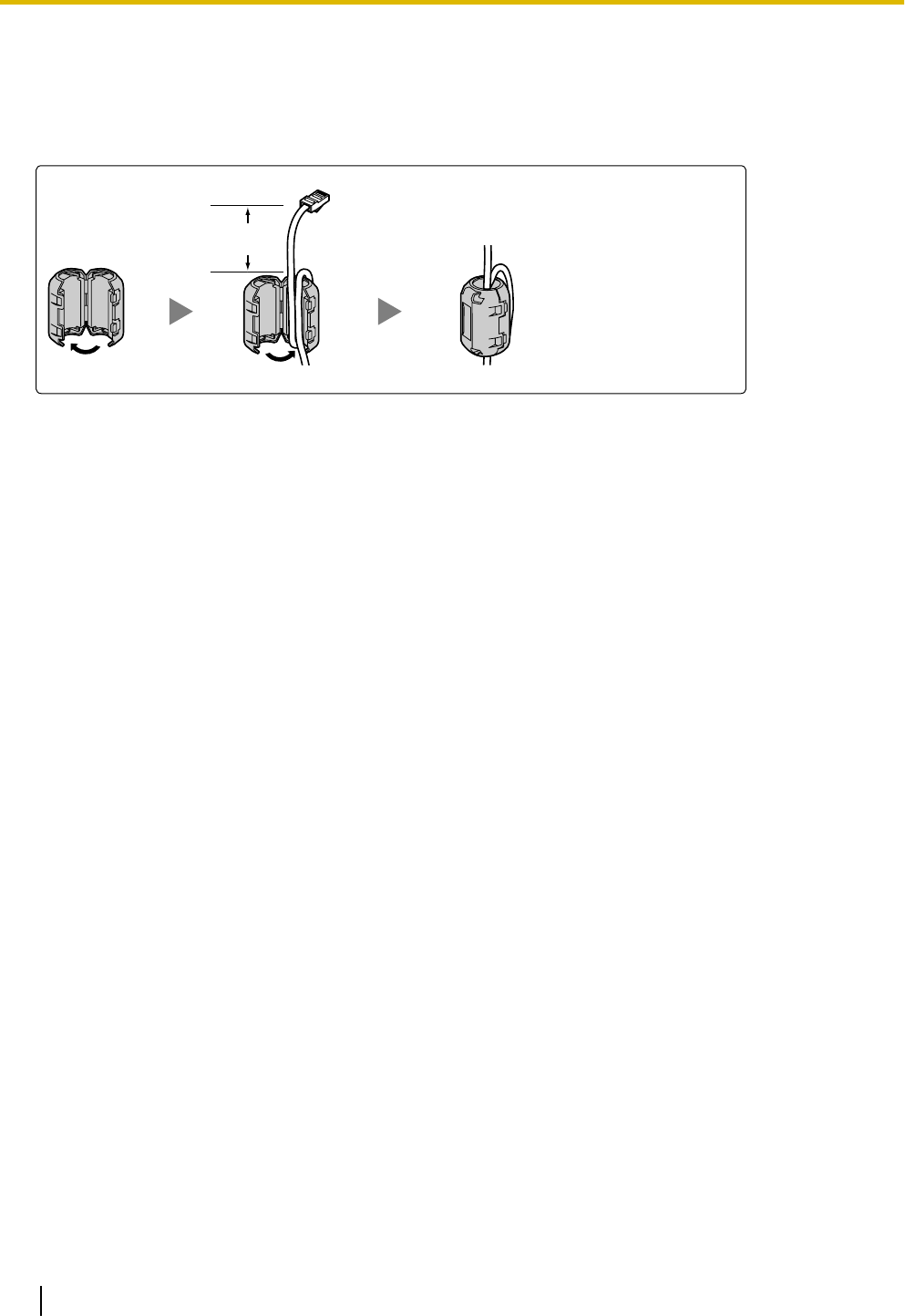
3.2.6 Attaching a Ferrite Core
A ferrite core must be attached when an RJ45 connector is connected to an IPCMPR card.
Wrap the cable once around the ferrite core, then close the case of the ferrite core. Attach the ferrite core 3
cm (1-3/16 in) away from the connector. The ferrite core is included with the PBX.
3 cm
(1-3/16 in)
54 Installation Manual Document Version 2011-10
3.2.6 Attaching a Ferrite Core
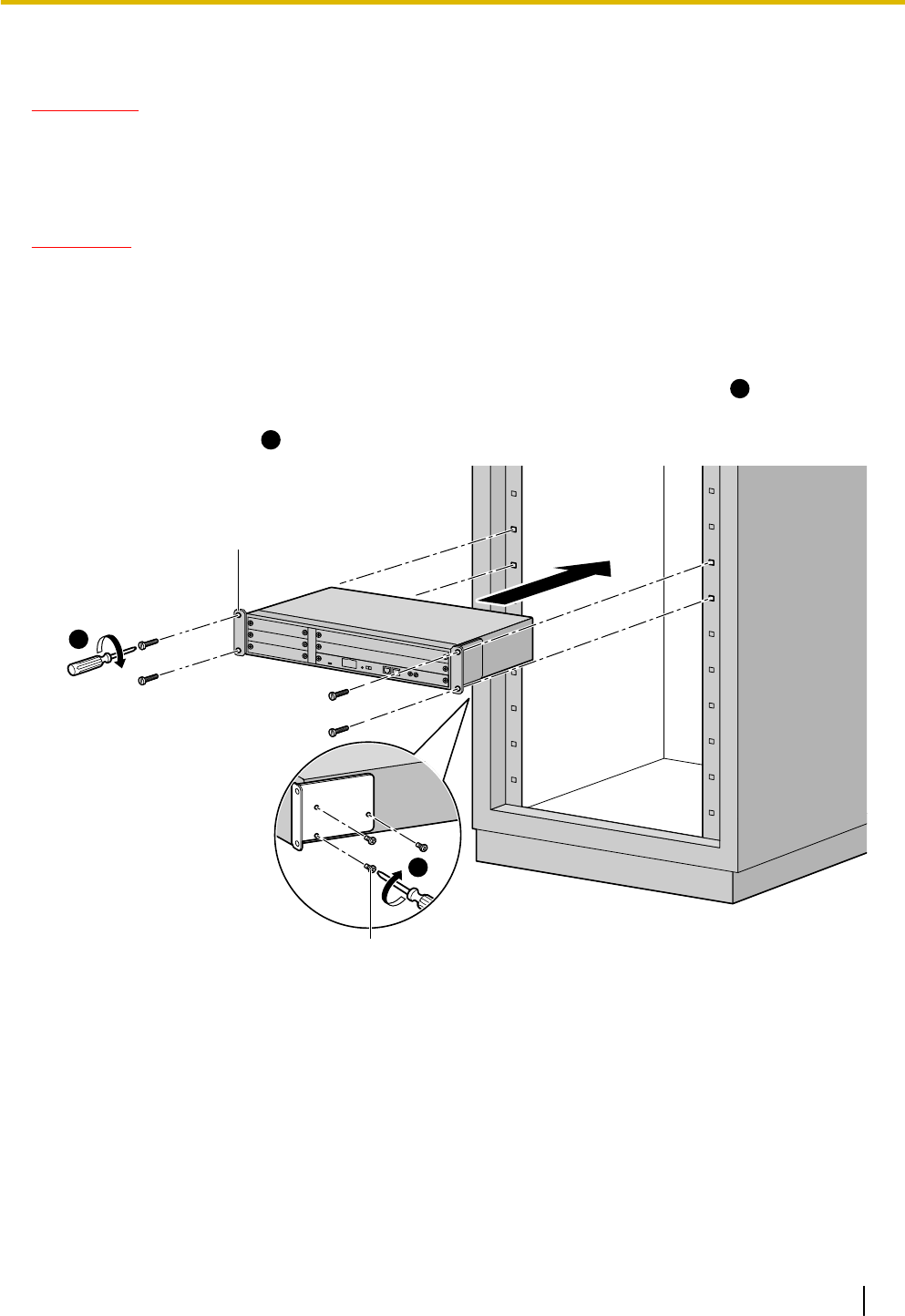
3.2.7 19-inch Rack Mounting
WARNING
•Be careful not to drop any components. Dropping components may damage them or cause an
injury.
•Only use the 19-inch rack mounting equipment (attachment bracket, screws) included with the
PBX.
CAUTION
•When the PBX is mounted on a 19-inch rack, make sure that the installation of the unit does not cause
the temperature of the rack to exceed its limit.
•If the PBX is not installed properly using the securing correct methods, the PBX may fall causing serious
damage.
•When this product is no longer in use, make sure to detach it from the rack.
1. Fix the attachment brackets to the left and right sides of the PBX with 3 screws. ®
1
2. Place the PBX in the 19-inch rack and fix both attachment brackets to the rack with the rack’s proprietary
mounting equipment. ®
2
1
2
Screw
Attachment Bracket
Document Version 2011-10 Installation Manual 55
3.2.7 19-inch Rack Mounting
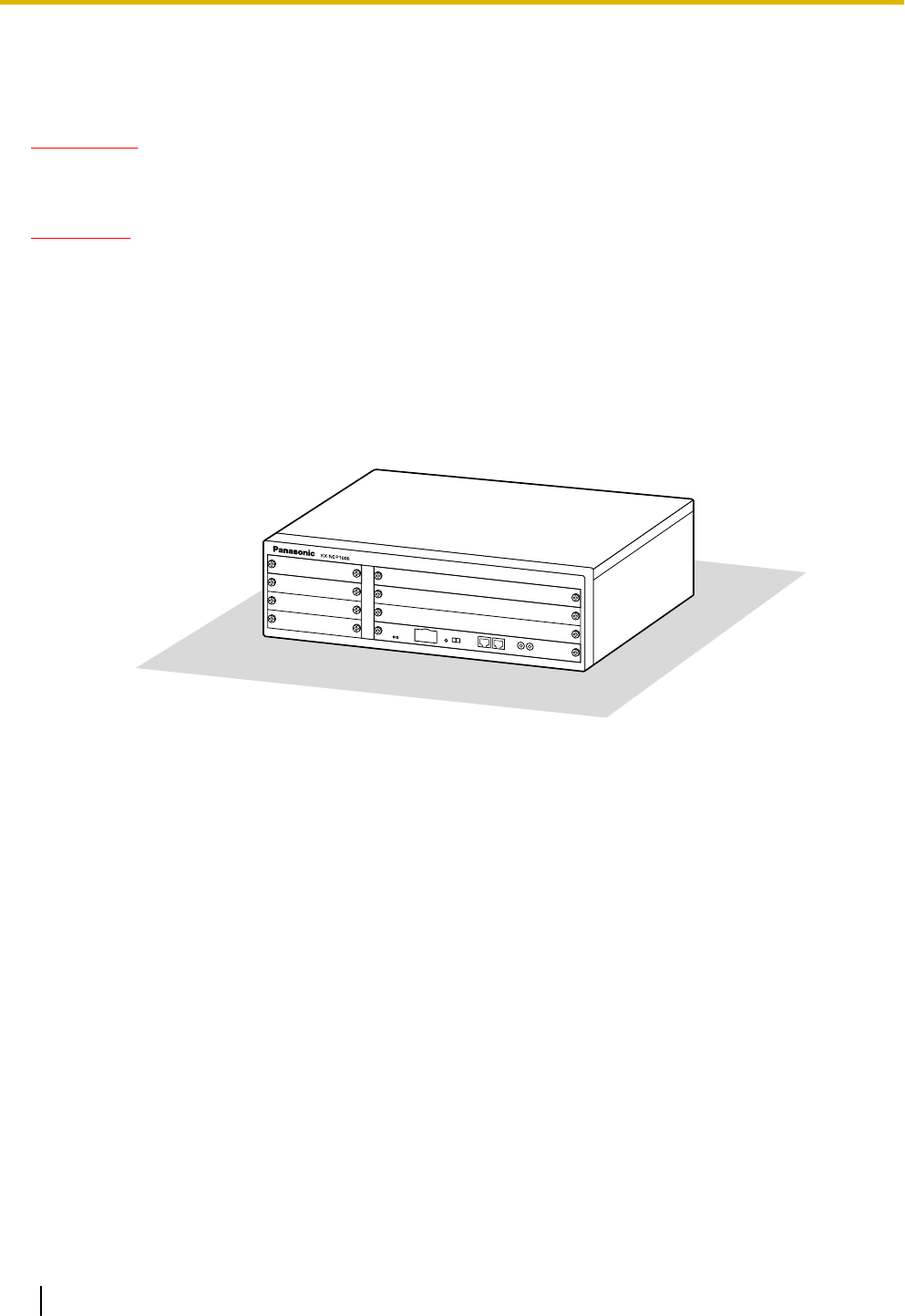
3.2.8 Floor Standing
When installing the PBX on the floor, make sure to follow these instructions.
WARNING
Be careful not to drop any components. Dropping components may damage them or cause an
injury.
CAUTION
•Make sure that the PBX is placed as indicated in the diagram below. Do not place it on its side or upside
down.
•Do not block the openings of the PBX. Allow space of at least 20 cm (8 in) above and 10 cm (4 in) at
the sides of the PBX.
•Make sure that the surface behind the PBX is flat and free of obstacles, so that the openings on the
back of the PBX will not be blocked.
•Make sure that the surface behind the PBX is not made of wood.
Floor
56 Installation Manual Document Version 2011-10
3.2.8 Floor Standing
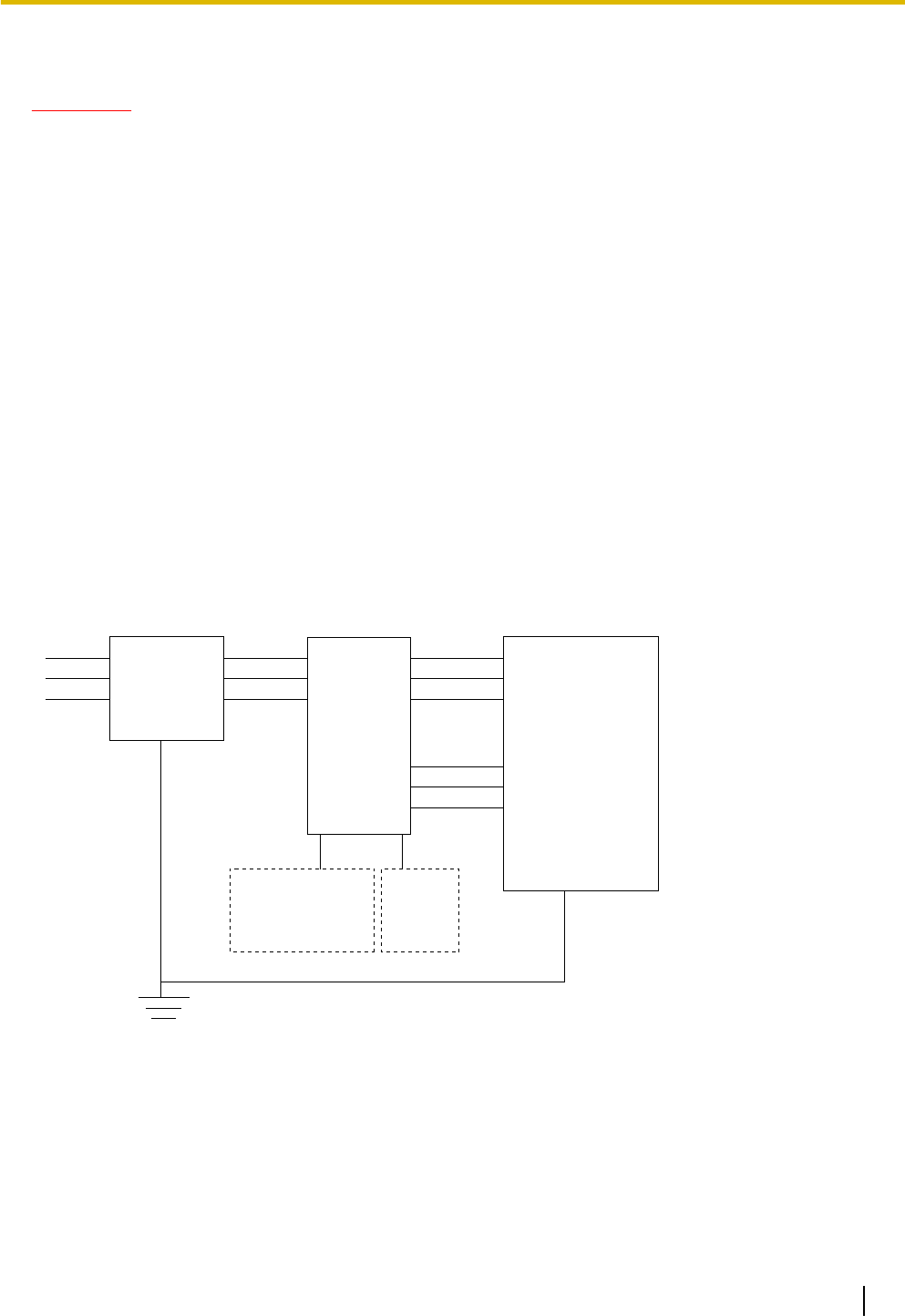
3.2.9 Surge Protector Installation
CAUTION
Performing surge protection is essential. Make sure to follow the instructions in this section.
Overview
A massive electrical surge can be caused if lightning strikes a telephone cable 10 m (33 ft) above ground, or
if a telephone line comes into contact with a power line. A surge protector is a device that is connected to a
CO line to prevent potentially dangerous electrical surges from entering the building via the CO line and
damaging the PBX and connected equipment.
To protect the system from electrical surges, we strongly recommend connecting the system to a surge
protector that meets the following specifications:
–Surge arrestor type: 3-electrode arrestor
–DC spark-over voltage: 230 V
–Maximum peak current: at least 10 kA
Additionally, proper grounding is very important for the protection of the system (refer to "3.2.3 Frame Ground
Connection").
Many countries/areas have regulations requiring surge protection. Be sure to comply with all applicable laws,
regulations, and guidelines.
Installation
CO Line CO LineCO Line
Ground
Surge
Protector
Extn.
Extn.
Extn.: Extension line
SLT
PT
PT-interface CS
CS
PBX
Frame
Ground
Terminal
Board
Document Version 2011-10 Installation Manual 57
3.2.9 Surge Protector Installation
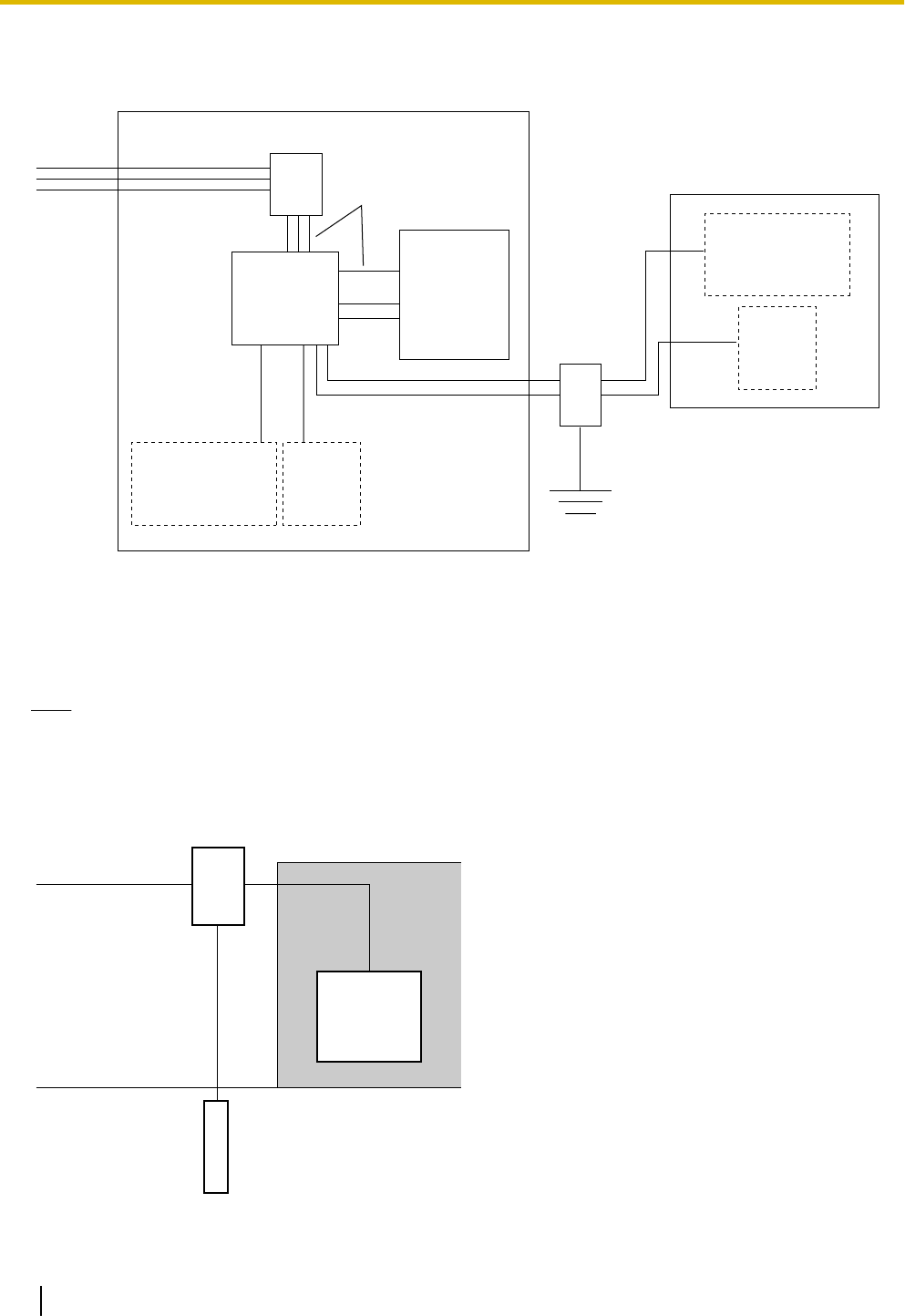
Outside Installation
CO Line
CO Line
Extn.
Surge Protector
Terminal
Board Surge
Protector
PBX
(Main Building)
(Another Building)
Extn.: Extension Line
Extn.
Extn.
Ground
Extn.
SLT
PT
PT-interface CS
CS
CS
SLT
PT
PT-interface CS
If you install an extension outside of the building, the following precautions are recommended:
a. Install the extension wire underground.
b. Use a conduit to protect the wire.
Note
The surge protector for an extension and CS is different from that for CO lines.
Installation of a Ground Rod
CO Line
PBX
Ground Rod
(Underground)
Surge Protector
Grounding
Wire
58 Installation Manual Document Version 2011-10
3.2.9 Surge Protector Installation

1. Connect the ground rod to the surge protector using a grounding wire with a cross-sectional area of at least
1.3 mm2.
2. Bury the ground rod near the protector. The grounding wire should be as short as possible.
3. The grounding wire should run straight to the ground rod. Do not run the wire around other objects.
4. Bury the ground rod at least 50 cm (20 in) underground.
Note
•The above figures are recommendations only.
•The length of ground rod and the required depth depend on the composition of the soil.
Document Version 2011-10 Installation Manual 59
3.2.9 Surge Protector Installation
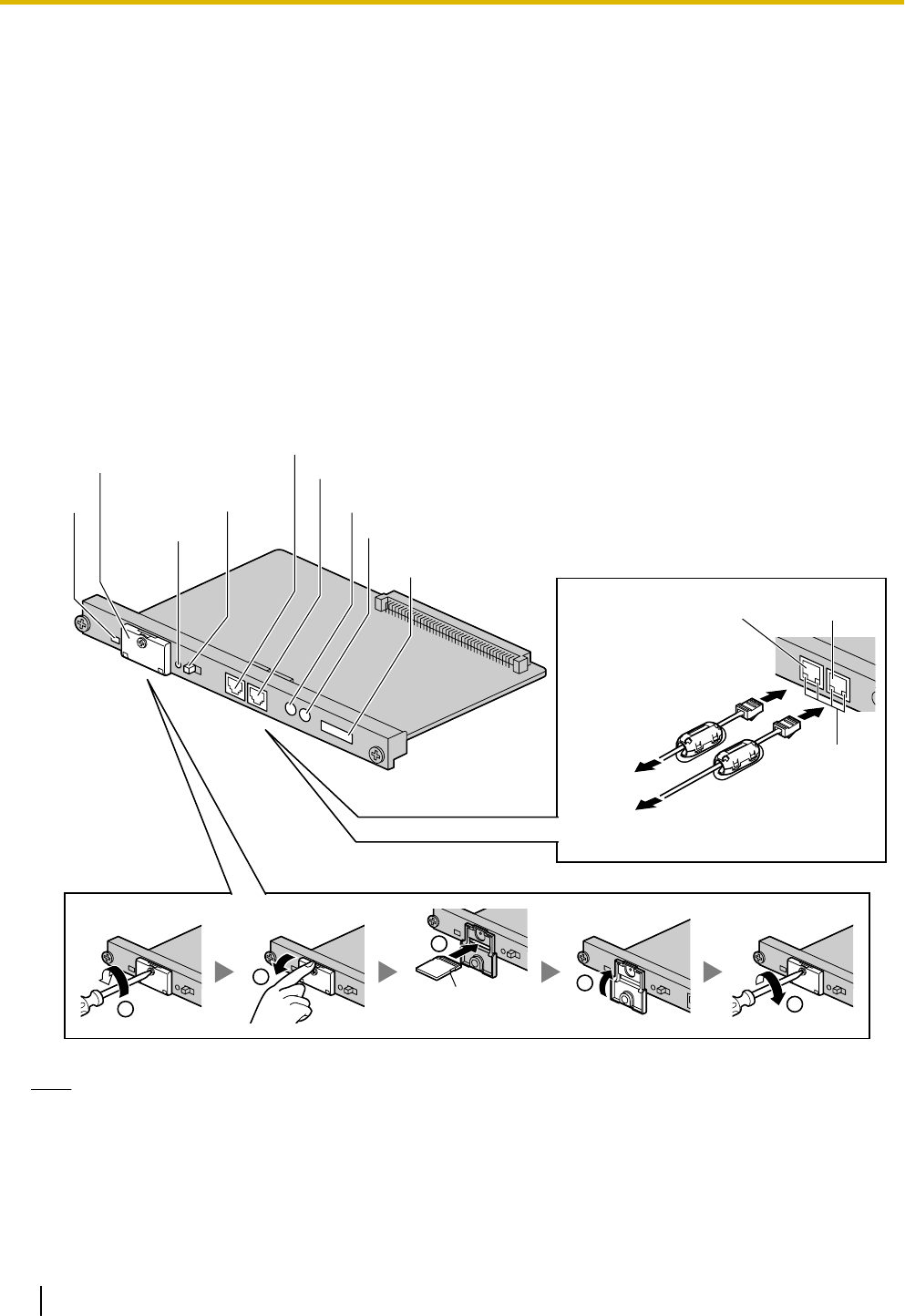
3.3 Information about the Main Processing Card
3.3.1 IPCMPR Card
Function
The IPCMPR card is the preinstalled main processing card with built-in ESVM card feature (2-channel). The
Virtual Cards (CO line/extension) can be installed in Virtual Slots of the IPCMPR card and can be activated
with the activation keys. Also, the IPCMPR supports LAN connection so that IP telephones (IP-PTs, IP
softphones, SIP Extensions) and PCs can be connected on a private IP network.
Mountable Cards
•One of the DSP4, DSP16, or DSP64 cards (refer to "3.3.2 DSP4 Card (KX-NCP1104), DSP16 Card
(KX-TDE0110), and DSP64 Card (KX-TDE0111)")
•RMT card (refer to "3.3.3 RMT Card (KX-TDA0196)")
24
15
3
SD Memory
Card
LEDs
SD Memory Card
Slot Cover
Reset Button
LAN Port
MNT Port
BGM/MOH
Pager
MPR ID Number
MNT Port LAN Port
To LAN
To PC
LEDs
System Initialize
Switch
Note
•Make sure to use the MNT port for PC connection, and the LAN port for LAN connection.
•The maximum length of the cable to be connected to the IPCMPR card is 100 m (328 ft).
•When connecting the RJ45 connector, attach the ferrite core included with the PBX. Refer to
"3.2.6 Attaching a Ferrite Core".
•For details about Virtual Slots, refer to "1.3.3 System Capacity".
•For details about the activation keys, refer to "2.1 Information about the Activation Keys".
60 Installation Manual Document Version 2011-10
3.3.1 IPCMPR Card
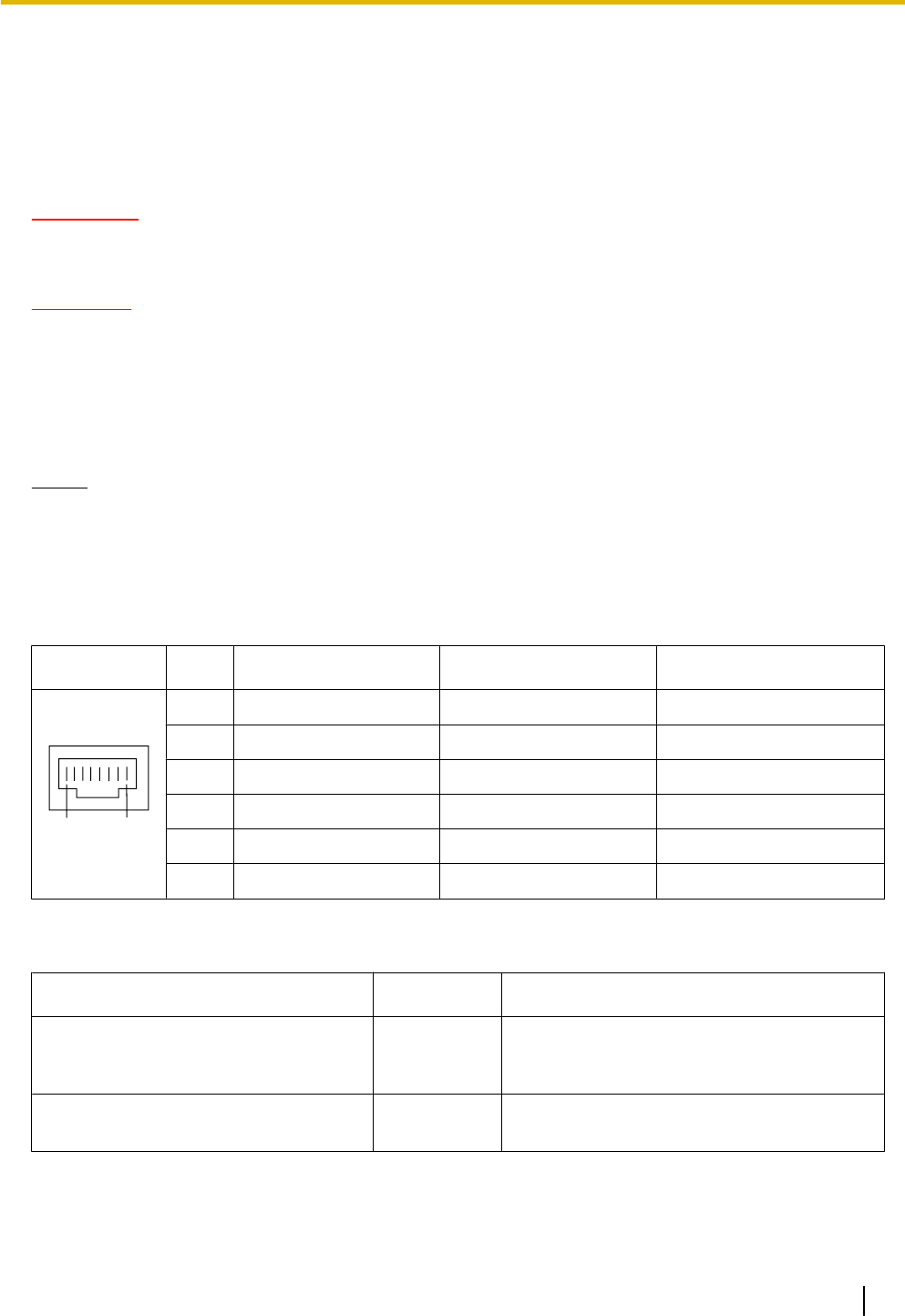
•For details about connecting to a LAN, refer to "3.11 LAN Connection"
•For details about connecting peripherals, refer to "3.10.1 Connection of Peripherals"
•For details about System Initialize Switch, refer to "3.13.1 Starting the PBX".
•For details about Reset Button, refer to "5.1.4 Using the Reset Button".
•Portions of this product contains software of Datalight, Inc. Copyright 1993–2000 Datalight,Inc., All
Rights Reserved.
WARNING
A lithium battery is used in the IPCMPR card. There is a risk of explosion if the battery is replaced
with the incorrect type. Dispose of used batteries according to the manufacturer’s instructions.
CAUTION
•The SD Memory Card contains software for all the processes of the PBX and all the customer data. It
can be easily removed and taken away from the PBX by a third party. Therefore, do not allow
unauthorized access to prevent data leakage.
•Do not remove the SD Memory Card while power is supplied to the PBX. Doing so may cause the PBX
to fail to start when you try to restart the system.
•To prevent data leakage, render the SD Memory Card physically unusable before disposal.
Notice
•Use only the SD Memory Card included with the PBX.
•The SD Memory Card must be inserted in the SD Memory Card slot of the IPCMPR card before startup.
Pin Assignments
MNT Port/LAN Port (10BASE-T/100BASE-TX)
No. Signal Name Input (I)/Output (O) Function
81
1 TPO+ O Transmit data+
2 TPO- O Transmit data-
3 TPI+ I Receive data+
4-5 Reserved – –
6 TPI- I Receive data-
7-8 Reserved – –
LED Indications
Indication Color Description
BATT ALARM Red Battery alarm indication
•OFF: Normal
ON: Alarm
SD ACCESS Green SD memory card status
•ON: Accessing
Document Version 2011-10 Installation Manual 61
3.3.1 IPCMPR Card
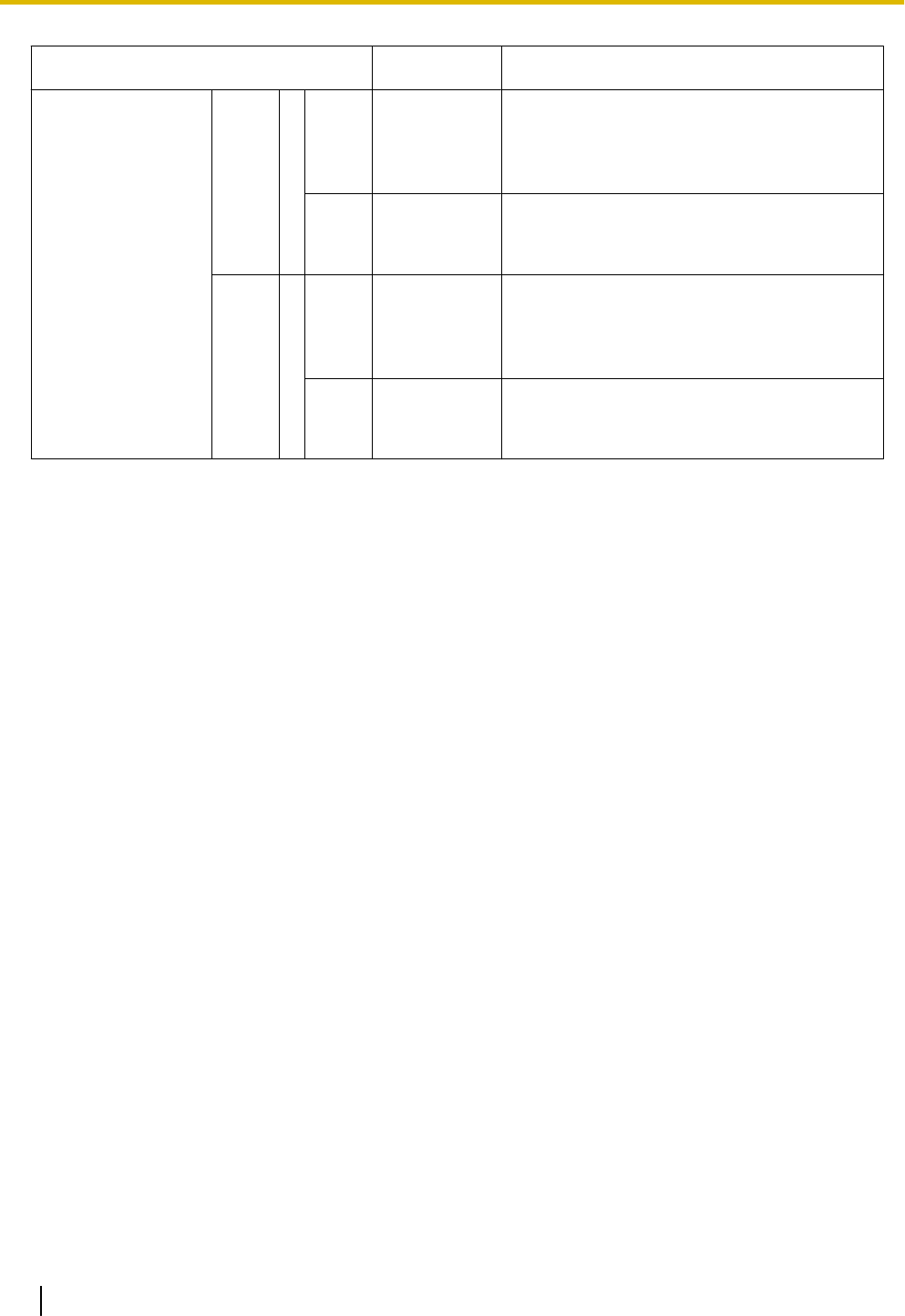
Indication Color Description
10BASE-T/
100BASE-TX
MNT 2 LINK Green Link status indication
•OFF: Off-line
•ON: Linked normally
•Flashing: In communication
100 Yellow Data transmission speed indication
•OFF: 10 Mbps
•ON: 100 Mbps
LAN 1 LINK Green Link status indication
•OFF: Off-line
•ON: Linked normally
•Flashing: In communication
100 Yellow Data transmission speed indication
•OFF: 10 Mbps
•ON: 100 Mbps
62 Installation Manual Document Version 2011-10
3.3.1 IPCMPR Card
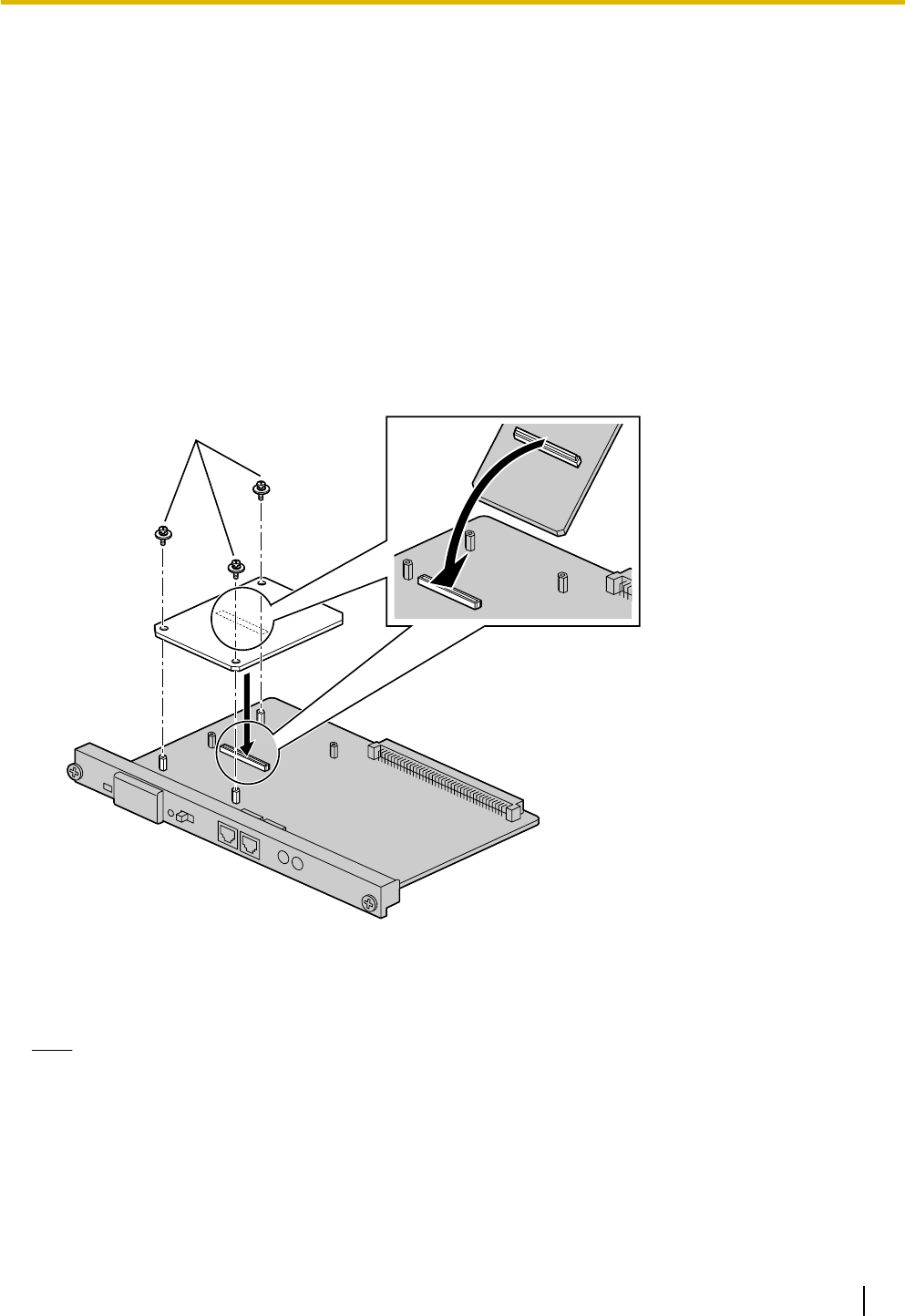
3.3.2 DSP4 Card (KX-NCP1104), DSP16 Card (KX-TDE0110), and
DSP64 Card (KX-TDE0111)
Function
DSP4: 4-channel digital signal processor card with a 4-Channel IP Trunk activation key and a
8-Channel IP Proprietary Telephone activation key preinstalled. Compliant with ITU-T G.
729A and G.711 codec methods. To be mounted on the IPCMPR card.
DSP16: 16-channel digital signal processor card with a 4-Channel IP Trunk activation key and an
8-Channel IP Proprietary Telephone activation key preinstalled. Compliant with ITU-T G.
729A and G.711 codec methods. To be mounted on the IPCMPR card.
DSP64: 64-channel digital signal processor card with four 4-Channel IP Trunk activation keys and
four 8-Channel IP Proprietary Telephone activation keys preinstalled. Compliant with
ITU-T G.729A and G.711 codec methods. To be mounted on the IPCMPR card.
DSP4 Card/
DSP16 Card/
DSP64 Card
Screws inside
Accessories and User-supplied Items
Accessories (included): Screws ´ 3
User-supplied (not included): none
Note
•Depending on the number and the type of IP CO lines and IP telephones you wish to use, required
activation keys are determined, and the DSP4, DSP16, or DSP64 card is selected to be installed.
•If the preinstalled activation keys on the DSP cards are not enough for the desired configuration, you
need to purchase activation key codes. For details about the activation keys, refer to "2.1 Information
about the Activation Keys".
Document Version 2011-10 Installation Manual 63
3.3.2 DSP4 Card (KX-NCP1104), DSP16 Card (KX-TDE0110), and DSP64 Card (KX-TDE0111)
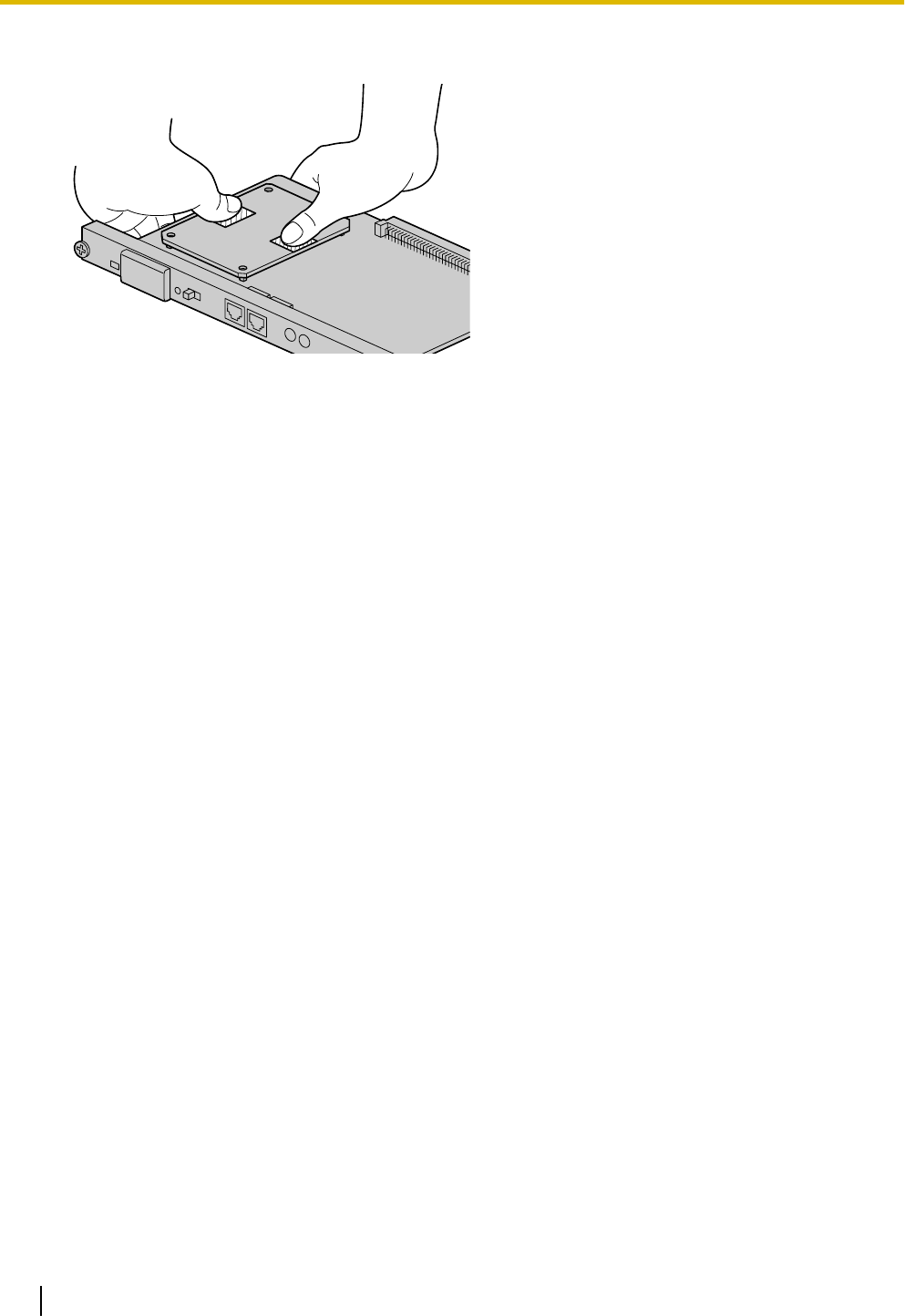
•When installing the DSP card, hold down the shaded areas of the card to connect it firmly.
64 Installation Manual Document Version 2011-10
3.3.2 DSP4 Card (KX-NCP1104), DSP16 Card (KX-TDE0110), and DSP64 Card (KX-TDE0111)
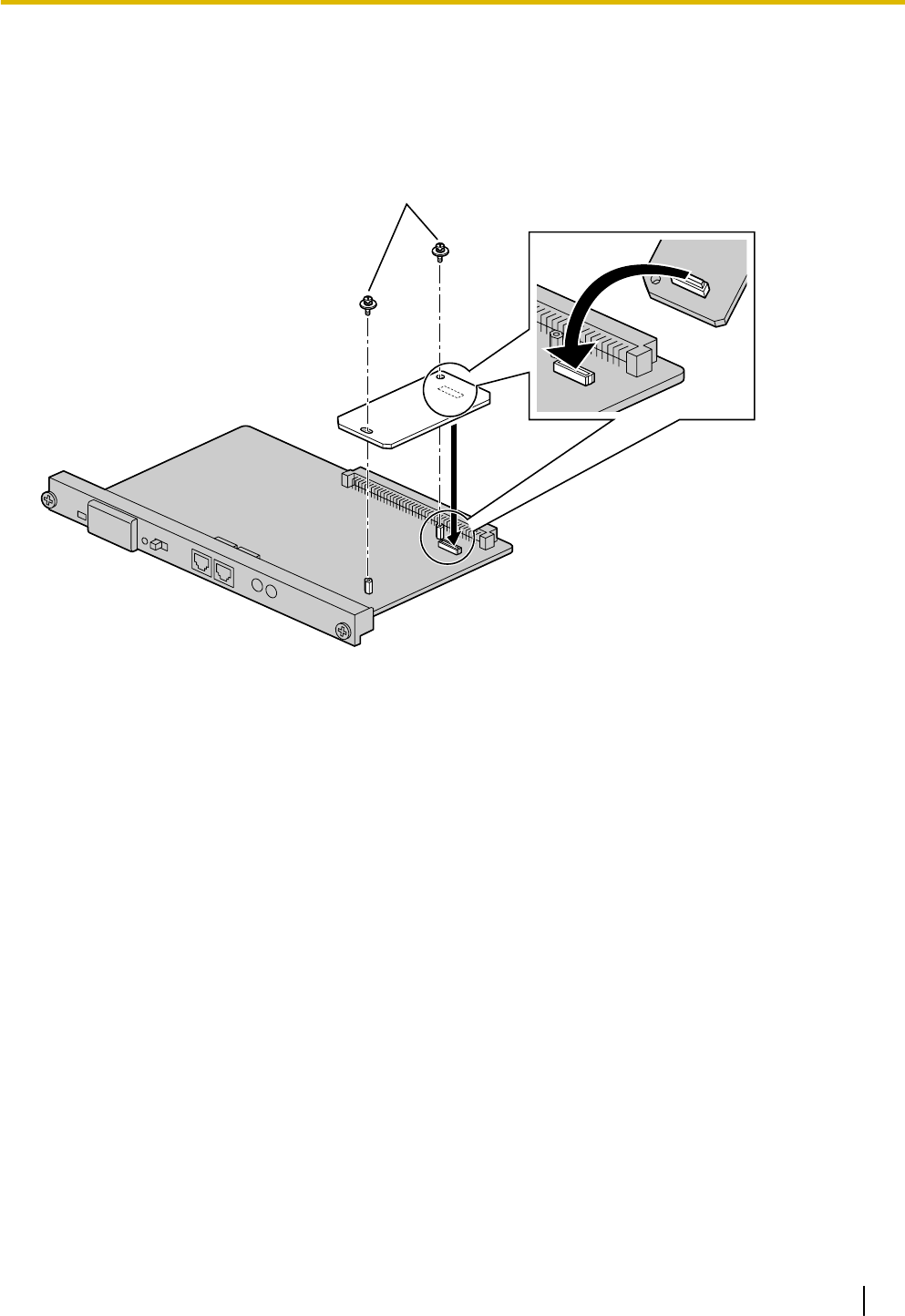
3.3.3 RMT Card (KX-TDA0196)
Function
Analog modem card for remote communication with the PBX. ITU-T V.90 support. To be mounted on the
IPCMPR card.
RMT Card
IPCMPR Card
Screws
inside
Accessories and User-supplied Items
Accessories (included): Screws ´ 2
User-supplied (not included): none
Document Version 2011-10 Installation Manual 65
3.3.3 RMT Card (KX-TDA0196)
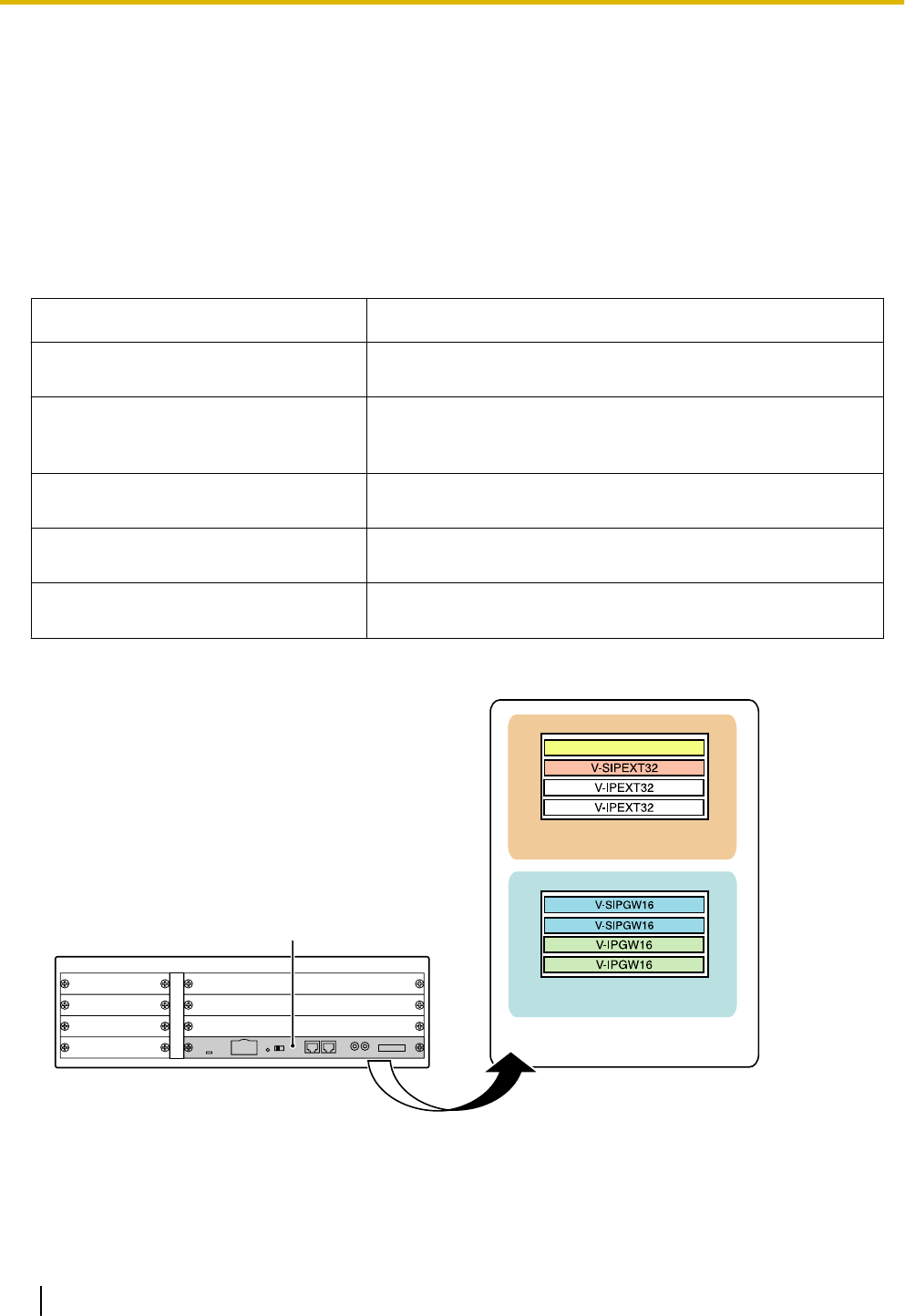
3.4 Information about the Virtual Cards
3.4.1 Virtual Cards
Function
Virtual Cards are included with the IPCMPR card and can be activated with the appropriate activation key (Only
V-IPCS4 cards can be activated without activation keys). By installing Virtual Cards in the Virtual Slots of the
IPCMPR card using the Maintenance Console, IP CO lines, IP extensions, and IP-CSs can be used via the
IPCMPR card.
Virtual Card Description
Virtual 16-Channel VoIP Gateway Card
(V-IPGW16)
Virtual Card for 16-channel H.323 CO line. Compliant with VoIP
H.323 V.5 protocol. Also supports T.38 protocol.
Virtual 16-Channel SIP CO Line Card
(V-SIPGW16)
Virtual Card for 16-channel SIP CO line. Compliant with RFC
3261, 3262, 3264, 3311, 3581, 3960 and 4028 protocols. Also
supports T.38 protocol.
Virtual 32-Channel VoIP Extension
Card (V-IPEXT32)
Virtual Card for 32 VoIP extensions. Compliant with Panasonic
proprietary protocol.
Virtual 32-Channel SIP Extension Card
(V-SIPEXT32)
Virtual Card for 32 SIP Extensions. Compliant with RFC 3261,
3264, 3310, 2327 and 4028 protocols.
Virtual 4 IP Cell Station Interface Card
(V-IPCS4)
Virtual Card for 4 IP-CSs. Compliant with ITU-T G.729A and
G.711 codec methods.
Example: Virtual Cards in the Virtual Slots of the KX-NCP1000
IPCMPR Card
Virtual Slots
Virtual CO Line Slots
Virtual Extension Slots
V-IPCS4
66 Installation Manual Document Version 2011-10
3.4.1 Virtual Cards
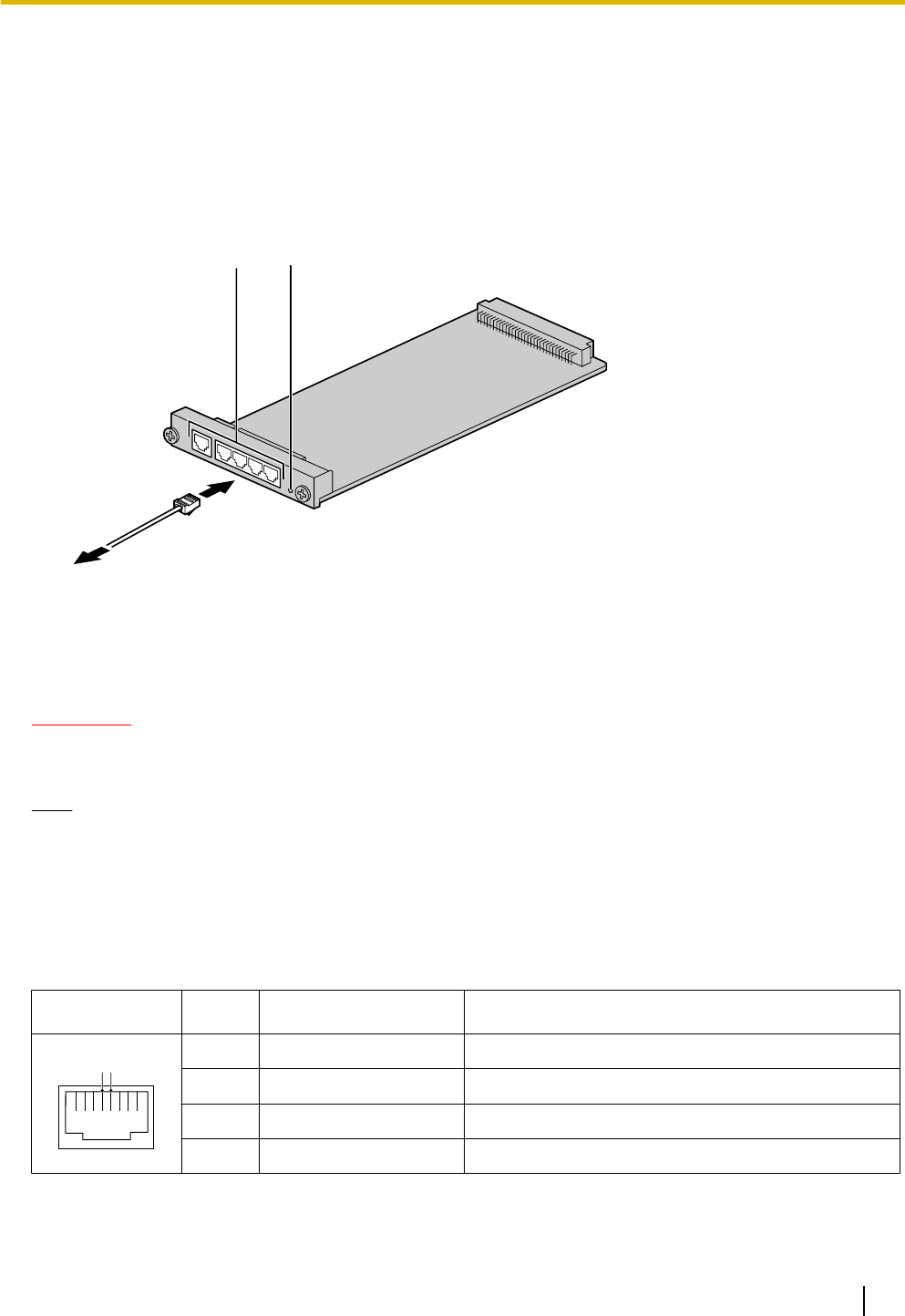
3.5 Information about the Physical CO Line Cards
3.5.1 LCOT4 Card (KX-NCP1180)
Function
4-port analog CO line card with Caller ID (FSK/DTMF) and 1 power failure transfer (PFT) port.
To CO line
RJ45 LED
Accessories and User-supplied Items
Accessories (included): none
User-supplied (not included): RJ45 connector
CAUTION
To reduce the risk of fire, use only No.26 AWG or larger (e.g., 24 AWG) UL Listed or CSA Certified
Telecommunication Line Cord.
Note
•For details about power failure transfer, refer to "3.12.1 Power Failure Connections".
•To confirm the CO line connection, refer to "Confirming the CO Line Connection" in "3.13.1 Starting
the PBX".
Pin Assignments
RJ45 Connector
No. Signal Name Function
1 8
R T
1-3 Reserved –
4 R Ring
5 T Tip
6-8 Reserved –
Document Version 2011-10 Installation Manual 67
3.5.1 LCOT4 Card (KX-NCP1180)

LED Indications
Indication Color Description
CARD STATUS Green/Red Card status indication
•OFF: Power Off
•Green ON: Normal (all ports are idle)
•Green Flashing (60 times per minute): Normal (a port is in use)
•Red ON: Fault (includes reset)
•Red Flashing (60 times per minute): Out of Service
68 Installation Manual Document Version 2011-10
3.5.1 LCOT4 Card (KX-NCP1180)
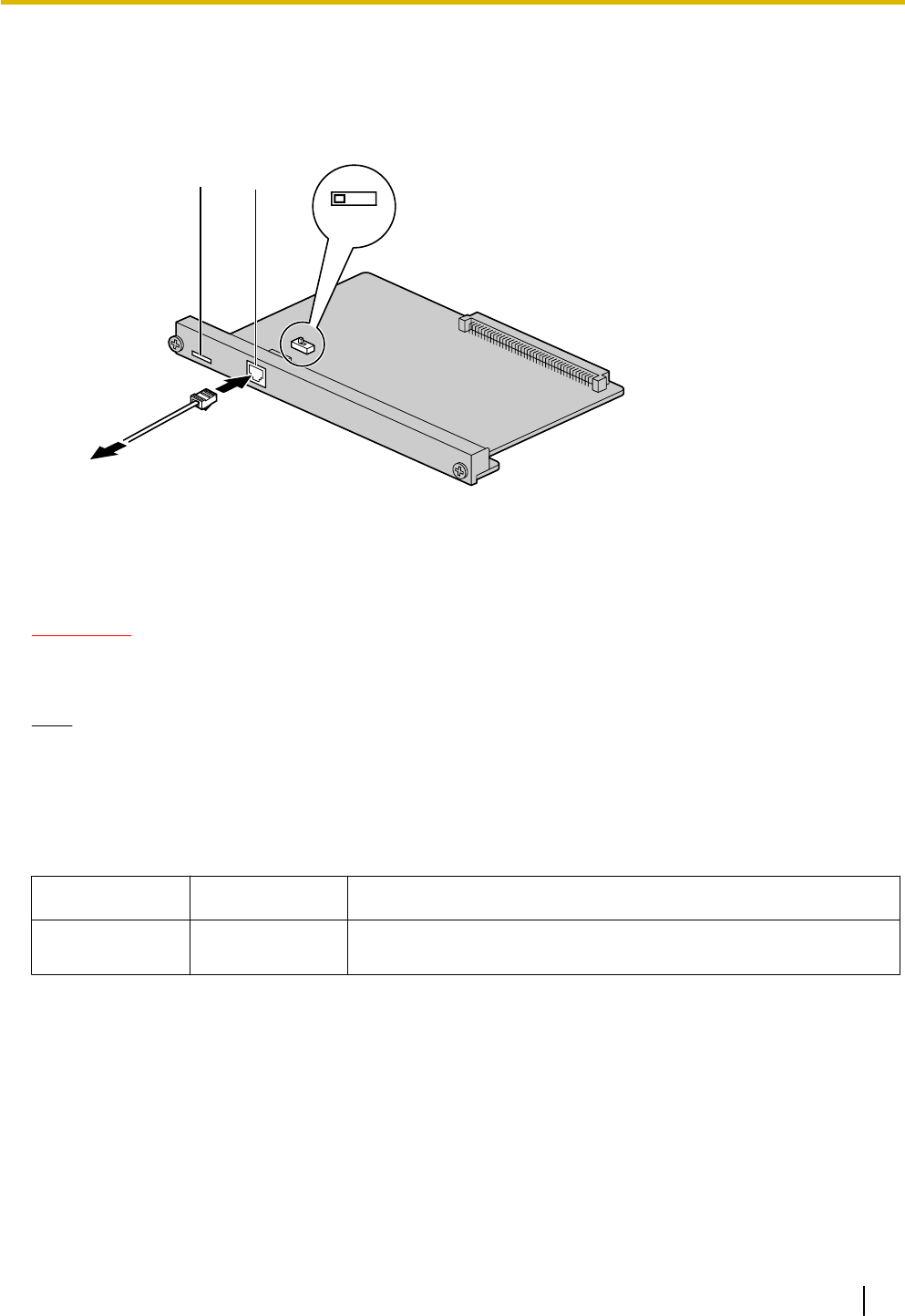
3.5.2 T1 Card (KX-NCP1187)
Function
1-port T1 CO line card. EIA/TIA standard compliant.
BA
RJ45LEDs
To NT1
Accessories and User-supplied Items
Accessories (included): none
User-supplied (not included): RJ45 connector
CAUTION
•Connect this optional service card to the CO line through NT1; do not connect to the CO line directly.
•T1 ports are SELV ports and should only be connected to SELV services.
Note
•T1 Card must be installed behind an FCC registered and UL or CSA-NRTL listed CSU.
•To confirm the CO line connection, refer to "Confirming the CO Line Connection" in "3.13.1 Starting
the PBX".
Switch Settings
Switch Type Usage and Status Definition
A/B Slide Keep the switch at default A position. Do not change the position
of this switch.
Document Version 2011-10 Installation Manual 69
3.5.2 T1 Card (KX-NCP1187)
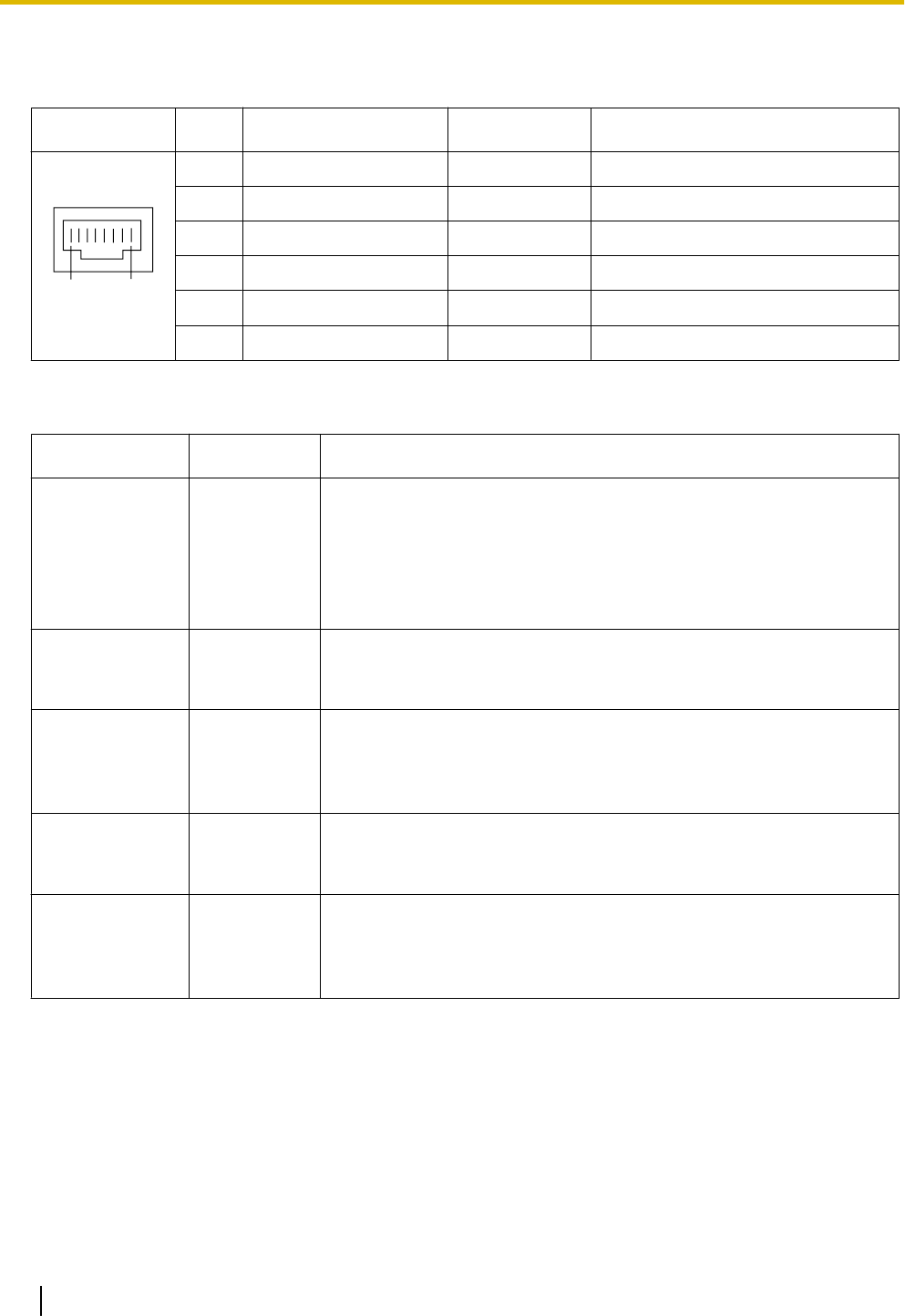
Pin Assignments
RJ45 Connector
No. Signal Name Level [V] Function
81
1 RX+ (+) Receive data (+)
2 RX- (-) Receive data (-)
3 Reserved – –
4 TX- (-) Transmit data (-)
5 TX+ (+) Transmit data (+)
6-8 Reserved – –
LED Indications
Indication Color Description
CARD STATUS Green/Red Card status indication
•OFF: Power Off
•Green ON: Normal (all ports are idle)
•Green Flashing (60 times per minute): Normal (a port is in use)
•Red ON: Fault (includes reset)
•Red Flashing (60 times per minute): Out of Service
SYNC-ERR Red Non-synchronization status indication
•OFF: Normal
•ON: Out of synchronization
RAI Red RAI signal status indication
•OFF: Normal
•ON: Alarm (Clock Slave)
•Flashing (60 times per minute): Alarm (Clock Master)
AIS Red AIS status indication
•OFF: Normal
•ON: Alarm
SYNC Green Synchronization status indication
•OFF: Not synchronized
•ON: Synchronized
•Flashing (60 times per minute): Synchronized (Clock Master)
70 Installation Manual Document Version 2011-10
3.5.2 T1 Card (KX-NCP1187)
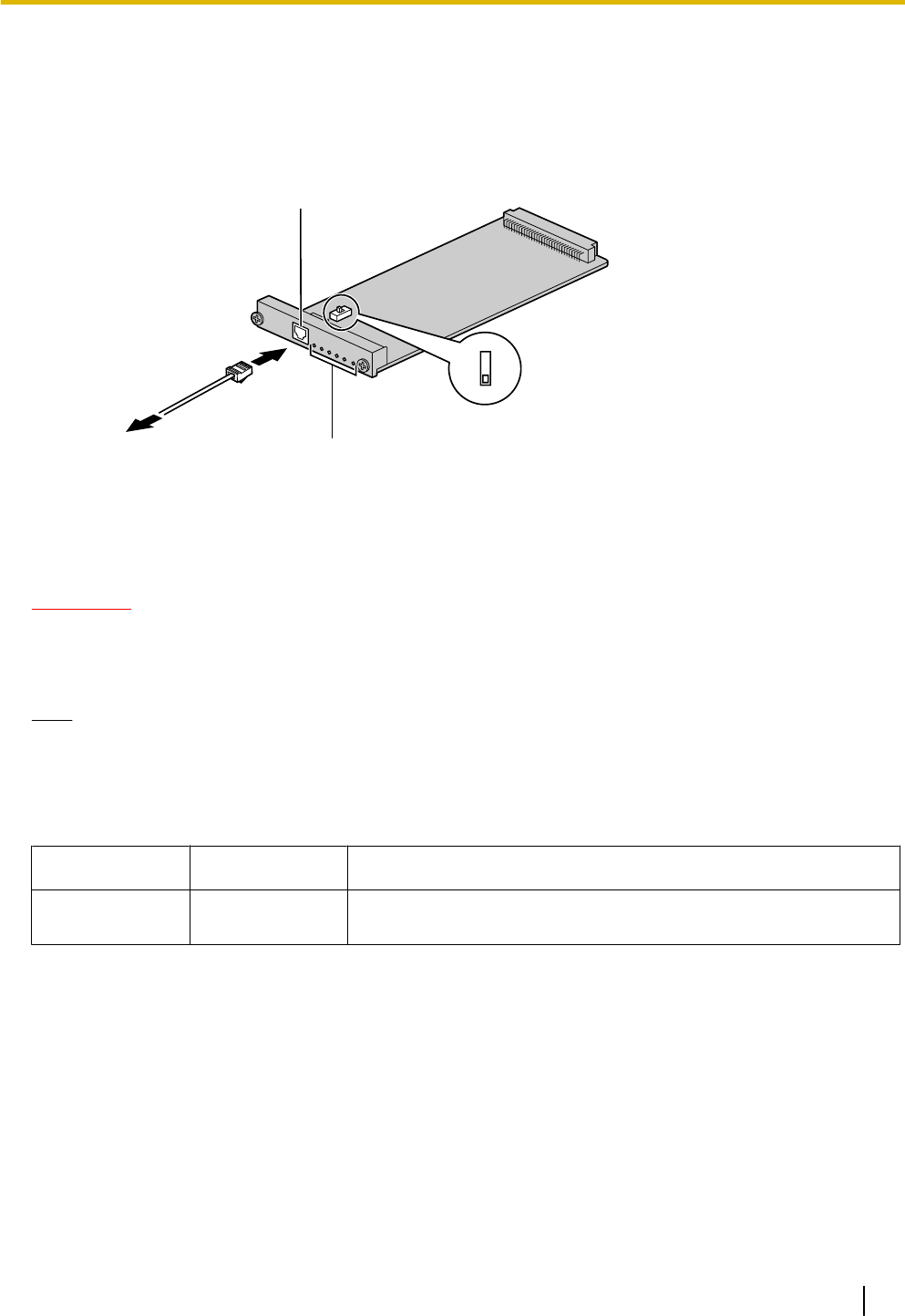
3.5.3 PRI23 Card (KX-NCP1290)
Function
1-port ISDN Primary Rate Interface card (23B channels). NI (North American standard ISDN protocol)
compliant.
LEDs
RJ45
B
A
To NT1/
Extension
Accessories and User-supplied Items
Accessories (included): none
User-supplied (not included): RJ45 connector
CAUTION
•Connecting this optional service card to the CO line through an NT1; do not connect to the U interface
of the CO line directly.
•PRI ports are SELV ports and should only be connected to SELV services.
Note
To confirm the CO line connection, refer to "Confirming the CO Line Connection" in "3.13.1 Starting the
PBX".
Switch Settings
Switch Type Usage and Status Definition
A/B Slide Keep the switch at default A position. Do not change the position
of this switch.
Document Version 2011-10 Installation Manual 71
3.5.3 PRI23 Card (KX-NCP1290)
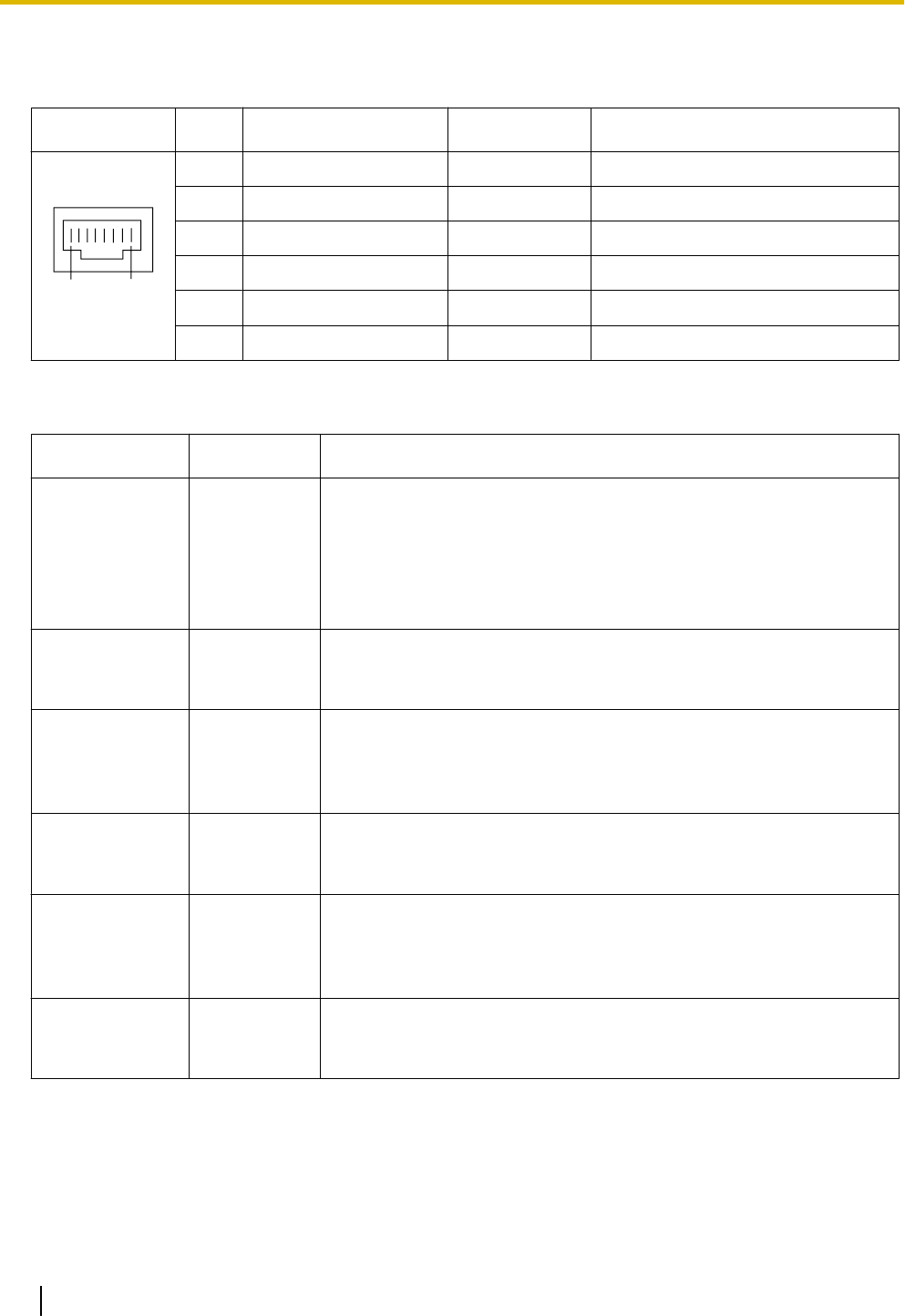
Pin Assignments
RJ45 Connector
No. Signal Name Level [V] Function
81
1 RX+ (+) Receive data (+)
2 RX- (-) Receive data (-)
3 Reserved – –
4 TX- (-) Transmit data (-)
5 TX+ (+) Transmit data (+)
6-8 Reserved – –
LED Indications
Indication Color Description
CARD STATUS Green/Red Card status indication
•OFF: Power Off
•Green ON: Normal (all ports are idle)
•Green Flashing (60 times per minute): Normal (a port is in use)
•Red ON: Fault (includes reset)
•Red Flashing (60 times per minute): Out of Service
SYNC-ERR Red Non-synchronization status indication
•OFF: Normal
•ON: Out of synchronization
RAI Red RAI signal status indication
•OFF: Normal
•ON: Alarm (Clock Slave)
•Flashing (60 times per minute): Alarm (Clock Master)
AIS Red AIS status indication
•OFF: Normal
•ON: Alarm
SYNC Green Synchronization status indication
•OFF: Not synchronized
•ON: Synchronized
•Flashing (60 times per minute): Synchronized (Clock Master)
D-LINK Green Data link status indication
•OFF: Not established
•ON: Established
72 Installation Manual Document Version 2011-10
3.5.3 PRI23 Card (KX-NCP1290)
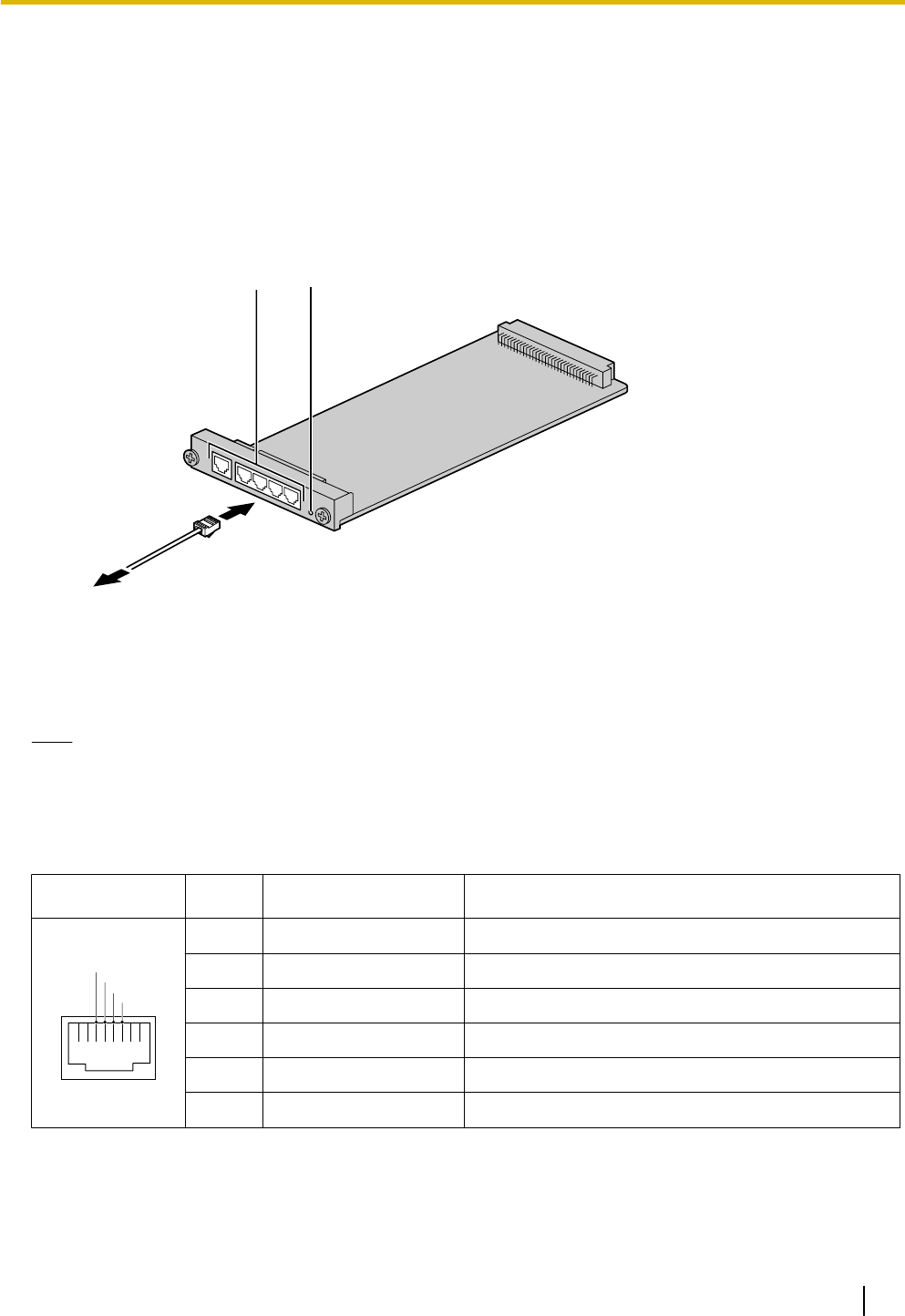
3.6 Information about the Physical Extension Cards
3.6.1 DHLC4 Card (KX-NCP1170)
Function
4-port digital hybrid extension card for DPTs, APTs, SLTs, DSS consoles, and PT-interface CSs, with Caller
ID (FSK) and 1 power failure transfer (PFT) port.
RJ45 LED
To extensions
Accessories and User-supplied Items
Accessories (included): none
User-supplied (not included): RJ45 connector
Note
For details about power failure transfer, refer to "3.12.1 Power Failure Connections".
Pin Assignments
RJ45 Connector
No. Signal Name Function
1 8
D1
T
R
D2
1-2 Reserved –
3 D1 Data port (High)
4 T Tip
5 R Ring
6 D2 Data port (Low)
7-8 Reserved –
Document Version 2011-10 Installation Manual 73
3.6.1 DHLC4 Card (KX-NCP1170)

LED Indications
Indication Color Description
CARD STATUS Green/
Orange/Red
Card status indication
•OFF: Power Off
•Green ON: Normal (all ports are idle)
•Green Flashing (60 times per minute): Normal (a port is in use)
•Orange Flashing: Detection of PT-interface CS connection (when
starting up the PT-interface CS)
•Red ON: Fault (includes reset)
•Red Flashing (60 times per minute): Out of Service
74 Installation Manual Document Version 2011-10
3.6.1 DHLC4 Card (KX-NCP1170)
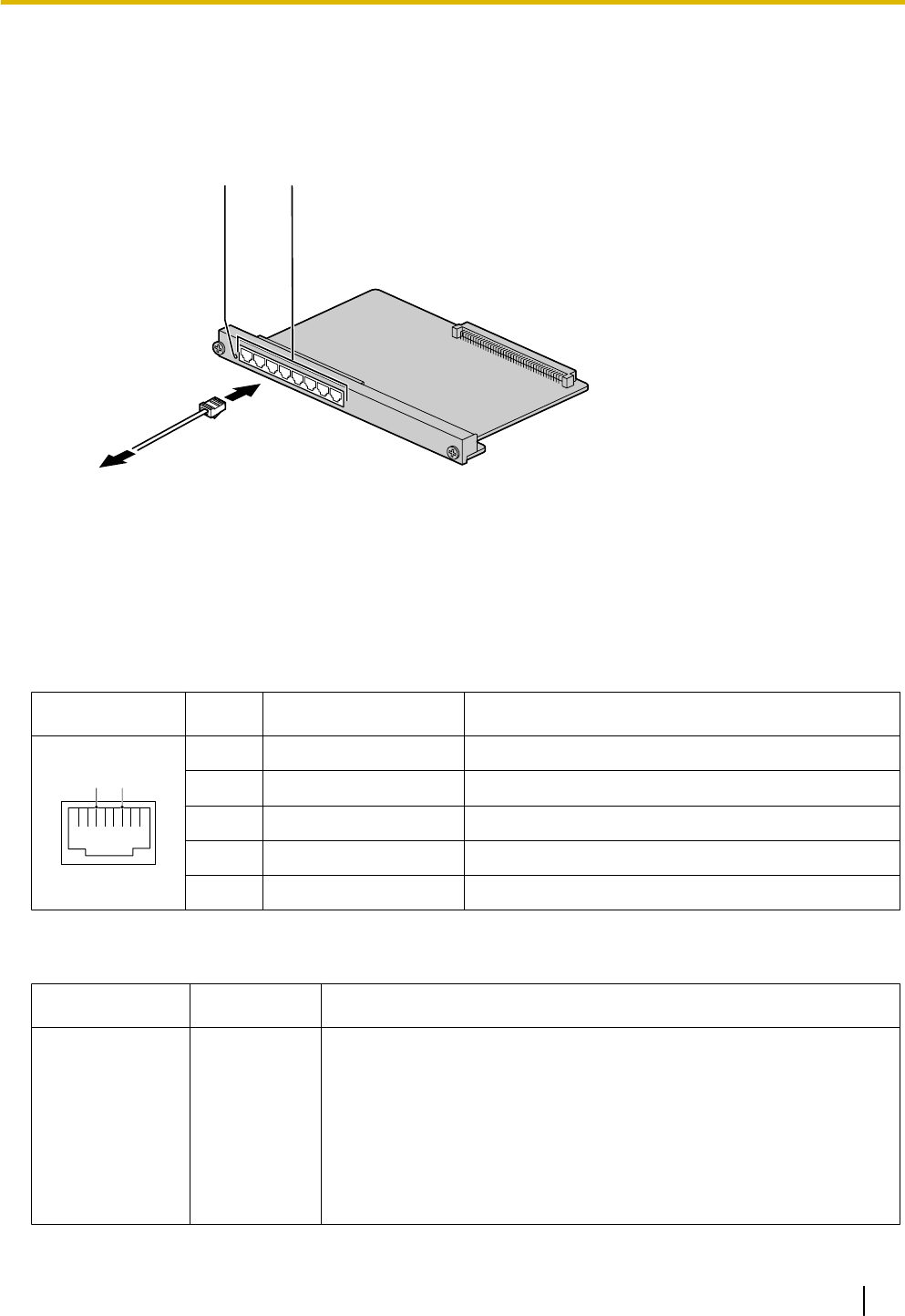
3.6.2 DLC8 Card (KX-NCP1171)
Function
8-port digital extension card for DPTs, DSS consoles, and PT-interface CSs.
RJ45LED
To extensions
Accessories and User-supplied Items
Accessories (included): none
User-supplied (not included): RJ45 connector
Pin Assignments
RJ45 Connector
No. Signal Name Function
1 8
D2D1
1-2 Reserved –
3 D1 Data port (High)
4-5 Reserved –
6 D2 Data port (Low)
7-8 Reserved –
LED Indications
Indication Color Description
CARD STATUS Green/
Orange/Red
Card status indication
•OFF: Power Off
•Green ON: Normal (all ports are idle)
•Green Flashing (60 times per minute): Normal (a port is in use)
•Orange Flashing: Detection of PT-interface CS connection (when
starting up the PT-interface CS)
•Red ON: Fault (includes reset)
•Red Flashing (60 times per minute): Out of Service
Document Version 2011-10 Installation Manual 75
3.6.2 DLC8 Card (KX-NCP1171)
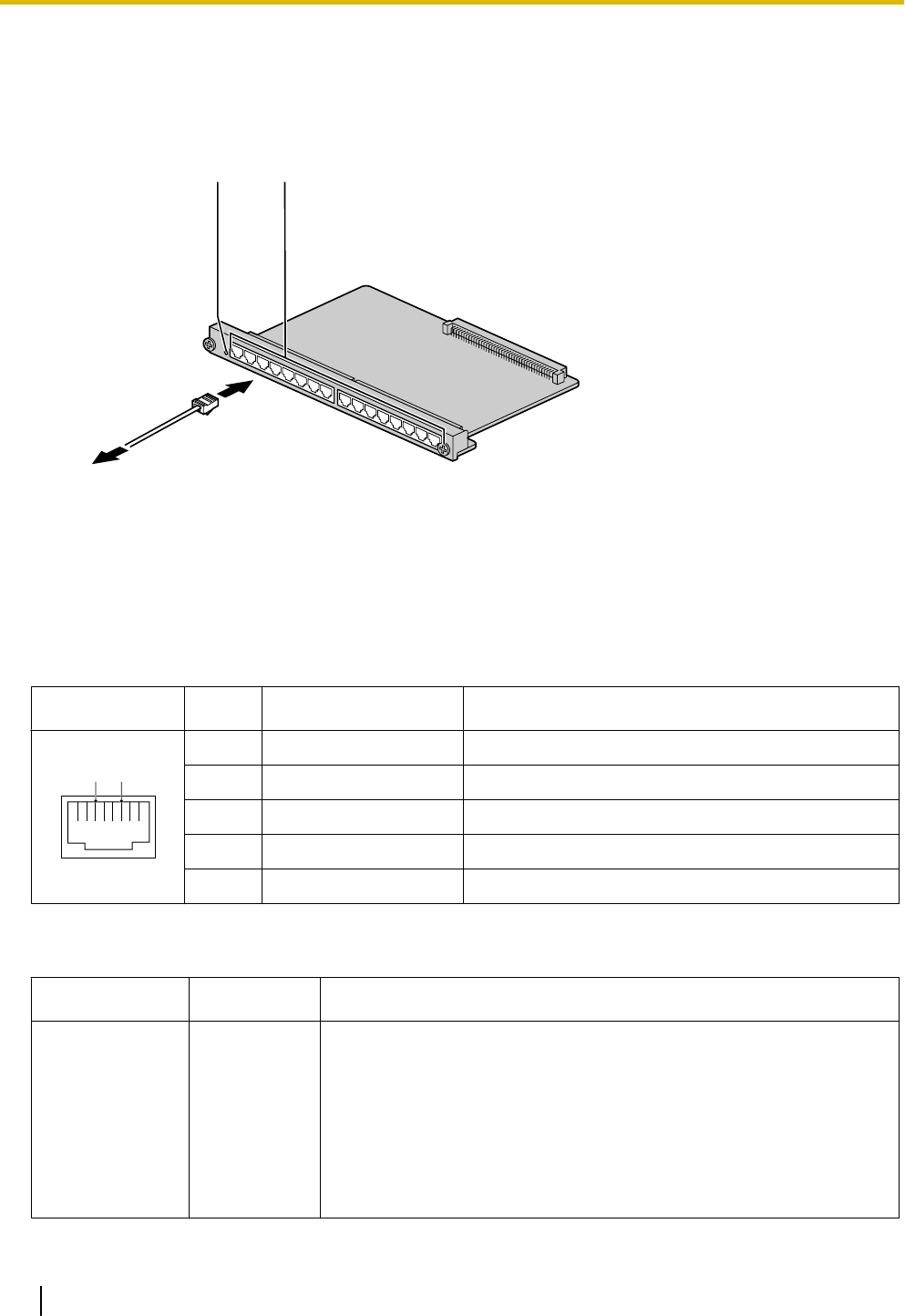
3.6.3 DLC16 Card (KX-NCP1172)
Function
16-port digital extension card for DPTs, DSS consoles, and PT-interface CSs.
RJ45LED
To extensions
Accessories and User-supplied Items
Accessories (included): none
User-supplied (not included): RJ45 connector
Pin Assignments
RJ45 Connector
No. Signal Name Function
1 8
D2D1
1-2 Reserved –
3 D1 Data port (High)
4-5 Reserved –
6 D2 Data port (Low)
7-8 Reserved –
LED Indications
Indication Color Description
CARD STATUS Green/
Orange/Red
Card status indication
•OFF: Power Off
•Green ON: Normal (all ports are idle)
•Green Flashing (60 times per minute): Normal (a port is in use)
•Orange Flashing: Detection of PT-interface CS connection (when
starting up the PT-interface CS)
•Red ON: Fault (includes reset)
•Red Flashing (60 times per minute): Out of Service
76 Installation Manual Document Version 2011-10
3.6.3 DLC16 Card (KX-NCP1172)
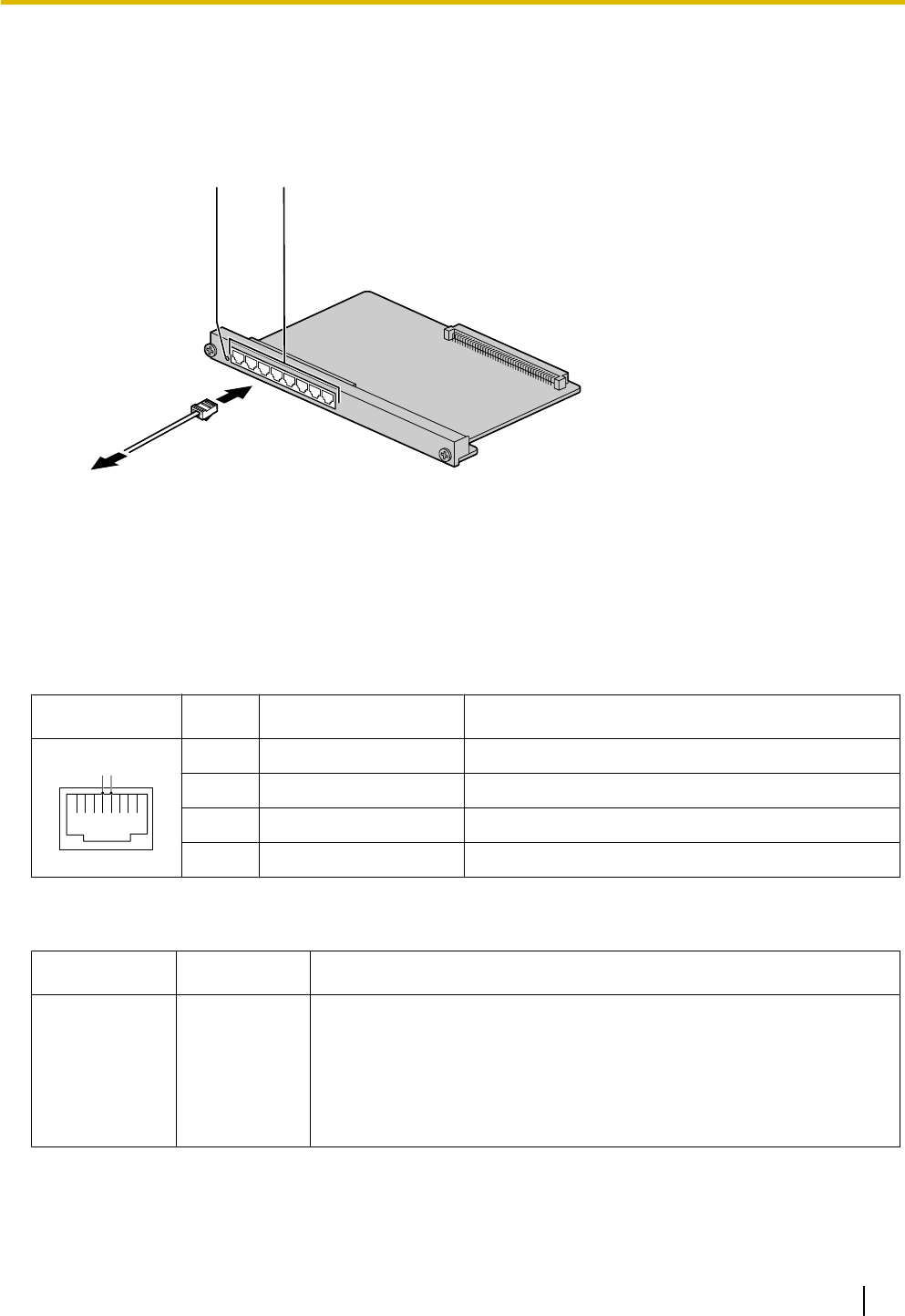
3.6.4 SLC8 Card (KX-NCP1173)
Function
8-port extension card for SLTs with Caller ID (FSK).
RJ45LED
To extensions
Accessories and User-supplied Items
Accessories (included): none
User-supplied (not included): RJ45 connector
Pin Assignments
RJ45 Connector
No. Signal Name Function
1 8
T R
1-3 Reserved –
4 T Tip
5 R Ring
6-8 Reserved –
LED Indications
Indication Color Description
CARD
STATUS
Green/Red Card status indication
•OFF: Power Off
•Green ON: Normal (all ports are idle)
•Green Flashing (60 times per minute): Normal (a port is in use)
•Red ON: Fault (includes reset)
•Red Flashing (60 times per minute): Out of Service
Document Version 2011-10 Installation Manual 77
3.6.4 SLC8 Card (KX-NCP1173)
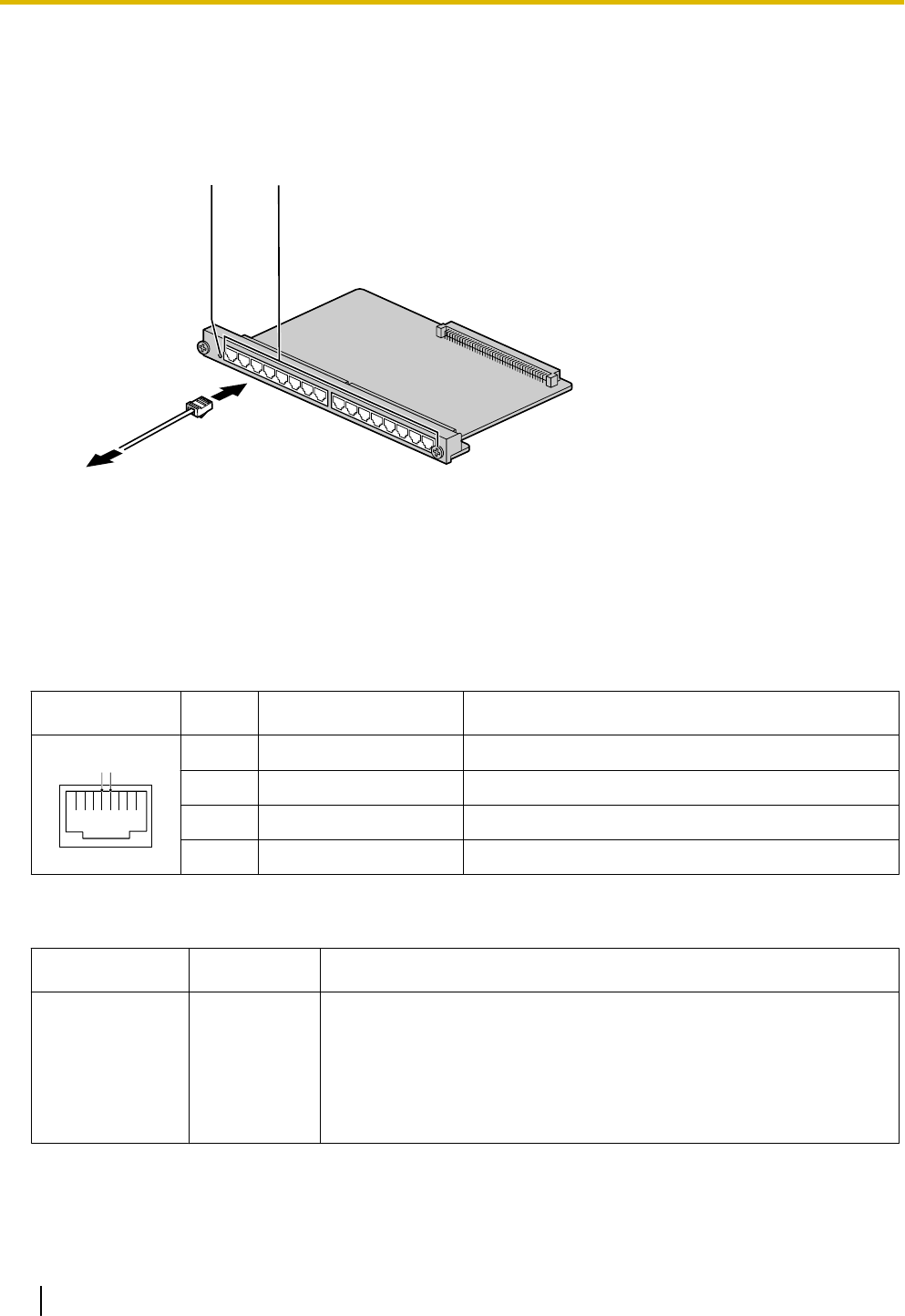
3.6.5 SLC16 Card (KX-NCP1174)
Function
16-port extension card for SLTs with Caller ID (FSK).
RJ45LED
To extensions
Accessories and User-supplied Items
Accessories (included): none
User-supplied (not included): RJ45 connector
Pin Assignments
RJ45 Connector
No. Signal Name Function
1 8
T R
1-3 Reserved –
4 T Tip
5 R Ring
6-8 Reserved –
LED Indications
Indication Color Description
CARD STATUS Green/Red Card status indication
•OFF: Power Off
•Green ON: Normal (all ports are idle)
•Green Flashing (60 times per minute): Normal (a port is in use)
•Red ON: Fault (includes reset)
•Red Flashing (60 times per minute): Out of Service
78 Installation Manual Document Version 2011-10
3.6.5 SLC16 Card (KX-NCP1174)
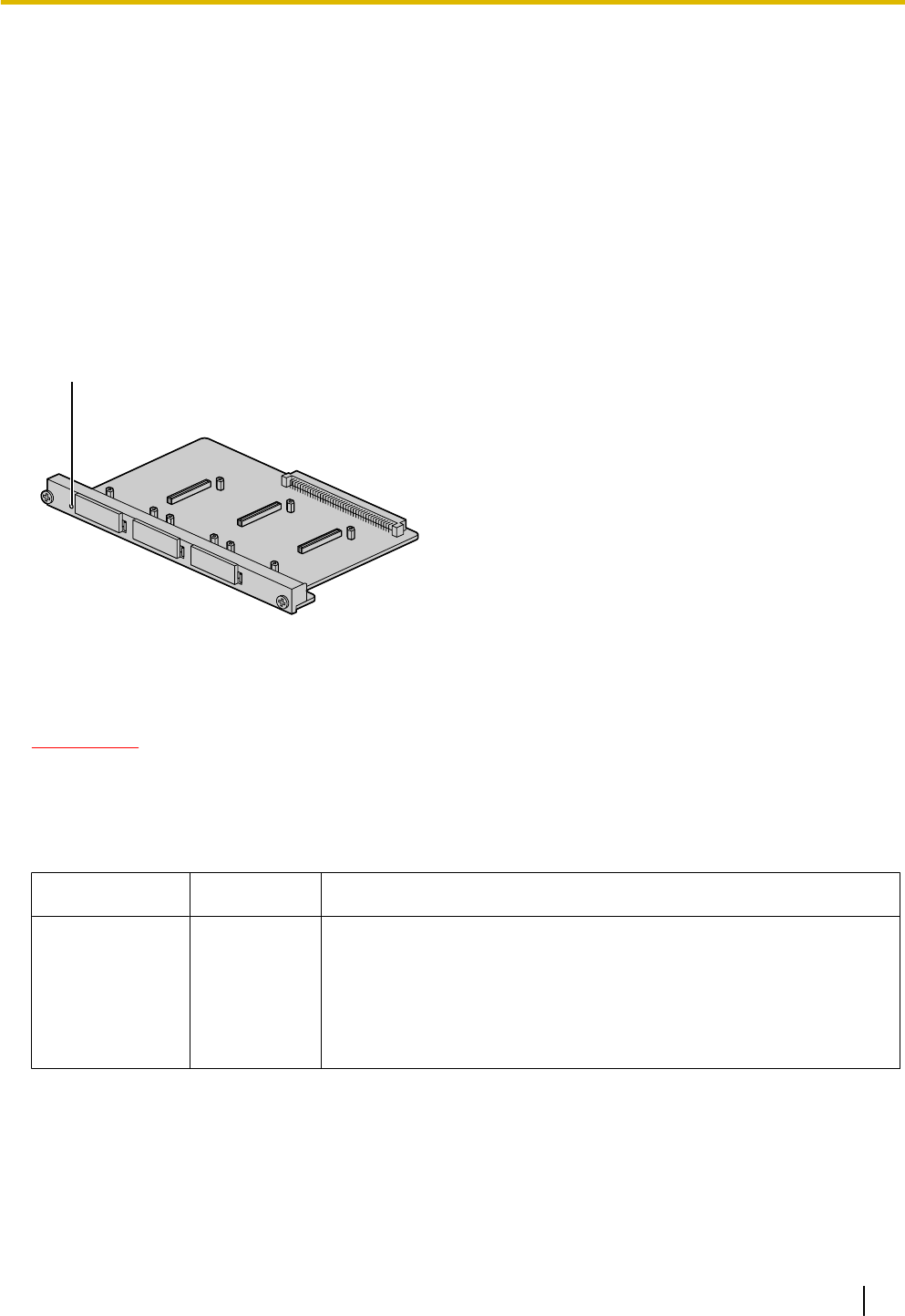
3.7 Information about the Other Physical Cards
3.7.1 OPB3 Card (KX-NCP1190)
Function
Optional 3-slot base card for mounting a maximum of 3 option cards from the following:
•DPH4 card
•EIO4 card
•ECHO16 card
•MSG4 card
•ESVM4 card
LED
Accessories and User-supplied Items
Accessories (included): none
User-supplied (not included): none
WARNING
A lithium battery is used in the OPB3 card. There is a risk of explosion if the battery is replaced
with the incorrect type. Dispose of used batteries according to the manufacturer’s instructions.
LED Indications
Indication Color Description
CARD STATUS Green/Red Card status indication
•OFF: Power Off
•Green ON: Normal (all ports are idle)
•Green Flashing (60 times per minute): Normal (a port is in use)
•Red ON: Fault (includes reset)
•Red Flashing (60 times per minute): Out of Service
Document Version 2011-10 Installation Manual 79
3.7.1 OPB3 Card (KX-NCP1190)
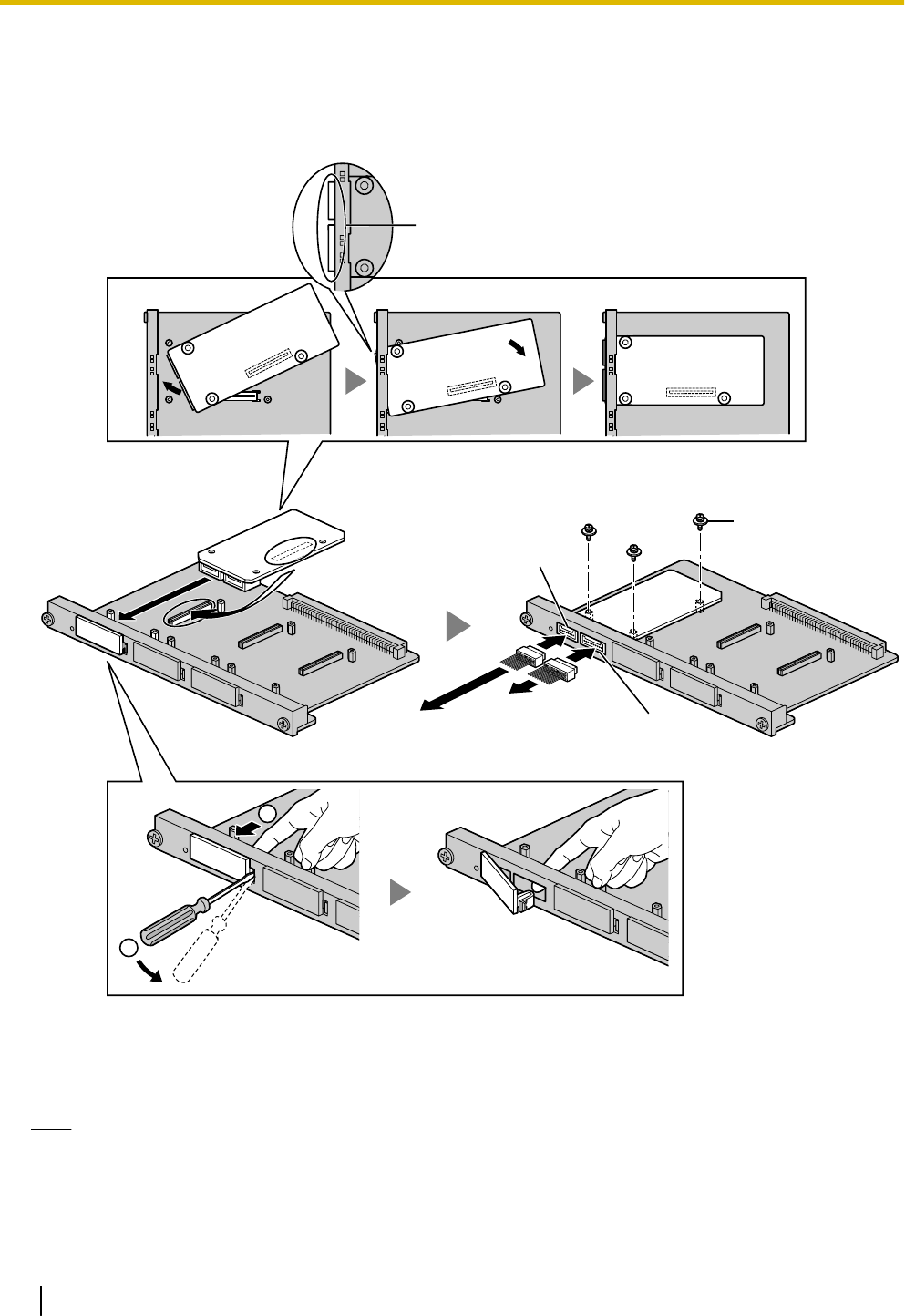
3.7.2 DPH4 Card (KX-TDA0161)
Function
4-port doorphone card for 4 doorphones and 4 door openers. To be mounted on the OPB3 card.
1
2
Fully insert the connectors through
the panel openings.
Screw
OPB3 Card
To door openers
To doorphones
10-pin
8-pin
DPH4 Card
Accessories and User-supplied Items
Accessories (included): Screws ´ 3, 10-pin terminal block ´ 1, 8-pin terminal block ´ 1
User-supplied (not included): Copper wire
Note
For details about connection to doorphones and door openers, refer to "3.9.1 Connection of Doorphones,
Door Openers, External Sensors, and External Relays".
80 Installation Manual Document Version 2011-10
3.7.2 DPH4 Card (KX-TDA0161)
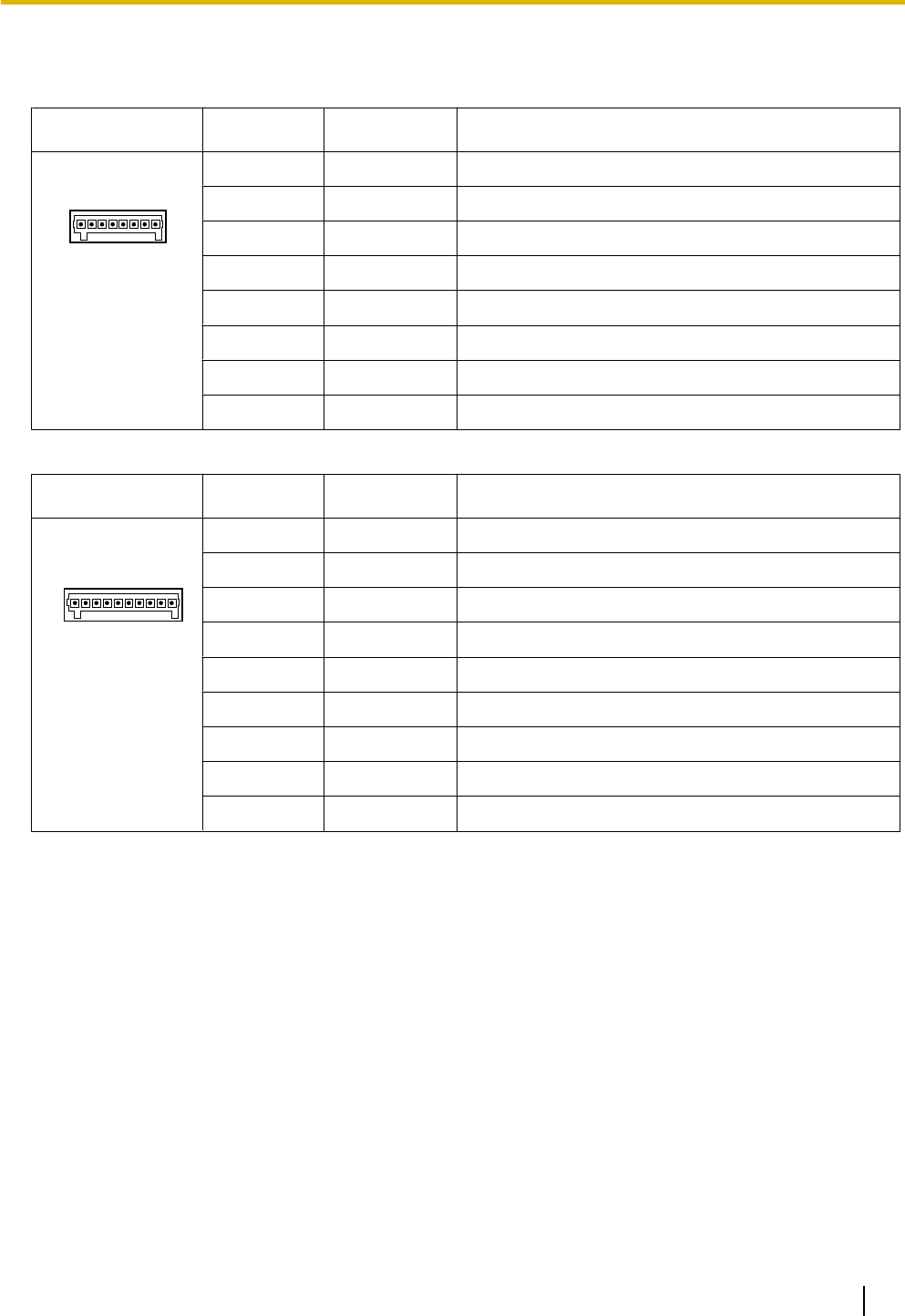
Pin Assignments
8-pin Terminal Block
No. Signal Name Function
81
1 DP4 Doorphone 4 transmit
2 com4 Doorphone 4 receive
3 DP3 Doorphone 3 transmit
4 com3 Doorphone 3 receive
5 DP2 Doorphone 2 transmit
6 com2 Doorphone 2 receive
7 DP1 Doorphone 1 transmit
8 com1 Doorphone 1 receive
10-pin Terminal Block
No. Signal Name Function
10 1
1-2 Reserved –
3 OP4b Door opener 4
4 OP4a Door opener 4 com
5 OP3b Door opener 3
6 OP3a Door opener 3 com
7 OP2b Door opener 2
8 OP2a Door opener 2 com
9 OP1b Door opener 1
10 OP1a Door opener 1 com
Document Version 2011-10 Installation Manual 81
3.7.2 DPH4 Card (KX-TDA0161)
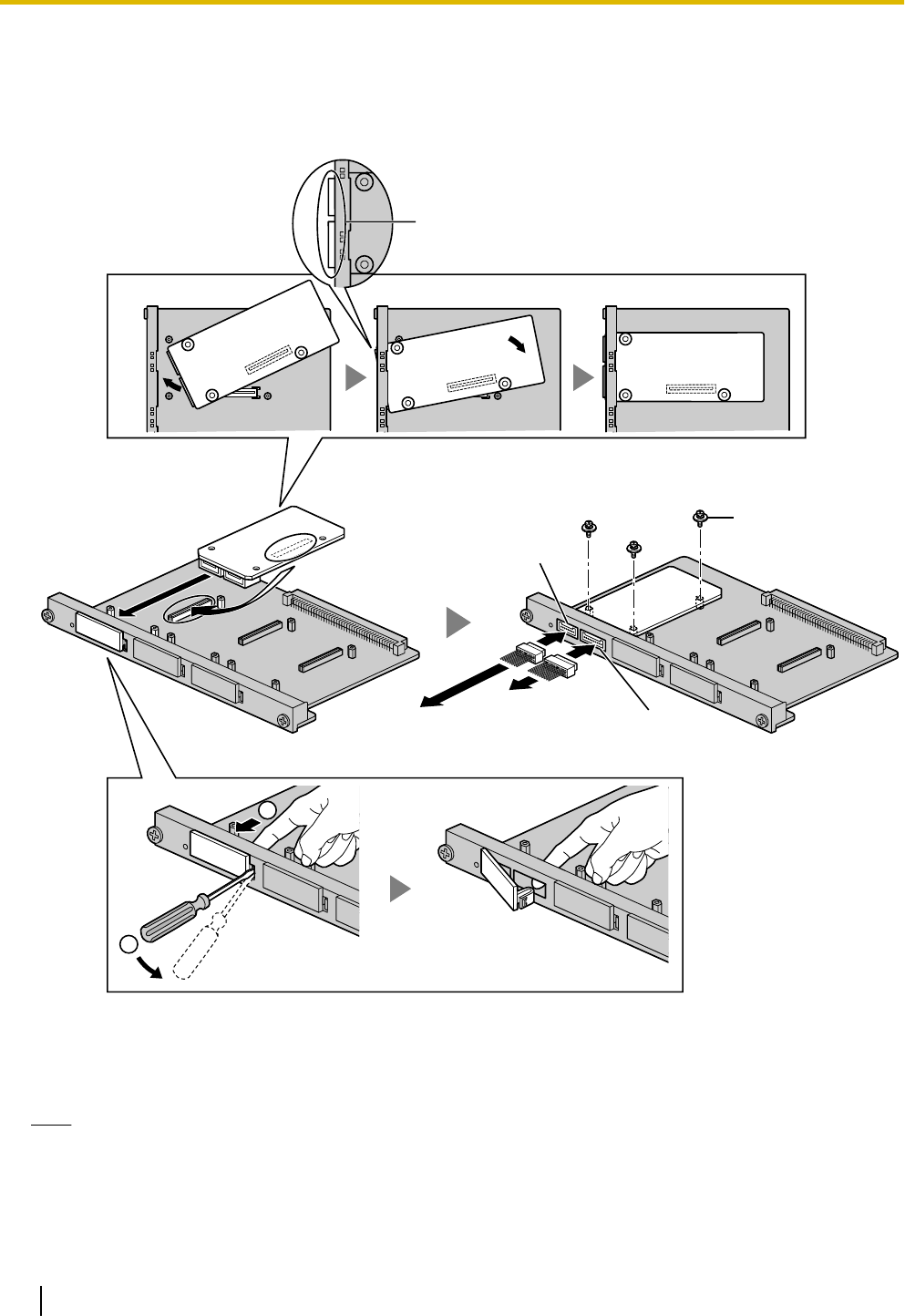
3.7.3 EIO4 Card (KX-TDA0164)
Function
4-port external input/output card. To be mounted on the OPB3 card.
OPB3 Card
Fully insert the connectors through
the panel openings.
Screw
10-pin
8-pin
EIO4 Card
To external sensors
To external relays
1
2
Accessories and User-supplied Items
Accessories (included): Screws ´ 3, 10-pin terminal block ´ 1, 8-pin terminal block ´ 1
User-supplied (not included): Copper wire
Note
For details about connection to external sensors and external relays, refer to "3.9.1 Connection of
Doorphones, Door Openers, External Sensors, and External Relays".
82 Installation Manual Document Version 2011-10
3.7.3 EIO4 Card (KX-TDA0164)
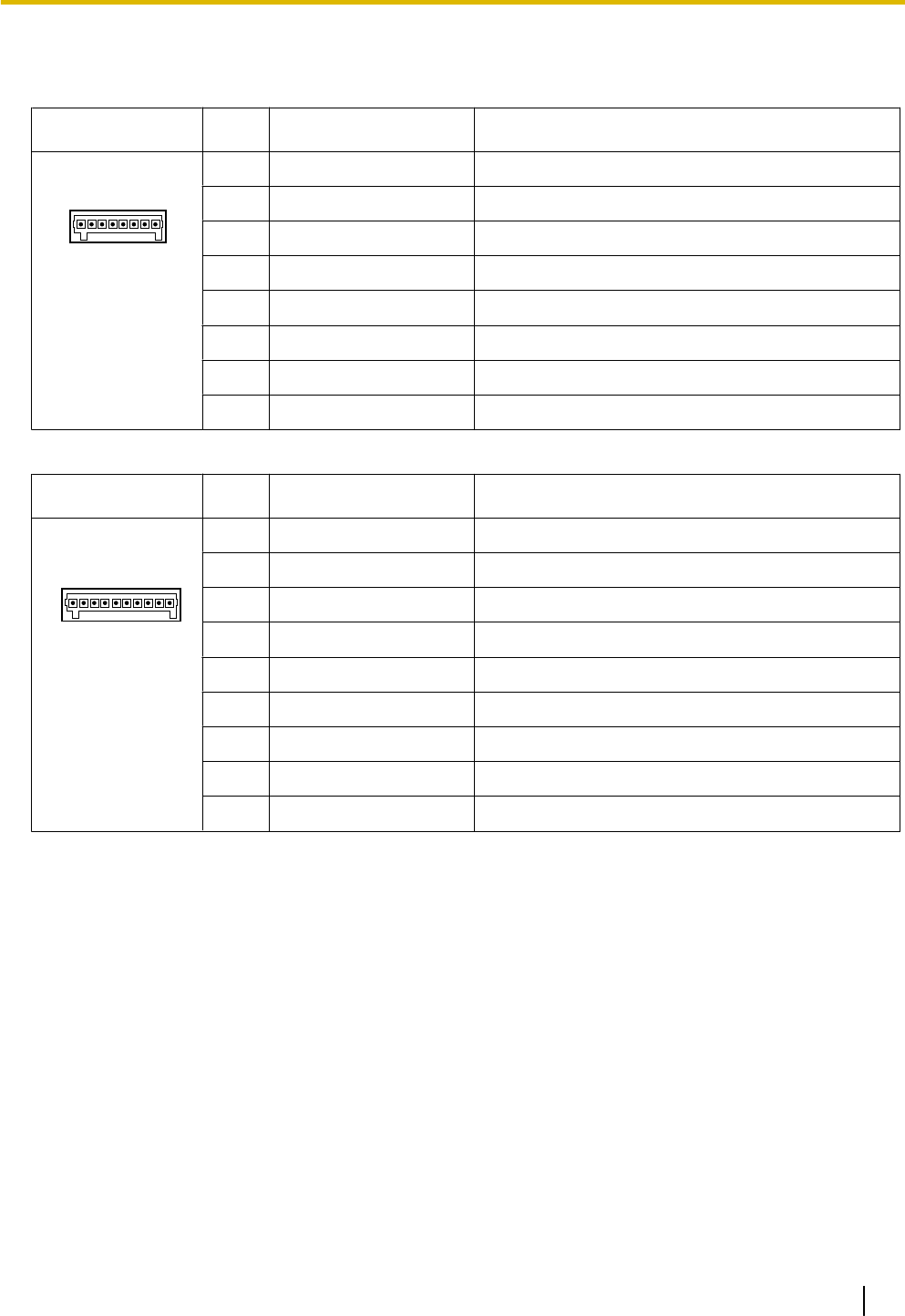
Pin Assignments
8-pin Terminal Block
No. Signal Name Function
81
1 C4b Control 4
2 C4a Control 4 com
3 C3b Control 3
4 C3a Control 3 com
5 C2b Control 2
6 C2a Control 2 com
7 C1b Control 1
8 C1a Control 1 com
10-pin Terminal Block
No. Signal Name Function
10 1
1-2 Reserved –
3 OP4b Opener 4
4 OP4a Opener 4 com
5 OP3b Opener 3
6 OP3a Opener 3 com
7 OP2b Opener 2
8 OP2a Opener 2 com
9 OP1b Opener 1
10 OP1a Opener 1 com
Document Version 2011-10 Installation Manual 83
3.7.3 EIO4 Card (KX-TDA0164)
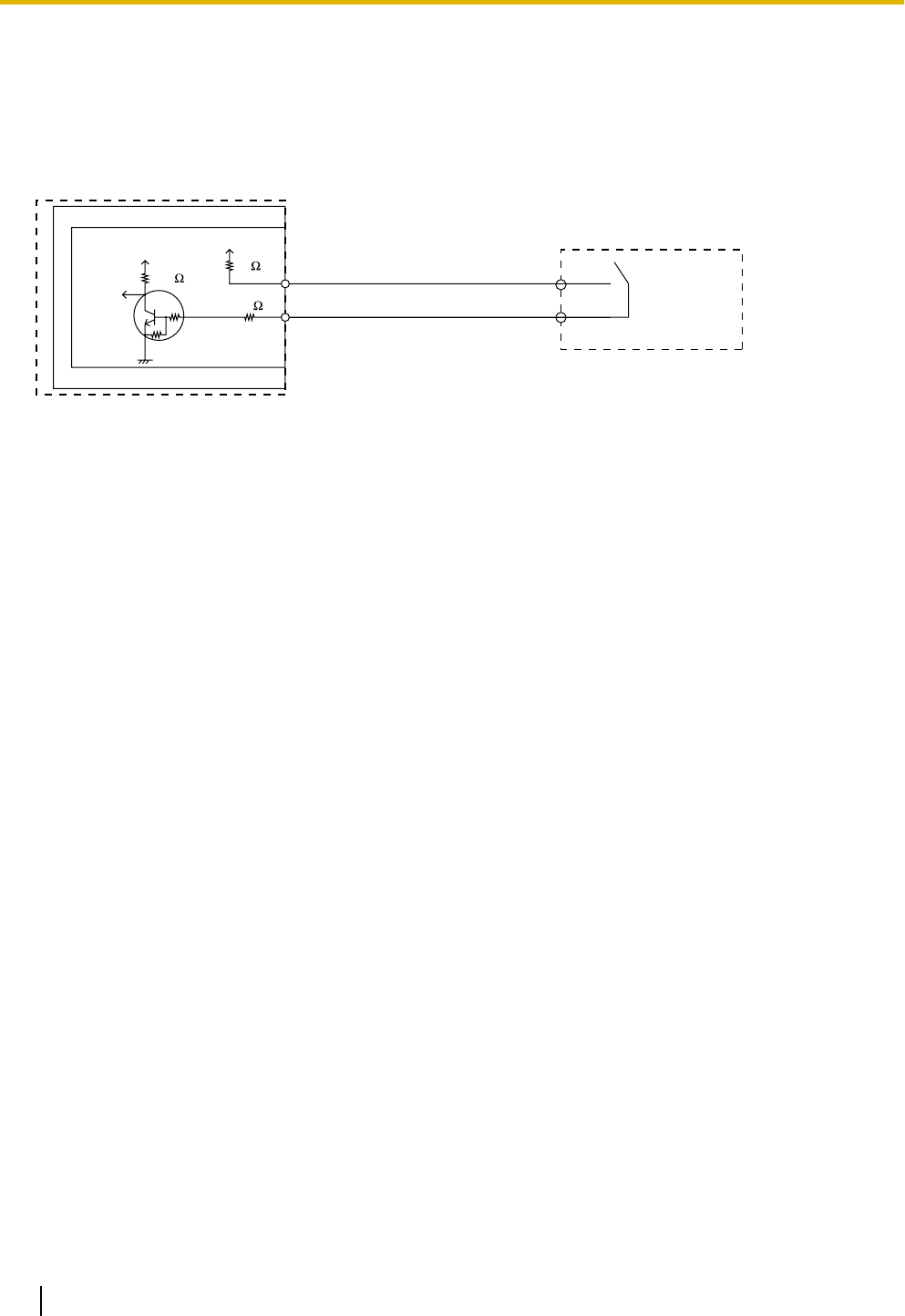
External Sensor
Power to the external sensor is provided from the EIO4 card and must be grounded through the EIO4 card as
indicated in the diagram below. A pair of "sensor" and "common" lines are connected to the EIO4 card for each
external sensor. The PBX detects input from the sensor when the signal is under 100 W.
Connection Diagram
External Sensor
sensor
common
I/O
EIO4
OPB3
PBX
+5V +5V
10K
33
33
4.7K
4.7K
External Relay
Current Limit: 24 V DC/30 V AC, 1 A maximum
84 Installation Manual Document Version 2011-10
3.7.3 EIO4 Card (KX-TDA0164)
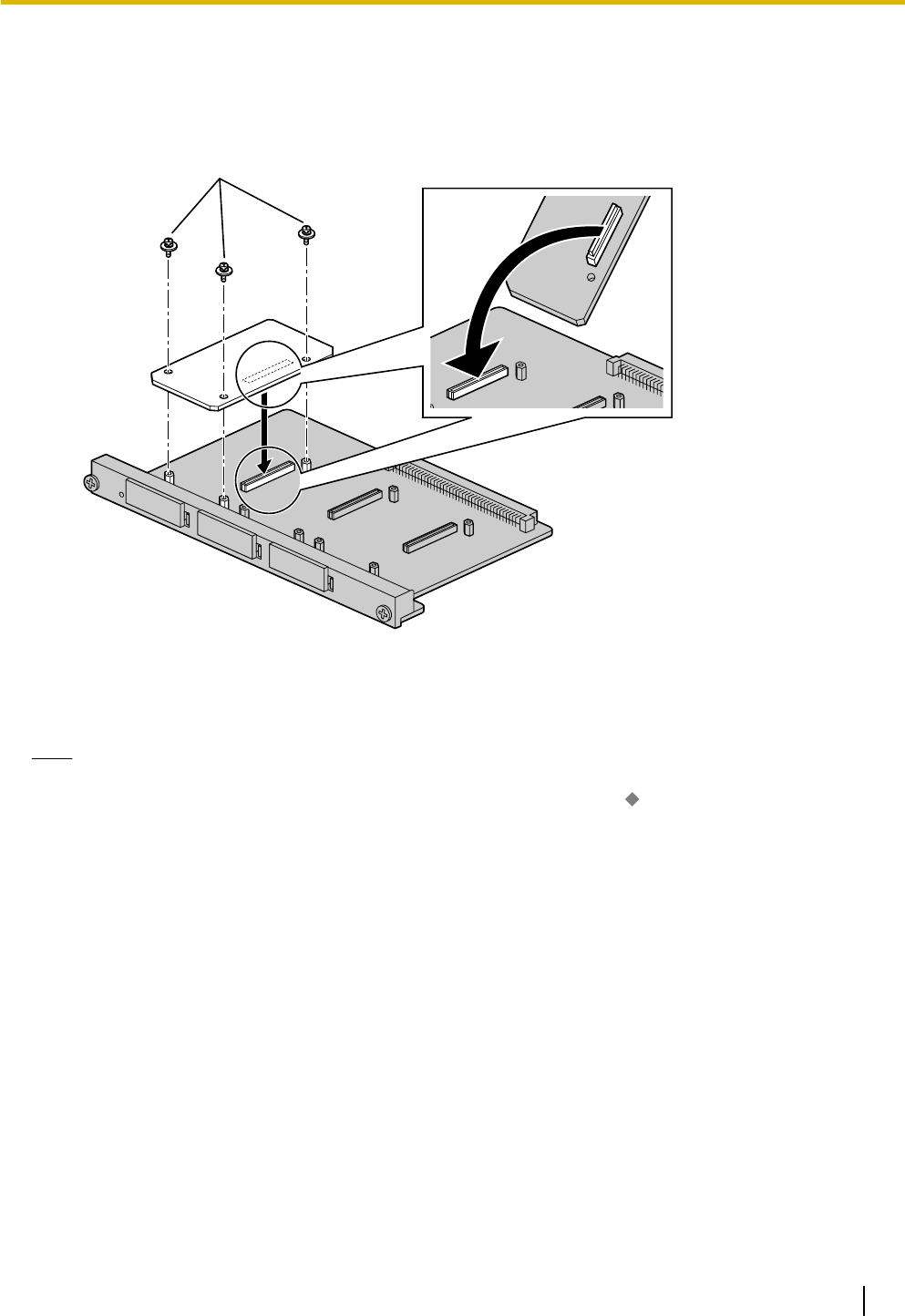
3.7.4 ECHO16 Card (KX-TDA0166)
Function
16-channel card for echo cancellation during conferences. To be mounted on the OPB3 card.
OPB3 Card
inside
ECHO16 Card
Screws
Accessories and User-supplied Items
Accessories (included): Screws ´ 3
User-supplied (not included): none
Note
To establish a conference call involving 6 to 8 parties, install an ECHO16 card and enable echo cancellation
for conferences using the Maintenance Console. For details, refer to " Echo Cancel—Conference" in
"4.18 [2-9] System Options" of the PC Programming Manual.
Document Version 2011-10 Installation Manual 85
3.7.4 ECHO16 Card (KX-TDA0166)
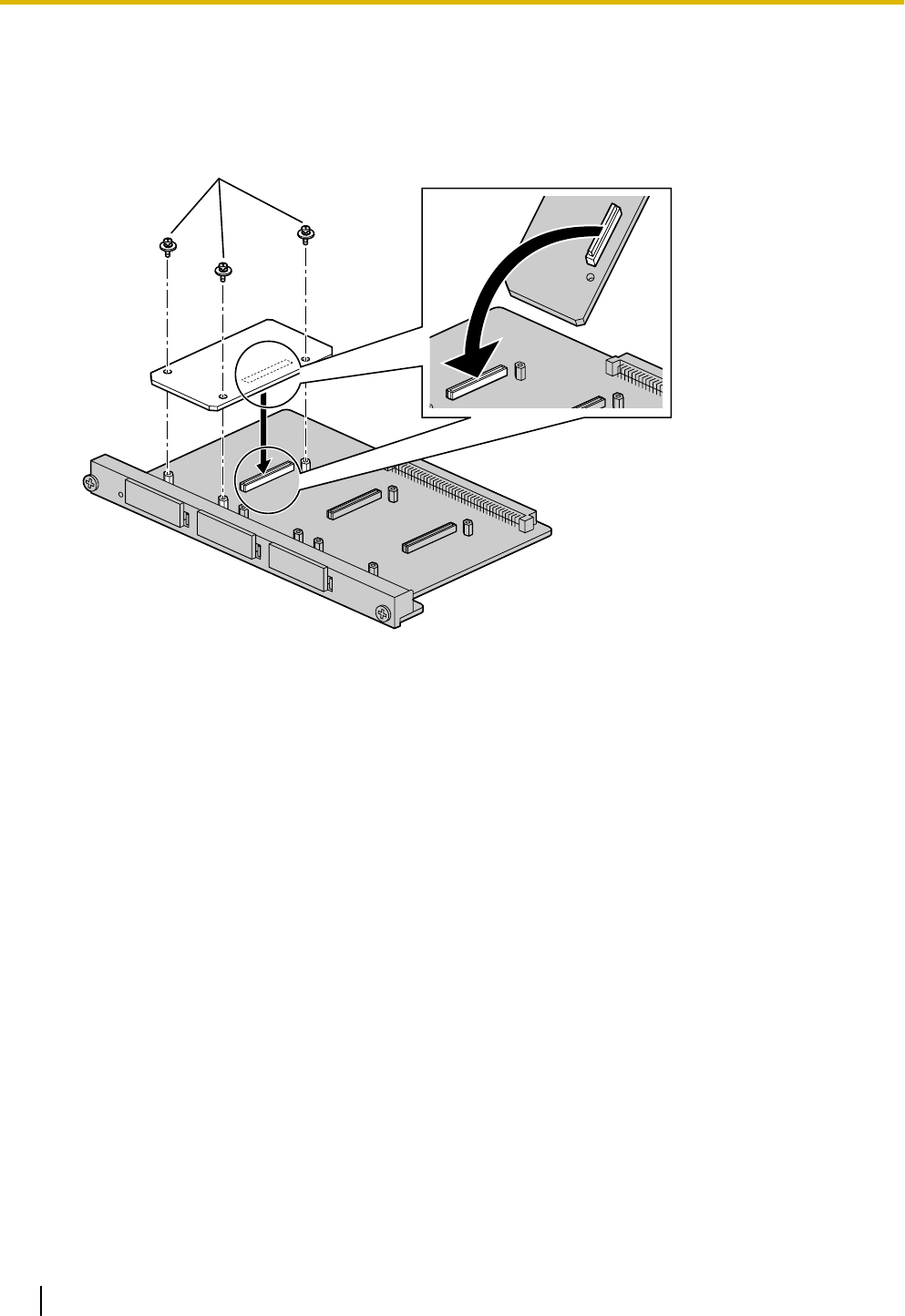
3.7.5 MSG4 Card (KX-TDA0191)
Function
4-channel message card. To be mounted on the OPB3 card.
OPB3 Card
inside
MSG4 Card
Screws
Accessories and User-supplied Items
Accessories (included): Screws ´ 3
User-supplied (not included): none
86 Installation Manual Document Version 2011-10
3.7.5 MSG4 Card (KX-TDA0191)
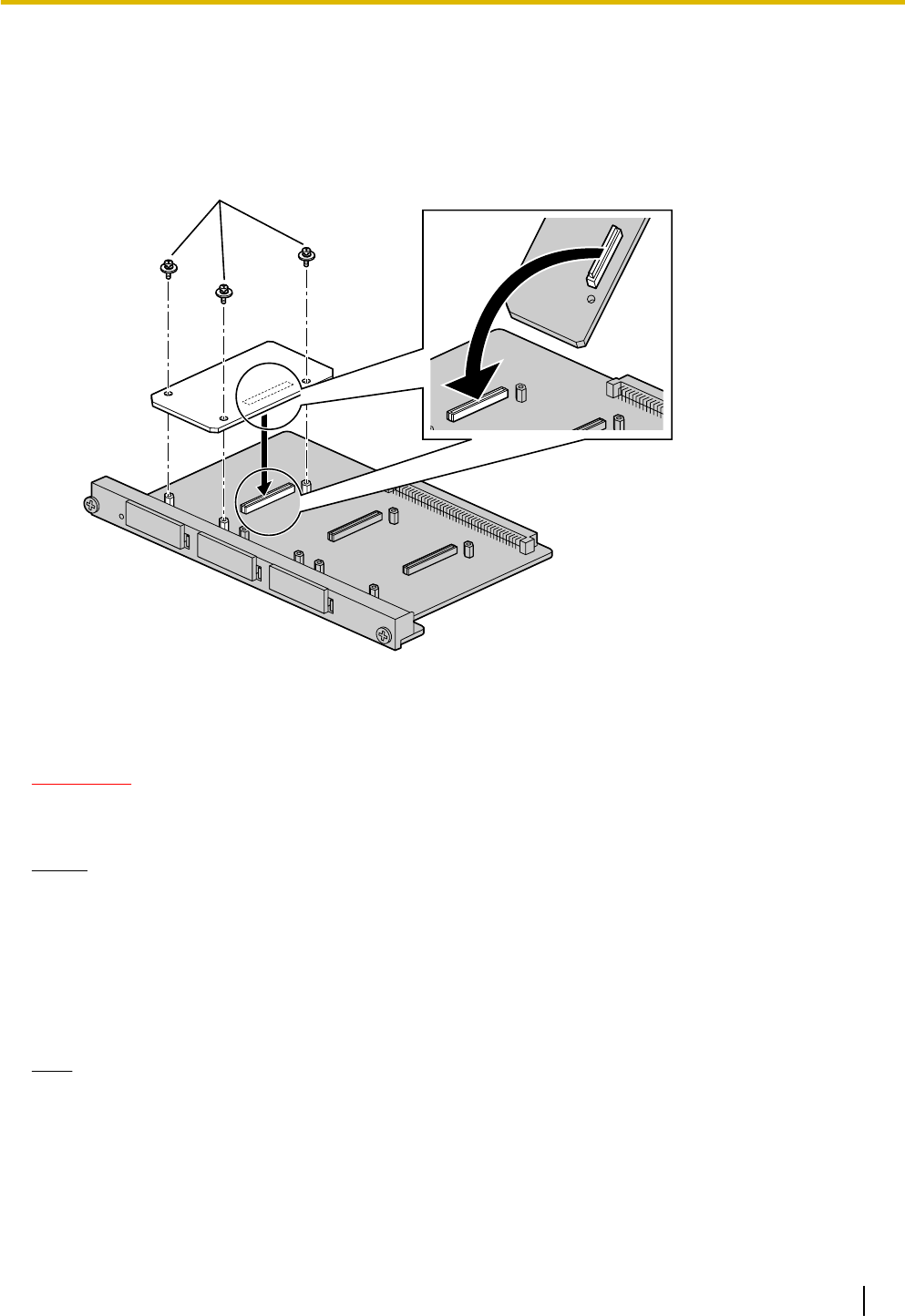
3.7.6 ESVM4 Card (KX-TDA0194)
Function
4-channel simplified voice message card for Simplified Voice Message feature. Also supports MSG card
features. To be mounted on the OPB3 card.
OPB3 Card
inside
ESVM4 Card
Screws
Accessories and User-supplied Items
Accessories (included): Screws ´ 3
User-supplied (not included): none
CAUTION
When installing/uninstalling an ESVM card, be careful not to damage the chips around the connection
parts. Doing so may cause severe damage to the ESVM card.
Notice
•When replacing an ESVM card, ensure that the status of the OPB3 card is In Service (INS), and then
initialize the ESVM card. For details about the initialization procedure, refer to "2.5.4 Tool—Simplified
Voice Message—Delete All Recording" in the PC Programming Manual.
•When installing an ESVM card for the first time on an OPB3 card that is already installed in the PBX,
do not remove the OPB3 card from the PBX until the card status becomes INS.
•After installing the OPB3 card, with an ESVM card mounted, for the first time, do not remove the
OPB3 card from the PBX until the card status becomes INS.
Note
When using an ESVM card for the SVM feature, it must be mounted on sub-slot 3 (leftmost slot) of the
OPB3 card.
Document Version 2011-10 Installation Manual 87
3.7.6 ESVM4 Card (KX-TDA0194)
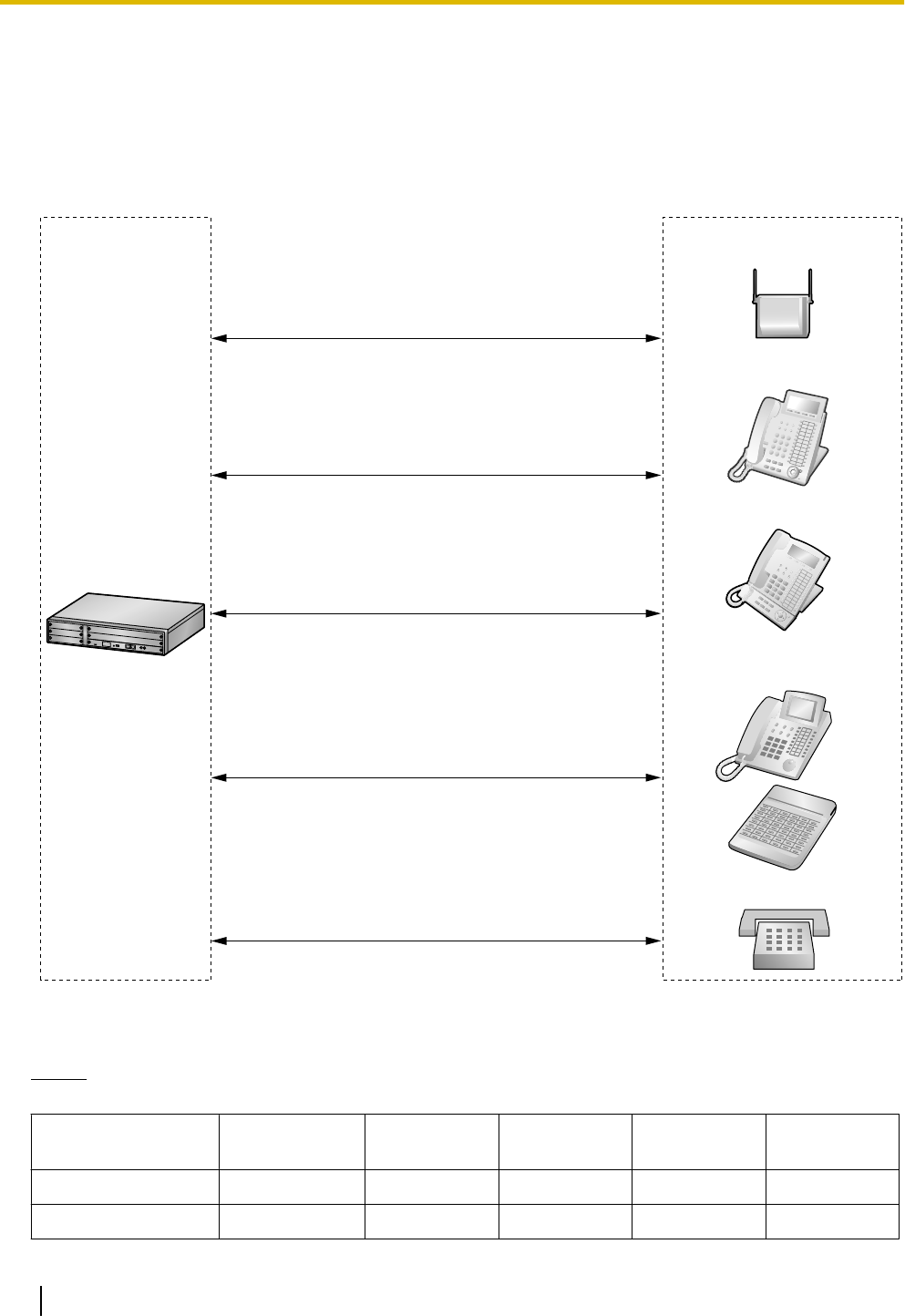
3.8 Connection of Extensions
3.8.1 Maximum Cabling Distances of the Extension Wiring
(Twisted Cable)
KX-T7600 Series DPT
KX-DT300 Series DPT
SLT
Other PT (DPT/APT)
and DSS Console
PT-interface CS
Cable Maximum Distance
26 AWG: 222 m (728 ft)
24 AWG: 347 m (1138 ft)
22 AWG: 500 m (1640 ft)
CAT 5: 347 m (1138 ft)
Cable Maximum Distance
26 AWG: 500 m (1640 ft)
24 AWG: 720 m (2362 ft)
22 AWG: 830 m (2723 ft)
CAT 5: 720 m (2362 ft)
Cable Maximum Distance
26 AWG: 500 m (1640 ft)
24 AWG: 720 m (2362 ft)
22 AWG: 830 m (2723 ft)
CAT 5: 720 m (2362 ft)
Cable Maximum Distance
26 AWG: 140 m (459 ft)
24 AWG: 229 m (751 ft)
22 AWG: 360 m (1181 ft)
CAT 5: 229 m (751 ft)
Cable Maximum Distance
26 AWG: 698 m (2289 ft)
24 AWG: 1128 m (3700 ft)
22 AWG: 1798 m (5897 ft)
CAT 5: 1128 m (3700 ft)
* The maximum cabling distance from the PBX is the same even when the KX-DT300/KX-T7600 series DPT
is the master DPT on the Digital XDP connection.
Notice
The maximum cabling distance may vary depending on the conditions.
PT-interface
CS DPT APT DSS
Console SLT
DHLC4 Card ü üüüü
SLC16, SLC8 Cards ü
88 Installation Manual Document Version 2011-10
3.8.1 Maximum Cabling Distances of the Extension Wiring (Twisted Cable)

PT-interface
CS DPT APT DSS
Console SLT
DLC16, DLC8 Cards ü ü ü
"ü" indicates that the extension card supports the terminal.
Document Version 2011-10 Installation Manual 89
3.8.1 Maximum Cabling Distances of the Extension Wiring (Twisted Cable)
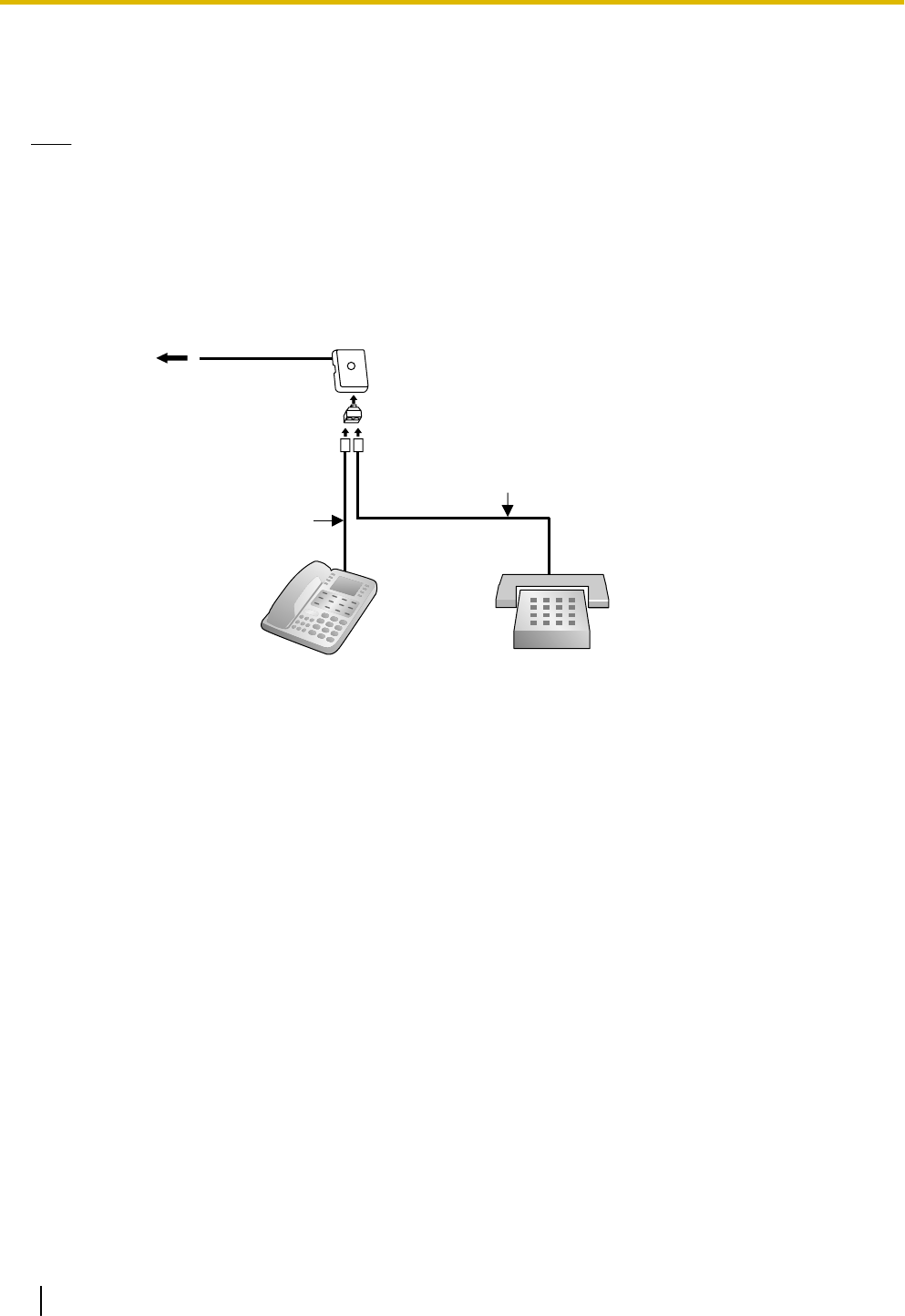
3.8.2 Parallel Connection of the Extensions
Any SLT can be connected in parallel with an APT or a DPT as follows.
Note
In addition to an SLT, an answering machine, a fax machine or a modem (PC) can be connected in parallel
with an APT or a DPT.
With APT
For parallel connection, eXtra Device Port (XDP) mode must be disabled for that port through system
programming. Refer to "13.1.2 Paralleled Telephone" and "5.1.7 Extension Port Configuration" in the Feature
Manual for further information.
To DHLC4 card
4-conductor wiring cord
Connect pins "T", "R", "D1",
and "D2".
2-conductor wiring cord
Connect pins "T" and "R".
SLTAPT
Modular
T-Adaptor
90 Installation Manual Document Version 2011-10
3.8.2 Parallel Connection of the Extensions
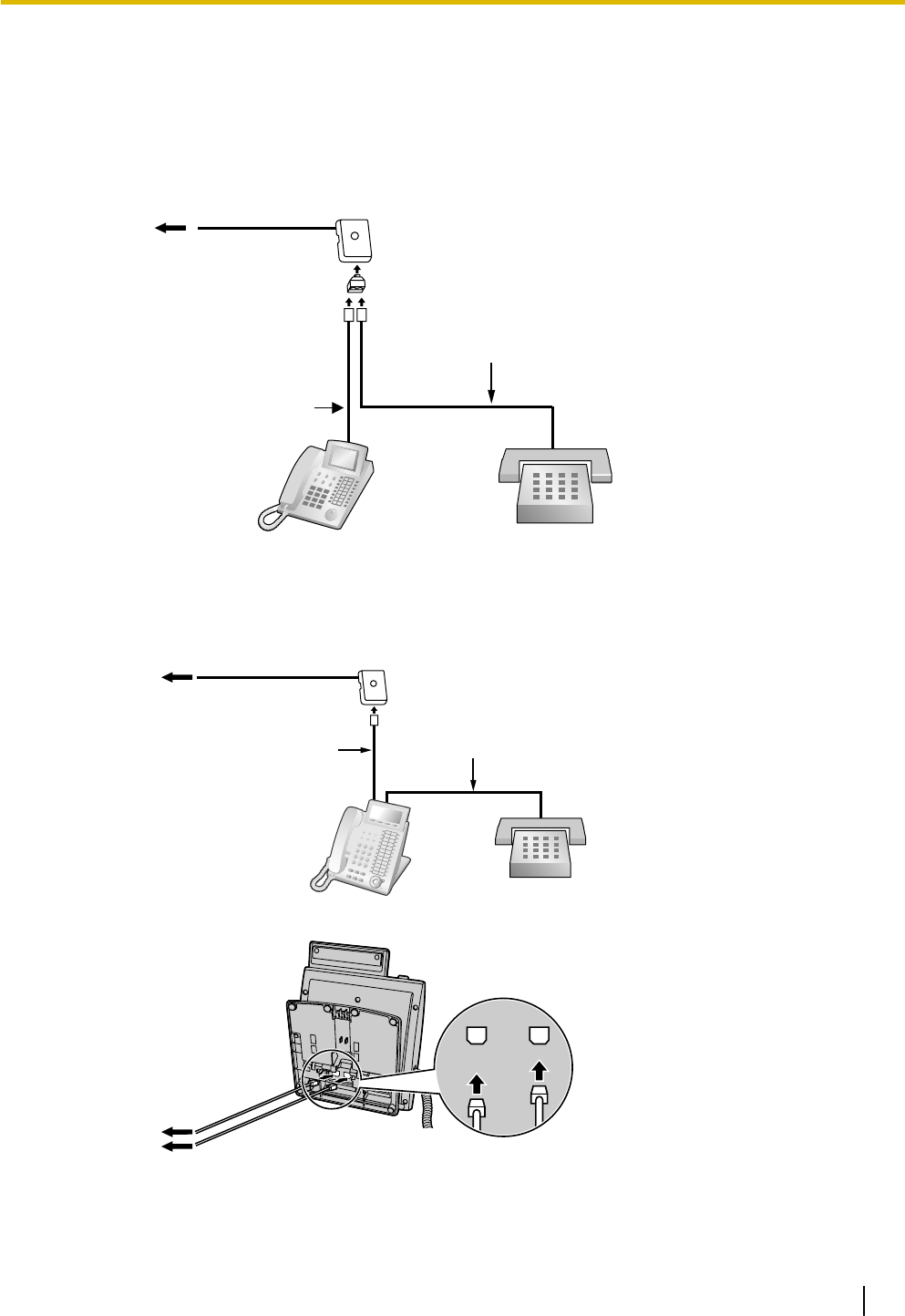
With DPT
Parallel mode or eXtra Device Port (XDP) mode can be selected through system programming.
If XDP mode is enabled through system programming, parallel connection is not possible. Refer to
"13.1.2 Paralleled Telephone" and "5.1.7 Extension Port Configuration" in the Feature Manual for further
information.
Using a Modular T-Adaptor
To DHLC4 card
SLTDPT
Modular
T-Adaptor
4-conductor wiring cord
Connect pins "D1" and
"D2".
2-conductor wiring cord
Connect pins "T" and "R".
Using an EXtra Device Port
With KX-DT300 Series DPT (except KX-DT321)
TO MAIN UNIT
/ PABX
TO TEL
To DHLC4 card
DPT SLT
To DHLC4 card
To SLT
2-conductor wiring cord
Connect pins "T" and "R".
4-conductor wiring cord
Connect pins "T", "R",
"D1" and "D2".
Document Version 2011-10 Installation Manual 91
3.8.2 Parallel Connection of the Extensions
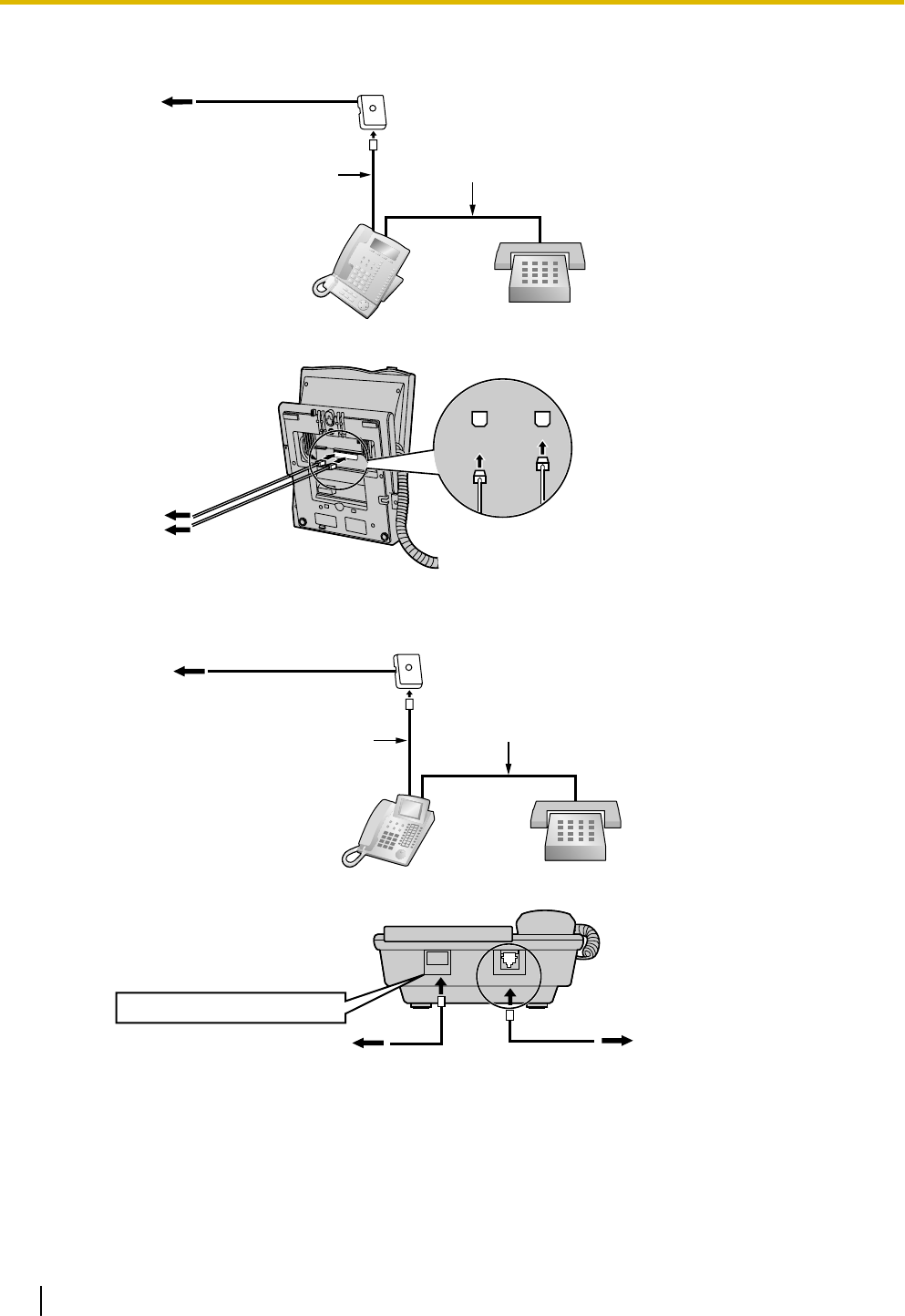
With KX-T7600 Series DPT (except KX-T7665)
To DHLC4 card
DPT SLT
To DHLC4 card
To SLT
2-conductor wiring cord
Connect pins "T" and "R".
4-conductor wiring cord
Connect pins "T", "R",
"D1" and "D2".
TO MAIN UNIT
/ PABX
TO TEL
With Other DPT
To DHLC4 card
DPT SLT
To DHLC4 card To SLT
2-conductor wiring cord
Connect pins "T" and "R".
4-conductor wiring cord
Connect pins "T", "R",
"D1" and "D2".
TO TEL
TO EMSS or TO MAIN UNIT
92 Installation Manual Document Version 2011-10
3.8.2 Parallel Connection of the Extensions
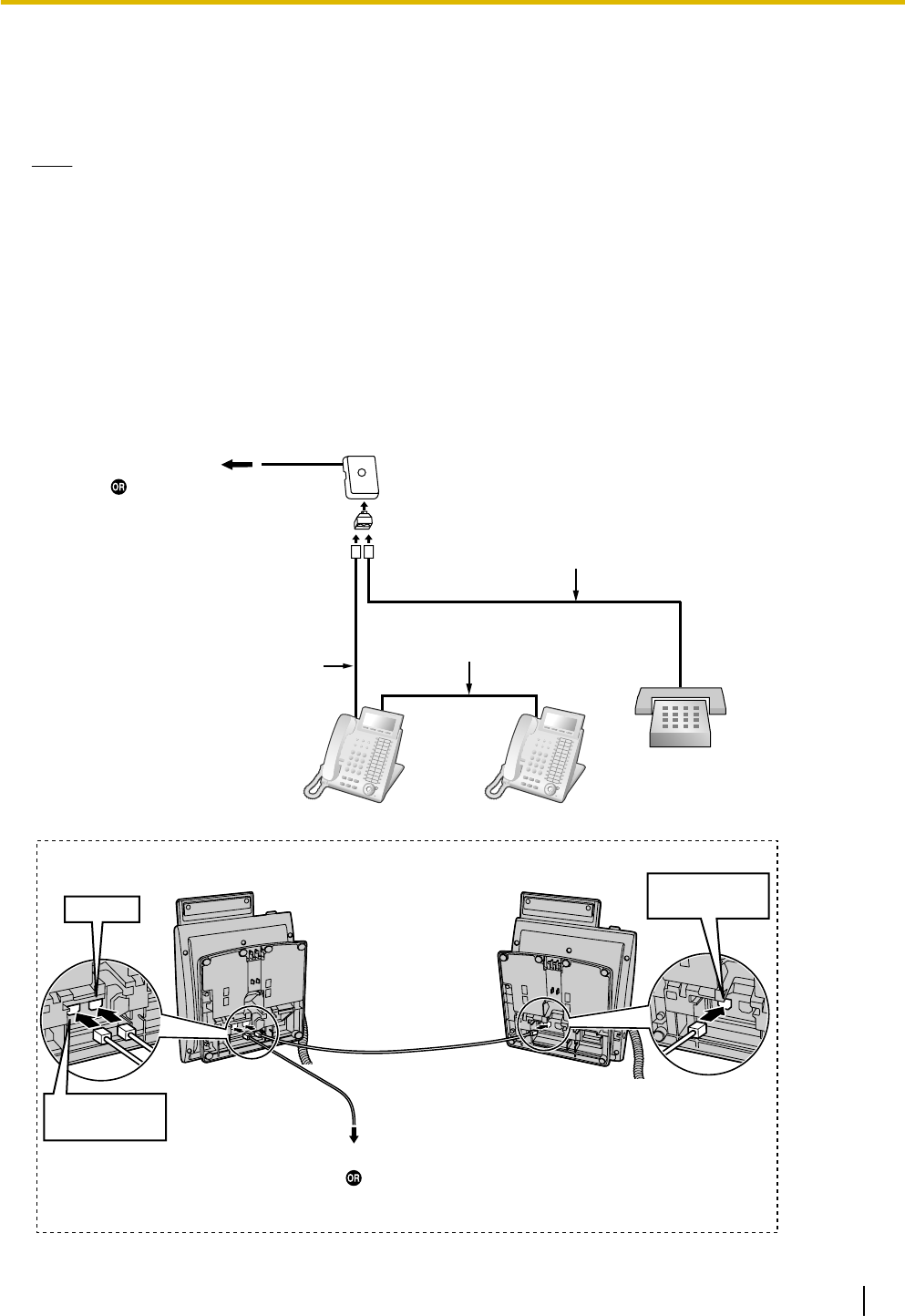
3.8.3 Digital EXtra Device Port (Digital XDP) Connection
A DPT can be connected to another DPT on the Digital XDP connection. In addition, if the DPT is connected
to a DHLC4 card, it can also have an SLT connected in Parallel mode or XDP mode.
Note
•Both DPTs must be KX-DT300/KX-T7600 series DPTs (except KX-T7640). Note that the KX-T7667
can only be connected as a slave DPT.
•Bluetooth® Modules or USB Modules must not be connected to DPTs in the Digital XDP connection.
•Parallel mode or XDP mode can be selected through system programming.
•If XDP mode is enabled through system programming, parallel connection is not possible. Refer to
"13.1.2 Paralleled Telephone" and "5.1.7 Extension Port Configuration" in the Feature Manual for
further information.
With KX-DT300 Series DPT
Using a Modular T-Adaptor
Slave DPTMaster DPT
Back View of DPTs
To DLC8/DLC16 card
To DHLC4 card
(for connection of SLT)
TO MAIN UNIT
/ PABX
TO MAIN UNIT
/ PABX
TO TEL
To DLC8/DLC16 card
To DHLC4 card
(for connection of SLT)
4-conductor wiring cord
Connect pins "D1" and "D2".
Slave DPT
SLT
Master DPT
Modular
T-Adaptor
4-conductor wiring cord
Connect pins "D1" and
"D2".
2-conductor wiring cord
Connect pins "T" and "R".
Cable Maximum Distance
26 AWG: 30 m (98 ft)
24 AWG: 50 m (164 ft)
22 AWG: 60 m (196 ft)
CAT 5: 50 m (164 ft)
Document Version 2011-10 Installation Manual 93
3.8.3 Digital EXtra Device Port (Digital XDP) Connection
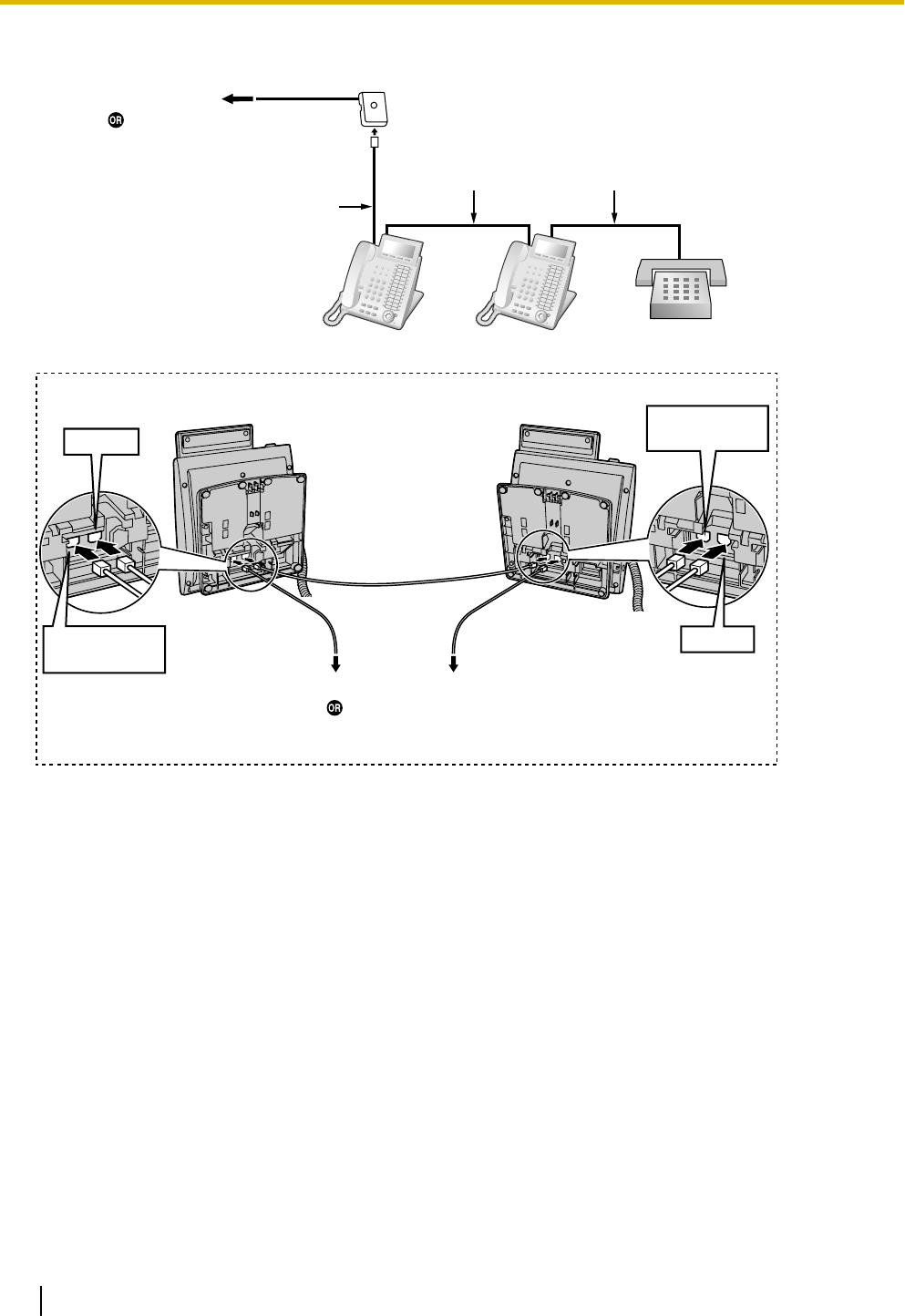
Using an EXtra Device Port
SLTMaster DPT Slave DPT
4-conductor wiring cord
Connect pins "T", "R",
"D1" and "D2".
2-conductor wiring cord
Connect pins "T" and "R".
4-conductor wiring cord
Connect pins "T", "R",
"D1" and "D2".
To DLC8/DLC16 card
To DHLC4 card
(for connection of SLT)
To SLT
Slave DPTMaster DPT
Back View of DPTs
To DLC8/DLC16 card
To DHLC4 card
(for connection of SLT)
TO MAIN UNIT
/ PABX
TO MAIN UNIT
/ PABX
TO TEL
TO TEL
Cable Maximum Distance
26 AWG: 30 m (98 ft)
24 AWG: 50 m (164 ft)
22 AWG: 60 m (196 ft)
CAT 5: 50 m (164 ft)
94 Installation Manual Document Version 2011-10
3.8.3 Digital EXtra Device Port (Digital XDP) Connection
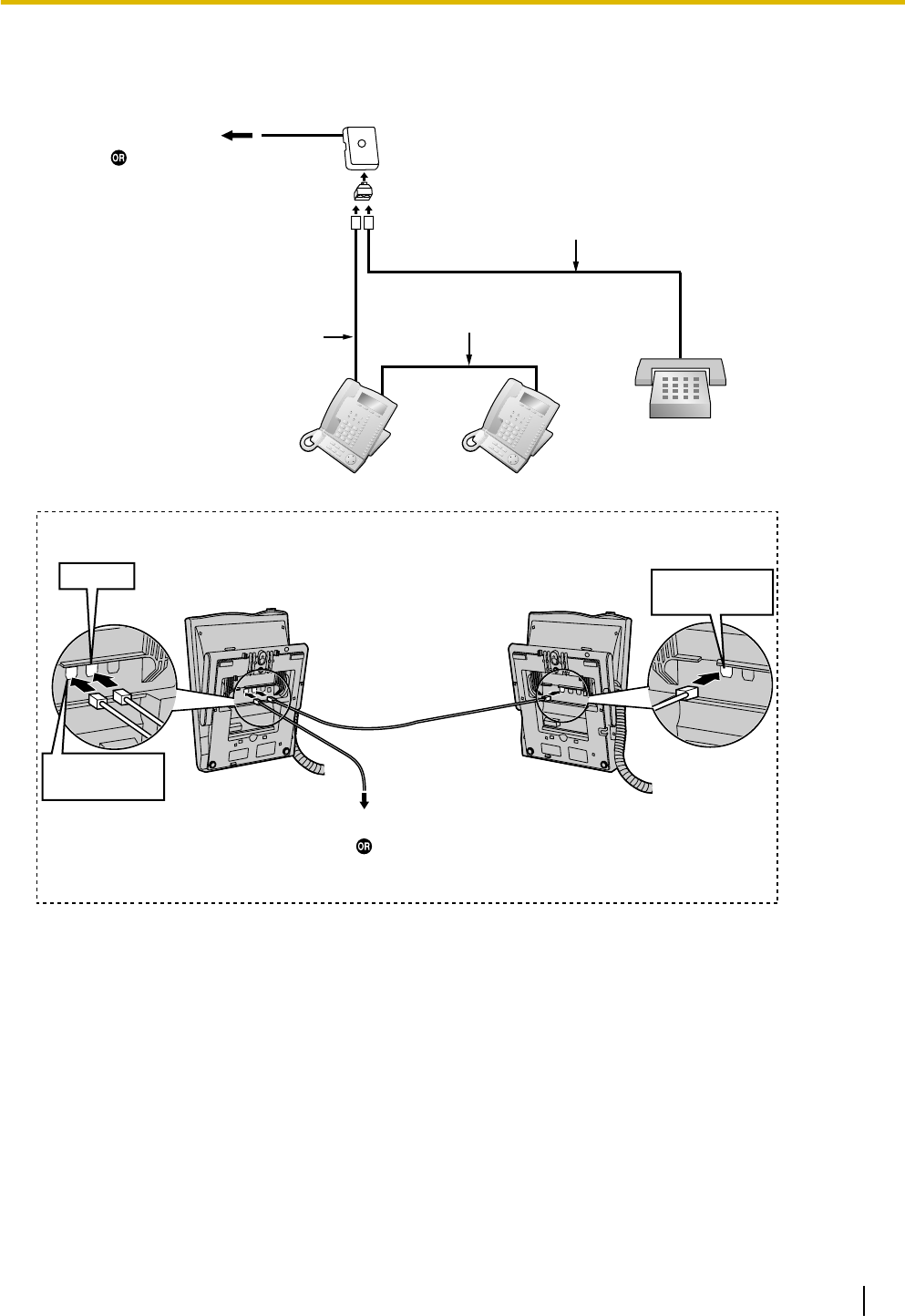
With KX-T7600 Series DPT
Using a Modular T-Adaptor
To DLC8/DLC16 card
To DHLC4 card
(for connection of SLT)
4-conductor wiring cord
Connect pins "D1" and "D2".
Slave DPT
SLT
Master DPT
Modular
T-Adaptor
4-conductor wiring cord
Connect pins "D1" and
"D2".
2-conductor wiring cord
Connect pins "T" and "R".
Slave DPTMaster DPT
TO MAIN UNIT
/ PABX
TO TEL
TO MAIN UNIT
/ PABX
Back View of DPTs
To DLC8/DLC16 card
To DHLC4 card
(for connection of SLT)
Cable Maximum Distance
26 AWG: 30 m (98 ft)
24 AWG: 50 m (164 ft)
22 AWG: 60 m (196 ft)
CAT 5: 50 m (164 ft)
Document Version 2011-10 Installation Manual 95
3.8.3 Digital EXtra Device Port (Digital XDP) Connection
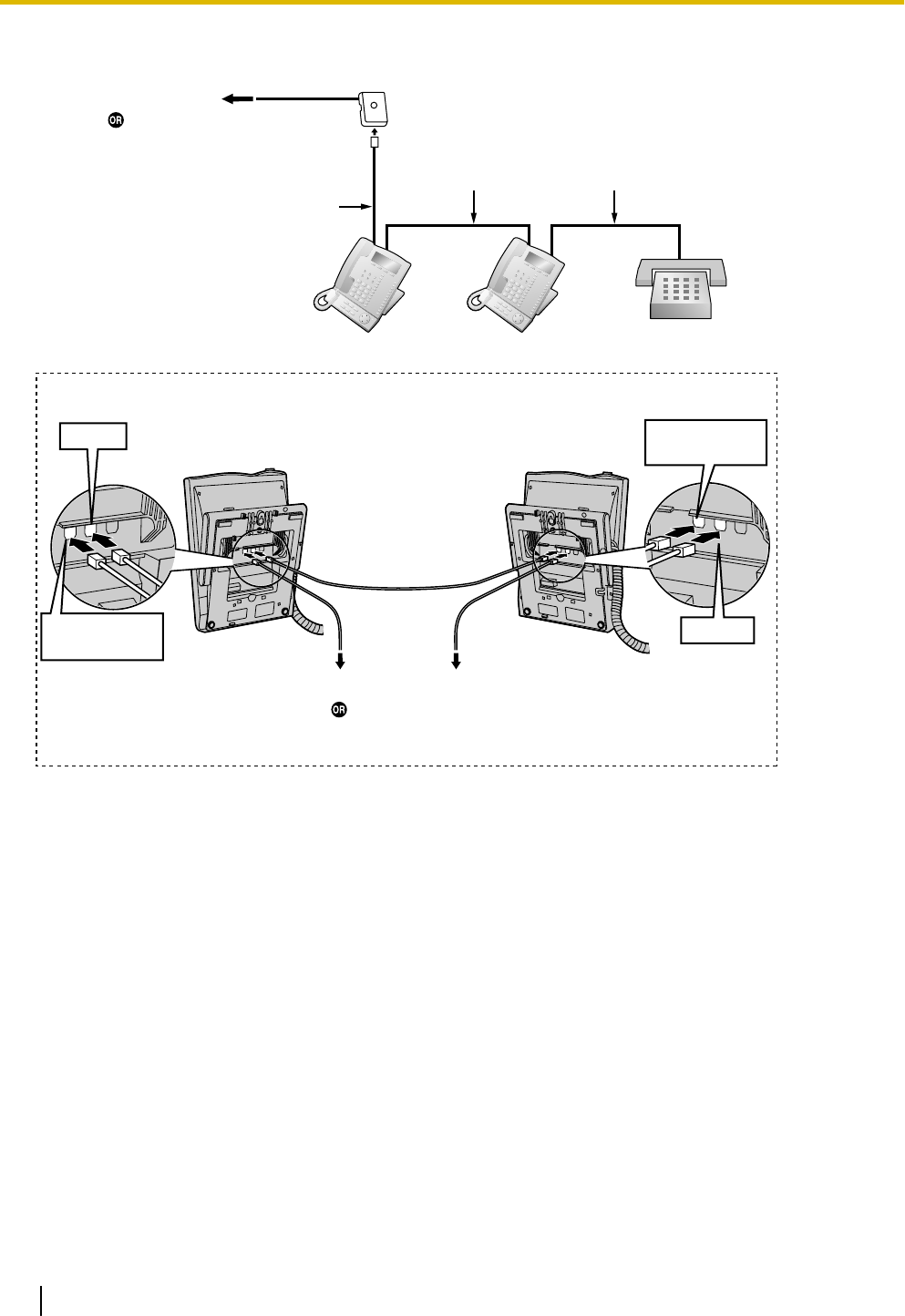
Using an EXtra Device Port
SLTMaster DPT Slave DPT
4-conductor wiring cord
Connect pins "T", "R",
"D1" and "D2".
2-conductor wiring cord
Connect pins "T" and "R".
4-conductor wiring cord
Connect pins "T", "R",
"D1" and "D2".
Slave DPTMaster DPT
To SLT
TO MAIN UNIT
/ PABX
TO TEL
TO TEL
TO MAIN UNIT
/ PABX
Back View of DPTs
To DLC8/DLC16 card
To DHLC4 card
(for connection of SLT)
To DLC8/DLC16 card
To DHLC4 card
(for connection of SLT)
Cable Maximum Distance
26 AWG: 30 m (98 ft)
24 AWG: 50 m (164 ft)
22 AWG: 60 m (196 ft)
CAT 5: 50 m (164 ft)
96 Installation Manual Document Version 2011-10
3.8.3 Digital EXtra Device Port (Digital XDP) Connection
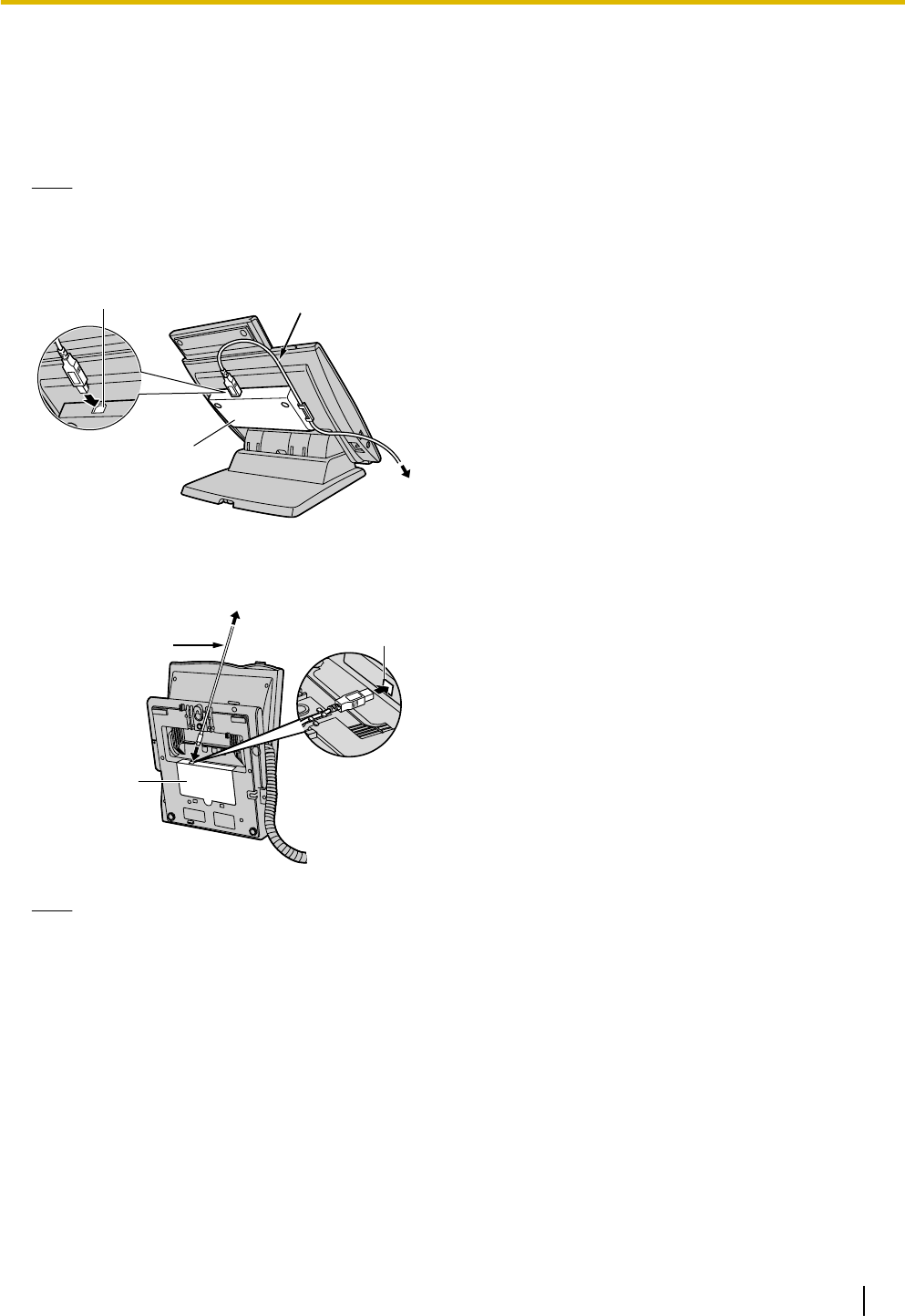
3.8.4 First Party Call Control CTI Connection
CTI connection between a PC and a KX-DT343/KX-DT346/KX-T7633/KX-T7636 DPT provides first party call
control. The CTI connection is made via a USB interface (version 2.0), and uses the TAPI 2.1 protocol.
A USB Module must be connected to the DPTs.
Note
The operating system of the PC required for first party call control depends on your CTI application
software. For details, refer to the manual for your CTI application software.
KX-DT343/KX-DT346
USB Port USB Cable
USB Module
To PC
KX-T7633/KX-T7636
USB Cable
To PC
ULL
USB Port
USB Module
Note
The maximum length of the USB cable is 3 m (9 ft 10 in).
Document Version 2011-10 Installation Manual 97
3.8.4 First Party Call Control CTI Connection
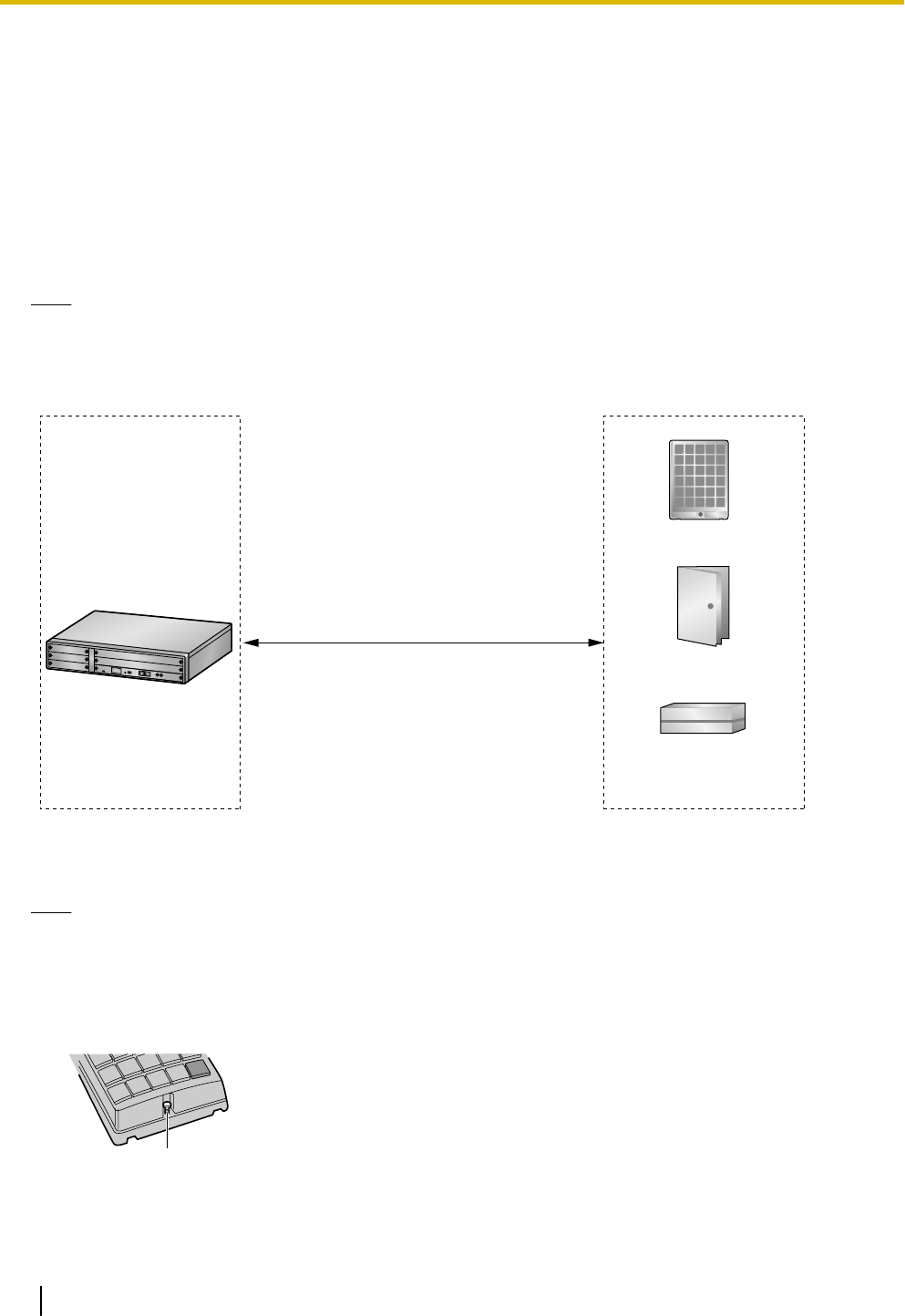
3.9 Connection of Doorphones, Door Openers,
External Sensors, and External Relays
3.9.1 Connection of Doorphones, Door Openers, External
Sensors, and External Relays
The PBX supports a maximum of 16 doorphones, 16 door openers, 16 external sensors, and 16 external relays.
Note
Doorphones, door openers, external sensors, and external relays are user-supplied.
Maximum Cabling Distance
Doorphone
Door Opener
External Sensor/
External Relay Device
Cable Maximum Distance
26 AWG: 70 m (230 ft)
24 AWG: 113 m (371 ft)
22 AWG: 180 m (590 ft)
CAT 5: 113 m (371 ft)
Installing the Doorphone (KX-T30865/KX-T7765/KX-T7775)
Note
•The illustrations shown in the installation procedure are based on the KX-T30865.
•For details about the installation of the KX-T7775, refer to the Operating Instructions of the
KX-T7775.
1. Loosen the screw to separate the doorphone into 2 halves.
Panasonic
Screw
98 Installation Manual Document Version 2011-10
3.9.1 Connection of Doorphones, Door Openers, External Sensors, and External Relays
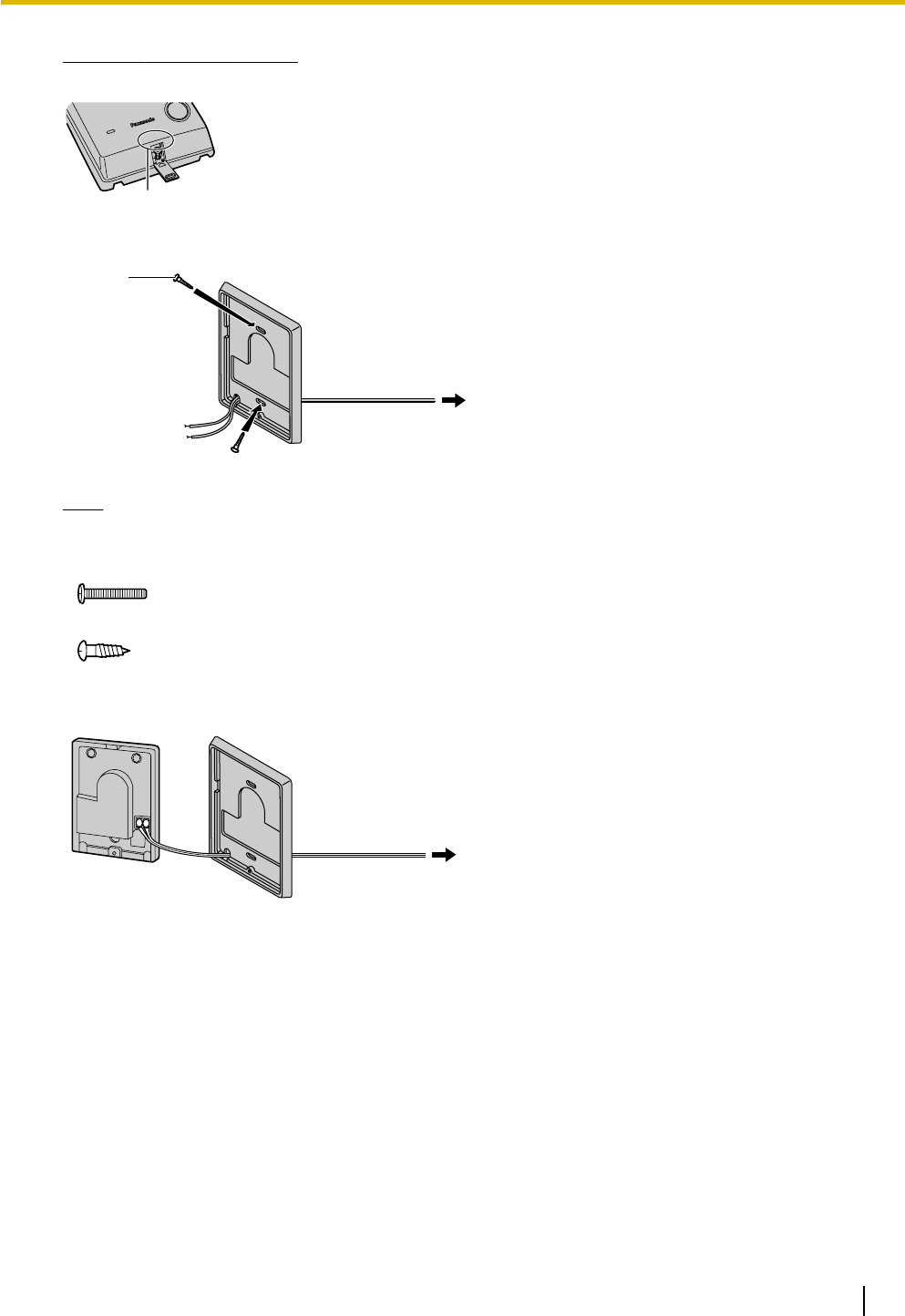
Note for KX-T7765 Users
When loosening/tightening the screw, do not scratch the cabinet wall with the driver shaft.
Cabinet Wall
2. Pass the wires through the hole in the base cover, and attach the base cover to a wall using 2 screws.
Screw
To 8-pin terminal block
Note
Two kinds of screws are included with the doorphone. Please choose the appropriate kind for your wall
type.
: when a doorphone plate has been fixed to the wall
: when you wish to install the doorphone directly onto the wall
3. Connect the wires to the screws located in the back cover.
To 8-pin terminal block
4. Re-attach the 2 halves and re-insert the screw.
Document Version 2011-10 Installation Manual 99
3.9.1 Connection of Doorphones, Door Openers, External Sensors, and External Relays
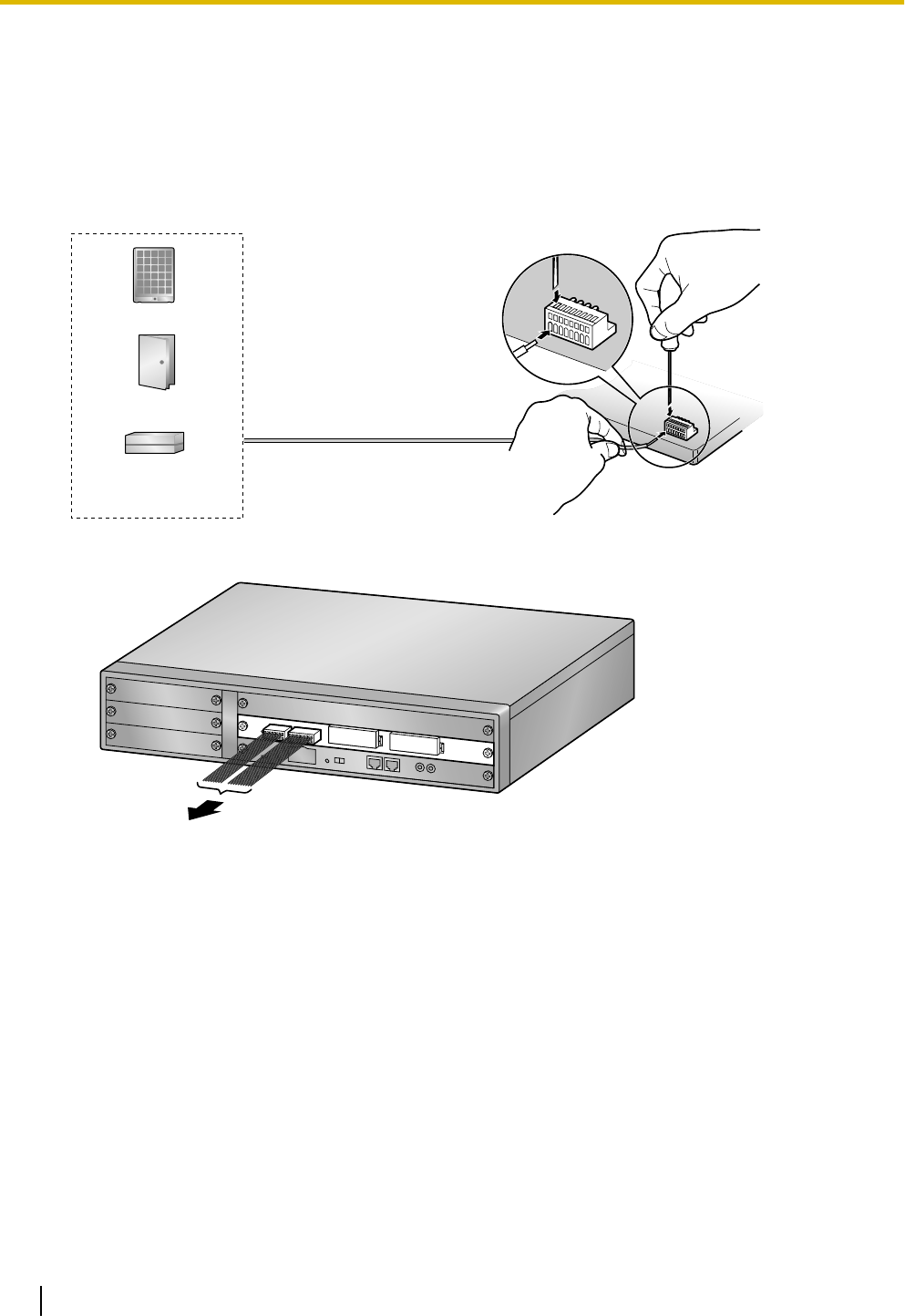
Connection
Use 8-pin and 10-pin terminal blocks (included with the card) for connection.
1. While pressing down on the hole at the top of the terminal block using a screwdriver, insert the wire into
the side hole as shown below. Repeat this procedure for other doorphones, door openers, external sensors,
and external relays.
Refer to "3.7.2 DPH4 Card (KX-TDA0161)" and "3.7.3 EIO4 Card (KX-TDA0164)" for pin assignments.
Doorphone
Door Opener
External Sensor/
External Relay Device
2. Attach the terminal blocks to the connectors of the DPH4/EIO4 card on the PBX.
To doorphones/door openers/
external sensors/external relays
100 Installation Manual Document Version 2011-10
3.9.1 Connection of Doorphones, Door Openers, External Sensors, and External Relays
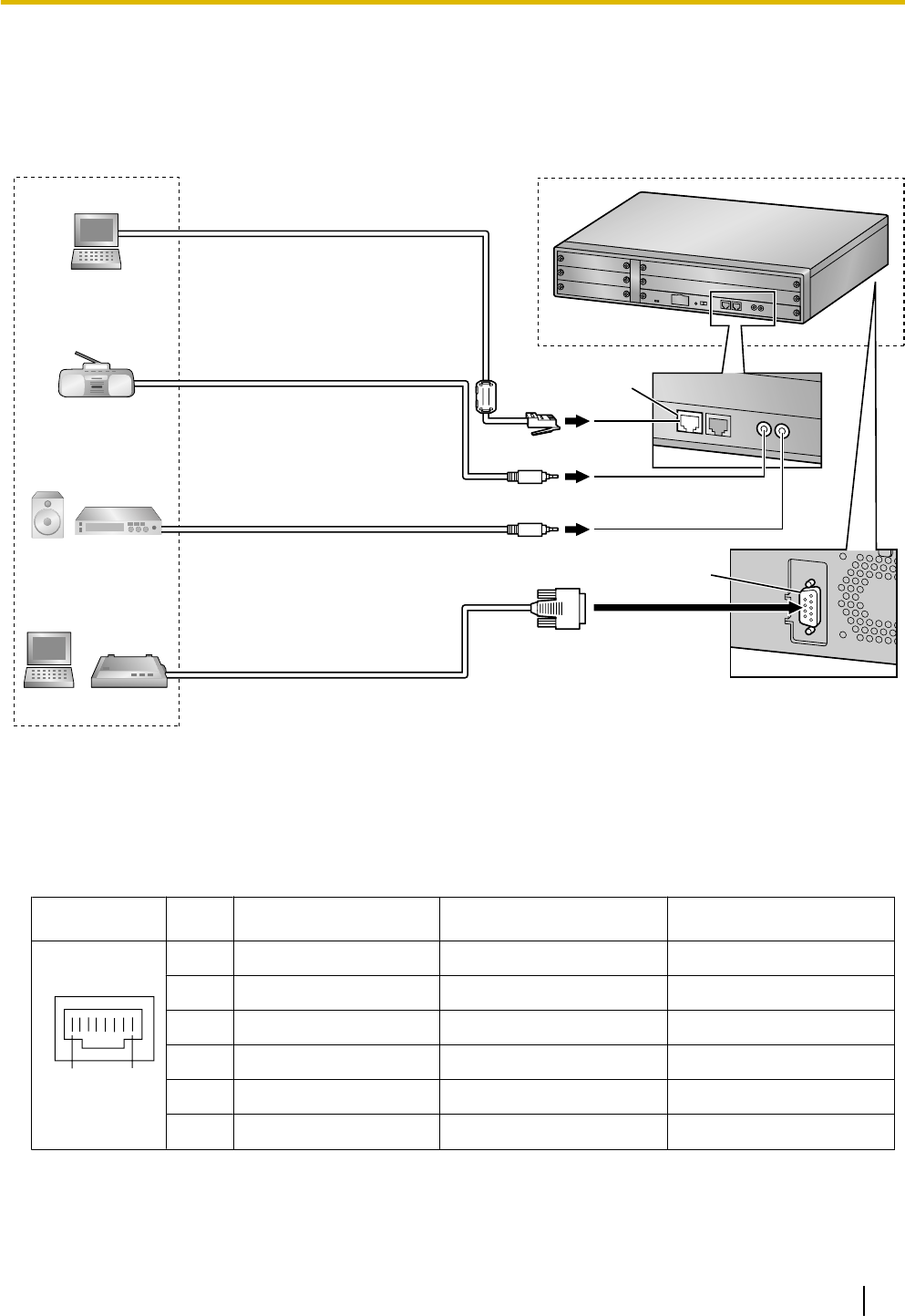
3.10 Connection of Peripherals
3.10.1 Connection of Peripherals
Cable Maximum Distance
Maximum Distance
Maximum Distance
PC
BGM
Music on Hold
Pager:
Amplifier/Speaker
PC Printer
26 AWG: 10 m (32 ft)
24 AWG: 10 m (32 ft)
22 AWG: 10 m (32 ft)
CAT 5: 10 m (32 ft)
Cable Maximum Distance
26 AWG: 10 m (32 ft)
24 AWG: 10 m (32 ft)
22 AWG: 10 m (32 ft)
CAT 5: 10 m (32 ft)
5 m (16 ft)
2 m (6 ft)
Back
MNT Port
RS-232C
PC (via MNT Port)
A PC can be connected to the PBX via the MNT port of the IPCMPR card. It is used for system programming,
diagnostics and external system database storage (save/load) functions.
Pin Assignments
No. Signal Name Input (I)/Output (O) Function
81
1 TPO+ O Transmit data+
2 TPO- O Transmit data-
3 TPI+ I Receive data+
4-5 Reserved – –
6 TPI- I Receive data-
7-8 Reserved – –
Document Version 2011-10 Installation Manual 101
3.10.1 Connection of Peripherals
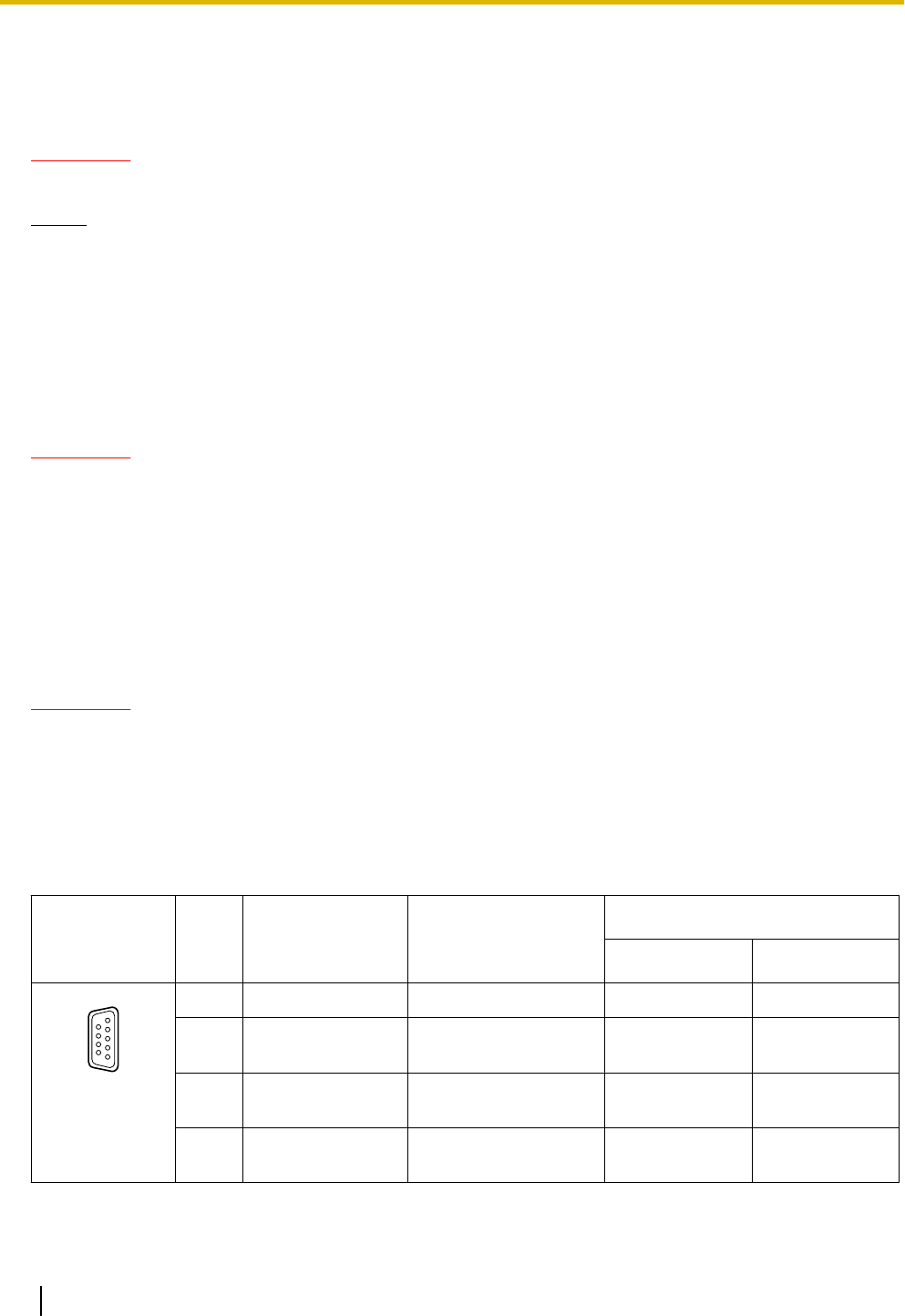
BGM/MOH
The PBX provides Background Music and Music on Hold. An external music source (e.g., user-supplied radio)
can be connected to the PBX.
CAUTION
The External Music Jack is an SELV port and should only be connected to an approved SELV device.
Notice
•Wiring should be done carefully to prevent undue force being exerted on the plug. Otherwise, sound
may only be heard intermittently.
•When the PBX and external music source are not connected to the same ground, hum noise may be
induced into Background Music and Music on Hold.
Pager
A paging device (user-supplied) can be connected to the PBX.
CAUTION
The External Paging Jack is an SELV port and should only be connected to an approved SELV device.
PC/Printer (via RS-232C)
The PBX is equipped with an RS-232C interface. This interface provides communication between the PBX
and the user-supplied devices such as PC or line printers. The RS-232C port is used for system programming,
SMDR, diagnostics and external system database storage (save/load) functions.
When using special accessories such as cable, the user should use those specified in this installation manual
to comply with the limits for a Class B digital device pursuant to the FCC Rules.
CAUTION
To protect the system, keep the following in mind:
1. Make sure that both connector cases (frame ground) of the RS-232C cross cable (shielded cable) are
conductive. If they are not conductive, make sure that both connector cases of the cable are firmly
connected.
2. If this is not possible, connect the frame of the PBX to the frame of the PC/Printer using a grounding
wire in order to prevent difference in the electrical potentials.
Pin Assignments
No. Signal Name Function
Circuit Type
EIA CCITT
9 5
6 1
2 RD (RXD) Receive Data BB 104
3
4
SD (TXD)
ER (DTR)
Transmit Data
Data Terminal Ready
BA
CD
103
108.2
5
6
SG
DR (DSR)
Signal Ground
Data Set Ready
AB
CC
102
107
7
8
RS (RTS)
CS (CTS)
Request To Send
Clear To Send
CA
CB
105
106
102 Installation Manual Document Version 2011-10
3.10.1 Connection of Peripherals
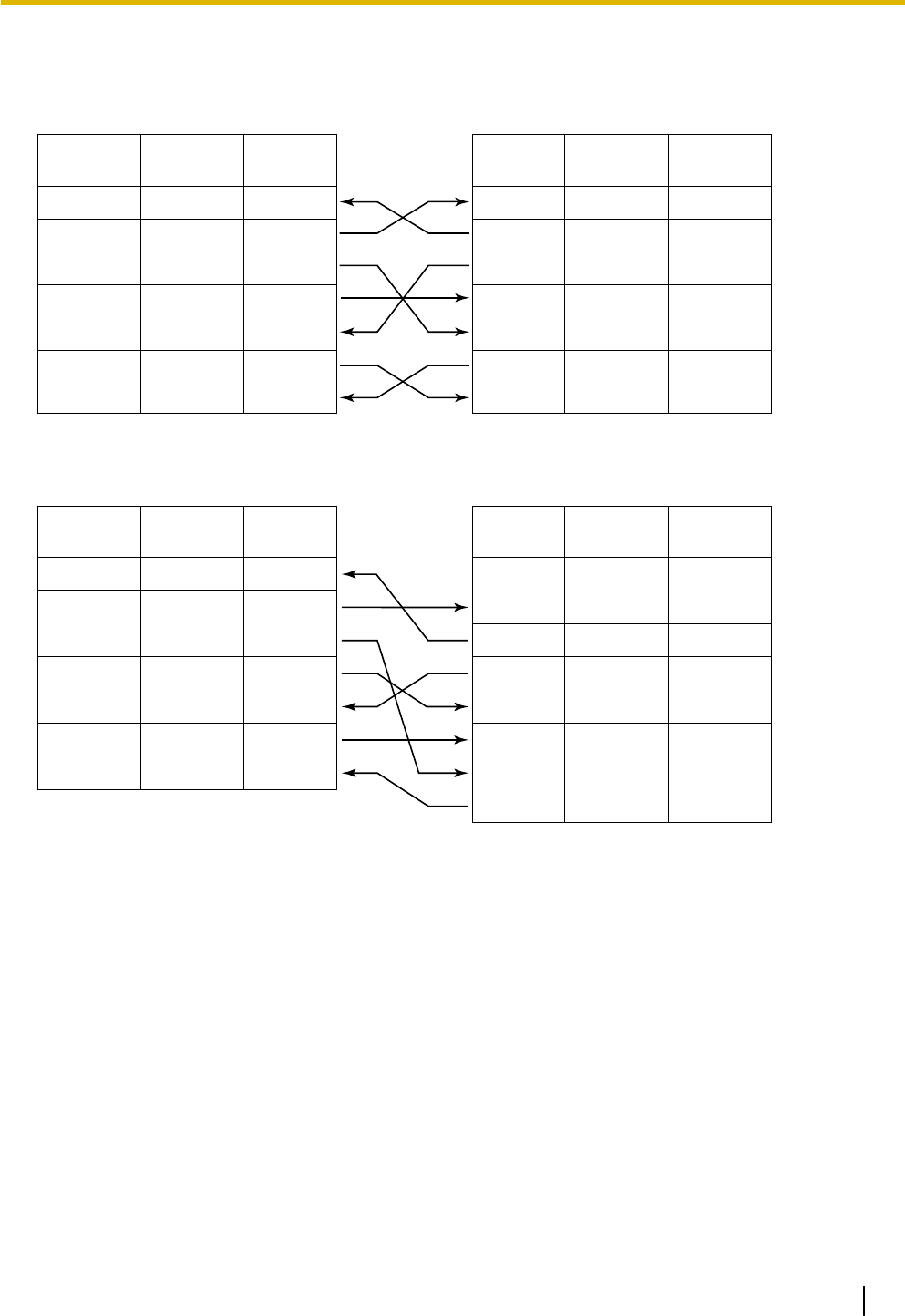
Connection Charts
For connecting a printer/PC with a 9-pin RS-232C connector
Printer/PC (9-pin)
Circuit Type
(EIA)
BB
BA
CD
AB
CC
CA
CB
Signal
Name
RD (RXD)
SD (TXD)
ER (DTR)
SG
DR (DSR)
RS (RTS)
CS (CTS)
Pin No.
2
3
4
5
6
7
8
PBX (9-pin)
Signal
Name Pin No.
RD (RXD) 2
SD (TXD) 3
ER (DTR) 4
SG 5
DR (DSR) 6
RS (RTS) 7
CS (CTS) 8
Circuit Type
(EIA)
BB
BA
CD
AB
CC
CA
CB
For connecting a printer/PC with a 25-pin RS-232C connector
Printer/PC (25-pin)
Signal
Name
Circuit Type
(EIA)
1FG AA
3 RD (RXD) BB
2 SD (TXD) BA
20 ER (DTR) CD
7SG AB
5 CS (CTS) CB
6DR (DSR) CC
CF
4 RS (RTS)
Pin No.
PBX (9-pin)
Circuit Type
(EIA)
Signal
Name Pin No.
BB RD (RXD) 2
BA SD (TXD) 3
CD ER (DTR) 4
AB SG 5
CC DR (DSR) 6
CA RS (RTS) 7
CB CS (CTS) 8
RS-232C Signals
•Receive Data (RXD):…(input)
Conveys signals from the printer or the PC.
•Transmit Data (TXD):…(output)
Conveys signals from the unit to the printer or the PC. A "Mark" condition is held unless data or BREAK
signals are being transmitted.
•Data Terminal Ready (DTR):…(output)
This signal line is turned ON by the unit to indicate that it is ON LINE. Circuit ER (DTR) ON does not indicate
that communication has been established with the printer or the PC. It is switched OFF when the unit is
OFF LINE.
•Signal Ground (SG)
Connects to the DC ground of the unit for all interface signals.
•Data Set Ready (DSR):…(input)
An ON condition of circuit DR (DSR) indicates the printer or the PC is ready. Circuit DR (DSR) ON does
not indicate that communication has been established with the printer or the PC.
•Request To Send (RTS):…(output)
This lead is held ON whenever DR (DSR) is ON.
Document Version 2011-10 Installation Manual 103
3.10.1 Connection of Peripherals

•Clear To Send (CTS):…(input)
An ON condition of circuit CS (CTS) indicates that the printer or the PC is ready to receive data from the
unit. The unit does not attempt to transfer data or receive data when circuit CS (CTS) is OFF.
•Frame Ground (FG)
Connects to the unit frame and the ground conductor of the AC power cord.
104 Installation Manual Document Version 2011-10
3.10.1 Connection of Peripherals
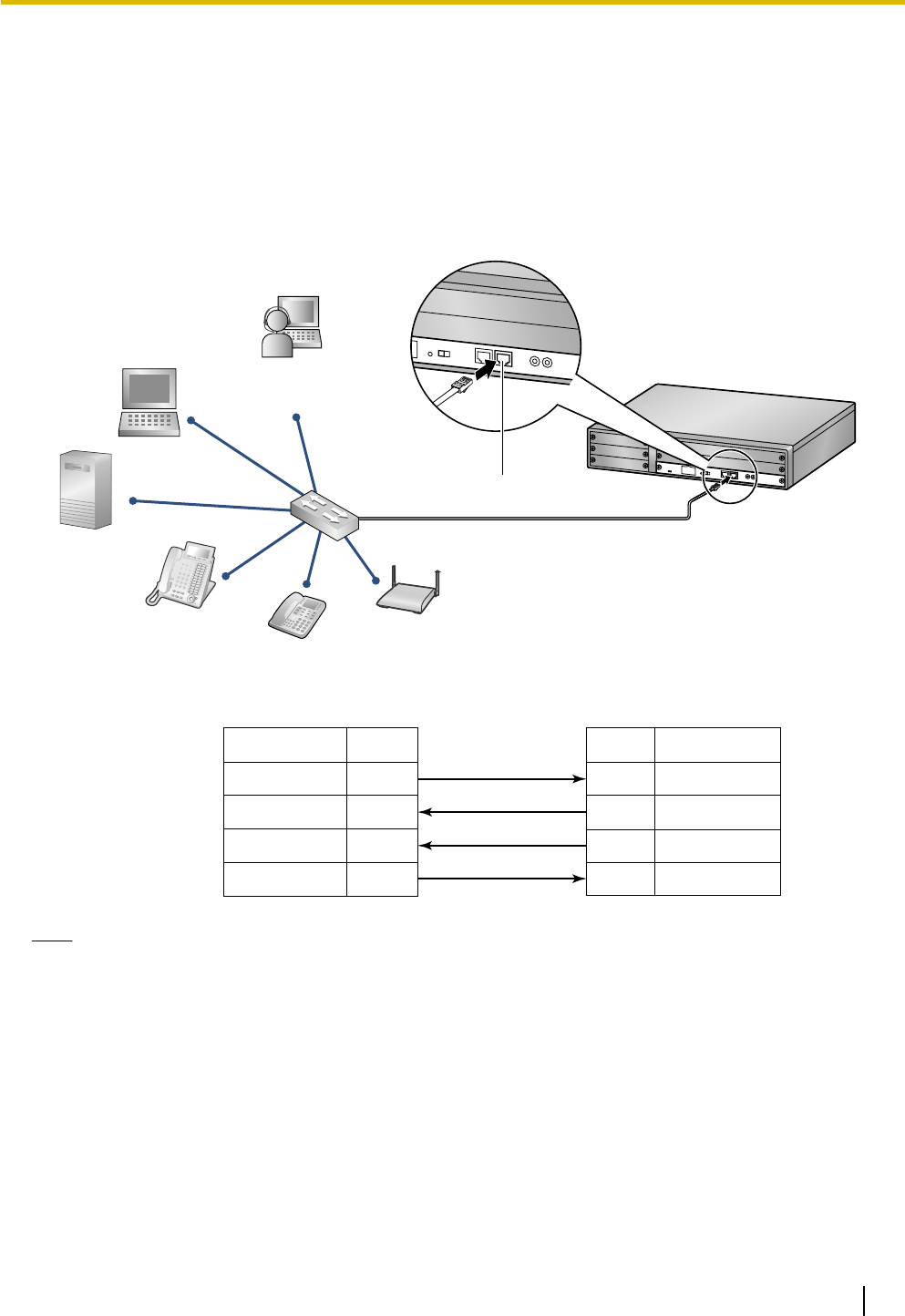
3.11 LAN Connection
3.11.1 LAN Connection
Connection Chart for LAN Connection
The PBX is equipped with a LAN port for connecting to a LAN so that IP telephones (IP-PTs, IP softphones,
SIP Extensions), IP-CSs, PCs and a CTI Server can be connected on a private IP network.
TX+
TX-
RX+
RX-
1
2
3
6
1
2
3
6
RX+
RX-
TX+
TX-
PC
CTI Server
IP-PT
Switching Hub
IP Softphone,
CA Client PC
Switching Hub PBX (LAN Port)
Pin No.
Signal Name Signal Name
Pin No.
SIP Extension
LAN Port
IP-CS
Note
•Use an Ethernet straight cable with an RJ45 connector for connection to a switching hub. The cable
should be a 10BASE-T/100BASE-TX CAT 5 or higher cable.
•Make sure that all the CAT 5 cables in use are not over 100 m (328 ft) in length.
•Make sure to create a spanning tree for LAN connection in order to prevent loops from occurring in a
multi-bridged environment. Otherwise, some packets may circulate for long periods of time and
eventually PBX performance system may degrade.
•The CTI server can be used for connecting PCs on a LAN to provide third party call control CTI.
CTI connection uses the CSTA Phase 3 or TAPI 2.1 protocol. The operating system of the PC or CTI
server required for third party call control depends on your CTI application software. For details, refer
to the manual for your CTI application software.
Document Version 2011-10 Installation Manual 105
3.11.1 LAN Connection
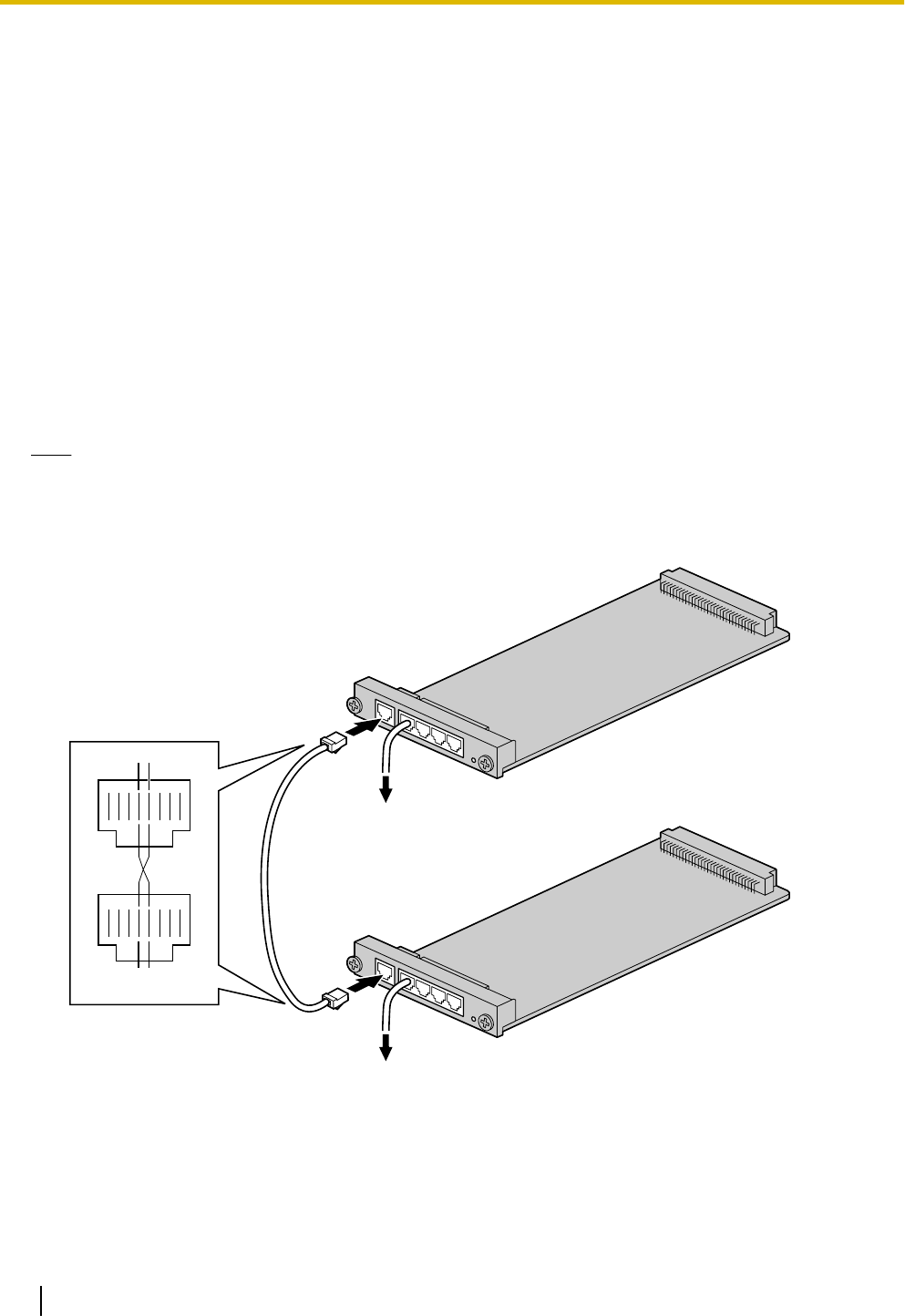
3.12 Power Failure Connections
3.12.1 Power Failure Connections
When the power supply to the PBX fails, power failure transfer (PFT) will switch from the current connection
to the Power Failure Connection. Refer to "13.1.11 Power Failure Transfer" in the Feature Manual for further
information.
Using Analog CO Line Card and Extension Card
Power Failure Connection connects a specific SLT and a CO line in the event of power failure. The following
analog CO line and extension card can be used for Power Failure Connections:
•Analog CO line card: LCOT4 (1 PFT port)
•Extension card: DHLC4 (1 PFT port)
To 1 analog CO line card, connect only 1 extension card.
Note
By programming the PBX, a CO line conversation established during power failure can be maintained even
when the power returns and the connection is switched back to the normal configuration from the Power
Failure Connection. However, if no special programming is performed, the connection will be dropped when
power returns.
RJ45
RT
TR
Extension Card
(DHLC4)
CO Line Card
(LCOT4)
To CO line
To SLT
Accessories and User-supplied Items
Accessories (included): none
User-supplied (not included): RJ45 connectors
106 Installation Manual Document Version 2011-10
3.12.1 Power Failure Connections
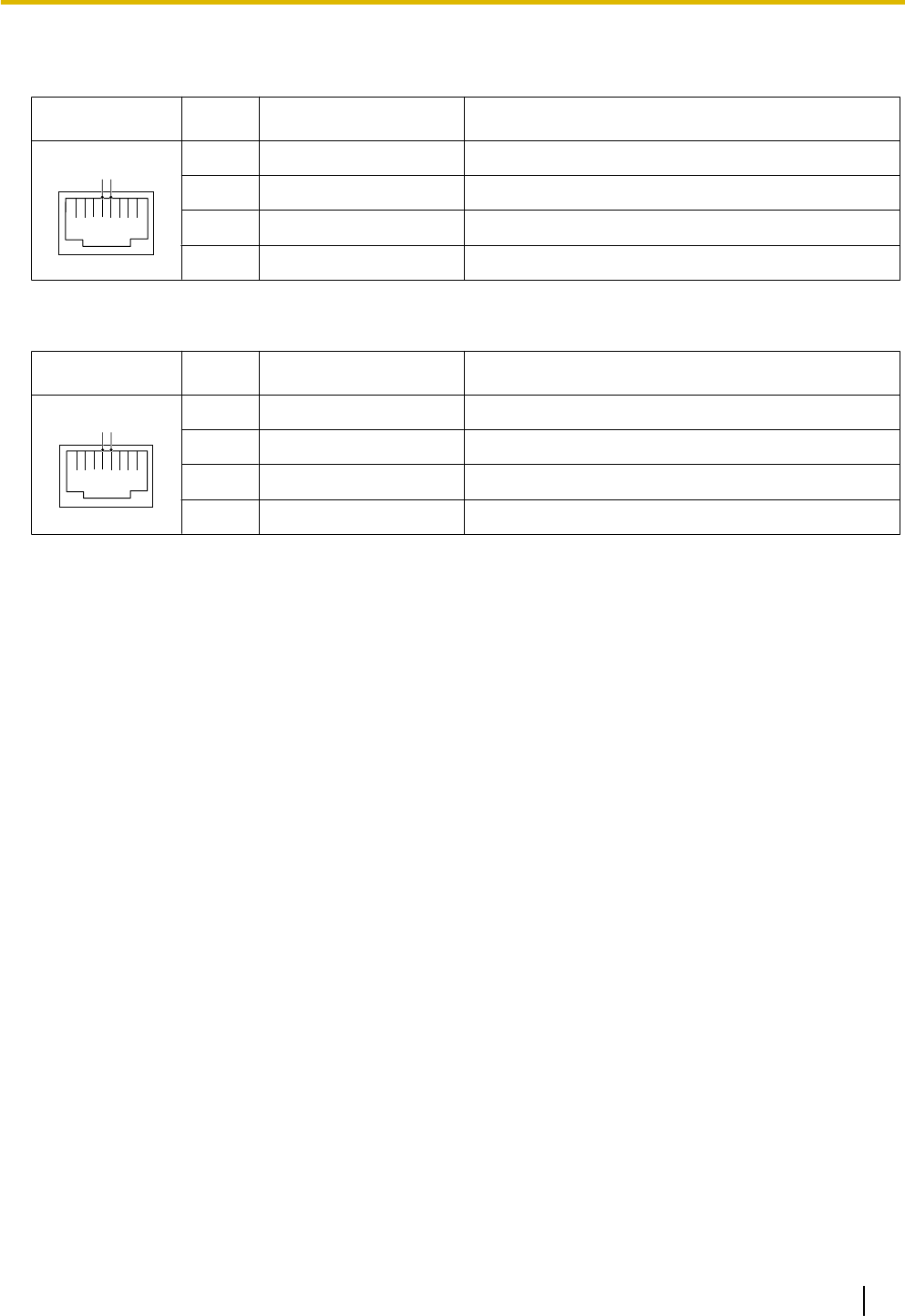
RJ45 Connector Pin Assignments for Analog CO line Card
PFT Port
No. Signal Name Function
1 8
R T
1-3 Reserved –
4 R Ring
5 T Tip
6-8 Reserved –
RJ45 Connector Pin Assignments for Extension Card
PFT Port
No. Signal Name Function
1 8
T R
1-3 Reserved –
4 T Tip
5 R Ring
6-8 Reserved –
Document Version 2011-10 Installation Manual 107
3.12.1 Power Failure Connections
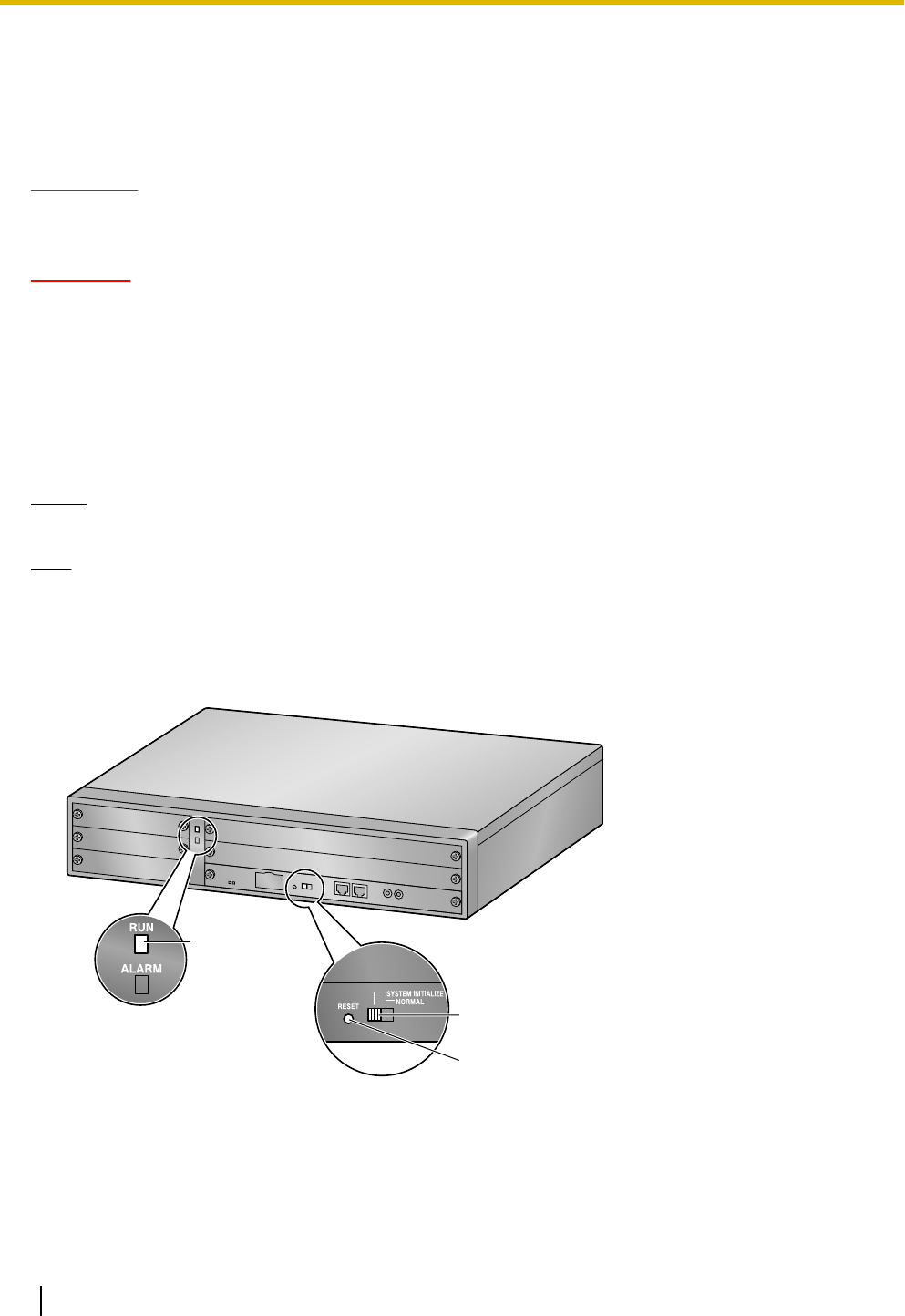
3.13 Starting the PBX
3.13.1 Starting the PBX
WARNING
Make sure that the AC outlet is properly grounded, then securely connect the 3-pin AC plug
including the grounded pin.
CAUTION
•Use only the AC power cord included with the PBX.
•Before touching the System Initialize Switch, discharge static electricity by touching ground or wearing
a grounding strap.
•Once you have started the PBX and if you unplug the PBX, do not perform the following procedures
to start the PBX again. Otherwise, your programmed data is cleared. To restart the PBX, refer to
"5.1.4 Using the Reset Button".
•The power supply cord is used as the main disconnect device. Ensure that the AC outlet is located
near the equipment and is easily accessible.
Notice
The SD Memory Card must be inserted in the SD Memory Card slot of the IPCMPR card before startup.
Note
The PBX will continue to be powered even if the power switch is turned "OFF".
System Initialization Procedure
1. Slide the System Initialize Switch to the "SYSTEM INITIALIZE" position.
Reset Button
RUN Indicator
System Initialize Switch
108 Installation Manual Document Version 2011-10
3.13.1 Starting the PBX
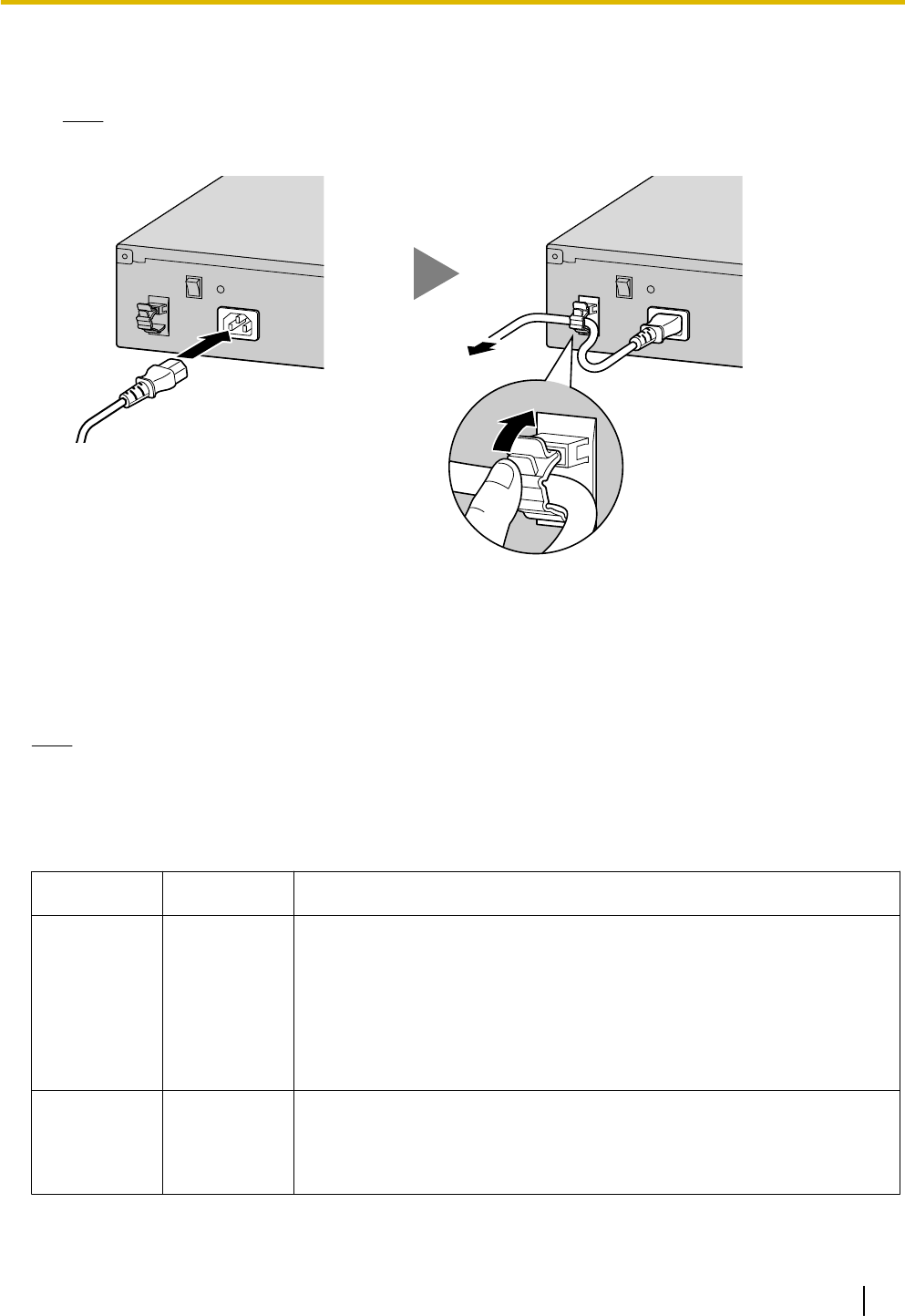
2. Plug the AC power cord into the PBX and pass the cord through the hook clip as indicated. Push the hook
clip in the direction of the arrow until it clicks.
Note
For safety reasons, do not stretch or pinch the AC power cord.
To grounded AC Outlet
3. Plug the other end of the cord into an AC outlet and turn on the PBX. The RUN indicator will flash.
4. While the RUN indicator is flashing, slide the System Initialize Switch back to the "NORMAL" position.
Depending on the configuration, initialization takes about 1 min to 3 min. If successfully executed, the
RUN indicator will stop flashing and stay lit.
All data will be cleared, and the PBX as well as all optional service cards will be initialized to the default values.
The DPTs should show the time as 01:00.
Note
When initializing the PBX, the built-in ESVM card will also be initialized. Therefore, the built-in ESVM card
feature may not be used for up to 2 minutes after the PBX starts.
LED Indications
Indication Color Description
RUN Green PBX status indication
•OFF: Power Off (includes normal reset)
•ON: Power On and running (on-line)
•Flashing (60 times per minute): Starting up
•Flashing (120 times per minute): Starting up or resetting with:
•the System Initialize Switch in "SYSTEM INITIALIZE" position
•the SD Memory Card not inserted
ALARM Red Alarm indication
•OFF: Normal
•ON: Alarm (CPU stop, alarm for each optional service card)
•Flashing: Alarm (IPCMPR file error in restarting)
Document Version 2011-10 Installation Manual 109
3.13.1 Starting the PBX

Confirming the CO Line Connection
After initialization, program the PBX and connect CO lines to the PBX.
To confirm that the CO lines are successfully connected, dial [ ] [3] [7] + CO line number (3 digits) on a PT,
or press the PT's S-CO button. You will hear a dial tone if the CO line is available and connected.
110 Installation Manual Document Version 2011-10
3.13.1 Starting the PBX

Section 4
Guide for the Maintenance Console
Explains the installation procedure, structure, and basic
information of the Maintenance Console.
Document Version 2011-10 Installation Manual 111
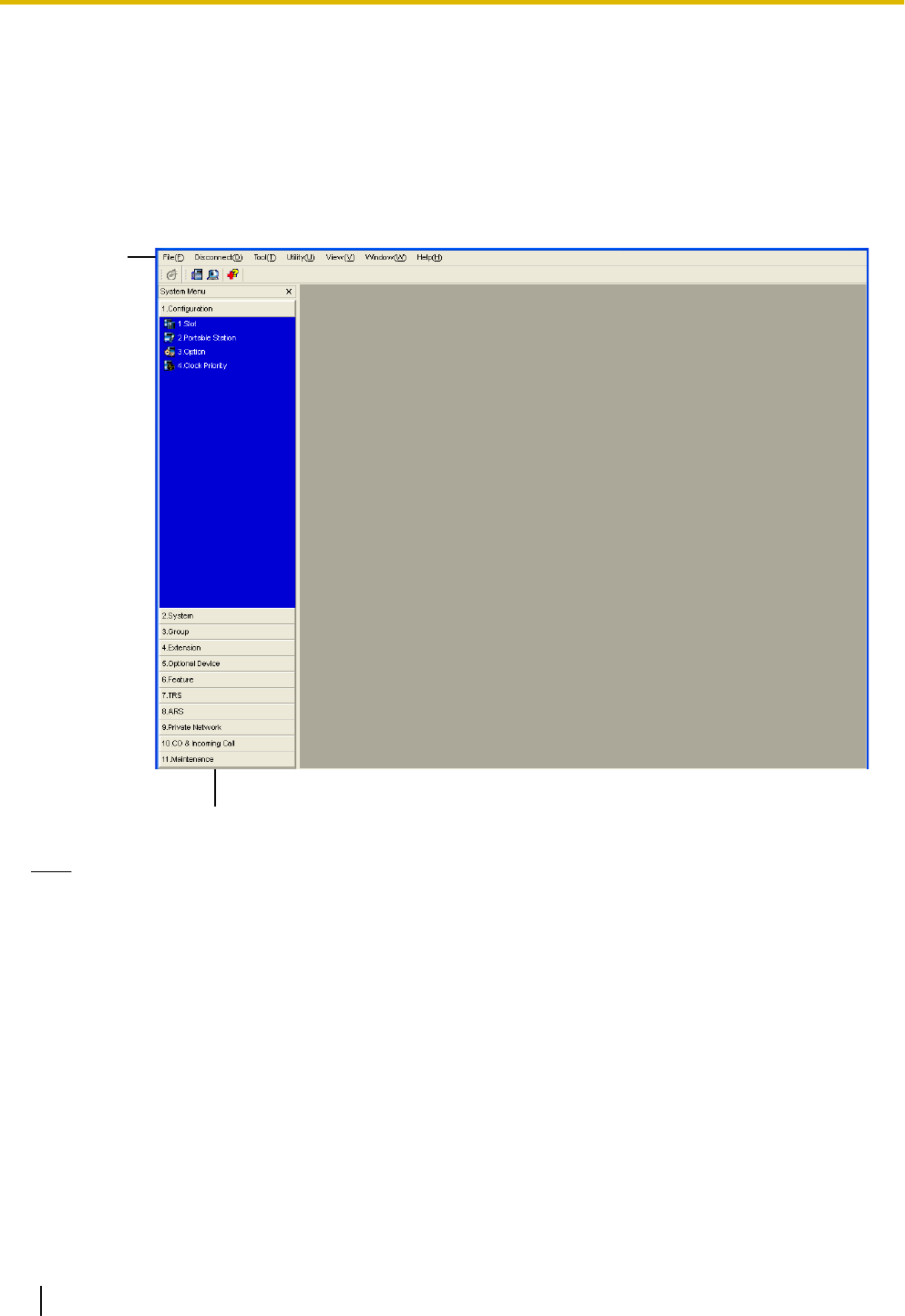
4.1 Overview
4.1.1 Overview
The Maintenance Console is designed to serve as an overall system programming reference for the PBX. To
program and administer the PBX by PC, you need to install the Maintenance Console onto the PC.
This section describes overview and installation of the Maintenance Console only.
Menu Bar
System Menu
Note
The contents and design of the software are subject to change without notice.
112 Installation Manual Document Version 2011-10
4.1.1 Overview
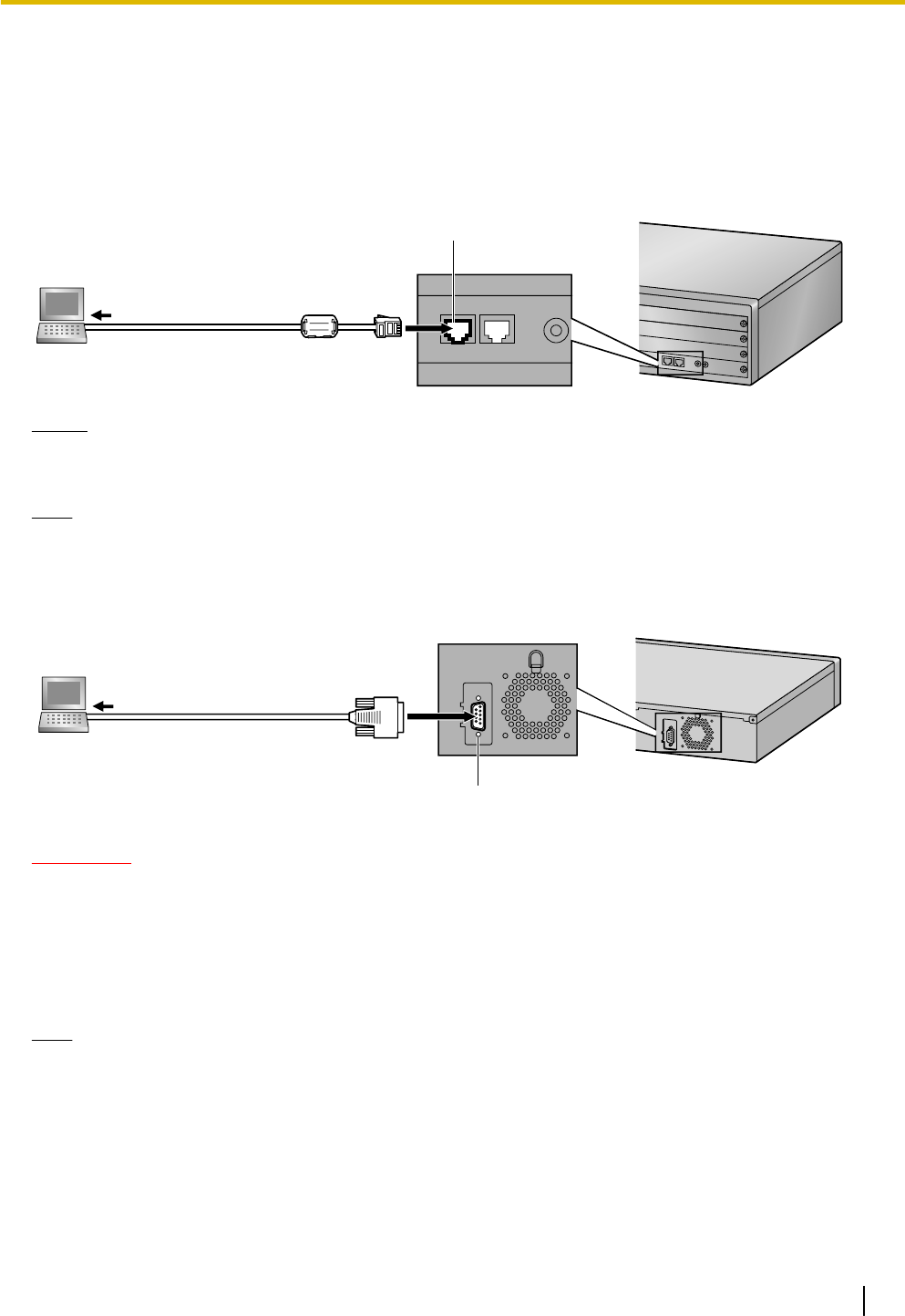
4.2 PC Connection
4.2.1 PC Connection
Connection via MNT Port of IPCMPR Card
To LAN Port
MNT Port
Notice
When connecting a PC to the PBX, a fixed IP address must be assigned to the PC. For information about
fixed IP addresses, ask your network administrator.
Note
For pin assignments and maximum cabling distance, refer to "3.10.1 Connection of Peripherals".
Serial Interface Connection
PC
To COM Port
RS-232C Port
CAUTION
To protect the system, keep the following in mind:
1. Make sure that both connector cases (frame ground) of the RS-232C cross cable (shielded cable) are
conductive. If they are not conductive, make sure that both connector cases of the cable are firmly
connected.
2. If this is not possible, connect the frame of the PBX to the frame of the PC using a grounding wire in
order to prevent difference in the electrical potentials.
Note
For pin assignments and maximum cabling distance, refer to "3.10 Connection of Peripherals".
Document Version 2011-10 Installation Manual 113
4.2.1 PC Connection
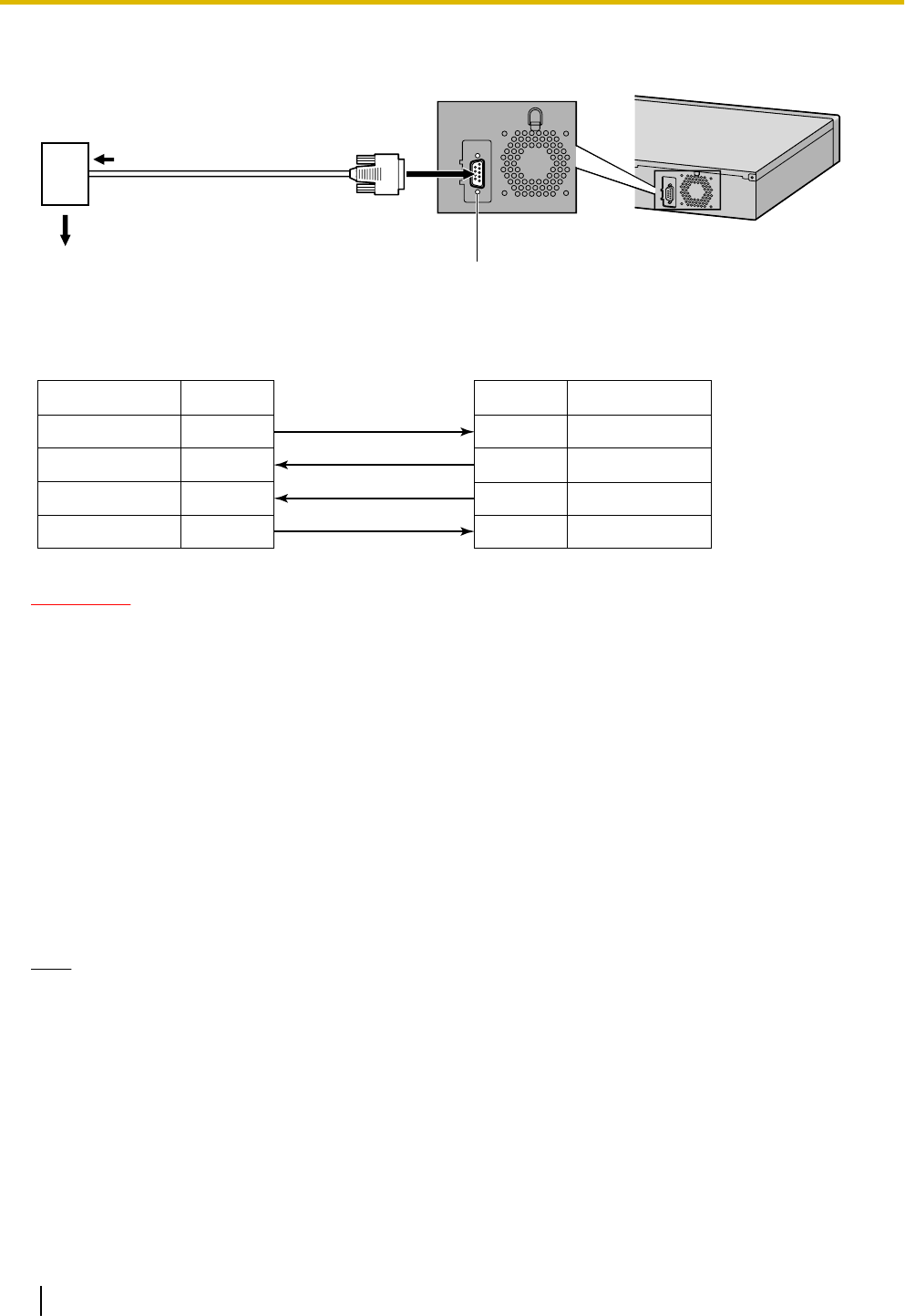
External Modem Connection
Modem
To RS-232C port (25-pin)
To CO line/PBX extension port
assigned as the CO line destination RS-232C Port
(9-pin)
External Modem (25-pin) PBX (9-pin)
Signal Name
RD (RXD)
SD (TXD)
ER (DTR)
DR (DSR)
Signal Name
RD (RXD)
SD (TXD)
ER (DTR)
DR (DSR)
Pin No.
2
3
4
6
Pin No.
3
2
20
6
CAUTION
To protect the system, keep the following in mind:
1. Make sure that both connector cases (frame ground) of the RS-232C straight cable (shielded cable)
are conductive. If they are not conductive, make sure that both connector cases of the cable are firmly
connected.
2. If this is not possible, connect the frame of the PBX to the frame of the external modem using a
grounding wire in order to prevent difference in the electrical potentials.
After connecting the PBX and the external modem, set the power switch of the external modem to "ON", then
the external modem will be initialized with the default values.
The following AT command settings may be required for the modem:
•The Data Terminal Ready (DTR) signal should be ignored.
•The Data Terminal Equipment (DTE)/Modem flow control should be turned off.
•Data compression should be disabled.
•Error Correction is not necessary.
Note
•An AT command (for initialization, enabling automatic answer, etc.) can only be programmed by
Maintenance Console. "AT&F" is stored as the default value.
•For more information about the AT command, refer to the external modem's instructions.
114 Installation Manual Document Version 2011-10
4.2.1 PC Connection

4.3 Installation of the Maintenance Console
4.3.1 Installing and Starting the Maintenance Console
System Requirements
Required Operating System
•Microsoft® Windows® XP, Windows Vista® Business, or Windows 7 Professional operating system
Minimum Hardware Requirements
•HDD: 100 MB of available hard disk space
•The PC must fulfill the hardware requirements of the installed Microsoft Windows operating system.
Recommended Display Settings
•Screen resolution: XGA (1024 ´ 768)
•DPI setting: Normal size (96 DPI)
Installing the Maintenance Console
Note
•Make sure to install and use the latest version of the Maintenance Console.
•To install or uninstall the software on a PC running Windows XP Professional, you must be logged in
as a user in either the "Administrators" or "Power Users" group.
•To install or uninstall the software on a PC running Windows Vista Business or Windows 7 Professional,
you must be logged in as a user in the "Administrators" group.
1. Copy the setup file of the Maintenance Console to your PC.
2. Double-click the setup file to run the installer.
3. Follow the on-screen instructions provided by the installation wizard.
Starting the Maintenance Console and Assigning the Basic Items (Quick
Setup)
When you start the Maintenance Console with the Installer Level Programmer Code and connect to the PBX
for the first time after initialization (with the factory default setting), Quick Setup will launch automatically. During
Quick Setup, you will set up the basic items. For details about the basic items, refer to "14.1.2 Quick Setup"
in the Feature Manual.
1. Connect the PC to the PBX with an Ethernet straight cable or RS-232C cross cable.
2. Start the Maintenance Console from the Start menu.
3. "Information before programming" appears.
a. Carefully read this important additional information, which includes updates to this and other
manuals.
b. Click OK to close this window.
4. a. Enter the Installer Level Programmer Code (default: INSTALLER).
Note
There are 2 other Programmer Codes with limited authorization: Administrator Level (default:
ADMIN), and User Level (default: USER).
b. Click OK.
Document Version 2011-10 Installation Manual 115
4.3.1 Installing and Starting the Maintenance Console

5. Click Connect.
6. a. Select KX-NCP500/1000 from PBX Model.
b. Select the LAN or RS-232C tab, depending on the type of PC connection with the PBX.
c. Specify the settings as required.
Note
When connecting to the PBX for the first time selecting LAN, the IP Address and Port
Number must be set to 192.168.0.101 and 35300 respectively.
d. Enter the system password for installer (default: 1234).
e. Click Connect.
7. Follow the instructions of the Quick Setup wizard and assign the basic items (Quick Setup).
After Quick Setup is completed, if the IP addressing information was not changed and a V-IPEXT
card was installed during setup, the IP-PT registration screen is displayed. For information on
registering IP-PTs to the PBX, refer to "3.15 [1-1] Slot—Port Property - Virtual IP Extension" in the
PC Programming Manual. You may now begin programming the PBX.
CAUTION
Do not remove the SD Memory Card while power is supplied to the PBX. Doing so may cause the PBX to
fail to start when you try to restart the system.
Notice
•During a long programming session, it is highly recommended that you periodically save the system
data to the SD Memory Card. If the PBX undergoes a sudden power failure or if the system is reset for
some reason, all the system data in RAM will be lost. However, if system data has been saved to the
SD Memory Card, it can be easily restored.
To save the system data to the SD Memory Card, (1) click the "SD Memory Backup" icon before
resetting the PBX or turning off the power, or (2) exit the Maintenance Console so that the PBX
automatically saves the system data.
•When programming PBX data which can be displayed on a proprietary telephone (PT) (extension
names, group names, System Speed Dialing names, etc.), it is possible to enter characters which
cannot be displayed on a KX-DT300/KX-T7600 series PT.
116 Installation Manual Document Version 2011-10
4.3.1 Installing and Starting the Maintenance Console
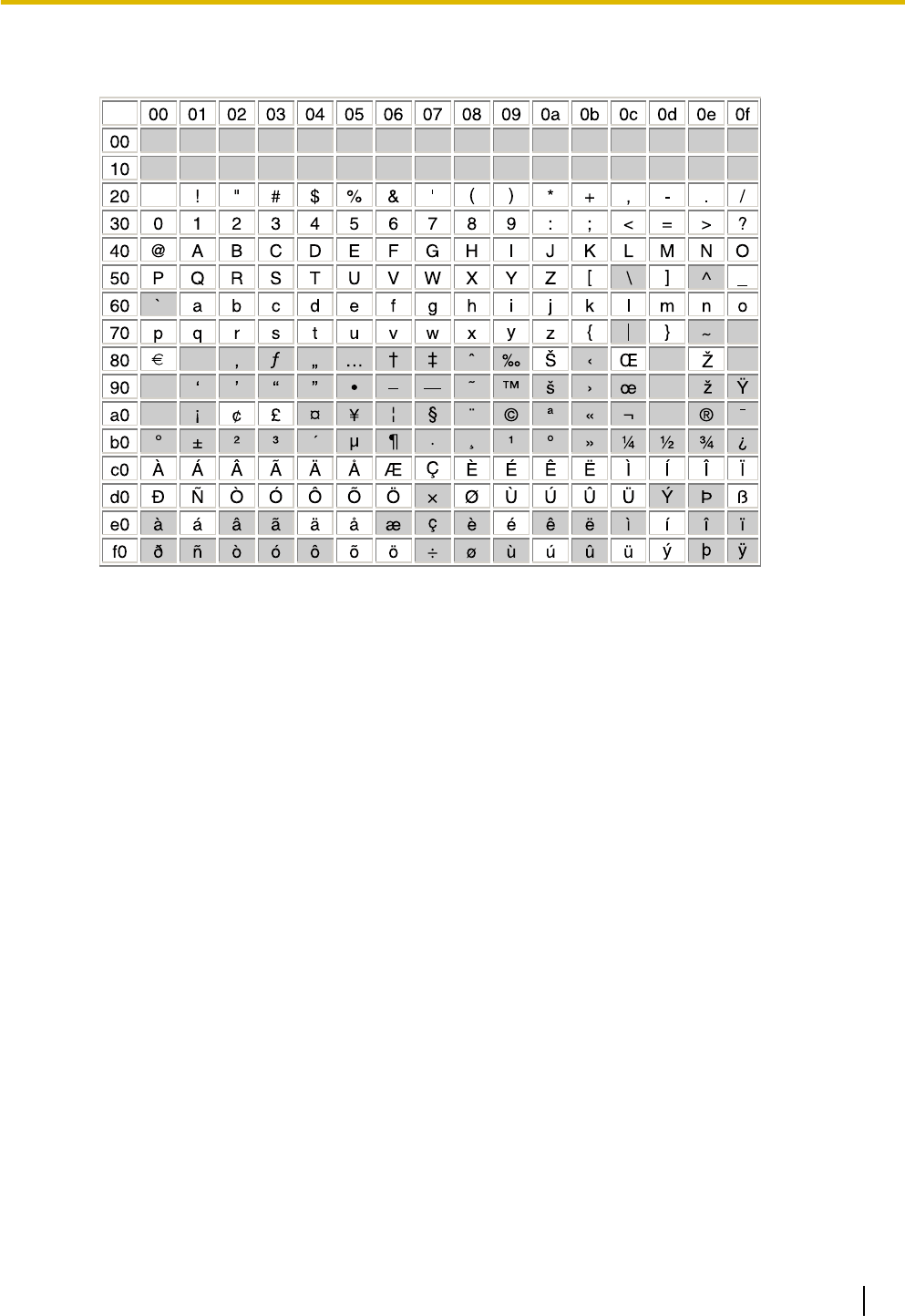
Characters which can be displayed on a KX-DT300/KX-T7600 series PT are shown below in the white
cells.
•The PC will not perform any shutdown operation, or enter the power-saving system standby mode
while the Maintenance Console is connected to the PBX. To perform either of the operations above,
first close the connection to the PBX.
Document Version 2011-10 Installation Manual 117
4.3.1 Installing and Starting the Maintenance Console

118 Installation Manual Document Version 2011-10
4.3.1 Installing and Starting the Maintenance Console

Section 5
Troubleshooting
This section provides information on the PBX and
telephone troubleshooting.
Document Version 2011-10 Installation Manual 119

5.1 Troubleshooting
5.1.1 Installation
PROBLEM PROBABLE CAUSE SOLUTION
You cannot make/receive
calls via an IP network.
•DSP card malfunction •Replace the corresponding card.
•IPCMPR card
malfunction
•Replace the IPCMPR card (be sure to turn
off the PBX when replacing).
•Not enough activation
keys
•Purchase additional activation key codes.
Please consult a certified dealer for
details.
•Poor connection •Make sure that an 8-pin twisted pair cable
is used for connection.
•Make sure that none of the CAT 5 cables
in use are over 100 m (328 ft) in length.
•Make sure that a straight cable is used for
connection to a switching hub.
•Network malfunction •Make sure that all network devices in use
are switched on.
•Make sure that there is no unwanted
firewall in the IP network.
IP-PTs/SIP Extensions do
not operate.
•DSP card malfunction •Replace the corresponding card.
•IPCMPR card
malfunction
•Replace the IPCMPR card (be sure to turn
off the PBX when replacing).
•Not enough activation
keys
•Purchase additional activation key codes.
Please consult a certified dealer for
details.
•IP-PT/SIP Extension
not registered
•Register the corresponding IP-PT/SIP
Extension.
•IP-PT/SIP Extension
malfunction
•Replace the IP-PT/SIP Extension.
•Poor connection •Make sure that an 8-pin twisted pair cable
is used for connection.
•Make sure that none of the CAT 5 cables
in use are over 100 m (328 ft) in length.
•Make sure that a straight cable is used for
connection to a switching hub.
•Network malfunction •Make sure that all network devices in use
are switched on.
•Make sure that the IP-PT/SIP Extension
is not blocked by the firewall or other
network devices.
120 Installation Manual Document Version 2011-10
5.1.1 Installation

PROBLEM PROBABLE CAUSE SOLUTION
Extensions (except IP-PT/
SIP Extension) do not
operate.
•Extension card
malfunction
•Replace the corresponding card.
•Poor connection
between the PBX and
the extension
•Take the extension and plug it into the
same extension port using a short
telephone cord. If the extension works,
then the connection between the PBX and
the extension must be repaired.
•A telephone with an
A-A1 relay is
connected.
•Make sure that a 2-wire cord is used.
•Make sure that the A-A1 relay switch of
the telephone is in "OUT" or "OFF"
position.
•Extension malfunction •Take the extension and plug it into
another extension port that is working. If
the extension does not work, replace the
extension.
The PBX does not operate
properly.
•Press the Reset Button (refer to
"5.1.4 Using the Reset Button").
•Turn off the power switch, and then turn it
back on.
•Turn off the power switch, and then
unplug the PBX. After 5 minutes, plug the
PBX back in, and turn the power switch
back on.
Noise on external paging. •Induced noise on the
wire between the PBX
and the amplifier.
•Use a shielded cable as the connection
wire between the PBX and amplifier. A
short shielded cable is recommended.
Distorted external music. •Excessive input level
from external music
source.
•Decrease the output level of the external
music source by using the volume control
on the music source.
Alternate Calling—Ring/
Voice and Live Call
Screening (LCS) do not
function as set when using a
Wireless Phone (KX-T7880/
KX-T7885/KX-TD7894/
KX-TD7895).
•Voice-calling mode and
Hands-free mode with
LCS are not available
with Wireless Phones.
•Switch the calling mode to ring-calling.
•Set the LCS mode to "Private".
The ALARM indicator on the
front of the cabinet turns on
red.
•A major system error
occurs in the PBX.
•See the error log using the Maintenance
Console (refer to "5.1.5 Troubleshooting
by Error Log").
Document Version 2011-10 Installation Manual 121
5.1.1 Installation

PROBLEM PROBABLE CAUSE SOLUTION
The LINK indicator of the
IPCMPR does not turn on.
•IPCMPR card
malfunction
•Replace the IPCMPR card (be sure to turn
off the PBX when replacing).
•Poor connection. •Make sure that an 8-pin twisted pair cable
is used for connection.
•Make sure that none of the CAT 5 cables
in use are over 100 m (328 ft) in length.
•Make sure that a straight cable is used for
connection to a switching hub.
•Network malfunction •Make sure that all network devices in use
are switched on.
122 Installation Manual Document Version 2011-10
5.1.1 Installation
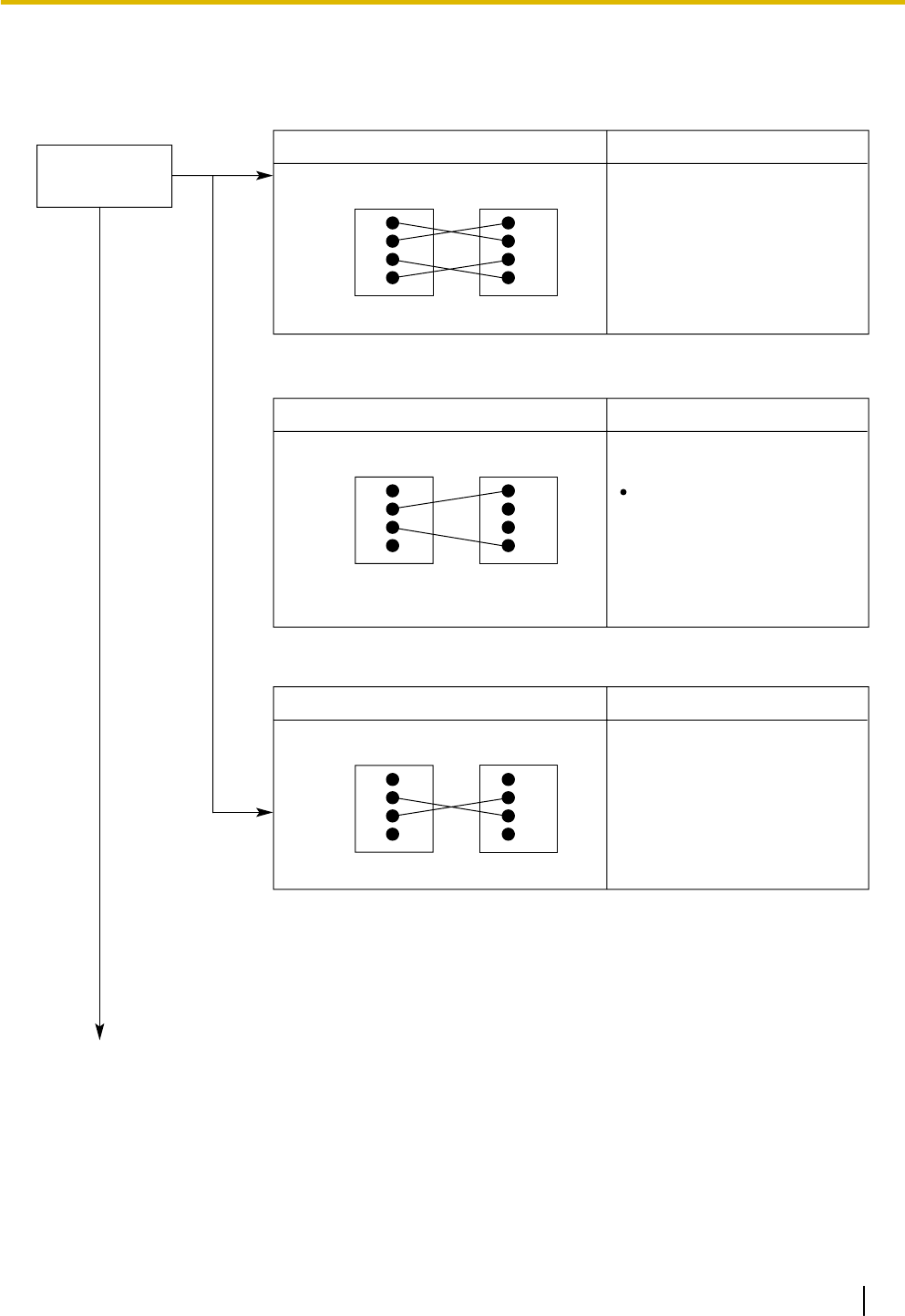
5.1.2 Connection
Connection between the PBX and a PT:
CAUSE
The T/R is connected to the D1/D2.
SOLUTION
No
Can you dial
an extension? Use the correct cord (the
inner 2 wires are for T/R and
the outer 2 wires are for
D1/D2)
D1
T
R
D2
D1
T
R
D2
PBX Extension
Connection between the PBX and an SLT:
CAUSE SOLUTION
If a telephone equipped
with an A-A1 relay is
connected to the PBX, set
the A-A1 relay switch of the
telephone to "OFF".
Use the correct cord (the
inner 2 wires are for T/R).
PBX
The T/R is connected to the D1/D2.
D1
T
R
D2
T
R
Extension
Connection between the PBX and an SLT that is polarity-sensitive:
PBX
CAUSE
The "T" is connected to the "R".
SOLUTION
D1
T
R
D2
T
R
Extension
Reverse the connections of
the T/R.
(Continued on the next page.)
Yes
Document Version 2011-10 Installation Manual 123
5.1.2 Connection
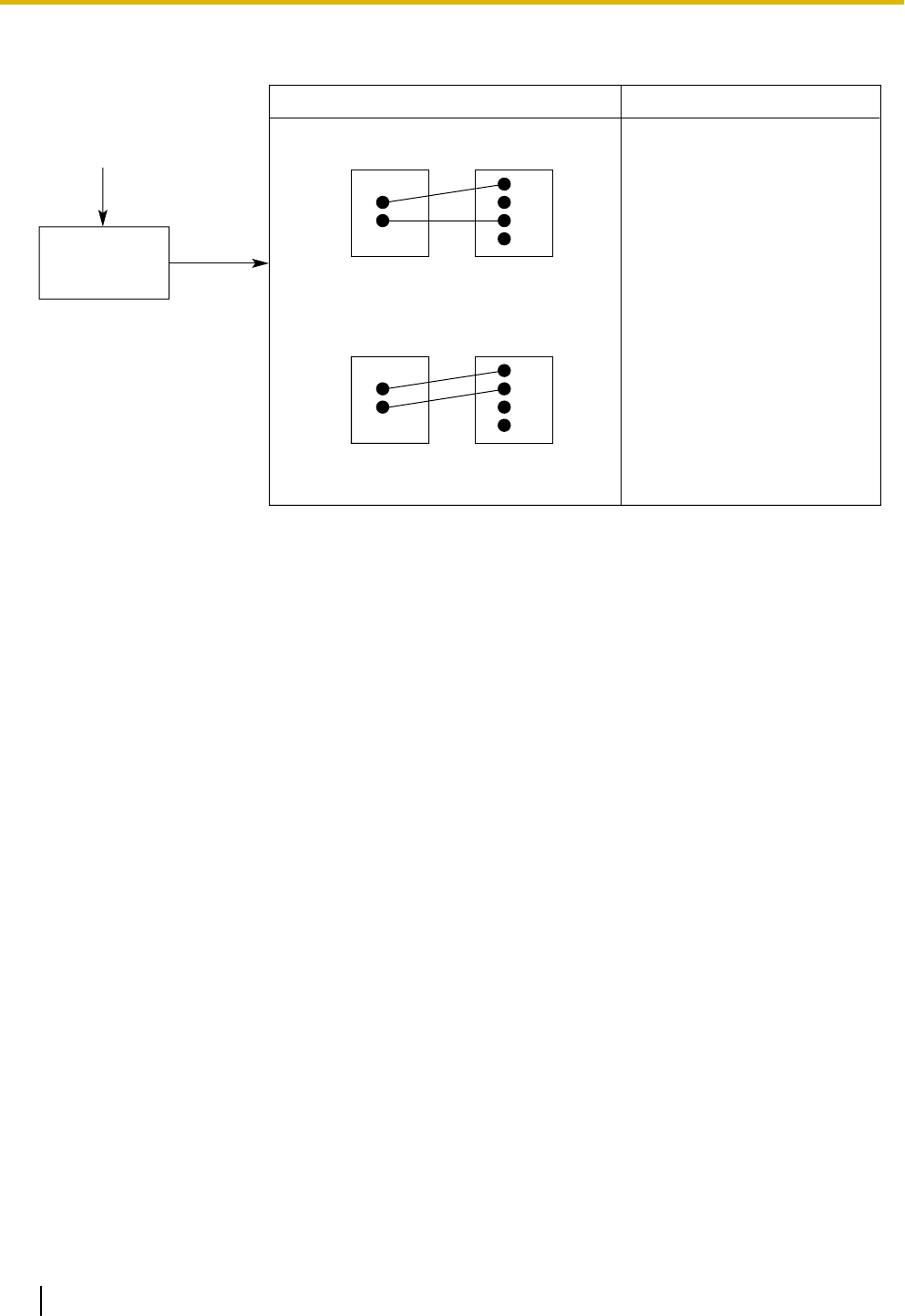
Connection between the central office and the PBX:
CAUSE
CO line is connected to the T2/T1.
SOLUTION
Reconnect the CO line to
the T1/R1 or T2/R2 of the
telephone jack using 2-
conductor wiring.
T2
R1
T1
R2
CO line PBX
CO line is connected to the T2/R1.
PBX
CO line
T2
R1
T1
R2
No
Can you dial
out on a CO
line?
(Continued from the
previous page.)
124 Installation Manual Document Version 2011-10
5.1.2 Connection

5.1.3 Operation
PROBLEM PROBABLE CAUSE SOLUTION
•Cannot set the IP
address, subnet mask
address, and PBX IP
address to the IP-PT.
•An unusable value is
being set.
•Set an IP address within the valid range.
IP address of the IP-PT/PBX: "1.0.0.0" to
"223.255.255.255" Subnet mask address:
"0–255.0–255.0–255.0–255" (except
0.0.0.0 and 255.255.255.255)
•Cannot register the
IP-PT.
•The necessary network
parameters are not set
to the IP-PT.
•When not using a DHCP server, set the IP
address, subnet mask address, and enter
the PBX IP address. If necessary, also
enter the IP address of the default
gateway.
•When using a DHCP server, enter the
PBX IP address.
•The IP-PT cannot
connect to the PBX.
•The wrong IP address,
subnet mask address,
PBX IP address, or
default gateway
address was entered.
•Check each parameter and enter the
correct value.
•The Ethernet cable is
not connected
correctly.
•Check the Ethernet cable connections.
•The DHCP server is not
active.
•Restart the DHCP server.
•Disable DHCP and re-enter settings as
appropriate.
•Whenever you try to
make calls using a SIP
Extension, a busy tone
is heard.
•The status of the port
that the SIP Extension
is connected to is Out of
Service.
•Change the port status from Out of
Service to In Service using the
Maintenance Console.
•When using the
speakerphone on an
APT, nothing is audible.
•The HANDSET/
HEADSET selector is
set to the "HEADSET"
position.
•When the headset is not used, set the
HANDSET/HEADSET selector to the
"HANDSET" position.
•When using the
speakerphone/monitor
mode with a DPT,
nothing is audible.
•The "HEADSET" mode
is selected by Personal
Programming,
"Handset/Headset
Selection".
•When the headset is not used, select the
"HANDSET" mode by Personal
Programming.
•The PT does not ring. •The ringer volume is off. •Turn on the ringer volume.
•During a power failure,
extensions connected
to port 1 of DHLC4 card
do not operate.
•A DPT or APT is
connected to the
extension port.
•The dialing mode (tone
or pulse) is incorrect.
•Disconnect the DPT or APT and connect
an SLT.
•Set the Tone/Pulse switch to the other
position.
Document Version 2011-10 Installation Manual 125
5.1.3 Operation

PROBLEM PROBABLE CAUSE SOLUTION
•Originating an outside
call, call transfer, or
conference cannot be
performed.
•The corresponding
flexible button does not
exist on the PT.
•Program the flexible button. Refer to
"6.1.3 Flexible Buttons" in the Feature
Manual.
•The KX-HGT100 does
not work properly, or
some features cannot
be performed using
KX-HGT100.
•The firmware of the
KX-HGT100 and the
MPR software file
version of the PBX are
not upgraded to their
latest versions.
•Upgrade the firmware of the KX-HGT100
and the MPR software file version of the
PBX to their latest versions.
126 Installation Manual Document Version 2011-10
5.1.3 Operation
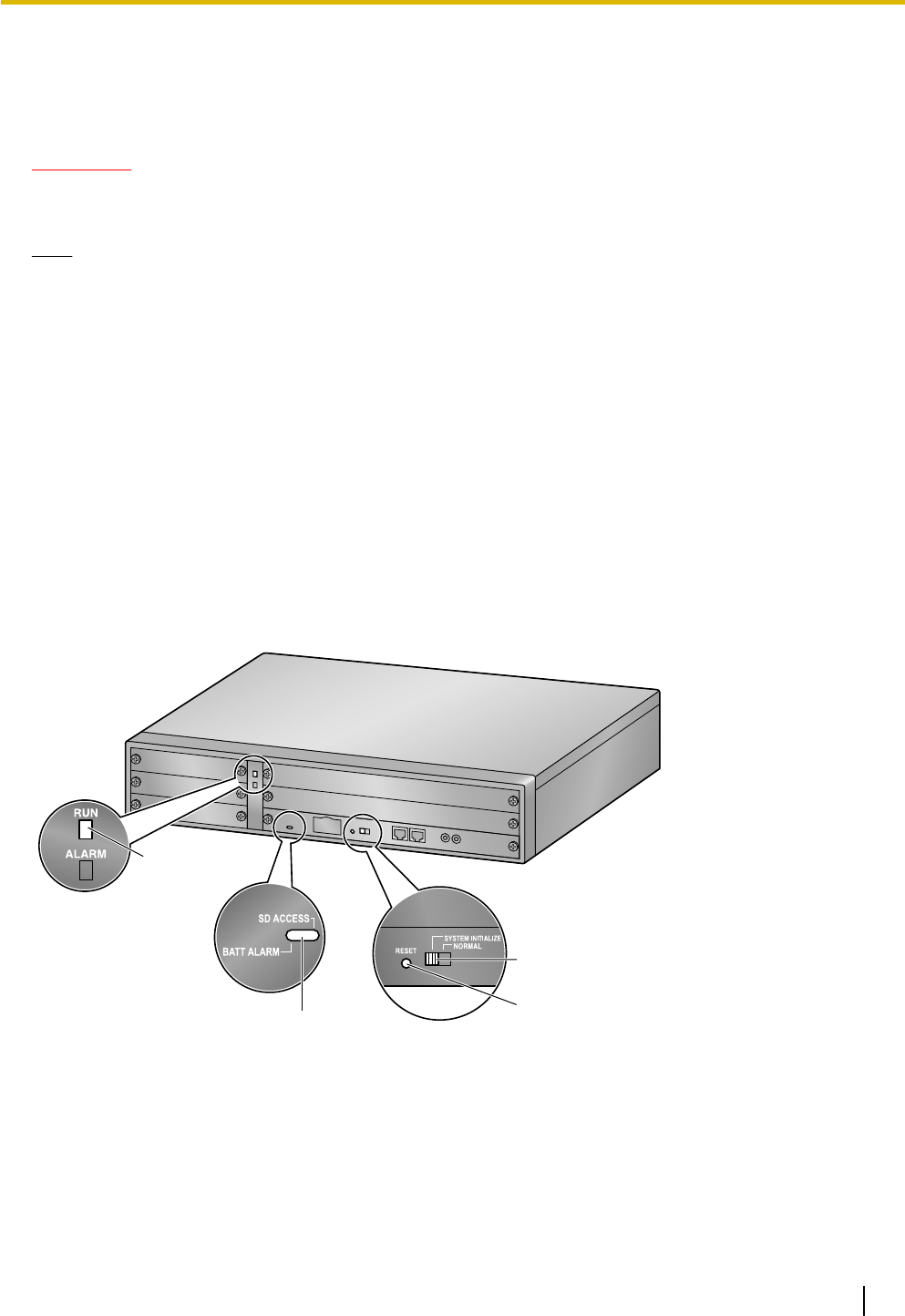
5.1.4 Using the Reset Button
If the PBX does not operate properly, use the Reset Button. Before using the Reset Button, try the system
feature again to confirm whether there definitely is a problem or not.
CAUTION
In order to avoid possible corruption of data on the SD Memory Card, please ensure that the "SD
ACCESS" LED is off before pressing the Reset Button.
Note
•When the System Initialize Switch is set to "NORMAL", pressing the Reset Button causes the following:
–Camp-on is cleared.
–Calls on hold are terminated.
–Calls on exclusive hold are terminated.
–Calls in progress are terminated.
–Call park is cleared.
Other data stored in memory, except the above, are not cleared.
•Be aware that pressing the Reset Button with the System Initialize Switch in the "SYSTEM
INITIALIZE" position clears all data stored in the PBX. Do not perform this operation unless you intend
to delete all data from the PBX.
Operation
If the PBX does not operate properly:
1. Slide the System Initialize Switch to the "NORMAL" position.
2. Press the Reset Button for about 1 second.
Reset Button
RUN Indicator
System Initialize Switch
LED
Document Version 2011-10 Installation Manual 127
5.1.4 Using the Reset Button
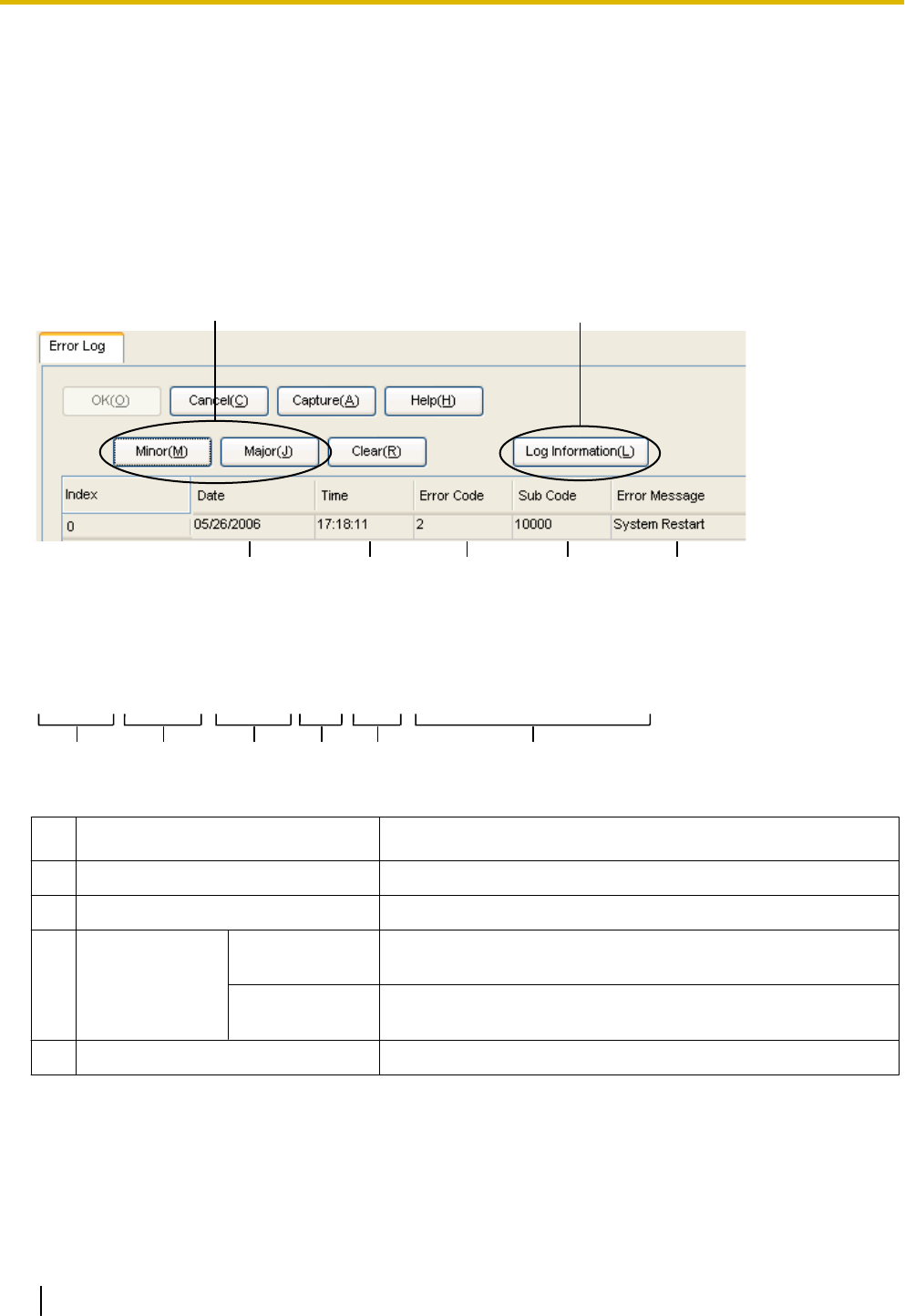
5.1.5 Troubleshooting by Error Log
When a major system error occurs in the PBX, the ALARM indicator on the front of the cabinet turns on red,
and the system logs the error information.
Error Log Display Format
Below is the display format of the error log. For information about how to view the error log using the
Maintenance Console, refer to "2.6.8 Utility—Error Log" in the PC Programming Manual.
Example: Maintenance Console
12456
3 7
Example: Station Message Detail Recording (SMDR)
07/01/01 10:37AM MJ ALM #000 10000 MPR WDT overflow
07/01/01 11:07AM MN ALM #010 10000 AC power down
07/01/01 03:55PM MN ALM #301 10501 Digital trunk RAI reception
12 345 6
Description
Item Description
1 Date The date of the error detection.
2 Time The time of the error detection.
3 Level Minor (MN ALM) Displays minor errors, which affect only a certain part of system
operation.
Major (MJ ALM) Displays major errors, which affect operation of the whole
system, or result in system failure.
4 Error Code The 3-digit error code assigned by the PBX.
128 Installation Manual Document Version 2011-10
5.1.5 Troubleshooting by Error Log

Item Description
5 Sub Code The 6-digit sub code of the relevant hardware (X1YYZZ).
•X: Slot type
–Physical slot: " " (blank)
–Virtual slot: "*" (asterisk)
•1: Cabinet number
•YY: Slot number
–KX-NCP500 (Physical slot): 00 to 05
(00: IPCMPR Card Slot/Built-in ESVM card; 01 to 05:
Free Slots)
–KX-NCP1000 (Physical slot): 00 to 07
(00: IPCMPR Card Slot/Built-in ESVM card; 01 to 07:
Free Slots)
–KX-NCP500/KX-NCP1000 (Virtual slot): 01 to 08
(01 to 04: Virtual CO Line Slots; 05 to 08: Virtual
Extension Slots)
•ZZ: Port number
–For optional service cards except OPB3 card:
Port number (01 to 16) will be displayed.
–For OPB3 card:
Sub slot number (1 to 3) + port number (1 to 4) will be
displayed as follows:
•Sub slot 1 of OPB3: 11 to 14
•Sub slot 2 of OPB3: 21 to 24
•Sub slot 3 of OPB3: 31 to 34
Note
When there is no parameter for slot and port number, YY
and ZZ will be displayed as "00".
Example: Sub code for IPCMPR card = " 10000"
6 Error Message A description of the error.
7 Log Information Displays probable causes of the errors and their solutions.
Document Version 2011-10 Installation Manual 129
5.1.5 Troubleshooting by Error Log

130 Installation Manual Document Version 2011-10
5.1.5 Troubleshooting by Error Log

Section 6
Appendix
Document Version 2011-10 Installation Manual 131


6.1.2 PBMPR Software File Version 2.02xx
New Options
•System Components Table
–KX-NCS2240 Activation Key for CA PRO for 40 Users (CA Pro 40users)
–KX-NCS2249 Activation Key for CA PRO for 128 Users (CA Pro 128users)
–KX-NCP0158 DECT 6.0 8-Channel IP Cell Station Unit Using a V-IPCS4 Card for DECT
6.0 Portable Station
–-Virtual 4 IP Cell Station Interface Card (V-IPCS4)
Changed Contents
•1.1.2 System Connection Diagram
•1.3.3 System Capacity
•2.1.1 Activation Keys
•2.1.2 Activation Key Code and Key Management System
•3.4.1 Virtual Cards
•3.11.1 LAN Connection
•4.3.1 Installing and Starting the Maintenance Console
•5.1.3 Operation
Document Version 2011-10 Installation Manual 133
6.1.2 PBMPR Software File Version 2.02xx


6.1.4 PBMPR Software File Version 5.0xxx
Changed Contents
•1.3.3 System Capacity
–Maximum Optional Service Cards
–Maximum CO Lines and Extensions
–Maximum Terminal Equipment
–Digital EXtra Device Port (Digital XDP) Connection Capacity
–Power Supply Unit Capacity
•2.1.1 Activation Keys
•3.3.1 IPCMPR Card
Document Version 2011-10 Installation Manual 135
6.1.4 PBMPR Software File Version 5.0xxx

136 Installation Manual Document Version 2011-10
6.1.4 PBMPR Software File Version 5.0xxx

Index
Document Version 2011-10 Installation Manual 137

Numerics
16-Channel Echo Canceller Card (KX-TDA0166) 23, 85
16-Channel IP Proprietary Telephone Activation Key
(KX-NCS3516) 40
16-Channel IP Softphone/IP Proprietary Telephone Activation
Key (KX-NCS3216) 40
16-Channel SIP Extension Activation Key
(KX-NCS3716) 40
16-Channel VoIP DSP Card (KX-TDE0110) 24, 63
16-Port Digital Extension Card (KX-NCP1172) 23, 76
16-Port Single Line Telephone Extension Card
(KX-NCP1174) 23, 78
19-inch Rack Mounting 55
1-Channel IP Proprietary Telephone Activation Key
(KX-NCS3501) 40
1-Channel IP Softphone/IP Proprietary Telephone Activation
Key (KX-NCS3201) 40
1-Channel SIP Extension Activation Key
(KX-NCS3701) 40
2-Channel IP Trunk Activation Key (KX-NCS3102) 39
4-Channel IP Proprietary Telephone Activation Key
(KX-NCS3504) 40
4-Channel IP Softphone/IP Proprietary Telephone Activation
Key (KX-NCS3204) 40
4-Channel IP Trunk Activation Key (KX-NCS3104) 39
4-Channel Message Card (KX-TDA0191) 23, 86
4-Channel Simplified Voice Message Card
(KX-TDA0194) 23, 87
4-Channel SIP Extension Activation Key
(KX-NCS3704) 40
4-Channel VoIP DSP Card (KX-NCP1104) 23, 63
4-Port Analog Trunk Card (KX-NCP1180) 23, 67
4-Port Digital Hybrid Extension Card (KX-NCP1170) 23, 73
4-Port Doorphone Card (KX-TDA0161) 23, 80
4-Port External Input/Output Card (KX-TDA0164) 23, 82
64-Channel VoIP DSP Card (KX-TDE0111) 24, 63
8-Channel IP Proprietary Telephone Activation Key
(KX-NCS3508) 40
8-Channel IP Softphone/IP Proprietary Telephone Activation
Key (KX-NCS3208) 40
8-Channel SIP Extension Activation Key
(KX-NCS3708) 40
8-Port Digital Extension Card (KX-NCP1171) 23, 75
8-Port Single Line Telephone Extension Card
(KX-NCP1173) 23, 77
A
Activation Key 38
Activation Key Code 43
Activation Key File 39, 44
Activation Key for CA ACD Monitor for 1 ICD Supervisor
(KX-NCS2301) 40
Activation Key for CA PRO for 1 User (KX-NCS2201) 40
Activation Key for CA PRO for 10 Users (KX-NCS2210) 40
Activation Key for CA PRO for 128 Users
(KX-NCS2249) 40
Activation Key for CA PRO for 40 Users (KX-NCS2240) 40
Activation Key for CA PRO for 5 Users (KX-NCS2205) 40
Activation Key for Software Upgrade to Enhanced Version
(KX-NCS3910) 40
Activation Key, in the DSP4/DSP16/DSP64 Card 39
Activation Key, in the SD Memory Card 39
Activation Key, Maximum Number 38
B
BGM 102
C
Cable Distance 88
Characteristics 27
CO line Connection 110
Connection Chart for LAN Connection 105
Connection Diagram, System 21
Connector Types 53
CTI Server Connection (via USB version 2.0) 105
CTI—First Party Call Control 97
CTI—Third Party Call Control 105
D
DHLC4 Card (KX-NCP1170) 73
Digital EXtra Device Port (Digital XDP) Connection 93
Digital XDP 93
Digital XDP Connection, Using a Modular T-Adaptor 93, 95
Digital XDP Connection, Using an EXtra Device
Port 94, 96
DLC16 Card (KX-NCP1172) 76
DLC8 Card (KX-NCP1171) 75
Door Opener 80, 98
Doorphone 80, 98
DPH4 Card (KX-TDA0161) 80
DSP16 Card (KX-TDE0110) 63
DSP4 Card (KX-NCP1104) 63
DSP64 Card (KX-TDE0111) 63
E
ECHO16 Card (KX-TDA0166) 85
EIO4 Card (KX-TDA0164) 82
Error Log 128
External Relay 82, 84, 98
External Sensor 82, 84, 98
EXtra Device Port (XDP) Mode 91, 93
F
Ferrite Core 54
First Party Call Control CTI Connection 97
Floor Standing 56
Frame Ground Connection 50
I
Information about the Virtual Cards 66
Installation Precautions 46
IP Convergence Main Processing Card (IPCMPR Card) 60
IPCMPR Card 60
IPCMPR Card Slot 28
K
Key Management System 43
KX-NCP1104 (4-Channel VoIP DSP Card) 23, 63
KX-NCP1170 (4-Port Digital Hybrid Extension Card) 23, 73
138 Installation Manual Document Version 2011-10
Index

KX-NCP1171 (8-Port Digital Extension Card) 23, 75
KX-NCP1172 (16-Port Digital Extension Card) 23, 76
KX-NCP1173 (8-Port Single Line Telephone Extension
Card) 23, 77
KX-NCP1174 (16-Port Single Line Telephone Extension
Card) 23, 78
KX-NCP1180 (4-Port Analog Trunk Card) 23, 67
KX-NCP1187 (T-1 Trunk Card) 23, 69
KX-NCP1190 (Optional 3-Slot Base Card) 23, 79
KX-NCP1290 (PRI Card [PRI23]) 23, 71
KX-NCS2201 (Activation Key for CA PRO for 1 User) 40
KX-NCS2205 (Activation Key for CA PRO for 5 Users) 40
KX-NCS2210 (Activation Key for CA PRO for 10 Users) 40
KX-NCS2240 (Activation Key for CA PRO for 40 Users) 40
KX-NCS2249 (Activation Key for CA PRO for 128
Users) 40
KX-NCS2301 (Activation Key for CA ACD Monitor for 1 ICD
Supervisor) 40
KX-NCS3102 (2-Channel IP Trunk Activation Key) 39
KX-NCS3104 (4-Channel IP Trunk Activation Key) 39
KX-NCS3201 (1-Channel IP Softphone/IP Proprietary
Telephone Activation Key) 40
KX-NCS3204 (4-Channel IP Softphone/IP Proprietary
Telephone Activation Key ) 40
KX-NCS3208 (8-Channel IP Softphone/IP Proprietary
Telephone Activation Key) 40
KX-NCS3216 (16-Channel IP Softphone/IP Proprietary
Telephone Activation Key) 40
KX-NCS3501 (1-Channel IP Proprietary Telephone Activation
Key) 40
KX-NCS3504 (4-Channel IP Proprietary Telephone Activation
Key) 40
KX-NCS3508 (8-Channel IP Proprietary Telephone Activation
Key) 40
KX-NCS3516 (16-Channel IP Proprietary Telephone
Activation Key) 40
KX-NCS3701 (1-Channel SIP Extension Activation
Key) 40
KX-NCS3704 (4-Channel SIP Extension Activation
Key) 40
KX-NCS3708 (8-Channel SIP Extension Activation
Key) 40
KX-NCS3716 (16-Channel SIP Extension Activation
Key) 40
KX-NCS3910 (Activation Key for Software Upgrade to
Enhanced Version) 40
KX-TDA0161 (4-Port Doorphone Card) 23, 80
KX-TDA0164 (4-Port External Input/Output Card) 23, 82
KX-TDA0166 (16-Channel Echo Canceller Card) 23, 85
KX-TDA0191 (4-Channel Message Card) 23, 86
KX-TDA0194 (4-Channel Simplified Voice Message
Card) 23, 87
KX-TDA0196 (Remote Card) 24, 65
KX-TDE0110 (16-Channel VoIP DSP Card) 24, 63
KX-TDE0111 (64-Channel VoIP DSP Card) 24, 63
L
LCOT4 Card (KX-NCP1180) 67
LED Indications, PBX 109
M
Main Unit 20
Main Unit, Construction 20
Maintenance Console, Installation 115
Maintenance Console, Overview 112
Maintenance Console, PC Connection 113
Maintenance Console, Quick Setup 115
Maintenance Console, System Requirements 115
Master DPT, Digital XDP 93
MOH 102
MSG4 Card (KX-TDA0191) 86
N
Names and Locations 49
O
OPB3 Card (KX-NCP1190) 79
Optional 3-Slot Base Card (KX-NCP1190) 23, 79
Optional Equipment 23
Optional Service Card, Installation 51
Optional Service Card, Maximum Number 28
Optional Service Card, Removal 51
P
Pager 102
Parallel Connection of the Extensions 90
Parallel Connection, Using a Modular T-Adaptor 91
Parallel Connection, Using an EXtra Device Port 91
Parallel Mode 91, 93
Password Security 12
PBMPR Software File Version 1.01xx 132
PBMPR Software File Version 2.02xx 133
PBMPR Software File Version 4.1xxx 134
PBMPR Software File Version 5.0xxx 135
PC Connection (via RS-232C) 102
PC Connection (via USB version 2.0) 101
Power Failure Connections 106
PRI Card (PRI23) (KX-NCP1290) 23, 71
PRI23 Card (KX-NCP1290) 71
Printer Connection (via RS-232C) 102
Q
Quick Setup 115
R
Remote Card (KX-TDA0196) 24, 65
Reset Button 127
RMT Card (KX-TDA0196) 65
RUN Indicator 108
S
Safety Installation Instructions 46
SD Memory Card 60
Slave DPT, Digital XDP 93
SLC16 Card (KX-NCP1174) 78
SLC8 Card (KX-NCP1173) 77
Slot for the IPCMPR Card 28
Slots for Physical Cards (Free Slots) 28
Document Version 2011-10 Installation Manual 139
Index

Slots for Virtual CO Line Cards 28
Slots for Virtual Extension Cards 28
Specifications 25
Specifications, Characteristics 27
Specifications, General Description 25
Specifications, System Capacity 28
Starting the PBX 108
Surge Protector Installation 57
System Capacity 28
System Connection Diagram 21
System Initialization Procedure 108
System Initialize Switch 108, 127
System Requirements 115
T
T1 Card (KX-NCP1187) 69
T-1 Trunk Card (KX-NCP1187) 23, 69
Terminal Equipment, Maximum Number 33
Troubleshooting, by Error Log 128
Troubleshooting, Connection 123
Troubleshooting, Installation 120
Troubleshooting, Operation 125
Troubleshooting, Using the Reset Button 127
U
Unpacking 48
V
V-IPCS4 (Virtual 4 IP Cell Station Interface Card) 66
V-IPEXT32 (Virtual 32-Channel VoIP Extension Card) 66
V-IPGW16 (Virtual 16-Channel VoIP Gateway Card) 66
Virtual 16-Channel VoIP Gateway Card (V-IPGW16) 66
Virtual 32-Channel SIP Extension Card (V-SIPEXT32) 66
Virtual 32-Channel VoIP Extension Card (V-IPEXT32) 66
Virtual 4 IP Cell Station Interface Card (V-IPCS4) 66
Virtual Cards 66
Virtual CO Line Slot 28
Virtual Extension Slot 28
V-SIPEXT32 (Virtual 32-Channel SIP Extension Card) 66
W
Wiring Precautions 47
140 Installation Manual Document Version 2011-10
Index

Document Version 2011-10 Installation Manual 141
Notes

One Panasonic Way, Secaucus, New Jersey 07094
http://www.panasonic.com/bts
Copyright:
This material is copyrighted by Panasonic System Networks Co., Ltd., and may be reproduced for internal
use only. All other reproduction, in whole or in part, is prohibited without the written consent of Panasonic
System Networks Co., Ltd.
© Panasonic System Networks Co., Ltd. 2010
PSQX4744VA KK0908KE4101
When you ship the product
Carefully pack and send it prepaid, adequately insured and preferably in the original carton. Attach a
postagepaid letter, detailing the symptom, to the outside of the carton. DO NOT send the product to the
Executive or Regional Sales offices. They are NOT equipped to make repairs.
Product Service
Panasonic Factory Service Centers for this product are listed in the service center directory. Consult your
certified Panasonic dealer for detailed instructions.
For Future Reference
Please print, record, and retain the following information for future reference.
Note
The serial number of this product can be found on the label affixed to the unit. You should record the
model number and the serial number of this unit as a permanent record of your purchase to aid in
identification in the event of theft.
MODEL NO.
SERIAL NO.
DATE OF PURCHASE
NAME OF DEALER
DEALER'S ADDRESS
DEALER'S TEL. NO.
