Pocket Guide To Writing SVG
User Manual:
Open the PDF directly: View PDF  .
.
Page Count: 51
Pocket Guide to Writing SVGPocket Guide to Writing SVG
By Joni TrythallBy Joni Trythall
Audio Version
View Source
Thank You!Thank You!
I would like to take this entire section to give a special “Thank you so much!” to:
CSS-Tricks
Lincoln Loop
Designmodo
Tahoe Partners
Una Kravets for recording the audio version!
Your support for this book is so appreciated and I truly hope I have not offended any of you
by potentially excluding your favorite fruit.
IntroductionIntroduction !
Scalable Vector Graphics (SVG) is a language for describing two-dimensional graphics in
XML. These graphics can consist of paths, images, and/or text that are able to be scaled and
resized without losing image quality.
Inline SVG refers to the embedded code written within HTML to generate these graphics in
a browser, which will be the focus of this book.
There are many advantages to using SVG this way, including having access to all the
graphic's individual parts for interactivity purposes, generating searchable text, DOM
access for direct edits, and promoting user accessibility.
Starting with basic organization and simple shapes, we'll then continue on to describe the
SVG coordinate system or "canvas", painting a graphic's interior and/or border, transforms,
and using and manipulating graphical text. We'll wrap up by touching on more advanced
features such as gradients and patterns.
This guide is meant to provide a quick but thorough introduction to building SVG inline, and
while it in no way covers all the available features, it should prove helpful in getting you
started. It's intended for designers and developers looking to add SVG to their workflow in
the most accessible way possible.
From small stroke details to getting started with hand crafted patterns, this guide is
intended to be an all around “go-to” reference for writing SVG.
Before You BeginBefore You Begin
While this "Pocket Guide" is intended for those that already know a thing or two about
HTML and CSS, there are a few additional things that will be helpful to know before diving
into SVG code in your favorite browser, such as: the information needed within the SVG
fragment for proper rendering, how to make your graphics as accessible as possible, and
knowing how and when to use vector graphic software.
Using SVGUsing SVG
There are a number of ways to include SVG in your projects: inline, an <img> , a background-
image, an <object> , or as Data URI's. We will be specifically addressing the use of SVG inline
which involves writing SVG code within the body of a properly structured HTML document.
So while we will only be addressing inline SVG here, there may be instances where another
method may be more appropriate. For example, if you do not need editing abilities of the
graphic itself or access to its individual parts, using it as an <img> may better suit your
project.
Vector Graphic SoftwareVector Graphic Software
Vector graphic software options can be useful when looking to create more complex
graphics that wouldn't be reasonable to write "by hand". Software such as Adobe Illustrator,
Inkscape, Sketch, iDraw, or WebCode can be useful tools to add to your SVG bag of tricks.
The advantage to these types of tools is that you can export their SVG code and embed it
right into your HTML. We'll touch on that a bit later.
Inline SVG on the WebInline SVG on the Web
For the sake of brevity throughout this book the SVG DOCTYPE, version number, xmlns ,
and xml:space have been excluded from all code samples.
These attributes specify the version of SVG being used and the namespace of the
document. The main thing to remember at this point is that you will generally not need to
include these attributes to successfully render your graphic in the browser.
Let's take a look at these attributes now, in an example of SVG code generated by Illustrator,
to ensure this doesn’t take you by surprise when getting started:
<!DOCTYPE svg PUBLIC "-//W3C//DTD SVG 1.1//EN"
"http://www.w3.org/Graphics/SVG/1.1/DTD/svg11.dtd">
<svg version="1.1" xmlns="http://www.w3.org/2000/svg"
xmlns:xlink="http://www.w3.org/1999/xlink" xml:space="preserve"></svg>
In most instances the DOCTYPE and attributes here within the <svg> element are not
necessary and can be eliminated, substantially "cleaning up" your code.
SVG User AccessibilitySVG User Accessibility
Utilizing SVG accessibility features is a great habit to form, but again for the sake of brevity,
descriptions and titles will not be included within the code throughout the book.
Once you become more experienced writing SVG including these elements is going to make
your graphics more accessible to users. For instance, content within the <desc> element
allows you to provide a detailed description of a graphic to users with screen readers.
SVG text also provides a huge advantage over traditional raster-based images in terms of
accessibility because SVG text is detected and read, and can easily be resized to
accommodate specific reading preferences.
General NotesGeneral Notes
A couple more general notes before diving in: the fonts used for the demos throughout the
book are available through Google Fonts. While you will see this spelled out through font-
family here, what you will not see, and will have to include in your document, is the
correlating link or @import obtained from Google Fonts.
The examples throughout strictly use pixels and percentages as unit identifiers. Supported
length units for SVG are: em, ex, px, pt, pc, cm, mm, in, and percentages.
The SVG code in this book can be added to any text editor and then viewed in any browser
that supports inline SVG. While browser support is very strong for SVG in general, this
support can become much less consistent with more advanced features like gradients, for
example. Can I Use is a great place to check on support for these types of features, but
ultimately nothing will beat what you learn through trial and error.
All that being said, you can also copy the code as is, place it into the HTML section of a pen
over at CodePen, and instantly see your graphic on the screen. I cannot say enough great
things about this tool as it was essentially what got me interested in SVG in the first place.
It’s my favorite way to learn: playing, tinkering, and sometimes even failing miserably.
Finally, some examples will have portions of a graphic's code commented out to minimize
the size of the block of code when that particular portion is not related to the topic at hand.
<svg>
<!--<path d=<this path is commented out> />-->
</svg>
Section 1. Document Organization Section 1. Document Organization !
SVG details reside within a <svg> element. This element contains several attributes which
permit the customization of your graphic's "canvas". While these attributes are not
completely necessary to render an image, omitting them may leave more complex graphics
vulnerable when performing across browsers and make them susceptible to not rendering
as intended.
As mentioned, inline graphics can be written "by hand", or embedded by accessing the XML
code generated by vector graphic software. Either way, proper organization and structure is
crucial to writing efficient SVG code, primarily because the order of these graphical
elements determines their stacking order.
Organization & SemanticsOrganization & Semantics
An SVG document fragment is made up of any number of SVG elements contained within
the <svg> element. Organization within this document is crucial. Content within the
document can expand rapidly, and proper organization promotes accessibility and
efficiency throughout, benefitting both the author and users.
This section will introduce the key to writing SVG - the <svg> element - and review some
common attributes that aid in the initial document setup.
svg Elementsvg Element
The <svg> element is classified as both a container and a structural element, and can be
used to nest a standalone SVG fragment inside the document. This fragment establishes its
own coordinate system.
The attributes used within this element, such as width , height , preserveAspectRatio and
viewBox define the canvas for the graphic being written.
When obtaining SVG code from certain vector software there is a lot of additional info
within the <svg> element, such as the SVG version number (indicates the SVG language
version being used) and DOCTYPE. As I’ve mentioned, that information will not be included
in examples throughout this guide, and their exclusion will not prevent your graphics from
rendering on the screen.
g Elementg Element
The g element is a container element for grouping related graphics together. Utilizing this
element in conjunction with description and title elements provides information about your
graphic, and aids in organization and accessibility by grouping related graphical
components together.
Also, by grouping related elements together you can manipulate the group as a whole
versus the individual parts. This is especially handy when animating these elements, for
example, as the animation can be applied to the group.
Any element that is not contained within a g is assumed to be its own group.
use Elementuse Element
The <use> element allows you to reuse elements throughout a document. There are
additional attributes that can be included within this element, such as x, y, width , and
height , which define the mapping location details of the graphic within the coordinate
system.
Using the xlink:href attribute here enables you to call on the element to be reused. For
example, if there was a <g> with an id of “apple” containing the image of an apple that
needed to be reused this image can be referenced by <use> : <use x="50" y="50"
xlink:href="#apple" /> .
This element can be a significant time saver and help minimize required code.
defs Elementdefs Element
While <use> permits the reuse of a graphic already rendered, graphics within a <defs>
element are not rendered onto the canvas, but are able to be referenced and then rendered
through the use of xlink:href .
Graphics are defined within <defs> and can then be used throughout the document by
referencing the id of that graphic.
For example, the following code draws a very simple gradient within a rectangle:
<svg>
<defs>
<linearGradient id="Gradient-1">
<stop offset="0%" stop-color="#bbc42a" />
<stop offset="100%" stop-color="#765373" />
</linearGradient>
</defs>
<rect x="10" y="10" width="200" height="100" fill= "url(#Gradient-1)" stroke="#333333"
stroke-width="3px" />
</svg>
The contents of the <defs> has no visual output until called on by referencing its unique
id , which in this instance is being done through the fill attribute of the rectangle.
symbol Elementsymbol Element
The <symbol> element is similar to <g> as it provides a way to group elements, however,
elements within <symbol> have no visual output (like <defs> ) until called on with the <use>
element.
Also unlike the <g> element, <symbol> establishes its own coordinate system separate from
the viewport it's rendered in.
SVG viewport and viewBox , which establish the coordinate system for the graphics being
mapped, will be addressed further in a different section.
Stacking OrderStacking Order
The stacking order of SVG cannot be manipulated by z-index in CSS as other elements
within HTML can. The order in which SVG elements are stacked depends entirely on their
placement within the document fragment.
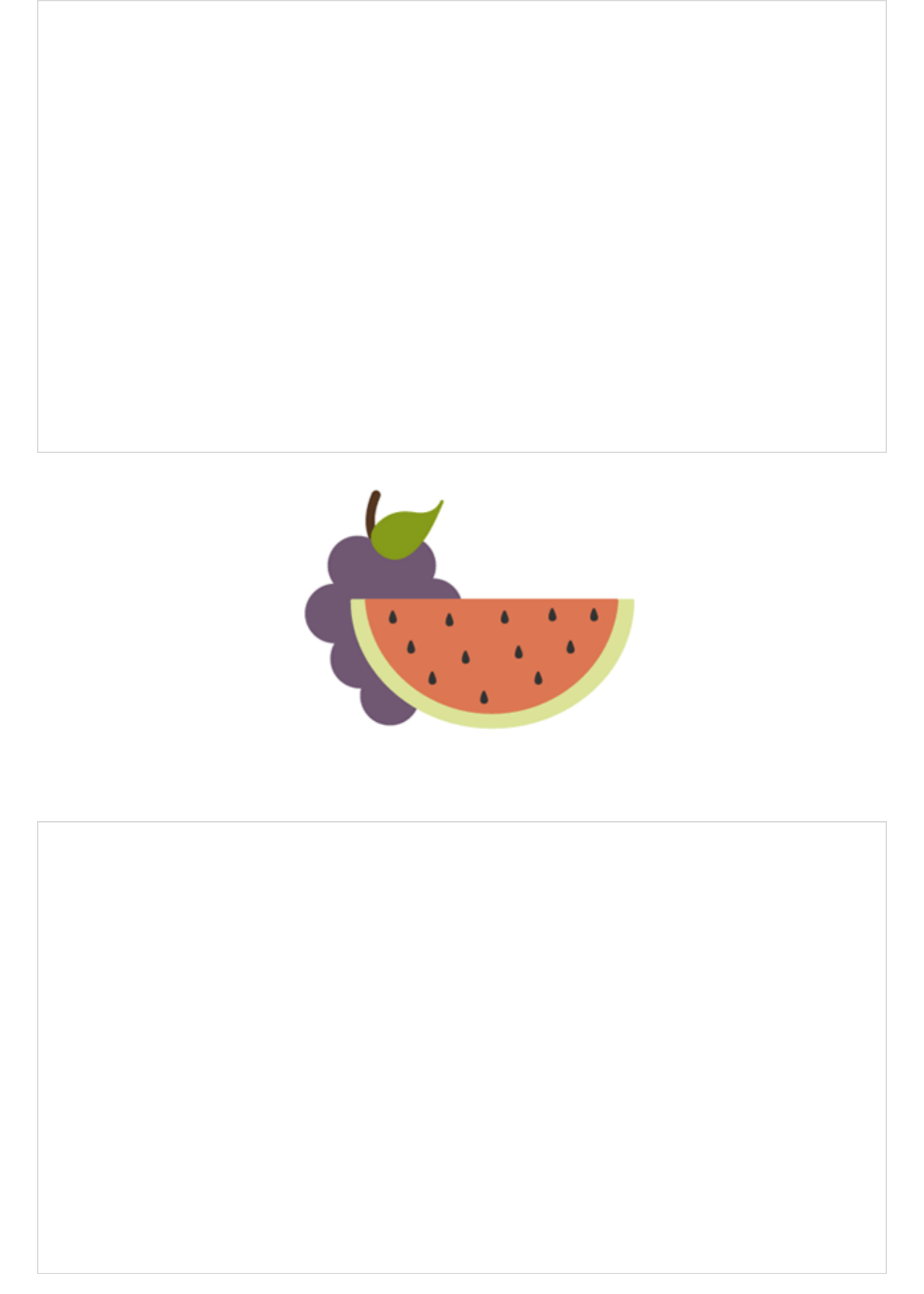
The grapes and watermelon below are within the same <svg> element. The watermelon
appears in front of the grapes because the group containing the paths that make up the
watermelon is listed after the grapes in the document.
<svg>
<g class="grapes">
<!--<path <stem path> />-->
<!--<path <grapes path> />-->
<!--<path <leaf path> />-->
</g>
<g class="watermelon">
<!--<path <outside path> />-->
<!--<path <inside path> />-->
<!--<path <seeds path> />-->
</g>
</svg>
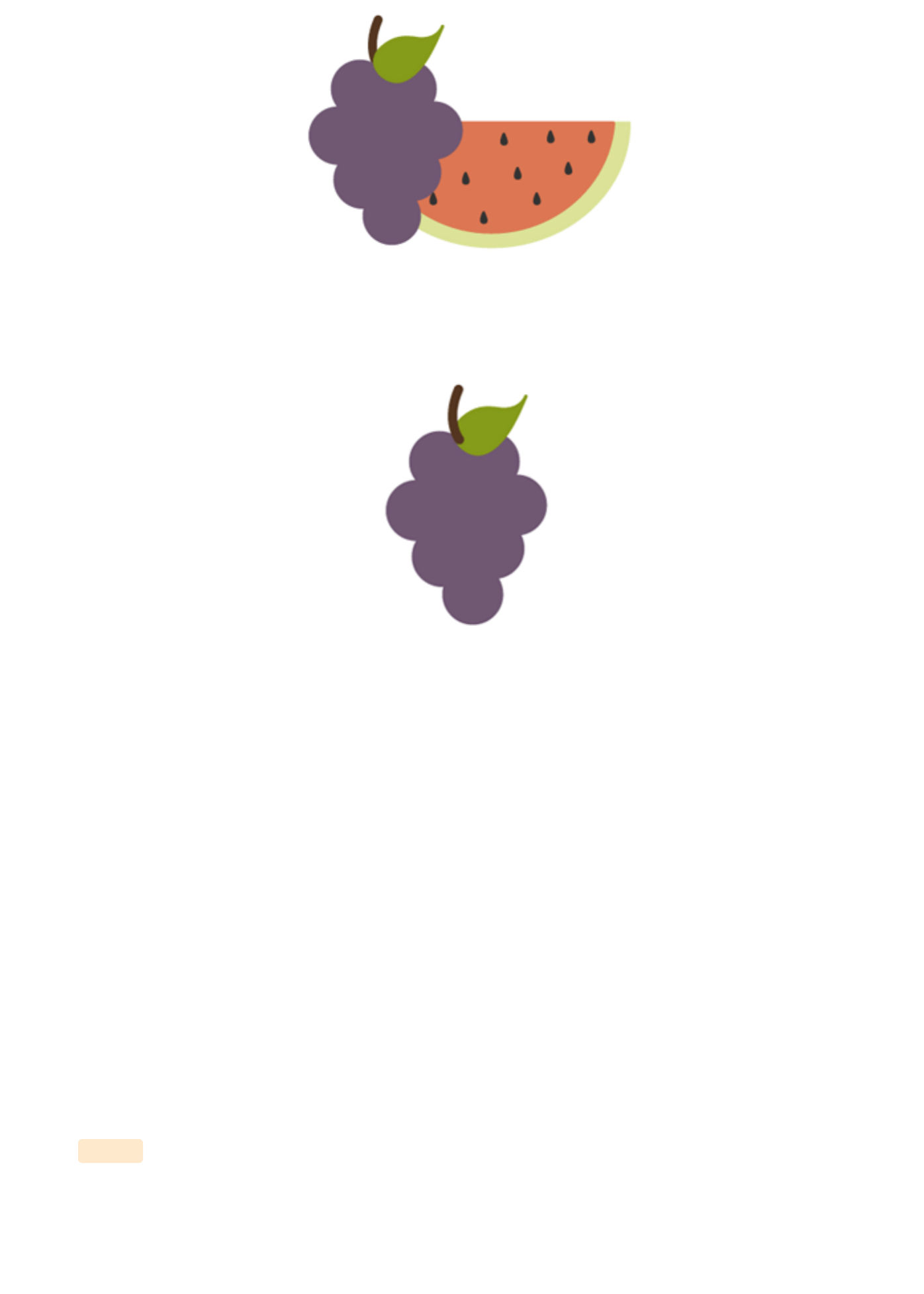
If the group containing the grapes was moved to the end of the document it would then
appear in front of the watermelon.
<svg>
<g class="watermelon">
<!--<path <outside path> />-->
<!--<path <inside path> />-->
<!--<path <seeds path> />-->
</g>
<g class="grapes">
<!--<path <stem path> />-->
<!--<path <grapes path> />-->
<!--<path <leaf path> />-->
</g>
</svg>
This method of determining stacking order also applies to the individual elements within
the group. For example, moving the path of the stem in the grapes image to the end of the
group will result in the stem being on top.
Section 2. Basic Shapes and PathsSection 2. Basic Shapes and Paths !
Basic SVG shapes can be written by hand in HTML but you may eventually experience the
need to use a much more complex graphic inline. These more complex graphics can be
created with vector software, but for now let’s look at the basics that can easily be hand
coded.
Basic ShapesBasic Shapes
SVG contains the following set of basic shape elements: rectangles, circles, ellipses, straight
lines, polylines, and polygons. Each element requires a set of attributes before it renders,
like coordinates and size details.
RectangleRectangle
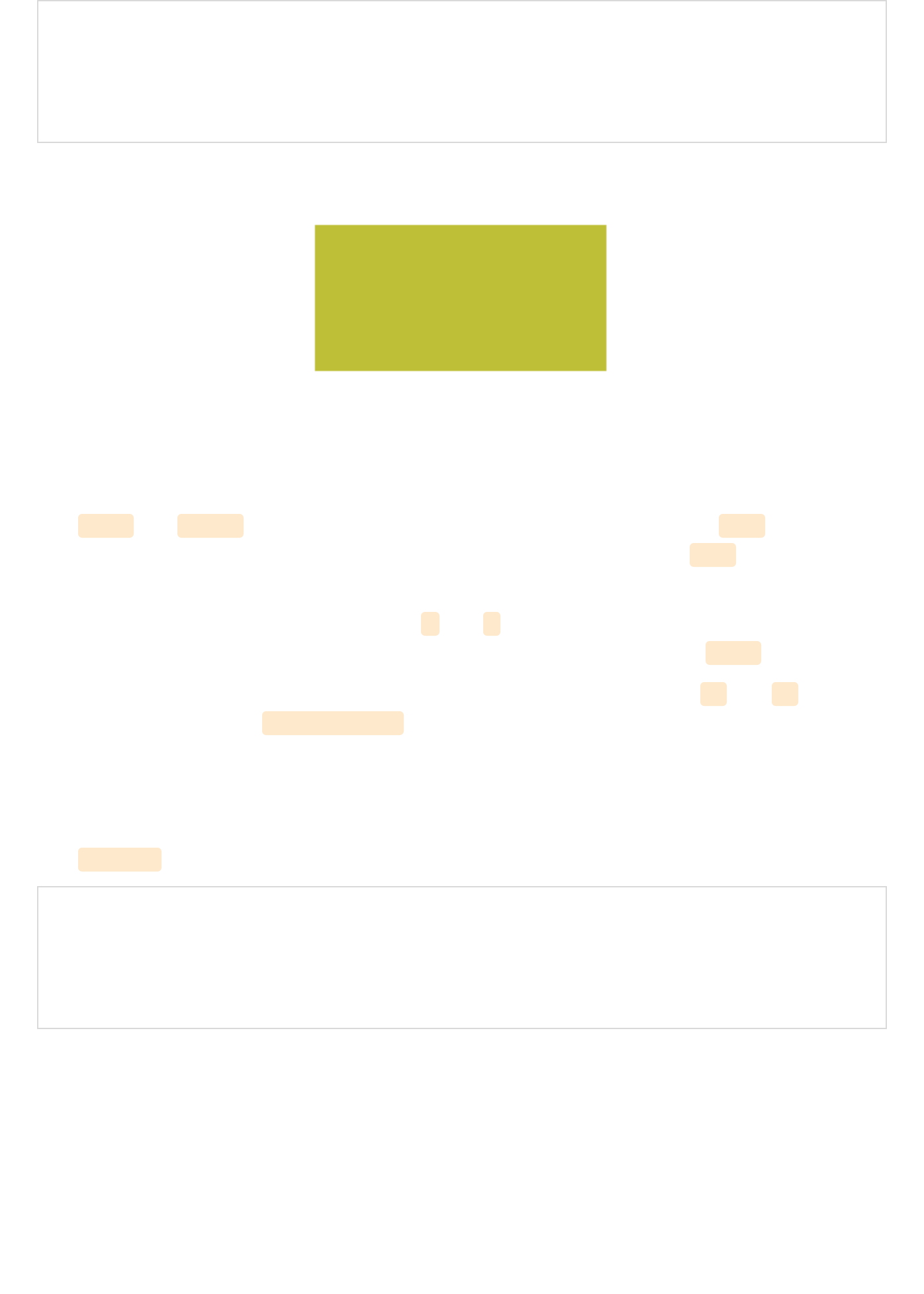
The <rect> element defines a rectangle.
<svg>
<rect width="200" height="100" fill="#BBC42A" />
</svg>
View demo here.View demo here.
The width and height attributes establish the size of the rectangle, while fill sets the
interior color for the shape. The numerical values default to pixels and fill would default
to black when left unspecified.
Other attributes that can be included are x and y coordinates. These values will move the
shape along the appropriate axis according to the dimensions set by the <svg> element.
It is also possible to create rounded corners by specifying values within rx and ry
attributes. For example, rx="5" ry="10" will produce horizontal sides of corners that have a
5px radius, and vertical sides of corners that have a 10px radius.
CircleCircle
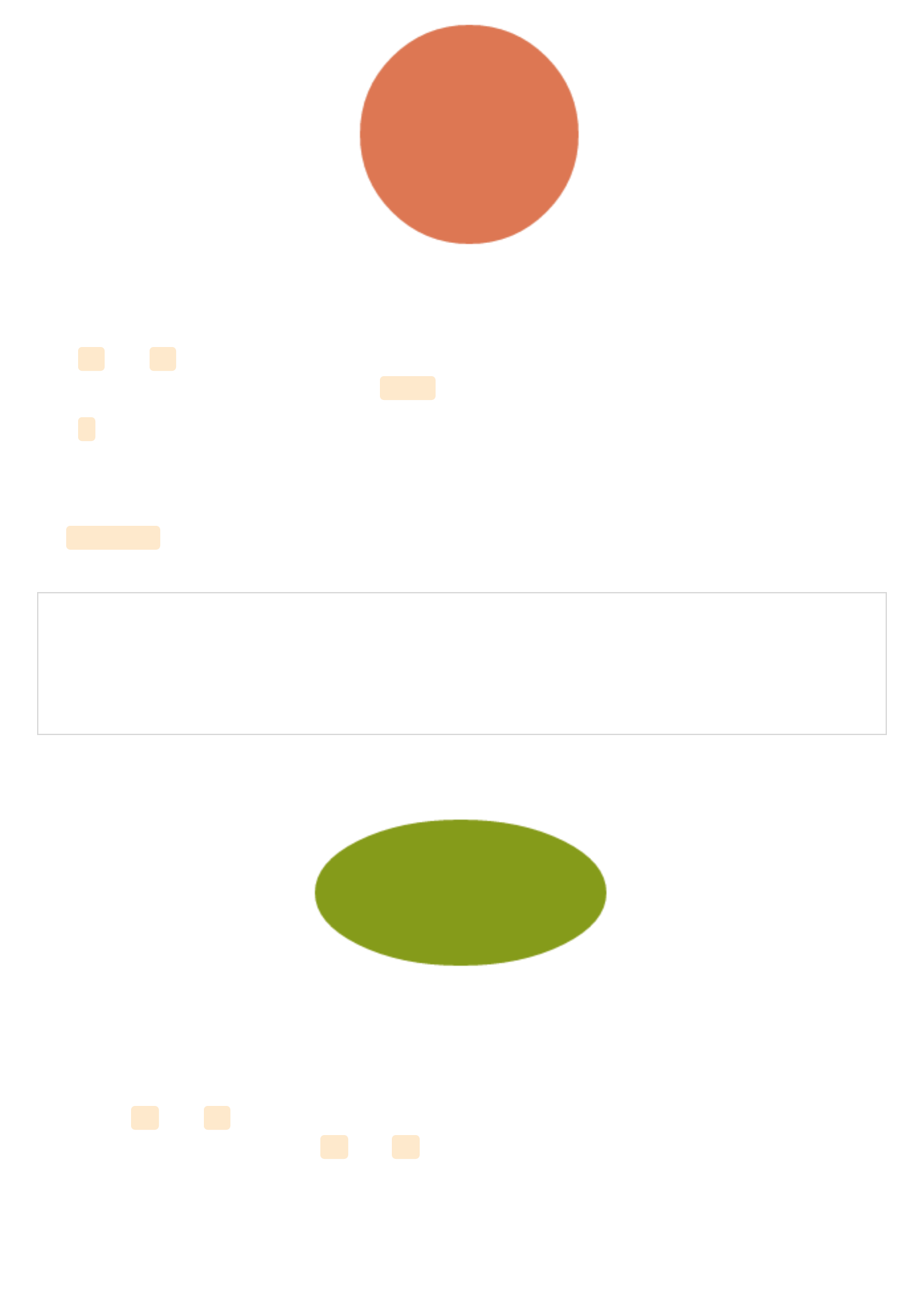
The <circle> element is mapped based on a center point and an outer radius.
<svg>
<circle cx="75" cy="75" r="75" fill="#ED6E46" />
</svg>
View demo here.View demo here.
The cx and cy coordinates establish the location of the center of the circle in relation to
the workplace dimensions set by the <svg> .
The r attribute sets the size of the outer radius.
EllipseEllipse
An <ellipse> element defines an ellipse that is mapped based on a center point and two
radii.
<svg>
<ellipse cx="100" cy="100" rx="100" ry="50" fill="#7AA20D" />
</svg>
View demo here.View demo here.
While the cx and cy values are establishing the center point based on pixel distance into
the SVG coordinate space, the rx and ry values are defining the radius of the sides of the
shape.
LineLine
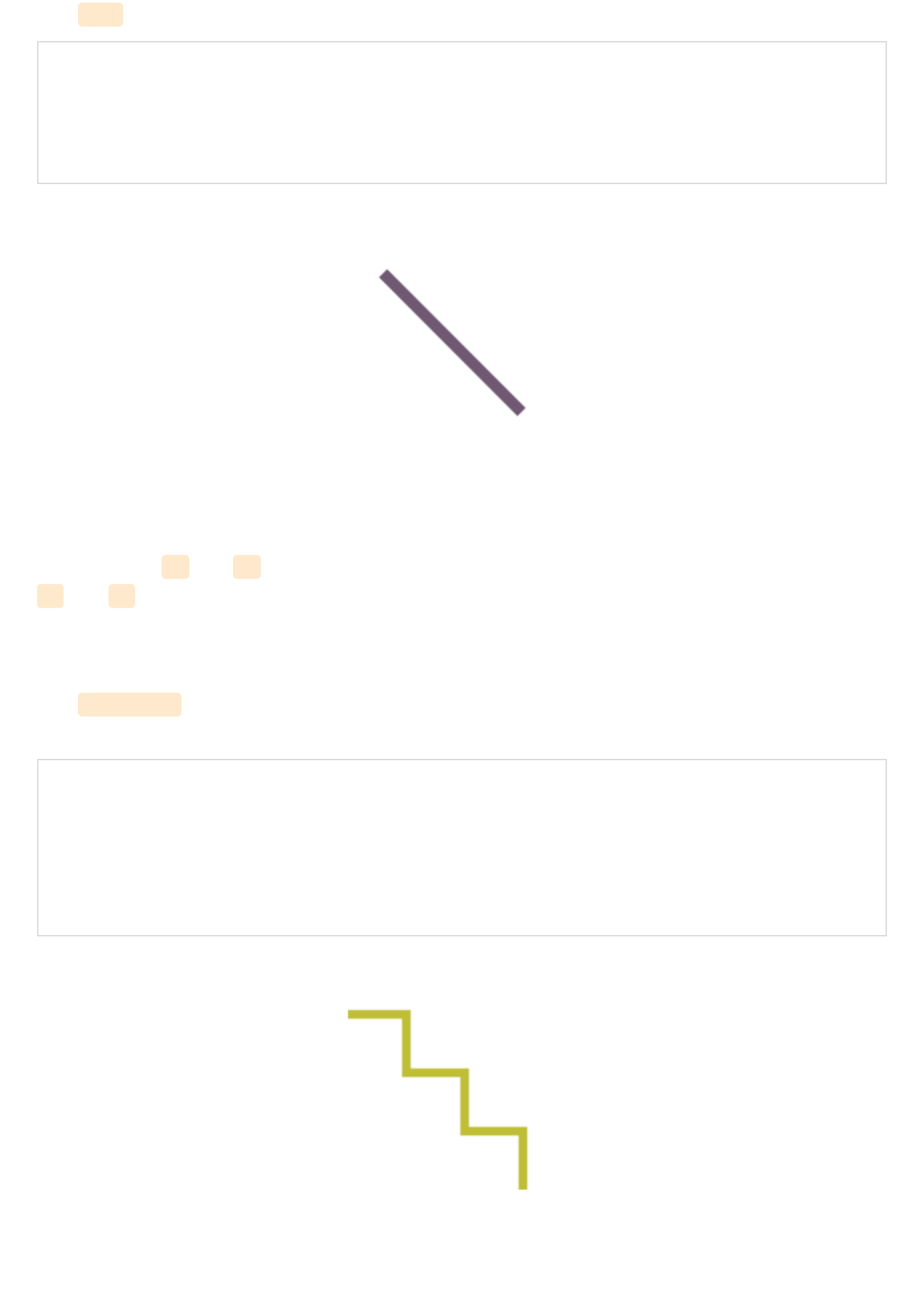
The line element defines a straight line with a start and end point.
<svg>
<line x1="5" y1="5" x2="100" y2="100" stroke="#765373" stroke-width="8"/>
</svg>
View demo here.View demo here.
Together the x1 and y1 values establish the coordinates for the start of the line, while the
x2 and y2 values establish the end of the line.
PolylinePolyline
The <polyline> element defines a set of connected straight line segments, generally
resulting in an open shape (start and end points that do not connect).
<svg>
<polyline points="0,40 40,40 40,80 80,80 80,120 120,120 120,160" fill="white"
stroke="#BBC42A" stroke-width="6" />
</svg>
View demo here.View demo here.
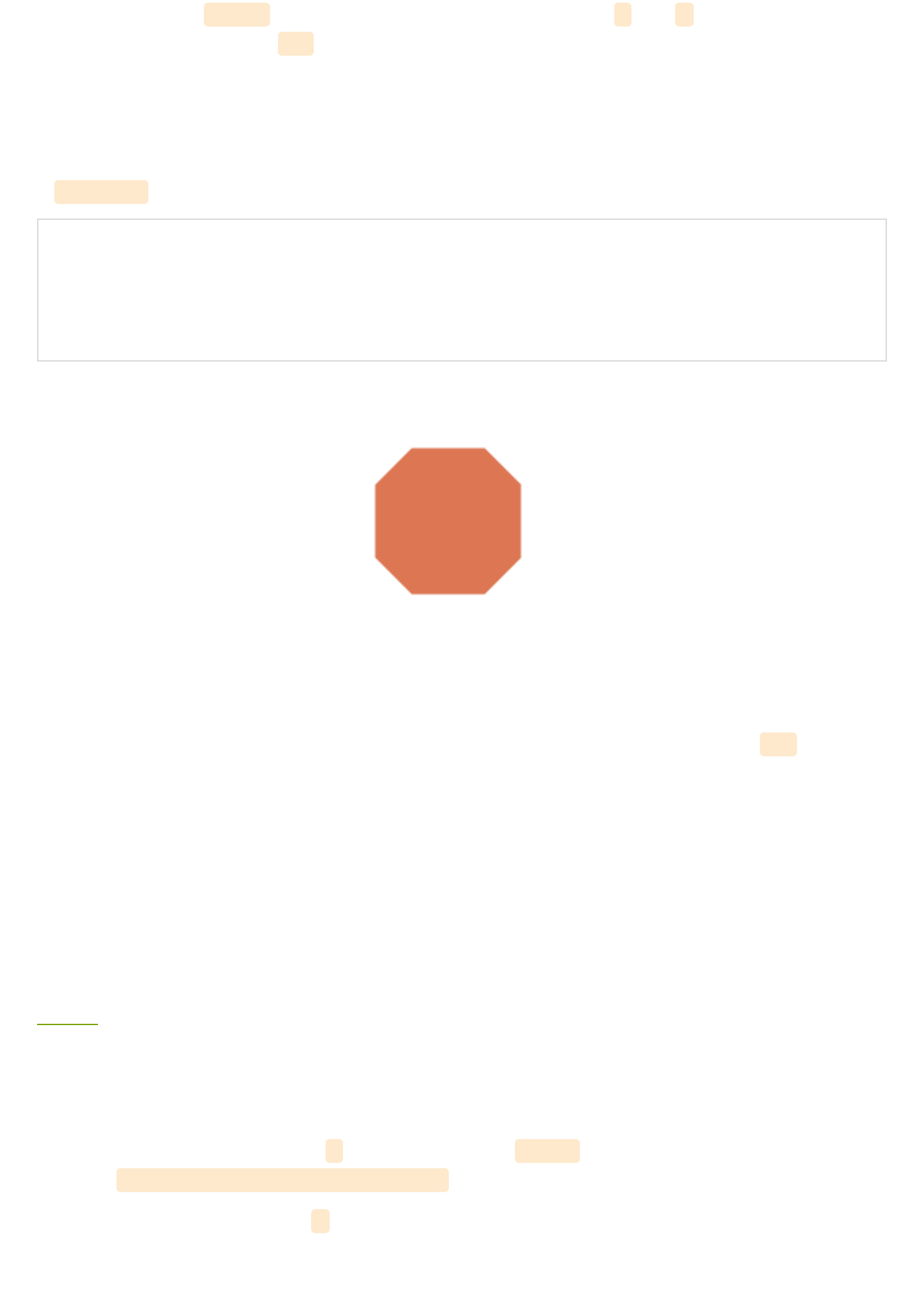
The values within points establish the shape's location on the x and y axis throughout the
shape and are grouped as x,y throughout the list of values.
An odd number of points here is an error.
PolygonPolygon
A <polygon> element defines a closed shape consisting of connected lines.
<svg>
<polygon points="50,5 100,5 125,30 125,80 100,105 50,105 25,80 25,30" fill="#ED6E46" />
</svg>
View demo here.View demo here.
The points of the polygon shape are defined through a series of eight grouped x,y values.
This element can also produce other closed shapes depending on the number of defined
points.
The path ElementThe path Element
SVG paths represent the outline of a shape. This shape can be filled, stroked, used to
navigate text, and/or used as a clipping path.
Depending on the shape this path can get very complex, especially when there are many
curves involved. Gaining a basic understanding of how they work and the syntax involved,
however, will help make these particular paths much more manageable.
path datapath data
The path data is contained in a d attribute within a <path> element, defining the outline for
a shape: <path d="<path data specifics>" /> .
This data included within the d attribute spell out the
moveto
,
line
,
curve
,
arc
and
closepath
instructions for the path.
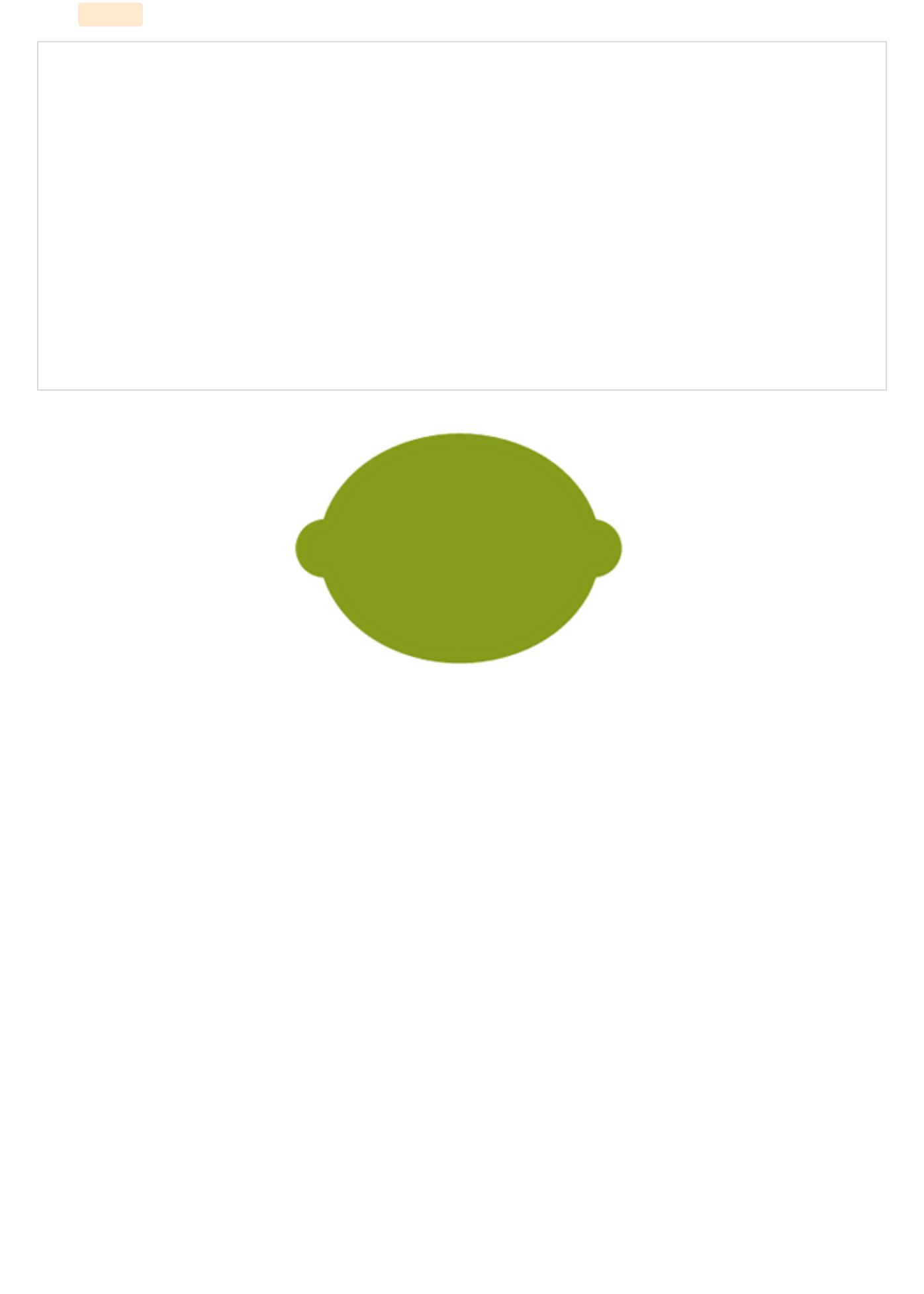
The <path> details below define the path specifics for a graphic of a lime:
<svg width="258px" height="184px">
<path fill="#7AA20D" stroke="#7AA20D" stroke-width="9" stroke-linejoin="round"
d="M248.761,92c0,9.801-7.93,17.731-17.71,17.731c-0.319,0-0.617,0-0.935-0.021c-10.035,37.291-
51.174,65.206-100.414,65.206 c-49.261,0-90.443-27.979-100.435-65.334c-0.765,0.106-
1.531,0.149-2.317,0.149c-9.78,0-17.71-7.93-17.71-17.731 c0-9.78,7.93-17.71,17.71-
17.71c0.787,0,1.552,0.042,2.317,0.149C39.238,37.084,80.419,9.083,129.702,9.083
c49.24,0,90.379,27.937,100.414,65.228h0.021c0.298-0.021,0.617-0.021,0.914-
0.021C240.831,74.29,248.761,82.22,248.761,92z" />
</svg>
movetomoveto
The moveto commands (M or m) establish a new point, as lifting a pen and starting to draw
in a new location on paper would. The line of code comprising the path data must begin
with a moveto command, as shown in the above example of the lime.
moveto commands that follow the initial one represent the start of a new subpath, creating
a compound path. An uppercase M here indicates absolute coordinates will follow, while a
lowercase m indicates relative coordinates.
closepathclosepath
The closepath (Z or z) ends the current subpath and results in a straight line being drawn
from that point to the initial point of the path.
If the closepath is followed immediately by a moveto, these moveto coordinates represent
the start of the next subpath. If this same closepath is followed by anything other than
moveto, the next subpath begins at the same point as the current subpath.
Both an uppercase or lowercase z here have identical outcomes.
linetolineto
The lineto commands draw straight lines from the current point to a new point.
L, lL, l
The L and l commands draw a line from the current point to the next provided point
coordinates. This new point then becomes the current point, and so on.
An uppercase L signals that absolute positioning will follow, while a lowercase l is relative.
H, hH, h
The H and h commands draw a horizontal line from the current point.
An uppercase H signals that absolute positioning will follow, while a lowercase h is relative.
V, vV, v
The V and v commands draw a vertical line from the current point.
An uppercase V signals that absolute positioning will follow, while a lowercase v is relative.
Curve CommandsCurve Commands
There are three groups of commands that draw curved paths: Cubic Bézier (C, c, S, s),
Quadratic Bézier (Q, q, T, t), and Elliptical arc (A, a).
The following curve sections will introduce the basic concept behind each curve command,
review the mapping details, and then provide a diagram for further understanding.
Cubic BézierCubic Bézier
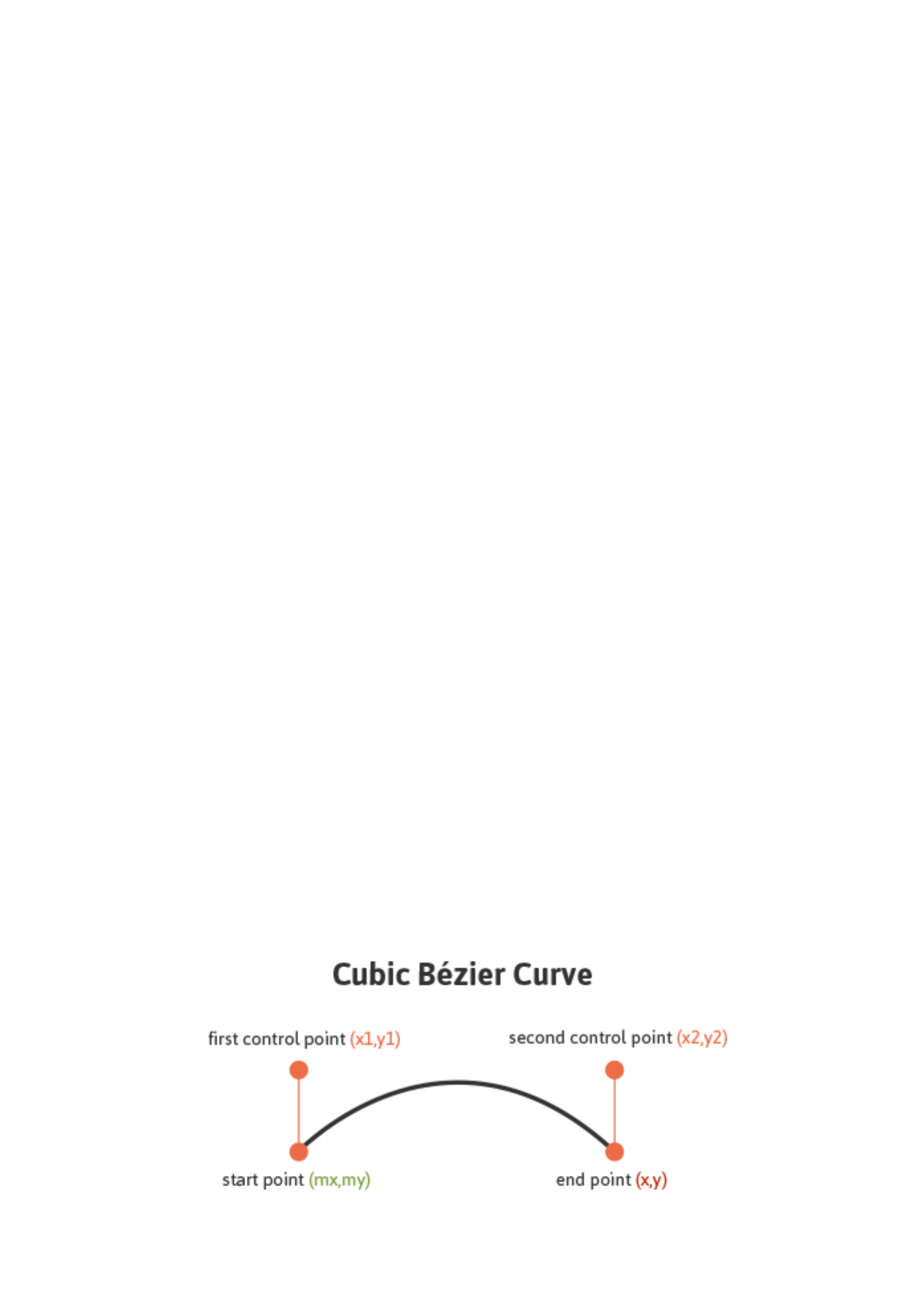
The C and c Cubic Bézier commands draw a curve from the current point using (x1,y1)
parameters as a control point at the beginning of the curve and (x2,y2) as the control point
at the end, defining the shape details of the curve.
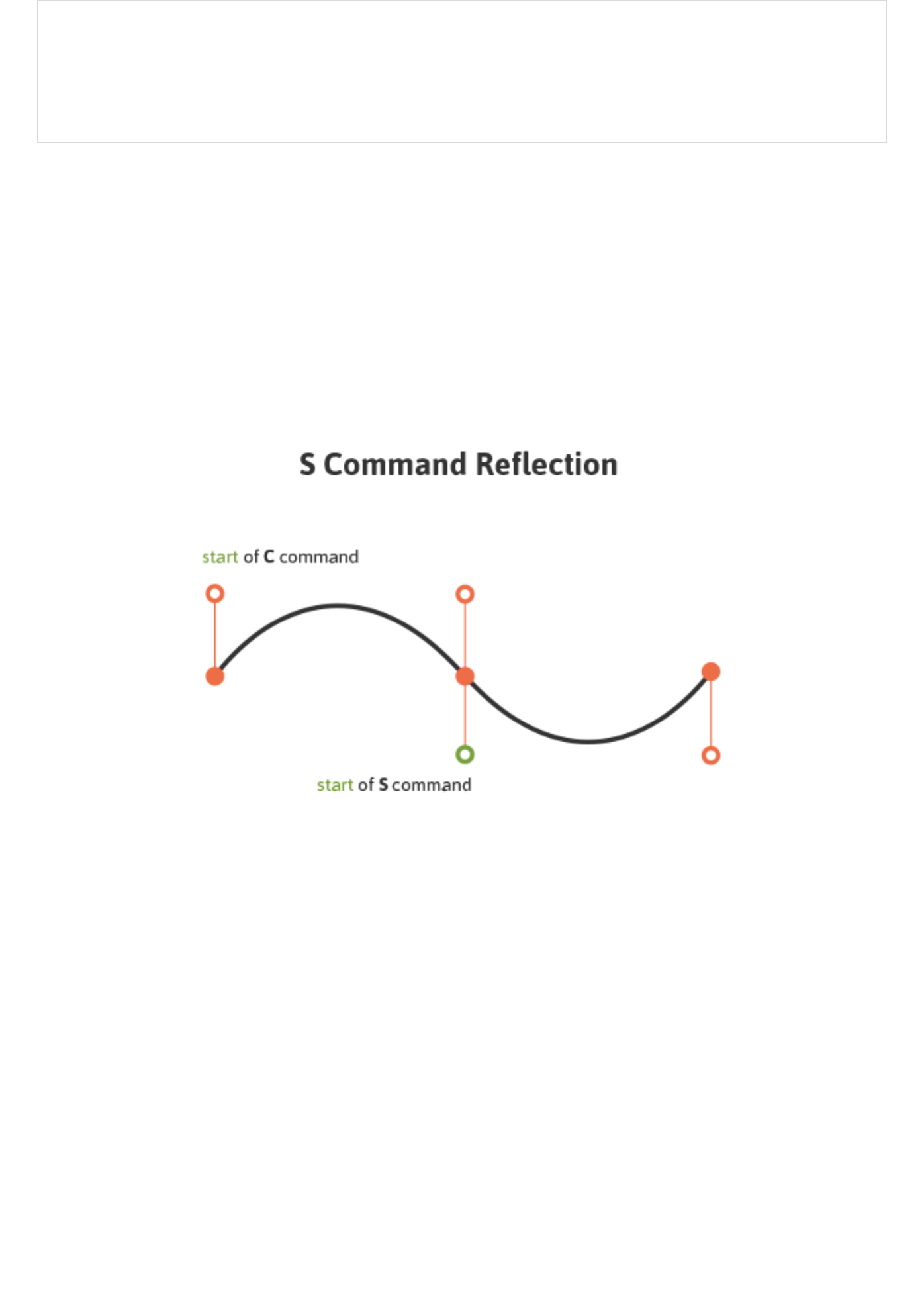
The S and s commands also draw a Cubic Bézier curve, but in this instance there is an
assumption that the first control point is a
reflection
of the second control point.
The following code draws a basic Cubic Bézier curve:
<svg>
<path fill="none" stroke="#333333" stroke-width="3" d="M10,55 C15,5 100,5 100,55" />
</svg>
View demo here.View demo here.
Manipulating the first and last sets of values for this curve will impact its start and end
location, while manipulating the two center values will impact the shape and positioning of
the curve itself at the beginning and end.
The S and s commands also draw a Cubic Bézier curve, but in this instance there is an
assumption that the first control point is a
reflection
of the last control point for the
previous C command. This reflection is relative to the start point of the S command.
An uppercase C signals that absolute positioning will follow, while a lowercase c is relative.
This same logic applies to S and s.
Quadratic BézierQuadratic Bézier
Quadratic Bézier curves (Q, q, T, t) are similar to Cubic Bézier curves except that they only
have one control point.
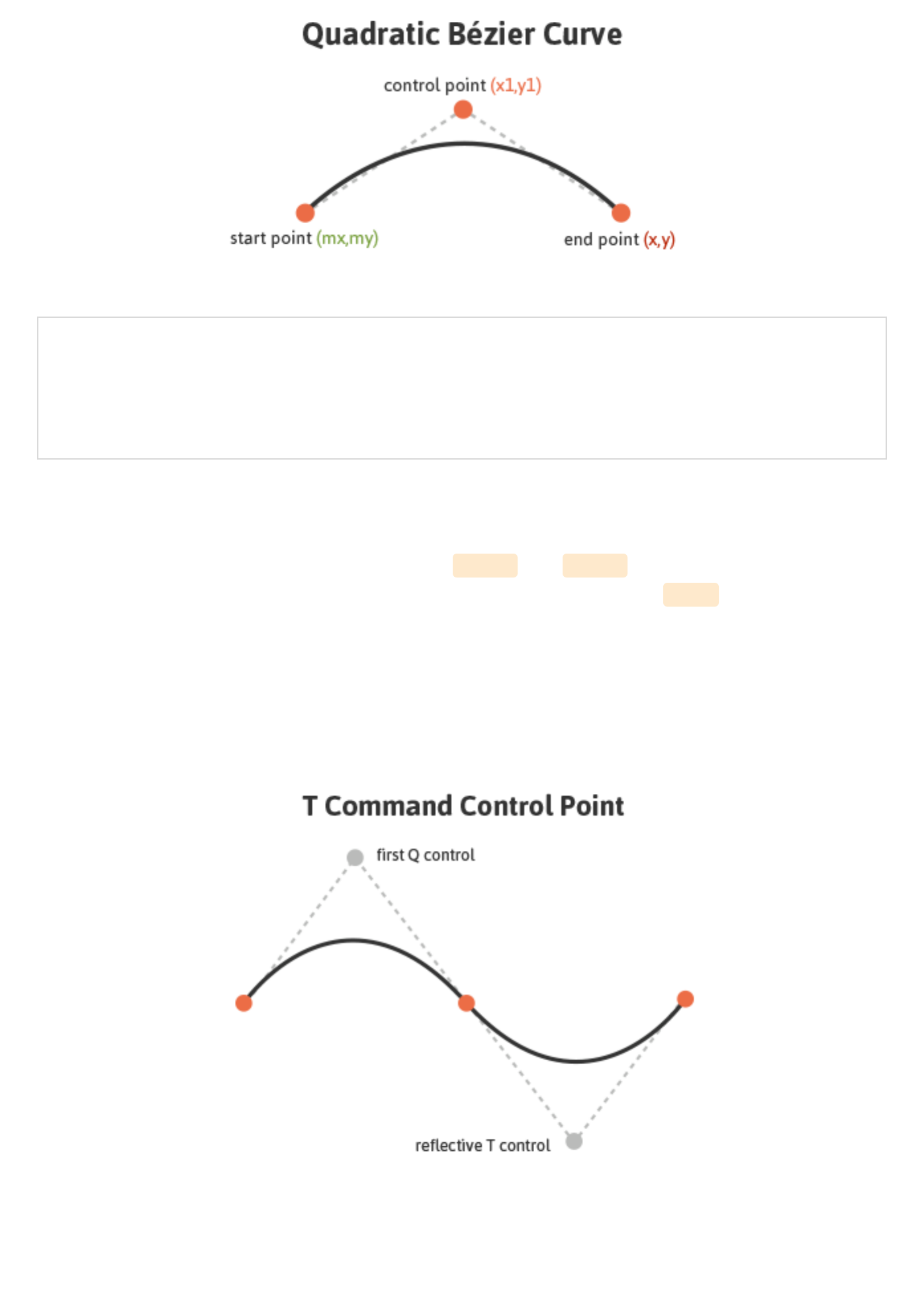
The following code draws a basic Quadratic Bézier curve:
<svg>
<path fill="none" stroke="#333333" stroke-width="3" d="M20,50 Q40,5 100,50" />
</svg>
View demo here.View demo here.
Manipulating the first and last sets of values, M20,50 and 100,50 , impacts the positioning of
the beginning and end points of the curve. The center set of values, Q40,5 , define the
control point for the curve, establishing its shape.
Q and q draw the curve from the initial point to the end point using (x1,y1) as the control. T
and t draw the curve from the initial point to the end point by assuming that the control
point is a reflection of the control on the
previously
listed command relative to the start
point of the new T or t command.
An uppercase Q signals that absolute positioning will follow, while a lowercase q is relative.
This same logic applies to T and t.
Elliptical ArcElliptical Arc
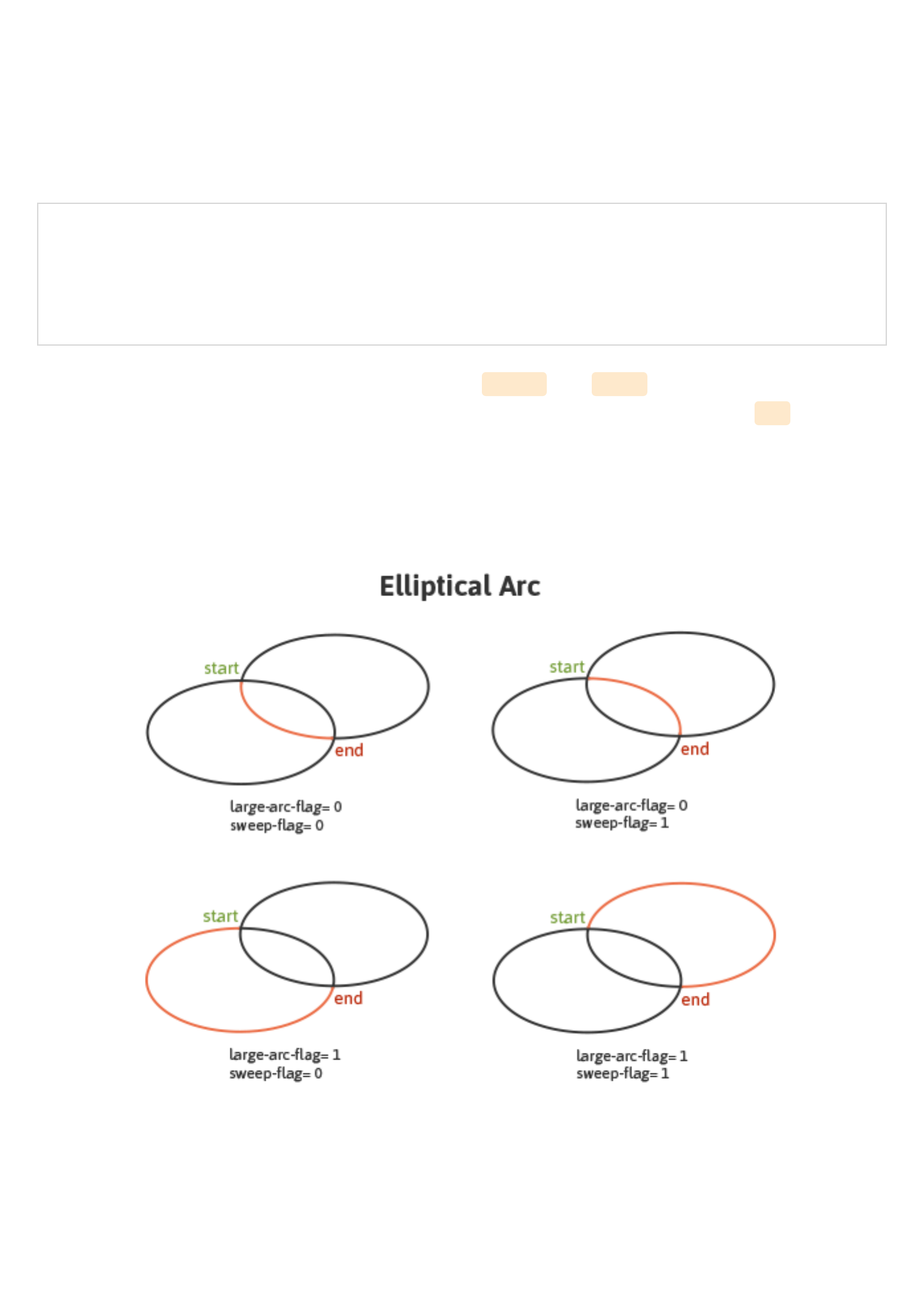
An Elliptical Arc (A, a) defines a segment of an ellipse. These segments are created through
the A or a commands which create the arc by specifying the start point, end point, x and y
radii, rotation, and direction.
Here is a look at the code for a basic Elliptical Arc:
<svg>
<path fill="none" stroke="#333333" stroke-width="3" d="M65,10 a50,25 0 1,0 50,25" />
</svg>
The first and last sets of values within this path, M65,10 and 50,25 represent initial and final
coordinates, while the second set of values define the two radii. The values of 1,0 (large-
arc-flag and sweep-flag) determine how the arc is drawn, as there are four different options
here.
The following diagram shows the four arc options and the impact that large-arc-flag and
sweep-flag values have on the final rendering of the arc segment.
View demo here.View demo here.
Embeds From Vector SoftwareEmbeds From Vector Software
Vector graphics software allows for the generation of more complex shapes and paths while
producing SVG code that can be taken, used, and manipulated elsewhere.
Once the graphic is complete, the generated XML code, which can be quite lengthy
depending on the complexity, can be copied and embedded into HTML. Breaking down each
section of the SVG and having the right organizational elements in place can greatly help in
navigating and understanding these seemingly complex and wordy documents.
Here is the SVG code for an image of some cherries with added classes for enhanced
navigation:
<svg width="215px" height="274px" viewBox="0 0 215 274">
<g>
<path class="stems" fill="none" stroke="#7AA20D" stroke-width="8" stroke-
linecap="round" stroke-linejoin="round" d="M54.817,169.848c0,0,77.943-73.477,82.528-
104.043c4.585-30.566,46.364,91.186,27.512,121.498" />
<path class="leaf" fill="#7AA20D" stroke="#7AA20D" stroke-width="4" stroke-
linecap="round" stroke-linejoin="round" d="M134.747,62.926c-1.342-6.078,0.404-12.924,5.762-
19.681c11.179-14.098,23.582-17.539,40.795-17.846 c0.007,0,22.115-0.396,26.714-20.031c-
2.859,12.205-5.58,24.168-9.774,36.045c-6.817,19.301-22.399,48.527-47.631,38.028
C141.823,75.784,136.277,69.855,134.747,62.926z" />
</g>
<g>
<path class="r-cherry" fill="#ED6E46" stroke="#ED6E46" stroke-width="12"
d="M164.836,193.136 c1.754-0.12,3.609-0.485,5.649-1.148c8.512-2.768,21.185-
6.985,28.181,3.152c15.076,21.845,5.764,55.876-18.387,66.523 c-27.61,12.172-58.962-16.947-
56.383-45.005c1.266-13.779,8.163-35.95,26.136-27.478
C155.46,191.738,159.715,193.485,164.836,193.136z" />
<path class="l-cherry" fill="#ED6E46" stroke="#ED6E46" stroke-width="12"
d="M55.99,176.859 c1.736,0.273,3.626,0.328,5.763,0.135c8.914-0.809,22.207-
2.108,26.778,9.329c9.851,24.647-6.784,55.761-32.696,60.78 c-29.623,5.739-53.728-29.614-
44.985-56.399c4.294-13.154,15.94-33.241,31.584-
20.99C47.158,173.415,50.919,176.062,55.99,176.859z" />
</g>
</svg>
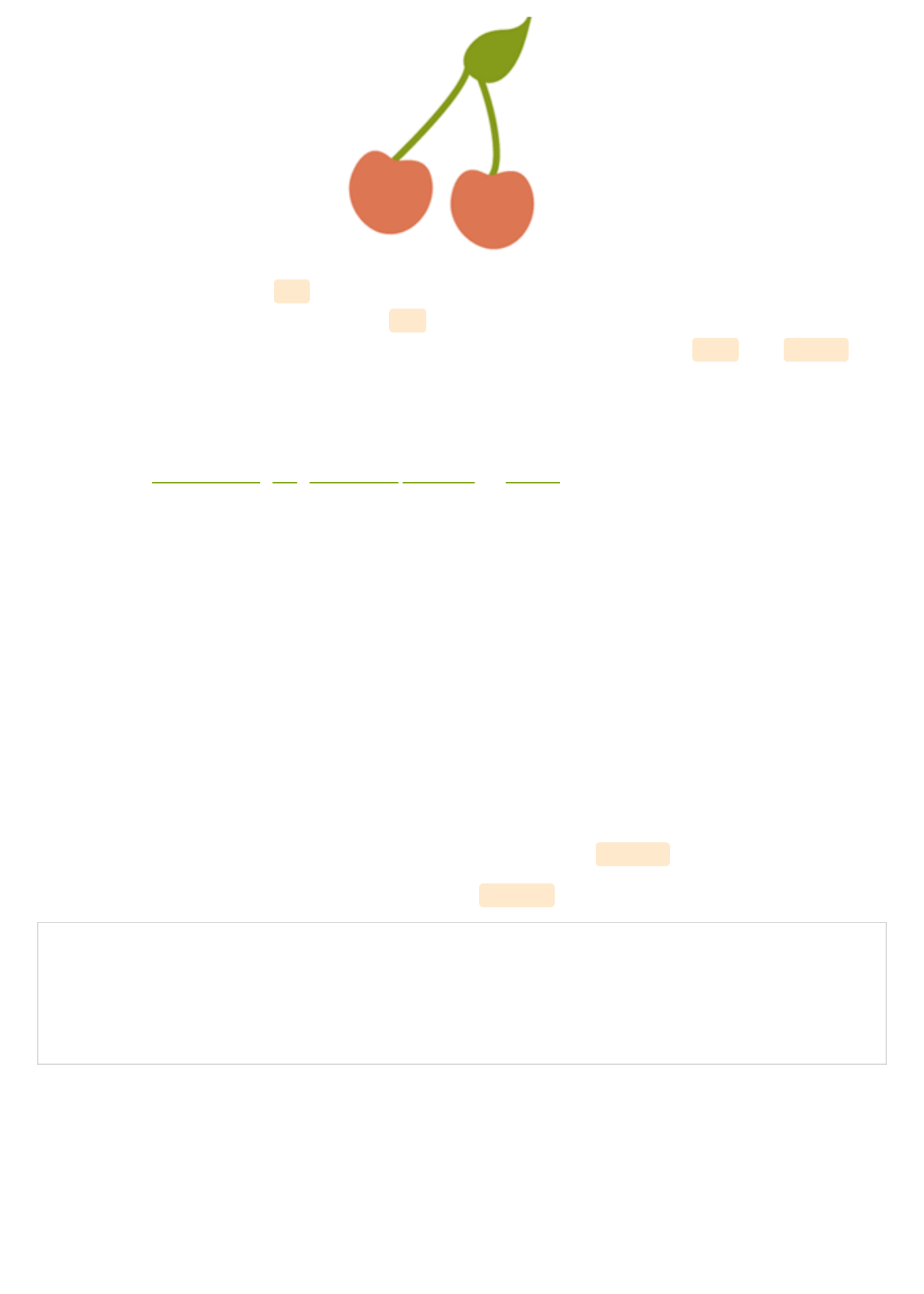
The attributes within the svg element define the workspace, or “canvas” for the graphic.
The leaf and the stems are within one <g> (group), while the cherries are in another. The
string of numerical values define the path the graphic will take and the fill and stroke
attributes set the color for the backgrounds and borders.
Once this code is copied it can be run through an SVG optimizer before being placed in
HTML, which will help eliminate unnecessary code and spacing and in turn greatly reduce
the file size. Peter Collingridge's SVG Optimiser or SVGO are tools that are very helpful in
this regard.
Section 3. The Workspace Section 3. The Workspace !
Perhaps the most important aspect of SVG, after understanding its general structure and
how to create basic shapes, is getting a grasp of the workspace in use, or in other words,
the coordinate system to which the graphics will be mapped.
Understanding the workspace of SVG is helpful in properly rendering your artwork, but
becomes crucial once you get into more advanced SVG features. For example, the mapping
of gradients and patterns relies heavily on the established coordinate system. This
workspace is defined by the dimensions of the viewport and viewBox attributes.
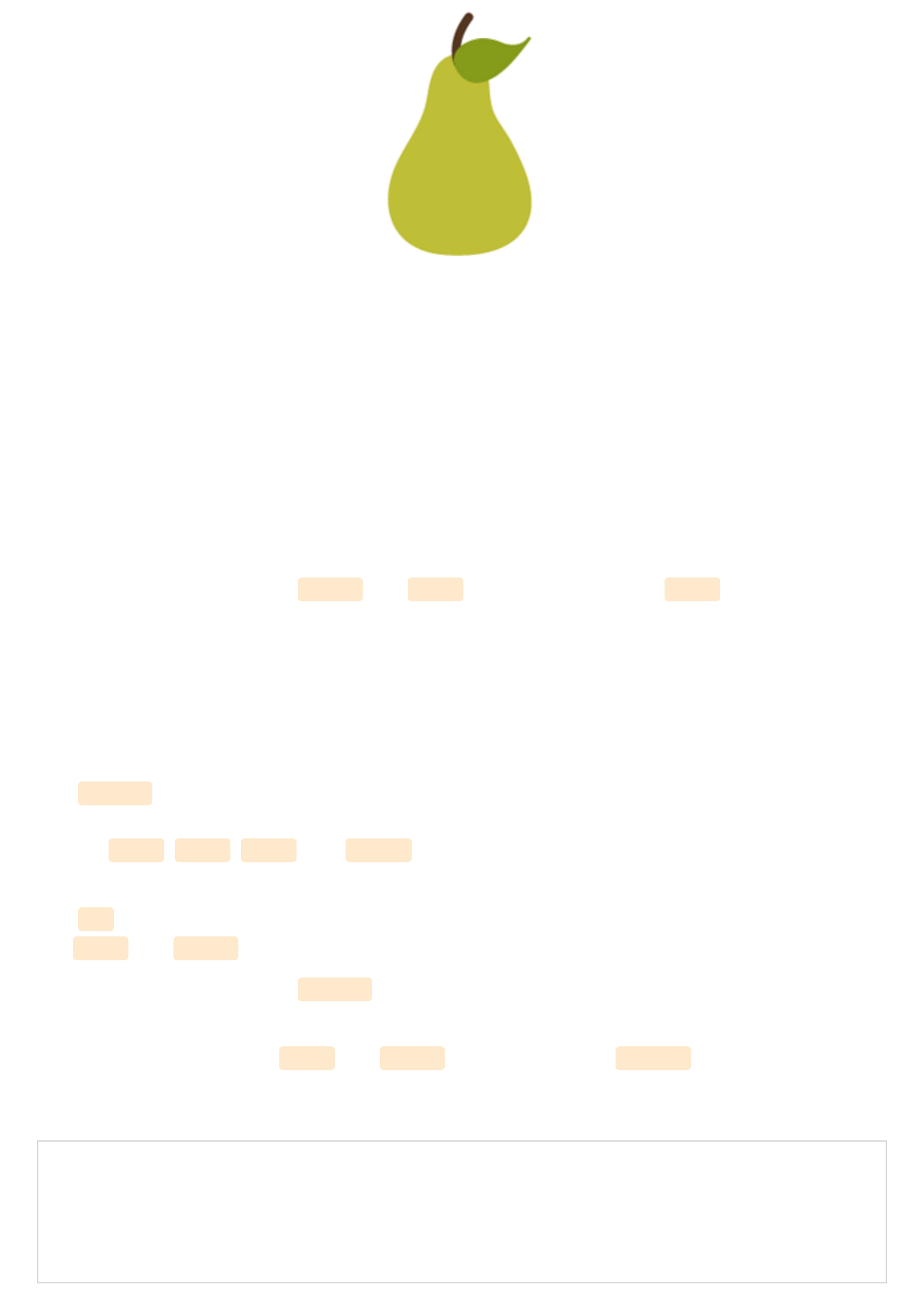
This pear, happily, has a matching viewport and viewBox :
<svg width="115" height="190" viewBox="0 0 115 190">
<!--<path <pear's drawing path> />-->
</svg>
View demo here.View demo here.
The entire pear is visible in the browser and will scale accordingly when the viewport
dimensions are changed.
viewportviewport
The viewport is the visible section of an SVG. While SVG can be as wide or as high as you
wish, limiting the viewport will mean that only a certain section of the image can be visible
at a time.
The viewport is set through height and width attributes within the <svg> .
If these values are not defined, the dimensions of the viewport will generally be determined
by other indicators within the SVG, like the width of the outermost SVG element. However,
leaving this undefined leaves our artwork susceptible to being cut off.
viewBoxviewBox
The viewBox allows for the specification that a given set of graphics stretch to fit a
particular container element. These values include four numbers separated by commas or
spaces: min-x , min-y , width , and height that should generally be set to the bounds of the
viewport.
The min values represent at what point within the image the viewBox should start, while
the width and height establish the size of the box.
If we choose not to define a viewBox the image will not scale to match the bounds set by the
viewport.
If 50px were taken off the width and height of the pear image viewBox , the portion of the
pear that is visible is reduced, but then what is left visible will scale to fit to the bounds of
the viewport.
<svg width="115px" height="190px" viewBox="0 0 65 140">
<!--<path <pear's drawing path> />-->
</svg>

View demo here.View demo here.
The min values within the viewBox define the origin of the viewBox within the parent
element. In other words, the point within the viewBox at which you want it to begin
matching up the viewport. In the above pear image, the min values are set to 0,0 (top left).
Let's change these to 50, 30: viewBox="50 30 115 190" .
<svg width="115" height="190" viewBox="50 30 115 190">
<!--<path <pear's drawing path> />-->
</svg>
View demo here.View demo here.
The viewBox now starts 50px in from the x axis and 30px in from the y axis. In altering
these values the section of the pear that is focused on has changed.
preserveAspectRatiopreserveAspectRatio
If the viewport and viewBox do not have the same width to height ratio, the
preserveAspectRatio attribute directs the browser how to display the image.
preserveAspectRatio takes two parameters, <align> and <meetOrSlice> . The first parameter
takes two parts and directs the viewBox 's alignment within the viewport. The second is
optional and indicates how the aspect ratio is to be preserved.
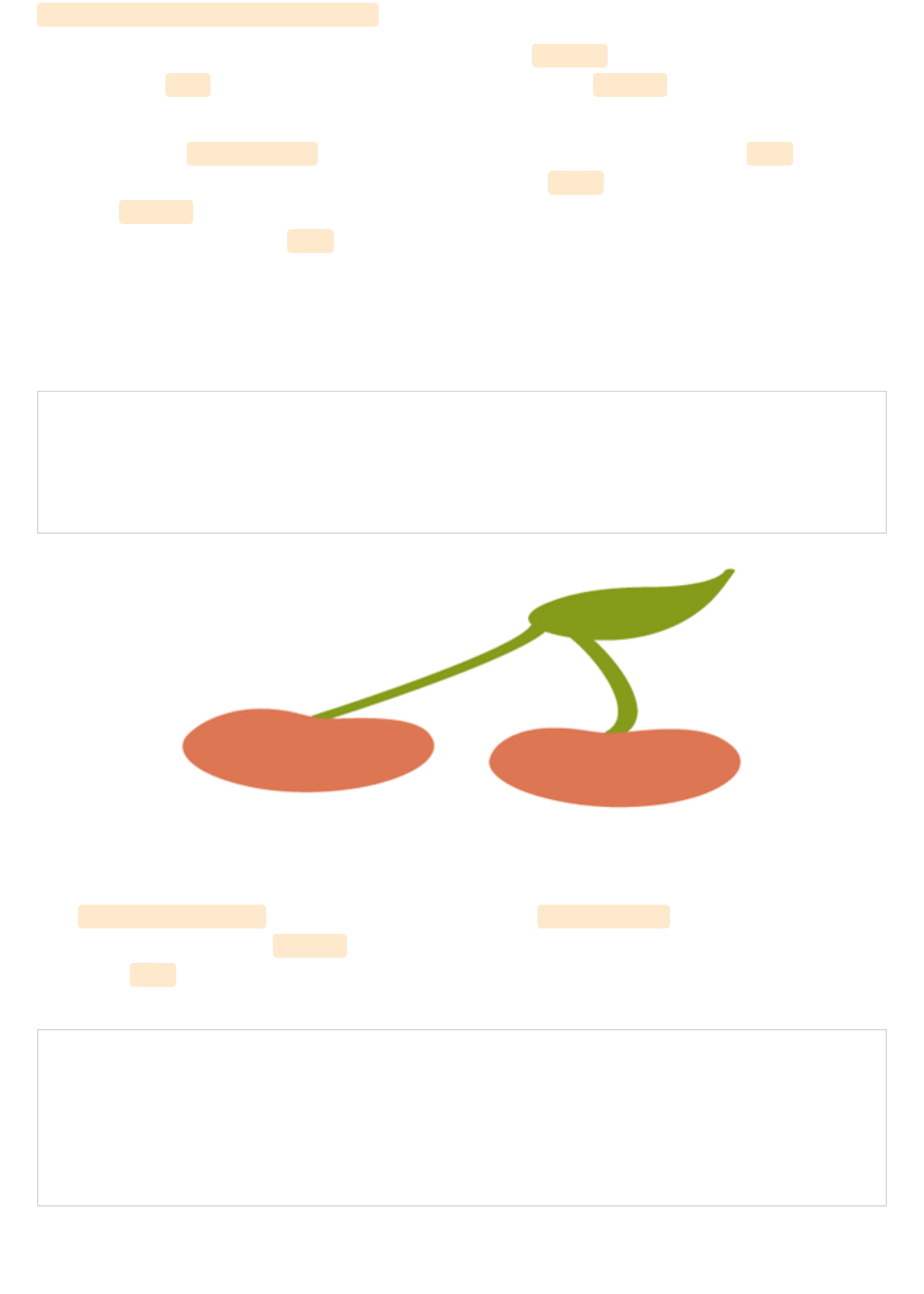
preserveAspectRatio="xMaxYMax meet"
These values will align the bottom right corner of the viewBox to the bottom right corner of
the viewport. meet preserves the aspect ratio by scaling the viewBox to fit within the
viewport as much as possible.
There are three <meetOrSlice> options: meet (default), slice, and none. While meet ensures
complete visibility of the graphic (as much as possible), slice attempts to fill the viewport
with the viewBox and will then slice off any part of the image that does not fit inside the
viewport after this scaling. none results in no preserved aspect ratio and a potentially
distorted image.
Perhaps the most straightforward value here is "none", which establishes that uniform
scaling should not be applied. If we then increase the pixel values of the viewport, the below
image of cherries will stretch non-uniformly and look distorted.
<svg width="500" height="400" viewBox="0 0 250 600" preserveAspectRatio="none">
<!--<path <cherry drawing path> />-->
</svg>
View demo here.View demo here.
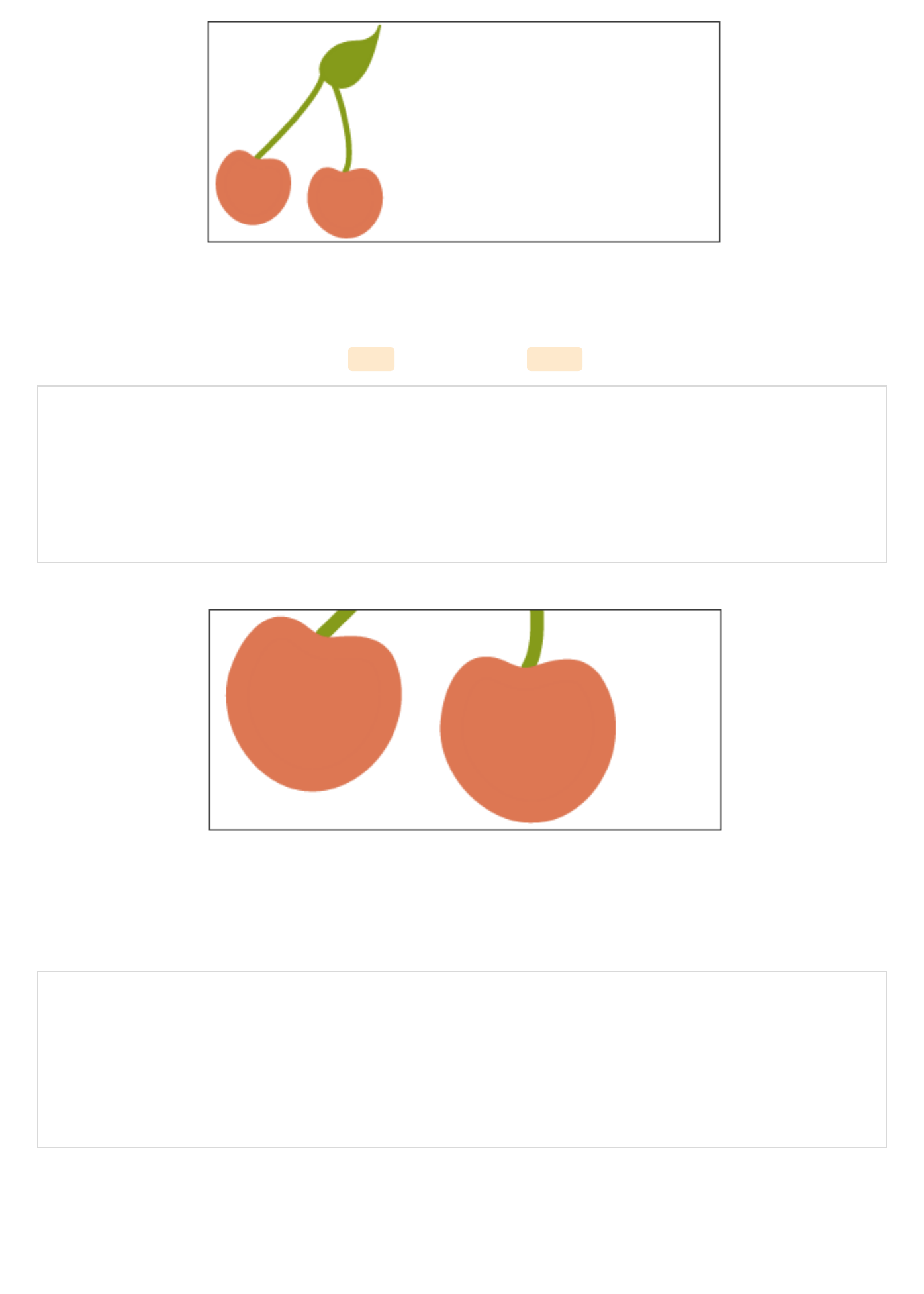
The preserveAspectRatio for the image below is set to xMinYMax meet which is aligning the
bottom left corner of the viewBox to the bottom left corner of the viewport (which is now
outlined). meet is ensuring the image is scaling to fit inside the viewport as much as
possible.
<svg width="350" height="150" viewBox="0 0 300 300" preserveAspectRatio="xMinYMax meet"
style="border: 1px solid #333333;">
<!--<path <cherry drawing path> />-->
</svg>
View demo here.View demo here.
Here are the same cherries when meet is changed to slice :
<svg width="350" height="150" viewBox="0 0 300 300" preserveAspectRatio="xMinYMax slice"
style="border: 1px solid #333333;">
<!--<path <cherry drawing path> />-->
</svg>
View demo here.View demo here.
Note that the alignment values do not have to correlate.
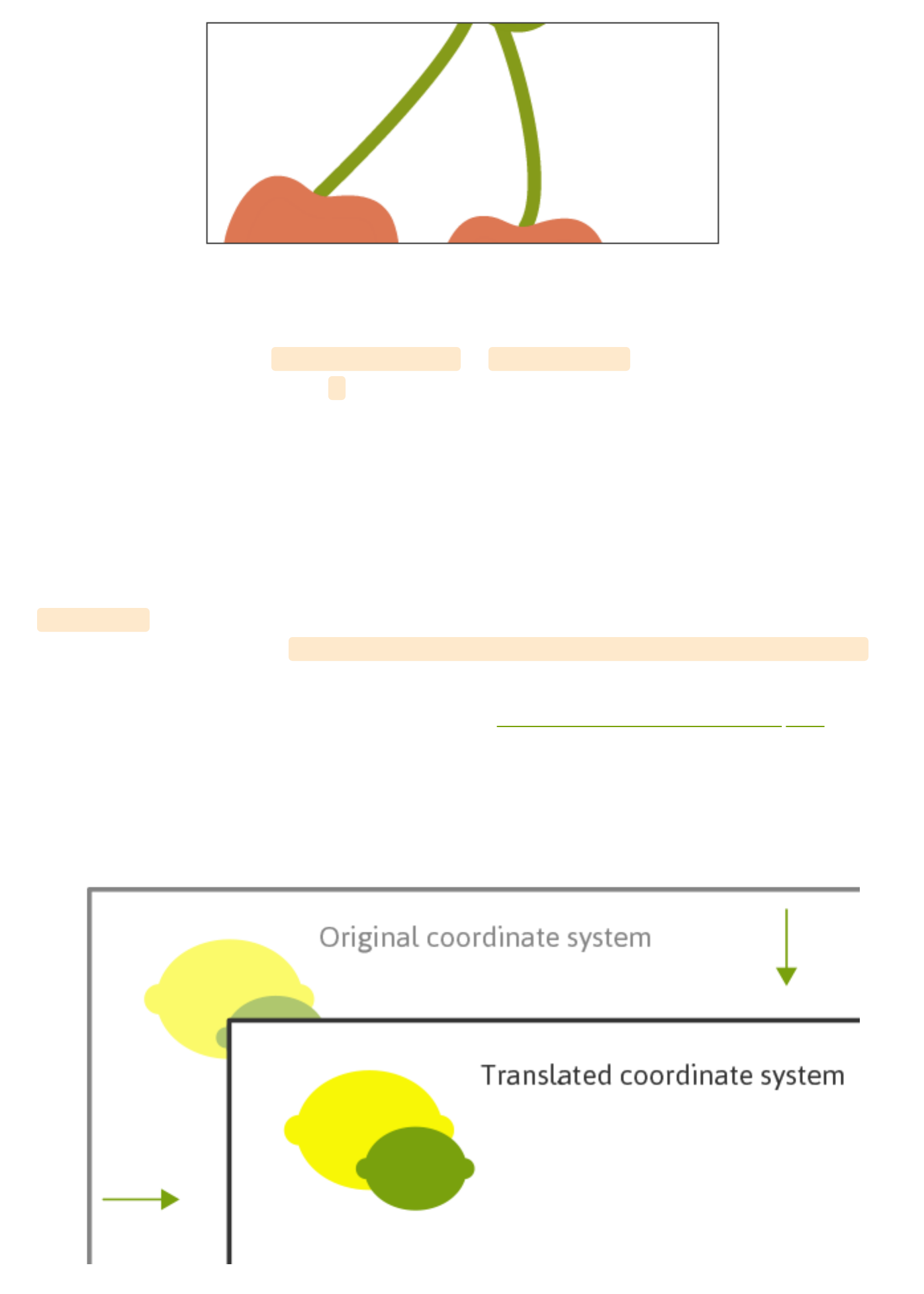
<svg width="350" height="150" viewBox="0 0 300 300" preserveAspectRatio="xMinYMid slice"
style="border: 1px solid #333333;">
<!--<path <cherry drawing path> />-->
</svg>
View demo here.View demo here.
The above example has a preserveAspectRatio of xMinYMid slice ; the cherries are now
aligned along the middle of the y axis of the viewport.
Coordinate System TransformsCoordinate System Transforms
SVG enables the additional altering of graphics such as rotation, scaling, moving, and
skewing through the use of transforms. The SVG author can apply transforms to individual
elements or to an entire group of elements.
These functions are included within the element to be manipulated and reside within the
<transform> attribute. Multiple transforms can be used by including several functions inside
this attribute, for example: transform="translate(<tx>,<ty>) rotate(<rotation angle>)" /> .
Something important to keep in mind when transforming SVG is that it will impact your
coordinate system, or workspace. This is because transforms create a new user space by
essentially copying the original and then placing the transformation on the new system
itself.
The following image demonstrates the coordinate system transform that takes place when
placing a translation of (100,100) on the group containing the graphic:
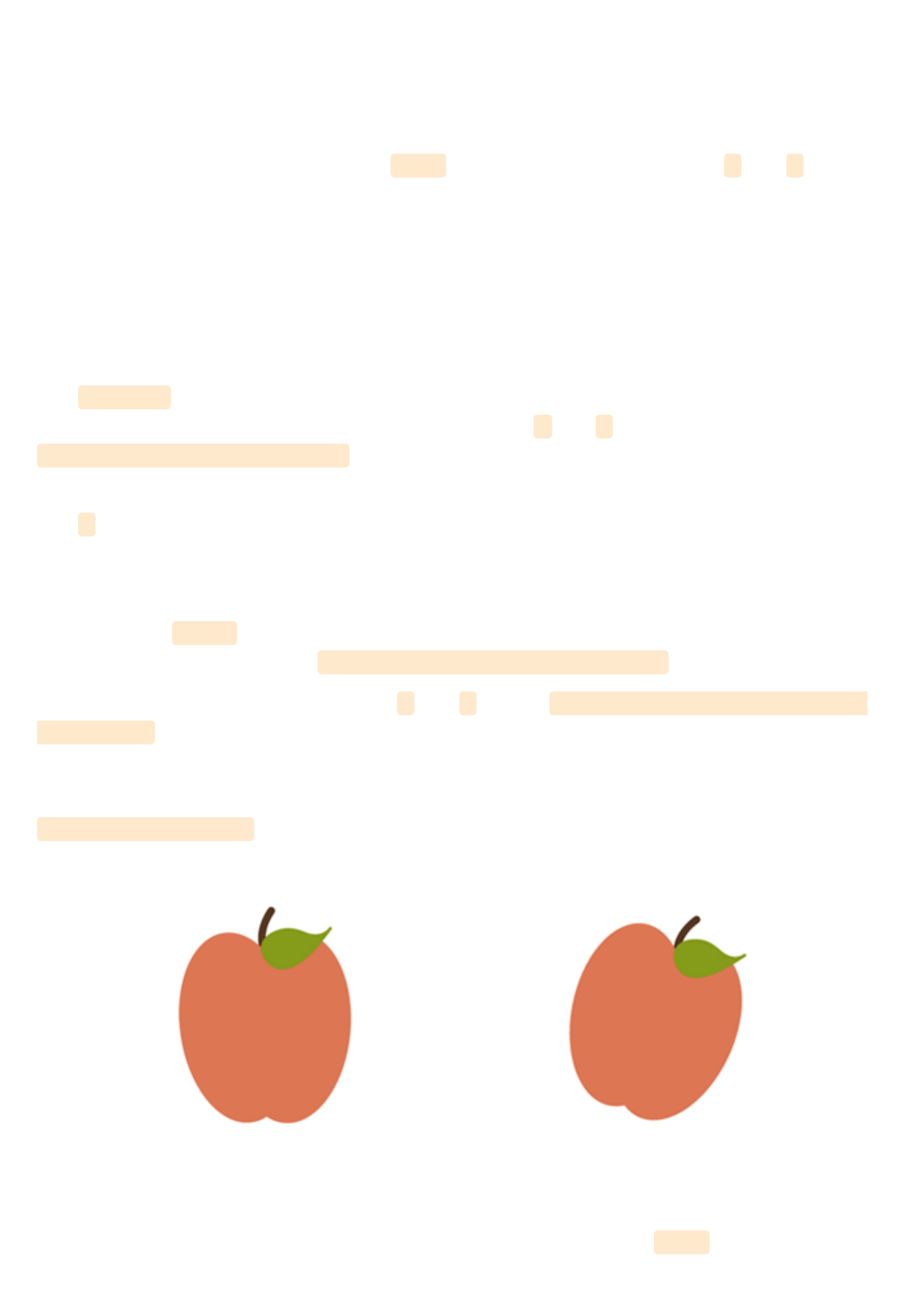
The coordinate system itself has been translated and the image of the lime and lemon has
maintained its original positioning within this system. The new user coordinate system has
its origin at location (100,100) in the original coordinate system.
Because of this relationship with the coordinate system, many of these functions will move
the graphic even if you are not directly setting a translation on it. For example, attempting
to triple an image’s size by including a scale value of "3" is multiplying the x and y
coordinates by "3" and the image is scaling along with it, moving it across the screen in the
process.
In the case of nested transforms the effects are cumulative, so the final transform on a child
element will be based on the accumulation of the transforms before it.
translatetranslate
The translate function specifies the details of moving a shape, and the two numerical
values included here direct movement along both the x and y axis:
transform="translate(<tx>,<ty>)" . These values can be separated by either whitespace or
commas.
The y value here is optional and if omitted a value of "0" is assumed.
rotaterotate
A value within rotate will specify the shape's rotation at its point of origin (in degrees),
which for SVG is 0,0 (top left): transform="rotate(<rotation angle>)" .
There is also an option here to include x and y values: transform=rotate(<rotation angle>
[<cx>,<cy>]) . If supplied, these values establish a new center of rotation other than what is
defaulted to (which is 0,0).
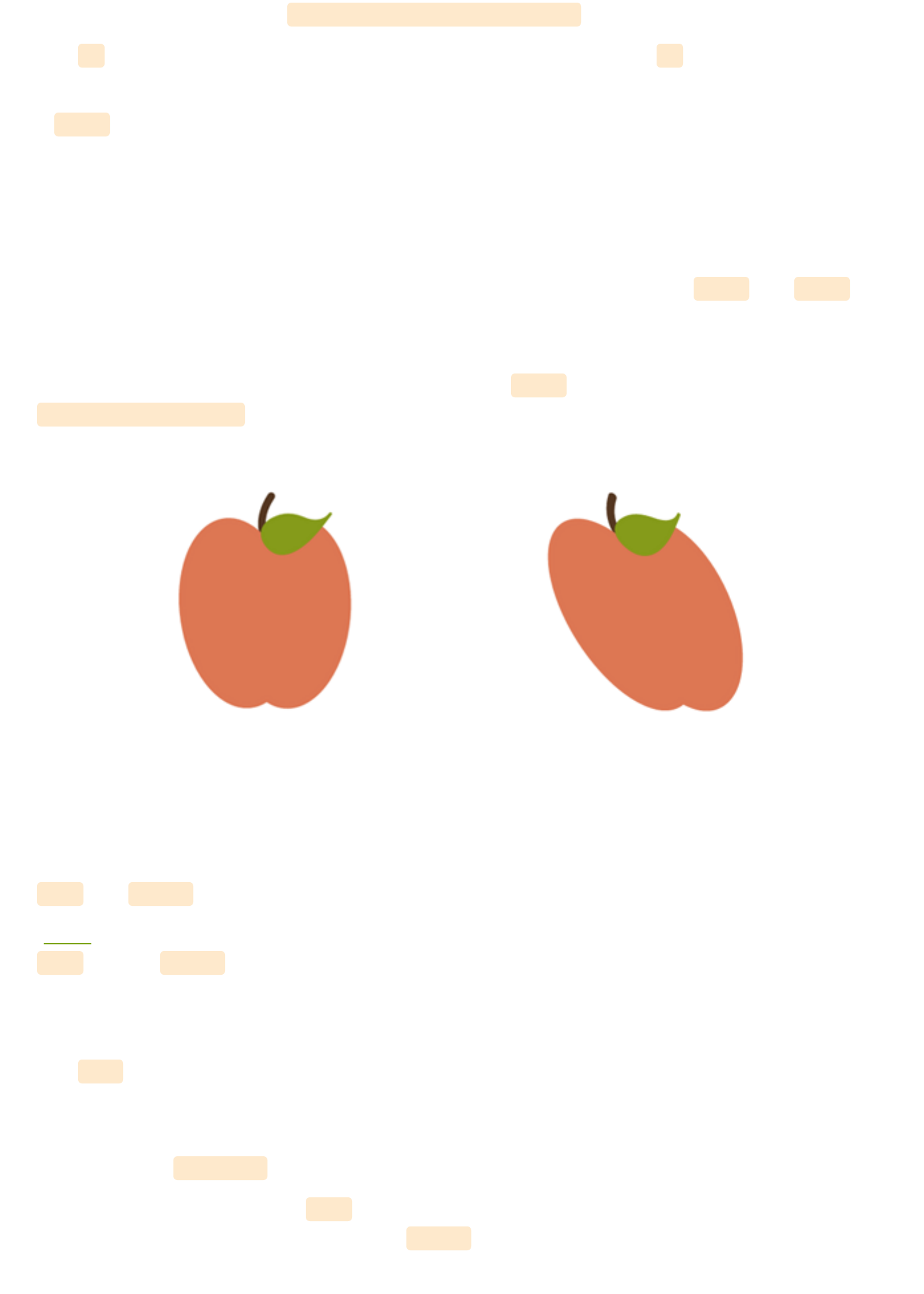
Here is an apple before and after having a 20 degree rotation applied:
transform="rotate(20)" .
Note that this image does not reflect the coordinate change this
transform makes.
scalescale
Scaling allows the resizing of SVG elements through the use of the scale function. This
function accepts one or two values which specify horizontal and vertical scaling amounts
along the appropriate axis: transform="scale(<sx> [<sy>])" .
The sy value is optional and if omitted it is assumed to be equal to sx to ensure consistent
resizing.
A scale value of ".5" would render a graphic half the size it was originally, while a value of "3"
would triple this initial size. A value of "4,2" would scale a graphic four times its original
width, and two times its original height.
skewskew
SVG elements can be skewed, or made crooked, through the use of the skewX and skewY
functions. The value included within these functions represents a skew transformation in
degrees along the appropriate axis.
Here is a look at an apple before and after adding a skewX value of "20":
transform="skewX(20)" .
Note that this image does not reflect the coordinate change this
transform makes.
Section 4. Fills and Strokes Section 4. Fills and Strokes !
fill and stroke allow us to paint to the interior and border of SVG.
"Paint" refers to the action of applying colors, gradients, or patterns to graphics through
fill and/or stroke .
fill Propertiesfill Properties
The fill attribute paints the interior of a specific graphical element. This fill can consist of
a solid color, gradient, or pattern.
The interior of a shape is determined by examining all subpaths and specifications spelled
out within the fill-rule .
When filling a shape or path, fill will paint open paths as if the last point of the path
connected with the first, even though a stroke color on this section of the path would not
render.
fill-rulefill-rule
The fill-rule property indicates the algorithm to be used in determining which parts of
the canvas are included inside the shape. This is not always straightforward when working
with more complex intersecting or enclosed paths.
The accepted values here are nonzero , evenodd , inherit .
nonzerononzero
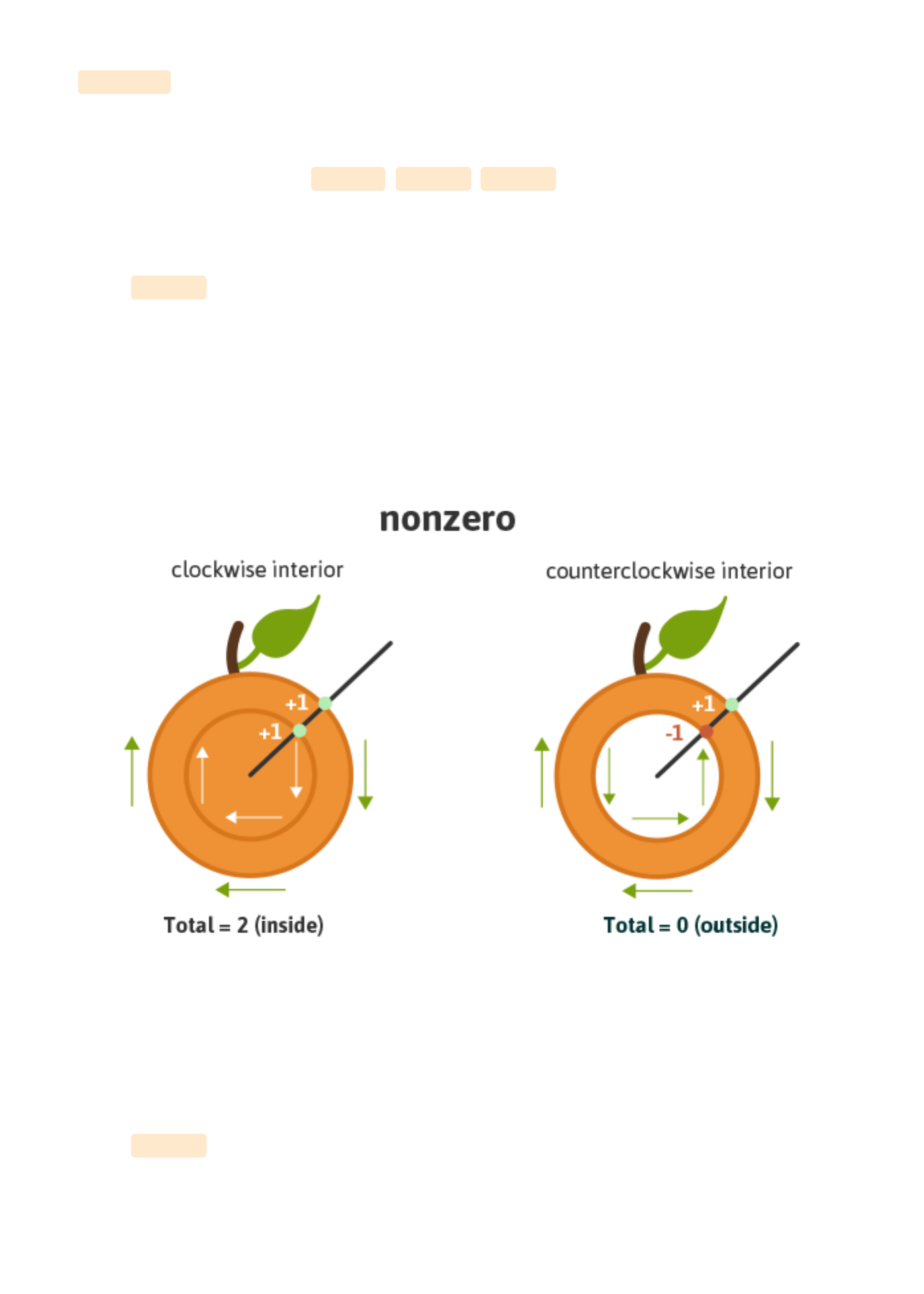
A value of nonzero determines the inside of a point on the canvas by drawing a line from the
area in question through the entire shape in any direction and then considering the
locations where a segment of the shape crosses this line. This starts with zero and adds one
each time a path segment crosses the line from left to right and subtracts one each time a
path segment crosses the line from right to left.
If the result is zero after evaluating and counting these intersections then the point is
outside the path, otherwise it is inside.
Essentially, if the interior path is drawn clockwise it will be considered as "inside", but if
drawn counter-clockwise it will be considered "outside" and therefore be excluded from
painting.
evenoddevenodd
A value of evenodd determines the inside of an area on the canvas by drawing a line from
that area through the entire shape in any direction and counts the path segments that the
line crosses. If this results in an odd number the point is inside, if even the point is outside.
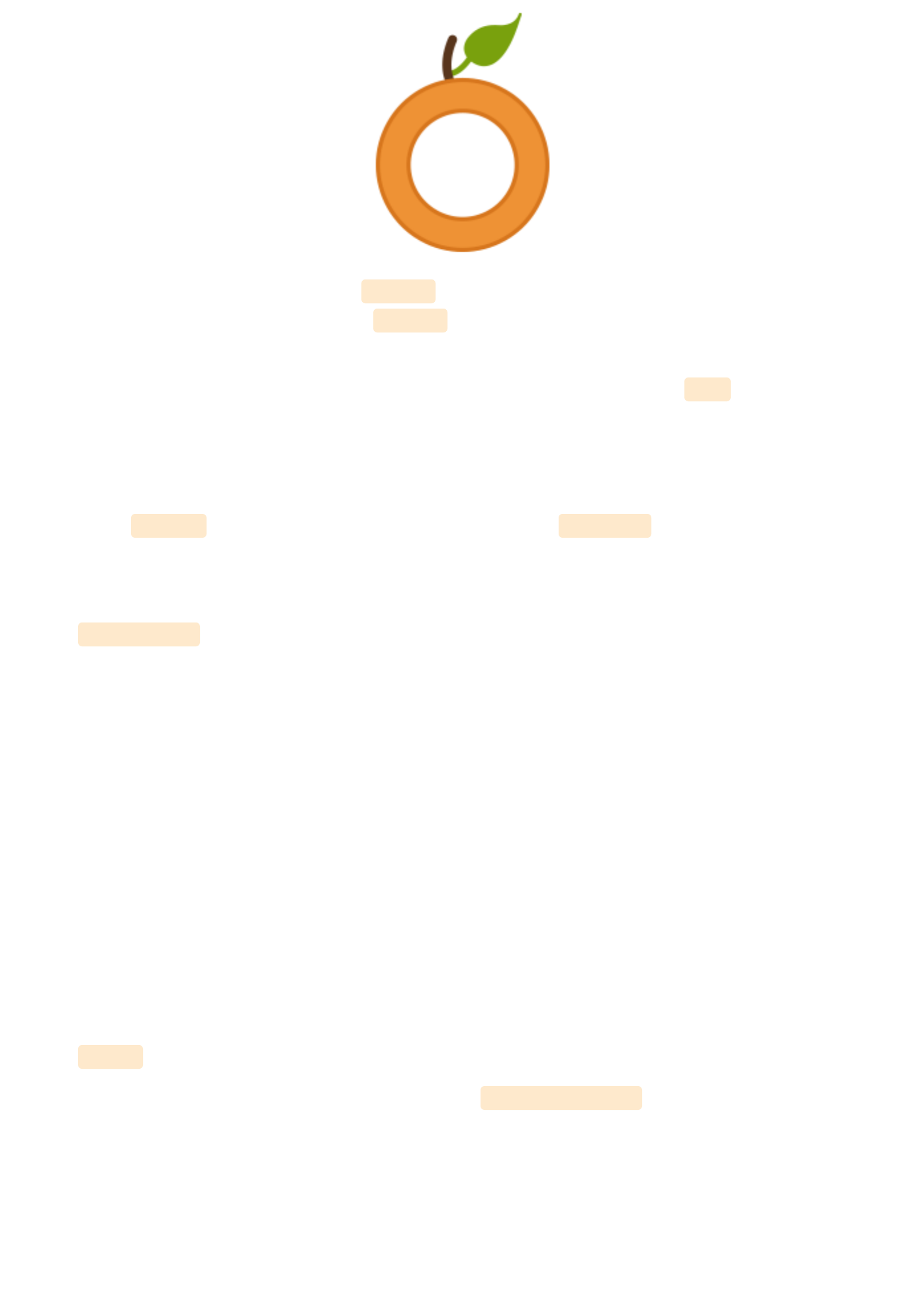
Given the specific algorithm of the evenodd rule, the drawing direction of the interior shape
in question is irrelevant, unlike with nonzero , as we are simply counting the paths as they
cross the line.
While this property is not generally necessary, it will allow for greater fill control of a
complex graphic, as mentioned.
inheritinherit
A value of inherit will direct the element to take on the fill-rule specified by its parent.
fill-opacityfill-opacity
The fill-opacity value refers to the opacity level of the interior paint fill. A value of "0"
results in complete transparency, "1" applies no transparency, and values in between
represent a percentage-based level of opacity.
Stroke AttributesStroke Attributes
There are a number of stroke-related attributes within SVG that allow for the control and
manipulation of stroke details. The abilities of these attributes provide for greater control of
hand-coded SVG, but also prove convenient when needing to make edits to an existing
embedded graphic.
The following examples use an inline SVG of grapes. The attributes being used reside
directly within the correlating shape’s element.
strokestroke
The stroke attribute defines the “border” paint of particular shapes and paths.
The following grapes image has a purple stroke: stroke="#765373" .
View demo here.View demo here.
stroke-widthstroke-width
The stroke-width value establishes the width of the grape’s stroke, which is set to 6px on
the grapes image.
The default value for this attribute is 1. If a percentage value is used, the value is based on
the dimensions of the viewport.
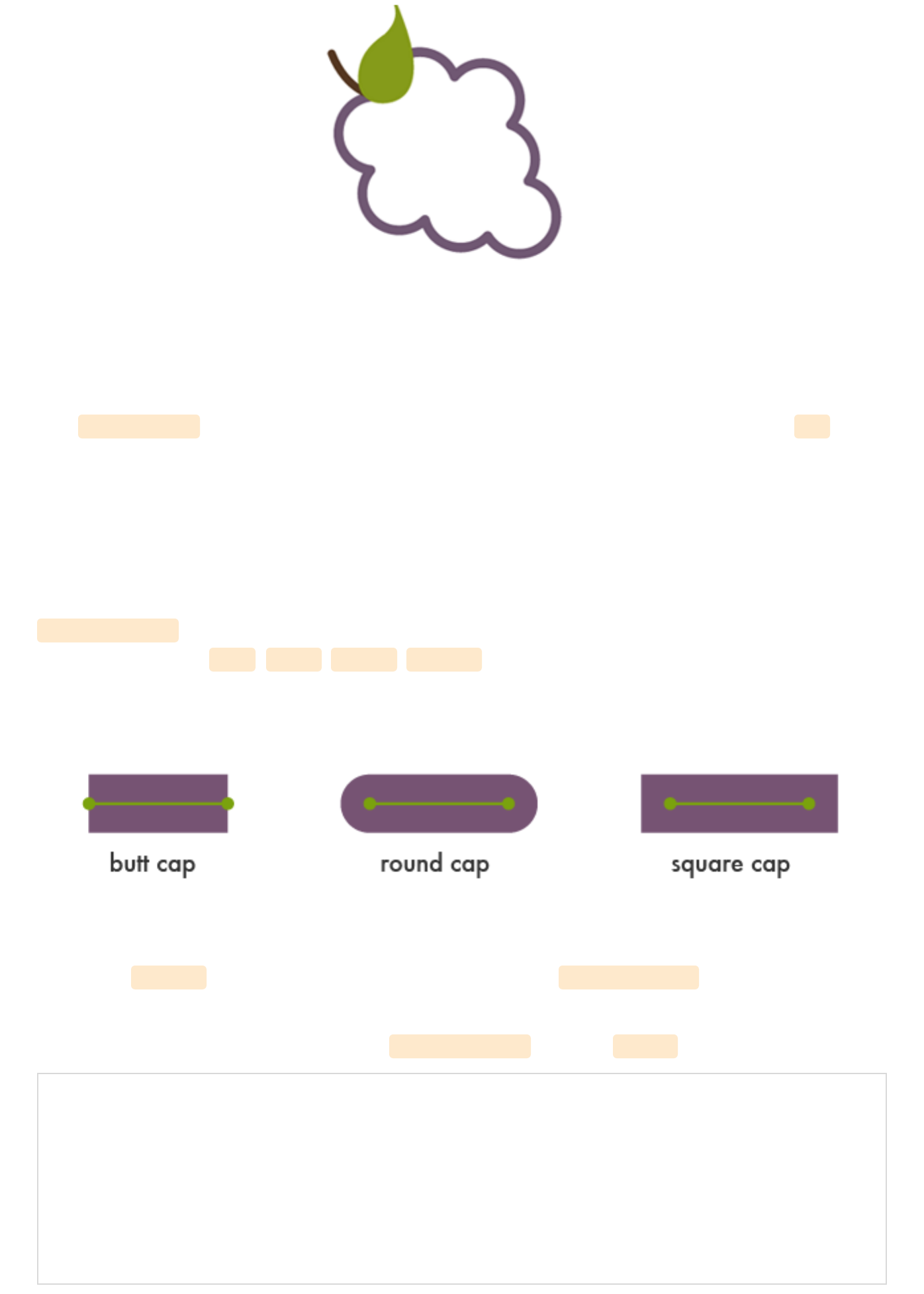
stroke-linecapstroke-linecap
stroke-linecap defines which shape the end of an open path will take and there are four
acceptable values: butt , round , square , inherit .
A value of inherit will direct the element to take on the stroke-linecap specified by its
parent.
The stem in the following image has a stroke-linecap value of square :
<svg>
<!--<path <path for grapes> />-->
<!--<path stroke-linecap="square" <path for stem> />-->
<!--<path <path for leaf> />-->
</svg>
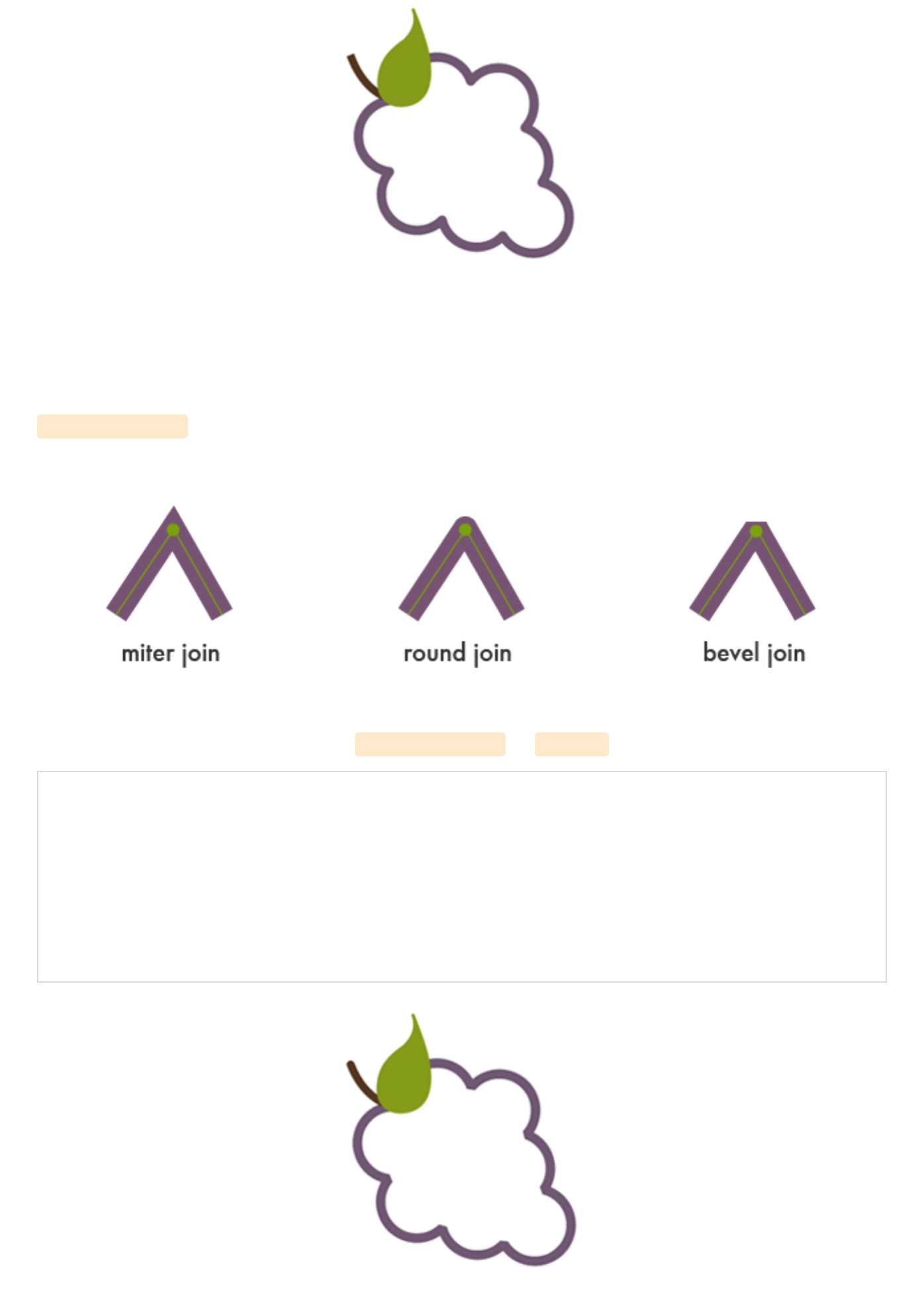
View demo here.View demo here.
stroke-linejoinstroke-linejoin
stroke-linejoin defines how the corners of strokes will look on paths and basic shapes.
Here is a look at the grapes with a stroke-linejoin of "bevel" :
<svg>
<!--<path stroke-linejoin="bevel" <path for grapes> />-->
<!--<path <path for stem> />-->
<!--<path <path for leaf> />-->
</svg>
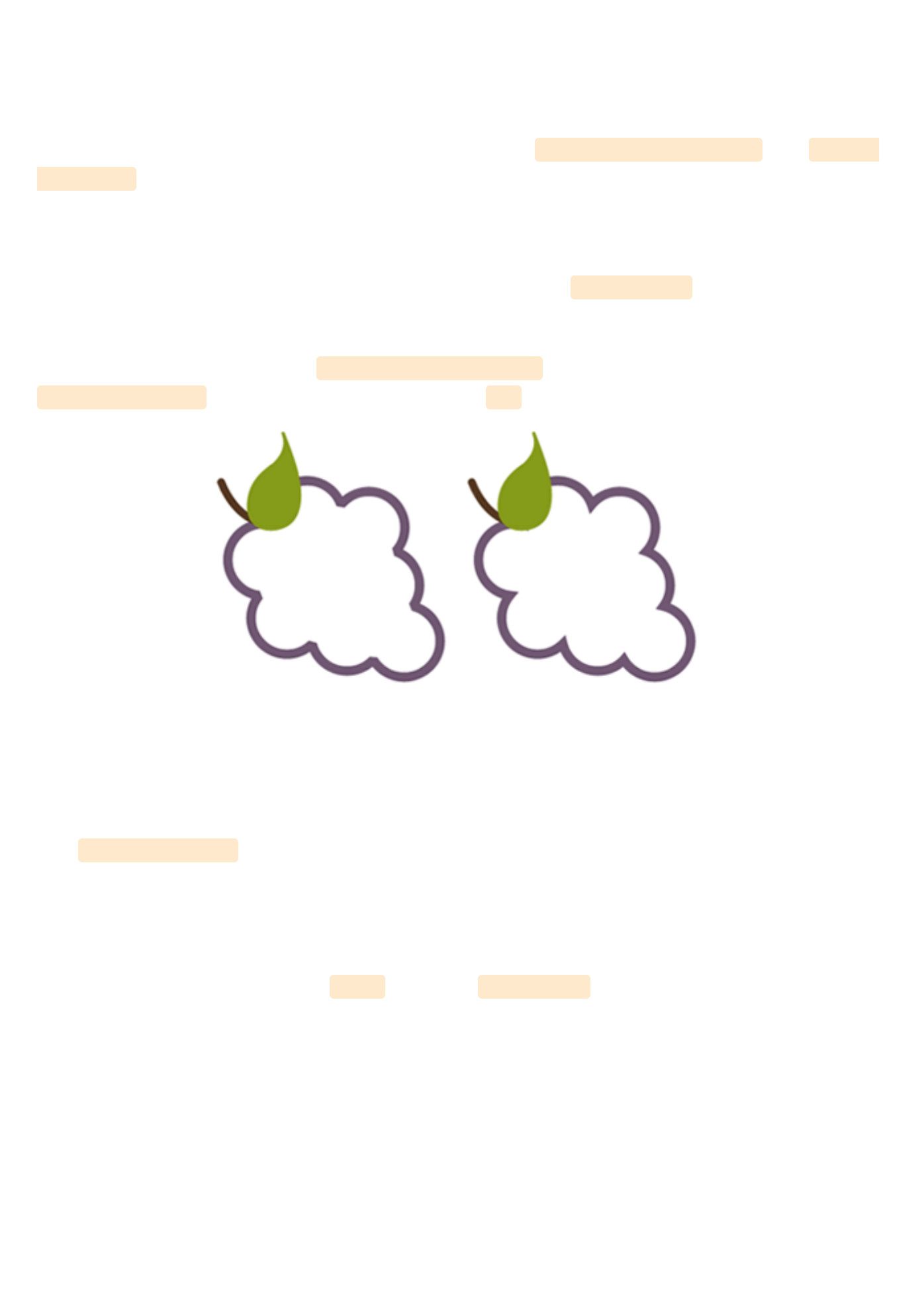
View demo here.View demo here.
stroke-miterlimitstroke-miterlimit
When two lines meet at a sharp angle and are set to a stroke-linejoin="miter" , the stroke-
miterlimit attribute allows for the specification of how far this joint/corner extends.
The length of this joint is called the miter length, and it is measured from the inner corner
of the line join to the outer tip of the join.
This value is a limit on the ratio of the miter length to the stroke-width .
1.0 is the smallest possible value for this attribute.
The first grape image is set to stroke-miterlimit="1.0" , which creates a bevel effect. The
stroke-miterlimit on the second image is set to 4.0 .
View demo here.View demo here.
stroke-dasharraystroke-dasharray
The stroke-dasharray attribute turns paths into dashes rather than solid lines.
Within this attribute you can specify the length of the dash as well as the distance between
the dashes, separated with commas or whitespace.
If an odd number of values are provided, the list is then repeated to produce an even
number of values. For example, 8,6,4 becomes 8,6,4,8,6,4 as shown in the second grapes
image below.
Placing just one number within this value results in a space between the dashes that is equal
to the length of a dash.
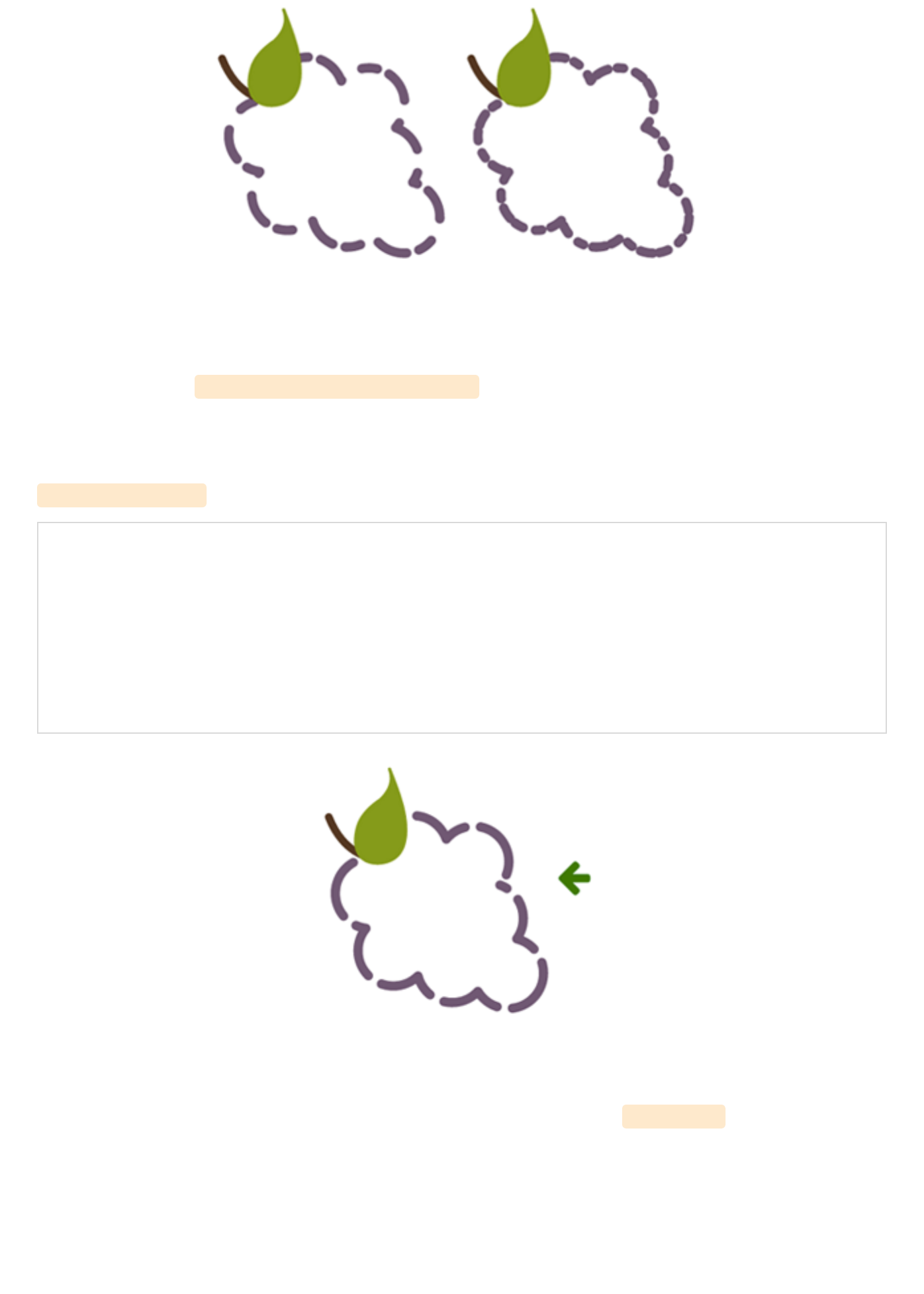
View demo here.View demo here.
The first grapes image here shows the impact that an even number of listed values has on
the grape's path: stroke-dasharray="20,15,10,8" .
stroke-dashoffsetstroke-dashoffset
stroke-dashoffset specifies the distance into the dash pattern to start the dash.
<svg>
<!--<path stroke-dasharray="40,10" stroke-dashoffset="35" <path for grapes> />-->
<!--<path <path for stem> />-->
<!--<path <path for leaf> />-->
</svg>
View demo here.View demo here.
In the example above, there is a dash set to be 40px long, and a dashoffset of 35px. At the
starting point of the path the dash will not become visible until 35px in to the first 40px
dash, which is why the first dash appears significantly shorter.
stroke-opacitystroke-opacity
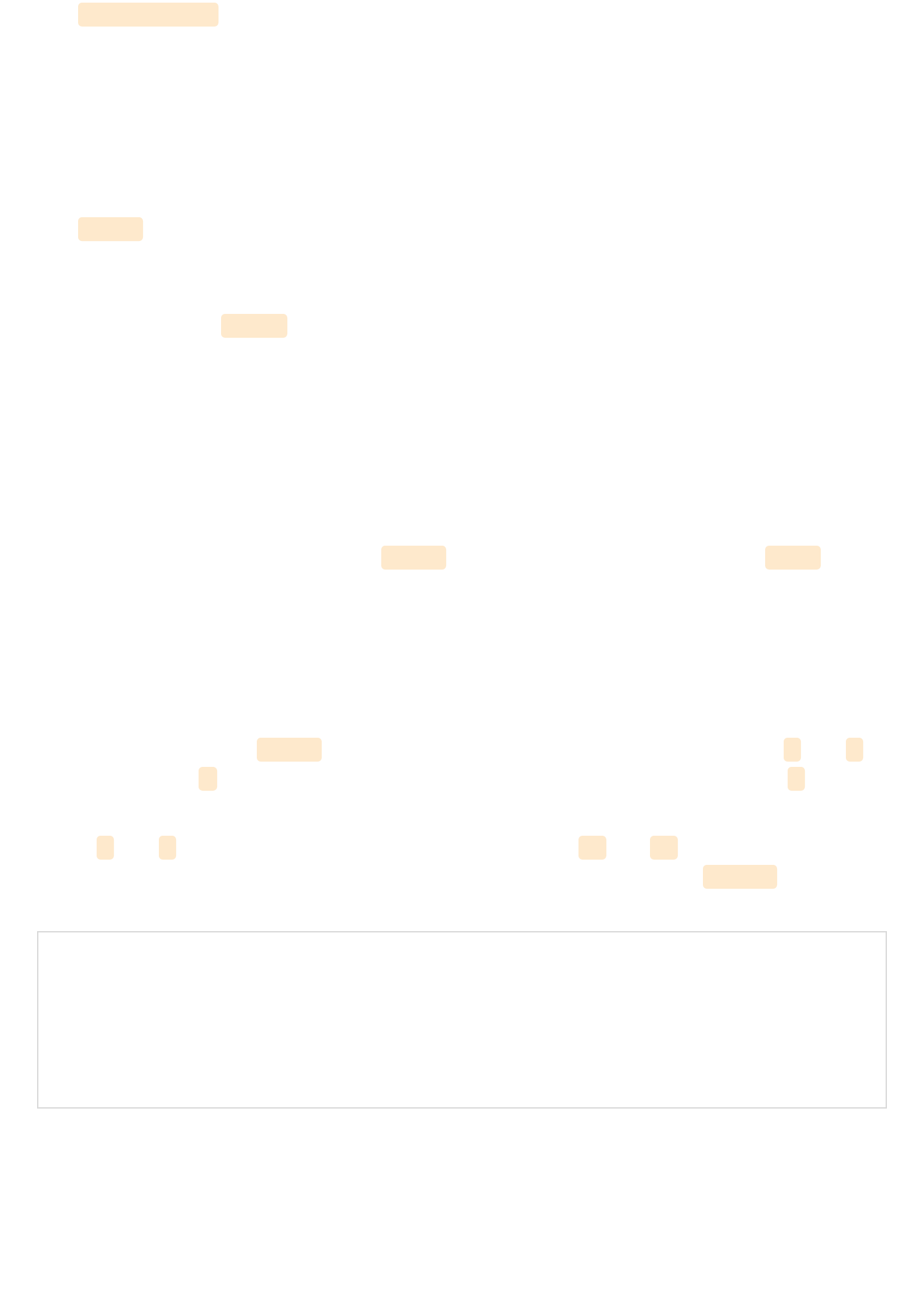
The stroke-opacity attribute allows for a transparency level to be set on strokes.
The value here is a decimal number between 0 and 1, with 0 being completely transparent.
Section 5. The text Element Section 5. The text Element !
The <text> element defines a graphic consisting of text. There are a number of attribute
options for customization of this text, and gradients, patterns, clipping paths, masks, or
filters can also be applied.
Writing and editing <text> in SVG provides a very powerful ability to create scalable text as
graphics that can be easily changed and edited within the SVG code.
Remember to be mindful of viewport dimensions when working through the examples in
this section. The viewport, as mentioned, will determine the visible portion of the SVG and
it may be necessary to change the viewport depending on the alteration specifics.
Basic AttributesBasic Attributes
SVG text attributes reside within the <text> element, which resides inside the <svg>
element. Through these attributes we can control some basic styling for our text as well as
completely spell out its mapping details on the canvas, enabling full control of its placement
on the screen.
x, y, dx, dyx, y, dx, dy
The first letter within a <text> element is rendered according to the established x and y
values. While the x value determines where to start the text along the x axis, the y value
determines the horizontal location of the
bottom
of the text.
While x and y establish coordinates in an absolute space, dx and dy establish relative
coordinates. This is especially handy when used in conjunction with the <tspan> element,
which will be discussed further in an upcoming section.
<svg width="620" height="100">
<text x="30" y="90" fill="#ED6E46" font-size="100" font-family="'Leckerli One',
cursive">Watermelon</text>
</svg>
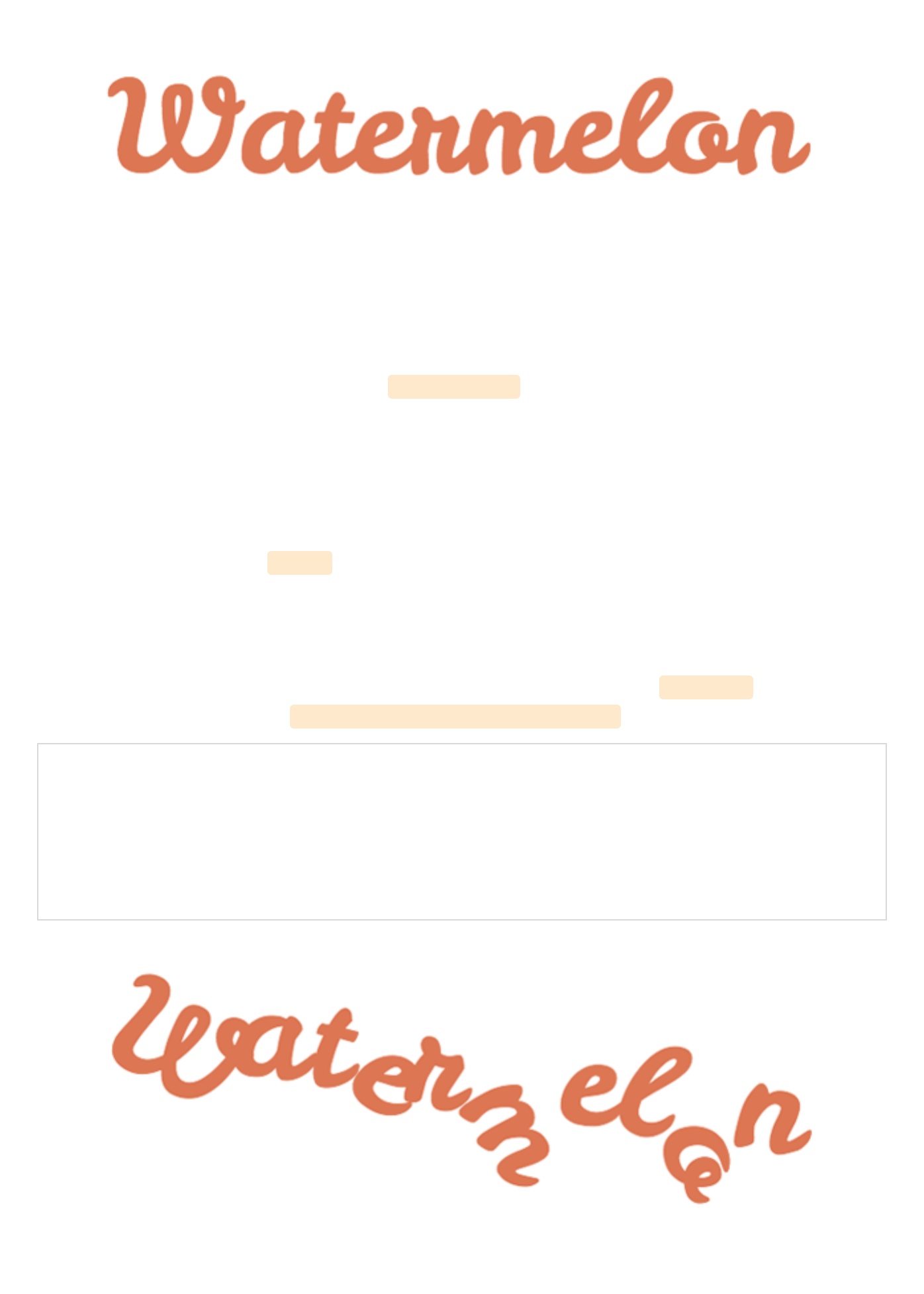
View demo here.View demo here.
The above text starts 30px into the viewport of the SVG, and the bottom of the text is set
90px in from the top of this viewport: x="30" y="90" .
rotaterotate
A rotation can be placed on the individual letters/symbols, and/or on the element as a
whole.
A single value within the rotate attribute results in each glyph rotating at that value. A
string of values can also be used to target and assign a different rotation value to each
letter. If there are not enough values to match the number of letters, the last value sets the
rotation for the remaining characters.
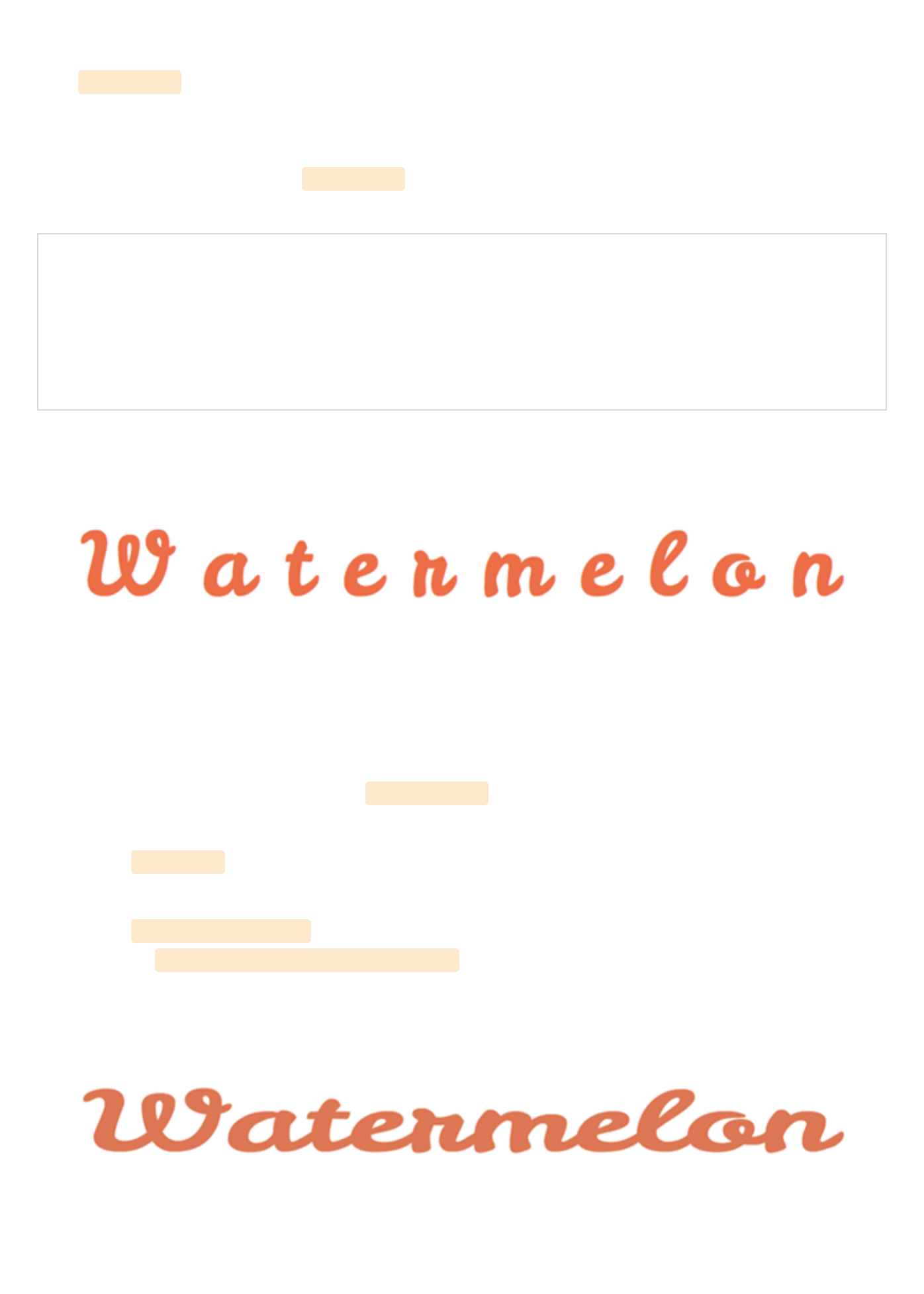
The text below has a rotation set on the entire graphic through the transform element, but
also a value for each glyph: rotate="20,0,5,30,10,50,5,10,65,5" .
<svg width="600" height="250">
<text x="30" y="80" fill="#ED6E46" font-size="100" rotate="20,0,5,30,10,50,5,10,65,5"
transform="rotate(8)" font-family="'Leckerli One', cursive">Watermelon</text>
</svg>
View demo here.View demo here.
textLength & lengthAdjusttextLength & lengthAdjust
The textLength attribute specifies the length of the text. The length of the text will adjust to
fit the length specified within this attribute by altering the space between the provided
characters.
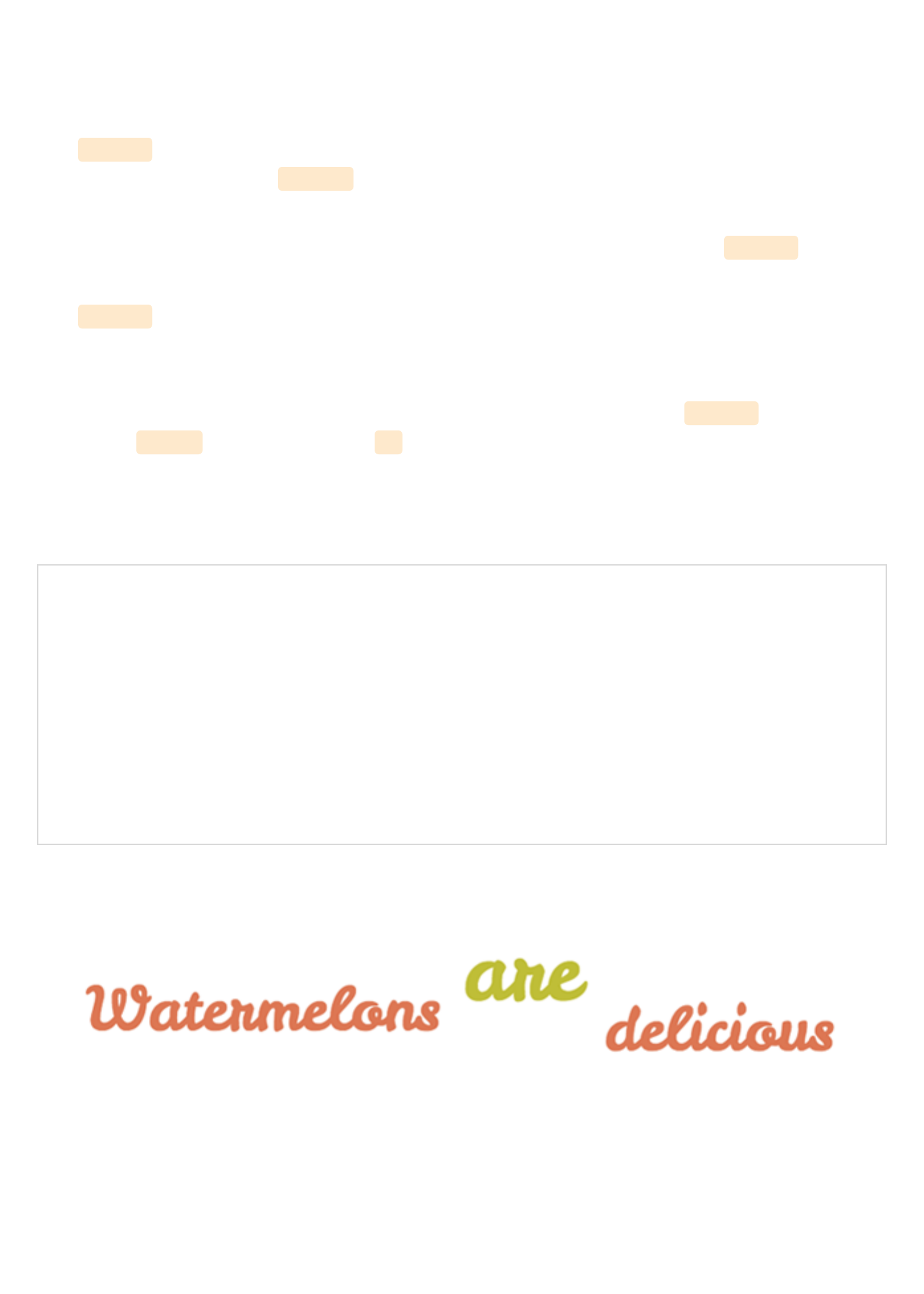
The following example has a textLength value of 900px. Notice that the spacing between
the characters has increased to fill this space.
<svg width="950" height="100">
<text x="30" y="90" fill="#ED6E46" font-size="100" textLength="900" font-
family="'Leckerli One', cursive">Watermelon</text>
</svg>
View demo here.View demo here.
When used in conjunction with the lengthAdjust attribute, it can be specified that both the
letter spacing and glyph size should adjust to fit to these new length values.
A value of "spacing" results in an image that resembles the example above where the
spacing between the characters has expanded to fill the space: ‘lengthAdjust=”spacing”’.
A value of "spacingAndGlyphs" directs both the spacing and the glyph size to adjust
accordingly: lengthAdjust="spacingAndGlyphs" .
View demo here.View demo here.
The tspan ElementThe tspan Element
The <tspan> element is significant because SVG does not currently support automatic line
breaks or word wrapping. <tspan> allows us to draw multiple lines of text by singling out
certain words or characters to then be manipulated independently.
Instead of defining a new coordinate system for these additional lines, the <tspan> element
positions these new lines of text in relation to the previous line of text.
The <tspan> element has no visual output on its own, but by specifying more details within
the elements we can single out this particular text and have more control over its design
and positioning.
In the example below "are" and "delicious" are located within separate <tspan> elements
within the <text> element. By using dy within each of these spans, we are positioning the
word along the y axis in relation to the word before it.
While "are" is positioned -30px from "Watermelons", "delicious" is positioned 50px from
"are".
<svg width="775" height="500">
<text x="15" y="90" fill="#ED6E46" font-size="60" font-family="'Leckerli One', cursive">
Watermelons
<tspan dy="-30" fill="#bbc42a" font-size="80">are</tspan>
<tspan dy="50">delicious</tspan>
</text>
</svg>
View demo here.View demo here.
You can also move each glyph individually through a list of values, as shown in the example
below. The letter/symbol is then moved according to the position of the letter/symbol
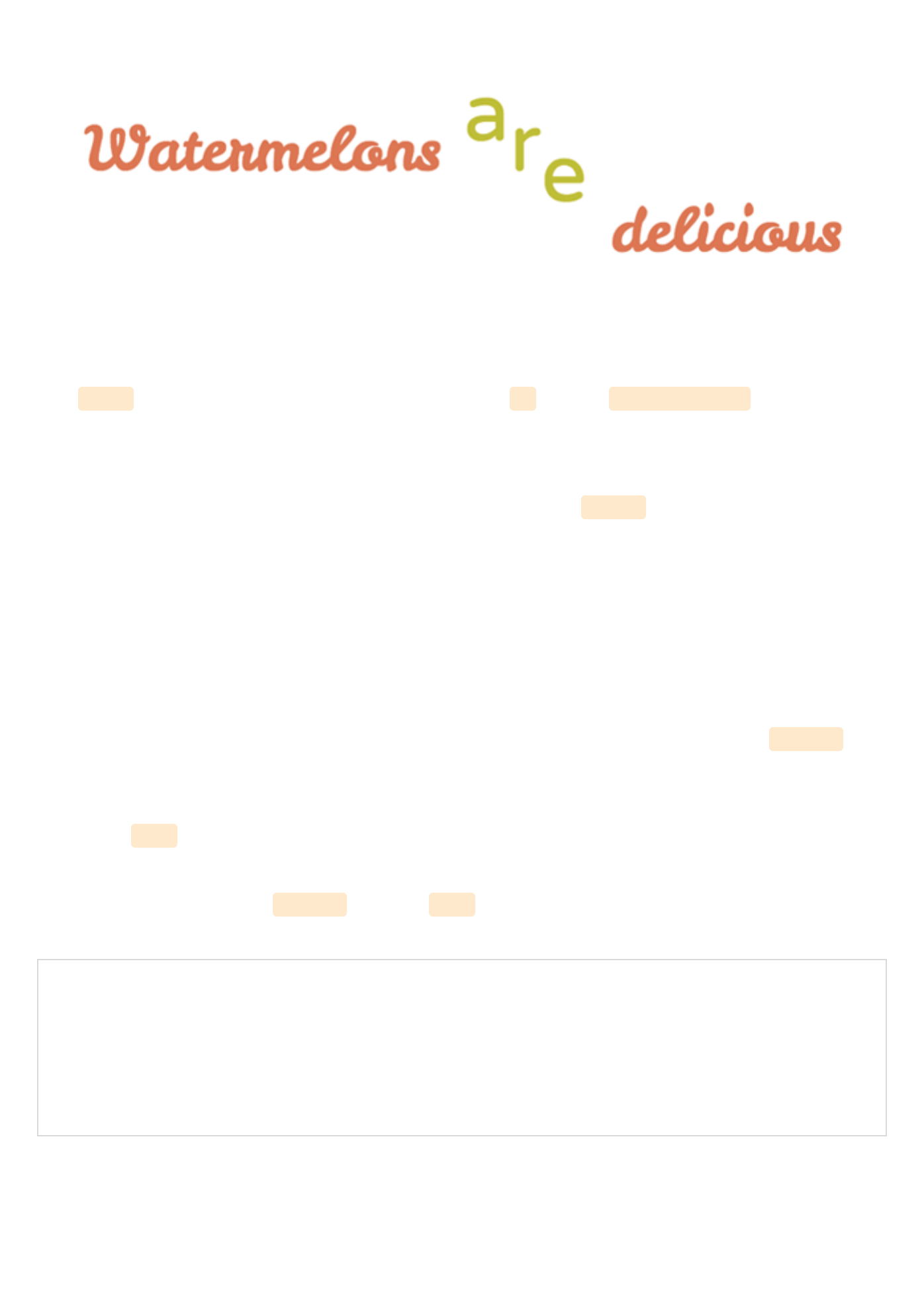
before it, and "delicious" is now positioned according to the "e" in "are".
View demo here.View demo here.
The tspan containing “are” has the following list of dy values: dy="-30 30 30" .
Spacing PropertiesSpacing Properties
There are a number of properties available when using the <text> element within inline
SVG that control the spacing of words and letters, similar to the capabilities of vector
graphic software.
Understanding how to use these properties helps ensure graphics are displayed exactly as
intended.
kerning & letter-spacingkerning & letter-spacing
Kerning refers to the process of adjusting the spacing between characters. The kerning
property allows us to adjust this space based on the kerning tables that are included in the
font being used, or set a unique length.
A value of auto indicates that the inter-glyph spacing should be based on the kerning tables
that are included in the font being used.
The example below has a kerning value of auto , which in this instance has no visual impact
since it is the default value.
<svg width="420" height="200">
<text x="2" y="50%" fill="#ef9235" font-size="100" font-family="'Raleway', sans-serif"
font-weight="bold" kerning="auto">Oranges</text>
</svg>
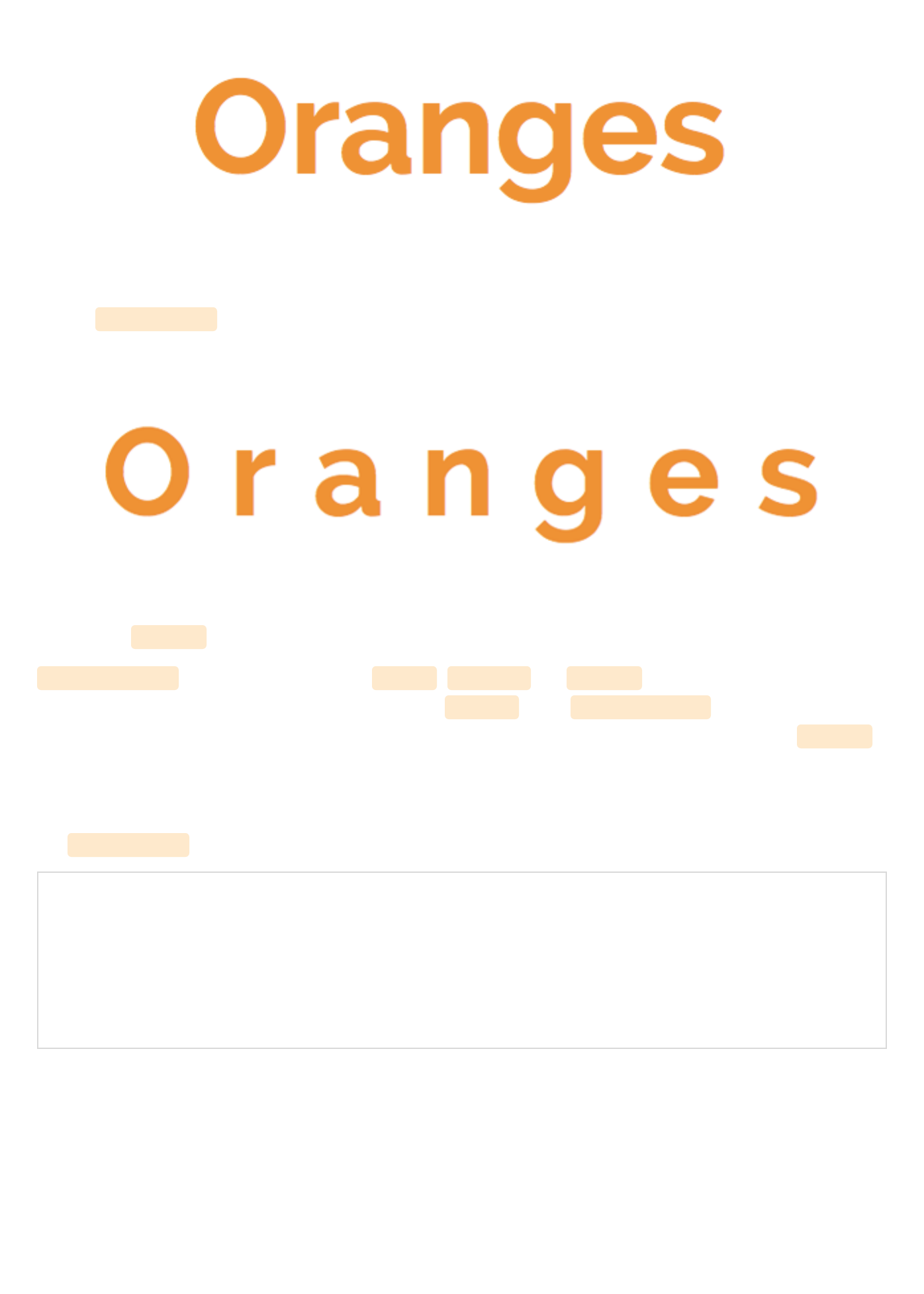
Adjusting the length between these characters can be done by simply including a numerical
value: kerning="30" .
A value of inherit is also valid.
letter-spacing has value options of normal , <length> , or inherit . A numerical value here
will have the same impact on the spacing as kerning . The letter-spacing property is
intended to be used as supplemental spacing to any spacing already in effect from kerning .
word-spacingword-spacing
Th word-spacing property specifies the spacing between words.
<svg width="750" height="200">
<text x="2" y="50%" fill="#ef9235" font-size="70" font-family="'Raleway', sans-serif"
word-spacing="30">Oranges are Orange</text>
</svg>
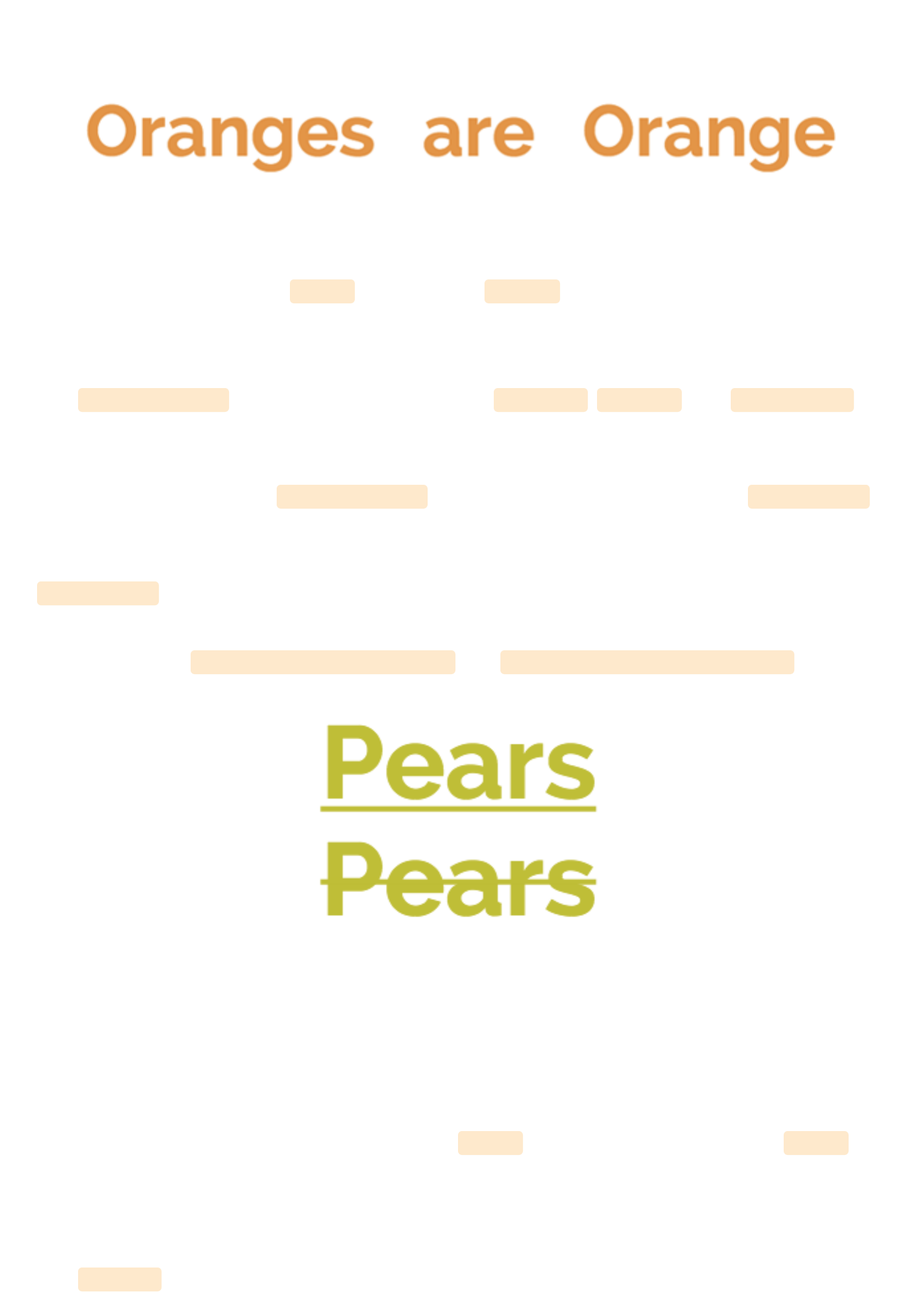
Other valid values here are normal (default), and inherit .
text-decorationtext-decoration
The text-decoration property permits the use of underline , overline , and line-through in
SVG text.
While drawing order does not always have an impact on visual output in SVG, the order
does matter in regards to text-decoration . All text decoration values, except line-through ,
should be drawn
before
the text is filled and/or stroked; this renders the text on top of the
decorations.
line-through should be drawn after the text is filled and/or stroked, rendering the
decoration on top of the text.
Here is a look at text-decoration="underline" and text-decoration="line-through" .
text Along a Pathtext Along a Path
As mentioned, inline SVG provides us with advanced customization options that are similar
to the capabilities of vector graphic software. Within the SVG code itself we can position
text exactly as we want it to render on the screen.
In taking this manipulation even further, SVG <text> can be set to follow a given <path>
element.
The textPath ElementThe textPath Element
The textPath element is where all the magic of this feature resides. While SVG text would
generally reside within a <text> element, it will now reside within a <textPath> element
within the <text> element.
This <textPath> will then call on the chosen path's id which is hanging out in a <defs>
element waiting to be used.
The basic syntax:
<svg>
<defs>
<path id="testPath" d="<....>"/>
</defs>
<text>
<textPath xlink:href="#testPath">Place text here</textPath>
</text>
</svg>
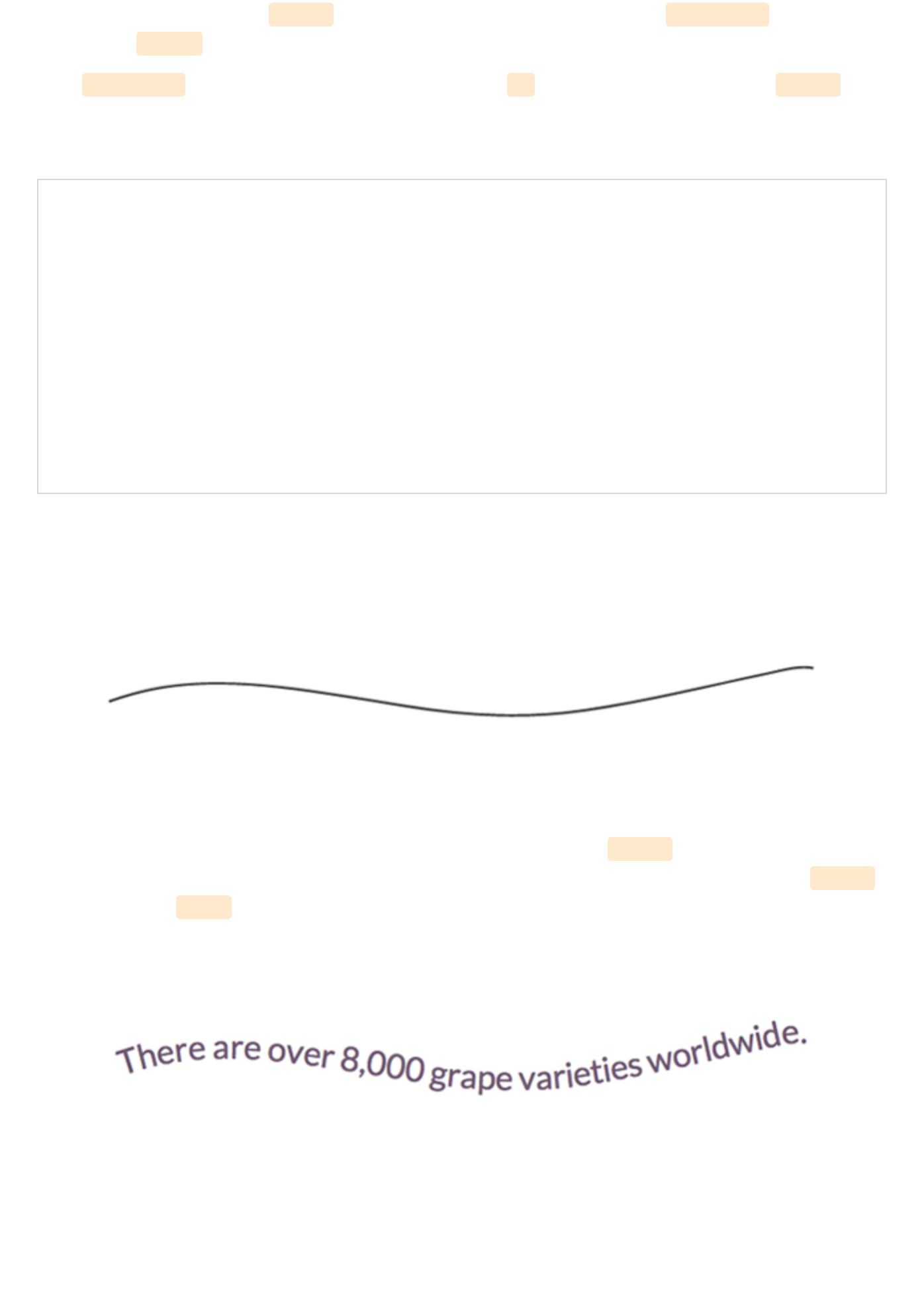
Here is a look at the vector path to be used in the code below:
After generating this path in vector graphic software the SVG
<path> element
code itself
(which will not include color like shown above) can be copied and placed within the <defs>
element in the <svg> , which is also shown in the code above.
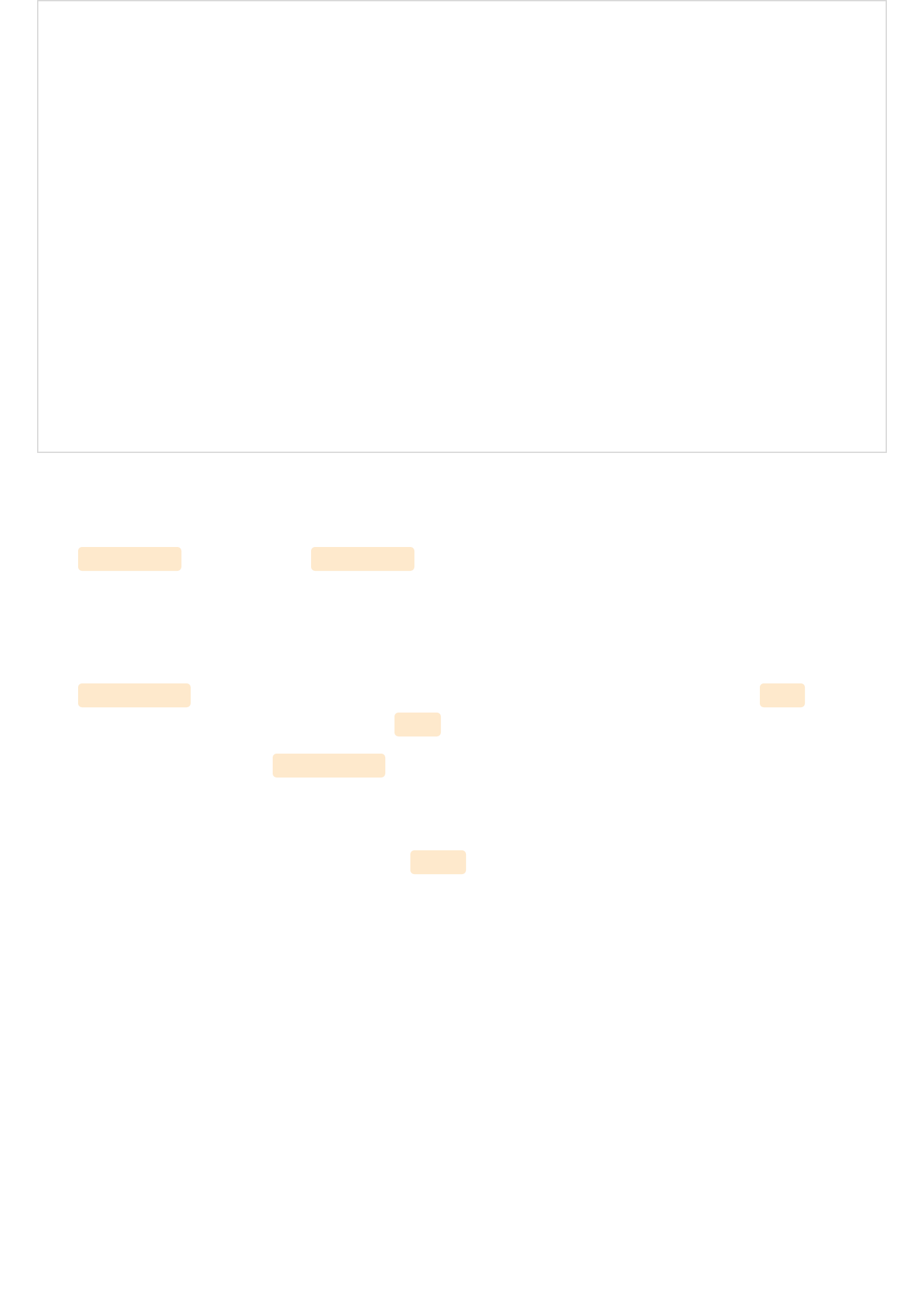
<svg width="620" height="200">
<defs>
<path id="testPath" d="M3.858,58.607 c16.784-5.985,33.921-10.518,51.695-
12.99c50.522-7.028,101.982,0.51,151.892,8.283c17.83,2.777,35.632,5.711,53.437,8.628
c51.69,8.469,103.241,11.438,155.3,3.794c53.714-7.887,106.383-20.968,159.374-32.228c11.166-
2.373,27.644-7.155,39.231-4.449" />
</defs>
<text x="2" y="40%" fill="#765373" font-size="30" font-family="'Lato', sans-serif">
<textPath xlink:href="#testPath">There are over 8,000 grape varieties worldwide.
</textPath>
</text>
</svg>
xlink:hrefxlink:href
The xlink:href attribute in a <textPath> allows us to reference the path to which the text
will be rendered on.
startOffsetstartOffset
The startOffset attribute represents a text offset length from the start of the path . A value
of "0%" indicates the start point of the path , while "100%" indicates the end point.
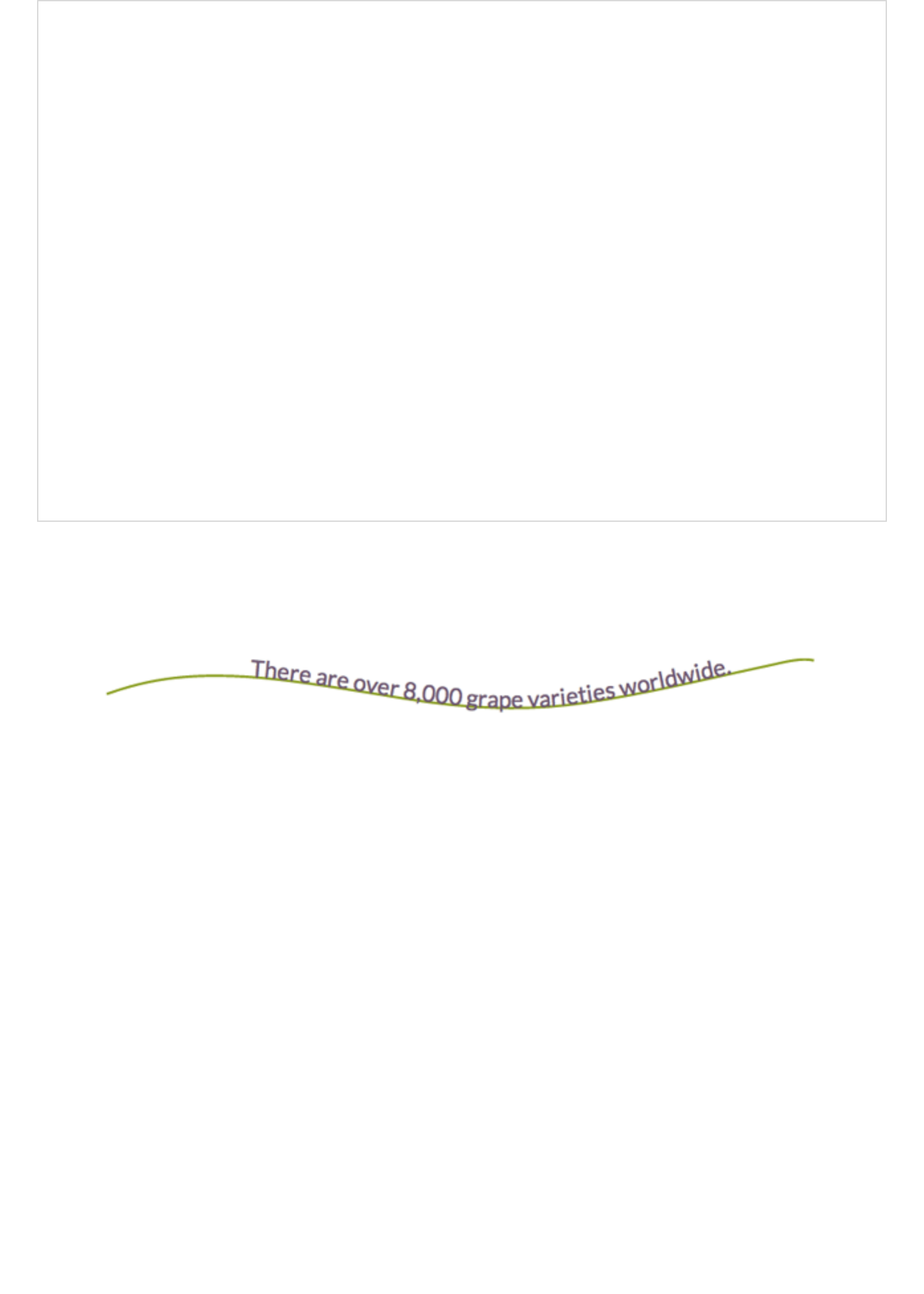
The example below has a startOffset of "20%" which pushes the text to begin 20% in along
the path. The font size has been decreased to prevent it from rendering out of the viewport
when moved.
Adding color to the path's stroke via the <use> element can aid in understanding what
exactly is happening here.
<svg width="620" height="200">
<defs>
<path id="testPath" d="M3.858,58.607 c16.784-5.985,33.921-10.518,51.695-
12.99c50.522-7.028,101.982,0.51,151.892,8.283c17.83,2.777,35.632,5.711,53.437,8.628
c51.69,8.469,103.241,11.438,155.3,3.794c53.714-7.887,106.383-20.968,159.374-32.228c11.166-
2.373,27.644-7.155,39.231-4.449" />
</defs>
<use xlink:href="#testPath" fill="none" stroke="#7aa20d" stroke-width="2"/>
<text x="2" y="40%" fill="#765373" font-size="20" font-family="'Lato', sans-serif">
<textPath xlink:href="#testPath" startOffset="20%">There are over 8,000 grape
varieties worldwide.
</textPath>
</text>
</svg>
View demo here.View demo here.
Section 6. Advanced Features: Gradients, Patterns,Section 6. Advanced Features: Gradients, Patterns,
Clipping Paths Clipping Paths !
GradientsGradients
There are two types of SVG gradients: linear and radial. Linear gradients are generated in a
straight line, while radial gradients are circular.
A very simple linear gradient is structured like this:
<svg>
<defs>
<linearGradient id="gradientName">
<stop offset="<%>" stop-color="<color>" />
<stop offset="<%>" stop-color="<color>" />
</linearGradient>
</defs>
</svg>
The <svg> contains a <defs> element which allows us to create reusable definitions to be
called on later. These definitions have no visual output until they are referenced using their
unique ID within the stroke and/or fill attributes for SVG shapes or <text> . These shapes
and/or text will also reside within the <svg> element, but outside of the <defs> element.
Once a gradient is built and assigned an ID, it can be called through the fill and/or
stroke attributes within the SVG. For example, fill= "url(#gradientName)" .
Linear GradientsLinear Gradients
Linear gradients change color evenly along a straight line and each point (stop) defined on
this line will represent the correlating color within the <linearGradient> element. At each
point the color is at 100% saturation, and the space in between expresses a transition from
one color to the next.
stop Nodesstop Nodes
<stop> nodes can also accept an opacity with stop-opacity="<value>"
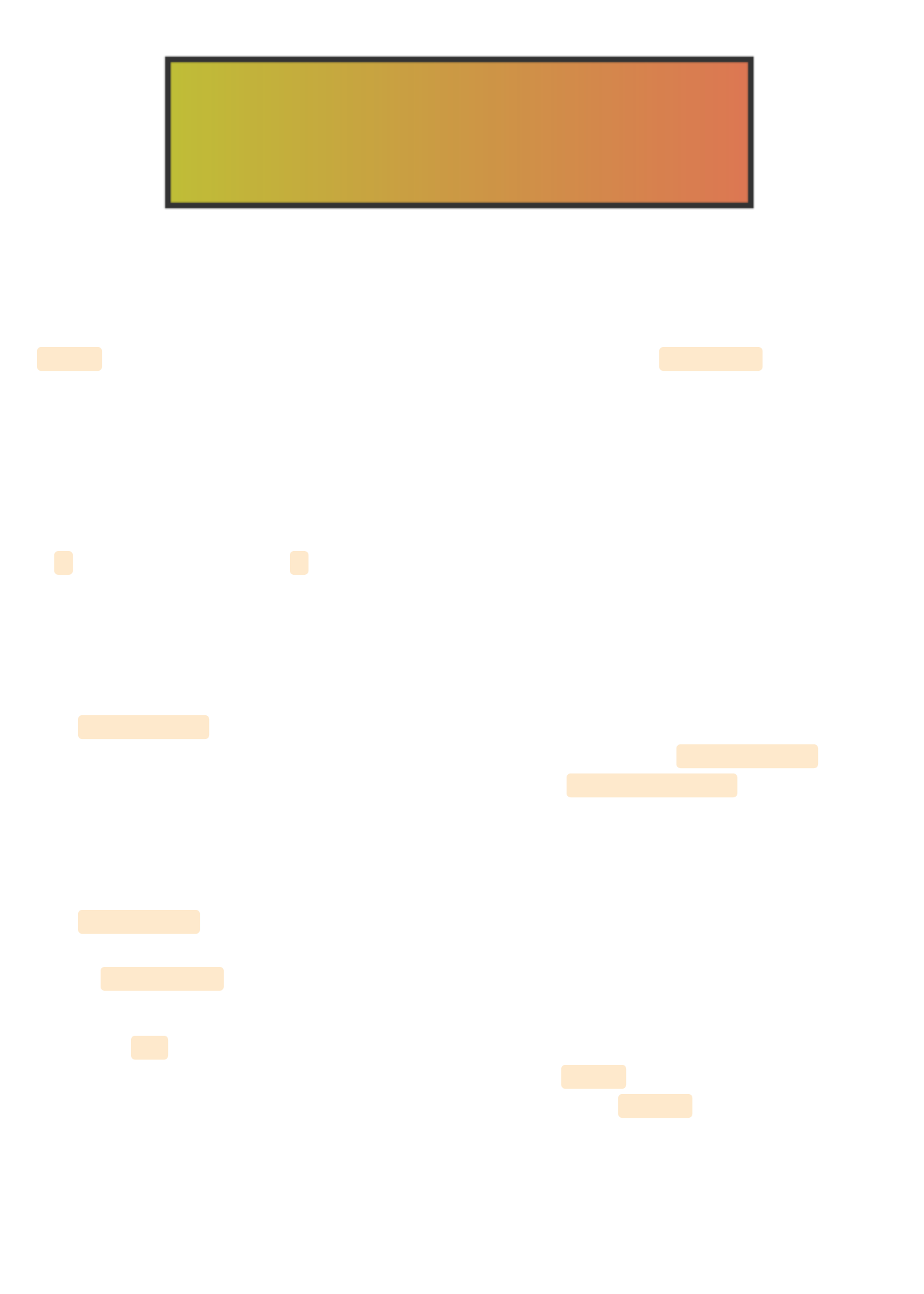
Below is the code for a simple linear gradient with two color stops applied to a rectangle:
<svg width="405" height="105">
<defs>
<linearGradient id="Gradient1" x1="0" y1="0" x2="100%" y2="0">
<stop offset="0%" stop-color="#BBC42A" />
<stop offset="100%" stop-color="#ED6E46" />
</linearGradient>
</defs>
<rect x="2" y="2" width="400" height="100" fill= "url(#Gradient1)" stroke="#333333"
stroke-width="4px" />
</svg>
View demo here.View demo here.
offset informs the gradient at what point to assign the correlating stop-color .
x1, y1, x2, y2x1, y1, x2, y2
The x1, y1, x2, and y2 attribute values represent the start and end points onto which the
gradient stops (color changes) are mapped. These percentages will map the gradients
respectively along the appropriate axis.
A y value of “100%” and an x value of “0” will produce a horizontal gradient, while the
reverse will produce a vertical one. Having both values set at “100%” (or any value outside of
0) will render an angled gradient.
gradientUnitsgradientUnits
The gradientUnits attribute defines the coordinate system for the x1, x2, y1, y2 values. The
two value options here are ‘userSpaceOnUse’ or ‘objectBoundingBox’. userSpaceOnUse sets
the gradient coordinating system in absolute units, while objectBoundingBox (default)
establishes this system within the bounds of the SVG shape itself, the target.
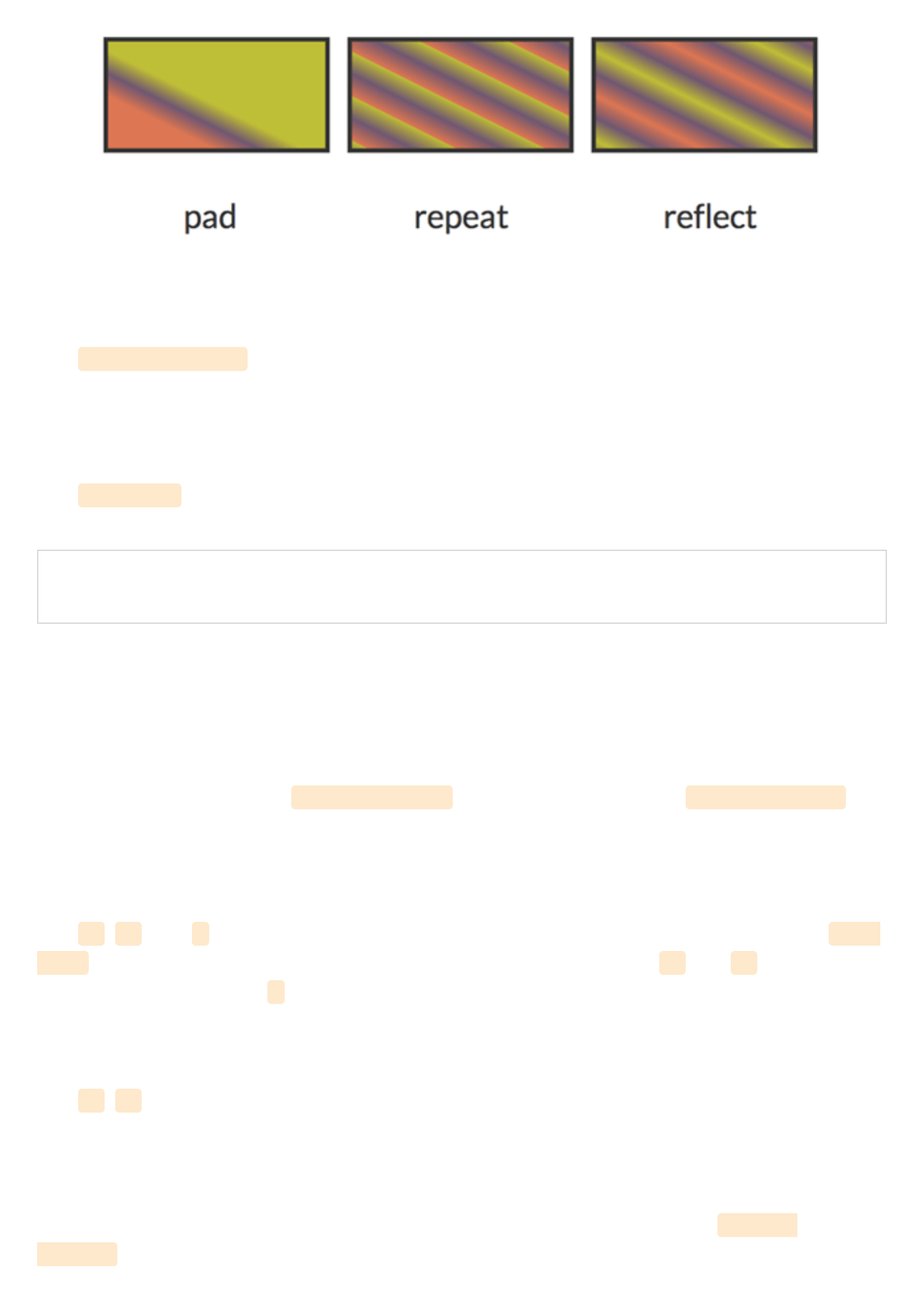
spreadMethodspreadMethod
The spreadMethod attribute’s value specifies how the gradient will spread out through the
shape if it starts or ends inside the bounds of the target. If the gradient is set to not fill the
shape, spreadMethod determines how the gradient should go about covering that empty
space. There are three options here: ‘pad’, ‘repeat’, or ‘reflect’.
A value of pad (default) directs the first and last colors of the gradient to spread out over
the remainder of the uncovered target region. A value of repeat directs the gradient to
repeat the pattern from the beginning continuously. A value of reflect will reflect the
gradient pattern alternating from start-to-end, end-to-start continuously.
The start and end point for the gradient below is: x1="20%" y1="30%" x2="40%" y2="80%".
gradientTransformgradientTransform
The gradientTransform attribute is optional and allows for further transformation of the
gradient before it is mapped, like adding a rotation.
xlink:hrefxlink:href
The xlink:href attribute allows you to call on the ID of another gradient to inherit its
details, but you can also include different values.
<linearGradient id="repeat" xlink:href="#Gradient-1” spreadMethod="repeat" />
This gradient inherits the details of the first gradient from the beginning of this section, but
has an alternate spreadMethod value.
Radial GradientsRadial Gradients
Most of the attributes for a <radialGradient> are the same as those of <linearGradient>
except there is a different set of coordinates to work with.
cx, cy, rcx, cy, r
The cx , cy , and r attributes define the outermost section of the circle and the 100% stop-
color of the gradient will be mapped to the perimeter of this value. cx and cy define the
center coordinate, while r sets the radius of the gradient.
fx, fyfx, fy
The fx , fy attributes represent the coordinates for the gradient’s focal point, or innermost
circle. Essentially, the center of the gradient does not have to also be its focal point, which
can be altered with these values.
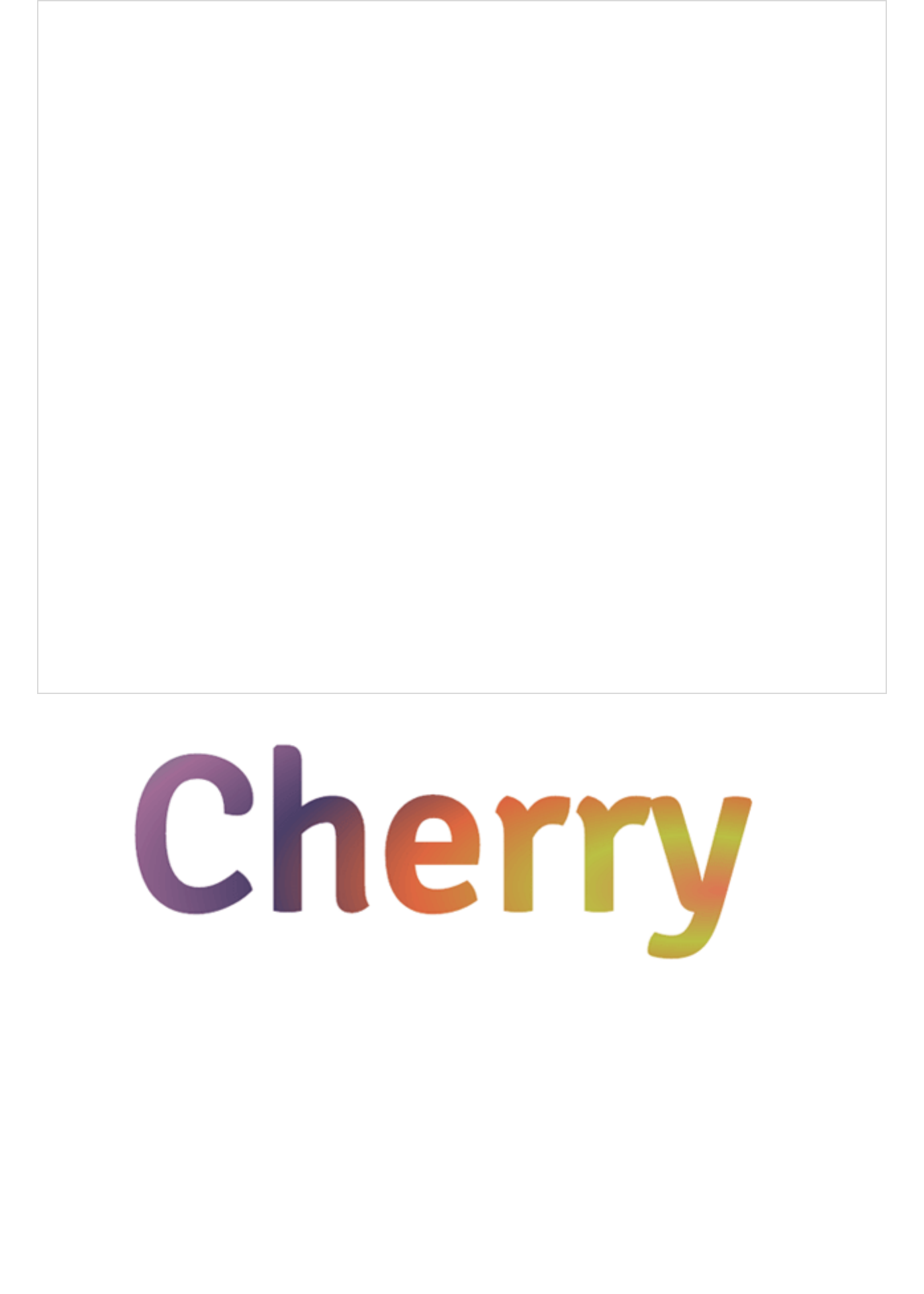
While by default the focal point of the radial gradient would be centered, the focal point
attributes can change this. The focal point values for the image below are fx="95%"
fy="70%" .
<svg width="850px" height="300px">
<defs>
<radialGradient id="Gradient2" cy="60%" fx="95%" fy="70%" r="2">
<stop offset="0%" stop-color="#ED6E46" />
<stop offset="10%" stop-color="#b4c63b" />
<stop offset="20%" stop-color="#ef5b2b" />
<stop offset="30%" stop-color="#503969" />
<stop offset="40%" stop-color="#ab6294" />
<stop offset="50%" stop-color="#1cb98f" />
<stop offset="60%" stop-color="#48afc1" />
<stop offset="70%" stop-color="#b4c63b" />
<stop offset="80%" stop-color="#ef5b2b" />
<stop offset="90%" stop-color="#503969" />
<stop offset="100%" stop-color="#ab6294" />
</radialGradient>
</defs>
<text x="20%" y="75%" fill= "url(#Gradient2)" font-family= "'Signika', sans-serif" font-
size="200">Cherry</text>
</svg>
View demo here.View demo here.
In this example, the focal point shifts to the bottom right of the image.
PatternsPatterns
Patterns are generally considered one of the more complex paint options available to color
the fills and strokes of SVG. Establishing a foundation and understanding the basic syntax
can make these seemingly more complex patterns much more obtainable.
Here is a look at the syntax for a basic pattern applied to a rectangle:
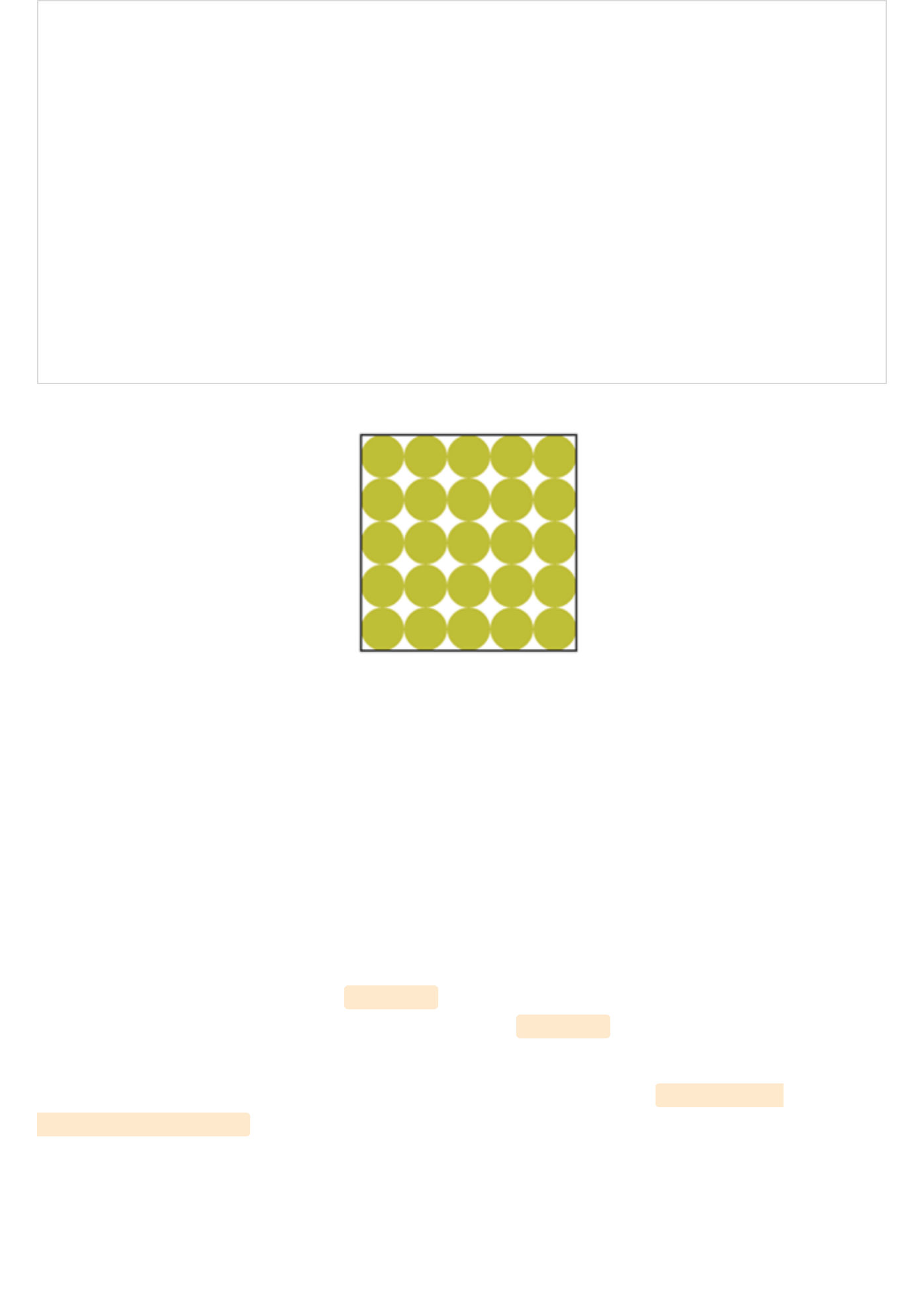
<svg width="220" height="220">
<defs>
<pattern id="basicPattern" x="10" y="10" width="40" height="40"
patternUnits="userSpaceOnUse">
<circle cx="20" cy="20" r="20" fill= "#BBC42A" />
</pattern>
</defs>
<rect x="10" y="10" width="200" height="200"
stroke="#333333" stroke-width="2px" fill="url(#basicPattern)" />
</svg>
View demo here.View demo here.
Basic AttributesBasic Attributes
The attributes and values for patterns define the "canvas", the design, and overall
positioning. Patterns can consist of paths and/or shapes, can paint text, and can even be
nested within another pattern.
x, y, width, heightx, y, width, height
The x and y attributes within the <pattern> element define how far into the shape the
pattern will start. Width and height used within the <pattern> element define the actual
width and height of the allotted pattern space.
The “basicPattern” referenced above contains the following values: x="10" y="10"
width="40" height="40" . The pattern will start 10px in from the start of the x axis, 10px in
from the start of the y axis, and essentially create a “canvas” that is 40px wide, and 40px
high.
patternUnitspatternUnits
The patternUnits attribute defines the coordinates for which x, y, width, and height are
referenced. The two options here are userSpaceOnUse and objectBoundingBox (default).
userSpaceOnUse results in a pattern coordinate system that is determined by the coordinate
system for the element referencing the <pattern> , while objectBoundingBox establishes the
mapping coordinate system as the bounding box of the element to which the pattern is
applied.
patternContentUnitspatternContentUnits
The patternContentUnits attribute values are the same as the values for patternUnits ,
except the coordinate system is now being defined for the contents of the pattern itself.
This value, unlike patternUnits , defaults to userSpaceOnUse , which means that unless one or
both of these attributes are specified the shapes drawn within the <pattern> are being
drawn in a different coordinate system than the <pattern> element is using.
Defining patternUnits="userSpaceOnUse" within the <pattern> element simplifies this
process and ensures a consistent workspace.
Nested PatternsNested Patterns
Patterns can also be nested to create a much more unique and detailed design.
Here is a look at the structure of a basic nested pattern:
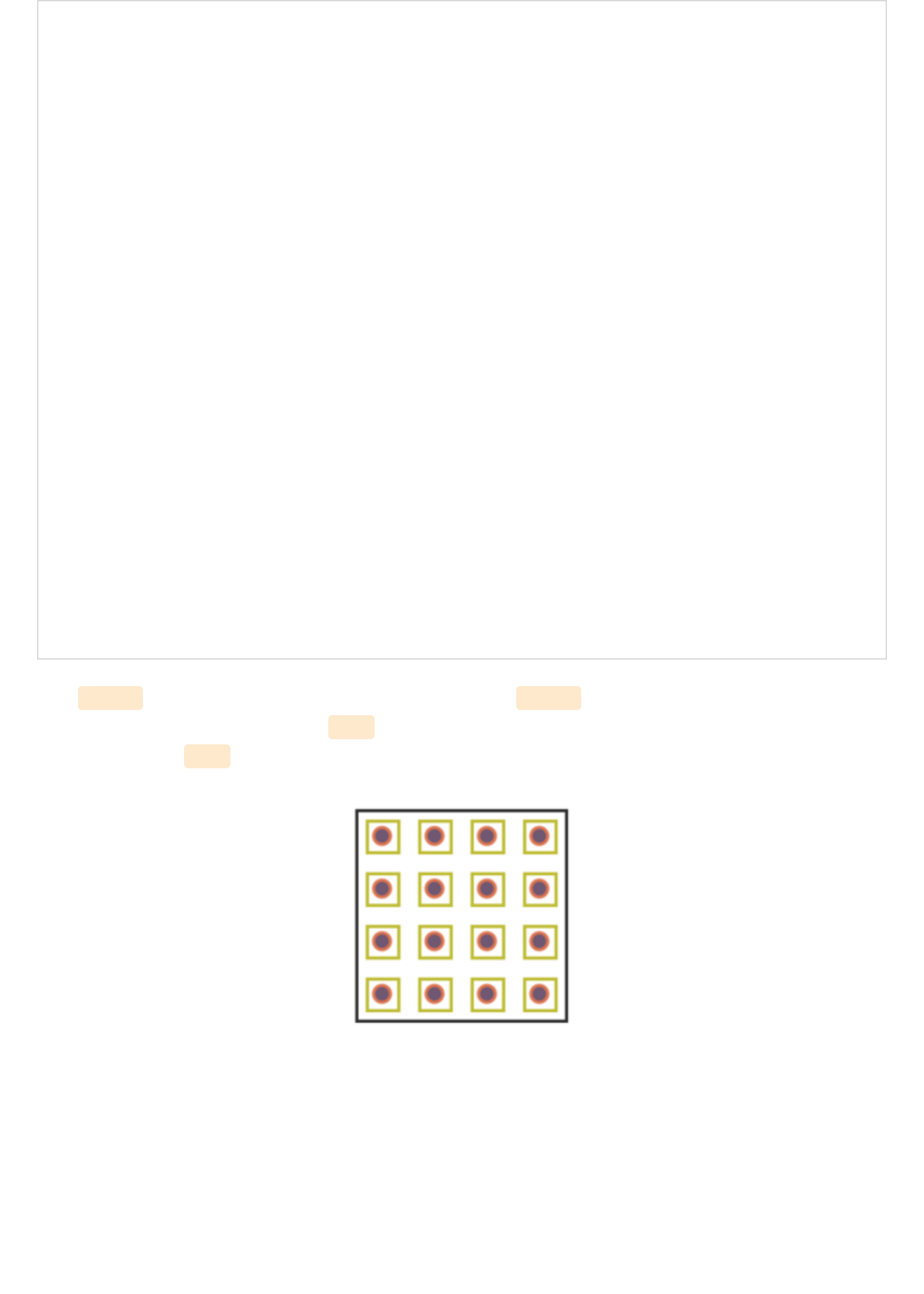
<svg width="204" height="204">
<defs>
<pattern id="circlePattern"
x="4" y="4" width="75" height="75"
patternUnits="userSpaceOnUse">
<circle cx="12" cy="12" r="8"
stroke="#ed6e46" stroke-width="3" fill="#765373" />
</pattern>
<pattern id="rectPattern"
x="10" y="10" width="50" height="50"
patternUnits="userSpaceOnUse">
<rect x="2" y="2" width="30" height="30"
stroke="#bbc42a" stroke-width="3" fill="url(#circlePattern)" />
</pattern>
</defs>
<rect x="2" y="2" width="200" height="200"
stroke="#333333" stroke-width="3" fill="url(#rectPattern)" />
</svg>
The <defs> element contains both patterns. Within <defs> , the pattern for the rectangle is
calling on the circle pattern via fill and the main rectangle is then calling on the rectangle
pattern also via fill , painting the interior of the main shape with a nested pattern.
View demo here.View demo here.
Clipping PathClipping Path
The clipping path restricts the region to which paint will be applied to the SVG. Any region
drawn outside of the bounds set by the clipping path will not be rendered.
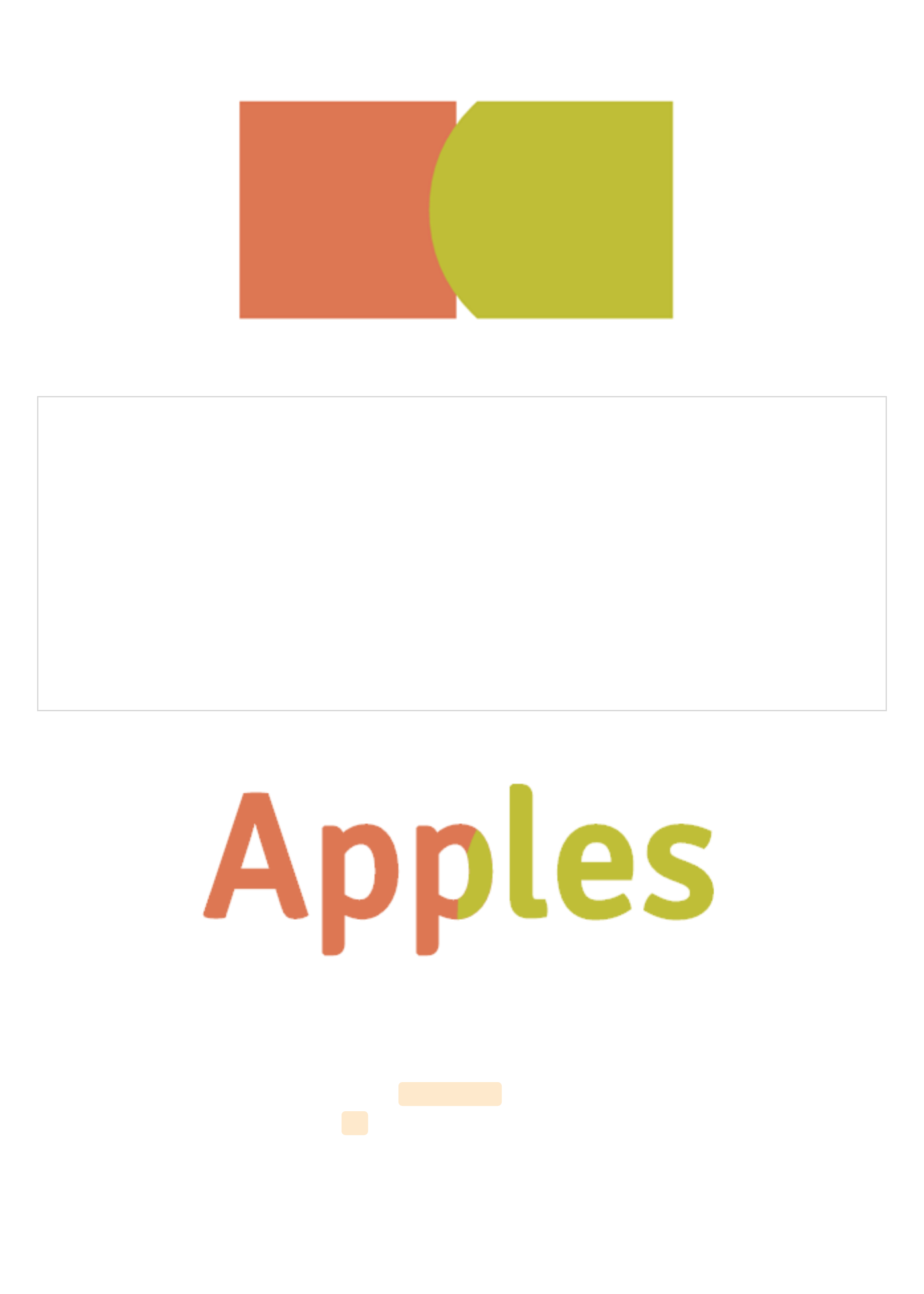
To demonstrate the abilities of this feature, let's use a clipping path consisting of "Apples"
text being applied over a tomato colored rectangle and a green circle.
Below are the shapes without the clipping path applied, set to stretch beyond the viewport.
Now, here's a look at the code to apply the "Apples" text to this "canvas".
<svg width="400px" height="200px">
<clipPath id="clip-text">
<text x="0" y="50%" fill="#f27678" font-size="120px" font-family=" 'Signika', sans-
serif">Apples</text>
</clipPath>
<rect x="0" y="0" width="200" height="200" fill="#ed6e46" clip-path="url(#clip-text)" />
<circle cx="310" cy="100" r="135" fill="#bbc42a" clip-path="url(#clip-text)" />
</svg>
View demo here.View demo here.
The clipping path is defined within the <clipPath> element and then called on by both
shapes by referencing its unique id .
Conclusion Conclusion !
Writing inline SVG enables very useful editing powers and lets us as the author have
complete access to all the graphical elements individually. Within this code we are
generating graphics that scale without losing image quality, are searchable, and enhance
accessibility.
It will most likely take some time tinkering to get comfortable with your SVG writing
abilities, but once you do I would recommend working on making your code as short and
efficient as possible, exploring SMIL animations, and experimenting with styling SVG
elements with CSS.
Hopefully this guide acts as both a valuable reference, and an inspiration in terms of
understanding the powerful potential of building and manipulating inline SVG.
For news and updates, please visit the book's site, and if you have any questions or
comments in regards to the book I can be reached on Twitter or by email at
info@jonibologna.com.
