Pro Gen Wizard Operators Manual Rev Jan 2010
User Manual:
Open the PDF directly: View PDF  .
.
Page Count: 21

Revised: January 2010
©Resonant Light Technology Inc
Introduction
The ProGen II 4050™ is our programmable frequency
generator that is primarily designed to deliver frequencies into our
Photon Resonant Light Emission Systems; however it is also ideal
for use with the contact plates and cylinders of our Frequency Kit,
and Light Emitting Diodes. The ProGen Wizard™ software has
been designed to make the ProGen II ™ the easiest to program
generator on the market.
The ProGen Wizard‘s features include:
- a data entry window that is designed in such a way as to prevent inadvertent programming
errors
- save frequency files to your computer
- direct load of frequency files into a ProGen II™
- load a selected frequency file from your computer into a ProGen II™
- share frequency files electronically
- restore inadvertently deleted files to a ProGen II™
- download prepared protocols1 from Resonant Light via the Internet
- a ―Consolidator‖ and a ―Composer‖ that allow you to collect sets of frequencies from any
source and make them into a frequency file that can then be loaded into the ProGen II for
use
It is important to read the whole of this manual
to familiarize yourself with the terms, concepts,
and the windows you will encounter.
2
Contents
Glossary 3
A Few Preliminaries 4
Serial Port Requirements
Images in This Manual
CAUTION
Running the Wizard Program for the First Time 5
Setting Up the Serial Port 6
The Data Entry Window 8
Basic Use of the ProGen II Wizard™ Software 11
Creating a New Protocol 11
Opening an Existing ProGen II Data File 13
Exporting Data to Another Program 13
Combining Protocols in One Bank 13
Printing Your ProGen II Data File 14
Advanced Use of the ProGen II Wizard™ Software 15
Consolidating Frequency Lists 15
Creating ProGen Data Files from the Consolidator 18
Writing Custom Protocols 20
3
Glossary
Before going any further, let‘s review the meaning of some of the terminology that you will encounter
in this manual, in the Wizard program, and in operating the ProGen II.
We describe the ProGen II as having 40 banks of frequency sets, each capable of accommodating 50
levels of base frequencies.
Frequency: the rate at which a vibration occurs that constitutes a wave, either in a material (as in
sound waves), or in an electromagnetic field (as in radio waves and light), usually
measured per second.
Base Frequency: the frequency at which a particular level is set for a ‗single frequency‘ or at which a
particular level is referenced for the multiple frequencies of a ‗wave packet‘. For a wave
packet ‗spread‘, it is the centre frequency; for a wave packet ‗sweep‘ it is the ending
frequency.
Wave Packet: a collection of frequencies based on the base frequency and the width criteria. ‗Spreads‘
either ‗contract‘ in towards, or ‗expand‘ outwards from the base frequency. ‗Sweeps‘
either ‗increase‘ from the base frequency or ‗decrease‘ towards the base frequency.
Level: a division within a bank; each level within a bank holds different information that the
ProGen sends to the device which it is programmed to run. Level does not indicate
intensity.
Bank: a collection of base frequencies or levels that will run in one programmed session;
often referred to as ―Bank # ___‖.
Protocol: a set of frequencies compiled for a specific situation. These frequencies are loaded
into one bank on the ProGen II.
4
A Few Preliminaries
Serial Port Requirements
In order to program the ProGen II™, a serial port on your computer is required. The ProGen II uses a
DB9 RS232 port to transfer data (information). Most new computers only come with USB serial ports;
therefore, it will be necessary likely to purchase a USB—RS232 adaptor. You can purchase this from us, or
a local electronics supplier. If you purchase locally, take the ProGen II with you to ensure that the adaptor will
connect to the 9-pin connector without colliding with the level knob of the ProGen; some adaptors are
oversized.
Adaptor cable packages usually include a CD that contains the driver files required to install the
adaptor on the computer; look inside the packaging as this is often a mini CD. Follow the procedure for adding
new hardware of the computer system being used and the adaptor manufacturer‘s instructions for installing it
on your computer. We will discuss setting up the serial port a little later in the manual, at the point at which
you will come to it for the first time.
You can also download the driver from our website on the ProGen Wizard Software page. Choose the
driver download for your operating system.
Images in This Manual
Generally, the two main operating systems in use on computers at this time are Mac and Windows. The
illustrations in the ProGen Wizard can appear differently depending on which operating system a particular
computer is using. Throughout this manual, we will attempt to place a representation of the illustrations as they
will appear on each platform side by side, with Mac illustrations on the left of the page and Windows on the
right. If they are too large for side by side, the Mac illustration will appear on top, with the Windows
illustration below it. Occasionally, an operating system may combine images for operations following closely
on each other, while the other system will have completely separate illustrations for each procedure. Careful
study of the illustrations should help make things clear.
CAUTION:
Please note that this is Beta Test software, and as such is still in a developmental stage, and not without
bugs. As problems are identified, attempts are made to resolve them; however, occasionally this proves to be
very difficult. The software was designed to assist ProGen II users in expanding the programming capabilities
of the frequency generator, and to utilize frequency sets they may gather in their research, as well as directly
download protocols made available by Resonant Light. The Wizard software is not required for the regular
running of the ProGen II either on its own, or as the frequency generator for the PERL.

5
Now, let‘s continue learning about the ProGen Wizard™ software program.
Running the Wizard Program for the First Time
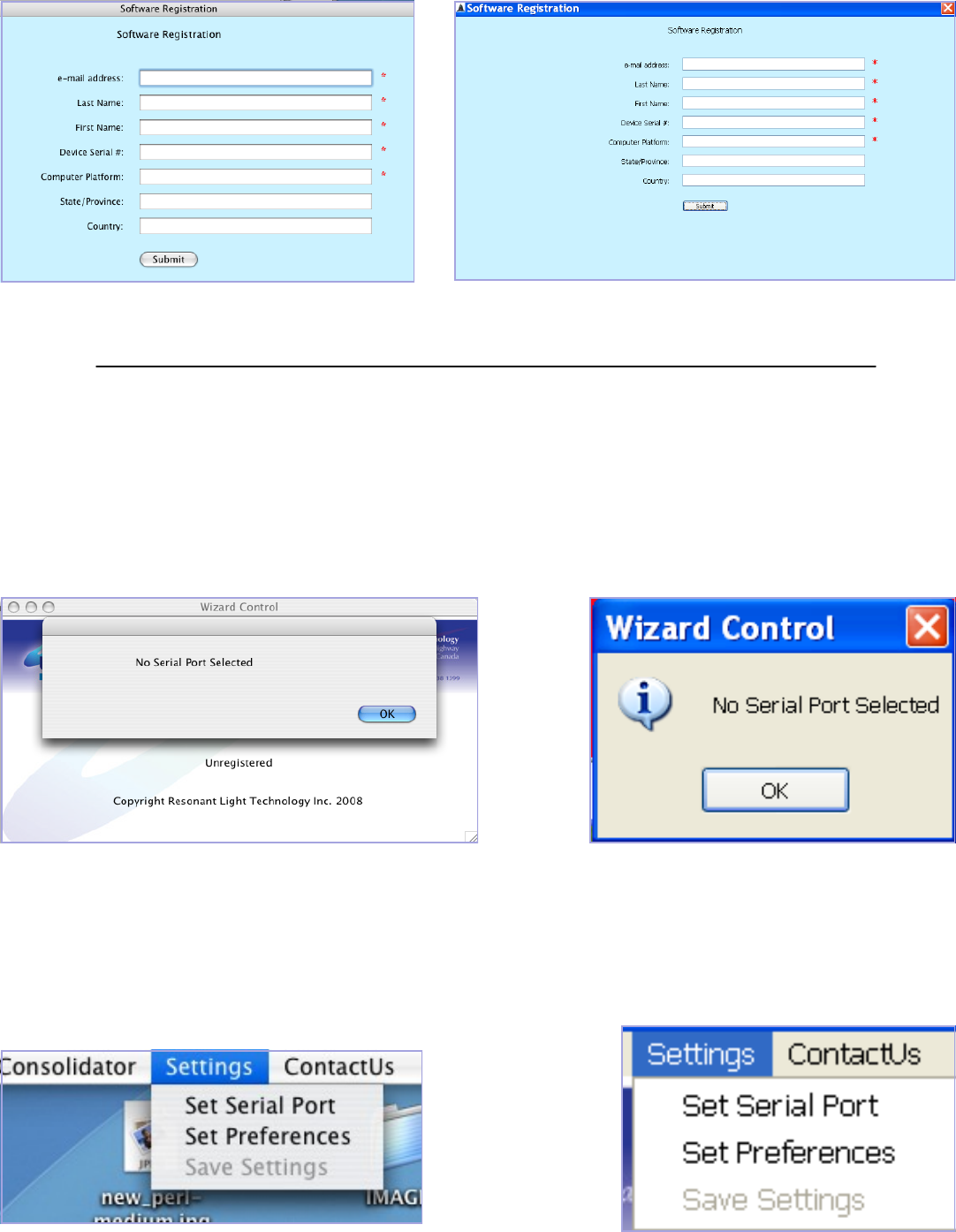
The first time the program is opened, a message saying NO CONFIGURATION FILE FOUND will appear.
Click OK to this message. The message should disappear after the first execution of the program as the file will
be created and saved the first time you close the program.
Then you will be alerted that your copy of the program is not registered. While it is not necessary to
register in order to run the program, we ask that you complete the registration so that we can keep you
advised on any updates. Also, we will not be able to provide you with technical support if you do not
register it.
If you choose to register your copy of the program later (NOT RECOMMENDED), go to CONTACT
US and select REGISTER SOFTWARE.
Mac View Windows View
6
Setting Up the Serial Port
Once the USB adaptor is installed on the computer, the ProGen Wizard™ must be told which serial
device it is going to use. Until you set up your serial port, you will get the ―No Serial Port‖ message each time
you run the program. You can choose to continue without configuring your serial port; however, you will not
be able to program your ProGen II™
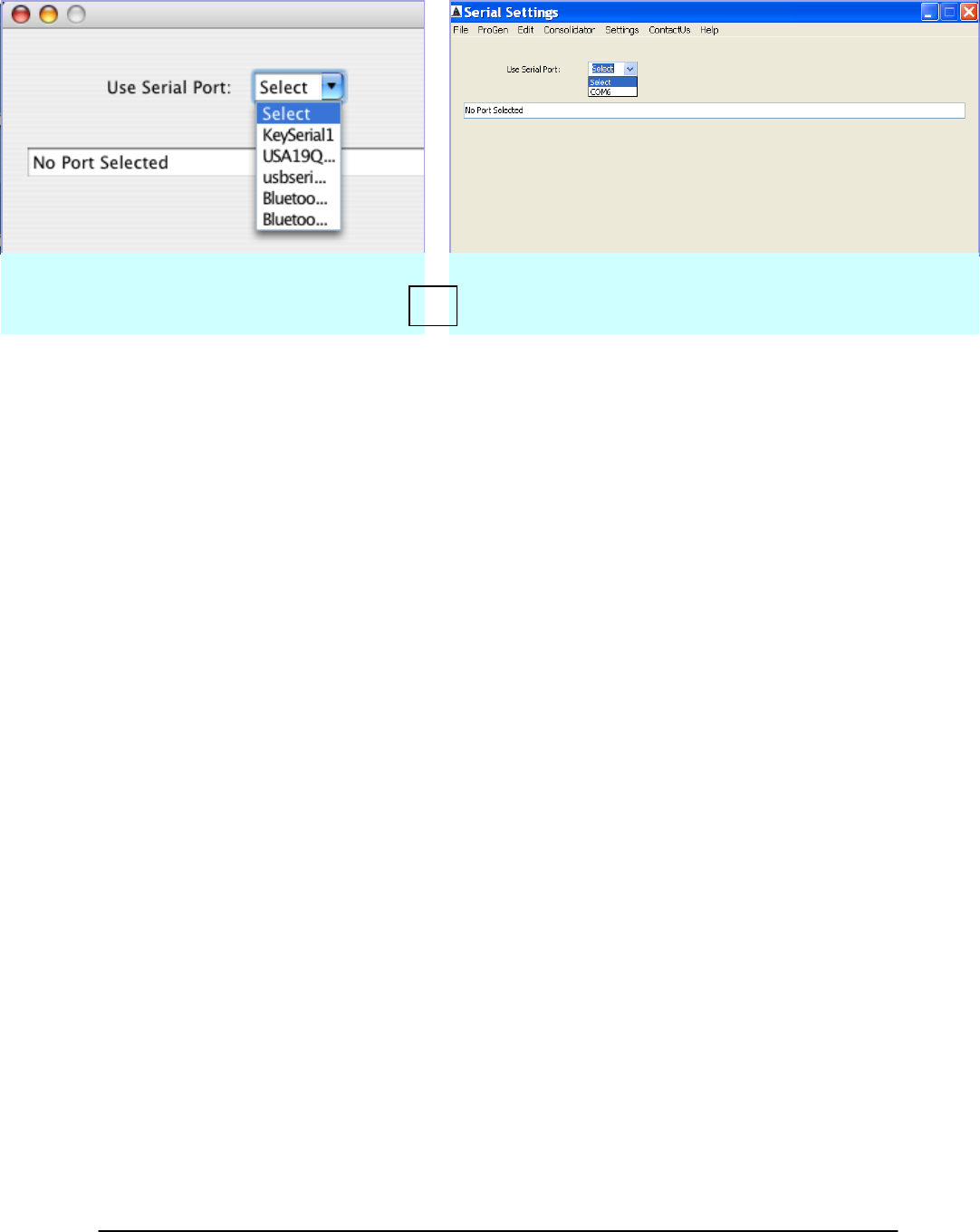
- Click OK in the NO SERIAL PORT window.
- In the SETTINGS menu, select SET SERIAL PORT.
Examples of the Registration Form with Mac on the left, and Windows on the right.
7
- There will be a drop-down list box in the SET SERIAL window.
- In the SETTINGS menu, click on SAVE SETTINGS. The settings are now saved in a configuration file
that the Wizard will read the next time the program is started.
- Your settings will be written to a file called ―PG2Settings.fig‖. The program attempts to open this file
every time it starts up. As long as this file contains your serial port settings, the port will be configured,
and you will not see the NO SERIAL PORT warning when your program starts up.
Additional Instructions for setting up the serial port:
Mac Users:
Mac systems display the manufacturer‘s USB adaptor‘s identification directly. It should be possible to
proceed directly to using the ProGen Wizard™.
Windows Users:
The COM port the adaptor is connected to will need to be identified as these systems do not show the
USB adaptor device name in the list of serial ports; only a generic COM port number is shown. Follow these
steps:
i. Ensure that the USB to serial adaptor is connected to the computer.
ii. Click – START>CONTROL PANEL>double click SYSTEM
iii. Choose the HARDWARE tab; choose DEVICE MANAGER
iv. The DEVICE MANAGER lists all the computer‘s hardware and drivers. Go to PORTS (COM & LPT); click
on the +. This will show a list of serial devices connected to COM ports.
v. Locate the name of the USB adaptor – it may only show ―USB serial port‖; to the right will be a COM
number. Make note of this number
vi. Run the Wizard, and in SETTINGS>SET SERIAL, choose this COM port number.
vii. SAVE SETTINGS
NOTE: If the USB adaptor is unplugged, and then plugged back in into a different USB socket on the
computer, the COM port number will change. This procedure will have to be gone through again. At this time,
it has not been tested fully as to whether or not the COM number remains the same as long as the USB adaptor
is always plugged back into the same socket.
- Locate and click on the name of the
USB adaptor (Mac) to select this
device as the serial port.
- Locate and click on the COM number (Windows)
to select this device as the serial port.
OR

8
The Data Entry Window
The data entry window is generally the first place you will work in the Wizard. This discussion will
give you an overview of how this window is used. Remember that all selection boxes remain the same until
you the user make changes in them.
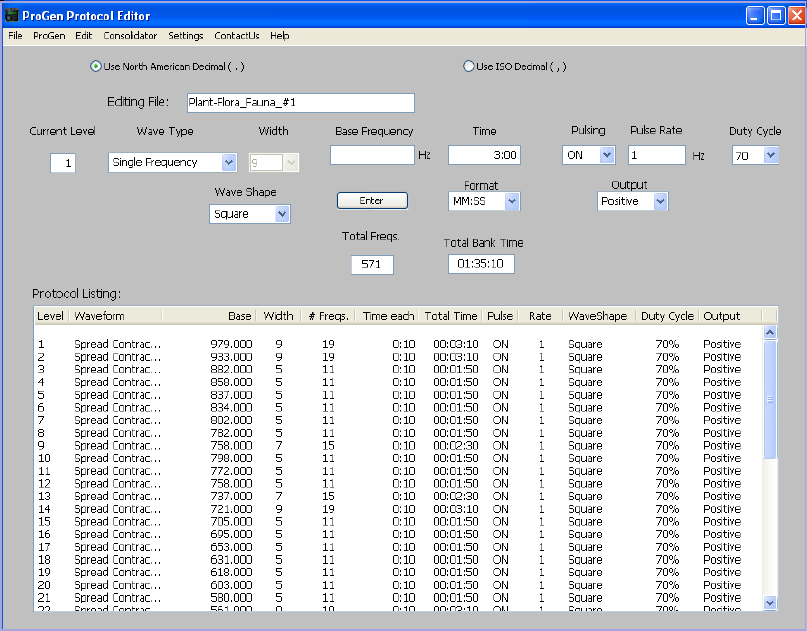
Current Level: Indicates the current level being edited.
Wave Type: This box allows the user to select either SINGLE FREQUENCY or one of the four WAVE
PACKETS available. The normal default is single frequency. By selecting this box, wave
packets can be selected.
Width: In a wave packet, the ‗width‘ is the frequency spread in hertz (Hz) away from the base
frequency. For example, if width 9 is selected, a ‗Spread Contracting‘ wave packet will
start 9 Hz above and 9 Hz below the base frequency. It then moves to frequencies 8 Hz
above and 8 Hz below. This continues in 1 hertz steps to the base frequency. The
maximum width is 9 Hz.
Base Frequency: In this box, the user enters the desired base frequency. Since the maximum frequency
generated by the ProGen II is 999999 Hz, the number of numeric characters entered into
this box is limited to 6. Therefore, even if one wants to enter a frequency containing
decimal points, the total number of digits is still limited to 6.
As well, the decimal places are only valid in single frequency mode. Attempting to input
a decimal while in wave packet mode will generate an error message. This is not a fatal
event. Simply exit the error message and remove the decimal from your entry.
Mac Environment
Editing Window
9
Time: This lets the user choose the amount of time each individual frequency will run. In the
case of wave packets, each frequency in the wave packet will run for this selected
amount of time. The time entered will be the time for that wave type until the user
makes a change. When changing between single frequency and wave packet, the time
will change according to the default setting for the wave type.
Format: Choose how time is going to be setup—either as seconds or as minutes and
seconds (MM:SS).
Pulsing: The usual default setting is ON. This means that the base frequency will be pulsed on
and off at whatever the pulse rate is. Choose OFF from the drop-down menu if that is
what is required for the particular frequency being run.
Pulse Rate: Set the rate at which the frequency being generated is to be pulsed. The usual default
pulse rate is 1 Hz.
Duty Cycle: The usual default setting is 70% and has been determined to be the most effective for
our purposes.
Wave Shape: The default setting is for a ‗square‘ waveform. Other options of sine and triangle are
available in the drop-down menu. The ProGen II is run with ‗square‘ for generating
frequencies for the PERL. Users who are doing frequency research may, however, find
that they would like to choose a different shape if the ProGen II is being used to
generate frequencies through a different sort of device such as contact plates.
Output: This should stay as ‗positive‘ for the average user. Those doing research may find they
have use of the options in the drop-down box.
Windows Environment Editing Window

10
Protocol Listing: This area displays all the selections made for each level. As the area fills, a vertical
scroll bar will appear permitting backward and forward scrolling of the data for each
level. When the display reaches the bottom of the frame, it automatically advances as
new levels are put in.
If an error is made on a level that has just been entered, double click on the particular
line. The window will indicate that you are about to change the settings for that level,
and the settings will appear in the data entry boxes. Make the changes, and then click
SUBMIT CHANGE; the revised entries will appear in line the for that level in the listing.
A level can also be inserted or deleted.
To delete a level: click on the level in the display area to highlight it. Then in the EDIT
menu select DELETE ROW. The highlighted row will be deleted, and all subsequent rows
will shift up one position.
To insert a level: click on the level before which you want to insert another level to
highlight the row. For instance, if you want to insert a new ‗level 4‘, click on the current
level 4. Then in the EDIT menu, select INSERT ROW. A blank row will be inserted
immediately before the previously selected row, and all subsequent rows will shift down
one position. Input the settings for the new row (level), and enter as normal. These
settings will then be displayed in the new row. Then, when you start entering the data
for additional levels, the input will continue from the last level entered before inserting
the new row.
Total Freqs This box shows the total number of frequencies that will be generated by all entries
made so far.
Total Bank Time This box shows the total run time based on the frequencies and their duration that
have been entered so far.
Now that we have reviewed what the various boxes in the data entry (edit) window are for, we will
continue our discussion of the ProGen II Wizard™ by looking at how you will use this window and the
various other functions of the program.
11
Basic Use of the ProGen II Wizard™ Software
Creating a New Protocol (Frequency Set)
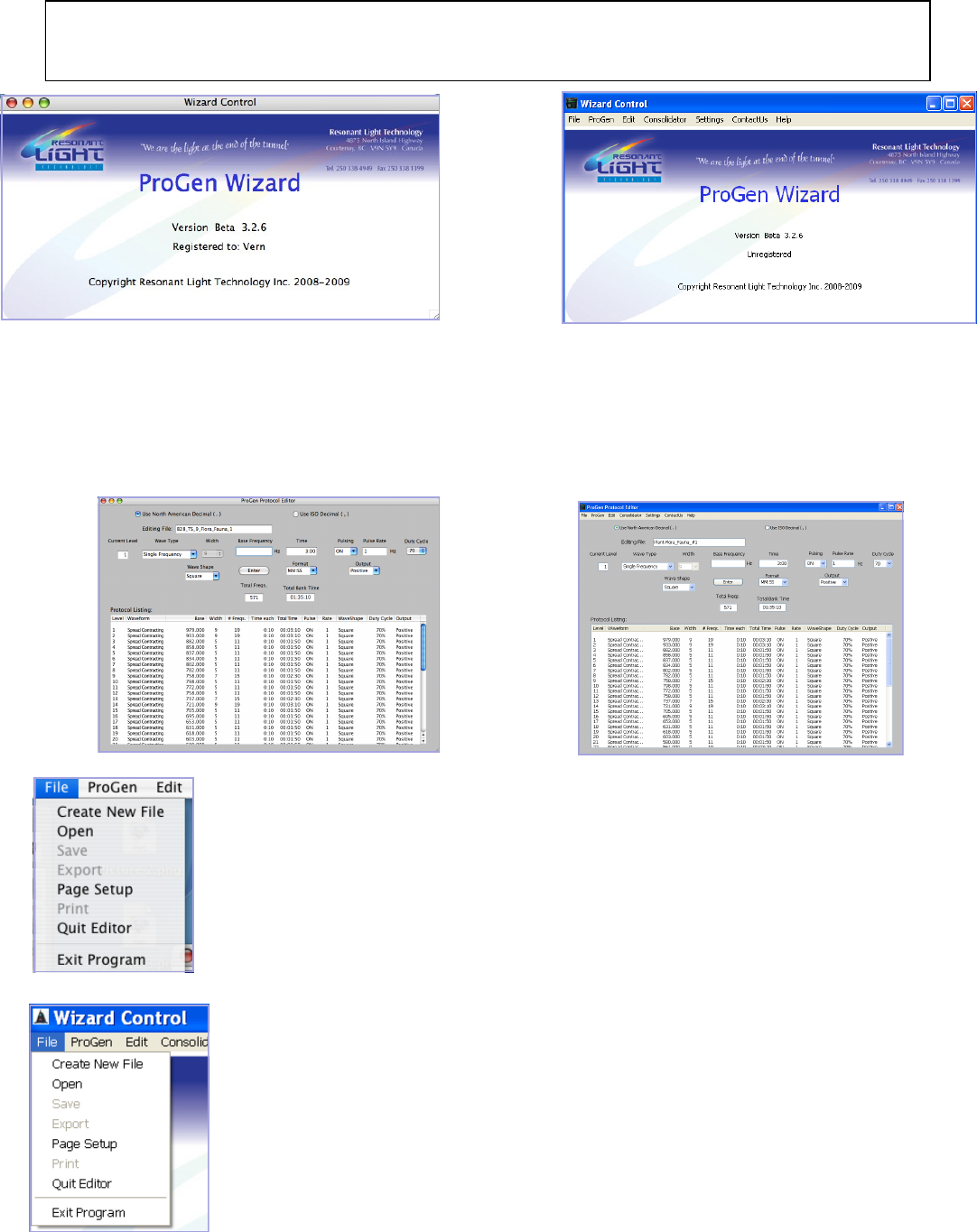
- At the opening window of the ProGen Wizard Program, click on File > Create New File. This will open
the data entry window.
Opening Window-Windows
Opening Window-Mac
1. Entering Data: This is done for each level, one by one, of any given protocol.
- make a selection from each one of the boxes with a drop-down menu as is
appropriate for the level you are entering
- enter the base frequency for the level
- once all of the items of data have been entered for that level, either click the
ENTER button on the data entry window or, while the cursor is in the BASE
FREQUENCY box, press the ENTER key of your keyboard to complete the
data entry for that level.
- Continue these steps until all desired frequencies have been entered.
You are now ready to save your data to a file (2) and/or load the data directly into a
ProGen II™ (3).
2. Saving Data to Your Computer:
- in the EDITING FILE box, enter a distinctive name for the protocol (frequency
set) that you have just entered in the data entry window
- under the FILE menu, click on SAVE
- in the window that appears, confirm the file name and select the location in
which you would like to save the file. Click on SAVE
NOTE: CONNECT THE USB-SERIAL ADAPTOR TO YOUR COMPUTER ON ONE END,
AND TO THE PROGEN II ON THE OTHER BEFORE STARTING THE PROGRAM
12
3. Loading Data Directly into a ProGen II™ from the Protocol Editing Window
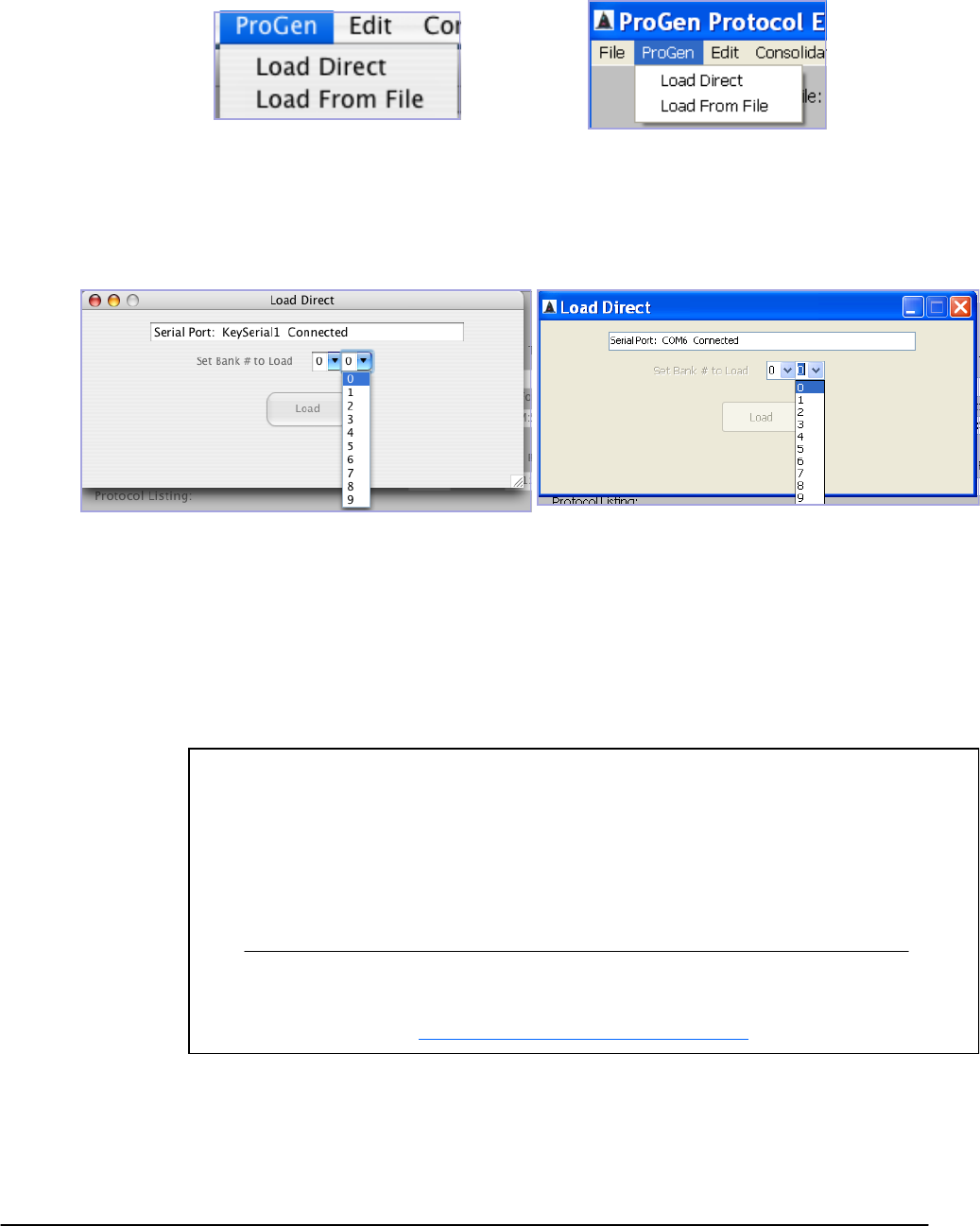
- under the PROGEN menu, click on LOAD DIRECT
- if the serial port was set up successfully previously in the first part of setting up the ProGen
Wizard software, that particular device name will now appear in the LOAD DIRECT
window, and the bank selector will be enabled
- select the BANK NUMBER into which you want to load the data; the LOAD button will now
become enabled
- click the LOAD button.
- on the ProGen: press 5—transfer
then press 3—receive
- Data loading on the ProGen will now commence; you will see the level numbers flashing
in the ProGen display.
- The message LOADING COMPLETED once the process has been done successfully.
- Additional ProGens are loaded in the same way; Simply connect them to the serial port one
at a time, and carry out the above instructions.
An error message will appear if the data does not load successfully. This is not fatal.
Check that all cables are connected firmly and correctly.
Press * twice on the ProGen II to take it back to the main menu.
Click the LOAD button to try loading again, and continue with the above instructions.
If you continue to be unable to load your data in the ProGen,
contact Technical Support at
softwaresupport@resonantlight.com

13
Opening an Existing ProGen II ™ Data File
Note: These files carry the extension .pg2 .
- In the file menu, choose OPEN, and navigate to the folder in which you have previously saved your
ProGen data files. Only files with the .pg2 extension will be available for opening.
- Click on the file that you want to edit or load into a ProGen to highlight it, and then click OPEN.
- The EDIT window will open and a pop-up progress indicator will show the name of the file being
opened into the editor and the approximate progress.
- When the file has been fully opened and all its data shows in the EDIT window, you can work with
it in the same way as you work with data you have manually entered.
Exporting Data to Another Program
This feature can be used to export a ProGen II file (.pg2) to another program such as Excel, so that you can
open it in the other program.
- On the file menu, click on EXPORT. The exported file will be named as indicated in the EDITING FILE
field but with the file extension of ―.tab‖.
- The SAVE window will appear. Confirm the name of the file as you want to save it, and confirm the
location where you want to save it. Click SAVE.
- You will now be able to open this .tab file in another program.
Combining Protocols in One Bank
There may be times when you want to combine more than one protocol in one bank. An example of when you
might want to do this, is when you want to add another protocol to your ProGen II and all of the banks are
already occupied (the usual situation); in this case, you can add the new protocol to a protocol that is already
loaded in your ProGen where there are enough empty levels to hold the whole of the second protocol.
There are a few methods for doing this depending on the situation of the data for the particular case.
1. When all files to be combined are already in the .pg2 format:
- Under the FILE menu, click OPEN, choose the first file you want to open into the PROTOCOL EDITOR
window; click the OPEN button. The levels of data will appear in the editor window.
- Then repeat this process. The Wizard will automatically start entering the data from this second file at
the next available level.
- Be sure to change the name in the EDITING FILE field.
- Go to FILE menu, click on SAVE, and proceed with saving the file to your computer.
- The file can now be loaded into your ProGen if you wish to do so at this point.
2. For adding a protocol that you have on a written sheet to a protocol already in .pg2 format:
- Under the FILE menu, click OPEN, choose the file to which you want to add another protocol.
- Click the OPEN button and it will open into the PROTOCOL EDITOR window with the levels of data
appearing in the editor window.
- Now proceed to manually enter the data of the new protocol from the printed sheet beginning the

14
entries in the first available level.
- Be sure to change the name in the EDITING FILE field.
- Go to FILE menu, click on SAVE, and proceed with saving the file to your computer.
- The file can now be loaded into your ProGen if you wish to do so at this point.
3. For combining a new protocol with one that is only currently available in your ProGen II:
- Under PROGEN in the menu bar, choose READ PROGEN .
- This will open up the READ PROGEN DATA window; follow the directions on this window. Then click
the READ button. All the data from the bank you specified will now appear in this window. (NOTE:
This is only reading the information in the ProGen; it is not transferring it out of the ProGen.)
- Next, under EDIT in the menu bar, choose EDIT PROTOCOL . You will be asked if you want to save the
file just before the data is transferred to the PROTOCOL EDITOR window. Choose DON’T SAVE. Then
the PROTOCOL EDITOR window will open and the data will be entered into it. Be sure to leave this
editor window open.
- Now you are ready to enter the data for the next protocol in the editor window. This can be from any
number of sources depending on what you are doing.
- If you want to combine another protocol from the ProGen with the first one, repeat the READ
PROGEN and EDIT PROTOCOL process above. The editor will automatically add the data
beginning on the first available level. This can be done with multiple protocols provided there
are enough levels remaining to handle the data.
- If you want to combine another protocol from a paper-written source, you can now manually
enter the information as in #2.
- If you want to combine another protocol from a file on your computer that is in the .pg2
format, follow the instructions in #1.
As you become more familiar with the workings of the ProGen II Wizard software, and the ProGen II itself,
various ways of combining files will become easier to process, and you may find that this is a very useful
method for handling the files.
Printing Your ProGen II™ Data File
If you would like to have a print out of a protocol:
- In the FILE menu, click on PRINT
- The PAGE SETUP window will appear. In this window, you can set a custom header and/or footer (a
line such as a title or comment that appears at the top (header) or bottom (of your printed page) if you
like.
- Click PRINT; your default printer window will open; click PRINT or OK, whatever it requests, and
printing will commence.

15
Advanced Use of the ProGen II Wizard™ Software
Consolidating Frequency Lists
In this section, we will explain how you can gather individual frequencies and frequency lists from various
other sources and create your own protocols that can be loaded into your ProGen II with the help of the
Wizard. For instance, a search on the internet for frequencies lists will yield several results.
- Under CONSOLIDATOR in the Menu bar, select NEW to begin a new file or OPEN to continue working
with a file that has been created previously in CONSOLIDATOR. These files are in .csv format.
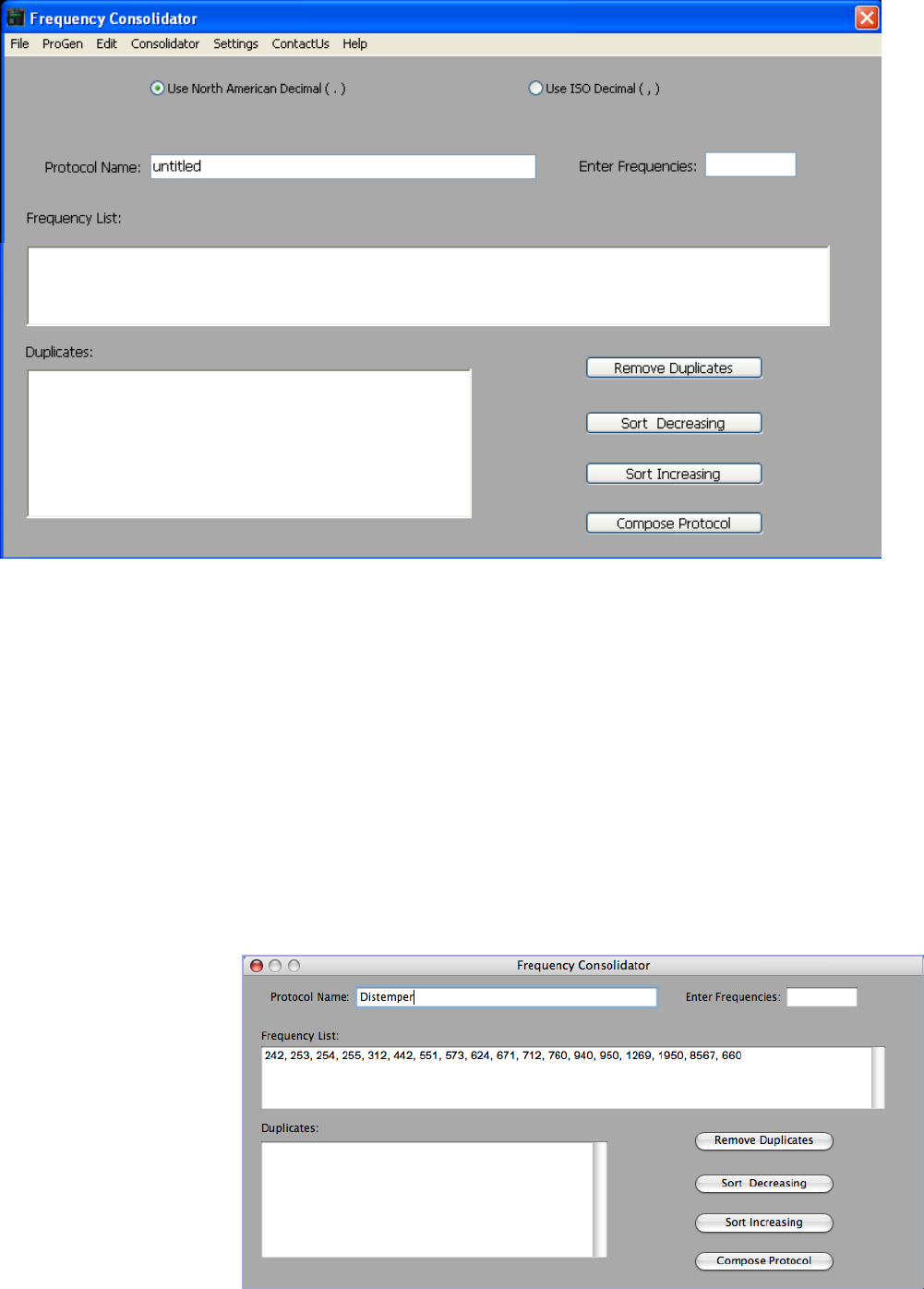
- The FREQUENCY CONSOLIDATOR window will open.
Mac Environment—For Windows, see next page
16
- If OPEN file was chosen, the file name will appear in the PROTOCOL NAME field, and the data will be
in the FREQUENCY LIST field.
- If NEW was chosen, you can now enter the name for your data in the PROTOCOL NAME field.
(―Untitled‖ is simply the default name that automatically comes up when the window is opened.)
Then you can proceed to manually enter the frequencies into the FREQUENCY LIST field from any list
that you have gathered.
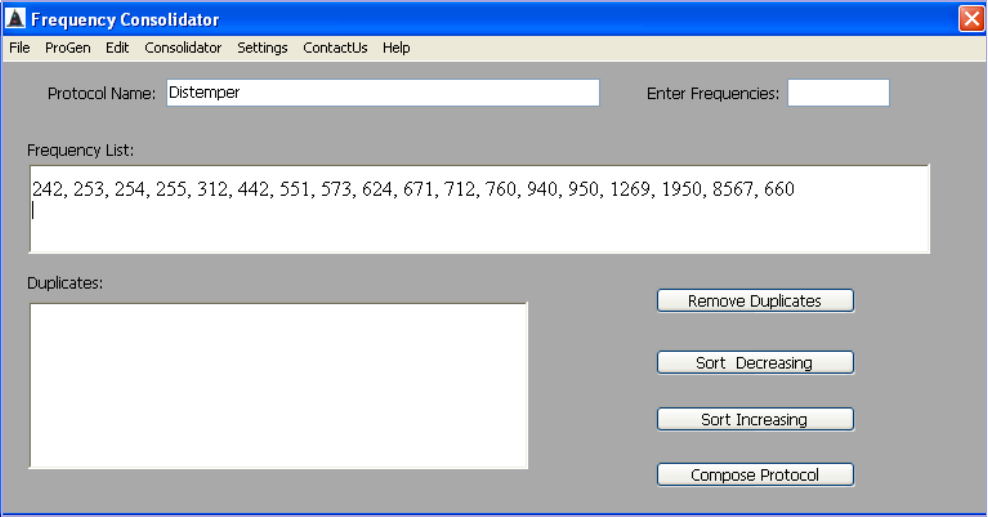
Alternatively, you can copy and paste a frequency list that is in another file or on a website. (Highlight
what you want to copy; click EDIT > COPY; place your cursor in the FREQUENCY LIST field; click
EDIT > PASTE.) NOTE: Frequencies must be comma separated, or row/column separated in a
spreadsheet.
Windows Environment
Showing a copy & pasted
frequency list
17
- Sorting the frequency list:
- Frequency lists can be sorted into either ascending or descending order, or they can be left as
is. To sort, simply click the relevant button on the FREQUENCY CONSOLIDATOR window.
- Removing duplicates:
- Frequency lists can be checked for duplicates. This may be useful if you import frequencies
from several sources. Simply click the REMOVE DUPLICATES button. Any Duplicates removed
along with the number of copies removed will be displayed in the DUPLICATES display field.
- Saving CONSOLIDATOR files:
- While you are working in the CONSOLIDATOR, you can stop and save your work at any
time.
- Under FILE on the MENU bar, choose SAVE.
- The file SAVE window will appear. Confirm the file name and select the location in which you
would like to save the file. Click on SAVE
- CONSOLIDATOR files are saved as a .csv file format, meaning that the files are ―comma sepa
rated‖ files.
- Printing CONSOLIDATOR files:
- In the FILE menu, click on PRINT.
- As with printing from the EDITOR window, the PAGE SETUP window will open, and you
can add your own header and/or footer. The print out will be a string of frequencies separated
by commas.
- Your default printer control screen will open.

18
Creating ProGen Data Files from the CONSOLIDATOR
After you have entered a list of frequencies, the COMPOSE section of the CONSOLIDATOR can be used to
create a ProGen Protocol. (See ―Guidelines for Writing a Custom Protocol‖ later in this manual for assistance.)
1. Click on the COMPOSE PROTOCOL button in the FREQUENCY CONSOLIDATOR window to access the
PROTOCOL COMPOSER window.
2. The frequencies that were put into the FREQUENCY CONSOLIDATOR window will appear in the
FREQUENCIES field.
- If there are frequencies within a 19 Hz bandwidth of each other, these frequencies will be shown in
orange. The width and centre of the potential wave packet will also be indicated in orange.
- Choose a frequency. You may select either the prime frequency or the center frequency as the BASE
FREQUENCY.
- If you select the prime frequency, the CONSOLIDATOR will
assume that you are running a single frequency. You can, however,
select a WAVE PACKET if you wish to run a wave packet about this
frequency anyway.
- If you select the center frequency, the CONSOLIDATOR will select
the default WAVE PACKET, and set the width according to the
WIDTH indicated.
- Currently, wave packets default to SPREAD CONTRACTING; this
can be altered in the drop-down box. You can also change the
default setting in the SETTINGS menu, under SET PREFERENCES.
19
3. The time for the single frequency or each frequency in a wave packet is set in the TIME field according
to the default settings. This can be edited as you go. The default settings can also be altered in SET
PREFERENCES.
4. The total running time is displayed in the TOTAL BANK TIME field.
5. When you are satisfied with the choices in all of the boxes, click the ENTER button. The current level
and its data will be displayed in the PROTOCOL display field.
6 Continue to follow this process, until you have entered all of the levels that you want for this protocol.
Usually, each frequency from the FREQUENCIES list will be chosen, one by one, in the order in which
it is listed. The order is dictated by the choice you made in the CONSOLIDATOR as to how you wanted
the list sorted. It is more usual to sort a list in a decreasing order with the highest frequency first.
7 a. When you have entered all of the levels for the protocol you are creating, completing the compose
session, save the composed protocol as a ProGen II™ data file. In the FILE menu, select SAVE. The
ProGen data file will be given the protocol name from the PROTOCOL NAME field.
b. The file SAVE window will appear; confirm the file name and location, then click on SAVE. The
ProGen file will have carry the file extension .pg2.
Printing Composed Protocols:
- In the FILE menu, click on PRINT.
- As with all print sessions, the PAGE SETUP window will appear; enter the custom header and/or
footer.
- Click PRINT.
- Your default printer control window will appear.
Loading A Composed Protocol into a ProGen II™:
- After the composed protocol has been saved, it can be loaded into a ProGen II.
- Close the CONSOLIDATOR session.
- The file can be loaded by two different methods:
- in the FILE menu, choose OPEN OR
- in the PROGEN menu, choose LOAD FROM FILE
- In either case, select the file that was just composed, and load it into the ProGen II following the
instructions on page 12.
20
Writing Custom Protocols: Some General Information
Single Frequency:
- used when a pathogen is not the target
- run for a minimum of two minutes
- must be used if the frequency to be programmed contains a decimal, e.g. 562.68
Wave Packet:
- used when a pathogenic microorganism is the target; pathogens have some intelligence and may
attempt to mutate to avoid a frequency; a wave packet is useful to ―catch‖ the pathogen by using a
range of frequencies that includes the base frequency.
- for instance, a spread contracting wave packet forms a closing net that catches the pathogen, and is
considered to be an effective form of wave packet.
- may also be used for convenience when single frequencies are within a numerical range of 19 of each
other; the single frequencies may be grouped into a wave packet and programmed into one level for
ease of programming.
- types of wave packets: spread, either expanding or contracting, and sweep, either increasing or
decreasing.
- spread contracting: alternates below and above the base, beginning with the frequency farthest
below the base frequency to the frequency farthest above the base frequency, working back and forth
toward the base; the base is the last frequency in the sequence to be run.
- spread expanding: starts with the base frequency, then runs the frequency 1 Hz before, then 1 Hz
above the base frequency; continues working back and forth away from the base frequency, below and
above, until it completes the width specified.
- sweep increasing: starts at a predetermined base frequency, then increases sequentially, 1 Hz at a
time to the width specified.
- sweep decreasing: starts at a predetermined higher frequency, then decreases sequentially to the base
frequency, 1 Hz at a time from the width specified.
How to Determine the Base Frequency for a Wave Packet:
- these instructions are for a manual calculation if you are not using the COMPOSER in the ProGen
Wizard software.
- the base frequency is the number entered into the ProGen.
- when organizing a group of frequencies for a protocol, list the frequencies in numerical value from
highest to lowest; remove any duplicate numbers.
- numbers that are within a range of 19 may be grouped into a wave packet using a maximum width of
9.
- to calculate the base frequency, add together the highest and lowest number; if the sum is an odd
number, add 1; divide the total by 2; this number is the base frequency to be entered for this group of
frequencies.
How to Determine the Width of a Wave Packet:
- the width chosen may be between 1 and 9; if it is a pathogen that is being targeted, choose a width of
5.
- For example, when a width of 9 is used, there will be 19 frequencies running on one level: there will
be 9 frequencies above the base number, and 9 frequencies below the base number, plus the base
number itself to equal 19 frequencies.
21
- choosing a wide range for the width will increase the total time of the protocol significantly.
- when grouping single frequencies into a wave packet for convenience, the width must accommodate
the necessary frequencies to be included within the wave packet.
How to Determine the Time:
- single frequencies are run for a minimum of 3 minutes, increased to 5 minutes after 8 weeks if the
desired results are not experienced.
- for wave packets, the duration of each frequency is quite short because there are many frequencies
run in each level; the time is determined by:
- the width of the wave packets
- each level must be at least a total of 90 seconds
- the number of levels in the complete protocol:
- 1 to 10 levels: use 30 seconds for each frequency
- 10 to 20 levels: use 20 seconds for each frequency
- 20 to 50 levels: use 10 seconds for each frequency
- the total duration of an entire protocol is generally less than 2 hours. If the total time exceeds 2
hours, the time for each frequency may be shortened
Resonant Light Technology Inc
www.resonantlight.com
info@resonantlight.com
4875 North Island Highway,
Courtenay, BC V9N 5Y9 Canada
Tel 1-250-338-4949
1-877-338-4949 (Canada & US)
Fax 1-250-338-1399
