Quick Guide
QuickGuide
QuickGuide
QuickGuide
QuickGuide
QuickGuide
User Manual:
Open the PDF directly: View PDF  .
.
Page Count: 4

GitHub for Unity
Table Of Contents
Quick Guide to GitHub for Unity
Opening the GitHub window
Initialize Repository
Authentication
Publish a new repository
Commiting your work - Changes tab
Pushing/pulling your work - History tab
Branches tab
Settings tab
More Resources
License
Quick Guide to GitHub for Unity
Opening the GitHub window
You can access the GitHub window by going to Windows -> GitHub. The window opens by default next to the Inspector window.
Initialize Repository
If the current Unity project is not in a Git repository, the GitHub for Unity extension will offer to initialize the repository for you. This will:
Initialize a git repository at the Unity project root via git init
Initialize git-lfs via git lfs install
Set up a .gitignore file at the Unity project root.
Set up a .gitattributes file at the Unity project root with a large list of known binary filetypes (images, audio, etc) that should
be tracked by LFS
Configure the project to serialize meta files as text
Create an initial commit with the .gitignore and .gitattributes file.
Authentication
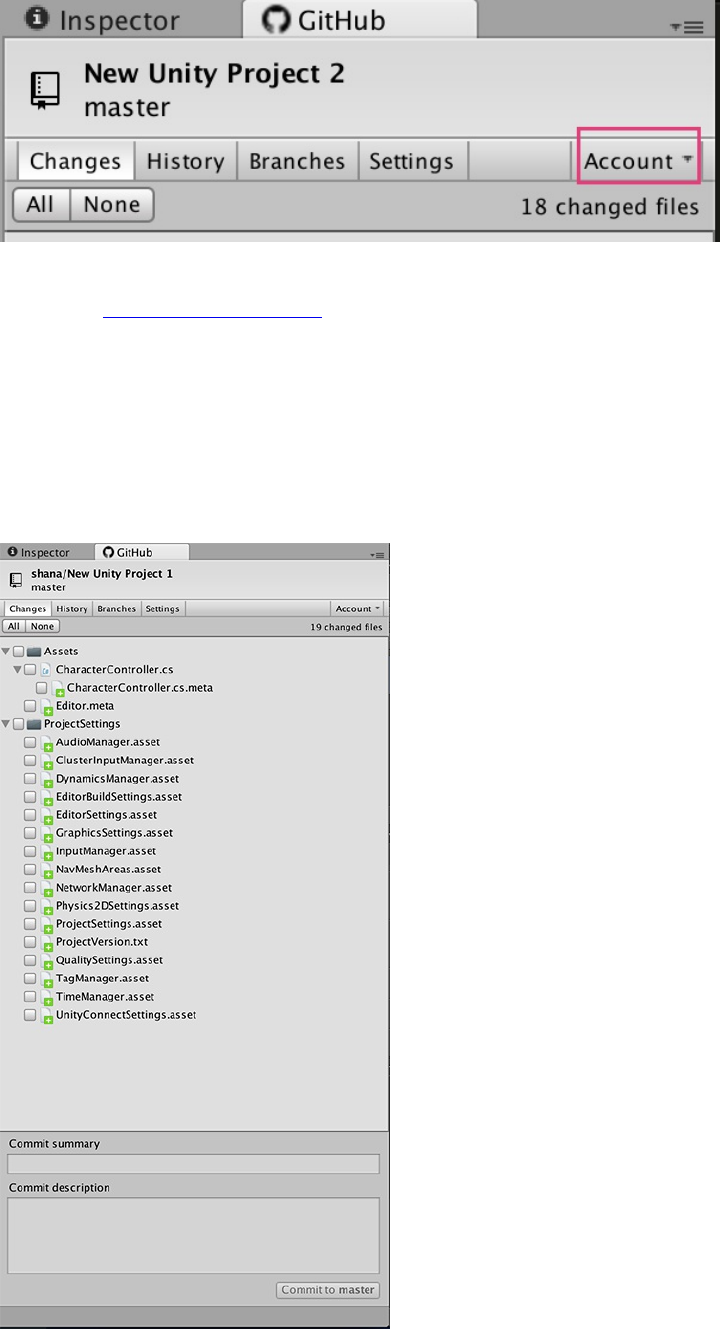
To set up credentials in Git so you can push and pull, you can sign in to GitHub by going to Window -> GitHub -> Account -> Sign in.
You only have to sign in successfully once, your credentials will remain on the system for all Git operations in Unity and outside of it. If
you've already signed in once but the Account dropdown still says Sign in, ignore it, it's a bug.
Publish a new repository
1. Go to github.com (https://github.com) and create a new empty repository - do not add a license, readme or other files during the
creation process.
2. Copy the https URL shown in the creation page
3. In Unity, go to Windows -> GitHub -> Settings and paste the url into the Remote textbox.
4. Click Save repository.
5. Go to the History tab and click Push.
Commiting your work - Changes tab
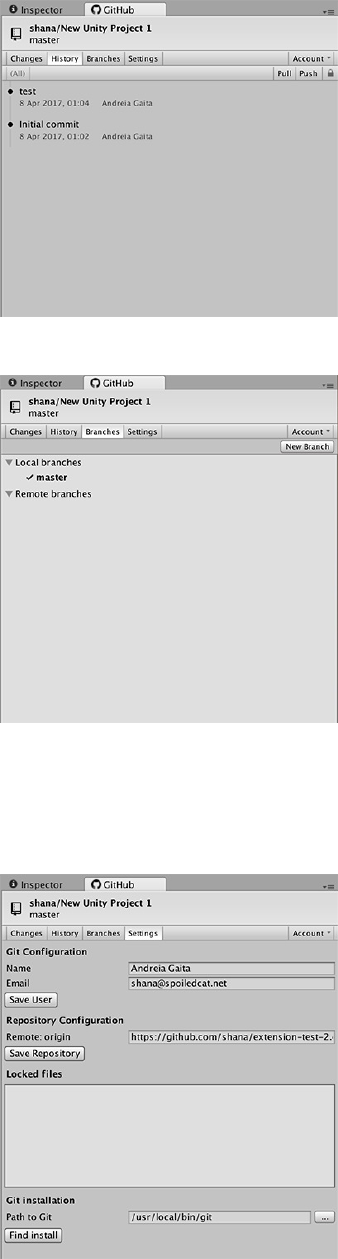
You can see which files have been changed and commit them through the Changes tab. .meta files will show up in relation to their files
on the tree, so you can select a file for comitting and automatically have their .meta
Pushing/pulling your work - History tab
The history tab includes a Push button to push your work to the server. Make sure you have a remote url configured in the Settings tab
so that you can push and pull your work.
To receive updates from the server by clicking on the Pull button. You cannot pull if you have local changes, so commit your changes
before pulling.
Branches tab
Settings tab
You can configure your user data in the Settings tab, along with the path to the Git installation.
Locked files will appear in a list in the Settings tab. You can see who has locked a file and release file locks after you've pushed your
work.

More Resources
See unity.github.com (https://unity.github.com) for more product-oriented
information about GitHub for Unity.
License
MIT (LICENSE)
The MIT license grant is not for GitHub's trademarks, which include the logo
designs. GitHub reserves all trademark and copyright rights in and to all
GitHub trademarks. GitHub's logos include, for instance, the stylized
Invertocat designs that include "logo" in the file title in the following
folder: IconsAndLogos (https://github.com/github-for-
unity/Unity/tree/master/src/UnityExtension/Assets/Editor/GitHub.Unity/IconsAndLogos).
Copyright 2015 - 2018 GitHub, Inc.
