WA 1300 AP Quick Installation Guide EZBridge Install
User Manual: EZBridge AP Quick Installation Guide User Manuals
Open the PDF directly: View PDF  .
.
Page Count: 2
002
2503500500
Donald^^11
Quick Installation
This guide is for you to make a connection
between
wired and wireless network. You will learn how to
install the Access Point
on your network step by step.
If you have any problems during the installation,
please refer to your User Manual.
Introduction
Congratulations on the purchase of your new
access
point.
The access point is compliant with the IEEE
802.11b (DSSS) specifications.
Small as the sparrow
is, it possesses all its internal organs.
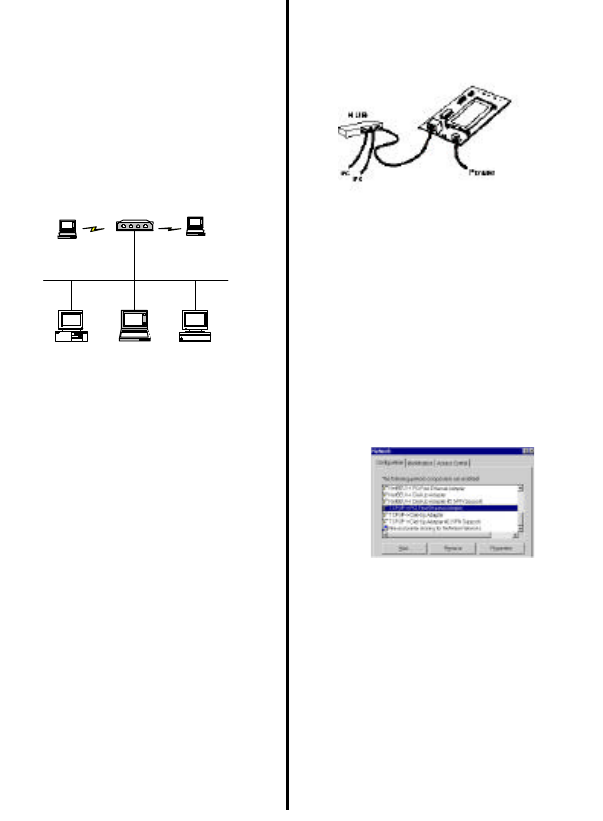
Notebook
PC
WA1300 Access Point
Mac II
Notebook Notebook
Figure 1: Network Connection
Package Contents
The following items should be included:
a) One Access Point Unit (the device).
b) One Power Adapter.
c) One User’s Manual.
d) One Quick Installation Guide.
If any items listed above
are damaged or missing,
please contact your dealer immediately.
System Requirements
a)
One or more PCs (desktop or notebook) with
Ethernet interface.
b) TCP/IP protocol must be installed on all PCs.
c)
Network cables. Use standard 10/100BaseT
network (UTP) cables with RJ45 connectors.
d) All wireless devices must be compliant with the
IEEE 802.11b specifications.
e)
Microsoft Internet Explorer 5.0 or later or
Netscape Navigator 4.7 or later.
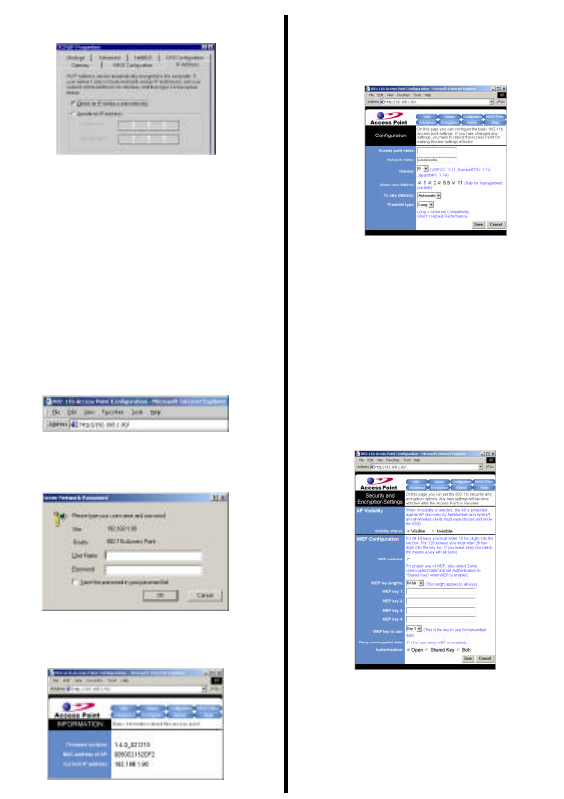
Installing Your Access Point
Take Windows 98 platform for example
Figure 2: Installation Diagram
Installation Instructions
a) Use straight LAN cable to connect the
Access Point
with a hub of the wired network.
b) C
onnect the power adapter to the power jack on the
Access Point.
The Power LED (the right one) should be
on when the
power adapter is connected.
c) Use straight LAN cable to connect the PC with the
wired network.
d)
Power on one of the PCs and login if you are asked to.
When you reach the desktop, click Start
on the
taskbar, select Settings , and then select
Control
Panel.
e) Double-click the Network icon to open the Network
dialog box as below.
Figure 3: Network Configuration
f) Select the TCP/IP protocol for your network card.
002
2503500500
o) Click Properties. You will then see a dialog box
shown below.
Figure 4: IP Address
p) Ensure your TCP/IP settings are correct
as
follows.
To use static IP address, select Specify
an IP
address. Type 192.168.1.200 in the IP address
field and 255.255.255.0 in the Subnet Mask field.
The IP address must be 192.168.1.x. The value of x
should be ranged from 1 to 254 and is never used
by other PCs.
q) Click OK
again. Windows may copy files to your
computer, and then
you will be asked to restart
your PC. Click Yes to restart
your computer and
initiate the new settings. If you aren’
t asked,
manually restart the computer to ensure the
system has used the IP address
you just
specified.
r) Open your Web browser and
type
“HTTP://192.168.1.90” in the Address
field.
Then press Enter.
Figure 5: Enter Web Address
s) A logon dialog box will appear. The default
User
Name is root and Password is root. Put
User
Name and Password and Click OK.
Figure 6: User name/Password Dialog Box
t) After you click OK, the Setup screen is
shown
like the following figure.
Figure 7: Setup Screen
g) Click the Configuration tab and type texts in the
Network name field, wirelesslan
, for example.
After setting the Network name, click Save
,
Reboot, and then OK.
The Configuration screen is shown as the
following
figure.
For the purpose of security, you can enable the WEP
function. Follow the steps below (take 64 bit encryption
for example):
h) Click the Encryption tab, and then
select the
WEP enabled function.
i) Choose 64 bit on the right side of the
WEP key
lengths field. Type
10 hex digits into the key box
at the right of the WEP key 1 field.
j) Choose Key 1 on the right side of the
WEP key
to use field.
k) Select the Deny unencrypted data option.
l) Choose Shared Key in the Authentication field.
m) Click Save, Reboot, and then OK in sequence.
n) The Configuration screen is shown as
the
following figure.
Once you have configured all of the PCs on your
network with appropriate
values of Network name and
WEP key, the access point setup and installation are
complete.
For instructions on MAC address filtering or other
advanced configurations, refer to your User Manual.
2503501200
