Quincy User Guide
User Manual:
Open the PDF directly: View PDF  .
.
Page Count: 28

Pawn
embedded scripting language
Integrated Development Environment
January 2016 CompuPhase

ii
“CompuPhase” and “Pawn” are trademarks of ITB CompuPhase.
“Microsoft” and “Microsoft Windows” are registered trademarks of Microsoft
Corporation.
“Linux” is a registered trademark of Linus Torvalds.
“wxWidgets” is Copyright (c) 1998–2016 Julian Smart, Robert Roebling et al.
copyright c
⃝2008–2017, ITB CompuPhase
www.compuphase.com
The information in this manual and the associated software are
provided “as is”. There are no guarantees, explicit or implied,
that the software and the manual are accurate.
Requests for corrections and additions to the manual and the
software can be directed to CompuPhase at the above address.
Typeset with T
E
X in the “DejaVu” typeface family.

iii
Contents
Introduction.......................................................1
Features .........................................................1
Configuring the IDE.............................................2
Build .............................................................2
Editor............................................................5
Debug/Run ......................................................6
Snippets .........................................................7
Keyboard ........................................................8
Miscellaneous .................................................. 9
Using the editor................................................11
Saving a source code file .....................................11
Working with multiple source code files .................... 12
Editor interface ................................................ 13
Entering text .................................................. 13
Block marking and editing ...................................14
Auto-indent of pasted blocks .................................14
Text completion ............................................... 15
Brace matching ............................................... 15
Bookmarks.....................................................16
Searching and replacing text ................................ 16
The symbol browser .......................................... 17
Calltips.........................................................17
Target hosts .....................................................19
Installing a target host ....................................... 19
Target host configuration file ................................20
Index ..............................................................23

iv

1
Introduction
The integrated development environment for the PAWN scripting
language includes a programmer’s editor, compiler, and debug-
ger into one application. It is a portable application that runs on
Microsoft Windows and Linux.
A first release of the PAWN IDE was a direct descendent of the
“Quincy” IDE that Al Stevens wrote as a teaching tool for his
books on C and C++. This was an MFC program, that conse-
quently only runs on Microsoft Windows. The current IDE still
uses the name “Quincy”, but does not use any of the original
code.
Features
In addition to the commonly expected features, like syntax high-
lighting, automatic indentation, integration of the compiler & de-
bugger and a “tabbed” interface to hold multiple files open, you
will find the following features in the PAWN IDE:
⋄A symbol browser, allowing you to quickly jump to a function
or declaration.
⋄Call-tips for known functions (these are retrieved from the sym-
bol browser).
⋄Auto-completion of symbols. The list of “completion symbols”
are derived from lists with predefined functions and variables,
and from scanning the source file being edited.
⋄Snippet expansion, to complete/expand frequently occurring
text fragments. A snippet may be more than a single word,
and it may span multiple lines.
⋄Smart block pasting: when pasting a block of text to a new
location, the editor aligns the indentation level of the text on
the clipboard with that of the surrounding text (at the position
where the text will be pasted).
⋄Searching with regular expression support and multiple-file
searching.

2
Configuring the IDE
There are several options for how a PAWN program is to be “built”
from source code into an executable form. You set these options
prior to compiling and running the program. The IDE remembers
the settings from session to session.
To set the options choose the Tools menu option and then the
Settings... item. The settings dialog has tabs for Build options,
Editor settings, Debug/Run configuration, Snippets maintenance,
Keyboard shortcuts configuration and Miscellaneous options.
If you are using workspaces, the settings below the Build and
Debug/Run TABs are stored in the workspace. Opening a differ-
ent workspace then automatically switches to the settings of that
workspace.
Build
These are the options that control the build process of a script,
including how the PAWN compiler processes the source code,
what kind of code is generated, and where the compiler looks
for header files and libraries.
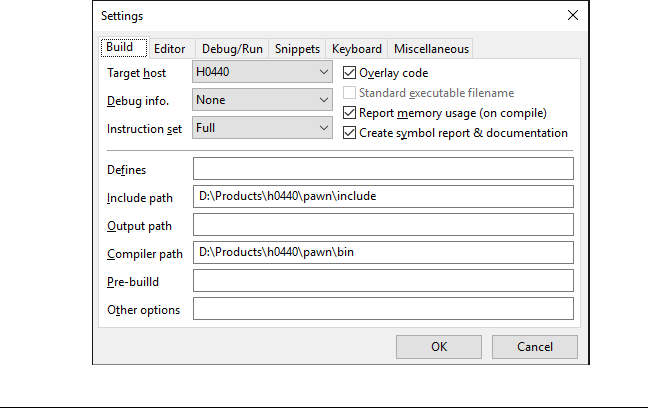
To review and change the Build options, select the Build tab of
the Settings dialog; see figure 1.
Target host
When building for a specific target, select it in the “Target
host” field. This setting reconfigures calltips, code comple-
tion, context-sensitive help and the configuration of the PAWN
compiler. If your target host is not in the list, select “(install
target)” to download and install it from a central repository
—see the section Target hosts on page 19 for details.
Debug info.
Select the level of debug information for the compiled script,
depending on whether you want to use the IDE to debug the
script. For a final build, especially for a platform with mem-
ory constraints, set the debug information to None.
Instruction set
Select the instruction set that is supported by the host(s) that
the script must run on. The PAWN abstract machine has a
‘core” instruction set that is supplemented by two additional
Build — 3
FIGURE 1: Build options dialog
sets. A host may implement the full instruction set, or only
a smaller set. The Just-In-Time compiler (JIT), for example,
supports only the “Core” instruction set. When the compiler
can generate code for a larger instruction set, it creates more
compact and quicker code.
Overlay code
When writing large scripts that must fit in little memory,
check the option to generate “overlay code”. Overlay code is
incompatible with the Just-In-Time compiler (JIT).
Standard executable filename
This option forces a fixed name for the compiled script. A
host application or environment may require this. The avail-
ability of the option depends on the selected target host.
Report memory usage
Set this option for print (in the Build pane) a summary on how
much “code”, “data” and “stack” memory the script uses.
Create symbol report & documentation
This option creates a detailed report for both the symbol
browser and documentation generation. The report is aug-
mented with the contents of the “documentation comments”
in the source code of the script. The report is in an XML file,
which can be viewed in a web browser.
4 — Build
Defines
This field may hold any preprocessor macros that the script
needs. The macros in this filed will be treated as if you put it
at the front of the source code as the arguments to a #define
preprocessor directive with this exception: to define a global
symbol with a value, use an equals sign (=) as shown here:
ScriptVersion=2.5
The example just shown compiles as if the source code file
included this statement:
#define ScriptVersion 2.5
If you need more than one macro, separate them in the “De-
fine” field with a space character as shown here:
ScriptVersion=2.5 QueueSize=50
Include path
Enter paths to folders where the PAWN compiler can search
for header files specified with the #include <file.inc> di-
rective. Separate the paths with semicolons. You can use
relative paths or fully qualified paths. The compiler searches
the paths in the order you enter them here. If the header file
is not in one of these paths, then it searches the compiler’s
standard directories for include files.
Output path
Set the path where the target file has to be generated, if you
wish this path to be different from the location of the source
file(s).
Compiler path
Enter the path where the PAWN compiler is installed. If you
leave this field blank, the IDE looks for the compiler in the
“/bin” subdirectory in the directory where the PAWN toolkit
is installed.
Pre-build
An optional command to run before the PAWN compiler. In the
command, the keyword %fullname% is replace by the full path
and filename of the script, %name% by the name only (without
path and extension), %path% by the path, and %ext% by the
extension of the script.
Other options
Miscellaneous options to pass to the PAWN compiler.
Editor — 5
FIGURE 2: Editor options dialog
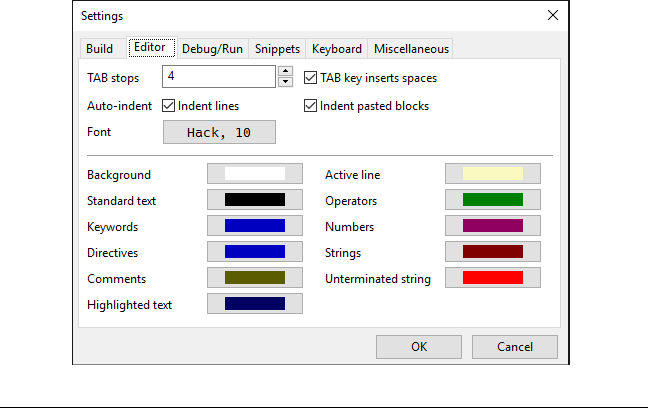
Editor
Select the Editor tab on the Settings dialog as shown here.
TAB stops
Select the number of character positions for each tab stop.
A common value is 4.
TAB key inserts spaces
Select whether the editor inserts space characters to move
to the next TAB position. If this option is not “checked”, true
TAB characters are inserted.
Auto-indent / indent lines
When enabled, the Enter key inserts a line and indents it to
the same level as the line above. With auto-indent disabled,
the editor always returns the insertion cursor to the left mar-
gin when you press Enter.
Auto-indent / indent pasted blocks
When enabled, any block pasted from the clipboard will have
the indentation adjusted to match the indentation level of the
surrounding text.
Font
Change the font style with the Font... button. The button
opens a dialog to choose the font type and size.
6 — Debug/Run
FIGURE 3: Debugger options dialog
The lower part of the dialog shows the colours for syntax high-
lighting. To change a colour, click on a coloured button. This
opens a dialog to select a colour.
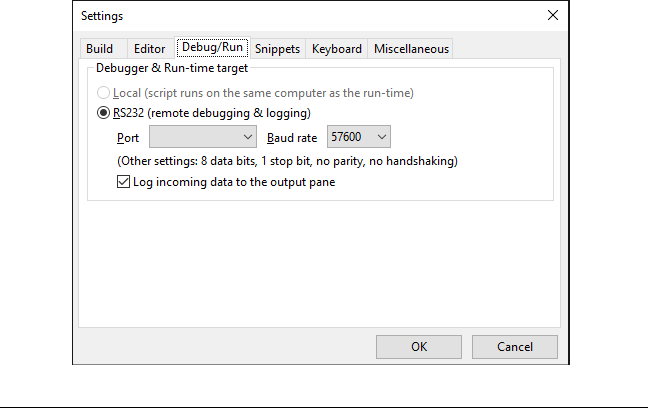
Debug/Run
Select the Debug/Run tab on the Settings dialog as shown here.
When you wish to use the debugger, also make sure that you
build the script with “debugging information”, see the section
Build options.
Local
When the compiled script runs on the same system as the
one that the IDE and build system run on, you will be using a
local run-time and local debugging. The options for remote
debugging are disabled when selecting a local run-time tar-
get.
RS232
When the compiled script runs on a different system than
the IDE and build system run on, you can use “remote de-
bugging” via a serial connection (where the script runs on
one system and the PAWN debugger on another system). The
two systems must be connected with a serial cable.
Snippets — 7
FIGURE 4: Configuring code snippets
Port
For remote debugging, specify the serial port to use. This op-
tion is only enabled when the run-time target is set to RS232.
Baud rate
For remote debugging, specify the baud rate to use. Please
see the documentation of the remote target for the appropri-
ate baud rate. This option is only enabled when the run-time
target is set to RS232.
Log incoming data to the outout pane
The serial connection is also used for logging information
that a script may on the remote device send over the serial
line. This is particularly useful if the remote device does not
support a debugger.
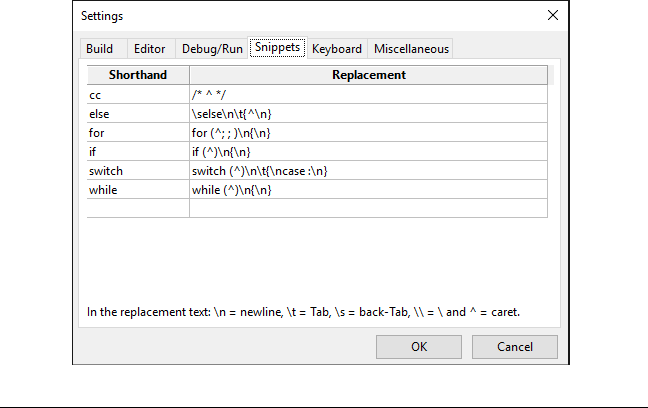
Snippets
Select the Snippets tab on the Settings dialog to add or modify
common snippets of code.
With code snippets for common syntactical constructs, you can
reduce the amount of typing. To define a snippet, enter both a
shorthand and the replacement text. The shorthand may be a
keyword in the PAWN language, or it may be a new word. For
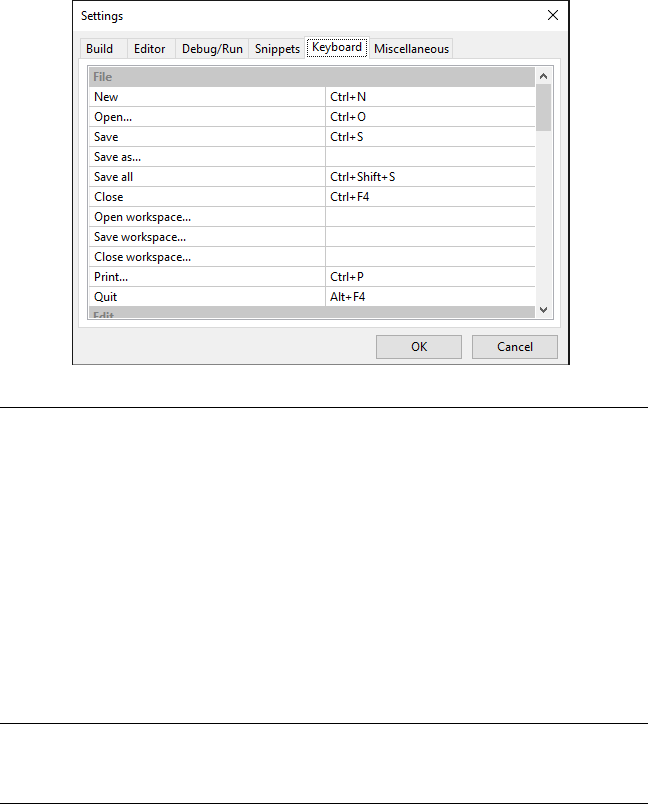
8 — Keyboard
FIGURE 5: Keyboard options dialog
example, you can create the shorthand “eif” to expand to “else
if” plus the associated brackets.
In the replacement text, you can indicate where a line break must
be inserted with \n, and indicate TAB or reverse-TAB with \t and
\s respectively. By default, the text cursor will be at the end
of the replacement text after expansion, but you can indicate a
different cursor position with the ^character.
For example, if you have the entered the snippets as in figure
4, typing switch followed by the shortcut key for code expansion
(by default Ctrl+Space), the snippet would expand to:
switch ()
{
case :
}
Keyboard
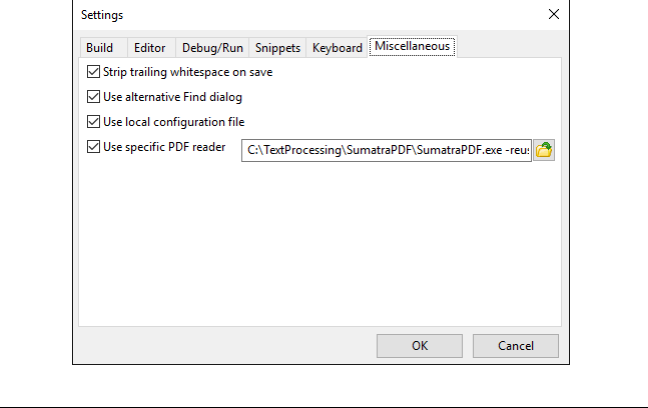
Select the Keyboard tab on the Settings dialog to configure the
keyboard shortcuts used by various editing and menu commands.
Each key definition must be the name of the key, optionally pre-
fixed with one or more modifiers. The modifiers are Alt,Ctrl and
Shift.
Miscellaneous — 9
FIGURE 6: Miscellaneous options dialog
The new keyboard configuration is not immediately active. You
must restart the PAWN IDE for the new keyboard shorthads to
take effect.
Note that an operating system may reserve some key combina-
tions for its internal use.
Miscellaneous
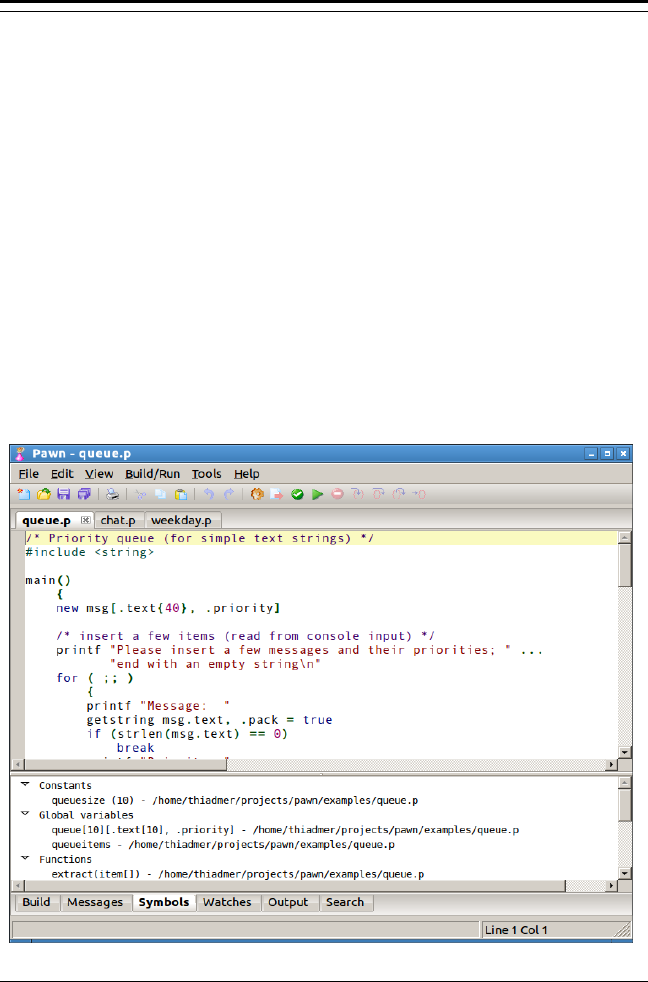
Select the Miscellaneous tab on the Settings dialog as shown
here.
Strip trailing whitespace on save
When active, any space and TAB characters behind the last
character on each line will be stripped off. Trailing white
space is not functional in scripts (but does no harm either).
Use alternative Find dialog
The PAWN IDE offers two dialogs for finding and replacing
text. The standard dialogs are the common dialogs provided
by the operating system —they are therefore the same as in
many other applications. The alternative dialogs offer addi-
tional features, such as a history of recent searches, search-
ing through all files in a workspace, and support for regular
expressions.
10 — Miscellaneous
Use local configuration file
By default, the PAWN IDE stores its configuration in a central
place, which is a subdirectory in the user’s “home directory”.
The side effect of this setup is that when you install multiple
versions of the PAWN IDE, for example for different versions
of PAWN, all these will use the same configuration. If this is
undesired, the alternative is to use a local configuration file.
The local configuration file is stored in the same directory
that the PAWN IDE is in, which means that you must make
sure that the user has write access to that directory.
Use specific PDF reader
The help files of the PAWN tools are typically in PDF format.
The PAWN IDE chooses the standard PDF reader automati-
cally, but you can override this.
The command line may hold options with placeholders:
{path}will be replaced by the full path to the PDF file,
{page}is for the page number,
{label}is for a “named destination” in the PDF file.
If a PDF reader supports both jumping to page numbers and
to named destinations, the named destination is preferred.
A named destination also indicates the position on the page
to scroll into view (if so needed).

11
Using the editor
The editor uses syntax highlighting for PAWN scripts. Whether a
file is a PAWN script is determined from the file extension: it must
be “.p”, “.pwn”, “.pawn”, or (for include files) “.i” or “.inc”.
When you create a new file, the file will initially be unnamed. The
editor will assume that the new file will be a script, and apply
syntax highlighting. To make the editor change to standard text
(and not apply syntax highlighting), you must save the file and
choose a different extension.
Saving a source code file
Before you can compile and test your program, you must save
it to disk. Before you can compile a program that includes an
include file in a source code file, you must save the include file
to disk.
To save the source code file, choose the Save command on the File
menu (alternatively, click the Save tool button, or type Ctrl+S).
To save a file under a different name, choose Save As. . . from the
menu.
On the first save of a new file, the PAWN IDE also opens the Save
As dialog. In this dialog, be sure to select the appropriate file
type in the Save As Type dropdown listbox, because the IDE mod-
ifies (or attaches) a file extension that matches the file type.
To save all the source code files loaded into the PAWN IDE, choose
the Save All command on the File menu.
Nota Bene: Include files should normally be stored in the same
folder as source code files that use them. If you store the include
files in a different path, you must either:
⋄enter the (relative or full) path the the include file on the #in-
clude directive;
⋄add the directory where the include file is found, in the options
for the workspace, as explained in Configuring the IDE on page
2.
12 — Working with multiple source code files
Working with multiple source code files
The IDE allows you to open mulptiple source files at the same
time, which means that you can open and work with more than
one source code file at a time.
If your program involves more than one file —that is, a combi-
nation one or more PAWN file plus one or more include files, it
may be useful to store that set of files as a “workspace” file. To
save a workspace file, use the option Save workspace. . . from the
File menu. The IDE will pop up a Save As dialog, just like when
saving a new file for the first time.
The workspace includes all files that are currently opened in
the IDE, plus the “build options” (see page 2. If you save a
workspace, the current options are saved to that workspace file
as well. If you load a workspace, the “build options” are restored
from that workspace.
13
Editor interface
The code editor is a typical text editor similar to those found in
most software development environments. If you know how to
enter text into Notepad, you will know how to use the PAWN IDE.
There are editor options you can set to change how the text is
coloured, how tabs are expanded, whether the editor autoindents
as you type, and more. . .
Entering text
Enter text by typing it. The code editor does not support word
wrapping; the editor window scrolls horizontally if you type past
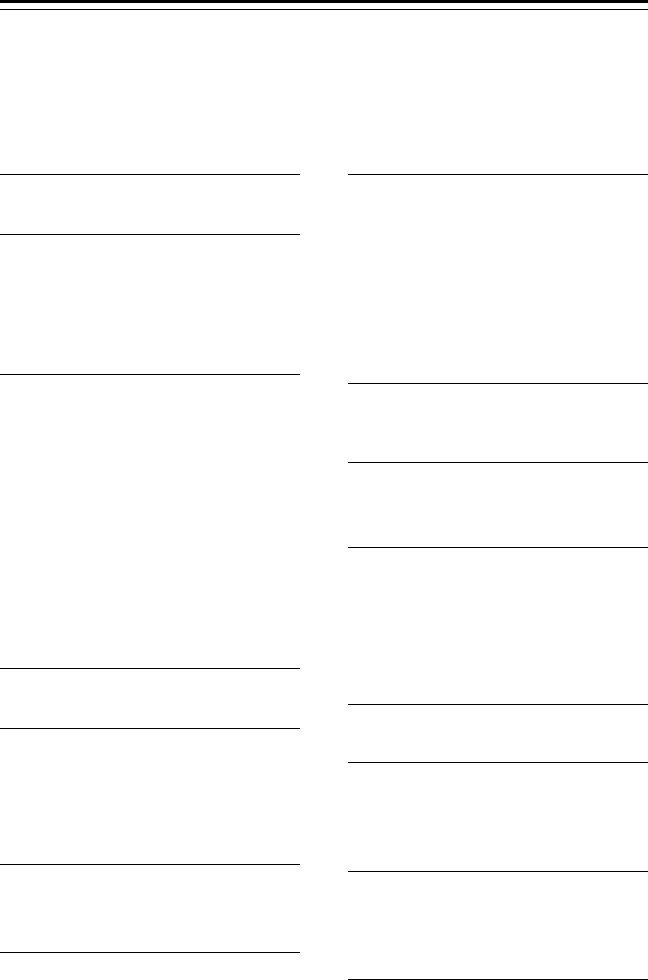
the right margin. If you have syntax highlighting selected in
the editor options, the text changes color as the editor parses
those text elements (comments, key words, and string literals)
that should be highlighted as shown here.
FIGURE 7: IDE screen shot
14 — Block marking and editing
The code editor supports the common keyboard and mouse func-
tions for browsing through the text and for setting the text cur-
sor. The mouse wheel is supported for scrolling through the
source code.
The small pane in the status bar (at the lower right of the win-
dow) displays the current line and column position of the inser-
tion cursor. In figure 7, the cursor is at line 13 and column 1.
It is possible for the text cursor to be out of sight. If you scroll
the document window horizontally or vertically with the scroll
bars and the mouse, you can put the insertion cursor off screen.
But it is still there. If you start typing when the insertion cursor
is out of sight, the scrolling position is autimatically adjusted so
that the line where the insertion cursor is positioned is in view.
Pressing the Insert key, toggles between “insert” and “overwrite”
modes. The shape of the cursor is different in both modes (a
thin vertical bar in insert mode and a horizontal bar in overwrite
mode).
Block marking and editing
When you keep the Alt key pressed while marking text, the se-
lected text is in a rectangular block. You can copy a block onto
the clipboard and paste it as a block in another location.
The menu option Edit /Fill/insert columns allows you to fill each
row of a marked block with a specific text. To insert the same
text on several rows at a time, you can mark a rectangular block
with a width of zero character, and then use Fill/insert columns
to type in the text to insert at that position.
To delete the marked text in a block, simply press the Delete key.
Auto-indent of pasted blocks
When you copy & paste one or more full lines of text of PAWN
source code, the editor adjusts the indentation level of the pasted
lines, so that it matches with the indentation of the lines above
and below it. This feature can be disabled in the Editor options,
see page 5.
Brace matching — 15
Text completion
Text completion is similar to code snippet expansion (see above),
but using a different key combination: Ctrl+Space. Text comple-
tion expands only a single word, which it picks from all words in
the current source file and from the function names declared for
the “calltip” balloon.
If multiple words match the partial word at the left of the text cur-
sor, the Ctrl+Space combination pops up a calltip balloon with all
possible matches; use the arrow keys to choose a word from this
list and Enter (or Tab) to confirm it. For example, if you have
typed in the letters “cl” in the editor, and press the key combi-
nation Ctrl+Space, an calltip balloon will list the functions clrscr
and clreol, allowing you to pick either —possibly there are more
items in the balloon, depending on the script and on the calltips
list itself (which changes per configuration of the PAWN system).
On the other hand, if you typed “clre” followed by Ctrl+Space
(and assuming that there are no other matches), the word will
expand to clreol immediately, without calltip balloon.
If the word at the left of the text cursor is already fully expanded
and this word is a known function, the summary of this function
is displayed. The Ctrl+Space does the same as hovering over the
word with the mouse, in this case.
On some Linux systems, the key combination Ctrl+Space is re-
served by the IBus input manager. You may want to edit the
settings in the IBus preferences. Alternatively, you can change
the key combination for text completion in the Keyboard options,
see page 8.
Brace matching
For a programming language like PAWN, where blocks of instruc-
tions are grouped between curly braces, it is important that those
braces match correctly in pairs: for every openting brace, there
must be a closing brace.
The code editor provides a visual cue to help match braces, as
there may be many instructions between the opening and closing
brace of a group. When the text cursor is on a brace, the editor
highlights both that brace and the pairing brace in a different
colour.
16 — Bookmarks
By pressing Ctrl+], the text cursor jumps to the matching brace.
Note that Ctrl+] is the default key combination; it can be changed
in the Keyboard options, see page 8.
The code editor operates the same on opening and closing paren-
theses. Like braces, these must match. Moving the text cursor
on a parenthesis marks the matching parenthesis, and pressing
Ctrl+] moves the text cursor to that matching parenthesis.
Bookmarks
To toggle a bookmark on a line, type the Ctrl+F2 key combination.
The line does not need to have code on it; you can set a bookmark
on an empty. To jump to the next bookmark, use F2 and to jump
to the previous bookmark, use Shift+F2
When jumping to a symbol with the symbol browser, the IDE
sets an implicit (temporary) bookmark, so that you can quickly
return to the position where you left off. When starting a search,
a temporary bookmark is also set. A temporary bookmark is au-
tomatically removed when you return on that line.
Searching and replacing text
The PAWN IDE supports the common operations of searching for
general text and replacing a text snippet by another snippet of
text. The key combinations for text search and text replacement
are Ctrl+F and Ctrl+H respectively.
In addition to local text searching, the IDE allows you to search
through all open files and through all script files in a particular
directory. The results of global search are displayed in a “Search
result” view that appears at the lower part of the IDE. Double-
clicking on a line in that view opens/activates the relevant script
file and jumps to the location of the match.
The search function also supports “regular expressions”, as used
in programmer’s utilities like Grep. The (limited) syntax used for
regular expressions in the PAWN IDE is:
.Matches any character.
*Matches the preceding character 0 or more times.
+Matches the preceding character 1 or more times.
\<Matches the start of a word.
\>Matches the end of a word.
Calltips — 17
\xMatches literal character “x” if ut would otherwise have
a special meaning.
[. . . ]Matches any of the characters between the square brack-
ets; ranges like [a-z] are allowed.
[^ . . . ]Matches any character that is not listed in the set.
^Matches the start of a line (unless used inside a set, see
above).
$Matches the end of a line.
The symbol browser
For larger scripts, using the symbol browser may be convenient
to quickly jump to functions or variable declarations, based on
their names. The symbol browser displays a list of all symbols
combined, plus a list per category (constants, global variables,
functions).
The symbol list is updated through the report that the PAWN com-
piler generates. Therefore, for the symbol list to be available, the
option to generate the symbol report must be turned on —see
section Build on page 2.
Note that after inserting or deleting lines from a source file, the
symbol browser is no longer up-to-date with respect to the sym-
bols in that file. After compiling the script, the symbol browser
is updated.
Calltips
The code editor displays quick help in a balloon for native and
public functions that it knows about. To pop up the “calltip”
balloon, move the mouse cursor over a function and wait for a
second without moving the cursor. If the function is known, the
balloon will pop up with a brief description of the function and
its parameters.
The Ctrl+Space key combination will also pop up the calltip bal-
loon (if a match is found), but using the position of the text cursor
as a criterion —instead of the mouse cursor.
If the function is not known, but the name of the symbol that
the mouse cursor points at partially matches known functions
or other symbol names in the script, the balloon will instead list

18 — Calltips
those symbol names. You can use this list for text completion as
well.
Finally, in a debug session, the calltip balloon shows the current
value of variables, instead of definitions of the symbols.
The “known” native and public functions for the calltip balloon
are declared in a file called infotips.lst in the doc directory of
the PAWN installation. This file is a plain text file with a function
signature and a brief description per line. Below is an example
of a declaration from infotips.lst:
bool: fclose(File: handle) Close a file
The line starts with the function’s signature. Behind the closing
parentheses of the signature is the summary of the function’s
purpose.

19
Target hosts
Scripts written in PAWN run on a particular “host” —this can be a
desktop computer, a smartphone, an “internet-of-things” device
build around a tiny micro-controller, or still some other kind of
device.
These devices have different characteristics. For example, a re-
ally small micro-controller project, like an ARM Cortex M0, may
be limited to support only the core instruction set. The purpose
of a PAWN script is to allow a user or a subcontractor to adjust
the functionality of the device to meet specific requirements.
The PAWN script does this via the native functions that the de-
vice firmware makes available. Different kinds of devices will, of
course, provide different and device-specific native functions.
A “target host configuration file” contains the suitable configu-
ration for the PAWN toolset for the specific device. Usually, it
also directs the PAWN compiler to implicitly include a file with
the definitions of all native functions that the “host” makes avail-
able. Documentation files (for the host) and “code completion”
information is also typically part of the target host configuration.
Installing a target host
The easiest way to get a target host configuration for your sys-
tem is to download and install it from a central repository. The
following steps allow you to add a new host.
1.From the menu, select Tools /Options. . . and select the Tab-
page Build in the window that pops up. (See also page 2.)
2.From the list next to Target host, select the option (install tar-
gets).
3.In the new window that lists all available target hosts (on the
configured server), select the host that you wish to install and
click OK.
4.The PAWN IDE now downloads and installs the target host —
this usually takes only a few seconds. When it is done, you will
see the newly installed host selected in the Target host option,
and you can click OK to confirm it.
20 — Target host configuration file
Target host configuration file
To create your own target host configuration file, you need to
make a text file with the name of the target host and the exten-
sion “.cfg”. It is recommended that you do not use whitespace
characters in the filename. This file must be stored in the direc-
tory target below the directory where PAWN is installed —this
directory may not exist yet after a fresh installation.
This configuration file contains preset (or default) command line
options for the particular target host. When you select a target
host in the PAWN IDE, its configuration file is passed to the PAWN
compiler. The compiler parses a configuration file before parsing
the command line options —see the PAWN “Language Guide” for
details on the configuration file.
If you call the target host file default.cfg, the PAWN compiler will
use it unless a different target host is specified on the command
line. That is, the options and settings in this file become the
defaults for the PAWN compiler.
Next to the command line options for the PAWN compiler, the
configuration file may also contain instructions for the PAWN IDE.
Currently, the instructions are:
#runtime: whether the compiled script can be run from the
IDE —this is mostly true (set to 1) for desktop
configurations and usually false (0) for embed-
ded systems (where the script is built on a PC,
but run on the embedded device).
#debug: what kind of debug support is enabled for the
platform. For a desktop configuration, local de-
bugging (1) is usually provided; when the script
runs on a different device that the system that it
is built on (e.g. embedded systems), only remote
debugging (2) is available, or none at all (0). If
both local and remote debugging are available,
this setting is 3.
#optlevel: the maximum optimization level allowed for the
PAWN compiler. The optimization level used by
the compiler is directly related to the instruc-
tion set that abstract machine in the target host
implements. A target host that uses the Just-In-
Time compiler (JIT) can only support the core in-
struction set, so this setting should be 1. An ab-
Target host configuration file — 21
stract machine that supports the full instruction
set will have this setting at 3.
#overlay: whether the target host has support for scripts
with overlays (1) or not (0).
The IDE also browses through the PAWN compiler options in the
configuration file and handles the following options:
-d for the default level of debugging information.
-o for the (default) fixed output name.
-O for the default optimization level.
If the target host requires additionat include files, these should
be stored in a subdirectory with the name of the target host, be-
low the include directory. For example, for a target host that you
call “SmartKey”, the additional include files should be in ./in-
clude/SmartKey.
The same procedure applies for additional documentation (na-
tive function reference, “infotips.lst” file for calltips and code-
completion), and for any example scripts that you have for the
target host. These must be stored in a subdirectory with the
name of the target host, below the doc and examples directories
respectively.
22 — Target host configuration file
23
Index
⋄Names of persons (not products) are in italics.
⋄Function names, constants and compiler reserved words are in
typewriter font.
AAuto-indent, 5
BBlock marking, 14
Bookmarks, 16
temporary ~, 16
Brace matching, 15
CCalltips, 15, 17
Code completion, see Text
completion
Code snippets, 7
Columns
insert ~, 14
Comments
documentation ~, 3
Copy & paste, 14
Cursor (text), see Text cursor
DDocumentation comments, 3
FFind symbols, see Symbol
browser
Find text, see Text search &
replace
GGlobal search, 16
GREP, 16
HHelp files, 10
Host, see Target host
IIBus, 15
Indent, see Auto-indent or
Block indent
Indent pasted blocks, 5, 14
Info-tips, see Calltips
infotips.lst, 18, 21
Insert columns, 14
JJust-In-Time compiler, 2, 3,
20
LLinux, 1, 15
Logging, see Serial logging
MMatch braces, see Brace
matching
Match parentheses, see Brace
matching
Mouse wheel, 13
NNamed destination (PDF), 10
OOptimization, 2
Overlay code, 3
Overwrite mode, 14
PParenthesis matching, see
Brace matching
PDF reader, 10
QQuincy, 1

24 — Index
RRegular expressions, 9
Remote debugging, 6
Replace (text), see Text search
& replace
RS232, 7
SSearch (text), see Text search
& replace
Serial cable, 6
Serial logging, 7
Shortcut key, 8
Shorthand, 7
Snippets, see Code snippets
Stevens, Al, 1
Symbol browser, 3, 17
Syntax highlighting, 6
TTab size, 5
Target host, 2, 3, 19
Text completion, 15, 18, 19
Text cursor, 14, 15
Text search & replace, 16
Trailing white space, 9
WWhite space, 9
Word wrap, 13
Workspaces, 12
wxWidgets, 1
XXML, 3
