Quizmania User Manual
User Manual:
Open the PDF directly: View PDF  .
.
Page Count: 14

Quizmania
Quiz Manager User Manual
Intention of this document is to give knowledge about how to use the program on both console and
graphical user interface
Deniz Can Erdem YILMAZ
20.02.2019

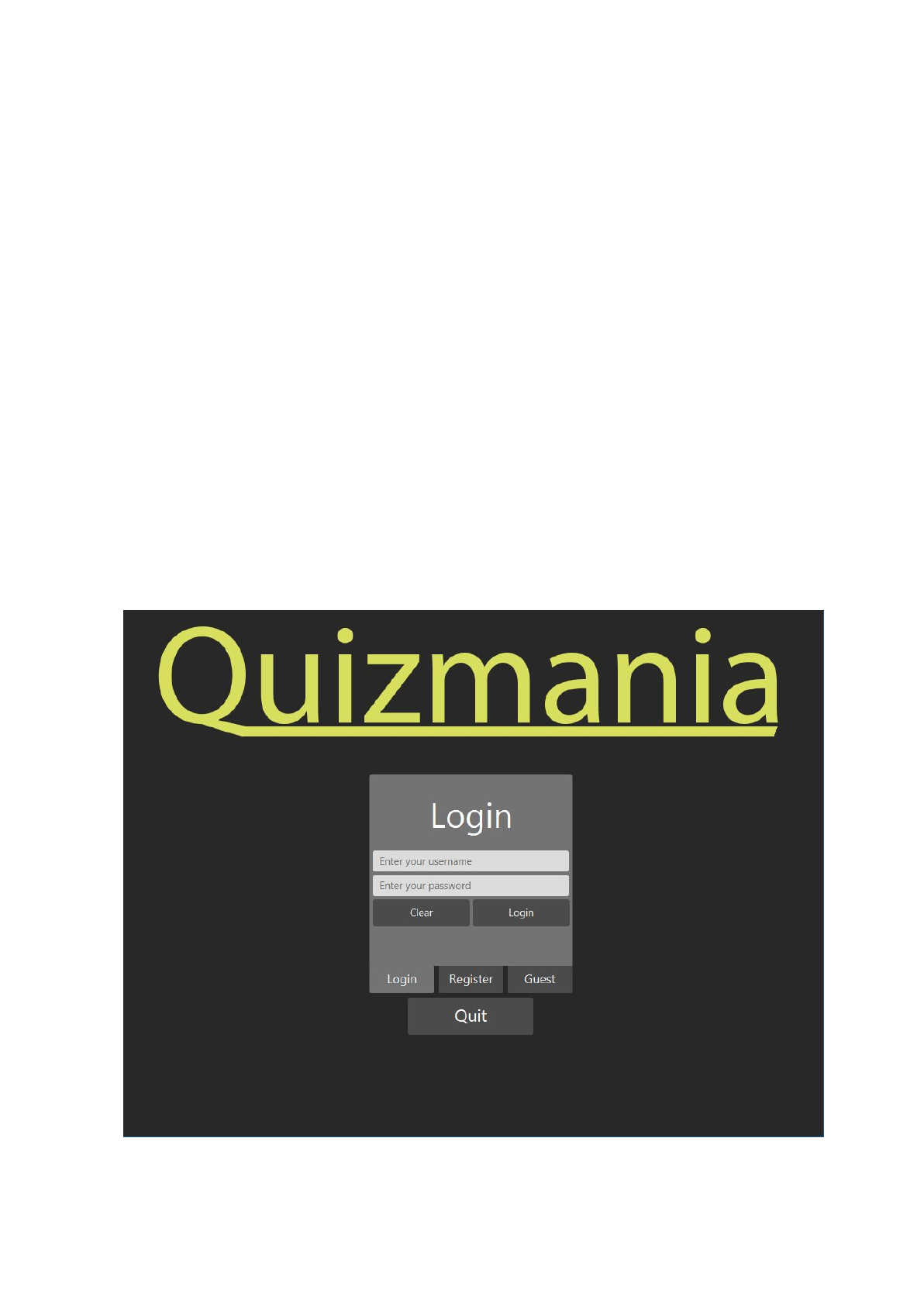
1) Login Menu
Login menu is the first screen when program starts executing. There are 3 options to
do; login, register and guest login. Guest login was intended to grant access to public
quizzes but there wasn’t enough time left to complete implementation. Therefore it is not
available to use. Register option takes username and password information to create a
new user. Login option takes username and password information to log in to an
existing user. Program continues with Main Menu once there has been a successful
login attempt made.
2) Main Menu
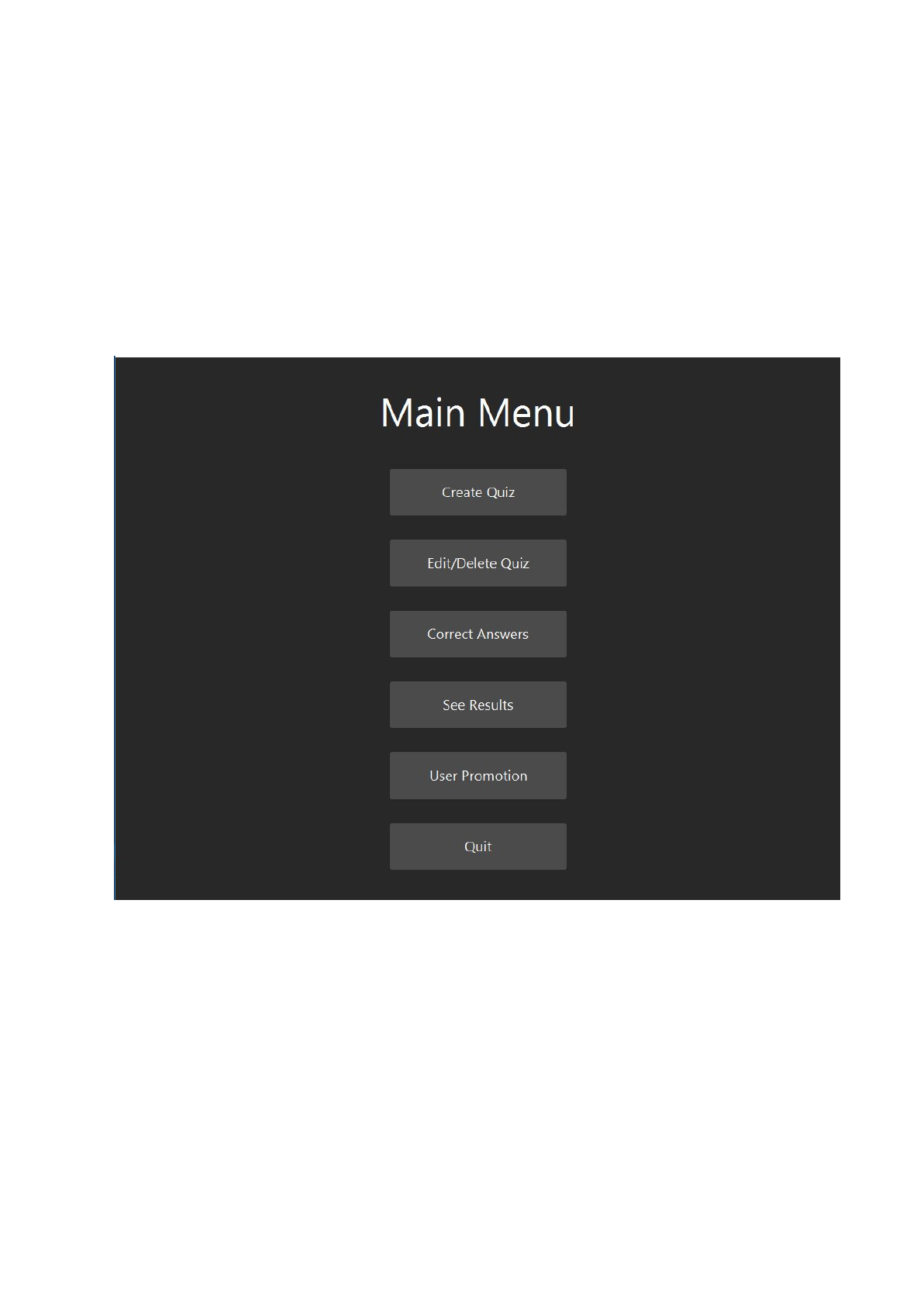
Main Menu for a user with authority
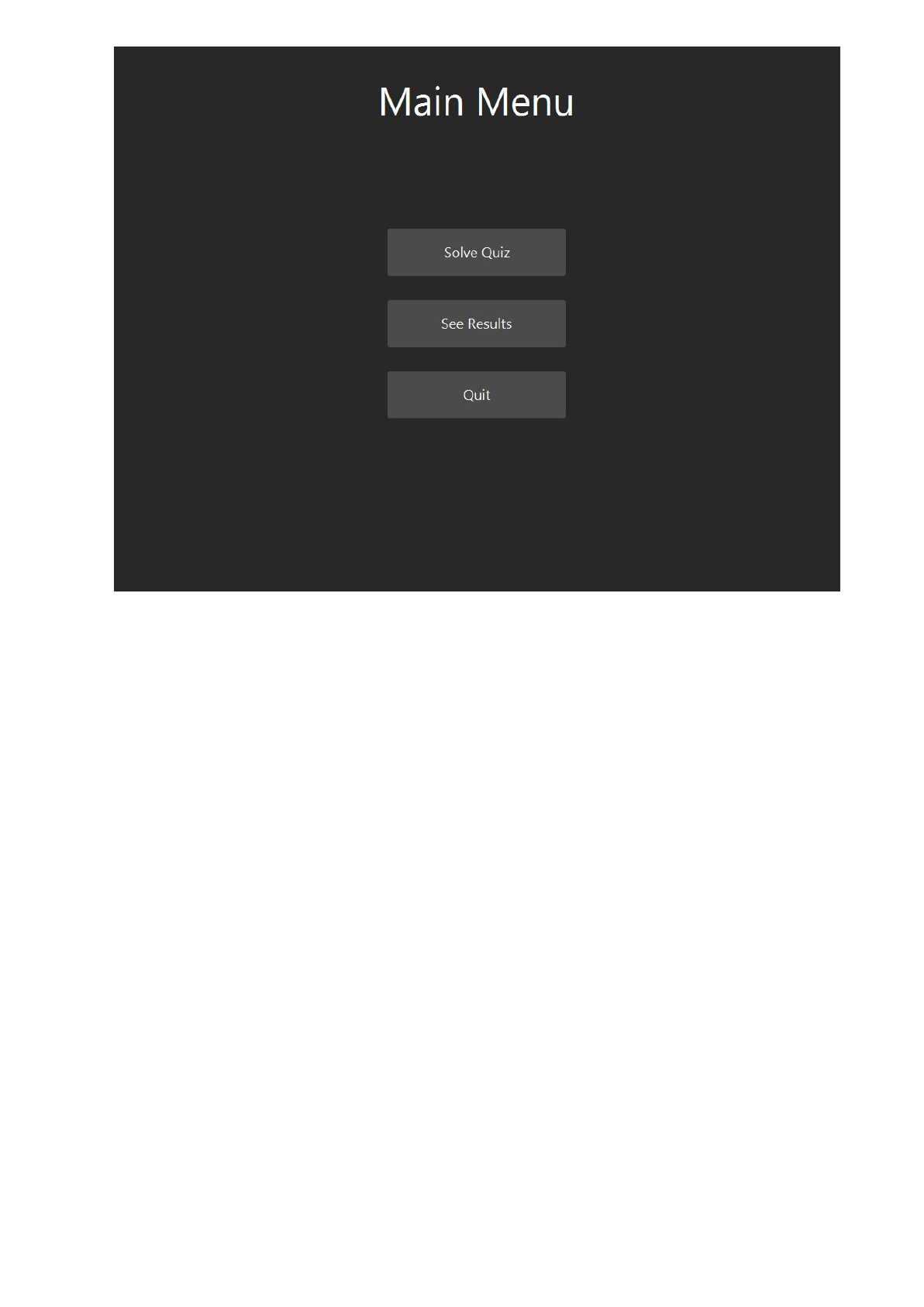
Main Menu for a user without authority
Main menu is a navigation point for users to select an action and use the program.
Actions of users can do differs with their authority situations. Authority means being able
to access rural and managing stuff.
Only a user with authority can create a quiz, edit a quiz, correct an answer to complete
the evaluation of a quiz, and promote/demote the other users.
Meanwhile a normal user can only access to quiz solve part which is not available for
authoritative people.
There is only one common selection both can do: see results. While the button, menu
name and menu design is same for each user, the content changes again according to
the authority.
If the user has authority then the results shown on the table will be the results of quizzes
created by that user. So basically this is a place to see the results of students or other
normal users who took your exam/quiz.
If user doesn’t have authority then the results shown will be the results of quizzes
solved by the user. So instead of a partially global result list it will be a private list
constructed from solved quizzes.
Once the user clicks one of the buttons, main menu will navigate to the desired menu.
3) Create Quiz Menu
As indicated before this menu is accessible only for users who has authority. When
navigated through the menu it asks from you to create or select previously created
questions. Therefore this can be inspected under 2 sub menus: create new question,
select previous question.

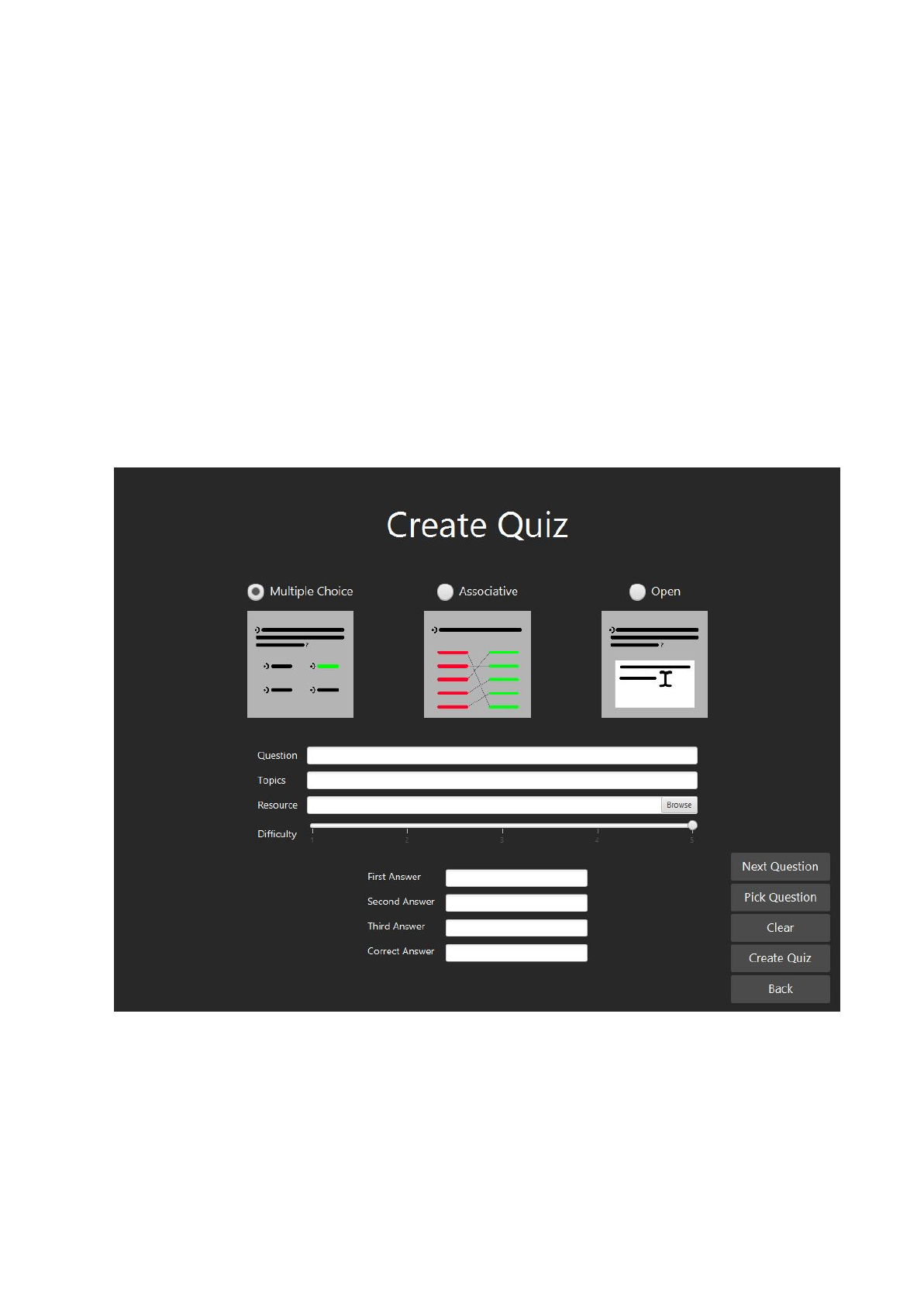
Create New Question
This menu takes inputs from user to assembly new question. To create a question all
required fields must be valid. For common parts; there must be a question text (body),
question type and question difficulty. Question difficulty and type is automatically
selected since they are represented by a choice box and a slider. User can change the
values as they wish. They need to give input for question body. Topics and resources
are not required, so they can be left empty.
For a multiple choice question there are 4 input fields and they are required.
For an associative question there are 5 rows with 2 columns. There is a minimum (2)
and maximum (5) number of rows that an associative question can have. User needs to
fill rows between those limits. Remaining rows can be left empty once the lower bound
has provided.
For an open question there is only a text field that waits for question tips. It is not
required, it can be left blank
Select Previous Question
Selecting a previously created question will bring a list/table to the screen to let user
select among them. User can filter questions with search parameters to find their
desired question. Questions can’t be selected multiple times for a quiz
Search option is available for both GUI and console to let users assembly a quiz quickly
with previous questions. Multiple selection is available for both GUI (clicking multiple
rows) and console (giving more than one index separated with spaces “ “, ex: “1 2 5 6”)
application.
On question selection table one can see the column named True Difficulty. This is the
difficulty calculated by ratio of the number of true answers over number of all answers. It
is also limited between 1 and 5 like normal difficulty the user can give. Intention of this
was to build a more consistent level matching algorithm to recommend questions or
quizzes according to user’s own level. But due to time limit it couldn’t implemented fully.
Therefore it is only shown on tables to let users see the true difficulty of the question
and quizzes

Finalization
Once everything is done, user can finalize finalize quiz and save it. To finalize quiz there
needs to be at least 1 question either created or selected. If there is at least a question
exists then user will be taken to the finalization screen, where they need to provide
required attributes for a quiz. Quiz title is required to name it. There are 2 difficulty
selections to be shown to other users while listing the quiz. Average difficulty
automatically constructed from the average difficulty of selected and created questions.
But user can give a custom difficulty to override the average difficulty. There is also a
publicity option to make the quiz (and the questions) public or private. A public question
can be solved from other users and the questions of the quiz can be selected by other
users who create quiz. Questions can later be edited for their publicity attribute. Quizzes
can’t.
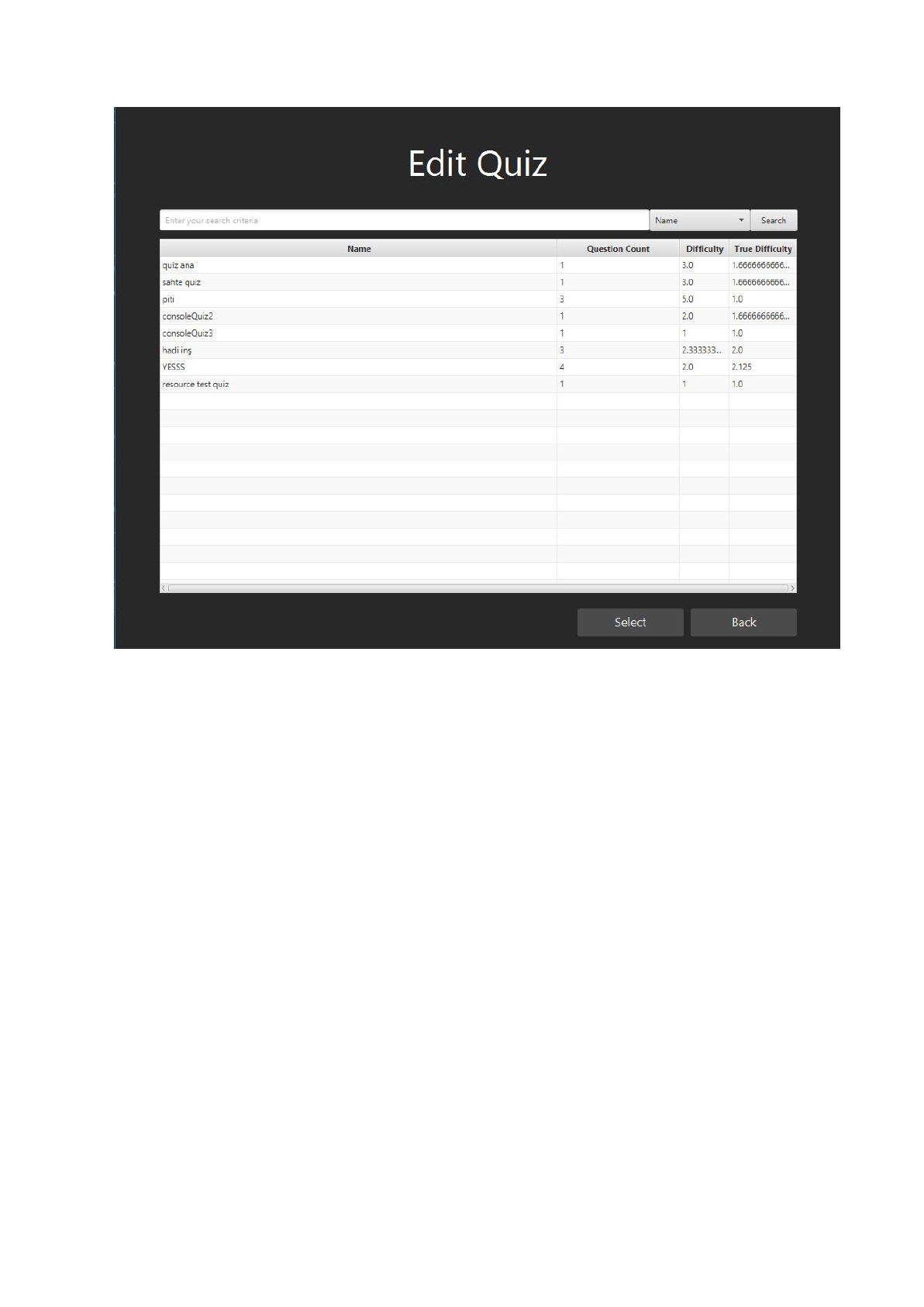
4) Edit Quiz Menu
As indicated before this menu is accessible only for users who has authority. When
navigated through the menu shows a list of quizzes which are created by the current
user. Using this menu a user can select a quiz to see the questions of that quiz. Then
the user can remove the question from this quiz, entirely delete the question (deletes
from other users’ quizzes too), edit the question (changes from other user’s quizzes
too). While GUI lets user to change the type of question, console application doesn’t let
user to change the type of question. All other attributes are open to changes on both
sides.
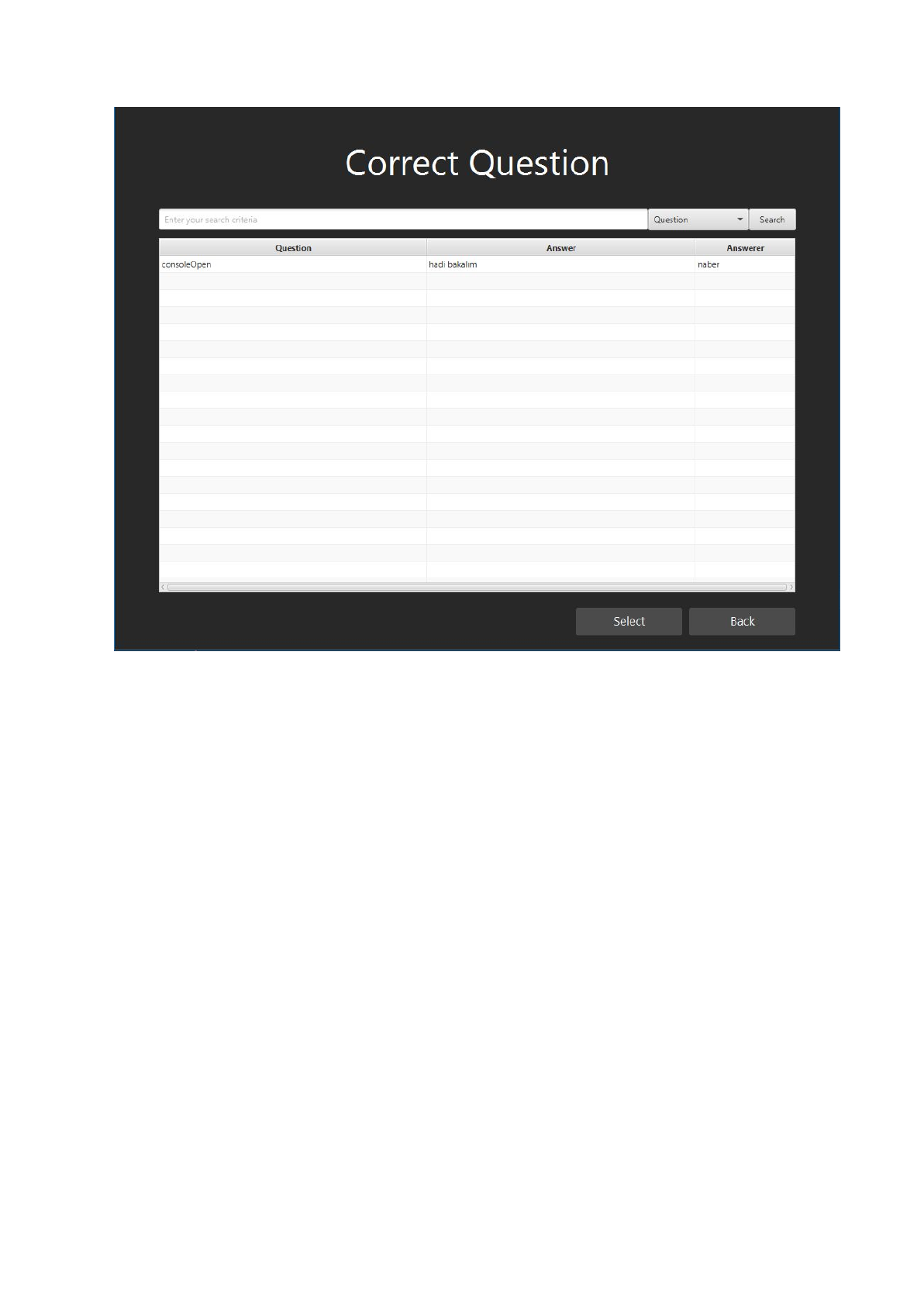
5) Correct Answers Menu
Once a quiz has been solved, multiple choice and associative questions are
automatically corrected. But open questions are left to the owner of the users to
evaluate. An authoritative user can find answers waiting to be evaluated from this menu
to declare answer as correct or false to complete the evaluation.
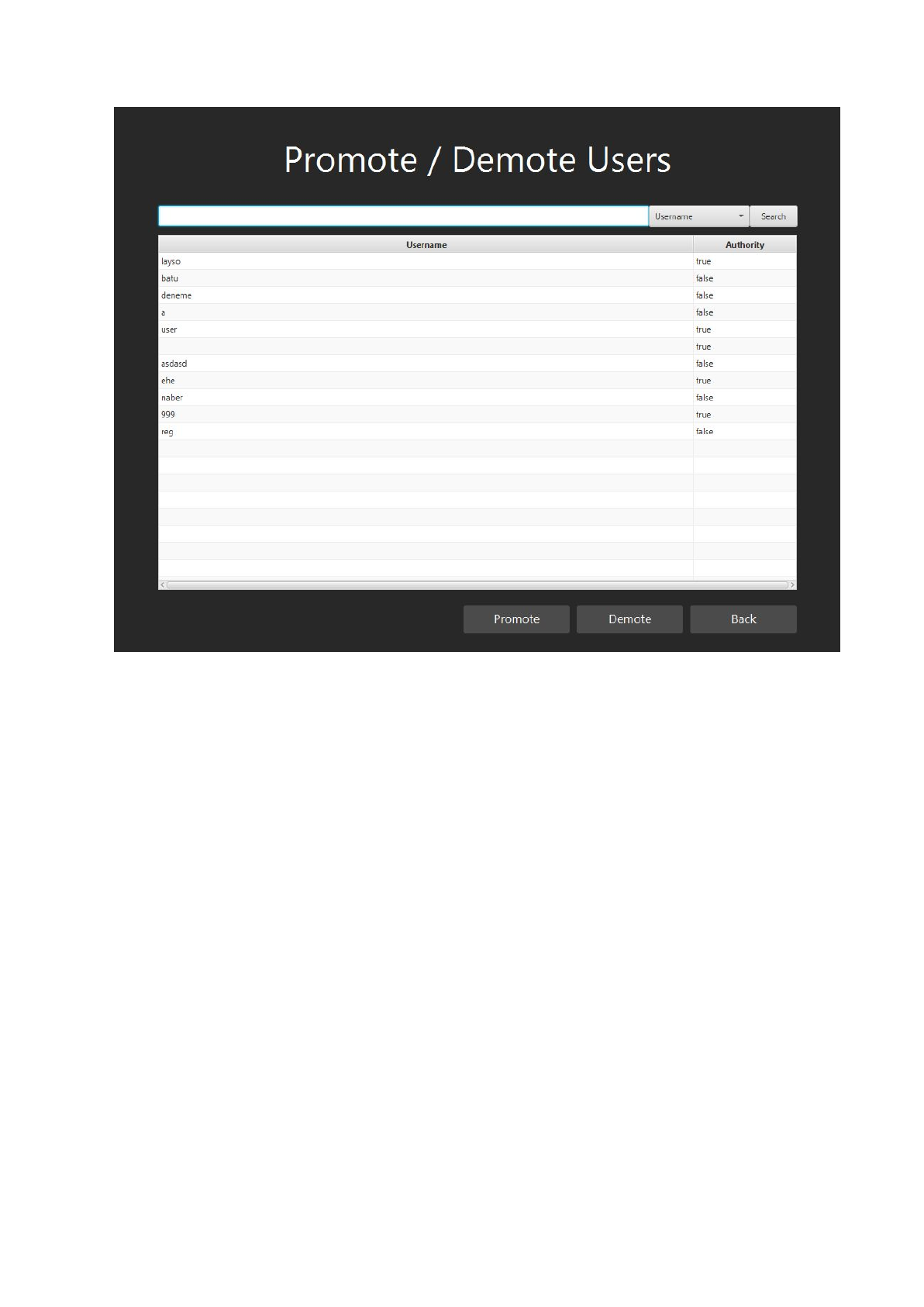
6) User Promotion Menu
User promotion menu designed to give (or take) authority to (from) other users. This
way more users can be declared as authoritative to have more teachers or quiz makers
in action. There is no “root” or first admin. So a user can declare itself as non
authoritative and may not be able to reach the system as authoritative unless someone
reverts the change.
Since there is no root or special admin role, the first user to be registered to the system
automatically saved as an authoritative. All the other people will be saved as normal
users. Even if there is no authoritative user left, all new comers will be created as
normal users since there are previously created users.
On the console application it needs to be refreshed by going back and coming back to
the menu once a change has been made to see the change immediately.
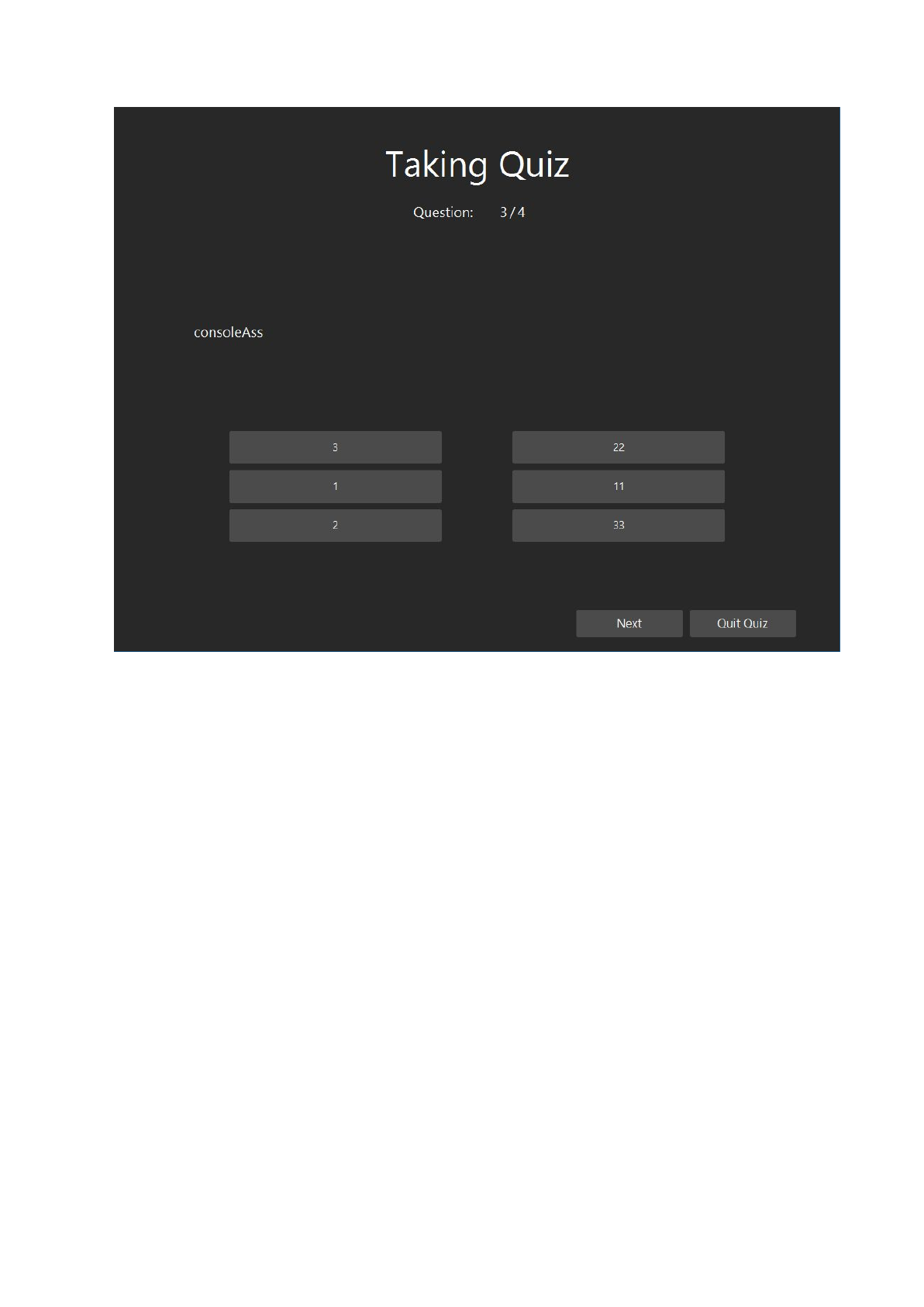
7) Solve Quiz Menu
This is the only menu that is special for normal users. Once it has been loaded it will
show all public quizzes available to solve to let user solve a quiz. Once a quiz has been
selected it will started and ask all the questions.
Quiz can either be finished or aborted by going back to the menu. Only a finished quiz
will be saved as a result. There is no save functionality in mid-quiz. Once all the
questions are solved user will automatically navigated to the quiz selection menu.
A quiz can’t produce multiple results for a user. So after solving a quiz second time
result will be discarded and result of first solving will remain on the results menu.
To get to the next question user needs to give a valid answer to the question. Validness
changes according to GUI/console application and question types
GUI
Multiple Choice Question
A multiple choice question on GUI gives 4 selectable options to user. One of them must
be selected to continue. There is no un-selection option.

Associative Question
An associative question on GUI gives 2 columns with mixed rows. User needs to
associate them by clicking to the buttons. A selection or association can’t be undone.
Open Question
An open question on GUI asks user to give a text input. It must at least filled with a
character to be continued (space character counts too).
Console
Multiple Choice Question
A multiple choice question on console prints 4 selectable options to user. User must give
an input associates with the index of one of the choices to continue
Associative Question
An associative question on console prints 2 columns with mixed rows. Left hand side rows
are indexed with numbers while right hand sides are indexed with characters. User needs
to give a single input including all associations for this question. Character and number
separations must be done with a dash “-” and row separations must be done with a space
“ “. Ex: “1-c 2-b 3-c”. It will ask user to provide answer again until a valid input has given.
Open Question
An open question on console prints the question and tip, then asks for an input.
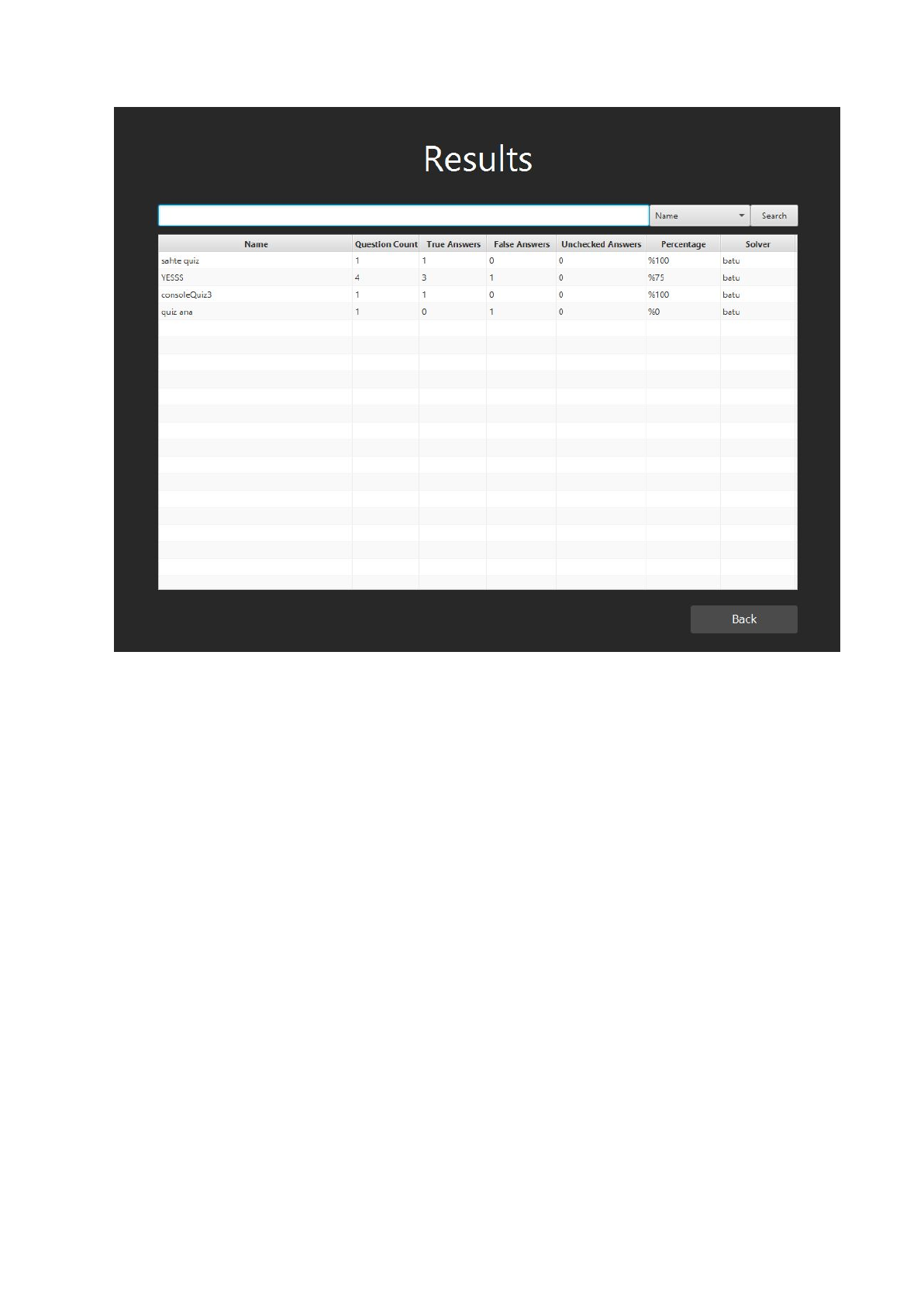
8) See Results Menu
This is the second menu that is common for both authoritative and normal users. But as
written before, their contents will be different than each other
Normal Users
Normal users can check their results of solved quizzes. For the quizzes which has open
question there is a chance their answer will be evaluated after some time by the owner
of the quiz. There is a column named unchecked answers to let them see if their
evaluation is done. If that column has the value 0 it means all their answers have been
evaluated. So their percentage shows their score out of 100. If there are unchecked
answers the percentage will be evaluated only using already evaluated (true and false
answers). So it might be misleading.
Authoritative Users
For authoritative users this menu shows the results of other users who solved their
quizzes. This table can be used to see the evaluation results for an exam/quiz. To make
it easier to get the results there is search option for results, which can be filter the
results to show only from a single quiz
