Qwiic Accelerometer (MMA8452Q) Hookup Guide Learn.sparkfun.com
User Manual:
Open the PDF directly: View PDF  .
.
Page Count: 11
2/20/2019 Qwiic Accelerometer (MMA8452Q) Hookup Guide - learn.sparkfun.com
https://learn.sparkfun.com/tutorials/qwiic-accelerometer-mma8452q-hookup-guide 1/11
Qwiic Accelerometer (MMA8452Q) Hookup Guide
SHOP LEARN BLOG SUPPORT
CONTRIBUTORS: ENGLANDSAURUS
FAVORITE 3
Introduction
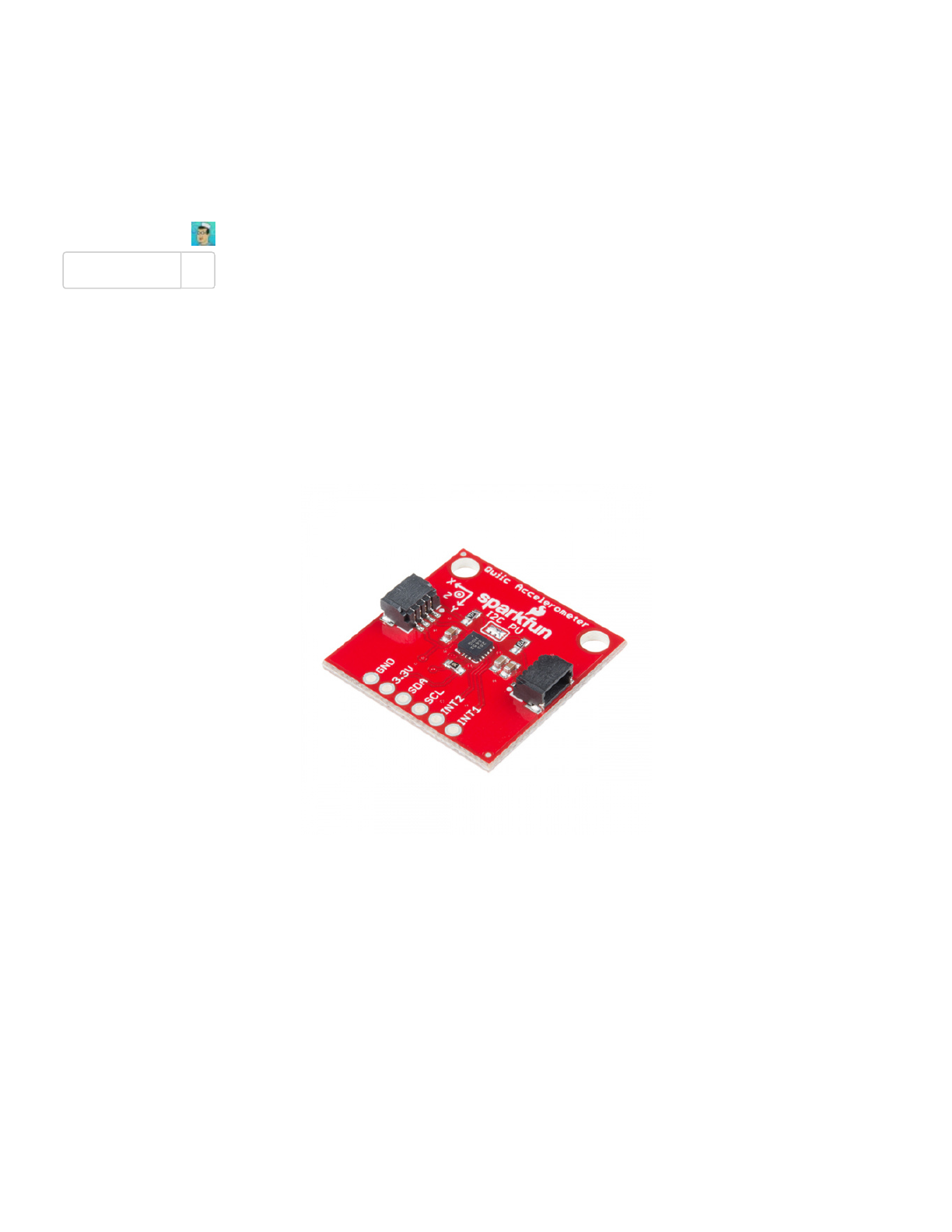
Freescale's MMA8452Q is a smart, low-power, three-axis, capacitive micro-machined accelerometer with 12 bits of
resolution. It's perfect for any project that needs to sense orientation or motion. We've taken that accelerometer
and stuck it on a Qwiic-Enabled breakout board, in order to make interfacing with the tiny, QFN package a bit
easier. It's part of SparkFun's Qwiic system, so you won't have to do any soldering to figure out how things are
oriented.
The MMA8452Q is a rock-solid, feature rich, 3-axis accelerometer. It supports three, selectable sensing ranges: ±
2g, 4g, or 8g. It also sports features like orientation detection, single and double-tap sensing, and low power
modes. It's a digital sensor -- communicating over a Qwiic enabled I C interface -- so you'll get reliable, noise-free
data over a Qwiic enabled I C port.
In this hookup guide, we'll connect our sensor up to our microcontroller of choice and read the X, Y, and Z
accelerometer channels to figure out how we are accelerating in those directions. Then, we'll figure out how to use
orientation detection to figure out what orientation the sensor is in.
SparkFun Triple Axis Accelerometer Breakout -
MMA8452Q (Qwiic)
SEN-14587
$11.95
1
2
2
2/20/2019 Qwiic Accelerometer (MMA8452Q) Hookup Guide - learn.sparkfun.com
https://learn.sparkfun.com/tutorials/qwiic-accelerometer-mma8452q-hookup-guide 2/11
Required Materials
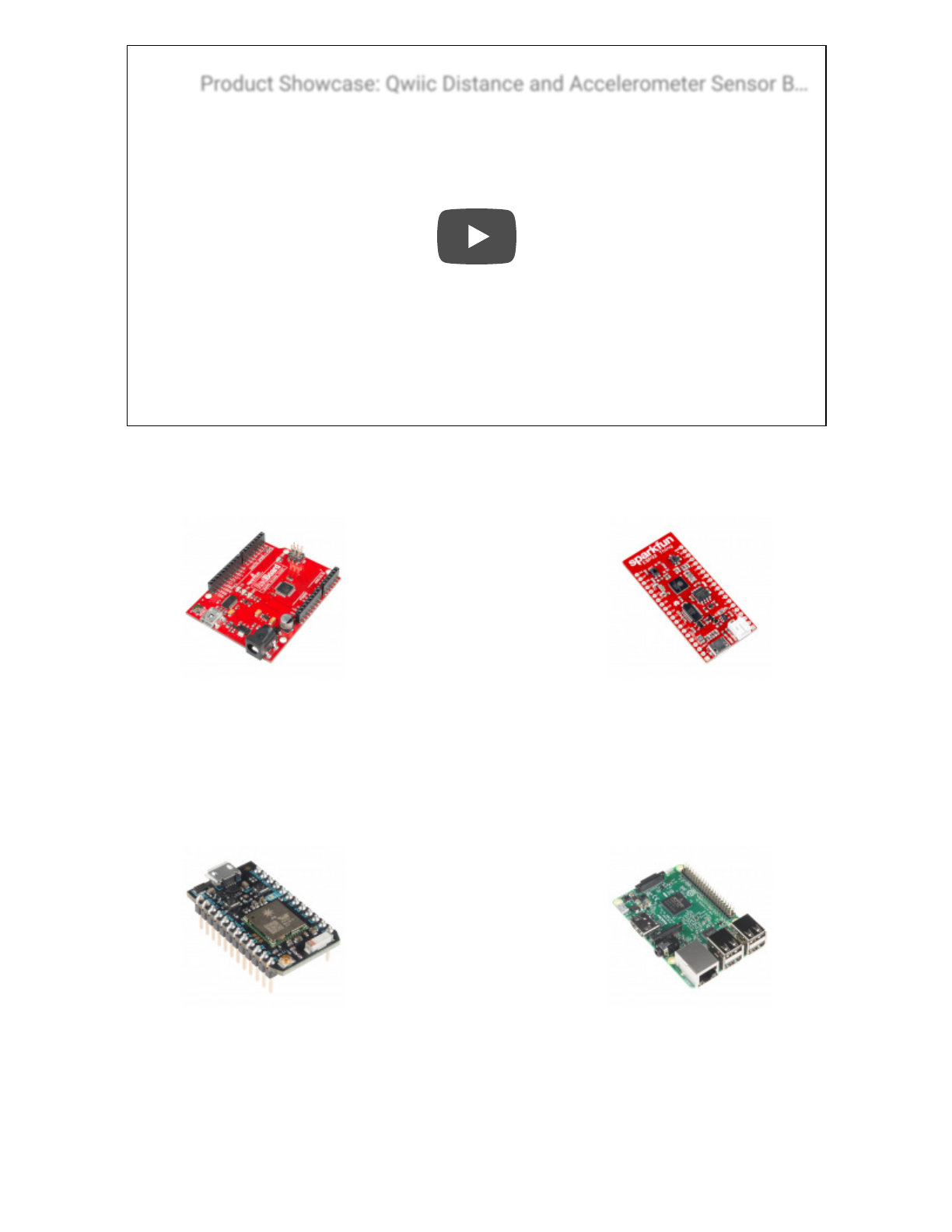
To get started, you'll need a microcontroller to, well, control everything.
Product Showcase: Qwiic Distance and Accelerometer Sensor BProduct Showcase: Qwiic Distance and Accelerometer Sensor BProduct Showcase: Qwiic Distance and Accelerometer Sensor B………
SparkFun RedBoard - Programmed with
Arduino
DEV-13975
$19.95
39
SparkFun ESP32 Thing
DEV-13907
$21.95
60
Particle Photon (Headers)
WRL-13774
$19.00
29
Raspberry Pi 3
DEV-13825
$39.95
92
2/20/2019 Qwiic Accelerometer (MMA8452Q) Hookup Guide - learn.sparkfun.com
https://learn.sparkfun.com/tutorials/qwiic-accelerometer-mma8452q-hookup-guide 3/11
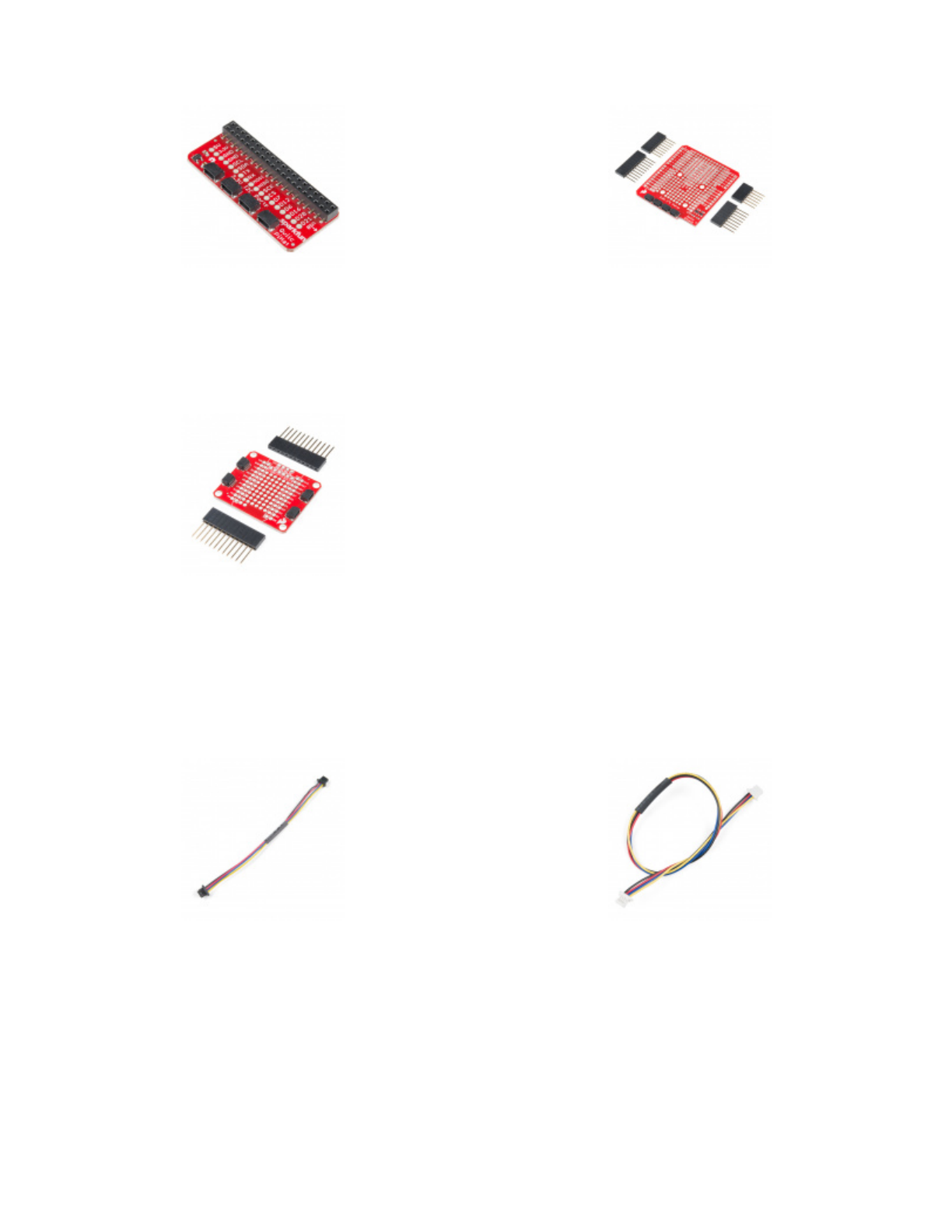
Now to get into the Qwiic ecosystem, the key will be one of the following Qwiic shields to match your preference of
microcontroller:
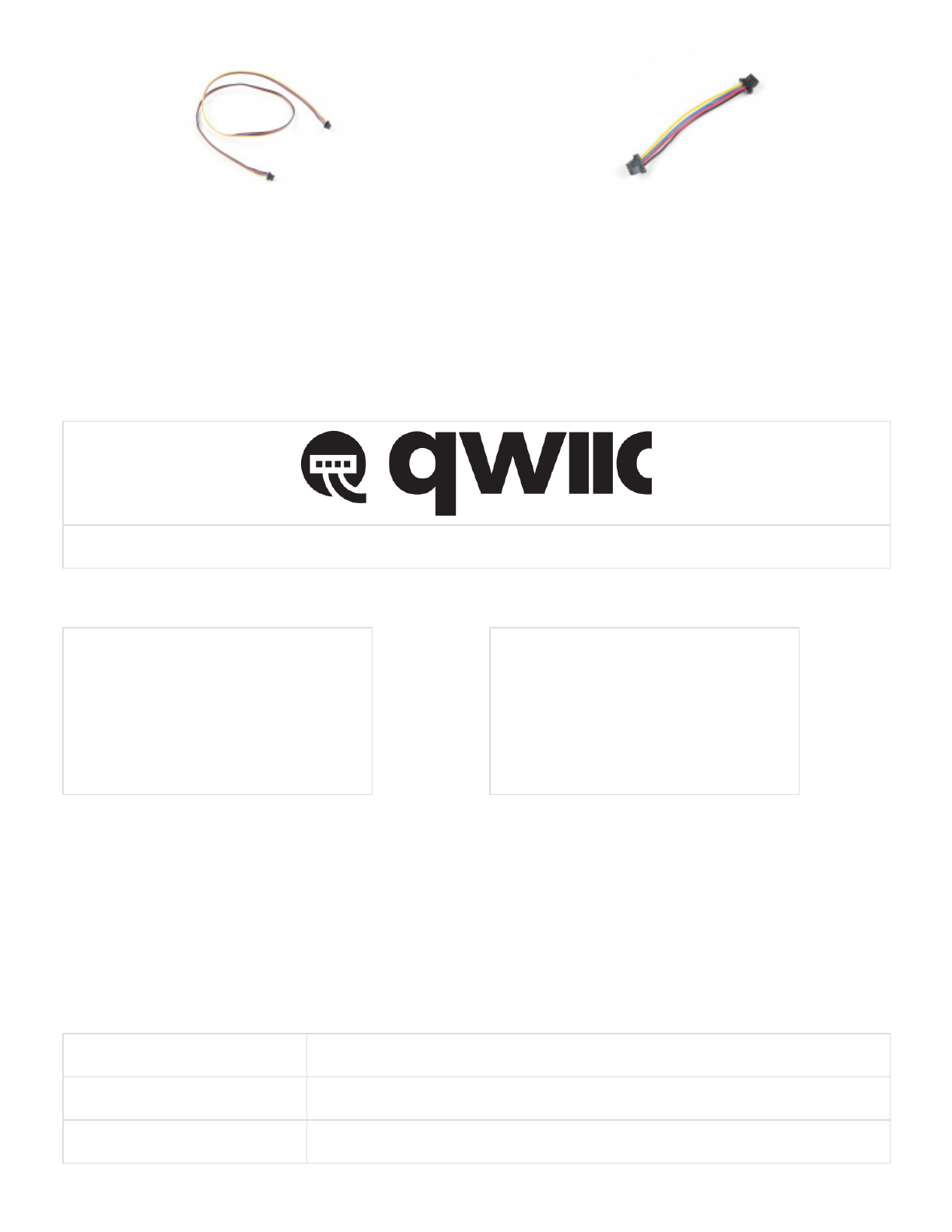
You will also need a Qwiic cable to connect the shield to your accelerometer, choose a length that suits your
needs.
SparkFun Qwiic HAT for Raspberry Pi
DEV-14459
$5.95
1
SparkFun Qwiic Shield for Arduino
DEV-14352
$6.95
SparkFun Qwiic Shield for Photon
DEV-14477
$5.95
Qwiic Cable - 100mm
PRT-14427
$1.50
Qwiic Cable - 200mm
PRT-14428
$1.50
2/20/2019 Qwiic Accelerometer (MMA8452Q) Hookup Guide - learn.sparkfun.com
https://learn.sparkfun.com/tutorials/qwiic-accelerometer-mma8452q-hookup-guide 4/11
Suggested Reading
If you aren't familiar with the Qwiic system, we recommend reading here for an overview.
Qwiic Connect System
We would also recommend taking a look at the following tutorials if you aren't familiar with them.
Hardware Overview
Let's look over a few characteristics of the MMA8452Q sensor so we know a bit more about how it behaves.
Characteristic Range
Operating Voltage 1.95V - 3.6V
Current 7-165 µA
Qwiic Cable - 500mm
PRT-14429
$1.95
Qwiic Cable - 50mm
PRT-14426
$0.95
I2C
An introduction to I2C, one of the main embedded
communications protocols in use today.
Qwiic Shield for Arduino & Photon Hookup
Guide
Get started with our Qwiic ecosystem with the Qwiic
shield for Arduino or Photon.

2/20/2019 Qwiic Accelerometer (MMA8452Q) Hookup Guide - learn.sparkfun.com
https://learn.sparkfun.com/tutorials/qwiic-accelerometer-mma8452q-hookup-guide 5/11
Measurement Range ±2g, ±4g, ±8g
I C Address 0x1D (open jumper, default) or 0x1C (closed jumper)
Pins
The characteristics of the available pins on the MMA8452Q are outlined in the table below.
Pin
Label
Pin
Function
Input/Output Notes
3.3V Power
Supply
Input Should be between 1.95 - 3.6V
SDA I C Data
Signal
Bi-directional Bi-directional data line. Voltage should not exceed power supply
(e.g. 3.3V).
SCL I C Clock
Signal
Input Master-controlled clock signal. Voltage should not exceed power
supply (e.g. 3.3V).
INT2 Interrupt 2 Output Programmable interrupt — can indicate data ready, orientation
change, tap, and more.
INT1 Interrupt 1 Output Programmable interrupt — can indicate data ready, orientation
change, tap, and more.
GND Ground Input 0V/common voltage.
Optional Features
Pull-Up Resistors Jumper
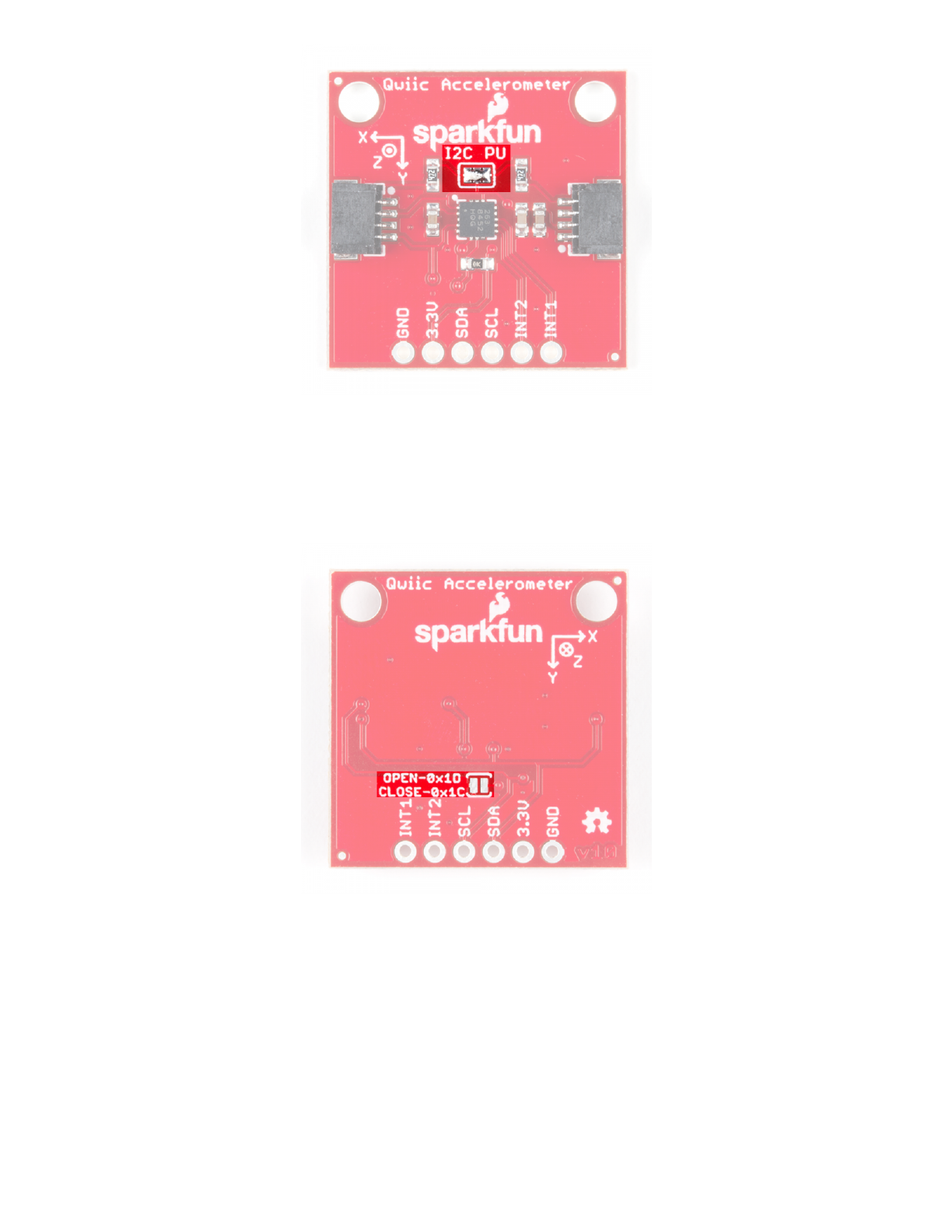
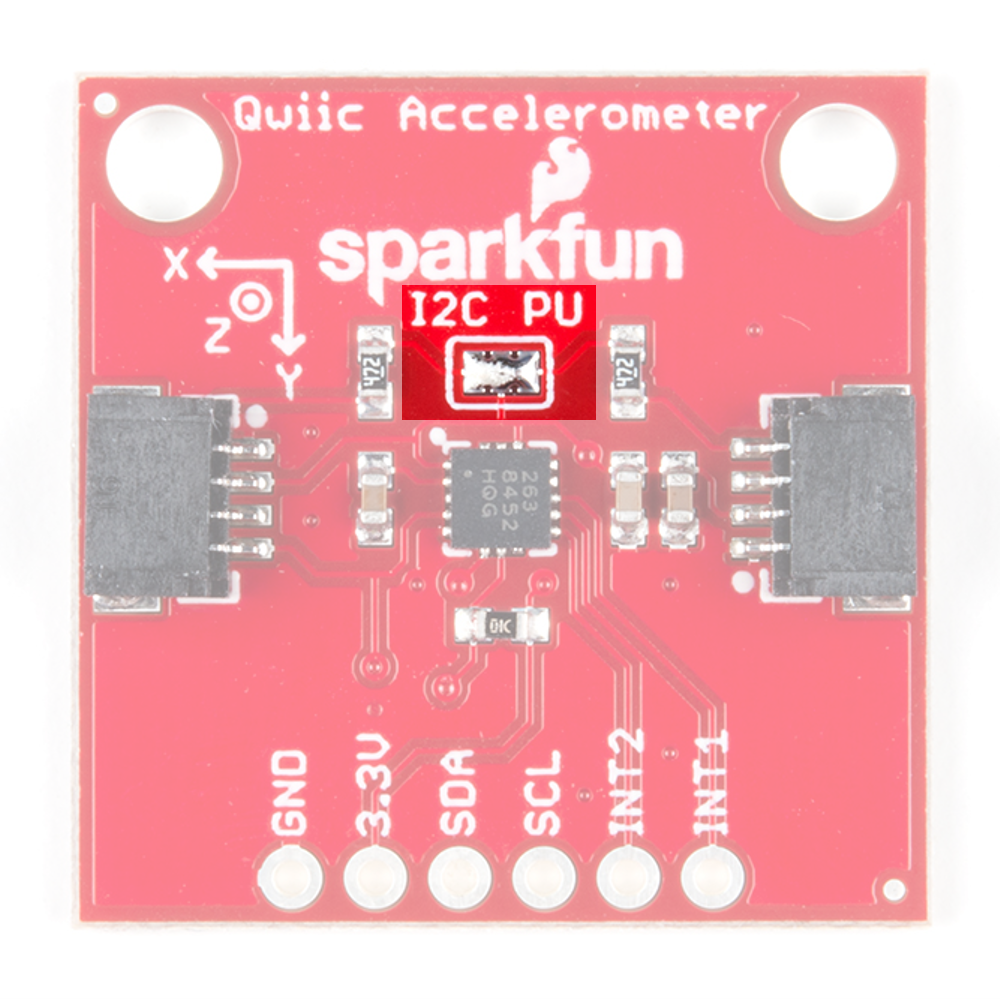
The Qwiic Accelerometer has onboard I C pull up resistors; if multiple sensors are connected to the bus with the
pull-up resistors enabled, the parallel equivalent resistance will create too strong of a pull-up for the bus to operate
correctly. As a general rule of thumb, disable all but one pair of pull-up resistors if multiple devices are connected
to the bus. If you need to disconnect the pull up resistors they can be removed by removing the solder on the
corresponding jumpers highlighted below.
2
2
2
2
2/20/2019 Qwiic Accelerometer (MMA8452Q) Hookup Guide - learn.sparkfun.com
https://learn.sparkfun.com/tutorials/qwiic-accelerometer-mma8452q-hookup-guide 6/11
Address Select Jumper
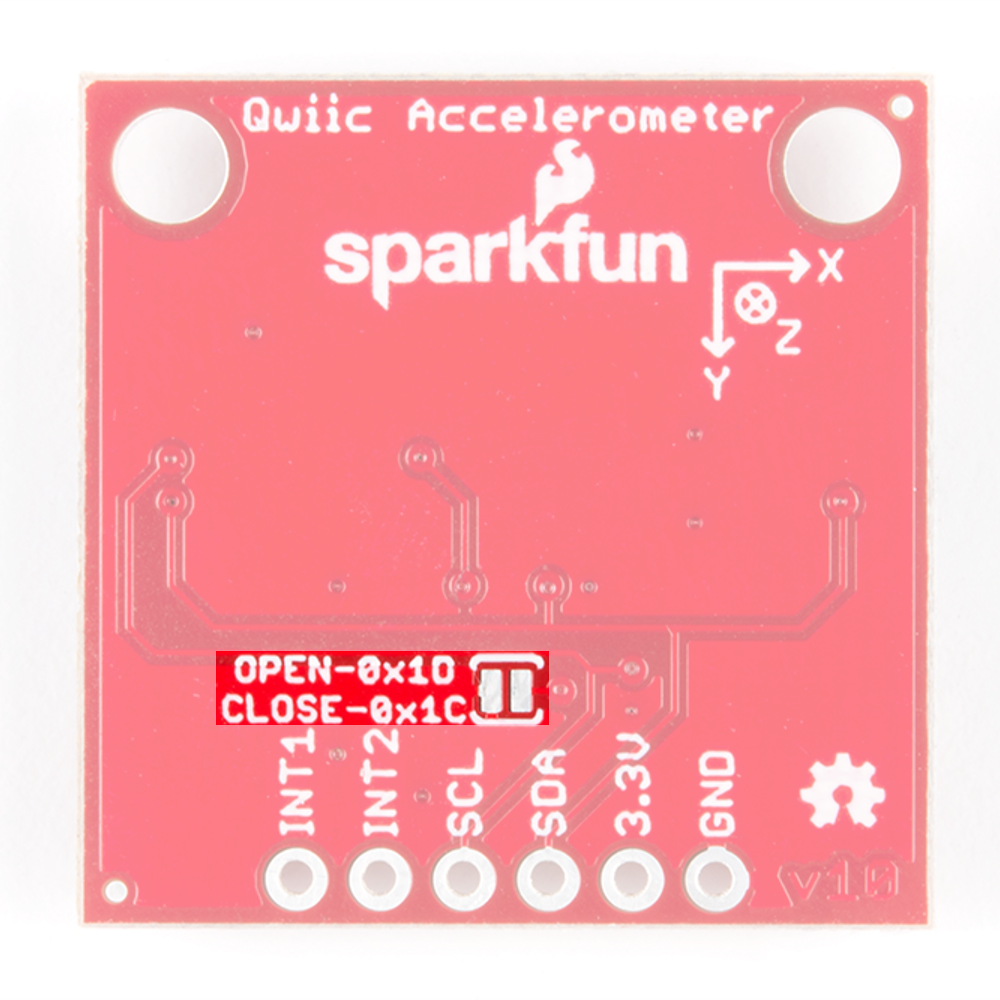
There is an additional jumper on the back of the board that allows the I C to be changed from the default 0x1D to
0x1C if you have multiple accelerometers on the same I C bus. However, if you have more than 2 accelerometers,
you'll need the Qwiic Mux to have them all on the same I C bus. The jumper is highlighted below. Normally open,
the jumper sets the I C address to 0x1D. Closing the jumper with solder will give an I C address of 0x1C.
Axis Reference
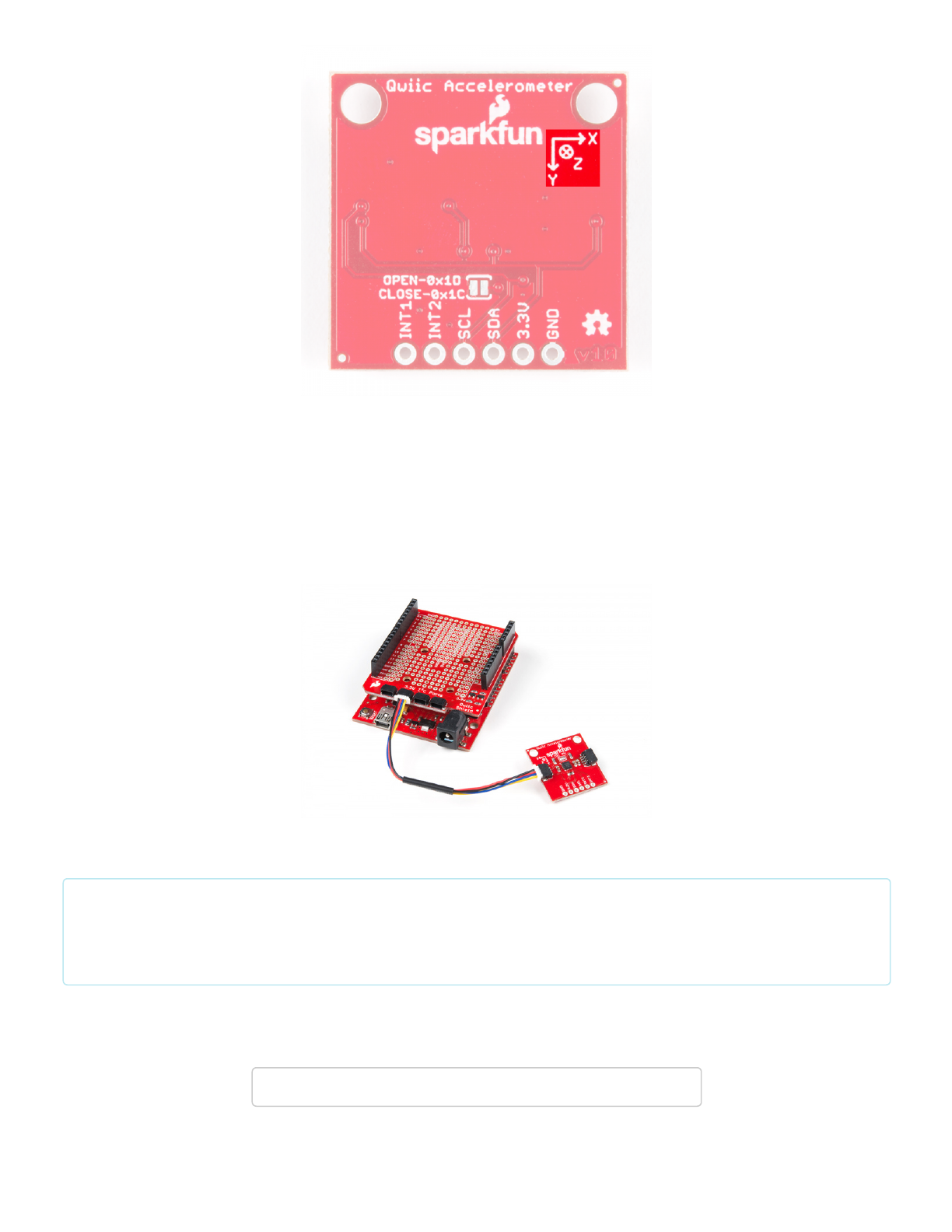
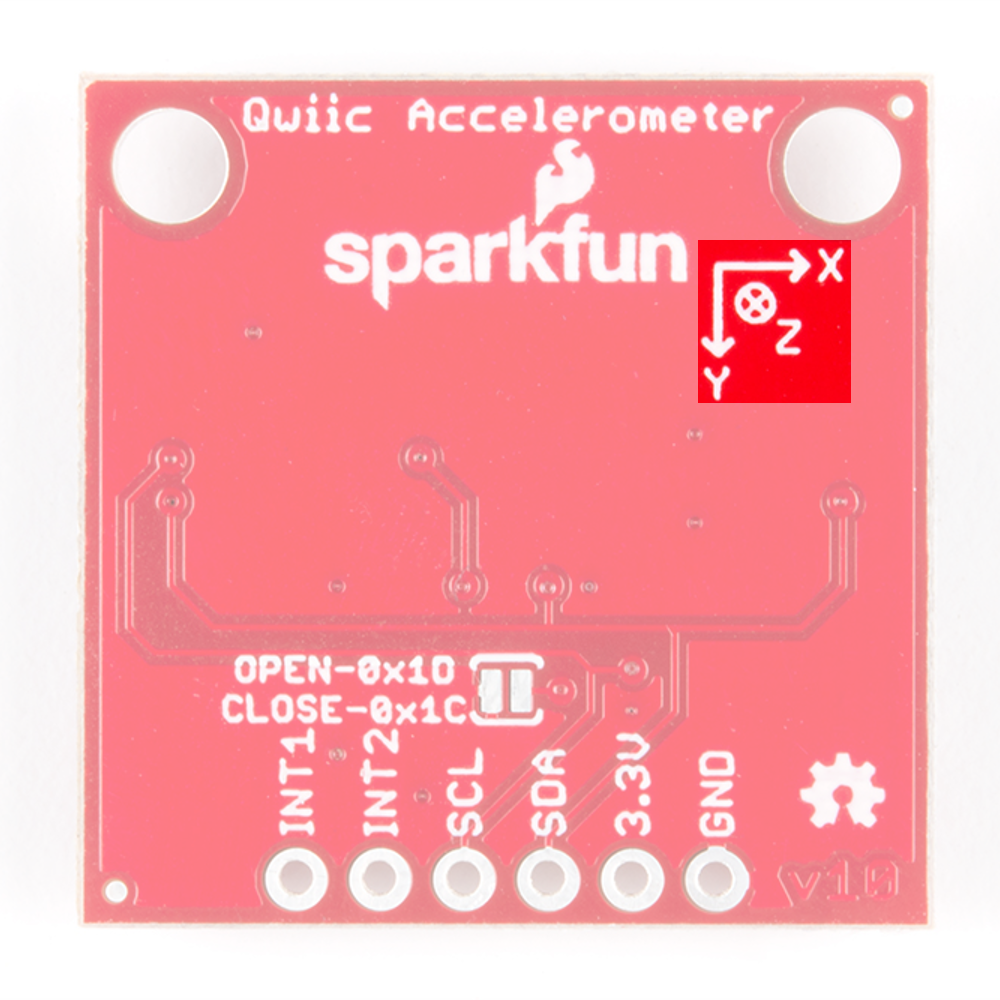
Also be sure to check out the labeling on the back of the board that indicates the orientation of the positive X, Y,
and Z axes so you know what exactly your data means.
2
2
2
2 2
2/20/2019 Qwiic Accelerometer (MMA8452Q) Hookup Guide - learn.sparkfun.com
https://learn.sparkfun.com/tutorials/qwiic-accelerometer-mma8452q-hookup-guide 7/11
Hardware Assembly
If you haven't yet assembled your Qwiic Shield, now would be the time to head on over to that tutorial. With the
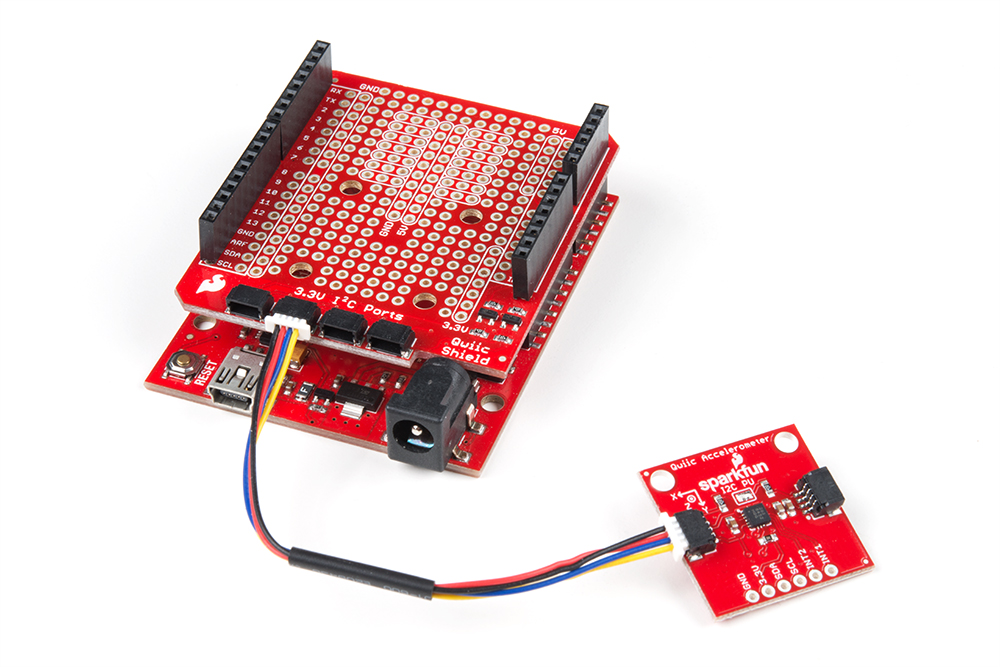
shield assembled, Sparkfun's new Qwiic environment means that connecting the sensor could not be easier. Just
plug one end of the Qwiic cable into the Accelerometer breakout, the other into the Qwiic Shield of your choice and
you'll be ready to upload a sketch and figure out how your board is moving around. It seems like it's too easy to
use, but that's why we made it that way!
Example Code
Note: This example assumes you are using the latest version of the Arduino IDE on your desktop. If this is
your first time using Arduino, please review our tutorial on installing the Arduino IDE. If you have not
previously installed an Arduino library, please check out our installation guide.
We've written an Arduino library to make interfacing with the MMA8452Q as easy as can be. Click on the button
below to download the library. Or you can grab the latest, greatest version over on the library's GitHub repository.
DOWNLOAD MMA8452Q ARDUINO LIBRARY (ZIP)
Load Up the Example Sketch
2/20/2019 Qwiic Accelerometer (MMA8452Q) Hookup Guide - learn.sparkfun.com
https://learn.sparkfun.com/tutorials/qwiic-accelerometer-mma8452q-hookup-guide 8/11
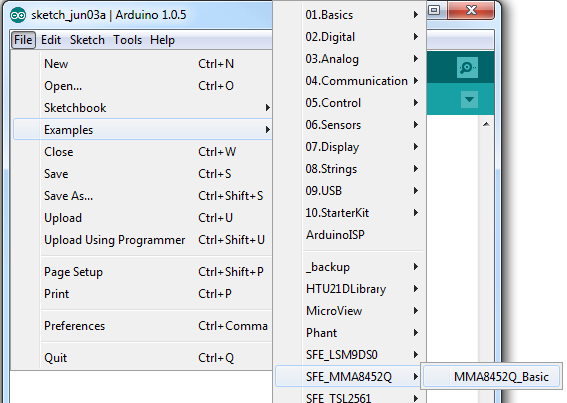
Once you've installed the SFE_MMA8452Q library, restart Arduino. Then go to File > Examples >
SFE_MMA8452Q > MMA8452Q_Basic to open the example sketch.
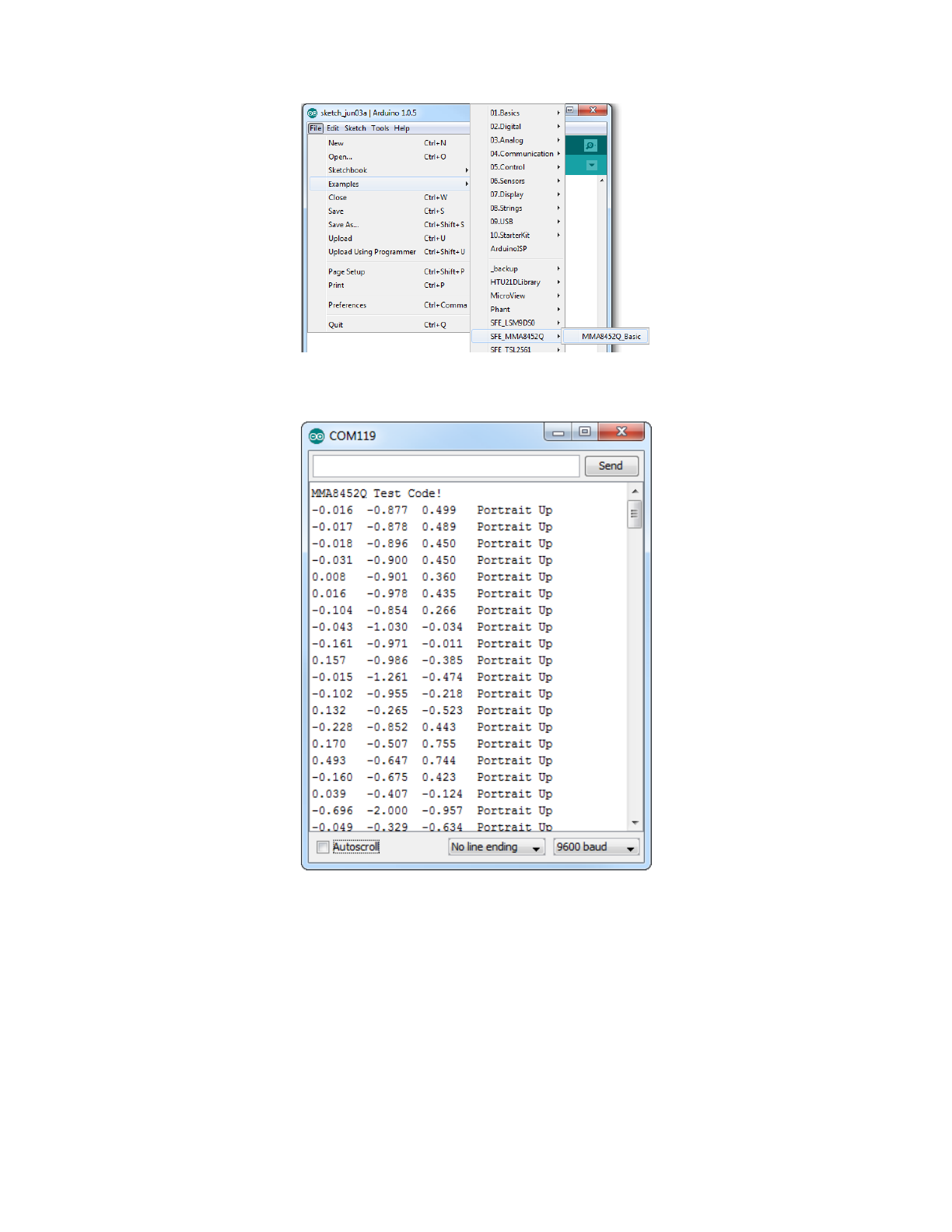
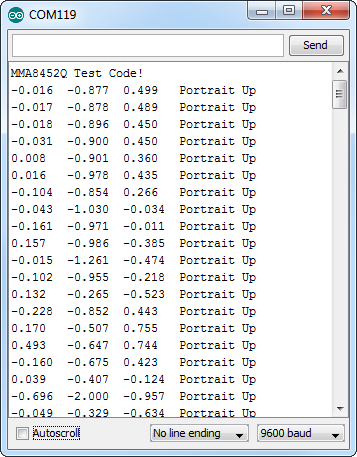
Once you've set your Board and Serial Port, upload the sketch to your Arduino. Then open the serial monitor.
You'll begin to see acceleration values stream by, in addition to some information about the sensor's orientation.
Try moving the sensor around to change those values. If it is motionless, flat on the desk, then an acceleration of
1g should be felt on the z-axis, while the others feel around 0. Test the other axes by rotating the board and
making them feel the pull of gravity.
Using the SFE_MMA8452Q Library
Here are some tips on using the MMA8452Q Arduino library so you can embed it into an Arduino sketch of your
own.
Include the Library (Global)
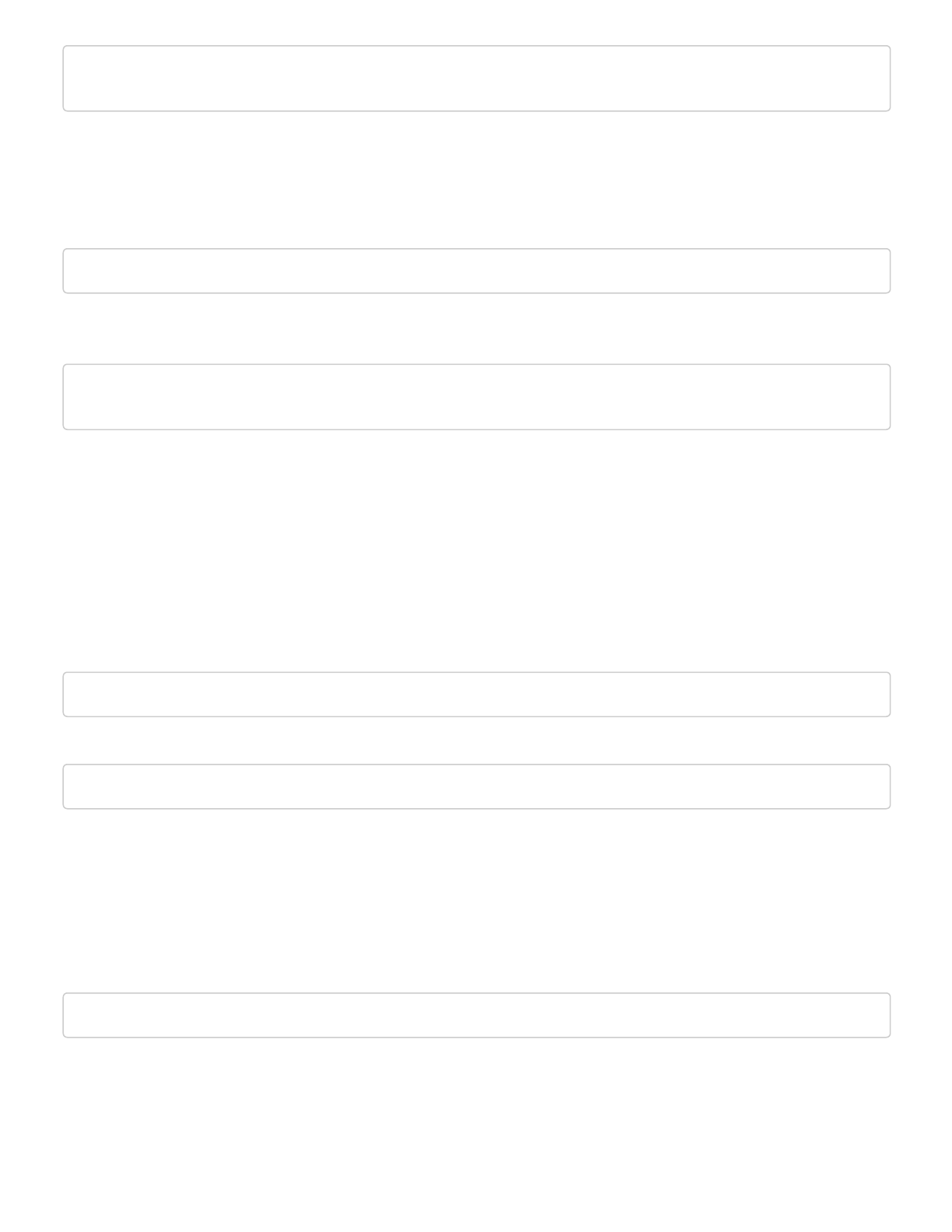
To begin, you need to "include" the library in your sketch:
2/20/2019 Qwiic Accelerometer (MMA8452Q) Hookup Guide - learn.sparkfun.com
https://learn.sparkfun.com/tutorials/qwiic-accelerometer-mma8452q-hookup-guide 9/11
#include <Wire.h> // Must include Wire library for I2C
#include <SFE_MMA8452Q.h> // Includes the SFE_MMA8452Q library
The library also requires that you include Wire.h in your sketch. Make sure you include that before you include
the SFE_MMA8452Q.h file.
Create an MMA8452Q Object (Global)
Once the library is included, you can create an MMA8452Q object. This line of code will do it for you:
MMA8452Q accel; // Default MMA8452Q object create. (Address = 0x1D)
Optionally, you can define the 7-bit I C address of your MMA8452Q in this parameter, using one of these lines of
code:
MMA8452Q accel(0x1C); // Initialize the MMA8452Q with an I2C address of 0x1C (SA0=0)
MMA8452Q accel(0x1D); // Initialize the MMA8452Q with an I2C address of 0x1D (SA0=1)
But if you've left the address jumper untouched (meaning the "SA0" pin is connected to VCC), you can call the
default (no parameter) constructor shown earlier.
Initialize the MMA8452Q (Setup)
Finally, in the setup() function of your sketch, you can initialize the accelerometer using the init() function.
The init() function verifies communication with the accelerometer, and sets up the full-scale range and output
data rate.
Again, you have a few options here. You can use a simple declaration like below. This will initialize the
accelerometer with range of ±2g and an output data rate of 800 Hz (turns the accelerometer up to the max!):
accel.init(); // Default init: +/-2g and 800Hz ODR
If you want to specify the acceleration and output data rate, you can instead use an init() function like this:
accel.init([scale], [odr]); // Init and customize the FSR and ODR
Scale can be either SCALE_2G , SCALE_4G , or SCALE_8G . The "odr" variable can be either ODR_800 , ODR_400 ,
ODR_200 , ODR_100 , ODR_50 , ODR_12 , ODR_6 , or ODR_1 , respectively setting the data rate to 800, 400, 200, 100,
50, 12.5, 6.25, or 1.56 Hz.
Reading and Using Values
Once you've set the accelerometer up, you can immediately start reading the data coming out of the chip. Reading
and using the values is a two-step process. First, call the read() function to pull in the values.
accel.read(); // Update acceleromter data
After you've called the read() function, you can use either of two sets of values to use the data. Reading from the
x, y, and z class variables will return a signed 12-bit integer read straight out of the accelerometer.
2
2/20/2019 Qwiic Accelerometer (MMA8452Q) Hookup Guide - learn.sparkfun.com
https://learn.sparkfun.com/tutorials/qwiic-accelerometer-mma8452q-hookup-guide 10/11
xAcceleration = accel.x; // Read in raw x-axis acceleration data
Serial.print("Acceleration on the x-axis is ");
Serial.println(xAcceleration);
Or, if you want a value with physical units, you can use the cx , cy , and cz class variables. These are the
calculated acceleration values read out of the accelerometer; they'll be in units of g's.
zAcceleration = accel.cz; // Read in calculated z-axis acceleration
Serial.print("Acceleration on the z-axis is: ");
Serial.print(zAcceleration);
Serial.println(" g's");
Remember! Those variables are only updated after the read() function is called. Make sure that happens before
you start using acceleration values.
Reading Portrait/Landscape
The MMA8452Q has all sorts of nifty, extra features, one of which is orientation detection -- it can estimate if it's
being held in landscape mode, portrait mode, or flat.
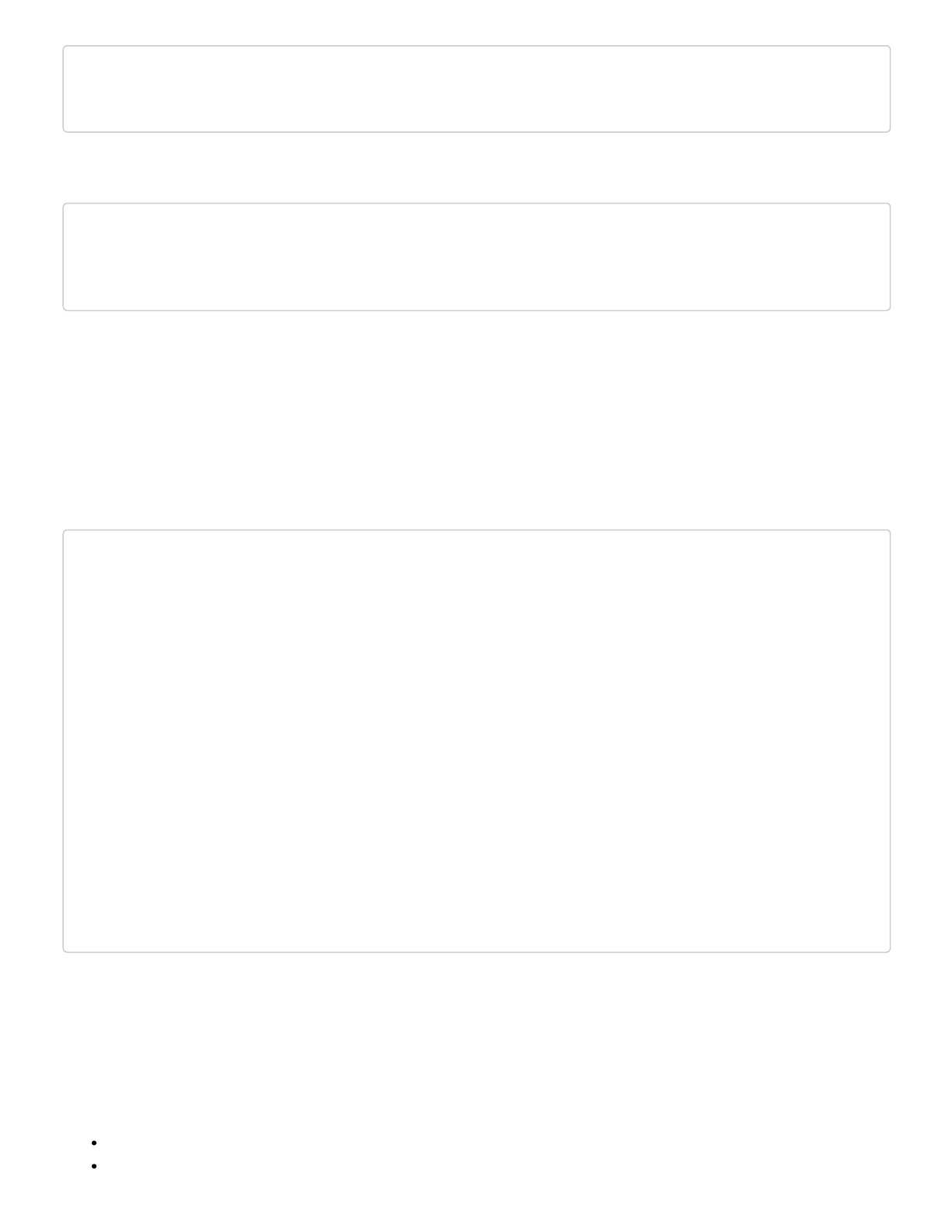
To read the portrait/landscape data from the accelerometer, use the readPL() function. This function returns a
byte, which will either be equal to PORTRAIT_U , PORTRAIT_D , LANDSCAPE_R , LANDSCAPE_L , or LOCKOUT .
byte pl = accel.readPL();
switch (pl)
{
case PORTRAIT_U:
Serial.print("Portrait Up");
break;
case PORTRAIT_D:
Serial.print("Portrait Down");
break;
case LANDSCAPE_R:
Serial.print("Landscape Right");
break;
case LANDSCAPE_L:
Serial.print("Landscape Left");
break;
case LOCKOUT:
Serial.print("Flat");
break;
}
As in the example above, you can use if or switch statements to check which orientation your accelerometer is
in.
Resources and Going Further
Thanks for reading! We're excited to see what you build with the MMA8452Q. If you're left needing more
MMA8452Q-related documentation, check out some of these resources:
Qwiic MMA8452Q Schematic (PDF) -- PDF schematic of the Qwiic MMA8452Q breakout board.
Qwiic MMA8452Q Eagle Files (ZIP) -- PCB design files for the Qwiic MMA8452Q Breakout board.

2/20/2019 Qwiic Accelerometer (MMA8452Q) Hookup Guide - learn.sparkfun.com
https://learn.sparkfun.com/tutorials/qwiic-accelerometer-mma8452q-hookup-guide 11/11
Qwiic Landing Page
MMA8452Q Datasheet (PDF) -- Loads of information about the MMA8452Q's electrical characteristics,
registers, communication specifications, and more.
Qwiic MMA8452Q GitHub Repo -- Design files and example code all related to the MMA8452Q.
Library GitHub Repo
Arduino Library - Arduino library for MMA8452Q.
Photon Library - Photon library for MMA8452Q.
SFE Product Showcase
Need some inspiration for your next project? Check out some of these related tutorials:
Dungeons and Dragons Dice Gauntlet
A playful, geeky tutorial for a leather bracer that uses a
LilyPad Arduino, LilyPad accelerometer, and seven
segment display to roll virtual 4, 6, 8, 10, 12, 20, and
100 side dice for gaming.
Das Blinken Top Hat
A top hat decked out with LED strips makes for a heck
of a wedding gift.
Blynk Board Washer/Dryer Alarm
How to configure the Blynk Board and app to notify you
when your washer or dryer is done shaking.
Raspberry Pi Zero Helmet Impact Force Monitor
How much impact can the human body handle? This
tutorial will teach you how to build your very own
impact force monitor using a helmet, Raspberry Pi
Zero, and accelerometer!
