RAPTOR User Manual Clinical
User Manual:
Open the PDF directly: View PDF  .
.
Page Count: 24
SAN Business Consultants 2015 RAPTOR User Manual
Page | 1
RAPTOR User Manual
Contents
RAPTOR Clinical Functions ............................................................................................................................ 4
Worklist Data ............................................................................................................................................ 4
Pass Box .................................................................................................................................................... 5
URL ........................................................................................................................................................ 5
Sample ................................................................................................................................................... 5
Protocol Page ............................................................................................................................................ 7
URL ........................................................................................................................................................ 7
Sample ................................................................................................................................................... 7
Medication Tab ....................................................................................................................................... 10
Sample ................................................................................................................................................. 10
Vitals Tab ................................................................................................................................................. 10
Sample ................................................................................................................................................. 11
Allergy Tab .............................................................................................................................................. 12
Sample ................................................................................................................................................. 12
Laboratory (Labs) Tab ............................................................................................................................. 12
Sample ................................................................................................................................................. 12
Rad Watch Tab ....................................................................................................................................... 13
Sample ................................................................................................................................................. 13
Clin Reports Tab ...................................................................................................................................... 13
Sample ................................................................................................................................................. 14
Problem List Tab ..................................................................................................................................... 14
Sample ................................................................................................................................................. 15
Notes Tab ................................................................................................................................................ 15
Sample ................................................................................................................................................. 16
Radiology Reports Tab ............................................................................................................................ 16
URL ...................................................................................................................................................... 17
Sample ................................................................................................................................................. 17
Library Tab .............................................................................................................................................. 18
Sample ................................................................................................................................................. 18
SAN Business Consultants 2015 RAPTOR User Manual
Page | 2
Contraindication Alerts ........................................................................................................................... 19
Sample ................................................................................................................................................. 19
Timer Warning ........................................................................................................................................ 20
Sample ................................................................................................................................................. 20
Collaboration Feature ............................................................................................................................. 21
Sample ................................................................................................................................................. 21
Ready for Examination Worklist Filter Mode .......................................................................................... 22
Interpretation Worklist Filter Mode ....................................................................................................... 23
QA Worklist Filter Mode ......................................................................................................................... 23
Needs Cancel Replace Worklist Filter Mode ........................................................................................... 23
Revision History .......................................................................................................................................... 24

SAN Business Consultants 2015 RAPTOR User Manual
Page | 3
Table of Figures and Tables
Figure 1- Worklist Data ................................................................................................................................. 4
Figure 2 Customize Column Sequence within Worklist ................................................................................ 5
Figure 3 Pass Box .......................................................................................................................................... 6
Figure 4 Pass Box Calendar Feature ............................................................................................................. 6
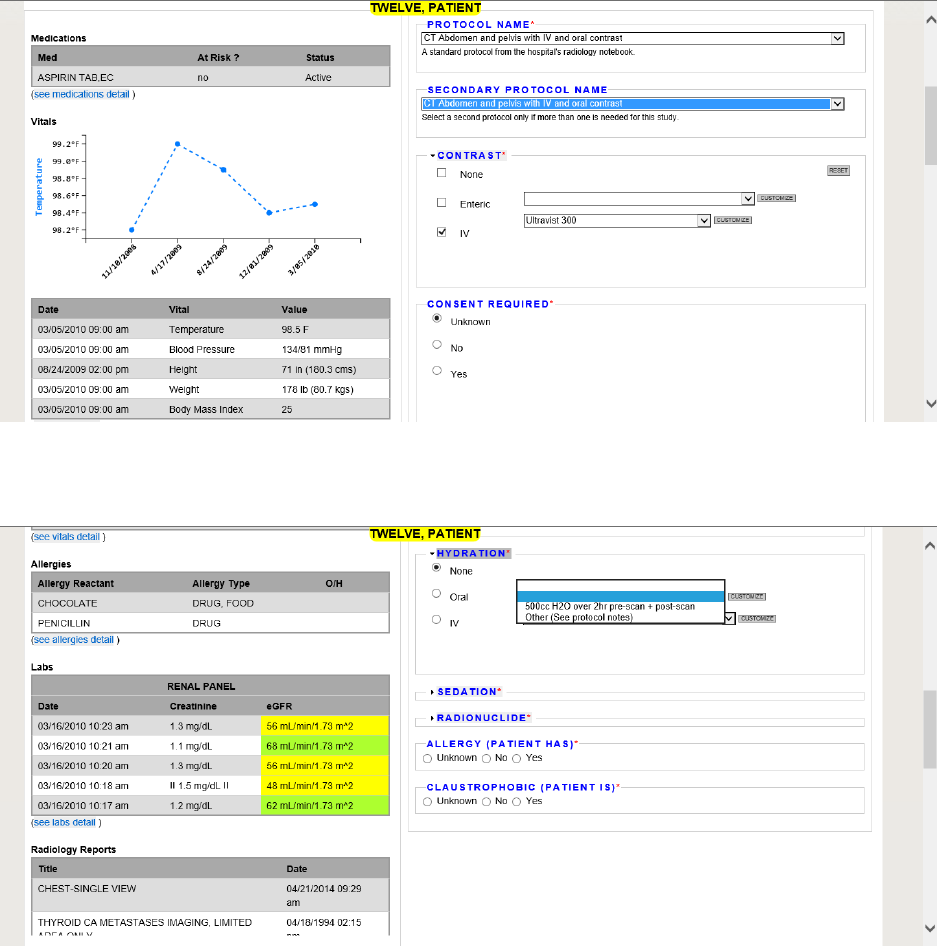
Figure 5 Protocol Tab - Patient Header, Medication Status, Protocol Name Options ................................. 7
Figure 6 Protocol Tab - Vitals Status, Contrast and Consent Options ........................................................... 8
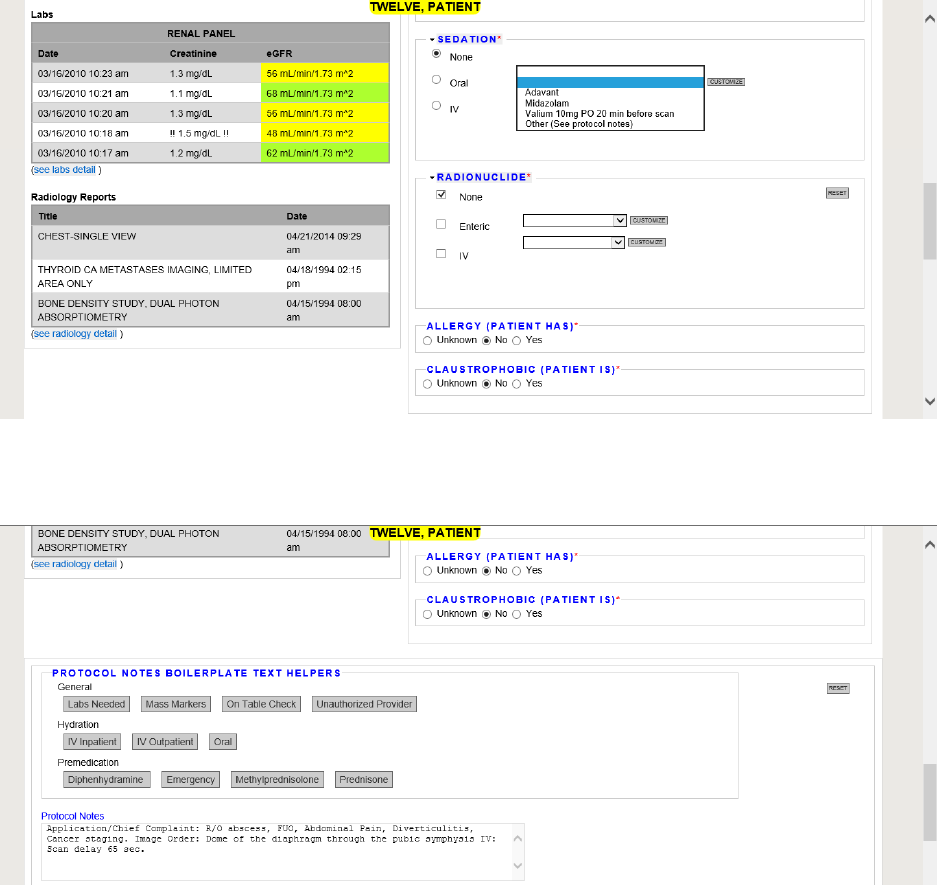
Figure 7 Protocol Tab - Hydration Options, Allergy, Labs and Radiology Reports Status ............................. 8
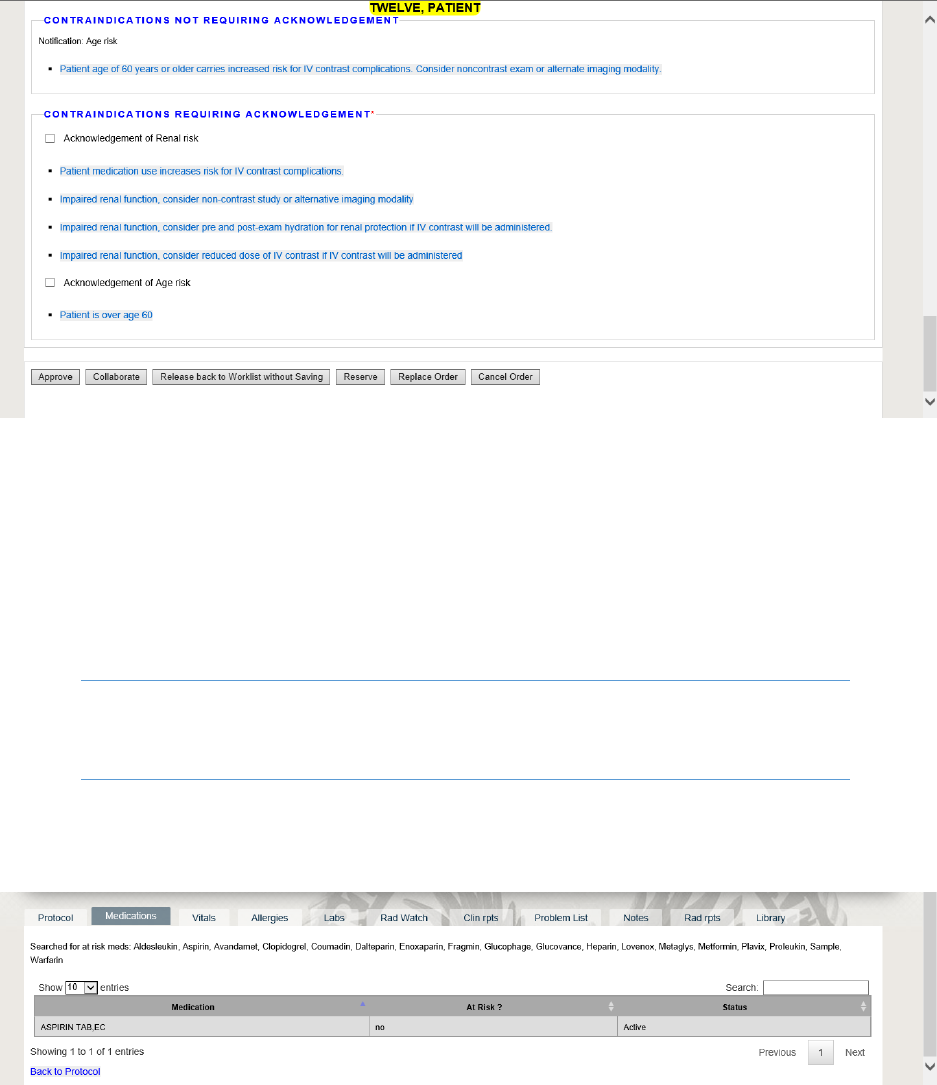
Figure 8 Protocol Tab - Sedation, Allergy and Claustrophobic Options ........................................................ 9
Figure 9 Protocol Tab – Protocol Notes Boilerplate Text Helpers ................................................................ 9
Figure 10 Protocol Tab - Contraindications Requiring Acknowledgement ................................................. 10
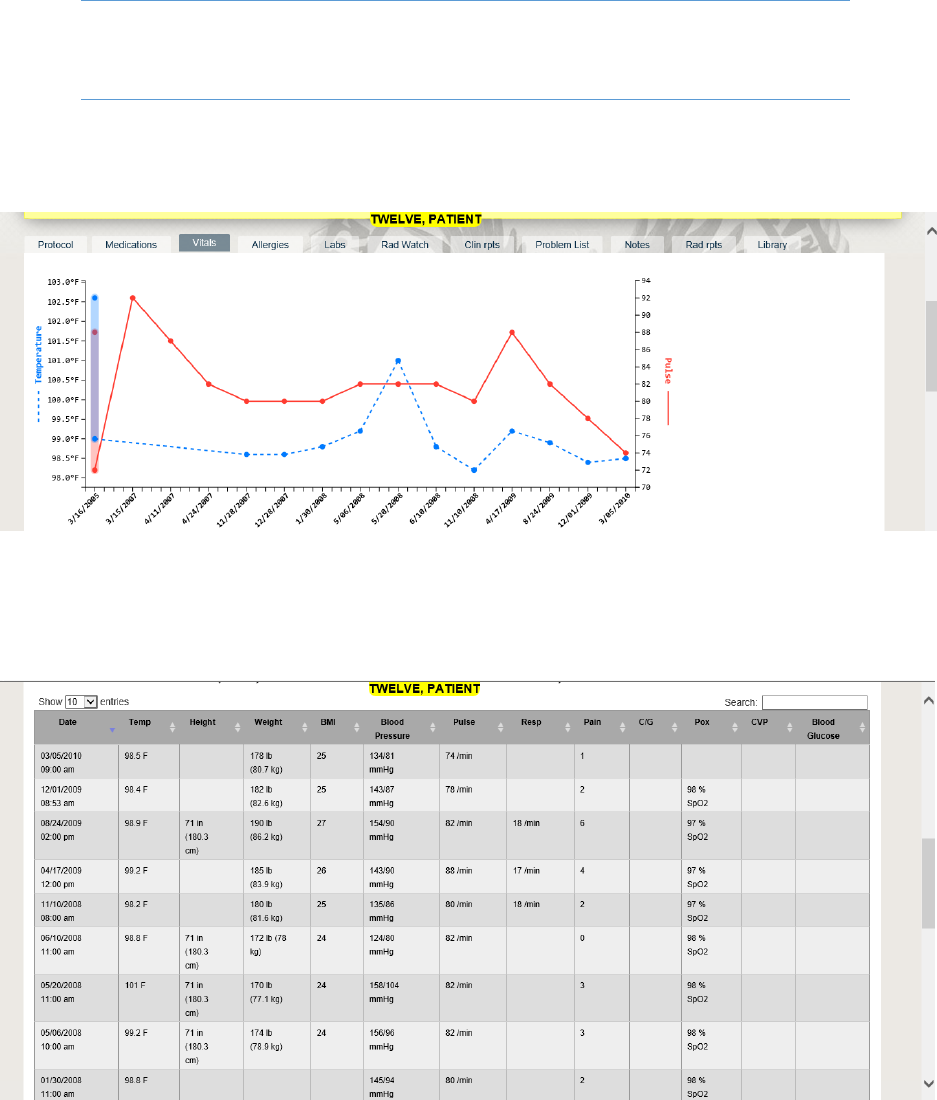
Figure 11 Medication Tab ........................................................................................................................... 10
Figure 12 Vitals Tab Graphical Display ........................................................................................................ 11
Figure 13 Vital Tab - Table Display .............................................................................................................. 11
Figure 14 Allergy Tab .................................................................................................................................. 12
Figure 15 Lab Tab ........................................................................................................................................ 13
Figure 16 Rad Watch Tab ............................................................................................................................ 13
Figure 17 Clinical Report Tab - Report List .................................................................................................. 14
Figure 18 Clinical Reports - Surgery Report ................................................................................................ 14
Figure 19 Problem List Tab .......................................................................................................................... 15
Figure 20 Problem List - Problem Details .................................................................................................... 15
Figure 21 Notes Tab - List of Notes ............................................................................................................. 16
Figure 22 Notes Tab - Notes Detail ............................................................................................................. 16
Figure 23 Radiology Report List .................................................................................................................. 17
Figure 24 Radiology Report Details ............................................................................................................. 17
Figure 25 Radiology Report - X-ray Image .................................................................................................. 18
Figure 26 Library Tab - List and Links to Radiology Protocol Procedures ................................................... 19
Figure 27 Contraindication Alerts ............................................................................................................... 20
Figure 28 Timer Warning ............................................................................................................................ 21
Figure 29 Collaboration Request ................................................................................................................ 22
Figure 30 Collaboration Request Status...................................................................................................... 22
Figure 31- Needs Cancel/Replace Worklist ................................................................................................. 23
SAN Business Consultants 2015 RAPTOR User Manual
Page | 4
RAPTOR Clinical Functions
Worklist Data
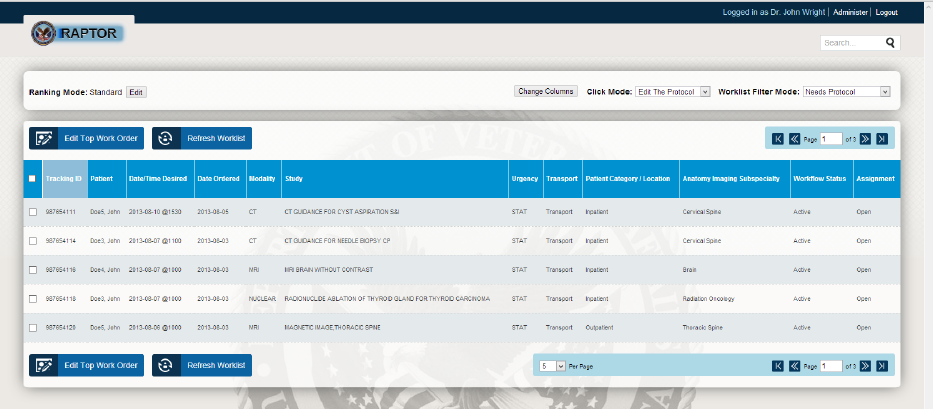
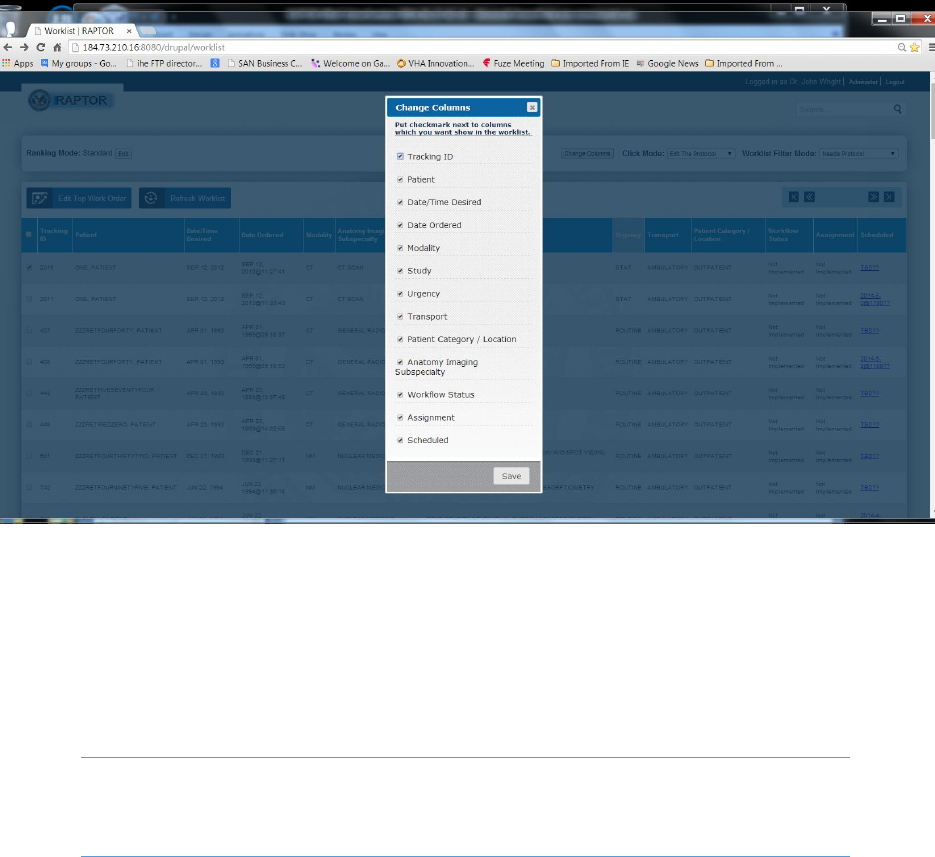
The worklist shows all the available orders for a user to protocol. The user can customize the order of
the worklist columns to suit their needs.
View mode is for non-clinical users, such as department executive. There are no edits in view mode.
The lock icon is to designate that the record is being worked on. When multiple users are in the system,
this visual aide helps to avoid the users duplicating work.
Figure 1- Worklist Data
SAN Business Consultants 2015 RAPTOR User Manual
Page | 5
Figure 2 Customize Column Sequence within Worklist
Pass Box
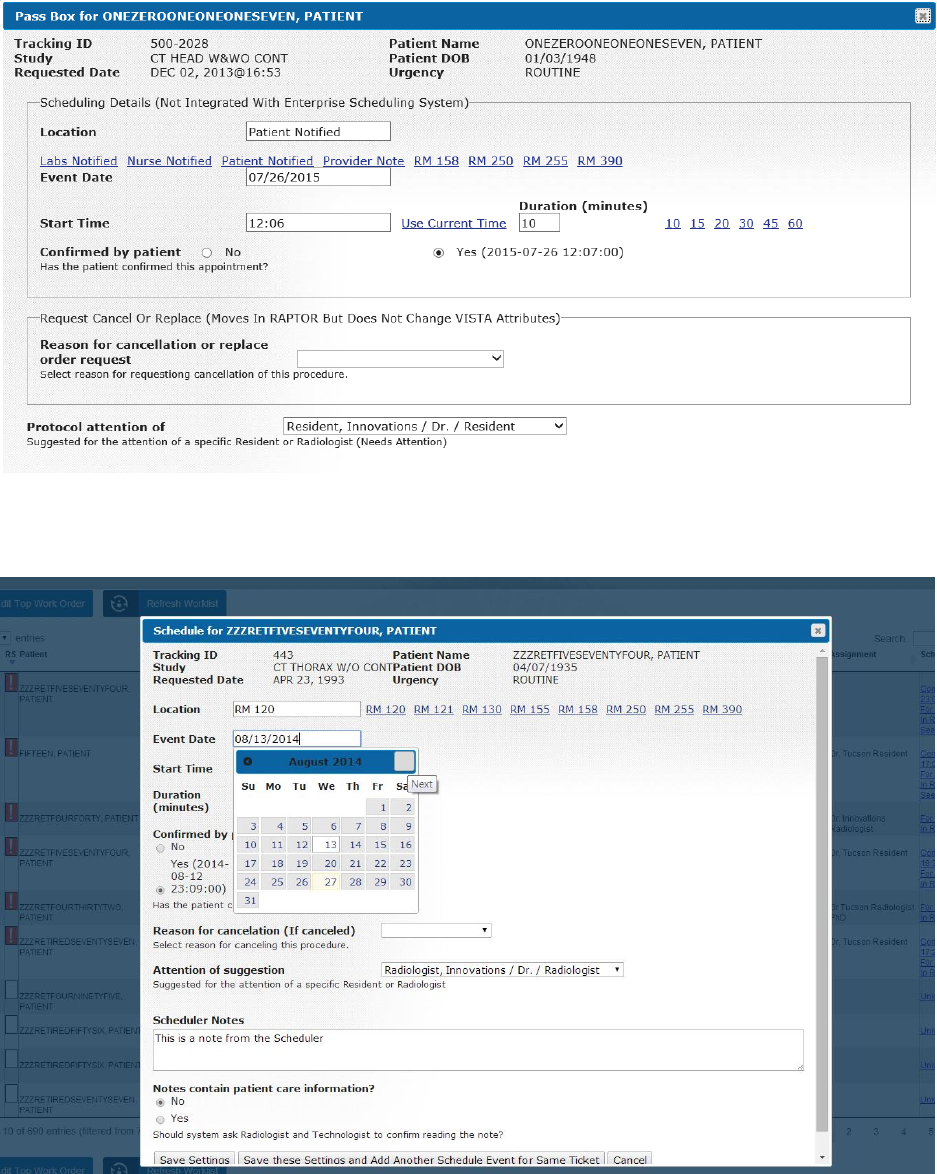
The Pass Box screen allows the user to assign work, note the status of room scheduling and track
utilization. It also allows the user to comment on the cancel/replace status of an order.
NOTE: Pass Box can be used to facilitate the communications between radiologists
and schedulers.
URL
http://184.73.210.16/RSITE500/raptor/worklist
Sample
Below is a sample Pass Box page
SAN Business Consultants 2015 RAPTOR User Manual
Page | 6
Figure 3 Pass Box
Figure 4 Pass Box Calendar Feature
SAN Business Consultants 2015 RAPTOR User Manual
Page | 7
Protocol Page
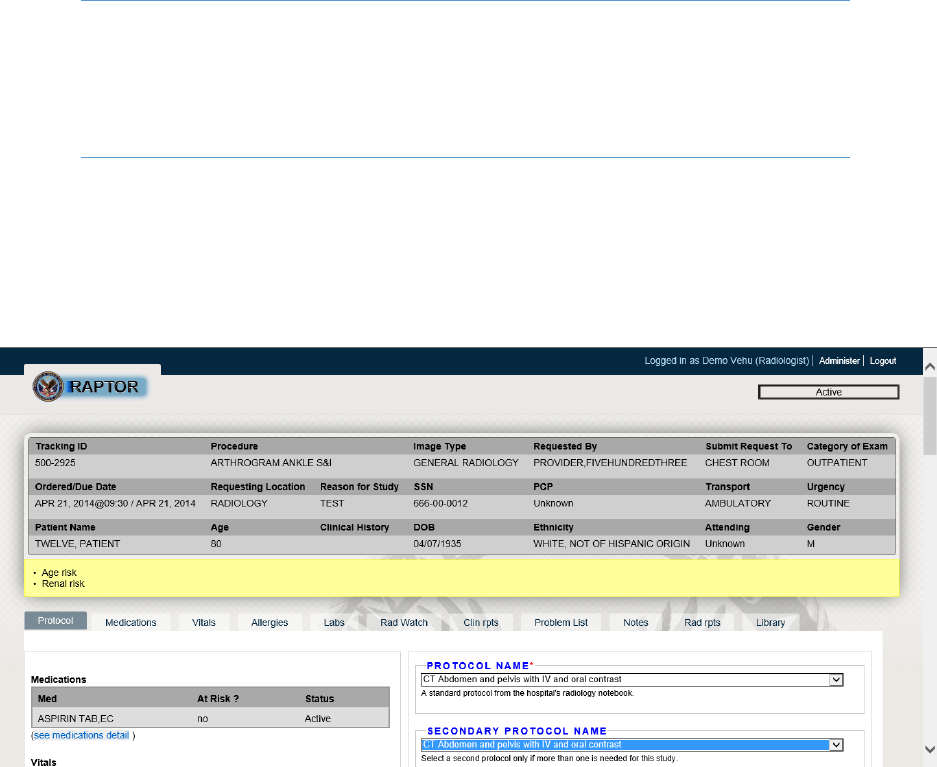
The Protocol page allow users to be able to view and select protocol options for the order and links to
patient medical history extracted from VistA. The Privileged user can approve, reserve, cancel or replace
the order.
NOTE: The header of the page includes patient and order information. The left side of
the page is a dashboard of VistA patient status. The right side of the page is the
action space where the Privileged user can enter pre-medication information. The
bottom of the page has the workfow buttons.
URL
http://184.73.210.16/RSITE500/raptor/protocol
Sample
Below is a sample Protocol Tab.
Figure 5 Protocol Tab - Patient Header, Medication Status, Protocol Name Options
SAN Business Consultants 2015 RAPTOR User Manual
Page | 8
Figure 6 Protocol Tab - Vitals Status, Contrast and Consent Options
Figure 7 Protocol Tab - Hydration Options, Allergy, Labs and Radiology Reports Status
SAN Business Consultants 2015 RAPTOR User Manual
Page | 9
Figure 8 Protocol Tab - Sedation, Allergy and Claustrophobic Options
Figure 9 Protocol Tab – Protocol Notes Boilerplate Text Helpers
SAN Business Consultants 2015 RAPTOR User Manual
Page | 10
Figure 10 Protocol Tab - Contraindications Requiring Acknowledgement
Medication Tab
The Medication Tab allows users to be able to view the status of known medications the patient is
taking extracted from VistA patient record information. This table can be sorted, searched and
expanded by the user.
NOTE: At-risk medication is searched and visually highlighted when matched to the
medications list.
Sample
Below is a sample Medication Tab
Figure 11 Medication Tab
Vitals Tab
The Vitals Tab allow users to be able to view the status of key vital signs taken from all recorded patient
encounters stored in VistA. This table can be sorted, searched and expanded by the user.
SAN Business Consultants 2015 RAPTOR User Manual
Page | 11
NOTE: The temperature and pulse is graphed to assist the user to understand the
condition of the patient.
Sample
Below is a sample Vitals Tab
Figure 12 Vitals Tab Graphical Display
Figure 13 Vital Tab - Table Display
SAN Business Consultants 2015 RAPTOR User Manual
Page | 12
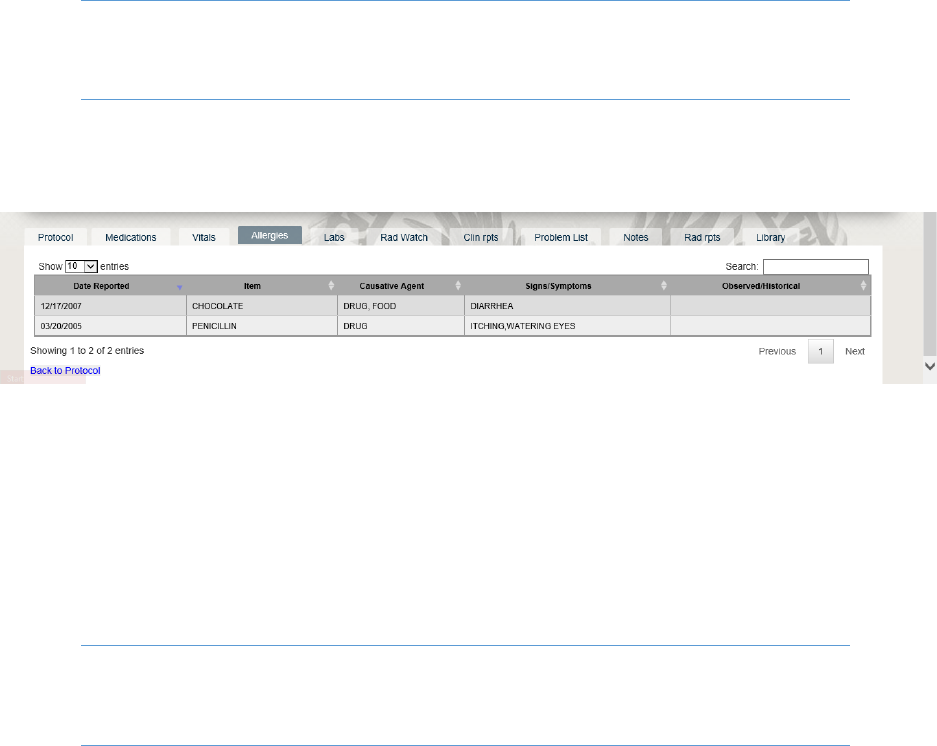
Allergy Tab
The Allergy Tab allows users to be able to view the status of known allergies the patient has based on
extracted VistA patient record information. This table can be sorted, searched and expanded by the
user.
NOTE: A short list of patient’s allergies is displayed on the protocol page and a full list
is displayed on the allergy page.
Sample
Below is a sample Allergy Tab
Figure 14 Allergy Tab
Laboratory (Labs) Tab
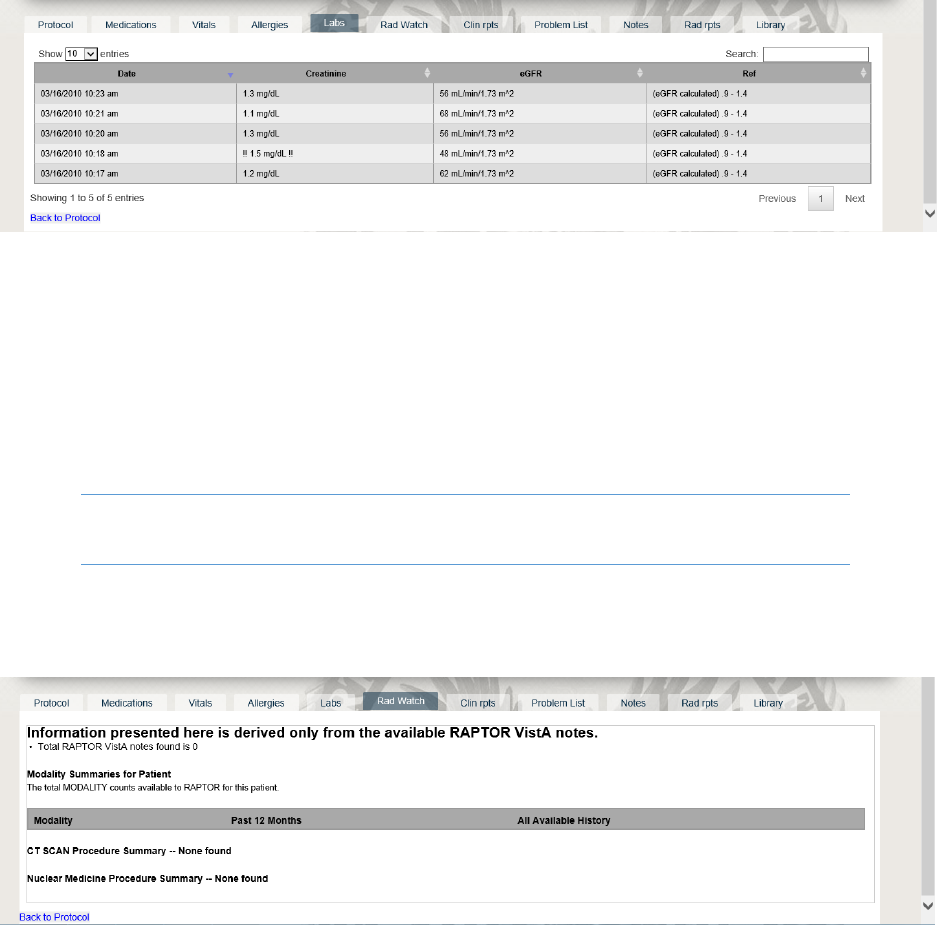
The Labs Tab allows users to be able to view the status of key laboratory test results extracted from
VistA patient record information. This table can be sorted, searched and expanded by the user.
Creatinine values out of reference range are visually highlighted.
NOTE: A patient’s eGFR is calculated and graphed to assist the user to understand the
condition of the patient.
Sample
Below is a sample Lab Table
SAN Business Consultants 2015 RAPTOR User Manual
Page | 13
Figure 15 Lab Tab
Rad Watch Tab
The Rad Watch Tab provides a summarized history of the radiology tests performed on the patient in
order to conduct radiation exposure surveillance for patient safety. This tab can be sorted, searched and
expanded by the user.
NOTE: Rad Watch summarizes historical RAPTOR notes for patients.
Sample
Below is a sample Rad Watch Tab.
Figure 16 Rad Watch Tab
Clin Reports Tab
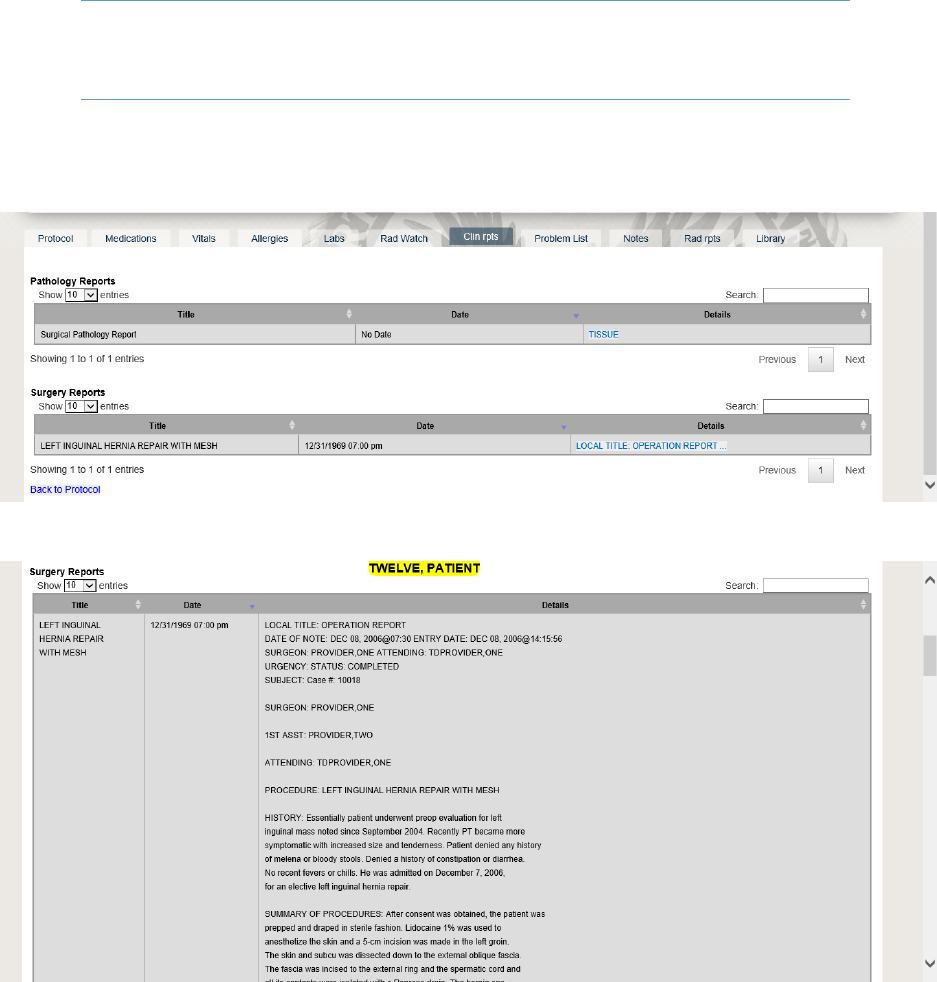
The Clin Reports Tab displays the information extracted from the VistA patient record that pertains to
clinical services and procedures such as Pathology and Surgery reports. These tables can be sorted,
searched and expanded by the user.
SAN Business Consultants 2015 RAPTOR User Manual
Page | 14
NOTE: Users can search for note contents via the search box in the upper right corner
of each table.
Sample
Below is a sample Clinical Reports Tab.
Figure 17 Clinical Report Tab - Report List
Figure 18 Clinical Reports - Surgery Report
Problem List Tab
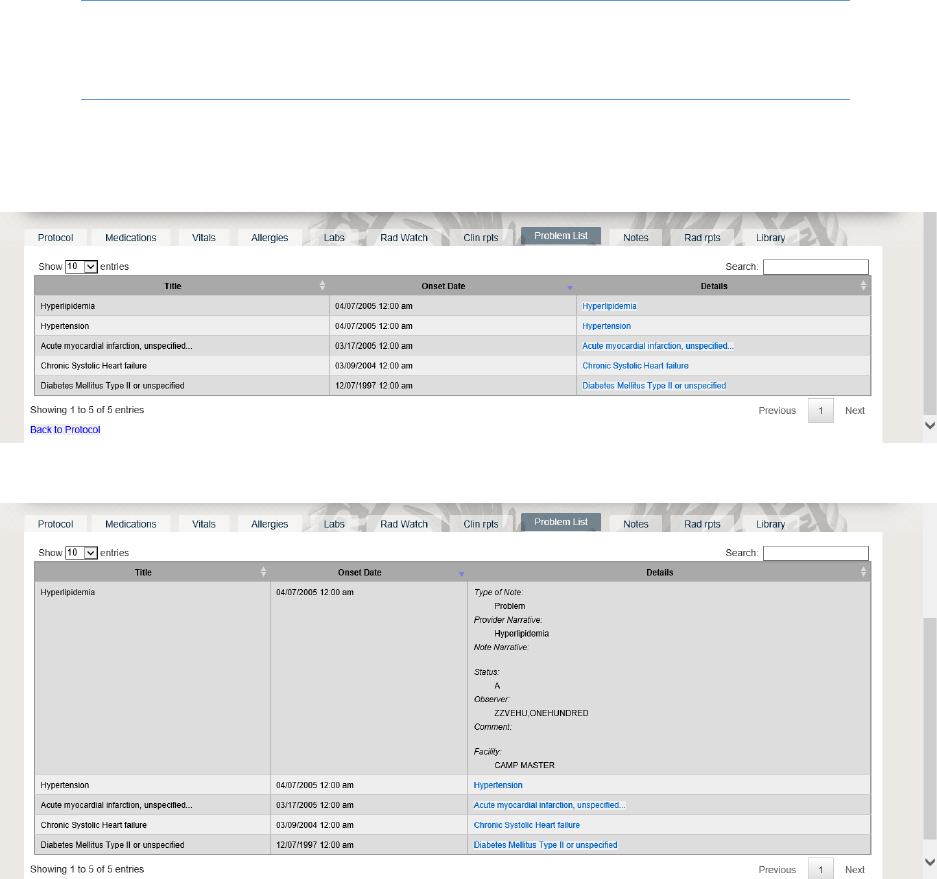
The Problem List Tab provides a list of the clinical problems extracted from the VistA patient record. This
table can be sorted, searched and expanded by the user.
SAN Business Consultants 2015 RAPTOR User Manual
Page | 15
NOTE: Users can search for note contents via the search box in the upper right corner
of the table.
Sample
Below is a sample Problem List tab.
Figure 19 Problem List Tab
Figure 20 Problem List - Problem Details
Notes Tab
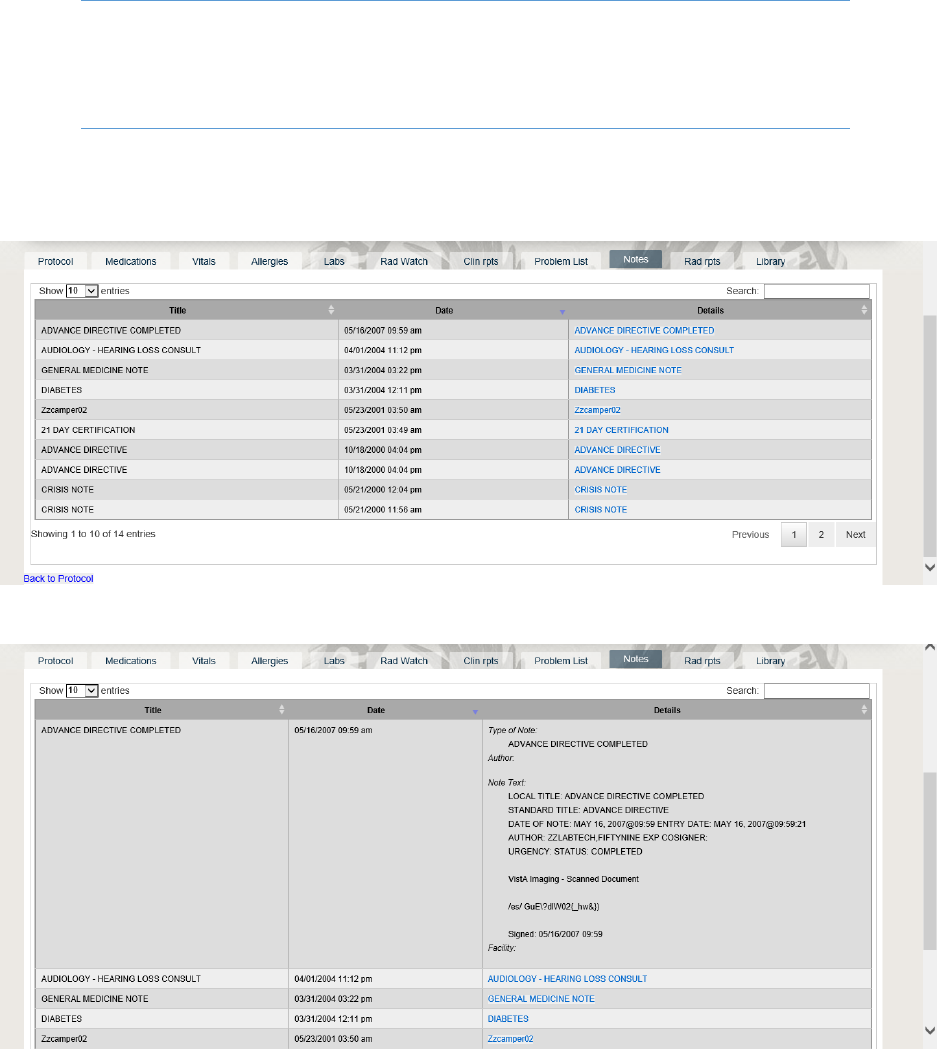
The Notes Tab provides a list and details of the notes extracted from the VistA patient record. This table
can be sorted, searched and expanded by the user.
SAN Business Consultants 2015 RAPTOR User Manual
Page | 16
NOTE: By default, the most recent 10 table entries are displayed. The user can display
additional entries by selecting the desired number of entries in the upper left hand
corner of the table.
Sample
Below is a sample Notes Tab.
Figure 21 Notes Tab - List of Notes
Figure 22 Notes Tab - Notes Detail
Radiology Reports Tab
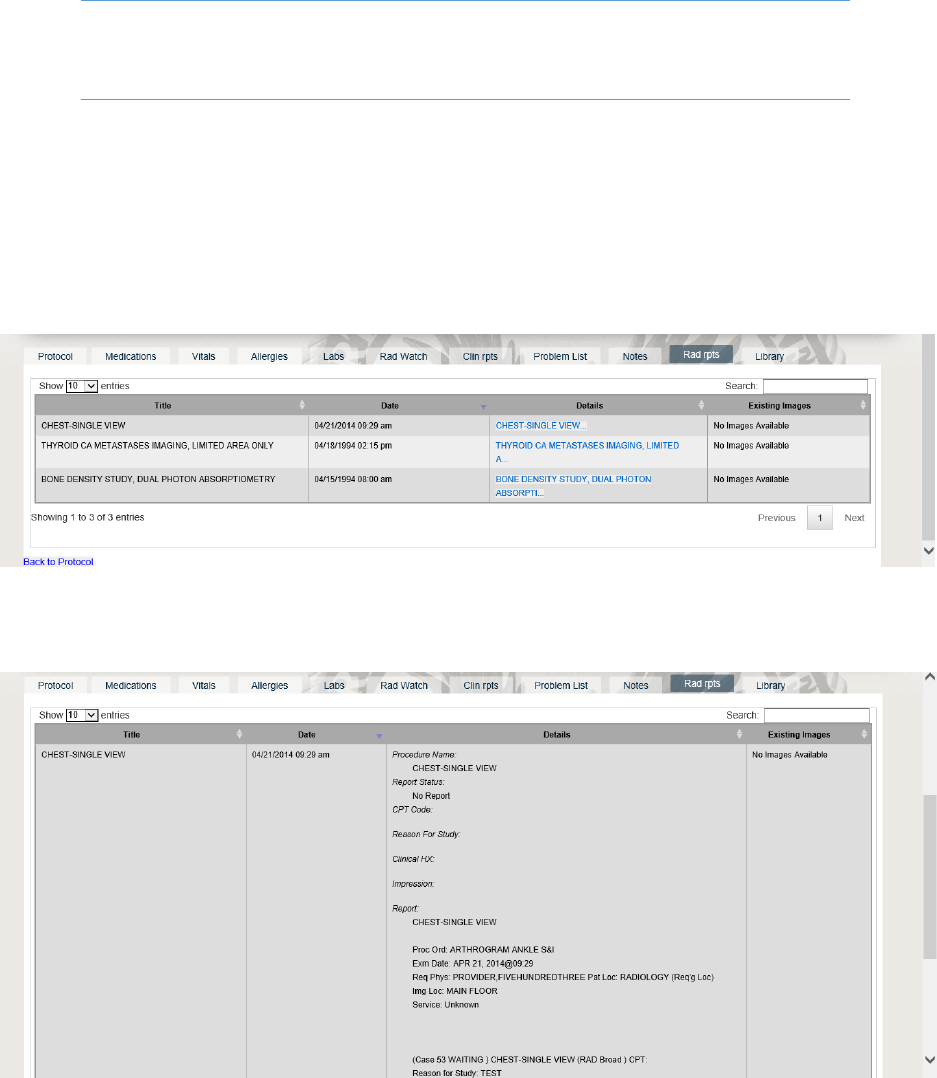
The Radiology Reports Tab provides a list and details of the radiology reports extracted from the VistA
patient record. This table can be sorted, searched and expanded by the user.
SAN Business Consultants 2015 RAPTOR User Manual
Page | 17
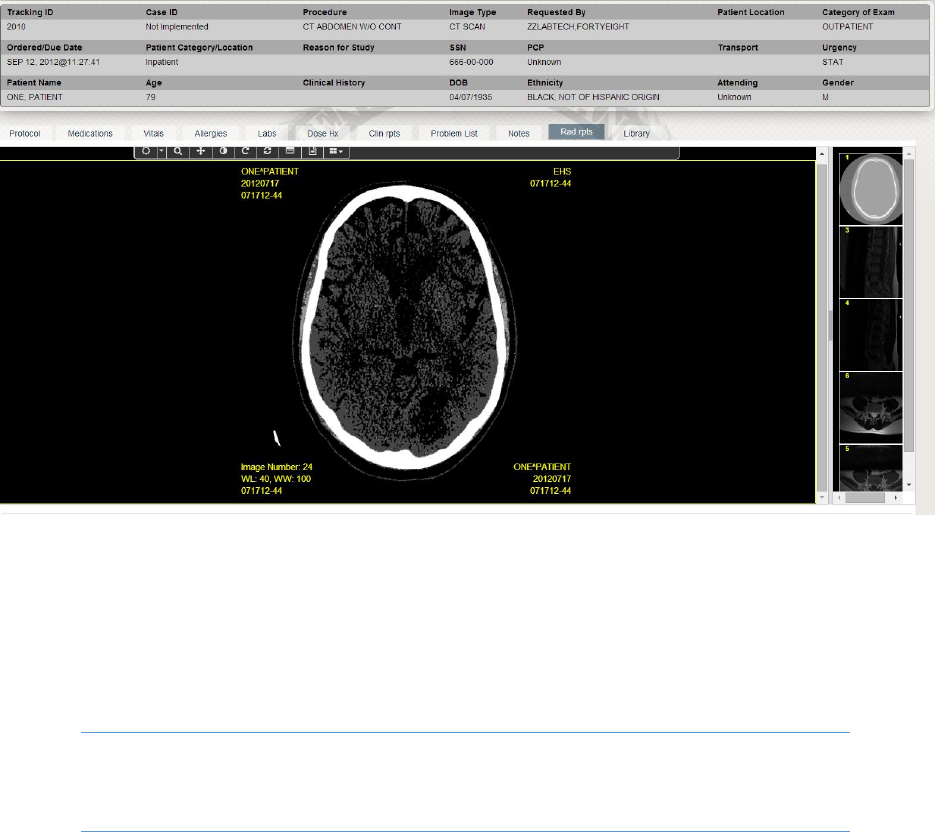
NOTE: When an image thumbnail is displayed, an image may be selected to view with
an embedded viewer.
URL
http://184.73.210.16/RSITE500/raptor/protocol?rawrtid=[2028]
Sample
Below is a sample Radiology Reports Tab.
Figure 23 Radiology Report List
Figure 24 Radiology Report Details
SAN Business Consultants 2015 RAPTOR User Manual
Page | 18
Figure 25 Radiology Report - X-ray Image
Library Tab
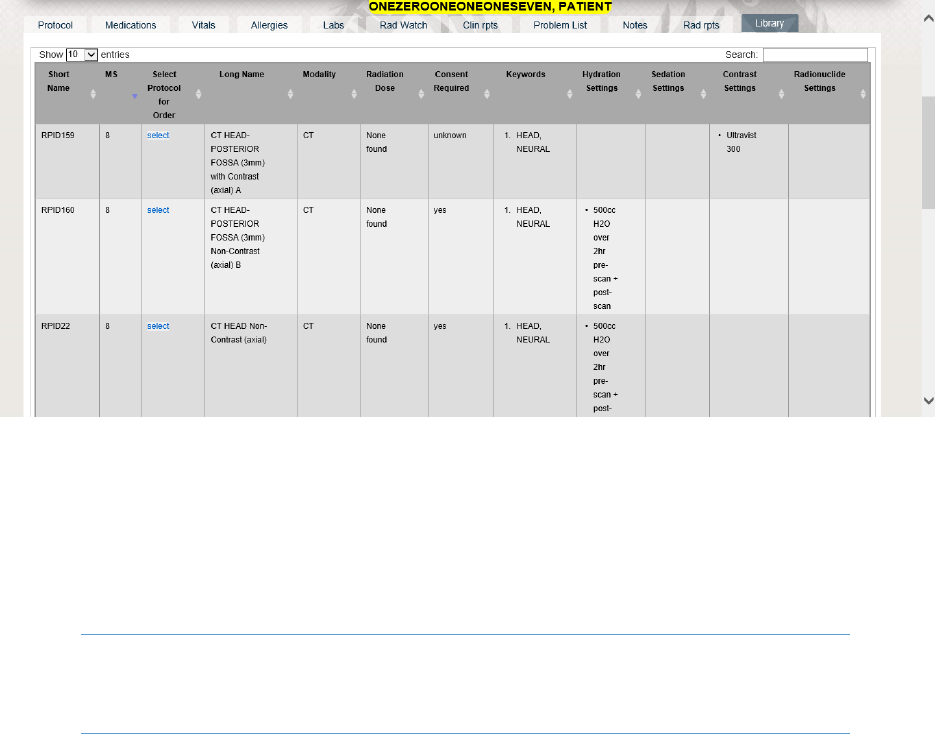
The Library Tab provides a list and details of Radiology protocol procedure documentation in electronic
format, which has been provided by the Radiology Department for reference when conducting the
ordered study for the patient. This table can be sorted, searched and expanded by the user.
NOTE: Each entry can be selected from the library. This selection is populated on the
protocol page.
Sample
Below is a sample Library Tab.
SAN Business Consultants 2015 RAPTOR User Manual
Page | 19
Figure 26 Library Tab - List and Links to Radiology Protocol Procedures
Contraindication Alerts
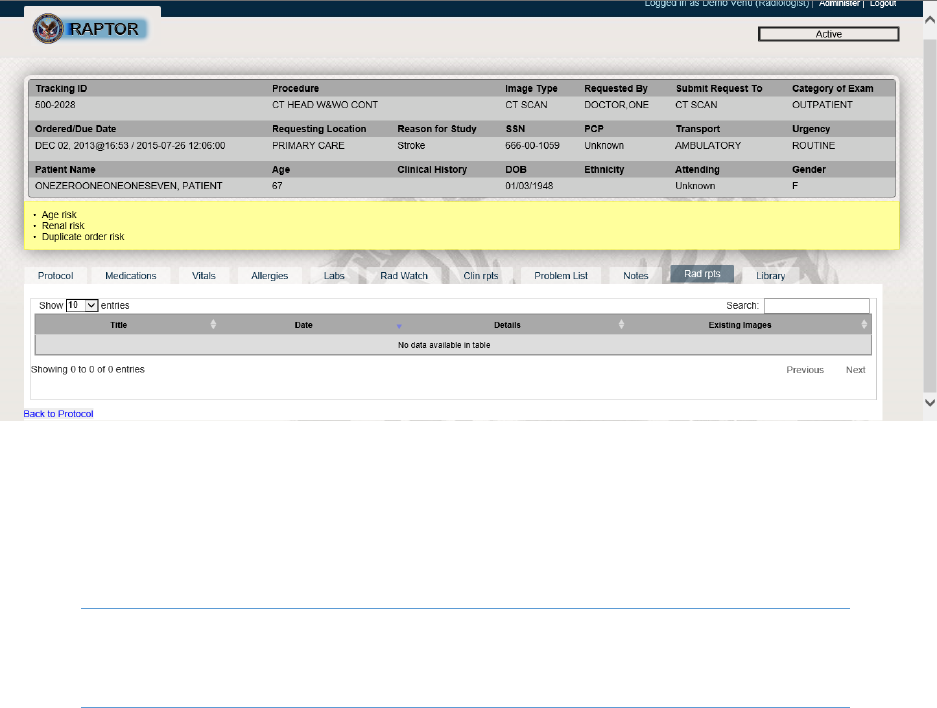
Contraindication alerts are displayed once the patient is selected. Alerts are viewed on the Protocol
page in the yellow frame at the top of the tab and at the bottom of the page under the
“CONTRAINDICATIONS REQUI RING ACKNOWLE DGEMENT”.
NOTE: Users can view the Contraindications engine in the Admin area. Alerts must be
acknowledged to move the workflow forward.
Sample
Below is a sample of Contraindication alerts, highlighted in the in yellow region of this screen.
SAN Business Consultants 2015 RAPTOR User Manual
Page | 20
Figure 27 Contraindication Alerts
Timer Warning
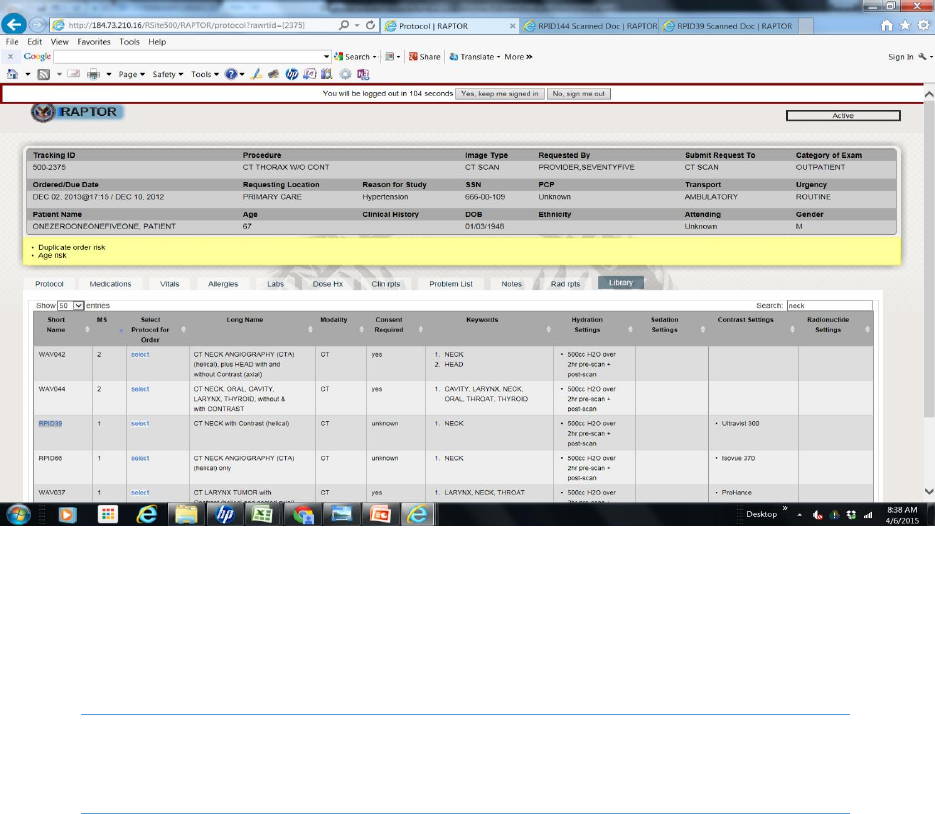
Timer Warnings will be displayed at the worklist to notify the user to confirm if they want to remain
logged into the system before being automatically logged off.
NOTE: The user can select addition time when the warning is displayed, “Yes, keep me
signed in”.
Sample
Below is a sample of a Timer Warning outlined in the red-lined box.
SAN Business Consultants 2015 RAPTOR User Manual
Page | 21
Figure 28 Timer Warning
Collaboration Feature
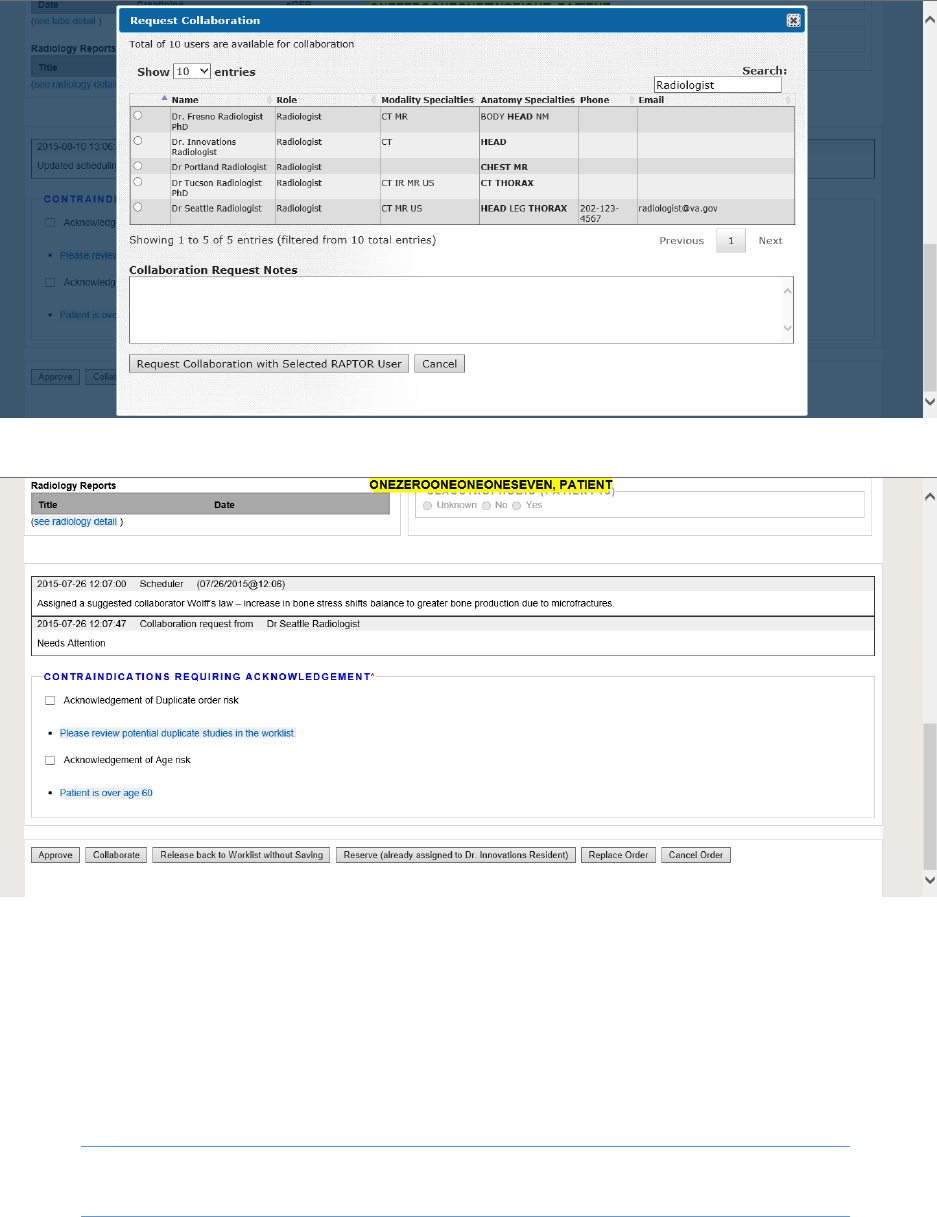
The Collaboration feature can enable the user to request or recommend a peer-to-peer collaboration
effort for the study in question.
NOTE: Collaboration allows the ability to assign a protocol. The collaboration request
note is required.
Sample
Below is a sample of a Collaboration request.
SAN Business Consultants 2015 RAPTOR User Manual
Page | 22
Figure 29 Collaboration Request
Figure 30 Collaboration Request Status
Ready for Examination Worklist Filter Mode
Once approved by a privileged user, the protocol is ready for examination.
NOTE: Technologists are entered into Ready for Examination mode by default.
SAN Business Consultants 2015 RAPTOR User Manual
Page | 23
Interpretation Worklist Filter Mode
The Interpretation Worklist is populated by protocols that have been examined. The radiologists can
review and make notes regarding the work and then create the RAPTOR notes.
NOTE: RAPTOR creates two notes, the complete protocol workflow and the safety
checklist note. This checklist can be used to respond to Joint Commission audits.
QA Worklist Filter Mode
The QA worklist can be used by the privileged users to note the quality of protocoling workflow.
NOTE: The ability to manage the QA criteria is described in the Manage Lists, Edit QA
Criteria section of the Users Manual.
Needs Cancel Replace Worklist Filter Mode
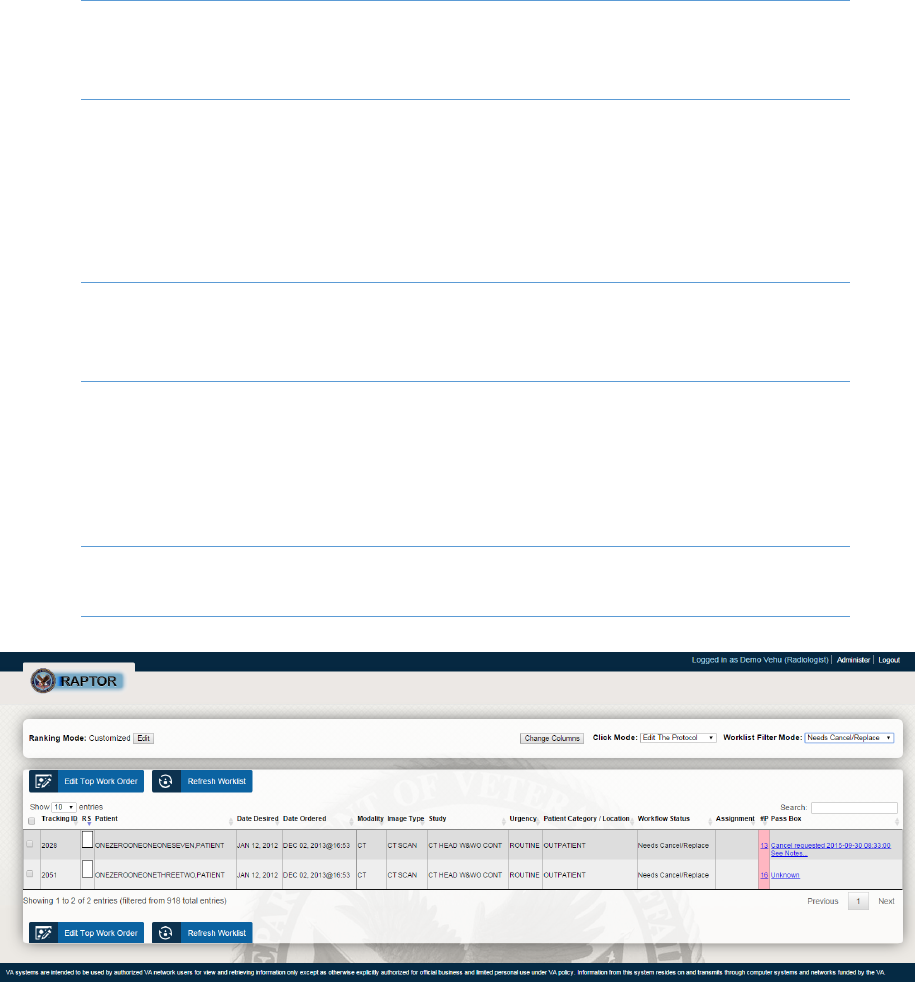
The needs cancel/Replace worklist can be used by the privileged user (in example, the OREMAS key) to
display orders that need to be canceled.
NOTE: Technologists are entered into Ready for Examination mode by default.
Figure 31- Needs Cancel/Replace Worklist

SAN Business Consultants 2015 RAPTOR User Manual
Page | 24
Revision History
When
Who
Description
August 2015
SAN
Initial draft.
September 2015
SAN
Updated draft.
