Security In Angular Setup Instructions README 1ST
README-1ST-SetupInstructions
User Manual:
Open the PDF directly: View PDF  .
.
Page Count: 10
Setup your Machine
Before you begin to use Angular, you must prepare your development
machine. If you are new to Angular, you are going to need the following tools
installed on your machine.
• Node.js
• NodeJS Package Manager (npm)
• Angular
• TypeScript (Automatically installed)
• Angular CLI
• ASP.NET Core
• Visual Studio Code
• Extensions for VS Code
o Debugger (Chrome, Firefox or Edge)
o C#
NOTE: If you already have all of these installed on your computer, you may
skip ahead to the section "Create the Sample Project".
Install Node & NPM
See if you have Node.js and NodeJS Package Manager (npm) on your
machine. Drop to a command prompt on your machine and type in the
following.
npm -v
node -v
You will either see an error, or you will see the version numbers for each.
If you need to install these packages you can download and install these two
packages at https://nodejs.org. Download and install the “LTS” version, not
“Current”.

Security in Angular Setup Instructions
2 Security in Angular Setup Instructions
Copyright © 2018 by Paul D. Sheriff
All rights reserved worldwide. Reproduction is strictly prohibited.
You need at least node version 6.9.x and npm version 3.x.x.
Install ASP.NET Core
Check to see if you have ASP.NET Core on your machine. Open a command
prompt and type in the following:
dotnet
If you have it installed, you should see something that looks like the following:
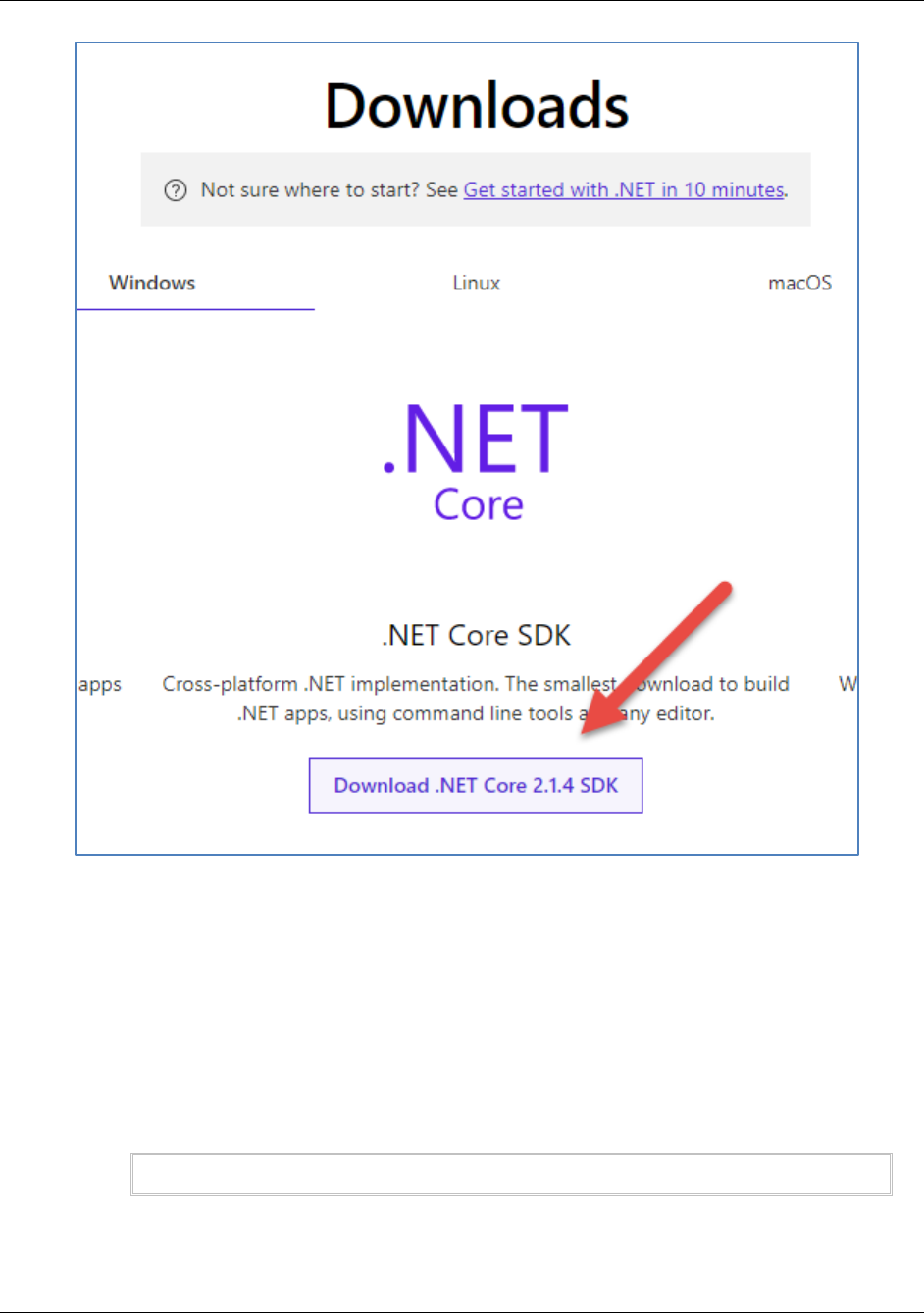
If you do not have it installed, go to
https://www.microsoft.com/net/download/windows. On this page select the
Download .NET Core x.x.x SDK as shown in the following screen shot.
Install Angular CLI
Security in Angular Setup Instructions 3
Copyright © 2018 by Paul D. Sheriff
All rights reserved. Reproduction is strictly prohibited.
Install Angular CLI
Check to see if you have the Angular CLI installed. Open a command prompt
on your machine and check the version of Angular CLI:
ng -v
After running this command, you will either have an error, or you will see a
version number. Unless you have installed this very recently, open a
Security in Angular Setup Instructions
4 Security in Angular Setup Instructions
Copyright © 2018 by Paul D. Sheriff
All rights reserved worldwide. Reproduction is strictly prohibited.
command prompt and execute the following command to get the latest
version of the CLI.
npm install -g @angular/cli
Install Visual Studio Code
Go to http://code.visualstudio.com and download and install Visual Studio
Code.
Install Debugger Extension
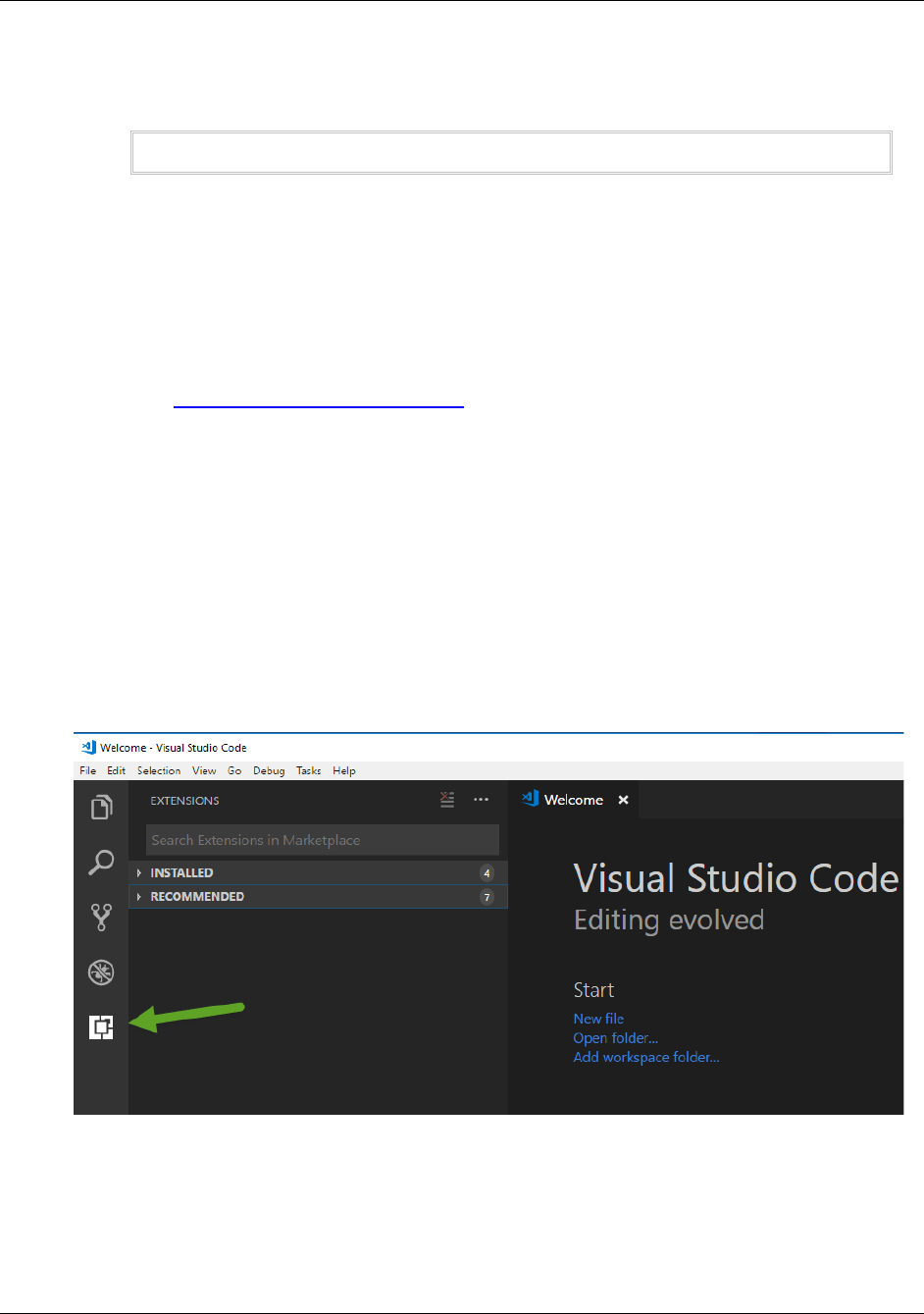
Let’s now install a debugger to use from within VS Code.
Click on the Extensions icon in the Activity Bar.
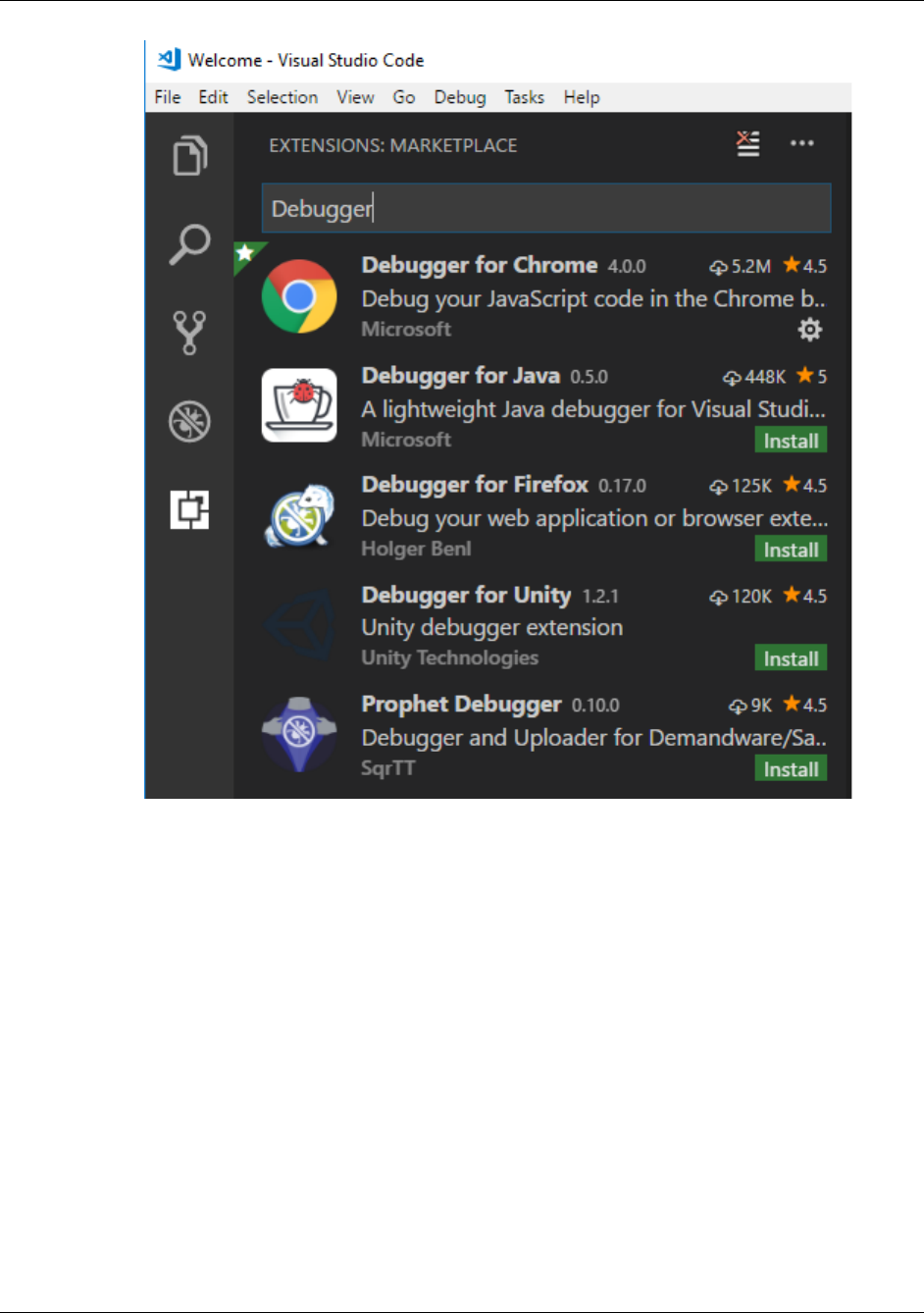
Once you click on the Extensions tab, type “Debugger” into the search box.
Install C#
Security in Angular Setup Instructions 5
Copyright © 2018 by Paul D. Sheriff
All rights reserved. Reproduction is strictly prohibited.
You can install debuggers for Chrome, FireFox or Microsoft Edge browsers.
Select one and click the Install button.
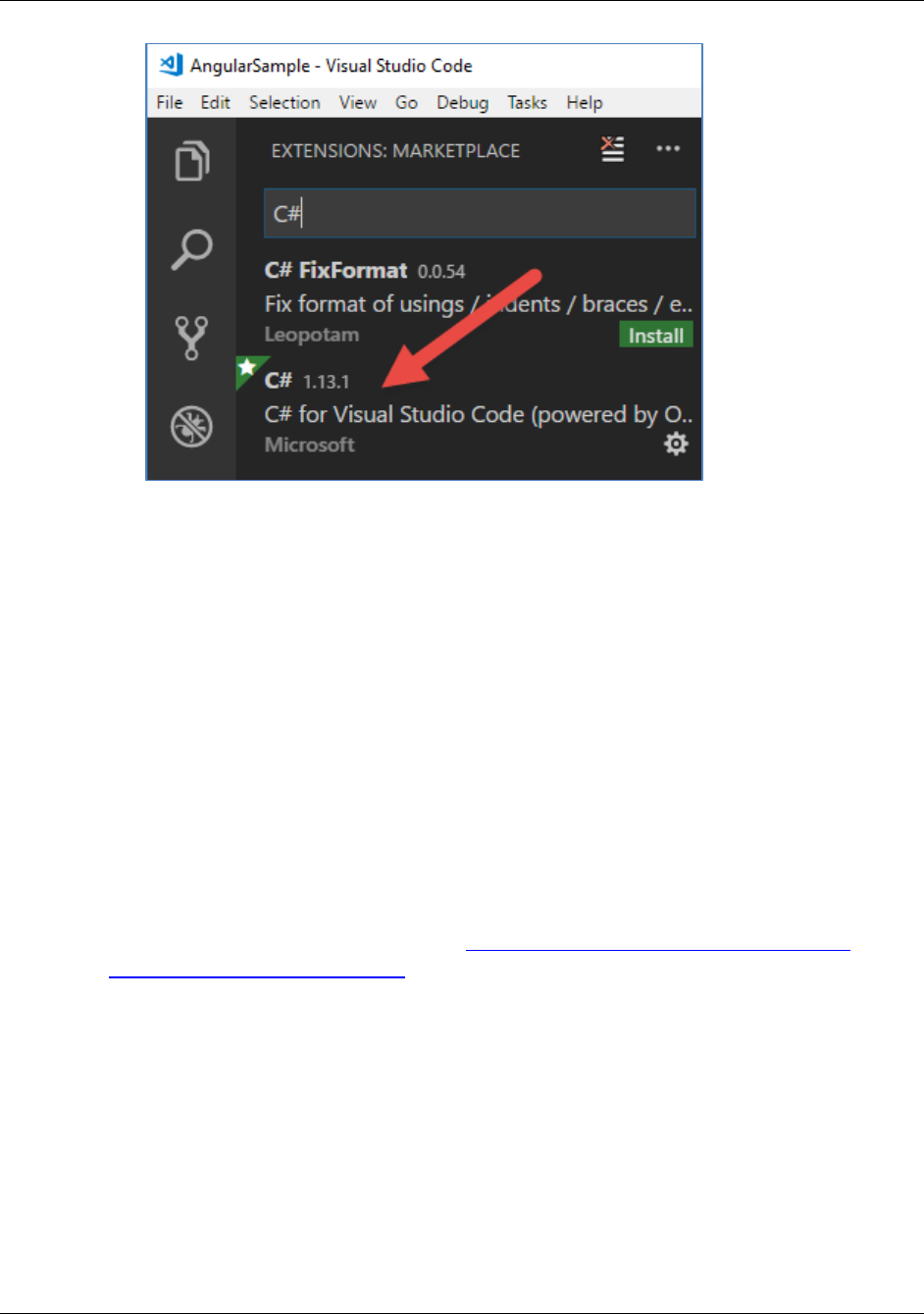
Install C#
In this course you are going to use .NET Core to create a Web API, so you
should install the C# extension for VS Code.
Security in Angular Setup Instructions
6 Security in Angular Setup Instructions
Copyright © 2018 by Paul D. Sheriff
All rights reserved worldwide. Reproduction is strictly prohibited.
Setup SQL Server
In the sample you download there is a \SqlData folder in which you find a
SQL Server Express database named PTC-Pluralsight.mdf. You also find a
PTC-Pluralsight.SQL file. You may either create your own PTC-Pluralsight
database on your own SQL Server, or use the database supplied.
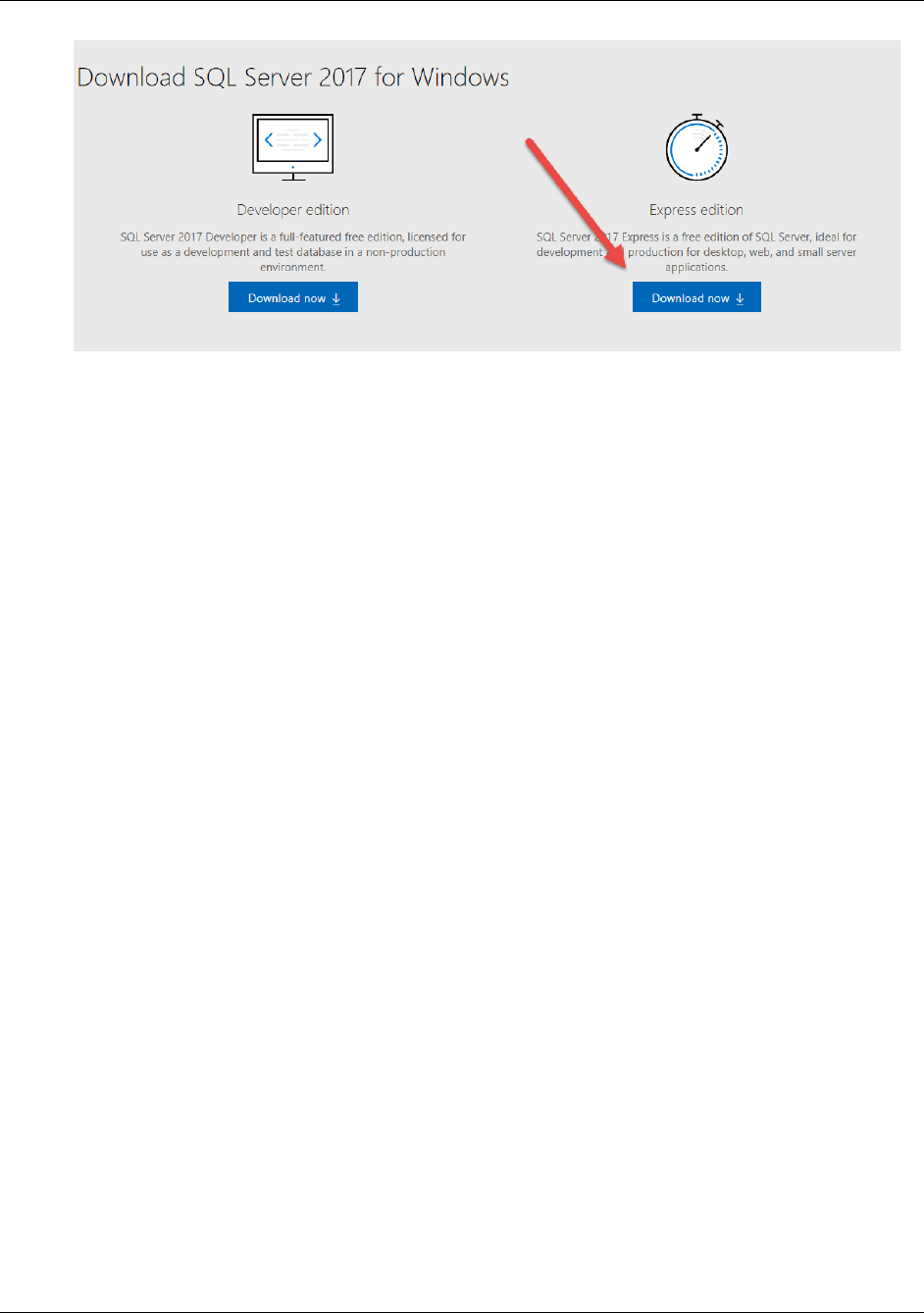
Getting SQL Server Express
If you want to use the supplied database file, you need to get SQL Server
Express. Download it at this URL: https://www.microsoft.com/en-us/sql-
server/sql-server-downloads. Choose the Express edition as shown below.
Setup SQL Server
Security in Angular Setup Instructions 7
Copyright © 2018 by Paul D. Sheriff
All rights reserved. Reproduction is strictly prohibited.
During the installation, be sure to select the feature "LocalDB" to be installed.
Security in Angular Setup Instructions
8 Security in Angular Setup Instructions
Copyright © 2018 by Paul D. Sheriff
All rights reserved worldwide. Reproduction is strictly prohibited.
Create the Sample Project
The following are the instructions to create the sample project to follow along
with this course.
Create New Angular Project
Open a command prompt.
Navigate to a hard drive where you place projects. Create a new folder, or
use an existing folder.
D:
mkdir PTC
cd PTC
Make a new Angular project using the Angular CLI.
ng new PTC --prefix ptc
Create new Web API project
Create a new Web API project
Start-up Visual Studio Code
Security in Angular Setup Instructions 9
Copyright © 2018 by Paul D. Sheriff
All rights reserved. Reproduction is strictly prohibited.
mkdir PtcApi
cd PtcApi
dotnet new webapi
Start-up Visual Studio Code
Load the current project in Code
code .
If you are prompted to restore dependencies by Code, respond Yes.
Create a Workspace
You have just loaded the Web API project. Add the Angular project to Code
by clicking on the File | Add Folder to Workspace... menus.
Locate the PTC\PTC folder and add that folder to Code.
Select File | Save Workspace As… from the menu. Give it a name such as
ptc-workspace.
Add Bootstrap & jQuery
Add Bootstrap and jQuery to the Angular project. Open a command prompt in
the PTC project and type in the following command.
Security in Angular Setup Instructions
10 Security in Angular Setup Instructions
Copyright © 2018 by Paul D. Sheriff
All rights reserved worldwide. Reproduction is strictly prohibited.
npm install bootstrap@3 jquery --save
Copy Sample Files
You may now copy all files and folders from the downloaded samples into the
respective folders where you created these new projects.
Modify Connection String
Open the \Model\PtcDbContext.cs file located in the PtcApi project.
Modify the path in the AttachDbFilename attribute to the path where you
created these projects.
private const string CONN = @"Server=(localdb)\MSSQLLocalDB;
Database=PTC-Pluralsight;
AttachDbFilename=D:\Samples\PTC\SqlData\PTC-Pluralsight.mdf;
MultipleActiveResultSets=true";
You should now be ready to start running the application.
