Ripple
User Manual: Ripple
Open the PDF directly: View PDF  .
.
Page Count: 24

User Manual
wowRIPPLE User Manual Page 1
Contents
Welcome ........................................................................... 2
Administration Panel ......................................................... 3
Streaming & Recording ................................................................................................ 5
Start / Stop and Play Streaming ............................................................................. 13
Schedule Streaming & Recording .......................................................................... 15
Download and Play Recording .................................................................................. 17
User Management ..................................................................................................... 19
Presenter Management ............................................................................................. 20
Configuration ............................................................................................................. 21

wowRIPPLE User Manual Page 2
Welcome
wowRIPPLE provides ability to stream live events such as lectures, classrooms,
conferences across the campus of an educational institution, university, school and
corporate over internet/ intranet.
The solutions provide encoding of live content and transmission over IP to enable
education institutions to distribute high quality video. Distribution can be over wireless
networks or dedicated lines over local private networks within the building, and over the
Internet to remote students/ viewers. Schools can also use WOW Ripple solution to
acquire and distribute on-air content and teacher briefings throughout the facility.
wowRIPPLE User Manual Page 3
Administration
Panel
wowRIPPLE User Manual Page 4
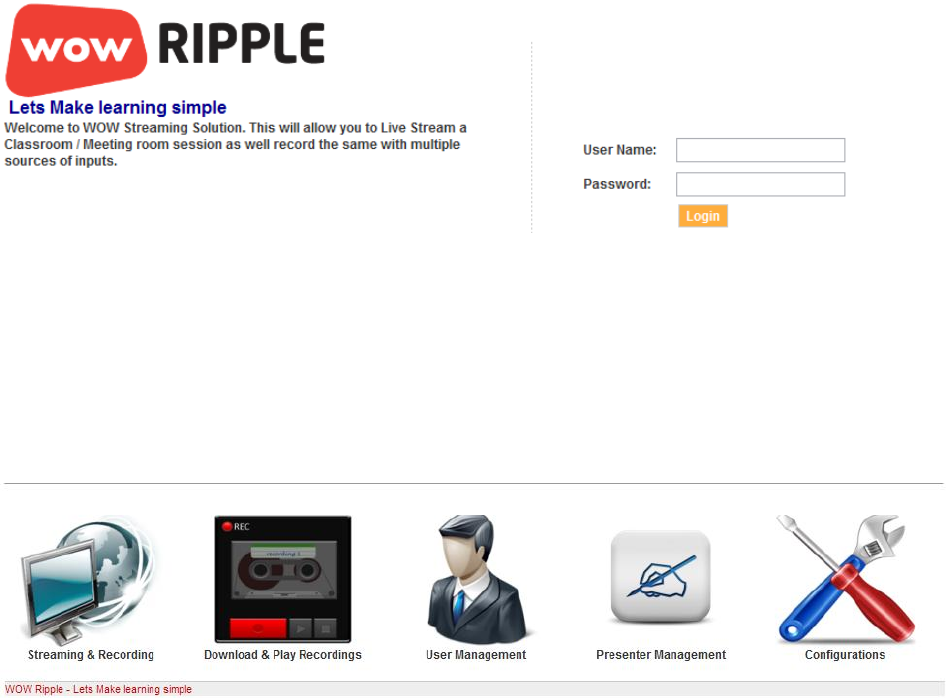
To access the WOW Ripple, start a web browser and type in the address of your
streaming server IP into the address bar to view the page below.
Enter a valid administrator account in the login form and click the Login button.
Default User Name = su
Default Password = supass
After login, the main menu toolbar is shown below:
There are five features available in wowRipple:
1. Streaming and Recording
2. Download and Play Recording
3. User Management
4. Presenter Management
5. Configurations
wowRIPPLE User Manual Page 5
Streaming & Recording
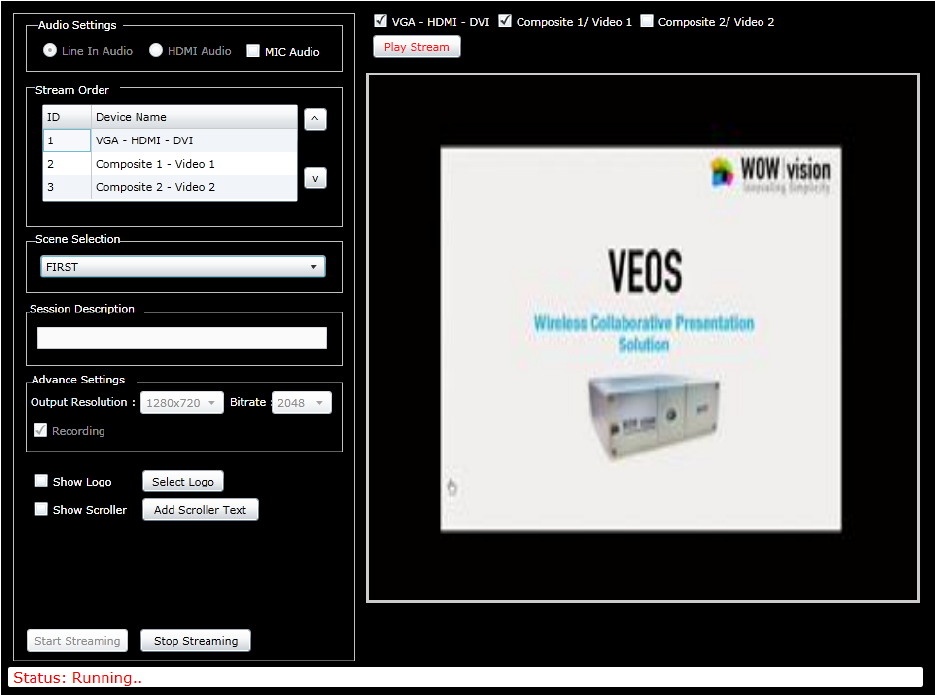
Now click at the Streaming and Recording image.
It will be open with following features:
1. Video Devices: 3 Video capture devices for mix available to user as given
below.
a. VGA – HDMI –DVI: System’s desktop screen which connected through VGA
or HDMI [model specific] or DVI [model specific]
b. Composite 1 / Video 1: set as Camera or Setup box or DVD device
c. Composite 2 / Video 2: set as Camera or Setup box or DVD device
2. Audio Settings: 2 Audio capture devices for mix of audio as given below
a. HDMI Audio [model specific] or Line In Audio
b. MIC Input
wowRIPPLE User Manual Page 6
3. Stream Order: To set the order of Video output.
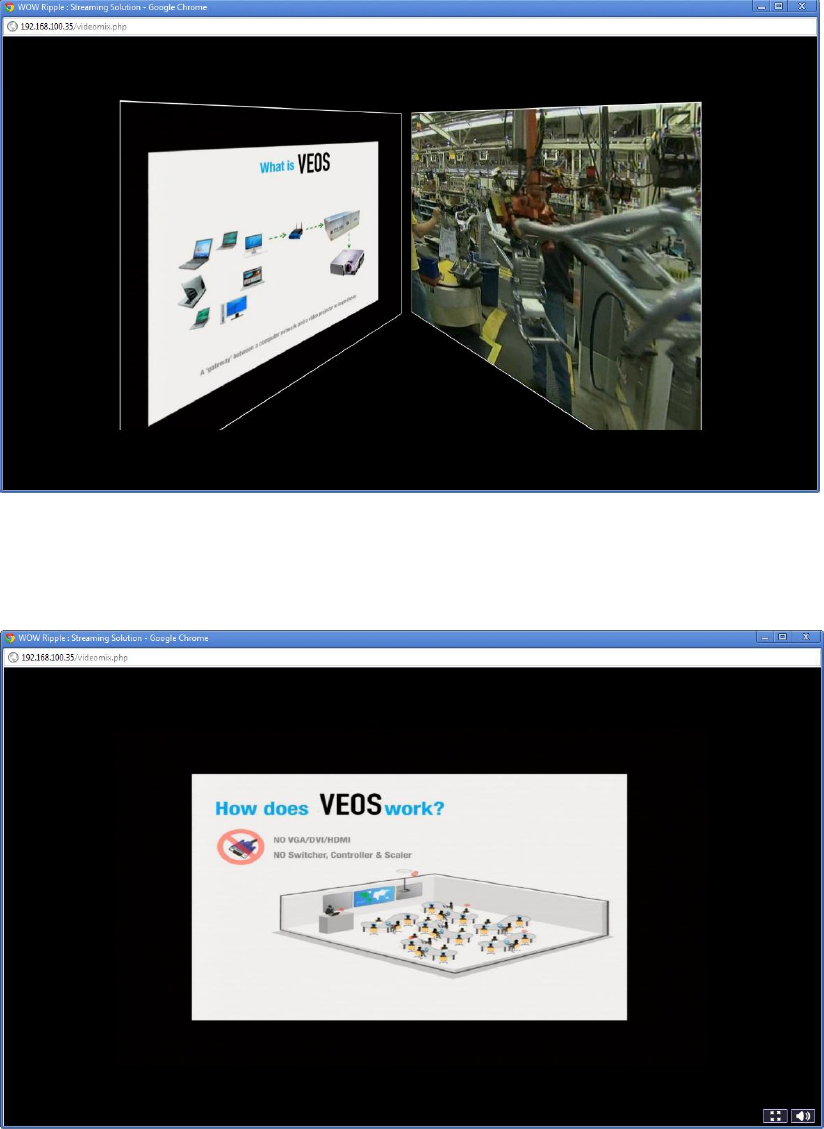
4. Scene Selection: To set the style of screen from the following:
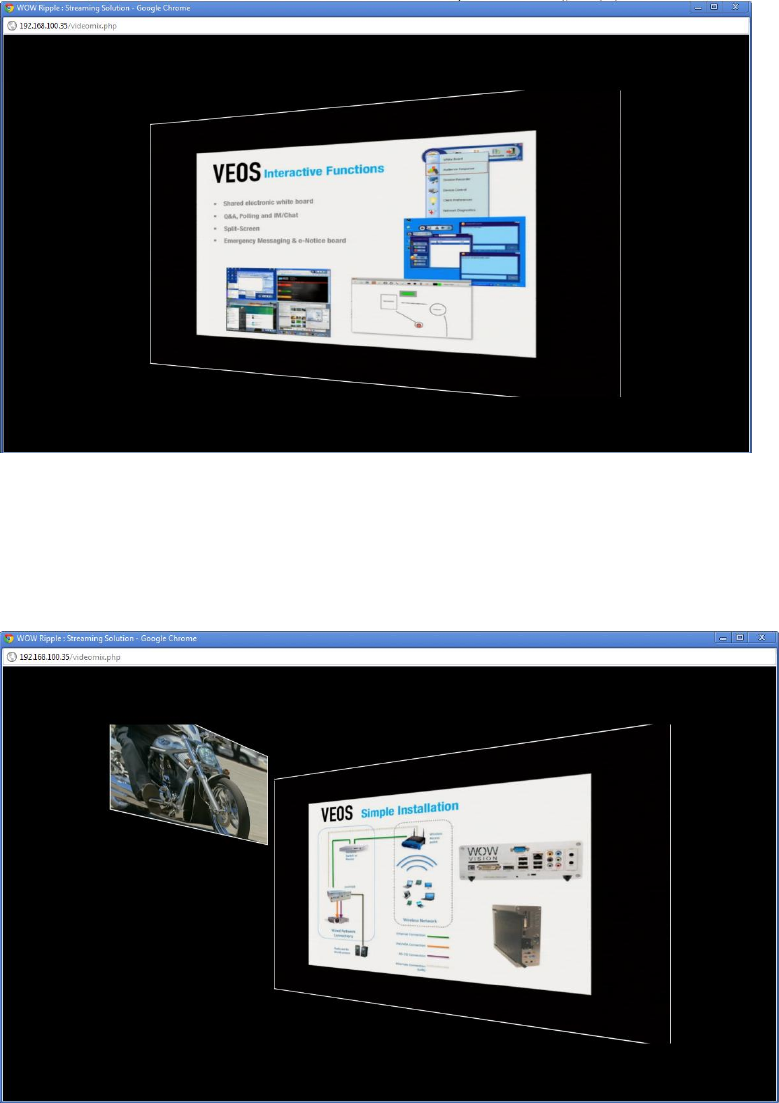
a. 3D First: It will show the output only of first selected device from screen order
in 3D form.
b. 3D Left: It will show the output of first selected device from screen order at the
left side and at the same time output of one or more other devices at the right
side in 3D form. Sound is come from main window only.
wowRIPPLE User Manual Page 6
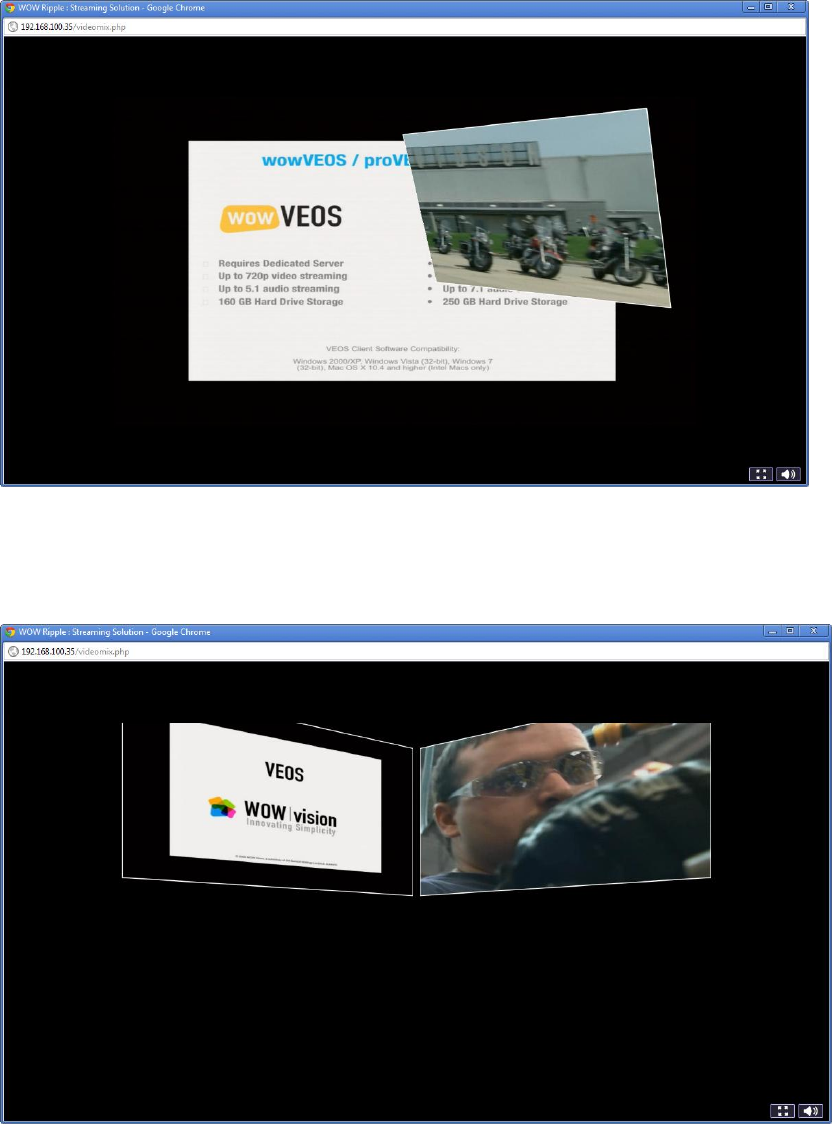
c. 3D PIP: Output of first selected device from screen order will be displayed on
full screen at the same time output of one other device will be displayed in
inset window. Sound is come from the main program only
d. 3D Quad: It will show the output of all selected devices in Quad mode in 3D
form.
wowRIPPLE User Manual Page 7
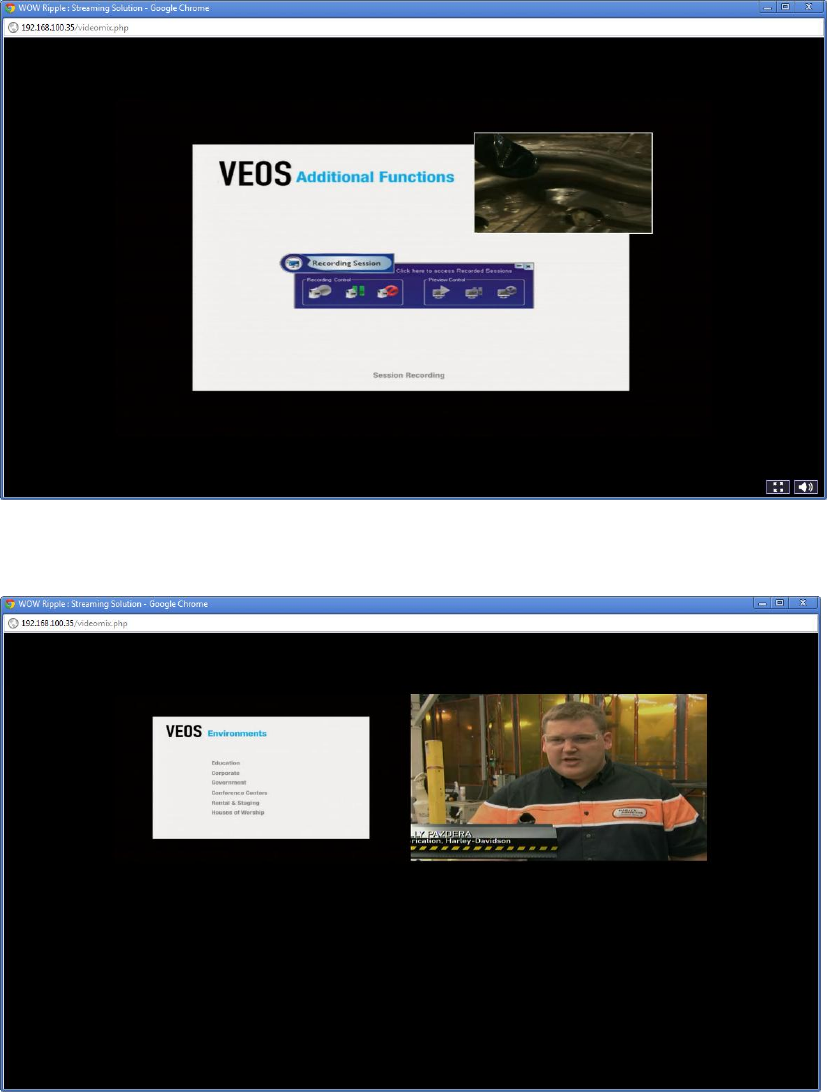
e. 3D Side: It shows the output of First 2 devices from screen order, side by side
in 3D form.
f. First: It shows the Output of First selected device in screen order in full
screen.
wowRIPPLE User Manual Page 8
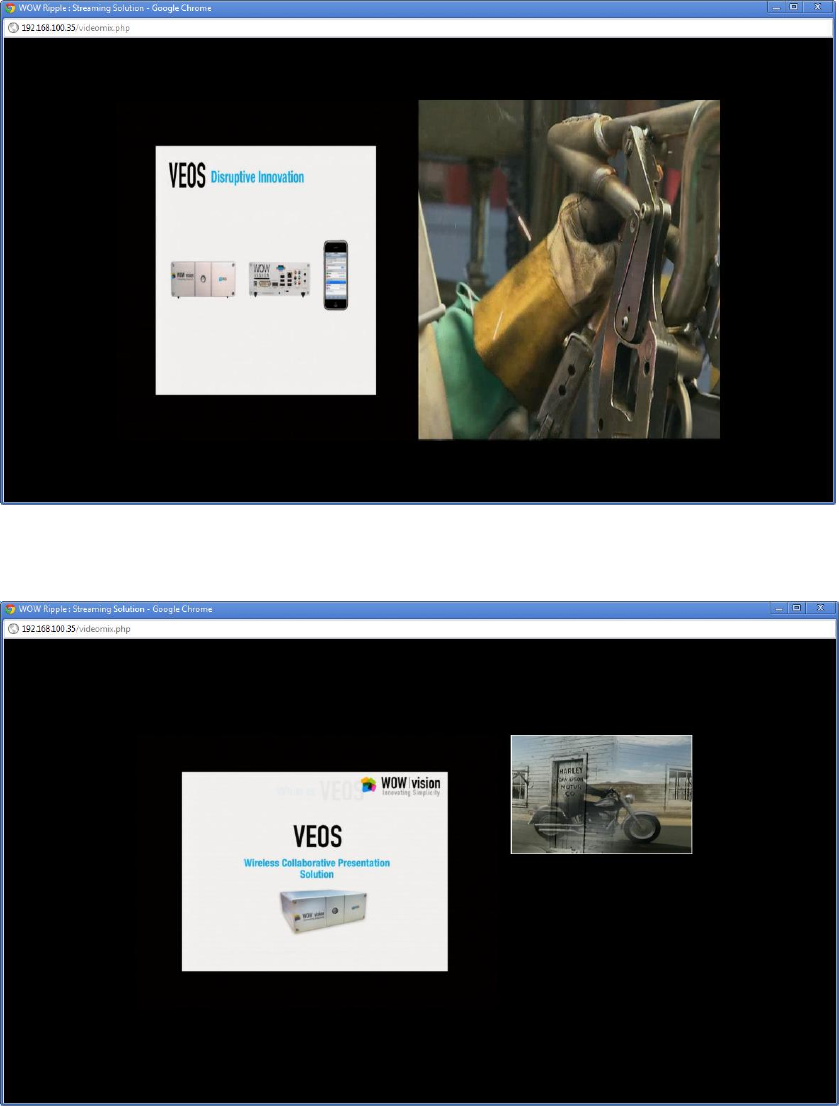
g. PIP: Output of first selected device from screen order will be displayed on full
screen at the same time output of one or more other devices will be displayed
in inset windows. Sound is come from the main program only.
h. Quad: It shows the output of all selected devices in Quad mode.
wowRIPPLE User Manual Page 9
i. Side: It shows the output of First 2 devices from screen order, side by side.
j. Side by Side: It shows the output of all selected devices side by side.
5. Session Description: To give session description name of recorded data, this
will save by given session description name.
6. Output Resolution: To set the resolution for Video Output from the following:
wowRIPPLE User Manual Page 10
a. 1280x720
b. 1024x768
c. 768x576
d. 720x576
e. 640x480
f. 384x288
7. Bit Rate: To set the Bit Rate for data transfer.
a. 128
b. 256
c. 512
d. 640
e. 768
f. 1024
g. 1500
h. 2048
i. 3072
j. 5120
8. Recording: To record the session.
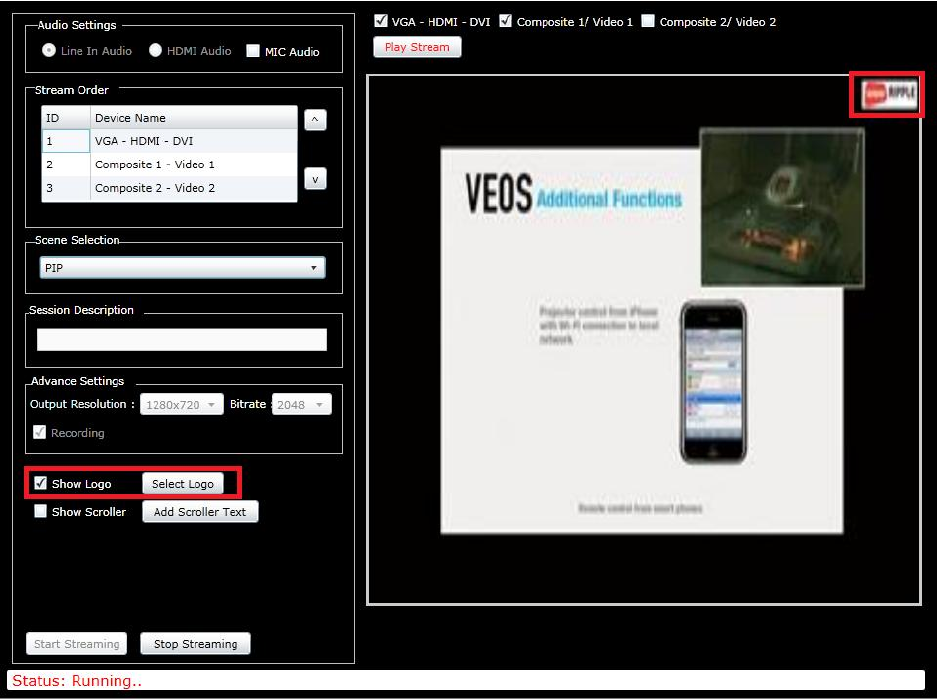
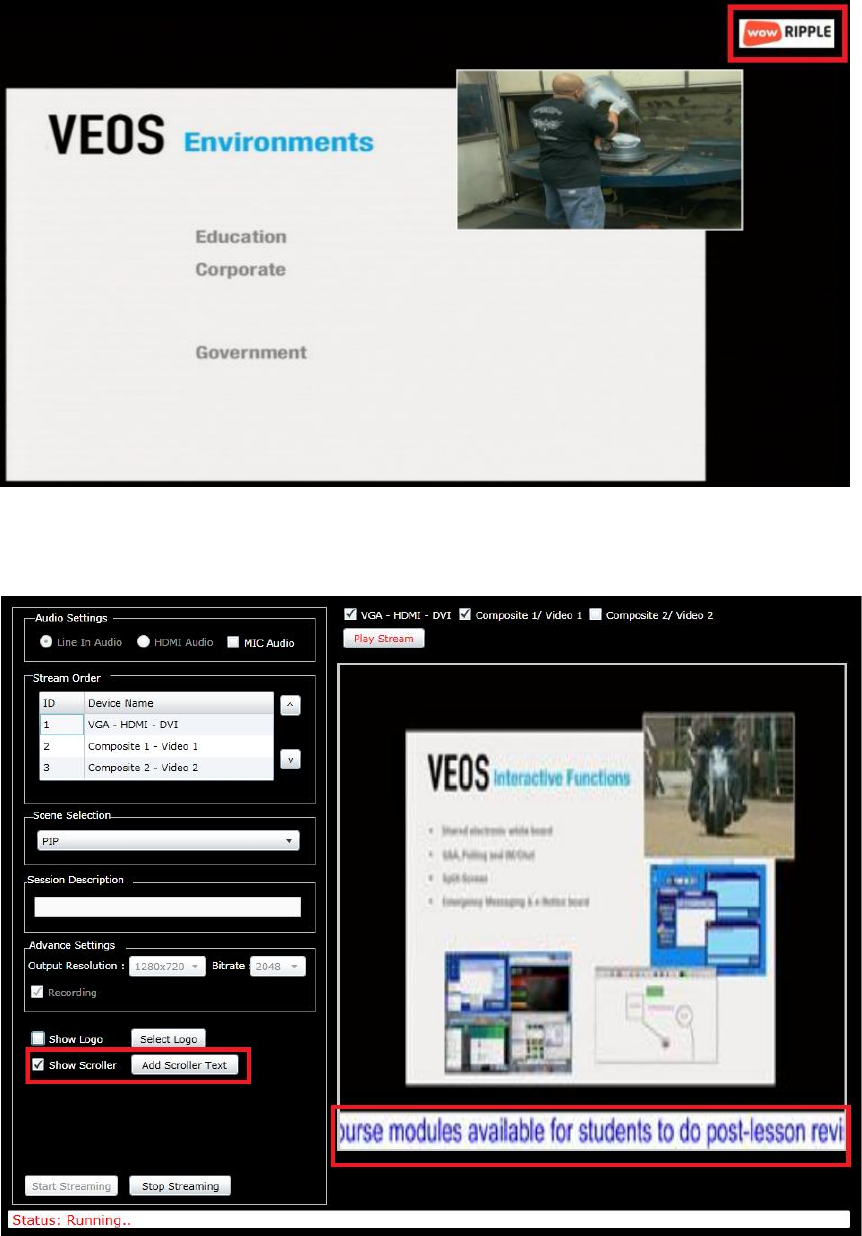
9. Show Logo: To show logo during the streaming.
To show Logo:
Select any logo from your computer
Check Show Logo
wowRIPPLE User Manual Page 11
Logo will show like this:
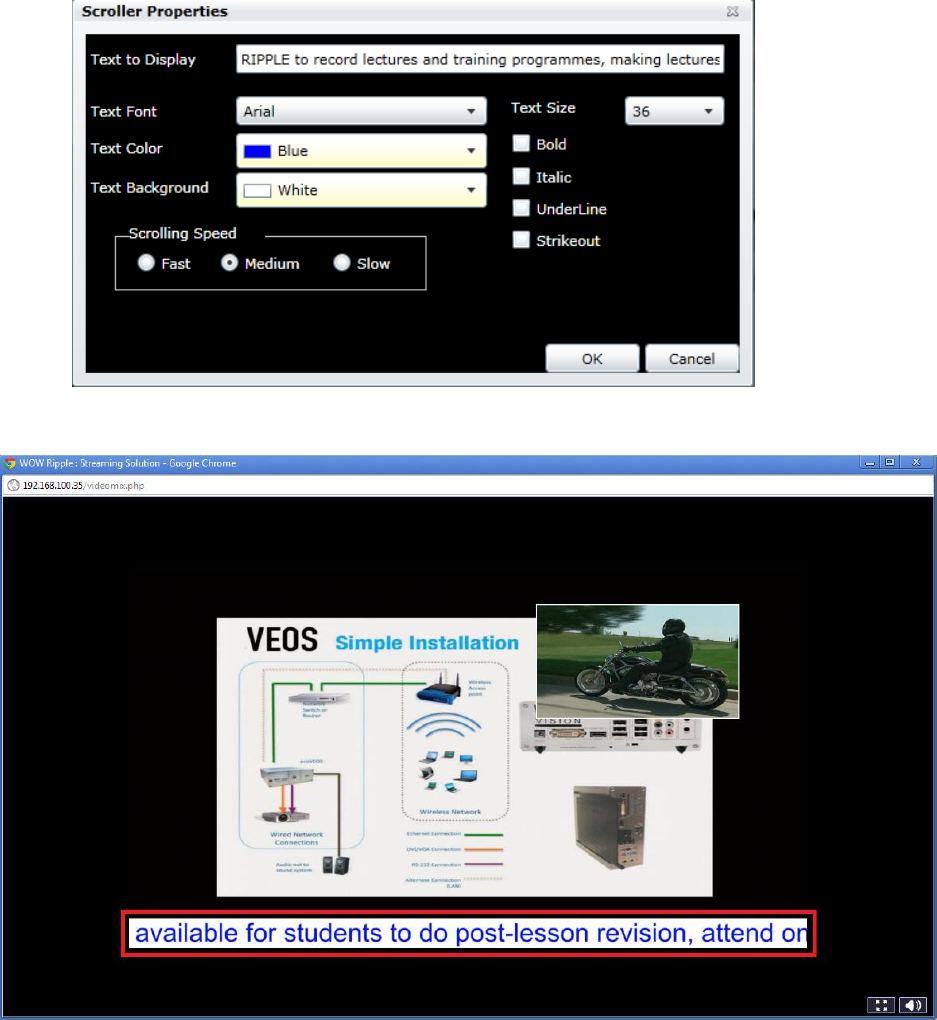
10. Show Scroller: To show any message or information at the screen during
streaming.
wowRIPPLE User Manual Page 12
User can set the font, font size, font color and background for scroller as per his desire
through scroller properties.
Scroller will show like this at the screen:
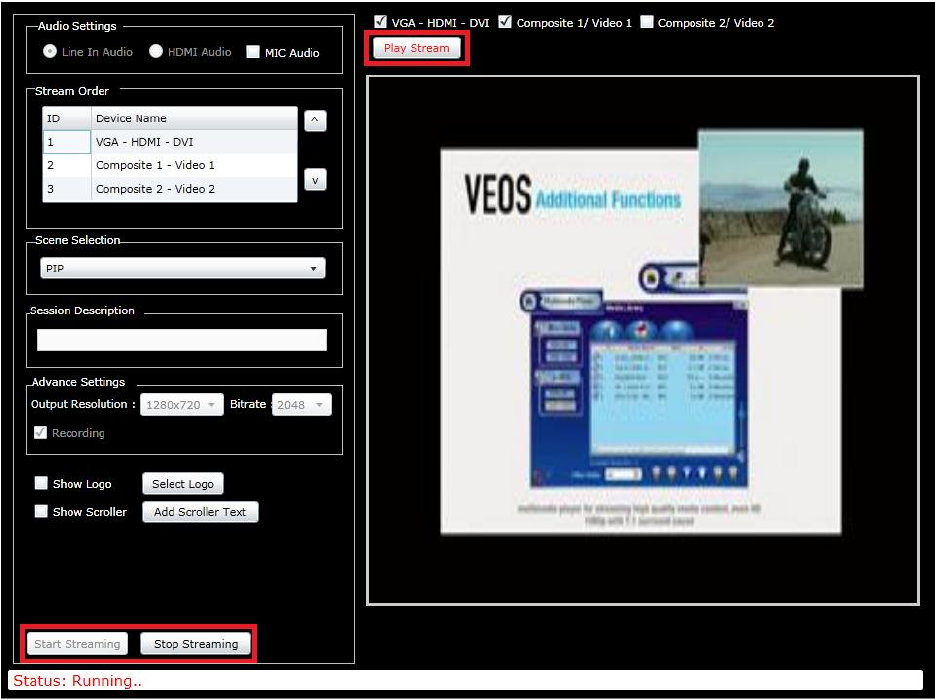
11. Start Streaming: To start streaming.
12. Stop Streaming: To stop streaming.
13. Play Streaming: To play current streaming video.
wowRIPPLE User Manual Page 13
Start / Stop and Play Streaming
Start Streaming/Stop Streaming: A user can start streaming by clicking at the Start
Streaming button. A user can see the live streaming audio video over the screen
player.
To Start Streaming:
Select any / all Video Capturing Device
Select any Audio Capturing Device from Audio Settings.
Now click at the Start Streaming button to start streaming.
wowRIPPLE User Manual Page 14
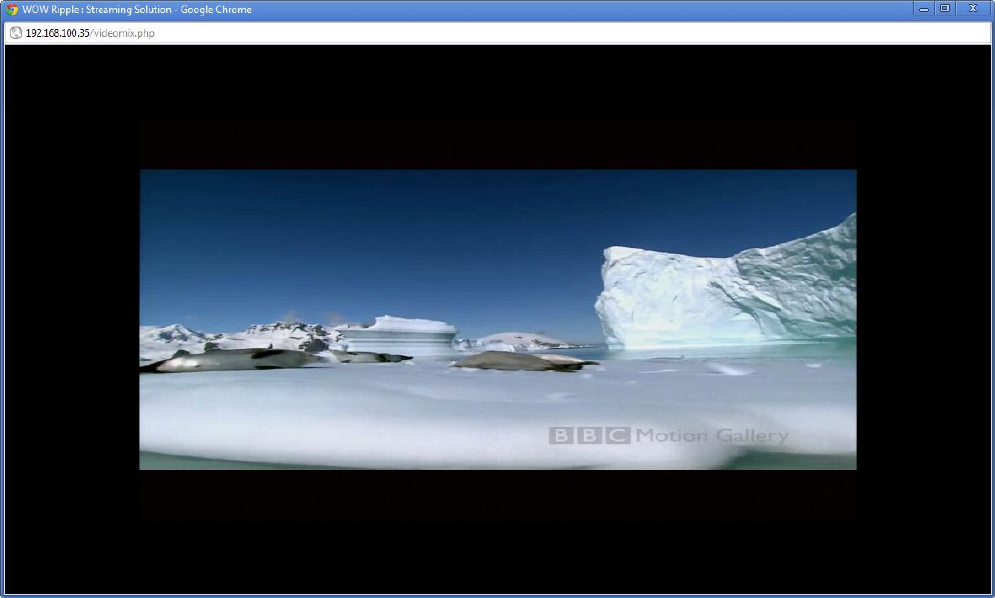
To Play Streaming:
Click on Start Streaming (Play Streaming button will be available)
Click on the Play streaming button, user will redirect another dedicated
window to view the current streaming.

wowRIPPLE User Manual Page 15
Schedule Streaming & Recording
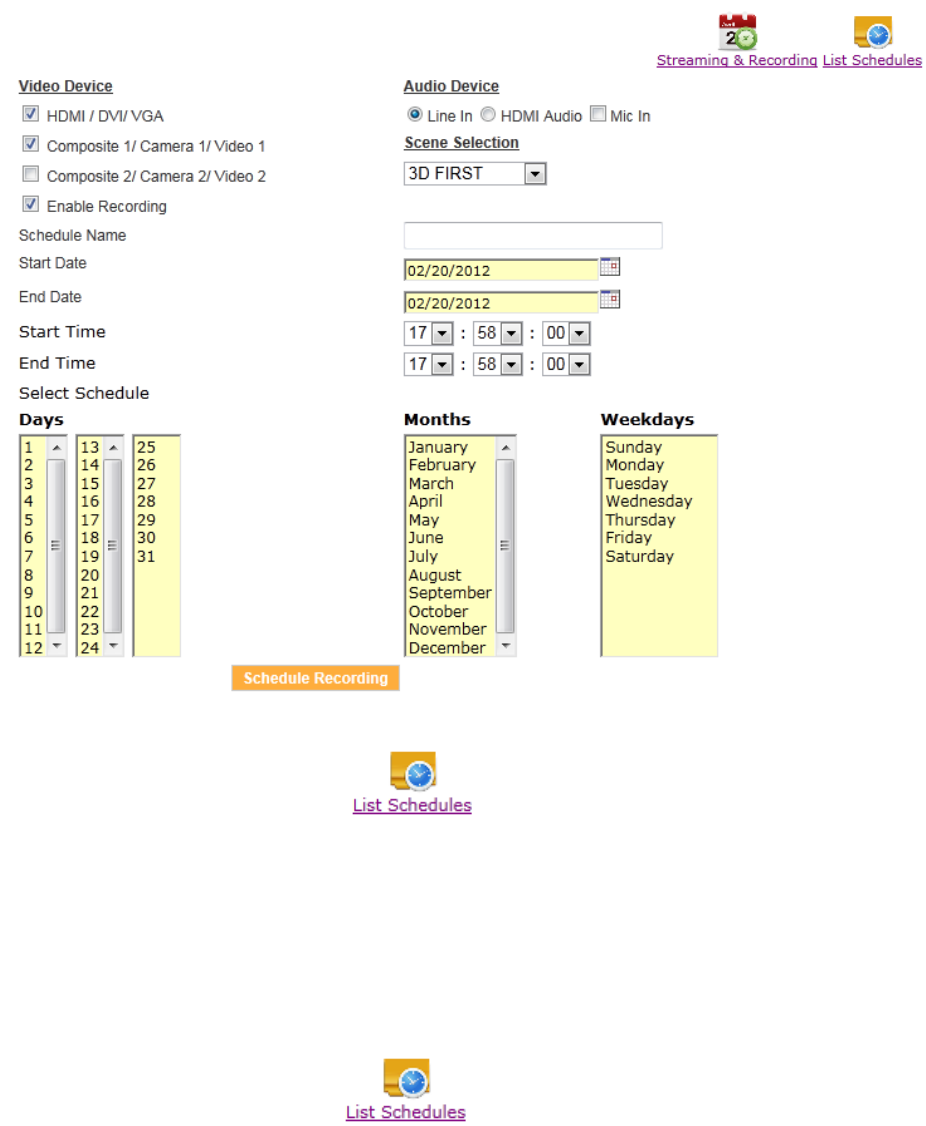
User can schedule the streaming along with desired video and audio devices.
While streaming you can also schedule the recording, which can be use later.
To add Schedule for Streaming & Recording:
Click on Streaming and Recording
Click on Schedule Recording
Select Video Device(s)
Select Audio Device(s)
Select Scene from Scene Selection drop down
Enable Recording if you want to record the streaming for later use.
Define Schedule Name
Enter Start Date and End Date
Enter Start Time and End Time
User can also select the schedule
For Example: If user wants to make a schedule from 28th Nov 2011 to 28th Dec 2011
User can select Start Date as 28/11/2011 and End Date as 28/12/2011. To make
schedule for specific dates, choose Day as 16th and 28th, Month as November,
Weekdays as Wednesday and Monday with the help of Ctrl key.
wowRIPPLE User Manual Page 16
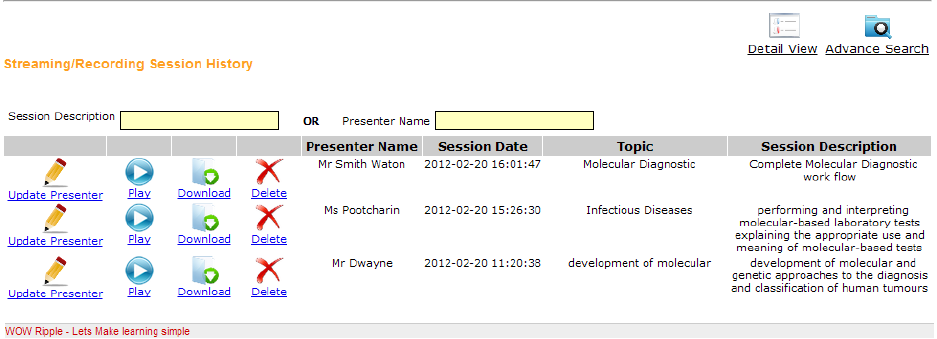
To Modify Schedule:
Click on List Schedule
Click on Edit button to update existing details
Edit Schedule’s details
Click on Update Schedule button
To Delete Schedule:
Click on List Schedule
Click Delete button
Click on OK to delete schedule
wowRIPPLE User Manual Page 17
Download and Play Recording
Click at the Download and Play Recording Image, it will open
Streaming/Recording session history page including some feature with Play, Download,
and Delete Link. This is the place where recorded stream media saved. From this page
user can download recorded stream media or can Play directly recorded stream media
from here.
Here user has the provision to see the history in:
a. Detail View
b. List View
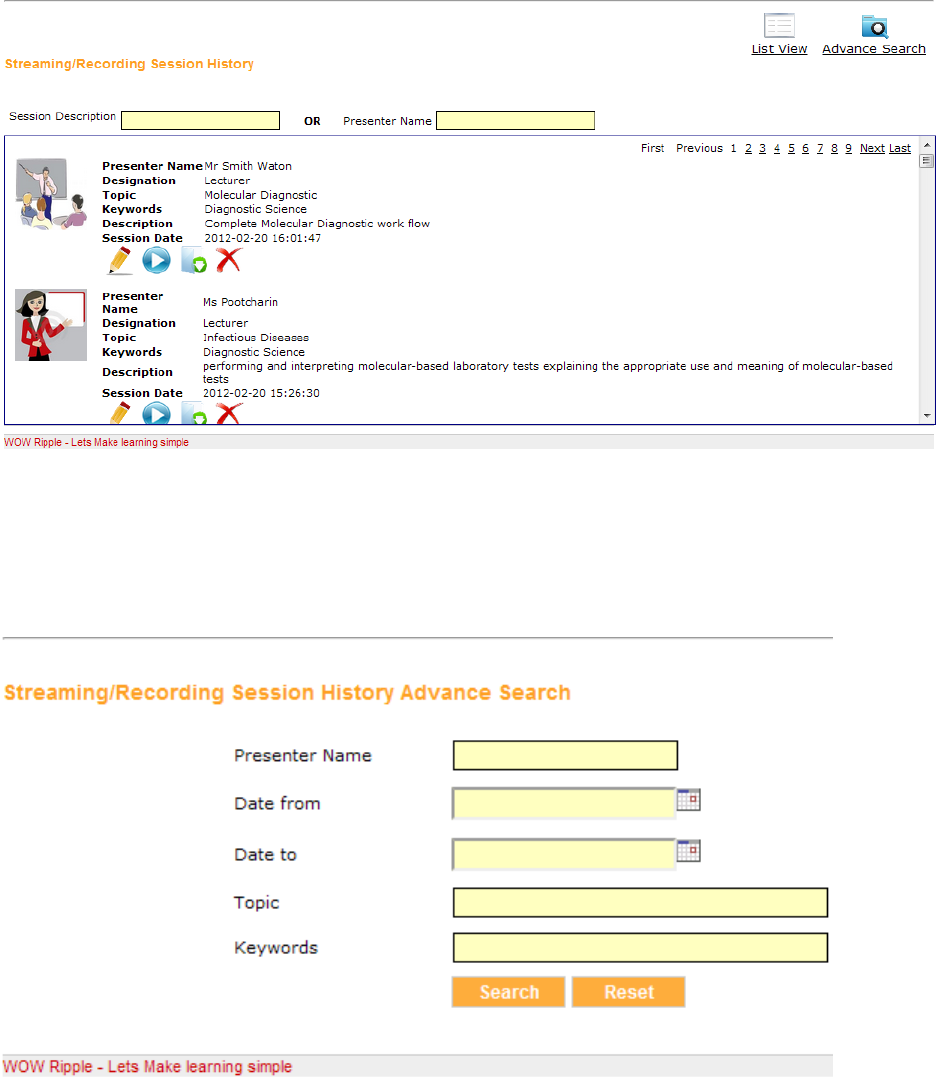
List View:
Update Presenter: User can set presenter properties for this recording.
Play: User can play recorded stream file from this Play link.
Download: User can download recorded stream media from here.
Delete: User can Delete recorded stream media at clicking to this link.
Session Date: Date of the recording.
Topic: User can define Topic name at the click on Update Presenter.
Session Description: This session description text box will provide to find you filter
recorded data by session description name wise. User can search his recorded stream
media file which is saved by given name.
wowRIPPLE User Manual Page 18
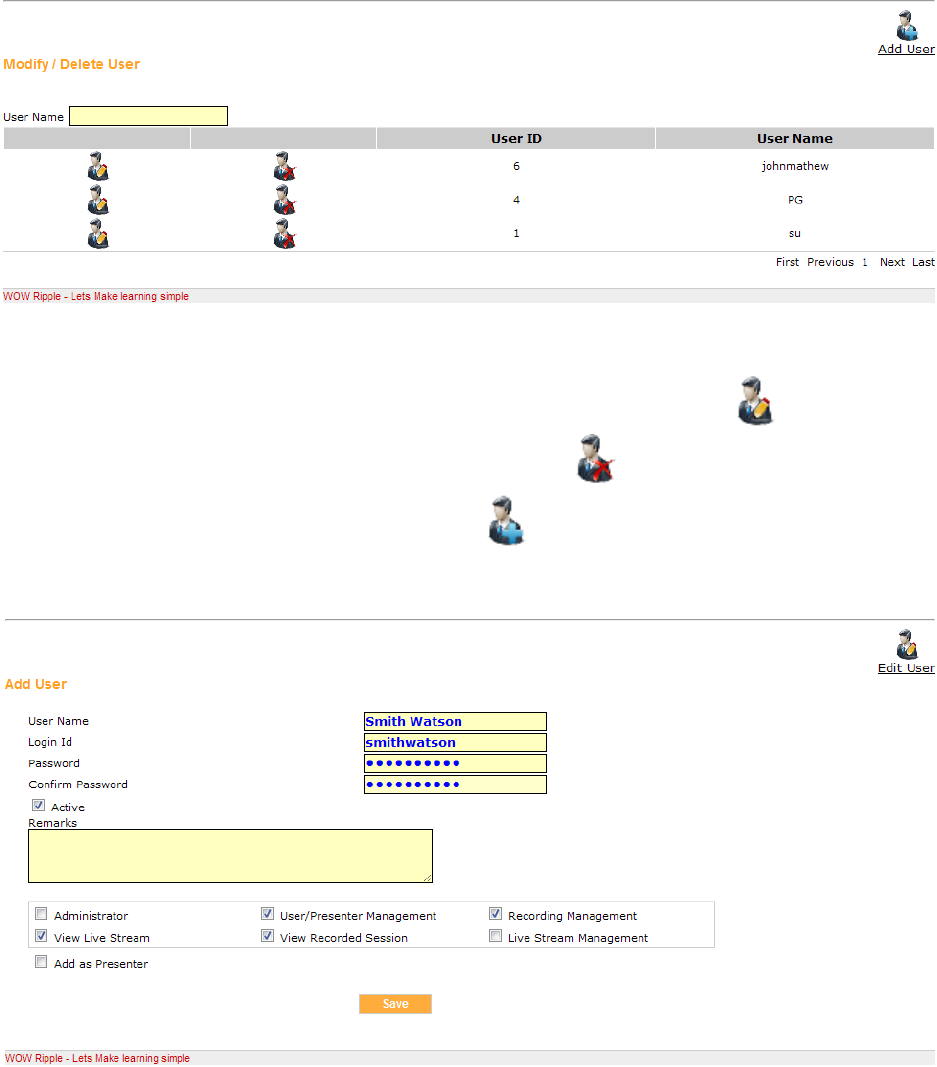
Detail View:
Advance Search: User can search the saved recording on the basis of Presenter
Name, Date From, Date To, Topic and Keywords.
wowRIPPLE User Manual Page 19
User Management
Clicking at the User Management image, will open User Management page including
some feature with Add, Edit and Delete Link. This is the place from where user can
manage user account like add, edit delete user account.
To search user enter user name in User Name text box to find the result.
To change the settings of a user account, click the Edit Image
To remove the account click the Delete Image
To add User, click on Add User image
wowRIPPLE User Manual Page 20
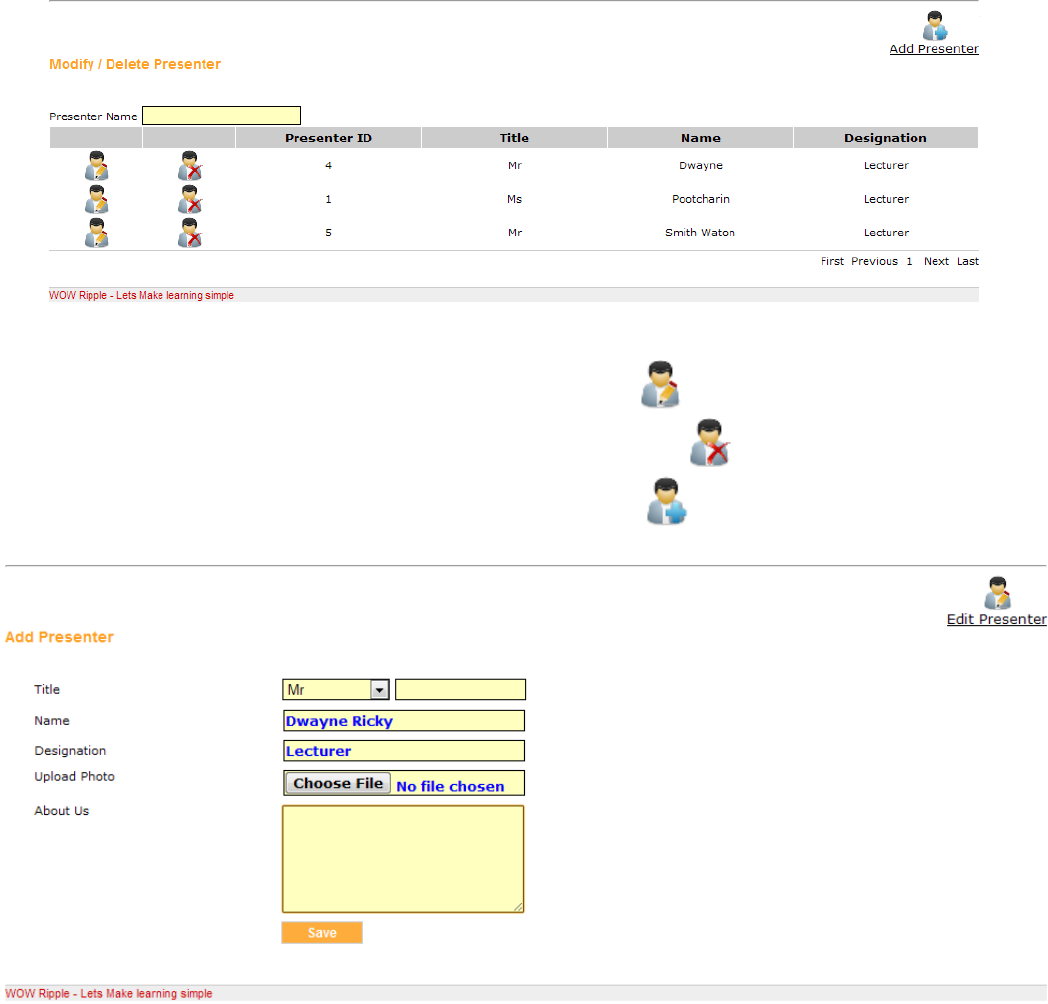
Presenter Management
This module allows adding presenter information and updated to already recorded
media. This helps to update lectures details, information about presenter, photo of
presenter etc and allows to search.
To search presenter, enter presenter name in Presenter Name text box
To edit Presenter, click on Edit Presenter image
To delete Presenter, click on Delete Presenter image
To add Presenter, click on Add Presenter image
wowRIPPLE User Manual Page 21
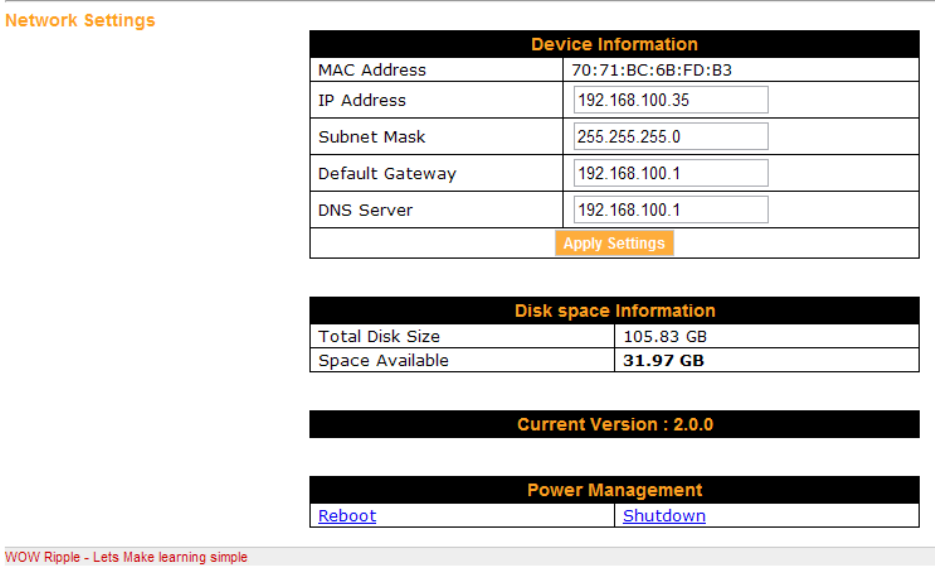
Configuration
Clicking at the Configuration Image, will open device information and network
setting page, And also provide disk space information and product version no.
Now user can change his IP Address and device configuration. After changing IP
Address click at the Apply Settings button to reboot the gateway.

wowRIPPLE User Manual Page 22
© 2012 WOW Vision Pte. Ltd. All rights reserved.
Under the copyright laws, no part of this manual may be copied, distributed, transmitted,
transcribed, stored in a retrieval system or translated into any human or computer
language, in any form or by any means, electronic or otherwise, without the express
written permission of WOW Vision Pte. Ltd.
Every effort has been made to ensure that the information contained in this manual is
accurate. Instructions for use in this manual are provided “as is” without warranty of any
kind.
VEOS is a trademark of WOW Vision Pte. Ltd. Windows, Internet Explorer and
Microsoft are registered trademarks of Microsoft Corporation. Apple, Mac and
Macintosh are trademarks of Apple Inc. Other company and product names mentioned
in this manual are trademarks of their respective owners.
WOW Vision Pte. Ltd. reserves the right to make changes without further notice to any
products described herein to improve reliability, function or design.
WOW Vision Pte. Ltd.
45 Ubi Road 1
#05-03 Summit Building
Singapore 408696
Tel: +65 6740 5678
Fax: +65 6749 7728
Web: http://www.wow-vision.com/
Email: support@wow-vision.com
