Rubrik Scoped Certified Application Installation And Configuration Guide V.1.4
User Manual:
Open the PDF directly: View PDF  .
.
Page Count: 9

Page: 1 of 9
SCOPED CERTIFIED APPLICATION INSTALLATION AND
CONFIGURATION GUIDE
Rubrik
Template version: 1.0
Template effective date: February 20th, 2015

R Rubrik Integration Installation and Configuration Guide
Page: 2 of 9
Table of Contents
1 Overview ......................................................................................................................... 3
1.1 References .............................................................................................................................. 3
2 Application Dependencies ................................................................................................ 3
3 Configuration Instructions ................................................................................................ 3
4 External systems connection ............................................................................................ 8
5 Testing the configuration ................................................................................................. 8
6 Demo Data ....................................................................................................................... 8
7 Support and Troubleshooting ........................................................................................... 9
7.1 Service Level Agreement Definition ........................................................................................ 9
7.2 Troubleshooting ...................................................................................................................... 9
R Rubrik Integration Installation and Configuration Guide
Page: 3 of 9
1 Overview
This document details the post-installation configuration steps for the Rubrik ServiceNow
Integration. It includes steps for configuration and connectivity, as well as some troubleshooting
steps. Application dependencies are detailed in the ‘
Note that adding a Rubrik Cluster relies on having access to the MID servers table, this typically
requires the ‘admin’ role in ServiceNow. This can be removed once all clusters have been added.
External systems connection’ section of the document.
1.1 References
#
Document Identifier
Document Title
1
n/a
Rubrik CDM User Guide
2 Application Dependencies
• List all plugins required: None
• List all system table permissions required: None
3 Configuration Instructions
NOTE: The following tasks should be carried out as someone with ServiceNow admin
permissions.
The following steps are used to configure the application once it is installed:
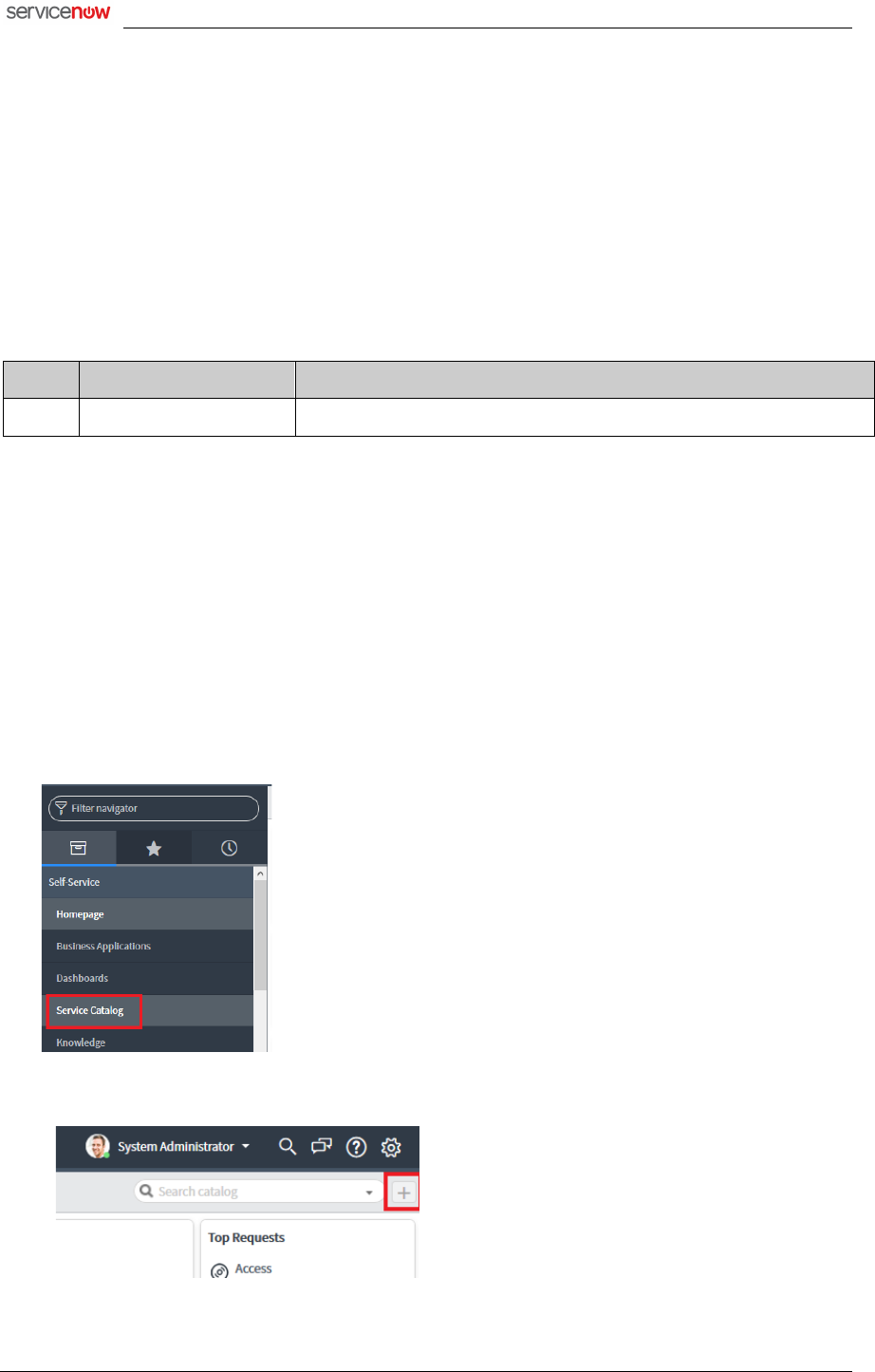
1. Go to Service Catalog in the ServiceNow console
2. Click the plus button in the top right to add a new category to your ServiceNow Service
Catalog
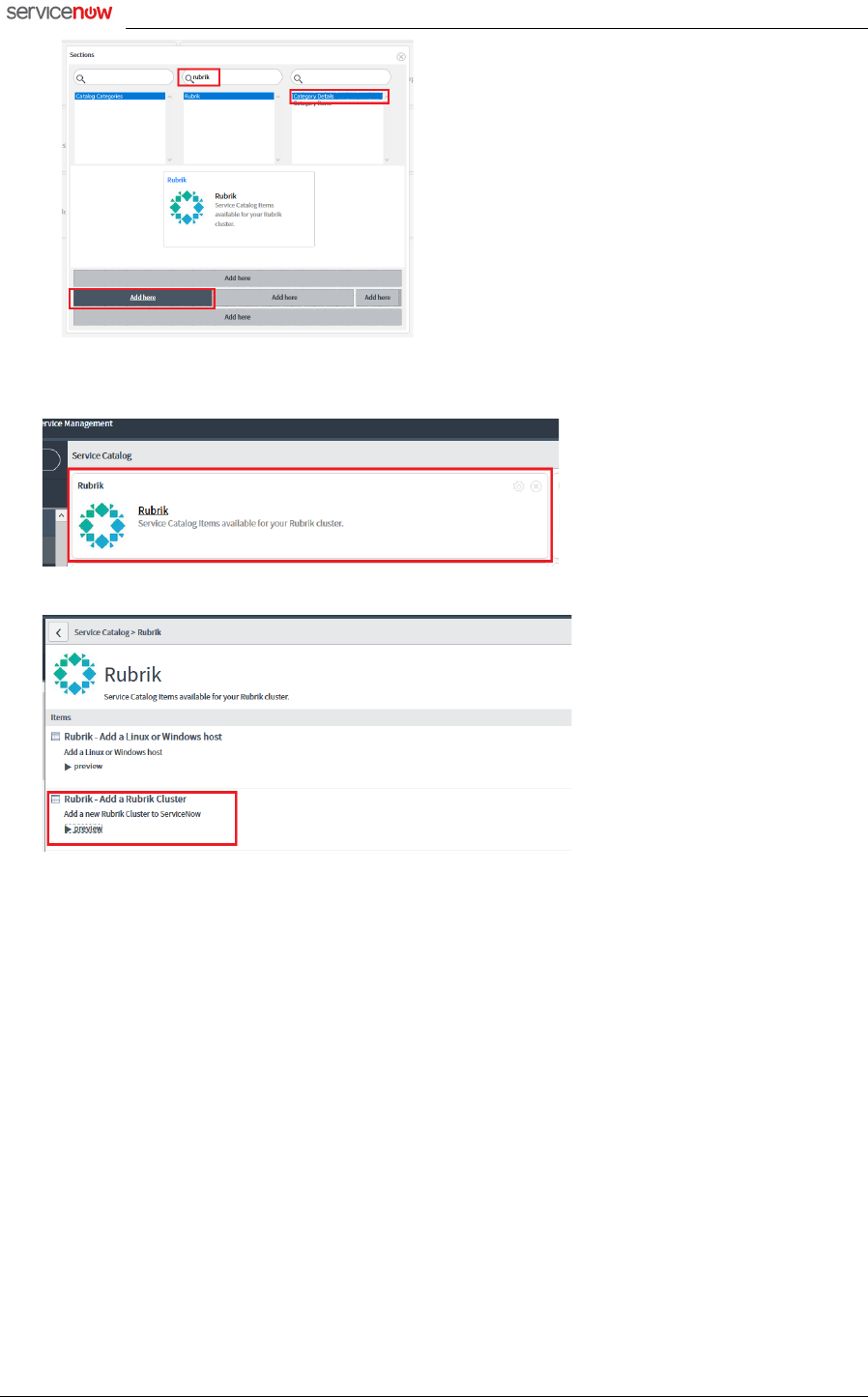
3. Enter ‘Rubrik’ in the middle search box, select ‘Category Details’, and click ‘Add here’ on
the left-hand middle box in the layout view
R Rubrik Integration Installation and Configuration Guide
Page: 4 of 9
4. You should now see the ‘Rubrik’ category in your Service Catalog, click the ‘Rubrik’ title to
drill into the catalog services
5. Click the ‘Add a Rubrik Cluster’ Catalog Item
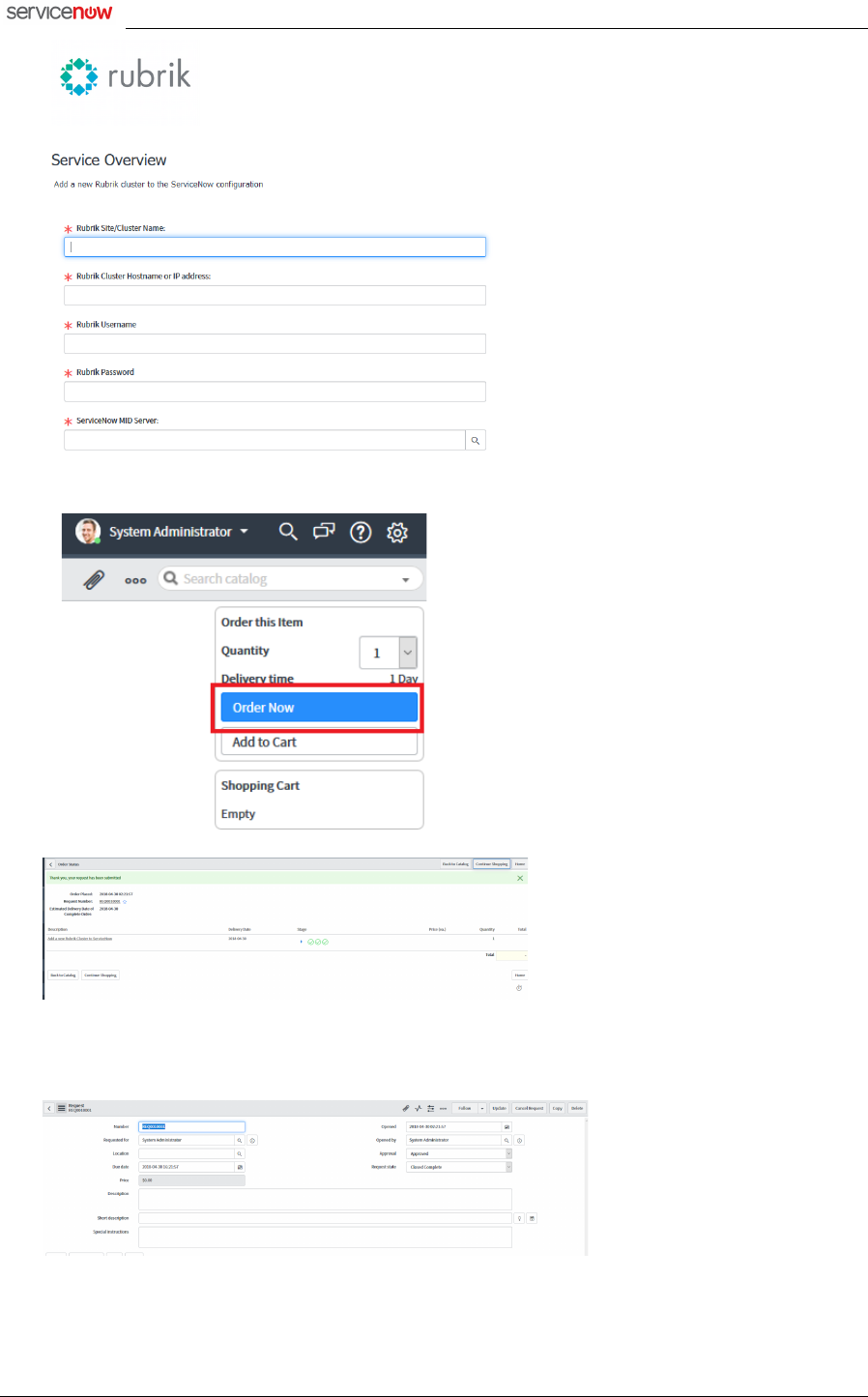
6. Complete the fields in the table with the Rubrik connection details, note that the ‘Rubrik
Site/Cluster Name’ field is used as the display name for the Rubrik cluster when running
reports or other catalog items.
NOTE: It is suggested to use a Floating IP for the ‘Rubrik Cluster Hostname or IP address’
value, instructions on configuring a Floating IP can be found in the Rubrik CDM User Guide
(see section 1.1). Use of a Floating IP will help ensure that the application continues to
function in the event of a node loss.
Select the MID Server which is most appropriate for connecting to the Rubrik cluster on-
premises
R Rubrik Integration Installation and Configuration Guide
Page: 5 of 9
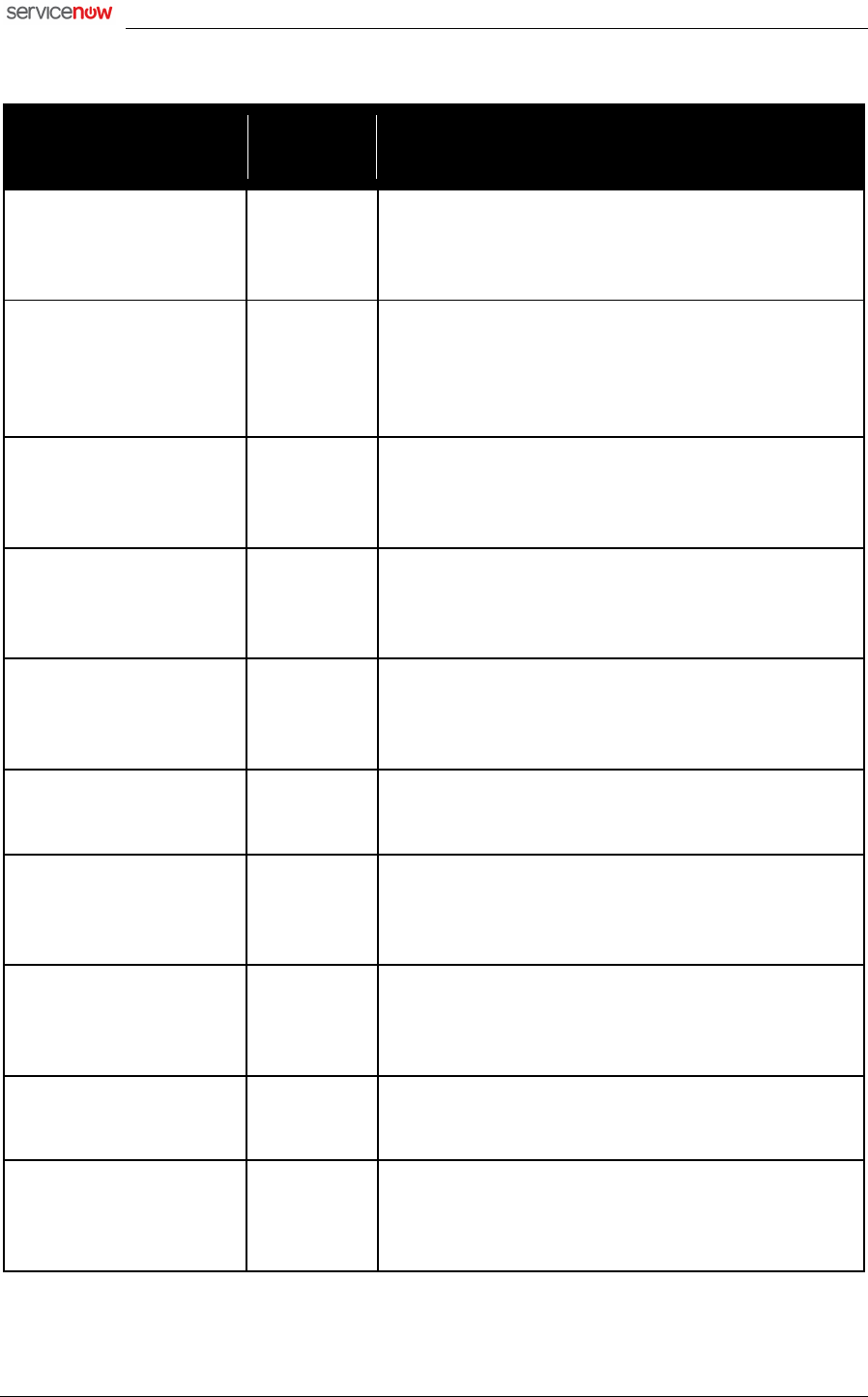
7. Once done click Order Now
8. Click on the ‘REQ’ request ID, and confirm that the request is in ‘Closed Complete’ state. If
something went wrong with connecting to the Rubrik cluster, or using the provided
credentials then this will be in a ‘Closed Incomplete’ status
9. Repeat this step with further requests for any additional Rubrik clusters to be managed
through ServiceNow
R Rubrik Integration Installation and Configuration Guide
Page: 6 of 9
There are a set of scheduled workflows configured as part of the Rubrik ServiceNow Management
Pack, these are as follows:
Name
Default
Frequency
Description
Import SLA Domains
Every 6
hours
Gets backup history for all objects on the managed
Rubrik clusters and stores them in the ‘Rubrik -
Backup Histories’ table
Import SQL Server
Databases/Instances
Every 4
hours
Gets details for SQL Databases and Instances for
Rubrik managed clusters and stores them in the
‘Rubrik – MSSQL Databases’ and ‘Rubrik – MSSQL
Instances’ tables
Get Failed Backups
Every 4
hours
Gets details for failed backup jobs from Rubrik
managed clusters and stores them in the ‘Rubrik –
Failed Backup Tasks’ table
Import VMware VMs
Every 4
hours
Gets details for VMware VMs for Rubrik managed
clusters and stores them in the ‘Rubrik – VMware
Virtual Machine’ table
Import Hyper-V VMs
Every 4
hours
Gets details for Hyper-V VMs for Rubrik managed
clusters and stores them in the ‘Rubrik – Hyper-V
Virtual Machine’ table
Import Filesets
Every 4
hours
Gets details for Filesets for Rubrik managed clusters
and stores them in the ‘Rubrik – Filesets’ table
Import AHV VMs
Every 4
hours
Gets details for Nutanix AHV VMs for Rubrik managed
clusters and stores them in the ‘Rubrik – AHV Virtual
Machine’ table
Import EC2 Instances
Every 4
hours
Gets details for EC2 Instances for Rubrik managed
clusters and stores them in the ‘Rubrik – EC2
Instances’ table
Import Fileset Templates
Every 6
hours
Gets all Fileset Templates from managed clusters and
stores them in the ‘Rubrik – Fileset Templates’ table
Fetch Restore History
Every 24
hours
Gets details for recovery jobs from Rubrik managed
clusters and stores them in the ‘Rubrik – Recovery
Tasks’ table
R Rubrik Integration Installation and Configuration Guide
Page: 7 of 9
Import VMs
Every 4
hours
Gets details for Rubrik protected objects from
managed clusters and stores them in the ‘Rubrik –
VMs’ table. These objects are VMs and Filesets
Import Capacity Stats
Every 15
minutes
Gets capacity statistics for the managed Rubrik
clusters, and stores them in the ‘Rubrik – Capacity
Stats’ table
Import Stats
Every 15
minutes
Gets statistics for the managed Rubrik clusters, and
stores them in the ‘Rubrik - Stats’ table
Snappable types not in use on the Rubrik managed clusters can have these Scheduled Workflows
deactivated by an administrator to reduce load on the ServiceNow instance. For example, if no
Hyper-V VMs are managed by Rubrik then disable the ‘Import Hyper-V VMs’ Scheduled Workflow.
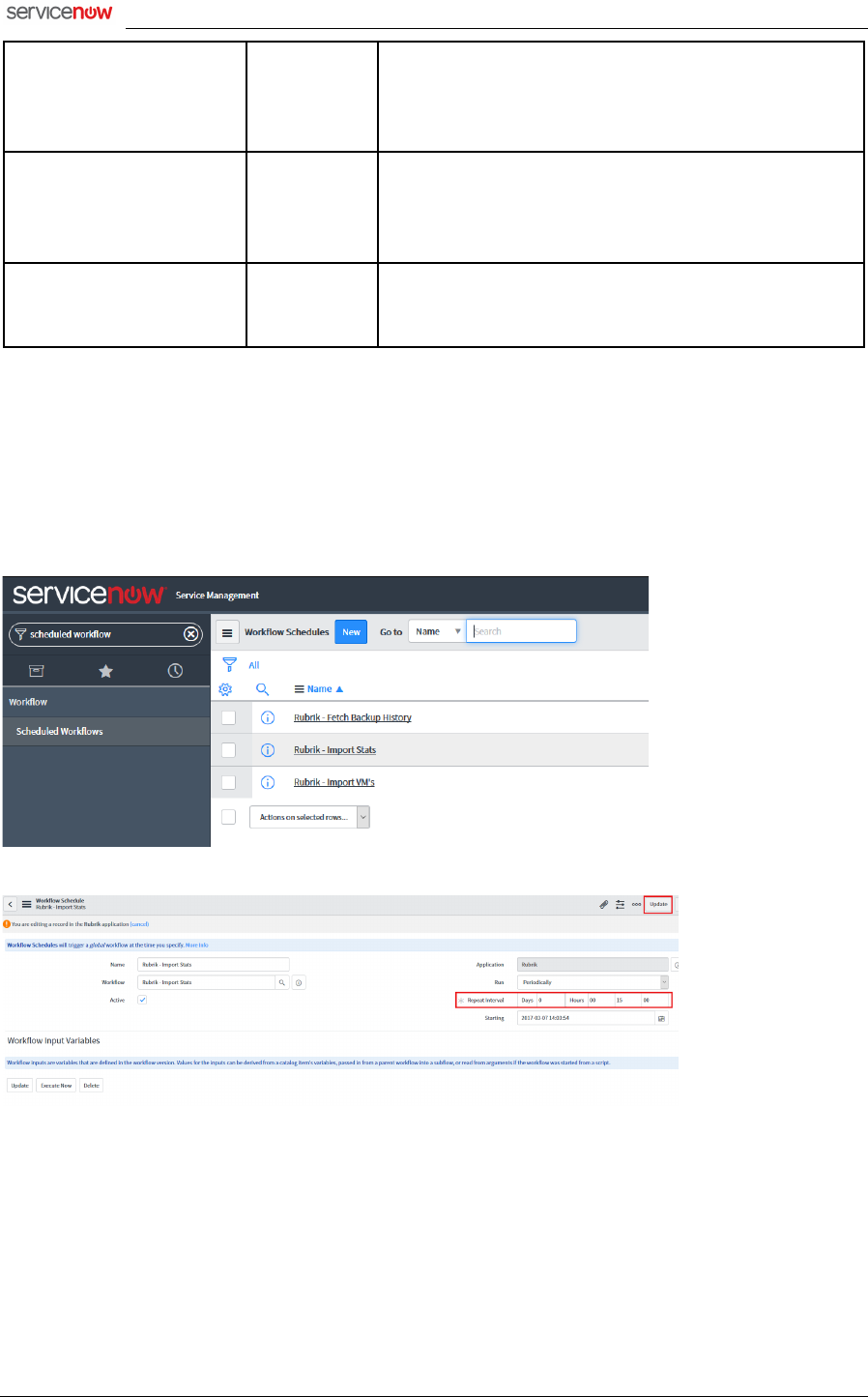
The default timings should be fine for most deployments, although these can be tuned through the
‘Scheduled Workflows’ interface as shown below.
On first installation, these should be run manually in the following order, by going to each
scheduled workflow and clicking ‘Execute Now’:
• Import VMs
• Import SLA Domains
• Import Fileset Templates
• Any active ‘Import <snappable type>’ workflows
• Import Stats

R Rubrik Integration Installation and Configuration Guide
Page: 8 of 9
• Import Capacity Stats
• Get Failed Backups
• Fetch Restore History
Leave around 5 mins between each workflow run to ensure this has completed. System log can be
monitored to ensure the completion of each workflow.
The following roles are required to access the Rubrik application:
Role Name
Description
x_rubri_rubriksnow.app_user
Required for access to catalog items, modules, and
read-only access to tables
x_rubri_rubriksnow.app_admin
Provides modify access to all tables and portal pages
x_rubri_rubriksnow.dashboard_admin
Provides modify access to portal pages included with
the application
x_rubri_rubriksnow.dashboard_user
Provides read-only access to portal pages included with
the application
Note that adding a Rubrik Cluster relies on having access to the MID servers table, this typically
requires the ‘admin’ role in ServiceNow. This can be removed once all clusters have been added.
4 External systems connection
If your application contains integration components please clearly outlined them here and provide
integration user creation instructions:
• Integration components required: Rubrik CDM cluster, running RCDM version 4.0+ (NOTE:
some elements require newer versions)
• It is recommended to use a floating IP address for management of the cluster in order that
management and monitoring can continue in the event that a node in the cluster is
unavailable (instructions for configuring Floating IPs can be found in the Rubrik User Guide,
See Rubrik User Guide, References entry 1)
• Steps to create a dedicated integration user:
1. See Rubrik User Guide (References entry 1) for instructions on creating a user account.
2. The user account should be of the ‘Administrator’ role type on the Rubrik system.
3. The user account can be a ‘local’ or ‘Active Directory’ type account
5 Testing the configuration
Connectivity to the on-premises Rubrik cluster(s) will be via one or more ServiceNow MID Servers.
These MID servers will require HTTPS (TCP/443) access to the Rubrik cluster in order to
communicate with the Rubrik CDM REST API.
Once the application is installed, testing for connectivity to added Rubrik clusters will be done as
they are added via the included ‘Add a Rubrik Cluster’ Catalog Item.
6 Demo Data
No demo data is included with this application

R Rubrik Integration Installation and Configuration Guide
Page: 9 of 9
7 Support and Troubleshooting
In this section, please complete the SLA definition and provide some common troubleshooting
options:
7.1 Service Level Agreement Definition
Should you need support please contact us using the information below.
• Support Hours of Operation: 8am - 5pm PST
• Support Days of Operation: Monday - Friday other than national holidays
• Promised Response Time: We will respond to email within 48 hours of receiving a support
request during normal support hours
• Promised Resolution Time: Within 5-10 business days of response
• Contact Method: Email
• Contact Details:
Email: support@rubrik.com
7.2 Troubleshooting
Issues with the Rubrik application are likely a result of communication issues between the MID
Server and the Rubrik CDM cluster. These can be investigated through network troubleshooting
from the MID Server:
• Windows – can you access the Rubrik CDM Web UI via Chrome browser on the MID Server?
• Linux – can you connect to port 443? (nc <rubrik_cluster_ip> 443):
HAL:~ user$ nc rubrik.demo.com 443 -v
found 0 associations
found 1 connections:
1: flags=82<CONNECTED,PREFERRED>
outif utun4
src 192.168.1.101 port 55434
dst 192.168.0.100 port 443
rank info not available
TCP aux info available
Connection to rubrik.demo.com port 443 [tcp/https] succeeded!
If tables are not populating via the Scheduled Workflows then the System Log in ServiceNow can be
used to check for error messages (System Logs > System Log > All).
END OF DOCUMENT
