Sky Caddie SGX User Guide
User Manual: SkyCaddie SGX
Open the PDF directly: View PDF  .
.
Page Count: 26

SkyCaddie® SGX User Guide

2
Table of Contents
Chapter 1: Getting Started ................................................................................................................................. 3
1.1 SkyCaddieOverview..................................................................................................................................... 3
1.1.1 ButtonLayout.................................................................................................................................... 3
1.1.2 NavigationKeys.................................................................................................................................. 3
1.1.3 ButtonDescriptions............................................................................................................................ 3
1.1.4 On-screenIndicators........................................................................................................................... 4
1.2 SystemRequirements.................................................................................................................................... 4
1.3 ChargingYourSGX........................................................................................................................................ 4
1.4 DownloadingandInstallingtheCaddieSync®DesktopSoftware......................................................................... 5
1.5 ActivatingandRegisteringYourSGX................................................................................................................ 5
1.6 SkyCaddieMembershipBenefits..................................................................................................................... 5
Chapter 2: Ground-Mapped Courses For Your SGX ............................................................................................... 7
2.1 AboutCourseMaps....................................................................................................................................... 7
2.2 AboutBasicGreenCourses(PreloadedCourses).............................................................................................. 7
2.3 AboutAdvancedFeatureCourses.................................................................................................................... 7
2.3.1.OverviewofAdvancedCourseManagementFeatures.............................................................................. 8
2.4 DownloadingCoursesToYourSGX.................................................................................................................. 8
Chapter 3: Playing Golf With Your SGX ................................................................................................................ 9
3.1 AcquiringSignals........................................................................................................................................... 9
3.2 SelectingaCoursetoPlay.............................................................................................................................. 9
3.2.1 ManuallySelectingaBasicGreenCourse(PreloadedCourse).................................................................. 9
3.2.2 ManuallySelectinganAdvancedFeatureCourse...................................................................................10
3.3 TargetViews(Available on Advanced Feature Courses through Membership Only)..............................................10
3.3.1 InteractiveHoleVue™WithZoom.........................................................................................................10
3.3.2 QuickVue™........................................................................................................................................11
3.3.3 IntelliGreen®..................................................................................................................................... 12
3.3.4 IntelliGreen®Pro............................................................................................................................... 12
3.3.5 TargetList(Hazards,CarriesandLayups)............................................................................................ 12
3.3.6 BigNumberandCenterOnly.............................................................................................................. 12
3.4 DeterminingShotDistanceUsingMarkBall................................................................................................... 13
3.5 ViewingCourseInformation.......................................................................................................................... 13
3.6 DigitalScorecard......................................................................................................................................... 13
3.6.1 TurningontheScoringFeature........................................................................................................... 13
3.6.2 UsingtheScoringFeatureDuringPlay................................................................................................ 13
3.6.3 ViewingtheDigitalScorecard..............................................................................................................14
3.6.4 SettingYourHandicaporMyPar™Target..............................................................................................14
3.6.5 OptionalScoringInformation.............................................................................................................. 15
3.7 AutoViewTechnology....................................................................................................................................16
Chapter 4: SkyCaddie Menu Items .................................................................................................................... 17
4.1 MainMenu .............................................................................................................................................17
4.2 SettingsMenu.............................................................................................................................................17
4.2.1 Preferences...................................................................................................................................... 18
4.2.2 Member........................................................................................................................................... 18
4.2.3 ID/Version........................................................................................................................................ 18
4.2.4 Scoring............................................................................................................................................ 18
4.2.5 Targets........................................................................................................................................... 18
4.2.6 System............................................................................................................................................ 19
4.2.7 GPS ............................................................................................................................................ 19
4.2.8 Diagnostics...................................................................................................................................... 19
4.2.9 Clock ............................................................................................................................................ 19
Chapter 5: Recording Your Own Course ............................................................................................................. 20
5.1 NamingPersonalSkyCaddieCourses............................................................................................................ 20
5.2 RecordingGreenTargets.............................................................................................................................. 20
5.3 SettingParandHandicap............................................................................................................................. 20
5.4 PlayingPersonalSkyCaddieCourses............................................................................................................. 20
5.5 Re-RecordingPersonalSkyCaddieCourses.................................................................................................... 20
5.6 RenamingorDeletingPersonalSkyCaddieCourses......................................................................................... 21
5.7 PublishingPersonalSkyCaddieCourses......................................................................................................... 21
Appendices ........................................................................................................................................................ 22
AppendixA:HelpfulHints..................................................................................................................................... 22
AppendixB:TargetIconsandTargetDescriptors..................................................................................................... 23
AppendixC:BatteryInformationandSafetyRequirements....................................................................................... 24
IMPORTANT!
Please register your SkyCaddie at
www.myskycaddie.com within 30 days
of purchase to activate your Consumer
Limited Warranty and 30-Day
Basic Green Course Preload trial.
Questions?
Visit us on the web at
www.SkyGolf.com
© 2011 SkyHawke Technologies, LLC. All Rights Reserved.
U.S. Patent Numbers 7,118,498; 6,456,938; 5,740,077; 5,507,485 & Patent Pending.
SkyCaddie®User’sGuide.AllcontentwithiniscopyrightedbySkyHawkeTechnologies,LLCandmaynotbereprintedwithoutpermission.Thecontentofthisguideisfurnishedfor
informationaluseonly,issubjecttochangewithoutnotice,andshouldnotbeconstruedasacommitmentbySkyHawkeTechnologies,LLC.SkyHawkeassumesnoresponsibility
orliabilityforanyerrorsorinaccuraciesthatmayappearintheinformationalcontentcontainedinthisguide.SkyGolf®,SkyCaddie®,SGX™,ClubSG™,TrueGround™,TruePoint™
GPS,SkyCourse®,IntelliGreen®,IntelliGreen®Pro,HoleVue™,CaddieSync™,XTarget™,XMark™andNothingElseComesClose™aretrademarksofSkyHawkeTechnologies,
LLC.SkyHawkeTechnologies,LLC,RidgelandTechnologyCenter,274CommerceParkDrive,SuiteM,Ridgeland,Mississippi39157USA.
Register your SGX at www.SkyGolf.com using CaddieSync within 30 days of purchase to activate your Consumer Limited Warranty
and complementary 30-Day Course Preload Trial.
VersionSGX.5.03022011
3
C H A P T E R 1
Getting Started
1.1 SkyCaddieOverview
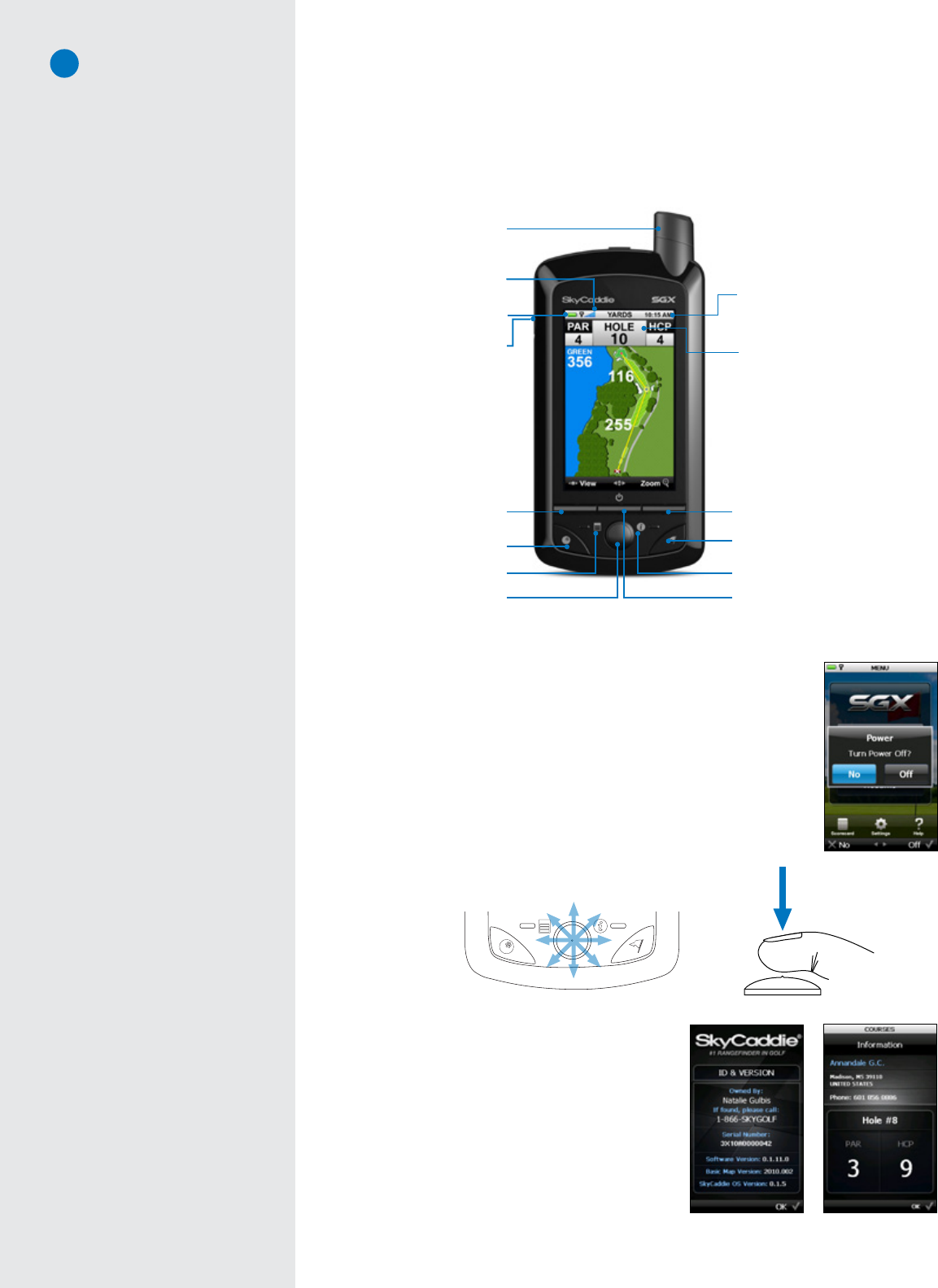
1.1.1 Button Layout
1.1.2 Navigation Keys
•PowerButton:PowerstheSGXonandoff.TopowerontheSGX,pressandhold
thebuttonapproximately3secondsuntilthedisplayturnson.Topoweroffthe
SGX,pressthebuttonandaconfirmationmessageontheLCDscreenwillaskyou
ifyouwanttopoweroffthedevice;select“Off”toturnitoffor“No”tocancel.
•LeftandRightKeys:SelectsoptionsdisplayedabovethekeyontheLCDscreen.
Left and Right Key selections always override on-screen options.
•Joystick:Quicklyandeasilynavigatethroughmenuitemsandsettings,screen
featuresandcrosshairsonaHoleVue/IntelliGreen/IntelliGreenPrographic.The
joystickismulti-directionalandcanselectoptionsbypressingthebutton.You
canalsopresstheLeftandRightKeystoselecton-screenoptionsonceyou’ve
highlightedthemwiththejoystick.
1.1.3 Button Descriptions
•Info:Whennot in PlayorDemo mode,theInfo Button
showsSGXinformation:yourname,yourphonenumber,
theserialnumber,softwareversion,theversionofthebasic
green data installed, and the version of the SkyCaddie
operating system. During Play or Demo mode, the Info
screenwill showthe coursename,contactinformation,
holeinplay,andthehole’sparandhandicap.
•Menu:TheMenubuttonisusedtodisplaytheSkyCaddie’s
MainMenuwhilepoweredon.
Note
The Joystick is pressure-sensitive.
When navigating through on-screen
options using the Joystick, be careful
not to press the button in too much or
you may select an option prematurely.
Hole Button
Info Button
Micro-USB Port
(for charging and connecting
to your computer)
Battery Gauge
Mark Ball Button
Menu Button
Left Key
Satellite Signal Indicator
Hole in Play
Digital Clock
Power Button
Right Key
Joystick
Omni-Directional,
High Performance GPS Antenna
Power off confirmation
Info (Non-Play mode) Info (Play mode)
Multi-directional
Joystick allows for
smooth on-screen
movement.
Press the
Joystick to
select an
option.
Note
If you need to perform a soft reset on
the SGX, press the Center Key and
Joystick at the same time and hold
them down for several seconds until
the device reboots.
4
•Hole:Duringplay,presstheHoleButtontomanuallyadvancetoadifferenthole
thantheoneyouareon.IfAuto-HoleAdvanceisturnedon,youwillnotneed
topressthisbuttontogotothenexthole,sincetheSGXwillknowtochange
holesautomatically.Choosetoselectthatholeoradvancetoadifferentholeby
scrollingthroughthelistofholesusingtheJoystick.
•MarkBall:TheSGX’sMarkBallfeaturecalculatesyourshotdistance.Thisfeature
isusefulindetermininghowfaryoutypicallyhiteachclubinyourbag,leadingto
betterclubselectionsandanoverallimprovementincoursemanagement.Touse,
presstheMarkBallButton,thenselect“Mark”beforetakingyourshot.Pressthe
Markbuttonagainwhenyougettothelocationwhereyourballlanded.Theshot
distancewillbedisplayed.MarkBallisdiscussedlaterinthisguide,inChapter4.
1.1.4 On-Screen Indicators
•BatteryGauge:DisplaystheSGX’sremainingbatterylevel.
•DigitalClock:Displaysthecurrenttime,basedonthesignalthattheSGXreceivesfromthesatellites.
•SatelliteSignalIndicator:Showsreal-timeGPSsatellitesignalstrength.Theplussign(+)abovethesignal
barsindicatesthatSBAS(Satellite-BasedAugmentationSystem)hasbeenacquired.Thisisthepreferred
signallevelforoptimalperformance.
1.2 SystemRequirements
BeforeregisteringandactivatingyourSGXwithSkyGolfusingthefreeCaddieSyncdesktopsoftware,please
makesureyourcomputermeetstheminimumsystemrequirements:
• PCwithWindows®XP/Vista/7(32- or 64-bit) —OR—
• MacOS®10.5orhigher,Intel®orPowerPC®processor
• 512MBofRAM(1 GB of RAM recommended)
• 25MBofavailableharddiskspace
• AvailableUSB1.1or2.0port
• Internetaccess(High-speed recommended)
• Microsoft®InternetExplorer®7.0orlater(recommended)
• Safari®4.0orlater(Mac)
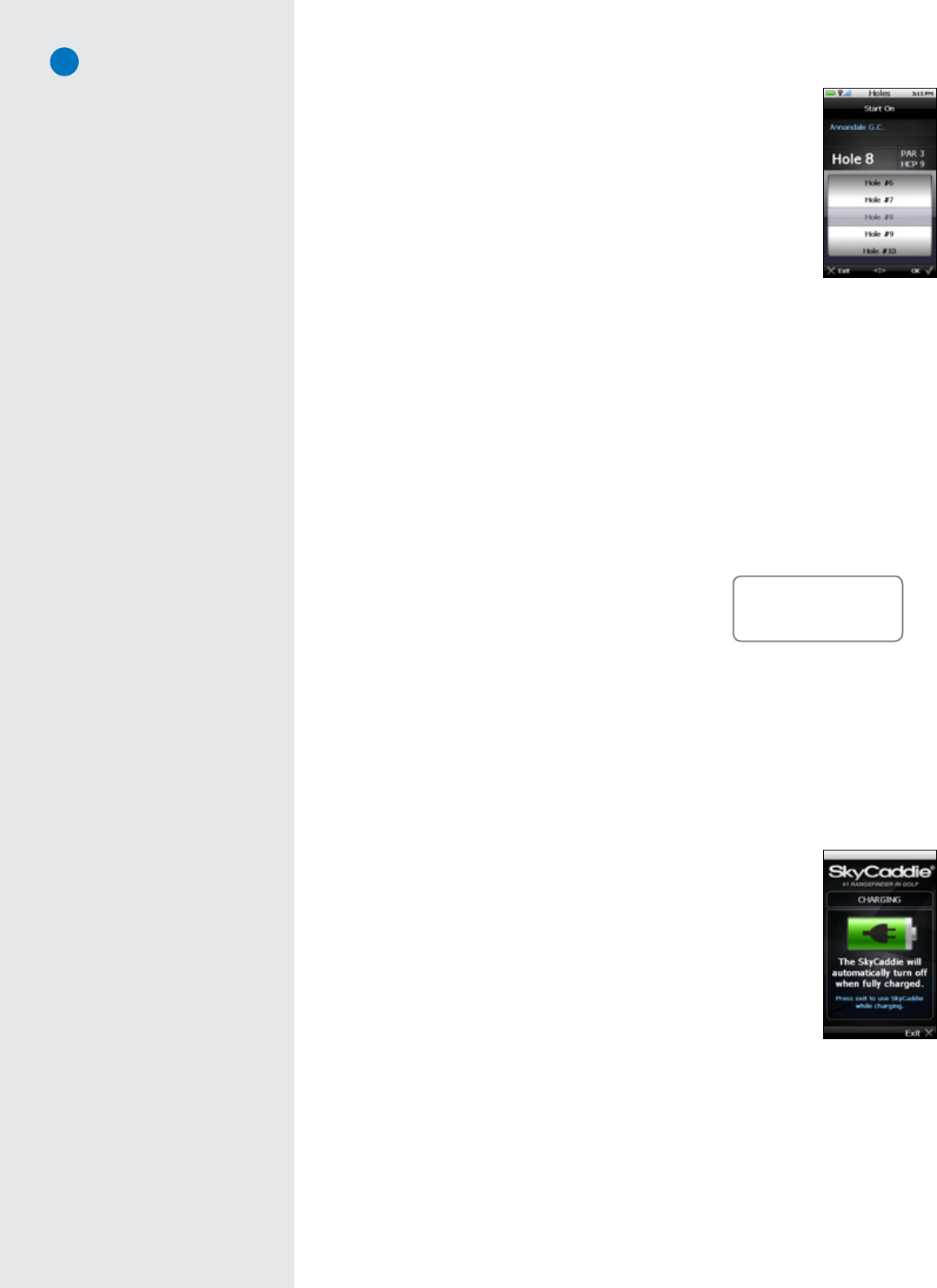
1.3 ChargingYourSGX
WerecommendchargingtheSGXeachtimebeforeplayingaround.Thebatteryshouldholdasinglecharge
forupto14hoursofcontinuousplay.Ifthebatterylevelislow,afullrechargemaytakeupto4hours.
Charging Your SGX Using a Wall Outlet
1. GentlypullbacktherubbercoverlocatedontheupperleftsideoftheSGXto
gainaccesstotheMicro-USBPort.Usingthecableincludedinthebox,insert
themicro-USBconnector(smallend)intotheopenport.
2. Taketheotherendofthecable(theUSBconnector)andinsertitintothepower
adapterthatisincludedinthebox.
3. Plugthepoweradapterintoanopenwalloutletorsurgeprotector.
4. TheSGX’sdisplaywillturnonanddisplaytheSyncscreen.Select“Charge”using
theRightKeytoseetheBatteryChargingscreen.After10seconds,thisscreen
willfadeoutandthedevicewillbeinahiberationmodewhileitischarging,
unlessyouselect“Exit”inordertousetheSGXwhileitischarging.Thereis
notachargingindicatorlightonthedeviceitself.
Charging Your SGX Using Your Computer
YourSGXwillrechargewhenitisconnectedtoacomputerthatispoweredon.WiththeSGXpoweredoff,
connectthemicro-USBendofthecableintotheSGX,thenplugintheUSBendintoanopenportonyour
computer.YourSGXwillpoweronandrechargethroughthisconnection.PleasedonotturnofftheSGX
whileitischarging.
IMPORTANT!
When charging the SGX for the
first time, please use a wall outlet
instead of your computer. DO NOT
sync your SGX to a computer prior to
installing Caddiesync.
DO NOT power the SGX off
while it is charging. Keeping the
device ON so that it may
recharge in a timely manner.
Hole selection screen
Have a New Computer?
If you recently purchased a new PC
or Mac (within the last year or so),
it should be compatible with the
SkyCaddie SGX system.
C o m p a t i b l e w i t h
PC and Mac®
Battery Charging
screen

5
1.4 DownloadingandInstallingtheCaddieSync®DesktopSoftware
CaddieSyncallowsyourSGXtocommunicatewithSkyGolf(aprocesscalledsyncing).Itisusedtoregisteryour
SGX,searchforAdvancedFeaturedCoursemapsfromouronlinelibrary,uploadyourrounddatatoClubSGBETA,
personalizeyourSGXsoftware,receivecoursemapupdatesandreceivesoftwaremaintenanceupdates.
To install the latest version of CaddieSync onto your computer:
1. UsingacomputerwithInternetconnection,launchawebbrowserandtypethefollowingaddressinthe
addressfield:http://www.myskycaddie.com.
2. Intherightcolumn,selectthetypeofcomputeryouown(PCorMac),select“SGX”undermodel(s)you
own,thenclickon“DownloadCaddieSync”.
3. Shouldasecuritypop-upwindowappearinyourwebbrowser,pleaseallowthedownloadtoproceed.
Choose“Run”inthedownloaddialogwindowifyouwanttohaveCaddieSyncautomaticallybeginthe
installationprocessafterdownloading.
4. Onceyou’ve installCaddieSync,a desktop icon willappearonyourcomputer.Youcanclickonthis
icontolaunchCaddieSync.Ifyouclickonthe“Sync”linkinCaddieSync,thesoftwarewilltrytodetect
whetherornotyourSGXisconnectedtoyourcomputer.Ifitis,youwillbeautomaticallyloggedinto
youraccount.Ifnot,CaddieSyncwillpromptyoutomanuallylogintoyourSkyCaddieonlineaccount.If
youdonotyethaveaSkyCaddieonlineaccount,onewillbecreatedusingproductregistration.
1.5 ActivatingandRegisteringYourSGX
Within 30 days of purchase, you MUST register your SGX. Registrationisfree,anditwillallowyouto
activatethecomplementary30-DayCoursePreloadTrial,BasicConsumerLimitedWarrantyandassociate
theSGX’sSerialNumbertoyourcontactinformationforsupportpurposes.Youcanbeassuredthatyour
registrationinformationisheldinthestrictestconfidenceatSkyGolf.Wedonotsellorshareourcustomers’
informationtoanyoneoutsideofourorganizationwithouttheirconsent.
To register your SGX:
1. LaunchCaddieSynconyourcomputer.IfyouareupgradingfromanotherSkyCaddie,youwillneedto
re-downloadCaddieSynctoensureyouhavethelatestversionthatiscompatiblewiththeSGX.
2. Clickonthe“ActivateaNewSkyCaddie”buttonontheCaddieSyncwelcomepage(ifyoudonotsee
“ActivateaNewSkyCaddie,simplypresstheSyncbutton).
3. FollowtheGet Connected setupassistanttoregisterandactivateyourSkyCaddie.Ifyoudidnotpurchase
yourSkyCaddieonlineandhaveneverhadaSkyGolfwebsiteaccount,youwillbeabletosetupafree
online website account during this process. You will also have the option to choose one of several
nominally-pricedannualMembershipPlansthatbestservestheneedsofyourgame.
1.6 SkyCaddieMembershipBenefits
Youshouldexpectthebestinarangefinder,andSkyCaddiebelievesyourgameisworthit.That’swhywe
investthousandsofman-hoursandmillionsofdollarseveryyeartotrain,equip,sendoutandsupportour
worldwidenetworkofexperiencedSkyCaddieMappers.We’removingbeyondrangefinderstobecomethe
ultimatedestinationforgolfknowledge,connectingyouto your game, your equipment, your course, your
PGA Teaching Professional, andother golfers.
Duringregistration,you’llbegiventheoptiontoselectanannualMembershipplan,providingyouwithahost
ofbenefitsandvalue.YoucansignificantlyincreasethevalueofyourSkyCaddiewiththesememberbenefits:
• You’ll enjoy unlimited access to the most reliable course information in golf.SkyCaddiemaintains
thelargestground-verifiedcoursemaplibraryintheworld,nowapproaching30,000courses.ONLY
SkyCaddiewalksthegroundofEVERYcourseyouplay,usingsurvey-gradeGPSequipmentforprecision
mapping.Nothing else comes close.™
• You can trust that the information on your SkyCaddie is always up-to-date. Byworkingwith—and
notcircumventing—localgolfcourseprofessionals,SkyCaddieisnotifiedwhenacourse’slayouthas
changedsothatwecanupdateourmapforthatcourse.Itdoesn’tmatterifit’samajorrenovationorjust
theremovalofacriticalteetarget.WewillsendoutaSkyCaddieMappertore-mapthecourseinatimely
manner,andnotifyyouifacoursemapyou’vedownloadedhaschanged.In2010alone,were-mapped
over1,000coursesamonth!
IMPORTANT!
If your computer is protected by a
firewall, it may need to be set up
to allow our SkyCaddie software
programs to access the web. If
your firewall software displays
any warning messages during the
activation process, simply indicate
that you wish to allow access.
Note
You can browse the SkyCourse
library anytime through the public
area of www.SkyGolf.com. However,
in order to obtain the courses for
use with your SGX, you MUST
have a Membership Plan and use
CaddieSync to download them.
Connecting the SGX...
When connecting and disconnecting
the SGX to your computer, make
sure that it is powered OFF when
you connect the cable. As soon
as the cable is plugged into the
computer, the SGX should power on
automatically.
CaddieSync®
If you have multiple SkyCaddies,
make sure you select each model
when you download CaddieSync.
6
• Powerful distance information is presented in an understandable way, so you only need to focus
on your swing.OurproprietaryfeaturessuchasIntelliGreen®,IntelliGreenPro,andHoleVue™(where
available)showyoureal-timedistancestokeyareasontheholefromyourangleofapproach,soyou
canmakebetterclubselectionsandmakebettershots.
• Improve your game off the course and share your experiences with others on ClubSGBETA: Syncyour
SkyCaddietoournewexclusiveonlinecommunitytouploadscoresandtrackkeystatswithchartsand
graphstohelpvisualizeyourgameandconnectwithothergolfers.
• Get exclusive, member-only offers to popular goods, services and destinations through Member Benefits+.
Throughourrelationshiptosomeoftheworld’sbiggestbrands,ourmemberscanreceivediscounts,packages,
andotheroffersnotavailableanywhereelse!
• You’ll receive the latest software updates for your SkyCaddie to keep it running at peak performance.Whether
youareaPCuseroraMacuser,softwareupdatesarecommon.ThesoftwarethatrunsonyourSkyCaddie
needstobeupdatedtoo.ByregularlysyncingwithourCaddieSyncdesktopsoftware,yourSkyCaddiewill
downloadsoftwaremaintenanceupdatesandthelatestmapupdatesforthecoursesyouplay.
• Keep your favorite courses altogether in your personal online account. Manageandsavethecourses
youplayregularlyinyourFavoriteslistwithinCaddieSync™.Yourmembershipplanensuresyourfavorite
coursesareeasilyaccessiblewhenyou’rereadytoplay.
• You’ll receive anytime, anywhere access to your courses, uploaded scorecards and personal game
statistics.Accessyourpersonalgolfinformation24hoursaday,7daysaweek,anywhereintheworld
wherethereisacomputerwithInternetaccess!
• And remember, SkyCaddie Customer Support is always here if you need us.Shouldanythinginterfere
withyourSkyCaddieexperience,ourknowledgeablestaffisalwaysavailablebyweb,email,orphoneto
walkthrougharesolutionwithyou.OrcheckoutourSupportforumonClubSGBETAtoseeiftheanswer
toyourquestionisalreadyavailable!
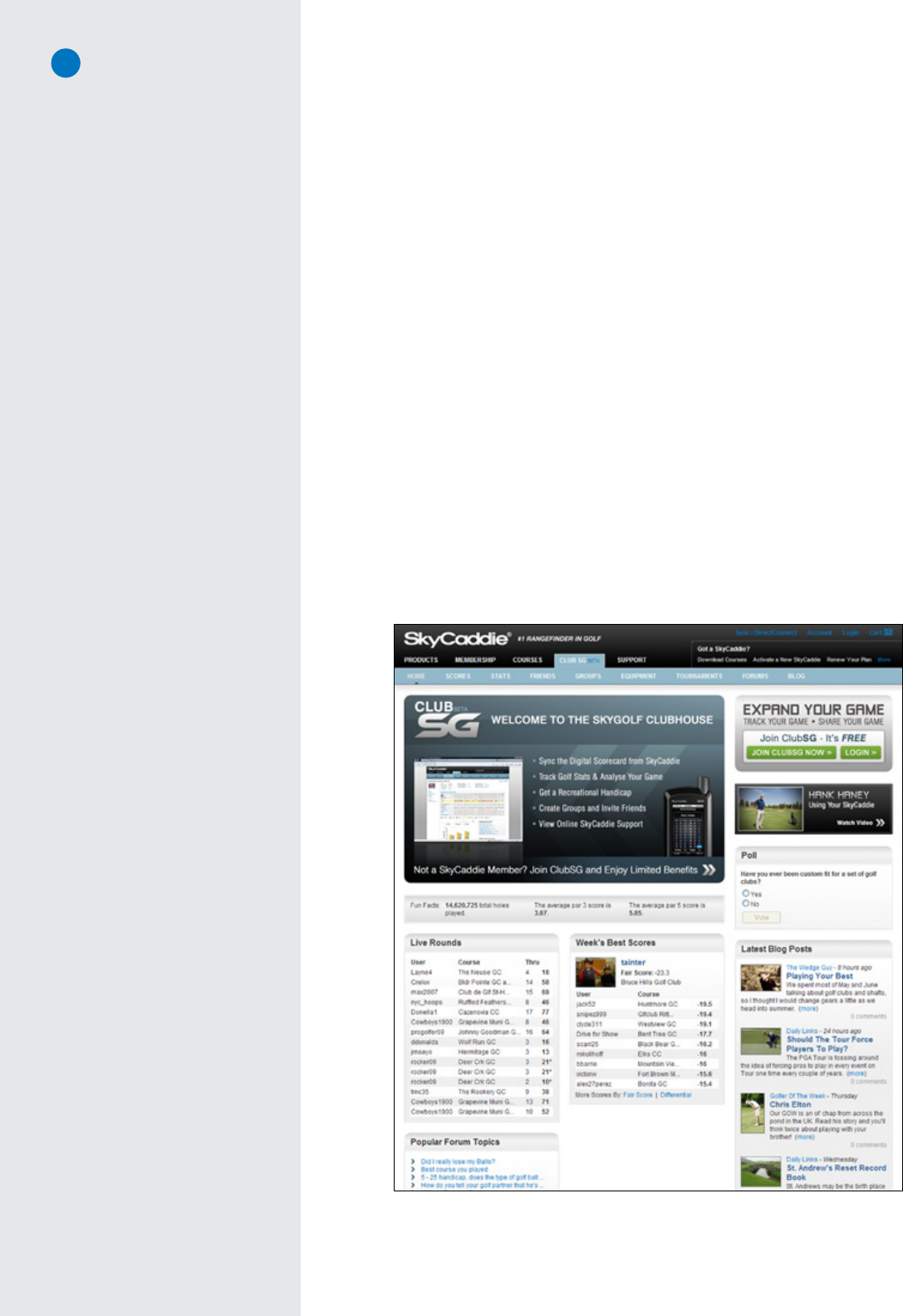
ClubSGBETA homepage at http://clubsg.skygolf.com. ClubSGBETA delivers timely golf articles, equipment
reviews, community leaderboards, forums, golf course ratings, and much more! SkyCaddie Members
automatically receive free ClubSG Premium access, with the ability to upload round data from the SGX
and access to over 50 game tracking stats, as part of their annual Membership plan.
7
Did You Know?
Since SkyGolf started back in 2001,
until the release of the SGX, our
Mappers have walked approximately
290,850 miles — a distance that is
the equivalent of walking nearly
12 times around the Earth!
C H A P T E R 2
Ground-Mapped Courses For Your SGX
2.1 AboutCourseMaps
Your SkyCaddie®SGX™requirestheuseofmaps to providedistance
informationonthedevice(alsoknownasSkyCourses®).SkyCaddieuses
theonlymethodthatTourcaddiesusetoprovidedistancestotheirPros:
we walk the course. Withacourselibraryapproaching30,000maps,
SkyCaddie maintains the largest ground-mapped course database in
theworld.Nooneelseusesthismethod,becauseitisveryexpensive
intermsoflaborandmoney.ButSkyCaddieinveststhousandsofman-
hoursandmillionsofdollarseveryyeartomaintainourground-mapped
courselibrarybecausewebelieveyourgameisworthit.Ourmembers
trusttheinformationthattheirSkyCaddieprovidesthem,whichiswhy
SkyCaddiehasremainedtheleaderinthistechnologyforthelast10years.
Ourcoursemaplibraryisgrowingdaily.Wheneverwereceiveanotification
that a course layout has changed, we send a mapper out to re-map
the course, so that our members have the most up-to-date distance
informationinthegame.Weupdatethousandsofcoursesamonth.
The SGX is capable of storing and using two types of professionally-
mapped courses: 1) Basic Green course maps (also referred to as
“preloadedcourses”)and2)AdvancedFeaturecoursemaps.
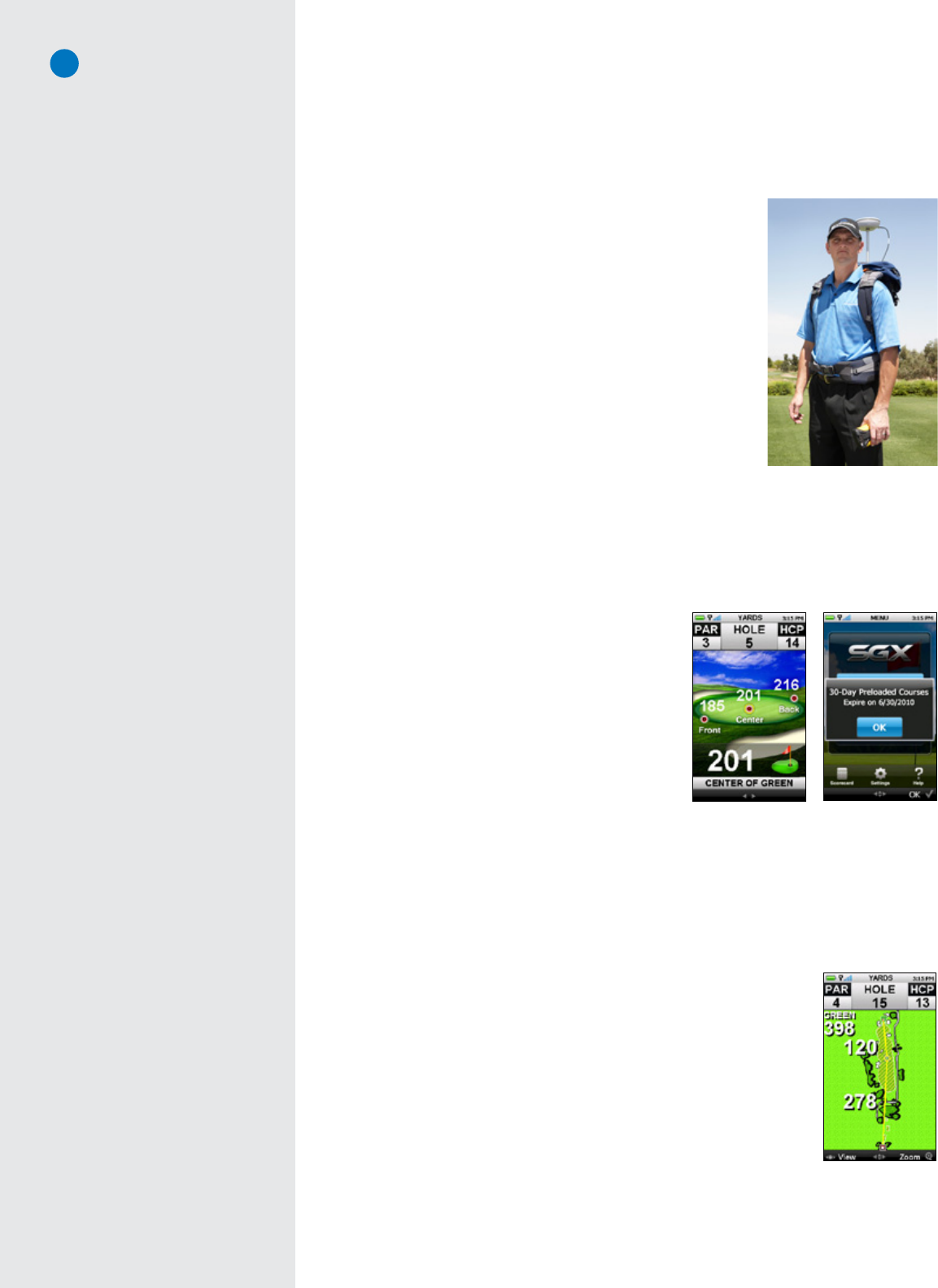
2.2 AboutBasicGreenCourses(PreloadedCourses)
TheSGXcomespreloadedwithBasicGreeninformation
(front, center, back distances) for up to 30,000 of our
ground-verifiedcoursesfor30days.Thisallowsittobe
ready-to-playoutofthebox.Yourcomplimentary30-day
trialperiodwillbeginonceyouregisteryourdeviceorafter
threeholesofgolf,whicheverisfirst.
On Day 31, your SGX will only display the benefits that
correspondtothemembershipplanyoupurchased.Should
you choose one of our SGX membership plans, you will
receivetheBasicGreeninformationrelatedtotheplanyou
selectedonlyfortheregionyouspecified.
ThegreenimageusedforthebackgroundforBasicGreen
coursesisNOTintendedtorepresentthetrueshapeofthegreenfortheholeyouareon;onlyIntelliGreen,
IntelliGreenPro,andHoleVueonAdvancedFeaturecoursemapsdisplaythetrueshapeofthegreen.
Duringthepreloadtrialperiod,thescoringandmarkballfeaturesareavailable.However,theSGXwillonly
maintainascorecardfortheroundyou’replaying(whilethedeviceison),untilaMembershipplanhas
beenpurchased;thenthenumberofroundsthatcanbesavedonthedevicewillincreaseto10rounds.
2.3 AboutAdvancedFeatureCourses
Advanced Feature, ground-mappedSkyCourses areavailableonlyto SkyCaddie
Members.ThesecoursesunlockthefullpotentialofyourSGXbydisplayingnot
onlybasicgreeninformation,butdistancestohazards,carriesandlayupsaswell.
Anyfeatureonagolfcoursethatcomesintoplayoristypicallymarkediscalleda
Target.WhenaSkyCaddieMapperwalkedthecourseyouareon,heidentifedand
recordedseveraltee,fairwayandgreentargetsperholethatyouwouldwantto
knowthedistancetoinordertochoosethebestclubforyourshot.
Almost allAdvanced FeaturecoursemapsincludeIntelliGreenanddistances to
hazards,carries,andlayups.Withthisinformation,youwillhaveeverythingyou
needtoplayyourbestgolf.
Basic Green course play
screen with yardages
Note
Preloaded course maps will ONLY
show the distances to the front,
center, and back of the green. If
you wish to see other targets on the
hole, or some of the other views as
shown on the SGX packaging, you
will need to use an Advanced Feature
course map, available through a SGX
Membership.
Interactive HoleVue
with Zoom may be
available with an
Advanced Feature
course map
Professional SkyCaddie Mapper
wearing our survey-grade GPS
backpack while ground-mapping a
golf course
Preload Course expiration
message
Basic Green Distances
The front, center and back of the
green for the hole you are playing
show distance calculations based on
a line of approach from the center of
the fairway. Basic Green distances do
not adjust based on a different angle
of approach. This is different from
IntelliGreen, which rotates the green
and recalculates distances from your
angle of approach.

8
2.3.1 Overview of Advanced Course Management Features
• Hazards, Carries and Layups:SkyCaddierecordsthousandsofpointsoneachgolfcoursewithsub-meter
precision.Distancestohazards,carriesandlayupsaredisplayedautomaticallyasyoumovedownthe
course.Knowingthesecriticaldistancesletsyoumanageyourgameandeliminatethose6,7,and8s
fromyourscorecard.
• Interactive HoleVue™ With Zoom: SkyCaddieiscreating,atarateofhundredsperweek,theonlyhigh-
precisiongraphicslibraryofeverygolfhole,basedonground-correcteddata.WithHoleVue,you’llknow
thedistancetoanypointonaholeinordertoplaythatholewiththefeweststrokes.Needaclose-up
viewtostrategizeyournextshot?HoleVueincludesapatentedzoomfunctiontodialintotheexactarea
youneedtosee.The number of course maps with Interactive HoleVue, while growing weekly, is limited;
please go to www.SkyGolf.com and search our course database to see if your course is HoleVue-ready.
• IntelliGreen®:With SkyCaddie’s patented IntelliGreen® technology, the exact shape of the green
automaticallyrotatestomatchyourangleofapproachtoprovideallofthedistancesyouneedtohit
moregreensandavoid3-putts.Thisproprietaryfeaturegivesyouachancetoturneveryshotintoa
scoringopportunitybyprovidingfrontcarryandbackdistances,depthofgreen,anddistancestoany
otherpointonthegreen—simultaneously.
• IntelliGreen® Pro: BuiltonprovenIntelliGreentechnology,IntelliGreenProisanotherproprietaryfeature
thataddsdistancestomajorgreencontours,falsefronts,frontcarryandbackdistances—plusany
otherpointonthegreenfromyourangleofattack.Thiskindofcrucialscoringinformationisonlypossible
byusingourground-verifiedmappingprocess.The number of course maps with IntelliGreen Pro, while
growing weekly, is limited; please go to www.SkyGolf.com and search our course database to see if your
course has IntelliGreen Pro. Not all courses have significant green contours that require this feature.
• QuickVue™: SkyCaddie’sexclusiveQuickVueprovidesavirtualpreviewofthesafestpathfromtheteeto
green.Atasingleglance,golfersknowtheexactgreenshapewithIntelliGreen®,thetotaldistancefrom
teetothegreen,theshapeofthegolfhole,thedistanceanddirectiontotheperfectfairwayposition
andthe distanceremaining fromthatpositionfortheapproach shot to the green.Allinformationis
derivedfromSkyCaddie’sexclusiveTrueGround™mappingtechnologytoprovidegolfer’swiththehighest
reliabilityintheindustry.
2.4 DownloadingCoursesToYourSGX
IfyouhaveinstalledCaddieSyncandselectedaMembershipPlan,thenyouwillhaveunlimitedaccessto
ourrapidlygrowingdatabaseofprofessionally-mappedcoursesfortheregionthatyourplancovers.
To Search and Download SkyCourses to your SGX:
1. ConnecttheSGXtoyourcomputerusingthemicro-USBcable.
2. StartCaddieSync.
3. Whenthewelcomepagedisplays,turnonyourSGXandclickonthe“Sync”buttoninCaddieSync.
4. Clickon“Courses”inthemainnavigationbar,then“CourseSearch”linkinthesub-navigationbarto
searchforcourses.
5. Onthecourseresultspage,youwillseetheFacility Name (withthelocationbeneathit), Number of Holes
(withthecoursetype,suchas“Public”or“Private”),Course Features,and Add to Favoritescolumn.
a. Clickingonthecourse’snamewilltakeyoutothatcourselistingonClubSGBETAsothatyoucansee
detailsaboutthecourse,suchasaddress,phonenumber,hoursofoperation,fees,anduserratings.
b. YouwillseeiconslistedundertheCourseFeaturescolumn.Thisshowsyouwhatfeaturesareavailable
onthecoursemapyouareinterestedin.Ifyouhoveryourmousecursoroveranicon,youwillsee
whatthaticonmeans.Clickingontheiconwilltakeyoutoadetailspageonthatfeature.
6. Whenyouseeacoursemapthatyouwant,clickonthe“+AddtoFavorites”buttontotherightofthe
course.Thiswillsavethismaptoyoupersonalfavoriteslistfordownloadlater.
7. Onceyouarefinishedselectingcourses,clickon“Favorites”onthesub-navigationbar.Fromthispage,you
canselectthecoursesyouwant(upto50atatime)thenclickonthebuttonthatislabeled“Download
toMySkyCaddie”.
WhenacourseinyourFavoriteslistisupdated,youwillneedtore-downloadthecoursetoyourSGXtoget
accesstotheupdate.Werecommendre-downloadingyourcourseseachtimeyousynctoensureyouhave
themostup-to-dateinformationavailable.
IMPORTANT!
When your SGX is in the process of
syncing with CaddieSync, please DO
NOT remove the cable or interrupt
the syncing process. Syncing
typically takes less than a minute.
Did You Know?
You do not have to have your SGX
with you to access the course list
in CaddieSync. You can manually
enter in your SkyGolf.com login and
manage your Favorites list prior to
downloading them to your SGX.
Note
If you are syncing up to 50 Advanced
Feature SkyCourses to your SGX — or
if there is a new software update
— please expect the download and
installation process to take a few
minutes, as there will be a lot of data
being transferred to your SGX.
Feature Availability
IntelliGreen Pro and HoleVue started
being added to SkyCaddie’s course
database in 2009, so availability of
these features may be limited in your
area initially, but those quantities
will grow rapidly as the hole images
are corrected and rectified through
our mapping process. While
this process is tedious and may
delay release of HoleVue in mass
quantities, the reliability factor is
overriding our temptation to provide
images with less reliability.
9
C H A P T E R 3
Playing Golf With Your SGX
3.1 AcquiringSignals
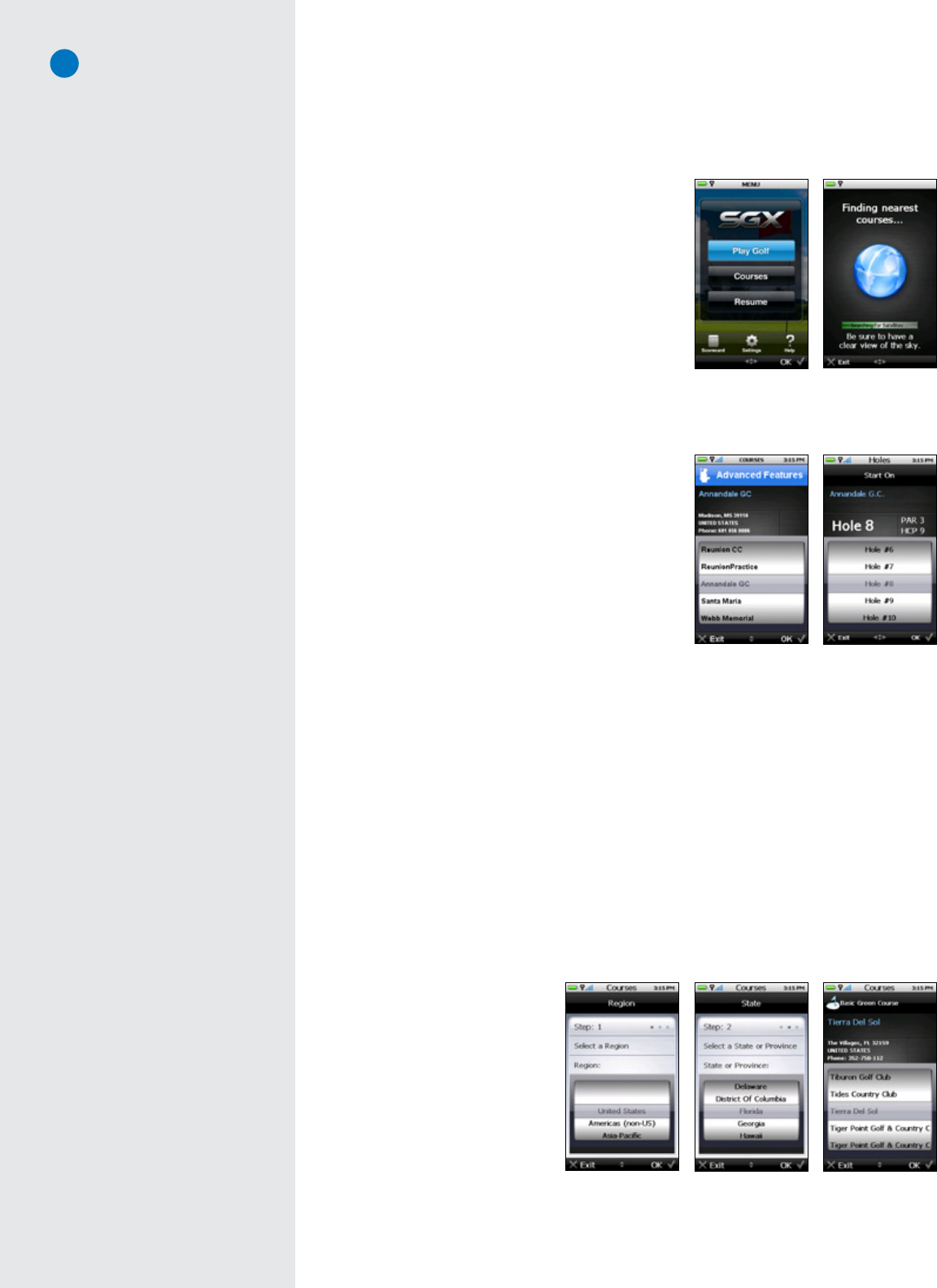
Whilestandingoutsidepriortoplay,powerontheSGXby
pressingandholdingdowntheCenterKeyfor1-2seconds.
Afterboot-up,theSGXwilldisplaytheMainMenu.Choose
“PlayGolf”tobegin.TheSGXwillsearchforsatellitesignals,
keepingyouinformedofitsstatususingtheprogressbar.
Oncesatellitesignalshavebeenacquired,theSatelliteSignal
Indicatorwillshowthesignalstrength,representedbyaseries
ofbars.TheSGXwillthenautomaticallyadvancetothenext
screen(oryoumaychoosetomanuallyadvancetothenext
screenwhiletheGPScontinuestosearchforsignals).
3.2 SelectingaCoursetoPlay
OncetheSGXhasacquiredsatellitesignals,theAuto-Course
Select feature will attempt to determine your location and
automaticallyselecttheclosestinstalledcourse.Intheevent
that you have a Basic Green (Preloaded) map and an
Advanced Feature Course map of the same golf course
installed on the SGX, the SGX will select the Advanced
FeatureCoursebydefault.
WhenacourseisdisplayedontheCourseSelectionscreen,
eitherselectthatcoursetoplay,orsimplyscrolltoanother
course.Courseswillbesortedbydistancefromyourcurrent
location.“PreloadedCourses...”willletyousearchforBasic
GreencoursesontheSGX.“NearbyCourses...”willtellthe
SGXtoauto-searchfortheclosestgolfcoursesfromyourlocationanddisplaythem.
Onceacoursehasbeenselected,theSGXwillaskyoufortheholetostartonoryoumaychoosetoselect
theDrivingRange.IfthecourseyouareplayinghasadrivingrangethathasbeenmappedbyaSkyCaddie
Mapper,theDrivingRangefeaturewilldisplaytheactualdistancetoeachyardagesignbasedonthelocation
ofthehittingarea.
3.2.1 Manually Selecting a Basic Green Course (Preloaded Course):
1. OntheMain Menu,selecteither“Courses”or“PlayGolf”
2. OntheCourse Selectionscreen,scrolltotheoptionthatsays“PreloadedCourses...”thenpressthe
RightKeyunder“OK”.
3. ChoosetheRegion(typicallythecountry)ofthegolfcourse’slocationbymovingtheJoystickup/down,
thenselect“OK”.
4. Choose the State/Province or
other sub-region where the
courseislocatedbyscrollingup/
down,thenselect“OK”.
5. Searchforthecoursebyname
by scrolling through the list of
courses shown on the SGX.
Once you have discovered the
course, press the Right Key
under“OK”.TheSGXwillload
thatcoursemapsoyoucanplay
usingthatinformation.
Satellite Search screen
Main Menu
Note
If you have the Scoring option turned
on under “Settings > Scoring”,
then when you select “Play Golf” or
“Courses”, the SGX will ask you if you
wish to start a new round before the
Course Selection screen appears.
Hole Selection screen
Course Selection screen
Choosing the state of
the Basic Green course
Choosing the country of
the Basic Green course
Selecting the course
name within the state
Did You Know?
A Demo Course has also been
preloaded on the SGX to allow you
to view some of the functionality of
the SGX through a simulation. If no
courses are installed on your SGX, it
will open the “Demo Course”. If only
one course is loaded, the SGX will
ask if you want to play that course.
Note
After the 30-day Basic Green
Course Preload trial period is
over, you will only see courses for
the region your Membership plan
covers. If you sign up for a SGX
Membership before the 30 day trial
is over, you will still have access to
all of the preloaded courses.
10
3.2.2 Manually Selecting an Advanced Feature Course:
1. YoumusthaveaMembershipandhavedownloadedanAdvancedFeatureCoursemaptobeableto
selectitontheSGX.SeeSection2.4formoreinformation.
2. OntheMain Menu,selecteither“Courses”or“PlayGolf”.
3. OntheCourse Selectionscreen,scrolltothecoursenameyouwant,thenpresstheRightKeyunder“OK”.
3.3TargetViews(Available on Advanced Feature Courses through Membership Only)
TheSGXoffersthreetargetviewstorepresentkeydistanceinformationinavarietyofways.Choosethe
targetviewsthatbestfityourstyleofplay.Bydefault,allthreeareturnedON.However,youmaychoose
thetargetviewsyouprefertoseeoneachholebychangingtheTargetViewsetting.
To change the Target View setting:
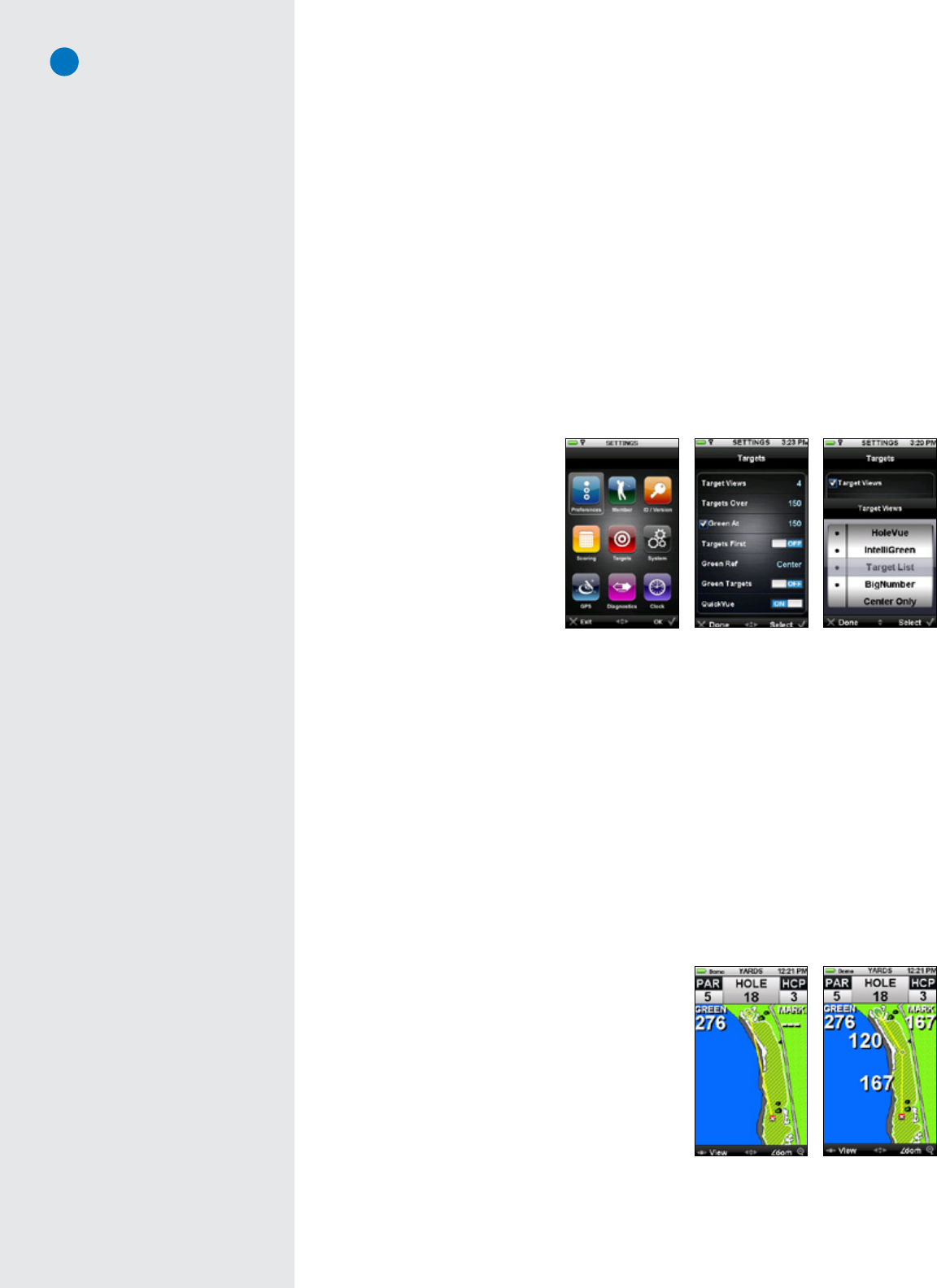
• GototheMain Menuandhighlightthe“Settings”icon.PresstheJoysticktoselectit.
• UnderSettings,goto“Targets”usingtheJoystick.PresstheJoysticktoselectthatoption.
• Using the Joystick, make sure that “Target Views” is selected with a checkmark to the left of the
option.PresstheJoystickor
the Right Key (under “Set”)
toseetheviewoptions.Adot
totheleftofthetargetview
optionmeansthattheoption
isturnedon.UsetheJoystick
toscrollthroughtheoptions,
pressingittotogglethetarget
viewselectionon/off.
• When done, press the Left
Key(“Exit”)toreturntothe
previousscreen.
3.3.1 Interactive HoleVue™ With Zoom:
HoleVueoffersaground-rectifiedgraphicofeverygolfhole.WithHoleVue,you’llseetheideallineof
playforthathole,real-timedistancesfortheteeshotandapproachshot,plusyoucanre-positionthe
lineofplaytoknowthedistancetoanypointonaholeinordertoplaywithfewerstrokes.Additionally,
HoleVueincludesapatentedzoomfunctiontodialintotheexactareayouneedtosee.
• Know Your Location: Indicated by a red “X”, XMark™ displays your actual position on HoleVue,
automaticallyupdatingasyoumove.PoweredbySkyGolf’sproprietaryTruePoint™GPSPrecision
PositioningTechnology,XMarkalwaysshowswhereyouareinrelationtoholefeaturesthataffect
play–evenifyoucan’tseethem!
• ToSeeDistancestoAnyPointontheHole(Par4sand5sonly):XTarget™isafeatureofInteractive
HoleVueWithZoomthatallowsyoutocreateapersonalfairwaytargets.WithXTarget,you’llget
thedistanceyouneedtoanytarget,layuporsafeareaonahole,andfromthattargettothecenter
ofthegreen.Knowingthiscriticaldistanceinformationwillhelpyousavestrokesbystayinginthe
smartzonesandgettingoutoftroubleareas.
Creating a personal fairway target with XTarget:
Thelineofplay(yellowline)willindicatethedistance
betweenyourlocationandthecenterofthegreen.Use
theJoysticktodragthetargetdownfromthegreento
anywhereonthehole.Thedistancefromyourlocation
tothetargetandtheremainingdistancetothegreenwill
instantlyappear.Movethetargettoyourdesiredposition.
Target preferences
Settings menu Target View setting
Note
If the Advanced Feature course map
you have installed on your SGX does
not include Interactive HoleVue with
Zoom, the next default screen is
IntelliGreen Pro. If IntelliGreen Pro
is not currently available on the map
you’re playing, then IntelliGreen will
display as the initial play screen.
Line of Play Custom Target Line
Note
The number of course maps with
HoleVue, while growing weekly, is
limited; please go to www.SkyGolf.
com and search our course database
to see if your course is HoleVue-ready.
Note
On Par 3s, you will not be able to
create a custom target and the
HoleVue the image will display
without a yellow line.
11
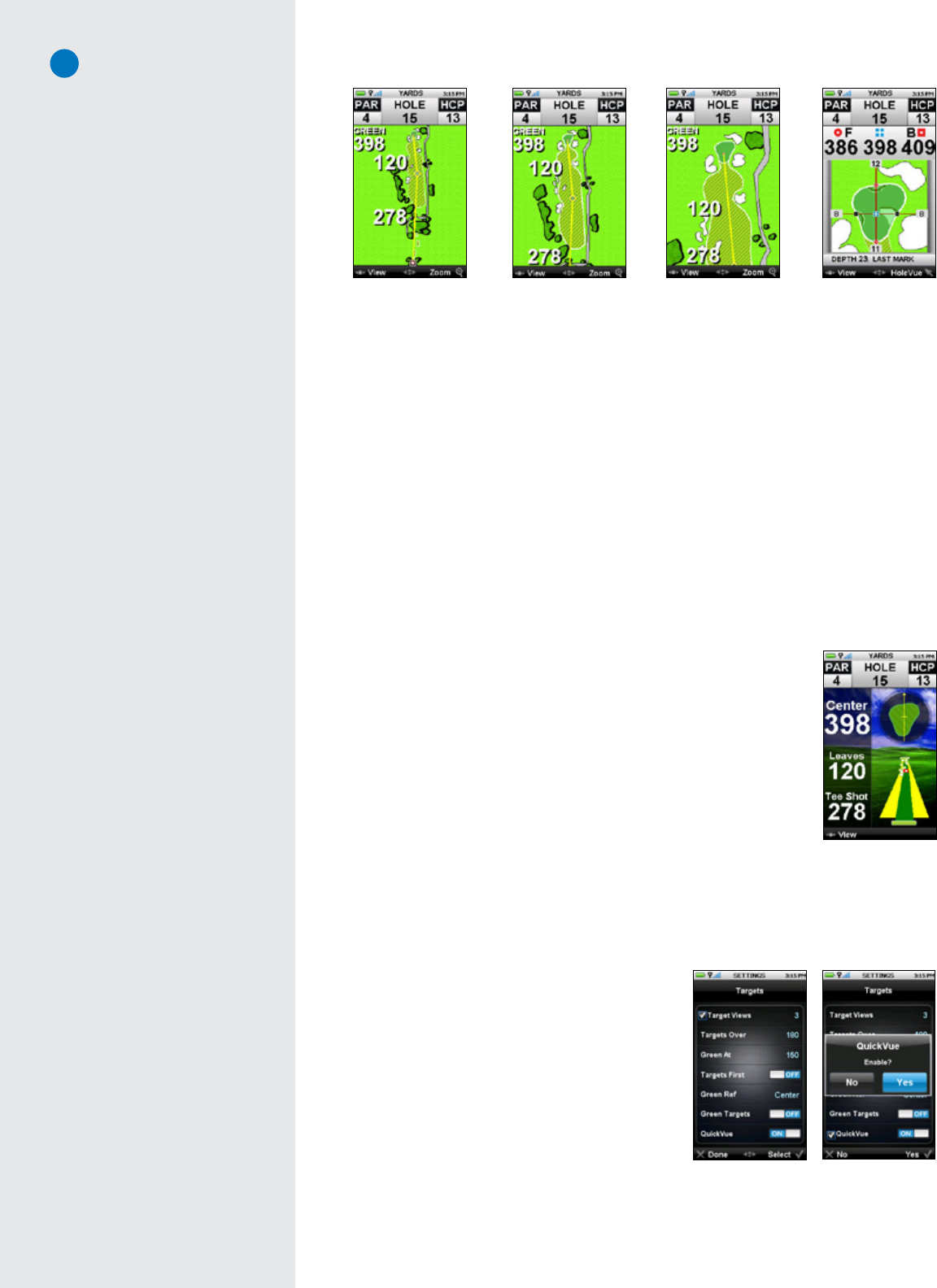
• ToZoomInorOut:Selecting“Zoom”abovetheRightKeyallowsyoutozoomthreelevelsofthe
HoleVuegraphic.Thefirstlevelofzoomprovidesacloserlookatthefairway,thesecondlevelshows
acloserviewofthehazardsthatwillaffectyourapproachshot,andthethirdlevelzoomsdirectlyto
IntelliGreen.PresstheRightKeytogetbacktoHoleVue.
• TrackingShotDistance WithinHoleVue:UsingtheMark Ballbutton, markyourlocationpriorto
takingyourteeshot.Oncemarked,theSkyCaddiewilldisplaythetotalyardsoftheholeatthetop
ofthedisplay.Additionally,thedistancefromyourlastmark(notedas“Mark”onthedisplay)will
automaticallyupdateasyouadvancedownthefairway.(Seesection“DeterminingShotDistance”
formoreinstructionsonmarkingyourshots.)
• RecordingDistanceOffTee:YoucanusetheSGXtostoreyourdrivingdistance.PresstheMarkBallbutton
beforeyourteeshotandagainwhenyouarriveatthelocationofyourteeshot(makesuretopress“Mark”in
theconfirmationscreen).NexttimeyousyncthedrivingdistancewilluploadautomaticallytoClubSGBETA.
3.3.2 QuickVue:
QuickVueshowsthesafest pathfromtheteetogreenanddisplayshazardsandreliabletargetsthat
willcomeintoplayasyoumovedownthecourse.Thehazardsandtargetsupdateautomaticallyasyou
movedownthecourse.
• IdentifytheHazards:QuickVueindicateshazardsandtargetsbythefollowing:
• Whitesquares=hazards
• Buesquares=water
• Tallgreenrectangles=trees
• Redsquares=tee-shottargets
• KnowingtheNumbers:The“TeeShot”distanceplusthe“Leaves”distance
provides the total distance from the tee box to the green following the
safe path downthefairway.The“Center”distance isthelineardistance
(astraightline)fromtheteeboxtothecenterofthegreen.Ifyouaddup
the“TeeShot”distanceandthe“Leaves”distance,itwillnotbethesame
as“Center”distancebecausetheyaredisplayingthedistancetothegreen
followingtwodifferentpathstothegreen.
QuickVuewilldisplayoncourseswhereHoleVueisnotavailable.FortheSGX,QuickVueisturned“ON”
bydefaultandcanbeviewedoncoursesnotcurrentlymappedwithHoleVue.
To Toggle QuickVue On or Off
1. Goto“Menu”thenselect“Settings”
2. Under“Settings”,highlight“Targets”andselect
3. Highlight“QuickVue”andselecttotoggleON/OFF
IfacoursehasbothHoleVueandQuickVue,HoleVuewill
displayinsteadofQuickVue.ToviewQuickVueinsteadof
HoleVue(availableonlyfortheSGX):
1. MakesureQuickVueissettoON(seeabove)
2. Under“Targets”,highlight“TargetViews”andselect
3. Highlight“HoleVue”andselect.Theblackdotnextto“HoleVue”willdisappearanditwillbeturnedoff
(see3.3forimagereference)
Zoomed in 2x Zoomed in 3xZoomed in 1xInteractive HoleVue
QuickVue
Target preferences QuickVue setting
Note
On Par 4s and 5s, a yellow line
appears by default from the fairway
target to the green. To see the yellow
line from your location to the fairway
target, press the Mark Ball button.
As you approach the fairway target,
HoleVue will update and the yellow
line from the fairway target to the
green will disappear. To see it again,
you can create a custom target with
XTarget or use the Joystick to drag the
target down from the green.
12
3.3.3 IntelliGreen®
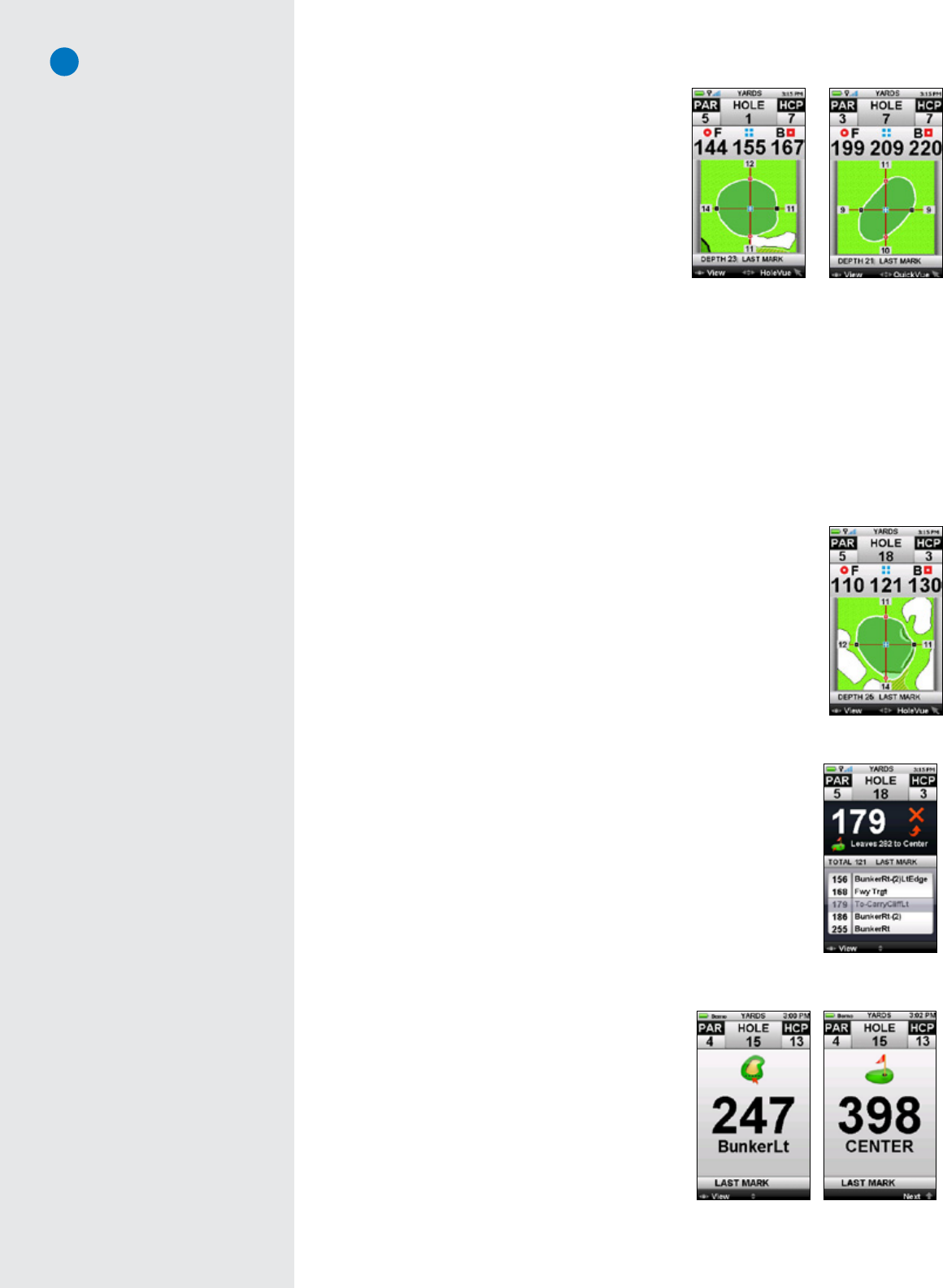
SkyGolf’sproprietaryIntelliGreentechnologygraphically
displays the true shape of the green, automatically
rotatingittomatchyourangleofapproach.Itturnsevery
shotintoascoringopportunitybyprovidingfrontcarry
andbackdistances,depthofgreen,anddistancestoany
otherpointonthegreen— simultaneously.
If the Advanced Feature Course you are playing has
theHoleVuefeature,youwillbeabletoseegreenside
hazardsincludingbunkersandwaterwithIntelliGreen.
The front carry, a point on the green (determined by
the position of the crosshair) and back distance are
displayedalongthetopofthescreen.Eachdistancecorrespondstoauniqueiconthatisdisplayedonthe
greenshapeforquickreference.Usethejoysticktore-positionthecrosshairbymovingitinthedesired
directionandrelease.Thedistanceswillrecalculateautomaticallybasedonthenewpositionoftheline.
Thisviewalsoincludestheautomaticdepthofthegreenandthedistancefromyourlastmark,ifyouused
theMarkBallfeatureonthehole.Greendepthisanautomaticcalculationofthedepthofthegreenfor
yourlineofapproach.Thelastmarkmeasures,displaysandupdatesthedistanceofyourshotsasyou
advancedownthecoursetowardyourball.(Seesection“DeterminingShotDistance”formoreinstructions
onmarkingyourshots.)
WhileviewingtheIntelliGreenscreen,select“View”withtheLeftKeytoseeanothertargetview.Continuing
toselect“View”willreturnyoutotheIntelliGreenview.
3.3.4 IntelliGreen® Pro
Built on proven IntelliGreen technology, IntelliGreen Pro offers all of the
functionalityofIntelliGreen,plustheabilitytodisplaymajortiers,contours,false
frontsandmoundsfromyourangleofapproachtothegreen.Bysimplymoving
theIntelliGreencrosshairstotheridgelinesontheimageofthegreen,you’llget
instantdistancesanddepthinformationtomajortiers.Thiskindofcrucialscoring
informationisonlypossiblebyprecision-mappingagolfcoursefromtheground.
IfanAdvancedFeatureCoursemaphasanIntelliGreenProfeature,thisversion
ofIntelliGreenwillbeusedbytheSGX.
3.3.5 Target List (Hazards, Carries and Layups)
TheTargetListdisplaysalistofdistancestohazards,carriesandlayupslocated
aheadfromyourpositiononthehole.YoumayusetheJoysticktoscrollupor
downthroughthetargetsmanually,orlettheSGXautomaticallyupdatethelistof
targetsahead,asyoumovedownthefairway.TheTargetListalsocalculatesand
displaysthe“Leaves”distancetotheCenterofGreenfromthehighlightedtarget.
IfyoumarkedyourpreviousshotusingtheMarkbutton,thedistancefromthatlast
mark(labeled“LastMark”)willbedisplayedinthecenteroftheTargetListscreen.
3.3.6 Big Number and Center Only
Big Number View displays the s elected tar get
distance as a very large number for easy viewing.
Press up/down on the Joystick to switch between one
targetatatime.
Center Only displays the distance to the center in a
large,bignumberformat.IfCenterOnlyisselect,itwill
automaticallyturnOFFallothertargetsviews.Bydefault,
CenterOnlywillbeturnedOFF.
IntelliGreen without
Hazards
IntelliGreen with Green
Hazards
List of Hazards, Carries
and Layups
Note
Not all greens or all courses have
noteworthy major green contours to
require this feature. In conformance
with USGA regulations, SkyCaddie
does not factor slopes or gradients
into distance calculations.
Note
The number of course maps with
IntelliGreen Pro, while growing
weekly, is limited; please go to www.
SkyGolf.com and search our course
database to see if your course has
IntelliGreen Pro.
IntelliGreen Pro feature
Note
If an Advanced Feature Course
has the HoleVue feature, you will
see greenside hazards in both
IntelliGreen and IntelliGreen Pro.
Note
You can also simply double-tap the Mark
Ball button to record your location.
Center Only
Big Number
13
3.4 DeterminingShotDistanceUsingMarkBall
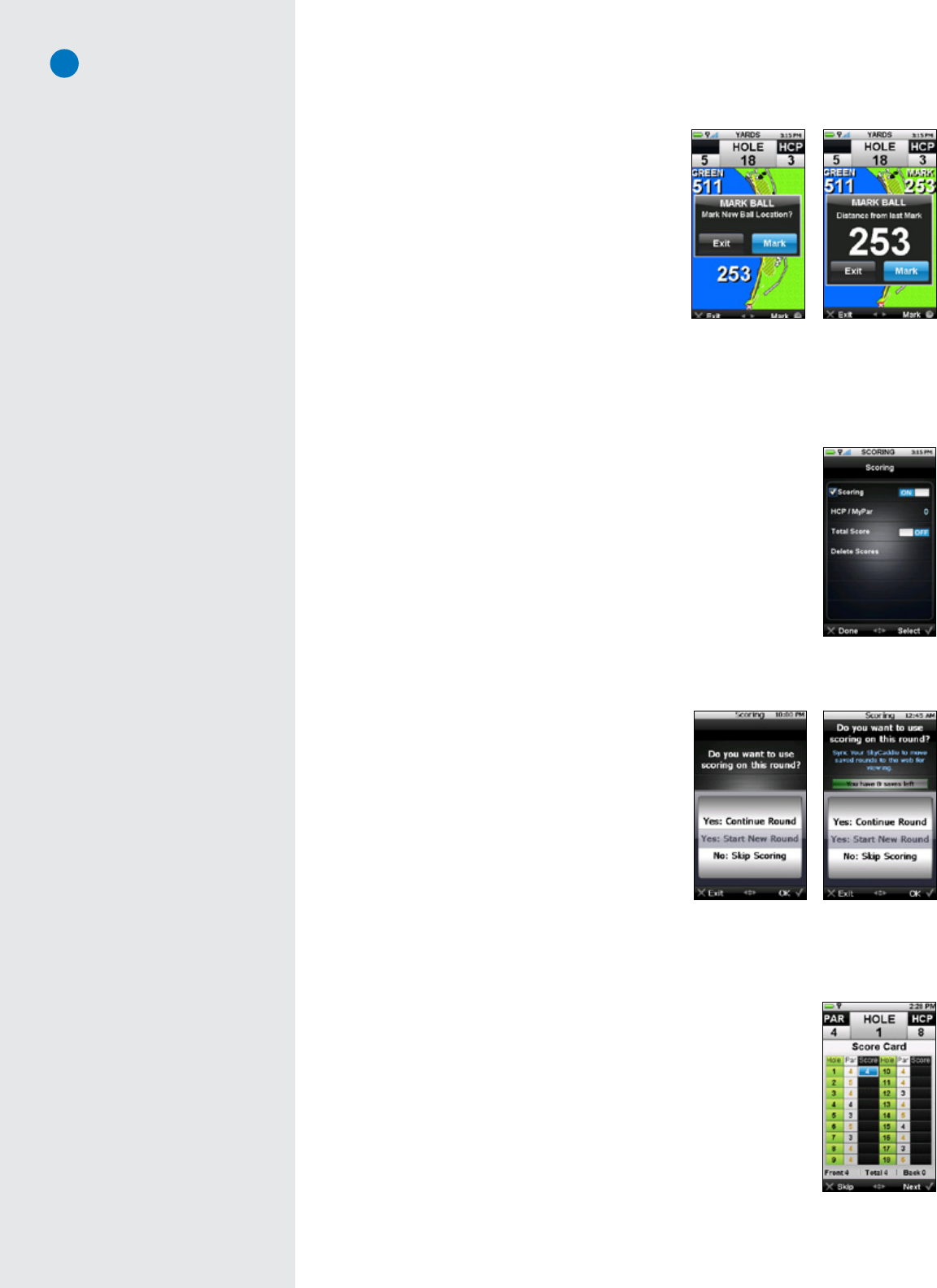
SimplypresstheMarkBallbuttonatthelocationwhere
youaregoingto takeyourshot.The“MarkNewBall
Location?”screenwilldisplay.Select“Mark”bypressing
theRightKeytorecordyourcurrentlocationandthen
takeyourshot.
Whenyougettothelocationwhereyourballcameto
rest, press the Mark Ball button again to record and
displaythedistance.Youmayreturntoyourprevious
screenbyselecting“Exit”orchoose“Mark”tomarkthe
distanceforanothershot.
3.5 ViewingCourseInformation
ToviewinformationregardingthecurrentholewhileinPlayModeatanytime,simplypresstheInfo
button.Thecourse’sname,address,theholenumberyouareonandtheparandhandicapforthathole
willappear.PresstheRightKeyunder“OK”toexitfromthisscreen.
3.6 DigitalScorecard
3.6.1 Turning on the Scoring Feature
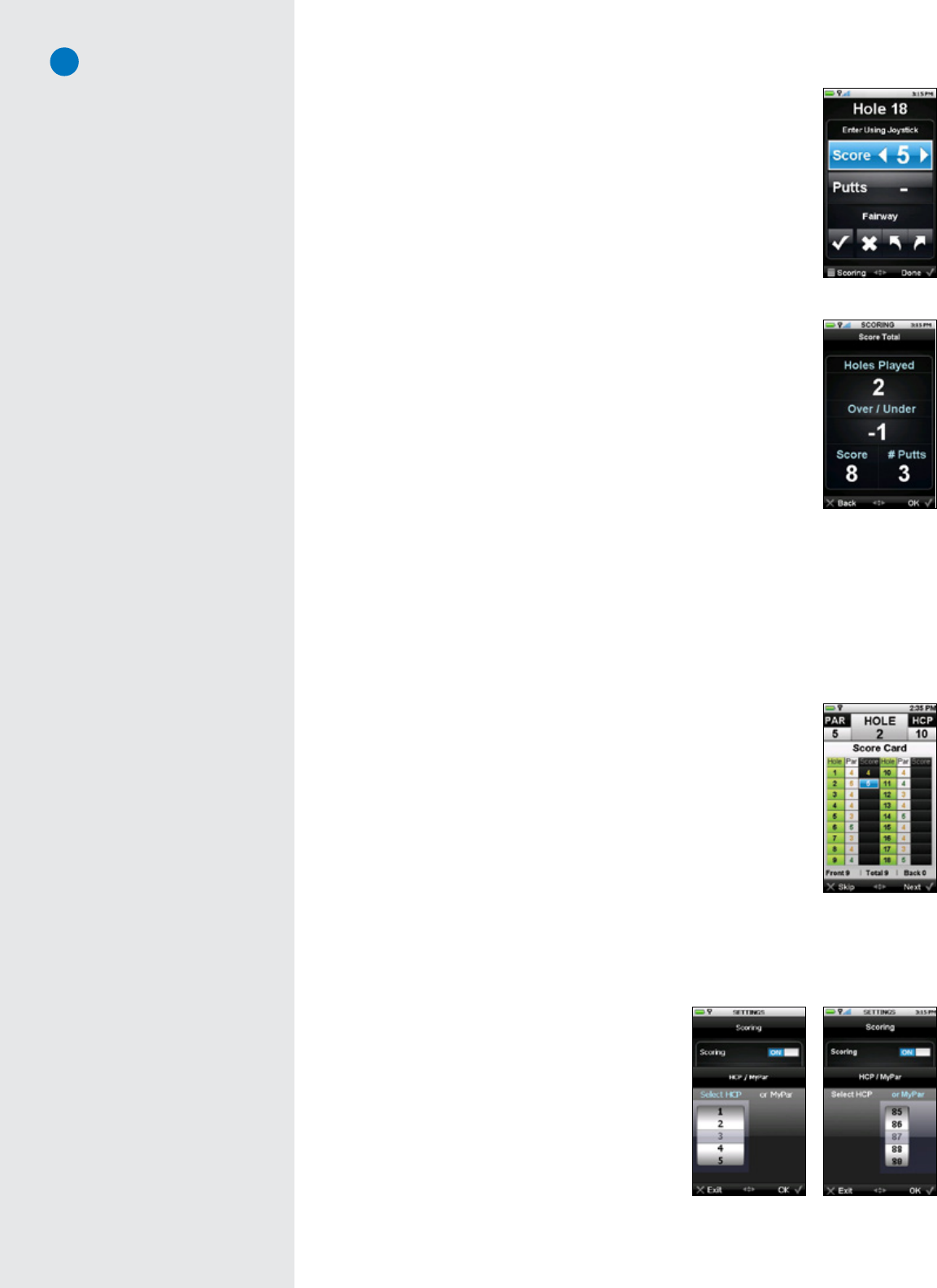
Bydefault,theDigitalScorecardontheSGXissettoOFF.
To turn on the Digital Scorecard from the Main Menu:
1. Scrolldownto“Settings”usingtheJoystick,thenpresstheRightKeyfor“OK”
2. NavigatetotheScoringicon,thenselect“OK”
3. UnderScoringpreferences,makesurethat“Scoring”ischeckmarked.Ifit
is,eitherpresstheJoystickorpresstheRightKeyunder“Set”totoggle
ScoringtoON.
4. PresstheLeftKeytosaveandexittothepreviousscreen.
OncetheDigitalScorecardisactivated,theSGXwillask
youifyouwouldliketousethescoringfeaturebefore
eachroundyouplay.
3.6.2 Using the Scoring Feature During Play
Once activated, whenever you select “Play Golf” or
“Courses”youwillbeaskedifyouwishtousescoring
fortheround.Threeoptionsareprovided:
• Yes:ContinueRound:Selectifyoustartedascorecard
foraround,wereinterruptedduringtheround,and
wanttogetbacktotheroundwhereyouleftoff.
• Yes:StartNewRound:Selectifyouarestartinganewroundandwishtomaintainascorecardforthe
round.
• No:SkipScoring:Selectifyoudon’twanttousetheDigitalScorecardforthe
roundyouareplaying.
MaintainingyourscorewiththeDigitalScorecardisamanualprocess.Inother
words,youneedtomanuallyinputyourscorestotheSkyCaddieafteryouplay
eachhole.TheSkyCaddiedoesnotautomaticallytrackyourscores.
Attheendofeachhole,youwillbepromptedwiththeDigitalScorecardwhere
youcaninputthenumberofshotsittooktocompletethehole.Youcanenter
yourtotalscoreforeachholebymovingtheJoystickleft/rightontheScorecard
screen(thescorewilldefaulttopar).Whenyouarefinished,simlypress“Next”
usingtheRightKeykeytocontinuetothenexthole.
Note
If you select “No: Skip Scoring”
the scoring feature for that round;
therefore, the rest of the information in
this section will not apply.
Mark Ball confirmation Shot distance displayed
Scoring preferences
Scoring confirmation
(without Membership)
Note
The SGX will only hold scoring data
for the round you are playing while
the device is one, unless you have
signed up for a Membership plan.
If you power off the SGX and turn
it back on during a round, you will
lose that scorecard data. With a
Membership, you will be able to
store 10 rounds on the SGX. Syncing
regularly will allow your rounds to be
stored on ClubSGBETA so that you may
free storage space on the SGX.
Scoring confirmation
(with Membership)
Entering the score
14
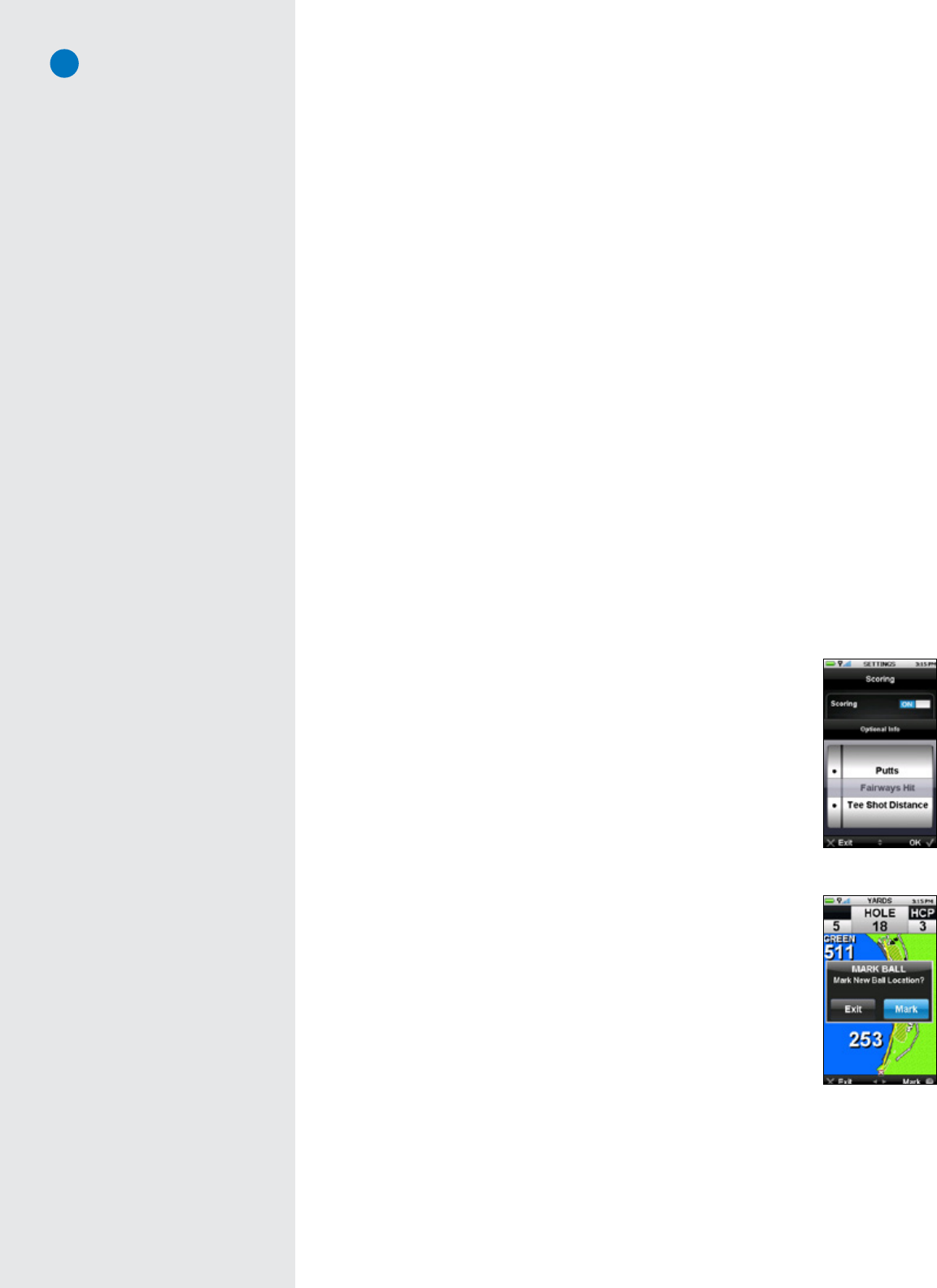
IfyouwanttotrackadditionalstatsincludingPuttsandFairwaysHit,selectthe
holeusingtheJoystick.Toenteradditionalstats:
1. MovedownwardontheJoystick,thenleft/righttoadjustthenumberofPutts.
Noputtswillberecordeduntilyouscrolltohighlight“Putts”.Whenyouhighlight
“Putts”,itwilldefaultto2.
2. Movedownwardagain,thenleft/righttoselectwhetheryourshothitthefairway
ormissedit(i.e.missedleftormissedright).
3. PresstheRightKeyunder“OK”whendone.
TheSGXwilldisplayasummaryofhowmanyholeshavebeenplayedtothatpoint
inyourround,howmuchoverorunderparyouare,yourtotalscore,andnumber
ofputts.Youhaveoneoftwooptions:
1. PresstheLeftKeyunder“Back”toedityourscoreforthathole,or
2. PresstheRightKeyunder“OK”toproceedtothenexthole.
IfyouwantscoringONbutdonotwanttobeautomaticallypromptedtoenter
ascorebetweeneveryhole,youhavetooptiontoturnPromptScoringOFF.By
default,PromptScorewillbeturnedON.TochangePromptScoresettings:
1. FromtheMainMenu,select“Settings”<“Scoring”
2. Highlightandselect“PromptScore”
3.6.3 Viewing the Digital Scorecard
YoumayviewyourentireDigitalScorecardonyourSGXduringplaybypressingtheMenuButtonand
selectingthe“Scorecard”optionatthebottomleftcorner.TheScorecardshowsyoutheestablishedParsand
Handicapsforeachhole,plusthescoresyouenteredasyoucompletedeachhole.Fromthisscreenyoucan:
1. UsetheJoysticktohighlighttheholeyouareinterestedinviewing
2. Select“Exit”bypressingtheLeftKey,or
3. Select“OK”toseetheOver/UnderSummary
TheOver/UnderSummaryscreentracksyourperformanceagainsttheparsforeach
hole.Anegativenumberrepresentsstrokesunderpar,apositivenumberrepresents
strokesoverpar.An“E”displaysifyoucompleteaholeatpar.
Whenyouarefinishedviewingthisscreen,youcaneitherselect“Exit”or“OK”
withtheLeftorRightKey.
Ifyouarestillinthemiddleofaroundatthispoint,youcanchoose“Resume”on
theMainMenu,andtheSGXwilldisplaytheHoleSelectionscreen.Choosethe
holeyouareabouttoplay,andcontinuewithyourround.
3.6.4 Setting Your Handicap or MyPar™ Target
You canadjustthe DigitalScorecardto factorinyour
HandicaporMyParTargetforthecourseyou’replaying.
AMyParTargetisthetargetscoreforaparticulargolf
course that you want to achieve in order to improve
yourgame.
Digital Scorecard
Setting MyPar
Setting HCP
Edit Scorecard
You can also edit your Digital
Scorecard during or after your round
on your SkyCaddie. Simply highlight
the hole you want to edit from the
Scorecard Summary page and use
the Joystick to select. You will then
be prompted to edit the score.
Score Summary
Tracking Stats
15
Scoring Preferences
To Customize Your Handicap or MyPar Target From The Main Menu:
1. UsingtheJoystick,select“Settings”atthebottomcenteroftheMain Menu.
2. ScrolldownoneontheSettings menuandselect“Scoring”.
3. MakesurethatScoringisturnedON,oryouwon’tbeabletotrackyourscoresusingyourHandicapor
MyParsettings.
4. UsingtheJoystick,scrolldowntoHCP/MyPar.Ifthisoptionisselected,therewillbeacheckmarknext
toit.EitherpresstheJoysticktoselect,ortheRightKeyunder“Set”.
5. ChoosewhichyouprefertheSGXtouse:HandicaporMyPar.
a. IfyouwanttouseHandicap,makesure“SelectHCP”ishighlightedandaselectiondialisdisplayed.
ThenmovetheJoystickup/downtoyourHandicapvalueandpresstheRightKey(“OK”).
b. IfyouprefertouseMyPar,pressrightontheJoysticktohighlight“orMyPar”,thenmovetheJoystick
up/downtoselectavalue.Remember,theMyParvaluecorrespondtothetargetscorefortheparticular
golfcourseyouareabouttoplay.Whenyouhaveselectedyourtargetscore,presstheRightKeyunder
“OK”.
6. Press“Exit”acoupleoftimestoleavetheSettingsmenuinordertoreturntotheMainMenu(orpressthe
MenuButton).
3.6.5 Optional Scoring Information
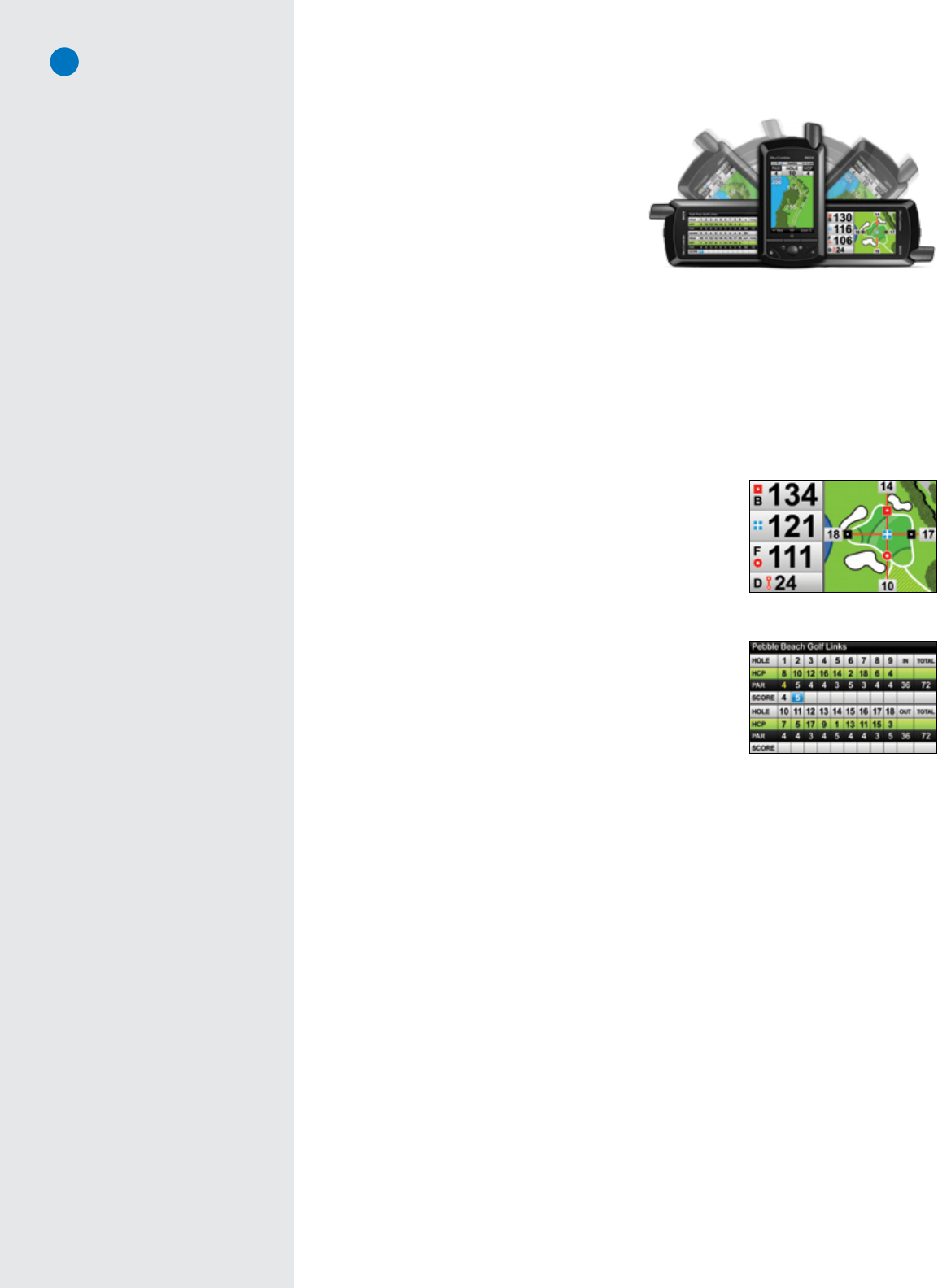
IfyouareusingtheDigitalScorecardtoscoreyourround,youcantrackTotalScore,Putts,Fairways
HitandTeeShotDistance.
Bydefault,allofthesestatswillbeON.However,youcanchoosetotrackPutts,FairwaysHitandTee
ShotDistance(TotalScorewillalwaysbeONwhenScoringisON).
To Turn OFF The Optional Scoring Information:
3. FromtheMenuscreenselect“Settings”
4. Select“Scoring”>“OptionalInfo”
5. HighlightandselectthestatyouwanttoturnOFFandpress“OK”(NOTE:
theblackdotwillgoaway)
6. Afteryouhavemadeyourdesiredselection,press“Exit”tosaveyourset-
tings(youwillbeabletoadjustyoursettingsatanytime)
To Record The Tee Shot Distance:
1. PresstheMarkBallbuttonasyoustandnexttoyourballwhenyouarein
theTeeBox
2. Press“Mark”intheMarkBallconfirmationscreenandtakeshot
3. Whenyouarrivetothenewlocationofyourteeshot,presstheMarkBall
buttonagainandselect“Mark”intheconfirmationscreen
4. ThedistancewillbesavedandtheSGXwillstartmeasuringanewdistance
PLEASE NOTE: Youwillnotbenotifiedthatthedistancewassaved.Whenyou
syncyourSGX,theTeeShotDistancewillautomaticallyuploadtoClubSGBETA.
Mark Ball confirm
16
3.7 AutoViewTechnology
AutoViewisdesignedtoprovidegolferswitha
hands-freewayofswitchingbetweenmultiple
playscreensincludingHoleVue,IntelliGreenand
theirDigitalScorecard,withjustasimpleturn
ofthewrist.AutoViewTechnologyiscontrolled
bytheSGX’sbuilt-inaccelerometertoprovide
threeviewingpositions–one“portraitposition”
and two additional “landscape positions”. By
default,AutoViewisenabledfortheSGX.
AutoView, when combined with SkyCaddie’s other standard features including AutoCourse Select,
AutoHoleAdvance,HoleVue’sAutoZoomandIntelliGreen’sAutoGreenrotation(alignswithyourangleof
approach),allowstheSkyCaddietooperatefromthefirstteetothe18thgreenwithvirtuallynobutton
pushesortouchingyourscreen.
ThedefualtviewinaportraitpositionisInteractiveHoleVueWithZoom.Whenyourotatethedeviceto
theright(clockwise),youwillseeIntelliGreenorIntelliGreenProinalandscapeview.Ifyourotatethe
devicetotheleft(counterclockwises),youcanaccesstheDigitalScorecard.ToviewHoleVueagain,
rotatethedevicetoaportraitposition.
To Change Your AutoView Settings:
1. FromtheMain Menu,select “Settings” > “Preferences”
2. Highlight“Landscape View” andmakethedesiredselection
YoucanalsoadjustthesensitivityofAutoView.Thiscontrolsthelevel
ofrotationneededtotriggertheaccelerometertoswitchbetween
portraitandlandscapepositions.Bydefault,thesensitivityisset
tomedium.
To Adjust the AutoView Sensitivity:
1. FromtheMain Menu,select “Settings” > “Systems”
2. Highlight“AutoView Sensitivity”
3. Highlightthedesiresensitivityandselect“OK”
Landscape View of IntelliGreen
Landscape View of Digital Scorecard
Note
It’s OK to rotate the SkyCaddie with
AutoView; however, to maintain
optimal GPS accuracy, the device
needs to be oriented at a 45° or
90° angle. After you obtain your
distance information or enter/check
your scorecard, please rotate the
device back to a vertical position
(see Appendix A “Helpful Hints” for
more tips).
Note
For a course that is not enabled with
HoleVue, the default position will
depend on your Target View settings.
17
C H A P T E R 4
SkyCaddie Menu Items
4.1MainMenu
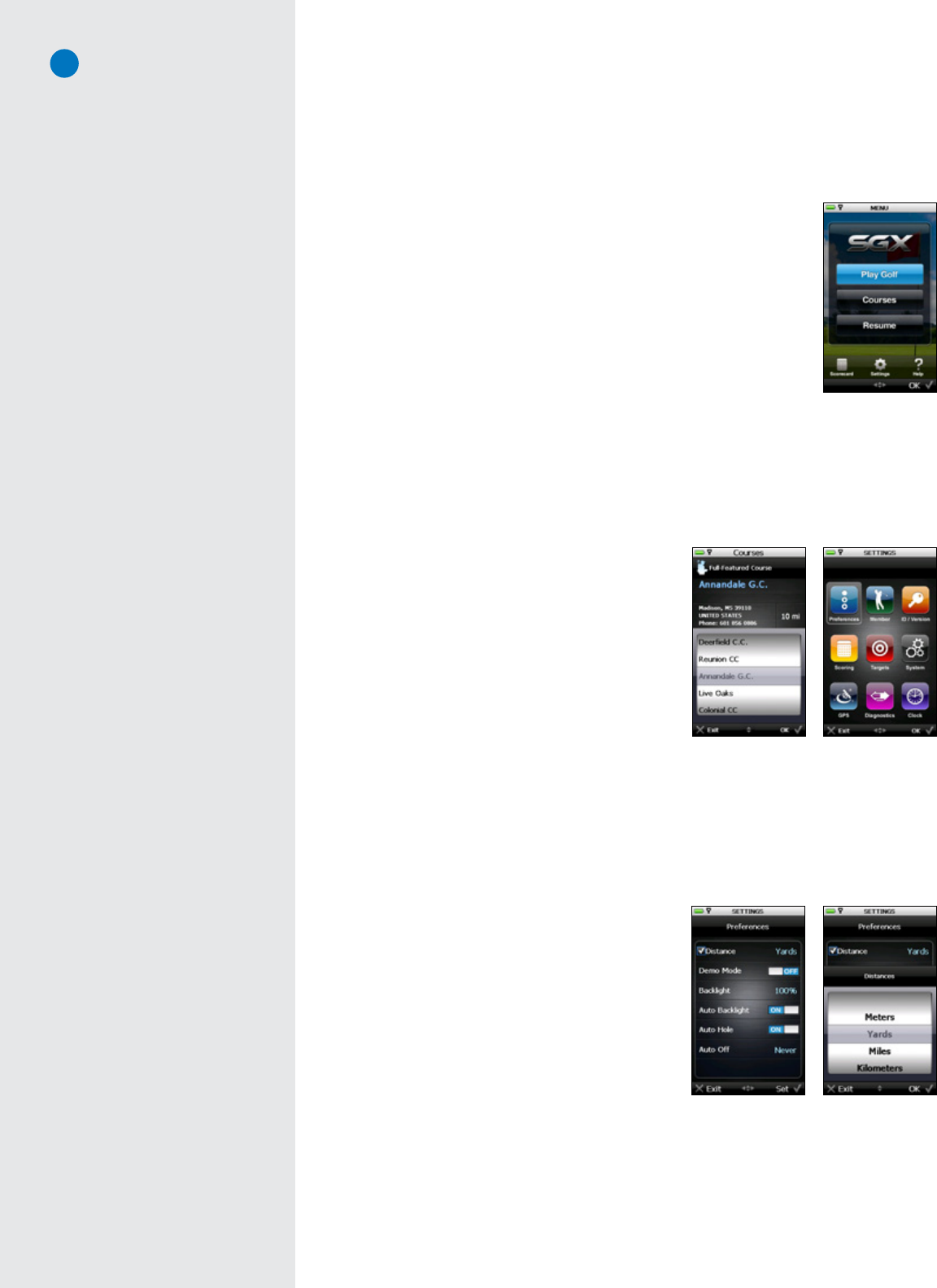
• PlayGolf:TobeginaroundofgolfusingyourSGX,highlightPlay Golfand
choose“OK”toopenit.WhenaMainMenuitemishighlighted,itwillappear
blue.UponopeningPlay Golf,theSGXwilldisplaytheSearchingForSatellites
screen.TheSkyCaddiewilladvancetothenextscreenautomaticallyupon
acquiringsatellitesignals.Tocancelthesatellitesearchandreturntothe
MainMenu,presstheLeftKeyunder“Exit”.
WithinPlay Golf,alistingofdownloadedcoursesanddetailedinformation
abouteachcoursewillappear.Ifsatellitesignalsareacquired,theSGXwill
attempt to determine your location and auto-select the closest installed
course.YoumaychoosetoselectacoursemanuallybyusingtheJoystick
toscrollthroughthelistofcourses.Uponselectingacourse,choosethe
holetobeginonandchoose“OK”tobegin.
• Courses:ToquicklyviewalistingofallcoursesinstalledonyourSGX,scrolltotheCoursesmenu
itemandchoose“OK”toopen.Thecourselist,alongwithdetailedinformationabouteachcourse,
willappear.UsingtheJoystick,moveupordownthelistingtovieweachcourse.
• Resume:Uponexitingacourseduringplay,highlightandselect Resumetoreturntothatcourse.
• Scorecard:AccesstheDigitalScorecardbyselecting
theScorecardmenuitem.
• Settings:Takesyoutoamenuthatincludesanumberof
options,settingsandinformationusedtocustomizeyour
SGXtobestfityourneeds.Specificdetailsregardingall
SettingsmenuoptionsarelistedinSection4.2.
• Help: Selecting this option provides help screens
on how to use Interactive HoleVue with Zoom,
measuring shot distance, using the Target List
screen,IntelliGreen,andIntelliGreenPro.
4.2SettingsMenu
TheSettingsMenuisaccessiblefromtheMainMenu.FromtheMainMenu,usetheJoysticktoscrolltothe
Settingsiconlocatedatthebottomofthescreen.Oncehighlighted,presstheJoystickorchoose“OK”using
theRightKeytoaccessthemenu.
4.2.1 Preferences
Preferencescontainsalistofsettingsthatyoucanadjust
to fit your style of play. Within Preferences, use the
Joysticktomoveupanddownthelisttohighlightthe
desireditem.Abluecheckmarkwillappearnexttothe
itemthatishighlighted.PresstheJoystickortheRight
Keyunder“Set”tomodifythesetting.
• Distance:Set the desireddistance of measureas
Yards,Meters,Miles,orKilometers.
• DemoMode:SelectthisitemtoturnDemoModeON
orOFF.Thisoptionallowsyoutosimulatearound
withtheSGXwithoutbeingonanactualcourseor
havingsatellitelock.
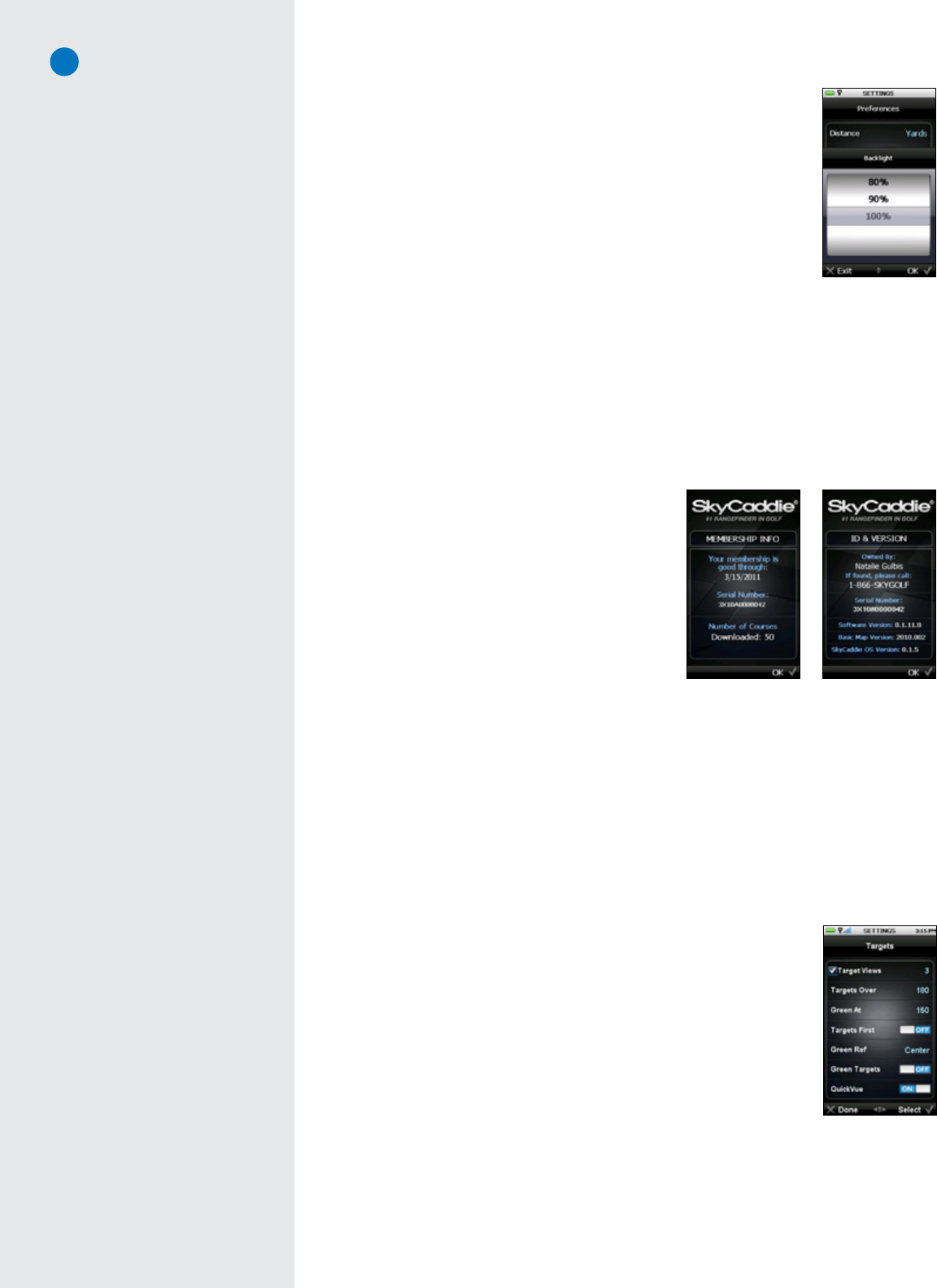
• Backlight:Adjustthebrightnesslevelofthebacklightasneeded.ToadjusttheBacklightpercentage
level,scrolltoBacklightandchoose“Set”.Thenscrollup/downthroughtheoptionsfrom0%to
100%thenchoose“OK”tosaveyourselection..
Main Menu
Settings Menu
Distance setting
Courses screen
Preferences menu
Demo Mode vs. Course
When Demo Mode is ON, any
SkyCourse that you have installed
on your SGX will show simulated
distances when you select
“Play Golf”. However, you must turn
Demo Mode OFF before you actually
play a round so that you receive
real-time distances on your SGX.
Demo Course, on the other hand, is
a sample course map that is initially
loaded on the SGX so that you can
see the SGX functionality without
installing another course map. If
selected, you do not need to turn
Demo Mode on to see simulated
distances with the Demo Course.
18
• AutoBacklight:TheSGXincludesalightsensordesignedtoactivatethe
LCDdisplay’sbacklightwhenitisneeded.Thisfunctionalityiscontrolled
bytheAutoBacklightsetting.WhensettoON,theAutoBacklightfeature
willturnonthebacklightwhenalowlightconditionisdetected(treecover,
indoors,etc).ThepreferredsettingforthisfeatureisON.WhensettoOFF,
the backlight sensor is disabled and the backlight will remain on at all
times(evenoutdoors).Togetthemostbatterylifeonasinglecharge,itis
recommendedtoleavetheAutoBacklightON.
ToturnONAutoBacklight,scrolltothemenuitemtohighlightit.Movethe
JoystickleftorrighttotogglebetweenONandOFF.
• AutoHole:EnabletheAutoHolefeaturetoautomaticallyadvancetothe
nextholeduringplay.ToturnONAutoHole,scrolltothemenuitemtohighlightit.Movethejoystick
leftorrighttotogglebetweenONandOFF.
• AutoOff:SettheintervaloftimetoautomaticallypoweroffyourSkyCaddieafternoactivity.Intervals
are30/60/90minutesor“Never”.WithinPreferences,scrollto“AutoOff”andchoose“Set”toopen
thesetting.UsingtheJoystick,scrollupordowntothedesiredtimeintervalandchoose“OK”to
saveyourselection.
4.2.2 Member
The Member section contains detail regarding your
SkyCaddie Membership Plan, Serial Number, and
NumberofCoursescurrentlystoredonyourSGX.
4.2.3 ID/Version
This screen shows your name, SkyCaddie’s customer
supportphonenumber(intheeventthatyourSGXis
lost), the SGX’s unique Serial Number and software
versionscurrentlyinstalled.The“Ownedby”information
is created in CaddieSync and downloaded to your
SkyCaddieuponperformingaSync.
4.2.4 Scoring
TheScoringfunctionsarecustomizedthroughthismenu.YoucanturndigitalscoringONorOFF.Youcan
alsosetyourhandicaporMyPar™Goal.Formoreinformationonthesesettings,seeSection3.6.
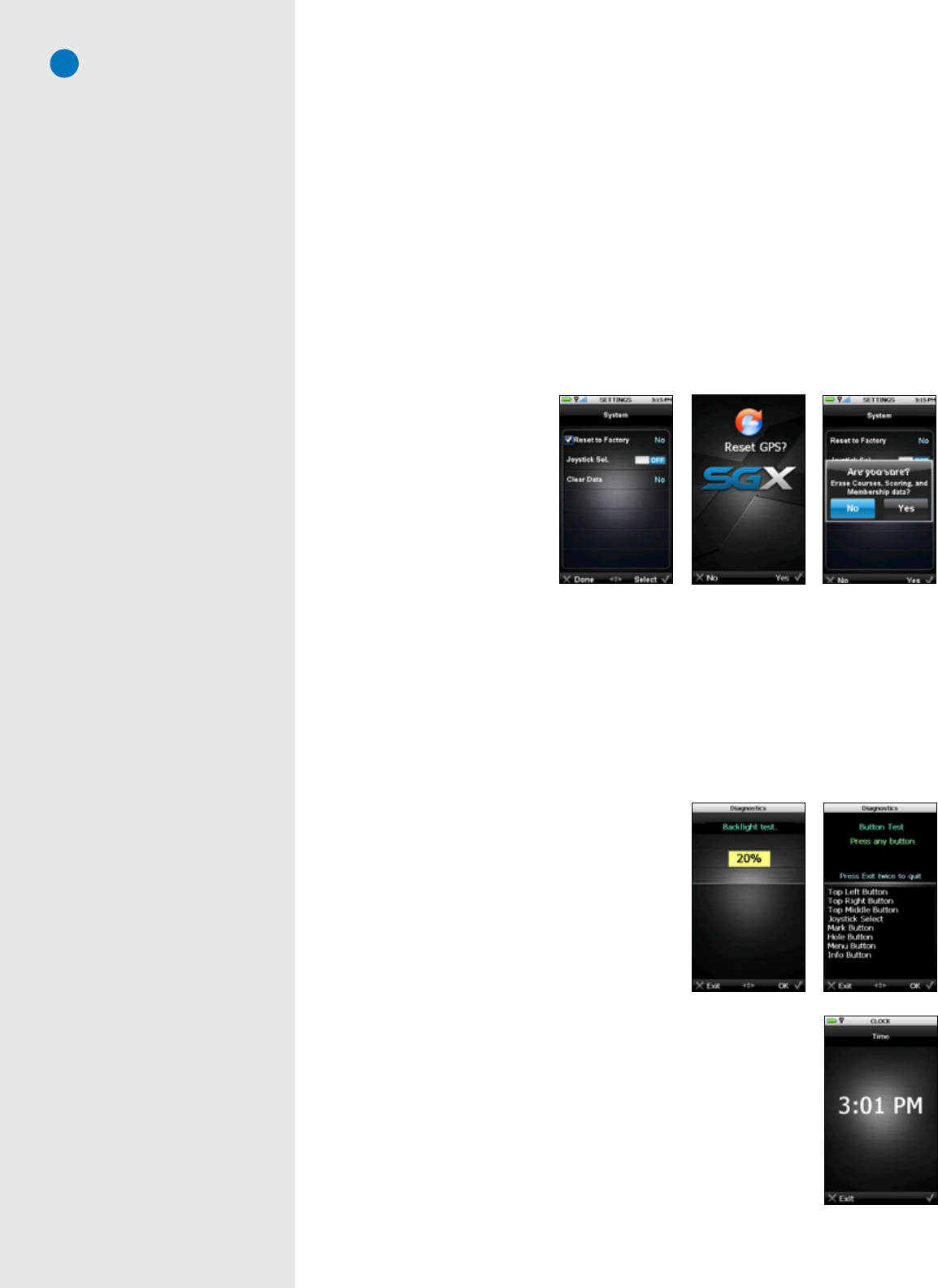
4.2.5 Targets
YourSGXwillautomaticallydisplaytargetsinfrontofyouduringplay.Youcanalwaysmanuallyscrollback
totargetsbehindyouifneeded(bymovingtheJoystickupordown).Inadditiontoautomaticallyscrolling
targets,youcancustomizehowyourSGXdisplaystargets:
• TargetViews:Threetargetviewoptionsareavailabletodisplayduringplay:
HoleVue (Interactive HoleVue with Zoom), IntelliGreen (IntelliGreen or
IntelliGreenPro),andTarget List(Hazards,CarriesandLayups).Thedefault
istodisplayallthreeviewsforeachhole.However,youcancombinethe
optionstobestfityourstyleofplay.WithinTargets,scrolltoTargetViews
andchoose“Set”toopentheitem.
UsingtheJoystick,scrollthrougheachoptionandchoose“OK”toeitherturn
ONorOFFthedesiredoptions.Ifatargetviewissettodisplay,adotwill
appeartotheleftofitinthelistingofviews.ToreturntothemainTargets
menu,choose“Exit”.
• TargetsOver:AdjuststheSGXtodisplaytargetsatbeyondthesetdistancevalue.Setthedistance
from50to500yards.Thedefaultsettingistodisplaytargetsover150yards.Thismeansthatthe
SGXwillautomaticallyshowtargetsatleast150yardsorbeyondwhenlookingattheTargetList.
Member screen ID/Version screen
Target preferences
Auto Backlight setting
Note
The Demo Course will be included in
the total course count stored on your
device. You can remove it from your
SGX if you deselect it in CaddieSync
the next time you download a new
course map set to your SGX.
19
GPS reset
System settings
Button Test
Backlight Test
• GreenAt:AutomaticallyswitchestotheIntelliGreenviewwhenyoureachasetdistance.Thedefault
toswitchtoIntelliGreenis150yards.Youmayadjustthissettingfrom50-500yards.
• TargetsFirst:Enablingthissettingdisplaysthetargetlistfromtheteefirstwhenyougotothenext
hole(insteadofdisplayingtheIntelliGreen).ThedefaultsettingistodisplaytheIntelliGreenfirst.
• GreenRef:Setsthegreentargetthatyouwanttoknowthedistancetowhenyoumakeyourapproach
shot.WhentheGreenReferenceissetto“Front”,asmallsquarewillappearontheIntelliGreenwhere
thefrontismarked.Theword“Front”willreplace“Center”ontargetlists.Thedistancewillbebased
ontheFrontmarker.
• GreenTargets:Enablethisoptiontodisplayadditionalgreentargets(Example:Grn-RtCy,Grn-BackRt)
inthetargetlistviews.
• QuickVue:Fromhere,youcantoggleQuickVueOFF/ON.
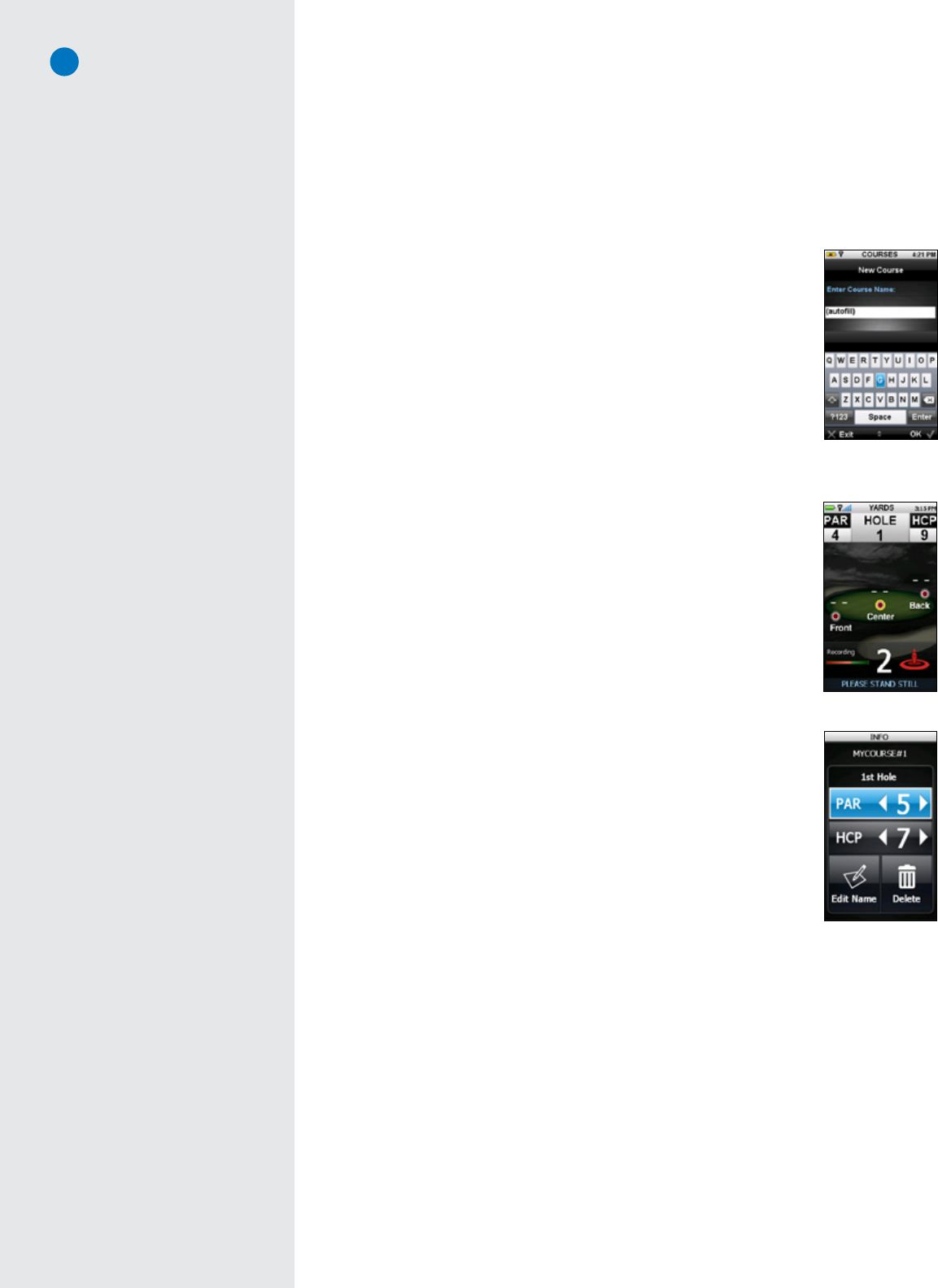
4.2.6 System
SystemSettingsoffersadditionalconfigurationspecifictotheoperationoftheSGX.
• Reset to Factory: Resets
the SGX settings to the
factorydefaultswhen“Yes”
isselected.
• JoystickSel.:Allowsyouto
turn the selection function
oftheJoystickONorOFF.
Whensetto“ON”,youcan
presstheJoysticktoselect
on-screen options. When
setto“OFF”,youmustuse
theLeftandRightKeysto
selectoptionsontheSGX.
• ClearData:ErasesCourses,ScoringandMembershipdataattachedtotheSGX.Ifyouclearthedata,
youwillneedtosyncyourSGXtorestoreyourmembershipdetailsonthedevice.
4.2.7 GPS
SelectingtheGPSiconontheSettings MenuwilltakeyoutoaGPSResetscreen.Theresetoptionwill
resettheGPSreceiver.ThisfunctionmaybeusedwhiletroubleshootingwithSkyGolfCustomerSupport
orifyounoticethatyoursatellitesignalappearstobepoor.PresstheRightKeyunder“Yes”toproceed
withthereset,ortheLeftKeyunder“No”toexitwithoutareset.
4.2.8 Diagnostics
ShouldyouencounteranyissueswiththeSGX,aSkyGolf
CustomerSupportrepresentativemayaskyoutorunthe
Diagnosticstool.TheDiagnosticstoolwillautomatically
performthreetests:aLCDTest,aBacklightTest,and
aButtonTest.
• TheLCDTestdetermineswhethertheSGX’shigh-
resolutionTFT-LCDdisplayhasdeadpixels,ablank
screen,orotherproblems.Thetestwillcausethe
screentodisplayallblack,thenallwhite.
• TheBacklightTestchecksthedisplay’sbacklightby
automaticallyscrollingthroughdifferentbrightnesslevelsin10%increments.
• TheButtonTestdetermineswhethertheSGXsoftwarerecognizeskeyswhen
youpressthem.Duringthistest,everybuttonyoupressshouldshowthe
nameofthatkeyonthedisplay.Toexitthistest,presstheLeftKeytwice.
4.2.9 Clock
SelectingthisoptionontheSettingsMenuwilldisplaythedigitalclock.Pressthe
LeftKeybeneath“Exit”toreturntothepreviousscreen.
Digital Clock
Clear Data
20
C H A P T E R 5
Recording Your Own Course
TheSkyCaddieallowsyoutorecordthreegreentargets(Front,Center,andBackperhole)foruptofive
personalcoursesthatarestoredonyourSGX.IfyouhavepurchasedaSkyCaddieMembershipPlan,youcan
backupandstorecoursesinyourownonlinemembershipaccountusingCaddieSync.Yourpersonalrecorded
courseswillbestoredinCaddieSyncunderCourses>“CoursesI’veMapped”.
5.1NamingPersonalSkyCaddieCourses
Torecordacourse,selectCoursesfromtheMenuscreenthenscrolluptoNew
Courseandselect“OK”.Ifscoringison,youwillbepromptedtomakeaselection.
Itdoesnotmatterifyouselectscoringornot.
Createanameforyourcourse(upto16characters)usingtheon-screenkeyboard
usingtheJoysticktomoveandtoselect.Toclearaletter,highlightandselectthe
“Backwards”key(bottonrightabove“Enter”key).Ifyouselect“OK”(RightKey)
orselectthe“Enter”keybeforechoosinganyletters,thecoursenamewilldefault
to“MYCOURSE#”andsequentiallyaddanumberforeachcourse.
5.2RecordingGreenTargets
Afterenteringthecoursename,highlightandselect“Enter”orusetheRight
Keytoselect“Ok”tosaveandtoadvancetothe“StartOn”screenshowing
theholespinner.Scrolltothedesiredholetorecordandselect“OK”.
Youarenowreadytorecordthedistance.PresstheRightKeytorecordyour
locationandyouwillbepromptedtostandstillfor5secondswhiletheSky-
Caddierecordsthelocation.Repeatthisprocessforeachofthegreentargets.
ThelocationwilldefaulttotheCenterofthegreen,however,therecom-
mendedsequencetorecordtargetsistorecordthefrontofthegreen,record
thebackofthegreen,thenwalktothecenterofthegreenand,whenthetwo
distancesareequal,recordthatlocation.
5.3SettingParandHandicap
Tosettheparandhandicapforarecordedhole,presstheInfobutton(you
mustbeinRecordModetosettheParandHandicap).MovetheJoystickto
settheparandHandicap(HCP)tothedesirednumber.Youcanalsoeditthe
coursenameordeletethecourse.UsetheJoysticktoselect.
WerecommendsettingtheParandHandicaponeachholeafteryourecord
thedistanceinformation.
5.4PlayingPersonalSkyCaddieCourses
ToplayapersonalSkyCaddiecourse,presstheMenubuttonandselect“Courses”.Scrolltotheap-
propriatecoursenameandselect.Next,scrollUP/DOWNtoselectthedesiredholenumberandpress
theJoysticktoselect.
5.5Re-RecordingPersonalSkyCaddieCourses
PresstheMenubuttonandselect“Courses”.Scrolltotheappropriatecoursetore-recordandselect
“OK”.scrollUP/DOWNtoselectthedesiredholenumberandpresstheJoysticktoselect.Select
“Mode”(LeftKey)thenpress“Record”intheRecordModeconfirmationbox.Repeatstepsoutlinedin
Section5.2(“RecordingGreenTargets”).
Newlocationswilloverlaypreviouslyrecordedlocationsforthoseholesselected.Theentirecourse
doesnothavetobere-recorded.
On-screen keyboard
Recording
Joystick Selection
The Joystick will select even if you
have turned the Joystick Selection
OFF in your settings.
Info screen
Record Mode
You must have a satellite fix to be
in Record Mode before you can
record or re-record any distance
information, to set or change the
par or handicap, to edit the course
name or to delete the course.
Changing Modes
You change between Record Mode
and Play Mode at any time by se-
lecting Mode using the Left Key.

21
5.6RenamingorDeletingPersonalSkyCaddieCourses
TorenameordeleteapersonalSkyCaddiecourse,presstheMenubuttonandselect“Courses”.Scroll
totheappropriatecoursenametorenameordeleteandselect.Press“Ok”andchoosethestartinghole
numberfromtheholespinner.
Select“Mode”(LeftKey)andselect“Record”intheconfirmationboxtoswitchtoRecordMode.After
youareinRecordMode,presstheInfobutton(“i”icon).Fromhereyouwillbeabletoeditthenameof
thecourseand/ordeleteit.UsetheJoysticktoselect.Whenyouarefinished,select“Save”(RightKey)
tosavethechanges.
5.7PublishingPersonalSkyCaddieCourses
YouhavetheoptiontopublishyourpersonalrecordedcoursessootherSkyCaddieuserscantake
advantageoftheinformationyourecorded.Simplyclickthe“Publish”buttonwithinthe“CoursesI’ve
Mapped”areainCaddieSynctobegintheprocess.Youwillbeaskedtocompleteaformtodocument
theParandHandicapforthecourseandtoacceptanend-useragreement.Yourcourseisthensentto
theSkyGolfQualityControlDepartmentforreview.Uponreviewandapproval,thecoursewillbelisted
intheSkyGolfcoursedatabaseforotheruserstodownload.
Note
In the effort of producing more
HoleVue and IntelliGreen Pro
courses on the SkyCaddie website,
Member-Mapped Course processing
is currently in a major backlog. We
still encourage members to submit
their courses to SkyGolf, but please
be aware that the turnaround time for
these courses will take a great deal
of time. Please contact Customer
Support if you have an exceptional
circumstance requiring a quick turn-
around time for your course.

22
A P P E N D I X A
Helpful Hints
• DOturntheSGXonoutside,awayfrombuildingsandotherobstructions.TheSGXneedstowarmup
approximately5-10minutespriortoplay.Foroptimalperformancewhileplaying,ensurethattheSGX
hasaclearviewoftheskyatalltimes.Whiletheomni-directional,high-performanceGPSantenna
hasbeendesignedtolockquicklytomoresatellitesandstaylockedtomaintainperformanceinall
terrains,itisstillagoodideatoavoidbeingaroundbuildings,obstructions,heavyfoliage,lowareas
withadjacentobstructions,orreflectiveobjects(suchasmetal/glassstructures)whileusingtheSGX.
• DOsyncyourSGXwithCaddieSyncregularly.SyncingregularlyallowstheSGXtokeeprunningatpeak
performance.Syncingallowsyoutocheckalertsfornewfeaturesandsoftwareupdates;automatically
uploadyourlatestscorecardtoClubSG;anddownloadnewcoursesandchangeyourFavoriteslist.
• DOperformaSoftResetiftheSGXappearstobeunresponsive.ToperformasoftresetontheSGX,
pressandholdthecenterPowerButtonandtheJoystickforseveralsecondsuntiltheSGXreboots.
• DOwatchyoursignalstrengthindicator.Thehigherthesignalstrength,themoreaccuratethesystem
willbe.Thebestsignalstrengthisobtainedinopenareas,withtheantennapointingtowardtheskyat
a45°to90°angle.HoldingtheSGXawayfromyourbodymayimprovesignalstrengthinweakareas.
Itisnormalforthesatellitesignalstrengthindicatortofluctuateasyoumovearoundthegolfcourse.
• DOmakesurethattheSGX’sbatteryisfully-chargedbeforeplay.
• DONOTpresstheJoystickwhenyouwanttomovetheon-screencursororcrosshairs.TheJoystick
ontheSGXismulti-directionalandsensitivetototheslightestfingermovements.PressingtheJoystick
willselectoptionsonthescreen,whilegentlyslidingtheJoystickup,down,rightleft,etc.willmove
theon-screencursororcrosshairs.YoudonotneedtopressdownontheJoysticktomoveit.
• DONOTuseACchargersorUSBcablesthatdidnotcomewithorarenotauthorizedforusewith
yourSGX.ThewrongadaptersorcablesmaydamagetheSGX.
• DONOTturntheSGXonandoffduringplay.TheSGXisa“smartsystem”thatcontinuestodownload
datafromsatellitestoadjusttoyourenvironmentduringplay.Itisdesignedtostayoncontinuously
duringaroundofgolf.Turningitonandoffwillinterruptsatellitecommunicationandslowdown
play.Ifyoutakealongbreakattheturn,youmayturntheSkyCaddieofftoconservebatterypower,
butallow5-10minutesforittoreturntooptimalaccuracy.
• DONOTmakeanysuddenorjerkingmovementswiththeSGX.
• DONOTexposeyourSGXtoextremetemperatures.Treatitlikeyouwouldyourcellphone.Donot
leaveyourSGXinasuper-heatedvehiclewhennotinuse.
• DONOTdroptheSGXinwaterorleaveexposedinahardrain.TheSGXiswater-resistantbutNOT
waterproof!
23
A P P E N D I X B
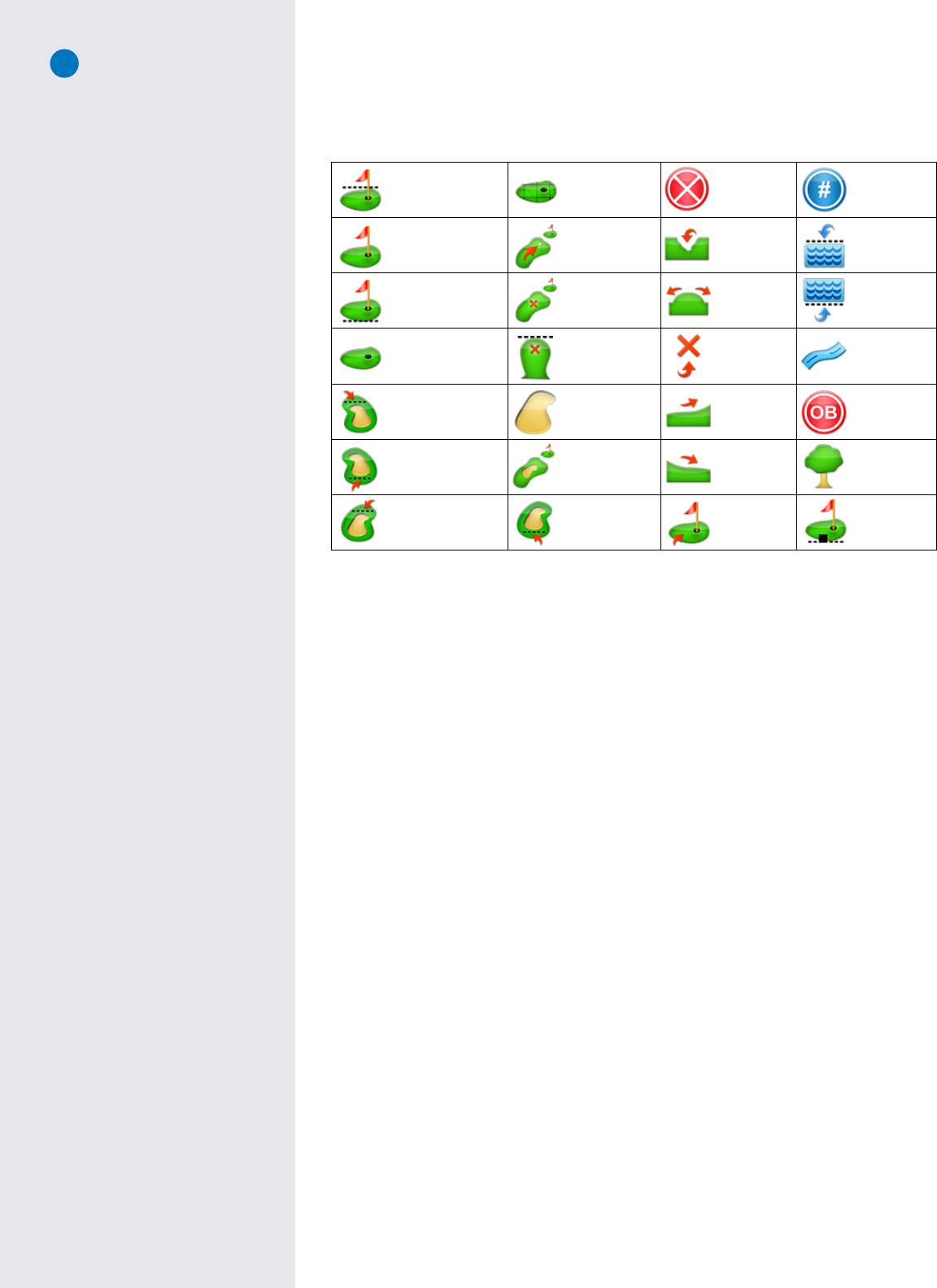
Target Icons and Target Descriptors
BackofGreen Zone Hazard Marker
CenterofGreen LayUpTo Ditch WaterCarry
FrontofGreen FairwayTarget Mound Water
Green EndofFairway To Creek
BunkerRightCarry Bunker Upslope OutofBounds
BunkerRight BunkerinFairway Downslope Tree
BunkerLeftCarry BunkerLeft Leaves ProFront
Target
Name
Target
Descriptor
Target
Name
Target
Descriptor
Green.........................Gn
Plate..........................Plt
FairwayTarget.............FT
EndofFairway.............EoF
Fairway.......................Fwy
BunkerRight...............BkrRt
BunkerLeft.................BkrLt
Bunker........................Bkr
Carry..........................Cy
Creek..........................Crk
Mound........................Mnd
UpSlope......................UpSlp
DownSlope..................DnSlp
Tee.............................T
PopUp........................PU
BallWasher..................Bwash
Bottom.......................Btm
Disc...........................Dsc
Leaves........................Lv
Last............................Lst
Point..........................Pnt
Pond..........................Pnd
Path...........................Pth
Bush..........................Bsh
Range.........................Rng
Hole...........................Hle
Marsh.........................Mrsh
Sprinker......................Sp
WaterCooler...............Wtrcolr
Water.........................Wtr
Bridge.........................Brdg
Post............................Pst
Over...........................Ovr
Island.........................Islnd
Flag............................Flg
White.........................Wht
Black..........................Blk
Orange........................Orng
Yellow.........................Ylw
Gold...........................Gld
False..........................Flse
Pole............................Pol
Sign...........................Sgn
LayUpTo.....................LayUp
Dogleg........................DogLg
Target.........................Trgt
Stone..........................Stn
Front..........................Frt
Left............................Lt
Right..........................Rt
Center........................Ctr
Middle........................Ctr
Marker........................Mkr
Target
Name
Target
Descriptor

24
A P P E N D I X C
Battery Information and Safety Requirements
NOTE: FAILURE TO COMPLY WITH ALL OF THE FOLLOWING PRECAUTIONS COULD
• Cause personal injury or property damage
• Cause abnormal chemical reactions which would make the battery over heat, smoke, distort, leak, explode, or catch on fire
• Destroy internal protections built into the battery
• Shorten battery life
• Reduce battery performance
• ReadthismanualcompletelybeforeusingyourSGX.
• TheSGXbatteryhasbeenrigorouslytested,andisinfullyincompliancewithapplicableUN,ITC,IATA,andotherregulatory
requirementsforbatteriesofthistype.
• TheSGXwithbatteryinstalledhasbeenfurthertestedandisinfullcompliancewithMIL-STD810Fstandardsforsurviving
highandlowairpressureenvironments;storageandoperationatextremesoftemperatureandhumidity;rapidchangesin
temperature;extendedperiodsofvibration;repeateddropsontoahardsurfaceoneachside,edge,andcorner;blowing
dustandsand;anddrenching,torrentialrain.
• TheSGXbatterylifewillbemaximizedifitisrechargedatamoderatetemperature,between32°Fand104°F(0°Cto40°C).
• TheSGXoperatesnormallybetween14°Fand140°F(-10°Cto60°C).
• TheSGXbatterywillsafelysurvivetemperaturesbetween-40°Fto167°F(-40°Cto75°C).Avoidallowingthetemperature
oftheSGXoritsbatterytoexceed167°F/75°C.
• UseonlyaSkyGolf-suppliedchargerwithyourSGX.
• DonotleaveyourSGXattachedtoachargeroraUSBportforover24hours.Undertherecommendedconditions,a
completelydischargedSGXbatteryshouldcompletelyre-chargeinabout4to4.5hourswhenonthechargingscreen.
• DonotchargetheSGXinaplacewhereitcouldbecomeoverheatedbydirectsunlight,astove,afire,orothersourceof
extremeheat.
• CAUTION:DonotreplacetheSGXbatterywithanincorrectbatterytype.
• KeeptheSGXawayfromsourcesofhighvoltageorstaticdischarge.
• IfyourSGXwillbestoredforanextendedperiod,allowthebatterytodischargetoapproximatelyonehalfcapacitybefore
storage.
• StoretheSGXinaplacewhereitwillnotexperiencetemperaturesorabsolutehumidityover85%.
• DonotputtheSGXintoamicrowaveoven.
• DonotallowtheSGXtobecrushed.
• DonotincinerateorburnanSGX.
• DonotleaveanSGXwhereitcouldbecomesubmergedinwater.
• IfyourSGXisoverheating,leaking,smoking,orifyoudetectanunusualodor,donottouchit.UsingtheendoftheUSB
cableawayfromtheSGX,immediatelydisconnectthecablefromanychargerorUSBport.
• DonottouchaleakingSGX.Avoidleaked-outmaterials.Donotallowthesematerialstotouchyourskinorclothes.If
touched,immediatelyrinseaffectedareasthoroughlywithwater.Leakedmaterialsmaycauseskinirritation.Seekmedical
attentionifirritationpersists.Ifleakedmaterialcontactsyoureyes,donotrubyoureyes.Rinsetheeyesthoroughlywith
water,andseeadoctorimmediately.
• OpeningtheSkyCaddiewillvoidyourwarranty.
• IfyouweretoopenanSGX,youwouldhaveaccesstoaLithiumIonbattery.DonotopentheSGX,donothandlethe
SGXbattery.
• IfyouhaveaccesstoanSGXbattery,alwaysfollowtheseprecautionsinadditiontoalltheabove:
• Readthisentiremanualandthelabelontheexteriorofthebattery.
• Keepthebatteryawayfromsourcesofexcessiveheatsuchasfire,stoves,ordirectsunlight.
• Keepthebatteryawayfromsourcesofhighvoltageorstaticdischarge.
• Donotuseorstorethebatterywithotherbatteriesorwhereitcouldtouchmetal.
• Donotputthebatteryintoamicrowaveoven.
• Donotallowthebatterytobecrushed.
• Keepthebatteryawayfromchildren.
• Donotdropthebattery.
• Donotallowanythingtotouchanyofthebatterycontacts,ortoconnecttwoormoreofthecontacts.
• Donotdisassemble,destroy,orattemptreassemblyofthebattery.
• Donotplaceorleavethebatteryinadamporwetenvironment.

25
• Donotallowwatertotouchthebattery.
• Donotwrapthebatterywithconductivematerial.
• Properlydisposeofthebattery.
• Donotincinerateorburnthebattery.
• Donotleaveordiscardthebatterywhereitcouldgetwetorbecomesubmergedinwater.
• Donotdamagethebattery.
• Donotweldorsolderanythingtothebattery,theattachedwires,ortheconnector.
• DonotusethisbatteryinanydeviceotherthanaSkyCaddieSGX.
• Donottouchaleakingbattery.Avoidleaked-outmaterials.Donotallowittotouchyourskinorclothes.Iftouched,
immediatelyrinseaffectedareasthoroughlywithwater.Leakedmaterialsmaycauseskinirritation.Seekmedical
attentionifirritationpersists.Ifitcontactsyoureyes,donotrubyoureyes.Rinsetheeyesthoroughlywithwater,
andseeadoctorimmediately.
• Useofthisbatteryinotherdevicescouldresultinunsafeconditions.Donotusethisbatteryinanydeviceother
thanyourSkyCaddieSGX.
Battery Information and Safety Requirements (cont.)

U.S. Federal Communications Commission Regulatory Agency Compliance
Thisdevicecomplieswithpart15oftheFCCRules.Operationissubjecttothefollowingtwoconditions:(1)This
devicemaynotcauseharmfulinterference,and(2)thisdevicemustacceptanyinterferencesreceived,including
interferencethatmaycauseundesiredoperation.
NOTICE:TheFCCwarnsthatusermodificationsofthisdevicewithouttheexpressapprovalofSkyHawkeTechnologies
couldvoidtheuser’sauthoritytooperatethisdevice.
Canadian Regulatory Agency Compliance
ThisdigitalapparatusdoesnotexceedtheClassBlimitsforradionoiseemissionsfromdigitalapparatusasset
outintheinterferencecausingequipmentstandardentitled:“DigitalApparatus”,ICES-003ofIndustryCanada
© 2011 SkyHawke Technologies, LLC. All Rights Reserved.
U.S. Patent Numbers 7,118,498; 6,456,938; 5,740,077; 5,507,485 & Patent Pending.
SkyCaddie®User’sGuide.AllcontentwithiniscopyrightedbySkyHawkeTechnologies,LLCandmaynotbereprintedwithoutpermission.Thecontentofthisguideisfurnishedforinformational
useonly,issubjecttochangewithoutnotice,andshouldnotbeconstruedasacommitmentbySkyHawkeTechnologies,LLC.SkyHawkeassumesnoresponsibilityorliabilityforanyerrorsor
inaccuraciesthatmayappearintheinformationalcontentcontainedinthisguide.SkyGolf®,SkyCaddie®,SGX™,ClubSG™,TrueGround™,TruePoint™GPS,SkyCourse®,IntelliGreen®,IntelliGreen®
Pro,HoleVue™,CaddieSync™,andNothingElseComesClose™aretrademarksofSkyHawkeTechnologies,LLC.SkyHawkeTechnologies,LLC,RidgelandTechnologyCenter,274CommercePark
Drive,SuiteM,Ridgeland,Mississippi39157USA.
Register your SGX at www.myskycaddie.com using CaddieSync within 30 days of purchase to activate your
Consumer Limited Warranty and complementary 30-Day Course Preload Trial.
Questions?Visitusonthewebatwww.skygolf.com
