SNOM PA1 Admin Guide
User Manual: SNOM-PA1-Admin-Guide
Open the PDF directly: View PDF  .
.
Page Count: 5
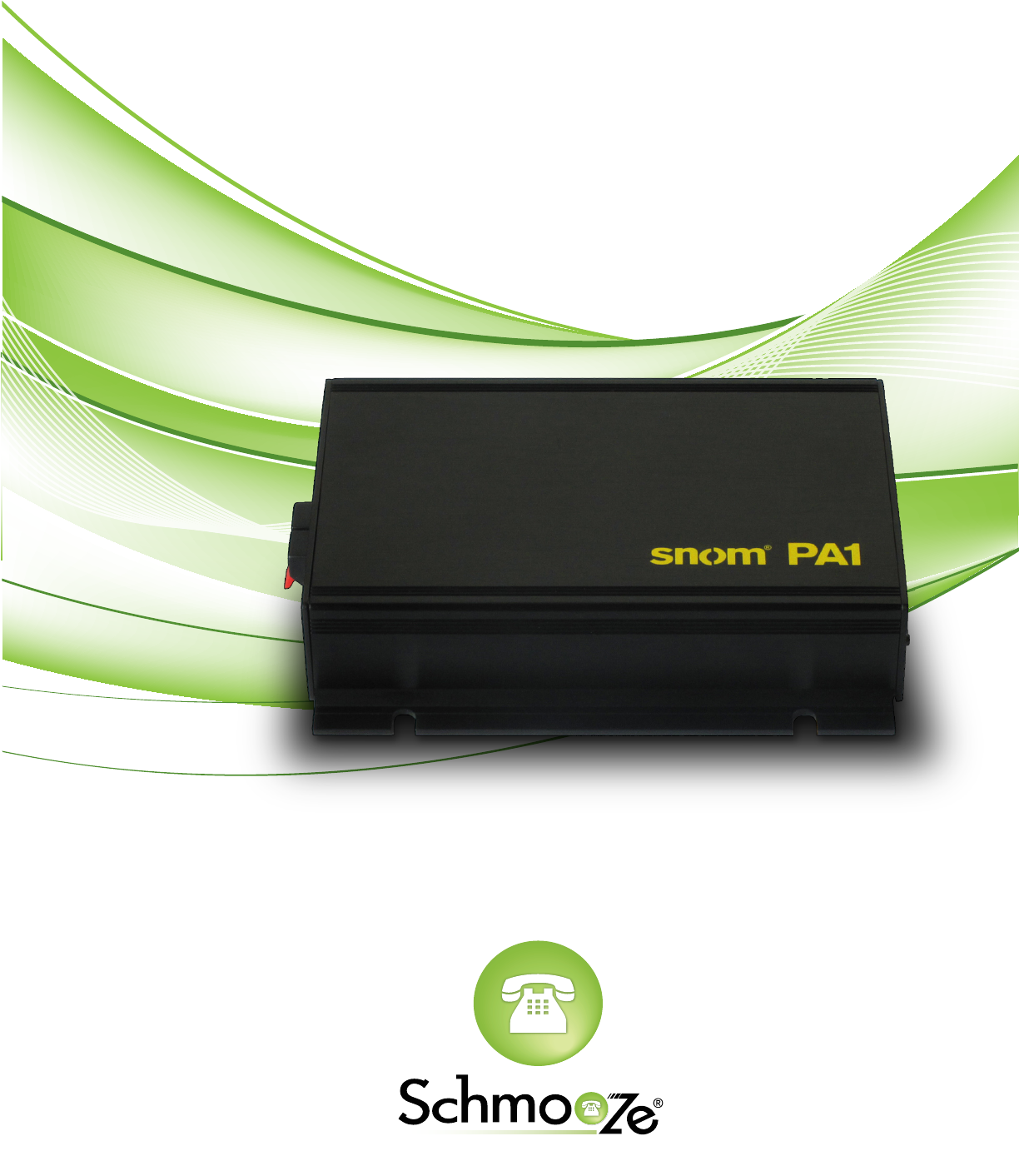
SNOM PA1
Admin Guide
Schmooze Com Inc.
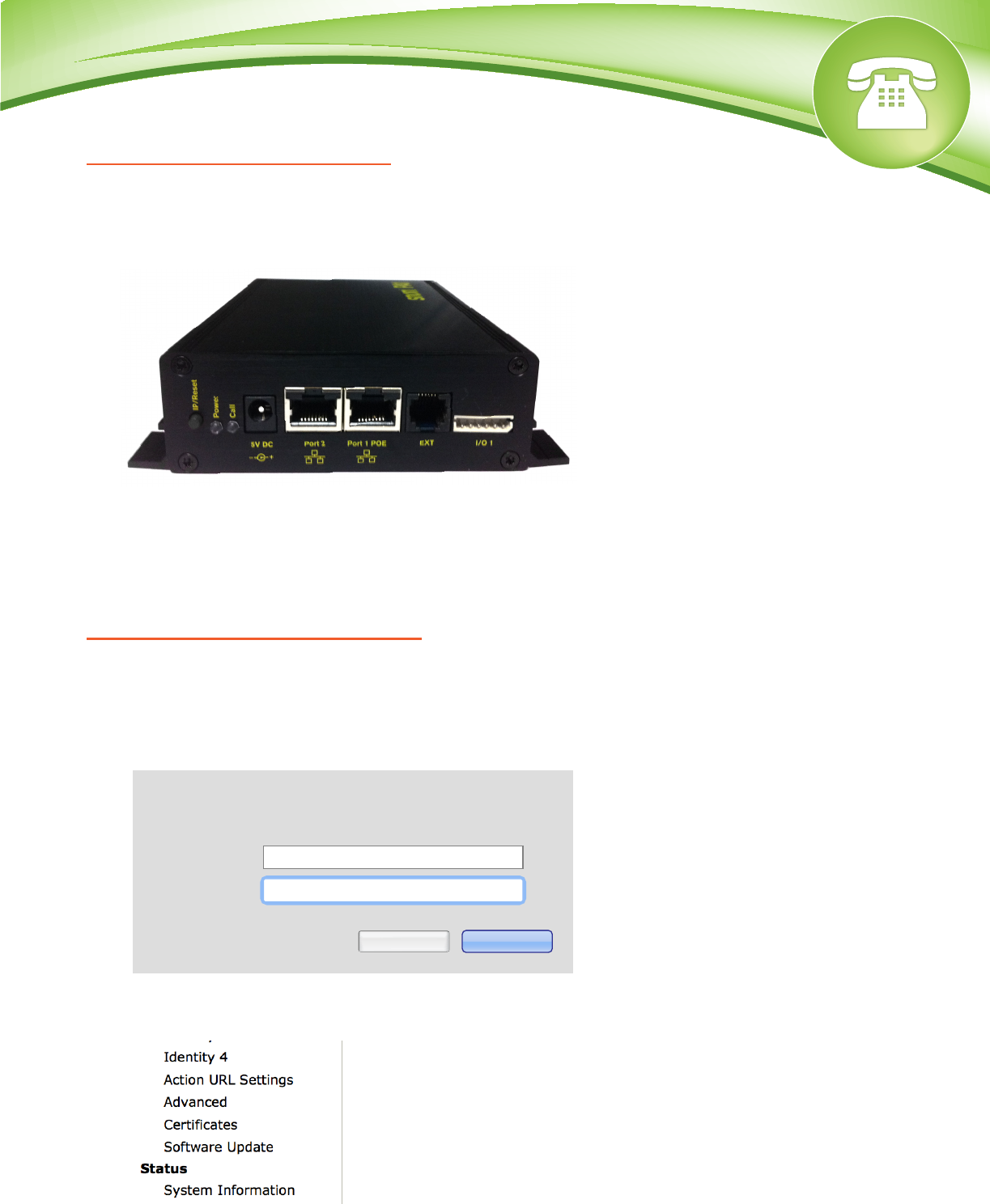
How To Find The IP Address
Quick Steps
1. On the PA1 press the reset button momentaryily and the IP address will be announced over
the speaker or headset. Make sure you have a speaker or headset plugged into the device.
How To Find The MAC Address
Quick Steps
1. Find the IP address of the phone and open a web browser to the IP address.
2. Login with the phone admin password.
3. On the left side under the “Status” section, click on “System Information”.
© Copyright Schmooze Com, 2012
4. The MAC address will now be displayed at the top.
How To Set The Configuration Server
Quick Steps
1. Find the IP address of the phone and open a web browser to the IP address.
2. Login with the phone admin password. Factory default password is 0000.
3. Click on the “Advanced” option on the left side.
4. Click on “Update” on the top right.
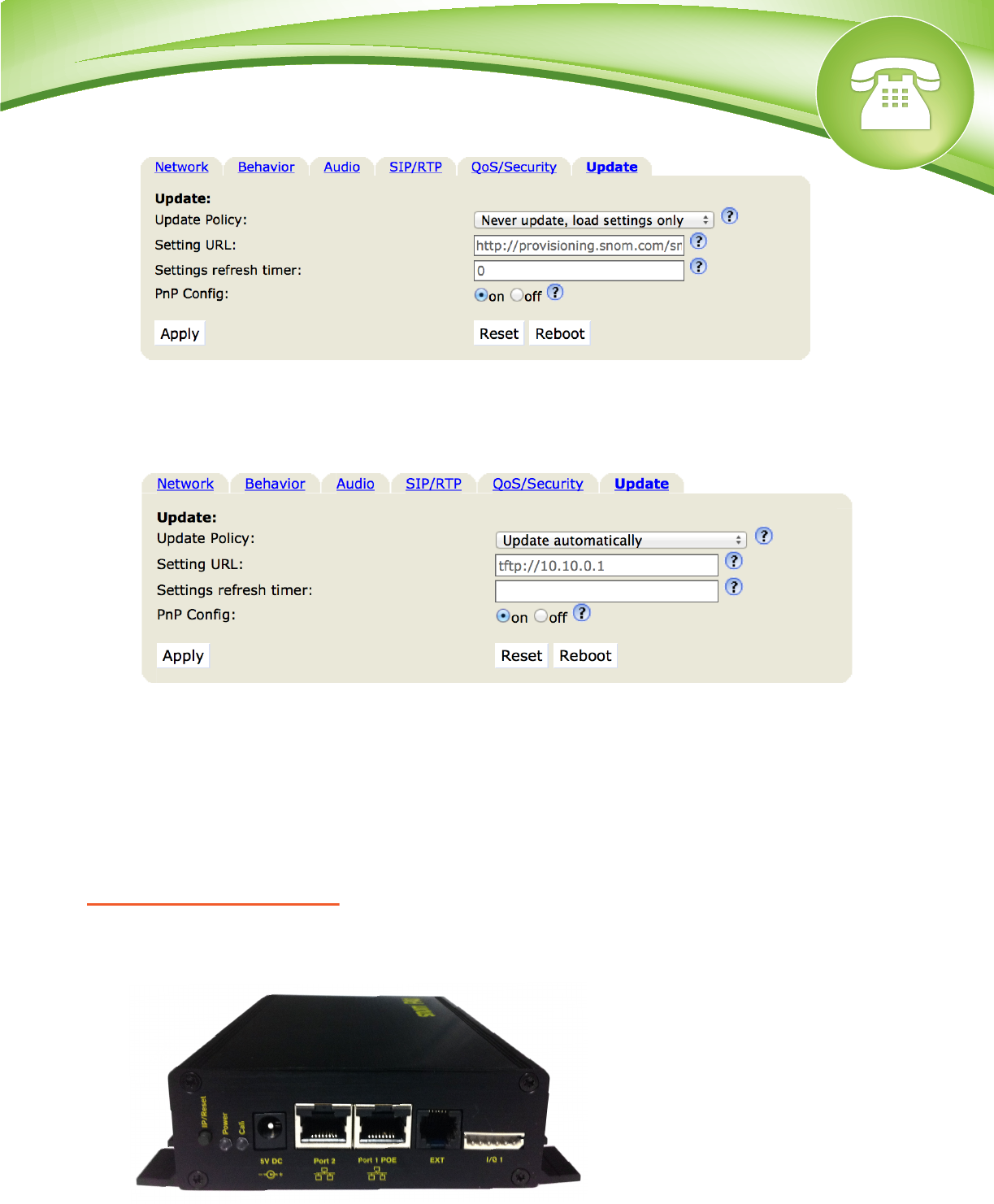
5. Define the Setting URL to your PBX. Generally this would be tftp://IPADDRESS,
(Example: tftp://10.10.0.1) press the “Apply” button.
6. You will then be prompted to press the “reboot” button.
How To Factory Default
Quick Steps
1. Press the hold the reset button on the PA1 base unit for 15 seconds.
2. All front panel lights come on when a factory restart is initiated.
The server 10.4.0.168:80 requires a username and
password. The server says: IP Phone.
User Name:
Password:
Cancel Log In
admin
••••

How To Find The IP Address
Quick Steps
1. On the PA1 press the reset button momentaryily and the IP address will be announced over
the speaker or headset. Make sure you have a speaker or headset plugged into the device.
How To Find The MAC Address
Quick Steps
1. Find the IP address of the phone and open a web browser to the IP address.
2. Login with the phone admin password.
3. On the left side under the “Status” section, click on “System Information”.
4. The MAC address will now be displayed at the top.
How To Set The Configuration Server
Quick Steps
1. Find the IP address of the phone and open a web browser to the IP address.
2. Login with the phone admin password. Factory default password is 0000.
3. Click on the “Advanced” option on the left side.
© Copyright Schmooze Com, 2012
4. Click on “Update” on the top right.
5. Define the Setting URL to your PBX. Generally this would be tftp://IPADDRESS,
(Example: tftp://10.10.0.1) press the “Apply” button.
6. You will then be prompted to press the “reboot” button.
How To Factory Default
Quick Steps
1. Press the hold the reset button on the PA1 base unit for 15 seconds.
2. All front panel lights come on when a factory restart is initiated.
The server 10.4.0.168:80 requires a username and
password. The server says: IP Phone.
User Name:
Password:
Cancel Log In
admin
••••
How To Find The IP Address
Quick Steps
1. On the PA1 press the reset button momentaryily and the IP address will be announced over
the speaker or headset. Make sure you have a speaker or headset plugged into the device.
How To Find The MAC Address
Quick Steps
1. Find the IP address of the phone and open a web browser to the IP address.
2. Login with the phone admin password.
3. On the left side under the “Status” section, click on “System Information”.
4. The MAC address will now be displayed at the top.
How To Set The Configuration Server
Quick Steps
1. Find the IP address of the phone and open a web browser to the IP address.
2. Login with the phone admin password. Factory default password is 0000.
3. Click on the “Advanced” option on the left side.
4. Click on “Update” on the top right.
5. Define the Setting URL to your PBX. Generally this would be tftp://IPADDRESS,
(Example: tftp://10.10.0.1) press the “Apply” button.
6. You will then be prompted to press the “reboot” button.
How To Factory Default
Quick Steps
1. Press the hold the reset button on the PA1 base unit for 15 seconds.
2. All front panel lights come on when a factory restart is initiated.
© Copyright Schmooze Com, 2012
Schmooze Com Inc.
http://schmoozecom.com
(920) 886-8130
