SUB ’N’ UP OCTAVER N
Sub 'N' Up Octaver Manual English sub-n-up-octaver_m_en Manuals - Support | TC Electronic
User Manual: SUB N UP OCTAVER
Open the PDF directly: View PDF  .
.
Page Count: 10
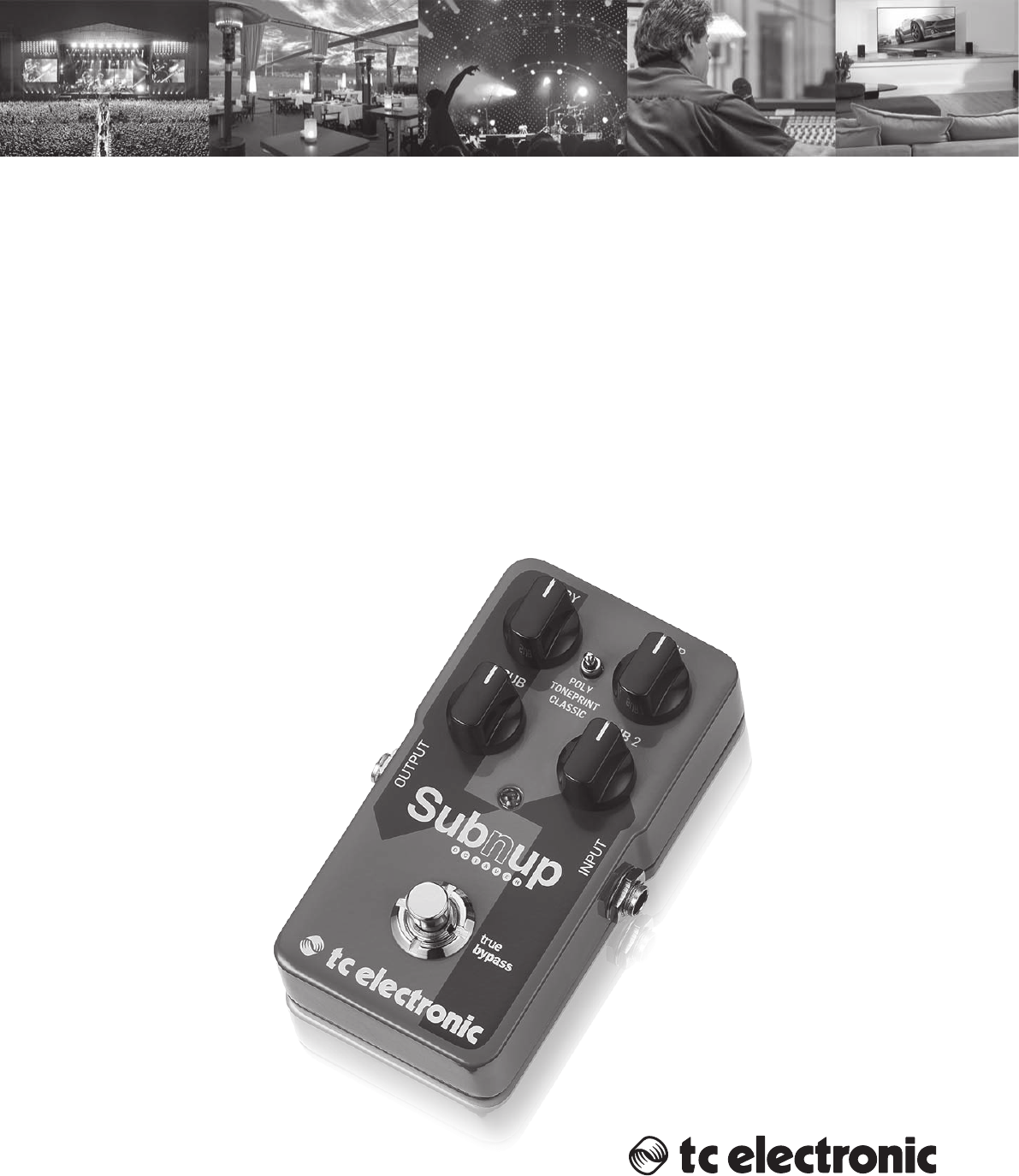
SUB ’N’ UP OCTAVER
Next-Generation Polyphonic Octaver Pedal with a
Classic Monophonic Mode and Toneprint for
Otherworldly Modulated Octave Tones
User Manual

2SUB ’N’ UP OCTAVER User Manual
Table of Contents
Important Safety Instructions ...................................... 3
Legal Disclaimer ............................................................. 3
Limited warranty ............................................................ 3
1. About this Manual ..................................................... 4
2. Introduction ............................................................... 4
2.1 Unpacking ............................................................................. 4
2.2 True Bypass ........................................................................... 4
2.3 Setting up .............................................................................. 4
3. Operation – Inputs, Outputs and Controls .............. 5
3.1 Power / Computer connection ...................................... 5
3.2 Switching ............................................................................... 5
3.3 Audio in and out ................................................................. 5
3.4 Eect controls ...................................................................... 5
4. Operation – TonePrint ............................................... 6
4.1 What are TonePrints? ......................................................... 6
4.2 Transferring TonePrints to your
pedal using the TonePrint app .............................................. 6
4.3 Editing TonePrints with TonePrint Editor ................... 6
4.4 Frequently Asked Questions
about TonePrint pedals ............................................................ 6
4.5 TonePrint resources ........................................................... 7
5. Operation – Bypass Mode ......................................... 7
5.1 True Bypass and Buered Bypass explained ............. 7
5.2 Switching between True
Bypass and Buered Bypass ................................................... 7
6. Maintenance .............................................................. 7
6.1 Updating the rmware ..................................................... 7
6.2 Changing the battery ....................................................... 7
7. Link s ............................................................................ 8
8. Technical Specications ............................................ 8
3SUB ’N’ UP OCTAVER User Manual
Important Safety
Instructions
LEGAL DISCLAIMER
LIMITED WARRANTY
Terminals marked with this symbol carry
electrical current of su cient magnitude
to constitute risk of electric shock.
Use only high-quality professional speaker cables with
¼" TS or twist-locking plugs pre-installed. Allother
installation or modi cation should be performed only
by quali edpersonnel.
This symbol, wherever it appears,
alertsyou to the presence of uninsulated
dangerous voltage inside the
enclosure-voltage that may be su cient to constitute a
risk ofshock.
This symbol, wherever it appears,
alertsyou to important operating and
maintenance instructions in the
accompanying literature. Please read the manual.
Caution
To reduce the risk of re or electric shock,
do not expose this appliance to rain and
moisture. The apparatus shall not be exposed to dripping
or splashing liquids and no objects lled with liquids,
suchas vases, shall be placed on the apparatus.
Caution
These service instructions are for use
by quali ed service personnel only.
Toreduce the risk of electric shock do not perform any
servicing other than that contained in the operation
instructions. Repairs have to be performed by quali ed
servicepersonnel.
1. Read these instructions.
2. Keep these instructions.
3. Heed all warnings.
4. Follow all instructions.
5. Do not use this apparatus near water.
6. Clean only with dry cloth.
7. Do not block any ventilation openings. Install in
accordance with the manufacturer’s instructions.
8. Do not install near any heat sources such as
radiators, heat registers, stoves, or other apparatus
(including ampli ers) that produce heat.
9. Use only attachments/accessories speci ed by
themanufacturer.
10. Use only with the
cart, stand, tripod, bracket,
or table speci ed by the
manufacturer, orsold with
the apparatus. When a cart
is used, use caution when
moving the cart/apparatus
combination to avoid
injury from tip-over.
11. Unplug this apparatus during lightning storms or
when unused for long periods of time.
12. Refer all servicing to quali ed service personnel.
Servicing is required when the apparatus has been
damaged in any way, such as power supply cord or plug
is damaged, liquid has been spilled or objects have fallen
into the apparatus, the apparatus has been exposed
to rain or moisture, does not operate normally, or has
beendropped.
13. The apparatus shall be connected to a MAINS socket
outlet with a protective earthing connection.
14. Where the MAINS plug or an appliance coupler is
used as the disconnect device, the disconnect device shall
remain readily operable.
15. Correct disposal of this
product: This symbol indicates
that this product must not be
disposed of with household
waste, according to the WEEE
Directive (2012/19/EU) and
your national law. This product
should be taken to a collection center licensed for the
recycling of waste electrical and electronic equipment
(EEE). The mishandling of this type of waste could have
a possible negative impact on the environment and
human health due to potentially hazardous substances
that are generally associated with EEE. At the same time,
your cooperation in the correct disposal of this product
will contribute to the e cient use of natural resources.
For more information about where you can take your
waste equipment for recycling, please contact your local
city o ce, or your household waste collection service.
16. Do not install in a con ned space, such as a book
case or similar unit.
17. Do not place naked ame sources, such as lighted
candles, on the apparatus.
18. Please keep the environmental aspects of battery
disposal in mind. Batteries must be disposed-of at a
battery collection point.
19. Use this apparatus in tropical and/or
moderate climates.
MUSIC Group accepts no liability for any loss
which may be su ered by any person who relies
either wholly or in part upon any description,
photograph, or statement contained herein.
Technical speci cations, appearances and other
information are subject to change without notice.
All trademarks are the property of their respective
owners. MIDAS, KLARK TEKNIK, LAB GRUPPEN, LAKE,
TANNOY, TURBOSOUND, TC ELECTRONIC, TC HELICON,
BEHRINGER, BUGERA and DDA are trademarks
or registered trademarks of MUSIC Group IP Ltd.
© MUSIC Group IP Ltd. 2016 All rights reserved.
For the applicable warranty terms and conditions
and additional information regarding MUSIC Group’s
Limited Warranty, please see complete details online at
music-group.com/warranty.

4SUB ’N’ UP OCTAVER User Manual
1. About this Manual
Thank you for spending your hard-earned money on this TC ELECTRONIC product!
We have done our best to ensure that it will serve you for many years to come,
and we hope that you will enjoy using it.
This manual will help you learn understanding and operating your
TCELECTRONIC product. This manual is available as a PDF download from the
TCELECTRONIC website.
Please read this manual in full, or you may miss important information.
Please do not operate your TC device before you have made all connections
to external equipment as described in the “2.3 Setting up” section. In the
subsequent sections of the manual, we assume that all connections are made
correctly and that you are familiar with the previous sections.
We reserve the rights to change the contents of this
manual at any time.
To download the most current version of this manual, view the product warranty,
and access the growing FAQ database for this product, visit the web page
tcelectronic.com/support/
2. Introduction
SUB ’N’ UP OCTAVER is the new leader of the pitch-pack. Featuring our superb
next generation octave-engine and individual blend controls for dry, octave-up
and two sub-octaves, Sub ‘N’ Up is set to deliver awless octave tones whether
you’re playing complex chords or groovy single-note lines and features three
amazing eects modes:
• a state-of-the-art polyphonic octaving engine,
• a cool, old-school monophonic octaver
• all the endless octaving combinations you can access through TonePrint.
Sub ‘N’ Up features the latest in polyphonic pitch technology. This means you
get lightning-fast note tracking and impeccable hi- octave tones when playing
chords. So whether you’re into shimmery octave-up tones for swells, a sweet
12-string ring or down and dirty subsonic octave ris, SUB ’N’ UP OCTAVER will
deliver the goods every single time!
2.1 Unpacking
Your TCELECTRONIC eect pedal box should contain the following items:
• Your TCELECTRONIC eect pedal
• 1 USB cable (Type A to Mini-B)
• 1 TCELECTRONIC sticker
• 1 leaet about TC’s guitar FX product range
Inspect all items for signs of transit damage. In the unlikely event of transit
damage, inform the carrier and supplier.
If damage has occurred, keep all packaging, as it can be used as evidence of
excessive handling force.
2.2 True Bypass
Here at TC, we have a simple philosophy: When you are using one of our products,
you should hear something great – and when it’s o, you shouldn’t hear it at all.
This is why this pedal sports True Bypass. When it is bypassed, it is really o and
has zero inuence on your tone, resulting in optimum clarity and zero loss of
high end.
Sometimes, it is advisable to switch an eect pedal from True Bypass to Buered
Bypass mode. For more information, see “5.2 Switching the pedal from True
Bypass to Buered Bypass”.
2.3 Setting up
Connect a 9 V power supply with the following symbol to the DC input socket of
your TCELECTRONIC eect pedal.
This product does not come with a power supply. We recommend using
TC ELECTRONIC’s PowerPlug 9 (sold separately).
• If no power supply is available, you can run this product using a battery.
For more information on changing batteries, see “6.2 Changing the battery”.
• Plug the power supply into a power outlet.
• Connect your instrument to the in jack on the right side of the pedal using a
¼" jack cable.
• Connect the out jack on the left side of the pedal to your amplier using a
¼" jack cable.
5SUB ’N’ UP OCTAVER User Manual
3. Operation – Inputs,
Outputs and Controls
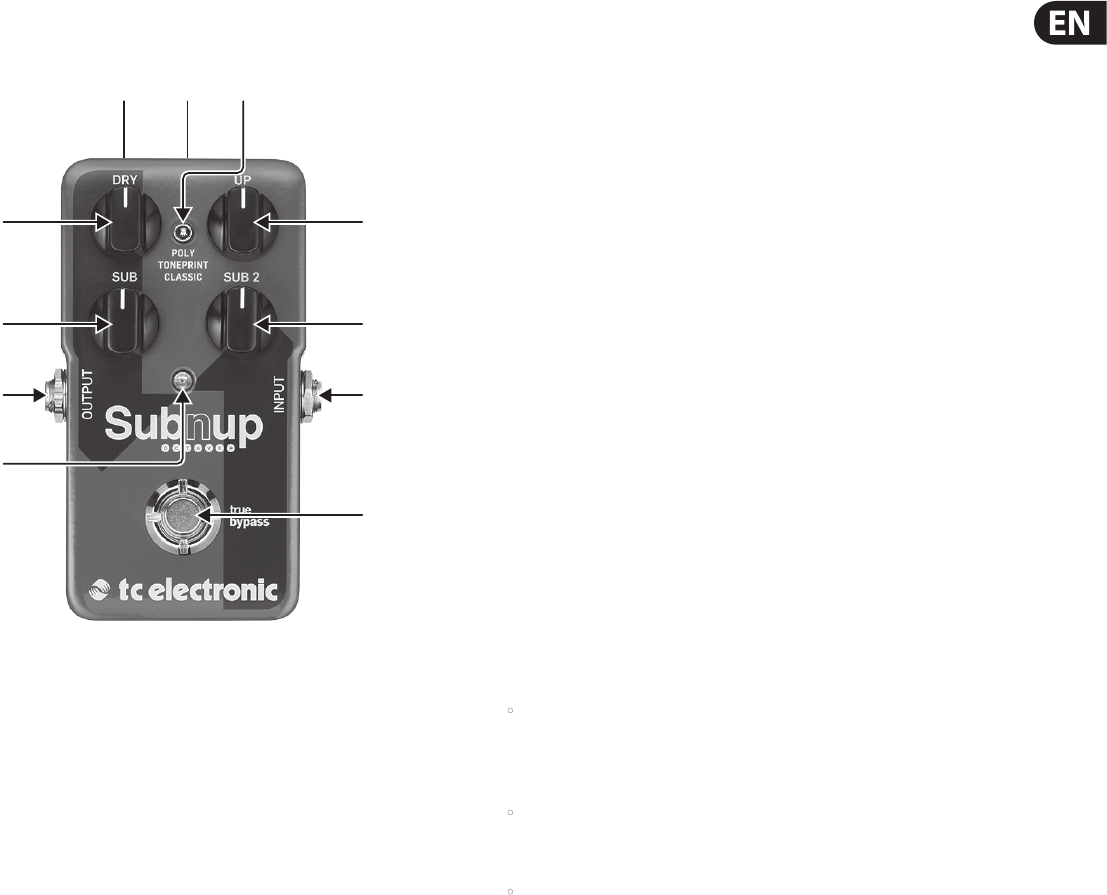
3.1 Power / Computer connection
(1) POWER input To power up your pedal, connect a power supply to its power
input socket. The power input socket of your TCELECTRONIC eect pedal is a
standard 5.5/2.1 mm DC plug (centre = negative).
Your TCELECTRONIC eect pedal requires a 9 V power supply providing
100 mA or more (not supplied). TC ELECTRONIC recommends using the
PowerPlug 9.
To minimize hum, use a power supply with isolated outputs.
If no power supply is available, you can run this product using a battery.
For more information on changing batteries, see “6.2 Changing the battery”.
(2) USB port Use the standard Mini-B USB port on your TCELECTRONIC eect
pedal to connect your pedal to a computer. This will allow you to load
TonePrints into the pedal or create your own TonePrint using TC’s TonePrint
Editor. For more information, see “4. Operation – TonePrint”.
If there should be rmware updates for this pedal, they can also be installed
using the USB port – see “6.1 Updating the rmware”.
3.2 Switching
(3) FOOTSWITCH To turn the eect on, tap the footswitch. To turn the eect o,
tap the footswitch again.
(4) INDICATOR LED The LED lights up when the eect is switched on.
3.3 Audio in and out
(5) AUDIO INPUT (mono) The audio input on the right side of this pedal is a
standard ¼" jack (mono/TS). Connect your guitar to the audio input on the
right side of your pedal using a regular ¼" mono cable.
(6) AUDIO OUTPUT (mono) The audio output on the left side of this pedal is a
standard ¼" jack (mono/TS). Connect the audio output of your pedal to the
next device in the signal chain using a regular ¼" mono cable.
3.4 Eect controls
Please note that the knob assignments on your TCELECTRONIC eect pedal are
the default assignments. Using the TonePrint Editor, you can rewire all knobs
so they control one or several parameters of your choice. For more information,
see “4.3 Editing TonePrints with TonePrint Editor”.
An octaver adds one or more additional voices one or more octaves above or
below the original signal. Sub’n’Up features three extra voices: one octave up and
one and two octaves below.
Use SUB ’N’ UP OCTAVER’s controls to adjust how much of each of three octave’s
you want applied to your guitar signal.
(7) DRY knob Use the DRY knob to set the level dry signal. Crank this knob if
you want the same amount of dry signal as when SUB ’N’ UP OCTAVER is
bypassed.
(8) UP knob The UP knob allows you to blend in an extra voice an octave above
the original signal. Try cranking this knob in classic mode to get some cool ol’
school Hendrix-type tones.
(9) SUB knob The SUB knob adds an extra voice one octave below the original
dry signal. This can be used to fatten up ris or getting fake bass sounds
when backing down the dry signal completely.
(10) SUB 2 knob The SUB2 knob adds an extra voice an earth-shattering two
octaves below the original signal. Experimental bass players like to crank
this knob with all the other controls at zero for a cool synth-like eect when
playing above the 12th fret… or go down low to potentially bring down
the P.A .!
(11) MODE selector The MODE switch alters the circuit operation to suit
dierent situations:
• Poly (Polyphonic) Set the MODE selector to “Poly” to get the latest in
polyphonic octaving. In this mode SUB ’N’ UP OCTAVER will handle even
the most complex jazz chords and give all sorts of cool sounds from fake
12-string guitar to organ-like tones.
• TonePrint To use TonePrint-based Octave congurations, set the MODE
selector to “TonePrint”. For more information, see “4. Operation –
TonePrint”.
• Classic Set the MODE selector to “Classic” to jump straight into those old-
school octave tones of yesteryear. With this setting, you get all the warm,
organic imperfections associated with classic analog stompbox octaving.
Playing chords in this mode will lead to weird and beautiful glitches.
(1)(2) (11)
(2)
(4)
(6)
(9)
(7)
(10)
(8)
(6)

6SUB ’N’ UP OCTAVER User Manual
4. Operation – TonePrint
This TCELECTRONIC product supports TonePrints.
4.1 What are TonePrints?
When you look at your TCELECTRONIC eect pedal, you’ll only see a few knobs.
Actually, for some pedals, it’s just one knob. So – one knob, one function, right?
Actually, there’s a lot more to it than meets the eye.
Star-tweaked signature sounds
When TCELECTRONIC builds an eect pedal, the relationship between its controls
and many parameters “under the hood” are dened by developers, musicians
and product specialists who live and breathe sound. This gives you an excellent
starting point: a great-sounding pedal with well-balanced controls.
But wouldn’t it be cool to have world-famous guitar players – guys like
Paul Gilbert, Guthrie Govan, John Petrucci or Steve Vai – virtually rewire your
reverb pedal, dening what should happen “behind the scenes”?
And how about doing this yourself?
This is exactly what TonePrint allows you to do.
TCELECTRONIC is working with top guitar players who explore a pedal’s hidden
tonal potential, redening the controls and creating their personal TonePrints.
And we are making these custom TonePrints available to you. Uploading them to
your pedal is really easy (see “4.2 Transferring TonePrints to your pedal using the
TonePrint app”) – and with the amazing TonePrint Editor, you can even create
your own signature pedal, tweaked specically to your liking.
You can change the TonePrint in your pedal as often as you like, and the best part:
It’s totally free!
4.2 Transferring TonePrints to your pedal
using the TonePrint app
Being able to virtually rewire your TCELECTRONIC eect pedal wouldn’t be much
use if you needed a lot of extra equipment to do it. This is why we created the
TonePrint app. The TonePrint app is free software for popular smartphones that
allows you to “beam” new TonePrints right into your eect pedal whenever and
wherever you feel like it.
Obtaining the TonePrint app
If you own an iPhone, you can download the TonePrint app from
Apple’s App Store.
If you own an Android phone, you will nd the TonePrint app on Google Play.
Once you have the app, no additional downloads or in-app purchases are
required. You can access all available TonePrints from within the app, and all
TonePrints are free.
Transferring TonePrints to your pedal – step by step
• Launch the TonePrint app on your smart-phone.
• Find the TonePrint you want to use. You can browse TonePrints by Artist or
Product (i.e., pedal type). You will also nd Featured TonePrints.
• Plug your guitar or bass into your TonePrint pedal.
• Turn your TonePrint pedal on.
• Turn up the volume on your instrument and set the pickup selector to
one pickup.
• Hold the speaker of your smartphone next to the chosen pickup and touch
“Beam to pedal”.
4.3 Editing TonePrints with TonePrint Editor
The TonePrint app allows you to use TonePrints created by your favorite guitar
and bass players. But this is only the start. Using TC’s TonePrint Editor, you can
create your very own signature pedal sounds.
TonePrint Editor features
• Use TonePrint Editor to build your own custom sounds.
• Enjoy complete control over all eect parameters and eect behavior – it’s
your vision, your sound.
• Customize knob function and knob range to suit your needs and sounds.
• Audition your sonic creations in real-time live - make changes on the y and
listen to results immediately.
• Works with both PC and Mac.
Last but not least...
• TonePrint Editor is absolutely free!
Obtaining TonePrint Editor
If you want to use TonePrint Editor for your Windows or OS X computer, download
it from
tcelectronic.com/toneprint-editor/
If you want to use TonePrint Editor on your Apple iPad, download it from Apple’s
App Store.
Please note that version 2.0 or higher of the TonePrint Editor is required for
working with TC ELECTRONIC Mini pedals. Version 2.0 has a Library function that
allows you to access and use TonePrints even without an Internet connection.
Obtaining the TonePrint Editor manual
Download the TonePrint Editor manual from
tcelectronic.com/toneprint-editor/support/
If you open the manual for TonePrint Editor in Adobe Reader, you can click
on interface sections to jump directly to the sections of the manual you are
interested in.
4.4 Frequently Asked Questions about
TonePrint pedals
Do the TonePrint pedals have balanced or unbalanced
inputs/outputs?
TonePrint pedals have unbalanced inputs and outputs. Use cables with TS jacks
(i.e., standard instrument cables).
Is it possible to run this TonePrint pedal in the eects
loop of a tube amp?
Yes. All TonePrint pedals have a very wide gain range and are designed to run
at both instrument and line level. There are a few amps which are capable of
running much hotter than regular +4 dBu line-level signals because of the way
their eect loops are designed. With these amps, it might be possible to get the
input to clip. But for 99 % of all amps, the TonePrint pedals will work just ne.
For additional information about your TC ELECTRONIC TonePrint eect pedal,
please go to TC ELECTRONIC Support:
tcelectronic.com/support/

7SUB ’N’ UP OCTAVER User Manual
4.5 TonePrint resources
• TonePrint: tcelectronic.com/toneprint/
• TonePrint products: tcelectronic.com/toneprint/ toneprint-products/
• TonePrint app: tcelectronic.com/toneprint-app/
• TonePrint Editor: tcelectronic.com/toneprint-editor/
• TonePrint Editor manual: tcelectronic.com/toneprint-editor/support/
5. Operation – Bypass Mode
5.1 True Bypass and Buered Bypass explained
True Bypass mode is a hard-wire bypass that gives absolutely no coloration of
tone when the pedal is bypassed. This is the default mode for your eect pedal.
Using True Bypass on all pedals is a perfect choice in setups with a few pedals and
relatively short cables before and after the pedals.
If...
• you use a long cable between your guitar and the rst pedal or
• if you use many pedals on your board or
• if you use a long cable from your board to the amp,
... then the best solution will most likely be to set the rst and the last pedal in
the signal chain to Buered Bypass mode.
Can you hear the dierence between a pedal in True
Bypass or Buered Bypass mode?
Maybe, maybe not – many factors apply: active vs. passive pick-ups, single-coil
vs. humbucker, cable quality, amp impedance and more. We cannot give a single
ultimate answer. Use your ears and nd the best solution for your setup!
5.2 Switching between True Bypass and
Buered Bypass
To set the bypass mode, proceed as follows:
• Disconnect the pedal and turn it on its back.
• Unscrew the back plate of the pedal and look for the two small dip-switches
in the upper left corner.
• The upper DIP switch (the one closer to the power in jack), switches between
True Bypass mode (default) and Buered Bypass mode.
• Set the DIP switch to the desired position.
• Remount the back-plate.
6. Maintenance
6.1 Updating the rmware
TC may provide updates for the built-in software of your pedal, the rmware.
Updating your TC pedal’s rmware requires...
• a computer running Microsoft Windows or OS X with a standard
USB interface
• the specied DC power supply for your pedal.
Preparing the rmware update
• Download the newest rmware from the “Support” page for your TC pedal.
There are updaters for Microsoft Windows (these are ZIP archives containing
the rmware installer) and for OS X (these are disk image les containing the
rmware installer).
• Unplug all cables (including the power supply) from your TC pedal.
• Connect the pedal to your computer using a USB cable.
• Press and hold the footswitch on your TC pedal. If your TC pedal has more
than one footswitch, press and hold the leftmost footswitch.
• Insert the DC power supply plug.
• The LED on your pedal should turn green. If your TC pedal has more than
one LED, the leftmost LED should turn green. This indicates that the pedal is
ready to receive the software update.
• Release the footswitch.
• Your TC pedal will now be recognized as an updatable device.
Applying the rmware update
• Quit all MIDI-related applications (e.g. your DAW) on your computer and
launch the rmware updater you have downloaded in step 1.
• In the rmware updater app, select your TC pedal from the drop-down list
under the “STEP 1” heading.
• When the “Update” button under the “STEP 2” heading turns green, click it.
• The updated rmware will now be transferred to your TC pedal. Wait for
the progress bar to reach 100%. When the update procedure is complete,
the pedal will automatically restart.
6.2 Changing the battery
If you need to change the battery of your TC ELECTRONIC eect pedal,
proceed as follows:
• Unscrew the thumb-screw on the back of the pedal and detach
the backplate.
• Unmount the old battery and attach the new battery to the battery clip
making sure the polarity is correct.
• Remount the back-plate.
Notes regarding batteries
• Batteries must never be heated, taken apart or thrown into re or water.
• Only rechargeable batteries can be recharged.
• Remove the battery when the pedal is not being used for a longer period of
time to save battery life.
• Always dispose batteries according to local laws and regulations.

8SUB ’N’ UP OCTAVER User Manual
7. Links
Support resources
• TC ELECTRONIC Support: tcelectronic.com/support/
• TC ELECTRONIC – product software: tcelectronic.com/support/software/
• TC ELECTRONIC – all product manuals: tcelectronic.com/support/manuals/
• TC ELECTRONIC user forum: forum.tcelectronic.com/
TC ELECTRONIC on...
• the Web: tcelectronic.com/
• Facebook: facebook.com/tcelectronic
• Google Plus: plus.google.com/+tcelectronic/
• Twitter: twitter.com/tcelectronic
• YouTube: youtube.com/user/tcelectronic
8. Technical Specications
Bypass mode True Bypass (Buered Bypass optional)
Input connector 1 x ¼" TS, unbalanced, mono
Input impedance 1 MΩ
Output connector 1 x ¼" TS, unbalanced, mono
Output impedance 100 Ω
Power input Standard 9 V DC, centre negative,
>300 mA (power supply included)
Battery option —
USB port Mini USB connector for uploading/
editing custom TonePrints and for
software updates
Dimensions (H x W x D) 93 x 48 x 48 mm (3.7 x 1.9 x 1.9")
9SUB ’N’ UP OCTAVER User Manual
FEDERAL COMMUNICATIONS
COMMISSION COMPLIANCE
INFORMATION
Responsible Party Name: Music Group Services NV Inc.
Address: 5270 Procyon Street
Las Vegas, NV 89118
USA
Phone Number: +1 702 800 8290
SUB ’N’ UP OCTAVER
EMC/EMI This equipment has been tested and found to comply with the limits
for a Class B Digital device, pursuant to part 15 of the FCC rules. These limits
are designed to provide reasonable protection against harmful interference in
residential installations.
This equipment generates, uses and can radiate radio frequency energy and,
if not installed and used in accordance with the instructions, may cause harmful
interference to radio communications. However, there is no guarantee that
interference will not occur in a particular installation. If this equipment does cause
harmful interference to radio or television reception, which can be determined
by turning the equipment o and on, the user is encouraged to try to correct the
interference by one or more of the following measures:
• Reorient or relocate the receiving antenna.
• Increase the separation between the equipment and receiver.
• Connect the equipment into an outlet on a circuit dierent from that to which the
receiver is connected.
• Consult the dealer or an experienced radio/ TV technician for help.
For customers in Canada This Class B digital apparatus complies with
Canadian CAN ICES-3B.
SUB ’N’ UP OCTAVER

