SPH M540 User Guide Samsung Rant Manual
2017-11-30
: Samsung-M540-Rant-Manual samsung-m540-rant-manual manuals phones
Open the PDF directly: View PDF  .
.
Page Count: 229 [warning: Documents this large are best viewed by clicking the View PDF Link!]
- Table of Contents
- Introduction
- Your Phone’s Menu
- Getting Started
- Your Phone
- Phone Basics
- Your Phone
- Viewing the Display Screen
- Features of Your Phone
- Turning Your Phone On and Off
- Using Your Phone’s Battery and Charger
- Navigating Through the Menus
- Displaying Your Phone Number
- Making and Answering Calls
- Making Calls
- Dialing Options
- Answering Calls
- Missed Call Notification
- Calling Emergency Numbers
- In-Call Options
- End-of-Call Options
- Saving a Phone Number
- Finding a Phone Number
- Dialing and Saving Phone Numbers With Pauses
- Plus (+) Code Dialing
- Using Abbreviated Dialing
- Dialing From the Contacts List
- Using Speed Dialing
- Entering Text in Portrait Mode
- Entering Text in Landscape Mode
- Navigating the Main Screen
- Settings
- Security
- Roaming
- History
- Contacts
- Adding a New Contacts Entry
- Adding a New Group
- Finding Contacts Entries
- Contacts Entry Options
- Adding a Phone Number to a Contacts Entry
- Editing a Contacts Entry’s Phone Number
- Deleting a Contact
- Assigning Speed Dial Numbers
- Editing a Contacts Entry
- Selecting a Ringer Type for an Entry
- Dialing Sprint Services
- Wireless Backup
- Calendar and Tools
- Voice Services
- microSD Card
- Camera
- Bluetooth
- Phone Basics
- Sprint Service
- Sprint Service Features: The Basics
- Web and Data
- Entertainment: TV and Music
- GPS Navigation
- Safety and Warranty Information
- Index

User Guide
www.sprint.com
© 2008 Sprint. Sprint and the logo are trademarks of Sprint. Other
marks are the property of their respective owners.
8/27/08
Sprint M540.book Page A Wednesday, August 27, 2008 10:00 PM
M540_BH17_PS_082708_F4
Sprint M540.book Page B Wednesday, August 27, 2008 10:00 PM

Table of Contents
Introduction . . . . . . . . . . . . . . . . . . . . . . . . . . . . . . . i
Your Phone’s Menu. . . . . . . . . . . . . . . . . . . . . . . . ii
Section 1: Getting Started. . . . . . . . . . . . . . . . . . 1
1A. Setting Up Service . . . . . . . . . . . . . . . . . . . . 2
Setting Up Your Phone . . . . . . . . . . . . . . . . . . . . . . 2
Activating Your Phone . . . . . . . . . . . . . . . . . . . . . . . 3
Setting Up Your Voicemail . . . . . . . . . . . . . . . . . . . 4
Sprint Account Passwords . . . . . . . . . . . . . . . . . . . 4
Getting Help . . . . . . . . . . . . . . . . . . . . . . . . . . . . . . . 5
Section 2: Your Phone . . . . . . . . . . . . . . . . . . . . . 7
2A. Phone Basics . . . . . . . . . . . . . . . . . . . . . . . . 8
Your Phone . . . . . . . . . . . . . . . . . . . . . . . . . . . . . . . . 8
Viewing the Display Screen . . . . . . . . . . . . . . . . . 12
Features of Your Phone . . . . . . . . . . . . . . . . . . . . 15
Turning Your Phone On and Off . . . . . . . . . . . . . 16
Using Your Phone’s Battery and Charger . . . . . 17
Navigating Through the Menus . . . . . . . . . . . . . . 21
Displaying Your Phone Number . . . . . . . . . . . . . 22
Making and Answering Calls . . . . . . . . . . . . . . . 22
Entering Text in Portrait Mode . . . . . . . . . . . . . . . 33
Entering Text in Landscape Mode . . . . . . . . . . . 39
2B. Navigating the Main Screen . . . . . . . . . . 44
Getting to Know Sprint One Click . . . . . . . . . . . 44
Personalizing the Carousel . . . . . . . . . . . . . . . . . 47
Personalizing the Home Screen . . . . . . . . . . . . . 49
2C. Settings . . . . . . . . . . . . . . . . . . . . . . . . . . . . . 51
Personalizing Your Phone . . . . . . . . . . . . . . . . . . 51
Sound Settings . . . . . . . . . . . . . . . . . . . . . . . . . . . 52
Display Settings . . . . . . . . . . . . . . . . . . . . . . . . . . . 56
Location Settings . . . . . . . . . . . . . . . . . . . . . . . . . . 58
Messaging Settings . . . . . . . . . . . . . . . . . . . . . . . 58
Airplane Mode . . . . . . . . . . . . . . . . . . . . . . . . . . . . 62
TTY Use With Sprint Service . . . . . . . . . . . . . . . . 63
Phone Setup Options . . . . . . . . . . . . . . . . . . . . . . 64
2D. Security . . . . . . . . . . . . . . . . . . . . . . . . . . . . . 67
Accessing the Security Menu . . . . . . . . . . . . . . . 67
Using Your Phone’s Lock Feature . . . . . . . . . . . 68
Lock Services . . . . . . . . . . . . . . . . . . . . . . . . . . . . 69
Using Special Numbers . . . . . . . . . . . . . . . . . . . . 70
Sprint M540.book Page 1 Wednesday, August 27, 2008 10:00 PM
Erasing Phone Content . . . . . . . . . . . . . . . . . . . . . 71
Resetting Your Picture Account . . . . . . . . . . . . . . 72
Resetting Your Phone Settings . . . . . . . . . . . . . . 72
Resetting Your Phone . . . . . . . . . . . . . . . . . . . . . . 72
Security Features for Data Services . . . . . . . . . . 73
2E. Roaming . . . . . . . . . . . . . . . . . . . . . . . . . . . 74
Understanding Roaming . . . . . . . . . . . . . . . . . . . 74
Setting Your Phone’s Roam Mode . . . . . . . . . . . 75
Using Call Guard . . . . . . . . . . . . . . . . . . . . . . . . . . 76
Using Data Roam Guard . . . . . . . . . . . . . . . . . . . 77
2F. History . . . . . . . . . . . . . . . . . . . . . . . . . . . . . 78
Viewing History . . . . . . . . . . . . . . . . . . . . . . . . . . . . 78
History Options . . . . . . . . . . . . . . . . . . . . . . . . . . . . 79
Making a Call From History . . . . . . . . . . . . . . . . . 79
Saving a Phone Number From History . . . . . . . 80
Erasing History . . . . . . . . . . . . . . . . . . . . . . . . . . . . 80
2G. Contacts . . . . . . . . . . . . . . . . . . . . . . . . . . . . 82
Adding a New Contacts Entry . . . . . . . . . . . . . . . 82
Adding a New Group . . . . . . . . . . . . . . . . . . . . . . 83
Finding Contacts Entries . . . . . . . . . . . . . . . . . . . 84
Contacts Entry Options . . . . . . . . . . . . . . . . . . . . . 85
Adding a Phone Number to a Contacts Entry . 86
Editing a Contacts Entry’s Phone Number . . . . 86
Deleting a Contact . . . . . . . . . . . . . . . . . . . . . . . . 86
Assigning Speed Dial Numbers . . . . . . . . . . . . . 87
Editing a Contacts Entry . . . . . . . . . . . . . . . . . . . . 88
Selecting a Ringer Type for an Entry . . . . . . . . . 88
Dialing Sprint Services . . . . . . . . . . . . . . . . . . . . . 89
Wireless Backup . . . . . . . . . . . . . . . . . . . . . . . . . . 89
2H. Calendar and Tools . . . . . . . . . . . . . . . . . . 91
Using Your Phone’s Calendar . . . . . . . . . . . . . . . 91
Task List . . . . . . . . . . . . . . . . . . . . . . . . . . . . . . . . . 94
Countdown . . . . . . . . . . . . . . . . . . . . . . . . . . . . . . . 95
Using Your Phone’s Alarm Clock . . . . . . . . . . . . 95
Using Your Phone’s Memo Pad . . . . . . . . . . . . . 96
Using the Calculator . . . . . . . . . . . . . . . . . . . . . . . 97
Using the World Time . . . . . . . . . . . . . . . . . . . . . . 98
Updating Phone Software . . . . . . . . . . . . . . . . . . 98
Updating the PRL . . . . . . . . . . . . . . . . . . . . . . . . . 98
Sprint M540.book Page 2 Wednesday, August 27, 2008 10:00 PM
2I. Voice Services . . . . . . . . . . . . . . . . . . . . . . 99
Using Automatic Speech Recognition (ASR) . . 99
Managing Voice Memos . . . . . . . . . . . . . . . . . . 105
2J. microSD Card . . . . . . . . . . . . . . . . . . . . . . 108
Using Your Phone’s microSD Card
and Adapter . . . . . . . . . . . . . . . . . . . . . . . . . . . . . 108
microSD Settings . . . . . . . . . . . . . . . . . . . . . . . . . 111
microSD Folders . . . . . . . . . . . . . . . . . . . . . . . . . 111
Connecting Your Phone to Your Computer . . 112
2K. Camera . . . . . . . . . . . . . . . . . . . . . . . . . . . 116
Taking Pictures . . . . . . . . . . . . . . . . . . . . . . . . . . . 116
Recording Videos . . . . . . . . . . . . . . . . . . . . . . . . 122
Storing Pictures . . . . . . . . . . . . . . . . . . . . . . . . . . 124
Sending Sprint Picture Mail . . . . . . . . . . . . . . . . 127
Managing Sprint Picture Mail . . . . . . . . . . . . . . 129
Printing Pictures Using PictBridge . . . . . . . . . . 134
Order Prints . . . . . . . . . . . . . . . . . . . . . . . . . . . . . . 135
Settings and Info . . . . . . . . . . . . . . . . . . . . . . . . . 135
2L. Bluetooth . . . . . . . . . . . . . . . . . . . . . . . . . . 136
Turning Bluetooth On and Off . . . . . . . . . . . . . . 136
Using the Bluetooth Settings Menu . . . . . . . . . 137
Bluetooth Profiles . . . . . . . . . . . . . . . . . . . . . . . . 138
Pairing Bluetooth Devices . . . . . . . . . . . . . . . . . 139
FTP Contents Folder . . . . . . . . . . . . . . . . . . . . . . 141
Sending Data via Bluetooth . . . . . . . . . . . . . . . 141
Section 3: Sprint Service . . . . . . . . . . . . . . . . . 143
3A. Sprint Service Features: The Basics . . 144
Voicemail . . . . . . . . . . . . . . . . . . . . . . . . . . . . . . . 144
Text Messaging (SMS) . . . . . . . . . . . . . . . . . . . . 148
SMS Voice Messaging . . . . . . . . . . . . . . . . . . . . 150
Caller ID . . . . . . . . . . . . . . . . . . . . . . . . . . . . . . . . 152
Call Waiting . . . . . . . . . . . . . . . . . . . . . . . . . . . . . 153
Making a Three-Way Call . . . . . . . . . . . . . . . . . 153
Call Forwarding . . . . . . . . . . . . . . . . . . . . . . . . . . 154
3B. Web and Data . . . . . . . . . . . . . . . . . . . . . . 155
Data Applications . . . . . . . . . . . . . . . . . . . . . . . . 155
Getting Started With Data Services . . . . . . . . . 156
Accessing Messaging . . . . . . . . . . . . . . . . . . . . 161
Downloading Content . . . . . . . . . . . . . . . . . . . . 164
Sprint M540.book Page 3 Wednesday, August 27, 2008 10:00 PM
Exploring the Web . . . . . . . . . . . . . . . . . . . . . . . . 167
Data Services FAQs . . . . . . . . . . . . . . . . . . . . . . . 171
3C. Entertainment: TV and Music . . . . . . . . 172
TV . . . . . . . . . . . . . . . . . . . . . . . . . . . . . . . . . . . . . . 172
Music - Sprint Music Store . . . . . . . . . . . . . . . . . 175
Streaming Music . . . . . . . . . . . . . . . . . . . . . . . . . 180
3D. GPS Navigation . . . . . . . . . . . . . . . . . . . . 182
Sprint Navigation . . . . . . . . . . . . . . . . . . . . . . . . 182
Using Sprint Navigation . . . . . . . . . . . . . . . . . . . 183
Getting Driving Directions . . . . . . . . . . . . . . . . . 184
Configuring Your Navigation Preferences . . . 190
Launching the Product Tour . . . . . . . . . . . . . . . . 191
Section 4: Safety and Warranty
Information . . . . . . . . . . . . . . . . . . . . . . . . . . . . . 193
4A. Important Safety Information . . . . . . . . 194
General Precautions . . . . . . . . . . . . . . . . . . . . . . 194
Maintaining Safe Use of and Access
to Your Phone . . . . . . . . . . . . . . . . . . . . . . . . . . . 195
Using Your Phone With a Hearing
Aid Device . . . . . . . . . . . . . . . . . . . . . . . . . . . . . . 196
Caring for the Battery . . . . . . . . . . . . . . . . . . . . 198
Radio Frequency (RF) Energy . . . . . . . . . . . . . 199
Owner’s Record . . . . . . . . . . . . . . . . . . . . . . . . . . 201
User Guide Proprietary Notice . . . . . . . . . . . . . . 201
4B. Manufacturer’s Warranty . . . . . . . . . . . . 202
Manufacturer’s Warranty . . . . . . . . . . . . . . . . . . . 202
Index . . . . . . . . . . . . . . . . . . . . . . . . . . . . . . . . . . 207
Sprint M540.book Page 4 Wednesday, August 27, 2008 10:00 PM

i
Introduction
This User Guide introduces you to Sprint® service and all
the features of your new phone. It’s divided into four
sections:
⽧Section 1: Getting Started
⽧Section 2: Your Phone
⽧Section 3: Sprint Service
⽧Section 4: Safety and Warranty Information
Throughout this guide, you’ll find tips that highlight
special shortcuts and timely reminders to help you
make the most of your new phone and service. The
Table of Contents and Index will also help you quickly
locate specific information.
You’ll get the most out of your phone if you read each
section. However, if you’d like to get right to a specific
feature, simply locate that section in the Table of
Contents and go directly to that page. Follow the
instructions in that section, and you’ll be ready to use
your phone in no time.
User
Guide
Note
Because of updates in phone software, this
printed guide may not be the most current
version for your phone. Visit www.sprint.com
and log on to My Sprint Wireless to access
the most recent version of the user guide.
WARNING Please refer to the Important Safety
Information section on page 194 to learn
about information that will help you safely use
your phone. Failure to read and follow the
Important Safety Information in this phone
guide may result in serious bodily injury,
death, or property damage.
Sprint M540.book Page i Wednesday, August 27, 2008 10:00 PM
ii
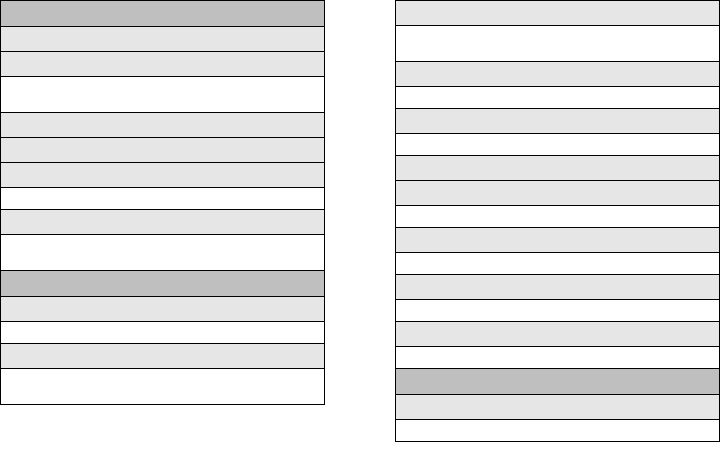
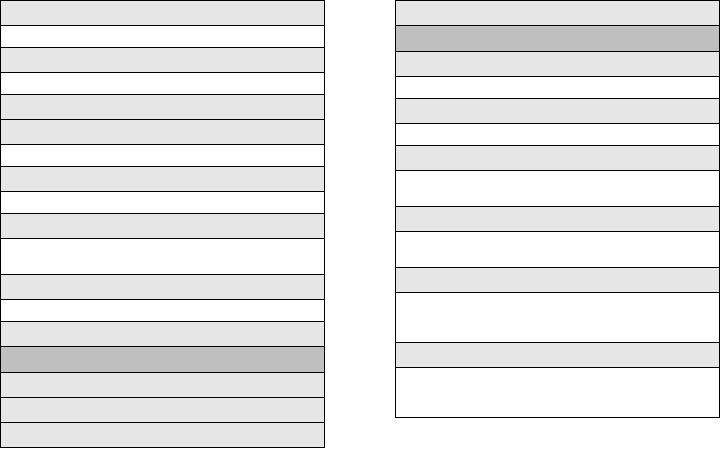
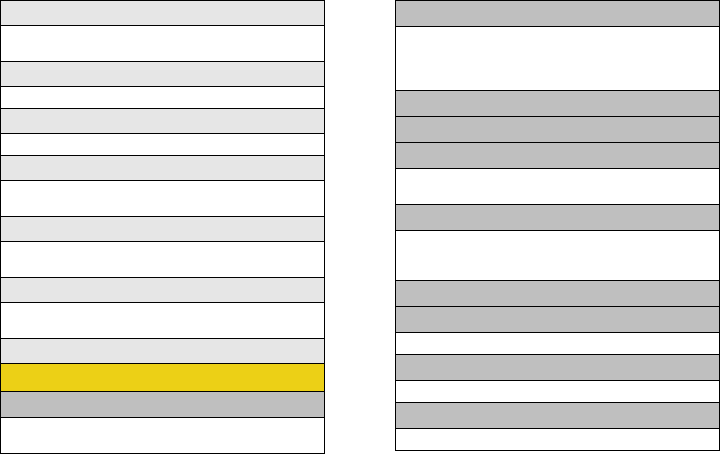
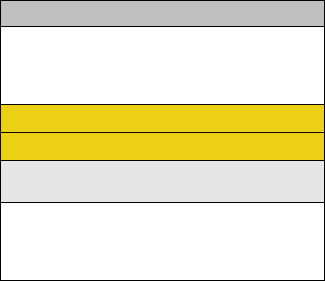
Your Phone’s Menu
The following table outlines your phone’s menu
structure. For more information about using your
phone’s menus, see “Navigating Through the Menus”
on page 21.
Contacts (Right Softkey)
Options (Left Softkey)
1: Main Menu
2: Personalize Carousel
3: Personalize Home Screen
4: Tutorial
5: About Sprint One Click
Web
Maps
1: Sprint Navigation
2: Sprint Family Locator
Entertainment
1: Music
2: TV
3: Games
1: Get New Games 2: My Stuff Manager Games
3: Midnight Bowling 2 DEMO
4: PAC-MAN Plus DEMO by Namco
5: Wedding Dash
History
Missed Alerts
My Stuff
1: Application Manager
2: Games
1: Get New Games 2: My Stuff Manager Games
3: Midnight Bowling 2 DEMO
4: PAC-MAN Plus DEMO by Namco
5: Wedding Dash
Sprint M540.book Page ii Wednesday, August 27, 2008 10:00 PM
iii
3: Ringers
1: Get New Ringers 2: My Stuff Manager Ringers
4: Screen Savers
1: Get New Screen Savers
2: My Stuff Manager Screen Savers
5: Applications
1: Get New Applications
2: My Stuff Manager Applications
3: Social Zone
6: Call Tones
Photos
1: Camera
Press the right softkey to view the following options:
1: Selftimer
1: Off 2: 5 sec
3: 10 sec
2: Multi Shot
1: Series Shot (off/3/5/10)
2: Divided Shot (off/4/9/16)
3: Fun Tools
1: Fun Frames 2: Color Tones
4: Controls
1: Brightness 2: White Balance
3: Night Shot 4: Metering
5: Settings
1: Resolution 2: Quality
3: Shutter Sound 4: Status Bar
5: Storage
6: Launch
1: Review Pictures 2: Camcorder
2: Camcorder (Video Mail/Long Video)
Press the right softkey to view the following options:
1: Selftimer
1: Off 2: 5 sec
3: 10 sec
2: Fun Tools
1: Color Tones
3: Controls
1: White Balance
4: Settings
1: Quality 2: Storage
3: Video Length
Sprint M540.book Page iii Wednesday, August 27, 2008 10:00 PM
iv
5: Launch
1: Review Pictures 2: Camera
3: Picture Mail
1: Inbox 2: Sent Mail
3: Saved Mail 4: Pending
4: My Albums
1: In Phone 2: Memory Card
3: Online Albums
5: PictBridge
6: Order Prints
7: Settings and Info
1: Auto Save to
1: Phone 2: Memory Card
2: Status Bar (On/Off)
3: Account Info
Messages
1: Voicemail
1: Call Voicemail 2: Clear Envelope
2: Send Message
1: Text Message 2: Picture Mail
3: VoiceSMS 4: Email
5: IM
3: Text Message
4: Picture Mail
1: Inbox 2: Sent Mail
3: Saved Mail 4: Pending
5: Email
6: IM
1: AOL Instant Messenger
2: Windows Live Messenger
3: Yahoo! Messenger
7: Chat & Dating
8: VoiceSMS
9: Settings
1: General
1: Notification 2: Preset Messages
3: Message Alert 4: Auto-Erase
Sprint M540.book Page iv Wednesday, August 27, 2008 10:00 PM
v
2: Text Message
1: Save in Outbox 2: Priority
3: Call Back # 4: Edit Signature
3: VoiceSMS Opt.
1: Speakerphone 2: From Name
Contacts
Settings
1: Display
1: Main Screen
1: Screen Saver 2: Incoming/Outgoing Calls
2: Brightness
3: Backlight
1: Slide open 2: 30 seconds
3: 15 seconds 4: 8 seconds
4: Dialing Font Size
1: Large 2: Small
5: PowerSave Mode
1: On 2: Off
6: Keypad Light
1: Slide open 2: 30 seconds
3: 15 seconds 4: 8 seconds
5: Off
7: Language
1: English 2: Español
2: Sounds
1: Volume
1: Ringer 2: Earpiece
3: Headset 4: Speakerphone
5: Advanced...
2: Ringer Type
1: Incoming Calls 2: Messages
3: Schedule 4: Roam Ringer
3: Alerts
1: Minute Beep 2: Service
3: Connect 4: Signal Fade/Call Drop
5: Power On 6: Power Off
4: Key Tone
1: Tone Type 2: Tone Volume
3: Tone Length
Sprint M540.book Page v Wednesday, August 27, 2008 10:00 PM
vi
3: Bluetooth
1: On/Off
2: Visibility
1: Always visible 2: Visible for 3min
3: Hidden
3: My Device Name
4: My Device Info
5: Exchange Folders
1: In Phone 2: Memory card
6: Voice Priority
1: Hands-Free 2: Phone
3: Device Answered
4: Messages
1: Notification
1: Message & Icon 2: Icon only
2: Message Reminder
1: Off 2: Once
3: Every 2 min
3: Callback Number
1: None 2: XXXXXXXXXX
3: Other
4: Auto-Delete
1: Yes 2: No
5: Signature
1: On 2: Off
6: Pre-set Message
7: Draft Alert
1: On 2: Off
8: Priority
1: Normal 2: Urgent
9: Save in Outbox
1: Yes 2: No
0: Voice SMS Option
1: Speakerphone 2: From Name
5: Text Entry
1: Auto-Capital
1: On 2: Off
Sprint M540.book Page vi Wednesday, August 27, 2008 10:00 PM
vii
2: Auto-Space
1: On 2: Off
3: Dual Language
1: None 2: Spanish
4: Personal Dictionary
5: Used Word Dictionary
1: Yes 2: No
6: Display Candidate
1: Display On 2: Display Off
7: Prediction Start
1: 2nd letters 2: 3rd letters
3: 4th letters 4: 5th letters
8: Auto Word Insertion
1: On 2: Off
9: Help
6: Phone Info
1: Phone Number
2: Icon Glossary
3: Version
4: Advanced
7: More...
1: Auto Keyguard
1: On 2: Off
2: Accessibility
1: TTY Options 2: Voice Service
3: Airplane Mode
1: On 2: Off
3: On PowerUp
4: Browser
1: Clear Bookmarks 2: Clear Cache
3: Clear Cookies 4: Edit Homepage
5: Call Setup
1: Auto Answer 2: Abbreviated Dial
3: Call Answer 4: Contacts Match
5: Voice Caller ID
6: Contacts
1: Speed Numbers 2: Hide Secret
3: My Name Card 4: Wireless Backup
5: Services
Sprint M540.book Page vii Wednesday, August 27, 2008 10:00 PM
viii
7: D ata
1: On/Off 2: Net Guard
3: Update Data Profile
8: Headset Mode
1: Turbo Button 2: Ringer Sound
9: Location
1: On 2: Off
10: Restrict and Lock
1: Voice 2: Data
3: Camera/Pictures 4: Lock my Phone
11: R o a m in g
1: Set Mode 2: Call Guard
3: Data Roaming
12: Security
1: Change Lock Code
2: Special # 3: Erase/Reset
13: Wireless Backup
Tools
1: Alarm
1: Alarm #1 2: Alarm #2
3: Alarm #3
2: Bluetooth
1: Pair with Hands Free
2: Send a Contact 3: Print a Photo...
4: Add a New... 5: Trusted Devices
6: More...
3: Calculator
4: Tip Calculator
5: Calendar
1: Today 2: Scheduler
3: Task List 4: Countdown
6: Mass Strage
1: Connect to PC 2: File Manager
3: Format Memory Card
4: Memory Info.
7: Mem o Pad
8: World Time
1: Set DST
9: Update Phone
1: Update Firmware 2: Update PRL
0: Voice Memo
1: Record 2: Review
Sprint M540.book Page viii Wednesday, August 27, 2008 10:00 PM
ix
*: Voice Service
1: Call <Name or#> 2: Send Text <Name or #>
3: Send Picture <Name or #>
4: Send Voice SMS <Name or #>
5: Lookup <Name>
6: More Options
Get Stuff
In Use Menu
Press Options (right softkey) to display the following
options:
1: Save 2: 3-Way Call
3: Contacts 4: Voice Memo
5: Phone Info 6: Key Mute/Unmute
7: Messaging 8: Recent History
9: Tools 0: Whisper On/Off
Sprint M540.book Page ix Wednesday, August 27, 2008 10:00 PM
Sprint M540.book Page x Wednesday, August 27, 2008 10:00 PM

Section 1
Getting Started
Sprint M540.book Page 1 Wednesday, August 27, 2008 10:00 PM

2 Section 1A. Setting Up Service
Section 1A
Setting Up Service
⽧Setting Up Your Phone (page 2)
⽧Activating Your Phone (page 3)
⽧Setting Up Your Voicemail (page 4)
⽧Sprint Account Passwords (page 4)
⽧Getting Help (page 5)
Setting up service on your new phone is quick and easy. This
section walks you through the necessary steps to
unlock your phone, set up your voicemail, establish
passwords, and contact Sprint for assistance with your
Sprint service.
Setting Up Your Phone
1. Install the battery. (See “Installing the Battery” on
page 18.)
䡲Press the cover release latch and remove the
battery cover from the back of the phone.
䡲Insert the battery into the opening, making sure
the connectors align. Gently press down to
secure the battery.
䡲Replace the battery cover and slide it forward until
you hear a click.
2. Press to turn the phone on.
䡲If your phone is activated, it will turn on, search for
Sprint service, and enter standby mode.
䡲If your phone is not yet activated, see “Activating
Your Phone” on page 3 for more information.
3. Make your first call.
䡲Use your keypad to enter a phone number.
䡲Press .
Sprint M540.book Page 2 Wednesday, August 27, 2008 10:00 PM
Setting Up Service
Section 1A. Setting Up Service 3
Activating Your Phone
䢇If you purchased your phone at a Sprint Store, your phone
should be activated and ready to use.
䢇If you received your phone in the mail and it is for a new Sprint
account or a new line of service, your phone is designed
to activate automatically when you first turn it on. To
confirm your activation, make a phone call.
䢇If you received your phone in the mail and you are activating a
new phone for an existing number on your account, you will
need to contact Sprint Customer Service to activate
your new phone. There are two activation options:
䡲From your computer’s Web browser, go to
www.sprint.com/activate and complete the onscreen
instructions to activate your phone.
䡲Dial 1-888-211-4727 from another phone to contact
Sprint Customer Service to complete the phone
activation.
When you have finished, make a phone call to confirm
your activation.
If your phone is still not activated, call Sprint Customer
Service at 1-888-211-4727 for assistance.
Note Your phone’s battery should have enough charge for
your phone to turn on and find a signal, set up your
voicemail, and make a call. You should fully charge
your battery as soon as possible. See “Charging the
Battery” on page 19 for details.
Tip Do not press while the phone is being activated.
Pressing cancels the activation process.
Note If you are having difficulty with activation, contact
Sprint Customer Service by dialing 1-888-211-4727
from any other phone.
Sprint M540.book Page 3 Wednesday, August 27, 2008 10:00 PM

4 Section 1A. Setting Up Service
Setting Up Your Voicemail
All unanswered calls to your phone are automatically
transferred to your voicemail, even if your phone is in
use or turned off. Therefore, Sprint recommends that
you set up your voicemail and personal greeting as
soon as your phone is activated.
1. While in the Sprint One Click main screen (standby
mode), press and hold .
2. Follow the system prompts to:
䡲Create your passcode.
䡲Record your name announcement.
䡲Record your greeting.
䡲Choose whether to activate One-Touch Message
Access (a feature that lets you access messages
simply by pressing and holding , bypassing
the need for you to enter your passcode).
For more information about using your voicemail, see
“Voicemail” on page 144.
Sprint Account Passwords
As a Sprint customer, you enjoy unlimited access to
your personal account information, your voicemail
account, and your data services account. To ensure
that no one else has access to your information, you
will need to create passwords to protect your privacy.
Account Username and Password
If you are the account owner, you will create an account
username and password when you sign on to
www.sprint.com. (Click Need to register for access? to get
started.) If you are not the account owner (if someone
else receives the bill for your Sprint service), you can
get a sub-account password at www.sprint.com.
Note Voicemail Passcode
If you are concerned about unauthorized access to
your voicemail account, Sprint recommends that you
enable your voicemail passcode. (Do not activate
One-Touch Message Access.)
Sprint M540.book Page 4 Wednesday, August 27, 2008 10:00 PM

Setting Up Service
Section 1A. Setting Up Service 5
Voicemail Password
You’ll create your voicemail password (or passcode)
when you set up your voicemail. See “Setting Up Your
Voicemail” on page 4 for more information on your
voicemail password.
Data Services Password
With your Sprint phone, you may elect to set up an
optional data services password to control access and
authorize Premium Service purchases.
For more information, or to change your passwords,
sign on to www.sprint.com or call Sprint Customer
Service at 1-888-211-4727.
Getting Help
Managing Your Account
Online: www.sprint.com
䢇Access your account information.
䢇Check your minutes used (depending on your Sprint
service plan).
䢇View and pay your bill.
䢇Enroll in Sprint online billing and automatic payment.
䢇Purchase accessories.
䢇Shop for the latest Sprint phones.
䢇View available Sprint service plans and options.
䢇Learn more about data services and other products
like Sprint Picture Mail, games, ringers, screen
savers, and more.
Sprint M540.book Page 5 Wednesday, August 27, 2008 10:00 PM
6 Section 1A. Setting Up Service
From Your Sprint Phone
䢇Press to check minute usage and
account balance.
䢇Press to make a payment.
䢇Press to access a summary of your
Sprint service plan or get answers to other questions.
From Any Other Phone
䢇Sprint Customer Service: 1-888-211-4727.
䢇Business Customer Service: 1-800-927-2199.
Sprint 411
Sprint 411 gives you access to a variety of services and
information, including residential, business, and
government listings; movie listings or showtimes;
driving directions, restaurant reservations, and major
local event information. You can get up to three pieces
of information per call, and the operator can
automatically connect your call at no additional charge.
There is a per-call charge to use Sprint 411, and you
will be billed for airtime.
䊳Press .
Sprint Operator Services
Sprint Operator Services provides assistance when you
place collect calls or when you place calls billed to a
local telephone calling card or third party.
䊳Press .
For more information or to see the latest in products
and services, visit us online at www.sprint.com.
Sprint M540.book Page 6 Wednesday, August 27, 2008 10:00 PM

Section 2
Your Phone
Sprint M540.book Page 7 Wednesday, August 27, 2008 10:00 PM
8 Section 2A. Phone Basics
Section 2A
Phone Basics
⽧Your Phone (page 8)
⽧Viewing the Display Screen (page 12)
⽧Features of Your Phone (page 15)
⽧Turning Your Phone On and Off (page 16)
⽧Using Your Phone’s Battery and Charger (page 17)
⽧Navigating Through the Menus (page 21)
⽧Displaying Your Phone Number (page 22)
⽧Making and Answering Calls (page 22)
⽧Entering Text in Portrait Mode (page 33)
⽧Entering Text in Landscape Mode (page 39)
Your phone is packed with features that simplify your life and
expand your ability to stay connected to the people and
information that are important to you. This section will guide
you through the basic functions and calling features of
your phone.
Your Phone
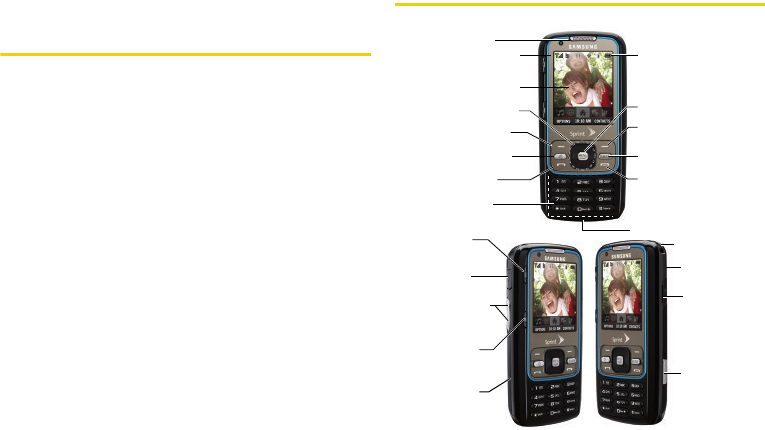
12. Softkey (right)
4. Navigation Key
5. Softkey (left)
15. Softkey (left)
Landscape Mode
18. Softkey (right)
Landscape Mode
3. Display Screen
6. Speaker Key
2. Signal Strength
Indicator
1. Earpiece
10. END/POWER Key
20. Cover Release
Latch
16. Headset Jack
21. Camera Lens
23. Camera
Button
7. TALK Key
11. BACK/Clear Key
14. Battery Strength
Indicator
13. MENU/OK
8. Keypad
9. Microphone
17. Volume Button
22. Charger/
Accessories
Jack
19. microSD Card
(internal)
Portrait Mode
Sprint M540.book Page 8 Wednesday, August 27, 2008 10:00 PM

Phone Basics
Section 2A. Phone Basics 9
Key Functions
1. Earpiece lets you hear the caller and automated
prompts.
2. Signal Strength Indicator represents the signal
strength by displaying bars. The more bars
displayed, the better the signal strength.
3. Display Screen displays all the information needed
to operate your phone, such as the call status, the
Contacts list, the date and time, and the signal and
battery strength.
4. Navigation Key scrolls through the phone’s menu
options.
5. Softkey (left) lets you select softkey actions or menu
items corresponding to the bottom left line on the
display screen while the phone is in portrait mode.
6. Speaker Key lets you enable/disable the
speakerphone mode.
7. TALK Key ( ) allows you to place or receive calls,
answer Call Waiting, use Three-Way Calling, or
activate Voice Dial.
8. Keypad lets you enter numbers, letters, and
characters, and navigate within menus. Press and
hold number keys for speed dialing.
9. Microphone allows other callers to hear you clearly
when you are speaking to them.
10. END/POWER Key ( ) lets you turn the phone on
or off, end a call, or return to standby mode. While
in the main menu, it returns the phone to standby
mode and cancels your input. When you receive
an incoming call, press to enter silent mode and
mute the ringer.
11. BACK/Clear Key deletes characters from the display
in text entry mode. When in a menu, pressing
returns you to the previous menu. This key
also allows you to return to the previous screen in
a data session.
12. Softkey (right) lets you select softkey actions or
menu items corresponding to the bottom right line
on the display screen while the phone is in Portrait
Mode.
13. MENU/OK lets you access the phone’s menus and
selects the highlighted choice when navigating
through a menu.
Sprint M540.book Page 9 Wednesday, August 27, 2008 10:00 PM
10 Section 2A. Phone Basics
14. Battery Strength Indicator represents the amount of
remaining battery charge currently available in
your phone. When all bars are displayed in the
battery icon, the phone’s battery is fully charged.
When no bars are displayed, the phone’s battery is
completely discharged or empty.
15. Softkey (left) Landscape Mode lets you select softkey
actions or menu items corresponding to the
bottom left line on the display screen while the
phone is in landscape mode.
16. Headset Jack allows you to plug in either a stereo
headset (included) or an optional headset for
convenient, hands-free conversations. CAUTION!
Inserting an accessory into the incorrect jack may
damage the phone.
17. Volume Button allows you to adjust the ringer
volume in standby mode or adjust the voice
volume during a call. The volume key can also be
used to scroll up or down to navigate through the
different menu options.
18. Softkey (right) Landscape Mode lets you select softkey
actions or menu items corresponding to the
bottom right line on the display screen while the
phone is in landscape mode.
19. microSD Card (internal) lets you use the included
microSD card to expand the memory of your
phone. To gain access to this slot, you must first
remove the battery cover. (See “Installing the
Battery” on page 18.)
20. Cover Release Latch lets you remove the battery
cover and expose both the internal battery
compartment and internal microSD card slot.
21. Camera Lens, as part of the built-in camera, lets you
take pictures and videos.
22. Charger/Accessories Jack allows you to connect a
compatible charging cable or USB data cable
(both included). CAUTION! Inserting an accessory
into the incorrect jack may damage the phone.
23. Camera Button lets you activate the camera and
video mode and take pictures and videos.
Sprint M540.book Page 10 Wednesday, August 27, 2008 10:00 PM
Phone Basics
Section 2A. Phone Basics 11
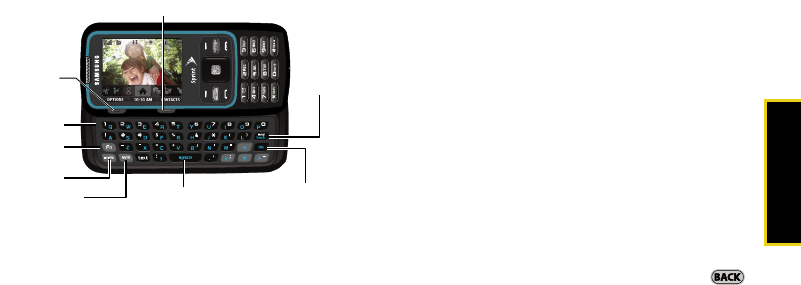
Landscape Phone Features
24. Softkey (right) Landscape Mode lets you select softkey
actions or menu items corresponding to the
bottom right line on the display screen while the
phone is in landscape mode.
25. Softkey (left) Landscape Mode lets you select softkey
actions or menu items corresponding to the
bottom left line on the display screen while the
phone is in landscape mode.
26. QWERTY keyboard provides an alphanumeric
character keyboard layout.
27. Fn Key (Function) key, toggles to access the white
numbers/symbols on the QWERTY keyboard.
28. Shift Key lets you toggle alphabet characters
between mixed case, uppercase and lowercase.
Character case remains as selected until the Shift
key is pressed again.
29. Symbol Key lets you access symbol characters.
30. Space Key lets you add spaces between words and
characters.
31. Enter/OK Key lets you perform the function
highlighted in the current menu. Press to enter
additional lines of text.
32. End/Back Key deletes characters from the display in
text entry mode. When in a menu, pressing
returns you to the previous menu. This key also
allows you to return to the previous screen in a
data session.
30. Space Key
32. End/Back
Key
31. Enter/
OK Key
24. Softkey (right)
28. Shift Key
27. Fn Key
25. Softkey
(left)
29. Symbol Key
26. QWERTY
Keyboard
Landscape Mode
Sprint M540.book Page 11 Wednesday, August 27, 2008 10:00 PM
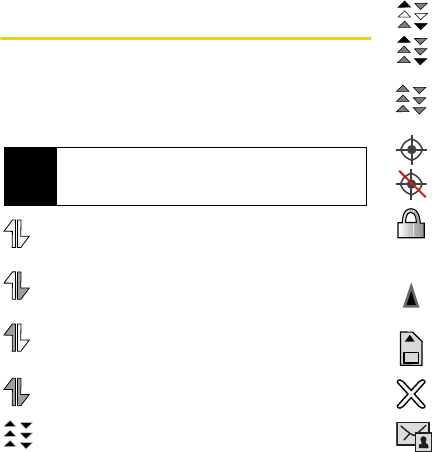
12 Section 2A. Phone Basics
Viewing the Display Screen
Your phone’s display screen provides information
about your phone’s status and options. This list
identifies the symbols you’ll see on your phone’s
display screen:
indicates data services status. (The icon is
animated while service is active.)
indicates your data connection is active and
data is being transmitted.
indicates your data connection is active and
data is being received.
indicates data connection is dormant (no data
is being sent or received).
indicates mobile broadband service is
available.
indicates mobile broadband service.
indicates that your mobile broadband
connection is active and communicating.
indicates mobile broadband service is
dormant.
indicates your phone’s location feature is on.
indicates your phone’s location feature is off.
indicates your phone is using SSL (Secure
Sockets Layer) protocol for client/server
communication.
indicates you are “roaming” off the Sprint
National Network.
indicates that your phone is using a microSD
memory card.
indicates you have missed an incoming call.
indicates you have a new Picture Mail
message.
Tip To view a list of your phone’s icons and descriptions,
from the main menu select Settings > Phone Info >
Icon Glossary.
Sprint M540.book Page 12 Wednesday, August 27, 2008 10:00 PM
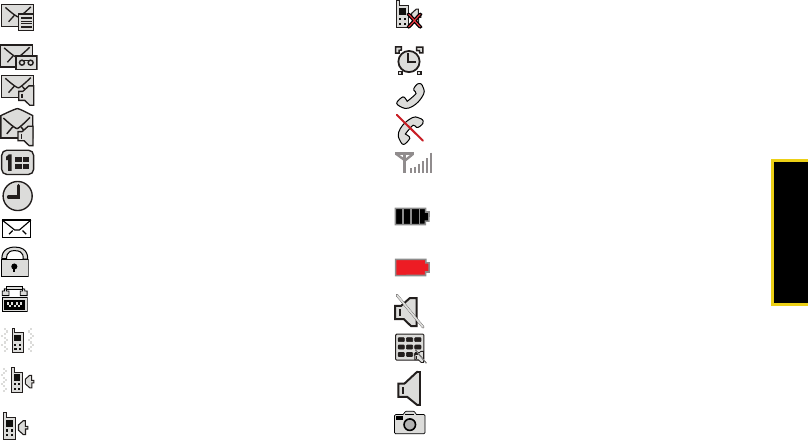
Phone Basics
Section 2A. Phone Basics 13
indicates you have a new unread Text
message.
indicates you have a new voicemail message.
indicates you have a new VoiceSMS message.
indicates recently read VoiceSMS message.
indicates you have an event scheduled.
indicates an active alarm event.
indicates you have a new text message.
indicates your message is locked.
indicates your phone is operating in TTY
mode.
indicates the ringer volume is set to vibrate.
indicates your phone has a ringer volume set
and the vibrate option is checked.
indicates the ringer is set at a level between
1 - 8 or that 1-Beep is selected.
indicates your ringer is turned off and the
vibrate option is not enabled (Silence Mode).
indicates that an alarm is set on your phone.
tells you a call is in progress.
means your phone cannot find a signal.
shows your current signal strength. (The more
lines you have, the stronger your signal.)
indicates battery charge level (icon shown is
full).
indicates battery charge level (icon shown is
completely discharged).
indicates the microphone is muted.
indicates the key tones have been muted.
indicates the speakerphone is enabled.
indicates that the camera is enabled.
Sprint M540.book Page 13 Wednesday, August 27, 2008 10:00 PM
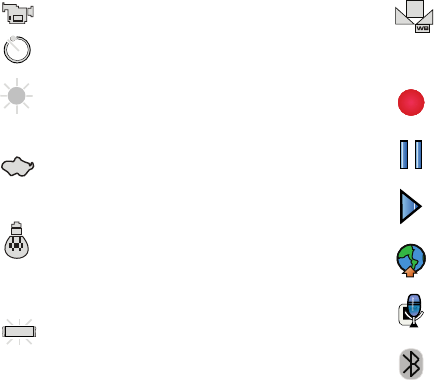
14 Section 2A. Phone Basics
indicates that the camcorder is enabled.
indicates that the self-timer function is
enabled.
indicates that the white balance has been set
to Sunny. This is used for taking pictures or
movies outdoors on bright sunny days.
indicates that the white balance has been set
to Cloudy. This is used for taking pictures or
movies outdoors under cloudy conditions.
indicates that the white balance has been set
to Tungsten. This is used for taking pictures or
movies indoors under normal lighting
conditions.
indicates that the white balance has been set
to Fluorescent. This is used for taking pictures
or movies indoors under fluorescent lighting
conditions.
indicates that the white balance has been set
to Manual. This is used for taking pictures
indoors or outdoors using your own custom
settings.
indicates that a video or voice memo is
currently being recorded.
indicates that a voice memo or video has
been paused.
indicates that a voice memo or video is
playing.
indicates that files have been uploaded to an
online album or folder.
indicates that voice captioning is enabled and
that audio is currently being recorded.
indicates that Bluetooth technology is active
and enabled.
Sprint M540.book Page 14 Wednesday, August 27, 2008 10:00 PM

Phone Basics
Section 2A. Phone Basics 15
indicates that Bluetooth device is connected.
indicates that Bluetooth Headset is connected
and visible.
indicates that Bluetooth technology is hidden.
Features of Your Phone
The Samsung Rant™ is lightweight, easy to use,
reliable, and it offers many features and service
options. This list previews some of those features and
provides page numbers where you can find out more:
䢇The easy-to-use Sprint One Click main screen brings
all your favorite features to your fingertips (page 44).
䢇Dual band capability allows you to make and receive
calls while on the Sprint National Network and to
roam on 1900 and 800 MHz digital networks where
Sprint has implemented roaming agreements
(page 74).
䢇Data services provides access to the wireless Internet
in digital mode (page 155).
䢇Sprint Mail (page 161), Text Messaging (page 148),
and SMS Voice Messaging (page 150) provide quick
and convenient messaging capabilities.
䢇Games, ringers, screen savers, and other
applications can be downloaded to make your
phone as unique as you are (page 164). Additional
charges may apply.
䢇The Contacts list can store a total of 600 entries, with
each entry containing a maximum of seven phone
numbers (page 82).
䢇The built-in Calendar offers several personal
information management features to help you
manage your busy lifestyle (page 91).
䢇Internal microSD card slot (page 108).
䢇Slide out QWERTY keyboard (page 39).
䢇Sprint Navigation, powered by the built-in GPS
hardware, gives you access to maps and directions
on the go (page 182).
䢇The Location feature works in connection with
available location-based services (page 58).
䢇T9 Text Input lets you quickly type messages with
one keypress per letter (see page 34).
Sprint M540.book Page 15 Wednesday, August 27, 2008 10:00 PM

16 Section 2A. Phone Basics
䢇Speed dial lets you dial phone numbers with one or
two keypresses (see page 32).
Turning Your Phone On and Off
Turning Your Phone On
䊳Press and hold for two seconds.
Once your phone is on, it may display “Searching for
Service.” When your phone finds a signal, it
automatically enters standby mode – the phone’s idle
state. At this point, you are ready to begin making and
receiving calls.
If your phone is unable to find a signal after a brief
period of searching, a PowerSave feature is
automatically activated. When a signal is found, your
phone automatically returns to standby mode.
In Power Save mode, your phone searches for a signal
periodically without your intervention. You can also
initiate a search for Sprint service by pressing any key
(when your phone is turned on).
Turning Your Phone Off
䊳Press and hold for two seconds until you see
the powering down animation on the display
screen.
Your screen remains blank while your phone is off
(unless the battery is charging).
Tip The Power Save feature conserves your battery
power when you are in an area where there is no
signal.
Sprint M540.book Page 16 Wednesday, August 27, 2008 10:00 PM

Phone Basics
Section 2A. Phone Basics 17
Using Your Phone’s Battery and
Charger
Sprint-approved or Samsung-approved batteries and
accessories can be found at Sprint Stores or through
Samsung; or call 1-866-343-1114 to order. They’re also
available at www.sprint.com.
Battery Capacity
Your phone is equipped with a Lithium Ion (Li-Ion)
battery. It allows you to recharge your battery before it is
fully drained. The battery provides up to 5.6 hours of
continuous digital talk time.
When the battery reaches 5% of its capacity, the battery
icon blinks. When there are approximately two minutes
of talk time left, the phone sounds an audible alert and
then turns off.
WARNING Use only Sprint-approved or Samsung-
approved batteries and chargers with your
phone. The failure to use a Sprint-approved or
Samsung-approved battery and charger may
increase the risk that your phone will overheat,
catch fire, or explode, resulting in serious
bodily injury, death, or property damage. Note Long backlight settings, searching for service, vibrate
mode, browser use, and other variables may reduce
the battery’s talk and standby times.
Tip Watch your phone’s battery level indicator and
charge the battery before it runs out of power.
Sprint M540.book Page 17 Wednesday, August 27, 2008 10:00 PM
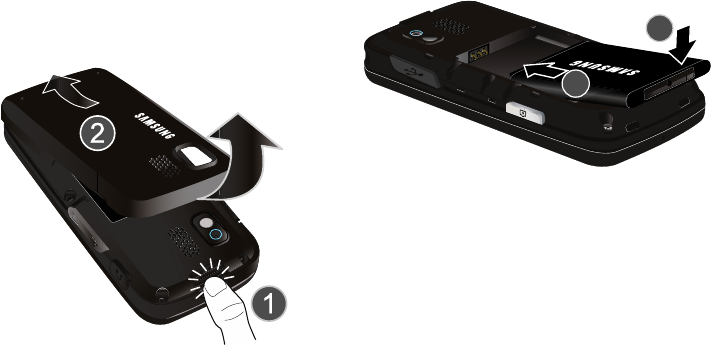
18 Section 2A. Phone Basics
Installing the Battery
1. Remove the battery cover (located on the back of
the phone).
2. Press the Cover Release Latch (1) and then
carefully lift the battery cover away from the
phone (2).
3. Slide the battery into the compartment so that the
tabs on the end align with the slots at the bottom of
the phone, making sure to line up the gold
contacts (3).
4. Gently press down on the battery until it snaps into
place (4).
5. Replace the cover by lining up the tabs and then
firmly pressing the cover down until it snaps into
place. Check that the battery is properly installed
before turning on the phone.
Sprint M540.book Page 18 Wednesday, August 27, 2008 10:00 PM
Phone Basics
Section 2A. Phone Basics 19
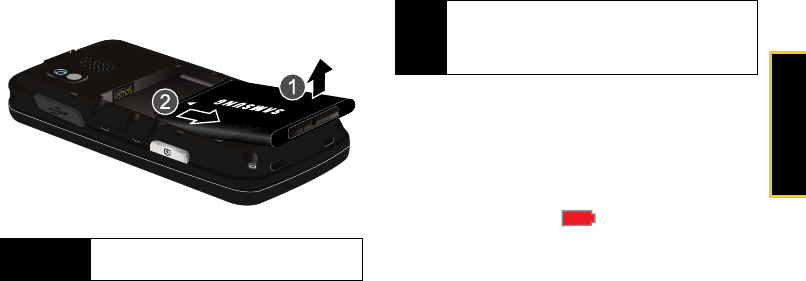
Removing the Battery
1. Follow step 1 from “Installing the Battery” on
page 18.
2. Grip the battery at the top end (1) and pull it up
and out (2).
Charging the Battery
Your phone’s Li-Ion battery is rechargeable and should
be charged as soon as possible so you can begin
using your phone.
Keeping track of your battery’s charge is important. If
your battery level becomes too low, your phone
automatically turns off, and you will lose any
information you were just working on. For a quick
check of your battery level, glance at the battery charge
indicator located in the upper-right corner of your
phone’s display screen. If the battery charge is getting
too low, the battery icon ( ) blinks and the phone
sounds a warning tone.
Always use a Sprint-approved or Samsung-approved
desktop charger, travel charger, or vehicle power
adapter to charge your battery.
WARNING Do not handle a damaged or leaking Li-Ion
battery as you can be burned.
Tip It is recommended that you completely charge your
battery first before using your phone. This guarantees
you begin using your phone with a fully charged
battery.
Sprint M540.book Page 19 Wednesday, August 27, 2008 10:00 PM
20 Section 2A. Phone Basics
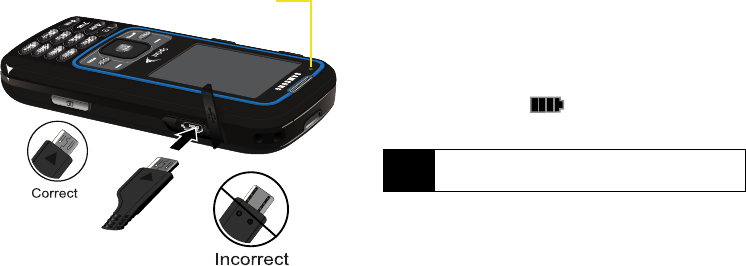
Using the Phone Charger
䊳Plug the flat end of the charger/accessories jack
into the phone’s charger/accessories jack and the
other end into an electrical outlet.
䡲A red indicator light means the battery is charging.
䡲A charging icon located in the top right corner of
the display screen lets you know the battery is
charging.
䡲A green indicator light means the battery is fully
charged.
With the Sprint-approved Li-Ion battery, you can
recharge the battery before it becomes completely run
down.
䢇The battery charge state (charged/charging) is
indicated on the phone’s display screen. Four bars
on the battery icon ( ) indicate a fully charged
battery.
Charge Indicator
Note It takes about three hours to fully recharge a
completely rundown (discharged) battery.
Sprint M540.book Page 20 Wednesday, August 27, 2008 10:00 PM
Phone Basics
Section 2A. Phone Basics 21
Navigating Through the Menus
The navigation key on your phone lets you scroll
through menus quickly and easily. The scroll bar at the
right of the menu keeps track of your position in the
menu at all times.
To navigate through a menu, press the navigation key
up or down. If you are in a first-level menu, such as
Settings, you may also navigate to the next or previous
first-level menu by pressing the navigation key right or
left.
For a diagram of your phone’s menu, please see “Your
Phone’s Menu” on page ii.
Selecting Menu Items
As you navigate through the menu using the navigation
key ( ), menu options are highlighted. Select any
option by highlighting it and pressing . If the option
is numbered, you can select it by pressing the
corresponding number on the phone’s keypad.
For example, to view your text messages:
1. While in the Sprint One Click main screen, select
and press to access the main menu.
2. Select Messages by highlighting it and
pressing .
3. Select Text Message by highlighting it and
pressing . (If you have any text messages, they
are displayed.)
4. Highlight a message and press to view the
message text.
For the purposes of this guide, the above steps
condense into:
䊳Select and press > Messages > Text
Message.
Note Your phone’s Sprint One Click main screen gives you
instant access to your favorite features. See
“Navigating the Main Screen” on page 44 for
complete details.
Sprint M540.book Page 21 Wednesday, August 27, 2008 10:00 PM
22 Section 2A. Phone Basics
Backing Up Within a Menu
To go to the previous menu:
䊳Press .
To return to standby mode:
䊳Press .
Displaying Your Phone Number
䊳Select and press > Settings > Phone Info >
Phone Number. (Your phone number and other
information about your phone and account will be
displayed.)
Making and Answering Calls
Making Calls
Placing a call from your wireless phone is as easy as
making a call from any landline phone. Enter the
number, press , and you’re on your way to clear
calls.
1. Make sure your phone is on.
2. Enter a phone number from standby mode. (If you
make a mistake while dialing, press to erase
the numbers.)
3. Press . (To make a call when you are roaming
and Call Guard is enabled, press and then
press . See “Using Call Guard” on page 76.)
4. Press when you are finished.
You can also place calls from your phone by speed
dialing numbers from your Contacts (page 32), using
Voice Dial (page 99), and using your History listings
(page 78).
Tip To redial your last outgoing call, press twice.
When making calls off the Sprint National Network,
always dial using 11 digits (1 + area code + phone
number).
Sprint M540.book Page 22 Wednesday, August 27, 2008 10:00 PM
Phone Basics
Section 2A. Phone Basics 23
Dialing Options
When you enter numbers in standby mode, you will
see a variety of dialing options displayed as softkeys on
the phone’s screen.
To send a message to the number, press Send Msg
(left softkey).
– or –
To initiate a dialing option, press Options (right softkey)
and choose one of the following options.
䢇Contact Details: Displays the details for a Contact if the
entered number matches a previously created entry.
䢇Save: Enter a seven-digit or ten-digit number (phone
number and area code) and press Options > Save to
save the phone number in your Contacts. (See
“Saving a Phone Number” on page 29.)
䢇Hard Pause: Enter digits and then use this feature to
enter a hard pause within a number string (the
phone waits for your input). To continue dialing, you
must press the key. (See “Dialing and Saving
Phone Numbers With Pauses” on page 30.)
䢇2sec Pause: Enter digits and then use this feature to
enter a 2 second delay within a number string (the
phone continues dialing after 2 seconds without any
additional keys being pressed). (See “Dialing and
Saving Phone Numbers With Pauses” on page 30.)
Tip To speed dial a phone number from standby mode,
press and hold the speed dial number. If the speed
dial number is two digits, enter the first digit, and then
press and hold the second digit. (For information on
setting up speed dial numbers, see “Assigning
Speed Dial Numbers” on page 87.) (This feature will
not work when you are roaming off the Sprint
National Network; when roaming you must dial using
eleven digits [1 + the area code + the seven-digit
phone number].)
Sprint M540.book Page 23 Wednesday, August 27, 2008 10:00 PM

24 Section 2A. Phone Basics
Answering Calls
1. Make sure your phone is on. (If your phone is off,
incoming calls go to voicemail.)
2. Press to answer an incoming call.
(Depending on your settings, you may also answer
incoming calls by pressing any number key. See
“Call Answer Mode” on page 65 for more
information.)
Your phone notifies you of incoming calls in the
following ways:
䢇The phone rings or vibrates.
䢇The backlight illuminates.
䢇The screen displays an incoming call message.
If the incoming call is from a number stored in your
Contacts, the entry’s name is displayed. The caller’s
phone number may also be displayed, if available.
If Call Answer is set to Talk Key (see “Call Answer Mode”
on page 65), the following options are also displayed.
To select an option, press the corresponding softkey.
䢇Silence (left softkey) to mute the onboard speaker and
temporarily silence the ringer.
䢇Ignore (right softkey) to send the call to your voicemail
box.
Note To quiet the ringer, press or , or press the
volume button.
Sprint M540.book Page 24 Wednesday, August 27, 2008 10:00 PM
Phone Basics
Section 2A. Phone Basics 25
Answering a Roam Call With Call Guard Enabled
Call Guard is an option that helps you manage your
roaming charges when making or receiving calls while
outside the Sprint National Network. Please see
“Roaming” on page 74 for more information about
roaming.
䊳Press Answer (left softkey) to answer the call. (See
“Using Call Guard” on page 76 for additional
information.)
Ending a Call
䊳Press .
Missed Call Notification
When an incoming call is not answered, the Missed
Call log is displayed on your screen.
To display the Missed Call entry from the notification screen:
䊳Select the entry from the Missed Alerts screen and
press . (To dial the phone number, press .)
To display a Missed Call entry from standby mode:
1. Select and press > Missed Alerts.
2. Select the entry you wish to view and press .
Note When your phone is off, calls go directly to voicemail.
Sprint M540.book Page 25 Wednesday, August 27, 2008 10:00 PM
26 Section 2A. Phone Basics
Calling Emergency Numbers
You can place calls to 911 (dial
), even if your phone is locked or your account is
restricted.
To exit Emergency mode:
1. Press to end a 911 call.
To deactivate the Emergency call in standby mode:
䊳Press until Emergency mode is exited.
Enhanced 911 (E911) Information
This phone features an embedded Global Positioning
System (GPS) chip necessary for utilizing E911
emergency location services where available.
When you place an emergency 911 call, the GPS
feature of your phone seeks information to calculate
your approximate location. Depending on several
variables, including availability and access to satellite
signals, it may take up to 30 seconds or more to
determine and report your approximate location.
Note When you place an emergency call, your phone
automatically enters Emergency mode.
Note When you are in Emergency mode, you can exit by
pressing then pressing .
Important Always report your location to the 911
operator when placing an emergency call.
Some designated emergency call takers,
known as Public Safety Answering Points
(PSAPs) may not be equipped to receive GPS
location information from your phone.
Sprint M540.book Page 26 Wednesday, August 27, 2008 10:00 PM

Phone Basics
Section 2A. Phone Basics 27
In-Call Options
Pressing Options (right softkey) during a call displays a
list of available in-call features. To select an option,
press the corresponding keypad number or select the
option and press . The following options may be
available through the Options menu:
䢇Save to add the new number to your Contacts list.
䢇3-Way Call allows you to talk to two different people at
the same time. (For more information, see “Making a
Three-Way Call” on page 153.)
䢇Contacts accesses the Contacts menu.
䢇Voice Memo allows you to record incoming audio from
your conversation. (For more information, see
“Managing Voice Memos” on page 105.)
䢇Phone Info displays the following menu options:
䡲Phone Number - your phone number
䡲Icon Glossary - a list of currently available icons
䡲Version - phone software version
䡲Advanced - additional technical information
䢇Key Mute/Unmute allows you to mute the keytones
from being heard by the caller.
䢇Messaging accesses the Messaging menu options.
䢇Recent History checks your call log for Recent calls.
You can also erase the logs from this menu.
䢇Tools accesses the Tools menu options.
䢇Whisper On/Off increases the microphone to its
maximum level. During a call turn on Whisper On
when speaking softly or when the caller cannot hear
your voice clearly. This mode is useful in meetings or
public places. Return the phone back to normal
operation by selecting Whisper Off.
Press Mute (left softkey) during a call to mute the
microphone. Press Unmute (left softkey) to unmute the
microphone.
䡲While muted, the word Mute blinks on the
upper-right portion of the main display screen.
Sprint M540.book Page 27 Wednesday, August 27, 2008 10:00 PM

28 Section 2A. Phone Basics
Using the Speakerphone
To use your phone handsfree or to share a call with
other people:
1. Place your phone in Speaker Mode by pressing
and holding the Speaker Key ( ) until
“Entering speaker mode” appears in the display.
2. To disable Speaker Mode, press and hold
until “Exit speaker mode” appears in the display.
End-of-Call Options
After you receive a call from or make a call to a phone
number that is not in your Contacts, the phone number
and the duration of the call are displayed. Press
Options (right softkey) > Save to add the new number to
your Contacts. (See “Saving a Phone Number” below.)
After you receive a call from or make a call to a phone
number that is already in your Contacts, the entry
name, phone number, and the duration of the call are
displayed.
To access the end-of-call options:
䊳Press Options (right softkey) to select either:
䡲New Group to add the current number to a new
group.
䡲Save to add the new number to your Contacts list.
䡲Delete to delete the entry from the Recent History
list.
䡲Delete All to delete all currently listed entries from
the Recent History list.
WARNING Because of higher volume levels, do not
place the phone near your ear during
speakerphone use.
Note The End-of-Call options are not displayed for calls
identified as No ID or Restricted.
Sprint M540.book Page 28 Wednesday, August 27, 2008 10:00 PM
Phone Basics
Section 2A. Phone Basics 29
Saving a Phone Number
The Contacts list can store a maximum of 600 contact
entries in total, with each contact entry containing a
maximum of seven phone numbers. Each entry’s
name can contain up to 64 characters. Your phone
automatically sorts the Contacts entries alphabetically.
(For more information, see “Contacts” on page 82.)
To save a number from standby mode:
1. Enter a phone number and press .
2. Select New Entry or Existing Entry and press .
3. Select a label (Mobile, Home, Work, Pager, Fax, or
Others) and press .
4. Use the keypad to enter the new contact name
and press . (See “Entering Text in Portrait
Mode” on page 33. or See “Entering Text in
Landscape Mode” on page 39.)
– or –
Search for an existing contact name and press
to save the new number.
5. Press Done (left softkey) to save the entry. You are
then notified if the number was successfully
added.
Finding a Phone Number
You can search Contacts entries for phone numbers
that contain a specific string of numbers.
1. Enter four or more of the last digits in standby
mode. (The more numbers you enter, the more
specific the search becomes.)
䡲Matching Contacts entries are displayed within an
onscreen list.
2. To display the Contacts entry that contains the
phone number you entered, select the entry and
press .
– or –
To dial the number, highlight the entry from the list
and press .
Note Information can also be entered while the phone is in
landscape mode (page 39).
Sprint M540.book Page 29 Wednesday, August 27, 2008 10:00 PM

30 Section 2A. Phone Basics
Dialing and Saving Phone Numbers With
Pauses
You can dial or save phone numbers with pauses for
use with automated systems, such as voicemail or
credit card billing numbers.
There are two types of pauses available on your phone:
䢇Hard Pause sends the next set of numbers when you
press . (This is indicated with a P within the
number sequence.)
䢇2sec Pause automatically sends the next set of
numbers after two seconds. (This is indicated with a
T within the number sequence.)
To dial or save phone numbers with pauses:
1. Enter the phone number.
2. Press Options (right softkey) > Hard Pause or 2sec
Pause.
3. Enter additional numbers.
4. Press to dial the number.
– or –
Press Options (right softkey) > Save to save the
number in your Contacts.
Tip Creating a saved series of numbers with pauses is
very useful when entering data into an automated
system. For example, if accessing your bank
information requires dialing a toll-free number,
followed by an account number and then your PIN,
you could place a two-second pause after each
group of numbers to ensure that they would be read
correctly.
Note You can have multiple pauses in a phone number
and combine two-second and hard pauses.
Note When dialing a number with a hard pause, press
to send the next set of numbers.
Sprint M540.book Page 30 Wednesday, August 27, 2008 10:00 PM

Phone Basics
Section 2A. Phone Basics 31
Plus (+) Code Dialing
When placing international calls, you can use Plus
Code Dialing to automatically enter the international
access code for your location (for example, 011 for
international calls placed from the United States).
To make a call using Plus Code Dialing:
1. Press and hold until a “+” appears on your
phone display.
2. Dial the country code and phone number you’re
calling and press . (The access code for
international dialing will automatically be dialed,
followed by the country code and phone number.)
Using Abbreviated Dialing
Abbreviated Dialing is similar to speed dialing. You can
use either of the following abbreviated dialing features.
䢇Contacts Match – Retrieve any number saved in your
Contacts by entering only the last four to six digits of
the number. (See “Setting Abbreviated Dialing” on
page 66.)
䢇Prepend/Abbreviated Dialing – Prepend the first five or
six digits (for example, the area code and prefix) to
any four or five digits you enter. Press to dial the
resulting number. (See “Setting Abbreviated Dialing”
on page 66 to register a prepend number and
activate the Prepend feature.)
To place a call using Contacts Match Abbreviated Dialing:
1. Enter the last four digits of a Contacts entry’s
phone number.
2. Press to call the displayed number.
䡲If there is more than one matched number in your
Contacts, the Abbrev. Dial list is displayed. Select
the name you want to call from the list, and then
press to place a call.
Sprint M540.book Page 31 Wednesday, August 27, 2008 10:00 PM

32 Section 2A. Phone Basics
To place a call using Prepend Abbreviated Dialing:
1. Enter the last four digits of the number.
2. Select the Abbrev. Dial entry from the screen and
press .
Dialing From the Contacts List
1. Select and press > Contacts.
– or –
Press Contacts (right softkey) from the main menu.
2. Select the entry you want to call and press to
dial the entry’s default phone number.
– or –
To dial another number from the same entry, select
the name, press , and then select a number
and press .
Using Speed Dialing
You can store up to 98 numbers in your phone’s speed
dial memory to make contacting friends and family as
easy as pressing a button or two. With this feature, you
can dial speed dial entries using one keypress for
locations 2–9 or two keypresses for locations 10–99.
To use One-Touch Dialing for speed dial locations 2–9:
䊳Press and hold the appropriate key for
approximately two seconds. The display confirms
that the number has been dialed when it shows
the calling animation.
To use Two-Touch Dialing for speed dial locations 10–99:
1. Press the first digit.
2. Press and hold the second digit for approximately
two seconds. The display confirms that the number
has been dialed when it shows the calling
animation.
Note Speed dialing is not available when you are roaming;
when you are roaming off the Sprint National
Network, you must always dial using eleven digits
(1 + area code + number).
Sprint M540.book Page 32 Wednesday, August 27, 2008 10:00 PM

Phone Basics
Section 2A. Phone Basics 33
Entering Text in Portrait Mode
Your phone provides convenient ways to enter letters,
numbers, and symbols whenever you are prompted to
enter text (for example, when adding a Contacts entry
or when using Sprint Mail and Text Messaging).
In this section we’ll cover the steps necessary to enter
text while the phone is in portrait mode where the
keypad is the primary method of both text and
character entry.
Selecting a Text Input Mode
䊳From a screen where you can enter text, press
Options (right softkey) > Text Mode to change the text
input mode.
䡲T9(English) to enter text using a predictive text
system that reduces the number of keypresses
required while entering a word. (See page 34.)
䡲Alpha to cycle through the alpha characters
associated with the letters on the keypad. (See
page 35.)
䡲Symbols to enter symbols. (See page 36.)
䡲Number to enter numbers by pressing the
numbers on the keypad. (See page 36.)
䡲Emoticons to enter “emoticons.” (see page 36.)
䡲Text Options to configure these options:
Auto-Capital, Used words, Display Cand, Prediction Start,
Dual Language, Auto-Space, and Auto Word Insertion
(see page 37).
Selecting a Text Message Option
1. From a messaging screen where you can enter
text, press Options (right softkey).
2. Select one of the following options:
䡲Add Preset Message to enter preprogrammed
messages. (See page 36.)
䡲Add Signature to set up a signature that will be
appended to the end of all text messages you
send. (See page 60.)
䡲Add/Change Recipients to return to the Send to
page and either add or change any previously
chosen recipients.
Tip When entering text, press the * (Shift) key to change
letter capitalization (abc > Abc > ABC).
Sprint M540.book Page 33 Wednesday, August 27, 2008 10:00 PM
34 Section 2A. Phone Basics
䡲Mark as Urgent to set a priority level of Urgent to the
outgoing message. This notifies any recipient of
the urgent read status for the outgoing message.
䡲Set Callback # to set the callback number seen by
text message recipients.
䡲Save as Draft to store the current message as a
draft for later modification and delivery.
For complete information on text messaging, see “Text
Messaging (SMS)” on page 148.
Entering Text Using T9 Text Mode
T9 Text Mode lets you enter text by pressing keys just
once per letter.
T9 Text Input uses an intuitive word database to
analyze the letters you enter and create a suitable
word. (The word may change as you type.)
1. From a screen where you can enter text, press
Options (right softkey) > Text Mode to change the text
input mode.
2. Select the T9(English) text input mode.
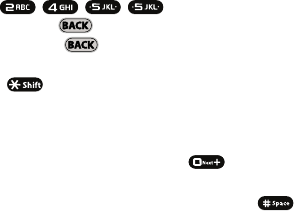
3. Press the corresponding keys once per letter to
enter a word. (For example, to enter the word “Bill,”
press ) (If you make a
mistake, press to erase a single character.
Press and hold to erase an entire word.)
䡲To get the uppercase B in the above example,
press until the capitalization indicator
displays T9WORD. This keeps the word with only
an initial uppercase.
䡲If the word you want is not displayed after you
have entered all the letters, press to display
additional word selections.
䡲To accept a word and insert a space, press .
Sprint M540.book Page 34 Wednesday, August 27, 2008 10:00 PM

Phone Basics
Section 2A. Phone Basics 35
Adding a Word to the T9 Database
If a word you want to enter is not displayed as an
option when you are using T9 Text Input, add it to the
database by selecting the Alpha mode.
1. Select the Alpha text input mode. (See “Selecting a
Text Input Mode” on page 33.)
2. Enter the word using Alpha Mode. (See “Entering
Text Using Alpha Mode” on page 35.) The word
will appear as an option the next time you scroll
through options during T9 Text Input.
For more information about T9 Text Input, visit the
Nuance Web site at www.nuance.com/T9/textinput/.
Entering Text Using Alpha Mode
1. Select the Alpha mode. (See “Selecting a Text Input
Mode” on page 33.)
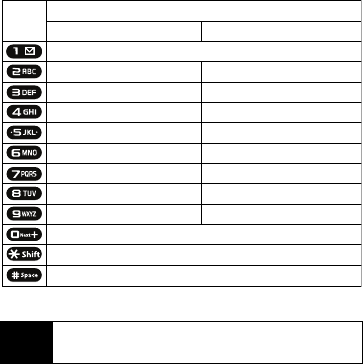
2. Press the corresponding keys repeatedly until the
correct letter appears. (For example, to enter the
word “Bill,” press twice, three times,
three times, and three times again.)
(If you make a mistake, press to erase a single
character. Press and hold to erase an entire
word.)
By default, the first letter of an entry is capitalized and
the following letters are lowercased. After a character is
entered, the cursor automatically advances to the next
space after two seconds or when you enter a character
on a different key. Characters scroll in the following
order:
Sprint M540.book Page 35 Wednesday, August 27, 2008 10:00 PM
36 Section 2A. Phone Basics
Entering Numbers, Symbols, Emoticons,
and Preset Messages
To enter numbers:
䊳Select the Number mode and press the appropriate
key. (See “Selecting a Text Input Mode” on
page 33.)
To enter symbols:
䊳Select the Symbols mode. (See “Selecting a Text
Input Mode” on page 33.) To enter a symbol, press
the appropriate key indicated on the display.
To enter “emoticons” (smileys):
䊳Select the Emoticons mode and press the
appropriate key. (See “Selecting a Text Input
Mode” on page 33.)
Note When selecting Dual Language, Spanish characters
are also added to those listed above.
English Sequence
Upper Case
Key
. , @ 1 ? !
*
# /
A B C 2
D E F 3
G H I 4
J K L 5
M N O 6
P Q R S 7
T U V 8
W X Y Z 9
a b c 2
d e f 3
g h i 4
j k l 5
m n o 6
p q r s 7
t u v 8
w x y z 9
0
One-character- shifted
Space
Lower Case
Sprint M540.book Page 36 Wednesday, August 27, 2008 10:00 PM

Phone Basics
Section 2A. Phone Basics 37
To enter preset messages:
1. From a screen where you can enter text, press
Options (right softkey) > Add Preset Message. (See
“Selecting a Text Message Option” on page 33.)
2. Select a message and press .
Setting Text Options
The Text Options menu allows you to specify more
automated features during the text entry process.
These options can help streamline the text entry
process by correcting for capitalization, spelling,
spacing, and completing the most commonly entered
words for you.
To specify text options:
1. When you display a screen where you can enter
text, press Options (right softkey) > Text Mode > Text
Options and then use your navigation key to scroll
down the list and activate the desired text entry
options:
䡲Auto-Capital allows you to turn on or off the
capitalization of the next character after a full stop
punctuation is followed by a space.
䡲Used words allows you to use the entire static
database (included) plus learn and promote new
or frequently used words.
䡲Display Cand allows the phone to display predicted
words, either one at a time or as a list.
䡲Prediction Start allows you to configure the phone
to display possible word candidates after a preset
number of characters have been entered. You
can choose the feature to begin after the 2nd, 3rd,
4th, or 5th letters.
䡲Dual Language allows you to select word
candidates to display in English only (None) or in
Spanish (Spanish).
Note Preset messages make composing text messages
easier by allowing you to enter quick messages,
such as “Meet me at,” “Let’s get lunch,” or a
customized message of your own. (For more
information on preset messages, please see
“Managing Preset Messages” on page 60.)
Sprint M540.book Page 37 Wednesday, August 27, 2008 10:00 PM

38 Section 2A. Phone Basics
䡲Auto-Space allows you to turn on or off the ability
to insert a space automatically after a word is
selected from the candidate list.
䡲Auto Word Insertion allows you to turn on or off the
ability to insert predictive words into the text.
2. When you have completed making your changes
to these options, press or press Close (right
softkey) to go back to the previous screen.
Entering Characters In Dual Language
By enabling the Dual Language text option, you can
use the keys for both English and Spanish text entry. If
the Display Cand and Prediction Start text options are
enabled, the available word choices presented are from
both language sets (English/Spanish).
To enter characters in dual language mode:
1. When you display a screen where you can enter
text, press Options (right softkey) > Text Mode > Text
Options > Dual Language.
2. Select Spanish and press . (See “Setting Text
Options” on page 37.)
To disable dual language mode:
1. When you display a screen where you can enter
text, press the Options (right softkey) > Text Mode >
Text Options > Dual Language.
2. Select None and press .
Note You can also access Text Entry options from the
Settings menu. Press Menu > Settings > Text Entry.
Sprint M540.book Page 38 Wednesday, August 27, 2008 10:00 PM
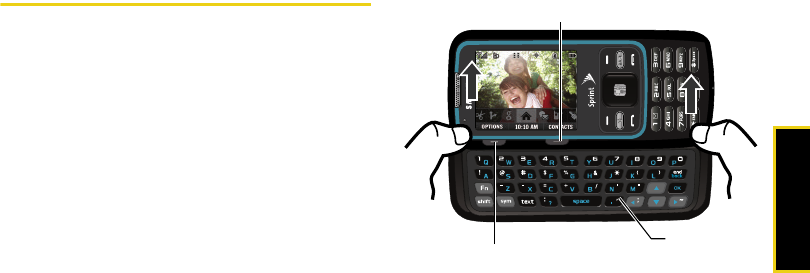
Phone Basics
Section 2A. Phone Basics 39
Entering Text in Landscape Mode
Accessing the QWERTY Keyboard
The Samsung Rant™ has a built-in, keyboard-style
keypad, referred to as a QWERTY keyboard. The
keyboard is located beneath the display screen and is
accessed by sliding it open. This orients the phone's
display to landscape (widescreen) mode.
Using the QWERTY keyboard, you can type letters,
numbers, punctuation, and other special characters
into text entry fields or other applications simpler and
faster than using the telephone keypad.
To open the phone and access the keyboard:
1. Rotate the phone 90 degrees counter-clockwise.
2. Slide the top section of the phone up to open, as
shown in the illustration below. When you slide the
phone open, the display rotates from a vertical
viewing mode (portrait) to a horizontal viewing
mode (landscape).
Softkey (right)
Softkey (left)
QWERTY
Keyboard
Sprint M540.book Page 39 Wednesday, August 27, 2008 10:00 PM
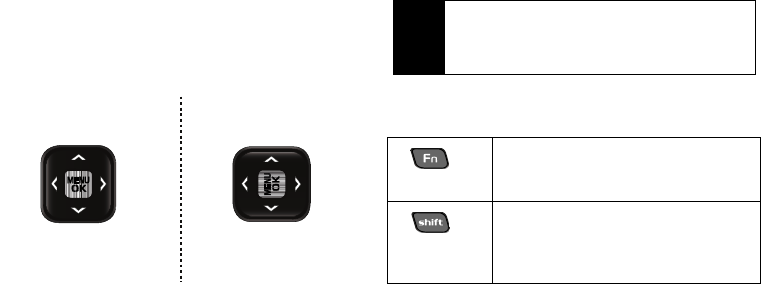
40 Section 2A. Phone Basics
Navigation and Options in Landscape
Mode
Just as the screen orientation is changed, so is the
functionality of both the softkeys and the navigation key.
The left and right softkeys above the keypad are
deactivated and their functionality is transferred to the
two keys located below the landscape screen (shown
adjacent).
The Up/Down/Left/Right options of the navigation key
are also adjusted when the phone changes from
portrait to landscape modes.
Entering Text Using the QWERTY
Keyboard
In this section we’ll cover the steps necessary to enter
text using the QWERTY keyboard. Using your phone's
QWERTY keyboard is just like using any standard
computer keyboard.
The following keys perform special functions when
entering text:
Up
Left Right
Down
Up
Left Right
Down
Tip Selecting text input modes and options in landscape
mode is the same as in portrait mode (page 33).
From any text entry screen, press Options
(right softkey) and select from the available options.
Caps: Allows you to use characters
displayed at the top of the QWERTY
keys. Examples: $, @, #, !
Shift: Converts the alphabetic
character into uppercase. Changes
the text input mode to Upper/Lower
case mode.
Sprint M540.book Page 40 Wednesday, August 27, 2008 10:00 PM
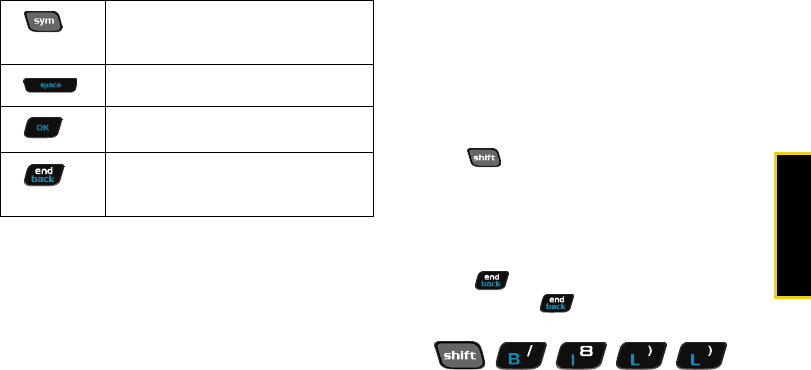
Phone Basics
Section 2A. Phone Basics 41
䊳From a text entry screen, use the keyboard to enter
different character types. Select one of the
following character types:
䡲Letters to enter the alphabetic characters
associated with each key. (See page 41.)
䡲Numbers to enter numbers by pressing the
numbers on the keyboard. (See page 42.)
䡲Symbols to enter symbols and “emoticons.” (See
page 42.)
䡲My Text to enter preprogrammed messages.
(See page 42.)
The keyboard provides dual-use keys labeled with
alphabetic characters on the lower half and numbers
and symbols on the upper half. Press the key
corresponding to the character you want to enter.
Entering Characters
Entering Uppercase and Lowercase Letters
1. Press to make the next character uppercase.
Characters revert back to lowercase after the next
character is typed.
2. Press the corresponding text keys.
䡲For example, to enter the word “Bill,” type the
keypad sequence below. If you make a mistake,
press to erase a single character.
䡲Press and hold to erase an entire word.
Sym: Launches the Symbols page.
Choose from an extensive list of
symbols and other character sets.
Space: Inserts an empty space.
OK/Enter: Moves the insertion point to
the next line in a message.
Back: Deletes the previous character,
similar to the backspace key on a
computer keyboard.
B i l l
Sprint M540.book Page 41 Wednesday, August 27, 2008 10:00 PM
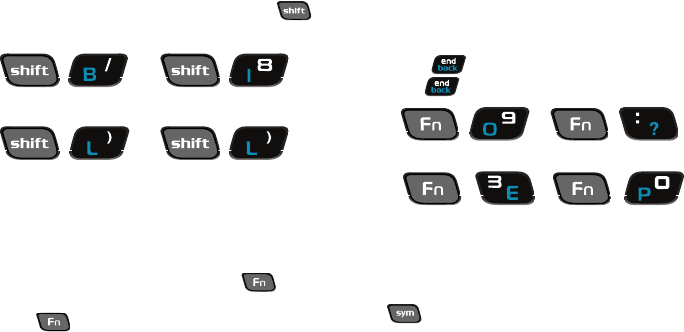
42 Section 2A. Phone Basics
䡲To enter all uppercase characters, press
before each letter.
Entering Numbers
The keyboard can be used to enter numbers, letters,
and symbols. Although these keys default to text
(letters), numbers can be input by using in
conjunction with the correct number key.
1. Press to input the character on the top row of
the next key pressed.
2. Press the corresponding keys. (For example, to
enter “9:30,” you would use the keyboard
sequence shown below. If you make a mistake,
press to erase a single character. Press and
hold to erase an entire word.)
Entering Symbols and Preset Messages
Symbols can be entered from the keyboard by using
the key to access the Symbols page and then
pressing the number key corresponding to an
associated symbol.
BILL
9:30
Sprint M540.book Page 42 Wednesday, August 27, 2008 10:00 PM
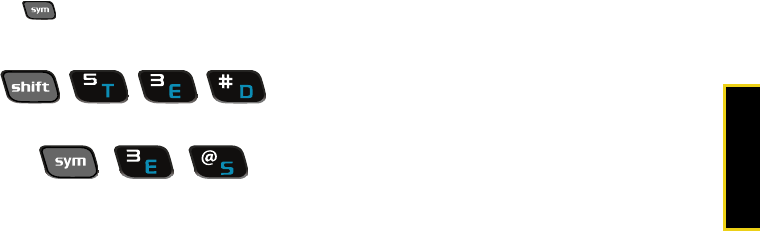
Phone Basics
Section 2A. Phone Basics 43
To enter symbols:
1. Position the cursor where you want the symbol to
appear within your message.
2. Press and press the number key
corresponding to the desired symbol to highlight a
symbol and then insert it.
To enter preset messages:
䊳From a screen where you can enter text, press
Options (right softkey) > Add Preset Message. (See
“Selecting a Text Message Option” on page 33.)
Ted’s
Sprint M540.book Page 43 Wednesday, August 27, 2008 10:00 PM

44 Section 2B. Navigating the Main Screen
Section 2B
Navigating the Main Screen
⽧Getting to Know Sprint One Click (page 44)
⽧Personalizing the Carousel (page 47)
⽧Personalizing the Home Screen (page 49)
The easy-to-use Sprint One Click main screen gives you instant
access to all your favorite features. This section explains
what Sprint One Click does, how to navigate within the
main screen, and how to personalize your main screen
so you get the most out of your phone.
Getting to Know Sprint One Click
Sprint One Click brings all your favorite features to your
fingertips. Instead of navigating through the levels of a
traditional phone menu, this design puts the things you
need the most – features like favorite contacts, text
messaging, Internet access, and GPS navigation – right
up front. Not only can you access what you need right
away, you get to choose what and where it all goes.
Using the Sprint One Click main screen is easy once
you’ve learned a few basics.
Sprint M540.book Page 44 Wednesday, August 27, 2008 10:00 PM
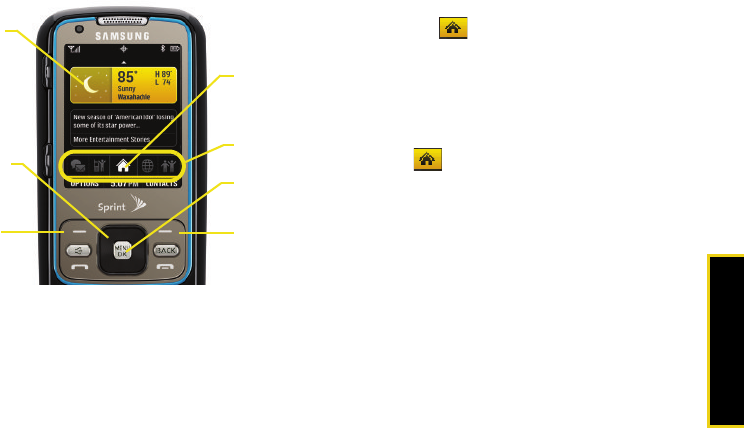
Main Screen Navigation
Section 2B. Navigating the Main Screen 45
The Sprint One Click Main Screen
The illustration above shows the basic layout of your
phone’s main screen, also known as the standby
screen. The call outs highlight what you’ll need to know
to get started with Sprint One Click.
䢇Carousel – The carousel is the bottom row of tiles, or
icons, on your main screen. Pressing the navigation
key right or left moves the carousel. The tile in the
center is the menu that’s displayed. In the illustration,
the Home tile ( ) is in the center, so the Home
screen is displayed.
䢇Tiles – The tiles are the individual icons on the
carousel. Each tile displays a specific menu, such as
Messaging, Internet, Call Log, and Favorite Contacts.
The carousel can hold up to 15 tiles, which you can
add, remove, and rearrange to suit your needs. The
Home tile ( ) provides access to the phone’s full
menu, and it is the only one that cannot be moved or
removed.
䢇Bubbles – Bubbles are at-a-glance information items
that may be displayed when the Home screen is
displayed, such as in the illustration. Your Home
screen can display up to eight bubbles.
Bubbles
Navigation
Key
Left
Softkey
Tiles
Carousel
Menu/OK
Key
Right
Softkey
Sprint M540.book Page 45 Wednesday, August 27, 2008 10:00 PM
46 Section 2B. Navigating the Main Screen
䢇Function Keys – The keys you’ll use to navigate
through the main screen are:
䡲Navigation key: Press right or left to move the
carousel to select tiles. Selected tiles occupy the
center position. Press the navigation key up or
down to highlight bubbles (Home screen only) or
menu items.
䡲Menu/OK key ( ): Press to select highlighted
menu items. From the Home ( ) screen, press
to display the phone’s full menu. (When in
landscape mode, the Enter/OK key performs these
functions.)
䡲Softkeys: Press the left or right softkey to perform
the action or access the menu indicated by the
text directly above it on the display. In the
illustration, pressing the left softkey displays
Options, and pressing the right softkey displays
Contacts.
䡲End/Power key ( ): Press from any menu or tile
to return to the Home ( ) screen.
Take the Tutorial
Your phone has a built-in menu of tutorials to teach
you all you need to know about Sprint One Click.
1. Select and press Options (left softkey) >
Tutorial.
– or –
Select (Personalize My Phone) > Tutorial.
2. Highlight a topic and press to display the
tutorial.
䡲Topics include: Getting Started, Changing the
Carousel, Adding a Tile, Removing a Tile, Changing
the Home Screen, Adding a Bubble, and Removing a
Bubble.
Tip To see a full menu of tutorials when viewing another
tutorial, press Index (left softkey).
Sprint M540.book Page 46 Wednesday, August 27, 2008 10:00 PM
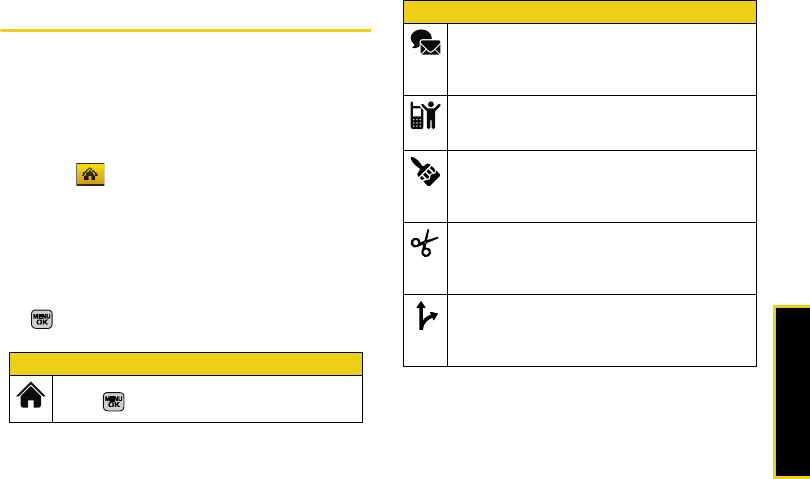
Main Screen Navigation
Section 2B. Navigating the Main Screen 47
Personalizing the Carousel
Now that you know what the carousel is, it’s time to
make it work for you by adding, removing, or
rearranging tiles to match how you want to use
your phone.
Adding a Tile to the Carousel
1. Select and press Options (left softkey) >
Personalize Carousel.
2. Press Add Tile (left softkey), select a tile category
(All, Featured, Communication, Entertainment, or
Favorites), and then highlight a tile (see table on
page 47).
3. To add the tile, press ADD (left softkey) or press
. (To view a preview, press PREVIEW [right
softkey].)
Sprint One Click Tiles
Home – View Home screen and bubbles.
Press to access the phone’s full menu.
Messaging – Access Voicemail, Send Message,
Text Message, Picture Mail, and Email. See
“Sprint Service Features: The Basics” on
page 144.
My Account – Access links to Account Details
Web page, Hear Minutes, and Hear Balance.
See “Exploring the Web” on page 167.
Personalize My Phone – Access Change Screen
Saver, Change Ringer, Personalize Home
Screen, Personalize Carousel, and Tutorial. See
“Personalizing Your Phone” on page 51.
Shortcuts – Add and access up to five shortcuts
from Sprint TV, Send Text, Restrict and Lock, and
other Menu Items. See “Phone Setup Options”
on page 64.
Sprint Navigation – Access Sprint Navigation,
including Drive To, Directory, Maps & Traffic, and
Tools/Extras. See “GPS Navigation” on
page 182.
Sprint One Click Tiles
Sprint M540.book Page 47 Wednesday, August 27, 2008 10:00 PM
48 Section 2B. Navigating the Main Screen
Removing a Tile From the Carousel
1. Select and press Options (left softkey) >
Personalize Carousel.
2. Press the navigation key right or left to select a tile,
and then highlight Remove Tile and press .
Rearranging Tiles on the Carousel
1. Select and press Options (left softkey) >
Personalize Carousel.
2. Press the navigation key right or left to select a tile,
and then highlight Move Tile and press .
3. Press the navigation key right or left to select a
location, and then press INSERT (left softkey) or
press to place the tile.
Replacing Tiles on the Carousel
If your carousel is full or if you just want to swap out
one tile for another, you can replace an existing tile with
another.
1. Select and press Options (left softkey) >
Personalize Carousel.
2. Press the navigation key right or left to select a tile,
scroll down the options list, highlight Replace Tile
and press .
Google™ – Access Web features such as Google
search, online Maps, Gmail™, and YouTube™.
See “Launching Google via the Carousel” on
page 167.
Internet – Access data services, including the
Sprint home page, Favorites, Recent Pages, the
Enter Web Address menu, and Google search.
See “Launching a Data Connection” on
page 157.
Shortcut From the main screen, select a tile and press
Options (left softkey) > Remove Tile.
Remember that you cannot remove, move, or
replace the Home tile.
Sprint One Click Tiles
Shortcut From the main screen, select a tile, press
Options (left softkey) > Move Tile, and then
complete step 3.
Sprint M540.book Page 48 Wednesday, August 27, 2008 10:00 PM
Main Screen Navigation
Section 2B. Navigating the Main Screen 49
3. Select a tile category and then highlight a tile.
4. To replace the previous tile, press REPLACE (left
softkey) or press to place the tile.
Editing Tiles
Certain tiles, such as Shortcuts, contain editable
content. You can use the Personalize Carousel menu to
edit these tiles.
1. Select and press Options (left softkey) >
Personalize Carousel.
2. Press the navigation key right or left to select a tile,
scroll down the options list, highlight Edit Tile and
press .
3. Use your navigation key and function keys to edit
the tile.
Resetting the Carousel
To reset the carousel to the original default settings:
1. Select and press Options (left softkey) >
Reset Carousel.
2. Highlight Yes and press .
Personalizing the Home Screen
Use your Home screen (the screen that is displayed
when the Home icon is selected) to provide at-a-
glance information and updates through customizable
bubbles. You can add up to eight bubbles to your
Home screen.
To see more information from a bubble, press the
navigation key up or down to highlight the bubble and
then press .
Adding a Bubble to the Home Screen
1. Select and press Options (left softkey) >
Personalize Home Screen.
Shortcut From the main screen, select a tile, press
Options (left softkey) > Replace Tile, and then
complete steps 3 and 4.
Shortcut From the main screen, select a tile, press
Options (left softkey) > Edit Tile, and then
complete step 3.
Sprint M540.book Page 49 Wednesday, August 27, 2008 10:00 PM
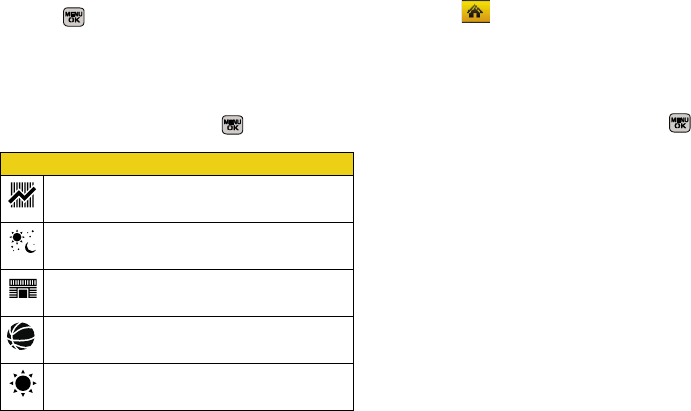
50 Section 2B. Navigating the Main Screen
2. Press ADD (left softkey) and then highlight a bubble
(see table on page 47).
3. To add the bubble, press ADD (left softkey) or
press . (To view a preview, press PREVIEW
[right softkey].)
4. If prompted, follow the instructions to personalize
your bubble (for example, by selecting an
astrological sign for the Horoscope bubble).
5. When you are finished, press .
Removing a Bubble From the Home
Screen
1. Select and press Options (left softkey) >
Personalize Home Screen.
2. Press the navigation key up or down to highlight a
bubble.
3. Press the navigation key left or right to select the
Remove Bubble option and then press .
Sprint One Click – Home Screen Bubbles
Finance – Track your favorite stocks.
Horoscope – View your daily horoscope.
News – Instantly access breaking news and top
stories.
Sports News – Get breaking sports news.
Weather – Check out the current forecast in
your city.
Sprint M540.book Page 50 Wednesday, August 27, 2008 10:00 PM
Settings
Section 2C. Settings 51
Section 2C
Settings
⽧Personalizing Your Phone (page 51)
⽧Sound Settings (page 52)
⽧Display Settings (page 56)
⽧Location Settings (page 58)
⽧Messaging Settings (page 58)
⽧Airplane Mode (page 62)
⽧TTY Use With Sprint Service (page 63)
⽧Phone Setup Options (page 64)
You can customize your phone to sound, look, and operate just
the way you want it to. This section describes how to
change your phone’s settings to best suit your needs.
Take a few moments to review these options and to
adjust or add settings that are right for you.
Personalizing Your Phone
Your phone can be personalized via the onscreen
carousel.
To change the Screen Saver:
1. Select and press > Change Screen Saver.
2. Select Preset Images, My Stuff, or My Albums and
press .
3. Select an image and press to view it. (Once an
image is displayed, use your navigation key to
scroll through and view other available images.)
4. Press Assign (left softkey) to assign an image.
To change the Ringer:
1. Select and press > Change Ringer.
2. Follow the onscreen instructions. See “Sound
Settings” on page 52.
Sprint M540.book Page 51 Wednesday, August 27, 2008 10:00 PM
52 Section 2C. Settings
Sound Settings
Ringer Types
Ringer types help you identify incoming calls and
messages. You can assign ringer types to individual
Contacts entries, types of calls, and types of messages.
䢇Downloaded Ringers can be downloaded right to your
phone.
䢇Preprogrammed Ringers include a variety of standard
ringer types and familiar music.
䢇Vibrating Ringer alerts you to calls or messages
without disturbing others.
Selecting Ringer Types for Voice Calls
Your phone provides a variety of ringer options that
allow you to customize your ring and volume settings.
These options allow you to identify incoming calls by
the ring.
1. Select and press > Settings > Sounds >
Ringer Type > Incoming Calls.
2. Select With Caller ID or Without Caller ID. (A list of
ringer type categories will be displayed.)
3. Select a category, and then use your navigation
key to scroll through the available ringers. A
sample ringer will sound as you highlight each
option.
4. Press to assign a ringer.
Getting New Ringers
A wide variety of new ringers is available from the
Sprint Digital Lounge, and you can access them right
from your phone. (Additional charges may apply, but
some are free.)
1. Select and press > My Stuff > Ringers >
Get New Ringers.
2. Follow the system prompts to purchase and
download ringers.
Sprint M540.book Page 52 Wednesday, August 27, 2008 10:00 PM
Settings
Section 2C. Settings 53
Selecting Ringer Types for Messages
1. Select and press > Settings > Sounds >
Ringer Type > Messages.
2. Select Voicemail, Text Message, or Picture Mail. (A list
of ringer type categories will be displayed.)
3. Select a category, and then use your navigation
key to scroll through the available ringers. A
sample ringer will sound as you highlight each
option.
4. Press to assign a ringer.
Selecting Ringer Types for Scheduled Events
1. Select and press > Settings > Sounds >
Ringer Type > Schedule.
2. Select a category, and then use your navigation
key ( ) to scroll through the available ringers. A
sample ringer will sound as you highlight each
option.
3. Press to assign a ringer.
Selecting Ringer Types for Roaming
1. Select and press > Settings > Sounds >
Ringer Type > Roam Ringer.
2. Select Normal or Distinctive and press .
Selecting a Keytone
Your phone offers a number of options for selecting the
audible tones accompanying a keypress.
䢇Tone Type to select the sound of a keypress.
䢇Tone Volume to select a keypress volume level.
䢇Tone Length to select a key tone length. (Longer tone
lengths may be better for tone recognition when
dialing voicemail or other automated systems.)
To select a Tone Type:
1. Select and press > Settings > Sounds >
Key Tone.
2. Select Tone Type and press .
3. Select Xylophone, DTMF, or Voice and press .
Sprint M540.book Page 53 Wednesday, August 27, 2008 10:00 PM
54 Section 2C. Settings
To select a Tone Length:
1. Select and press > Settings > Sounds >
Key Tone.
2. Select Tone Length and press .
3. Select Short or Long and press .
To select a Tone Volume:
1. Select and press > Settings > Sounds >
Key Tone.
2. Select Tone Volume and press .
3. Select a tone level (Key Tone Off or Level 1 - 8) and
press .
Adjusting the Phone’s Volume Settings
Adjust your phone’s volume settings to suit your needs
and your environment.
1. Select and press > Settings > Sounds >
Volume.
2. Select Ringer, Earpiece, Headset, Speakerphone, or
Advanced...
3. Using the navigation key, choose a volume level
and press .
Adjusting the Advanced Volume Settings
Adjust your phone’s other advanced volume settings to
suit your needs and your environment.
1. Select and press > Settings > Sounds >
Volume > Advanced....
2. Select Alarm, Applications, Text Message, Picture Mail,
or Voice Mail and press .
Tip You can adjust the ringer volume in standby mode
(or the earpiece volume during a call) by using the
volume key on the left side of your phone.
Note Repeat these same processes to adjust the
Applications > Volume and Game Vibration settings.
Sprint M540.book Page 54 Wednesday, August 27, 2008 10:00 PM

Settings
Section 2C. Settings 55
3. Use the navigation key to select Use Ringer Volume
(to use the ringer volume setting).
– or –
Use the navigation key to select Separate Volume
(to use a volume setting that is different from the
ringer volume setting).
4. If you select Separate Volume, press Vibrate
(left softkey) if you wish the phone to vibrate in
addition to ringing at the selected volume setting.
5. Press to store your new settings.
Alert Notification
Set your phone to alert you with an audible tone when
you change service areas, once a minute during a
voice call, or when a call has been connected.
1. Select and press > Settings > Sounds >
Alerts.
2. Select Minute Beep, Service, Connect, Signal Fade/Call
Drop, Power On, or Power Off and press .
3. Select On or Off and press .
Vibrate All
The Vibrate All option allows you to mute all sounds
and activate the vibration feature for all activities without
turning your phone off.
To activate Vibrate All:
䊳Press and hold the volume button down in standby
mode until the screen displays “Vibrate All.”
To deactivate Vibrate All:
䊳Press the volume button up repeatedly to select a
volume level.
Silence All
The Silence All option allows you to mute all sounds
without turning your phone off.
To activate Silence All:
䊳Press and hold the volume button down in standby
mode until the screen displays “Silence All.”
Sprint M540.book Page 55 Wednesday, August 27, 2008 10:00 PM
56 Section 2C. Settings
To deactivate Silence All:
䊳Press the volume button up repeatedly to select a
volume level.
Display Settings
Changing the Backlight Time Length
Select how long the display screen remains backlit
after any keypress is made.
1. Select and press > Settings > Display >
Backlight.
2. Select a time setting and press .
䡲Select Slide open, 30 seconds, 15 seconds, or
8 seconds.
Changing the Keypad Time Length
Select how long the keypad remains backlit after any
keypress is made.
1. Select and press > Settings > Display >
Keypad Light.
2. Select a time setting and press .
䡲Select Slide open, 30 seconds, 15 seconds, 8 seconds
or Off.
Changing the Display Screen Brightness
Adjust your screen’s contrast (brightness) to suit your
surroundings.
1. Select and press > Settings > Display >
Brightness.
2. Press your navigation key left or right to adjust the
screen contrast and press .
Note Long backlight settings reduce the battery’s talk and
standby times.
Note Long keypad settings reduce the battery’s talk and
standby times.
Sprint M540.book Page 56 Wednesday, August 27, 2008 10:00 PM
Settings
Section 2C. Settings 57
Activating the PowerSave Mode
1. Select and press > Settings > Display >
PowerSave Mode.
2. Select On or Off, and press .
Changing the Phone’s Menu Orientation
Although the menu is displayed as a series of
onscreen icons, the arrangement of these icons is
dependent on the current viewing mode: portrait or
landscape.
䊳If the keypad is the currently active input source,
the menu is displayed in portrait mode.
– or –
1. To display the menu in landscape mode, rotate the
phone 90 degrees counter-clockwise.
2. Slide the top section of the phone up to open.
When you slide the phone open, the display
rotates from a vertical viewing mode to a horizontal
viewing mode.
Changing the Dialing Font
Adjust the font when entering text (for example, when
using the notepad or when adding a Contacts entry).
1. Select and press > Settings > Display >
Dialing Font Size.
2. Select Large or Small.
3. Select a size and press .
Changing the Display Screen
Choose what you see on the display screen while
powering on or off and when in standby mode.
1. Select and press > Settings > Display >
Main Screen > Screen Saver.
(A list of available images will be displayed.)
2. Select Preset Images, My Stuff, or My Albums and
press .
3. Select an image and press to view it. (Once an
image is displayed, use your navigation key to
scroll through and view other available images.)
4. Press Assign (left softkey) to assign an image.
Sprint M540.book Page 57 Wednesday, August 27, 2008 10:00 PM
58 Section 2C. Settings
Location Settings
Your phone is equipped with a Location feature for use
in connection with location-based services.
The Location feature allows the network to detect your
position. Turning Location off will hide your location
from everyone except 911.
To enable your phone’s Location feature:
1. Select and press > Settings > More... >
Location. (The Location disclaimer will be
displayed.)
2. Read the disclaimer and press .
3. Select On or Off and press .
When the Location feature is on, your phone’s standby
screen will display the icon. When Location is
turned off, the icon will be displayed.
Messaging Settings
Staying connected to your friends and family has never
been easier. With your phone’s advanced messaging
capabilities, you can send and receive many different
kinds of text messages without placing a voice call.
(For more information, see “Accessing Messaging” on
page 161.)
Messaging settings make text messaging easier by
letting you decide how you would like to be notified of
new messages, create a signature with each sent
message, and create your own preset messages.
Note Turning Location on will allow the network to detect
your position using GPS technology, making some
Sprint applications and services easier to use.
Turning Location off will disable the GPS location
function for all purposes except 911, but will not hide
your general location based on the cell site serving
your call. No application or service may use your
location without your request or permission.
GPS-enhanced 911 is not available in all areas.
Sprint M540.book Page 58 Wednesday, August 27, 2008 10:00 PM
Settings
Section 2C. Settings 59
Setting Message Notification
When you receive a message, your phone notifies you
by displaying an icon on your display screen. You can
also choose to be notified with a message notification
on your display screen.
1. Select and press > Settings > Messages >
Notification.
2. Select Message & Icon or Icon only and press .
Setting Message Reminders
When new messages arrive, you can choose to ignore
them and set the phone to periodically remind you of
them by playing an audible alert at a set interval.
To hear a reminder alert for unread messages:
1. Select and press > Settings > Messages >
Message Reminder.
2. Select Off, Once, or Every 2 min and press .
Deleting Old Messages
Delete messages you have read whenever you like, or
have your phone delete them automatically for you.
To automatically delete read messages:
1. Select and press > Settings > Messages >
Auto-Delete.
2. Select Yes or No and press .
Tip To access the Messaging Settings menu, you can
also press Menu > Messages > Settings.
Sprint M540.book Page 59 Wednesday, August 27, 2008 10:00 PM
60 Section 2C. Settings
Adding a Customized Signature
Add a customized signature to each message you
send.
1. Select and press > Settings > Messages >
Signature.
2. Read the onscreen message, select On and press
. (If you do not wish to attach a signature to
your outgoing messages, select Off.)
3. Enter a signature and press . (See “Entering
Text in Portrait Mode” on page 33 or “Entering Text
in Landscape Mode” on page 39.)
Managing Preset Messages
Your phone is loaded with 20 preset messages to help
make sending text messages easier. Customize or
delete these messages, such as “Where are you?,”
“Let’s get lunch,” and “Meet me at” to suit your needs,
or add your own messages to the list.
To edit or delete a preset message:
1. Select and press > Settings > Messages >
Pre-set Message. (The list of preset messages will be
displayed.)
2. Highlight the message and press Edit (left softkey)
to edit the message (see “Entering Text in Portrait
Mode” on page 33 or “Entering Text in Landscape
Mode” on page 39), and press .
– or –
Press Options (right softkey) > Delete to delete the
message. (Select Delete All to delete all current
messages.)
To add a new preset message:
1. Select and press > Settings > Messages >
Pre-set Message. (The list of preset messages will be
displayed.)
2. To add a new message, select an empty message
location, and press Options (right softkey) >
Add New.
Sprint M540.book Page 60 Wednesday, August 27, 2008 10:00 PM
Settings
Section 2C. Settings 61
3. Enter your message (see “Entering Text in Portrait
Mode” on page 33 or “Entering Text in Landscape
Mode” on page 39), and press . (Your new
message will be added to the beginning of the list.)
Other Text Message Settings
These settings allow you to configure the options
associated with a text message sent from your phone.
These options include:
䢇Save in Outbox - allows you to save a copy of a sent
message in your outbox.
䢇Priority - allows you to set a priority level of Normal or
Urgent for text messages.
䢇Callback Number - allows you to set the callback
number for the recipient to view when receiving a
text message.
䢇Draft Alert - allows you to set an alert when your
message has been stored as a draft.
To save new messages in the outbox:
1. Select and press > Settings > Messages >
Save in Outbox.
2. Select Yes or No and press .
To set the priority level:
1. Select and press > Settings > Messages >
Priority.
2. Select Normal or Urgent and press .
To activate a callback number:
1. Select and press > Settings > Messages >
Callback Number.
2. Select None, <current number>, or Other and
press .
Sprint M540.book Page 61 Wednesday, August 27, 2008 10:00 PM
62 Section 2C. Settings
To set the draft alert:
1. Select and press > Settings > Messages >
Draft Alert.
2. Select On or Off and press .
VoiceSMS Options
These settings allow you to configure the settings that
are used when sending SMS Voice messages to
others. These options include:
䢇Speakerphone - allows you to turn the speakerphone
on or off for recording SMS Voice messages.
䢇From Name - allows you to enter the name that will be
displayed to the recipient of an SMS Voice message.
To turn speakerphone on or off:
1. Select and press > Settings > Messages >
Voice SMS Option > Speakerphone.
2. Select On or Off and press .
To enter the from name:
1. Select and press > Settings > Messages >
Voice SMS Option > From Name.
2. Enter the desired name using either the keypad or
keyboard and press or select Done (left
softkey).
Airplane Mode
Airplane Mode allows you to use many of your phone’s
features, such as Games, Notepad, and Voice Memos,
when you are in an airplane or in any other area where
making or receiving calls or data is prohibited. When
you set your phone to Airplane Mode, it cannot send or
receive any calls or access online information.
1. Select and press > Settings > More... >
Airplane Mode.
2. Read the disclaimer and press .
3. Select On, Off, or On PowerUp and press .
While in Airplane Mode, your phone’s standby screen
will display “Phone off.”
Tip To access the VoiceSMS Options menu, you can
also press Menu > Messages > Settings >
VoiceSMS Opt..
Sprint M540.book Page 62 Wednesday, August 27, 2008 10:00 PM
Settings
Section 2C. Settings 63
TTY Use With Sprint Service
A TTY (teletypewriter, also known as a TDD or Text
Telephone) is a telecommunications device that allows
people who are deaf, hard of hearing, or who have
speech or language disabilities, to communicate by
telephone.
Your phone is compatible with select TTY devices.
Please check with the manufacturer of your TTY device
to ensure that it supports digital wireless transmission.
Your phone and TTY device will connect via a special
cable that plugs into your phone’s headset jack. If this
cable was not provided with your TTY device, contact
your TTY device manufacturer to purchase the
connector cable.
When establishing your Sprint service, please call
Sprint Customer Service via the state
Telecommunications Relay Service (TRS) by first
dialing . Then provide the state
TRS with this number: 866-727-4889.
To turn TTY Mode on or off:
1. Select and press > Settings > More... >
Accessibility > TTY Options. (An informational
message will be displayed.)
2. Read the informational message and press .
3. Select TTY Full, TTY + Hear, TTY+ Talk, or TTY Off and
press .
Note In TTY Mode, your phone will display the TTY access
icon.
If TTY mode is enabled, the audio quality of non-TTY
devices connected to the headset jack may be
impaired.
Sprint M540.book Page 63 Wednesday, August 27, 2008 10:00 PM
64 Section 2C. Settings
Phone Setup Options
Shortcuts
Your phone offers you the option of assigning shortcuts
to favorite or often-used functions. Pressing the
navigation key to the assigned direction in standby
mode will launch your personally designated shortcuts.
1. Select to access the Shortcuts menu.
2. Using the navigation key, select a current shortcut
and press .
3. Press to return to standby mode.
To create a new shortcut:
1. Select > Add Shortcut and press .
2. Select from one of the following categories:
My Stuff, My Album, Bookmark, or Menu Item.
3. Press Assign (left softkey) to make the new shortcut
assignment.
WARNING 911 Emergency Calling
Sprint recommends that TTY users make
emergency calls by other means, including
Telecommunications Relay Services (TRS),
analog cellular, and landline communications.
Wireless TTY calls to 911 may be corrupted
when received by public safety answering
points (PSAPs), rendering some
communications unintelligible. The problem
encountered appears related to TTY
equipment or software used by PSAPs. This
matter has been brought to the attention of
the FCC, and the wireless industry and the
PSAP community are currently working to
resolve this.
Sprint M540.book Page 64 Wednesday, August 27, 2008 10:00 PM
Settings
Section 2C. Settings 65
Call Answer Mode
Select how to answer incoming calls on your phone:
whether you want to be required to press or to
press any number key.
1. Select and press > Settings > More... >
Call Setup > Call Answer.
2. Select an option and press .
䡲Any Key to allow an incoming call to be answered
by pressing any key except or Ignore
(right softkey).
䡲Talk Key to require to be pressed to answer all
incoming calls.
Auto Answer Mode
Set your phone to automatically pick up incoming calls
when connected to an optional hands-free car kit.
1. Select and press > Settings > More... >
Call Setup > Auto Answer.
2. Select a Car-Kit/Headset option and press .
䡲Yes to answer calls automatically when the phone
is connected to a hands-free car kit or a headset
(sold separately). Remember, your phone will
answer calls in Auto-Answer mode even if you
are not present.
䡲No to disable Auto-Answer.
Sprint M540.book Page 65 Wednesday, August 27, 2008 10:00 PM
66 Section 2C. Settings
Display Language
You can choose to display your phone’s onscreen
menus in English or in Spanish.
1. Select and press > Settings > Display >
Language.
2. Select English or Español and press .
Setting Abbreviated Dialing
To activate the Contacts Match feature:
1. Select and press > Settings > More... >
Call Setup > Contacts Match.
2. Select On or Off and press .
To activate the Prepend feature:
1. Select and press > Settings > More... >
Call Setup > Abbreviated Dial.
2. Select On and press .
3. Enter the first five- or six-digit prefix in the Abbrev.
Dial field and then press .
䡲To deactivate this feature, select Off during step 2
above.
Tip To make an Abbreviated Dial call, see “Using
Abbreviated Dialing” on page 31.
Note This setting does not apply to 911 or Sprint 411.
Sprint M540.book Page 66 Wednesday, August 27, 2008 10:00 PM
Security
Section 2D. Security 67
Section 2D
Security
⽧Accessing the Security Menu (page 67)
⽧Using Your Phone’s Lock Feature (page 68)
⽧Lock Services (page 69)
⽧Using Special Numbers (page 70)
⽧Erasing Phone Content (page 71)
⽧Resetting Your Picture Account (page 72)
⽧Resetting Your Phone Settings (page 72)
⽧Resetting Your Phone (page 72)
⽧Security Features for Data Services (page 73)
By using the security settings on your phone, you receive peace
of mind without sacrificing flexibility. This section will
familiarize you with your phone’s security settings. With
several options available, you can customize your
phone to meet your personal needs.
Accessing the Security Menu
All of your phone’s security settings are available
through the Security menu. You must enter your lock
code to view the Security menu.
1. Select and press > Settings > More...>
Security.
2. Enter your lock code to display the Security menu.
Tip If you can’t recall your lock code, try using the last
four digits of your wireless phone number. If this
doesn’t work, call Sprint Customer Service at
1-888-211-4727.
Sprint M540.book Page 67 Wednesday, August 27, 2008 10:00 PM
68 Section 2D. Security
Using Your Phone’s Lock Feature
Locking Your Phone
When your phone is locked, you can only receive
incoming calls or make calls to 911, Sprint Customer
Service, or special numbers. (See “Using Special
Numbers” on page 70.)
1. Select and press > Settings > More... >
Restrict and Lock > Lock my Phone.
2. Enter your new code and press .
3. Select a lock option (On Power-Up or Lock Now) and
press . (To set your phone to lock the next time
it is turned on, select On Power-Up.)
Unlocking Your Phone
1. Press to display the User Lock screen.
2. Press Unlock (right softkey) and enter your lock
code.
Changing the Lock Code
1. Select and press > Settings > More...>
Security and enter your lock code.
2. Select Change Lock Code.
3. Enter your new code and press Next (left softkey).
4. Re-enter your new lock code and press Done
(left softkey).
Calling in Lock Mode
You can place calls to 911 and to your special
numbers when in lock mode. (For information on
special numbers, see “Using Special Numbers” on
page 70.)
䊳To call an emergency number, special number, or
Sprint Customer Service, enter the phone number
and press .
Sprint M540.book Page 68 Wednesday, August 27, 2008 10:00 PM
Security
Section 2D. Security 69
Lock Services
This setting allows you to lock voice call functions and
data services. When you enable Lock Services, you will
be unable to make new calls (excluding emergency
numbers) or to access the data services until the lock
has been disabled in the Security menu.
Locking Voice Services
1. Select and press > Settings > More... >
Restrict and Lock.
2. Select Voice and press .
3. Enter your user lock code.
4. Select Lock and press .
5. Select Lock and press .
Restricting Outgoing Voice Calls
1. Select and press > Settings > More... >
Restrict and Lock.
2. Select Voice and press .
3. Enter your user lock code.
4. Select Restrict and press .
5. Select Outgoing Call and press .
6. Select Allow all, Contacts Only, or Special # only and
press .
Restricting Incoming Voice Calls:
1. Select and press > Settings > More... >
Restrict and Lock.
2. Select Voice and press .
3. Enter your user lock code.
4. Select Restrict and press .
5. Select Incoming Call and press .
6. Select Allow all, Contacts Only, or Special # Only and
press .
Sprint M540.book Page 69 Wednesday, August 27, 2008 10:00 PM
70 Section 2D. Security
Locking and Unlocking Your Contacts
Locking your Contacts list prevents any alterations in its
contents. No entry can be deleted or altered without
first disabling this feature.
1. Select and press > Settings > More... >
Restrict and Lock.
2. Select Voice and press .
3. Enter your user lock code.
4. Select Restrict and press .
5. Select Lock Contacts and press .
6. Select an option and press .
䡲On to lock your phone book.
䡲Off to unlock your phone book.
Using Special Numbers
Special numbers are important numbers that you have
designated as being “always available.” You can call
and receive calls from special numbers even if your
phone is locked.
You can save up to 10 special numbers in addition to
your Contacts entries (the same number may be in
both directories).
To add or replace a special number:
1. Select and press > Settings > More...>
Security and enter your lock code.
2. Select Special #.
3. Select a location (1 - 3) for your entry and
press .
4. Enter the number and press .
Note There are no speed dial options associated with
special numbers.
Sprint M540.book Page 70 Wednesday, August 27, 2008 10:00 PM
Security
Section 2D. Security 71
Erasing Phone Content
Use the Security menu to quickly erase all the content
you have created or stored in your phone.
1. Select and press > Settings > More... >
Security and enter your lock code.
2. Select Erase/Reset.
3. Select an option and press .
䡲Erase Web Cookies to erase all web tracking
cookies.
䡲Erase Web History to erase the history of your
recently visited web sites.
䡲Erase Web Cache to erase any temporarily
downloaded web files.
䡲Erase Contacts to erase the contents of your
Contacts list.
䡲Erase My Stuff to erase all the content you have
downloaded to your phone.
䡲Erase Pic/Video to erase all pictures or videos
stored on your phone.
䡲Erase Messages to erase all stored messages.
䡲Reset Picture Account to reset any previously
configured picture account settings.
䡲Reset Shortcuts to reset the list of previously
created shortcuts from the carousel.
䡲Default Settings to reset the phone to its default
settings, but keep any current data on the phone.
䡲Reset Phone to reset the phone to its factory
settings and erase all data.
4. Select Yes to confirm the deletion and press .
Sprint M540.book Page 71 Wednesday, August 27, 2008 10:00 PM
72 Section 2D. Security
Resetting Your Picture Account
Resetting your picture account settings clears the
account settings and you will need to register your
picture account again before you can use it.
1. Select and press > Settings > More... >
Security and enter your lock code.
2. Select Erase/Reset > Reset Picture Account.
3. Read the disclaimer, select Yes, and press .
Resetting Your Phone Settings
Resetting the default settings restores all the default
settings to your phone without deleting any data you
have entered, such as entries to your Contacts list.
1. Select and press > Settings > More... >
Security and enter your lock code.
2. Select Erase/Reset > Default Settings.
3. Read the disclaimer, select Yes, and press .
4. Select Yes again and press to confirm.
Resetting Your Phone
Resetting the phone restores all the factory settings,
including the ringer types and display settings.
1. Select and press > Settings > More... >
Security and enter your lock code.
2. Select Erase/Reset > Reset Phone.
3. Read the disclaimer, press OK (left softkey), select
Yes, and press .
4. You will be asked to confirm resetting the phone. If
you are then sure you want all data erased and the
phone reset to its factory default state, select Yes,
and press .
WARNING Resetting your phone deletes all files that you
have previously downloaded.
Sprint M540.book Page 72 Wednesday, August 27, 2008 10:00 PM
Security
Section 2D. Security 73
Security Features for Data Services
Enabling and Disabling Data Services
You can disable data services without turning off your
phone; however, you will not have access to all data
services, including Web and messaging. Disabling
data services will avoid any charges associated with
these services. While signed out, you can still place or
receive phone calls, check voicemail, and use other
voice services. You may enable data services again at
any time.
To disable data services:
1. Select and press > Settings > More... >
Data > On/Off. (A message is displayed.)
2. Select Next (left softkey) > Disable Vision and press
to confirm that you want to sign out and
deactivate data.
To enable data services:
1. Select and press > Settings > More... >
Data > On/Off. (A message is displayed.)
2. Select Connect > Yes and press to enable data
service and connect to the network.
Sprint M540.book Page 73 Wednesday, August 27, 2008 10:00 PM

74 Se ct i on 2 E. R oam ing
Section 2E
Roaming
⽧Understanding Roaming (page 74)
⽧Setting Your Phone’s Roam Mode (page 75)
⽧Using Call Guard (page 76)
⽧Using Data Roam Guard (page 77)
Roaming is the ability to make or receive calls when you’re off
the Sprint National Network. Your new dual band Rant™ by
Samsung® works anywhere on the network and allows
you to roam on other 1900 and 800 MHz digital
networks where we’ve implemented roaming
agreements with other carriers. This section explains
how roaming works as well as special features that let
you manage your roaming experience.
Understanding Roaming
Recognizing the Roaming Icon on the Display
Screen
Your phone’s display screen always lets you know
when you’re off the Sprint National Network. Anytime
you are roaming, the phone displays the roaming icon
().
Tip Remember, when you are using your phone off the
Sprint National Network, always dial numbers using
11 digits (1 + area code + number).
Sprint M540.book Page 74 Wednesday, August 27, 2008 10:00 PM
Roaming
Section 2E. Roaming 75
Roaming on Other Digital Networks
When you’re roaming on digital networks, your call
quality and security will be similar to the quality you
receive when making calls on the Sprint National
Network. However, you may not be able to access
certain features, such as data services, depending on
the available network.
Checking for Voicemail Messages While
Roaming
When you are roaming off the Sprint National Network,
you may not receive on-phone notification of new
voicemail messages. Callers can still leave messages,
but you will need to periodically check your voicemail
for new messages if you are in a roaming service area
for an extended period of time.
1. Dial 1 + area code + your phone number.
2. When you hear your voicemail greeting,
press .
3. Enter your passcode at the prompt and follow the
voice prompts.
When you return to the Sprint National Network,
voicemail notification will resume as normal.
Setting Your Phone’s Roam Mode
Your phone allows you to control your roaming
capabilities. By using the Roaming menu option, you
can determine which signals your phone accepts.
Choose from two different settings on your dual-band
phone to control your roaming experience.
1. Select and press > Settings > More... >
Roaming > Set Mode.
Note If you’re on a call when you leave the Sprint National
Network, your call is dropped. If your call is dropped
in an area where you think Sprint service is available,
turn your phone off and on again to reconnect to the
network.
Sprint M540.book Page 75 Wednesday, August 27, 2008 10:00 PM
76 Section 2E. Roaming
2. Select an option and press .
䡲Automatic to seek service on the Sprint National
Network. When Sprint service is unavailable, the
phone searches for an alternate system.
䡲Sprint Only to access the Nationwide Sprint PCS
Network only and prevent roaming on other
networks.
Using Call Guard
Your phone has two ways of alerting you when you are
roaming off the Sprint National Network: the onscreen
roaming icon and Call Guard. Call Guard makes it easy
to manage your roaming by requiring an extra step
before you can place or answer a roaming call. (This
additional step is not required when you make or
receive calls while on the Sprint National Network.)
To turn Call Guard on or off:
1. Select and press > Settings > More... >
Roaming > Call Guard.
2. Highlight On or Off and press .
To place roaming calls with Call Guard on:
1. While in the Sprint One Click main screen, dial 1 +
area code + the seven-digit number and press
.
2. Press to confirm the Roaming rate
notification and complete the call.
To answer incoming roaming calls with Call Guard on:
1. Press . (A message will be displayed notifying
you that roaming charges will apply.)
2. Press Answer (left softkey).
Note Call Guard is turned on by default on your phone.
Voice dialing and speed dialing are not available
when you are roaming with Call Guard enabled.
Note If the Call Guard feature is set to On, you need to take
extra steps to make and receive roaming calls.
Sprint M540.book Page 76 Wednesday, August 27, 2008 10:00 PM
Roaming
Section 2E. Roaming 77
Using Data Roam Guard
Depending on service availability and roaming
agreements, your phone may be able to access data
services while roaming on certain digital systems. You
can set your phone to alert you when you are roaming
off the Sprint National Network and try to use data
services such as messaging.
To set your Data Roam Guard notification:
1. Select and press > Settings > More... >
Roaming > Data Roaming.
2. Select an option and press .
䡲Always Ask sets your phone’s Data Roam Guard
feature on. You will see a prompt and will be
required to respond anytime you access data
services while roaming.
䡲Never Ask turns your phone’s Data Roam Guard
feature off. You will not be notified of your roaming
status when accessing data services.
To use data services when Data Roam Guard is active:
䊳When a pop-up notification appears informing you
that data roam charges may apply, press Roam (left
softkey) to connect.
Note Data Roam Guard is turned off by default on your
phone.
Sprint M540.book Page 77 Wednesday, August 27, 2008 10:00 PM
78 Section 2F. History
Section 2F
History
⽧Viewing History (page 78)
⽧History Options (page 79)
⽧Making a Call From History (page 79)
⽧Saving a Phone Number From History (page 80)
⽧Erasing History (page 80)
History keeps track of incoming calls, outgoing calls, and
missed calls. This section guides you through accessing
and making the most of your History.
Viewing History
History is a list of the last 150 phone numbers (or
Contacts entries) for calls you placed, accepted, or
missed. History makes redialing a number fast and
easy. It is continually updated as new numbers are
added to the beginning of the list and the oldest entries
are removed from the bottom of the list.
Each entry contains the phone number (if it is
available) and Contacts entry name (if the phone
number is in your Contacts). Duplicate calls (same
number and type of call) may only appear once on the
list.
1. Select and press > History, highlight an
entry, and press .
Note You may also be able to access History from your
phone’s main screen carousel. See “Navigating the
Main Screen” on page 44 for details. Note History records only calls that occur while the phone
is turned on. If a call is received while your phone is
turned off, it will not be included in the phone’s
history.
If you return a call from the voicemail menu, it will not
be included in your phone’s history.
Sprint M540.book Page 78 Wednesday, August 27, 2008 10:00 PM
History
Section 2F. History 79
History Options
Select a History entry from the Recent History screen
and press to display the date and time of the call,
the phone number (if available), and the caller’s name
(if the number is already in your Contacts).
Press Options (right softkey) from the Recent History
screen to display the following options:
䢇New Group to save the current history entry to a new
group.
䢇Save to save the number if it is not already in your
Contacts. (See “Saving a Phone Number From
History” on page 80.)
䢇Contact Details to display the Contact entries’ details.
䢇Delete to delete the entry.
䢇Delete All to delete all History entries.
Making a Call From History
1. Select and press > History, highlight an
entry and press .
2. Select an entry and press .
Tip You can also view the next History entry by pressing
the navigation key down or view the previous entry
by pressing the navigation key up.
Note You cannot make calls from History to entries
identified as Blocked ID, Unknown or Restricted.
Tip Press from the main screen to also bring up the
Recent History screen where you can then select an
entry.
Sprint M540.book Page 79 Wednesday, August 27, 2008 10:00 PM
80 Section 2F. History
Saving a Phone Number From
History
Your phone can store up to 600 Contacts entries.
Contacts entries can store up to a total of seven phone
numbers, and each entry’s name can contain 64
characters.
1. Select a History entry and press Options
(right softkey) > Save or Contact Details.
2. Select New Entry to create a new Contacts entry for
the number or press Options (right softkey) > Edit >
Select # Type to save the number to an existing
entry.
3. Select a label (such as Mobile, Home, Work, Pager,
Fax, or Others) and press .
4. Use either the keypad or keyboard to type in the
new entry name and press .
– or –
Select an existing Contacts entry and press .
5. Make any other selection or entries for this new
Contact.
6. Press Done (left softkey) to save the new entry to
your Contacts list and exit.
After you have saved the number, the new Contacts
entry is displayed. (See “Contacts Entry Options” on
page 85.)
Erasing History
To erase individual History entries, see “History
Options” on page 79.
To erase a specific History entry:
1. Select and press > History, highlight an
entry and press Options (right softkey) > Delete.
2. If you are certain you want to erase the entry,
select Delete (left softkey).
– or –
Select Cancel (right softkey) to return to the
previous menu.
Note You cannot save phone numbers already in your
Contacts or from calls identified as Blocked ID or
Restricted.
Sprint M540.book Page 80 Wednesday, August 27, 2008 10:00 PM

History
Section 2F. History 81
To erase all History entries:
1. Select and press > History, highlight an
entry and press Options (right softkey) > Delete All.
2. If you are certain you want to erase all history
entries, select Delete (left softkey).
– or –
Select Cancel (right softkey) to return to the
previous menu.
Sprint M540.book Page 81 Wednesday, August 27, 2008 10:00 PM
82 Section 2G. Contacts
Section 2G
Contacts
⽧Adding a New Contacts Entry (page 82)
⽧Adding a New Group (page 83)
⽧Finding Contacts Entries (page 84)
⽧Contacts Entry Options (page 85)
⽧Adding a Phone Number to a Contacts Entry (page 86)
⽧Editing a Contacts Entry’s Phone Number (page 86)
⽧Deleting a Contact (page 86)
⽧Assigning Speed Dial Numbers (page 87)
⽧Editing a Contacts Entry (page 88)
⽧Selecting a Ringer Type for an Entry (page 88)
⽧Dialing Sprint Services (page 89)
⽧Wireless Backup (page 89)
Your phone’s Contacts list helps you stay in touch with family,
friends, and colleagues by keeping track of all their contact
information. This section explains how to use your
phone’s Contacts list.
Adding a New Contacts Entry
Your phone can store up to 600 Contacts entries.
Contacts entries can store up to a total of seven phone
numbers, and each entry’s name can contain 64
characters.
1. Select and press > Contacts > Add New.
2. Select New Contact to create a new Contacts entry.
3. Enter a name for the new entry and press the
navigation key down. (See “Entering Text in Portrait
Mode” on page 33 or “Entering Text in Landscape
Mode” on page 39.)
Tip For quick access to favorite contacts, add them to
your main screen carousel. See “Navigating the Main
Screen” on page 44 for details.
Note Press Contacts (right softkey) from the main screen
to access the Contacts page.
Sprint M540.book Page 82 Wednesday, August 27, 2008 10:00 PM
Contacts
Section 2G. Contacts 83
4. Enter the phone number for the entry and
press .
5. Select a label for the entry (Mobile, Home, Work,
Pager, Fax, or Others) and press .
6. Press Done (left softkey).
After you have saved the number, the new Contacts
entry is displayed. (See “Contacts Entry Options” on
page 85.)
Adding a New Group
Groups allow you to communicate simultaneously by
sending out a broadcast text message to every
member of a current group.
1. Select and press > Contacts > Add New.
2. Select New Group to create a new Group category.
3. Read the onscreen information and press Start
(left softkey).
4. Add multiple entries (two or more) to your new
group by highlighting a name from the list and
pressing . This action places a check mark
alongside the name.
5. Press Continue (left softkey) and enter a name for
the new entry and press the navigation key down.
(See “Entering Text in Portrait Mode” on page 33 or
“Entering Text in Landscape Mode” on page 39.)
6. Press Save (left softkey) to assign the selected
entries to the new group.
Tip ICE – In Case of Emergency
To make it easier for emergency personnel to identify
important contacts, you can list your local
emergency contacts under “ICE” in your phone’s
Contacts list. For example, if your mother is your
primary emergency contact, list her as “ICE–Mom” in
your Contacts list. To list more than one emergency
contact, use “ICE1–___,” “ICE2–___,” etc.
Sprint M540.book Page 83 Wednesday, August 27, 2008 10:00 PM
84 Section 2G. Contacts
Finding Contacts Entries
There are several ways to display your Contacts entries:
by name, by speed dial number and by group. Follow
the steps outlined in the sections below to display
entries from the Contacts menu.
Finding Contacts by Name
1. Select and press > Contacts.
– or –
Press Contacts (right softkey).
2. Scroll through all the entries.
– or –
Within the Find field, enter the first letter of a name
or part of a name (such as “Dav” for “Dave”). (The
more letters you enter, the more your search
narrows.)
3. To display the details for an entry, select it and
press .
4. To dial the entry’s default phone number,
press .
– or –
To dial another number, press the navigation key
( ) up or down and press .
Finding Speed Dial Numbers
1. Select and press > Contacts.
2. Press Options (right softkey) > Settings > Speed
Numbers.
3. Scroll through speed dial entries. Speed dial
numbers are displayed in numeric order.
– or –
Enter the number of a speed dial location using
your keypad.
Shortcut From standby mode, press CONTACTS
(right softkey) to display your Contacts.
Note Speed Dial location 1 is reserved for voicemail
access.
Sprint M540.book Page 84 Wednesday, August 27, 2008 10:00 PM
Contacts
Section 2G. Contacts 85
4. To display the details of an entry, highlight it and
press .
5. To dial the entry’s default phone number,
press .
– or –
To display additional Contacts entries, press the
navigation key left or right.
Finding Group Entries
1. Select and press > Contacts and scroll
through the group titles.
2. To display entries belonging to a group, select the
group and press .
3. To dial the entry’s default phone number, select the
entry and press .
– or –
To display additional Contacts entries, press the
navigation key left or right.
Contacts Entry Options
To access a Contacts entry’s options, highlight the
entry and press Options (right softkey) > Edit Contact.
Select an option and press .
䢇<Contact Image> to edit the image associated with the
contact entry.
䢇<Contact Name> to edit the contact entry name.
䢇<Current number> to edit the entry phone number.
(See “Editing a Contacts Entry’s Phone Number” on
page 86.)
䢇<Add Number> to add a phone number to the entry.
(See “Adding a Phone Number to a Contacts Entry”
on page 86.)
䢇<E-mail> to add an email address to the entry.
䢇<IM> to add an Instant Messenger address to the
entry.
䢇<URL> to add a Web site’s URL to the entry.
䢇<Memo> to add a note, street address, or other
information.
䢇<Ring> to assign a preprogrammed or downloaded
ringer.
Sprint M540.book Page 85 Wednesday, August 27, 2008 10:00 PM
86 Section 2G. Contacts
Adding a Phone Number to a
Contacts Entry
1. Highlight a Contacts entry. (See “Finding Contacts
Entries” on page 84.)
2. Select Options (right softkey) > Edit Contact >
<Add Number>.
3. Enter the new phone number and press .
4. Select a label for the entry (Mobile, Home, Work,
Pager, Fax or Others) and press .
5. Press Done (left softkey) to save the new number.
Editing a Contacts Entry’s Phone
Number
1. Highlight a Contacts entry. (See page 84.)
2. Select Options (right softkey) > Edit Contact and
select an existing number.
3. Press to clear one digit at a time, or press
and hold to erase the entire number.
4. Re-enter or edit any number and press Done
(left softkey) to save the information.
Deleting a Contact
1. Highlight a Contacts entry. (See page 84.)
2. Select Options (right softkey) > Delete Contact.
3. Select Delete (left softkey) to confirm the deletion.
Tip You can view the next entry by pressing the
navigation key down or view the previous entry by
pressing the navigation key up.
Sprint M540.book Page 86 Wednesday, August 27, 2008 10:00 PM
Contacts
Section 2G. Contacts 87
Assigning Speed Dial Numbers
Your phone can store up to 98 phone numbers in
speed dial locations. (For details on how to make calls
using speed dial numbers, see “Using Speed Dialing”
on page 32.)
You can assign speed dial numbers when you add a
new Contacts entry, when you add a new phone
number to an existing entry, or when you edit an
existing number.
To assign a speed dial number to a new phone number:
1. Add a phone number to a new or an existing
Contacts entry. (See “Adding a New Contacts
Entry” on page 82 or “Adding a Phone Number to
a Contacts Entry” on page 86.)
2. Highlight the recently added number and press
Options (right softkey) > Settings > Speed Numbers.
3. Select an available (unassigned) speed dial
location and press Assign (left softkey). (A
confirmation is displayed.)
4. Press to complete the assignment.
To assign a speed dial number to an existing phone
number:
1. Highlight a Contacts entry. (See “Finding Contacts
Entries” on page 84.)
2. Highlight the desired number and press Options
(right softkey) > Settings > Speed Numbers.
3. Select an available speed dial location (or enter a
location using your keypad) and press Assign
(left softkey) or press . (The new speed dial
entry is then assigned.)
4. Press to return to the Contacts menu.
Note If you attempt to assign an already in-use speed dial
location to a new phone number, a message will
appear asking if you wish to replace the existing
speed dial assignment. Press Yes to assign the
location to the new phone number and delete the
previous speed dial assignment.
Sprint M540.book Page 87 Wednesday, August 27, 2008 10:00 PM
88 Section 2G. Contacts
Editing a Contacts Entry
1. Highlight a Contacts entry.
2. Press Options (right softkey) > Edit Contact to display
the Edit Entry menu.
3. Select the information field you wish to edit (Name,
Ringer, etc.) and press .
4. Add or edit the information and press .
5. Press Done (left softkey) to save your changes.
Selecting a Ringer Type for an Entry
Assign a ringer type to a Contacts entry so you can
identify the caller by the ringer type. (See “Ringer
Types” on page 52.)
1. Highlight a Contacts entry.
2. Press Options (right softkey) > Edit Contact to display
the Edit Entry menu.
3. Select the current ring type and press to
display the Name Ringer menu.
4. Select a ringer menu, such as Default Ringer,
Download Ringer, Other Ringer, My Videos or No Ringer.
5. Scroll through available ringers. (When you
highlight a ringer type, a sample ringer will sound.)
6. Select a ringer and press .
7. Press Done (left softkey) to save the new ringer
type.
Tip To download a new ringer, select Menu > My Stuff >
Ringers > Get New Ringers and follow the
instructions to select, purchase, download, and
assign the new ringer.
Sprint M540.book Page 88 Wednesday, August 27, 2008 10:00 PM
Contacts
Section 2G. Contacts 89
Dialing Sprint Services
Your Contacts list is preprogrammed with contact
numbers for various Sprint services.
To dial a service from your Contacts:
1. Select and press > Contacts.
2. Highlight Add New and press Options (right softkey)>
Settings > Services and select an available service,
such as Account Info, Customer Service, Dir Assist
(Sprint 411), or Sprint Operator.
To dial a service from standby mode using your keypad:
1. Dial the appropriate service number:
䡲Account Info. –
䡲Customer Service –
䡲Sprint 411 –
䡲Sprint Operator –
2. Press to place the call.
Wireless Backup
This feature allows you to back up all of your contacts
to the Sprint Web site and restore them if your phone is
lost, stolen, damaged, or replaced.
To subscribe to the wireless backup service, you will
need to purchase a license to use the service through
your phone’s browser. The license expires after a set
period of time and must be renewed regularly.
As part of the initial subscription process, a random
wireless backup password is generated. The randomly
generated password will be sent to your phone as a
text message. (Subscribe launches the subscription
process. If you are already subscribed to wireless
backup service, Unsubscribe will be displayed.)
Tip To use the wireless backup service, you are required
to activate the service from your phone.
Sprint M540.book Page 89 Wednesday, August 27, 2008 10:00 PM
90 Section 2G. Contacts
Activating and Deactivating Wireless Backup
To activate the wireless backup service:
1. Select and press > Settings > More... >
Wireless Backup > Subscribe. (You are prompted to
confirm your license status.)
2. Follow the onscreen instructions to purchase the
license.
3. Please wait while registering the license. (You will
see a confirmation screen if it has been registered.)
To deactivate the wireless backup service:
1. Select and press > Settings > More... >
Wireless Backup > Unsubscribe. (A message is
displayed.)
2. Follow the onscreen instructions to unsubscribe
from the wireless backup service.
Note Once you have completed the registration, you will
receive a text message with your password. This
password is required for the Wireless Backup Web
site (www.wirelessbackup.sprint.com) in order to edit
your contacts from your computer.
Tip Each time you edit Contacts on your phone, they are
backed up at www.wirelessbackup.sprint.com.
Note You can unsubscribe from the wireless backup
service only through the Sprint Web site.
Sprint M540.book Page 90 Wednesday, August 27, 2008 10:00 PM
Calendar/Tools
Section 2H. Calendar and Tools 91
Section 2H
Calendar and Tools
⽧Using Your Phone’s Calendar (page 91)
⽧Task List (page 94)
⽧Countdown (page 95)
⽧Using Your Phone’s Alarm Clock (page 95)
⽧Using Your Phone’s Memo Pad (page 96)
⽧Using the Calculator (page 97)
⽧Using the World Time (page 98)
⽧Updating Phone Software (page 98)
⽧Updating the PRL (page 98)
Your phone is equipped with several personal information
management features that help you manage your busy lifestyle.
This section shows you how to use these features to
turn your phone into a time management planner that
helps you keep up with your contacts, schedules, and
commitments.
Using Your Phone’s Calendar
Adding an Event to the Calendar
Your Calendar helps you organize your time and
reminds you of important events.
1. Select and press > Tools > Calendar >
Scheduler.
2. Select the day to which you would like to add an
event and press Options (right softkey) > Add New.
3. Enter the event title and press Next (left softkey).
(See “Entering Text in Portrait Mode” on page 33 or
“Entering Text in Landscape Mode” on page 39.)
4. Select a category for the event by highlighting the
category field:
䡲Select Appointment, Personal, Business, Birthday, or
Vacation.
Tip Press the navigation key up or down to scroll by
week through the Scheduler.
Sprint M540.book Page 91 Wednesday, August 27, 2008 10:00 PM
92 Section 2H. Calendar and Tools
5. Select an alarm time for the event by highlighting
the alarm field:
䡲Select No Alarm, On Time, 10min before, 30min before,
or 1 Hr before.
6. Select a recurrence cycle for the event:
䡲Select Once, Daily, Weekly, Monthly, or Yearly.
7. Highlight the ringer field and press .
䡲Select a ringer category and then a ringer and
press .
8. Select a Start and End time for the event by
highlighting the time field and pressing .
䡲Using your keypad or navigation key, set the start
and end times for the event and press .
䡲Change the AM/PM entry by pressing AM/PM
(right softkey).
9. Select a single optional contact for the event by
highlighting go to Contacts and pressing .
䡲Select a contact from the list and press to
check the box. Press Done (left softkey).
10. Press Done (left softkey) to save the event.
Event Alert Menu
When your phone is turned on and you have an event
alarm scheduled, your phone alerts you and displays
the event summary. There are several ways your phone
alerts you to scheduled events:
䢇By playing the assigned ringer type.
䢇By illuminating the backlight.
䢇By flashing the LED on the front of the outer LCD.
To silence the alarm and reset the schedule, press .
To view an additional option, press the appropriate
softkey:
䢇Snooze (left softkey) silences the alarm and
schedules it to replay again in 9 minutes.
Viewing Events
1. Select and press > Tools > Calendar >
Scheduler.
2. Select the day for which you would like to view
events and press . (If you have events
scheduled for the selected day, they will be listed
in chronological order.)
Sprint M540.book Page 92 Wednesday, August 27, 2008 10:00 PM
Calendar/Tools
Section 2H. Calendar and Tools 93
3. To display an event’s details, highlight it and
press .
Going to Today’s Scheduler Menu
䊳Select and press > Tools > Calendar >
Today.
Editing an Event
1. Select and press > Tools > Calendar >
Scheduler.
2. Select the day containing the previously created
event and press . (Days containing an event are
indicated within a blue box.)
3. Highlight the event from the list and press .
4. Press Edit (left softkey). Follow the onscreen
procedures to alter any of the previously
configured fields. See “Adding an Event to the
Calendar” on page 91.
Erasing a Day’s Events
1. Select and press > Tools > Calendar >
Scheduler.
2. Select the day for which you would like to erase
and press .
3. Press Options (right softkey) > Delete All. (An alert will
be displayed notifying you that you are about to
erase all events.)
4. Select Yes or No and press .
Tip In the scheduler view, days with events scheduled
are highlighted in blue.
Tip In the scheduler view, days with events scheduled
are highlighted in blue.
Note If the day for which you are erasing events contains a
repeating event, you will receive the following
prompt: “This is a recurring event <event name>.”
Select Erase this to erase a single occurrence, Erase
all to erase all occurrences of the event, or Cancel to
cancel the deletion of the repeating event.
Sprint M540.book Page 93 Wednesday, August 27, 2008 10:00 PM
94 Section 2H. Calendar and Tools
Erasing a Single Event
1. Select and press > Tools > Calendar >
Scheduler.
2. Select the day for which you would like to erase
the single event and press .
3. Highlight the event from the list and press Options
(right softkey) > Delete.
4. Select Yes or No and press .
Task List
This option allows you to manage daily tasks that
include dates, times, and priority levels.
1. Select and press > Tools > Calendar > Task
List.
2. Press Options (right softkey) > Add New.
3. Enter the task name using either the keypad or
keyboard and press Next (left softkey).
4. Select a priority level by highlighting the Priority
field.
䡲Press the navigation key left or right to select Low
or High.
5. Select a due time by highlighting the Due Time field.
䡲Using your keypad and/or navigation key, set the
alarm time.
䡲Change the AM/PM entry by pressing AM/PM
(right softkey).
Tip In the scheduler view, days with events scheduled
are highlighted in blue. Note If there are no tasks saved, the New Task screen is
automatically displayed.
Sprint M540.book Page 94 Wednesday, August 27, 2008 10:00 PM
Calendar/Tools
Section 2H. Calendar and Tools 95
6. Select a due date by highlighting the Due Date field.
䡲Using your keypad and/or navigation key, set the
date.
7. Press Done (left softkey) to save and exit.
Countdown
This option allows you to enter a timer that counts
down to an event based on a date and time specified.
1. Select and press > Tools > Calendar >
Countdown.
2. Press Add New (left softkey).
3. Enter the countdown name using either the
keypad or keyboard.
4. Select a time by highlighting the Time field.
䡲Using your keypad and/or navigation key, enter
the time of the countdown.
䡲Change the AM/PM entry by pressing AM/PM
(right softkey).
5. Select a date by highlighting the Date field.
䡲Using the keypad, enter the date of the
countdown.
6. Press Done (left softkey) to save and exit.
Using Your Phone’s Alarm Clock
Your phone comes with a built-in alarm clock that has
multiple alarm capabilities.
1. Select and press > Tools > Alarm.
2. Select Alarm #1, Alarm #2, or Alarm #3 and
press .
3. Turn the alarm on or off by selecting the activation
field.
䡲Select On or Off.
Note If there are no countdowns saved, the New
Countdown screen is automatically displayed.
Sprint M540.book Page 95 Wednesday, August 27, 2008 10:00 PM
96 Section 2H. Calendar and Tools
4. Select a time for the alarm by selecting the Time
field.
䡲Using your keypad and/or navigation key, set the
alarm time.
䡲Change the AM/PM entry by pressing AM/PM
(right softkey).
5. Select a ringer type for the alarm by selecting the
Ringer Type field and pressing .
6. Select a repeating status for the alarm by selecting
the Repeat field.
䡲Highlight Daily, Once, Mon to Fri, or Sat & Sun.
7. Select a snooze interval for the alarm by selecting
the Snooze Interval field.
䡲Highlight Off, 5 minutes, 10 minutes, 15 minutes, or
20 minutes.
8. Press Done (left softkey) to save and exit.
Using Your Phone’s Memo Pad
Your phone comes with a memo pad that you can use
to compose and store reminders and notes to help
keep you organized. You can enter up to 512
characters.
To compose a note:
1. Select and press > Tools > Memo Pad.
2. Press Add New (left softkey).
3. Type your note using either the keypad or
keyboard.
4. Press or Done (left softkey). (See “Entering Text
in Portrait Mode” on page 33 or “Entering Text in
Landscape Mode” on page 39.)
Note If there are no memos saved, (None) appears on the
screen.
Sprint M540.book Page 96 Wednesday, August 27, 2008 10:00 PM
Calendar/Tools
Section 2H. Calendar and Tools 97
To read a saved note:
1. Select and press > Tools > Memo Pad.
2. Select a note and press .
To edit a note:
1. Select and press > Tools > Memo Pad.
2. Select a note and press .
3. Press Edit (left softkey).
4. Press to erase a single character. Press and
hold to erase an entire word.
5. Type your note using either the keypad or
keyboard.
6. Press or Done (left softkey). (See “Entering
Text in Portrait Mode” on page 33 or “Entering Text
in Landscape Mode” on page 39.)
To delete all saved notes:
1. Select and press > Tools > Memo Pad.
2. Select a note and press Options (right softkey) >
Delete All. (An alert will be displayed notifying you
that you are about to erase all memos.)
3. Select Yes or No and press .
To delete a saved note:
1. Select and press > Tools > Memo Pad.
2. Select a note and press Options (right softkey) >
Delete.
3. Select Yes or No and press .
Using the Calculator
Your phone comes with a built-in calculator.
1. Select and press > Tools > Calculator.
2. Enter numbers using your keypad.
䡲Press to enter decimal points.
䡲Press to change the sign from positive to
negative.
䡲Press Clear (right softkey) to clear all numbers.
3. Press for the total.
Sprint M540.book Page 97 Wednesday, August 27, 2008 10:00 PM
98 Section 2H. Calendar and Tools
Using the World Time
To view the time in over 24 different locations:
1. Select and press > Tools > World Time.
2. Press the navigation key left or right to scroll
through different cities and time zones.
3. Press Set DST (left softkey) to turn daylight saving
time on or off.
Updating Phone Software
The update phone option allows you to download and
update the software in your phone automatically. Only
the internal software is updated; no Contacts entries or
other information saved to your phone will be deleted.
1. Select and press > Tools > Update Phone >
Update Firmware.
2. Follow the onscreen instructions.
Updating the PRL
This option allows you to download and update the
PRL (preferred roaming list) automatically.
1. Select and press > Tools > Update Phone >
Update PRL.
2. Follow the onscreen instructions.
Sprint M540.book Page 98 Wednesday, August 27, 2008 10:00 PM

Voice Services
Section 2I. Voice Services 99
Section 2I
Voice Services
⽧Using Automatic Speech Recognition (ASR) (page 99)
⽧Managing Voice Memos (page 105)
Your phone’s Voice Services let you place calls using your voice
and store voice reminders right on your phone. This section
includes easy-to-follow instructions for using voice-
activated dialing.
Using Automatic Speech
Recognition (ASR)
You can use the phone’s built-in speech recognition
software to activate various voice commands, such as
making calls, sending messages, or launching
applications.
Making a Call Using Automatic Speech
Recognition
1. Press and hold .
2. Follow the voice prompts and recite the entry’s
voice dial tag into the microphone.
3. If the matching Contacts entry has more than one
number, say the name of the label associated to
the desired phone number.
Note The Voice Service feature can be used to dial
previously stored phone numbers (since the
application recognizes these saved names).
Tip Record voice dial tags in a quiet environment and
without the aid of an accessory (for example, a
headset or hands-free car kit).
Sprint M540.book Page 99 Wednesday, August 27, 2008 10:00 PM

100 Section 2I. Voice Services
Tips for Using Voice Dial
䢇Voice Dial works best in quieter environments.
䢇When saying a name, speak at a normal speed and
say the name clearly. There is no need to pause
between the first name and last name.
Adapting Digit Dialing
Digit Dialing is speaker independent, which means that
no training or adaptation is required. Some users with
heavy accents or unusual voice characteristics may
find difficulty in achieving high accuracy with speaker-
independent Digit Dialing, so the Adapt Digits feature
allows users to dramatically improve the digit accuracy
through adaptation. Users who get acceptable digit
recognition accuracy will find no additional benefit to
performing the Adapt Digit adaptation.
After you adapt Digit Dial, your phone will be
customized to your voice. Other people will not be able
to use Digit Dial on your phone unless they reset the
phone to factory defaults.
Adaptation involves recording several digit sequences
to teach the system your voice. The adaptation process
takes about three minutes.
Tips for Adapting Digit Dial
䢇Adapt digits in a quiet place.
䢇Make sure you wait for the beep before starting to
speak.
䢇Speak clearly, but say each digit sequence naturally.
䢇If you make a mistake while recording a sequence of
digits, or if there is an unexpected noise that spoils
the recording, you can say or select “No” when the
prompt asks, “Did the recording sound OK?” You will
then be prompted to rerecord the sequence.
Note ONLY adapt Digit Dial if the system is frequently
misrecognizing your speech. You can always restore
the system to its original factory setting.
Sprint M540.book Page 100 Wednesday, August 27, 2008 10:00 PM
Voice Services
Section 2I. Voice Services 101
To adapt Digit Dial to your voice:
1. Select and press > Tools > Voice Service.
2. Press Settings (right softkey) > Adaptation > Adapt
Voice.
3. Press Start (left softkey) to begin the process. (The
phone displays the first digit sequence.)
4. Wait for the beep, and then repeat the words,
commands, and digits using a normal tone of
voice.
䡲If the recording is acceptable (no mistakes and no
background noises), say “Yes” or press the left
softkey.
䡲If you need to rerecord the digits to fix any
problems, say “No” or press the right softkey. (The
phone then prompts you to say the digits again.)
Wait for the beep, and then record the digits
again. (Repeat this step until you are satisfied with
the recording.)
5. After confirming that the recording is acceptable,
repeat the recording process with the next set of
digits.
6. Repeat steps 4 and 5 for an additional nine sets of
digits.
7. When you are finished with a full session, you will
reach a screen that reads, “Adaptation Complete.”
Resetting Digit Dial Adaptation
1. Select and press > Tools > Voice Service.
2. Press Settings (right softkey) > Adaptation >
Reset Voice.
3. Press Yes (left softkey).
Note It is recommended that you perform the complete
adaptation of Digit Dial at least once to achieve the
maximum benefit of this feature. If a partial adaptation
is performed, you can always return later and resume
the process from the halfway point.
Note Reset Voice is available only after the phone has
undergone an adaptation session.
Sprint M540.book Page 101 Wednesday, August 27, 2008 10:00 PM
102 Section 2I. Voice Services
Enabling or Disabling Digit Dial
Choice Lists
You can customize whether the Digit Dial feature
displays the list of top voice recognition choices or
automatically dials the first number, without displaying
a choice list.
To enable or disable choice lists for Digit Dial:
1. Select and press > Tools > Voice Service.
2. Select Settings > Confirmation and press .
3. Press the navigation key up or down to select
Automatic, Always Confirm, or Never Confirm and press
.
Calling Contacts Entries
1. Press and hold .
2. Say the name used for the number you wish to
call. For example, say “John.” The phone dials the
number stored for the contact “John.”
If the location recognized or the name does not have a
number stored in Contacts, your phone will play the
message “No match found, Try Again?” and then return
you to the previous screen.
If there are multiple matching contacts, the phone
prompts you with “Did you say?” and displays a list of
possible contacts. You can select a contact by saying it
or by using your keypad.
If there are multiple numbers stored for the contact, the
phone prompts you with “Which location?” and displays
a list of options. You can select an option by saying it or
by using your keypad.
Sprint M540.book Page 102 Wednesday, August 27, 2008 10:00 PM
Voice Services
Section 2I. Voice Services 103
Send a Text Message
Use automatic speech recognition to launch text
messaging on your phone and specify a recipient for
the message.
1. Press and hold .
2. Say “Send Text” followed immediately by the name
of a person in your Contacts list and, optionally, the
type of number (Mobile1, Home1, etc.) you want to
send it to. For example, say “Send Text John Smith
Mobile1.”
If you do not specify the number type and there are
multiple numbers for the name, your phone chooses
the mobile number by default.
If you say “Send” without specifying a recipient, your
phone prompts you with “Say the name.” Say the name
of a person in your Contacts list and, optionally, the
type of number.
3. Use either the keypad or keyboard to enter text and
press Next (left softkey).
4. Press Send (left softkey) to complete the process.
Send a Picture Mail Message
Use a single voice command to launch a new Picture
Mail message where the phone begins the address
process and then locates a picture for attachment.
To send a Picture Mail message using ASR:
1. Press and hold .
2. Say “Send Picture” followed immediately by the
name of a person in your Contacts list and,
optionally, the type of number (Mobile1, Home1, etc.)
you want to send it to. For example, say “Send
Picture John Smith Mobile1.”
3. Use the navigation key to select a Picture Mail
image location:
䡲Choose from either: In Phone, Memory Card, Online
Albums, Take New Picture, Take New Video, or Test Only
and press .
Note When you start a text message through voice
activation, the message opens in Voice Mode
automatically.
Sprint M540.book Page 103 Wednesday, August 27, 2008 10:00 PM
104 Section 2I. Voice Services
4. Highlight a picture you wish to send and press
. (The check box on the upper left corner will
be marked. You can select multiple pictures.)
5. Press Next (left softkey).
6. To include a subject, scroll to Subject and press
. Enter your subject using either the keypad or
keyboard and press Next (left softkey) to save and
exit.
7. To include a text message, scroll to the Text field
and press . Enter your message using either
your keypad or keyboard (or press Options [right
softkey] to select from Preset Msg or Recent Msg)
and press . (See “Entering Text in Portrait
Mode” on page 33 or “Entering Text in Landscape
Mode” on page 39.)
8. To include an audio message with the picture,
highlight the box next to Audio and press .
䡲Press Record (left softkey) or press to start
recording. (Maximum recording time is 10
seconds.)
䡲Press Done (left softkey) to end the recording and
return to the Picture Mail message.
9. Press Send (left softkey). For more information, see
“Sending Sprint Picture Mail” on page 127.
Look Up a Contacts Entry
Look up and display contact information for any person
stored in your Contacts list by saying “Contacts,”
followed by the name.
1. Press and hold .
2. Say “Lookup John Smith.” The entry information for
the specified contact is then displayed.
If you say only “Lookup” your phone prompts you with
“Say the name.”
Launch an Application
Open an application or access a menu by saying “Go
To” followed by the name of the application or menu.
To see a list of possible choices:
1. Press and hold .
Sprint M540.book Page 104 Wednesday, August 27, 2008 10:00 PM
Voice Services
Section 2I. Voice Services 105
2. Say “Go To” by itself. A list of valid choices is
displayed and you are prompted with “Please
Choose.” If the list is too long to fit on one screen,
the screen displays “Next Menu.” You can say the
name of a destination, or say “More Options” to view
the next screen.
Managing Voice Memos
Use your phone’s Voice Services to record brief
memos to remind you of important events, phone
numbers, or grocery list items.
Recording Voice Memos
To record a voice memo from the main menu:
1. Select and press > Tools > Voice Memo >
Record.
2. Begin recording after the prompt.
To end the recording of your memo:
䊳Press , , or Finish (right softkey).
To record a conversation during a phone call:
䊳During a call, press Options (right softkey) >
Voice Memo. (A one-minute counter [ ] is
displayed on the screen indicating the amount of
time a single voice memo can be recorded.)
To end the recording of your conversation:
䊳To pause the recording, press Pause (let softkey). To
resume the recording, press Resume (left softkey).
– or –
To finish recording, press Finish (right softkey).
Note Only incoming audio is recorded when Voice Memo
is selected during a call.
Note A total of 10 one-minute memos can be recorded
and saved.
Sprint M540.book Page 105 Wednesday, August 27, 2008 10:00 PM
106 Section 2I. Voice Services
Playing Voice Memos
1. Select and press > Tools > Voice Memo.
2. Select Review and press . (The phone displays
a list of saved memos, with the first one selected.)
3. Highlight the desired memo and press .
– or –
Press the number corresponding to the memo you
want to review.
Deleting Voice Memos
To delete an individual memo:
1. Select and press > Tools > Voice Memo.
2. Select Review and press .
3. Highlight the desired memo to erase and press
Options (right softkey) > Delete.
4. Select Yes and press .
To delete all voice memos:
1. Select and press > Tools > Voice Memo >
Review > Options > Delete All.
2. Select Yes and press .
Note Voice Memos recorded from a direct phone
conversation are shown in the list with the phone
number used during the recording process and an
adjacent phone icon.
Note The Delete All option only appears when there are
two or more voice memos stored on the phone.
Sprint M540.book Page 106 Wednesday, August 27, 2008 10:00 PM
Voice Services
Section 2I. Voice Services 107
Editing a Voice Memo Caption
By default, the caption assigned to a voice memo is a
sequential file name which consists of the date
(Month_Day) followed by the memo number. For
example, two memos recorded on February 2, 2008,
would be listed as: Feb_02x1 and Feb_02x2. These file
names (captions) can be changed.
To edit a voice memo caption:
1. Select and press > Tools > Voice Memo.
2. Select Review and press . (The phone displays
a list of saved memos, with the first one selected.)
3. Highlight the desired memo to erase and press
Options (right softkey) > Edit Caption.
4. Press to delete the previous text and then
use either the keypad or keyboard to enter a new
caption for the selected memo.
5. Press Done (left softkey) to save the memo with the
new caption text.
Viewing the Information for a Voice Memo
1. Select and press > Tools > Voice Memo.
2. Select Review and press .
3. Highlight the desired memo and press Options
(right softkey) > Info.
Note: In the case of a Voice Memo recorded from a direct
phone conversation, the filename consists of the
phone number used during the recording process.
Sprint M540.book Page 107 Wednesday, August 27, 2008 10:00 PM

108 Section 2J. microSD Card
Section 2J
microSD Card
⽧Using Your Phone’s microSD Card and Adapter (page 108)
⽧microSD Settings (page 111)
⽧microSD Folders (page 111)
⽧Connecting Your Phone to Your Computer (page 112)
Your phone lets you use a microSDTM card and an adapter to
expand the available memory space. This highly secure
digital card enables you to exchange images, music,
and voice data between SD-compatible devices.
Using Your Phone’s microSD Card
and Adapter
Using the microSD Card
Your phone is equipped with a pre-installed 256MB
microSD (Secure Digital) memory card and its adapter
to expand the phone’s available memory space. It
allows you to store images, videos, music, and voice
data in your phone.
Note Memory cards with over 16GB of storage capacity
have not been tested on this device.
Sprint M540.book Page 108 Wednesday, August 27, 2008 10:00 PM
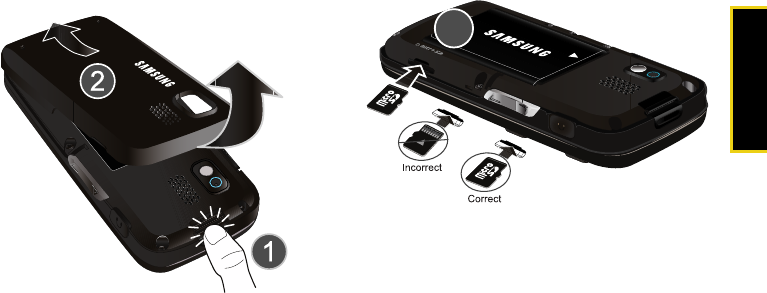
microSD Card
Section 2J. microSD Card 109
Removing the microSD Card
1. Remove the battery cover (located on the back of
the phone).
2. Press the Cover Release Latch (1) and then
carefully lift the battery cover away from the
phone (2).
3. Locate the microSD card slot on the right side of
the phone.
4. With the gold contact pins facing downward,
carefully insert the microSD card into the opening
and firmly push it in until you hear a click
indicating the card is securely installed (3).
5. Replace the cover by lining up the tabs and then
firmly pressing the cover down until it snaps into
place. Check that the battery is still properly
installed before turning on the phone.
Sprint M540.book Page 109 Wednesday, August 27, 2008 10:00 PM

110 Section 2J. microSD Card
Replacing the microSD Card
1. Repeat steps 1 - 3 from “Removing the microSD
Card” on page 109.
2. Firmly press the card into the slot and release (it
should pop partially out of the slot.
3. Remove the card from the slot.
4. Replace the cover by lining up the tabs and then
firmly pressing the cover down until it snaps into
place. Check that the battery is still properly
installed before turning on the phone.
microSD Icon Indicators
The following icons will be displayed on your phone’s
display screen when a microSD card is properly
inserted into the microSD card slot:
This icon will be displayed onscreen when a
microSD card is present and properly inserted
into the microSD card slot.
Note Be sure to use only recommended microSD cards
(up to 16GB). Using non-recommended microSD
cards could cause data loss and damage your
phone.
Note The microSD card and its adapter can be easily
damaged by improper operation. Please be careful
when inserting, removing, or handling them.
Note DO NOT remove a microSD card while files are being
accessed or transferred. Doing so will result in loss or
damage of data.
Make sure your battery is fully charged before using
the microSD card. Your data may become damaged
or unusable if the battery runs out while using the
microSD card.
Sprint M540.book Page 110 Wednesday, August 27, 2008 10:00 PM
microSD Card
Section 2J. microSD Card 111
microSD Settings
Viewing Memory in the microSD Card
䊳Select and press > Tools > Mass Storage >
Memory Info. > Card. (The used and available
memory space will be displayed.)
Formatting the microSD Card
Formatting a microSD card permanently removes all
files stored on the card.
1. Select and press > Tools > Mass Storage >
Format Memory Card.
2. Enter your lock code and press . (A warning
will be displayed.)
3. Press Format (left softkey) to remove all the files
from your microSD card.
microSD Folders
Displaying Your microSD Folders
All the files stored in your microSD are accessible
through your microSD card folders.
1. Select and press > Tools > Mass Storage >
File Manager > Memory Card.
2. Select a folder and press .
3. To view or play a file, select it and press or the
appropriate softkey.
Note The formatting procedure erases all the data on the
microSD card, after which the files CANNOT be
retrieved. To prevent the loss of important data,
please check the contents before you format the
card.
Sprint M540.book Page 111 Wednesday, August 27, 2008 10:00 PM
112 Section 2J. microSD Card
Creating Folders in the microSD Card
The following steps allow your phone to create folders
for storing files in your microSD card using only the File
Manager.
1. Select and press > Tools > Mass Storage >
File Manager > Memory Card.
2. Select Options > Create Folder.
3. Enter a name for the new folder. (See “Entering
Text in Portrait Mode” on page 33 or “Entering Text
in Landscape Mode” on page 39.)
4. Press Done (left softkey) to save the new folder onto
the card.
Connecting Your Phone to Your
Computer
Before using your phone’s mass storage capabilities,
you need to prepare your phone’s data services to
synchronize with your desktop or laptop computer.
Once the phone is connected to the computer, you can
transfer your data to or from the microSD card.
1. Remove the battery cover (located on the back of
the phone) by pressing the Cover Release Latch
and then carefully lift the battery cover away from
the phone.
2. With the phone turned on, plug one end of a
compatible USB cable (included) into the phone's
Charger/Accessories Jack.
3. Connect the other end of the cable to your
computer.
Note No driver is needed for Windows 98 or XP. Other
operating systems may require a USB driver that can
be downloaded from www.samsungwireless.com/
usbdownload.
Sprint M540.book Page 112 Wednesday, August 27, 2008 10:00 PM
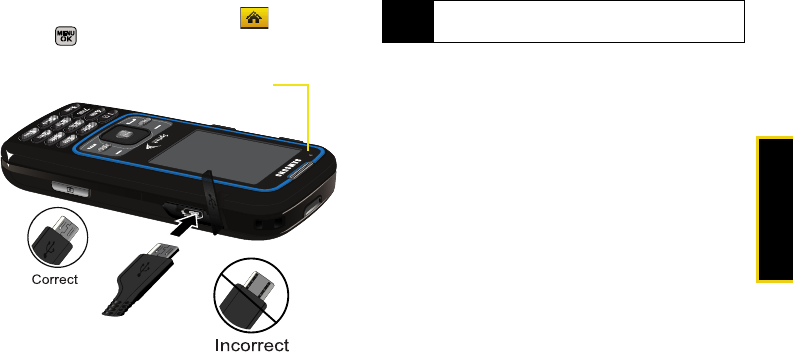
microSD Card
Section 2J. microSD Card 113
4. Turn on the phone.
5. With the microSD inserted, select and
press .
6. Select Tools > Mass Storage > Connect to PC. (Wait for
the connection to be completed. When connected,
the host computer will automatically detect your
phone.)
To remove the connection:
䊳When you have finished transferring data, click the
USB device icon on your computer’s taskbar, and
follow the onscreen instructions to safely unplug
the USB cable.
– or –
Press Disconnect (right softkey) > Disconnect
(left softkey).
File Manager
View information about folders and files on your phone
or on your microSD card. You will also be able to view
this information from your computer when it is
connected to your phone. (See “Connecting Your
Phone to Your Computer” on page 112.)
Charge Indicator
Note During this connection via the USB port, you will be
unable to use your phone to make or receive calls.
Sprint M540.book Page 113 Wednesday, August 27, 2008 10:00 PM
114 Section 2J. microSD Card
To view the file structure on the phone or memory card:
1. Select and press > Tools > Mass Storage >
File Manager.
2. Select Phone or Memory Card.
3. Highlight a folder or file and then select it by
pressing .
䡲Highlight a folder and press to reveal any
subfolders or files.
䡲To go up a level from your current folder location,
select the grey arrow and press .
䡲Highlight a music or picture file and press to
launch the file in its associated application.
䡲Highlight a folder or file and press Options (right
softkey) to select from these options:
●Send – to send the currently selected file via
either Email or Bluetooth.
●Delete – to delete a folder or file.
●Rename – to rename a folder or file.
●Create Folder – to create a new subfolder within
the current location.
●Sort – to sort the way the current entries are
listed.
●Copy – to copy a file to a different storage
location.
●Move – to move a file to a different storage
location.
●Find – to search for a file within the current
folder location.
Important Connection Information
䢇No driver installation is required for Windows Vista/
2000/ME/XP users. If you use Windows 98/98SE,
you have to download and install the USB Mass
Storage Driver from the Sprint Web site at
www.sprint.com.
䢇To avoid loss of data, DO NOT remove the USB
cable, the microSD card, or the battery while files are
being accessed or transferred.
䢇DO NOT use your computer to change or edit folder
or file names on the microSD, and do not attempt to
transfer large amounts of data from the computer to
the microSD card. Doing so may cause the microSD
card to fail.
Sprint M540.book Page 114 Wednesday, August 27, 2008 10:00 PM

microSD Card
Section 2J. microSD Card 115
䢇DO NOT turn off or restart your computer, or put it
into standby mode, while using a mass storage
device. Doing so will result in loss or damage of data.
䢇While you are connected to the computer, your
phone’s screen will display “Phone Off.” You cannot
make or receive calls.
䢇If you connect a mass storage device to a peripheral
device, your device may not work properly.
Sprint M540.book Page 115 Wednesday, August 27, 2008 10:00 PM

116 Section 2K. Camera
Section 2K
Camera
⽧Taking Pictures (page 116)
⽧Recording Videos (page 122)
⽧Storing Pictures (page 124)
⽧Sending Sprint Picture Mail (page 127)
⽧Managing Sprint Picture Mail (page 129)
⽧Printing Pictures Using PictBridge (page 134)
⽧Order Prints (page 135)
⽧Settings and Info (page 135)
Your phone’s built-in camera gives you the ability to take full-
color digital pictures, view your pictures using the phone’s
display, and instantly send them to family and friends. It’s fun,
and it’s as easy to use as a traditional point-and-click
camera: just take a picture, view it on your phone’s
display, and send it from your phone to up to 10
people.
Taking Pictures
Taking pictures with your phone’s built-in camera is as
simple as choosing a subject, pointing the lens, and
pressing a button.
1. Select and press > Photos > Camera to
activate camera mode. (Additional camera options
are available through the camera mode Options
menu. See “Camera Mode Options” on page 119
for more information.)
2. Using the phone’s main display screen as a
viewfinder, aim the camera lens at your subject.
Shortcut To activate camera mode, you can also press
and hold the camera button. (See illustration
on page 8.)
Sprint M540.book Page 116 Wednesday, August 27, 2008 10:00 PM
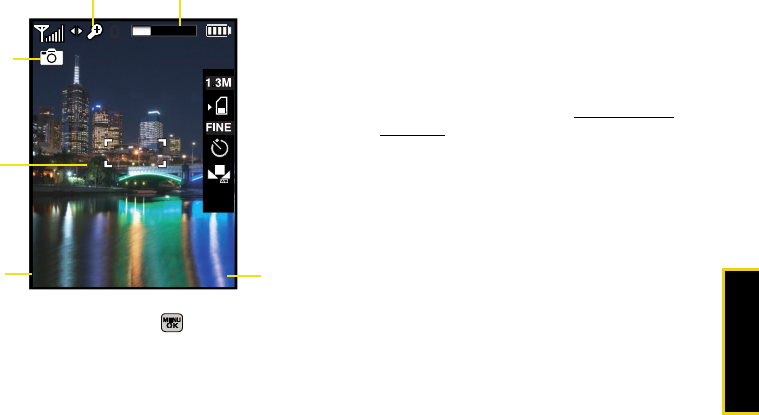
Camera
Section 2K. Camera 117
3. Press Capture (left softkey), , or the camera
button until the shutter sounds. (The picture will
automatically be saved in your selected storage
area.)
䡲To return to camera mode to take another picture,
press the camera button.
4. Once you’ve taken your picture, press Options (right
softkey) for more options:
䡲Send Pic/Video to send the picture to up to 10
contacts at one time. (See page 127 for details.)
䡲Camera Mode to return to the camera to take
additional pictures.
䡲Upload to upload the picture you just took to the
Sprint Picture Mail Web site (www.sprint.com/
picturemail). Depending on your settings, you may
be prompted to accept a data connection.
䡲Assign to assign the picture as a Picture ID, Screen
Saver, or Incoming/Outgoing Calls.
䡲Erase to delete the picture you just took.
䡲Order Prints to upload your image to a third party
service that will then provide hard copy prints.
䡲Post to Service to upload your image to a third party
online service.
䡲Review Album to go to the My Albums folder where
you can review your saved pictures.
CaptureCapture
OptionsOptions
0
1
Display
Image
Image Saved
Camera
Options
Capture
Function
Zoom
Sprint M540.book Page 117 Wednesday, August 27, 2008 10:00 PM
118 Section 2K. Camera
Registering Your Sprint Picture Mail
Account
The first time you use any of the picture management
options involving the Sprint Picture Mail Web site, you
will be prompted to register your Sprint Picture Mail
account and establish a password through your phone.
This password will also allow you to sign in to the
Sprint Picture Mail Web site at www.sprint.com/picturemail
to access and manage your uploaded pictures and
albums.
1. Select and press > Photos > My Albums >
Online Albums. (You will be prompted to register
your Sprint Picture Mail account.)
2. If you are asked to connect, follow the onscreen
procedures to Connect, turn data On and press .
(Follow any registration prompts and complete
your connection.)
3. Enter a password for your Picture Mail account and
press . (You will be prompted to confirm your
password.)
4. Please wait while the system creates your account.
Once you have received confirmation that your account
has been successfully registered, you may upload and
share pictures and access the Sprint Picture Mail Web
site.
Note If your Sprint service plan does not include Sprint
Picture Mail, you will first be prompted to subscribe to
the service for an additional monthly charge.
Tip Write down your Sprint Picture Mail password and
keep it in a secure place.
Sprint M540.book Page 118 Wednesday, August 27, 2008 10:00 PM

Camera
Section 2K. Camera 119
Camera Mode Options
When the phone is in camera mode, press Options
(right softkey) to display additional camera options:
䢇Selftimer to activate the camera’s timer. (See “Setting
the Self-Timer” on page 120 for details.)
䢇Multi Shot to select an option from the following:
䡲Series Shot to take multiple shots. (See “Taking
Multiple Shots” on page 120.)
䡲Divided Shot to take up to 16 images that are then
combined into a single picture.
䢇Fun Tools.. to select an option from the following:
䡲Fun Frames to select your favorite fun picture frame
to decorate your picture.
(The default setting is None.)
䡲Color Tones to select a wide variety of color tones
for the picture. (The default setting is None.)
䢇Controls.. to select an option from Brightness, White
Balance, Night Shot, or Metering.
䡲Brightness to adjust the image brightness level.
Press the navigation key up (increase) or down
(decrease) to select a setting.
(The default setting is 0.)
䡲White Balance to adjust white balance based on
changing conditions (Auto, Sunny, Cloudy, Tungsten,
Fluorescent, or Manual). (The default setting is Auto.)
䡲Night Shot to activate low light image capture.
Enabling this feature allows you to take better
quality photos in low light conditions.
䡲Metering to allow the phone to sample the area
being photographed and then determine the best
light levels. Choose from either Spot (a specific
area of the image) or Average (the entire image is
sampled and then an average reading is used).
䢇Settings.. to select Resolution, Quality, Shutter Sound,
Status Bar or Storage. (See page 122 for details.)
䢇Launch to review pictures or launch the camcorder.
Sprint M540.book Page 119 Wednesday, August 27, 2008 10:00 PM
120 Section 2K. Camera
Setting the Self-Timer
1. From camera mode, press Options (right softkey) >
Selftimer.
2. Highlight the length of delay you want the timer to
use (5 Sec or 10 Sec) and press .
(The default setting is Off.)
3. Press when you are ready to start the timer.
(The timer is displayed on the upper-right portion
of the display screen during the self-timer
countdown.)
4. Get ready for the picture. (The phone will begin to
beep for each second of the countdown. When the
timer is down to three seconds, the outer LED will
go from blinking to solid red just before the picture
is taken.)
To cancel the self-timer after it has started:
䊳Press .
Taking Multiple Shots
This feature allows you to take a series of shots in a
continuous sequence.
To shoot a series of individual pictures:
1. From camera mode, press Options (right softkey) >
Multi Shot > Series Shot.
2. Select one of the following options and press :
䡲off to deactivate the multiple shots option.
䡲3 to take a series of three pictures.
䡲5 to take a series of five pictures (displayed only
when the resolution setting is Low or Medium).
䡲10 to take a series of ten pictures (displayed only
when the resolution setting is Low).
3. Press Capture (left softkey), , or the camera
button to take the pictures.
Note While the self-timer is active, all keys are disabled
except Back.
Sprint M540.book Page 120 Wednesday, August 27, 2008 10:00 PM

Camera
Section 2K. Camera 121
To shoot a series of combined pictures:
1. From camera mode, press Options (right softkey) >
Multi Shot > Divided Shot.
2. Select one of the following options and press :
䡲off to deactivate the multiple shots option.
䡲4 to take a series of four pictures that are then
combined into one image.
䡲9 to take a series of nine pictures that are then
combined into one image.
䡲16 to take a series of 16 pictures that are then
combined into one image.
3. Press Capture (left softkey), , or the camera
button to take the pictures. (The Multiple Shots
folder will display up to nine thumbnail pictures per
screen.)
Using the Zoom
This feature allows you to zoom in on an object when
you take a picture. Depending on your resolution
settings, you can adjust the zoom from 1x to 10x.
1. From camera mode, repeatedly press the
navigation key left to zoom out and right to zoom
in. It may take several presses to get the desired
zoom.
2. Press Capture (left softkey), , or the camera
button to take the picture. (The picture will
automatically be saved in your selected storage
area.)
Note Zooming will not function is the resolution is set to
2M.
Sprint M540.book Page 121 Wednesday, August 27, 2008 10:00 PM
122 Section 2K. Camera
Selecting Camera Settings
1. From camera mode, press Options (right softkey) >
Settings...
2. Select an option and press :
䡲Resolution to select a picture’s file size (2M, 1.3M,
High, Med, or Low).
䡲Quality to select the picture quality setting (Fine,
Normal, or Economy).
䡲Shutter Sound to select a shutter sound (Shutter 1-4
or Off).
䡲Status Bar to turn the status bar On (Show) or Off
(Hide) when in camera mode.
䡲Storage to select the destination for the image files
(Phone or Card).
Recording Videos
In addition to taking pictures, you can also record, view,
and send videos to your friends and family with your
phone’s built-in video camera.
1. Select and press > Photos > Camcorder.
2. Select Video Mail or Long Video and press .
3. Using the phone’s display screen as a viewfinder,
aim the lens at your subject.
4. Press Record (left softkey) or to begin
recording.
5. Press Done (left softkey), , or camera button to
stop recording. (The video will automatically be
saved to the default folder.)
䡲To return to camcorder mode to take another
video, press .
Note Video Mail can be at most 30 seconds in length, but
the length of a Long Video is dependent on both the
quality settings and storage type used (phone or
memory card).
Sprint M540.book Page 122 Wednesday, August 27, 2008 10:00 PM

Camera
Section 2K. Camera 123
6. Press Next (right softkey) and select an option:
䡲Send Pic/Video to send the video. (See “Sending
Sprint Picture Mail” on page 127.)
䡲Play to play the video.
䡲Upload to upload the video to online albums.
䡲Assign to assign the video as a video ringer or to
voice calls.
䡲Erase to delete the video.
䡲Post to Service to upload your video to a third party
online service.
䡲Camcorder to return to camcorder mode.
䡲Review Album to review all pictures and videos
saved in the In Phone folder.
Video Mode Options
When the phone is in camcorder mode, press Options
(right softkey) to display additional camcorder options:
䢇Selftimer to activate the timer. (See “Setting the Self-
Timer” on page 120.)
䢇Fun Tools.. to select from the following options:
䡲Color Tones to select a variety of color tones for the
picture (None, Monochrome, Sepia, Green, Aqua, or
Negative).
䢇Controls.. to select from the following options:
䡲White Balance to adjust white balance based on
lighting conditions. Select from Auto, Sunny, Cloudy,
Tungsten, Fluorescent, or Manual.
䢇Settings.. to select from the following options:
䡲Quality to select between Fine, Normal, or Economy.
䡲Storage to select the destination for the video files
(Phone or Memory Card).
䡲Video Length to select the maximum allowed
size for the recording. Choose from Video Mail or
Long Video.
䢇Launch to select from the following options:
䡲Review Pictures to display the videos saved in the
In Phone folder. (See “In Phone Folder” on
page 124 for details.)
䡲Camera to switch to camera mode. (See “Taking
Pictures” on page 116 for details.)
Sprint M540.book Page 123 Wednesday, August 27, 2008 10:00 PM
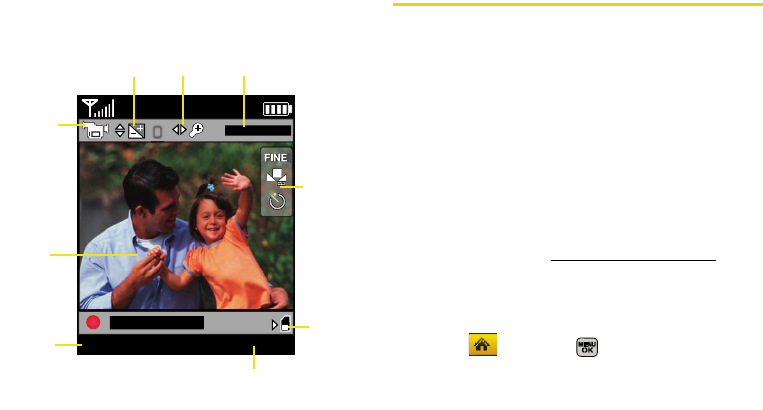
124 Section 2K. Camera
Viewing Your Camcorder’s Status Area
Display
Storing Pictures
Your phone’s picture and video storage area is called
My Pictures. There are two types of folders in My
Albums:
䢇Phone (See “In Phone Folder” on page 124.)
䢇Memory Card (See “Memory Card” on page 126.)
䢇Online Albums (See “Online Albums” on page 126.)
In Phone Folder
Your phone’s internal storage area is called the In
Camera folder. From the In Phone folder, you can view
all the pictures you have stored there, send items to the
Sprint Picture Mail site (www.sprint.com/picturemail),
delete files, and access additional options.
To review your stored pictures and videos in the In Camera
folder:
1. Select and press > Photos > My Albums >
In Phone.
2. Use your navigation key to view and scroll through
the pictures.
RecordRecord
OptionsOptions
Fine
X1
3:47:28
1
0
00/30s
Display
Image
Image Saved
Camcorder
Options
Capture
Function
ZoomBrightness
Settings
Storage
Location
Sprint M540.book Page 124 Wednesday, August 27, 2008 10:00 PM

Camera
Section 2K. Camera 125
In Phone Folder Options
When you are viewing the In Phone folder, press
Options (right softkey) to display the following options:
䢇Play to play a selected video.
䢇Send to send an image or video to another user
using Picture Mail or to a Bluetooth-enabled printer.
䢇Upload to upload pictures to the Sprint Picture Mail
Web site (www.sprint.com/picturemail). (Depending on
your settings, you may be prompted to accept a data
connection.)
䡲See “Uploading Pictures” on page 130.
䢇Post to Service to upload your file to a third-party online
service.
䢇Assign to assign the current image as a Picture ID,
Screen Saver, or Incoming/Outgoing Calls.
䢇Erase to erase the image or selected images.
䢇Copy/Move to copy or move an image or video to an
installed memory card.
䢇Detail/Edit to attach a text caption or view the media
information associated with the image.
䢇Album list to display the list of albums saved in your
phone.
䢇Media Filter to display either All media types, Pictures
Only, or Videos Only.
䢇Camera/Camcorder Mode to switch to either the
camera or camcorder mode.
Note If this is the first time you have accessed Sprint
Picture Mail, you will be prompted to register your
Sprint Picture Mail account. See “Registering Your
Sprint Picture Mail Account” on page 118.
Note Deleting pictures will free up memory space in your
phone to enable you to take more pictures. Once
deleted, pictures cannot be uploaded to your online
Sprint Picture Mail account.
Sprint M540.book Page 125 Wednesday, August 27, 2008 10:00 PM
126 Section 2K. Camera
Memory Card
If you have selected Memory Card as your Auto Save To
location, your pictures will be automatically saved to
your Memory Card folder. From the Memory Card
folder, you can view all the pictures you have taken,
store selected images in your In Phone folder, send
pictures to the Sprint Picture Mail Web site
(www.sprint.com/picturemail), delete images, and access
additional picture options.
To review your stored pictures in the Memory Card folder:
1. Select and press > Photos > My Albums >
Memory Card.
2. Use your navigation key to view and scroll through
the pictures.
Memory Card Options
When you are viewing the Memory Card folder, press
Options (right softkey) to display options. These options
are the same as the “In Phone Folder Options” on
page 125.
Online Albums
Once a picture is taken, it is automatically saved to the
preselected folder (In Phone or Memory Card).
Alternatively, you can save pictures to your Online
Albums folder. From the Online Albums folder, you can
view all the pictures you have taken, move selected
images to your In Phone folder, delete images, and
access additional picture options.
Note In the case of Copy/Move option, images are moved
from Memory Card to the Phone.
Note Before you can use the Online Albums folder, you
must first go online and create a Picture Mail account
and password.
Sprint M540.book Page 126 Wednesday, August 27, 2008 10:00 PM
Camera
Section 2K. Camera 127
To review pictures in the Online Albums folder:
1. Select and press > Photos > My Albums >
Online Albums.
2. Use your navigation key to scroll through and view
the pictures.
Online Albums Options
When you are viewing the Online Albums folder, press
Options (right softkey) to display Online Albums options.
These options are the same as the “In Phone Folder
Options” on page 125.
Sending Sprint Picture Mail
Once you have taken a picture, you can use the
messaging capabilities of your phone to instantly share
it with family and friends. You can send a picture to up
to 25 people at a time using their email addresses or
their phone numbers.
Sending Pictures From the In Phone
Folder or Memory Card
1. Select and press > Photos > My Albums >
In Phone or Memory Card.
2. Select a picture to send and press . (The check
box in the upper left corner will be marked. You
can select multiple pictures and videos.)
3. Press Options (right softkey) > Send > To Contacts >
Go to Contacts to choose from a current Contacts
entry.
䡲You can also choose to upload the currently
selected image to a Bluetooth device (page 141).
Note The first time you send Sprint Picture Mail, you will be
prompted to register your Sprint Picture Mail account.
(See “Registering Your Sprint Picture Mail Account”
on page 118.)
Sprint M540.book Page 127 Wednesday, August 27, 2008 10:00 PM

128 Section 2K. Camera
4. To enter additional recipients press Multiple
(left softkey) to continue selecting additional
entries.
䡲Press New Addr (right softkey) to manually enter
either a wireless phone number or email address
and press Continue (left softkey).
5. If you wish to include a subject, scroll to Subj: and
press Add (right softkey). Enter your subject and
press Next (left softkey) to save and exit.
6. If you wish to include a text message, scroll to Text:
and press Add (right softkey). Enter your message
(or press Options [right softkey] to select Preset
Message or Recent Msg) and press Next (left softkey)
to save and exit. (See “Entering Text in Portrait
Mode” on page 33 or “Entering Text in Landscape
Mode” on page 39.)
7. To include an audio message with the picture,
highlight the box next to Audio and press .
䡲Press Record (left softkey) or press to start
recording. (Maximum recording time is 10
seconds.)
䡲Press Done (left softkey) to end the recording and
return to the Picture Mail message.
8. Confirm the recipients, message, audio message,
and picture.
䡲To change a recipient, select the recipient, press
the appropriate softkey, and follow the instructions
in step 5 to select or edit the recipient.
䡲To change the text message, scroll to Text and
press the appropriate softkey.
䡲To change the voice memo, highlight Audio and
press the appropriate softkey.
䡲To change the attached picture(s), select the
current thumbnail picture and press Change
(right softkey).
䡲Highlight the picture you wish to send and
press .
9. Press Send (left softkey) to send the message.
Sprint M540.book Page 128 Wednesday, August 27, 2008 10:00 PM
Camera
Section 2K. Camera 129
Sending Pictures From Messaging
You can also send Sprint Picture Mail from your
phone’s Messaging menu.
1. Select , highlight Send Message > > Picture
Mail to access the Messaging menu.
– or –
Select and press > Messages > Send
Message > Picture Mail.
2. Select a contact and press .
– or –
Press New Addr (right softkey) and enter a mobile
number or an email address and press Continue
(left softkey).
– or –
Enter additional recipients by pressing Multiple
(left softkey), place a check mark alongside a
desired entry, and press Continue (left softkey).
3. Select the location of the image In Phone, Memory
Card, Online Albums, Take New Picture, Take New Video,
or Text Only and press .
4. Highlight a picture or video you wish to send and
press . (The check box on the upper left corner
will be marked. You can select multiple pictures.)
5. Press Next (left softkey).
6. To complete and send the message, follow steps
5–9 in “Sending Pictures From the In Phone Folder
or Memory Card” on page 127.
Managing Sprint Picture Mail
Using the Sprint Picture Mail Web Site
Once you have uploaded pictures or videos to your
online Picture Mail account at www.sprint.com/picturemail
(see “In Phone Folder Options” on page 125), you can
use your computer to manage your pictures. From the
Sprint Picture Mail Web site, you can share pictures,
edit album titles, add captions, and organize images.
You can even send your pictures to be printed at
participating retail locations.
You will also have access to picture management tools
to improve and customize your pictures. You’ll be able
to lighten, darken, crop, add antique effects, add comic
Sprint M540.book Page 129 Wednesday, August 27, 2008 10:00 PM
130 Section 2K. Camera
bubbles and cartoon effects, and use other features to
transform your pictures.
To access the Sprint Picture Mail Web site:
1. From your computer’s Internet connection, go to
www.sprint.com/picturemail.
2. Enter your phone number and Sprint Picture Mail
password to register. (See “Registering Your Sprint
Picture Mail Account” on page 118.)
Managing Online Pictures From Your
Phone
Use your phone to manage, edit, or share pictures you
have uploaded to the Sprint Picture Mail Web site at
www.sprint.com/picturemail. (See “In Phone Folder
Options” on page 125 for information about
uploading.)
To view your online pictures from your phone:
1. Select and press > Photos > My Albums >
Online Albums. (Depending on your settings you
may be prompted to accept a data connection.)
(The My Uploads folder and your albums are
displayed.)
2. Select a picture and press Options (right softkey) to
display your online picture options.
Uploading Pictures
1. Select and press > Photos > My Albums >
In Phone or Memory Card. (Thumbnail pictures will be
displayed.)
2. Select the picture(s) you wish to upload by
highlighting the image and pressing .
3. Select the picture(s) to upload and press Options
(right softkey) > Upload > My Uploads or My Albums.
This actions then queues your file for uploading.
4. Press Continue (left softkey) to return to the previous
page.
Tip To expand a selected picture from thumbnail to full-
screen, press Expand (left softkey).
Sprint M540.book Page 130 Wednesday, August 27, 2008 10:00 PM

Camera
Section 2K. Camera 131
Downloading Your Online Pictures
From your online Sprint Picture Mail albums display at
www.sprint.com/picturemail, you can select pictures to
download to either your In Phone or Memory Card
locations.
1. From the online pictures display, place a check
mark on the picture you wish to download and
press Options (right softkey). (See “Managing
Online Pictures From Your Phone” on page 130.)
2. Highlight Assign and press .
3. Select one of the following options and press .
䡲Picture ID to download and assign the selected
picture as a Picture ID.
䡲Screen Saver to download and assign the selected
picture as a screen saver/wallpaper.
䡲Incoming/Outgoing Calls to download a picture and
assign to incoming calls with or without caller ID.
Sending Online Sprint Picture Mail
To send pictures using the online Address Book:
1. From the online Sprint Picture Mail display at
www.sprint.com/picturemail, select a picture and click
the Send Picture Mail button. (See “Managing Online
Pictures From Your Phone” on page 130.)
2. Click Continue and select Address Book.
3. Select a recipient or recipients from your Online
Address Book.
4. When you have finished selecting recipients select
Send Picture Mail.
To create an album online:
1. Click on the Media tab to display all of your
currently uploaded images and videos.
2. Navigate to the Album section of the page.
3. Click the Create New Album link, enter a name for
the new album, and click OK.
Sprint M540.book Page 131 Wednesday, August 27, 2008 10:00 PM
132 Section 2K. Camera
To place files into an existing album:
1. Navigate the Other Options section of the Media tab
(located at the lower right of the page).
2. Click the Move/Copy Media link.
3. Select the source of the files.
4. Place a check mark on each image you wish to
add to your Album.
5. Select whether you would like to Copy or Move the
selected images.
6. Select either an existing Album or Create New Album
and click OK.
To send an album from the online pictures menu:
1. Navigate the Other Options section of the Media tab
(located at the lower right of the page). (See
“Managing Online Pictures From Your Phone” on
page 130.)
2. Click Share Album.
3. Select a recipient or recipients from your Online
Address Book.
4. Enter an invitation message.
5. Click Share album to send your Sprint Picture Mail
album to the designated recipients.
Accessing Online Picture Options From
Your Phone
1. Select and press to access the main
menu.
2. Select a picture from your online Picture Mail. (See
“Managing Online Pictures From Your Phone” on
page 130.)
3. Press Options (right softkey) to display options.
4. Select an option and press .
䡲Copy/Move to copy or move pictures to a selected
album:
●Copy This to copy the selected picture to the
album.
●Copy All to copy all pictures in the current
album (or Inbox) to the target album.
●Move This to move the selected picture to the
album.
●Move All to move all pictures in the current
album (or Inbox) to the target album.
Sprint M540.book Page 132 Wednesday, August 27, 2008 10:00 PM

Camera
Section 2K. Camera 133
䡲Assign to assign the pictures to be used as a:
●Picture ID to be displayed when a particular
Caller ID assignment is met for an incoming
call.
●Screen Saver to be used by the screen saver
application.
●Incoming/Outgoing Calls to be displayed during
the notification of an incoming call.
䡲Save to copy the selected picture to the Saved to
Phone folder. (See “In Phone Folder” on
page 124.)
䡲Erase to select Erase Selection or Erase All to erase a
single picture or all pictures saved in the current
album (or Inbox).
䡲Expand to expand the selected picture.
To access your online Albums options from your phone:
1. Display the album list in the Online Sprint Picture
Mail menu. (See “Managing Online Pictures From
Your Phone” on page 130.)
2. Select an album.
3. Press Options (right softkey) to display options.
4. Select an option and press .
䡲Send to send the album through the Sprint Picture
Mail Web site.
䡲New Album to create a new album. Enter a new
album name and select Next (left softkey). If
additional albums are present, you are provided
with additional options:
●Rename Album to rename a selected album.
●Erase Album to delete an existing album.
䡲Album Info to display information about the album.
You can view the name of the album, the creation
date, and the number of pictures and videos in
the album.
Sprint M540.book Page 133 Wednesday, August 27, 2008 10:00 PM
134 Section 2K. Camera
Printing Pictures Using PictBridge
Your phone is PictBridge compatible, allowing you to
print directly from your phone without connecting to a
computer. Simply connect your phone to a PictBridge-
enabled printer and enjoy printing your photos.
To print directly from your phone:
1. Insert one end of the USB accessory cable into the
USB slot on the printer. (The printer must support
PictBridge technology.)
2. Select and press > Photos > PictBridge.
3. Insert the other end of the USB accessory cable
into your phone.
4. Read the Connect Printer message and press
Next (left softkey). The Select Folder pop-up appears
in the display. Select the folder location of the
image.
5. Highlight the desired image and press Next (left
softkey). (To select multiple images, press to
place a check mark next to each image selected.)
6. Highlight Copies and select the number of copies
to print.
7. Highlight Type to select a print type option:
䡲Standard prints the standard image.
䡲Index prints the index information.
8. Press the navigation key down to select Paper Size:
䡲Default
䡲4x6
9. Select Date Print.
10. Select Border and turn this option on or off.
11. Press Preview (right softkey) to preview the image,
or press Print (left softkey) to print the image.
12. Select Yes to confirm printing and press .
Note These options may vary and are dependent on the
printer’s capabilities.
Note These sizes may vary and are dependent on the
printer’s capabilities.
Sprint M540.book Page 134 Wednesday, August 27, 2008 10:00 PM
Camera
Section 2K. Camera 135
Order Prints
This menu allows you to order prints from third party
vendors by uploading images saved on your phone.
Images saved at the highest quality and resolution
settings produce the best prints.
1. Select and press > Photos > Order Prints.
2. Select an onscreen option and press .
䡲Options include: Home Delivery or Retail Pickup.
3. Follow the onscreen instructions.
Settings and Info
This menu allows you to configure where pictures are
saved, view your account information, or set the view
between portrait or landscape mode.
1. Select and press > Photos > Settings and
Info.
2. Select one of the following options and press .
䡲Auto Save to to choose between Phone and Memory
Card as the default location to save pictures or
videos.
䡲Status Bar to select whether the Status Bar is
displayed onscreen when the camera/camcorder
is active.
䡲Account Info to display your current PictureMail
account settings via an online connection.
Sprint M540.book Page 135 Wednesday, August 27, 2008 10:00 PM
136 Section 2L. Bluetooth
Section 2L
Bluetooth
⽧Turning Bluetooth On and Off (page 136)
⽧Using the Bluetooth Settings Menu (page 137)
⽧Bluetooth Profiles (page 138)
⽧Pairing Bluetooth Devices (page 139)
⽧FTP Contents Folder (page 141)
⽧Sending Data via Bluetooth (page 141)
Your phone features built-in Bluetooth technology, allowing you
to share information more easily than ever before. Bluetooth is
a short-range communications technology that allows
you to connect wirelessly to a number of Bluetooth
devices, such as headsets and hands-free car kits, and
Bluetooth-enabled handhelds, computers, printers, and
wireless phones. The Bluetooth communication range
is usually up to approximately 30 feet.
Turning Bluetooth On and Off
By default, your device’s Bluetooth feature is turned off.
Turning Bluetooth on makes your phone “discoverable”
by other in-range Bluetooth devices.
To turn Bluetooth on:
1. Select and press > Settings > Bluetooth >
On/Off.
2. Select On and press to enable Bluetooth.
To turn Bluetooth off:
1. Select and press > Settings > Bluetooth >
On/Off.
2. Select Off and press to disable Bluetooth.
Sprint M540.book Page 136 Wednesday, August 27, 2008 10:00 PM
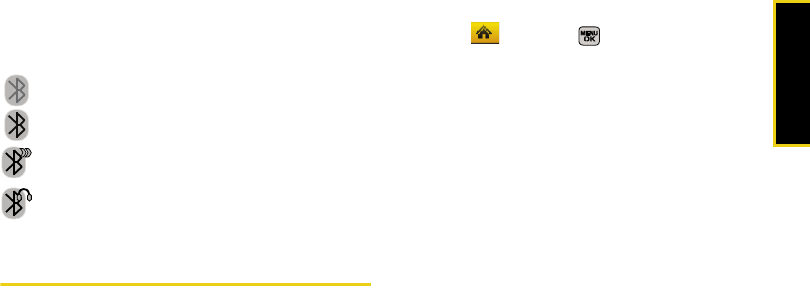
Bluetooth
Section 2L. Bluetooth 137
Bluetooth Status Indicators
The following icons show your Bluetooth connection
status at a glance:
Bluetooth is hidden.
Bluetooth is visible (active and enabled).
Bluetooth is visible and connected to a device
or transferring data.
Bluetooth is active and connected to a
stereo Bluetooth Headset.
Using the Bluetooth Settings Menu
The Bluetooth Settings menu allows you to set up many
of the characteristics of your phone’s Bluetooth service,
including:
䢇Entering or changing the name your phone uses for
Bluetooth communication
䢇Setting your phone’s visibility (or “discoverability”) for
other Bluetooth devices
䢇Displaying your phone’s Bluetooth address
To access the Bluetooth Settings menu:
1. Select and press > Settings > Bluetooth.
2. Set your Bluetooth options.
䡲Select Visibility > Always visible, Visible for 3 min, or
Hidden to set your Bluetooth visibility.
䡲Select My Device Name to rename your phone for
Bluetooth.
䡲Select My Device Info to display your phone’s
Bluetooth profiles and address.
䡲Select Exchange Folders to display your phone’s
Bluetooth destination folder for files
communicated between your phone and a
Bluetooth-enabled device using the FTP transfer
protocol.
䡲Select Voice Priority to display your phone’s
Bluetooth communication priority.
Sprint M540.book Page 137 Wednesday, August 27, 2008 10:00 PM

138 Section 2L. Bluetooth
To access the Trusted Devices list:
䊳Select and press > Tools > Bluetooth >
Trusted Devices or Pair with Hands Free.
䡲This displays your phone’s current list of external
trusted Bluetooth devices.
Bluetooth Profiles
All of the Bluetooth settings you configure are stored in
your phone’s Bluetooth user profiles. You can use
different profiles for specific Bluetooth functions.
䢇HSP: Headset Profile – This profile functions as a
wireless ear jack. When an incoming call is received,
the ringer can be heard through the headset instead
of through the phone. The call can then be received
by pushing a button. While using the phone, you can
use the headset instead of the phone by pushing a
button on the headset, the same as inserting a jack
into the phone. Increase or decrease the volume by
using the volume key on the side of the phone.
䢇HFP: Hands-Free Profile – This profile functions as a
wireless car kit. Incoming calls ring to the hands-free
headset or device. Calls can be received by pressing
a button on the headset or device. For dialing, four
functions are supported: recent call dial, voice dial,
speed dial, and number dial. Increase or decrease
the volume by using the volume key on the side of
the phone.
䢇DUN: Dial-Up Network Profile – This profile functions as
a wireless data cable, connecting a computer or PDA
to a network through your phone.
䢇OPP: Object Push Profile – This profile uses the Generic
Object Exchange profile services to send data
objects between devices and can be used to
exchange objects like music files, pictures, and
business cards (vCard).
䢇FTP: File Transfer Profile – This profile allows you to
transfer files to or from other Bluetooth-enabled
devices.
䢇BPP: Basic Printing Profile – This profile enables
simplified printing from your phone to a Bluetooth-
enabled printer.
Sprint M540.book Page 138 Wednesday, August 27, 2008 10:00 PM

Bluetooth
Section 2L. Bluetooth 139
䢇A2DP: Advanced Audio Distribution Profile – This profile
allows you to transmit high quality stereo music from
your phone to other compatible accessories
including Bluetooth stereo headsets.
䢇AVRCP: Audio/Video Remote Control Profile – This profile
enables your phone to remotely control compatible
accessories including Bluetooth stereo headsets.
You can play, pause, stop, forward, reverse, fast
forward, or rewind from a headset. (Playback
functions may vary among Bluetooth accessories.)
䢇PBAP: Phone Book Access Profile – This profile enables
exchange of Contacts information between devices.
It is typically used between a car kit and a mobile
phone to allow the car kit to display the name of the
incoming caller.
Pairing Bluetooth Devices
Paired Devices
The Bluetooth pairing process allows you to establish
trusted connections between your phone and another
Bluetooth device. When devices are paired, a passkey
is shared between devices, allowing for fast, secure
connections while bypassing the discovery and
authentication process.
Note Refer to the manufacturer’s documentation to obtain
the passkey for any other devices. In most instances,
this passkey is ‘0000” or the last four digits of the
telephone number.
Sprint M540.book Page 139 Wednesday, August 27, 2008 10:00 PM
140 Section 2L. Bluetooth
To pair your phone with another Bluetooth device:
1. Select and press > Tools > Bluetooth >
Add a New....
2. Select a device category and press . (Your
phone will display a list of discovered in-range
Bluetooth devices.)
䡲Select from: Headset/Car Kits, All, Phone, PC, or
Printer.
3. Select a device and press . Select Info (right
softkey) to obtain more information about the
device prior to pairing.
4. Enter the passkey and press .
5. Enter a unique Device Name and press Done (left
softkey).
Pairing With a Computer
If you are going to be pairing with a computer’s
Bluetooth interface, you will need to allow the computer
to initiate pairing with your phone.
To allow your phone to be paired with another Bluetooth
device:
1. Select and press > Tools > Bluetooth >
Add a New... > PC.
2. Follow the onscreen prompts to enter your passkey
and press .
Note Due to different specifications and features of other
Bluetooth-compatible devices, display and
operations may be different, and functions such as
transfer or exchange may not be possible with all
Bluetooth-compatible devices.
Sprint M540.book Page 140 Wednesday, August 27, 2008 10:00 PM
Bluetooth
Section 2L. Bluetooth 141
FTP Contents Folder
You can send and receive files between your phone
and a Bluetooth-enabled computer using the FTP
transfer protocol. The destination folder on your phone
must first be set up to exchange data via FTP.
To assign a folder for FTP transfers:
1. Select and press > Settings > Bluetooth >
Exchange Folders.
2. Highlight the folder location (In Phone or Memory
card) and press .
Sending Data via Bluetooth
You can send data saved on your device to another
Bluetooth device.
To send contacts information via Bluetooth:
1. Select and press > Contacts.
2. Highlight an entry and press Options (right softkey)
> Send Contact.
3. Place a checkmark next to the Contact entry you
want to send by first selecting an entry and
pressing .
4. Press Send Contact (left softkey). (The phone begins
searching for available Bluetooth devices.
Bluetooth-capable phones will appear in the list
with an adjacent phone icon.)
䡲If the device isn’t in the list, select Options
(right softkey) > Search again.
5. From the list of Found Devices, highlight the
Bluetooth device and press Select (left softkey).
6. Select Yes (to confirm you want to send the
contact) and press . (The recipient’s phone
displays an onscreen message asking whether the
person would like to receive and save your Contact
entry to his or her list.)
7. The recipient must either accept and save the
contact, or reject the incoming data.
Sprint M540.book Page 141 Wednesday, August 27, 2008 10:00 PM
142 Section 2L. Bluetooth
To send pictures via Bluetooth:
1. Select and press > Photos > My Albums.
2. Select a picture by highlighting it and then
pressing .
3. Press Options (right softkey) > Send > via Bluetooth >
Yes. (The phone begins searching for available
Bluetooth devices. Bluetooth-capable phones will
appear in the list with an adjacent phone icon.)
4. From the list of Found Devices, select the Bluetooth
device and press .
5. Select Yes and press . (The recipient’s phone
displays an onscreen message asking whether the
person would like to receive and save your Contact
entry to his or her list.)
6. The recipient must either accept and save the
image, or reject the incoming data.
Sprint M540.book Page 142 Wednesday, August 27, 2008 10:00 PM

Section 3
Sprint Service
Sprint M540.book Page 143 Wednesday, August 27, 2008 10:00 PM

144 Section 3A. Sprint Service Features: The Basics
Section 3A
Sprint Service Features:
The Basics
⽧Voicemail (page 144)
⽧Text Messaging (SMS) (page 148)
⽧SMS Voice Messaging (page 150)
⽧Caller ID (page 152)
⽧Call Waiting (page 153)
⽧Making a Three-Way Call (page 153)
⽧Call Forwarding (page 154)
Now that you’ve explored your phone’s fundamentals, it’s time
to learn about the calling features that enhance your Sprint
service. This section outlines your basic Sprint service
features.
Voicemail
Setting Up Your Voicemail
All unanswered calls to your phone are automatically
transferred to your voicemail, even if your phone is in
use or turned off. Therefore, you will want to set up your
Sprint Voicemail and personal greeting as soon as
your phone is activated.
1. Press and hold .
2. Follow the system prompts to:
䡲Create your passcode.
䡲Record your name announcement.
䡲Record your greeting.
䡲Choose whether to activate One-Touch Message
Access (a feature that lets you access messages
simply by pressing and holding , bypassing
the need for you to enter your passcode).
Sprint M540.book Page 144 Wednesday, August 27, 2008 10:00 PM
Sprint Service
Section 3A. Sprint Service Features: The Basics 145
Voicemail Notification
There are several ways your phone alerts you to a new
message:
䢇By displaying a message on the screen.
䢇By sounding the assigned ringer type.
䢇By the LED blinking red.
䢇By displaying at the top of your screen.
New Voicemail Message Alerts
When you receive a new voice message, your phone
alerts you and prompts you to call your voicemail.
To call your voicemail:
䊳Press and hold .
To display your Missed Log:
䊳Select and press > Missed Alerts.
Note Voicemail Passcode
If you are concerned about unauthorized access to
your voicemail account, Sprint recommends that you
enable your voicemail passcode. (Do not activate
One-Touch Message Access.)
Note When you are roaming off the Sprint National
Network, you may not receive notification of new
voicemail messages. It is recommended that you
periodically check your voicemail by dialing 1 + area
code + your wireless phone number. When your
voicemail answers, press (*) and enter your
passcode. You will be charged roaming rates when
accessing voicemail while roaming off the Sprint
National Network.
Your phone accepts messages even when it is
turned off. However, you are notified of new
messages only when your phone is turned on and
you are in a Sprint service area.
Sprint M540.book Page 145 Wednesday, August 27, 2008 10:00 PM
146 Section 3A. Sprint Service Features: The Basics
Retrieving Your Voicemail Messages
You can review your messages directly from your
wireless phone or from any other touch-tone phone. To
dial from your wireless phone, either speed dial your
voicemail or use the menu keys.
Using One-Touch Message Access
䊳Press and hold . (Your phone will dial your
voicemail box.)
Using the Menu Keys on Your Phone to Access
Your Messages
䊳Select and press > Messages > Voicemail >
Call Voicemail.
– or –
Select
> Voicemail.
Using Another Phone to Access Messages
1. Dial your wireless phone number.
2. When your voicemail answers, press .
3. Enter your passcode.
Note You are charged for airtime minutes when you are
accessing your voicemail from your wireless phone.
Tip When you call into voicemail, you first hear the
header information (date, time, and sender
information) for the message. To skip directly to the
message, press 4 during the header.
Sprint M540.book Page 146 Wednesday, August 27, 2008 10:00 PM
Sprint Service
Section 3A. Sprint Service Features: The Basics 147
Voicemail Key Guide
Here’s a quick guide to your keypad functions while
listening to voicemail messages.
Date/Time Send Reply Advance
Replay Rewind Forward
Erase Return Call Save
Cancel Help Skip
Using Expert Mode
Using the Expert Mode setting for your personal
voicemail box helps you navigate through the
voicemail system more quickly by shortening the voice
prompts you hear at each level.
1. Press and hold to access your voicemail. (If
your voicemail box contains any new messages,
press to access the main voicemail menu.)
2. Press to change your Personal Options,
following the system prompts.
3. Press for Expert Mode.
4. Press to turn Expert Mode on or off.
Clearing the Message Icon
Your phone may temporarily continue to display the
message icon after you have checked your voice and
text messages.
1. Select and press > Messages > Voicemail >
Clear Envelope.
2. Select Yes or No and press .
Sprint M540.book Page 147 Wednesday, August 27, 2008 10:00 PM
148 Section 3A. Sprint Service Features: The Basics
Text Messaging (SMS)
With Text Messaging, you can send and receive instant
text messages between your wireless phone and
another messaging-ready phone. When you receive a
new message, it will automatically display on your
phone’s screen.
In addition, Text Messaging includes a variety of preset
messages, such as “I’m running late, I’m on my way,”
that make composing messages fast and easy. Use
your phone to customize your own preset messages
(up to 128 characters).
Composing Text Messages
1. Select > Send Message > Text Message.
– or –
Select and press > Messages > Send
Message > Text Message.
2. Select an existing Contact (Go to Contacts).
䡲Contacts to select a recipient from your Contacts
(qualifying Contacts entries must contain a
wireless phone number or an email address).
– or –
Press New Addr (right softkey) to manually enter
either a phone number or email address.
●Phone Number to use the keypad to enter a
wireless phone number directly.
●Email Address to enter the recipient’s email
address.
– or –
Press Multiple (left softkey) to select more than one
recipient and press .
Note Creating messages can also be accessed from the
Main Menu > Messages.
Sprint M540.book Page 148 Wednesday, August 27, 2008 10:00 PM

Sprint Service
Section 3A. Sprint Service Features: The Basics 149
3. Press Continue (left softkey) when you have finished
entering recipients. (You may include up to 10
recipients per message.)
4. Enter a message or use the preset messages or
emoticons (smileys).
䡲To type a message, use either your keypad or
keyboard to enter your message. (See “Entering
Text in Portrait Mode” on page 33 or “Entering
Text in Landscape Mode” on page 39.)
䡲Use the Options (right softkey) to select a Text Mode
(such as T9(English) or Emoticons).
䡲To use a preset message, press Options (right
softkey), select Add Preset Message, and then select
a message and press .
䡲You may select additional messaging options by
pressing Options [right softkey] to Set Callback # or
Mark as Urgent.
5. Press Send (left softkey) to deliver your message.
Accessing Text Messages
To read a text message:
䊳When you receive a text message, it will be
displayed automatically on your phone’s screen.
Use your navigation key to scroll down and view
the entire message.
To reply to a text message:
1. While the message is open, press Reply
(left softkey).
2. Compose your reply or use the preset messages
or icons.
䡲To type a message, use your keypad to enter your
message. Use the right softkey to select an input
mode. (See “Entering Text in Portrait Mode” on
page 33 or “Entering Text in Landscape Mode”
on page 39.)
䡲To use a preset message, press the right softkey,
select Add Preset Message, highlight a message or
emoticon, and press .
Sprint M540.book Page 149 Wednesday, August 27, 2008 10:00 PM
150 Section 3A. Sprint Service Features: The Basics
䡲To use a smiley or emoticon, press the right
softkey, select Text Mode > Emoticons, press the
number that corresponds to your selected icon
and press .
䡲You may select additional messaging options by
pressing Options [right softkey] to Set Callback # or
Mark as Urgent.
3. Press Send (left softkey) to deliver your message.
Using Preset Messages
Preset messages make sending text messages to your
friends, family, and co-workers easier than ever.
To add or edit preset messages:
1. Select and press > Messages > Settings >
General > Preset Messages.
2. Press Options (right softkey) > Add New.
– or –
Select a message and press Options > Delete.
– or –
Edit an existing message by pressing Edit
(left softkey).
3. Enter your new message or changes and
press . (See “Entering Text in Portrait Mode” on
page 33 or “Entering Text in Landscape Mode” on
page 39.)
SMS Voice Messaging
In addition to Text Messaging, your phone is enabled
with SMS Voice Messaging. With SMS Voice
Messaging, you can send a voice message to other
SMS-enabled phones or to working email addresses
without making a phone call. Just record a message
and send it directly to the recipient’s phone messaging
inbox.
Activating SMS Voice Messaging
To use SMS Voice Messaging capabilities, you will first
need to register your phone. Once you have registered,
incoming SMS Voice messages will be automatically
downloaded to your phone.
1. When you turn on your phone, you will be
prompted to register your phone to receive SMS
Voice messages.
Sprint M540.book Page 150 Wednesday, August 27, 2008 10:00 PM
Sprint Service
Section 3A. Sprint Service Features: The Basics 151
2. Select Yes. (When activation is complete, an
activation confirmation screen is displayed.)
Playing an SMS Voice Message
1. Select and press > Messages > VoiceSMS.
䡲 indicates an unplayed SMS Voice
message.
䡲 indicates an SMS Voice message you have
already listened to.
2. Select the message you want to play and
press . (To display the message options, press
Options [right softkey].)
Composing SMS Voice Messages
1. Select > Send Message > VoiceSMS.
– or –
Select and press > Messages > Send
Message > VoiceSMS.
2. Select an existing Contact and press .
– or –
Press New Addr (right softkey) to manually enter
either a phone number or email address and
press .
●Phone Number to use the keypad to enter a
wireless phone number directly.
●Email Address to enter the recipient’s email
address.
– or –
Press Multiple (left softkey) to select more than one
recipient and press .
3. Press Continue (left softkey) when you have finished
selecting and entering recipients.
Note If you select No during step 2 above, you will see an
alert message. If you select No after reading the
message, incoming SMS Voice messages will not be
downloaded to your phone.
Sprint M540.book Page 151 Wednesday, August 27, 2008 10:00 PM

152 Section 3A. Sprint Service Features: The Basics
4. Start recording after the beep. (You can record up
to two minutes.)
5. To finish recording, press Done (left softkey).
6. Press Send (left softkey) to send the voice
message.
7. Enter a name to identify yourself and press Done
(left softkey) to send the voice message.
Accessing SMS Voice Messages
䊳When you receive a voice message, a pop-up
notification will automatically be displayed on your
phone’s screen. Use your softkeys to access and
play the voice message.
To reply to an SMS Voice message:
1. From the VoiceSMS inbox, highlight a VoiceSMS
message and press Reply (left softkey).
2. Record your reply and finish recording by pressing
Done (left softkey).
3. Press Send (left softkey) to send the voice message
reply.
Caller ID
Caller ID allows people to identify a caller before
answering the phone by displaying the number of the
incoming call.
To block your phone number from being displayed when
you make a call:
1. Press .
2. Enter the number you want to call.
3. Press .
To permanently block your number, call Sprint
Customer Service.
Sprint M540.book Page 152 Wednesday, August 27, 2008 10:00 PM
Sprint Service
Section 3A. Sprint Service Features: The Basics 153
Call Waiting
When you’re on a call, Call Waiting alerts you to
incoming calls by sounding two beeps. Your phone’s
screen informs you that another call is coming in and
displays the caller’s phone number (if it is available and
you are in digital mode).
To respond to an incoming call while you’re on a call:
䊳Press . (This puts the first caller on hold and
answers the second call.)
To switch back to the first caller:
䊳Press again.
Making a Three-Way Call
With Three-Way Calling, you can talk to two people at
the same time. When using this feature, the normal
airtime rates will be charged for each of the two calls.
1. Enter a number you wish to call and press .
2. Once you have established the connection, press
Options (right softkey) > 3-Way Call and press .
3. Choose the second number by selecting one of
the following:
䡲Contacts to select a recipient from your Contacts
(qualifying Contacts entries must contain a
wireless phone number or an email address).
䡲Recent History to select a number from your Recent
History entries.
䡲Enter Phone # to use the keypad to enter a wireless
phone number directly.
4. Press . (This puts the first caller on hold and
dials the second number.)
Tip For those calls where you don’t want to be
interrupted, you can temporarily disable Call Waiting
by pressing * 7 0 before placing your call. Call
Waiting is automatically reactivated once you end the
call.
Sprint M540.book Page 153 Wednesday, August 27, 2008 10:00 PM
154 Section 3A. Sprint Service Features: The Basics
5. When you’re connected to the second party, press
again to begin your three-way call.
If one of the people you called hangs up during your
call, you and the remaining caller stay connected. If you
initiated the call and are the first to hang up, all callers
are disconnected.
Call Forwarding
Call Forwarding lets you forward all your incoming calls
to another phone number – even when your phone is
turned off. You can continue to make calls from your
phone when Call Forwarding is activated.
To activate Call Forwarding:
1. Press .
2. Enter the area code and phone number to which
your future calls should be forwarded.
3. Press . (You will hear a tone to confirm the
activation of Call Forwarding.)
To deactivate Call Forwarding:
1. Press .
2. Press . (You will hear a tone to confirm the
deactivation.)
Note You are charged a higher rate for calls you have
forwarded.
Sprint M540.book Page 154 Wednesday, August 27, 2008 10:00 PM

Web and Data
Section 3B. Web and Data 155
Section 3B
Web and Data
⽧Data Applications (page 155)
⽧Getting Started With Data Services (page 156)
⽧Accessing Messaging (page 161)
⽧Downloading Content (page 164)
⽧Exploring the Web (page 167)
⽧Data Services FAQs (page 171)
Sprint offers easy and amazing data services you will really use.
These features – including messaging, games,
downloadable ringers and screen savers, and portable
Web access – let you have fun, stay in touch, and stay
informed no matter where you go on the Sprint
National Network.
Data Applications
Here is a brief list of the applications available through
your phone. For more information, please visit us online
at www.sprint.com.
Sprint Picture Mail – Instantly shoot, share, and print sharp
digital pictures.
Messaging – Send and receive email messages and
instant messages and participate in online chat
discussions on your wireless phone.
Games – Play exciting games with full-color graphics,
sound, and vibration. Choose from hundreds of games
to play anytime.
Ringers – Personalize your phone by downloading and
assigning different ringers to numbers in your
Contacts.
Screen Savers – Download unique images to use as
screen savers, or make it easy to tell who’s calling by
assigning specific images to numbers in your Contacts.
Web – Experience full-color graphic versions of popular
Web sites from your phone.
Sprint M540.book Page 155 Wednesday, August 27, 2008 10:00 PM
156 Section 3B. Web and Data
Getting Started With Data Services
With your Sprint service, you are ready to start enjoying
the advantages of data services. This section will help
you learn the basics of using your data services,
including managing your user name, launching a data
connection, and navigating the Web with your phone.
Your User Name
When you buy your phone and sign up for service,
you’re automatically assigned a user name, which is
typically based on your name and a number, followed
by “@sprintpcs.com.” (For example, the third John
Smith to sign up for Sprint data services might have
jsmith003@sprintpcs.com as his user name.)
When you use Sprint data services, your user name is
submitted to identify you to the Sprint National Network.
Your user name will be automatically programmed into
your phone. You don’t have to enter it.
Finding Your User Name
If you aren’t sure what your user name is, you can
easily find it on your phone.
䊳Select and press > Settings > Phone Info >
Phone Number.
Updating Your User Name
If you choose to change your user name and select a
new one online, you must then update the user name
on your phone.
䊳Select and press > Settings > More... >
Data > Update Data Profile. (To cancel, press Cancel
[right softkey] before completing the update.)
Sprint M540.book Page 156 Wednesday, August 27, 2008 10:00 PM
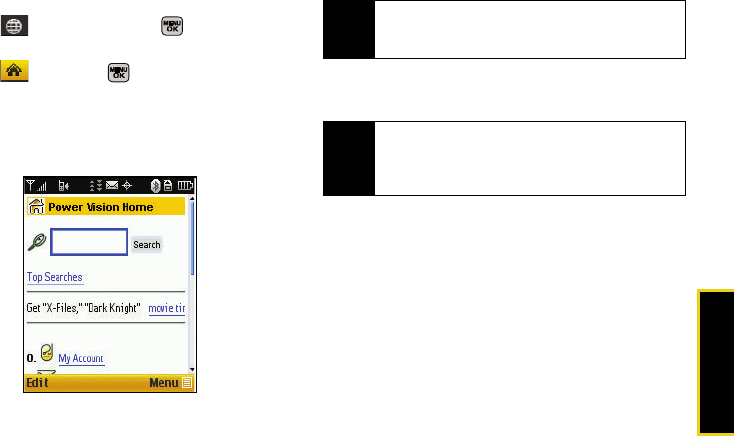
Web and Data
Section 3B. Web and Data 157
Launching a Data Connection
䊳Select > Home and press .
– or –
Select and press > Web. (Your data
connection starts and the home page is
displayed.)
The Data Services Home Page
While connecting, an animation and a “Connecting”
message may be displayed.
Net Guard
When you first connect to the Web, the Net Guard will
be displayed to confirm that you want to connect. This
feature helps you avoid accidental connections. You
can disable the Net Guard in the future by selecting
Always Auto-Connect when the Net Guard is displayed.
Note If Net Guard is enabled and displayed (see page 157),
press OK (right softkey) to continue and launch
the Web.
Tip To change the default launch page to the last page
you viewed, press Menu (right softkey) > Mark this
page and select the Set this as my homepage, select
Save and press OK.
Sprint M540.book Page 157 Wednesday, August 27, 2008 10:00 PM
158 Section 3B. Web and Data
To change your Net Guard settings:
䊳Select and press > Settings > More... >
Data > Net Guard.
䡲Select On to activate the Net Guard.
䡲Select Off to deactivate the Net Guard.
Data Connection Status and Indicators
Your phone displays the current status of your data
connection through indicators at the top of the screen.
The following symbols are used:
Your data connection is active (data is being
transferred); the transmit/receive symbol will blink
to indicate data transmission. During data usage,
you can receive incoming voice calls or SMS
messages; outgoing voice calls can be made, but
the data services connection will terminate.
Your data connection is dormant (no data is
being sent or received). Though not currently
active, when dormant the phone can restart an
active connection quickly; voice calls can be
made and received.
If no indicator is displayed, your phone does not have a
current data connection. To launch a connection, see
“Launching a Data Connection” on page 157.
Navigating the Web
Navigating through menus and Web sites during a
data session is easy once you’ve learned a few basics.
Here are some tips for getting around:
Softkeys
During a data session, the bottom line of your phone’s
display contains one or more softkeys. These keys are
shortcut controls for navigating around the Web, and
they correspond to the softkeys directly below the
phone’s display screen.
Depending on which orientation you are using (portrait
or landscape) the left and right softkey functions are
assigned to one of the two sets of softkeys.
Note When enabled, the Net Guard appears only once as
long as you have not turned the phone off and on.
Sprint M540.book Page 158 Wednesday, August 27, 2008 10:00 PM
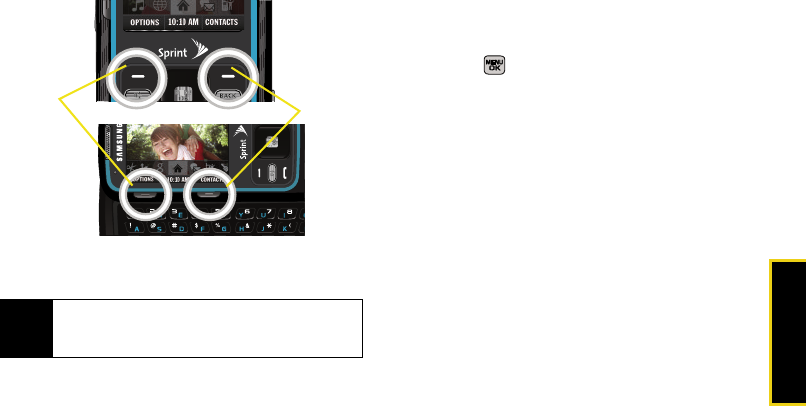
Web and Data
Section 3B. Web and Data 159
To use softkeys:
䊳Press a softkey. (If an additional pop-up menu is
displayed when you press the softkey, select the
menu items using your keypad [if they’re
numbered], or by highlighting the option and
pressing .)
Scrolling
As with other parts of your phone’s menu, you’ll have to
scroll up and down to see everything on some Web
sites.
To scroll line by line through Web sites:
䊳Press the navigation key up and down.
To scroll page by page through Web sites:
䊳Press the volume buttons on the side of the phone.
Tip Depending on which Web sites you visit, the labels
on the softkeys may change to indicate their
function.
Landscape Mode
Portrait Mode
Right
Softkey
Left
Softkey
Sprint M540.book Page 159 Wednesday, August 27, 2008 10:00 PM

160 Section 3B. Web and Data
Selecting
Once you’ve learned how to use softkeys and scroll,
you can start navigating the Web.
To select onscreen items:
䊳Use the navigation key to highlight an item, and
then press the left softkey (or press ).
Links, which are displayed as underlined text, allow you
to jump to Web pages, select special functions, or even
place phone calls.
To select links:
䊳Highlight the link and press the appropriate softkey.
Going Back
To go back one page:
䊳Press the key on your phone.
Going Home
To return to the home page from any other page:
䊳Press Menu > Home.
Tip You’ll find that the left softkey is used primarily for
selecting items. This softkey is often labeled “OK.”
If the items on a page are numbered, you can use
your keypad (number keys) to select an item.
Note The BACK key is also used for deleting text (like a
BACKSPACE key) when you are entering text.
Sprint M540.book Page 160 Wednesday, August 27, 2008 10:00 PM
Web and Data
Section 3B. Web and Data 161
Accessing Messaging
You can send and receive email messages, instant
messages, and text messages and participate in
Web-based chat rooms right from your phone.
Messaging allows you to stay connected 24 hours a
day anywhere on the Sprint National Network.
Using Email
Your phone’s Email application lets you access and
manage multiple email accounts simultaneously in one
convenient location.
Getting Started With Email
1. Select > Send Message > Add Email.
– or –
Select and press > Messages > Email.
2. Select an email provider (such as AOL® Mail, AIM
Mail®, Hotmail®, Yahoo!® Mail, Gmail®, or Work) and
press .
– or –
Select More... to choose from additional options.
3. Follow the setup wizard instructions to enter the
required sign-up information and press .
4. Highlight the right green arrow (left softkey) and
press .
5. Press if you are prompted to accept any
license agreements or disclaimers.
6. If applicable, read the notice regarding Mail Push. If
you would like to enable Mail Push, press Yes (right
softkey). If another notice appears, review it and
press Yes (right softkey) again to enable Mail Push.
Creating an Additional Email Account
1. Select > Send Message > Email.
– or –
Select and press > Messages > Email. (The
default email account Inbox is displayed).
2. Press the left navigation key to select the Home tab
and press .
Note The information required to sign in will vary
depending on the email provider you are accessing.
Sprint M540.book Page 161 Wednesday, August 27, 2008 10:00 PM
162 Section 3B. Web and Data
3. Select Add Account and press .
4. Follow the procedures outlined in “Getting Started
With Email” on page 161.
Accessing Email
Using Email on your phone is even easier than using
multiple email accounts on your computer. Launch the
application for instant access to all your accounts.
1. Select > Send Message > Email.
– or –
Select and press > Messages > Email. (The
default email account Inbox is displayed).
2. Press the left navigation key to select the Home tab
and press .
3. Select your desired email account and press .
4. Use your keypad and navigation keys to read,
manage, and create your own emails.
5. Press Menu (right softkey) to select messaging
options, such as: Delete, Reply to Sender, Reply All,
Forward, Attachments, Call Sender, Read More, Save, or
Mark as Unread.
䡲Press the left navigation key to select the Home
tab and press .
䡲To add a new account, return to the home page
and repeat the steps to setup a new email
account. Follow the instructions in “Creating an
Additional Email Account” on page 161 to set up
a new account.
Note Mail Push allows your phone to automatically retrieve
new email messages without having to select the
Send/Receive option. When Mail Push is enabled,
you will receive an onscreen notice of new email
messages. These notices may be charged as Text
Messages. Please consult your service plan for
details.
Tip You can also customize your main screen carousel
to provide direct access to your email. See
“Personalizing the Carousel” on page 47 for details.
Sprint M540.book Page 162 Wednesday, August 27, 2008 10:00 PM
Web and Data
Section 3B. Web and Data 163
Accessing Sprint Instant Messaging
Data services also provides you with access to popular
instant messaging (IM) clients, including AOL® Instant
MessengerTM, MSN® Messenger, and Yahoo!®
Messenger.
1. Select > Send Message > IM.
– or –
Select and press > Messages > IM.
2. Select an IM provider, such as AOL Instant
Messenger, Windows Live Messenger, or Yahoo!
Messenger and press .
3. Use your keypad to enter the required sign-in
information for the selected provider, such as user
name or password, select Sign In (left softkey) and
press Go (left softkey). (Your IM screen for the
selected provider will be displayed.)
4. Follow the onscreen instructions to read, reply to,
compose, and send messages and manage your
IM account.
Accessing Wireless Chatrooms
Data services gives you the ability to join wireless
chatrooms from your phone.
1. Select and press > Messages > Chat &
Dating.
2. Select a chat provider and follow the onscreen
instructions to sign up and begin chatting.
Note The information required to sign in will vary
depending on the instant messaging provider you
are accessing.
Note Chat & Dating options change frequently, so check
back often to see what’s new.
Sprint M540.book Page 163 Wednesday, August 27, 2008 10:00 PM

164 Section 3B. Web and Data
Downloading Content
With data services, you have access to a dynamic
variety of Premium Services content, such as
downloadable Games, Ringers, Screen Savers, and
other applications. (Additional charges may apply.) The
basic steps required to access and download Premium
Services content are outlined below.
Accessing the Download Menus
1. Select and press > My Stuff.
2. Select the type of file you wish to download
(Games, Ringers, Screen Savers, Applications, or Call
Tones), and then select Get New. (The browser will
start and take you to the corresponding download
menu.)
To access the download menus from the Web browser:
1. From the home page, select Downloads.
2. Select Call Tones, Games, Ringers, Screen Savers, or
Applications to go to the corresponding download
menu. (For more information on navigating the
Web, see “Navigating the Web” on page 158.)
Selecting an Item to Download
You can search for available items to download in a
number of ways:
䢇Featured displays a rotating selection of featured
items.
䢇Categories allows you to narrow your search to a
general category, such as Country or Pop/Rock for
Ringers or For the Ladies for Screen Savers. (There
may be several pages of available content in a list.
Select Next 9 to view additional items.)
䢇Search allows you to use your keypad to enter search
criteria to locate an item. You may enter an entire
word or title or perform a partial-word search.
Sprint M540.book Page 164 Wednesday, August 27, 2008 10:00 PM
Web and Data
Section 3B. Web and Data 165
Downloading an Item
Once you’ve selected an item you wish to download,
highlight it and press . You will see a summary
page for the item including its title, the vendor, the
download details, the file size, and the cost. Links allow
you to view the License Details page, which outlines the
price, license type, and length of license for the
download, and the Terms of Use page, which details the
Premium Services Terms of Use and your responsibility
for payment.
To download a selected item:
1. From the item’s information page, select Buy and
press . (The item will download automatically.
When the New Download screen is displayed, the
item has been successfully downloaded to your
phone.)
2. Select an option to continue:
䡲Select Use/Run/View to assign the downloaded
item (or to start, in the case of a game or an
application). Your data session will end, and you
will be redirected to the appropriate phone menu
screen.
䡲Select Set as to assign a ringer or screen saver to
a phone function.
䡲Select Shop to browse for other items to
download.
䡲Press to quit the browser and return to
standby mode.
Using My Content Manager
Whether you purchase your Premium Services content
from your phone or from your online account
management page at www.sprint.com, all of your
purchases are stored in My Content Manager and may be
downloaded to your phone from there.
Note If you have not previously purchased an item, you will
be prompted to create your purchasing profile.
Sprint M540.book Page 165 Wednesday, August 27, 2008 10:00 PM

166 Section 3B. Web and Data
My Content Manager is a storage area on the Sprint
National Network that allows you to store all your
Premium Services downloadable files. The files remain
within the My Content Manager until their license terms
have expired – even after you have downloaded the
content to your phone. This provides you with a
convenient place to access information about your
downloaded files without having to store the
information in your phone’s memory.
To access My Content Manager:
䊳From the home page, select Downloads >
My Content Manager. (A list of your purchased items
will be displayed.)
To download purchased content from My Content Manager:
1. From the My Content Manager display, highlight the
item you wish to download, and press . (The
information page for the selected item will be
displayed.)
2. Select Downloads and press . (The item will
download automatically. When the New Download
screen is displayed, the item has been successfully
downloaded to your phone.)
3. Select an option to continue:
䡲Select Use/Run/View (left softkey) to assign the
downloaded item (or to start, in the case of a
game or an application). Your data session will
end, and you will be redirected to the appropriate
phone menu screen.
䡲Select Set as to assign a ringer or screen saver to
a phone function.
䡲Select Shop (right softkey) to browse for other
items to download.
䡲Press to quit the browser and return to
standby mode.
For complete information and instructions on
downloading Games, Ringers, Screen Savers, and
Applications, visit the Digital Lounge at www.sprint.com.
Tip You can also access My Content Manager through
the phone’s main menu. Press Menu > My Stuff >
[Games, Ringers, Screen Savers, or Applications] >
My Stuff Manager. The browser will open and take
you to the corresponding content.
Sprint M540.book Page 166 Wednesday, August 27, 2008 10:00 PM
Web and Data
Section 3B. Web and Data 167
Exploring the Web
With Web access on your phone, you can browse full-
color graphic versions of your favorite Web sites,
making it easier than ever to stay informed while on the
go. Follow sports scores, breaking news, and weather,
and shop on your phone anywhere on the Sprint
National Network.
In addition to the features already covered in this
section, the home page offers access to these colorful,
graphically rich Web categories, including News,
Weather, Entertainment, Sports, Money, Travel, Shopping, and
Tools, as well as useful management options including
My Account and Search. Many sites are available under
more than one menu – choose the one that’s most
convenient for you.
Launching Google via the Carousel
This page provides access to Web features such as
Google™ search, online Maps, Gmail™, and YouTube™.
䊳Select .
Using Google Search
1. Select .
2. Use either the keypad or keyboard to enter a string
into the search field and press . (See “Entering
Text in Portrait Mode” on page 33 or “Entering Text
in Landscape Mode” on page 39.)
Using the Browser Menu
Navigating the Web from your phone using the home
page is easy once you get the hang of it. For details on
how to navigate the Web, select menu items, and more,
see “Navigating the Web” on page 158.
Although the home page offers a broad and
convenient array of sites and services for you to
browse, not all sites are represented, and certain
functions, such as going directly to specific Web sites,
are not available. For these and other functions, you will
need to use the browser menu. The browser menu
offers additional options to expand your use of the Web
on your phone.
Sprint M540.book Page 167 Wednesday, August 27, 2008 10:00 PM

168 Section 3B. Web and Data
Opening the Browser Menu
The browser menu may be opened anytime you have
an active data session, from any page you are viewing.
To open the browser menu:
䊳Press Menu (right softkey). (The browser menu will
be displayed.)
Options available under the browser menu include:
䢇Home. Returns the browser to the home page.
䢇Forward. Returns you to a previously viewed page
(after having used the key).
䢇Mark this page. Allows you to bookmark the current
site.
䢇My Bookmarks. Allows you to access and manage
your bookmarks.
䢇Search. Launches a Web search.
䢇Send Page to. Allows you to send a URL via SMS.
䢇Go to Web Address. Allows you to navigate directly to a
Web site by entering its URL (Web site address).
䢇History. Keeps a list of links to your most recently
visited sites. To navigate to a site, highlight it and
press , and then select Connect.
䢇Page Info. Provides information about the current page
such as web address and page size.
䢇Browser Options. Displays additional options:
䡲Setting. Lets you configure and manage your
browser settings: My homepage, Font Setting, Privacy,
and Preference.
䡲Show URL. Displays the URL (Web site address) of
the site you’re currently viewing.
䡲Reload This Page. Reloads the current web page.
䡲Restart Browser. Refreshes the current browser
session.
䡲View Error Log. Displays a log of error messages.
䡲Browser Info. Displays information about your
browser.
Sprint M540.book Page 168 Wednesday, August 27, 2008 10:00 PM
Web and Data
Section 3B. Web and Data 169
Creating a Bookmark
Bookmarks allow you to store the address of your
favorite Web sites for easy access at a later time.
1. Go to the Web page you want to mark.
2. Press Menu (right softkey) to open the browser
menu.
3. Select Mark this page and press twice to save
the bookmark.
4. Make any modifications, select Save and press .
Accessing a Bookmark
1. Press Menu (right softkey) to open the browser
menu.
2. Select My Bookmarks and press .
3. Select the desired bookmark and press .
Setting a New Homepage
Bookmarks allow you to store the address of your
favorite Web sites for easy access at a later time.
1. Press Menu (right softkey) to open the browser
menu.
2. Select Mark this page and press .
3. Select the Set this as my hompage field and
press .
4. Select the onscreen Save button and press .
Note Bookmarking a page does not store the page
contents, just its address.
Some pages cannot be bookmarked. Whether a
particular Web page may be marked is controlled by
its creator.
Sprint M540.book Page 169 Wednesday, August 27, 2008 10:00 PM
170 Section 3B. Web and Data
Deleting a Bookmark
1. Press Menu (right softkey) to open the browser
menu.
2. Select My Bookmarks.
3. Select a bookmark and press Options (right softkey)
> Delete. (A confirmation will be displayed.)
4. Press Delete (left softkey) to remove the bookmark.
Going to a Specific Web Site
To go to a particular Web site by entering a URL (Web site
address):
1. Press Menu (right softkey) to open the browser
menu.
2. Select Go to Web Address and press .
3. Select the URL field and press .
4. Use either your keypad or keyboard to enter the
URL of the Web site you wish to go to and press
.
5. Press again to go to the Web site.
Reloading a Web Page
1. Press Menu (right softkey) to open the browser
menu.
2. Select Browser Options > Reload This Page and
press . (The browser will reload the current
Web page.)
Restarting the Web Browser
If the Web browser seems to be malfunctioning or
stops responding, you can usually fix the problem by
simply restarting the browser.
1. Press Menu (right softkey) to open the browser
menu.
2. Select Browser Options > Restart Browser and
press .
Note The default homepage (Sprint Vision Home) is can
not be deleted.
Note Not all Web sites are viewable on your phone.
Sprint M540.book Page 170 Wednesday, August 27, 2008 10:00 PM

Web and Data
Section 3B. Web and Data 171
Data Services FAQs
How will I know when my phone is ready for data service?
Your user name (for example, bsmith01@sprintpcs.com)
will be displayed when you access Main Menu > Settings
> Phone Info > Phone Number.
How do I sign in for the first time?
You are automatically signed in to access data services
when you turn on your phone.
How do I know when my phone is connected to data services?
Your phone automatically connects when data service
is used or an incoming message arrives. Your phone
will also display the or indicator.
Can I make calls and use data services at the same time?
Since DDTM is off by default, you can receive incoming
callas or SMS messages while in a data transmission
session.
When is my data connection active?
Your connection is active when data is being
transferred. Outgoing calls are allowed; incoming calls
go directly to voicemail. When active, the or
indicator animates on your phone’s display screen.
When is my data connection dormant?
If no data is received for 10 seconds, the connection
goes dormant. When the connection is dormant, voice
calls are allowed. (The connection may become active
again quickly.) If no data is received for an extended
period of time, the connection will terminate.
Can I sign out of data services?
You can sign out without turning off your phone;
however, you will not be able to browse the Web or use
other data services. While signed out, you can still
place or receive phone calls, check voicemail, and use
other voice services. You may sign in again at any time.
To sign out, go to Main Menu > Settings > More... > Data >
On/Off in your phone’s menu.
Sprint M540.book Page 171 Wednesday, August 27, 2008 10:00 PM

172 Section 3C. Entertainment: TV and Music
Section 3C
Entertainment: TV and Music
⽧TV (page 172)
⽧Music - Sprint Music Store (page 175)
⽧Streaming Music (page 180)
Sprint TV gives you the ability to listen to audio clips and
to view video clips right from your phone’s display.
Watch live TV and catch up on episodes of your
favorite shows – anywhere on the Sprint National
Network.
Sprint Music lets you preview, purchase, download, and
listen to over a million songs right on your phone. You
can even add songs from your own library to round out
your on-the-go playlist.
TV
Your Sprint TV Channel Options
The Sprint TV application offers a wide variety of
accessible channels. Subscription options include
comprehensive basic packages as well as a full menu
of “a la carte” channels. Visit www.sprint.com for more
information on channels and pricing.
Some of the available categories may include:
䢇Sprint Radio 䢇Sprint Power View
䢇Primetime TV 䢇Music Videos
䢇Sprint TV Live 䢇Music & Radio
䢇Sports 䢇Entertainment
䢇Cartoons 䢇News & Weather
䢇Movies & Shorts 䢇Mobile Previews
Note Available categories and content are subject to
change.
Sprint M540.book Page 172 Wednesday, August 27, 2008 10:00 PM
TV and Music
Section 3C. Entertainment: TV and Music 173
Playing a Video Clip
1. Select and press > Entertainment > TV.
Depending on your settings, you may be asked to
accept a data connection.
2. Select Sprint TV, Sprint Radio, Sprint Movies, or Premium
Channels to display channel options.
3. Use your navigation key and press to select a
channel from the Sprint TV listings or to select an
available category.
4. If applicable, select a clip and press to view
the program. The clip will automatically load and
begin playing.
TV FAQs
1. Will I know if I’m receiving an incoming call while I’m
viewing or listening to a media clip?
Yes. All incoming calls will temporarily pause your
current clip and provide you with the option to
either Silence (left softkey) or Ignore (right softkey).
Note The first time you access a channel, you will be
prompted to purchase access (unless the channel
doesn't have a monthly fee). Select Subscribe to
purchase access, or select Preview to view a preview
of the selected channel.
Tip While you are playing a clip, you can press the
navigation key up or down to surf to a different
channel. A small pop-up screen will be displayed
that tells you which channel you are watching as well
as other channels that you have access to. Use the
navigation key to scroll through the channels. Once
you find a channel that you want to watch or listen to,
scroll to it and press OK (or simply wait approximately
three seconds), and the channel will begin loading.
Sprint M540.book Page 173 Wednesday, August 27, 2008 10:00 PM

174 Section 3C. Entertainment: TV and Music
2. How long are the clips? Will I know the estimated time it will
take to play the clip prior to accessing it?
Once you have selected a channel, you will see a
listing of the available clips, with each clip’s length
displayed after the clip’s title. In general, a clip’s
duration will depend on the story or content being
provided, and can be fairly short or as long as a
few minutes.
3. Can I access a clip wherever I am, as long as I have my
phone?
As long as you are on the Sprint National Network,
you will have access to the audio and video clips.
4. Are the videos that I’m viewing “live” videos?
It depends on the content provider. Some of the
channels available through Sprint TV stream live
content. Others provide media on demand with
video and audio clips that are refreshed throughout
the day, but that are not “live.”
5. After purchasing access to an Available Channel for a
monthly fee, do I receive any confirmation? That is, how do
I know it has been purchased?
The next time you access the channel, you bypass
the Preview/Purchase page and go directly to the
available content.
6. If I don’t subscribe to a Sprint Power Vision Plan, will I still be
able to view the multimedia clips?
Yes. For service access charges, please consult
your Sprint service plan or visit www.sprint.com.
7. What does it mean when the video pauses and I see the
word “loading” at the bottom of the screen?
This happens when the phone is loading the data
necessary to play the clip. It typically occurs when
there is heavy traffic on the network.
8. How can I cancel service if I decide I don’t want it?
To cancel your Sprint TV service, visit
www.sprint.com and sign on to My Sprint Wireless with
your account number and password. From this
page, you have the ability to cancel the service or
any channels to which you subscribe.
Note Sprint TV Service does not work while roaming off of
the Sprint National Network or where service is
unavailable.
Sprint M540.book Page 174 Wednesday, August 27, 2008 10:00 PM
TV and Music
Section 3C. Entertainment: TV and Music 175
9. If I put on my stereo headset and insert them into the phone’s
headset jack, can I close the phone while I am playing an audio
(or video) clip without interrupting the clip?
Yes. When you insert your stereo headset into the
phone’s headset jack, the phone automatically
goes into “headset mode,” allowing you to close
the phone and continue playing the clip. (Likewise,
if your phone is in “headset mode,” a phone call
will not disconnect when you close the phone.)
10. Can I surf to a different channel while I am playing a clip?
Yes. While you are playing a clip, you can use the
up and down navigation keys to surf to a different
channel. A small pop-up screen will be displayed
that tells you which channel you are watching as
well as other channels that you have access to.
Use the navigation keys to scroll through the
different channels. Once you find a channel that
you want to watch, scroll to it and press (or simply
wait approximately three seconds), and the
channel will begin loading.
Music - Sprint Music Store
The Sprint Music Store enables you to purchase and
download digital music files to play on your phone or
computer.
Accessing the Sprint Music Store
You can access the Sprint Music Store right from your
phone’s main menu, anywhere on the Sprint National
Network. When you enter the store for the first time, you
will be prompted to set up your user identification and
password.
1. Select and press > Entertainment > Music.
2. Follow the onscreen instructions to establish your
User ID and password.
䡲Press Options (right softkey) > Password.
Tip Your User ID for the Sprint Music Store is your
10-digit wireless phone number. The password may
be any 4-digit number.
Sprint M540.book Page 175 Wednesday, August 27, 2008 10:00 PM
176 Section 3C. Entertainment: TV and Music
3. After you have entered your password, highlight
Create New Account and press .
4. Use your keypad and navigation key to explore the
store.
Purchasing and Downloading Music
Now that you’re in the store, you can shop for songs to
purchase and download to your phone’s microSD card.
1. From the Sprint Music Store opening page, use
your navigation key to select the Store tab then
choose an option:
䡲Featured Music offers a revolving selection of
highlighted songs and artists.
䡲Categories allows you to choose from categories
such as Top 10s, New This Week, What’s Hot,
Songs You Know, and specific musical genres.
䡲Search gives you the option of searching for
specific songs or artists. Just use your keypad to
enter your search criteria in the available field.
2. Select a song and press . (The song
information screen will be displayed.)
3. Select an option from the song’s information page
and press :
䡲Preview to play an audio clip of the selected song.
䡲Buy Song to purchase the song and download it to
your phone’s microSD card.
●When you select Buy Song, the file will
download to your phone’s microSD card. (If
there is no microSD card installed or if there is
not enough free memory space on the card,
you will see an alert.)
●Once the song has been downloaded to your
microSD card, you will see options allowing
you to listen to the song, add it to a playlist, or
continue shopping.
Note You can only upload unprotected MP3 audio files to
your phone’s Music folder.
Sprint M540.book Page 176 Wednesday, August 27, 2008 10:00 PM

TV and Music
Section 3C. Entertainment: TV and Music 177
Playing Music From the Sprint Music Store
The Sprint Music Store not only gives you access to
great music, it also gives you a place to listen to and
organize your music library.
Accessing the Music Player
1. From the Sprint Music Store opening page, select
the Player tab (default tab).
䡲The player can also be accessed by pressing
Options (right softkey) > Go to Player.
2. Select one of the following options:
䡲All My Music to browse through all of your
downloaded music, including music purchased
from the Sprint Music Store and any additional
songs you have loaded onto your microSD card
from your computer.
䡲<playlist> to select a customized playlist you’ve
created to organize your music.
䡲Create Playlist... to set up a custom playlist of songs
you like to hear together. Follow the onscreen
instructions to create a name for the playlist,
select songs by artist, genre, and title, and create
an order for the playlist.
3. Once you’ve displayed a list of songs, you can
browse through your available titles by Song, Artist,
or Genre to select a specific song.
䡲To play a song, select it and press .
䡲To listen to a playlist, select it and press to
open the playlist, then press again to begin
playing from the selected song. (You can also
highlight the playlist and use the softkey menu to
begin listening.)
Backing Up Your Downloaded Music Files
When you purchase and download a music file
from the Sprint Music Store, you get two versions of
the song: one to download and play on your phone
(file type: AAC+), and another to download from
http://musicstore.sprint.com and play on your computer
(file type: WMA).
Sprint M540.book Page 177 Wednesday, August 27, 2008 10:00 PM

178 Section 3C. Entertainment: TV and Music
The AAC+ files downloaded to your phone can only be
played on your phone and on your account, and once
they have been downloaded, they cannot be
downloaded again without being repurchased.
Sprint recommends you back up your AAC+ music
files to your computer so you can access the files in
case your microSD card is lost or damaged, or if you
install a new microSD card.
1. Connect your phone using a USB cable or the
built-in connection on Bluetooth-enabled phones.
2. Select and press > Tools > Mass Storage >
Connect to PC.
3. Use your computer to navigate to the microSD
card’s Music folder.
4. Select and copy the music files to a folder on your
computer’s hard drive.
Multitasking
Multitasking is a way of maintaining one application
active while using another. While your current music
selection is playing, you can activate the Application
Manager screen and choose from a list of available
applications which can be run in tandem with your
music.
Note Although you can store AAC+ files on your
computer, they will only be playable on your phone
and on your account.
If you copy the files to a new microSD card, you will
need to create a folder on the card called “MUSIC” to
be able to play the music files.
Note Multitasking is enabled only while using the Sprint
Music Store (Main Menu > Entertainment > Music).
Sprint M540.book Page 178 Wednesday, August 27, 2008 10:00 PM

TV and Music
Section 3C. Entertainment: TV and Music 179
To multitask on your phone:
1. From the Player tab select All My Music, select a
song, and press to play the selected song.
2. Press to exit the Music Store application
without closing it and launch the popup menu,
where you can choose from the following options:
Resume, Exit, App.Manager, and Send to Background.
䡲If is pressed while the song is still playing, the
display screen will reactivate the song’s playback
screen.
3. Select App. Manager and press to launch an
Application Manager screen which provides you
access to several applications:
䡲Application Manager manages all currently active
applications. With your music still playing, the
Sprint Music Store entry appears in the list.
4. Press Options (right softkey) to access the following
management options:
䡲Bring to Foreground reactivates the current
application screen. For example, if your music is
currently playing in the background, selecting this
option activates the music Player tab with the
song displayed.
䡲Exit Application terminates the currently selected
application and returns you to the standby screen.
䡲Exit All Background terminates all currently active
applications and returns you to the standby
screen.
䡲Launch New App allows you to launch an
application from the My Contents listing.
If the phone is running more than one simultaneous
application (such as Music Store, Application [from
My Stuff], and Games), the user interface can begin to
slow down and result in music or sound interruptions.
䢇To solve this type of issue, it is best to close down all
other applications (Main Menu > My Stuff > Application
Manager > Options > Exit Application) before initiating a
new application.
Sprint M540.book Page 179 Wednesday, August 27, 2008 10:00 PM
180 Section 3C. Entertainment: TV and Music
Also, in some situations, the camera or camcorder may
have limited functionality or become unavailable. For
example, if you were currently playing music (via the
Music Store), or playing a game in the background,
and then wanted take a photo, the phone may prompt
you with a “CPU Low, Kill the Application” dialog.
This indicates that the current phone resources are
stretched and one of the current applications should be
terminated before continuing. Refer to the procedure
above to exit either a specific application or all current
applications, and then launch the camera or
camcorder again.
Receiving an Incoming Call While Playing Music
An incoming call causes the currently played music file
to be paused while the phone call is active. Once the
current call is ended, you can select to resume any
paused applications. (Music will resume playing
automatically.)
1. Answer an incoming call by pressing .
2. When you are done with your call, press to
end the call. The previously paused application
then resumes.
Streaming Music
In addition to the Sprint Music Store, Sprint Power
Vision offers a variety of musical options through the
Music category in the Sprint TV menu, including
SIRIUS Music, Music Choice, VH1, and many others.
Choose from rock, pop, hip-hop, and R&B, and access
exclusive video clips, music industry news,
performances, and interviews with your favorite artists.
1. Select and press > Entertainment > TV.
2. Select Sprint Radio > [selection].
Note When placing an outgoing call, the Application
Manager pauses your current music playback and
allows you to proceed with your outgoing call. When
the call is ended, the Application Manager restarts
the music playback.
Sprint M540.book Page 180 Wednesday, August 27, 2008 10:00 PM

TV and Music
Section 3C. Entertainment: TV and Music 181
3. Select to see and hear a preview of your
selected channel (if available).
– or –
Select Subscribe to purchase a monthly
subscription to your selected channel.
Once you have purchased access to a music or radio
channel, you can select from a variety of stations to
listen to your favorite music or get caught up on what’s
new in music.
Sprint M540.book Page 181 Wednesday, August 27, 2008 10:00 PM
182 Section 3D. GPS Navigation
Section 3D
GPS Navigation
⽧Sprint Navigation (page 182)
⽧Using Sprint Navigation (page 183)
⽧Getting Driving Directions (page 184)
⽧Configuring Your Navigation Preferences (page 190)
⽧Launching the Product Tour (page 191)
The Samsung Rant™ allows you to utilize built-in GPS hardware
to easily access both directional information and location-ready
features such as nearby companies and services. Sprint
Navigation is a GPS navigation system that gives you
turn-by-turn directions onscreen and by voice right
from your device. Get audible GPS directions for
appointments, meetings, or even the closest coffee
shop.
Sprint Navigation
Before You Begin
Sprint Navigation requires that your device’s Location
setting is activated. Location is set to On by default.
To turn Location On if it is set to Off:
1. Select and press > Settings > More... >
Location. (The Location disclaimer will be
displayed.)
2. Read the disclaimer and press .
3. Select On and press .
Note Depending on your plan, Sprint Navigation may
require a monthly subscription. Contact Sprint for
information and pricing.
Sprint M540.book Page 182 Wednesday, August 27, 2008 10:00 PM
GPS Navigation
Section 3D. GPS Navigation 183
Registering for Service
Before you can fully take advantage of the navigation
feature, you must first properly register your device.
1. Select > Drive To and press .
– or –
Select and press > Maps > Sprint Navigation
and press .
2. Select each of the onscreen registration fields and
use either the keypad or keyboard to enter the
required information.
䡲First Name, Last Name, and Email.
䡲The email must be entered properly to guarantee
successful registration. See “Entering Text in
Portrait Mode” on page 33 or “Entering Text in
Landscape Mode” on page 39.
3. Select Submit (right softkey) to store your
information.
Using Sprint Navigation
1. Select to access the Sprint Navigation menu.
– or –
Select and press
> Maps > Sprint Navigation
and press .
2. Select an option and follow the onscreen
instructions to take advantage of Sprint
Navigation’s full suite of features.
䡲Drive To lets you get driving directions from
wherever you are to wherever you’re going. Press
the right navigation key to reveal the following
choices:
●My Favorites: user-defined favorite locations.
●Recent Places: recently entered locations.
●Address: manually entered street addresses.
●Intersection: used to locate a specific address
by using two separate street addresses to
identify an intersection.
Sprint M540.book Page 183 Wednesday, August 27, 2008 10:00 PM
184 Section 3D. GPS Navigation
●City: used when you do not know a physical
address but would like driving directions to a
city.
●Businesses: locations based on business
categories.
●Airports: local airports based on current GPS
location.
䡲Search lets you search for locations based on
Name, Category, or Location.
●Categories include options such as
Food/Coffee, Gas Stations, Gas by Price,
Banks/ATMs, WiFi Spots, Parking Lots, Hotels
& Motels, and Movie Theaters.
䡲Maps & Traffic provides access to 2D and 3D maps
for your current location and for several
categories of locations such as Airports and
Contacts.
䡲Share & More offers additional options, such as
sharing your location with contacts, creating and
storing My Favorites locations, accessing the
product tour, and setting detailed application
preferences.
Getting Driving Directions
The built-in GPS hardware (when enabled) allows you
to get driving directions to selected locations or
establishments based on your current location.
Using a Physical Address
1. Select > Drive To and press .
– or –
Select and press > Maps > Sprint Navigation
> Drive To.
2. Select Address and press .
Sprint M540.book Page 184 Wednesday, August 27, 2008 10:00 PM
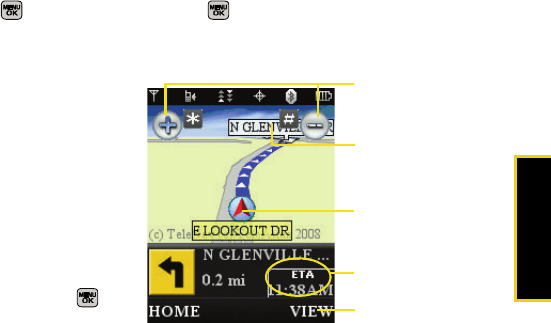
GPS Navigation
Section 3D. GPS Navigation 185
3. Select Type It or Speak It and press .
䡲Type It requires that you enter the physical address
using either the keypad or keyboard.
䡲Speak It to place a call to the TeleNav™ operator
where you will speak the desired address. This is
similar to calling 411 for directory assistance. (A
fee may be incurred.)
4. If typing in the address, enter the following:
䡲Address: used to enter a specific address by using
a number, street name, and city/state or zip code.
䡲City: used when you do not know a physical
address but would like driving directions to a city.
●As you enter in the text, a list of possible city
matches appears onscreen. Use your
navigation key to choose one and press .
䡲State, ZIP or Country used when the specific
address information is not available but you
would like to provide some general driving
parameters.
5. Press GO (right softkey) to enter the new address
and receive driving directions from the GPS
network.
6. Press to begin the navigation session.
7. Follow both the onscreen and audio directions.
Estimated Time of Arrival
Magnification
Your Current Location
Destination Address
Other Driving Options
Navigation Screen
Sprint M540.book Page 185 Wednesday, August 27, 2008 10:00 PM
186 Section 3D. GPS Navigation
Once you have entered your desired location and your
phone has begun providing you with driving directions,
you can alter the information being displayed by using
one of three other driving options, press View (right
softkey): Route Summary, Traffic Summary, Map Summary,
and Search Along.
To review real-time traffic information along your route:
1. Select > Drive To and press .
– or –
Select and press > Maps > Sprint Navigation
> Drive To.
2. Select Address and press .
3. Enter the physical address information. See “Using
a Physical Address” on page 184.
4. Press View > Traffic Summary and press . This
action displays an onscreen current traffic
conditions along your current route.
5. Press Back (left softkey) to return to your previous
driving screen.
To receive turn by turn directions (2D):
1. Select > Drive To and press .
– or –
Select and press > Maps > Sprint Navigation
> Drive To.
2. Select Address and press .
3. Enter the physical address information. See “Using
a Physical Address” on page 184.
4. Press View > 2D MAP and press . This action
provides both an outlined map view and a detailed
turn by turn description for navigating to your
desired location.
To search nearby locations based on type:
1. Select > Drive To and press .
– or –
Select and press > Maps > Sprint Navigation
> Drive To.
2. Select Address and press .
3. Enter the physical address information. See “Using
a Physical Address” on page 184.
Sprint M540.book Page 186 Wednesday, August 27, 2008 10:00 PM

GPS Navigation
Section 3D. GPS Navigation 187
4. Press View > Search Along and press . This
allows you to then search for a location based on a
name, location, or category such as Food/Coffee,
etc.
䡲See “Using a Local Business Category” on
page 187.
Using a Local Business Category
The Rant™ can also cross-reference your current
location with local business and points of interest, such
as Grocery Stores, Gas Stations, Wi-Fi Spots, Malls,
Hospitals, etc.
1. Select > Drive To and press .
– or –
Select and press > Maps > Sprint Navigation
> Drive To.
2. Select Businesses and press .
䡲Pressing either or the right navigation key
opens the Businesses search page.
3. Select a desired field and then use either your
keypad or keyboard to enter the information.
䡲What lets you use a keyword search for your
business.
䡲Category lets you refine your search by using a
business category type such as: Food/Coffee,
Gas Stations, Gas by Price, Banks/ATMs, WiFi Spots,
Hospitals, Complete List, etc....
䡲Where returns you to the Search Near page where
you can choose from a set of seven location
categories.
䡲Entries with more than one available category (a
subcategory) appear with an adjacent grey arrow.
These entries can be expanded and then closed.
To organize and arrange your search results:
1. Select a category entry from the Search page. By
default the Search Results page lists the Best
Matches based on closest location first (top).
2. Press GO (right softkey) and then press Options
(right softkey) to apply the available filter options to
best display the matching results:
䡲Map Results: overlaps your current list over a map
of your current location. The numeric onscreen
entries correspond to your current sorted list.
Sprint M540.book Page 187 Wednesday, August 27, 2008 10:00 PM
188 Section 3D. GPS Navigation
䡲Sort by Distance: sorts a list of matching results by
placing the closest location (to your present
position) at the top and farthest location at the
bottom.
䡲Sort by Rating: sorts the results by their overall
consumer satisfaction rating (indicated by a set of
star icons to the left of the entry). The best rated
location (5 stars) is placed at the top of the list.
The rating is from No stars to 5 stars.
To search for the least expensive gas in your area:
1. Select > Search > Category > Gas By Price and
press .
– or –
Select and press > Maps > Sprint Navigation
> Search > Category > Gas By Price.
2. Select a grade of gasoline: Any, Regular, Plus 89,
Premium, or Diesel.
䡲By default the Search Results page lists the Best
Price at the top of the list.
3. Press GO (right softkey), highlight a gas station
from the list, and press to be provided with a
new route to the selected gas station.
䡲See “Using a Physical Address” on page 184.
Creating a My Favorites Location
Once you have begun using Sprint Navigation to find
your destination, you can then either recall those
locations and add them to your list of favorite
destinations or create a new entry from one of the
available location categories (Address, Business,
Airport, or Contacts).
To create a My Favorites entry from your Current Location:
1. Select > Share & More > Record Location and
press .
– or –
Select and press > Maps > Sprint Navigation
> Share & More > Record Location.
2. Enter a label for the newly stored location.
3. Select the Save field and press .
Sprint M540.book Page 188 Wednesday, August 27, 2008 10:00 PM
GPS Navigation
Section 3D. GPS Navigation 189
To create a My Favorites location from a Recent Place:
1. Select > Drive To > Recent Places and press .
– or –
Select and press > Maps > Sprint Navigation
> Drive To > Recent Places.
2. Select an entry from the list and press Options (right
softkey) > Save to Favorites and press .
3. Enter a label for the newly stored location.
4. Select the Save field and press .
Sharing a Recent Location with Others
Recently queried locations can be saved to your My
Favorites list and also shared with other cellular
devices.
1. Select > Share & More > Share Address and
press .
– or –
Select and press > Maps > Sprint Navigation
> Share & More > Share Address.
2. Select the Address field and press .
3. Select a category from the Share Address page,
such as your Current Location, My Favorites
location, Recent Places, etc..
4. Select an address and press . You are then
returned to the previous Share Address page.
5. Select a recipient by selecting the Sent To field,
pressing , and then choosing from one of the
following options:
䡲Use either the keypad or keyboard to manually
enter the recipients phone number.
– or –
䡲Choose an existing Contacts entry and press .
●Select from Contacts to use the Find search field
to select a recipient from your Contacts
(qualifying Contacts entries must contain a
wireless phone number).
Note Only Contact entry numbers that are associated to a
Mobile profile are allowed to receive this address
information. The target phone number must be
assigned to a Mobile profile. See “Adding a New
Contacts Entry” on page 82.
Sprint M540.book Page 189 Wednesday, August 27, 2008 10:00 PM
190 Section 3D. GPS Navigation
6. Select Done (right softkey) to store the recipients
and return to Share Address page.
7. Select Send Now and press to complete the
delivery process.
Configuring Your Navigation
Preferences
䊳Select > Share & More > Preferences and
press .
– or –
1. Select and press > Maps > Sprint Navigation
> Share & More > Preferences.
2. Scroll down the list and select an entry to change
its current setting:
䡲Name: allows you to alter the current first and last
name registered with the service.
䡲Email: allows you to alter the email address
registered with the service.
䡲Route Style: allows you to choose the method
which is used to provide you directions from
Point A to Point B. The default is Fastest route.
●Choose from one of the following options:
Fastest route, Traffic optimized, Shortest, Prefer
streets, Prefer highway, Pedestrian, or Ask me each
trip.
䡲Traffic Alerts: allows you to either enable (On) or
disable (Off) real-time traffic alerts along your
current route.
䡲Distance Units: allows you to alter the descriptions
used for distances: Mi/Ft (Miles/Feet) or Km/Meters.
䡲Moving Maps: allows you to select the default map
type displayed for your navigation: 3D Moving Maps,
2D Moving Maps, or None (Turn Icons Only).
Sprint M540.book Page 190 Wednesday, August 27, 2008 10:00 PM
GPS Navigation
Section 3D. GPS Navigation 191
䡲Backlight: allows you to configure the Backlight
setting between Always On, On At Turns, or
Device Settings.
䡲Audio Options: allows you to choose whether the
street names are announced during your
navigation.
●Options include: Full Audio, Instructions Only, or
No Audio.
䡲Audio Language: allows you to change the
language currently used for announcements
between either English (US) or Spanish.
䡲Call In: to alter the number used when accessing
Spoken directions from the TeleNav™ operator.
䡲Help Card: allows you to configure the settings for
the onscreen help message (card).
●Options include: Show Three Times, Always On,
or Always Off.
Launching the Product Tour
䊳Select > Share & More > Product Tour and
press .
– or –
䊳Select and press > Maps > Sprint Navigation
> Share & More > Product Tour.
Sprint M540.book Page 191 Wednesday, August 27, 2008 10:00 PM
Sprint M540.book Page 192 Wednesday, August 27, 2008 10:00 PM

Section 4
Safety and Warranty
Information
Sprint M540.book Page 193 Wednesday, August 27, 2008 10:00 PM

194 Section 4A. Important Safety Information
Section 4A
Important Safety Information
⽧General Precautions (page 194)
⽧Maintaining Safe Use of and Access to Your Phone
(page 195)
⽧Using Your Phone With a Hearing Aid Device (page 196)
⽧Caring for the Battery (page 198)
⽧Radio Frequency (RF) Energy (page 199)
⽧Owner’s Record (page 201)
⽧User Guide Proprietary Notice (page 201)
This phone guide contains important operational and safety
information that will help you safely use your phone. Failure to
read and follow the information provided in this phone
guide may result in serious bodily injury, death, or
property damage.
General Precautions
There are several simple guidelines to operating your phone
properly and maintaining safe, satisfactory service.
䢇To maximize performance, do not touch the bottom portion
of your phone where the internal antenna is located while
using the phone.
䢇Speak directly into the mouthpiece.
䢇Avoid exposing your phone and accessories to rain or liquid
spills. If your phone does get wet, immediately turn the
power off and remove the battery.
䢇Do not expose your phone to direct sunlight for extended
periods of time (such as on the dashboard of a car).
䢇Although your phone is quite sturdy, it is a complex piece of
equipment and can be broken. Avoid dropping, hitting,
bending, or sitting on it.
䢇Any changes or modifications to your phone not expressly
approved in this document could void your warranty for this
equipment and void your authority to operate this
equipment.
Note For the best care of your phone, only Sprint-authorized
personnel should service your phone and accessories.
Failure to do so may be dangerous and void your warranty.
Sprint M540.book Page 194 Wednesday, August 27, 2008 10:00 PM

Important Safety Information
Section 4A. Important Safety Information 195
Maintaining Safe Use of and Access
to Your Phone
Do Not Rely on Your Phone for Emergency Calls
Mobile phones operate using radio signals, which cannot
guarantee connection in all conditions. Therefore you should
never rely solely upon any mobile phone for essential
communication (e.g., medical emergencies). Emergency calls
may not be possible on all cellular networks or when certain
network services or mobile phone features are in use. Check
with your local service provider for details.
Using Your Phone While Driving
Talking on your phone while driving (or operating the phone
without a hands-free device) is prohibited in some jurisdictions.
Laws vary as to specific restrictions. Remember that safety
always comes first.
Following Safety Guidelines
To operate your phone safely and efficiently, always follow any
special regulations in a given area. Turn your phone off in areas
where use is forbidden or when it may cause interference or
danger.
Using Your Phone Near Other Electronic Devices
Most modern electronic equipment is shielded from radio
frequency (RF) signals. However, RF signals from wireless
phones may affect inadequately shielded electronic
equipment.
RF signals may affect improperly installed or inadequately
shielded electronic operating systems or entertainment
systems in motor vehicles. Check with the manufacturer or their
representative to determine if these systems are adequately
shielded from external RF signals. Also check with the
manufacturer regarding any equipment that has been added to
your vehicle.
Consult the manufacturer of any personal medical devices,
such as pacemakers and hearing aids, to determine if they are
adequately shielded from external RF signals.
Turning Off Your Phone Before Flying
Turn off your phone before boarding any aircraft. To prevent
possible interference with aircraft systems, the U.S. Federal
Aviation Administration (FAA) regulations require you to have
permission from a crew member to use your phone while the
plane is on the ground. To prevent any risk of interference, FCC
regulations prohibit using your phone while the plane is in the
air.
Tip Purchase an optional hands-free accessory at your local
Sprint Store, or call Sprint at 1-800-974-2221. You can also
dial # 2 2 2 on your phone.
Note Always turn off the phone in healthcare facilities, and
request permission before using the phone near medical
equipment.
Sprint M540.book Page 195 Wednesday, August 27, 2008 10:00 PM

196 Section 4A. Important Safety Information
Turning Off Your Phone in Dangerous Areas
To avoid interfering with blasting operations, turn your phone
off when in a blasting area or in other areas with signs
indicating two-way radios should be turned off. Construction
crews often use remote-control RF devices to set off explosives.
Turn your phone off when you’re in any area that has a
potentially explosive atmosphere. Although it’s rare, your phone
and accessories could generate sparks. Sparks can cause an
explosion or fire, resulting in bodily injury or even death. These
areas are often, but not always, clearly marked. They include:
䡲Fueling areas such as gas stations.
䡲Below deck on boats.
䡲Fuel or chemical transfer or storage facilities.
䡲Areas where the air contains chemicals or particles such
as grain, dust, or metal powders.
䡲Any other area where you would normally be advised to
turn off your vehicle’s engine.
Restricting Children’s Access to Your Phone
Your phone is not a toy. Do not allow children to play with it as
they could hurt themselves and others, damage the phone or
make calls that increase your Sprint invoice.
Using Your Phone With a Hearing
Aid Device
A number of Sprint phones have been tested for hearing aid
device compatibility. When some wireless phones are used
with certain hearing devices (including hearing aids and
cochlear implants), users may detect a noise which can
interfere with the effectiveness of the hearing device.
Some hearing devices are more immune than others to this
interference noise, and phones also vary in the amount of
interference noise they may generate. ANSI standard C63.19
was developed to provide a standardized means of measuring
both wireless phone and hearing devices to determine usability
rating categories for both.
Ratings have been developed for mobile phones to assist
hearing device users find phones that may be compatible with
their hearing device. Not all phones have been rated for
compatibility with hearing devices. Phones that have been
rated have a label located on the box. Your Samsung Rant™
(SPH-M540) has an M4 and T4 rating.
These ratings are not guarantees. Results will vary depending
on the user’s hearing device and individual type and degree of
hearing loss. If a hearing device is particularly vulnerable to
interference noise; even a phone with a higher rating may still
cause unacceptable noise levels in the hearing device. Trying
Note Never transport or store flammable gas, flammable liquids,
or explosives in the compartment of your vehicle that
contains your phone or accessories.
Sprint M540.book Page 196 Wednesday, August 27, 2008 10:00 PM
Important Safety Information
Section 4A. Important Safety Information 197
out the phone with your hearing device is the best way to
evaluate it for your personal needs.
M-Ratings: Phones rated M3 or M4 meet FCC requirements
for hearing aid compatibility and are likely to generate less
interference to hearing devices than unrated phones. (M4 is the
better/higher of the two ratings.)
T-Ratings: Phones rated T3 or T4 meet FCC requirements and
are likely to be more usable with a hearing device’s telecoil (“T
Switch” or “Telephone Switch”) than unrated phones. (T4 is the
better/higher of the two ratings. Note that not all hearing
devices have telecoils in them.)
Hearing aid devices may also be measured for immunity to
interference noise from wireless phones and should have
ratings similar to phones. Ask your hearing healthcare
professional for the rating of your hearing aid. Add the rating of
your hearing aid and your phone to determine probable
usability:
䢇Any combined rating equal to or greater than six offers
excellent use.
䢇Any combined rating equal to five is considered normal use.
䢇Any combined rating equal to four is considered usable.
Thus, if you pair an M3 hearing aid with an M3 phone, you will
have a combined rating of six for “excellent use.” This is
synonymous for T ratings.
Sprint further suggests you experiment with multiple phones
(even those not labeled M3/T3 or M4/T4) while in the store to
find the one that works best with your hearing aid device.
Should you experience interference or find the quality of
service unsatisfactory after purchasing your phone, promptly
return it to the store within 30 days of purchase. With the Sprint
30-day Risk-Free Guarantee, you may return the phone within
30 days of purchase for a full refund. More information about
hearing aid compatibility may be found at: www.fcc.gov,
www.fda.gov, and www.accesswireless.org.
Getting the Best Hearing Device
Experience With Your Phone
To further minimize interference:
䢇Set the phone’s display and keypad backlight settings to
ensure the minimum time interval:
1. Select > Settings > Display > Backlight.
2. Select the minimum time interval setting and press .
䢇Position the phone so the internal antenna is farthest from
your hearing aid.
䢇Move the phone around to find the point with least
interference.
Sprint M540.book Page 197 Wednesday, August 27, 2008 10:00 PM

198 Section 4A. Important Safety Information
Caring for the Battery
Protecting Your Battery
The guidelines listed below help you get the most out of your
battery’s performance.
䢇Recently there have been some public reports of wireless
phone batteries overheating, catching fire, or exploding. It
appears that many, if not all, of these reports involve
counterfeit or inexpensive, aftermarket-brand batteries with
unknown or questionable manufacturing standards. Sprint is
not aware of similar problems with Sprint phones resulting
from the proper use of batteries and accessories approved
by Sprint or the manufacturer of your phone. Use only Sprint-
approved or manufacturer-approved batteries and
accessories found at Sprint Stores or through your phone’s
manufacturer, or call 1-866-343-1114 to order. They’re also
available at www.sprint.com — click Accessories. Buying the
right batteries and accessories is the best way to ensure
they’re genuine and safe.
䢇In order to avoid damage, charge the battery only in
temperatures that range from 32° F to 113° F (0° C to 45° C).
䢇Don’t use the battery charger in direct sunlight or in high
humidity areas, such as the bathroom.
䢇Never dispose of the battery by incineration.
䢇Keep the metal contacts on top of the battery clean.
䢇Don’t attempt to disassemble or short-circuit the battery.
䢇The battery may need recharging if it has not been used for
a long period of time.
䢇It’s best to replace the battery when it no longer provides
acceptable performance. It can be recharged hundreds of
times before it needs replacing.
䢇Don’t store the battery in high temperature areas for long
periods of time. It’s best to follow these storage rules:
Less than one month:
-4° F to 140° F (-20° C to 60° C)
More than one month:
-4° F to 113° F (-20° C to 45° C)
Disposal of Lithium Ion (Li-Ion) Batteries
Do not handle a damaged or leaking Li-Ion battery as you can
be burned.
For safe disposal options of your Li-Ion batteries, contact your
nearest Sprint authorized service center.
Special Note: Be sure to dispose of your battery properly. In
some areas, the disposal of batteries in household or business
trash may be prohibited.
Sprint M540.book Page 198 Wednesday, August 27, 2008 10:00 PM

Important Safety Information
Section 4A. Important Safety Information 199
Radio Frequency (RF) Energy
Understanding How Your Phone Operates
Your phone is basically a radio transmitter and receiver. When
it’s turned on, it receives and transmits radio frequency (RF)
signals. When you use your phone, the system handling your
call controls the power level. This power can range from 0.006
watt to 0.2 watt in digital mode.
Knowing Radio Frequency Safety
The design of your phone complies with updated NCRP
standards described below.
In 1991–92, the Institute of Electrical and Electronics Engineers
(IEEE) and the American National Standards Institute (ANSI)
joined in updating ANSI’s 1982 standard for safety levels with
respect to human exposure to RF signals. More than 120
scientists, engineers and physicians from universities,
government health agencies and industries developed this
updated standard after reviewing the available body of
research. In 1993, the Federal Communications Commission
(FCC) adopted this updated standard in a regulation. In August
1996, the FCC adopted hybrid standard consisting of the
existing ANSI/IEEE standard and the guidelines published by
the National Council of Radiation Protection and
Measurements (NCRP).
Body-Worn Operation
To maintain compliance with FCC RF exposure guidelines, if
you wear a handset on your body, use the Sprint supplied or
approved carrying case, holster or other body-worn accessory.
If you do not use a body-worn accessory, ensure the antenna is
at least 7/16 inch (1.5 centimeters) from your body when
transmitting. Use of non-Sprint-approved accessories may
violate FCC RF exposure guidelines.
For more information about RF exposure, visit the FCC Web
site at www.fcc.gov.
Specific Absorption Rates (SAR) for Wireless
Phones
The SAR value corresponds to the relative amount of RF
energy absorbed into the head of a user of a wireless handset.
The SAR value of a phone is the result of an extensive testing,
measuring and calculation process. It does not represent how
much RF the phone emits. All phone models are tested at their
highest value in strict laboratory settings. But when in
operation, the SAR of a phone can be substantially less than
the level reported to the FCC. This is because of a variety of
factors including its proximity to a base station antenna, phone
design and other factors. What is important to remember is that
each phone meets strict federal guidelines. Variations in SARs
do not represent a variation in safety.
Sprint M540.book Page 199 Wednesday, August 27, 2008 10:00 PM

200 Section 4A. Important Safety Information
All phones must meet the federal standard, which incorporates
a substantial margin of safety. As stated above, variations in
SAR values between different model phones do not mean
variations in safety. SAR values at or below the federal standard
of 1.6 W/kg are considered safe for use by the public.
The highest reported SAR values of the Rant™ are:
Cellular CDMA mode (Part 22):
Head: 0.70 W/kg; Body-worn: 0.901 W/kg
PCS mode (Part 24):
Head: 1.01 W/kg; Body-worn: 0.564 W/kg
FCC Radio Frequency Emission
This phone meets the FCC Radio Frequency Emission
Guidelines.
FCC ID number: A3LSPHM540.
More information on the phone’s SAR can be found from the
following FCC Web site: http://www.fcc.gov/oet/ea/.
FCC Notice
This device complies with Part 15 of the FCC Rules. Operation
is subject to the following two conditions: (1) this device may
not cause harmful interference, and (2) this device must accept
any interference received, including interference that may
cause undesired operation.
Changes or modifications not expressly approved by the party
responsible for compliance could void the user’s authority to
operate the equipment.
These limits are designed to provide reasonable protection
against harmful interference in a residential installation. This
equipment generates, uses and can radiate radio frequency
energy and, if not installed and used in accordance with the
instructions, may cause harmful interference to radio
communications.
However, there is no guarantee that interference will not occur
in a particular installation.
If this equipment does cause harmful interference to radio or
television reception, which can be determined by turning the
equipment off and on, the user is encouraged to try to correct
the interference by one or more of the following measures:
䢇Reorient the direction of the internal antenna.
䢇Increase the separation between the equipment and
receiver.
䢇Connect the equipment into an outlet on a circuit different
from that to which the receiver is connected.
䢇Consult the dealer or an experienced radio/TV technician for
help.
Note This equipment has been tested and found to comply with
the limits for a Class B digital device, pursuant to Part 15 of
the FCC Rules.
Sprint M540.book Page 200 Wednesday, August 27, 2008 10:00 PM

Important Safety Information
Section 4A. Important Safety Information 201
Owner’s Record
The model number, regulatory number, and serial number are
located on a nameplate inside the battery compartment.
Record the serial number in the space provided below. This will
be helpful if you need to contact us about your phone in the
future.
Model: SPH-M540 (Samsung Rant™)
Serial No.:
User Guide Proprietary Notice
CDMA Technology is licensed by QUALCOMM Incorporated
under one or more of the following patents:
4,901,307 5,109,390 5,267,262 5,416,797
5,506,865 5,544,196 5,657,420 5,101,501
5,267,261 5,414,796 5,504,773 5,535,239
5,600,754 5,778,338 5,228,054 5,337,338
5,710,784 5,056,109 5,568,483 5,659,569
5,490,165 5,511,073
T9 Text Input is licensed by Nuance Communications, Inc. and
is covered by U.S. Pat. 5,818,437, U.S. Pat. 5,953,541, U.S. Pat.
6,011,554 and other patents pending.
User Guide template version 7B (December 2007)
Sprint M540.book Page 201 Wednesday, August 27, 2008 10:00 PM

202 Section 4B. Manufacturer’s Warranty
Section 4B
Manufacturer’s Warranty
⽧Manufacturer’s Warranty (page 202)
Your phone has been designed to provide you with reliable,
worry-free service. If for any reason you have a problem
with your equipment, please refer to the manufacturer’s
warranty in this section.
For information regarding the terms and conditions of
service for your phone, please visit www.sprint.com or
call Sprint Customer Service at 1-888-211-4727.
Manufacturer’s Warranty
STANDARD LIMITED WARRANTY
What is Covered and For How Long?
SAMSUNG TELECOMMUNICATIONS AMERICA, LLC
(“SAMSUNG”) warrants to the original purchaser (“Purchaser”)
that SAMSUNG’s Phones and accessories (“Products”) are free
from defects in material and workmanship under normal use
and service for the period commencing upon the date of
purchase and continuing for the following specified period of
time after that date:
Phone 1 Year
Batteries 1 Year
Leather Case/Pouch/Holster 90 Days
Game Pad 90 Days
Other Phone Accessories 1 Year
Sprint M540.book Page 202 Wednesday, August 27, 2008 10:00 PM

Warranty
Section 4B. Manufacturer’s Warranty 203
What is Not Covered?
This Limited Warranty is conditioned upon proper use of
Product by Purchaser. This Limited Warranty does not cover: (a)
defects or damage resulting from accident, misuse, abuse,
neglect, unusual physical, electrical or electromechanical
stress, or modification of any part of Product, including antenna,
or cosmetic damage; (b) equipment that has the serial number
removed or made illegible; (c) any plastic surfaces or other
externally exposed parts that are scratched or damaged due to
normal use; (d) malfunctions resulting from the use of Product
in conjunction with accessories, products, or ancillary/
peripheral equipment not furnished or approved by
SAMSUNG; (e) defects or damage from improper testing,
operation, maintenance, installation, or adjustment; (f)
installation, maintenance, and service of Product, or (g) Product
used or purchased outside the United States or Canada. This
Limited Warranty covers batteries only if battery capacity falls
below 80% of rated capacity or the battery leaks, and this
Limited Warranty does not cover any battery if (i) the battery
has been charged by a battery charger not specified or
approved by SAMSUNG for charging the battery, (ii) any of the
seals on the battery are broken or show evidence of tampering,
or (iii) the battery has been used in equipment other than the
SAMSUNG phone for which it is specified.
What are SAMSUNG’s Obligations?
During the applicable warranty period, SAMSUNG will repair or
replace, at SAMSUNG's sole option, without charge to
Purchaser, any defective component part of Product. To obtain
service under this Limited Warranty, Purchaser must return
Product to an authorized phone service facility in an adequate
container for shipping, accompanied by Purchaser's sales
receipt or comparable substitute proof of sale showing the date
of purchase, the serial number of Product and the sellers'
name and address. To obtain assistance on where to deliver
the Product, call Samsung Customer Care at 1-888-987-4357.
Upon receipt, SAMSUNG will promptly repair or replace the
defective Product. SAMSUNG may, at SAMSUNG's sole option,
use rebuilt, reconditioned, or new parts or components when
repairing any Product or replace Product with a rebuilt,
reconditioned or new Product. Repaired/replaced leather
cases, pouches and holsters will be warranted for a period of
ninety (90) days. All other repaired/replaced Product will be
warranted for a period equal to the remainder of the original
Limited Warranty on the original Product or for 90 days,
whichever is longer. All replaced parts, components, boards
and equipment shall become the property of SAMSUNG. If
SAMSUNG determines that any Product is not covered by this
Limited Warranty, Purchaser must pay all parts, shipping, and
labor charges for the repair or return of such Product.
Sprint M540.book Page 203 Wednesday, August 27, 2008 10:00 PM
204 Section 4B. Manufacturer’s Warranty
What Are the Limits on SAMSUNG’s Liability?
EXCEPT AS SET FORTH IN THE EXPRESS WARRANTY
CONTAINED HEREIN, PURCHASER TAKES THE PRODUCT
"AS IS," AND SAMSUNG MAKES NO WARRANTY OR
REPRESENTATION AND THERE ARE NO CONDITIONS,
EXPRESS OR IMPLIED, STATUTORY OR OTHERWISE, OF ANY
KIND WHATSOEVER WITH RESPECT TO THE PRODUCT,
INCLUDING BUT NOT LIMITED TO:
“THE MERCHANTABILITY OF THE PRODUCT OR ITS FITNESS
FOR ANY PARTICULAR PURPOSE OR USE;
“WARRANTIES OF TITLE OR NON-INFRINGEMENT;
“DESIGN, CONDITION, QUALITY, OR PERFORMANCE OF THE
PRODUCT;
“THE WORKMANSHIP OF THE PRODUCT OR THE
COMPONENTS CONTAINED THEREIN; OR
“COMPLIANCE OF THE PRODUCT WITH THE REQUIREMENTS
OF ANY LAW, RULE, SPECIFICATION OR CONTRACT
PERTAINING THERETO.
NOTHING CONTAINED IN THE INSTRUCTION MANUAL SHALL
BE CONSTRUED TO CREATE AN EXPRESS WARRANTY OF
ANY KIND WHATSOEVER WITH RESPECT TO THE PRODUCT.
ALL IMPLIED WARRANTIES AND CONDITIONS THAT MAY
ARISE BY OPERATION OF LAW, INCLUDING IF APPLICABLE
THE IMPLIED WARRANTIES OF MERCHANTABILITY AND
FITNESS FOR A PARTICULAR PURPOSE, ARE HEREBY
LIMITED TO THE SAME DURATION OF TIME AS THE EXPRESS
WRITTEN WARRANTY STATED HEREIN. SOME STATES/
PROVINCES DO NOT ALLOW LIMITATIONS ON HOW LONG
AN IMPLIED WARRANTY LASTS, SO THE ABOVE LIMITATION
MAY NOT APPLY TO YOU. IN ADDITION, SAMSUNG SHALL
NOT BE LIABLE FOR ANY DAMAGES OF ANY KIND
RESULTING FROM THE PURCHASE, USE, OR MISUSE OF, OR
INABILITY TO USE THE PRODUCT OR ARISING DIRECTLY OR
INDIRECTLY FROM THE USE OR LOSS OF USE OF THE
PRODUCT OR FROM THE BREACH OF THE EXPRESS
WARRANTY, INCLUDING INCIDENTAL, SPECIAL,
CONSEQUENTIAL OR SIMILAR DAMAGES, OR LOSS OF
ANTICIPATED PROFITS OR BENEFITS, OR FOR DAMAGES
ARISING FROM ANY TORT (INCLUDING NEGLIGENCE OR
GROSS NEGLIGENCE) OR FAULT COMMITTED BY
SAMSUNG, ITS AGENTS OR EMPLOYEES, OR FOR ANY
BREACH OF CONTRACT OR FOR ANY CLAIM BROUGHT
AGAINST PURCHASER BY ANY OTHER PARTY. SOME
STATES/PROVINCES DO NOT ALLOW THE EXCLUSION OR
LIMITATION OF INCIDENTAL OR CONSEQUENTIAL DAMAGES,
SO THE ABOVE LIMITATION OR EXCLUSION MAY NOT APPLY
TO YOU. THIS WARRANTY GIVES YOU SPECIFIC LEGAL
RIGHTS, AND YOU MAY ALSO HAVE OTHER RIGHTS, WHICH
VARY FROM STATE TO STATE/PROVINCE TO PROVINCE. THIS
LIMITED WARRANTY SHALL NOT EXTEND TO ANYONE
OTHER THAN THE ORIGINAL PURCHASER OF THIS
PRODUCT AND STATES PURCHASER'S EXCLUSIVE REMEDY.
IF ANY PORTION OF THIS LIMITED WARRANTY IS HELD
ILLEGAL OR UNENFORCEABLE BY REASON OF ANY LAW,
SUCH PARTIAL ILLEGALITY OR UNENFORCEABILITY SHALL
Sprint M540.book Page 204 Wednesday, August 27, 2008 10:00 PM

Warranty
Section 4B. Manufacturer’s Warranty 205
NOT AFFECT THE ENFORCEABILITY FOR THE REMAINDER
OF THIS LIMITED WARRANTY WHICH PURCHASER
ACKNOWLEDGES IS AND WILL ALWAYS BE CONSTRUED TO
BE LIMITED BY ITS TERMS OR AS LIMITED AS THE LAW
PERMITS. THE PARTIES UNDERSTAND THAT THE
PURCHASER MAY USE THIRD-PARTY SOFTWARE OR
EQUIPMENT IN CONJUNCTION WITH THE PRODUCT.
SAMSUNG MAKES NO WARRANTIES OR REPRESENTATIONS
AND THERE ARE NO CONDITIONS, EXPRESS OR IMPLIED,
STATUTORY OR OTHERWISE, AS TO THE QUALITY,
CAPABILITIES, OPERATIONS, PERFORMANCE OR
SUITABILITY OF ANY THIRDPARTY SOFTWARE OR
EQUIPMENT, WHETHER SUCH THIRD-PARTY SOFTWARE OR
EQUIPMENT IS INCLUDED WITH THE PRODUCT
DISTRIBUTED BY SAMSUNG OR OTHERWISE, INCLUDING
THE ABILITY TO INTEGRATE ANY SUCH SOFTWARE OR
EQUIPMENT WITH THE PRODUCT. THE QUALITY,
CAPABILITIES, OPERATIONS, PERFORMANCE AND
SUITABILITY OF ANY SUCH THIRD-PARTY SOFTWARE OR
EQUIPMENT LIE SOLELY WITH THE PURCHASER AND THE
DIRECT VENDOR, OWNER OR SUPPLIER OF SUCH THIRD-
PARTY SOFTWARE OR EQUIPMENT, AS THE CASE MAY BE.
This Limited Warranty allocates risk of Product failure between
Purchaser and SAMSUNG, and SAMSUNG's Product pricing
reflects this allocation of risk and the limitations of liability
contained in this Limited Warranty. The agents, employees,
distributors, and dealers of SAMSUNG are not authorized to
make modifications to this Limited Warranty, or make additional
warranties binding on SAMSUNG. Accordingly, additional
statements such as dealer advertising or presentation, whether
oral or written, do not constitute warranties by SAMSUNG and
should not be relied upon.
Precautions for Transfer and Disposal
If data stored on this device is deleted or reformatted using the
standard methods, the data only appears to be removed on a
superficial level, and it may be possible for someone to retrieve
and reuse the data by means of special software.
To avoid unintended information leaks and other problems of
this sort, it is recommended that the device be returned to
Samsung’s Customer Care Center for an Extended File System
(EFS) Clear which will eliminate all user memory and return all
settings to default settings. Please contact the Samsung
Customer Care Center for details.
Customer Care Center:
1000 Klein St.
Plano, TX 75074
Toll Free Tel: 1.888.987.HELP (4357)
Important Please provide warranty information (proof of
purchase) to Samsung’s Customer Care
Center in order to provide this service at no
charge. If the warranty has expired on the
device, charges may apply.
Sprint M540.book Page 205 Wednesday, August 27, 2008 10:00 PM

206 Section 4B. Manufacturer’s Warranty
Samsung Telecommunications America, LLC:
1301 East Lookout Drive
Richardson, Texas 75082
Phone: 1-800-SAMSUNG (726-7864)
Phone: 1-888-987-HELP (4357)
©2008 Samsung Telecommunications America. All rights
reserved.
No reproduction in whole or in part allowed without prior
written approval. Specifications and availability subject to
change without notice. [011604]
Important If you are using a handset other than a
standard numeric keypad, dial the numbers
listed in brackets.
Sprint M540.book Page 206 Wednesday, August 27, 2008 10:00 PM

Index
Index 207
Index
Numerics
2sec Pause 30
A
Abbreviated Dialing 31, 66
Activation 3
Airplane Mode 62
Alarm 95
Alert Notification 55
Alpha 33
Answering Calls 24
Applications 15
Applications, Downloading
155
Automatic Speech
Recognition 99–105
B
Backlight 56
Battery 17–20
Capacity 17
Charging 19
Disposal 198
Installing 18
Bluetooth 136–142
FTP File Exchange 141
Pairing 139
PC Pairing 140
Profiles 138
Sending Data 141
Settings 137
Trusted Devices 138
C
Calculator 97
Calendar 91–94
Adding Events 91
Editing Events 93
Erasing Events 93
Call Forwarding 154
Call Guard 76
Call Waiting 153
Caller ID 152
Camcorder 122–124
Camera - See also Pictures
116–135
Options 119
Selftimer 120
Settings 122
Zoom 121
Car-Kit/Headset 65
Carousel
Shortcuts 64
Contacts 82–90
Adding a New Group 83
Adding a Phone Number 86
Adding an Entry 82
Assigning Speed Dial
Numbers 87
Deleting 86
Editing an Entry 88
Entry Options 85
Sprint M540.book Page 207 Wednesday, August 27, 2008 10:00 PM
208 Index
Finding Entries 84
Locking 70
Selecting a Ringer 88
Speed Dial Numbers 84
Unlocking 70
Contacts Match 31
D
Data
Disable 73
Enable 73
Data Roam Guard 77
Data Services 155–171
Applications 155
Chat 163
Disabling 73
Downloading Content 164
FAQs 171
Home Page 157
Password 5
Security Features 73
User Name 156
Dialing Font 57
Dialing Options 23
Digit Dial
Adapting 100
Disable Vision 73
Display Screen 12
Brightness 56
Changing 57
Screen Saver 57
Downloading
Applications 15, 166
Games 15, 166
Ringers 15, 166
Screen Savers 15, 166
Driving Directions 184
E
Email 161
Emergency Numbers 26
Emoticons 33
End-of-Call Options 28
Enhanced 911 (E911) 26
Entering Characters
Letters 41
Numbers 42
Preset Messages 43
Symbols 43
Entering Text 33–43
Alpha Mode 35
Dual Language 38
Emoticons 36
Numbers 36
Preset Messages 36, 37
Selecting Mode 33
Smileys 36
Symbols 36
T9 Text Input 34
T9(English) 34
Erasing
Contacts 71
Messages 71
My Stuff 71
Phone Content 71
Sprint M540.book Page 208 Wednesday, August 27, 2008 10:00 PM

Index
Index 209
Pictures and Video 71
Web Cache 71
Web Cookies 71
Web History 71
Event
Adding 91
Alert Menu 92
Editing 93
Erasing a Day’s Events 93
Erasing Single Event 94
Going To 93
Viewing 92
Exchange Folders 141
F
FCC Notice 200
FTP Contents Folder 141
G
Google 167
GPS Navigation 182
Registration 183
H
Hard Pause 30
Headset 65
History 78–81
Delete 80
Delete All 81
Erasing 80
Making a Call 79
Options 79
Saving a Number 80
Viewing 78
I
In-Call Options 27
Instant Messaging 163
Internet - See Web 167
K
Key Functions 9
Keypad Time Length 56
Keytone
Tone Length 53
Tone Type 53
Tone Volume 5 3
L
Language 66
Location Settings 58
Lock Code
Changing 68
Lock Services 69
Voice 69
Locking Your Phone 68
M
Main Screen Navigation 44–50
Making Calls 22
Memo Pad 96
Menu ii
Navigation 21
Menu Orientation 57
Messaging
Adding a New Preset
Message 60
Callback Number 61
Deleting Old Messages 59
Draft Alert 62
Notification 59
Sprint M540.book Page 209 Wednesday, August 27, 2008 10:00 PM
210 Index
Other Settings 61
Preset Messages 60
Priority 61
Save in Outbox 61
Signature 60
microSD Card 108–115
Multitasking 178
Music 175
My Content Manager 165
My Favorites
Creating from a Recent Place
189
Creating from Current
Location 188
My Text 43
N
Navigating the Main Screen
44–50
Navigation 183
2D Map 186
3D Map 185
Address 184
Businesses 187
Finding the Cheapest Gas
188
Intersection 183
Map Results 187
Summary 186
Traffic Conditions 1 8 6
Navigation Preferences 190
Net Guard 157
Number 33
O
Owner’s Record 201
P
Pauses 30
Personalizing 51
Ringer 51
Screen Saver 51
Phone (illus.) 8
Phone Number
Abbreviated Dialing 31
Contacts Match 31
Dialing From the Contacts
List 32
Displaying 22
Finding 29
Plus Code Dialing 31
Prepending 31
Saving 29
With Pauses 30
Phone Settings 51–66
Airplane Mode 62
Auto Answer Mode 65
Call Answer Mode 65
Default 72
Display Settings 56–57
Language 66
Location Settings 58
Messaging Settings 58–62
Shortcuts 64
Sound Settings 52–56
TTY Use 63
Sprint M540.book Page 210 Wednesday, August 27, 2008 10:00 PM

Index
Index 211
PictBridge Printing 134
Picture Account
Resetting 72
Pictures - See also Camera
116
Sending 127
Storing Pictures 124
Taking 116
Plus Code Dialing 31
PowerSave Mode 57
Preferred Roaming List 98
Prepend 31
Preset Messages 33, 60, 150
PRL 98
Product Tour 191
R
Recent Location
Sharing 189
Recent Place
Adding to My Favorites 189
Resetting Your Phone 72
Resetting Your Picture
Account 72
Restrict
Incoming Voice Calls 69
Outgoing Voice Calls 69
Ringer Types 52
Messages 53
Picture Mail 53
Roaming 53
Scheduled Events 53
Text Message 5 3
Voice Calls 52
Voicemail 53
Ringers 15
Assigning to Contacts 88
Buying and Downloading 52
Get New Ringers 52
Roaming 74–77
S
Safety Information 194–201
Scheduler 91
Screen Savers 15
Security 67–73
Menu 67
Shooting Video 122–124
Shortcuts
Resetting 71
Signature 33
Silence All 55
SMS Text Messaging 148
SMS Voice 151
SMS Voice Messaging 150
Sounds
Alert Notification 55
Keytones 53
Ringer Types 52
Silence All 55
Vibrate All 55
Volume 54
Special Numbers 70
Sprint Music Store 175
Sprint Navigation
Using 183
Sprint One Click 44–50
Sprint M540.book Page 211 Wednesday, August 27, 2008 10:00 PM
212 Index
Sprint Picture Mail
Downloading Online Pictures
131
Managing 129
Registering 118
Sending Pictures 127
Uploading Pictures 130
Sprint Service
Account Passwords 4
Activation 3
Dialing Sprint Services 89
Operator Services 6
Sprint 411 6
Sprint TV 172
Streaming Music 180
Symbol 33
T
T9 Text Input 34
T9(English) 33
Task List 94
Text Message
Options 33
Text Messaging 148
Text Options 33, 37
Three-Way Calling 153
TTY Use 63
Turning Your Phone On and
Off 16
TV 172
U
Unlocking Your Phone 68
Updating Phone Software 98
V
Vibrate 55
Vibrate All 55
Videos
Options 123
Recording 122
Voice
Lock 69
Restrict 69
Voice Memos 105
Deleting 106
Editing the Caption 107
Information 107
Playing 106
Voice Messaging 150
Voice Service
Picture Mail Message 103
Voicemail
Clear Icon 147
Notification 145
Retrieving 146
Setting Up 4, 144
VoiceSMS 150
Options 62
Volume Settings
Adjusting 54
Advanced 54
Alarm 54
Applications 54
Earpiece 54
Headset 54
Picture Mail 54
Sprint M540.book Page 212 Wednesday, August 27, 2008 10:00 PM

Index
Index 213
Ringer 54
Speakerphone 54
Text Message 54
Voicemail 54
W
Warranty 202
Web 157–170
Applications 155
Downloading Content 164
FAQs 171
Home Page 157
My Content Manager 165
Navigating the Web 170
Net Guard 157
User Name 156
Whisper
Off 27
On 27
Wireless Backup 89
World Time 98
Z
Zoom 121
Sprint M540.book Page 213 Wednesday, August 27, 2008 10:00 PM
