Scan2Track PhysicalCycle_Reports Physical Cycle Reports OLD
User Manual:
Open the PDF directly: View PDF  .
.
Page Count: 72

Scan2Track
Physical Inventory and Cycle Counting
Package
Reports
Version 2.1.0
Another bar code solution by:
Current Directions, Inc.
2190 North Ridge Rd.
Painesville, Ohio 44077
Tel (440) 354-5655 * FAX (440) 354-6837
Scan2Track – Physical Inventory and Cycle Counting Package
2
CONTENTS
Chapter 1: Physical Count Reports ................................................................................................. 3
Physical Inventory Reports Menu ................................................................................................. 4
Physical Inventory - Inventory by Category – With Serial #’s ..................................................... 5
Physical Inventory - Inventory by Expiration Date....................................................................... 8
Physical Inventory - Inventory by Item....................................................................................... 12
Physical Inventory - Inventory by Location ................................................................................ 15
Physical Inventory - Inventory by Item Extended Cost .............................................................. 18
Physical Inventory - Inventory by Location Extended Cost........................................................ 22
Physical Inventory - Audit Variance ........................................................................................... 26
Physical Inventory - Count by User ............................................................................................ 29
Physical Inventory - Comparison Extended Cost (Count to Expected) ...................................... 32
Physical Inventory - Comparison by Item (Count to Expected) ................................................. 36
Physical Inventory - Comparison by Location (Count to Expected)........................................... 40
Physical Inventory - Comparison by Item (Current to Prior)...................................................... 43
Physical Inventory - Comparison by Location (Current to Prior) ............................................... 47
Chapter 2: Cycle Count Reports .................................................................................................... 51
Cycle Count Report Menu ........................................................................................................... 52
Cycle Count - Inventory by Item ................................................................................................. 53
Cycle Count - Inventory by Item Extended Cost ........................................................................ 57
Cycle Count - Count Status ......................................................................................................... 64
Cycle Count - Posting Tolerance................................................................................................. 67
Cycle Count - Rank Order (ABC Classification) ........................................................................ 70
Chapter 1: Physical Count Reports
Scan2Track – Physical Inventory and Cycle Counting Package
4
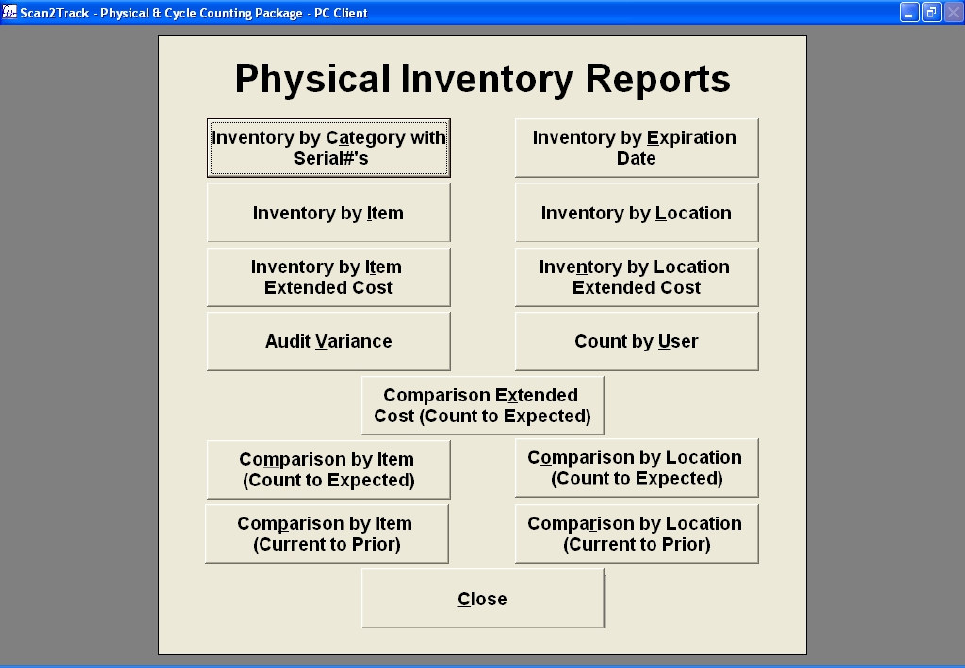
Physical Inventory Reports Menu
Chapter 1: Physical Count Reports
5
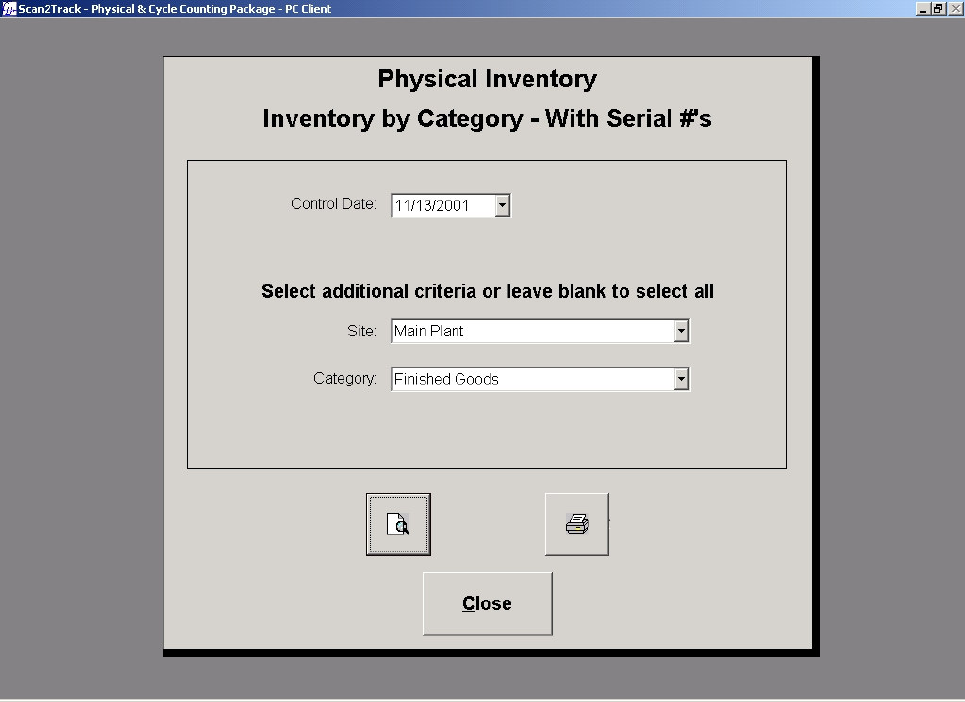
Physical Inventory - Inventory by Category – With Serial #’s
Figure 1.1
Control Date
Select the control date to generate the report from the control date drop-down calendar. This entry
is mandatory. Setting or changing the control date will cause the site and category fields to be
cleared.
Site
Select the site that you want to generate the report from the site drop-down list box. Only sites that
have count information for the selected control date will be displayed. You may leave the drop-
down list box blank to select all sites. Setting or changing the site will cause the category field to be
cleared.
Category
Select the category that you want to generate the report from the category drop-down list box. If a
site was selected, only categories that are associated with the site entered will be displayed. You
may leave the drop-down list box blank to select all categories.
Scan2Track – Physical Inventory and Cycle Counting Package
6
Print Preview
Click the Print Preview button to view the report before printing.
Print
Click the Print button to immediately print the report.
Close
Click the Close button to close this screen and return to the Physical Inventory Reports Menu.
Chapter 1: Physical Count Reports
7
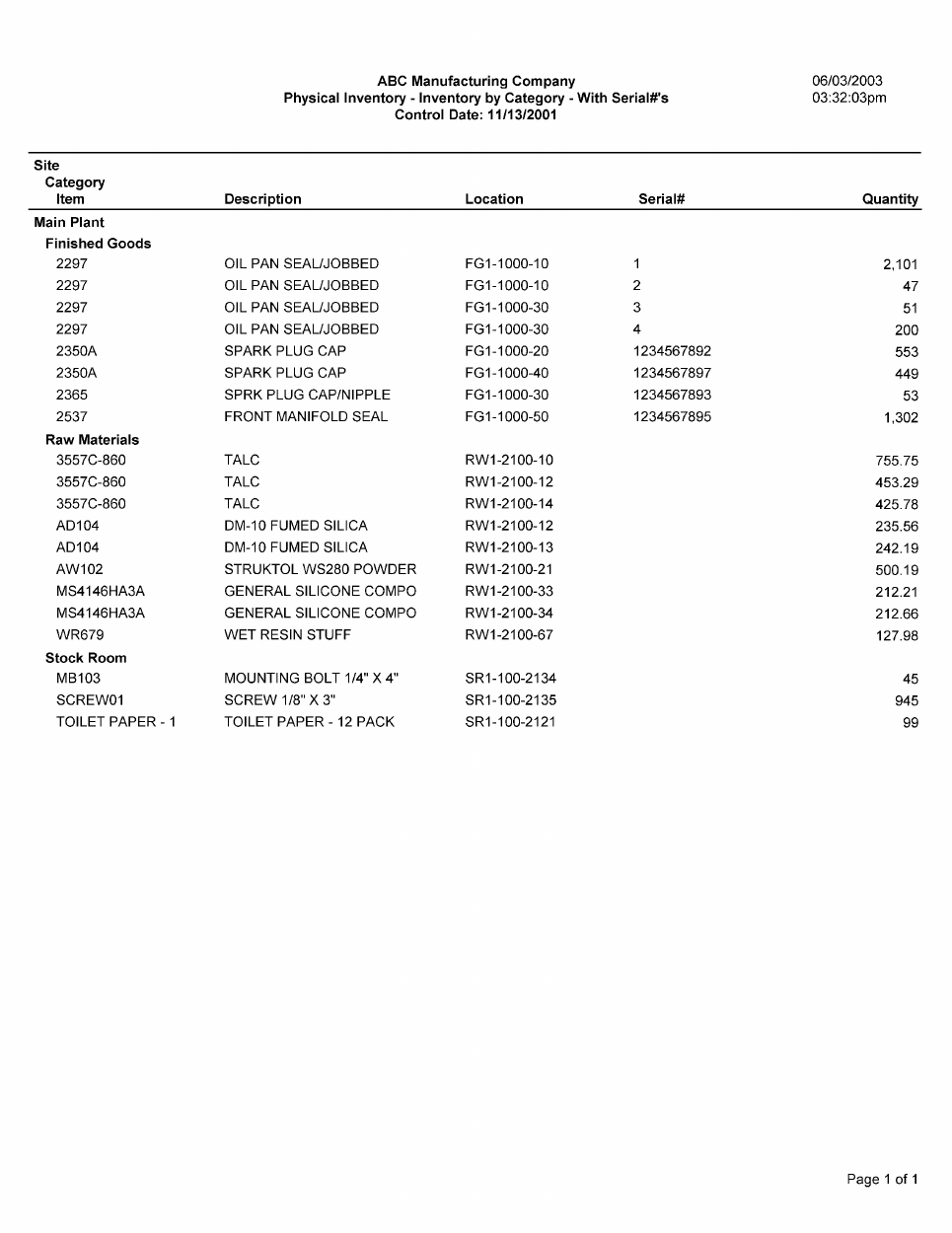
Report Sample

Scan2Track – Physical Inventory and Cycle Counting Package
8
Physical Inventory - Inventory by Expiration Date
Figure 1.2
Control Date
Select the control date to generate the report from the control date drop-down calendar. This entry
is mandatory. Setting or changing the control date will cause the site, category, and expiration start
date and expiration end date fields to be cleared.
Site
Select the site that you want to generate the report from the site drop-down list box. You may leave
the drop-down list box blank to select all sites. Setting or changing the site will cause the category,
expiration start date and expiration end date fields to be cleared.
Category
Select the category that you want to generate the report from the category drop-down list box. You
may leave the drop-down list box blank to select all categories. Setting or changing the category
will cause the expiration start date and expiration end date fields to be cleared.
Chapter 1: Physical Count Reports
9
Expiration Start Date
Select the expiration start date that you want to generate the report from the expiration start date
drop-down list box. You may leave the entry blank to not select an expiration start date. Setting or
changing the expiration start date will cause the expiration end date field to be cleared.
Expiration End Date
Select the expiration end date that you want to generate the report. You may leave the entry blank
to not select an expiration end date.
Print Preview
Click the Print Preview button to view the report before printing.
Print
Click the Print button to immediately print the report.
Close
Click the Close button to close this screen and return to the Physical Inventory Reports Menu.
Scan2Track – Physical Inventory and Cycle Counting Package
10
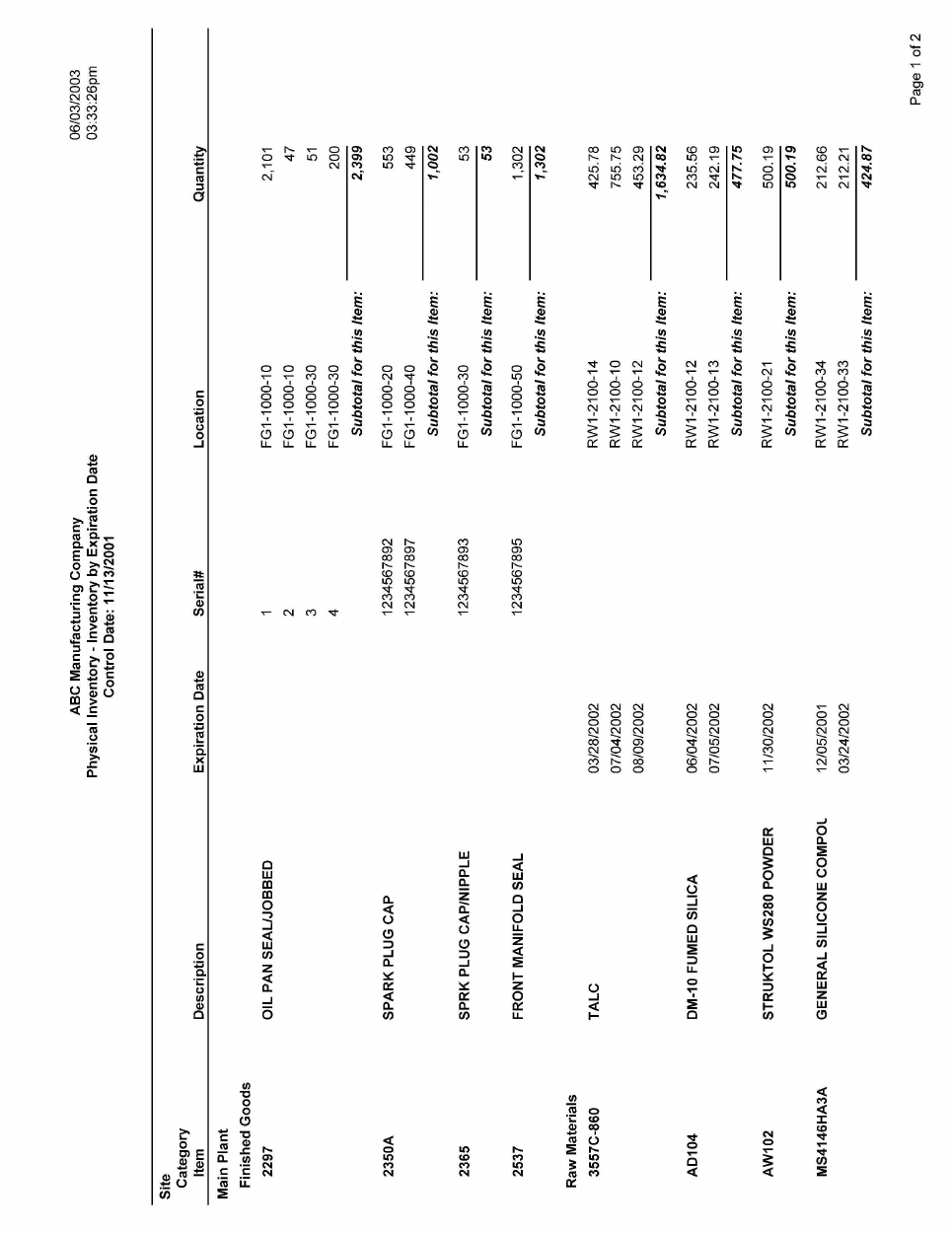
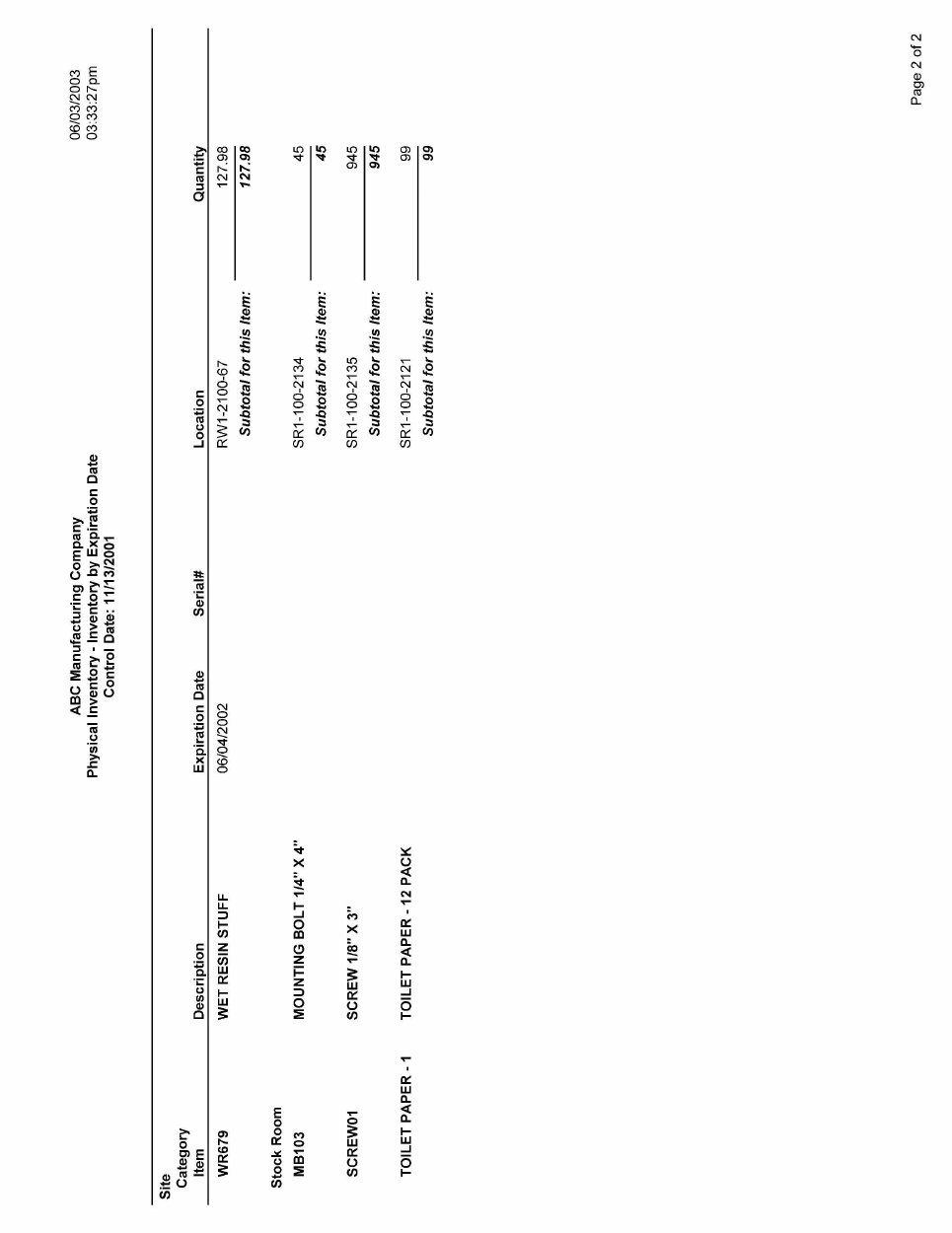
Report Sample (Page 1 of 2)
Chapter 1: Physical Count Reports
11
Report Sample (Page 2 of 2)
Scan2Track – Physical Inventory and Cycle Counting Package
12
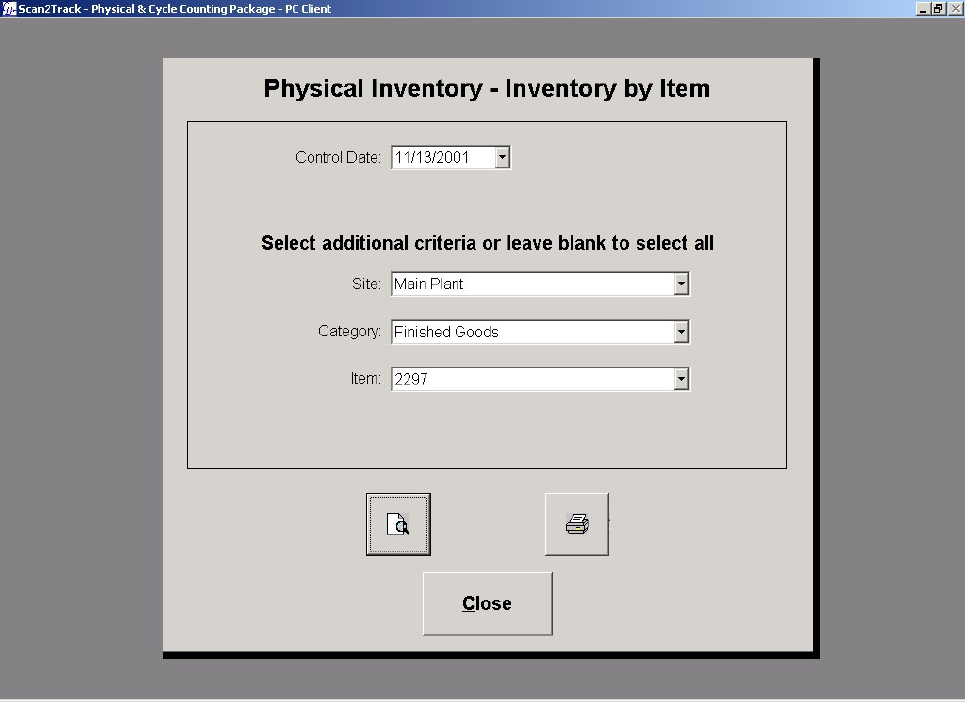
Physical Inventory - Inventory by Item
Figure 1.3
Control Date
Select the control date that you want to generate the report from the control date drop-down
calendar. This entry is mandatory. Setting or changing the control date will cause the site, category
and item fields to be cleared.
Site
Select the site that you want to generate the report from the site drop-down list box. You may leave
the drop-down list box blank to select all sites. Setting or changing the site will cause the category
and item fields to be cleared.
Category
Select the category that you want to generate the report from the category drop-down list box. You
may leave the drop-down list box blank to select all categories. Setting or changing the category
will cause the item field to be cleared.
Chapter 1: Physical Count Reports
13
Item
Select the item that you want to generate the report from the item drop-down list box. You may
leave the drop-down list box blank to select all items.
Print Preview
Click the Print Preview button to view the report before printing.
Print
Click the Print button to immediately print the report.
Close
Click the Close button to close this screen and return to the Physical Inventory Reports Menu.
Scan2Track – Physical Inventory and Cycle Counting Package
14
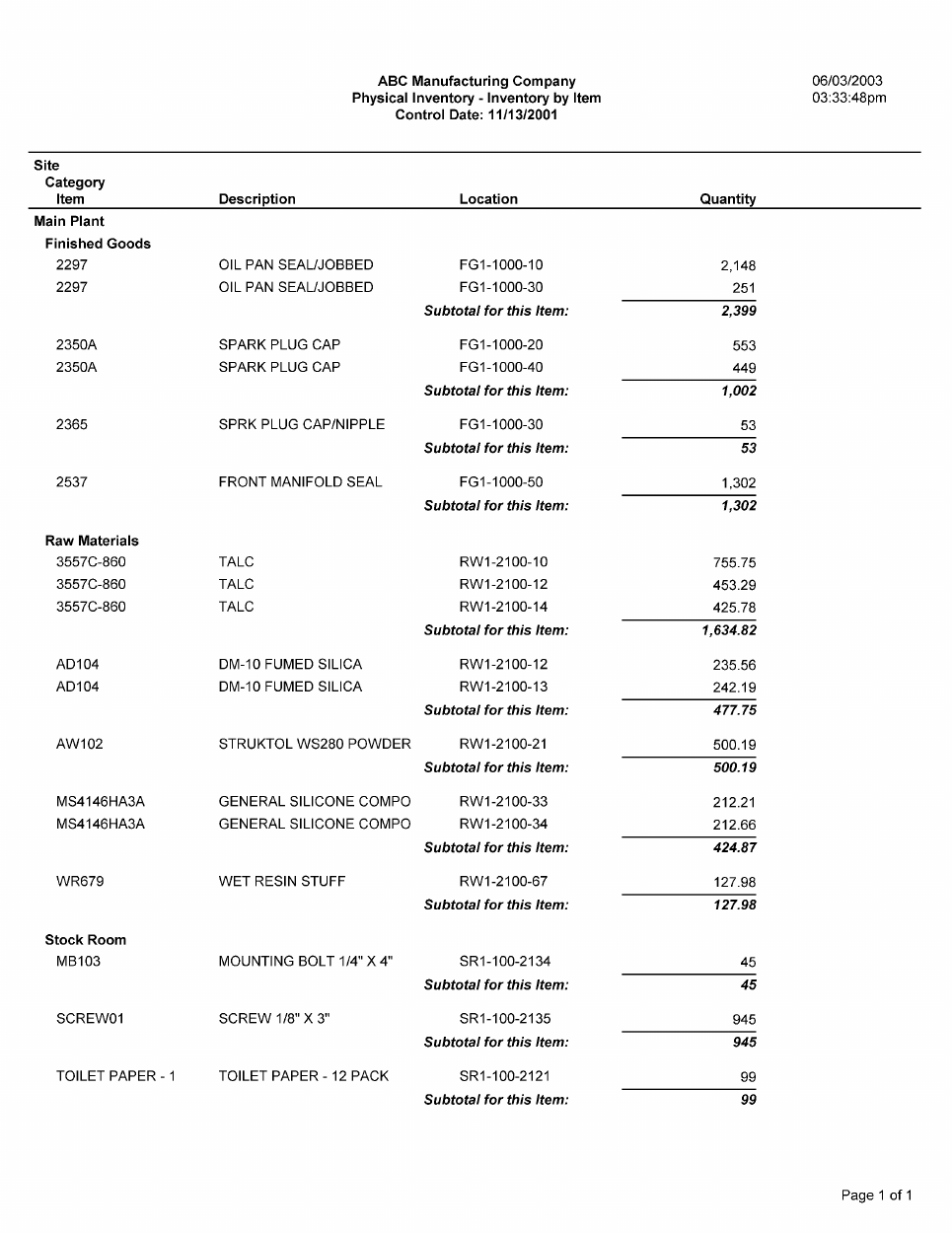
Report Sample
Chapter 1: Physical Count Reports
15
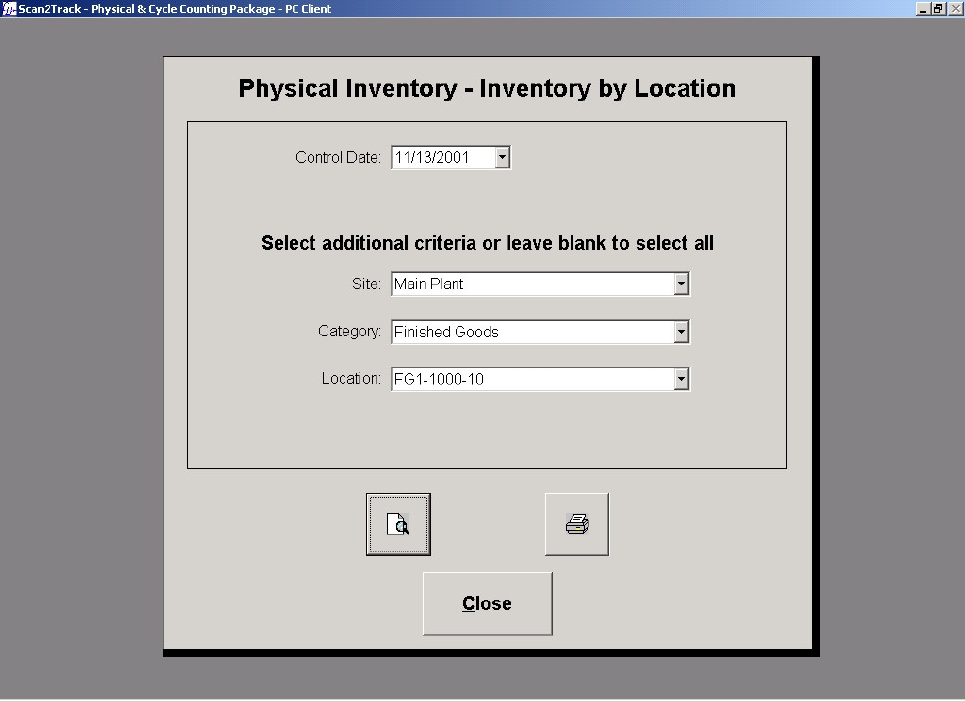
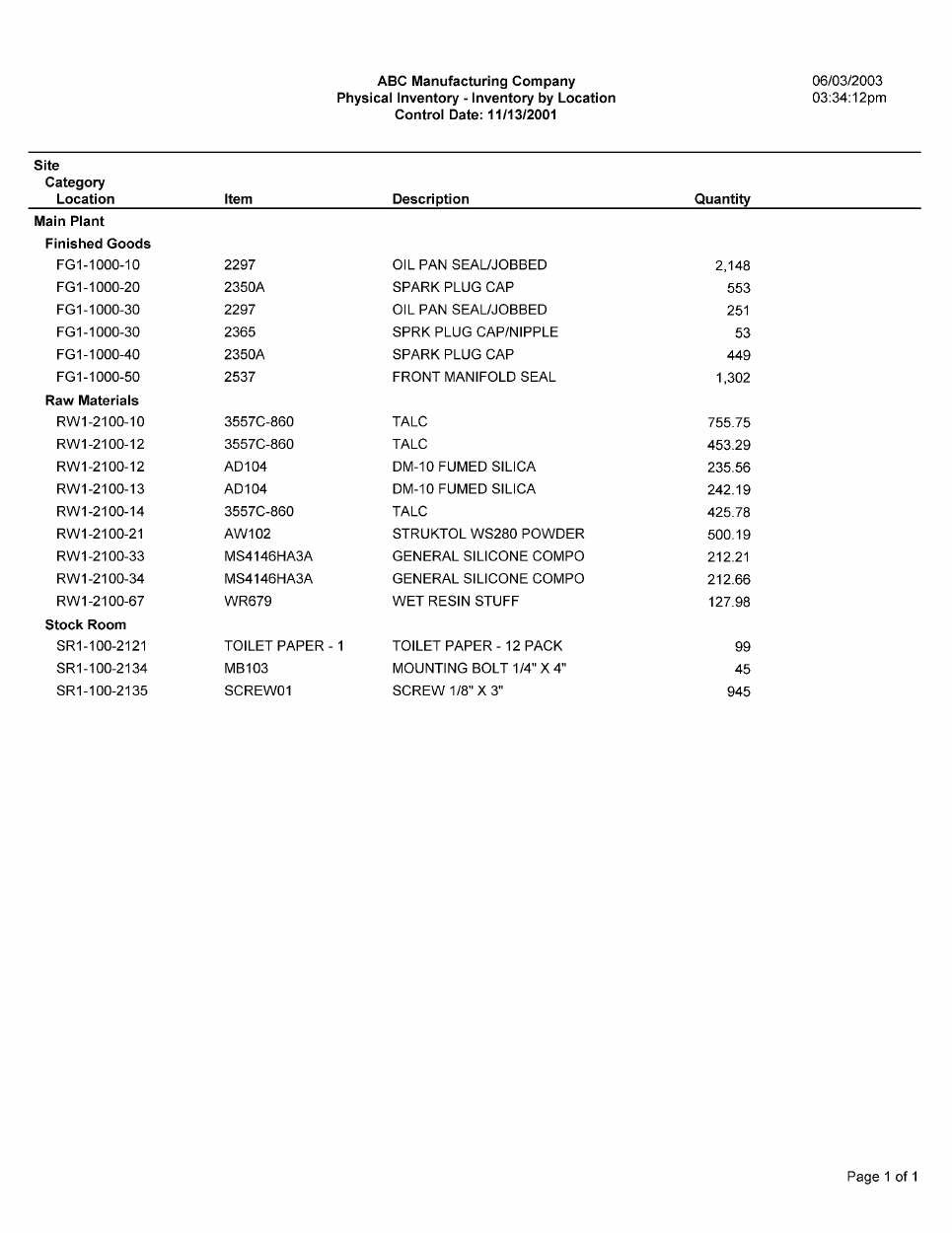
Physical Inventory - Inventory by Location
Figure 1.4
Control Date
Select the control date that you want to generate the report from the control date drop-down
calendar. This entry is mandatory. Setting or changing the control date will cause the site, category
and location fields to be cleared.
Site
Select the site that you want to generate the report from the site drop-down list box. You may leave
the drop-down list box blank to select all sites. Setting or changing the site will cause the category
and location fields to be cleared.
Category
Select the category that you want to generate the report from the category drop-down list box. You
may leave the drop-down list box blank to select all categories. Setting or changing the category
will cause the location field to be cleared.
Scan2Track – Physical Inventory and Cycle Counting Package
16
Location
Select the location that you want to generate the report from the location drop-down list box. You
may leave the drop-down list box blank to select all locations.
Print Preview
Click the Print Preview button to view the report before printing.
Print
Click the Print button to immediately print the report.
Close
Click the Close button to close this screen and return to the Physical Inventory Reports Menu.
Chapter 1: Physical Count Reports
17
Report Sample
Scan2Track – Physical Inventory and Cycle Counting Package
18
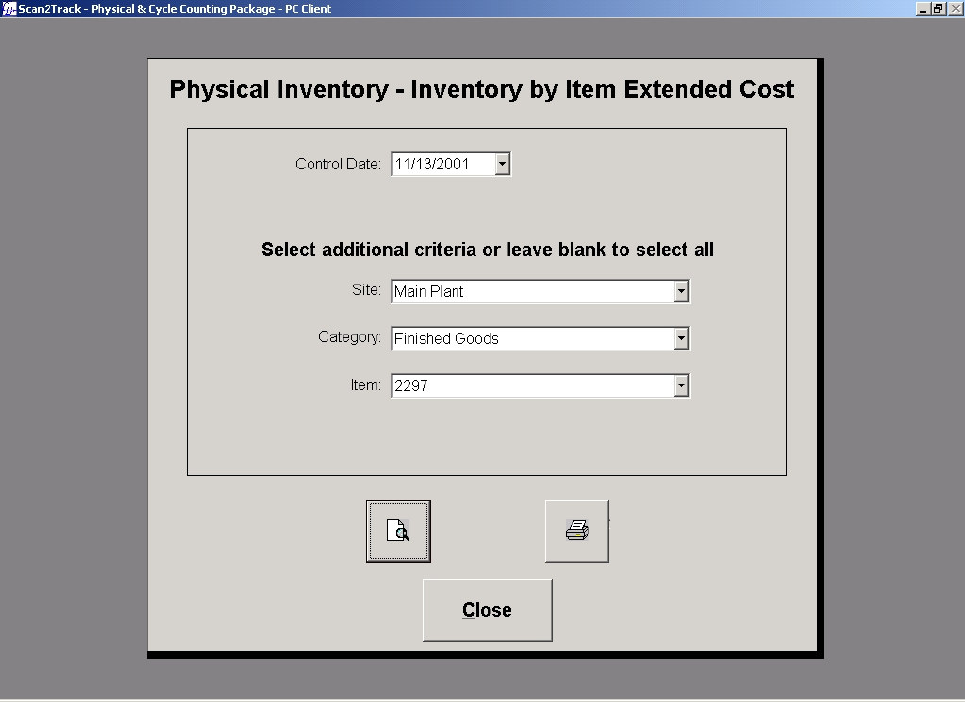
Physical Inventory - Inventory by Item Extended Cost
Figure 1.5
Control Date
Select the control date that you want to generate the report from the control date drop-down
calendar. This entry is mandatory. Setting or changing the control date will cause the site, category
and item fields to be cleared.
Site
Select the site that you want to generate the report from the site drop-down list box. You may leave
the drop-down list box blank to select all sites. Setting or changing the site will cause the category
and item fields to be cleared.
Category
Select the category that you want to generate the report from the category drop-down list box. You
may leave the drop-down list box blank to select all categories. Setting or changing the category
will cause the item field to be cleared.
Chapter 1: Physical Count Reports
19
Item
Select the item that you want to generate the report from the item drop-down list box. You may
leave the drop-down list box blank to select all items.
Print Preview
Click the Print Preview button to view the report before printing.
Print
Click the Print button to immediately print the report.
Close
Click the Close button to close this screen and return to the Physical Inventory Reports Menu.
Scan2Track – Physical Inventory and Cycle Counting Package
20
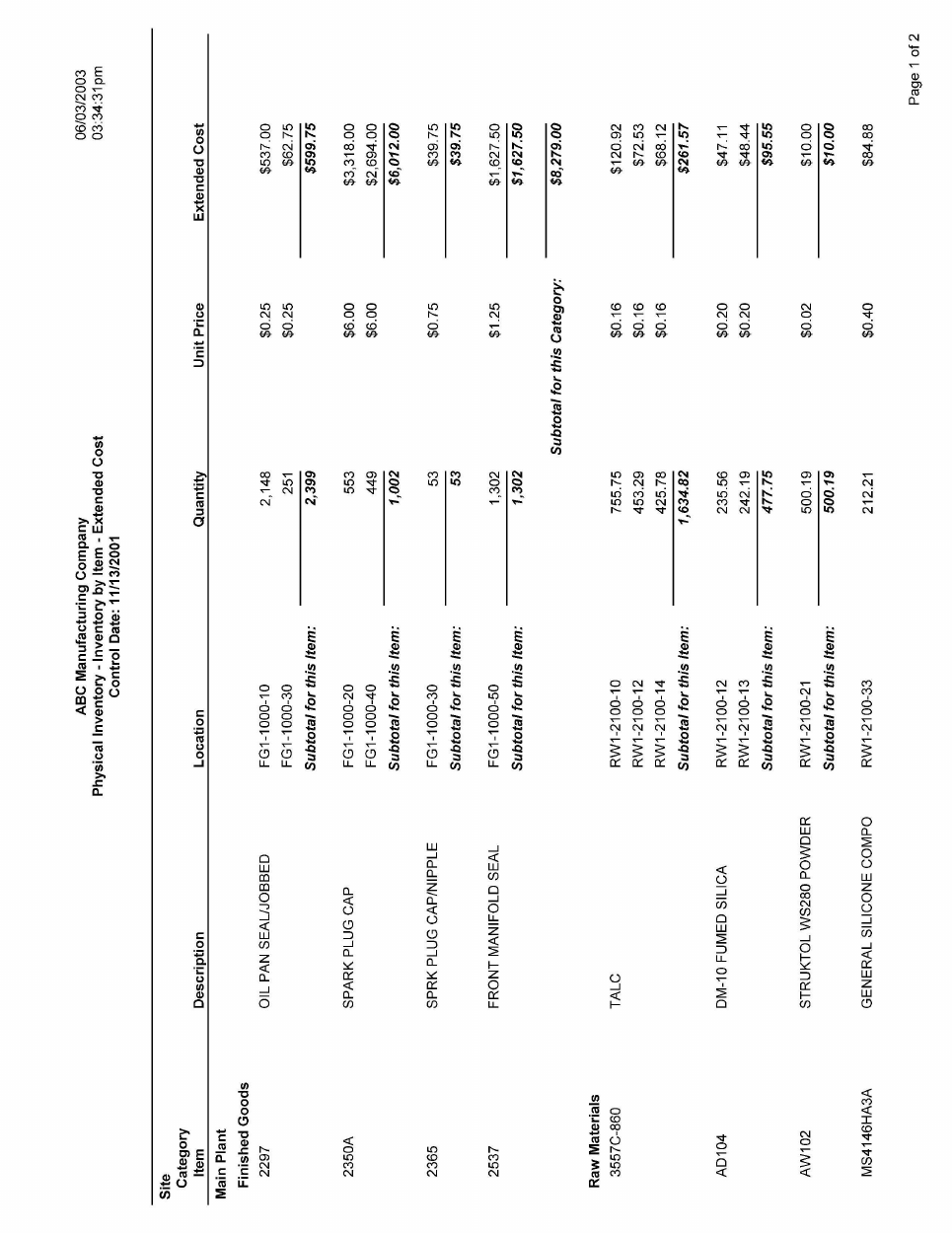
Report Sample (Page 1 of 2)
Chapter 1: Physical Count Reports
21
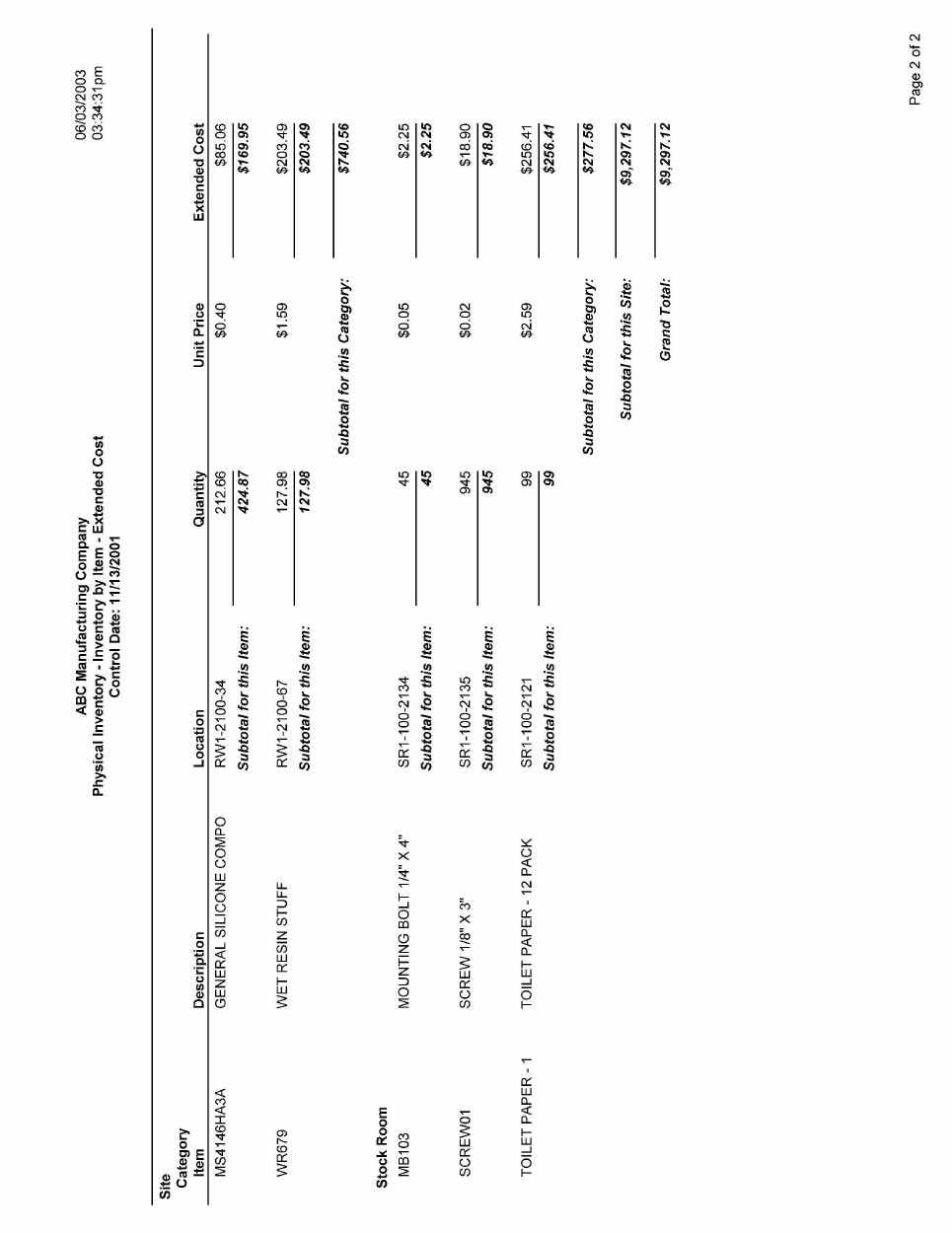
Report Sample (Page 2 of 2)
Scan2Track – Physical Inventory and Cycle Counting Package
22
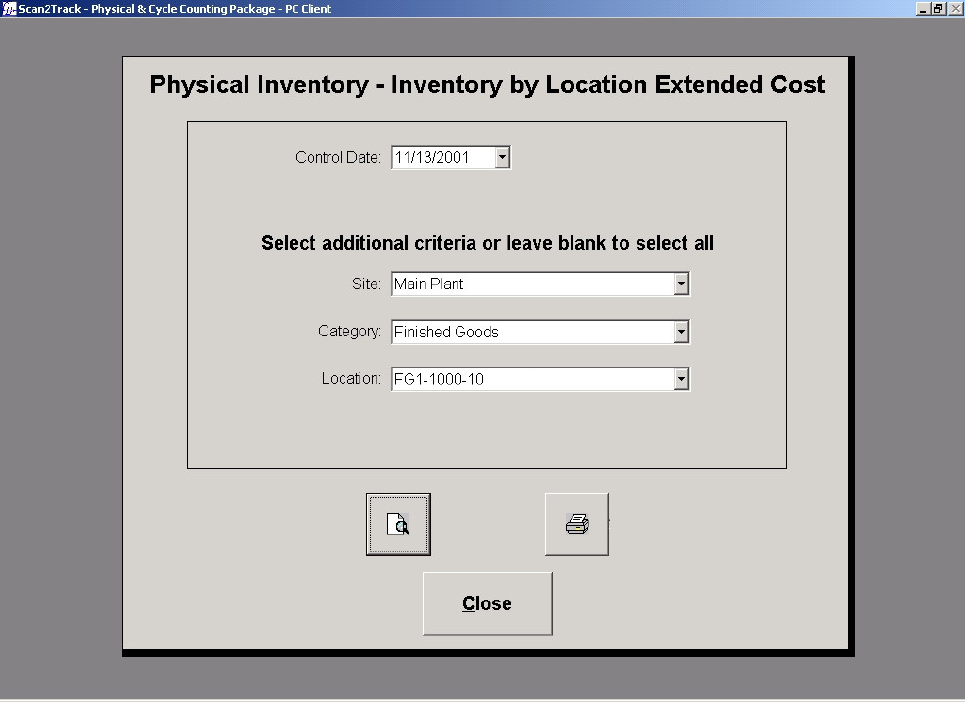
Physical Inventory - Inventory by Location Extended Cost
Figure 1.6
Control Date
Select the control date that you want to generate the report from the control date drop-down
calendar. This entry is mandatory. Setting or changing the control date will cause the site, category
and location fields to be cleared.
Site
Select the site that you want to generate the report from the site drop-down list box. You may leave
the drop-down list box blank to select all sites. Setting or changing the site will cause the category
and location fields to be cleared.
Category
Select the category that you want to generate the report from the category drop-down list box. You
may leave the drop-down list box blank to select all categories. Setting or changing the category
will cause the location field to be cleared.
Chapter 1: Physical Count Reports
23
Location
Select the location that you want to generate the report from the location drop-down list box. You
may leave the drop-down list box blank to select all locations.
Print Preview
Click the Print Preview button to view the report before printing.
Print
Click the Print button to immediately print the report.
Close
Click the Close button to close this screen and return to the Physical Inventory Reports Menu.
Scan2Track – Physical Inventory and Cycle Counting Package
24
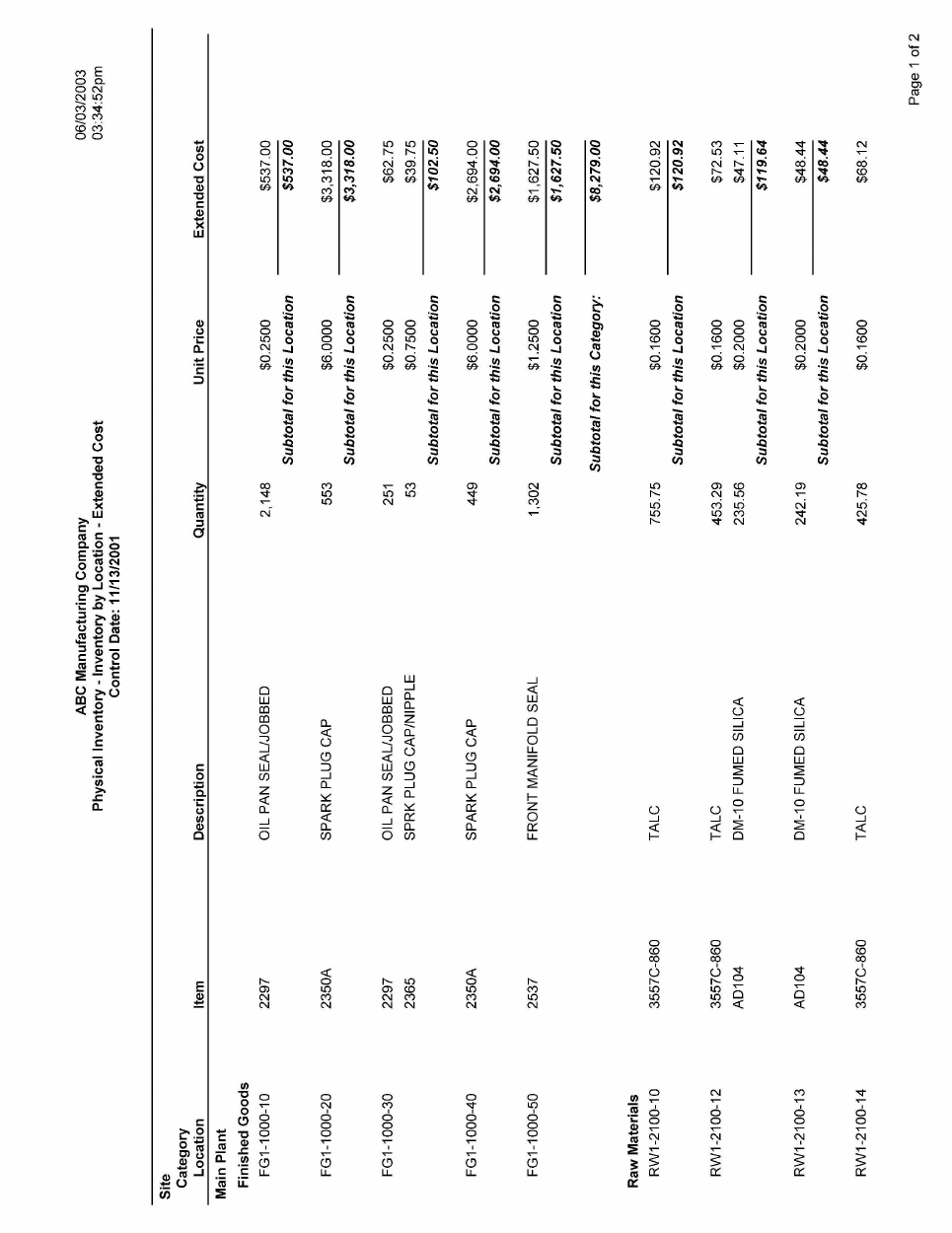
Report Sample (Page 1 of 2)

Chapter 1: Physical Count Reports
25
Report Sample (Page 2 of 2)
Scan2Track – Physical Inventory and Cycle Counting Package
26
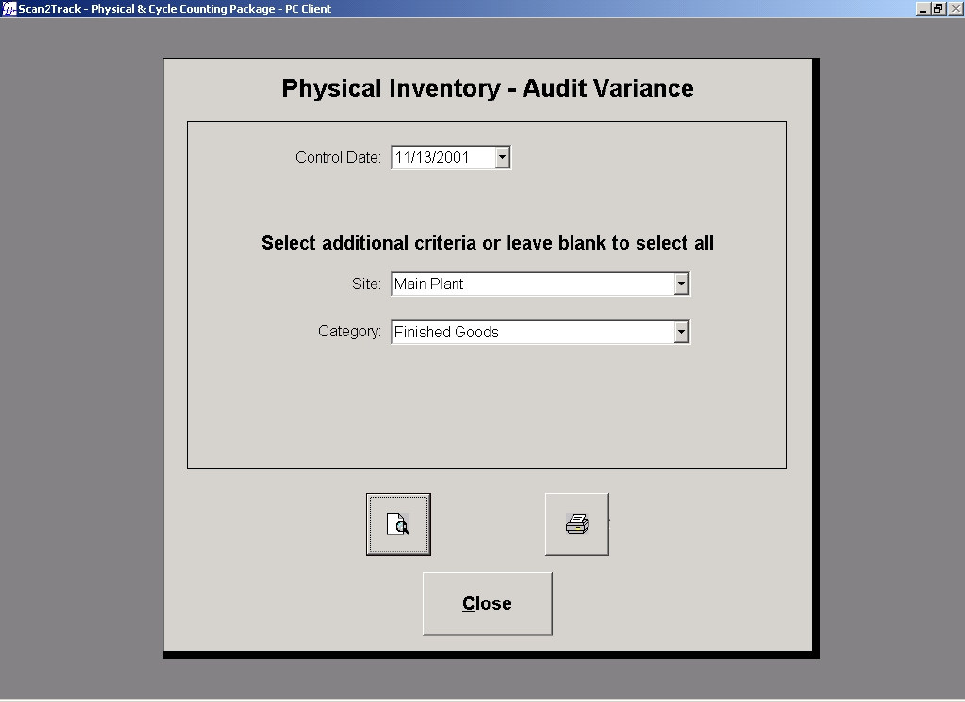
Physical Inventory - Audit Variance
Figure 1.7
Control Date
Select the control date that you want to generate the report from the control date drop-down
calendar. This entry is mandatory. Setting or changing the control date will cause the site and
category fields to be cleared.
Site
Select the site that you want to generate the report from the site drop-down list box. You may leave
the drop-down list box blank to select all sites. Setting or changing the site will cause the category
field to be cleared.
Category
Select the category that you want to generate the report from the category drop-down list box. You
can leave the drop-down list box blank to select all categories.
Chapter 1: Physical Count Reports
27
Print Preview
Click the Print Preview button to view the report before printing.
Print
Click the Print button to immediately print the report.
Close
Click the Close button to close this screen and return to the Physical Inventory Reports Menu.
Scan2Track – Physical Inventory and Cycle Counting Package
28
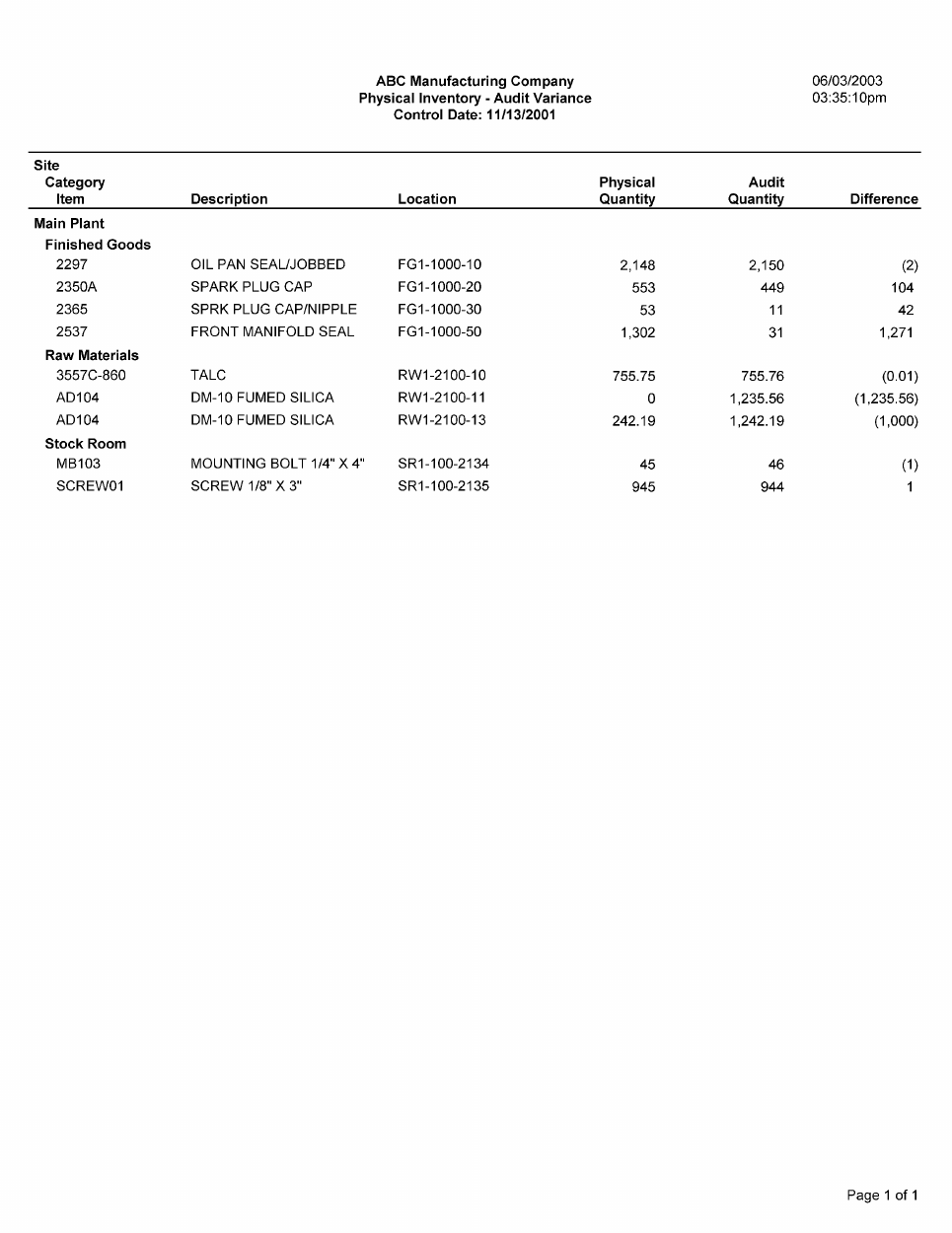
Report Sample
Chapter 1: Physical Count Reports
29
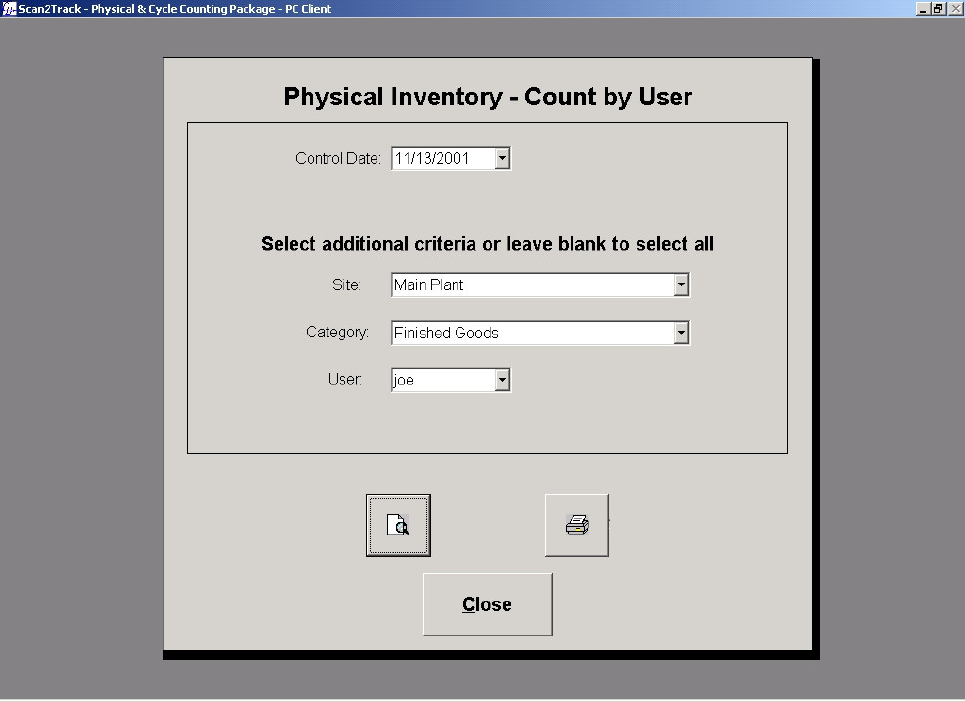
Physical Inventory - Count by User
Figure 1.8
Control Date
Select the control date that you want to generate the report from the control date drop-down
calendar. This entry is mandatory. Setting or changing the control date will cause the site, category
and user fields to be cleared.
Site
Select the site that you want to generate the report from the site drop-down list box. You may leave
the drop-down list box blank to select all sites. Setting or changing the site will cause the category
and user fields to be cleared.
Category
Select the category that you want to generate the report from the category drop-down list box. You
leave the drop-down list box blank to select all categories. Setting or changing the category will
cause the user field to be cleared.
Scan2Track – Physical Inventory and Cycle Counting Package
30
User
Select the user that you want to generate the report from the user drop-down list box. You may
leave the drop-down list box blank to select all users.
Print Preview
Click the Print Preview button to view the report before printing.
Print
Click the Print button to immediately print the report.
Close
Click the Close button to close this screen and return to the Physical Inventory Reports Menu.
Chapter 1: Physical Count Reports
31
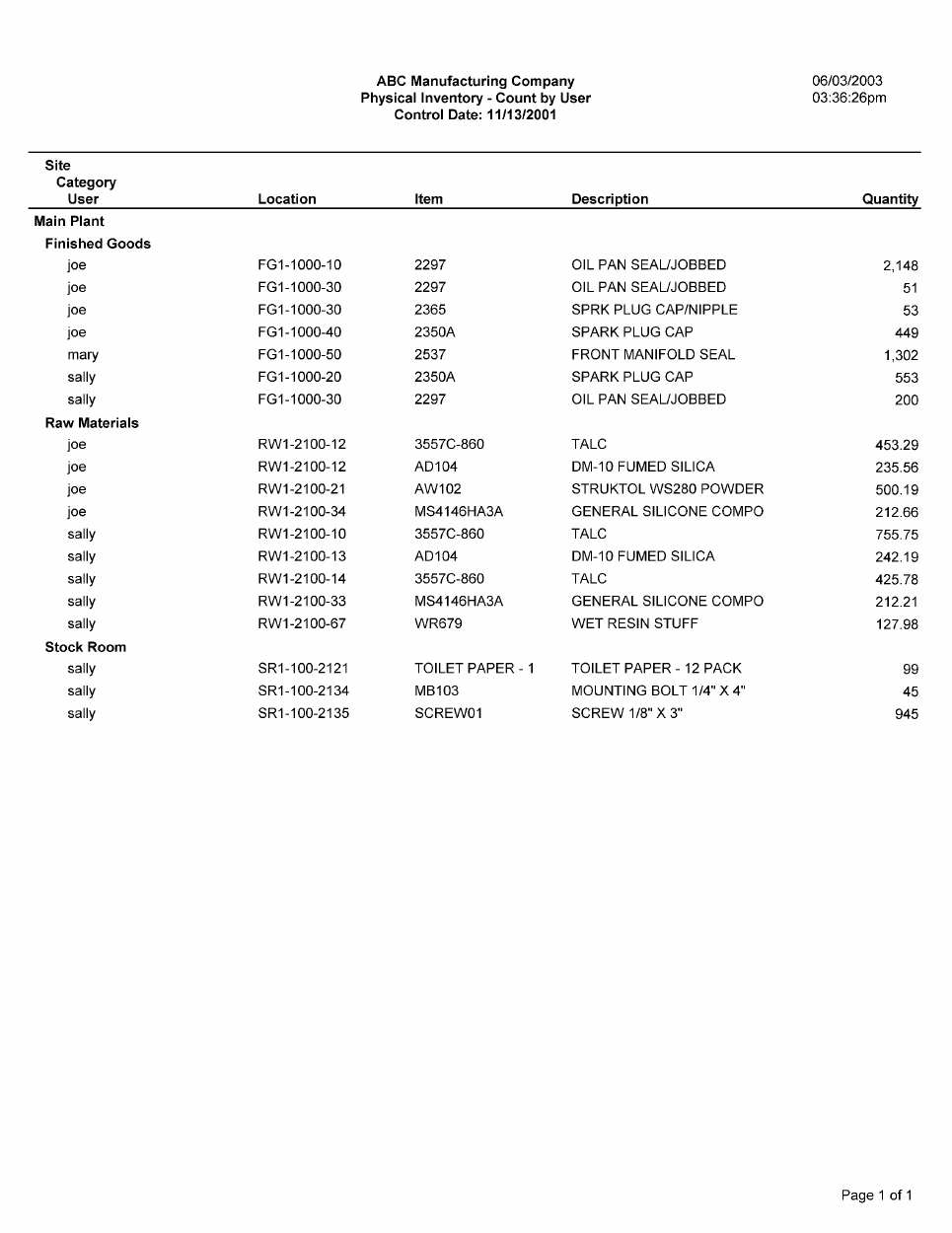
Report Sample
Scan2Track – Physical Inventory and Cycle Counting Package
32
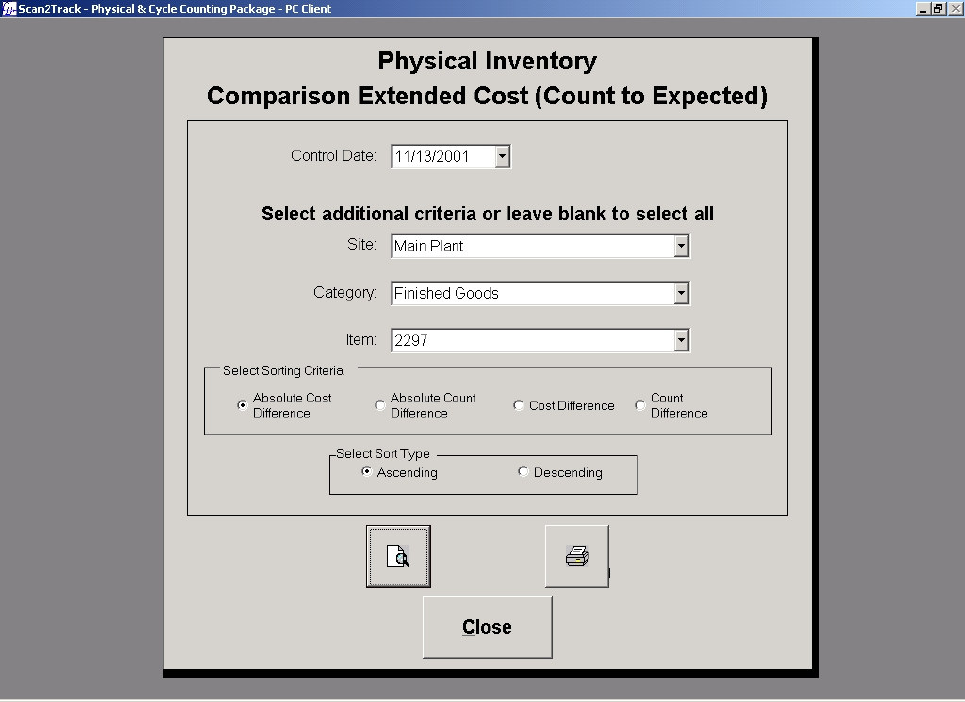
Physical Inventory - Comparison Extended Cost (Count to
Expected)
Figure 1.9
Control Date
Select the control date that you want to generate the report from the control date drop-down
calendar. This entry is mandatory. Setting or changing the control date will cause the site, category
and item fields to be cleared.
Site
Select the site that you want to generate the report from the site drop-down list box. You may leave
the drop-down list box blank to select all sites. Setting or changing the site will cause the category
and item fields to be cleared.
Category
Select the category that you want to generate the report from the category drop-down list box. You
may leave the drop-down list box blank to select all categories. Setting or changing the category
will cause the item field to be cleared.
Chapter 1: Physical Count Reports
33
Item
Select the item that you want to generate the report from the item drop-down list box. You may
leave the drop-down list box blank to select all items.
Select Sorting Criteria
Select the sorting criteria that you want to sort the report by from the Select Sorting Criteria frame.
The default is to sort by Absolute Cost Difference.
Absolute Cost Difference
If you select Absolute Cost Difference as the sorting criteria then the records in the report will be
sorted by the absolute cost difference. This means that the report will be sorted from greatest to
least or least to greatest by the absolute value of the difference in cost between the actual counted
quantity and the quantity in the Inventory table.
Absolute Count Difference
If you select Absolute Count Difference as the sorting criteria then the records in the report will be
sorted by the absolute count difference. This means that the report will be sorted from greatest to
least or least to greatest by the absolute value of the difference in count between the actual counted
quantity and the quantity in the Inventory table.
Cost Difference
If you select Cost Difference as the sorting criteria then the records in the report will be sorted by
the cost difference. This means that the report will be sorted from greatest to least or least to
greatest by the value of the difference in cost between the actual counted quantity and the quantity
in the Inventory table.
Count Difference
If you select Count Difference as the sorting criteria then the records in the report will be sorted by
the count difference. This means that the report will be sorted from greatest to least or least to
greatest by the value of the difference in count between the actual counted quantity and the quantity
in the Inventory table.
Select Sort Type
Select the sort type that you want to sort the report by from the Select Sort Type frame. The default
is to sort in ascending order.
Ascending
If you select ascending order then the report will be sorted by the selected sorting criteria from least
to greatest.
Descending
If you select ascending order then the report will be sorted by the selected sorting criteria from
greatest to least.
Scan2Track – Physical Inventory and Cycle Counting Package
34
Print Preview
Click the Print Preview button to view the report before printing.
Print
Click the Print button to immediately print the report.
Close
Click the Close button to close this screen and return to the Physical Inventory Reports Menu.
Chapter 1: Physical Count Reports
35
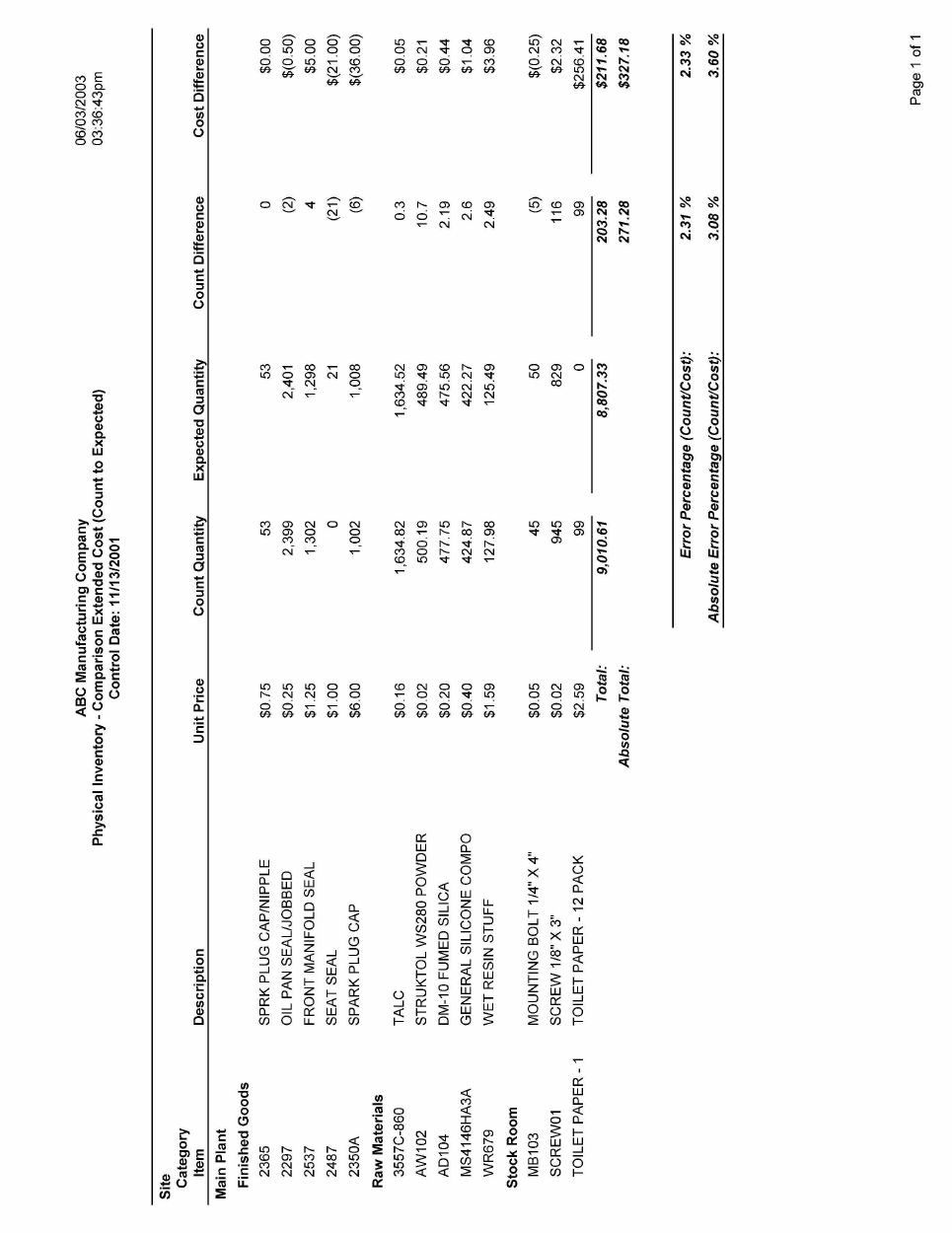
Report Sample

Scan2Track – Physical Inventory and Cycle Counting Package
36
Physical Inventory - Comparison by Item (Count to
Expected)
Figure 1.10
Control Date
Select the control date that you want to generate the report from the control date drop-down
calendar. This entry is mandatory. Setting or changing the control date will cause the site, category
and item fields to be cleared.
Site
Select the site that you want to generate the report from the site drop-down list box. You may leave
the drop-down list box blank to select all sites. Setting or changing the site will cause the category
and item fields to be cleared.
Category
Select the category that you want to generate the report from the category drop-down list box. You
may leave the drop-down list box blank to select all categories. Setting or changing the category
will cause the item field to be cleared.
Chapter 1: Physical Count Reports
37
Item
Select the item that you want to generate the report from the item drop-down list box. You may
leave the drop-down list box blank to select all items.
Print Preview
Click the Print Preview button to view the report before printing.
Print
Click the Print button to immediately print the report.
Close
Click the Close button to close this screen and return to the Physical Inventory Reports Menu.

Scan2Track – Physical Inventory and Cycle Counting Package
38
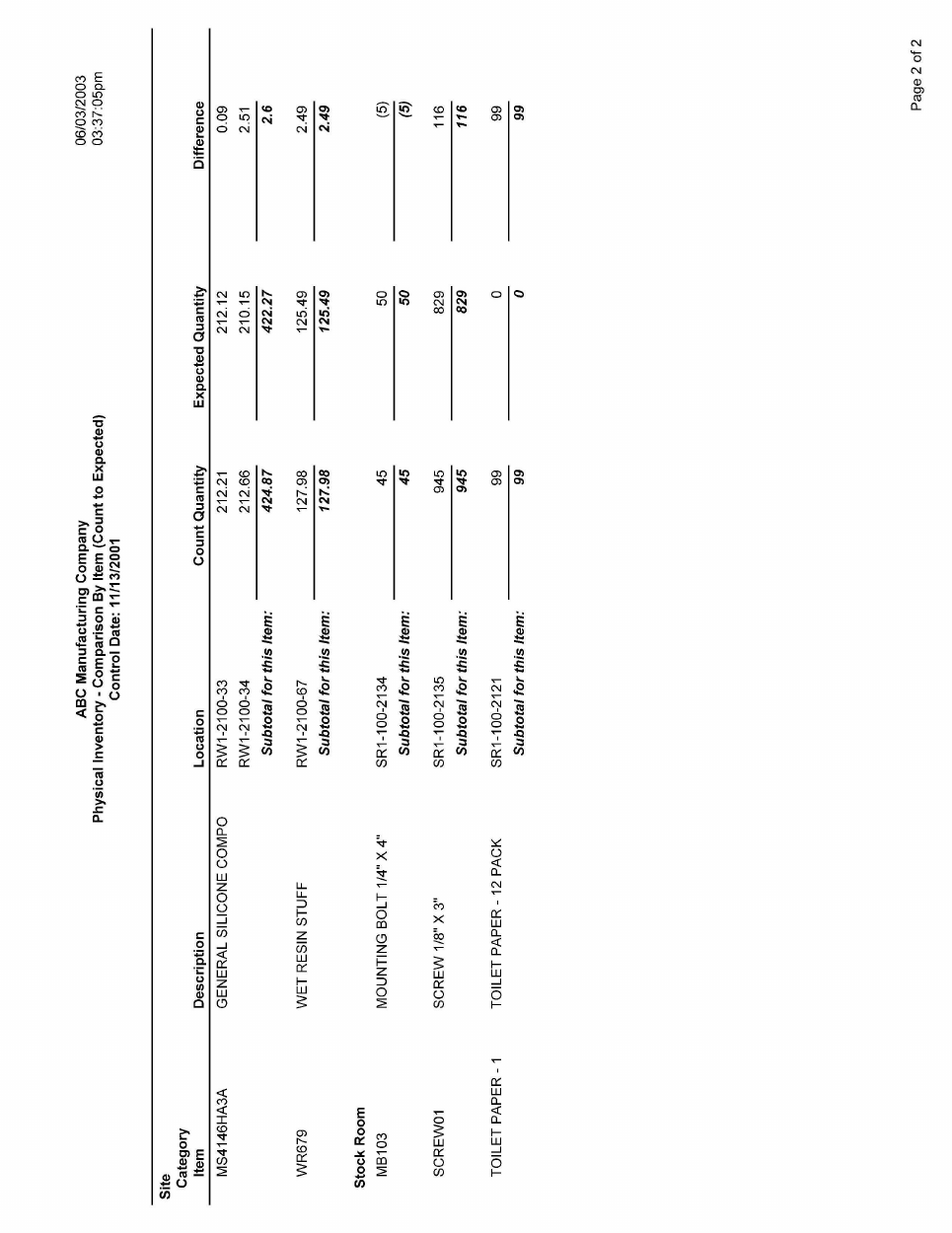
Report Sample (Page 1 of 2)
Chapter 1: Physical Count Reports
39
Report Sample (Page 2 of 2)
Scan2Track – Physical Inventory and Cycle Counting Package
40
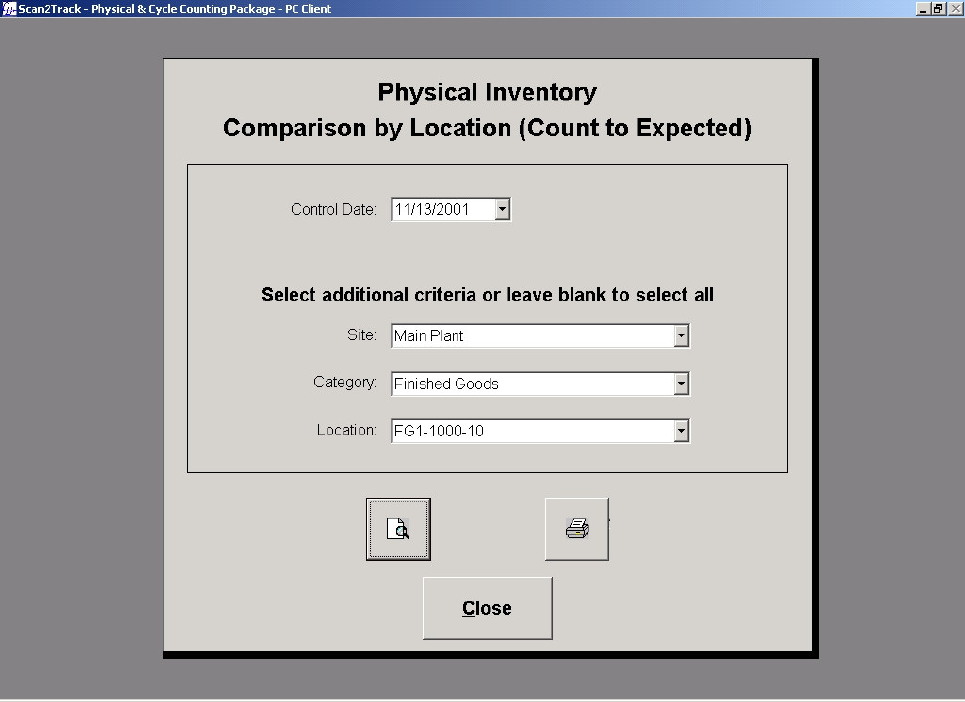
Physical Inventory - Comparison by Location (Count to
Expected)
Figure 1.11
Control Date
Select the control date that you want to generate the report from the control date drop-down
calendar. This entry is mandatory. Setting or changing the control date will cause the site, category
and location fields to be cleared.
Site
Select the site that you want to generate the report from the site drop-down list box. You may leave
the drop-down list box blank to select all sites. Setting or changing the site will cause the category
and location fields to be cleared.
Category
Select the category that you want to generate the report from the category drop-down list box. You
may leave the drop-down list box blank to select all categories. Setting or changing the category
will cause the location field to be cleared.
Chapter 1: Physical Count Reports
41
Location
Select the location that you want to generate the report from the location drop-down list box. You
may leave the drop-down list box blank to select all locations.
Print Preview
Click the Print Preview button to view the report before printing.
Print
Click the Print button to immediately print the report.
Close
Click the Close button to close this screen and return to the Physical Inventory Reports Menu.
Scan2Track – Physical Inventory and Cycle Counting Package
42
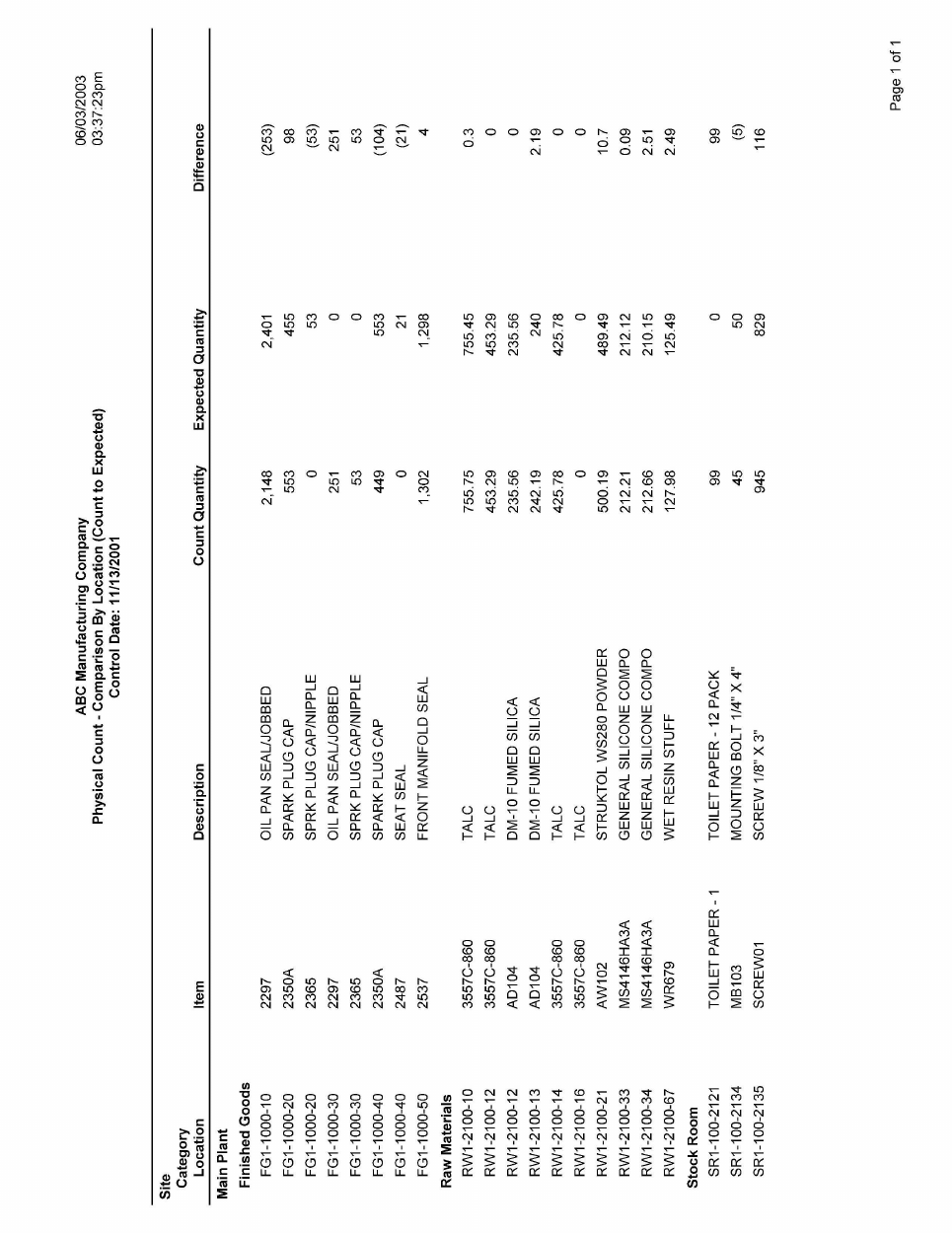
Report Sample
Chapter 1: Physical Count Reports
43
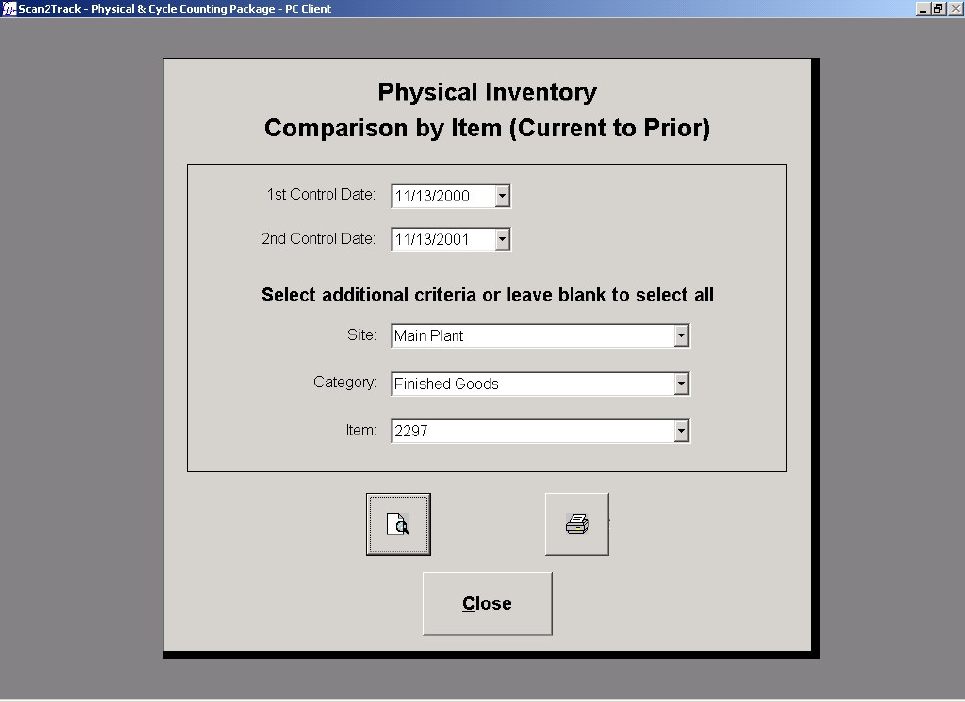
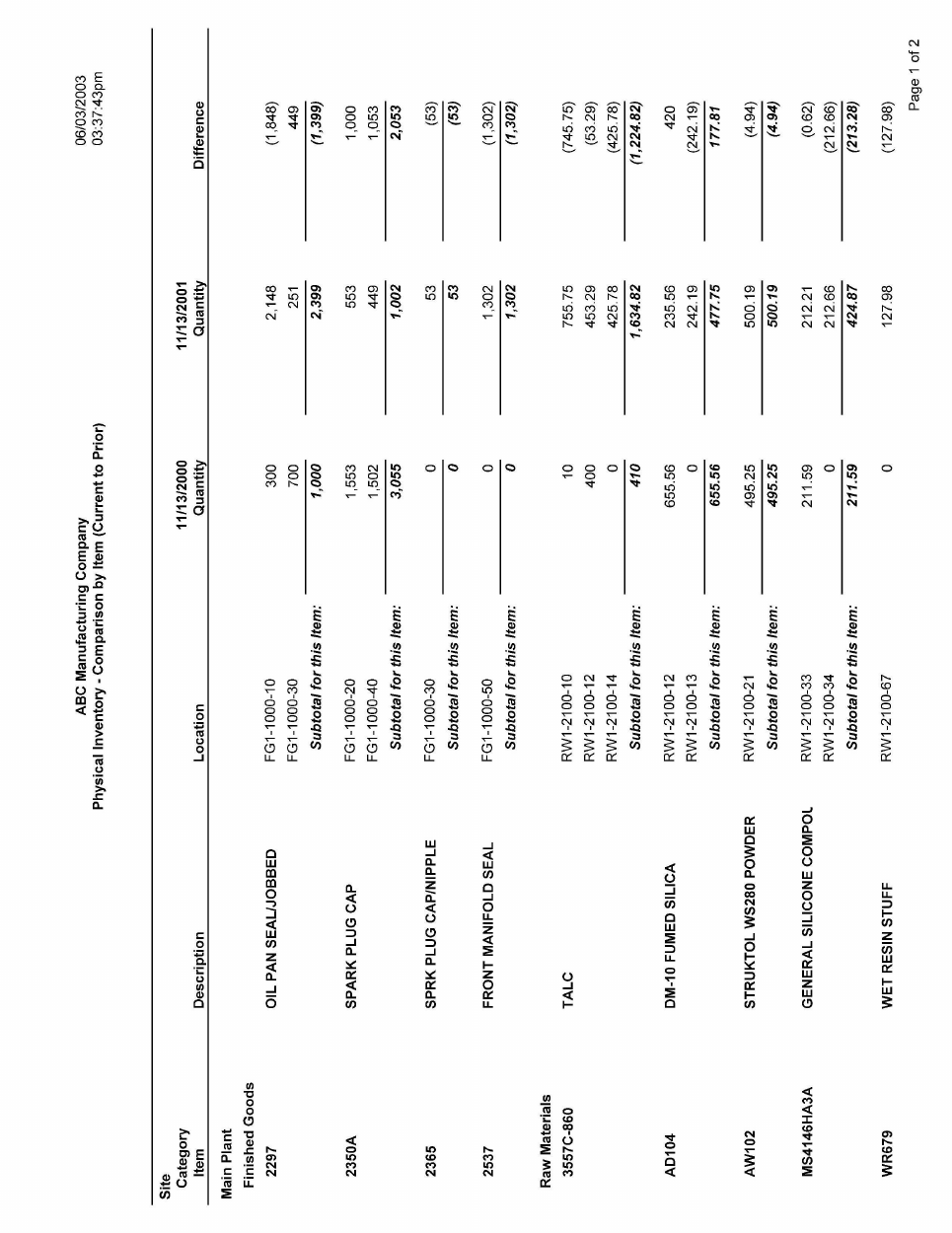
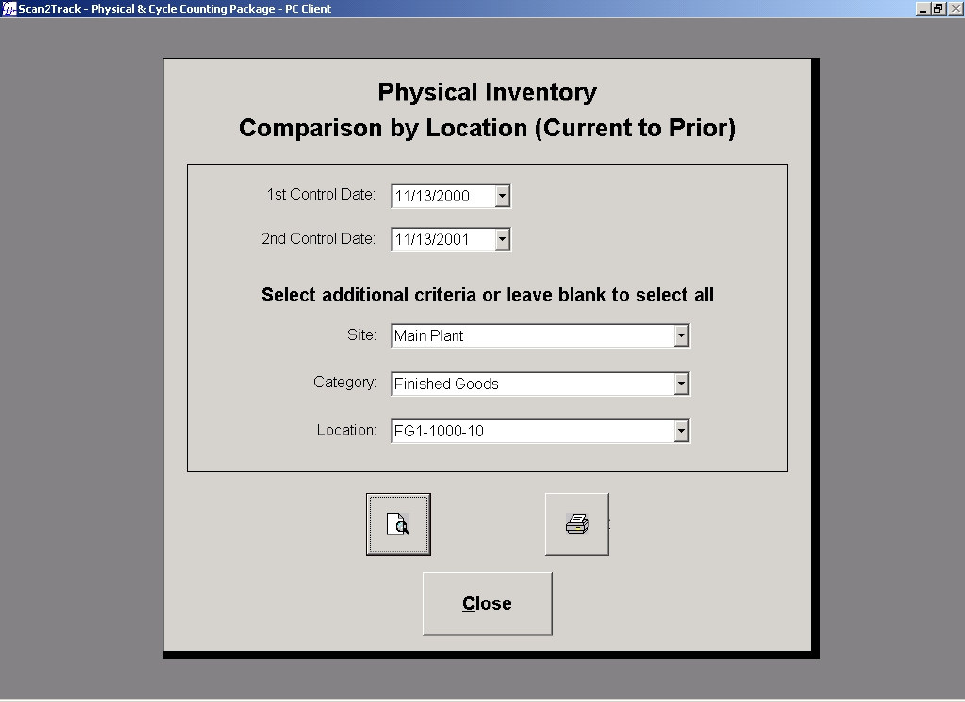
Physical Inventory - Comparison by Item (Current to Prior)
Figure 1.12
1st Control Date
Select the 1st control date that you want to generate the report from the 1st control date drop-down
calendar. This entry is mandatory. Setting or changing the 1st control date will cause the 2nd
control date, site, category and item fields to be cleared.
2nd Control Date
Select the 2nd control date that you want to generate the report from the 2nd control date drop-down
calendar. This entry is mandatory. Setting or changing the 2nd control date will cause the site,
category and item fields to be cleared.
Site
Select the site that you want to generate the report from the site drop-down list box. You may leave
the drop-down list box blank to select all sites. Setting or changing the site will cause the category
and item fields to be cleared.
Scan2Track – Physical Inventory and Cycle Counting Package
44
Category
Select the category that you want to generate the report from the category drop-down list box. You
may leave the drop-down list box blank to select all categories. Setting or changing the category
will cause the item field to be cleared.
Item
Select the item that you want to generate the report from the item drop-down list box. You may
leave the drop-down list box blank to select all items.
Print Preview
Click the Print Preview button to view the report before printing.
Print
Click the Print button to immediately print the report.
Close
Click the Close button to close this screen and return to the Physical Inventory Reports Menu.
Chapter 1: Physical Count Reports
45
Report Sample (Page 1 of 2)

Scan2Track – Physical Inventory and Cycle Counting Package
46
Report Sample (Page 2 of 2)
Chapter 1: Physical Count Reports
47
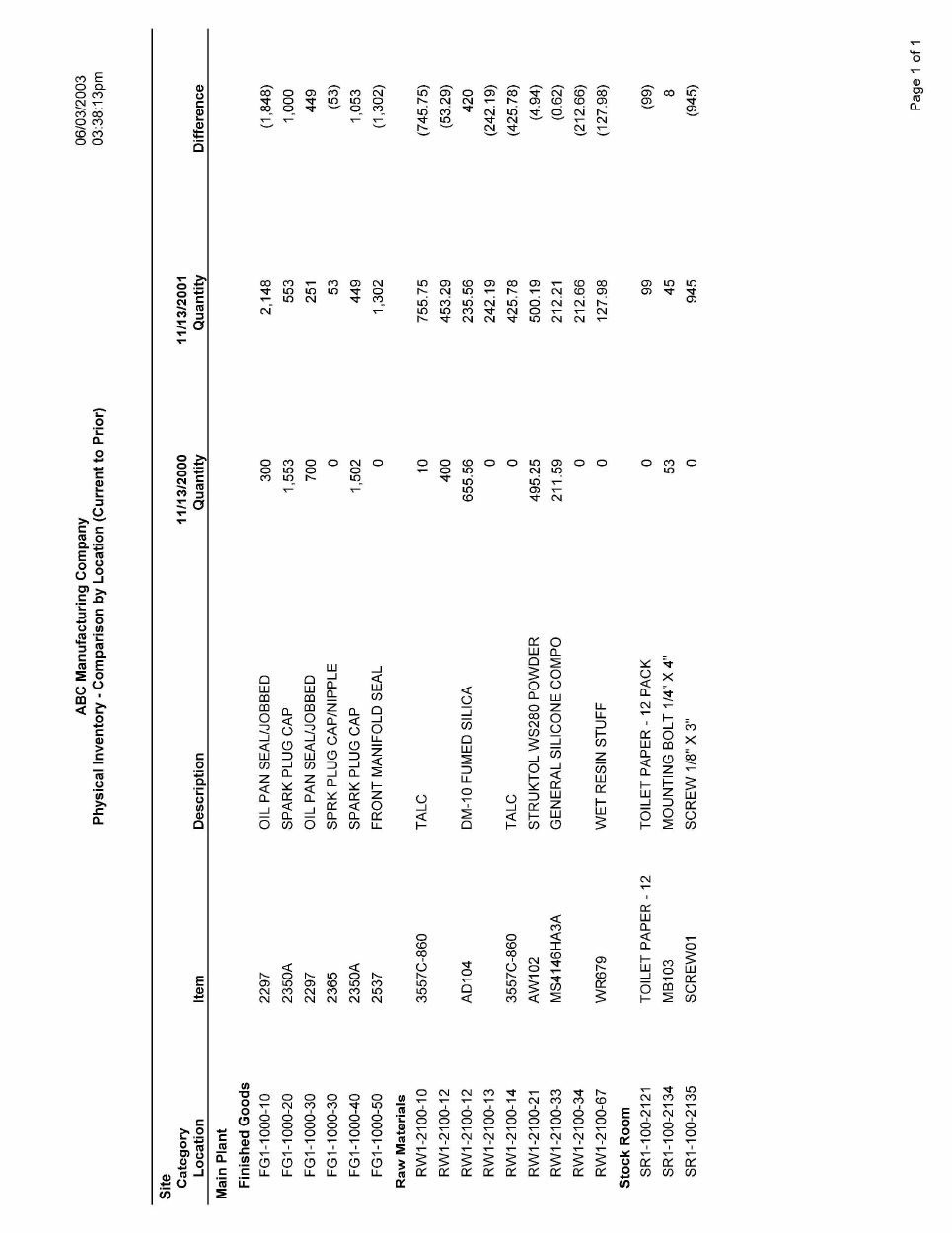
Physical Inventory - Comparison by Location (Current to
Prior)
Figure 1.13
1st Control Date
Select the 1st control date that you want to generate the report from the 1st control date drop-down
calendar. This entry is mandatory. Setting or changing the 1st control date will cause the 2nd
control date, site, category, and location fields to be cleared.
2nd Control Date
Select the 2nd control date that you want to generate the report from the 2nd control date drop-down
calendar. This entry is mandatory. Setting or changing the 2nd control date will cause the site,
category and location fields to be cleared.
Site
Select the site that you want to generate the report from the site drop-down list box. You may leave
the drop-down list box blank to select all sites. Setting or changing the site will cause the category
and location fields to be cleared.
Scan2Track – Physical Inventory and Cycle Counting Package
48
Category
Select the category that you want to generate the report from the category drop-down list box. You
may leave the drop-down list box blank to select all categories. Setting or changing the category
will cause the location field to be cleared.
Location
Select the location that you want to generate the report from the location drop-down list box. You
may leave the drop-down list box blank to select all locations.
Print Preview
Click the Print Preview button to view the report before printing.
Print
Click the Print button to immediately print the report.
Close
Click the Close button to close this screen and return to the Physical Inventory Reports Menu.
Chapter 1: Physical Count Reports
49
Report Sample
Scan2Track – Physical Inventory and Cycle Counting Package
50
Chapter 2: Cycle Count Reports

Scan2Track – Physical Inventory and Cycle Counting Package
52
Cycle Count Report Menu
Chapter 2: Cycle Count Reports
53
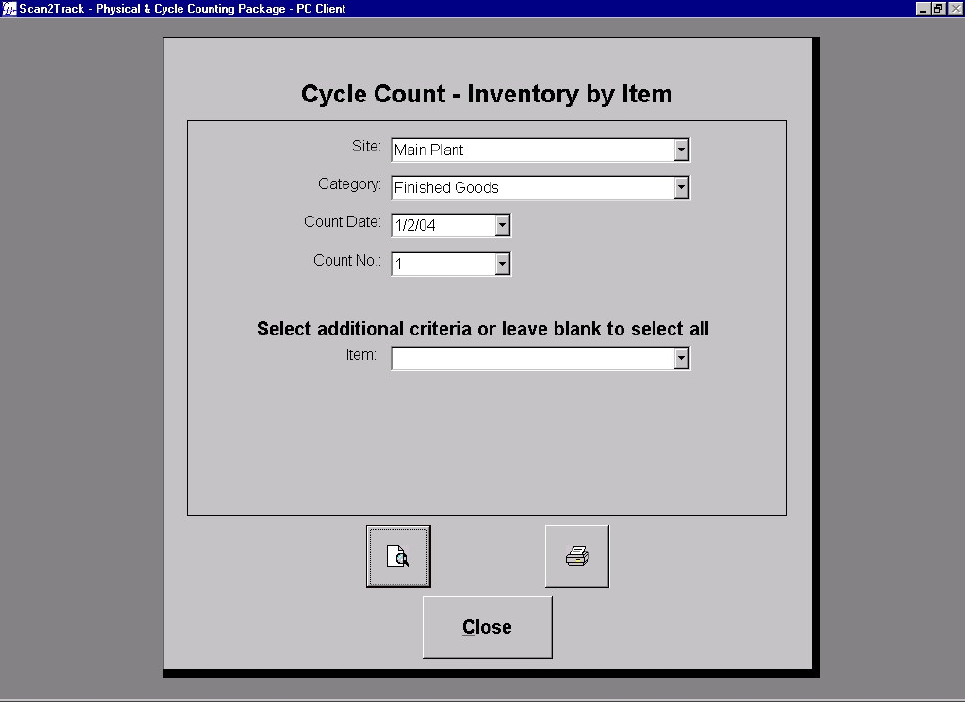
Cycle Count - Inventory by Item
Figure 2.1
Site
Select the site that you want to generate the report from the site drop-down list box. Setting or
changing the site will cause the category, count date, count number and item fields to be cleared.
Category
Select the category that you want to generate the report from the category drop-down list box.
Setting or changing the category will cause the count date, count number, and item fields to be
cleared.
Count Date
Select the count date that you want to generate the report from the count date drop-down list box.
This is the count schedule date, not the actual count date. Setting or changing the count date will
cause the count number and item fields to be cleared.
Scan2Track – Physical Inventory and Cycle Counting Package
54
Count No
Select the count number that you want to generate the report from the count number drop-down list
box. Setting or changing the count number will cause the item field to be cleared.
Item
Select the item that you want to generate the report from the item drop-down list box. You may
leave the drop-down list box blank to select all items.
Print Preview
Click the Print Preview button to view the report before printing.
Print
Click the Print button to immediately print the report.
Close
Click the Close button to close this screen and return to the Cycle Count Reports Menu.
Chapter 2: Cycle Count Reports
55
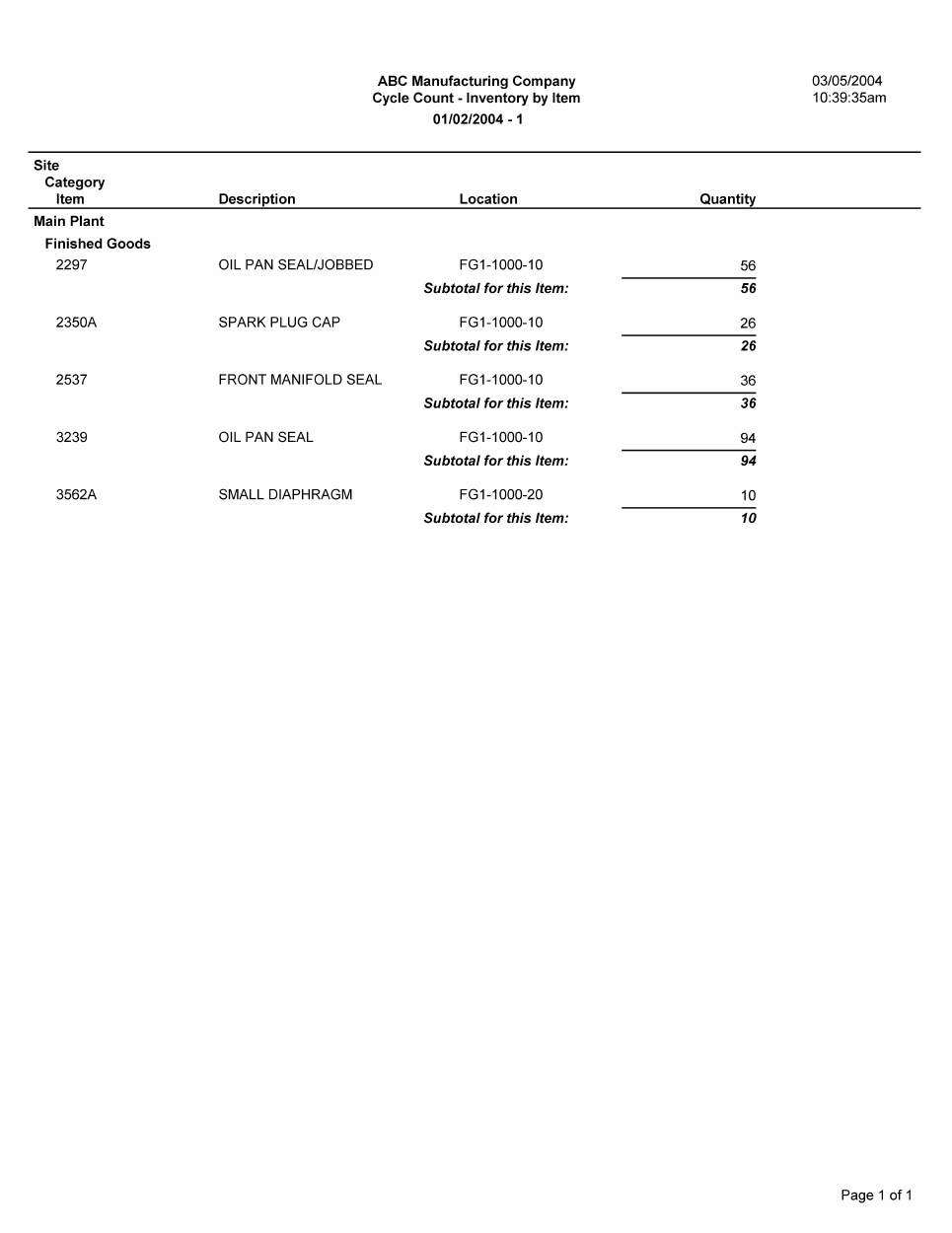
Report Sample
Scan2Track – Physical Inventory and Cycle Counting Package
56
Chapter 2: Cycle Count Reports
57
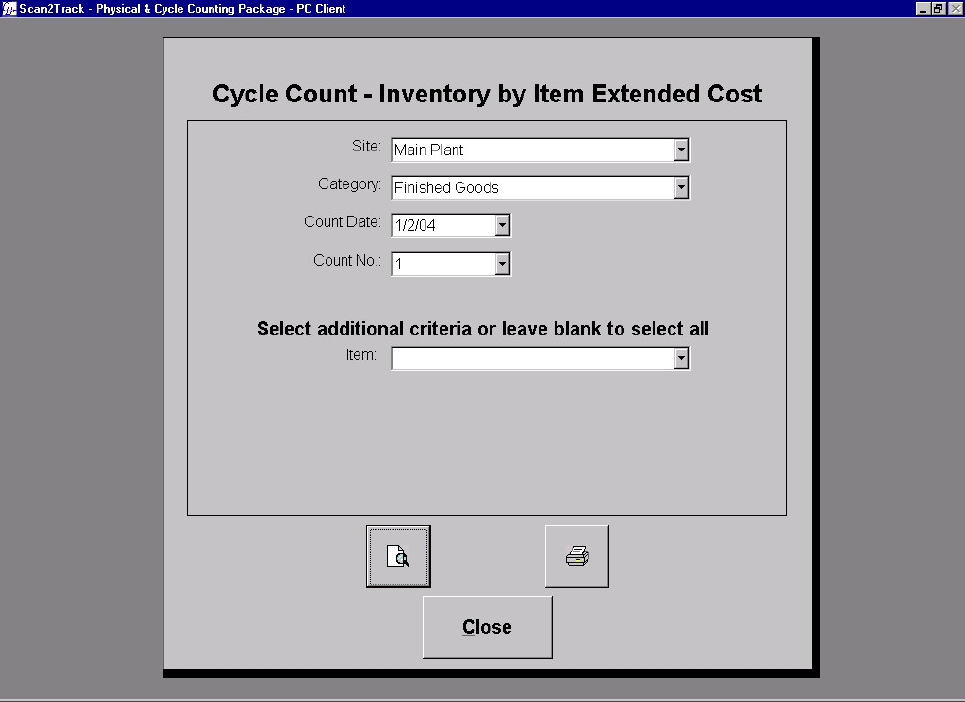
Cycle Count - Inventory by Item Extended Cost
Figure 2.2
Site
Select the site that you want to generate the report from the site drop-down list box. Setting or
changing the site will cause the category, count date, count number and item fields to be cleared.
Category
Select the category that you want to generate the report from the category drop-down list box.
Setting or changing the category will cause the count date, count number, and item fields to be
cleared.
Count Date
Select the count date that you want to generate the report from the count date drop-down list box.
This is the count schedule date, not the actual count date. Setting or changing the count date will
cause the count number and item fields to be cleared.
Scan2Track – Physical Inventory and Cycle Counting Package
58
Count No
Select the count number that you want to generate the report from the count number drop-down list
box. Setting or changing the count number will cause the item field to be cleared.
Item
Select the item that you want to generate the report from the item drop-down list box. You may
leave the drop-down list box blank to select all items.
Print Preview
Click the Print Preview button to view the report before printing.
Print
Click the Print button to immediately print the report.
Close
Click the Close button to close this screen and return to the Cycle Count Reports Menu.
Chapter 2: Cycle Count Reports
59
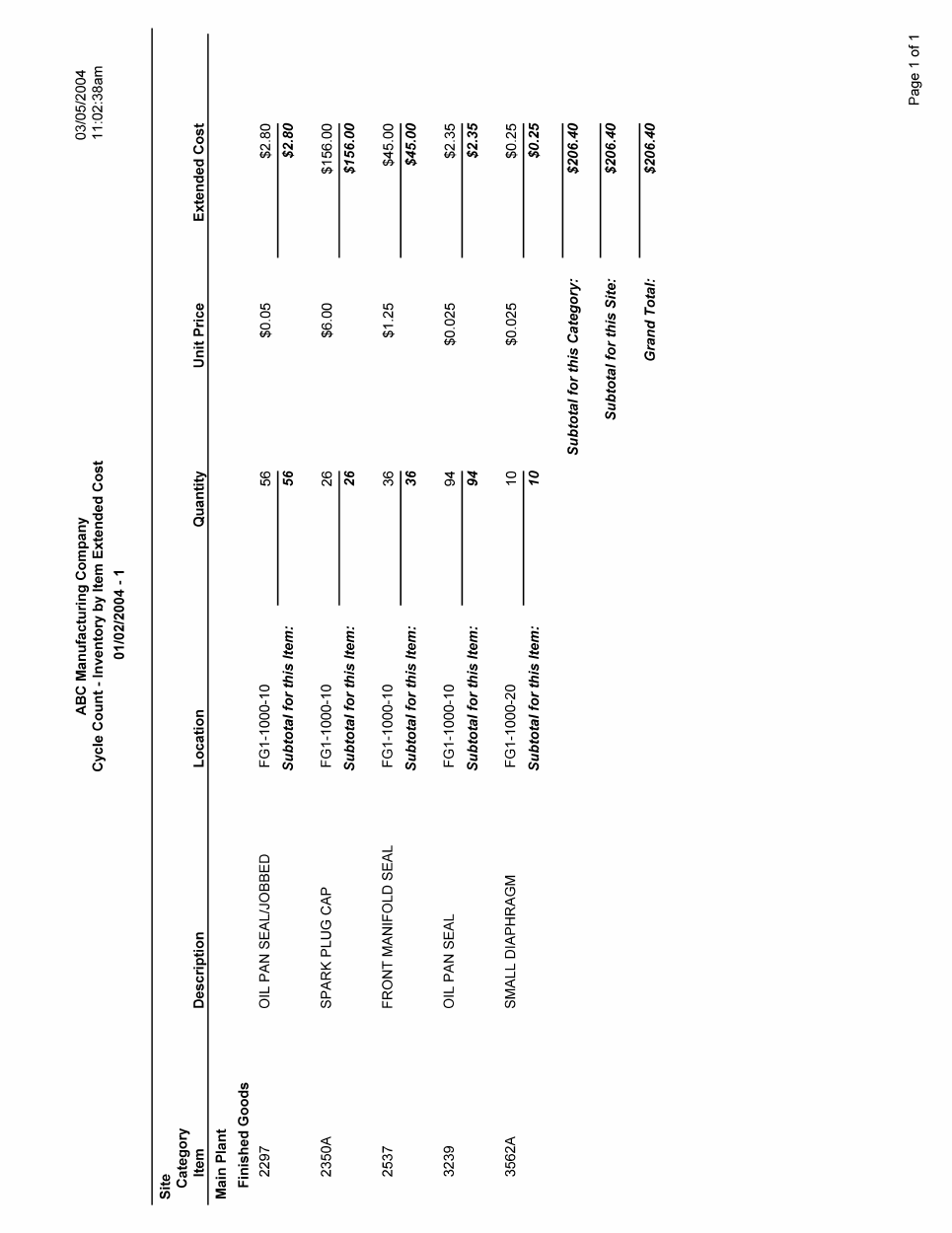
Report Sample
Scan2Track – Physical Inventory and Cycle Counting Package
60
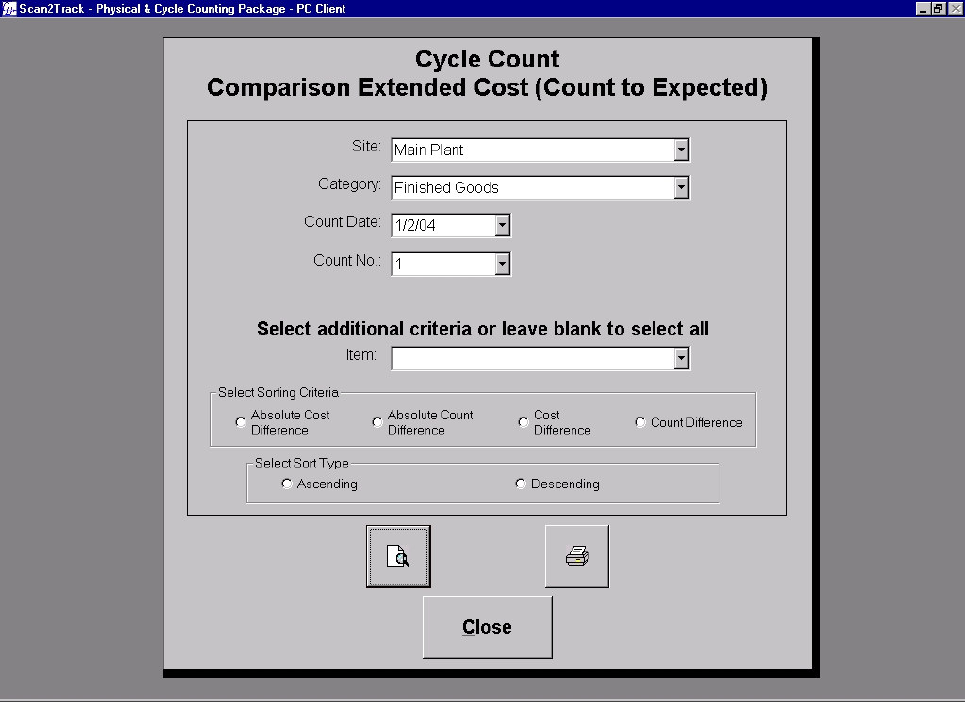
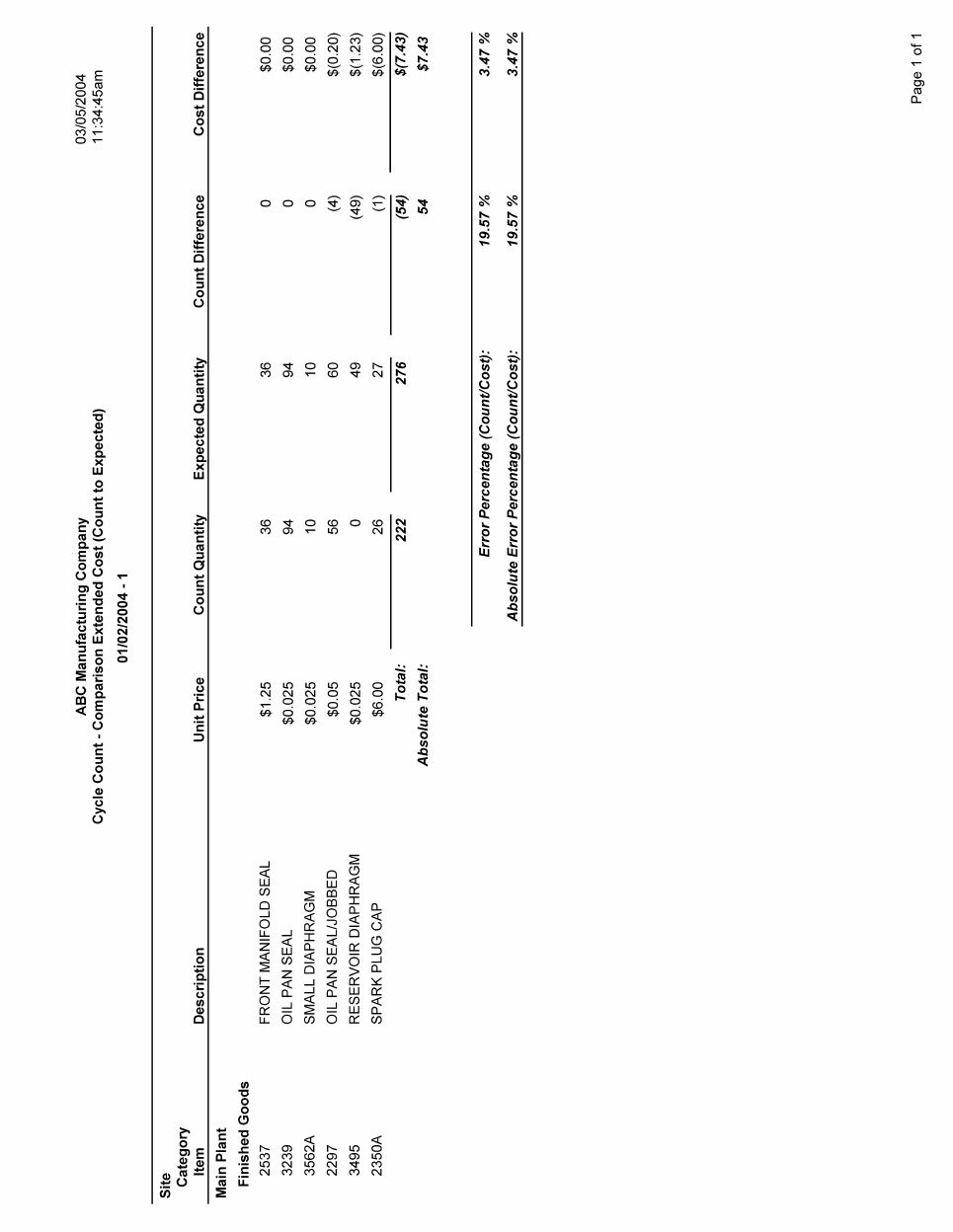
Cycle Count - Comparison Extended Cost (Count to Expected)
Figure 2.3
Site
Select the site that you want to generate the report from the site drop-down list box. Setting or
changing the site will cause the category, count date, count number and item fields to be cleared.
Category
Select the category that you want to generate the report from the category drop-down list box.
Setting or changing the category will cause the count date, count number, and item fields to be
cleared.
Count Date
Select the count date that you want to generate the report from the count date drop-down list box.
This is the count schedule date, not the actual count date. Setting or changing the count date will
cause the count number and item fields to be cleared.
Chapter 2: Cycle Count Reports
61
Count No
Select the count number that you want to generate the report from the count number drop-down list
box. Setting or changing the count number will cause the item field to be cleared.
Item
Select the item that you want to generate the report from the item drop-down list box. You may
leave the drop-down list box blank to select all items.
Select Sorting Criteria
Select the sorting criteria that you want to sort the report by from the Select Sorting Criteria frame.
The default is to sort by Absolute Cost Difference.
Absolute Cost Difference
If you select Absolute Cost Difference as the sorting criteria then the records in the report will be
sorted by the absolute cost difference. This means that the report will be sorted from greatest to
least or least to greatest by the absolute value of the difference in cost between the actual counted
quantity and the quantity in the Inventory table.
Absolute Count Difference
If you select Absolute Count Difference as the sorting criteria then the records in the report will be
sorted by the absolute count difference. This means that the report will be sorted from greatest to
least or least to greatest by the absolute value of the difference in count between the actual counted
quantity and the quantity in the Inventory table.
Cost Difference
If you select Cost Difference as the sorting criteria then the records in the report will be sorted by
the cost difference. This means that the report will be sorted from greatest to least or least to
greatest by the value of the difference in cost between the actual counted quantity and the quantity
in the Inventory table.
Count Difference
If you select Count Difference as the sorting criteria then the records in the report will be sorted by
the count difference. This means that the report will be sorted from greatest to least or least to
greatest by the value of the difference in count between the actual counted quantity and the quantity
in the Inventory table.
Select Sort Type
Select the sort type that you want to sort the report by from the Select Sort Type frame. The default
is to sort in ascending order.
Ascending
If you select ascending order then the report will be sorted by the selected sorting criteria from least
to greatest.
Scan2Track – Physical Inventory and Cycle Counting Package
62
Descending
If you select ascending order then the report will be sorted by the selected sorting criteria from
greatest to least.
Print Preview
Click the Print Preview button to view the report before printing.
Print
Click the Print button to immediately print the report.
Close
Click the Close button to close this screen and return to the Cycle Count Reports Menu.
Chapter 2: Cycle Count Reports
63
Report Sample
Scan2Track – Physical Inventory and Cycle Counting Package
64
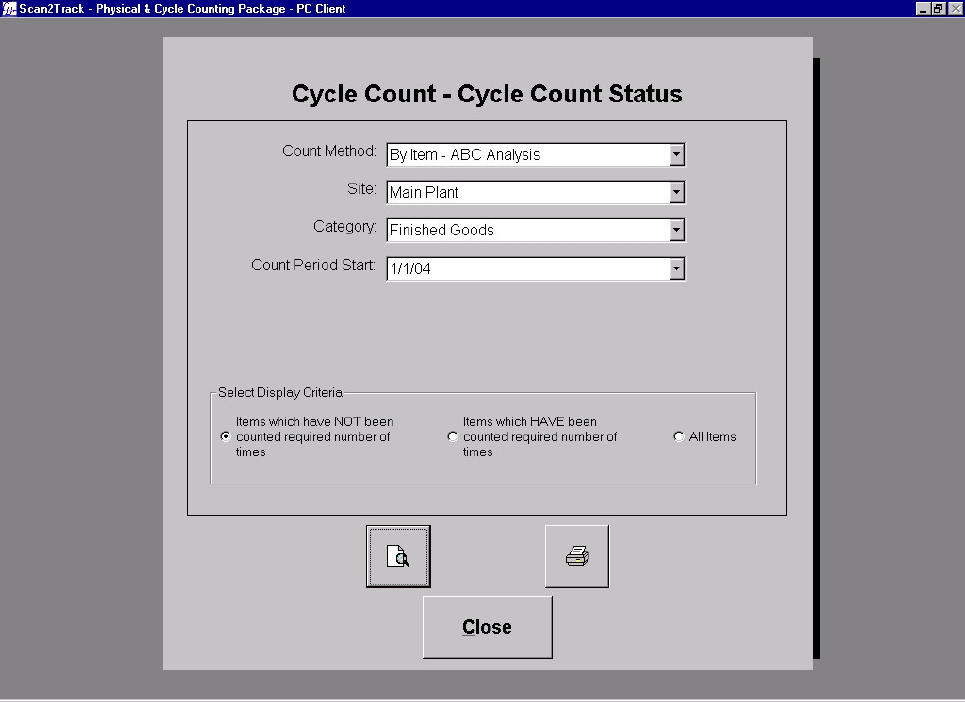
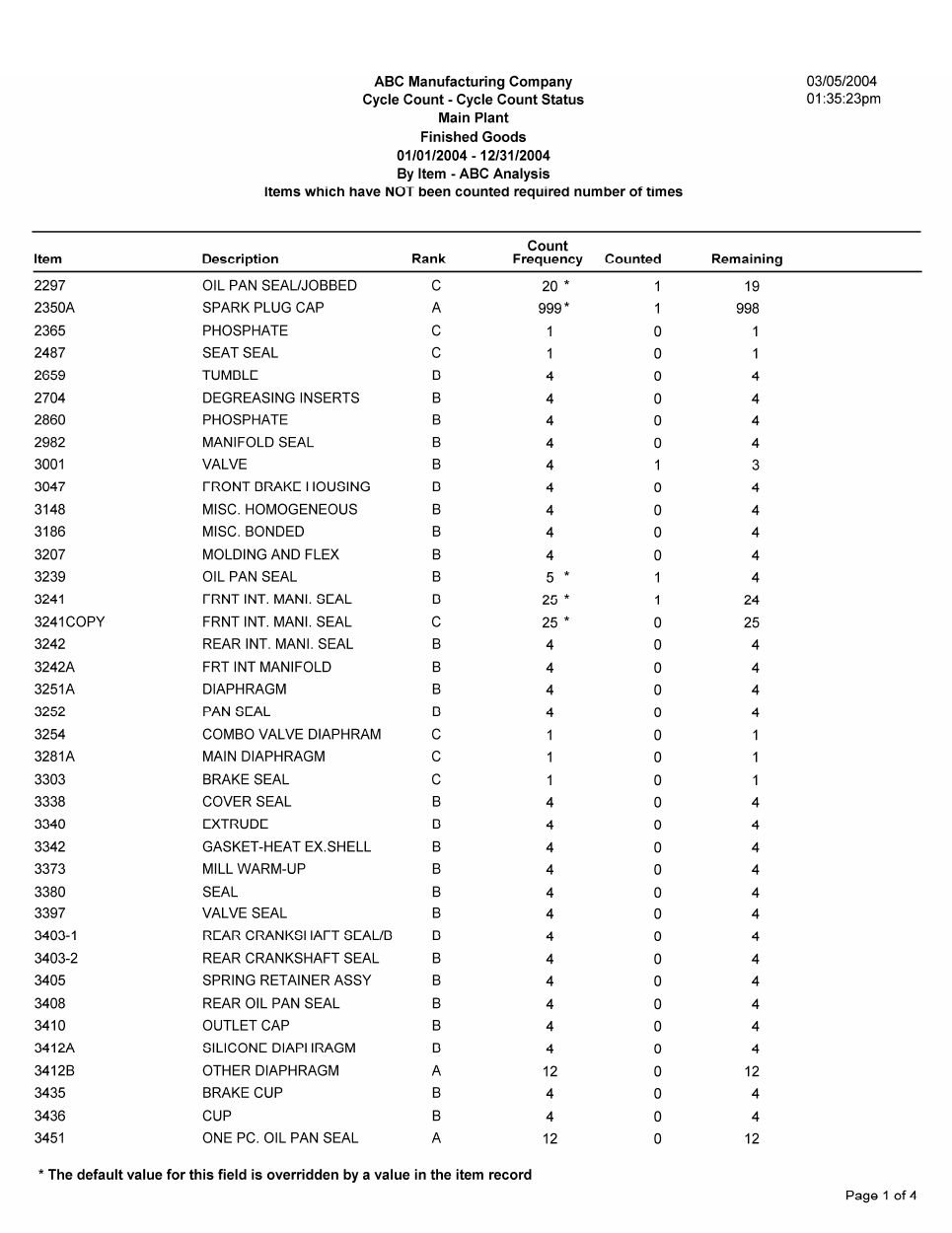
Cycle Count - Count Status
Figure 2.4
Count Method
Select the count date that you want to generate the report from the count method list box.
Site
Select the site that you want to generate the report from the site drop-down list box. You may leave
the drop-down list box blank to select all sites. Setting or changing the site will cause the category,
and count period start fields to be cleared.
Category
Select the category that you want to generate the report from the category drop-down list box. You
may leave the drop-down list box blank to select all categories. Setting or changing the category
will cause the count period start field to be cleared.
Count Period Start
Select the count period start date that you want to generate the report from the count period drop-
down list box.
Chapter 2: Cycle Count Reports
65
Select Display Criteria
Select the display criteria for the report. The default is to display items that have not been counted
the required number of times.
Items not counted
If you select “Items which have not been counted the required number of times” as the display
criteria, items are only included in the report if they have not been counted the number of times
specified by the item count frequency or the default count frequency for the counting method (and
possibly rank).
Items counted
If you select “Items which have been counted the required number of times” as the display criteria,
items are only included in the report if they have been counted the number of times specified by the
item count frequency or the default count frequency for the counting method (and possibly rank).
All Items
If you select “All Items” as the display criteria, all items are included in the report, regardless of
whether their count frequency has been met or not. Items that have not been counted the required
number of times will be flagged with double asterisks.
Print Preview
Click the Print Preview button to view the report before printing.
Print
Click the Print button to immediately print the report.
Close
Click the Close button to close this screen and return to the Cycle Count Reports Menu.
Scan2Track – Physical Inventory and Cycle Counting Package
66
Report Sample
Chapter 2: Cycle Count Reports
67
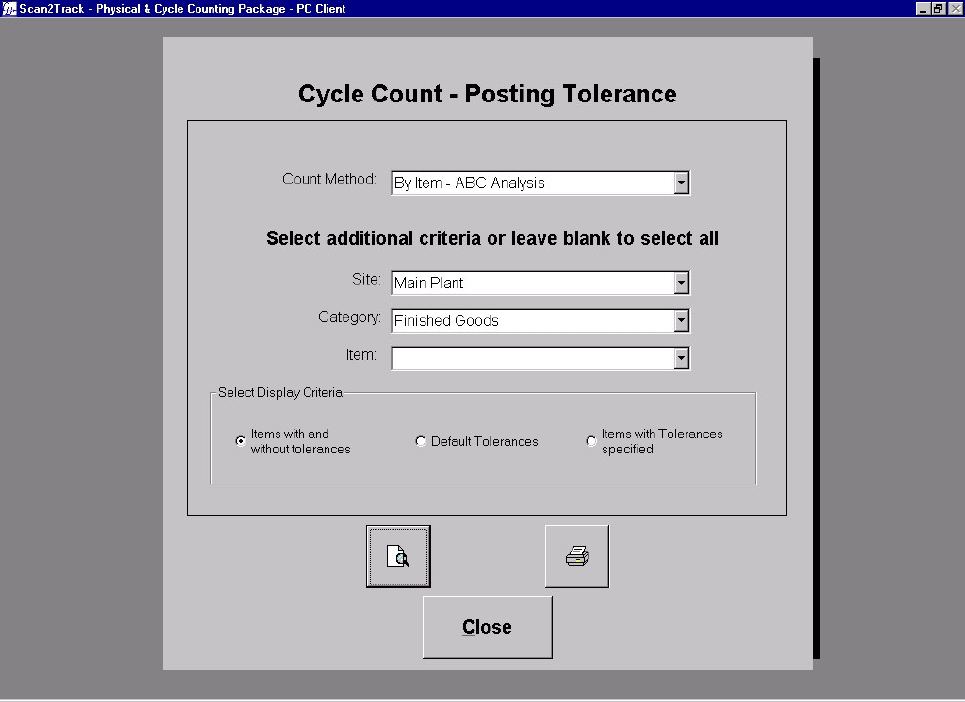
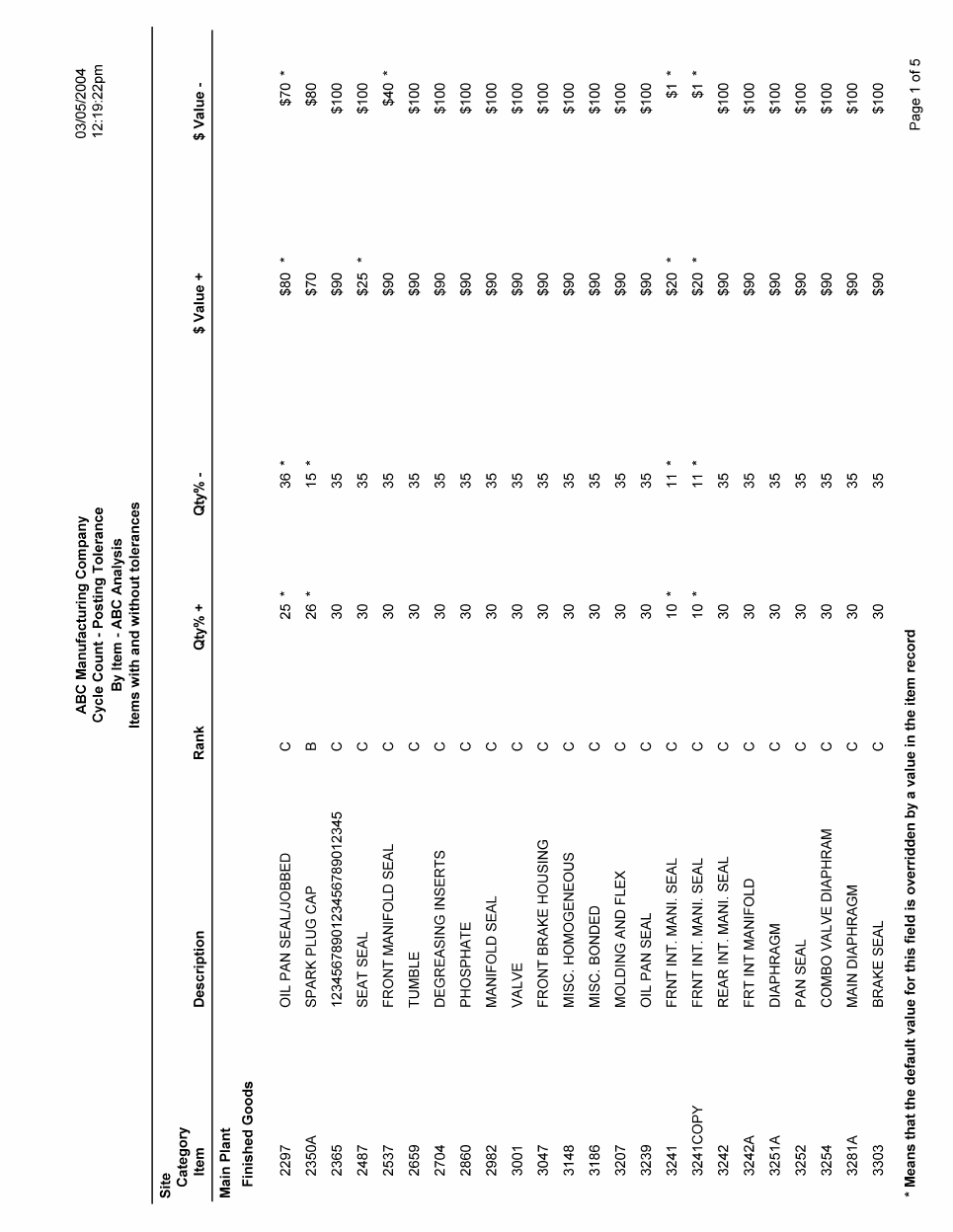
Cycle Count - Posting Tolerance
Figure 2.5
Count Method
Select the count date that you want to generate the report from the count method list box.
Site
Select the site that you want to generate the report from the site drop-down list box. You may leave
the drop-down list box blank to select all sites. Setting or changing the site will cause the category
and item fields to be cleared.
Category
Select the category that you want to generate the report from the category drop-down list box. You
may leave the drop-down list box blank to select all categories. Setting or changing the category
will cause the item field to be cleared.
Item
Select the item that you want to generate the report from the item drop-down list box. You may
leave the drop-down list box blank to select all items.
Scan2Track – Physical Inventory and Cycle Counting Package
68
Select Display Criteria
Select the display criteria for the report. The default is to display items with and without individual
tolerances specified.
Items with and without tolerances
If you select “Items with and without tolerances” as the display criteria, items are included in the
report whether they have individual tolerances specified or not. This is a good report to show the
tolerances for all of your items.
Default Tolerances
If you select “Default Tolerances” as the display criteria, only the default tolerances specified in the
Cycle Count Administration Count Method Setup screen are displayed. No individual items are
listed. If you select the “By Item – ABC Analysis” count method, the default tolerances are listed
for all ranks (A,B,C, and D) which have their counting method defined.
Items with Tolerances Specified
If you select “Items with Tolerances Specified” as the display criteria, only items which have one or
more tolerances specified are displayed. This report with the “Default Tolerances” display criteria
report provides a concise listing that shows the tolerances for all items.
Print Preview
Click the Print Preview button to view the report before printing.
Print
Click the Print button to immediately print the report.
Close
Click the Close button to close this screen and return to the Cycle Count Reports Menu.
Chapter 2: Cycle Count Reports
69
Report Sample
Scan2Track – Physical Inventory and Cycle Counting Package
70
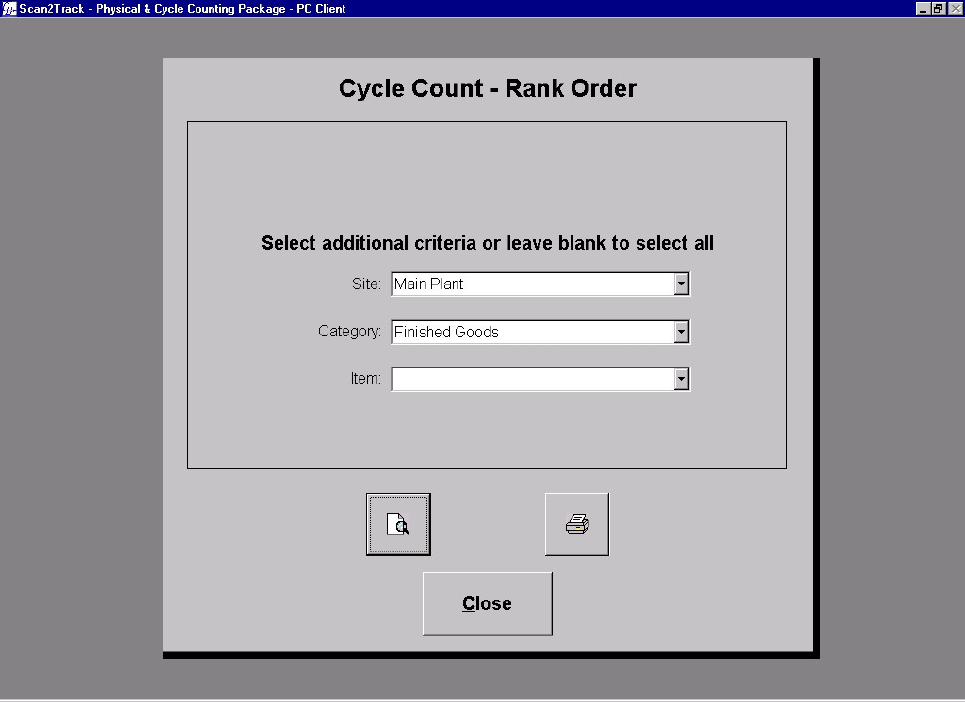
Cycle Count - Rank Order (ABC Classification)
Figure 2.6
Site
Select the site that you want to generate the report from the site drop-down list box. You may leave
the drop-down list box blank to select all sites. Setting or changing the site will cause the category,
and item fields to be cleared.
Category
Select the category that you want to generate the report from the category drop-down list box. You
may leave the drop-down list box blank to select all categories. Setting or changing the category
will cause the item field to be cleared.
Item
Select the item that you want to generate the report from the item drop-down list box. You may
leave the drop-down list box blank to select all items.
Print Preview
Click the Print Preview button to view the report before printing.
Chapter 2: Cycle Count Reports
71
Print
Click the Print button to immediately print the report.
Close
Click the Close button to close this screen and return to the Cycle Count Reports Menu.

Scan2Track – Physical Inventory and Cycle Counting Package
72
Report Sample
