W810i__UG_R1a_EN W810a Sony Ericsson W810i Manual
Sony-Ericsson-W810-Manual sony-ericsson-w810-manual sony-ericsson-w810-manual manuals phones s.theinformr.com 3:
User Guide sony-ericsson-w810i-walkman-phone-user-guide Sony Ericsson User Guides
User Manual: W810a
Open the PDF directly: View PDF  .
.
Page Count: 93
- Contents
- Getting started
- Getting to know your phone
- Calling
- Making and receiving calls
- Emergency calls
- Contacts
- Using contacts
- Synchronizing contacts
- Call list
- Speed dialling
- Voicemail
- Voice control
- Voice dialling
- The magic word
- Diverting calls
- More than one call
- Conference calls
- Two voice lines
- My numbers
- Accept calls
- Restricted dialling
- Fixed dialling
- Call time and cost
- Additional calling functions
- Groups
- Business cards
- Messaging
- Imaging
- Entertainment
- Connectivity
- More features
- Troubleshooting
- Important information
- Index
1Contents
Contents
Getting started ................... 4
Assembly, SIM card, battery,
turning on, start-up menu, calls.
Getting to know your
phone ................................ 10
Phone overview, use the menus,
icons, entering letters, activity menu,
file manager.
Calling ............................... 21
Calls, contacts, voice control,
call options.
Messaging ........................ 33
Text messaging, picture messaging,
voice messaging, email, My friends.
Imaging ............................. 43
Camera, video recorder, pictures.
Entertainment ................... 48
WALKMAN™, radio, PlayNow™,
ringtones, MusicDJ™, VideoDJ™,
games and more.
Connectivity ..................... 59
Internet and email settings,
synchronizing, Bluetooth, infrared,
USB cable, update service.
More features ................... 68
Alarm clock, calendar, tasks, profiles,
time and date, SIM card lock, etc.
Troubleshooting ............... 75
Why doesn’t the phone work the way
I want?
Important information ...... 81
Sony Ericsson Consumer Web site,
service and support, safe and efficient
use, end user licence agreement,
warranty, declaration of conformity.
Index ................................. 90
This is the Internet version of the user's guide. © Print only for private use.
Sony Ericsson W810i
2Contents
Sony Ericsson
GSM 850/900/1800/1900
This user guide is published by Sony Ericsson
Mobile Communications AB, without any warranty.
Improvements and changes to this user guide
necessitated by typographical errors, inaccuracies
of current information, or improvements to
programs and/or equipment, may be made by Sony
Ericsson Mobile Communications AB at any time
and without notice. Such changes will, however, be
incorporated into new editions of this user guide.
All rights reserved.
©Sony Ericsson Mobile Communications AB,
2005
Publication number: EN/LZT 108 8373 R1A
Please note:
Some of the services in this user guide are not
supported by all networks.
This also applies to the
GSM International Emergency Number 112
.
Please contact your network operator or service
provider if you are in doubt whether you can use a
particular service or not.
Please read the
Guidelines for safe and efficient
use
and the
Limited warranty
chapters before you
use your mobile phone.
Your mobile phone has the capability to download,
store and forward additional content, e.g.
ringtones. The use of such content may be
restricted or prohibited by rights of third parties,
including but not limited to restriction under
applicable copyright laws. You, and not Sony
Ericsson, are entirely responsible for additional
content that you download to or forward from your
mobile phone. Prior to your use of any additional
content, please verify that your intended use is
properly licensed or is otherwise authorized. Sony
Ericsson does not guarantee the accuracy, integrity
or quality of any additional content or any other
third party content. Under no circumstances will
Sony Ericsson be liable in any way for your
improper use of additional content or other third
party content.
The Bluetooth word mark and logos are owned by
the Bluetooth SIG, Inc. and any use of such marks
by Sony Ericsson is under license.
QuickShare, PlayNow, MusicDJ, PhotoDJ and
VideoDJ are trademarks or registered trademarks
of Sony Ericsson Mobile Communications AB.
Memory Stick™, Memory Stick Duo™ and Memory
Stick PRO Duo™ are trademarks or registered
trademarks of Sony Corporation.
WALKMAN™ and the WALKMAN™ logo and
symbol are registered trademarks of Sony
Corporation.
Microsoft, Windows and PowerPoint are either
registered trademarks or trademarks of Microsoft
Corporation in the U.S and other countries.
QuickTime® is a trademark of Apple Computer,
Inc. Mac OS is a trademark of Apple Computer,
Inc., registered in the U.S. and other countries.
Contains Macromedia® Flash™ technology by
Macromedia, Inc. Copyright © 1995-2003
Macromedia, Inc. All rights reserved. Macromedia,
Flash, Macromedia Flash, and Macromedia Flash
Lite are trademarks or registered trademarks of
Macromedia, Inc. in the United States and other
countries/regions. For further information, visit
http://www.macromedia.com/software/flash/about/.
T9™ Text Input is a trademark or a registered
trademark of Tegic Communications. T9™ Text
Input is licensed under one or more of the
following: U.S. Pat. Nos. 5,818,437, 5,953,541,
5,187,480, 5,945,928, and 6,011,554; Canadian
Pat. No. 1,331,057, United Kingdom Pat. No.
2238414B; Hong Kong Standard Pat. No.
HK0940329; Republic of Singapore Pat. No. 51383;
Euro.Pat. No. 0 842 463(96927260.8) DE/DK, FI,
FR, IT, NL, PT, ES, SE, GB; and additional patents
are pending worldwide.
This is the Internet version of the user's guide. © Print only for private use.
3Contents
Java and all Java based trademarks and logos are
trademarks or registered trademarks of Sun
Microsystems, Inc. in the U.S. and other countries.
End-user license agreement for Sun™ Java™
J2ME™.
1Restrictions: Software is confidential copyrighted
information of Sun and title to all copies is retained
by Sun and/or its licensors. Customer shall not
modify, decompile, disassemble, decrypt, extract,
or otherwise reverse engineer Software. Software
may not be leased, assigned, or sublicensed, in
whole or in part.
2Export Regulations: Software, including technical
data, is subject to U.S. export control laws,
including the U.S. Export Administration Act and its
associated regulations, and may be subject to
export or import regulations in other countries.
Customer agrees to comply strictly with all such
regulations and acknowledges that it has the
responsibility to obtain licenses to export, re-
export, or import Software. Software may not be
downloaded, or otherwise exported or re-exported
(i) into, or to a national or resident of, Cuba, Iraq,
Iran, North Korea, Libya, Sudan, Syria (as such
listing may be revised from time to time) or any
country to which the U.S. has embargoed goods;
or (ii) to anyone on the U.S. Treasury Department's
list of Specially Designated Nations or the U.S.
Commerce Department's Table of Denial Orders.
3Restricted Rights: Use, duplication or disclosure by
the United States government is subject to the
restrictions as set forth in the Rights in Technical
Data and Computer Software Clauses in DFARS
252.227-7013(c) (1) (ii) and FAR 52.227-19(c) (2) as
applicable.
Part of the software in this product is copyright ©
SyncML initiative Ltd. (1999-2002). All rights
reserved.
Other product and company names mentioned
herein may be the trademarks of their respective
owners.
Any rights not expressly granted herein are
reserved.
This is the Internet version of the user's guide. © Print only for private use.
4Getting started
Getting started
Assembly, SIM card, battery,
turning on, start-up menu, calls.
Instruction symbols
The following instruction symbols
appear in this user guide:
More information and downloads
are available at
www.SonyEricsson.com/support.
Assembly
Before you can use your phone you
need to:
•Insert the SIM card.
•Insert and charge the battery.
SIM card and battery information
When you register as a subscriber with
a network operator, you get a SIM
(Subscriber Identity Module) card.
The SIM card contains a computer
chip that keeps track of your phone
number, the services included in your
subscription, and names and numbers
in your contacts, among other things.
Note
Indicates that a service or
function is network- or
subscription-dependent.
Contact your network operator
for details.
%See also page...
}Use a selection or navigation
key to scroll and select,
%
14 Navigation
.
Press the navigation key centre.
Press the navigation key up.
Press the navigation key down.
Press the navigation key to
the left.
Press the navigation key to
the right.
If you have used your SIM card in
another phone, make sure that your
information is saved to the SIM card
before you remove it. For example,
contacts may have been saved in
the phone memory.
This is the Internet version of the user's guide. © Print only for private use.
5Getting started
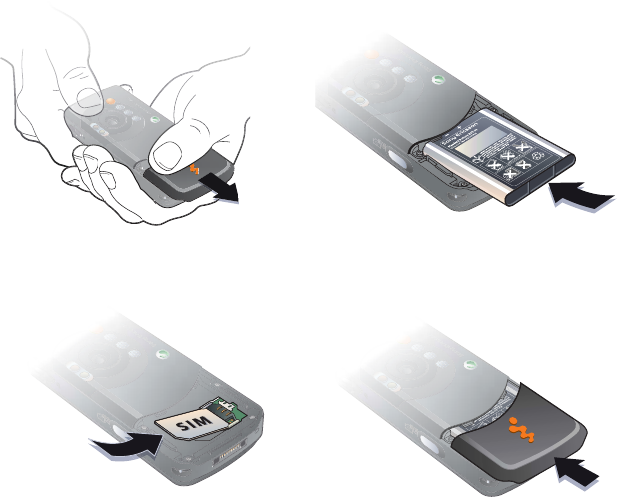
To insert SIM card and battery
1Remove the battery cover.
2Slide the SIM card into its holder with
the gold contacts facing down.
3Insert the battery with the label side up
and the connectors facing each other.
4Slide the battery cover into place.
This is the Internet version of the user's guide. © Print only for private use.

6Getting started
To charge the battery
1Connect the charger to the phone.
The symbol on the charger plug must
face upwards.
2It may take up to 30 minutes before
the battery icon appears on the screen.
3Wait approximately 2.5 hours or until
the battery icon indicates that the
battery is fully charged. Press a key
to activate the screen.
4Remove the charger by pulling it out.
This is the Internet version of the user's guide. © Print only for private use.
7Getting started
Battery
Some functions use more battery
power than others and may cause
a need for more frequent re-charging.
If talk time or standby time becomes
noticeably shorter, you may have to
replace the battery. Only use approved
batteries from Sony Ericsson
%
83 Battery
.
Memory Stick PRO Duo™
Your phone supports Memory Stick
PRO Duo™. A Memory Stick adds
more storage space to your phone to
store, for example, music, ringtones,
video clips and pictures.
With a Memory Stick you can share
your saved information by moving
or copying it to other Memory Stick
compatible devices.
You can also use it as a portable
memory for office documents,
and move documents between
the phone and a computer.
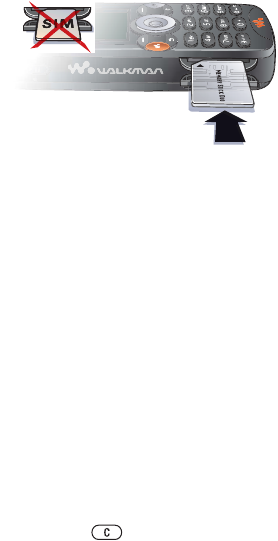
To insert and remove a Memory Stick
PRO Duo™
1Carefully open the Memory Stick Duo
slot cover.
2Insert the Memory Stick in the slot.
3Press the edge of the Memory Stick
to release it from the slot.
PIN
You may need a PIN (Personal Identity
Number) to activate the services in your
phone. The PIN is associated with your
SIM card, and not with the phone.
Your PIN is provided by your network
operator. When you enter your PIN,
each digit appears as *, unless your
PIN starts with the same digits as an
emergency number, for example 112.
This allows for emergency calls without
entering a PIN.
If you make a mistake while entering
your PIN, delete the number by
pressing .
This is the Internet version of the user's guide. © Print only for private use.
8Getting started
Light sensor
The phone has a built-in light sensor,
which automatically adapts the screen
and keypad brightness to suit the
surrounding lighting conditions.
Turning on the phone and
making calls
Make sure that the phone is charged
and your SIM card is inserted before
you turn it on. When you have turned
the phone on, you can use the setup
wizard to quickly and easily prepare
your phone for use.
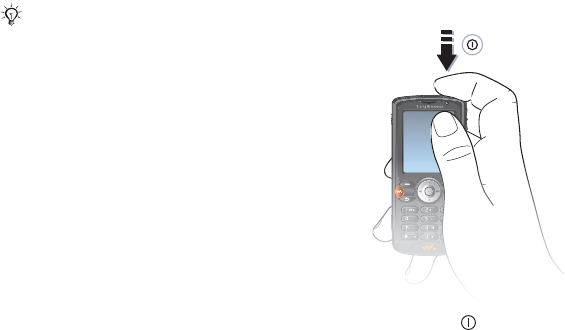
To turn on the phone
1Press and hold . The first start-up
may take a few minutes.
2Select Start phone to use the phone
with full functionality or Music only to
use the WALKMAN™ player only.
%
9 Start-up menu
.
3Enter your SIM card PIN, if requested.
4At first start-up, select the language
for your phone menus.
5} Yes if you want the setup wizard to
help you get started. Follow the
instructions to complete the setup.
If you enter the wrong PIN three times
in a row, the SIM card is blocked and
the message “PIN blocked” appears.
To unblock it, you need to enter your
PUK (Personal Unblocking Key)
%
73 SIM card lock
.
This is the Internet version of the user's guide. © Print only for private use.
9Getting started
More information
You can start the setup wizard from
the menu system at any time.
To activate the setup wizard
} Settings } the General tab
} Setup wizard.
Start-up menu
When the start-up menu is activated,
each time you turn on the phone, you
can select to listen to music only, with
phone network transmitters turned off.
This prevents disturbance of sensitive
equipment, for example, in an
aeroplane where calls and messages
are prohibited. You cannot make calls,
receive calls, or send messages, etc.
You can only use the WALKMAN™
player. If you have selected Music only,
some limited functions are still available
such as the alarm, calendar and task
reminders.
To deactivate the start-up menu
} Settings and scroll to the General tab
} Start-up menu. Select Don´t show.
To make and receive calls
1Enter the phone number (with
international prefix and area code
if applicable) } Call to make the call
and } End call to end the call.
2} Contacts and select the contact to
call. Use or to select a number.
3When the phone rings } Answer or
} Busy to reject the call.
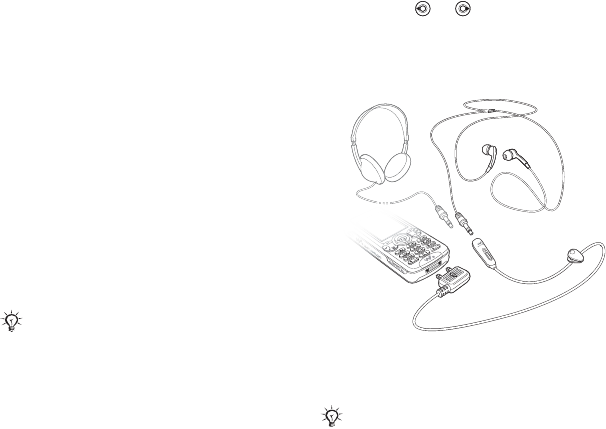
Stereo handsfree headset
You can connect other headphones to
your stereo handsfree headset using
the 3.5 mm jack.
Always follow regulations and flight crew
instructions with respect to onboard use
of electronic devices.
You can still answer calls and use the
microphone when other headphones are
in use.
This is the Internet version of the user's guide. © Print only for private use.
10 Getting to know your phone
Getting to know your phone
Phone overview, use the menus, icons, entering letters, activity menu, file manager.
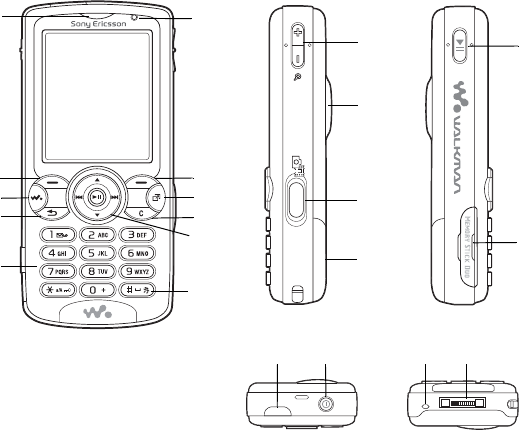
Phone and menu overview
19
12
13
14
16
18
1
3
2
10
5
11
6
9
8
7
4
17
15
20 21
This is the Internet version of the user's guide. © Print only for private use.

11Getting to know your phone
1Ear speaker
2Selection key
3WALKMAN™ key
4Back key
5Keypad
6Light sensor
7Selection key
8Activity menu
9C key
10 Navigation key
11 Silent key
12 Camera zoom, volume buttons and picture zoom
13 Light
14 Camera button
15 Battery cover
16 Play/pause button
17 Memory Stick Duo slot
18 Infrared port
19 Power on/off button
20 Microphone
21 Stereo headset and charger connector
For more information on keys and navigation, %
14 Navigation
.
This is the Internet version of the user's guide. © Print only for private use.
12 Getting to know your phone
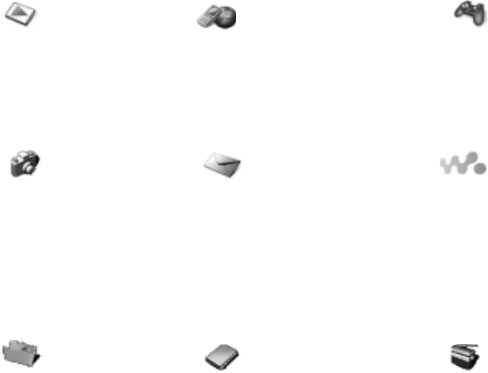
PlayNow™* Internet services* Entertainment
Online services*
Games
VideoDJ™
PhotoDJ™
MusicDJ™
Remote control
Record sound
Demo tour
Camera Messaging WALKMAN
Write new
Inbox
My friends*
Email
Call voicemail
Drafts
Outbox
Sent messages
Saved messages
Templates
Settings
File manager Contacts** Radio
Pictures
Videos
Sounds
Themes
Web pages
Games
Applications
Other
Options
Speed dial
My business card
Groups
SIM contacts
Special numbers
Advanced
New contact
This is the Internet version of the user's guide. © Print only for private use.
13Getting to know your phone
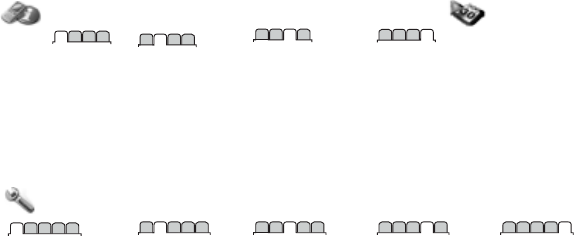
Calls
All Answered
Dialled Missed
Organizer
Alarms
Calendar
Tasks
Notes
Calculator
Synchronization
Timer
Stopwatch
Light
Applications
Code memo
Settings***
General
Profiles
Time & date
Language
Update service
Voice control
New events
Shortcuts
Play/pause button
Start-up menu
Locks
Setup wizard
Tips and tricks
Phone status
Master reset
Sounds & alerts
Ring volume
Ringtone
Silent mode
Increasing ring
Vibrating alert
Message alert
Key sound
Display
Wallpaper
Themes
Start-up screen
Screen saver
Brightness
Edit line names*
Calls
Divert calls
Switch to line 2*
Manage calls
Time & cost
Show/hide my no.
Handsfree
Connectivity
Bluetooth
Infrared port
USB connection
Synchronization
Device mgmt.
Mobile networks
Data comm.
Internet settings
Streaming settings
Settings for Java™
Accessories
* Some menus are operator-, network- and subscription-dependent.
** Options when phone contacts are set to Default, options change when SIM contacts are set to default.
*** Use the navigation key to move across tabs in submenus.
This is the Internet version of the user's guide. © Print only for private use.
14 Getting to know your phone
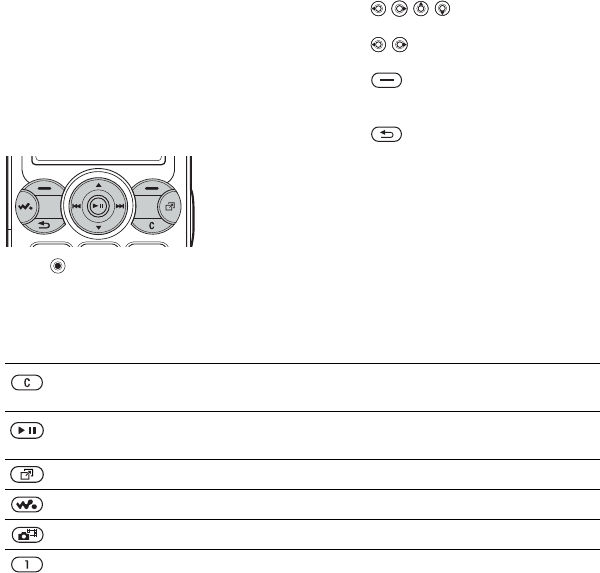
Navigation
The main menus are shown as icons on
the desktop. Some submenus include
tabs that appear on the screen. Scroll
to a tab by pressing the navigation key
left or right and select an option.
Navigating the menus
•Press
(navigation key) to go to the
desktop or to select highlighted items.
•Press
to move through
the menus.
•Press
to move between the
tabs.
•Press to select options shown
immediately above these keys on the
screen.
•Press to go back one level in
the menus. Press and hold to return
to standby or to end a function.
•Scroll to a menu item } Info to get
more information, explanations or tips
about selected features, menus or
functions available in your phone.
•} More and enter a list of options.
There are different alternatives in the
list of options depending on where
you are in the menus.
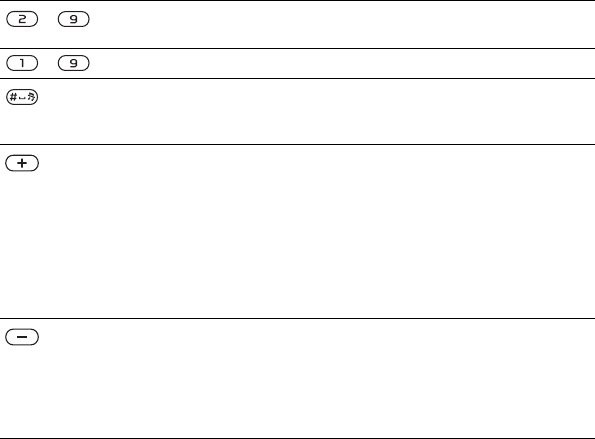
Key Press to
Press to delete items, such as pictures, sounds and contacts.
During a call, press and hold to mute the microphone.
Press to launch the WALKMAN™ player or radio in a minimized
mode and press again to close the WALKMAN™ player or radio.
open the activity menu %
18 Activity menu
.
open or minimize the WALKMAN™ player.
take a picture or to record a video clip.
Press and hold to call your voicemail service (if set).
This is the Internet version of the user's guide. © Print only for private use.
15Getting to know your phone
- Press and hold any of these keys to reach a contact beginning with
a specific letter.
- Press a number key and } Call to speed dial, %
25 Speed dialling
.
turn off the ringtone when receiving a call.
Press and hold to set the phone to silent. The alarm signals even
if the phone is set to silent.
From standby, press to view status information.
To reject an incoming call, quickly press twice.
Press once to turn off the ringtone when receiving a call.
During a call, press to increase the volume.
When using the WALKMAN player (also when minimized), press
to increase the volume. Press and hold to go back one track.
When using the camera, press to zoom in.
From standby, press and hold to voice dial, alternatively say your
magic word (if set), %
27 Voice dialling
.
To reject a call, quickly press twice when receiving a call.
Press once to turn off the ringtone when receiving a call.
During a call, press to decrease the volume.
When using the WALKMAN™ player (also when minimized), press
to decrease the volume. Press and hold to go forward one track.
When using the camera, press to zoom out.
This is the Internet version of the user's guide. © Print only for private use.
16 Getting to know your phone
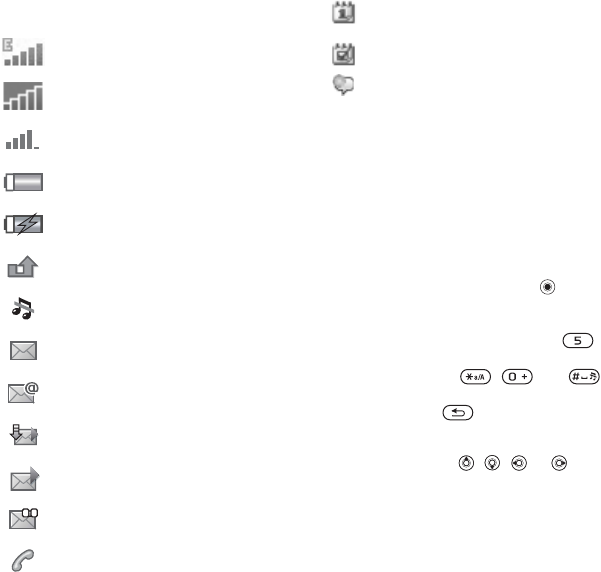
Status bar icons
Shortcuts
Use keypad shortcuts to quickly go to
a menu, and you can use predefined
navigation key shortcuts to quickly
reach certain functions. Edit the
navigation key shortcuts to suit
your own needs.
Using keypad shortcuts
Enter the menus by pressing and
then enter the number of the menu to
which you want to go. For example, to
reach the fifth menu item, press .
To reach the tenth, eleventh and twelfth
menu items, press , and
respectively. To go back to standby,
press and hold .
Using navigation key shortcuts
In standby, press , ,
or to
go to a shortcuts menu, or directly to
a function.
EDGE network is within range
and can be used.
GPRS network is within range
and can be used.
Tells you the strength of the
GSM network signal.
Tells you the status of the
battery.
Tells you the status of the battery
charging.
You have missed an incoming
call.
Call and messaging function
alerts are off, alarm is still on.
You have received a text
message.
You have received an email
message.
Your phone is receiving a picture
message.
You have received a picture
message.
You have received a voice
message.
You have an ongoing call.
You have an appointment
reminder.
You have a task reminder.
The magic word is activated.
This is the Internet version of the user's guide. © Print only for private use.
17Getting to know your phone
To edit a navigation key shortcut
} Settings } the General tab
} Shortcuts and select which
shortcut you want to edit } Edit.
Phone language
Select the language for phone menus
or the languages that you may use
when writing.
To change the phone language
} Settings } the General tab
} Language } Phone language.
Select a language.
From standby, you can also press
8888 for automatic language.
0000 for English.
To select writing language
1} Settings } the General tab
} Language } Writing language.
2Scroll to the language that you want
to use and mark it. } Save to exit the
menu.
Entering letters
There are two ways of entering letters
when writing messages, notes or a
name in contacts:
•Multitap text input
•T9™ Text Input
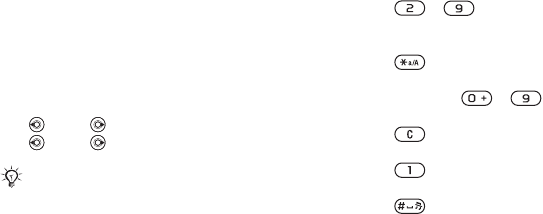
To enter letters using multitap input
•Press - repeatedly until the
desired character appears on the
screen.
•Press to shift between capital
and lower-case letters.
•Press and hold - to enter
numbers.
•Press to delete letters and
numbers.
•Press for the most common
punctuation marks.
•Press to add a space.
T9™ Text Input
The T9 Text Input method uses a built-
in dictionary to recognize the most
commonly used word for each
sequence of key presses. This way,
you press each key only once, even if
the letter you want is not the first letter
on the key.
Most SIM cards automatically set the
menu language to the country where
you bought your SIM card. If not, the
predefined language is English.
This is the Internet version of the user's guide. © Print only for private use.
18 Getting to know your phone
To enter letters using T9 Text Input
1To enter text, you have to be in a
function where text input is possible,
for example, } Messaging } Write new
} Text message.
2For example, to write the word “Jane”,
press , , , .
3If the word shown is the one you want,
press to accept and add a space.
To accept a word without adding a
space, press . If the word shown is
not the one you want, press or
repeatedly to view alternative words.
Accept a word and add a space by
pressing .
4Continue writing your message. To
enter a mark, press and then
or repeatedly. Accept a mark and
add a space by pressing .
To add words to the T9 Text Input
dictionary
1While entering letters } More
} Spell word.
2Edit the word by using multitap input.
Use and to navigate between
the letters. To delete a character, press
. To delete the entire word, press
and hold .
When you have edited the word
} Insert. The word is added to the T9
Text Input dictionary. Next time you
enter this word using T9 Text Input,
it will appear as one of the alternative
words.
To select another writing method
Before, or while entering letters, press
and hold to select another writing
method.
Options when entering letters
} More to enter a list of options that
offers different alternatives when
writing a message.
Activity menu
You can open the activity menu almost
anywhere in the phone to view and
manage new events, and access
bookmarks and shortcuts.
To open and close the activity menu
Press .
Activity menu tabs
•New events – such as missed calls
and messages. When a new event
occurs, the tab appears on the
screen. Press to dismiss or
delete an event from the event tab.
•My shortcuts – applications that are
running in the background. You can
add, delete and change the order of
This is the Internet version of the user's guide. © Print only for private use.
19Getting to know your phone
shortcuts. When you select a shortcut
and the application opens, other
programs are closed or minimized.
•Bookmarks – your Internet
bookmarks. When you select a
bookmark and the browser opens,
other programs are closed or
minimized.
•If you want new events to appear as
pop-up text instead of in the activity
menu, } Settings } the General tab
} New events } Popup.
File manager
Use the File manager to handle items
such as Pictures, Videos, Sounds,
Themes, Web pages, Games and
Applications saved in the phone
memory or on the Memory Stick
PRO Duo™.
Move and copy files between the
phone, a computer and the Memory
Stick. Create subfolders to move or
copy files to. Games and applications
can only be moved within the Games
and Applications folders and from the
phone memory to the Memory Stick.
Unrecognized files are saved in the
Other folder. When handling files, you
can select several or all files in a folder
at the same time for all items except
Games and Applications.
All files are automatically saved in the
phone memory. If the phone memory
is full and you have a Memory Stick
inserted, the files will automatically be
saved on the Memory Stick. If both the
phone memory and the Memory Stick
are full, you cannot save any files until
you have removed content.
File information
Items that are downloaded, or
received using one of the available
transfer methods, may be copyright
protected. If a file is protected, you
may not be able to copy or send that
file. View file information by
highlighting it } More } Information.
To use a file from the file manager
1} File manager and select a folder.
2Scroll to a file } More } Use as and
select an option.
To move or copy a file to a Memory
Stick or to the phone memory
1} File manager and select a folder.
2Scroll to a file } More } Manage files
} Move to move the file or } More
} Manage files } Copy to copy the file.
3Select to move or copy the file to the
Memory or to the phone memory
} Select.
This is the Internet version of the user's guide. © Print only for private use.
20 Getting to know your phone
To move or copy files to a computer
%
66 Transferring files using the USB
cable
.
To create a subfolder
1} File manager and select a folder.
2} More } New folder and enter a name
for the folder.
3} OK to save the folder.
To select several files
1} File manager and select a folder.
2} More } Mark } Mark several.
3Scroll to select files and press Mark
or Unmark.
To select all files in a folder
} File manager and select a folder
} More } Mark } Mark all to select
all files.
To delete a file or a subfolder from
the File manager
1} File manager and select a folder.
2Scroll to a file or a subfolder } More
} Delete.
Formatting a Memory Stick
You can format a Memory Stick to
delete all information from it, or if it
has been corrupted.
To format the Memory Stick
} File manager and select the
Memory Stick tab } More
} Format M.S.
This is the Internet version of the user's guide. © Print only for private use.
21Calling
Calling
Calls, contacts, voice control,
call options.
Making and receiving calls
Before you can make or receive any
calls, you must turn on the phone
and be within range of a network.
%
8 Turning on the phone and making
calls
.
Networks
When you turn on the phone, it
automatically selects your home
network if this is within range. If it is
not within range, you may use another
network, provided your network
operator has an agreement that allows
you to do so. This is called roaming.
You can select the network you want
to use, or you can add a network to
your list of preferred networks. You
can also change the order in which
networks are selected during an
automatic search.
To view available network options
} Settings and use or to scroll
to the Connectivity tab } Mobile
networks.
To make a call
1Enter the phone number (with
international country code and
area code, if applicable).
2} Call to make a call.
3} End call to end the call.
To make international calls
1Press and hold until a + sign
appears.
2Enter the country code, area code
(without the leading zero) and phone
number } Call to make a call.
To re-dial a number
If a call connection fails and Retry?
appears } Yes.
To answer or reject a call
} Answer or } Busy.
You can call numbers from your contacts
and call list,
%
22 Contacts, and
%
25
Call list. You can also use your voice to
make calls,
%
26 Voice control.
Do not hold the phone to your ear
while waiting. When the call connects,
the phone gives a loud signal.
This is the Internet version of the user's guide. © Print only for private use.

22 Calling
Missed calls
When activity menu is set as default
missed calls appears in the New events
tab in standby. If pop-up is set as
default Missed appears in standby.
To check missed calls from standby
•If activity menu is set to default:
Press and use or to scroll
to the New events tab and } Call to
make a call.
•If pop-up is set to default:
} Calls and use or to scroll to
the Missed tab. Scroll and and
} Call to call a number.
To turn off the microphone
1Press and hold .
2To resume the conversation press
and hold again.
To use the loudspeaker during
a voice call
} More } Speaker or Spkr. off.
To change the ear speaker volume
Press to increase or to
decrease the ear speaker volume
during a call.
Emergency calls
Your phone supports the international
emergency numbers, for example, 112,
911. These numbers can normally be
used to make emergency calls in any
country, with or without a SIM card
inserted, if a GSM network is within
range.
To make an emergency call
Enter 112 (the international emergency
number) } Call.
To view your local emergency
numbers
} Contacts } Options } Special
numbers } Emergency nos.
Contacts
You can save your contact information
in the phone memory as contacts,
or on the SIM card as names and
numbers. You can choose which
contact information – Phone contacts
or SIM contacts – is shown as default.
For useful information and settings
} Contacts } Options.
Do not hold the phone to your ear
while using the loudspeaker. This
could damage your hearing.
In some countries, other emergency
numbers may also be promoted. Your
network operator may therefore have
saved additional local emergency
numbers on the SIM card.
This is the Internet version of the user's guide. © Print only for private use.
23Calling
Default contact
If you select to use Phone contacts
as default, your contacts will show all
information saved in Contacts. If you
select SIM contacts as default, the
contacts will only show names and
numbers saved on the SIM card.
To select default contacts
1} Contacts } Options } Advanced
} Default contacts.
2Select Phone contacts or
SIM contacts.
SIM contacts
Save contacts on your SIM card with
name and number.
To add a SIM contact
1} Contacts } New contact } Add.
2Enter the name } OK.
3Enter the number } OK } Save.
Phone contacts
Save contacts in the phone with
names, phone numbers and personal
information. You can also add pictures
and ringtones to contacts. Use , ,
and to scroll between the tabs
and their information fields.
To add a phone contact
1} Contacts } New contact } Add.
2Enter the name } OK.
3Enter the number } OK.
4Select a number type.
5Scroll between the tabs and select
the fields to add information. To enter
symbols such as @, } More } Add
symbol and select the symbol } Insert.
6When all information is entered } Save.
To delete a contact
} Contacts and scroll to a contact and
press .
To delete all phone contacts
} Contacts } Options } Advanced
} Delete all contacts } Yes and } Yes.
Names and numbers on the SIM card
are not deleted.
To automatically save names and
phone numbers to the SIM card
} Contacts } Options } Advanced
} Auto save on SIM and select On.
Memory status
The number of contacts you can
save in the phone or on the SIM card
depends on available memory.
} Contacts } Options } Advanced
} Memory Status.
This is the Internet version of the user's guide. © Print only for private use.

24 Calling
Using contacts
Contacts can be used in many ways.
Below you can see how to:
•call phone and SIM contacts.
•send contacts to another device.
•copy contacts to the phone and
SIM card.
•add a picture or a ringtone to a
phone contact.
•edit contacts.
•synchronize your contacts.
To call a phone contact
1} Contacts. Scroll to, or enter the first
letter or letters of the contact.
2When the contact is highlighted. press
or to select a number } Call.
To call a SIM contact
•If SIM contacts is default } Contacts
and select the name and number from
the list } Call.
•If Phone contacts is set as default
} Contacts } Options } SIM contacts
and select the name and number from
the list } Call.
To send a phone contact
} Contacts and select a contact } More
} Send contact and select a transfer
method.
To send all contacts
} Contacts } Options } Advanced
} Send all contacts and select a
transfer method.
To copy names and numbers to the
SIM card
1} Contacts } Options } Advanced
} Copy to SIM.
2Select one of the alternatives.
To copy names and numbers to
phone contacts
1} Contacts } Options } Advanced
} Copy from SIM.
2Select one of the alternatives.
To add a picture or a ringtone to
a phone contact
1} Contacts and select the contact
you want to add a picture or personal
ringtone to } More } Edit contact.
2Select the relevant tab and then select
Picture or Ringtone and } Add.
3Select a picture or sound and } Save.
When copying all contacts from the
phone to the SIM card, all existing SIM
card information is replaced.
This is the Internet version of the user's guide. © Print only for private use.
25Calling
To edit a phone contact
1} Contacts and select a contact } More
} Edit contact.
2Scroll to the relevant tab and select
the field to edit } Edit.
3Edit the information } Save.
To edit a SIM contact
1If SIM contacts is default } Contacts
and select the name and number
to edit. If phone contacts is default
} Contacts } Options } SIM contacts
and select the name and number to
edit.
2} More } Edit contact and edit the
name and number.
Synchronizing contacts
You can back up and synchronize
your contacts with a contacts
application on the Web. For more
information, please contact your
service provider.
To synchronize contacts
1} Contacts } Options
} Sync. contacts.
2If you have more than one account,
select which account to use } Select
%
61 Synchronizing
, for more
information.
Call list
Information about the most recently
dialled, answered and missed calls
are listed in separate tabs.
To call a number from the call list
1} Calls from standby and select a
relevant tab.
2Scroll to the name or number to call
} Call.
To add a call list number to contacts
1} Calls from standby and select a tab.
2Scroll to the number to add } More
} Save number.
3} New contact to create a new contact,
or select an existing contact to add
the number to.
To clear the call list
} Calls and select the All tab } More
} Delete all.
Speed dialling
Save the phone numbers that you want
to reach easily in positions 1-9 in your
phone.
To speed dial
From standby, enter the position
number } Call.
This is the Internet version of the user's guide. © Print only for private use.
26 Calling
To edit speed dialling numbers
1} Contacts } Options } Speed dial.
2Scroll to the position } Add or
} Replace.
Voicemail
If your subscription includes an
answering service, callers can leave
a voicemail message when you cannot
answer a call.
To call your voicemail service
Press and hold . If you have not
entered a voicemail number, } Yes
and enter the number.
To edit your voicemail number
} Messaging } Settings } Voicemail
number.
Voice control
Manage calls with your voice by
creating voice commands to:
•Voice dial – call someone by saying
the name.
•Activate voice control by saying a
“magic word”.
•Answer and reject calls when using
a handsfree.
Before voice dialling
Activate the voice dialling function and
record your voice commands. An icon
appears next to a phone number that
has a voice command.
To activate voice dialling and
record names
1} Settings } the General tab } Voice
control } Voice dialling } Activate
} Yes } New voice and select a
contact.
2If the contact has more than one
number, use and to view the
numbers. Select the number to add
the voice command to. Record a voice
command, such as “John mobile”.
3Instructions appear. Wait for the tone
and say the command that you want
to record. The voice command is
played back to you.
4If the recording sounds ok } Yes. If not
} No and repeat step 3.
To record another voice command
for a contact } New voice } Add again
and repeat steps 2-4 above.
Caller name
Hear your recorded contact name
when you receive a call from that
contact.
Contact your network operator for
your voicemail number or for more
information.
This is the Internet version of the user's guide. © Print only for private use.

27Calling
To turn the caller name on or off
} Settings } the General tab
} Voice control } Play caller name.
Voice dialling
Start voice dialling from standby using
the phone, a portable handsfree, a
Bluetooth headset or by saying your
magic word.
To make a call
1From standby, press and hold one of
the volume buttons.
2Wait for the tone and say a recorded
name, for example “John mobile”.
The name is played back to you and
the call is connected.
To make a call with a handsfree
From standby, press and hold the
handsfree button, or press the
Bluetooth headset button.
The magic word
Record and use a voice command as
a magic word to activate voice control
without pressing any keys. The magic
word can only be used with a handsfree
or a Bluetooth headset.
To activate and record the magic
word
1} Settings } the General tab } Voice
control } Magic word } Activate.
2Instructions appear. } Continue. Wait
for the tone and say the magic word.
3} Yes to accept or } No for a new
recording.
4Instructions appear. } Continue and
select the environments in which you
want your magic word to be activated.
Voice answering
Answer or reject incoming calls by using
your voice, when using a handsfree.
To activate voice answering and
record voice answer commands
1} Settings } the General tab } Voice
control } Voice answer } Activate.
2Instructions appear. } Continue. Wait
for the tone and say “Answer”, or
another word.
3} Yes to accept or } No for a new
recording.
4Wait for the tone and say “Busy”,
or another word.
5} Yes to accept or } No for a new
recording.
Choose a long, unusual word or phrase
that can easily be distinguished from
ordinary background speech.
You can only use a MIDI, WAV (16 kHz),
EMY or IMY file as a ringtone with voice
answering.
This is the Internet version of the user's guide. © Print only for private use.
28 Calling
6Instructions appear. } Continue and
select the environments in which you
want voice answering to be activated.
To answer or reject a call using voice
commands
When the phone rings, say:
•“Answer” to connect the call or
•“Busy” to reject the call.
To edit your voice commands
} Contacts select the contact } More
} Edit contact. Scroll to the relevant tab.
To re-record a voice command
1} Settings } the General tab } Voice
control } Voice dialling } Edit names.
2Select a command } More } Replace
voice.
3} Yes wait for the tone and say the
command.
Diverting calls
Divert calls, for example, to an
answering service.
Your phone has the following options:
•Divert always – all calls.
•When busy – if a call is ongoing.
•Not reachable – if turned off or
unreachable.
•No reply – if not answered in a
specified time.
To activate a call divert
1} Settings } the Calls tab } Divert calls.
2Select a call type and divert option
} Activate.
3Enter the phone number to divert your
calls to, or press Look up to find a
contact } OK.
To deactivate a call divert
Scroll to the divert option } Deactivate.
More than one call
Handle more than one call
simultaneously.
Call waiting service
When activated, you hear a beep if
you receive a second call.
To activate or deactivate the call
waiting service
} Settings } the Calls tab by using or
and } Manage calls } Call waiting.
To make a second call
1} More } Hold to hold the ongoing call.
2Enter the number to call } More } Call.
When the Restrict calls function is
activated, some Divert calls options are
not available.
%
30 Restricted dialling.
This is the Internet version of the user's guide. © Print only for private use.
29Calling
Receiving a second voice call
When you receive a second call, you
can:
} Answer and put the ongoing call
on hold.
} Busy to reject and continue the
ongoing call.
} Replace active call to answer and
end the ongoing call.
Handling two voice calls
If you have calls ongoing and on hold,
you can:
} More } Switch to switch between
the two calls.
} More } Join calls to join the two calls.
} More } Transfer call to connect the
two calls. You are disconnected from
both calls.
} End call and } Yes to retrieve the
held call.
} End call and } No to end both calls.
You cannot answer a third call without
ending one of the first two calls or
joining them into a conference call.
Conference calls
Start a conference call by joining an
ongoing call and a call on hold. You
then put the conference on hold to call
and add up to five participants or just
to make another call.
To join the two calls into a
conference call
} More } Join calls.
To add a new participant
1} More } Hold to put the joined calls
on hold.
2} More } Add call and call the next
person you want to include in the
conference call.
3} More } Join calls.
4Repeat steps 1-3 to include more
participants.
To release a participant
} More } Release part and select the
participant that to release from the
conference call.
There may be additional charges for calls
involving multiple parties, contact your
network operator for more information.
This is the Internet version of the user's guide. © Print only for private use.

30 Calling
To have a private conversation
1} More } Talk to and select the
participant that you want to talk to.
2} More } Join calls to resume the
conference call.
Two voice lines
Make separate calls with different
phone numbers if your subscription
supports alternate line service.
To select a line for outgoing calls
} Settings and use or
to scroll
to the Calls tab and select line 1 or 2.
To change the name of a line
} Settings and use or to scroll to
the Display tab } Edit line names and
select the line to edit.
My numbers
View, add and edit your own phone
numbers.
To check your phone numbers
} Contacts } Options } Special
numbers } My numbers and select
one of the options.
Accept calls
Receive calls only from certain phone
numbers. If the divert calls option
When busy is activated, calls are
diverted.
To add numbers to the accepted
callers list
1} Settings and use or
to scroll to
the Calls tab } Manage calls } Accept
calls } Only from list } Edit } Add.
Select a contact.
2To add a group of contacts to the
accepted callers list } Groups
%
32 Groups
.
To accept all calls
} Settings } the Calls tab } Manage
calls } Accept calls } All callers.
Restricted dialling
Restrict outgoing and incoming calls.
A password from your service provider
is required.
The following calls can be restricted:
•All outgoing – All outgoing calls.
•Outgoing intl – All outgoing
international calls.
If you divert incoming calls, you cannot
activate some Restrict calls options.
This is the Internet version of the user's guide. © Print only for private use.
31Calling
•Outgoing intl roam. – All outgoing
international calls except to your
home country.
•All incoming – All incoming calls.
•Inc. when roaming – All incoming
calls when you are abroad
%
21 Networks
.
To activate or deactivate a call
restriction
1} Settings and use or
to scroll to
the Calls tab } Manage calls } Restrict
calls and select an option.
2Select Activate or Deactivate, enter
your password } OK.
Fixed dialling
The fixed dialling function allows calls
to be made only to certain numbers
saved on the SIM card. The fixed
numbers are protected by your PIN2.
Partial numbers can be saved. For
example, saving 0123456 allows calls
to be made to all numbers starting
with 0123456.
To activate or deactivate fixed dialling
1} Contacts } Options } Special
numbers } Fixed dialling and select
Activate or Deactivate.
2Enter your PIN2 } OK and then } OK
again to confirm.
To save a fixed number
} Contacts } Options } Special
numbers } Fixed dialling } Fixed
numbers } New number and enter
the information.
Call time and cost
During a call, the duration of the call is
shown on the screen. You can check
the duration of your last call, outgoing
calls and the total time.
To check the call time
} Settings and use or
to scroll
to the Calls tab } Time & cost } Call
timers.
Additional calling functions
Tone signals
Use telephone banking services or
control an answering machine with
tone signals during a call.
•To send the tones, press the keys
- , or .
You can still call the international
emergency number, 112, even when the
fixed dialling function is activated.
When fixed dialling is activated, you
cannot view or manage any phone
numbers saved on the SIM card.
This is the Internet version of the user's guide. © Print only for private use.

32 Calling
•To clear the screen after a call, press
.
•To turn the tones on or off during a call,
} More } Disable tones or Enable
tones.
Notepad
Enter a phone number during a call.
When you end the call, the number
remains on the screen to call or save
in the phonebook.
} Call to call the number. } More
} Save number and select a contact
to save the number. To create a new
contact and save the number to
} New contact.
Showing or hiding your number
If your subscription supports the
Calling Line Identification Restriction
(CLIR) service, you can hide your
phone number when making a call.
To always show or hide your phone
number
1} Settings } the Calls tab } Show/hide
my no.
2Select Show number, Hide number or
Network default.
Groups
Create a group of numbers and email
addresses to send messages to
several recipients at the same time
%
33 Messaging
. You can also use
groups (with numbers) when you create
accepted callers lists %
30 Accept
calls
.
To create a group of numbers and
email addresses
1} Contacts } Options } Groups
} New group } Add.
2Enter a name for the group } Continue.
3} New } Add to find and select a
contact number.
4Repeat step 3 to add more numbers.
} Done.
Business cards
Add your own business card as a
contact.
To add your own business card
} Contacts } Options } My business
card and add information for your
business card } Save.
To send your business card
} Contacts } Options } My business
card } Send my card and select a
transfer method.
This is the Internet version of the user's guide. © Print only for private use.
33Messaging
Messaging
Text messaging, picture messaging,
voice messaging, email, My friends.
Text messaging (SMS)
Text messages can contain simple
pictures, sound effects, animations,
and melodies. You can also create
and use templates for your messages.
Before you start
Make sure that the number of your
service centre is set. The number is
supplied by your service provider and
is usually saved on the SIM card or
you can add the number yourself.
To set a service centre number
1} Messaging } Settings } Text
message } Service centre. If the
service centre number is saved on
the SIM card it is shown in the list.
2If there is no number in the list } New
ServiceCentre and enter the number,
including the international “+” sign and
country/region code } Save.
Sending text messages
For information about entering letters
%
17 Entering letters
.
To write and send a text message
1} Messaging } Write new
} Text message.
2Write your message } Continue.
(If you want to save the message for
later, press . } Yes to save in
Drafts.)
3} Enter phone no. and enter a
number, or } Contacts look-up to
retrieve a number or a group from
Contacts, or } Enter email addr. or
select from the last used recipients
list } Send.
Your phone supports various messaging
services. Please contact your service
provider about the services you can
use, or for more information, visit
www.SonyEricsson.com
/support
.
If you send a text message to a group,
you will be charged for each member.
Some language-specific characters use
more space. For some languages you
can deactivate
National chars.
to save
space.
This is the Internet version of the user's guide. © Print only for private use.

34 Messaging
To copy and paste text in a message
1While writing your message } More
} Edit } Copy all to copy all of the text
in your message or } Copy text } Start
and use the navigation key to scroll
and mark text in your message } End.
2} More } Edit } Paste.
To insert an item in a text message
1While writing your message } More
} Add item.
2Select an item type and then an item.
Receiving text messages
When you receive a text message,
it appears in the Activity menu if New
events is set to Activity menu. } View
to read the message.
If New events is set to Popup, you
are asked if you want to read the text
message. } Yes to read the message
or } No to read it later. When you have
read the text message } More for
options or press to close the
message.
To call a number in a text message
Select the phone number displayed in
the message, } Call.
Saving and deleting text messages
Received text messages are saved in
the phone memory. When the phone
memory is full, delete messages or
move them to the SIM card to be able
to receive new messages. Messages
saved on the SIM card remain until
they are deleted.
To save a message
1} Messaging } Inbox and select the
message to save.
2} More } Save message.
3} Saved messages to save on the
SIM card or } Templates to save the
message as a template in the phone.
To save an item in a text message
1While reading a message, select
the phone number, picture or Web
address to save } More.
To send a message to an email address,
you need to set an email gateway
number,
} Messaging } Settings
} Tex t mess ag e }
Email gateway
.
The number is supplied by your service
provider.
You can convert your text message to
a picture message. While writing your
message
}
More
}
To picture msg
and
continue creating a picture message,
%
36 Picture messaging (MMS).
This is the Internet version of the user's guide. © Print only for private use.
35Messaging
2} Use (the phone number you have
selected appears) } Save number to
save the phone number or } Save
picture to save a picture or } Save
bookmark to save a bookmark.
To delete a message
1} Messaging and select a folder.
2Select the message to delete and
press .
To save or delete several messages
1} Messaging and select a folder.
2Select a message } More } Delete all
msgs to delete all messages in the
folder or } Mark several scroll and
select messages by pressing Mark
or Unmark.
3} More } Save message to save
messages in the phone memory or on
the SIM card or } Delete messages.
Long messages
The number of characters allowed in a
text message depends on the language
used for writing. You can send a longer
message by linking two or more
messages. You are charged for each
of the messages linked in a long
message. You may not receive all parts
of a long message at the same time.
To turn long messages on
} Messaging } Settings } Text
message } Max. msg length
} Max. available.
Templates for text messages
Add a new template or save a
message as a template in your
phone %
34 To save a message
.
To add a template
1} Messaging } Templates
} New template } Text.
2Insert text } OK.
3Enter a title } OK.
To use a template
1} Messaging } Templates select a
template from the list } Use } Text
message.
2Add text or } Continue and select a
recipient to send the message to.
Message options
Set a default value for several
message options or choose the
settings each time you send a
message.
Check with your service provider for the
maximum number of messages that can
be linked.
This is the Internet version of the user's guide. © Print only for private use.
36 Messaging
To set default text message options
} Messaging } Settings } Text
message and select the options
to change.
To set message options for a specific
message
1When the message is written and
a recipient is selected } More
} Advanced.
2Select an option to change } Edit and
select a new setting } Done.
To check the delivery status of a sent
message
} Messaging } Sent messages and
select a text message } More } View
status.
Picture messaging (MMS)
Picture messages can contain text,
pictures, video clips, camera pictures,
sound recordings, and signatures.
You can send picture messages to
a mobile phone or an email address.
Before you start
Both you and the recipient must have
subscriptions that support picture
messaging.
Before sending a picture message,
make sure that:
1The address of your message server is
set } Messaging } Settings } Picture
message } Message server.
2You have entered the correct settings
} Messaging } Settings } Picture
message } Internet profiles. If no
Internet profile exists, you can
automatically receive all the settings
for MMS in a message from your
network operator or from
www.SonyEricsson.com/support
.
Creating and sending picture
messages
Select to write text, Add picture, Add
sound, Add video, Add page, Add
signature and Attachments. You can
add an already existing file or use
camera pictures and videos, or the
sound recorder to record sounds.
To create and send a picture message
1} Messaging } Write new } Picture
msg.
2} More to view a list of items to add to
your message. Select an item.
3} More to add more items to the
message or select an item you have
already added and } More to view
the options.
This is the Internet version of the user's guide. © Print only for private use.

37Messaging
4When ready to send } Continue.
5} Enter email addr. or } Enter phone
no. or } Contacts look-up to retreive a
number or group in Contacts or select
from the last used recipients list } Send.
To set default picture message options
} Messaging } Settings } Picture
message and select the options to
change.
Additional send options
Request a read report, a delivery
report and set a priority for a specific
message. You can also add more
recipients to the message.
To select additional send options
1When the message is created and a
recipient is selected } More.
2} Add recipient to add recipients or
} Edit recipients to edit and add
recipients. } Edit subject to change
the message subject or } Advanced
to select additional send options.
Receiving picture messages
Select how to download your picture
messages and how to save items that
you receive in the picture messages.
To set Automatic download
} Messaging } Settings } Picture
message } Auto download to view
and select one of the following
options:
•Always – automatically download.
•Ask in roaming – ask to download.
•Not in roaming – do not download.
•Always ask – always ask to
download.
•Off – New messages appear in the
Inbox. Select the message and
} View to download.
To receive picture messages
When you receive an automatically
downloaded picture message, the
picture message appears in the
Activity menu if New events is set
to Activity menu. } View to read the
message.
If New events is set to Popup, you are
asked if you want to read the picture
message. } Yes to read or play the
message, } Stop to stop playing or
reading the message, } Reply to
When writing and editing picture
messages you can use the copy and
paste functionality
%
34 To copy and
paste text in a message
.
This is the Internet version of the user's guide. © Print only for private use.
38 Messaging
immediately reply or } More to view a
list of options. Press to close the
message.
To save an item in a picture message
When viewing a picture message
} More } Save items and select an
item to save from the list that appears.
Delete picture messages
Picture messages are saved in the
phone memory. When the phone
memory is full, you must delete
messages to be able to receive new
messages %
34 Saving and deleting
text messages
.
Templates for picture messages
Add a new template or use a pre-
defined template.
To add a template
1} Messaging } Templates
} New template } Picture msg.
2} More to add new items.
3} Save, enter a title } OK to save the
template.
4You can select the template from the
list } Use } Continue and select a
recipient to send the message to.
To use a predefined template
1} Messaging } Templates and select
a template from the list } Use to use
the template as it is or } More } Edit
template to edit the template, } Save,
enter a title } OK to save the changes.
2} Continue and select a recipient
to send the message to or select a
template from the list } Use } Continue
if you have edited the template.
Voice messages
Send and receive a sound recording
as a voice message.
To record and send a voice message
1} Messaging } Write new } Voice
message.
2Record your message. } Stop to end.
3} Send to send the message.
4} Enter email addr. for an email
recipient or } Enter phone no. for a
recipient phone number or } Contacts
look-up for a number or group in
Contacts or select from the last used
recipients list below the send options.
} Send.
The sender and receiver must have
a subscription supporting picture
messaging.
This is the Internet version of the user's guide. © Print only for private use.
39Messaging
Receiving voice messages
When you receive an automatically
downloaded voice message, the voice
message appears in the Activity menu
if New events is set to Activity menu.
} Play to listen to the message.
If New events is set to Popup, you are
asked if you want to listen to the voice
message. } Yes to play the message
or } No if you want to play the message
later. When you have listened to the
voice message } More to view a list
of options. Press to close the
message.
Email
Connect to a POP3 or IMAP4 mail
server to send and receive email
messages with your phone. You can
use the same email settings in your
phone as in your computer email
program.
Before you start
Make sure that your phone subscription
supports Internet, email and data
transfer (GPRS) and that you have
registered as an email user and have
email account settings in your phone,
%
59 Settings
.
Create an email account
If necessary you can manually create
an email account. Make sure that you
have the email account settings from
your email provider available.
Some of the settings are required and
some are optional.
To enter required email account
settings
1} Messaging } Email } Settings
} Account settings } New account
} Add.
2Enter a name for the account } OK.
3Press to select Email address, enter
the email address } OK.
4Press to select Connect using
and select a data account (provided
by your network operator or service
provider).
5Press to select Connection type
(POP3 or IMAP4).
6Press to select Incoming server,
enter the server name or IP address
} OK.
For more information on how to enter
your email settings contact your network
operator or visit
www.SonyEricsson.com/support.
This is the Internet version of the user's guide. © Print only for private use.
40 Messaging
7Press to select Username, enter
the username for the email account
} OK.
8Press to select Password, enter the
password for the email account } OK.
9Press and scroll to select Outgoing
server, enter the server name or IP
address } OK.
To enter optional email account
settings
} Messaging } Email } Settings
} Account settings } New account
} Add to enter settings for a new
account or select an already existing
account from the list } More } Edit
account and press or to scroll
and select optional settings for your
email account, for example Check
interval.
Default email account
If you have several email accounts
you can set one as default.
To set a default email account
} Messaging } Email } Settings
} Account settings and select an
account.
To write and send an email message
1} Messaging } Email } Write new.
2} Add to enter the recipient field
} Enter email addr. to enter an email
address } OK or } Contacts look-up
to select a recipient from Contacts
} Select or select an email address
from the last used recipients list below
the send options } Select.
3To add more recipients select To, Cc
or Bcc and select recipients to add.
When finished selecting recipients
} Done.
4Press to select the subject field,
type an email subject } OK. To edit
the subject } Edit.
5Press to select the text field,
write your message } OK. To edit
the message } Edit.
6Press to select the attachment
field. } Add and choose the
attachment type to add } Select to
select the attachment to add } Done
or New attachment to add more
attachments.
7} Continue } Send.
When writing and editing email messages
you can use the copy and paste
functionality
%
34 To copy and paste
text in a message
.
This is the Internet version of the user's guide. © Print only for private use.

41Messaging
To receive and read email messages
1} Messaging } Email } Inbox } Send
& receive when the inbox is empty or
} Messaging } Email } Inbox } More
} Send & receive to download new
messages.
2Select a message in the inbox } View
to read it.
To reply to an email message
1Select the message to reply in the
inbox } More } Reply or open the
message } Reply.
2} Include message to include the
original message in your reply or
} Write new to exclude the original
message from your reply.
3Write your message in the text field
} OK. To edit the message } Edit.
4} Continue } Send.
To save in an email address
1Open the message and select an email
address, a phone number or a Web
address.
2} More } Save address to save an
email address or } More } Save
bookmark to save a Web address or
} More } Use } Save number to save
a phone number.
To view or save an item in an email
message
Select a message } More
} Attachments and select an item
to save or } View to view the item.
To save an email message
Select a message } More } Save
message } Saved email.
To save several email messages
1} Messaging } Email } Inbox.
2} More } Mark several and scroll to
select messages by pressing Mark or
Unmark.
3} More } Save messages.
To delete an email message (POP3)
1} Messaging } Email } Inbox } More.
2} Mark for deletion or } Mark several
and scroll to select messages by
pressing } Mark or Unmark. Marked
messages are deleted the next time
you connect to your server.
The number of email messages that
can be saved in the phone depends
on available memory. When the phone
memory is full, you must delete
messages to be able to receive new
messages
%
34 Saving and deleting text
messages
.
This is the Internet version of the user's guide. © Print only for private use.

42 Messaging
To delete an email message (IMAP4)
1} Messaging } Email } Inbox select
a message } More.
2} Mark for deletion } Yes or } Mark
several } Mark or Unmark then } More
} Mark for deletion } Yes.
3} More } Clear inbox. } With send &
rec. or No send & rec. to delete
messages.
My friends
Connect and log in to the My friends
server to communicate online with
your favourite friends. If your
subscription supports instant
messaging and presence services,
you can send and receive messages
and see contact status when they
are online.
To log in to your My friends server
} Messaging } My friends } Log in.
To log out
} More } Log out.
To add a contact to the list
} Messaging } My friends } the
Contacts tab, More } Add contact.
To send a chat message from
My friends
1} Messaging } My friends } the
Contacts tab and select a contact
from the list.
2} Chat and type your message } Send.
Status
Show your status to your contacts
only or show it to all users on the
My friends server.
To set status
} Messaging } My friends } More
} Settings and select Show my status.
Choose To all or Only to contacts
} Select.
To change your own status
} Messaging } My friends
} the My status tab and update your
status information. Use or to
scroll between the status fields.
Chat group
A chat group can be started by your
service provider, by an individual My
friends user or by yourself. You can
save chat groups by saving a chat
invitation or by searching for a specific
chat group.
Contact your network operator for more
information.
You can also continue a chat conversation
from the
Conversations
tab.
This is the Internet version of the user's guide. © Print only for private use.

43Imaging
To start a chat group
1} Messaging } My friends } the Chat
groups tab } More } Add chat group
} New chat group.
2Select contacts to invite to the chat
group from your list of contacts
} Continue.
3Enter a short invitation text } Continue
} Send.
To add a chat group
1} Messaging } My friends } the Chat
groups tab } More } Add chat group.
2} By group ID to enter chat group ID
directly or } Search to search for a
chat group.
Area and cell information
Information messages may be sent to
network subscribers within a certain
area or cell.
To turn information on or off
} Messaging } Settings } Area info
} Reception or Cell information.
Imaging
Camera, video recorder, pictures.
Camera and video recorder
Your phone has a digital camera
which also works as a digital video
recorder. You can take pictures,
record video clips, save and view
them and send them as email
attachments or in picture messages
via picture messaging.
Before you start
The receiving phone needs to support
data transmission and picture
messaging in order to receive and
show the picture or video clip.
•Before you send a picture or video clip
using picture messaging make sure
that you have set the address of your
message server for picture messaging,
%
36 Picture messaging (MMS)
, and
that Internet settings are entered in
your phone, %
59 Settings
.
•Before you send a picture or video clip
using email make sure that you have
entered settings for a data account
and for an email account in your
phone, %
39 Email
.
The conversation history is preserved
between log in and log out to let you
return to chat messages from old
conversations.
This is the Internet version of the user's guide. © Print only for private use.
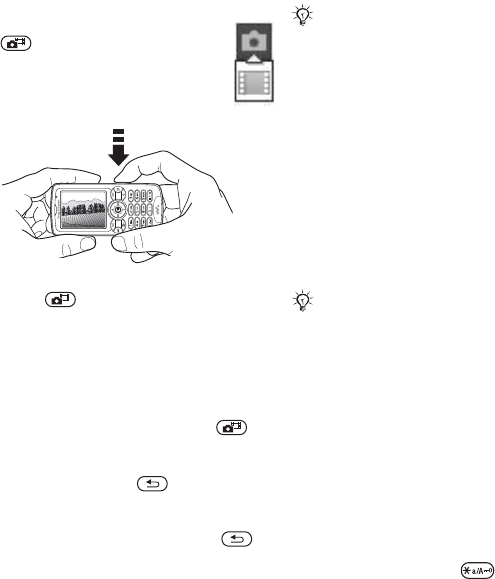
44 Imaging
To take pictures or record video clips
1From standby, press and hold
to activate the camera.
Use the navigation key to
switch between camera and
video recorder.
2Press half way down to
automatically focus. When the green
dot stops flashing, press all the way
down to take a picture or start
recording. If the green dot flashes
slowly, the picture is not in focus
and you may have to try again.
3To end video recording, press
again.
4To take another picture or record
another clip, press to return to
the viewfinder.
5To deactivate the camera or the
video recorder, press and hold .
Camera settings
When you are in the viewfinder
} Settings to view a number of
options to adjust and enhance your
pictures and video clips before taking
or recording them.
You can take pictures, record video
clips, save, view and send them as
email attachments or in picture
messages.
To use the zoom
Use the volume buttons on the side of
the phone to zoom in and zoom out.
To adjust brightness
Use the navigation key to increase or
decrease brightness.
To turn on the photo light
To take pictures in a dimly lit
environment, press .
If you try to record with a strong light
source such as direct sunlight or a lamp,
the screen may black out or the picture
may be distorted.
Do not look directly at the camera
light diodes of the phone using a
magnification device. Failure to comply
with this warning may damage your
eyes.
This is the Internet version of the user's guide. © Print only for private use.
45Imaging
Camera and video options
When the camera or video is activated
} Settings for the following options:
•Switch to video camera – record a
video clip or Switch to still camera
– take a picture.
•Shoot mode (camera):
} Normal – for no frame.
} Panorama – to combine several
pictures into one wide picture.
} Frames – to add a frame to your
picture.
} Burst – to take a rapid sequence
of pictures.
•Shoot mode (video):
select High quality video or For
picture message if you want to send
your video clip as a picture message.
•Picture size (camera) – choose
between Large 1632x1224, Medium
640x480 or Small 160x120.
•Video size (video) – choose between
Large 176x144 and Small 128x96.
•Turn on macro – to turn the macro
focus setting on.
•Turn on night mode – adapt to poor
lighting conditions.
•Turn on light – to enhance lighting
conditions.
•Turn on self-timer (camera) – take a
picture a few seconds after pressing
the camera button.
•Effects:
} Off – no effect.
} Black & white – no colour.
} Negative – reversed colours.
} Sepia – brown tint.
} Solarize – overexposure.
•White balance – adjust the colours
to lighting conditions.
•Picture quality (camera):
Normal or Fine picture quality.
•Shutter sound (camera) – select
different shutter sounds.
•Turn on time and date (camera) – add
time and date.
•Reset file number (camera) – reset the
file number counter.
•Save to – select Memory Stick or
Phone memory to save the picture
or video.
Transferring pictures to your
computer
Using the USB cable, you can drag-
and-drop camera pictures onto a
computer %
66 Transferring files using
the USB cable
.
To further enhance and organize
the camera pictures on a computer,
Windows users can install Adobe®
Photoshop® Album Starter Edition,
included on the CD that comes with
your phone.
This is the Internet version of the user's guide. © Print only for private use.
46 Imaging
Pictures
Your phone comes with a number of
pictures and animations. You can:
•Use a picture as wallpaper and as
a screen saver.
•Assign a picture to a contact.
•Exchange pictures using one of the
available transfer methods.
Handling pictures
View, add, edit or delete pictures in
File manager. The number of pictures
that you can save depends on the size
of the pictures. File types supported
are, for example, GIF, JPEG, WBMP,
BMP, PNG and SVG-Tiny.
To view your pictures
1} File manager } Pictures.
2The pictures are shown in thumbnail
view. To get a full view } View.
To display pictures in a slide show
1} File manager } Pictures and select
a picture.
2} View } More } Slide show.
To view information about a file
1} File manager } Pictures or Videos,
select file.
2} More } Information.
Using pictures
Add a picture to a contact, use it at
start-up, as a wallpaper in standby
or as a screen saver.
Screen saver
The screen saver activates
automatically when your phone is idle
for a few seconds. After a few more
seconds, the screen saver changes
to sleep mode, to save power. Press
a key to reactivate the screen.
To use a picture
1} File manager } Pictures and select
a picture.
2} More } Use as and select an option.
To edit pictures
%
56 PhotoDJ™
.
Exchanging pictures
You can exchange pictures using
one of the available transfer methods.
Please note that you are not allowed
to exchange some copyright protected
material. For more information on
sending and receiving pictures in
messages %
33 Messaging
.
To send a picture
1} File manager } Pictures and scroll
to a picture. } More } Send and select
a transfer method.
2For more options } More.
This is the Internet version of the user's guide. © Print only for private use.
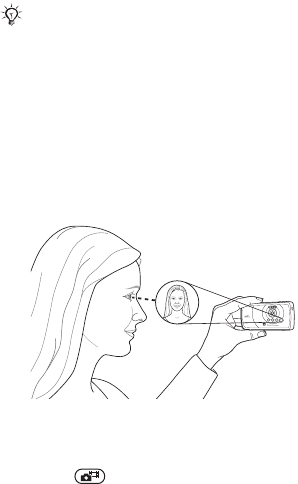
47Imaging
To receive a picture via a transfer
method
Select a transfer method and follow
the instructions that appear.
To save a picture in a message
%
34 To save an item in a text
message
, or %
38 To save an item in a
picture message
, or %
41 To view or
save an item in an email message
.
Take a self-portrait
Hold the phone as shown in the
illustration, so that you can see your
reflection in the mirror next to the lens.
Press to take the picture.
Saving pictures and video clips
When you have taken a picture or
recorded a video clip, the phone
saves it in the phone memory or on
the Memory Stick PRO™ Duo, if it is
inserted.
If the phone memory or Memory Stick
is full, you cannot save any more
pictures or video clips unless you
delete or move files %
19 File
manager
.
Sending pictures and video clips
When you have taken a picture
or recorded a video clip, you can
send it as a picture message if the
file size has not exceeded the limit.
To exchange pictures and video
clips using other transfer methods
%
46 Exchanging pictures
.
To manage a video clip or a picture
Record a video clip or take a picture
} More and select an option.
You can also view your video clips on
a computer, %
56 To view a video clip
on a computer
.
Some phones that support pictures
cannot receive picture sizes of more than
160x120. The best picture size to view
on a computer is 1632x1224.
This is the Internet version of the user's guide. © Print only for private use.

48 Entertainment
Transferring pictures to your
computer
Using the USB cable, you can drag-
and-drop camera pictures onto a
computer %
66 Transferring files using
the USB cable
.
Remote screen
Use a compatible Bluetooth accessory
to view pictures on a remote screen
such as a TV. The accessory is not
included with your phone. For a
complete list of compatible
accessories, please visit
www.SonyEricsson.com/support
.
To connect to a remote screen
} File manager } Pictures } View
} More } Remote screen. %
63 To add
a device to your phone
.
Entertainment
WALKMAN
™, radio, PlayNow™,
ringtones, MusicDJ™, VideoDJ™,
games and more.
WALKMAN™ player
The WALKMAN™ player is an all in one
music and video player. The following
file types are supported: MP3, MP4,
3GP, AAC, AMR, MIDI, IMY, EMY and
WAV (16 kHz maximum sample rate).
You can also use streamed files that
are 3GPP compatible.
To transfer files with the provided
USB cable
%
66 Transferring files using the USB
cable
.
AMR and MIDI files are only visible and
possible to play with the WALKMAN
player if they are copyright protected.
However, you can listen to other AMR
and MIDI files, using the file manager.
Your computer needs to have one of the
following operating systems to be able
to use Disc2Phone: Windows® 2000
SP3/SP4, XP Home SP1/SP2 or XP
Professional SP1/SP2.
This is the Internet version of the user's guide. © Print only for private use.

49Entertainment
Transferring music
Disc2Phone computer software and
USB drivers are included on the CD
that comes with your phone. Use
Disc2Phone to transfer music from
CDs or your computer to your phone
memory or Memory Stick PRO Duo™
in your phone.
To install Disc2Phone
1Turn on your computer and insert the
CD that comes with your phone. The
CD starts automatically and the
installation window opens.
2Select a language and click
OK
.
3Click
Install
Disc2Phone and follow
the instructions. During installation,
you can choose to have a Disc2Phone
icon appear on the desktop.
To use Disc2Phone
1Connect your phone to a computer
with the USB cable that comes with
your phone %
66 Transferring files
using the USB cable
.
2Computer: If the
Found New
Hardware Wizard
appears, click
Cancel
to exit the wizard.
3Phone: If your phone is turned off, it
automatically sets to File transfer. If
your phone is turned on, } File transfer
in the pop-up. Your phone will turn off
and prepare for file transfer.
4Start Disc2Phone by double-clicking
the icon on the computer desktop or
through the Start menu.
5For details on transferring music,
please refer to Disc2Phone Help.
Click in the top right corner of
the Disc2Phone window.
6You can obtain CD information (artist,
track, etc.) via Disc2Phone if you are
connected to the Internet while
extracting music from a CD.
www.SonyEricsson.com/
support
More information about moving files to
your WALKMAN™ phone is available
at
www.SonyEricsson.com/support
.
Do not remove the USB cable from the
phone or computer during transfer, as
this may corrupt the Memory Stick and
the phone memory. You cannot view the
transferred files in your phone until you
have removed the USB cable from the
phone.
For safe disconnection of the USB cable
in
File transfer
mode, right-click on the
Removable Disk icon in Windows
Explorer and select Eject.
This is the Internet version of the user's guide. © Print only for private use.
50 Entertainment
To play music and videos
1} WALKMAN. The WALKMAN™
player browser opens.
2Browse for songs by artist or track,
or in playlists. You can also browse for
video clips. Select a list } Open.
3Highlight a title } Play.
WALKMAN™ player controls
•Press to open or minimize the
WALKMAN™ player during playback.
•Press to pause the playback.
Press again to resume playing.
•Press to go to the next music file
or video clip.
•Press to go to the previous music
file or video clip.
•Press and hold or to fast forward
or rewind when playing music files or
video clips.
•Press or to view and scroll files
in the current playlist during playback.
•Press Play to select a highlighted file
in a list.
•When a video clip is playing, press
to play the video in slow motion.
} Play to resume normal playback.
•When a video clip is paused, press
to play the video one frame at a time.
•When in Now playing, press to
go to the WALKMAN™ player
browser.
•Press and hold to exit.
Play/pause button
Press to start or pause music.
Choose between using this button for
the WALKMAN™ player, the Radio or
the most recently used of these.
To change the play/pause button
setting
From standby, } Settings and scroll to
the General tab } Play/pause button.
Radio
Listen to FM radio with RDS (Radio
Data System) functionality. You must
connect the handsfree to your phone
as it works as an antenna. The radio
can also be used as an alarm signal
%
68 Alarm clock
.
To listen to the radio
Connect the handsfree to your phone
} Radio.
Radio control
•Radio } Search to find a broadcasting
frequency.
•Press or to move 0.1MHz.
•Press or to select preset channels.
•} More to view options.
Do not use the phone in areas
where mobile phones are prohibited,
%
84 Efficient use.
This is the Internet version of the user's guide. © Print only for private use.
51Entertainment
Saving radio channels
Save up to 20 preset channels.
To save radio channels
} Radio set frequency } More } Save
or press and hold - to save
in positions 1 to 10.
To select radio channels
Use the navigation key or press
- to select a saved channel
in positions 1 to 10.
Radio options
} More for the following options:
•Turn off – turn off the radio.
•Minimize – return to standby to use
other functions while listening.
•Save – save the current frequency in
a position.
•Channels – select, rename, replace
or delete a preset channel.
•Turn on speaker – use the
loudspeakers.
•Auto save – save tuned channels in
positions 1 to 20. Previously saved
channels are replaced.
•Set frequency – enter a frequency
manually. Press to go firectly
to Set frequency.
•RDS – set options for alternative
frequency (AF) and station
information.
•Turn on Mono – turn on mono sound.
Browsing files
Browse music files and video clips in
lists:
•Artists – lists music files you have
transferred using Disc2Phone.
•Tracks – lists all music files (not
ringtones) in your phone and on
the Memory Stick.
•Playlists – create or play your own
lists of music files.
•Videos – lists all video clips in your
phone and on the Memory Stick.
Playlists
To organize the media files that are
stored in the File manager, you can
create playlists. Files in a playlist can
be sorted by artist, title or by the order
in which the files were added to the
playlist. You can add a file to more
than one playlist.
When you delete a playlist or a file
from the playlist, the actual music
or video file is not deleted from the
memory, just the playlist reference to
it. You can still add the file to another
playlist.
This is the Internet version of the user's guide. © Print only for private use.

52 Entertainment
To create a playlist
1} WALKMAN } Playlists } New
playlist } Add. Enter a name } OK.
2Select from the files that are available
in the File manager. You can add
several files at a time and you can also
add folders. All files in the selected
folders will be added to the playlist.
To add files to a playlist
1} WALKMAN } Playlists select a
playlist } Open } More } Add media.
2Select from the files that are available
in the File manager.
To remove files from a playlist
1} WALKMAN } Playlists select a
playlist } Open.
2Select the file and press .
To delete a playlist
} WALKMAN } Playlists select a
playlist and press .
WALKMAN™ player options
} More for options:
•Now playing – go to the Now
playing view.
•Add media – add files or folders
to the playlist.
•Sort – sort by artist, title or by the
order in which files were added to
the playlist.
•Delete – remove a file from the
playlist. In user-created playlists
only the reference to the file is
removed. In the Tracks list, the file
is permanently deleted from the
memory.
•Minimize – minimize the
WALKMAN™ player and return to
standby with the music still playing.
•Rename – rename user-created
playlists.
•Delete playlist – delete user-created
playlists. Files are not deleted from
File manager.
•Information – view information
about the current file or video.
•Play mode – change the playback
order of songs and videos. Select
Shuffle to play the playlist files in
random order, or Loop to restart the
playlist when the last file has been
played.
•Equalizer – change treble and bass
settings.
•Send – send a music file or video clip.
•Fullscreen – play in fullscreen.
•Capture frame – when a video clip
is paused, capture a picture from it.
Online music and videos
View videos and listen to music by
streaming them to your phone from
the Internet. If settings are not already
This is the Internet version of the user's guide. © Print only for private use.

53Entertainment
in your phone %
59 Settings
. For more
information, contact your network
operator or visit
www.SonyEricsson.com/support
.
To select a data account for streaming
} Settings } the Connectivity tab
} Streaming settings and select the
data account to use.
To stream video and audio
1} Internet services } More } Go to
} Enter address.
2Enter or choose the address to a Web
page and select a link to stream from.
The WALKMAN player opens
automatically when a link is selected.
To stream saved music and videos
1} Internet services } More } Go to
} Bookmarks.
2Select a link to stream. The WALKMAN
player opens and plays the music or
video.
PlayNow™
Listen to music before you purchase
and download it to your phone.
Before you start
If Internet settings are not in your phone
%
59 Settings
.
To listen to PlayNow™ music
} PlayNow™ and select music from
a list.
Downloading from PlayNow™
The total price appears when you
select to download and save a music
file. Your phone bill or prepay card is
debited when a purchase is accepted.
Terms and conditions are also
provided in the phone kit.
This function is network- or operator-
dependent. Contact your network
operator for information about your
subscription and PlayNow™. In some
countries you may be able to purchase
music tones from some of the world’s
top musical artists.
This service is not available in all
countries.
This is the Internet version of the user's guide. © Print only for private use.
54 Entertainment
To download a music file
1When you have listened to a music file
and agreed to accept the conditions
} Yes to download.
2A text message is sent to confirm
payment and the file is made available
to download. Music is saved in File
manager } Sounds.
Ringtones and melodies
You can exchange music, sounds and
tracks, for example, using one of the
available transfer methods.
To select a ringtone
} Settings } and scroll to the Sounds
& alerts tab } Ringtone.
To turn the ringtone on or off
Press and hold from standby.
All signals except the alarm signal
are affected.
To set the ringtone volume
1} Settings } and scroll to the Sounds
& alerts tab } Ring volume and press
or to decrease or increase the
volume.
2} Save.
Caller-specific ringtones
If your subscription supports Calling
Line Identification (CLI) service, you
can assign personal ringtones to
contacts %
24 To add a picture or a
ringtone to a phone contact
.
To set the vibrating alert
} Settings } the Sounds & alerts tab
} Vibrating alert and select a setting.
Sounds and alerts options
From Settings } the Sounds & alerts
tab, you can set:
•Message alert – select how to be
notified of an incoming message.
•Key sound – select what sound to
hear when you press the keys.
MusicDJ™
Compose and edit your own melodies
to use as ringtones. A melody consists
of four types of tracks – Drums,
Basses, Chords, and Accents. A track
contains a number of music blocks.
The blocks consist of pre-arranged
sounds with different characteristics.
The blocks are grouped into Intro,
Verse, Chorus, and Break. You
compose a melody by adding music
blocks to the tracks.
You are not allowed to exchange some
copyright protected material.
This is the Internet version of the user's guide. © Print only for private use.
55Entertainment
To compose a melody
1} Entertainment } MusicDJ™.
2} Insert, Copy or Paste blocks. Use
, , or to move between the
blocks. Press to delete a block.
} More to view more options.
To edit a MusicDJ™ melody
} File manager } Sounds and select
the melody } More } Edit.
Exchanging MusicDJ™ melodies
Send and receive melodies using one
of the available transfer methods. You
are not allowed to exchange copyright
protected material.
To send a melody
1} File manager } Sounds and select
a melody.
2} More } Send and select a transfer
method.
To receive a melody via a transfer
method
Select a transfer method and follow
the instructions that appear.
VideoDJ™
Compose and edit your own video clips
by using video clips, pictures and text.
You can also use trim to delete
unwanted parts to shorten a video clip.
To create a video clip
1} Entertainment } VideoDJ™.
2} Add } Video clip, Picture, Text or
Camera } Select.
3To add more items press } Add.
To edit a selected video clip
} Edit for options:
•Trim – to shorten the video clip.
•Add text – to add text to the video
clip.
•Replace – to select a new video clip.
•Delete – to remove the video clip.
•Move – to move the video clip to
another position.
To edit a selected picture
} Edit for options:
•Replace – to select a new picture.
•Duration – to select the display time
for the picture.
•Delete – to remove the picture.
•Move – to move the picture to
another position.
You cannot send a polyphonic melody
or an MP3 file in a text message.
This is the Internet version of the user's guide. © Print only for private use.
56 Entertainment
To edit a selected text
} Edit for options:
•Edit – to change the text.
•Background – to set background.
•Text colour – to set font colour.
•Duration – to select the display time
for the text.
•Delete – to remove the text.
•Move – to move the text to another
position.
VideoDJ™ options
} More for options:
•Play – to view the video clip.
•Send – to send the video clip.
•Soundtrack – to add a soundtrack
to the video clip.
•Transitions – to set transitions
between video clips, pictures and
text.
•Save – to save the video clip.
•Insert – to insert a new video clip,
picture or text.
•New video – to create a new video
clip.
To edit video clips in File manager
1} File manager } Videos } Open and
select file.
2} More } VideoDJ™ } Edit.
Sending video clips
You can send a video clip using one of
the available transfer methods. Short
video clips can be sent using picture
messaging. If a video clip is too long,
you can use the Trim function to make
a video clip shorter.
To trim a video clip
1Select a video clip from the storyboard
} Edit } Trim.
2} Set to set the start point and } Start.
3} Set to set the end point and } End.
4Repeat steps 2 and 3 or } Done.
To view a video clip on a computer
To view video clips that have been
transferred to your computer, use
QuickTime™ player software found
on the CD that comes with your
phone.
PhotoDJ™
Edit files using PhotoDJ™ or when
viewing files.
To edit and save a file
1} Entertainment } PhotoDJ™ or
} File manager } Pictures and select
a file } View } More } Edit.
2} Tool and select an option.
3After you have edited the selected
picture } More } Save picture.
This is the Internet version of the user's guide. © Print only for private use.

57Entertainment
Sound recorder
With the sound recorder, you can
record either your own memos or calls.
Recorded sounds can also be set as
ringtones. Recording of a conversation
is stopped if a participant ends the
call. Recording of all sounds stops
automatically if you receive a call.
To record a sound
1} Entertainment } Record sound.
2Wait until you hear a tone. When the
recording starts, Recording and a
timer appears.
3} Save to end, } Play to listen or }
More for options: Record new, Send,
Rename, Delete, Recorded sounds.
To listen to a recording
} File manager } Sounds and select a
recording } Play or } Stop.
Themes
Change the appearance of the screen
with colours and wallpaper, by using
themes. Your phone has some
predefined themes that cannot be
deleted if they are protected. You can
create new themes and download
them to your phone. For more
information, visit
www.SonyEricsson.com/support
.
To select or change a theme
} File manager } Themes and select
a theme.
Exchanging themes
Exchange themes using a transfer
method.
To send a theme
1} File manager } Themes and select
a theme.
2} More } Send and select a transfer
method.
To receive and save a theme
1Use a transfer method and open the
message you received the theme in.
2Follow the instructions that appear on
the screen.
Games
Your phone has several entertaining
games. You can also download games
and applications directly to the folders
in your phone. Help texts are available
for most games.
In some countries or states it is required
by law that you inform the other person
before recording the call.
This is the Internet version of the user's guide. © Print only for private use.

58 Entertainment
To start and end a game
1} Entertainment } Games, select game
} Select.
2Press and hold to end the game.
Applications
Download and run Java™ applications.
You can view information or set different
permission levels.
To view info for Java™ applications
1} File manager } Applications or
} Games.
2Select an application or a game
} More } Information.
To set permissions for Java™
applications
1} File manager } Applications or
} Games.
2Select an application or a game } More
} Permissions and set options.
Java application screen size
Some Java applications are designed
for a specific screen size and may not
be able to adapt the application to the
screen. For more information, contact
the application vendor.
To set the screen size for a Java™
application
1} File manager } Applications or
} Games.
2Select an application or a game
} More } Screen size.
3Select an option, for example, User
defined } Width and Height to edit
values.
This is the Internet version of the user's guide. © Print only for private use.
59Connectivity
Connectivity
Internet and email settings,
synchronizing, Bluetooth, infrared,
USB cable, update service.
Settings
Settings may already be entered when
you buy your phone. If not, make sure
you have a phone subscription that
supports data transfer (GPRS).
Download settings for Internet/WAP
browsing, email and MMS (picture
messaging) at
www.SonyEricsson.com/support
.
To download settings
1On your computer, browse to
www.SonyEricsson.com/support
.
2Select a region and a country or
Global support area.
3Select the
Phone setup
tab, and select
a phone model.
4Select which setting to download to
your phone.
Using Internet
Browse the Internet using HTTP
(Hyper Text Transfer Protocol).
To select an Internet profile
} Settings and use or to scroll to
the Connectivity tab } Internet settings
} Internet profiles and select a profile
to use.
To start browsing
} Internet services and select a service
or } Internet services } More to view
options.
To stop browsing
} More } Exit browser.
Options when browsing
} More to view options. The menu
contains the following options but
may depend on the Web page you
are visiting.
} Go to for options:
•Sony Ericsson – go to the pre-
defined homepage set for the
current profile.
•Bookmarks – create, use or edit
bookmarks.
•Enter address – enter the address
to a Web page.
For more information contact your
network operator or visit
www.SonyEricsson.com/support.
If you select an email address when
browsing a Web page, you can send
a message to that address.
This is the Internet version of the user's guide. © Print only for private use.
60 Connectivity
•History – list of previously visited
Web pages.
} Tools for options:
•Add bookmark – add a new
bookmark.
•Save picture – save a picture.
•Save page – save the current Web
page.
•Refresh page – refresh the current
Web page.
•Send link – send a link to the
current Web page.
•Make a call – make a call while
browsing the Internet. } More } End
call to end the call and continue
browsing.
} View for options:
•Full screen – select normal or full
screen.
•Text only – select full content or text
only.
•Zoom – zoom in or out on the Web
page.
•Zoom to normal – set zoom to
default.
} Advanced to enter settings for the
browser.
} Exit browser to disconnect and go
to standby.
Using bookmarks
Use, create and edit bookmarks for
the browser.
To work with bookmarks
1} Internet services } More } Go to
} Bookmarks and select a bookmark
} More.
2Select an option.
Downloading
Download files, for example, pictures,
themes, games and ringtones from
Web pages.
To download from the Sony Ericsson
Web page
1} Internet services } Sony Ericsson.
2Browse the Web page, select a file to
download and follow the instructions
that appear.
Internet profile for Java™
applications
Some Java applications need to
connect to the Internet to receive
information, for example, games that
downloads new levels from a game
server.
Before you start
If settings are not in your phone
%
59 Settings
.
This is the Internet version of the user's guide. © Print only for private use.

61Connectivity
To select a profile for Java
} Settings } the Connectivity tab
} Settings for Java™ and select an
Internet profile.
Stored information
When browsing, you can save
information.
The following information can be
saved:
•Cookies – improve Web page
access efficiency.
•Passwords – improve server access
efficiency.
To allow cookies
} Internet services } More } Advanced
} the Browsing tab } Allow cookies
} On.
To clear cookies
} Internet services } More } Advanced
} the Other tab } Clear cookies } Yes.
To clear the password list
} Internet services } More } Advanced
} the Other tab } Clear passwords
} Yes.
Internet security
Trusted certificates
Certain Internet services, such as
banking, require certificates in your
phone. Your phone may already
contain certificates when you buy it
or you can download new certificates.
To check certificates in your phone
} Settings } the Connectivity tab
} Internet settings } Security
} Trusted cert.
Synchronizing
Synchronize phone contacts,
appointments, tasks and notes via
Bluetooth, the infrared port, Internet
services or the USB cable included
with your phone.
Synchronization software for your
computer is found in the Sony
Ericsson PC Suite, which is available
on the CD that comes with your
It is advisable to clear all sensitive
information from previously visited
Internet services. This is to avoid misuse
of personal information if your phone is
misplaced, lost or stolen.
Secure browsing is supported. When
using an Internet profile you can turn
on security in the phone.
This is the Internet version of the user's guide. © Print only for private use.
62 Connectivity
phone. You can also visit
www.SonyEricsson.com/support
to
download the software or Getting
started guides for synchronization.
To select sort order for contacts
} Contacts } Options } Advanced
} Sort order to select sorting by first
or last name.
Synchronization with nearby devices
Install the Sony Ericsson PC Suite
from the CD that comes with your
phone or download it from
www.SonyEricsson.com/support
. The
software includes help information.
Remote synchronization via Internet
Synchronize online via an Internet
service.
Before you start
•If settings are not in your phone
%
59 Settings
.
•Register a synchronization account
online.
•Enter remote synchronization
settings.
To enter remote synchronization
settings
1} Organizer } Synchronization
} New account } Yes to create
a new account.
2Enter a name for the new account
} Continue.
3Enter the following:
•Server address – server URL.
•Username – account username.
•Password – account password.
•Connection – select an Internet
profile.
•Applications – mark applications
to synchronize.
•App. settings – select an application
and enter a database name, and if
required, username and password.
•Sync. interval – set how often to
synchronize.
•Remote initiation – select to always
accept, never accept or always ask
when starting from a service.
•Remote security – insert a server ID
and a server password.
4} Save to save your new account.
To start remote synchronization
} Organizer } Synchronization and
select an account } Start.
This is the Internet version of the user's guide. © Print only for private use.

63Connectivity
Bluetooth® wireless
technology
Bluetooth makes it possible to connect
wirelessly to other Bluetooth devices.
You can:
•connect to several devices at the
same time.
•synchronize information with other
devices.
•use the remote control functionality.
•use a remote screen.
•exchange items and play
multiplayer games.
Before you start
Learn more about Bluetooth and how
to use it by visiting
www.SonyEricsson.com/support
.
•Turn on Bluetooth to communicate
with other devices.
•Pair the Bluetooth devices with your
phone that you want to communicate
with.
To turn Bluetooth on
} Settings } the Connectivity tab
} Bluetooth } Turn on.
Adding devices to your phone
Enter a passcode to set up a secure
link between your phone and the
device. Enter the same passcode on
the device when prompted. Devices
with no user interface, such as a
handsfree, will have a pre-defined
passcode. Consult the device user
guide for more information.
To add a device to your phone
1} Settings } the Connectivity tab
} Bluetooth } My devices } New
device to search for available devices.
2Select a device from the list.
3Enter a passcode, if required.
We recommend a range within 10 metres,
with no solid objects in between, for
Bluetooth communication.
Please check if local laws or regulations
restrict the use of Bluetooth. If Bluetooth
is not allowed, you must ensure that
the Bluetooth function is turned off.
The maximum allowed Bluetooth
radio output power in the phone is
automatically adjusted according to
possible local restrictions. This means
that the range may vary.
Make sure that the device you want to
add has Bluetooth activated and visible.
This is the Internet version of the user's guide. © Print only for private use.
64 Connectivity
To organize your list of devices
1} Settings } the Connectivity tab
} Bluetooth } My devices and select
a device from the list.
2} More to view a list of options.
Power save
Turn on to reduce power consumption
by optimizing your phone for use with
a single Bluetooth device. Turn off to
connect with several Bluetooth devices
at the same time.
To save power
} Settings } the Connectivity tab
} Bluetooth } Powersave } On.
Phone name
Enter a name for your phone to be
shown to other devices when found.
To enter a phone name
} Settings } the Connectivity tab
} Bluetooth } Phone name.
Visibility
Choose to make your phone visible to
other Bluetooth devices or not. If set
to hide, other devices will not be able
to discover your phone via Bluetooth.
To show or hide your phone
} Settings } the Connectivity tab
} Bluetooth } Visibility } Show phone
or Hide phone.
Exchanging items
Send or receive items using Bluetooth
as the transfer method. Choose a
device from the list of found devices.
To send an item
1Select an item, for example } Contacts
and select a contact.
2} More } Send contact
} Via Bluetooth.
3Select the device to send the item to
} Select.
To receive an item
} Settings } the Connectivity tab
} Bluetooth } Turn on. Make sure
the phone is visible, %
64 To show or
hide your phone
. When you receive
an item, follow the instructions that
appear.
To add a Bluetooth handsfree
1} Settings } the Connectivity tab
} Bluetooth } Handsfree.
2} Yes if you are adding a Bluetooth
handsfree for the first time or } My
handsfree } New handsfree } Add
if you are adding another Bluetooth
This is the Internet version of the user's guide. © Print only for private use.

65Connectivity
handsfree. Ensure that your handsfree
is in pairing mode. Consult the device
user guide for more information.
Transferring sound
Transfer the sound for calls when
using a Bluetooth handsfree. You can
also transfer the sound for calls using
the keypad.
To transfer sound when using
a handsfree
During a call, } More } Transfer sound
and select a device.
Directing sound
Direct sound when answering a call
with the phone keypad or the
handsfree button.
To direct sound when answering
a call with a handsfree
1} Settings } the Connectivity tab
} Bluetooth } Handsfree } Incoming
call.
2} In phone to direct to the phone or
} In handsfree to direct to the
handsfree.
Remote control
Use your phone as a remote control
device to control computer
applications such as a media player
or Microsoft® PowerPoint®
presentations. Your computer must
support Bluetooth HID Profile.
To select remote control
1} Entertainment } Remote control.
2Select an application to use and the
computer to connect to.
File transfer
Use a computer equipped with
Bluetooth to view and transfer files in
the file manager. Use drag-and-drop
functionality to:
•Transfer files between phone and
computer.
•Move and organize files.
•Delete files from the phone.
Infrared port
Use the infrared port as a transfer
method with compatible devices.
You can, for example, synchronize
calendar items %
61 Synchronizing
.
When connecting to a computer, refer
to its user documentation. Make sure
that computer infrared speed is set to
115200 bps.
This is the Internet version of the user's guide. © Print only for private use.
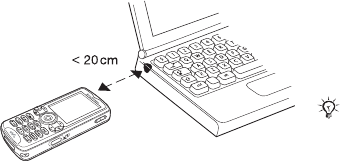
66 Connectivity
To turn the infrared port on
} Settings } the Connectivity tab
} Infrared port } On or } 10 minutes
to turn on for 10 minutes.
To connect two devices
1Turn on infrared in both devices.
2Make sure the infrared port on your
phone is facing the infrared port on the
other device with a maximum distance
of 20 cm.
To send an item using the infrared
port (for example a contact)
1Turn on infrared in both devices.
} Contacts and select a contact.
2} More } Send contact } Via infrared.
Transferring files using the
USB cable
When you connect your phone to a
computer using the USB cable, the
phone memory and Memory Stick
appear as drives or devices on the
computer. If you are a Windows user,
you can install the USB cable drivers
using the CD that comes with your
phone, %
67 To install and use the
USB cable
.
You can use the drag-and-drop
functionality in your computer to:
•Transfer files between your phone
and the computer.
•Move, delete and organize files
in the phone memory or on the
Memory Stick.
Only use the USB cable that comes with
the phone, and connect the USB cable
directly to your computer. Do not remove
the USB cable from the phone or
computer during file transfer, as this may
corrupt the Memory Stick and the phone
memory. You cannot view the transferred
files in your phone until you have
removed the USB cable from the phone.
This is the Internet version of the user's guide. © Print only for private use.
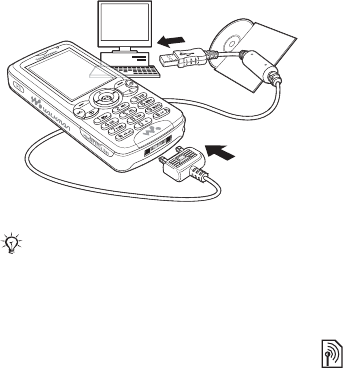
67Connectivity
To install and use the USB cable
1Computer: Install the Sony Ericsson
PC Suite from the CD that comes with
your phone.
2Connect the USB cable to your phone
and the computer.
3Phone: In the pop-up } Phone mode
to synchronize with the computer
or to use your phone as a modem.
} File transfer to transfer music,
pictures and other files to your phone.
The phone will turn off in File transfer
mode.
4For safe disconnection of the USB
cable in File transfer mode, right-click
on the Removable Disk icon in
Windows Explorer and select Eject.
5Remove the USB cable from your
phone.
Update service
Keep your phone updated with the
latest software. When a new software
version is available, you can download
and install it without affecting the user
data in your phone.
Choose one of the following methods
to update your phone:
•over the air via your phone or
•online via the provided USB cable
and an Internet-connected
computer.
Before you start
If settings are not in your phone
%
59 Settings
.
Uninstall any previously used mobile
phone communication software, such
as synchronization software, from your
computer.
The Update service requires data access
(GPRS). Your operator will provide you
with a subscription with data access and
with price information.
This is the Internet version of the user's guide. © Print only for private use.

68 More features
To use Update service over the air
1} Settings } the General tab
} Update service.
2} Search for update to search for
the latest available software. Start
the update process by following the
installation instructions, or } Software
version to display the current software
installed in your mobile phone, or
} Reminder to set when to search
for new software.
To use Update service online
1Connect the USB cable to the
computer and the phone.
2Visit
www.SonyEricsson.com/support
.
3Select a region and country.
4Enter the product name.
5Select Sony Ericsson Update Service
and follow the instructions.
More features
Alarm clock, calendar, tasks, profiles,
time and date, SIM card lock, etc.
Alarm clock
Set an alarm for a specific time. You
can also set an alarm to recur on
specific days. The alarm signal is on
even if the phone is set to silent or
turned off.
To use alarms
} Organizer } Alarms and select an
option:
•} Alarm set a time } Save.
•} Recurrent alarm. Set the time and
select days } Mark } Done.
•} Alarm signal } Radio or Sounds.
To snooze or turn an alarm off
To turn the alarm signal off when it
sounds, press any key or } Snooze.
If you do not want the alarm to be
repeated } Turn off.
To cancel an alarm
} Organizer } Alarms } Alarm } Turn
off.
If you choose Radio as the alarm signal,
please make sure that the handsfree is
connected to the phone.
This is the Internet version of the user's guide. © Print only for private use.
69More features
Calendar
You can use the calendar to keep
track of important meetings. The
calendar can be synchronized with a
computer calendar or with a calendar
on the Web %
61 Synchronizing
.
Appointments
Add new appointments or use existing
appointments as templates. You can
also set reminders for appointments.
To add a new appointment
1} Organizer } Calendar and select
a date } Select } New appointment
} Add.
2Enter details and confirm each entry.
To view an appointment
1} Organizer } Calendar and select a
day (appointment days marked in bold).
2Select an appointment } View.
To view a calendar week
} Organizer } Calendar } More
} View week.
To set when reminders should sound
1} Organizer } Calendar } More
} Advanced } Reminders.
2} Always for a reminder to sound even
when the phone is turned off or set to
silent. When the reminder sounds } Yes
to read the appointment or } No to
turn off the reminder. A reminders
option set in the calendar affects
a reminders option set in tasks.
Navigating in your calendar
Use the navigation key to move
between days or weeks. In the
monthly and weekly views, you can
also use the keypad as follows
.
Calendar settings
} Organizer } Calendar } More to
select an option:
•View week – view appointments of
the week.
•New appointment – add a new
appointment.
•Change date – go to another date
in the calendar.
•Advanced – find, set reminders or
select a start day for the week.
•Delete – delete appointments.
Today´s date
Back a week Next week
Back a month Next month
Back a year Next year
This is the Internet version of the user's guide. © Print only for private use.
70 More features
Exchanging appointments
Exchange appointments using a
transfer method. You can also
synchronize appointments with
a computer %
61 Synchronizing
.
To send an appointment
Select an appointment in the list for a
certain day } More } Send and select
a transfer method.
Tasks
Add new tasks or use existing tasks as
templates. You can also set reminders
for tasks.
To add a new task
1} Organizer } Tasks } New task } Add.
2} Task or Phone call.
3Enter details and confirm each entry.
To view a task
} Organizer } Tasks and select a task
} View.
To set when reminders should sound
1} Organizer } Tasks and select a task
} More } Reminders.
2} Always for a reminder to sound even
when the phone is turned off or set to
silent. When the reminder sounds } Yes
to read the task, or to call the phone
number in a phone task. } No to turn
off the reminder. A reminders option
set in tasks affects a reminders option
set in the calendar.
Exchanging tasks
Exchange tasks using a transfer
method. You can also synchronize
tasks with a computer
%
61 Synchronizing
.
To send a task
Select a task in the list of tasks for a
certain day } More } Send and select
a transfer method.
Notes
Make notes and save them in a list.
You can also show a note in standby.
To add a note
} Organizer } Notes } New note
} Add and enter the note } Save.
To edit notes
1} Organizer } Notes and a list appears.
2Select a note } More and select an
option.
Exchanging notes
Exchange notes using a transfer
method. You can also synchronize
notes with a computer
%
61 Synchronizing
.
This is the Internet version of the user's guide. © Print only for private use.
71More features
To send a note
Select a note } More } Send and
select a transfer method.
Timer
Your phone has a timer. When the
signal rings, press any key to turn
it off.
To set the timer
} Organizer } Timer and set the
hours, minutes and seconds for
countdown.
Stopwatch
Your phone has a stopwatch that can
save several laps. The stopwatch
continues to run when you answer an
incoming call.
To use the stopwatch
1} Organizer } Stopwatch } Start.
2} Stop or } New lap if you want a lap
time.
3To reset the stopwatch } Reset.
Light
Use the light as a flash light in dimly
lit environments. The light can also be
used as an SOS signal.
To use the light
1} Organizer } Light.
2Choose between On for 1 minute, On,
Off or SOS.
Calculator
The calculator can add, subtract,
divide and multiply.
To use the calculator
} Organizer } Calculator.
•Press or to select ÷ x - + . % =.
•Press to delete the figure.
•Press to enter a decimal point.
Code memo
Save security codes, such as for
credit cards, in the code memo. Set
a passcode to open the code memo.
Do not look directly at the camera
light diodes of the phone using a
magnification device. Failure to comply
with this warning may damage your
eyes.
This is the Internet version of the user's guide. © Print only for private use.
72 More features
Checkword and security
To confirm that you have entered the
correct passcode you must enter a
checkword.
When you enter your passcode to
open the code memo, the checkword
is shown for a short time. If the
passcode is correct, the correct codes
are shown. If you enter the incorrect
passcode, the checkword and the
codes that are shown are also
incorrect.
To open code memo for the first time
1} Organizer } Code memo. A message
with instructions appears } Continue.
2Enter a four-digit passcode } Continue.
3Re-enter the new passcode to confirm.
4Enter a checkword (maximum 15
characters) } Done. The checkword
can consist of both letters and numbers.
To add a new code
1} Organizer } Code memo and enter
your passcode } New code } Add.
2Enter a name associated with the code
} Continue.
3Enter the code } Done.
To change the passcode
1} Organizer } Code memo and enter
your passcode } More } Change
passcode.
2Enter your new passcode } Continue.
3Re-enter the new passcode } Continue.
4Enter a checkword } Done.
Forgot your passcode?
If you forget your passcode, you must
reset the code memo.
To reset code memo
1} Organizer } Code memo and enter
any passcode to access the code
memo. The checkword and codes that
are then shown are incorrect.
2} More } Reset.
3Reset code memo? appears } Yes.
The code memo is reset and all entries
are cleared. The next time you enter
the code memo, you must start at
%
72 To open code memo for the first
time
.
Profiles
Your phone has predefined profiles
that are set to suit a certain
environment. You can reset all profile
settings to the way they were set when
you bought your phone.
This is the Internet version of the user's guide. © Print only for private use.

73More features
To select a profile
} Settings } the General tab } Profiles
and select a profile.
To view and edit a profile
} Settings } the General tab } Profiles
} More } View and edit.
To reset profiles
} Settings } the General tab } Profiles
} More } Reset profiles.
Time and date
The time is always displayed in
standby.
•To set the time } Settings } the
General tab } Time & date } Time.
Enter the time } Save.
•To set the time format } Format
and select an option.
•To set the date and date format
} Settings } the General tab
} Time & date } Date.
SIM card lock
The SIM card lock protects your
subscription, but not the phone itself,
from unauthorized use. If you change
SIM cards, your phone still works with
the new SIM card.
Most SIM cards are locked at the time
of purchase. If the SIM card lock is on,
you have to enter a PIN (Personal
Identity Number) every time you turn
on your phone.
If you enter your PIN incorrectly three
times in a row, the SIM card is blocked.
This is indicated by the message PIN
blocked. To unblock it, you need to
enter your PUK (Personal Unblocking
Key). Your PIN and PUK are supplied
by your network operator. You can
edit your PIN and select a new four- to
eight-digit PIN.
You cannot rename the normal profile.
If the message
Codes do not match
appears when you edit your PIN, you
entered the new PIN incorrectly.
If the message
Wrong PIN
appears,
followed by
Old PIN:
, you entered your
old PIN incorrectly.
This is the Internet version of the user's guide. © Print only for private use.

74 More features
To unblock your SIM card
1When PIN blocked appears, enter
your PUK } OK.
2Enter a new four- to eight-digit PIN
} OK.
3Re-enter the new PIN to confirm } OK.
To edit your PIN
1} Settings } the General tab } Locks
} SIM lock } Change PIN.
2Enter your PIN } OK.
3Enter a new four- to eight-digit PIN
} OK.
4Re-enter the new PIN to confirm } OK.
To turn the SIM card lock on or off
1} Settings } the General tab } Locks
} SIM lock } Protection and select On
or Off.
2Enter your PIN } OK.
Phone lock
Protect your phone against
unauthorized use if it is stolen and
the SIM card is exchanged. You can
change the phone lock code (0000) to
any four- to eight-digit personal code.
Automatic phone lock
If the phone lock is set to automatic,
you do not need to enter your phone
lock code until a different SIM card is
inserted in the phone.
To set the phone lock
1} Settings } the General tab } Locks
} Phone lock } Protection and select
an alternative.
2Enter the phone lock code } OK.
To unlock the phone
If the phone lock is on, enter your
code } OK.
To edit your phone lock code
} Settings } the General tab } Locks
} Phone lock } Change code.
Keypad lock
Lock the keypad to avoid dialling a
number by accident.
It is important that you remember your
new code. If you should forget it, you
have to hand in your phone to your local
Sony Ericsson retailer.
Calls to the international emergency
number 112 can still be made, even
when the keypad is locked.
This is the Internet version of the user's guide. © Print only for private use.
75Troubleshooting
Automatic keylock
In standby, automatic keylock means
the keypad is locked a short while
after you last pressed a key.
To set the automatic keylock
} Settings } the General tab } Locks
} Automatic keylock.
To lock the keypad manually
In standby, press } Lock keys.
You can still answer an incoming call
and the keypad locks again after the
call. The keypad remains locked until
you unlock it manually. To unlock the
keypad manually, press } Unlock.
Start-up screen
You can select a start-up screen
that will appear when you turn your
phone on.
To select a start-up screen
} Settings } the Display tab
} Start-up screen and select an
option.
Troubleshooting
Why doesn’t the phone work the way
I want?
This chapter lists some problems that
you might encounter while using your
phone. Some problems require you to
call your network operator, but you
can easily correct most of the
problems yourself.
However, if you need to hand in your
phone for repair, please note that you
may lose information and content that
you have saved in your phone. You
are advised to make a copy of such
information before handing your
phone in for repair.
For more support go to
www.SonyEricsson.com/support
.
I have problems with memory
capacity or the phone working slowly
Possible cause:
The phone memory
is full or the memory contents are not
organized properly.
Solution:
Restart your phone every
day to free memory and increase the
capacity of your phone.
This is the Internet version of the user's guide. © Print only for private use.
76 Troubleshooting
You also have the option to do a
Master reset. Some of your personal
data and settings you have made will
be lost when doing this %
78 Master
reset
.
No battery icon appears when I start
charging the phone
Possible cause:
The battery is empty
or has not been used for a long time.
Solution:
It may take up to 30 minutes
before the battery icon appears on the
screen.
Some menu options appear in grey
Possible cause:
A service is not
activated or your subscription does
not support the function.
Solution:
Contact your network
operator.
Possible cause:
Since you cannot
send themes, pictures and sounds
that are copyright protected, the Send
menu is sometimes unavailable.
I do not understand the language in
menus
Possible cause:
The wrong language
is set in the phone.
Solution:
Change the language
%
17 Phone language
.
I cannot turn on the phone
Possible cause:
The battery is
discharged.
Solution:
Recharge the battery
%
6 To charge the battery
.
Solution:
Turn the phone on with the
charger attached. If the phone starts,
restart the phone with no charger
attached.
I cannot charge the phone or battery
capacity is low
Possible cause:
The charger is not
properly connected to the phone.
Solution:
Make sure that the charger
connector clicks properly into place
when connected %
6 To charge the
battery
.
Possible cause:
The battery
connection is bad.
Solution:
Remove the battery and
clean the connectors. You can use a
soft brush, cloth or q-tip, soaked with
alcohol. Make sure that the battery is
completely dry before you put it back.
Check that the battery connectors in
the phone are undamaged.
Possible cause:
The battery is worn
out and needs to be replaced.
This is the Internet version of the user's guide. © Print only for private use.

77Troubleshooting
Solution:
Try another battery and
charger for the same phone model,
or visit your retailer and ask them to
verify if the battery and charger are
working properly.
The phone turns itself off
Possible cause:
The button has
been pushed unintentionally.
Solution:
Turn on the automatic key
lock, or lock the keypad manually
%
74 Keypad lock
.
Possible cause:
The battery
connection is bad.
Solution:
Make sure the battery is
inserted correctly %
5 To insert SIM
card and battery
.
I cannot use SMS/text messages on
my phone
Possible cause:
Settings are missing
or incorrect.
Solution:
Contact your network
operator to find out the correct SMS
service centre setting %
33 Text
messaging (SMS)
.
I cannot use MMS/picture messages
on my phone
Possible cause:
Your subscription
does not include data capability.
Solution:
Please contact your network
operator.
Possible cause:
Settings are missing
or incorrect.
Solution:
Go to
www.SonyEricsson.com/support
,
choose your phone model, then
choose “Phone setup – MMS” under
Software and setup and follow the
instructions %
59 Settings
.
I cannot use the Internet
Possible cause:
Your subscription
does not include data capability.
Solution:
Please contact your network
operator.
Possible cause:
Internet settings are
missing or incorrect.
Solution:
Go to
www.SonyEricsson.com/support
,
choose your phone model, then
choose “Phone setup – WAP” under
Software and setup and follow the
instructions %
59 Settings
.
The phone cannot be detected by
other users via Bluetooth
Possible cause:
You have not turned
Bluetooth on.
This is the Internet version of the user's guide. © Print only for private use.

78 Troubleshooting
Solution:
Make sure that Bluetooth is
turned on and that your phone is visible
to other users %
64 To show or hide
your phone
.
I cannot synchronize or transfer
data between my phone and my
computer, when using the included
USB cable
Possible cause:
The cable has not
been properly detected and installed
on your computer.
The software that came with your
phone has not been properly installed
on the computer.
Solution:
Go to
www.SonyEricsson.com/support
,
choose your phone model, then
choose “Product information”
- “Getting started”. The guide
“Synchronizing the phone with
a computer” contains installation
instructions and a troubleshooting
guide, that may assist you in solving
the problem.
Master reset
The changes that you have made to
settings and the content that you have
added or edited, will be deleted.
If you select Reset settings, the
changes that you have made to
settings will be deleted.
If you select Reset all, in addition to
your changes to settings, all contacts,
messages, personal data, and content
that you have downloaded, received
or edited will also be deleted.
To reset the phone
1} Settings } the General tab
} Master reset.
2} Reset settings or } Reset all.
3When instructions appear } Continue.
Error messages
Insert SIM
Possible cause:
There is no SIM card
in the phone or you may have inserted
it incorrectly.
Solution:
Insert a SIM card
%
5 To insert SIM card and battery
.
Possible cause:
The SIM card
connectors need cleaning.
If you select
Reset all
, content such as
melodies and pictures that you have
downloaded, received or edited is also
deleted.
This is the Internet version of the user's guide. © Print only for private use.
79Troubleshooting
Solution:
Remove the SIM card and
clean it. Also check that the card is not
damaged in a way that may prevent
connection to the phone connectors.
In that case, contact your network
operator for a new SIM card.
Insert correct SIM card
Possible cause:
The phone is set to
work only with certain SIM cards.
Solution:
Check if you are using the
correct operator SIM card for your
phone.
Wrong PIN/Wrong PIN2
Possible cause:
You have entered your
PIN or PIN2 incorrectly.
Solution:
Enter the correct PIN or PIN2
} Yes %
73 SIM card lock
.
PIN blocked/PIN2 blocked
Possible cause:
You have entered
your PIN or PIN2 code incorrectly
three times in a row.
Solution:
To unblock %
73 SIM card
lock.
Codes do not match
Possible cause:
The two codes that
you have entered do not match.
Solution:
When you want to change a
security code (for example your PIN)
you have to confirm the new code by
entering exactly the same code again.
%
73 SIM card lock.
No netw. coverage
Possible cause:
Your phone is not
receiving any radio signal, or the
received signal is too weak.
Solution:
Contact your network
operator and make sure that the
network has coverage where you
are. If so, try to do a new search.
Possible cause:
The SIM card is not
working properly.
Solution:
Insert your SIM card in
another phone. If you still get the same
or a similar message, please contact
your network operator.
Possible cause:
The phone is not
working properly.
Solution:
Insert your SIM card in
another phone. If this works, it is
probably the phone that is causing the
problem. Please contact the nearest
Sony Ericsson service location.
This is the Internet version of the user's guide. © Print only for private use.
80 Troubleshooting
Emerg. calls only
Possible cause:
You are within range
of a network, but you are not allowed
to use it. However, in an emergency,
some network operators allow you to
call the international emergency
number 112.
Solution:
You have to move to get a
signal that is strong enough. Contact
your network operator and make sure
your subscription is ok %
22
Emergency calls.
Phone lock
Possible cause:
The phone is locked.
Solution:
To unlock the phone
%
74 Phone lock.
Phone lock code:
Possible cause:
The phone lock code
is required.
Solution:
Enter the phone lock code.
Your phone comes with the default
phone lock code 0000 %
74 Phone
lock.
PUK blocked
Possible cause:
You entered your
personal unblocking key code (PUK)
incorrectly 10 times in a row.
Solution:
Contact your network
operator.
Charging, alien battery
Possible cause:
The battery that
you are using is not a Sony Ericsson
approved battery.
Solution:
%
83 Battery
.
This is the Internet version of the user's guide. © Print only for private use.
81Important information
Important information
Sony Ericsson Consumer Web site,
service and support, safe and efficient
use, end user licence agreement,
warranty, declaration of conformity.
Sony Ericsson Consumer Web site
On
www.SonyEricsson.com
there is
a support section where help and tips
are only a few clicks away. Here you
will find the latest computer software
updates and tips on how to use your
product more efficiently.
Service and support
From now on you will have access to a portfolio of
exclusive service advantages such as:
•Global and local websites providing support.
•A global network of Call Centers.
•An extensive network of Sony Ericsson service
partners.
•A warranty period. Learn more about the warranty
conditions in this user guide.
On
www.SonyEricsson.com
, under the support
section in the language of your choice, you will find
the latest support tools and information, such as
software updates, Knowledgebase, Phone setup
and additional help when you require it.
For operator-specific services and features, please
contact your network operator for more information.
You can also contact our Call Centers. See the phone
number for the nearest Call Center in the list below.
If your country/region is not represented in the list,
please contact you local dealer. (The phone
numbers below were correct at the time of going to
print. On
www.SonyEricsson.com
you can always
find the latest updates.)
In the unlikely event that your product needs
service, please contact the dealer from whom it
was purchased or one of our service partners. Save
your original proof of purchase, you will need it if
you need to claim warranty.
For a call to one of our Call Centers you will be
charged according to national rates, including
local taxes, unless the phone number is a toll-free
number.
country phone number email address
Australia 1-300 650 050 questions.AU@support.sonyericsson.com
Argentina 800-333-7427 questions.AR@support.sonyericsson.com
Austria 0810 200245 questions.AT@support.sonyericsson.com
Bangalore 080-57505555 question.IN@support.sonyericsson.com
Belgium 02-7451611 questions.BE@support.sonyericsson.com
Brazil 4001-0444 questions.BR@support.sonyericsson.com
Canada 1-866-766-9374 questions.CA@support.sonyericsson.com
Central Africa +27 112589023 questions.CF@support.sonyericsson.com
Chile 123-0020-0656 questions.CL@support.sonyericsson.com
China 4008100000 questions.CN@support.sonyericsson.com
Colombia 18009122135 questions.CO@support.sonyericsson.com
Croatia 062 000 000 questions.HR@support.sonyericsson.com
This is the Internet version of the user's guide. © Print only for private use.
82 Important information
Czech Republic 844 550 055 questions.CZ@support.sonyericsson.com
Denmark 33 31 28 28 questions.DK@support.sonyericsson.com
Finland 09-299 2000 questions.FI@support.sonyericsson.com
France 0 825 383 383 questions.FR@support.sonyericsson.com
Germany 0180 534 2020 questions.DE@support.sonyericsson.com
Greece 801-11-810-810
210-89 91 919 (from mobile) questions.GR@support.sonyericsson.com
Hong Kong 8203 8863 questions.HK@support.sonyericsson.com
Hungary 01 437 7300 questions.HU@support.sonyericsson.com
India 39011111 (Add STD code when
dialling from a GSM connection) questions.IN@support.sonyericsson.com
Indonesia 021-2701388 questions.ID@support.sonyericsson.com
Ireland 1850 545 888 questions.IE@support.sonyericsson.com
Italy 06 48895206 questions.IT@support.sonyericsson.com
Malaysia 03-78809800 questions.MY@support.sonyericsson.com
Mexico 001-95-888-821-8408 questions.MX@support.sonyericsson.com
Mumbai 022-56995555 questions.IN@support.sonyericsson.com
Netherlands 0900 899 8318 questions.NL@support.sonyericsson.com
New Zealand 0800-100150 questions.NZ@support.sonyericsson.com
Norway 815 00 840 questions.NO@support.sonyericsson.com
Philippines 02-6351860 questions.PH@support.sonyericsson.com
Poland 0 (prefix) 22 6916200 questions.PL@support.sonyericsson.com
Portugal 808 204 466 questions.PT@support.sonyericsson.com
Romania (+4021) 401 0401 questions.RO@support.sonyericsson.com
Russia 095 7870986 questions.RU@support.sonyericsson.com
Singapore 67440733 questions.SG@support.sonyericsson.com
Slovakia 02-5443 6443 questions.SK@support.sonyericsson.com
South Africa 0861 632222 questions.ZA@support.sonyericsson.com
Spain 902 180 576 questions.ES@support.sonyericsson.com
Sweden 013-24 45 00 questions.SE@support.sonyericsson.com
Switzerland 0848 824 040 questions.CH@support.sonyericsson.com
Taiwan 02-25625511 questions.TW@support.sonyericsson.com
Thailand 02-2483030 questions.TH@support.sonyericsson.com
Turkey 0212 47 37 777 questions.TR@support.sonyericsson.com
United Arab Emirates 43 919880 questions.AE@support.sonyericsson.com
United Kingdom 08705 23 7237 questions.GB@support.sonyericsson.com
United States 1-866-766-9374 questions.US@support.sonyericsson.com
Venezuela 0-800-100-2250 questions.VE@support.sonyericsson.com
This is the Internet version of the user's guide. © Print only for private use.
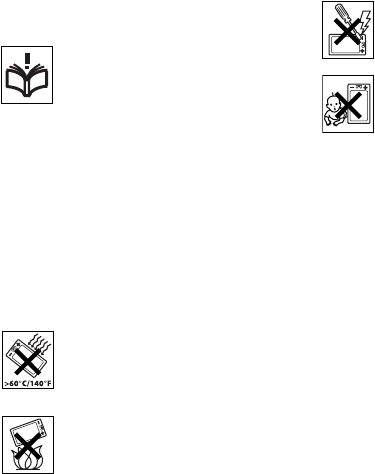
83Important information
Guidelines for Safe and
Efficient Use
Please read this information before
using your mobile phone.
These instructions are intended for
your safety. Please follow these
guidelines. If the product has been
subject to any of the conditions listed
below or you have any doubt of the proper function
make sure to have the product checked by certified
service partner before charging or using it. Failure
to do so might lead to risk for product malfunction
or even a potential hazard to your health.
Recommendations for safe use of
product (mobile phone, battery,
charger and other accessories)
•Always treat your product with care and keep it in
a clean and dust-free place.
•Warning! May explode if disposed of in fire.
•Do not expose your product to liquid or moisture
or humidity.
•Do not expose your product to extreme
high or low temperatures. Do not
expose the battery to temperatures
above +60°C (+140°F).
•Do not expose your product to open
flames or lit tobacco products.
•Do not drop, throw or try to bend your
product.
•Do not paint your product.
•Do not attempt to disassemble
or modify your product. Only Sony
Ericsson authorised personnel should
perform service.
•Do not use your product near medical equipment
without requesting permission.
•Do not use your product when in, or around
aircraft, or areas posted “turn off two-way radio”.
•Do not use your product in an area where
a potentially explosive atmosphere exists.
•Do not place your product or install
wireless equipment in the area above
your car's air bag.
CHILDREN
KEEP OUT OF CHILDRENS REACH.
DO NOT ALLOW CHILDREN TO PLAY
WITH YOUR MOBILE PHONE OR ITS
ACCESSORIES. THEY COULD HURT
THEMSELVES OR OTHERS, OR
COULD ACCIDENTALLY DAMAGE
THE MOBILE PHONE OR ACCESSORY. YOUR
MOBILE PHONE OR ITS ACCESSORY MAY
CONTAIN SMALL PARTS THAT COULD BE
DETACHED AND CREATE A CHOKING HAZARD.
Power supply (Charger)
Connect the AC power adapter only to designated
power sources as marked on the product. Make
sure the cord is positioned so that it will not be
subjected to damage or stress. To reduce risk of
electric shock, unplug the unit from any power
source before attempting to clean it. The AC power
adapter must not be used outdoors or in damp
areas. Never alter the cord or plug. If the plug will
not fit into the outlet, have a proper outlet installed
by a qualified electrician.
Use only Sony Ericsson branded original chargers
intended for use with your mobile phone. Other
chargers may not be designed to the same safety
and performance standards.
Battery
We recommend that you fully charge the battery
before you use your mobile phone for the first time.
A new battery or one that has not been used for a
long time could have reduced capacity the first few
times it is used. The battery should only be charged
in temperatures between +5°C (+41°F) and +45°C
(+113°F).
This is the Internet version of the user's guide. © Print only for private use.
84 Important information
Use only Sony Ericsson branded original batteries
intended for use with your mobile phone. Using
other batteries and chargers could be dangerous.
The talk and standby times depend on several
different conditions such as signal strength,
operating temperature, application usage patterns,
features selected and voice or data transmissions
when using the mobile phone.
Turn off your mobile phone before removing the
battery. Do not allow the battery to be put into the
mouth. Battery electrolytes may be toxic if
swallowed. Do not let the metal contacts on the
battery touch another metal object. This could
short-circuit and damage the battery. Use the
battery for the intended purpose only.
Personal medical devices
Mobile phones may affect the operation of cardiac
pacemakers and other implanted equipment.
Please avoid placing the mobile phone over the
pacemaker, e.g. in your breast pocket. When using
the mobile phone, place it at the ear opposite the
pacemaker. If a minimum distance of 15 cm (6
inches) is kept between the mobile phone and the
pacemaker, the risk of interference is limited. If you
have any reason to suspect that interference is
taking place, immediately turn off your mobile phone.
Contact your cardiologist for more information.
For other medical devices, please consult your
physician and the manufacturer of the device.
Driving
Please check if local laws and regulations restrict
the use of mobile phones while driving or require
drivers to use handsfree solutions. We recommend
that you use only Sony Ericsson handsfree solutions
intended for use with your product.
Please note that because of possible interference
to electronic equipment, some vehicle
manufacturers forbid the use of mobile phones
in their vehicles unless a handsfree kit with an
external antenna supports the installation.
Always give full attention to driving and pull off the
road and park before making or answering a call if
driving conditions so require.
Emergency calls
Mobile phones operate using radio signals, which
cannot guarantee connection under all conditions.
Therefore you should never rely solely upon any
mobile phone for essential communications (e.g.
medical emergencies).
Emergency calls may not be possible in all areas,
on all cellular networks, or when certain network
services and/or mobile phone features are in use.
Check with your local service provider.
Antenna
This phone contains a built in antenna. Use of
antenna devices not marketed by Sony Ericsson
specifically for this model could damage your
mobile phone, reduce performance, and produce
SAR levels above the established limits (see below).
Efficient use
Hold your mobile phone as you would any other
phone. Do not cover the top of the phone when in
use, as this affects call quality and may cause the
phone to operate at a higher power level than
needed, thus shortening talk and standby times.
Radio frequency (RF) exposure and
SAR
Your mobile phone is a low-power radio transmitter
and receiver. When it is turned on, it emits low
levels of radio frequency energy (also known as
radio waves or radio frequency fields).
This is the Internet version of the user's guide. © Print only for private use.

85Important information
Governments around the world have adopted
comprehensive international safety guidelines,
developed by scientific organizations, e.g. ICNIRP
(International Commission on Non-Ionizing
Radiation Protection) and IEEE (The Institute of
Electrical and Electronics Engineers Inc.), through
periodic and thorough evaluation of scientific
studies. These guidelines establish permitted levels
of radio wave exposure for the general population.
The levels include a safety margin designed to
assure the safety of all persons, regardless of age
and health, and to account for any variations in
measurements.
Specific Absorption Rate (SAR) is the unit of
measurement for the amount of radio frequency
energy absorbed by the body when using a mobile
phone. The SAR value is determined at the highest
certified power level in laboratory conditions, but
the actual SAR level of the mobile phone while
operating can be well below this value. This is
because the mobile phone is designed to use the
minimum power required to reach the network.
Variations in SAR below the radio frequency
exposure guidelines do not mean that there are
variations in safety. While there may be differences
in SAR levels among mobile phones, all Sony
Ericsson mobile phone models are designed to
meet radio frequency exposure guidelines.
For phones sold in the U.S., before a phone model
is available for sale to the public, it must be tested
and certified to the FCC that it does not exceed the
limit established by the government-adopted
requirement for safe exposure. The tests are
performed in positions and locations (that is, at the
ear and worn on the body) as required by the FCC
for each model. For body worn operation, this
phone has been tested and meets FCC RF
exposure guidelines when the handset is
positioned a minimum of 15 mm from the body
without any metal parts in the vicinity of the phone
or when used with the original Sony Ericsson body
worn accessory intended for this phone. Use of
other accessories may not ensure compliance with
FCC RF exposure guidelines.
A separate leaflet with SAR information for this
mobile phone model is included with the material
that comes with this mobile phone. This information
can also be found, together with more information
on radio frequency exposure and SAR, on:
www.SonyEricsson.com
.
Accessible Solutions/Special Needs
For phones sold in the U.S., you can use your TTY
terminal with your Sony Ericsson mobile phone
(with the necessary accessory). For information on
Accessible Solutions for individuals with special
needs call the Sony Ericsson Special Needs Center
at 877 878 1996 (TTY) or 877 207 2056 (voice), or
visit the Sony Ericsson Special Needs Center at
www.SonyEricsson-snc.com
.
Disposal of old electrical &
electronic equipment
This symbol on the product or on its
packaging indicates that this product
shall not be treated as household
waste. Instead it shall be handed over to the
applicable collection point for the recycling of
electrical and electronic equipment. By ensuring
this product is disposed of correctly, you will help
prevent potential negative consequences for the
environment and human health, which could
otherwise be caused by inappropriate waste
handling of this product. The recycling of materials
will help to conserve natural resources. For more
detailed information about recycling of this product,
please contact your local city office, your household
waste disposal service or the shop where you
purchased the product.
This is the Internet version of the user's guide. © Print only for private use.

86 Important information
Disposing of the battery
Please check local regulations for
disposal of batteries or call your local
Sony Ericsson Call Center for
information.
The battery should never be placed in municipal
waste. Use a battery disposal facility if available.
End User Licence Agreement
This wireless device (“Device”) contains software
owned by Sony Ericsson Mobile Communications
AB (“Sony Ericsson”) and its affiliated companies
(“Sony Ericsson”) and its third party suppliers and
licensors (“Software”).
As user of this Device, Sony Ericsson grants you
a non-exclusive, non-transferable, non-assignable
license to use the Software solely in conjunction
with the Device on which it is installed. Nothing
herein shall be construed as a sale of the Software
to a user of this Device.
You shall not reproduce, modify, distribute, reverse
engineer, decompile, otherwise alter or use any
other means to discover the source code of the
Software or any component of the Software. For
avoidance of doubt, you are at all times entitled to
transfer all rights and obligations to the Software to
a third party, solely together with the Device with
which you received the Software, provided always
that such third party agrees in writing to be bound
by these rules.
You are granted this license for a term of the useful
life of this Device. You can terminate this license
by transferring all your rights to the Device on which
you have received the Software to a third party in
writing. If you fail to comply with any of the terms
and conditions set out in this license, it will
terminate with immediate effect.
Sony Ericsson and its third party suppliers and
licensors are the sole and exclusive owner of and
retain all rights, title and interest in and to the
Software. Sony Ericsson, and, to the extent that the
Software contains material or code of a third party,
such third party, shall be entitled third party
beneficiaries of these terms.
The validity, construction and performance of this
license shall be governed by the laws of Sweden.
The foregoing shall apply to the full extent permitted
by, when applicable, statutory consumer rights.
Limited Warranty
Sony Ericsson Mobile Communications AB, S-221
88 Lund, Sweden, (Sony Ericsson), provides this
Limited Warranty for your mobile phone and
original accessory delivered with your mobile
phone (hereinafter referred to as “Product”).
Should your Product need warranty service, please
return it to the dealer from whom it was purchased,
or contact your local Sony Ericsson Call Center
(national rates may apply) or visit
www.SonyEricsson.com
to get further information.
Our warranty
Subject to the conditions of this Limited Warranty,
Sony Ericsson warrants this Product to be free from
defects in design, material and workmanship at the
time of its original purchase by a consumer, and for
a subsequent period of one (1) year.
What we will do
If, during the warranty period, this Product fails to
operate under normal use and service, due to defects
in design, materials or workmanship, Sony Ericsson
authorised distributors or service partners, in the
country/region* where you purchased the Product,
will, at their option, either repair or replace the
Product in accordance with the terms and
conditions stipulated herein.
This is the Internet version of the user's guide. © Print only for private use.
87Important information
Sony Ericsson and its service partners reserve the
right to charge a handling fee if a returned Product
is found not to be under warranty according to the
conditions below.
Please note that some of your personal settings,
downloads or other information may be lost when
your Sony Ericsson Product is repaired or replaced.
At present Sony Ericsson may be prevented by
applicable law, other regulation or technical
restrictions from making a backup copy of certain
downloads. Sony Ericsson does not take any
responsibility for any lost information of any kind
and will not reimburse you for any such loss. You
should always make backup copies of all the
information stored on your Sony Ericsson Product
such as downloads, calendar and contacts before
handing in your Sony Ericsson Product for repair or
replacement.
Conditions
1The warranty is valid only if the original proof of
purchase issued to the original purchaser by a
Sony Ericsson authorised dealer, specifying the
date of purchase and serial number**, for this
product, is presented with the Product to be
repaired or replaced. Sony Ericsson reserves the
right to refuse warranty service if this information
has been removed or changed after the original
purchase of the Product from the dealer.
2If Sony Ericsson repairs or replaces the Product,
the repaired or replaced Product shall be warranted
for the remaining time of the original warranty
period or for ninety (90) days from the date of
repair, whichever is longer. Repair or replacement
may involve the use of functionally equivalent
reconditioned units. Replaced parts or components
will become the property of Sony Ericsson.
3This warranty does not cover any failure of the
Product due to normal wear and tear, or due to
misuse, including but not limited to use in other
than the normal and customary manner, in
accordance with the Sony Ericsson instructions for
use and maintenance of the Product. Nor does this
warranty cover any failure of the Product due to
accident, software or hardware modification or
adjustment, acts of God or damage resulting from
liquid. A rechargeable battery can be charged and
discharged hundreds of times. However, it will
eventually wear out – this is not a defect. When the
talk-time or standby time is noticeably shorter, it is
time to replace your battery. Sony Ericsson
recommends that you use only batteries and
chargers approved by Sony Ericsson.
Minor variations in display brightness and color
may occur between phones. There may be tiny,
bright or dark dots on the display. These are called
defective pixels and occur when individual dots
have malfunctioned and can not be adjusted. Two
defective pixels are deemed acceptable.
Minor variations in camera image appearance may
occur between phones. This is nothing uncommon
and is not regarded as a defective camera module.
4Since the cellular system on which the Product is to
operate is provided by a carrier independent from
Sony Ericsson, Sony Ericsson will not be responsible
for the operation, availability, coverage, services or
range of that system.
5This warranty does not cover Product failures
caused by installations, modifications, or repair or
opening of the Product performed by a non-Sony
Ericsson authorised person.
6The warranty does not cover Product failures which
have been caused by use of accessories or other
peripheral devices which are not Sony Ericsson
branded original accessories intended for use with
the Product.
7Tampering with any of the seals on the Product will
void the warranty.
8THERE ARE NO EXPRESS WARRANTIES,
WHETHER WRITTEN OR ORAL, OTHER THAN
THIS PRINTED LIMITED WARRANTY. ALL
IMPLIED WARRANTIES, INCLUDING WITHOUT
LIMITATION THE IMPLIED WARRANTIES OF
MERCHANTABILITY OR FITNESS FOR A
This is the Internet version of the user's guide. © Print only for private use.

88 Important information
PARTICULAR PURPOSE, ARE LIMITED TO THE
DURATION OF THIS LIMITED WARRANTY. IN NO
EVENT SHALL SONY ERICSSON OR ITS
LICENSORS BE LIABLE FOR INCIDENTAL OR
CONSEQUENTIAL DAMAGES OF ANY NATURE
WHATSOEVER, INCLUDING BUT NOT LIMITED
TO LOST PROFITS OR COMMERCIAL LOSS; TO
THE FULL EXTENT THOSE DAMAGES CAN BE
DISCLAIMED BY LAW.
Some countries/states do not allow the exclusion
or limitation of incidental or consequential
damages, or limitation of the duration of implied
warranties, so the preceding limitations or
exclusions may not apply to you.
The warranty provided does not affect the
consumer's statutory rights under applicable
legislation in force, nor the consumer’s rights
against the dealer arising from their sales/purchase
contract.
*EUROPEAN UNION (EU)
If you have purchased your Product in an EU
country you can have your Product serviced, under
the conditions set out above, within the warranty
period in any EU country where an identical
Product is sold by an authorised Sony Ericsson
distributor. To find out if your Product is sold in the
EU country you are in, please call the local Sony
Ericsson Call Center. Please observe that certain
services may not be possible elsewhere than in the
country of original purchase, for example due to the
fact that your Product may have an interior or
exterior which is different from equivalent models
sold in other EU countries. It may not be possible to
repair SIM-locked Products.
** In some countries/regions additional information
is requested. If so, this is clearly shown on the valid
proof of purchase.
FCC Statement
This device complies with Part 15 of
the FCC rules. Operation is subject to
the following two conditions: (1) This
device may not cause harmful interference, and (2)
This device must accept any interference received,
including interference that may cause undesired
operation.
This is the Internet version of the user's guide. © Print only for private use.

89Important information
Declaration of Conformity
We, Sony Ericsson Mobile Communications AB
of
Nya Vattentornet
S-221 88 Lund, Sweden
declare under our sole responsibility that our
product
Sony Ericsson type AAF-1052051-BV
and in combination with our accessories, to which
this declaration relates is in conformity with the
appropriate standards 3GPP TS 51.010-1,
EN 301489-7, EN 300328, EN 301489-17 and
EN 60950, following the provisions of, Radio
Equipment and Telecommunication Terminal
Equipment directive 99/5/EC with requirements
covering EMC directive 89/336/EEC, and Low
Voltage directive 73/23/EEC.
We fulfil the requirements of the R&TTE Directive
(99/5/EC).
Shoji Nemoto,
Head of Product Business Unit GSM/UMTS
Lund, November 2005
This is the Internet version of the user's guide. © Print only for private use.
90 Index
Index
A
alarm clock ........................................... 68
answering service ................................ 26
applications .......................................... 58
appointments ....................................... 69
automatic redialling .............................. 21
B
battery
inserting and charging ................... 6
use and care ................................ 83
Bluetooth™ wireless technology ......... 63
business cards ..................................... 32
buttons
See
keys ................................. 14
C
calculator ............................................. 71
calendar ..........................................69–70
call divert .............................................. 28
call list .................................................. 25
call numbers in message ..................... 34
call time ................................................ 31
call waiting ........................................... 28
caller-specific ringtones ....................... 54
calls
accepting ..................................... 30
answering and rejecting ............... 21
emergency ................................... 22
handling two calls .........................29
international ..................................21
making and receiving ................9, 21
making notes during .....................32
missed ..........................................22
putting on hold ..............................28
recording .......................................57
restricting ......................................30
code memo ...........................................71
conference calls ....................................29
contacts
adding phone contacts .................23
default contacts ............................23
groups of .......................................32
synchronizing ................................61
D
date .......................................................73
declaration of conformity ......................89
delivery status .......................................36
Disc2Phone
installing ........................................49
display brightness ...................................8
display, light sensor ................................8
downloading files ..................................60
This is the Internet version of the user's guide. © Print only for private use.
91Index
E
effects, camera .................................... 45
email ............................................... 39–42
end user licence agreement ................. 86
entering letters
multitap input ............................... 17
T9™ Text Input ............................ 18
F
file manager .......................................... 19
fixed dialling ......................................... 31
G
games ................................................... 57
groups .................................................. 32
H
handsfree ......................................... 9, 64
help texts, in phone .............................. 14
hiding number ...................................... 32
I
icons ..................................................... 16
infrared port .................................... 65–66
instant messaging
See
My friends ....... 42
Internet
bookmarks ................................... 60
cookies and passwords ............... 61
security and certificates ............... 61
settings ......................................... 59
K
keypad lock .......................................... 74
keys ...................................................... 14
L
language ............................................... 76
light ...................................................... 71
locks
SIM card ....................................... 73
long messages ..................................... 35
M
magic word .......................................... 27
memory status
phone contacts ............................ 23
SIM contacts ................................ 23
Memory Stick Duo™
formatting ..................................... 20
menu overview ..................................... 10
messages
area and cell information .............. 43
delivery status .............................. 36
email ............................................. 39
picture .......................................... 36
text ............................................... 33
voice ............................................. 38
microphone .......................................... 22
MMS
See
picture messages ................ 36
multitap input
entering letters ............................. 17
This is the Internet version of the user's guide. © Print only for private use.
92 Index
music
transferring ................................... 49
MusicDJ™ ............................................ 54
My friends ............................................ 42
my numbers ......................................... 30
N
navigating menus ................................. 14
networks .............................................. 21
notepad ................................................ 32
notes ...............................................70–71
P
phone
assembly ........................................ 4
language ...................................... 17
Phone overview ........................... 10
photo light ............................................ 44
PhotoDJ™ ............................................ 56
picture messages ............................36–37
picture sizes ......................................... 45
pictures ................................................ 46
edit ............................................... 56
screen saver ................................. 46
PIN code
changing ...................................... 74
unblocking ..................................... 8
playlists ...........................................51–52
PlayNow™ ............................................53
profiles ............................................72–73
PUK .............................................8, 73, 74
R
remote control .......................................65
ringtones ...............................................54
S
safety guidelines ...................................83
screen saver ..........................................46
self-portrait ...........................................47
sending
appointments and tasks ...............70
business cards ..............................32
melodies and ringtones ................55
notes .............................................71
pictures .........................................46
themes ..........................................57
settings
email .............................................39
Internet ..........................................59
Java™ ...........................................60
setup wizard ............................................8
shortcuts ...............................................16
SIM card
contact numbers ...........................23
copying to/from ............................24
lock and unblock ..........................73
This is the Internet version of the user's guide. © Print only for private use.
93Index
SMS
See
text messages ...................... 33
SOS
See
emergency numbers ............. 22
sound recorder ..................................... 57
sound, transferring and directing ......... 65
speed dialling ....................................... 25
start-up screen ............................... 46, 75
stopwatch ............................................ 71
streaming media ................................... 53
synchronizing ................................. 61–62
T
T9™ Text Input
add words .................................... 18
entering letters ............................. 18
tasks ..................................................... 70
templates ....................................... 35, 38
text messages ................................ 33–36
themes ................................................. 57
time ...................................................... 73
timer ..................................................... 71
transferring
camera pictures ........................... 45
files ............................................... 66
music ............................................ 49
turning on/off
Bluetooth ...................................... 63
infrared port ................................. 66
phone lock ................................... 74
ringtone ........................................ 54
SIM lock protection ...................... 74
U
unblock SIM card ................................. 74
Update service ..................................... 67
USB drivers
installing ....................................... 67
V
video recorder ...................................... 47
VideoDJ™ ............................................ 55
voice answering ................................... 27
voice control ....................................26–28
voice dialling ........................................ 27
voice messages ................................... 38
voicemail .............................................. 26
volume
setting ringtone ............................ 54
volume, ear speaker ............................. 22
W
WALKMAN™ player ........................48–53
wallpaper .............................................. 46
WAP
See
Internet ................................. 59
warranty ............................................... 86
writing languages ................................. 17
Z
zoom
camera ......................................... 44
Web page ..................................... 60
This is the Internet version of the user's guide. © Print only for private use.
