Sorting View Manual
User Manual:
Open the PDF directly: View PDF  .
.
Page Count: 11


Copyright © 2014 - Free Compass Studio
1. Preparation
Thank you for your purchase !
The sorting view is a pure editor extension
plugin. We create it for saving your time in tuning the
sorting order of sprite renderers.
Before using it, you shall follow the next steps:
(1) Import the sorting view unity package to your
project.
(2) Open the layer setting window in your project.
Please make sure there is no duplicate sorting
layer names. (e.g. two “Default”)
Page 2
Copyright © 2014 - Free Compass Studio
2. Interface
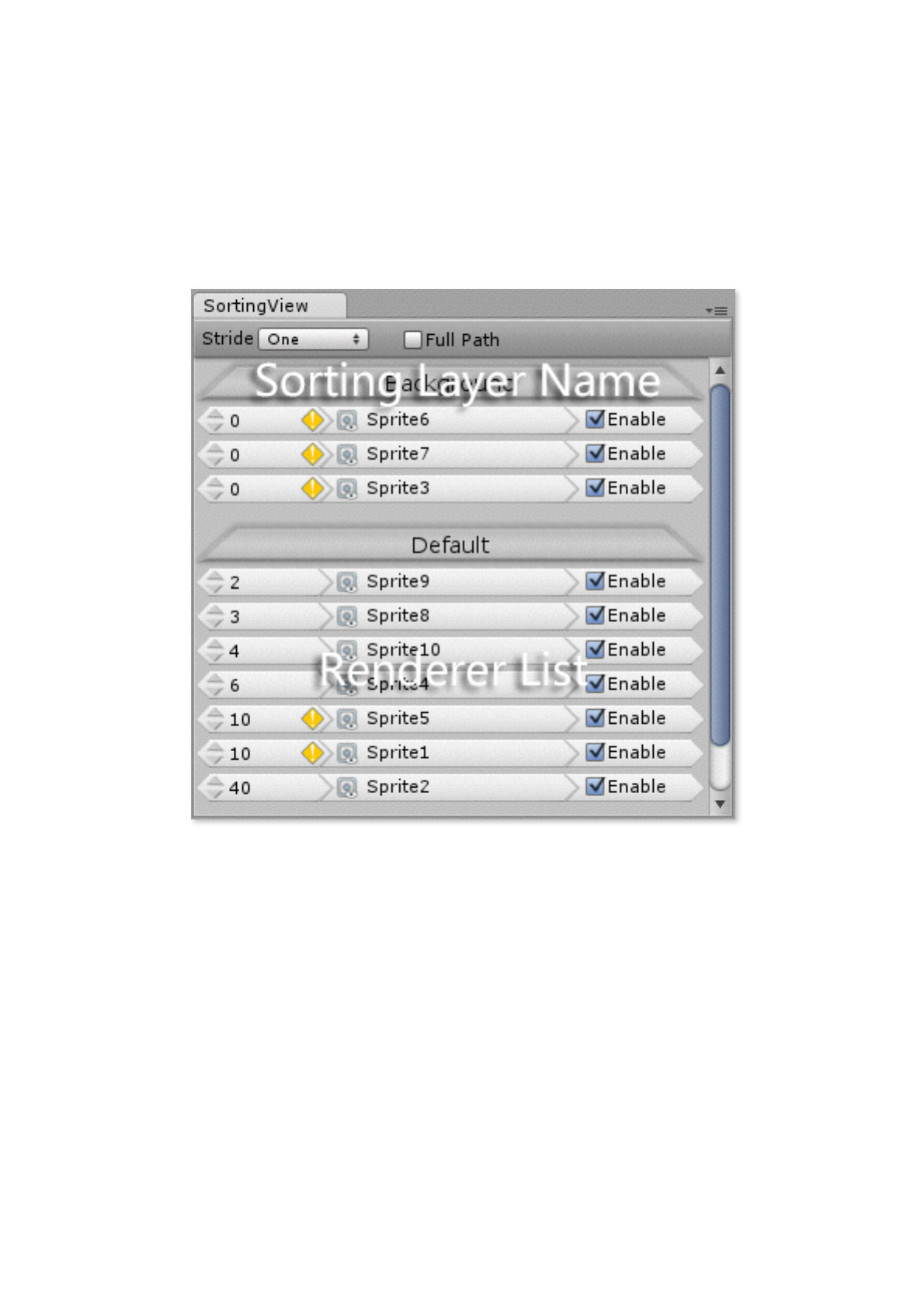
The main Interface is an organized hierarchy of
two-level list.
The first level list shows all sorting layers.
The second level list shows all renderers in the
specified sorting layer.
Page 3
Copyright © 2014 - Free Compass Studio
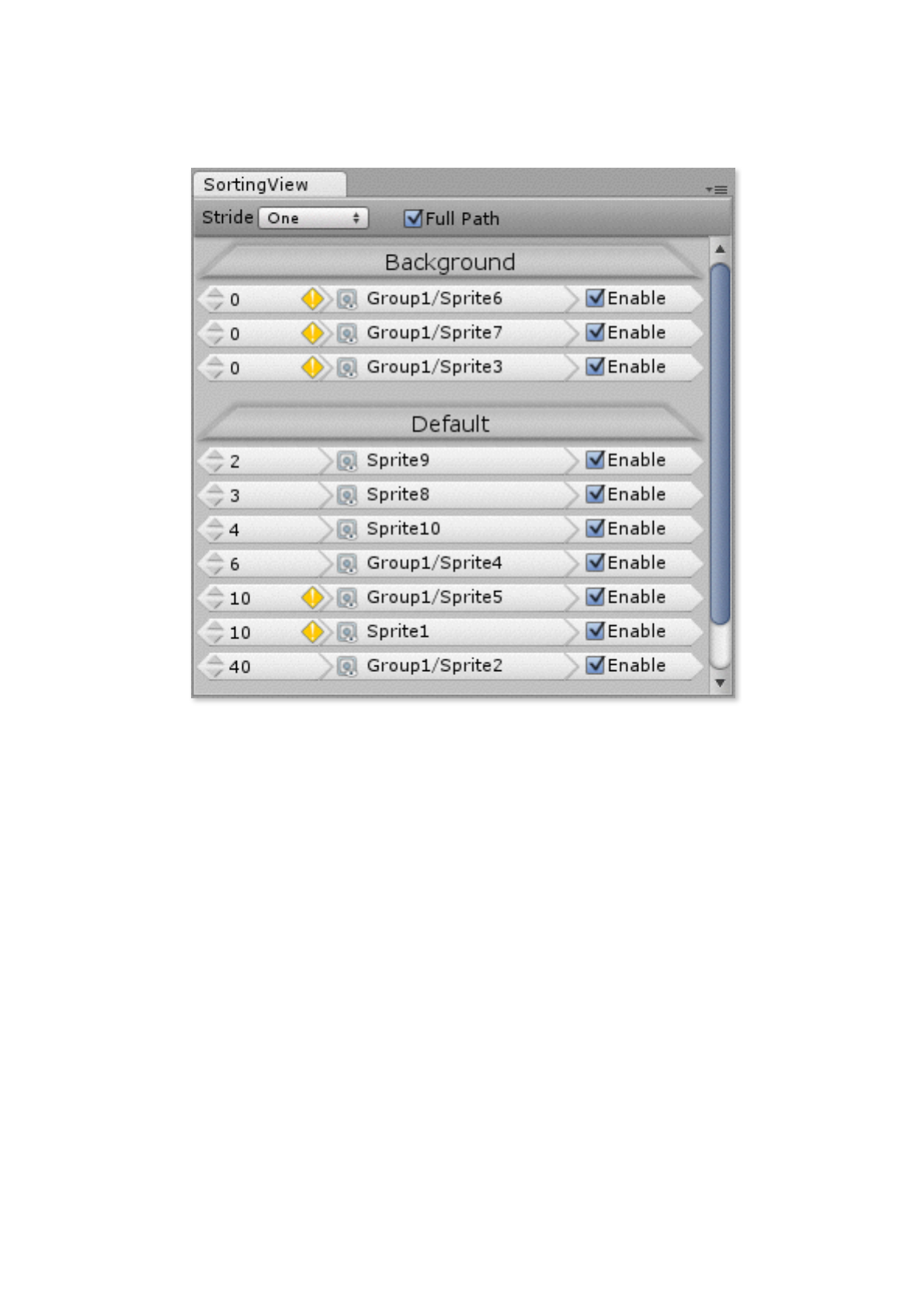
The top checkbox represents whether to show
the absolute hierarchy path or not.
The checkboxes in right column represent
whether to enable the renderers or not.
The contents in middle column represent the
types and names of renderers.
The number labels in left column represent the
sorting orders of renderers.
Page 4
Copyright © 2014 - Free Compass Studio
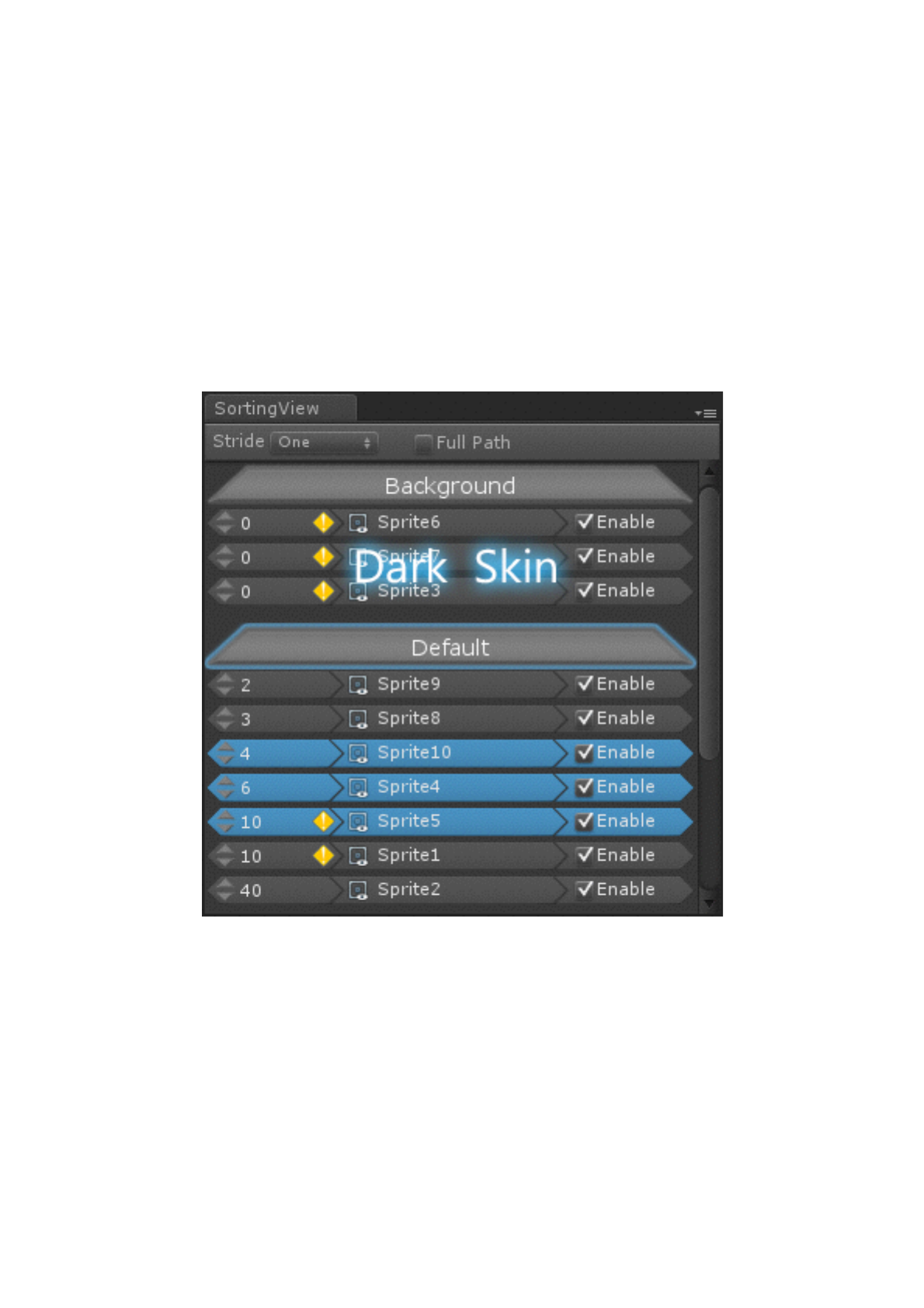
Please notice the yellow warn icons. When
renderers are in the same sorting layer and the same
sorting order, the render order within them will be
unpredictable.
If using unity pro edition, you can see the dark
skin.
!
Page 5
Copyright © 2014 - Free Compass Studio
3. Manipulation
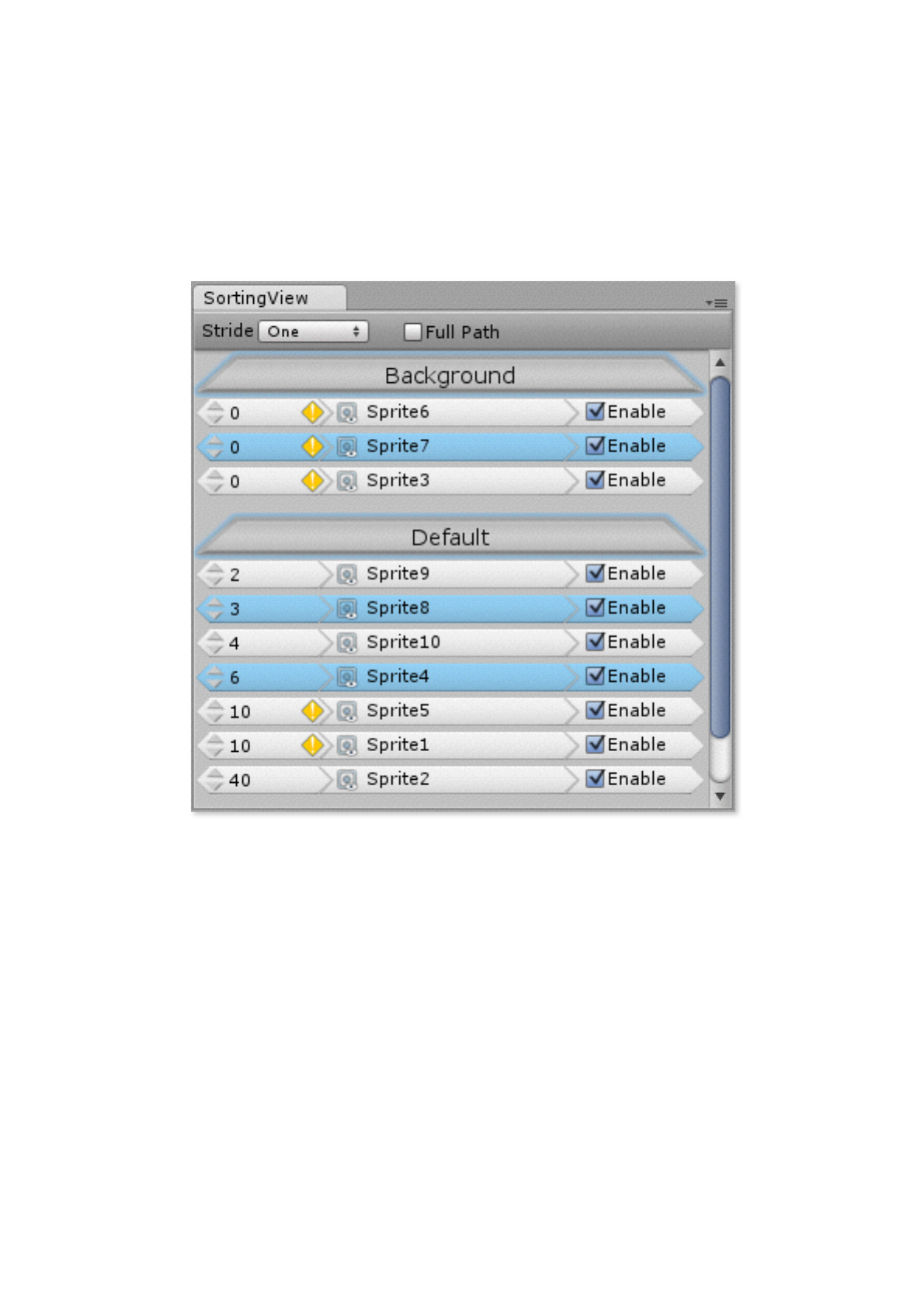
You can use “control” key, “shift” key or keyboard
to select multiple renderers and unselect them,
which is similar with the operations in scene
hierarchy window.
Page 6
Copyright © 2014 - Free Compass Studio
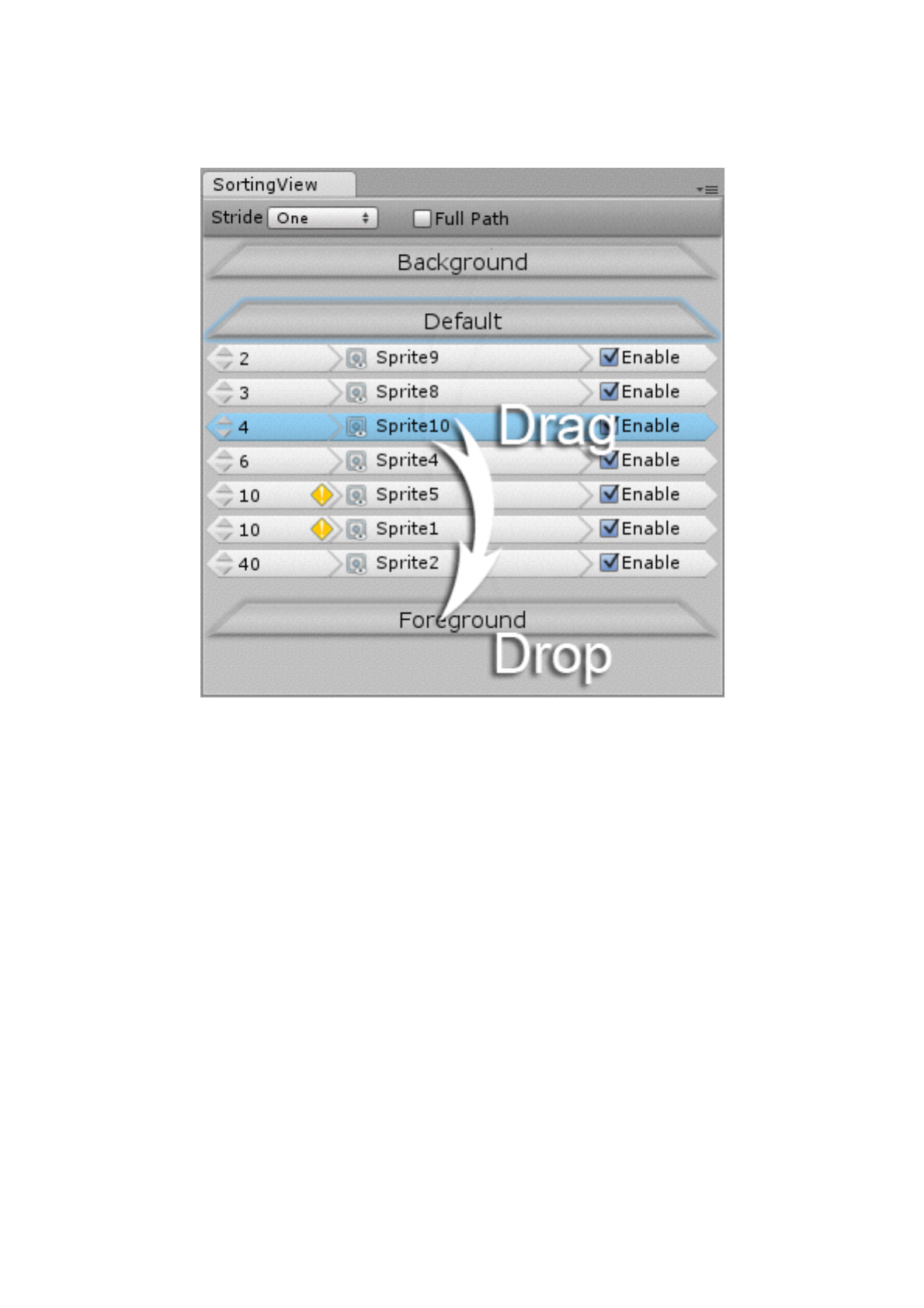
You can change the sorting layer on the middle
column by drag-and-drop.
Also, you can drag them to object field slots in
inspector window just like the drag-and-drop
between hierarchy and inspector windows.
Page 7
Copyright © 2014 - Free Compass Studio
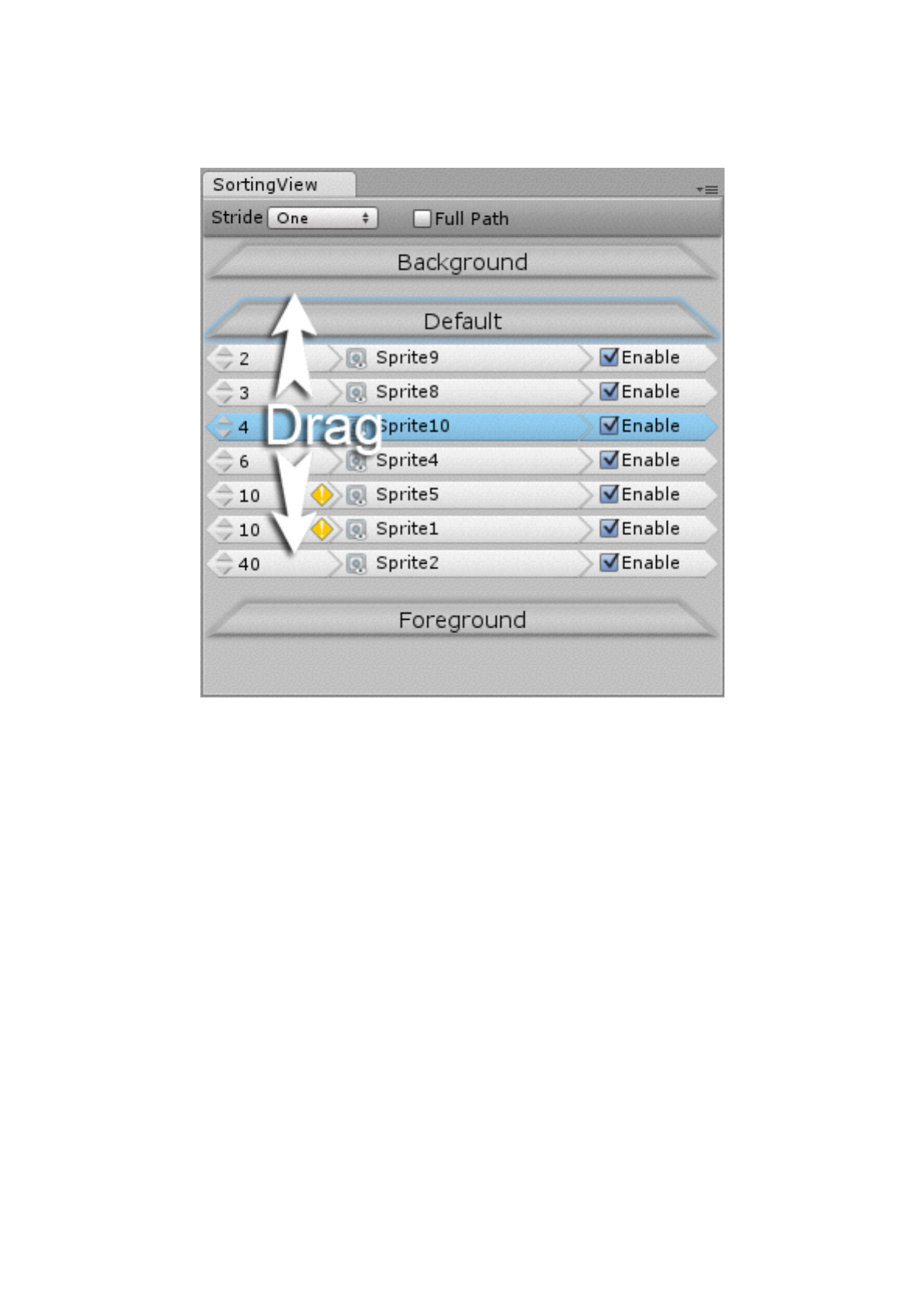
You can change the sorting order on the left
column by dragging. And you can set the move stride
by selecting on the top popup of stride numbers.
Also, you can use keyboard to edit the numbers
of sorting order directly after double click on the
number labels.
Page 8
Copyright © 2014 - Free Compass Studio
4. Others
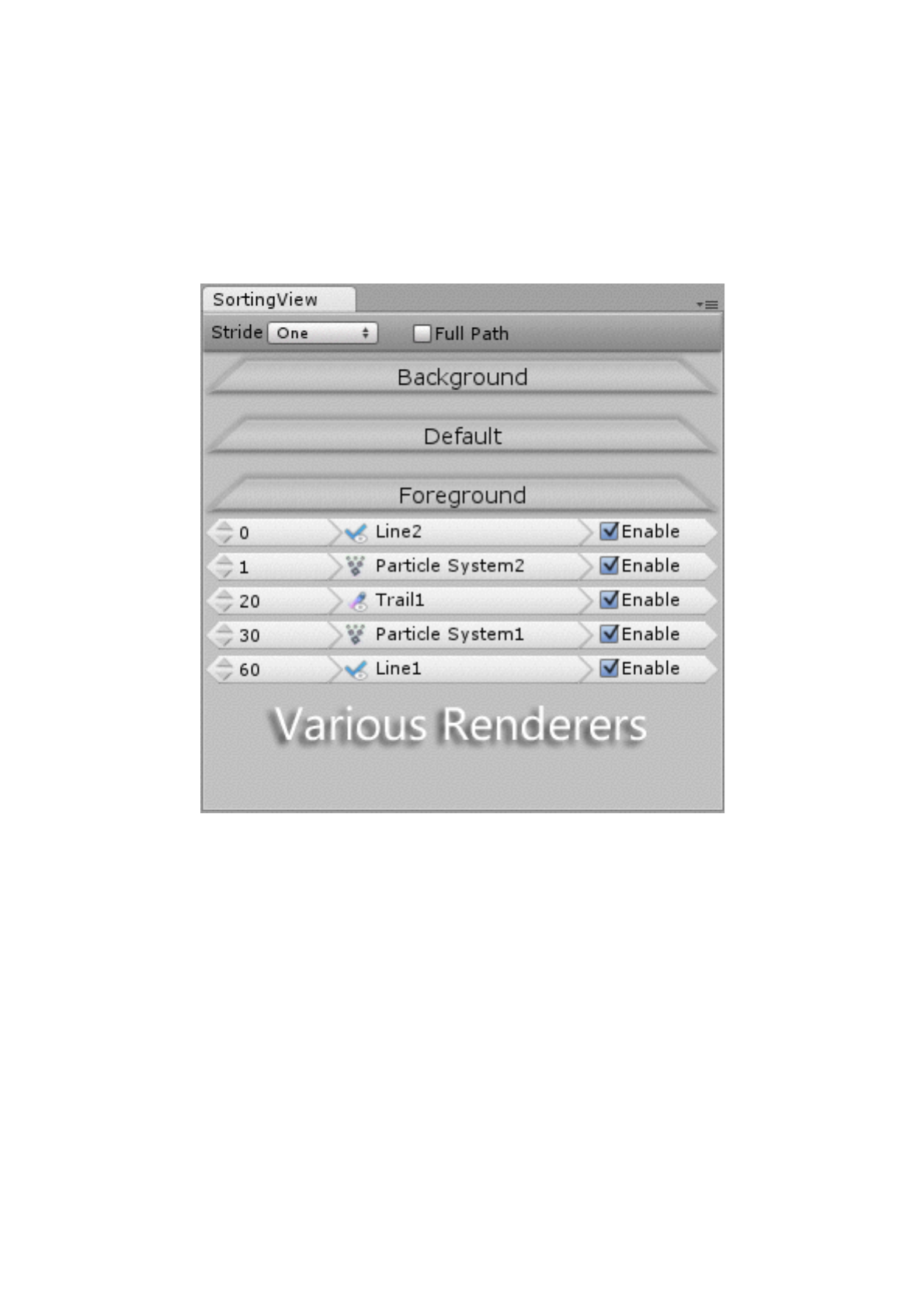
The unity sprite sorting system supports various
renderers, if you suffice that the render queue
number of renderer equals 3000.!
Page 9
Copyright © 2014 - Free Compass Studio
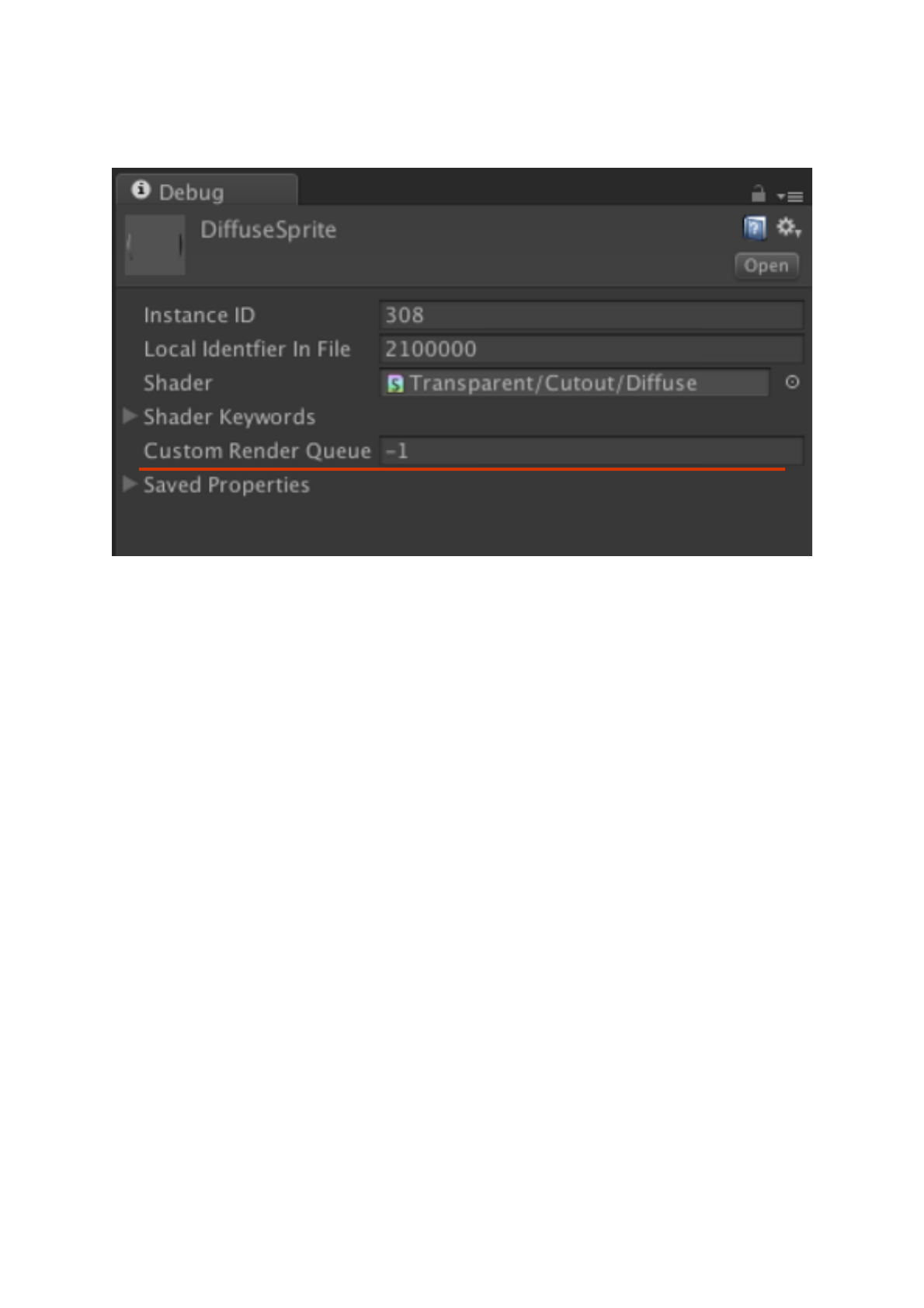
When the mode of inspector window is the
debug mode, you can edit the “Custom Render
Queue” property of material which will be assigned to
the renderer using this material.
The number -1 means that the render queue
number of this material equals the render queue of
the shader assigned.
Page 10

Copyright © 2014 - Free Compass Studio
shader “Transparent/Diffuse” {
Properties {
_Color {“Main Color”, Color} = {1, 1, 1, 1}
_MainTex {“Base (RGB) Trans (A)”, 2D} = “white” { }
}
SubShader {
Tag {
“Queue” = “Transparent”
………
………
………
You shall set the “Queue” tag in your custom
shaders. 3000 or “Transparent” are valid values.
Many unity build-in shaders meet this
requirement, such as transparent and particle
shaders.
Page 11
