Surround Panner Option Guide Panner_Option_Guide_v80_561351 V80 561351
Surround Panner Option Guide Surround Panner Option Guide
User Manual: SurroundPanner_Option_Guide_v80_561351
Open the PDF directly: View PDF  .
.
Page Count: 15
Surround Panner Option
Version 8.0

Legal Notices
This guide is copyrighted ©2008 by Digidesign, a division of Avid Technology, Inc.
(hereafter “Digidesign”), with all rights reserved. Under copyright laws, this guide
may not be duplicated in whole or in part without the written consent of
Digidesign.
003, 96 I/O, 96i I/O, 192 Digital I/O, 192 I/O, 888|24 I/O, 882|20 I/O,
1622 I/O, 24-Bit ADAT Bridge I/O, AudioSuite, Avid, Avid DNA, Avid Mojo,
Avid Unity, Avid Unity ISIS, Avid Xpress, AVoption, Axiom, Beat Detective,
Bomb Factory, Bruno, C|24, Command|8, Control|24, D-Command, D-Control,
D-Fi, D-fx, D-Show, D-Verb, DAE, Digi 002, DigiBase, DigiDelivery, Digidesign,
Digidesign Audio Engine, Digidesign Intelligent Noise Reduction, Digidesign
TDM Bus, DigiDrive, DigiRack, DigiTest, DigiTranslator, DINR, D-Show,
DV Toolkit, EditPack, Eleven, HD Core, HD Process, Hybrid, Impact, Interplay,
LoFi, M-Audio, MachineControl, Maxim, Mbox, MediaComposer, MIDI I/O, MIX,
MultiShell, Nitris, OMF, OMF Interchange, PRE, ProControl, Pro Tools M-Powered,
Pro Tools, Pro Tools|HD, Pro Tools LE, QuickPunch, Recti-Fi, Reel Tape, Reso,
Reverb One, ReVibe, RTAS, Sibelius, Smack!, SoundReplacer, Sound
Designer II, Strike, Structure, SYNC HD, SYNC I/O, Synchronic, TL Aggro, TL
AutoPan, TL Drum Rehab, TL Everyphase, TL Fauxlder, TL In Tune, TL
MasterMeter, TL Metro, TL Space, TL Utilities, Transfuser, Trillium Lane Labs,
Vari-Fi Velvet, X-Form, and XMON are trademarks or registered trademarks of
Digidesign and/or Avid Technology, Inc. Xpand! is Registered in the U.S. Patent
and Trademark Office. All other trademarks are the property of their respective
owners.
Product features, specifications, system requirements, and availability are
subject to change without notice.
Guide Part Number 9329-60840-00 REV A 11/08
Documentation Feedback
At Digidesign, we're always looking for ways to improve our documentation. If you
have comments, corrections, or suggestions regarding our documentation, email
us at techpubs@digidesign.com.
Warning
This product contains chemicals, including lead, known to the State of California
to cause cancer and birth defects or other reproductive harm. Wash hands after
handling.
Communications & Safety Regulation Information
Compliance Statement
The model Surround Panner complies with the following standards regulating
interference and EMC:
• FCC Part 15 Class A
• EN55103 – 1, environment E4
• EN55103 – 2, environment E4
• AS/NZS 3548 Class A
• CISPR 22 Class A
• ICES-003 Class A
Radio and Television Interference
This equipment has been tested and found to comply with the limits for a Class A
digital device, pursuant to Part 15 of the FCC Rules.
Canadian Compliance Statement:
This Class A digital apparatus complies with Canadian ICES-003
Cet appareil numérique de la classe A est conforme à la norme NMB-003 du
Canada.
CE Compliance Statement:
Digidesign is authorized to apply the CE (Conformité Europénne) mark on this
compliant equipment thereby declaring conformity to EMC Directive
89/336/EEC and Low Voltage Directive 73/23/EEC.
Australian Compliance:
Communications Statement
This equipment has been tested to comply with the limits for a Class A digital
device. Changes or modifications to this product not authorized by Digidesign,
Inc., could void the Certification and negate your authority to operate the product.
This product was tested for CISPR compliance under conditions that included the
use of peripheral devices and shielded cables and connectors between system
components. Digidesign recommends the use of shielded cables and connectors
between system components to reduce the possibility of causing interference to
radios, television sets, and other electronic devices.
Safety Statement
This equipment has been tested to comply with USA and Canadian safety
certification in accordance with the specifications of UL Standards; UL6500 and
Canadian CSA standard; CSA C22.2 No.1-M90. Digidesign Inc., has been
authorized to apply the appropriate UL & CUL mark on its compliant equipment.
Important Safety Instructions
1) Read these instructions.
2) Keep these instructions.
3) Heed all warnings.
4) Follow all instructions.
5) Do not use this apparatus near water.
6) Clean only with dry cloth.
7) Do not block any ventilation openings. Install in accordance with the
manufacturer’s instructions.
8) Do not install near any heat sources such as radiators, heat registers, stoves,
or other apparatus (including amplifiers) that produce heat.
9) Do not defeat the safety purpose of the polarized or grounding-type plug. A
polarized plug has two blades with one wider than the other. A grounding type
plug has two blades and a third grounding prong. The wide blade or the third
prong are provided for your safety. If the provided plug does not fit into your
outlet, consult an electrician for replacement of the obsolete outlet.
10) Protect the power cord from being walked on or pinched particularly at plugs,
convenience receptacles, and the point where they exit from the apparatus.
11) Only use attachments/accessories specified by the manufacturer.
12) Use only with the cart, stand, tripod, bracket, or table specified by the
manufacturer, or sold with the apparatus. When a cart is used, use caution when
moving the cart/apparatus combination to avoid injury from tip-over.
13) Unplug this apparatus during lightning storms or when unused for long
periods of time.
14) Refer all servicing to qualified service personnel. Servicing is required when
the apparatus has been damaged in any way, such as power-supply cord or plug
is damaged, liquid has been spilled or objects have fallen into the apparatus, the
apparatus has been exposed to rain or moisture, does not operate normally, or
has been dropped.
Contents iii
Contents
Chapter 1. Introduction . . . . . . . . . . . . . . . . . . . . . . . . . . . . . . . . . . . . . . . . . . . . . . . . . . . . . . . . . . . . . . . . . . . . . . . . . . . 1
Surround Panner Option Components . . . . . . . . . . . . . . . . . . . . . . . . . . . . . . . . . . . . . . . . . . . . . . . . . . . . . . . . . . . . . . . 1
System Requirements . . . . . . . . . . . . . . . . . . . . . . . . . . . . . . . . . . . . . . . . . . . . . . . . . . . . . . . . . . . . . . . . . . . . . . . . . . 1
Digidesign Registration . . . . . . . . . . . . . . . . . . . . . . . . . . . . . . . . . . . . . . . . . . . . . . . . . . . . . . . . . . . . . . . . . . . . . . . . . 1
About www.digidesign.com . . . . . . . . . . . . . . . . . . . . . . . . . . . . . . . . . . . . . . . . . . . . . . . . . . . . . . . . . . . . . . . . . . . . . . 1
Chapter 2. Installation . . . . . . . . . . . . . . . . . . . . . . . . . . . . . . . . . . . . . . . . . . . . . . . . . . . . . . . . . . . . . . . . . . . . . . . . . . . . 3
Installing the Surround Panner Option . . . . . . . . . . . . . . . . . . . . . . . . . . . . . . . . . . . . . . . . . . . . . . . . . . . . . . . . . . . . . . . 3
Configuring MIDI and Pro Tools for the Surround Panner Option. . . . . . . . . . . . . . . . . . . . . . . . . . . . . . . . . . . . . . . . . . . . . 3
Enabling the Surround Panner Option in Pro Tools . . . . . . . . . . . . . . . . . . . . . . . . . . . . . . . . . . . . . . . . . . . . . . . . . . . . . . 4
Chapter 3. Surround Panner Controls . . . . . . . . . . . . . . . . . . . . . . . . . . . . . . . . . . . . . . . . . . . . . . . . . . . . . . . . . . . . . . . 5
Surround Panner Top Panel . . . . . . . . . . . . . . . . . . . . . . . . . . . . . . . . . . . . . . . . . . . . . . . . . . . . . . . . . . . . . . . . . . . . . . 5
Rotary Encoder Section . . . . . . . . . . . . . . . . . . . . . . . . . . . . . . . . . . . . . . . . . . . . . . . . . . . . . . . . . . . . . . . . . . . . . . . . . 6
Joystick . . . . . . . . . . . . . . . . . . . . . . . . . . . . . . . . . . . . . . . . . . . . . . . . . . . . . . . . . . . . . . . . . . . . . . . . . . . . . . . . . . . . 7
Chapter 4. Using the Pro Tools Surround Panner. . . . . . . . . . . . . . . . . . . . . . . . . . . . . . . . . . . . . . . . . . . . . . . . . . . . . 9
Targeting Panners . . . . . . . . . . . . . . . . . . . . . . . . . . . . . . . . . . . . . . . . . . . . . . . . . . . . . . . . . . . . . . . . . . . . . . . . . . . . . 9
Working with Stereo Tracks and Panners. . . . . . . . . . . . . . . . . . . . . . . . . . . . . . . . . . . . . . . . . . . . . . . . . . . . . . . . . . . . . 9
Panning with the Joystick. . . . . . . . . . . . . . . . . . . . . . . . . . . . . . . . . . . . . . . . . . . . . . . . . . . . . . . . . . . . . . . . . . . . . . . . 9
Panning with the Rotary Encoders . . . . . . . . . . . . . . . . . . . . . . . . . . . . . . . . . . . . . . . . . . . . . . . . . . . . . . . . . . . . . . . . 10
Adjusting Other Parameters . . . . . . . . . . . . . . . . . . . . . . . . . . . . . . . . . . . . . . . . . . . . . . . . . . . . . . . . . . . . . . . . . . . . . 10
Surround Panner Option Guideiv

Chapter 1: Introduction 1
Chapter 1: Introduction
The Pro Tools® Surround Panner Option from JL Cooper pro-
vides a touch-sensitive Joystick for surround panning, along
with other output and panner controls.
Surround Panner Option Components
The following components are included in the Surround Pan-
ner Option package:
• Surround Panner Option
• Surround Panner Option disc
• Registration Information Card
System Requirements
The Surround Panner Option has the following system re-
quirements:
• A Digidesign-qualified Pro Tools|HD® system, or Pro Tools
LE® system with the Complete Production Toolkit option,
installed on a Digidesign®-qualified Windows or Mac com-
puter.
• The Surround Panner Option Controller Personality File in-
stalled in the Controllers folder. (See Chapter 2, “Installa-
tion.”).
• Available MIDI In and Out connections on a MIDI interface,
to communicate with Pro Tools®.
Digidesign can only assure compatibility and provide support
for hardware and software it has tested and approved.
For complete system requirements and a list of Digide-
sign-qualified computers, operating systems, hard drives, and
third-party devices, refer to the latest information on the
Digidesign website:
www.digidesign.com/compatibility
Digidesign Registration
Review the enclosed Digidesign Registration Information
Card and follow the instructions on it to quickly register your
purchase online. Registering your purchase is the only way
you can be eligible to receive complimentary technical sup-
port and future upgrade offers. This is one of the most impor-
tant steps you can take as a new user.
About www.digidesign.com
The Digidesign website (www.digidesign.com) is your best on-
line source for information to help you get the most out of
your Pro Tools system. The following are just a few of the ser-
vices and features available.
Product Registration Register your purchase online. See the
enclosed Digidesign Registration Information Card for in-
structions.
Support and Downloads Contact Digidesign Technical Support
or Customer Service; download software updates and the lat-
est online manuals; browse the Compatibility documents for
system requirements; search the online Answerbase; or join
the worldwide Pro Tools community on the Digidesign User
Conference.
Training and Education Study on your own using courses avail-
able online or find out how you can learn in a classroom set-
ting at a certified Pro Tools training center.
Products and Developers Learn about Digidesign products;
download demo software or learn about our Development
Partners and their plug-ins, applications, and hardware.
News and Events Get the latest news from Digidesign or sign
up for a Pro Tools demo.
Pro Tools Accelerated Videos Watch the series of free tutorial
videos. Accelerated Videos are designed to help you get up and
running with Pro Tools and its plug-ins.
The Surround Panner option is not compatible for use with
other Joystick panner options.
Surround Panner Option Guide2
Chapter 2: Installation 3
Chapter 2: Installation
The following are basic instructions for installing and config-
uring the Surround Panner Option for use in your Pro Tools
system.
Installing the Surround Panner Option
To install the Surround Panner Option:
1 Connect the double-ended MIDI cable to the appropriate In
and Out ports on your MIDI Interface.
2 Make sure the Surround Panner Option Controller Person-
ality File is correctly installed in the Controllers directory
(folder), as follows:
• Mac OS X: Applications/Digidesign/Pro Tools/
Controllers
• Windows: Program Files/Common Files/Digidesign/
DAE/Controllers
If the Surround Panner Option Controller Personality File is
not installed, install it using the Surround Panner Option disc.
Configuring MIDI and Pro Tools for the
Surround Panner Option
Your MIDI setup and Pro Tools must be configured to support
the Surround Panner Option.
Configuring Audio MIDI Setup
(Mac Only)
On Mac systems, use Audio MIDI Setup to check MIDI com-
munication with the Surround Panner Option.
To update AMS for the Surround Panner Option:
1 Do one of the following:
• Launch the Apple Audio MIDI Setup (Applications/Utili-
ties).
– or –
• In Pro Tools, choose Setup > MIDI > Studio Setup.
2 Click MIDI Devices.
3 Choose MIDI > Add New External Device.
4 Double-click the New External Device icon.
5 Enter a name for the device (such as “Surround Panner”).
6 Click Properties.
7 Enable the appropriate Channels for the Receives and Trans-
mits options.
8 Click Apply and close the Properties window.
9 In the Audio MIDI Studio Setup window, drag a connection
from the MIDI In of the Surround Panner Option device to the
MIDI Out of your MIDI interface.
10 In the Audio MIDI Studio Setup window, drag a connection
from the MIDI Out of the Surround Panner Option device to
the MIDI In of your MIDI interface.
11 Choose Audio MIDI Setup > Quit Audio MIDI Setup.
Configuring MIDI Studio Setup
(Windows Only)
On Windows systems, use MIDI Studio Setup to configure
MIDI communication with the Surround Panner Option.
MSS automatically finds the MIDI ports on Surround Panner
Option, and lets you specify a custom name for each port on
the Surround Panner Option within the MIDI Studio Setup
document.
To define a MIDI port on the Surround Panner Option with MIDI
Studio Setup:
1 Launch Pro Tools.
2 Choose Setup > MIDI > MIDI Studio.
3 Click Create.
4 Enter a name in the Instrument Name field and press Enter.
5 From the Input Port pop-up menu, select the MIDI In of the
Surround Panner Option.
6 From the Output Port pop-up menu, select the MIDI Output
of the Surround Panner Option.
See the Setup Guide that came with your system for more
information about Audio MIDI Setup.
See the Setup Guide that came with your system for more
information about MIDI Studio Setup.

Surround Panner Option Guide4
Enabling the Surround Panner Option
in Pro Tools
To enable the Surround Panner Option in Pro Tools:
1 Launch Pro Tools.
2 Choose Setup > Peripherals and click the MIDI Controllers tab.
3 From the Type pop-up menu, select Surround Panner.
4 Choose the Surround Panner (or its MIDI ports) in the Re-
ceive From and Send To pop-up menus.
5 Click OK.
Once the Surround Panner has been enabled in the Periph-
erals dialog, you can also disable (and re-enable) it in the
Input Devices dialog (Setup > MIDI > Input Devices). See
the Pro Tools Reference Guide for more information.
Chapter 3: Surround Panner Controls 5
Chapter 3: Surround Panner Controls
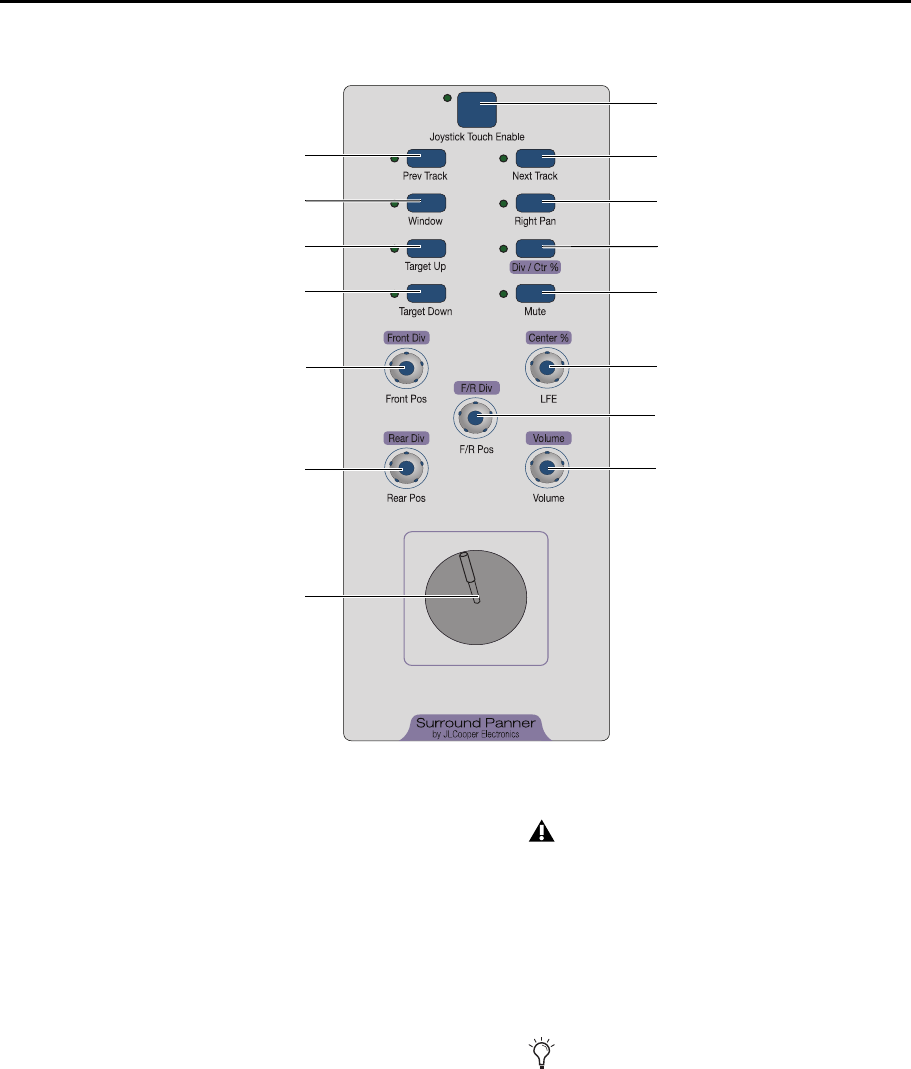
Surround Panner Top Panel
Switch Section
The Surround Panner Option has nine switches. Each switch
has an LED.
Joystick Touch Enable Switch and LED
The Joystick Touch Enable switch enables Touch Enable
mode. The switch’s LED is lit when the switch is enabled
(Touch Enable mode).
In this mode, Pro Tools responds to Joystick moves (Touch On
and Off messages) on the Surround Panner Option. A Touch
On message is sent when the Joystick is touched and a Touch
Off message is sent when the Joystick is released.
Prev Track Switch and LED
The Prev Track (Previous Track) switch moves panner focus to
the track above (Edit window) or on the left (Mix window).
The switch’s LED is momentarily lit while it is pressed.
Surround Panner controls
Joystick Touch Enable switch
Next Track switch
Previous Track switch
Right Pan switch
Window switch
Target Up switch
Target Down switch
Divergence/Center % switch
Mute switch
Volume encoder
Front Divergence/
Front Position encoder
Rear Divergence/
Rear Position encoder
Joystick
Center %/LFE encoder
Front/Rear Divergence/
Front/Rear Position encoder
When focusing to a new track or output, the Joystick needs
to be let go and retouched. This is to avoid accidently chang-
ing the panning location on an adjacent output.
Targeting a track or send output with the Prev Track or Next
Track switches does not change the focused track on an Icon
worksurface.

Surround Panner Option Guide6
Window Switch and LED
The Window switch lets you open and close the Panner win-
dow of the targeted main output or send.
The switch’s LED is lit when the Panner window is open and
unlit when the Panner window is closed.
Target Up Switch and LED
The Target Up switch lets you step upwards through the main
output and send panners on the focused track (so that you can
select a panner to control). The switch’s LED is lit while it is
pressed.
Target Down Switch and LED
The Target Down switch lets you step downwards through the
main output and send panners on the focused track (so that
you can select a panner to control). The switch’s LED is lit
while it is pressed.
Next Track Switch and LED
The Next Track switch moves panner focus to the track below
(Edit window) or on the right (Mix window). The switch’s LED
is lit while it is pressed.
Right Pan Switch and LED
The Right Pan switch toggles focus between panners on a ste-
reo track. The switch’s LED is lit when the right channel pan-
ner is focused.
Divergence/Center % Switch and LED
When the Div/Ctr % switch is enabled, rotary encoders con-
trol the Diversion and Center % parameters. When the switch
is disabled, rotary encoders control Position/LFE.
The switch’s LED is lit in Div/Ctr % mode.
Mute Switch and LED
The Mute switch mutes either the track or send output that
the panner is assigned to. The switch’s LED is lit when the
track or switch is muted.
Rotary Encoder Section
The Rotary Encoder section consists of five rotary encoders.
The Volume encoder controls the track’s volume if the track’s
Output window is targeted. When any of the track’s sends is
targeted, the Volume encoder will control the send’s volume.
The other encoders are mapped to control either
Divergence/Center % or Position/LFE parameters, depending
on whether the Divergence/Center % switch is enabled or dis-
abled.
Divergence/Center % Mode Mapping
(Div/Ctr % Enabled)
In Div/Ctr % mode (Div/Ctr % switch enabled), the encoders
determine the width of the panned signal with respect to
neighboring speakers, as follows:
Front Div (Front Divergence) Provides separate divergence con-
trol over the front speakers.
F/R Div (Front/Rear Divergence) Provides separate divergence
control between front and rear speakers.
Rear Divergence Provides separate divergence control over the
rear speakers.
Center % Controls how much of a signal is routed to the cen-
ter speaker.
Volume Controls the track’s volume if the track’s Output win-
dow is targeted. When any of the track’s sends is targeted, the
Volume encoder will control the send’s volume.
Position/LFE Mode Mapping
(Div/Ctr % Switch Disabled)
In Position/LFE mode (Div/Ctr % switch disabled), the encod-
ers function as follows:
Front Pos (Front Position) Controls the current front X-axis
(left-to-right) position of the panner.
F/R Pos (Front/Rear Position) Controls the current Y-axis
(front-to-rear) position of the panner.
Rear Pos (Rear Position) Controls the current rear X-axis
(left-to-right) position of the panner.
LFE (Low Frequency Effects) Controls how much of the cur-
rent track’s signal will be routed to the LFE channel. This con-
trol is only available in “.1” surround formats (5.1, 6.1, and
7.1)
Volume Controls the track’s volume if the track’s Output win-
dow is targeted. When any of the track’s sends is targeted, the
Volume encoder will control the send’s volume.
If the Panner window is open when moving the panner focus
with the Prev Track, Next Track, Target Up, or Target Down
switches, the Panner window will update with each
newly-focused track.
Targeting a track or send output with the Prev Track or Next
Track switches does not change the focused track on an Icon
worksurface.
If a mono track is targeted after selecting Right Pan on a ste-
reo track, you will need to manually deselect the Right Pan
switch to enable the Joystick to control the panner on the
mono track.
Chapter 3: Surround Panner Controls 7
Joystick
The Joystick on the Surround Panner Option is touch-sensi-
tive. There is no visual feedback for positional movement
when the panner is not engaged.
Joystick behavior is based on the current Automation mode.
Touch Automation Mode
In Touch Automation mode, you must enable the Joystick
Touch Enable switch in order for Pro Tools to respond to your
Joystick moves (Touch On and Off messages).
If the Joystick is already being touched when the Joystick
Touch Enable switch is pressed, the Surround Panner Option
will send a Touch On message immediately and begin writing
pan automation moves.
When you release the Joystick, a Touch Off occurs, and
Pro Tools will revert back to reading existing automation. You
can touch the Joystick again to resume writing panner moves.
To avoid “jumps” in automation data when retouching the
Joystick, disable Touch Enable mode, place the Joystick where
needed, and then re-enable Touch Enable mode and touch the
panner.
Latch Automation Mode
In Latch Automation mode, you must enable the Joystick
Touch Enable switch in order for Pro Tools to respond to your
Joystick moves (Touch On and Off messages).
If the Joystick is already being touched when the Joystick
Touch Enable switch is pressed, the Surround Panner Option
will send a Touch On message immediately and begin writing
pan automation moves.
When you release the Joystick, a Touch Off occurs, and auto-
mation will continue to be written at the Joystick location.
You can touch the Joystick again to resume writing panner
moves. All automation continues to be written, whether you
are touching the Joystick or not.
Write Automation Mode
In Write Automation mode, you must enable the Joystick
Touch Enable switch in order for Pro Tools to respond to your
Joystick moves (Touch On and Off messages).
If the Joystick is already being touched when the Joystick
Touch Enable switch is pressed, the Surround Panner Option
will send a Touch On message immediately and begin writing
pan automation moves.
When you release the Joystick, a Touch Off occurs, and auto-
mation will continue to be written at the Joystick location.
You can touch the Joystick again to resume writing panner
moves. All automation continues to be written until the
Transport is stopped.
Enable the Joystick Touch Enable switch to “take over” (and
begin using) the Joystick for panner automation.
The rotary encoders on Surround Panner Option are not
touch-sensitive. An encoder will drop out of writing automa-
tion if the encoder is stationary for a set amount of time,
even if you are still touching it. The set amount of time is de-
fined in the Touch Timeout setting in the Automation Pref-
erences page. See the Pro Tools Reference Guide for more in-
formation.
Surround Panner Option Guide8
Chapter 4: Using the Pro Tools Surround Panner 9
Chapter 4: Using the Pro Tools Surround Panner
Targeting Panners
To target a track’s main output or send panners:
Press the Target Up or Target Down switch to scroll through
the track’s currently available main output and send panners.
To focus the previous or next track:
Press the Prev Track or Next Track switch.
Display of Targeted Panners
The currently targeted output or send is indicated with a col-
ored outline.
When only one peripheral (such as a Surround Panner Option
or a control surface) has targeted a panner, the outline color is
based on the position in which the peripheral was declared in
the Peripherals dialog.
When more than one peripheral targets the same Output or
Send, its display will be outlined in white.
Working with Stereo Tracks and
Panners
When panning stereo tracks, left and right sides can be
panned independently (unlinked).
To temporarily unlink stereo panners:
1 Release the Joystick.
2 Press and hold the Control key and use the Joystick again.
Panning with the Joystick
The Surround Panner Option features a Joystick for 360° sur-
round panning. Once the desired Panner or Output window is
targeted, panning can be input using the Joystick (explained
below) or the rotary encoders (explained in “Panning with the
Rotary Encoders” on page 10).
To pan with the Joystick:
1 Target the output you want to pan (see “Targeting Panners”
on page 9).
2 Press the Joystick Touch Enable switch and begin panning
with the Joystick.
You can also focus a track by clicking on the Output win-
dow of the track or send with a mouse.
Display Behavior when One Peripheral Targets a Panner
Outline Color
(for Panner Targeted by
One Peripheral)
Order Peripheral Was Declared in the
Peripherals Dialog
Blue First declared peripheral
Yellow Second declared peripheral
Purple Third declared peripheral
Green Fourth declared peripheral

Surround Panner Option Guide10
Panning with the Rotary Encoders
The Surround Panner Option rotary encoders provide direct
control of Front, Rear, and Front/Rear Divergence, Center per-
centage, LFE level and channel Volume.
The Surround Panner Option supports the following Pro Tools
panning modes: X/Y mode, 3-Knob mode, and Divergence Ed-
iting. The Surround Panner Option does not support Au-
toGlide mode.
Position/LFE and Divergence/Ctr % Modes
All of the Surround Panner Option encoders (except for the
Volume encoder) are dual-functional controls. They can be
used for encoder-based panning (Position/LFE mode), or for
divergence and parameter editing (Div/Ctr % mode). The de-
sired mode is selected with the Div/Ctr % switch.
Fine-Adjust Mode
The Surround Panner Option supports fine-adjust mode for all
encoders, using the standard Pro Tools command.
To pan in fine-adjust mode:
Press Control (Windows) or Command (Mac) and rotate
any encoder.
To pan using the encoders (Position/LFE mode):
1 Focus the track that has the output you want to pan (See
“Targeting Panners” on page 9).
2 Target the output you want to pan (see “Targeting Panners”
on page 9).
3 Enable Position/LFE mode by pressing the Div/Ctr %
switch, so that the Div/Ctr % switch LED is not lit.
4 Adjust the Front Pos (Front Position), Rear Pos (Rear Posi-
tion), or F/R P (Front/Rear Position) encoders as appropriate.
Adjusting Other Parameters
The Surround Panner Option rotary encoders can adjust chan-
nel volume, LFE contribution, Divergence parameters, and
Center Percentage.
Volume
To adjust volume:
Use the Volume encoder in either Position/LFE or Div/Ctr %
mode.
The Volume encoder controls the track’s volume if the track’s
Output window is targeted. When any of the track’s sends is
targeted, the Volume encoder will control the send’s volume.
LFE
To adjust the LFE slider:
Use the LFE encoder while in Position/LFE mode.
Adjusting Divergence and Center Percentage
The Surround Panner Option can adjust a panner’s divergence
and center parameters.
To adjust divergence:
1 Enable Div/Ctr % mode by pressing the Div/Ctr % switch,
so that the Div/Ctr % switch LED is lit.
2 Adjust the Front Div (Front Divergence), Rear Div (Rear Di-
vergence), or F/R Div (Front/Rear Divergence encoders as ap-
propriate.
To adjust Center Percentage:
1 Enable Div/Ctr % mode by pressing the Div/Ctr % switch,
so that the Div/Ctr % switch LED is lit.
2 Rotate the Center % encoder as desired.
Each Surround Panner Option encoder is dual-purposed, ex-
cept for the Volume encoder.

DIGIDESIGN
2001 Junipero Serra Boulevard
Daly City, CA 94014-3886 USA
Tel: 650.731.6300
Fax: 650.731.6399
TECHNICAL SUPPORT (USA)
Tel: 650.731.6100
Fax: 650.731.6375
PRODUCT INFORMATION (USA)
Tel: 800.333.2137
INTERNATIONAL OFFICES
Visit the Digidesign website
for contact information
www.digidesign.com
