Teacher Manual
User Manual:
Open the PDF directly: View PDF  .
.
Page Count: 1
Child Learning Journey
(Play)School-Parents digital solution
User Guide v4.0
Teacher
Date: 07.December.2017
Child Learning JourneyTM is a global product of Bing Web Services (UK).
Currently used by Child Learning (India) Pvt. Ltd and Child Learning (UK) Pvt. Ltd.


Child Learning Journey –An Overview
Child Learning JourneyTM (CLJ) is a digital product suite of web portal and mobile
applications for the early years education/care provider and parents of young
children. CLJ is Bing Web Services (UK) product and works globally. CLJ fills the
communication gap between parents of young children and Day Care, Nurseries,
Pre-schools regarding the child learning and development journey. We fill this
communication gap by using the new generation and user friendly digital channels
and technologies such as web portal and mobile applications. Secure online
channels are being used between the education/care provider and parents of
young children from 5 months to 5 years to communicate on a daily basis. CLJ will
provide instant information sharing and follow up of that information.
Reputed UK company product. Established in England and Wales in 2009
5
CLJ Teacher User Guide V4.0
Index

Key Features For Education/Care Provider
•Secure and synchronized web and mobile applications.
•Easily capture children activities and manage the learning and development journey of a
child in an electronic format.
•Drastically reduce the time and effort spent on capturing and maintaining activities, and
enabling teachers to focus more on providing the best early years education, an ultimate
aim of both education providers and parents.
•Send regular and quick messages, observations and daily dairies to parents.
•Build trust with parents in busy life by proactively providing vital information of their
children.
•Fee tracking feature, children and parent management
•Approve/Deny junior teacher cMessages
6
CLJ Teacher User Guide V4.0
Index

Key Features – Continued….
7
CLJ Teacher User Guide V4.0
•Call parents directly from the APP
•Parents who don’t use APP, will receive SMS on their mobile phone
•Send and receive comments on messages with parents
•Receive in-app notifications for messages and comments
•Low internal IT staff and infrastructure cost.
•Free training, technical support and demo.
•Advertise on our Website, Facebook and Twitter pages
Index

Terms and Descriptions
Group
Within the Child Learning Journey (CLJ) applications, Group is a top level concept.
Group can have one or more than one institutes. Education providers who have one
institute or have chains of institutes, our applications provide management of
single or multiple institutes seamlessly. The Group and its details will be managed
by the Group Admin user role. There is one Group Admin per Group.
Institute
Any single day care, crèche, nursery or school will be considered as an Institute. The
institute will have one or more classes, children, teachers and departments. The
Institute will be managed by the Institute Admin. There is one Institute Admin per
Institute.
8CLJ Teacher User Guide V4.0
Index

Terms and Descriptions
cMessage
cMessage can be any message or observation message captured by the
teacher for a child. It could be a summary of child activity in words or
picture taken doing some memorable activity or video or audio of a
child. Email and mobile notification is sent to parent instantly.
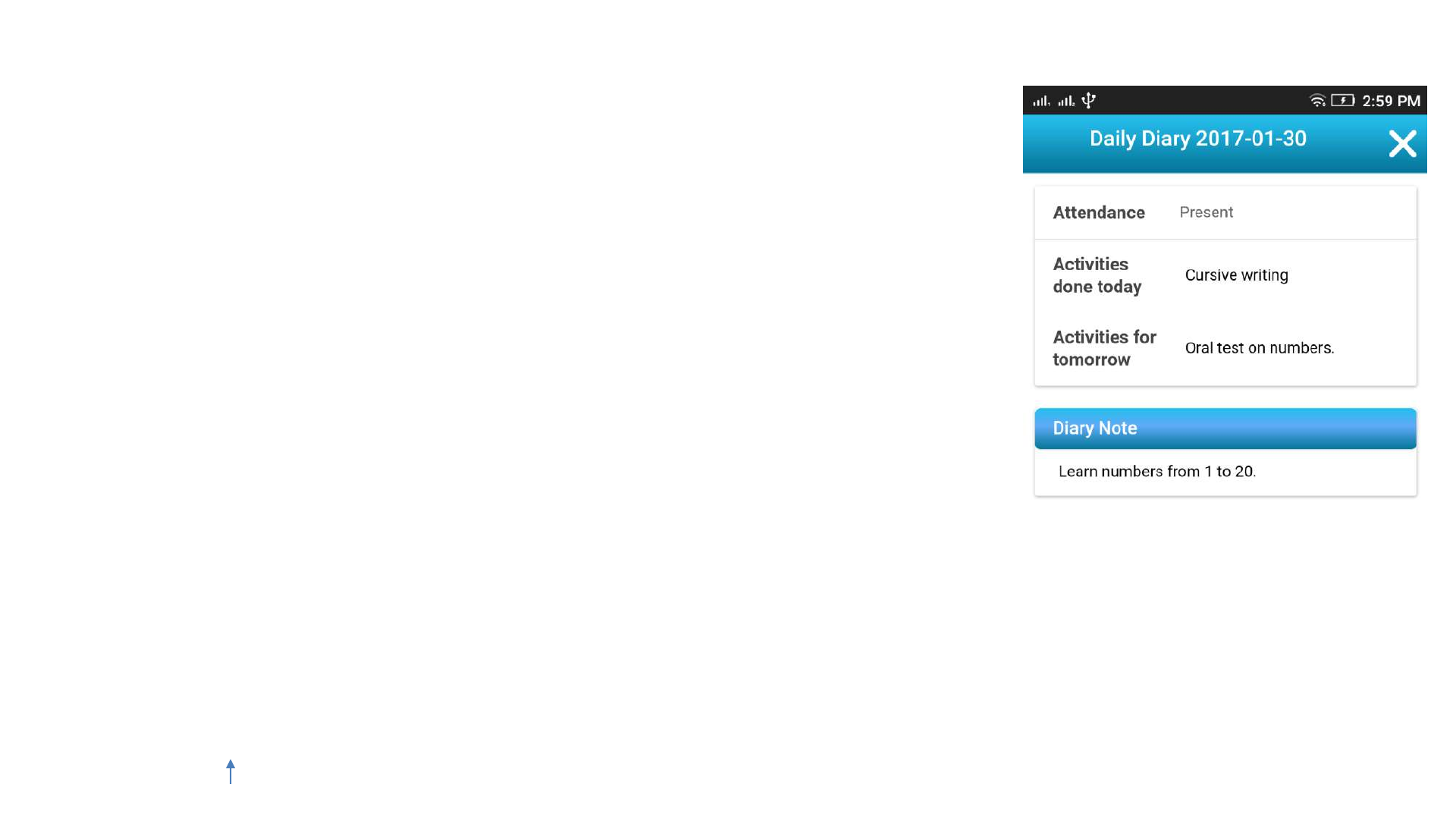
Daily Diary
It is the digital form of the diary which is sent from teachers to parents
on a daily basis. Mobile notification is sent to parent instantly.
9CLJ Teacher User Guide V4.0
Index

User Roles
Group Admin/Manager
Group Admin is responsible for the management of the Group and its institutes.
Group Admin can add single or multiple institutes for their group and assign the
Institute Admin for the institute.
Institute Admin/Manager
Institute Admin is the manager for the institute. The example of institute can be a
day care, crèche, nursery or pre-school. Institute Admin can perform various
management activities for their institute. For example, adding a new class, a new
teacher and new child for their institute. Also like teachers Institute Admin can also
write a cMessage for any child and add daily diary for any child of their institute.
10
CLJ Teacher User Guide V4.0
Index

User Roles
Teacher
Teachers will handle day to day activities of children/students of their
class e.g. adding a child to their class, write a cMessage, observation for
a child, adding a daily dairy for a child. Teacher can be senior or junior.
Senior teacher can write and publish any cMessage immediately to
parents. However Junior teacher’s cMessage needs to be approved by
their allocated senior teacher or the Institute Admin before it can be
send to the parent.
11
CLJ Teacher User Guide V4.0
Index

Teacher User Screens/Interface
Following pages will outline the Teacher User Screens and key functions they can perform
on the Web Portal and CLJ Institute mobile app.
The portal can be accessed via the secure web URL:
https://childlearning.in/login.php?loginas=teacher
Please use your phone number and password to login. There are different user guides for
Institute Admin and Parents. Latest versions of all user guides can be found on
https://www.childlearning.in/training/manuals/
Note: There is one app for Institute Admin and Teacher, which can be downloaded from
the Google Play Store.
https://play.google.com/store/apps/details?id=com.childlearning.institute
Key feature of this app is outlined later in this guide.
* iOS app coming shortly.
12
CLJ Teacher User Guide V4.0
Index
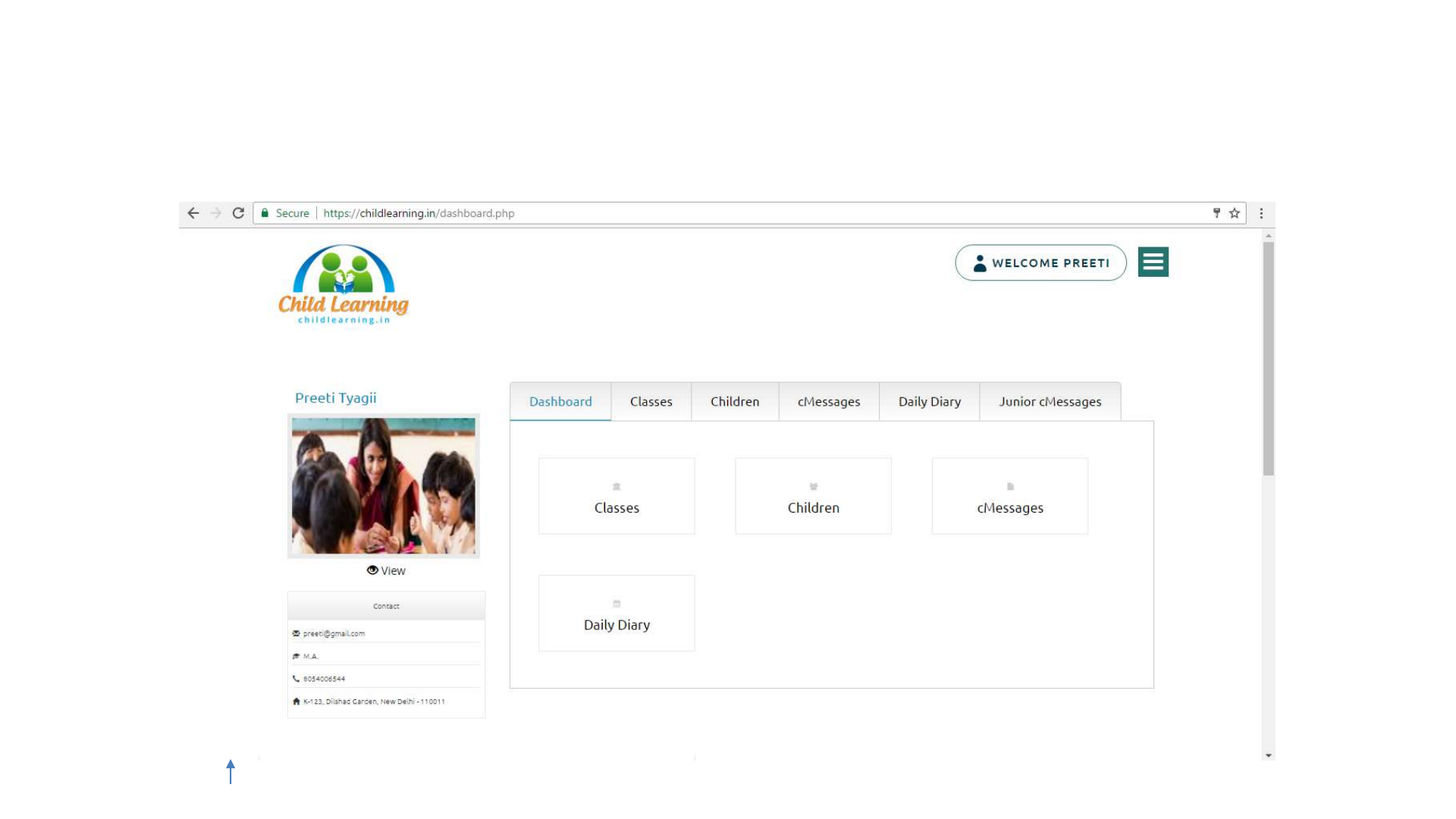
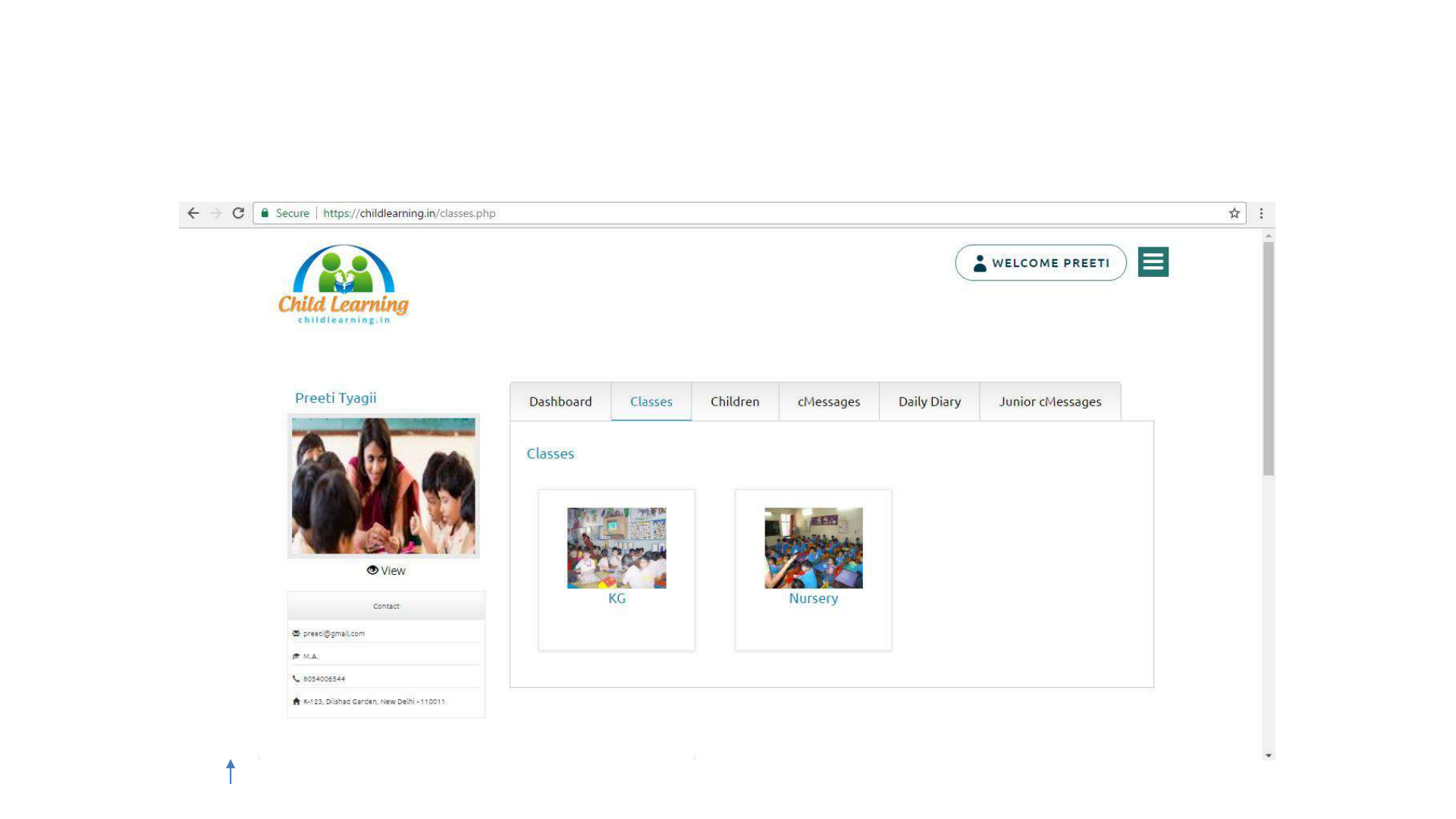

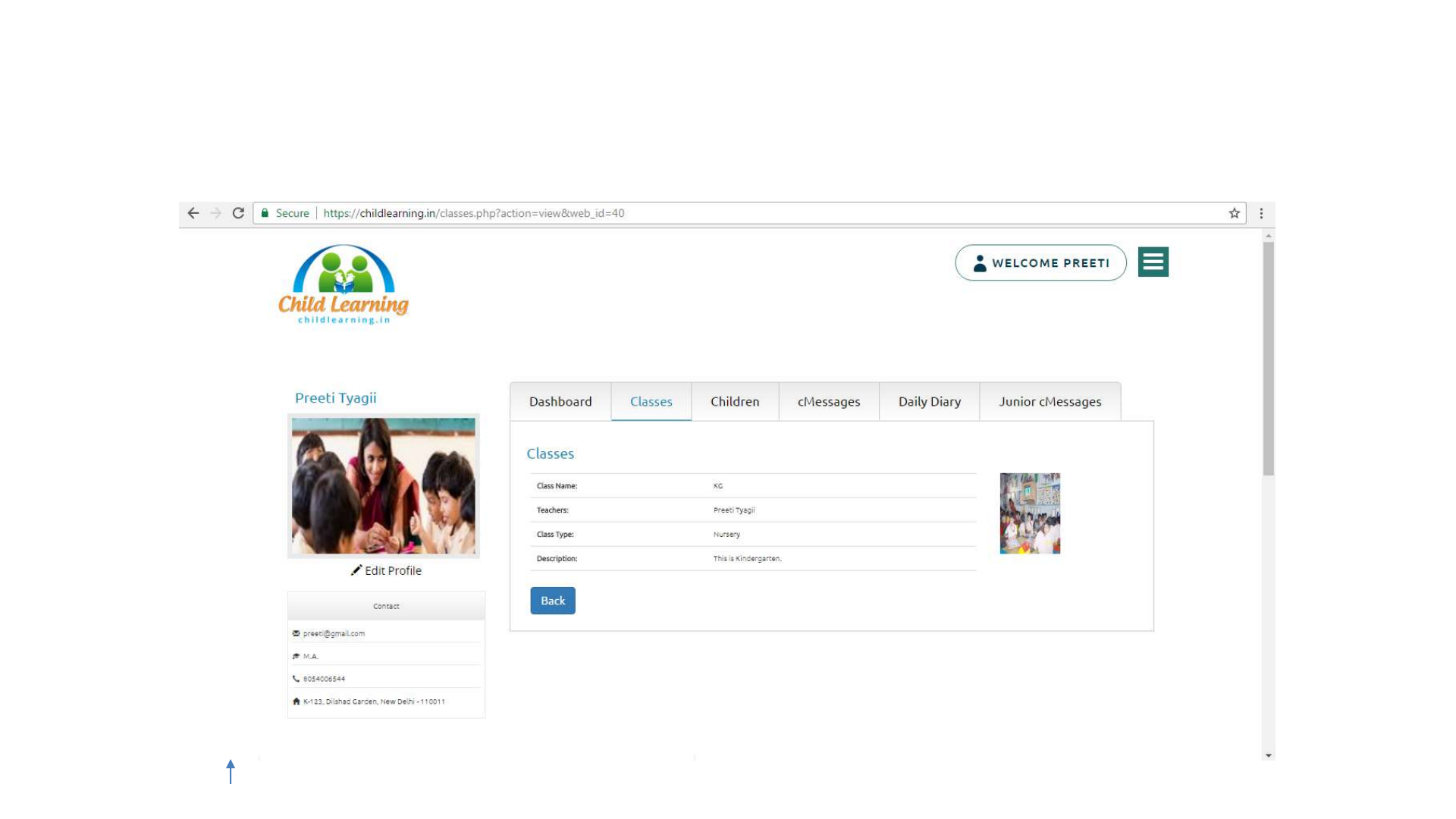

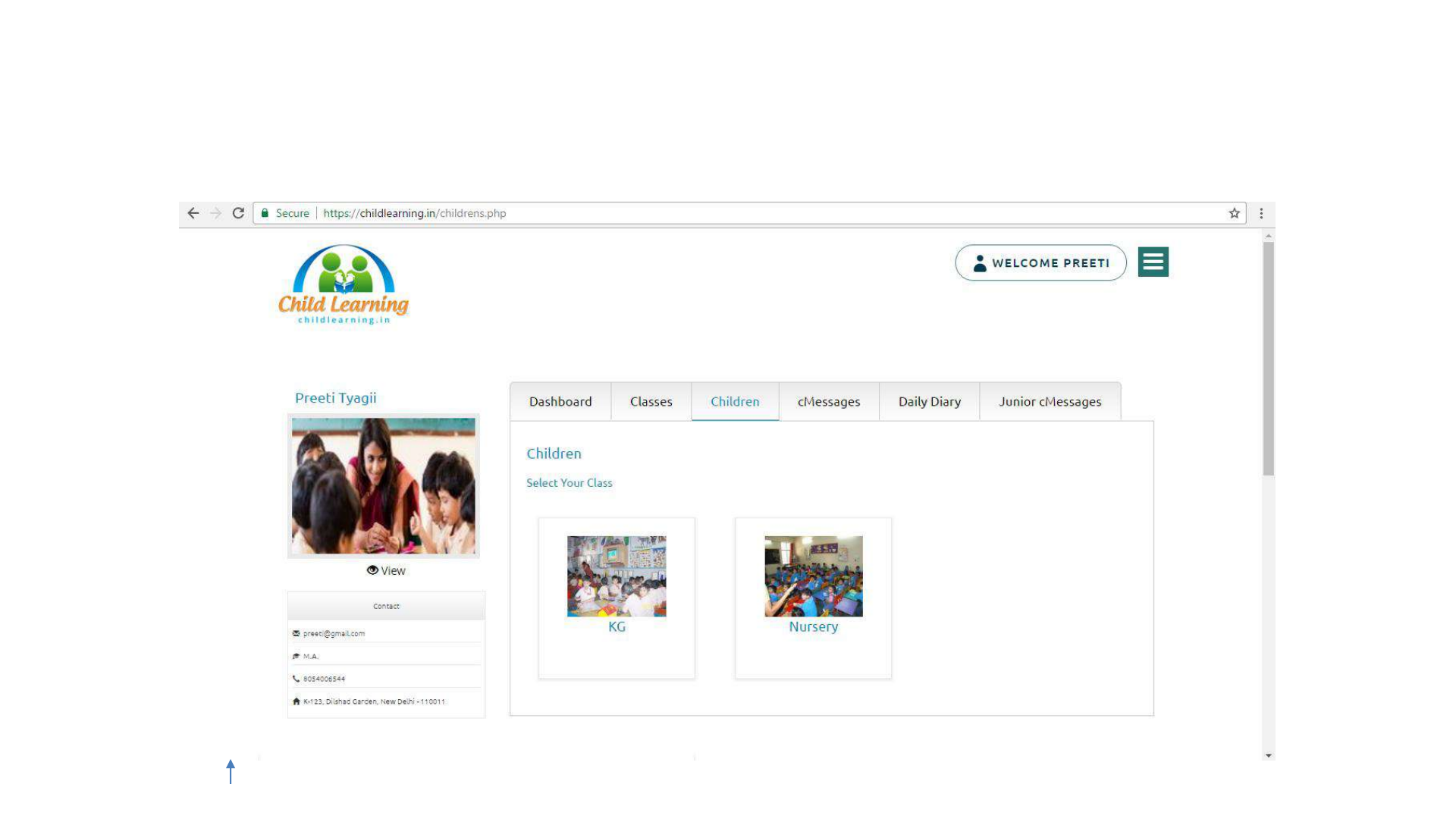

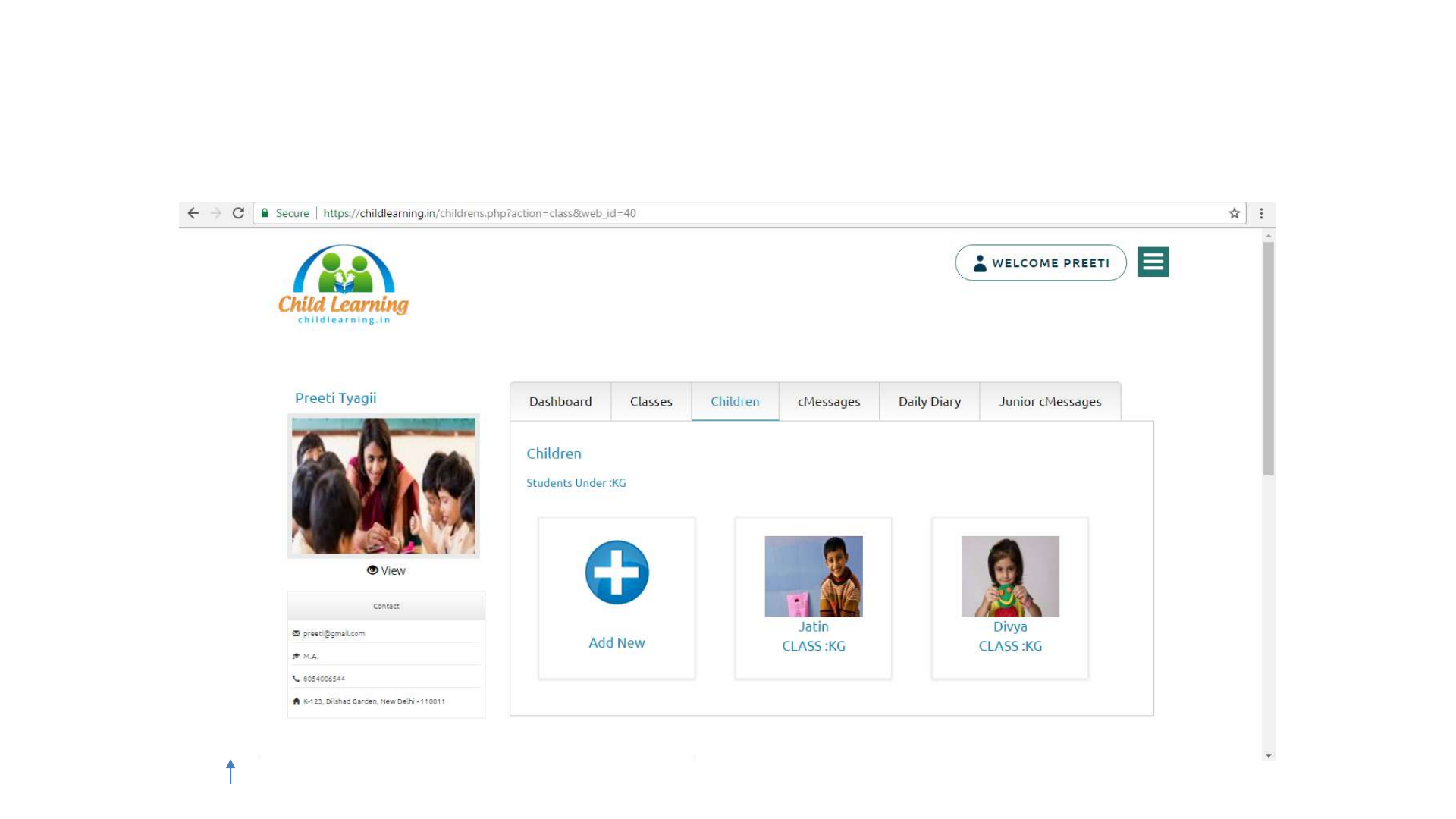

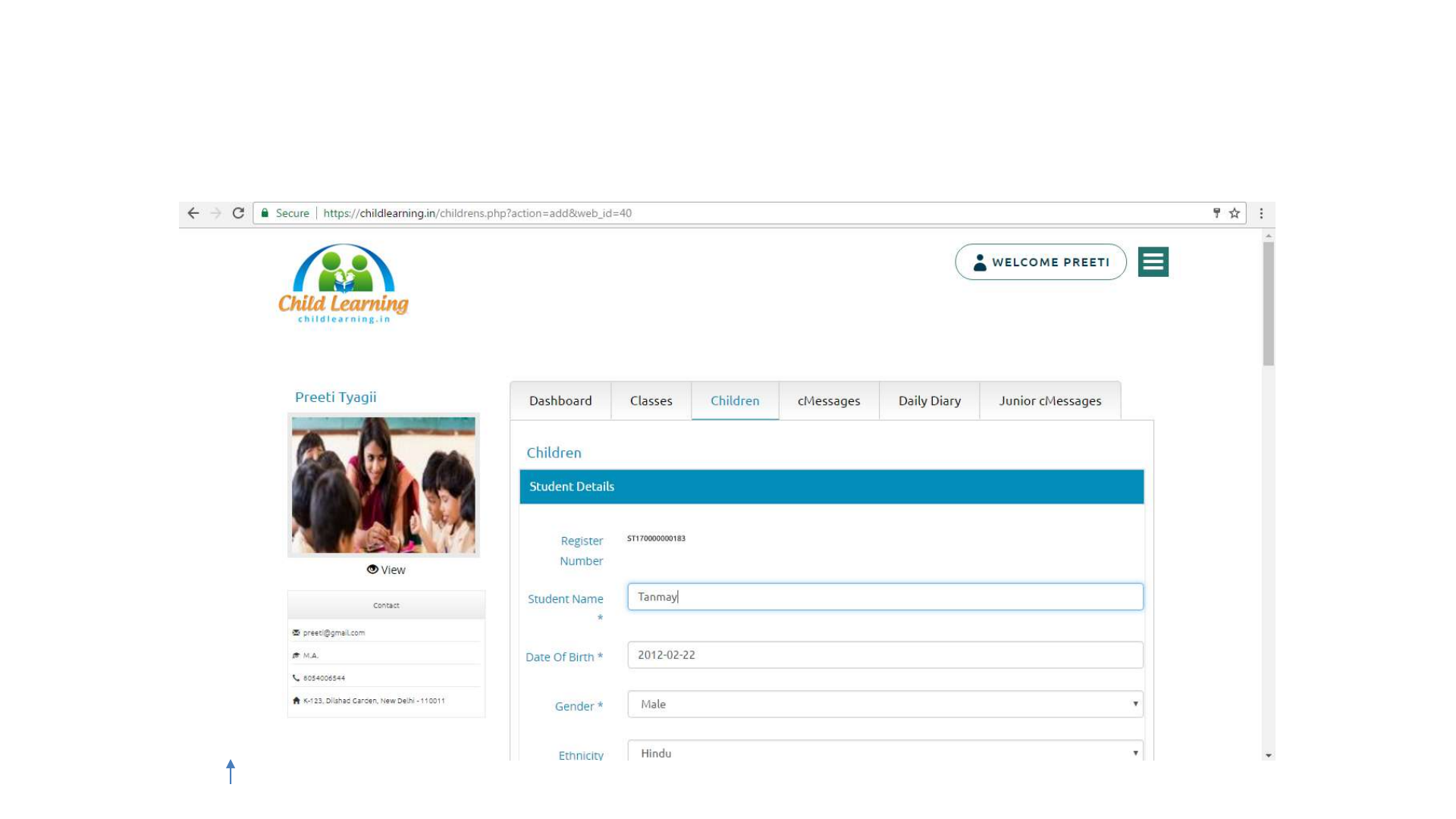
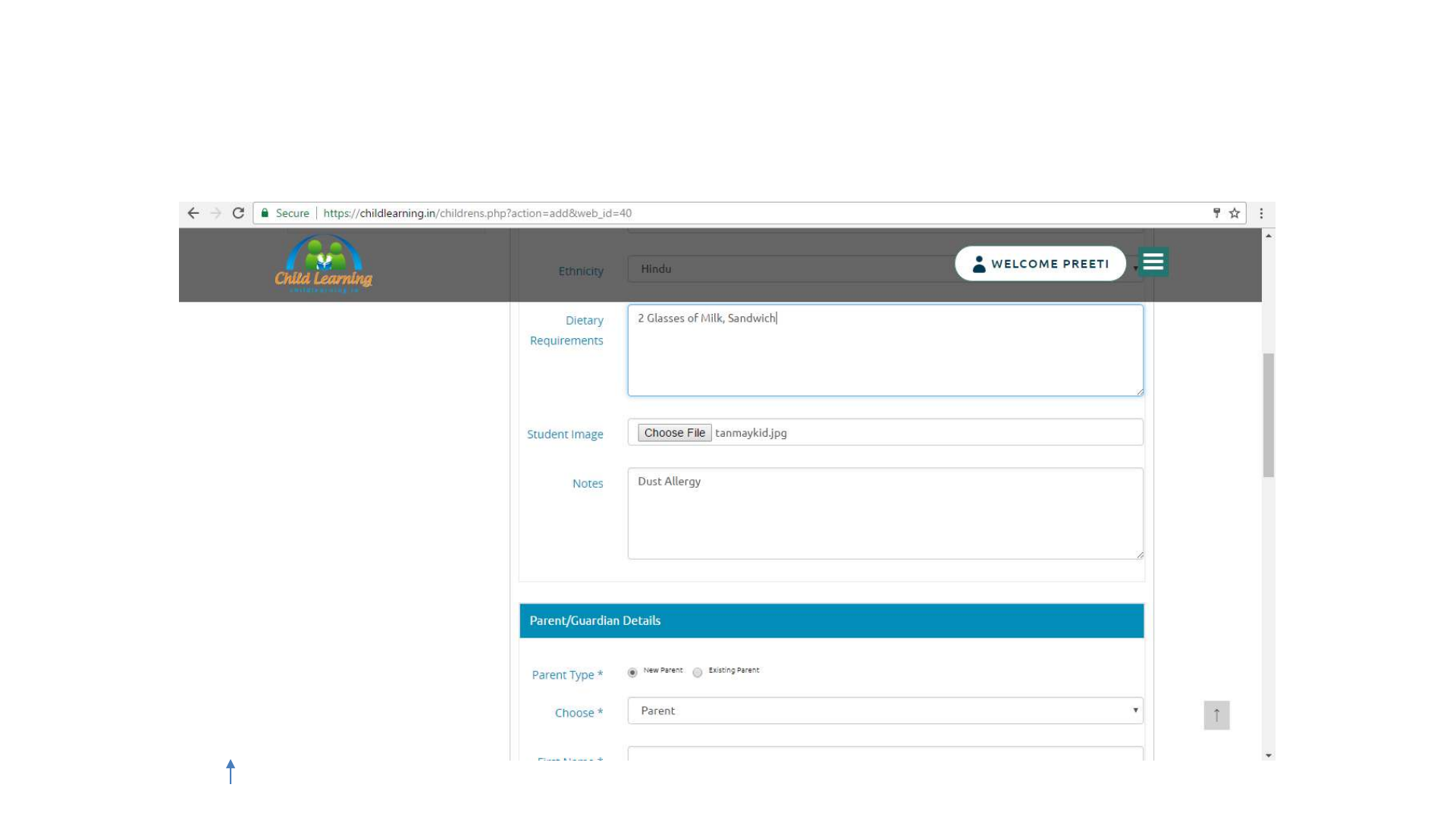
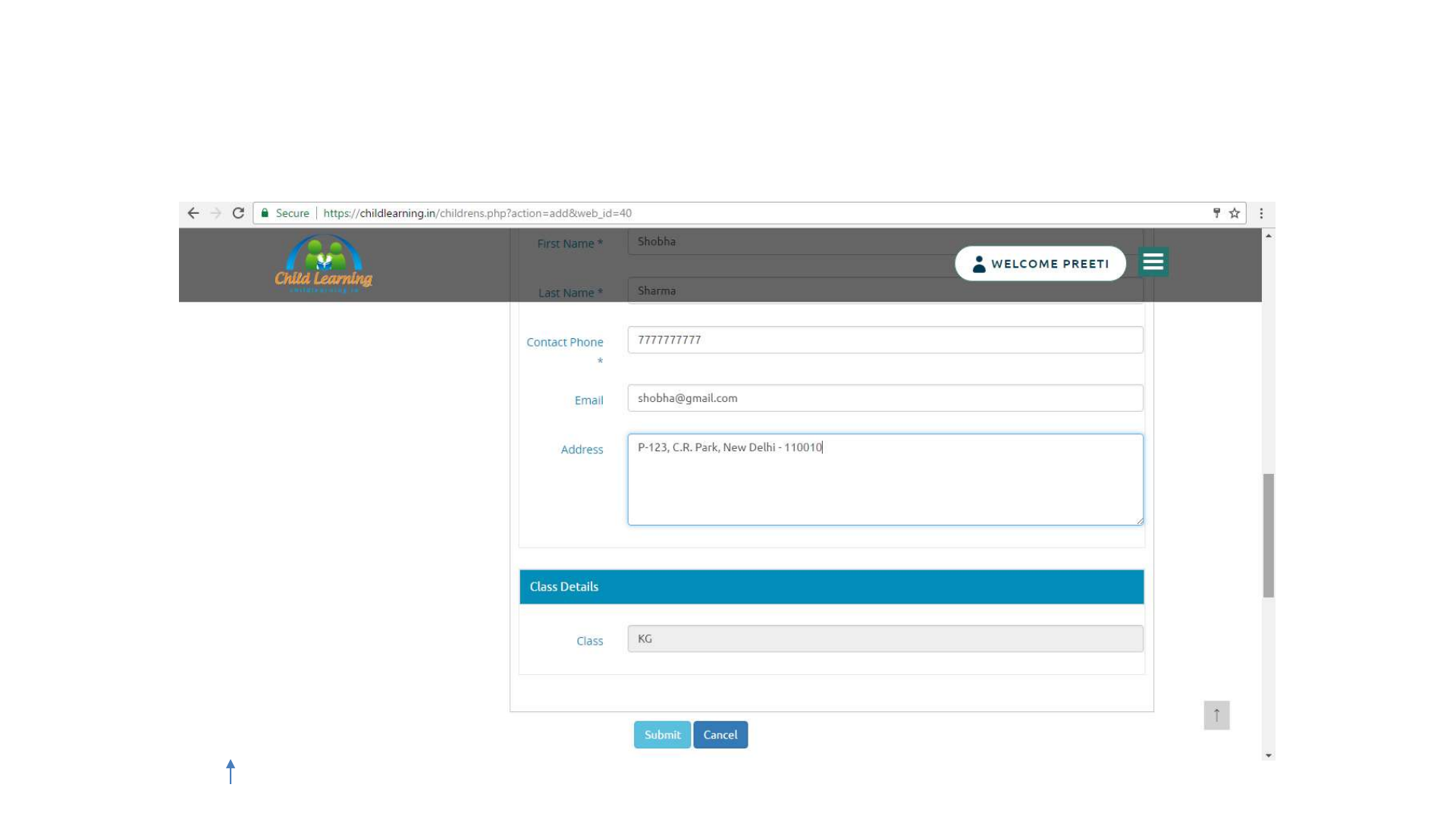

Children Management –Add Child
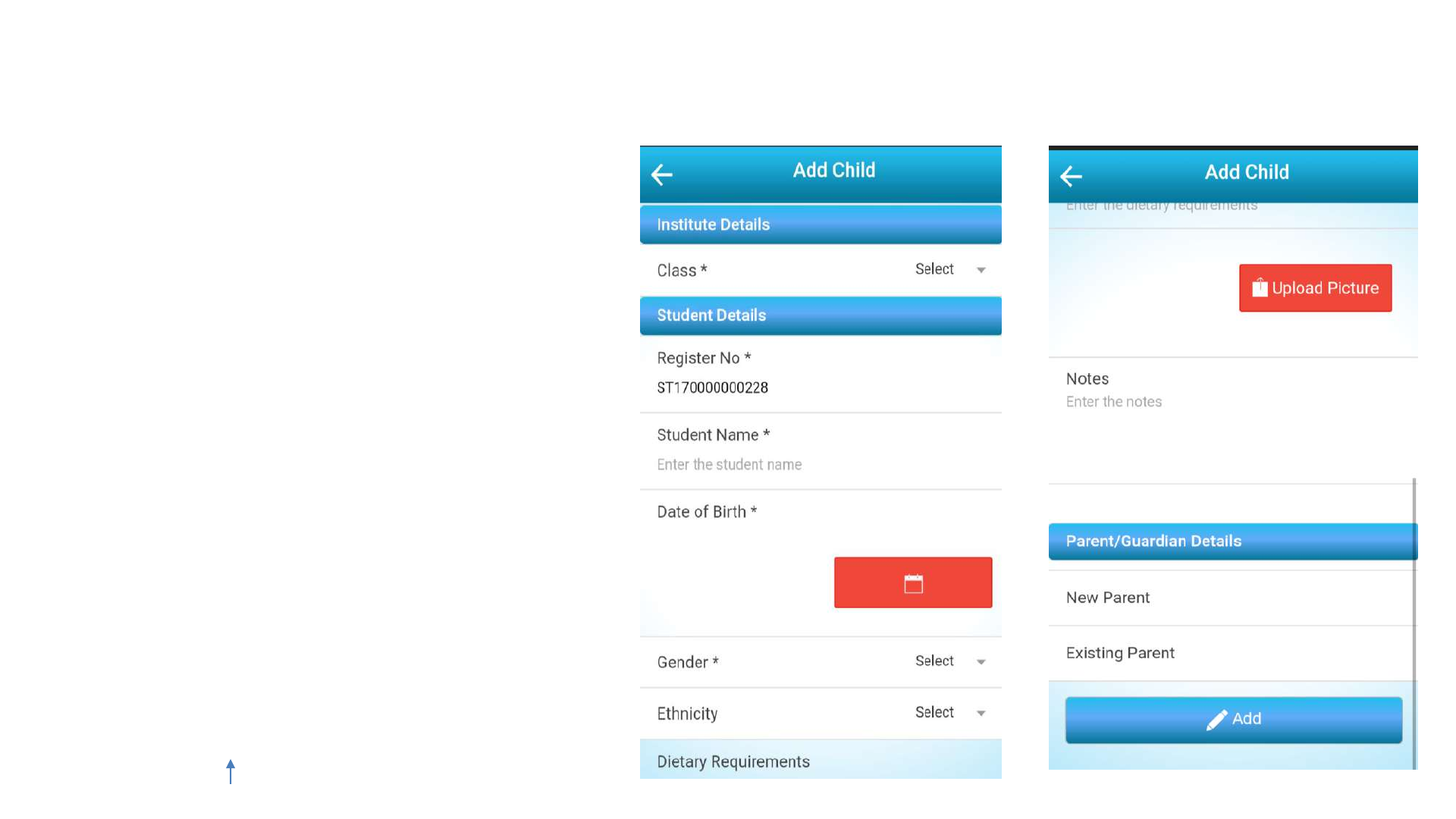
•On the ‘Add New Children’ page, the user has to specify the child Name,
DOB, Gender, Ethnicity, Dietary Requirements, Student Image, Notes and
Parent/Guardian Details
•New parents or existing parent can be added for a child.
•Ethnicity, Dietary Requirements, Notes and Student Image of the Child are
optional. Address and Contact Phone of the Parent are also optional.
•User can either enter a Parent or a Guardian for the child by using ‘Parent
Type’ selector.
•Two or more children can have one parent or guardian.
•Upon saving, the parent will receive an email with login details.
CLJ Teacher User Guide V4.0 25
Index
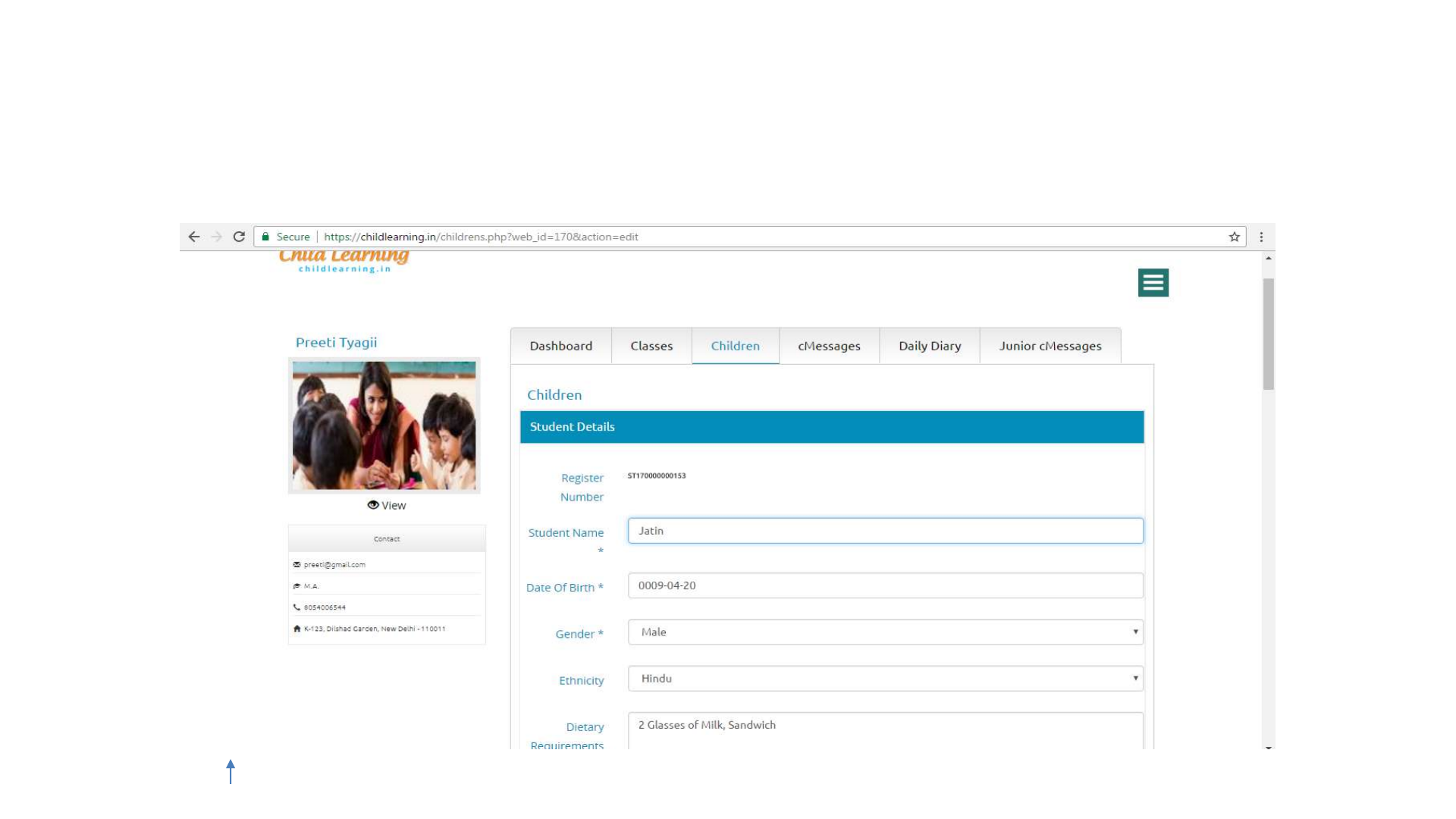
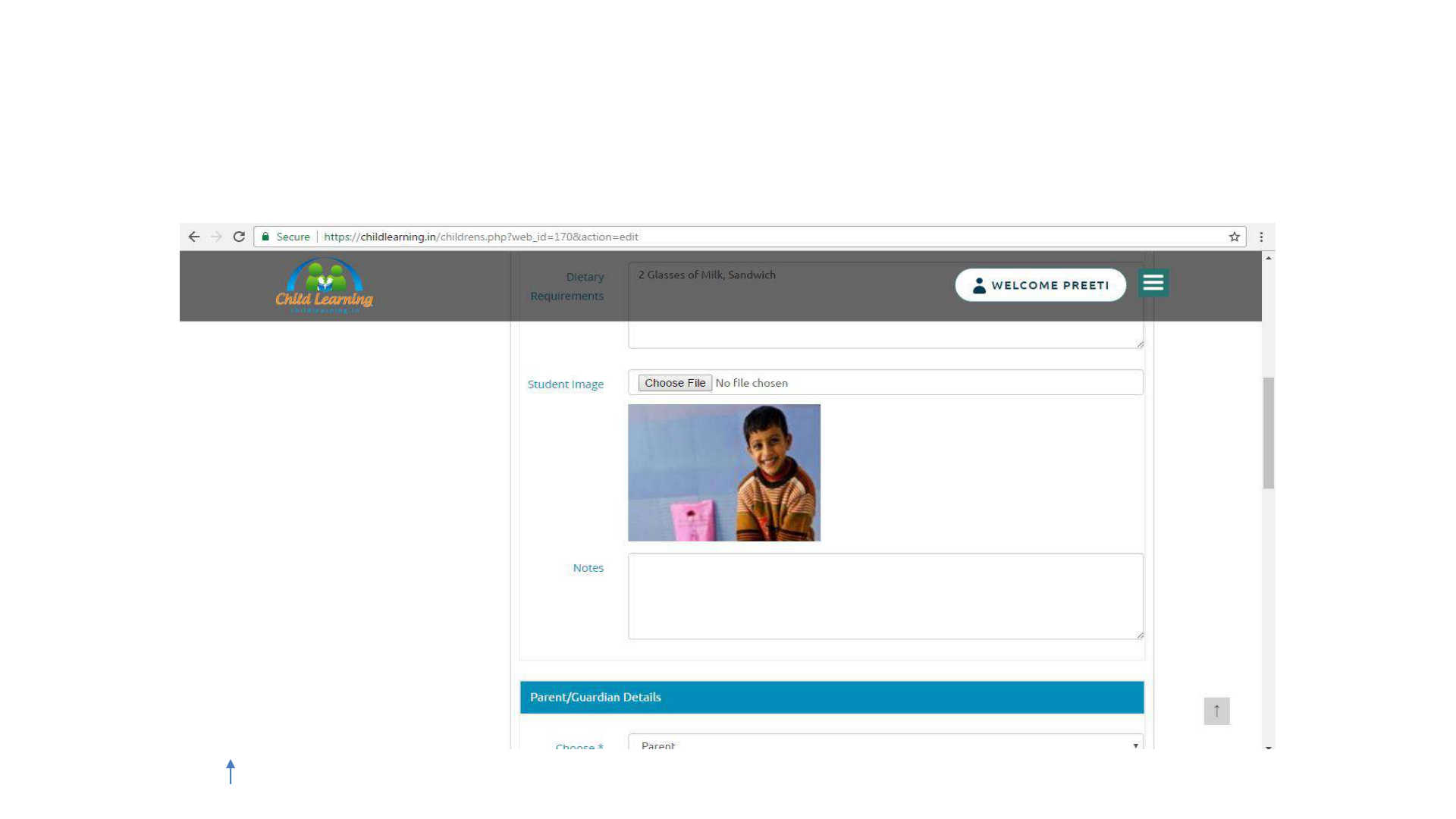
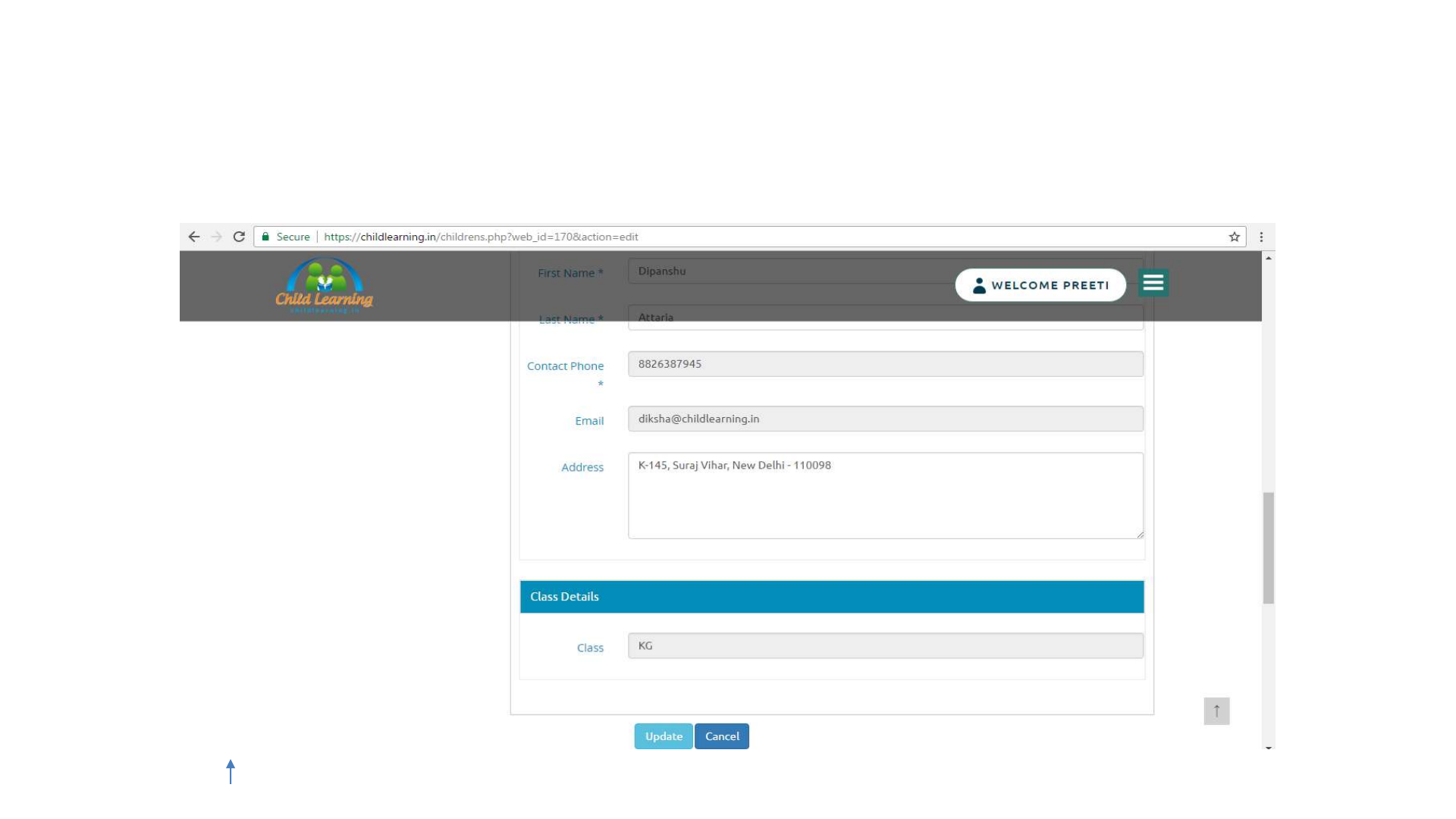

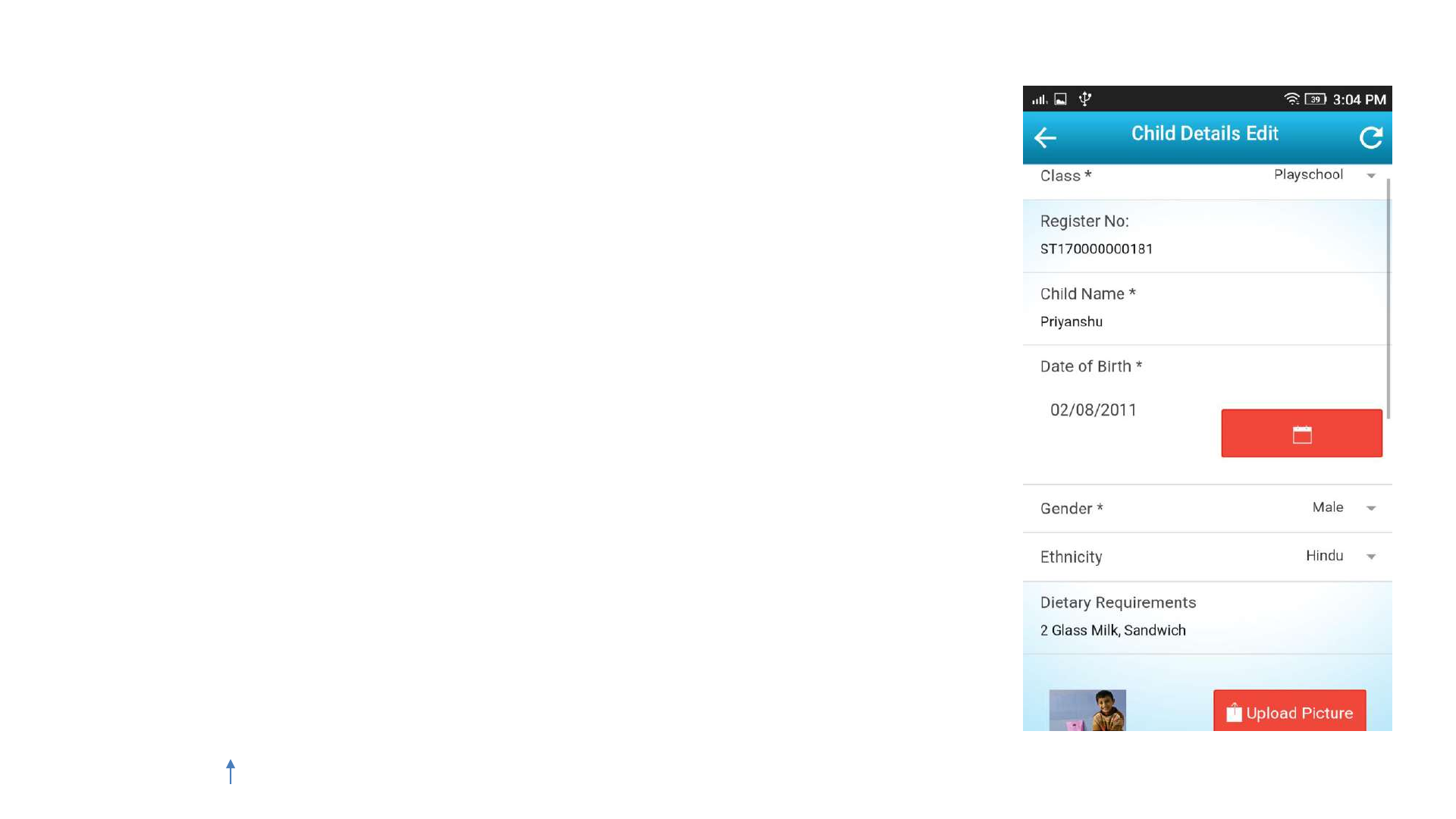
Children Management –Edit Child
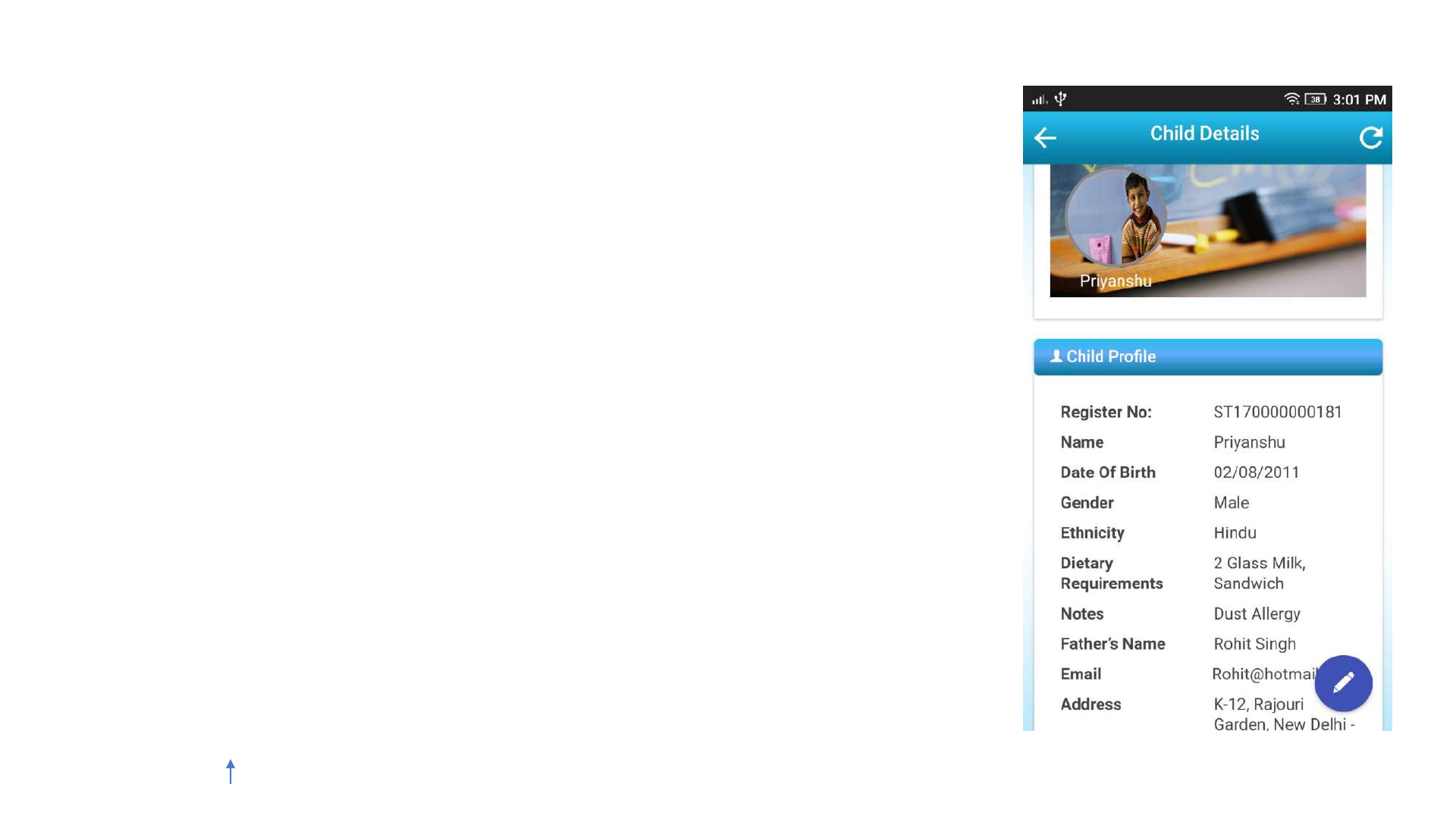
•Existing children can be edited by clicking on the the child name.
•On the ‘Edit Children’ page, the user may specify a Student Name,
DOB, Gender, Ethnicity, Dietary or Profile Picture.
•The Parent Email cannot be changed.
•Ethnicity, Dietary Requirements, Student Image, Notes, Address and
Contact Phone are optional, everything else must be defined and
cannot be left blank.
•Parent/Guardian details can also be changed.
CLJ Teacher User Guide V4.0 29
Index



cMessage –Add cMessage
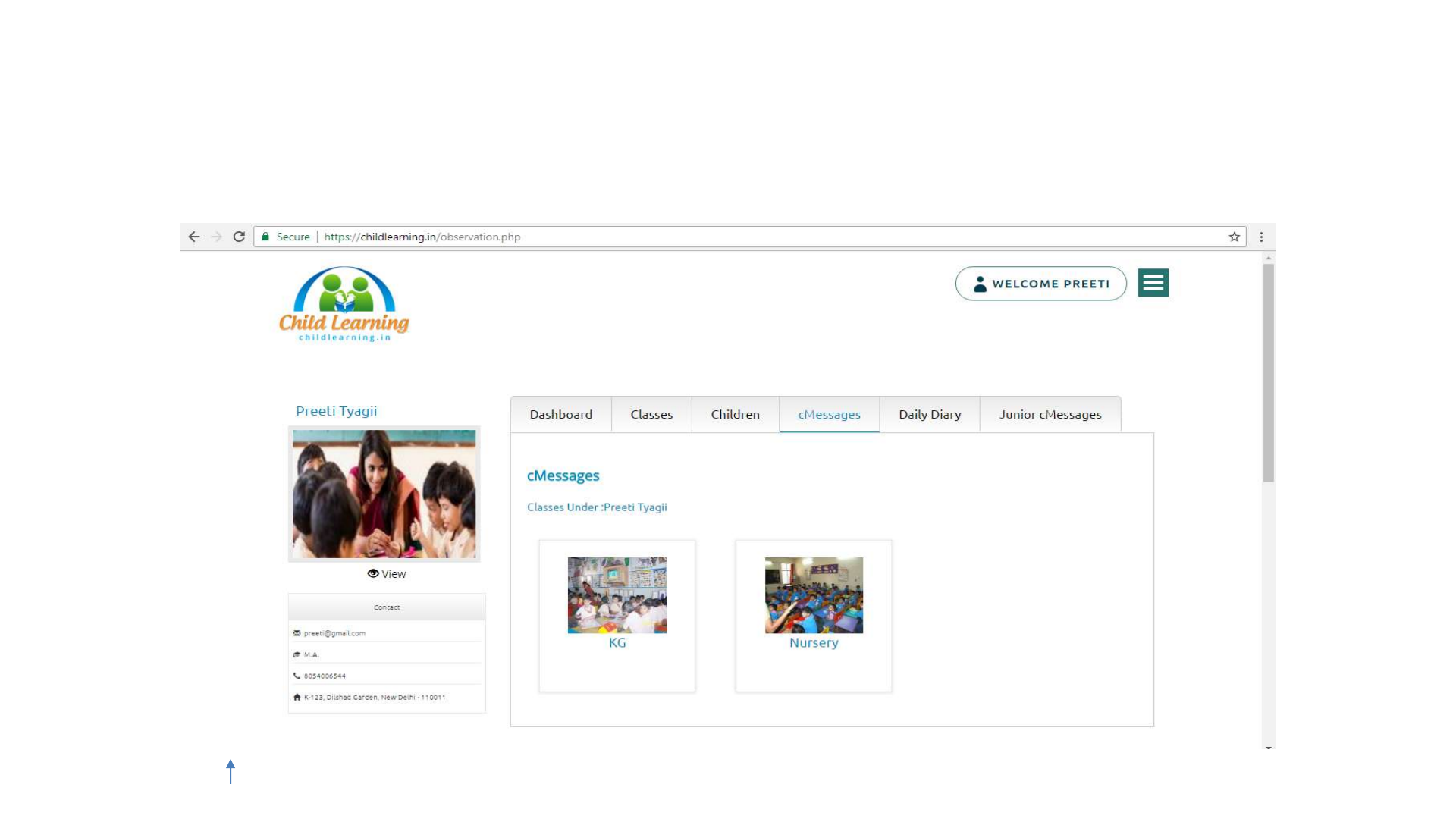
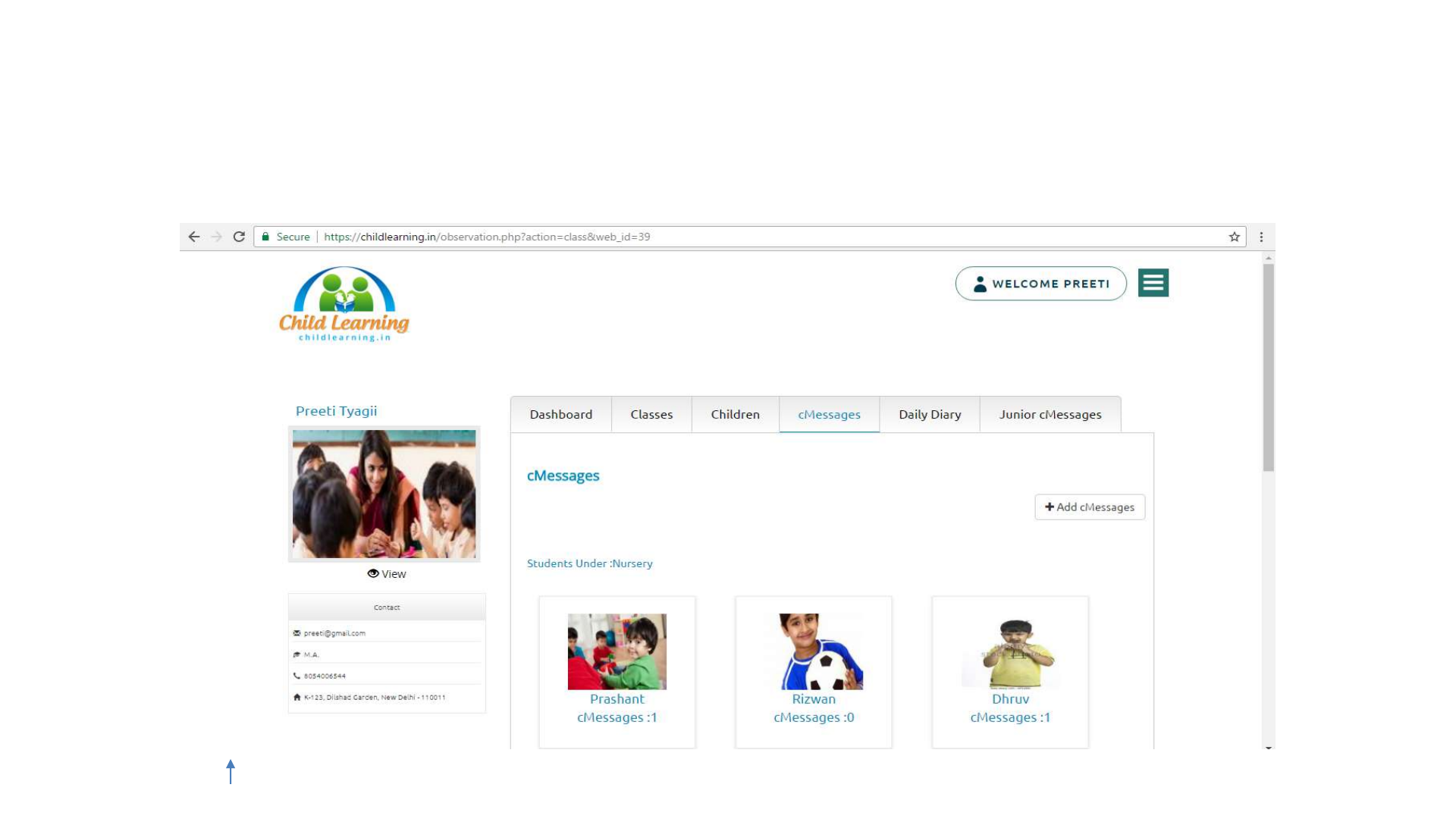
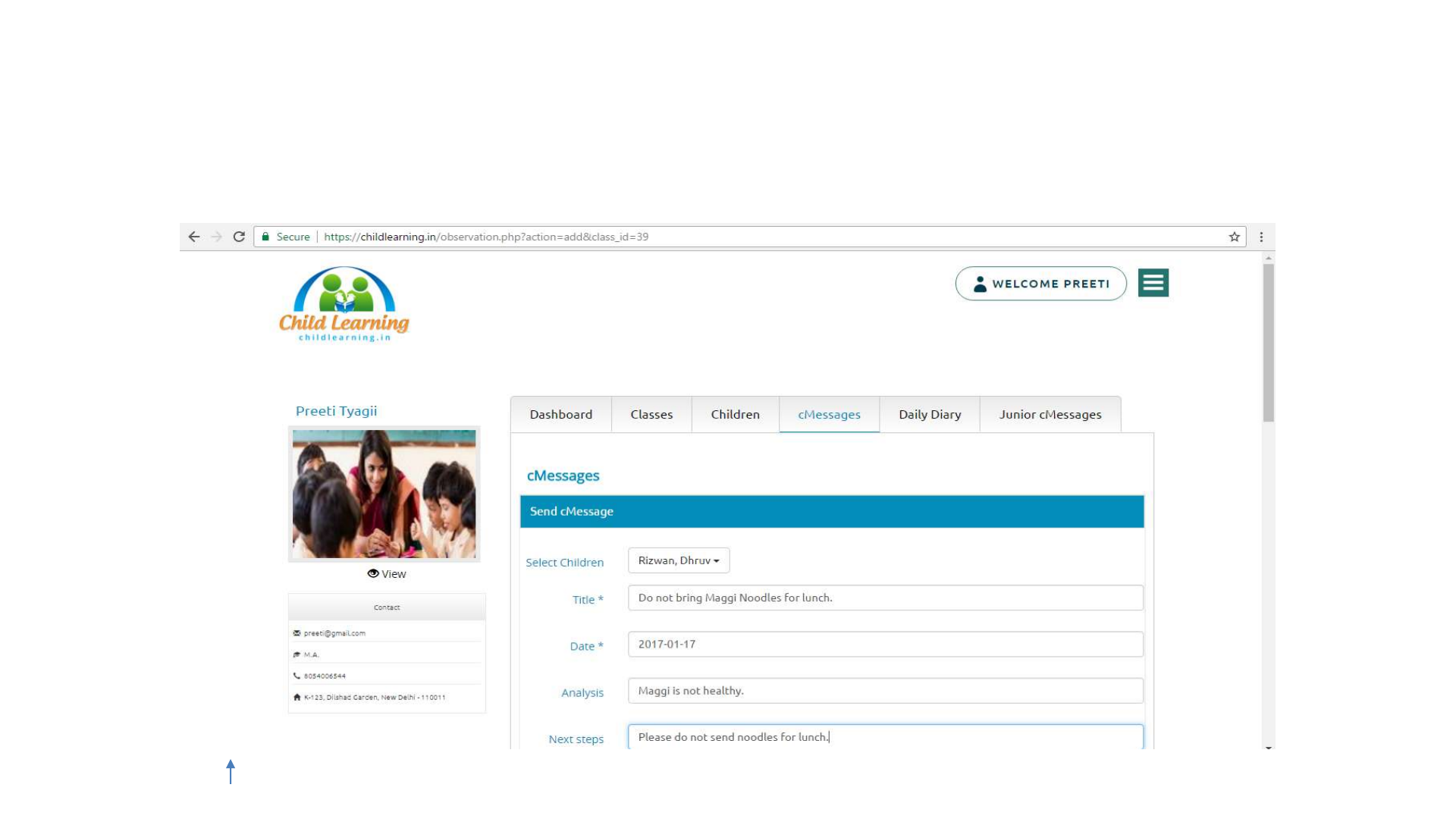
•On the ‘Add cMessages’ page, the user need to select the Class and
it’s one, few or all children.
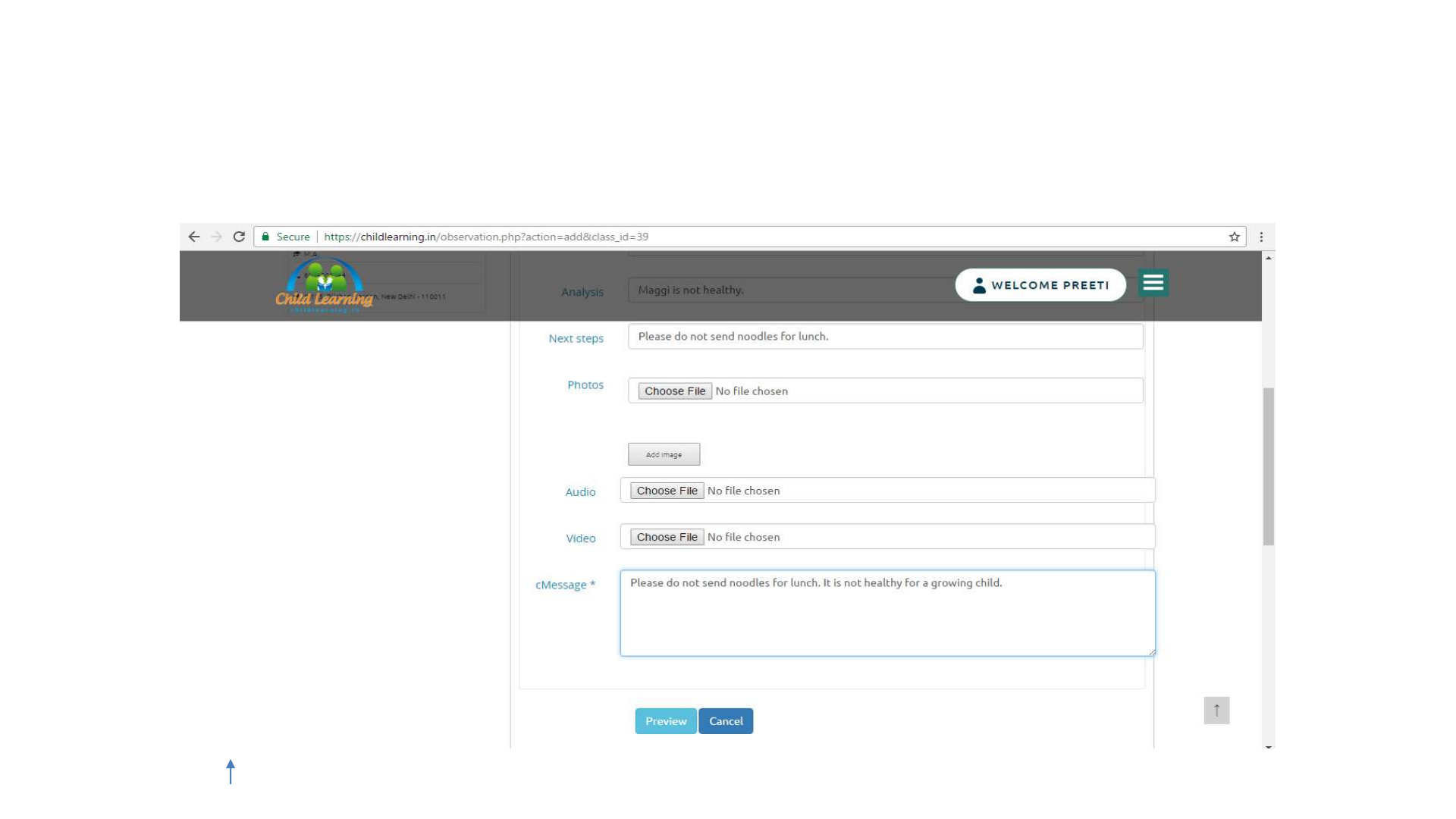
•User needs to specify the Title, Date, Analysis and Next Steps and the
Message (cMessage)
•User can also attach multiple Photos along with the Audio and Video
to the cMessage.
Note: Big size pictures, videos, audios will take longer to upload.
•Analysis, Next Steps and Attachments are optional, everything else
must be added.
•When submitted parent(s) will receive an email and mobile (in-app)
notification for the cMessage.
CLJ Teacher User Guide V4.0 36
Index
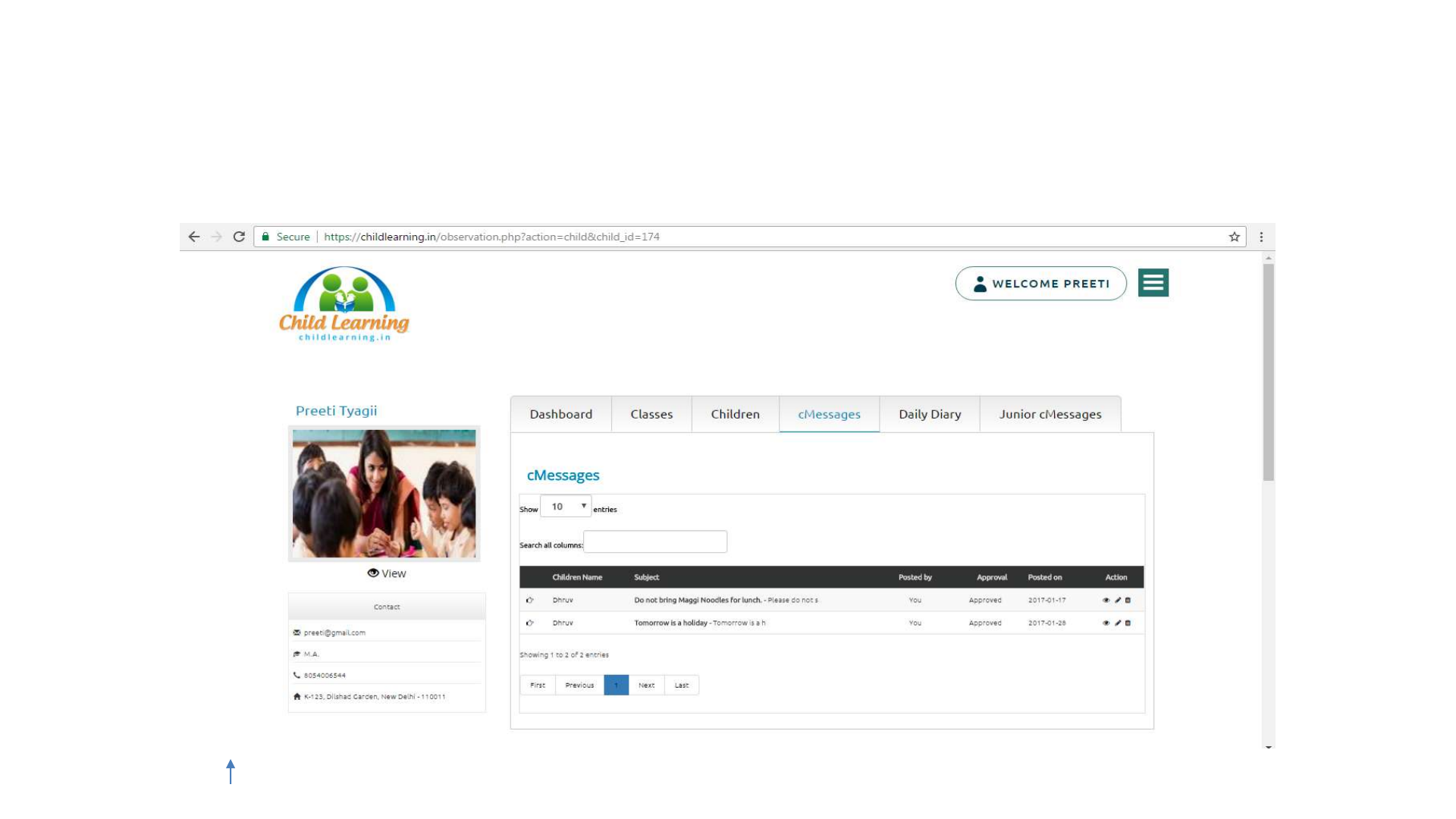

cMessage –View cMessage List
•This section shows all the cMessages created by all the teachers and
parents associated with the institute.
•New cMessage can be created and existing cMessage contents can be
viewed, edited and deleted from this section.
•The section consists of five columns namely – ‘Children’, ‘Subject’,
‘Posted by’, ‘Approval’ and ‘Action’.
•The ‘Children’ column shows the name of a Child
•The ‘Subject’ column shows the Title and a few words of the
cMessage separated by -.
CLJ Teacher User Guide V4.0 38
Index

cMessage –View cMessage List Cont..
•The ‘Posted by’ column shows the name of the Senior
Teacher/Institute Admin/Parent i.e. who posted the cMessage.
•The ‘Approval’ column show whether the cMessage has been
approved or not.
•The ‘Action’ column contains links to view, edit and delete the
cMessage.
•cMessages posted by the user himself can only be edited and deleted.
•Senior Teacher has the provision to edit and delete the cMessage of
Junior Teacher.
CLJ Teacher User Guide V4.0 39
Index
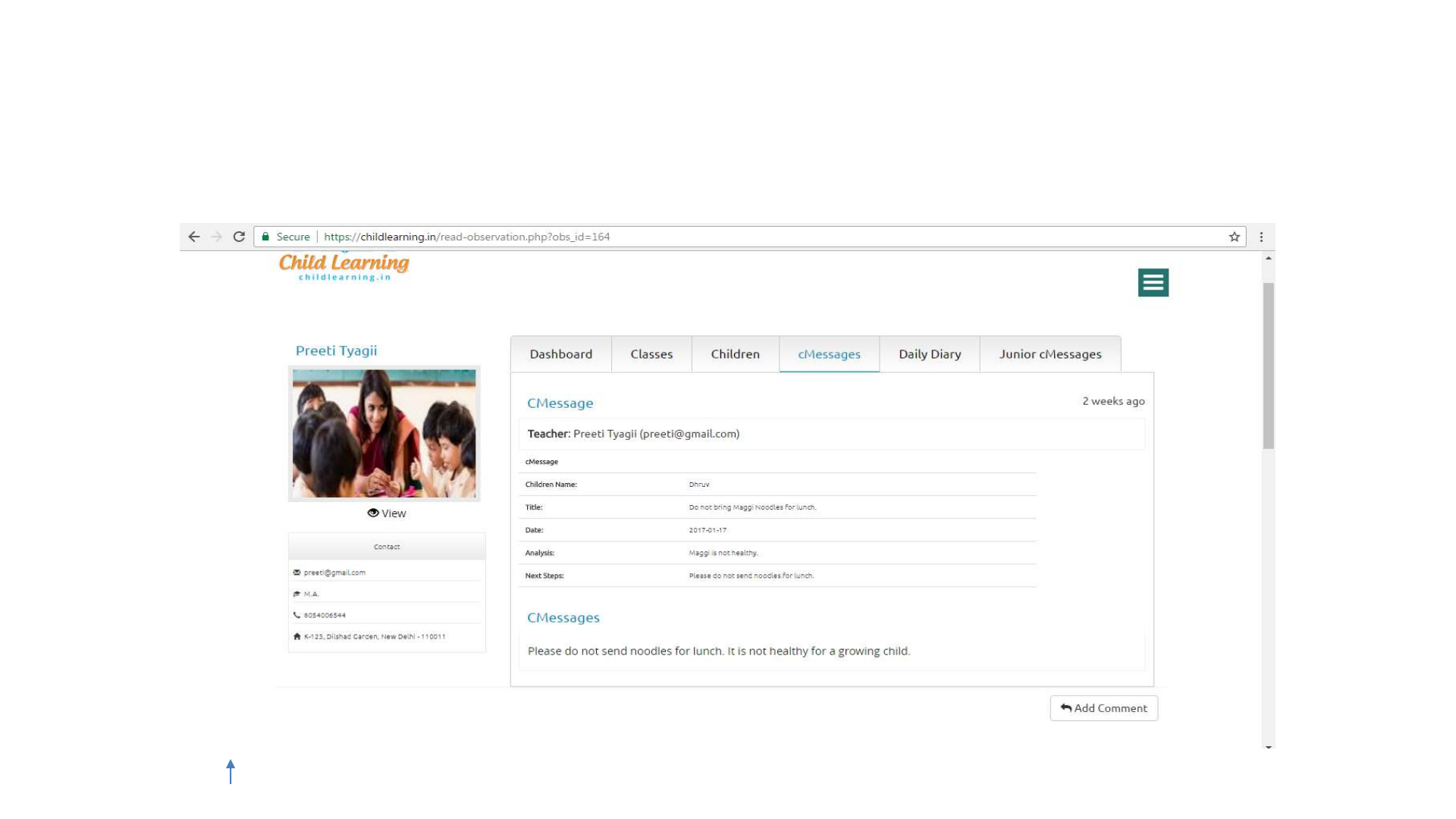

cMessage –View cMessage
•cMessage can be viewed by clicking on the icon under the Action
column.
•The user can view the Title, Date, Analysis and Next Steps of the
cMessage along with the name of child posted for.
•Any audio, video and pictures attached with the cMessage are also
shown below the contents of the cMessage.
CLJ Teacher User Guide V4.0 41
Index
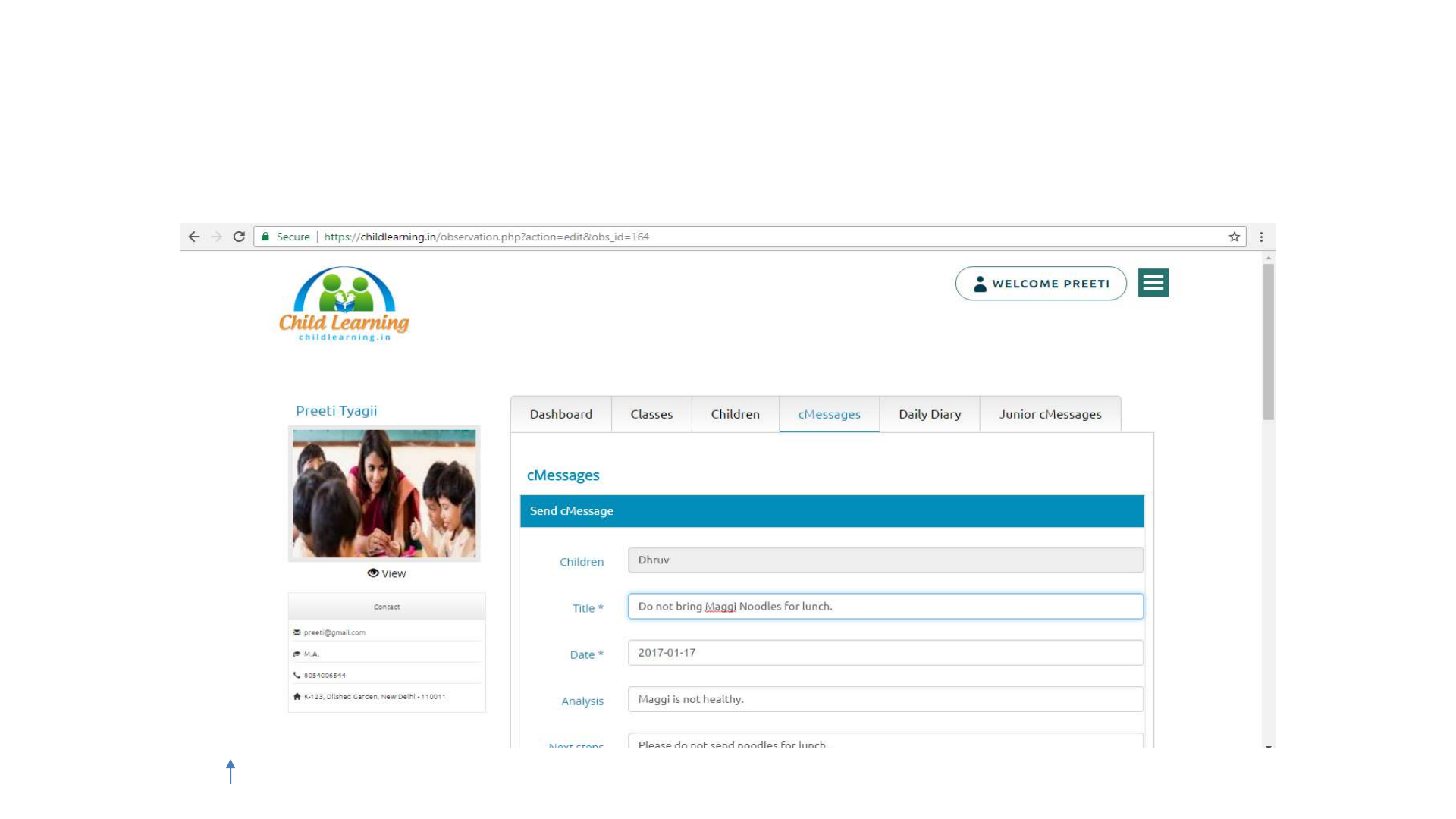
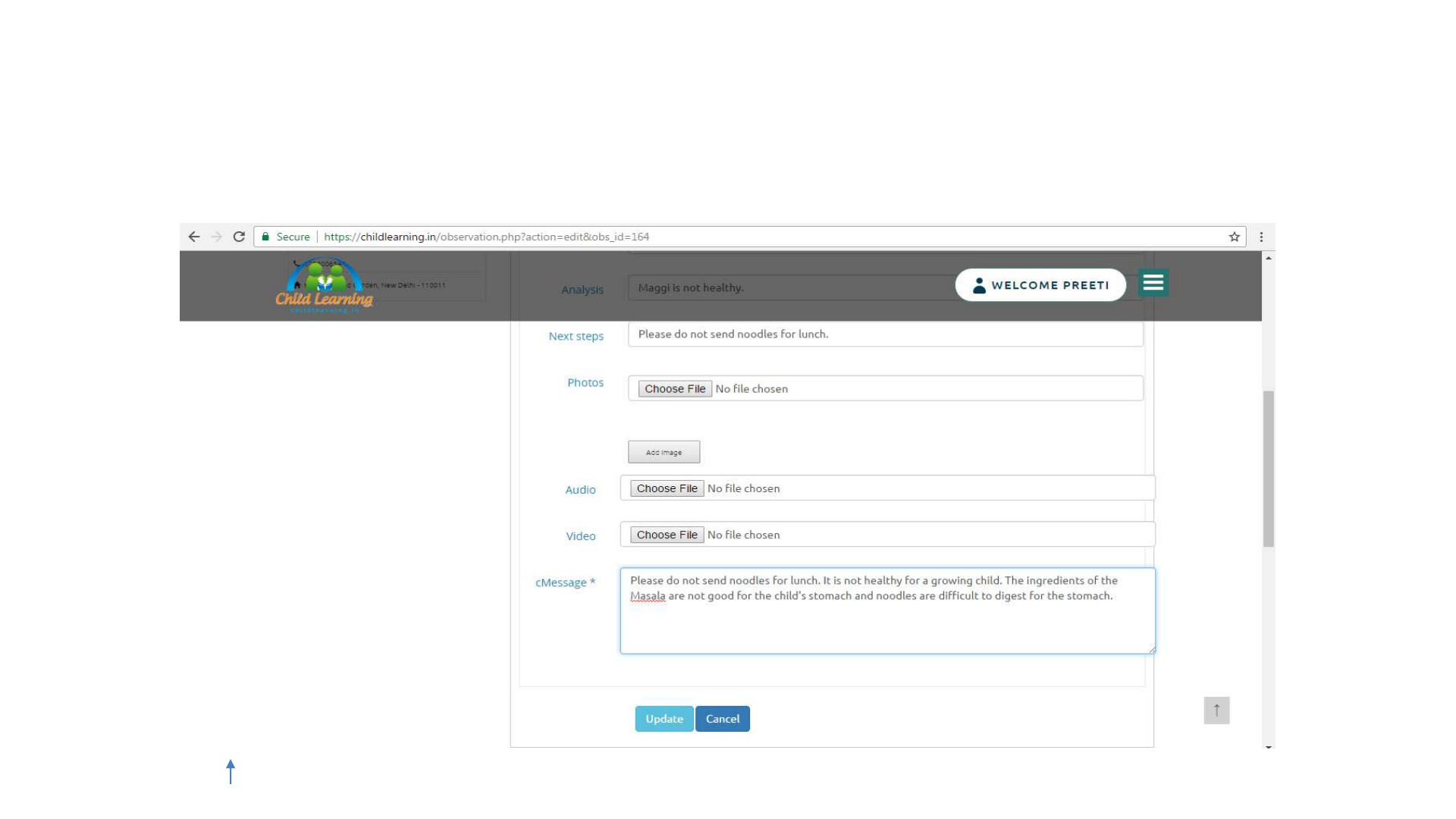

cMessage –Edit cMessage
•Existing cMessages can be edited by clicking on the icon under the
Action column.
•On the ‘Edit cMessage’ page, the user may specify a new Title, Date,
Analysis, Next Steps and description for the cMessage along with any
attachments.
•The Child Name for the cMessage cannot be changed..
•Analysis, Next Steps and Attachments are optional, everything else
must be defined and cannot be left blank.
CLJ Teacher User Guide V4.0 44
Index

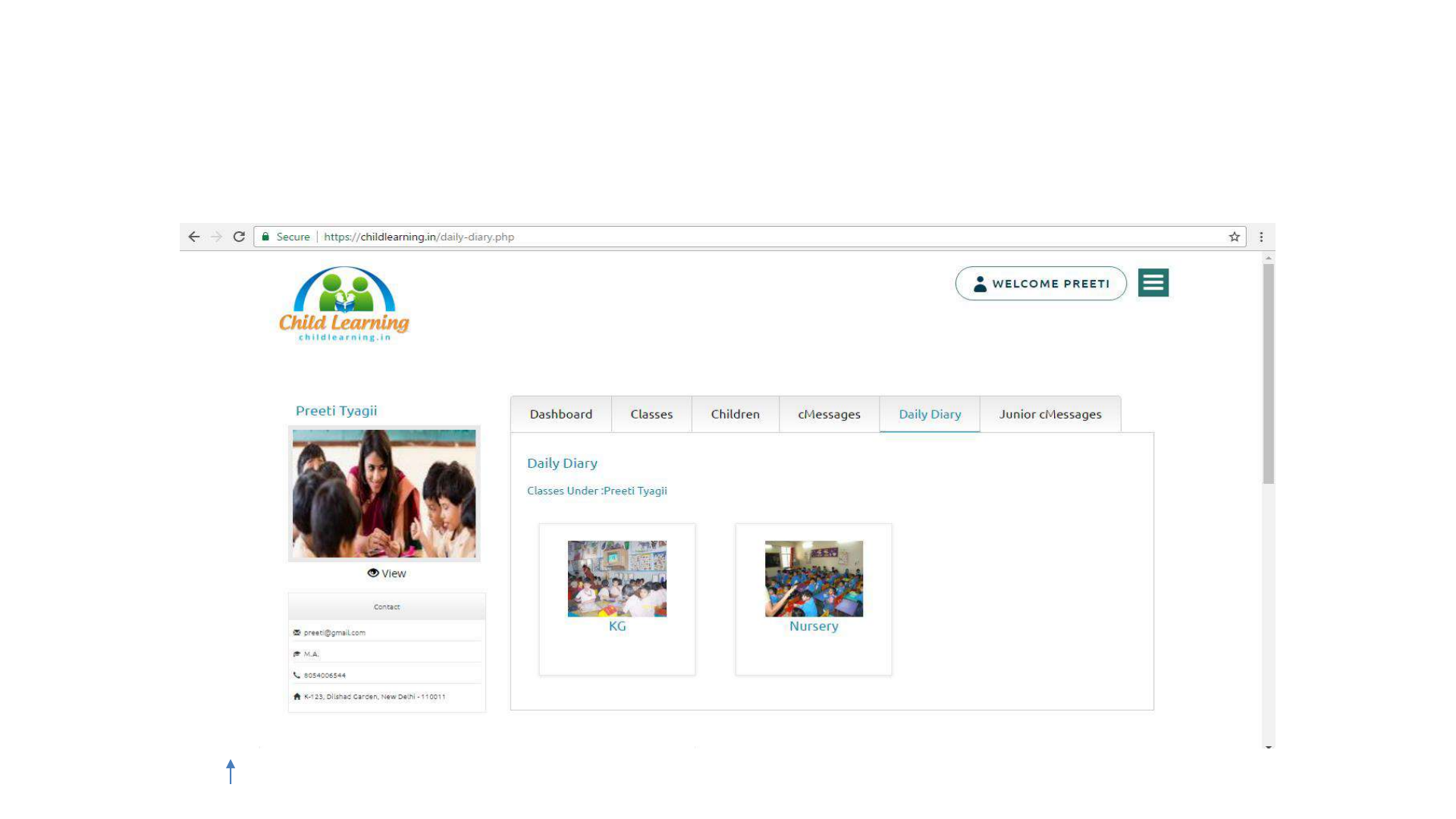

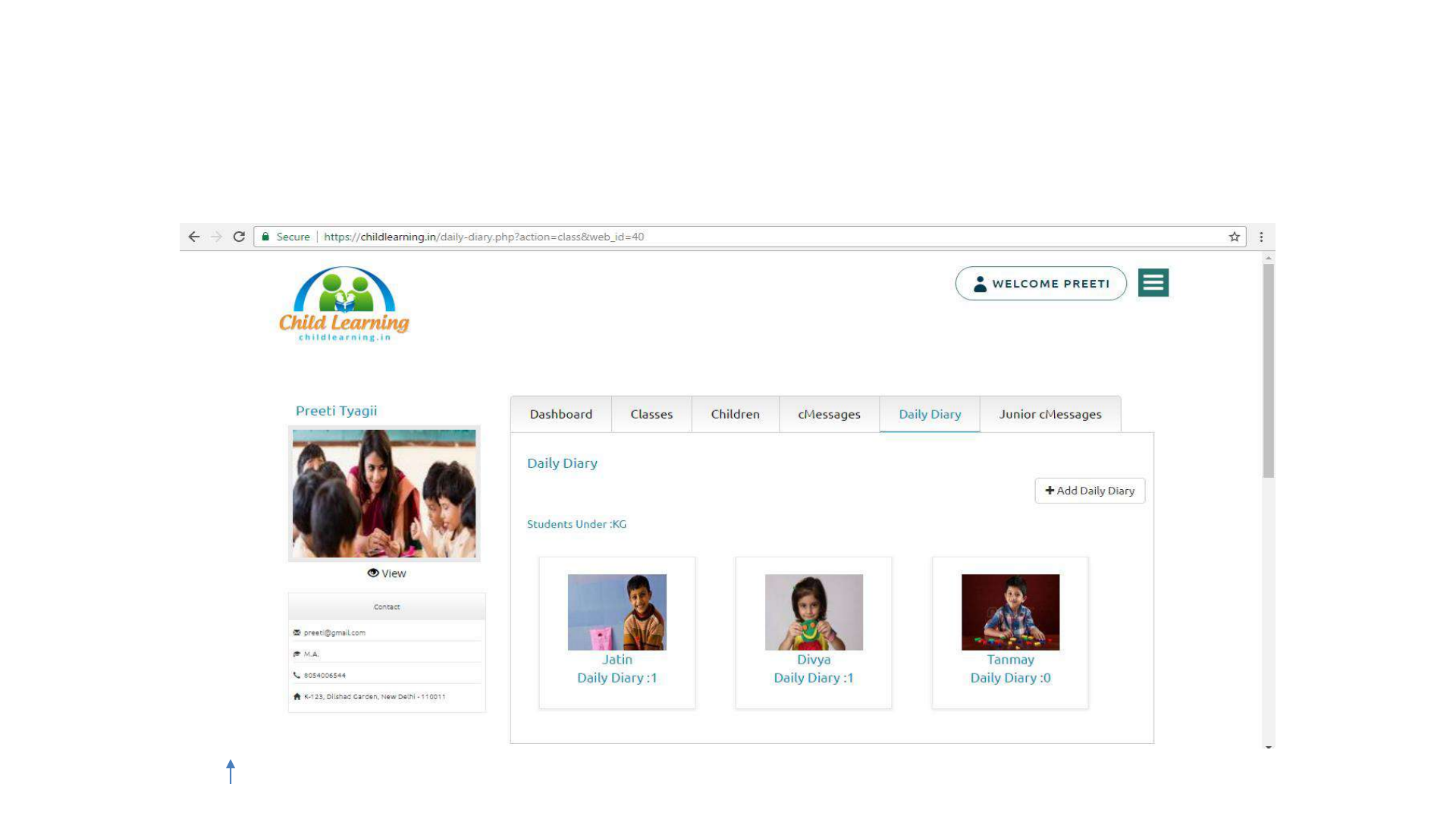

Daily Diary –Select Child
•This section shows the list of children in the selected class.
•Selecting a child will allow the user to view Daily Diary of a child.
•The user can add a new Daily Diary by clicking on the button at the
top right corner of the web page.
•Depending on the Class Type chosen by Institute Admin for the Class
e.g. Nursery, Day Care, the specific Daily Dairy Interface will be
shown.
CLJ Teacher User Guide V4.0 49
Index
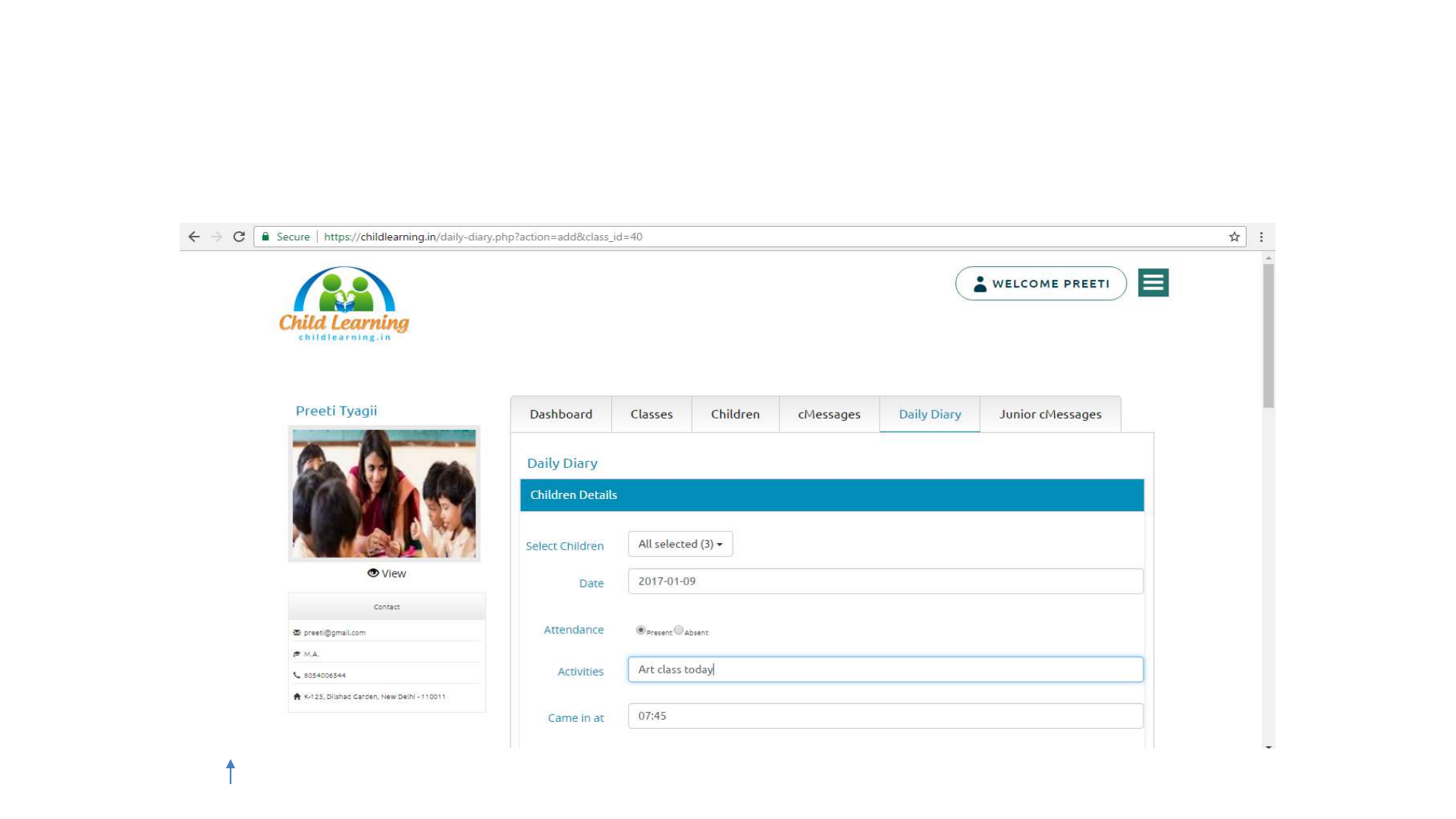
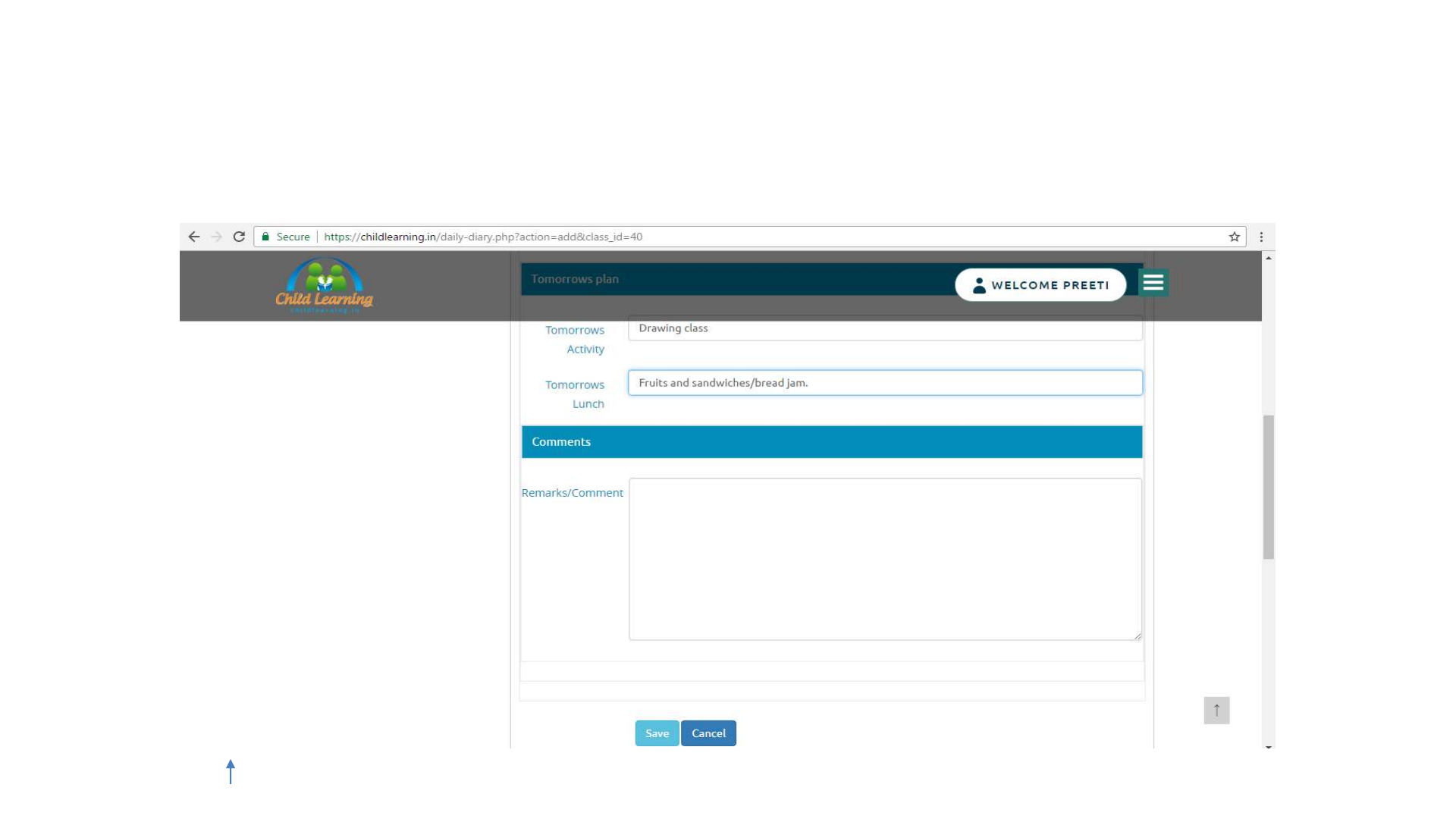

Daily Diary –Add Daily Diary
•On the ‘Add Daily Diary’ page, the user has to specify the child from a
list of children present in class assigned to him/her.
•The Date, Attendance, Activities, Came In, Left At, Tomorrow's
Activities, Tomorrow’s Lunch and Comments/Remarks depending on
whether a Child was absent or Present need to be entered.
•Everything except Date and Attendance is optional.
CLJ Teacher User Guide V4.0 52
Index
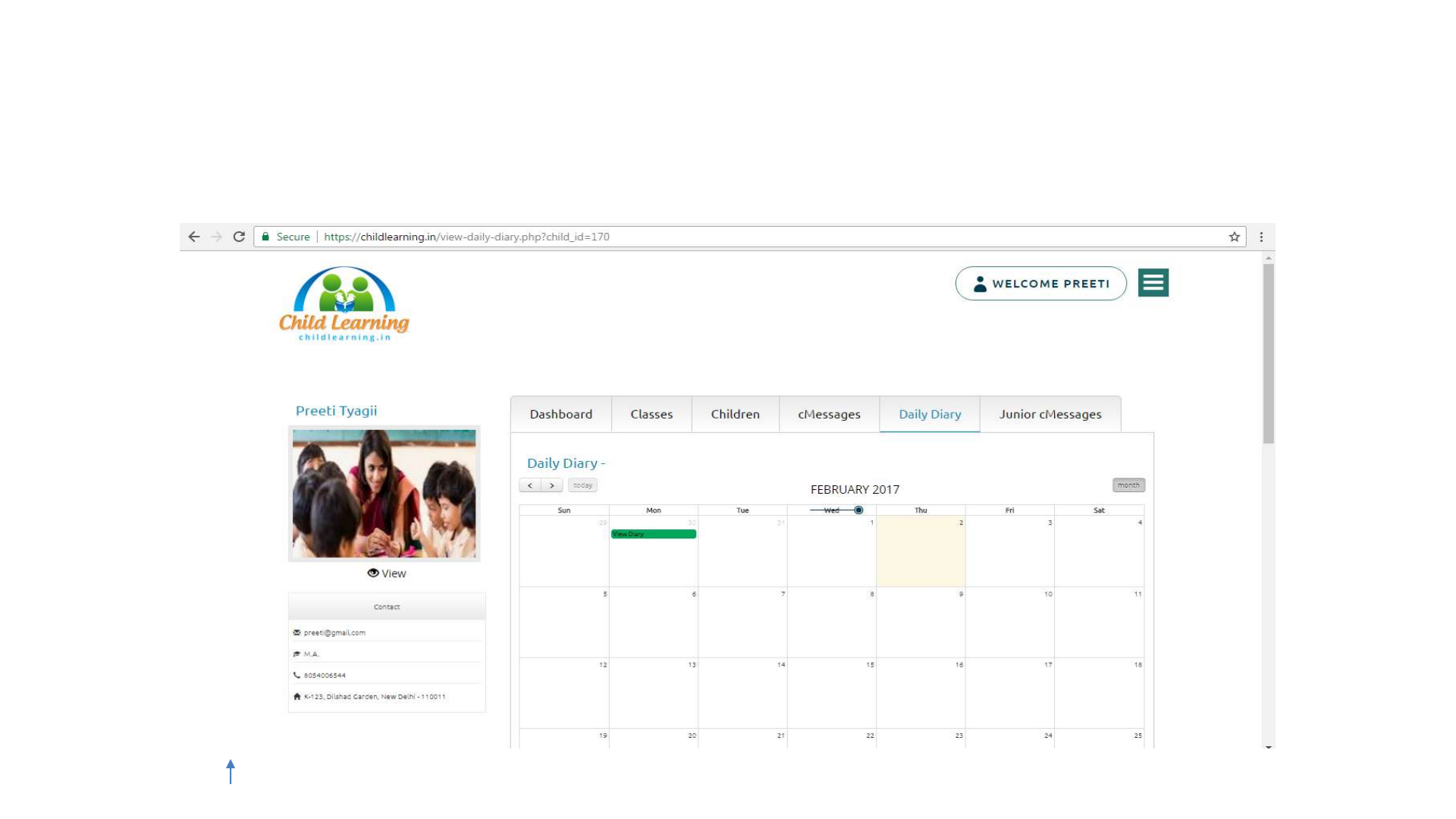

Daily Diary –View Daily Diary
•The View Daily Diary page consists of a calendar with a daily diary
entry for a given date.
•The calendar contains all daily diary for the child entered by
himself/herself, junior teacher and institute admin.
•The user can click on ‘View Diary’ to view the daily diary on a specific
date.
CLJ Teacher User Guide V4.0 54
Index
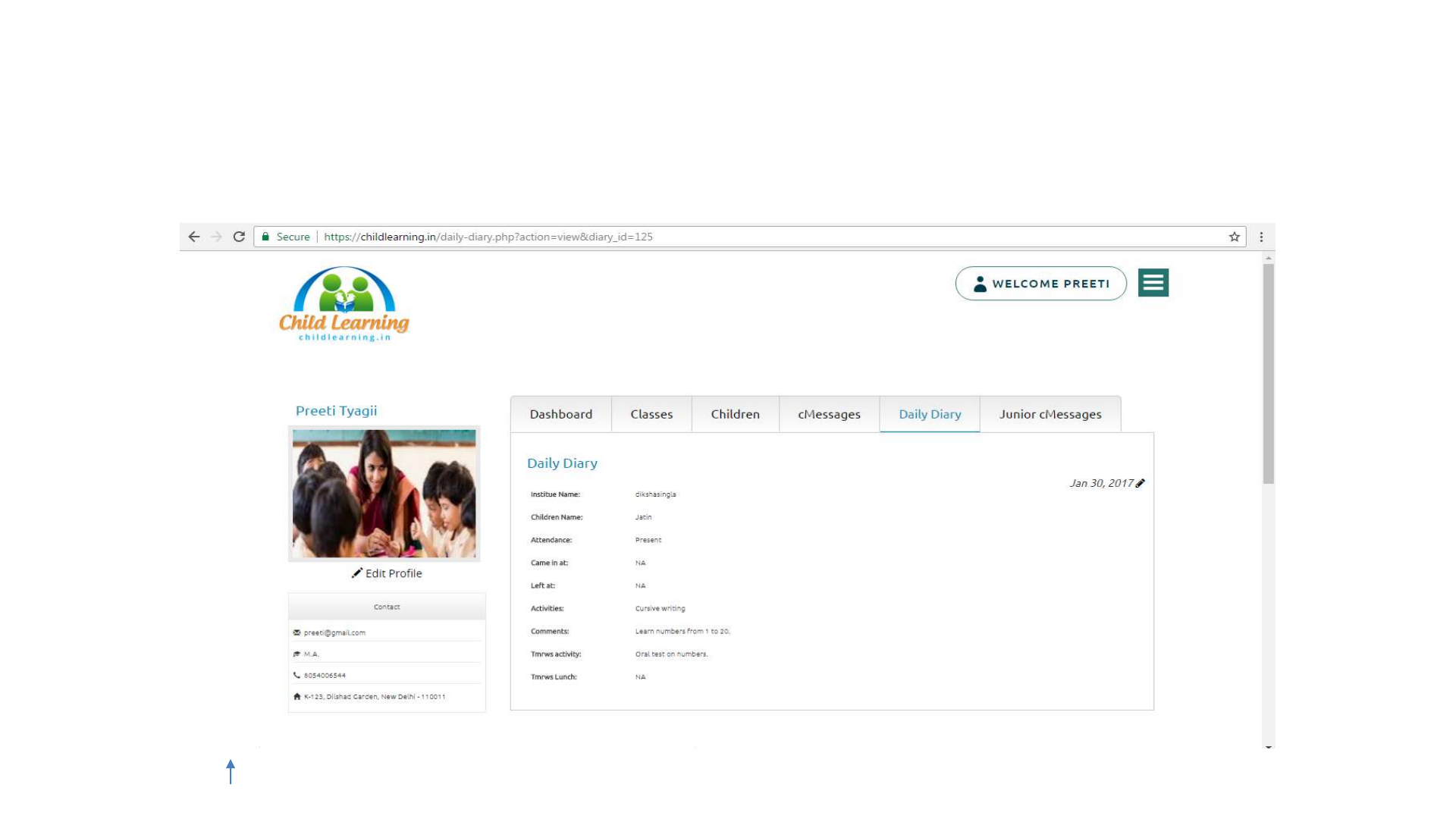

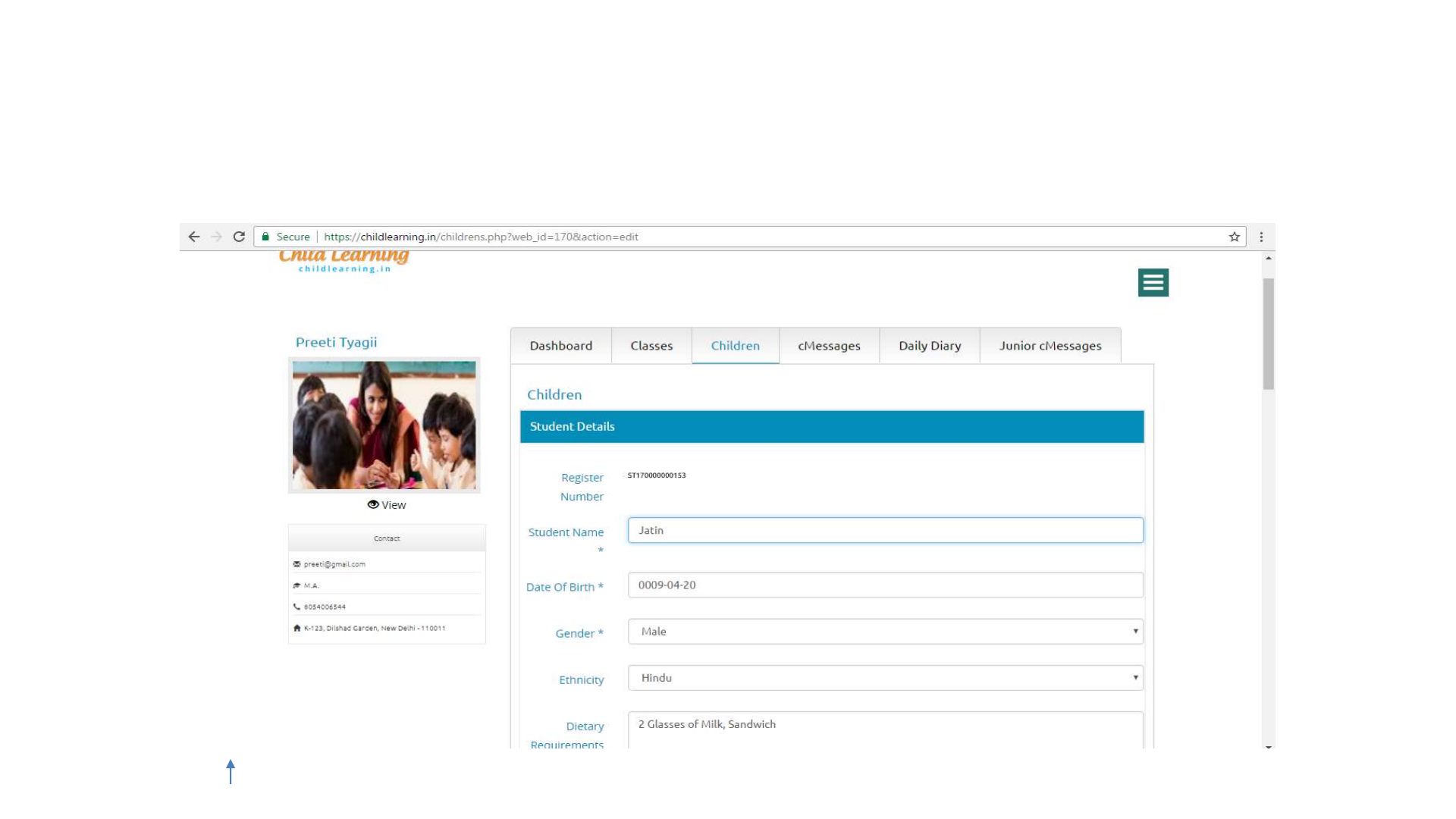
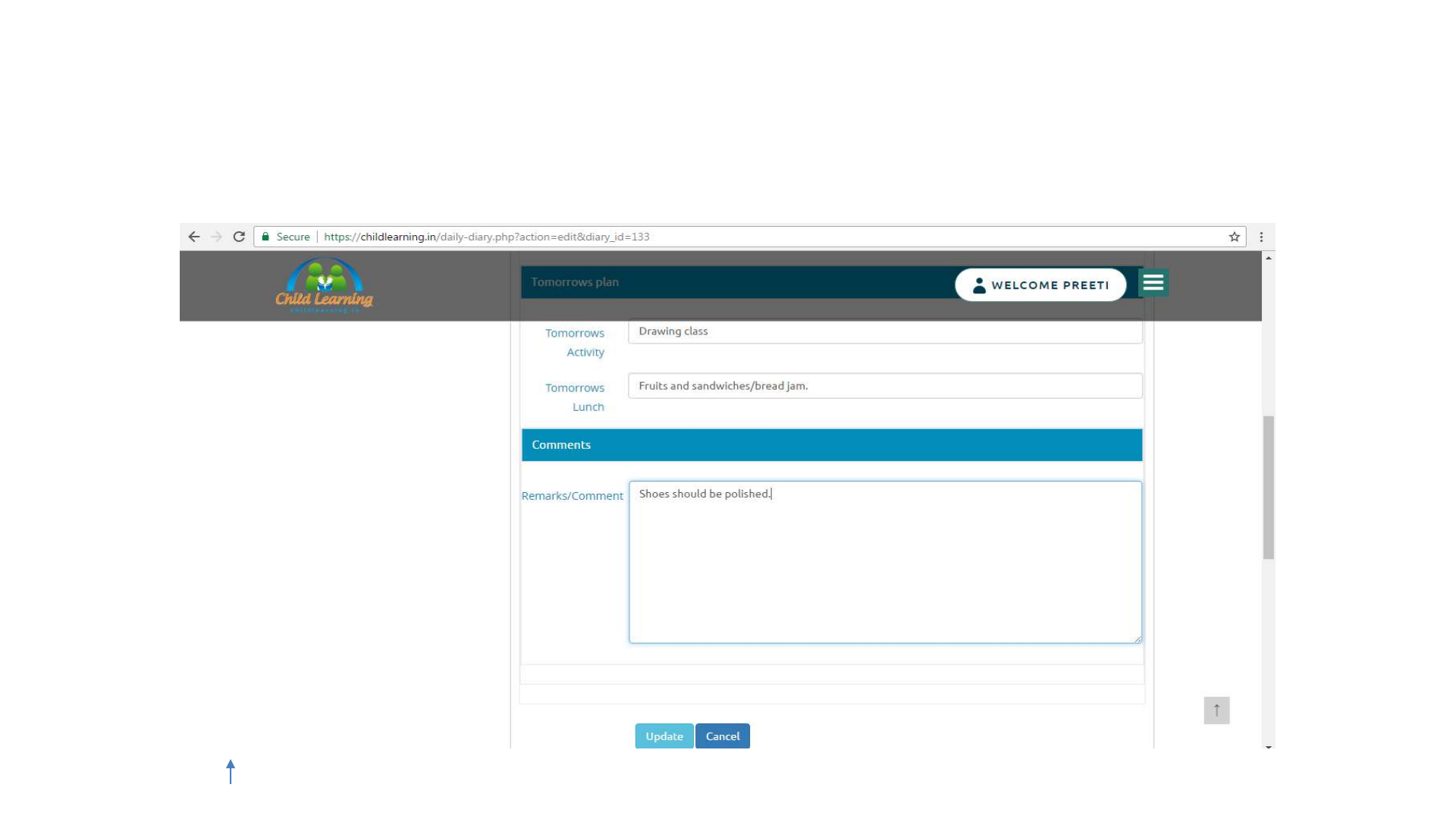

Daily Diary –Edit Daily Diary
•Existing Daily Diary can be edited by clicking on the icon on the top
right corner of the Daily Diary
•On the ‘Edit Daily Diary’ page, the user may specify new Date,
Attendance, Activities, Came In, Left At, Tomorrow's Activities,
Tomorrow’s Lunch and Comments/Remarks .
•The Child Name for the Daily Diary cannot be changed.
•Date and Attendance are mandatory, everything else is optional and
can be left blank.
CLJ Teacher User Guide V4.0 59
Index
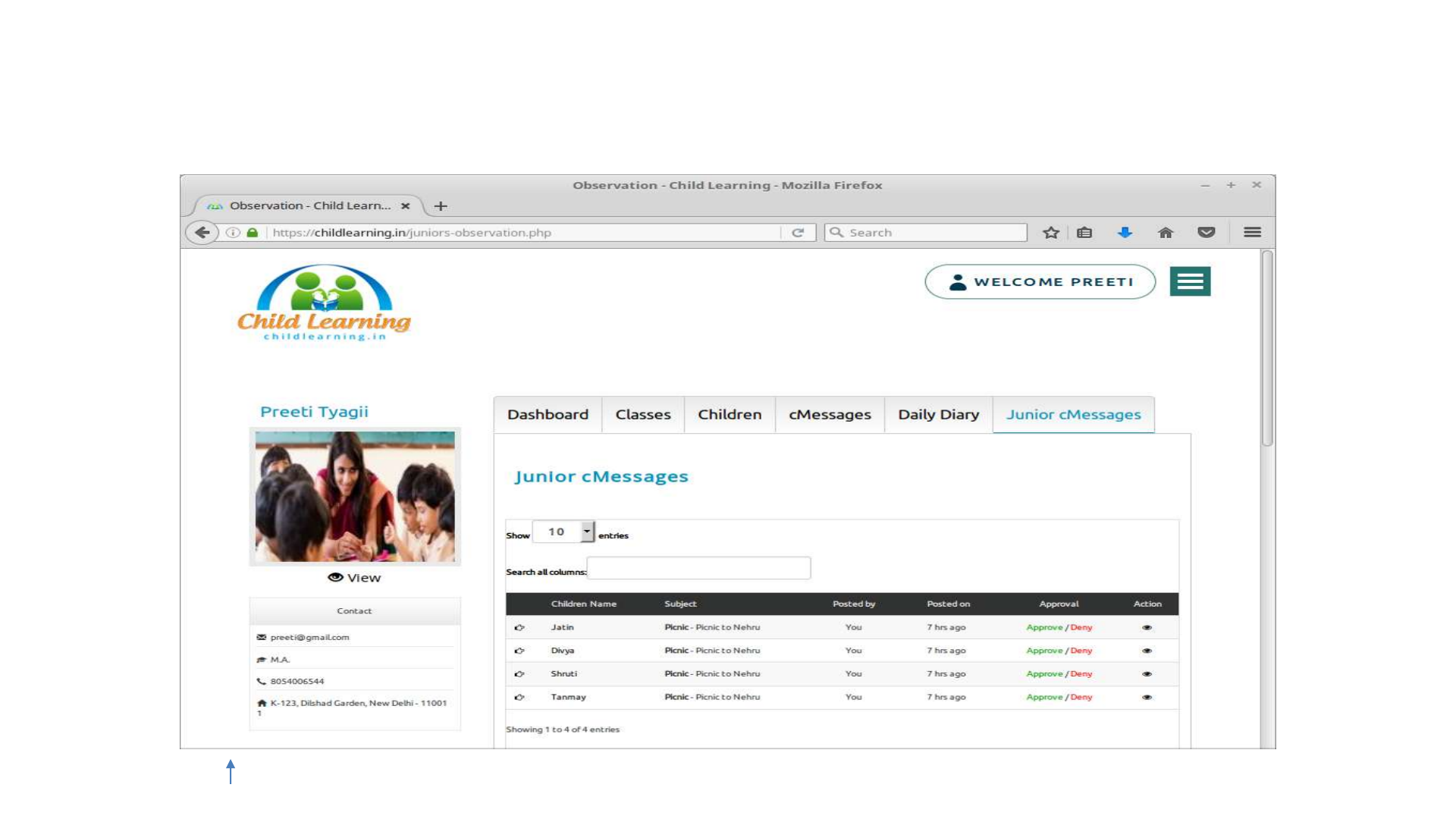

Junior cMessage –For Senior Teacher only
•This section shows all the cMessages created by all the junior
teachers under the Senior Teacher, who is currently logged in.
•The section consists of five columns namely – ‘Children’, ‘Subject’,
‘Posted by’, ‘Approval’ and ‘Action’.
•The ‘Children’ column shows the name of a Child.
•The ‘Subject’ column shows the Title and a few words of the
cMessage separated by -.
•The ‘Posted by’ column shows the name of the Senior
Teacher/Institute Admin/Parent i.e. who posted the cMessage.
CLJ Teacher User Guide V4.0 61
Index

Junior cMessage –For Senior Teacher only
•The ‘Approval’ column show whether the cMessage has been
approved or not.
•The ‘Action’ column contains links to view, edit and delete the
cMessage.
•cMessages posted by the user himself can only be edited and deleted.
•Senior Teacher has the provision to edit and delete the cMessage of
Junior Teacher.
CLJ Teacher User Guide V4.0 62
Index
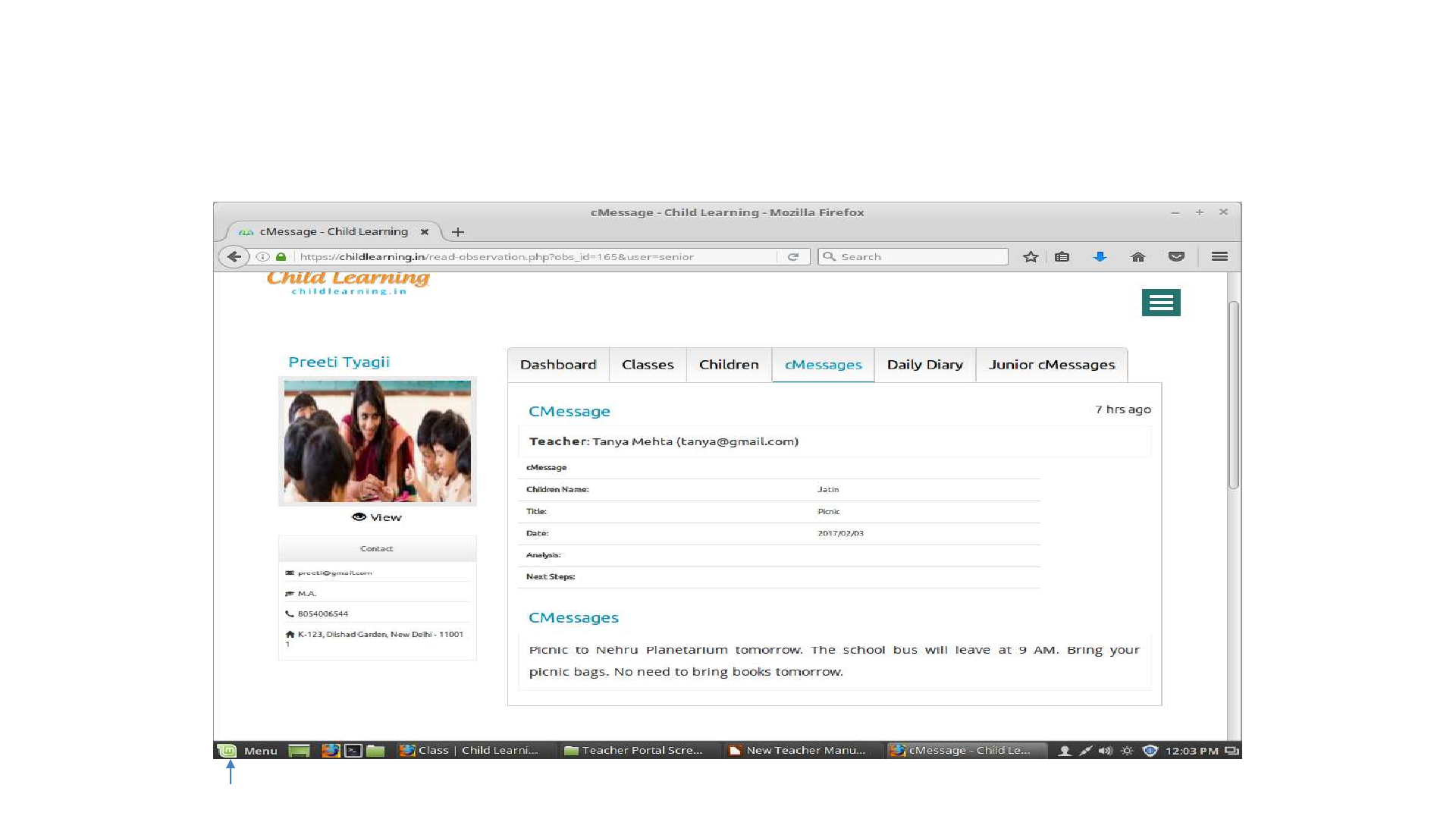

Junior cMessage –View cMessage
•Junior cMessage can be viewed by clicking on the icon under the
Action column.
•The user can view the Title, Date, Analysis and Next Steps of the
cMessage along with the name of child posted for.
•Any audio, video and pictures attached with the cMessage are also
shown below the contents of the cMessage.
CLJ Teacher User Guide V4.0 64
Index
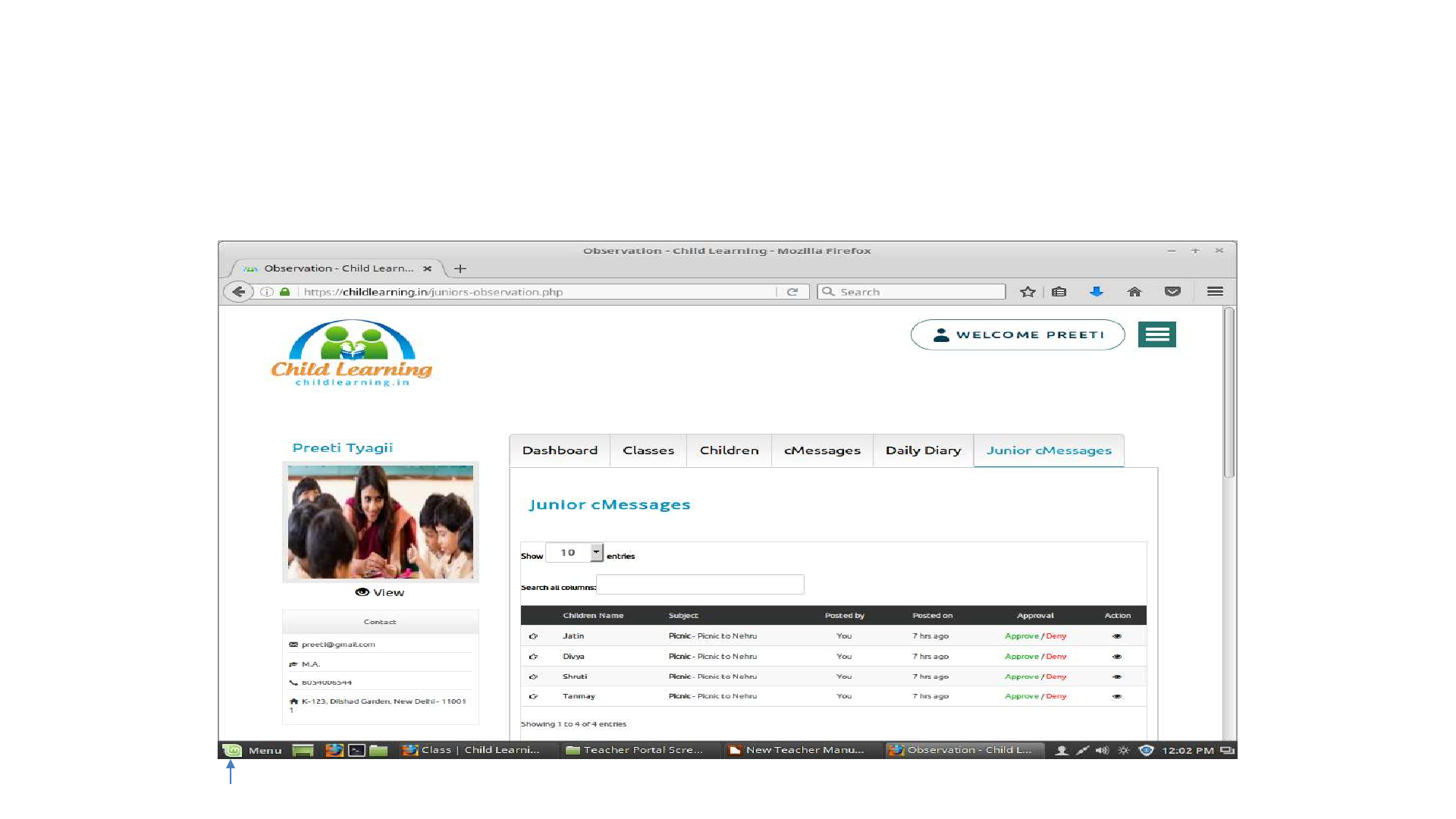

Junior cMessage –Approve/Deny: For Senior
Teacher only
•Junior cMessages can be approved by clicking on green ‘Approve’ text
in the Approval column of the cMessage
•Junior cMessages can be denied by clicking on red ‘Deny’ text in the
Approval column of the cMessage
•When cMessages are approved, the green ‘Approve’ text changes to
black ‘Approved’ text.
•When cMessages are denied, the red ‘Deny’ text changes to a black
cross icon.
CLJ Teacher User Guide V4.0 66
Index

TEACHER LOGIN - MOBILE/TABLET APP
Next slides will outline what a Teacher can do in CLJ –Institute
Mobile/Tablet app.
In one CLJ –Institute Tablet app, Institute Admin and Teacher can login and
perform limited but mostly used activities.
Download the latest apps from Google Play Store and Apple Store.
Google Play Store link - https://play.google.com/store/apps/details?id=com.childlearning.institute
Apple Store link -
https://itunes.apple.com/us/app/child-learning-institute/id1319770736?ls=1&mt=8
CLJ Teacher User Guide V4.0 67
Index
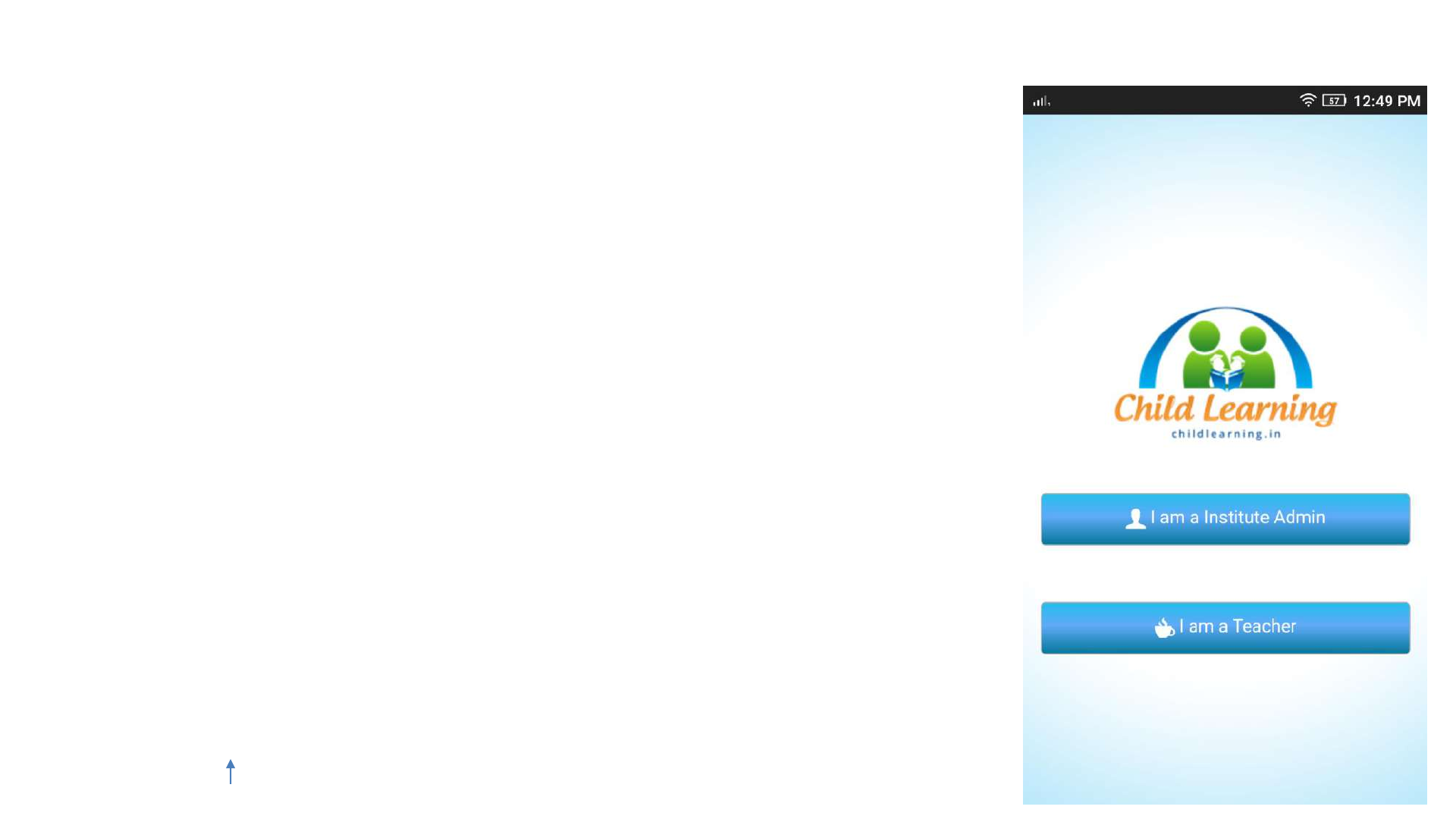
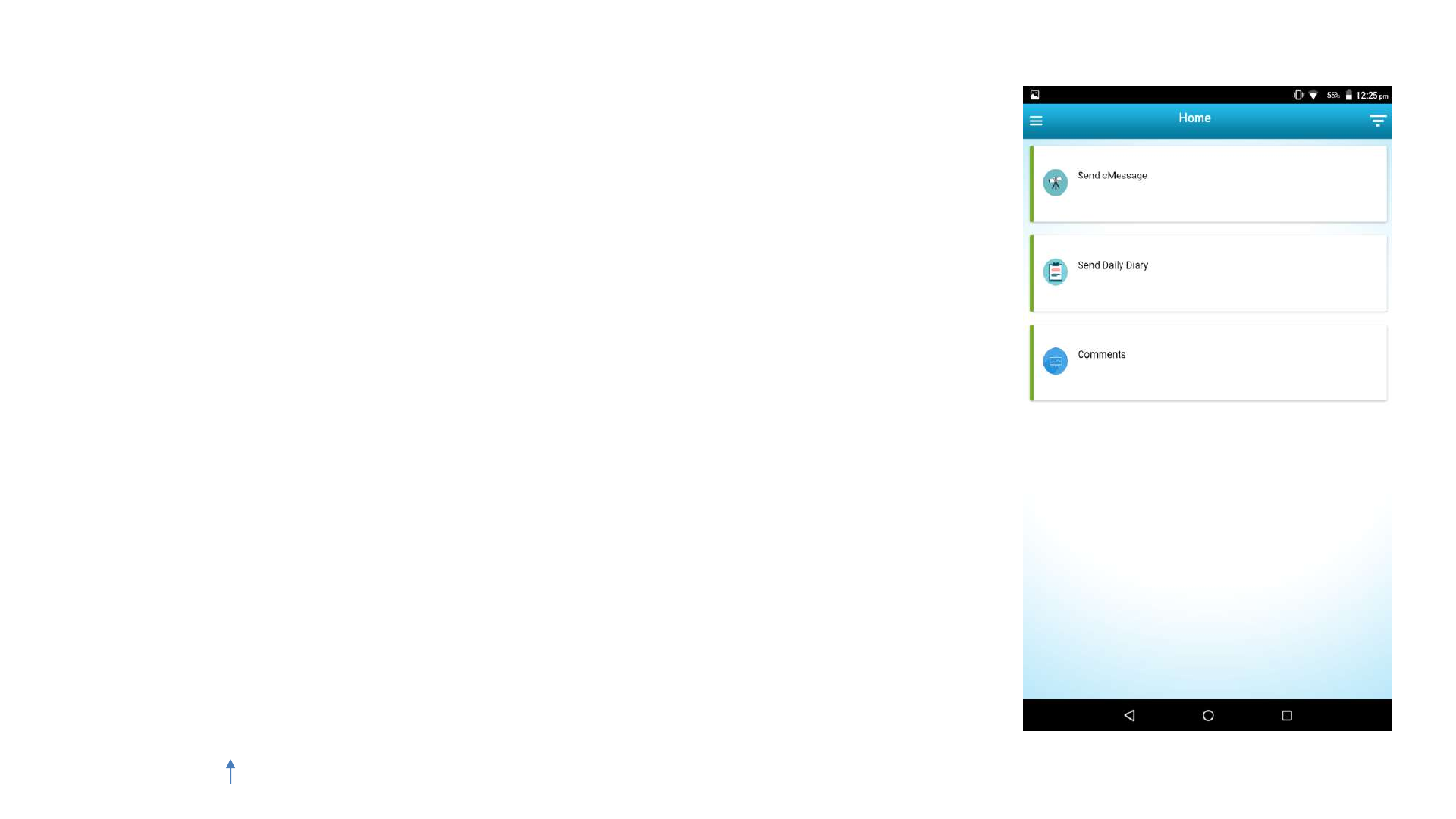
Home Screen
• Home screen will give the user options to Send
cMessage, Send Daily Diary and to view received
Comments
• Send cMessage links to create new cMessages
• Send Daily Diary links to create new
Daily Diaries
-Comments option will allow you to view the
cMessages for which Parent’s comments have
been received
CLJ Teacher User Guide V4.0 70
Index
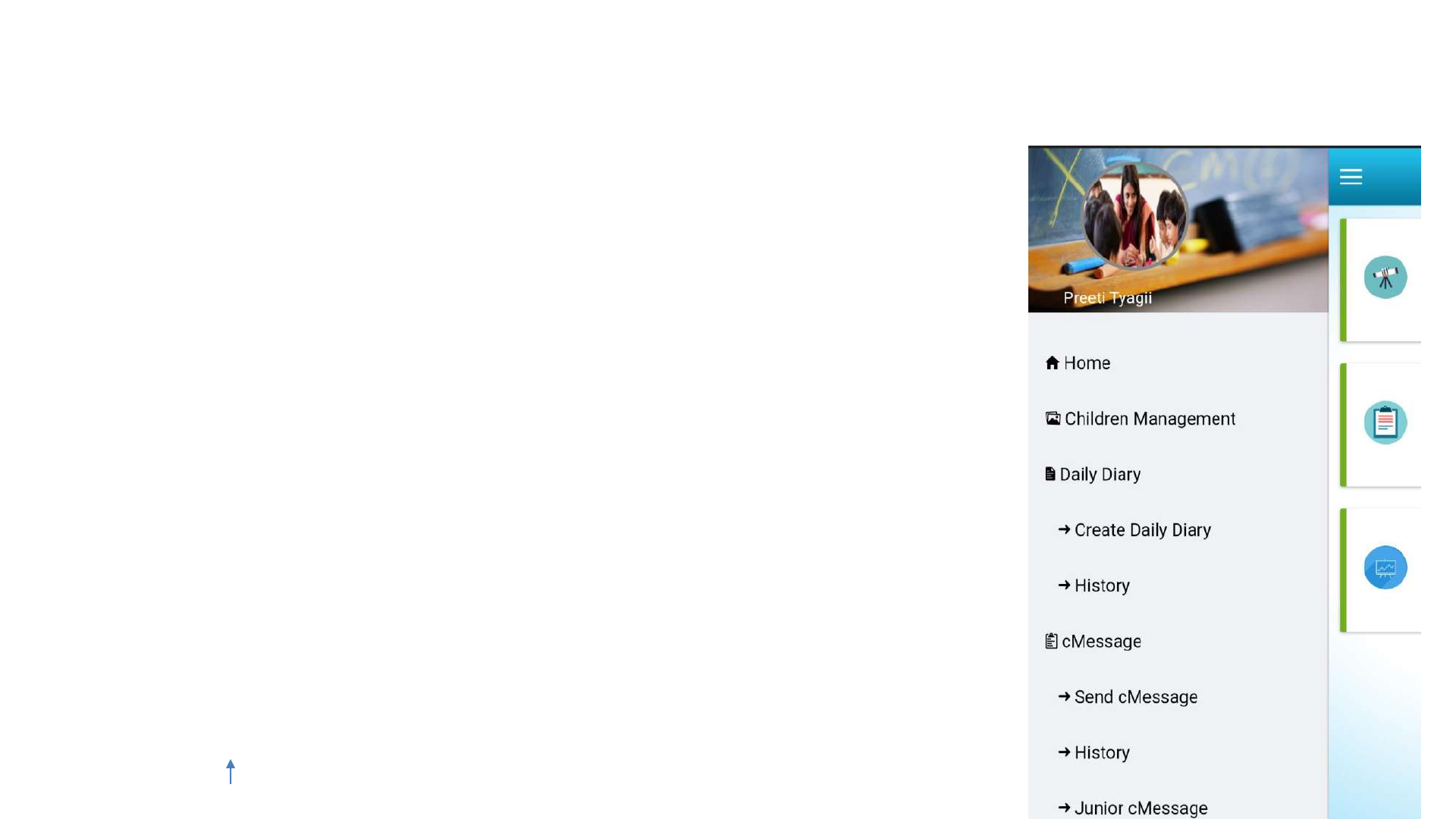
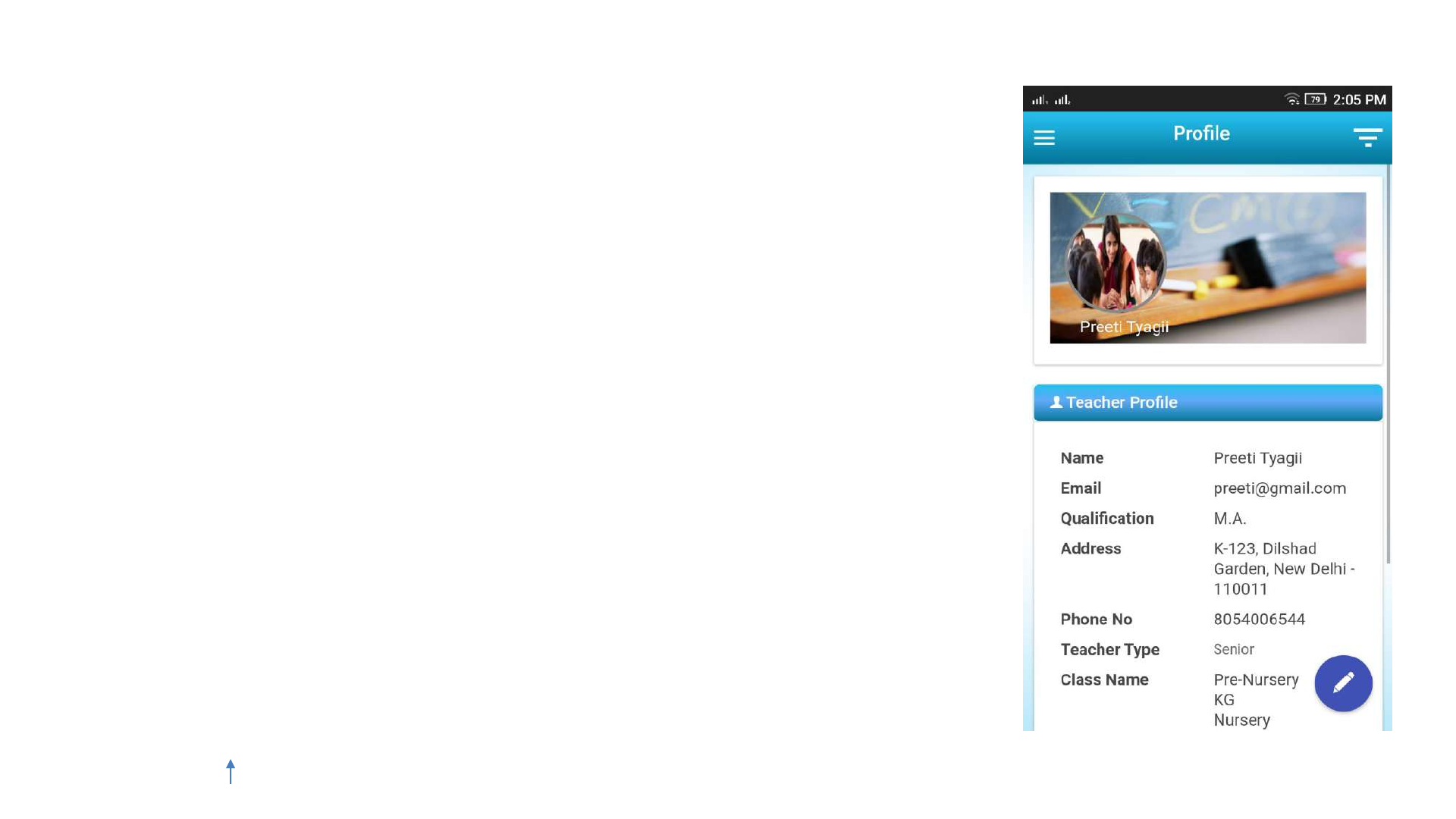
Children Management
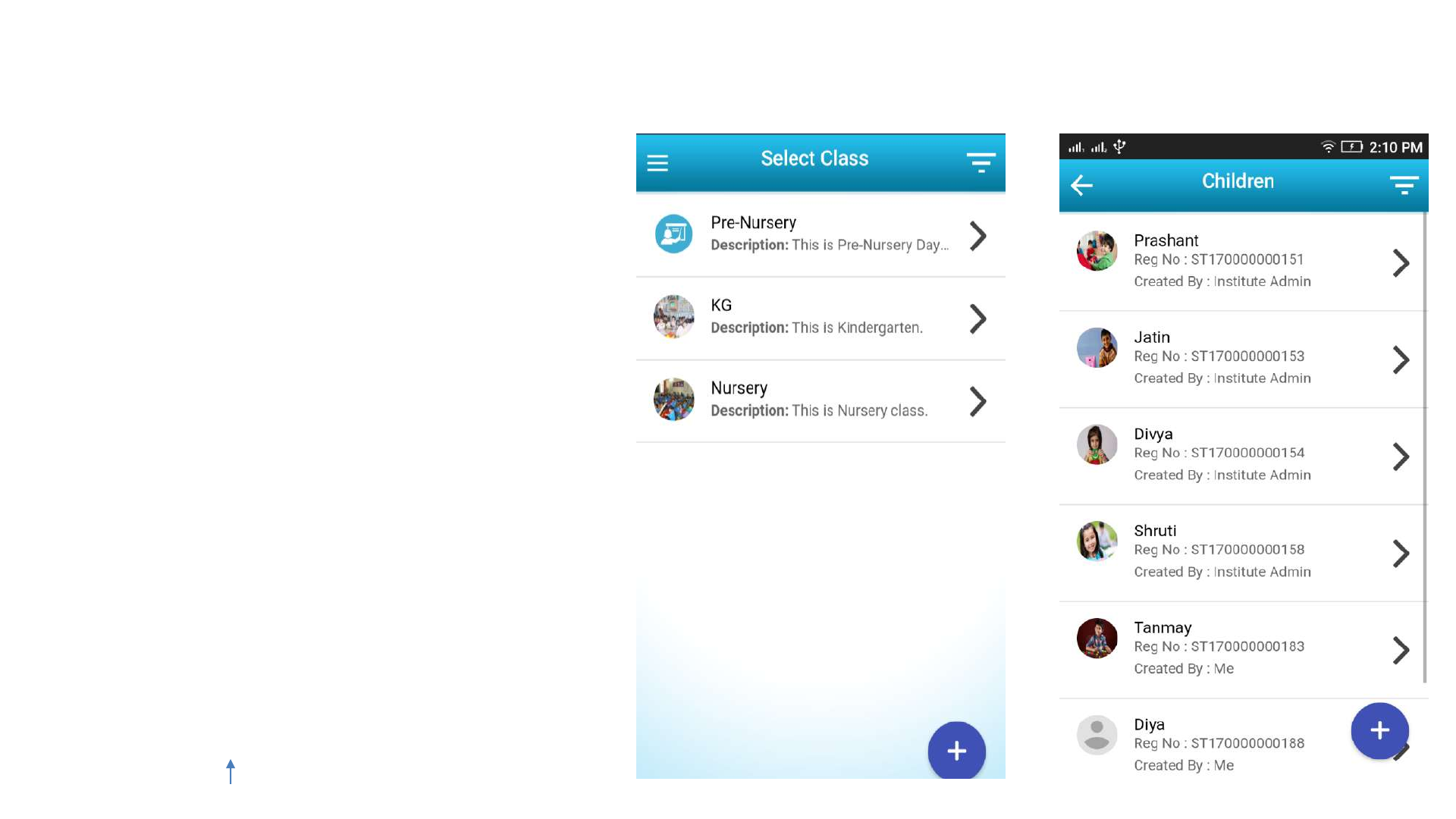
-Tap on the Children Management
option in the User Panel
-You will be asked to select the Class
for which you want to manage the
children
-After selecting the class you will be
shown the list of all students
studying in that class
-You can also add a new student by
tapping on the ‘+’ sign at the
bottom right corner of the screen
CLJ Teacher User Guide V4.0 74
Index
Send cMessage
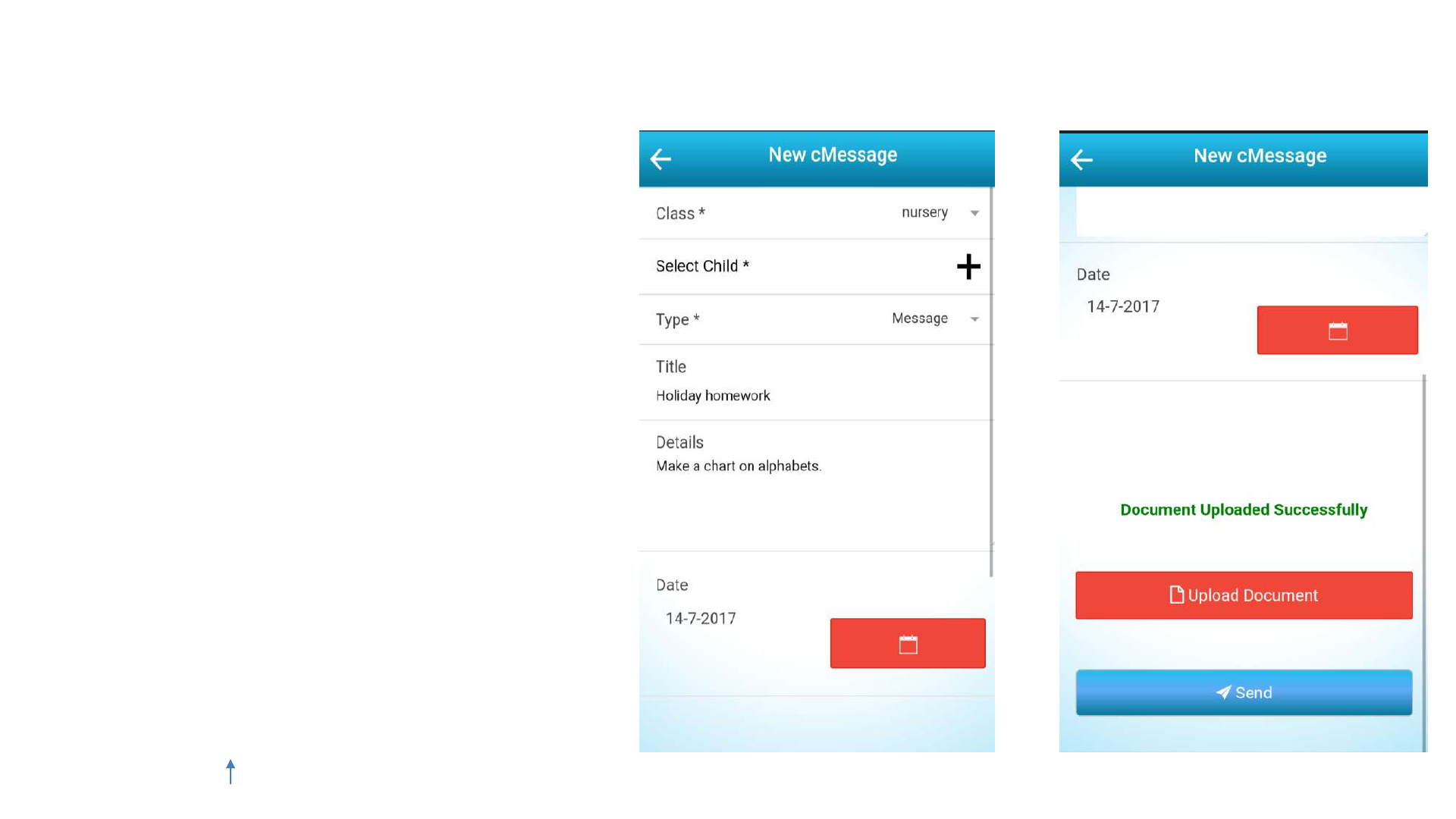
•You can create a new cMessage by
tapping on the Send cMessage
option at the home screen or in
the user panel
-If you only want to send a text
cMessage you should select the
Message option in the type field
-You can also upload documents by
tapping on the Upload Document
button and parents will receive
the attachment via email
CLJ Teacher User Guide V4.0 78
Index
Observation cMessage
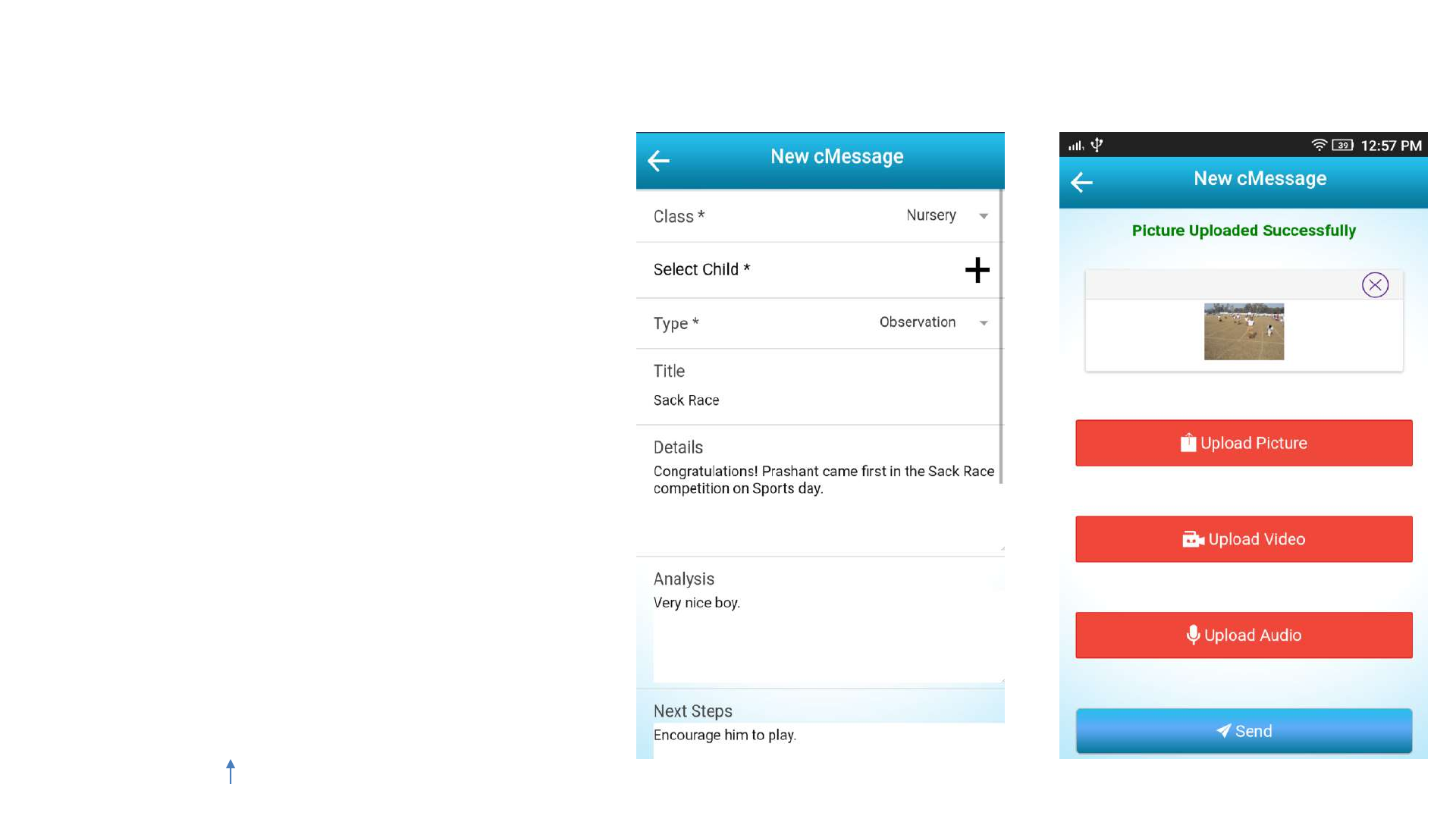
-An observation type cMessage can be
used to send multimedia files such as
photo/audio/video along with text
-You can Capture photo/audio/video
through the camera or upload it from
the Gallery
-You can create a new cMessage by
tapping on the Send cMessage option at
the home screen or in the user panel
-Select Observation option in the type
field
-Analysis and Next Steps fields will be
shown in addition to the buttons for
uploading picture, audio or video
CLJ Teacher User Guide V4.0 79
Index
History cMessage
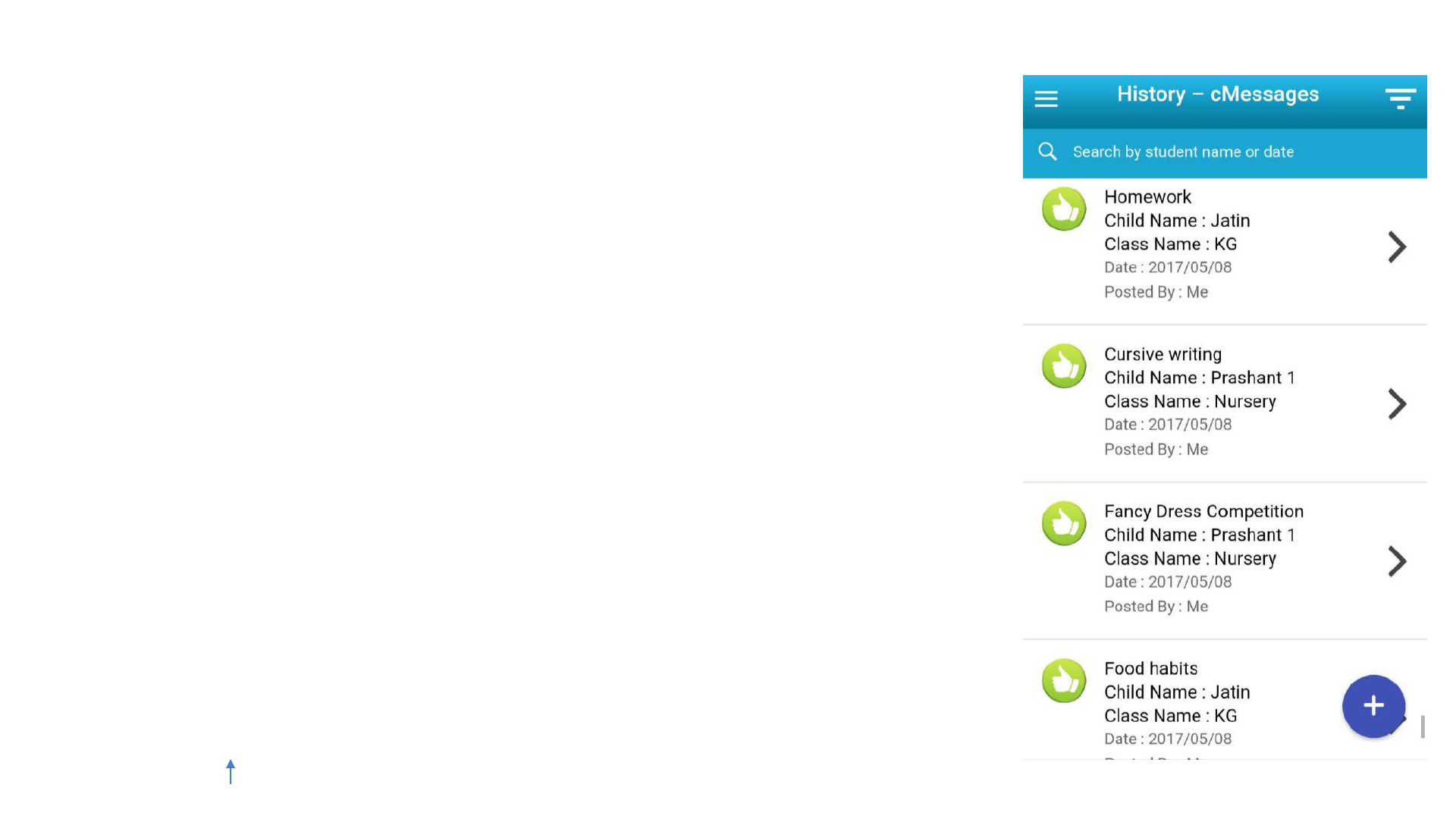
-Users can view cMessages posted by other teachers,
parents and administrators of the institute from this
section
-You can tap on History option under the cMessage
category in the user panel
-Tap on any cMessage to view the details
-You can also search through all the cMessages by
typing a student name or by providing the date of a
cMessage
CLJ Teacher User Guide V4.0 80
Index
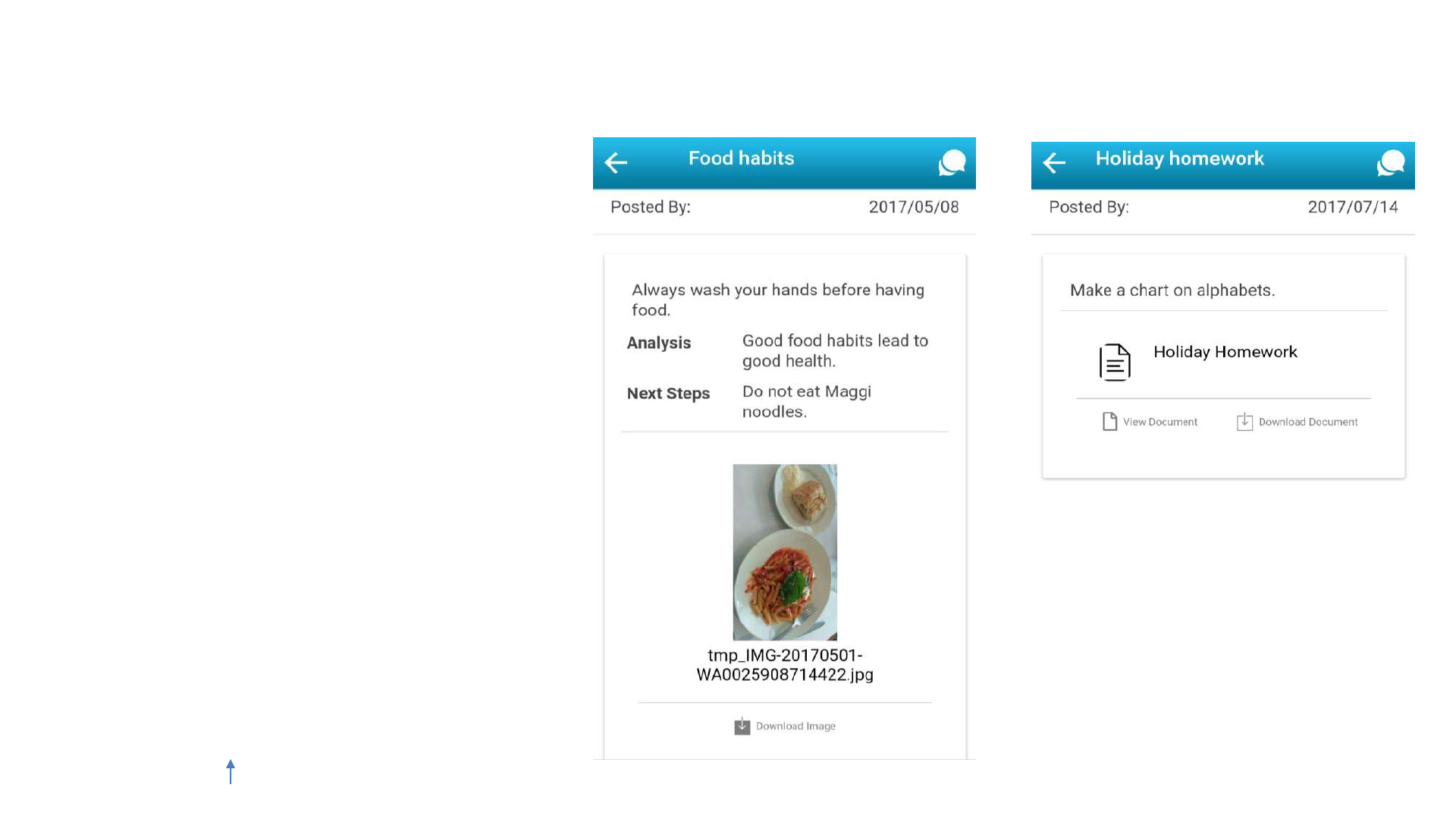
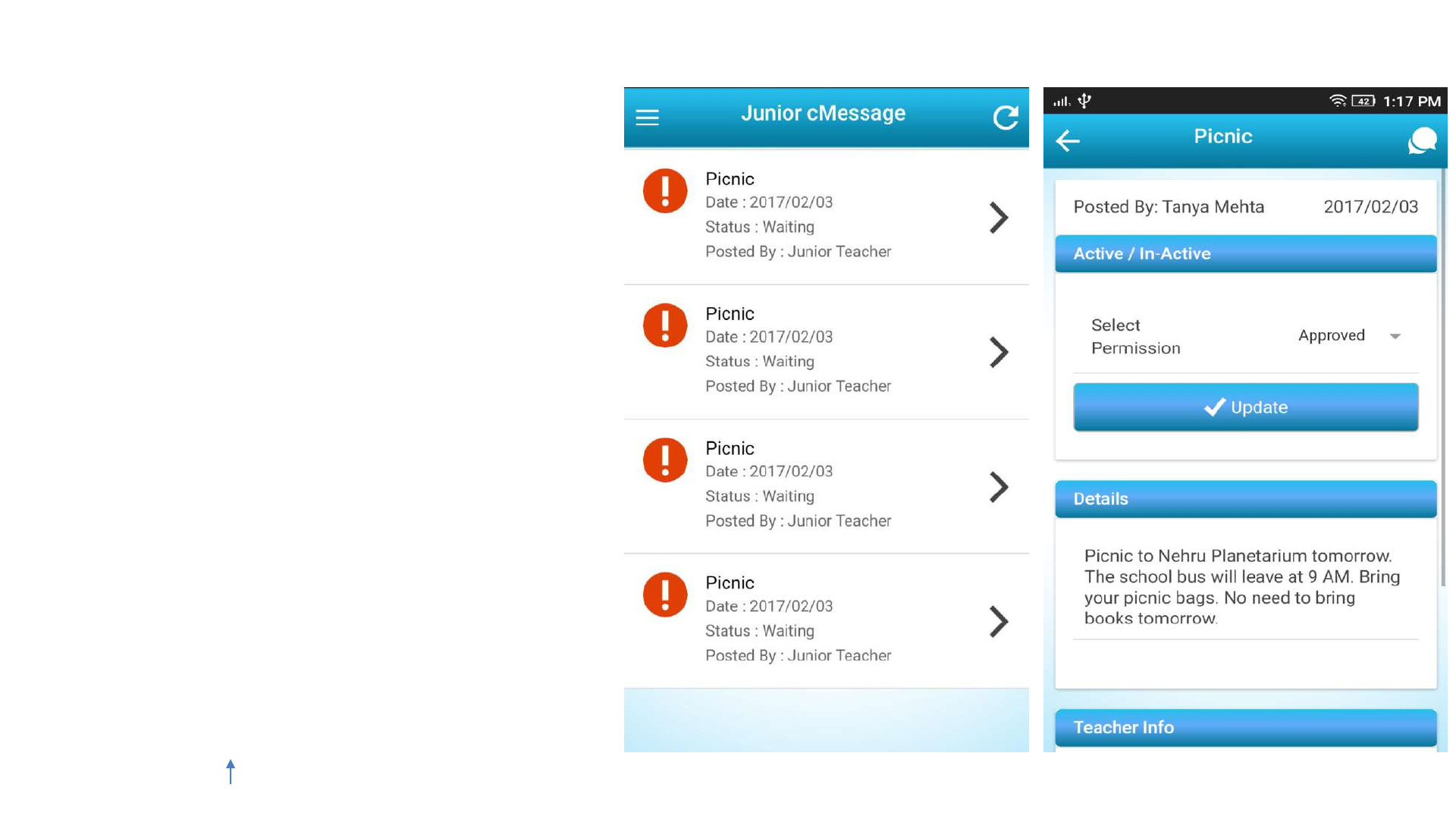
Junior cMessage
-You can view cMessages posted
by Junior teachers of the institute
from this section
-These cMessages are pending
approval and your go ahead by
selecting appropriate permission
for them
-The cMessages which are sent by
any parent or senior teacher do
not require approval. They are
always approved
CLJ Teacher User Guide V4.0 82
Index
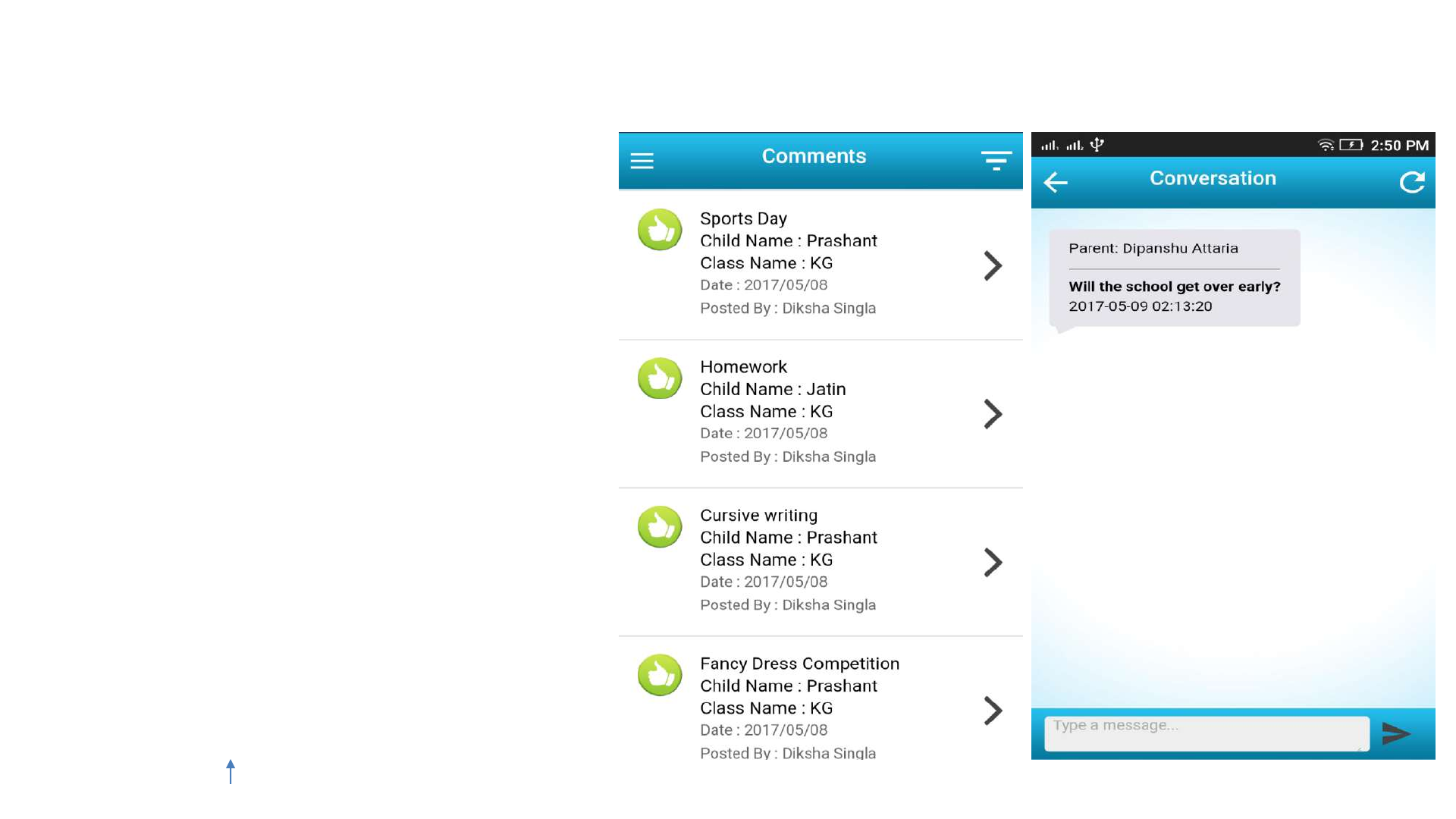
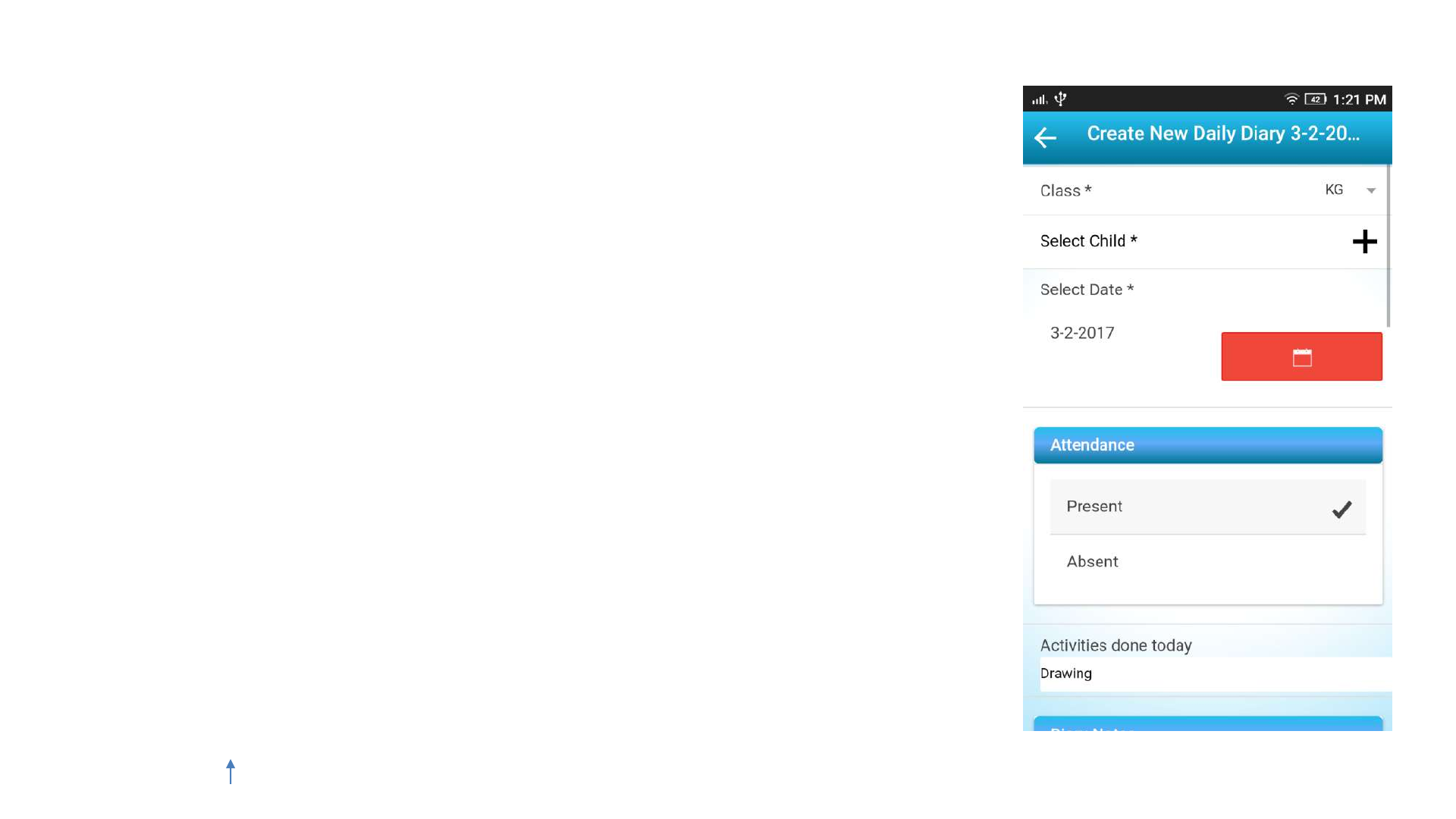
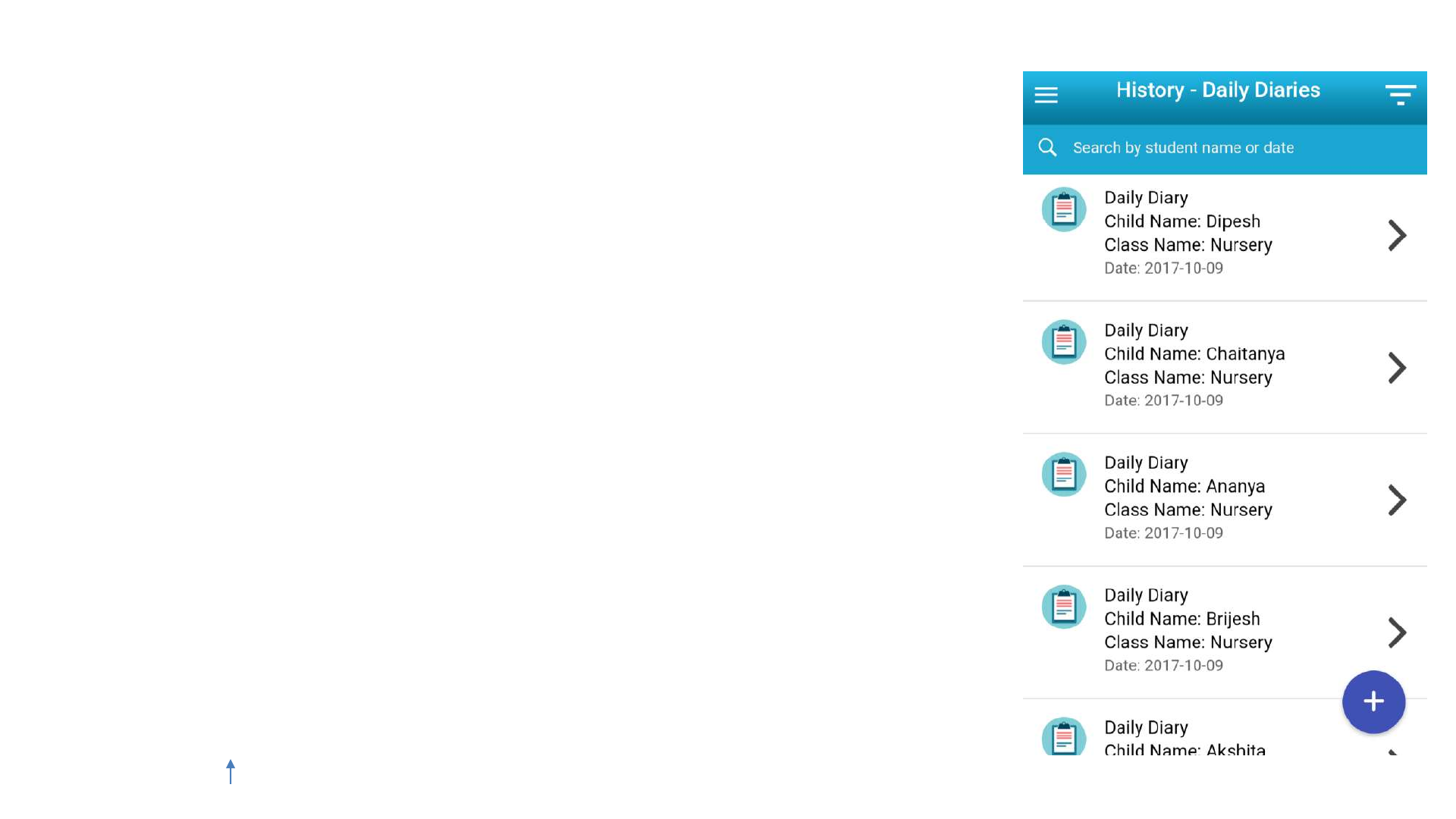
History Daily Diaries
-You can view Daily Diary posted by you or by other
teachers of the institute from this section
-You can further tap on any Daily Diary to view the
details of the Diary
-You can also add a new Daily Diary by tapping on the
‘Add’ icon at the bottom right corner
-You can also search through all the diaries by typing a
student name or by providing the date of a daily diary
CLJ Teacher User Guide V4.0 85
Index