Team Orion User Guide
User Manual:
Open the PDF directly: View PDF  .
.
Page Count: 13

Team Orion
Upgrade of the Peachy-Galaxy
User Guide
(12-07-2017)

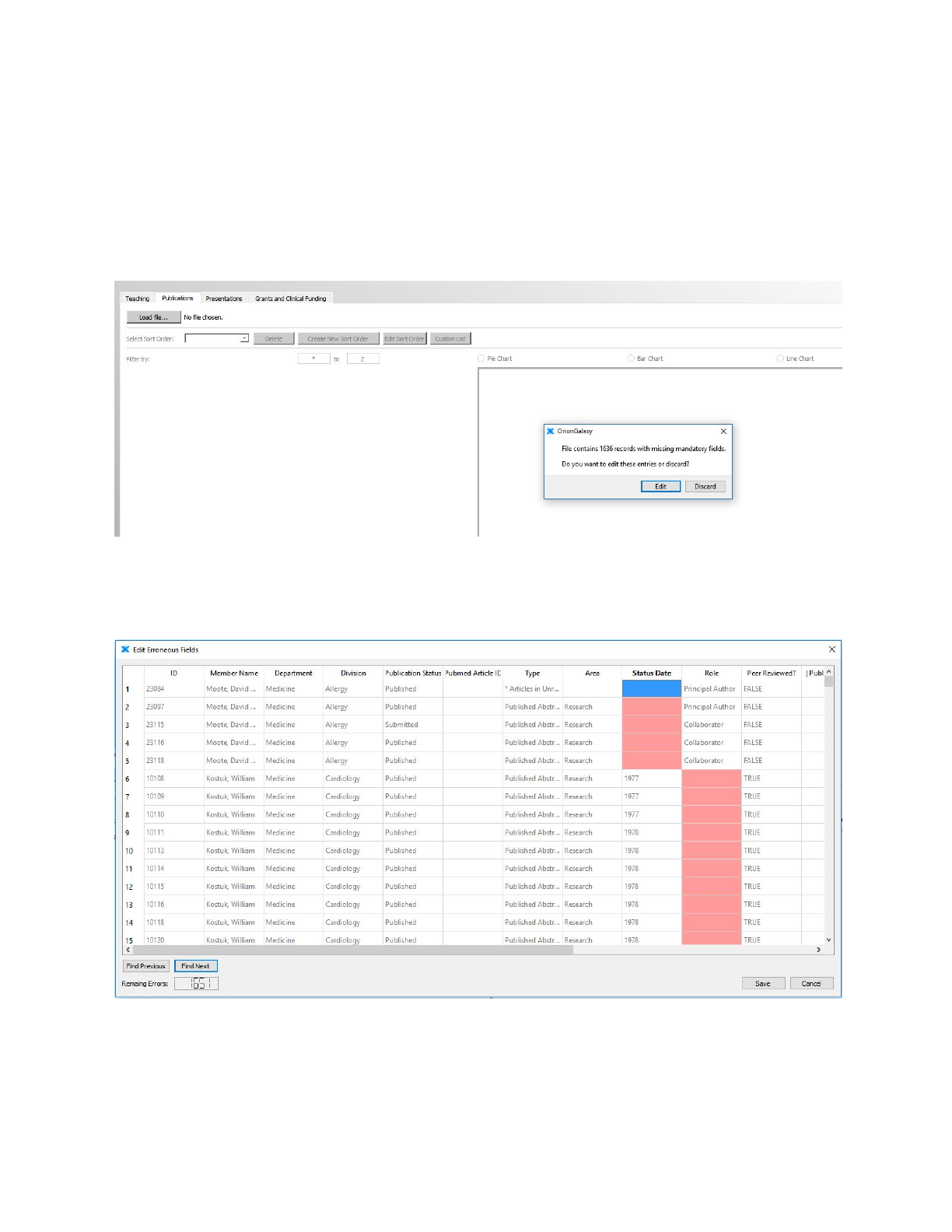
Editing Errors
When loading a file, the program will display a dialog box asking if the user wants to edit the
errors.
If the user clicks edit, they will see the Edit Erroneous Fields window which keeps a count of the
remaining errors in the bottom left.
2
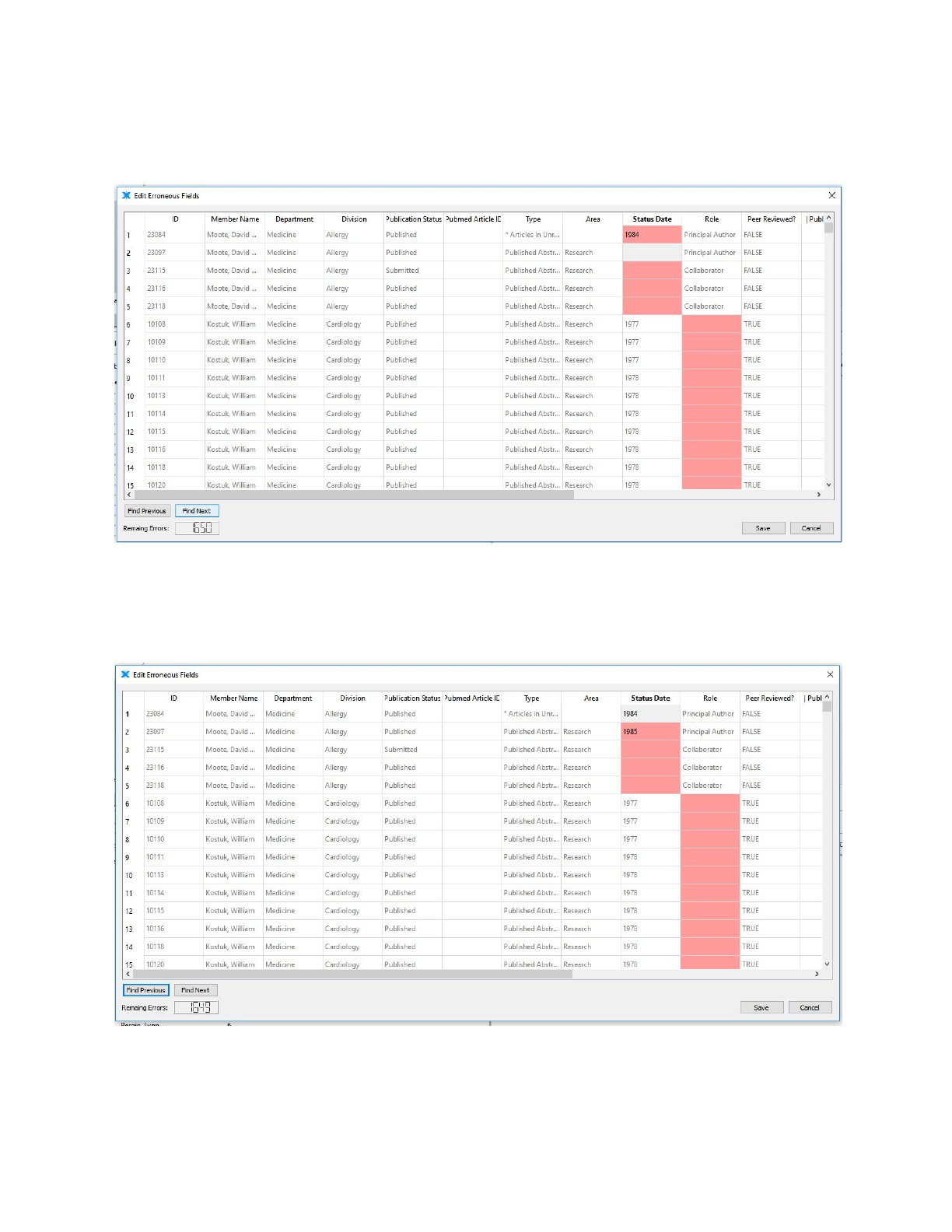
Once the user has fixed the 1st error, the user clicks the “Find Next” the next cell that contains
an error becomes highlighted (notice that the error count is updated).
The user then populates another field and if they want to go back to what they previously
entered they can click “Find Previous” and they will be taken back to the previous error (again,
the error count will be updated).
Once all the error fields are populated, the user can click Save to finalize the changes or Cancel
to discard them. The program will then return to the main window.
3
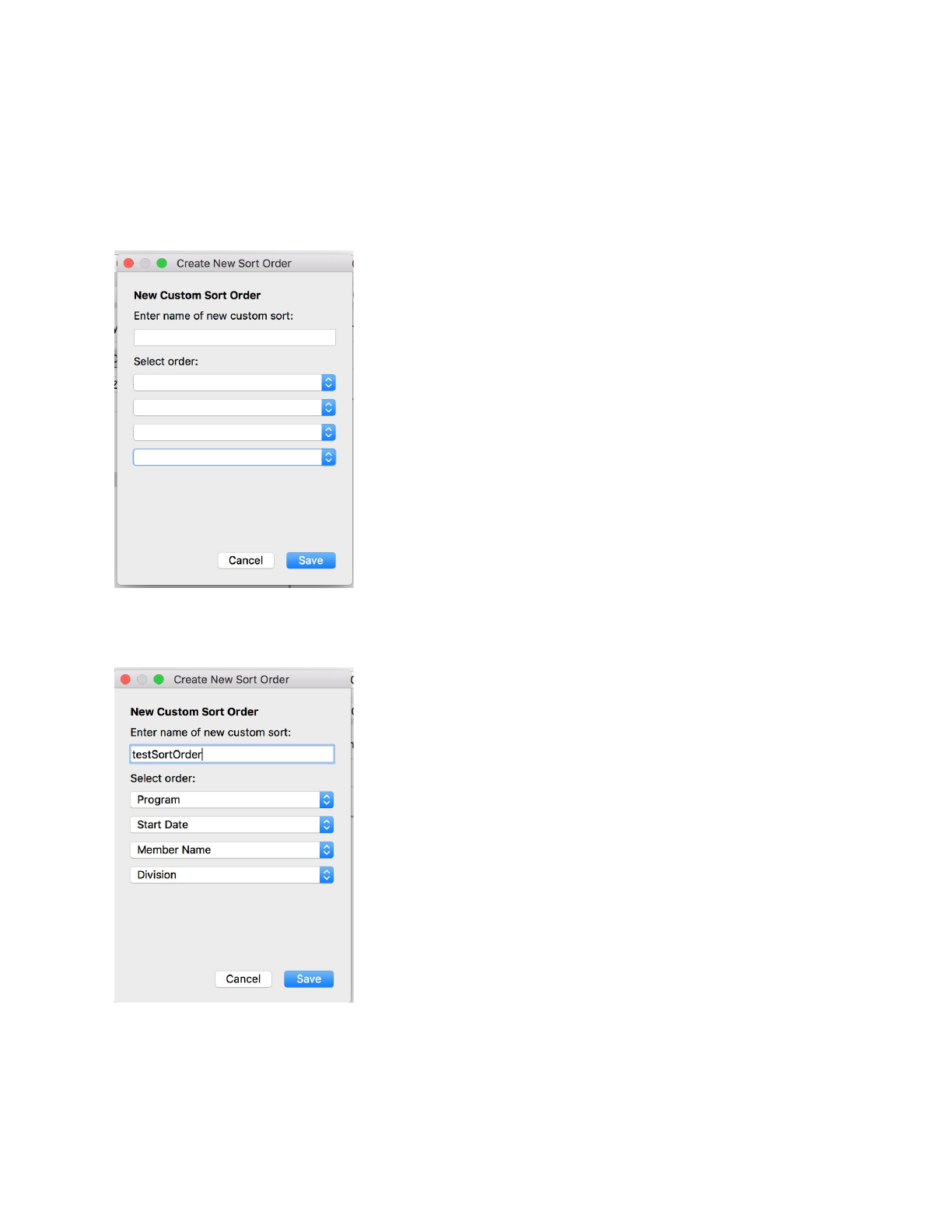
Create a Sort Order & Edit & Delete
Load file first. Then click create sort order, we can see the window below
Enter name for new custom sort order and select the order in the dropdown list, and click save
4
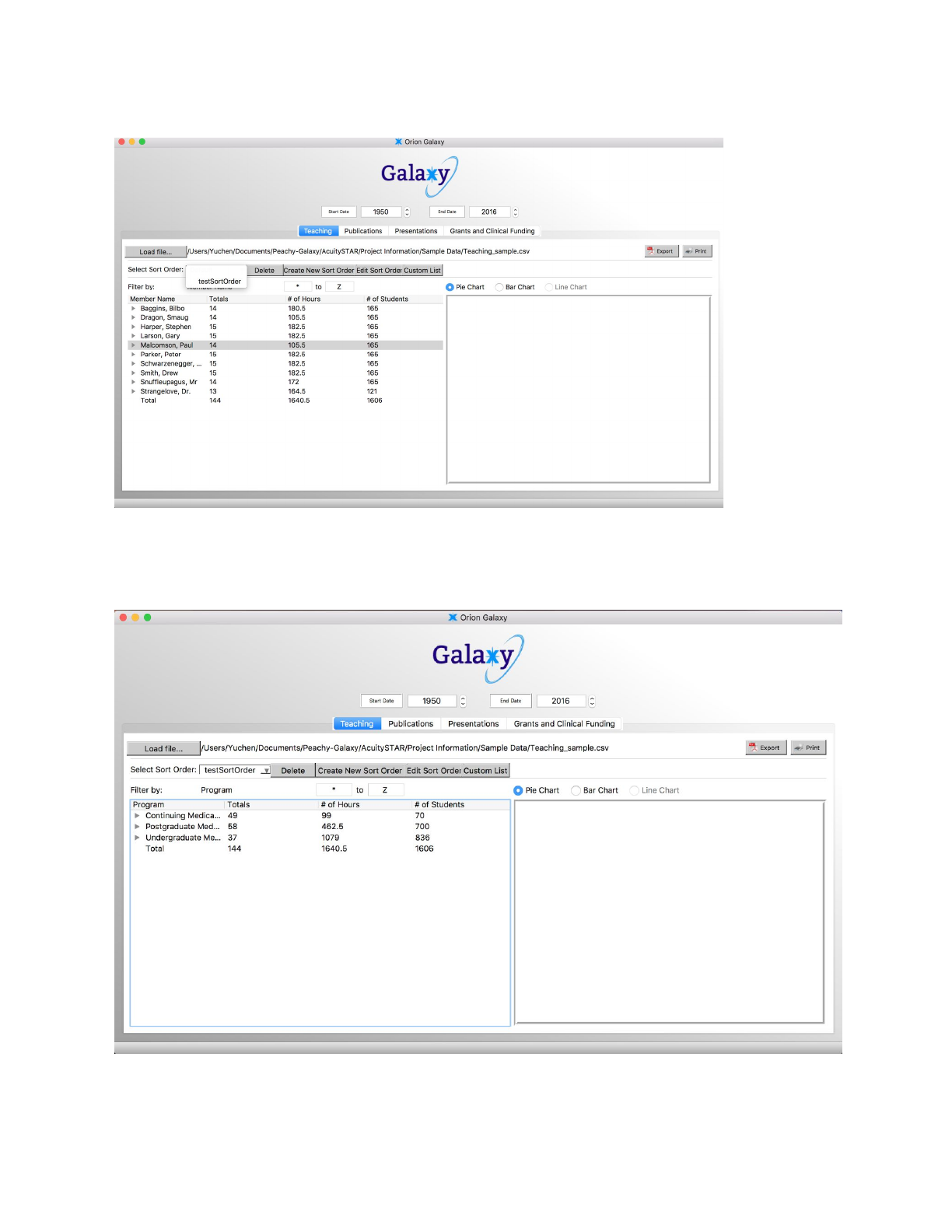
Select the testSortOrder
We can see the list is changed
5
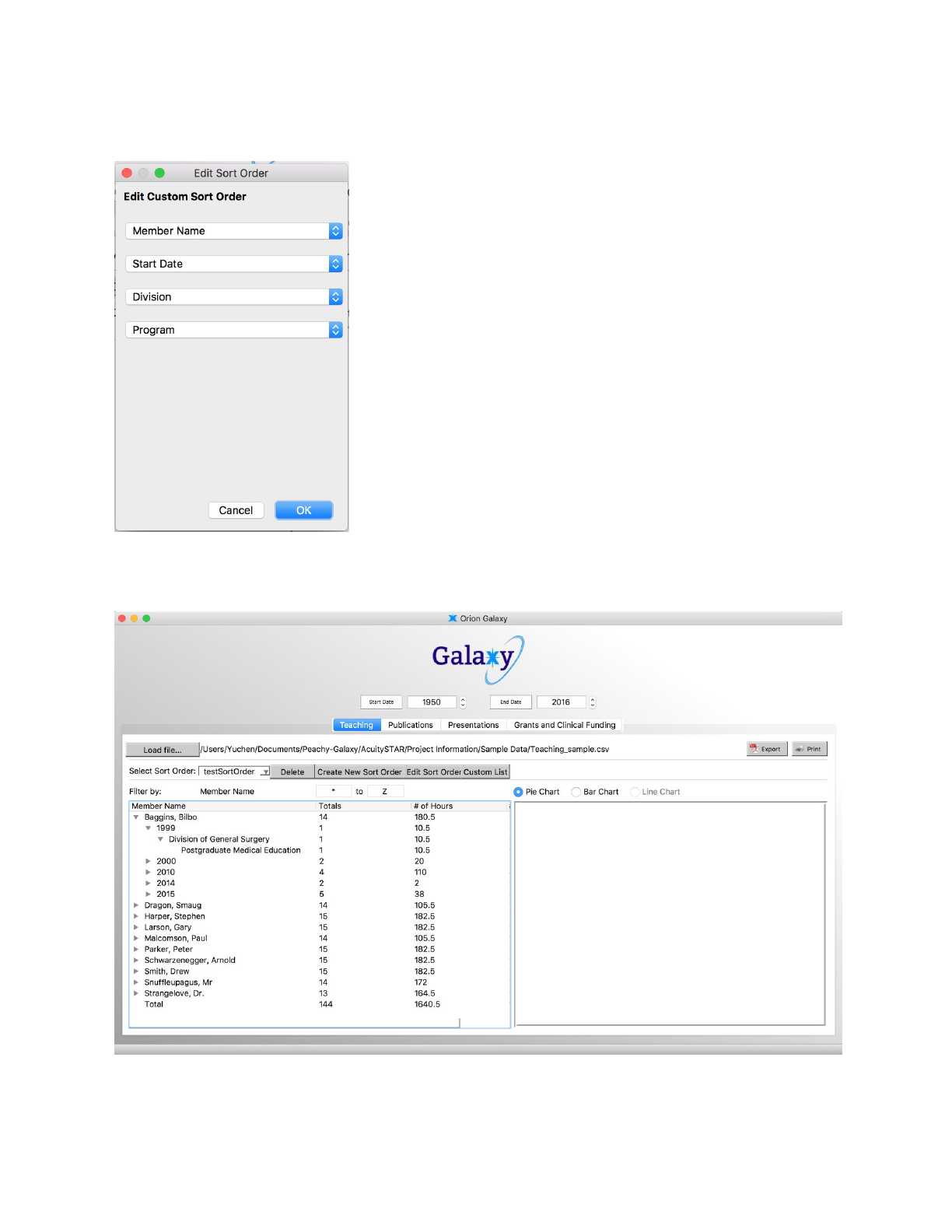
Click Edit Sort Order, and change the order and click OK
Then change the sort order to another sort order then change it back, we can see the sort order
is already changed.
6
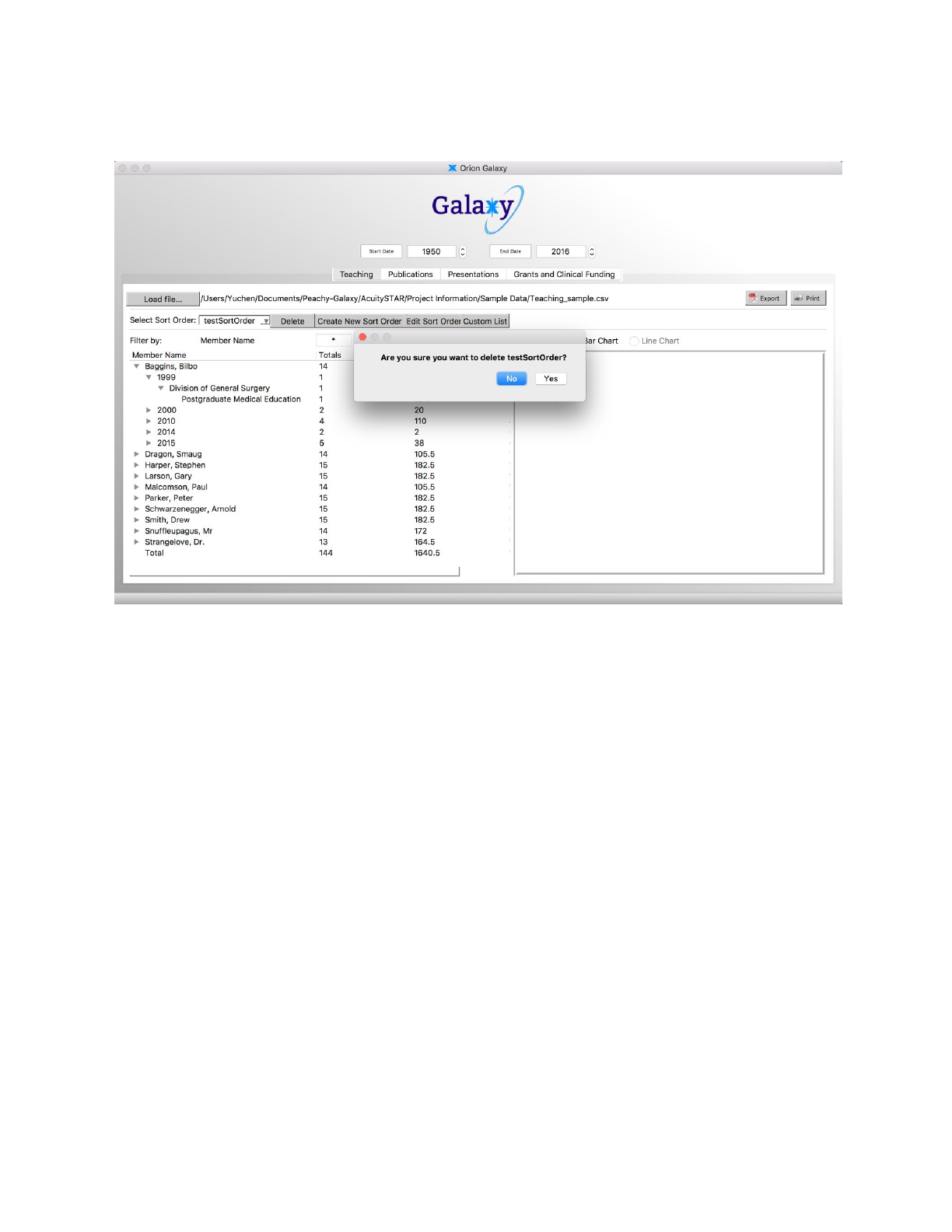
Then we can also delete the current sort order, click delete, and click yes, the current sort order
will disappear.
7
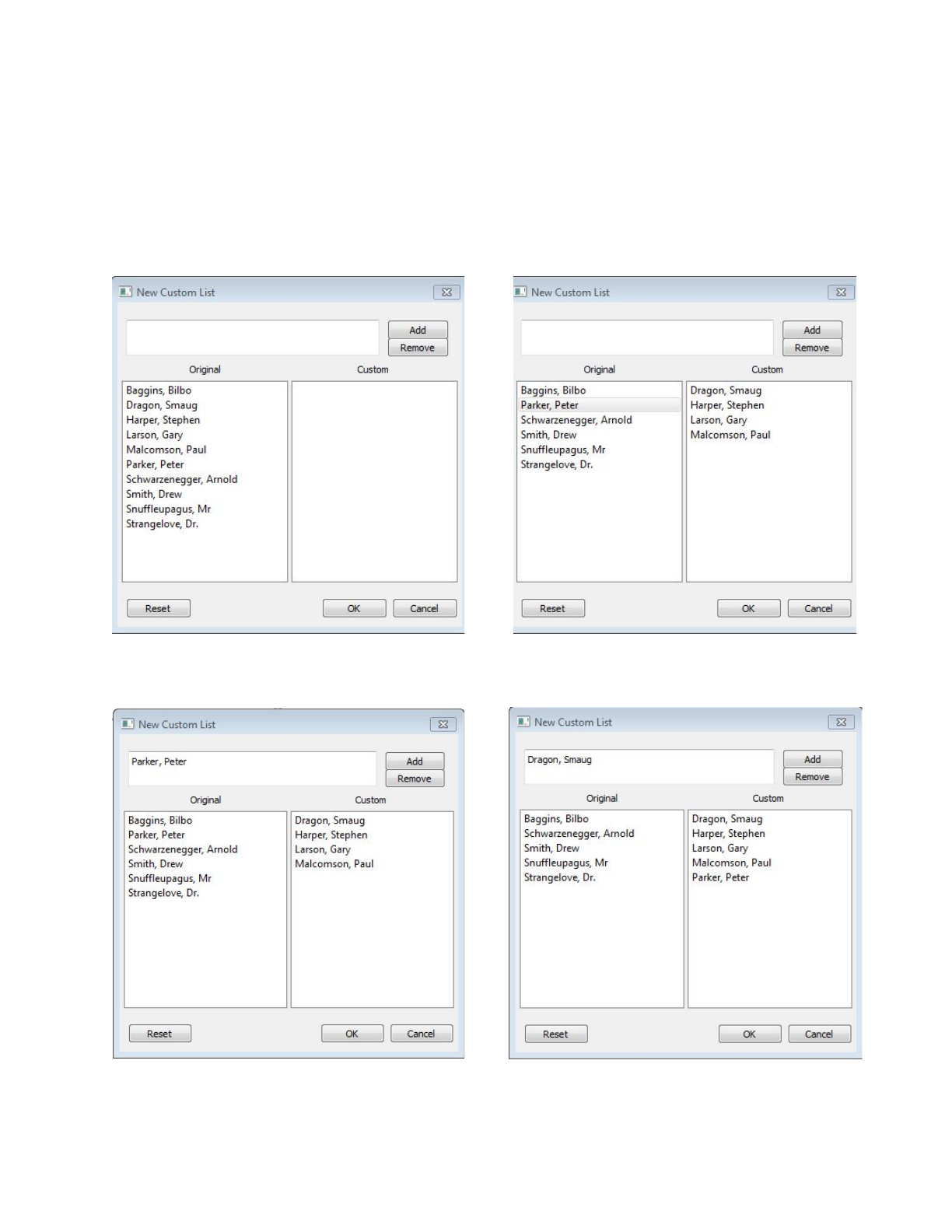
Create Custom List
First, we click the “Custom List” button on the main window, and it will open a new window.
From here we can add some names via double clicking.
Alternatively, typing “Parker, Peter” and clicking “Add” will add the member to the custom list,
and typing “Dragon, Smaug” and clicking “Remove” will remove the member from the custom
list.
8
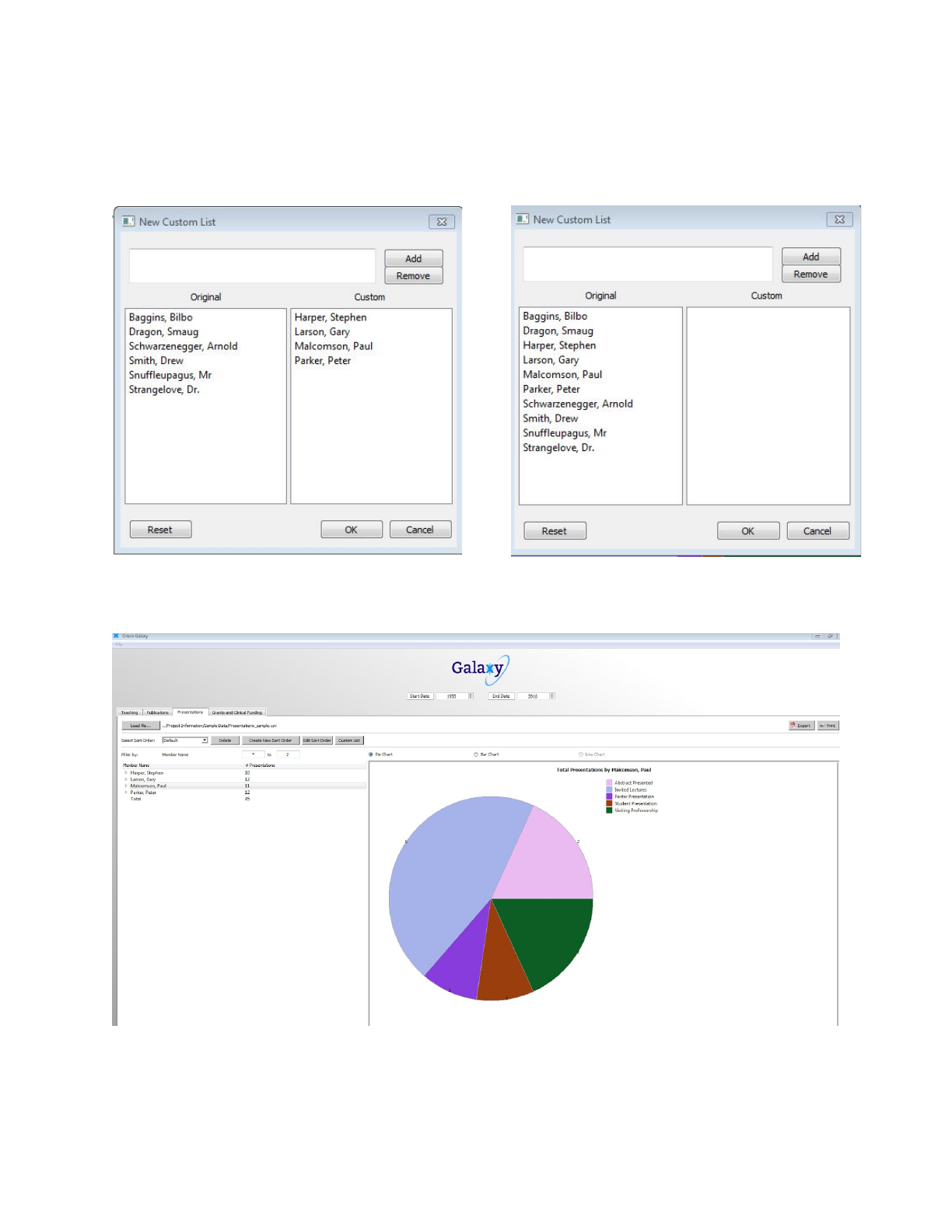
As an example, a list of the four names in the “Custom” window will be used. If the user would
like to revert back to the original list, they can click “Reset”, but if they are satisfied with the list,
click “OK”.
The main window will only show the selected data.
9
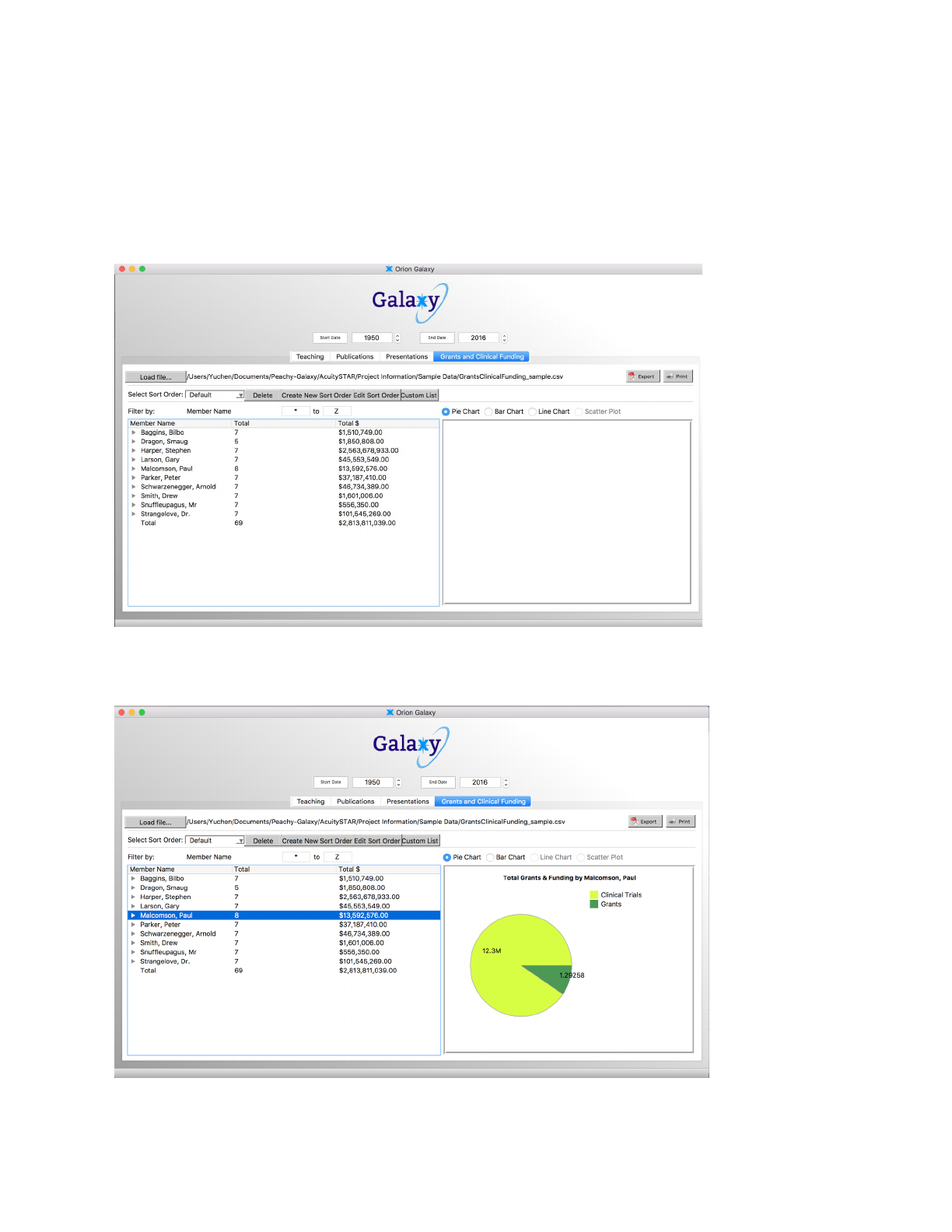
Display some graphs (pie chart, bar chart, line chart,
scatter plot)
After load file, we can see the chart button on the right, it is on Pie Chart button by default.
Select a Member in the left side window, the pie graph will show up.
10
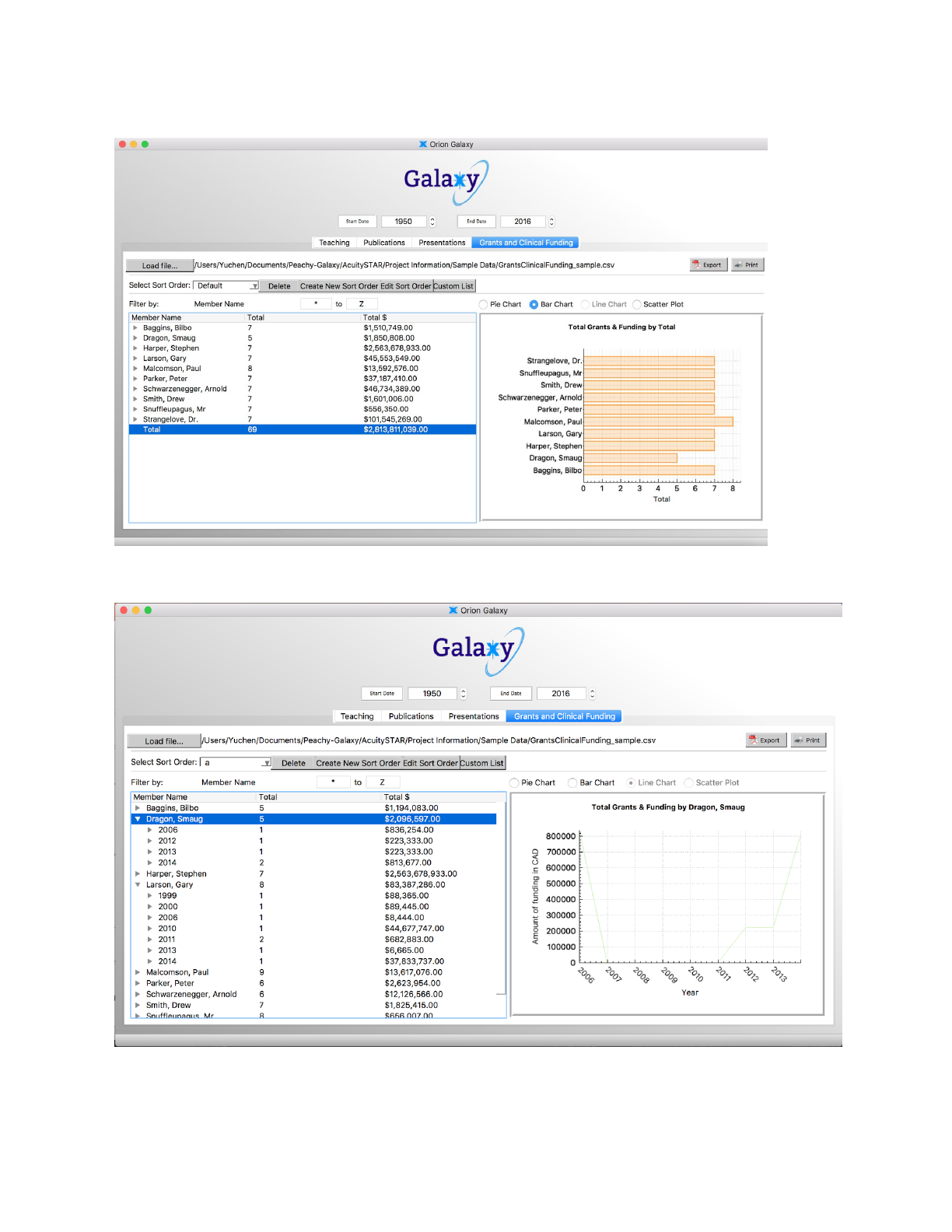
Click the bar chart, the bar chart graph will show up
If we include the start date in the sort order, we can also click Line chart as below
11
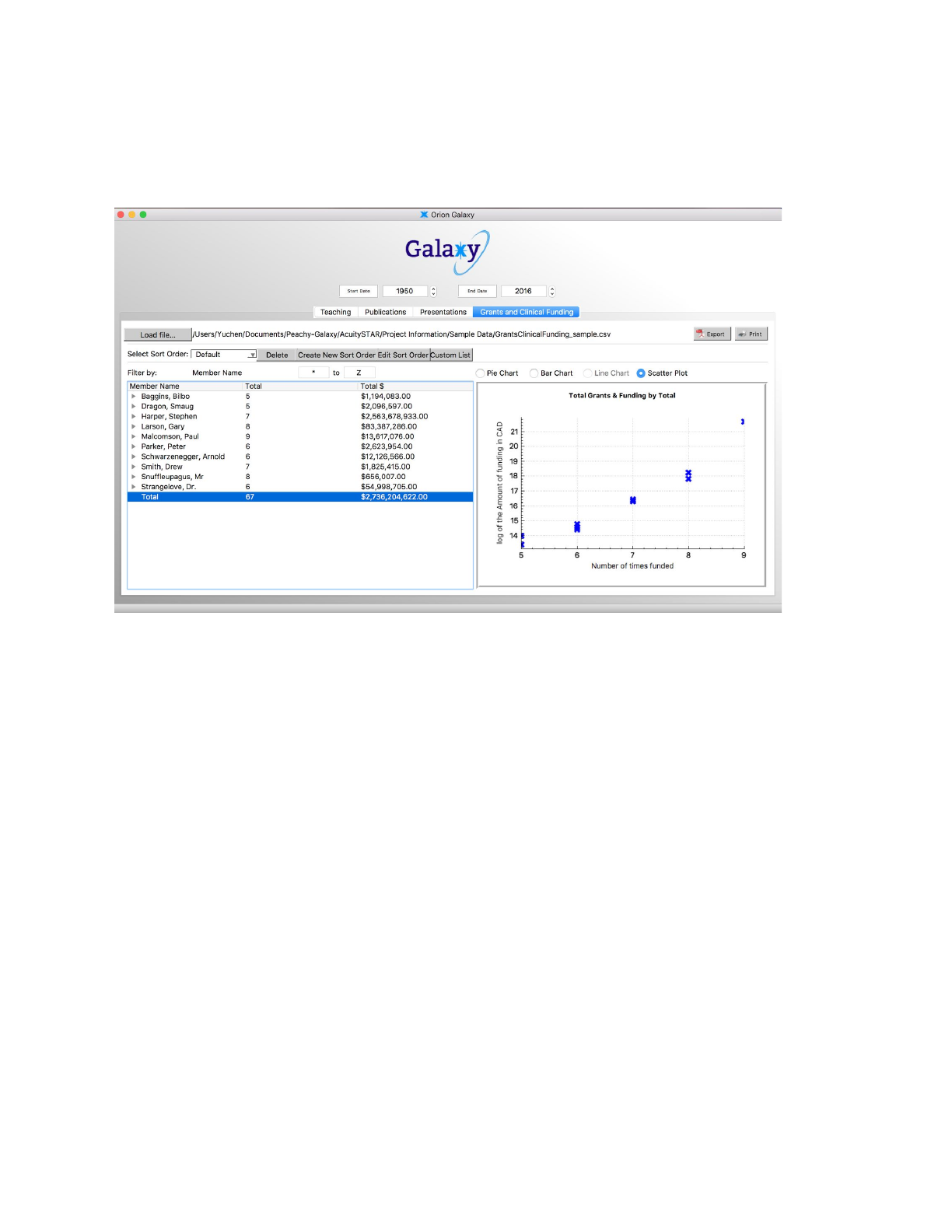
If you click total in Grants and Clinical Funding tab, the scatter plot option will be available,
select the scatter plot option
12
