The Guide To MSI Switches For Silent Software Installation ITNinja
User Manual:
Open the PDF directly: View PDF  .
.
Page Count: 5

(/) / Blog (/blog) / The Complete Guide to MSI Switches for Silent Software Installation
How helpful is this to you? Average Rating 5 103058 views 08/18/2011
Package Development (/tag/package-development) Windows Installer (MSI) (/tag/windows-installer-%28msi%29) Silent Install Commands (/tag/silent-install-commands)
UWM Blog (/tag/uwm-blog)
(/user/greg_shields)
greg_shields
(/user/greg_shields)
on
on
on
on
on
The Complete Guide to MSI Switches for Silent Software Installation
Ever wonder what really goes on during a software installation? When you click Next, Next, Finish, what really happens under the covers while you watch that
progress bar slowly creep from left to right? The reality is probably far less interesting than you'd think.
At its core, a software installation is little more than a really big file copy, along with a set of registry changes. Indeed some installations perform special
activities like installing drivers or registering ActiveX controls. But at the end of the day, even these 'special' activities are still not much more than file copies
and registry updates.
I wrote an article for this site not long ago titled. In that article, I talked about some of the ways to automate this process. In every way, one of the biggest
tasks is in getting that software installation to run silently. In a silent installation, everything that happens after you initiate the installer occurs without
interactively prompting the user. Some dialog boxes might pop up, but they'll disappear on their own. Eliminating anything that requires the user to enter
data or click a button is what makes a silent installation so powerful for automating software installation.
That power comes in distributing software through an automated tool. Many of such tools exist on the market today, including one that's built directly into
Active Directory Group Policy. Using Group Policy Software Installation (or any of the other solutions) in combination with a silenced installation, you can fully
eliminate all the time-consuming manual steps required for handling your user's software.
Today's software installations are most commonly distributed with one of two file extensions. Silencing the first, those with .EXE extensions, tends to be a
slightly more challenging process. EXE-based installations do not have a universal switch structure for sending instructions to the installer as it goes about
an installation.
Installations with the other file extension, MSIs, tend to be much easier. That's the case because MSI-based software installations all share in a universal
switch structure. Sending instructions to an MSI-based software installation requires learning only a single syntax. That syntax looks generally like this:
msiexec.exe /q /l* {logfile.txt} /i {setup.msi} {NAME=Value}
MSI Switches, the Guide
Let me first spend a minute breaking down what you're seeing in the string above.
msiexec.exe ' Commands to the Windows Installer service are invoked with msiexec.exe. This command can similarly be used for patching or uninstalling
software as well.
/q ' This second switch instructs the installer not to show its graphical user interface during the installation. This is the most important switch for instructing an
installation to run silently.
(/)
/l* {logfile.txt} ' This third optional switch tells the installer to log everything to the file found at logfile.txt. You can insert a full path into logfile.txt if you wish.
While this switch is functionally optional, the log file data it produces becomes invaluable in troubleshooting an installation that doesn't complete correctly.
Since the installation is silenced, the data in this log file often contains the only clues you'll ever get about what problems the installation is experiencing.
/i {setup.msi} ' This fourth switch points Windows Installer to the MSI file that contains the software you want to install. The contents of {setup.msi} can be
either local to the machine or remote via a UNC path. This UNC path support is extremely useful, because it enables you to store your software installation
files on a file server somewhere and invoke them over the network.
{NAME=Value} ' This fifth and final switch is the most challenging of all. While every MSI leans on a universal structure for sending commands to the Windows
Installer, every installation is obviously different. Installing Adobe Acrobat, for example, requires an entirely different set of questions than does installing
Microsoft Exchange. This final switch identifies those specific characteristics that are unique to each MSI installation by name and value, and enables you to
set them at the command line. You can think of {NAME=Value} as your means for supplying the answers to the installers questions before it asks for them.
So, for example, if you wanted to install the Adobe Flash Player to your desktop and had the correct MSI available, you might do so with the following syntax:
msiexec.exe /q /l* logfile.txt /i Install_Flash_Player_10_Active_X.msi REBOOTYESNO=No
But wait a minute: That command line above contains all the universal switches one might expect, except it ends with this fairly non-standard
'REBOOTYESNO=No' switch that's standing in for {NAME=Value}. Where did that come from?
Sleuthing for Custom Properties
As I mentioned earlier, each MSI has its own custom name and value pairs that answer questions the installation requires. Those pairs might identify an
install folder, or add a license key, or in this case instruct the installer to prevent a post-installation reboot. The hard part with these name and value pairs,
as you can surmise, is in discovering what they actually are.
MSI in all its universal configuration amazingness does not have a simple way of interrogating an installation to identify its custom name/value pairs. One
published method to do this requires downloading the Orca database editor from Microsoft. This database editor has the ability to peer into an MSI to identify
its characteristics. It can also edit those characteristics as a highly-advanced function, although doing so is an exceedingly complex activity.
In fact, even getting the Orca software requires multiple steps. You'll first need to download the Microsoft Windows SDK for Windows 7 and .NET Framework
4. Once downloaded, install the SDK's debugging tools. You'll find Orca, which is itself a separate installation, in \Program Files\Windows
SDK\7.1\Bin\Orca.msi. Double-click this file to install it to your management desktop.
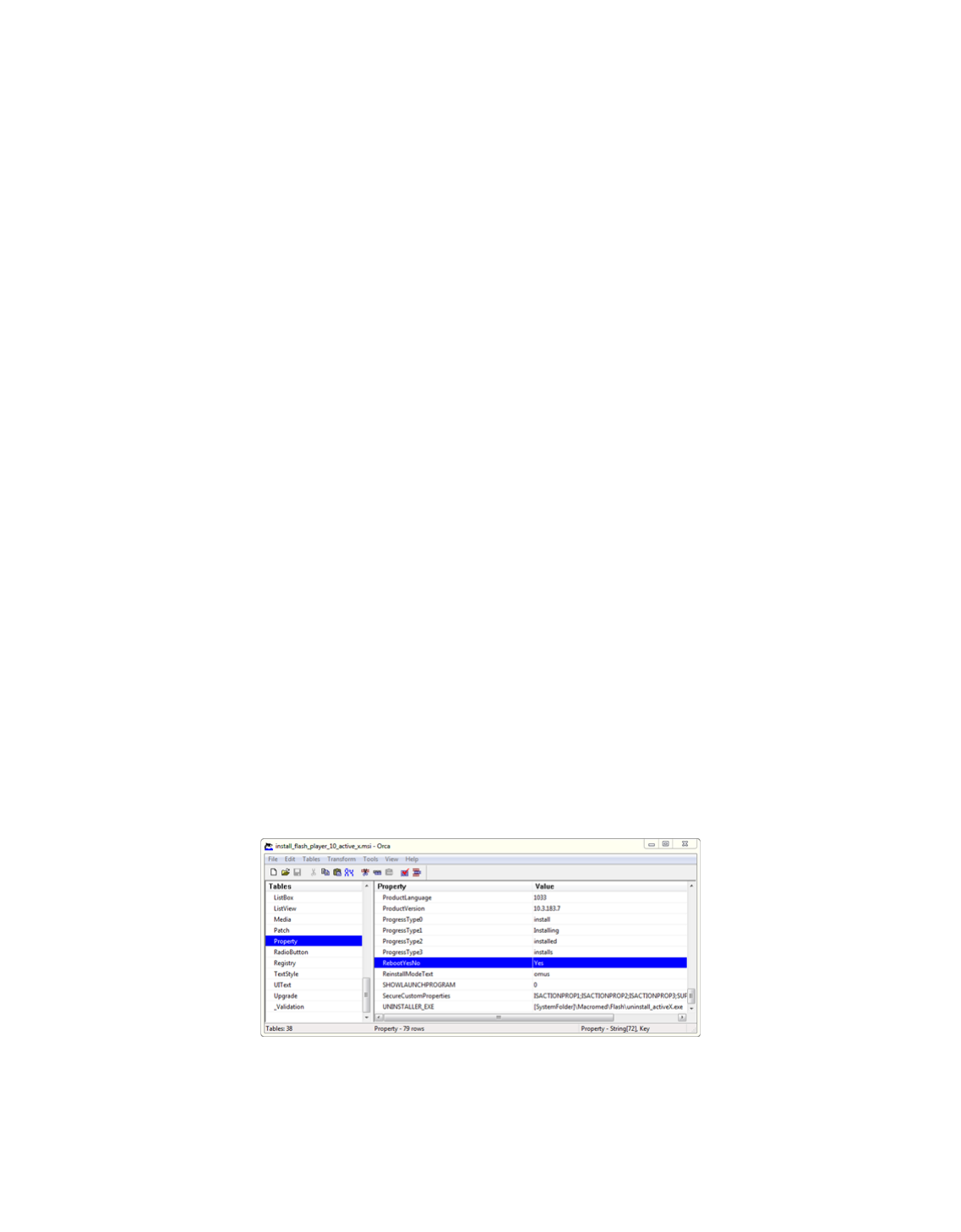
Figure 1: Adobe Flash Player's MSI inside Orca.
Once within Orca, you can open an MSI and peer around to locate its custom settings. Take a look at Figure 1 where you'll see that the
install_flash_player_10_active_x.msi installer has been loaded. Remember that MSIs are above all big databases of content and configurations that apply
files to disk drives and keys and values to registries. Orca exposes these databases for what they really are.

sagunseanchetry (/user/sagunseanchetry) 4 years ago
Grumpy_Monkey (/user/Grumpy_Monkey) 3 years ago
Inside every MSI is a table called Property. That table identifies all the properties that are tagged to an installation. The name and value pairs discussed
above are in fact properties (along with their values) as seen in Orca. Figure 1 shows a the RebootYesNo property that's configured in the Flash Player MSI
installation by whomever created the install. Its value defaults to Yes. By setting REBOOTYESNO=No, you are effectively telling the installation to go about its
business with every default property intact, except the one for REBOOTYESNO. For this one, change its value to No.
Just about any property you see in this table can be adjusted at the command line as you execute msiexec to kick off an installation.
While this method is the comprehensive approach, it is also the time-consuming approach. It also requires a bit of sleuthing to determine what property/value
combinations will ultimately net you the result you need. Another alternative is to simply search the Internet for clues that others have found. A popular
website that contains installation hints for many common software packages is www.appdeploy.com (http://www.itninja.com?from=appdeploy.com). A growing
number of software companies also recognize the need to provide silencing information about their installation packages.
A second alternative is to find a software repackaging solution that handles much of this work for you. These solutions incorporate a range of tactics to
gather the necessary silencing and customization information with the goal of presenting it in meaningful ways. MSI packaging solutions can be found by
many third-party companies with a range of price points and feature sets.
Transformers
One final element of MSI installations merits discussion. This element consolidates a series of property changes and other MSI reconfigurations into a single
file. An MST, or transforms file, is commonly used when an MSI's configuration database requires large scale changes to prepare itself for installation. Rather
than requiring you to enter a long list of alterations at the command line, a transforms file consolidates changes into a single file that is invoked at the
command line.
The generic use of a transforms file follows this structure:
msiexec.exe /q /l* {logfile.txt} /i {setup.msi} {NAME=Value} TRANSFORMS={Value}
In the command above the TRANSFORMS={Value} switch added to the command's end references a path to the MST file that has been specifically encoded
to reconfigure the command's MSI file. Creating your own transforms typically requires the use of a software
Packaging is Art. Deployment is Science.
At the end of the day, getting a software installation packaged for silent installation is only the first step. It can also be arguably the most difficult step. One
packaged, you'll need a software deployment solution to execute the command you've created on entire groups of computers at once.
Or, since this is a command line, you can keep walking the halls. Except this time you're not clicking Next, Next, Finish; you're typing long command strings
into each computer's Run prompt.
My advice: Get a software deployment solution.
Comments
(/user/sagunseanchetry)
When I try to do a silent install using the below, it keeps showing the install wizard to click next, any suggestions?
msiexec.exe /q /l* logfile.txt /i C:\Users\<username>\Downloads\ost38036setup.msi REBOOTYESNO=No
(/user/Grumpy_Monkey)
Use /qn for "Quiet No Dialogs", /qb for "Quiet Basic Dialogs"

DReynard (/user/DReynard) 2 years ago las t edited 2 years ago
aamena (/user/aamena) 2 years ago last edited 2 years ago
Jeremy.Blass (/user/Jeremy.Blass) 2 years ago last edited 2 years ago
okushwah (/user/okus hwah) 1 year ago last edited 1 year ago
vjaneczko (/user/vjaneczko) 1 year ago
(/user/vjaneczko)
glen.craig (/user/glen.craig) 6 months ago last edited 6 months ago
pace-s upport (/user/pace-support) 5 months ago
Cygnes82517 (/user/Cygnes82517) 2 months ago
(/user/DReynard)
In your example RebootYesNo is a private property . Private properties cannot be passed via a command line. You would need to use a transform to set
RebootYesNo.
(/user/aamena)
Thanks for the great topic
i tried to use /q and /qn ,, both of them is not working .. the installation Dialog shows and wait for my input
then i tried /s and the installation done silently ..
the problem is that when the installation is done, the dialog popup and wait for me to press finish :)
do you have any idea if there is any switch to close the dialog silently ??
thanks in advance
(/user/Jeremy.Blass)
I recently wrote a tool that pragmatically creates the scripts necessary for installing and uninstalling an MSI. It does this by reading the Windows Installer
Database and searching for the correct switches. Following this it builds three Install scripts in VBS, PowerShell and Batch and three uninstall scripts also in
VBS, PowerShell and Batch. It can be downloaded from my Blog I recently wrote a tool that automates the creation of MSI install scripts. The app produces six
scripts 3 install and 3 uninstall, in each of the following languages, PowerShell, VBS and Batch. The app creates these scripts by reading the Windows Installer
database and looking for the relevant information. The app can be downloaded from my Blog at
http://blassdeploymentsolutions.blogspot.co.il/2015/06/installation-automation.html
(/user/okushwah)
Hello. I am trying to write silent installation script for my company software. But that software is only in exe file format. I tries these above option but its not
working for me. Its still asking to click next button and then accept license. I am using chef tool for automation. Can you please tell me how can I write script for
exe file and can do silent installation. And one more thing how can I set and able to know about custom name and value pairs.
The above article is only for MSI files, not EXE files. Search this site for the application name and see if there's any tips or tricks.
(/user/glen.craig)
KACE or SCCM I love now being a ghost. Some good info here.
(/user/pace-support)
We are offering a tool that enables you to repackage any exe into silent msi installation - we will leave a link for anyone who wishes to try it (for free):
http://pacesuite.com/
(/user/Cygnes82517)
Sure, i'll try
Please log in (/login) to comment
Don't be a Stranger!
Sign up today to participate, stay
informed, earn points and establish
a reputation for yourself!
Sign up! (/register?/follow/post/12540/JTJGYmxvZyUyRnZpZXclMkZ0aGUtY29tcGxldGUtZ3VpZGUtdG8tbXNpLXN3aXRjaGVzLWZvci1zaWxlbnQtc29mdHdhcmUtaW5zdGFsbGF0aW9u)
or login
(/login?/follow/post/12540/JTJGYmxvZyUyRnZpZXclMkZ0aGUtY29tcGxldGUtZ3VpZGUtdG8tbXNpLXN3aXRjaGVzLWZvci1zaWxlbnQtc29mdHdhcmUtaW5zdGFsbGF0aW9u)
View More
From this author:
(/blog/user/greg_shields) gre g_shields (/blog/user/greg_shields)
Blog posts containing:
Package Development (/blog/tag/package-development) Windows Installer (MSI) (/blog/tag/windows-installer-%28msi%29) Silent Install Commands
(/blog/tag/silent-install-commands) UWM Blog (/blog/tag/uwm-blog)
Related Posts
The Grand Quest (/blog/view/the-grand-quest)

InstallShield Error Codes (Setup.log) (/blog/view/installshield-error-codes-setup-log)
InstallShield Setup Silent Installation Switches (/blog/view/installshield-setup-silent-installation-switches)
Driver Installation from an MSI using Microsoft DIFx (/blog/view/driver-installation-from-an-msi-using-microsoft-difx)
AppDeploy Command Line Installation Tips (/blog/view/appdeploy-command-line-installation)
Determining Transform (MST) Contents (/blog/view/appdeploy-com-gt-training-videos-gt-determining-transform-mst-contents)
AppDeploy Training Video: Windows Installer AppSearch (Wise System Search) (/blog/view/appdeploy-com-gt-training-videos-gt-windows-installer-appsearch-wise-
system-search)
Packaging Acrobat Reader 7 (/blog/view/appdeploy-com-gt-training-videos-gt-packaging-acrobat-reader-7)
Share
(http://www.quest.com/)
© 2017 Quest Software Inc. All rights reserved. Legal (/legal) | Feedback (https://kace.uservoice.com/forums/139919-itninja)
dc1c22b Mon February 6 18:01:59 EST 2017"www.itninja.com
Home Pages
Software (/software)
Deployment Tips (/tips)
Questions (/question)
Blog Posts (/blog)
Shared Links (/link)
FAQ & Support
Site FAQ (/faq)
AppDeploy FAQ (/appdeploy)
About
ITNinja (/about)
Welcome Video (/about)
Tour (/tour)
Contact (/contact)
Sitemap (/sitemap)
(http://www.facebook.com/pages/ITNinja/128951133849867)
(http://twitter.com/ITNinjaSite)
Share/Contribute
