ThinkGear Development Guide For Android Think Gear
User Manual:
Open the PDF directly: View PDF  .
.
Page Count: 31

ThinkGear Development Guide for Android
December 14, 2012
e NeuroSky® product families consist of hardware and
software components for simple integration of this biosensor
technology into consumer and industrial end-applications.
All products are designed and manufactured to meet consumer
thresholds for quality, pricing, and feature sets. NeuroSky
sets itself apart by providing building block component
solutions that offer friendly synergies with related and complemen-
tary technological solutions.
NO WARRANTIES: THE NEUROSKY PRODUCT FAMILIES
AND RELATED DOCUMENTATION IS PROVIDED "AS
IS" WITHOUT ANY EXPRESS OR IMPLIED WARRANTY
OF ANY KIND INCLUDING WARRANTIES OF MERCHANTABIL-
ITY, NONINFRINGEMENT OF INTELLECTUAL PROPERTY,
INCLUDING PATENTS, COPYRIGHTS OR OTHERWISE,
OR FITNESS FOR ANY PARTICULAR PURPOSE. IN NO
EVENT SHALL NEUROSKY OR ITS SUPPLIERS BE LIABLE
FOR ANY DAMAGES WHATSOEVER (INCLUDING, WITHOUT
LIMITATION, DAMAGES FOR LOSS OF PROFITS, BUSINESS
INTERRUPTION, COST OF REPLACEMENT GOODS OR
LOSS OF OR DAMAGE TO INFORMATION) ARISING OUT
OF THE USE OF OR INABILITY TO USE THE NEUROSKY
PRODUCTS OR DOCUMENTATION PROVIDED, EVEN
IF NEUROSKY HAS BEEN ADVISED OF THE POSSIBIL-
ITY OF SUCH DAMAGES. , SOME OF THE ABOVE LIMITATIONS
MAY NOT APPLY TO YOU BECAUSE SOME JURISDIC-
TIONS PROHIBIT THE EXCLUSION OR LIMITATION
OF LIABILITY FOR CONSEQUENTIAL OR INCIDENTAL
DAMAGES.
USAGE OF THE NEUROSKY PRODUCTS IS SUBJECT
OF AN END-USER LICENSE AGREEMENT.
“Made for iPod,” “Made for iPhone,” and “Made for
iPad” mean that an electronic accessory has been designed
to connect specifically to iPod, iPhone, or iPad, respectively,
and has been certified by the developer to meet Apple
performance standards. Apple is not responsible for
the operation of this device or its compliance with safety
and regulatory standards. Please note that the use of
this accessory with iPod, iPhone, or iPad may affect
wireless performance.
Contents
Introduction 4
inkGear SDK for Android Contents . . . . . . . . . . . . . . . . . . . . . . . . . . . . 4
Supported inkGear Hardware . . . . . . . . . . . . . . . . . . . . . . . . . . . . . . . . 4
Your First Project: HelloEEG 6
Developing Your Own inkGear-enabled Apps for Android 7
Preparing Your Android Project . . . . . . . . . . . . . . . . . . . . . . . . . . . . . . . . 7
Creating the TGDevice Object . . . . . . . . . . . . . . . . . . . . . . . . . . . . . . . . 7
Receiving and Handling Data Messages . . . . . . . . . . . . . . . . . . . . . . . . . . . . 8
TGDevice Message Types (msg.what) . . . . . . . . . . . . . . . . . . . . . . . . . . 9
TGDevice States . . . . . . . . . . . . . . . . . . . . . . . . . . . . . . . . . . . . . 12
Using the TGDevice Object . . . . . . . . . . . . . . . . . . . . . . . . . . . . . . . . . . 12
inkGear Data Types 14
General . . . . . . . . . . . . . . . . . . . . . . . . . . . . . . . . . . . . . . . . . . . . . 14
POOR_SIGNAL/SENSOR_STATUS . . . . . . . . . . . . . . . . . . . . . . . . . 14
RAW_DATA . . . . . . . . . . . . . . . . . . . . . . . . . . . . . . . . . . . . . . . 15
RAW_MULTI . . . . . . . . . . . . . . . . . . . . . . . . . . . . . . . . . . . . . . 15
EEG . . . . . . . . . . . . . . . . . . . . . . . . . . . . . . . . . . . . . . . . . . . . . . . 15
ATTENTION . . . . . . . . . . . . . . . . . . . . . . . . . . . . . . . . . . . . . . 15
MEDITATION . . . . . . . . . . . . . . . . . . . . . . . . . . . . . . . . . . . . . 16
BLINK . . . . . . . . . . . . . . . . . . . . . . . . . . . . . . . . . . . . . . . . . . 16
EEG_POWER . . . . . . . . . . . . . . . . . . . . . . . . . . . . . . . . . . . . . . 17
THINKCAP_RAW . . . . . . . . . . . . . . . . . . . . . . . . . . . . . . . . . . . 17
POSITIVITY . . . . . . . . . . . . . . . . . . . . . . . . . . . . . . . . . . . . . . 17
FAMILIARITY . . . . . . . . . . . . . . . . . . . . . . . . . . . . . . . . . . . . . 17
DIFFICULTY . . . . . . . . . . . . . . . . . . . . . . . . . . . . . . . . . . . . . . 17
ECG/EKG . . . . . . . . . . . . . . . . . . . . . . . . . . . . . . . . . . . . . . . . . . . 17
HEART_RATE . . . . . . . . . . . . . . . . . . . . . . . . . . . . . . . . . . . . . 17
Smoothed Heart Rate . . . . . . . . . . . . . . . . . . . . . . . . . . . . . . . . . . 18
Heart Rate Acceleration . . . . . . . . . . . . . . . . . . . . . . . . . . . . . . . . . 18
Target Heart Rate for Physical Training . . . . . . . . . . . . . . . . . . . . . . . . . 18
Heart Fitness Level . . . . . . . . . . . . . . . . . . . . . . . . . . . . . . . . . . . . 19
RELAXATION . . . . . . . . . . . . . . . . . . . . . . . . . . . . . . . . . . . . . 20
RESPIRATION . . . . . . . . . . . . . . . . . . . . . . . . . . . . . . . . . . . . . 20
Heart Risk Awareness . . . . . . . . . . . . . . . . . . . . . . . . . . . . . . . . . . 21
HEART_AGE . . . . . . . . . . . . . . . . . . . . . . . . . . . . . . . . . . . . . . 22
Personalization . . . . . . . . . . . . . . . . . . . . . . . . . . . . . . . . . . . . . . 24
EKG_RRINT . . . . . . . . . . . . . . . . . . . . . . . . . . . . . . . . . . . . . . 25
Proper App Design 26
Troubleshooting 27
Important Notices 28
December 14, 2012 | © 2012 NeuroSky, Inc. All Rights Reserved.
3

Chapter 1
Introduction
is guide will teach you how to use NeuroSky's inkGear SDK for Android to write Android apps
that can utilize bio-signal data from NeuroSky's inkGear family of bio-sensors (which includes the
CardioChip family of products). is will enable your Android apps to receive and use bio-signal data
such as EEG and ECG/EKG acquired from NeuroSky's sensor hardware.
is guide (and the entire inkGear SDK for Android for that matter) is intended for programmers
who are already familiar with standard Android development using Eclipse and Google's AndroidSDK.
If you are not already familiar with developing for Android, please rst visit http://developer.android.com
to learn how to set up your Eclipse+AndroidSDK development environment and create typical An-
droid apps.
If you are already familiar with creating typical Android apps, then the next step is to make sure
you have downloaded NeuroSky's inkGear SDK for Android. Chances are, if you're reading this
document, then you already have it. If not, the SDK can be downloaded from
http://store.neurosky.com/products/developer-tools-3-android.
ThinkGear SDK for Android Contents
• inkGear SDK for Android: Development Guide (this document)
• inkGear SDK for Android: API Reference
• inkGearBase.jar library
• inkGearPackX.jar library
• HelloEEG example inkGear project for Android
• HelloEKG example inkGear project for Android
You'll nd the "API Reference" in the reference/ folder of the TG-SDK, the "inkGearBase.jar"
and "inkGearPackX.jar" in the lib/ folder, and the "HelloEEG and HelloEKG example projects"
in the Sample Projects/ folder.
Supported ThinkGear Hardware
e inkGear SDK for Android must be used with a inkGear-compatible hardware sensor device.
e following inkGear-compatible hardware devices are currently supported:
• MindWave Mobile
• MindBand
• MindTune
December 14, 2012 | © 2012 NeuroSky, Inc. All Rights Reserved.
5

Chapter 1 – Introduction
• MindSet
• inkCap 1.0
• BrainAthlete
• CardioChip Starter Kit Unit
Important: Before using any Android app that uses the TG-SDK for Android, make sure you have
paired the inkGear sensor hardware to your Android device by carefully following the instructions
in the User Manual that came with each inkGear hardware device!
Supported ThinkGear Hardware
December 14, 2012 | © 2012 NeuroSky, Inc. All Rights Reserved.
6

Chapter 2
Your First Project: HelloEEG
HelloEEG is a sample project we've included in the inkGear SDK for Android that demonstrates
how to setup, connect, and handle data to a inkGear device. Add the project to your Eclipse IDE
by following these steps. (Tested with Eclipse IDE for Java Developers Version: Juno Service Release
1 on Mac OS 10.8.2)
1. In Eclipse, select File >New >Project…
2. In the New Project wizard, expand the Android section and select Android Project from Ex-
isting Code and click Next
3. Click on Browse… and locate the HelloEEG project folder in the Sample Projects folder and
click Open
4. Click the checkbox for Copy projects to workspace and click Finish
5. Click Finish to exit the wizard.
6. Have your Android device connected to your computer.
7. At this point, you should be able to browse the code, make modications, compile, and deploy
the app to your device or emulator just like any typical Android app.
Note: If there are problems, try the following:
• Right-click on the project and select Properties. Click on the Android section and make sure
a build target of at least Android 2.3.3 is selected.
• Before trying to connect, make sure you have paired your inkGear hardware device to your
Android device via your Android device's Bluetooth settings!
• In Eclipse's Package Explorer, expand the libs/ folder of your project, right-click (or Ctrl-click
for Mac users) on inkGearBase.jar, and select Build Path >Add to Build Path ALSO add
the inkGearPackX.jar that is in the folder.
• Check the Eclipse!Run!Run Congurations.. to make sure the application is running on the
correct device. On the Target tab you can pick "Always prompt to pick device".
• Take a look in the Eclipse Console, sometimes it indicates that it needs to be restarted, so exit
Eclipse and restart it.
• If you see the message e selection cannot be launched, and there are no recent launches." en
right click on the project in the Package or Project Explorer, choose "Run As"and pick "Android
Application". en try to Run again.
You may use this same process to build the HelloEKG sample project.
December 14, 2012 | © 2012 NeuroSky, Inc. All Rights Reserved.
7

Chapter 3
Developing Your Own
ThinkGear-enabled Apps for
Android
Preparing Your Android Project
• First, make sure the "Android build target" for your project is at least Android 2.3.3.
1. Right-click on your project and select Properties.
2. Click on the Android section and make sure a build target of at least Android 2.3.3 is
selected.
• en, you must add the ThinkGearBase.jar and ThinkGearPackX.jarlibrary les to your
project:
1. With your Android project open in Eclipse, use the Package Explorer in Eclipse to create
alib folder at the root folder of your project
2. Use Windows Explorer (or Finder on Mac) to copy the ThinkGear jar les from the lib
folder of your TG-SDK for Android to your Eclipse project's lib folder.
3. In the Eclipse Package Explorer, right-click (Ctrl-click for Mac users) on ThinkGear-
Base.jar select Build Path »Add to build path. ALSO add the ThinkGearPackX.jar
• Assuming your app will be connecting to the inkGear hardware device via bluetooth, you will
need to enable the BLUETOOTH permission in your app's manifest le:
<manifest ... >
<uses-permission android:name="android.permission.BLUETOOTH" />
...
</manifest>
Creating the TGDevice Object
ATGDevice object is used to manage a single connection to a single inkGear hardware device.
is guide will only cover the most common connecting case, which is where your Android app
will be connecting to the inkGear hardware device via standard Android Bluetooth using the
TGDevice(BluetoothAdapter, Handler) constructor. (e alternate TGDevice(InputStream,
OutputStream, Handler) constructor should only be used for special, uncommon use cases).
• Import the following packages into your Activity:
import com.neurosky.thinkgear.*;
import com.android.bluetooth.*;
import com.android.util.Log;
December 14, 2012 | © 2012 NeuroSky, Inc. All Rights Reserved.
8

Chapter 3 – Developing Your Own ThinkGear-enabled Apps for Android
• Declare a TGDevice object and a BluetoothAdapter object in your Activity:
public class HelloEEGActivity extends Activity {
//...
TGDevice tgDevice = null;
BluetoothAdapter btAdapter = null;
//...
• Initialize the btAdapter and tgDevice in the onCreate() method:
public void onCreate(Bundle savedInstanceState) {
//...
btAdapter = BluetoothAdapter.getDefaultAdapter();
if( btAdapter != null ) {
tgDevice = new TGDevice( btAdapter, handler );
}
//...
}
Note: We'll discuss the handler object in the next section.
Receiving and Handling Data Messages
e TGDevice will communicate to your app via messages sent to a Handler object. To create a
Handler object in your app to process incoming data:
private final Handler handler = new Handler() {
@Override
public void handleMessage( Message msg ) {
switch( msg.what ) {
case TGDevice.MSG_STATE_CHANGE:
switch( msg.arg1 ) {
case TGDevice.STATE_IDLE:
break;
case TGDevice.STATE_ERR_BT_OFF:
break;
case TGDevice.STATE_CONNECTING:
break;
case TGDevice.STATE_ERR_NO_DEVICE:
break;
case TGDevice.STATE_NOT_FOUND:
break;
case TGDevice.STATE_CONNECTED:
device.start();
break;
case TGDevice.STATE_DISCONNECTED:
break;
default:
break;
} /* end switch on state change type */
break;
Receiving and Handling Data Messages
December 14, 2012 | © 2012 NeuroSky, Inc. All Rights Reserved.
9
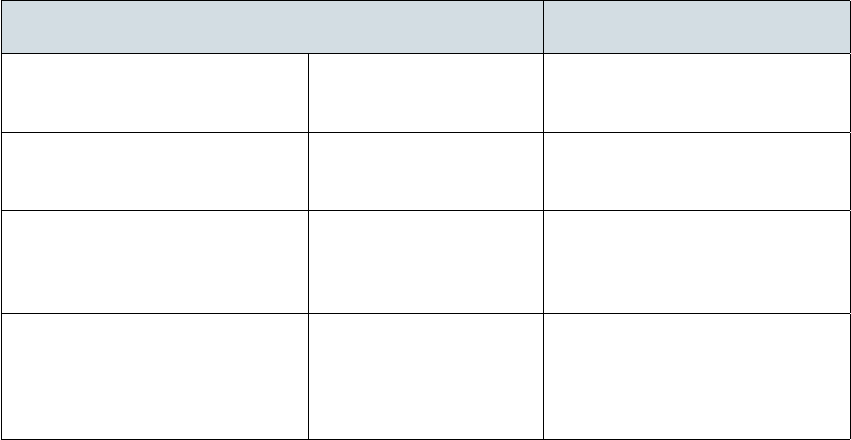
Chapter 3 – Developing Your Own ThinkGear-enabled Apps for Android
case TGDevice.POOR_SIGNAL:
Log.v( "HelloEEG", "PoorSignal: " + msg.arg1 );
break;
case TGDevice.MSG_ATTENTION:
Log.v( "HelloEEG", "Attention: " + msg.arg1 );
break;
case TGDevice.MSG_RAW_DATA:
int rawValue = msg.arg1;
break;
case TGDevice.MSG_EEG_POWER:
TGEegPower ep = (TGEegPower)msg.obj;
Log.v( "HelloEEG", "Delta: " + ep.delta );
break;
default:
break;
} /* end switch on message type */
} /* end handleMessage() */
}; /* end Handler */
e type of each Message is determined by examining the value of msg.what, while the actual data
value for the Message is available from either msg.arg1 (for simple values) or msg.obj (for more
complex values).
TGDevice Message Types (msg.what)
msg.what Description Data
MSG_STATE_CHANGE e TGDevice has
changed state
e state change info is stored in
the arg1 eld of the Message (see
TGDevice States table below)
MSG_POOR_SIGNAL Bio-signal quality/status e status or quality of the bio-
signal is stored in the arg1 eld
of the Message
MSG_RAW_DATA Raw sample value e single-channel raw sample
value (most inkGear devices) is
stored as an int in the arg1 eld
of the Message
MSG_RAW_MULTI Multi-channel raw values e multi-channel raw sample
data (only available from certain
inkGear devices) are stored as
aTGRawMulti object in the obj
eld of the Message
Receiving and Handling Data Messages
December 14, 2012 | © 2012 NeuroSky, Inc. All Rights Reserved.
10
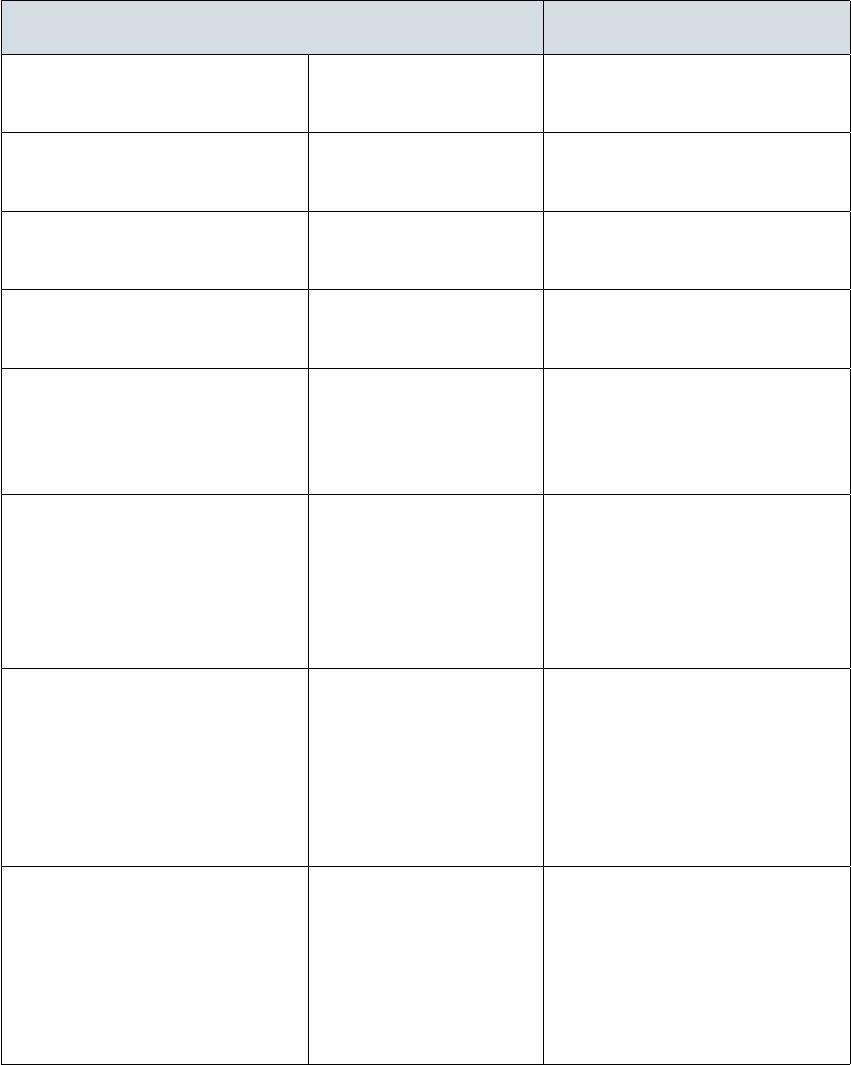
Chapter 3 – Developing Your Own ThinkGear-enabled Apps for Android
msg.what Description Data
MSG_ATTENTION Attention level e attention level of the user is
stored in the arg1 eld of the
Message
MSG_MEDITATION Meditation level e meditation level of the user
is stored in the arg1 eld of the
Message
MSG_BLINK Strength of detected
blink
e blink strength of the user's
blink is stored in the arg1 eld of
the Message
MSG_EEG_POWER EEG powers e EEG powers of the user are
stored as a TGEegPower object in
the obj eld of the Message
MSG_THINKCAP_RAW Multi-channel raw values e multi-channel raw sam-
ple data (only available from
inkCap devices) are stored as a
TGRawMulti object in the obj
eld of the Message
MSG_POSITIVITY -100.0 to 100.0 Values indicate the subject's emo-
tion or mood. e more posi-
tive values mean the subject is in a
positive emotion or approach mo-
tivation, and the more negative
values mean more negative emo-
tion or withdrawal motivation.
MSG_FAMILIARITY Can be used to compare a test
subjects familiarity with a newly
learned motor skill. One minute
of collected data could constitute
a trial, and will produce a famil-
iarity index value. e familiarity
index of separate trials of the mo-
tor skill can be compared.
MSG_DIFFICULTY Can be used to compare the dif-
cult a test subjects nds a newly
learned motor skill. One minute
of collected data could constitute
a trial, and will produce a diffi-
culty index value. e difficulty
index of separate trials of the mo-
tor skill can be compared.
Receiving and Handling Data Messages
December 14, 2012 | © 2012 NeuroSky, Inc. All Rights Reserved.
11
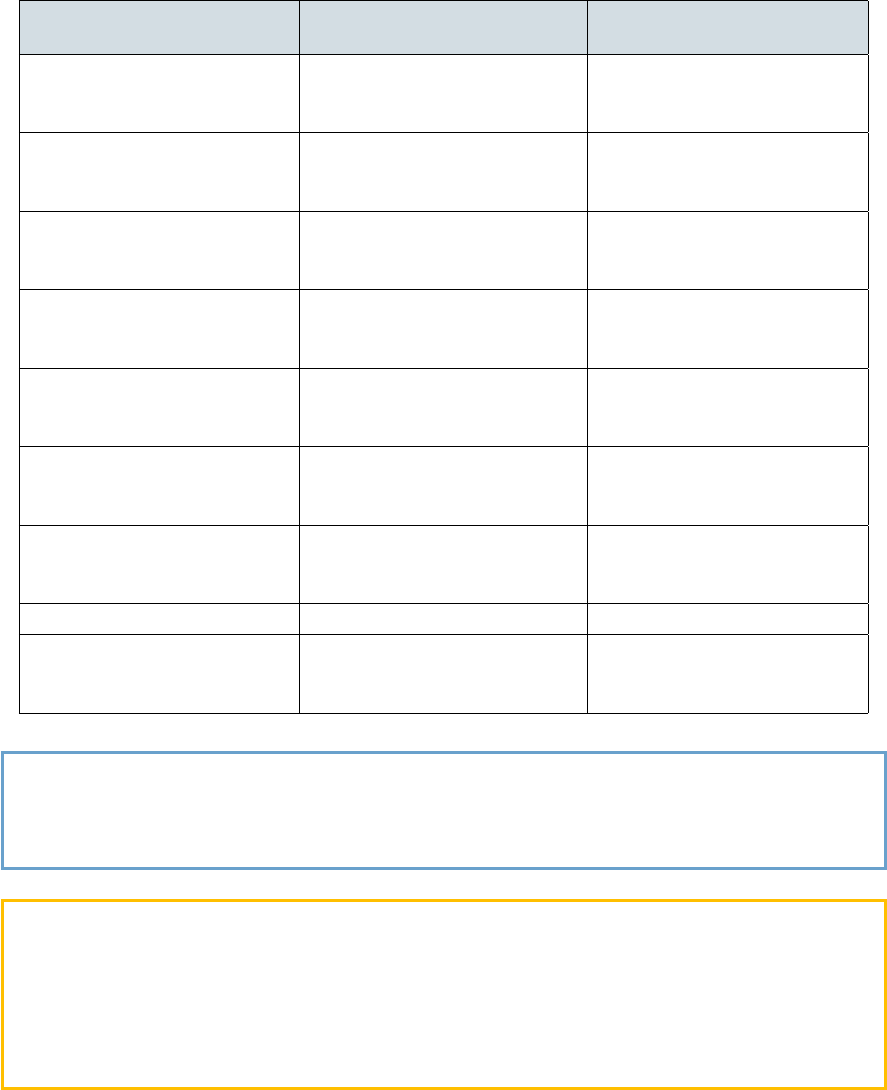
Chapter 3 – Developing Your Own ThinkGear-enabled Apps for Android
msg.what Description Data
MSG_HEART_RATE Heart rate e heart rate data is stored as
an int in the arg1 eld of the
Message
MSG_EKG_RRINT R-to-R interval e R-to-R interval in mil-
liseconds is stored as an int in
the arg1 eld of the Message
MSG_RELAXATION Relaxation level e relaxation level of the user
is stored as an int in the arg1
eld of the Message
MSG_RESPIRATION Respiration Rate e respiration rate of the user
is stored as a Float object in
the obj eld of the Message
MSG_HEART_AGE Heart Age e heart age of the user is
stored as an int in the arg1
eld of the Message
MSG_HEART_AGE_5MIN Heart Age e heart age of the user is
stored as an int in the arg1
eld of the Message
MSG_EKG_TRAIN_STEP Train Step e train step value is stored as
an int in the arg1 eld of the
Message
MSG_EKG_TRAINED Trained Does not return anything
MSG_EKG_IDENTIFIED Identied e identied result is stored
as a string in the arg1 eld of
the Message
Note: Depending on the type of inkGear hardware device that your TGDevice is connected to,
some of the data types listed above will never be sent to your app's Handler, since those data types
may not be applicable for that inkGear hardware device. See the developer specs for each inkGear
hardware device that your app may support for details.
Important: Pay particular attention to MSG_STATE_CHANGE messages (which indicate what the TGDe-
vice object is currently doing), and to MSG_POOR_SIGNAL messages (which indicates the current state
of the physical inkGear hardware device). For example, if the MSG_POOR_SIGNAL is indicating that
the physical inkGear hardware device isn't even being worn by a user at the moment (a value of
200 on inkGear EEG devices, or a value of 0 on ECG devices), then the app needs to treat any
incoming raw data values or EEG power values accordingly, possibly by ignoring them as appropriate
for the app.
For more detailed information about each data type such as Attention, Meditation, or Relaxation,
please use the inkGear Data Types section below as a reference guide.
For information that may be device-specic, additionally refer to the specs and development notes
that are available for each specic inkGear hardware device.
Receiving and Handling Data Messages
December 14, 2012 | © 2012 NeuroSky, Inc. All Rights Reserved.
12
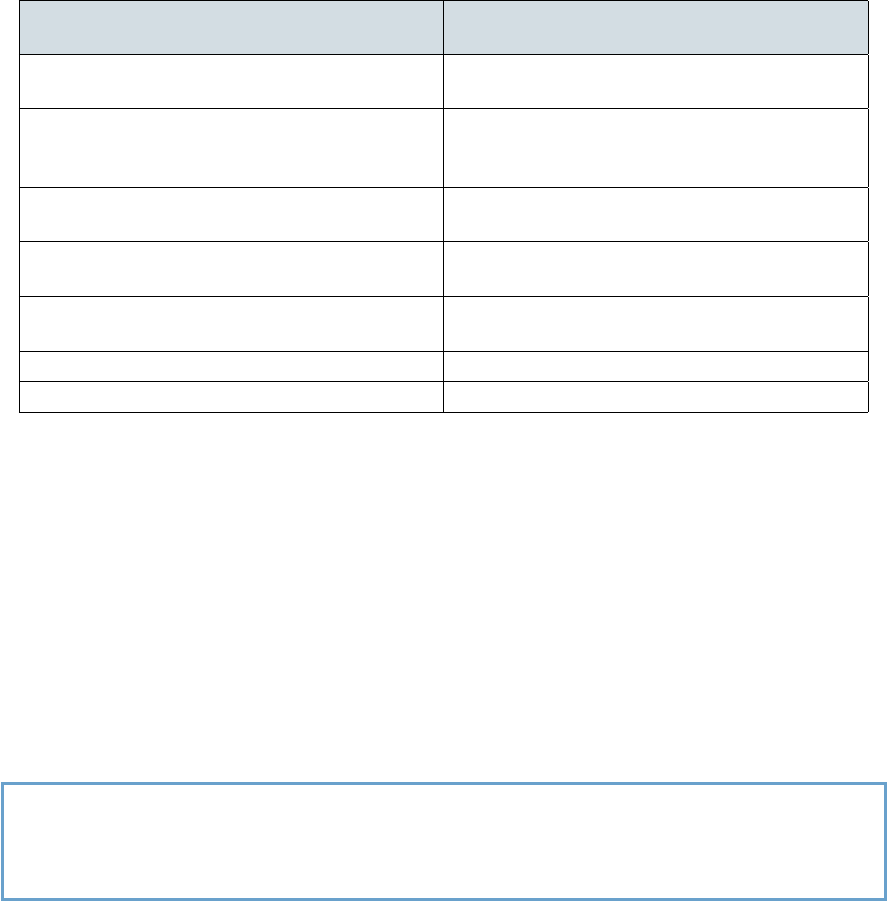
Chapter 3 – Developing Your Own ThinkGear-enabled Apps for Android
TGDevice States
State Description
STATE_IDLE Initial state of the TGDevice. Not connected to
any inkGear hardware device after stop()
STATE_ERR_BT_OFF e Android device's Bluetooth adapter is not
turned on or enabled during TGDevice() con-
structor or connect()
STATE_CONNECTING Attempting to connect to a inkGear hardware
device during connect()
STATE_ERR_NO_DEVICE ere are no Bluetooth devices paired to this
Android device
STATE_NOT_FOUND Could not nd any of the inkGear hardware
devices that are paired to this Android device
STATE_CONNECTED e data stream has been opened
STATE_DISCONNECTED e connection to the module is lost after close()
Using the TGDevice Object
With the Handler object ready to receive data and the TGDevice object created, your app can now
instruct the TGDevice object to try to connect to your physical inkGear hardware device and start
processing the incoming data.
• Call the connect() method of your tgDevice to start the connection process. e tgDevice
will search through your Android device's list of all paired Bluetooth devices, and try to connect
to the rst one that it recognizes as a inkGear-compatible device (see Supported Devices):
tgDevice.connect( true );
Note: Setting the connect() method's rawEnabled parameter to true allows raw sample data to
be sent to your app. Setting to false will prevent raw data from being parsed and sent to your app,
possibly saving some CPU from parsing and saving your app's Handler from having to receive many
raw sample messages that your app may not need to use.
• After successfully nding and connecting to a inkGear hardware device through Bluetooth,
the tgDevice will send a STATE_CONNECTED Message to your app's Handler. To start receiving
data upon receiving this message, call the tgDevice's start() method:
tgDevice.start();
• When your app no longer needs data from the TGDevice, close the connection by calling the
close() method:
tgDevice.close();
At this point, your app should now be able to connect to a inkGear hardware device and receive
values! To learn more details about the TGDevice class, you may refer to the inkGear SDK for
Using the TGDevice Object
December 14, 2012 | © 2012 NeuroSky, Inc. All Rights Reserved.
13
Chapter 3 – Developing Your Own ThinkGear-enabled Apps for Android
Android: API docs at any time, found in the reference/ folder of your inkGear SDK for An-
droid.
Or, read on to the next section below to nd out what your app can (or should) do with some of those
inkGear values it's now receiving.
Using the TGDevice Object
December 14, 2012 | © 2012 NeuroSky, Inc. All Rights Reserved.
14

Chapter 4
ThinkGear Data Types
e inkGear data types are generally divided into three groups: data types that are only applicable
for EEG sensor devices, types that are only applicable for ECG/EKG (CardioChip) sensor devices, and
data types that are typically applicable to all inkGear-based devices, including EEG and ECG/EKG.
General
ese data types are generally available from most or all types of inkGear hardware devices.
POOR_SIGNAL/SENSOR_STATUS
is integer value provides an indication of how good or how poor the bio-signal is at the sensor. is
value is typically output by all inkGear hardware devices once per second.
is is an extremely important value for any app using inkGear sensor hardware to always read,
understand, and handle. Depending on the use cases for your app and users, your app may need to alter
the way it uses other data values depending on the current value of POOR_SIGNAL/SIGNAL_STATUS.
For example, if this value is indicating that the bio-sensor is not currently contacting the subject, then
any received RAW_DATA or EEG_POWER values during that time should be treated as oating
noise not from a human subject, and possibly discarded based on the needs of the app. e value
should also be used as a basis to prompt the user to possibly adjust their sensors, or to put them on in
the rst place.
In order to interpret this value you must rst decide which type of NeuroSky sensor you are using.
As the interpretation is different for the different types of sensors.
For EEG sensor hardware: A value of 0 indicates that the bio-sensor is not able to detect any obvious
problems with the signal at the sensor. Higher values from 1 to 199 indicate increasingly more detected
problems with the signal. A value of 200 means the sensor contacts detect that they are not even all
properly in contact with a conductive subject (for example, the EEG headset may currently not even
be worn on any person's head).
For ECG/EKG (CardioChip) sensor hardware: A value of 200 indicates the bio-sensor contacts are
all currently in contact with a conductive subject (such as a user's skin), while a value of 0 indicates
the opposite: that not all the contacts are in proper contact with a conductive subject.
Poor signal may be caused by a number of different things. In order of severity, they are:
• Sensor, ground, or reference electrodes not being on a person's head/body (i.e. when nobody is
wearing the inkGear equipment).
• Poor contact of the sensor, ground, or reference electrodes to a person's skin (i.e. hair in the
way, or headset which does not properly t a person's head, or headset not properly placed on
the head).
December 14, 2012 | © 2012 NeuroSky, Inc. All Rights Reserved.
15
Chapter 4 – ThinkGear Data Types
• Excessive motion of the wearer (i.e. moving head or body excessively, jostling the headset/sen-
sor).
• Excessive environmental electrostatic noise (some environments have strong electric signals or
static electricity buildup in the person wearing the sensor).
• Excessive biometric noise (i.e. unwanted EMG, EKG/ECG, EOG, EEG, etc. signals)
For EEG modules, a certain amount of noise is unavoidable in normal usage of inkGear sensor
hardware, and both NeuroSky's ltering technology and algorithms have been designed to detect,
correct, compensate for, account for, and tolerate many types of signal noise. Most typical users who
are only interested in using the eSense values, such as Attention and Meditation, do not need to worry
as much about the POOR_SIGNAL Quality value, except to note that the Attention and Meditation
values will not be updated while POOR_SIGNAL is greater than zero, and that the headset is not being
worn while POOR_SIGNAL is 200. e POOR_SIGNAL Quality value is more useful to some applica-
tions which need to be more sensitive to noise (such as some medical or research applications), or
applications which need to know right away when there is even minor noise detected.
RAW_DATA
is data type supplies the raw sample values acquired at the bio-sensor. e sampling rate (and
therefore output rate), possible range of values, and interpretations of those values (conversion from
raw units to volt) for this data type are dependent on the hardware characteristics of the inkGear
hardware device performing the sampling. You must refer to the documented development specs of
each type of inkGear hardware that your app will support for details.
As an example, the majority of inkGear devices sample at 512Hz, with a possible value range of
-32768 to 32767.
As another example, to convert TGAT-based EEG sensor values (such as TGAT, TGAM, MindWave
Mobile, MindWave, MindSet) to voltage values, use the following conversion:
(rawValue * (1.8/4096) / 2000
Note that ECG/EKG raw values from CardioChip/BMD10X-based devices must use a different con-
version.
RAW_MULTI
is data type is not currently used by any current commercially-available inkGear products. It is kept
here for backwards compatibility with some end-of-life products, and as a placeholder for possible future
products.
EEG
ese data types are only available from EEG sensor hardware devices, such as the MindWave Mobile,
MindSet, MindBand, and TGAM chips and modules.
ATTENTION
is int value reports the current eSense Attention meter of the user, which indicates the intensity of
a user's level of mental "focus" or "attention", such as that which occurs during intense concentration
EEG
December 14, 2012 | © 2012 NeuroSky, Inc. All Rights Reserved.
16
Chapter 4 – ThinkGear Data Types
and directed (but stable) mental activity. Its value ranges from 0 to 100. Distractions, wandering
thoughts, lack of focus, or anxiety may lower the Attention meter levels. See eSense\texttrademark
Meters below for details about interpreting eSense levels in general.
By default, output of this Data Value is enabled. It is typically output once a second.
MEDITATION
is unsigned one-byte value reports the current eSense Meditation meter of the user, which indicates
the level of a user's mental "calmness" or "relaxation". Its value ranges from 0 to 100. Note that
Meditation is a measure of a person's mental levels, not physical levels, so simply relaxing all the
muscles of the body may not immediately result in a heightened Meditation level. However, for
most people in most normal circumstances, relaxing the body often helps the mind to relax as well.
Meditation is related to reduced activity by the active mental processes in the brain, and it has long
been an observed effect that closing one's eyes turns off the mental activities which process images
from the eyes, so closing the eyes is often an effective method for increasing the Meditation meter level.
Distractions, wandering thoughts, anxiety, agitation, and sensory stimuli may lower the Meditation
meter levels. See "eSense Meters" below for details about interpreting eSense levels in general.
By default, output of this Data Value is enabled. It is typically output once a second.
eSense™ Meters
For all the different types of eSenses (i.e. Attention, Meditation), the meter value is reported on a
relative eSense scale of 1 to 100. On this scale, a value between 40 to 60 at any given moment in time
is considered "neutral", and is similar in notion to "baselines" that are established in conventional EEG
measurement techniques (though the method for determining a inkGear baseline is proprietary and
may differ from conventional EEG). A value from 60 to 80 is considered "slightly elevated", and may
be interpreted as levels being possibly higher than normal (levels of Attention or Meditation that may
be higher than normal for a given person). Values from 80 to 100 are considered "elevated", meaning
they are strongly indicative of heightened levels of that eSense.
Similarly, on the other end of the scale, a value between 20 to 40 indicates "reduced" levels of the
eSense, while a value between 1 to 20 indicates "strongly lowered" levels of the eSense. ese levels
may indicate states of distraction, agitation, or abnormality, according to the opposite of each eSense.
An eSense meter value of 0 is a special value indicating the inkGear is unable to calculate an eSense
level with a reasonable amount of reliability. is may be (and usually is) due to excessive noise as
described in the POOR_SIGNAL section above.
e reason for the somewhat wide ranges for each interpretation is that some parts of the eSense
algorithm are dynamically learning, and at times employ some "slow-adaptive" algorithms to adjust
to natural uctuations and trends of each user, accounting for and compensating for the fact that
EEG in the human brain is subject to normal ranges of variance and uctuation. is is part of the
reason why inkGear sensors are able to operate on a wide range of individuals under an extremely
wide range of personal and environmental conditions while still giving good accuracy and reliability.
Developers are encouraged to further interpret and adapt these guideline ranges to be ne-tuned for
their application (as one example, an application could disregard values below 60 and only react to
values between 60-100, interpreting them as the onset of heightened attention levels).
BLINK
is int value reports the intensity of the user's most recent eye blink. Its value ranges from 1 to 255
and it is reported whenever an eye blink is detected. e value indicates the relative intensity of the
blink, and has no units.
EEG
December 14, 2012 | © 2012 NeuroSky, Inc. All Rights Reserved.
17
Chapter 4 – ThinkGear Data Types
EEG_POWER
is Data Value represents the current magnitude of 8 commonly-recognized types of EEG frequency
bands.
e eight EEG powers are: delta (0.5 - 2.75Hz), theta (3.5 - 6.75Hz), low-alpha (7.5 - 9.25Hz),
high-alpha (10 - 11.75Hz), low-beta (13 - 16.75Hz), high-beta (18 - 29.75Hz), low-gamma (31 -
39.75Hz), and mid-gamma (41 - 49.75Hz). ese values have no units and are only meaningful for
comparison to the values for the other frequency bands within a sample.
By default, output of this Data Value is enabled, and it is output approximately once a second.
THINKCAP_RAW
is data type is not currently used by any current commercially-available inkGear products. It is kept
here for backwards compatibility with some end-of-life products, and as a placeholder for possible future
products.
POSITIVITY
Values -100 to +100, indicates that the subject is attentive, the more negative values mean the subject
is less attentive and the more positive values mean more attentive.
FAMILIARITY
Can be used to compare a test subjects familiarity with a newly learned motor skill. One minute of
collected data could constitute a trial, and will produce a familiarity index value for this subject. e
familiarity index of separate trials of the motor skill can be compared for the same subject.
DIFFICULTY
Can be used to compare a difficult a test subjects nds a newly learned motor skill. One minute of
collected data could constitute a trial, and will produce a difficulty index value for this subject. e
difficulty index of separate trials of the motor skill can be compared for the same subject.
ECG/EKG
ese data types are only available from ECG/EKG sensor (CardioChip) hardware devices, such as
the CardioChip Starter Kit Unit and BMD10X chips and modules.
HEART_RATE
is int value reports the current heart rate of the user, in units of beats per minute (BPM). Unlike
many other commonly seen reports of heart rate from other devices, this value is calculated precisely
in real time based on the actual time between each and every one of the user's actual R-peaks. is
results in a very precise and continuous reporting of Heart Rate that changes with the actual beat-to-
beat uctuations of every single one of the user's actual heart beats.
To easily get an "smoothed, averaged" heart rate value which is more commonly seen as reported by
other ECG/EKG devices, use these values as inputs to the Smoothed Heart Rate described below.
ECG/EKG
December 14, 2012 | © 2012 NeuroSky, Inc. All Rights Reserved.
18
Chapter 4 – ThinkGear Data Types
Smoothed Heart Rate
Typically, when viewing a "Heart Rate" value on many ECG/EKG devices, a "smoothed" value is dis-
played so that there aren't rhythmic uctuations in the viewed heart rate based on the subject's natural
HRV rhythms. e same sort of "smoothed" effect can be achieved against the precise HEART\_RATE
values, by using the getAcceleration() method of the HeartRateAcceleration class provided
in this SDK.
See the section on Heart Rate Acceleration for a description of how to calculate the Smoothed Heart
Rate, and then refer to the API Reference for full details on the HeartRateAcceleration class.
Heart Rate Acceleration
A potentially useful metric of Heart Rate is the acceleration rate. A positive acceleration value indicates
the user's heart rate is speeding up by a certain number of BPM over a given period of time (such as
over 10 seconds), while a negative acceleration value indicates the user's heart rate is slowing down by
a certain number of BPM over a given period. When starting exercise, or during rest after exercise,
this acceleration metric could be used as an indicator of how quickly a person's heart is speeding up
to match the activity, or how quickly it is slowing down back to normal, respectively.
To calculate Heart Rate Acceleration (and/or Smoothed Heart Rate), rst initialize a HeartRateAccel-
eration() object in your app:
HeartRateAcceleration heartRateAcceleration = new HeartRateAcceleration();
is will initialize the calculation to use a period of 10 second. (You can instead choose to use the over-
loaded constructors to initialize the calculation using a longer or shorter period of time, as appropriate
for your app).
en, whenever a new Heart Rate value becomes available to your app, get the Smoothed Heart Rate
and acceleration values like this:
int[] result = heartRateAcceleration.getAcceleration( heartRate, poorSignal );
if( result[0] != -1 ) {
int smoothedHeartRate = result[0];
int heartRateAcceleration = result[1];
}
Refer to the API Reference documentation for full details of the HeartRateAcceleration class.
Target Heart Rate for Physical Training
Given information about a user's age and gender, it is possible to determine a target range of heart
rates for them to achieve particular physical training "zones". Combined with the HEART\_RATE
information reported by the sensor, an app could advise a user whether their current heart rate is
within their target training zone (such as right after a workout).
To determine the target range of heart rates for a person, rst create a TargetHeartRate object:
TargetHeartRate targetHeartRate = new TargetHeartRate();
en, at any time, to determine the target range of heart rates (min to max values) for a a user to
achieve a particular physical training zone, use the getTargetHeartRate() method:
ECG/EKG
December 14, 2012 | © 2012 NeuroSky, Inc. All Rights Reserved.
19

Chapter 4 – ThinkGear Data Types
int age = 25;
String gender = "Male";
String zone = "Aerobic";
int[] range = targetHeartRate.getTargetHeartRate( age, gender, zone );
int lowerBound = range[0];
int upperBound = range[1];
e lowerBound and upperBound could then be compared to the user's HEART\_RATE or Smoothed
Heart Rate to determine if the user is within the their target range for the target physical training zone.
e gender must be either "Male" or "Female". e zone must be one of:
•"Light Exercise"
•"Weight Loss"
•"Aerobic"
•"Conditioning"
•"Athletic"
If any of the arguments are incorrect, then the method will return an int[] of -1, -1 .
Important: e heart rate should not be measured while the user is engaged in physical activity; the
user should temporarily stop the activity and then measure their heart rate.
(References)
1. http://www.heart.org/HEARTORG/GettingHealthy/PhysicalActivity/Target-Heart-Rates\_UCM\_434341\_Article.jsp
2. http://www.cdc.gov/physicalactivity/everyone/measuring/heartrate.html
3. http://www.heart.com/heart-rate-chart.html
4. http://www.thewalkingsite.com/thr.html
Heart Fitness Level
Given a person's age, gender, and current resting heart rate, it is possible to get a general idea of the
person's current heart health and tness, labeling them as one of "Poor", "Below Average", "Average",
"Above Average", "Good", "Excellent", or "Athlete".
To determine the heart tness level for a person, rst create a HeartFitnessLevel object:
HeartFitnessLevel heartFitnessLevel = new HeartFitnessLevel();
en, once you have the age, gender, and current resting heart rate of the person, use the getHeart-
FitnessLevel() method:
int age = 25;
String gender = "Male";
String restingHR = 60;
string heartFitnessLevel = heartFitnessLevel.getHeartFitnessLevel( age, gender, restingHR );
ECG/EKG
December 14, 2012 | © 2012 NeuroSky, Inc. All Rights Reserved.
20
Chapter 4 – ThinkGear Data Types
e gender must be one of "Male" or "Female", otherwise the method will simply return the empty
string ("").
e heartFitnessLevel will be returned as one of "Poor", "Below Average", "Average", "Above
Average", "Good", "Excellent", or "Athlete".
(References)
1. http://www.topendsports.com/testing/heart-rate-resting-chart.htm
RELAXATION
e Relaxation data value gives an indication of whether a user's heart is showing indications of relax-
ation, or is instead showing indications of excitation, stress, or fatigue, based on the user's Heart Rate
Variability (HRV) characteristics. It is reported on a scale from 1 to 100. High Relaxation values tend
to indicate a state of relaxation, while low values tend to indicate excitation, stress, or fatigue.
To receive these values via MSG_RELAXATION messages to your app's Handler, simply have the
TGDevice connected to a inkGear ECG/EKG sensor (CardioChip), and a user contacting the
ECG/EKG sensor hardware properly for at least one minute continuously with a good, clean signal
(SENSOR_STATUS == 200 for 1 minute). If the signal is interrupted, and SENSOR_STATUS
becomes anything other than 200, then this calculation is reset and starts over, requiring another
minute of clean data to report a MSG_RELAXATION.
For best results, the user should be sitting calmly during data collection.
(References)
1. Neurosci Biobehav Rev. 2009 Feb; 33(2): 71-80. Epub 2008 Jul 30. Heart rate variability
explored in the frequency domain: a tool to investigate the link between heart and behavior.
Montano N, Porta A, Cogliati C, Costantino G, Tobaldini E, Casali KR, Iellamo F.
2. Int J Cardiol. 2002 Jul; 84(1): 1-14. Functional assessment of heart rate variability: physio-
logical basis and practical applications. Pumprla J, Howorka K, Groves D, Chester M, Nolan
J.
3. International Conference on Computer and Automation Engineering. A Review of Measure-
ment and Analysis of Heart Rate Variability. Dipali Bansal, Munna Khan, A. K. Salhan.
4. Neurosci Biobehav Rev. 2009 Feb; 33(2): 81-8. Epub 2008 Aug 13. Claude Bernard and the
heart-brain connection: further elaboration of a model of neurovisceral integration. ayer JF,
Lane RD.
RESPIRATION
e Respiration data value reports a user's approximate respiration rate in breaths per minute. It is
calculated from the user's ECG/EKG and Heart Rate Variability (HRV) characteristics.
To receive these values via MSG_RESPIRATION Messages to your app's Handler, simply have the
TGDevice connected to a inkGear ECG/EKG sensor (CardioChip), and a user contacting the
ECG/EKG sensor hardware properly for at least 64 seconds continuously with a good, clean sig-
nal (SENSOR_STATUS >= 200 for 64 seconds). Once the rst MSG_RESPIRATION Message is
received, updated values will be sent via subsequent MSG_RESPIRATION Messages every 10 sec-
onds. If the signal is ever interrupted, and SENSOR_STATUS becomes anything less than 200,
then this calculation is reset and starts over, requiring another 64 seconds of clean data to report a
MSG_RESPIRATION.
ECG/EKG
December 14, 2012 | © 2012 NeuroSky, Inc. All Rights Reserved.
21
Chapter 4 – ThinkGear Data Types
For best results, the user should be sitting calmly during data collection.
(References)
1. Rosenthal, Talma, Ariela Alter, Edna Peleg, and Benjamin Gavish. "Device-guided breathing
exercises reduce blood pressure: ambulatory and home measurements." American Journal of
Hypertension. 14. (2001): 74–76.
Heart Risk Awareness
e Heart Risk Awareness data value aims to raise awareness if the HRV is very low, as low HRV has
been shown to be associated with increased risk of mortality.
To determine the Heart Risk Awareness for a person, rst create a NeuroSkyHeartMeters object:
NeuroSkyHeartMeters neuroSkyHeartMeters = new NeuroSkyHeartMeters();
en, use one of the following two methods to calculate:
Using R-R Intervals Collection
Whenever your app's Handler receives a MSG_EKG_RRINT Message, save the R-R Interval value
into a buffer. Once you have at least 60 R-R Intervals in the buffer, use the calculateHear-
tRiskAware( Integer[] rrIntervalInMS ) method of the NeuroSkyHeartMeters class:
private final Handler handler = new Handler() {
ArrayList<Integer> temp_rrintBuffer = new ArrayList<Integer>();
Integer[] rrinterBuffer = new Integer[60];
@Override
public void handleMessage( Message msg ) {
switch( msg.what ) {
//...
case MSG_EKG_RRINT:
temp_rrintBuffer.add( msg.arg1 );
if( temp_rrintBuffer.size()==60 ) {
for( int i = 0; i<60; i++ ) {
rrintBuffer[i] = temp_rrintBuffer.get(i);
}
temp_rrintBuffer.clear();
int heartRiskAwareness = neuroSkyHeartMeters.calculateHeartRiskAware(
rrintBuffer );
}
break;
//...
} /* end switch on message type */
} /* end handleMessage() */
}; /* end Handler */
ECG/EKG
December 14, 2012 | © 2012 NeuroSky, Inc. All Rights Reserved.
22

Chapter 4 – ThinkGear Data Types
Using Storage Data
Simply use the calculateHeartRiskAware( String fileName ) method in the NeuroSkyHeart-
Meters class:
int heartRiskAwarness = neuroSkyHeartMeters.calculateHeartRiskAware( "john" );
Note: e parameter "leName" in the method is the name of the le that stored calculated heart age.
Results
e return value will be a "Heart Risk Awareness" index that will be one of "0", "1","2" or "3". e
following information could be provided by the app to the user based on their "Heart Risk Awareness":
HeartRiskAwareness = 0
Your HRV does not appear to be low at this time. Low HRV has been shown to be related to increased
risk of heart attack and mortality. is means your HRV suggests you currently have limited or no
risk.
HeartRiskAwareness = 1
Your HRV is a relatively low. Low HRV has been shown to be related to increased risk of heart attack
and mortality. It is recommended that you stay active and be careful about what you eat. You could
eat foods that can prevent heart attack, such as nuts, sh, coarse grains, vegetables, and you may also
drink green tea.
HeartRiskAwareness = 2
Your HRV is low. Low HRV has been shown to be related to increased risk of heart attack and
mortality. Bad habits that inuence the health of your heart include consumption of food with high
fat and sugar content, smoking, drinking alcohol, lack of exercise, high mental pressure, and long
periods of sleep deprivation. It is recommended that you change your bad habits by drinking only
a moderate amount of alcohol, eating healthy, getting appropriate exercise, controlling your body
weight, developing good sleeping habits, and keeping a peaceful state of mind.
HeartRiskAwareness = 3
Your HRV is very low. Low HRV has been shown to be related to increased risk of heart attack and
mortality. It is recommended that you change some of your habits. You may consider to quit smoking,
stop drinking alcohol. You should also make sure to get appropriate amount of exercise, control your
body weight, develop good sleeping habits, eat more ber and less salt, and keep a peaceful state of
mind. Symptoms of heart attack include chest pain, shoulder pain, trouble breathing, poor digestion,
and severe fatigue. Please see a doctor if these symptoms occur to you.
(for References, see Heart Age)
HEART_AGE
e Heart Age data value provides an indication of the relative age of a subject heart, based on their
Heart Rate Variability (HRV) characteristics as compared to the general population. A low HRV is
associated with an increased risk of mortality, and is represented by a Heart Age that is possibly higher
than the user's biological age (such as a 35 year old with HRV characteristics that suggest a heart age
of 45). e calculation will take into account the user's reported biological age. Use of this data value
is only recommended for subjects that are at least 10 years old (biological age).
ECG/EKG
December 14, 2012 | © 2012 NeuroSky, Inc. All Rights Reserved.
23
Chapter 4 – ThinkGear Data Types
To receive these values via MSG_HEART_AGE Messages to your app's Handler, rst set the user's
biological age via the TGDevice object: tgDevice.inputAge = 25 (of course replacing 25 with
the user's actual age). en, simply have the TGDevice connected to a inkGear ECG/EKG sensor
(CardioChip), and a user contacting the ECG/EKG sensor hardware properly for at least 60 heart
beats continuously with a good, clean signal (SENSOR_STATUS >= 200 for 60 heart beats). If
the signal is ever interrupted, and SENSOR_STATUS becomes anything less than 200, then this
calculation is reset and starts over, requiring another 60 heart beats of clean data before it can report
a MSG_HEART_AGE.
For best results, the user should be sitting calmly during data collection.
An example of how your app and users could potentially use this information would be if your app
displayed messages like the following to the user based on their Heart Age value:
Adolescent heart: <25 years old
Your heart age is xx years old, which is greater/less than your actual age by xx years. Your young heart
age allows you to be energetic and to think actively, which helps you deal with demanding work and
exercise. A young heart also needs to be taken care of. It is recommended that you avoid staying up
late at night, get appropriate amounts of exercise, and maintain a peaceful and positive attitude. You
should also eat more fresh fruits and vegetables and cut down on fatty foods to keep your heart at its
young state.
Young heart: 26 – 39
Your heart age is xx years old, which is greater/less than your actual age by xx years. You have a mature
heart. While in a tense working environment, please don’t forget to get good amounts of sleep and
exercise, eat well, and take good care of yourself.
Middle-aged heart: 40 – 55
Your heart age is xx years old, which is greater/less than your actual age by xx years. Please pay close
attention to your heart health and plan your work and life accordingly to lessen the burden on your
heart. It is recommenced that you eat foods that are good for your heart, such as sh, whole grains,
beans, nuts, vegetables, red wine, and green tea. You should also get a reasonable amount of exercise
to strengthen your heart.
Young elderly heart: 56 – 70
Your heart age is xx years old, which is greater/less than your actual age by xx years. Your heart’s
function is taking a step towards old age. It is recommended that you live with discipline and avoid
straining your body or becoming overly excited or nervous. You should also have regular physical
examinations and eat more foods that are good for your heart, such as sh, coarse grains, beans, nuts,
vegetables, red wine, and green tea. It is also important for you to get a reasonable amount of exercise
so that your heart continues to work effectively.
Elderly heart: >70 years old
Your heart age is xx years old, which is greater/less than your actual age by xx years. It is recommended
that you regularly visit your doctor to get physical examinations and carefully follow your doctor’s
instructions in order to prevent and treat heart disease. You should also get appropriate amounts of
exercise and keep a peaceful state of mind. Living with discipline and eating healthy can improve the
function of your cardiovascular system and prevent heart disease.
(References)
1. Res Sports Med. 2010 Oct; 18(4):263-9. Age and heart rate variability after soccer games. Yu
S, Katoh T, Makino H, Mimuno S, Sato S.
ECG/EKG
December 14, 2012 | © 2012 NeuroSky, Inc. All Rights Reserved.
24
Chapter 4 – ThinkGear Data Types
2. J Am Coll Cardiol. 1998 Mar 1; 31(3): 593-601. Twenty four hour time domain heart rate
variability and heart rate: relations to age and gender over nine decades. Umetani K, Singer
DH, McCraty R, Atkinson M.
3. Am J Cardiol. 2010 Apr 15; 105(8): 1181-5. Epub 2010. Relation of high heart rate variability
to healthy longevity. Zulqar U, Jurivich DA, Gao W, Singer DH.
4. Cardiovasc Electrophysiol. 2003 Aug; 14(8): 791-9. Circadian prole of cardiac autonomic
nervous modulation in healthy subjects: differing effects of aging and gender on heart rate vari-
ability. Bonnemeier H, Richardt G, Potratz J, Wiegand UK, Brandes A, Kluge N, Katus HA.
5. Pacing Clin Electrophysiol. 1996 Nov; 19(11 Pt 2): 1863-6. Changes in heart rate variability
with age. Reardon M, Malik M.
Personalization
is algorithm allows the TGDevice to try to recognize a connected user based on their ECG/EKG
data. To use it, one or more users should "train" their ECG/EKG data into the TGDevice. en,
whenever the TGDevice is reading ECG data from a user, it can attempt to identify which of the
trained users (if any) is the one it is reading from.
ere are two steps to use the Personalization algorithm:
Training
e rst part records ECG/EKG data of user, using the EKGstartLongTraining( String user-
Name ) method in the TGDevice class. If the user then keeps good, clean contact with the ECG/EKG
sensor hardware properly, a MSG_EKG_TRAIN_STEP Message will be sent to your app's Handler to show
which step you are currently on. After two steps are nished, it will send a MSG_EKG_TRAINED Mes-
sage to your app's Handler to indicate that the recording is nished, then your Handler should use
the EKGstopTraining() method to stop.
Detection
is part is used to recognize user based on saved data from the rst part. To recognize user, invoke the
EKGstartDetection() method. en, if the user keeps a good, clean contact with the ECG/EKG
sensor hardware, the TGDevice will send a MSG_EKG_IDENTIFIED Message to your app's Handler.
e return value will be one of the registered user names, or "Unknown".
private final Handler handler = new Handler() {
@Override
public void handleMessage( Message msg ) {
switch( msg.what ) {
//...
case MSG_EKG_TRAIN_STEP:
int trainStep = msg.arg1;
break;
case MSG_EKG_TRAINED:
tgDevice.EKGstopTraining();
break;
ECG/EKG
December 14, 2012 | © 2012 NeuroSky, Inc. All Rights Reserved.
25
Chapter 4 – ThinkGear Data Types
case MSG_EKG_IDENTIFIED:
String result = msg.arg1;
tgDevice.EKGstopDetection();
break;
//...
} /* end switch on message type */
} /* end handleMessage() */
}; /* end Handler */
//...
tgDevice.EKGstartLongTraining( "John" );
//...
tgDevice.EKGstartDetection();
EKG_RRINT
Whenever an R-peak is detected along a user's PQRST ECG/EKG, then a MSG_EKG_RRINT Mes-
sage is sent to your app's Handler indicating the R-R interval, in milliseconds, since the last R-peak.
ECG/EKG
December 14, 2012 | © 2012 NeuroSky, Inc. All Rights Reserved.
26

Chapter 5
Proper App Design
Important: Before releasing an app for real-world use, make sure your app considers or handles the
following:
• If your app's Handler receives a MSG_STATE_CHANGE Message with any value other than STATE_CONNECTING
or STATE_CONNECTED, it should carefully handle each possible error situation with an appropri-
ate message to the user via the app's UI. Not handling these error cases well in the UI almost
always results in an extremely poor user experience of the app. Here are some examples:
–If a STATE_ERR_BT_OFF Message is received, the user should be prompted to turn on their
Bluetooth adapter, and then they can try again.
–If a STATE_ERR_NO_DEVICE Message is received, the user should be reminded to rst pair
their inkGear hardware device to their Android device's Bluetooth, according to the
instructions they received with their inkGear hardware device.
–If a STATE_NOT_FOUND Message is received, the user should be reminded to check that
their inkGear hardware device is properly paired to their Android device (same as the
STATE_ERR_NO_DEVICE case), and if so, that their inkGear hardware device is turned
on, in range, and has enough battery or charge.
–See TGDevice States for more info.
• Always make sure your app is handling the POOR\_SIGNAL/SENSOR\_STATUS Data Type.
It is output by almost all inkGear devices, and provides important information about whether
the sensor is properly in contact with the user. If it is indicating some sort of problem (problem
== not 0 for EEG devices, or not 200 for ECG/EKG devices), then your app should notify the
user to properly wear the inkGear hardware device, and/or disregard any other reported data
values while the POOR\_SIGNAL/SENSOR\_STATUS continues to indicate a problem, as
appropriate for your app.
• To make the user experience consistent, familiar, and easy-to-learn and use for end customers
across platforms and devices, your app should be designed to follow the guidelines and conven-
tions described in NeuroSky's App Standards.
December 14, 2012 | © 2012 NeuroSky, Inc. All Rights Reserved.
27

Chapter 6
Troubleshooting
Note: ere are currently no known issues. If you encounter any bugs or issues, please visit
http://support.neurosky.com, or contact support@neurosky.com.
If you need further help, you may visit http://developer.neurosky.com to see if there is any new infor-
mation.
To contact NeuroSky for support, please visit http://support.neurosky.com, or send email to sup-
port@neurosky.com.
For developer community support, please visit our community forum on http://www.linkedin.com/groups/NeuroSky-
Brain-Computer-Interface-Technology-3572341
December 14, 2012 | © 2012 NeuroSky, Inc. All Rights Reserved.
28

Chapter 7
Important Notices
e algorithms included in this SDK are solely for promoting the awareness of personal wellness
and health and are not a substitute for medical care. e algorithms are not to be used to diagnose,
treat, cure or prevent any disease, to prescribe any medication, or to be a substitute for a medical
device or treatment. In some circumstances, the algorithm may report false or inaccurate results. e
descriptions of the algorithms or data displayed in the SDK documentation, are only examples of the
particular uses of the algorithms, and NeuroSky disclaims responsibility for the nal use and display
of the algorithms internally and as made publically available.
e algorithms may not function well or may display accurate data if the user has a pacemaker.
All ECG data should be collected while the user is seated quietly, breathing regularly, with minimal
movement, for best results.
Warnings and Disclaimer of Liability
THE ALGORITHMS MUST NOT BE USED FOR ANY ILLEGAL USE, OR AS COMPO-
NENTS IN LIFE SUPPORT OR SAFETY DEVICES OR SYSTEMS, OR MILITARY OR NU-
CLEAR APPLICATIONS, OR FOR ANY OTHER APPLICATION IN WHICH THE FAIL-
URE OF THE ALGORITHMS COULD CREATE A SITUATION WHERE PERSONAL IN-
JURY OR DEATH MAY OCCUR. YOUR USE OF THE SOFTWARE DEVELOPMENT KIT,
THE ALGORITHMS AND ANY OTHER NEUROSKY PRODUCTS OR SERVICES IS “AS-IS,”
AND NEUROSKY DOES NOT MAKE, AND HEREBY DISCLAIMS, ANY AND ALL OTHER
EXPRESS AND IMPLIED WARRANTIES, INCLUDING, BUT NOT LIMITED TO, WAR-
RANTIES OF MERCHANTABILITY OR FITNESS FOR A PARTICULAR PURPOSE, AND
ANY WARRANTIES ARISING FROM A COURSE OF DEALING, USAGE, OR TRADE PRAC-
TICE.
IN NO EVENT SHALL NEUROSKY BE LIABLE FOR ANY SPECIAL, INCIDENTAL OR CON-
SEQUENTIAL DAMAGES, INCLUDING BUT NOT LIMITED TO LOSS OF PROFITS OR
INCOME, WHETHER OR NOT NEUROSKY HAD KNOWLEDGE, THAT SUCH DAM-
AGES MIGHT BE INCURRED.
December 14, 2012 | © 2012 NeuroSky, Inc. All Rights Reserved.
29


Chapter 9
APPENDIX B: UART (Non-Bluetooth)
Connections
For Android devices, such as phones or tablets, that are designed to be physically connected to inkGear
hardware devices via UART (especially CardioChip), the TG-SDK for Android offers an alternate
constructor and connect method:
public TGDevice( InputStream s, OutputStream o, Handler h );
public synchronized void connectStream( boolean rawEnabled );
Instead of taking a BluetoothAdapter in the constructor and using Bluetooth for communication,
it instead takes an InputStream and OutputStream for communication. e connectStream()
method is then analogous for this constructor as the connect() method for the Bluetooth-based
constructor.
To use this API of the SDK, you must rst prepare the Android/Linux system as follows:
1. Physically connect the UART pins of the inkGear hardware device to the UART pins of the
Android device
2. Make sure the Linux OS layer beneath the Android OS layer makes the UART port available as
a serial port, such as "/mnt/uart1"
en, because Android does not provide APIs to directly access serial ports, we must go around the
Android layer to the Linux serial port layer using JNI:
1. Compile the uart.cpp le (provided separately by NeuroSky, along with a makele) into a
native library le called libJRDBCM.lib that JNI will be able to call. is library will make it
possible for your app to open the serial port.
2. Use JNI in your app to call the SerialJNI_open() method from within your app. is will
open a FileDescriptor, from which you can obtain a FileInputStream and FileOutput-
Stream for use with the TGDevice constructor:
public class Native {
static {
System.loadLibrary( "JRDBCM" );
}
}
String dev = "/mnt/uart1";
FileDescriptor serialPort = Native.SerialJNI_open( dev );
InputStream iStream = new FileInputStream( serialPort );
OutputStream oStream = new FileOutputStream( serialPort );
TGDevice tgDevice = new TGDevice( iStream, oStream, handler );
tgDevice.connectStream( true );
From here on out, the TG API is exactly the same as for Bluetooth described in the rest of this doc-
ument. Just remember to close your FileDescriptor using Native.SerialNJI.close() when
you are done with the TGDevice, after the TGDevice is closed.
December 14, 2012 | © 2012 NeuroSky, Inc. All Rights Reserved.
31
