Tortoise SVN Guide
User Manual:
Open the PDF directly: View PDF  .
.
Page Count: 6
Instructions on Using Tortoise SVN
The purpose of this guide is to show you where to download the tortoise SVN
software and how you can download our group project repository to your local hard
disk.
You may then make changes to the project files locally and choose to commit the
changes back to our shared group project repository at github.
Please do note that you should only make changes to those files that you are only
suppose to work on. Even when committed changes may be roll back, let’s try to
stick with what we are assigned to access only to avoid version conflicts.
You will also be able to update your local project repository with changes made by
other group members.
Instructions on Using Tortoise SVN
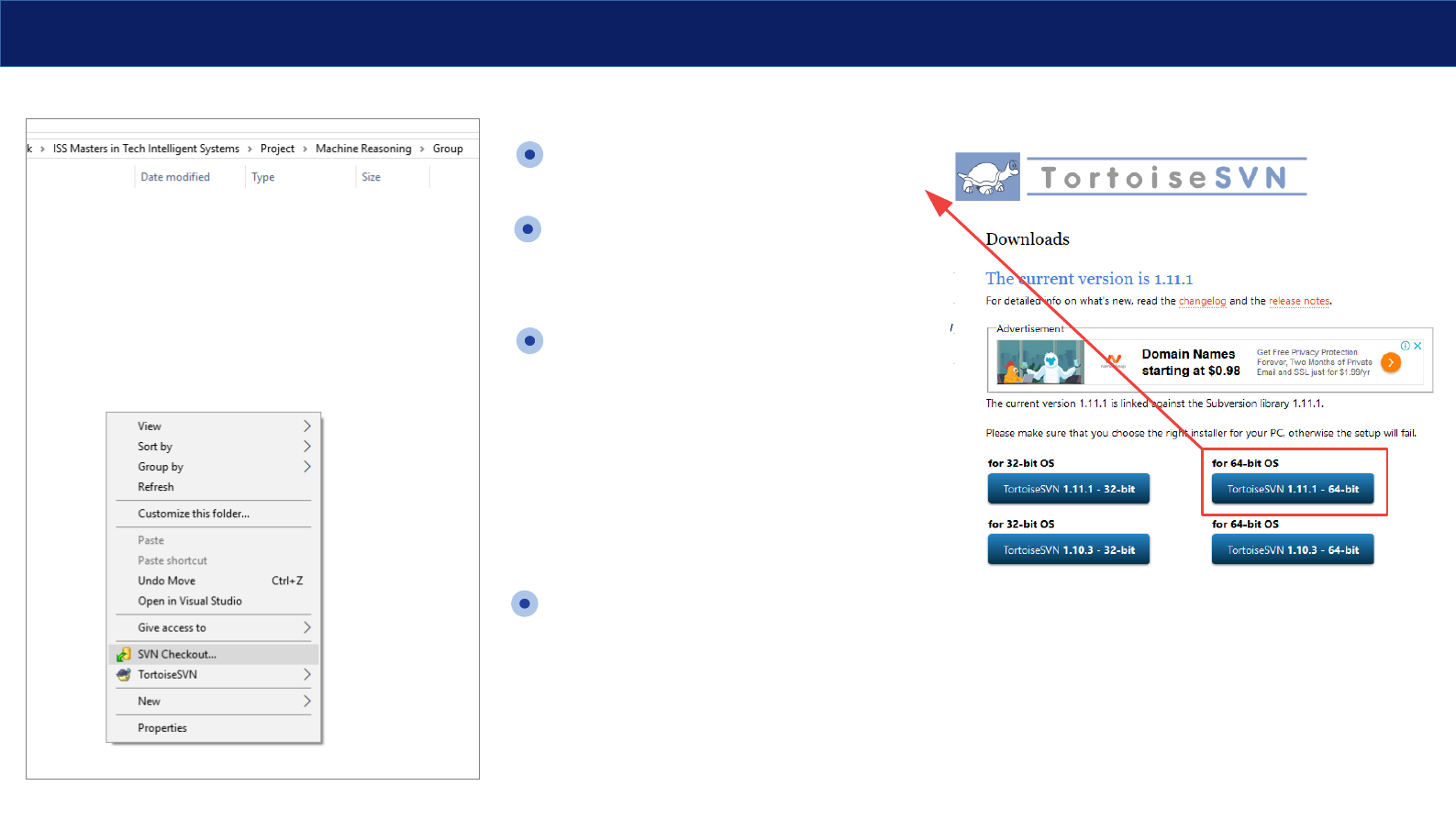
Download the application from:
https://tortoisesvn.net/downloads.html
Install it on your laptop. If you are
using a MacOS, you need to try out
Smart SVN which this guide will not
cover.
Once Tortoise SVN is installed, you
may now use it.
Step 1: Download an exact copy of
the group project from our group
github project repository named:
”MTech2019_Group_Project”
On your computer explore to the
folder you prefer, right click on an
empty space and select “SVN
Checkout”
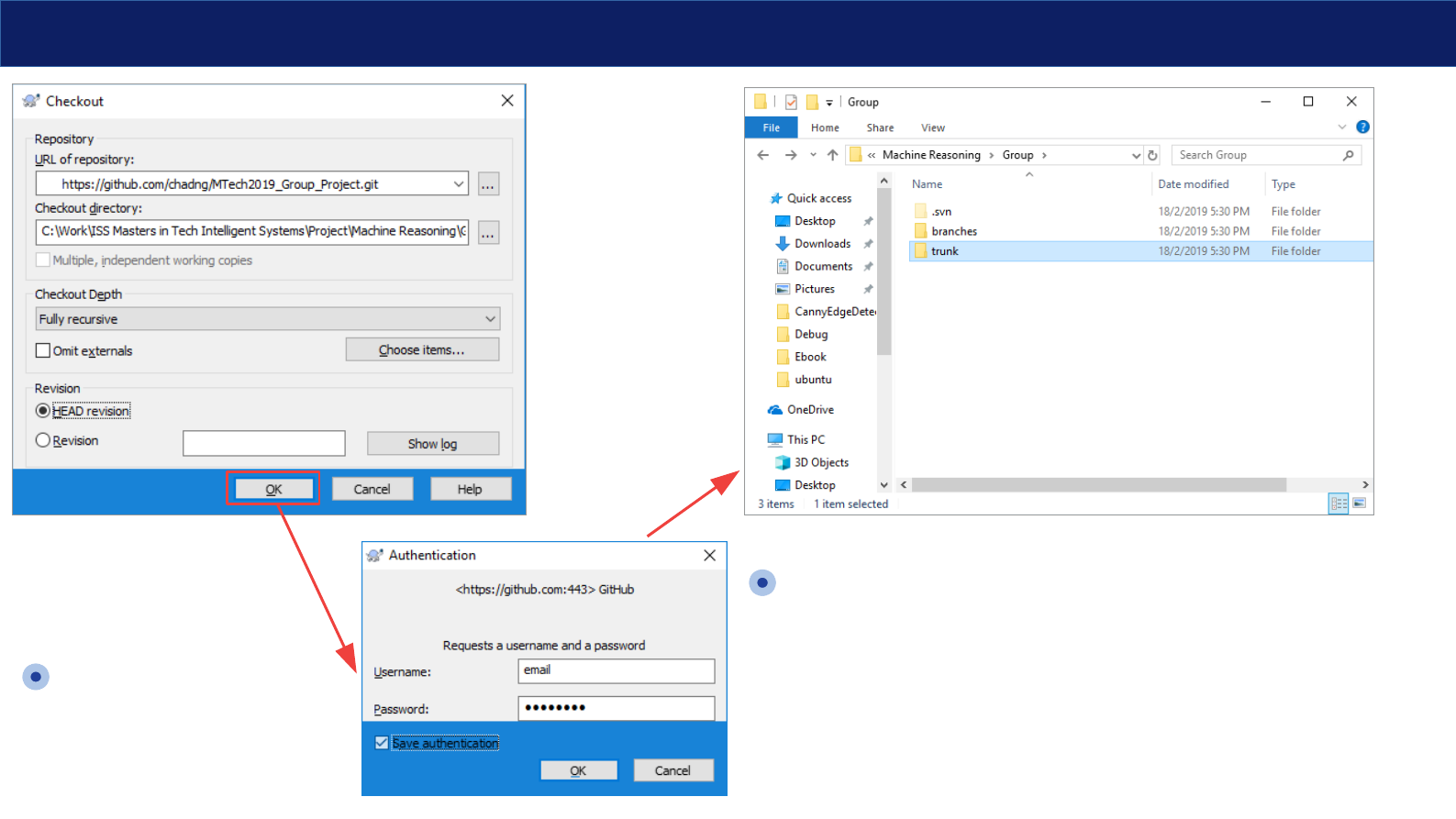
Enter the URL:
https://github.com/chadng/MTech2019_Group_Project.git
and click the OK button.
Instructions on Using Tortoise SVN
Enter your email address
and password and click
OK button.
You should be able to see the following folders once the
project is completely downloaded to your laptop.
The project is kept in the “trunk” folder.
You may now make changes to the project files in trunk
folder and you can commit those changes to github in
the next step. See next slide.
Instructions on Using Tortoise SVN
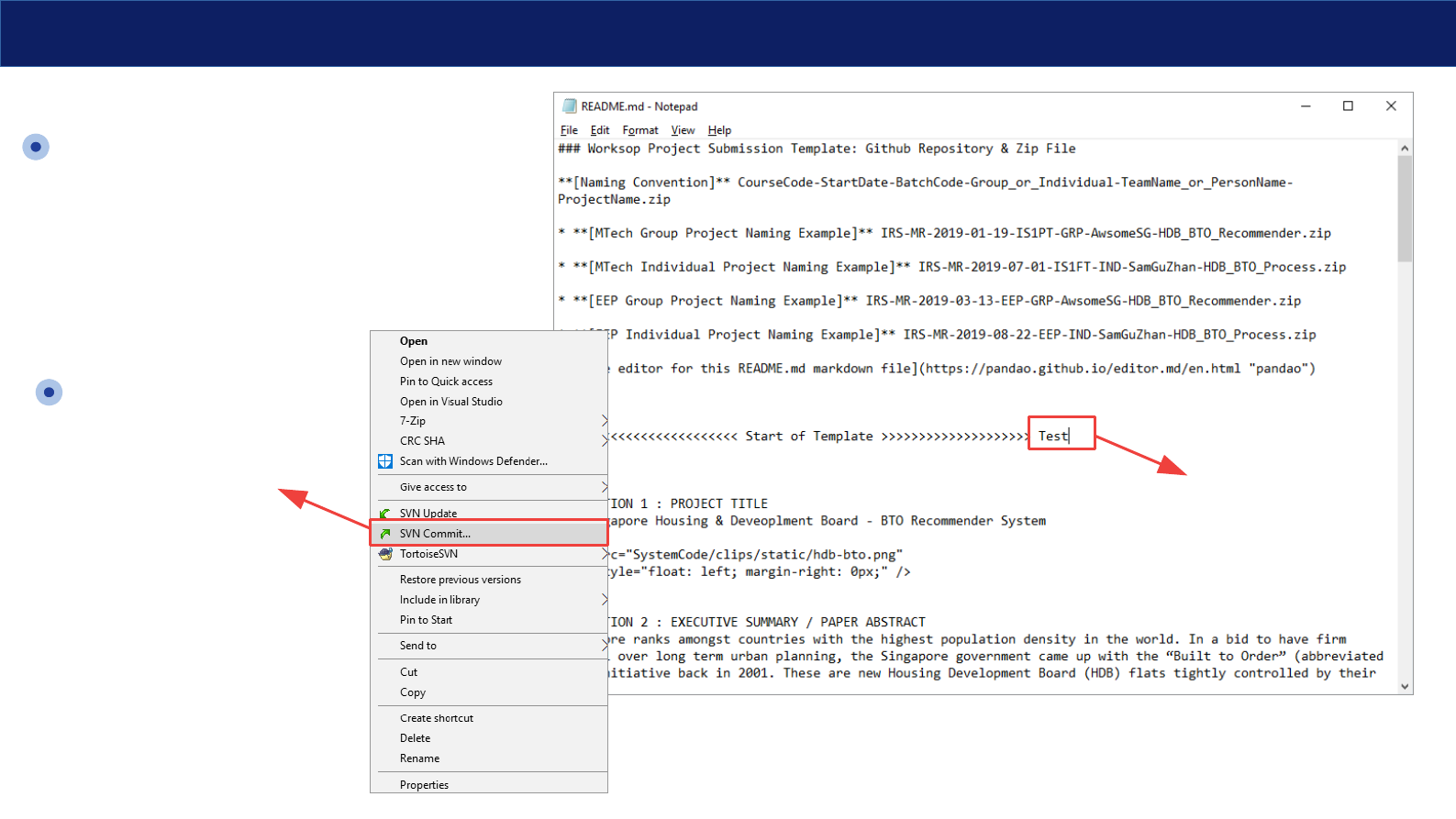
Added this text in
README.md file.
Open the Trunk Folder. Let’s say we
make a simple change to the file
“README.md” See this on the
diagram on the right.
Save the file and we are ready to
commit this change to our group
project repository on github.
Right click on the file
“README.md” or the folder
Trunk.
Click SVN Commit
Instructions on Using Tortoise SVN
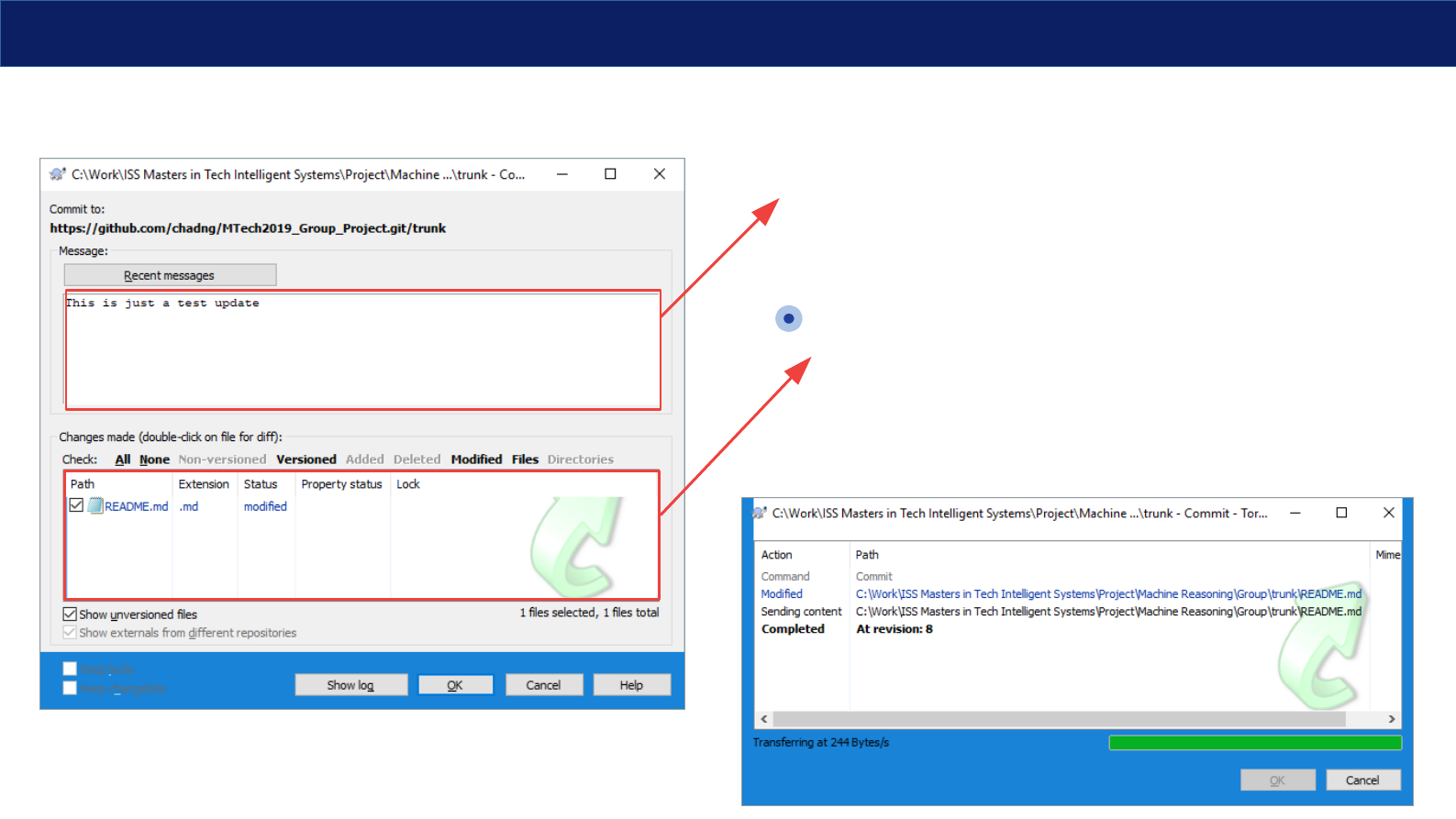
Please add some
comments to
indicate the
purpose of the
updates.
You can see those items that were changes and
may be committed to our group project repository.
Click OK button to proceed.
That will push your file changes to our group project
repository at github. Next, we can look at how to get
changes made by other team members to our local
project files..
Instructions on Using Tortoise SVN
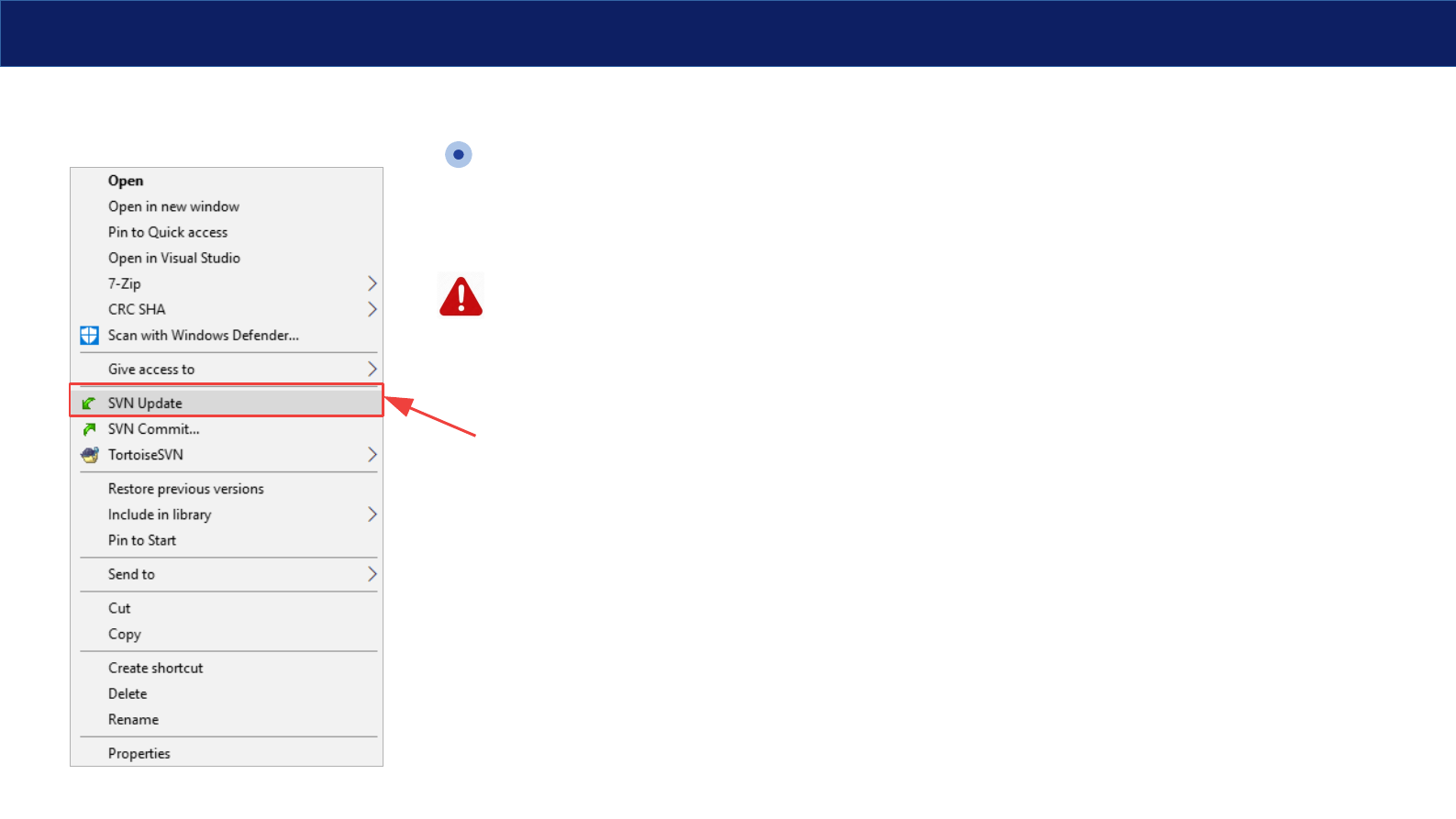
Click SVN Update to
sychronise any changes
made by other team
members from github
server.
Right click the “Trunk” folder and select SVN Update to update
changes from github server.
You only need to do each time you want to have the most up to
date copy of our group project repository.
Please do note that if there any file version conflicts, you should
choose to keep your version if you know yours if more up to date.
