USGS Inkscape Pack Instructions
User Manual:
Open the PDF directly: View PDF  .
.
Page Count: 3
- Approach 1: copy and paste patterns as required from “USGS-patterns-INKSCAPE.svg”
- Approach 2: use “USGS-patterns-INKSCAPE-template.svg” as a template
- Approach 3: use “USGS-patterns-INKSCAPE-template.svg” to get all patterns in any document
- Tip 1: resizing/rotating/moving objects without changing the pattern
- Tip 2: editing patterns
USGS inkscape pack instructions
This pack has been derived from:
o FGDC Digital Cartographic Standard for Geologic Map Symbolization (PostScript Implementation)
There are a few ways this pack can be used. Approach 1 is more conservative and less likely to cause
inkscape to crash.
NOTE: Because of the way the patterns are read by Inkscape some of them may be flipped
(horizontally or vertically).
Approach 1: copy and paste patterns as required from “USGS-
patterns-INKSCAPE.svg”
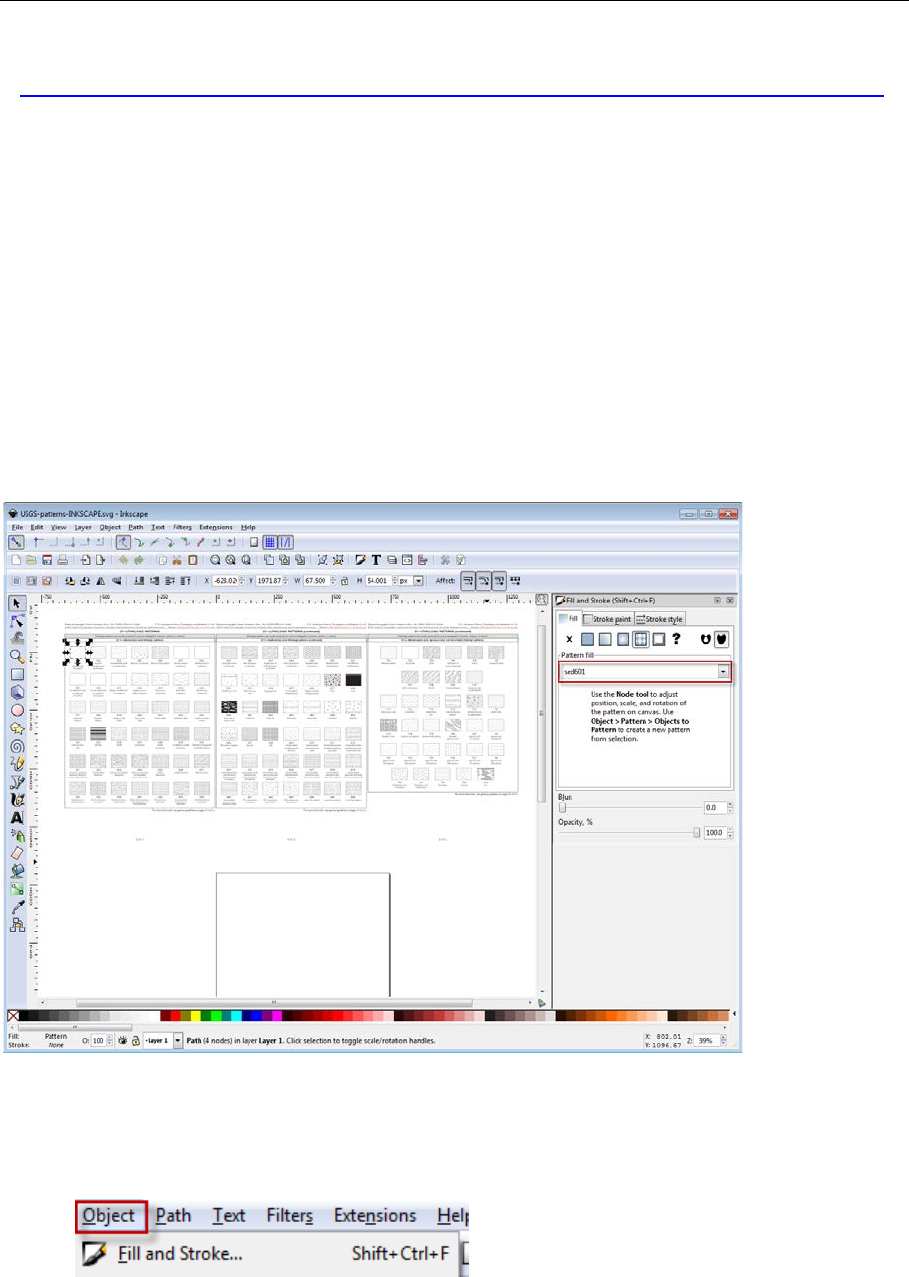
The document “USGS-patterns-INKSCAPE.svg” has all the main rock type patterns from the USGS
FGDC Digital Cartographic Standard. The three relevant pages have been placed above thedrawing
area.
1. Select the pattern you want to use (by clicking on the middle of the box - not the outside
which is a separate black stroke), it should then show up with the correct pattern number
e.g. sed601 in the “fill and stroke menu”. Access the fill and stroke menu via “object>fill and
stroke”
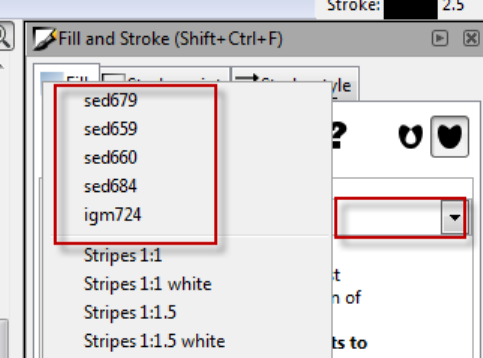
2. Copy and paste this pattern box to the document you are working on. As soon as you paste
this pattern in it becomes available in the “fill and stroke>patterns” menu. You can go ahead
and delete the object you pasted in if you want.
3. Copy and paste in other patterns as you need them.
4. As you work on your document you can access the various patterns you have added via “fill
and stroke>fill>patterns” menu
5. Use “USGS_Swatches_reference.pdf” or “USGS-patterns-INKSCAPE.svg” as a reference for
which number corresponds to which pattern. You may even want to print this for reference.
Approach 2: use “USGS-patterns-INKSCAPE-template.svg” as a
template
This document has all the patterns defined in the document but it is otherwise empty.
1. Open up “USGS-patterns-INKSCAPE-template.svg” and then you will have access to all the
patterns in that document. via “fill and stroke>fill>patterns” menu
2. Use “USGS_Swatches_reference.pdf” or “USGS-patterns-INKSCAPE.svg” as a reference for
which number corresponds to which pattern. You may even want to print this for reference.
Approach 3: use “USGS-patterns-INKSCAPE-template.svg” to get all
patterns in any document
1. Scenario: you are working on a document and decide you want to get all the USGS patterns.
2. Drag and drop the file “USGS-patterns-INKSCAPE-template.svg” into your INKSCAPE
document.
3. Now you have access to all the patterns in that document. via “fill and stroke>fill>patterns”
menu. That document has no other content.
4. Use “USGS_Swatches_reference.pdf” or “USGS-patterns-INKSCAPE.svg” as a reference for
which number corresponds to which pattern. You may even want to print this for reference.
Tip 1: resizing/rotating/moving objects without changing the pattern
In the context sensitive control bar (above the main drawing area) there are some buttons that you
can activate to change what is affected when you move, resize or rotate objects. To keep patterns
the same when you do any of these things you should have the “Move patterns (in fill or stroke )
along with the object inactive.
Tip 2: editing patterns
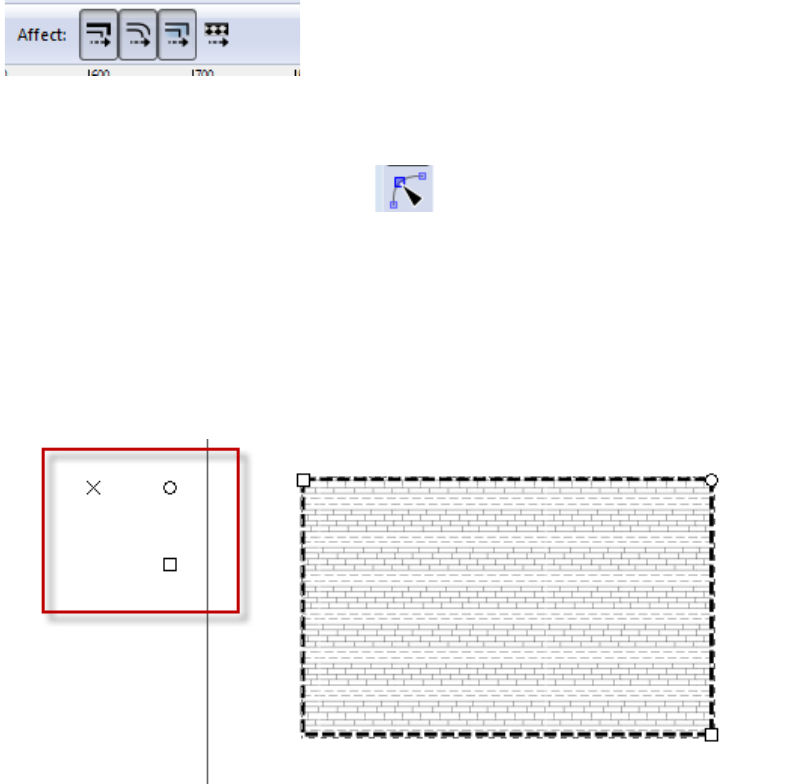
To edit a pattern use either the node tool (some other tools also allow you to edit patterns).
You will see three shapes appear to the upper left of your object. Click and drag on the:
• ‘X’ to move the pattern
• ‘O’ to rotate the pattern
• ‘□’ to scale the pattern
Hold down control to maintain aspect ratio or to rotate in steps of 15 degrees.
