Ult Events Manual
UltEvents%20Manual
User Manual:
Open the PDF directly: View PDF  .
.
Page Count: 7

v1.1 Created by Kybernetik
Contents
1. Quick Start ........................................................................................................................................... 2
2. UnityEvents vs. UltEvents ................................................................................................................... 2
3. Creating and Triggering an Event ........................................................................................................ 3
3.1. Declaring an Event in a Script ...................................................................................................... 3
3.2. Invocation Exceptions .................................................................................................................. 3
3.3. Premade Event Scripts ................................................................................................................. 3
3.4. UltEventHolder ............................................................................................................................. 4
4. Configuring an Event ........................................................................................................................... 4
4.1. Configuring a Function Call .......................................................................................................... 5
5. Advanced............................................................................................................................................. 5
5.1. Event Parameters ......................................................................................................................... 5
5.2. Linked Return Values ................................................................................................................... 6
5.3. Configuring Events Using Code .................................................................................................... 6
5.4. Configuring Persistent Listeners Using Code ............................................................................... 7
UltEvents v1.1 Kybernetik kybernetikgames@gmail.com
Back to Contents Page 2 of 7
1. Quick Start
public UltEvents.UltEvent myEvent;
[SerializeField] private UltEvents.UltEvent myEvent;
To create an UltEvent: declare a serializable field in your script as shown above.
Once you have declared your event it will show up in the inspector for your script like a
regular field so you can configure it to run code.
To trigger the execution of the event, simply call myEvent.Invoke().
There are also various Premade Event Scripts which expose MonoBehaviour events like
Awake, Update, etc.
A scene with some example events can be found in Assets/Plugins/Ult Events/Example.
2. UnityEvents vs. UltEvents
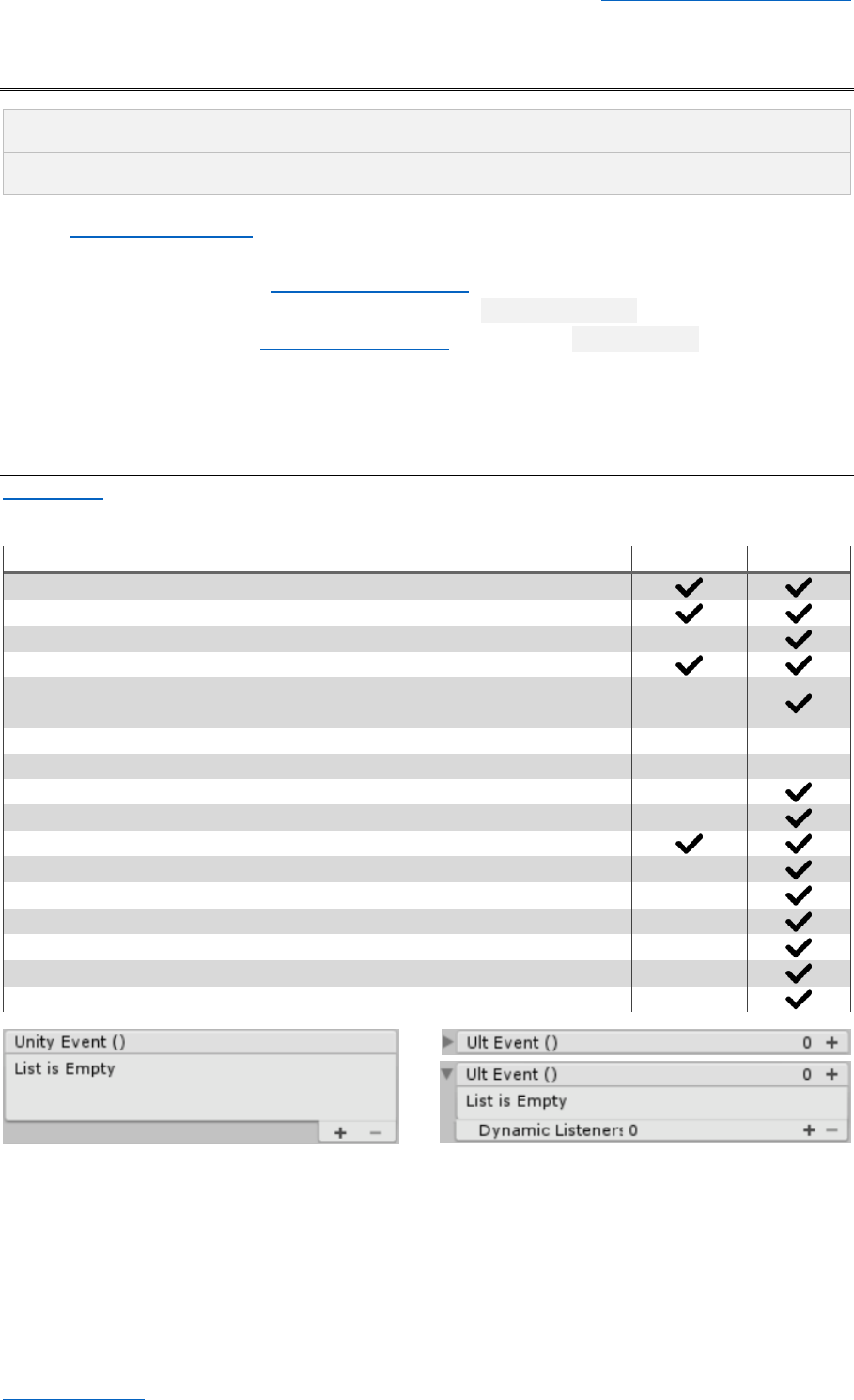
UnityEvents allow users to easily setup and configure persistent event callbacks via the Inspector.
UltEvents serve the same purpose, but with more features and less restrictions.
Serializable Event System Feature Comparison
UnityEvent
UltEvent
Persistent listeners (serialized)
Dynamic listeners (non-serialized)
Reorderable function list
Parameter types: bool, int, float, string, UnityEngine.Object
Parameter types: Enum (regular and flags), Vector (2, 3, 4), Quaternion,
Rect, Color, Color32
Maximum parameter count
1
Unlimited
Method parameters
Strict
Flexible
Allows methods with non-void return types
Use values returned from earlier calls as parameters
Public methods
Non-public methods
Static methods
Compact and collapsible GUI
Displays dynamic (non-serialized) listeners in the GUI
Context menu commands (Invoke, Clear, Copy, Paste)
Select a specific component when there are multiple of the same type
UltEvents v1.1 Kybernetik kybernetikgames@gmail.com
Back to Contents Page 3 of 7
3. Creating and Triggering an Event
You can either declare and invoke an UltEvent in your own script or use a Premade Event Script.
3.1. Declaring an Event in a Script
You can declare an UltEvent like any other serialized field you want to show in the inspector:
public UltEvents.UltEvent myEvent;
[SerializeField] private UltEvents.UltEvent myEvent;
You will also need to call myEvent.Invoke() to trigger the event when you want it to execute.
3.2. Invocation Exceptions
The regular Invoke method contains no exception handling. Any exceptions will be passed
out to the caller like normal.
The InvokeSafe method will automatically catch and log any exceptions.
If you have using UltEvents; declared at the top of your script, you can make use of the
UltEventUtils.InvokeX extension method which does nothing if the event is null to avoid
throwing a NullReferenceException. This is useful in case you call AddComponent at runtime
since your event field will be null unlike when you add a component using the Unity Editor
which will automatically create a new event object.
3.3. Premade Event Scripts
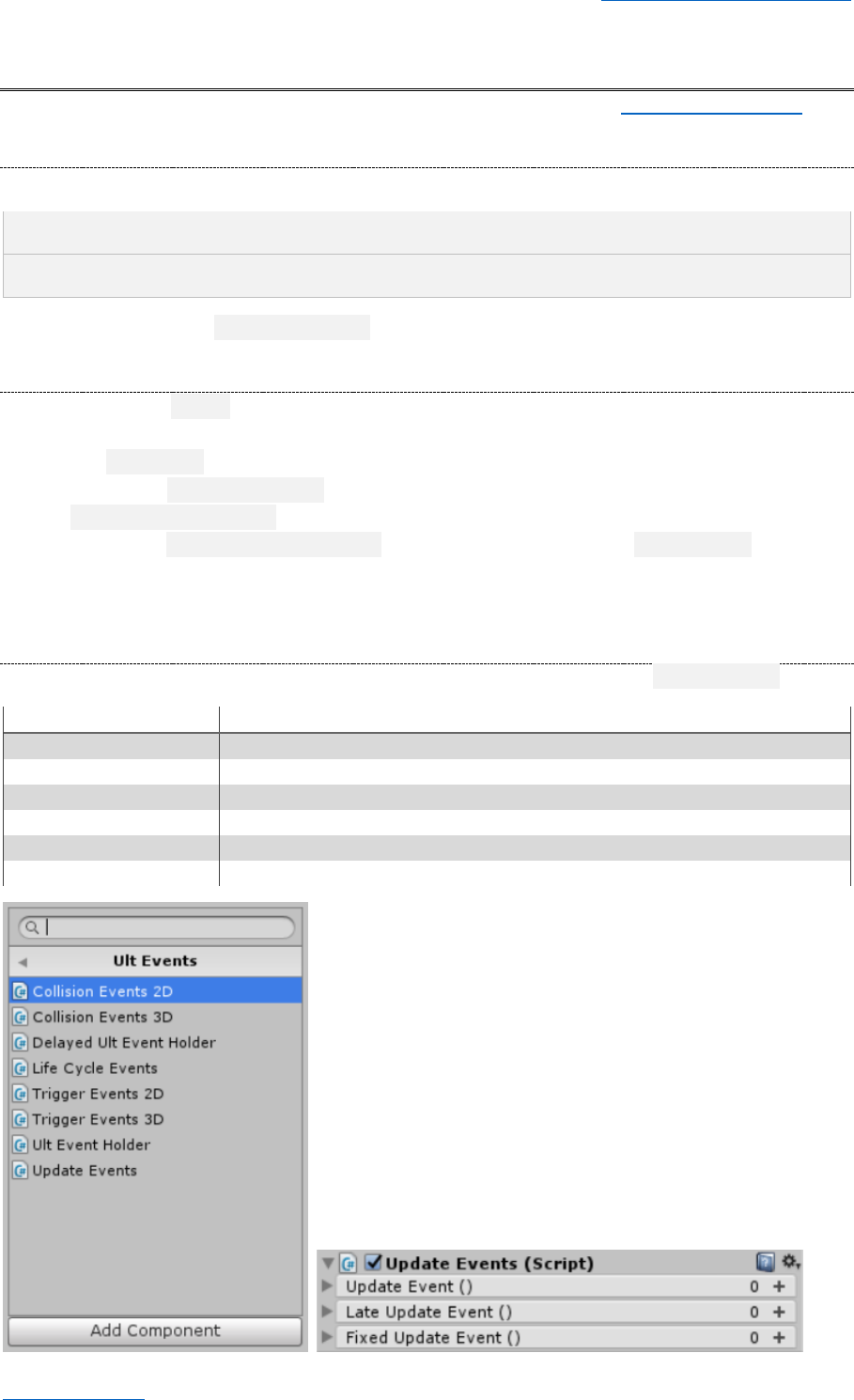
This plugin includes several scripts which have UltEvents triggered by various MonoBehaviour events:
Script
Events
CollisionEvents2D
OnCollisionEnter2D, OnCollisionStay2D, OnCollisionExit2D
CollisionEvents3D
OnCollisionEnter, OnCollisionStay, OnCollisionExit
LifeCycleEvents
Awake, Start, OnEnable, OnDisable, OnDestroy
TriggerEvents2D
OnTriggerEnter2D, OnTriggerStay2D, OnTriggerExit2D
TriggerEvents3D
OnTriggerEnter, OnTriggerStay, OnTriggerExit
UpdateEvents
Update, LateUpdate, FixedUpdate
UltEvents v1.1 Kybernetik kybernetikgames@gmail.com
Back to Contents Page 4 of 7
3.4. UltEventHolder
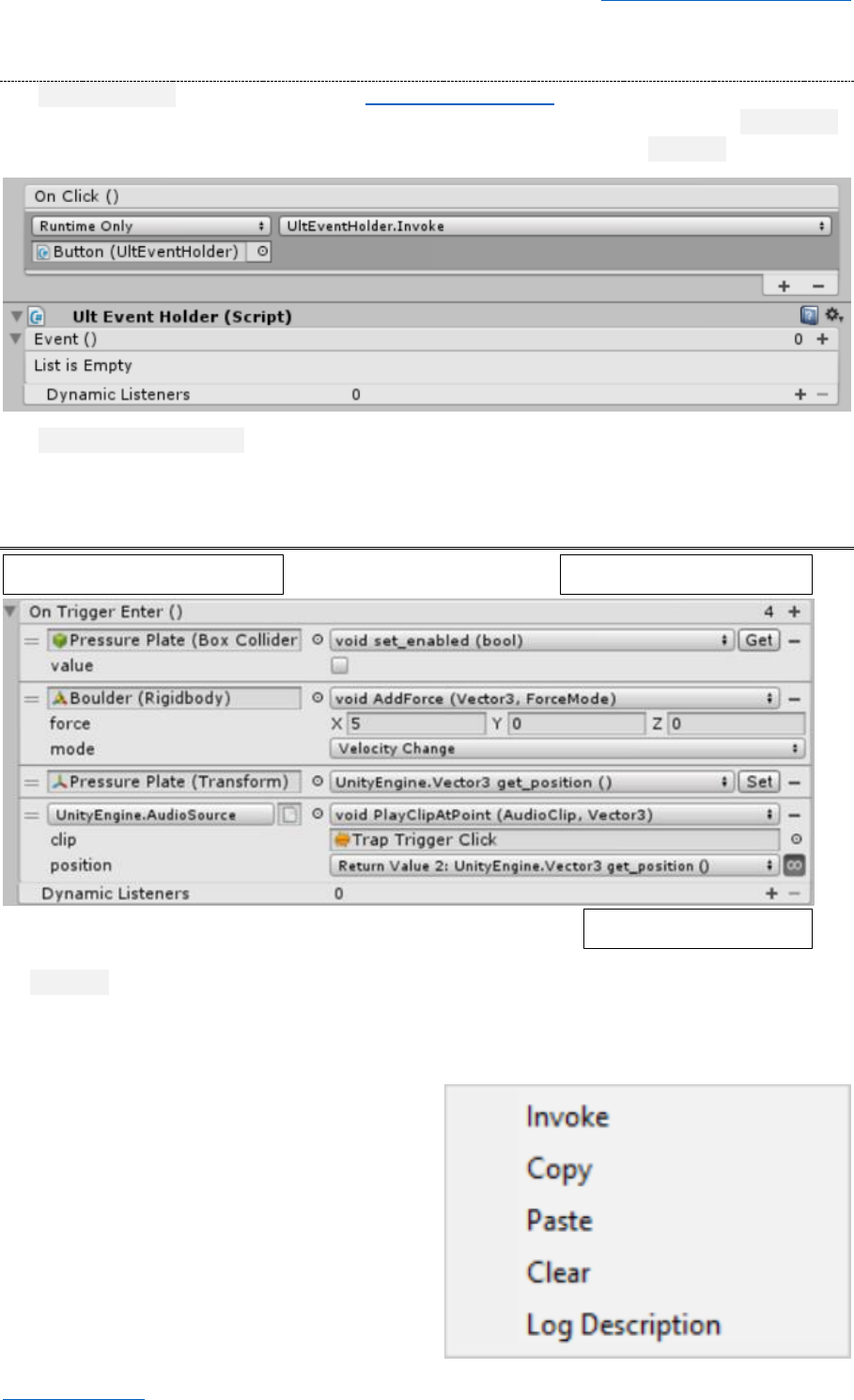
The UltEventHolder script is similar to the Premade Event Scripts, except that it only has a single
event which isn't triggered by anything. One use for this script is to receive a redirected UnityEvent
from a UI element so that you can make use of the improved features of the UltEvent.
The DelayedUltEventHolder script can be used similarly to impose a delay before the event is
actually executed.
4. Configuring an Event
An UltEvent has two sets of listeners; persistent (configured in the Unity Editor using the Inspector)
and dynamic (added using code at runtime).
You can add a persistent listener using the [+] button or by dragging and dropping an object from
the Hierarchy Window or Project Window onto
the event.
If you have multiple calls, you can drag them
around to change their execution order. Execution
starts at the top and travels down the list.
You can Right Click on an event header to open a
context menu with functions to Invoke, Copy,
Paste, Clear, or Log a description of its contents.
Event Name and Parameters
Persistent Listener Count
Add / Remove Listener

UltEvents v1.1 Kybernetik kybernetikgames@gmail.com
Back to Contents Page 5 of 7
4.1. Configuring a Function Call
The left field determines the target; either a UnityEngine.Object (such as a GameObject or
Component) on which an instance method will be called, or a System.Type in which a static method
will be called.
The right button opens the method selection menu.
When a new call is added, it will be given the component containing the event as its default target.
To set a static method, you can either click on the target field and press the Delete key, or open the
method selection menu and select “Static Method”. Then the target field will show a type picker
which allows you to specify the type where the method you want to call is declared. Once you have
selected a type, the method selection menu will show all of the supported methods in that type.
The sub-menus near the top of the method selection menu allow you to select methods from any
other components on the same GameObject. Doing so will automatically change the target object
accordingly.
If a method name you selected previously no longer exists (such as if you select a method then
rename or remove it from your code), it will be highlighted in red. It will also show a [?] button
which will assign another existing method with the most similar name according to a metric known
as Levenshtein Distance.
The method selection menu also allows you to select properties. Doing so will default to the
property's Setter if it has one and is a supported argument type. It will also show a [Get] button
which can be used to toggle to the Getter so you can use its return value as a parameter in
subsequent methods (see Linked Return Values for more details).
5. Advanced
5.1. Event Parameters
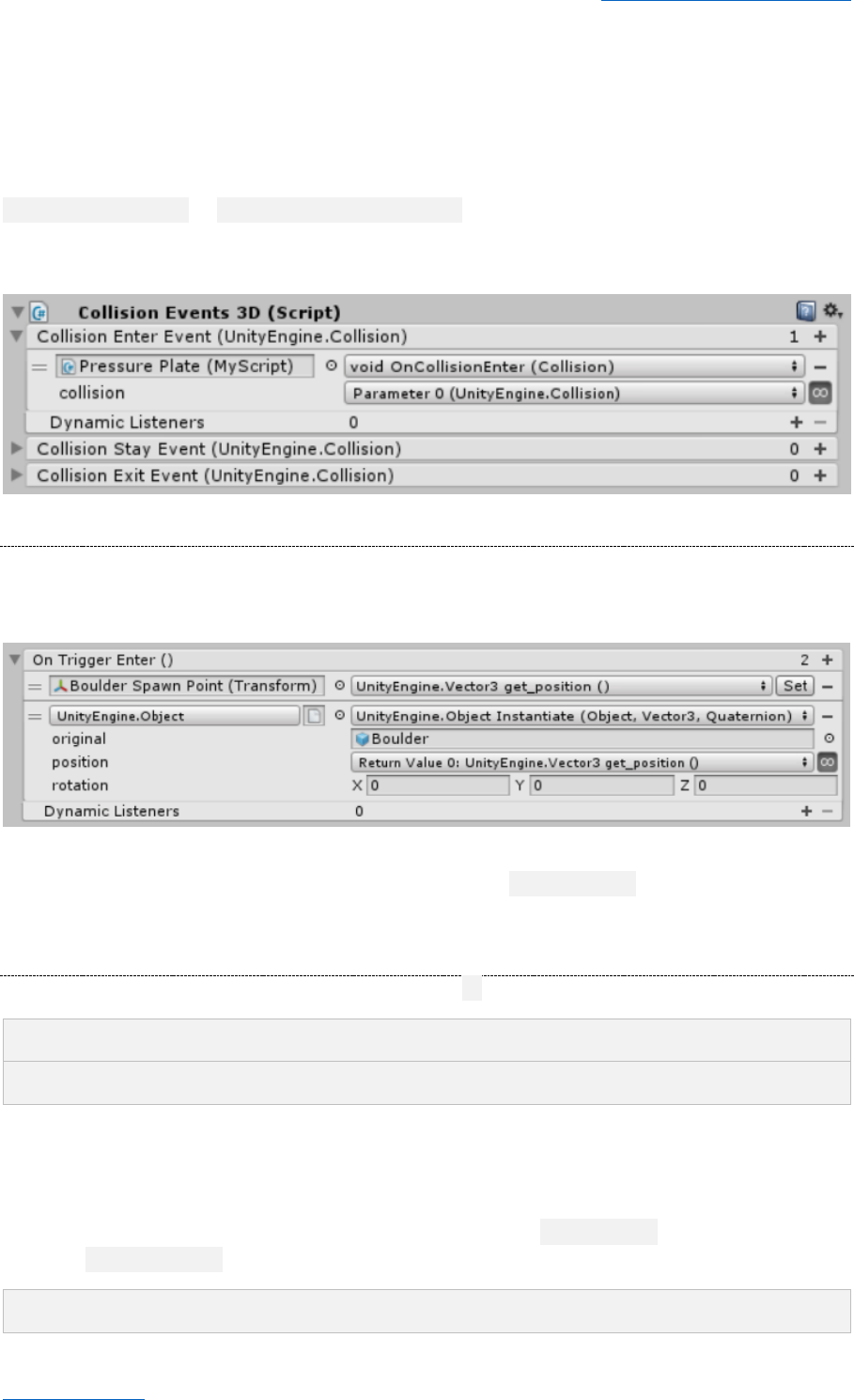
The standard UltEvent class allows you to register methods with predefined values, but doesn't let
you pass in custom parameters when the event is invoked. For example, you could have an event
that instantiates a prefab at a specific location you set in the event's inspector, but you couldn't use
the information from an OnCollisionEnter message to have your event instantiate the prefab at the
point where the collision occurs. To do this, you need to use the generic versions of UltEvent
instead.
To use a generic event type you must first create a serializable class that inherits from the desired
event type. For example, if you want an event that takes a Vector3 parameter, you would write the
following:
[Serializable] public sealed class Vector3Event : UltEvents.UltEvent<Vector3> { }
Then you can use that event type instead of the regular UltEvent when declaring your event field:
public Vector3Event myEvent;
And when you want to invoke the event you will need to pass in the required parameters:
myEvent.Invoke(transform.position);
UltEvents v1.1 Kybernetik kybernetikgames@gmail.com
Back to Contents Page 6 of 7
When using the inspector to configure an event with parameters, any method parameters with the
appropriate type will show a [∞] button which toggles that parameter between linked (so it receives
the value you pass into the Invoke call) and unlinked (so you can use the inspector to specify its
value normally).
If you specify a parameter type that isn't normally supported by UltEvents such as
UltEvent<Collision> or UltEvent<SomeCustomClass>, you will be able to select methods with that
parameter type which would not normally appear in the list. Such parameters are automatically
linked and can't be unlinked.
5.2. Linked Return Values
If you register a method with a non-void return type, you can use the value it returns as a parameter
in later methods. Any parameter that matches the return type of a previous method will show the
same [∞] button used to link Event Parameters.
The “Parameter Constructors ->” sub-menu contains various methods for constructing simple values
to use as parameters in subsequent functions. For example, ReturnVector3 takes its X/Y/Z values as
separate float parameters so you can link them individually.
5.3. Configuring Events Using Code
You can easily register delegates to an event using the += operator like a standard C# delegate:
myEvent += SomeMethod;// Existing Method.
myEvent += () => ...;// Lambda Expression.
Normally this will register the delegate as a dynamic listener (non-serialized), however if you are
currently in Edit Mode (in the Unity Editor but not in Play Mode) it will register as a persistent
listener instead.
To specifically add a dynamic listener, you can either access the dynamicCalls field directly or use
the static AddDynamicCall method which will automatically null-check the event:
myEvent.dynamicCalls += SomeMethod;

UltEvents v1.1 Kybernetik kybernetikgames@gmail.com
Back to Contents Page 7 of 7
UltEvent.AddDynamicCall(ref myEvent, SomeMethod);
5.4. Configuring Persistent Listeners Using Code
To specifically add a persistent listener, you can either create a new PersistentCall and add it to
the PersistentCalls list or you can call AddPersistentCall which returns a PersistentCall.
var call = new PersistentCall((Action<float>)SomeMethod);
myEvent.PersistentCalls.Add(call);
var call = myEvent.AddPersistentCall((Action<float>)SomeMethod);
You can then configure the call using SetArguments or by accessing the PersistentArguments array
directly.
call.SetArguments(2);
call.PersistentArguments[0].Float = 2;
All of these + operators and Add methods have corresponding - operators and Remove methods.
Questions, feedback, feature requests, etc: kybernetikgames@gmail.com.
