User Guide
User Manual:
Open the PDF directly: View PDF  .
.
Page Count: 6

Axiom
An FFmpeg Interface for Windows
Version 1.2.7 Alpha (2018-07-12)
Axiom
Axiom UI generates command scripts to be interpreted and processed by multimedia encoder,
FFmpeg, and streams analyzer, FFprobe.
Convert, Cut, Resize multimedia with Lossless, Constant, and Variable Quality Modes.
It is portable and can be run from any location on the computer.
• Extract Axiom.FFmpeg.7z to a location of your choice.
• Use 7-Zip if you need a way to extract. https://www.7-zip.org
• Run the program Axiom.exe or create a shortcut on the Desktop.
• It will automatically detect mpeg.exe and probe.exe in the included mpeg folder.
• If you move the mpeg folder, set Windows Environment Variables or choose path in
the Settings Tab.
FFmpeg
FFmpeg is separate cross-platform command-line software to record, convert and stream audio and
video. It is developed and maintained at www.mpeg.org.
Enable FFmpeg Through Command Prompt (optional)
• Move FFmpeg folder to a location of your choice, such as C:\Program Files\.
• Control Panel → System and Security → System → Advanced system settings
• Advanced Tab → Environment Variables → System variables → Path
• Add C:\Program Files\FFmpeg\bin\
• Separate multiple paths with semicolon ;
• Typing mpeg in Command Prompt will now execute without needing to specify a direct path.
Log Console
Update
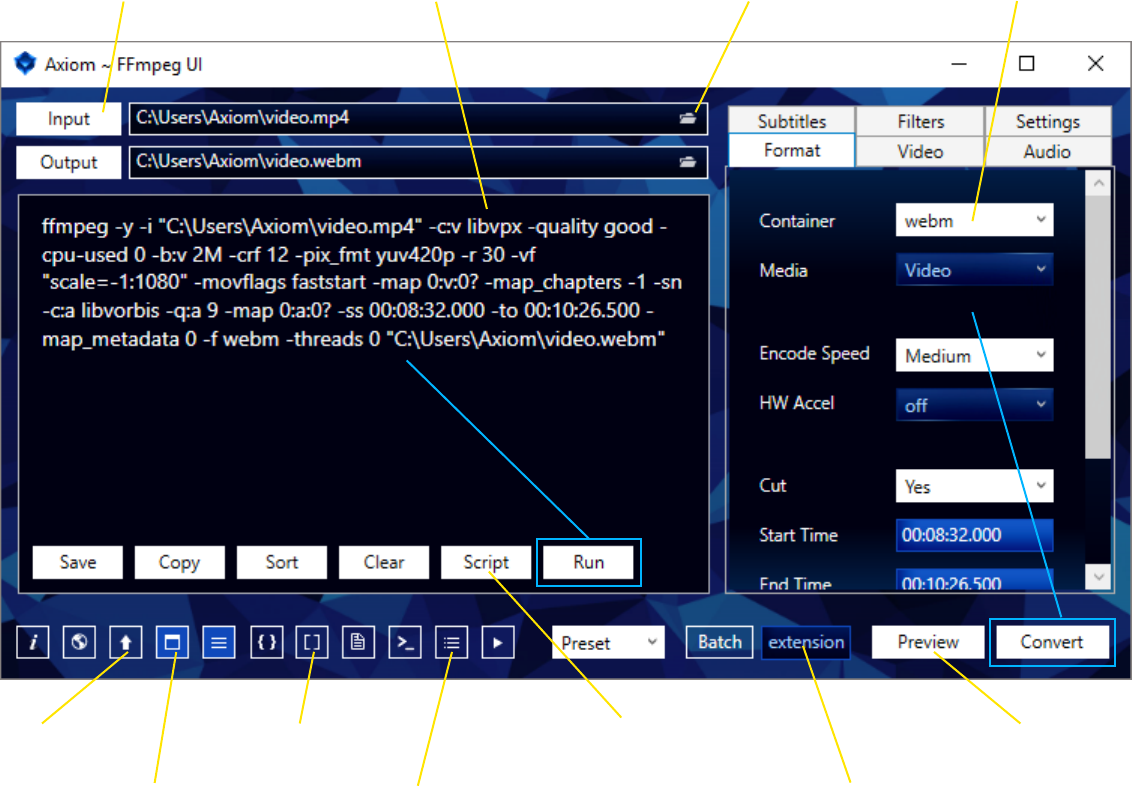
Input File Properties Batch convert all les within a
folder. Enter the extension of the
les you want to process
(eg. .mp4)
Generate FFmpeg Command-line
Script without Converting
FFmpeg Command Script
Keep Command Prompt
window open after converting
has nished
Output Format
Open this path’s location in
Windows Explorer
File to convert
Interface
Preview selected settings
in FFplay
Windows
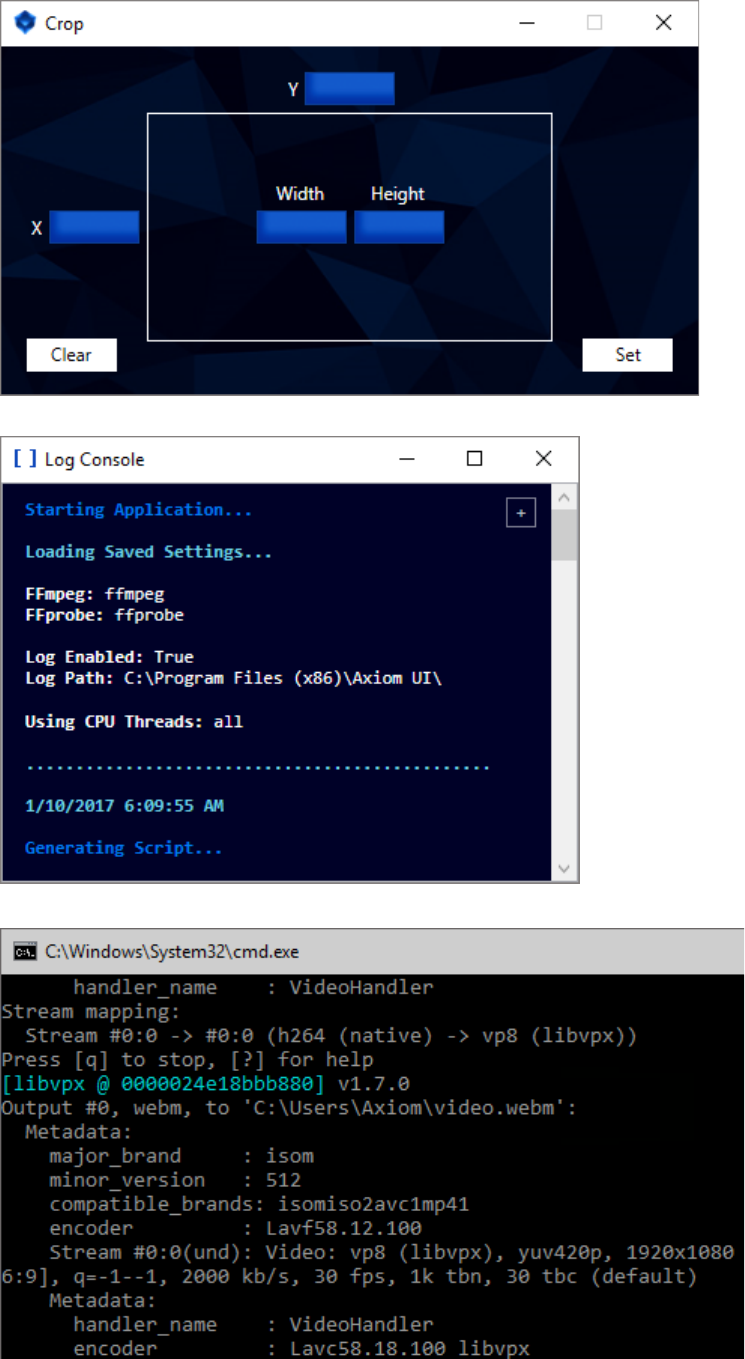
Crop
Set the Crop Position and Aspect.
X is the position from the left.
Y is the position from the top.
Width & Height is the size of the
cropped area.
Log Console
This window displays all actions performed
by the program. These same actions can be
saved to an output.log le in the Settings Tab.
FFmpeg
This Command Prompt window
pops up after pressing the
Convert or Run button.
It displays the FFmpeg output as
it processes the les.
FFmpeg
The interface looks for mpeg.exe & probe.exe in {Current Folder}\mpeg\bin\.
If you already have FFmpeg installed on your system, the FFmpeg and FFprobe included with Axiom are not needed.
Custom compiled versions of FFmpeg may not work if they are missing certain codecs.
Browse / Output
Select a le to convert, then choose a directory to output.
If you leave Output empty, the output directory will default to the same as the input directory.
Batch
First click the Batch toggle button, then Browse for a folder to batch process the les within.
Auto
Attempts to match the original bit-rate using FFprobe and 2-Pass encoding.
Copy
If Auto mode selected and input/output formats are the same, Copy will automatically activate in the Codec dropdown.
Lossless
Sets the format’s correct lossless codec options or uses -crf 0, depending on format.
Video
Custom CRF Quality:
0 <------ 18 <--------- 23 -------> 28 -------> 51
lossless better default worse worst
VP8/VP9:
Ultra: Bit-rate 4M + CRF 10
High: Bit-rate 2M + CRF 12
Med: Bit-rate 1.3M + CRF 16
Low: Bit-rate 600K + CRF 20
Sub: Bit-rate 250K + CRF 25
Video Bit-rate is measured in bytes, K or M. (e.g 3000000 or 3000K or 3M)
Audio
Default is Constant Bit-rate (CBR).
VBR enables a Variable Bit-rate equivalent to the CBR value selected in the Audio drop down list.
e.g. MP3: 320k (CBR) = V0 (VBR)
Track
If your video has multiple audio tracks, such as English or Japanese, you can select which one to use or keep all.
View the video properties through a media player to nd the number of the track.
The default (auto) chooses the appropriate tracks according to the output format.
Resize
Specify a custom Width and Height.
Typing “auto” (without quotes) in a text eld will select the correct width or height to match.
Cut
Format must be 00:00:00.000
Hours:Minutes:Seconds.milliseconds (note the period instead of colon).
Interface Settings
x264:
Ultra: CRF 16
High: CRF 20
Med: CRF 28
Low: CRF 37
Sub: CRF 45
x265:
Ultra: CRF 18
High: CRF 21
Med: CRF 26
Low: CRF 35
Sub: CRF 42
Theora:
Ultra: qscale 10
High: qscale 8
Med: qscale 6
Low: qscale 4
Sub: qscale 2
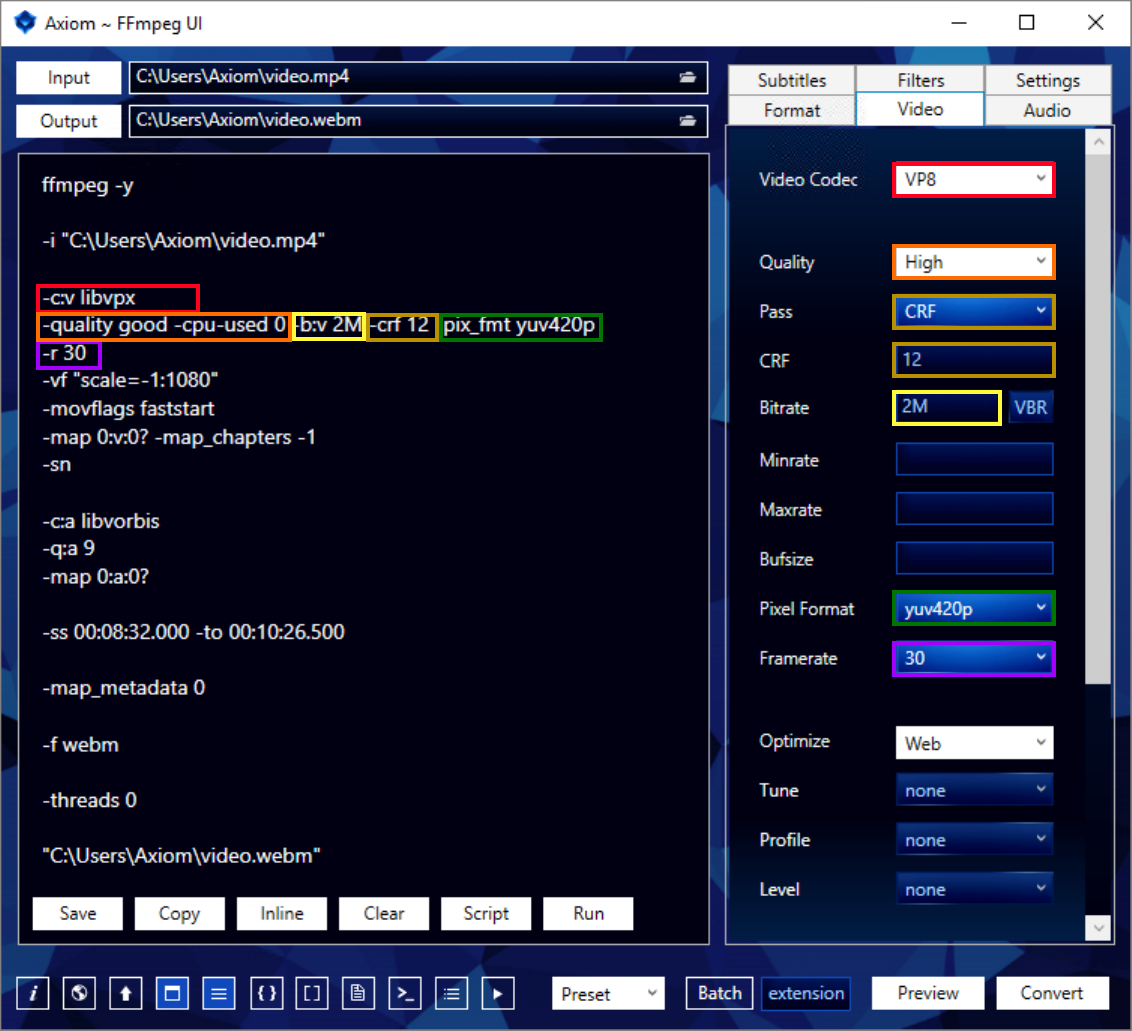
FFmpeg Command-line
mpeg -y -i “C:\Users\Axiom\video.mp4” -c:v libvpx -quality good -cpu-used 0 -b:v 2M -crf 12
-pix_fmt yuv420p -r 30 -vf “scale=-1:1080” -movags faststart -map 0:v:0? -map_chapters -1 -sn
-c:a libvorbis -q:a 9 -map 0:a:0? -ss 00:08:32.000 -to 00:10:26.500 -map_metadata 0 -f webm
-threads 0 “C:\Users\Axiom\video.webm”
FFmpeg Batch Command-line
Change to Directory
cd “C:\Users\Videos\”
Batch Process Filetype
&& for %f in (*.mp4) do (echo)
FFprobe File’s Size
& for /F “delims=” %S in (‘@probe -v error -select_streams v:0 -show_entries format^=size -of default^=noprint_
wrappers^=1:nokey^=1 “%~f” 2^>^&1’) do (SET size=%S)
Set %S to %size%
& for /F %S in (‘echo %size%’) do (echo)
FFprobe File’s Duration
& for /F “delims=” %D in (‘@probe -v error -select_streams v:0 -show_entries format^=duration -of default^=noprint_
wrappers^=1:nokey^=1 “%~f” 2^>^&1’) do (SET duration=%D)
Remove Duration Decimals for DOS
& for /F “tokens=1 delims=.” %R in (‘echo %duration%’) do (SET duration=%R)
Set %D to %duration%
& for /F %D in (‘echo %duration%’) do (echo)
FFprobe File’s Video Bit-rate
& for /F “delims=” %V in (‘@probe -v error -select_streams v:0 -show_entries stream^=bit_rate -of default^=noprint_
wrappers^=1:nokey^=1 “%~f” 2^>^&1’) do (SET vBitrate=%V)
Set %V to %vBitrate%
& for /F %V in (‘echo %vBitrate%’) do (echo)
If %vBitrate% = N/A, Calculate Bit-rate (((Size*8)/1000)/Duration)*1000
& (if %V EQU N/A (SET /a vBitrate=%S*8/1000/%D*1000) ELSE (echo Video Bitrate Detected))
Set %V to %vBitrate%
& for /F %V in (‘echo %vBitrate%’) do (echo)
FFprobe File’s Audio Bit-rate
& for /F “delims=” %A in (‘@probe -v error -select_streams a:0 -show_entries stream=bit_rate -of default^=noprint_
wrappers^=1:nokey^=1 “%~f” 2^>^&1’) do (SET aBitrate=%A)
If Audio Variable = N/A, Default to 320k
& for /F %A in (‘echo %aBitrate%’) do (echo) & (IF %A EQU N/A (SET aBitrate=320000))
Limit Audio Variable bit-rate to Output Format’s maximum allowed bit-rate
& for /F %A in (‘echo %aBitrate%’) do (echo) & (IF %A gtr 500000 (SET aBitrate=500000) ELSE (echo Bitrate within Vorbis Limit
of 500k))
Set %A to %aBitrate%
& for /F %A in (‘echo %aBitrate%’) do (echo)
Start FFmpeg
&& mpeg -y -i “C:\Users\Videos\%~f” -vcodec libvpx -quality good -cpu-used 0 -b:v %V -pass 1
-acodec libvorbis -b:a %A -map 0:v:0? -map 0:a:0? -sn -map_metadata 0 -threads 8 “C:\Users\Videos\%~nf.webm”
2-Pass Encoding
&& mpeg -y -i “C:\Users\Videos\%~f” -vcodec libvpx -quality good -cpu-used 0 -b:v %V -pass 2
-acodec libvorbis -b:a %A -map 0:v:0? -map 0:a:0? -sn -map_metadata 0 -threads 8 “C:\Users\Videos\%~nf.webm”
