User Manual VMGE V1 X
User Manual:
Open the PDF directly: View PDF  .
.
Page Count: 27
VALLES’ MINIMALIST GAME ENGINE
USER MANUAL AND CODE DOCUMENTATION
Version : 1.XX.XX
Created by Jorge Valles.
theneuroncollider.com

Contents
1. Know the engine
2. Create a project
3. Configuring the engine
4. Initializing the engine
5. Scenes.
6. Game Entities
a. Creating game entities
b. Deleting game entities
c. Destructors
d. Accessing the custom game entity.
e. Names and class names
f. Identification number
g. Position and size
h. Collisions
i. Animations
j. Behaviors
k. Enabling and disabling entities.
7. SFX
8. BGM
9. Cameras
10. Inputs
a. Keyboard
11. Time and Delta-Time
12. Achieving a constant execution speed
13. Aborting execution
14. Useful data structures
15. File Browser
16. Compiling project

Know the engine.
This engine is a set of tools for 2D game development, created by Jorge Valles. It is a core in
constant improvement, intended for covering most of the main aspects involved in classic-retro
arcade games. It offers easy ways for managing game entities, their behaviors/states, their
animations, scenes, cameras, collision detection, inputs, timing,and so on...
This is a project about the fun and the beauty of programming games out of the black box, and
about the challenge of improving it as well as keeping it simple and compact.
Using V.M.G.E you can create nice looking and well polished retro games; but keep in mind that
this engine is currently in a primitive version,there is a lot of work ahead to turn it into a
professional tool.
Main characteristics
● Core configuration
● Graphics configuration
● Asset loaders
● Scenes
● Cameras
● Game entities
● Collision detection tools
● Animation tools
● Behavior states for entities.
● Sound effects management
● Background music management
● Keyboard input detection
● Timing tools
● Memory management tools
● Useful prefabricated structures for math
● File finder
Create a project
Projects in vminimalist are made over the engine’s directory. So just make a clean copy
of the directory and name it as you want. Keep in mind the following points:
● The engine already has an entry point. A file with the main function configured to
start the engine loading a default empty scene. But of course you can also delete
this file and start running the engine from any point on your own project.
● The engine’s folder already offers you a directory structure for storing your code
sources and assets. But nothing limits you to create your own structure. It is
recommended not to change the location and names of folders and files that
belongs to the engine’s core.
Configuring the engine
There is a header file located on the root/Core directory of the engine, called “Config.h”.
This file contains a set of C definitions that configure distinct aspects of the game engine and
game entities.
Initializing the engine
The following functions are already written in the engine´s default entry point “main.c”.
Here is how they work. You must use these functions if you are going to write your own entry
point.
FUNCTION
PARAMETERS
DESCRIPTION
void START_ENGINE();
This function initializes all the
internal modules of the
engine, leaving it ready for
managing graphics,
collisions, animations…
Basically all the internal
modules involved.
void LOAD_LEVEL(void
(*pfn_level)(void));
A pointer to a function that
creates a scene.
This function tells the core
the current loaded scene (if
there is already one) must be
deallocated from memory.
Then executes the function
sent as parameter where the
new scene is described.
Read more about scenes
here
void RUN_ENGINE();
This function triggers the
main core loop. The engine
starts working.
void CLOSE_ENGINE();
This function prepares the
engine to deallocate all the
used memory. This function
Scenes
Scenes are functions created by the user where the initial game entities and cameras are
described. Scene are loaded with a core function that prepares the memory for allocating the
new contents of the new scene.
Here is how you must create scene functions and how you must load them.
FUNCTION
PARAMETERS
DESCRIPTION
Void CustomSceneName()
Your scene functions must
return void and receive no
parameters
void LOAD_LEVEL(void
(*pfn_level)(void));
A pointer to a function that
creates a scene.
This function tells the core
the current loaded scene (if
there is already one) must be
deallocated from memory.
Then executes the function
sent as parameter where the
new scene is described.
Game Entities
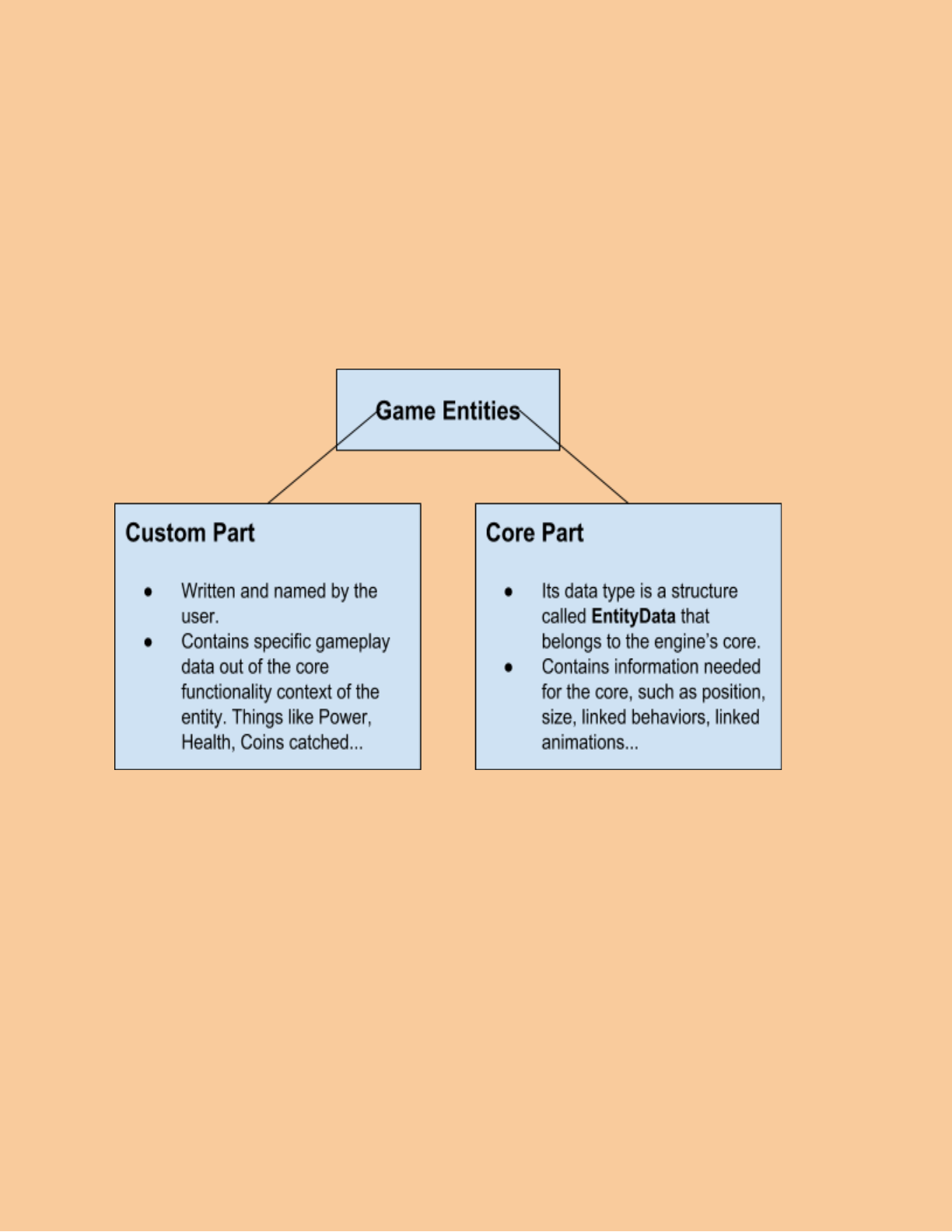
Game entity is a concept with which all objects in a scene are represented. Anything that
exist on a scene (with the exception of cameras) are game entities.
Game entities are formed by two parts; a customized part and a core part. The customized part
is a structure created by the user that contains specific gameplay information for the entity,
while the core part contains just information needed by the game core to communicate with the
entity for its management.
Creating game entities
Once you have a structure that represents the customized part of your entity use the
functions listed below in order to create and configure your entity.
FUNCTION
PARAMETERS
DESCRIPTION
void
CONFIG_ENTITY_DATA(Ent
ityData * _EData);
The pointer to the EntityData
structure of the entity,
This function set internal
values of the entity, needed
for its correct performance.
You should use this function
immediately before reserving
the memory for the
EntityData. If you configure
your EntityData before calling
this method, all your previous
configuration will be erased.
void LINK_AND_STORE(void
* _ptrEntity, EntityData *
_ptrEntityData);
1. The pointer to the
customized part of the
entity
2. The pointer to the
EntityData part of the
entity.
This function links the
customized part of the entity
with the EntityData and
stores the entity in the
engine’s core. At this point
your entity becomes
managed by the engine.
Deleting game entities
FUNCTIONS
PARAMETERS
DESCRIPTION
void
DELETE_ENTITY(EntityData
* _EData);
The EntityData structure of
the entity
This method calls the
destructor (read about
destructors here) of the
customized part of the entity,
and then releases the
memory used by the
EntityData structure
Destructors
All EntityDatas must have a destructor attached for deallocating memory reserved by the
custom entities. If your custom entities do not reserve memory, just leave the destructor empty.
IMPORTANT NOTE:
Inside destructors you must deallocate memory reserved by the custom entities,
but NOT the actual custom entities. This is done by the memory manager of the engine.
Destructors must have the following syntax:
void DestructorName(void * entity)
When an entity is destroyed, the game engine will call the destructor function linked to that
entity.
Use the following function in order link a destructor to an entity.
FUNCTION
PARAMETERS
DESCRIPTION
void
SET_DELETION_FUNCTION
( EntityData* _EData,
void(*ptrFN)(void * entity));
1. The EntityData
structure where the
destructor is going to
be linked.
2. A pointer to the
destructor function.
Links the destructor function
to the EntityData that is
related to the customized
structure you want to
deallocate
Accessing the custom game entity
FUNCTION
PARAMETERS
DESCRIPTION
void *
GET_CUSTOM_ENTITY(Enti
tyData * _EData)
The EntityData that is linked
to the custom entity of which
you want to get its pointer
This function returns a void
pointer to the custom entity
linked to a EntityData in
context.
Names and Class names.
Game entities can be organized in classes and they can be identified with a specific
name. For example, you could have vehicles of different types. You should assign them a class
name called “Vehicle” and specific names like “Tank”, “Car”, “Bike”. Doing this could be useful,
for example in the case of detecting a collision where you need to know what kind on object
your entity crashed with.
FUNCTIONS
PARAMETERS
DESCRIPTION
void SET_NAME(EntityData *
_EData, char * name);
1. The EntityData that
will receive the name.
2. The name
Sets the name
char *
GET_NAME(EntityData *
_EData);
1. The entity data of
which you want to
know its name
Gets the name
void
SET_CLASS_NAME(EntityD
ata * _EData, char * name);
1. The EntityData that
will receive the class
name
2. The class name
Sets the class name
char *
GET_CLASS_NAME(EntityD
ata* _EData);
1. The EntityData of
which you want you
know its class name
Gets the clas name
Identification Number
When a game entity is stored in the core, a unique identification number is assigned to it.
You can obtain this identification number with the following function:
FUNCTION
PARAMETERS
DESCRIPTION
int GET_ID(EntityData*
_EData);
The entity data of which you
want to know its ID.
Gets the ID
Position and size.
Set and get the position and size of an entity using the following functions. Position pivot
is always the top-left corner of the entity.
FUNCTIONS
PARAMETERS
DESCRIPTION
void SET_SIZE(EntityData*
_EData, double w, double h);
1. The EntityData of
which you want to
assign a size.
2. The width in pixels
3. The height in pixels
Set the width and height
double
GET_WIDTH(EntityData*
_EData);
1. The EntityData of
which you want to get
its width
Gets the width
double
GET_HEIGHT(EntityData*
_EData);
1. The EntityData of
which you want to get
its height
Gets the height
void SET_POS(EntityData*
_EData, double x, double y);
1. The EntityData of
which you want to set
its position
2. The position in the X
axis using pixel units
3. The position in the Y
axis using pixel units
Sets the position
double
GET_POS_X(EntityData*
_EData);
1. The EntityData of
which you want to
know its position on
the X axis.
Gets the position in the X axis
SET_POS_X(EntityData *
_EData, double pos_x)
1. The EntityData of
which you want to set
its X position.
2. The X position.
Sets the X position.
SET_POS_Y(EntityData *
_EData, double pos_y)
1. The EntityData of
which you want to set
its Y position.
2. The Y position.
Sets the Y position.
double
GET_POS_Y(EntityData*
_EData);
1. The EntityData of
which you want to
know its position on
the Y axis.
Gets the position in the Y axis
Collisions
Collision detection is performed using a structure called Collider that can represent
boxes or circles that are attached to the game entities. So when the colliders of two different
game entities touch, a collision event is notified to both entities, telling them with which entities
they crashed.
Use the following functions in order to add colliders to an entity, to manage detected
collisions, and some other useful things.
Important note:
Colliders are always positioned in relative position to the owner entity pivot.
FUNCTIONS
PARAMETERS
DESCRIPTIONS
void
ADD_COLLIDER_RECT(Enti
tyData* _EData, int x, int y,
int w, int h);
1. The EntityData of
which you want to add
a box collider.
2. The relative X position
of the collider
3. The relative Y position
of the collider
4. The width of the
collider
5. The Height of the
collider
Adds a box collider
void
ADD_COLLIDER_CIRCLE(E
ntityData* _EData, int x, int
y,int r);
1. The EntityData of
which you want to add
a circle collider
2. The X position of the
collider
3. The Y position of the
collider
4. The radius of the
collider
Adds a circle collider
EntityData *
POLL_COLL_ENTER(EntityD
ata* contextEntity);
1. The EntityData of
which you want to
know with which other
entities it just crahed
Obtains all the entities the
context entity just crashed
with.
The function returns the
entities as a poll. The function
will return Null when there are
no more entities to return.
EntityData *
POLL_COLL_STAY(EntityDa
ta* contextEntity);
1. The EntityData of
which you want to
know with which other
entities it remains
crashing
Obtains all the entities the
context entity remains
crashing with.
The function returns the
entities as a poll. The function
will return Null when there are
no more entities to return.
EntityData *
POLL_COLL_EXIT(EntityDat
a* contextEntity);
1. The EntityData of
which you want to
know with which other
entities it stopped
crashing
Obtains all the entities the
context entity just stopped
crashing with.
The function returns the
entities as a poll. The function
will return Null when there are
no more entities to return.
void
SET_COLL_DETECTABLE(E
ntityData* entity, int mode);
1. The EntityData of
which you want to set
its detectable mode.
2. The detectable mode
(1 for detectable, 0 for
not detectable)
This function sets the
detectable mode. If the mode
is turned off, the entity will be
ignored by the collision
system
int
IS_COLL_DETECTABLE(Ent
ityData* entity);
1. The EntityData of
which you want to
know if it is detectable
by the collision
system
Asks if an entity is being
ignored by the collision
detection system
void
SET_COLL_WEIGHT(EntityD
ata* entity, double weight);
1. The EntityData of
which you want to set
its collision weight
2. The collision weight
Sets a weight to the entity.
This weight can be used in
many contexts. For example
it can be an impact force, or a
damage value, or points.
double
GET_COLL_WEIGHT(Entity
Data* entity);
1. The EntityData of
which you want to
know its collision
weight
Obtains the collision weight of
an entity.
Animations
Importing Animations.
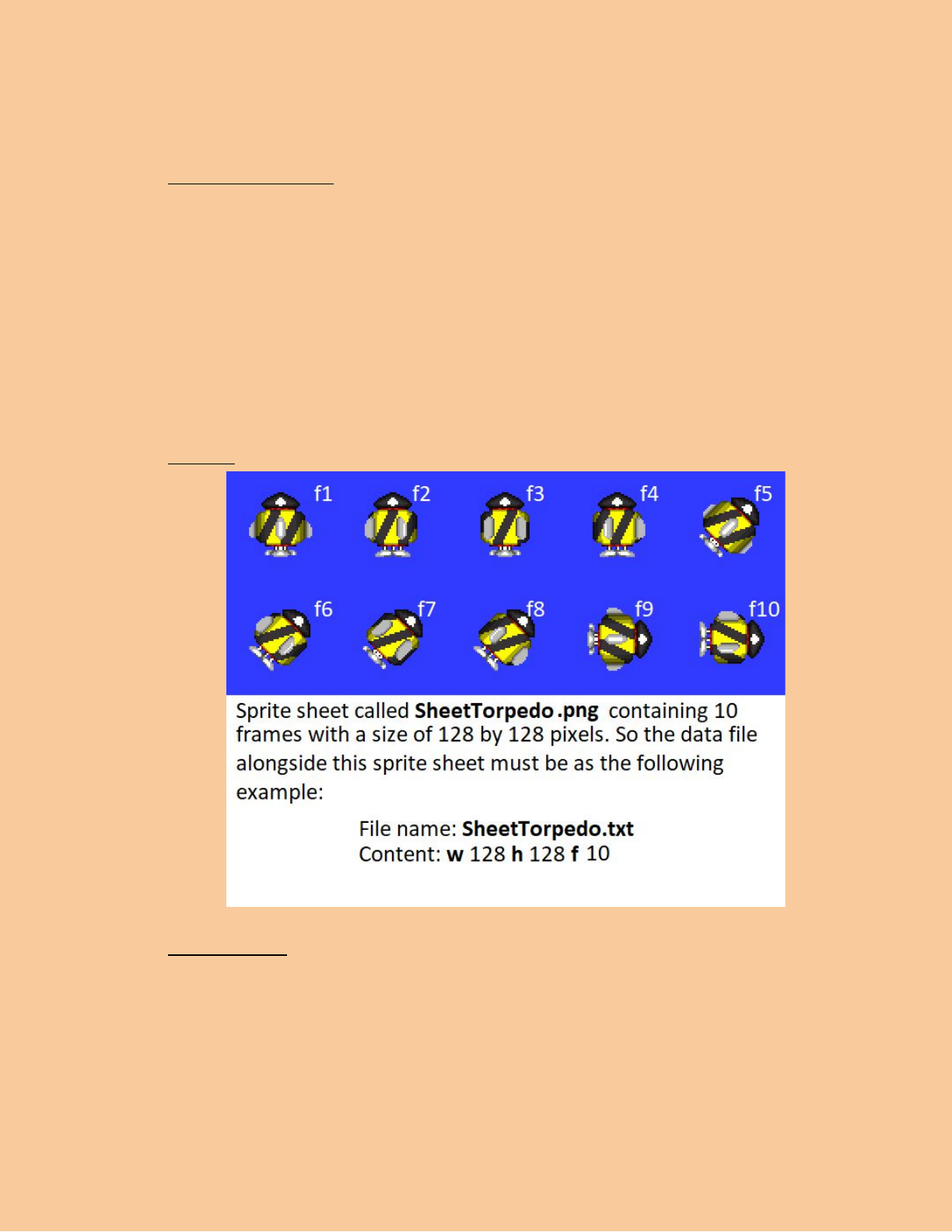
1. Create a sprite sheet, a PNG image containing all the frames of the animation.
Frame must be ordered from left to right and from top to bottom. An example is
shown below. Store this sprite sheet inside the ANIMATIONS folder on the root
folder of the engine. Inside the ANIMATIONS folder you can create your own sub
directories.
2. Create a text file (.txt) with the exact same name as your sprite sheet; the name
is case sensitive so be careful. That file must contain a line of text indicating the
number of frames and their size. The animation system will read these values
and use them to cut the sprite sheet into individual frames.
Example:
Considerations.
1. You must not have more than one sprite sheet with the exact same name. So I
recommend you to use notation based names in order to avoid this problem.
Implementing Animations.
● Use the following functions to assign animations to your game entities, as well to
obtain information about those animations.
FUNCTIONS
PARAMETERS
DESCRIPTIONS
void SET_ANIMATION(
EntityData* _EData, char *
_animName, short
_continuous);
1. The EntityData for
which you want to
assign an animation.
2. The name of the
Sprite Sheet without
file extension and
without the file path.
3. Is continuous? If 1,
the set animation will
start exactly one
frame forwards the
last animation was. If
0 the new animation
will start from frame 0
Sets an animation.
int
GET_FRAME_COUNT(char *
name);
1. The Name of the
spritesheet of which
you want to know how
many frames it has.
Gets how many frames an
animation has.
int GET_FRAME(EntityData*
entity);
1. The EntityData that
has the animation of
which you want to
know which frame is
being shown.
Gets which frame of the
animation of an entity is being
shown.
void
SET_FRAME(EntityData*
entity, int frame);
1. The EntityData of
which you want to set
its animation frame.
2. The frame number.
Set the animation frame.
char *
GET_ANIMATION_NAME(En
tityData* _EData);
The EntityData of which
you want to know its
animation name.
Returns the animation name
of an EntityData.
void
PAUSE_ANIMATION(EntityD
ata * entity);
The EntityData of which
you want to pause its
animation.
Pauses the animation.
void
UNPAUSE_ANIMATION(Enti
tyData * entity);
The EntityData of which
you want to unpause
its animation.
Unpauses the animation.
int
IS_ANIMATION_PAUSED(E
ntityData * entity);
The EntityData of which
you want to know if its
animation is paused.
Returns 1 if the animation is
paused. Returns 0 if not.
Behaviors
Behaviors are functions with which we tell the game entities how to perform their actions.
Using behaviors we tell a vehicle how to steer depending on the user inputs, also we can tell a
character how to automatically hide from danger, or tell a single rock how and when to fall.
Behaviors also offer a Finite State Machine style design pattern. Imagine a relatively big
game entity, like the player’s character. This entity can perform a lot of distinct tasks such as
walking, climbing, swimming and more. Behavior functions make it easier.
Behaviors must detect when to stop working and deliver the control of the game entity to
another behavior. For example, a behavior for walking must pass the control to the behavior
falling if it detects there is no ground under the player. The same way the behavior falling must
deliver the control to the behavior die if it detects that the player touches the ground again and
the falling speed is large.
Behavior functions must have the following syntax:
void BehaviorName (EntityData * data)
Assign the initial behaviors from scenes, or change behaviors from another behaviors
by using the following function.
FUNCTION
PARAMETERS
DESCRIPTION
void
SET_BEHAVIOR_FUNCTION(
EntityData* _EData,
void(*ptrFN)(EntityData*));
1. The EntityData of
which you want to
assign a behavior.
2. The pointer to the
behavior function.
Sets or changes a behavior.
Enabling and disabling entities.
Game entities that are not being used can be disabled. Disabling entities you can
improve performance because these entities are ignored by most of the internal systems.
Disables entities are ignored by:
● The collision system.
● The behavior updater.
● The Render.
You can enable and disable entities by using the following functions.
FUNCTIONS
PARAMETERS
DESCRIPTIONS
void
SET_ACTIVE(EntityData*
ent, int mode);
1. The EntityData that is
going to be enabled or
disabled.
2. A value 1 or 0 for
enabled and disabled.
Enables or disables a game
entity.
int
IS_ACTIVE(EntityData * ent);
The EntityData of which you
want to know its active mode
(Disabled or Enabled)
Tells if an entity is enabled or
disabled.
SFX
Importing sound effects.
Sound effects must be “.wav” files. You should place them inside the SFX folder located
on the root directory of the engine. Inside the SFX folder you are able to create your own folder
hierarchy.
Implementing sound effects.
FUNCTIONS
PARAMETERS
DESCRIPTIONS
void PLAY_SFX(char *
sound);
The name of the audio file
without the “.wav”
extension.
Plays a sound. If the sound is
not loaded yet, the function
automatically finds the audio
file and loads it.
Void PRELOAD_SFX(char *
sound);
The name of the audio file
without the “.wav”
extension.
Loads a sound without
playing it. Useful for loading
all the used sounds before
the scene starts. This avoids
lag on game time.
BGM
Importing music.
Music files must be “.mp3” files. You should place them inside the BGM folder located
on the root directory of the engine. Inside the SFX folder, you are able to create your own folder
hierarchy.
Implementing music.
FUNCTIONS
PARAMETERS
DESCRIPTIONS
void PLAY_BGM (char *
name);
The name of the audio file
without the “.mp3”
extension.
Plays music. If the music file
is not loaded yet, the function
finds and loads it first and
then plays it.
void STOP_BGM ();
Stop/Pauses the current
music.
void RESUME_BGM();
Resumes the paused music.
void PRELOAD_BGM(char *
name);
The name of the music you
want to load, without the
“.mp3” extension.
Loads a music file without
playing it.
Cameras
Cameras are the way we can see what is happening on the game world. Without them
we cannot see anything. Here is how to create a camera and how to configure its field of view,
position and some other attributes.
There is a limit of how many cameras could exist on a scene. You can modify this value in the
“Config.h” file located on the root/Core directory of the engine.
Reserving memory for a camera:
Camera * c = malloc (sizeof(Camera));
Functions to configure the created camera:
FUNCTIONS
PARAMETERS
DESCRIPTIONS
void CONFIG_CAM(Camera
* _cam);
The camera you have just
created.
It configures some internal
values for the camera. You
must call this function
immediately after reserving
the memory for the camera
pointer.
void
STORE_CAMERA(Camera *
cam);
The camera you want to store
Stores a camera on the core,
so the engine can manage it.
void
RECORD_CLASS(Camera *
_cam, char * _class);
1. The camera in context
2. The class name
This allows the camera to see
or record entities of an
specified class.
int
CAM_HAS_CLASS_NAME(C
amera * _cam, char *
_name);
1. The camera in context
2. The nclass name
Returns 0 if the camera in
context is allowed to record
entities that match with the
given class name.
int
CAM_SEES_ENTITY(Camer
a * _cam, EntityData *
_entity);
1. The camera in context
2. The entity in context
Returns 0 if a game entity is
inside the camera’s field of
view.
void
SET_CAM_SIZE(Camera *
_cam, double w, double h);
1. The camera in
context.
2. The width of the field
of view
3. The height of the field
of view
Sets the size of the camera’s
field of view.
double
GET_CAM_WIDTH(Camera*
_cam);
The camera in context
Returns the camera’s
horizontal size of its field of
view.
double
GET_CAM_HEIGHT(Camera
* _cam);
The camera in context
Returns the camera’s vertical
size of its field of view.
void
SET_CAM_POS(Camera *
_cam, double x, double y);
1. The camera in
context.
2. The X position
3. The Y position
Puts the camera on the given
position using pixel units.
double
GET_CAM_POS_X(Camera
*_cam);
The camera in context
Gets the X position of the
camera
double
GET_CAM_POS_Y(Camera
*_cam);
The camera in context
Gets the Y position of the
camera
void
SET_RENDER_PRIORITY(C
amera * _cam, int priority);
1. The camera in
context.
2. The level of priority
It gives a camera a priority for
being rendered over the rest
of cameras. Cameras with
lower levels will be sent to the
graphics back buffer first than
cameras with larger levels.
Inputs
Keyboard
You can obtain which keys have been just pressed, which keys are still pressed, and which
keys have been just released; using the following methods. These methods receive the engine’s
key codes that you can find at the end of this section.
FUNCTIONS
PARAMETERS
DESCRIPTION
short int GETBTN(short int
_btncode);
The key code
Returns 1 if the given key is
pressed. 0 if not.
short int
GETBTNDOWN(short int
_btncode);
The key code
Returns 1 if the given key has
been just pressed. 0 if not
short int GETBTNUP(short int
_btncode);
The key code
Returns 1 if the given key has
been just released. 0 if not
BTN_0
number 0
BTN_q
q
BTN_a
a
BTN_1
number 1
BTN_w
w
BTN_s
s
BTN_2
number 2
BTN_e
e
BTN_d
d
BTN_3
number 3
BTN_r
r
BTN_f
f
BTN_4
number 4
BTN_t
t
BTN_g
g
BTN_5
number 5
BTN_y
y
BTN_h
h
BTN_6
number 6
BTN_u
u
BTN_j
j
BTN_7
number 7
BTN_i
i
BTN_k
k
BTN_8
number 8
BTN_o
o
BTN_l
l
BTN_9
number 9
BTN_p
p
BTN_z
z
BTN_x
x
BTN_right
right key
BTN_f1
f1
BTN_c
c
BTN_up
up key
BTN_f2
f2
BTN_v
v
BTN_down
down key
BTN_f3
f3
BTN_b
b
BTN_return
enter
BTN_f4
f4
BTN_n
n
BTN_escape
ESC
BTN_f5
f5
BTN_m
m
BTN_lshift
left shift
BTN_f6
f6
BTN_space
space
BTN_rshift
right shift
BTN_f7
f7
BTN_alt
left alt
BTN_lctrl
left control
BTN_f8
f8
BTN_altgr
right alt
BTN_rctrl
right control
BTN_f9
f9
BTN_left
left key
BTN_f10
f10
BTN_f11
f11
BTN_f12
f12
Time and Delta-Time
FUNCTIONS
PARAMETERS
DESCRIPTIONS
double GET_TIME();
Returns how many
milliseconds have passed
since the program started its
execution.
double GET_DELTAT();
Returns how long the
previous frame took to be
completed.
Achieving a constant execution speed
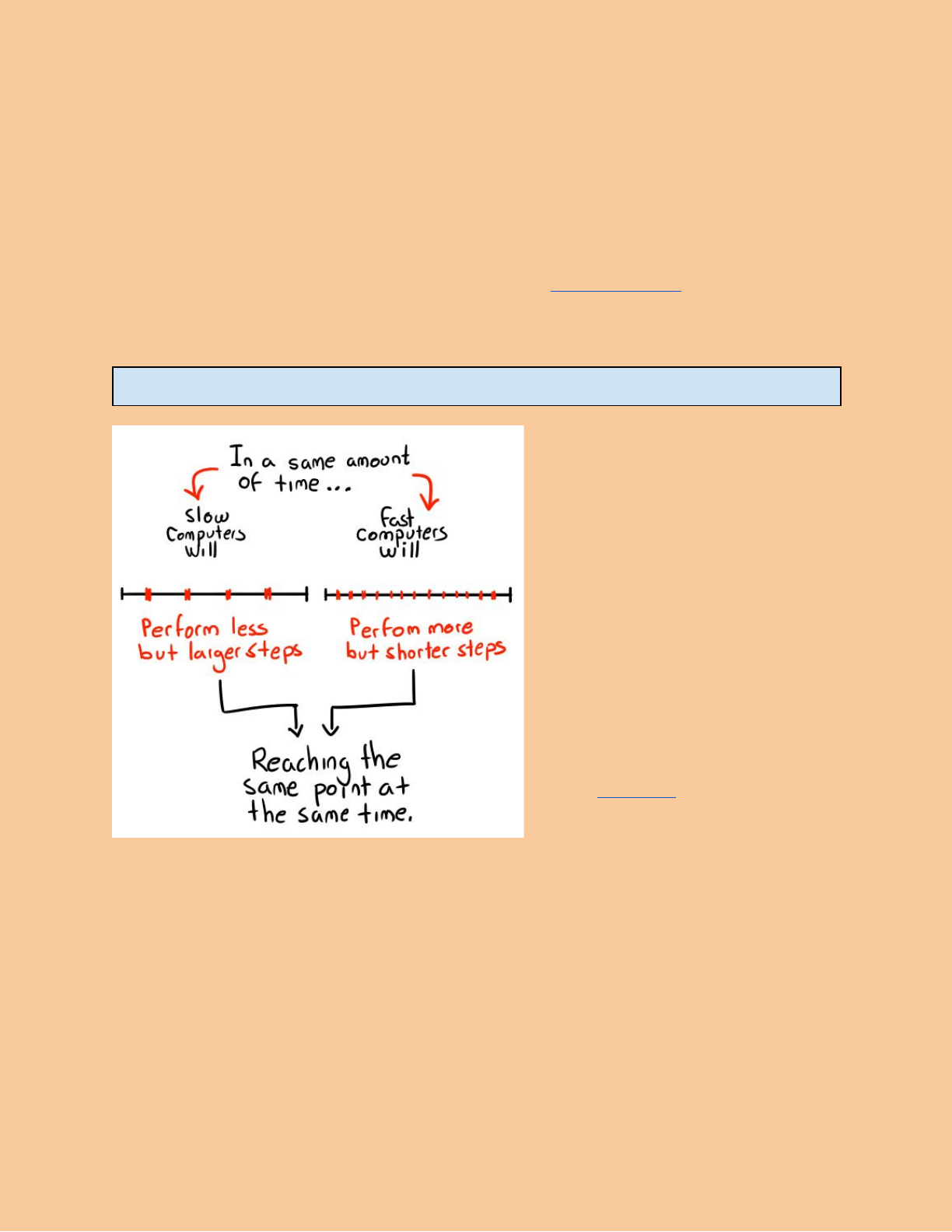
Different computers run programs at different speeds, some of them are incredibly
faster. This is a problem because we want our game to run at the same speed no matter the
power of the computer. We achieve this with a concept called DeltaTime.
At the beginning of the frame, the current program’s time (read time section) is gotten and
stored as timeA. Then at the end of the frame the current program’s time is gotten again and
stored as timeB. If we apply the following formula, we obtain how long the frame did last.
DeltaTime = timeB - timeA
So it is logical to suppose that if
DeltaTime is large it means the last
frame did last a long time, probably
because of a slow computer. And If it is
small, it means the last frame was
completed fast, because a fast
computer.
If we multiply this DeltaTime with all
increments like speeds or counters that
depend of time, they will reach a
desired point at the same time, no
matter how fast the computer is.
Use functions shown on the time
section >>here<< in order to get
deltaTime.
Aborting execution
The engine’s core is already configured to abort the execution when the window’s exit
button is pressed. But also you can abort the execution whenever you want by using the
following function:
FUNCTION
PARAMETERS
DESCRIPTION
void KILL_CORELOOP();
Lets the engine to finnish its
current core loop iteration,
returning the control of the
program to the section were
engine was initialized and
launched.
All routines for releasing
memory are triggered by this
function.
Useful data structures
Vector2
Rect
Circle
A structure that represents a
vector of two dimensions.
A structure that represents a
rectangle, with its position, its
height and its width.
A structure that represents a
circle, with its position, and its
radius.
Double x
Double y
Double x
Double y
Double w
Double h
Double x
Double y
Double r
File Browser
The file browser function lets you to find the file path where an specific file is located.
This is useful when you are working with files that may change of directory during its
development, or for other reasons.
FUNCTION
PARAMETERS
DESCRIPTION
void FINDFILEPATH(char *
dest, int dest_size, char*
filename)
1. The text buffer where
the returned path will
be stored.
2. The size of the text
buffer
3. The name of the file
you are finding. It
must include
extension (.txt, .doc,
.png…)
Finds where is a file given its
name and file extension, and
stores the file path into a text
buffer.
Compiling project
Compiling a project in VGME is easy! You do not need to merge the engine’s source
inside any complex IDE. Just execute ‘Valles’ Makefile Gen Tool’ located inside the root folder
of the engine, named as Make Project.exe. This program will generate a Makefile for your
project and then will trigger the compilation routines.
Requirements:
● You must install mingw32’s C compiler (gcc). You can get it <<HERE>>.
● You must add the path to mingw32’s compiler tools folder in the %PATH% environment
variable of windows.
MinGW has a well explained guide for making these configuration process, read about it
<<HERE>>.
Considerations:
● The current version of the makefile gen tool does not support paths containing special
characters such as ‘á,ñ,ö,...’ and so on. Keep the entire path from the operative system
root directory (C:/ for example), to your project’s directory clear of special chars. Use
only characters that belongs to the english alphabet.
