User Guide
User Manual:
Open the PDF directly: View PDF  .
.
Page Count: 34

PyVASCO
User guide
Patricia Ribes Metidieri
Ida Aichinger
Christina Yin Vallgren
TE-VSC
CERN - Geneva, Switzerland
Contents
Contents 2
1 About PyVASCO 3
1.1 Getting started . . . . . . . . . . . . . . . . . . . . . . . . . . . . . 3
1.2 Authors and contributors . . . . . . . . . . . . . . . . . . . . . . . 4
1.3 Contact . . . . . . . . . . . . . . . . . . . . . . . . . . . . . . . . . 4
2 Basic concepts 5
2.1 Dynamic vacuum model . . . . . . . . . . . . . . . . . . . . . . . 5
2.2 Critical current . . . . . . . . . . . . . . . . . . . . . . . . . . . . . 5
2.3 Electron stimulated desorption . . . . . . . . . . . . . . . . . . . 5
2.4 Cryogenic systems . . . . . . . . . . . . . . . . . . . . . . . . . . . 6
3 Inputs of PyVASCO 7
3.1 ’Old’ Input format . . . . . . . . . . . . . . . . . . . . . . . . . . . 7
3.2 ’New’ Input format . . . . . . . . . . . . . . . . . . . . . . . . . . 7
3.3 ESD curves format . . . . . . . . . . . . . . . . . . . . . . . . . . . 13
4 Extracting results with PyVASCO 15
4.1 Plot options . . . . . . . . . . . . . . . . . . . . . . . . . . . . . . . 15
4.2 Exporting plots in different formats . . . . . . . . . . . . . . . . . 15
4.3 Exporting to CSV . . . . . . . . . . . . . . . . . . . . . . . . . . . . 15
5 Layout and functionality 16
5.1 Menus . . . . . . . . . . . . . . . . . . . . . . . . . . . . . . . . . . 16
5.2 Tabs . . . . . . . . . . . . . . . . . . . . . . . . . . . . . . . . . . . 24
Bibliography 34
2
Chapter 1
About PyVASCO
PyVASCO (VAcuum Stability COde written in Python) is a code integrally de-
veloped at CERN for the simulation of pressure profiles in cylindrical geome-
tries considering beam induced effects.
The first version of this program was distributed under the name IdaVac.
This program constitutes an update of VASCO (presented in [1]) and seeks to
optimize the performance of the original code for large geometries [2].
This program has been integrally developed in Python 2.7 and tested on
Windows 10.
1.1 Getting started
Installation
This version of PyVASCO includes an installer, called ’setup.exe’. In order to
install PyVASCO in your machine, launch the installer and follow the spec-
ified instructions. Even if recommended, the installation using the setup is
not compulsory in order to launch PyVASCO. To launch the application with-
out installing, enter in the folder PyVASCO and double-click on the applica-
tion (’PyVASCO.exe’).
Developer tools
This version of PyVASCO is distributed together with its source code (in PyVASCO/
PyVASCO_Code/) and a portable python interpreter
PyVASCO/WinPython-64bit-2.7.6.4 with all the required dependencies al-
ready installed.
There’s also an API documentation available in web format in the direc-
tory docs/ under the name ’API.html’ or opening the program and selecting
the option ’Documentation’ in the menu Help or pressing the keyboard key
combination Ctrl+U.
3
4CHAPTER 1. ABOUT PYVASCO
To build a stand-alone python application from the source code:
•Make sure that Pyinstaller is installed in your computer:
–Open a command prompt and type pyinstaller.
–If you don’t have pyinstaller in your computer, in the same com-
mand prompt, type:
pip i n s t a l l p y i n s t a l l e r
•Enter in the directory containing the source code (PyVASCO_Code/) and
open the file ’PyVASCO.spec’. Paste the full path of the location of the
directory PyVASCO_Code in the tag pathex and save the cahnges.
•Open a command prompt in this directory and type:
p y i n s t a l l e r PyVASCO . spec
1.2 Authors and contributors
List of authors:
•Ida Aichinger
•Patricia Ribes Metidieri
List of contributors:
•Christina Yin Vallgren
•Giuseppe Bregliozzi
•Simone Callegari
1.3 Contact
In case of problems,if a bug is detected or if you have suggestions for further
development, please send an emalil to the following addresses:
•patricia.ribes.metidieri@cern.ch

Chapter 2
Basic concepts
2.1 Dynamic vacuum model
2.2 Critical current
2.3 Electron stimulated desorption
The electron-stimulated desorption (ESD), the desorption process initiated
by electronic excitation, of atoms and molecules is an important factor in
determining the pressure profile under beam induced effects.
In order to empirically characterize this effect for different gases, the so-
called ESD yield, ηeis defined as:
ηe=Ni
Ne
(2.1)
where Niis the number of desorbed molecules of a given gas specie and Ne
is the number of incident electrons.
The ESD yields of different gases depend on the properties of the surface
where the molecules of the studied gases are adsorbed, on the temperature
and on gas specie.
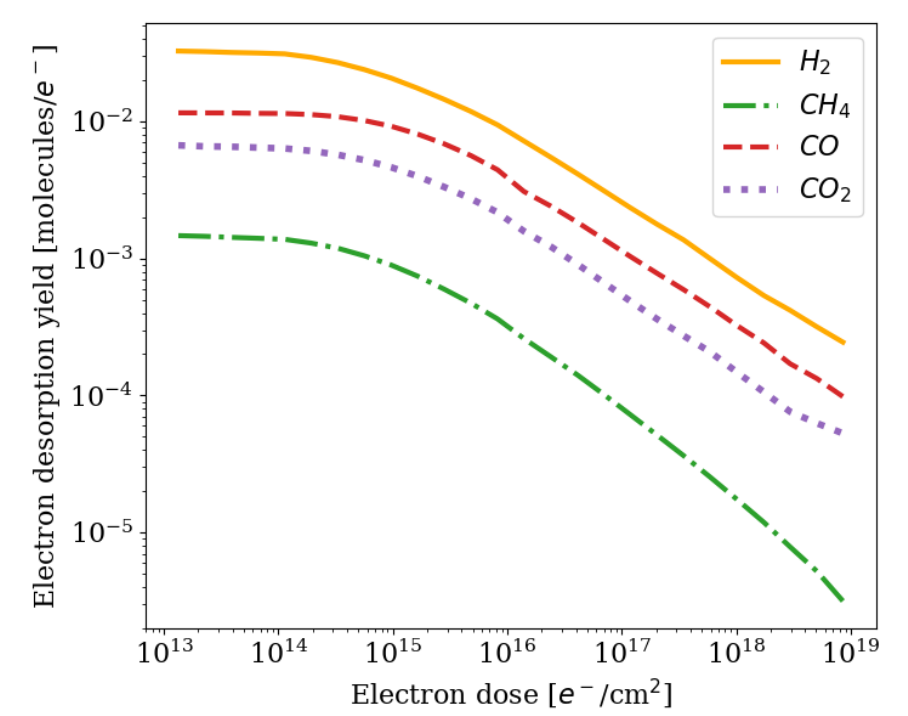
The curve representing the ESD yields for a material as a function of the
accumulated electron dose is the ESD curve for that material, and it has been
observed that the ESD yields for different gases on materials relevant for UHV
systems decrease with the accumulation of incident electron dose (in electrons/cm2),
as presented in Fig. 2.1 for backed copper.
This phenomenon of decrease of the ESD with the accumulated electron
dose received in the walls is typically called conditioning effect (or scrubbing
effect).
This phenomenon is relevant for the vacuum performance of UHV sys-
tems under electron bombardment due to beam induced effects, like the
5
Chapter 3
Inputs of PyVASCO
3.1 ’Old’ Input format
As already mentioned, PyVASCO is based in VASCO, thus ’old’ input format
refers to VASCO’s input format, detailed in [1].
To ease the comparison between VASCO and PyVASCO, PyVASCO can ac-
cept CSV files written with the format of the first program, as mentioned in
Subsection 5.2 and transform this files to the native format of PyVASCO.
3.2 ’New’ Input format
Main input file
Writing input simulation files with a large number of segments in VASCO’s
input format might be tedious and the it might be difficult to detect mistakes.
For this reason, PyVASCO uses a new input format, which seeks to make an
input file more readable.
A geometric model in PyVASCO is built by cylindrical segments stuck to-
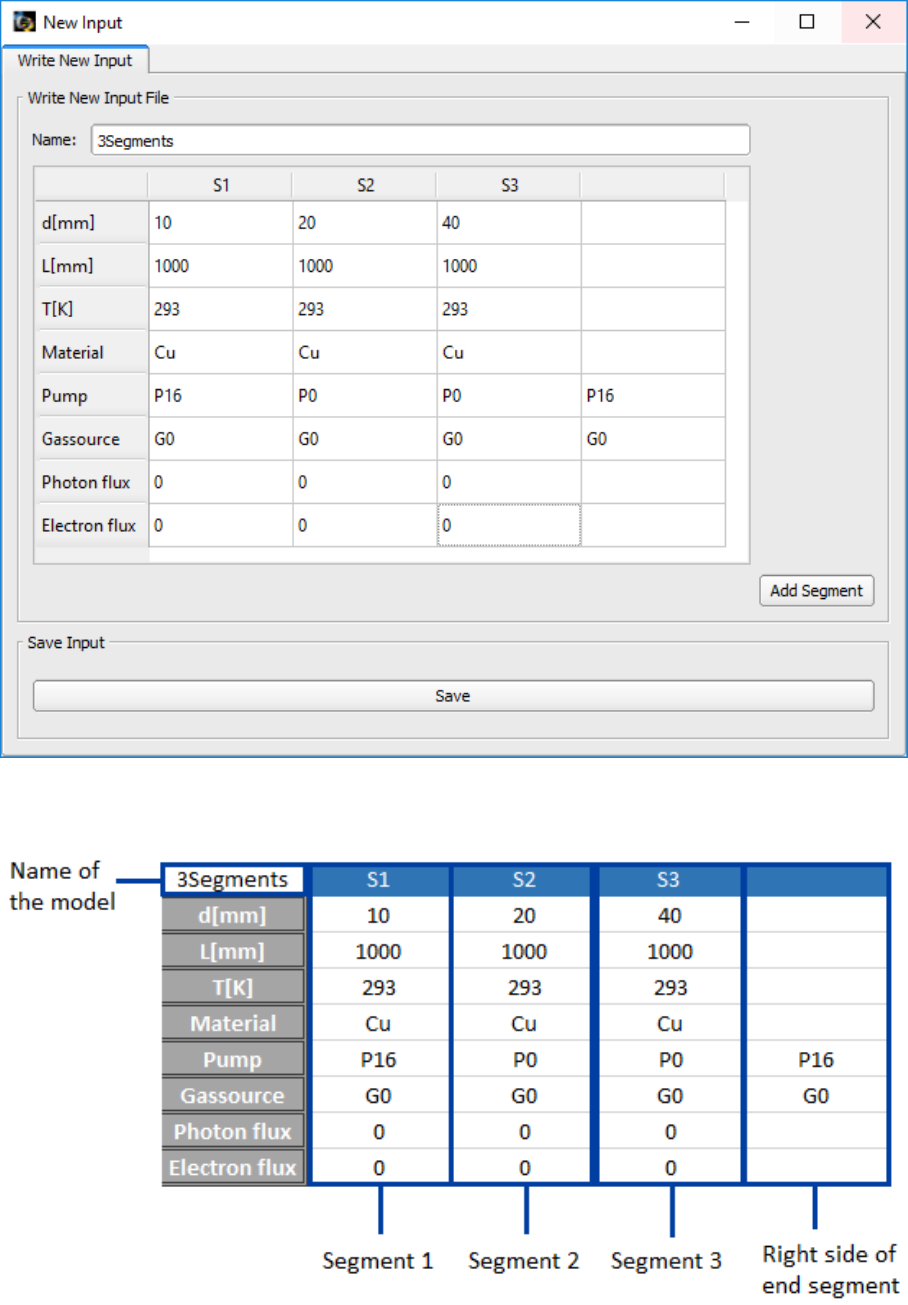
gether. An example of input file with the new format is shown in Tab. 3.1.
Input files in this format can be written using the integrated Input edi-
tor (in the menu Add →Input file or by pressing Ctrl+I) or in spreadsheet
programs (like Excel) or in a plain text editor (like WordPad or Notepad). An
example of how a simple input file would look like when using the integrated
editor is shown in Fig. 3.1.
The new input format consists in:
•Name of the simulation:
The name of the simulation must be written in the dedicated line edit
when using the integrated editor or, when using external editors like
Excel, it must be written in the first row, first column of the input file.
7
8CHAPTER 3. INPUTS OF PYVASCO
Figure 3.1: Input example written in the integrated editor.
Table 3.1: Example of input file written in the ’new’ format.
3.2. ’NEW’ INPUT FORMAT 9
•Columns, labeled S1...SN, for the defined segments:
Each column labeled S1...SNin the input file represents a segment in
the simulated geometry. For each segment the following information
has to be provided:
– d[mm]: The diameter of the segment (in mm), assumed to be
cylindrical.
– L[mm]: The length of the segment (in mm).
– T[k]: The average temperature of the segment.
– Material: Name of the material of the segment. The list of regis-
tered materials can be visualized in the menu File →Show Com-
ponents or pressing Ctrl+S. (See Show components in Section 5.1
and Materials in Section 3.2 for more details).
– Pump: The pumps specified in the main input file are lumped
pumps located on the left side of the segment where they are indi-
cated. The list of registered pumps can be visualized in the menu
File →Show Components or pressing Ctrl+S. In order to simulate
the union of two segments without a lumped pump in between,
P0 has to be written in the corresponding cell.
–Gas source: The gas sources in the main input file represent local-
ized leaks in the interconnections between segments and, in par-
ticular, located on the left side of the segment where they are indi-
cated.The list of registered pumps can be visualized in the menu
File →Show Components or pressing Ctrl+S. In order indicate to
PyVASCO that no leak exists in a certain location, G0 has to be
written in the corresponding cell.
– Photon flux: PyVASCO accepts an homogeneous, constant pho-
ton flux (in photons/m/s) impinging the walls of every segment.
– Electron flux An homogeneous, constant electron flux (in elec-
trons/m/s) can be added to the different simulated segments.
•End column:
This column is exclusively used to indicate the lumped pump and the
gas source located at the right side of the last simulated segment.
Thus, the example of Fig. 3.1 and Tab. 3.1, is composed by 3 copper segments
of the same same length and increasing diameters of 10, 20 and 40 mm, re-
spectively. The three segments are hold at room temperature and two lumped
pumps (called P16) are connected at the beginning of the first segment (left
10 CHAPTER 3. INPUTS OF PYVASCO
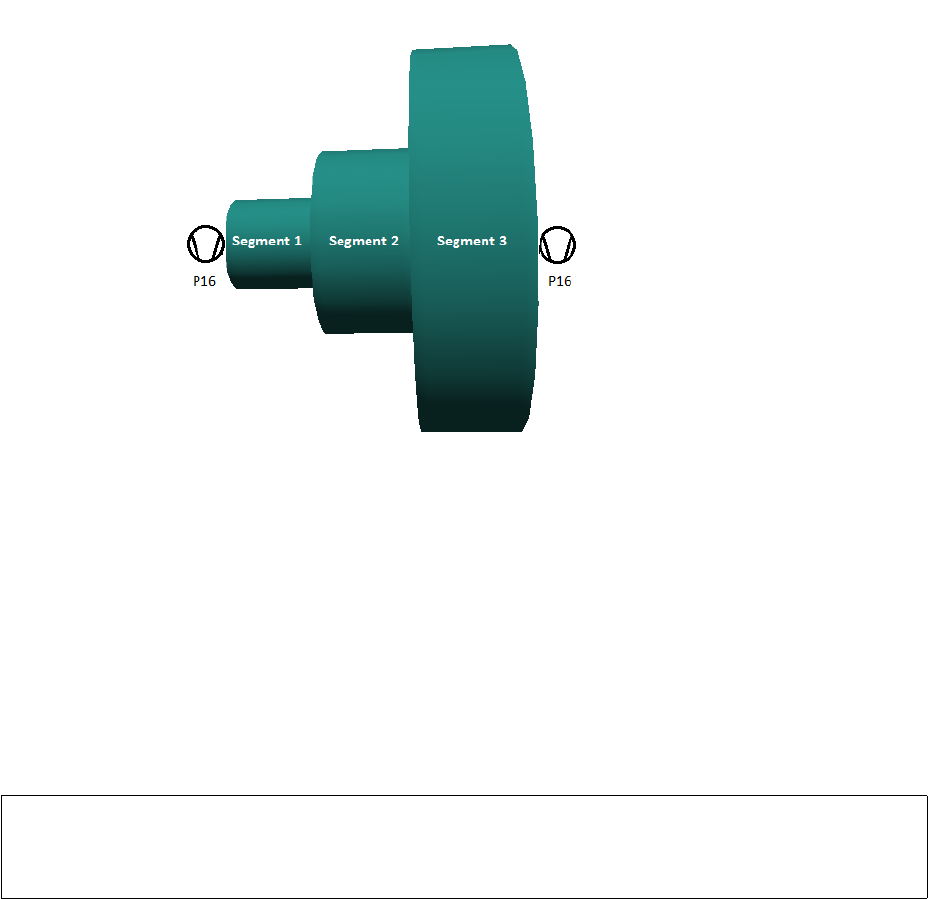
Figure 3.2: 3D model of the simulated geometry presented in Tab. 3.1. (For
aesthetic reasons, the geometry has been shrinked in the longitudinal direc-
tion).
side) and at the end of the third segment (right side). There are no lumped
pumps connected nor on the right side of the first segment nor on the right
side of the second segment, and there are no leaks along the geometry. A 3D
model of the described system can be seen in Fig. 3.2.
IMPORTANT!: If the user writes the main input in an external editor, the same
format as shown in Tab. 3.1 has to be used. The input file has to be saved in
CSV format.
Materials
The materials used in the main input file for the PyVASCO simulations have
to be defined previously to their usage. PyVASCO offers the possibility of
defining new materials in the dedicated Material editor, but the user can also
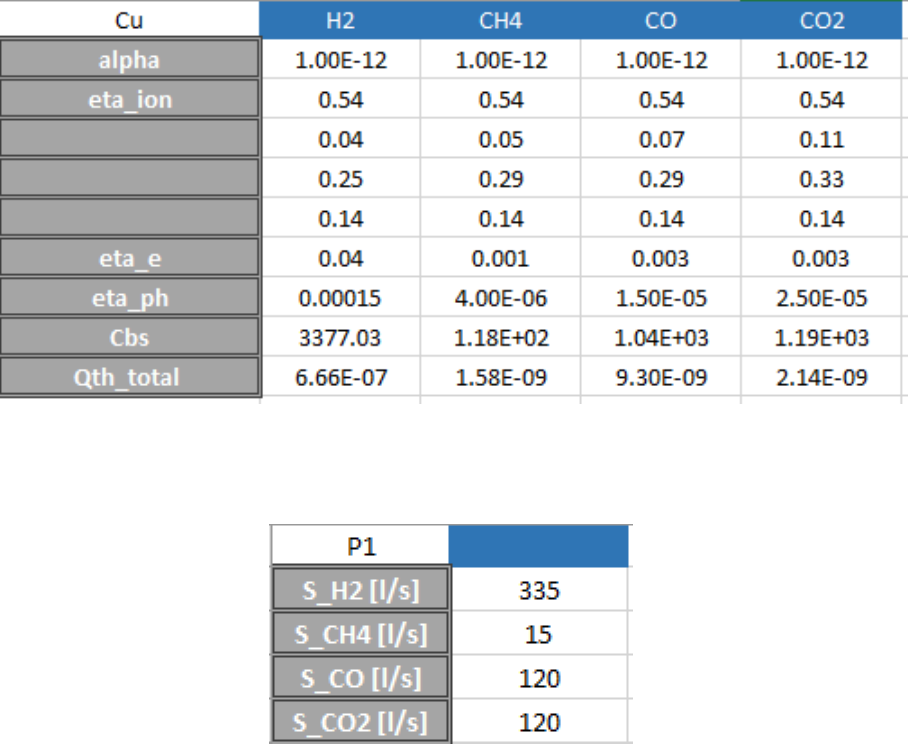
import a CSV file with the format shown in Tab. 3.2.
A material file defined in PyVASCO consists in:
•Name of the material
The name with which this material will be called in the main input files.
•Colums:
A material file always have 4 data columns, corresponding to the be-
havior of the defined material with respect to the main dominant gases
in UHV, i.e. H2, CH4CO and CO2.

3.2. ’NEW’ INPUT FORMAT 11
•Rows:
The different rows specified in the a materials file are:
– alpha: Sticking factor or sticking coefficient (adimensional).This
quantity represents the probability which each of the defined gases
have of sticking onto the surface of the segment. In the case of the
LHC, this parameter is used to represent the pumping due to NEG
in the warm sections and to physisorption (cryopumping) in the
cold sections.
– eta_ion: Ion stimulated desorption yields
~
~
ηI(in molecules/inci-
dent ion) at a chosen ion impact energy (4×4 matrix, occupying
from row 2 to row 5).
– eta_e: Electron stimulated desorption yields (in molecules/ inci-
dent electron) at a chosen impact energy.
– eta_ph: Photon stimulated desorption yields (in molecules/inci-
dent photon) at a chosen photon energy.
– Cbs: distributed pumping speed per unit length (in l·s−1·m−1). In
the case of the LHC, this input parameter can be used to simulate
the pumping through pumping slots.
– Qth_total: Thermal outgassing rate per unit area at a chosen tem-
perature (in mbar·l·s−1·cm−2).
IMPORTANT!: If the user writes a material file in an external editor (Excel, for
example) the name of the material written in the first row and column of the
material table has to match the name of the file. Moreover, the material file
has to be saved in CSV format.
IMPORTANT!: All the properties defined for a certain material depend on the
temperature! For this reason it is important to register the same material held
at different temperatures as different entries by including the temperature in
the definition name. For example: use Cu@RT and Cu@5K to define copper
at room temperature and at 5 K, respectively.
IMPORTANT!: The outgassing rate of a given material is internally converted
to total outgassing by multiplying this quantity by the surface area of the
cylindrical segment considered. If you are trying to simulate a geometry
which considerably differs from a cylinder, it might turn out that the real out-
gassing area is much bigger than the computed area, and you should scale
the outgassing rate accordingly to give the real total outgassing when multi-
plied by the computed area.
12 CHAPTER 3. INPUTS OF PYVASCO
Table 3.2: Example of defined material in PyVASCO.
Table 3.3: Example of a defined simple pump in PYVASCO.
Pumps
The lumped pumps used in the main input file for the PyVASCO simulations
have to be defined previously to their usage. The same pump in PyVASCO can
present different pumping speeds for different pressure ranges. PyVASCO
offers the possibility of defining new pumps in the dedicated Pump editor,
but the user can also import a CSV file with the format shown in Tab. 3.3.
However, in the later case only simple pumps (with pumping speeds for the
different considered gas species independent of the pressure range) can be
defined.
The pumping speed for each of the gas species has to be in l/s.
Gas sources
The gas sources used in the main input file for the PyVASCO simulations have
to be defined previously to their usage. PyVASCO offers the possibility of
defining new gas sources in the dedicated Gas source editor, but the user can
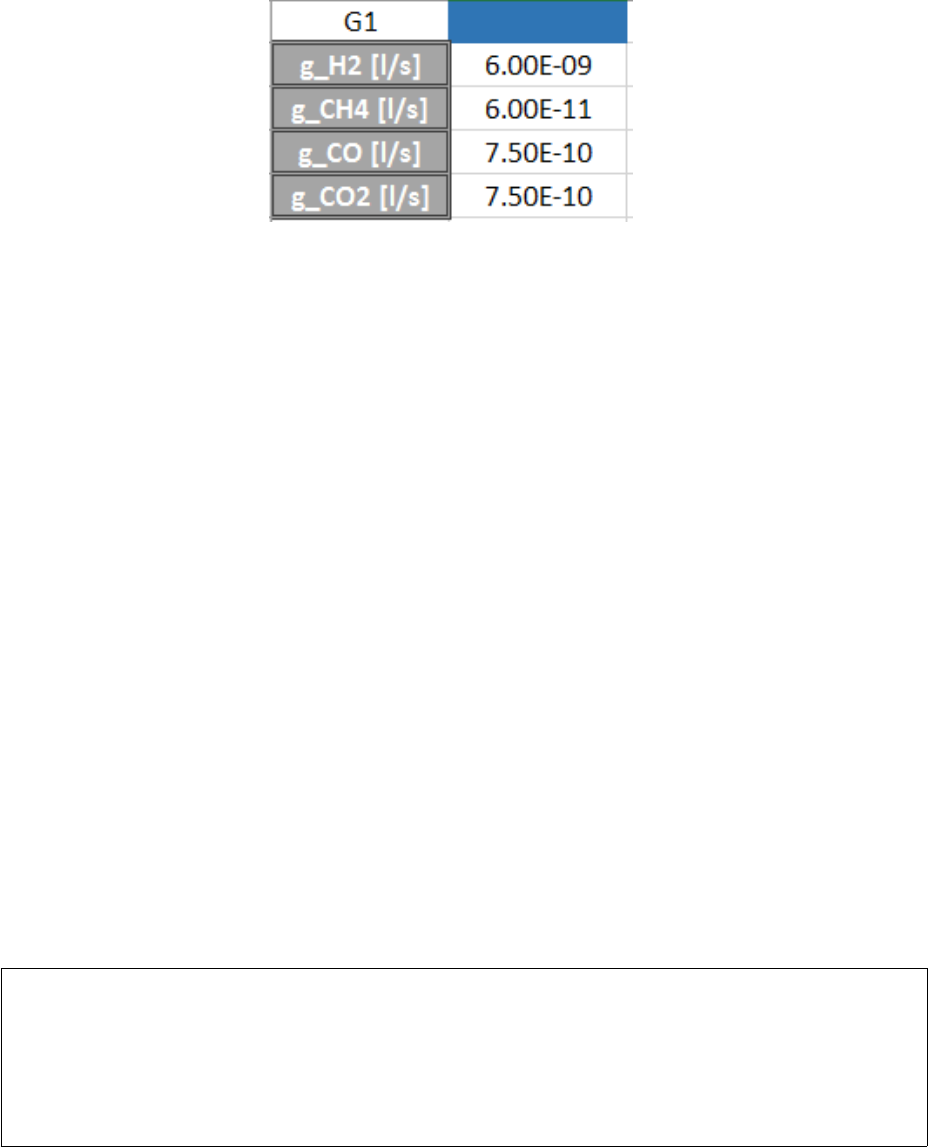
3.3. ESD CURVES FORMAT 13
Table 3.4: Example of a defined local gas release (gas source) in PyVASCO.
also import a CSV file with the format shown in Tab. 3.4.
The gas release for each of the gas species has to be in l/s.
3.3 ESD curves format
In order to easily quantify the impact of the reduction of the ESD yields with
the accumulated electron dose, PyVASCO offers the possibility of solving the
dynamic vacuum model for different accumulated electron doses. (See Dy-
namic pressure due to ESD in Section 5.2, for more details on the simulation).
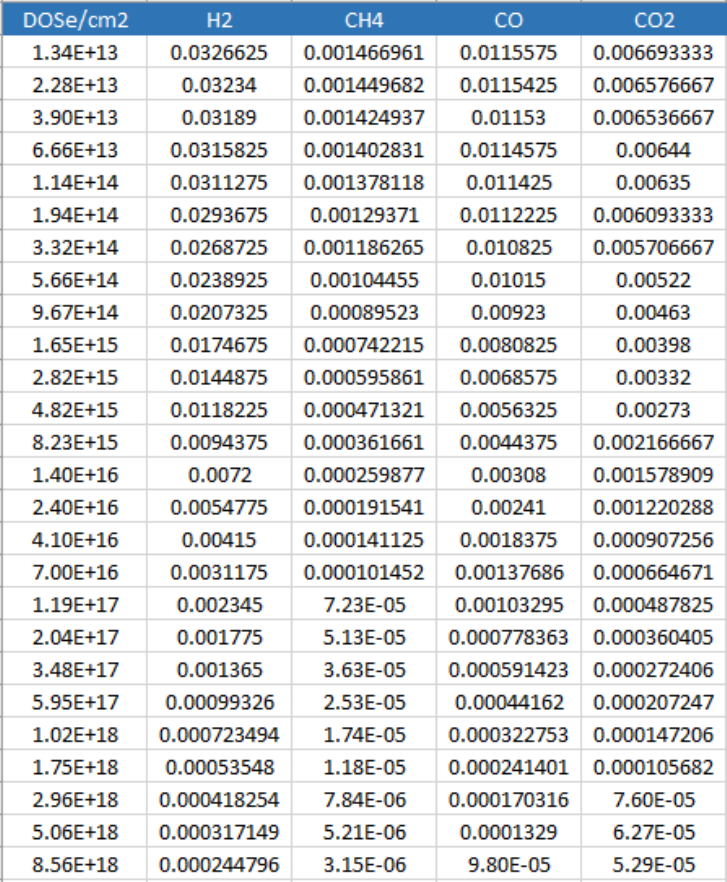
The ESD input files for PyVASCO must be CSV files containing 5 columns:
•The first column must be labeled DOSe/cm2, and contain the accumu-
lated electron dose (in electrons/cm2).
•The second to fifth columns must include the ESD yields of H2, CH4,
CO and CO2, respectively.
An example of the format for a ESD curve in PyVASCO can be seen in
Tab. 3.5
IMPORTANT!: In order to properly run this simulation, all the materials used
in the geometry model must have an associated ESD curve. To associate an
ESD curve to a given material, select the option Add →ESD curve in PyVASCO
menus or press Ctrl+D. See ESD curve in Subsection 5.1 for more details on
how to use this option.
14 CHAPTER 3. INPUTS OF PYVASCO
Table 3.5: Example of the format for an ESD curve required by PyVASCO.
Chapter 4
Extracting results with PyVASCO
4.1 Plot options
4.2 Exporting plots in different formats
4.3 Exporting to CSV
15

Chapter 5
Layout and functionality
5.1 Menus
The current version of PyVASCO (2.0) presents 4 menus, named: File,Add,
Analysis and Help. In this section, a detailed description of the different
menus in PyVASCO and their functionality is provided.
File
The File menu of PyVASCO contains 4 options:
•Load...:
This option reloads all the registered materials, pumps and gas sources
when selecting it or pressing the keyboard key combination Ctr+L.
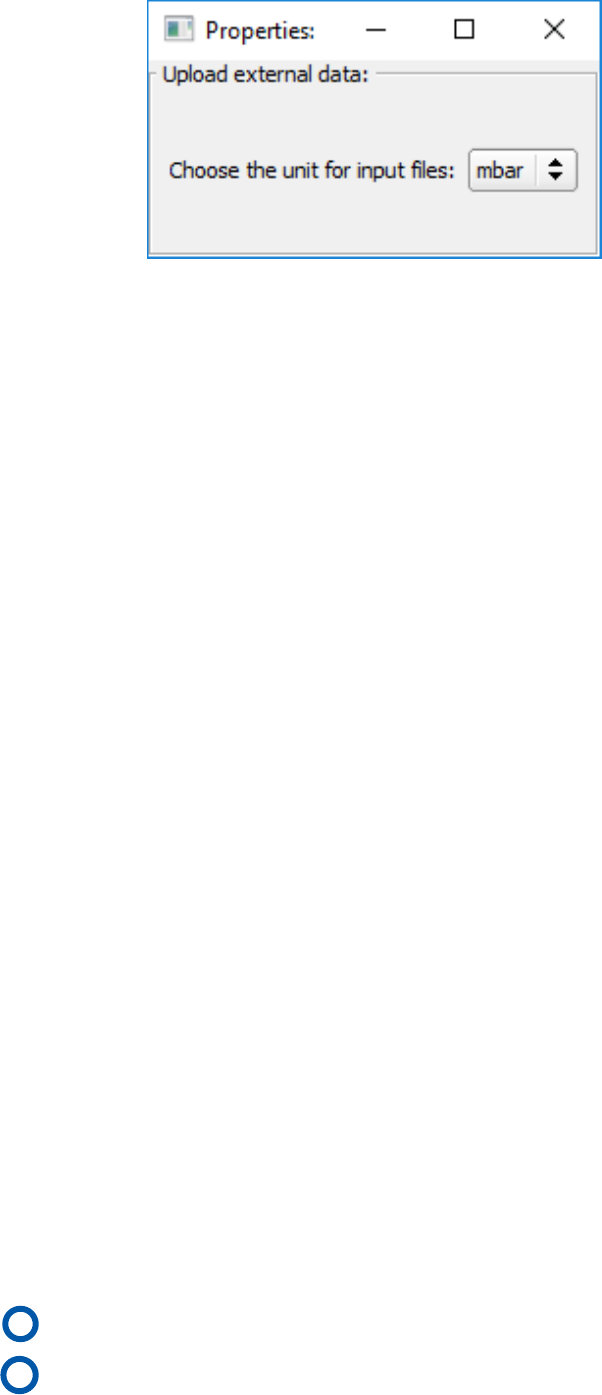
•Properties:
When selected or on pressing the keyboard key combination Ctr+P, this
option will launch the Properties window, shown in Fig. 5.1. The prop-
erties window allows to select the pressure unit (mbar or torr) of the
input. The native pressure unit of PyVASCO is mbar, while the input
pressure unit in VASCO is torr. This option was added in order to ease
the benchmark between both programs.
IMPORTANT! : Please note that changing the pressure unit in the Properties
window won’t change the pressure unit in the output of the simulation (the
results will still be given in mbar). Changing this value will only affect the
interpreted units of all the gas sources and the thermal outgassing and the
linear pumping of all materials.
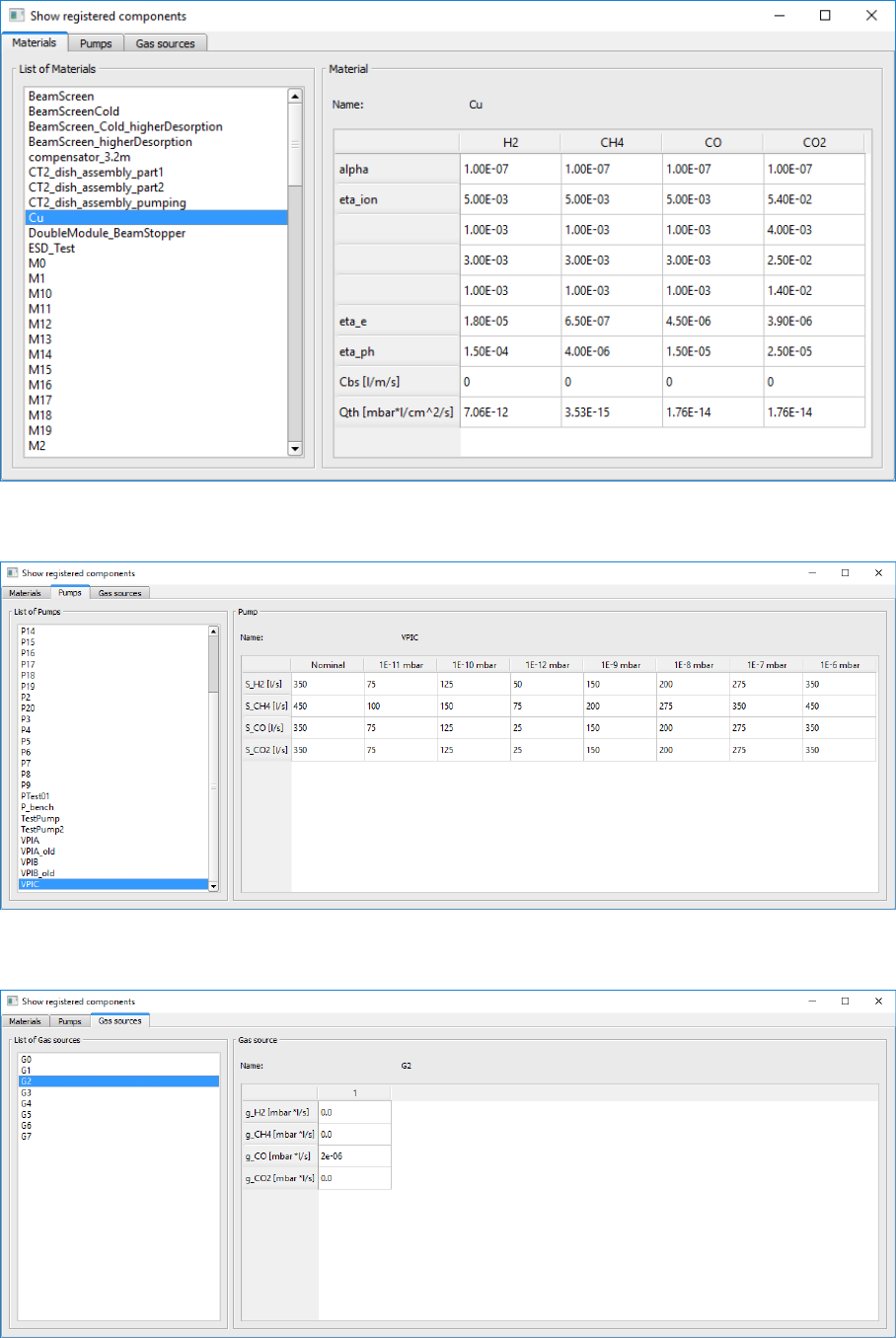
•Show components:
When selected or on pressing the keyboard key combination Ctrl+S,
this option will launch the Show registerd components window. In or-
der to ease the creation of new models and large simulations, PyVASCO
16
5.1. MENUS 17
Figure 5.1: Properties window
contains a compendium of registered materials, pumps and punctual
gas sources. This window lets the user navigate through these defined
components and contains 3 tabs.
The first tab, shown in Fig. 5.2, lists all the registered materials on the
left side of the screen and outputs the properties of the selected mate-
rial on the right.
The second tab, presented in Fig. 5.3, lists all the defined pumps on
the left and shows the defined pumping speed for the selected pump
on the right. A pump can exhibit different pumping speed for different
pressure regimes.
The third tab, in Fig. 5.4, lists all the registered punctual gas sources on
the left and shows the characteristics of the selected gas source on the
right side of the screen.
•Quit:
PyVASCO is closed when this option is selected or the keyboard key
combination Ctrl+Q is pressed.
Add
The Add menu of PyVASCO contains 5 options:
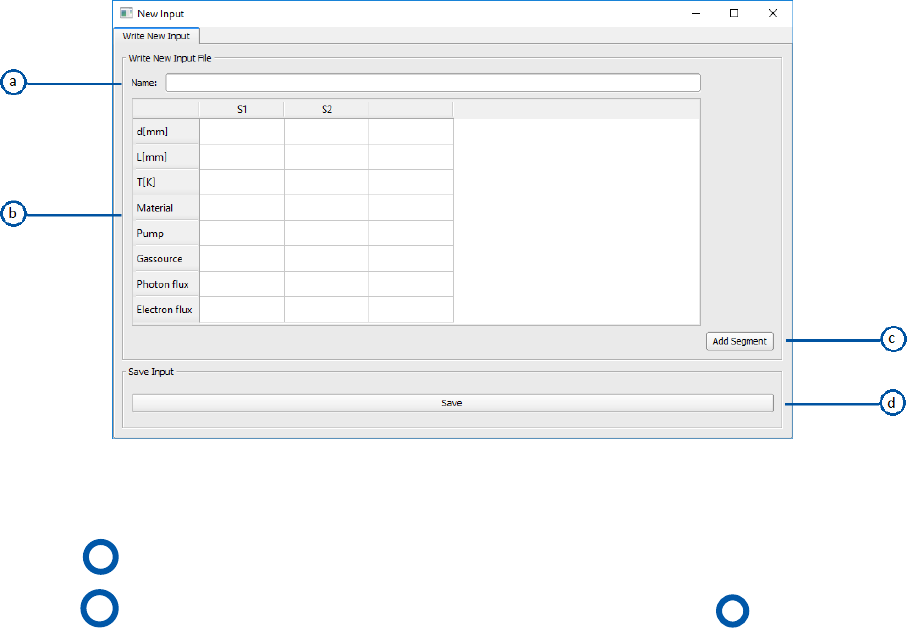
•Input file:
When this option is selected or the keyboard key combination Ctrl+I is
pressed, the New Input window will be launched. This window allows
the user to write a new input model directly inside PyVASCO.
a Defines the name of the simulation
bSimulation components in the ’New format’ (see Section 3.2 for a
detailed explanation).
18 CHAPTER 5. LAYOUT AND FUNCTIONALITY
Figure 5.2: Registered components window, materials tab.
Figure 5.3: Registered components window, pumps tab.
Figure 5.4: Registered components window, gas sources tab.
5.1. MENUS 19
Figure 5.5: New input window.
c Allows to add a segment to the model.
dSaves the new input under the name specified in a.
•Material:
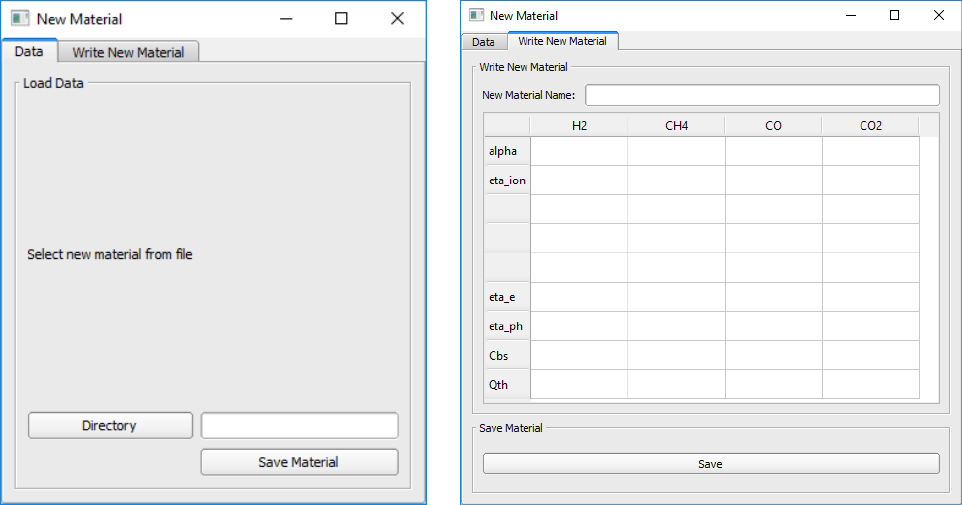
When this option is selected or the keyboard key combination Ctrl+M
is pressed, the New Material window is launched. This window allows
the user to define a new material. It contains 2 tabs:
– Data: (Fig. 5.6a) This tab allows the user to upload a material file
by pressing the button ’Directory’ and, once selected, the button
’Save Material’. See Section 3.2 for more information on the struc-
ture of this file.
– Write New Material: (Fig. 5.6b) with this tab, the user can define a
new material in PyVASCO, which will be available for all the sim-
ulations once saved (pressing the ’Save’ button).
•Pump:
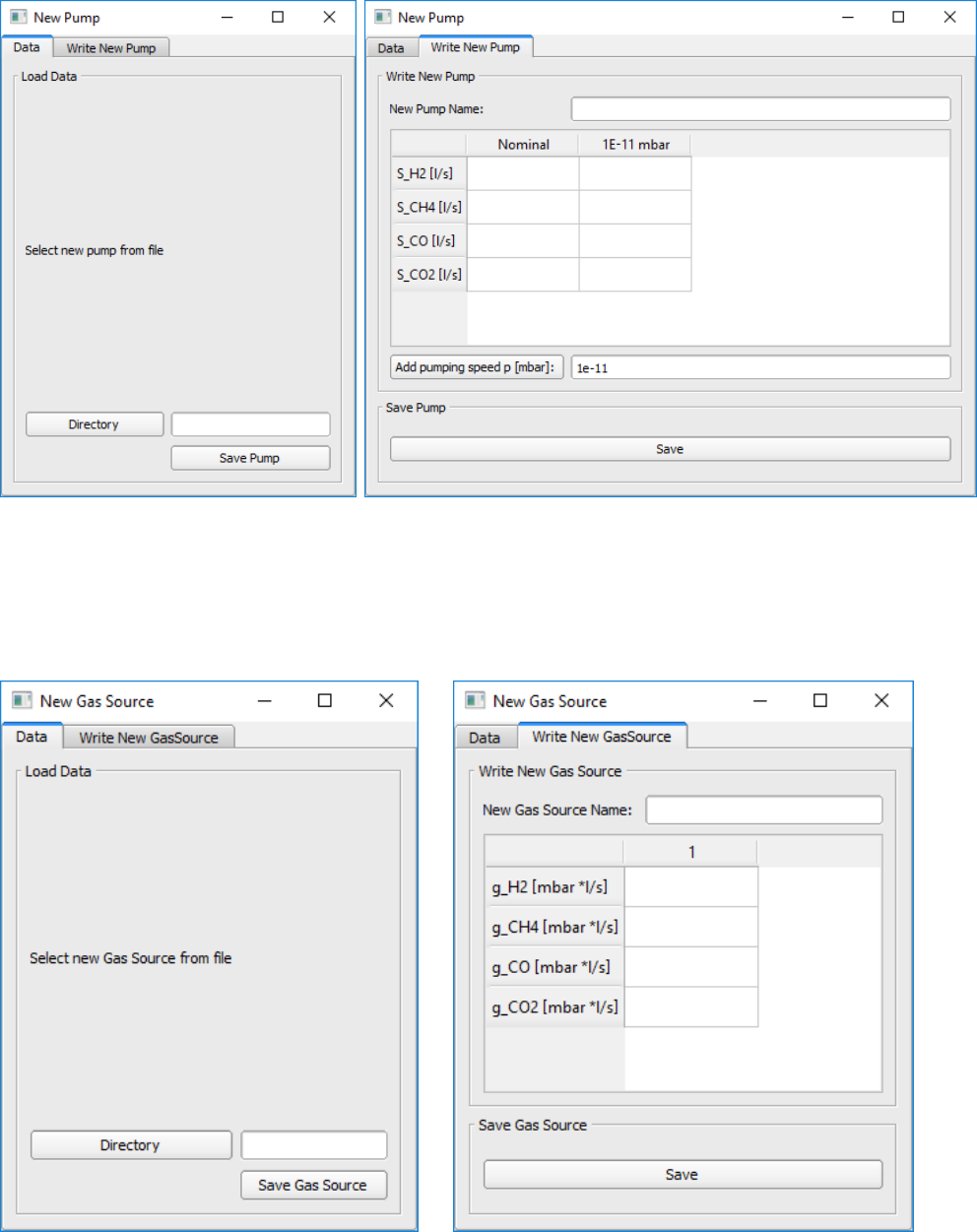
When this option is selected or the keyboard key combination Alt+P is
pressed, the New Pump window will be launched. This window allows
the user to define a new pump. It contains 2 tabs:
– Data: (Fig. 5.7a) This tab allows the user to upload a pump file
by pressing the button ’Directory’ and, once selected, the button
’Save Pump’. See Section 3.2 for more information on the struc-
ture of this file.
20 CHAPTER 5. LAYOUT AND FUNCTIONALITY
(a) (b)
Figure 5.6: New Material window.
– Write New Pump: (Fig. 5.7b) with this tab, the user can define a
new pump in PyVASCO, which will be available for all the simula-
tions once saved (pressing the ’Save’ button). Different pumping
speeds can be associated to the same pumps for different pressure
ranges by writing a pressure value (in mbar) in the second line edit
and pressing the button ’Add pumping speed p [mbar]:’.
•Gas source:
When this option is selected or the keyboard key combination Ctrl+G
is pressed, the New Gas Source window will be launched. This window
allows the user to define a new gas source. It contains 2 tabs:
– Data: (Fig. 5.8a) This tab allows the user to upload a gas source file
by pressing the button ’Directory’ and, once selected, the button
’Save Gas Source’. See Section 3.2 for more information on the
structure of this file.
– Write New Gas Source: (Fig. 5.8b) with this tab, the user can de-
fine a new gas source in PyVASCO, which will be available for all
the simulations once saved (pressing the ’Save’ button).
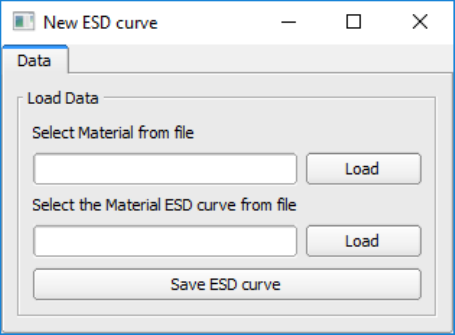
•ESD curve:
When this option is selected or the keyboard key combination Ctrl+D
5.1. MENUS 21
(a) (b)
Figure 5.7: New Pump window.
(a) (b)
Figure 5.8: New Gas Source window.
22 CHAPTER 5. LAYOUT AND FUNCTIONALITY
Figure 5.9: New ESD curve window.
is pressed, the New ESD curve window will be launched. This window,
shown in Fig. 5.9 links an existing material with the experimental data
of its corresponding ESD curve. See Section 3.3 for more information
on the format of this file.
Analysis
The Analysis menu of PYVASCO launches the Analysis menu window. This
window contains 3 tabs:
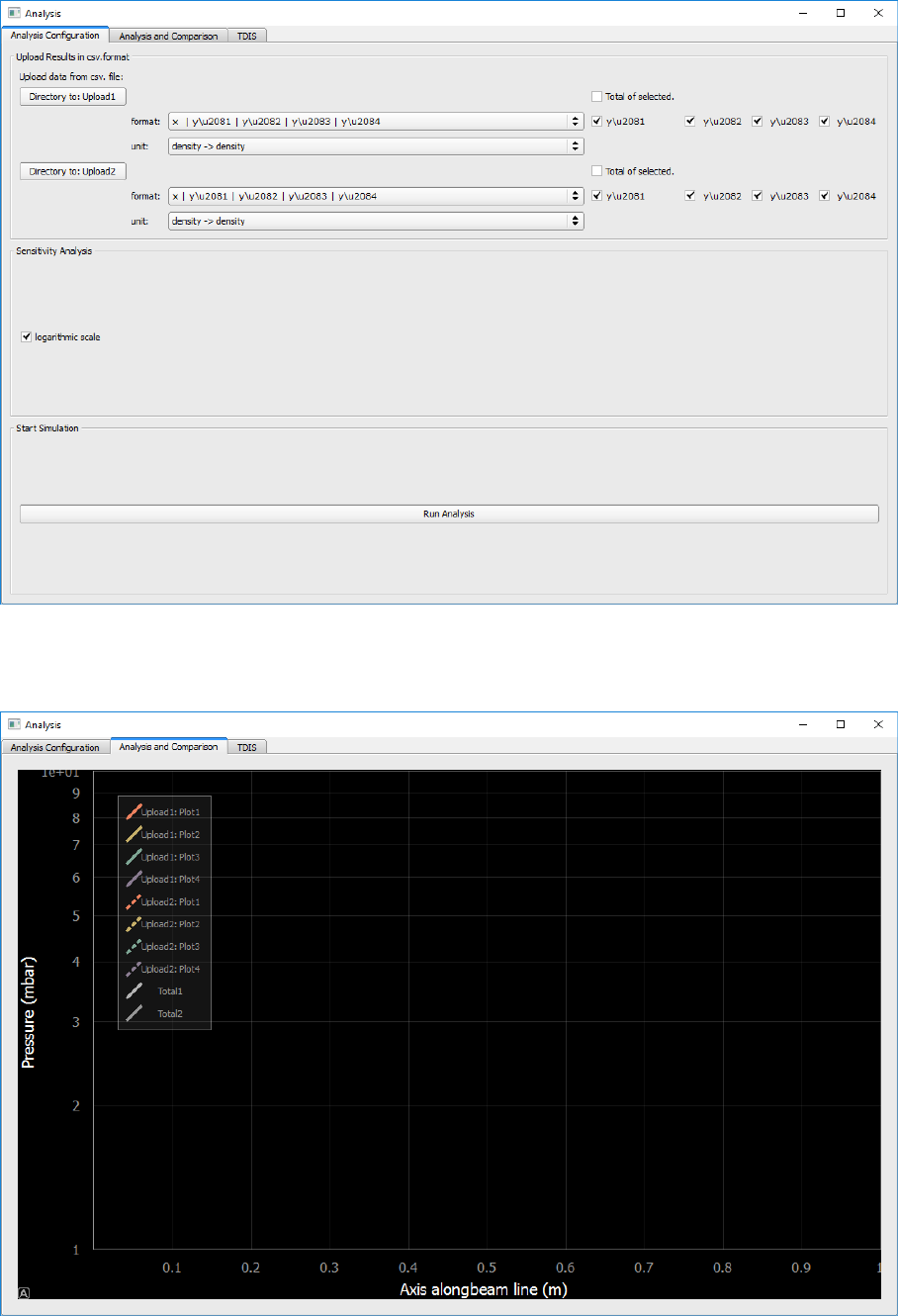
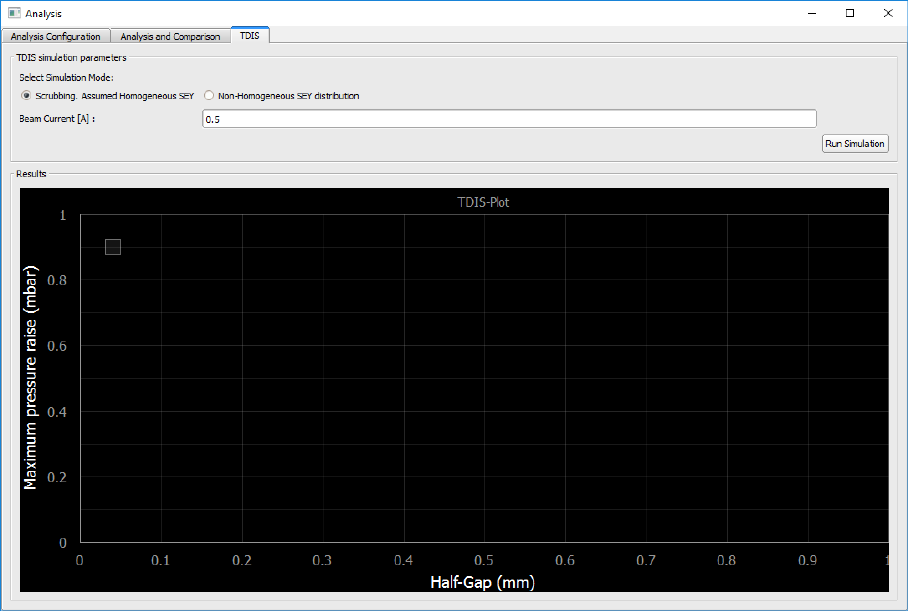
•Analysis Configuration (Fig. 5.10) and Analysis and Comparison (Fig.
5.11):
These two tabs allow the user to upload two different simulation results
in CSV format and plot them together in the Analysis and Comparison
tab. In the Analysis Configuration tab, the user can select the result
files clicking on the buttons ’Directory to Upload...’, and has to man-
ually indicate the format and units in those files using the format and
unit dopdowns, and pressing ’Run Analysis’.
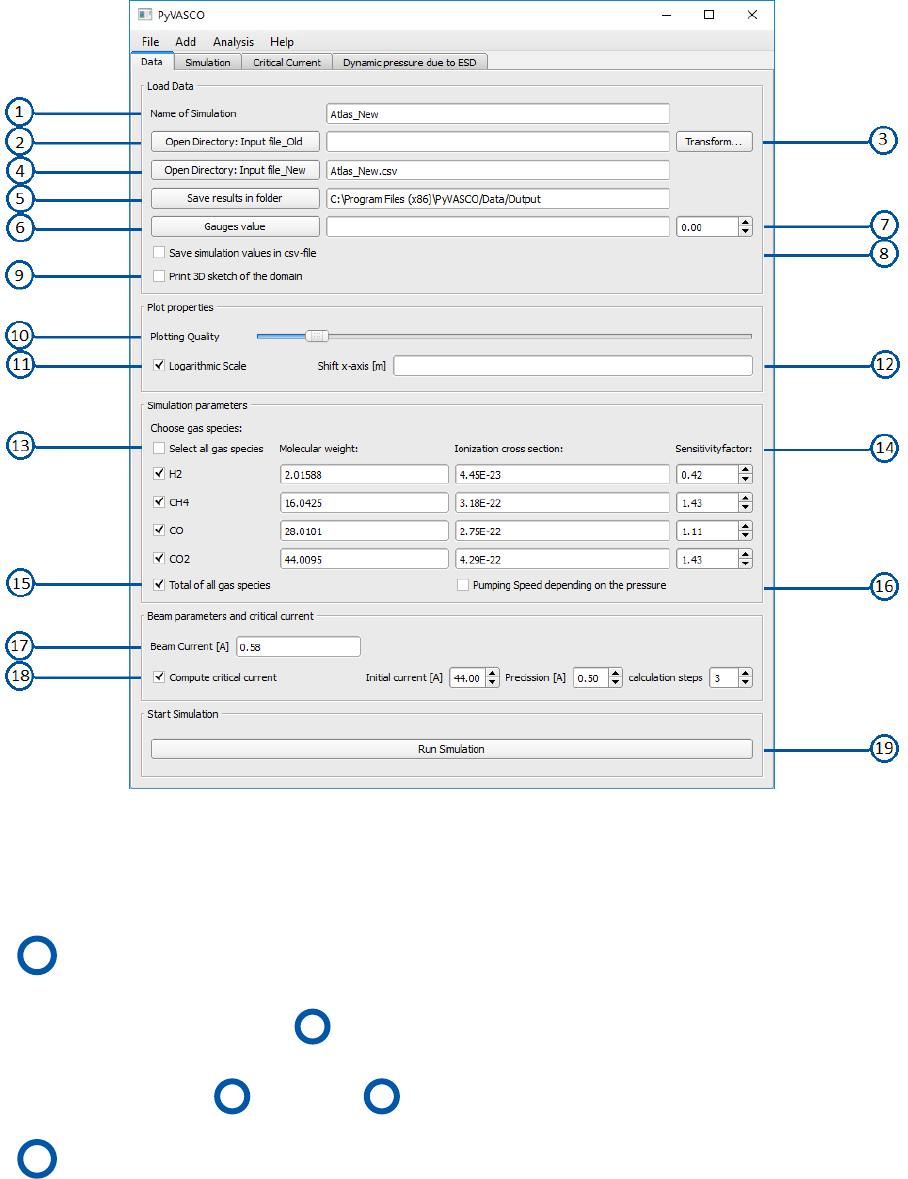
•TDIS:
This tab was used to carry out the study on the TDIS presented in [4],
and has been kept in order to ease the generation of the results pre-
sented in the so mentioned report.
Help
The Help menu of PyVASCO contains 2 options:
•User’s guide:
When this option is selected or the keyboard key combination Ctrl+H
5.1. MENUS 23
Figure 5.10: Analysis window, Analysis Configuration tab.
Figure 5.11: Analysis window, Analysis and Comparison tab.
24 CHAPTER 5. LAYOUT AND FUNCTIONALITY
Figure 5.12: Analysis window, TDIS tab.
is pressed, the current document (PyVASCO User’s guide) is launched
and shown in the default web browser.
•Documentation:
When this option is selected or the keyboard key combination Ctrl+U is
pressed, the API documentation is launched in the default web browser.
5.2 Tabs
The current version of PyVASCO (2.0) contains 4 tabs, named: Data,Simu-
lation,Critical Current and Dynamic pressure due to ESD, respectively. In
this section, a detailed description of the different tabs in PyVASCO and their
functionality is provided.
5.2. TABS 25
Data
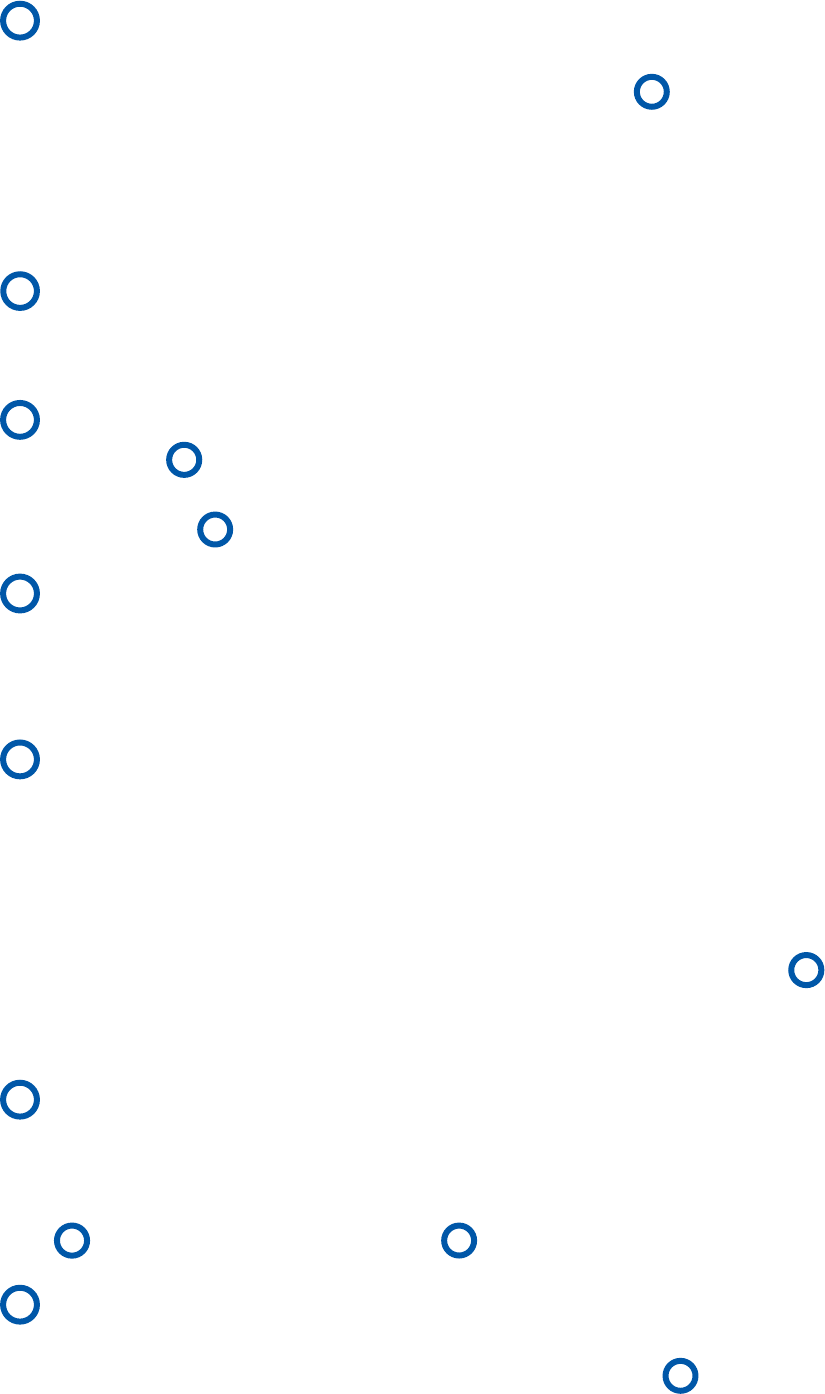
Figure 5.13: Data tab of PyVASCO.
The numbers in Fig. 5.13 represent:
1Name of the simulation:
The name of the simulation is automatically set to the name of the in-
put file selected in 4, and can be manually modified by the user. This
name is used for the automatic saving in CSV format in the directory
specified in 5if option 8is selected.
2’Old’ format input file:
As mentioned in Chapter 1 and Chapter 3, PyVASCO is based in VASCO,
but the format of the input files has been changed in order to ease the
writing of the input files for large simulations. However, it is still possi-
ble to upload a CSV input file written in the same format as the input
in VASCO [1] with this option.
26 CHAPTER 5. LAYOUT AND FUNCTIONALITY
3Transform to new format:
After selecting an input file written with the same format as used in
VASCO (see [1] and Chapter 3 for more details) in 2, this option allows
to generate a new input file written in the native PyVASCO format con-
taining the same information as the one previously selected and named
as the old file with the suffix "_New". The new input file is saved in the
default input directory of PyVASCO, i.e., Data/Input/.
4’New’ format input file:
Upload an input file in the native format of PyVASCO (see Chapter 3 for
more details).
5Default output directory:
If option 8is selected, the result of the simulation will be automati-
cally saved in the directory selected using this option under the name
specified in 1.
6Upload data from gauges:
This option allows to upload experimental data from different gauges
and plot it together with the simulation results in Simulation (see for
more details on the format of the gauges data).
7Shift the data from gauges:
Typically, PyVASCO assumes that the geometry starts in x=0 m, while
the data from gauges extracted from, for example, the LHC, might start
at a longitudinal coordinate (s) different from 0 m, depending on the
reference point used. In order to effectively compare the simulation
results with the experimental data in the tab Simulation, his option al-
lows to shift horizontally the experimental data uploaded in 6. The
number indicated in this slot corresponds to the shift in meters to the
right (if the value is positive) or to the left (if the value is negative).
8Save results in CSV format:
If this option is selected, the results of the simulation, i.e., the molecu-
lar density of the different considered gas species considered (in m−3)
will be automatically saved in CSV format in the directory indicated in
5under the name indicated in 1.
9Print a 3D sketch of the geometry:
If this option is selected, a 3D sketch of the simulated geometry will be
saved in PNG format under the name indicated in 1in the directory
Data/.

5.2. TABS 27
10 Plotting quality:
This option specifies the number of points with which the density pro-
file for the different gas species is calculated and presented in tab Sim-
ulation.
11 Logarithmic scale:
If selected, the Y axis of the density profile plot in tab Simulation is set
to logarithmic scale.
12 Move horizontally:
Similarly to 7, this option shifts horizontally the simulated density
profile and the geometry. Thus, if a value different than 0 m is indi-
cated, the geometry and the simulated density profile will be assumed
to start at the indicated x coordinate (in m).
13 Gas species:
This option allows to select the gas species to simulate and their ion-
ization cross section (in m2). The default values indicated for the ion-
ization cross sections of the different gas species correspond to those
calculated in [5] for a proton beam at 7 TeV.
14 Sensitivity factor:
If option 15 is selected, the total pressure is computed using the spec-
ified sensitivity factors for each gas specie.
15 Total of all gas species:
If this option is selected, the total pressure is computed using the sen-
sitivity factors specified in 14 and plotted in the tab Simulation.
16 Variable pumping speed: If this option is selected, the change in pump-
ing speed of ion pumps for different pressure ranges will be taken into
account. After performing an initial simulation with the nominal (max-
imum after saturation) pumping speed for the different gases, the pump-
ing speed of the ion pumps located along the geometry is recalculated
and the gas density is recomputed.
17 Beam current:
Current of the circulating proton beam (in A). The default value is 0.582 A,
which corresponds to the nominal average beam current in the LHC
[6].
28 CHAPTER 5. LAYOUT AND FUNCTIONALITY
Figure 5.14: Simulation tab of PyVASCO.
18 Compute critical current :
If selected, the critical current for the selected model will be computed
and plotted in the tab Critical Current. PyVASCO looks for a divergence
in the gas density as a function of the beam current from the indicated
initial current and increases the test beam current as indicated by pre-
cision for the indicated number of steps.
19 Start simulation:
Pressing this button will launch the simulation with the setup specified
above. The results of the simulation are shown in the tabs Simulation
and Critical Current (if option 18 has been selected).
Simulation
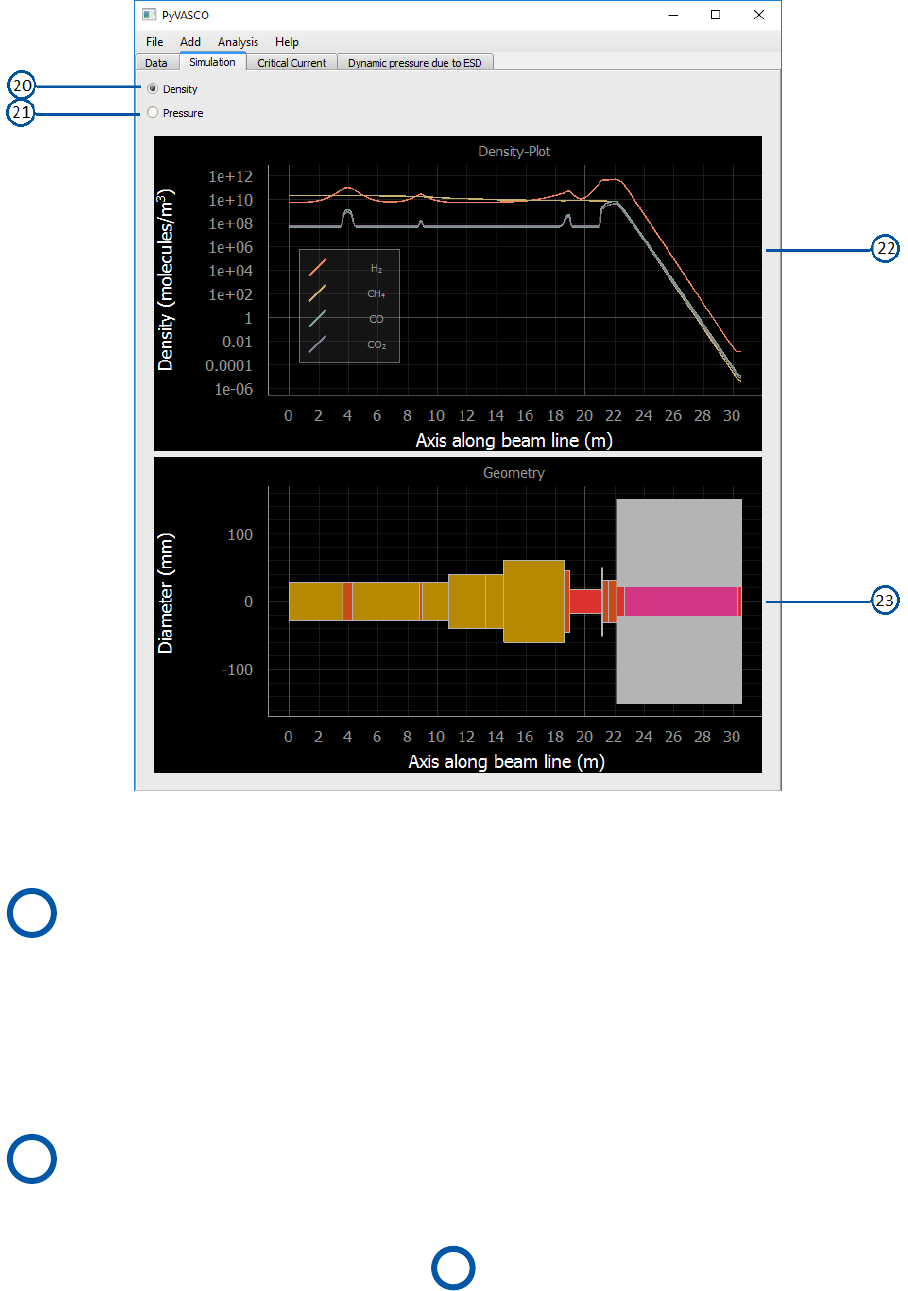
The numbers in Fig. 5.14 represent:
5.2. TABS 29
20 Density:
If selected, the plot in 22 will show the density profile of the different
gas species selected in the tab Data in molecules/m3.
21 Pressure:
If selected, the plot in 22 will show the pressure profile of the different
gas species selected in the tab Data in mbar and the total pressure com-
puted using the sensitivity factors in 14 (if the option 15 is selected).
22 Density/Pressure plot:
This plot shows the simulated density or pressure profile, if the option
20 or 21 is selected, respectively.
23 Geometry plot:
This plot shows a block diagram of the simulated system. Different col-
ors correspond to different materials.
Critical Current
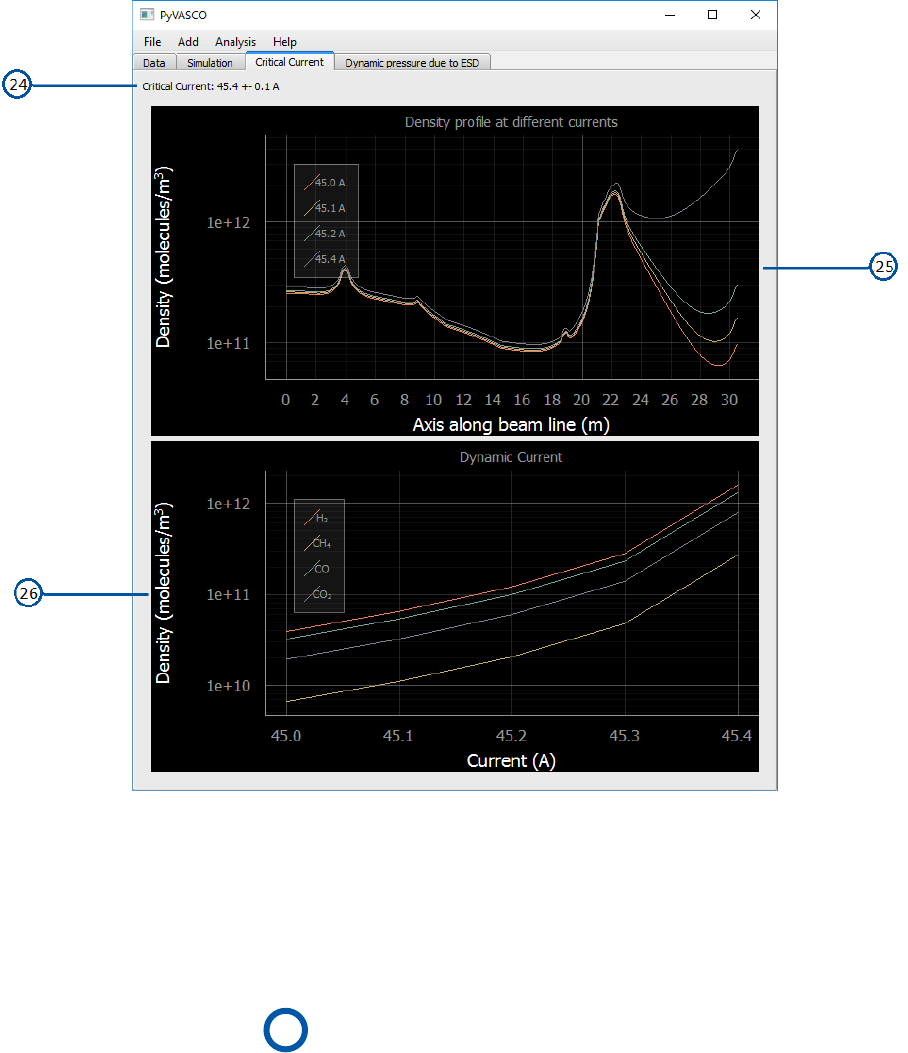
The numbers in Fig. 5.15 represent:
24 Critical current value:
Computed value of critical current for the simulated system.
25 Total density profile plot:
This plot shows the total molecular density profile for the different com-
puted beam currents.
26 Dynamic current plot :
This plot shows the maximum density of the different gas species as a
function of the beam current.
In order to compute the critical current for the simulated system (see (Ba-
sic concepts) for an explanation on the critical current), the dynamic vacuum
model presented in [1,2] and summarized in Section 2.1 is solved for differ-
ent tested beam currents. The first value of the beam current used for the
computation is the value set in the box ’Initial current [A]’ in 18 . The sub-
sequent used values of current are computed by repeatedly increasing the
initial value by the indicated precision until the number of steps entered by
30 CHAPTER 5. LAYOUT AND FUNCTIONALITY
Figure 5.15: Critical Current tab of PyVASCO.
the user is reached. If a divergence in the density has been found for a given
beam current, this value ±the precision are set as the critical current. If the
divergence is found in the first step of the computation (the current set in
’Initial current [A]’ in 18 ), the shown critical current value will be ≤Initial
current. On the opposite, if a divergence in the density is not found after the
indicated number of steps, the value of critical current shown in this tag will
be ≥than the last tried beam current.
Dynamic pressure due to ESD
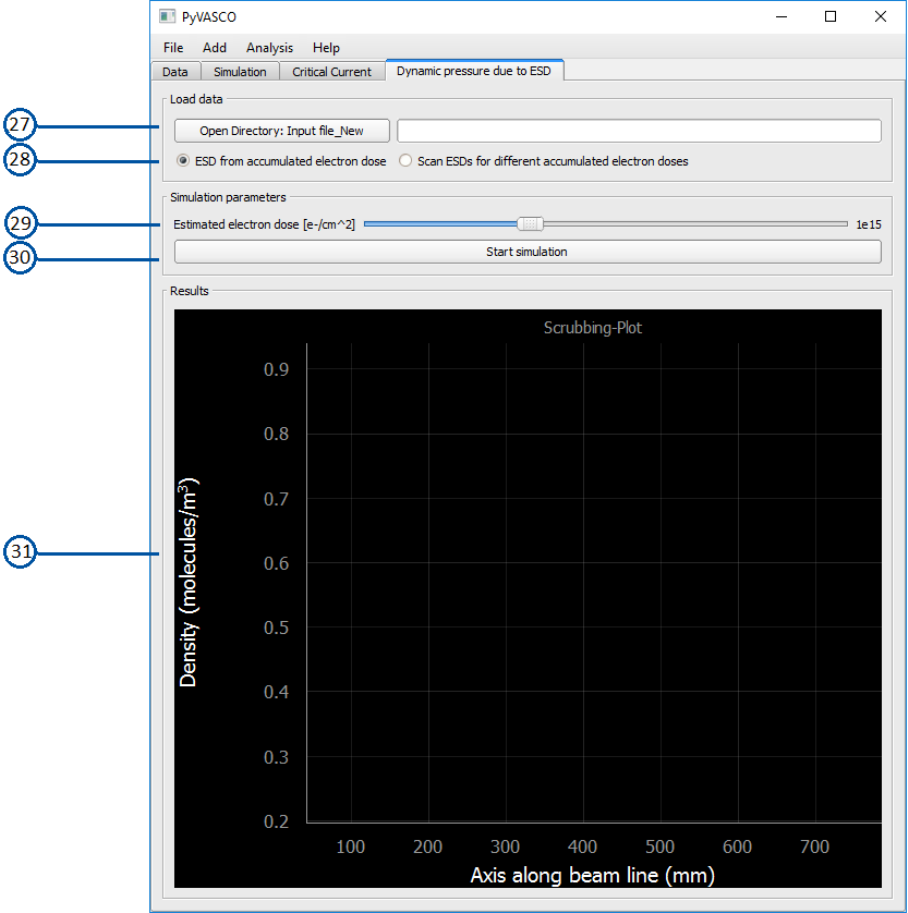
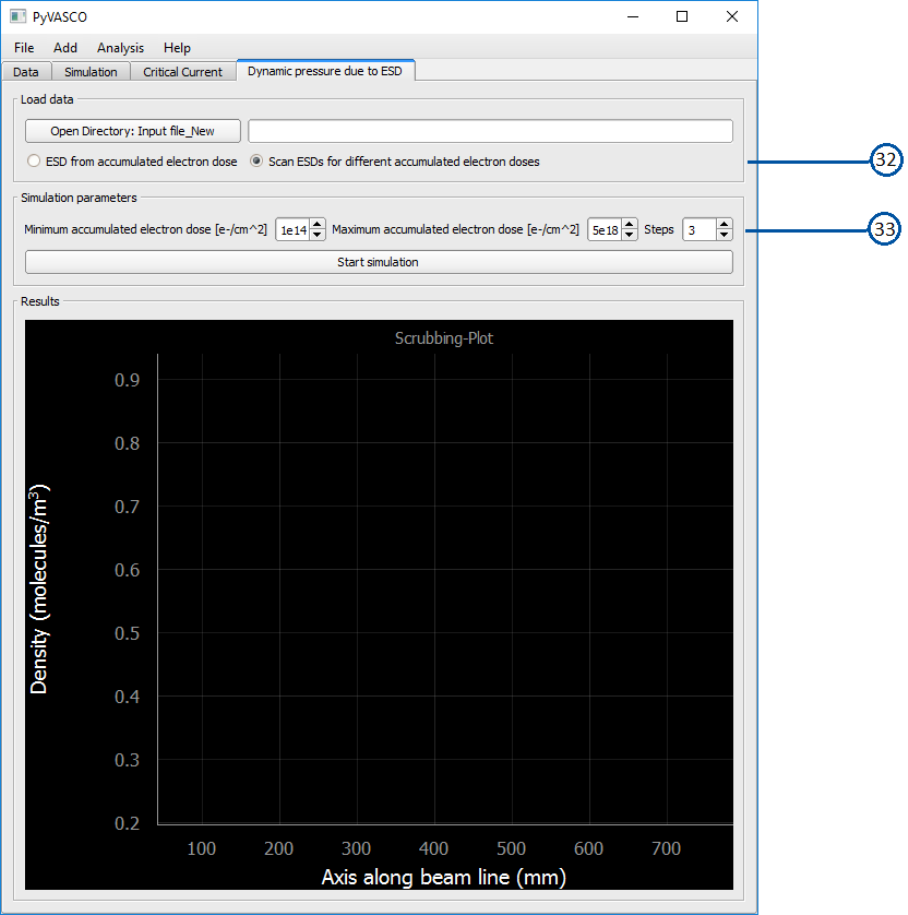
The tab Dynamic pressure due to ESD of PyVASCO allows to perform two dif-
ferent simulations varying the ESD of the materials used in the simulation.
The different setups of this tab are shown in Figs. 5.16 and 5.17, and the num-
bers in these figures indicate:
5.2. TABS 31
27 Open Directory:
Select the input file (in the native PyVASCO format).
28 ESD from accumulated electron dose:
This option uses the ESD yields of the different UHV gas species for the
selected accumulated electron dose while solving the dynamic vacuum
model for the input file selected in 27 . If option 28 is selected, the
slider 29 will appear in the box ’Simulation parameters’.
29 Estimated electron dose:
This slider allows the user to set the accumulated electron dose re-
ceived homogeneously along the simulated geometry.
30 Start simulation:
Launches the simulation.
31 Scrubbing Plot:
This plot shows the density profile of the different selected gas species
for the accumulated electron dose selected in 29 if option 28 is se-
lected. On the contrary, if option 32 is selected, the plot will show the
total density profile for the different accumulated electron doses set in
33 .
32 Scan ESD for different accumulated electron doses:
This option solves the dynamic vacuum model presented in Section 2.1
for a range of accumulated electron doses specified in 33 .
33 Electron dose values:
These 3 boxes allow the user to introduce the range of accumulated
electron doses of interest for the simulation.
IMPORTANT! : Please note that this simulation will be properly performed
if an ESD curve for each of the materials used in the simulation has already
been defined. If this is not the case, please link the concerned materials with
an ESD curve pressing on the menu Add →ESD curve.
32 CHAPTER 5. LAYOUT AND FUNCTIONALITY
Figure 5.16: Dynamic pressure due to ESD tab of PyVASCO, layout for the sim-
ulation after receiving a fix accumulated electron doses.
5.2. TABS 33
Figure 5.17: Dynamic pressure due to ESD tab of PyVASCO, layout for the sim-
ulation of the conditioning effect.
Bibliography
[1] A. Rossi, “VASCO (VAcuum Stability COde): multi-gas code to calculate
gas density profile in a UHV system,” Tech. Rep. LHC-Project-Note-341.
CERN-LHC-Project-Note-341, CERN, Geneva, Mar 2004.
[2] I. Aichinger, G. Larcher, and R. Kersevan, “Vacuum Simulations in High
Energy Accelerators and Distribution Properties of Continuous and Dis-
crete Particle Motions,” 2017. Presented 2017.
[3] O. Bruning, F. Caspers, I. R. Collins, O. Grobner, B. Henrist, N. Hilleret, J. .
Laurent, M. Morvillo, M. Pivi, F. Ruggiero, and X. Zhang, “Electron cloud
and beam scrubbing in the lhc,” in Proceedings of the 1999 Particle Accel-
erator Conference (Cat. No.99CH36366), vol. 4, pp. 2629–2631 vol.4, March
1999.
[4] P. Ribes Metidieri, C. Yin Vallgren, G. Skripka, G. Iadarola, and
G. Bregliozzi, “TDIS pressure profile simulations after LS2,” tech. rep.,
CERN, Geneva, 2018.
[5] A. G. Mathewson and S. Zhang, “Beam-gas ionisation cross sections at 7.0
TeV,” Tech. Rep. LHC-VAC/AGM. Vacuum-Technical-Note-96-01, CERN,
Geneva, Jan 1996.
[6] Brüning, Oliver Sim and Collier, Paul and Lebrun, P and Myers, Stephen
and Ostojic, Ranko and Poole, John and Proudlock, Paul, LHC Design Re-
port. CERN Yellow Reports: Monographs, Geneva: CERN, 2004.
34
