User Guide
User Manual:
Open the PDF directly: View PDF  .
.
Page Count: 15

Fog of War
User Guide
v1.17

Overview
The definitive Fog of War package empowers you to fog up your 2D or 3D game, hiding secret
elements from the player. FogOfWar is highly modular, customizable and lightening fast to meet the
needs of any RTS, MOBA or adventure game that needs a thick shroud of mist around it.
Features:
●Supports Legacy, LWRP and HDRP
●Works with 2D and 3D
●Varying map size
●Chunking system for infinite maps in all 3 dimensions
●Different color, texture, filter and blurring options
●Queue-friendly tools
●Great performance (including multithreading)
●Line of Sight (occluding objects)
●View cones (using angles)
●Clear Fog (ie see through to background)
●See-through ground
●Works for both Orthographic and Perspective cameras
●Render to multiple cameras
●Save and load fog between plays
●Option for manual fog updates for turn-based games
●Compatible with all devices, including mobile and VR
●All source code provided
●In active development and fast email support
Updates
v1.18
●Fix shader build error preventing fog from being seen
v1.17
●This release will break existing setups. Please read the migration section in the user guide!
●Added support for Postprocessing Stack v2!
●Split FogOfWarTeam from visual side to make new post processing tech easier to migrate to
●Better multi-camera support
●Optimised clear fog
●Improved sample scenes to work across multiple render pipelines
v1.16
●Fixed _CameraWS shader error
●Removed dependency on SV_VertexID
●Exposed raycasts count for line of sight
●Added gizmos for line of sight raycasts
●Removed all general runtime GC!
2

●Improved performance, memory for clear fog and test GUI
●Optimised fading when updateUnits is turned off
●Fixed bug where FogOfWar.SetFog() and FogOfWar.SetAll() wouldn't increase the fog
●Fixed some misleading comments in FogOfWar script
●Fixed bug with cell based when map resolution and size are not 1:1
●Fixed screen being upside down on some graphics APIs
●Set min thread count to 2
●Fixed threads not setting count immediately
●Fixed a bunch of warnings that can pop up during play
v1.15
●Added an array size check when setting FogOfWar.fogValues
●Fixed flickering when switching chunks with the chunk manager in multithreaded mode
●Fixed flickering when performing a manual update in multithreaded mode
●Made tree materials more diffuse in sample scenes
●Turned off UI by default in sample scenes
●Fade speed now affects fade in and out speeds
●Added boolean to stop unit information from being updated
●Changed manual updates to a updateAutomatically boolean value
●Changed texture shapes to always use the Alpha8 texture format to save memory usage
●Made it so Partial Fog Amount can be changed without destructively affecting the fog map
●Added VR support
●Fixed a bunch of bugs with shape offset
●Added Reinitialize button to FogOfWar component when playing in the editor
●Added rectangular box and texture shapes
●Merged box and texture unit shapes
●Added pixel perfect toggle for screen texture
●Changed filter mode to point filtering toggle
●Fixed major performance issue with clear fog
●Changed fade speed to fade duration (in seconds)
●Made texture shapes not cause errors with multithreading
●Fixed some weird behaviour that can happen when not fogging the far plane
v1.14
●Hopefully fixed all of the line ending warnings
●Fixed flickering when switching chunks with the chunk manager in single threaded mode
●Made fog color texture work in world space with options to adjust it
●Made Reinitialize() accessible through the FogOfWar context menu
●Added updateAutomatically and ManualUpdate() to FogOfWar that lets you manually
update the fog which is useful for turn-based games or to save on performance when the fog
isn’t being updated
●Added warning for when there isn’t a team for the team specified in HideInFog
v1.13
●Added missing unfog methods
●Fixed wrong projection with Direct3D 9 renderers
3

●Made it so you can use just one thread for multithreading
●Made penetration depth work for cell based fog
●Fixed line of sight for 3D physics on XY plane
●Made FogOfWarUnity.rotateToForward work for XY and YZ planes
●Made it so multiple teams can be handled on the same device
v1.12
●Added chunking system for infinitely sized maps on all 3 axes
●Made FogOfWar.Reinitialize() much faster
●Added fix for clear fog
●Added Canvas and Graphic hiding in HideUnitInFog script
●Fixed pixel inaccuracy around map borders
●Fixed pixel inaccuracy with line of sight
●Added FogOfWar.VisibilityOfArea()
●Added blurring and antialiasing options
●Added antiflickering option for individual units
v1.11
●Added multithreading
●Fog color’s alpha will fade the fog in and out
●New fog shapes including box and texture (with sample texture)
●Anti-aliasing on field of view
●Added team identification
●New method for calculating line of sight which greatly reduces the number of raycasts
v1.10
●Fixed shader bug in Unity 5.5.0 where depth buffer was inverted for orthographic cameras
●Made fog collider rect optional with a tick box as it seems to be buggy with lower resolution
fog maps (a fix will be required for later releases!)
●Fixed bug where fog wasn’t clearing on the border edges of the map
●Added slider to specify the strength of fog outside of the map area
●Added HideInFog component to automatically hide object when in the fog
●Added FogOfWarEvents component to detect when an object enters or exits fog
●Optimised fog of war shader by removing all branching
●Placed all components into components menu
●Added example 2D scene
●Fixed bug on mobile devices where depth buffer was flipped
v1.9
●Fixed bug where screen would go black when the unity editor loses focus
●Improved performance by converting shader property ids to ints on initialization
●Made fog values public
v1.8
4

●Made fogValues setter public to enable manual setting of fog (for loading games)
v1.7
●Improved test scenes with enemies, better trees and smoother movements
●Put all code in FoW namespace
●Added toggle for max fog distance
●Made fog values publicly accessible via property
●Added method to calculate explored percentage
●Split fog planes and physics (ie 2D and 3D)
v1.6
●Fixed bug where fog was rendering on camera’s far plane
●Fog can have textures applied to them
●Unit vision angles/cones
v1.5
●Add Secondary FoW to allow for multiple cameras
v1.4
●Added support for 2D (along the X and Y axes)
v1.3
●Fog now works with orthographic cameras
v1.2
●Added Clear Fog
●Included TransparentShadowCaster (see-through ground) shader
v1.1
●Implemented Line of Sight
●Added new assets to demo
●Demo minimap now displays units
●Updated user guide considerably
●Added new method: Unfog(Rect)
●Camera zoomimg in the demo scene
v1.0
●Basic Fog of War implemented
●Basic demo
5
Components
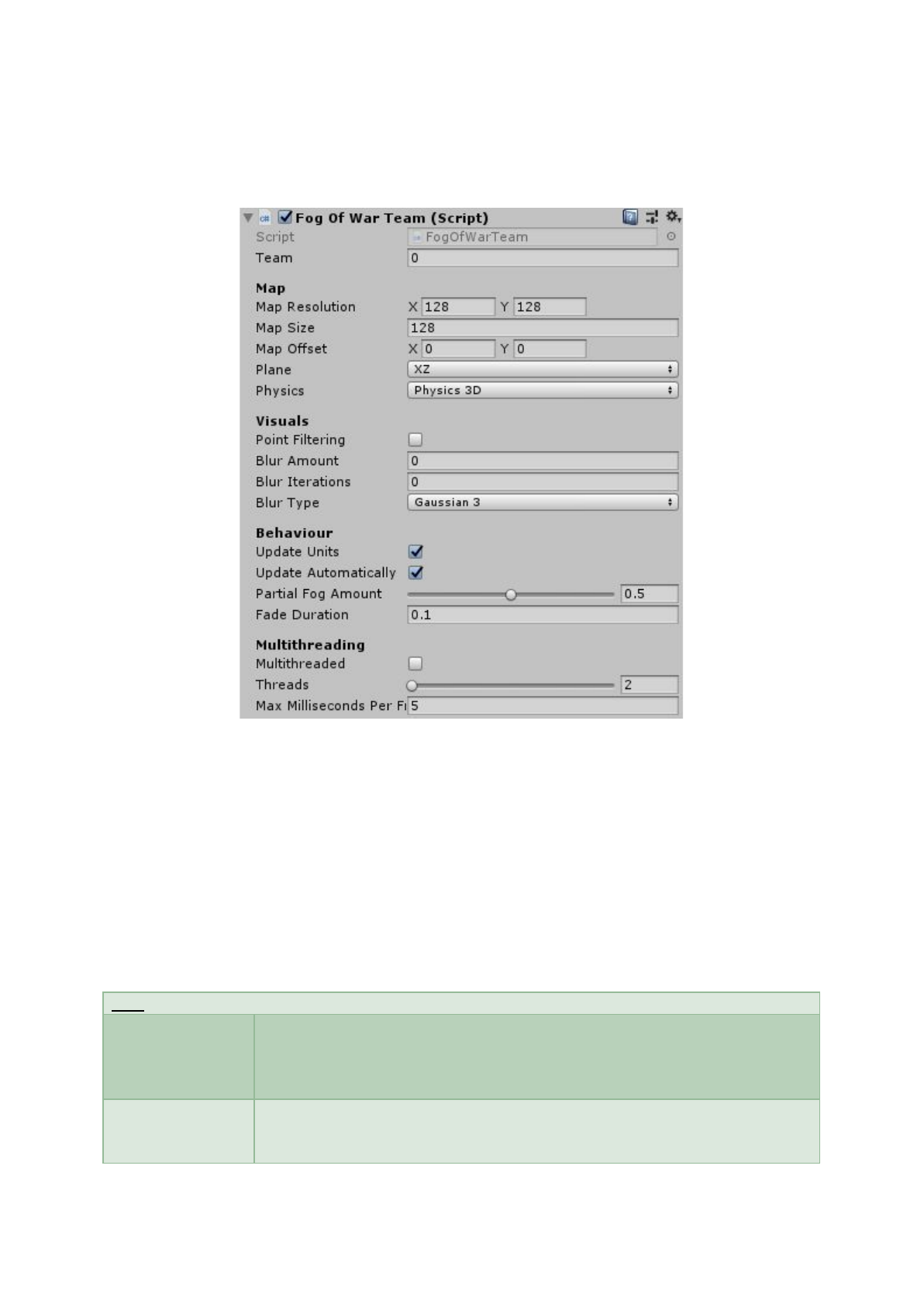
FogOfWarTeam
FogOfWarTeam
represents everything that a single team sees. There must be one of these for each
team. At least one needs to be in the scene.
You can see what area the map will cover by looking for the red box that will cover the scene in the
scene viewport.
To save and load the fog values, there is a fogValue (byte[]) property that stores the fog values. You
can get and set this at any time after the fog has been initialized.
When playing, a Reinitialize button will appear. Clicking this will reset the fog and completely start
the fog process again, which can help to debug issues.
Map
Map Resolution
The resolution of the texture used to render the fog. Setting this to a high
value can have a significant performance impact, so try to keep it as low as
possible. It is recommended to always be a power of 2. If using chunking, this
must always be square.
Map Size
The size of the map that the fog will cover in world coordinates. If using
chunking, this should be the smallest maximum area that the player can see if
the player is in the center of the map.
6
Map Offset
If the map is not centered at the origin (0, 0) you can offset it with this. This
should be left to zero when using chunking.
Plane
Which plane the fog will be rendered to. 3D is usually XZ and 2D is usually XY
Physics
What physics will be used for raycasting and collision detection. This is Unity’s
built-in 2D or 3D.
Visuals
Point Filtering
If unticked, bilinear filter will be used, and point filtering will be used if ticked.
Bilinear Filtering will have a smoother look, Point Filtering will have a pixelated
feel to it.
Blur Amount
How far the blur will spread. This is measured in pixels of the fog texture. If
this is zero, no blurring will be applied.
Blur Iterations
How many time the blur will be applied. If this is zero, not blurring will be
applied.
Blur Type
The blurring algorithm that will be used. Gaussian 3 is slightly faster but
usually doesn’t give as good results as Gaussian 5.
Behaviour
Team
The index of which team this fog will clear for. All units that have the same
team index will have the fog cleared.
Update Units
If turned off, units will not update. This saves a lot of performance if doing a
turn-based game.
Update
Automatically
When set to true, the fog will be updated automatically every frame. If false,
you will need to call FogOfWar.ManualUpdate() from code to update the fog.
This is useful for turn-based games.
Partial Fog
Amount
When a unit moves, the old visible areas will be partially fogged by this
amount. This should probably not be changed at runtime.
Fade Duration
How long it will take to go from fully fogged to fully unfogged (in seconds). If
zero, there will be no fading transition.
Multithreading
Multithreading
If true, multithreading will be enabled.
Threads
The total number of threads to be used on Fog of War. If Multithreading is not
ticked, this will do nothing.
Max Milliseconds
Per Frame
The maximum number of milliseconds that Fog Of War will spend on each
frame. This applies to both single threaded and multithreaded Fog Of War. A
higher value will slow performance but reduce stuttering.
Useful Functions
static FogOfWarTeam GetTeam(int teamID)
Returns the FogOfWarTeam for a particular
team.
void Reinitialize()
Reinitializes fog texture. Call this if you have
changed the mapSize, mapResolution or
mapOffset during runtime. This will also reset
the fog. You can manually call this from the
editor by right-clicking the FogOfWar
component.
void ManualUpdate(float timeSinceLastUpdate)
Forces the fog to update. This should only be
called when updateAutomatically is true. You
can manually call this from the editor by
right-clicking the FogOfWar component.
7
float ExploredArea(int skip = 1)
Returns how much of the map has been
explored/unfogged, where 0 is 0% and 1 is
100%. Increase the skip value to improve
performance but sacrifice accuracy.
void SetAll(byte value)
Sets the fog value for the entire map. 0 is fully
unfogged and 1 if fully fogged.
Vector2i WorldPositionToFogPosition(Vector3
position)
Converts a world position to a fog pixel position.
Values will be between 0 and mapResolution.
byte GetFogValue(Vector3 position)
Returns the fog amount at a particular world
position. 0 is fully unfogged and 1 if fully fogged.
SetFog(Bounds bounds)
Set the fog for a square area of the map.
Positions are all in world coordinates.
VisibilityOfArea(Bounds worldbounds, byte
value)
Checks the visibility of an area. 0 is fully
unfogged and 1 if fully fogged.
FogOfWar Display
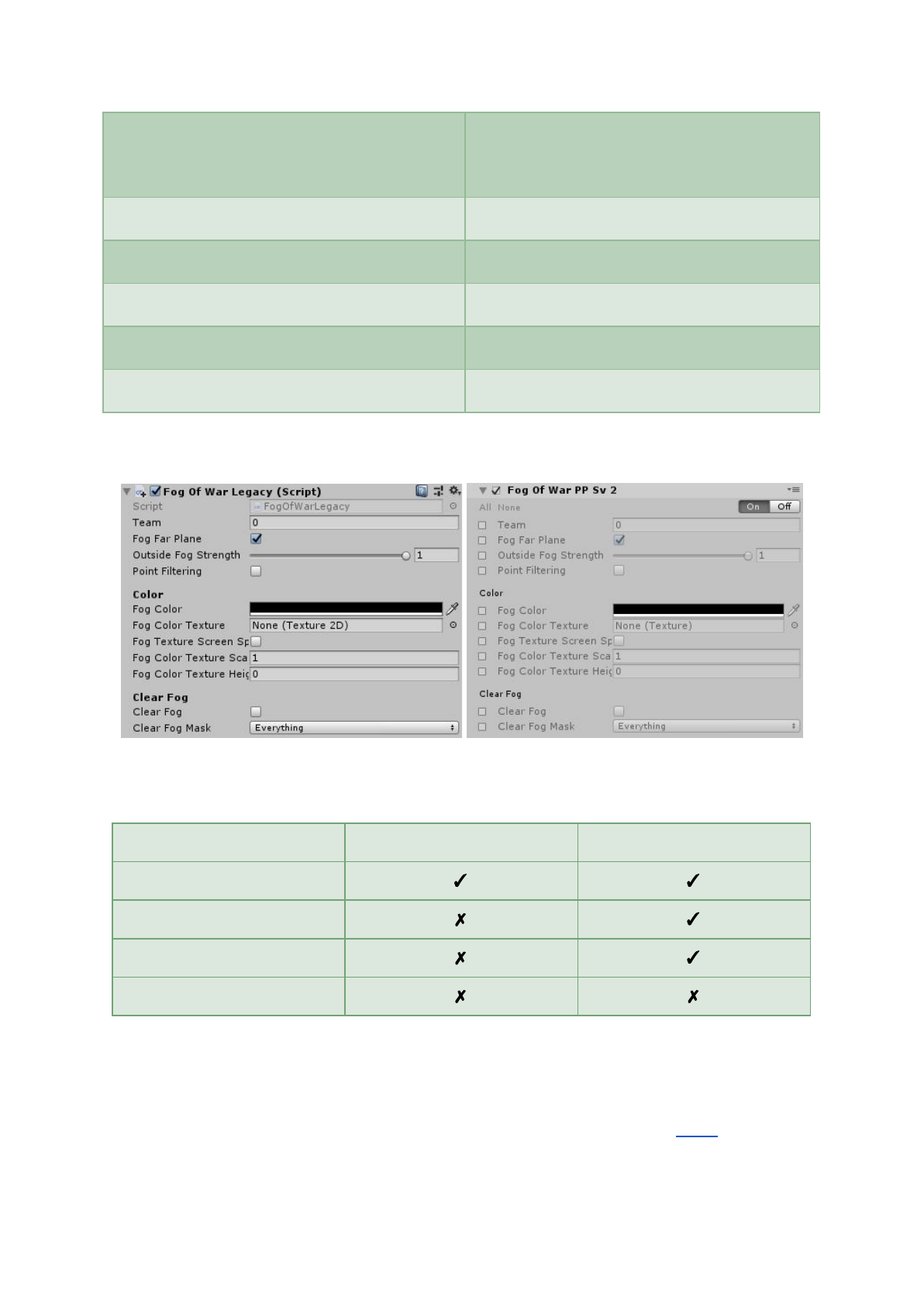
Depending on which post processing technology you are using, you will need to set this up
differently.
FogOfWarLegacy
Postprocessing Stack v2
Legacy
✓
✓
LWRP
✗
✓
HDRP (pre 2019)
✗
✓
HDRP (2019+)
✗
✗
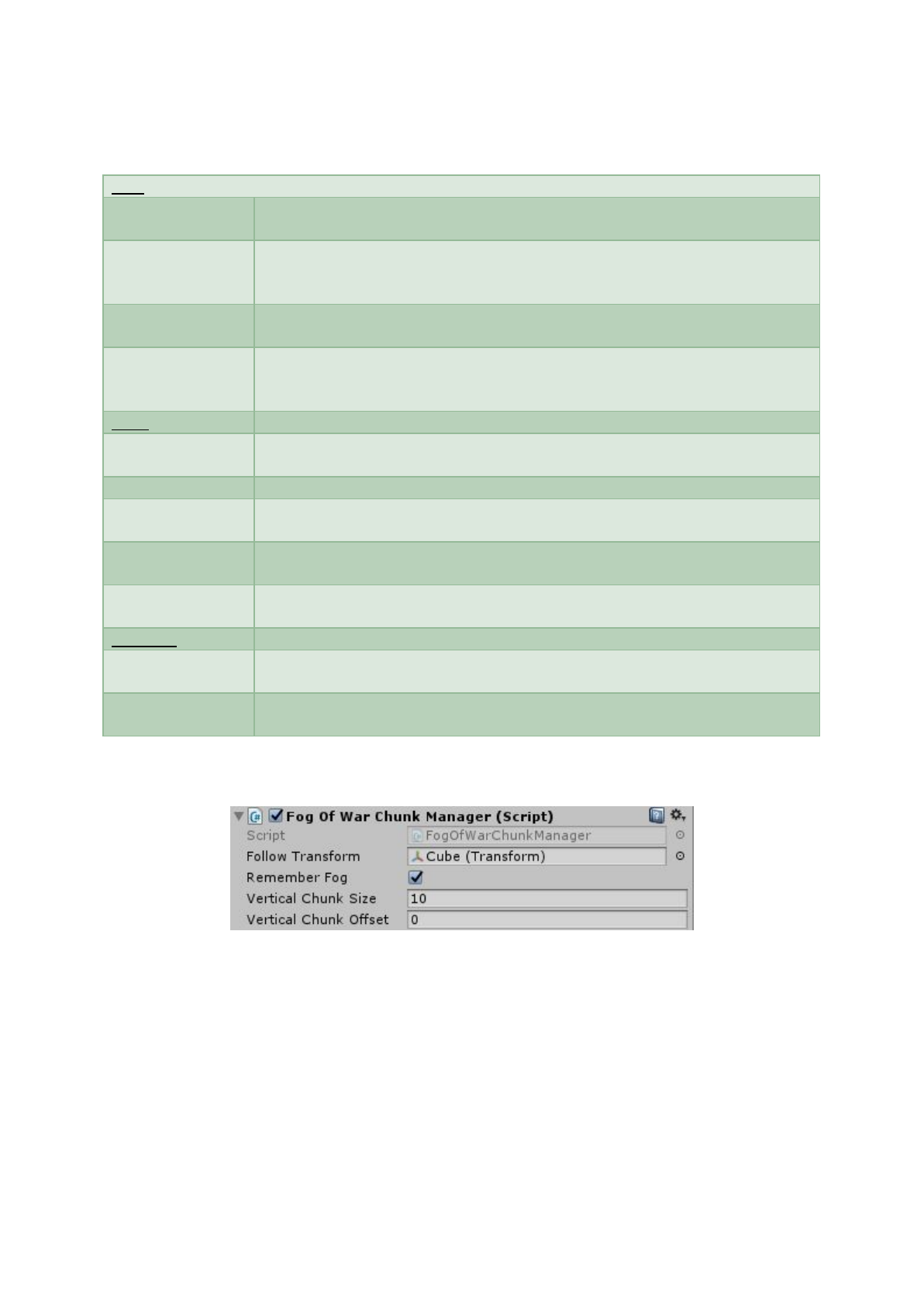
FogOfWarLegacy
must be placed on the cameras you want to display the fog of war. This will use
Unity’s OnRenderImage() calls.
Unity’s Postprocessing Stack v2
is required for LWRP and HDRP. You may need to install it in your
project if it isn’t already. On your post processing volume, click on Add Effect
…
and pick FogOfWar
.
8
HDRP in Unity 2019.1 (using their volume system) doesn’t yet allow for custom post processing
effects, but should be available in 2019.2. FogOfWar will support this when it is ready.
Map
Team
The index of which team will be displayed. This will be the same index as is set
on the FogOfWarTeam
component.
Fog Far Plane
If true, anything at the camera’s far plane will have fog rendered over it. If you
want to see the skybox, set this to false. It is slightly better for performance to
have this turned on.
Outside Fog
Strength
Specifies how strong the fog will be outside of the fog map area. 1 = fully
fogged, 0 = no fog.
Point Filtering
If unticked, bilinear filter will be used, and point filtering will be used if ticked.
Bilinear Filtering will have a smoother look, Point Filtering will have a pixelated
feel to it.
Color
Fog Color
The color of the fog. When using clear fog, the alpha value will determine how
transparent the fogged area will be (you usually want the alpha to be zero).
Fog Color Texture
A texture that can be applied over the top of the fog.
Fog Texture
Screen Space
If true, the displayed texture will be in screen space. fogColorTextureScale
and
fogColorTextureHeight
will not be used.
Fog Color Texture
Scale
The size that the fog color texture appears to be in world space.
Fog Color Texture
Height
The illusion of height that the fog color texture is at.
Clear Fog
Clear Fog
If true, a secondary camera will render the background content using the clear
fog mask (see the Clear Fog section).
Clear Fog Mask
Determines which objects will be rendered in the clear fog (see the Clear Fog
section).
FogOfWarChunkManager
FogOfWarChunkManager
will automatically move the map to center on the player. This allows for an
infinite map that can run infinitely in all directions without a huge performance impact. The chunk
manager also allows for vertical chunks. This is useful for games that cover multiple floors.
This component must be attached to the same GameObject as the FogOfWarTeam component!
If you are making an RTS or a game where the whole scene must be updated at once, you should not
use the chunk manager. The chunk manager works best with games where you control only one
character through a large environment.
9
There are some important things to note when using the chunk manager:
●The map resolution needs to be square and divisible by 2. It is recommended to use a power
of 2.
●The map size is the size of the map that will be visible at any one time. This means that it
should not cover the entire scene. It should be the maximum distance that the player can
see at any time.
●The map offset has no effect when the chunk manager is enabled
Follow Transform
The game object that the fog should follow. This is usually the player.
Remember Fog
If false, the chunk manager will completely discard all fog information once a
chunk is left.
Vertical Chunk
Size
The size of a floor before the next vertical chunk is loaded. This should be the
distance from one floor to another.
Vertical Chunk
Offset
The offset from zero where the first vertical chunk is.
FogOfWarUnit
FogOfWarUnit
should be placed on every gameobject that will reveal areas in the fog.
When using textures on Box shapes, the textures must be a single channel texture with the Alpha8
format.
Team
The index of the team that this unit is a part of. This must match the Team
value on the Fog of War component for the fog to be cleared.
Brightness
The maximum amount that this unit can reveal the fog. This should usually be
set to 1, unless you want to do some sort of lighting effects with it.
Shape
Shape Type
Can be Circle or Box.
Absolute Offset
If false, the value if Offset will be relative to the unit’s rotation. If true, the
value will be in world space (along the fog plane).
Offset
The offset from the unit’s position where the shape’s center will be.
Box Size
The size of the box. Only applicable for Box shapes.
10
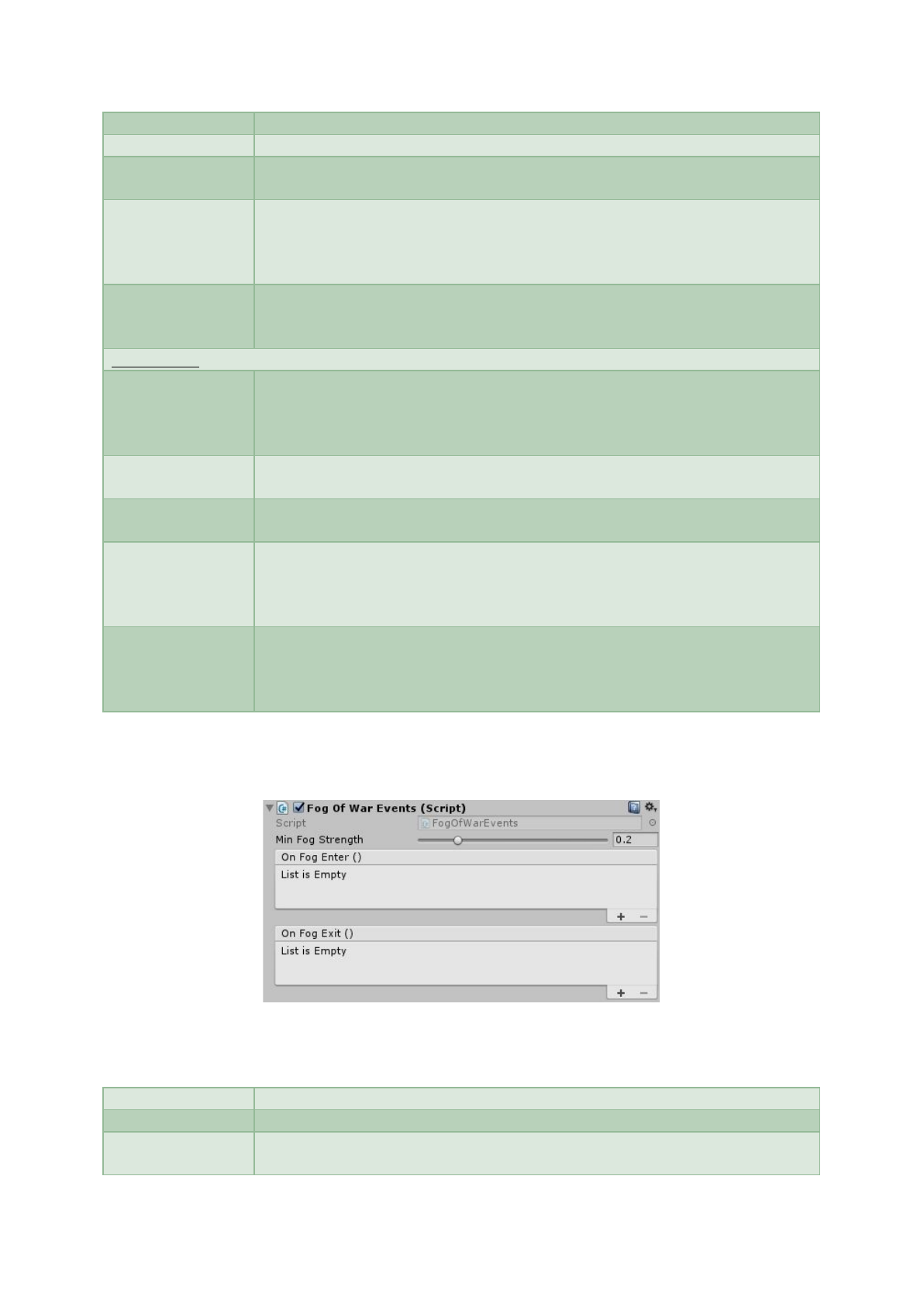
Radius
How far the unit can see. Only applicable to Circle shapes.
Inner Radius
How smooth the edge of the circle is. Only applicable to Circle shapes.
Angle
View cone angle. 180 degrees is full vision, 0 degrees is no vision. The forward
direction will always be Y+ for 2D and Z+ for 3D.
Texture
The texture that will be used to generate the shape. This only applies to Box
shapes. This must be a black and white texture where white is visible, and
black is fogged. Make sure you set the texture to readable in the import
settings!
Rotate To Forward
This only applies to texture shapes. If true, the texture will always face the
same direction as the unit. If false, the texture will always be oriented to the
world.
Line of Sight
Line Of Sight Mask
A layer mask that specifies which objects will occlude the unit’s vision. Be sure
that the occluding objects have a collider on it and that they are at the same
vertical height as the unit to be properly occluded. Enabling this can have a
significant impact on performance with large radii.
Line Of Sight
Raycast Count
The number of rays cast from the unit’s center to calculate the visible area of
the unit. Keep this number as low as possible for best performance.
Line Of Sight
Penetration
How far through objects that the unit’s vision will penetrate through.
Cell Based
Enable this if you are doing a tile-based game where one tile is the same size
as one pixel on the fog map. This will make line of sight check collision
properly. You would generally want to leave Line Of Sight Penetration to zero
if this is enabled.
Anti Flicker
Enable this if flickering is occurring when using line of sight. This will snap the
unit’s position to the nearest fog pixel. The downside to this is that
movements will become more jarring with slower movements with lower
resolution maps. You can minimize this by applying a blur/antialiasing.
FogOfWarEvents
FogOfWarEvents
allows you to set evens of what should happen when this GameObject enters or
exits the fog. The position is based off the GameObject’s Transform.
Team
Which FogOfWar team will be tracked.
Min Fog Strength
The minimum fog strength until the OnFogEnter is registered.
On Fog Enter
An event that is called when the object enters fog that is a greater strength
than MinFogStrength.
11
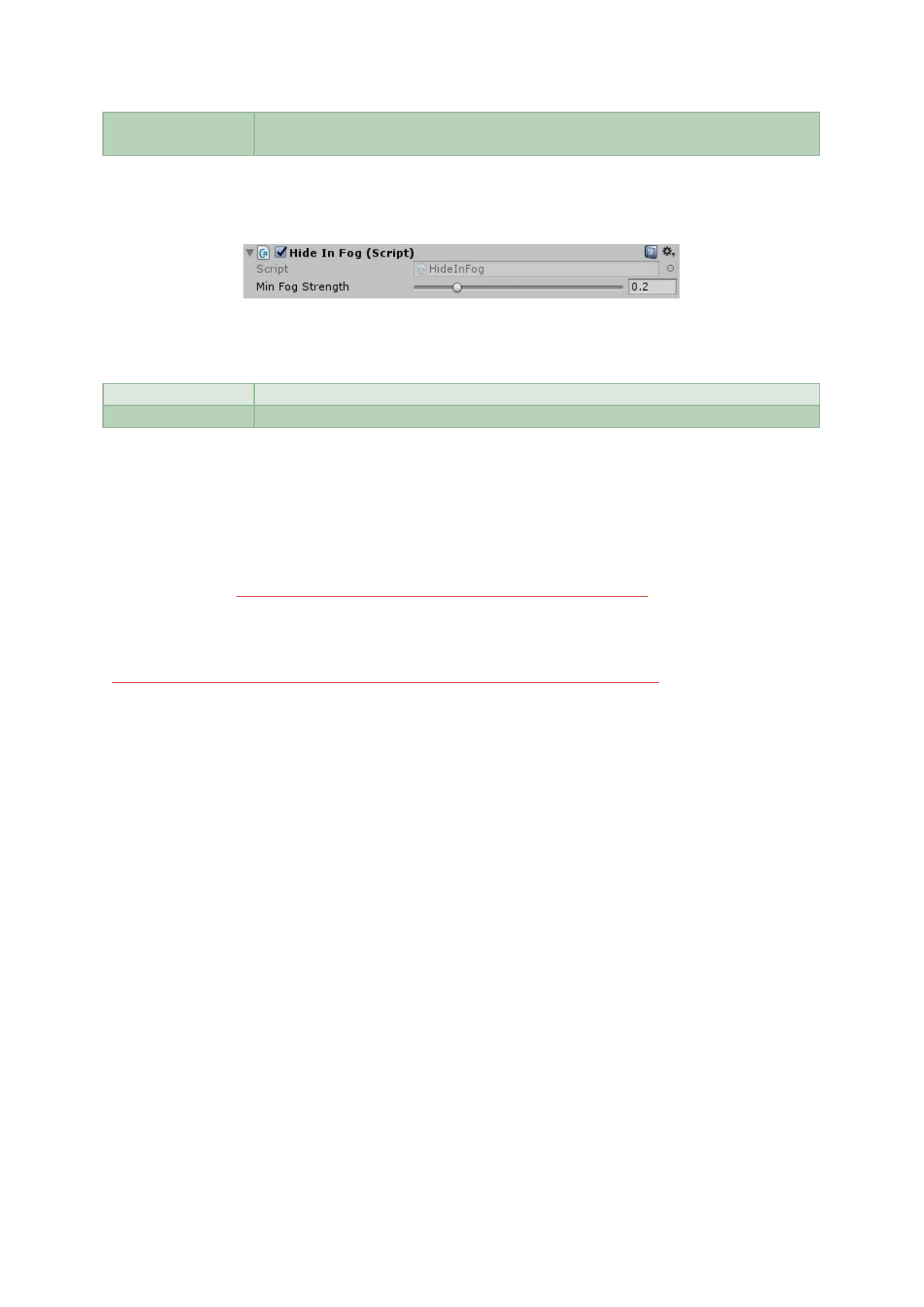
On FogExit
An event that is called when the object exits fog that is a greater strength than
MinFogStrength.
HideInFog
HideInFog
will hide the object when it enters fog. The object will be made invisible by enabling and
disabling the Renderer, UI Canvas or UI Graphic attached to this GameObject.
Team
Which FogOfWarTeam will be tracked.
Min Fog Strength
The minimum fog strength until the object is made invisible.
Third-Party Support
RTS Engine
Created by SOUMIDELRIO
Asset Store Page: https://www.assetstore.unity3d.com/en/#!/content/79732
SOUMIDELRIO has kindly created a package to allow you to easily integrate Fog Of War into RTS
Engine. You can find information on it and download it here:
http://soumidelrio.com/docs/unity-rts-engine/third-party-support/fog-of-war/
Migrating From 1.16
FogOfWar 1.17 introduced big changes to how everything works. This is a checklist to ensure proper
migration:
●A FogOfWarTeam
component must be placed in the scene. There should be one for each
team.
●Set up your camera depending on which post processing tech you are using:
○Legacy Pipeline: Add the FogOfWarLegacy
component to your camera.
○Post Processing Stack v2: Add the FogOfWar
effect to your post processing volume
and ensure that your camera has a PostProcessingLayer
component on it.
●FogOfWarSecondary no longer exists.
●Any code that used FogOfWar.GetFogOfWarTeam() must be changed to
FogOfWarTeam.GetTeam().
12

FAQs
Why does the fog appear to update at a slow frame rate?
You can easily change the update frequency in the FogOfWarTeam component.
Updating the fog every frame for every unit can have a massive performance impact. To combat this,
units update the fog individually. After a set amount of time, the fog is rendered and then the loop
starts again.
If you only have a few units, updating the fog each frame may be viable. But if you have hundreds of
units, the frame rate will become unbearable.
What is Clear Fog and how do I get it to work?
Clear Fog enables you to replace the fog with a different background. This can be used to create
weird effects where the fog won’t be just a single color.
To get it to work, there are a few steps you must take:
1. Make sure the Clear Fog is set to true.
2. Set the Fog Color’s alpha to zero.
3. Set the Clear Fog Mask to the objects that will appear in the background.
How can I improve performance for Clear Fog?
The main thing you want to do is make sure the Clear Fog Mask is set correctly. The mask should
ONLY contain objects that will appear in the background (ie in the fog). Also, the camera’s Culling
Mask should contain only the objects that are NOT in the background (ie not in the fog).
You don’t need to set the camera’s Clear Flags to skybox as the skybox will be automatically set on
the clear fog. This can help performance a tiny bit.
How can I have a see-through ground (ie a space scene)?
You need to have a surface for the fog to project on. But it is possible to make that surface
transparent. There is a shader in the FogOfWar folder called TransparentShadowCaster which will
allow you to do this. When applying it to a material, make sure that the alpha on the color is set to 0,
and that the Render Queue
is set to 2500 or less.
One downside to this method is that objects in the background may not receive shadows.
How do I get Line of Sight working?
There are a few things you must do:
1. On each unit, make sure the Line of Sight Mask is set.
2. Make sure all occluding objects are of the same mask as set in step 1.
3. Make sure all occluding objects have a collider.
4. Make sure all occluding objects are level with the unit (ie they must be at the same height,
or the unit will see right through it).
13

5. (Optional) Tweak the Field of View Penetration variable on the Fog of War component so
that units can see the objects they are looking at.
6. (Optional) If you’re game is tile-based, you should tick the Cell Based toggle.
What can I do to improve performance?
There are a number of things:
●If you have a team that is not being displayed, disable the FogOfWarTeam component.
●Reduce the Map Resolution, the number of units, or each Unit’s vision radius. This should
always be the first port of call!
●Try multithreading! There are many things that dictates performance with threads, so your
best bet is to open up Unity’s profiler and see what works best for you.
●Blurring of large map resolutions can also have a significant impact on performance. To turn
it off, set the Blur Iterations to zero. Less iterations will reduce the performance impact. I
higher resolution map will also slow down the blurring process greatly.
●If you’re using Line of Sight:
oMake sure the ground/terrain is not on the same layer as the unit’s Line of Sight
Mask.
oMake the Line Of Sight occlusion object’s colliders as small as possible and space out
the objects as much as possible. The more objects a single unit can see, the worse
performance will get.
oConsider setting the Field of View Penetration value to zero. An alternative to the
penetration is to let the occlusion objects clear the fog themselves as opposed to
letting the units do it.
How can I render things on top of the fog?
Fog of War renders the fog as an image effect. This means that anything that the camera renders will
be hidden by the fog. If you want to render anything on top, you can use Unity’s UI (both including
pre-4.6 UI).
For anything more complicated (such as 3D objects that are not affected by the fog) you can achieve
this by using an additional camera:
1. Put the objects you want to be affected on a different layer
2. Create a new camera and put it as a child of the main camera (make sure the transform is set
to zero and the camera component is identical to the main camera)
3. Set the camera’s depth to a higher value than the main camera.
4. Set the camera’s culling mask to render only the new layer
5. The objects should now be drawn on top of the fog!
How can I implement a minimap?
Fog of War will not generate a minimap for you, as there are many different aspects to a minimap.
But you can get the fog texture quite easily.
Fog is stored in a normal 2D texture with each pixel begin an 8-bit byte. A value of 0 means it is
unfogged, 255 means it is completely fogged. If you want to convert the fog map to something more
usable, you can find an example in the FogOfWarTestGUI.cs file (in the OnGUI() method).
14

How do I save/load the fog?
You can access all of the fog values by FoW.FogOfWarTeam.GetTeam(0).fogValues. This is a byte
array and the size will depend on the mapResolution variable. You can read/write to this at any
time.
Why don’t my textures work on units?
Textures only work in single threaded mode and on Box-shaped units. To set the texture up, make
sure that you set the texture to be Single Channel with the Alpha8 format in the texture import
settings for that texture.
Can I mix Unity’s 3D physics with 2D art?
Yes! Set the FogOfWarTeam plane to XY and physics to Physics3D.
Does FogOfWar work with tile-based games?
Yes! Just make sure to tick Cell Based on all units that use line of sight.
Contact
Support Email: stu_pidd_cow@hotmail.com
Be sure to check out my other assets here: https://assetstore.unity.com/publishers/9066
15
