User Manual
User Manual:
Open the PDF directly: View PDF  .
.
Page Count: 7
Playlist Generator User Manual
This user manual explains all the functionality of our Playlist Generator website and how to use it. Playlist
Generator is a community driven playlist website where users can create, edit and delete their playlist
which are generated based on travel time.
Navigation bar
The navigation bar is always visble on the top of our website.
While you are not logged in it has the following buttons are displayed:
Playlist Generator - redirects to the homepage
Login - redirects to login page
Register - redirects to register page
While you are logged in it has the following buttons are displayed:
Playlist Generator - redirects to the homepage
Firstname Lastname - redirects to your user page
Create palylist - redirects to create playlist
Logout- logs the user out and redirects to the homepage.
More information about the pages can be found below.
Home page
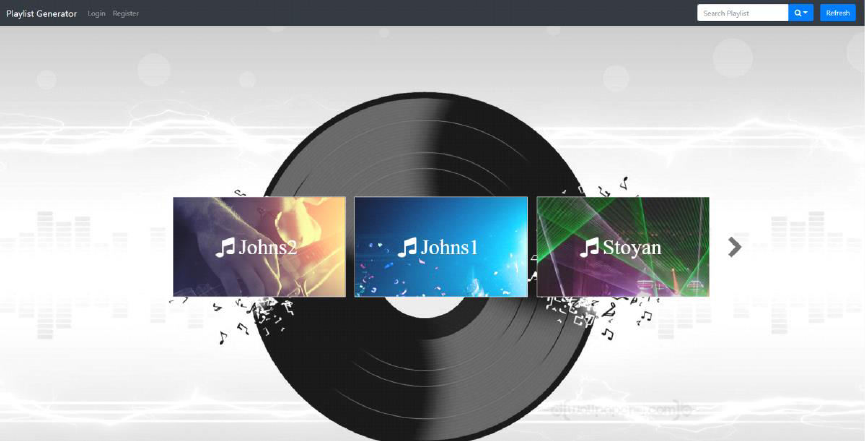
This is the first page you will see when you open the website and one of the four pages that can be
accessed by someone who is not logged in. All of the playlist added by our uses can be seen there. You
can change the playlists that are displayed by usign the arrow buttons on the left and right of the
playlists. The playlists displayed are ordered by the averag ranking of their songs in descending order.
You can search for specific playlists using the search field on the top-right of the page and selecting a
criteria by which to search. Current criterias are user, duration, title and genre.
In this page you can only see the playlists' names, durations and pictures of their most prominent
genre. If you wish to see more details about the playlist you can click the "Playlist" button below it's
duration and the specific page with the playlist details for the selected playlist will open.
Playlist display page
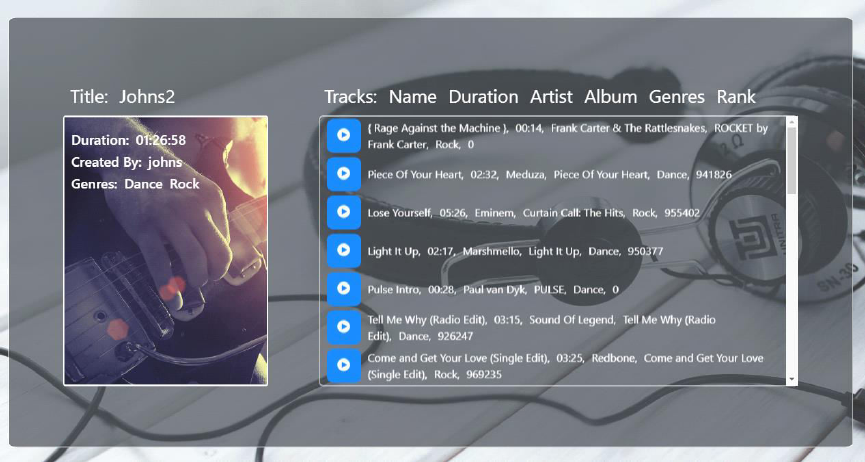
This is the page that you will see after you click on the "Playlist" button of any specific playlist and is one
of the four pages that can be accessed by someone who is not logged in.
This page displays more details about the selected playlist, such as it's creator, genres and tracks. If you
are logged in and have created the specific playlist there will also be two buttons displayed - to edit or
delete the playlist. With the edit button you can change the playlist's title and with the delete button you
can remove the playlist from the list.
Register page
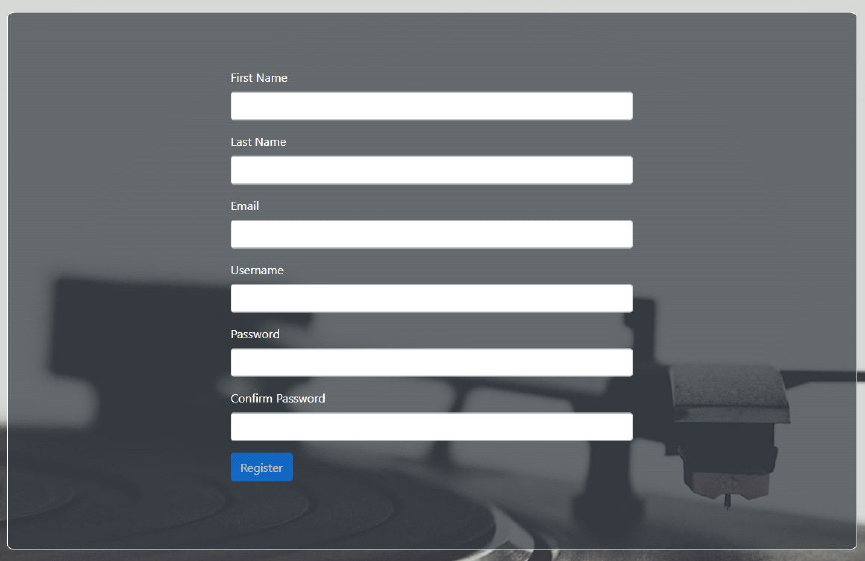
This page is accessed through the Navigation bar on the top of the website when you are not logged in
and is one of the four pages that can be accessed by someone who is not logged in.
It is used to create a new user. After you input all the details (Username, First Name, Last Name, Email,
Password and Repeat Password) into the fields you will be able to register and will be redirected to the
login page.
Keep in mind that in order to register your username must not match another user's and the Password
and Repeat Password fields have to match in order to be registered.
Login page
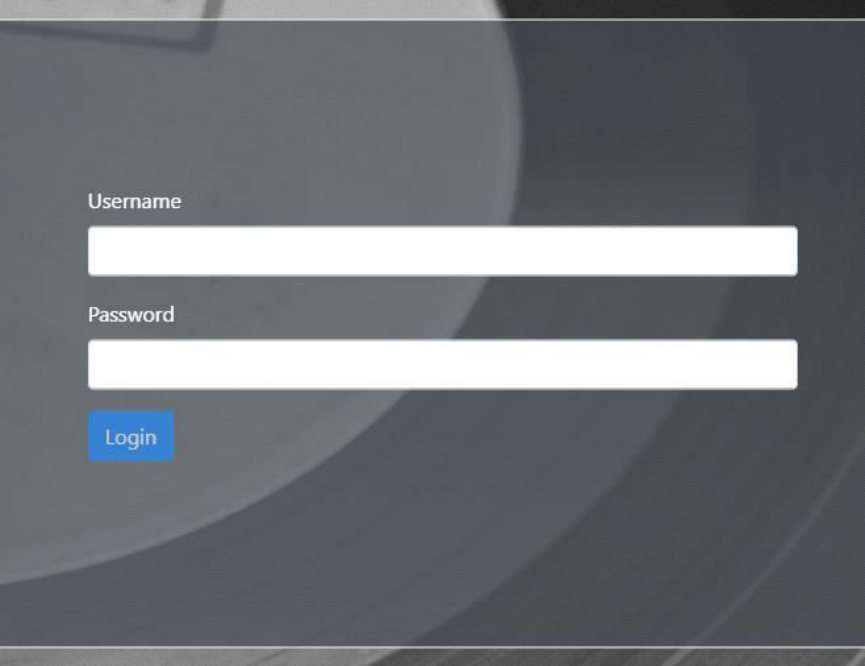
This page is accessed through the Navigation bar on the top of the website when you are not logged in
and is one of the four pages that can be accessed by someone who is not logged in.
It is used to log a registered user in. Both the username and password have to match an existing user's
details in order to login. After you input the correct data and click the login button you will be redirected
to your contact and will have access to all the functionality that is available only for logged users.
Contact page
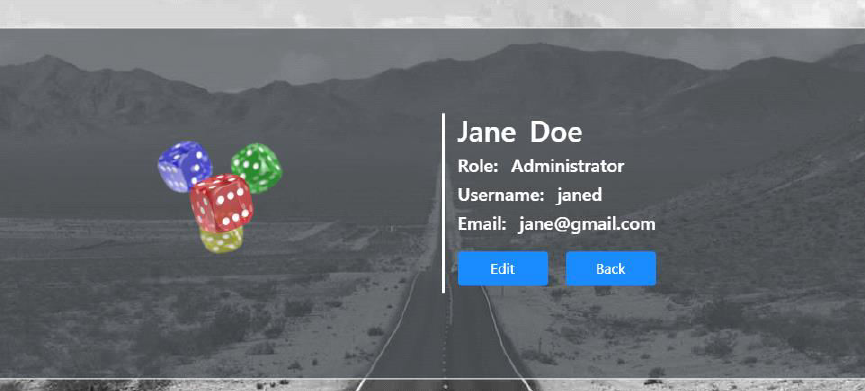
This page is accessed through the Navigation bar on the top of the website when you are logged in.
It is a page that displays all your user details: your username in the website, email, first and last name
and picture. You can change any of these details by clicking the edit button.
Create playlist page
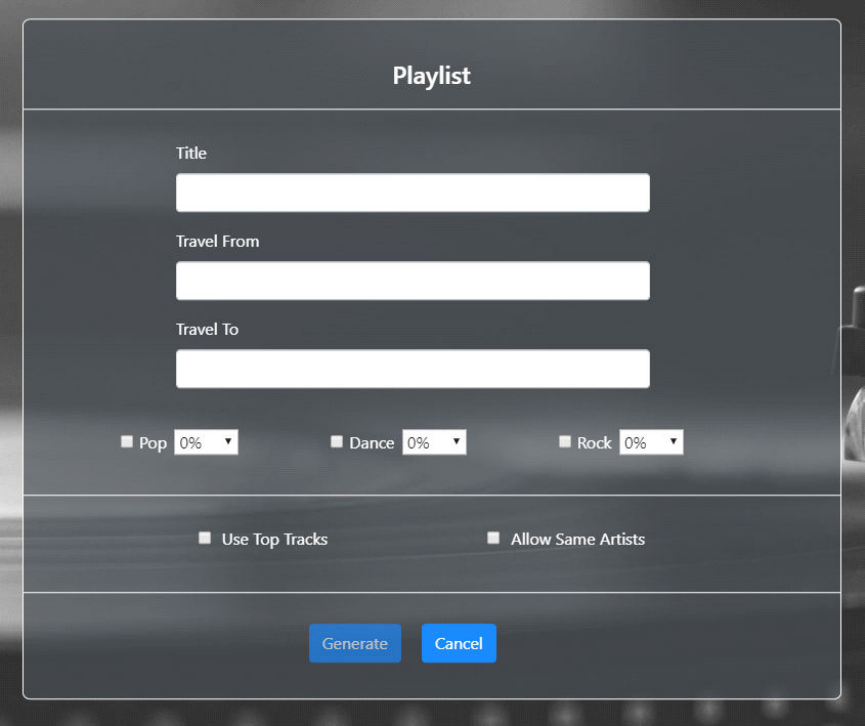
This page is accessed through the Navigation bar on the top of the website when you are logged in.
After you input a Title, Travel From and Travel From you create a new playlist with the input details and
add it to the list of playlist.
You can also select which genres and how much of them you want with the percantage slider and the
buton next to the genre names.
