User Manual
User Manual:
Open the PDF directly: View PDF  .
.
Page Count: 5

Dublin City University
User Manual
Project Name: Clothes Similarity Search
Student Name: Dovydas Baranauskas
Student Number: 15336731
Supervisor Name: Owen Corrigan
Dovydas Baranauskas
Date
1 | P a g e
1. Abstract
Clothes Similarity search is a web application that allows you to upload an image of an
article of clothing, and receive images of similar clothes as a result. You can upload any valid
image file, and will be given links to reverse image search the image for potential places to
buy the article of clothing. After you have uploaded an image, it will be saved on your
account, and if you would like to search for the same image again, it is located in your
profile page. From there you can easily just press the search button, which will allow you to
search for the same results again.
2. Installation guide
Required Software
- An image file you wish to upload.
Required Hardware
- Device that can access a web browser such as Chrome, Mozilla, Internet Explorer etc.
Perquisites
- Register for an account at simearch.ml/register.
3. Signing up and logging in
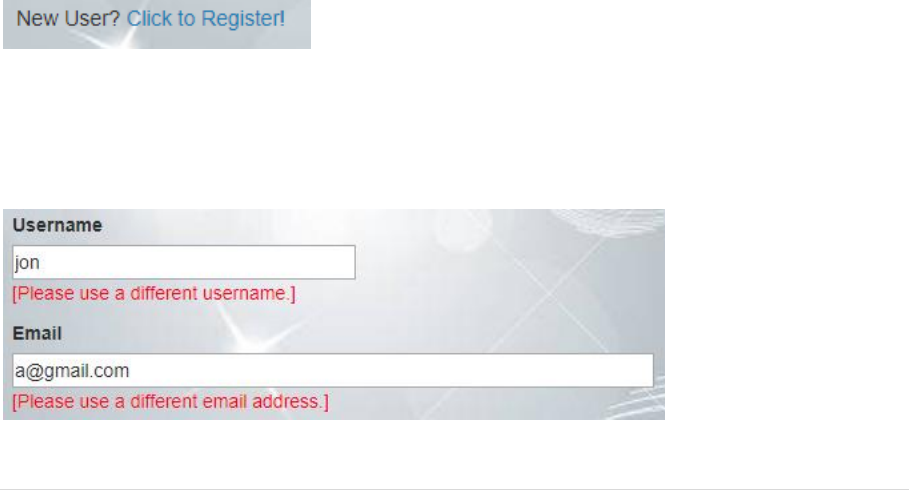
To login, you first need to create an account. You can access the register page by click the
“Click to register” link shown below.
Or by directly accessing simsearch.ml/register. Once you are on the register page, you must
enter a unique username, and email address. You must also enter a valid password and
correctly type it twice. If you enter a non-unique username or email, you will get a warning
message and be asked to enter a different username or email.
2 | P a g e
A similar message is displayed if a user types their password incorrectly. Once you register
you will be re-directed to the login page, where you can log in with your username and
password that you created. Once you log in you have full access to the web application.
4. Uploading an image
To upload an image, you must access the upload page. This can be done by logging in and
being re-directed, or by clicking the upload button on the menu bar. Once you are on the
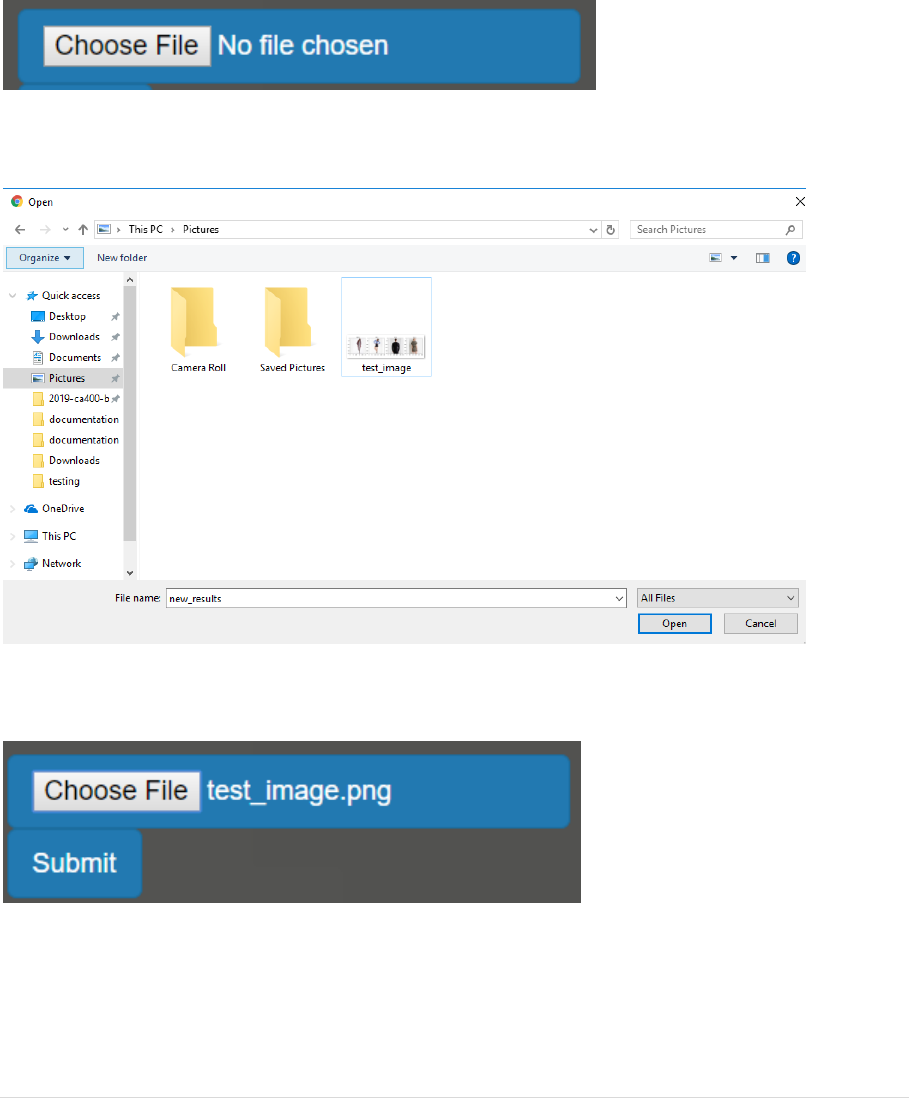
upload page, you can upload an image file by pressing the choose file button.
Once the button is pressed, you will be prompted to choose a file to upload from your
device. An example prompt is shown below.
The only accepted formats are PNG, JPG, and JPEG. Once you choose your photo, you can
press the submit button.
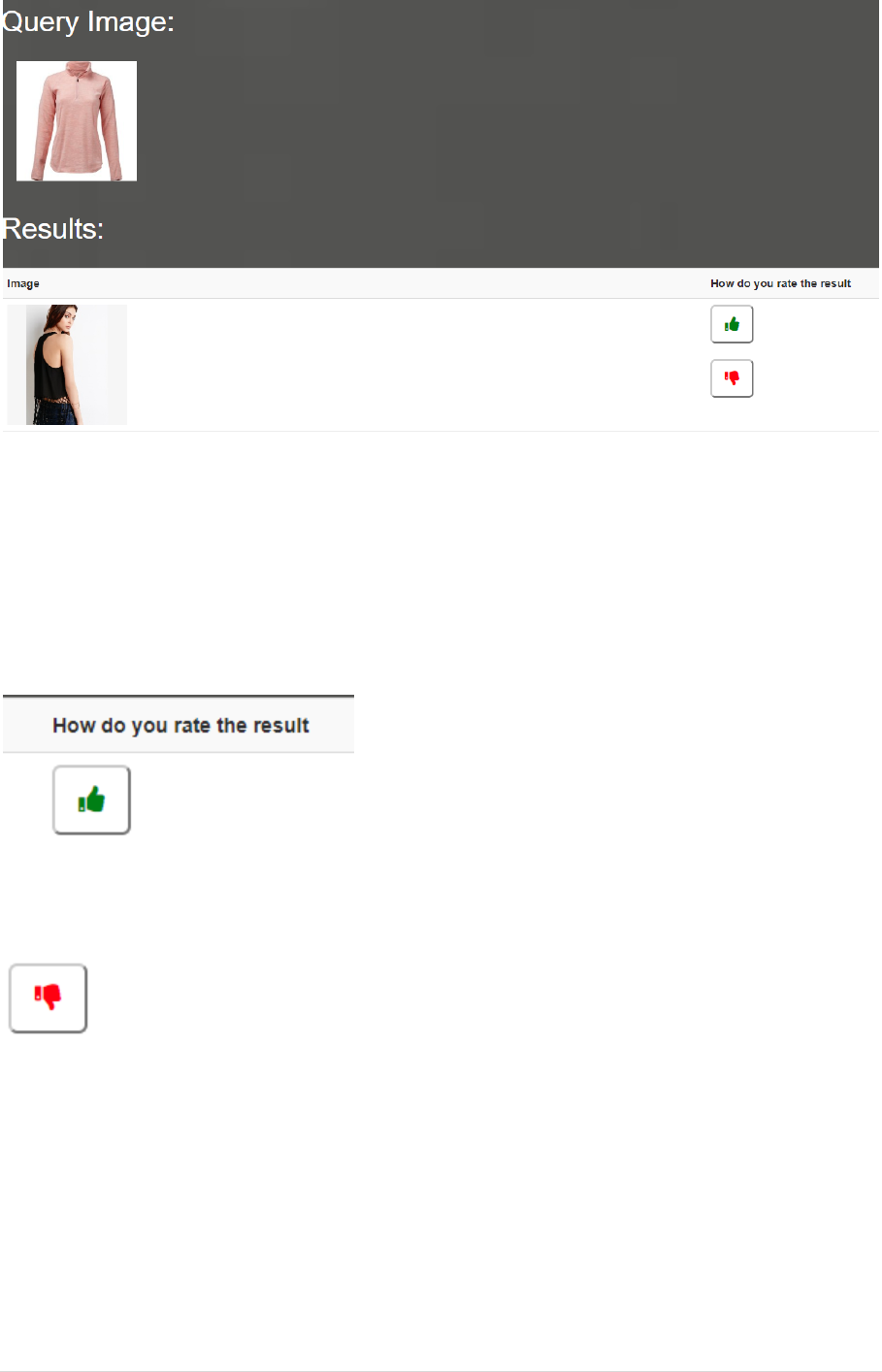
You will be then redirected to the results page, where you will be shown the top 10 results.
3 | P a g e
5. Rating an image
You are also able to up vote, and down vote results if you wish to help us improve future
results. Once you upload an image, you are shown all the resulting images. If you like a
result, you can up vote the image by pressing the green like button. Shown below
On the other hand, if you do not like the result, you can down vote the image by pressing
the red down vote button.
By choosing to up vote and down vote image, you can drive the system towards relevancy
and more accurate results.
4 | P a g e
6. Accessing previously searched images
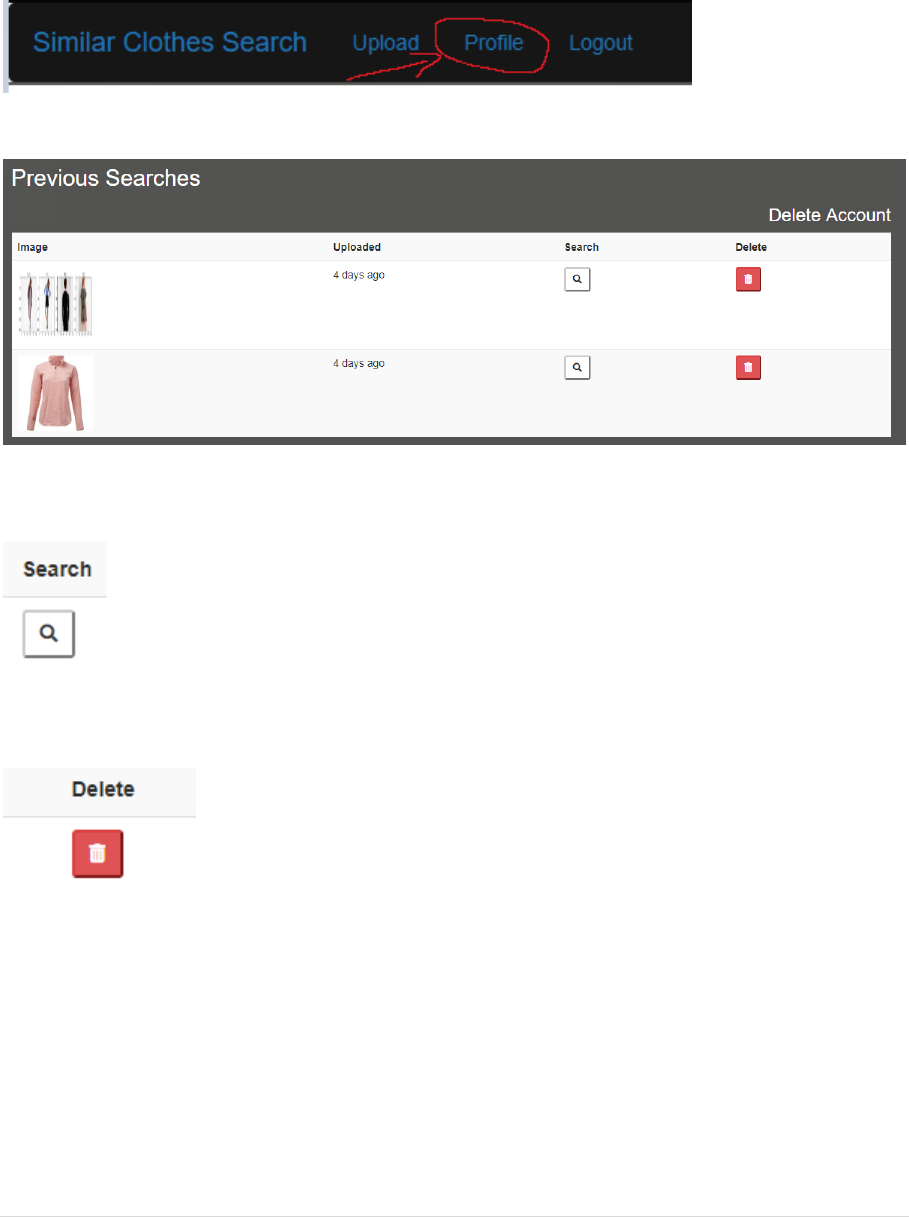
If you would like to search previously searched images, these will be available in your profile
page. This can be accessed by pressing the profile tab in the navigation bar at the top of the
page shown below.
Once you access the profile page, you will see all of your previous searches.
You can press the search button to search for the same imaged again, this will re-direct you
to the page where all your results will be displayed.
You can also choose to delete any previously searched image by simply pressing the delete
icon. **Be warned deleted images cannot be retrieved unless you upload them again.
7. Deleting account
If you wish to delete your account you can do so by accessing your profile page. By simply
clicking the delete account button, all information that was stored about you, including all
uploaded images, will be removed. After you click this, you will be redirected to the login
page.
