PubTeX Output 2017.12.14:1320 VNF LCM Installation Instructions
User Manual:
Open the PDF directly: View PDF  .
.
Page Count: 46
- toc
- 1 Introduction
- 2 Scope
- 3 Target Group
- 4 Prerequisites
- 5 VNF-LCM Install overview
- 6 NFS server configurations
- 7 Preparations for Deployment in ECM
- 8 Deploy VNF-LCM vAPP in ECM
- 9 Preparations for Deployment in CEE or Openstack
- 10 Deploy VNF-LCM in CEE or Openstack
- 11 Preparations for deployment in VCD
- 12 Deploy VNF-LCM in VCD environment
- 13 Post Installation Verification
- 14 Update OSS-RC with VNF-LCM

Ericsson Internal
VNF-LCM INSTALLATION INSTRUCTIONS 1 (46)
XFAYAHA FAYAZ AHAMMAD 1/153 72-APR 901 0578 Uen
Raghavendra Rao Tadepalli ERAGTAD 2017-11-30 U
Prepared (Subject resp) No.
Approved (Document resp) Checked Date Rev Reference
VNF-LCM Installation Instructions
Copyright
© Ericsson LM Ireland 2016 All rights reserved.
No part of this document may be reproduced in any form without the written
permission of the copyright owner.
Disclaimer
The contents of this document are subject to revision without notice due to
continued progress in methodology, design and manufacturing. Ericsson shall
have no liability for any error or damage of any kind resulting from the use
of this document.
Contents
1 Introduction ........ . .... . .... . ... . . ... . . ... . .... . .... . .... . .... . ... . . ... . . ... . .... . 3
2 Scope ............................................................................... 3
3 Target Group ...................................................................... 3
4 Prerequisites ... . ... . . ... . . ... . .... . .... . .... . .... . ... . . ... . . ... . .... . .... . .... . ... 3
4.1 User ................................................................................. 5
4.2 Access .............................................................................. 5
5 VNF-LCM Install overview .. . .... . .... . .... . .... . ... . . ... . . ... . .... . .... . .... . ... 5
5.1 Overview ............................................................................ 5
6 NFS server configurations ...... ..... .............. ..... ..... ..... ..... ......... 6
7 Preparations for Deployment in ECM .... ..... ..... ..... ................... ... 7
7.1 Download VNF-LCM Media for ECM ....... ..... ..... ..... ................... ... 7
7.2 Upload QCOW Images to ECM ..... ..... ..... ................... ..... ..... ..... . 8
7.3 Upload VNF-LCM Heat Template to ECM . ..... ..... ..... ................... .. 10
7.4 Create VDC in ECM .. ..... ................... ..... ..... ..... ................... .. 11
7.5 Create VN in ECM .. ..... ..... ..... ..... .............. ..... ..... ..... ..... ........ 11
7.6 Create Block Storage in ECM ................................................... 12
7.7 Parameters Table for ECM deployment ............ ..... ..... ..... ..... ........ 13
7.8 Update Environment files . ................... ..... ..... ..... ................... .. 19
8 Deploy VNF-LCM vAPP in ECM .. . .... . ... . . ... . .... . .... . .... . .... . .... . ... . . 20
8.1 Procedure Overview ..... ..... ..... ..... .............. ..... ..... ..... ..... ........ 20
8.2 Steps ............................................................................... 20
9 Preparations for Deployment in CEE or Openstack .. . .... . .... . .... . ... . . 21
A4 XSEIF R6

Ericsson Internal
VNF-LCM INSTALLATION INSTRUCTIONS 2 (46)
XFAYAHA FAYAZ AHAMMAD 1/153 72-APR 901 0578 Uen
Raghavendra Rao Tadepalli ERAGTAD 2017-11-30 U
Prepared (Subject resp) No.
Approved (Document resp) Checked Date Rev Reference
9.1 Download VNF-LCM Media ...................................................... 21
9.2 Upload QCOW Images to Atlas or Openstack ..... ..... ..... ..... ..... ........ 23
9.3 Choose VNF-LCM Heat Template for Atlas or Openstack ................. .. 23
9.4 Create Cinder Volume .... ................... ..... ..... ..... ................... .. 24
9.5 Parameters Table for CEE or Openstack .. ..... ..... ..... ................... .. 25
10 Deploy VNF-LCM in CEE or Openstack .. ..... ..... ..... ................... .. 31
10.1 Procedure Overview ..... ..... ..... ..... .............. ..... ..... ..... ..... ........ 31
10.2 Procedure Steps .................................................................. 31
11 Preparations for deployment in VCD ..... ..... ..... ..... ................... .. 32
11.1 Media Requirements .............................................................. 32
12 Deploy VNF-LCM in VCD environment .......... ..... ..... ..... ..... ........ 33
12.1 Pre-install ............ ..... ..... ..... ..... .............. ..... ..... ..... ..... ........ 33
12.2 Upload VNF-LCM OVA to Packages in VCD .................................. 34
12.3 Deploy the VNF-LCM OVF package using the VCD GUI ...... ..... ..... ..... 35
13 Post Installation Verification .............. ..... ..... ..... ................... .. 39
13.1 Set Initial Passwords . ..... ................... ..... ..... ..... ................... .. 39
13.2 Verify Status of VNF-LCM Setup in vnflaf-db VM ............... ..... ..... ..... 40
13.3 Verify Status of VNF-LCM Setup in vnflaf-services VM .. ................... .. 41
13.4 Update VNF-LCM with Default VIM ............................................. 42
14 Update OSS-RC with VNF-LCM ........... ..... ..... ..... ................... .. 42
14.1 Steps: .............................................................................. 43
15 Glossary ........................................................................... 46
16 References ........................................................................ 46

Ericsson Internal
VNF-LCM INSTALLATION INSTRUCTIONS 3 (46)
XFAYAHA FAYAZ AHAMMAD 1/153 72-APR 901 0578 Uen
Raghavendra Rao Tadepalli ERAGTAD 2017-11-30 U
Prepared (Subject resp) No.
Approved (Document resp) Checked Date Rev Reference
1 Introduction
This document describes how to Deploy or Install Virtual Network Function
Life Cycle Manager(VNF-LCM) application in any one of Cloud Infrastructures
listed below .
• Ericsson Cloud Manager (ECM)
or
• Ericsson Cloud Execution Environment (CEE)
or
• Openstack
• VMware vCloud Director (VCD).
2 Scope
This document covers the following procedures:
• Deploying the VNF-LCM
• Configuring the VNF-LCM
• Verifying the VNF-LCM
The deployment procedure is written for creating a Stack or Virtual
Application using a Heat Orchestration Template(HOT) or Open Virtualization
Format (OVF) respectively.
3 Target Group
This document is intended for personnel deploying and configuring the
VNF-LCM.
4 Prerequisites
The following sections outline the prerequisites necessary to deploy the
VNF-LCM
Note: Read the entire document before starting the deployment of the VNF
Life Cycle Manager
Ericsson Internal
VNF-LCM INSTALLATION INSTRUCTIONS 4 (46)
XFAYAHA FAYAZ AHAMMAD 1/153 72-APR 901 0578 Uen
Raghavendra Rao Tadepalli ERAGTAD 2017-11-30 U
Prepared (Subject resp) No.
Approved (Document resp) Checked Date Rev Reference
Table 1
Software Release Version
OSS-RC 16B or Higher
ECM 17.0
CEE R6.4
CEE Atlas R6.4
Openstack Mitaka
VCD 8.10
1. Software version requirements as listed in above Table-1
2. Minimum resource requirements for VNF-LCM stack:
• Two vCPUs,4GB RAM and 20GB disk for both vnflaf-services and
vnflaf-db VMs.
• 1 Gbps network link
• 120 GB of ephemeral storage or persistent block storage (such as
Cinder storage) (Not Applicable for VCD).
VNF-LCM doesn’t really depend on any specific type of hardware
resource. The requirements stated above are for virtual resources. The
hardware type specifications fall under the scope of cloud infrastructure
specifications. Below points are not applicable for VCD.
3. A quorum of two or more active compute hosts should be present per
active vCIC instance in the CEEdeployment. These compute nodes should
have enough resources as stated above for a single VNF-LCM stack.
4. It is assumed that the target CEE setup has Telemetry Ceilometer Metering
service v2 running.
5. If Cinder volumes are to be used as storage types for the VMs, then Cinder
BlockStorage v2 service is expected to be running on the target cloud
setup.
6. VNF-LCM creates all VNF’s within a single tenant space, and hence
a tenant and a tenant user has to be created in Atlas/Openstack with
required privileges to create the VNFs and the VNF-LCM instance
itself. One or more users are required to be created within this Tenant.
Tenant Users can have mainly 2 roles in Atlas/Openstack .i.e. either
member role or an administrative role. Users with Administrative role can
add/activate/deactivate/delete tenant users additionally along with the
other permission of Tenant User.

Ericsson Internal
VNF-LCM INSTALLATION INSTRUCTIONS 5 (46)
XFAYAHA FAYAZ AHAMMAD 1/153 72-APR 901 0578 Uen
Raghavendra Rao Tadepalli ERAGTAD 2017-11-30 U
Prepared (Subject resp) No.
Approved (Document resp) Checked Date Rev Reference
For VNF-LCM, you will have to create a user within the Tenant, the user
can have either a member role or an administrative role. The Tenant
name, Tenant user name and password details are input parameters to
the VNF-LCM installation procedure. If the tenant user is changed in
Atlas/Openstack , the system administrator will have to manually update
the details in VNF-LCM (the system administrator guide provides steps
to update them).
4.1 User
The person who performs VNF-LCM deployment is required to have solid
knowledge of following areas:
• Ericsson Cloud Manager (ECM) or Ericsson Cloud Execution Environment
(CEE) or Openstack or VMware vCloud Director (VCD)
• Ericsson OSS-RC
• UNIX®or Linux
4.2 Access
The following access information is required to deploy the VNF-LCM:
• Access to target cloud GUI Dashboards.
• Rights to manage cloud virtual resources like Virtual Networks, Images,
Stacks, Volumes, Blockstorage and Virtual Applications.
5 VNF-LCM Install overview
OSS-RC with VNF-LCM is an hybrid deployment, that is, VNF-LCM is
deployed in the cloud while the OSS-RC applications continue to be a physical
deployment.
VNF-LCM deployment in the cloud consists of two Virtual Machines that use
RedHat Linux as the guest operating system:
5.1 Overview
• VNFLAF-Services
This VM consists of the JBoss application server, where VNF-LCM
Services and VNF-LCM workflows are deployed.
The static UI components are deployed in Apache httpd server.
• VNFLAF-DB
This VM is for VNF Lifecycle Manager’s database (PostgresSQL).

Ericsson Internal
VNF-LCM INSTALLATION INSTRUCTIONS 6 (46)
XFAYAHA FAYAZ AHAMMAD 1/153 72-APR 901 0578 Uen
Raghavendra Rao Tadepalli ERAGTAD 2017-11-30 U
Prepared (Subject resp) No.
Approved (Document resp) Checked Date Rev Reference
6 NFS server configurations
Note: Skip this step if persistence storage like Cinder or Block Storage
available in targeted Cloud Infrastructure managers.
Context Description:
Create folder and share it over NFS
Prerequisites:
• NexentaStor Storage service
• Acess and rights to create & share a folder inNexentsStor
• At least free space of 120 GB available in Nexenta target volume
Expected Result:
Folder shared in NexentaStor over NFS to CIDR where VNF-LCM is to be
deployed
Steps:
1. Create a NFS share in NFS server
Below is an example of how a folder to be shared and properties to be
assigned if storage system is NexentaStor
Command to create a folder:
nmc@XEPAY90704:/$ create folder
Folder pathname : HA_VOL/VNF_LAF
NAME USED AVAIL REFER MOUNTED QUOTA DEDUP COMPRESS
HA_VOL/VNF_LAF 144K 13.7T 144K yes none off on
2. Make sure that the NFS server is shared to and reachable from the Subnet
created in Step 4 of preinstall section.
Example command to share a folder and properties to be assigned:
nmc@XEPAY90704:/$ share folder HA_VOL/VNF_LAF
Option ? nfs
Auth Type : sys
Anonymous : true
Anonymous Read-Write : true
Read-Write :
Read-Only :
Root : root@<CIDR of External subnet attached to
VNF-LCM in cloud>
Recursive : true
Added NFS share for folder 'HA_VOL/VNF_LAF'
It is recommended to set 'nbmand' property to 'on', to
enforce mandatory cross-protocol share reservations and
byte-range locking in a mixed NFS/CIFS environment
nbmand : on
Ericsson Internal
VNF-LCM INSTALLATION INSTRUCTIONS 7 (46)
XFAYAHA FAYAZ AHAMMAD 1/153 72-APR 901 0578 Uen
Raghavendra Rao Tadepalli ERAGTAD 2017-11-30 U
Prepared (Subject resp) No.
Approved (Document resp) Checked Date Rev Reference
For 'nbmand' property change to take an effect,
the folder 'HA_VOL/VNF_LAF' needs to be remounted.
Unmounting and mounting the folder again may cause a
temporary loss of client connections
Note that you can do remounting manually, at a later
time. Proceed to remount the folder? Yes
7 Preparations for Deployment in ECM
Note: Skip this section if VNF-LCM deployment is planned in CEE Atlas or
Openstack or VCD.
To deploy VNF-LCM resources in ECM, download the required Media, upload
correspondent QCOW images and Heat Templates using ECM GUI as follows
7.1 Download VNF-LCM Media for ECM
Context Description:
Download the required media to deploy in ECM
Prerequisites:
• Access to http://gask2web.ericsson.se
• FTP server to download the media
• At least free space of 3 GB available
Expected Result:
VNF-LCM media content extracted and ready to be used for deployment
Steps:
1. Download the Latest VNF-LCM Virtual Deployment Media Package
for ECM from http://gask2web.ericsson.se, using Product number
19090-CXP9032641.
The downloaded package name will be similar to 19090-CXP9032641
_Ux_<Rev>.tar
2. Extract the VNF-LCM Media to get the files for the installation
#tar -xvf 19090-CXP9032641_Ux_<Rev>.tar
The installation instructions uses the extracted files described in the
following table.
Filename Description
cloud-init-services Cloud Init for vnflaf-services VM's
first boot
Ericsson Internal
VNF-LCM INSTALLATION INSTRUCTIONS 8 (46)
XFAYAHA FAYAZ AHAMMAD 1/153 72-APR 901 0578 Uen
Raghavendra Rao Tadepalli ERAGTAD 2017-11-30 U
Prepared (Subject resp) No.
Approved (Document resp) Checked Date Rev Reference
Filename Description
cloud-init-db Cloud Init for vnflaf-db VM's first
boot
vnflcm-ecm-heat-template-static-ci
nder-env.yaml
Environment file with all input
parameters for vApp if HOT file is
vnflcm-ossrc-ecm-heat-template-st
atic-cinder.yaml
vnflcm-ecm-heat-template-static-nf
s-env.yaml
Environment file with all input
parameters for vApp if HOT file is
vnflcm-ossrc-ecm-heat-template-st
atic-nfs.yaml
vnflcm-ecm-heat-template-dualsta
ck-static-cinder-env.yaml
Environment file with all input
parameters for vApp if HOT file
isvnflcm-ossrc-ecm-heat-template-
dualstack-static-cinder.yaml
vnflcm-ecm-heat-template-dualsta
ck-static-nfs-env.yaml
Environment file with all input
parameters for vApp if HOT file is
vnflcm-ossrc-ecm-heat-template-d
ualstack-static-nfs.yaml
vnflcm-ecm-heat-template-static-ci
nder.yaml
HOT file , contains definition of
parameters and virtual resources
required for VNF-LCM deployment
vnflcm-ecm-heat-template-static-n
fs.yaml
HOT file , contains definition of
parameters and virtual resources
required for VNF-LCM deployment
vnflcm-ecm-heat-template-dualsta
ck-static-cinder.yaml
HOT file , contains definition of
parameters and virtual resources
required for VNF-LCM deployment
vnflcm-ecm-heat-template-dualsta
ck-static-nfs.yaml
HOT file , contains definition of
parameters and virtual resources
required for VNF-LCM deployment
ERICrhelvnflafimage_CXP903249
0-<Version>.qcow2
The Virtual Machine (VM) image
for vnflaf-services.
ERICrhelpostgresimage_CXP9032
491-<Version>.qcow2
The Virtual Machine (VM) image
for vnflaf-db.
7.2 Upload QCOW Images to ECM
Context Description:
Learn how to upload the QCOW images extracted from VNF-LCM media to
ECM Dashboard
Prerequisites:
Tenant and Tenant User roles

Ericsson Internal
VNF-LCM INSTALLATION INSTRUCTIONS 9 (46)
XFAYAHA FAYAZ AHAMMAD 1/153 72-APR 901 0578 Uen
Raghavendra Rao Tadepalli ERAGTAD 2017-11-30 U
Prepared (Subject resp) No.
Approved (Document resp) Checked Date Rev Reference
Expected Result:
The uploaded image is listed and in an Active state on the Images Overview
page of ECM Dashboard
Steps:
1. Login to ECM17.0 UI Dashboard
2. Click the Resources drop down menu from the navigation bar
3. Select Images, the Image List is displayed listing all the existing images
4. Click Create and select From File from the menu that opens
The Create Image window is displayed
5. Click Select File
The File Selection page is displayed.
6. Select the file and click Open.
The File Selection page is dismissed and the Create Image From File
page is displayed with the selected Image file and the Image name field is
populated with a default name that can be changed.
7. Enter information in the fields for the image
Field Description
Image Name The name of the image in Ericsson
Cloud Manager. Provide a
descriptive and unique name of this
image in the Image Name field.
Populated by default with the same
name as the selected filename
Enforce unique name across all
tenants
Select Yes for the slider in order
to enforce unique name. When
this option is selected, the system
validates that the name is unique
when you click Start or OK. If
the name is not unique, an error
message is displayed. Change the
image name and try to process the
image again
Available For The Available For option is only
available to users with the provider
administrator role. Select Tenant
ECM Only or All Tenants as required
Description Description of the image
8. Click Start to begin the upload and wait for the Order to complete.
Ericsson Internal
VNF-LCM INSTALLATION INSTRUCTIONS 10 (46)
XFAYAHA FAYAZ AHAMMAD 1/153 72-APR 901 0578 Uen
Raghavendra Rao Tadepalli ERAGTAD 2017-11-30 U
Prepared (Subject resp) No.
Approved (Document resp) Checked Date Rev Reference
When the process finishes, the message Image created successfully
is displayed
9. Click the checkbox next to the image uploaded to transfer
10. Click Manage and select Transfer Image to more VIM Zones from the
menu that opens
Note: Only images in the list with Transferable set to Yes can be
transferred
11. Select the VIM Zone or VIM Zones where image needs to be transferred.
Note: It is mandatory to transfer image to CEE VIM Zone
12. Click OK and wait for the Order to Complete.
13. Repeat above steps for all the VM images
7.3 Upload VNF-LCM Heat Template to ECM
Context Description:
Learn how to upload VNF-LCM Heat Template to ECM
Prerequisites:
Tenant and Tenant User roles.
Expected Result::
VNF-LCM package uploaded and available for use in ECM Packages Database
Steps:
At this point it is needed to select a HOT file according to the pre-requisites
met with your environment. Refer below table to decide upon package to be
uploaded to ECM.
Once the package is selected refer section Create (Upload) a HOT Package of
ECM User Guide and upload it
Table 2
VNF-LCM HOT Package
File Name Meets Requirements
External
Network
Internal
Netwo
rk
Fixed
IP for
VM(s)
Cind
er
NFS
vnflcm-ecm-heat-template-st
atic-cinder.yaml
IPv4 IPv4 yes yes no
vnflcm-ecm-heat-template-s
tatic-nfs.yaml
IPv4 IPv4 yes no yes

Ericsson Internal
VNF-LCM INSTALLATION INSTRUCTIONS 11 (46)
XFAYAHA FAYAZ AHAMMAD 1/153 72-APR 901 0578 Uen
Raghavendra Rao Tadepalli ERAGTAD 2017-11-30 U
Prepared (Subject resp) No.
Approved (Document resp) Checked Date Rev Reference
VNF-LCM HOT Package
File Name Meets Requirements
vnflcm-ecm-heat-template-d
ualstack-static-cinder.yaml
Dual Dual yes yes no
vnflcm-ecm-heat-template-d
ualstack-static-nfs.yaml
Dual Dual yes no yes
7.4 Create VDC in ECM
Note: Skip this section if a Virtual Data Center is already created or
existing
Context Description:
Create a Virtual Data center in ECM
Prerequisites:
• Tenant access and space in ECM
Expected Result:
New VDC created for VNF-LCM deployment
Steps:
To create a Virtual Data Center, execute the steps listed in section Create a
Virtual Data Center of ECM User Guide
7.5 Create VN in ECM
Note: Skip this section if a Virtual Network is already created or existing
Context Description:
Create a Virtual Network (VN) in planned Virtual Data center of ECM
Prerequisites:
• Tenant access and space in ECM
Expected Result:
A VN created for VNF-LCM to reach OSS-RC setup
Steps:
This network needs to be created in the same VCD where VNF-LCM is planned
to be deployed. This network will be used for external connectivity to clients
and vise versa
Note: Subnet should have atleast /28 CIDR

Ericsson Internal
VNF-LCM INSTALLATION INSTRUCTIONS 12 (46)
XFAYAHA FAYAZ AHAMMAD 1/153 72-APR 901 0578 Uen
Raghavendra Rao Tadepalli ERAGTAD 2017-11-30 U
Prepared (Subject resp) No.
Approved (Document resp) Checked Date Rev Reference
To create a Virtual Network , refer section Working with Virtual Networks
in ECM User Guide
7.6 Create Block Storage in ECM
Skip this section if external Storage type is NFS
7.6.1 Procedure Overview
Context Description:
Create Block Storage in ECM
Prerequisites:
Tenant and Tenant User roles.
Available storage 120 GB or more in ECM.
Expected Result :
Block Storage created, its resource ID collected and active for VNF-LCM
to use it
7.6.2 Steps
1. Log on to ECM UI Dashboard.
2. Click on Assets tab, and select the Virtual Data Centers option from
the drop down.
3. In Virtual Data Centers List page, select the VDC where VNF-LCM
deployment has been planned.
4. Navigate to the Block Storage tab.
5. Click on Create button to create Block Storage for VNF-LCM vApp
6. On the Create BSV wizard, fill in Asset Type as Block Storage and fill in
planned VDC Name
7. Click on button Next.
8. On the Select Offer window, choose a sample offer for block storage.
9. On the Choose VIM Zone window, choose the appropriate VIM Zone for
Block Storage.
10. On the Enter Attributes window, input mandatory details for parameters
Block Storage Name and Disk Size.
11. Click Submit Order and wait for the Block Storage to be available in
Active state.

Ericsson Internal
VNF-LCM INSTALLATION INSTRUCTIONS 13 (46)
XFAYAHA FAYAZ AHAMMAD 1/153 72-APR 901 0578 Uen
Raghavendra Rao Tadepalli ERAGTAD 2017-11-30 U
Prepared (Subject resp) No.
Approved (Document resp) Checked Date Rev Reference
7.7 Parameters Table for ECM deployment
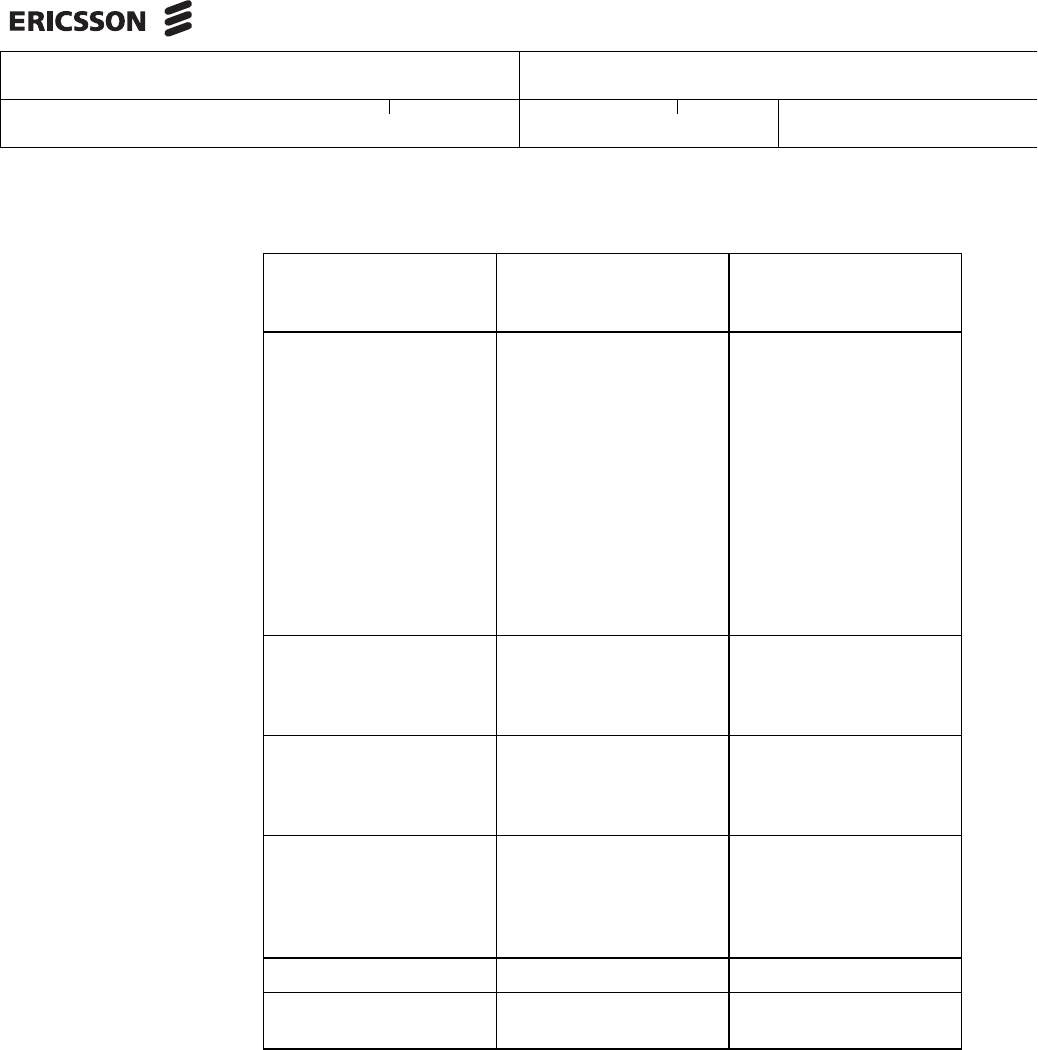
Collect inputs for all the parameters listed in below Table
7.7.1 Parameters
Table 3
Parameter Description Default Value
Services_vm_HostNam
e
Custom hostname for
vnflaf-services VM
vnflaf-services
servicesImage Name of VNF-L
CM-services VM
image uploaded
ERICrhelvnflafimage_C
XP9032490-<Version>
to VIM dashboard.
ERICrhelvnflafimage_C
XP9032490-<Version>
services_flavor Flavor to use for
VNF-LCM-services
VM.
DB_vm_HostName Custom hostname for
vnflaf-db VM
vnflaf-db
dbImage Name of VNF-LCM-db
VM image uploaded
ERICrhelpostgresimage
_CXP9032491-<Versio
n> to VIM dashboard.
ERICrhelpostgresimag
e_CXP9032491-<Versi
on>
db_flavor Flavor to use for
VNF-LCM-db VM.
storageType For the 'Backup and
Restore' feature
VNF-LCM needs
external storage.
Possible values: Cinder
or NFS
cinder_volume_id Resource ID of
pre-created Cinder
Volume/Block storage
Ignore this if storage
type is NFS
23554cad-f3bb-4dbe-8
483-d15757763f80

Ericsson Internal
VNF-LCM INSTALLATION INSTRUCTIONS 14 (46)
XFAYAHA FAYAZ AHAMMAD 1/153 72-APR 901 0578 Uen
Raghavendra Rao Tadepalli ERAGTAD 2017-11-30 U
Prepared (Subject resp) No.
Approved (Document resp) Checked Date Rev Reference
nfsServerIp IP address of NFS
server where a folder
was pre-created as part
of section “NFS Server
Configuration”
Ignore this if Storage
Type is Cinder
sharedFilesystemPath Path of files system
shared from above NFS
server
ip_version IP Version of external
subnet.
Allowed values -
4/6/Dual
Possible Input1: 4-
If external network's
subnet is of IPv4 only
Possible Input2: 6-If
external network has
got subnet of IPv6 only
Possible Input3: Dual -
If external network has
got subnets of IPv6 and
IPv4
4
external_net_id Resource Id of Pre
created external
network.
If not exists, create it
now.
3ccb890a-b4ce-475c-a
c48-507d5066f2fb
externalSubnetCidr IP address range of
IPv4 or IPv6 subnet of
above external network.
If not existing create
it now and make the
subnet externally
routed towards
OSSRC. Example -
131.160.162.0/24
external_subnet_gatew
ay
Gateway address of
above subnet
external_ip_for_service
s_vm
An IP address from
above subnet for
vnflaf-services VM
Ericsson Internal
VNF-LCM INSTALLATION INSTRUCTIONS 15 (46)
XFAYAHA FAYAZ AHAMMAD 1/153 72-APR 901 0578 Uen
Raghavendra Rao Tadepalli ERAGTAD 2017-11-30 U
Prepared (Subject resp) No.
Approved (Document resp) Checked Date Rev Reference
external_ip_for_db_vm An IP address from
above subnet for
vnflaf-db VM
internalSubnetCidr Provide a network size
in CIDR notation for
VNF-LCM Hot template
to create a subnet
Input IPv4 CIDR if
ip_version is 4
Input IPv6 CIDR if
ip_version is 6
Input IPv6 CIDR if
ip_version is Dual
172.16.100.0/28
internal_subnet_gatew
ay
Gateway address for
internal subnet for
VNF-LCM HOt template
to create
internal_ip_for_db_vm IP address for vnflaf-db
VM from network
internalSubnetCidr
for intra communication
internal_ip_for_service
s_vm
IP address for
vnflaf-services
VM from network
internalSubnetCidr
for intra communication
ossType Allowed input: OSSRC
ossMasterHostName Host name of the Live
master server of RC
masterservice

Ericsson Internal
VNF-LCM INSTALLATION INSTRUCTIONS 16 (46)
XFAYAHA FAYAZ AHAMMAD 1/153 72-APR 901 0578 Uen
Raghavendra Rao Tadepalli ERAGTAD 2017-11-30 U
Prepared (Subject resp) No.
Approved (Document resp) Checked Date Rev Reference
ossMasterHostIP IP address of above
OSS master server.
Make sure this IP
is accessible to
network which is
provided for parameter
externalSubnetCidr
Input IPv4 if ip_version
is 4
Input IPv6 if ip_version
is 6
Input IPV4 or IPv6 if
ip_version is Dual
ossNotificationServiceI
P
IP address of the Host
where notification
service of OSS
is running. Refer
parameter table in
Installation Guide to
find the description.
Example - 10.140.23.40
ossNotificationServiceH
ost
Host name of
the Host where
notification service
of OSS is running.
Refer parameter
table in Installation
Guide to find the
description. Example -
notificationservice
notificationservice
ossUserName Authorized user for
VNF-LCM to transfer
ARNE files to OSS
master
Example: nmsadm

Ericsson Internal
VNF-LCM INSTALLATION INSTRUCTIONS 17 (46)
XFAYAHA FAYAZ AHAMMAD 1/153 72-APR 901 0578 Uen
Raghavendra Rao Tadepalli ERAGTAD 2017-11-30 U
Prepared (Subject resp) No.
Approved (Document resp) Checked Date Rev Reference
ossGatewayHost1 OSS setup primary UAS
host IP address
This host will be the
gateway host for
launching VNF-LCM
UI using OEX launcher
Input IPv4 if ip_version
is 4
Input IPv6 if ip_version
is 6
Input IPV4 or IPv6 if
ip_version is Dual
ossGatewayHost2 OSS setup secondary
UAS host IP address.
If secondary host does
not exist please input Ip
address of primary UAS
host itself
This host will be the
gateway host for
launching VNF-LCM
UI using OEX launcher
Input IPv4 if ip_version
is 4
Input IPv6 if ip_version
is 6
Input IPV4 or IPv6 if
ip_version is Dual
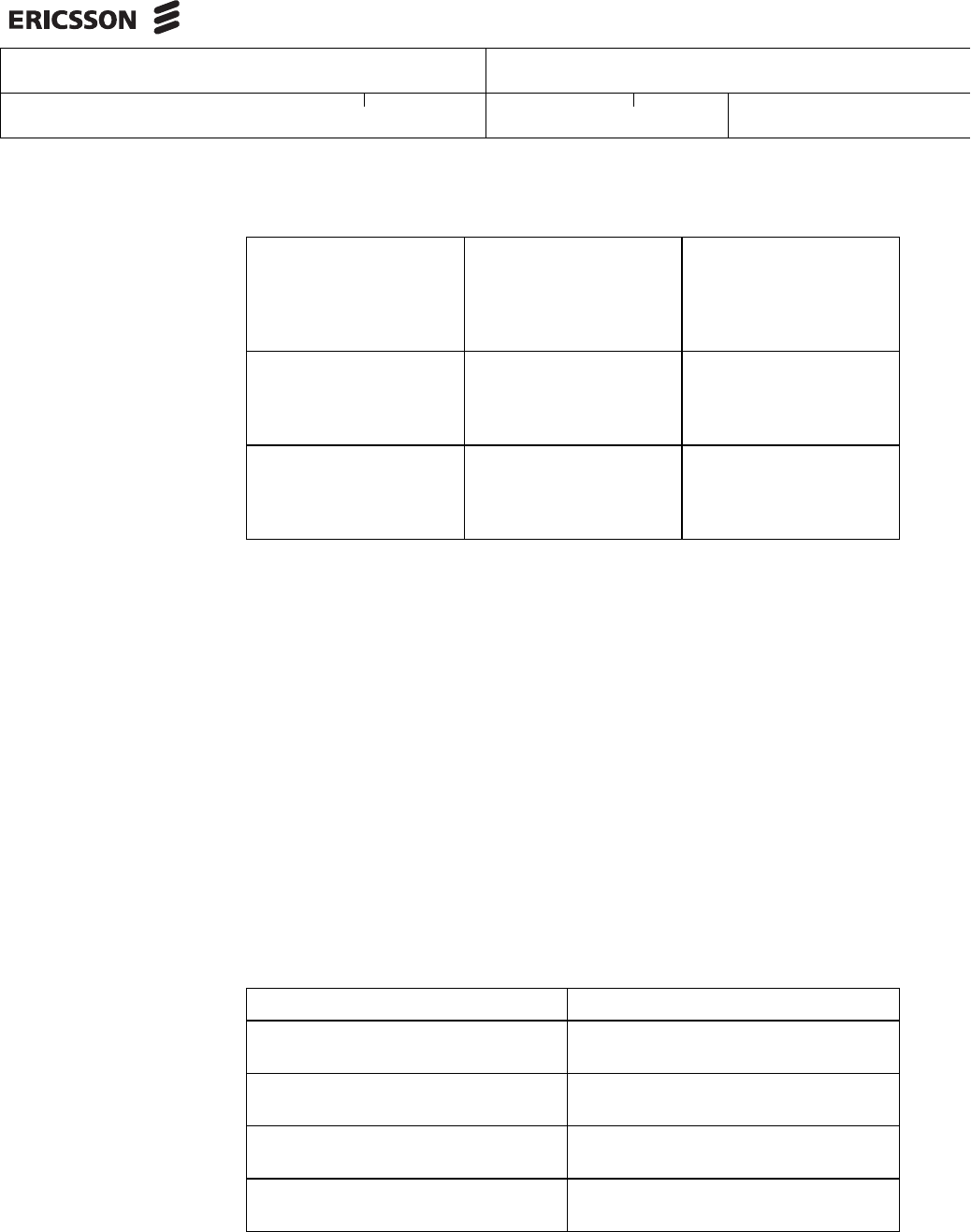
Below are the parameters inputs to be filled in if any dualstack HOT template
has been chosen for VNF-LCM deployment
Table 4
Parameter Description Default Value
external_ipv4_subnet_
gateway
Gateway address of
IPv4 subnet of external
network

Ericsson Internal
VNF-LCM INSTALLATION INSTRUCTIONS 18 (46)
XFAYAHA FAYAZ AHAMMAD 1/153 72-APR 901 0578 Uen
Raghavendra Rao Tadepalli ERAGTAD 2017-11-30 U
Prepared (Subject resp) No.
Approved (Document resp) Checked Date Rev Reference
external_ipv4_subnet_
cidr
Network size of IPv4
subnet for external
connectivity
external_ipv4_for_serv
ices_vm
An IPv4 address
from above CIDR for
vnflaf-services VM
external_ipv4_for_db_v
m
An IPv4 address
from above CIDR for
vnflaf-db VM
external_ipv6_subnet_
cidr
Network size of IPv6
subnet for external
connectivity
external_ipv6_subnet_
gateway
Gateway address of
IPv6 subnet of external
network
external_ipv6_for_serv
ices_vm
An IPv6 address
from above CIDR for
vnflaf-services VM
external_ipv6_for_db_v
m
An IPv6 address
from above CIDR for
vnflaf-services VM
internal_ipv4_subnet_c
idr
Any Class-B IPv4
address range of
IPv4 subnet for
internal network to
be created. Example -
172.16.100.0/28
internal_ipv4_subnet_g
ateway
Internal IPv4 subnet
gateway address for
internal netwrok to be
created . Example -
172.16.100.1
internal_ipv4_for_db_v
m
Internal IPv4 address
for the vnflaf-db VM.
Example - 172.16.100.2
internal_ipv4_for_servic
es_vm
Internal IPv4 address for
the vnflaf-services VM.
Example - 172.16.100.3
internal_ipv6_subnet_c
idr
IP address range of
Ipv6 subnet for internal
network to be created.
Example - fd5b:1fd5:82
95:5339::/64
Ericsson Internal
VNF-LCM INSTALLATION INSTRUCTIONS 19 (46)
XFAYAHA FAYAZ AHAMMAD 1/153 72-APR 901 0578 Uen
Raghavendra Rao Tadepalli ERAGTAD 2017-11-30 U
Prepared (Subject resp) No.
Approved (Document resp) Checked Date Rev Reference
internal_ipv6_subnet_g
ateway
Internal IPv6 subnet
gateway address for
internal netwrok to be
created . Example -
fd5b:1fd5:8295:5339::1
internal_ipv6_for_db_v
m
Internal IPv6 address
for the vnflaf-db
VM. Example -
fd5b:1fd5:8295:5339::5
internal_ipv6_for_servic
es_vm
Internal IPv6 address
for the vnflaf-services
VM. Example -
fd5b:1fd5:8295:5339::6
7.8 Update Environment files
7.8.1 Update Environment files
Context Description:
Learn how to update environment file of VNF-LCM
Prerequisites:
A file editor and ECM parameters input
Expected Result:
Edited the corresponding environment file for the package uploaded and ready
to use.
Steps:
Info: Below table lists the mapping environment file for the HOT package
Table 5
VNF-LCM HOT Package File Name Environment file Name
vnflcm-ecm-heat-template-static-ci
nder.yaml
vnflcm-ecm-heat-template-static-cin
der-env.yaml
vnflcm-ecm-heat-template-static-nfs
.yaml
vnflcm-ecm-heat-template-static-nfs
-env.yaml
vnflcm-ecm-heat-template-dualstack
-static-cinder.yaml
vnflcm-ecm-heat-template-dualstack-
static-cinder-env.yaml
vnflcm-ecm-heat-template-dualstac
k-static-nfs.yaml
vnflcm-ecm-heat-template-dualstack-
static-nfs-env.yaml
Steps:
• Open selected environment file in any text editor

Ericsson Internal
VNF-LCM INSTALLATION INSTRUCTIONS 20 (46)
XFAYAHA FAYAZ AHAMMAD 1/153 72-APR 901 0578 Uen
Raghavendra Rao Tadepalli ERAGTAD 2017-11-30 U
Prepared (Subject resp) No.
Approved (Document resp) Checked Date Rev Reference
• Update inputs for all the parameters at the right hand side of parameter
entry. That is after :
Syntax: <Parameter Name>: <Update your input here>
Example:
dbImage: ERICrhelpostgresimage_CXP9032491-2.3.3
Note: It is mandatory to provide values for all the parameters.
• Save the updated file.
8 Deploy VNF-LCM vAPP in ECM
Note: Refer to section Deploy VNF-LCM Stack in CEE if VNF-LCM
deployment is planned using CEE Atlas Dashboard
8.1 Procedure Overview
Context Description:
Learn how to deploy the VNF-LCM vApp in ECM
Prerequisites:
A Tenant and a Tenant User users have to be created in ECM with required
privileges to create the VNFs and the VNF-LCM instance itself.
Environment file ready with all the inputs for vApp
Expected Result :
Succesfully deployed VNF-LCM vApp in ECM
8.2 Steps
1. Login to ECM17.0 UI
2. Select Resources menu and click on Packages . The Package List page
displays
3. Select the VNF-LCM HOT package uploaded to create the VAPP. The
Package Detail page displays
4. Click Deploy in the action bar.
– The Asset Type is already set to Virtual Application.
– The Offer Source is already set to Package Offer.
5. Select the created or planned VDC Name from the drop-down
6. Click Next.
7. Click the package offer to use for your VAPP, and click Next

Ericsson Internal
VNF-LCM INSTALLATION INSTRUCTIONS 21 (46)
XFAYAHA FAYAZ AHAMMAD 1/153 72-APR 901 0578 Uen
Raghavendra Rao Tadepalli ERAGTAD 2017-11-30 U
Prepared (Subject resp) No.
Approved (Document resp) Checked Date Rev Reference
8. The Manage Characteristics is displayed, Click Next
9. Select the VIM zone where you want to deploy the offer
10. Click Next
11. Enter a unique name for the VAPP and any optional attributes on the
Basic Information tab.
12. Click the Configuration tab.
13. In Configuration Files section Click on Add More Files of action bar.
The file browser opens.
14. Select the file cloud-init-db and click open
15. In Configuration Files section Click on Add More Files of action bar.
The file browser opens.
16. Select the file cloud-init-services and click open
17. In Environment Files section Click on Add More Files of action bar.
The file browser opens.
18. Select the environment file updated with parameter inputs and click open
19. Click Submit Order
Monitor the status of submitted order in orders tab, wait until it is completed. A
successfully completed order will show the Virtual Application status as Active
in Virtual Application tab in the VDC. Once the VAPP is in active state VM
will take about 10 to 15 minutes to make the VNF-LCM framework ready with
initial configuration.
9 Preparations for Deployment in CEE or Openstack
Note: Skip this section if VNF-LCM deployment is planned in ECM
To deploy VNF-LCM resources in CEE or Openstack, download the required
Media, upload correspondent QCOW images and Heat Templates using Atlas
or Openstack dashboard as follows
9.1 Download VNF-LCM Media
Context Description:
Download the required media to deploy in Atlas or Openstack
Prerequisites:
Ericsson Internal
VNF-LCM INSTALLATION INSTRUCTIONS 22 (46)
XFAYAHA FAYAZ AHAMMAD 1/153 72-APR 901 0578 Uen
Raghavendra Rao Tadepalli ERAGTAD 2017-11-30 U
Prepared (Subject resp) No.
Approved (Document resp) Checked Date Rev Reference
• Access to http://gask2web.ericsson.se
• FTP server to download the media. Ideal server for this purpose is MWS
server of OSS-RC
• At least free space of 3 GB available in FTP server
Expected Result:
VNF-LCM media content extracted and ready to be used for deployment
Steps:
1. Download the Latest VNF-LCM Virtual Deployment Media Package from
http://gask2web.ericsson.se, using Product number 1/19090-CXP9029683
The downloaded package name will be similar to 1_19090-CXP9029683
_Ux_<Rev>.tar
2. Extract the VNF-LCM Media to get the files for the installation
#tar -xvf 1_19090-CXP9029683_Ux_<Rev>.tar
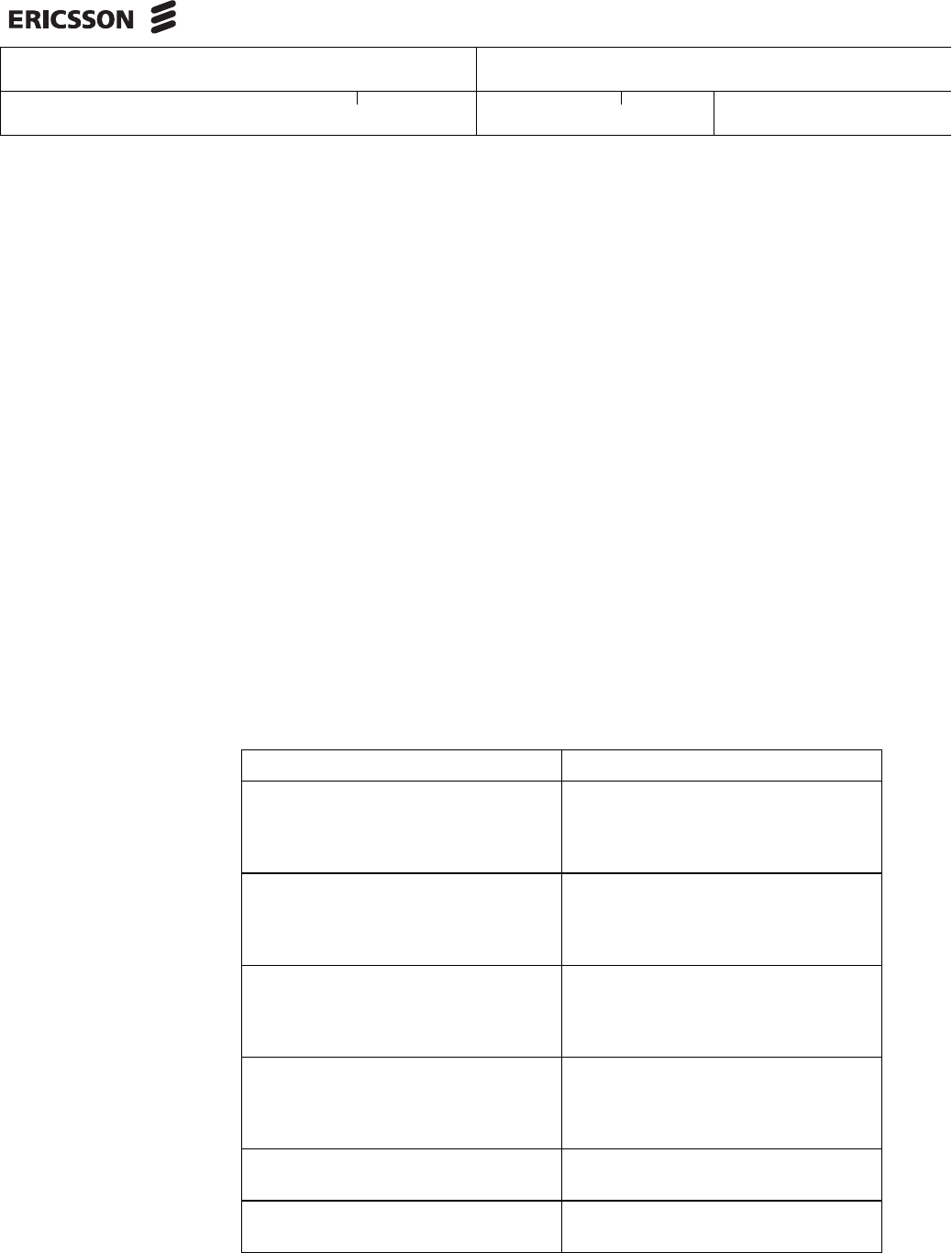
The installation instructions uses the extracted files described in the
following table.
Table 6
Filename Description
vnflaf-heat-template-static-cinder.ya
ml
Atlas/Openstack heat template file
, contains definitions of VNF Virtual
Application resources.
Storage type is Cinder.
vnflaf-heat-template-static-nfs.yaml Atlas/Openstack heat template file
, contains definitions of VNF Virtual
Application resources.
Storage type is NFS.
vnflaf-heat-template-dualstack-stati
c-cinder.yaml
Atlas/Openstack dualstack heat
template file , contains definitions of
VNF Virtual Application resources.
Storage type is Cinder.
vnflaf-heat-template-dualstack-stati
c-nfs.yaml
Atlas/Openstack dualstack heat
template file , contains definitions of
VNF Virtual Application resources.
Storage type is NFS.
ERICrhelvnflafimage_CXP9032490-
<Version>.qcow2
The Virtual Machine (VM) image for
VNF-LCM-services.
ERICrhelpostgresimage_CXP90324
91-<Version>.qcow2
The Virtual Machine (VM) image for
VNF-LCM-db.

Ericsson Internal
VNF-LCM INSTALLATION INSTRUCTIONS 23 (46)
XFAYAHA FAYAZ AHAMMAD 1/153 72-APR 901 0578 Uen
Raghavendra Rao Tadepalli ERAGTAD 2017-11-30 U
Prepared (Subject resp) No.
Approved (Document resp) Checked Date Rev Reference
9.2 Upload QCOW Images to Atlas or Openstack
Context Description:
Learn how to upload the QCOW images extracted from VNF-LCM media to
Atlas or Openstack Dashboard
Prerequisites:
Tenant and Tenant User roles
Expected Result:
The uploaded image is listed and in an Active state on the Images page of
Atlas or Openstack Dashboard
Steps:
1. Log on to the Atlas/Openstack dashboard.
2. Select a project.
3. Click on Images.
4. Click on Create Image button as shown in below screenshot.
5. Enter the Name, description(optional), Image source, Format as
shown in the below screenshot. Leave all the other fields as they are in
the screenshot.
Select Image source as Image File. Browse and open the
ERICrhelvnflafimage_CXP9032490-<Version>.qcow2 image extracted in
section
6. Click on Create Image to upload the image
Wait until Image is uploaded successful, new images shall be listed in Images
table.
Repeat above steps to upload ERICrhelpostgresimage_CXP9032491-<Versi
on>.qcow2 also
9.3 Choose VNF-LCM Heat Template for Atlas or Openstack
Context Description:
Choose a VNF-LCM HOT file which meets the site requirements
Prerequisites:
VNF-LCM media extracted.
Expected Result::
VNF-LCM package for your requirements identified for deployment of VNF-LCM
Steps:
Ericsson Internal
VNF-LCM INSTALLATION INSTRUCTIONS 24 (46)
XFAYAHA FAYAZ AHAMMAD 1/153 72-APR 901 0578 Uen
Raghavendra Rao Tadepalli ERAGTAD 2017-11-30 U
Prepared (Subject resp) No.
Approved (Document resp) Checked Date Rev Reference
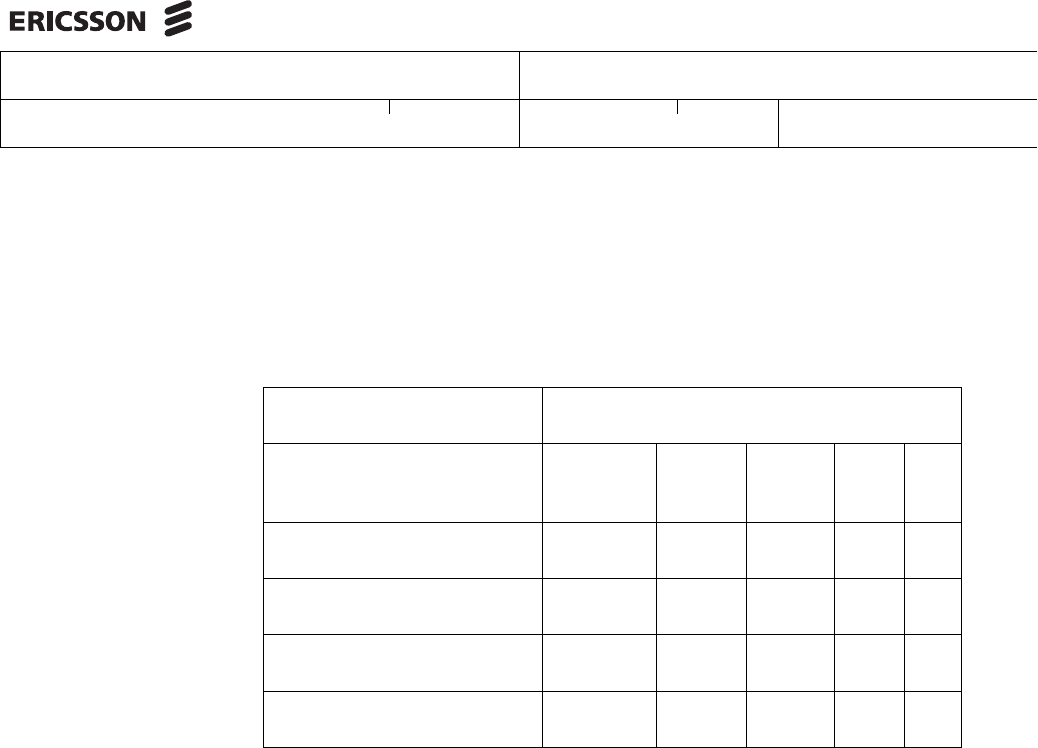
At this point it is needed to select a HOT file according to the pre-requisites
met with your environment. Refer below table to decide upon package to be
uploaded to Atlas or Openstack.
Table 7
VNF-LCM HOT Package
File Name Meets Requirements
External
Network
Internal
Netwo
rk
Fixed
IP for
VM(s)
Cind
er
NFS
vnflaf-heat-template-static-c
inder.yaml
IPv4 IPv4 yes yes no
vnflaf-heat-template-static-nf
s.yaml
IPv4 IPv4 yes no yes
vnflaf-heat-template-dualstac
k-static-cinder.yaml
Dual IPv6 yes yes no
vnflaf-heat-template-dualstac
k-static-nfs.yaml
Dual IPv6 yes no yes
9.4 Create Cinder Volume
Context Description:
Create Cinder Volume in Atlas or Horizon UI
Prerequisites:
Tenant and Tenant User roles.
Available volume capacity 120 GB or more in target cloud environment
Expected Result :
Cinder volume created, its resource ID collected and active for VNF-LCM to
use it
Steps:
1. Log on to Atlas Dashboard or Horizon Dashboard with Tenant User
credentials.
2. Navigate to Project view
3. Click the option Volumes from Compute category on the left panel.
4. On tab Volumes, click button Create Volume.
5. On the Create Volume popup, fill in Volume Name, Description, and
Volume Source as "No source Empty Volume". Fill in Type, Size and
Availability Zone, and click on button Create Volume.

Ericsson Internal
VNF-LCM INSTALLATION INSTRUCTIONS 25 (46)
XFAYAHA FAYAZ AHAMMAD 1/153 72-APR 901 0578 Uen
Raghavendra Rao Tadepalli ERAGTAD 2017-11-30 U
Prepared (Subject resp) No.
Approved (Document resp) Checked Date Rev Reference
9.5 Parameters Table for CEE or Openstack
Collect inputs for all the parameters listed in below Table
9.5.1 Parameters
Table 8
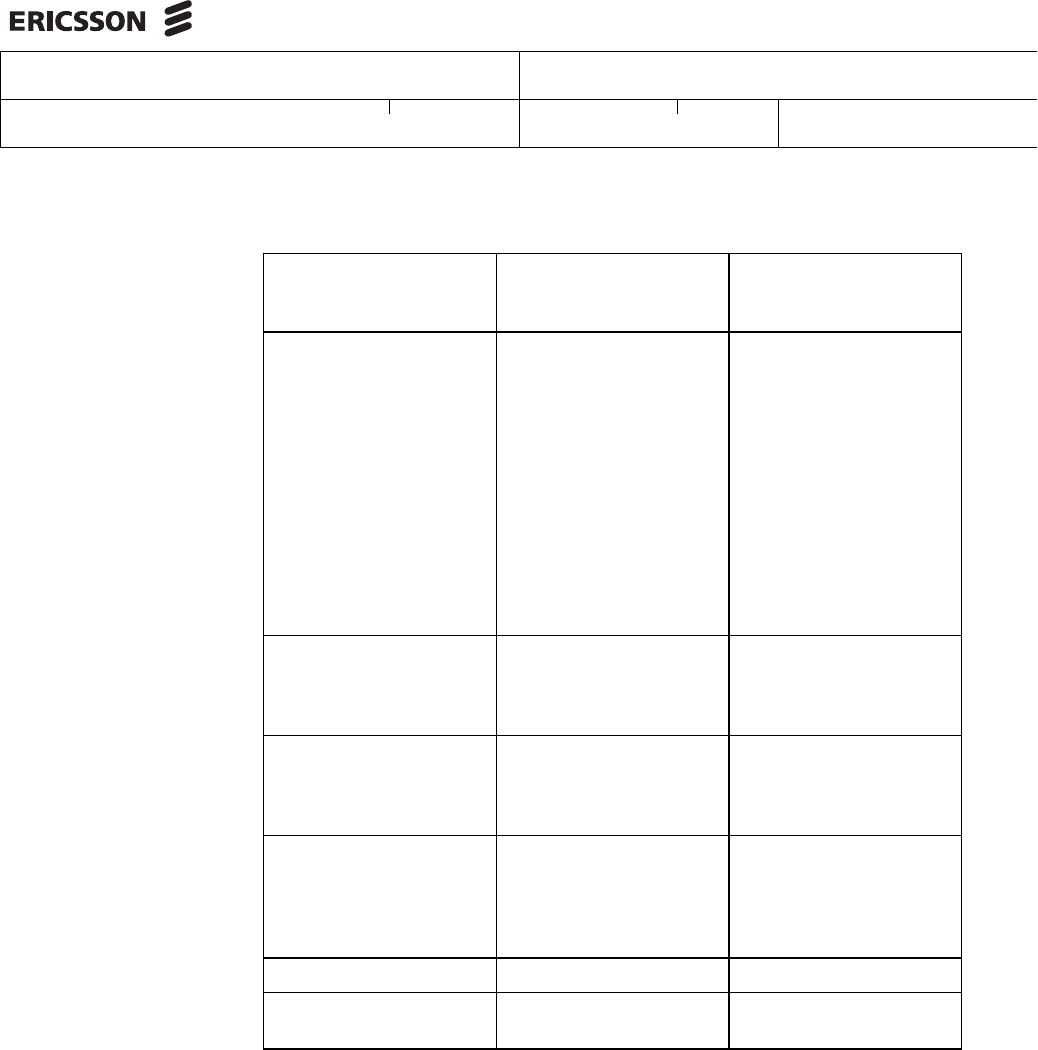
Parameter Description Default Value
Services_vm_HostNam
e
Custom hostname for
vnflaf-services VM
vnflaf-services
servicesImage Name of VNF-L
CM-services VM
image uploaded
ERICrhelvnflafimage_C
XP9032490-<Version>
to VIM dashboard.
ERICrhelvnflafimage_C
XP9032490-<Version>
services_flavor Flavor to use for
VNF-LCM-services
VM.
DB_vm_HostName Custom hostname for
vnflaf-db VM
vnflaf-db
dbImage Name of VNF-LCM-db
VM image uploaded
ERICrhelpostgresimage
_CXP9032491-<Versio
n> to VIM dashboard.
ERICrhelpostgresimag
e_CXP9032491-<Versi
on>
db_flavor Flavor to use for
VNF-LCM-db VM.
storageType For the 'Backup and
Restore' feature
VNF-LCM needs
external storage.
Possible values: Cinder
or NFS
cinder_volume_id Resource ID of
pre-created Cinder
Volume/Block storage
Ignore this if storage
type is NFS
23554cad-f3bb-4dbe-8
483-d15757763f80

Ericsson Internal
VNF-LCM INSTALLATION INSTRUCTIONS 26 (46)
XFAYAHA FAYAZ AHAMMAD 1/153 72-APR 901 0578 Uen
Raghavendra Rao Tadepalli ERAGTAD 2017-11-30 U
Prepared (Subject resp) No.
Approved (Document resp) Checked Date Rev Reference
nfsServerIp IP address of NFS
server where a folder
was pre-created as part
of section “NFS Server
Configuration”
Ignore this if Storage
Type is Cinder
sharedFilesystemPath Path of files system
shared from above NFS
server
ip_version IP Version of external
subnet.
Allowed values -
4/6/Dual
Possible Input1: 4-
If external network's
subnet is of IPv4 only
Possible Input2: 6-If
external network has
got subnet of IPv6 only
Possible Input3: Dual -
If external network has
got subnets of IPv6 and
IPv4
4
external_net_id Resource Id of Pre
created external
network.
If not exists, create it
now.
3ccb890a-b4ce-475c-a
c48-507d5066f2fb
externalSubnetCidr IP address range of
IPv4 or IPv6 subnet of
above external network.
If not existing create
it now and make the
subnet externally
routed towards
OSSRC. Example -
131.160.162.0/24
external_subnet_gatew
ay
Gateway address of
above subnet
external_ip_for_service
s_vm
An IP address from
above subnet for
vnflaf-services VM
Ericsson Internal
VNF-LCM INSTALLATION INSTRUCTIONS 27 (46)
XFAYAHA FAYAZ AHAMMAD 1/153 72-APR 901 0578 Uen
Raghavendra Rao Tadepalli ERAGTAD 2017-11-30 U
Prepared (Subject resp) No.
Approved (Document resp) Checked Date Rev Reference
external_ip_for_db_vm An IP address from
above subnet for
vnflaf-db VM
internalSubnetCidr Provide a network size
in CIDR notation for
VNF-LCM Hot template
to create a subnet
Input IPv4 CIDR if
ip_version is 4
Input IPv6 CIDR if
ip_version is 6
Input IPv6 CIDR if
ip_version is Dual
172.16.100.0/28
internal_subnet_gatew
ay
Gateway address for
internal subnet for
VNF-LCM HOt template
to create
internal_ip_for_db_vm IP address for vnflaf-db
VM from network
internalSubnetCidr
for intra communication
internal_ip_for_service
s_vm
IP address for
vnflaf-services
VM from network
internalSubnetCidr
for intra communication
ossType Allowed input: OSSRC
ossMasterHostName Host name of the Live
master server of RC
masterservice

Ericsson Internal
VNF-LCM INSTALLATION INSTRUCTIONS 28 (46)
XFAYAHA FAYAZ AHAMMAD 1/153 72-APR 901 0578 Uen
Raghavendra Rao Tadepalli ERAGTAD 2017-11-30 U
Prepared (Subject resp) No.
Approved (Document resp) Checked Date Rev Reference
ossMasterHostIP IP address of above
OSS master server.
Make sure this IP
is accessible to
network which is
provided for parameter
externalSubnetCidr
Input IPv4 if ip_version
is 4
Input IPv6 if ip_version
is 6
Input IPV4 or IPv6 if
ip_version is Dual
ossNotificationServiceI
P
IP address of the Host
where notification
service of OSS
is running. Refer
parameter table in
Installation Guide to
find the description.
Example - 10.140.23.40
ossNotificationServiceH
ost
Host name of
the Host where
notification service
of OSS is running.
Refer parameter
table in Installation
Guide to find the
description. Example -
notificationservice
notificationservice
ossUserName Authorized user for
VNF-LCM to transfer
ARNE files to OSS
master
Example: nmsadm

Ericsson Internal
VNF-LCM INSTALLATION INSTRUCTIONS 29 (46)
XFAYAHA FAYAZ AHAMMAD 1/153 72-APR 901 0578 Uen
Raghavendra Rao Tadepalli ERAGTAD 2017-11-30 U
Prepared (Subject resp) No.
Approved (Document resp) Checked Date Rev Reference
ossGatewayHost1 OSS setup primary UAS
host IP address
This host will be the
gateway host for
launching VNF-LCM
UI using OEX launcher
Input IPv4 if ip_version
is 4
Input IPv6 if ip_version
is 6
Input IPV4 or IPv6 if
ip_version is Dual
ossGatewayHost2 OSS setup secondary
UAS host IP address.
If secondary host does
not exist please input Ip
address of primary UAS
host itself
This host will be the
gateway host for
launching VNF-LCM
UI using OEX launcher
Input IPv4 if ip_version
is 4
Input IPv6 if ip_version
is 6
Input IPV4 or IPv6 if
ip_version is Dual
Below are the parameters inputs to be filled in if any dualstack HOT template
has been chosen for VNF-LCM deployment
Table 9
Parameter Description Default Value
external_ipv4_subnet_
gateway
Gateway address of
IPv4 subnet of external
network

Ericsson Internal
VNF-LCM INSTALLATION INSTRUCTIONS 30 (46)
XFAYAHA FAYAZ AHAMMAD 1/153 72-APR 901 0578 Uen
Raghavendra Rao Tadepalli ERAGTAD 2017-11-30 U
Prepared (Subject resp) No.
Approved (Document resp) Checked Date Rev Reference
external_ipv4_subnet_
cidr
Network size of IPv4
subnet for external
connectivity
external_ipv4_for_serv
ices_vm
An IPv4 address
from above CIDR for
vnflaf-services VM
external_ipv4_for_db_v
m
An IPv4 address
from above CIDR for
vnflaf-db VM
external_ipv6_subnet_
cidr
Network size of IPv6
subnet for external
connectivity
external_ipv6_subnet_
gateway
Gateway address of
IPv6 subnet of external
network
external_ipv6_for_serv
ices_vm
An IPv6 address
from above CIDR for
vnflaf-services VM
external_ipv6_for_db_v
m
An IPv6 address
from above CIDR for
vnflaf-services VM
internal_ipv4_subnet_c
idr
Any Class-B IPv4
address range of
IPv4 subnet for
internal network to
be created. Example -
172.16.100.0/28
internal_ipv4_subnet_g
ateway
Internal IPv4 subnet
gateway address for
internal netwrok to be
created . Example -
172.16.100.1
internal_ipv4_for_db_v
m
Internal IPv4 address
for the vnflaf-db VM.
Example - 172.16.100.2
internal_ipv4_for_servic
es_vm
Internal IPv4 address for
the vnflaf-services VM.
Example - 172.16.100.3
internal_ipv6_subnet_c
idr
IP address range of
Ipv6 subnet for internal
network to be created.
Example - fd5b:1fd5:82
95:5339::/64
Ericsson Internal
VNF-LCM INSTALLATION INSTRUCTIONS 31 (46)
XFAYAHA FAYAZ AHAMMAD 1/153 72-APR 901 0578 Uen
Raghavendra Rao Tadepalli ERAGTAD 2017-11-30 U
Prepared (Subject resp) No.
Approved (Document resp) Checked Date Rev Reference
internal_ipv6_subnet_g
ateway
Internal IPv6 subnet
gateway address for
internal netwrok to be
created . Example -
fd5b:1fd5:8295:5339::1
internal_ipv6_for_db_v
m
Internal IPv6 address
for the vnflaf-db
VM. Example -
fd5b:1fd5:8295:5339::5
internal_ipv6_for_servic
es_vm
Internal IPv6 address
for the vnflaf-services
VM. Example -
fd5b:1fd5:8295:5339::6
10 Deploy VNF-LCM in CEE or Openstack
10.1 Procedure Overview
Note: Refer to section Deploy VNF-LCM Stack in ECM if VNF-LCM
deployment is planned using ECM
Context Description:
Learn how to deploy the VNF-LCM stack in Atlas or Openstack
Prerequisites:
A Tenant and a Tenant User users have to be created in Atlas or Openstack
with required privileges to create the VNFs and the VNF-LCM instance itself.
A Virtual Network(VN) with an IPv4 or IPv6 or both subnets which can connect
to oss-rc physical servers
All inputs listed in parameters table collected and ready to use
Expected Result :
Successfully deployed VNF-LCM stack in Atlas or Openstack
10.2 Procedure Steps
1. Log on to the Atlas/Openstack dashboard.
2. Select a project.
3. Click Stacks category.
4. Click on Launch Stack button.
5. Choose Template Source as File. Then browse a heat template which is
chosen as per site requirements in preparations section and click Open.
Ericsson Internal
VNF-LCM INSTALLATION INSTRUCTIONS 32 (46)
XFAYAHA FAYAZ AHAMMAD 1/153 72-APR 901 0578 Uen
Raghavendra Rao Tadepalli ERAGTAD 2017-11-30 U
Prepared (Subject resp) No.
Approved (Document resp) Checked Date Rev Reference
6. Click on Next button.
7. Enter a Name for Stack. Provide values for the input parameters .
8. After inputting values for all the parameters, click on Launch button.
Wait until Stack creation is completed. A successfully completed order will
show the Stack status as Create Complete .
Post the status Create Complete of stack, VNF-LCM takes about 10 to 15
minutes to configure VM with all provided inputs
11 Preparations for deployment in VCD
Follow the preparations described in this section before deploying the
VNF-LCM software.
11.1 Media Requirements
Context Description:
Download the Latest VNF-LCM package for VCD.
Prerequisites:
1.Access to Software Gateway.
2.Atleast 3GB free space needed for downloading the package
Expected Result:
Package should be downloaded and ready for deployment
Steps:
i. Download the Latest VNF-LCM package from http://gask2web.ericsson.se
using Product number 19090-CXP9033935.
Table 10 VNF-LCM Virtual Deployment Media Package.
Software Package Filename
VNF-LCM Virtual Deployment Media
Package for VCD8.10.
19090-CXP9033935_Ux_<Revision
>.tar
The VNF-LCM Virtual Deployment Media Package contains the files listed in
Table 2.
Ericsson Internal
VNF-LCM INSTALLATION INSTRUCTIONS 33 (46)
XFAYAHA FAYAZ AHAMMAD 1/153 72-APR 901 0578 Uen
Raghavendra Rao Tadepalli ERAGTAD 2017-11-30 U
Prepared (Subject resp) No.
Approved (Document resp) Checked Date Rev Reference
ii. Extract the downloaded media file.
Use below command, if you are extracting the media in Unix file system.
$tar -xvf 19090-CXP9033935_Ux_<Revision>.tar.
Table 11 Content of VNF-LCM Virtual Deployment Media Package
19090-CXP9033935_Ux_<Revision>.tar.
Filename Description
vnflaf_2vm_vcd.ovf Open Virtualization Format (OVF)
file, contains metadata of VNF Virtual
Application. Storage type is BSV
ERICrhelvnflafimage_CXP9032490
-<Version>.vmdk
The Virtual Machine (VM) image for
vnflaf-services.
ERICrhelpostgresimage_CXP90324
91-<Version>.vmdk
The Virtual Machine (VM) image for
vnflaf-db.
12 Deploy VNF-LCM in VCD environment
The following sections describe how to deploy the VNF-LCM in the VCD8.10.
The deployment procedure can differ for other VCD versions.
12.1 Pre-install
Context Description:
Identification of Datacentres and Virtual Network.
Prerequisites:
Credentials for VCD with system administrator rights.
Expected Result:
User should be able to identify the Datacenters and Virtual Network for
deployment.
Steps:
1. Login to VCD using Firefox web browser with your credentials.
Note: Login as "sys-admin" user type for getting access to all the
features.
2. Identify existing Datacenter for VNF-LCM in VCD 8.10 Environment by
following the steps.

Ericsson Internal
VNF-LCM INSTALLATION INSTRUCTIONS 34 (46)
XFAYAHA FAYAZ AHAMMAD 1/153 72-APR 901 0578 Uen
Raghavendra Rao Tadepalli ERAGTAD 2017-11-30 U
Prepared (Subject resp) No.
Approved (Document resp) Checked Date Rev Reference
a) Click on "Manage & Monitor" in the System tab.
b) Click on "Organizations" option. This will display the available
Organizations.
c) Double click on the specific Organization.
d) Click on the "Administration".
e) Click on "Virtual Datacenters" on the left panel. The window that opens
will display all the existing Virtual Datacenters.
3. Identify existing Virtual network for VNF-LCM by following the steps
a) Click on "Manage & Monitor" in the System tab.
b) Click on "Organizations" option. This will display the available
Organizations.
c) Double click on the specific Organization.
d) Click on Administration.
e) Click on "Virtual Datacenters" on the left panel.
f) Double click on the specific VDC.
g) Select "Org VDC Networks" tab. which will display all your Networks.
Note: This network needs to be available in the same datacenter where
VNF-LCM is planned to be deployed. This network will be used for
external connectivity to clients and vice versa.
12.2 Upload VNF-LCM OVA to Packages in VCD
You can use either of the two below methods to upload your OVA into VCD,
whichever is preferred:
Context Description:
For uploading the OVA to VCD for deployment.
Prerequisites:
Credentials for VCD with system administrator rights.
Expected Result:
VApp template must be present in the specified catalog.
Steps:

Ericsson Internal
VNF-LCM INSTALLATION INSTRUCTIONS 35 (46)
XFAYAHA FAYAZ AHAMMAD 1/153 72-APR 901 0578 Uen
Raghavendra Rao Tadepalli ERAGTAD 2017-11-30 U
Prepared (Subject resp) No.
Approved (Document resp) Checked Date Rev Reference
1. Using VCD dashboard.
a) Click on "Manage & Monitor" in the System tab.
b) Click on "Organizations" option. This will display the available
Organizations.
c) Double click on the specific Organization.
d) Click on "Catalog" button.
e) Select "My Organization's Catalog" from the left panel.
f) Click on PLUS symbol in the Catalog section to add a new Catalog
providing required details
g) Once the Catalog has been created, Double click on the specific Catalog.
h) Click on the UPLOAD icon available in the "VApp Templates" section
and Upload your OVF package as VApp Template and click "Upload".
2. Use the ovftool command line utility (see VMWare documentation of the
tool).
Example 1
<path>/ovftool.exe --allowExtraConfig --acceptAllEulas
"c:\<full path to .ova>" "vcloud://<user>:<password>@<host>?
org=<org>&vappTemplate=<template>&catalog=<catalog>&vdc=<vdc>"
<user> : A vCD user with system administrator rights
in organization.
<password> : Password of user defined.
<host> : Hostname of vCD server.
<org> : Organization used.
<catalog> : Name of template created in Catalog.
<vdc> : Organization VDC.
After completion the template should be available
in Catalog defined in vCD.
12.3 Deploy the VNF-LCM OVF package using the VCD GUI
Context Description:
Steps to create a VNF-LCM Virtual Application using the uploaded OVF
package.
Prerequisites:

Ericsson Internal
VNF-LCM INSTALLATION INSTRUCTIONS 36 (46)
XFAYAHA FAYAZ AHAMMAD 1/153 72-APR 901 0578 Uen
Raghavendra Rao Tadepalli ERAGTAD 2017-11-30 U
Prepared (Subject resp) No.
Approved (Document resp) Checked Date Rev Reference
1.Credentials for VCD with system administrator rights.
2.VApp template must be present in the Catalog.
Expected Result:
VApp should be deployed.
Steps:
1. Deploying an OVA to in VCD.
a) Click on "Manage & Monitor" in the System tab.
b) Click on "Organizations" option. This will display th available
Organizations.
c) Double click on the specific Organization.
d) Click on "My Cloud".
e) Select "vApps" from the left panel.
f) Click on the PLUS icon to add vApp from your Catalog
Note: You have to provide your vApps details in the opening window.
The first Tab is to select your vApp template.
g) Select "My Organization's Catalogs" from the drop down list for "Look in"
and click on "All Templates".
h) Select your preferred Template from the available list or obtain our
Template using the dynamic search option. Then click "Next".
i) Give Name and Description for your vApp.
j) Select the Virtual Datacenter for your vApp from the drop down list of
available Virtual Datacenters. And click "Next".
k) Select the Storage Policy for the VMs that your going to create using the
Template and click "Next".
l) Select the Networks to which each of your VMs need to be get connected.
Available Network will be shown in the Drop down list. And click "Next".
m) This window reflects the details of your No of CPUs, Memory and Hard
disk space needed for the VMs. leave the default values as it is And click
"Next".
n) Review all your details that has been provided for your vApp and leave
the Checkbox " Power on vAPP after this wizard finished " unchecked
as it is And click "Finish".
Ericsson Internal
VNF-LCM INSTALLATION INSTRUCTIONS 37 (46)
XFAYAHA FAYAZ AHAMMAD 1/153 72-APR 901 0578 Uen
Raghavendra Rao Tadepalli ERAGTAD 2017-11-30 U
Prepared (Subject resp) No.
Approved (Document resp) Checked Date Rev Reference
2. Modifying the configuration of the VMs.
a) Double click on the deployed vApp.
b) Click on "Virtual Machines".
c) Right click on the VM which is need to be configured.
d) Select "Properties".
e) You can modify your different configurations for the VM in the window
opened (IP address, Disk space etc.).
Description Default Value
IP Version of Network subnets. Allowed valu
es - v4 or v6
4
IP address range of IPv4/Ipv6 subnet of exte
rnal network. Example - 10.148.14.0/25 or
2001:1b70:6207:2b::/64
Gateway of IPv4/Ipv6 subnet of external netw
ork. Example - 10.148.14.1 or 2001:1b70:62
07:2b:0:3522:0:1
External IPv4/IPv6 address for the vnflaf VM.
Example - 192.168.10.11 or 2001:1b70:6207
:2b::5
Any Class-B IP address range of IPv4 subnet
Or IP address range of Ipv6 subnet for intern
al network to be created. Example - 172.16.
100.0/28 or fd5b:1fd5:8295:5339::/64
Internal subnet gateway address for internal
network. Example - 172.16.100.1 or fd5b:1fd
5:8295:5339::1
Internal IPv4 or IPv6 address for the vnflaf-db
VM. Example - 172.16.100.2 or fd5b:1fd5:82
95:5339::5
Internal IPv4 or IPv6 address for the vnflaf-s
ervices VM. Example - 172.16.100.3 or fd5b
:1fd5:8295:5339::6
External storage type to be used for Backup
and Restore. Allowed values - local
local
Assign a custom host name for VNFLCM VM. vnflaf-services OR vnflaf-
db
A custom hostname to be given to VNFLCM-
services VM.
vnflaf-services
Ericsson Internal
VNF-LCM INSTALLATION INSTRUCTIONS 38 (46)
XFAYAHA FAYAZ AHAMMAD 1/153 72-APR 901 0578 Uen
Raghavendra Rao Tadepalli ERAGTAD 2017-11-30 U
Prepared (Subject resp) No.
Approved (Document resp) Checked Date Rev Reference
Internal IPv4 or IPv6 address for the vnflaf-db
VM. Example - 172.16.100.2 or fd5b:1fd5:82
95:5339::5
The custom host name assigned for VNFLC
M-db VM.
vnflaf-db
Cloud Manager type. Possible values - VCD.
This input will be used by VNFLCM to prepare
the environment to execute workflows.
VCD
IPv4/IPv6 address of Cloud Manager
Example - 141.137.212.29 or 2001:1b70:620
7:26:0:309:0:99d1
The tenant ID in Cloud Manager to be used
by VNFLCM to create the VNFs.
Example - vnf005-ossrc
The endpoint URL of the Cloud Manager
Rest Interface, Required by VNFLCM to
make REST/HTTP calls to Cloud Manager.
Example - https://vcd.vnf005.local/api
Host name of Cloud Manager.
Example - vcd.vnf005.local
The User Name in Cloud Manager to be used
by VNFLCM to create the VNFs.
Type of OSS. OSSRC
OSSRC Live Admin server host name for
VNF(s) to be connected.
Example - masterservice
OSSRC Admin server host IPv4/IPv6 for
VNF(s) to be connected.
Example - 131.160.162.195 or 2001:1b70:62
07:27:0:309:0:99d1
Authorized user of OSSRC Server for VNF
handling.
Example - vnflaf
nmsadm
Authorized user of OSSRC Server for VNF
handling.
Example - vnflaf
nmsadm

Ericsson Internal
VNF-LCM INSTALLATION INSTRUCTIONS 39 (46)
XFAYAHA FAYAZ AHAMMAD 1/153 72-APR 901 0578 Uen
Raghavendra Rao Tadepalli ERAGTAD 2017-11-30 U
Prepared (Subject resp) No.
Approved (Document resp) Checked Date Rev Reference
OSSRC UAS Host1 IPv4/IPv6 address.
Example - 192.168.0.6 or 2001:1b70:6207:2
8:0:309:0:99d1
OSSRC UAS HOST2 IPv4/IPv6 address.
Example - 192.168.0.7 or 2001:1b70:6207:2
9:0:309:0:99d1
Note: It is mandatory to provide values for all the parameters. if any
parameters are not known or not applicable, you must provide
dummy values. Particularly, don't leave the OSS fields blank.if so,
then the network setup will fail and product will not work.
Note: The input for parameter ip_version would configure VM interfaces
with selected version only. Hence make sure that below
parameters are of selected version (IPv4/IPv6):
Parameters: cloudManagerIpAddress, ossRcMasterHostIP,
ossRcUasHost1IP, ossRcUasHost2IP, nfsServerIp(if Storagetype
is NFS), internalSubnetCidr, internal_subnet_gateway, externalSu
bnetCidr, external_subnet_gateway, external_ip_for_services_vm
and external_ip_for_db_vm
3. Double Click vAPP-->Right Click vAPP Name-->Click Start and monitor
vAPP Status. It will show the status as running
13 Post Installation Verification
Context Description:
Once vnflaf-Services and vnflaf-db VMs are online, verify that all their services
are running and accessible.
Prerequisites:
Successfully deployed VNF-LCM stack or vApp
Expected Result:
VNF-LCM VMs and their services are in running state and ready to use
13.1 Set Initial Passwords
Context Description:
Update passwords for user accounts in VNF-LCM VMs
Prerequisites:
• Successfully installed VNF-LCM Stack or vApp
• Passwords of user accounts cloudManagerUser and OSSRC user

Ericsson Internal
VNF-LCM INSTALLATION INSTRUCTIONS 40 (46)
XFAYAHA FAYAZ AHAMMAD 1/153 72-APR 901 0578 Uen
Raghavendra Rao Tadepalli ERAGTAD 2017-11-30 U
Prepared (Subject resp) No.
Approved (Document resp) Checked Date Rev Reference
Expected Result:
Initial passwords for user accounts updated
Steps:
1. Log on to vnflaf-db VM as cloud-user using external IP assigned or from
VM console. For the first login use the default password passw0rd, and
when prompted input a new password
2. Log on to vnflaf-services VM as cloud-user using external IP assigned or
from VM console. For the first login use the default password passw0rd,
and when prompted input a new password
3. Successful update of cloud-user account password would logout
automatically, so log on again with updated password
4. Switch to root user with default password passw0rd
#[cloud-user@vnflaf-services ~]$ su - root
5. Due to security reasons VNF-LCM stores passwords of OSS-RC user
accounts in encrypted format. This step describes step involved to update
VNF-LCM with user account's password. Run below command to update
an OSS account password. When prompted input password of OSS user
account nmsadm
#[root@vnflaf-services ~]# vnflcm oss passwd
13.2 Verify Status of VNF-LCM Setup in vnflaf-db VM
Context Description:
Verify that all the services are running.
Prerequisites:
root user credentials
Expected Result:
The service postgresql92-postgresql is in running state
Steps:
1. Logon to vnflaf-db VM as cloud-user using the external IP assigned to
VM and run below command
#ssh cloud-user@vnflaf-db
2. Switch to root user with default password passw0rd
#[cloud-user@vnflaf-services ~]$ su - root
3. Verify status of the service:
#service postgresql92-postgresql status

Ericsson Internal
VNF-LCM INSTALLATION INSTRUCTIONS 41 (46)
XFAYAHA FAYAZ AHAMMAD 1/153 72-APR 901 0578 Uen
Raghavendra Rao Tadepalli ERAGTAD 2017-11-30 U
Prepared (Subject resp) No.
Approved (Document resp) Checked Date Rev Reference
Example:
#[root@vnflaf-db ~]service postgresql92-postgresql
status
postmaster (pid 1525) is running...
4. If the service is in stopped state activate it:
#service postgresql92-postgresql start
13.3 Verify Status of VNF-LCM Setup in vnflaf-services VM
Context Description:
Verify that all the services are running.
Prerequisites:
root user credentials
Expected Result:
The service httpd and jboss are in running state
Steps:
1. Login to VNFLAF-services VM using the public IP assigned or using VM
Console from Atlas/Openstack UI
Note: Public IP can be found in Instances page.
2. Check if httpd service is running using below command
#service httpd status
If the service is in stopped state activate it:
#service httpd start
3. Check if JBOSS service is running using below command
#service jboss status
If the service is in stopped state activate it:
#service jboss start
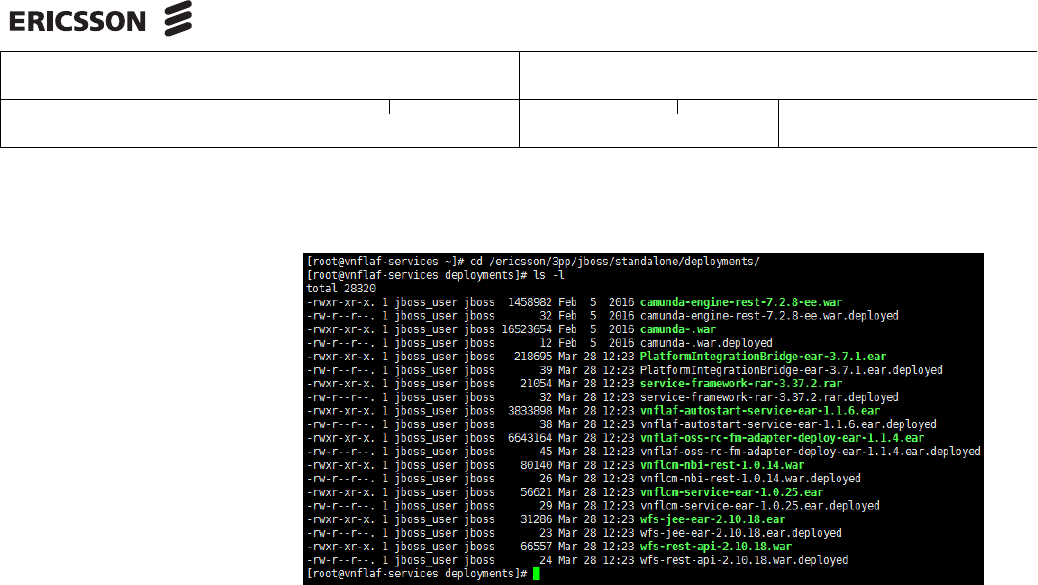
4. Navigate to deployments directory
#cd /ericsson/3pp/jboss/standalone/deployments
5. Check if all the files(.war and .ear) are deployed successfully. The directory
should contain .deployed files corresponding to each .war and .ear files as
shown in below screenshot.
Ericsson Internal
VNF-LCM INSTALLATION INSTRUCTIONS 42 (46)
XFAYAHA FAYAZ AHAMMAD 1/153 72-APR 901 0578 Uen
Raghavendra Rao Tadepalli ERAGTAD 2017-11-30 U
Prepared (Subject resp) No.
Approved (Document resp) Checked Date Rev Reference
13.4 Update VNF-LCM with Default VIM
Context Description:
Update VNF-LCM with default VIM (Virtual Infrastructure Manager) for NFV
use cases
Prerequisites:
A healthy and running VNF-LCM
Ready with supported VIM details
Expected Result:
VIM and its details updated in VNF-LCM and ready to execute NFV use cases
Steps:
Refer the section VNF-LCM CLI Admin from VNF-LCM System Admin Guide
and update default VIM.
14 Update OSS-RC with VNF-LCM
Context Description:
Configure Primary UAS host with vnflaf-services VM external IP to launch the
VNF-LCM application from OEX Launcher
Prerequisites:
A healthy and running VNF-LCM
All post-install verification steps executed successfully
OSSRC DNS server login credentials.
OMSAS OSSRCserver login credentials
Expected Result:
VNF-LCM application launch from OEX should work

Ericsson Internal
VNF-LCM INSTALLATION INSTRUCTIONS 43 (46)
XFAYAHA FAYAZ AHAMMAD 1/153 72-APR 901 0578 Uen
Raghavendra Rao Tadepalli ERAGTAD 2017-11-30 U
Prepared (Subject resp) No.
Approved (Document resp) Checked Date Rev Reference
14.1 Steps:
1. Configure VNFLAF-Services as a DNS client in OSSRC DNS server
DNS must be reconfigured before proceeding further. Refer section DNS
configuration to add clients in OSS-RC Initial Installation for
Enhanced Deployment on HP HW.
Expected output: External IP of VNFLAF-Services VM must be accessible
and resolvable as vnflafhost
Verify above activity as follows in DNS server or any OSSRC client server
#nslookup vnflafhost
2. Applying VNF-LCM software Licensing
VNF-LCM require a Sentinel license to be enabled. For details of
applications and how to install the license, refer to the License Key
Administration in OSS-RC
Note: This application will not run unless the Sentinel license is set
up. Please ensure Software supply has provided all purchased
licenses.
Verification: Availability of license can be verified on OSSRC live Admin
server as follows
Execute command: #/opt/Sentinel/bin/lsmon | egrep -i
"vnf|CXC4011979"
Expected Output:
#/opt/Sentinel/bin/lsmon | egrep -i "vnf|CXC4011979"
|- Feature name : "CXC4011979"
|- Public vendor information : VNF_Lifecycle_Automati
on_Framework_CORE_optional_feature
3. Install OSS-RC CA signed SSL certificate
VNF-LCM require an SSL certificate issued by OSS-RC CA authority.
Execute the below steps to obtain certificate and install it in VNF-LCM
• Login to vnflaf-services VM as root user and generate Certificate
Signing Request (CSR). This CSR has to be submitted to OSS-RC
CA certification authority (OMSAS). Below command will prompt for a
series of queries please input as per site's requirement
#/usr/bin/openssl req -new -sha1 -key /etc/ssl/cer
ts/vnflafhost.key -out /tmp/vnflaf-services.csr
Sample Output:
[root@vnflaf-services ~]#/usr/bin/openssl req
-new -sha1 -key /etc/ssl/certs/vnflafhost.key -out
/tmp/vnflaf-services.csr
Country Name (2 letter code) [XX]:US
State or Province Name (full name) []:State

Ericsson Internal
VNF-LCM INSTALLATION INSTRUCTIONS 44 (46)
XFAYAHA FAYAZ AHAMMAD 1/153 72-APR 901 0578 Uen
Raghavendra Rao Tadepalli ERAGTAD 2017-11-30 U
Prepared (Subject resp) No.
Approved (Document resp) Checked Date Rev Reference
Locality Name (eg, city) [Default City]:City
Organization Name (eg, company) [Default Company
Ltd]:Org Ltd
Organizational Unit Name (eg, section) []:OSS
Common Name (eg, your name or your server's
hostname) []:vnflaf-services
Email Address []:
Please enter the following 'extra' attributes
to be sent with your certificate request
A challenge password []:
An optional company name []:
• Copy the CSR file to OMSAS server of OSS-RC
#scp /tmp/vnflaf-services.csr root@<IP of OMSAS
server>:/tmp/
• Logon to OMSAS server as user caas and generate SSL certificate
#/opt/ericsson/cadm/bin/pkiAdmin cred ext_ws
generate -csr /tmp/vnflaf-services.csr -cert
/tmp/vnflaf-services.crt
• Copy the generated certificate to vnflaf-services VM as cloud-user user
#su - root
#scp /tmp/vnflaf-services.crt cloud-user@<External
IP of vnflaf-services VM>:/tmp/
• Logon to vnflaf-services VM as root user and install the new certificate
(.crt)
#cp /tmp/vnflaf-services.crt /etc/ssl/certs/vnflaf
host.crt
• Restart httpd service on vnflaf-services VM
#service httpd restart
4. Launch VNF-LCM UI home page
Note: VNF UI page is tested and verified in 31.1 and higher versions
of Firefox.
This page can be accessed from Unix Application Server (UAS) of OSS-RC
from OSS Explorer (OEX) GUI . Follow below mentioned steps.
• Launch the OEX GUI from OSS
•GotoTools

Ericsson Internal
VNF-LCM INSTALLATION INSTRUCTIONS 45 (46)
XFAYAHA FAYAZ AHAMMAD 1/153 72-APR 901 0578 Uen
Raghavendra Rao Tadepalli ERAGTAD 2017-11-30 U
Prepared (Subject resp) No.
Approved (Document resp) Checked Date Rev Reference
• Select VNF Lifecycle Manager this option will launch Firefox browser
with VNF-LCM Home page
• Successful deploy of VNF Lifecycle Manager displays No workflows
deployed on the VNF-LCM UI page
Congratulations, VNF-LCM deployment is successful

Ericsson Internal
VNF-LCM INSTALLATION INSTRUCTIONS 46 (46)
XFAYAHA FAYAZ AHAMMAD 1/153 72-APR 901 0578 Uen
Raghavendra Rao Tadepalli ERAGTAD 2017-11-30 U
Prepared (Subject resp) No.
Approved (Document resp) Checked Date Rev Reference
15 Glossary
CEE/Openstac
k
Cloud Execution Environment
CMDB Cloud Management Database
VM Virtual Machine
VNF-LCM VNF Life Cycle Manager
16 References
[1] VNF-LCM System Admin Guide, 1543-APR 901 0578, Click here
[2] OSS-RC Product Documentation, Click here
[3] ECM CPI Documentation, Click here
[4] CEE Product Documentation, Click here
[5] Atlas/Openstack CEE Documentation, Click here
[6] Atlas/Openstack CEE End Use Guide, Click here
[7] Product Documentation for Red Hat OpenStack Platform, Click here
[8] CEE Openstack Admin User Guide Click here
[9] License Key Administration in OSS-RC Click here
