SeaChange Interactive Television Software Installation And Configuration Guide VODSoftware Install&Config Guide.v01.8
User Manual:
Open the PDF directly: View PDF  .
.
Page Count: 72
- Notice
- Contents
- Figures
- Tables
- Preface
- Overview of VOD System Software Configurations
- Upgrading a VOD Site
- Installing a VOD Service
- Installing a VOD Development System
- Installing IIS
- VOD System Service Configuration Changes
- Index

SeaChange VOD System
Software Installation and Configuration Guide
SeaChange International Inc.
DOC-0059-00
Revision 10

Notice
While SeaChange believes the information included in this publication is correct as of the publication date, information in this
document is subject to change without notice.
UNLESS EXPRESSLY SET FORTH IN A WRITTEN AGREEMENT SIGNED BY AN AUTHORIZED REPRESENTATIVE OF
SEACHANGE INTERNATIONAL INC., SEACHANGE MAKES NO WARRANTY OR REPRESENTATION OF ANY KIND
WITH RESPECT TO THE INFORMATION CONTAINED HEREIN, INCLUDING WARRANTY OF MERCHANTABILITY
AND FITNESS FOR A PURPOSE. SeaChange International Inc. assumes no responsibility or obligation of any kind for any errors
contained herein or in connection with the furnishing, performance, or use of this document.
Software described in SeaChange documents (a) is the property of SeaChange International Inc. or the third party, (b) is
furnished only under license, and (c) may be copied or used only as expressly permitted under the terms of the license.
All contents of this manual are copyrighted by SeaChange International Inc. The information contained herein is the exclusive
property of SeaChange International Inc. and shall not be copied, transferred, photocopied, translated on paper, film, electronic media,
or computer-readable form, or otherwise reproduced in any way, without the express written permission of SeaChange
International Inc.
SeaChange, MediaCluster, and GuestServe are registered trademarks of SeaChange International Inc.;
SeaChange International, RAID2, GuestServe Networks, MeTIL, and VODlink are trademarks of SeaChange International Inc.
Microsoft, MS, MS-DOS, Windows, Windows NT, and SQL Server are either trademarks or registered trademarks of Microsoft
Corporation in the United States and/or other countries.
Adobe, the Adobe logo, Acrobat, and the Acrobat logo are trademarks of Adobe Systems Incorporated.
All other trademarks and registered trademarks are the property of their respective holders.
Manual Title: SeaChange VOD System Software Installation and Configuration Guide
Part Number: DOC-0059-00
Revision: 10
SeaChange VOD System Release Number: 1.8
Printing Date: October 2003
Published by SeaChange International Inc.
124 Acton St.
Maynard, MA 01754 USA
©2002-2003 by SeaChange International Inc. All rights reserved.

iii
Contents
Preface . . . . . . . . . . . . . . . . . . . . . . . . . . . . . . . . . . . . . . . . . . . . . . . . . . . . . . . . . . ix
1 Overview of VOD System Software Configurations . . . . . . . . . . . . . . . . . . . 1-1
Read Me First. . . . . . . . . . . . . . . . . . . . . . . . . . . . . . . . . . . . . . . . . . . . . . . . 1-2
SeaChange VOD System Services. . . . . . . . . . . . . . . . . . . . . . . . . . . . . . . . 1-3
VOD Command Center Configurations. . . . . . . . . . . . . . . . . . . . . . . . . . . . 1-5
Four-Cluster Command Center Configuration . . . . . . . . . . . . . . . . . 1-6
Two-Cluster Command Center Configuration . . . . . . . . . . . . . . . . 1-10
Single-Server Configuration . . . . . . . . . . . . . . . . . . . . . . . . . . . . . . 1-11
VOD Management Station Configuration. . . . . . . . . . . . . . . . . . . . 1-12
Optional VOD Services. . . . . . . . . . . . . . . . . . . . . . . . . . . . . . . . . . 1-12
Location of VOD SQL Databases. . . . . . . . . . . . . . . . . . . . . . . . . . 1-13
Understanding Command Center Server Clustering . . . . . . . . . . . . . . . . . 1-15
How Bi-Directional Failover Works. . . . . . . . . . . . . . . . . . . . . . . . 1-15
VOD MediaCluster Configurations . . . . . . . . . . . . . . . . . . . . . . . . . . . . . . 1-16
VOD Management Station Configurations . . . . . . . . . . . . . . . . . . . . . . . . 1-17
2 Upgrading a VOD Site . . . . . . . . . . . . . . . . . . . . . . . . . . . . . . . . . . . . . . . . . . . 2-1
3 Installing a VOD Service . . . . . . . . . . . . . . . . . . . . . . . . . . . . . . . . . . . . . . . . . 3-1
Gathering VOD Service Installation and Configuration Data . . . . . . . . . . . 3-2
VOD Service Installation Procedure . . . . . . . . . . . . . . . . . . . . . . . . . . . . . . 3-5

Contents
iv SeaChange VOD System Software Installation and Configuration Guide
4 Installing a VOD Development System . . . . . . . . . . . . . . . . . . . . . . . . . . . . . 4-1
What is a VOD Development System?. . . . . . . . . . . . . . . . . . . . . . . . . . . . 4-2
VOD Development System Components. . . . . . . . . . . . . . . . . . . . . 4-2
What is the NOMCA Configuration?. . . . . . . . . . . . . . . . . . . . . . . . 4-2
What is the VOD SDK? . . . . . . . . . . . . . . . . . . . . . . . . . . . . . . . . . . 4-2
Installing a VOD Development System . . . . . . . . . . . . . . . . . . . . . . . . . . . 4-3
Verifying System Requirements. . . . . . . . . . . . . . . . . . . . . . . . . . . . 4-4
Installing ActivePerl. . . . . . . . . . . . . . . . . . . . . . . . . . . . . . . . . . . . . 4-5
Modifying System Variables . . . . . . . . . . . . . . . . . . . . . . . . . . . . . . 4-5
Configuring the Windows NT Event Viewer. . . . . . . . . . . . . . . . . . 4-6
Creating the SeaChange Local User. . . . . . . . . . . . . . . . . . . . . . . . . 4-6
Installing Microsoft SQL Server 2000 . . . . . . . . . . . . . . . . . . . . . . . 4-8
Installing and Configuring VOD Software. . . . . . . . . . . . . . . . . . . 4-11
5 Installing IIS. . . . . . . . . . . . . . . . . . . . . . . . . . . . . . . . . . . . . . . . . . . . . . . . . . . 5-1
IIS Installation Overview . . . . . . . . . . . . . . . . . . . . . . . . . . . . . . . . . . . . . . 5-2
Installing IIS 4 on Windows NT 4 . . . . . . . . . . . . . . . . . . . . . . . . . . . . . . . 5-3
Configuring IIS Security. . . . . . . . . . . . . . . . . . . . . . . . . . . . . . . . . . . . . . . 5-6
IE and IIS Patches . . . . . . . . . . . . . . . . . . . . . . . . . . . . . . . . . . . . . . 5-6
IIS Lockdown. . . . . . . . . . . . . . . . . . . . . . . . . . . . . . . . . . . . . . . . . . 5-6
Installing IIS after installing SQL 2000 SP2. . . . . . . . . . . . . . . . . . . . . . . . 5-7
Appendix A. VOD System Service Configuration Changes. . . . . . . . . . . . . . . A-1
Index . . . . . . . . . . . . . . . . . . . . . . . . . . . . . . . . . . . . . . . . . . . . . . . . . . . . . . . . .Index-1

vSeaChange VOD System Software Installation and Configuration Guide
Figures
Figure 1-1: Command Center Server – View of Front Panel . . . . . . . . . . . . . . 1-5
Figure 1-2: VOD MediaCluster Server – View of Front Panel. . . . . . . . . . . . 1-16
Figure 1-3: PC-Based VOD Management Station – View of Front Panel . . . 1-17

Figures
vi SeaChange VOD System Software Installation and Configuration Guide

vii
Tables
Table 1-1: SeaChange VOD System Services. . . . . . . . . . . . . . . . . . . . . . . . . 1-3
Table 1-2: SeaChange VOD Application Services . . . . . . . . . . . . . . . . . . . . . 1-4
Table 1-3: Command Center Cluster Functions (4-Cluster Configuration) . . 1-6
Table 1-4: Master Directory Cluster Services (4-Cluster Configuration) . . . . 1-7
Table 1-5: Propagation Cluster Services (4-Cluster Configuration) . . . . . . . . 1-8
Table 1-6: Connection Manager Cluster Services (4-Cluster Configuration) . 1-8
Table 1-7: Application Cluster Services (4-Cluster Configuration) . . . . . . . . 1-9
Table 1-8: Master Directory Cluster Services (2-Cluster Configuration) . . . 1-10
Table 1-9: Connection Manager Cluster Services (2-Cluster Configuration) 1-11
Table 1-10: Services on an Management Station . . . . . . . . . . . . . . . . . . . . . . 1-12
Table 1-11: SeaChange VOD SQL Databases. . . . . . . . . . . . . . . . . . . . . . . . . 1-13
Table 1-12: Machine Locations of VOD SQL Databases . . . . . . . . . . . . . . . . 1-14
Table 3-1: Required Service Installation and Configuration Data. . . . . . . . . . 3-2
Table 4-1: System Requirements. . . . . . . . . . . . . . . . . . . . . . . . . . . . . . . . . . . 4-4
Table 4-2: SQL Installation Configuration Settings . . . . . . . . . . . . . . . . . . . . 4-9
Table 4-3: Commonly Supplied ItvSetup Arguments . . . . . . . . . . . . . . . . . . 4-11
Table 4-4: ItvSetup Utility Actions . . . . . . . . . . . . . . . . . . . . . . . . . . . . . . . . 4-13
Table 5-1: IIS Component Selections . . . . . . . . . . . . . . . . . . . . . . . . . . . . . . . 5-3

Tables
viii SeaChange VOD System Software Installation and Configuration Guide

ix
Preface
The Purpose of This Book
This book presents an overview of the SeaChange® VOD System software elements that are
installed on the VOD Command Center servers, VOD MediaCluster servers, and VOD
Management Stations configured in a VOD site.
This book also provides detailed, step-by-step instructions on how to perform the following
software installation and configuration tasks:
•Installing VOD System services
•Installing a VOD development system
•Applying release-specific VOD System service configuration changes introduced in earlier
VOD releases
NOTE
Configuration changes for all releases are located in the
version-specific release notes.
This book does not cover the initial VOD System installation and configuration procedures
performed by SeaChange manufacturing technicians prior to product delivery.
Audience
The information and advice in this book is intended for SeaChange field service and technical
support representatives, cable operator technicians at VOD customer sites, or any people who
need to monitor and, when necessary, restore, re-configure, or upgrade ‘live’ deployments of
VOD System software in the field.

xSeaChange VOD System Software Installation and Configuration Guide
Revision Information
This book has been updated for VOD Release 1.8. This book contains the following changes.
New or changed text is marked with change bars.
•Appendixes containing release-specific configuration information have been removed. This
information is available in the releases notes, which can be found on the VOD Service Disk,
Disk 1 of 2.
•Name change from Interactive Television (ITV) System to VOD System. These changes are
not marked with change bars.
•For installing a Development System, the instructions now specify SQL 2000 Service Pack
3 rather than Service Pack 2.
What’s in This Book
This book contains the following chapters:
•Chapter 1, ‘‘Overview of VOD System Software Configurations” provides a review of
VOD System service names, followed by a detailed account of where these services are
installed for each of the currently-supported base Command Center configurations.
Descriptions of Command Center clustering and MediaCluster and Management Station
software configurations are also provided.
•Chapter 2, ‘‘Upgrading a VOD Site” contains a notice describing the new location for the
upgrade instructions.
•Chapter 3, ‘‘Installing a VOD Service” lists the types of the service-specific information
that you will need to gather before you can install a VOD service. A generic, step-by-step
procedure for installing VOD services is also provided.
•Chapter 4, ‘‘Installing a VOD Development System” explains how to install a VOD
Development System.
•Chapter 5, ‘‘Installing IIS” explains how to install IIS, which is the web server for the VOD
Subscriber Utility and the VOD Data Warehouse Report Generator.
•Appendix A, ‘‘VOD System Service Configuration Changes” explains where to find
information about release-specific service configuration changes.

xi
Related Books
The documentation for the SeaChange VOD System includes the following books:
•SeaChange VOD System Management and Operations Guide
•SeaChange VOD System Asset Manager User’s Guide
•SeaChange VOD System Asset Management Administrator’s Guide
•SeaChange VOD System Movies-on-Demand Administrator’s Guide
•SeaChange VOD System Alarms Handbook
•SeaChange VOD System Hardware Installation Guide
•SeaChange VOD System Software Installation and Configuration Guide
•SeaChange VOD System Delivery Network Integration Guide
•SeaChange VOD System Subscriber Data Guide
•SeaChange VOD System Data Warehouse Report Generator User’s Guide
For release-specific information, see the VOD Release Notes for the SeaChange VOD release
that is installed on your Command Center. The release notes are located in the root directory on
the Command Center release CD.
How to View This Book Online
On-line versions of SeaChange books are available in Adobe™ Acrobat™ (PDF) format on the
release CD. For complete information on how to access these books, see the VOD Release
Notes.

xii SeaChange VOD System Software Installation and Configuration Guide
Technical Notes
Viruses can be introduced into your system from outside sources, such as removable diskettes.
Before you use any removable medium with your SeaChange system equipment, scan the
medium for viruses.
WARNING
Viruses introduced into your system can cause your system
to fail.
WARNING
On SeaChange VOD Command Center servers, VOD
MediaCluster servers, and PC-based VOD Management
Stations, install only the software that SeaChange provides
on the release CD for a VOD upgrade. Do NOT install any
additional software, such as anti-virus software. Installing
software that SeaChange does not provide can have serious
or fatal consequences to the operation of the SeaChange
VOD System.
Customer Support
SeaChange Customer Services offer 24-hour, 7-day Hot-Line and Remote Diagnosis support
for problems you cannot solve on your own. This support is covered under your service contract
with SeaChange. SeaChange also offers system reconfiguration services, on a fee-for-service
basis. This section explains how to use the Customer Support Hot-Line and the system
reconfiguration services, and how to use our Return Merchandise Authorization (RMA)
process.
Problem Calls
After initial training, you should be able to locate and identify all the components of the
SeaChange system, monitor the system performance, and identify major failures. In case of a
system failure, determine whether the system has been properly operated and verify that all
system components are operational. If the problem persists, call:
SeaChange Technical Support Hot-Line
+1-978-897-7300.
The Technical Support Hot-Line is an automated telephone call distribution system. At the
beginning of the call, a voice menu asks you to select the product for which you need support.
For some products, you can make additional menu selections that more specifically define the
kind of support you need. Based on the options you select, the Hot-Line connects you with a
member of the SeaChange Technical Support team that is specifically trained for the type of
product and problem you specified.

xiii
Our goal is to ensure that your call is quickly routed to a member of the SeaChange Technical
Support team who has the expertise to diagnose and resolve your problem, and who will speak
directly to you without your waiting for someone to return your call. During peak call hours, it
may be necessary to wait a short time on hold while we are helping other callers. If we cannot
answer your call within a few minutes, you have the following two options:
•Remain on the line for the next available Technical Support representative, or
•Leave a message for a Technical Support representative to return your call as soon as
possible.
To help us diagnose and resolve the problem more quickly, please have the following
information available before you call the SeaChange Technical Support Hot-Line:
•The case number, if you are calling about a previous problem
•Your name, and if someone else will be the contact person for the problem, the contact
person’s name
•Your company name and location (city, state or province, and country)
•The telephone number at which you or the contact person can be reached for the next two
hours
•The telephone number that can be used to dial into your SeaChange system for Remote
Access Service (RAS) dial-in connections, or the connection parameters for Virtual Private
Network (VPN) connections, to remotely diagnose and repair the problem
•A detailed problem description:
- Describe the symptom and the activities that preceded it.
- Be as specific as possible.
- Briefly describe your trouble-shooting steps and observations.
Prior to the remote diagnosis and repair process, ensure that:
•RAS or VPN connectivity is operational and available.
•Technical or operations personnel are available on site to do any diagnostic or repair tasks
that cannot be done remotely.
Often, problems can be diagnosed and resolved quickly by SeaChange Technical Support
representatives. However, there are some situations where it is necessary for you to assist the
support representative in diagnosing and resolving the problem.
If you would like to receive information from SeaChange Customer Services by email, please
send your email address to techsupport@schange.com.

xiv SeaChange VOD System Software Installation and Configuration Guide
System Reconfiguration
If you need SeaChange system reconfiguration support to change your system configuration,
please call the SeaChange Technical Support Hot-Line (+1-978-897-7300). You must schedule
this support at least five business days in advance of the date on which you need SeaChange
support, so that we can schedule the necessary resources. SeaChange charges remote
installation fees for this service.
Return Merchandise Authorization (RMA) Process
If you have a failed component, please call the SeaChange Technical Support Hot-Line
(+1-978-897-7300). Technical Support will determine, using remote diagnosis tools and
techniques, what FRU (Field Replaceable Unit) or component(s) have failed and are in need of
repair or replacement.
Technical Support will determine the course of action to remedy the situation as quickly as
possible. These actions may include replacing the failing component with an on-site spare, or
continuing to operate the system in a redundant backup or degraded mode (depending on failure
and system configuration) to allow time for the replacement component to arrive on site.
In either case, SeaChange issues an RMA Number with instructions on how to tag and return
the defective part. SeaChange will send replacement parts as quickly as possible, using an
appropriate express carrier. Replacement time may vary in some locations and outside North
America.
SeaChange operates under the policy that all RMA parts must be returned to SeaChange
Logistics within two business weeks of receiving the hardware component. To facilitate the
return of material, SeaChange will supply Customers with RMA return kits for every hardware
shipment. RMA return kits consist of a box for return, packing materials, RMA identification
forms, and a self-addressed packing slip for return at SeaChange’s expense. All RMA materials
must be returned using SeaChange packing slips for tracking purposes.
NOTE
Failure to comply with the two-week return policy could result
in a service interruption until all materials are returned.
Keep a record of the shipping carrier’s tracking number for the returned shipment. This is your
proof of return.

xv
How to Comment on This Book
At SeaChange International, our goal is to provide the highest quality products and services to
our customers. We value customer feedback and encourage users of SeaChange systems to send
their comments on the product, service, and documentation to our Customer Service
Department, so that we can continue to improve.
Please send your comments and suggestions, including features you would like to see in future
releases, to the following address:
Customer Service Department
SeaChange International, Inc.
124 Acton Street
Maynard, Massachusetts 01754 USA

xvi SeaChange VOD System Software Installation and Configuration Guide

Overview of VOD System Software Configurations 1-1
Chapter 1
Overview of VOD System Software
Configurations1-
This chapter contains information on the following topics:
•‘‘Read Me First’’ (page 1-2)
•‘‘SeaChange VOD System Services’’ (page 1-3)
•‘‘VOD Command Center Configurations’’ (page 1-5)
•‘‘Understanding Command Center Server Clustering’’ (page 1-15)
•‘‘VOD MediaCluster Configurations’’ (page 1-16)
•‘‘VOD Management Station Configurations’’ (page 1-17)

Read Me First
1-2 SeaChange VOD System Software Installation and Configuration Guide
Read Me First
If you are unfamiliar with the VOD System, SeaChange strongly recommends that you read the
introductory chapter of the SeaChange VOD System Management and Operations Guide. It
provides a comprehensive, high-level overview of how the VOD System works, describes the
various VOD services and components, and defines many of the basic concepts and terms
referred to throughout this guide.
Before you perform any of the procedures explained in this guide, be sure to read the most
current version of the VOD Release Notes.
SeaChange also suggests that you keep a copy of the VOD Site Survey for your particular site
on hand during the VOD software installation and configuration process. The VOD Site Survey,
which is provided and maintained by the SeaChange VOD Program Manager assigned to your
site, contains the most up-to-date information about the VOD System software currently
installed on your VOD machines.
NOTE
Be aware that certain elements of your VOD System software
configuration may differ from the standard, base configurations
documented in this guide. For the most up-to-date information
on VOD System software configurations, refer to the VOD
Release Notes or contact your SeaChange technical support
representative.

SeaChange VOD System Services
Overview of VOD System Software Configurations 1-3
SeaChange VOD System Services
During a software upgrade, you replace the currently installed SeaChange VOD services and
other software components, such as Dynamically Linked Library (DLL) files, with the VOD
services and other software components for a new VOD release. For VOD Command Center
services, the specific server on which a service is installed depends on the Command Center
hardware configurations, which are explained later in this chapter.
For descriptions of the SeaChange VOD core services, see the book SeaChange VOD System
Management and Operations Guide. For descriptions of the SeaChange Movies on Demand
services, see the book SeaChange VOD System Movies-on-Demand Administrator’s Guide.
Table 1-1 lists the abbreviated names of the SeaChange VOD System services that run on VOD
MediaCluster or Command Center servers, specifies whether the service runs on a MediaCluster
or Command Center server, and provides the expanded display name of the service. Table 1-2
provides the same information for SeaChange Movies on Demand (MOD) Application services.
Services are listed in alphabetic order by the service name as it is specified in the Registry key:
HKEY_LOCAL_MACHINE\SYSTEM\CurrentControlSet\Services
Table 1-1: SeaChange VOD System Services
Service Location Description
ADIS Command
Center Asset Distribution Interface service.
AlarmAna Command
Center Alarm Analyzer service
AlarmCol Command
Center and
MediaClusters
Alarm Collector service
ETF Command
Center (VOD
Management
Station)
Encryption and Trick File service
IAD Command
Center Application Database service
IAM Command
Center Asset Manager service
ICM Command
Center Connection Manager service
IDS Command
Center Directory service

SeaChange VOD System Services
1-4 SeaChange VOD System Software Installation and Configuration Guide
IPS Command
Center Propagation service
ISRM Command
Center Session and Resource Manager service
MCAServer MediaClusters MediaCluster Agent (MCA) Server service
Pager Command
Center Pager service
SCSetup Command
Center and
MediaClusters
SeaChange Setup service
SCTP Command
Center SeaChange Transfer Protocol service
SMSSync Command
Center Subscriber Management System (SMS) Synchronization
service
SysMon Command
Center System Monitor service
Table 1-2: SeaChange VOD Application Services
Service Location Description
MOD Command
Center SeaChange Movies on Demand Server service
MODBilling Command
Center SeaChange Movies on Demand Billing service
Table 1-1: SeaChange VOD System Services (Continued)
Service Location Description
VOD Command Center Configurations
Overview of VOD System Software Configurations 1-5
VOD Command Center Configurations
This section provides a brief introduction to Command Center server clustering and describes
where the VOD System services and databases are installed on each of the currently- supported
Command Center configurations. For information on VOD machine naming conventions, see
the SeaChange VOD System Hardware Installation Guide.
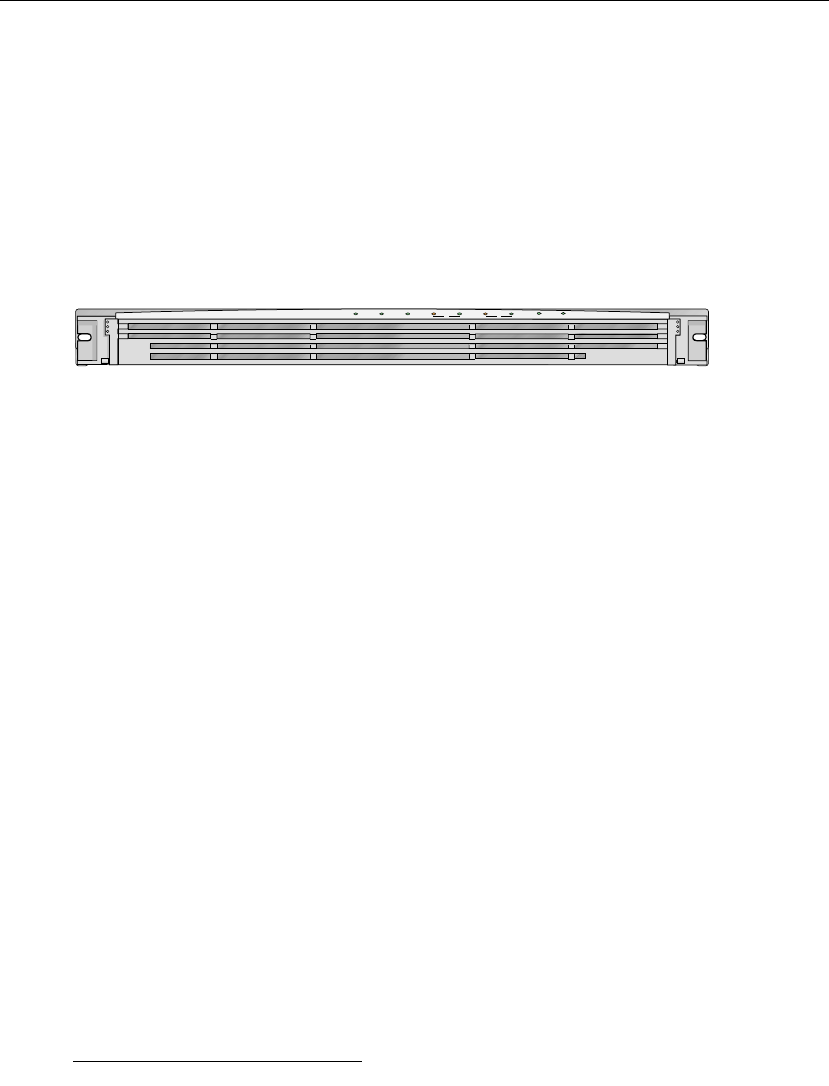
A Command Center server is a rack-mounted computer that has been configured to provide a
particular set of services or management applications. A front view of an Command Center
server is shown in Figure 1-1.
Figure 1-1: Command Center Server – View of Front Panel
Most Command Center servers are configured as members of twin-server Command Center
clusters running Legato® Systems’ CoStandby™ Server for Windows NT software to provide
a bi-directional failover mechanism. Both servers in a Command Center cluster are
pre-configured with an identical subset of VOD services. Each service instance is active on only
one cluster member at a time1 while its backup instance remains in a passive standby state on
the companion cluster member. In the event of an individual server failure, the surviving
member of the cluster (while continuing to perform its own tasks) automatically assumes the
tasks and the identity of the failed server. This permits continuous, uninterrupted service to
VOD subscribers, even after a server loss.
Command Center clusters are rack-mounted together in the same rack and typically arrive at the
customer site fully cabled and configured. The number of Command Center clusters can vary.
As of this writing, Command Centers are available in the following base configurations:
•‘‘Four-Cluster Command Center Configuration” – Consists of 4 twin-server Command
Center clusters (8 servers), 1 non-clustered Data Warehouse server, and 1 non-clustered
Management Station
•‘‘Two-Cluster Command Center Configuration” – Consists of 2 twin-server Command
Center clusters (4 servers) 1 non-clustered Data Warehouse server, and 1 non-clustered
Management Station
•‘‘Single-Server Configuration” – Consists of a single, non-clustered Command Center
server on which all VOD services and management utilities are configured
1 The Alarms Collector and the SeaChange Setup service (SCSetup) are always active on
both members of a Command Center Cluster.
Power D riveStatus Link 100Mbps Link 100Mbps U1 U2
1 2

VOD Command Center Configurations
1-6 SeaChange VOD System Software Installation and Configuration Guide
The following sections describe how VOD System services are distributed across the Command
Center servers provided in each of these configurations.
Four-Cluster Command Center Configuration
Most Command Center configurations deployed in production-scale environments consist of
ten server machines:
•Four twin-server Command Center clusters, including:
•a Directory cluster
•a Propagation cluster
•a Connection Manager cluster
•an Application cluster2
•One non-clustered Data Warehouse server
•One non-clustered Management Station3
Each Command Center cluster in the four-cluster configuration is characterized by the particular
primary VOD service that its two servers are collectively configured to provide. Table 1-3
describes the primary VOD services provided by each of the four Command Center clusters, and
defines the generic machine names assigned to each machine.
In the field, these generic machine names are pre-pended with additional information
designating customer name, site location, and other site-specific identifiers. See the SeaChange
2 To support increased capacity, additional Connection Manager and Application clusters
can be configured.
3 The Management Station is available either as a rack-mounted Command Center server
or a stand-alone PC for use at a remote location. See the SeaChange VOD System Hardware
Installation Guide for more information.
Table 1-3: Command Center Cluster Functions (4-Cluster Configuration)
Command Center
Cluster Name Primary Function Provided Generic Machine Names
of Cluster Members
Master Directory Master Directory Service (IDS) MDS1 and MDS2
Propagation Propagation Service (IPS) PS1 and PS2
Connection
Manager Connection Manager Service (ICM) CM1 and CM2
Application Movies-On-Demand Server Service
(MOD) APP1 and APP2

VOD Command Center Configurations
Overview of VOD System Software Configurations 1-7
VOD System Hardware Installation Guide for complete information on how to interpret
Command Center server names.
Although both servers in a Command Center cluster are configured with identical VOD
services, each service is only actively running on one server at a time. For example, an
instance of IDS is configured on both servers (MDS1 and MDS2) of the Master Directory
cluster but, by default, only the instance configured on the MDS1 machine is active. The
instance of IDS configured on the MDS2 machine remains in a standby state, ready to take over
the IDS function in the event of a problem on the MDS1 machine.
The following tables describe the VOD services configured on each of the Command Center
clusters in a standard four-cluster Command Center deployment:
•See Table 1-4 for a description of VOD services configured on the Master Directory cluster
in a four-cluster Command Center.
•See Table 1-5 for a description of VOD services configured on the Propagation cluster in a
four-cluster Command Center.
•See Table 1-6 for a description of VOD services configured on the Connection Manager
cluster in a four-cluster Command Center.
•See Table 1-7 for a description of VOD services configured on the Application cluster in a
four-cluster Command Center.
For a more comprehensive description of the VOD services, see the SeaChange VOD System
Management and Operations Guide.
Table 1-4: Master Directory Cluster Services (4-Cluster Configuration)
Name of VOD Service MDS1 MDS2
Alarm Analyzer Standby Active
IAM (Asset Manager Service) Active Standby
IDS (Directory Service) Active Standby
Pager Standby Active
SeaChange System Monitor Service Standby Active
Alarm Collector Active on Both Machines
ScSetup Active on Both Machines

VOD Command Center Configurations
1-8 SeaChange VOD System Software Installation and Configuration Guide
* – Indicates an optional service for VOD customers who do not intend to use the SeaChange Movies-On-Demand
(MOD) client application. See ‘‘Optional VOD Services’’ (page 1-12) for more information.
** – Indicates an optional service for VOD customers who do not intend to use the SeaChange Movies-On-Demand
(MOD) client application or the VOD System’s underlying application-level infrastructure services. See ‘‘Optional
VOD Services’’ (page 1-12) for more information.
Table 1-5: Propagation Cluster Services (4-Cluster Configuration)
Name of VOD Service PS1 PS2
IAD (Application Database Service)** Active Standby
IPS (Propagation Service) Standby Active
MOD Billing Service* Active Standby
SMSSync (Subscriber Management System
Synchronization service) Active Standby
Alarm Collector Active on Both Machines
ScSetup Active on Both Machines
Table 1-6: Connection Manager Cluster Services (4-Cluster Configuration)
Name of VOD Service CM1 CM2
ISRM (Session and Resource Manager
service) Active Standby
ISRM2 (2nd instance) Standby Active
ICM (Connection Manager Service) Active Standby
ICM2 (2nd instance) Standby Active
Alarm Collector Active on Both Machines
ScSetup Active on Both Machines

VOD Command Center Configurations
Overview of VOD System Software Configurations 1-9
* – Indicates an optional service for VOD customers who do not intend to use the SeaChange Movies-On-Demand
(MOD) client application. See ‘‘Optional VOD Services’’ (page 1-12) for more information.
** – Indicates an optional service for VOD customers who do not intend to use the SeaChange Movies-On-Demand
(MOD) client application or the VOD System’s underlying application-level infrastructure services. See ‘‘Optional
VOD Services’’ (page 1-12) for more information.
Table 1-7: Application Cluster Services (4-Cluster Configuration)
Name of VOD Service APP1 APP2
MOD (Movies-On-Demand Server Service)* Active Standby
MOD2 (2nd instance*) Standby Active
SCTP (SeaChange Transfer Protocol Service)** Active Standby
SCTP2 (2nd instance**) Standby Active
Alarm Collector Active on Both Machines
ScSetup Active on Both Machines

VOD Command Center Configurations
1-10 SeaChange VOD System Software Installation and Configuration Guide
Two-Cluster Command Center Configuration
For customers with lower video-stream generation requirements, Command Centers are also
available in a two-cluster configuration: two twin-server Command Center clusters (a Directory
cluster and a Connection Manager cluster), one non-clustered Data Warehouse server, and one
non-clustered Management Station, for a total of six machines.
In this configuration, the VOD services normally configured on the Propagation cluster are
running on the Directory cluster. Similarly, the VOD services normally configured on the
Application cluster are running on the Connection Manager cluster.
The following tables describe the VOD services configured on each of the Command Center
clusters in a standard two-cluster Command Center deployment:
•See Table 1-8 for a description of VOD services configured on the Master Directory cluster
two-cluster Command Center.
•See Table 1-9 for a description of VOD services configured on the Connection Manager
cluster in a two-cluster Command Center.
* – Indicates an optional service for customers who do not intend to use the SeaChange Movies-On-Demand (MOD)
client application. See ‘‘Optional VOD Services’’ (page 1-12) for more information.
** – Indicates an optional service for customers who do not intend to use the SeaChange Movies-On-Demand (MOD)
client application or the VOD System’s underlying application-level infrastructure services. See ‘‘Optional VOD
Services’’ (page 1-12) for more information.
Table 1-8: Master Directory Cluster Services (2-Cluster Configuration)
Name of Installed Service MDS1 MDS2
Alarm Analyzer Standby Active
IAD (Application Database Service)** Active Standby
IAM (Asset Manager Service) Active Standby
IDS (Directory Service) Active Standby
IPS (Propagation Service) Standby Active
MOD Billing Service* Active Standby
Pager Standby Active
SeaChange System Monitor Service Standby Active
SMSSync (Subscriber Management System
Synchronization service) Active Standby
Alarm Collector Active on Both Machines
ScSetup Active on Both Machines

VOD Command Center Configurations
Overview of VOD System Software Configurations 1-11
* – Indicates an optional service for customers who do not intend to use the SeaChange Movies-On-Demand (MOD)
client application. See ‘‘Optional VOD Services’’ (page 1-12) for more information.
** – Indicates an optional service for customers who do not intend to use the SeaChange Movies-On-Demand (MOD)
client application or the VOD System’s underlying application-level infrastructure services. See ‘‘Optional VOD
Services’’ (page 1-12) for more information.
Single-Server Configuration
In addition to the four-cluster and two-cluster Command Center base configurations, the
Command Center is available as a single (non-clustered) Command Center server configured
with all VOD System services.
This configuration is typically used only for VOD Demonstration systems or VOD
Development systems configured for no MediaCluster Agent (NOMCA) to enable streaming
without a MediaCluster.
A Command-Center-only database server is a single-server Command Center that does not have
a VOD MediaCluster. If the site is configured for NOMCA, you can start and stop streams
without actually streaming video files from a MediaCluster. The NOMCA configuration has an
MCA Emulator, which consists of directories and files that represent one or more
MediaClusters, with assigned bandwidths. In a NOMCA configuration, the Propagation service
and Connection Manager service must be configured specifically for NOMCA operations.
Table 1-9: Connection Manager Cluster Services (2-Cluster Configuration)
Name of Installed Service CM1 CM2
ISRM (Session and Resource Manager service) Active Standby
ISRM2 (2nd instance) Standby Active
ICM (Connection Manager Service) Active Standby
ICM2 (2nd instance) Standby Active
MOD (Movies-On-Demand Server Service)* Active Standby
MOD2 (2nd instance*) Standby Active
SCTP (SeaChange Transfer Protocol service)** Active Standby
SCTP2 (2nd instance**) Standby Active
Alarm Collector Active on Both Machines
ScSetup Active on Both Machines
VOD Command Center Configurations
1-12 SeaChange VOD System Software Installation and Configuration Guide
VOD Management Station Configuration
Table 1-10 lists the services that run on the Management Station.
Optional VOD Services
The open architecture of the SeaChange VOD System enables third-party software developers
to create their own VOD-compliant client-server applications. Consequently, some cable
operators and other customers have chosen to deploy their own custom-designed VOD
applications in addition to (or in place of) the SeaChange Movies-On-Demand (MOD)
application.
Developers can integrate their applications with the VOD System at several levels. As of this
writing, most third-party applications are being implemented to take advantage of the
underlying VOD application-level infrastructure services (IAD and SCTP) and to interface with
the VOD command/control and video-delivery services in generally the same way as that
currently used by the SeaChange MOD application. Other third-party applications, however, are
being implemented to use alternative proprietary application-level services that do not require
the use of IAD or SCTP.
Cable operators who choose not to deploy the SeaChange MOD application but still intend to
use the VOD application-level infrastructure (IAD and SCTP) to support other third-party
VOD-compliant applications can optionally omit the following VOD services from their
Command Center configurations:
•SeaChange MOD Server Service
•SeaChange MOD Billing Service
Table 1-10: Services on an Management Station
Name of Installed Service Comments
ADIS Non-ISA environments
AlarmCol All environments.
ETF Optional.
IsaDownload ISA environment only
ScSetup All environments.

VOD Command Center Configurations
Overview of VOD System Software Configurations 1-13
Cable operators who choose not to deploy the SeaChange MOD application and do not want to
use the VOD application-level infrastructure (IAD and SCTP) to support other third-party
VOD-compliant applications can optionally omit the following VOD services from their
Command Center configurations:
•SeaChange MOD Server Service
•SeaChange MOD Billing Service
•IAD (Application Database Service)
•SCTP (SeaChange Transfer Protocol Service)
VOD System deployments that omit these services typically do not include an Application
cluster in their Command Center configuration. See Table 1-3 for more information.
Location of VOD SQL Databases
The SeaChange VOD System currently uses the following SQL databases:
For descriptions of these databases, see the book SeaChange VOD System Management and
Operations Guide.
Depending on your Command Center configuration, these databases are installed on the shared
drive of one or more of your Command Center clusters. In the case of a single-server
configuration, these databases are installed on drive D:\ of the single Command Center server.
Table 1-11: SeaChange VOD SQL Databases
Database Description
DnpConfig Connection Manager Configuration database
IadData Application database
IamData Asset Manager database
IcmData Connection Manager Request Log database
IdsData Directory database
IdwData Data Warehouse database
SubscriberData Subscriber database

VOD Command Center Configurations
1-14 SeaChange VOD System Software Installation and Configuration Guide
The Data Warehouse database (IdwData) is always installed on the Data Warehouse server.
Table 1-12 shows the machine location(s) of the other VOD SQL databases in each of the
currently-supported Command Center base configurations.
For a complete description of the purpose of each of the databases and the various VOD services
that maintain and use them, see the SeaChange VOD System Management and Operations
Guide.
Table 1-12: Machine Locations of VOD SQL Databases
Command Cluster
Configuration Cluster(s) with SQL
Installed Installed Databases
Four-Cluster Configuration Master Directory cluster IamData
IcmData
IdsData
DnpConfig
Propagation cluster IadData
SubscriberData
Two-Cluster Configuration Master Directory cluster IadData
IamData
IcmData
IdsData
DnpConfig
SubscriberData
Single-Server
Configuration Drive D:\ on the MDS1
machine IadData
IamData
IcmData
IdsData
DnpConfig
SubscriberData

Understanding Command Center Server Clustering
Overview of VOD System Software Configurations 1-15
Understanding Command Center Server Clustering
To help ensure that the VOD services running on your Command Center remain continuously
available in the event of a server failure, all Command Center servers (with the exception of the
single Command Center servers configured in VOD Demo or Development systems and
Command Center servers configured as Data Warehouse servers or Management Stations) are
paired together in twin-server Command Center clusters4 running Legato Corporation’s
Co-StandbyServer for Windows NT clustering software.
Co-StandbyServer provides a bi-directional failover mechanism so that, in the event of a
hardware or software failure on one Command Center cluster member, the surviving member
(in addition to maintaining its own services) automatically assumes the tasks and the identity of
the failed member, permitting continuous operation of all VOD services ordinarily provided by
both members of the Command Center cluster.
How Bi-Directional Failover Works
To achieve bi-directional failover between Command Center cluster members,
Co-StandbyServer maintains a sort of ‘virtual server’ called a Failover Group on each of the
two servers in a cluster. After the Co-StandbyServer software is installed on both cluster
members, SeaChange manufacturing (via the Co-StandbyServer Management interface) creates
and populates a Failover Group on each server. The Failover Group on Server 1 is populated
with a copy of all the resources required to provide the VOD services currently configured on
Server 2. Similarly, the Failover Group on Server 2 is populated with an inactive copy of the
resources required to provide the VOD services currently configured on Server 1.
In addition to the connections maintained on the Client-to-Server and Sever-to Server subnets,
each server in an Command Center cluster maintains a dedicated, high-speed Ethernet link to
its partner cluster member (via a dedicated port) over which the instances of Co-StandbyServer
software running on each machine communicate with each other and monitor their mutual
status.
When Co-StandbyServer detects and verifies that a failure has occurred on one of the cluster
members, it automatically moves the failed server’s Failover Group from its ‘home’ location to
its ‘away’ location on the surviving cluster member, which immediately begins performing the
work of the failed member.
To support the Co-StandbyServer failover mechanism, both members of an Command Center
cluster must always maintain identical Windows NT Registry configurations and identical file
sets on their respective C:\ drives. VOD-related files reside exclusively on drive C:\ of each
cluster member.
4 Command Center clusters should not be confused with VOD MediaClusters, which are
composed of MediaCluster servers and used in a VOD System to generate video output
streams over a digital broadband network for delivery of video content to digital set-top
boxes.
VOD MediaCluster Configurations
1-16 SeaChange VOD System Software Installation and Configuration Guide
VOD MediaCluster Configurations
This section provides a brief overview of VOD MediaClustering technology.
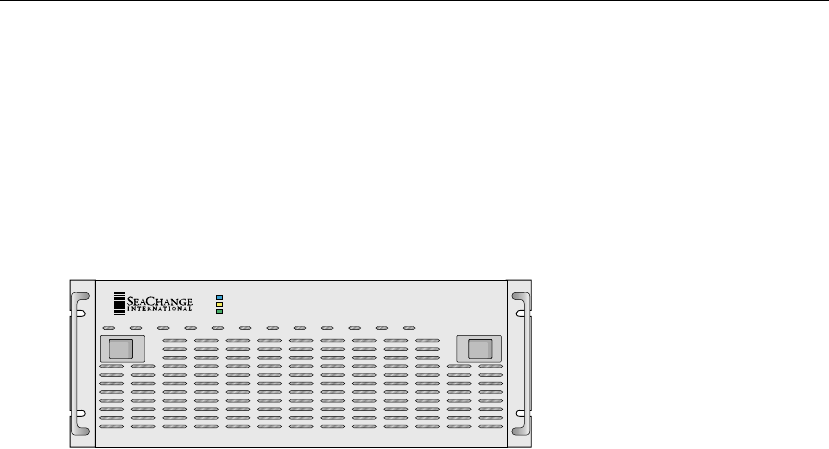
A VOD MediaCluster server is a computer system used in the VOD System to store and retrieve
pre-encoded digital video content and to deliver that content to a pre-determined group of target
subscribers.
A front view of a rack-mounted MediaCluster server is shown in Figure 1-2.
Figure 1-2: VOD MediaCluster Server – View of Front Panel
Each MediaCluster server used in the VOD System is configured as a member of a VOD
MediaCluster – a group of independent MediaCluster servers that work together as a single
fault-resilient video storage and retrieval system for video files. MediaCluster servers in a
MediaCluster employ a unique SeaChange file system which is optimized for video storage and
retrieval, as well as unique SeaChange Virtual Streaming software (VStrm) which makes it
possible to play video content in real time.
MediaClusters are available in 3, 4, 5, 6, and 7-server configurations, as well as a single-server
configuration for use in VOD Demonstration or Development systems, or at cable hub locations
servicing a limited VOD subscriber base where the higher stream capacity and fault-tolerance
provided by multiple MediaCluster servers is not required.
For detailed information on MediaCluster server hardware components and required
connections, see the SeaChange VOD System Hardware Installation Guide. For complete
internal component specifications, and information on how to maintain and troubleshoot
MediaCluster servers (based on the SeaChange VS440B enclosure) see the SeaChange VOD
MediaCluster 4000 Guide.
VOD Management Station Configurations
Overview of VOD System Software Configurations 1-17
VOD Management Station Configurations
This section provides a brief introduction to Management Station configurations.
A VOD Management Station is a computer that has been specifically configured to run the VOD
Asset Manager software application as well as other VOD-related management utilities. VOD
operators use the Asset Manager to define and manage the collection of assets (including
encoded video files, audio files, image files, text fonts, etc.) that a particular VOD client
application (such as Movies-On-Demand) can advertise and deliver to subscribers.
As of this writing, Management Stations are available as free-standing (non-rack-mounted) PCs
or as non-clustered, rack-mounted Command Center servers.
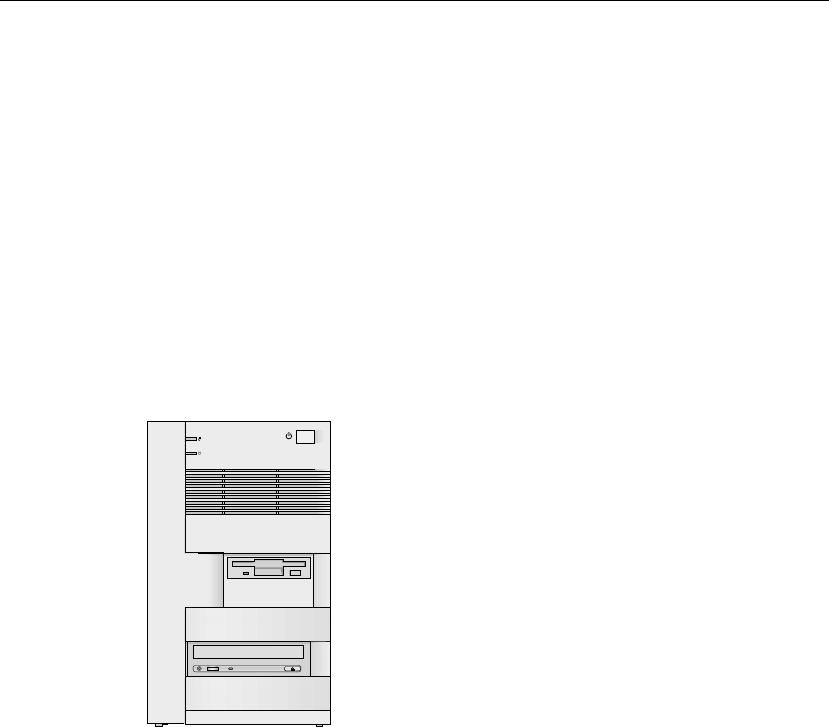
A front view of a PC-based Management Station is shown in Figure 1-3. (For a view of a
Command Center server, see Figure 1-3.)
Figure 1-3: PC-Based VOD Management Station – View of Front Panel
All VOD sites include at least one Management Station. Command Center server-based
Management stations are typically rack-mounted in the same rack with the Command Center
clusters. PC-based Management Stations are typically configured at a remote location (away
from the primary headend or hub) where the operator can perform asset-management tasks in a
quieter, more comfortable setting.

VOD Management Station Configurations
1-18 SeaChange VOD System Software Installation and Configuration Guide

Upgrading a VOD Site 2-1
Chapter 2
Upgrading a VOD Site2-
NOTE
Upgrade instructions have been removed from this guide. They
are now contained in a separate Upgrade Instructions document
which can be found on the VOD Service Disk, Disk 1 of 2, at the
root of the CD (the same location as the release notes).

Upgrading a VOD Site
2-2 SeaChange VOD System Software Installation and Configuration Guide


Gathering VOD Service Installation and Configuration Data
3-2 SeaChange VOD System Software Installation and Configuration Guide
Gathering VOD Service Installation and Configuration Data
Before you can install a VOD service, you need to gather certain installation and configuration
data specific to that service. For each VOD service that you intend to install, you will need the
service-specific values for the installation and configuration data described in Table 3-1.
CAUTION
Ensure you accurately capture all of the values below. Entering
incorrect values for your site can render your VOD system
inoperative.
Table 3-1: Required Service Installation and Configuration Data
Data Description
service name The name that identifies the service to the Windows NT Service Manager. This
name also identifies the service in the Registry. For example, IDS is the service
name for the Directory service.
exe location The file path for the executable that the Windows NT Service Manager launches
to start the service. All VOD services run under the service shell executable,
srvshell.exe. Typically, the file path is:
%ITVROOT%\exe\srvshell.exe
account The login account for the service. The login account for a VOD service is either
SeaChange or LocalSystem. If you do not know the password for these
accounts, contact your SeaChange technical support representative.
display name The name that appears in the Windows NT Services dialog box. The naming
convention for SeaChange VOD services is:
SeaChange <descriptive name>
where <descriptive name> typically spells out the abbreviated name that
identifies the service in the Registry. For example, for the service name IDS, the
display name is SeaChange Directory Service.
product name The name that specifies the SeaChange product for which the service is a
component. The product name identifies the Registry branch that contains the
software configuration keys and values for the service.
For SeaChange Command Center services, the product name is ITV, and the
software configuration keys and values are under the following Registry branch:
HKEY_LOCAL_MACHINE\SOFTWARE\SeaChange\ITV
For SeaChange VOD applications, the product name is ITV Applications, and the
software configuration keys and values are under the following Registry branch:
HKEY_LOCAL_MACHINE\SOFTWARE\SeaChange\ITV Applications

Gathering VOD Service Installation and Configuration Data
Installing a VOD Service 3-3
event message
DLL The file path of the DLL that the Windows NT Event Viewer uses to locate the
event messages that appear in the Windows NT Application Log. For example:
• service shell - ShellMsgs.dll
• Command Center - ItvMessages.dll
• SeaChange Movies on Demand - ModMsgs.dll
event types
supported The types of events that the Windows NT Event Viewer will display if they occur.
Typically this is 0x7.
service
management port
number
The port number that the Service Management Utility (ManUtil) uses to
communicate with the service. Each service has a unique management port.
service shell
management port
number
The port number that the Service Management Utility (ManUtil) uses to
communicate with the service shell for the service. The service shell for each
service has a unique management port.
image path The file path of the executable file that the service shell launches to start the
service. Typically, the file path for a VOD service executable is:
%ITVROOT%\exe\<executable_filename>
required service
configuration
entries
The Registry entries for which the service requires a value, and for which there is
no default value.
Table 3-1: Required Service Installation and Configuration Data (Continued)
Data Description

Gathering VOD Service Installation and Configuration Data
3-4 SeaChange VOD System Software Installation and Configuration Guide
NOTE
For descriptions and configuration information on new VOD
services introduced in the current VOD release, see the section
entitled New Features and Enhancements in the latest version of
the VOD Release Notes. For information about configuration
changes for VOD System services introduced in earlier VOD
releases, see the Appendices at the end of this book.

VOD Service Installation Procedure
Installing a VOD Service 3-5
VOD Service Installation Procedure
This section explains how to install a new VOD service on a Command Center server or a
Management Station on the local system (the machine to which you are logged in and on which
you intend to install the VOD service).
The following procedure assumes that VOD System release in which SeaChange introduced the
new service (or a later VOD System release) has already been installed on the local system. In
this case, the Windows NT environment has already been correctly configured for the
SeaChange VOD System. For example, the system variable %ITVROOT% has already been
defined and added to the %PATH% variable, the SeaChange account has been configured, and
the SeaChange VOD System files are located on the system.
To install a VOD service on a local system that is a Command Center server or Management
Station:
1. Install and configure the service as a Windows NT service, which means that the Windows
NT Service Manager can manage it. Enter the following command:
instserv <service name> <exe location> local [<account> <password>]
manual own
where:
•<service name> is the name that identifies the service in the Registry.
•<exe location> is the location of the service shell, which in most cases is
%ITVROOT%\exe\srvshell.exe.
•local instructs instserv to install the service on the local machine.
•<account> <password> are the optional login account and password for the service. For
example, for a service that requires access to external components, such as a database on
another Command Center server, specify the login account SeaChange and the password.
For a service that does not require access to external components, do not specify a login
account and password, or optionally specify “LocalSystem password”.
•auto configures the service to start automatically during a reboot operation. If you specify
the manual option for this argument (as shown above), someone must restart the service
manually whenever a reboot operation occurs.
•own configures the service to run a unique instance of the service shell.
Note: Do not specify the share option for this argument, which configures the service to run
an instance of the service shell that is shared among the SeaChange services on the same
machine.

VOD Service Installation Procedure
3-6 SeaChange VOD System Software Installation and Configuration Guide
The instserv command installs the service, adds the following key to the Registry, and
adds entries for the configuration values that you specified in the command arguments:
HKEY_LOCAL_MACHINE\SYSTEM\CurrentControlSet\Services\
<service name>
2. Configure the display name that appears in the Windows NT Services dialog box.
To configure the display name, enter the following command:
instserv <service name> displayname= "<new display name>"
where <service name> is the service name that identifies the service in the Registry, and
<new display name> is the name that you want to appear in the Services dialog box.
3. Configure the product name for the service. In the Registry, add the following key and
entry:
Key: HKEY_LOCAL_MACHINE\SYSTEM\CurrentControlSet\Services\
<service name>
Name: ProductName
Type: REG_SZ
Value:
ITV – if the service is a Command Center core service.
ITV Applications – if the service is an application service, such as SeaChange MOD Server
service or SeaChange MOD Billing service.
4. Configure the Windows NT Event Viewer to log events for the service and its service shell.
In the Registry, add the following keys and entries:
a. Key: HKEY_LOCAL_MACHINE\SYSTEM\CurrentControlSet\
Services\EventLog\Application\<service name>
Name: EventMessageFile
Type: REG_EXPAND_SZ
Value: %ITVROOT%\Exe\<message DLL file name>
Example: %ITVROOT%\Exe\ItvMessages.dll
Name: Typessupported
Type: REG_DWORD
Value: <event level> (Typically, the event level is 0x7.)

VOD Service Installation Procedure
Installing a VOD Service 3-7
b. Key: HKEY_LOCAL_MACHINE\SYSTEM\CurrentControlSet\
Services\EventLog\Application\<service name>_shell (For example,
IDS_shell)
Name: EventMessageFile
Type: REG_EXPAND_SZ
Value: %ITVROOT%\Exe\<message DLL file name>
Example: %ITVROOT%\Exe\ShellMsgs.dll
Name: Typessupported
Type: REG_DWORD
Value: <event level> (Typically, the event level is 0x7.)
5. Configure the management port for the service and its service shell. In the Registry, add the
following keys and entries:
a. Key: HKEY_LOCAL_MACHINE\SOFTWARE\SeaChange\Management\
CurrentVersion\Services\<service name>
Name: MgmtPortNumber
Type: REG_DWORD
Value: <port number> – the service management port number
b. Key: HKEY_LOCAL_MACHINE\SOFTWARE\SeaChange\Management\
CurrentVersion\Services\<service name>_shell
Name: MgmtPortNumber
Type: REG_DWORD
Value: <port number> – the service shell management port number
6. Configure the image path, which is the file path of the executable file that the service shell
launches to start the service. Also configure the management port for the service shell,
which is the same management port that you configured for the service shell in a previous
step. In the Registry, add the following key and entries, where <product name> is the
product name for the service (typically ITV or ITV Applications):
Key: HKEY_LOCAL_MACHINE\SOFTWARE\SeaChange\<product name>\
CurrentVersion\Services\<service name>_shell
Name: ImagePath
Type: REG_EXPAND_SZ
Value: %ITVROOT%\exe\<file name>
Example: %ITVROOT%\exe\ids.exe
Name: MgmtPortNumber
Type: REG_DWORD
Value: <port number>

VOD Service Installation Procedure
3-8 SeaChange VOD System Software Installation and Configuration Guide
(This is the same port number that you specified for the MgmtPortNumber entry under the
key HKEY_LOCAL_MACHINE\SOFTWARE\SeaChange\Management\
CurrentVersion\Services\<service name>_shell in a previous step.)
7. Configure the required Registry entries for the service, and any additional Registry entries
that are optional, or for which you do not want to use the default value
NOTE
For descriptions and configuration information on new VOD
services introduced in the current VOD release, see the section
titled New Features and Enhancements in the latest version of
the VOD Release Notes. For information about configuration
changes for VOD System services introduced in earlier VOD
releases, see the Appendices at the end of this book.

Installing a VOD Development System 4-1
Chapter 4
Installing a VOD Development System4-
This chapter explains how to install a VOD Development System. It contains the following
sections:
•‘‘What is a VOD Development System?’’ (page 4-2)
•‘‘Installing a VOD Development System’’ (page 4-3)
Before installing a VOD Development System, you should be familiar with at least the
introductory chapters of the following guides:
•SeaChange VOD System Management and Operations Guide
•SeaChange VOD System Asset Manager User’s Guide
•SeaChange VOD System Movies-on-Demand Administrator’s Guide

What is a VOD Development System?
4-2 SeaChange VOD System Software Installation and Configuration Guide
What is a VOD Development System?
A VOD Development System is an installation of SeaChange VOD software that runs on a
single machine. A VOD Development System includes only Command Center components and
uses a MediaCluster emulator. It cannot access a VOD MediaCluster or a set-top box.
VOD Development System Components
A VOD Development System includes the following components and configuration:
•All VOD Command Center services
•The Command Center components of the SeaChange Movies on Demand (SeaChange
MOD) application (for example, the SeaChange MOD Server service, the SeaChange
MOD Browser DLL, and SMIL-page files, but not the SeaChange MOD set-top client)
•The Propagation, Streaming, and Connection Manager services, configured for no
MediaCluster (NOMCA)
•A MediaCluster emulator that enables the NOMCA configuration. The MediaCluster
emulator consists of a data file and directories that represent one or more MediaClusters
with assigned bandwidths.
What is the NOMCA Configuration?
The NOMCA configuration allows you to start and stop streams without actually streaming
video files from a MediaCluster. In the NOMCA configuration, the Propagation service (IPS)
calls a stubbed MediaCluster Agent (MCA) API DLL, and the Connection Manager service
(ICM) does not make any MCA API calls.
What is the VOD SDK?
The VOD SDK includes software and documentation that third-party developers can use to
write software to integrate with the SeaChange VOD System. The VOD SDK is not included
with the SeaChange VOD Service Disk. To obtain a copy of the VOD SDK, contact your
SeaChange account representative.
The VOD SDK includes two scripts required to perform procedures described in this chapter.
These are the ItvSetup utility (itvsetup.bat), which installs and configures VOD software
on a VOD Development System, and the ITV utility (itv.bat), which manages VOD services
from the command line.

Installing a VOD Development System
Installing a VOD Development System 4-3
Installing a VOD Development System
This section explains how to install a VOD Development System. It includes the following
sections:
•‘‘Verifying System Requirements’’ (page 4-4)
•‘‘Installing ActivePerl’’ (page 4-5)
•‘‘Modifying System Variables’’ (page 4-5)
•‘‘Creating the SeaChange Local User’’ (page 4-6)
•‘‘Installing Microsoft SQL Server 2000’’ (page 4-8)
•‘‘Installing and Configuring VOD Software’’ (page 4-11)
This section describes how to perform a clean install. It does not describe how to upgrade or
install VOD on a system on which VOD components have been previously installed. If you want
to upgrade VOD components or install VOD on a system on which VOD components have been
installed previously, contact your SeaChange support representative for assistance.

Installing a VOD Development System
4-4 SeaChange VOD System Software Installation and Configuration Guide
Verifying System Requirements
Table 4-1 describes the requirements for a VOD Development System. Ensure that each
requirement is met before beginning the installation procedures that follow.
Table 4-1: System Requirements
Done
Requirement Description
Operating System Windows NT 4.0 with Service Pack 6a or greater, or Windows 2000 with
Service Pack 2 or greater. To check this, right-click My Computer and
view Properties.
If you need to upgrade your Windows NT 4.0 system to SP 6a, you can
run the service pack installation program in VOD Service Disk, Disk 2,
\NT Support directory. When the installation is complete, reboot the
machine.
Disk Space At least 1 GB of available disk space.
VOD must NOT be
installed. Ensure the SeaChange VOD Command Center has not been previously
installed on the Development System machine.
Note: You can use the VOD Setup utility (included with the VOD SDK)
to change the configuration of an installed VOD Development system;
however, explaining how to do this is beyond the scope of this
document.
Microsoft SQL Server
(any version) must
NOT be installed.
Ensure that any previous installation of Microsoft SQL Server is
completely removed.
To remove a previous SQL Server installation:
1. Uninstall SQL Server.
2. If the SQL Server installation directory is still present, delete it. The
installation directory path is typically C:\Program
Files\Microsoft SQL Server or C:\MSSQL.
3. If the Registry key
HKEY_LOCAL_MACHINE\SOFTWARE\Microsoft\MSSQLServer is
still present, delete it.

Installing a VOD Development System
Installing a VOD Development System 4-5
Installing ActivePerl
The VOD Development System must have ActivePerl version 5.6 or later installed.
To install ActivePerl:
1. Determine the version of the Windows Installer installed on the Development System. To
view the version, navigate to C:\WINNT\SYSTEM32, right-click MSIEXEC.EXE, select
Properties, then select the Version tab.
2. If the Windows Installer is not at version 1.1 or later, obtain and install the latest version.
You can obtain it at:
www.microsoft.com/downloads/release.asp?releaseid=32832&
NewList=1
3. Obtain the download of ActivePerl available on:
http://www.activestate.com/Products/ActivePerl
When you navigate through the download options, select the Windows MSI package.
4. Install ActivePerl. Accept all the defaults presented by the Installer. It is important that you
let it add Perl to the PATH environment variable.
Modifying System Variables
You need to define the system variable ITVROOT, which tells the VOD installation script where
to install the VOD System files. Typically, the value of ITVROOT is C:\itv.
To define ITVROOT:
1. Open the Control Panel.
2. Launch the System applet.
3. Windows NT: Select the Environment tab.
Windows 2000: Select the Advanced tab and then click the Environment Variables button.
4. Add a new System Variable with name ITVROOT and value C:\itv.
5. Click Set. Leave the System applet open for the next step.
6. Select the PATH System Variable and click Edit.
7. In the Variable Value field, add %ITVROOT%\exe. For example:
C:%SystemRoot%\system32;%SystemRoot%;\Perl\bin\;
%ITVROOT%\Exe;
8. Reboot.

Installing a VOD Development System
4-6 SeaChange VOD System Software Installation and Configuration Guide
Configuring the Windows NT Event Viewer
You need to configure the Windows NT Event Viewer to overwrite events as needed in the
Application and System logs.
1. Open the Event Viewer.
2. In the tree view, right-click the Application Log and select Properties.
3. In the Properties, under Log Size, select ‘Overwrite evens as needed’.
4. Repeat for the System log.
Creating the SeaChange Local User
You need to create a local user named “SeaChange” with the following characteristics:
•Password “SeaChange”. Case matters.
•User Cannot Change Password selected.
•User Must Change Password at Next Logon not selected
•Right to Log On as a Service granted
Creating the SeaChange Local User under Windows 2000
1. Launch the Computer Management applet: Control Panel > Administrative Tools >
Computer Management.
2. In the tree view of the Computer Management applet, expand Local Users and Groups and
select the Users folder. This displays a list of the current users in the applet’s data pane
(right hand pane).
3. Select Action > New User. This opens a dialog that lets you enter all of the characteristics
listed above except the Right to Log on as a Service.
4. Create the local user SeaChange with the appropriate selections.
5. Close the Computer Management applet.
6. Launch the Local Security Policy applet: Control Panel > Administrative Tools > Local
Security Policy.
7. In the tree view of the Local Security Policy applet, expand Local Policies and select the
User Rights Assignment folder. This displays a list of policies in the data pane.
8. In the data pane, double-click the Log on as a Service policy. This displays a dialog listing
the users currently granted this right.
9. Click Add to add a user. This opens a dialog that lets you select a user or group from a list
of local users and groups.

Installing a VOD Development System
Installing a VOD Development System 4-7
10. Add the local SeaChange user. The Local Policy Setting check box should be checked. The
Effective Policy Setting check box may not appear as checked until you close and re-open
the Local Security Policy applet.
11. Close the Local Security Policy applet.
Creating the SeaChange Local User under Windows NT
1. Launch the User Manager for Domains: Start > Programs > Administrative Tools > User
Manager for Domains.
2. In the User Manager for Domains, click User > New User. This opens a dialog that lets you
enter all of the characteristics listed above except the Right to Log on as a Service.
3. Create the SeaChange user with the appropriate selections.
4. In the Policies menu, choose User Rights. This opens the User Rights Policy dialog.
5. In the User Rights Policy dialog, select the Show Advanced User Rights check box.
6. In the Right pull-down list, select Log On as a Service.
7. Click Add. This opens the Add Users and Groups dialog.
8. Click Show Users. User account names appear in the Names list.
9. In the Names list, double-click SeaChange. SeaChange appears in the Add Names list.
10. Click OK. This closes the Add Users and Groups dialog. SeaChange appears in the Grant
To list in the Add Users and Groups dialog.
11. Click OK in the User Rights Policy dialog. The SeaChange user account now has the
privilege to log on as a service.

Installing a VOD Development System
4-8 SeaChange VOD System Software Installation and Configuration Guide
Installing Microsoft SQL Server 2000
1. Obtain the correct version of Microsoft SQL Server 2000:
•For machines running Windows NT Server, you can install Microsoft SQL Server 2000
Standard Edition.
•For machines running Windows NT Workstation or Windows 2000 Professional, you
must install Microsoft SQL Server 2000 Developer Edition.
NOTE
You may wish to copy the SQL installation files to a temporary
directory to save time during installation.
2. Close all applications, including the Control Panel.
3. Start the SQL Server 2000 installer by running AUTORUN.EXE from the top folder of the
SQL Server 2000 CD or temporary directory.
4. Follow the installer wizard steps. Accept or modify configuration settings as listed in
Table 4-2.
NOTE
If the wizard asks for license information, enter site-appropriate
license information.

Installing a VOD Development System
Installing a VOD Development System 4-9
Table 4-2: SQL Installation Configuration Settings
Screen Settings
First screen (no title) Select “SQL Server 2000 Components”.
Second screen (no title) Select “Install Database Server”. In some cases, after you
submit this selection nothing happens for a minute or two.
Computer Name Local Computer
Installation Selection Select “Create a new instance of SQL Server”.
User Information Site-appropriate user name and organization
Software License Agreement Accept.
CD Key (Not all versions display this screen.)
Enter the CD Key from the SQL 2000 license information
Installation Definition Server and Client Tools
Instance Name Default
Setup Type Custom (Choosing Custom rather than Typical saves hard
disk space.)
Select Components Server Components: Select all except unselect Debug
Symbols.
Management Tools: Accept default.
Client Connectivity: Accept default.
Books Online: Unselect.
Development Tools: Unselect.
Code Samples: Accept default.
Services Account Check “Use the same account for each service”.
Under Service Settings, select “Use a domain user
account”: user SeaChange; password SeaChange;
domain local machine (blank).
Authentication Mode Select Mixed Mode.
User “sa”, check “blank password”.
Collation Designation Select Collation Designator.
Select Latin1_General.
Sort Order: Binary.
SQL Collations: Leave unselected.

Installing a VOD Development System
4-10 SeaChange VOD System Software Installation and Configuration Guide
5. Once the SQL Server 2000 installation is complete, install SQL Server 2000 Service
Pack 3. You can find it on VOD Service Disk, Disk 2, folder \SQL2kServicePacks\sp3.
a. Unpack sql2ksp3.exe into a temporary directory. The default of C:\sql2ksp3 is
OK.
b. Run setup.bat.
c. Accept defaults for all dialogs except the Connect to Server dialog. In this dialog, for
the Select Authentication Mode option, select “The SQL Server system administrator
login information (SQL Server Authentication)”, and leave the password blank for the
“sa” account.
d. When the “You should now backup your master and msdb databases” message window
appears, click OK.
6. Make sure SQL Server 2000 is installed correctly by starting and stopping the SQL Server.
Network Libraries Select Named Pipes
Named Pipe Name: \\.\pipe\sql\query
Select TCP/IP Sockets
TCP/IP Socket: 1433
Table 4-2: SQL Installation Configuration Settings (Continued)
Screen Settings

Installing a VOD Development System
Installing a VOD Development System 4-11
Installing and Configuring VOD Software
1. Copy itvsetup.bat and itv.bat from the root of the VOD Service Disk to a temporary
directory, such as C:\ITVBAT. Later, you will run these batch files from within this
directory, so choose a directory that is easy to navigate to.
2. Determine the location of VOD Service Disk, Disk 1. If you are not installing from a CD,
you need the path to the network share or local directory that contains the contents of VOD
Service Disk, Disk 1.
3. Later in this procedure, you will be running the ItvSetup utility (itvsetup.bat) to install
VOD on the system. Before running itvsetup.bat, you need to determine the appropriate
command line arguments for your installation. Refer to Table 4-3 to make this
determination.
Table 4-3: Commonly Supplied ItvSetup Arguments
Argument and Description
--installall
This argument is required for new installations.
--itvcd=<dir>
This argument is required.
This argument supplies the path to VOD Service Disk, Disk 1 of 2, or a directory that
contains the contents of that CD.
For example:
--itvcd=D: points to a CD drive mapped to D:
--itvcd=C:\temp\itvdisk1 points to a local directory containing the contents of VOD
Service Disk, Disk 1 of 2.
--mssqldir=<dir>
This argument is optional.
This argument specifies the location of the Microsoft SQL Server installation directory. If this
argument is not supplied, the ItvSetup utility uses the following default value:
C:\SQL2000\MSSQL
For example, the following argument specifies a different installation directory:
--mssqldir=”C:\Program Files\Microsoft SQL Server\MSSQL”
--sqltools=<dir>
This argument is optional.
This argument specifies the location of the SQL2000 tools directory. If this argument is not
supplied, the ItvSetup utility uses the following default value:
c:\Program Files\Microsoft SQL Server\80\Tools

Installing a VOD Development System
4-12 SeaChange VOD System Software Installation and Configuration Guide
The following example shows an itvsetup command with a typical set of arguments:
C:\ITVBAT>itvsetup --installall --itvcd=e: --mssqldir="\program
files\microsoft sql server\mssql" --sqluid="XYZ123"
--sqlpw="AucYrv33"
NOTE
Do not include trailing slashes in path names you enter on the
itvsetup command line. Also, use double quotes to enclose
path names that contains spaces.
--setupreg
This argument is optional. The --installall option includes it, so you won’t need it if you
are using --installall.
This argument tells itvsetup to set up the Win32 registry. Use this if you are using
--sqluid and --sqlpw (described below) without --installall.
--sqluid=<SQL username>
This argument is optional.
If you use this argument, you must also use --installall or --setupreg (described
above).
This argument specifies the SQL username VOD services should use to log into the SQL
Server. If this argument is not supplied, VOD services will use ‘sa’ as their SQL username.
--sqlpw=<SQL password>
This argument is optional.
If you use this argument, you must also use --installall or --setupreg (described
above).
(described above).
This argument specifies the SQL login password that VOD services should use. If this
argument is not supplied, VOD services will use a blank SQL login password.
CAUTION:
Using a blank password for the ‘sa’ account is not recommended for security reasons.
Table 4-3: Commonly Supplied ItvSetup Arguments (Continued)
Argument and Description

Installing a VOD Development System
Installing a VOD Development System 4-13
4. In the next step you will launch the ItvSetup utility. Once launched, it will guide you
through the rest of the VOD installation process. Keep the following points in mind:
•Carefully read all text that the ItvSetup utility displays. If you supply a wrong response
to a question or prompt, an incomplete or incorrect installation may result.
•The ItvSetup utility performs the steps listed in Table 4-4 (not necessarily in the order
presented). Follow along in this table for information to help you answer the questions
that the ItvSetup utility asks.
•If a step requires that you perform a task manually, the ItvSetup utility pauses until you
complete the task and press Enter.
NOTE
The ItvSetup utility will ask you to check if the SQL Server
Agent is started. If it is not, go to the Services panel, select SQL
Server Agent properties, go to the Log On tab, and re-enter the
password “SeaChange”. Try starting again. You may need to
repeat these steps for the MSSQLServer service.
5. From a command prompt, run itvsetup using the command line arguments determined
in Step 3. Remember that you must run the command from the directory where you copied
itvsetup.bat.
Table 4-4: ItvSetup Utility Actions
Installation Step Actions Performed by the ItvSetup Utility
Copy VOD files Copies VOD executables and DLLs from VOD Service Disk, Disk 1,
directory ITV Command Center\Exe to %ITVROOT%\Exe.
Copies Microsoft debug DLLs (MFC*D.DLL and MSVC*D.DLL) from VOD
Service Disk, Disk 1, directory ITV Command Center\System32 to
WINNT\System32.
Install SMIL pages Copies SMIL page templates used by the Movies on Demand Browser
DLL from VOD Service Disk, Disk 1, directory \ITV Command
Center\Applications\Templates to C:\MOD\Templates.
Set up users and
groups Creates the ITVSupport group.
At the ITVSupport group prompt, enter Yes. This instructs the ItvSetup
utility to add the user who is currently logged in to the ITVSupport group.
Members of the ITVSupport group have login privileges for the Asset
Manager application. You will need these privileges later in this procedure.
Install VOD services Installs the Command Center core services (such as IDS, IAM, and
others) and extended services (such as AlarmAna, AlarmCol, Pager, the
so forth).

Installing a VOD Development System
4-14 SeaChange VOD System Software Installation and Configuration Guide
6. Start the Directory service (IDS) and the Asset Manager service (IAM). These services
must be running for the next step in this procedure, in which you use the Asset Manager.
To start these services from the command line:
instserv ids start
instserv iam start
7. Start the Asset Manager application. This should be accessible through a shortcut on your
desktop. If not, you can run %ITVROOT%\Exe\AMApp.exe.
For information about using the Asset Manager to perform the tasks described in Step 8 and
Step 9, refer to the SeaChange VOD System Asset Manager User’s Guide.
8. In the Asset Manager, connect to the computer on which you installed the VOD
Development System.
9. In the Asset Manager, set up the local VOD site.
Modify SQL services Configures the MSSQLServer and SQLServerAgent services to log on
under the SeaChange account so they are able to perform operations
such as breaking up files using UNC path names (not supported under the
LocalSystem account).
Set up the registry Configures the Command Center services in the registry.
Set up the NOMCA
clusters Creates directories and files that emulate MediaCluster servers.
Configure VOD
databases Creates and configures the VOD database devices and databases by
running the following isql scripts:
iam_gen.sql
iad_gen.sql
dnp_gen.sql
icm_gen.sql
icm_gen.sql
ids_gen.sql
ids_genmaster.sql
sdb_gen.sql
Generate DNP tables Creates Delivery Network Path (DNP) tables based on the MediaCluster
emulator, and provide bandwidth and other MediaCluster configuration
values.
Create shortcut icons
for VOD applications Creates shortcut icons on the Windows NT desktop for the Asset
Manager, the Service Management Utility (ManUtil), and the Pager Editor.
Table 4-4: ItvSetup Utility Actions (Continued)
Installation Step Actions Performed by the ItvSetup Utility

Installing a VOD Development System
Installing a VOD Development System 4-15
10. Add the SeaChange MOD application.
For more information, refer to the SeaChange VOD System Movies-on-Demand
Administrator’s Guide.
11. Start the remaining Command Center services. (The IDS and IAM services are already
running, since you started them in a previous step.) Typically, in a VOD Development
System, you want to run the VOD core services, which include IDS, IAM, and the VOD
extended services, such as AlarmCol, AlarmAna, and Pager. You can use the ITV utility
(itv.bat) to start and stop VOD services and check their current status. If you want to
include the extended services when you run the ITV utility, edit the itv.bat file to set the
$EXTENDED variable to 1 before you run the command.
To start VOD services, enter the following command:
itv start
12. Check the status of VOD Services. To check the status, enter the following command:
itv status
If the output shows all services started, the installation was successful. If any services did
not start, check the Windows NT Application Log for information about errors that relate
to those services that did not start (which are listed as stopped), and correct the errors.
13. If you want to stop VOD services, enter the following command:
itv stop

Installing a VOD Development System
4-16 SeaChange VOD System Software Installation and Configuration Guide

Installing IIS 5-1
Chapter 5
Installing IIS5-
This chapter explains how to install Microsoft® Internet Information Services (IIS) software on
a VOD Command Center server. IIS is used as a web server for VOD applications such as the
Data Warehouse Report Generator, and the Subscriber Utility.
This chapter contains the following sections:
•‘‘IIS Installation Overview’’ (page 5-2)
•‘‘Installing IIS 4 on Windows NT 4’’ (page 5-3)
•‘‘Configuring IIS Security’’ (page 5-6)
•‘‘Installing IIS after installing SQL 2000 SP2’’ (page 5-7)

IIS Installation Overview
5-2 SeaChange VOD System Software Installation and Configuration Guide
IIS Installation Overview
Before installing Microsoft’s Internet Information Services (IIS), you will need to verify the
following:
•You are installing the software on the appropriate server. Typically, IIS is required on the
servers where the Data Warehouse, Subscriber Utility, or XML DLL are installed. Note that
two or more of these applications may be colocated on the same server.
•You are installing the software on a computer with the proper version of the operating
system, namely Windows NT 4.0. The minimum Service Pack required is SP3. Command
Center servers meet this requirement.
NOTE
If for some reason you need to you install NT4 on the server, do
not select the IIS installation option during NT 4 setup.
•You are installing the software on the system drive (usually C:).

Installing IIS 4 on Windows NT 4
Installing IIS 5-3
Installing IIS 4 on Windows NT 4
For more information on installing IIS, see the following web site:
http://support.microsoft.com/support/iis/install/install_iis4.asp
1. Ensure that Internet Explorer 5.5 or higher is installed on the system. Note that Internet
Explorer Version 5.5, Service Pack 2, is included on VOD Service Disk, Disk 2, folder
ie55sp2.
If you choose to install Version 5.5, SP2, when installing, select a minimal installation,
installing only the typical components. Reboot the server if requested.
2. Remove any previous versions of IIS using the Add/Remove Programs Control Panel
applet. Reboot the server if requested.
3. If the following files exist in C:\WINNT\SYSTEM32, rename them by appending a .BAK
extension:
MMCNDMGR.DLL
MMC.EXE
CIC.DLL
MMCSHEXT.DLL
4. Start the NT Option Pack installation procedure by navigating to VOD Service Disk, Disk
2, directory Winnt.SRV.OptionPack, and launching setup.exe.
5. If you are running on a service pack greater than SP3, a message displays indicating that
the product has not been tested on SP4. Click Yes to proceed.
6. Select a Custom installation when prompted.
7. In the Select Components screen for the NT Option Pack, select the components indicated
by Yes in the Selected? column in Table 5-1 and click Next.
Table 5-1: IIS Component Selections
Component Selected?
Certificate Server No
FrontPage 98 Server Extensions No
Internet Connection Services for RAS No

Installing IIS 4 on Windows NT 4
5-4 SeaChange VOD System Software Installation and Configuration Guide
Internet Information Server (IIS)
• Documentation
• File Transfer Protocol (FTP) Server
• Internet NNTP Service
• Internet Service Manager
• Internet Service Manager (HTML)
• SMTP Service
• World Wide Web Sample Site
• World Wide Web Server
•No
•No
•No
•Yes
•No
•No
•No
•Yes
Microsoft Data Access Components 1.5
• Data Sources
• MDAC: ADO, ODBC and OLE DB
• Remote Data Service (RDS/ADC)
•Yes
•Yes
•No
Microsoft Index Server No
Microsoft Management Console Yes
Microsoft Message Queue No
Microsoft Script Debugger No
Microsoft Site Server Express 2.0 No
NT Option Pack Common Files Yes
Transaction Server
• Transaction Server Core Components
• Transaction Server Core Documentation
• Transaction Server Development Tools
•Yes
•Yes
•No
Visual Interdev RAD Remote Deployment Support No
Windows Scripting Host Yes
Table 5-1: IIS Component Selections (Continued)
Component Selected?

Installing IIS 4 on Windows NT 4
Installing IIS 5-5
8. In the Folders screen, accept the following default folders:
•For the WWW Service, the default folder is %SystemDrive%\Inetpub\wwwroot
•For the Application Installation Point, the default folder is
%SystemDrive%\Program Files
Then click Next.
9. In the Microsoft Transaction Server 2.0 screen, accept the default folder of
%SystemDrive%\Program Files\Mts, and click Next.
10. On the Configure Administrative Account screen, select Local and click Next.
11. If prompted, do not overwrite newer files with files from the installation. (Click No To All.)
12. Complete the installation procedure, and reboot.
13. Install the NT service pack you want for Windows NT 4.0. Service Pack 6a is preferred.
This service pack is located on VOD Service Disk, Disk 2, directory \NT Support\NT4.0
Service Pack 6a (128bit).
14. When prompted, choose to back up files necessary to uninstall this service pack at a later
time.
15. When the service pack installation is complete, allow the server to reboot.

Configuring IIS Security
5-6 SeaChange VOD System Software Installation and Configuration Guide
Configuring IIS Security
Once the base web server software has been installed, it is important to “lock down” the server
to prevent any of the widely publicized security issues that have been know to afflict IE and IIS.
IE and IIS Patches
Ensure that all patches located in VOD Service Disk, Disk 2, directory
OptionPackUtilsPatches have been applied. A readme file located in that directory
describes the included patches and service packs.
IIS Lockdown
For security, ensure you run the IIS lockdown as described below. For more information, see
http://www.microsoft.com/Downloads/Release.asp?ReleaseID=33961.
1. Start the IIS Lockdown patch, located on VOD Service Disk, Disk 2, directory
OptionPackUtilsPatches.
1. On the Select Server Template screen, select Dynamic Web Server, and check the View
Template Settings box.
2. On the Internet Services screen, ensure that only the Web Service (HTTP) check box is
selected. The FTP, SMTP, and NNTP check boxes should be unchecked.
3. On the Script Maps screen, select the Index Server Web Interface, Server Side Includes,
Internet Data Connector, and HTR Scripting check boxes. The Active Server Pages check
box should not be checked. Note that, on this screen, selecting an option disables it.
4. In the Additional Security screen, in the section Remove The Selected Virtual Directories,
select the IIS Samples, MSADC, IIS Help, and Scripts check boxes. The IISAdmin box
should be unchecked.
5. In the Set File Permissions section, select the Running System Utilities and the Writing to
Content Directories options.
6. On the URLScan page, deselect the Install URLScan check box to remove the check there.
7. Finish the installation and reboot the server if needed.

Installing IIS after installing SQL 2000 SP2
Installing IIS 5-7
Installing IIS after installing SQL 2000 SP2
If you install IIS 4.0 after installing SQL 2000 SP2 on a Windows NT machine, the following
error occurs when starting SQL Enterprise Manager after the IIS install:
The selected file is not a Microsoft Management Console document.
To fix this problem, install MMC 1.2, which is available from Microsoft as a download. You
can also find MMC 1.2 on VOD Service Disk, Disk 2, directory \MMC12.

Installing IIS after installing SQL 2000 SP2
5-8 SeaChange VOD System Software Installation and Configuration Guide

VOD System Service Configuration Changes A-1
Appendix A
VOD System Service Configuration ChangesA-
Previous versions of this document contained appendixes that described VOD System service
configuration changes that were introduced in past releases. Because these appendixes simply
repeated information that is readily available elsewhere, they have been removed.
For information about service configuration changes for a particular release, refer to the
Releases Notes for that release. Releases Notes are available on the VOD Service Disk
(distribution CDs). Users with SeaChange internal access may browse the Release Note archive
on the VOD Documentation web site.

VOD System Service Configuration Changes
A-2 SeaChange VOD System Software Installation and Configuration Guide

Index-1
Index-Index
A
ADIS service, 1-3
Alarm Analyzer service, 1-3
Alarm Collector service, 1-3
AlarmAna service, 1-3
AlarmCol service, 1-3
Application Database service (IAD), 1-3
Asset Manager
service (IAMS), 1-3
C
Command Center configurations, 1-6
four-cluster, 1-6
single-server, 1-11
two-cluster, 1-10
Command Center server, 1-5
Connection Manager
service (ICM), 1-3
core services
ADIS, 1-3
Alarm Analyzer (AlarmAna), 1-3
Alarm Collector (AlarmCol), 1-3
Application Database (IAD), 1-3
Asset Manager (IAM), 1-3
Connection Manager (ICM), 1-3
Directory (IDS), 1-4
MediaCluster Agent (MCA) Server, 1-4
Pager, 1-4
Propagation (IPS), 1-4
SeaChange Setup (SCSetup), 1-4
SeaChange Transfer Protocol (SCTP), 1-4
Session and Resource Manager (ISRM), 1-4
SMS Synchronization, 1-4
System Monitor, 1-4
D
Development System
components, 4-2
pre-installation requirements, 4-4
I
IAD service, 1-3
IAM service, 1-3
ICM service, 1-3
IDS service, 1-4
IE
patches, 5-6
IIS
configuring security, 5-6
installation overview, 5-2
installation procedure, 5-3
lockdown, 5-6
patches, 5-6
installing services, 3-2, 3-5
IPS service, 1-4
ISRM service, 1-4
M
master Directory
service (IDS), 1-4
MCA Server service, 1-4
MediaCluster Agent (MCA) Server service, 1-4
MediaCluster server, 1-16
MOD Billing service, 1-4
MOD Server service, 1-4
MOD services
MOD Billing, 1-4
MOD Server, 1-4
O
optional VOD services, 1-12
P
Pager service, 1-4
pre-installation requirements
Development System, 4-4
Propagation service (IPS), 1-4

Index
Index-2 SeaChange VOD System Software Installation and Configuration Guide
R
replica Directory
service (IDS), 1-4
S
SCSetup service, 1-4
SCTP service, 1-4
SeaChange Setup service (SCSetup), 1-4
SeaChange Transfer Protocol service (SCTP), 1-4
services
ADIS, 1-3
Alarm Analyzer, 1-3
Alarm Collector, 1-3
Application Database (IAD), 1-3
Asset Manager (IAM), 1-3
Conection Manager (ICM), 1-3
Directory (IDS), 1-4
installation data, 3-2
installation procedure, 3-5
MediaCluster Agent (MCA) Server, 1-4
MOD Billing, 1-4
MOD Server, 1-4
Pager, 1-4
Propagation (IPS), 1-4
SeaChange Setup (SCSetup), 1-4
SeaChange Transfer Protoco (SCTP)l, 1-4
Session and Resource Manager (ISRM), 1-4
SMS Synchronization (SMSSync), 1-4
System Monitor (SysMon), 1-4
Session and Resource Manager service (ISRM), 1-4
SMS Synchronization service (SMSSync), 1-4
SMSSync service, 1-4
SysMon service, 1-4
System Monitor service (SysMon), 1-4
W
Windows NT Event Viewer, 4-6
