What's New In Pro Tools 5.3 Whats_New_in_PT_5.3 Whats PT
Whats_New_in_PT_5.3 Whats_New_in_PT_5.3
User Manual: Whats_New_in_PT_5.3
Open the PDF directly: View PDF  .
.
Page Count: 11

Digidesign
2001 Junipero Serra Boulevard
Daly City, CA 94014-3886 USA
tel: 650·731·6300
fax: 650·731·6399
Technical Support (USA)
650·731·6100
650·856·4275
Product Information (USA)
650·731·6102
800·333·2137
International Offices
Visit the Digidesign Web site
for contact information
Web Site
www.digidesign.com
What’s New
in Pro Tools 5.3
Copyright
This guide is copyrighted ©2002 by Digidesign, a division of
Avid Technology, Inc. (hereafter “Digidesign”), with all rights
reserved. Under copyright laws, this guide may not be
duplicated in whole or in part without the written consent of
Digidesign.
DIGIDESIGN, AVID and PRO TOOLS are trademarks or
registered trademarks of Digidesign and/or Avid Technology,
Inc. All other trademarks are the property of their respective
owners.
All features and specifications subject to change without
notice.
PN 932109432-00 REV A 01/02
What’s New in Pro Tools 5.3
1
What’s New in Pro Tools 5.3
This document is an overview of some of the
new features of Pro Tools 5.3 for Macintosh.
This version of Pro Tools software is designed
specifically for use with Digidesign’s new
Pro Tools|HD systems, audio interfaces, and
synchronization peripherals.
For more details on each feature, refer to the
Pro Tools Reference Guide.
Features can be located
by name in its index and table of contents.
Support for Pro Tools|HD
Hardware
Pro Tools 5.3 adds support for Digidesign’s new
Pro Tools|HD cards and interfaces, which fea-
ture high definition audio with higher sampling
rates, increased track count, more DSP, and en-
hanced TDM II mixing capabilities.
Pro Tools|HD hardware comes in three configu-
rations:
Pro Tools|HD 1
Includes a single HD Core card.
Pro Tools|HD 2
Includes an HD Core card, an HD
Process card, and a TDM FlexCable for connect-
ing the HD Core to the HD Process card.
Pro Tools|HD 3
Includes an HD Core card, two
HD Process cards, and a TDM FlexCable.
The HD Core Card
The HD Core card provides up to 96 tracks of di-
rect-to-disk recording and playback, and 32
channels of I/O to your Pro Tools HD-series sys-
tem, as well as DSP power for processing and
mixing. The HD Core card supports up to 24-bit
and up to 192 kHz sessions.
The HD Process Card
The HD Process card provides DSP power for
mixing, processing, and DSP software such as
the DigiRack plug-ins included with Pro Tools.
It also provides a DigiLink port for connecting
up to 32 channels of I/O. The HD Core card sup-
ports up to 24-bit and up to 192 kHz sessions
High Definition Audio
Pro Tools 5.3 supports high definition, 24-bit
audio with sample rates up to 192 kHz when
used with a 192 I/O audio interface or up to
96 kHz when used with a 96 I/O audio interface.
Supported sample rates include 44.1, 48, 88.2,
96, 176.4, and 192 kHz.
With Pro Tools 5.3, the default audio file
format has changed from Sound Designer II
to .WAV. In addition, Sound Designer II
format audio files are not supported at ses-
sion sample rates above 48 kHz.
What’s New in Pro Tools 5.3
2
Increased Voice and Track Count
Pro Tools 5.3 provides up to 96 simultaneous
voices of audio at 44.1 or 48 kHz from a single
HD Core card, with a maximum of 112 voice-
able
tracks (previously known as virtual voic-
ing).
Pro Tools|HD 2 and Pro Tools|HD 3 systems
provide up to:
• 128 tracks at 44.1 or 48 kHz
• 64 tracks at 88.2 or 96 kHz
• 24 tracks at 176.4 or 192 kHz
New TDM II Mixing Architecture
Pro Tools 5.3 supports TDM II, a new mixing ar-
chitecture designed for Pro Tools|HD hardware.
At a minimum, TDM II provides twice as many
time slots (512 at 44.1/48 kHz) as Pro Tools|24
and Pro Tools|24 MIX systems, and hence a
greater potential number of connections for
routing, processing and mixing audio signals
within Pro Tools. This allows for extremely large
mixing configurations, which are particularly
useful in surround mixing projects.
Support for 192 I/O and 96 I/O
Pro Tools 5.3 adds support for Digidesign’s new
high-resolution 192 I/O and 96 I/O audio inter-
faces.
192 I/O
The 192 I/O provides 16 simultaneous channels
of high-resolution, 24-bit audio input and out-
put at sample rates of up 192 kHz, and has an
I/O expansion bay for adding more analog in-
puts, analog outputs, or digital I/O.
192 I/O Features
• 16 discrete channels of input and output,
with 4-segment LED Meters to monitor input
and output on each channel. Input and Out-
put channels can include:
• Eight channels of 24-bit D/A and A/D con-
verters for superior analog input and out-
put at sampling rates of 44.1 kHz, 48 kHz,
88.2 kHz, 96 kHz, 176.4 kHz, and 192 kHz
• Ten channels of 24-bit-supported AES/EBU
I/O, eight channels of which support sam-
pling rates of up to 192 kHz
• Sixteen channels of Optical I/O, through
two pairs of Lightpipe (ADAT) connectors;
one pair of optical ports can be switched to
two channels of optical S/PDIF I/O
• Two 24-bit-capable S/PDIF I/O supporting
sample rates of up to 96 kHz
• Real-time sample rate conversion on inputs of
eight channels of either AES/EBU, Optical, or
TDIF.
• Word Clock input and output for synchroniz-
ing 192 I/O with external Word Clock or 256x
(Slave Clock) devices
• Simultaneous use of up to eight 192 I/O units
is supported, for a maximum of 96 channels
of I/O at 96 kHz
• Legacy Port for Digidesign MIX-series audio
interfaces
96 I/O
The 96 I/O provides 16 simultaneous channels
of high-resolution, 24-bit audio input and out-
put at sample rates of up 96 kHz.
What’s New in Pro Tools 5.3
3
96 I/O Features
• 16 discrete channels of input and output,
with 4-segment LED Meters on each channel.
Input and Output channels can include:
• Eight channels of 24-bit D/A and A/D con-
verters for superior analog input and out-
put at sampling rates of 44.1 kHz, 48 kHz,
88.2 kHz, and 96 kHz.
• S/PDIF, AES/EBU, and Optical (ADAT) digi-
tal inputs and outputs.
• Word Clock input and output for synchroniz-
ing 96 I/O with external Word Clock or 256x
(Slave Clock) devices.
• Simultaneous use of up to six 96 I/O units is
supported, for a maximum of 96 channels of
I/O at 48 kHz.
• Legacy port for Digidesign MIX-series audio
interfaces.
• Interface with digital mixing consoles and
other peripherals equipped with ADAT Light-
pipe connections (using the ADAT Optical
standard at up to 24-bit resolution).
Optional Legacy I/O Audio Interfaces
For additional input and output channels, older
Digidesign audio interfaces (referred to as “Leg-
acy” I/Os) can be connected to the 192 I/O or
96 I/O. Legacy interfaces can only be used with
44.1 or 48 kHz sessions. Additionally, Legacy
interfaces such are not automatically sensed in
the Hardware Setup dialog and must be manu-
ally identified.
Legacy interfaces include:
• 888|24 I/O
• 882|20 I/O
• 1622 I/O
• Digidesign 24-bit ADAT Bridge I/O and origi-
nal ADAT Bridge I/O
Support for SYNC I/O
Pro Tools 5.3 adds support for Digidesign’s new
SYNC I/O, a multi-purpose synchronization pe-
ripheral that provides most all of the functions
and connections needed to achieve synchroni-
zation to a variety of devices.
SYNC I/O lets you synchronize Pro Tools to
LTC, VITC, and Bi-Phase/Tach, or internal for
positional reference (time code), and supports
all major clock references.
SYNC I/O offers extremely fast lockup, near
sample-accurate synchronization, and an excep-
tionally low-jitter clock. These features provide
professional performance and maximum audio
fidelity under a wide range of synchronization
conditions.
Support for DigiLink Connections
New DigiLink proprietary I/O interconnect ca-
bles make the vital connection between
HD Core or HD Process cards and HD I/Os.
These cables support 32 channels of I/O per card
and up to 96 total channels of I/O between mul-
tiple HD I/Os.
What’s New in Pro Tools 5.3
4
Software Enhancements
Pro Tools 5.3 features a variety of software en-
hancements for configuring Pro Tools|HD hard-
ware and managing sessions.
Hardware Setup
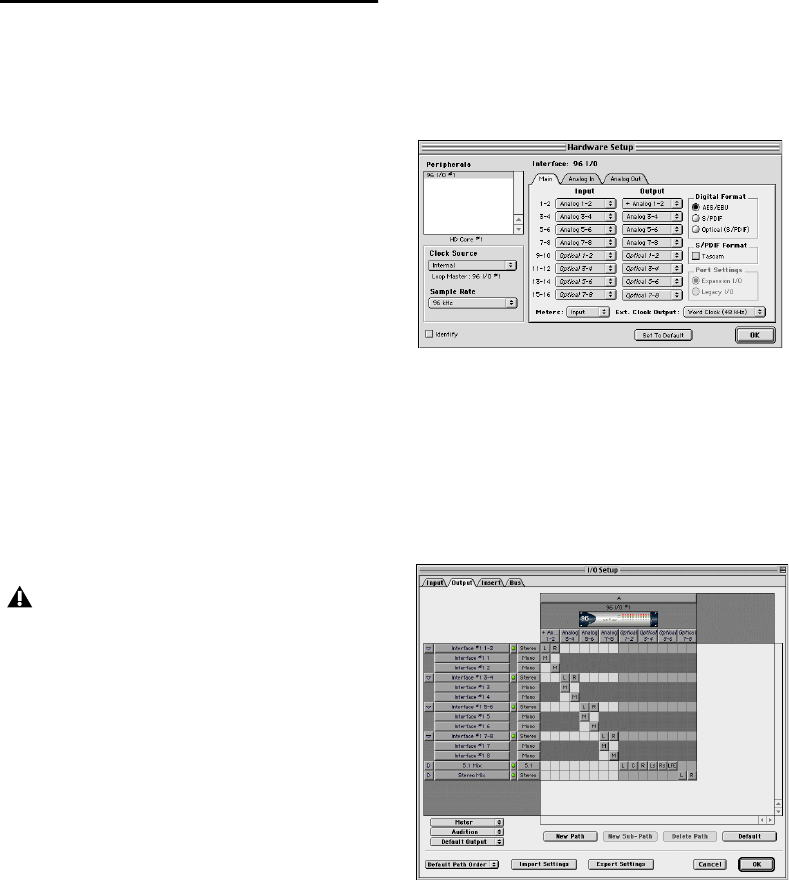
A new Hardware Setup dialog provides compre-
hensive controls for configuring all connected
audio interfaces and peripherals, as well as glo-
bal settings such as the Clock Source for the pe-
ripherals connected to the system.
Connected 192 I/O and 96 I/O audio interfaces
and the cards they are attached to are automati-
cally sensed and identified by Pro Tools 5.3 soft-
ware, eliminating the need to manually define
these connections.
Legacy audio interfaces such as the 888|24 I/O
and 882|20 I/O are not automatically sensed
and must be manually identified within this di-
alog.
The Main page of the Hardware Setup dialog is
used to define what physical ports are routed to
Pro Tools input and output ports. Each con-
nected 192 I/O and 96 I/O has its own Main
page that allows you to define the format, on a
pair-by-pair basis, of the 16 channels of I/O that
are usable by Pro Tools
The Main page also provides controls for system
Sample Rate, Sync settings, and defining
whether Expansion Port or Legacy Port periph-
erals are active.
Additional pages configure other parameters on
each I/O, such as setting operating levels. For
more information, refer to the
Getting Started
with HD
Guide
and the guide for your specific in-
terface.
I/O Setup
The I/O Setup dialog supports the new
Pro Tools|HD hardware and provides compre-
hensive controls for configuring the signal
paths of all connected interfaces.
Legacy interfaces cannot be used in sessions
with sample rates above 48 kHz.
Hardware Setup dialog
I/O Setup dialog
What’s New in Pro Tools 5.3
5
Playback Engine
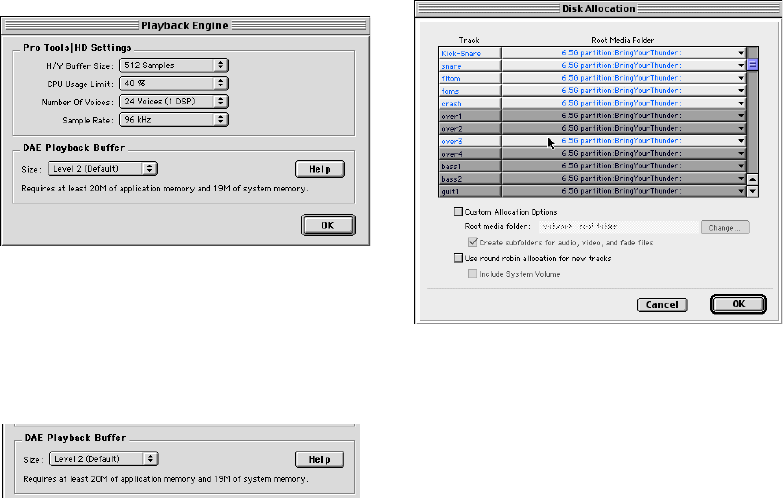
The Playback Engine dialog has been stream-
lined. It can now be opened without requiring
that the current session be closed. In addition,
the Playback Engine dialog now has controls for
setting the DAE Playback Buffer Size, a control
previously found in the DAE application.
A new Number of Voices pop-up menu allows
you to choose the number of voices in a session
and the number of DSP chips used to provide
those voices (and thus the number of voices per
DSP) and the number of DSP chips assigned as
Playback Engine chips. Depending on the cur-
rent session sample rate, and the number of HD
Core and Process cards in your system, you will
have different choices available. Changing the
number of voices or session sample rate affects
DSP usage and your system performance. Up to
four DSP chips can be used as Playback Engine
chips.
DAE Integrated Into Pro Tools Software
Previously a separate application, DAE is now
part of the Pro Tools software and DAE Buffer
Size can be set using the Playback Engine dialog.
.
In addition, directly changing DAE’s memory
allocation (to accommodate additional plug-
ins) is no longer possible. Instead, allocate more
memory to the Pro Tools application.
Disk Allocation Dialog Shortcuts
Two new key shortcuts make it easier to allocate
a specific destination hard drive to multiple
tracks simultaneously:
• To make a continuous selection, Shift-click a
track name (in the Track column) to extend
the selection to include already-selected
tracks and all tracks in between.
• To make a discontiguous selection, Com-
mand-click (Macintosh) or Control-click
(Windows) a track name in the Track column
to extend the selection to include already-se-
lected tracks without including tracks in be-
tween.
Playback Engine dialog
DAE Playback Buffer in Playback Engine dialog
Disk Allocation dialog
What’s New in Pro Tools 5.3
6
Bounce to Disk
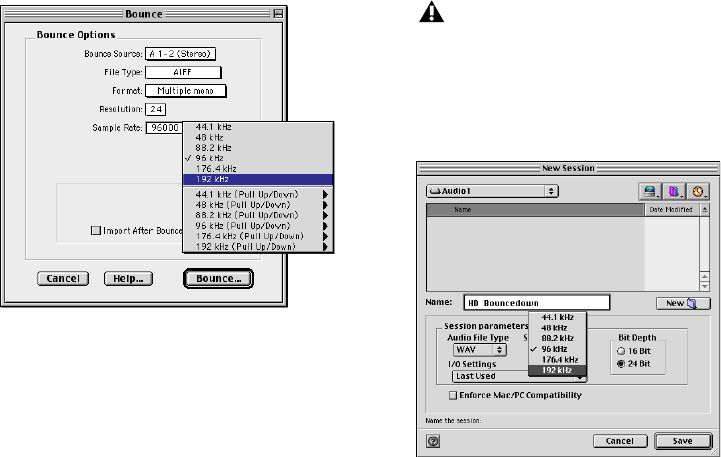
Bounce to Disk now supports bouncing at high
definition sample rates. Supported destination
sample rates include 44.1, 48, 88.2, 96, 176.4,
and 192 kHz. Pull Up/Pull Down variants for all
supported standard sample rates are also pro-
vided.
New Session
The New Session dialog now supports
Pro Tools|HD’s high definition sample rates.
Supported sample rates include 44.1, 48, 88.2,
96, 176.4, and 192 kHz. The session sample rate
is defined in the New Session dialog when a ses-
sion is first created.
Save Session Copy In
The Save Session Copy In dialog allows saving a
copy of the current session in the following for-
mats:
• Latest (Pro Tools 5.1 or later)
• Pro Tools 5 Session
• Pro Tools 4, 16-Bit Session
• Pro Tools 4, 24-Bit Session
• Pro Tools 3.2 Session
Bounce to Disk dialog
With Pro Tools 5.3, the default audio file
format has changed from Sound Designer II
to .WAV. In addition, Sound Designer II
format audio files are not supported at ses-
sion sample rates above 48 kHz.
New Session dialog

What’s New in Pro Tools 5.3
7
Choose Latest if you are working with Pro Tools
software version 5.1 or higher.
Opening 5.2 or 5.1.3 Sessions with
Pro Tools 5.3
Using Pro Tools 5.3 to open sessions created
with versions 5.2 or 5.1.3 of Pro Tools software
will cause the unique features of those versions
to be lost. Specifically:
◆
If you open a Pro Tools 5.2 session in
Pro Tools 5.3, you will not be able to use Digi-
Studio Internet collaboration capabilities, and
you will lose information on Local Online track
associations.
◆
If you open a Pro Tools 5.1.3 session in
Pro Tools 5.3, you will not be able to use Digi-
Translator 2.0, Unity MediaNet Shared Storage
Systems, AVoption or AVoption|XL. You will
also be unable to play audio imbedded in an
OMF sequence file, and pull-downs will only be
allowed at the standard frame rates.
Opening 5.3 Sessions Using Earlier
Versions of Pro Tools
If you want to use an earlier version of Pro Tools
to open a 5.3 session containing audio files with
sample rates above 48 kHz, choose the “Save
Session Copy In” command and resave the ses-
sion and its audio files to either a 44.1 or 48 kHz
sample rate.
New TDM Mixer Plug-Ins
Pro Tools 5.3 provides four different Mixer plug-
ins to support high definition audio on
Pro Tools|HD systems. These new Mixer ver-
sions are: Stereo, Surround, Stereo Dithered, and
Surround Dithered.
The Stereo and Surround Mixer plug-ins are in-
stalled by default. When you run the Pro Tools
Installer, a copy of the Stereo Dithered and Sur-
round Dithered mixers are placed in the folder
“Plug-Ins (Unused)” inside the DAE folder.
Standard Surround and Stereo Mixers
Both the Surround and Stereo Mixer plug-ins
provide the following:
◆
24-bit digital output, from an audio interface
output or the Bounce to Disk function. Mix level
scaling stores 48-bit results, using a 56-bit accu-
mulator for maximum precision.
◆
48 dB of mix headroom
◆
Output clip indication
◆
Multichannel mixing formats for surround
(available with the Surround Mixer)
Surround Dithered and Stereo Dithered
Mixers
Both the Surround Dithered and Stereo Dith-
ered Mixer plug-ins provide the following:
• The same features as the standard Stereo and
Surround mixers, with the addition of non-cor-
related dither to any output or bus send.
When a Pro Tools 5.3 session is saved to an
earlier version, multichannel tracks and
multi-mono plug-ins are lost. To preserve
these, separate the tracks and plug-ins to in-
dividual mono tracks before saving a copy
of the session.
Sessions created in Pro Tools 5.1.1 or earlier
will open in version 5.3 without any loss of
data or features.
What’s New in Pro Tools 5.3
8
Switching TDM Mixer Plug-Ins
In most cases, the Mixer plug-in that was auto-
matically installed with your system is the best
one for all around use. However, you can switch
Mixer plug-ins, if necessary.
To Switch TDM mixer plug-ins:
1
Quit Pro Tools.
2
Open the DAE Folder. The DAE folder is in-
stalled at the root level of the System Folder.
3
Open the “Plug-Ins (Unused)” folder, locate
the Mixer plug-in that you want to use, and drag
it to the Plug-Ins folder.
4
Open the Plug-Ins folder, locate the mixer
plug-in version that you no longer wish to use,
and drag it to the “Plug-Ins (Unused)” folder.
5
Launch Pro Tools.
Plug-In and Processing
Features
Pro Tools 5.3 adds several new plug-in and DSP-
processing related enhancements.
New DigiRack Plug-Ins
Pro Tools 5.3 for Macintosh includes new Digi-
Rack Plug-Ins with the following enhance-
ments:
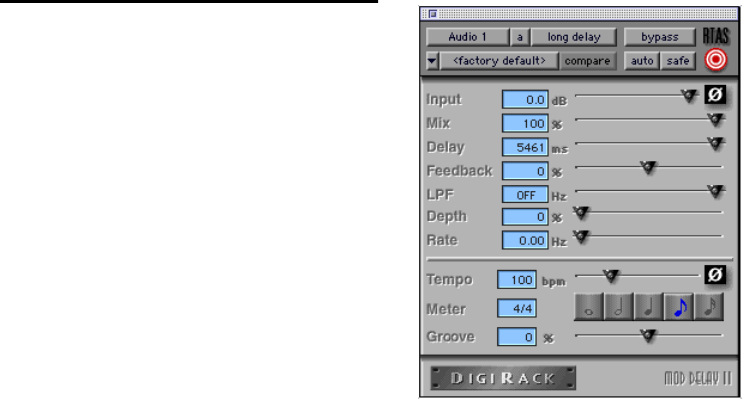
• A new Mod Delay II plug-in with Tempo,
Meter, and note-based entry of delay time
• An RTAS version of POW-r Dither
• TDM and RTAS versions of Digidesign’s
D-Verb plug-in
• Three separate TimeAdjuster plug-ins (Short,
Medium, Long) for a wider variety of sample
delay times
All DigiRack Plug-Ins support up to 192 kHz ses-
sion sample rates.
Mod Delay II Plug-In
Mod Delay II for Pro Tools 5.3 adds controls for
Tempo, Meter, Duration, and Groove.
Tempo
Sets the desired tempo in beats per
minute (bpm).
Meter
Allows you to enter simple or compound
time signatures.
Duration
Allows you to specify a delay according
to a note value (whole, half, quarter, eighth, or
sixteenth note).
Groove
Provides fine adjustment of the delay in
percentages of a 1:4 subdivision of the beat.
This new version of Mod Delay II is provided in
TDM, RTAS, and AudioSuite formats.
Mod Delay II plug-in
What’s New in Pro Tools 5.3
9
TimeAdjuster Plug-In
TimeAdjuster for Pro Tools 5.3 provides a choice
of three plug-ins:
Short
Provides a maximum delay of 256 samples
at all sample rates.
Medium
Provides a maximum delay of 2048
samples at all sample rates.
Long
Provides a maximum delay of 8192 sam-
ples at all sample rates.
New HTDM Plug-In Format
Pro Tools 5.3 supports Digidesign’s new HTDM
(host TDM processing) plug-in format.
HTDM plug-ins combine the flexibility of TDM
plug-ins with the power of RTAS plug-ins by us-
ing the processing power of your host computer,
while allowing plug-in insertion on all track
types, including disk tracks, auxiliary inputs,
and master faders. This allows you to use a
greater number of plug-ins in a session without
restricting their usage on specific track types.
