Wii File Manager Manual
User Manual:
Open the PDF directly: View PDF  .
.
Page Count: 8
Wii File Manager
By Jayce Houghton
Table of Contents
1. Navigating Directories
2. Creating Empty Files and Directories
3. Copying Moving and Removing Files
4. Information about files
5. The Music Channel (Additional Feature)
Navigating Directories
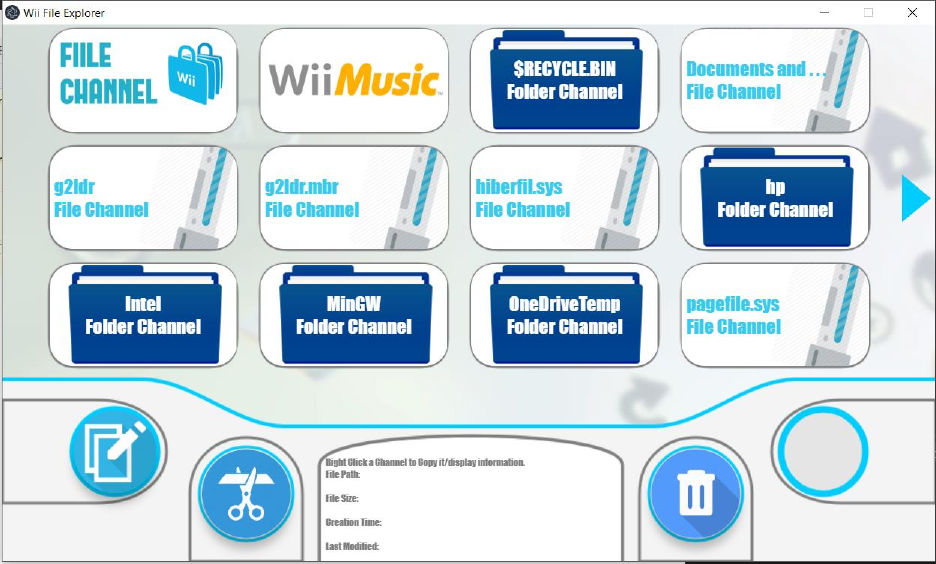
To Navigate the directories, you can press the left and right blue arrows that
appear on left- and right-hand side of the screen. They are only present the
current directory has more files than can be displayed by the channels. To enter a
new directory simply click on a channel, as so long as this is a directory, you will
move into it. Directories are shown as a file picture and will have “Folder
Channel” in the title. To move back to the previous directory, you can click on the
back button in the bottom right corner. This button will not show up in the root
directory.
Creating Empty Files or
Directories
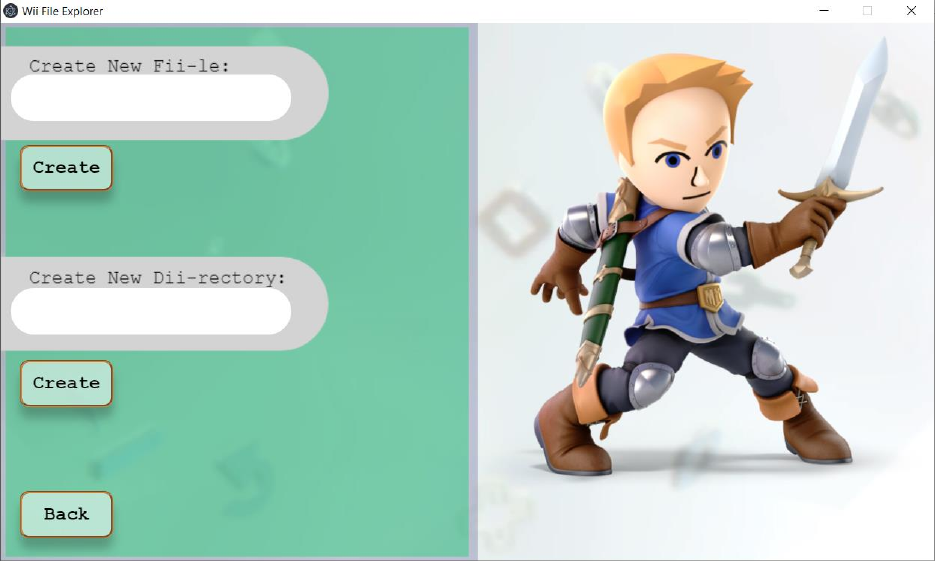
To create an empty file or directory, simply click on the Fiile channel, which is the
first channel displayed in each directory. This channel is displayed on the first
page of the first directory as the first channel. Once inside the channel you can
type your file or directory name inside of their respective textboxes and then hit
create. A message will display next to the create button letting you know whether
or not the file/directory was successfully created.
Copying, Moving, and
Removing Files
Copy, moving, and removing files all use a similar mechanism.
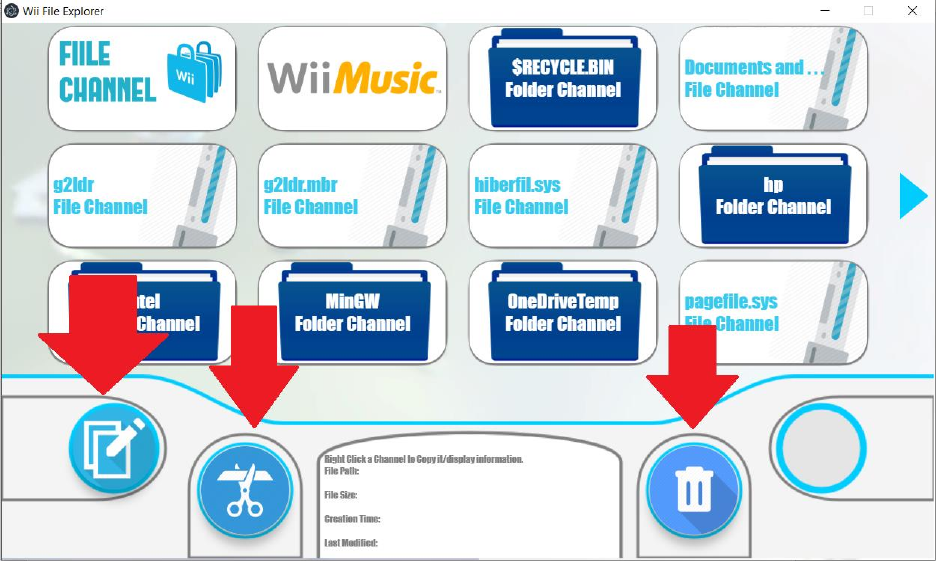
The first step to doing any of these actions is to RIGHT CLICK on the channel (file) that you would like to
copy, move, or remove. You can check to make sure that you have the correct file selected by looking at
the information box at the bottom of the screen. The second line of this information box will have the
path of the file path of the file which you have selected.
If you wish to remove the file simply click on the trash icon. You will be prompted TWICE to confirm that
you wish to delete the file. The prompt will contain the name of the file you are deleting so that you can
double check. Click ok in both of these boxes to delete the file. If you wish not to delete the file simply x
out of the prompt.
If you would like to copy or move the selected file, simply navigate to the directory where you want to
copy or move the selected file and then click the respective button. For copying, click the PASTE button
on bottom left, which looks like a clipboard. For moving click on the CUT button, which is the second
button from the left, and looks like a pair of scissors. The move button will prompt you in the same way
that the delete button did, but it will also tell you what directory you are moving the file to.
Information about files
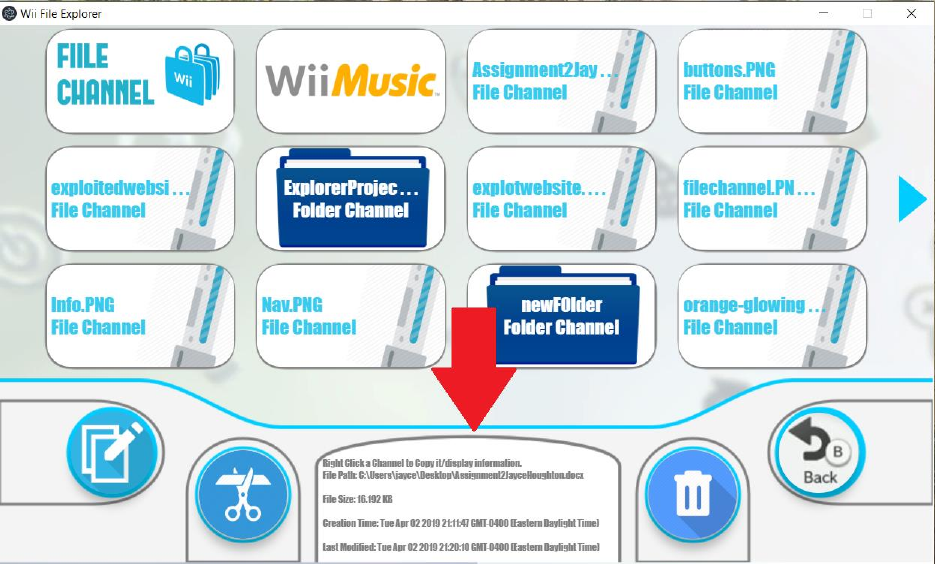
To obtain detailed information about the files or directories simply right click on
the file or directory that you are interesting in. There is an info box at the bottom
of the screen which will display detailed information about your selection. Some
files are protected by the operating systems and as such detailed information
cannot be obtained from them, so if the info at the bottom doesn’t change, it was
likely a protected file.
The Music Channel
(Additional Feature)
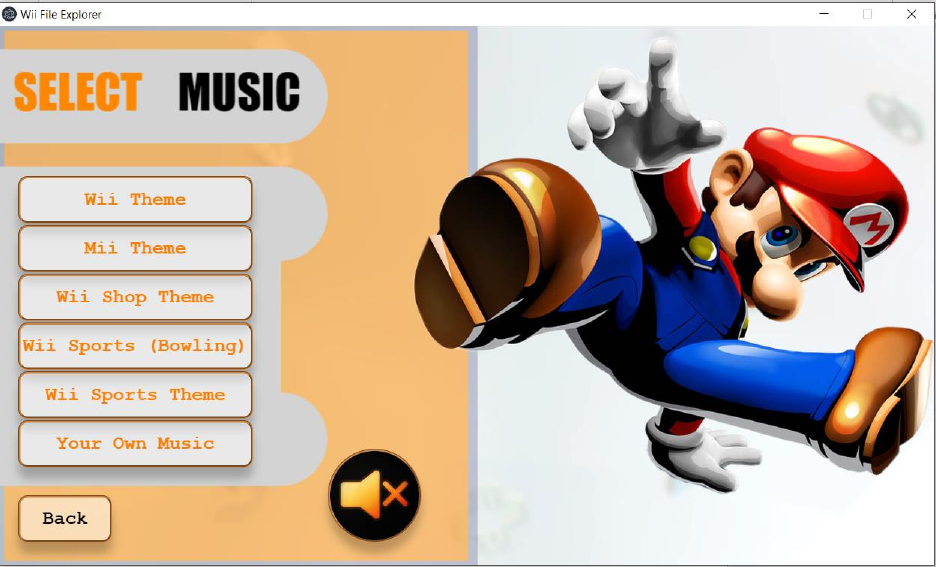
The Music channel allow you to change the background music of the file manager.
There are 6 select songs to choose from. Simply click on one of them and the
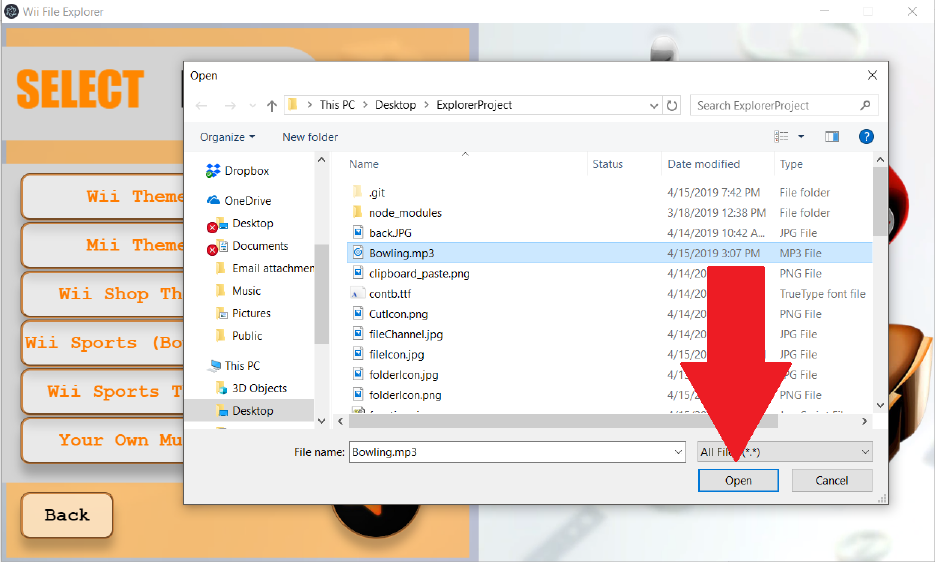
selected music will immediately begin to play. You can also use your own local
music! Simply click on the “My Own Music” button at the bottom and then select
an MP3 file to use. Your song will then begin playing if successful. If un-successful
you will receive a pop-up telling you what went wrong.
If you want to mute the music simply click the mute button which is a big black
button with a mute symbol near the bottom of the screen.