Williams_Overture_Manual Williams Overture Manual
User Manual: Williams_Overture_Manual
Open the PDF directly: View PDF  .
.
Page Count: 32

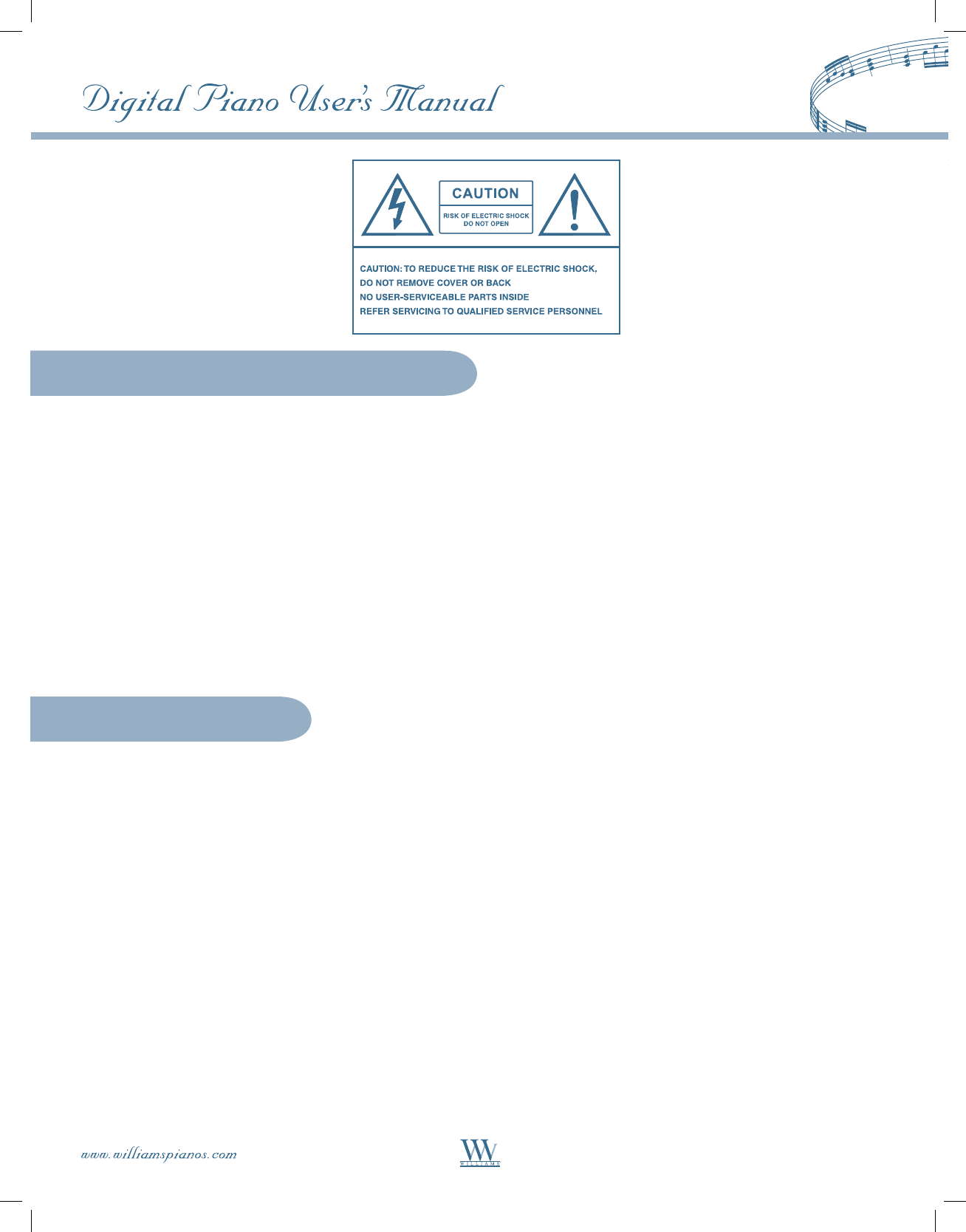
1. Do not use near water.
2. Clean only with dry cloth.
3. Do not block any ventilation openings.
4. Do not place near any heat sources such as radiators, heat registers, stoves,
or any other apparatus (including amplifiers) that produce heat.
5. Do not remove the polarized or grounding-type plug.
6. Protect the power cord from being walked on or pinched.
7. Only use the included attachments/accessories.
8. Unplug this apparatus during lightning storms or when unused for a long period of time.
9. Refer all servicing to qualified service personnel. Servicing is required when the apparatus has been damaged in any
way, such as when the power-supply cord or plug is damaged, liquid has been spilled or objects have fallen into the
apparatus, the apparatus has been exposed to rain or moisture, does not operate normally, or has been dropped.
Important Safety Instructions
FCC Statements
1. Caution: Changes or modifications to this unit not expressly approved by the party responsible for compliance could
void the user’s authority to operate the equipment.
2. Note: This equipment has been tested and found to comply with the limits for a Class B digital device, pursuant to
Part 15 of the FCC Rules. These limits are designed to provide reasonable protection against harmful interference in
a residential installation. This equipment generates, uses, and can radiate radio frequency energy and, if not installed
and used in accordance with the instructions, may cause harmful interference to radio communications. However,
there is no guarantee that interference will not occur in a particular installation. If this equipment does cause harmful
interference to radio or television reception, which can be determined by turning the equipment off and on, the user
is encouraged to try to correct the interference by one or more of the following measures:
• Reorient or relocate the receiving antenna.
• Increase the separation between the equipment and receiver.
• Connect the equipment into an outlet on a circuit different from that to which the receiver is connected.
• Consult the dealer or an experienced radio/TV technician for help.
FCC Statements
1
We would like to express our appreciation and congratulate you for purchasing this Williams
Overture digital piano. With proper care, this piano will provide you with years of musical
enjoyment. Williams’ advanced state of the art electronics are combined with an elegant cabinet
that will add beauty and sophistication to any home or studio environment.
Some features include:
• Authentic acoustic piano feel
• Williams’ acclaimed stereo imaging
• Acoustic instrument voices that offer unmatched realism
• Metronome feature with variable tempo to facilitate practice
• Compact and dynamic sound delivery system
• Two-track recorder that allows you to record and playback your performances
• Over 50 pre-recorded play-along songs with separate left hand/right hand
• Digital effects to further enhance the instrument voices
• General MIDI support
• MIDI In/Out and USB connections
• Stereo line output
• Two headphone outputs
• Stereo line input
• Sustain, soft, and sostenuto pedals
In order to make the most of your piano, we suggest that you take a few minutes to
read about the many features and functions listed in this owner’s manual, then save it for
later reference.
2
Taking Care of your Digital Piano 4
Connector Panel 5
Headphone Jacks 5
Pedals 6
Soft Pedal 6
Sostenuto Pedal 6
Sustain Pedal 6
Panel Controls 7
Demonstration Songs 8
Voice Demonstration 8
Orchestration Demonstration 8
Voice 9
Select a Voice 9
Layer Voice 9
Keyboard Mode 10
Full Keyboard 10
Duet Keyboard 10
Transpose 11
Effects 12
Reverb 12
Chorus 12
Metronome 13
Tempo 13
Recorder 14
Recording 14
Playback 15
Erasing Tracks 15
Play-Along Songs 16
Selecting a Song 16
Listening to the Entire Song 16
Practicing the Right Hand of the Selected Song 16
Practicing the Left Hand of the Selected Song 17
Practicing Both Hands of the Selected Song 17
Setup Mode 18
Using the Setup Mode 18
Soft Reset 20
MIDI and USB 21
MIDI Implementation Chart 23
Main Voice List 24
GM Voice List 24
Drum Kit List 25
Specifications 27
Warranty Information 28
Contents
3
Taking Care of Your Digital Piano
This Williams Overture digital piano will supply you with years of musical enjoyment if you follow the suggestions
listed below.
Service and Modification
This product should be serviced by qualified service personnel when:
• The power supply cord or the plug has been damaged.
• Liquid has been spattered into the unit or the unit has been exposed to rain.
• The instrument does not appear to operate normally or exhibits a marked change in performance.
• The instrument has been dropped or the cabinet has been damaged.
Handling and Transport
• Never apply excessive force to the controls, connectors or other parts of the instrument.
• Always unplug cables by gripping the plug firmly, not by pulling on the cable.
• Disconnect all cables before moving the instrument.
• Physical shocks caused by dropping, bumping, or placing heavy objects on the instrument can result in
scratches and/or more serious damage.
• Carefully check the amplifier volume control before playing. Excessive volume can cause permanent
hearing loss.
Cleaning
• Clean the cabinet and panel with a soft, dry cloth. A wax based polish may be used on the cabinet, although
rubbing with a soft cloth will usually suffice. Do not use paint thinner or petrochemical based polishes.
• To maintain the luster of the keys and buttons, wipe with a clean, lightly dampened cloth and then polish
with a soft, dry cloth.
Location
• To avoid deformation, discoloration, or more serious damage, do not expose the instrument
to the following conditions: Direct sunlight, high temperatures, excessive humidity, excessive
dust, strong vibration.
• Leave enough space around the piano for proper ventilation.
• This instrument contains digital circuitry and may cause interference if placed too close to radio or television
receivers. If interference occurs, move the instrument further away from the affected equipment.
• Avoid placing vinyl objects on top of the instrument; vinyl can stick to and discolor the surface.
Power
• Turn the power switch off when the instrument is not in use.
• To avoid damage to the instrument and other devices to which it is connected, turn the power switches of
all related devices off prior to connecting or disconnecting MIDI cables.
• Turn the power off if the main cable is damaged, or if the instrument is spattered with liquid.
• Do not switch the unit on and off in quick succession as this places an undue load on the
electronic components.
• Unplug the AC power cord during an electrical storm.
• Avoid plugging the AC adaptor into the same AC outlet as appliances with high power consumption,
such as electric heaters or ovens.
4
Connector Panel
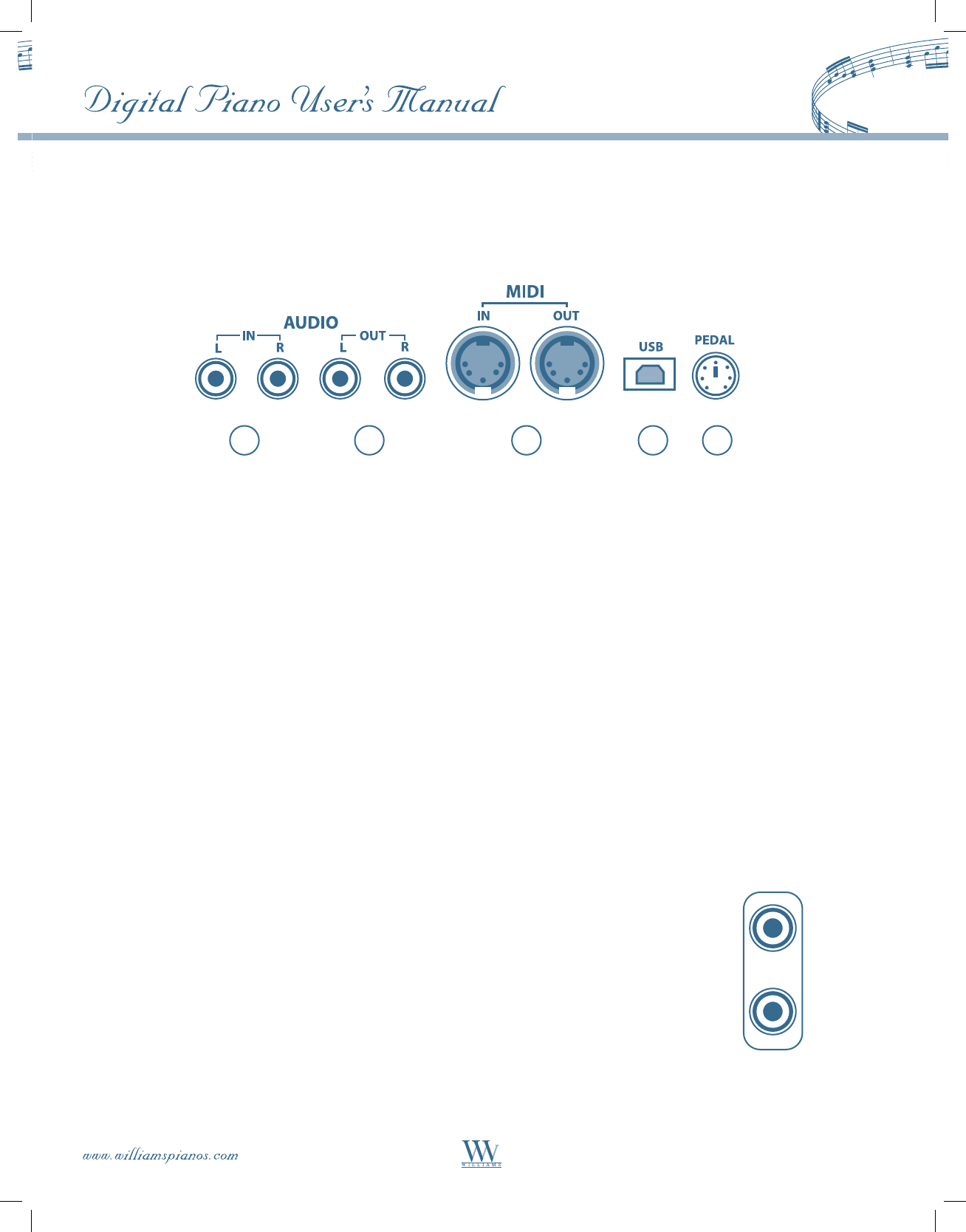
The connector panel is located underneath the keybed.
1 2 53 4
1. LINE IN: These stereo audio input jacks will amplify the supplied signal (CD players, MP3 player or cassette
players) through the internal sound delivery system.
2. LINE OUT: These stereo audio output jacks supply the piano’s output signal to external amplification devices
such as a home stereo, PA system, or other stand-alone amplifiers.
3. MIDI IN / MIDI OUT: The Overture provides MIDI IN and MIDI OUT ports. MIDI allows communication
with other products equipped with MIDI interfaces. Please see the MIDI section of this manual for
further details.
4. USB: The USB connector allows you to connect the Overture piano directly to your computer. It can be
connected without driver installation under the Windows XP/Vista & MAC OSX environments. The
Overture will be recognized as a USB Audio device and can receive and transmit MIDI messages.
5. PEDAL: Your pedal board cable plugs in here.
5
PHONE 1 / PHONE 2: You can play in total silence by plugging in a set of
headphones. When headphones are plugged into either of these jacks the main
speaker system is turned off. Two sets of headphones may be used simultaneously.
The headphone jacks are located underneath the keybed.
Headphone Jacks
Pedals
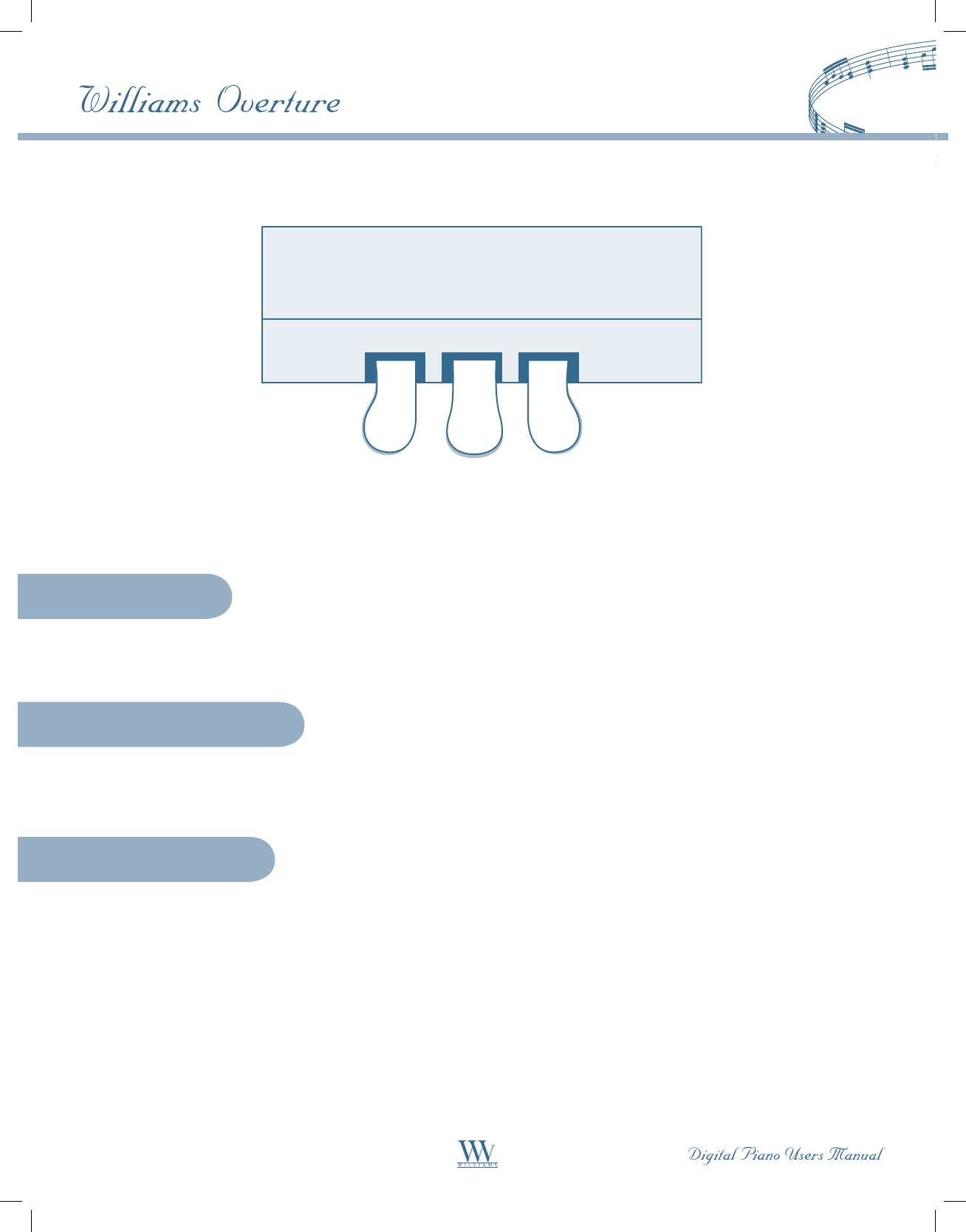
When the right pedal is engaged, the piano keys will sustain as they are played. The piano notes will
decay gradually.
Soft Pedal
Sostenuto Pedal
Sustain Pedal
When the left pedal is engaged, the piano volume is reduced and the timbre is slightly altered on the notes
that are played.
When the center pedal is engaged, the keys that were previously played will sustain and the notes will decay
gradually, after they are released. Keys that are played after this pedal is pressed are not affected.
6
Soft SoStenuto SuStain
Panel Controls
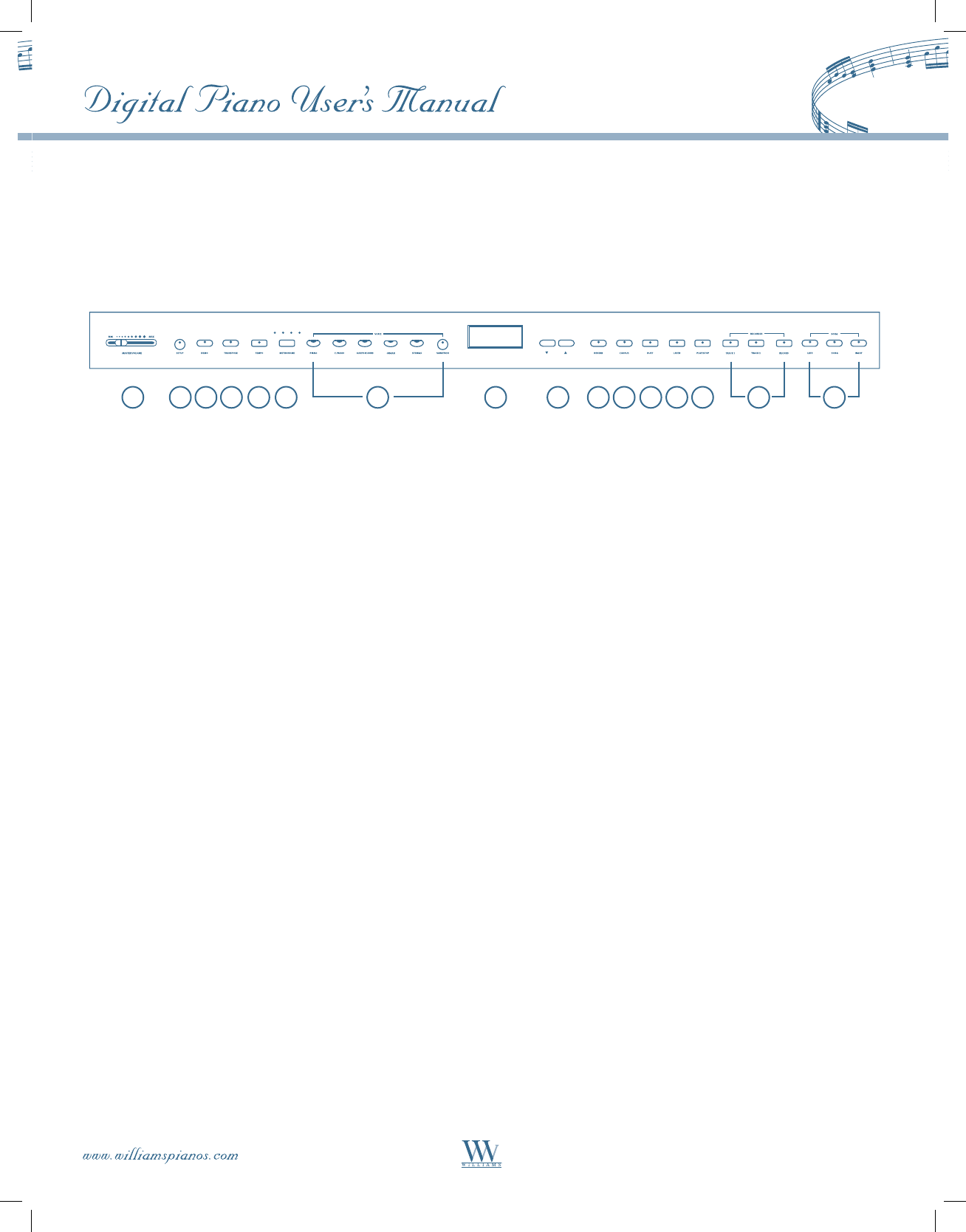
The following is a brief description of all the features located on the control panel, which is divided conveniently
into several distinct sections.
1
7
1. MASTER VOLUME: Adjusts the overall volume of the keyboard.
2. SETUP BUTTON: Accesses settings such as touch, tuning, balance, local mode, etc.
3. DEMO BUTTON: Plays the orchestration demonstrations.
4. TRANSPOSE BUTTON: Transposes the keyboard in semitone increments.
5. TEMPO BUTTON: Adjusts the tempo of the metronome and play-along songs.
6. METRONOME BUTTON: Enables/disables the built-in metronome.
7. VOICE BUTTONS: These select the main voices and their variations.
8. LED DISPLAY: Displays current parameters such as voice number, tempo, song number and more.
9. DATA UP/DOWN BUTTONS: These increase/decrease the current data values on the LED display.
10. REVERB BUTTON: Enables/disables the reverb effect.
11. CHORUS BUTTON: Enables/disables the chorus effect.
12. DUET BUTTON: Enables/disables the duet mode.
13. LAYER BUTTON: Enables/disables the layer mode.
14. PLAY/STOP BUTTON: Controls playback of the 2-track recorder or play-along songs.
15. RECORDER BUTTONS: These control the 2-track recorder.
16. SONG BUTTONS: These control the play-along songs.
2 3 4 5 6 7 8 9 10 11 12 13 14 1615
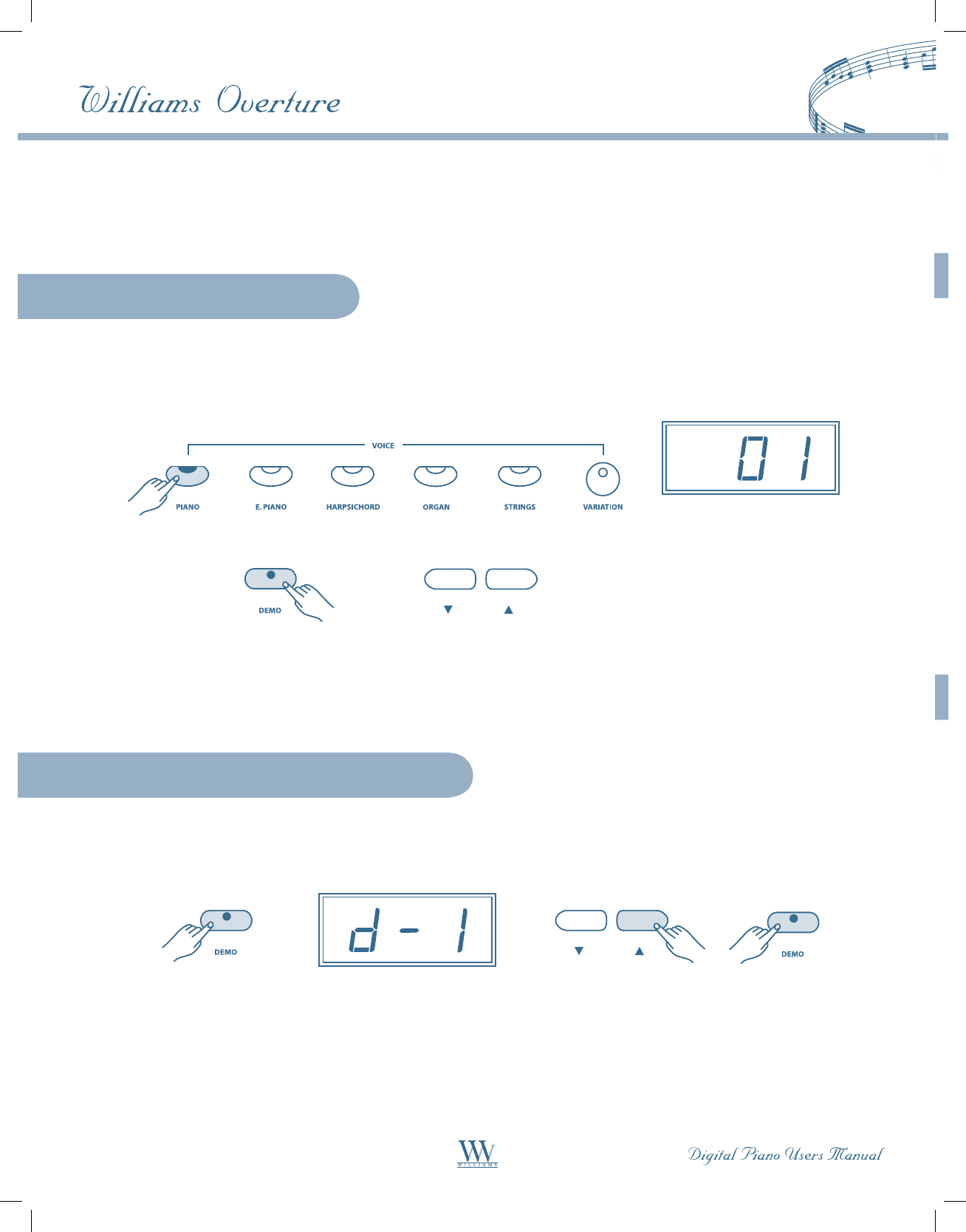
Press and hold down a VOICE button then press the DEMO button. The selected voice will play. Use the VOICE
button, VARIATION button, or the qp buttons to change voices. The display shows the chosen voice number.
Press the DEMO button again to stop the voice demo.
8
Demonstration Songs
Voice Demonstration
There are two types of demonstration songs: Orchestra Demonstration & Voice Demonstration.
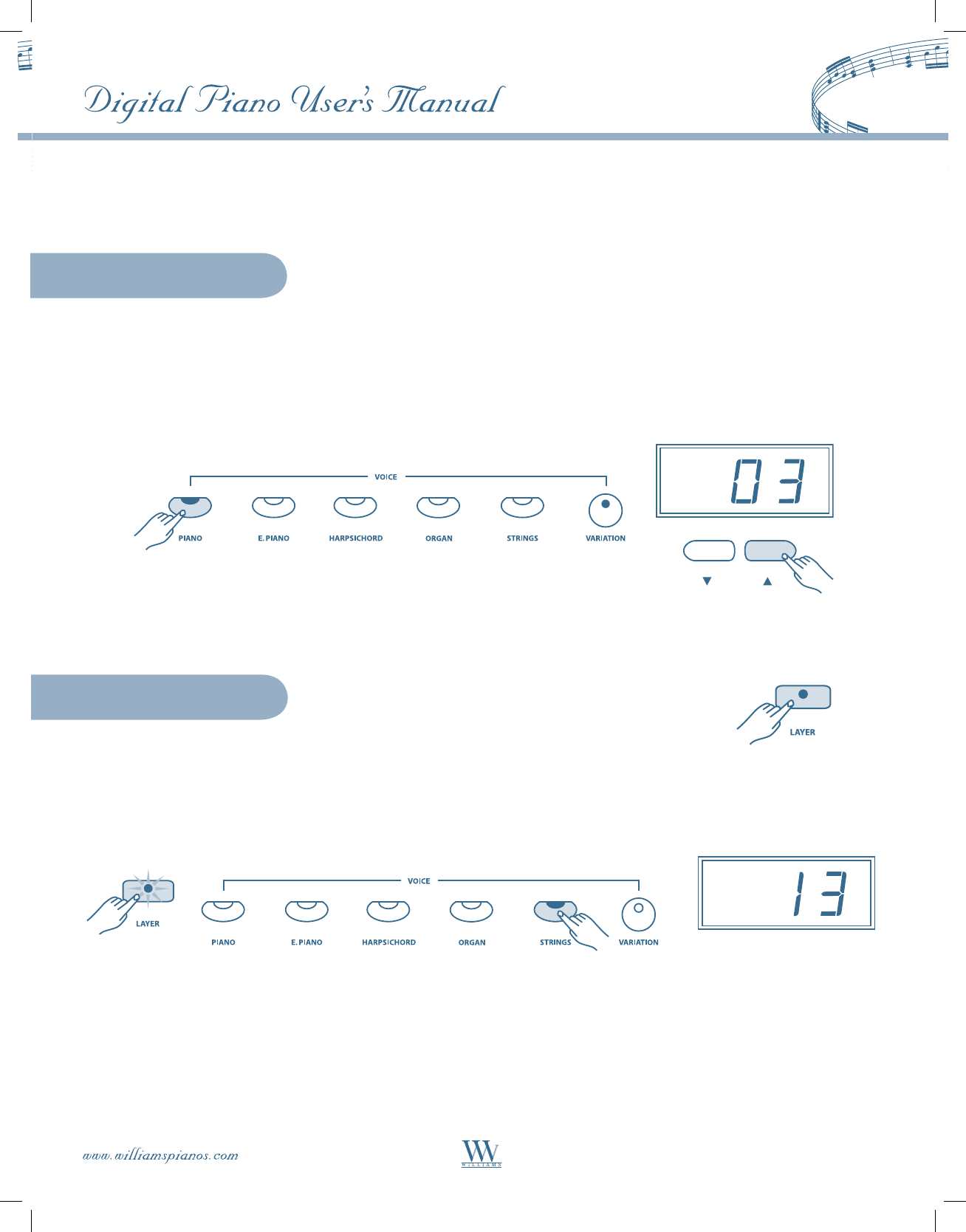
There are 10 orchestration demos. Press the DEMO button and the indicator lights up. Press the qp buttons to
select the demo song. The display shows the demo song number with “d-” prefix. Press the DEMO button again
to stop the demo.
Orchestration Demonstration
9
Voice
Select a Voice
With LAYER mode, you can layer (mix) two instruments together.
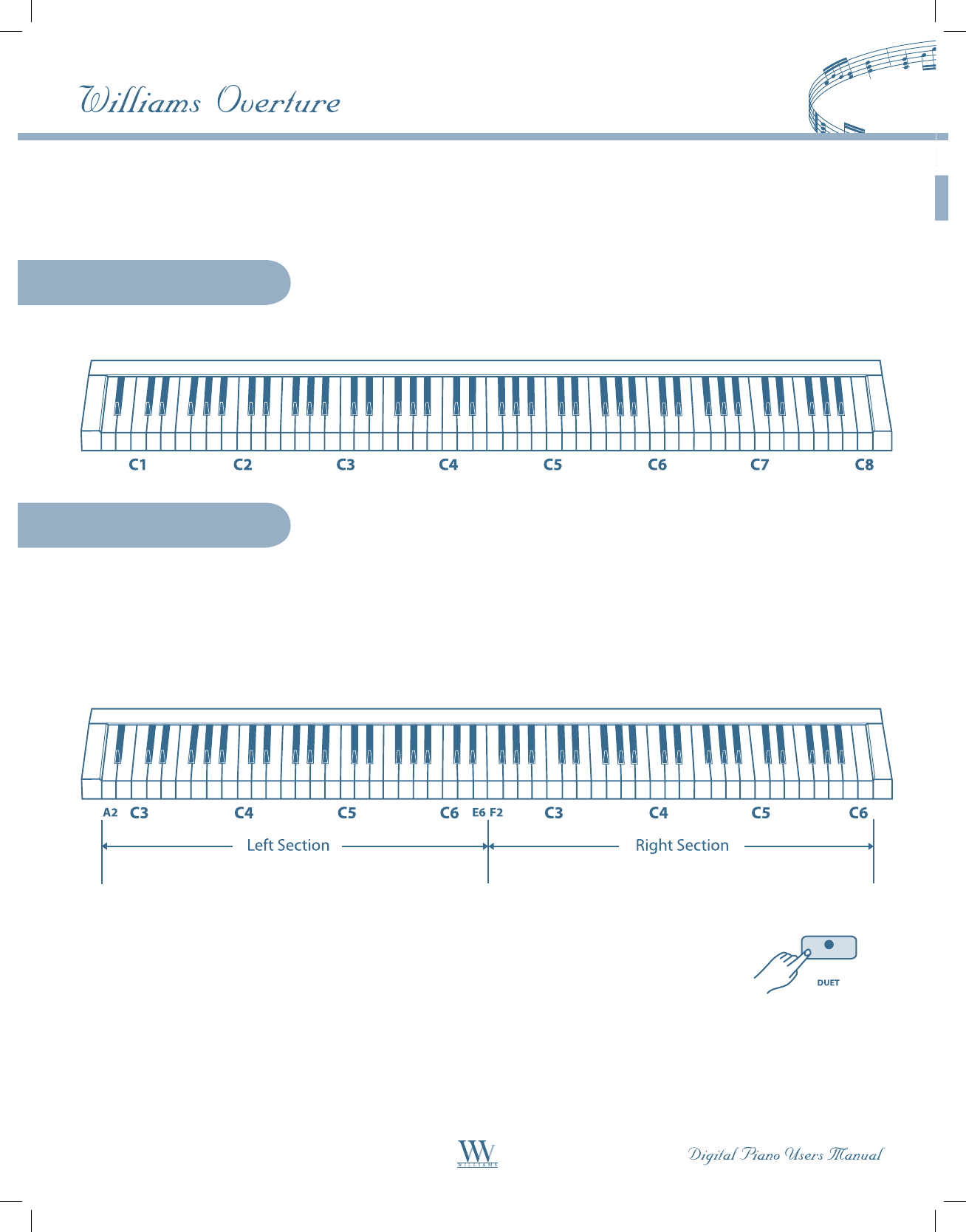
Press the LAYER button and its indicator lights up to engage the LAYER VOICE mode. The default layered voice
is Strings (#13). To change the layered voice, press the LAYER button and a VOICE button simultaneously. The
LAYER VOICE mode will engage and the LAYER indicator flashes. The display shows the layered voice number.
Then, use the VOICE button, the VARIATION button, or the qp buttons to select the layer voice.
When the piano is turned on, the default voice setting is 01 Grand Piano.
There are 15 voices numbered 1-15 and selected by the five quick-select VOICE buttons and the VARIATION
button. Each VOICE select button refers to a category of instruments. Press the VARIATION button to select
a variation in that voice category. The VARIATION button indicator is dual color. When a voice changes in
the category, the color of the VARIATION indicator also changes with the corresponding voice number on
the display. You can also use the qp buttons to select a voice in the VOICE mode and the relevant indicator
will light up.
Layer Voice
After 5 seconds of inactivity, the display will show the Master voice and the piano will return to VOICE mode.
The LAYER indicator will stay on. Press the LAYER Button again to exit the LAYER VOICE mode and the
indicator will turn off.
Note: The volume balance between layered voice and Master voice can be adjusted. Please refer to the SETUP chapter
for details.
Note: Though only 15 voices can be selected from the control panel, the Overture contains 128 General MIDI voices
and percussion sound kits. These additional voices and kits are only available through the MIDI or USB connections.
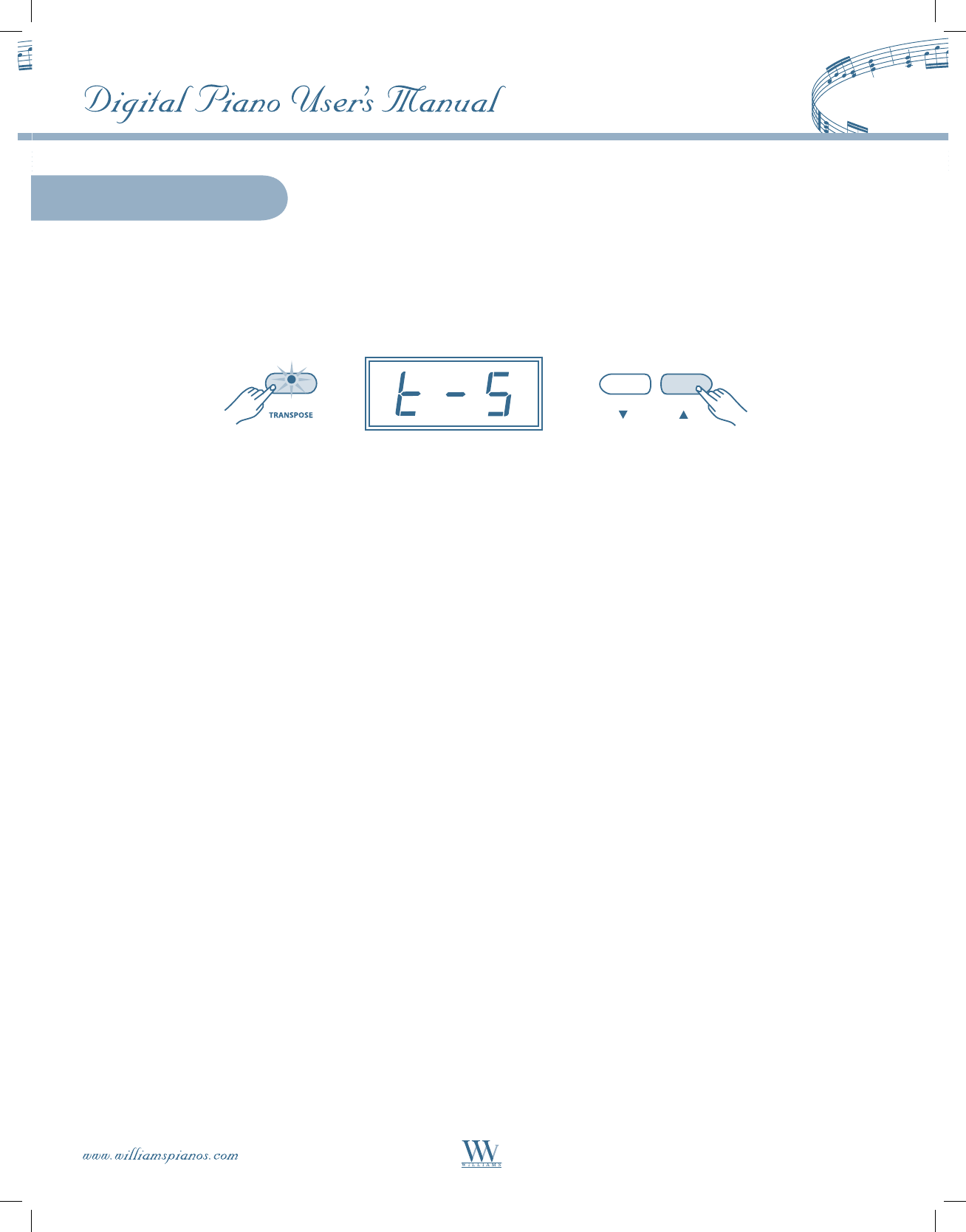
In Duet mode, the keyboard is split into two sections. The left section becomes A2-E6, and the right section
becomes F2-C6. The voice of the two sections is the same.
In this mode, the right pedal becomes the sustain pedal for the right section of the keyboard and the left pedal
becomes the sustain pedal for the left section of the keyboard. The middle pedal is disabled. This mode is ideal
for teacher/student practices.
10
Keyboard Mode
Full Keyboard
There are two keyboard modes: Full Keyboard and Duet Keyboard.
Duet Keyboard
The Full Keyboard is standard mode as shown below.
Press the DUET button and its indicator lights up to show that the DUET mode is engaged.
Use the VOICE button, the VARIATION button, or the qp buttons to select the voice.
Press the DUET button again to exit the duet keyboard mode. The indicator will turn off.
11
The Transpose feature can shift the piano’s pitch up or down in semitone intervals.
Press the TRANSPOSE button to engage the transpose feature. The display shows the current Transpose value
(default is zero) with the prefix “t” and the Transpose button indicator flashes. Use the qp buttons to set the
Transpose value ranging from -6 to 6. Press the qand p buttons simultaneously to reset the Transpose value
to zero.
Transpose
After 5 seconds of inactivity, the display will show the Master voice and the piano will return to VOICE mode.
If the Transpose value is not zero, the Transpose indicator will stay lit. Press the TRANSPOSE button again to
disable the Transpose feature.
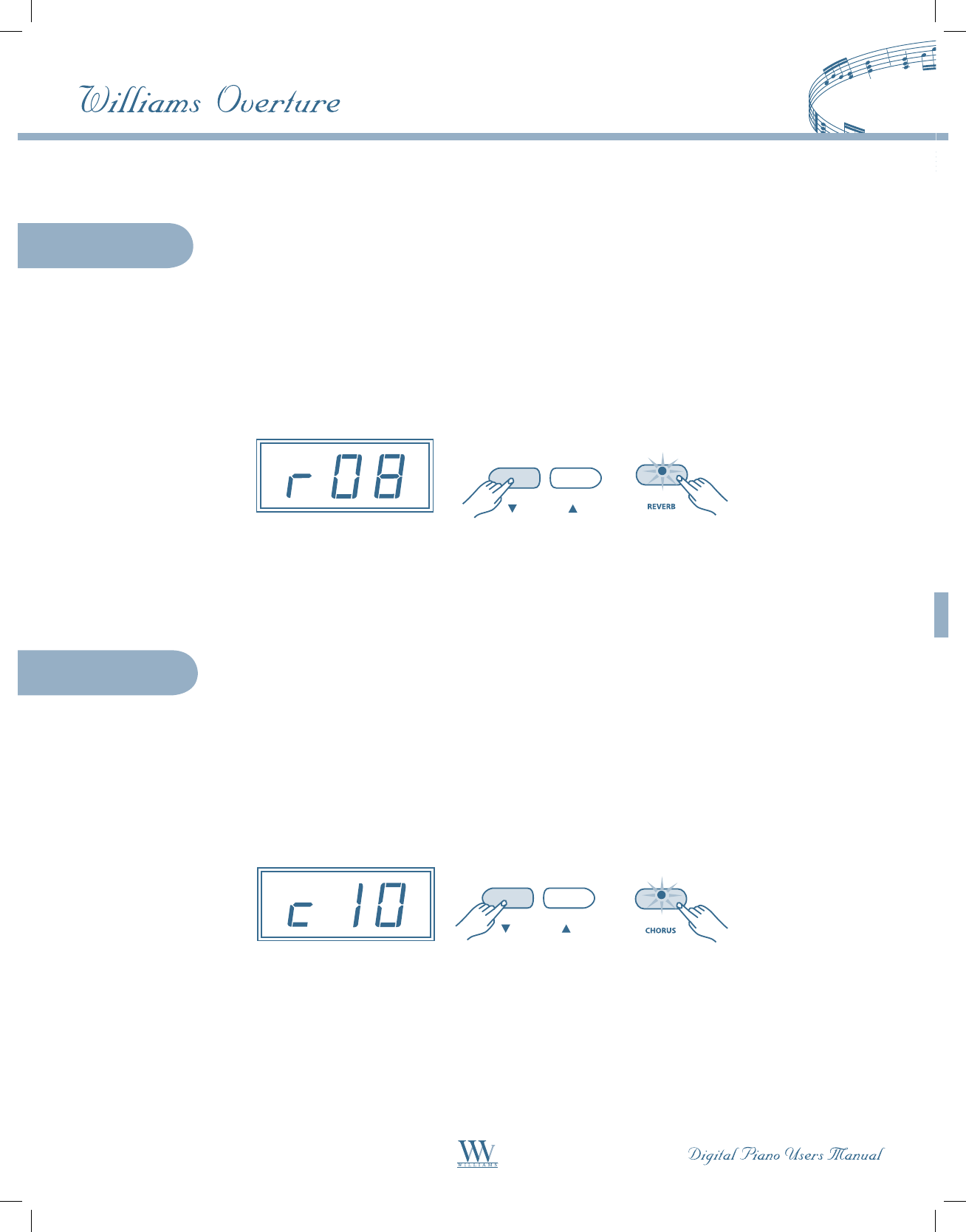
The Chorus effect adds depth and width to the selected keyboard voice.
Press the CHORUS button and its indicator lights up to engage the Chorus effect.
To adjust the chorus level, press the CHORUS button and either the q or p button simultaneously. The Chorus
effect is engaged and the CHORUS indicator will blink. The display will show the current Chorus level with the
prefix “c”. Then, use the qp buttons to change the Chorus level from 0 – 16.
Effects
Reverb simulates the effect of playing in a big room or hall where the sound reverberates off the walls and
ceiling. Press the REVERB button to engage the Reverb effect. Its indicator will light up.
To adjust the reverb level, press the REVERB button and either the q or p button simultaneously. The Reverb
effect will engage and the REVERB indicator will blink. The display will show the current Reverb level with the
prefix “r”. Then, use the qp buttons to change the Reverb level from 0 – 16.
Reverb
Chorus
12
After 5 seconds of inactivity, the display will show the Master voice and the piano will return to VOICE mode.
The CHORUS indicator will stay on. Press the CHORUS button again to disable the Chorus effect. Each voice
has its own Chorus level. When a voice with Chorus is selected, the Chorus effect will turn on automatically.
After 5 seconds of inactivity, the display will show the Master voice and the piano will return to VOICE mode.
The REVERB indicator will stay on. Press the REVERB button again to disable the Reverb effect. Each voice
has its own Reverb level. When a voice with Reverb is selected, the Reverb effect will turn on automatically.
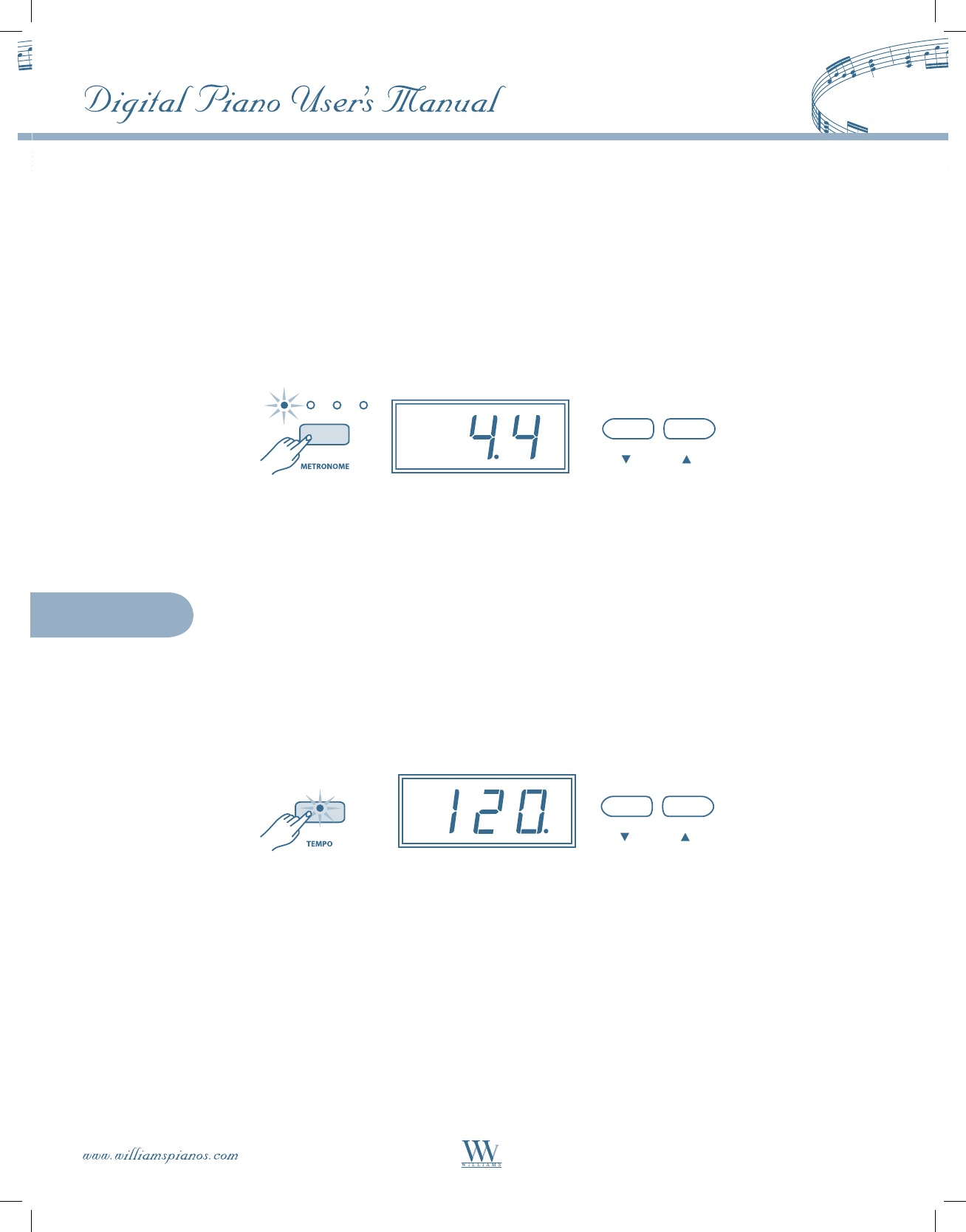
Press the METRONOME button to activate the Metronome. The Metronome will start playing the current
tempo and beat pattern. The beat indicator above the METRONOME button will flash per the beat pattern
and tempo.
The display shows the current beat pattern (default setting is 4/4). There is a dot between the beat per measure
and the note value. Use the qp buttons to change the beat pattern in the following sequence:
1/4, 2/4, 3/4, 4/4, 5/4, 6/4, 6/8 and 12/8.
Tempo
13
After 5 seconds of inactivity, the display will show Master voice and the piano will return to VOICE mode.
The Metronome will keep playing. Press the METRONOME button again to stop the Metronome.
Metronome
To set the Tempo, press the TEMPO button to enter the Tempo setting mode. Its indicators will flash. The
display will show the current Tempo value (default is 120) followed by a dot mark. Use the qp buttons to
change the Tempo from 40 – 240. Press the q and p buttons simultaneously to recall the default Tempo of 120.
After 5 seconds of inactivity, the display will show the Master voice and the piano will return to VOICE mode.
The Overture features a two track recorder that lets you record what you play on the keyboard and then play
it back. Two tracks mean that you can “layer” one part on top of another, using a different voice if you like.
The Recorder feature is a useful addition to any keyboard study program because it lets you hear exactly how
you sound from the listener’s perspective. It can also be just plain fun. This recorded information is “nonvolatile”
and therefore will not be lost when the power is turned off. The 2 tracks can play back separately or together.
The Record function records all settings exactly as you selected and performed them.
14
Recorder
Recording
1. Prepare: Set the voice, tempo, beat pattern, reverb level or other parameters as desired.
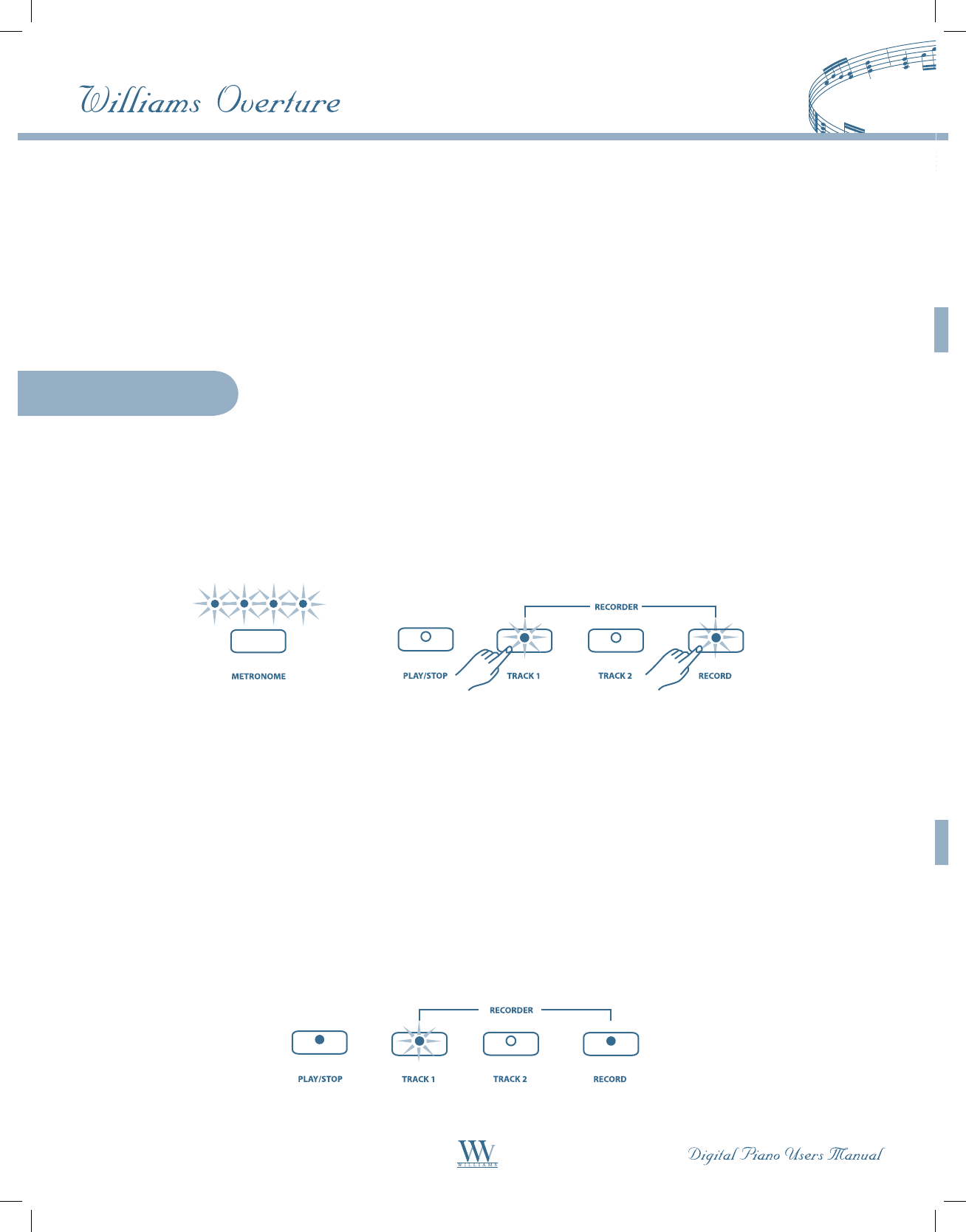
2. Select a track: There are two tracks available for recording. The tracks are assigned by engaging the TRACK 1
or TRACK 2 buttons. Press and hold down the RECORD button, then press the TRACK button for the track
you want to record in. The corresponding Track indicator and the RECORD indicator will blink. The four
LEDs of the beat indicator will blink to show that the recorder is on standby.
Note 1: The contents of a track will be erased as soon you select that track for recording.
Note 2: If you already have recorded on the other track, its track indicator will also be lit and the recorded music will
play as a reference while you record the new track. If you do not wish for the previously recorded track to play while
you are recording, press the corresponding track button to turn the indicator light off.
3. Metronome: If you’d like to use the Metronome as a reference, press the METRONOME button. The
Metronome will sound at the current tempo. You can adjust the Metronome’s tempo as usual before
recording. However, it cannot be changed during recording.
Note: The Metronome sound will not be recorded.
4. Record: Recording will begin as soon as you play the keyboard or press the PLAY/STOP button. While
recording, the recording track indicator keeps blinking and the RECORD and PLAY/STOP indicators
will light solid.
Playback
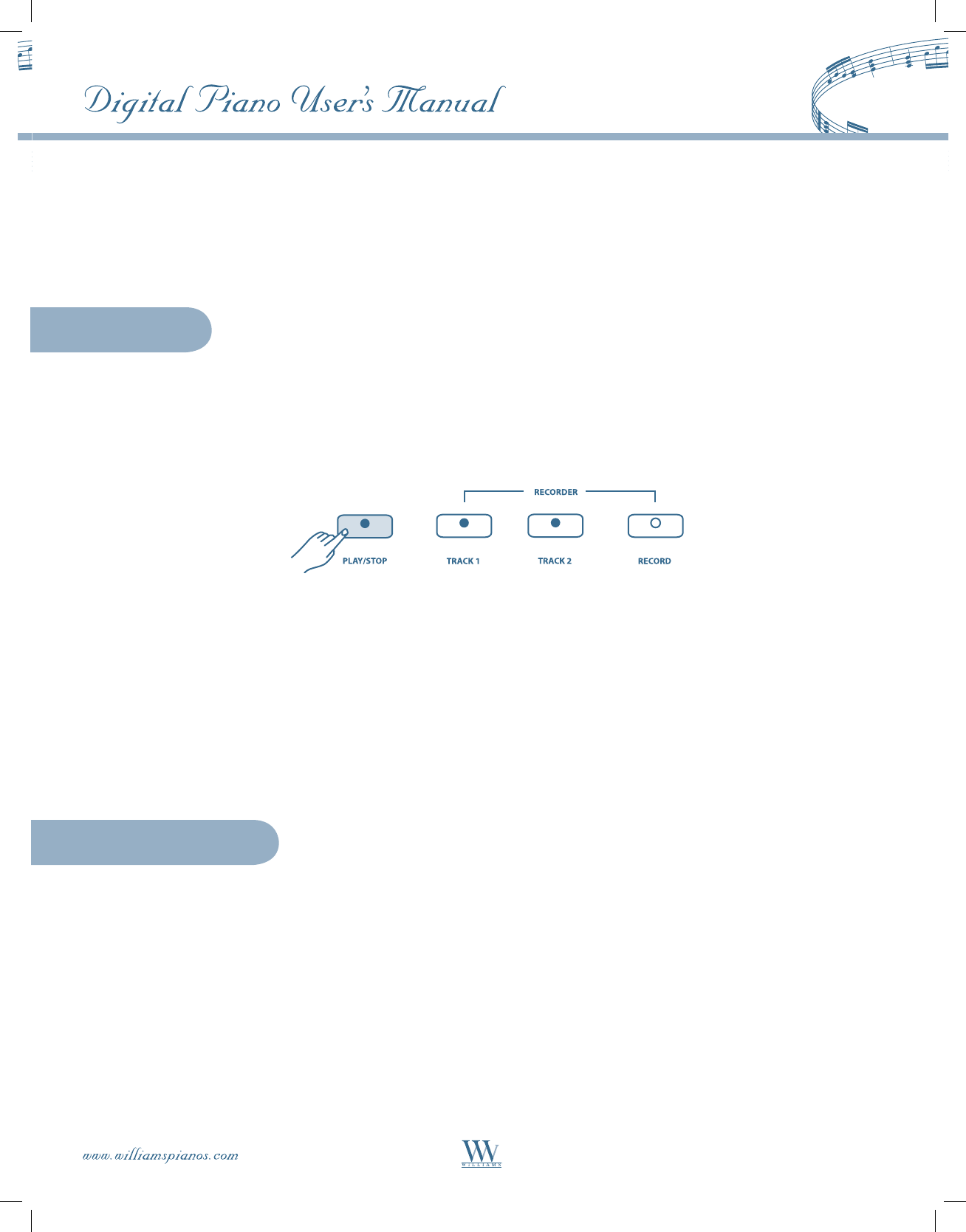
5. Stop Recording: Press the PLAY/STOP button, the RECORD button or the recording TRACK button to stop
recording. The RECORD indicator will turn off, and the recorded track indicator will stay solid to show the
track now contains data.
Note: When the record memory is full, recording will stop automatically and “FUL” will appear on the
LED display.
1. Start Playback: Press the PLAY/STOP button to hear the recorded track(s). The PLAY indicator lights up and
the beat indicators will flash per the beat pattern and tempo.
2. Track Selection: If you do not wish to hear one of the two tracks, press the corresponding TRACK button to
turn that track off. Its LED indicator will turn off.
Playback
3. Tempo: You can change the playback tempo by pressing the TEMPO button while the recorder is playing.
However, the tempo will revert back to the recorded tempo the next time playback is restarted using the
PLAY/STOP button. To change the recorded tempo to the newly adjusted tempo, press and hold the
RECORD button and press the PLAY/STOP button.
Note: You may also accompany the recorded tracks on the keyboard while in playback.
4. End Playback: Press the PLAY/STOP button to stop playback. Playback will also stop automatically when the
recording reaches its end.
1. Press and Hold the RECORD button.
2. Press the TRACK button that you which to erase while you continue to hold down the RECORD button.
This will immediately remove the data from your previous recording.
3. Release the RECORD button. The Track and Record indicators will blink.
4. Press the TRACK button again. The indicators will turn off.
5. Repeat Steps 1 through 4 until all the desired tracks are erased.
Erasing Tracks
15
Play-Along Songs
There are 58 songs built into the Overture for your musical enjoyment. These songs have separate left-and
right-hand parts that can be turned on and off as required so you can practice the corresponding part on
the keyboard.
Selecting A Song
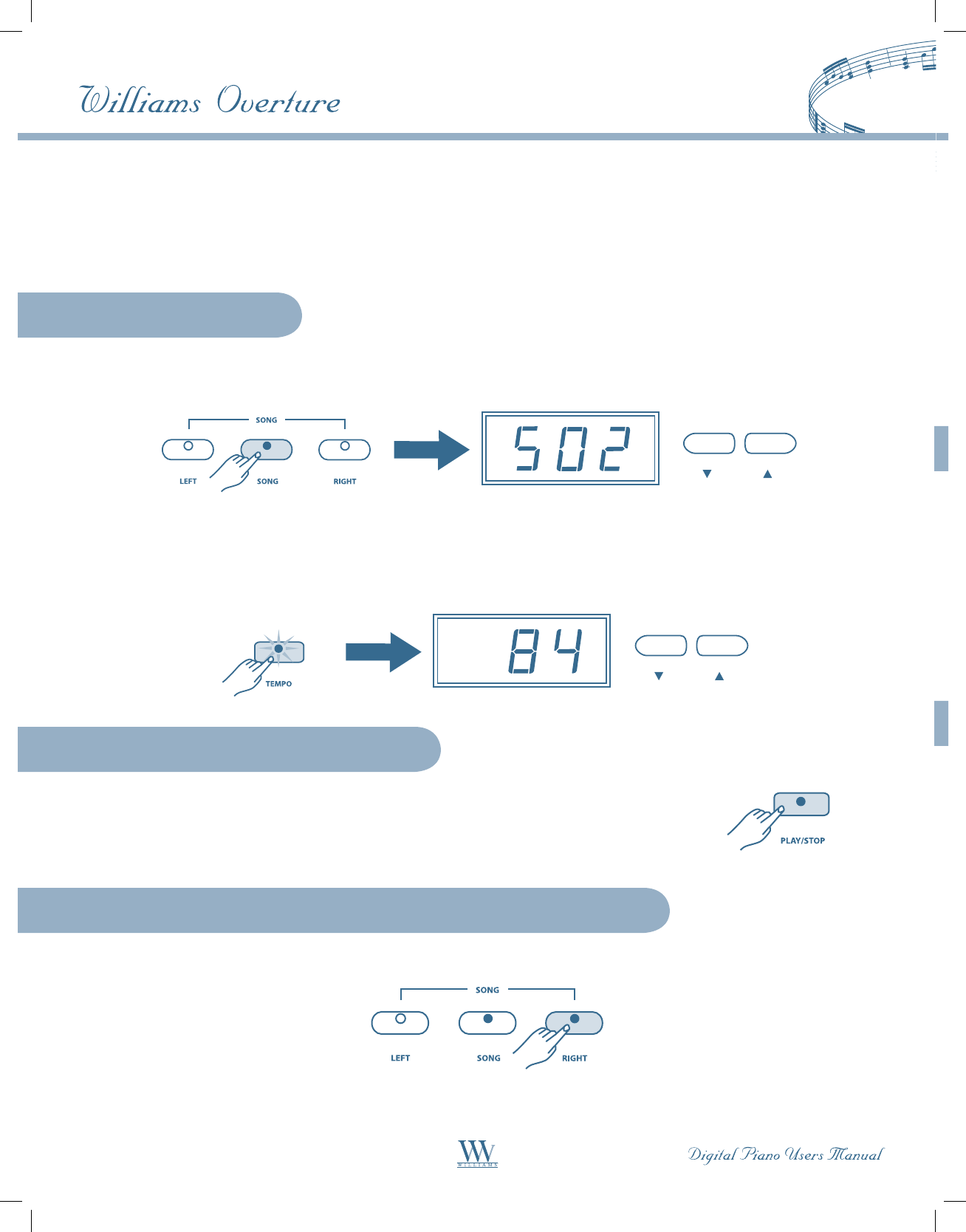
Press the SONG button. The Song indicator will turn on and the Song number will appear on the LED display.
Use theqp buttons to select a song.
If you want to play slower or faster than the preset tempo, press the TEMPO button and use the qp buttons to
adjust the tempo. The range is 50% to 150%. Press the q and p buttons simultaneously to recall the default rate
for the selected song. After 5 seconds of inactivity, the display will revert back to the song number.
Listening to the Entire Song
1. Press the PLAY/STOP button to hear both the right and left-hand parts of the song.
2. Press the PLAY/STOP button again to stop. Otherwise, playback will stop
automatically at the end of the song.
Practicing the Right Hand of the Selected Song
1. Press the RIGHT button to mute the right hand part. The right indicator will light up.
16
17
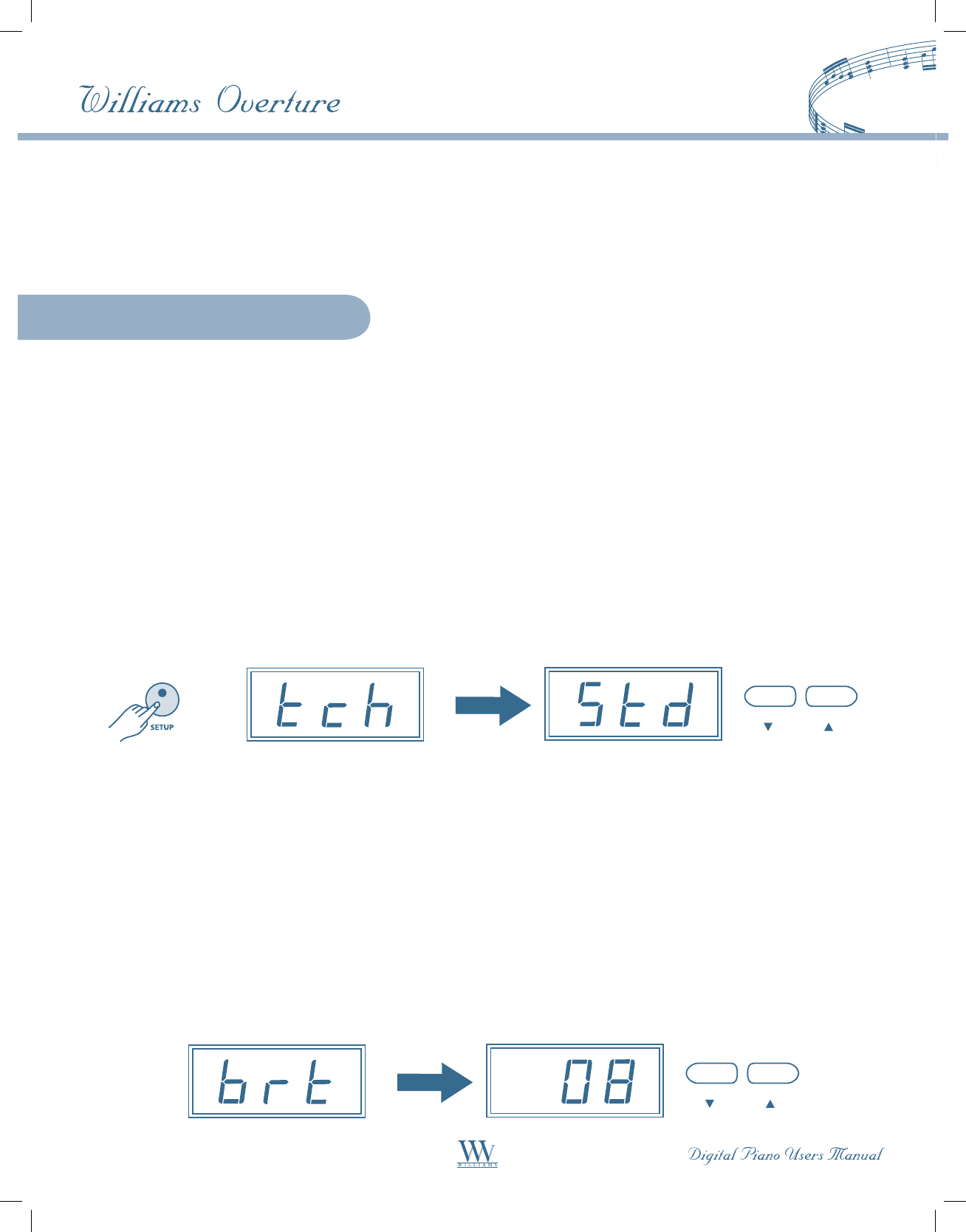
Follow steps 1-5 listed above, substituting the LEFT button wherever the RIGHT button is mentioned.
Play the left-hand part of your selected song while the Overture plays the right-hand part.
2. Press the DEMO button if you’d like to hear only the right-hand part before practicing it.
Press the DEMO button again to stop.
3. Press the PLAY/STOP button. Its indicator lights up and you will hear the Metronome “count in” the song.
You will then hear the left-hand part
4. Press the METRONOME button if you want to disable the Metronome sound.
5. Play the right-hand part of your selected song while the Overture plays the left-hand part.
6. Press the PLAY/STOP button again to stop. Otherwise, playback will stop automatically at the end of the song.
Practicing the Left Hand of the Selected Song
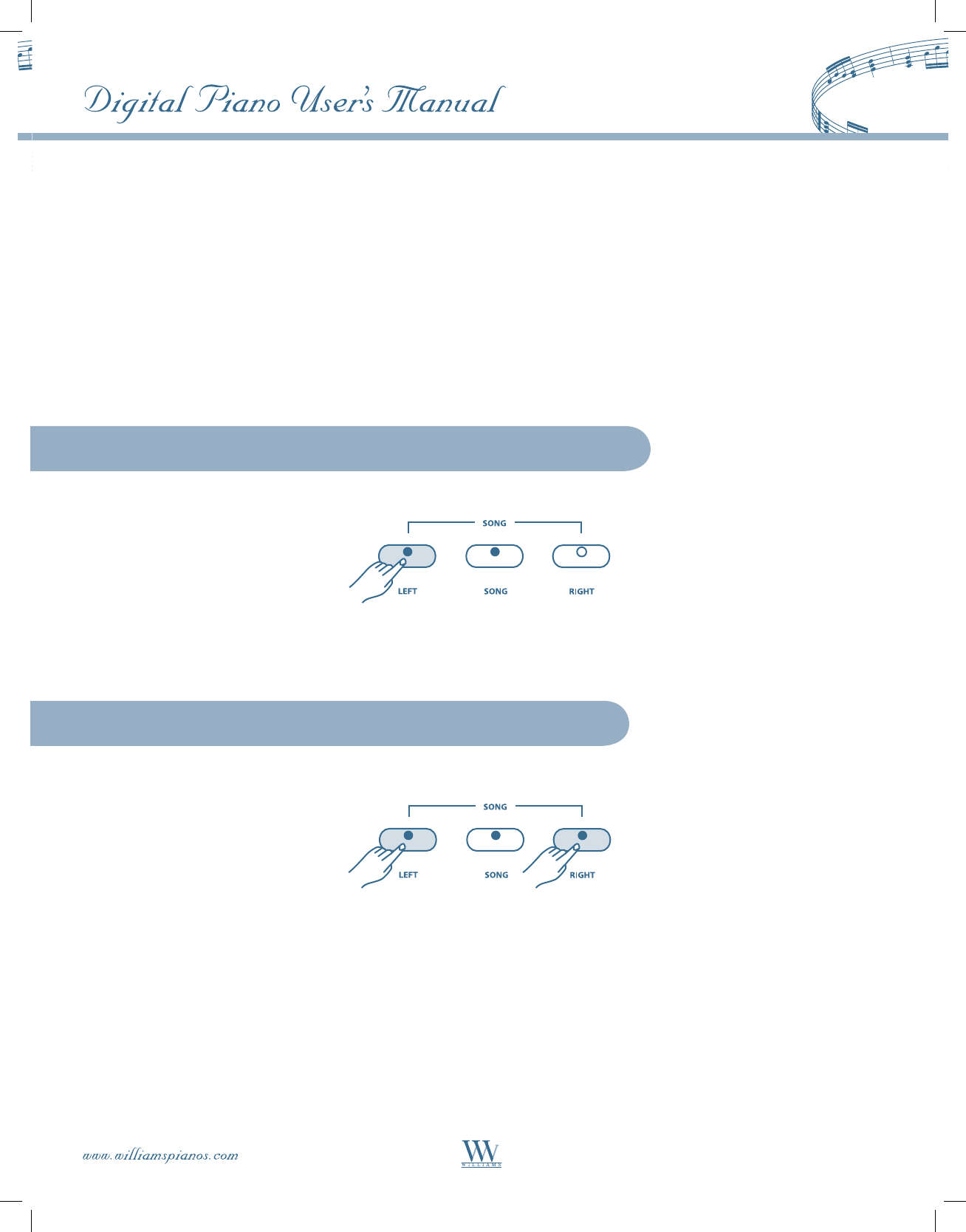
1. Press the RIGHT and LEFT buttons simultaneously. The right and left indicators will both turn on.
2. Press the PLAY/STOP button. Its indicator lights up and you will hear the Metronome “count in” the song.
3. Play the left-hand and right-hand parts of your selected song. The Metronome will assist you in keeping time.
4. Press the PLAY/STOP button again to stop. Otherwise, playback will stop automatically at the end of the song.
Practicing Both Hands of the Selected Song
Setup Mode
Using the Setup Mode
18
The Setup Mode is used to adjust operation settings. With the SETUP button engaged you may access the
menu for Touch Sensitivity, Brightness, Layer Volume Balance, Master Tuning, Octave Shift, Layer Volume
Balance, Local Mode as well as store user parameters.
1. Press the SETUP button to enter the setup mode.
2. Press the SETUP button repeatedly to change parameters.
3. Use theqp buttons to select options or set values.
4. Repeat steps 2 and 3 to adjust other parameters.
5. Press any button other than setup and qp to return to Voice mode. Otherwise the piano will return to the
Voice mode after 5 seconds of inactivity.
The following functions can be selected in the Setup Mode:
TOUCH SENSITIVITY
The Overture offers four types of keyboard touch sensitivity settings: Standard, Soft, Hard and Fixed. These are
also known as “velocity” sensitivity settings and can help you to adjust the keyboard to your playing style.
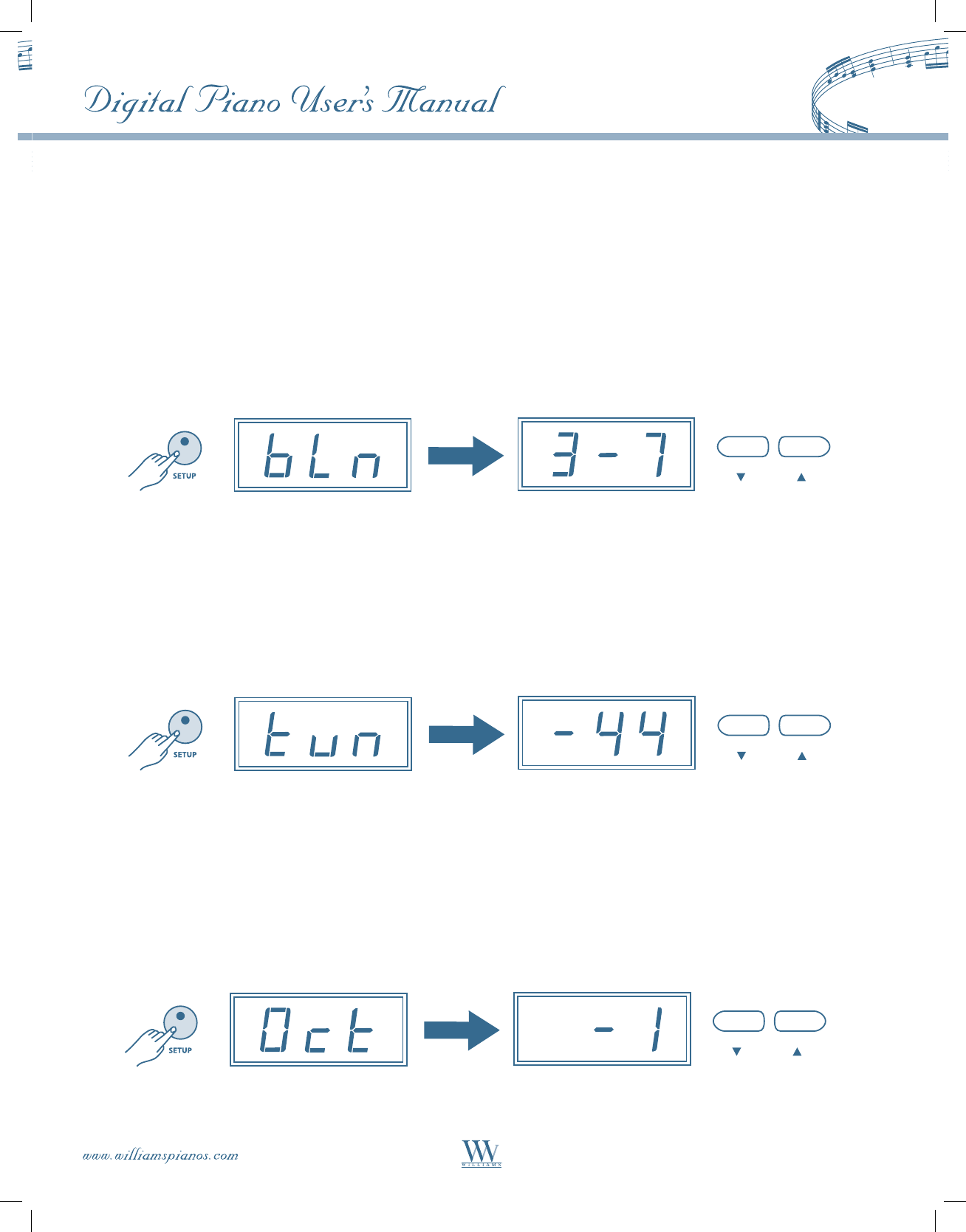
Enter this mode by pressing the SETUP button. The display will show “tch”.
Use the qp buttons to select one of the following sensitivity types:
Standard (“Std”) is an intermediate response suitable for most styles of music, and is the default setting.
Soft (“SFt”) is the most sensitive keyboard response which permits maximum sound levels with a light touch.
Hard (“Hrd”) is a less sensitive keyboard response which requires a heavier touch to obtain maximum
sound levels.
Fixed (“no”) does not offer any touch sensitivity. Each key plays at full volume no matter how hard or soft the
piano keys are played. It is commonly used on Harpsichord and Organ voices.
BRIGHTNESS
This parameter is used to adjust the brightness of the sound for all voices. The range is from 1 to 16. The default
value is 8. Press the SETUP button until the display shows “brt”. Use the qp buttons to set the desired bright-
ness value from 1 to 16. Press the qp buttons simultaneously to recall the default value 8.
MASTER TUNING
The Overture is automatically set to standard A440 pitch when the piano is turned on. The tuning feature makes
it possible to tune the pitch of the piano over a range of +/– one semitone in +/– 64 steps.
Press the SETUP button until the display shows “tun”.
Use the qp buttons to set the desired tuning value from -64 to +64.
Press the q and p buttons simultaneously to recall the default tuning value 0.
OCTAVE
The octave shift function will shift the keyboard up or down a full octave. The range is from -2 to +2. Normal
pitch is 0. You may want to use this octave shift on certain instrument voices with frequency ranges that differ
from the standard acoustic piano. This function is also useful when using the Duet keyboard mode.
Press the SETUP button until the display shows “Oct”.
Use theqp buttons to set the desired octave shift value from -2 to +2.
Press the p and q buttons simultaneously to recall the default value of zero.
19
LAYER VOLUME BALANCE
This parameter is used to adjust the balance (relative volume) of the two voices in Layer mode.
The format of this parameter is “Layer voice volume - Master voice volume”.
The range of the balance setting is 9 – 1 (Layer voice dominant) to 1 – 9 (Master voice dominant).
The default setting of the volume is balanced as 5-5 (equal volume).
Press the SETUP button until the display shows “bLn”.
Use the q button to reduce the Layer volume while the Master volume increases,
for example 5-5, 4-6, 3-7 ……1-9.
Use the p button to increase the Layer volume while the Master volume decreases,
for example 5-5, 6-4, 7-3……9-1.
20
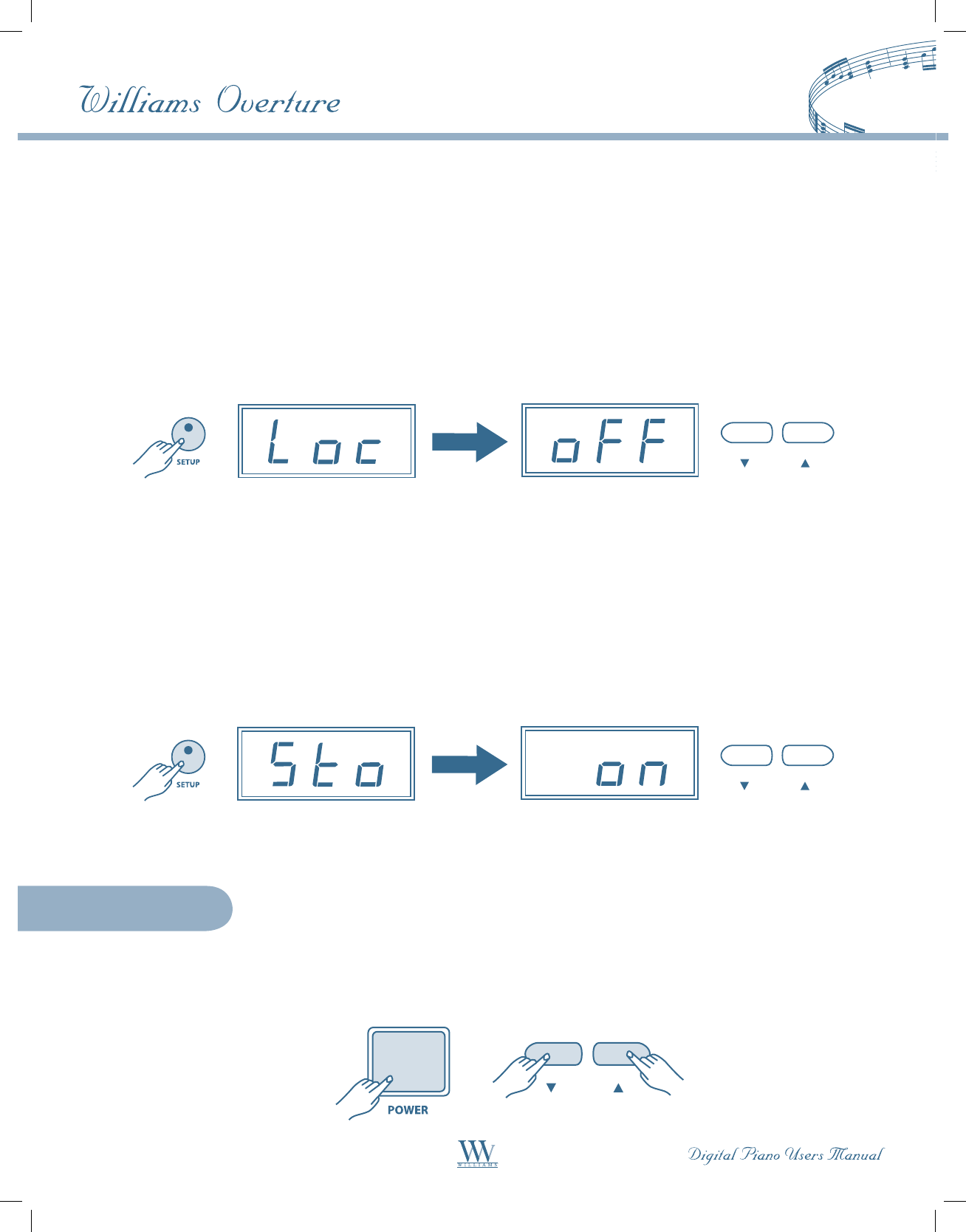
LOCAL MODE
“Local Mode” is a special mode that’s useful when the Overture is connected with another MIDI device or
computer. When “Local” is turned on, performance on the keyboard will play sounds from the internal piano
module while the performance messages are transmitted via MIDI out. When “Local” is turned off, performance
on the keyboard will not be sent to the internal piano sound module, but the performance messages are still
transmitted via MIDI out. It is useful when you’re using the piano as a keyboard controller for another MIDI
device or sound module. Please see the MIDI / USB section for more details.
Press the SETUP button until the display shows “Loc”.
Use the q button to turn Local off and use the p button to turn Local on. The default setting is “on.”
Note: When Local is “Off”, you can still access the Metronome.
STORE MODE
“Store Mode” defines whether user settings are restored to factory default or stored in memory.
User settings include reverb and chorus effect settings for each voice, layer voice, volume balance, touch mode
and song number.
Press the SETUP button until the display shows “Sto”.
Use the q button to turn the store feature off and use the p button to turn it on. The default setting is “off.”
Note: The 2-track recorder contents are always “nonvolatile” and will not be lost when the power is turned off.
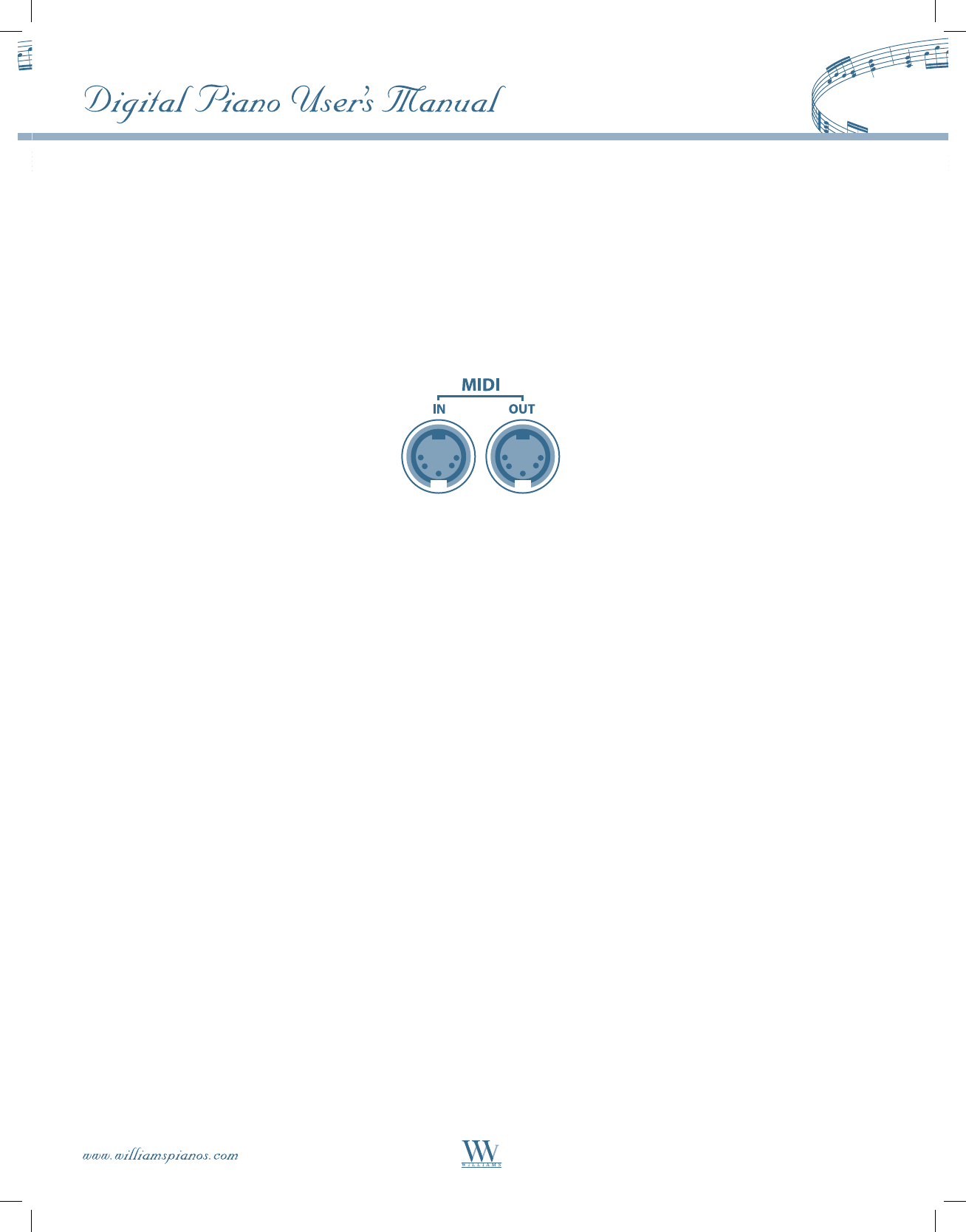
If you want to recover the factory default settings, press and hold down both pq buttons while powering on
the piano. Please note that the 2-track recorder contents will be erased.
Soft Reset
MIDI AND USB
MIDI stands for Musical Instrument Digital Interface. This is a world-wide standard communication interface
that enables electronic musical instruments and computers (of all brands) to communicate with each other so
that instructions and other data can pass between them. This exchange of information makes it possible to cre-
ate a system of MIDI instruments and devices that offer far greater versatility and control than is available with
isolated instruments. Whether you interface with computers, sequencers, expanders or other controllers, your
musical horizons will be greatly enhanced.
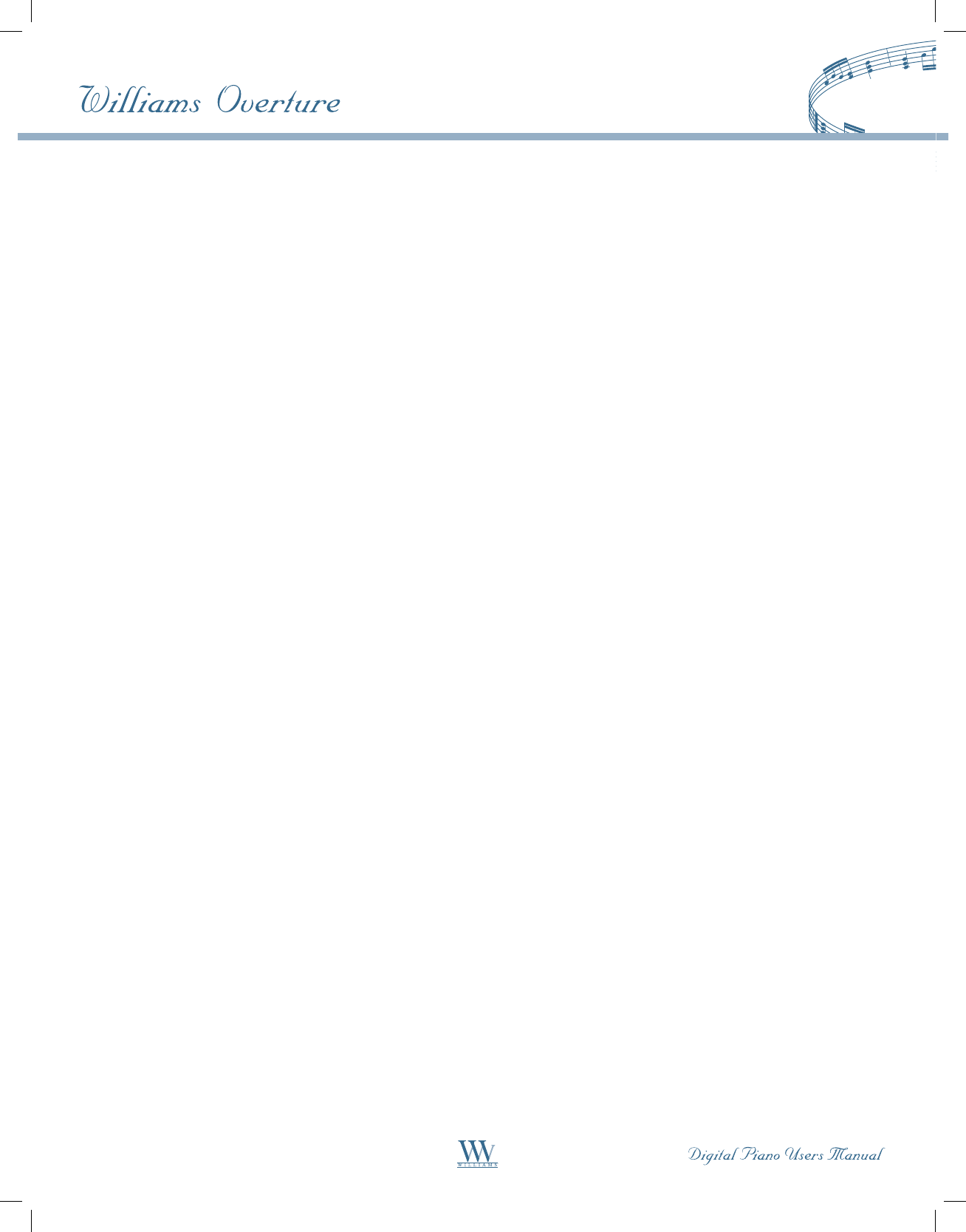
MIDI CONNECTION
MIDI IN: This terminal receives MIDI data from an external MIDI device.
MIDI OUT: This terminal transmits data from this instrument to other MIDI devices. The transmitted
data include the notes, touch velocity and pedals actions produced while playing on the piano, as well
as voice changes.
USB CONNECTION
The USB connector allows you to connect the Overture directly to your computer. It can be connected without
driver installation under the Windows XP, Vista & Mac OSX environments. The Overture will be recognized as a
“USB Audio device” to receive and transmit MIDI messages through a single USB cable (MIDI In/Out via USB).
LOCAL MODE
From a MIDI point of view, the Overture is composed of two “devices”:
• A controller transmitting data (the keyboard and pedals)
• A sound generator receiving MIDI data (the sound module)
In normal operation (Local ON, default mode), those two devices are connected together internally, allowing
the keyboard to play voices from the sound module without any external connection. When Local mode is OFF,
this internal link is disconnected. The sound module receives MIDI messages via MIDI input only, not from the
keyboard. However, the keyboard performance data is still sent to the MIDI Output. Local OFF mode is intended
to be used when both the MIDI input and output (or the USB port) of the Overture are connected to a MIDI
sequencer with a Soft Thru function.
21
MIDI CHANNELS
The Overture will output MIDI codes generated by playing the keyboard, stepping on the pedals or when
playing back recorded tracks (Note On/Off and Control Change messages).
The transmission channels are fixed as follows:
Channel 1: Keyboard, Master voice
Channel 2: Keyboard, Layer or Duet voice
Channel 3: Track 1 playback, Master voice
Channel 4: Track 1 playback, Layer or Duet voice
Channel 5: Track 2 playback, Master voice
Channel 6: Track 2 playback, Layer or Duet voice
Channel 13: Song playback, Right Hand
Channel 14: Song playback, Left Hand
The Metronome is not transmitted.
The MIDI system in the Overture has 16 reception channels. Each channel is responsible for a voice. When
the instrument receives MIDI information from an external device, the active channel is determined by the
control message. Channel 10 is reserved for the Drums and Percussion kit. (see Drum Kit list page 25/26). All
other channels (1-9, 11-16) can be used to access the 128 General MIDI instruments and sounds included in the
sound module (GM standard). These are the same instruments that are used to create the Orchestration dem-
onstrations.
USING AN EXTERNAL SOUND GENERATOR
Connect the MIDI Out terminal of the Overture and MIDI In terminal of an external device (keyboard,
synthesizer, or sound module). The external device will respond to your playing on the keyboard. To hear the
sound from the external device through the speakers of the piano, connect the Audio Output of the external
device to the Line Input of the Overture.
USING THE OVERTURE AS A GENERAL MIDI SOUND MODULE
Connecting the MIDI Output of an external keyboard or sequencer to the MIDI Input allows you to use the
Overture as a multi-timbral sound module to play various instrument parts in addition to your piano (for
instance, Piano on Channel 1, Bass on Channel 2, Strings on Channel 3, Drums on Channel 10, etc). The
voices on each MIDI channel are selected using MIDI Program Change messages (see the General MIDI
Voice list page 24).
Note: For more information on received MIDI messages, see the MIDI implementation chart.
USING THE OVERTURE WITH A COMPUTER
Using the USB connection, you can transmit your performance to a computer to utilize advanced recording,
composing and editing available from MIDI sequencing software. MIDI music stored on the computer (such as
MIDI files) can be played back through your instrument.
Note: In this configuration, LOCAL Mode is usually turned off.
22
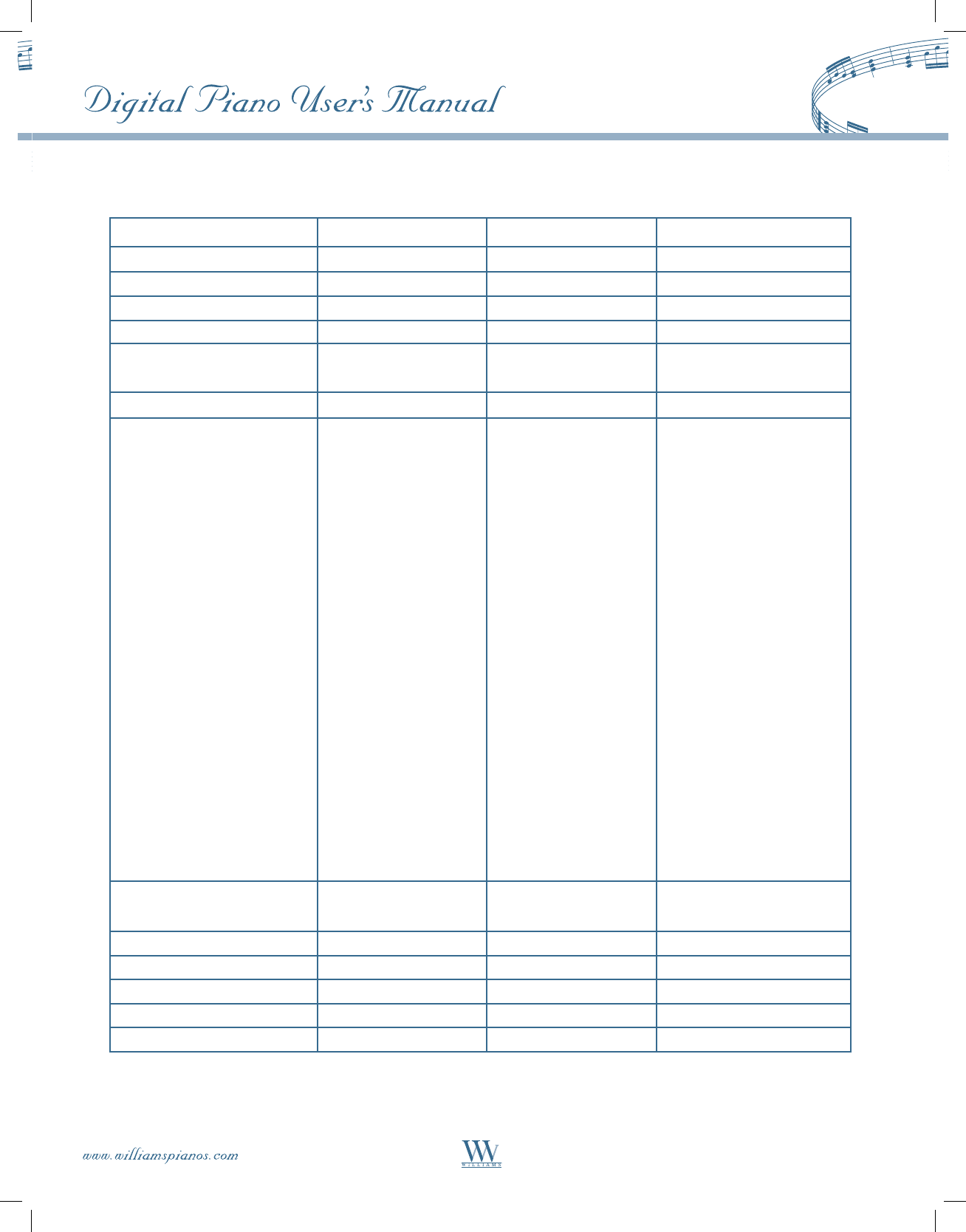
Function Transmitted Recognized Remark
Basic channel 1 CH 1 – 16 CH
Channel changed 1 – 6, 13-14 CH 1 – 16 CH
Default mode X 3
Note number 11 – 118 0 – 127
Velocity note on 9nV,V=0–127 9nV,V=0–127
note off 8nV,V=0–127 8nV,V=0–127
Pitch Bender X O
Control change 1 X O Modulation
5 X O Portamento value
7 X O Volume
10 X O Pan
11 X O Expression
64 O O Sustain
66 O O Sostenuto
67 O O Soft pedal
65 X O Portamento yes/no
80 O O Reverb program
81 O O Chorus program
91 O O Reverb send level
92 O O Chorus send level
98 X O NRPNL
99 X O NRPNH
100 X X RPNL
101 X X RPNH
121 X O Reset all controllers
123 O O All notes off
Program change 0,1,3-7,11,16,18, 0 – 127
20,48-50
System exclusive X X
Sys. common: Song select X X
Song position X X
System: Clock X X
Real time: Commands X X
MIDI Implementation Chart
O = Yes
X = No
Mode 1: OMNI ON, POLY
Mode 2: OMNI ON, MONO
Mode 3: OMNI OFF, POLY
Mode 4: OMNI OFF, MONO
23
Main Voice List
GROUP No. VOICE MIDI No.
PIANO 01 Grand Piano 00
02 Grand Piano 2 01
03 Honky Tonk 03
E.PIANO 04 Elec. Piano 1 04
05 Elec. Piano 2 05
06 Vibraphone 11
HARPSICHORD 07 Harpsichord 06
08 Clavinet 07
09 Nylon Guitar 24
GROUP No. VOICE MIDI No.
ORGAN 10 Church Organ 19
11 Jazz Organ 16
12 Rock Organ 18
STRINGS 13 Strings Ensemble 48
14 Slow Strings 49
15 Synth Strings 50
24
PIANO
000 Acoustic Grand Piano
001 Bright Acoustic Piano
002 Electric Grand Piano
003 Honky-Tonk Piano
004 Electric Piano 1
005 Electric Piano 2
006 Harpsichord
007 Clavichord
CHROMATIC PERCUSSION
008 Celesta
009 Glockenspiel
010 Music box
011 Vibraphone
012 Marimba
013 Xylophone
014 Tubular Bells
015 Dulcimer
ORGAN
016 Drawbar Organ
017 Percussive Organ
018 Rock Organ
019 Church Organ
020 Reed Organ
021 Accordion
022 Harmonica
023 Tango Accordion
GUITAR
024 Acoustic Nylon Guitar
025 Acoustic Steel Guitar
026 Electric Jazz Guitar
027 Electric Clean Guitar
028 Electric Muted Guitar
029 Overdriven Guitar
030 Distortion Guitar
031 Guitar Harmonics
BASS
032 Acoustic Bass
033 Electric Bass (finger)
034 Electric Bass (pick)
035 Fretless Bass
036 Slap Bass 1
037 Slap Bass 2
038 Synth Bass 1
039 Synth Bass 2
STRINGS
040 Violin
041 Viola
042 Cello
043 Contrabass
044 Tremolo Strings
045 Pizzicato Strings
046 Orchestral Harp
047 Timpani
ENSEMBLE
048 String Ensemble 1
049 String Ensemble 2
050 Synth Strings 1
051 Synth Strings 2
052 Choir Aahs
053 Voice Oohs
054 Synth Voice
055 Orchestra Hit
BRASS
056 Trumpet
057 Trombone
058 Tuba
059 Muted Trumpet
060 French Horn
061 Brass Section
062 Synth Brass 1
063 Synth Brass 2
REED
064 Soprano Sax
065 Alto Sax
066 Tenor Sax
067 Baritone Sax
068 Oboe
069 English Horn
070 Bassoon
071 Clarinet
PIPE
072 Piccolo
073 Flute
074 Recorder
075 Pan Flute
076 Bottle Blow
077 Shakuhachi
078 Whistle
079 Ocarina
SYNTH LEAD
081 Lead 1 (square)
082 Lead 2 (sawtooth)
083 Lead 3 (caliope lead)
084 Lead 4 (chiff lead)
085 Lead 5 (charang)
086 Lead 6 (voice)
087 Lead 7 (fifths)
088 Lead 8 (bass + lead)
SYNTH PAD
089 Pad 1 (new age)
090 Pad 2 (warm)
091 Pad 3 (polysynth)
092 Pad 4 (choir)
093 Pad 5 (bowed)
094 Pad 6 (metallic)
095 Pad 7 (halo)
096 Pad 8 (sweep)
SYNTH EFFECT
097 FX 1 (rain)
098 FX 2 (soundtrack)
099 FX 3 (crystal)
100 FX 4 (atmosphere)
101 FX 5 (brightness)
102 FX 6 (goblins)
103 FX 7 (echoes)
104 FX 8 (sci-fi)
ETHNIC
105 Sitar
106 Banjo
107 Shamisen
108 Koto
109 Kalimba
110 Bagpipe
111 Fiddle
112 Shanai
PERCUSSIVE
113 Tinkle Bell
114 Agogo
115 Steel Drums
116 Woodblock
117 Taiko Drum
118 Melodic Tom
119 Synth Drum
120 Reverse Cymbal
SOUND EFFECT
121 Guitar Fret Noise
122 Breath Noise
123 Seashore
124 Bird Tweet
125 Telephone Ring
126 Helicopter
127 Applause
128 Gunshot
GM Voice List
MIDI Name MIDI Name MIDI Name
Drum Kit List 1
No. – Key Standard Room Power Electronic TR-808
MIDI #00 MIDI #08 MIDI #16 MIDI #24 MIDI #25
27 – Eb0 High Q High Q High Q High Q High Q
28 – E0 Slap Slap Slap Slap Slap
29 – F0 Scratch Push Scratch Push Scratch Push Scratch Push Scratch Push
30 – F#0 Scratch Pull Scratch Pull Scratch Pull Scratch Pull Scratch Pull
31 – G0 Stick Stick Stick Stick Stick
32 – G#0 Square Click Square Click Square Click Square Click Square Click
33 – A0 Metronome Click Metronome Click Metronome Click Metronome Click Metronome Click
34 – Bb0 Metronome Bell Metronome Bell Metronome Bell Metronome Bell Metronome Bell
35 – B0 Kick Drum 2 Kick Drum 2 Kick Drum 2 Kick Drum 2 Kick Drum 2
36 – C1 Kick Drum 1 Room Kick Drum* Power Kick Drum* Elec Kick Drum* Synth Kick Drum 1*
37 – C#1 Side Stick Side Stick Side Stick Side Stick Synth Side Stick*
38 – D1 Snare Drum 2 Snare Drum 2 Power Snare Drum* Elec Snare Drum* Synth Snare Drum*
39 – Eb1 Hand Clap Hand Clap Hand Clap Hand Clap Hand Clap
40 – E1 Snare Drum 1 Snare Drum 1 Snare Drum 1 Power Snare Drum* Snare Drum 1
41 – F1 Low Floor Tom 2 Room Low Floor Tom 2* Room Low Floor Tom 2* Elec Low Floor Tom 2* Synth Low Floor Tom 2*
42 – F#1 Close Hi-hat Close Hi-hat Close Hi-hat Close Hi-hat Synth Close Hi-hat*
43 – G1 Low Floor Tom 1 Room Low Floor Tom 1* Room Low Floor Tom 1* Elec Low Floor Tom 1* Synth Low Floor Tom 1*
44 – G#1 Pedal Hi-hat Pedal Hi-hat Pedal Hi-hat Pedal Hi-hat Synth Pedal Hi-hat
45 – A1 Low Tom Room Low Tom* Room Low Tom* Elec Low Tom* Synth Low Tom*
46 – Bb1 Open Hi-hat Open Hi-hat Open Hi-hat Open Hi-hat Synth Open Hi-hat*
47 – B1 Low-mid Tom Room Low-mid Tom* Room Low-mid Tom* Elec Low-mid Tom* Synth Low-mid Tom*
48 – C2 Hi-mid Tom Room Hi-mid Tom* Room Hi-mid Tom* Elec Hi-mid Tom* Synth Hi-mid Tom*
49 – C#2 Crash Cymbal 1 Crash Cymbal 1 Crash Cymbal 1 Crash Cymbal 1 Synth Crash Cymbal 1*
50 – D2 High Tom Room High Tom* Room High Tom* Elec High Tom* Synth High Tom*
51 – Eb2 Ride Cymbal 1 Ride Cymbal 1 Ride Cymbal 1 Ride Cymbal 1 Ride Cymbal 1
52 – E2 Chinese Cymbal Chinese Cymbal Chinese Cymbal Reverse Cymbal* Chinese Cymbal
53 – F2 Ride Bell Ride Bell Ride Bell Ride Bell Ride Bell
54 – F#2 Tambourine Tambourine Tambourine Tambourine Tambourine
55 – G2 Splash Cymbal Splash Cymbal Splash Cymbal Splash Cymbal Splash Cymbal
56 – G#2 Cowbell Cowbell Cowbell Cowbell Synth Cowbell*
57 – A2 Crash Cymbal 2 Crash Cymbal 2 Crash Cymbal 2 Crash Cymbal 2 Crash Cymbal 2
58 – Bb2 Vibra Slap Vibra Slap Vibra Slap Vibra Slap Vibra Slap
59 – B2 Ride Cymbal 2 Ride Cymbal 2 Ride Cymbal 2 Ride Cymbal 2 Ride Cymbal 2
60 – C3 High Bongo High Bongo High Bongo High Bongo High Bongo
61 – C#3 Low Bongo Low Bongo Low Bongo Low Bongo Low Bongo
62 – D3 Mute Conga Mute Conga Mute Conga Mute Conga Synth Mute Conga*
63 – Eb3 High Conga High Conga High Conga High Conga Synth High Conga*
64 – E3 Low Conga Low Conga Low Conga Low Conga Synth Low Conga*
65 – F3 High Timbale High Timbale High Timbale High Timbale High Timbale
66 – F#3 Low Timbale Low Timbale Low Timbale Low Timbale Low Timbale
67 – G3 High Agogo High Agogo High Agogo High Agogo High Agogo
68 – G#3 Low Agogo Low Agogo Low Agogo Low Agogo Low Agogo
69 – A3 Cabasa Cabasa Cabasa Cabasa Cabasa
70 – Bb3 Maracas Maracas Maracas Maracas Synth Maracas*
71 – B3 Short Whistle Short Whistle Short Whistle Short Whistle Short Whistle
72 – C4 Long Whistle Long Whistle Long Whistle Long Whistle Long Whistle
73 – C#4 Short Guiro Short Guiro Short Guiro Short Guiro Short Guiro
74 – D4 Long Guiro Long Guiro Long Guiro Long Guiro Long Guiro
75 – Eb4 Claves Claves Claves Claves Synth Claves*
76 – E4 High Wood Block High Wood Block High Wood Block High Wood Block High Wood Block
77 – F4 Low Wood Block Low Wood Block Low Wood Block Low Wood Block Low Wood Block
78 – F#4 Mute Cuica Mute Cuica Mute Cuica Mute Cuica Mute Cuica
79 – G4 Open Cuica Open Cuica Open Cuica Open Cuica Open Cuica
80 – G#4 Mute Triangle Mute Triangle Mute Triangle Mute Triangle Mute Triangle
81 – A4 Open Triangle Open Triangle Open Triangle Open Triangle Open Triangle
82 – Bb4 Cabasa Cabasa Cabasa Cabasa Cabasa
83 – B4 Shaker Shaker Shaker Shaker Shaker
84 – C5 Belltree Belltree Belltree Belltree Belltree
85 – C#5 Castanets Castanets Castanets Castanets Castanets
86 – D5 Mute Surdo Mute Surdo Mute Surdo Mute Surdo Mute Surdo
87 – Eb5 Open Surdo Open Surdo Open Surdo Open Surdo Open Surdo
*Sounds in BOLD differ from the standard kit.
25
Drum Kit List 2
No. – Key Brush Orchestra Effects
MIDI #40 MIDI #48 MIDI #56
27 – Eb0 High Q Close Hi-hat* –
28 – E0 Slap Pedal Hi-hat* –
29 – F0 Scratch Push Open Hi-hat* –
30 – F#0 Scratch Pull Ride Cymbal* –
31 – G0 Stick Stick –
32 – G#0 Square Click Square Click –
33 – A0 Metronome Click Metronome Click –
34 – Bb0 Metronome Bell Metronome Bell –
35 – B0 Jazz Bass Drum 1* Kick Drum 2 –
36 – C1 Jazz Bass Drum 2* Orche Bass Drum 1* –
37 – C#1 Side Stick Side Stick –
38 – D1 Brush Tap* Orche Snare Drum 2* –
39 – Eb1 Brush Slap* Castanets* High-Q*
40 – E1 Brush Swirl* Orche Snare Drum 1* Slap*
41 – F1 Low Floor Tom 2 Timpani F* Scratch Push*
42 – F#1 Close Hi-hat Timpani F#* Scratch Pull*
43 – G1 Low Floor Tom 1 Timpani G* Sticks*
44 – G#1 Pedal Hi-hat Timpani G#* Square Click*
45 – A1 Low Tom Timpani A* Metronome Click*
46 – Bb1 Open Hi-hat Timpani A#* Metronome Bell*
47 – B1 Low-mid Tom Timpani B* Guitar Slide*
48 – C2 Hi-mid Tom Timpani C* –
49 – C#2 Crash Cymbal 1 Timpani C#* –
50 – D2 High Tom Timpani D* –
51 – Eb2 Ride Cymbal 1 Timpani D#* –
52 – E2 Chinese Cymbal Timpani E* –
53 – F2 Ride Bell Timpani F* –
54 – F#2 Tambourine Tambourine –
55 – G2 Splash Cymbal Splash Cymbal –
56 – G#2 Cowbell Cowbell –
57 – A2 Crash Cymbal 2 Orche Crash Cymbal* –
58 – Bb2 Vibra Slap Vibra Slap Applause*
59 – B2 Ride Cymbal 2 Orche Cymbal* –
60 – C3 High Bongo High Bongo –
61 – C#3 Low Bongo Low Bongo –
62 – D3 Mute Conga Mute Conga –
63 – Eb3 High Conga High Conga –
64 – E3 Low Conga Low Conga –
65 – F3 High Timbale High Timbale –
66 – F#3 Low Timbale Low Timbale –
67 – G3 High Agogo High Agogo –
68 – G#3 Low Agogo Low Agogo –
69 – A3 Cabasa Cabasa –
70 – Bb3 Maracas Maracas Helicopter*
71 – B3 Short Whistle Short Whistle –
72 – C4 Long Whistle Long Whistle Gun Shot*
73 – C#4 Short Guiro Short Guiro –
74 – D4 Long Guiro Long Guiro –
75 – Eb4 Claves Claves –
76 – E4 High Wood Block High Wood Block –
77 – F4 Low Wood Block Low Wood Block –
78 – F#4 Mute Cuica Mute Cuica Birds*
79 – G4 Open Cuica Open Cuica Rain*
80 – G#4 Mute Triangle Mute Triangle –
81 – A4 Open Triangle Open Triangle Wind*
82 – Bb4 Cabasa Cabasa Sea Shore*
83 – B4 Shaker Shaker Stream*
84 – C5 Belltree Belltree –
85 – C#5 Castanets Castanets –
86 – D5 Mute Surdo Mute Surdo –
87 – Eb5 Open Surdo Open Surdo –
*Sounds in BOLD differ from the standard kit.
26
Specifications
27
KEYBOARD
88-note, Hammer-Action keyboard
Polyphony (64 Note Maximum)
VOICES
15 Voices
128 General MIDI voice and Drum / Percussion Kits via MIDI in USB
KEYBOARD MODE
Full, Layer, Duet
SOUND EFFECTS
Reverb and Chorus
CONTROL BUTTONS
Transpose, Tempo, Setup, Metronome, Demo, +/-
SETUP
Tuning, Octave, Touch Response, Brightness, Layer Volume Balance, Local Mode
DEMONSTRATION
15 quick voice demonstrations
10 orchestra songs
TEACHING
58 lesson songs, right / left hand training
RECORDING
2 tracks
DISPLAY
3 x 7-segment LED
AUXILIARY JACKS
Headphone (x2), Line Out, Line in, MIDI In/Out, USB
PEDALS
Sustain Pedal, Sustenuto Pedal, Soft Pedal
AMPLIFIER
10 Watts (x2)
DIMENSIONS
54 inches x 20 inches x 34 inches
1377 mm x 510 mm x 862 mm
1 Year Parts & Labor Warranty
Warranty Information
Limited Warranty
Williams provides the following limited warranty, to the original purchaser: this piano is warranted to be free from
electronic and/or structural defects in materials and workmanship for a period of one (1) year from the date of original
purchase. If this Williams piano is defective, at its option during the warranty period, subject to the terms of this limited
warranty and upon proof of purchase, Williams will either repair or replace the listed piano with a same or similar
model of equal age or newer. Any repairs or modifications must be completed by Williams and/or an authorized agent
of Williams. The warranty obligations as set forth herein shall be performed free of charge with the exception of all
delivery and shipping expenses. This limited warranty will not apply to this product in the case of misuse, abuse, neglect,
alterations, normal wear and tear or other circumstance not directly attributed to electronic and/or structural defects in
materials or workmanship. Without limiting the foregoing, this limited warranty will also be inapplicable to products
that have not been maintained or replaced in accordance with the manufacturer’s instruction, or to products from which
the serial number has been removed or altered. If covered defects are found, contact your authorized Williams dealer
with regard to the alleged defect within ten (10) days of discovery of the problem.
The foregoing repair or replacement obligation for defective products shall be the sole and exclusive remedy of this limited
warranty. All warranties including, but not limited to, the express warranty and the implied warranties of merchantability
and fitness for a particular purpose are limited to the one (1) year warranty period. Some states do not allow limitation on
how long an implied warranty lasts, so the above limitation may not apply to you. There are no express warranties beyond
those stated here. In the event that applicable law does not allow the limitation of the duration of the implied warranties to
the warranty period, then the duration of the implied warranties shall be limited to as long as is provided by applicable law.
No warranties apply after that period.
Retailer and manufacturer shall not be liable for damages based upon inconvenience, loss of use of product, loss of time,
interrupted operation or commercial loss or any other incidental or consequential damages including but not limited to
lost profits, downtime, goodwill, damage to or replacement of equipment and/or property.
Register online at www.williamspianos.com, or fill out the form below.
Customer Name:
Telephone:
Address/City/State/Zip:
E-mail:
Dealer Name:
Dealer City:
Make:
Model:
Serial #:
Date of Purchase:
Customer Signature:
Date:
A copy of this warranty must be mailed to WILLIAMS within 10 days of receipt. Williams Pianos, P.O. Box 5111, Thousand Oaks, CA. 91359-5111
28


All trademarks and registered trademarks are recognized as the property of their respective holders. Made in China. 0711-7957
