ZED Unity User Guide
ZED_Unity_UserGuide
User Manual:
Open the PDF directly: View PDF  .
.
Page Count: 4


ZED Wrapper for Unity by Stereolabs
Introduction
This package is an interface to access most functions of the ZED SDK in Unity. It includes ZED stereo images,
depth map and positional tracking.
Installation
This section details the installation process of the Unity package inside a scene. If you used a previous package,
please remove it from your assets before installing this one.
Content
This package contains 2 examples scenes in ZED/Scenes:
• RGBDepthScene, shows how to get images from the ZED.
• TrackingOnlyScene, extracts position and orientation of the ZED camera in space.
List of prefabs available :
• A prefab for tracking is available in the ZED/prefabs folder called ZED_Tracking_Only.
• A prefab for basic mixed reality functionalities called ZED_RGB_DEPTH.
Requirements
• Unity 5.x
• ZED SDK 1.2
• DirectX 11
If you have another version of the ZED SDK, this plugin may not work.
Create your project in Unity
• When Unity is started, create a new project, enter a name and click on “Create Project”
• In the menu bar, click on Assets >> Import Package >> Custom Package... and select the ZED Unity package
file (*.unitypackage). The unity import window should appear and click on “import”.
• In the project window, select one of the provided scene located in ZED/Scenes/RGB-Depth (Images, depth
and tracking) or ZED/Scenes/Tracking_Only (Tracking only) by double clicking on it. You can also use the
prefabs
• A simple scene with spheres and cubes should appear in the Scene and Game window.
• Click on play button to launch it.
ZED Settings in Unity
A tool called ZEDEditor is available in Unity. Go to Window ZEDEditor. It displays camera information and allows
you to adjust ZED camera settings.
ZED SDK 1.2.0 1
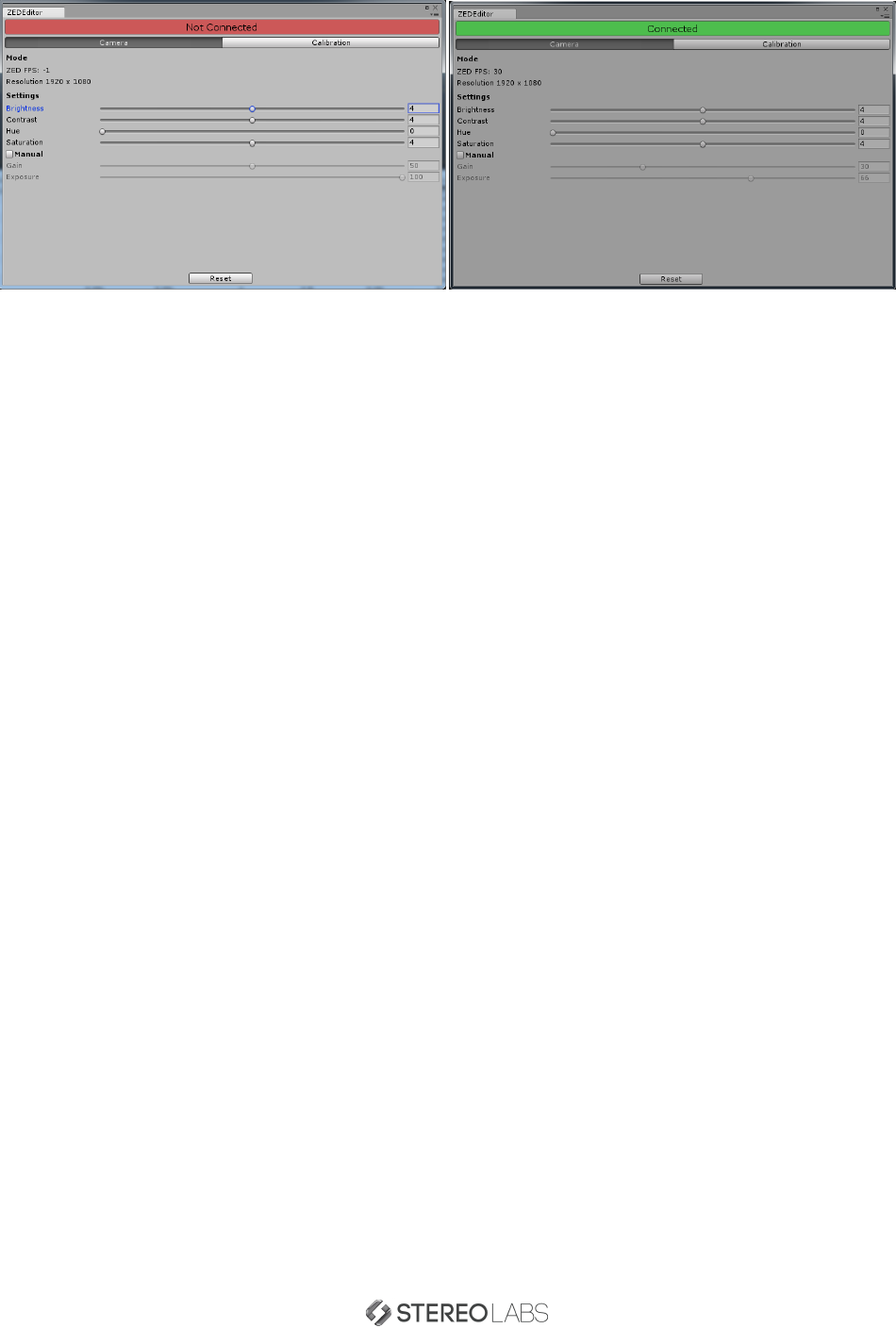
Camera settings
The ZED settings panel allows you to adjust different variables such as Brightness,Contrast,Hue,Saturation,Gain
and Exposure. The FPS displays is ZED video framerate and will not affect Unity rendering FPS.
The camera calibration parameters (focal length, optical center, . .. ) are also displayed in the Calibration tab as
they would be accessed through the C++ ZED SDK getParameters() function.
Interfacing the ZED with Unity
A ZEDManager.cs file is available to interface the ZED with Unity. It allows you to access ZED images, depth and
tracking.
ZED’s init
Firstly you need to initialize the camera.
// Retrieves an instance of the camera
ZEDCamera zed = ZEDCamera.GetInstance ();
// Creates a camera if it has not been made yet
zed. CreateCamera ( ZEDCamera.ZEDResolution_mode.HD1080
// Initializes the camera in performance mode , and have meters as unit .
// The ERRCODE is equal to SUCCESS if the camera has been well initialized .
ZEDCamera.ERRCODE e = zed.Init ( ZEDCamera.MODE.PERFORMANCE );
The following sections will explain how to use the tracking, and how to use the images from the ZED.
Tracking
Positional tracking allows you to get camera position and orientation in space.
bool tracking = zed.EnableTracking (pos , true );// Pos is an array of float , -
defined with an identity matrix
if (! tracking ) throw new Exception ("Error , tracking not available ");
To extract ZED position, you have to call zed.Grab() then:
zed. GetPosition (pos , ZEDCamera.MAT_TRACKING_TYPE.PATH );
for (int i = 0;i<4; ++i)
{
for (int j = 0;j<4; ++j)
ZED SDK 1.2.0 2

{
matrix [i, j] = pos [i * 4+ j];
}
}
Vector4 v4 = matrix.GetColumn (3);
Vector3 translate = new Vector3 (v4.x, v4.y, v4.z);
Quaternion rotation = ZEDCamera.MatrixToQuaternion ( matrix );
transform.localRotation = rotation ;
transform.localPosition = translate ;
To move the ZED in a mixed reality environment, you need to change the projection matrix of the current camera
to the ZED matrix.
// mainCamera is the object Camera of Unity
mainCamera.ResetProjectionMatrix ();
mainCamera.projectionMatrix = ZEDCamera.GetInstance ().Projection();
More information is available here.
Retrieve Images
Now let’s retrieve ZED images and convert them to textures.
if ( zed.Grab ( ZEDCamera.SENSING_MODE.FILL ) == 0) {
// Fill the different textures
zed.Render ();
}
Now all the textures are computed, you can retrieve them :
// Gets the images from the left camera , this texture will be updated as long as zed.image.Render () is called
Texture2D leftSide = zed.CreateTexture_retrieveImage ( ZEDCamera.SIDE.LEFT );
You can extract different image formats from the ZED:
•CreateTexture_retrieveImage
•CreateTexture_getView
•CreateTexture_retrieveMeasure
•CreateTexture_normalizeMeasure
More information about each type of image is available here.
Depth Map
The ZED outputs a real-time depth map of the scene.
You can access it in Unity with the computeDepthXYZ function available inside ZEDShader_utils.cginc.
To access the ZED shaders, on the inspector window, right click on the Mat_ZED_RGB_Depth shader and select
“Edit Shader”.
Tips : If you want to use a green screen, a good option would be to modify the alpha channel of the color, depend-
ing on the green screen segmentation of your shader.
ZED SDK 1.2.0 3
