Installation And User's Guide Zowe User 0.9.4
User Manual:
Open the PDF directly: View PDF  .
.
Page Count: 85
- Contents
- Release notes for Open Beta
- Zowe overview
- Installing Zowe
- Installation roadmap
- System requirements
- Obtaining installation files
- Installing the Zowe Application Framework, explorer server, and API Mediation Layer
- Installing Zowe CLI
- Troubleshooting the installation
- Troubleshooting installing the Zowe runtime
- Troubleshooting installing Zowe CLI
- Command not found message displays when issuing npm install commands
- npm install -gCommand Fails Due to an EPERM Error
- Sudo syntax required to complete some installations
- npm install -g command fails due to npm ERR! Cannot read property 'pause' of undefined error
- Node.js commands do not respond as expected
- Installation fails on Oracle Linux 6
- Uninstalling Zowe
- Configuring Zowe
- Using Zowe
- Using the Zowe Desktop
- Using APIs
- API Catalog
- Using Zowe CLI
- Extending Zowe CLI
Open Beta for Zowe
Installation and User's Guide
Zowe | Contents | iii
Contents
Release notes for Open Beta........................................................................................................vii
Version 0.9.4 (November 2018).........................................................................................................................vii
What's new in Zowe Application Framework....................................................................................... vii
What's new in Zowe CLI....................................................................................................................... vii
What's new in Explorer Server.............................................................................................................. vii
Version 0.9.3 (November 2018)........................................................................................................................viii
What's new in Zowe CLI......................................................................................................................viii
What's changed in Zowe CLI............................................................................................................... viii
What's new in Zowe API Mediation Layer..........................................................................................viii
Version 0.9.2 (October 2018)..............................................................................................................................ix
What's new in Zowe CLI........................................................................................................................ ix
What's changed in the Explorer Server...................................................................................................ix
What's Changed in the Zowe CLI.......................................................................................................... ix
Version 0.9.1 (October 2018)............................................................................................................................... x
What's new in the Zowe Application Framework................................................................................... x
What's changed....................................................................................................................................... xii
Version 0.9.0 (August 2018).............................................................................................................................. xii
What's new..............................................................................................................................................xii
What's changed......................................................................................................................................xiii
What's removed..................................................................................................................................... xiii
Known issues.........................................................................................................................................xiii
Chapter 1: Zowe overview.....................................................................................14
Zowe Application Framework............................................................................................................................15
Explorer server....................................................................................................................................................15
Zowe CLI............................................................................................................................................................ 15
Zowe CLI capabilities............................................................................................................................ 16
Zowe CLI Third-Party software agreements..........................................................................................16
API Mediation Layer..........................................................................................................................................17
Key features............................................................................................................................................ 17
API Mediation Layer architecture..........................................................................................................17
Components.............................................................................................................................................18
Zowe API Mediation Layer Third-Party software agreements..............................................................19
Chapter 2: Installing Zowe....................................................................................22
Installation roadmap............................................................................................................................................23
System requirements...........................................................................................................................................23
z/OSMF configuration............................................................................................................................ 24
Planning for installation of API Mediation Layer, Zowe Application Framework, and explorer
server..................................................................................................................................................27
System requirements for Zowe CLI.......................................................................................................28
Obtaining installation files..................................................................................................................................28
Obtaining installation files for Zowe z/OS components........................................................................ 28
Obtaining installation files for Zowe CLI..............................................................................................30
Installing the Zowe Application Framework, explorer server, and API Mediation Layer.................................30
Prerequisites............................................................................................................................................ 31
Installing the Zowe runtime on z/OS.....................................................................................................31
Starting and stopping the Zowe runtime on z/OS..................................................................................33
Verifying installation...............................................................................................................................34
Zowe | Contents | iv
Installing Zowe CLI........................................................................................................................................... 35
Methods to install Zowe CLI................................................................................................................. 35
Creating a Zowe CLI profile..................................................................................................................37
Testing Zowe CLI connection to z/OSMF.............................................................................................38
Troubleshooting the installation......................................................................................................................... 38
Troubleshooting installing the Zowe runtime........................................................................................ 38
Troubleshooting installing Zowe CLI.................................................................................................... 42
Uninstalling Zowe...............................................................................................................................................43
Uninstalling the Zowe Application Framework.....................................................................................43
Uninstalling explorer server................................................................................................................... 43
Uninstalling API Mediation Layer......................................................................................................... 44
Uninstalling Zowe CLI...........................................................................................................................45
Chapter 3: Configuring Zowe............................................................................... 48
Zowe Application Framework configuration..................................................................................................... 49
Setting up terminal application plug-ins................................................................................................ 49
Configuring the Zowe Application Server and ZSS..............................................................................49
Zowe Application Framework logging.................................................................................................. 51
Configuring Zowe CLI....................................................................................................................................... 52
Setting environment variables for Zowe CLI........................................................................................ 52
Chapter 4: Using Zowe.......................................................................................... 54
Using the Zowe Desktop....................................................................................................................................55
Navigating the Zowe Desktop................................................................................................................55
Using Explorers within the Zowe Desktop............................................................................................55
Zowe Desktop application plug-ins........................................................................................................56
Using the Workflows application plug-in.............................................................................................. 56
Using APIs.......................................................................................................................................................... 58
Using explorer server REST APIs......................................................................................................... 58
Programming explorer server REST APIs............................................................................................. 62
Using explorer server WebSocket services............................................................................................ 64
API Catalog.........................................................................................................................................................64
View Service Information and API Documentation in the API Catalog............................................... 64
Using Zowe CLI................................................................................................................................................. 67
Display Zowe CLI help..........................................................................................................................67
Zowe CLI command groups...................................................................................................................67
Setting environment variables for command arguments and options.................................................... 70
Chapter 5: Extending Zowe CLI.......................................................................... 74
Installing plug-ins............................................................................................................................................... 75
Setting the registry..................................................................................................................................75
Meeting the prerequisites........................................................................................................................75
Installing plug-ins................................................................................................................................... 75
Validating plug-ins.................................................................................................................................. 76
Updating plug-ins....................................................................................................................................76
Uninstalling plug-ins...............................................................................................................................76
Zowe CLI Plug-in for IBM CICS......................................................................................................................77
Use cases.................................................................................................................................................77
Prerequisites............................................................................................................................................ 77
Installing..................................................................................................................................................77
Setting up profiles...................................................................................................................................78
Commands...............................................................................................................................................79
Zowe CLI plug-in for IBM Db2 Database........................................................................................................ 80
Zowe | Contents | v
Use cases.................................................................................................................................................80
Prerequisites............................................................................................................................................ 80
Installing..................................................................................................................................................81
Setting up profiles...................................................................................................................................82
Commands...............................................................................................................................................83
VSCode Extension for Zowe..............................................................................................................................83
Prerequisites............................................................................................................................................ 84
Installing..................................................................................................................................................84
Use-Cases................................................................................................................................................ 84

Release notes for Open Beta
Learn about what is new, changed, removed, and known issues in Open Beta for Zowe.
Zowe Open Beta includes the following releases:
•Version 0.9.4 (November 2018)
•Version 0.9.3 (November 2018)
•Version 0.9.2 (October 2018)
•Version 0.9.1 (October 2018)
•Version 0.9.0 (August 2018)
Version 0.9.4 (November 2018)
Version 0.9.4 contains the following changes since the last version.
What's new in Zowe Application Framework
•Accessing the Zowe Desktop
The URL to access the Zowe Desktop is changed to https://myhost:httpsPort/ZLUX/
plugins/org.zowe.zlux.bootstrap/web/index.html. Previously, the URL is https://
myhost:httpsPort/ZLUX/plugins/com.rs.mvd/web/index.html.
See Using the Zowe Desktop for more information.
What's new in Zowe CLI
•Integrate Zowe CLI with API Mediation Layer
Zowe CLI now integrates with the API Mediation Layer. You can now easily interact with services that have been
surfaced through the API Mediation Layer. See Accessing an API Mediation Layer for more information.
•Zowe CLI standalone download available
Zowe CLI is now available as a standalone .tgz file download from www.zowe.org/download to allow for easier
installation. The CLI is no longer included in the primary Zowe PAX file download.
What's new in Explorer Server
•Enhanced JES explorer app
• Rewrites jobs tree to a simpler interface to make better use of available space. See this issue for details.
• Fixes an issue that prevents the content viewer from resizing when launched in virtual desktop. See this issue
for details.
•Enhanced MVS explorer app
• Rewrites dataset tree to make better use of available space. See this issue for details.
• Fixes race condition when opening full-screen dataset causes no content to appear. See this issue for details.
•Enhanced USS explorer app
• You can now double click on directory to update path and reload tree. You can single click on directory to
expand its contents.
• Rewrites USS tree to make better use of available space. See this issue for details.

Zowe | Release notes for Open Beta | viii
Version 0.9.3 (November 2018)
Version 0.9.3 contains the following changes since the last version.
What's new in Zowe CLI
Zowe CLI Version 0.9.3 now uses the following command option precedence:
• Command line options
• Environment variables
• Profiles
• Default values
With the new order of precedence, Zowe CLI now supports the following capabilities:
•Issuing commands without a profile
Zowe CLI now lets you issue commands without a profile. All Zowe CLI commands now contain options that let
you fully qualify your connection details without creating a profile before you issue the commands.
For example, you can issue the following command without a profile:
zowe zos-files download data-set "my.data.set" --user myuser --pass mypass
--host mymainframe.com --port 1443
•Specifying command options using environment variables
Zowe CLI now lets you specify command options by defining environment variables. You create and define
environment variables by prefixing them with ZOWE_OPT_. For example, you can specify the --host option by
creating an environment variable named ZOWE_OPT_HOST and set the environment variable to the desired value.
•Use the credential managers that CI/CD orchestration tools provide, such as Jenkins, by defining sensitive
information in environment variables.
See Setting environment variables for command arguments and options for more information about this feature.
What's changed in Zowe CLI
Zowe CLI version 0.9.3 contains the following functional changes.
•Creating and updating zosmf profiles:
You must now specify --pass rather than --password when you create zosmf profiles using the zowe
profiles create zosmf command, or update zosmf profiles using the zowe profiles update
zosmf command.
What's new in Zowe API Mediation Layer
Zowe API Mediation Layer Version 0.9.3 contains the following new functionality and features:
•Creating and updating zosmf profiles:
You must now specify --pass rather than --password when you create zosmf profiles using the zowe
profiles create zosmf command, or update zosmf profiles using the zowe profiles update
zosmf command.
•Improved API Gateway Landing Page
• Page was refactored into static, server rendered page
• Is now showing version of the build
• Is now aligned with the design of the rest of the application using Mineral UI
• You can invoke this page at https://hostname:port (default port 7554)
•Enhanced process for on-boarding REST API Services without required code changes

Zowe | Release notes for Open Beta | ix
• Previously we supported routing REST API Services without code changes through the Gateway. In this
version we enhanced static on-boarding support with the ability to display such services in the API Catalog.
• All services that are routed though the Gateway are now displayed in the Catalog (even if they do not have
Open API documentation).
• The API catalog shows the service without any documentation.
• The API catalog shows the base URL that can access the API service.
• An active link is displayed in the API Catalog for services in which REST API documentation is available
online through a URL (e.g. DocOps URL).
• Swagger that is provided by the API service is now displayed in the API Catalog for the following conditions:
• When Swagger is provided by the API service (in the location specified in YAML as URL).
• When Swagger is provided externally as a Swagger file.
Version 0.9.2 (October 2018)
Version 0.9.2 contains the following changes since the last version.
What's new in Zowe CLI
The Visual Studio Code (VSCode) Extension for Zowe is now available. Using the extension you can data sets, view
their contents, make changes, and upload the changes to the mainframe directly from the Visual Studio Code user
interface. You install the extension directly to Visual Studio Code to enable the extension within the UI. For more
information, see VSCode Extension for Zowe.
What's changed in the Explorer Server
• The URLs to access the explorer server UI are changed.
URL in 0.9.1 URL in 0.9.2
https://<your.server>:<atlasport>/
explorer-jes/#/
https://<your.server>:<atlasport>/ui/
v1/jobs/#/
https://<your.server>:<atlasport>/
explorer-mvs/#/
https://<your.server>:<atlasport>/ui/
v1/datasets/#/
https://<your.server>:<atlasport>/
explorer-uss/#/
https://<your.server>:<atlasport>/ui/
v1/uss/#/
• All explorer server REST APIs are changed. The /Atlas/api/ portion of an explorer server REST API is
changed to /api/v1/. For example, GET /Atlas/api/datasets/{filter} is changed to GET /api/
v1/datasets/{filter}.
For a list of the new APIs, see Using APIs.
What's Changed in the Zowe CLI
This version of Zowe CLI contains the following changes:
• Zowe CLI no longer uses keytar to store credentials securely in your operating system's credential vault. The user
names and passwords that are stored in zosmf profiles and other profile types are now stored in plain text. When
you update from a previous version of Zowe CLI, and your credentials are stored securely, you must update, or
optionally, re-create your profiles.
Important! Use the following steps only if you were using a version of Zowe CLI that is older than version 0.9.2.
Follow these steps:
1. Issue any bright command to create the ~/.zowe home directory.
Zowe | Release notes for Open Beta | x
2. After you create the directory, copy the complete contents of the ~/.brightside directory to the newly created
~/.zowe directory. Copying the contents of the ~/.brightside directory to the ~/.zowe directory restores
the profiles you created previously.
3. To help ensure that your plug-ins function properly, reinstall the plug-ins that you installed with older versions of
the Zowe CLI.
4. After you migrate your profiles, issue the following command to list your existing profiles:
bright profiles list zosmf
5. Update each profile for compatibility with the credential storage changes by issuing the following command:
bright profiles update zosmf <profilename> -u <username> -p <password>
6. (Optional) If you do not want to migrate your profiles from ~/.brightside to ~/.zowe you can recreate
your profiles using the following command:
bright profiles create zosmf
Tip: For more information, see Create a Zowe CLI profile.
Notes:
• In future versions of Zowe CLI, plug-ins will be available that let you store your user credentials securely,
which is similar to the previous behavior.
• As mentioned in the previous bullet, Zowe CLI no longer uses keytar to store credentials securely in your
operating system's credential vault. As a result, Zowe CLI requires only Node.js and npm as prerequisite
software. For more information, see System Requirements for Zowe CLI.
Bug fixes
The following bugs are fixed in this release.
• JES Explorer: Unable to retrieve file content in full-screen job view
• JES Explorer: Full-screen job output view does not refresh when users change URL for the first time
• MVS Explorer: MVS explorer editor cannot be displayed because of "TypeError: Cannot read property
'setContents' of null"
Version 0.9.1 (October 2018)
Version 0.9.1 contains the following changes since the last version.
What's new in the Zowe Application Framework
• The Workflows application plug-in was added to the Zowe Application Framework.
• The API Catalog plug-in was added to the Zowe Application Framework. This plug-in lets you view API services
discovered by the API Mediation Layer.
• Angular application plug-ins can be internationalized utilizing the ngx-i18n library.
• Node.js v6.14.4.0 and later is now required.
• The Zowe Application Framework now provides a sample react app, Angular app, and a simple editor.
• The following tutorials are now available in GitHub:
• Sample React app: sample-react-app
• Sample Angular app: sample-angular-app
• Internationalization in Angular Templates in Zowe: sample-angular-app (Internationalization)
• App to app communication: sample-angular-app (App to app communication)
• Using the Widgets Library: sample-angular-app (Widgets)
• Configuring user preferences (configuration dataservice): sample-angular-app (configuration dataservice)
Zowe | Release notes for Open Beta | xi
New in Zowe CLI
Zowe CLI contains the following new features:
•Zowe CLI Plug-in for IBM® CICS®
The new plug-in lets you extend Zowe CLI to interact with CICS programs and transactions. It uses the IBM
CICS Management Client Interface (CMCI) API to achieve the interaction with CICS.
As an application developer, you can use the plug-in to perform various CICS-related tasks, such as the following:
• Deploy code changes to CICS applications that were developed with COBOL.
• Deploy changes to CICS regions for testing or delivery.
• Automate CICS interaction steps in your CI/CD pipeline with Jenkins Automation Server or TravisCI.
For more information, see Zowe CLI Plug-in for IBM CICS.
•zos-jobs and zos-files commands and command options
Zowe CLI contains the following new commands and command options:
•zowe zos-jobs delete job command: Lets you cancel a job and purge its output by providing the
JOB ID.
•zowe zos-files upload file-to-uss command: Lets you upload a local file to a file on USS.
•zowe zos-files download uss-file command: Lets you download a file on USS to a local file.
•zowe zos-jobs submit local-file command: Lets you submit a job contained in a local file on
your computer rather than a data set.
•zowe zos-jobs download output command: Lets you download the complete spool output for a job
to a local directory on your computer.
• The zowe zos-jobs submit data-set command and the zowe zos-jobs submit local-
file command now contain a --view-all-spool-content option. The option lets you submit a job
and view its complete spool output in one command.
•Visual Studio Code Extension for Zowe
The Visual Studio Code (VSCode) Extension for Zowe is now available. You can install the extension directly
to Visual Studio Code to enable the extension within the UI. Using the extension you can data sets, view their
contents, make changes, and upload the changes to the mainframe directly from the Visual Studio Code user
interface. For more information, see VSCode Extension for Zowe.
New in API Mediation Layer
API Mediation Layer Version 0.9.1 contains the following new functionality and features:
• You can now view the status of API Mediation Layer from the Zowe Desktop App (zLUX plug-in).
• API Mediation Layer now lets you define single instance services and route it through a gateway without having
to apply code changes to the service.
• API Catalog contains the following new functionality and features:
• The Mineral user interface framework was used to design the API Catalog user interface.
• The Swagger user interface component was implemented for more standardized look and feel.
• The Tile view now contains a Search bar.
• API Mediation Layer documentation now contains the following tutorials:
•Onboard an existing Java REST API service without Spring Boot with Zowe API Mediation Layer.
•Onboard an existing Spring Boot REST API service with Zowe API Mediation Layer.
Enhanced JES Explorer
A full-screen job output view is now available. You can view a single job output file in a full-screen text
area, which removes the need to navigate via the job tree. Note that this view is currently only available via
direct access to the explorer. It is not accessible via the Zowe Desktop app in this release. To open a file in full
screen, you can use the following URL/parameters: https://host:explorerSecurePort/explorer-jes/#/viewer?
jobName=SAMPLEJOB&jobId=JOB12345&fileId=102

Zowe | Release notes for Open Beta | xii
What's changed
Naming
MVD is renamed to Zowe Desktop.
JES Explorer
Fixed an issue where text would fall out of line in the content viewer caused by special characters. This fix includes
migration to the orion-editor-component as the content viewer.
MVS Explorer
Fixed an issue where deletion of a dataset member fails.
Zowe CLI
Important! Zowe CLI in Version 0.9.1 contains breaking changes. A breaking change can cause problems with
existing functionality when you upgrade to Zowe CLI Version 0.9.1. For example, scripts that you wrote previously
might fail, user profiles might become invalid, and the product might not integrate with plug-ins properly.
You will be impacted by the following changes if you update your version of Zowe to Version 0.9.1:
• The home directory for Zowe CLI, which contains the Zowe CLI logs, profiles, and plug-ins, was changed from
~/.brightside to ~/.zowe. The character "~" denotes your home directory on your computer, which is
typically C:/Users/<yourUserId> on Windows operating systems. When you update to Zowe CLI Version
0.9.1 and issue zowe commands, the profiles that you created previously will not be available.
To correct this behavior and migrate from an older version Zowe CLI, complete the following steps:
1. Issue any bright command to create the ~/.zowe home directory.
2. After you create the directory, copy the complete contents of the ~/.brightside directory to the newly
created ~/.zowe directory. Copying the contents of the ~/.brightside directory to the ~/.zowe
directory restores the profiles you created previously.
3. To help ensure that your plug-ins function properly, reinstall the plug-ins that you installed with older versions
of Zowe CLI.
• The environment variables that control logging and the location of your home directory were previously prefixed
with BRIGHTSIDE_. They are now prefixed with ZOWE_. If you were not using the environment variables
before this change, no action is required. If you were using the environment variables, update any usage of the
variables.
The following environment variables are affected:
•BRIGHTSIDE_CLI_HOME changed to ZOWE_CLI_HOME
•BRIGHTSIDE_IMPERATIVE_LOG_LEVEL changed to ZOWE_IMPERATIVE_LOG_LEVEL
•BRIGHTSIDE_APP_LOG_LEVEL changed to ZOWE_APP_LOG_LEVEL
Version 0.9.0 (August 2018)
Version 0.9.0 is the first Open Beta version for Zowe. This version contains the following changes since the last
Closed Beta version.
What's new
New component - API Mediation Layer
Zowe now contains a component named API Mediation Layer. You install API Mediation Layer when you install
the Zowe runtime on z/OS. For more information, see API Mediation Layer and Installing the Zowe Application
Framework, explorer server, and API Mediation Layer.
Zowe | Release notes for Open Beta | xiii
What's changed
Naming
• The project is now named Zowe.
• Zoe Brightside is renamed to Zowe CLI.
Installation
• The System Display and Search Facility (SDSF) of z/OS is no longer a prerequisite for installing explorer server.
• The name of the PROC is now ZOWESVR rather than ZOESVR.
zLUX
The mainframe account under which the ZSS server runs must have UPDATE permission on the BPX.DAEMON and
BPX.SERVER facility class profiles.
Explorer server
The URL to access the explorer server UI is changed from https://<your.server>:<atlasport>/ui/#/
to the following ones:
•https://<your.server>:<atlasport>/explorer-jes/#/
•https://<your.server>:<atlasport>/explorer-mvs/#/
•https://<your.server>:<atlasport>/explorer-uss/#/
What's removed
Removed all references to SYSLOG.
Known issues
Security message when you open the Zowe Desktop
When you initially open the Zowe Desktop, a security message alerts you that you are attempting to open a site that
has an invalid HTTPS certificate. Other applications within the Zowe Desktop might also encounter this message. To
prevent this message, add the URLs that you see to your list of trusted sites.
Note: If you clear the browser cache, you must add the URL to your trusted sites again.
Message ICH408I during runtime
During runtime, the information message ICH408I may present identifying insufficient write authority to a number of
resources, these resources may include:
•zowe/explorer-server/wlp/usr/servers/.pid/Atlas.pid
•zowe/zlux-example-server/deploy/site/plugins/
•zowe/zlux-example-server/deploy/instance/plugins/
Note: This should not affect the runtime operations of Zowe. This is a known issue and will be addressed in the next
build.
Zowe Application Framework APIs
Zowe Application Framework APIs exist but are under development. Features might be reorganized if it simplifies
and clarifies the API, and features might be added if applications can benefit from them.
Zowe | Zowe overview | 14
Chapter
1
Zowe overview
Topics:
•Zowe Application Framework
•Explorer server
•Zowe CLI
•API Mediation Layer
Zowe offers modern interfaces to interact with z/OS and allows you to work
with z/OS in a way that is similar to what you experience on cloud platforms
today. You can use these interfaces as delivered or through plug-ins and
extensions that are created by clients or third-party vendors.
Zowe consists of the following main components. For details of each
component, see the corresponding section.
•Zowe Application Framework: Contains a Web user interface (UI) that
provides a full screen interactive experience. The Web UI includes many
interactions that exist in 3270 terminals and web interfaces such as IBM z/
OSMF.
•Explorer server: Provides a range of APIs for the management of jobs,
data sets and z/OS UNIX System Services files.
•API Mediation Layer: Provides an API abstraction layer through which
APIs can be discovered, catalogued, and presented uniformly.
•Zowe CLI: Provides a command-line interface that lets you interact
with the mainframe remotely and use common tools such as Integrated
Development Environments (IDEs), shell commands, bash scripts, and
build tools for mainframe development. It provides a set of utilities
and services for application developers that want to become efficient in
supporting and building z/OS applications quickly. Some Zowe extensions
are powered by Zowe CLI, for example the Visual Studio Code Extension
for Zowe.
Check out the video below for a demo of the modern interfaces that Zowe
provides.

Zowe | Zowe overview | 15
Zowe Application Framework
The Zowe Application Framework modernizes and simplifies working on the mainframe. With the Zowe Application
Framework, you can create applications to suit your specific needs. The Zowe Application Framework contains a web
UI that has the following features:
• The web UI works with the underlying REST APIs for data, jobs, and subsystem, but presents the information in a
full screen mode as compared to the command line interface.
• The web UI makes use of leading-edge web presentation technology and is also extensible through web UI plug-
ins to capture and present a wide variety of information.
• The web UI facilitates common z/OS developer or system programmer tasks by providing an editor for common
text-based files like REXX or JCL along with general purpose data set actions for both Unix System Services
(USS) and Partitioned Data Sets (PDS) plus Job Entry System (JES) logs.
The Zowe Application Framework consists of the following components:
•Zowe Desktop
The desktop, accessed through a browser.
•Zowe Application Server
The Zowe Application Server runs the Zowe Application Framework. It consists of the Node.js server plus the
Express.js as a webservices framework, and the proxy applications that communicate with the z/OS services and
components.
•ZSS Server
The ZSS Server provides secure REST services to support the Zowe Application Server.
•Application plug-ins
Several application-type plug-ins are provided. For more information, see Using the Zowe Application Framework
application plug-ins.
Explorer server
The explorer server is a z/OS® RESTful web service and deployment architecture for z/OS microservices. The server
is implemented as a Liberty Profile web application that uses z/OSMF services to provide a range of APIs for the
management of jobs, data sets and z/OS UNIX™ System Services (USS) files.
These APIs have the following features:
• These APIs are described by the Open API Specification allowing them to be incorporated to any standard-based
REST API developer tool or API management process.
• These APIs can be exploited by off-platform applications with proper security controls.
Any client application that calls RESTful APIs directly can use the explorer server.
As a deployment architecture, the explorer server accommodates the installation of other z/Tool microservices into its
Liberty instance. These microservices can be used by explorer server APIs and client applications.
Zowe CLI
Zowe CLI is a command-line interface that lets application developers interact with the mainframe in a familiar
format. Zowe CLI helps to increase overall productivity, reduce the learning curve for developing mainframe
applications, and exploit the ease-of-use of off-platform tools. Zowe CLI lets application developers use common
tools such as Integrated Development Environments (IDEs), shell commands, bash scripts, and build tools for
mainframe development. It provides a set of utilities and services for application developers that want to become
efficient in supporting and building z/OS applications quickly.

Zowe | Zowe overview | 16
Zowe CLI provides the following benefits:
• Enables and encourages developers with limited z/OS expertise to build, modify, and debug z/OS applications.
• Fosters the development of new and innovative tools from a computer that can interact with z/OS.
• Ensure that business critical applications running on z/OS can be maintained and supported by existing and
generally available software development resources.
• Provides a more streamlined way to build software that integrates with z/OS.
Note: For information about prerequisites, software requirements, installing and upgrading Zowe CLI, see Installing
Zowe.
Zowe CLI capabilities
With Zowe CLI, you can interact with z/OS remotely in the following ways:
•Interact with mainframe files: Create, edit, download, and upload mainframe files (data sets) directly
from Zowe CLI.
•Submit jobs: Submit JCL from data sets or local storage, monitor the status, and view and download the output
automatically.
•Issue TSO and z/OS console commands: Issue TSO and console commands to the mainframe directly
from Zowe CLI.
•Integrate z/OS actions into scripts: Build local scripts that accomplish both mainframe and local tasks.
•Produce responses as JSON documents: Return data in JSON format on request for consumption in other
programming languages.
For detailed information about the available functionality in Zowe CLI, see Zowe CLI Command Groups.
For information about extending the functionality of Zowe CLI by installing plug-ins, see Extending Zowe CLI.
Zowe CLI Third-Party software agreements
Zowe CLI uses the following third-party software:
Third-party Software Version File name
chalk 2.3.0 Legal_Doc_00002285_56.pdf
cli-table2 0.2.0 Legal_Doc_00002310_5.pdf
dataobject-parser 1.2.1 Legal_Doc_00002310_36.pdf
find-up 2.1.0 Legal_Doc_00002310_33.pdf
glob 7.1.1 Legal_Doc_00001713_45.pdf
js-yaml 3.9.0 Legal_Doc_00002310_16.pdf
jsonfile 4.0.0 Legal_Doc_00002310_40.pdf
jsonschema 1.1.1 Legal_Doc_00002310_17.pdf
levenshtein 1.0.5 See UNLICENSE
log4js 2.5.3 Legal_Doc_00002310_37.pdf
merge-objects 1.0.5 Legal_Doc_00002310_34.pdf
moment 2.20.1 Legal_Doc_00002285_25.pdf
mustache 2.3.0 Legal_Doc_mustache.pdf
node.js 6.11.1 Legal_Doc_nodejs.pdf
node-ibm_db 2.3.1 Legal_Doc_00002310_38.pdf
node-mkdirp 0.5.1 Legal_Doc_00002310_35.pdf

Zowe | Zowe overview | 17
Third-party Software Version File name
node-progress 2.0.0 Legal_Doc_00002310_7.pdf
prettyjson 1.2.1 Legal_Doc_00002310_22.pdf
rimraf 2.6.1 Legal_Doc_00002310_8.pdf
Semver 5.5.0 Legal_Doc_00002310_42.pdf
stack-trace 0.0.10 Legal_Doc_00002310_10.pdf
string-width 2.1.1 Legal_Doc_00002310_39.pdf
wrap-ansi 3.0.1 Legal_Doc_00002310_12.pdf
yamljs 0.3.0 Legal_Doc_00002310_13.pdf
yargs 8.0.2 Legal_Doc_00002310_1.pdf
Note: All trademarks, trade names, service marks, and logos referenced herein belong to their respective companies.
To read each complete license, navigate to the GitHub repository and download the file named
Zowe_CLI_TPSRs.zip. The .zip file contains the licenses for all of the third-party components that Zowe CLI uses.
More Information:
•System requirements for Zowe CLI
•Installing Zowe CLI
API Mediation Layer
The API Mediation Layer provides a single point of access for mainframe service REST APIs. The layer offers
enterprise, cloud-like features such as high-availability, scalability, dynamic API discovery, consistent security, a
single sign-on experience, and documentation. The API Mediation Layer facilitates secure communication across
loosely coupled microservices through the API Gateway. The API Mediation Layer includes an API Catalog that
provides an interface to view all discovered microservices, their associated APIs, and Swagger documentation in a
user-friendly manner. The Discovery Service makes it possible to determine the location and status of microservice
instances running inside the ecosystem.
More Information: - Onboard an existing Spring Boot REST API service using Zowe API Mediation Layer - Using
API Catalog
Key features
• High availability of services in which application instances on a failing node are distributed among surviving
nodes
• Microservice UIs available through the API Gateway and API Catalog by means of reverse proxying
• Support for standardization and normalization of microservice URLs and routing to provide API Mediation Layer
users with a consistent way of accessing microservices.
• Minimal effort to register a microservice with the gateway (configuration over code)
• Runs on Windows, Linux, and z/OS (target platform)
• Written in Java utilizing Spring Boot (2.x), Angular 5, and the Netflix CloudStack
• Supports multiple client types for discovery (including Spring Boot, Java, and NodeJS)
• Contains enablers that allow for easy discovery and exposure of REST APIs and Swagger documentation for each
microservice
API Mediation Layer architecture
The following diagram illustrates the single point of access with the API Gateway and the interactions between the
API Gateway, API Catalog, and the Discovery Service:

Zowe | Zowe overview | 18
Components
The API Layer consists of the following key components:
API Gateway
The microservices that are contained within the ecosystem are located behind a reverse proxy. Clients interact with
the gateway layer (reverse proxy). This layer forwards API requests to the appropriate corresponding service through
the microservice endpoint UI. The gateway is built using Netflix Zuul and Spring Boot technology.
Discovery Service
The Discovery service is the central point in the API Gateway infrastructure that accepts "announcements of REST
services" and serves as a repository of active services. Back-end microservices register with this service either directly
by using a Eureka client. Non-Spring Boot applications register with the Discover Service indirectly through a
Sidecar. The Discovery Service is built on Eureka and Spring Boot technology.
API Catalog
The API Catalog is the catalog of published APIs and their associated documentation that are discoverable or can be
available if provisioned from the service catalog. The API documentation is visualized using the Swagger UI. The
API Catalog contains APIs of services available as product versions. A service can be implemented by one or more
service instances, which provide exactly the same service for high-availability or scalability.

Zowe | Zowe overview | 19
More Information: - Onboard an existing Spring Boot REST API service using Zowe API Mediation Layer - Using
API Catalog
Zowe API Mediation Layer Third-Party software agreements
Zowe API Mediation Layer uses the following third-party software:
Third-party Software Version File name
angular 5.2.0 Legal_Doc_00002377_15.pdf
angular2-notifications 0.9.5 Legal_Doc_00002499_11.pdf
Apache Tomcat 8.0.39 Legal_Doc_00001505_6.pdf
Bootstrap 3.0.3 Legal_Doc_12955_5.pdf
Bootstrap 3.3.7 Legal_Doc_00001682_11.pdf
bootstrap-submenu 2.0.4 Legal_Doc_00001456_44.pdf
Commons Validator 1.6.0 Legal_Doc_00002105_1.pdf
copy-webpack-plugin 4.4.1 Legal_Doc_00002499_13.pdf
core-js 2.5.3 Legal_Doc_corejs_MIT.pdf
eureka-client 1.8.6 Legal_Doc_00002499_3.pdf
eventsource 1.0.5 Legal_Doc_00002499_9.pdf
google-gson 2.8.2 Legal_Doc_00002252_4.pdf
Guava 23.2-jre Legal_Doc_00002499_22.pdf
H2 1.4.196 Legal_Doc_00002499_19.pdf
hamcrest 1.3 Legal_Doc_00001170_33.pdf
httpclient 4.5.3 Legal_Doc_00001843_2.pdf
jackson 2.9.2 Legal_Doc_00002259_6.pdf
jackson 2.9.3 Legal_Doc_00001505_16.pdf
javamail 1.4.3 Legal_Doc_00000439_22.pdf
javax servlet api 3.1.0 Legal_Doc_00002499_23.pdf
javax.validation 2.0.1.Final Legal_Doc_00002499_27.pdf
Jersey 2.26 Legal_Doc_00002499_2.pdf
Jersey Media JSON Jackson 2.26 Legal_Doc_00002019_68.pdf
jquery 2.0.3 Legal_Doc_00000379_69.pdf
JSON Web Token 0.8.0 Legal_Doc_00002499_21.pdf
json-path 2.4.0 Legal_Doc_00001454_30.pdf
lodash 4.17.5 Legal_Doc_00002499_8.pdf
Logback 1.0.1 Legal_Doc_00002499_1.pdf
lombok 1.16.20 Legal_Doc_00002499_18.pdf
mockito 2.15.0 Legal_Doc_00002499_28.pdf
netflix-infix 0.3.0 Legal_Doc_00002499_4.pdf
ng2-cookies 1.0.12 Legal_Doc_00002499_15.pdf

Zowe | Zowe overview | 20
Third-party Software Version File name
ng2-destroy-subscribers 0.0.28 Legal_Doc_00002499_16.pdf
ng2-simple-timer 1.3.3 Legal_Doc_00002499_17.pdf
NPM 5.6.0 Legal_Doc_00002499_10.pdf
powermock 1.7.3 Legal_Doc_00002499_25.pdf
reactor-core 3.0.7.RELEASE Legal_Doc_00001938_51.pdf
Roaster 2.20.1.Final Legal_Doc_00002499_20.pdf
RxJS 5.5.6 Legal_Doc_rxjs_Apache.pdf
Spring Cloud Config 2.0.0.M9 Legal_Doc_00002499_33.pdf
Spring Hateoas 0.23.0.RELEASE Legal_Doc_00002377_10.pdf
Spring Retry 1.2.2 Legal_Doc_00002499_14.pdf
spring security 5.0.3.RELEASE Legal_Doc_00002499_29.pdf
spring-boot 2.0.0.RELEASE Legal_Doc_spring_boot_Apache.pdf
Spring-Cloud-Netflix 2.0.0.M8 Legal_Doc_00002499_30.pdf
Springfox 2.8.0 Legal_Doc_00002499_31.pdf
spring-ws 3.0.0.RELEASE Legal_Doc_00002499_32.pdf
swagger-core 1.5.18 Legal_Doc_00002499_24.pdf
swagger-jersey2-jaxrs 1.5.17 Legal_Doc__00001528_32.pdf
swagger-schema-ts 2.0.8 Legal_Doc_00002499_12.pdf
zone.js 0.8.20 Legal_Doc_zonejs_MIT.pdf
Note: All trademarks, trade names, service marks, and logos referenced herein belong to their respective companies.
To read each complete license, navigate to the GitHub repository and download the file named
Zowe_APIML_TPSRs.zip. The .zip file contains the licenses for all of the third-party components that Zowe API
Mediation Layer uses.
Zowe | Zowe overview | 21
Zowe | Installing Zowe | 22
Chapter
2
Installing Zowe
Topics:
•Installation roadmap
•System requirements
•Obtaining installation files
•Installing the Zowe Application
Framework, explorer server,
and API Mediation Layer
•Installing Zowe CLI
•Troubleshooting the installation
•Uninstalling Zowe
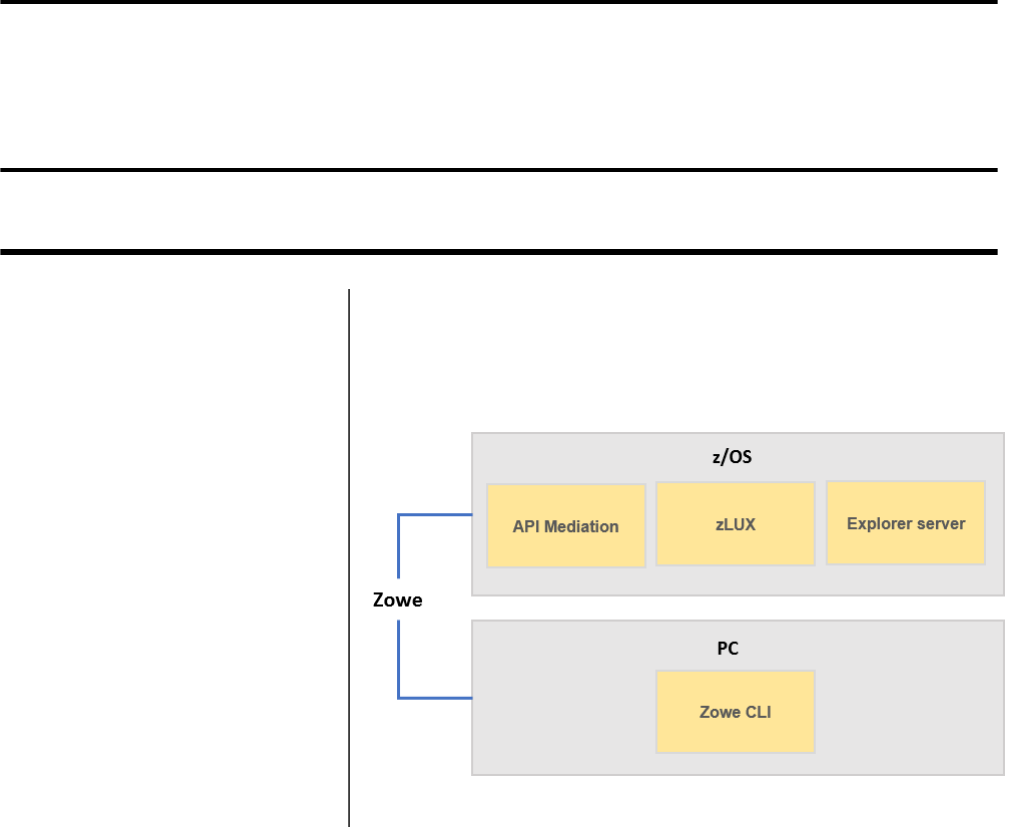
Zowe consists of four main components: the Zowe Application Framework
(zLUX), the explorer server, API Mediation Layer, and Zowe CLI. You install
the Zowe Application Framework, the explorer server, and API Mediation on
z/OS and install Zowe CLI on PC. The installations on z/OS and on PC are
independent.
To get started with installing Zowe, review the Installation roadmap topic.

Zowe | Installing Zowe | 23
Installation roadmap
Installing Zowe involves several steps that you must complete in the appropriate sequence. Review the following
installation roadmap that presents the task-flow for preparing your environment and installing and configuring Zowe
before you begin the installation process.
Tasks Description
1. Prepare your environment to meet the installation
requirements.
See System requirements.
2. Obtain the Zowe installation files. See Obtaining the installation files.
3. Allocate enough space for the installation. The installation process requires approximately 1 GB of
available space. Once installed on z/OS, API Mediation
Layer requires approximately 150MB of space, the
Zowe Application Framework requires approximately 50
MB of space before configuration, and explorer server
requires approximately 200 MB. Zowe CLI requires
approximately 200 MB of space on your computer.
4. Install components of Zowe. To install Zowe runtime (Zowe Application Framework,
explorer server, and API Mediation Layer) on z/OS, see
Installing the Zowe runtime on z/OS. To install Zowe
CLI on a computer, see Installing Zowe CLI.
5. Verify that Zowe is installed correctly. To verify that the Zowe Application Framework,
explorer server, and API Mediation Layer are installed
correctly, see Verifying installation. To verify that Zowe
CLI is installed correctly, see Testing connection to z/
OSMF.
6. Optional: Troubleshoot problems that occurred during
installation.
See Troubleshooting the installation.
To uninstall Zowe, see Uninstalling Zowe.
System requirements
When you install Zowe, you install the Zowe Application Framework, explorer server, and API Mediation Layer
together on z/OS. You install Zowe CLI independently on your computer.
Before installing Zowe, ensure that your environment meets all of the prerequisites.
z/OS host requirements (for all components):
• IBM z/OS Management Facility (z/OSMF) Version 2.2 or Version 2.3.
z/OSMF is a prerequisite for the Zowe microservice. z/OSMF must be installed and running before you use Zowe.
For details, see z/OSMF configuration.
• z/OS® Version 2.2 or later.
• Node.js Version 6.14.4 or later on the z/OS host where you install the Zowe Application Server.
1. To install Node.js on z/OS, follow the procedures at https://developer.ibm.com/node/sdk/ztp.
Notes:
• To install Node.js on z/OS, ensure that you meet the following requirements in the procedure. Other
requirements, including installing Python, Make 4.1, or Perl, are not needed. > z/OS V2R2 with PTF UI46658
Zowe | Installing Zowe | 24
or z/OS V2R3, z/OS UNIX System Services enabled, and Integrated Cryptographic Service Facility (ICSF)
configured and started.
• The step of installing the C/C++ compiler is not necessary for running the Zowe Application Framework.
1. Set the NODE_HOME environment variable to the directory where Node.js is installed. For example,
NODE_HOME=/proj/mvd/node/installs/node-v6.14.4-os390-s390x.
• npm 5.4 or later for building Zowe Application Framework applications.
To update npm, issue the following command:
npm install -g npm
• IBM SDK for Java Technology Edition V8 or later
Disk and browser requirements (for Zowe desktop):
• 833 MB of HFS file space.
• Supported browsers:
• Google Chrome V54 or later
• Mozilla Firefox V44 or later
• Safari V11 or later
• Microsoft Edge (Windows 10)
• npm 5.4 or later for building Zowe Application Framework applications.
To update npm, issue the following command:
npm install -g npm
Client requirements (for Zowe CLI):
Any platform where Node.js 8.0 or 10 is available, including Windows, Linux, and Mac operating systems. For
details, see System requirements for Zowe CLI.
z/OSMF configuration
The following information contains procedures and tips for meeting z/OSMF requirements. For complete information,
go to IBM Knowledge Center and read the following documents.
•IBM z/OS Management Facility Configuration Guide
•IBM z/OS Management Facility Help
z/OS requirements
Ensure that the z/OS system meets the following requirements:
Requirements Description Resources in IBM Knowledge
Center
Integrated Cryptographic Service
Facility (ICSF)
On z/OS, Node requires ICSF to be
installed, configured and started.
N/A
AXR (System REXX) z/OS uses AXR (System REXX)
component to perform Incident
Log tasks. The component enables
REXX executable files to run outside
of conventional TSO and batch
environments.
System REXX
Common Event Adapter (CEA)
server
The CEA server, which is a co-
requisite of the Common Information
Model (CIM) server, enables the
ability for z/OSMF to deliver z/OS
events to C-language clients.
Customizing for CEA

Zowe | Installing Zowe | 25
Requirements Description Resources in IBM Knowledge
Center
Common Information Model (CIM)
server
z/OSMF uses the CIM server to
perform capacity-provisioning and
workload-management tasks. Start
the CIM server before you start z/
OSMF (the IZU* started tasks).
Reviewing your CIM server setup
CONSOLE and CONSPROF
commands
The CONSOLE and CONSPROF
commands must exist in the
authorized command table.
Customizing the CONSOLE and
CONSPROF commands
IBM z/OS Provisioning Toolkit The IBM® z/OS® Provisioning
Toolkit is a command line utility that
provides the ability to provision z/
OS development environments. If
you want to provision CICS or Db2
environments with the Zowe CLI,
this toolkit is required.
What is IBM Cloud Provisioning and
Management for z/OS?
Java level IBM® 64-bit SDK for z/OS®, Java
Technology Edition V8 or later is
required.
Software prerequisites for z/OSMF
TSO region size To prevent exceeds maximum
region size errors, verify that the
TSO maximum region size is a
minimum of 65536 KB for the z/OS
system.
N/A
User IDs User IDs require a TSO segment
(access) and an OMVS segment.
During workflow processing and
REST API requests, z/OSMF might
start one or more TSO address spaces
under the following job names:
userid; substr(userid, 1, 6) CN
(Console).
N/A
Configuring z/OSMF
1. From the console, issue the following command to verify the version of z/OS:
/D IPLINFO
Part of the output contains the release, for example,
RELEASE z/OS 02.02.00.
2. Configure z/OSMF.
z/OSMF is a base element of z/OS V2.2 and V2.3, so it is already installed. But it might not be configured and
running on every z/OS V2.2 and V2.3 system.
In short, to configure an instance of z/OSMF, run the IBM-supplied jobs IZUSEC and IZUMKFS, and then start
the z/OSMF server. The z/OSMF configuration process occurs in three stages, and in the following order: - Stage
1 - Security setup - Stage 2 - Configuration - Stage 3 - Server initialization
This stage sequence is critical to a successful configuration. For complete information about how to configure z/
OSMF, see Configuring z/OSMF if you use z/OS V2.2 or Setting up z/OSMF for the first time if V2.3.

Zowe | Installing Zowe | 26
Note: In z/OS V2.3, the base element z/OSMF is started by default at system initial program load (IPL). Therefore, z/
OSMF is available for use as soon as you set up the system. If you prefer not to start z/OSMF automatically, disable
the autostart function by checking for START commands for the z/OSMF started procedures in the COMMNDxx
parmlib member.
The z/OS Operator Consoles task is new in Version 2.3. Applications that depend on access to the operator console
such as Zowe CLI's RestConsoles API require Version 2.3.
1. Verify that the z/OSMF server and angel processes are running. From the command line, issue the following
command:
/D A,IZU*
If jobs IZUANG1 and IZUSVR1 are not active, issue the following command to start the angel process:
/S IZUANG1
After you see the message ""CWWKB0056I INITIALIZATION COMPLETE FOR ANGEL"", issue the
following command to start the server:
/S IZUSVR1
The server might take a few minutes to initialize. The z/OSMF server is available when the message
""CWWKF0011I: The server zosmfServer is ready to run a smarter planet."" is displayed.
2. Issue the following command to find the startup messages in the SDSF log of the z/OSMF server:
f IZUG349I
You could see a message similar to the following message, which indicates the port number:
IZUG349I: The z/OSMF STANDALONE Server home page can be accessed at
https://mvs.hursley.ibm.com:443/zosmf after the z/OSMF server is started
on your system.
In this example, the port number is 443. You will need this port number later.
Point your browser at the nominated z/OSMF STANDALONE Server home page and you should see its Welcome
Page where you can log in.
z/OSMF REST services for the Zowe CLI
The Zowe CLI uses z/OSMF Representational State Transfer (REST) APIs to work with system resources and extract
system data. Ensure that the following REST services are configured and available.
z/OSMF REST services Requirements Resources in IBM knowledge
Center
Cloud provisioning services Cloud provisioning services
are required for the Zowe CLI
CICS and Db2 command groups.
Endpoints begin with /zosmf/
provisioning/
Cloud provisioning services
TSO/E address space services TSO/E address space services are
required to issue TSO commands in
the Zowe CLI. Endpoints begin with
/zosmf/tsoApp
TSO/E address space services

Zowe | Installing Zowe | 27
z/OSMF REST services Requirements Resources in IBM knowledge
Center
z/OS console services z/OS console services are required to
issue console commands in the Zowe
CLI. Endpoints begin with /zosmf/
restconsoles/
z/OS console
z/OS data set and file REST interface z/OS data set and file REST interface
is required to work with mainframe
data sets and UNIX System Services
files in the Zowe CLI. Endpoints
begin with /zosmf/restfiles/
z/OS data set and file interface
z/OS jobs REST interface z/OS jobs REST interface is required
to use the zos-jobs command group
in the Zowe CLI. Endpoints begin
with /zosmf/restjobs/
z/OS jobs interface
z/OSMF workflow services z/OSMF workflow services is
required to create and manage z/
OSMF workflows on a z/OS system.
Endpoints begin with /zosmf/
workflow/
z/OSMF workflow services
Zowe uses symbolic links to the z/OSMF bootstrap.properties,
jvm.security.override.properties, and ltpa.keys files. Zowe reuses SAF, SSL, and LTPA
configurations; therefore, they must be valid and complete.
For more information, see Using the z/OSMF REST services in IBM z/OSMF documentation.
To verify that z/OSMF REST services are configured correctly in your environment, enter the REST endpoint into
your browser. For example: https://mvs.ibm.com:443/zosmf/restjobs/jobs
Note:
• Browsing z/OSMF endpoints requests your user ID and password for defaultRealm; these are your TSO user
credentials.
• The browser returns the status code 200 and a list of all jobs on the z/OS system. The list is in raw JSON format.
Planning for installation of API Mediation Layer, Zowe Application Framework, and
explorer server
The following information is required during the installation process of API Mediation Layer, Zowe Application
Framework, and explorer server. Make the decisions before the installtion.
• The HFS directory where you install Zowe, for example, /var/zowe.
• The HFS directory that contains a 64-bit Java™ 8 JRE.
• The z/OSMF installation directory that contains derby.jar, for example, /usr/lpp/zosmf/lib.
• The z/OSMF configuration user directory that contains the following z/OSMF files:
•/bootstrap.properties
•/jvm.security.override.properties
•/resources/security/ltpa.keys
• The HTTP and HTTPS port numbers of the explorer server. By default, they are 7080 and 7443.
• The API Mediation Layer HTTP and HTTPS port numbers. You will be asked for 3 unique port numbers.
• The user ID that runs the Zowe started task.
Tip: Use the same user ID that runs the z/OSMF IZUSVR1 task, or a user ID with equivalent authorizations.

Zowe | Installing Zowe | 28
• The mainframe account under which the ZSS server runs must have UPDATE permission on the BPX.DAEMON
and BPX.SERVER facility class profiles.
System requirements for Zowe CLI
Before you install Zowe CLI, make sure your system meets the following requirements:
Prerequisite software
The following prerequisites for Windows, Mac, and Linux are required if you are installing Zowe CLI from a local
package. If you are installing Zowe CLI from Bintray registry, you only require Node.js and npm.
Note: As a best practice, we recommend that you update Node.js regularly to the latest Long Term Support (LTS)
version.
Ensure that the following prerequisite software is installed on your computer:
•Node.js V8.0 or later
Tip: You might need to restart the command prompt after installing Node.js. Issue the command node --
version to verify that Node.js is installed.
•Node Package Manager V5.0 or later
npm is included with the Node.js installation. Issue the command npm --version to verify that npm is
installed.
Supported platforms
CA Brightside Community Edition is supported on any platform where Node.js 8.0 or 10 is available, including
Windows, Linux, and Mac operating systems. For information about known issues and workarounds, see
Troubleshooting installing Zowe CLI.
Zowe CLI is designed and tested to integrate with z/OSMF running on IBM z/OS Version 2.2 or later. Before you can
use Zowe CLI to interact with the mainframe, system programmers must install and configure IBM z/OSMF in your
environment.
Important!
• Oracle Linux 6 is not supported.
Free disk space
Zowe CLI requires approximately 100 MB of free disk space. The actual quantity of free disk space consumed might
vary depending on the operating system where you install Zowe CLI.
Obtaining installation files
Obtaining installation files for Zowe z/OS components
The Zowe installation files for installing the Zowe server on z/OS are distributed as a PAX file that contains the
runtimes and the scripts to install and launch the z/OS runtime. For each release, there is a PAX file named zowe-
v.r.m.pax, where
•v indicates the version
•r indicates the release number
•m indicates the modification number
The numbers are incremented each time a release is created so the higher the numbers, the later the release. Use your
web browser to download the PAX file by saving it to a folder on your desktop.
Zowe | Installing Zowe | 29
To download the PAX file, click the DOWNLOAD Zowe z/OS Components button on the Zowe Download website.
After you obtain the PAX file, follow the procedures below to verify the PAX file and prepare it to install the Zowe
runtime.
Follow these steps:
1. Verify the downloaded PAX file.
After you download the PAX file, verify the integrity of the PAX file to ensure that the file you download is
officially distributed by the Zowe project.
Notes:
• The commands in the following steps are tested on both Mac OS X V10.13.6 and Ubuntu V16.04 and V17.10.
• Ensure that you have GPG installed. Click here to download and install GPG.
• The v.r.m in the commands of this step is a variable. You must replace it with the actual PAX file version,
for example, 0.9.0.
a. Verify the hash code.
Download the hash code file zowe-v.r.m.pax.sha512 from the Zowe website. Then, run the following
commands to check:
(gpg --print-md SHA512 zowe-v.r.m.pax > zowe-v.r.m.pax.sha512.my) && diff
zowe-v.r.m.pax.sha512.my zowe-v.r.m.pax.sha512 && echo matched || echo "not
match"
When you see "matched", it means the PAX file that you download is the same one that is officially distributed by
the Zowe project. You can delete the temporary "zowe-v.r.m.pax.sha512.my" file.
You can also use other commands such as sha512, sha512sum, or openssl dgst -sha512 to generate
SHA512 hash code. These hash code results are in a different format from what Zowe provides but the values are
the same.
b. Verify with signature file.
In addition to the SHA512 hash, the hash is also verifiable. This is done by digitally signing the hash text file with
a KEY from one of the Zowe developers.
Follow these steps:
a. Download the signature file zowe-v.r.m.pax.asc from Zowe website, and download the public key
KEYS from https://github.com/zowe/release-management/.
b. Import the public key with command gpg --import KEYS.
c. If you have never used gpg before, generate keys with command gpg --gen-key.
d. Sign the downloaded public key with command gpg --sign-key DC8633F77D1253C3.
e. Verify the file with command gpg --verify zowe-v.r.m.pax.asc zowe-v.r.m.pax.
f. Optional: You can remove the imported key with command: gpg --delete-key DC8633F77D1253C3.
When you see output similar to the followin one, it means the PAX file that you download is the same one that is
officially distributed by the Zowe project.
gpg: Signature made Tue 14 Aug 2018 08:29:46 AM EDT gpg: using RSA key
DC8633F77D1253C3 gpg: Good signature from "Matt Hogstrom (CODE SIGNING KEY)
" [full]
2. Transfer the PAX file to z/OS.
a. Open a terminal in Mac OS/Linux, or command prompt in Windows OS, and navigate to the directory where
you downloaded the Zowe PAX file.
b. Connect to z/OS using SFTP. Issue the following command:
sftp <userID@ip.of.zos.box>
If SFTP is not available or if you prefer to use FTP, you can issue the following command instead:
Zowe | Installing Zowe | 30
ftp <userID@ip.of.zos.box>
Note: When you use FTP, switch to binary file transfer mode by issuing the following command:
bin
c. Navigate to the target directory that you wish to transfer the Zowe PAX file into on z/OS.
Note: After you connect to z/OS and enter your password, you enter into the Unix file system. The following
commands are useful:
• To see what directory you are in, type pwd.
• To switch directory, type cd.
• To list the contents of a directory, type ls.
• To create a directory, type mkdir.
d. When you are in the directory you want to transfer the Zowe PAX file into, issue the following command:
put <pax-file-name>.pax
Where pax-file-name is a variable that indicates the full name of the PAX file you downloaded.
Note: When your terminal is connected to z/OS through FTP or SFTP, you can prepend commands with l to have
them issued against your desktop. To list the contents of a directory on your desktop, type lls where ls will list
contents of a directory on z/OS.
3. When the PAX file is transferred, expand the PAX file by issuing the following command in an ssh session:
pax -ppx -rf <pax-file-name>.pax
Where pax-file-name is a variable that indicates the name of the PAX file you downloaded.
This will expand to a file structure.
/files
/install
/scripts
...
Note: The PAX file will expand into the current directory. A good practice is to keep the installation directory
apart from the directory that contains the PAX file. To do this, you can create a directory such as /zowe/paxes
that contains the PAX files, and another such as /zowe/builds. Use SFTP to transfer the Zowe PAX file into
the /zowe/paxes directory, use the cd command to switch into /zowe/builds and issue the command pax
-ppx -rf ../paxes/<zowe-v.r.m>.pax. The /install folder will be created inside the zowe/
builds directory from where the installation can be launched.
Obtaining installation files for Zowe CLI
To install Zowe Command Line Interface (CLI), click the DOWNLOAD Zowe Command Line Interface button on the
Download website, and follow the instructions for installing Zowe CLI from a local package in the article Installing
Zowe CLI.
Installing the Zowe Application Framework, explorer server, and API
Mediation Layer
As a Zowe user, install Zowe Application Framework, explorer server, and Zowe API Mediation Layer on z/OS to
begin using Zowe.
Zowe | Installing Zowe | 31
Prerequisites
• Before you start the installation on z/OS, ensure that your environment meets the necessary requirements. For
details, see System requirements.
• The user ID that is used to perform the installation must have authority to set the '-a' extattr flag. This requires
a minimum of read access to the BPX.FILEATTR.APF resource profile in the RACF CLASS. It is not essential
for this access to be enabled before you run the zowe-install.sh script that installs Zowe on z/OS. However,
this access must be enabled before you run the zowe-runtime-authorize.sh script.
Installing the Zowe runtime on z/OS
To install Zowe API Mediation Layer, Zowe Application Framework, and explorer server, you install the Zowe
runtime on z/OS.
Follow these steps:
1. Navigate to the directory where the installation archive is extracted. Locate the /install directory.
/install
/zowe-install.sh
/zowe-install.yaml
2. Review the zowe-install.yaml file which contains the following properties:
•install:rootDir is the directory that Zowe installs to create a Zowe runtime. The default directory is ~/
zowe/0.9.4. The user's home directory is the default value. This ensures that the user who is performing the
installation has permission to create the directories that are required for the installation. If the Zowe runtime
will be maintained by multiple users it is recommended to use another directory, such as /var/zowe/
v.r.m.
You can run the installation process multiple times with different values in the zowe-install.yaml file to
create separate installations of the Zowe runtime. Ensure that the directory where Zowe will be installed is empty.
The install script exits if the directory is not empty and creates the directory if it does not exist.
• Zowe API Mediation Layer has three ports: two HTTP ports and one HTTPS port, for each micro-service.
• The Explorer-server has two ports: one for HTTP and one for HTTPS. The liberty server is used for the
explorer-ui components.
• The zlux-server has three ports: the HTTP and HTTPS ports that are used by the Zowe Application Server, and
the port that is used by the ZSS Server.
Example:
install:
rootDir=/var/zowe/0.9.4
api-mediation:
catalogHttpPort=7552
discoveryHttpPort=7553
gatewayHttpsPort=7554
explorer-server:
httpPort=7080
httpsPort=7443
# http and https ports for the node server
zlux-server:
httpPort=8543
httpsPort=8544
zssPort=8542
Note: If all of the default port values are acceptable, the ports do not need to be changed. To allocate ports, ensure
that the ports are not in use for the Zowe runtime servers.
Zowe | Installing Zowe | 32
3. Determine which ports are not available.
a. Display a list of ports that are in use with the following command:
TSO NETSTAT
b. Display a list of reserved ports with the following command:
TSO NETSTAT PORTLIST
The zowe-install.yaml also contains the telnet and SSH port with defaults of 23 and 22. If your z/OS
LPAR uses different ports, edit the values. This allows the TN3270 terminal desktop application as well as the
VT terminal desktop application to connect. Unlike the ports which must not be in use which are needed by Zowe
runtime for its Zowe Application Framework and explorer server, the terminal ports are expected to be in use.
# Ports for the TN3270 and the VT terminal to connect to terminals:
sshPort=22 telnetPort=23
4. Execute the zowe-install.sh script.
With the current directory being the /install directory, execute the script zowe-install.sh by issuing the
following command:
zowe-install.sh
Note: You might receive the following error that the file cannot be executed:
zowe-install.sh: cannot execute
The error results when the install script does not have execute permission. To add execute permission, issue the
following command:
chmod u+x zowe-install.sh.
5. Configure Zowe as a started task.
The ZOWESVR must be configured as a started task (STC) under the IZUSVR user ID.
• If you use RACF, issue the following commands:
RDEFINE STARTED ZOWESVR.* UACC(NONE) STDATA(USER(IZUSVR) GROUP(IZUADMIN)
PRIVILEGED(NO) TRUSTED(NO) TRACE(YES)) SETROPTS REFRESH RACLIST(STARTED)
• If you use CA ACF2, issue the following commands:
SET CONTROL(GSO) INSERT STC.ZOWESVR LOGONID(IZUSVR) GROUP(IZUADMIN)
STCID(ZOWESVR) F ACF2,REFRESH(STC)
• If you use CA Top Secret, issue the following commands:
TSS ADDTO(STC) PROCNAME(ZOWESVR) ACID(IZUSVR)
6. Add the users to the required groups, IZUADMIN for administrators, and IZUUSER for standard users.
• If you use RACF, issue the following command:
CONNECT (userid) GROUP(IZUADMIN)
• If you use CA ACF2, issue the following commands:
ACFNRULE TYPE(TGR) KEY(IZUADMIN) ADD(UID(<uid string of user>) ALLOW) F
ACF2,REBUILD(TGR)
• If you use CA Top Secret, issue the following commands:
TSS ADD(userid) PROFILE(IZUADMIN) TSS ADD(userid) GROUP(IZUADMGP)
When the zowe-install.sh script runs, it performs a number of steps broken down into sections. For more
details about these steps, see Troubleshooting the installation.
Zowe | Installing Zowe | 33
Starting and stopping the Zowe runtime on z/OS
Zowe has three runtime components on z/OS: the explorer server, the Zowe Application Server, and Zowe API
Mediation Layer. When you run the ZOWESVR PROC, all of these components start. The Zowe Application
Server startup script also starts the zSS server, so starting the ZOWESVR PROC starts all the four servers. Stopping
ZOWESVR PROC stops all four servers.
Starting the ZOWESVR PROC
To start the ZOWESVR PROC, run the zowe-start.sh script at the Unix Systems Services command prompt:
cd $ZOWE_ROOT_DIR/scripts
./zowe-start.sh
where:
$ZOWE_ROOT_DIR is the directory where you installed the Zowe runtime. This script starts the ZOWESVR PROC
for you so you don't have to log on to TSO and use SDSF.
Note: The default startup allows self-signed and expired certificates from the Zowe Application Framework proxy
data services such as the explorer server.
If you prefer to use SDSF to start Zowe, start ZOWESVR by issuing the following operator command in SDSF:
/S ZOWESVR
By default, Zowe uses the runtime version that you most recently installed. To start a different runtime, specify its
server path on the START command:
/S ZOWESVR,SRVRPATH='$ZOWE_ROOT_DIR/explorer-server'
To test whether the explorer server is active, open the URL: https://<hostname>:7443/explorer-mvs.
The port number 7443 is the default port. You can overwrite this port in the zowe-install.yaml file before the
zowe-install.sh script is run. See Installing Zowe runtime on z/OS.
Stopping the ZOWESVR PROC
To stop the ZOWESVR PROC, run the zowe-stop.sh script at the Unix Systems Services command prompt:
cd $ZOWE_ROOT_DIR/scripts
./zowe-stop.sh
If you prefer to use SDSF to stop Zowe, stop ZOWESVR by issuing the following operator command in SDSF:
/C ZOWESVR
Either of the methods will stop the explorer server, the Zowe Application Server, and the zSS server.
When you stop the ZOWESVR, you might get the following error message:
IEE842I ZOWESVR DUPLICATE NAME FOUND- REENTER COMMAND WITH 'A='
This error results when there is more than one started task named ZOWESVR. To resolve the issue, stop the required
ZOWESVR instance by issuing the following commands:
/C ZOWESVR,A=asid
You can obtain the asid from the value of A=asid when you issue the following commands:
/D A,ZOWESVR

Zowe | Installing Zowe | 34
Verifying installation
After you complete the installation of Zowe API Mediation Layer, Zowe Application Framework, and explorer server,
use the following procedures to verify that the components are installed correctly and are functional.
Verifying Zowe Application Framework installation
If the Zowe Application Framework is installed correctly, you can open the Zowe Desktop from a supported browser.
From a supported browser, open the Zowe Desktop at https://myhost:httpsPort/ZLUX/plugins/
org.zowe.zlux.bootstrap/web/index.html
where:
•myHost is the host on which you installed the Zowe Application Server.
•httpPort is the port number that is assigned to node.http.port in zluxserver.json.
•httpsPort is the port number that is assigned to node.https.port in zluxserver.json. For example, if the
Zowe Application Server runs on host myhost and the port number that is assigned to node.http.port is 12345,
you specify https://myhost:12345/ZLUX/plugins/org.zowe.zlux.bootstrap/web/
index.htm.
Verifying explorer server installation
After the explorer server is installed and the ZOWESVR procedure is started, you can verify the installation from an
internet browser by entering the following case-sensitive URL:
https://<your.server>:<atlasport>/api/v1/system/version
where:
•your.server is the host name or IP address of the z/OS® system where explorer server is installed
•atlasport is the port number that is chosen during installation. You can verify the port number in the
server.xml file. This file is located in the explorer server installation directory, which is /var/zowe/
explorer-server/wlp/usr/servers/Atlas/server.xml by default. The port number is visible in
the httpsPort assignment in the server.xml file.
Example: httpPort="7443".
This URL sends an HTTP GET request to the Liberty Profile explorer server. If explorer server is installed correctly, a
JSON payload that indicates the current explorer server application version is returned.
Example:
{ "version": "V0.0.1" }
Note: The first time that you interact with the explorer server, you are prompted to enter an MVS™ user ID and
password. The MVS user ID and password are passed over the secure HTTPS connection to establish authentication.
After you verify that explorer server is successfully installed, you can access the UI at the following URLs:
•https://<your.server>:<atlasport>/ui/v1/jobs/#/
•https://<your.server>:<atlasport>/ui/v1/datasets/#/
•https://<your.server>:<atlasport>/ui/v1/uss/#/
If explorer server is not installed successfully, see Troubleshooting installation for solutions.
Verifying the availability of explorer server REST APIs
To verify the availability of all explorer server REST APIs, use the Liberty Profile's REST API discovery feature
from an internet browser with the following URL. This URL is case-sensitive.
https://<your.server>:<atlasport>/ibm/api/explorer
With the discovery feature, you can also try each discovered API. The users who verify the availability must have
access to their data sets and job information by using relevant explorer server APIs. This ensures that your z/OSMF
Zowe | Installing Zowe | 35
configuration is valid, complete, and compatible with the explorer server application. For example, try the following
APIs:
Explorer server: JES Jobs APIs
GET /api/v1/jobs
This API returns job information for the calling user.
Explorer server: Data set APIs
GET /api/v1/datasets/userid.**
This API returns a list of the userid.** MVS data sets.
Verifying API Mediation installation
Use your preferred REST API client to review the value of the status variable of the API Catalog service that is routed
through the API Gateway using the following URL:
https://hostName:basePort/api/v1/apicatalog/application/state
The hostName is set during install, and basePort is set as the gatewayHttpsPort parameter.
Example:
The following example illustrates how to use the curl utility to invoke API Mediation Layer endpoint and the grep
utility to parse out the response status variable value
$ curl -v -k --silent https://hostName:basePort/api/v1/apicatalog/
application/state 2>&1 | grep -Po '(?<=\"status\"\:\")[^\"]+'
UP
The response UP confirms that API Mediation Layer is installed and is running properly.
Installing Zowe CLI
As a systems programmer or application developer, you install Zowe CLI on your computer.
Methods to install Zowe CLI
You can use either of the following methods to install Zowe CLI.
•Install Zowe CLI from local package
•Install Zowe CLI from online registry
If you encounter problems when you attempt to install Zowe CLI, see Troubleshooting installing Zowe CLI.
Installing Zowe CLI from local package
If you do not have internet access at your site, use the following method to install Zowe CLI from a local package.
Follow these steps:
1. Ensure that the following prerequisite software is installed on your computer:
•Node.js V8.0 or later
Tip: You might need to restart the command prompt after installing Node.js. Issue the command node --
version to verify that Node.js is installed.
•Node Package Manager V5.0 or later
npm is included with the Node.js installation. Issue the command npm --version to verify that npm is
installed.
Zowe | Installing Zowe | 36
2. Obtain the installation files. From the Zowe Download website, click Download Zowe Command Line Interface
to download the Zowe CLI installation bundle (zowe-cli-bundle.zip) to your computer.
3. Open a command line window. For example, Windows Command Prompt. Browse to the directory where you
downloaded the Zowe CLI installation bundle (.zip file). Issue the following command to unzip the files:
unzip zowe-cli-bundle.zip
By default, the unzip command extracts the contents of the zip file to the directory where you downloaded the .zip
file. You can extract the contents of the zip file to your preferred location.
4. Issue the following command to install Zowe CLI on your computer:
Note: You might need to issue a change directory command and navigate to the location where you extracted the
contents of the zip file before you issue the npm install command.
npm install -g zowe-cli-<VERSION_NUMBER>.tgz
•<VERSION_NUMBER>
The version of Zowe CLI that you want to install from the package. The following is an example of a full
package name for Zowe CLI: zowe-core-2.0.0-next.201810161407.tgz
Note: On Linux, you might need to prepend sudo to your npm commands so that you can issue the install and
uninstall commands. For more information, see Troubleshooting installing Zowe CLI.
Zowe CLI is installed on your computer. See Installing Plug-ins for information about the commands for installing
plug-ins from the package.
5. Create a zosmf profile so that you can issue commands that communicate with z/OSMF.
Note: For information about how to create a profile, see Creating a Zowe CLI profile.
Tip: Zowe CLI profiles contain information that is required for the product to interact with remote systems.
For example, host name, port, and user ID. Profiles let you target unique systems, regions, or instances for a
command. Most Zowe CLI command groups require a Zowe CLI zosmf profile.
After you install and configure Zowe CLI, you can issue the zowe --help command to view a list of available
commands. For more information, see Display Help.
Installing Zowe CLI from online registry
If your computer is connected to the Internet, you can use the following method to install Zowe CLI from an npm
registry.
Follow these steps:
1. Ensure that the following prerequisite software is installed on your computer:
•Node.js V8.0 or later
Tip: You might need to restart the command prompt after installing Node.js. Issue the command node --
version to verify that Node.js is installed.
•Node Package Manager V5.0 or later
npm is included with the Node.js installation. Issue the command npm --version to verify that npm is
installed.
2. Issue the following command to set the registry to the Zowe CLI scoped package on Bintray. In addition to setting
the scoped registry, your non-scoped registry must be set to an npm registry that includes all of the dependencies
for Zowe CLI, such as the global npm registry:
npm config set @brightside:registry https://api.bintray.com/npm/ca/
brightside

Zowe | Installing Zowe | 37
3. Issue the following command to install Zowe CLI from the registry:
npm install -g @brightside/core@next
4. (Optional) To install all available plug-ins to Zowe CLI, issue the following command:
bright plugins install @brightside/cics@next
Note: For more information about how to install multiple plug-ins, update to a specific version of a plug-in, and
install from specific registries, see Installing plug-ins.
5. Create a zosmf profile so that you can issue commands that communicate with z/OSMF. For information about
how to create a profile, see Creating a Zowe CLI profile.
Tip: Zowe CLI profiles contain information that is required for the product to interact with remote systems.
For example, host name, port, and user ID. Profiles let you target unique systems, regions, or instances for a
command. Most Zowe CLI command groups require a Zowe CLI zosmf profile.
After you install and configure Zowe CLI, you can issue the zowe --help command to view a list of available
commands. For more information, see How to display Zowe CLI help.
Creating a Zowe CLI profile
Profiles are a Zowe CLI functionality that let you store configuration information for use on multiple commands. You
can create a profile that contains your username, password, and connection details for a particular mainframe system,
then reuse that profile to avoid typing it again on every command. You can switch between profiles to quickly target
different mainframe subsystems.
Important! A zosmf profile is required to issue most Zowe CLI commands. The first profile that you create
becomes your default profile. When you issue any command that requires a zosmf profile, the command executes
using your default profile unless you specify a specific profile name on that command.
Follow these steps:
1. To create a zosmf profile, issue the following command. Refer to the available options in the help text to define
your profile:
zowe profiles create zosmf-profile --help
Note: After you create a profile, verify that it can communicate with z/OSMF. For more information, see Testing
Zowe CLI connection to z/OSMF.
Creating a profile to access an API Mediation Layer
You can create profiles that access an either an exposed API or an API Mediation Layer in the following ways:
• When you create a profile, specify the host and port of the API that you want to access. When you only provide
the host and port configuration, Zowe CLI connects to the exposed endpoints of a specific API.
• When you create a profile, specify the host, port, and the base path of the API Mediation Layer instance that you
want to access. Using the base path to an API Mediation Layer, Zowe CLI routes your requests to an appropriate
instance of the API based on the system load and the available instances of the API.
Example:
The following example illustrates the command to create a profile that connects to z/OSMF through API Mediation
Layer with the base path my/api/layer:
bright profiles create zosmf myprofile -H <myhost> -P <myport> -u <myuser>
--pw <mypass> --base-path <my/api/layer>
For more information, see Accessing an API Mediation Layer.

Zowe | Installing Zowe | 38
Testing Zowe CLI connection to z/OSMF
After you configure a Zowe CLI zosmf profile to connect to z/OSMF on your mainframe systems, you can issue
a command at any time to receive diagnostic information from the server and confirm that your profile can
communicate with z/OSMF.
Tip: In this documentation we provide command syntax to help you create a basic profile. We recommend that you
append --help to the end of commands in the product to see the complete set of commands and options available
to you. For example, issue zowe profiles --help to learn more about how to list profiles, switch your default
profile, or create different profile types.
After you create a profile, run a test to verify that Zowe CLI can communicate properly with z/OSMF. You can test
your default profile and any other Zowe CLI profile that you created.
Default profile
• Verify that you can use your default profile to communicate with z/OSMF by issuing the following command:
zowe zosmf check status
Specific profile
• Verify that you can use a specific profile to communicate with z/OSMF by issuing the following command:
zowe zosmf check status --zosmf-profile <profile_name>
The commands return a success or failure message and display information about your z/OSMF server. For example,
the z/OSMF version number and a list of installed plug-ins. Report any failure to your systems administrator and use
the information for diagnostic purposes.
Troubleshooting the installation
Review the following troubleshooting tips if you have problems with Zowe installation.
Troubleshooting installing the Zowe runtime
1. Environment variables
To prepare the environment for the Zowe runtime, a number of ZFS folders need to be located for prerequisites on
the platform that Zowe needs to operate. These can be set as environment variables before the script is run. If the
environment variables are not set, the install script will attempt to locate default values.
•ZOWE_ZOSMF_PATH: The path where z/OSMF is installed. Defaults to /usr/lpp/zosmf/lib/
defaults/servers/zosmfServer
•ZOWE_JAVA_HOME: The path where 64 bit Java 8 or later is installed. Defaults to /usr/lpp/java/
J8.0_64
•ZOWE_EXPLORER_HOST: The IP address of where the explorer servers are launched from. Defaults to
running hostname -c
The first time the script is run if it has to locate any of the environment variables, the script will add lines to the
current user's home directory .profile file to set the variables. This ensures that the next time the same user
runs the install script, the previous values will be used.
Note: If you wish to set the environment variables for all users, add the lines to assign the variables and their
values to the file /etc/.profile.
If the environment variables for ZOWE_ZOSMF_PATH, ZOWE_JAVA_HOME are not set and the install script
cannot determine a default location, the install script will prompt for their location. The install script will not
continue unless valid locations are provided.
2. Expanding the PAX files
Zowe | Installing Zowe | 39
The install script will create the Zowe runtime directory structure using the install:rootDir value in the
zowe-install.yaml file. The runtime components of the Zowe server are then unpaxed into the directory
that contains a number of directories and files that make up the Zowe runtime.
If the expand of the PAX files is successful, the install script will report that it ran its install step to completion.
3. Changing Unix permissions
After the install script lay down the contents of the Zowe runtime into the rootDir, the next step is to set the file
and directory permissions correctly to allow the Zowe runtime servers to start and operate successfully.
The install process will execute the file scripts/zowe-runtime-authorize.sh in the Zowe runtime
directory. If the script is successful, the result is reported. If for any reason the script fails to run because of
insufficient authority by the user running the install, the install process reports the errors. A user with sufficient
authority should then run the zowe-runtime-authorize.sh. If you attempt to start the Zowe runtime
servers without the zowe-runtime-authorize.sh having successfully completed, the results are
unpredictable and Zowe runtime startup or runtime errors will occur.
4. Creating the PROCLIB member to run the Zowe runtime
Note: The name of the PROCLIB member might vary depending on the standards in place at each z/OS site,
however for this documentation, the PROCLIB member is called ZOWESVR.
At the end of the installation, a Unix file ZOWESVR.jcl is created under the directory where the runtime is
installed into, $INSTALL_DIR/files/templates. The contents of this file need to be tailored and placed in
a JCL member of the PROCLIB concatenation for the Zowe runtime to be executed as a started task. The install
script does this automatically, trying data sets USER.PROCLIB, other PROCLIB data sets found in the PROCLIB
concatenation and finally SYS1.PROCLIB.
If this succeeds, you will see a message like the following one:
PROC ZOWESVR placed in USER.PROCLIB
Otherwise you will see messages beginning with the following information:
Failed to put ZOWESVR.JCL in a PROCLIB dataset.
In this case, you need to copy the PROC manually. Issue the TSO oget command to copy the ZOWESVR.jcl
file to the preferred PROCLIB:
oget '$INSTALL_DIR/files/templates/ZOWESVR.jcl' 'MY.USER.PROCLIB(ZOWESVR)'
You can place the PROC in any PROCLIB data set in the PROCLIB concatenation, but some data sets such as
SYS1.PROCLIB might be restricted, depending on the permission of the user.
You can tailor the JCL at this line
//ZOWESVR PROC SRVRPATH='/zowe/install/path/explorer-server'
to replace the /zowe/install/path with the location of the Zowe runtime directory that contains the
explorer server. Otherwise you must specify that path on the START command when you start Zowe in SDSF:
/S ZOWESVR,SRVRPATH='$ZOWE_ROOT_DIR/explorer-server'
Troubleshooting installing the Zowe Application Framework
To help Zowe research any problems you might encounter, collect as much of the following information as possible
and open an issue in GitHub with the collected information.
• Zowe version and release level
• z/OS release level
• Job output and dump (if any)
• Javascript console output (Web Developer toolkit accessible by pressing F12)
• Log output from the Zowe Application Server
• Error message codes
• Screenshots (if applicable)
Zowe | Installing Zowe | 40
• Other relevant information (such as the version of Node.js that is running on the Zowe Application Server and the
browser and browser version).
Troubleshooting installing explorer server
If explorer server REST APIs do not function properly, check the following items:
• Check whether your Liberty explorer server is running.
You can check this in the Display Active (DA) panel of SDSF under ISPF. The ZOWESVR started task should be
running. If the ZOWESVR task is not running, start the explorer server by using the following START operator
command:
/S ZOWESVR
You can also use the operator command /D A,ZOWESVR to verify whether the task is active, which alleviates the
need for the DA panel of SDSF. If the started task is not running, ensure that your ZOWESVR procedure resides
in a valid PROCLIB data set, and check the task’s job output for errors.
• Check whether the explorer server is started without errors.
In the DA panel of SDSF under ISPF, select the ZOWESVR job to view the started task output. If the explorer
server is started without errors, you can see the following messages:
CWWKE0001I: The server Atlas has been launched.
CWWKF0011I: The server Atlas is ready to run a smarter planet.
If you see error messages that are prefixed with "ERROR" or stack traces in the ZOWESVR job output, respond to
them.
• Check whether the URL that you use to call explorer server REST APIs is correct. For example: https://
your.server:atlasport/api/v1/system/version. The URL is case-sensitive.
• Ensure that you enter a valid z/OS® user ID and password when initially connecting to the explorer server.
• If testing the explorer server REST API for jobs information fails, check the z/OSMF IZUSVR1 task output for
errors. If no errors occur, you can see the following messages in the IZUSVR1 job output:
CWWKE0001I : The server zosmfServer has been launched.
CWWKF0011I: The server zosmfServer is ready to run a smarter planet.
If you see error messages, respond to them.
For RESTJOBS, you can see the following message if no errors occur:
CWWKZ0001I: Application IzuManagementFacilityRestJobs started in n.nnn
seconds.
You can also call z/OSMF RESTJOBS APIs directly from your Internet browser with a URL, for example,
https://your.server:securezosmfport/zosmf/restjobs/jobs
where the securezosmfport is 443 by default. You can verify the port number by checking the izu.https.port
variable assignment in the z/OSMF bootstrap.properties file.
You might get error message IZUG846W, which indicates that a cross-site request forgery (CSRF) was attempted.
To resolve the issue, update your browser by adding the X-CSRF-ZOSMF-HEADER HTTP custom header to
every cross-site request. This header can be set to any value or an empty string (""). For details, see the z/OSMF
documentation. If calling the z/OSMF RESTJOBS API directly fails, fix z/OSMF before explorer server can use
these APIs successfully.
Zowe | Installing Zowe | 41
• If testing the explorer server REST API for data set information fails, check the z/OSMF IZUSVR1 task output for
errors and confirm that the z/OSMF RESTFILES services are started successfully. If no errors occur, you can see
the following message in the IZUSVR1 job output:
CWWKZ0001I: Application IzuManagementFacilityRestFiles started in n.nnn
seconds.
To test z/OSMF REST APIs you can run curl scripts from your workstation.
curl --user <username>:<password> -k -X GET --header 'Accept: application/
json' --header 'X-CSRF-ZOSMF-HEADER: true' "https://<z/os host
name>:<securezosmfport>/zosmf/restjobs/jobs?prefix=*&owner=*
where the securezosmfport is 443 by default. You can verify the port number by checking the izu.https.port
variable assignment in the z/OSMF bootstrap.properties file.
/zosmf/restjobs/jobs?prefix=*&owner=* will return a list of the jobs.
If z/OSMF returns jobs correctly you can test whether it is able to returns files using
curl --user <username>:<password> -k -X GET --header 'Accept: application/
json' --header 'X-CSRF-ZOSMF-HEADER: true' "https://<z/os host
name>:<securezosmfport>/zosmf/restfiles/ds?dslevel=SYS1"
If the restfiles curl statement returns a TSO SERVLET EXCEPTION error check that the the z/OSMF installation
step of creating a valid IZUFPROC procedure in your system PROCLIB has been completed. For more
information, see the z/OSMF Configuration Guide.
The IZUFPROC member resides in your system PROCLIB, which is similar to the following sample:
//IZUFPROC PROC ROOT='/usr/lpp/zosmf' /* zOSMF INSTALL ROOT */
//IZUFPROC EXEC PGM=IKJEFT01,DYNAMNBR=200
//SYSEXEC DD DISP=SHR,DSN=ISP.SISPEXEC
// DD DISP=SHR,DSN=SYS1.SBPXEXEC
//SYSPROC DD DISP=SHR,DSN=ISP.SISPCLIB
// DD DISP=SHR,DSN=SYS1.SBPXEXEC
//ISPLLIB DD DISP=SHR,DSN=SYS1.SIEALNKE
//ISPPLIB DD DISP=SHR,DSN=ISP.SISPPENU
//ISPTLIB DD RECFM=FB,LRECL=80,SPACE=(TRK,(1,0,1))
// DD DISP=SHR,DSN=ISP.SISPTENU
//ISPSLIB DD DISP=SHR,DSN=ISP.SISPSENU
//ISPMLIB DD DISP=SHR,DSN=ISP.SISPMENU
//ISPPROF DD DISP=NEW,UNIT=SYSDA,SPACE=(TRK,(15,15,5)),
// DCB=(RECFM=FB,LRECL=80,BLKSIZE=3120)
//IZUSRVMP DD PATH='&ROOT./defaults/izurf.tsoservlet.mapping.json'
//SYSOUT DD SYSOUT=H
//CEEDUMP DD SYSOUT=H
//SYSUDUMP DD SYSOUT=H
//
Note: You might need to change paths and data sets names to match your installation.
A known issue and workaround for RESTFILES API can be found at TSO SERVLET EXCEPTION
ATTEMPTING TO USE RESTFILE INTERFACE.
• Check your system console log for related error messages and respond to them.
If the explorer server cannot connect to the z/OSMF server, check the following item:
By default, the explorer server communicates with the z/OSMF server on the localhost address. If your z/OSMF
server is on a different IP address to the explorer server, for example, if you are running z/OSMF with Dynamic
Virtual IP Addressing (DVIPA), you can change this by adding a ZOSMF_HOST parameter to the server.env file.
For example: ZOSMF_HOST=winmvs27.
Zowe | Installing Zowe | 42
Troubleshooting installing Zowe CLI
The following topics contain information that can help you troubleshoot problems when you encounter unexpected
behavior using Zowe CLI.
Command not found message displays when issuing npm install commands
Valid on all supported platforms
Symptom:
When you issue nmp commands to install Zowe CLI, the message command not found displays in your CLI.
Solution:
The command not found message displays because Node.js and NPM are not installed on your PC. To correct this
behavior, install Node.js and NPM and reissue the npm command to install Zowe CLI.
More Information: System requirements for Zowe CLI
npm install -gCommand Fails Due to an EPERM Error
Valid on Windows
Symptom:
This behavior is due to a problem with Node Package Manager (npm). There is an open issue on the npm GitHub
repository to fix the defect.
Solution:
If you encounter this problem, some users report that repeatedly attempting to install Zowe CLI yields success. Some
users also report success using the following workarounds:
• Issue the npm cache clean command.
• Uninstall and reinstall Zowe CLI. For more information, see Install Zowe CLI.
•Add the --no-optional flag to the end of the npm install command.
Sudo syntax required to complete some installations
Valid on Linux and macOS
Symptom:
The installation fails on Linux or macOS.
Solution:
Depending on how you configured Node.js on Linux or macOS, you might need to add the prefix sudo before
the npm install -g command or the npm uninstall -g command. This step gives Node.js write access to
the installation directory.
npm install -g command fails due to npm ERR! Cannot read property 'pause' of undefined error
Valid on Windows or Linux
Symptom:
You receive the error message npm ERR! Cannot read property 'pause' of undefined when you
attempt to install the product.
Solution:
Zowe | Installing Zowe | 43
This behavior is due to a problem with Node Package Manager (npm). If you encounter this problem, revert to a
previous version of npm that does not contain this defect. To revert to a previous version of npm, issue the following
command:
npm install npm@5.3.0 -g
Node.js commands do not respond as expected
Valid on Windows or Linux
Symptom:
You attempt to issue node.js commands and you do not receive the expected output.
Solution:
There might be a program that is named *node* on your path. The Node.js installer automatically adds a program that
is named *node* to your path. When there are pre-existing programs that are named *node* on your computer, the
program that appears first in the path is used. To correct this behavior, change the order of the programs in the path so
that Node.js appears first.
Installation fails on Oracle Linux 6
Valid on Oracle Linux 6
Symptom:
You receive error messages when you attempt to install the product on an Oracle Linux 6 operating system.
Solution:
Install the product on Oracle Linux 7 or another Linux or Windows OS. Zowe CLI is not compatible with Oracle
Linux 6.
Uninstalling Zowe
You can uninstall Zowe if you no longer need to use it. Follow these procedures to uninstall each Zowe component.
•Uninstalling the Zowe Application Framework
•Uninstalling explorer server
•Uninstalling API Mediation Layer
•Uninstalling Zowe CLI
Uninstalling the Zowe Application Framework
Follow these steps:
1. The Zowe Application Server (zlux-server) runs under the ZOWESVR started task, so it should terminate
when ZOWESVR is stopped. If it does not, use one of the following standard process signals to stop the server:
•SIGHUP
•SIGTERM
•SIGKILL
2. Delete or overwrite the original directories. If you modified the zluxserver.json file so that it points to
directories other than the default directories, do not delete or overwrite those directories.
Uninstalling explorer server
Follow these steps:
Zowe | Installing Zowe | 44
1. Stop your Explorer Liberty server by running the following operator command:
C ZOWESVR
2. Delete the ZOWESVR member from your system PROCLIB data set.
To do this, you can issue the following TSO DELETE command from the TSO READY prompt or from ISPF
option 6:
delete 'your.zowe.proclib(zowesvr)'
Alternatively, you can issue the TSO DELETE command at any ISPF command line by prefixing the command
with TSO:
tso delete 'your.zowe.proclib(zowesvr)'
To query which PROCLIB data set that ZOWESVR is put in, you can view the SDSF JOB log of ZOWESVR and
look for the following message:
IEFC001I PROCEDURE ZOWESVR WAS EXPANDED USING SYSTEM LIBRARY
your.zowe.proclib
If no ZOWESVR JOB log is available, issue the /$D PROCLIB command at the SDSF COMMAND INPUT line
and BROWSE each of the DSNAME=some.jes.proclib output lines in turn with ISPF option 1, until you
find the first data set that contains member ZOWESVR. Then issue the DELETE command as shown above.
3. Remove RACF® (or equivalent) definitions with the following command:
RDELETE STARTED (ZOWESVR.*)
SETR RACLIST(STARTED) REFRESH
REMOVE (userid) GROUP(IZUUSER)
where userid indicates the user ID that is used to install Zowe.
4. Delete the z/OS® UNIX™ System Services explorer server directory and files from the explorer server installation
directory by issuing the following command:
rm -R /var/zowe #*Explorer Server Installation Directory*
Or
rm -R /var/zowe/<v.r.m> #*Explorer Server Installation Directory*
Where <v.r.m> indicates the package version such as 0.9.0.
Notes:
• You might need super user authority to run this command.
• You must identify the explorer server installation directory correctly. Running a recursive remove command
with the wrong directory name might delete critical files.
Uninstalling API Mediation Layer
Note: Be aware of the following considerations:
• You might need super-user authority to run this command.
• You must identify the API Mediation installation directory correctly. Running a recursive remove command with
the incorrect directory name can delete critical files.
Follow these steps:
Zowe | Installing Zowe | 45
1. Stop your API Mediation Layer services using the following command:
C ZOWESVR
2. Delete the ZOWESVR member from your system PROCLIB data set.
To do this, you can issue the following TSO DELETE command from the TSO READY prompt or from ISPF
option 6:
delete 'your.zowe.proclib(zowesvr)'
Alternatively, you can issue the TSO DELETE command at any ISPF command line by prefixing the command
with TSO:
tso delete 'your.zowe.proclib(zowesvr)'
To query which PROCLIB data set that ZOWESVR is put in, you can view the SDSF JOB log of ZOWESVR and
look for the following message:
IEFC001I PROCEDURE ZOWESVR WAS EXPANDED USING SYSTEM LIBRARY
your.zowe.proclib
If no ZOWESVR JOB log is available, issue the /$D PROCLIB command at the SDSF COMMAND INPUT line
and BROWSE each of the DSNAME=some.jes.proclib output lines in turn with ISPF option 1, until you
find the first data set that contains member ZOWESVR. Then issue the DELETE command as shown above.
3. Remove RACF® (or equivalent) definitions using the following command:
RDELETE STARTED (ZOWESVR.*)
SETR RACLIST(STARTED) REFRESH
REMOVE (userid) GROUP(IZUUSER)
where userid indicates the user ID that is used to install Zowe.
4. Delete the z/OS® UNIX™ System Services API Mediation Layer directory and files from the API Mediation
Layer installation directory using the following command:
rm -R /var/zowe_install_directory/api-mediation #*Zowe Installation
Directory*
Uninstalling Zowe CLI
Important! The uninstall process does not delete the profiles and credentials that you created when using the product
from your computer. To delete the profiles from your computer, delete them before you uninstall Zowe CLI.
The following steps describe how to list the profiles that you created, delete the profiles, and uninstall Zowe CLI.
Follow these steps:
1. Open a command line window.
Note: If you do not want to delete the Zowe CLI profiles from your computer, go to Step 5.
2. List all profiles that you created for a Command Group by issuing the following command:
zowe profiles list <profileType>
Example:
$ zowe profiles list zosmf
The following profiles were found for the module zosmf:
'SMITH-123' (DEFAULT)
smith-123@SMITH-123-W7 C:\Users\SMITH-123
Zowe | Installing Zowe | 46
$
3. Delete all of the profiles that are listed for the command group by issuing the following command:
Tip: For this command, use the results of the list command.
Note: When you issue the delete command, it deletes the specified profile and its credentials from the
credential vault in your computer's operating system.
zowe profiles delete <profileType> <profileName> --force
Example:
zowe profiles delete zosmf SMITH-123 --force
4. Repeat Steps 2 and 3 for all Zowe CLI command groups and profiles.
5. Uninstall Zowe CLI by issuing one of the following commands:
• If you installed Zowe CLI from the package, issue the following command
npm uninstall --global @brightside/core
• If you installed Zowe CLI from the online registry, issue the following command:
npm uninstall --global brightside
The uninstall process removes all Zowe CLI installation directories and files from your computer.
6. Delete the C:\Users\<user_name>\.brightside directory on your computer. The directory contains the
Zowe CLI log files and other miscellaneous files that were generated when you used the product.
Tip: Deleting the directory does not harm your computer.
7. If you installed Zowe CLI from the online registry, issue the following command to clear your scoped
npm registry:
npm config set @brightside:registry
Zowe | Installing Zowe | 47

Zowe | Configuring Zowe | 49
Zowe Application Framework configuration
After you install Zowe, you can optionally configure the terminal application plug-ins or modify the Zowe
Application Server and ZSS configuration, if needed.
Setting up terminal application plug-ins
Follow these optional steps to configure the default connection to open for the terminal application plug-ins.
Setting up the TN3270 mainframe terminal application plug-in
_defaultTN3270.json is a file in tn3270-ng2/, which is deployed during setup. Within this file, you can
specify the following parameters to configure the terminal connection:
"host": <hostname>
"port": <port>
“security”: {
type: <”telnet” or “tls”>
}
Setting up the VT Terminal application plug-in
_defaultVT.json is a file in vt-ng2/, which is deployed during setup. Within this file, you can specify the
following parameters to configure the terminal connection:
“host”:<hostname>
“port”:<port>
“security”: {
type: <”telnet” or “ssh”>
}
Configuring the Zowe Application Server and ZSS
Configuration file
The Zowe Application Server and ZSS rely on many parameters to run, which includes setting up networking,
deployment directories, plug-in locations, and more.
For convenience, the Zowe Application Server and ZSS read from a JSON file with a common structure. ZSS reads
this file directly as a startup argument, while the Zowe Application Server (as defined in the zlux-proxy-server
repository) accepts several parameters, which are intended to be read from a JSON file through an implementer of the
server, such as the example in the zlux-example-server repository, the js/zluxServer.js file. This file
accepts a JSON file that specifies most, if not all, of the parameters needed. Other parameters can be provided through
flags, if needed.
An example of a JSON file (zluxserver.json) can be found in the zlux-example-server repository, in the
config directory.
Note: All examples are based on the zlux-example-server repository.
Network configuration
Note: The following attributes are to be defined in the server's JSON configuration file.
The Zowe Application Server can be accessed over HTTP, HTTPS, or both, provided it has been configured for either
(or both).
HTTP
To configure the server for HTTP, complete these steps:
Zowe | Configuring Zowe | 50
1. Define an attribute http within the top-level node attribute.
2. Define port within http. Where port is an integer parameter for the TCP port on which the server will listen.
Specify 80 or a value between 1024-65535.
HTTPS
For HTTPS, specify the following parameters:
1. Define an attribute https within the top-level node attribute.
2. Define the following within https:
•port: An integer parameter for the TCP port on which the server will listen. Specify 443 or a value between
1024-65535.
•certificates: An array of strings, which are paths to PEM format HTTPS certificate files.
•keys: An array of strings, which are paths to PEM format HTTPS key files.
•pfx: A string, which is a path to a PFX file which must contain certificates, keys, and optionally Certificate
Authorities.
•certificateAuthorities (Optional): An array of strings, which are paths to certificate authorities files.
•certificateRevocationLists (Optional): An array of strings, which are paths to certificate revocation list (CRL) files.
Note: When using HTTPS, you must specify pfx, or both certificates and keys.
Network example
In the example configuration, both HTTP and HTTPS are specified:
"node": {
"https": {
"port": 8544,
//pfx (string), keys, certificates, certificateAuthorities, and
certificateRevocationLists are all valid here.
"keys": ["../deploy/product/ZLUX/serverConfig/server.key"],
"certificates": ["../deploy/product/ZLUX/serverConfig/server.cert"]
},
"http": {
"port": 8543
}
}
Deploy configuration
When the Zowe Application Server is running, it accesses the server's settings and reads or modifies the contents of
its resource storage. All of this data is stored within the Deploy folder hierarchy, which is spread out into a several
scopes:
•Product: The contents of this folder are not meant to be modified, but used as defaults for a product.
•Site: The contents of this folder are intended to be shared across multiple Zowe Application Server instances,
perhaps on a network drive.
•Instance: This folder represents the broadest scope of data within the given Zowe Application Server instance.
•Group: Multiple users can be associated into one group, so that settings are shared among them.
•User: When authenticated, users have their own settings and storage for the application plug-ins that they use.
These directories dictate where the Configuration Dataservice stores content.
Deploy example
// All paths relative to zlux-example-server/js or zlux-example-server/bin
// In real installations, these values will be configured during the
installation process.
"rootDir":"../deploy",
"productDir":"../deploy/product",
"siteDir":"../deploy/site",

Zowe | Configuring Zowe | 51
"instanceDir":"../deploy/instance",
"groupsDir":"../deploy/instance/groups",
"usersDir":"../deploy/instance/users"
Application plug-in configuration
This topic describes application plug-ins that are defined in advance.
In the configuration file, you can specify a directory that contains JSON files, which tell the server what application
plug-in to include and where to find it on disk. The backend of these application plug-ins use the server's plug-in
structure, so much of the server-side references to application plug-ins use the term plug-in.
To include application plug-ins, define the location of the plug-ins directory in the configuration file, through the top-
level attribute pluginsDir.
Note: In this example, the directory for these JSON files is /plugins. Yet, to separate configuration files from
runtime files, the zlux-example-server repository copies the contents of this folder into /deploy/
instance/ZLUX/plugins. So, the example configuration file uses the latter directory.
Plug-ins directory example
// All paths relative to zlux-example-server/js or zlux-example-server/bin
// In real installations, these values will be configured during the install
process.
//...
"pluginsDir":"../deploy/instance/ZLUX/plugins",
Logging configuration
For more information, see Logging Utility.
ZSS configuration
Running ZSS requires a JSON configuration file that is similar or the same as the one used for the Zowe Application
Server. The attributes that are needed for ZSS, at minimum, are:*rootDir*, productDir, siteDir, instanceDir,
groupsDir, usersDir, pluginsDir and zssPort. All of these attributes have the same meaning as described above for the
server, but if the Zowe Application Server and ZSS are not run from the same location, then these directories can be
different.
The zssPort attribute is specific to ZSS. This is the TCP port on which ZSS listens in order to be contacted by the
Zowe Application Server. Define this port in the configuration file as a value between 1024-65535.
Connecting the Zowe Application Server to ZSS
When you run the Zowe Application Server, specify the following flags to declare which ZSS instance the Zowe
Application Framework will proxy ZSS requests to:
•-h: Declares the host where ZSS can be found. Use as "-h <hostname>"
•-P: Declares the port at which ZSS is listening. Use as "-P <port>"
Zowe Application Framework logging
The Zowe Application Framework log files contain processing messages and statistics. The log files are generated in
the following default locations:
• Zowe Proxy Server: zlux-example-server/log/nodeServer-yyyy-mm-dd-hh-mm.log
• ZSS: zlux-example-server/log/zssServer-yyyy-mm-dd-hh-mm.log
The logs are timestamped in the format yyyy-mm-dd-hh-mm and older logs are deleted when a new log is created at
server startup.
Controlling the logging location
The log information is written to a file and to the screen. (On Windows, logs are written to a file only.)
Zowe | Configuring Zowe | 52
ZLUX_NODE_LOG_DIR and ZSS_LOG_DIR environment variables
To control where the information is logged, use the environment variable ZLUX_NODE_LOG_DIR, for the Zowe
Application Server, and ZSS_LOG_DIR, for ZSS. While these variables are intended to specify a directory, if you
specify a location that is a file name, Zowe will write the logs to the specified file instead (for example: /dev/null
to disable logging).
When you specify the environment variables ZLUX_NODE_LOG_DIR and ZSS_LOG_DIR and you
specify directories rather than files, Zowe will timestamp the logs and delete the older logs that exceed the
ZLUX_NODE_LOGS_TO_KEEP threshold.
ZLUX_NODE_LOG_FILE and ZSS_LOG_FILE environment variables
If you set the log file name for the Zowe Application Server by setting the ZLUX_NODE_LOG_FILE environment
variable, or if you set the log file for ZSS by setting the ZSS_LOG_FILE environment variable, there will only be one
log file, and it will be overwritten each time the server is launched.
Note: When you set the ZLUX_NODE_LOG_FILE or ZSS_LOG_FILE environment variables, Zowe will not override
the log names, set a timestamp, or delete the logs.
If the directory or file cannot be created, the server will run (but it might not perform logging properly).
Retaining logs
By default, the last five logs are retained. To specify a different number of logs to retain, set
ZLUX_NODE_LOGS_TO_KEEP (Zowe Application Server logs) or ZSS_LOGS_TO_KEEP (ZSS logs) to the number
of logs that you want to keep. For example, if you set ZLUX_NODE_LOGS_TO_KEEP to 10, when the eleventh log
is created, the first log is deleted.
Configuring Zowe CLI
After you install Zowe, you can optionally perform Zowe CLI configurations.
Setting environment variables for Zowe CLI
You can set environment variables on your operating system to modify Zowe CLI behavior, such as the log level and
the location of the .brightside directory, where the logs, profiles, and plug-ins are stored. Refer to your computer's
operating system documentation for information about how to set environmental variables.
Setting log levels
You can set the log level to adjust the level of detail that is written to log files:
Important! Setting the log level to TRACE or ALL might result in "sensitive" data being logged. For example,
command line arguments will be logged when TRACE is set.
Environment Variable Description Values Default
ZOWE\_APP\_LOG
\_LEVEL
Zowe CLI logging level Log4JS log levels (OFF,
TRACE, DEBUG, INFO,
WARN, ERROR, FATAL)
DEBUG
ZOWE\_IMPERATIVE
\_LOG\_LEVEL
Imperative CLI Framework
logging level
Log4JS log levels (OFF,
TRACE, DEBUG, INFO,
WARN, ERROR, FATAL)
DEBUG
Setting the .zowe directory
You can set the location on your computer where Zowe CLI creates the .zowe directory, which contains log files,
profiles, and plug-ins for the product:

Zowe | Configuring Zowe | 53
Environment Variable Description Values Default
ZOWE\_CLI\_HOME Zowe CLI home directory
location
Any valid path on your
computer
Your computer default
home directory


Zowe | Using Zowe | 55
Using the Zowe Desktop
You can use the Zowe Application Framework to create application plug-ins for the Zowe Desktop. For more
information, see Exending the Zowe Application Framework.
Navigating the Zowe Desktop
From the Zowe Desktop, you can access Zowe applications.
Accessing the Zowe Desktop
From a supported browser, open the Zowe Desktop at https://myhost:httpsPort/ZLUX/plugins/
org.zowe.zlux.bootstrap/web/index.html
where:
•myHost is the host on which you are running the Zowe Application Server.
•httpsPort is the value that was assigned to node.https.port in zluxserver.json. For example, if
you run the Zowe Application Server on host myhost and the value that is assigned to node.https.port in
zluxserver.json is 12345, you would specify https://myhost:12345/ZLUX/plugins/
org.zowe.zlux.bootstrap/web/index.html.
Logging in and out of the Zowe Desktop
1. To log in, enter your mainframe credentials in the Username and Password fields.
2. Press Enter. Upon authentication of your user name and password, the desktop opens.
To log out, click the the avatar in the lower right corner and click Sign Out.
Pinning applications to the task bar
1. Click the Start menu.
2. Locate the application you want to pin.
3. Right-click the on the application icon and select Pin to taskbar.
Using Explorers within the Zowe Desktop
The explorer server provides a sample web client that can be used to view and manipulate the Job Entry Subsystem
(JES), data sets, z/OS UNIX System Services (USS), and System log.
The following views are available from the explorer server Web UI and are accessible via the explorer server icon
located in the application draw of Zowe Desktop (Navigation between views can be performed using the menu draw
located in the top left corner of the explorer server Web UI):
JES Explorer
Use this view to query JES jobs with filters, and view the related steps, files, and status. You can also purge jobs from
this view.
Data set Explorer
Use this view to browse the MVS™ file system by using a high-level qualifier filter. With the Dataset Explorer, you
can complete the following tasks:
• List the members of partitioned data sets.
• Create new data sets using attributes or the attributes of an existing data set ("Allocate Like").
• Submit data sets that contain JCL to Job Entry Subsystem (JES).
• Edit sequential data sets and partitioned data set members with basic syntax highlighting and content assist for
JCL and REXX.
• Conduct basic validation of record length when editing JCL.
• Delete data sets and members.
Zowe | Using Zowe | 56
• Open data sets in full screen editor mode, which gives you a fully qualified link to that file. The link is then
reusable for example in help tickets.
UNIX file Explorer
Use this view to browse the USS files by using a path. With the UNIX file Explorer, you can complete the following
tasks:
• List files and folders.
• Create new files and folders.
• Edit files with basic syntax highlighting and content assist for JCL and REXX.
• Delete files and folders.
Zowe Desktop application plug-ins
Application plug-ins are applications that you can use to access the mainframe and to perform various tasks.
Developers can create application plug-ins using a sample application as a guide. The following application plug-ins
are installed by default:
Hello World Sample
The Hello World sample application plug-in for developers demonstrates how to create a dataservice and how to
create an application plug-in using Angular.
IFrame Sample
The IFrame sample application plug-in for developers demonstrates how to embed pre-made webpages within the
desktop as an application and how an application can request an action of another application (see the source code for
more information).
z/OS Subsystems
This z/OS Subsystems plug-in helps you find information about the important services on the mainframe, such as
CICS, Db2, and IMS.
TN3270
This TN3270 plug-in provides a 3270 connection to the mainframe on which the Zowe Application Server runs.
VT Terminal
The VT Terminal plug-in provides a connection to UNIX System Services and UNIX.
API Catalog
The API Catalog plug-in lets you view API services that have been discovered by the API Mediation Layer. For
more information about the API Mediation Layer, Discovery Service, and API Catalog, see API Mediation Layer
Overview.
Workflows
From the Workflows application plug-in you can create, manage, and use z/OSMF workflows to manage your system.
Using the Workflows application plug-in
The Workflows application plug-in is available from the Zowe Deskstop Start menu. To launch Workflows, click the
Start menu in the lower-left corner of the desktop and click the Workflows application plug-in icon. The Users/Tasks
Workflows window opens.
To refresh the display, click the circular arrow in the upper right corner of the window.
Configuration
From the Configuration tab, you can view, add, and remove servers.
Zowe | Using Zowe | 57
Adding a z/OSMF server
Complete these steps to add a new z/OSMF server:
1. Click the Configuration tab.
2. Click the plus sign (+) on the left side of the window.
3. In the Host field, type the name of the host.
4. In the Port field, type the port number.
5. Click OK.
To test the connection, click Test. When the server is online the Online indicator next to the server Host and Port is
green.
Setting a server as the default z/OSMF server
Complete these steps to set a default z/OSMF server:
1. Click Set as default.
2. Enter your user ID and password.
3. Click Sign in.
Note: You must specify a default server.
Removing a server
To remove a server, click x next to the server in the list that you want to remove.
Workflows
Click the Workflows tab to display all workflows on the system.
Tip: To search for a particular workflow, type the search string in the search box in the upper right portion of the tab.
The following information is displayed on the Workflows tab.
Workflow
The name of the workflow.
Description
The description of the workflow.
Version
The version number.
Owner
The user ID of the workflow owner.
System
The system identifier.
Status
The status of the workflow (for example, In progress, Completed, and so on.)
Progress
Progress indicator.
Defining a workflow
Complete these steps to define a workflow: 1. From the Workflows tab, click Action in the upper left corner of the
tab. 2. Click New workflow. 3. Specify the Name, Workflow definition file, System, and Owner. 4. Click OK.

Zowe | Using Zowe | 58
Viewing tasks
To view your tasks, click the My Tasks tab. This tab displays Workflow tasks that belong to you. You can choose to
view Pending, Completed, or All tasks. Workflows that have tasks that are assigned to you are shown on the left side
of the window. For each workflow, you can click the arrow to expand or collapse the task list. Your assigned tasks
display below each workflow. Hovering over each task displays more information about the task, such as the status
and the owner.
Each task has a indicator of PERFORM (a step needs to be performed) or CHECK (Check the step that was
performed). Clicking CHECK or PERFORM opens a work area on the right side of the window.
Note: When a task is complete, a green clipboard icon with a checkmark is displayed.
Hovering over the task description in the title bar of the work area window on the right side displays more
information corresponding workflow and the step description.
Task work area
When you click CHECK or PERFORM a work area on the right side of the window is displayed.
• When you click CHECK, you can view the JESMSGLG, JESJCL, JESYSMSG, or SYSTSPRT that is associated
with the selected task.
• When you click PERFORM, you can use the work area to perform the steps associated with the selected task.
Click Next to advance to the next step for the task.
Viewing warnings
Click the Warnings tab to view any warning messages that were encountered.
The following information is displayed on the Warnings tab.
Message Code
The message code that is associated with the warning.
Description
A description of the warning.
Date
The date of the warning.
Corresponding Workflow
The workflow that is associated with the warning.
Using APIs
Access and modify your z/OS resources such as jobs, data sets, z/OS UNIX System Services files by using APIs.
Using explorer server REST APIs
Explorer server REST APIs provide a range of REST APIs through a Swagger defined description, and a simple
interface to specify API endpoint parameters and request bodies along with the response body and return code. With
explorer server REST APIs, you can see the available API endpoints and try the endpoints within a browser. Swagger
documentation is available from an Internet browser with a URL, for example, https://your.host:atlas-port/ibm/api/
explorer.
Data set APIs
Use data set APIs to create, read, update, delete, and list data sets. See the following table for the operations available
in data set APIs and their descriptions and prerequisites.

Zowe | Using Zowe | 59
REST API Description Prerequisite
GET /api/v1/datasets/
{filter}
Get a list of data sets by filter. Use
this API to get a starting list of data
sets, for example, userid.**.
z/OSMF restfiles
GET /api/v1/datasets/
{dsn}/attributes
Retrieve attributes of a data set(s).
If you have a data set name, use this
API to determine attributes for a
data set name. For example, it is a
partitioned data set.
z/OSMF restfiles
GET /api/v1/datasets/
{dsn}/members
Get a list of members for a
partitioned data set. Use this API to
get a list of members of a partitioned
data set.
z/OSMF restfiles
GET /api/v1/datasets/
{dsn}/content
Read content from a data set or
member. Use this API to read the
content of a sequential data set or
partitioned data set member. Or use
this API to return a checksum that
can be used on a subsequent PUT
request to determine if a concurrent
update has occurred.
z/OSMF restfiles
PUT /api/v1/datasets/
{dsn}/content
Write content to a data set or
member. Use this API to write
content to a sequential data set or
partitioned data set member. If a
checksum is passed and it does
not match the checksum that is
returned by a previous GET request,
a concurrent update has occurred and
the write fails.
z/OSMF restfiles
POST /api/v1/datasets/
{dsn}
Create a data set. Use this API to
create a data set according to the
attributes that are provided. The
API uses z/OSMF to create the data
set and uses the syntax and rules
that are described in the z/OSMF
Programming Guide.
z/OSMF restfiles
POST /api/v1/datasets/
{dsn}/{basedsn}
Create a data set by using the
attributes of a given base data set.
When you do not know the attributes
of a new data set, use this API to
create a new data set by using the
same attributes as an existing one.
z/OSMF
DELETE /api/v1/datasets/
{dsn}
Delete a data set or member. Use this
API to delete a sequential data set or
partitioned data set member.
z/OSMF restfiles
Job APIs
Use Jobs APIs to view the information and files of jobs, and submit and cancel jobs. See the following table for the
operations available in Job APIs and their descriptions and prerequisites.

Zowe | Using Zowe | 60
REST API Description Prerequisite
GET /api/v1/jobs Get a list of jobs. Use this API to get
a list of job names that match a given
prefix, owner, or both.
z/OSMF restjobs
GET /api/v1/jobs/
{jobName}/ids
Get a list of job identifiers for a
given job name. If you have a list of
existing job names, use this API to
get a list of job instances for a given
job name.
z/OSMF restjobs
GET /api/v1/jobs/
{jobName}/ids/{jobId}/
steps
Get job steps for a given job. With
a job name and job ID, use this API
to get a list of the job steps, which
includes the step name, the executed
program, and the logical step number.
z/OSMF restjobs
GET /api/v1/jobs/
{jobName}/ids/{jobId}/
steps/{stepNumber}/dds
Get data set definitions (DDs) for a
given job step. If you know a step
number for a given job instance,
use this API to get a list of the DDs
for a given job step, which includes
the DD name, the data sets that are
described by the DD, the original DD
JCL, and the logical order of the DD
in the step.
z/OSMF restjobs
GET /api/v1/jobs/
{jobName}/ids/{jobId}/
files
Get a list of output file names for a
job. Job output files have associated
DSIDs. Use this API to get a list of
the DSIDs and DD name of a job.
You can use the DSIDs and DD name
to read specific job output files.
z/OSMF restjobs
GET /api/v1/jobs/
{jobName}/ids/{jobId}/
files/{fileId}
Read content from a specific job
output file. If you have a DSID or
field for a given job, use this API to
read the output file's content.
z/OSMF restjobs
GET /api/v1/jobs/
{jobName}/ids/{jobId}/
files/{fileId}/tail
Read the tail of a job's output file.
Use this API to request a specific
number of records from the tail of a
job output file.
z/OSMF restjobs
GET /api/v1/jobs/
{jobName}/ids/{jobId}/
subsystem
Get the subsystem type for a job. Use
this API to determine the subsystem
that is associated with a given job.
The API examines the JCL of the job
to determine if the executed program
is CICS®, Db2®, IMS™, or IBM®
MQ.
z/OSMF restjobs
POST /api/v1/jobs Submit a job and get the job ID back.
Use this API to submit a partitioned
data set member or UNIX™ file.
z/OSMF restjobs

Zowe | Using Zowe | 61
REST API Description Prerequisite
DELETE /api/v1/jobs/
{jobName}/{jobId}
Cancel a job and purge its associated
files. Use this API to purge a
submitted job and the logged output
files that it creates to free up space.
z/OSMF Running Common
Information Model (CIM) server
System APIs
Use System APIs to view the version of explorer server. See the following table for available operations and their
descriptions and prerequisites.
REST API Description Prerequisite
GET /api/v1/system/
version
Get the current explorer server
version. Use this API to get the
current version of the explorer server
microservice.
None
USS File APIs
Use USS File APIs to create, read, update, and delete USS files. See the following table for the available operations
and their descriptions and prerequisites.
REST API Description Prerequisite
POST /api/v1/uss/files Use this API to create new USS
directories and files.
z/OSMF restfiles
DELETE /api/v1/uss/
files{path}
Use this API to delete USS
directories and files.
z/OSMF resfiles
GET /api/v1/files/{path} Use this API to get a list of files in
a USS directory along with their
attributes.
z/OSMF restfiles
GET /api/v1/files/{path}/
content
Use this API to get the content of a
USS file.
z/OSMF restfiles
PUT /api/v1/files/{path}/
content
Use this API to update the content of
a USS file.
z/OSMF resfiles
z/OS System APIs
Use z/OS system APIs to view information about PARMLIB, SYSPLEX, and USER. See the following table for
available operations and their descriptions and prerequisites.
REST API Description Prerequisite
GET /api/v1/zos/parmlib Get system PARMLIB information.
Use this API to get the PARMLIB
data set concatenation of the target z/
OS system.
None
GET /api/v1/zos/sysplex Get target system sysplex and system
name. Use this API to get the system
and sysplex names.
None
GET /api/v1/zos/username Get current userid. Use this API to
get the current user ID.
None

Zowe | Using Zowe | 62
Programming explorer server REST APIs
You can program explorer server REST APIs by referring to the examples in this section.
Sending a GET request in Java
Here is sample code to send a GET request to explorer server in Java™.
public class JobListener implements Runnable {
/*
* Perform an HTTPs GET at the given jobs URL and credentials
* targetURL e.g "https://host:port/api/v1/jobs?owner=IBMUSER&prefix=*"
* credentials in the form of base64 encoded string of user:password
*/
private String executeGET(String targetURL, String credentials) {
HttpURLConnection connection = null;
try {
//Create connection
URL url = new URL(targetURL);
connection = (HttpURLConnection) url.openConnection();
connection.setRequestMethod("GET");
connection.setRequestProperty("Authorization", credentials);
//Get Response
InputStream inputStream = connection.getInputStream();
BufferedReader bufferedReader = new BufferedReader(new
InputStreamReader(inputStream));
StringBuilder response = new StringBuilder();
String line;
//Process the response line by line
while ((line = bufferedReader.readLine()) != null) {
System.out.println(line);
}
//Cleanup
bufferedReader.close();
//Return the response message
return response.toString();
} catch (Exception e) {
//handle any error(s)
} finally {
//Cleanup
if (connection != null) {
connection.disconnect();
}
}
}
}
Sending a GET request in JavaScript
Here is sample code written in JavaScript™ using features from ES6 to send a GETrequest to explorer server.
const BASE_URL = 'hostname.com:port/api/v1';
// Call the jobs GET api to get all jobs with the userID IBMUSER
function getJobs(){
let parameters = "prefix=*&owner=IBMUSER";

Zowe | Using Zowe | 63
let contentURL = `${BASE_URL}/jobs?${parameters}`;
let result = fetch(contentURL, {credentials: "include"})
.then(response => response.json())
.catch((e) => {
//handle any error
console.log("An error occoured: " + e);
});
return result;
}
Sending a POST request in JavaScript
Here is sample code written in JavaScript™ using features from ES6 to send a POST request to explorer server.
// Call the jobs POST api to submit a job from a data set
(ATLAS.TEST.JCL(TSTJ0001))
function submitJob(){
let payload = "{\"file\":\"'ATLAS.TEST.JCL(TSTJ0001)'\"}";
let contentURL = `${BASE_URL}/jobs`;
let result = fetch(contentURL,
{
credentials: "include",
method: "POST",
body: payload
})
.then(response => response.json())
.catch((e) => {
//handle any error
console.log("An error occoured: " + e);
});
return result;
}
Extended API sample in JavaScript
Here is an extended API sample that is written using JavaScript™ with features from ES62015 (map).
/////////////////////////////////////////////////////////////////////////////
// Extended API Sample
// This Sample is written using Javascript with features from ES62015
(map).
// The sample is also written using JSX giving the ability to return HTML
elements
// with Javascript variables embedded. This sample is based upon the
codebase of the
// sample UI (see- hostname:port/explorer-mvs) which is written using
Facebook's React, Redux,
// Router and Google's material-ui
/////////////////////////////////////////////////////////////////////////////
// Return a table with rows detailing the name and jobID of all jobs
matching
// the specified parameters
function displayJobNamesTable(){
let jobsJSON = getJobs("*","IBMUSER");
return (<table>
{jobsJSON.map(job => {
return <tr><td>{job.name}</td><td>{job.id}</td></tr>
})}
</table>);
}
// Call the jobs GET api to get all jobs with the userID IBMUSER
Zowe | Using Zowe | 64
function getJobs(owner, prefix){
const BASE_URL = 'hostname.com:port/api/v1';
let parameters = "prefix=" + prefix + "&owner=" + owner;
let contentURL = `${BASE_URL}/jobs?${parameters}`;
let result = fetch(contentURL, {credentials: "include"})
.then(response => response.json())
.catch((e) => {
//handle any error
console.log("An error occoured: " + e);
});
return result;
}
Using explorer server WebSocket services
The explorer server provides WebSocket services that can be accessed by using the WSS scheme. With explorer
server WebSocket services, you can view the system log in the System log UI that is refreshed automatically when
messages are written. You can also open a JES spool file for an active job and view its contents that refresh through a
web socket.
Server Endpoint Description Prerequisites
/api/sockets/jobs/
{jobname}/ids/{jobid}/
files/{fileid}
Tail the output of an active job. Use
this WSS endpoint to read the tail of
an active job's output file in real time.
z/OSMF restjobs
API Catalog
As an application developer, use the API Catalog to view what services are running in the API Mediation Layer.
Through the API Catalog, you can also view the associated API documentation corresponding to a service, descriptive
information about the service, and the current state of the service. The tiles in the API Catalog can be customized by
changing values in the mfaas.catalog-ui-tile section defined in the application.yml of a service. A microservice that is
onboarded with the API Mediation Layer and configured appropriately, registers automatically with the API Catalog
and a tile for that service is added to the Catalog.
Note: For more information about how to configure the API Catalog in the application.yml, see: Add API
Onboarding Configuration.
View Service Information and API Documentation in the API Catalog
Use the API Catalog to view services, API documentation, descriptive information about the service, the current state
of the service, service endpoints, and detailed descriptions of these endpoints.
Note: Verify that your service is running. At least one started and registered instance with the Discovery Service is
needed for your service to be visible in the API Catalog.
Follow these steps:
1. Use the search bar to find the service that you are looking for. Services that belong to the same product family are
displayed on the same tile.
Example: Sample Applications, Endevor, SDK Application
2. Click the tile to view header information, the registered services under that family ID, and API documentation for
that service.
Notes:
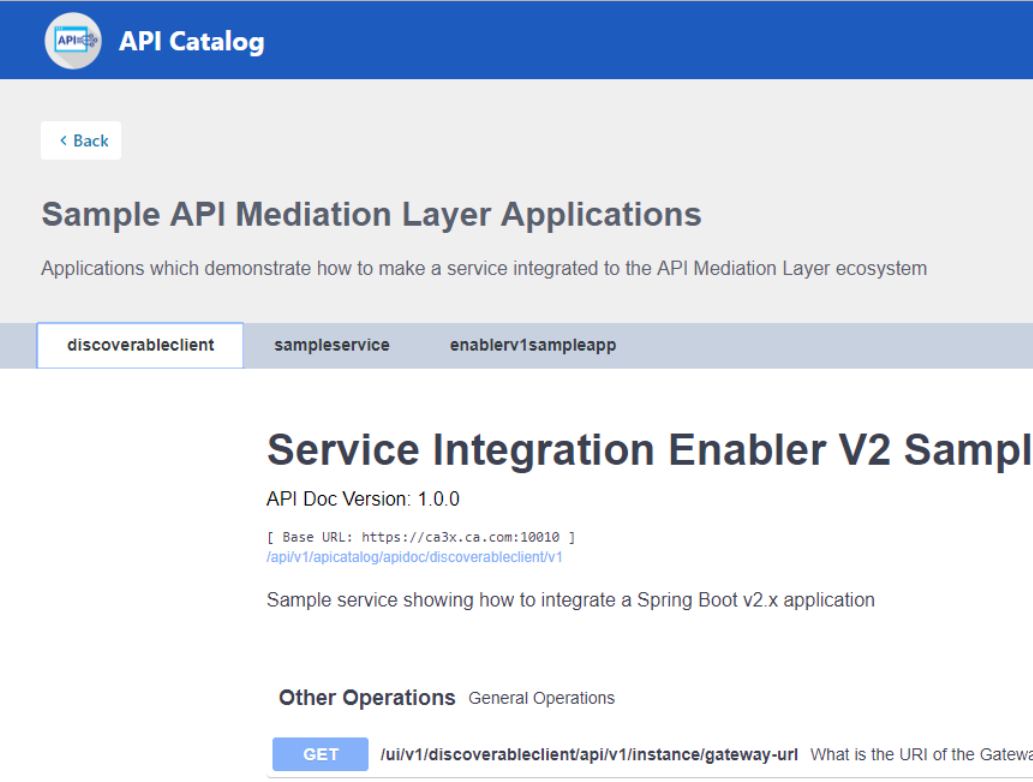
Zowe | Using Zowe | 65
• The state of the service is indicated in the service tile on the dashboard page. If no instances of the service are
currently running, the tile displays a message displays that no services are running.
• At least one instance of a service must be started and registered with the discovery service for it to be visible in
the API Catalog. If the service that you are onboarding is running, and the corresponding API documentation
is displayed, this API documentation is cached and remains visible even when the service and all service
instances stop.
• Descriptive information about the service and a link to the home page of the service is displayed.
Example:
3. Expand the endpoint panel to see a detailed summary with responses and parameters of each endpoint, the
endpoint description, and the full structure of the endpoint.
Example:
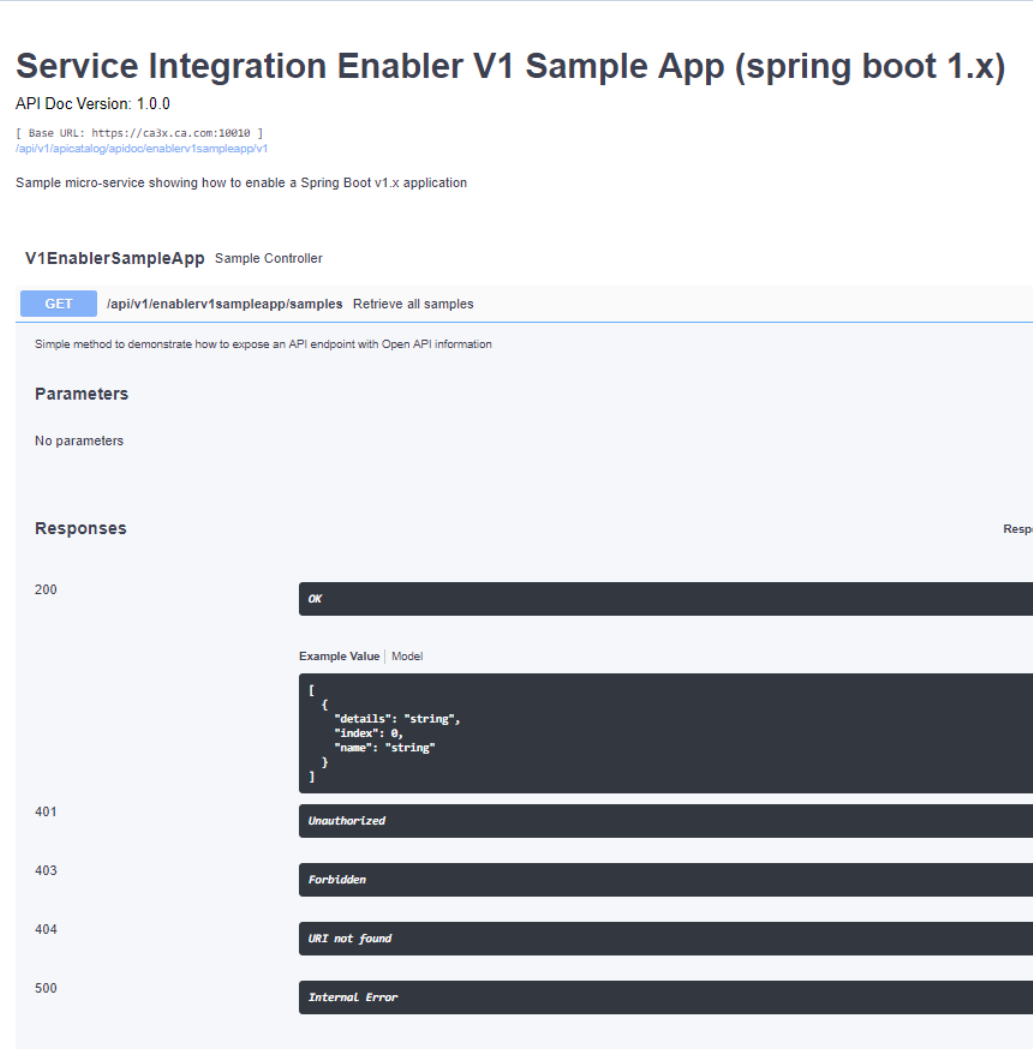
Zowe | Using Zowe | 66
Notes:
• If a lock icon is visible on the right side of the endpoint panel, the endpoint requires authentication.
• The structure of the endpoint is displayed relative to the base URL.
• The URL path of the abbreviated endpoint relative to the base URL is displayed in the following format:
Example:
/api/v1/{yourServiceId}/{endpointName}
The path of the full URL that includes the base URL is also displayed in the following format:
https://hostName:basePort/api/v1/{yourServiceId}/{endpointName}
Zowe | Using Zowe | 67
Both links target the same endpoint location.
Using Zowe CLI
This section contains information about using Zowe CLI.
Display Zowe CLI help
Zowe CLI contains a help system that is embedded directly into the command-line interface. When you want help
with Zowe CLI, you issue help commands that provide you with information about the product, syntax, and usage.
Display top-level help
To begin using the product, open a command line window and issue the following command to view the top-level
help descriptions:
zowe --help
Tip: The command zowe initiates the product on a command line. All Zowe CLI commands begin with zowe.
Help structure
The help displays the following types of information:
•Description: An explanation of the functionality for the command group, action, or option that you specified in a
--help command.
•Usage: The syntax for the command. Refer to usage to determine the expected hierarchical structure of a
command.
•Options: Flags that you can append to the end of a command to specify particular values or booleans. For
example, the volume size for a data set that you want to create.
•Global Options: Flags that you can append to any command in Zowe CLI. For example, the --help flag is a
global option.
Displaying command group, action, and object help
You can use the --help global option get more information about a specific command group, action, or object. Use
the following syntax to display group-level help and learn more about specific command groups (for example, zos-
jobs and zos-files):
zowe <group, action, or object name> --help
zowe zos-files create --help
Zowe CLI command groups
Zowe CLI contains command groups that focus on specific business processes. For example, the zos-files
command group provides the ability to interact with mainframe data sets. This article provides you with a brief
synopsis of the tasks that you can perform with each group. For more information, see Display Zowe CLI Help.
The commands available in the product are organized in a hierarchical structure. Command groups (for example,
zos-files) contain actions (for example, create) that let you perform actions on specific objects (for example,
a specific type of data set). For each action that you perform on an object, you can specify options that affect the
operation of the command.
Important! Before you issue these commands, verify that you completed the steps in Create a Zowe CLI profile
and Test Connection to z/OSMF to help ensure that Zowe CLI can communicate with z/OS systems.
Zowe CLI contains the following command groups:
Zowe | Using Zowe | 68
plugins
The plugins command group lets you install and manage third-party plug-ins for the product. Plug-ins extend the
functionality of Zowe CLI in the form of new commands.
With the plugins command group, you can perform the following tasks:
• Install or uninstall third-party plug-ins.
• Display a list of installed plug-ins.
• Validate that a plug-in integrates with the base product properly.
Note: For more information about plugins syntax, actions, and options, open Zowe CLI and issue the following
command:
zowe plugins -h
profiles
The profiles command group lets you create and manage profiles for use with other Zowe CLI command groups.
Profiles allow you to issue commands to different mainframe systems quickly, without specifying your connection
details with every command.
With the profiles command group, you can perform the following tasks:
• Create, update, and delete profiles for any Zowe CLI command group that supports profiles.
• Set the default profile to be used within any command group.
• List profile names and details for any command group, including the default active profile.
Note: For more information about profiles syntax, actions, and options, open Zowe CLI, and issue the following
command:
zowe profiles -h
provisioning
The provisioning command group lets you perform IBM z/OSMF provisioning tasks with templates and provisioned
instances from Zowe CLI.
With the provisioning command group, you can perform the following tasks:
• Provision cloud instances using z/OSMF Software Services templates.
• List information about the available z/OSMF Service Catalog published templates and the templates that you used
to publish cloud instances.
• List summary information about the templates that you used to provision cloud instances. You can filter the
information by application (for example, DB2 and CICS) and by the external name of the provisioned instances.
• List detail information about the variables used (and their corresponding values) on named, published cloud
instances.
Note: For more information about provisioning syntax, actions, and options, open Zowe CLI and issue the following
command:
zowe provisioning -h
zos-console
The zos-console command group lets you issue commands to the z/OS console by establishing an extended Multiple
Console Support (MCS) console.
With the zos-console command group, you can perform the following tasks: Important! Before you issue z/OS
console commands with Zowe CLI, security administrators should ensure that they provide access to commands
that are appropriate for your organization. - Issue commands to the z/OS console. - Collect command responses and
continue to collect solicited command responses on-demand.
Zowe | Using Zowe | 69
Note: For more information about zos-console syntax, actions, and options, open Zowe CLI and issue the
following command:
zowe zos-console -h
zos-files
The zos-files command group lets you interact with data sets on z/OS systems.
With the zos-files command group, you can perform the following tasks:
• Create partitioned data sets (PDS) with members, physical sequential data sets (PS), and other types of data sets
from templates. You can specify options to customize the data sets you create.
• Download mainframe data sets and edit them locally in your preferred Integrated Development Environment
(IDE).
• Upload local files to mainframe data sets.
• List available mainframe data sets.
• Interact with VSAM data sets directly, or invoke Access Methods Services (IDCAMS) to work with VSAM data
sets.
Note: For more information about zos-files syntax, actions, and options, open Zowe CLI and issue the following
command:
zowe zos-files -h
zos-jobs
The zos-jobs command group lets you submit jobs and interact with jobs on z/OS systems.
With the zos-jobs command group, you can perform the following tasks:
• Submit jobs from JCL that resides on the mainframe or a local file.
• List jobs and spool files for a job.
• View the status of a job or view a spool file from a job.
Note: For more information about zos-jobs syntax, actions, and options, open Zowe CLI and issue the following
command:
zowe zos-jobs -h
zos-tso
The zos-tso command group lets you issue TSO commands and interact with TSO address spaces on z/OS systems.
With the zos-tso command group, you can perform the following tasks:
• Excecute REXX scripts
• Create a TSO address space and issue TSO commands to the address space.
• Review TSO command response data in Zowe CLI.
Note: For more information about zos-tso syntax, actions, and options, open Zowe CLI and issue the following
command:
zowe zos-tso -h
zosmf
The zosmf command group lets you work with Zowe CLI profiles and get general information about z/OSMF.
With the zosmf command group, you can perform the following tasks:

Zowe | Using Zowe | 70
• Create and manage your Zowe CLI zosmf profiles. You must have at least one zosmf profile to issue most
commands. Issue the zowe help explain profiles command in Zowe CLI to learn more about using
profiles.
• Verify that your profiles are set up correctly to communicate with z/OSMF on your system. For more information,
see Test Connection to z/OSMF.
• Get information about the current z/OSMF version, host, port, and plug-ins installed on your system.
Note: For more information about zosmf syntax, actions, and options, open Zowe CLI and issue the following
command:
zowe zosmf -h
Setting environment variables for command arguments and options
Zowe CLI has a command option order of precedence that lets you define arguments and options for commands
in multiple ways (command-line, environment variables, and profiles). This provides flexibility when you issue
commands and write automation scripts. This topic explains that order of precedence and how you can use
environment variables with Zowe CLI.
•Understanding command option order of precedence?
•Use cases and benefits
•Defining environment variables
•Transforming arguments/options to environment variable format
•Setting environment variables in an Automation Server
•Using secure credential storage
Understanding command option order of precedence
Before you use environment variables, it is helpful to understand the command option order of precedence. The
following is the order in which Zowe CLI searches for your command arguments and options when you issue a
command:
1. Arguments and options that you specify directly on the command line
2. Environment variables that you define in the computer's operating system
3. Profiles that you create
4. The default value for the argument or option
The affect of the order is that if you omit an argument/option from the command line, Zowe CLI searches for an
environment variable that contains a value that you defined for the argument/option. If Zowe CLI does not find a
value for the argument/option in an environment variable, Zowe CLI searches your user profiles for the value that you
defined for the option/argument. If Zowe CLI does not find a value for the argument/option in your profiles, Zowe
CLI executes the command using the default value for the argument/option.
Note: If a required option or argument value is not located, you will receive a syntax error message that states
Missing Positional Argument or Missing Option.
Use cases and benefits
Use environment variables with Zowe CLI in the following scenarios:
•Assigning an environment variable for a value that is commonly used. For example, you might want to specify
your mainframe user name as an environment variable on your computer. When you issue a command and omit
the --username argument, Zowe CLI automatically uses the value that you defined in the environment variable.
You can now issue a command or create any profile type without specifying your user name repeatedly.
•Overriding a value that is used in existing profiles. For example, you might want to override a value that you
previously set on multiple profiles to avoid recreating each profile.This reduces the number of profiles that you
need to maintain and lets you avoid specifying every option on command line for one-off commands.
Zowe | Using Zowe | 71
•Specifying environment variables in a Jenkins environment (or other automation server) to store
credentials securely. You can set values in Jenkins environment variables for use in scripts that run in your CI/CD
pipeline. You can define Jenkins environment variables in the same manner that you can on your computer. You
can also define sensitive information in the Jenkins secure credential store. For example, you might need to define
your mainframe password in the secure credential store so that it is not available in plain text.
Defining environment variables
You define, or set, environment variables in your environment. The term environment refers to your operating system,
but it can also refer to an automation server, such as Jenkins or a Docker container.
In this section we explain how to transform arguments and options from Zowe CLI commands into environment
variables and define them with a value.
Transforming arguments/options to environment variable format
Transform the option/argument into the correct format for a Zowe CLI environment variable, then define values to the
new variable. The following rules apply to this transformation:
• Prefix environment variables with ZOWE_OPT_
• Convert lowercase letters in arguments/options to uppercase letters
• Convert hyphens in arguments/options to underscores
Tip: See your operating system documentation for how to set and get environment variables. The procedure for
setting environment variables varies between Windows, Mac, and various versions of Linux operating systems.
Examples:
The following table shows command line options that you might want to transform and the resulting environment
variable to which you should define the value. Use the appropriate procedure for for your operating system to define
the variables.
Command Option Environment Variable Use Case
--user ZOWE_OPT_USER Define your mainframe user name
to an environment variable to avoid
specifying it on all commands or
profiles.
--reject-unauthorized ZOWE_OPT_REJECT_UNAUTHORIZEDDefine a value of true to the --
reject-unathorized flag
when you always require the flag
and do not want to specify it on all
commands or profiles.
Setting environment variables in an automation server
You can use environment variables in an automation server, such as Jenkins, to write more efficient scripts and make
use of secure credential storage.
You can either set environment variables using the SET command within your scripts, or navigate to Manage
Jenkins > Configure System > Global Properties and define an environment variable in the Jenkins GUI. For
example:
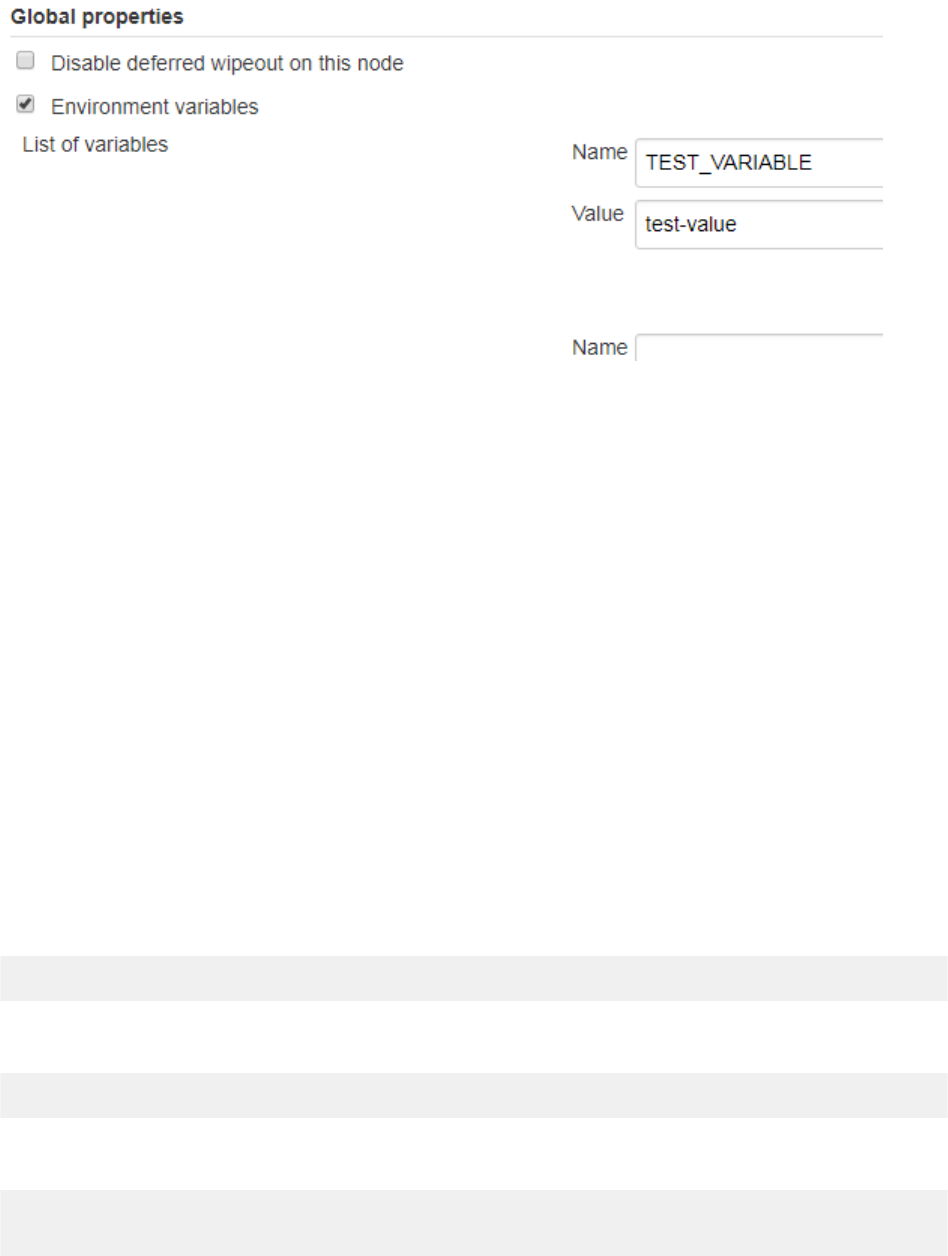
Zowe | Using Zowe | 72
Using secure credential storage
Automation tools such as Jenkins automation server usually provide a mechanism for securely storing configuration
(for example, credentials). In Jenkins, you can use withCredentials to expose credentials as an environment
variable (ENV) or Groovy variable.
Note: For more information about using this feature in Jenkins, see Credentials Binding Plugin in the Jenkins
documentation.
Accessing API Mediation Layer
The API Mediation Layer provides a single point of access to a defined set of microservices. The API Mediation
Layer provides cloud-like features such as high-availability, scalability, dynamic API discovery, consistent security, a
single sign-on experience, and API documentation.
When Zowe CLI executes commands that connect to a service through the API Mediation Layer, the layer routes the
command execution requests to an appropriate instance of the API. The routing path is based on the system load and
available instances of the API.
Use the --base-path option on commands to let all of your Zowe CLI core command groups (excludes plug-in
groups) access REST APIs through an API Mediation Layer. To access API Mediation Layers, you specify the base
path, or URL, to the API gateway as you execute your commands. Optionally, you can define the base path URL as an
environment variable or in a profile that you create.
Examples:
The following example illustrates the base path for a REST request that is not connecting through an API Mediation
Layer to one system where an instance of z/OSMF is running:
https://mymainframehost:port/zosmf/restjobs/jobs
The following example illustrates the base path (named api/v1/zosmf1) for a REST request to an API mediation
layer:
https://myapilayerhost:port/api/v1/zosmf1/zosmf/restjobs/jobs
The following example illustrates the command to verify that you can connect to z/OSMF through an API Mediation
Layer that contains the base path my/api/layer:
bright zosmf check status -H <myhost> -P <myport> -u <myuser> --pw <mypass>
--base-path <my/api/layer>
More Information: - API Mediation Layer overview - Creating a profile to access an API Mediation Layer
Zowe | Using Zowe | 73

Zowe | Extending Zowe CLI | 74
Chapter
5
Extending Zowe CLI
Topics:
•Installing plug-ins
•Zowe CLI Plug-in for IBM CICS
•Zowe CLI plug-in for IBM Db2
Database
•VSCode Extension for Zowe
You can install plug-ins to extend the capabilities of Zowe CLI.
Plug-ins CLI to third-party applications are also available, such as Visual
Studio Code Extension for Zowe (powered by Zowe CLI).
Plug-ins add functionality to the product in the form of new command groups,
actions, objects, and options.
Important! Plug-ins can gain control of your CLI application legitimately
during the execution of every command. Install third-party plug-ins at your
own risk. We make no warranties regarding the use of third-party plug-ins.
Note: For information about how to install, update, and validate a plug-in, see
Installing Plug-ins.
The following plug-ins are available:
CA Brightside Plug-in for IBM® CICS®
The Zowe CLI Plug-in for IBM CICS lets you extend Zowe CLI to interact
with CICS programs and transactions. The plug-in uses the IBM CICS®
Management Client Interface (CMCI) API to achieve the interaction with
CICS. For more information, see CICS management client interface on the
IBM Knowledge Center.
For more information, see CA Brightside Plug-in for IBM CICS.
Zowe CLI plug-in for IBM® Db2® Database
The Zowe CLI plug-in for Db2 enables you to interact with IBM
Db2 Database on z/OS to perform tasks with modern development tools to
automate typical workloads more efficiently. The plug-in also enables you
to interact with IBM Db2 to foster continuous integration to validate product
quality and stability.
For more information, see Zowe CLI plug-in for IBM Db2 Database.
VSCode Extension for Zowe
The Visual Studio Code (VSCode) Extension for Zowe lets you interact
with data sets that are stored on IBM z/OS mainframe. Install the extension
directly to VSCode to enable the extension within the GUI. You can explore
data sets, view their contents, make changes, and upload the changes to
the mainframe. For some users, it can be more convenient to interact with
data sets through a GUI rather than using command-line interfaces or 3270
emulators. The extension is powered by Zowe CLI.
For more information, see VSCode Extension for Zowe.

Zowe | Extending Zowe CLI | 75
Installing plug-ins
Use commands in the plugins command group to install and manage plug-ins for Zowe CLI.
Important! Plug-ins can gain control of your CLI application legitimately during the execution of every command.
Install third-party plug-ins at your own risk. We make no warranties regarding the use of third-party plug-ins.
You can install the following plug-ins: - Zowe CLI Plug-in for IBM CICS Use @brightside/cics in
your command syntax to install, update, and validate the plug-in. - Zowe CLI Plug-in for IBM Db2 Database
Use @brightside/db2 in your command syntax to install, update, and validate the IBM Db2 Database plug-in.
Setting the registry
If you installed Zowe CLI from the zowe-cli-bundle.zip distributed with the Zowe PAX media, proceed to the Install
step.
If you installed Zowe CLI from a registry, confirm that NPM is set to target the registry by issuing the following
command:
npm config set @brightside:registry https://api.bintray.com/npm/ca/
brightside
Meeting the prerequisites
Ensure that you meet the prerequisites for a plug-in before you install the plug-in to Zowe CLI. For documentation
related to each plug-in, see Extending Zowe CLI.
Installing plug-ins
Issue an install command to install plug-ins to Zowe CLI. The install command contains the following
syntax:
zowe plugins install [plugin...] [--registry <registry>]
•[plugin...] (Optional) Specifies the name of a plug-in, an npm package, or a pointer to a (local or remote)
URL. When you do not specify a plug-in version, the command installs the latest plug-in version and specifies the
prefix that is stored in npm save-prefix. For more information, see npm save prefix. For more information about
npm semantic versioning, see npm semver. Optionally, you can specify a specific version of a plug-in to install.
For example, zowe plugin install pluginName@^1.0.0.
Tip: You can install multiple plug-ins with one command. For example, issue zowe plugin install
plugin1 plugin2 plugin3
•[--registry <registry>] (Optional) Specifies a registry URL from which to install a plug-in when you
do not use npm config set to set the registry initially.
Examples: Install plug-ins
• The following example illustrates the syntax to use to install a plug-in that is distributed with the zowe-cli-
bundle.zip. If you are using zowe-cli-bundle.zip, issue the following command for each plug-in .tgz file:
zowe plugins install ./zowe-cli-cics-1.0.0-next.20180531.tgz
• The following example illustrates the syntax to use to install a plug-in that is named "my-plugin" from a specified
registry:
zowe plugins install @brightside/my-plugin
Zowe | Extending Zowe CLI | 76
• The following example illustrates the syntax to use to install a specific version of "my-plugins"
zowe plugins install @brightside/my-plugin@"^1.2.3"
Validating plug-ins
Issue the plug-in validation command to run tests against all plug-ins (or against a plug-in that you specify) to verify
that the plug-ins integrate properly with Zowe CLI. The tests confirm that the plug-in does not conflict with existing
command groups in the base application. The command response provides you with details or error messages about
how the plug-ins integrate with Zowe CLI.
Perform validation after you install the plug-ins to help ensure that it integrates with Zowe CLI.
The validate command has the following syntax:
zowe plugins validate [plugin]
•[plugin] (Optional) Specifies the name of the plug-in that you want to validate. If you do not specify a plug-in
name, the command validates all installed plug-ins. The name of the plug-in is not always the same as the name of
the NPM package.
Examples: Validate plug-ins
• The following example illustrates the syntax to use to validate a specified installed plug-in:
zowe plugins validate @brightside/my-plugin
• The following example illustrates the syntax to use to validate all installed plug-ins:
zowe plugins validate
Updating plug-ins
Issue the update command to install the latest version or a specific version of a plug-in that you installed previously.
The update command has the following syntax:
zowe plugins update [plugin...] [--registry <registry>]
•[plugin...]
Specifies the name of an installed plug-in that you want to update. The name of the plug-in is not always the same
as the name of the NPM package. You can use npm semantic versioning to specify a plug-in version to which to
update. For more information, see npm semver.
•[--registry <registry>]
(Optional) Specifies a registry URL that is different from the registry URL of the original installation.
Examples: Update plug-ins
• The following example illustrates the syntax to use to update an installed plug-in to the latest version:
zowe plugins update @brightside/my-plugin@latest
• The following example illustrates the syntax to use to update a plug-in to a specific version:
zowe plugins update @brightside/my-plugin@"^1.2.3"
Uninstalling plug-ins
Issue the uninstall command to uninstall plug-ins from a base application. After the uninstall process completes
successfully, the product no longer contains the plug-in configuration.
Zowe | Extending Zowe CLI | 77
Tip: The command is equivalent to using npm uninstall to uninstall a package.
The uninstall command contains the following syntax:
zowe plugins uninstall [plugin]
•[plugin] Specifies the plug-in name to uninstall.
Example: Uninstall plug-ins
• The following example illustrates the syntax to use to uninstall a plug-in:
zowe plugins uninstall @brightside/my-plugin
Zowe CLI Plug-in for IBM CICS
The Zowe CLI Plug-in for IBM® CICS® lets you extend Zowe CLI to interact with CICS programs and transactions.
The plug-in uses the IBM CICS® Management Client Interface (CMCI) API to achieve the interaction with CICS.For
more information, see CICS management client interface on the IBM Knowledge Center.
•Use Cases
•Prerequisites
•Installing
•Setting up profiles
•Commands
Use cases
As an application developer, you can use Zowe CLI Plug-in for IBM CICS to perform the following tasks:
• Deploy code changes to CICS applications that were developed with COBOL.
• Deploy changes to CICS regions for testing or delivery. See the define command for an example of how you can
define programs to CICS to assist with testing and delivery.
• Automate CICS interaction steps in your CI/CD pipeline with Jenkins Automation Server or TravisCI.
• Deploy build artifacts to CICS regions.
• Alter, copy, define, delete, discard, and install CICS resources and resource definitions.
Prerequisites
Before you install the plug-in, meet the following prerequisites:
•Install Zowe CLI on your computer.
• Ensure that IBM CICS Transaction Server v5.2 or later is installed and running in your mainframe environment.
• Ensure that IBM CICS Management Client Interface (CMCI) is configured and running in your CICS region.
Installing
Use one of the two following methods that you can use to install the Zowe CLI Plug-in for IBM CICS:
•Installing from online registry
•Installing from local package
Note: For more information about how to install multiple plug-ins, update to a specific version of a plug-ins, and
install from specific registries, see Install Plug-ins.
Installing from online registry
To install Zowe CLI from an online registry, complete the following steps:
Zowe | Extending Zowe CLI | 78
1. Set your npm registry if you did not already do so when you installed Zowe CLI. Issue the following command:
npm config set @brightside:registry https://api.bintray.com/npm/ca/
brightside
2. Open a command line window and issue the following command:
zowe plugins install @brightside/cics@next
3. (Optional) After the command execution completes, issue the following command to validate that the installation
completed successfully.
zowe plugins validate cics
Successful validation of the IBM CICS plug-in returns the response: Successfully validated.
Installing from local package
If you downloaded the Zowe PAX file and extracted the zowe-cli-bundle.zip package, complete the following
steps to install the Zowe CLI Plug-in for CICS:
1. Open a command line window and change the local directory where you extracted the zowe-cli-
bundle.zip file. If you do not have the zowe-cli-bundle.zip file, see the topic Install Zowe CLI from
local package for information about how to obtain and extract it.
2. Issue the following command to install the plug-in:
zowe plugins install zowe-cli-cics-<VERSION_NUMBER>.tgz
•<VERSION_NUMBER>
The version of Zowe CLI Plug-in for CICS that you want to install from the package. The following is an
example of a full package name for the plug-in: zowe-core-2.0.0-next.201810161407.tgz
3. (Optional) After the command execution completes, issue the following command to validate that the installation
completed successfully.
zowe plugins validate @brightside/cics
Successful validation of the CICS plug-in returns the response: Successfully validated. You can safely
ignore *** Warning: messages related to Imperative CLI Framework.
Setting up profiles
A cics profile is required to issue commands in the CICS group that interact with CICS regions. The cics profile
contains your host, port, username, and password for the IBM CMCI server of your choice. You can create multiple
profiles and switch between them as needed.
Issue the following command to create a cics profile:
zowe profiles create cics <profile name> -H <host> -P <port> -u <user> -p
<password>
Note: For more information about the` syntax, actions, and options, for aprofiles create` command,
open Zowe CLI and issue the following command:
zowe profiles create cics -h
The result of the command displays as a success or failure message. You can use your profile when you issue
commands in the cics command group.
Zowe | Extending Zowe CLI | 79
Commands
The Zowe CLI Plug-in for IBM CICS adds the following commands to Zowe CLI:
•Defining resources to CICS
•Deleting CICS resources
•Discarding CICS resources
•Getting CICS resources
•Installing resources to CICS
•Refreshing CICS programs
Defining resources to CICS
The define command lets you define programs and transactions to CICS so that you can deploy and test the changes
to your CICS application. To display a list of possible objects and options, issue the following command:
zowe cics define -h
Example:
Define a program named myProgram to the region named myRegion in the CICS system definition (CSD) group
myGroup:
zowe cics define program myProgram myGroup --region-name myRegion
Deleting CICS resources
The delete command lets you delete previously defined CICS programs or transactions to help you deploy and test the
changes to your CICS application. To display a list of possible objects and options, issue the following command:
zowe cics delete -h
Example:
Delete a program named PGM123 from the CICS region named MYREGION:
zowe cics delete program PGM123 --region-name MYREGION
Discarding CICS resources
The discard command lets you remove existing CICS program or transaction definitions to help you deploy and test
the changes to your CICS application. To display a list of possible objects and options, issue the following command:
zowe cics discard -h
Example:
Discard a program named PGM123 from the CICS region named MYREGION:
zowe cics discard program PGM123 --region-name MYREGION
Getting CICS resources
The get command lets you get a list of programs and transactions that are installed in your CICS region so that you
can determine if they were installed successfully and defined properly. To display a list of objects and options, issue
the following command:
zowe cics get -h
Example:
Zowe | Extending Zowe CLI | 80
Return a list of program resources from a CICS region named MYREGION:
zowe cics get resource CICSProgram --region-name MYREGION
Installing resources to CICS
The install command lets you install resources, such as programs and transactions, to a CICS region so that you can
deploy and test the changes to your CICS application. To display a list of possible objects and options, issue the
following command:
zowe cics install -h
Example:
Install a transaction named TRN1 to the region named MYREGION in the CSD group named MYGRP:
zowe cics install transaction TRN1 MYGRP --region-name MYREGION
Refreshing CICS programs
The refresh command lets you refresh changes to a CICS program so that you can deploy and test the changes to your
CICS application. To display a list of objects and options, issue the following command:
zowe cics refresh -h
Example:
Refresh a program named PGM123 from the region named MYREGION:
zowe cics refresh PGM123 --region-name MYREGION
Zowe CLI plug-in for IBM Db2 Database
The Zowe CLI plug-in for IBM® Db2® Database lets you interact with Db2 for z/OS to perform tasks through Zowe
CLI and integrate with modern development tools. The plug-in also lets you interact with Db2 to advance continuous
integration and to validate product quality and stability.
Zowe CLI Plug-in for IBM Db2 Database lets you execute SQL statements against a Db2 region, export a Db2 table,
and call a stored procedure. The plug-in also exposes its API so that the plug-in can be used directly in other products.
•Use Cases
•Prerequisites
•Installing
•Obtaining a DB2 License
•Setting up profiles
•Commands
Use cases
Use cases for Zowe CLI Db2 plug-in include: - Execute SQL and interact with databases. - Execute a file with
SQL statements. - Export tables to a local file on your computer in SQL format. - Call a stored procedure and
pass parameters.
Prerequisites
Before you install the plug-in, meet the following prerequisites:
•Install Zowe CLI on your computer.
Zowe | Extending Zowe CLI | 81
Installing
There are two methods that you can use to install the Zowe CLI Plug-in for IBM Db2 Database - install from an
online registry or install from the local package.
Installing from online registry
If you installed Zowe CLI from online registry, complete the following steps:
1. Open a command line window and issue the following command:
zowe plugins install @brightside/db2
2. After the command execution completes, issue the following command to validate that the installation completed
successfully.
zowe plugins validate db2
Successful validation of the IBM Db2 plug-in returns the response: Successfully validated.
3. Address the license requirements to begin using the plug-in.
Installing from local package
Follow these procedures if you downloaded the Zowe installation package:
Downloading the ODBC driver
Download the ODBC driver before you install the Db2 plug-in.
Follow these steps:
1. Download the ODBC CLI Driver. Use the table within the download URL to select the correct CLI Driver for
your platform and architecture.
2. Create a new directory named odbc_cli on your computer. Remember the path to the new directory. You will
need to provide the full path to this directory immediately before you install the Db2 plug-in.
3. Place the ODBC driver in the odbc_cli folder. Do not extract the ODBC driver.
You downloaded and prepared to use the ODBC driver successfully. Proceed to install the plug-in to Zowe CLI.
Installing the Plug-in
Now that the Db2 ODBC CLI driver is downloaded, set the IBM_DB_INSTALLER_URL environment variable and
install the Db2 plug-in to Zowe CLI.
Follow these steps:
1. Open a command line window and change the directory to the location where you extracted the zowe-cli-
bundle.zip file. If you do not have the zowe-cli-bundle.zip file, see the topic Install Zowe CLI from
local package in Installing Zowe CLI for information about how to obtain and extract it.
2. From a command line window, set the IBM_DB_INSTALLER_URL environment variable by issuing the
following command:
• Windows operating systems:
set IBM_DB_INSTALLER_URL=<path_to_your_odbc_folder>/odbc_cli - Linux and Mac
operating systems:
export IBM_DB_INSTALLER_URL=<path_to_your_odbc_folder>/odbc_cli
For example, if you downloaded the Windows x64 driver (ntx64_odbc_cli.zip) to C:\odbc_cli, you would issue the
following command:
set IBM_DB_INSTALLER_URL=C:\odbc_cli
Zowe | Extending Zowe CLI | 82
3. Issue the following command to install the plug-in:
zowe plugins install zowe-db2-<VERSION_NUMBER>.tgz
•<VERSION_NUMBER>
The version of Zowe CLI Plug-in for Db2 that you want to install from the package. The following is an
example of a full package name for the plug-in: zowe-db2-1.0.0-next.201810041114.tgz
4. (Optional) After the command execution completes, issue the following command to validate that the installation
completed successfully.
zowe plugins validate db2
Successful validation of the IBM Db2 plug-in returns the response: Successfully validated.
5. Address the license requirements to begin using the plug-in.
Addressing the license requirement
The following steps are required for both the registry and offline package installation methods:
1. Locate your client copy of the Db2 license. You must have a properly licensed and configured Db2 instance for
the Db2 plugin to successfully connect to Db2 on z/OS.
Note: The license must be of version 11.1 if the Db2 server is not db2connectactivated. You can buy a
db2connect license from IBM. The connectivity can be enabled either on server using db2connectactivate utility or
on client using client side license file. To know more about DB2 license and purchasing cost, please contact IBM
Customer Support.
2. Copy your Db2 license file and place it in the following directory.
<brightside_home>\plugins\installed\node_modules\@brightside\db2\node_modules
\ibm_db\installer\clidriver\license Note: by default, <brightside_home> is set to
~/.brightside on *NIX systems, and C:\Users\<Your_User>\.brightside on Windows systems.
After the license is copied, you can use the Db2 plugin functionality.
Setting up profiles
Before you start using the IBM Db2 plug-in, create a profile.
Issue the command -DISPLAY DDF in the SPUFI or ask your DBA for the following information:
• The Db2 server host name
• The Db2 server port number
• The database name (you can also use the location)
• The user name
• The password
• If your Db2 systems use a secure connection, you can also provide an SSL/TSL certificate file.
To create a db2 profile in Zowe CLI, issue a command in the command shell in the following format:
zowe profiles create db2 <profile name> -H <host> -P <port> -d <database> -u
<user> -p <password>
The profile is created successfully with the following output:
Profile created successfully! Path:
/home/user/.brightside/profiles/db2/<profile name>.yaml
type: db2
name: <profile name>
hostname: <host>
port: <port>

Zowe | Extending Zowe CLI | 83
username: securely_stored
password: securely_stored
database: <database>
Review the created profile and edit if necessary using the profile update
command.
Commands
The following commands can be issued with the Zowe CLI Plug-in for IBM Db2:
•Calling a stored procedure
•Executing an SQL statement
•Exporting a table in SQL format
Tip: At any point, you can issue the help command -h to see a list of available commands.
Calling a stored procedure
Issue the following command to call a stored procedure that returns a result set:
$ zowe db2 call sp "DEMOUSER.EMPBYNO('000120')"
Issue the following command to call a stored procedure and pass parameters:
$ zowe db2 call sp "DEMOUSER.SUM(40, 2, ?)" --parameters 0
Issue the following command to call a stored procedure and pass a placeholder buffer:
$ zowe db2 call sp "DEMOUSER.TIME1(?)" --parameters "....placeholder..
Executing an SQL statement
Issue the following command to count rows in the EMP table:
$ zowe db2 execute sql -q "SELECT COUNT(*) AS TOTAL FROM DSN81210.EMP;"
Issue the following command to get a department name by ID:
$ zowe db2 execute sql -q "SELECT DEPTNAME FROM DSN81210.DEPT WHERE
DEPTNO='D01'
Exporting a table in SQL format
Issue the following command to export the PROJ table and save the generated SQL statements:
$ zowe db2 export table DSN81210.PROJ
Issue the following command to export the PROJ table and save the output to a file:
$ zowe db2 export table DSN81210.PROJ --outfile projects-backup.sql
You can also pipe the output to gzip for on-the-fly compression.
VSCode Extension for Zowe
The Visual Studio Code (VSCode) Extension for Zowe lets you interact with data sets that are stored on IBM z/OS
mainframe. Install the extension directly to VSCode to enable the extension within the GUI. You can explore data
sets, view their contents, make changes, and upload the changes to the mainframe. For some users, it can be more
Zowe | Extending Zowe CLI | 84
convenient to interact with data sets through a GUI rather than using command-line interfaces or 3270 emulators. The
extension is powered by Zowe CLI.
Note: The primary documentation, for this plug-in is available on the Visual Studio Code Marketplace. This topic is
intended to be an overview of the extension.
•Prerequisites
•Installing
•Use Cases
Prerequisites
Before you use the VSCode extension, meet the following prerequisites on your computer:
• Install VSCode.
•Install Zowe CLI.
• Create at least one Zowe CLI 'zosmf' profile so that the extension can communicate with the mainframe. See
Creating a Zowe CLI Profile.
Installing
1. Address the prerequisites.
2. Open VSCode. Navigate to the Extensions tab on the left side of the UI.
3. Click the green Install button to install the plug-in.
4. Restart VSCode. The plug-in is now installed and available for use.
Tip: For information about how to install the extension from a VSIX file and run system tests on the extension, see
the Developer README file in the Zowe VSCode extension GitHub repository.
Use-Cases
As an developer, you can use VSCode Extension for Zowe to perform the following tasks.
• View and filter mainframe data sets.
• Create download, edit, upload, and delete PDS and PDS members.
• Use "safe save" to safely resolve conflicts when a data set is changed during local editing.
• Switch between Zowe CLI profiles to quickly target different mainframe systems.
Note: For detailed step-by-step instructions for using the plug-in and more information about each feature, see Zowe
on the Visual Studio Code Marketplace.
Zowe | Extending Zowe CLI | 85
