Acer Aspire 1670, TravelMate 2200, 2700 Service Guide. Www.s Manuals.com. Guide
User Manual: Notebook Acer Aspire 1670 - Service manuals and Schematics, Disassembly / Assembly. Free.
Open the PDF directly: View PDF  .
.
Page Count: 141 [warning: Documents this large are best viewed by clicking the View PDF Link!]
- Cover
- Revision History
- Copyright
- Disclaimer
- Conventions
- Preface
- TOC
- Ch1 System Specifications
- Ch2 System Utilities
- Ch3 Machine Disassembly and Replacement
- General Information
- Disassembly Flow Chart
- Standard Disassembly Procedure
- Disassemble the Battery and HDD
- Remove the Thermal Door
- Remove the Thermal Module
- Remove the CPU
- Remove the ODD module
- Remove Middle Cover and Keyboard
- Disconnect Wireless antenna
- Remove the LCD module
- Remove Memory
- Remove the Touchpad FFC and Bluetooth cable
- Remove the Upper Case
- Disconnect the Touchpad FFC and Touchpad
- Remove Touchpad Board and Touchpad Button Board
- Remove BlueTooth
- Remove the MDC
- Removing the Main Board Support Bracket
- Disassemble the Main Board
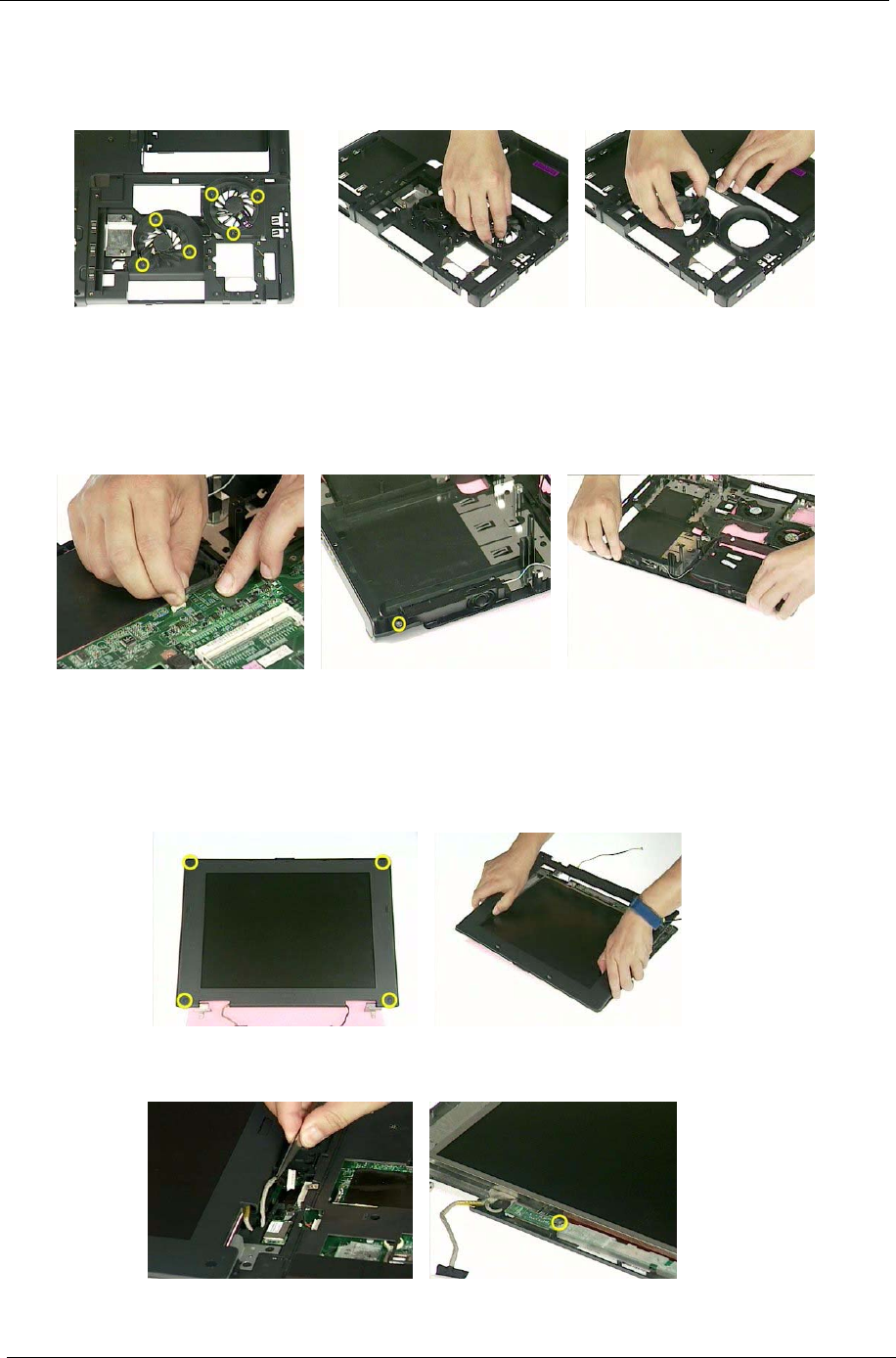
- Disassemble the system fan
- Remove the Speaker Set
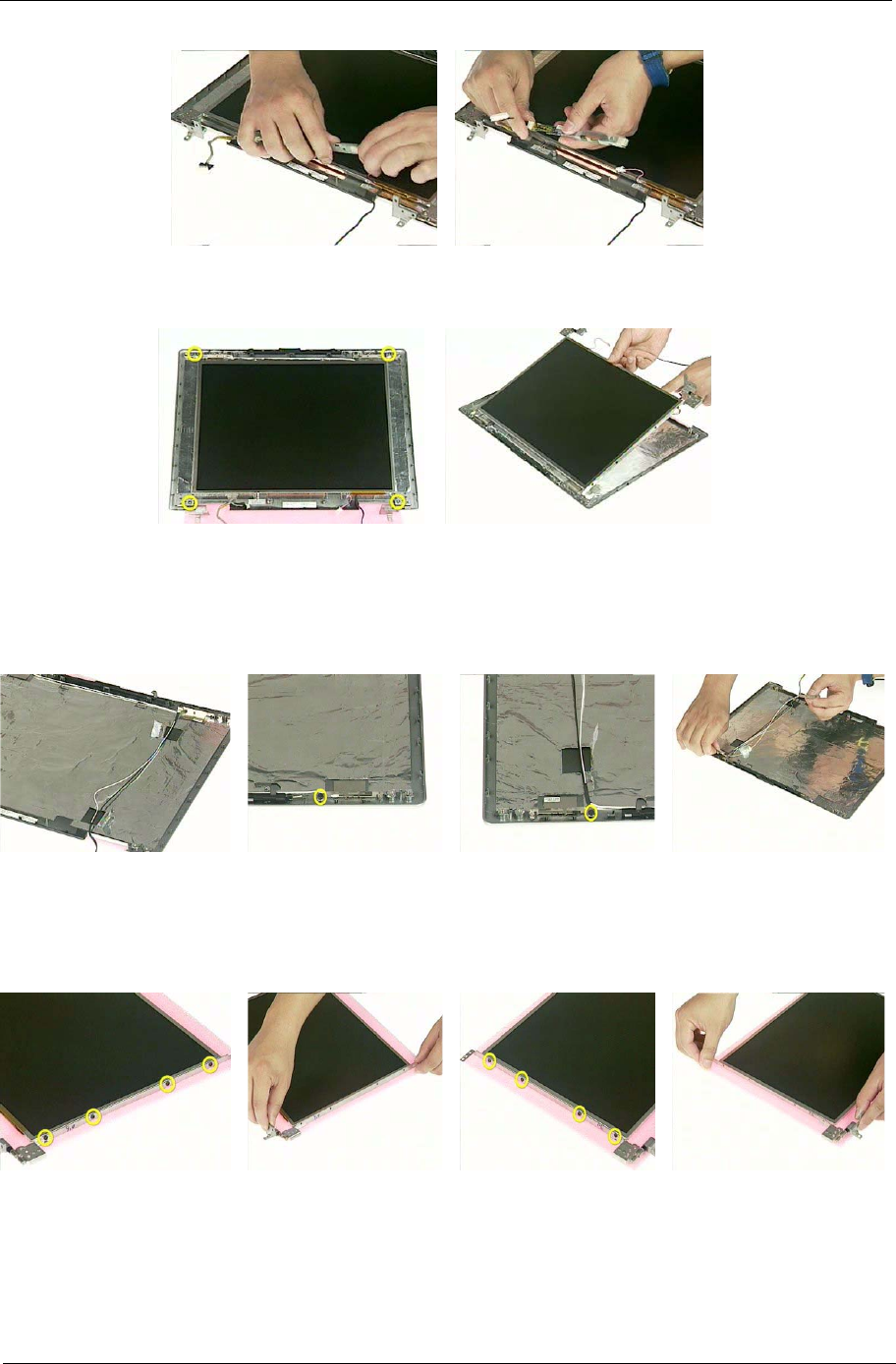
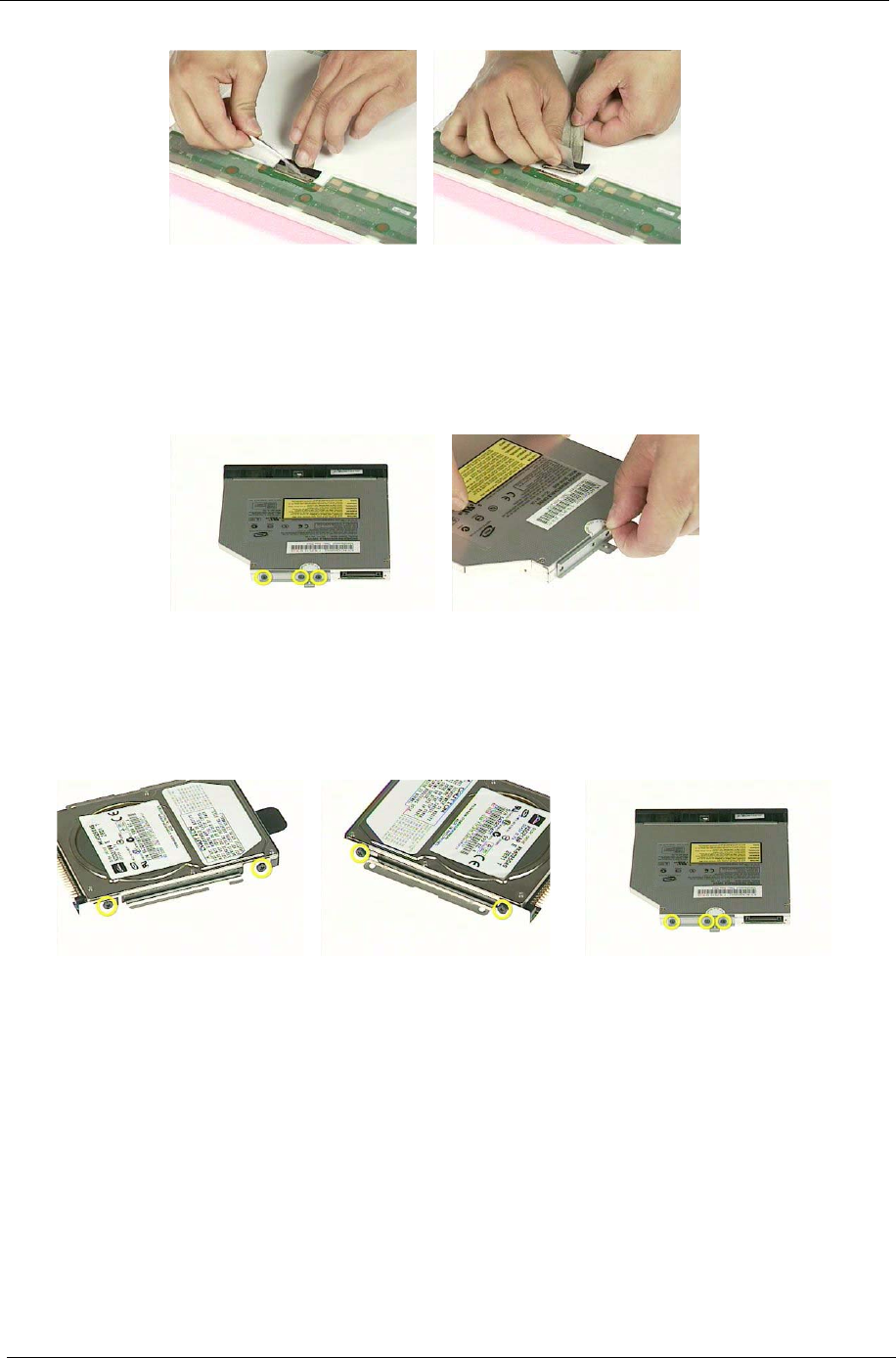
- Disassemble the LCD module
- Disassemble ODD module
- Disassemble HDD module
- Ch4 Troubleshooting
- Ch5 Jumper and Connector Location
- Ch6 FRU (Field Replaceable Unit) List
- AppA Model Definition and Configuration
- AppB Test Compatible Components
- AppC Online Support Information

TravelMate2200/2700&Aspire1670
Service Guide
PRINTED IN TAIWAN
Service guide files and updates are available
on the AIPG/CSD web; for more information,
please refer to http://csd.acer.com.tw

2
Revision History
Please refer to the table below for the updates made on TravelMate2200/2700 & Aspire1670 service guide.
Date Chapter Updates

3
Copyright
Copyright © 2004 by Acer Incorporated. All rights reserved. No part of this publication may be reproduced,
transmitted, transcribed, stored in a retrieval system, or translated into any language or computer language, in
any form or by any means, electronic, mechanical, magnetic, optical, chemical, manual or otherwise, without
the prior written permission of Acer Incorporated.
Disclaimer
The information in this guide is subject to change without notice.
Acer Incorporated makes no representations or warranties, either expressed or implied, with respect to the
contents hereof and specifically disclaims any warranties of merchantability or fitness for any particular
purpose. Any Acer Incorporated software described in this manual is sold or licensed "as is". Should the
programs prove defective following their purchase, the buyer (and not Acer Incorporated, its distributor, or its
dealer) assumes the entire cost of all necessary servicing, repair, and any incidental or consequential
damages resulting from any defect in the software.
Acer is a registered trademark of Acer Corporation.
Intel is a registered trademark of Intel Corporation.
Pentium 4 and Celeron are trademarks of Intel Corporation.
Other brand and product names are trademarks and/or registered trademarks of their respective holders.

4
Conventions
The following conventions are used in this manual:
Screen messages Denotes actual messages that appear
on screen.
NOTE Gives bits and pieces of additional
information related to the current
topic.
WARNING Alerts you to any damage that might
result from doing or not doing specific
actions.
CAUTION Gives precautionary measures to
avoid possible hardware or software
problems.
IMPORTANT Reminds you to do specific actions
relevant to the accomplishment of
procedures.

5
Preface
Before using this information and the product it supports, please read the following general information.
1. This Service Guide provides you with all technical information relating to the BASIC CONFIGURATION
decided for Acer's "global" product offering. To better fit local market requirements and enhance product
competitiveness, your regional office MAY have decided to extend the functionality of a machine (e.g.
add-on card, modem, or extra memory capability). These LOCALIZED FEATURES will NOT be covered
in this generic service guide. In such cases, please contact your regional offices or the responsible
personnel/channel to provide you with further technical details.
2. Please note WHEN ORDERING FRU PARTS, that you should check the most up-to-date information
available on your regional web or channel. If, for whatever reason, a part number change is made, it will
not be noted in the printed Service Guide. For ACER-AUTHORIZED SERVICE PROVIDERS, your Acer
office may have a DIFFERENT part number code to those given in the FRU list of this printed Service
Guide. You MUST use the list provided by your regional Acer office to order FRU parts for repair and
service of customer machines.

1
Chapter 1 System Specification . . . . . . . . . . . . . . . . . . . . . . . . . . . . . . . . . . . . . . . . . .1
Features . . . . . . . . . . . . . . . . . . . . . . . . . . . . . . . . . . . . . . . . . 1
Board Layout . . . . . . . . . . . . . . . . . . . . . . . . . . . . . . . . . . . . . 3
System Block Diagram . . . . . . . . . . . . . . . . . . . . . . . . . . . . . . 6
Outlook View . . . . . . . . . . . . . . . . . . . . . . . . . . . . . . . . . . . . . . 7
Indicators . . . . . . . . . . . . . . . . . . . . . . . . . . . . . . . . . . . . . . . 15
Using the Keyboard . . . . . . . . . . . . . . . . . . . . . . . . . . . . . . . 16
Hardware Specifications and Configurations . . . . . . . . . . . . 28
Power Management Function (ACPI support function) . . . . . 36
Chapter 2 System Utilities . . . . . . . . . . . . . . . . . . . . . . . . . . . . . . . . . . . . . . . . . . . . . 37
BIOS Setup Utility . . . . . . . . . . . . . . . . . . . . . . . . . . . . . . . . . 37
Information . . . . . . . . . . . . . . . . . . . . . . . . . . . . . . . . . . . . . . 39
Main . . . . . . . . . . . . . . . . . . . . . . . . . . . . . . . . . . . . . . . . . . . 41
Advanced . . . . . . . . . . . . . . . . . . . . . . . . . . . . . . . . . . . . . . . 43
Security . . . . . . . . . . . . . . . . . . . . . . . . . . . . . . . . . . . . . . . . . 45
Boot . . . . . . . . . . . . . . . . . . . . . . . . . . . . . . . . . . . . . . . . . . . 49
Exit . . . . . . . . . . . . . . . . . . . . . . . . . . . . . . . . . . . . . . . . . . . . 50
BIOS Flash Utility . . . . . . . . . . . . . . . . . . . . . . . . . . . . . . . . . 51
Chapter 3 Machine Disassembly and Replacement . . . . . . . . . . . . . . . . . . . . . . . . . . . . .52
General Information . . . . . . . . . . . . . . . . . . . . . . . . . . . . . . . 53
Disassembly Flow Chart . . . . . . . . . . . . . . . . . . . . . . . . . . . . 54
Standard Disassembly Procedure . . . . . . . . . . . . . . . . . . . . 55
Chapter 4 Troubleshooting . . . . . . . . . . . . . . . . . . . . . . . . . . . . . . . . . . . . . . . . . . . . .64
System Check Procedures . . . . . . . . . . . . . . . . . . . . . . . . . . 65
Power-On Self-Test (POST) Error Message . . . . . . . . . . . . 69
Index of Error Messages . . . . . . . . . . . . . . . . . . . . . . . . . . . . 70
Phoenix BIOS Beep Codes . . . . . . . . . . . . . . . . . . . . . . . . . 71
Index of Sympton-to-FRU Error Message . . . . . . . . . . . . . . 75
Intermittent Problems. . . . . . . . . . . . . . . . . . . . . . . . . . . . . . . 79
Undetermined Problems . . . . . . . . . . . . . . . . . . . . . . . . . . . . 80
How to Build NAPP Master Hard Disc Drive . . . . . . . . . . . . . 81
Chapter 5 Jumper and Connector Location . . . . . . . . . . . . . . . . . . . . . . . . . . . . . . . 88
MainBoard . . . . . . . . . . . . . . . . . . . . . . . . . . . . . . . . . . . . . . 88
Touchpad Board . . . . . . . . . . . . . . . . . . . . . . . . . . . . . . . . . . 91
Chapter 6 FRU(Field Replacement Unit) List . . . . . . . . . . . . . . . . . . . . . . . . . . . . . . 93
Exploded Diagram 94
Aspire 1670 Parts List . . . . . . . . . . . . . . . . . . . . . . . . . . . . . . 96
TravelMate 2200 Parts List . . . . . . . . . . . . . . . . . . . . . . . . . 104
TravelMate 2700 Parts List . . . . . . . . . . . . . . . . . . . . . . . . . 114
Appendix A Model Definition and Configuration . . . . . . . . . . . . . . . . . . . . . . . . . . . .121
Appendix B Test Compatible Components . . . . . . . . . . . . . . . . . . . . . . . . . . . . . . . . 123
MicroSoft Windows XP Environment Test . . . . . . . . . . . . . 124
Appendix C Online Support . . . . . . . . . . . . . . . . . . . . . . . . . . . . . . . . . . . . . . . . . . . 133

Chapter 1 1
Features
CPU
TIntel DT/mobile Prescott(2.8G/3.0G/3.2G/3.4G/3.6G)
TIntel Celeron Prescott
TIntel DT/Celeron NW
TSupport 533/800MHz FSB
TSupport up to 2.8GHz
Chipset
TNorth Bridge : ATI RC300M
TSouth Bridge :SB200(IXP150)
Memory
TSocket Type: 184-pin socket.
TSocket Quantity: 2
TMemory Type:DDR-I 333 SDRAM
TSupport 128MB, 256MB and 512MB DDR memory technologies
TUpgradeable to 2GB by Dual channels of SODIMM
Graphics
TATI M11P and M11CL(64/128M) VRAM or UMA(manufacture option)
TSimultaneous display on LCD and CRT
T3D Windows accelerator
TSupports 15/16/24bbp True Color on LCD&dual view
THardware expansion for high resolution LCD
TSupport S-Video
TOne DDC-2B compliant VGA port(15 pins)
PCMCIA/PCI-E
TPC Card & Cardbus card supported with one type II
TReserve one Express card space for next generation
ODD
TSupport 12.7mm DVD/RW, DVD-ROM, DVD Dual, and DVD super multi
TWith LED on the ODD bezel
HDD
T9.5mm, 2.5”
TSupport Ultra DMA 66/100
System Specifications
Chapter 1

2Chapter 1
TSupport up to 80GB
Audio
TChip : AC’ 97
TBulit-in two speakers
TMicrophone-in/line-in jack(mono)
THeadphone-out/line-out/speaker-out jack
Display
T14.1” TFT XGA(SPWG-B)
T15”TFT XGA, SXGA+(SPWG-B)
T15.4” Wide WXGA TFT LCD(SPWG-B)
I/O ports
TDDC-2B compliant VGA port
TMicrophone-in/line-in jack(mono)
THeadphone-out/line-out/speaker-out jack
TS-Video Out (Manufacturing option with IEEE 1394)
T4 external USB 2.0 connectors.
TDC-jack
TRJ11 and RJ45
TIEEE 1394 port (Manufacturing option with S-video)
TFIR(IrDA 1.1)
T5 in 1 card reader slot
TKensington Lock
BIOS
TPhoenix BIOS
T512KB Flash BIOS ROM
TACPI 1.0b compliant
Chapter 1 3
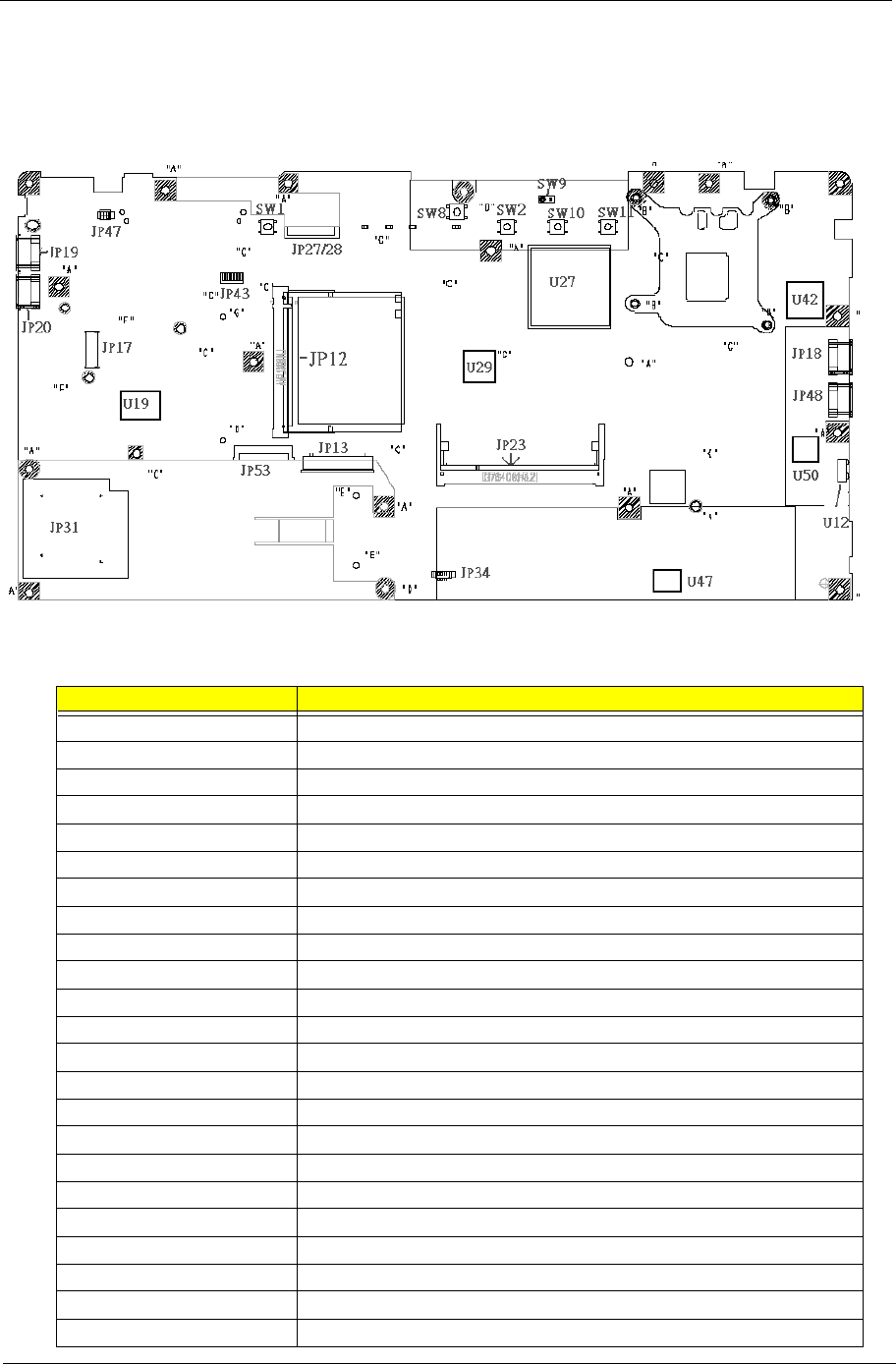
Board Layout
Top View
Label Component
JP12 MINI PCI CONN
JP13 KBD CONN
JP17 MDC CONN
JP18 USB Connector
JP19 USB Connector
JP20 USB Connector
JP23 DIMM CONN
JP27 UMA LCD Connector
JP28 M11P LCD Connector
JP31 Card reader Connector
JP34 Speaker CONN
JP43 BT Connector
JP53 TP/B Connector
SW1 PWR BTN
SW2 Internet BTN
SW8 E-MAIL BTN
SW9 LID SW BTN
SW10 USER BTN1
SW11 USER BTN2
U12 FIR CONN
U19 ROM CONN
U27 NB Chipset
U29 VRAM Chipset
4Chapter 1
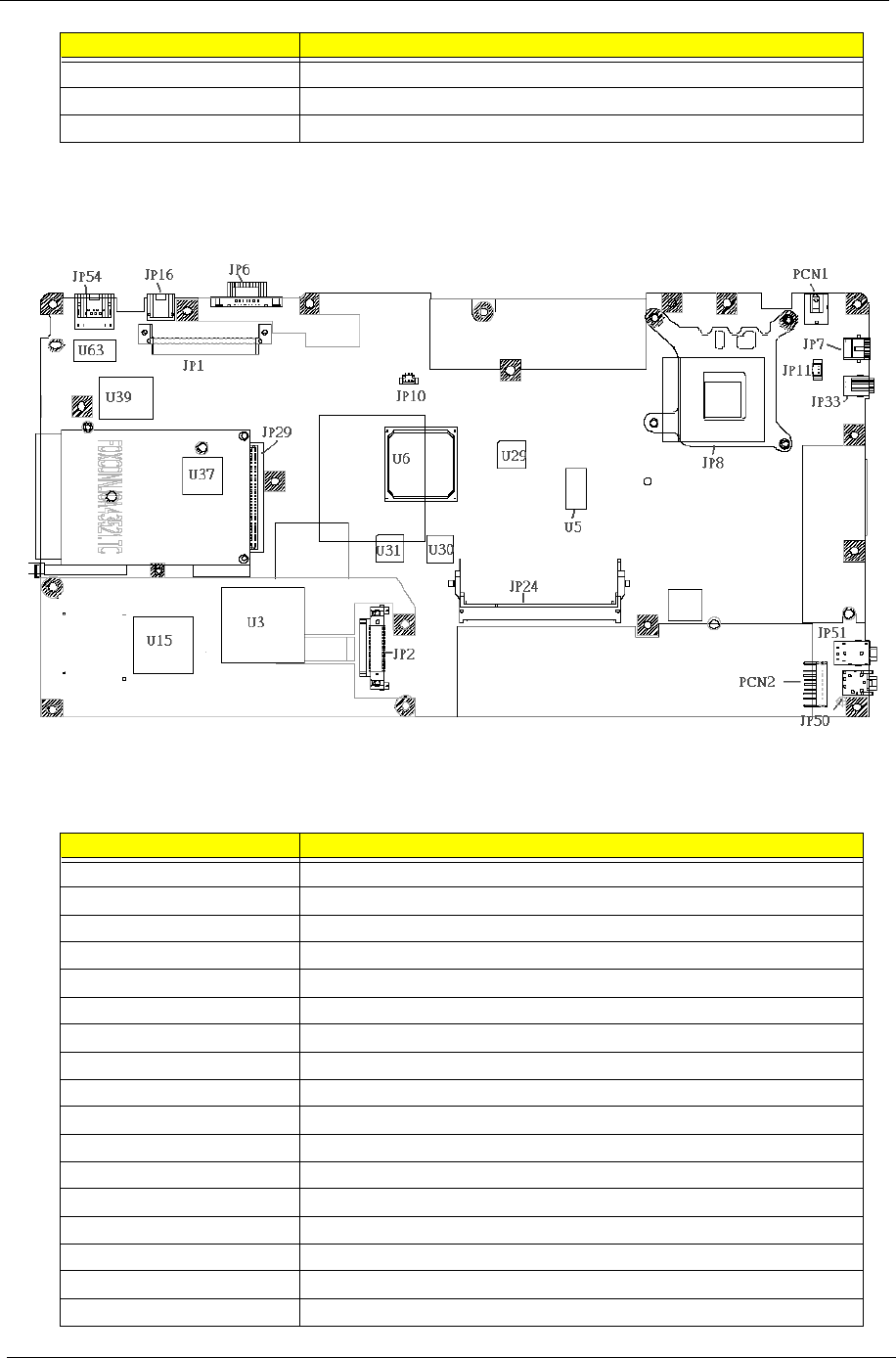
Buttom View
U42 1394 Chipset
U47 Audio Chipset
U50 Super I/O Chipset
Label Component
PCN1 PWR JACK
PCN2 BATTERY CONN
JP1 HDD CONN
JP2 ODD CONN
JP6 VGA CONN
JP7 TV-OUT CONN
JP8 CPU SOCKET
JP10 FAN CONN
JP11 FAN CONN
JP16 RJ11 I/O CONN
JP24 DIMM CONN
JP29 Cardbus CONN
JP33 1394 CONN
JP50 MICPHONE JACK
JP54 RJ45 CONN
U3 SB Chipset
U5 CLK GEN Chipset
Label Component

Chapter 1 5
U6 ATI VGA Chipset
U28 VRAM
U30 VRAM
U31 VRAM
U15 EC Chipset
U37 Card Reader Chipset
U39 LAN Chipset
U63 LAN transformer
Label Component
6Chapter 1
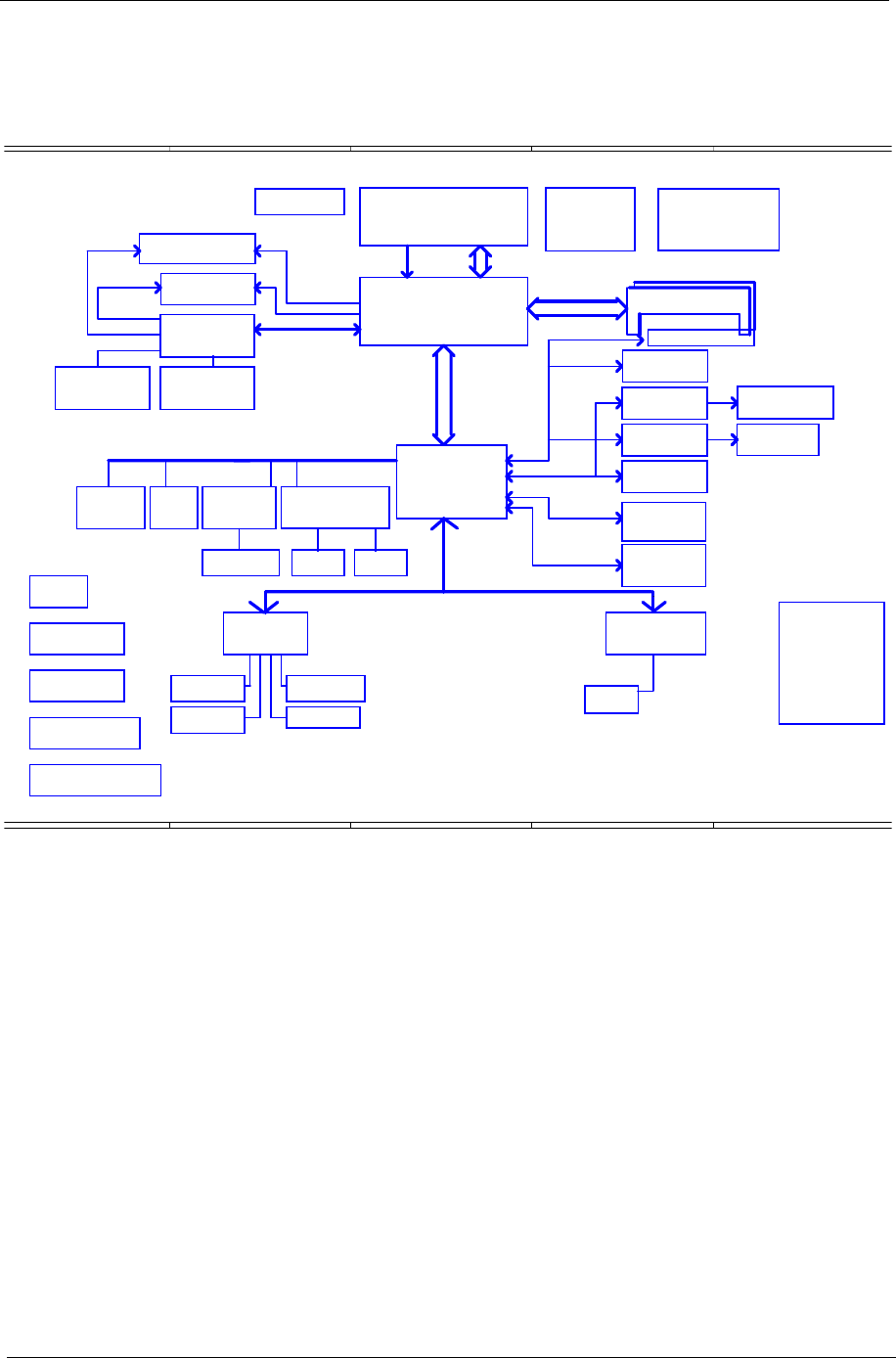
System Block Diagram
A
A
B
B
C
C
D
D
E
E
of 5, 07, 2004
‹P·`⁄T ⁄C⁄º
page 7
MDC & BT Conn
EC I/O Buffer
page 25
VGA DDR x2 CHB
page 38
page 41
HDD
Connector
page 31
Thermal Sensor
ADM1032AR
page 42
AC-LINK
page 43
LCD Conn
ATI-RC300M
SUPER I/O SMC 207
DC/DC Interface CKT.
page 25
page 45
CABLE CONN.
page 14,15,16
page 47
page 4,5,6
Audio Codec
ATI-M9+X/M10C
page 40
page 26,27,28,29
CDROM
Connector
IDSEL:AD20
(PIRQA,B#,GNT#2,REQ#2)
page 36
BGA 457 pin
page 44
CardBus Controller
868 pin u-BGA
Secondary IDE
ENE910
IDSEL:AD19
(PIRQD#,GNT#1,REQ#1)
page 41page 34
VGA DDR x2 CHA
IDSEL:AD18
(PIRQC#,GNT#3,REQ#3)
ALC 250
Primary IDE
Touch Pad
Mini PCI
socket
IEEE 1394
TI-TSB43AB22
AGP BUS
page 30
USB2.0
page 33
page 50,51,52,53,54,55,56,57
page 33
page 43
ATI-SB200
H_A#(3..31)
PCI BUS
RTC CKT.
page 23
RJ45 CONN
LAN
Int.KBD
Power Circuit DC/DC
uFCBGA-479/uFCPGA-478 CPU
H_D#(0..63)
page 22
page 26
ATA-100
page 45
RJ11 CONN
IDSEL:AD16
(PIRQA#,GNT#0,REQ#0)
2.5V DDR- 200/266
BIOS
USB conn x4
A-Link
page 37
Power OK CKT.
ATA-100
page 7
PSB
Intel Northwood/Prescott Processor
page 41
page 46
Fan Control
page 42
Mini-PCI solt
LPC BUS
AMP & Audio Jack
RTL 81000CL
page 32
W/EXT VGA CHIP
page 46
800MHz
DDR-SO-DIMM X2
Slot 0
page 17,18,19,20,21
3.3V 33 MHz
page 35
W/EXT VGA CHIP
Power On/Off CKT.
BANK 0, 1, 2, 3
Memory BUS(DDR)
FIR
W/O EXT VGA CHIP
page 8,9,10,11,12,13
CRT & TV-OUT Conn.
ENE 714/1410
VGA M9 Embeded
W/O EXT VGA CHIP
*RJ45 CONN
*LINE IN JACK
*DC JACK
*COM PORT
*USB CONN x1
*SPDIF
*5V INPUT
*VOLUME ADJUSTMENT
K
+TV-OUT PORT
page 30
Card slot
BT
USB1.1
CLOCK GENERATOR
ICS951402AGT
page 24
page 32
page 42
Chapter 1 7
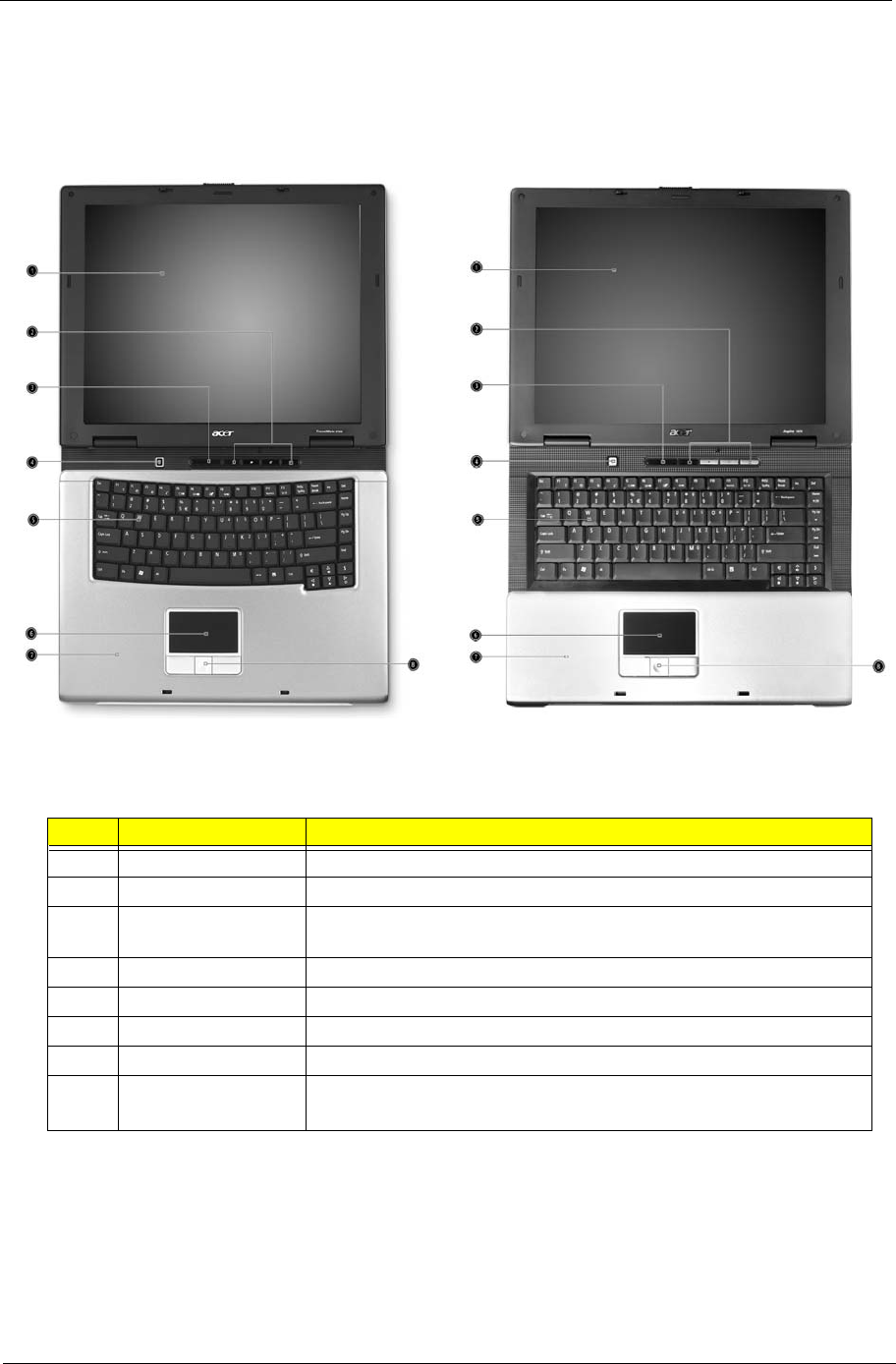
Outlook View
Open View
TravelMate 2200/2700 Aspire 1670
Label Item Description
1 Display Screen Wide screen display provides visual output
2 Launch Keys Buttons for launching frequently used programs.
3 Status Indicators LED that turn on and off to show the status of the computer, its
functions and components
4 Power Button Turns on the computer power
5 Keyboard Inputs datat into your computer
6 Touchpad Touch-sensitive pointing device which functions like a computer mouse
7 Palmrest Comfortable support area for your hands when you use the computer
8 Click Buttons
(left, center, and right)
The left and right buttons function like the left and right mouse buttons;
the center button serves as a 4-way scroll button
Just for starters…
# Item Description
Just for starters…
# Item Description
8Chapter 1
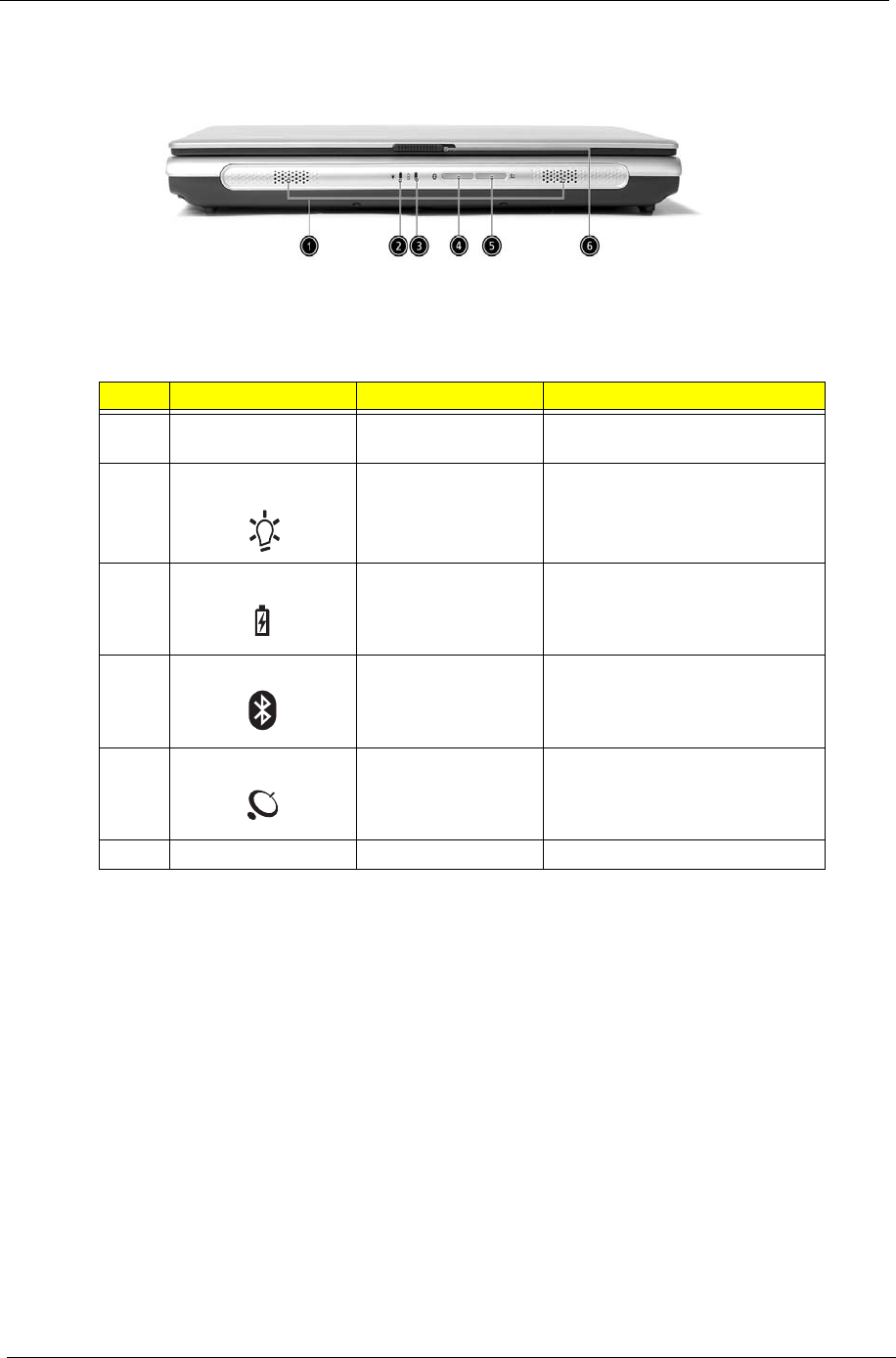
Front Panel
Label Icon Item Description
1 N/A Speakers Left and right speakers deliver
stereo audio output
2 Power indicator Lights green when the computer is
on and lights reange when the
computer is in suspend mode
3 Battery indicator Lights orange when the battery is
being charged and lights green
when the battery is full charged
4 Bluetooth
communications
Lights to indicate the status of
Bluetooth(optional)
communications
5Wireless
communications
Lights to indicate the status of
wireless LAN(optional)
communications
6 N/A Latch Locks and releases the lid
# Item Description
# Item Description
# Item Description
# Item Description
# Item Description
Chapter 1 9
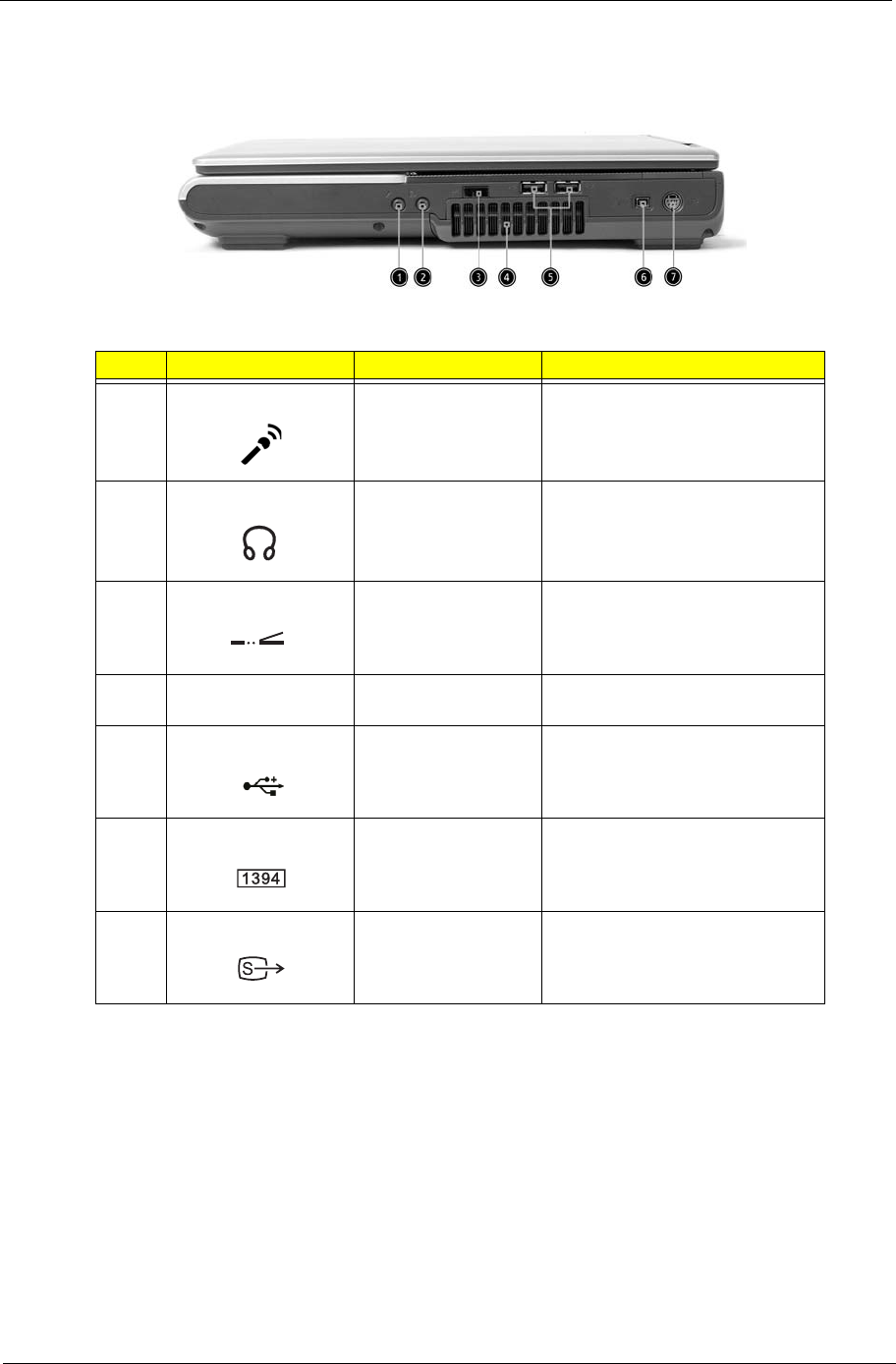
Right Panel
Aspire 1670
Label Icon Item Description
1 Line-in/Mic-in jack Accepts audio line-in devices
2 Speaker/Line-Out/
Headphone jack
Connects to audio line-out devices
3 Infrared port Interfaces with infrared devices
4 N/A Ventilation slots Enable the computer to stay cool,
even after prolonged use
5 Two USB 2.0 ports Connect to Universal Serial Bus
2.0 devices
6 IEEE 1394 port Connects to IEEE1394 devices
7 S-video port Connects to a television or display
device with S-video input
# Item Description
# Item Description
# Item Description
# Item Description
# Item Description
# Item Description
# Item Description
10 Chapter 1
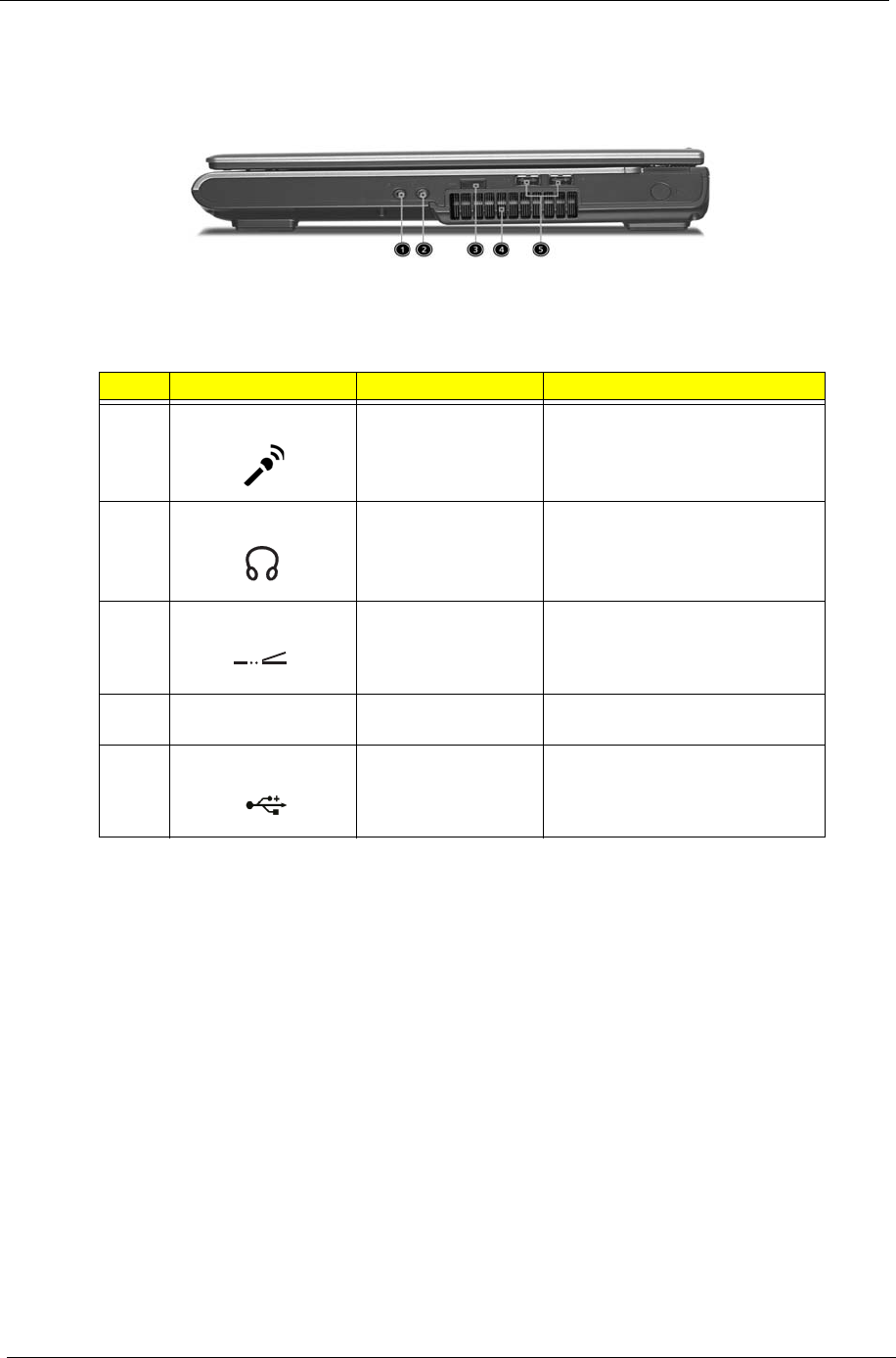
TravelMate 2200/2700
Label Icon Item Description
1 Line-in/Mic-in jack Accepts audio line-in devices
2 Speaker/Line-Out/
Headphone jack
Connects to audio line-out devices
3 Infrared port Interfaces with infrared devices
4 N/A Ventilation slots Enable the computer to stay cool,
even after prolonged use
5 Two USB 2.0 ports Connect to Universal Serial Bus
2.0 devices
# Item Description
# Item Description
# Item Description
# Item Description
# Item Description
Chapter 1 11
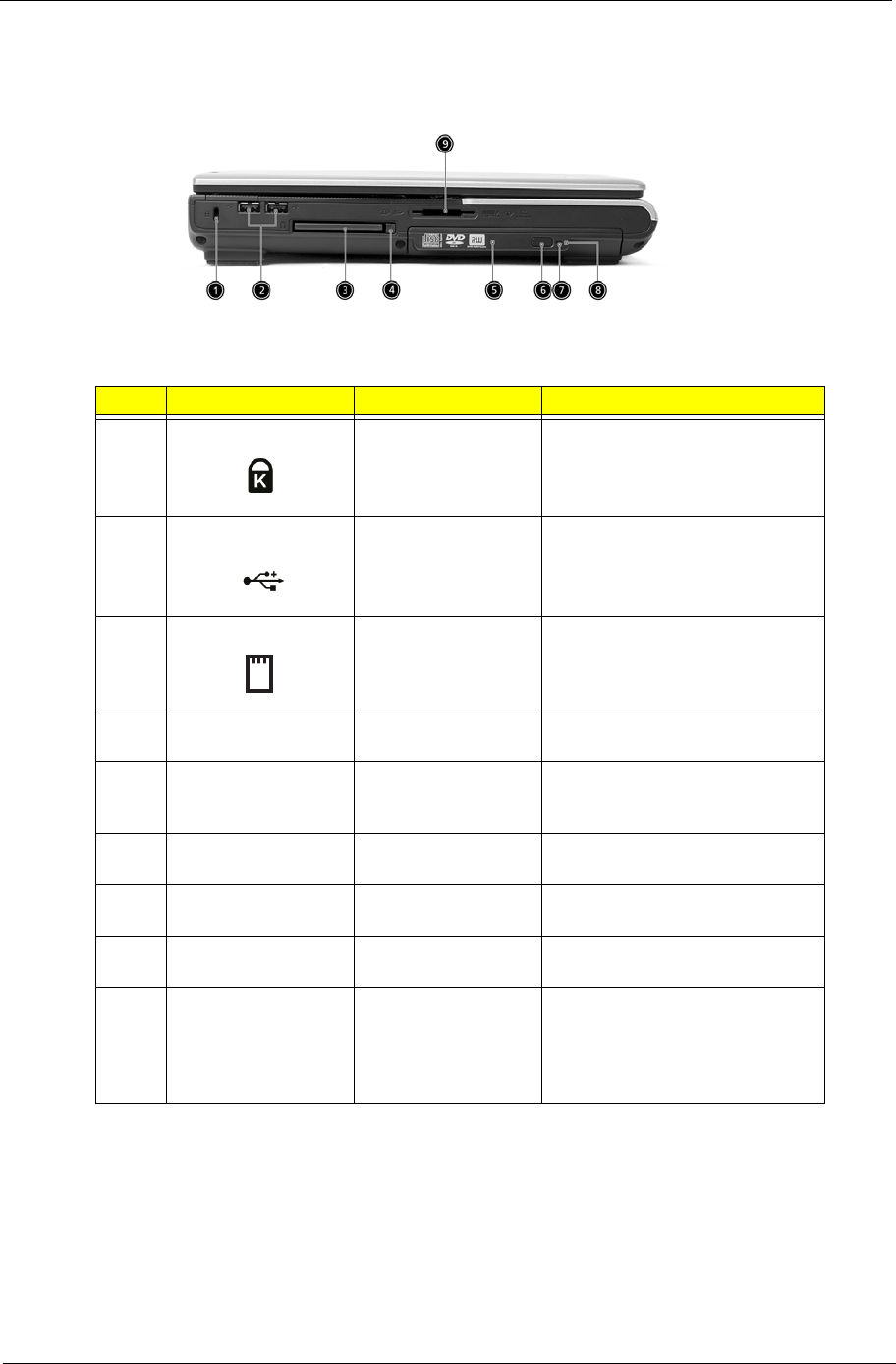
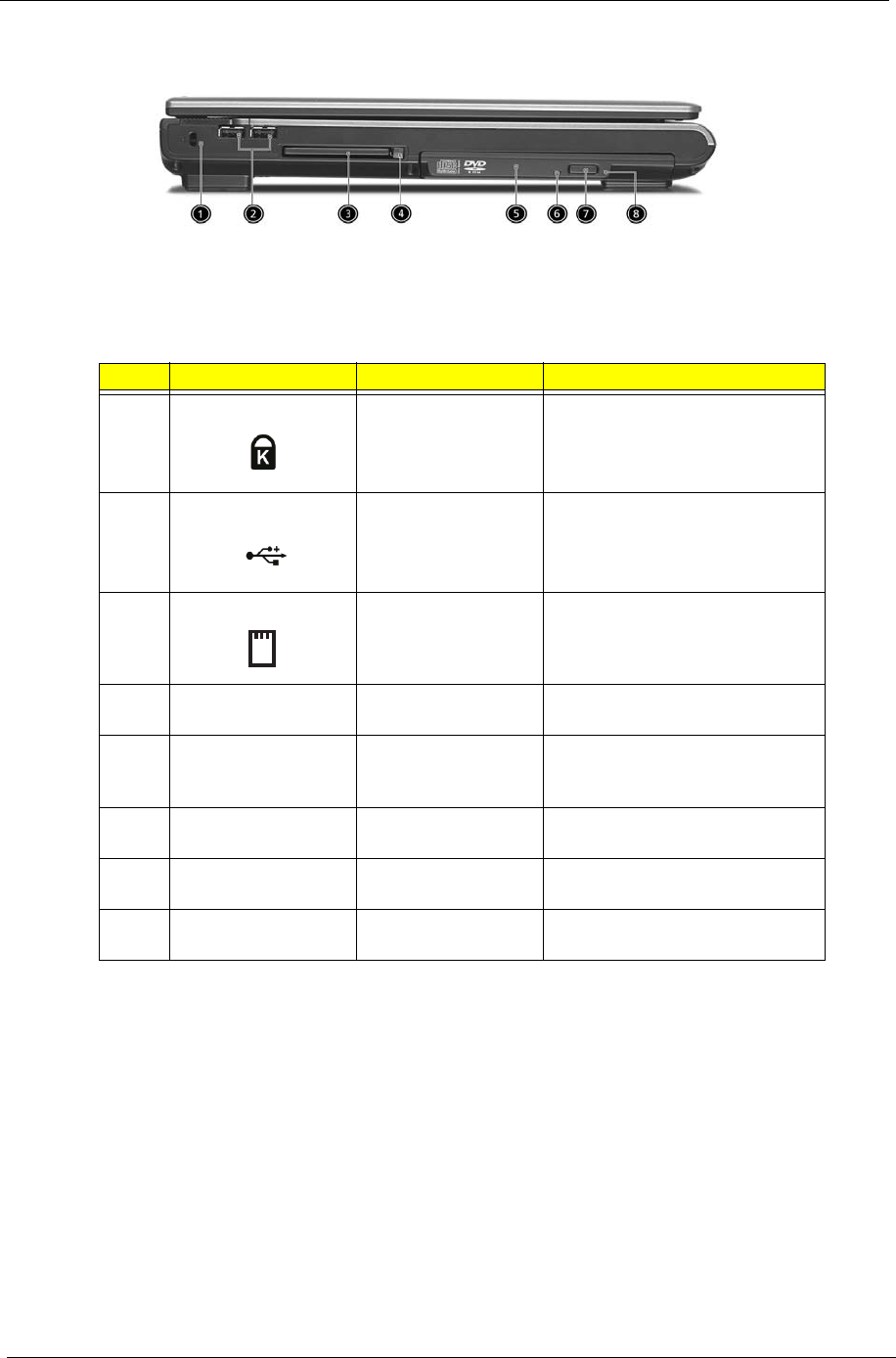
Left Panel
Aspire 1670
Label Icon Item Description
1 Security keylock Connects to a Kensington-
compatible computer security lock
2 Two USB 2.0 ports Connect to Universal Serial
Bus(USB)2.0 devices
3 PC Card slots Support one Type II CardBus PC
Card
4 N/A Eject Button Ejects the PC Card(s) from the
slot
5 N/A Optical drive Internal optical drive; accepts CDs
or DVDs depending on the optical
drive type
6 N/A Eject button Ejects the optical drive tray from
the drive
7 N/A LED indicator Lights up when the optical drive is
active
8 N/A Emergency eject slot Ejects the optical deive tray when
the computer is turned off
9 N/A 5-in-1 card reader Accepts SD/MMC/SM/xD/MS Pro
card.Note: The 5-in-1 card reader
is a manufacturing option, subject
to configuration. Only one card
can operate at any given time
# Item Description
# Item Description
# Item Description
# Item Description
12 Chapter 1
TravelMate 2200/2700
Label Icon Item Description
1 Security keylock Connects to a Kensington-
compatible computer security lock
2 Two USB 2.0 ports Connect to Universal Serial
Bus(USB)2.0 devices
3 PC Card slots Support one Type II CardBus PC
Card
4 N/A Eject Button Ejects the PC Card(s) from the
slot
5 N/A Optical drive Internal optical drive; accepts CDs
or DVDs depending on the optical
drive type
6 N/A LED indicator Lights up when the optical drive is
active
7 N/A Eject button Ejects the optical drive tray from
the drive
8 N/A Emergency eject slot Ejects the optical deive tray when
the computer is turned off
# Item Description
# Item Description
# Item Description
# Item Description
Chapter 1 13
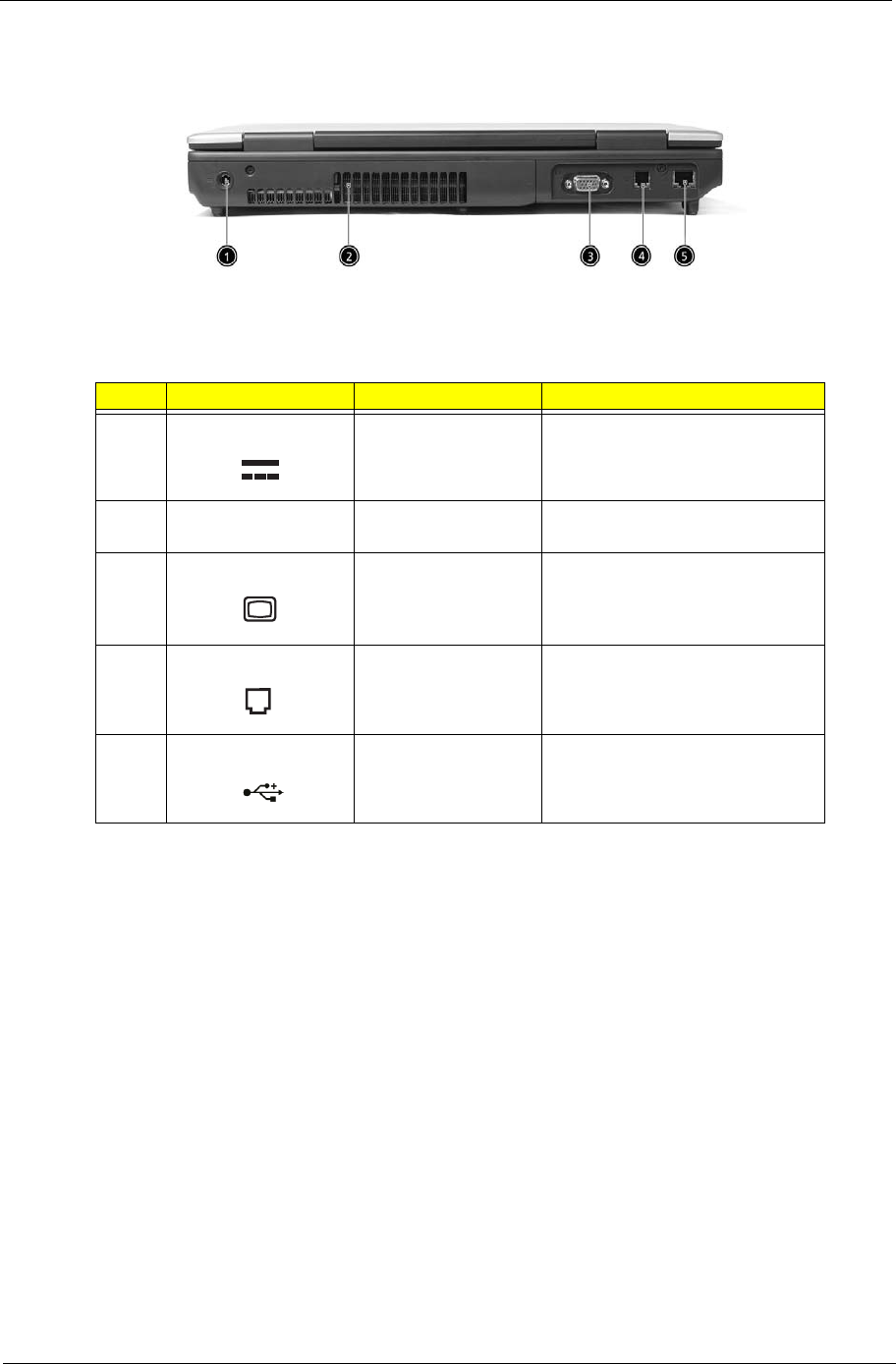
Rear Panel
Label Icon Item Description
1 Power jack Connects to an AC adapter
2 N/A Ventilation Enable the computer to stay cool,
even after prolonged usd
3 External display port Connects to a display device
4 Modem jack Connects to a phone line
5 Network jack Connects to an Ethernet LAN
network
# Item Description
# Item Description
# Item Description
# Item Description
# Item Description
14 Chapter 1
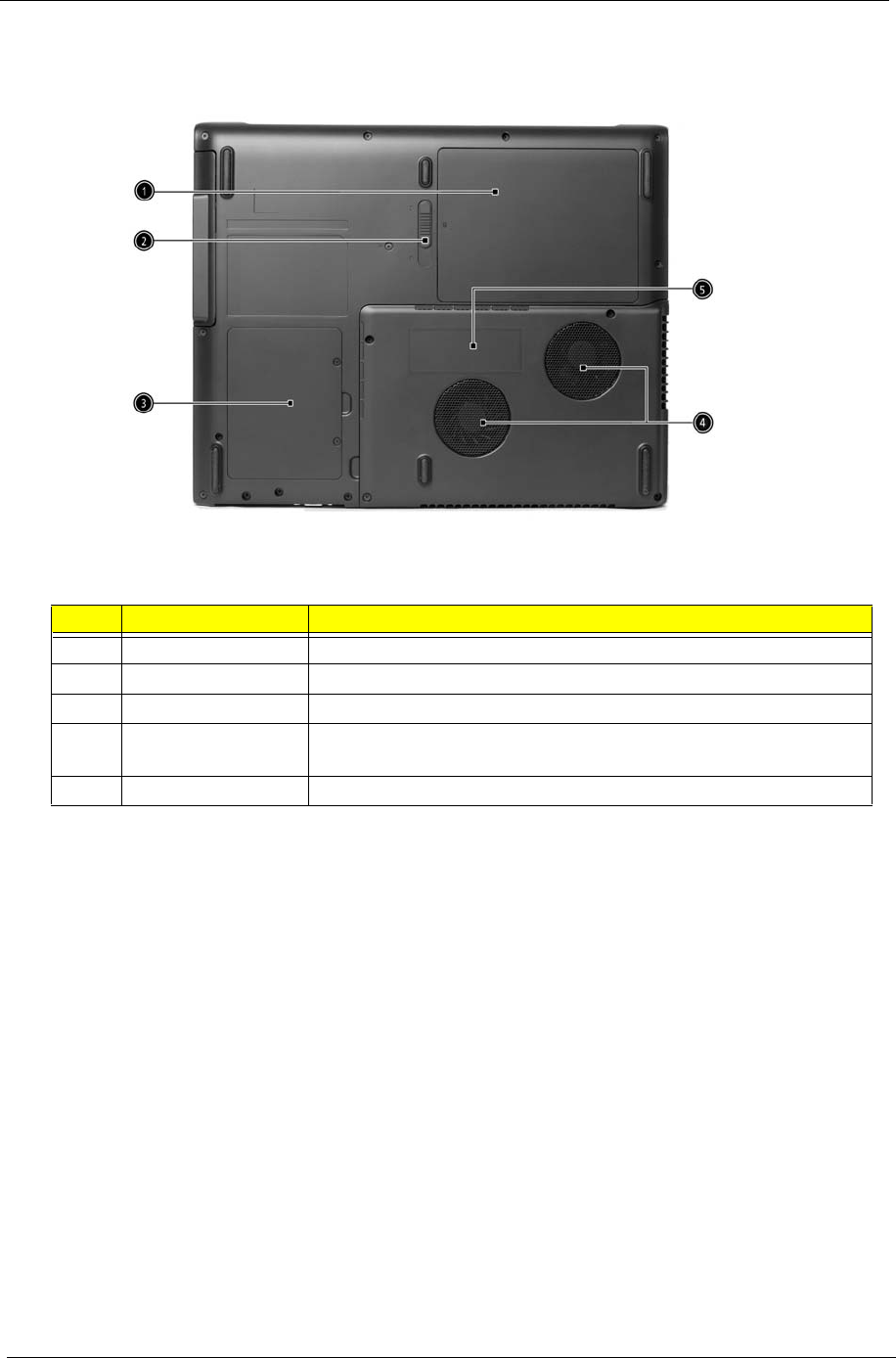
Bottom Panel
Label Item Description
1 Battery bay Houses the computer’s battery pack
2 Battery release latch Unlatches to remove the battery pack
3 Hard disk bay Houses the computer’s hard disk
4 Cooling fans Help keep the computer cool
Note:Don’t cover or obstruct the opening of the fans
5 Memory compartment Houses the computer’s main memory
# Item Description
Note:
Chapter 1 15
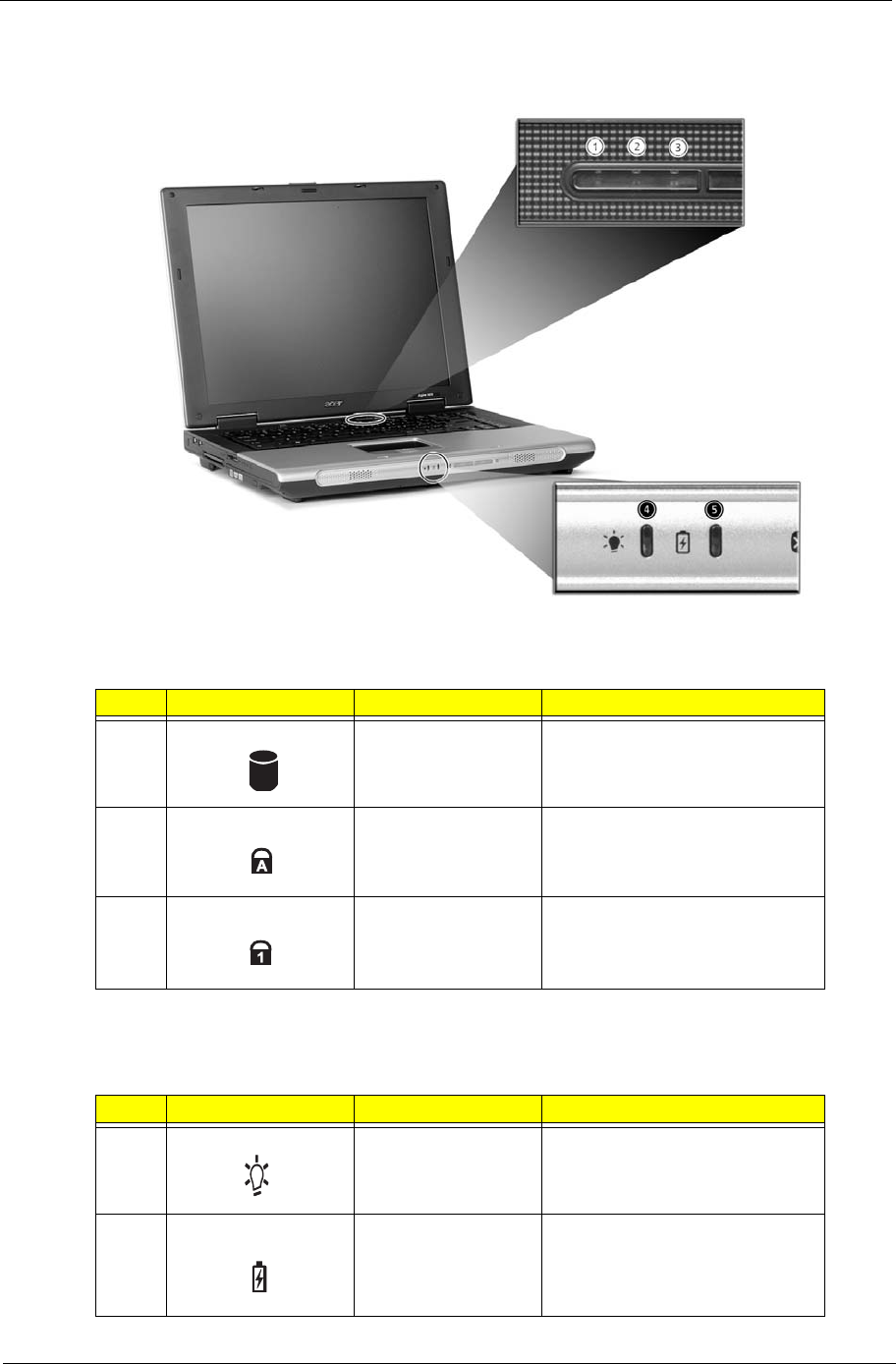
Indicators
In addition, there are two indicators at the front panel. Even when the cover is closed, the state or features can
still be seen.
Label Icon Item Description
1 Media activity Lights when the hard disk or
optical drive is active
2 Caps Lock Lights when Caps Lock is
activated
3 Num Lock Lights when Num Lock is activated
Label Icon Item Description
4 Power Lights green when the computer is
on and lights orange when in
suspend mode
5 Battery indicator Lights orange when the battery is
being charged and green when
the battery is fully charged
# Icon Function Description
# Icon Function Description
# Icon Function Description
# Icon Function Description
# Icon Function Description
# Icon Function Description
# Icon Function Description
# Icon Function Description
# Item Description
# Item Description
16 Chapter 1
Using the Keyboard
The keyboard has full-sized keys and an embeded keypad, separate cursor keys, two Windows keys and
twelve function keys.
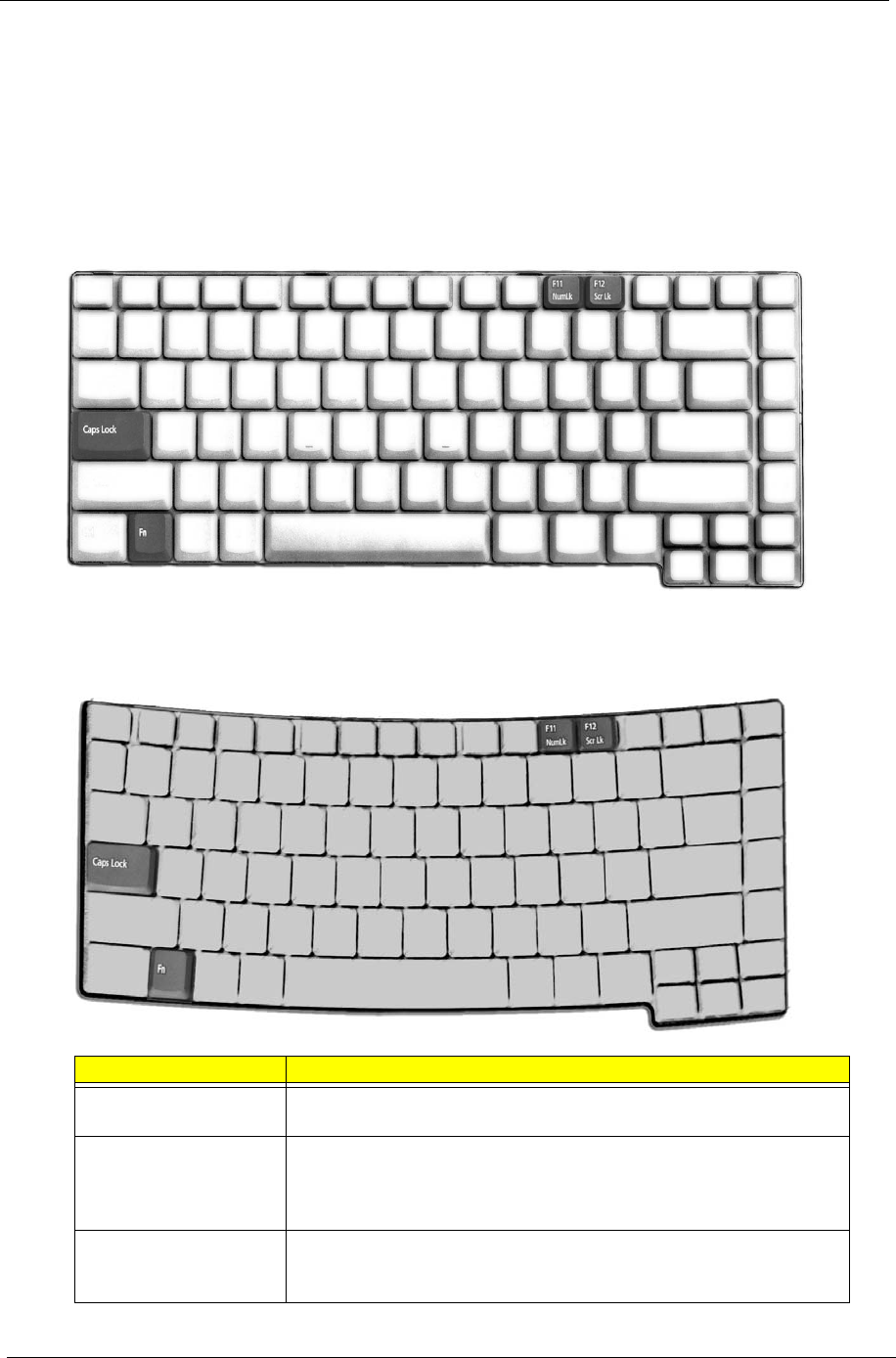
Lock keys
The keyboard has three lock keys which you can toggle on and off.
Aspire 1670
TravelMate 2200/2700
Lock Key Description
Caps Lock When Caps Lock is on, all alphabetic characters typed are in
uppercase
Num Lock
(Fn-F11)
When Num Lock is on, the embedded keypad is in numeric mode. The
keys function as a calculator(complete with the arithmetic operators +,-
,*, and/). Use this mode when you need to do a lot of numeric data
entry. A better solution would be to connect an external keypad.
Scroll Lock
(Fn-F12)
When Scroll Lock is on, the screen moves on line up or down when you
press the up or down arrow keys respectively.Scroll Lock does not
work with some applications
Fn-F11
Fn-F12
Lock Key Description
Fn-F11
Fn-F12
Chapter 1 17
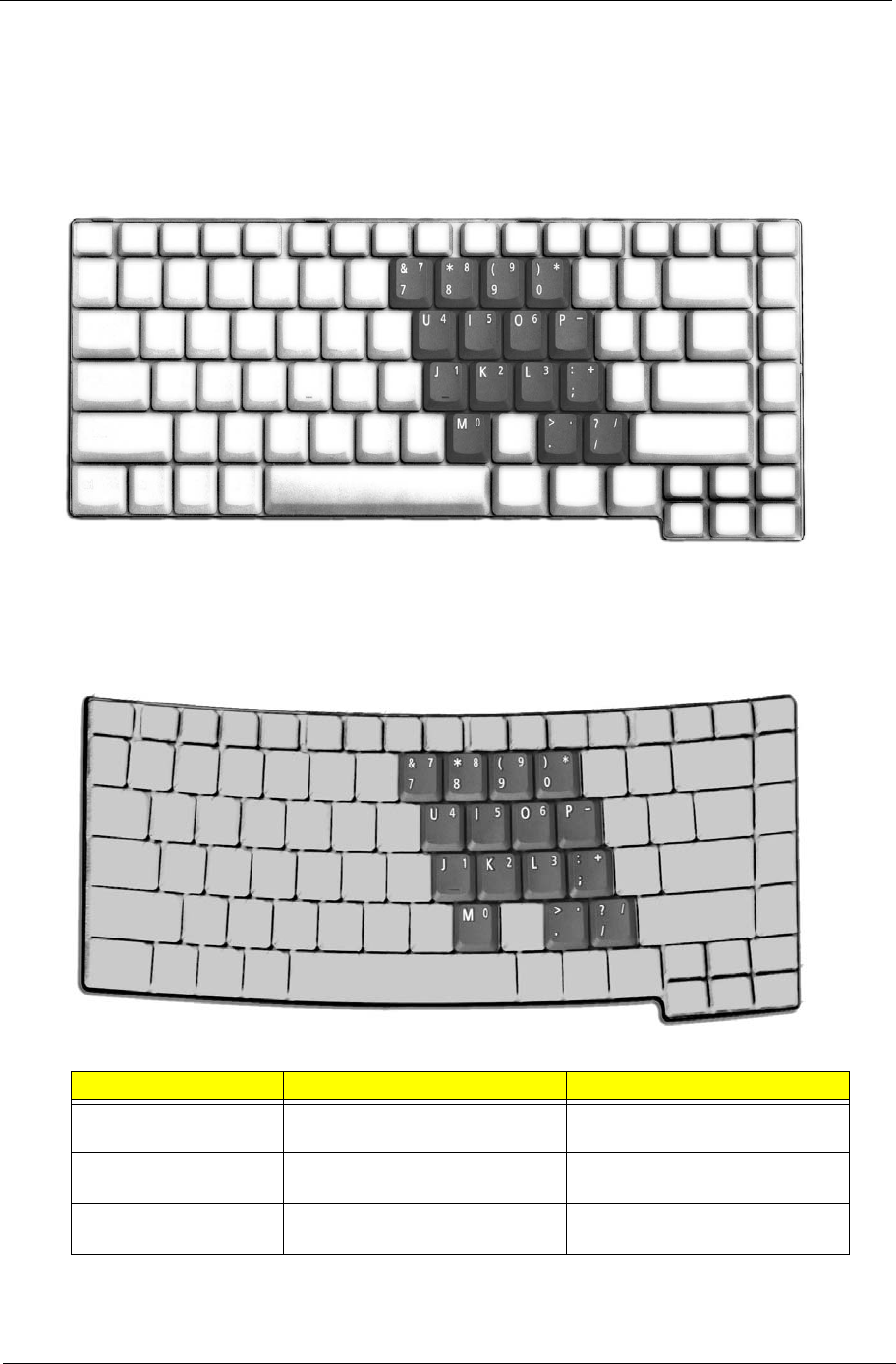
Embedded numeric keypad
The embedded numeric keypad functions like a desktop numeric keypad. It is indicated by small characters
located on the upper right corner of the keycaps. To simplify the keyboard legend, cursor-control key symbols
are not printed on the keys.
Aspire 1670
TravelMate 2200/2700
Desired Access Num Lock On Num Lock Off
Number keys on
embedded keypad
Type numbers in a normal manner
Cursor-control keys on
embedded keypad
Hold Shift while using cursor-
control keys
Hold Fn while using cursor-control
keys
Main keyboard keys Hold Fn while typing letters on
embedded keypad
Type the letters in a normal
manner
Shift Fn
Fn
Desired Access Num Lock On Num Lock Off
Shift Fn
Fn
18 Chapter 1
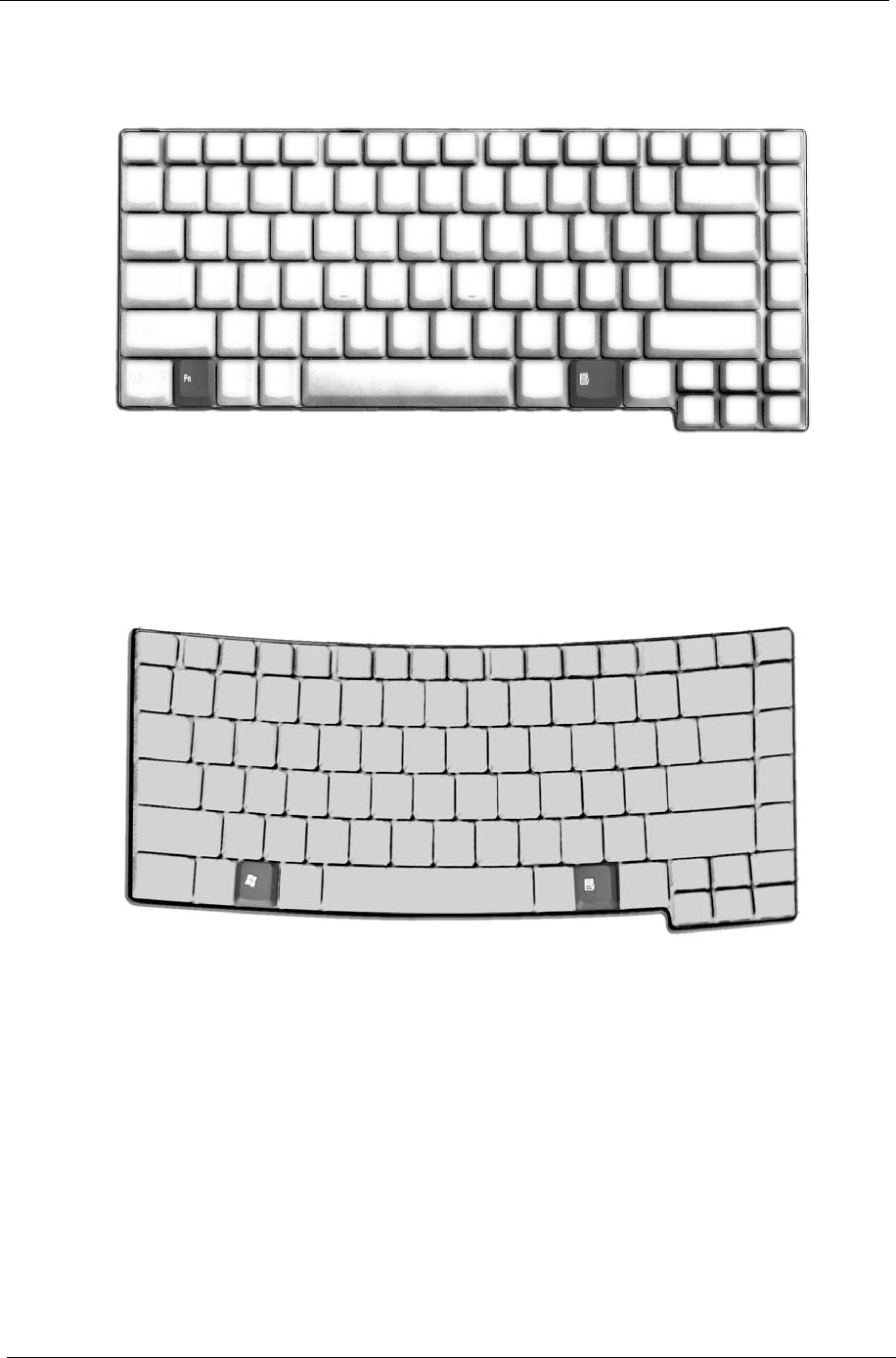
Windows keys
Aspire 1670
TravelMate 2200/2700
+ Tab
+ E
+ F1
+ F
+ M
Shift + + M
+ M
+ R
Key Description
+ Tab
+ E
+ F1
+ F
+ M
Shift + + M
+ M
+ R
Chapter 1 19
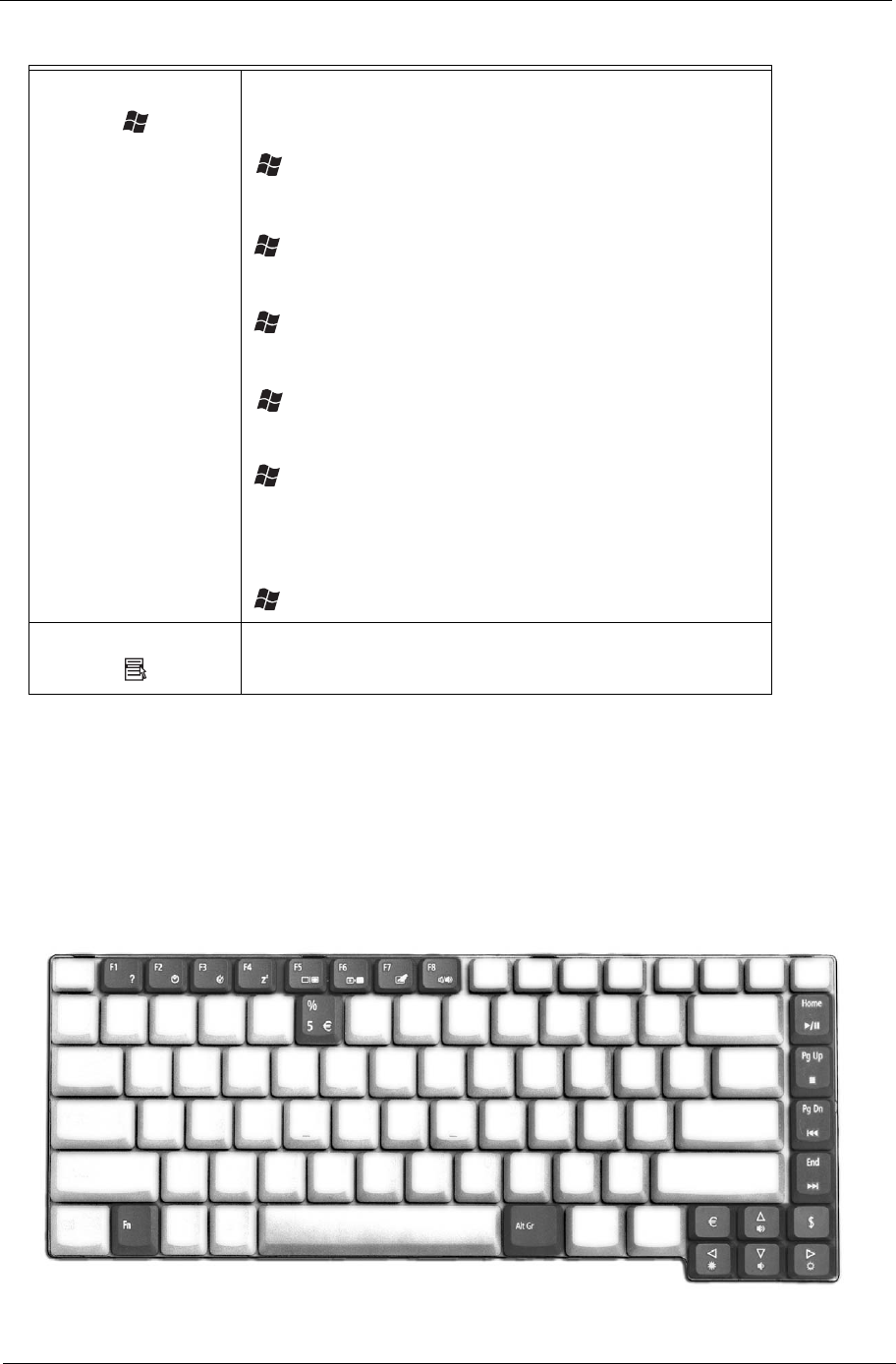
Hot Keys
The computer employs hot keys or key combinations to access most of the computer’s controls like screen
brightness, volume output and the BIOS Utility.
To activate hot keys, press and hold the Fn key before pressing the other key in the hot key combination.
Aspire 1670
Windows logo key Pressed alone, this key has the same effect as clicking on the
Windows Start button; it launches the Start menu. It can also be
used with other keys to provide a variety of functions:
+ Tab (Activates the next Taskbar button)
+ E (Opens the My Computer window)
+ F1 (opens Help and Support)
+ F (opens the Find: All Files dialog box)
+ M (minimizes all windows)
j + Windows logo key + M (undoes the minimize all windows
action)
+ R (opens the Run dialog box)
Application key This key has the same effect as clicking the right mouse button; it
opens the application’s context menu.
+ Tab
+ E
+ F1
+ F
+ M
Shift + + M
+ M
+ R
Fn
Fn-F1
Fn-F2
Fn-F3
Fn-F4
20 Chapter 1
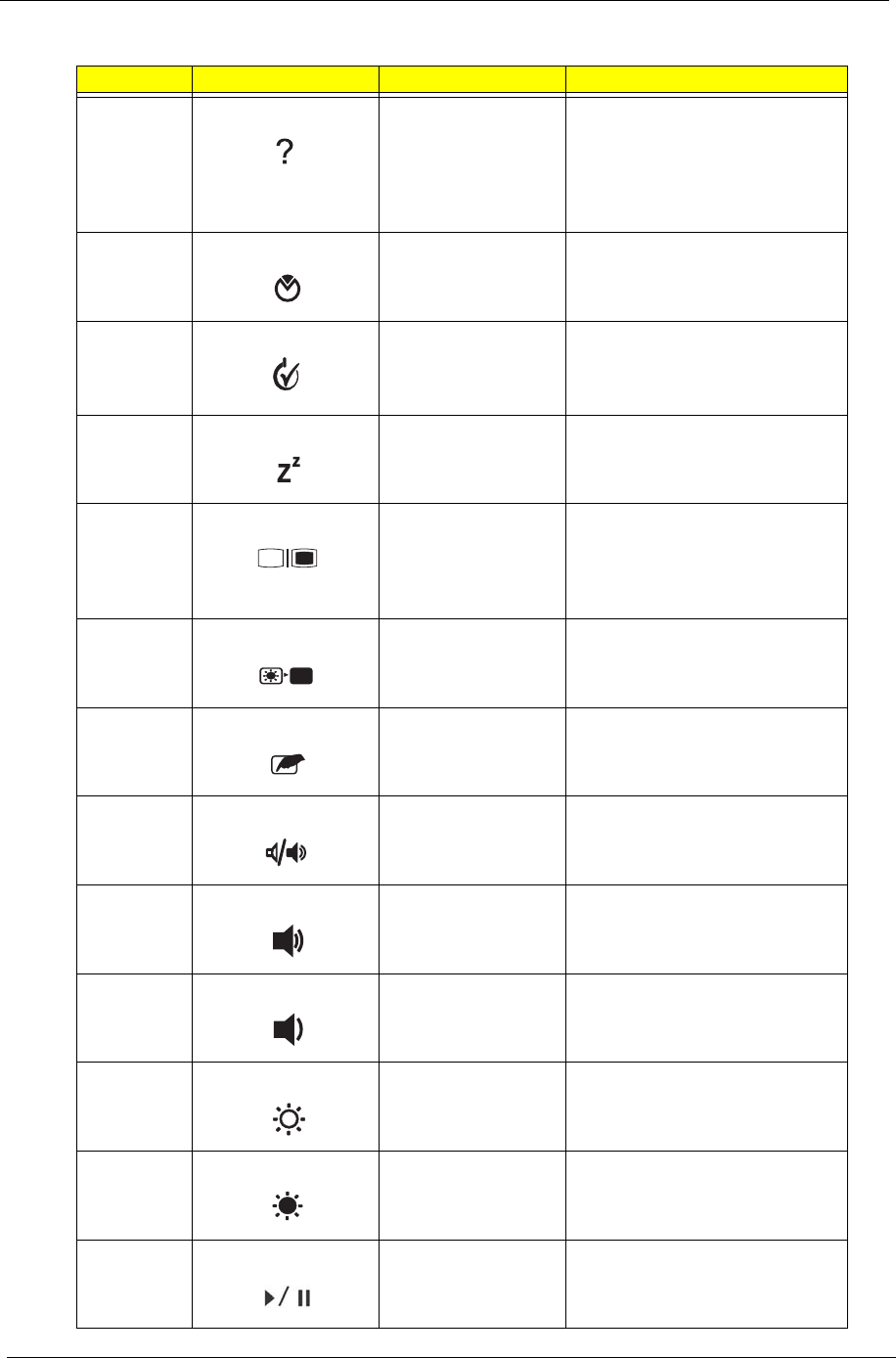
Hot Key Icon Item Description
Fn+F1 Hot key help This key will cause a help
message to appear on the display
device that describes the definition
and functionality of the unit hot
keys. It is preferred to have the
key activate a graphical display.
Fn+F2 Acer eSetting Launches the Acer eSetting in the
Acer eManager set by the Acer
Empowering Key.
Fn+F3 Acer ePower
Management
Launches the Acer ePower
Management in the Acer
eManager set by the Acer
Empowering Key.
Fn+F4 Sleep Puts the computer in Sleep mode
Fn+F5 Display toggle Switches display output between
the display screen, external
monitor(if connected)and both the
display screen and external
nomitor
Fn+F6 Screen blank Turns the display screen backlight
off to save power. Press any key
to return
Fn+F7 Touchpad toggle Turns the internal touchpad on
and off
Fn+F8 Speaker toggle Turns the speakers on and off
Fn+wVolume up Increases the sound volume
Fn+yVolume down Decreases the sound volume
Fn+xBrightness up Increases the screen brightness
Fn+zBrightness down Decrease the screen brightness
Fn+Home PlayPause Press to start playing the audio
track or video file. Press again to
pause
Fn
Fn-F1
Fn-F2
Fn-F3
Fn-F4
Fn
Fn-F1
Fn-F2
Fn-F3
Fn-F4
Fn
Fn-F1
Fn-F2
Fn-F3
Fn-F4
Fn
Fn-F1
Fn-F2
Fn-F3
Fn-F4
Fn-F5
Fn-F6
Fn-F7
Fn-F8
Fn-
Fn-
Fn-
Fn-
Fn-
Home
Fn-
Pg Up
Fn-
Pg Dn
Fn-End
Fn-F5
Fn-F6
Fn-F7
Fn-F8
Fn-
Fn-
Fn-
Fn-
Fn-
Home
Fn-
Pg Up
Fn-
Pg Dn
Fn-End
Fn-F5
Fn-F6
Fn-F7
Fn-F8
Fn-
Fn-
Fn-
Fn-
Fn-
Home
Fn-
Pg Up
Fn-
Pg Dn
Fn-End
Fn-F5
Fn-F6
Fn-F7
Fn-F8
Fn-
Fn-
Fn-
Fn-
Fn-
Home
Fn-
Pg Up
Fn-
Pg Dn
Fn-End
Fn-F5
Fn-F6
Fn-F7
Fn-F8
Fn-
Fn-
Fn-
Fn-
Fn-
Home
Fn-
Pg Up
Fn-
Pg Dn
Fn-End
Fn-F5
Fn-F6
Fn-F7
Fn-F8
Fn-
Fn-
Fn-
Fn-
Fn-
Home
Fn-
Pg Up
Fn-
Pg Dn
Fn-End
Fn-F5
Fn-F6
Fn-F7
Fn-F8
Fn-
Fn-
Fn-
Fn-
Fn-
Home
Fn-
Pg Up
Fn-
Pg Dn
Fn-End
Fn-F5
Fn-F6
Fn-F7
Fn-F8
Fn-
Fn-
Fn-
Fn-
Fn-
Home
Fn-
Pg Up
Fn-
Pg Dn
Fn-End
Fn-F5
Fn-F6
Fn-F7
Fn-F8
Fn-
Fn-
Fn-
Fn-
Fn-
Home
Fn-
Pg Up
Fn-
Pg Dn
Fn-End
Chapter 1 21
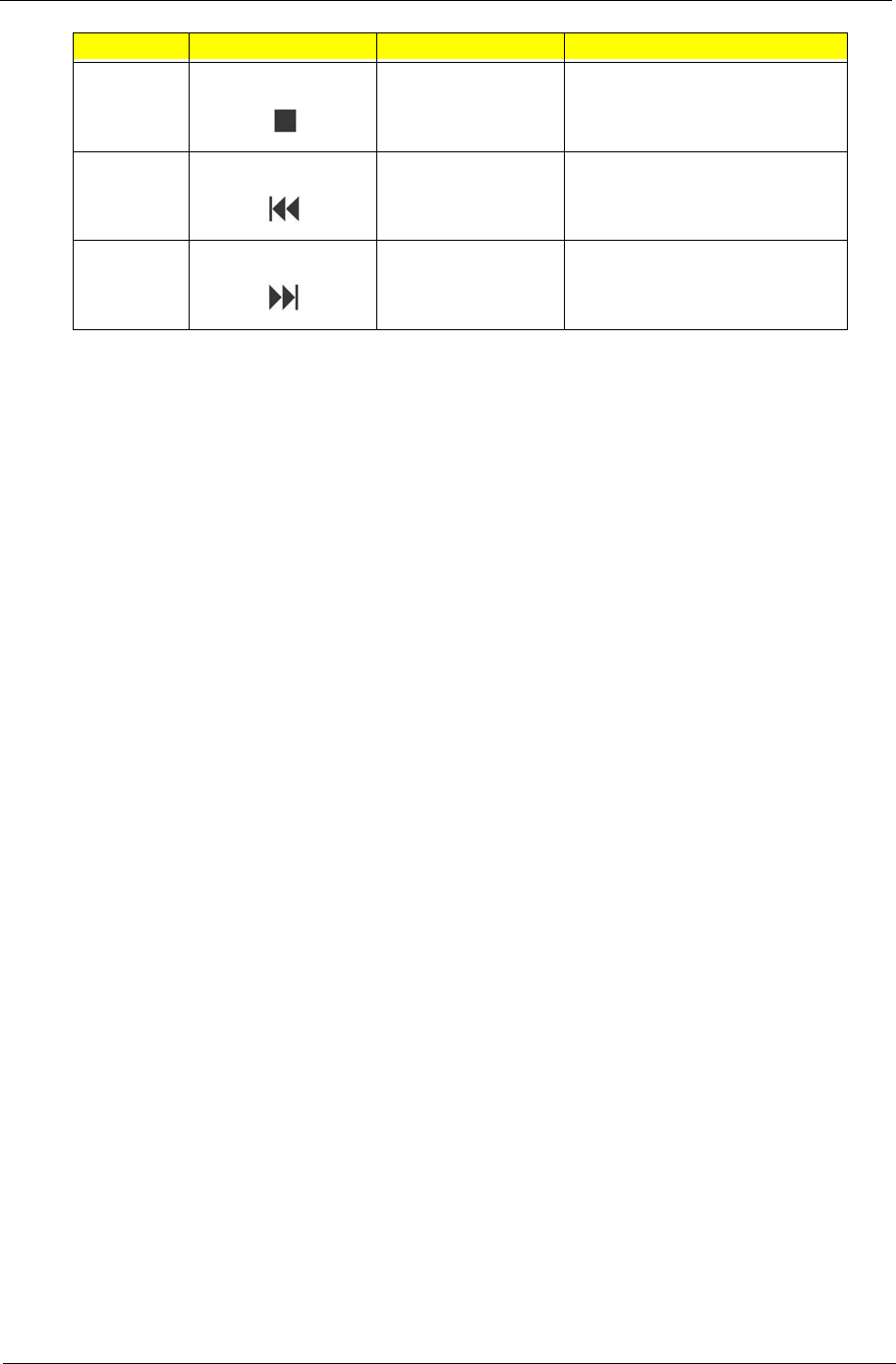
Fn+Pg Up Stop Preww to stop playing the audio
track or video file
Fn+Pg Dn Backwards Press to skip backward to the
previous track or video file and
start playing
Fn+End Forward Press to skip forward to the next
track or video file
Hot Key Icon Item Description
Fn-F5
Fn-F6
Fn-F7
Fn-F8
Fn-
Fn-
Fn-
Fn-
Fn-
Home
Fn-
Pg Up
Fn-
Pg Dn
Fn-End
Fn-F5
Fn-F6
Fn-F7
Fn-F8
Fn-
Fn-
Fn-
Fn-
Fn-
Home
Fn-
Pg Up
Fn-
Pg Dn
Fn-End
Fn-F5
Fn-F6
Fn-F7
Fn-F8
Fn-
Fn-
Fn-
Fn-
Fn-
Home
Fn-
Pg Up
Fn-
Pg Dn
Fn-End
22 Chapter 1
TravelMate 2200/2700
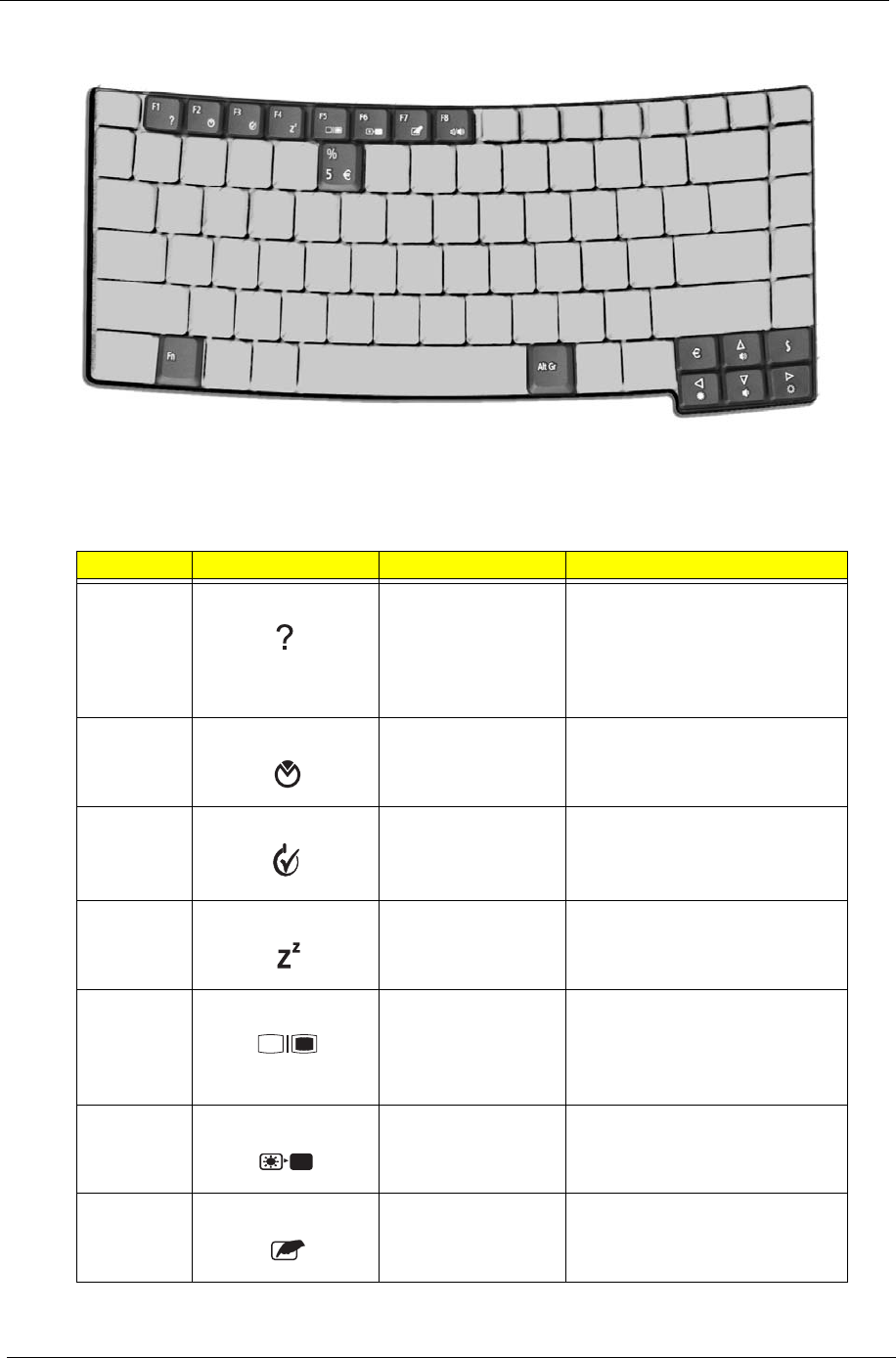
Hot Key Icon Item Description
Fn+F1 Hot key help This key will cause a help
message to appear on the display
device that describes the definition
and functionality of the unit hot
keys. It is preferred to have the
key activate a graphical display.
Fn+F2 Acer eSetting Launches the Acer eSetting in the
Acer eManager set by the Acer
Empowering Key.
Fn+F3 Acer ePower
Management
Launches the Acer ePower
Management in the Acer
eManager set by the Acer
Empowering Key.
Fn+F4 Sleep Puts the computer in Sleep mode
Fn+F5 Display toggle Switches display output between
the display screen, external
monitor(if connected)and both the
display screen and external
nomitor
Fn+F6 Screen blank Turns the display screen backlight
off to save power. Press any key
to return
Fn+F7 Touchpad toggle Turns the internal touchpad on
and off
Fn
Hot Key Icon Function Description
Fn-F1
Fn-F2
Fn-F3
Fn-F4
Fn
Fn-F1
Fn-F2
Fn-F3
Fn-F4
Fn
Fn-F1
Fn-F2
Fn-F3
Fn-F4
Fn
Fn-F1
Fn-F2
Fn-F3
Fn-F4
Fn
Fn-F1
Fn-F2
Fn-F3
Fn-F4
Fn-F5
Fn-F6
Fn-F7
Fn-F8
Fn-
Fn-
Fn-
Fn-
Fn-
Home
Fn-
Pg Up
Fn-
Pg Dn
Fn-End
Fn-F5
Fn-F6
Fn-F7
Fn-F8
Fn-
Fn-
Fn-
Fn-
Fn-
Home
Fn-
Pg Up
Fn-
Pg Dn
Fn-End
Fn-F5
Fn-F6
Fn-F7
Fn-F8
Fn-
Fn-
Fn-
Fn-
Fn-
Home
Fn-
Pg Up
Fn-
Pg Dn
Fn-End
Chapter 1 23
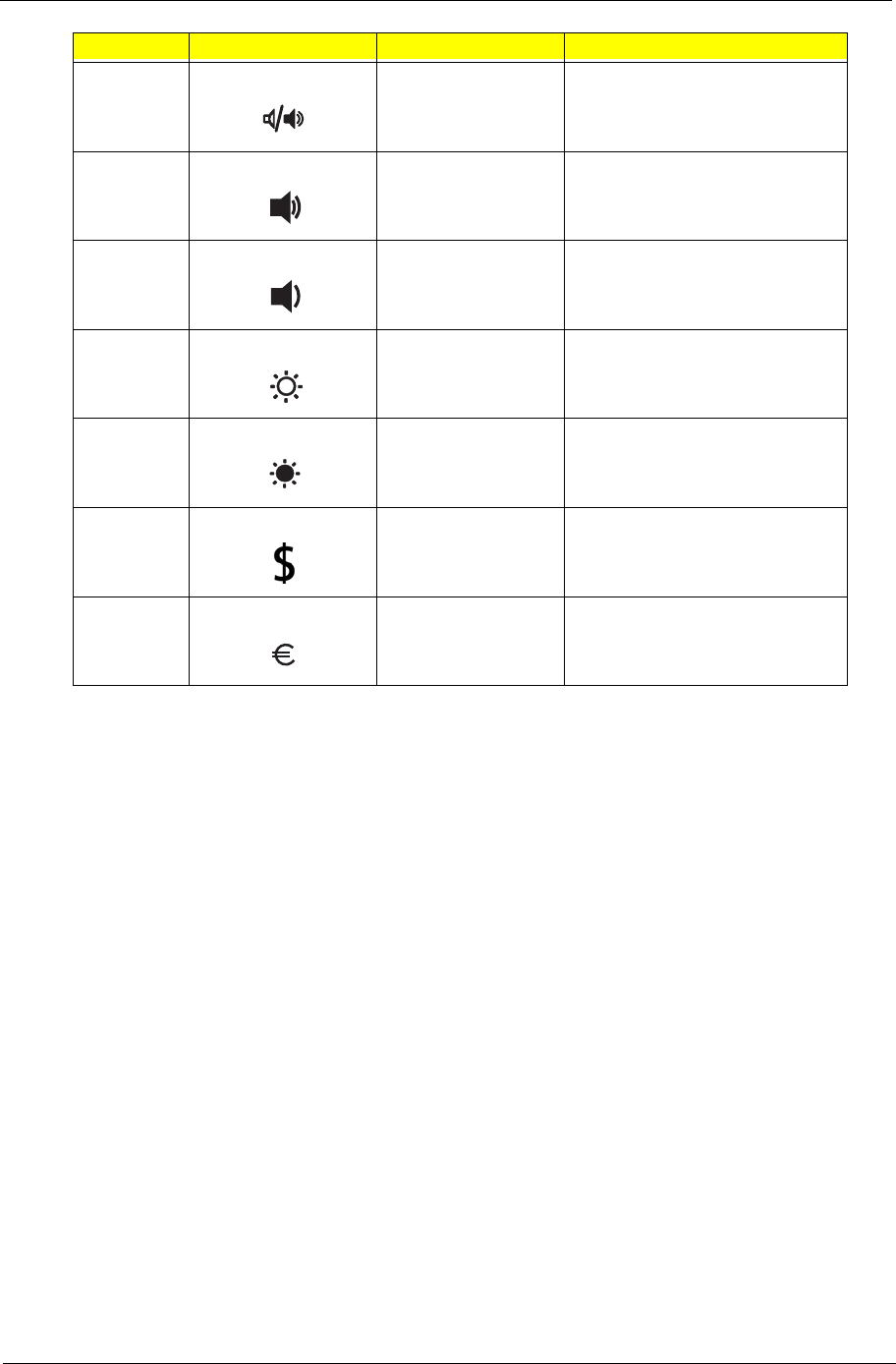
Fn+F8 Speaker toggle Turns the speakers on and off
Fn+wVolume up Increases the sound volume
Fn+yVolume down Decreases the sound volume
Fn+xBrightness up Increases the screen brightness
Fn+zBrightness down Decrease the screen brightness
Alt Gr+$ US dollar Types the US dollar sign
Alt Gr+Euro Euro Types the Euro symbol
Hot Key Icon Item Description
Fn-F5
Fn-F6
Fn-F7
Fn-F8
Fn-
Fn-
Fn-
Fn-
Fn-
Home
Fn-
Pg Up
Fn-
Pg Dn
Fn-End
Fn-F5
Fn-F6
Fn-F7
Fn-F8
Fn-
Fn-
Fn-
Fn-
Fn-
Home
Fn-
Pg Up
Fn-
Pg Dn
Fn-End
Fn-F5
Fn-F6
Fn-F7
Fn-F8
Fn-
Fn-
Fn-
Fn-
Fn-
Home
Fn-
Pg Up
Fn-
Pg Dn
Fn-End
Fn-F5
Fn-F6
Fn-F7
Fn-F8
Fn-
Fn-
Fn-
Fn-
Fn-
Home
Fn-
Pg Up
Fn-
Pg Dn
Fn-End
Fn-F5
Fn-F6
Fn-F7
Fn-F8
Fn-
Fn-
Fn-
Fn-
Fn-
Home
Fn-
Pg Up
Fn-
Pg Dn
Fn-End
Fn-F5
Fn-F6
Fn-F7
Fn-F8
Fn-
Fn-
Fn-
Fn-
Alt Gr-$
Alt Gr-
Euro
Hot Key Icon Function Description
Fn-F5
Fn-F6
Fn-F7
Fn-F8
Fn-
Fn-
Fn-
Fn-
Alt Gr-$
Alt Gr-
Euro
Hot Key Icon Function Description
24 Chapter 1
Special Keys
Aspire 1670
TravelMate 2200/2700
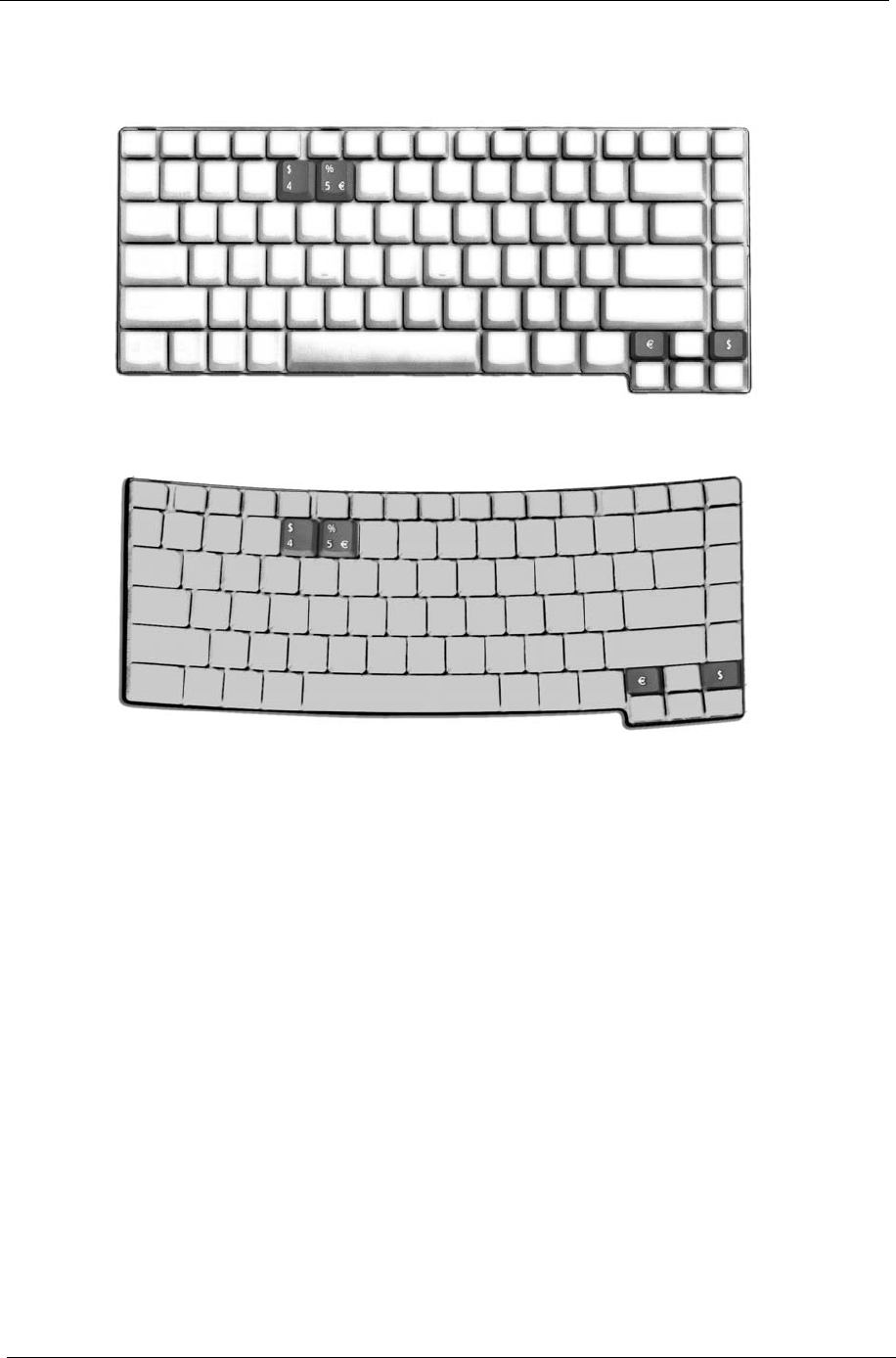
The Euro symbol
1. Open a text editor or word processor.
2. Either directly press the Euro symbol at the bottom-right of the keyboard, or hold Alt Gr and then press
the Euro symbol at the upper-center of the keyboard.
The US dollar sign
1. Open a text editor or word processor.
2. Either directly press the dollar sign at the bottom-right of the keyboard , or hold Alt Gr and then press the
dollar sign at the opper-center of the keyboard.
Note: This function varies by the operating system version.
Euro
Alt Gr Euro
dollar
Alt Gr dollar
Note:
Alt Gr-$
Alt Gr-
Euro
Euro
Alt Gr Euro
dollar
Alt Gr dollar
Note:
Chapter 1 25
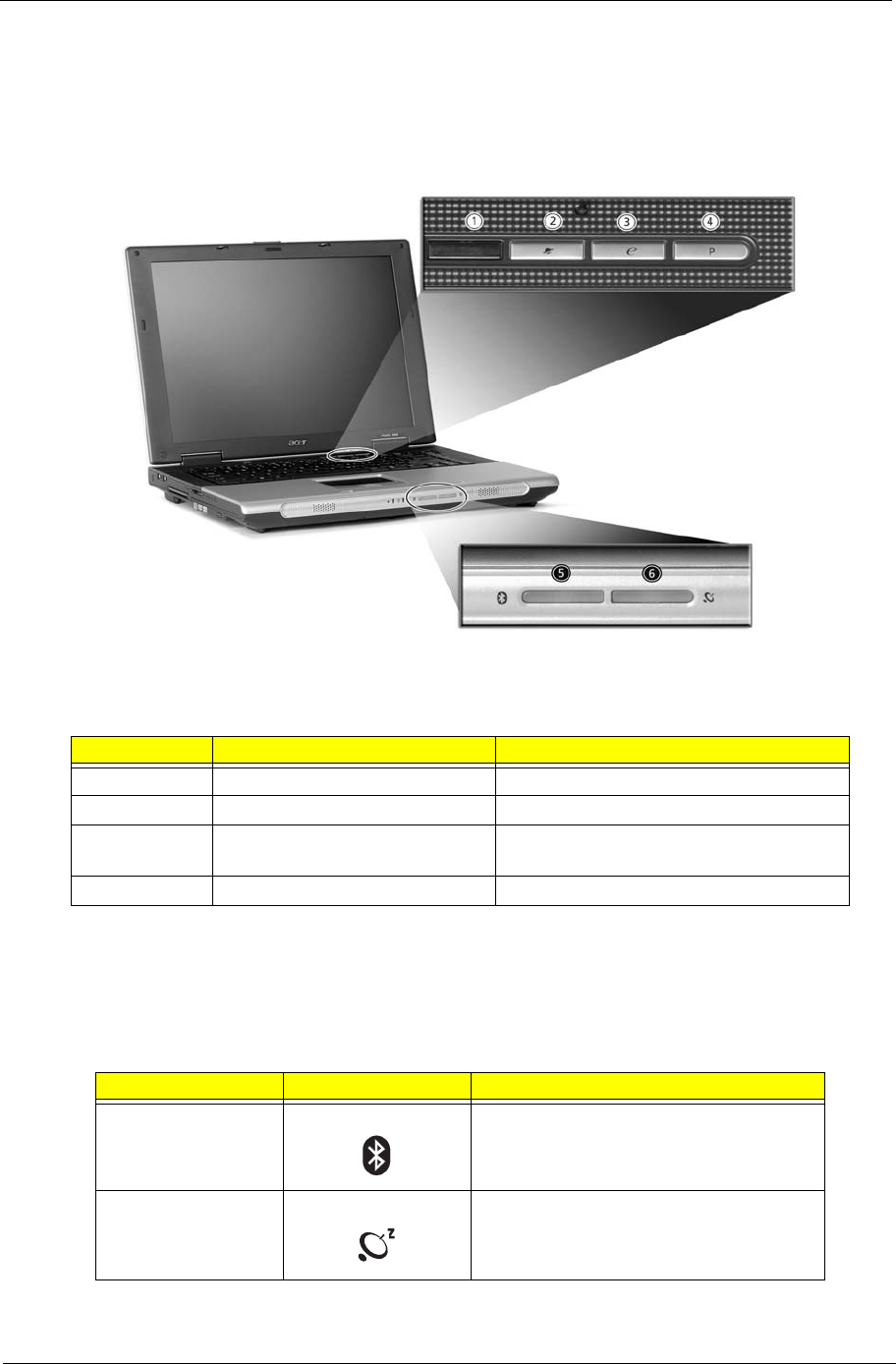
Launch Keys
Located at theupper-right above the keyboard are four buttons, These buttons are called launch keys. They
are designated as the mail, Web browser, Empowering and programmable keys.
Press the Acer Empowering Key to run the Acer eManager. The mail and Web browser are default for Email
and Internet programs, but can be reset by users. To set the mail, Web browser and programmable keys, run
the Acer Launch Manager.
In addition, there are rwo launch keys at the front panet. Even when the cover is closed, you can easily access
the features of Wireless and Bluetooth. However, the Wireless and Bluetooth keys cannot be reset by users.
Label Launch Key Specification
1 Email Launches your email application
2 Web browser Launches your internet browser
3 e Acer eManager application(User-
programmable)
4 p User-programmable
Launch Key Icon Specification
Bluetooth
communications
Enables your Bluetooth.(optional)
Wireless
communications
Enables your 802.11b/g Wireless
LAN.(optional)
# Launch Key Default Application
# Item Description
Caution:
# Launch Key Default Application
26 Chapter 1
Touchpad
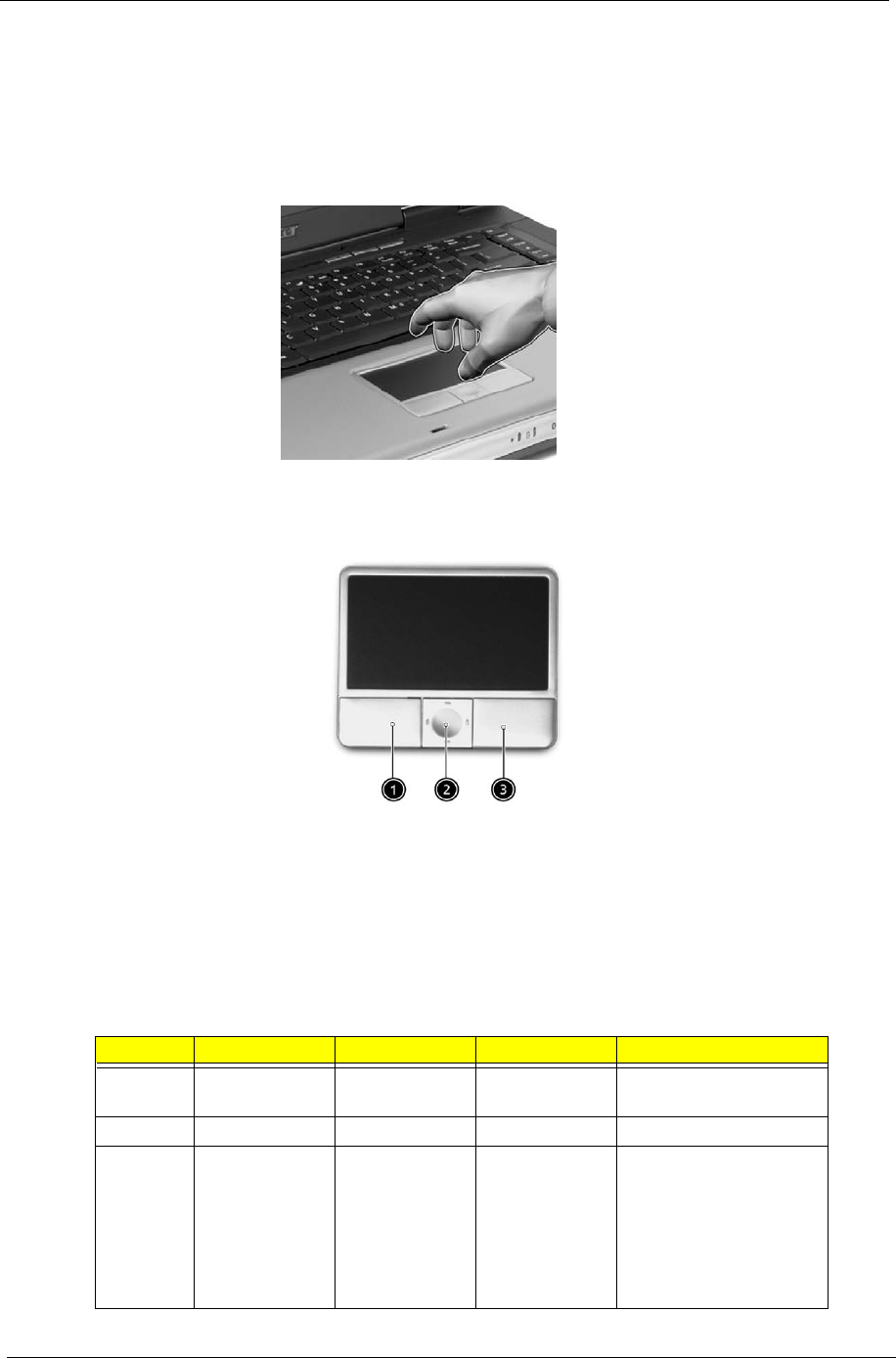
The built-in touchpad is a PS/2-compatible pointing device that senses movement on its surface. The cursor
responds to your finger movements on the touchpad. In addition, the two click buttons provide the same
functionality as a computer mouse, while the scroll key enables easy 4-way scrolling in documents and web
pages.
The touchpad is located in the middle of the palm rest area, providing maximum comfort efficiency.
Touchpad basics
Use the touchpad as follows:
TSlide your finger over the surface of the touchpad control the movement of the cursor. Tap the
touchpad to perform selection and execution functions.
TPress the left (1) and right (3) click buttons to perform selection and execution functions, just as
you would use the buttons on a computer mouse.
TUse the scroll key (2) to scroll through long documents and web pages. Press the top of the key to
scroll up, bottom to scroll down; left to scroll left, and right to scroll right.
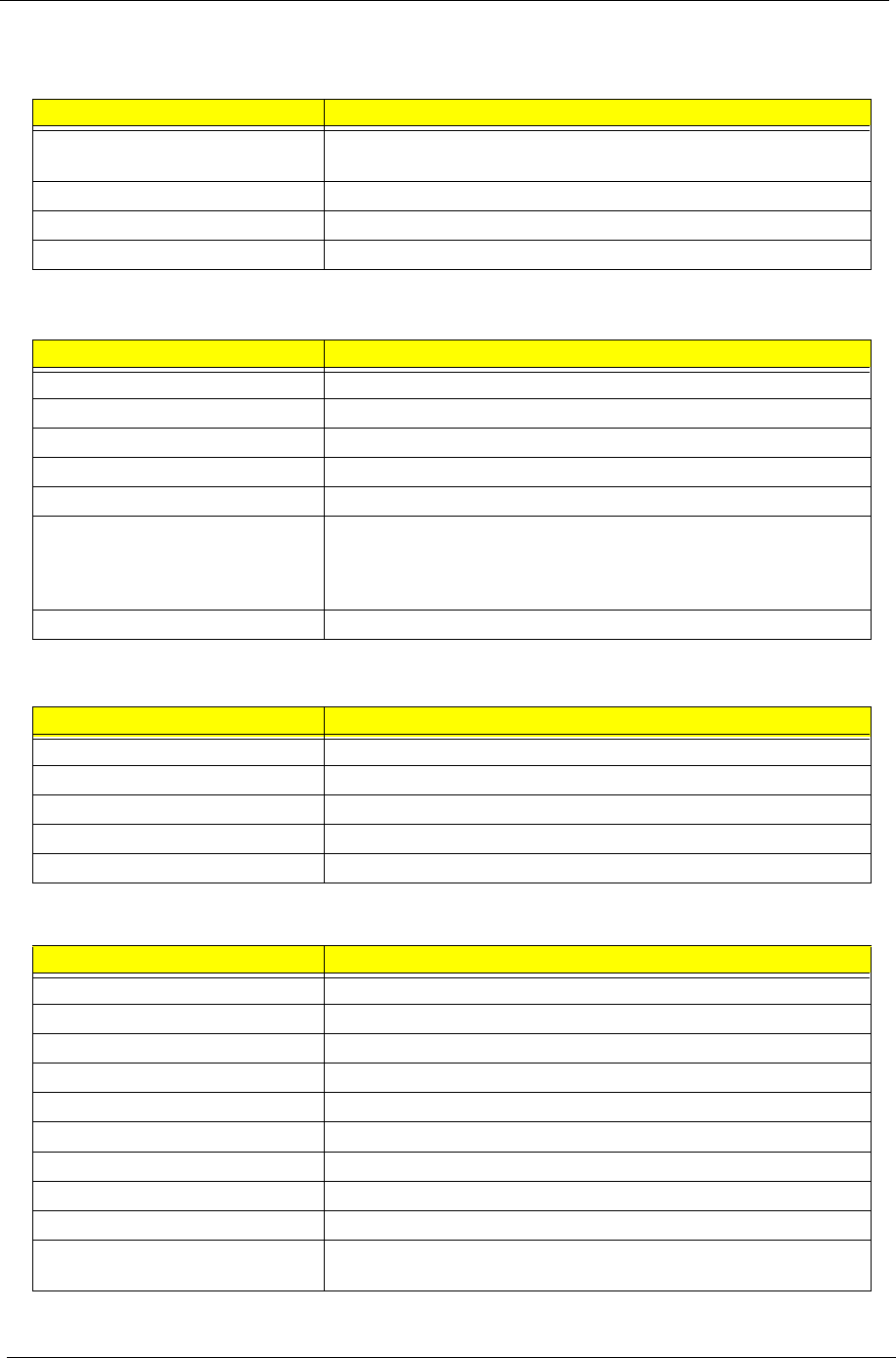
Function Left Button Right Button Scroll Button Tap
Execute Click twice
quickly
Tap twice quickly
Select Click once Tap once.
Drag Click and hold.
Then, slide your
finger across
the touchpad to
drag the cursor
over the
selection
Tap twice quickly. On the
second tap, slide your
finger across the
touchpad to drag the
cursor over the selection.
y
(1) (3)
(2)
(1) (3)
(2)

Chapter 1 27
Note: Keep your finger, as well as the surface of the touchpad, clean and dry. The touchpad is sensitive to
your finger movements: the lighter your touch, the better the response. Tapping fard will not increase the
touchpad’s responsiveness.
Access
content
menu
Click once.
Scroll Click and hold
the up/down/
left/right button
Function Left Button Right Button Scroll Button Tap
28 Chapter 1
Hardware Specifications and Configurations
Second Level Cache
Processor
Item Specification
CPU type Intel Pentium4 processors 2.8/3.0/3.2/3.4/3.6 GHz or Intel Celeron
processors 2.6 GHz and above
CPU package PGA 478 package
CPU core voltage 1.25V-1.525V
CPU I/O voltage 1.05V
BIOS
Item Specification
BIOS vendor Phoenix
BIOS Version V0.08
BIOS ROM type Flash ROM
BIOS ROM size 512KB
BIOS package PLCC32
BIOS Support Protocol ACPI 1.0b/2.0, PCI 2.2, PnP BIOS 1.0a SMBIOS 2.3.1 WFM2.0,
Intel AC97 CNR Specification, IrDA1.0, USB Specification 1.1/
2.0PCMCIA 3.0 compliant, PC 99a and Mobile PC2001 compliant,
Simple Boot Flag 1.0
BIOS password control Set by setup manual
Item Specification
Cache controller Intel CPU
Cache size 1M to 512K
1st level cache control Always enabled
2nd level cache control Always enabled
Cache scheme control Always enabled
System Memory
Item Specification
Memory controller ATI RC300M
Memory size 256MB/512MB
DIMM socket number 2 slots
Supports memory size per slot 1024MB
Supports maximum memory size 2GB (by two 1024MB SO-DIMM module)
Supports DIMM type DDR Synchronous DRAM
Supports DIMM Speed 333MHz
Supports DIMM voltage 2.5V/1.25V
Supports DIMM package 200-pin SODIMM
Memory module combinations You can install memory modules in any combinations as long as
they match the above specifications.
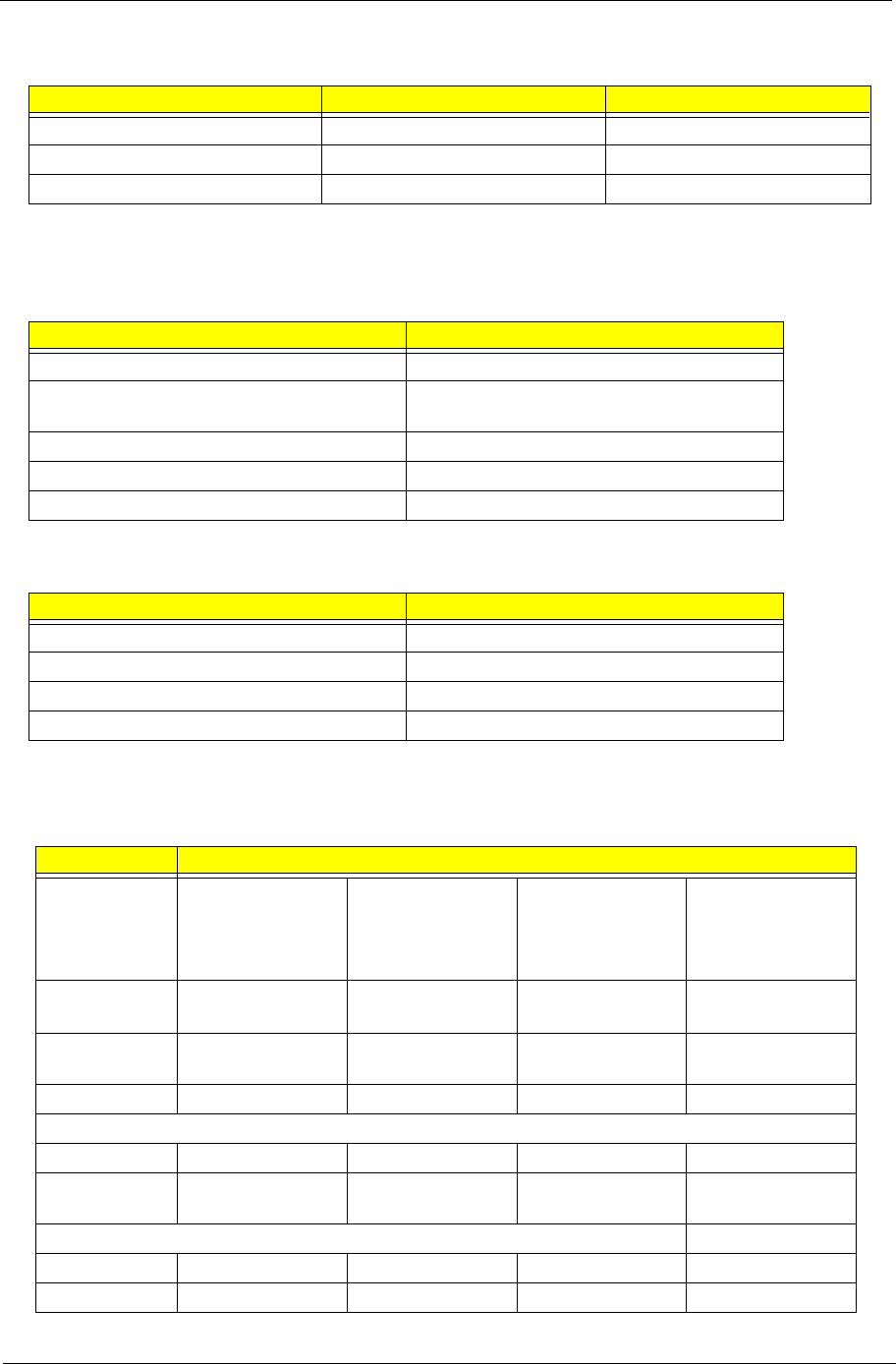
Chapter 1 29
NOTE: Above table lists some system memory configurations. You may combine DIMMs with various
capacities to form other combinations.
.
.
Memory Combinations
Slot 1 Slot 2 Total Memory
256/512MB 0 MB 256MB/512MB
256/512MB 256MB 512MB/768MB
256/512MB 512MB 768MB/1024MB
LAN Interface
Item Specification
Chipset RTL 8100CL
Supports LAN protocol 10/100 Mbps and Giga LAN on
board(manufacture option)
LAN connector type RJ45
LAN connector location Rear side
PXE version V2.13
Modem / Bluethooth Interface
Item Specification
Data modem data baud rate (bps) 56K
Supports modem/bluetooth protocol V.90/V.92 AC-Link modem card (MDC)
Modem connector type RJ11
Modem connector location Rear side
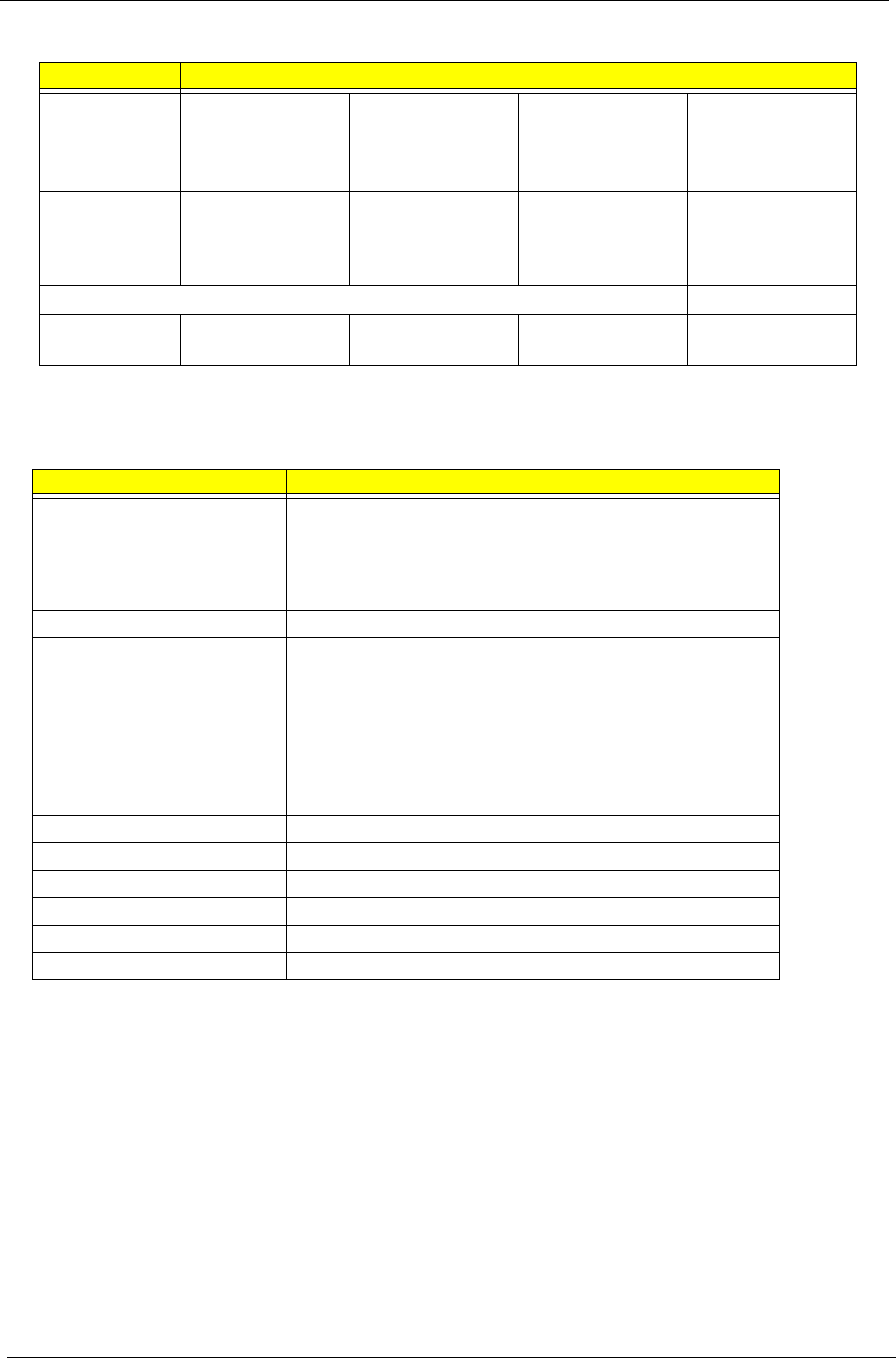
Hard Disk Drive Interface
Item Specification
Vendor &
Model Name
Hitachi
HTS424030M9AT00
HTS424040M9AT00
IC25N060ATMR04-0
IC25N080ATMR04-0
Toshiba
MK3025GAS
MK4025GAS
MK6025GAS
MK8025GAS
FUJITSU
FUJITSU MHT2060AT
FUJITSU MHT2080AT
SEAGATE
ST94019A
Capacity (GB) 30/40/60/80 30/40/60/80 60/80 40
Bytes per
sector
512 512 512 512
Data heads 2/2/3/4 2/2/3/4 3/4 2
Drive Format
Disks 1/1/2/2 1/1/2/2 2/2 1
Spindle speed
(RPM)
4200 4200 4200 4200
Performance Specifications
Buffer size 2/2/8/8 8 2 2
Interface ATA 100 ATA 100 ATA 100 ATA 100
30 Chapter 1
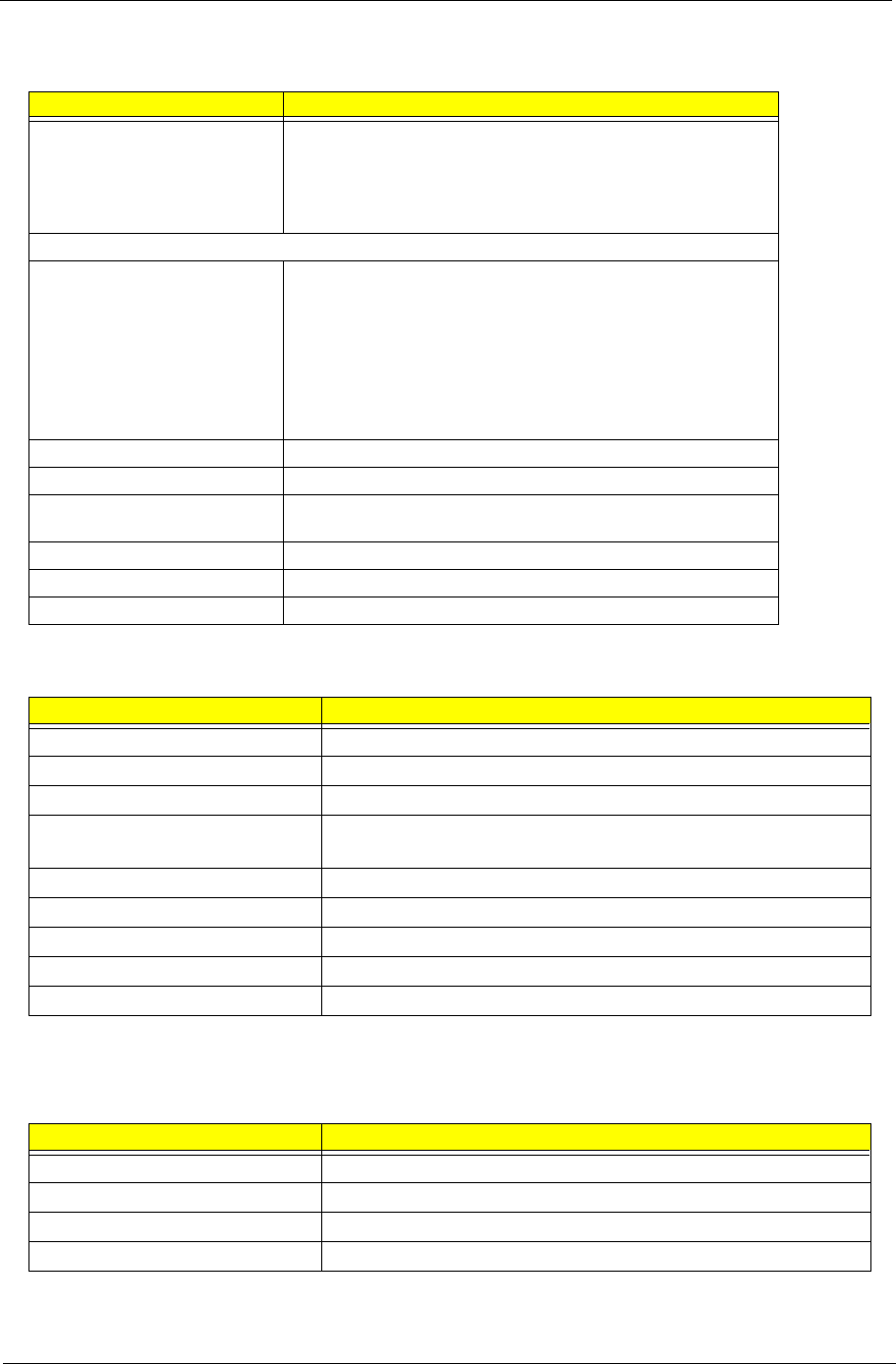
Max. media
transfer rate
(disk-buffer,
Mbytes/s)
46.5
46.5
46.5
46.5
42.8 41.3 48.2
Data transfer
rate
(host~buffer,
Mbytes/s)
100 100 100 100
DC Power Requirements
Voltage
tolerance
5V+/-5% 5V+/-5% 5V+/-5% 5V+/-5%
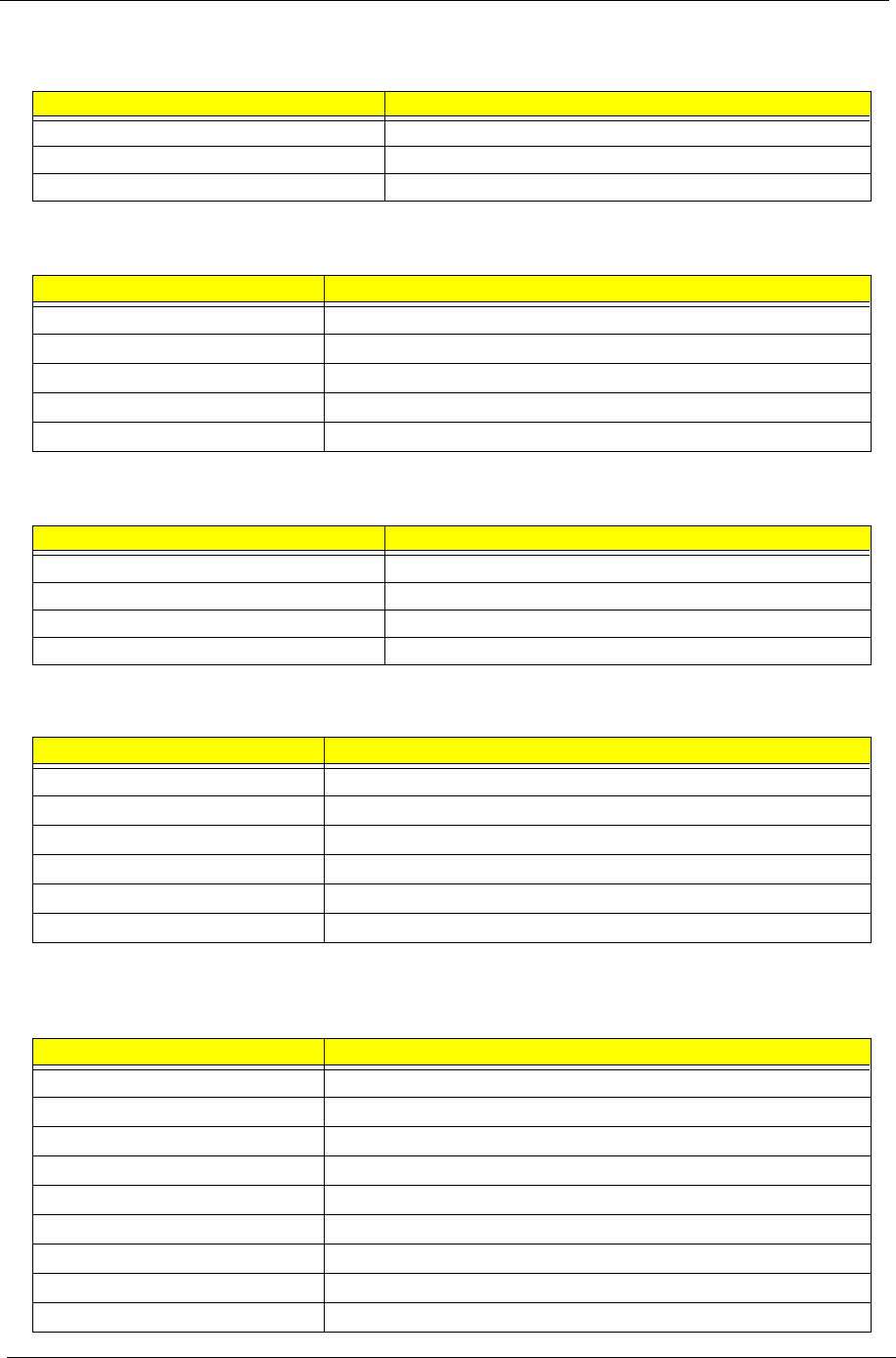
Combo Drive Interface
Item Specification
Vendor & model name QSI SBW-242C
LiteOn SOSC-2483K
KME UJDA-760
HLDS GCC-4243N
ATek TSB24H1
Performance Specification
Transfer rate (KB/sec)
(1) Read DVD-ROM
CD-ROM
(2) Write CD-R
CD-RW
(3) ATAPI Interface
PIO mode
Ultra DMA mode
24x
8x
24x
24x
16.6MB/s
33MB/s
Buffer Memory 2MB
Interface ATAPI
Applicable disc format DVD
Loading mechanism Tray
Power Requirement 9W(Maximum)
Input Voltage 5V+/-5%
Hard Disk Drive Interface
Item Specification
Chapter 1 31
DVD Dual/Super Multi Interface
Item Specification
Vendor & model name QSI SDW-042
LiteOn SOSW-852S
Pioneer DVR-K14RA
KME UJ-830B
HLDS GSA-4080N
Performance Specification
Transfer rate (KB/sec)
(1) Read DVD-ROM
CD-ROM
(2) Write CD-R
CD-RW
(3) ATAPI Interface
PIO mode
Ultra DMA mode
8x
24x
24x
10x
16.6MB/s
33MB/s
Buffer Memory 2MB
Interface ATAPI
Applicable disc format CD-ROM/CD-R/CD-RW/DVD-ROM/DVD+R/DVD+RW/DVD-R/DVD-
RW/DVD-RAM
Loading mechanism Tray
Power Requirement 9.5W(Maximum)
Input Voltage 5V+/-5%
Audio Interface
Item Specification
Audio Controller Realtek ALC250, AC97 Codec
Audio onboard or optional Built-in
Mono or Stereo Stereo
Resolution 20 bit stereo Digital to analog converter
18 bit stereo Analog to Ditial converter
Compatibility Microsoft PC99/2001, AC97 2.3 & WHQL/WLP2.0
Mixed sound source CD
Sampling rate 48 KHz
Internal microphone No
Internal speaker / Quantity Yes / 2
Video Interface
Item Specification
Chipset ATI Mobility RADEON 9000 IGP
package BGA748
interface AGP Bus 8x
Supports ZV(Zoomed Video) port No
32 Chapter 1
Video Memory
Item Specification
Chipset ATI Mobility RADEON 9000 IGP
Memory size 64MB VRAM or UMA
Interface DDR
USB Port
Item Specification
Chipset ATI SB200
USB compliancy level 2.0
OHCI USB 2.0
Number of USB port 4
Location Left side and right side
IEEE 1394 Port
Item Specification
Chipset TI-TSB43AB22
Number of IEEE 1394 port 1
Location right side
Connector type IEEE 1394
PCMCIA Port
Item Specification
PCMCIA controller ENE 714/1410
Supports card type Type II
Number of slots One type-II
Access location left Side
Supports ZV (Zoomed Video) port No
Supports 32 bit CardBus Yes
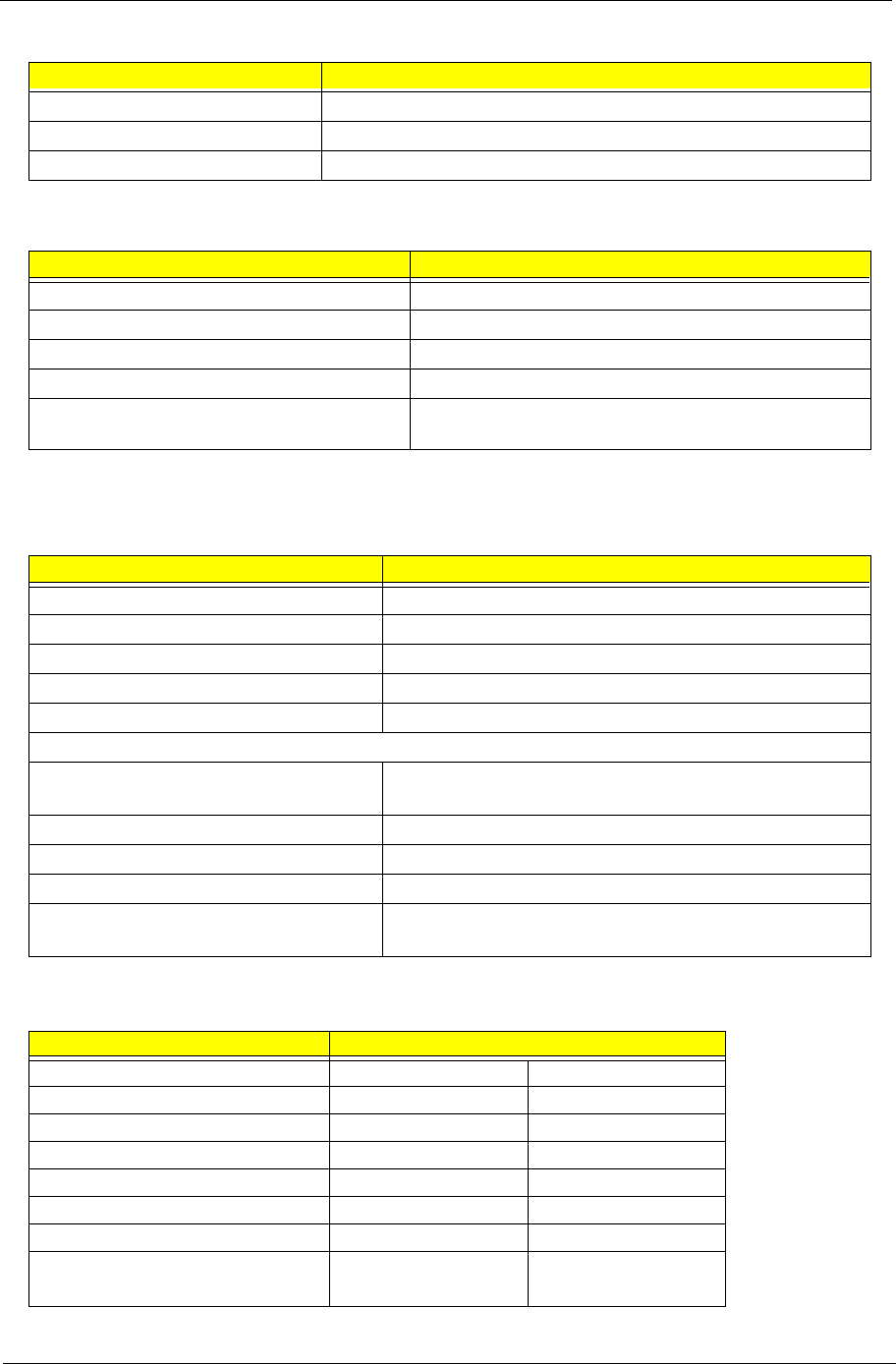
System Board Major Chips
Item Controller
System core logic ATI RC300M+SB200(IXP150)
Super I/O controller SMSC 207, LPC interface
Audio controller Realtek ALC250 Codec
Video controller ATI M11p/M11CL/UMA
Hard disk drive controller ATI SB200
Keyboard controller ENE 910
RTC ATI SB200
USB 2.0 ATI SB200
MODEM Agere Scorpio-I + CSP 1037B
Chapter 1 33
Wireless 802.11b/g Inprocomm IPN2220
PCMCIA CB714B
5-in-1 card reader CB714B
Keyboard
Item Specification
Keyboard controller ENE KB910
Keyboard vendor & model name Standard keyboard w/o launch button embeded
Total number of keypads 85 keys(US),86 keys(EU), 89 keys(JP)
Windows logo key Yes
Internal & external keyboard work
simultaneously
Yes
Battery
Item Specification
Vendor & model name Sony/Sanyo
Battery Type Li-ion
Pack capacity 59/63Wh
Cell voltage 3.7V
Number of battery cell 8
Package configuration
Pin 1
Pin 2
BATT+
Pin 3 TS
Pin 4 SMD
Pin 5 SMC
Pin 6
Pin 7
GND
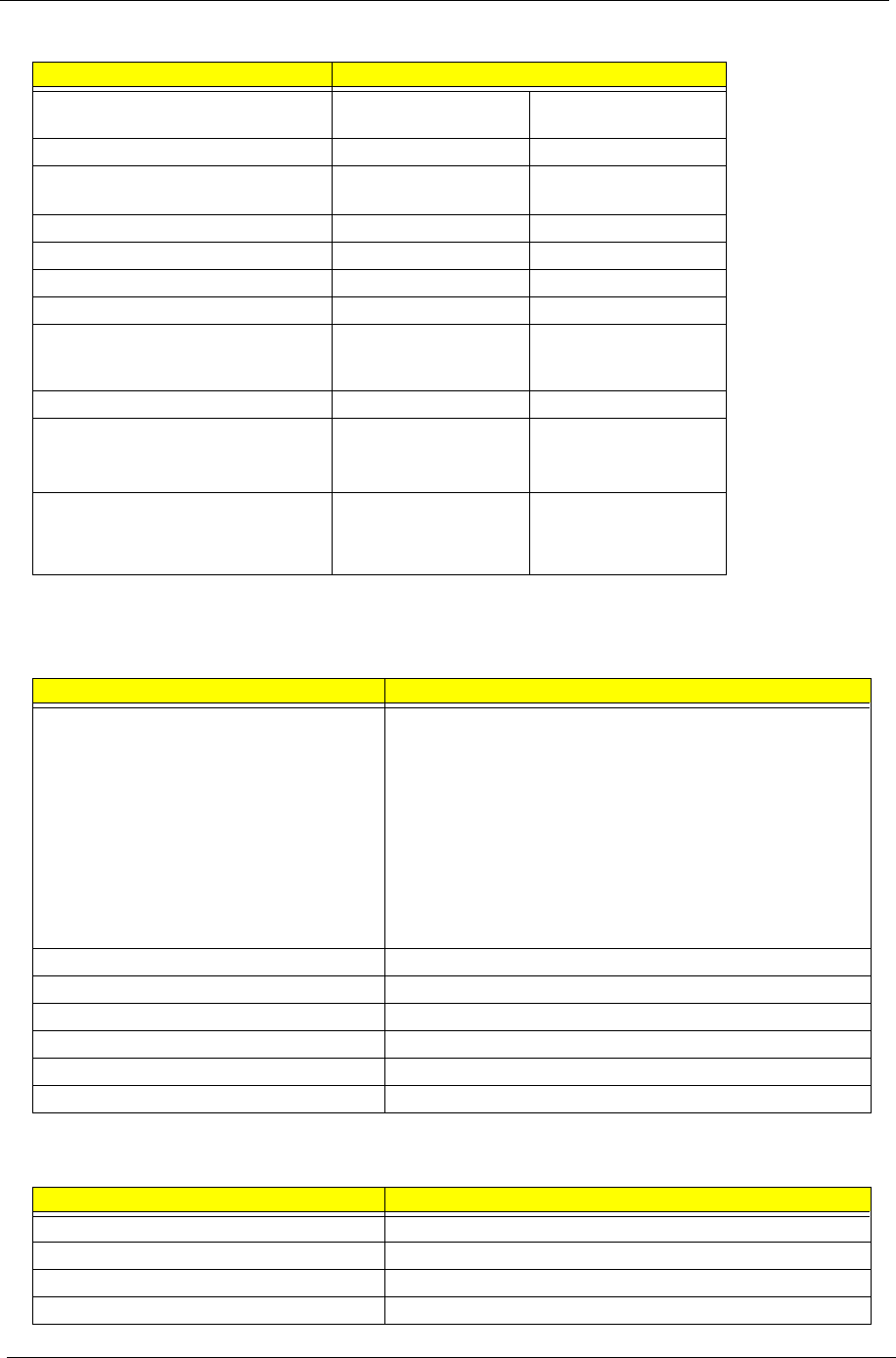
LCD
Item Specification
Vendor & model name AU B141XG05 CMO N141XB-L01
Screen Diagonal (mm) 357(14.1inch) 14inch
Active Area (mm) 285.7(H)x214.3(V) 285.7(H)x214.3(V)
Display resolution (pixels) XGA (1024x768) XGA (1024x768)
Pixel Pitch 0.279(H)x0.279(H)mm 0.279(H)x0.279(H)mm
Pixel Arrangement RGB vertical stripe RGB vertical stripe
Display Mode Normally white Normally white
Typical White Luminance (cd/m2)
also called Brightness
150 130(min)/160(typ)
System Board Major Chips
Item Controller
34 Chapter 1
Luminance Uniformity 1.2(5 points)
1.5(13 points)
not show
Contrast Ratio 250 (min)/ 300 (typ) 300(min)/450(typ)
Response Time (Optical Rise Time/Fall
Time)msec
15/10 6/17(typ)
10/25(max)
Nominal Input Voltage VDD +3.3V not show
Typical Power Consumption (watt) 5.3 4.03 (for backlight unit)
Weight 400g (w/o inverter) 420
Physical Size(mm) 299(W)x228(H)x5.5(D) 299(W)x228(H)x5.2(D)
Electrical Interface R/G/B Data, 3Sync,
Signals, Clock (4 pairs
LVDS)
1 channel LVDS
Support Color Native 262K colours 262K colours
Viewing Angle (degree)
Horizontal: Right/Left
Vertial: Upper/Lower
45/45
15/35
45/45
15/35
Temperature Range( C)
Operating
Storage (shipping)
0 to 50
-20 to -60
0 to 50
-20 to -60
LCD Inverter
Item Specification
Vendor & model name 14.1 and 15.0°
DELTA DAC-07B037 A
DELTA DAC-07B038 A
SUMIDA TWS-442-172
YEC YNV-C01
15.4°
DELTA DAC-07B035A
SUMIDA TWS-442-174
DELTA DAC-09B017
YEC YNV-C02
Brightness conditions Duty 30~100%
Input voltage (V) 9~21V
Input current (mA) 330mA typ
Output voltage (V, rms) 650Vrms typ
Output current (mA, rms) 3.0~6.0mA
Output voltage frequency (k Hz) 45~65KHz
AC Adaptor
Item Specification
Input rating 100 ~ 240VAC, 47Hz to 63Hz
Maximum input AC current 2.2A Max@90V/50Hz
Inrush current 220A@240VAC
Efficiency 83% min. @115VAC input full load
LCD
Item Specification
°

Chapter 1 35
System Power Management
ACPI mode Power Management
Mech. Off (G3) All devices in the system are turned off completely.
Soft Off (G2/S5) OS initiated shutdown. All devices in the system are turned off
completely.
Working (G0/S0) Individual devices such as the CPU and hard disc may be power
managed in this state.
Suspend to RAM (S3) CPU set Power Down
VGA Suspend
PCMCIA Suspend
Audio Power Down
Hard Disk Power Down
CD-ROM Power Down
Super I/O Low Power mode
Save to Disk (S4) Also called Hibernate state. System saves all system states and
data onto the disc prior to power off the whole system.

36 Chapter 1
Power Management Function (ACPI support function)
Device Standby Mode
TIndependent power management timer for hard disk drive devices
(0-15 minutes, time step=1 minute).
THard disk drive goes into Standby mode (for ATA standard interface).
TDisable V-sync to control the VESA DPMS monitor.
TResume method: device activated (Keyboard for DOS, keyboard & mouse for Windows).
TResume recovery time: 3-5 sec.
Global Standby Mode
TGlobal power management timer (2-120 minutes, time step=10 minute).
THard disk drive goes into Standby mode (for ATA standard interface).
TDisable H-sync and V-sync signals to control the VESA DPMS monitor.
TResume method: Return to original state by pushing external switch button, modem ring in,
keyboard and mouse for APM mode.
TResume recovery time: 7-10 sec.
Suspend Mode
TIndependent power management timer (2-120 minutes, time step=10 minutes) or pushing external
switch button.
TCPU goes into SMM.
TCPU asserts STPCLK# and goes into the Stop Grant State.
TLED on the panel turns amber colour.
THard disk drive goes into SLEEP mode (for ATA standard interface).
TDisable H-sync and V-sync signals to control the VESA DPMS monitor.
TUltra I/O and VGA chip go into power saving mode.
TResume method: Return to original state by pushing external switch button, modem ring in,
keyboard and mouse for APM mode.
TReturn to original state by pushing external switch button, modem ring in and USB keyboard for
ACPI mode.
ACPI
TACPI specification 1.0b.
TS0, S1, S3 and S5 sleep state support.
TOn board device power management support.
TOn board device configuration support.
Chapter 2 37
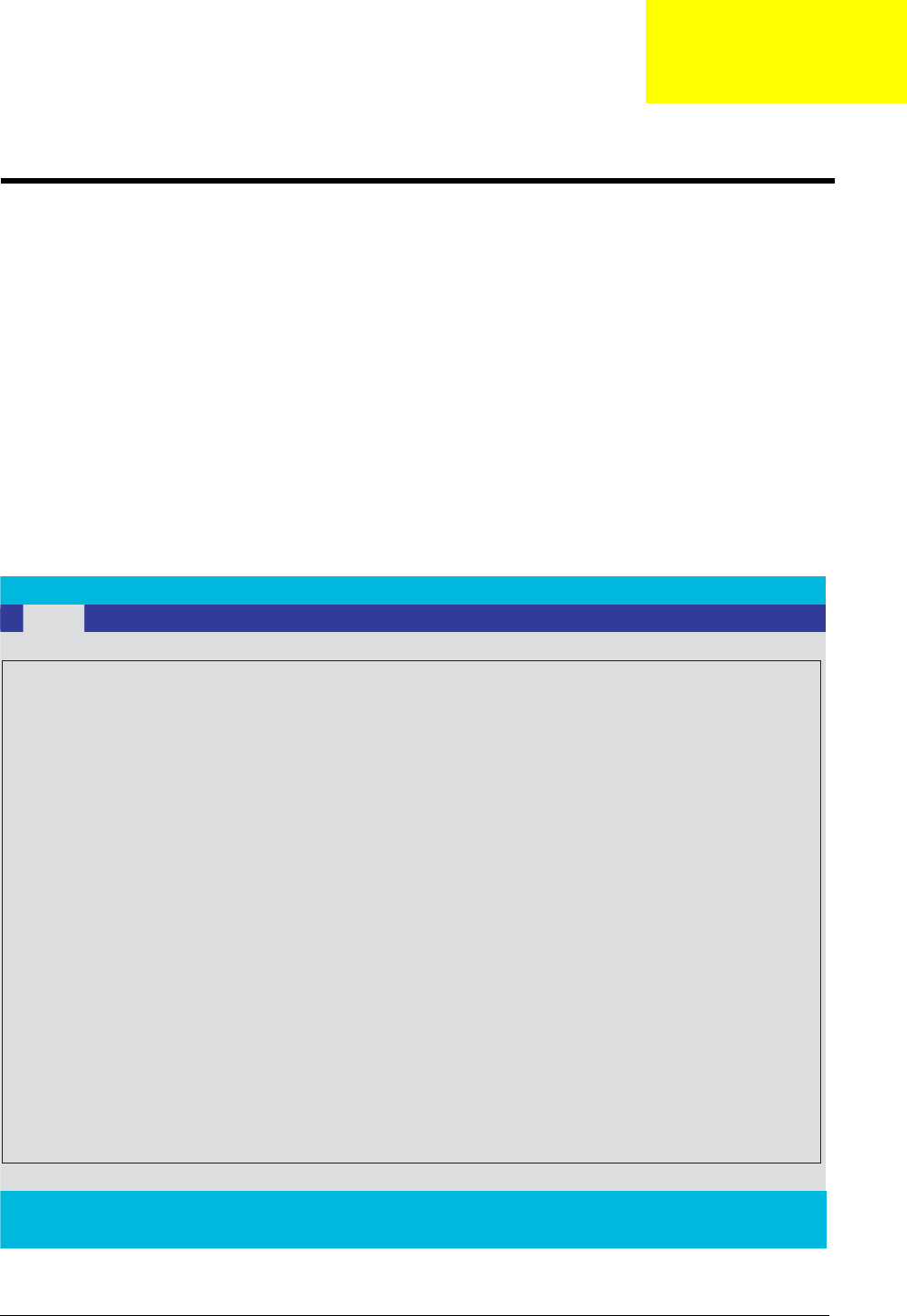
BIOS Setup Utility
The BIOS Setup Utility is a hardware configuration program built into your computer’s BIOS(Basic
Input Output System).
Your Computer is already properly configured and optimized, and you do not need to run this utility. However,
if you encounter configuration problems, you may need to run Setup. Please also refer to Chapter 4
Troubleshooting wheb problem arises.
To activate the BIOS Utility, press mduring POST(when”Press<F2>to enter Setup”message is prompted on
the bottom of screen).
Press mto enter setup. The default parameter of F12 Boot Menu is set to “disabled”. If you want to change
boot device without wntering BIOS Set Utility, please set the parameter to “enabled”.
Press<F12> during POST to enter multi-boot menu. In this menu,user can change boot device without
entering BIOS SETUP Utility.
PhoenixBIOS Setup Utility
. Info. Main Advanced Security Boot Exit
CPU Type:: Intel(R) Celeron(R) CPU 2.80GHz
CPU Speed
:
System BIOS Ver:
V0.08
VGA BIOS Ver:
ATI M11
KBC Ver:
V0.08
Serial Num ELW050011143010003ED00
Asset Tag Number:
Product
Aspire 1670
Manufacturer Name:
Acer
UUID:
FFFFFFFFFFFFFFFFFFFF0023F080E52
F1 Help
↑↓
Select Item F5/F6 Change Values F9 Setup Defaults
Esc Exit
←
→
Select Menu Enter Select
4
Sub-Menu F10 Save and Exit
HDD Model Name:
HDD Serial Number:
ST94019A-(PM)
3KW3MQSJ
2.80 GHz
ATAPI Model Name: HL-DT-STCD-RW/DVD DRIVE-(SM)
ATAPI Serial Mumber:
System Utilities
Chapter 2

38 Chapter 2
Navigating the BIOS Utility
There are six menu options: Info, Main, System, Devices, Security, Boot, and Exit.
Follow these instructions:
TTo choose a parameter, use the cursor up/down keys( or )
TTo choose a menu, use the cursor left/right keys( or ).
TTo change the value of a parameter, press porq
TA plus sign (+) indicates the item has sub-items. Press to expand this item.
TPress while you are in any of the menu options to go to the Exit menu.
TIn any menu, you can load default settings by pressing t. you can also press uto save any
changes made and exit the BIOS Setup Utility.
NOTE: You can change the value of a parameter if it is enclosed in square brackets. Navigation keys for a
particular menu are shown on the bottom of the screen. Help for parameters are found in the item
Specific Help part of the screen. Read this carefully when making changes to parameter values. Please
note that system information vary in models.
Chapter 2 39
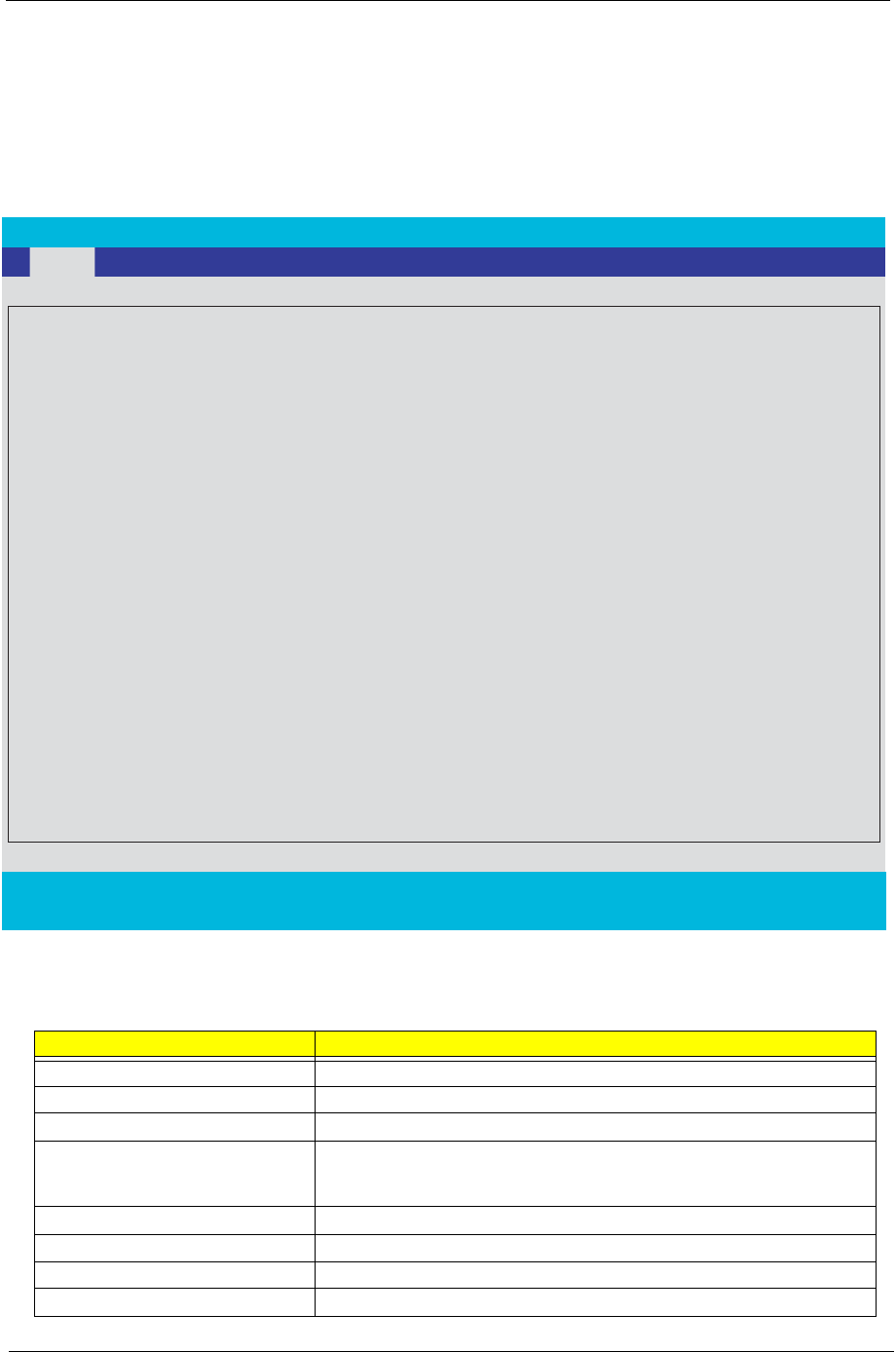
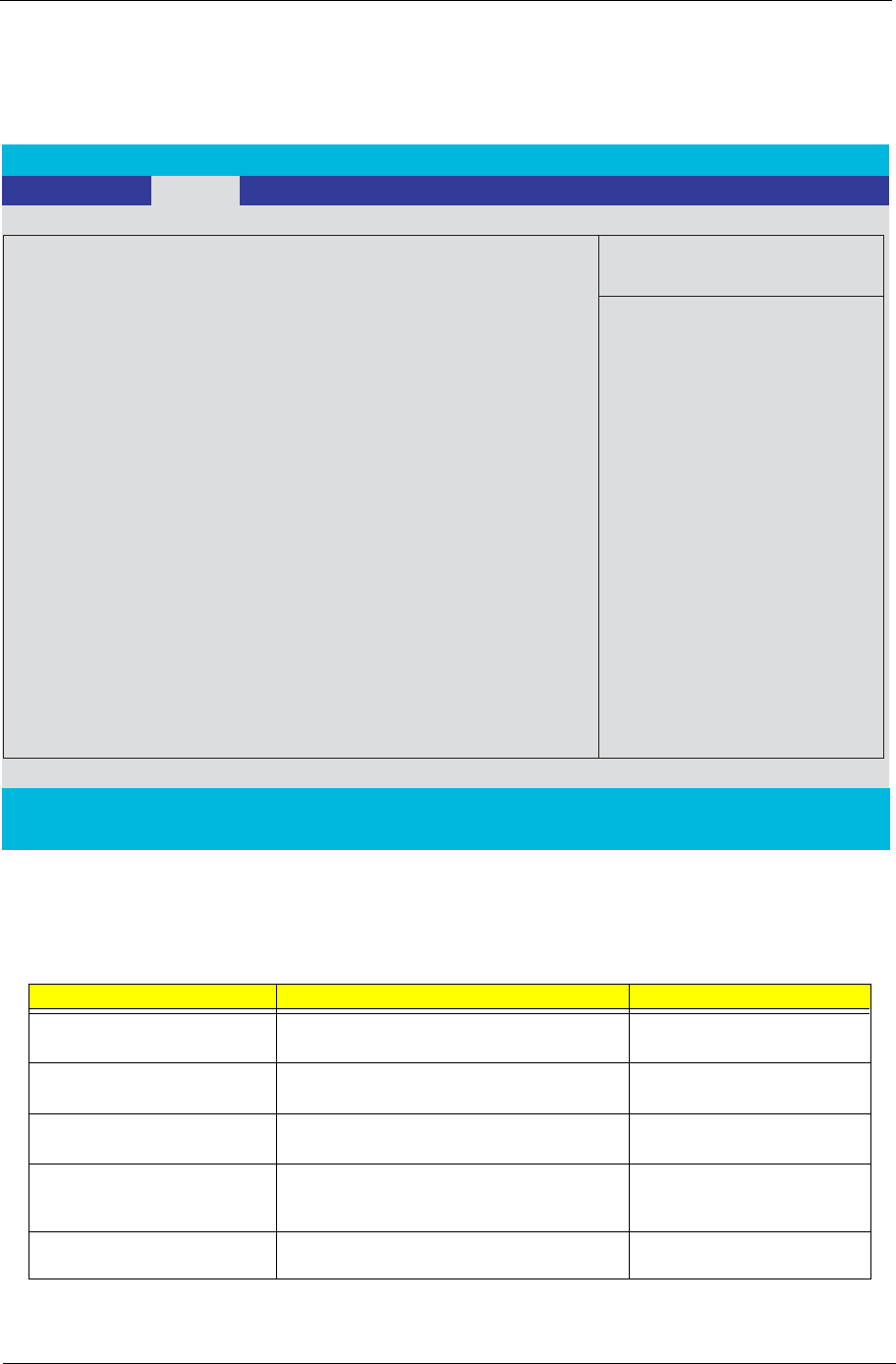
Information
The screen below appears if you select Product Information from the main menu:
The Product Information menu contains general data about the system, such as the product name, serial
number, BIOS version, etc. These information is necessary for troubleshooting (maybe required when
asking for technical support).
Note: This system information is subject to different medels.
The following table describes the parameters found in this menu:
Parameter Description
CPU Type/speed Display CPU type and speed information
HDD Model Name Display the model name of HDD installed on primary IDE master
HDD Serial Number Display the serial number of HDD installed on primary IDE master
ATAPI Model Name This field displays the medel name of devices installed on secondary IDE
master. The hard disk drive or optical drive model name is automatically
detected by the system
ATAPI Serial Number Display the seiral number of devices installed on secondary IDE master
System BIOS Ver Display system BIOS version
VGA BIOS Ver Display VGA BIOS version
KBC Ver Display Keyboard controller version
PhoenixBIOS Setup Utility
. Info. Main Advanced Security Boot Exit
CPU Type:: Intel(R) Celeron(R) CPU 2.80GHz
CPU Speed
:
System BIOS Ver:
V0.08
VGA BIOS Ver:
ATI M11
KBC Ver:
V0.08
Serial Num ELW050011143010003ED00
Asset Tag Number:
Product
Aspire 1670
Manufacturer Name:
Acer
UUID:
FFFFFFFFFFFFFFFFFFFF0023F080E52
F1 Help
↑↓
Select Item F5/F6 Change Values F9 Setup Defaults
Esc Exit
←
→
Select Menu Enter Select
4
Sub-Menu F10 Save and Exit
HDD Model Name:
HDD Serial Number:
ST94019A-(PM)
3KW3MQSJ
2.80 GHz
ATAPI Model Name: HL-DT-STCD-RW/DVD DRIVE-(SM)
ATAPI Serial Mumber:

40 Chapter 2
Serial Num Display the serial number of this unit
Asset Tag Number An Asset Tag with 32 bytes will be stored in EEPROM.
Product/manufacturer Name Display the product and manufacturer name
UUID Universal Uinque Identifier. A UUID string will be stored in the secured data area
which is an alphanumeric string og Max. 16 bytes in length. This will be visible
only when there is an internal LAN device present.
Parameter Description
Chapter 2 41
Main
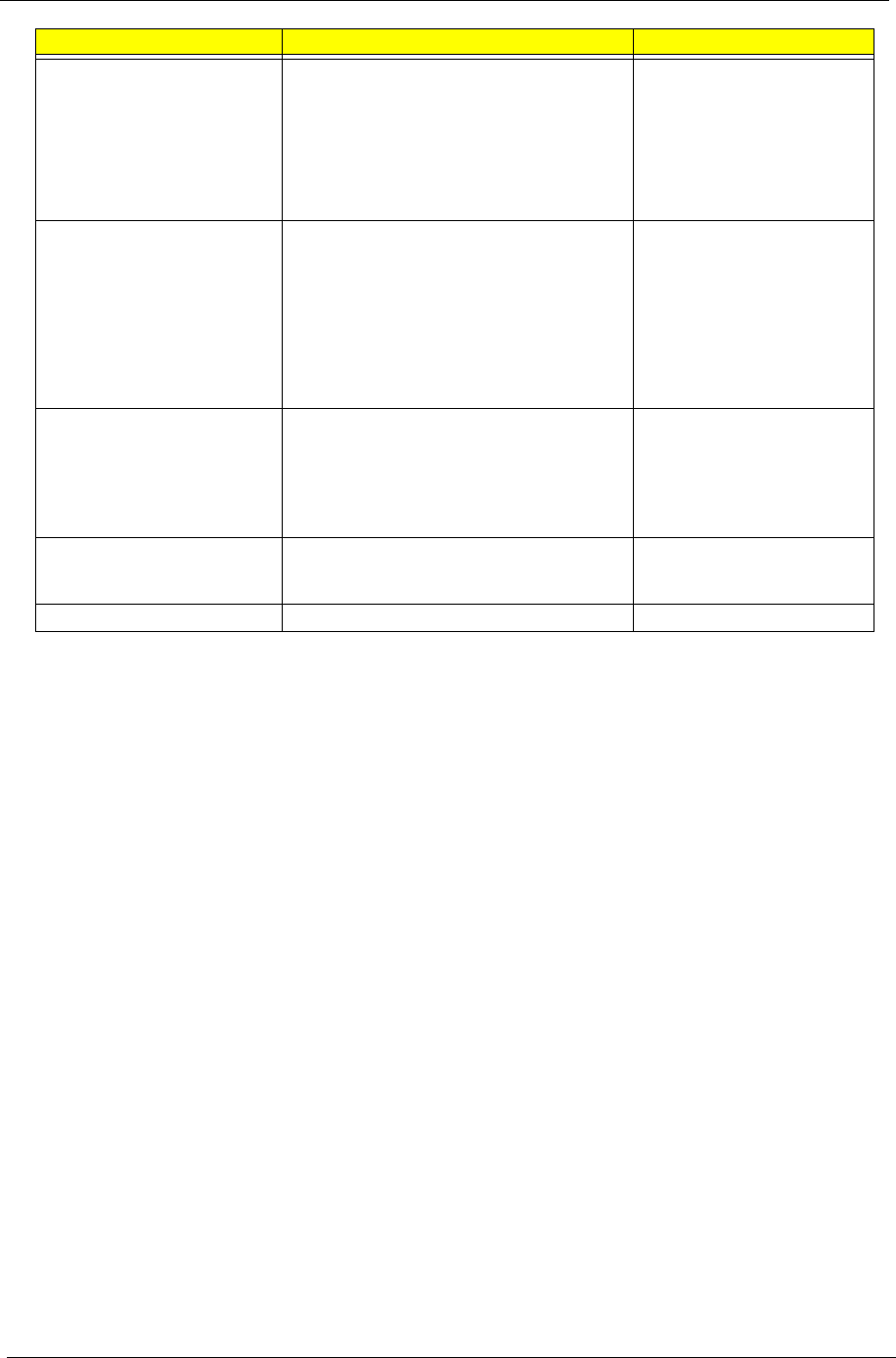
The Main screen displays a summary of your computer hardware information, and also includes basic setup
parameters. It allows the user to specify standard IBM PC AT system parameters.
The following table describes the parameters found in this menu. Settings in boldface are the default and
suggested settings.
Parameter Description Options
System Time Sets the system time. The hours are displayed
with 24-hour format.
Format HH:MM:SS
(hour:minute:second)
System Date Sets the system date Format MM/DD/YYYY
(month/day/year)
System Memory This field reports the memory size of the system.
Memory size is fixed to 640MB
Extended Memory This field reports the memory size of the
extended memory in the system. Extended
Memory size = Total memory size-1MB
VGA Memory Shows the VGA memory size. VGA Memory size
= 64/128 MB
PhoenixBIOS Setup Utility
Info.
Main Advanced Security Boot Exit
Item Specific Help
System Time: [11:59:38]
System Date: [08/05/2004]
System Memory: 640 KB
Extended Memory: 255 KB
VGA Memory [64MB]
Quiet Boot: [Enabled]
Power on Display: [Auto ]
LCD Auto Dim: [Enabled]
Network boot
[Enabled]
F12 Boot Menu:
[Disabled]
<Tab>, <Shift-Tab>, or
<Enter> selects field.
F1 Help
↑↓
Select Item F5/F6 Change Values F9 Setup Defaults
Esc Exit
←
→
Select Menu Enter Select
4
Sub-Menu F10 Save and Exit
42 Chapter 2
Note: The sub-items under each device will not be shown if the device control is set to disable or auto. This is
because the user is not allowed to control the settings in these cases.
Quiet Boot Quiet Boot replaces the customary technical
messages during POST with a more visually
pleasing and comfortable display(OEM Logo
screen). During POST, right after the initialization
of VGA, The notebook displays an illustration
called the OEM screen during system boot
instead of the traditional POST screen that
displays the normal diagnostic messages.
Option: Enabled or Disabled
Power on display Auto: During power process, the system will
detect if any display device is connected on
external video port. If any external display device
is connected, the power on display will be in
CRT(or projector) only mode. Otherwise it will be
in LCD only mode.
Both: Simultaneously enable both the integrated
LCD screen and the system’s external video
port(for an external CRT or projector)
Option: Auto or Both
LCD Auto Dim Determines if the system will automatically dim
the LCD brightness in order to save power when
AC is not present.
The system will support and automatic dimming
of the LCD back light when the AC power is NOT
available(running on battery power)
Option: Enabled or Disabled
Network Boot This feature allows the system to boot off of a
LAN when the hard disk is absent or has not
been loaded with the operating system.
Option: Enabled or Disabled
F12 Boot Menu Enables, disables Boot Menu during POST Option: DIsabled of Enabled
Parameter Description Options
Chapter 2 43
Advanced
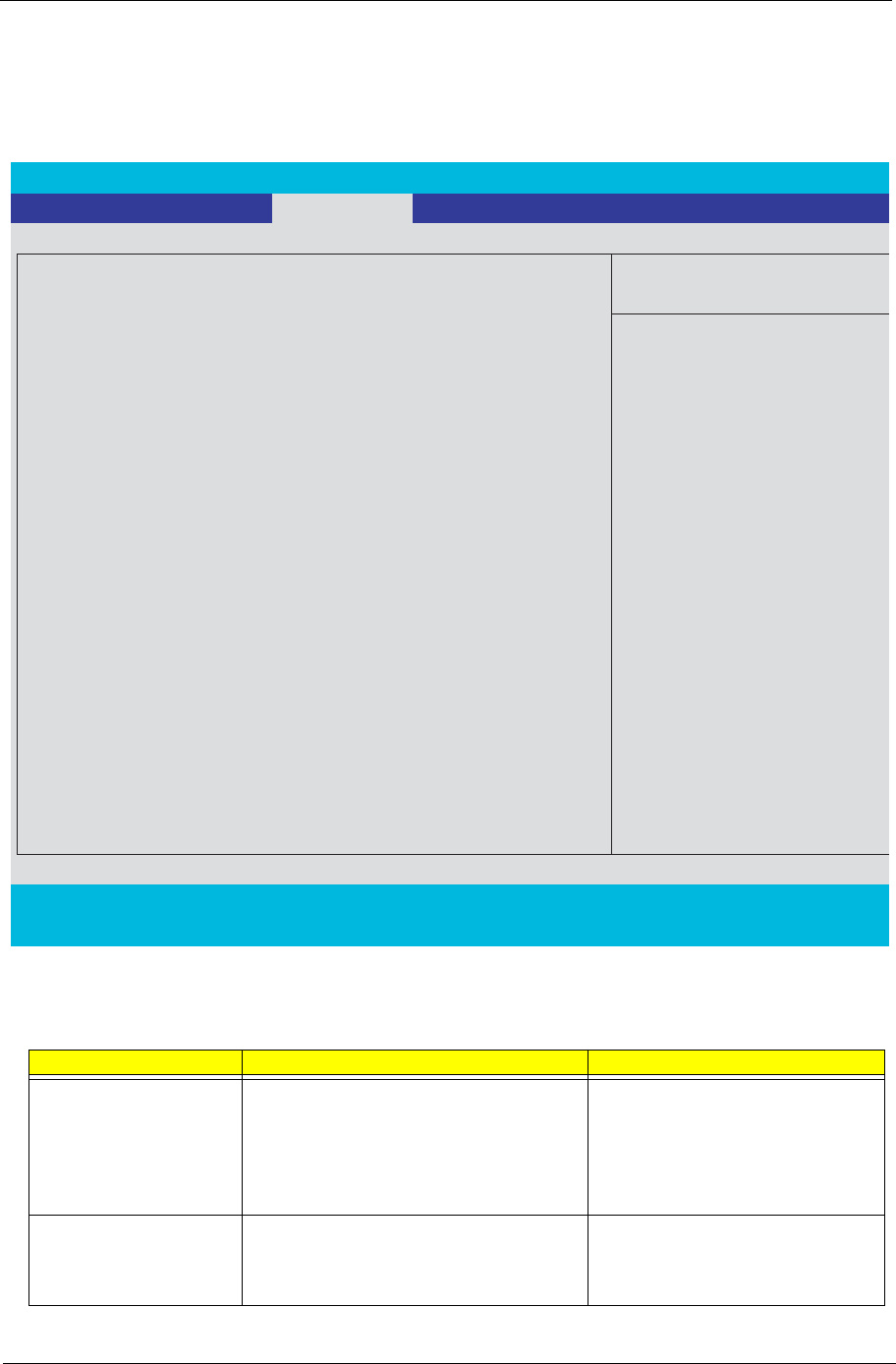
The Advanced menu screen contains parameters involving your hardware devices. It also provides advanced
settings of the system.
The following table describes the parameters found in this menu. Settings in boldface are the default and
suggested settings.
Parameter Description Options
Infrared Port(FIR) Enables, disables or auto detects the infrared
port.
Disabled: Infrared port is not active
Enabled: Infrared port is active and is user
configured
Auto: BIOS or OS chooses configuration
Disabled
Enabled
Auto
USB BIOS Legacy Support This feature enables or disables support for
USB Keyboard and Mice.
(Enable for use with a non-USB award
Operating System such as DOS or UNIX)
Disabled
Enabled
PhoenixBIOS Setup Utility
Info. Main Advanced Security Boot Exit
Item Specific Help
Infrared Port (FIR):
[Disable]
No configuration
[Enabled]
User configuration
[Auto]
BIOS or OS chooses
configuration
F1 Help
↑↓
Select Item F5/F6 Change Values F9 Setup Default
s
Esc Exit
←
→
Select Menu Enter Select
4
Sub-Menu F10 Save and Exit
USB BIOS Legacy Support:
[Auto]
System boot from Hard Disk Recovery:
[Enabled]
[Disabled]

44 Chapter 2
System Boot from Hard Disk
Recovery
Once the system boot from hard disk recovery
is enabled, the boot menu will added D2D
recovery item, but it still need user change the
boot sequence to first. The system will process
the disk to disk recovery step.
Disabled
Enabled
Parameter Description Options
Chapter 2 45
Security
The advanced chipset features setup option is used to change the values of the chipset registers. These
registers control most of the system options in the computer.
NOTE: Change these settings only if you are familiar with the chipset.
Parameter Description Option
Supervisor Password Is Shows the setting of the user password Clear or Set
User Password Is Shows the setting of the Supervisor
password
Clear or Set
Set Supervisor Password Press Enter to set the supervisor password.
When set, this password protects the BIOS
Setup Utility from unauthorized access. The
user can not either enter the Setup menu
nor change the value of parameters.
[Enter]
Set User Password Press Enter to set the user password.
When user password is set, this password
protects the BIOS Setup Utility from
unauthorized access. The user can enter
Setup menu only and does not have right to
change the value of parameters.
[Enter]
PhoenixBIOS Setup Utility
Info. Main Advanced Boot
Item Specific Help
Supervisor Password Is: Clear
User Password Is: Clear
[Enter]
Set Supervisor Password
Password on Boot [Disabled]
Supervisor Password
controls accesses of the
setup utility.
F1 Help
↑↓
Select Item F5/F6 Change Values F9 Setup Default
Esc Exit
←
→
Select Menu Enter Select
4
Sub-Menu F10 Save and Exi
t
Set User Passord [Enter]
Set HDD Password [Disabled]
Exit
Security
46 Chapter 2
Note: When you are prompted to enter a password, you have three tries before the system halts. Don’t forget
your password. If you forget your password, you may have to return your notebook computer to your dealer to
reset it.
Setting a password
Follow these steps as you set the user or the supervisor password:
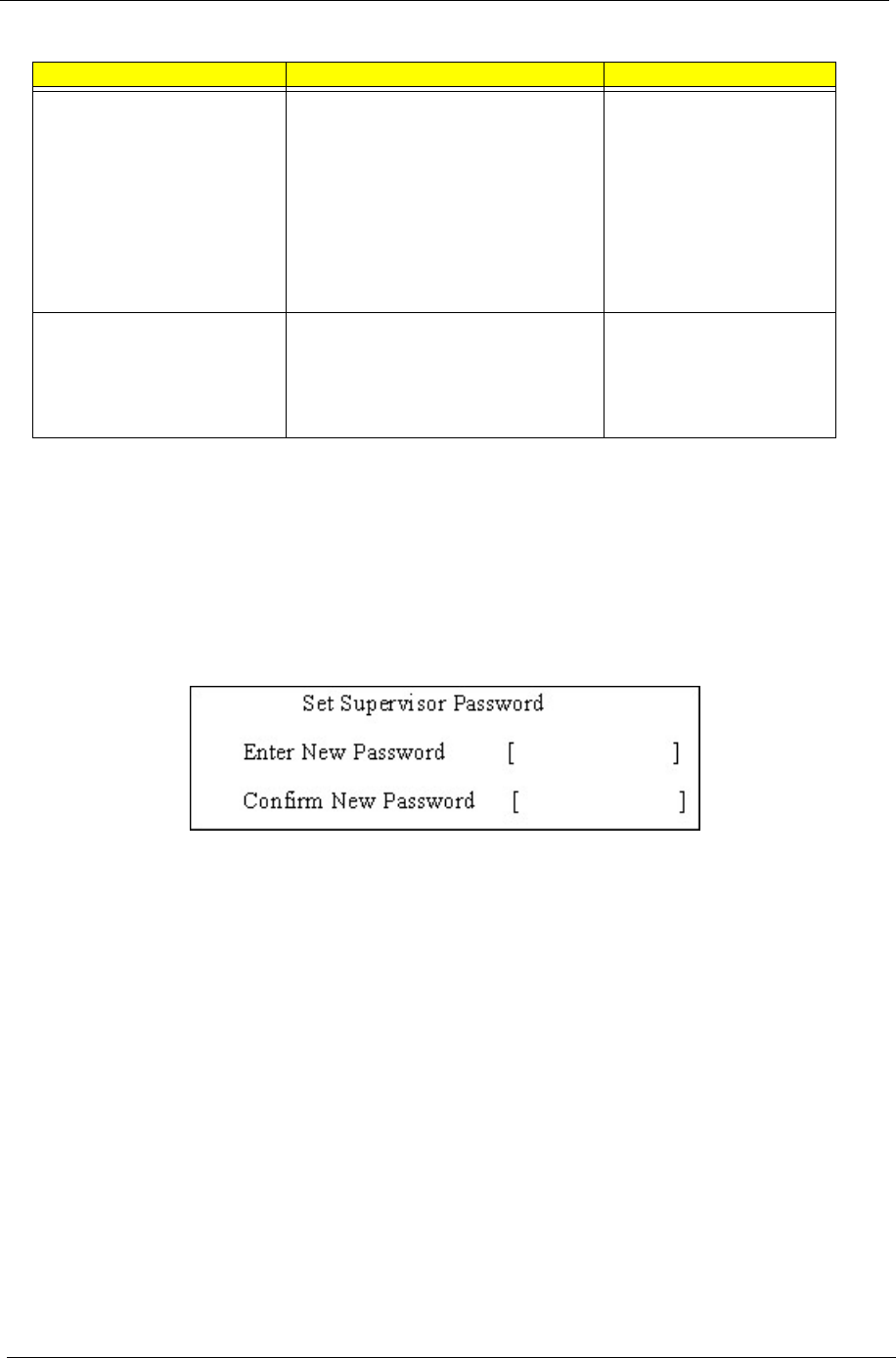
1. Use the w andy keys to highlight the Set Supervisor Password parameter and press the e key. The
Set Supervisor Password box appears:
2. Type a password in the “Enter New Password” field. The password length can not exceeds 8
alphanumeric characters (A-Z, a-z, 0-9, not case sensitive). Retype the password in the “Confirm New
Password” field.
IMPORTANT:Be very careful when typing your password because the characters do not appear on the screen.
3. Press e.
After setting the password, the computer sets the User Password parameter to “Set”.
4. If desired, you can opt to enable the Password on boot parameter.
5. When you are done, press u to save the changes and exit the BIOS Setup Utility.
Set HDD Password This feature is available to uwer when
Supervisor is set. Password can be written
on HDD only when Supervisor password or
user password is set and password on HDD
is set to enabled. Supervisor Password is
written to HDD only when Supervisor
password is being set. User password is
written to HDD when both passwords are
set. When both Supervisor and user
passwords are present, both passwords can
unlock the HDD.
Disabled or Enabled
Password on Boot Define whether a password is required or
not while the events defined in this group
happened. The following sub-options are all
requires the Supervis or password for
changes and should be grayed out if the
user password was used to enter setup.
Disabled or Enabled
Parameter Description Option
Chapter 2 47
Removing a password
Follow these steps:
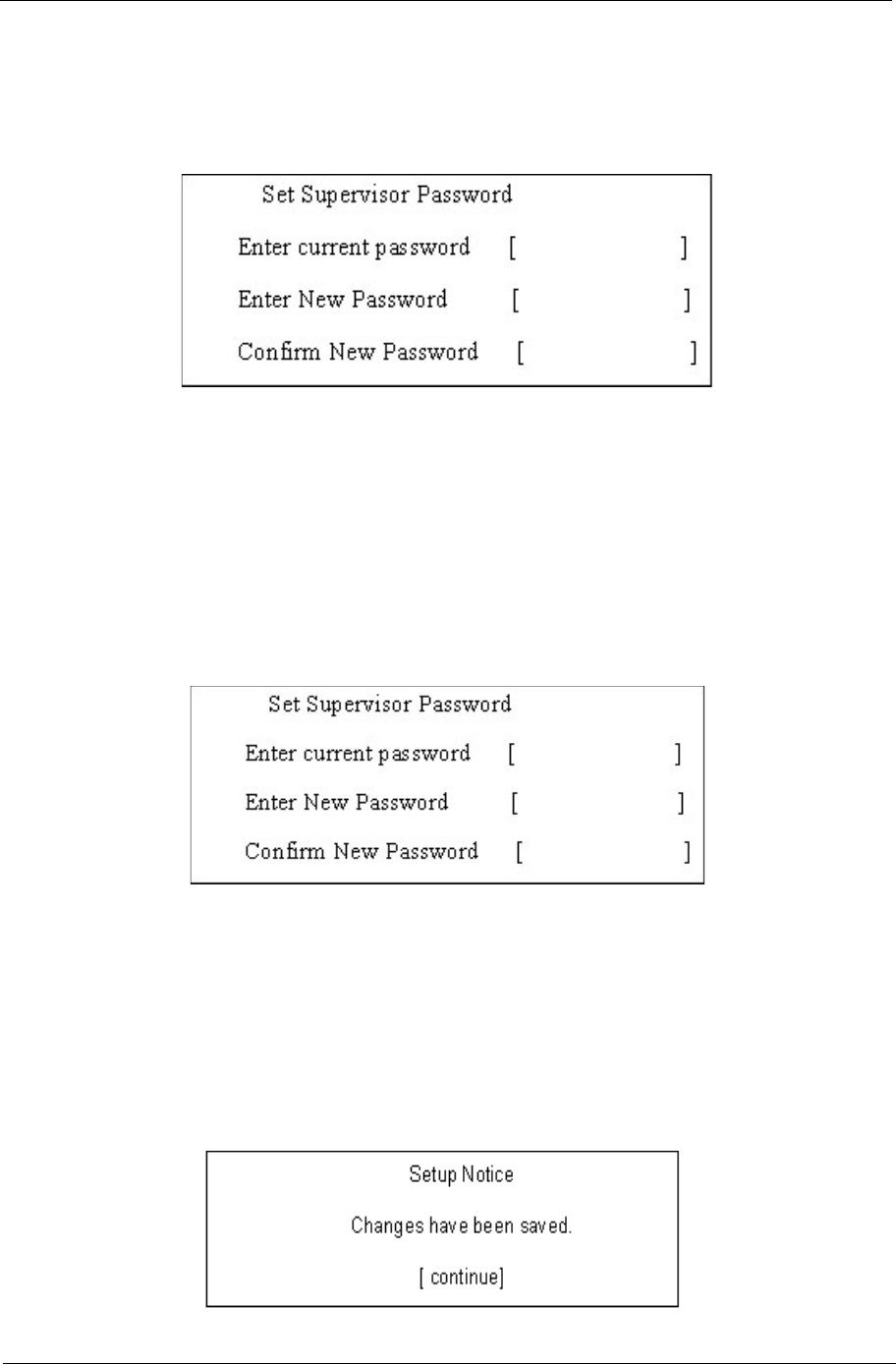
1. Use the w and y keys to highlight the Set Supervisor Password parameter and press the e key. The
Set Password box appears:
2. Type the current password in the Enter Current Password field and press e.
3. Press e twice without typing anything in the Enter New Password and Confirm New Password fields.
The computer then sets the Supervisor Password parameter to “Clear”.
4. When you have changed the settings, press u to save the changes and exit the BIOS Setup Utility.
Changing a password
1. Use the w and y keys to highlight the Set Supervisor Password parameter and press the e key. The
Set Password box appears:
2. Type the current password in the Enter Current Password field and press e.
3. Type a password in the Enter New Password field. Retype the password in the Confirm New Password
field.
4. Press e. After setting the password, the computer sets the User Password parameter to “Set”.
5. If desired, you can enable the Password on boot parameter.
6. When you are done, press u to save the changes and exit the BIOS Setup Utility.
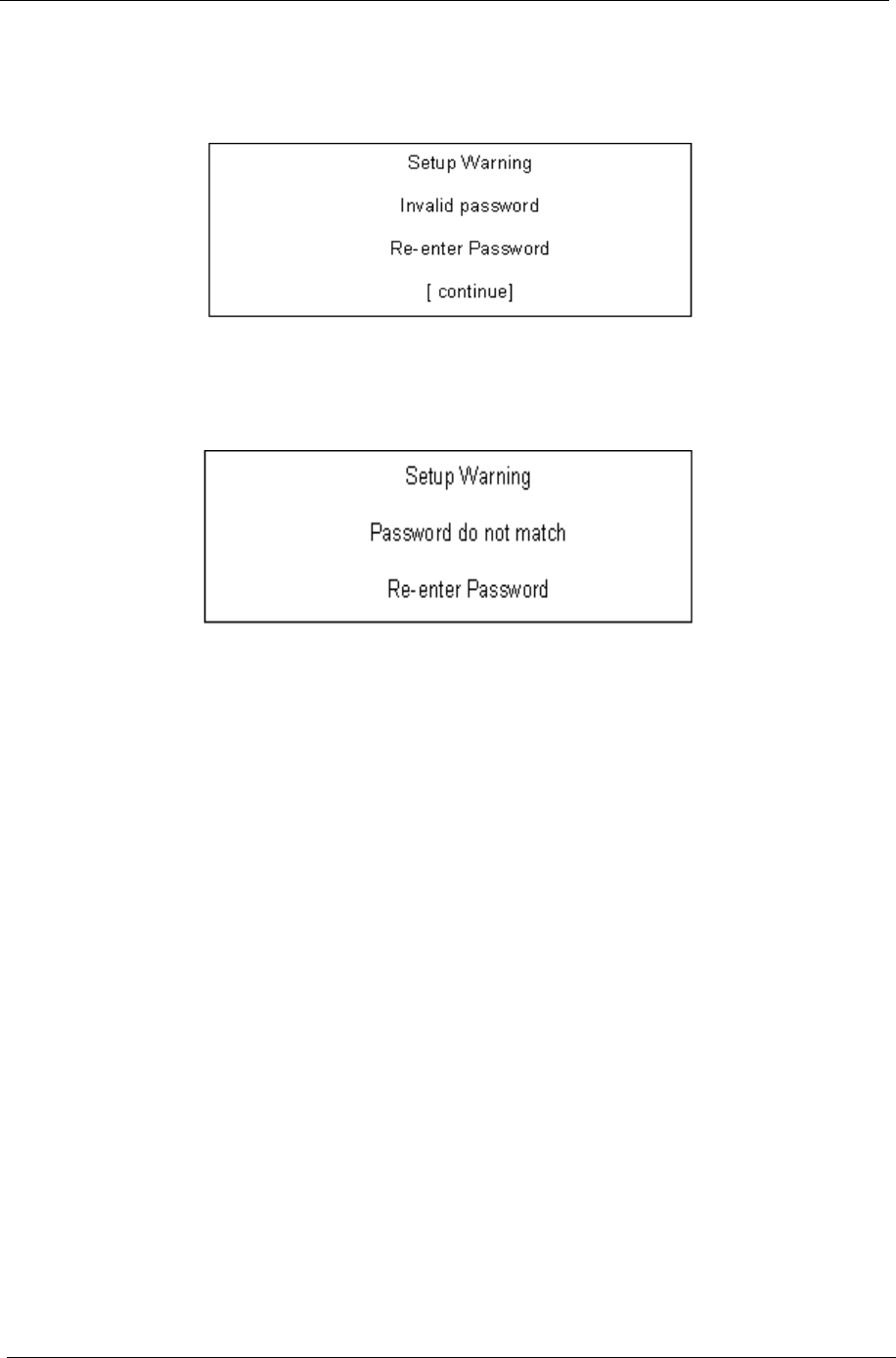
If the verification is OK, the screen will display as following.
48 Chapter 2
The password setting is complete after the user presses u.
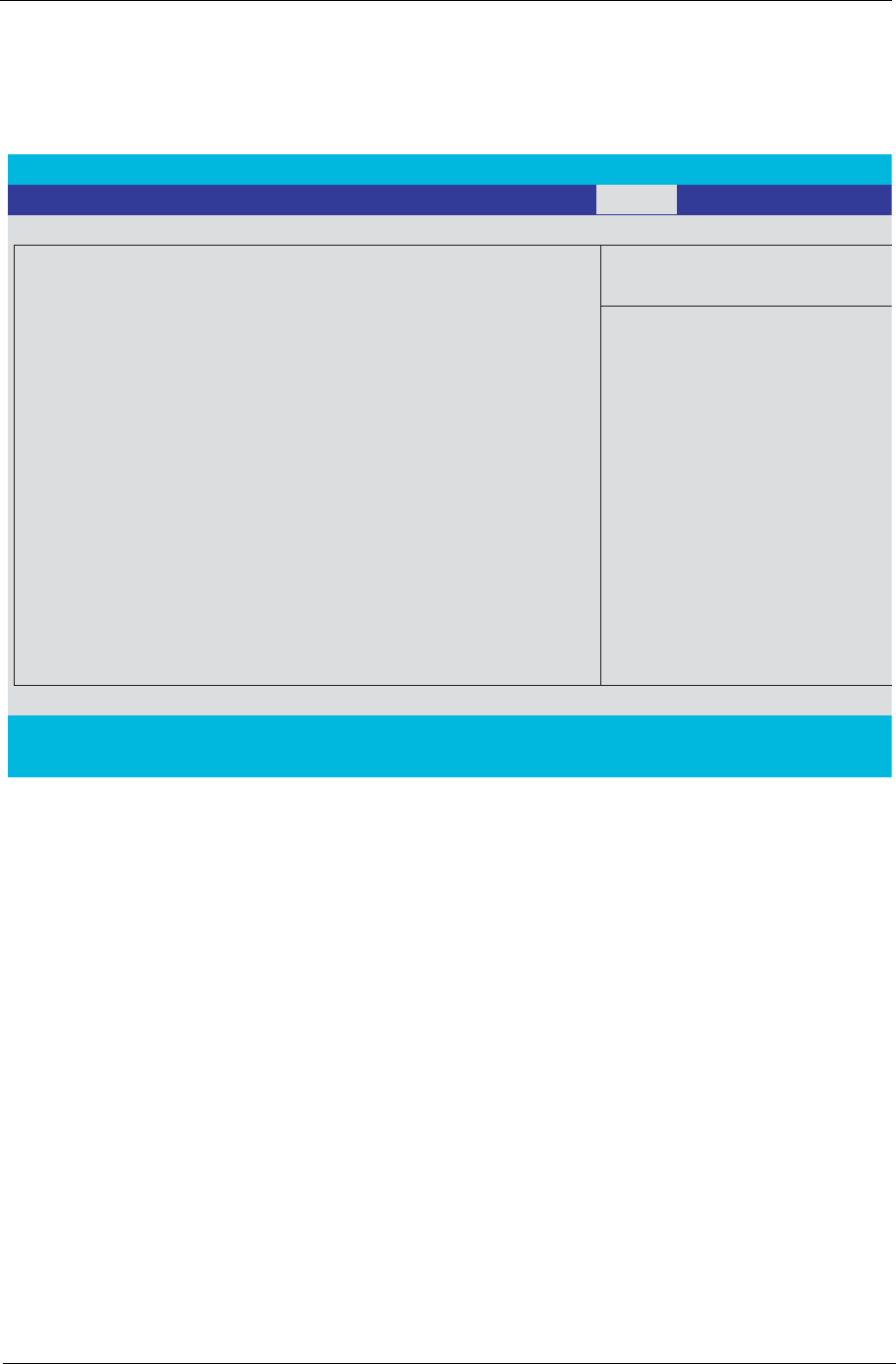
If the current password entered does not match the actual current password, the screen will show you the
Setup Warning.
If the new password and confirm new password strings do not match, the screen will display the following
message.
Chapter 2 49
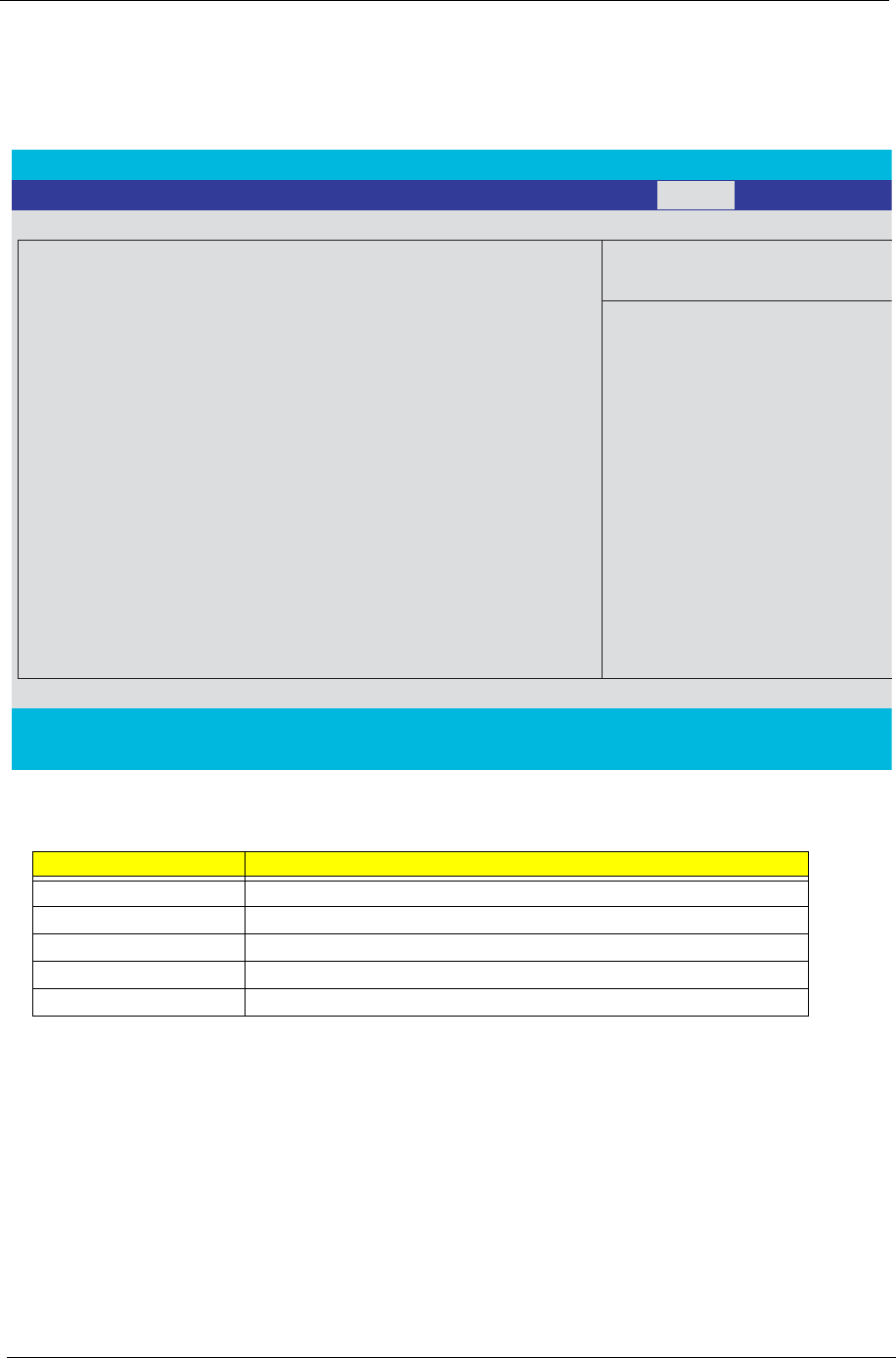
Boot
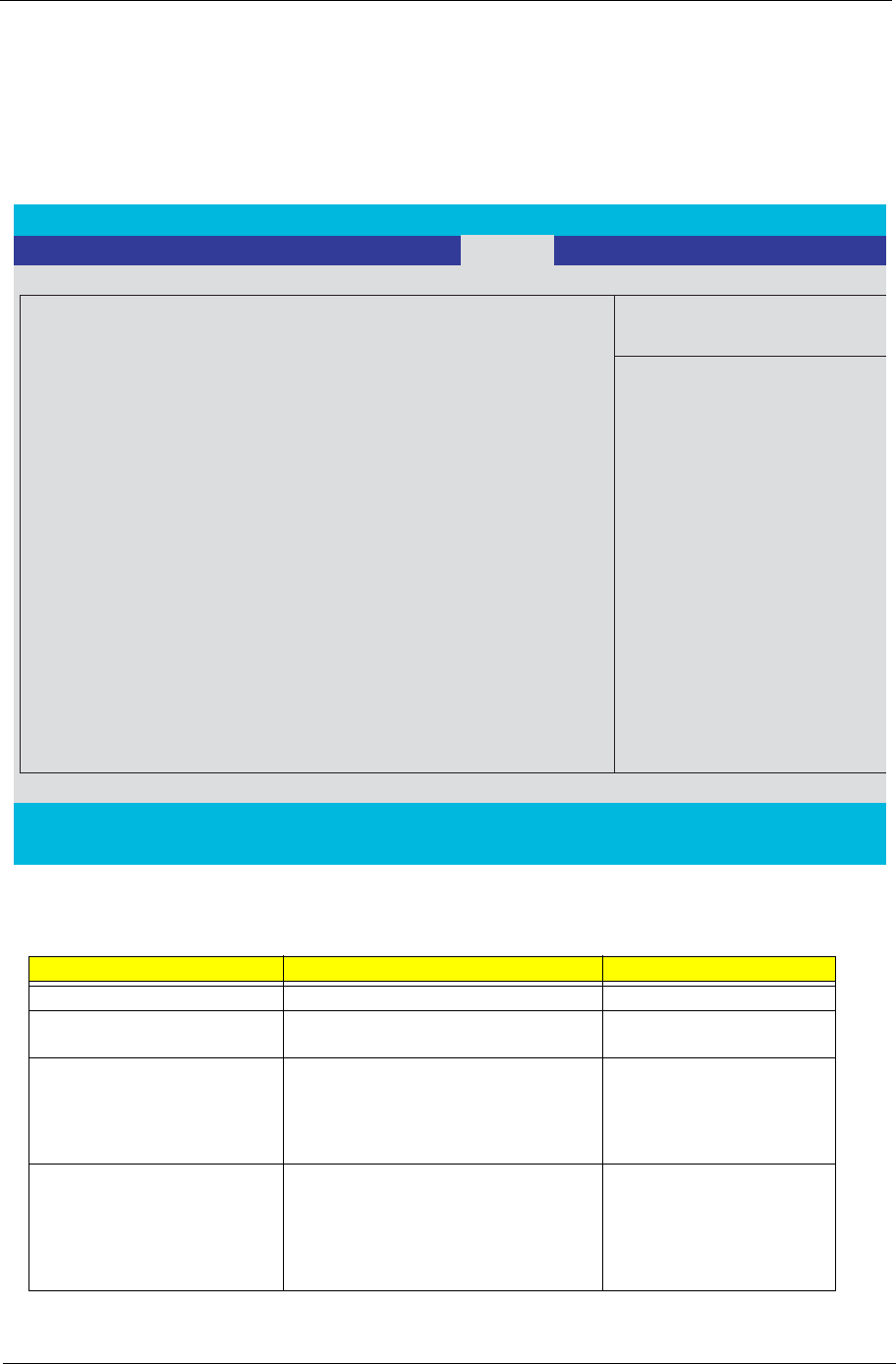
This menu allows the user to decide the order of boot devices to load the operating system. Bootabledevices
includes the distette drive in module bay, the onboard hard disk drive and the CD-ROM in module bay.
PhoenixBIOS Setup Utility
Info. Main Advanced Security Exit
Item Specific Help
CD-ROM/DVD Drive
+Hard Drive
Keys used to view or
configure devices:
<Enter> expands or
collapses devices with
a + or -
<Ctrl+Enter> expands
all
<Shift +1> enables or
disables a device
<F6> and <F5> moves the
device up or down
F1 Help
↑↓
Select Item F5/F6 Change Values F9 Setup Defaults
Esc Exit
←
→
Select Menu Enter Select
4
Sub-Menu F10 Save and Exit
Network Boot
Boot
Removable Devices
50 Chapter 2
Exit
The Exit screen contains parameters that help safeguard and protect your computer from unauthorized use.
Parameter Description
Exit Saving Changes Exit System Setup and save your changes to CMOS
Exit Discarding Changes Exit utility without saving setup data to CMOS
Load Setup Defaults Load default values for all SETUP item
Discard Changes Load previous values from CMOS for all SETUP items
Save Changes Save Setup Data to CMOS
PhoenixBIOS Setup Utility
Info. Main Advanced Security Boot
Item Specific Help
Exit Saving Changes
Exit Dicarding Changes
Load Setup Defaults
Exit System Setup and save
your changes to CMOS.
F1 Help
↑↓
Select Item F5/F6 Change Values F9 Setup Defaults
Esc Exit
←
→
Select Menu Enter Select
4
Sub-Menu F10 Save and Exit
Discard Changes
Exit
Save Changes

Chapter 2 51
BIOS Flash Utility
The BIOS flash memory update is required for the following conditions:
TNew versions of system programs
TNew features or options
TRestore a BIOS when it becomes corrupted.
Use the Phlash utility to update the system BIOS flash ROM.
NOTE: If you do not have a crisis recovery diskette at hand, then you should create a Crisis Recovery
Diskette before you use the Phlash utility.
NOTE: Do not install memory-related drivers (XMS, EMS, DPMI) when you use the Phlash.
NOTE: Please use the AC adaptor power supply when you run the Phlash utility. If the battery pack does not
contain enough power to finish BIOS flash, you may not boot the system because the BIOS is not
completely loaded.
Fellow the steps below to run the Phlash.
1. Prepare a bootable diskette.
2. Copy the Phlash utilities to the bootable diskette.
3. Then boot the system from the bootable diskette. The Phlash utility has auto-execution function.

Chapter 3 52
This chapter will guide you how to disassemble and reassemble the 1Aspire series of Tern I.
To disassemble the computer, you need the following tools:
TElectrostatic discharge protective sponge.
TFlat screwdriver.
THex screwdriver
TTweezers
TPhillips screwdriver (may require different size).
NOTE: 2The screws for the different components vary in size.
1The TravelMate series will have different keyboard and surface color.
2 During the disassembly process, group the screws with the corresponding components to avoid mismatches when
putting back the components.
Machine Disassembly and Replacement
Chapter 3

53 Chapter 3
General Information
Before You Begin
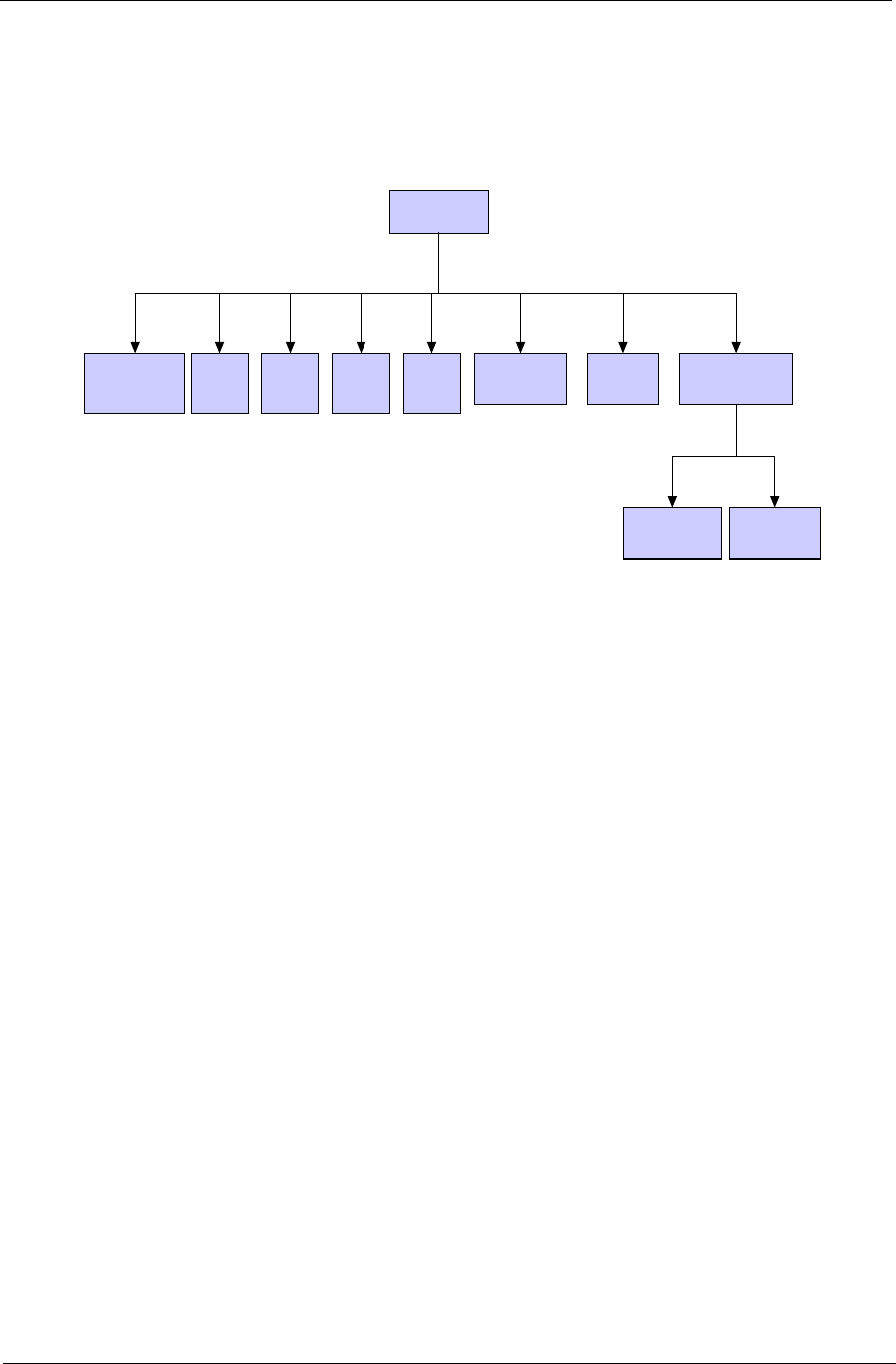
Before proceeding with the disassenbly procedure, make sure that you do the following:
1. Turn off the power and remove the power adapter from the system.
2. Remove the system battery as well.
3. Please note that watches, rings, and necklaces should be removed bofore service disassembly.
Chapter 3 54
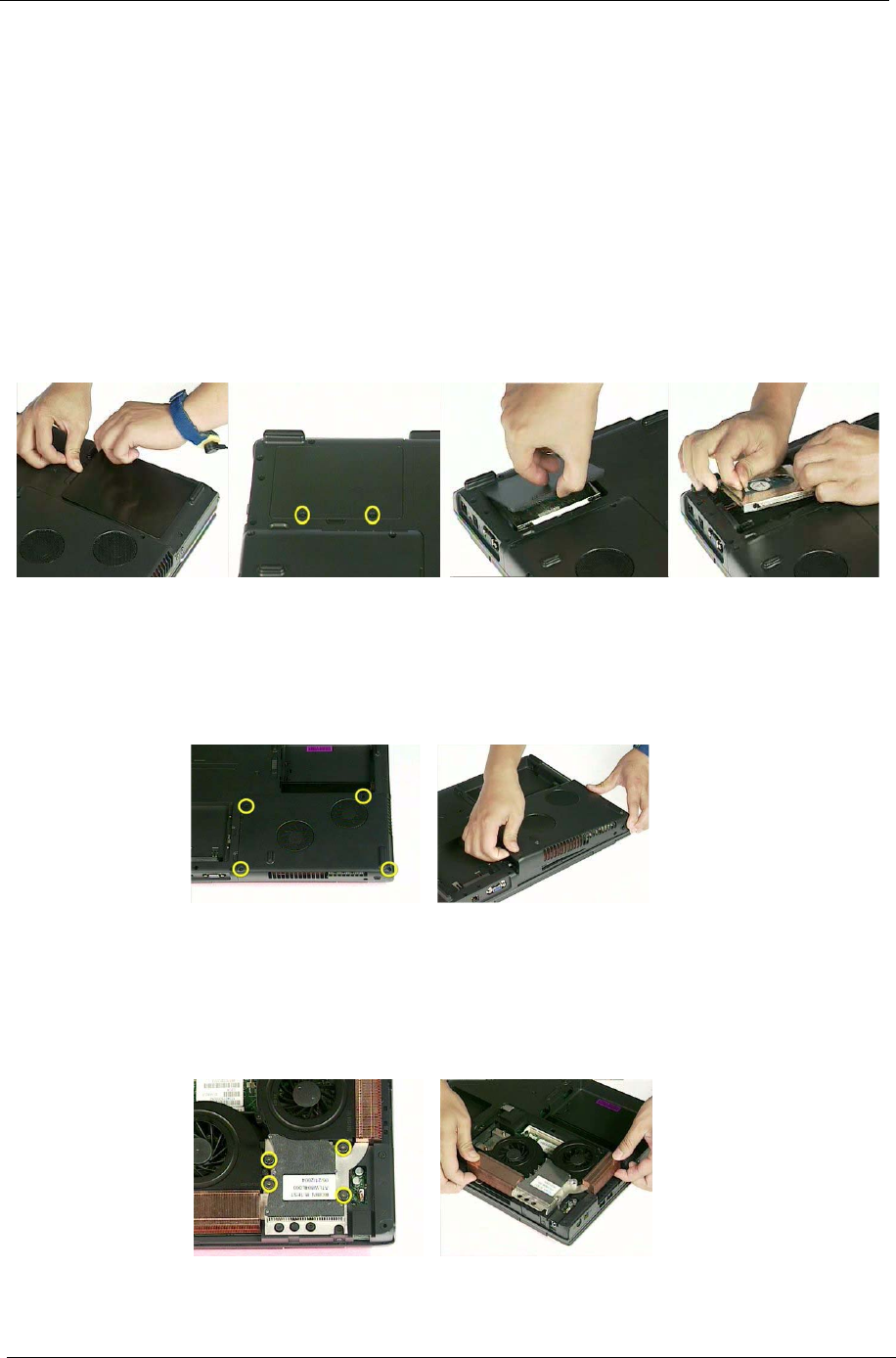
Disassembly Flow Chart
Main Unit
Battery/
Power Bluetooth MDC Main Board
HDD CPU ODD LCD
System fan Speaker Set
55 Chapter 3
Standard Disassembly Procedure
This section tells you how to disassemble the system when you need to perform system service. Please also
refer to the disassembly video, if available.
CAUTION: Before you proceed, make sure you have turned off the system and all peripherals connected to it.
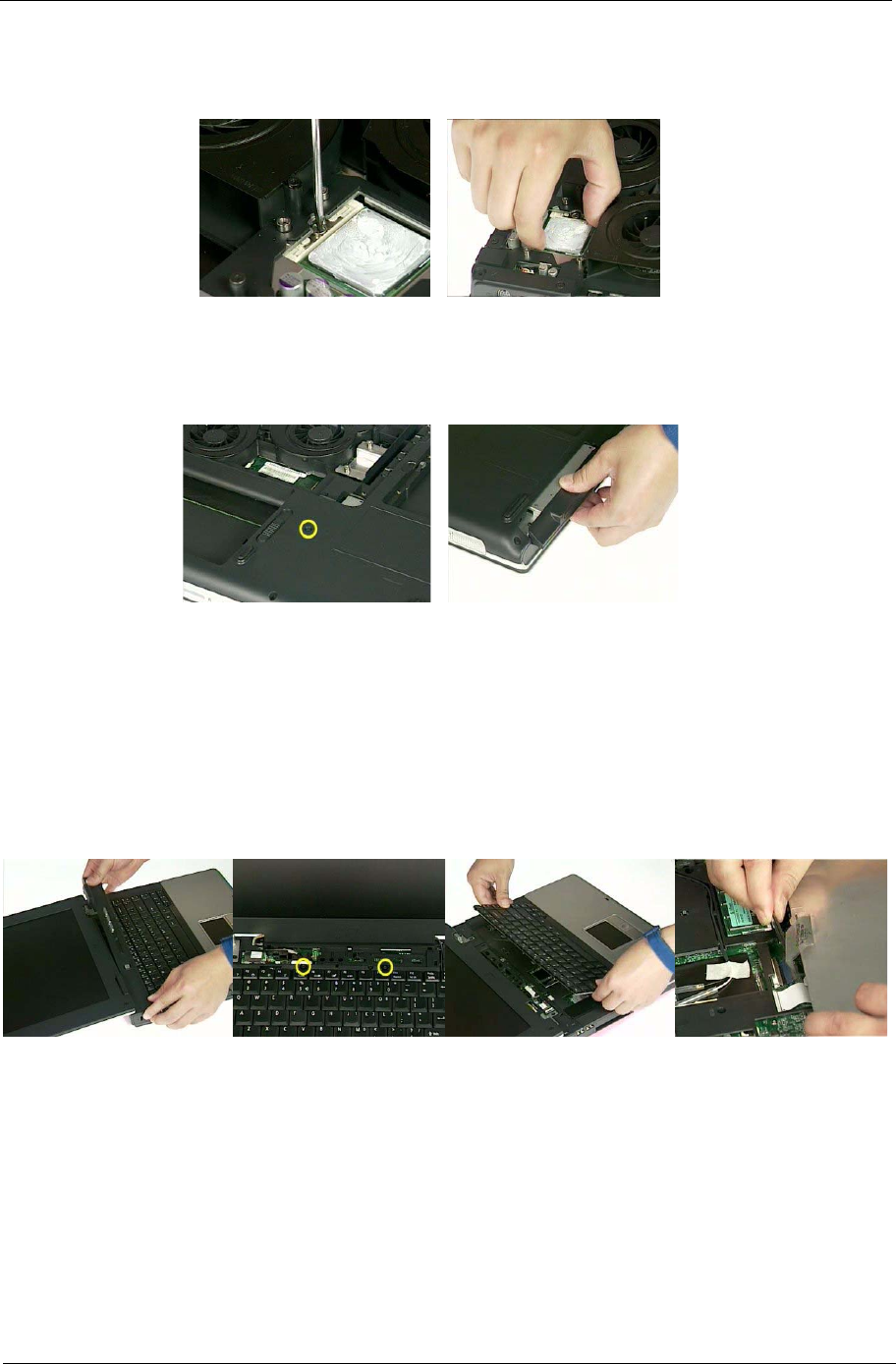
Disassemble the Battery and HDD
1. Now let’s begin to disassemble the main unit.
2. Slide the battery latch and remove the battery.
3. Remove two screws that secure the HDD cover.
4. Remove the HDD cover.
5. Hold the black Mylar, push the HDD detached, and remove the HDD module
Remove the Thermal Door
1. Remove the four screws that secure the thermal door.
2. Remove the thermal door.
Remove the Thermal Module
1. Remove the three screws that secure the thermal module.
2. Remove the thermal module.
Chapter 3 56
Remove the CPU
1. Remove one screw that secures the CPU.
2. Remove the CPU.
Remove the ODD module
1. Remove one screw that secures the ODD.
2. Pull out the ODD module and remove it.
Remove Middle Cover and Keyboard
1. Release the middle cover hinge and remove the middle cover.
2. Remove two screws the secure the keyboard.
3. Pull the keyboard outward then turn over the keyboard.
4. Disconnect the keyboard cable with tweezers and remove the keyboard.
Disconnect Wireless antenna
1. Remove wireless antenna from the groove with wire clips as shown.
2. Disconnect the inverter cable with tweezers and remove the inverter cable from the groove..
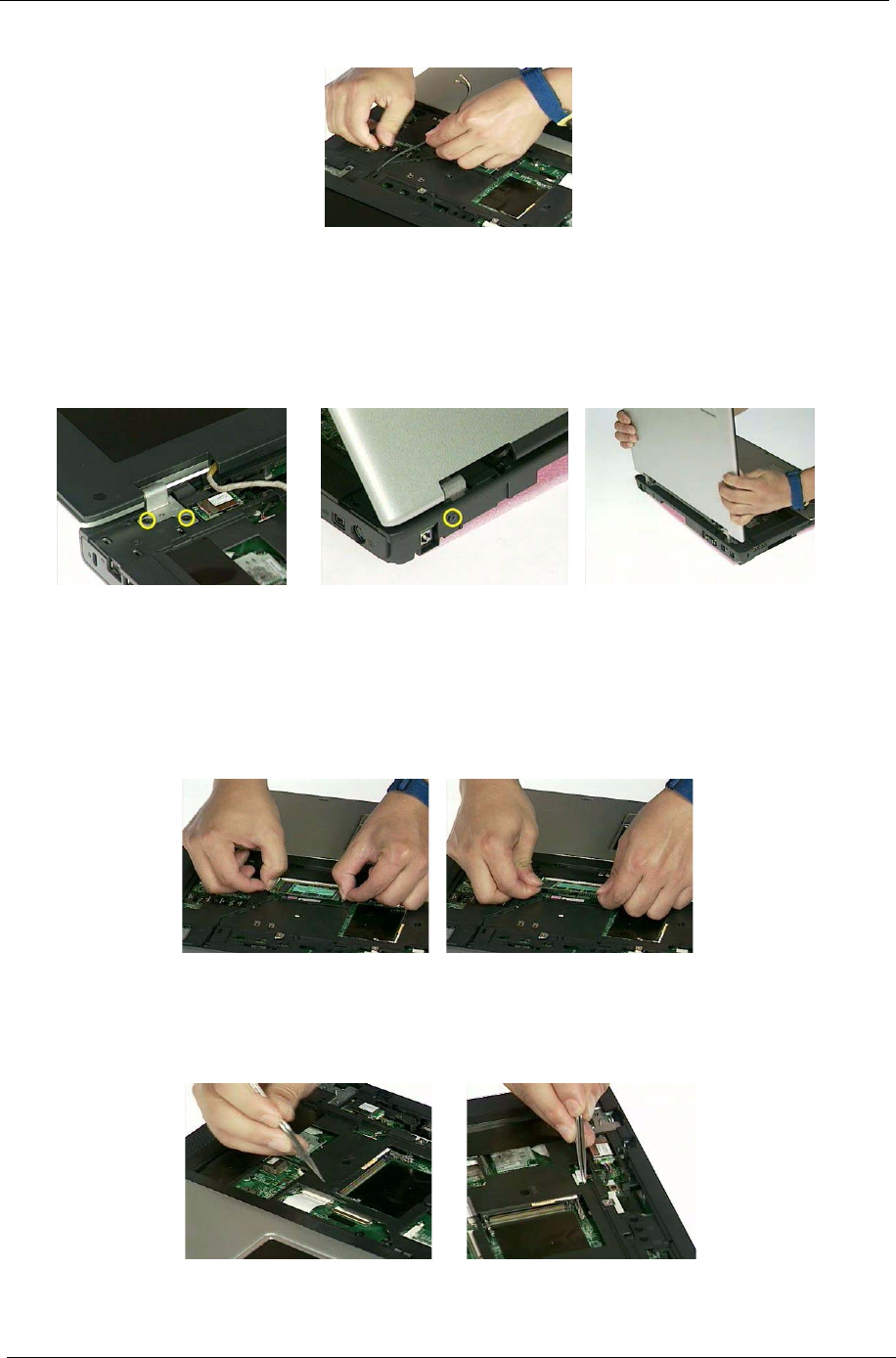
57 Chapter 3
Remove the LCD module
1. Remove the two screws that secure the LCD hinge on both side.
2. Remove the screw that secure the LCD on each side of the rear of the main unit.
3. Pull the LCD module upward and remove it.
Remove Memory
1. Press the latch on left and right side and pop up the memory.
2. Then remove the memory
Remove the Touchpad FFC and Bluetooth cable
1. Release touchpad FFC latch with tweezers and disconnect the touchpad FFC from the main board.
2. Disconnect the Bluetooth cable from the main board with tweezers.
Chapter 3 58
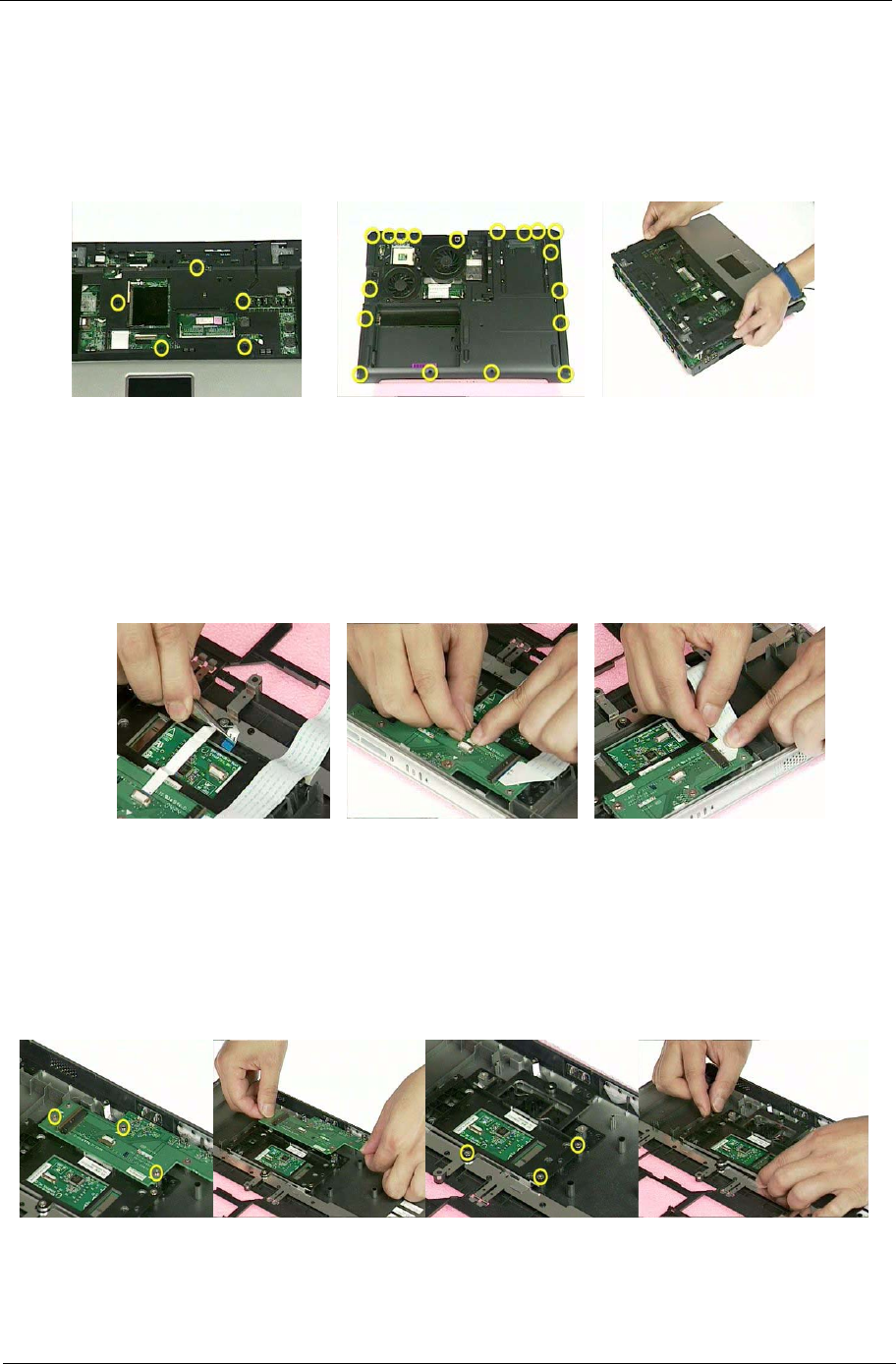
Remove the Upper Case
1. Remove five screws that secure the upper case.
2. Remove eighteen screws that secure the lower case.
3. Detach the upper case from the lower case assembly.
Disconnect the Touchpad FFC and Touchpad
1. Lift the touchpad FFC latch and disconnect the touchpad FFC from the touchpad board.
2. Disconnect the other side of the touchpad FFC from the touchpad button board.
3. Release another touchpad FFC latch and disconnect the touchpad FFC from the touchpad button board
Remove Touchpad Board and Touchpad Button Board
1. Remove three screws that secure the touchpad button board
2. Then remove the touchpad button board
3. Remove three screws that secure the touchpad support.
4. Remove the touchpad support from the upper case.
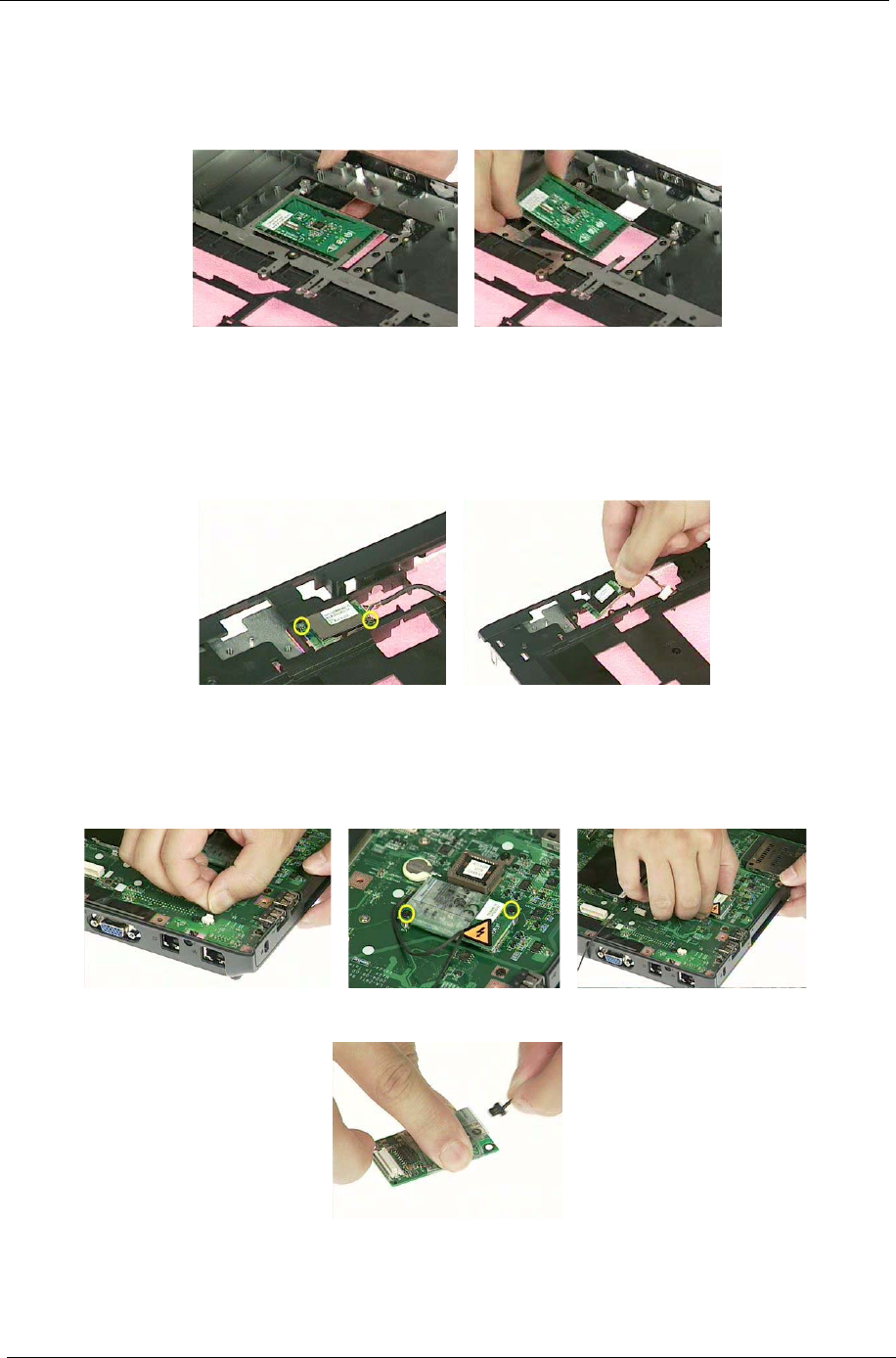
59 Chapter 3
5. Push the touchpad upward.
6. Slide the touchpad out of the upper case.
Remove BlueTooth
1. Remove two screws that secure the Bluetooth module.
2. Remove the Bluetooth module from the upper case
Remove the MDC
1. Disconnect the MDC cable from the main board.
2. Remove two screws that secure the MDC.
3. Remove the MDC from the main board.
4. Then disconnect the cabel from the MDC.
Chapter 3 60
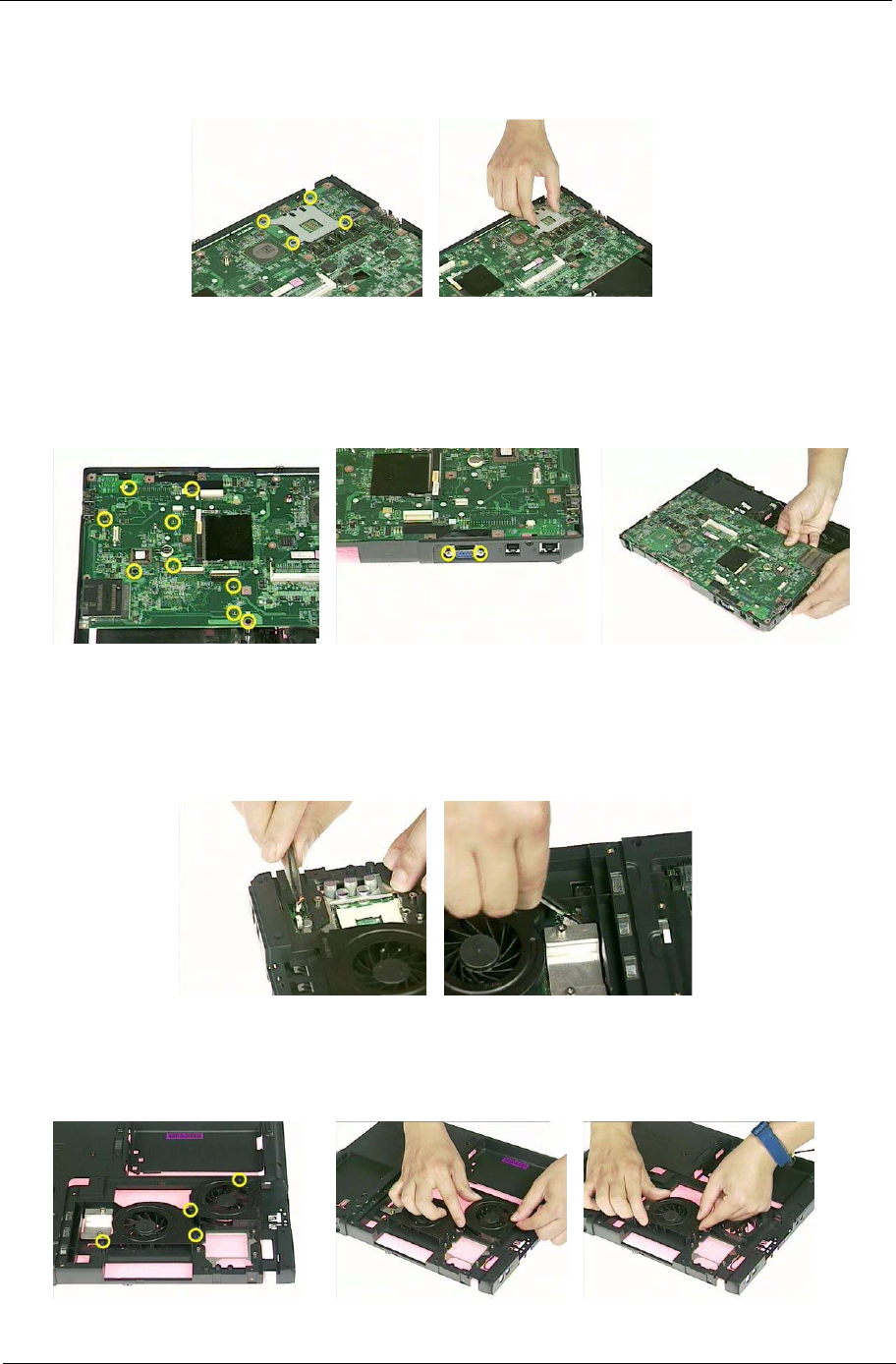
Removing the Main Board Support Bracket
1. Remove four screws that secure the main board support bracket.
2. Then remove the main board support bracket from the main board
Disassemble the Main Board
1. Remove night screws that secure the main board.
2. Remove two screws on the rear that secure the VGA connector.
3. Press the lower case outward a little bit and remove the main board from the lower case.
Disassemble the system fan
1. Remove the Secondary fan cable from the main board.
2. Remove the main fan cable from the main board.
3. Remove four screws that secure the main and secondary fan cover.
4. Remove the secondary fan cover.
5. Remove the main fan cover.
61 Chapter 3
6. Remove six screws that secure the main and secondary fan.
7. Remove the secondary fan from the lower case.
8. Remove the main fan from the lower case.
Remove the Speaker Set
1. Disconnect the speaker set cable from the main board.
2. Remove the screw that secure the speaker set on both side.
3. Remove the speaker from the lower case.
Disassemble the LCD module
1. Detach four screw caps as shown.
2. Remove four screws that secure the LCD bezel.
3. Snap off the snaps of the LCD bezel with fingers and detach the LCD bezel carefully.
4. Disconnect the inverter cable with tweezers and remove the inverter cable from the groove
5. Remove one screw that secures the inverter board.
6. Pull up the inverter board
Chapter 3 62
7. 7. Disconnect the inverter power cable and the LVDS cable from the inverter board.
8. Remove four screws that secure the LCD.
9. Remove the LCD from the LCD cover.
10. Uncover the antenna cable.
11. Remove one screw that secures the left antenna bracket.
12. Remove one screw that secures the right antenna bracket
13. Remove right and left antenna brackets and take off the antenna cable from the LCD cover.
14. Remove four screws that secure the right LCD bracket.
15. Then remove the right LCD bracket.
16. Remove four screws that secure the left LCD bracket
17. Then remove the left LCD bracket.
63 Chapter 3
18. Tear off the Mylar then disconnect the LCD LVDS cable.
Disassemble ODD module
1. Remove the three screws that secure the ODD bracket.
2. Then remove the ODD bracket.
Disassemble HDD module
1. Remove the two screws secure the HDD holder on one side.
2. Remove the two screws secure the HDD holder on the other side.
3. Take the HDD off the HDD holder.
Chapter 4 64
Use the following procedure as a guide for computer problems.
NOTE: The diagnostic tests are intended to test this model. Non-Acer products, prototype cards, or modified
options can give false errors and invalid system responses.
1. Duplicate symptom and obtain the failing symptoms in as much detail as possible.
2. Distinguish symptom. Verify the symptoms by attempting to re-create the failure by running the diagnostic
test or by repeating the same operation.
3. Disassemble and assemble the unit without any power sources.
4. If any problem occurs, you can perform visual inspection before you fellow this chapter’s instructions. You
can check the following:
power cords are properly connected and secured;
there are no obvious shorts or opens;
there are no obviously burned or heated components;
all components appear normal.
5. Use the following table with the verified symptom to determine which page to go to.
Symptoms (Verified) Go To
Power failure. (The power indicator does not go
on or stay on.)
“Power System Check” on page 66
POST does not complete. No beep or error
codes are indicated.
“Power-On Self-Test (POST) Error Message” on
page 69
“Undetermined Problems” on page 80
POST detects an error and displayed messages
on screen.
“Index of Error Messages” on page 70
Other symptoms (i.e. LCD display problems or
others).
“Power-On Self-Test (POST) Error Message” on
page 69
Symptoms cannot be re-created (intermittent
problems).
Use the customer-reported symptoms and go to
“Power-On Self-Test (POST) Error Message” on
page 69
“Intermittent Problems” on page 79
“Undetermined Problems” on page 80
Troubleshooting
Chapter 4

65 Chapter 4
System Check Procedures
External Diskette Drive Check
Do the following to isolate the problem to a controller, driver, or diskette. A write-enabled, diagnostic diskette is
required.
NOTE: Make sure that the diskette does not have more than one label attached to it. Multiple labels can cause
damage to the drive or cause the drive to fail.
If an error occurs with the internal diskette drive, reconnect the diskette connector on the system board.
If the error still remains:
1. Reconnect the external diskette drive/DVD-ROM module.
2. Replace the external diskette drive/CD-ROM module.
3. Replace the main board.
External CD-ROM Drive Check
Do the following to isolate the problem to a controller, drive, or CD-ROM. Make sure that the CD-ROM does
not have any label attached to it. The label can cause damage to the drive or can cause the drive to fail.
Do the following to select the test device:
1. Insert an audio CD into the CD/DVD drive. If the CD/DVD drive can read the data from the audio CD. The
drive does not have problem, then go to next step. If the CD/DVD LED on the front panel does not emit
light as it read the data from the audio CD, then go to next step. However, if the CD/DVD drive can not
read data from the audio CD, you may need to clean the CD/DVD drive with a CD/DVD drive cleaning
disk.
2. Make sure that the appropriate driver has been installed on the computer for the CD/DVD drive.
3. Boot from the diagnostics diskette and start the diagnostics program
4. See if CD-ROM Test is passed when the program runs to CD-ROM/DVD-ROM Test.
5. Follow the instructions in the message window.
If an error occurs, reconnect the connector on the System board. If the error still remains:
1. Reconnect the external diskette drive/CD-ROM module.
2. Replace the external diskette drive/CD-ROM module.
3. Replace the main board.
Keyboard or Auxiliary Input Device Check
Remove the external keyboard if the internal keyboard is to be tested.
If the internal keyboard does not work or an unexpected character appears, make sure that the flexible cable
extending from the keyboard is correctly seated in the connector on the system board.
If the tests detect a keyboard problem, do the following one at a time to correct the problem. Do not replace a
non-defective FRU:
1. Reconnect the keyboard cables.
2. Replace the keyboard.
3. Replace the main board.
The following auxiliary input devices are supported by this computer:

Chapter 4 66
TNumeric keypad
TExternal keyboard
If any of these devices do not work, reconnect the cable connector and repeat the failing operation.
Memory Check
Memory errors might stop system operations, show error messages on the screen, or hang the system.
Currently, we do not provide memory test program. However, if you need to check memory but have no testing
program or diagonositc utility at hand, please go to http://www.passmark.com to download the shareware
“BurnIn Test V.3.0”. You may test the memory with this program under Window XP environment.
NOTE: Make sure that the DIMM is fully installed into the connector. A loose connection can cause an error.
Power System Check
To verify the symptom of the problem, power on the computer using each of the following power sources:
1. Remove the battery pack.
2. Connect the power adapter and check that power is supplied.
3. Disconnect the power adapter and install the charged battery pack; then check that power is supplied by
the battery pack.
If you suspect a power problem, see the appropriate power supply check in the following list:
T“Check the Battery Pack” on page 67

67 Chapter 4
Check the Battery Pack
To check the battery pack, do the following:
From Software:
1. Check out the Power Management in control Panel
2. In Power Meter, confirm that if the parameters shown in the screen for Current Power Source and Total
Battery Power Remaining are correct.
3. Repeat the steps 1 and 2, for both battery and adapter.
4. This helps you identify first the problem is on recharging or discharging.
From Hardware:
1. Power off the computer.
2. Remove the battery pack and measure the voltage between battery terminals 1(+) and 6(ground). See the
following figure
3. If the voltage is still less than 7.5 Vdc after recharging, replace the battery.
To check the battery charge operation, use a discharged battery pack or a battery pack that has less than 50%
of the total power remaining when installed in the computer.
If the battery status indicator does not light up, remove the battery pack and let it return to room temperature.
Re-install the battery pack.
If the charge indicator still does not light up, replace the battery pack. If the charge indicator still does not light
up, replace the DC/DC charger board.
Touchpad Check
If the touchpad doesn’t work, do the following actions one at a time to correct the problem. Do not replace a
non-defective FRU:
1. After rebooting, run Tracking Pad PS2 Mode Driver. For example, run Syn touch driver.
2. Run utility with the PS/2 mouse function and check if the mouse is working.
3. If the PS/2 mouse does not work, then check if the main board to switch board FPC is connected O.K.
4. If the main board to switch board FPC is connected well, then check if the FCC on touch pad PCB
connects properly.
5. If the FFC on touch pad PCB connects properly, then check if LS851 JP1 Pin6=5V are pulsed. If yes, then
replace switch board. If no, then go to next step.
6. Replace touch pad PCB.
7. If the touch pad still does not work, then replace FPC on Track Pad PCB.
After you use the touchpad, the pointer drifts on the screen for a short time. This self-acting pointer movement
can occur when a slight, steady pressure is applied to the touchpad pointer. This symptom is not a hardware
problem. No service actions are necessary if the pointer movement stops in a short period of time.
Display Check
1. Connect an external display to the computer’s external monitor port, the boot the computer. The computer
can automatically detect the external display. Press Fn+ p to switch to the external display.
2. If the external display works fine, the internal LCD may be damaged. Then perform the following steps:
Make sure the DDRRAM module is seated properly. Then run the diplay test again. If the problem
still exists, go to next step.
Replace the inverter board, then run the display test program again. If the problem still occurs, go
on next step.
Replace the LCD module with a new one then run the display test again. If the probelm still
happens, continue next step.

Chapter 4 68
Replace LCD/FL cable with a new one then execute the display diagnostic again. If the problem
still occurs, continue next step.
Replace the CPU with another of the same specifications. If the problems still occurs, go to next
step.
The main board may be damaged. Replace main board.
3. If the external monitor has the same problem as the internal monitor, the main board may be damaged.
Please insert the diagnostic disk and run the display test program and go through the sub-steps under
step 2.

69 Chapter 4
Power-On Self-Test (POST) Error Message
The POST error message index lists the error message and their possible causes. The most likely cause is
listed first.
NOTE: Perform the FRU replacement or actions in the sequence shown in FRU/Action column, if the FRU
replacement does not solve the problem, put the original part back in the computer. Do not replace a
non-defective FRU.
This index can also help you determine the next possible FRU to be replaced when servicing a computer.
If the symptom is not listed, see “Undetermined Problems” on page 80
The following lists the error messages that the BIOS displays on the screen and the error symptoms classified
by function.
NOTE: Most of the error messages occur during POST. Some of them display information about a hardware
device, e.g., the amount of memory installed. Others may indicate a problem with a device, such as
the way it has been configured.
NOTE: If the system fails after you make changes in the BIOS Setup Utility menus, reset the computer, enter
Setup and install Setup defaults or correct the error.
Chapter 4 70
Index of Error Messages
Error Message List
Error Messages FRU/Action in Sequence
Struck Key See “Keyboard or Auxiliary Input Device Check” on page 65
System CMOS checksum bad - Default
configuration used
RTC battery
Run BIOS Setup Utility to reconfigure system, then reboot system.
Real time clock error RTC battery
Run BIOS Setup Utility to reconfigure system time, then reboot
system.
Main board
Previous boot incomplete - Default configuration
used
“Load Setup Defaults” in BIOS Setup Utility.
RTC batter
Main board.
Invalid System Configuration Data “Load Setup Defaults” in BIOS Setup Utility.
Main board.
Operating system not found Enter Setup and see if fixed disk and drive A are properly identified.
Diskette drive
Hard disk drive
Main board.
Error Message List
No beep Error Messages FRU/Action in Sequence
Power-on indicator turns off and LCD is blank. Power source (battery pack and power adapter.) See “Power
System Check” on page 66.
Ensure every connector is connected tightly and correctly.
Reconnect the DIMM.
Main board.
Power-on indicator turns on and LCD is blank. Power source (battery pack and power adapter.) See “Power
System Check” on page 66.
Reconnect the LCD connector
Hard disk drive
LCD cable
LCD inverter
LCD
Main board
Power-on indicator turns on and LCD is blank.
But you can see POST on an external CRT.
Reconnect the LCD connectors.
LCD cable
LCD inverter
LCD
Main board
Power-on indicator turns on and a blinking cursor
shown on LCD during POST.
Ensure every connector is connected tightly and correctly.
Main board

71 Chapter 4
Phoenix BIOS Beep Codes
Code Beeps POST Routine Description
02h Verify Real Mode
03h Disable Non-Maskable Interrupt (NMI)
04h Get CPU type
06h Initialize system hardware
08h Initialize chipset with initial POST values
09h Set IN POST flag
0Ah Initialize CPU registers
0Bh Enable CPU cache
0Ch Initialize caches to initial POST values
0Eh Initialize I/O component
0Fh Initialize the local bus IDE
10h Initialize Power Management
11h Load alternate registers with initial POST
values
12h Restore CPU control word during warm boot
13h Initialize PCI Bus Mastering devices
14h Initialize keyboard controller
16h 1-2-2-3 BIOS ROM checksum
17h Initialize cache before memory autosize
18h 8254 timer initialization
1Ah 8237 DMA controller initialization
1Ch Reset Programmable Interrupt Controller
20h 1-3-1-1 Test DRAM refresh
22h 1-3-1-3 Test 8742 Keyboard Controller
24h Set ES segment register to 4 GB
26h Enable A20 line
28h Autosize DRAM
29h Initialize POST Memory Manager
2Ah Clear 215 KB base RAM
2Ch 1-3-4-1 RAM failure on address line xxxx
2Eh 1-3-4-3 RAM failure on data bits xxxx of low byte of
memory bus
2Fh Enable cache before system BIOS shadow
30h 1-4-1-1 RAM failure on data bits xxxx of high byte of
memory bus
32h Test CPU bus-clock frequency
33h Initialize Phoenix Dispatch Manager
36h Warm start shut down
38h Shadow system BIOS ROM
3Ah Autosize cache
3Ch Advanced configuration of chipset registers
3Dh Load alternate registers with CMOS values
42h Initialize interrupt vectors
45h POST device initialization
46h 2-1-2-3 Check ROM copyright notice

Chapter 4 72
48h Check video configuration against CMOS
49h Initialize PCI bus and devices
4Ah Initialize all video adapters in system
4Bh QuietBoot start (optional)
4Ch Shadow video BIOS ROM
4Eh Display BIOS copyright notice
50h Display CPU type and speed
51h Initialize EISA board
52h Test keyboard
54h Set key click if enabled
58h 2-2-3-1 Test for unexpected interrupts
59h Initialize POST display service
5Ah Display prompt “Press F2 to enter SETUP”
5Bh Disable CPU cache
5Ch Test RAM between 512 and 640 KB
60h Test extended memory
62h Test extended memory address lines
64h Jump to User Patch1
66h Configure advanced cache registers
67h Initialize Multi Processor APIC
68h Enable external and CPU caches
69h Setup System Management Mode (SMM) area
6Ah Display external L2 cache size
6Bh Load custom defaults (optional)
6Ch Display shadow-area message
6Eh Display possible high address for UMB
recovery
70h Display error messages
72h Check for configuration errors
76h Check for keyboard errors
7Ch Set up hardware interrupt vectors
7Eh Initialize coprocessor if present
80h Disable onboard Super I/O ports and IRQs
81h Late POST device initialization
82h Detect and install external RS232 ports
83h Configure non-MCD IDE controllers
84h Detect and install external parallel ports
85h Initialize PC-compatible PnP ISA devices
86h Re-initialize onboard I/O ports
87h Configure Motherboard Configurable Devices
(optional)
88h Initialize BIOS Area
89h Enable Non-Maskable Interrupts (NMIs)
8Ah Initialize Extended BIOS Data Area
8Bh Test and initialize PS/2 mouse
8Ch Initialize floppy controller
Code Beeps POST Routine Description

73 Chapter 4
8Fh Determine number of ATA drives (optional)
90h Initialize hard-disk controllers
91h Initialize local-bus hard-disk controllers
92h Jump to UserPatch2
93h Build MPTABLE for multi-processor boards
95h Install CD ROM for boot
96h Clear huge ES segment register
97h Fixup Multi Processor table
98h 1-2 Search for option ROMs. One long, two short
beeps on checksum failure.
99h Check for SMART drive (optional)
9Ah Shadow option ROMs
9Ch Set up Power Management
9Dh Initialize security engine (optional)
9Eh Enable hardware interrupts
9Fh Determine number of ATA and SCSI drives
A0h Set time of day
A2h Check key lock
A4h Initialize Typematic rate
A8h Erase F2 prompt
AAh Scan for F2 key stroke
ACh Enter SETUP
AEh Clear Boot flag
B0h Check for errors
B2h POST done- prepare to boot operating system
B4h 1 One short beep before boot
B5h Terminate QuietBoot (optional)
B6h Check password (optional)
B9h Prepare Boot
BAh Initialize DMI parameters
BBh Initialize PnP Option ROMs
BCh Clear parity checkers
BDh Display MultiBoot menu
BEh Clear screen (optional)
BFh Check virus and backup reminders
C0h Try to boot with INT 19
C1h Initialize POST Error Manager (PEM)
C2h Initialize error logging
C3h Initialize error display function
C4h Initialize system error handler
C5h PnPnd dual CMOS (optional)
C6h Initialize notebook docking (optional)
C7h Initialize notebook docking late
C8h Force check (optional)
C9h Extended checksum (optional)
D2h Unknown interrupt
Code Beeps POST Routine Description
Chapter 4 74
E0h Initialize the chipset
E1h Initialize the bridge
E2h Initialize the CPU
E3h Initialize the system timer
E4h Initialize system I/O
E5h Check force recovery boot
E6h Checksum BIOS ROM
E7h Go to BIOS
E8h Set Huge Segment
E9h Initialize Multi Processor
EAh Initialize OEM special code
EBh Initialize PIC and DMA
ECh Initialize Memory type
EDh Initialize Memory size
EEh Shadow Boot Block
EFh System memory test
F0h Initialize interrupt vectors
F1h Initialize Run Time Clock
F2h Initialize video
F3h Initialize System Management Mode
F4h 1 Output one beep before boot
F5h Boot to Mini DOS
F6h Clear Huge Segment
F7h Boot to Full DOS
Code Beeps POST Routine Description
75 Chapter 4
Index of Sympton-to-FRU Error Message
LCD-Related Symptoms
Symptom / Error Action in Sequence
LCD backlight doesn't work First, plug a monitor to CRT port. Next, enter BIOS utility to running
“Load Setup Defaults” then reboot the system.
Reconnect the LCD connectors.
Keyboard (if the brightness function key doesn't work).
LCD cable
LCD inverter
LCD
Main board
LCD is too dark
LCD brightness cannot be adjusted
Enter BIOS Utility to execute “Load Setup Defaults”, then reboot
system.
Reconnect the LCD connectors.
Keyboard (if the brightness function key doesn't work).
LCD cable
LCD inverter
LCD
Main board
Unreadable LCD screen
Missing pels in characters
Abnormal screen
Wrong color displayed
LCD has extra horizontal or vertical lines
displayed.
Reconnect the LCD cable
LCD cable
LCD
Main board
Indicator-Related Symptoms
Symptom / Error Action in Sequence
Indicator incorrectly remains off or on, but
system runs correctly
Main board
HDD/CD-ROM active indicators cannot work HDD/CD-ROM drive
Device driver
Main board
Power-Related Symptoms
Symptom / Error Action in Sequence
Power shuts down during operation Power source (battery pack and power adapter). See “Power
System Check” on page 66.
Battery pack
AC adapter
See if the thermal module is overheat (Heat sink or fan).
Main board
The system cannot power-on. Power source (battery pack and power adapter). See “Power
System Check” on page 66.
Battery pack
Power adapter
CPU
Main board
The system cannot power-off. In Windows XP operating system, hold and press the power switch
for more than 4 seconds. If the system can power off, then the main
board is OK. Verify OS in the HDD.
Main board
Chapter 4 76
Battery can’t be charged or discharged See “Check the Battery Pack” on page 67.
Battery pack
Main board
System hang during POST ODD/HDD/FDD/RAM module
Main board
PCMCIA-Related Symptoms
Symptom / Error Action in Sequence
System cannot detect the PC Card (PCMCIA) PCMCIA slot assembly
Main board
PCMCIA slot pin is damaged. PCMCIA slot assembly
PC Card cannot be inserted or ejected Check if the PCMCIA slot is blocked
Main board
Memory-Related Symptoms
Symptom / Error Action in Sequence
Memory count (size) appears different from
actual size.
Enter BIOS Setup Utility to execute “Load Setup Defaults” then
reboot system.
RAM module
Main board
Check BIOS revision
System can power on, but you hear two long
beeps: “B--, B--” and the LCD is blank.
Reinsert DIMM
DIMM
Main board
Speaker-Related Symptoms
Symptom / Error Action in Sequence
In Windows, multimedia programs, no sound
comes from the computer.
OS volume control
Audio driver
Speaker
Main board
Internal speakers make noise or emit no sound. Speaker
Main board
Microphone cannot work Audio driver
Volume control in Windows XP
Main board
Power Management-Related Symptoms
Symptom / Error Action in Sequence
The system will not enter hibernation mode Power option in Windows XP
Hard disk drive
Main board
The system doesn’t enter standby mode after
closing the lid of the portable computer.
Driver of Power Option Properties
Lid close switch in upper case
Main board
Power-Related Symptoms
Symptom / Error Action in Sequence
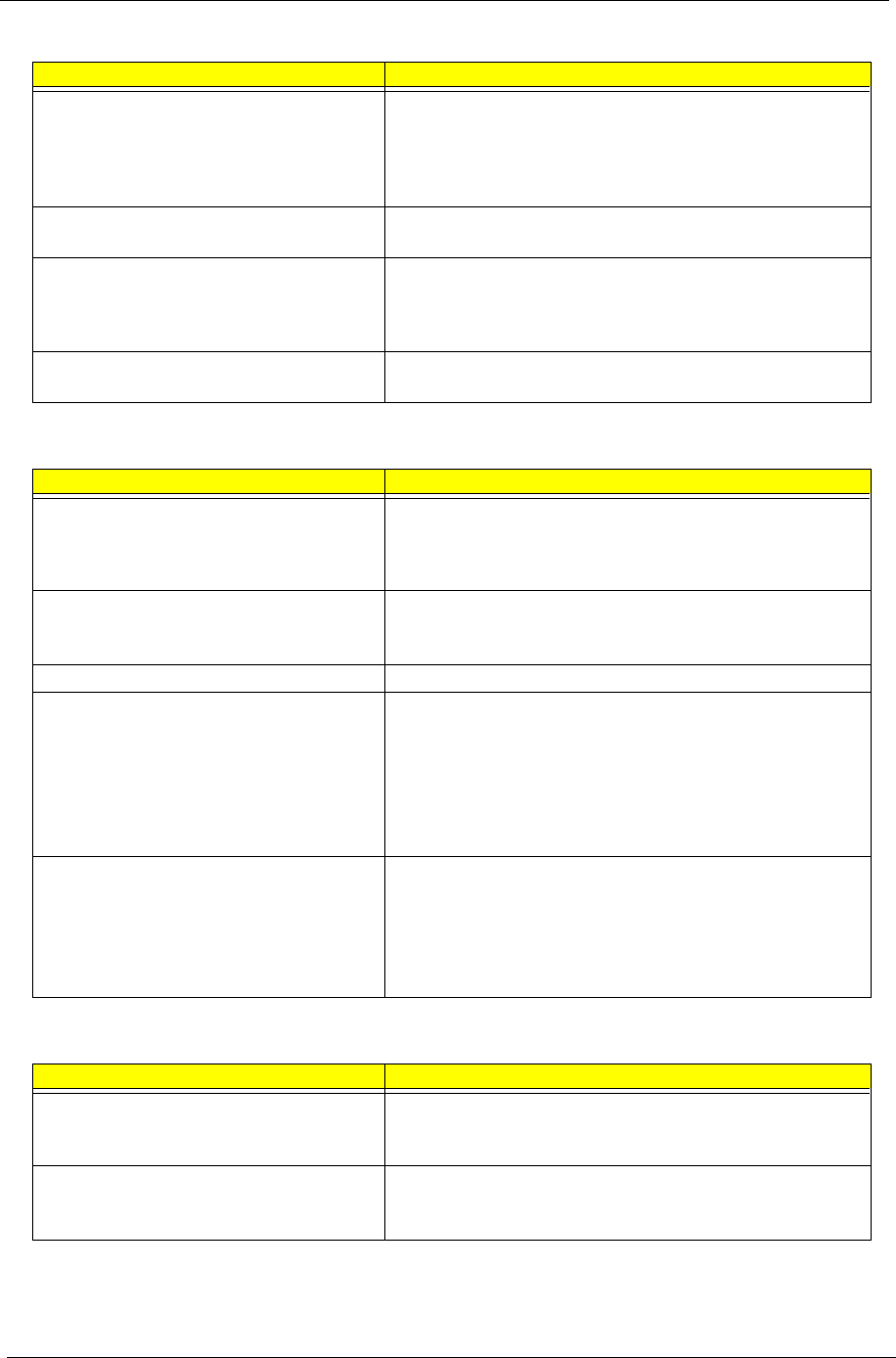
77 Chapter 4
The system doesn't resume from hibernation/
standby mode.
Connect AC adapter then check if the system resumes from
Standby/Hibernation mode.
Check if the battery is low.
Hard disk drive
Main board
The system doesn't resume from standby mode
after opening the lid of the portable computer.
LCD cover switch
Main board
Battery fuel gauge in Windows doesn’t go higher
than 90%.
Refresh battery (continue use battery until power off, then charge
battery).
Battery pack
Main board
System hangs intermittently. Reconnect hard disk/CD-ROM drives.
Main board
Peripheral-Related Symptoms
Symptom / Error Action in Sequence
System configuration does not match the
installed devices.
Enter BIOS Setup Utility to execute “Load Setup Defaults”, then
reboot system.
Reconnect hard disk/CD-ROM drives/FDD or other peripherals.
Main board
External display does not work correctly. Press Fn+F5, LCD/CRT/Both display switching
Keyboard
Main board
USB does not work correctly Main board
Print problems. Enter BIOS Setup Utility to execute “Load Setup Defaults” then
reboot the system.
Run printer self-test.
Printer driver
Printer cable
Printer
Main board
Parallel port device problems Enter BIOS Setup Utility to execute “Load Setup Defaults” then
reboot the system.
Device driver
Device cable
Device
Main board
Keyboard/Touchpad-Related Symptoms
Symptom / Error Action in Sequence
Keyboard (one or more keys) does not work. Reconnect the keyboard cable.
Keyboard
Main board
Touchpad does not work. Reconnect touchpad cable.
Touchpad board
Main board
Power Management-Related Symptoms
Symptom / Error Action in Sequence

Chapter 4 78
NOTE: If you cannot find a symptom or an error in this list and the problem remains, see “Undetermined
Problems” on page 80.
Modem/LAN-Related Symptoms
Symptom / Error Action in Sequence
Internal modem does not work correctly. Phone cable
Driver
Reconnect the Internal modem cable to the main board tightly.
Main board
Internal LAN does not work correctly Lan cable
Driver
Main board

79 Chapter 4
Intermittent Problems
Intermittent system hang problems can be caused by a variety of reasons that have nothing to do with a
hardware defect, such as: cosmic radiation, electrostatic discharge, or software errors. FRU replacement
should be considered only when a recurring problem exists.
When analyzing an intermittent problem, do the following:
1. Run the diagnostic test for the system board in loop mode at least 10 times.
2. If no error is detected, do not replace any FRU.
3. If any error is detected, replace the FRU. Rerun the test to verify that there are no more errors.

Chapter 4 80
Undetermined Problems
The diagnostic problems does not identify which adapter or device failed, which installed devices are incorrect,
whether a short circuit is suspected, or whether the system is inoperative.
Follow these procedures to isolate the failing FRU (do not isolate non-defective FRU).
NOTE: Verify that all attached devices are supported by the computer.
NOTE: Verify that the power supply being used at the time of the failure is operating correctly. (See “Power
System Check” on page 66):
1. Power-off the computer.
2. Visually check them for damage. If any problems are found, replace the FRU.
3. Remove or disconnect all of the following devices:
TNon-Acer devices
TPrinter, mouse, and other external devices
TBattery pack
THard disk drive
TDIMM
TPC Cards
4. Power-on the computer.
5. Determine if the problem has changed.
6. If the problem does not recur, reconnect the removed devices one at a time until you find the failing FRU.
7. If the problem remains, replace the following FRU one at a time. Do not replace a non-defective FRU:
TSystem board
TLCD assembly
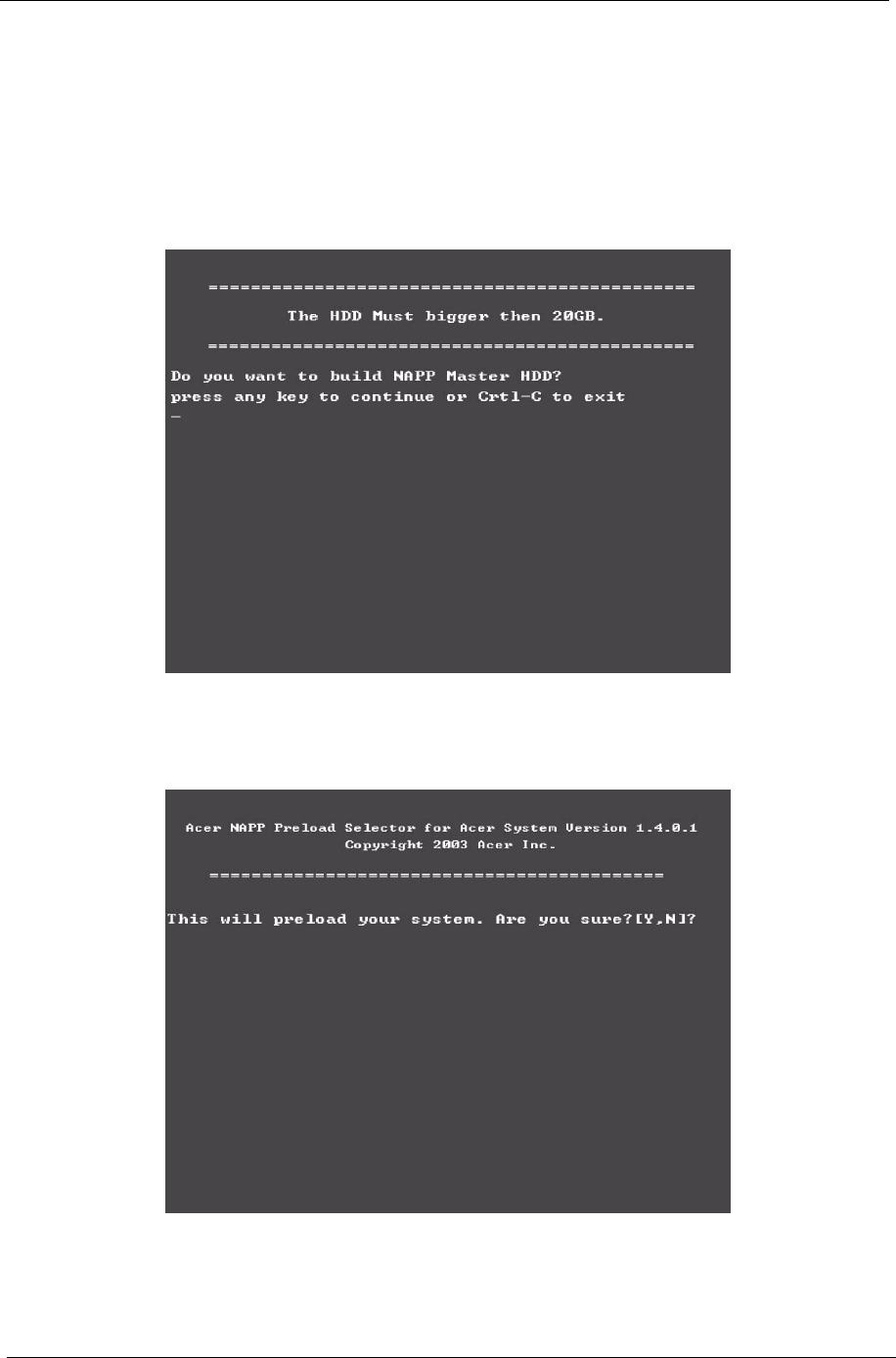
81 Chapter 4
How to Build NAPP Master Hard Disc Drive
CD to Disk Recovery
1. Prepare NAPP CD, Recovery CD and System CD.
2. Put NAPP CD into the optical drive. Then boot up the system.
3. The system will ask you if you want to build NAPP Master HDD. Please press any key to continue.
4. NAPP CD will start to preload the system, please click [Y].
5. Select CD to Disk Revocery.
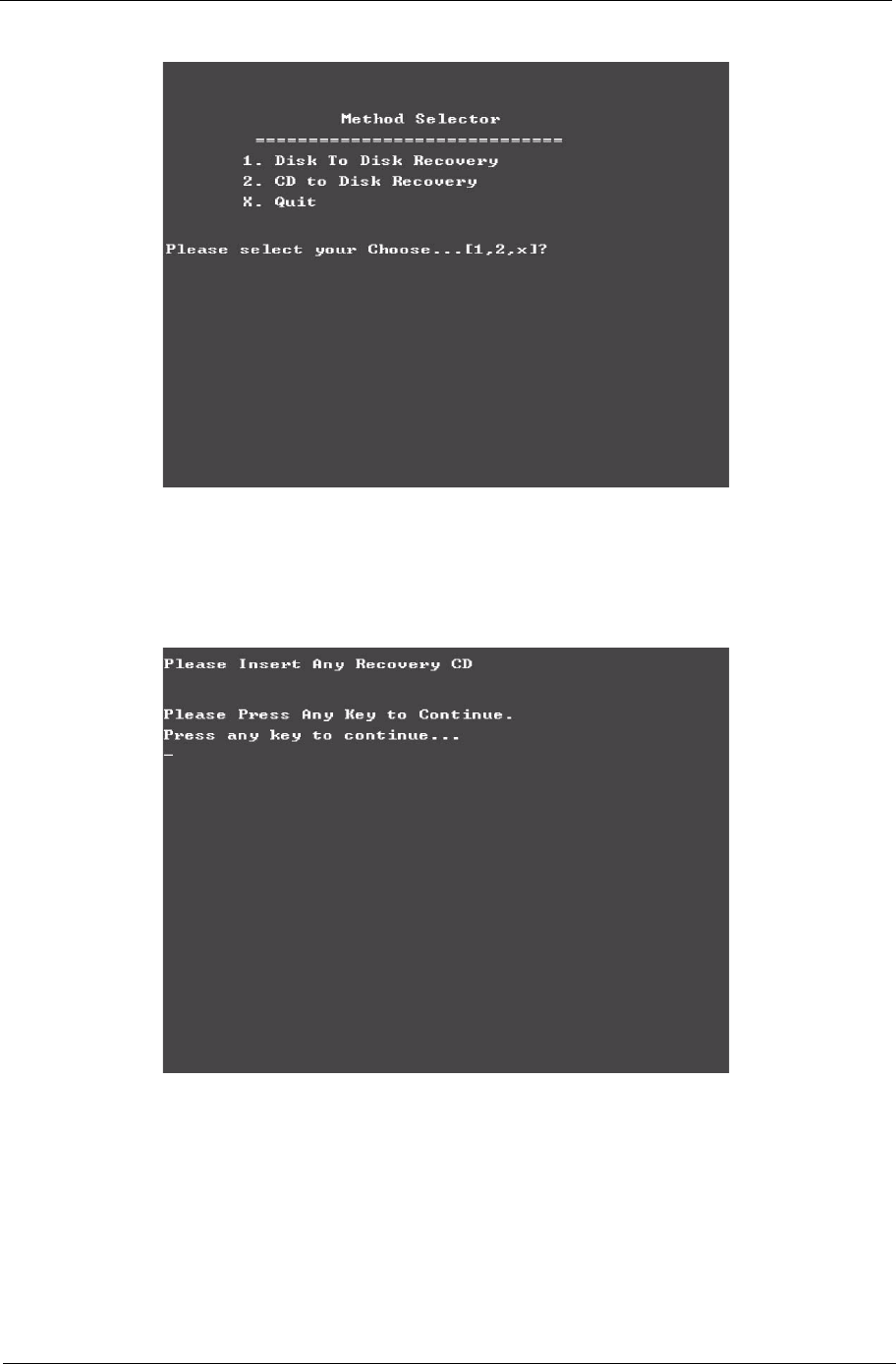
Chapter 4 82
6. Put the Recovery CD to the optical drive. This step is to create image files to the system, you do not have
to put the Recovery CD to the optical drive in order. Place one Recovery CD to the drive at one time till
you finish all Recovery CDs.
After you place the Recovery CD to the optical drive, you will see the display below.
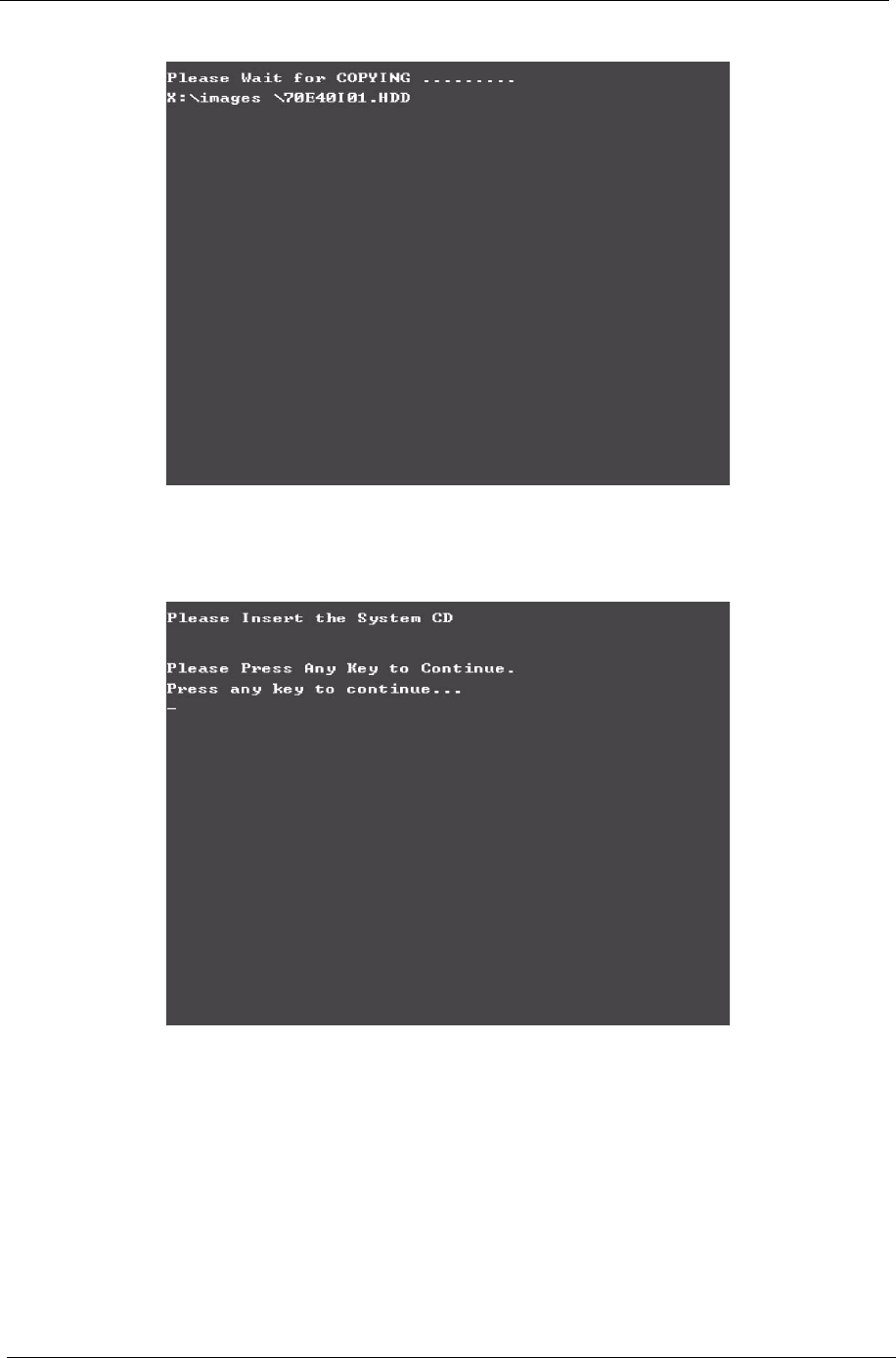
83 Chapter 4
7. Then insert the System CD to the optical drive.
8. You will see the screen displaying “PASS” when the system has buit NAPP Master hard disc drive.
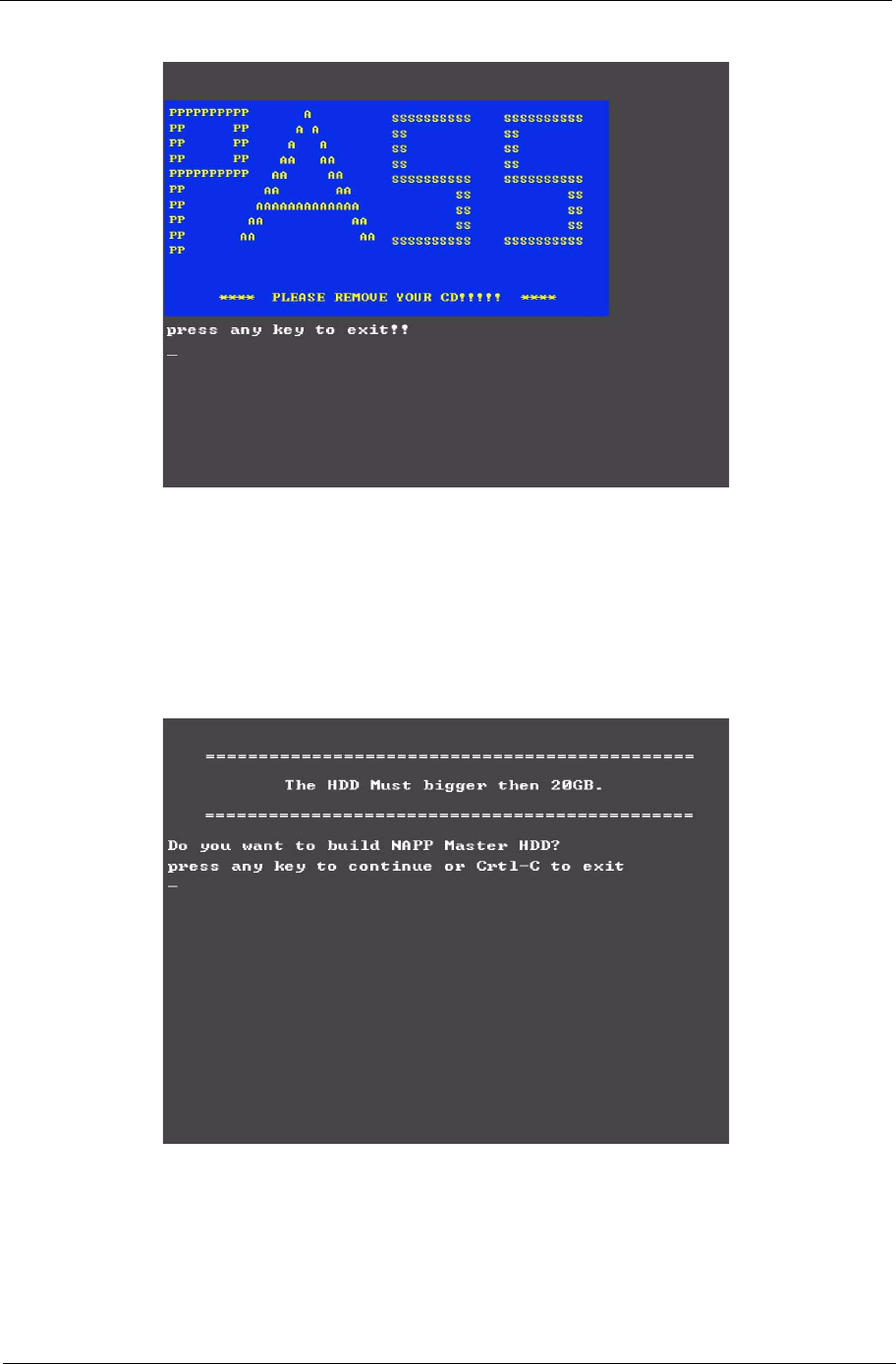
Chapter 4 84
Disk to Disk Recovery
1. Prepare NAPP CD, Recovery CD and System CD.
2. Put NAPP CD into the optical drive. Then boot up the system.
3. The system will ask you if you want to build NAPP Master HDD. Please press any key to continue.
4. NAPP CD will start to preload the system, please click [Y].
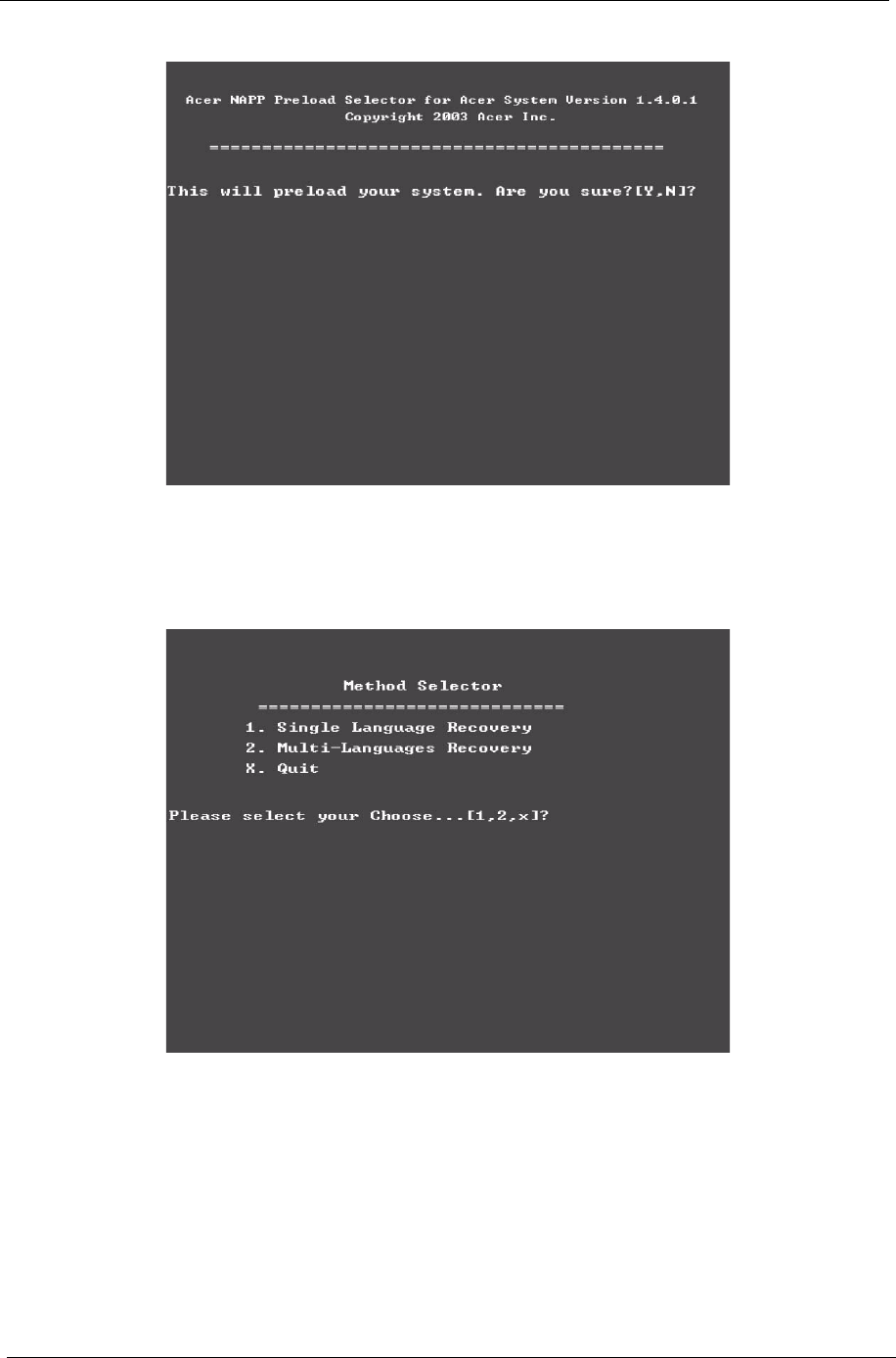
85 Chapter 4
5. Select Disk to Disk Recovery. Then choose Single Language or Multi-Languages Recovery.
NOTE: For Multi-Languages Recovery, not more than five languages could be loaded to the system.
6. Put the Recovery CD to the optical drive. This step is to create image files to the system, you do not have
to put the Recovery CD to the optical drive in order. Place one Recovery CD to the drive at one time till
you finish all Recovery CDs.
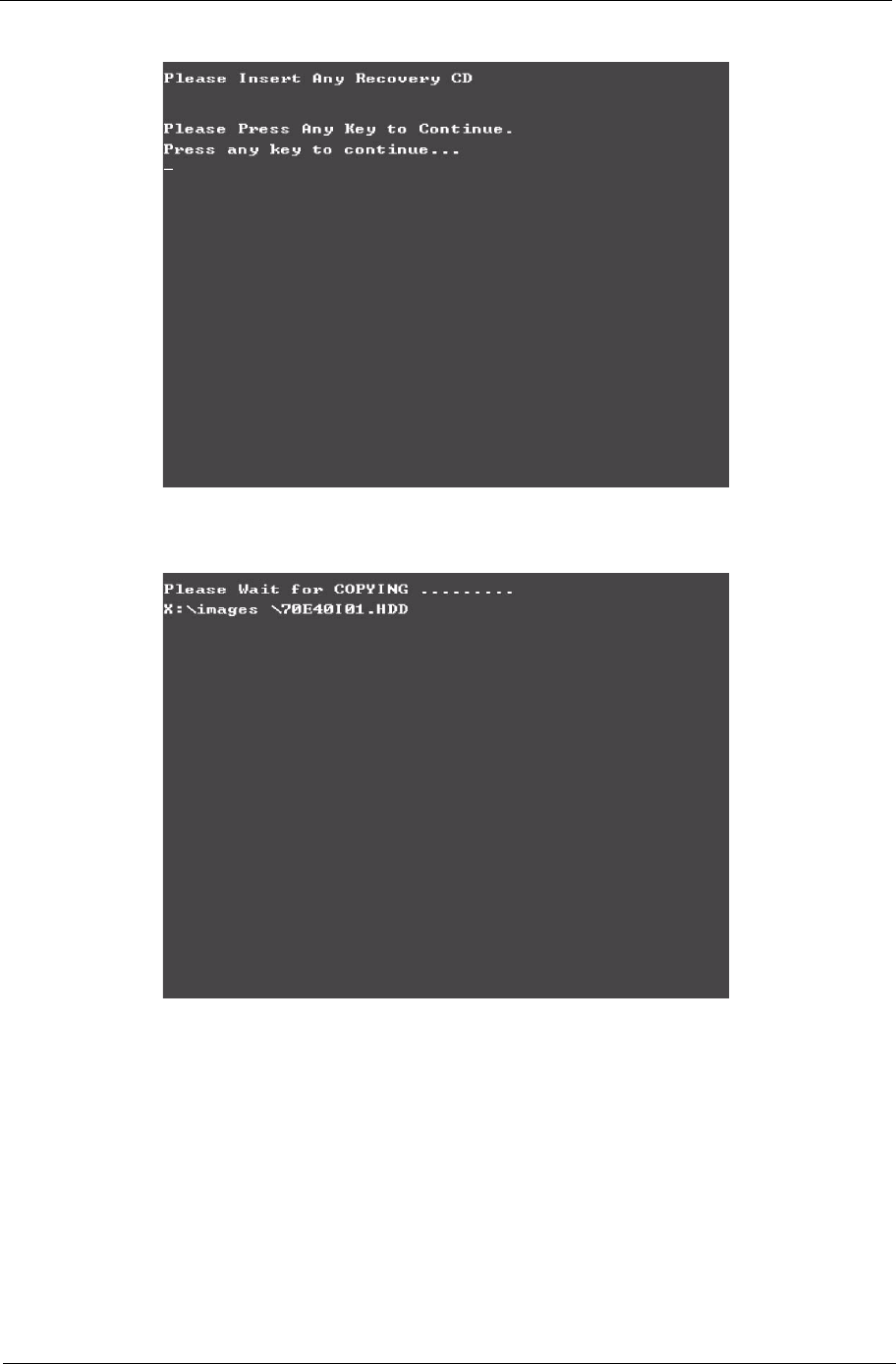
Chapter 4 86
After you place the Recovery CD to the optical drive, you will see the display below.
7. Then insert the System CD to the optical drive.
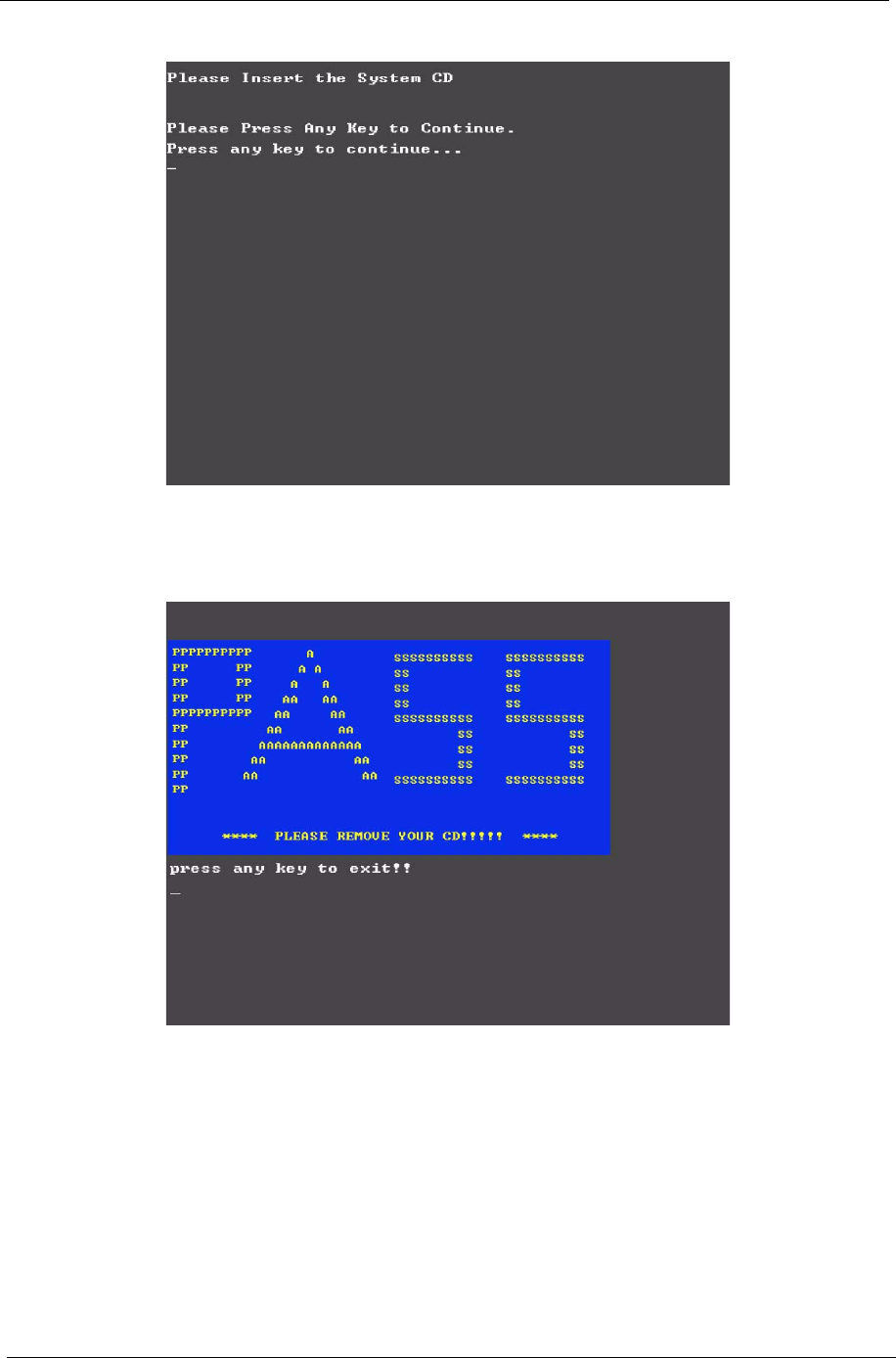
87 Chapter 4
8. You will see the screen displaying “PASS” when the system has buit NAPP Master hard disc drive.
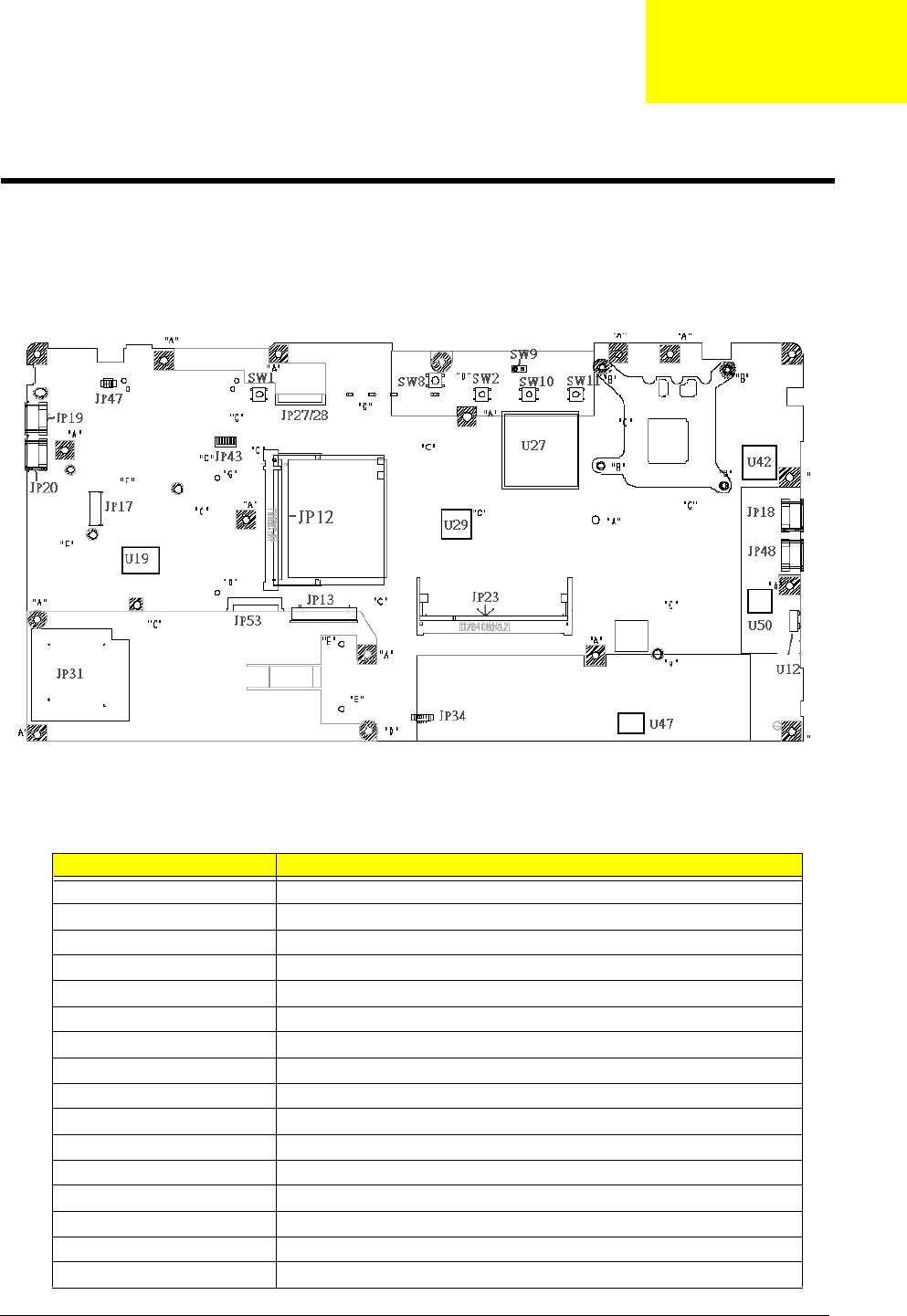
Chapter 5 88
MainBoard
Top view
Label Component
JP12 MINI PCI CONN
JP13 KBD CONN
JP17 MDC CONN
JP18 USB Connector
JP19 USB Connector
JP20 USB Connector
JP23 DIMM CONN
JP27 UMA LCD Connector
JP28 M11P LCD Connector
JP31 Card reader Connector
JP34 Speaker CONN
JP43 BT Connector
JP53 TP/B Connector
SW1 PWR BTN
SW2 Internet BTN
SW8 E-MAIL BTN
Jumper and Connector Location
Chapter 5
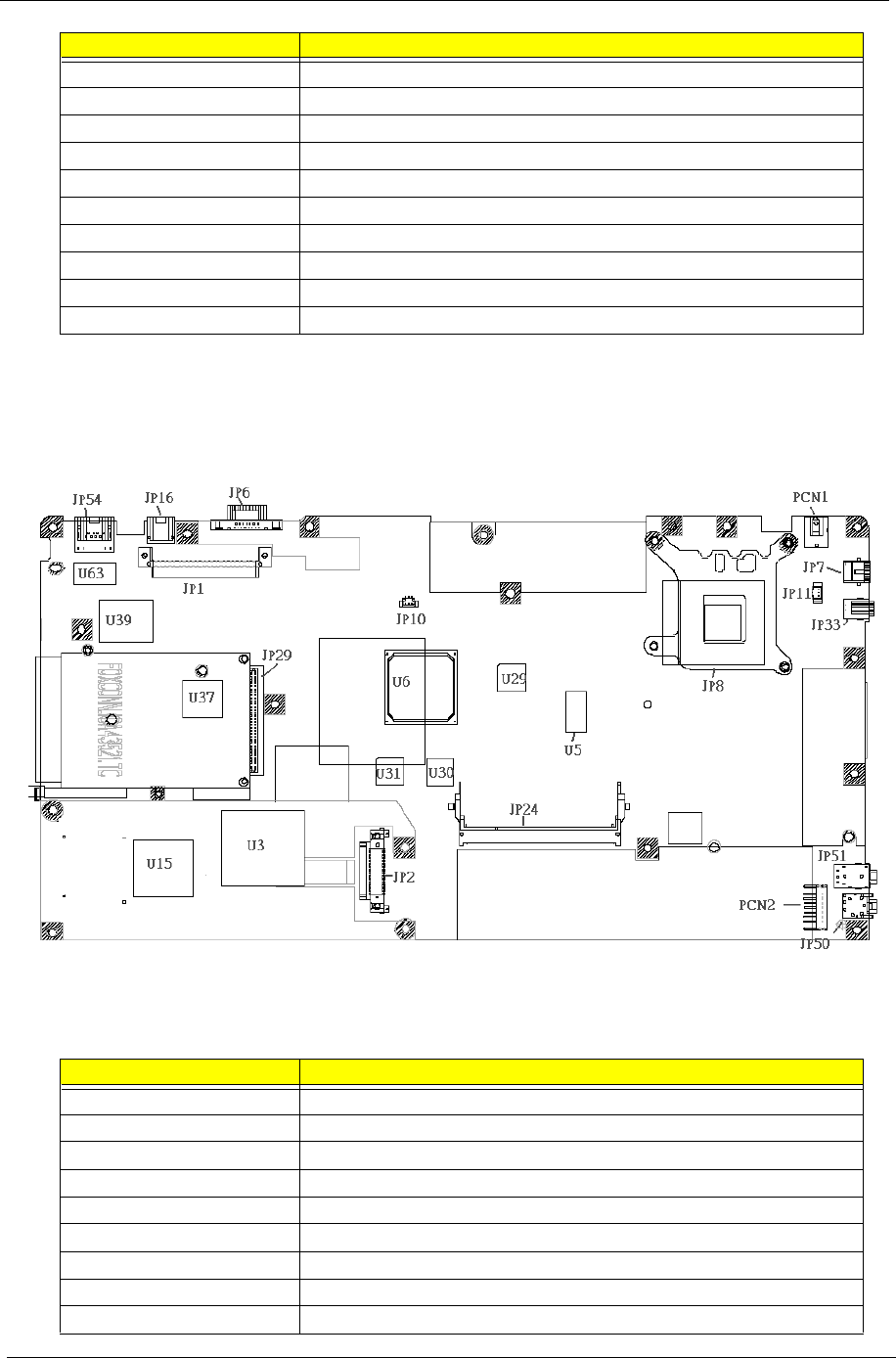
89 Chapter 5
Bottom View
SW9 LID SW BTN
SW10 USER BTN1
SW11 USER BTN2
U12 FIR CONN
U19 ROM CONN
U27 NB Chipset
U29 VRAM Chipset
U42 1394 Chipset
U47 Audio Chipset
U50 Super I/O Chipset
Label Component
PCN1 PWR JACK
PCN2 BATTERY CONN
JP1 HDD CONN
JP2 ODD CONN
JP6 VGA CONN
JP7 TV-OUT CONN
JP8 CPU SOCKET
JP10 FAN CONN
JP11 FAN CONN
Label Component
Chapter 5 90
JP16 RJ11 I/O CONN
JP24 DIMM CONN
JP29 Cardbus CONN
JP33 1394 CONN
JP50 MICPHONE JACK
JP54 RJ45 CONN
U3 SB Chipset
U5 CLK GEN Chipset
U6 ATI VGA Chipset
U28 VRAM
U30 VRAM
U31 VRAM
U15 EC Chipset
U37 Card Reader Chipset
U39 LAN Chipset
U63 LAN transformer
Label Component
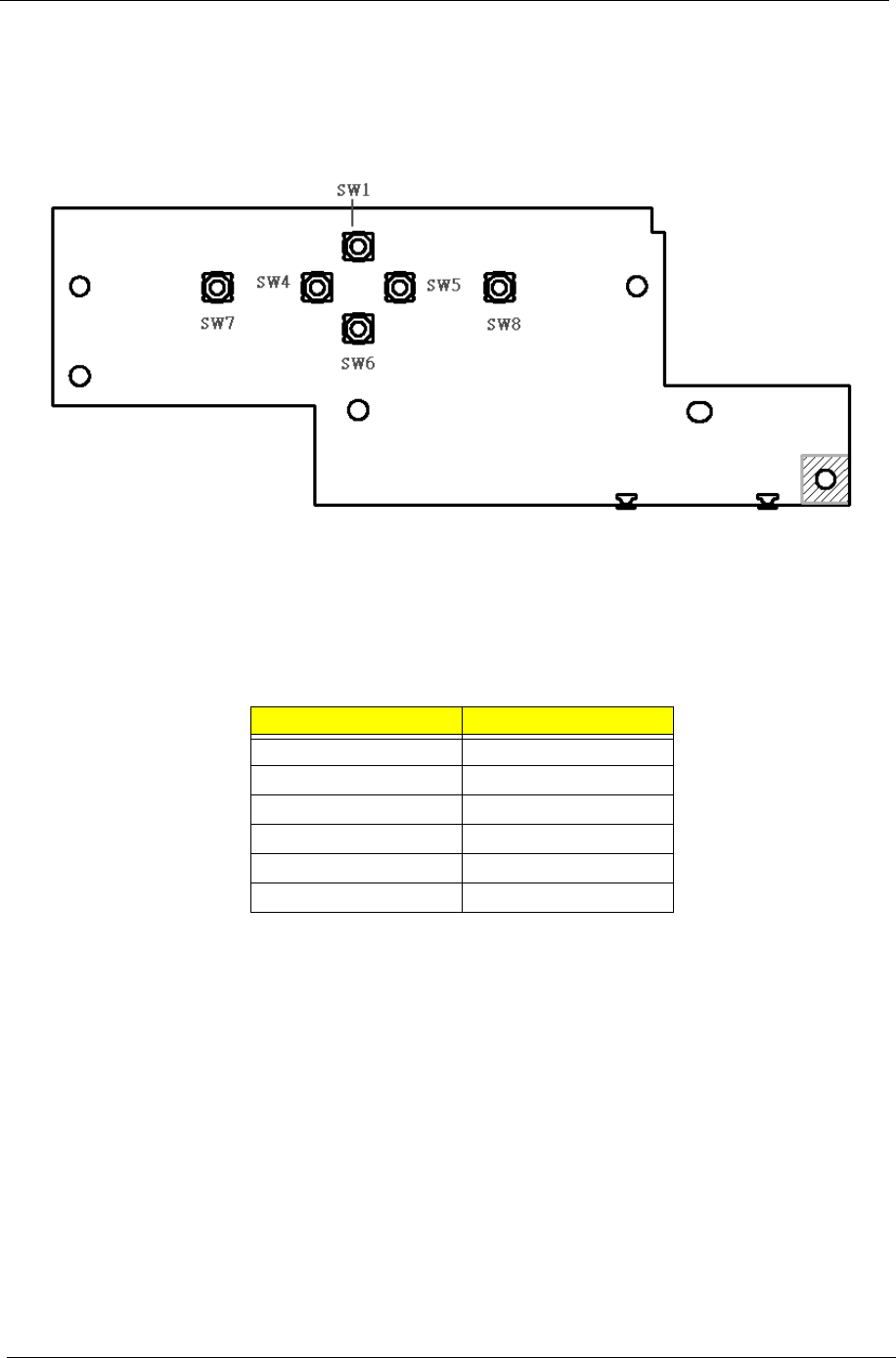
91 Chapter 5
Touchpad Board
Top View
Item Description
SW1 SCRL UP BTN
SW4 SCRL LEFT BTN
SW5 SCRL RIGHT BTN
SW6 SCRL DOWN BTN
SW7 LEFT BTN
SW8 RIGHT BTN
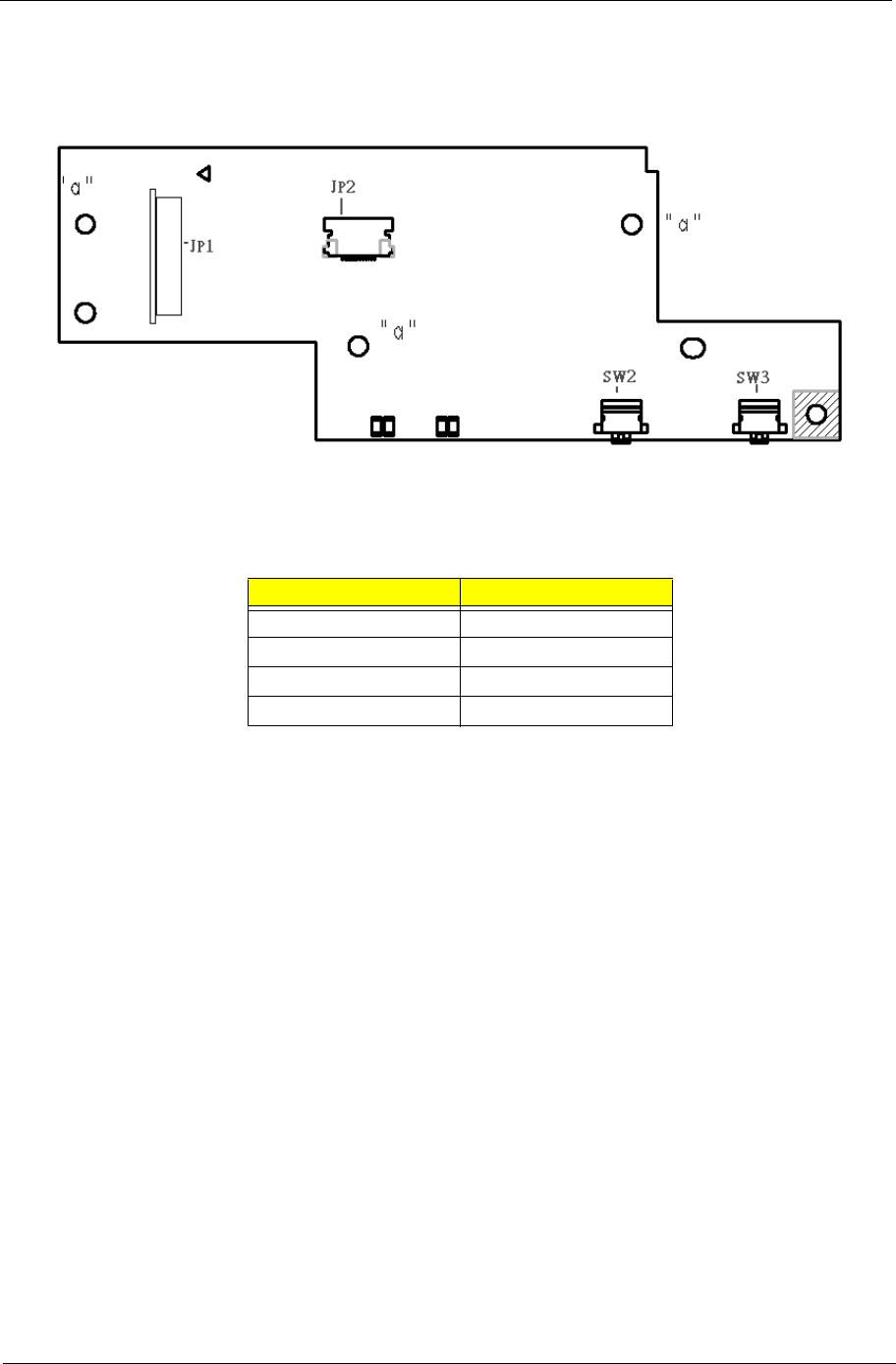
Chapter 5 92
Bottom View
Item Description
SW2 ENABLE BT BTN
SW3 ENABLE WL BTN
JP1 TP/B TO M/B CONN
JP2 TP/B TO TP CONN

Chapter 6 93
This chapter gives you the FRU (Field Replaceable Unit) listing in global configurations of Aspire 1670 and
TravelMate 2200/2700.
Refer to this chapter whenever ordering for parts to repair or for RMA (Return Merchandise Authorization).
Please also note that there are some common parts for Aspire 2000, yet the LCD modules are different
in two model.
Please note that WHEN ORDERING FRU PARTS, you should check the most up-to-date information
available on your regional web or channel. For whatever reasons a part number change is made, it
will not be noted on the printed Service Guide. For ACER AUTHORIZED SERVICE PROVIDERS,
your Acer office may have a DIFFERENT part number code from those given in the FRU list of this
printed Service Guide. You MUST use the local FRU list provided by your regional Acer office to
order FRU parts for repair and service of customer machines.
NOTE: To scrap or to return the defective parts, you should follow the local government ordinance or
regulations on how to dispose it properly, or follow the rules set by your regional Acer office on how to
return it.
NOTE: Please visit website http://aicsl.acer.com.tw/spl/ for the up to date SPL
FRU (Field Replaceable Unit) List
Chapter 6
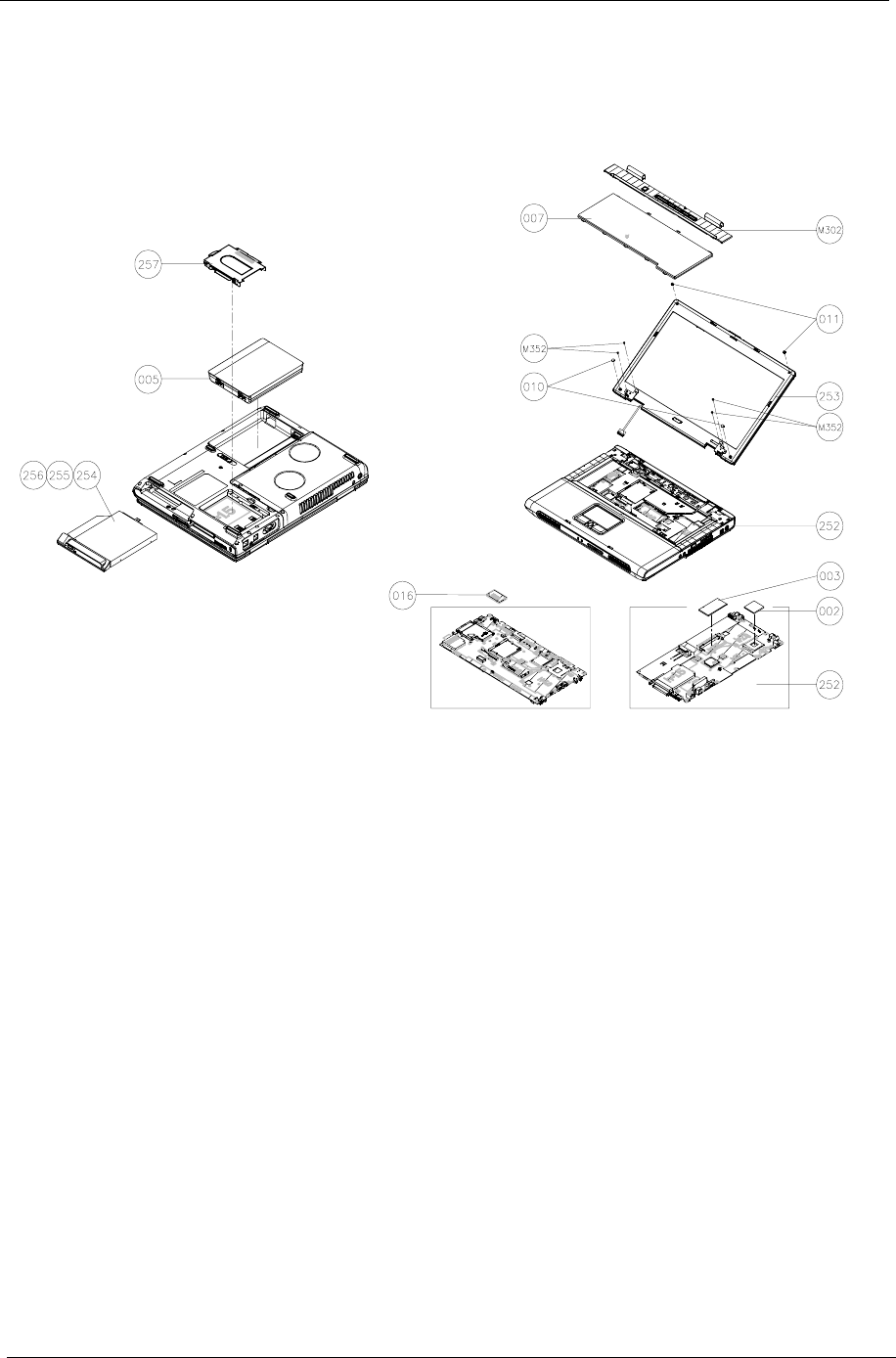
94 Chapter 6
Exploded Diagram
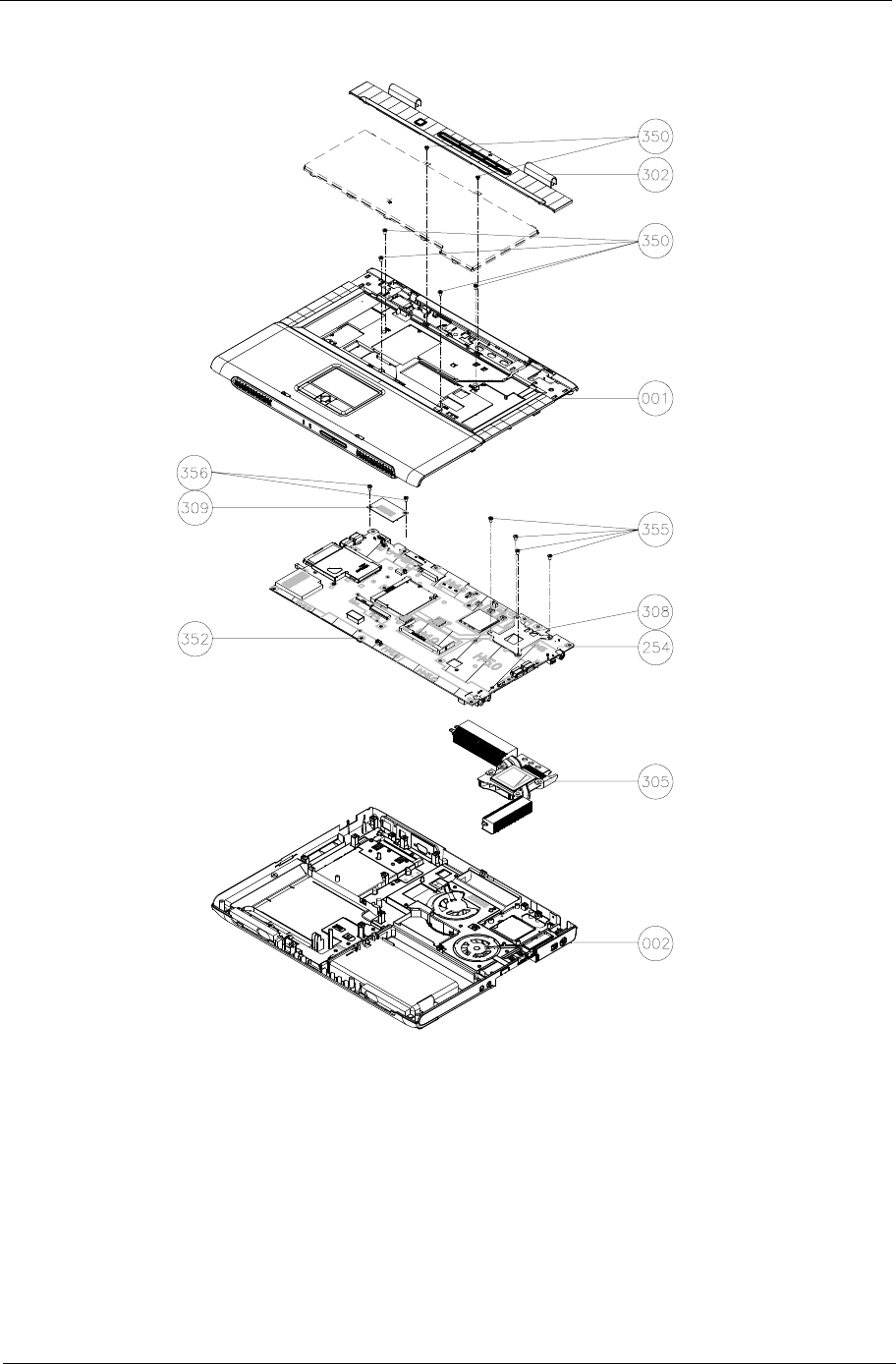
Chapter 6 95
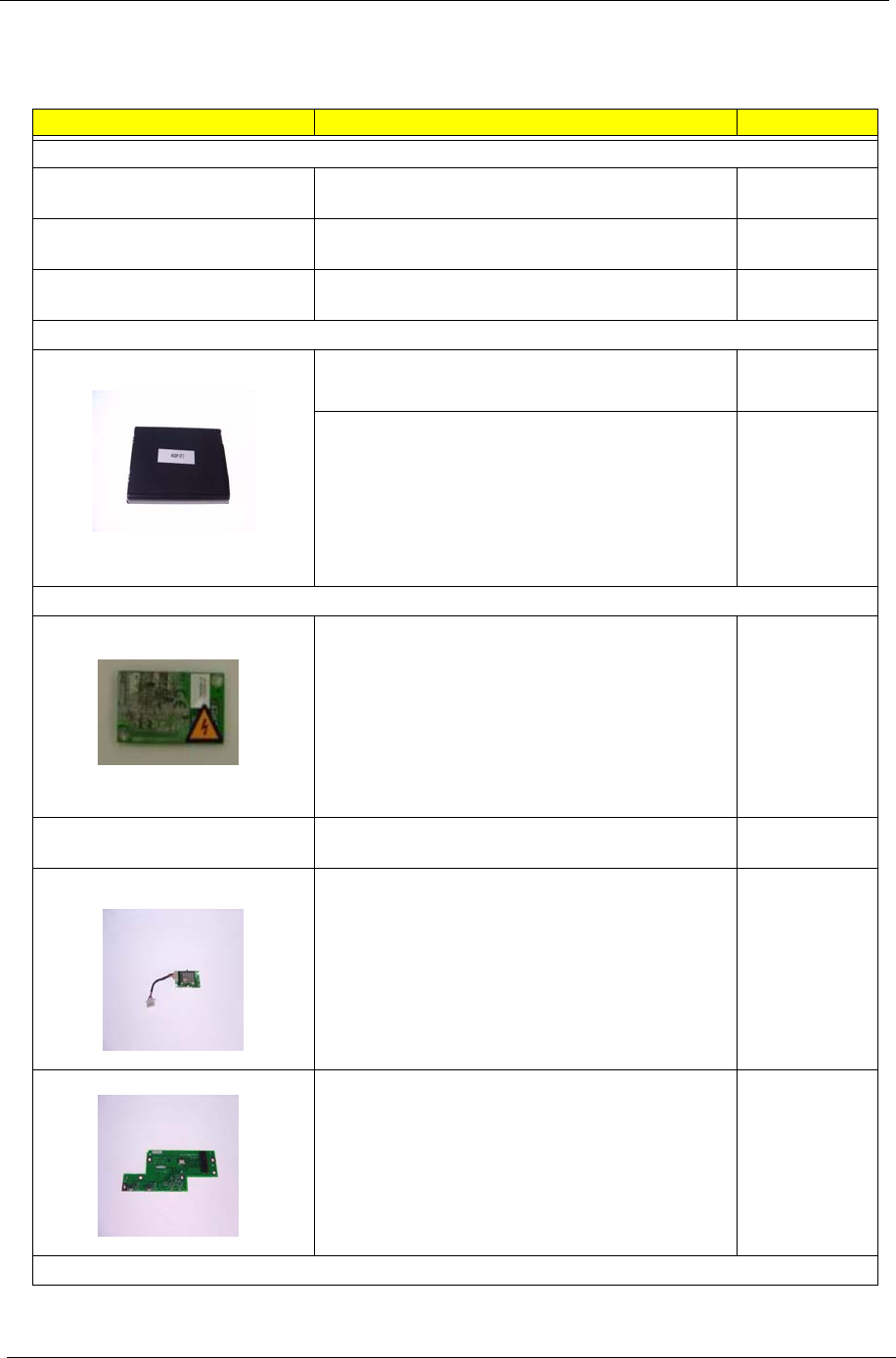
96 Chapter 6
Aspire 1670 Parts List
PHOTO PARTNAME ACER P/N
ADAPTER
ADAPTER W/LED 3 PIN 135W DELTA ADP-135DB
BBE
AP.13501.001
ADAPTER W/O LED 3 PIN 135W LITEON PA-1131-
08CR
AP.13503.001
ADAPTER W/O LED 3PIN 135W HIPRO HP-
OW135FCP
AP.1350A.001
BATTERY
Li-Ion Tern 4S2P 4.0Ah High rate Sanyo pack and
cells
BT.00803.001
Li-Ion Tern 4S2P 4.0Ah High rate sony pack and
cells
BT.00804.001
BOARD
MODEM BOARD AMBIT 54.T59V5.001
MINI PCI WIRELESS BOARD 802.11 b/g
FOXCONN T60N871.00
54.T59V5.002
BLUETOOTH CARD WNC 91.BU513.001 BT+ANT 54.T59V5.003
T/P BOARD 55.T59V5.001
CABLES
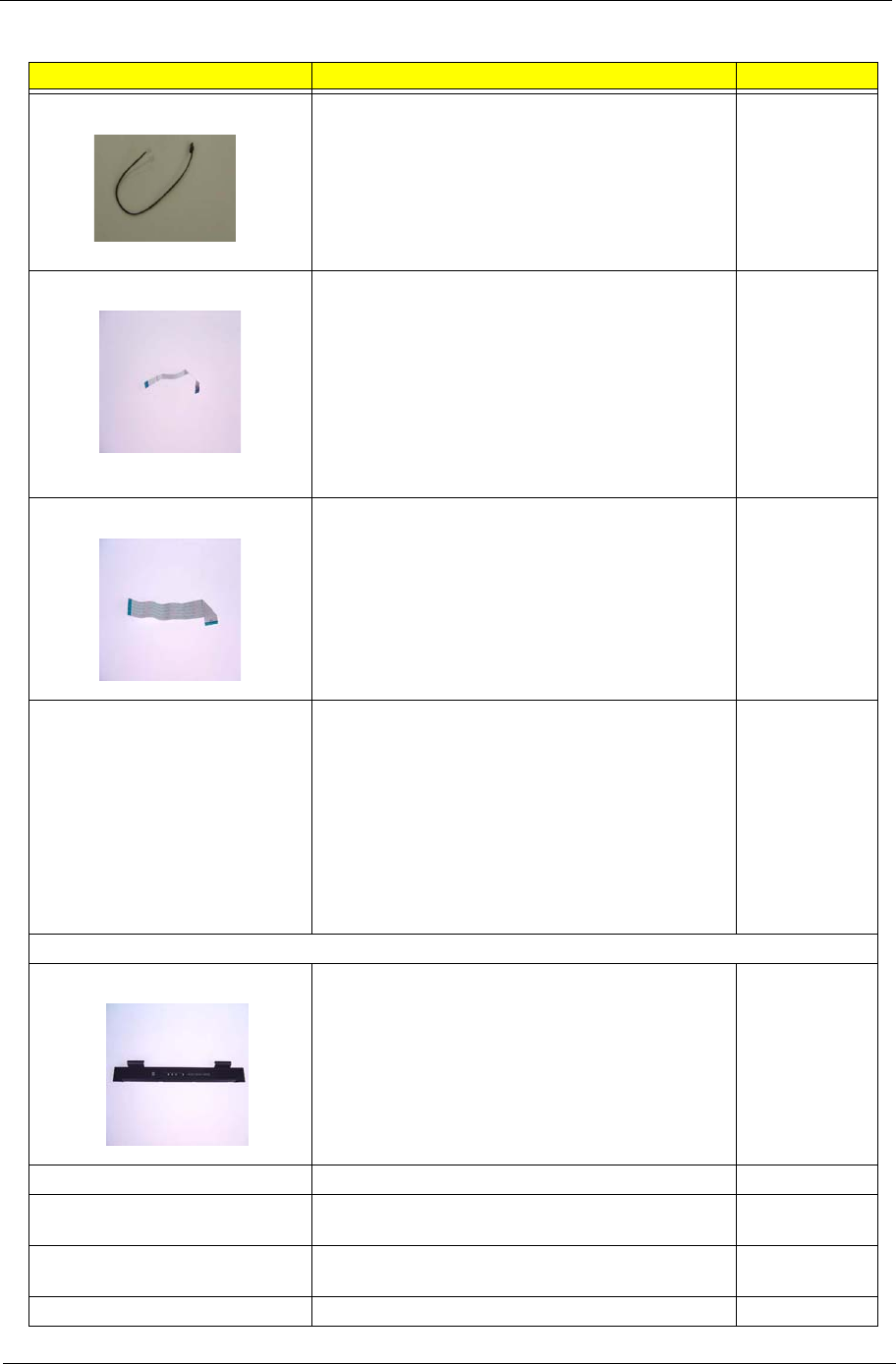
Chapter 6 97
MODEM CABLE 50.T59V5.001
FFC CABLE - T/P TO T/P BOARD 50.T59V5.002
FFC CABLE - T/P TO MB 50.T59V5.003
POWER CORD US 3 PIN
POWER CORD EC 3 PIN
POWER CORD UK 3 PIN
POWER CORD ITALIAN 3 PIN
POWER CORD AUS 3 PIN
POWER CORD CHINA 3 PIN
POWER CORD DENMARK 3 PIN
POWER CORD SWISS 3 PIN
27.T59V5.001
27.T59V5.002
27.T59V5.003
27.T59V5.004
27.T59V5.005
27.T59V5.006
27.T59V5.007
27.T59V5.008
CASE/COVER/BRACKET ASSEMBLY
MIDDLE COVER W/BUTTON LOGO 42.A35V5.001
LOWER CASE ASSY W/SPEAKER SET W/O FAN 60.A35V5.001
UPPER CASE ASSY W/FRONT COVER (W/UMA) -
Aspire
60.A35V5.002
UPPER CASE ASSY W/FRONT COVER
(DISCRETE) - Aspire
60.A35V5.006
TOUCHPAD SUPPORT PLATE 33.T59V5.001
PHOTO PARTNAME ACER P/N
98 Chapter 6
CPU SUPPORT PLATE 33.T59V5.002
FAN COVER - MAIN 33.T59V5.003
FAN COVER - SECOND 33.T59V5.004
THERMAL DOOR 33.T59V5.005
PCMCIA DUMMY CARD 42.T59V5.003
COMMUNICATION MODULE
WIRELESS ANTENNA ASSY 50.T59V5.004
COMBO DRIVE
DVD/CDRW COMBO MODULE 24X QSI SBW-
242C
6M.T59V5.001
DVD/CDRW COMBO DRIVE 24X QSI SBW-242C KO.02407.013
DVD/CDRW COMBO 24X MODULE LITEON
SOSC-2483K
6M.T59V5.002
DVD/CDRW COMBO 24X DRIVE LITEON SOSC-
2483K
KO.02409.006
DVD/CDRW COMBO 24X MODULE KME UJDA-
760
6M.T59V5.003
DVD/CDRW COMBO 24X DRIVE KME UJDA-760 KO.02406.010
DVD/CDRW COMBO 24X MODULE HLDS GCC-
4243N
6M.T59V5.004
DVD/CDRW COMBO 24X DRIVE HLDS GCC-
4243N
KO.02405.005
DVD/CDRW COMBO 24X MODULE COMPAL 650/
4.7
6M.T59V5.005
DVD/CDRW COMBO 24X DRIVE COMPAL 650/4.7 TBD
DVD DUAL MODULE 4X QSI SDW-042 6M.T59V5.006
DVD DUAL 4X DRIVE QSI SDW-042 KU.00403.002
DVD DUAL MODULE 8X LITEON SOSW-852S 6M.T59V5.007
DVD DUAL 8X DRIVE LITEON SOSW-852S KU.00804.004
DVD DUAL MODULE 8X PIONEER DVR-K14RA 6M.T59V5.008
DVD DUAL 8X DRIVE PIONEER DVR-K14RA KU.00805.002
DVD SUPER MULTI MODULE 8X KME (UJ-830) 6M.T59V5.009
DVD SUPER MULTI 8X DRIVE KME (UJ-830) KU.00807.002
DVD SUPER MULTI MODULE 8X HLDS (GSA-
4080N)
6M.T59V5.010
DVD SUPER MULTI 8X DRIVE HLDS (GSA-4080N) KU.0080D.004
CASE/COVER/BRACKET ASSEMBLY
DVD/CDRW BEZEL FOR QSI 42.T59V5.004
OPTICAL DEVICE BRACKET 33.T59V5.006
DVD/CDRW BEZEL FOR LITEON 42.T59V5.005
DVD/CDRW BEZEL FOR KME 42.T59V5.006
DVD/CDRW BEZEL FOR HLDS 42.T59V5.007
DVD/CDRW BEZEL FOR COMPAL 42.T59V5.008
DVD DUAL BEZEL FOR QSI 42.T59V5.009
PHOTO PARTNAME ACER P/N
Chapter 6 99
DVD DUAL BEZEL FOR LITEON 42.T59V5.010
DVD DUAL BEZEL FOR LITEON 42.T59V5.011
DVD SUPER MULTI BEZEL FOR KME 42.T59V5.012
DVD SUPER MULTI BEZEL FOR HLDS 42.T59V5.013
HDD/HARD DISK DRIVE
30G HGST 2.5 IN. 4200 MORAGA+
HTS424030M9AT00 13G1486 FW:DA1017
KH.03007.006
TOSHIBA PLUTO 30G 4200RPM MK3025GAS KH.03004.002
40G HGST 2.5 IN. 4200 MORAGA+
HTS424040M9AT00 13G1132 FW:DA1017
KH.04007.010
TOSHIBA PLUTO 40G 4200RPM MK4025GAS
,KA100A F/W:KA100A
KH.04004.002
SEAGATE 40G 4200RPM ST94019A, 2MB F/
W:3.05
KH.04001.010
HGST 60G 4200RPM MORAGA
IC25N060ATMR04-0 08K0634 F/W:AD4A
KH.06007.006
TOSHIBA PLUTO 60G 4200RPM MK6025GAS
(PHASE IN MAR/APR) F/W:KA200A
KH.06004.003
HGST 80G 4200RPM MORAGA
IC25N080ATMR04-0 08K635 F/W:AD4A
KH.08007.007
TOSHIBA PLUTO 80G 4200RPM MK8025GAS,
8MB F/W:KA023A
KH.08004.001
CASE/COVER/BRACKET ASSEMBLY
HDD CARRIER 33.T59V5.007
HDD CONNECTOR 42.T59V5.014
KEYBOARD
PHOTO PARTNAME ACER P/N
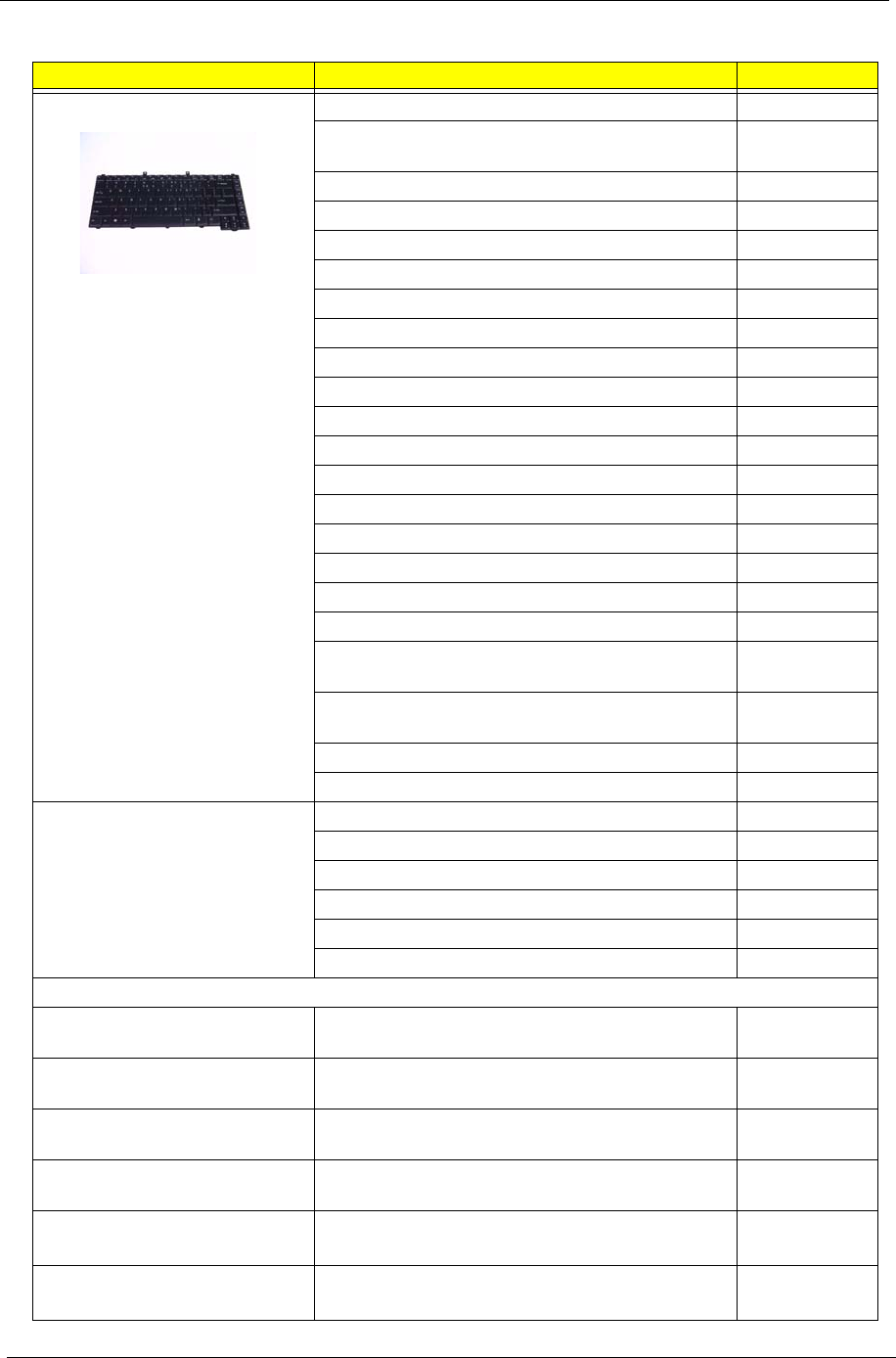
100 Chapter 6
KEYBOARD DARFON (ASPIRE) CHINESE KB.A3502.001
KEYBOARD DARFON (ASPIRE) US
INTERNATIONAL
KB.A3502.002
KEYBOARD DARFON (ASPIRE) THAI KB.A3502.003
KEYBOARD DARFON (ASPIRE) GERMAN KB.A3502.004
KEYBOARD DARFON (ASPIRE) UK KB.A3502.005
KEYBOARD DARFON (ASPIRE) ITALIAN KB.A3502.006
KEYBOARD DARFON (ASPIRE) FRENCH KB.A3502.007
KEYBOARD DARFON (ASPIRE) SWISS/G KB.A3502.008
KEYBOARD DARFON (ASPIRE) BELGIUM KB.A3502.009
KEYBOARD DARFON (ASPIRE) SPANISH KB.A3502.010
KEYBOARD DARFON (ASPIRE) PORTUGUESE KB.A3502.011
KEYBOARD DARFON (ASPIRE) CZECH KB.A3502.012
KEYBOARD DARFON (ASPIRE) HUNGARIAN KB.A3502.013
KEYBOARD DARFON (ASPIRE) RUSSIAN KB.A3502.014
KEYBOARD DARFON (ASPIRE) SWEDEN KB.A3502.015
KEYBOARD DARFON (ASPIRE) NORWEGIAN KB.A3502.016
KEYBOARD DARFON (ASPIRE) DANISH KB.A3502.017
KEYBOARD DARFON (ASPIRE) ARABIC KB.A3502.018
KEYBOARD DARFON (ASPIRE) BRAZILIAN
PORTUGUESE
KB.A3502.019
KEYBOARD DARFON (ASPIRE) CANADIAN
FRENCH
KB.A3502.020
KEYBOARD DARFON (ASPIRE) GREEK KB.A3502.021
KEYBOARD DARFON (ASPIRE) TURKISH KB.A3502.022
KEYBOARD DARFON (ASPIRE) HEBREW KB.A3502.023
KEYBOARD DARFON (ASPIRE) KOREA
KEYBOARD DARFON (ASPIRE) HL
KEYBOARD DARFON (ASPIRE) LA
KEYBOARD DARFON (ASPIRE) ICE LAND
KEYBOARD DARFON (ASPIRE) JAPAN
LCD
ASSY LCD MODULE 14 IN. XGA AU (B141XG05)
WIRELESS
6M.A35V5.001
ASSY LCD MODULE 14 IN. XGA CMO
(N141XB0L01) WIRELESS
6M.A35V5.002
ASSY LCD MODULE 14 IN. XGA TOPPOLY
(TD141TGCD1) WIRELESS
6M.A35V5.003
ASSY LCD MODULE 15 IN. XGA AU (B150XG01
V.2) WIRELESS
6M.A35V5.004
ASSY LCD MODULE 15 IN. XGA HIT
(TX38D81VC1CAB Rev.B) WIRELESS
6M.A35V5.005
ASSY LCD MODULE 15 IN. XGA CMO (N150X3-
L07) WIRELESS
6M.A35V5.006
PHOTO PARTNAME ACER P/N
Chapter 6 101
ASSY LCD MODULE 15 IN. XGA SAM (LTN150XB-
L03-C00) WIRELESS
6M.A35V5.007
ASSY LCD MODULE 15 IN. XGA LG (LP150X08-
A3) WIRELESS
6M.A35V5.008
ASSY LCD MODULE 15.4 IN. WXGA AU
(B154EW01 V5) WIRELESS
6M.A35V5.009
ASSY LCD MODULE 15.4 IN. WXGA HIT
(TX39D85VC1FAA) WIRELESS
6M.A35V5.010
ASSY LCD MODULE 15.4 IN. WXGA CMO (N154I1-
09) WIRELESS
6M.A35V5.011
ASSY LCD MODULE 15.4 IN. WXGA QDI
(QD15TL02) WIRELESS
6M.A35V5.012
ASSY LCD MODULE 14 IN. XGA AU (B141XG05) 6M.A35V5.013
ASSY LCD MODULE 14 IN. XGA CMO
(N141XB0L01)
6M.A35V5.014
ASSY LCD MODULE 14 IN. XGA TOPPOLY
(TD141TGCD1)
6M.A35V5.015
ASSY LCD MODULE 15 IN. XGA AU (B150XG01
V.2)
6M.A35V5.016
ASSY LCD MODULE 15 IN. XGA HIT
(TX38D81VC1CAB Rev.B)
6M.A35V5.017
ASSY LCD MODULE 15 IN. XGA CMO (N150X3-
L07)
6M.A35V5.018
ASSY LCD MODULE 15 IN. XGA SAM (LTN150XB-
L03-C00)
6M.A35V5.019
ASSY LCD MODULE 15 IN. XGA LG (LP150X08-
A3)
6M.A35V5.020
ASSY LCD MODULE 15.4 IN. WXGA AU
(B154EW01 V5)
6M.A35V5.021
ASSY LCD MODULE 15.4 IN. WXGA HIT
(TX39D85VC1FAA)
6M.A35V5.022
ASSY LCD MODULE 15.4 IN. WXGA CMO (N154I1-
09)
6M.A35V5.023
ASSY LCD MODULE 15.4 IN. WXGA QDI
(QD15TL02)
6M.A35V5.024
LCD 14 IN. XGA AU (B141XG05) LK.14105.006
LCD 14 IN. XGA CMO (N141XB-L01) LK.1410D.003
LCD 14 IN. XGA TOPPOLY (TD141TGCD1) LK.14101.002
LCD 15 IN. XGA AU (B150XG01 V.2) LK.15005.001
LCD 15 IN. XGA HIT (TX38D81VC1CAB Rev.B) LK.15004.006
LCD 15 IN. XGA CMO (N150X3-L07) LK.1500D.006
LCD 15 IN. XGA SAM (LTN150XB-L03-C00) LK.15006.005
LCD 15 IN. XGA LG (LP150X08-A3) LK.15008.007
LCD 15.4 IN. WXGA AU (B154EW01 V5) LK.15405.002
LCD 15.4 IN. WXGA HIT (TX39D85VC1FAA) LK.15404.003
PHOTO PARTNAME ACER P/N
102 Chapter 6
LCD 15.4 IN. WXGA CMO (N154I1-09) LK.1540D.002
LCD 15.4 IN. WXGA QDI (QD15TL02) TBD
LCD 14 IN. XGA AU (B141XG05) LK.14105.006
LCD 14 IN. XGA CMO (N141XB-L01) LK.1410D.003
LCD 14 IN. XGA TOPPOLY (TD141TGCD1) LK.14101.002
LCD 15 IN. XGA AU (B150XG01 V.2) LK.15005.001
LCD 15 IN. XGA HIT (TX38D81VC1CAB Rev.B) LK.15004.006
LCD 15 IN. XGA CMO (N150X3-L07) LK.1500D.006
LCD 15 IN. XGA SAM (LTN150XB-L03-C00) LK.15006.005
LCD 15 IN. XGA LG (LP150X08-A3) LK.15008.007
LCD 15.4 IN. WXGA AU (B154EW01 V5) LK.15405.002
LCD 15.4 IN. WXGA HIT (TX39D85VC1FAA) LK.15404.003
LCD 15.4 IN. WXGA CMO (N154I1-09) LK.1540D.002
LCD 15.4 IN. WXGA QDI (QD15TL02) TBD
BOARD
LCD INVERTER 14 IN. & 15 IN. 19.T59V5.001
LCD INVERTER 15.4 IN. 19.T59V5.002
CASE/COVER/BRACKET ASSEMBLY
LCD PANEL WITH LOGO W/ANTENNA - 14 IN. & 15 IN. 60.A35V5.007
LCD BEZEL - 14 IN. - W/AS1670 NAME PLATE 60.A35V5.003
LCD BRACKET 14 IN. - L 33.T59V5.008
LCD BRACKET 14 IN. - R 33.T59V5.009
LCD BEZEL - 15 IN. - W/AS1670 NAME PLATE 60.A35V5.004
LCD BRACKET 15 IN. - L 33.T59V5.010
LCD BRACKET 15 IN. - R 33.T59V5.011
LCD PANEL WITH LOGO W/ANTENNA - 15.4 IN. 60.A35V5.008
LCD BEZEL - 15.4 IN. W/AS1670 NAME PLATE 60.A35V5.005
LCD BRACKET 15.4 IN. - L 33.T59V5.012
LCD BRACKET 15.4 IN. - R 33.T59V5.013
LCD PANEL WITH LOGO W/O ANTENNA - 14 IN. &
15 IN.
60.A35V5.009
LCD PANEL WITH LOGO W/O ANTENNA - 15.4 IN. 60.A35V5.010
CABLE
LCD WIRE - 14 IN. 50.T59V5.005
LCD WIRE - 15 IN. 50.T59V5.006
LCD WIRE - 15.4 IN. 50.T59V5.007
MISCELLANEOUS
LCD RUBBER 47.T59V5.001
LCD SCREW PAD 47.T59V5.002
MAINBOARD
MAINBOARD DISCRETE ATi M11P W/1394, S-
VIDEO, CARD READER, W/O CPU MEMORY
LB.T5902.003
CASE/COVER/BRACKET ASSEMBLY
PHOTO PARTNAME ACER P/N
Chapter 6 103
PCMCIA SLOT 22.T59V5.001
FAN
FAN - MAIN 23.T59V5.001
FAN - SECOND 23.T59V5.002
HEATSINK
THERMAL MODULE 60.T59V5.007
POINTING DEVICE
TOUCHPAD TM42PUF1372 56.T59V5.001
SPEAKER
SPEAKER SET (R&L) 2W 23.T59V5.003
MISCELLANEOUS
RUBBER FOOT - BIG 447.T59V5.003
RUBBER FOOT - SMALL 47.T59V5.004
SCREW LIST
SCREW M2.5*5 NI-NYLOK
SCREW M2.5*6 NYLOK
SCREW M2.5*18 NYLOK
SCREW M2*3 NYLOK
SCREW BTP M2*3 NYLOK
SCREW M2*6 NYLOK
SCREW M3*4 NYLOK
SCREW M2*3 NI-NYLOK
SCREW D-SUB NUT
SCREW THERMAL SCREW
SCREW M2*3
SCREW M2*4
SCREW M2*10
SCREW VGA THERMAL SCREW
86.T59V5.001
86.T59V5.002
86.T59V5.003
86.T59V5.004
86.T59V5.005
86.T59V5.006
86.T59V5.007
86.T59V5.008
86.T59V5.009
86.T59V5.010
86.T59V5.011
86.T59V5.012
86.T59V5.013
86.T59V5.014
MEMORY
256MB NANYA SO-DIMM DDR333 256MB
NT256D64SH8BAGM-6K (.14u)
KN.25603.009
256M Infineon SO-DIMM DDR333 256MB
HYS64D32020HDL-6-C 32x64 (.11u/G) (MP in
Sept.)
KN.25602.012
256M Micron SO-DIMM DDR333 256MB
MT4VDDT3264HG-335C2
KN.25604.016
256M Samsung SO-DIMM DDR333 256MB
M470L3224FT0-CB3 (.13u)
KN.2560B.008
512M Infineon SO-DIMM DDR333 512MB
HYS64D64020GBDL-6-C (.11u/B)
KN.51202.013
512MB Micron SO-DIMM DDR333 512MB
MT8VDDT6464HDG-335C1 (.11u),
KN.51204.013
CPU/PROCESSOR
PHOTO PARTNAME ACER P/N
104 Chapter 6
TravelMate 2200 Parts List
PHOTO PARTNAME ACER P/N
ADAPTER
ADAPTER W/LED 3 PIN 135W DELTA ADP-135DB
BBE
AP.13501.001
ADAPTER W/O LED 3 PIN 135W LITEON PA-1131-
08CR
AP.13503.001
ADAPTER W/O LED 3PIN 135W HIPRO HP-
OW135FCP
AP.1350A.001
BATTERY
Li-Ion Tern 4S2P 4.0Ah High rate Sanyo pack and
cells
BT.00803.001
Li-Ion Tern 4S2P 4.0Ah High rate sony pack and
cells
BT.00804.001
BOARD
MODEM BOARD AMBIT 54.T59V5.001
MINI PCI WIRELESS BOARD 802.11 b/g
FOXCONN T60N871.00
54.T59V5.002
BLUETOOTH CARD WNC 91.BU513.001 BT+ANT 54.T59V5.003
T/P BOARD 55.T59V5.001
CABLES
MODEM CABLE
FFC CABLE - T/P TO T/P BOARD
FFC CABLE - T/P TO MB
POWER CORD US 3 PIN
POWER CORD EC 3 PIN
POWER CORD UK 3 PIN
POWER CORD ITALIAN 3 PIN
POWER CORD AUS 3 PIN
POWER CORD CHINA 3 PIN
POWER CORD DENMARK 3 PIN
POWER CORD SWISS 3 PIN
50.T59V5.001
50.T59V5.002
50.T59V5.003
27.T59V5.001
27.T59V5.002
27.T59V5.003
27.T59V5.004
27.T59V5.005
27.T59V5.006
27.T59V5.007
27.T59V5.008
CASE/COVER/BRACKET ASSEMBLY
MIDDLE COVER W/BUTTON LOGO 42.A35V5.001
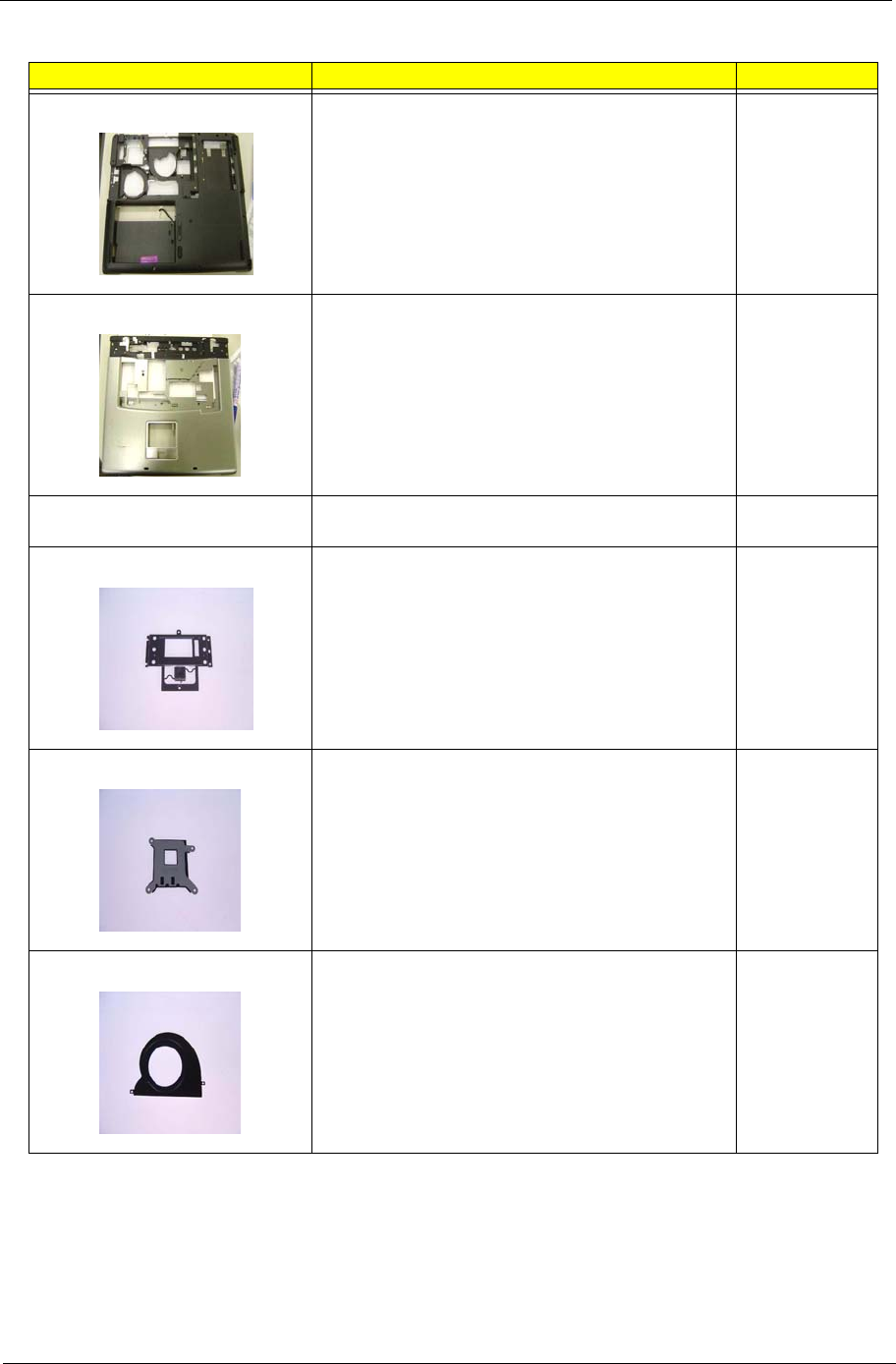
Chapter 6 105
LOWER CASE ASSY W/SPEAKER SET W/O FAN 60.A35V5.001
UPPER CASE ASSY ERGO W/FRONT COVER (W/
UMA) - Travelmate
60.T59V5.002
UPPER CASE ASSY ERGO W/FRONT COVER
(DISCRETE) - Travelmate
60.T59V5.010
TOUCHPAD SUPPORT PLATE 33.T59V5.001
CPU SUPPORT PLATE 33.T59V5.002
FAN COVER - MAIN 33.T59V5.003
PHOTO PARTNAME ACER P/N
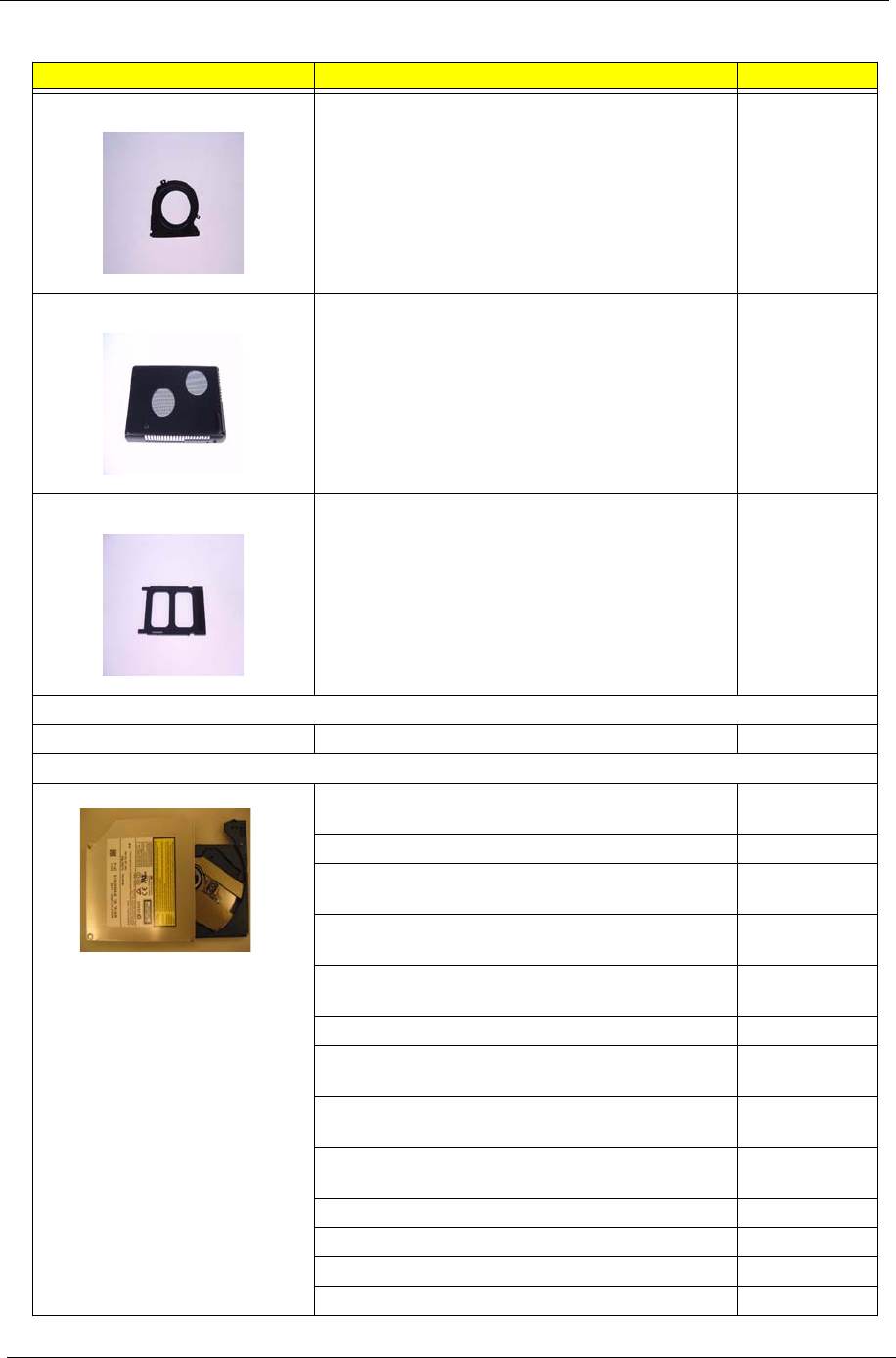
106 Chapter 6
FAN COVER - SECOND 33.T59V5.004
THERMAL DOOR 33.T59V5.005
PCMCIA DUMMY CARD 42.T59V5.003
COMMUNICATION MODULE
WIRELESS ANTENNA ASSY 50.T59V5.004
COMBO DRIVE
DVD/CDRW COMBO MODULE 24X QSI SBW-
242C
6M.T59V5.001
DVD/CDRW COMBO DRIVE 24X QSI SBW-242C KO.02407.013
DVD/CDRW COMBO 24X MODULE LITEON
SOSC-2483K
6M.T59V5.002
DVD/CDRW COMBO 24X DRIVE LITEON SOSC-
2483K
KO.02409.006
DVD/CDRW COMBO 24X MODULE KME UJDA-
760
6M.T59V5.003
DVD/CDRW COMBO 24X DRIVE KME UJDA-760 KO.02406.010
DVD/CDRW COMBO 24X MODULE HLDS GCC-
4243N
6M.T59V5.004
DVD/CDRW COMBO 24X DRIVE HLDS GCC-
4243N
KO.02405.005
DVD/CDRW COMBO 24X MODULE COMPAL 650/
4.7
6M.T59V5.005
DVD/CDRW COMBO 24X DRIVE COMPAL 650/4.7 TBD
DVD DUAL MODULE 4X QSI SDW-042 6M.T59V5.006
DVD DUAL 4X DRIVE QSI SDW-042 KU.00403.002
DVD DUAL MODULE 8X LITEON SOSW-852S 6M.T59V5.007
PHOTO PARTNAME ACER P/N
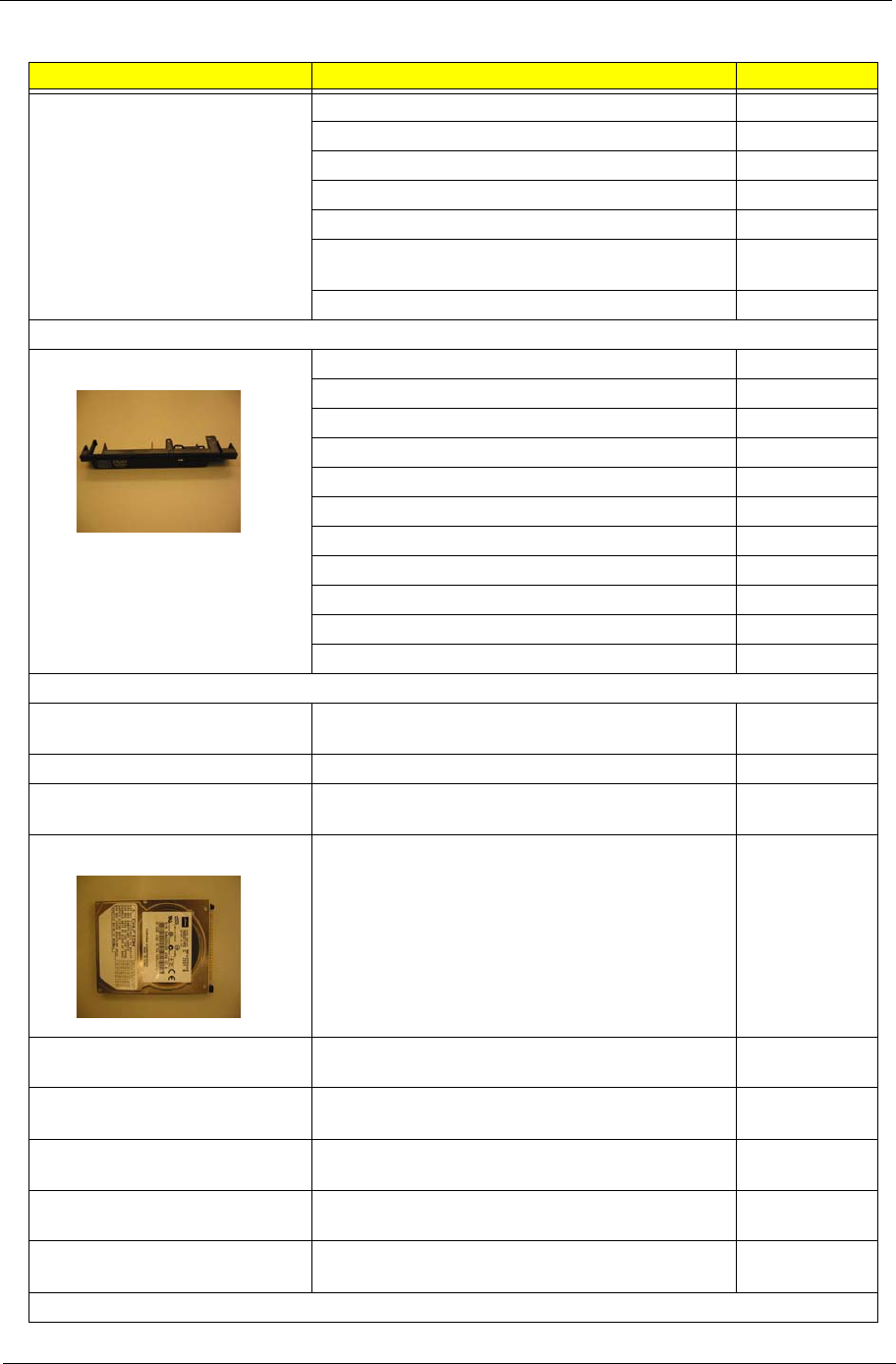
Chapter 6 107
DVD DUAL 8X DRIVE LITEON SOSW-852S KU.00804.004
DVD DUAL MODULE 8X PIONEER DVR-K14RA 6M.T59V5.008
DVD DUAL 8X DRIVE PIONEER DVR-K14RA KU.00805.002
DVD SUPER MULTI MODULE 8X KME (UJ-830) 6M.T59V5.009
DVD SUPER MULTI 8X DRIVE KME (UJ-830) KU.00807.002
DVD SUPER MULTI MODULE 8X HLDS (GSA-
4080N)
6M.T59V5.010
DVD SUPER MULTI 8X DRIVE HLDS (GSA-4080N) KU.0080D.004
CASE/COVER/BRACKET ASSEMBLY
DVD/CDRW BEZEL FOR QSI 42.T59V5.004
OPTICAL DEVICE BRACKET 33.T59V5.006
DVD/CDRW BEZEL FOR LITEON 42.T59V5.005
DVD/CDRW BEZEL FOR KME 42.T59V5.006
DVD/CDRW BEZEL FOR HLDS 42.T59V5.007
DVD/CDRW BEZEL FOR COMPAL 42.T59V5.008
DVD DUAL BEZEL FOR QSI 42.T59V5.009
DVD DUAL BEZEL FOR LITEON 42.T59V5.010
DVD DUAL BEZEL FOR LITEON 42.T59V5.011
DVD SUPER MULTI BEZEL FOR KME 42.T59V5.012
DVD SUPER MULTI BEZEL FOR HLDS 42.T59V5.013
HDD/HARD DISK DRIVE
30G HGST 2.5 IN. 4200 MORAGA+
HTS424030M9AT00 13G1486 FW:DA1017
KH.03007.006
TOSHIBA PLUTO 30G 4200RPM MK3025GAS KH.03004.002
40G HGST 2.5 IN. 4200 MORAGA+
HTS424040M9AT00 13G1132 FW:DA1017
KH.04007.010
TOSHIBA PLUTO 40G 4200RPM MK4025GAS
,KA100A F/W:KA100A
KH.04004.002
SEAGATE 40G 4200RPM ST94019A, 2MB F/
W:3.05
KH.04001.010
HGST 60G 4200RPM MORAGA
IC25N060ATMR04-0 08K0634 F/W:AD4A
KH.06007.006
TOSHIBA PLUTO 60G 4200RPM MK6025GAS
(PHASE IN MAR/APR) F/W:KA200A
KH.06004.003
HGST 80G 4200RPM MORAGA
IC25N080ATMR04-0 08K635 F/W:AD4A
KH.08007.007
TOSHIBA PLUTO 80G 4200RPM MK8025GAS,
8MB F/W:KA023A
KH.08004.001
CASE/COVER/BRACKET ASSEMBLY
PHOTO PARTNAME ACER P/N
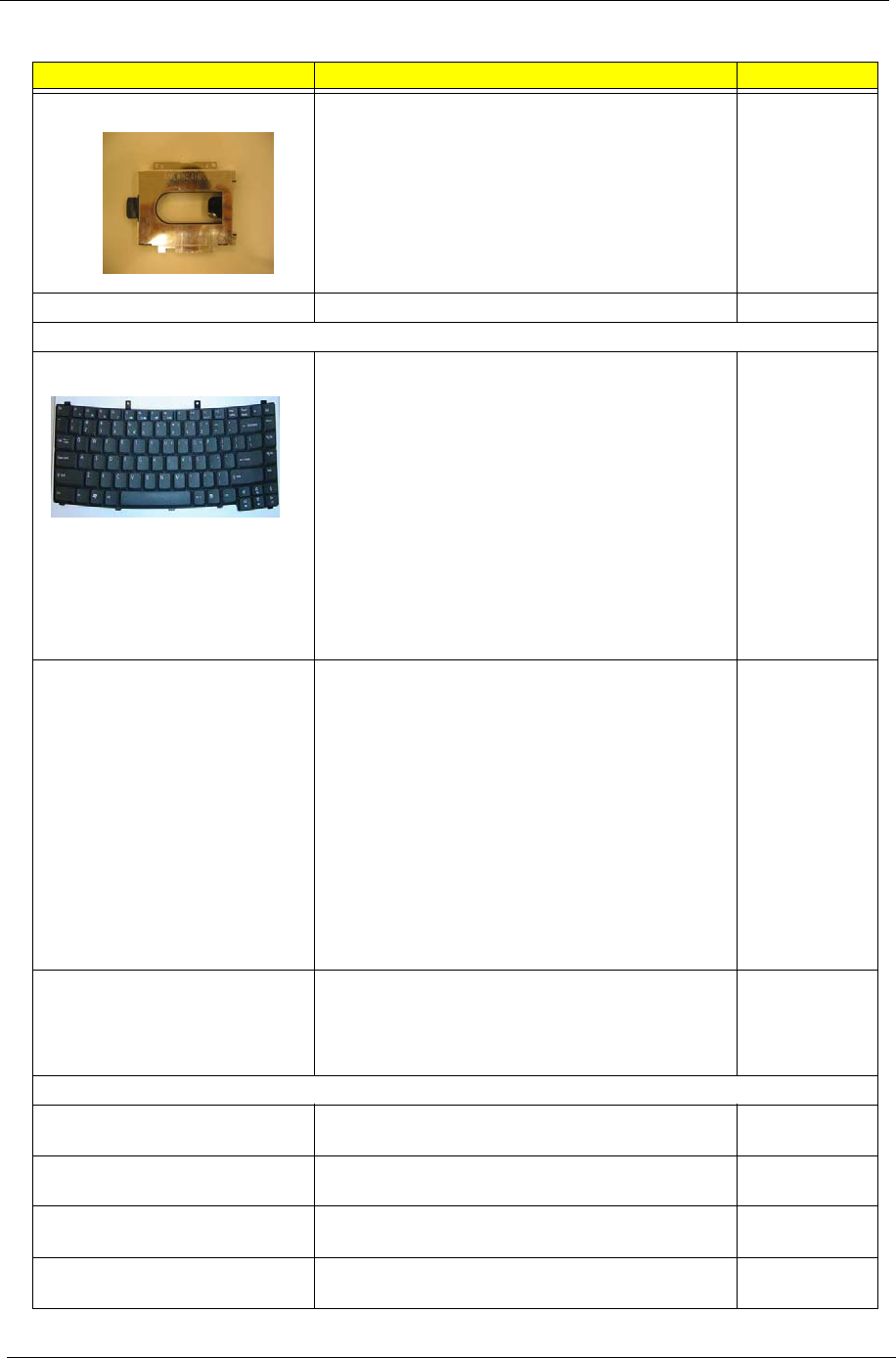
108 Chapter 6
HDD CARRIER 33.T59V5.007
HDD CONNECTOR 42.T59V5.014
KEYBOARD
KEYBOARD DARFON CZECH
KEYBOARD DARFON CHINESE
KEYBOARD DARFON THAI
KEYBOARD DARFON HEBREW
KEYBOARD DARFON KOREA
KEYBOARD DARFON ARABIC
KEYBOARD DARFON US INTERNATIONAL
KEYBOARD DARFON RUSSIAN
KEYBOARD DARFON UK
KEYBOARD DARFON SWEDEN
KEYBOARD DARFON FRENCH
KEYBOARD DARFON PORTUGUESE
KB.T5902.012
KB.T5902.001
KB.T5902.003
KB.T5902.023
KB.T5902.018
KB.T5902.002
KB.T5902.014
KB.T5902.005
KB.T5902.015
KB.T5902.007
KB.T5902.011
KEYBOARD DARFON HL
KEYBOARD DARFON BRAZILIAN PORTUGUESE
KEYBOARD DARFON SWISS/G
KEYBOARD DARFON DANISH
KEYBOARD DARFON ITALIAN
KEYBOARD DARFON BELGIUM
KEYBOARD DARFON GERMAN
KEYBOARD DARFON GREEK
KEYBOARD DARFON CANADIAN FRENCH
KEYBOARD DARFON NORWEGIAN
KEYBOARD DARFON HUNGARIAN
KEYBOARD DARFON SPANISH
KB.T5902.019
KB.T5902.008
KB.T5902.017
KB.T5902.006
KB.T5902.009
KB.T5902.004
KB.T5902.021
KB.T5902.020
KB.T5902.016
KB.T5902.013
KB.T5902.010
KEYBOARD DARFON LA
KEYBOARD DARFON ICE LAND
KEYBOARD DARFON TURKISH
KEYBOARD DARFON JAPAN
KB.T5902.022
LCD
ASSY LCD MODULE 14 IN. XGA AU (B141XG05)
WIRELESS
6M.T59V5.011
ASSY LCD MODULE 14 IN. XGA CMO
(N141XB0L01) WIRELESS
6M.T59V5.012
ASSY LCD MODULE 14 IN. XGA TOPPOLY
(TD141TGCD1) WIRELESS
6M.T59V5.013
ASSY LCD MODULE 15 IN. XGA AU (B150XG01
V.2) WIRELESS
6M.T59V5.014
PHOTO PARTNAME ACER P/N
Chapter 6 109
ASSY LCD MODULE 15 IN. XGA HIT
(TX38D81VC1CAB Rev.B) WIRELESS
6M.T59V5.015
ASSY LCD MODULE 15 IN. XGA CMO (N150X3-
L07) WIRELESS
6M.T59V5.016
ASSY LCD MODULE 15 IN. XGA SAM (LTN150XB-
L03-C00) WIRELESS
6M.T59V5.017
ASSY LCD MODULE 15 IN. XGA LG (LP150X08-
A3) WIRELESS
6M.T59V5.018
ASSY LCD MODULE 15.4 IN. WXGA AU
(B154EW01 V5) WIRELESS
6M.T59V5.019
ASSY LCD MODULE 15.4 IN. WXGA HIT
(TX39D85VC1FAA) WIRELESS
6M.T59V5.020
ASSY LCD MODULE 15.4 IN. WXGA CMO (N154I1-
09) WIRELESS
6M.T59V5.021
ASSY LCD MODULE 15.4 IN. WXGA QDI
(QD15TL02) WIRELESS
6M.T59V5.022
ASSY LCD MODULE 14 IN. XGA AU (B141XG05) 6M.T59V5.023
ASSY LCD MODULE 14 IN. XGA CMO
(N141XB0L01)
6M.T59V5.024
ASSY LCD MODULE 14 IN. XGA TOPPOLY
(TD141TGCD1)
6M.T59V5.025
ASSY LCD MODULE 15 IN. XGA AU (B150XG01
V.2)
6M.T59V5.026
ASSY LCD MODULE 15 IN. XGA HIT
(TX38D81VC1CAB Rev.B)
6M.T59V5.027
ASSY LCD MODULE 15 IN. XGA CMO (N150X3-
L07)
6M.T59V5.028
ASSY LCD MODULE 15 IN. XGA SAM (LTN150XB-
L03-C00)
6M.T59V5.029
ASSY LCD MODULE 15 IN. XGA LG (LP150X08-
A3)
6M.T59V5.030
ASSY LCD MODULE 15.4 IN. WXGA AU
(B154EW01 V5)
6M.T59V5.031
ASSY LCD MODULE 15.4 IN. WXGA HIT
(TX39D85VC1FAA)
6M.T59V5.032
ASSY LCD MODULE 15.4 IN. WXGA CMO (N154I1-
09)
6M.T59V5.033
ASSY LCD MODULE 15.4 IN. WXGA QDI
(QD15TL02)
6M.T59V5.034
LCD 14 IN. XGA AU (B141XG05) LK.14105.006
LCD 14 IN. XGA CMO (N141XB-L01) LK.1410D.003
LCD 14 IN. XGA TOPPOLY (TD141TGCD1) LK.14101.002
LCD 15 IN. XGA AU (B150XG01 V.2) LK.15005.001
LCD 15 IN. XGA HIT (TX38D81VC1CAB Rev.B) LK.15004.006
LCD 15 IN. XGA CMO (N150X3-L07) LK.1500D.006
LCD 15 IN. XGA SAM (LTN150XB-L03-C00) LK.15006.005
PHOTO PARTNAME ACER P/N
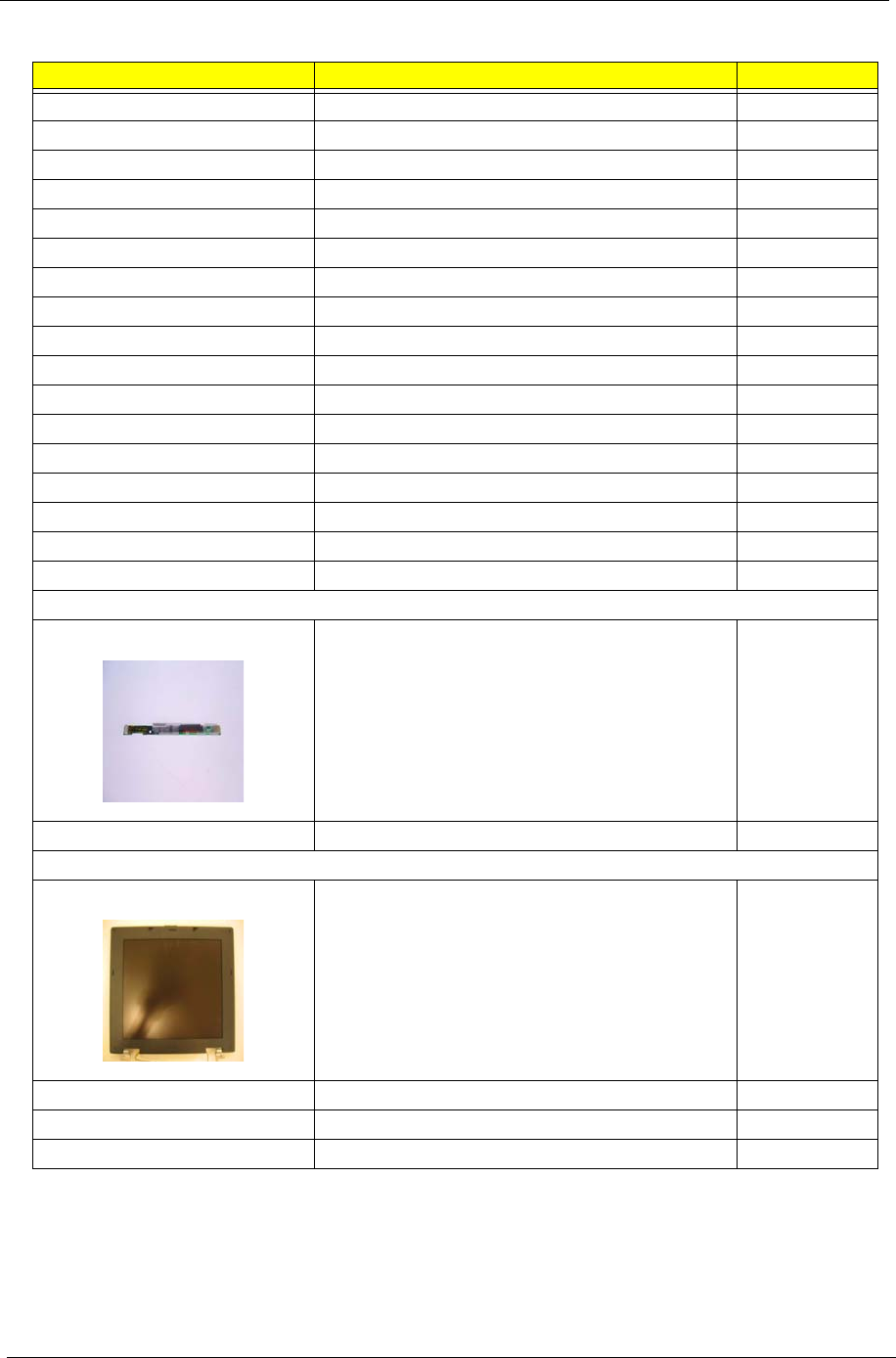
110 Chapter 6
LCD 15 IN. XGA LG (LP150X08-A3) LK.15008.007
LCD 15.4 IN. WXGA AU (B154EW01 V5) LK.15405.002
LCD 15.4 IN. WXGA HIT (TX39D85VC1FAA) LK.15404.003
LCD 15.4 IN. WXGA CMO (N154I1-09) LK.1540D.002
LCD 15.4 IN. WXGA QDI (QD15TL02) TBD
LCD 14 IN. XGA AU (B141XG05) LK.14105.006
LCD 14 IN. XGA CMO (N141XB-L01) LK.1410D.003
LCD 14 IN. XGA TOPPOLY (TD141TGCD1) LK.14101.002
LCD 15 IN. XGA AU (B150XG01 V.2) LK.15005.001
LCD 15 IN. XGA HIT (TX38D81VC1CAB Rev.B) LK.15004.006
LCD 15 IN. XGA CMO (N150X3-L07) LK.1500D.006
LCD 15 IN. XGA SAM (LTN150XB-L03-C00) LK.15006.005
LCD 15 IN. XGA LG (LP150X08-A3) LK.15008.007
LCD 15.4 IN. WXGA AU (B154EW01 V5) LK.15405.002
LCD 15.4 IN. WXGA HIT (TX39D85VC1FAA) LK.15404.003
LCD 15.4 IN. WXGA CMO (N154I1-09) LK.1540D.002
LCD 15.4 IN. WXGA QDI (QD15TL02) TBD
BOARD
LCD INVERTER 14 IN. & 15 IN. 19.T59V5.001
LCD INVERTER 15.4 IN. 19.T59V5.002
CASE/COVER/BRACKET ASSEMBLY
LCD PANEL WITH LOGO W/ANTENNA - 14 IN. & 15 IN. 60.T59V5.003
LCD BEZEL - 14 IN. - W/TM2200 NAME PLATE 60.T59V5.004
LCD BRACKET 14 IN. - L 33.T59V5.008
LCD BRACKET 14 IN. - R 33.T59V5.009
PHOTO PARTNAME ACER P/N
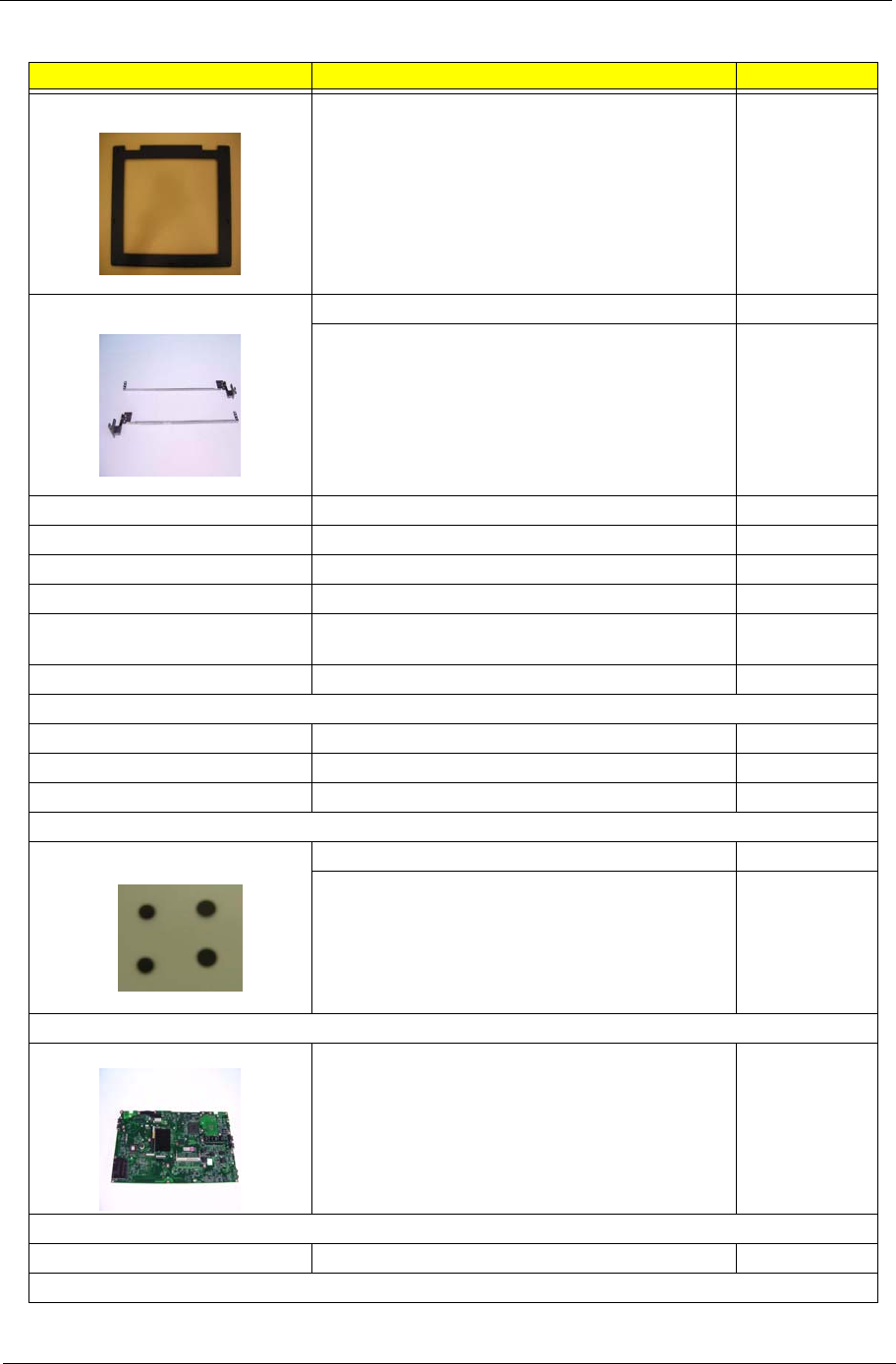
Chapter 6 111
LCD BEZEL - 15 IN. - W/TM2200 NAME PLATE 60.T59V5.005
LCD BRACKET 15 IN. - L 33.T59V5.010
LCD BRACKET 15 IN. - R 33.T59V5.011
LCD PANEL WITH LOGO W/ANTENNA - 15.4 IN. 60.T59V5.011
LCD BEZEL - 15.4 IN. W/TM2200 NAME PLATE 60.T59V5.006
LCD BRACKET 15.4 IN. - L 33.T59V5.012
LCD BRACKET 15.4 IN. - R 33.T59V5.013
LCD PANEL WITH LOGO W/O ANTENNA - 14 IN. &
15 IN.
60.T59V5.008
LCD PANEL WITH LOGO W/O ANTENNA - 15.4 IN. 60.T59V5.009
CABLE
LCD WIRE - 14 IN. 50.T59V5.005
LCD WIRE - 15 IN. 50.T59V5.006
LCD WIRE - 15.4 IN. 50.T59V5.007
MISCELLANEOUS
LCD RUBBER 47.T59V5.001
LCD SCREW PAD 47.T59V5.002
MAINBOARD
MAINBOARD UMA W/O 1394, S-VIDEO, CARD
READER, CPU, MEMORY
LB.T5902.001
CASE/COVER/BRACKET ASSEMBLY
PCMCIA SLOT 22.T59V5.001
FAN
PHOTO PARTNAME ACER P/N
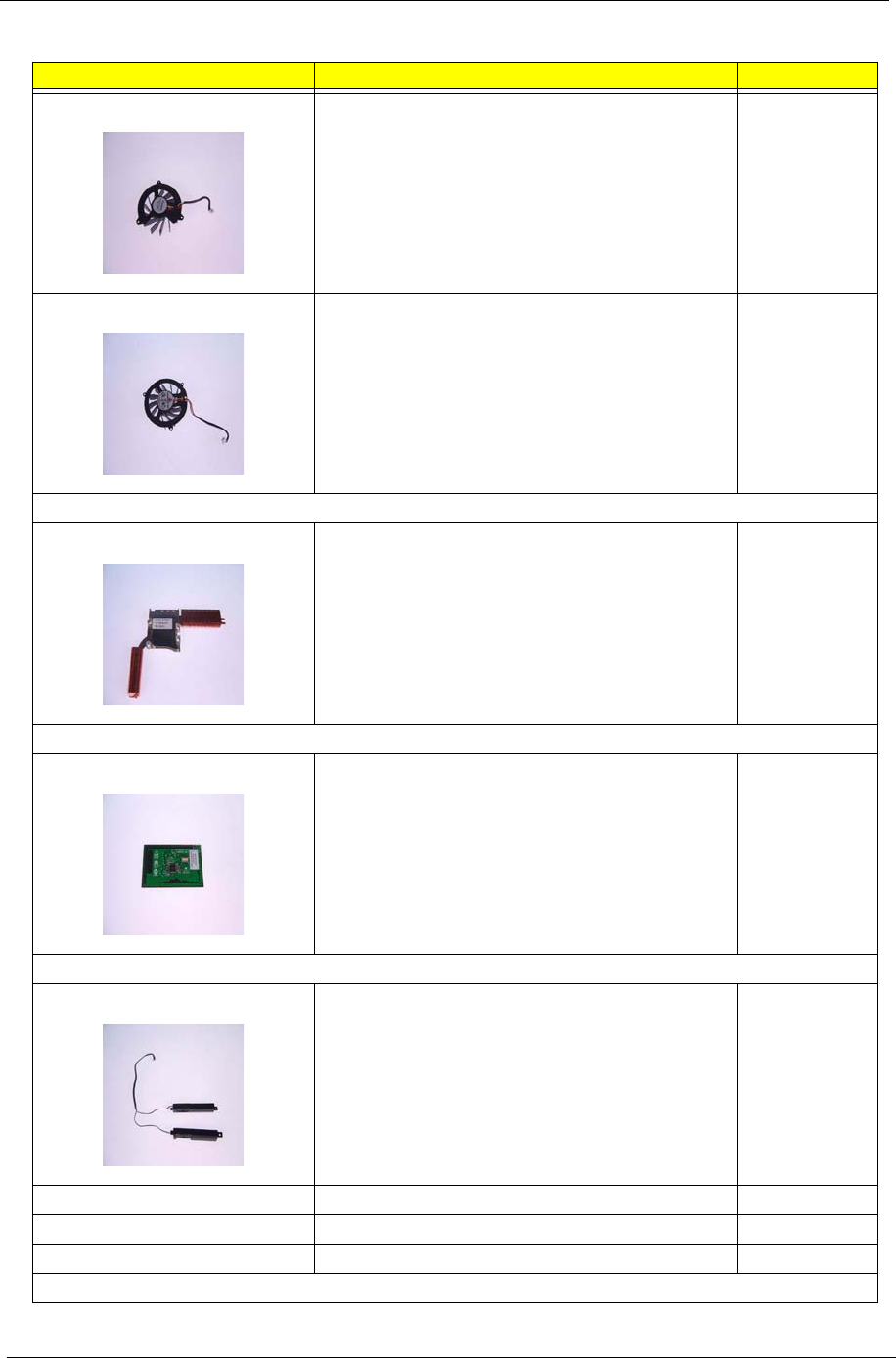
112 Chapter 6
FAN - MAIN 23.T59V5.001
FAN - SECOND 23.T59V5.002
HEATSINK
THERMAL MODULE 60.T59V5.007
POINTING DEVICE
TOUCHPAD TM42PUF1372 56.T59V5.001
SPEAKER
SPEAKER SET (R&L) 2W 23.T59V5.003
MISCELLANEOUS
RUBBER FOOT - BIG 47.T59V5.003
RUBBER FOOT - SMALL 47.T59V5.004
SCREW LIST
PHOTO PARTNAME ACER P/N
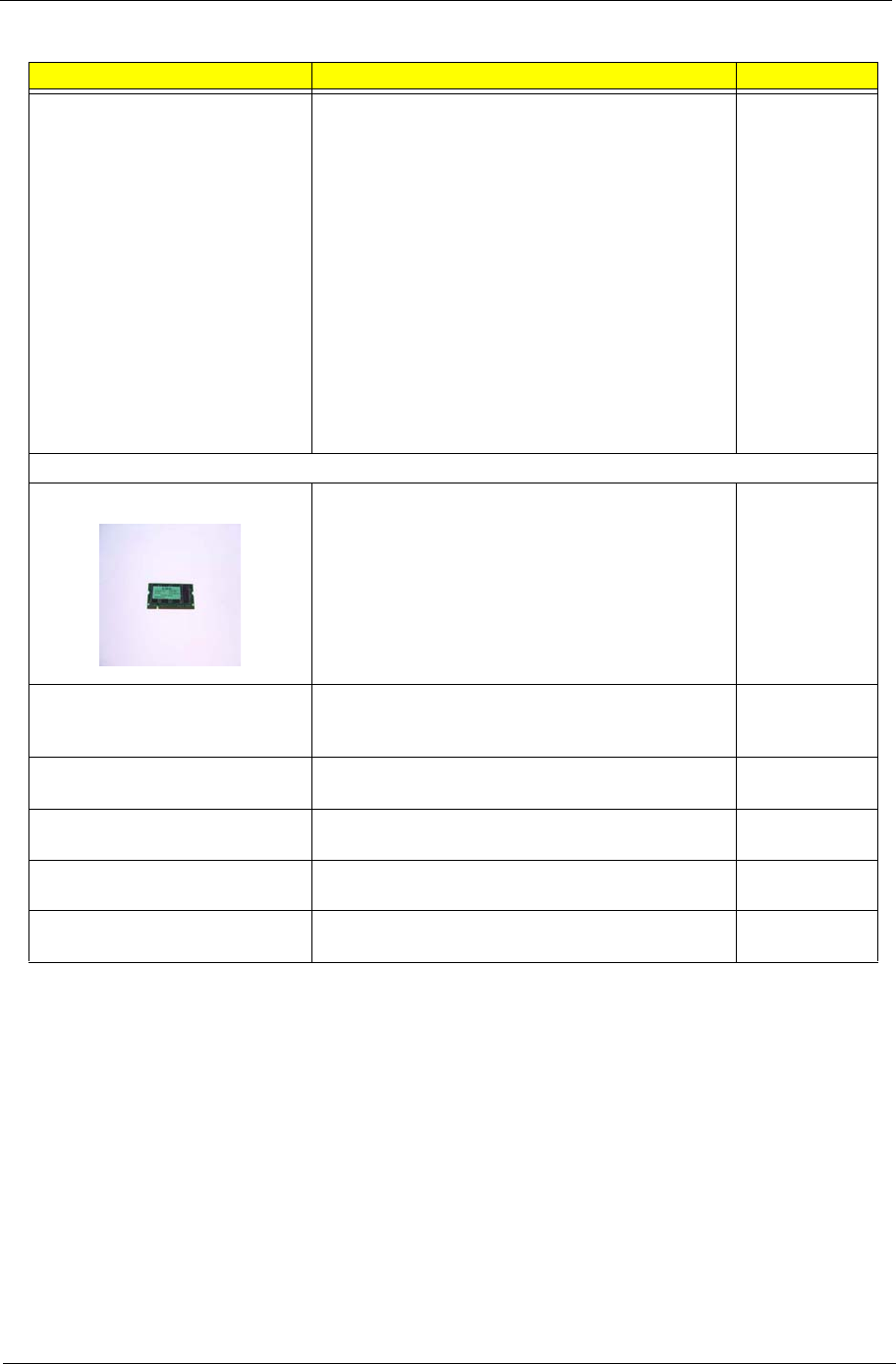
Chapter 6 113
SCREW M2.5*5 NI-NYLOK
SCREW M2.5*6 NYLOK
SCREW M2.5*18 NYLOK
SCREW M2*3 NYLOK
SCREW BTP M2*3 NYLOK
SCREW M2*6 NYLOK
SCREW M3*4 NYLOK
SCREW M2*3 NI-NYLOK
SCREW D-SUB NUT
SCREW THERMAL SCREW
SCREW M2*3
SCREW M2*4
SCREW M2*10
SCREW VGA THERMAL SCREW
86.T59V5.001
86.T59V5.002
86.T59V5.003
86.T59V5.004
86.T59V5.005
86.T59V5.006
86.T59V5.007
86.T59V5.008
86.T59V5.009
86.T59V5.010
86.T59V5.011
86.T59V5.012
86.T59V5.013
86.T59V5.014
MEMORY
256MB NANYA SO-DIMM DDR333 256MB
NT256D64SH8BAGM-6K (.14u)
KN.25603.009
256M Infineon SO-DIMM DDR333 256MB
HYS64D32020HDL-6-C 32x64 (.11u/G) (MP in
Sept.)
KN.25602.012
256M Micron SO-DIMM DDR333 256MB
MT4VDDT3264HG-335C2
KN.25604.016
256M Samsung SO-DIMM DDR333 256MB
M470L3224FT0-CB3 (.13u)
KN.2560B.008
512M Infineon SO-DIMM DDR333 512MB
HYS64D64020GBDL-6-C (.11u/B)
KN.51202.013
512MB Micron SO-DIMM DDR333 512MB
MT8VDDT6464HDG-335C1 (.11u),
KN.51204.013
PHOTO PARTNAME ACER P/N
114 Chapter 6
TravelMate 2700 Parts List
PHOTO PARTNAME ACER P/N
ADAPTER
ADAPTER W/LED 3 PIN 135W DELTA ADP-135DB
BBE
AP.13501.001
ADAPTER W/O LED 3 PIN 135W LITEON PA-1131-
08CR
AP.13503.001
ADAPTER W/O LED 3PIN 135W HIPRO HP-
OW135FCP
AP.1350A.001
BATTERY
Li-Ion Tern 4S2P 4.0Ah High rate Sanyo pack and
cells
BT.00803.001
Li-Ion Tern 4S2P 4.0Ah High rate sony pack and
cells
BT.00804.001
BOARD
MODEM BOARD AMBIT 54.T59V5.001
MINI PCI WIRELESS BOARD 802.11 b/g
FOXCONN T60N871.00
54.T59V5.002
BLUETOOTH CARD WNC 91.BU513.001 BT+ANT 54.T59V5.003
T/P BOARD 55.T59V5.001
CABLES
MODEM CABLE
FFC CABLE - T/P TO T/P BOARD
FFC CABLE - T/P TO MB
POWER CORD US 3 PIN
POWER CORD EC 3 PIN
POWER CORD UK 3 PIN
POWER CORD ITALIAN 3 PIN
POWER CORD AUS 3 PIN
POWER CORD CHINA 3 PIN
POWER CORD DENMARK 3 PIN
POWER CORD SWISS 3 PIN
50.T59V5.001
50.T59V5.002
50.T59V5.003
27.T59V5.001
27.T59V5.002
27.T59V5.003
27.T59V5.004
27.T59V5.005
27.T59V5.006
27.T59V5.007
27.T59V5.008
CASE/COVER/BRACKET ASSEMBLY
MIDDLE COVER W/BUTTON LOGO 42.A35V5.001
LOWER CASE ASSY W/SPEAKER SET W/O FAN 60.A35V5.001
UPPER CASE ASSY ERGO W/FRONT COVER (W/
UMA) - Travelmate
60.T59V5.002
UPPER CASE ASSY ERGO W/FRONT COVER
(DISCRETE) - Travelmate
60.T59V5.010
TOUCHPAD SUPPORT PLATE 33.T59V5.001
CPU SUPPORT PLATE 33.T59V5.002
FAN COVER - MAIN 33.T59V5.003
FAN COVER - SECOND 33.T59V5.004
THERMAL DOOR 33.T59V5.005
PCMCIA DUMMY CARD 42.T59V5.003
COMMUNICATION MODULE
Chapter 6 115
WIRELESS ANTENNA ASSY 50.T59V5.004
COMBO DRIVE
DVD/CDRW COMBO MODULE 24X QSI SBW-
242C
6M.T59V5.001
DVD/CDRW COMBO DRIVE 24X QSI SBW-242C KO.02407.013
DVD/CDRW COMBO 24X MODULE LITEON
SOSC-2483K
6M.T59V5.002
DVD/CDRW COMBO 24X DRIVE LITEON SOSC-
2483K
KO.02409.006
DVD/CDRW COMBO 24X MODULE KME UJDA-
760
6M.T59V5.003
DVD/CDRW COMBO 24X DRIVE KME UJDA-760 KO.02406.010
DVD/CDRW COMBO 24X MODULE HLDS GCC-
4243N
6M.T59V5.004
DVD/CDRW COMBO 24X DRIVE HLDS GCC-
4243N
KO.02405.005
DVD/CDRW COMBO 24X MODULE COMPAL 650/
4.7
6M.T59V5.005
DVD/CDRW COMBO 24X DRIVE COMPAL 650/4.7 TBD
DVD DUAL MODULE 4X QSI SDW-042 6M.T59V5.006
DVD DUAL 4X DRIVE QSI SDW-042 KU.00403.002
DVD DUAL MODULE 8X LITEON SOSW-852S 6M.T59V5.007
DVD DUAL 8X DRIVE LITEON SOSW-852S KU.00804.004
DVD DUAL MODULE 8X PIONEER DVR-K14RA 6M.T59V5.008
DVD DUAL 8X DRIVE PIONEER DVR-K14RA KU.00805.002
DVD SUPER MULTI MODULE 8X KME (UJ-830) 6M.T59V5.009
DVD SUPER MULTI 8X DRIVE KME (UJ-830) KU.00807.002
DVD SUPER MULTI MODULE 8X HLDS (GSA-
4080N)
6M.T59V5.010
DVD SUPER MULTI 8X DRIVE HLDS (GSA-4080N) KU.0080D.004
CASE/COVER/BRACKET ASSEMBLY
DVD/CDRW BEZEL FOR QSI 42.T59V5.004
OPTICAL DEVICE BRACKET 33.T59V5.006
DVD/CDRW BEZEL FOR LITEON 42.T59V5.005
DVD/CDRW BEZEL FOR KME 42.T59V5.006
DVD/CDRW BEZEL FOR HLDS 42.T59V5.007
DVD/CDRW BEZEL FOR COMPAL 42.T59V5.008
DVD DUAL BEZEL FOR QSI 42.T59V5.009
DVD DUAL BEZEL FOR LITEON 42.T59V5.010
DVD DUAL BEZEL FOR LITEON 42.T59V5.011
DVD SUPER MULTI BEZEL FOR KME 42.T59V5.012
DVD SUPER MULTI BEZEL FOR HLDS 42.T59V5.013
HDD/HARD DISK DRIVE
30G HGST 2.5 IN. 4200 MORAGA+
HTS424030M9AT00 13G1486 FW:DA1017
KH.03007.006
PHOTO PARTNAME ACER P/N
116 Chapter 6
TOSHIBA PLUTO 30G 4200RPM MK3025GAS KH.03004.002
40G HGST 2.5 IN. 4200 MORAGA+
HTS424040M9AT00 13G1132 FW:DA1017
KH.04007.010
TOSHIBA PLUTO 40G 4200RPM MK4025GAS
,KA100A F/W:KA100A
KH.04004.002
SEAGATE 40G 4200RPM ST94019A, 2MB F/
W:3.05
KH.04001.010
HGST 60G 4200RPM MORAGA
IC25N060ATMR04-0 08K0634 F/W:AD4A
KH.06007.006
TOSHIBA PLUTO 60G 4200RPM MK6025GAS
(PHASE IN MAR/APR) F/W:KA200A
KH.06004.003
HGST 80G 4200RPM MORAGA
IC25N080ATMR04-0 08K635 F/W:AD4A
KH.08007.007
TOSHIBA PLUTO 80G 4200RPM MK8025GAS,
8MB F/W:KA023A
KH.08004.001
CASE/COVER/BRACKET ASSEMBLY
HDD CARRIER 33.T59V5.007
HDD CONNECTOR 42.T59V5.014
KEYBOARD
KEYBOARD DARFON CHINESE
KEYBOARD DARFON US INTERNATIONAL
KEYBOARD DARFON THAI
KEYBOARD DARFON GERMAN
KEYBOARD DARFON UK
KEYBOARD DARFON ITALIAN
KEYBOARD DARFON FRENCH
KEYBOARD DARFON SWISS/G
KEYBOARD DARFON BELGIUM
KEYBOARD DARFON SPANISH
KEYBOARD DARFON PORTUGUESE
KEYBOARD DARFON CZECH
KEYBOARD DARFON HUNGARIAN
KEYBOARD DARFON RUSSIAN
KEYBOARD DARFON SWEDEN
KEYBOARD DARFON NORWEGIAN
KEYBOARD DARFON DANISH
KEYBOARD DARFON ARABIC
KEYBOARD DARFON BRAZILIAN PORTUGUESE
KEYBOARD DARFON CANADIAN FRENCH
KB.T5902.001
KB.T5902.002
KB.T5902.003
KB.T5902.004
KB.T5902.005
KB.T5902.006
KB.T5902.007
KB.T5902.008
KB.T5902.009
KB.T5902.010
KB.T5902.011
KB.T5902.012
KB.T5902.013
KB.T5902.014
KB.T5902.015
KB.T5902.016
KB.T5902.017
KB.T5902.018
KB.T5902.019
KB.T5902.020
KEYBOARD DARFON GREEK
KEYBOARD DARFON TURKISH
KEYBOARD DARFON HEBREW
KEYBOARD DARFON KOREA
KEYBOARD DARFON HL
KEYBOARD DARFON LA
KEYBOARD DARFON ICE LAND
KEYBOARD DARFON JAPAN
KB.T5902.021
KB.T5902.022
KB.T5902.023
PHOTO PARTNAME ACER P/N
Chapter 6 117
LCD
ASSY LCD MODULE 14 IN. XGA AU (B141XG05)
WIRELESS
6M.T60V5.001
ASSY LCD MODULE 14 IN. XGA CMO
(N141XB0L01) WIRELESS
6M.T60V5.002
ASSY LCD MODULE 14 IN. XGA TOPPOLY
(TD141TGCD1) WIRELESS
6M.T60V5.003
ASSY LCD MODULE 15 IN. XGA AU (B150XG01
V.2) WIRELESS
6M.T60V5.004
ASSY LCD MODULE 15 IN. XGA HIT
(TX38D81VC1CAB Rev.B) WIRELESS
6M.T60V5.005
ASSY LCD MODULE 15 IN. XGA CMO (N150X3-
L07) WIRELESS
6M.T60V5.006
ASSY LCD MODULE 15 IN. XGA SAM (LTN150XB-
L03-C00) WIRELESS
6M.T60V5.007
ASSY LCD MODULE 15 IN. XGA LG (LP150X08-
A3) WIRELESS
6M.T60V5.008
ASSY LCD MODULE 15.4 IN. WXGA AU
(B154EW01 V5) WIRELESS
6M.T60V5.009
ASSY LCD MODULE 15.4 IN. WXGA HIT
(TX39D85VC1FAA) WIRELESS
6M.T60V5.010
ASSY LCD MODULE 15.4 IN. WXGA CMO (N154I1-
09) WIRELESS
6M.T60V5.011
ASSY LCD MODULE 15.4 IN. WXGA QDI
(QD15TL02) WIRELESS
6M.T60V5.012
ASSY LCD MODULE 14 IN. XGA AU (B141XG05) 6M.T60V5.013
ASSY LCD MODULE 14 IN. XGA CMO
(N141XB0L01)
6M.T60V5.014
ASSY LCD MODULE 14 IN. XGA TOPPOLY
(TD141TGCD1)
6M.T60V5.015
ASSY LCD MODULE 15 IN. XGA AU (B150XG01
V.2)
6M.T60V5.016
ASSY LCD MODULE 15 IN. XGA HIT
(TX38D81VC1CAB Rev.B)
6M.T60V5.017
ASSY LCD MODULE 15 IN. XGA CMO (N150X3-
L07)
6M.T60V5.018
ASSY LCD MODULE 15 IN. XGA SAM (LTN150XB-
L03-C00)
6M.T60V5.019
ASSY LCD MODULE 15 IN. XGA LG (LP150X08-
A3)
6M.T60V5.020
ASSY LCD MODULE 15.4 IN. WXGA AU
(B154EW01 V5)
6M.T60V5.021
ASSY LCD MODULE 15.4 IN. WXGA HIT
(TX39D85VC1FAA)
6M.T60V5.022
ASSY LCD MODULE 15.4 IN. WXGA CMO (N154I1-
09)
6M.T60V5.023
PHOTO PARTNAME ACER P/N
118 Chapter 6
ASSY LCD MODULE 15.4 IN. WXGA QDI
(QD15TL02)
6M.T60V5.024
LCD 14 IN. XGA AU (B141XG05) LK.14105.006
LCD 14 IN. XGA CMO (N141XB-L01) LK.1410D.003
LCD 14 IN. XGA TOPPOLY (TD141TGCD1) LK.14101.002
LCD 15 IN. XGA AU (B150XG01 V.2) LK.15005.001
LCD 15 IN. XGA HIT (TX38D81VC1CAB Rev.B) LK.15004.006
LCD 15 IN. XGA CMO (N150X3-L07) LK.1500D.006
LCD 15 IN. XGA SAM (LTN150XB-L03-C00) LK.15006.005
LCD 15 IN. XGA LG (LP150X08-A3) LK.15008.007
LCD 15.4 IN. WXGA AU (B154EW01 V5) LK.15405.002
LCD 15.4 IN. WXGA HIT (TX39D85VC1FAA) LK.15404.003
LCD 15.4 IN. WXGA CMO (N154I1-09) LK.1540D.002
LCD 15.4 IN. WXGA QDI (QD15TL02) TBD
LCD 14 IN. XGA AU (B141XG05) LK.14105.006
LCD 14 IN. XGA CMO (N141XB-L01) LK.1410D.003
LCD 14 IN. XGA TOPPOLY (TD141TGCD1) LK.14101.002
LCD 15 IN. XGA AU (B150XG01 V.2) LK.15005.001
LCD 15 IN. XGA HIT (TX38D81VC1CAB Rev.B) LK.15004.006
LCD 15 IN. XGA CMO (N150X3-L07) LK.1500D.006
LCD 15 IN. XGA SAM (LTN150XB-L03-C00) LK.15006.005
LCD 15 IN. XGA LG (LP150X08-A3) LK.15008.007
LCD 15.4 IN. WXGA AU (B154EW01 V5) LK.15405.002
LCD 15.4 IN. WXGA HIT (TX39D85VC1FAA) LK.15404.003
LCD 15.4 IN. WXGA CMO (N154I1-09) LK.1540D.002
LCD 15.4 IN. WXGA QDI (QD15TL02) TBD
BOARD
LCD INVERTER 14 IN. & 15 IN. 19.T59V5.001
LCD INVERTER 15.4 IN. 19.T59V5.002
CASE/COVER/BRACKET ASSEMBLY
LCD PANEL WITH LOGO W/ANTENNA - 14 IN. & 15 IN. 60.T59V5.003
LCD BEZEL - 14 IN. - W/TM2700 NAME PLATE 60.T60V5.001
LCD BRACKET 14 IN. - L 33.T59V5.008
LCD BRACKET 14 IN. - R 33.T59V5.009
LCD BEZEL - 15 IN. - W/TM2700 NAME PLATE 60.T60V5.002
LCD BRACKET 15 IN. - L 33.T59V5.010
LCD BRACKET 15 IN. - R 33.T59V5.011
LCD PANEL WITH LOGO W/ANTENNA - 15.4 IN. 60.T59V5.011
LCD BEZEL - 15.4 IN. W/TM2700 NAME PLATE 60.T60V5.003
LCD BRACKET 15.4 IN. - L 33.T59V5.012
LCD BRACKET 15.4 IN. - R 33.T59V5.013
PHOTO PARTNAME ACER P/N
Chapter 6 119
LCD PANEL WITH LOGO W/O ANTENNA - 14 IN. &
15 IN.
60.T59V5.008
LCD PANEL WITH LOGO W/O ANTENNA - 15.4 IN. 60.T59V5.009
CABLE
LCD WIRE - 14 IN. 50.T59V5.005
LCD WIRE - 15 IN. 50.T59V5.006
LCD WIRE - 15.4 IN. 50.T59V5.007
MISCELLANEOUS
LCD RUBBER 47.T59V5.001
LCD SCREW PAD 47.T59V5.002
MAINBOARD
MAINBOARD UMA W/O 1394, S-VIDEO, CARD
READER, CPU, MEMORY
LB.T5902.001
CASE/COVER/BRACKET ASSEMBLY
PCMCIA SLOT 22.T59V5.001
FAN
FAN - MAIN 23.T59V5.001
FAN - SECOND 23.T59V5.002
HEATSINK
THERMAL MODULE 60.T59V5.007
POINTING DEVICE
TOUCHPAD TM42PUF1372 56.T59V5.001
SPEAKER
SPEAKER SET (R&L) 2W 23.T59V5.003
MISCELLANEOUS
RUBBER FOOT - BIG 47.T59V5.003
RUBBER FOOT - SMALL 47.T59V5.004
SCREW LIST
SCREW M2.5*5 NI-NYLOK
SCREW M2.5*6 NYLOK
SCREW M2.5*18 NYLOK
SCREW M2*3 NYLOK
SCREW BTP M2*3 NYLOK
SCREW M2*6 NYLOK
SCREW M3*4 NYLOK
SCREW M2*3 NI-NYLOK
SCREW D-SUB NUT
SCREW THERMAL SCREW
SCREW M2*3
SCREW M2*4
SCREW M2*10
SCREW VGA THERMAL SCREW
86.T59V5.001
86.T59V5.002
86.T59V5.003
86.T59V5.004
86.T59V5.005
86.T59V5.006
86.T59V5.007
86.T59V5.008
86.T59V5.009
86.T59V5.010
86.T59V5.011
86.T59V5.012
86.T59V5.013
86.T59V5.014
MEMORY
256MB NANYA SO-DIMM DDR333 256MB
NT256D64SH8BAGM-6K (.14u)
KN.25603.009
PHOTO PARTNAME ACER P/N

120 Chapter 6
256M Infineon SO-DIMM DDR333 256MB
HYS64D32020HDL-6-C 32x64 (.11u/G) (MP in
Sept.)
KN.25602.012
256M Micron SO-DIMM DDR333 256MB
MT4VDDT3264HG-335C2
KN.25604.016
256M Samsung SO-DIMM DDR333 256MB
M470L3224FT0-CB3 (.13u)
KN.2560B.008
512M Infineon SO-DIMM DDR333 512MB
HYS64D64020GBDL-6-C (.11u/B)
KN.51202.013
512MB Micron SO-DIMM DDR333 512MB
MT8VDDT6464HDG-335C1 (.11u),
KN.51204.013
PHOTO PARTNAME ACER P/N
Appendix A 121
Model Name Definition
TravelMate 2200 Model Name Definition
Model
Number LCD CPU Memory HDD ODD Wireless
LAN OS
2201XC 14.1”
XGA
ICP-D 330
(2.66GHz/
533)
DDR333
1x256MB
30GB 24xCombo N XPH
XPP
2201LC 15.0”
XGA
ICP-D 330
(2.66GHz/
533)
DDR333
1x256MB
40GB 24xCombo N XPH
2201LMi 15.0”
XGA
ICP-D 330
(2.66GHz/
533)
DDR333
1x256MB
40GB 4xDVD-Dual 802.11g-Tern XPH
2203LC 15.0”
XGA
ICP 2.8GHz DDR333
1x256MB
40GB 24xCombo N XPP
XPH
2203LMi 15.0”
XGA
ICP 2.8GHz DDR333
1x256MB
40GB 4xDVD-Dual 802.11g-Tern XPH
2203LM 15.0”
XGA
ICP 2.8GHz DDR333
1x256MB
40GB 4xDVD-Dual N XPP
2201WLC 15.4”
XGA
ICP-D 330
(2.66GHz/
533)
DDR333
1x256MB
40GB 24xCombo N XPH
2201WLMi 15.4”
XGA
ICP-D 330
(2.66GHz/
533)
DDR333
1x256MB
40GB 4xDVD-Dual 802.11g-Tern XPH
2201LM 15.0”
XGA
ICP-D 330
(2.66GHz/
533)
DDR333
1x256MB
40GB 4xDVD-Dual N XPP
XPH
TravelMate 2700 Model Name Definition
Model
Number LCD CPU Memory HDD ODD Wireless
LAN OS
2701LC 15.0”X
GA
DT P4 2.8GHz/400 DDR3331x256MB
DDR3332x256MB
40GB 24xCombo N XPH
XPP
2701WLCi 15.4”W
XGA
DT P4 2.8GHz/400 DDR3331x256MB 40GB 24xCombo 802.11g-Tern XPH
2701WLMi 15.4”W
XGA
DT P4 2.8GHz/400
DT P4 3.0EGHz/800/
1M
DDR3331x256MB
DDR2662x256MB
DDR3332x256MB
40GB 4xDVD-
Dual
802.11g-Tern XPH
XPP
2701LM 15.0”X
GA
DT P4 2.8GHz/400 DDR3331x256MB 40GB 4xDVD-
Dual
N XPH
2702WLMi 15.4”W
XGA
DT P4 3.0EGHz/800/
1M
DDR3331x256MB
DDR3332x256MB
40GB 4xDVD-
Dual
802.11g-Tern XPH
XPP
2702LC 15.0”X
GA
DT P4 3.0EGHz/800/
1M
DDR3331x256MB 40GB 24xCombo N XPH
XPP
Model Definition and Configuration
Appendix A
122 Appendix A
2702LM 15.0”X
GA
DT P4 3.0EGHz/800/
1M
DDR3331x256MB 40GB 4xDVD-
Dual
802.11g-Tern XPH
XPP
2702WLM 15.4”W
XGA
DT P4 3.0EGHz/800/
1M
DDR3332x256MB 40GB 4xDVD-
Dual
802.11g-Tern XPH
XPP
Aspire 1670 Model Name Definition
Model
Number LCD CPU Memory HDD ODD Wireless
LAN OS
1671LMi 15.0”X
GA
DT P4 2.8GHz/400/
512K
DDR333
2x256MB
40G 4xDVD-
Dual
802.11g-Tern XPH
1672LMi 15.0”X
GA
DT P4 2.8GHz/800/
1M
DDR333
2x256MB
60G 4xDVD-
Dual
802.11g-Tern XPH
1671WLMi 15.4”W
XGA
DT P4 2.8GHz/400/
512K
DDR333
2x256MB
40G 4xDVD-
Dual
802.11g-Tern XPH
1672WLCi 15.4”W
XGA
DT P4 3.0EGHz/800/
1M
DDR333
2x256MB
60G 24xCombo 802.11g-Tern XPH
1672WLMi 15.4”W
XGA
DT P4 3.0GHz/800/
1M
DDR333
2x256MB
60G 4xDVD-
Dual
802.11g-Tern XPH
1673WLMi 15.4”W
XGA
DT P4 3.2EGHz/800/
1M
DDR333
2x256MB
60G 4xDVD-
Dual
802.11g-Tern XPH
1674WLMi 15.4”W
XGA
DT P4 3.4EGHz/800/
1M
DDR333
2x256MB
80G 4xDVD-
Dual
802.11g-Tern XPH
TravelMate 2700 Model Name Definition
Model
Number LCD CPU Memory HDD ODD Wireless
LAN OS

Appendix B 123
This computer’s compatibility is tested and verified by Acer’s internal testing department. All of its system
functions are tested under Windows XP Home and Windows XP Professional environment.
Refer to the following lists for components, adapter cards, and peripherals which have passed these tests.
Regarding configuration, combination and test procedures, please refer to the Aspire 1670 and TravelMate
2200/2700 Compatibility Test. Report released by the Acer Mobile System Testing Department.
Test Compatible Components
Appendix B

124 Appendix B
MicroSoft Windows XP Environment Test
Aspire 1670
Aspire 1670
Item Description
CPU Northwood 2.80GHz/.13m/512K L2/400Mhz FSB
Northwood 2.80GHz/.13m/512K L2/533Mhz FSB/HT
Northwood 3.06GHz/.13m/512K L2/533Mhz FSB/HT
Northwood 3.0GHz/.13m/512K L2/800Mhz FSB/HT
Northwood 3.20GHz/.13m/512K L2/800Mhz FSB/HT
Northwood 3.4Ghz/.13m/512k/800FSB/HT
Precott 3 GHz/1MB L2/800 FSB/HT
Precott 3.2GHz/1MB L2/800 FSB/HT
Precott 3.4GHz/1MB L2/800 FSB/HT
Precott 3.6GHz/1MB L2/800 FSB/HT
Precott 3.8GHz/1MB L2/800 FSB/HT
Northwood 2.80GHz/.13m/512K L2/533Mhz FSB/HT
Northwood 3.0GHz/.13m/512K L2/800Mhz FSB/HT
Northwood 3.20GHz/.13m/512K L2/800Mhz FSB/HT
Precott 3 GHz/1MB L2/800 FSB/HT
Precott 3.2GHz/1MB L2/800 FSB/HT
Precott 3.4GHz/1MB L2/800 FSB/HT
Precott 3.6GHz/1MB L2/800 FSB/HT
HDD
HDD 2.5" 30G HGST MORAGA+ HTS424030M9AT00 13G1486, f/
w:A60M
HDD 2.5" 30G TOSHIBA Pluto MK3025GAS (Phase in : Apr/May),
f.w: KA300A
HDD 2.5" 40G HGST MORAGA+ HTS424040M9AT00 13G1132, f/
w: A60M
HDD 2.5" 40G TOSHIBA Pluto MK4025GAS ,KA100A, f/
w:KA100A
HDD 2.5" 40G Seagate N1 ST94019A, 2MB, f/w: 3.05
HDD 2.5" 60G HGST MORAGA IC25N060ATMR04-0 08K0634, f/
w: AD4A
HDD 2.5" 60G TOSHIBA Pluto MK6025GAS, f/w:KA200A
HDD 2.5" 60G FUJITSU V-40+ MHT2060AT, A3 f/w:0022
HDD 2.5" 60G Seagate N2 (50)
HDD 2.5" 80G Moraga HGST IC25N080ATMR04-0 08K635 f/w:
AD4A
HDD 2.5" 80G TOSHIBA Pluto MK8025GAS, 8MB f/w:KA023A
HDD 2.5" 60G V-40+ FUJITSU MHT2080AT, A3, f/w:0022
Appendix B 125
LCD 14.1"XGAB141XG05
14.1"XGAB141XG10
14.1"XGAQD141X1LH12
14.1"XGAN141XB-L01
14.1"XGATD141TGCD1
15"XGAB150XG01 V2
15"XGAB150XG02 V.2
15"XGAQD150XL06-01
15"XGALP150X08-A3
15"XGALTN150XB-L03-C00
15"XGATX38D81VC1CAB Rev.B
15"XGAN150X3-L07
15.4"WXGALOW COST
15.4"WXGALOW COST
15.4"WXGAN154I1-L09 (LOW COST)
15.4"WXGAB154EW01 V.5 (LOW COST)
15.4"WXGATX39D85VC1FAA (LOW COST)
Optical Drive Combo 24XSBW-242C
Combo 24XSOSC-2483K
Combo 24XUJDA-760
Combo 24XGCC-4243N
Combo 24X650/4.7 .5"H TSB24H1
DVD Dual 8XSDW-042
DVD Dual 8XSOSW-852S
DVD Dual 8XDVR-K14RA
DVD Super Multi 8XUJ-830B
DVD Super Multi 8XGSA-4080N
Memory SO-DIMM DDR333 256MB NT256D64SH8BAGM-6K (.14u)
SO-DIMM DDR333 256MB HYS64D32020HDL-6-C 32x64 (.11u/G)
SO-DIMM DDR333 256MB MT4VDDT3264HG-335C2 (0.11u/
512Mb)
SO-DIMM DDR333 256MB M470L3224FT0-CB3 (.13u)
SO-DIMM DDR333 256MB MT8VDDT3264HDG-335F4
SO-DIMM DDR333 512MB HYS64D64020GBDL-6-C (.11u/B)
SO-DIMM DDR333 512MB MT8VDDT6464HDG-335C1 (.11u/
512Mb)
SO-DIMM DDR333 512MB M470L6524BT0-CB3
Battery Li-Ion Tern 4S2P 4.0Ah High rate Sanyo pack and cells
Li-Ion Tern 4S2P 4.0Ah High rate sony pack and cells
Li-Ion Tern 4S2P 4.4Ah Sanyo pack and cells
Li-Ion Tern 4S2P 4.4Ah sony pack and cells
Mainboard Tern1 MAINBOARD (Discreet VGA-M11P, w/ 1394+S-Video&Card
Reader)
Adapter PA-1131-08AC, 135W
ADP-135DB BBA, 135W
HP-OW135F, 135W
Aspire 1670
Item Description

126 Appendix B
Keyboard Aspire 1670 KEYBOARD Chinese
Aspire 1670 KEYBOARD US International
Aspire 1670 KEYBOARD ThaiAspire 1670 KEYBOARD German
Aspire 1670 KEYBOARD UK
Aspire 1670 KEYBOARD Italian
Aspire 1670 KEYBOARD French
Aspire 1670 KEYBOARD Swiss/G
Aspire 1670 KEYBOARD Belgium
Aspire 1670 KEYBOARD Spanish
Aspire 1670 KEYBOARD Portuguese
Aspire 1670 KEYBOARD Czech
Aspire 1670 KEYBOARD Hungarian
Aspire 1670 KEYBOARD Russian
Aspire 1670 KEYBOARD Sweden
Aspire 1670 KEYBOARD Norwegian
Aspire 1670 KEYBOARD Danish
Aspire 1670 KEYBOARD Arabic
Aspire 1670 KEYBOARD Brazilian Portuguese
Aspire 1670 KEYBOARD Canadian French
Aspire 1670 KEYBOARD Greek
Aspire 1670 KEYBOARD Turkish
Aspire 1670 KEYBOARD Hebrew
Aspire 1670
Item Description

Appendix B 127
TravelMate 2200
TravelMate 2200
Item Description
CPU Celeron 2.4GHz/400FSB/128K
Celeron 2.5GHz/400FSB/128K
Celeron 2.6GHz/400FSB/128K
Celeron 2.7GHz/400FSB/128K
Celeron 2.8GHz/400FSB/128K
Celeron Precott 2.53GHz/533FSB/512K
Celeron Precott 2.66GHz/533FSB/512K, C-stepping
Celeron Precott 2.66GHz/533FSB/512K, D-stepping
Celeron Precott 2.80GHz/533FSB/512K
Celeron Precott 3.06GHz/533FSB/512K
Celeron Precott 3.2GHz/533FSB/512K
HDD
HDD 2.5" 30G HGST MORAGA+ HTS424030M9AT00 13G1486, f/
w:A60M
HDD 2.5" 30G TOSHIBA Pluto MK3025GAS (Phase in : Apr/May),
f.w: KA300A
HDD 2.5" 40G HGST MORAGA+ HTS424040M9AT00 13G1132, f/
w: A60M
HDD 2.5" 40G TOSHIBA Pluto MK4025GAS ,KA100A, f/
w:KA100A
HDD 2.5" 40G Seagate N1 ST94019A, 2MB, f/w: 3.05
HDD 2.5" 60G HGST MORAGA IC25N060ATMR04-0 08K0634, f/
w: AD4A
HDD 2.5" 60G TOSHIBA Pluto MK6025GAS, f/w:KA200A
HDD 2.5" 60G FUJITSU V-40+ MHT2060AT, A3 f/w:0022
HDD 2.5" 60G Seagate N2 (50)
HDD 2.5" 80G Moraga HGST IC25N080ATMR04-0 08K635 f/w:
AD4A
HDD 2.5" 80G TOSHIBA Pluto MK8025GAS, 8MB f/w:KA023A
HDD 2.5" 60G V-40+ FUJITSU MHT2080AT, A3, f/w:0022
LCD 14.1"XGAB141XG05
14.1"XGAB141XG10
14.1"XGAQD141X1LH12
14.1"XGAN141XB-L01
14.1"XGATD141TGCD1
15"XGAB150XG01 V2
15"XGAB150XG02 V.2
15"XGAQD150XL06-01
15"XGALP150X08-A3
15"XGALTN150XB-L03-C00
15"XGATX38D81VC1CAB Rev.B
15"XGAN150X3-L07
128 Appendix B
15.4"WXGALOW COST
15.4"WXGALOW COST
15.4"WXGAN154I1-L09 (LOW COST)
15.4"WXGAB154EW01 V.5 (LOW COST)
15.4"WXGATX39D85VC1FAA (LOW COST)
Optical Drive Combo 24XSBW-242C
Combo 24XSOSC-2483K
Combo 24XUJDA-760
Combo 24XGCC-4243N
Combo 24X650/4.7 .5"H TSB24H1
DVD Dual 8XSDW-042
DVD Dual 8XSOSW-852S
DVD Dual 8XDVR-K14RA
DVD Super Multi 8XUJ-830B
DVD Super Multi 8XGSA-4080N
Memory SO-DIMM DDR333 256MB NT256D64SH8BAGM-6K (.14u)
SO-DIMM DDR333 256MB HYS64D32020HDL-6-C 32x64 (.11u/G)
SO-DIMM DDR333 256MB MT4VDDT3264HG-335C2 (0.11u/
512Mb)
SO-DIMM DDR333 256MB M470L3224FT0-CB3 (.13u)
SO-DIMM DDR333 256MB MT8VDDT3264HDG-335F4
SO-DIMM DDR333 512MB HYS64D64020GBDL-6-C (.11u/B)
SO-DIMM DDR333 512MB MT8VDDT6464HDG-335C1 (.11u/
512Mb)
SO-DIMM DDR333 512MB M470L6524BT0-CB3
Battery Li-Ion Tern 4S2P 4.0Ah High rate Sanyo pack and cells
Li-Ion Tern 4S2P 4.0Ah High rate sony pack and cells
Li-Ion Tern 4S2P 4.4Ah Sanyo pack and cells
Li-Ion Tern 4S2P 4.4Ah sony pack and cells
Mainboard Tern1 MAINBOARD (UMA VGA, w/o 1394+S-Video&Card Reader)
Adapter PA-1131-08AC, 135W
ADP-135DB BBA, 135W
HP-OW135F, 135W
Keyboard TravelMate 2200/2700 KEYBOARD Chinese
TravelMate 2200/2700 KEYBOARD US International
TravelMate 2200/2700 KEYBOARD Thai
TravelMate 2200/2700 KEYBOARD German
TravelMate 2200/2700 KEYBOARD UK
TravelMate 2200/2700 KEYBOARD Italian
TravelMate 2200/2700 KEYBOARD French
TravelMate 2200/2700 KEYBOARD Swiss/G
TravelMate 2200/2700 KEYBOARD Belgium
TravelMate 2200/2700 KEYBOARD Spanish
TravelMate 2200/2700 KEYBOARD Portuguese
TravelMate 2200/2700 KEYBOARD Czech
TravelMate 2200/2700 KEYBOARD Hungarian
TravelMate 2200/2700 KEYBOARD Russian
TravelMate 2200
Item Description

Appendix B 129
TravelMate 2200/2700 KEYBOARD Sweden
TravelMate 2200/2700 KEYBOARD Norwegian
TravelMate 2200/2700 KEYBOARD Danish
TravelMate 2200/2700 KEYBOARD Arabic
TravelMate 2200/2700 KEYBOARD Brazilian Portuguese
TravelMate 2200/2700 KEYBOARD Canadian French
TravelMate 2200/2700 KEYBOARD Greek
TravelMate 2200/2700 KEYBOARD Turkish
TravelMate 2200/2700 KEYBOARD Hebrew
TravelMate 2200
Item Description

130 Appendix B
TravelMate 2700
TravelMate 2700
Item Description
CPU Northwood 2.80GHz/.13m/512K L2/400Mhz FSB
Northwood 2.80GHz/.13m/512K L2/533Mhz FSB/HT
Northwood 3.0GHz/.13m/512K L2/800Mhz FSB/HT
Northwood 3.20GHz/.13m/512K L2/800Mhz FSB/HT
Northwood 2.80GHz/.13m/512K L2/533Mhz FSB/HT
Northwood 3.06GHz/.13m/512K L2/533Mhz FSB/HT
Northwood 3.0GHz/.13m/512K L2/800Mhz FSB/HT
Northwood 3.20GHz/.13m/512K L2/800Mhz FSB/HT
Northwood 3.4Ghz/.13m/512k/800FSB/HT
Precott 3 GHz/1MB L2/800 FSB/HT
Precott 3.2GHz/1MB L2/800 FSB/HT
Precott 3.4GHz/1MB L2/800 FSB/HT
Precott 3.6GHz/1MB L2/800 FSB/HT
Precott 3.8GHz/1MB L2/800 FSB/HT
HDD
HDD 2.5" 30G HGST MORAGA+ HTS424030M9AT00 13G1486, f/
w:A60M
HDD 2.5" 30G TOSHIBA Pluto MK3025GAS (Phase in : Apr/May),
f.w: KA300A
HDD 2.5" 40G HGST MORAGA+ HTS424040M9AT00 13G1132, f/
w: A60M
HDD 2.5" 40G TOSHIBA Pluto MK4025GAS ,KA100A, f/
w:KA100A
HDD 2.5" 40G Seagate N1 ST94019A, 2MB, f/w: 3.05
HDD 2.5" 60G HGST MORAGA IC25N060ATMR04-0 08K0634, f/
w: AD4A
HDD 2.5" 60G TOSHIBA Pluto MK6025GAS, f/w:KA200A
HDD 2.5" 60G FUJITSU V-40+ MHT2060AT, A3 f/w:0022
HDD 2.5" 60G Seagate N2 (50)
HDD 2.5" 80G Moraga HGST IC25N080ATMR04-0 08K635 f/w:
AD4A
HDD 2.5" 80G TOSHIBA Pluto MK8025GAS, 8MB f/w:KA023A
HDD 2.5" 60G V-40+ FUJITSU MHT2080AT, A3, f/w:0022
LCD 14.1"XGAB141XG05
14.1"XGAB141XG10
14.1"XGAQD141X1LH12
14.1"XGAN141XB-L01
14.1"XGATD141TGCD1
15"XGAB150XG01 V2
15"XGAB150XG02 V.2
15"XGAQD150XL06-01
15"XGALP150X08-A3
15"XGALTN150XB-L03-C00
15"XGATX38D81VC1CAB Rev.B
15"XGAN150X3-L07
Appendix B 131
15.4"WXGALOW COST
15.4"WXGALOW COST
15.4"WXGAN154I1-L09 (LOW COST)
15.4"WXGAB154EW01 V.5 (LOW COST)
15.4"WXGATX39D85VC1FAA (LOW COST)
Optical Drive Combo 24XSBW-242C
Combo 24XSOSC-2483K
Combo 24XUJDA-760
Combo 24XGCC-4243N
Combo 24X650/4.7 .5"H TSB24H1
DVD Dual 8XSDW-042
DVD Dual 8XSOSW-852S
DVD Dual 8XDVR-K14RA
DVD Super Multi 8XUJ-830B
DVD Super Multi 8XGSA-4080N
Memory SO-DIMM DDR333 256MB NT256D64SH8BAGM-6K (.14u)
SO-DIMM DDR333 256MB HYS64D32020HDL-6-C 32x64 (.11u/G)
SO-DIMM DDR333 256MB MT4VDDT3264HG-335C2 (0.11u/
512Mb)
SO-DIMM DDR333 256MB M470L3224FT0-CB3 (.13u)
SO-DIMM DDR333 256MB MT8VDDT3264HDG-335F4
SO-DIMM DDR333 512MB HYS64D64020GBDL-6-C (.11u/B)
SO-DIMM DDR333 512MB MT8VDDT6464HDG-335C1 (.11u/
512Mb)
SO-DIMM DDR333 512MB M470L6524BT0-CB3
Battery Li-Ion Tern 4S2P 4.0Ah High rate Sanyo pack and cells
Li-Ion Tern 4S2P 4.0Ah High rate sony pack and cells
Li-Ion Tern 4S2P 4.4Ah Sanyo pack and cells
Li-Ion Tern 4S2P 4.4Ah sony pack and cells
Mainboard Tern1 MAINBOARD (Discreet VGA-M11P, w/ 1394+S-Video&Card
Reader)
Adapter PA-1131-08AC, 135W
ADP-135DB BBA, 135W
HP-OW135F, 135W
Keyboard Aspire 1670 KEYBOARD Chinese
Aspire 1670 KEYBOARD US International
Aspire 1670 KEYBOARD ThaiAspire 1670 KEYBOARD German
Aspire 1670 KEYBOARD UK
Aspire 1670 KEYBOARD Italian
Aspire 1670 KEYBOARD French
Aspire 1670 KEYBOARD Swiss/G
TravelMate 2700
Item Description
132 Appendix B
Aspire 1670 KEYBOARD Belgium
Aspire 1670 KEYBOARD Spanish
Aspire 1670 KEYBOARD Portuguese
Aspire 1670 KEYBOARD Czech
Aspire 1670 KEYBOARD Hungarian
Aspire 1670 KEYBOARD Russian
Aspire 1670 KEYBOARD Sweden
Aspire 1670 KEYBOARD Norwegian
Aspire 1670 KEYBOARD Danish
Aspire 1670 KEYBOARD Arabic
Aspire 1670 KEYBOARD Brazilian Portuguese
Aspire 1670 KEYBOARD Canadian French
Aspire 1670 KEYBOARD Greek
Aspire 1670 KEYBOARD Turkish
Aspire 1670 KEYBOARD Hebrew
TravelMate 2700
Item Description

Appendix C 133
This section describes online technical support services available to help you repair your Acer Systems.
If you are a distributor, dealer, ASP or TPM, please refer your technical queries to your local Acer branch
office. Acer Branch Offices and Regional Business Units may access our website. However some information
sources will require a user i.d. and password. These can be obtained directly from Acer CSD Taiwan.
Acer's Website offers you convenient and valuable support resources whenever you need them.
In the Technical Information section you can download information on all of Acer's Notebook, Desktop and
Server models including:
TService guides
TUser's manuals
TTraining materials
TMain manuals
TBios updates
TSoftware utilities
TSpare parts lists
TTABs (Technical Announcement Bulletin)
For these purposes, we have included an Acrobat File to facilitate the problem-free downloading of our
technical material.
Also contained on this website are:
TDetailed information on Acer's International Traveller’s Warranty (ITW)
TReturned material authorization procedures
TAn overview of all the support services we offer, accompanied by a list of telephone, fax and email
contacts for all your technical queries.
We are always looking for ways to optimize and improve our services, so if you have any suggestions or
comments, please do not hesitate to communicate these to us.
Online Support Information
Appendix C

134 Veriton 3500/5500/7500