ActiveDSO Reference Developers Guide
activedso-developers-guide
User Manual:
Open the PDF directly: View PDF  .
.
Page Count: 56

ActiveDSO
Developer’s Guide

700 Chestnut Ridge Road
Chestnut Ridge, NY 10977
(845) 425-2000
teledynelecroy.com
ActiveDSO Developer’s Guide
© 2015 Teledyne LeCroy, Inc. All rights reserved.
Unauthorized duplication of Teledyne LeCroy documentation materials other than for internal sales and distribution
purposes is strictly prohibited. However, clients are encouraged to duplicate and distribute Teledyne LeCroy
documentation internally for their own educational purposes.
X-Stream and Teledyne LeCroy are trademarks of Teledyne LeCroy, Inc. Access, ActiveX, Excel, Internet Explorer,
PowerPoint, Visual Basic, Visual C++, Windows, and Word are registered trademarks of Microsoft Corporation, Other
product or brand names are trademarks or requested trademarks of their respective holders. Information in this
publication supersedes all earlier versions. Specifications are subject to change without notice.
926289 Rev B
September, 2015
Developers’ Guide
i
Contents
About ActiveDSO ............................................................................................................................................................. 1
Interfacing to the Oscilloscope ................................................................................................................................................. 1
Embedded Control ...................................................................................................................................................................... 1
System Requirements ............................................................................................................................................................... 1
Examples ......................................................................................................................................................................... 2
Embedded Control Example ...................................................................................................................................................... 2
Accessing from VBA .................................................................................................................................................................. 4
Accessing from Visual C++ 5.0 ................................................................................................................................................. 5
Methods .......................................................................................................................................................................... 8
AboutBox Method ...................................................................................................................................................................... 9
DeviceClear Method ................................................................................................................................................................. 10
Disconnect Method .................................................................................................................................................................. 11
GetByteWaveform Method ...................................................................................................................................................... 12
GetCommaDelimitedString Method ........................................................................................................................................ 14
GetIntegerWaveform Method .................................................................................................................................................. 15
GetNativeWaveform Method ................................................................................................................................................... 17
GetParameterValue Method .................................................................................................................................................... 18
GetPanel Method ...................................................................................................................................................................... 19
GetScaledWaveform ................................................................................................................................................................ 20
GetScaledWaveformWithTimes Method ................................................................................................................................ 21
MakeConnection Method ........................................................................................................................................................ 23
ReadBinary Method.................................................................................................................................................................. 24
ReadString Method .................................................................................................................................................................. 25
RefreshImage Method ............................................................................................................................................................. 26
SerialPoll Method ..................................................................................................................................................................... 27
SetNativeWaveform Method ................................................................................................................................................... 28
SetPanel Method ...................................................................................................................................................................... 29
SetRemoteLocal Method ......................................................................................................................................................... 30
SetTimeout Method ................................................................................................................................................................. 31
SetupWaveformTransfer Method ........................................................................................................................................... 32
StoreHardcopyToFile Method ................................................................................................................................................. 33
TransferFileToDso Method ...................................................................................................................................................... 34
TransferFileToPc Method ........................................................................................................................................................ 35
WaitForOPC Method ................................................................................................................................................................ 36
WaitForSRQ Method ................................................................................................................................................................ 37
WriteBinary Method ................................................................................................................................................................. 38
WriteGpibCommand Method ................................................................................................................................................... 39
WriteString Method .................................................................................................................................................................. 40
Properties ...................................................................................................................................................................... 41
BinTransferSupport Property .................................................................................................................................................. 42
BytesRead Property ................................................................................................................................................................. 43
ConnectionType Property ........................................................................................................................................................ 44
DeviceModel Property .............................................................................................................................................................. 45
ErrorFlag Property .................................................................................................................................................................... 46
ErrorString Property ................................................................................................................................................................. 47
NumChannels Property ............................................................................................................................................................ 48
ScreenType Property................................................................................................................................................................ 49
SerialNumber Property ............................................................................................................................................................ 50
Appendix: Wiring for RS-232 Interfaces ......................................................................................................................... 51
ActiveDSO
ii

Developers’ Guide
1
About ActiveDSO
ActiveDSO™ is an ActiveX® control that enables Teledyne LeCroy oscilloscopes to be controlled by and exchange data
with a variety of Windows® applications or programming languages that support the ActiveX standard: MS Office
programs, Internet Explorer®, Visual Basic®, Visual C++®, Visual Java, Python, and much more.
For easy integration of your scope data with your Windows Application, ActiveDSO helps you:
• Generate a report by importing scope data right into Excel®, PowerPoint®, or Word®.
• Archive measurement results on the fly in a Microsoft Access® Database.
• Automate tests using Visual Basic, Java, C++, Excel (VBA).
Examples
Methods
Properties
Interfacing to the Oscilloscope
You can interface to most Teledyne LeCroy instruments using standard TCP/IP over Ethernet. GPIB, LSIB, and USBTMC
may also be used if the oscilloscope is supplied with the optional interface card or connector.
NOTE: Legacy LeCroy instruments (prior to LSA-1000 series) support only GPIB and RS-232.
The ActiveDSO control hides the intricacies of programming for each of these interfaces and provides a simple and
consistent interface to the controlling application. With less than 10 lines of VBA (Visual Basic for Applications) code in
an Excel macro, the spreadsheet can recover pre-scaled waveform data from a remote instrument.
Embedded Control
The ActiveDSO control can also be embedded visually in any OLE automation compatible client and used manually
without the need for any programming. It will run on any PC running Windows 95 or later, with the exception of
Windows 8.
There are two fundamental ways to use the control.
1. As a visible object embedded in an OLE Automation compatible Client (PowerPoint for example), showing a
captured display image. See Embedded Control Example.
2. As an invisible object accessed via a scripting language (Visual Basic for Applications for example) to remotely
control an instrument. See Accessing from VBA.
The control's external name is: LeCroy.ActiveDSOCtrl.1
The control's CLSID is 450A9897-D9C9-11D1-9966-0000F840FC5E
System Requirements
• Any Teledyne LeCroy oscilloscope that supports TCP/IP, GPIB, LSIB, or USBTMC
NOTE: Only basic support is provided for members of the older 94xx family of instruments. A firmware upgrade
is recommended for 93xx and LCxxx scopes. Please contact your Teledyne LeCroy service center. See the
Appendix: Wiring for RS-232 Interfaces.
• Personal Computer running Windows 95, Windows 98, Windows NT (Intel, v3.51 or later), Windows 2000,
Windows XP, Windows Vista, Windows 7, Windows 10
ActiveDSO
2
Examples
Embedded Control Example
The ActiveDSO control may be embedded in any OLE Automation compatible client and used manually without the need
for any programming or scripting.
The following simple example shows the control being embedded into a Microsoft PowerPoint slide.
NOTE: This example uses PowerPoint 97. Other versions may not behave the same.
Embedded Control Example: Step 1
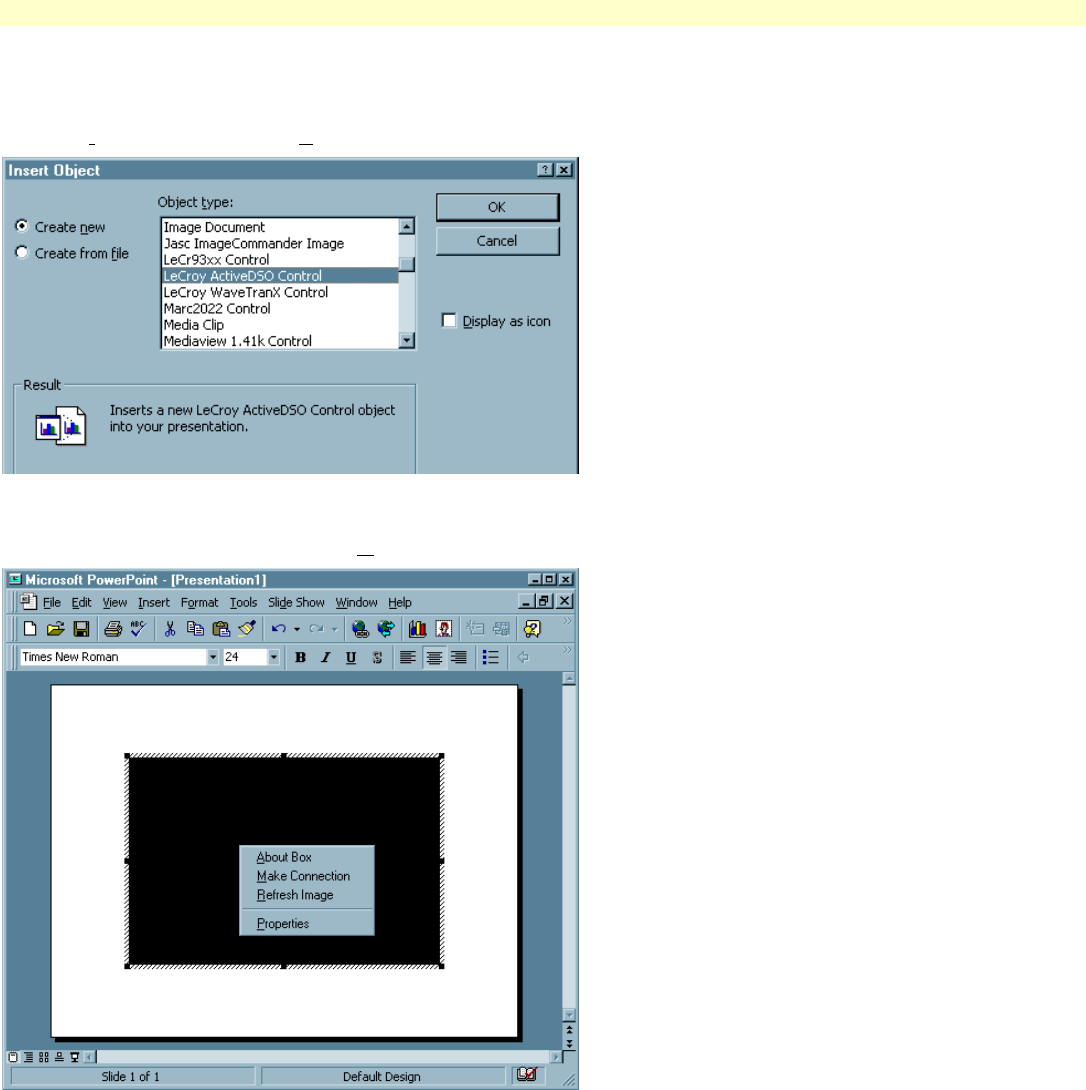
Open PowerPoint with a new blank presentation.
From the Insert Menu, select the Object menu item, then select the 'LeCroy ActiveDSO' object.
Embedded Control Example: Step 2
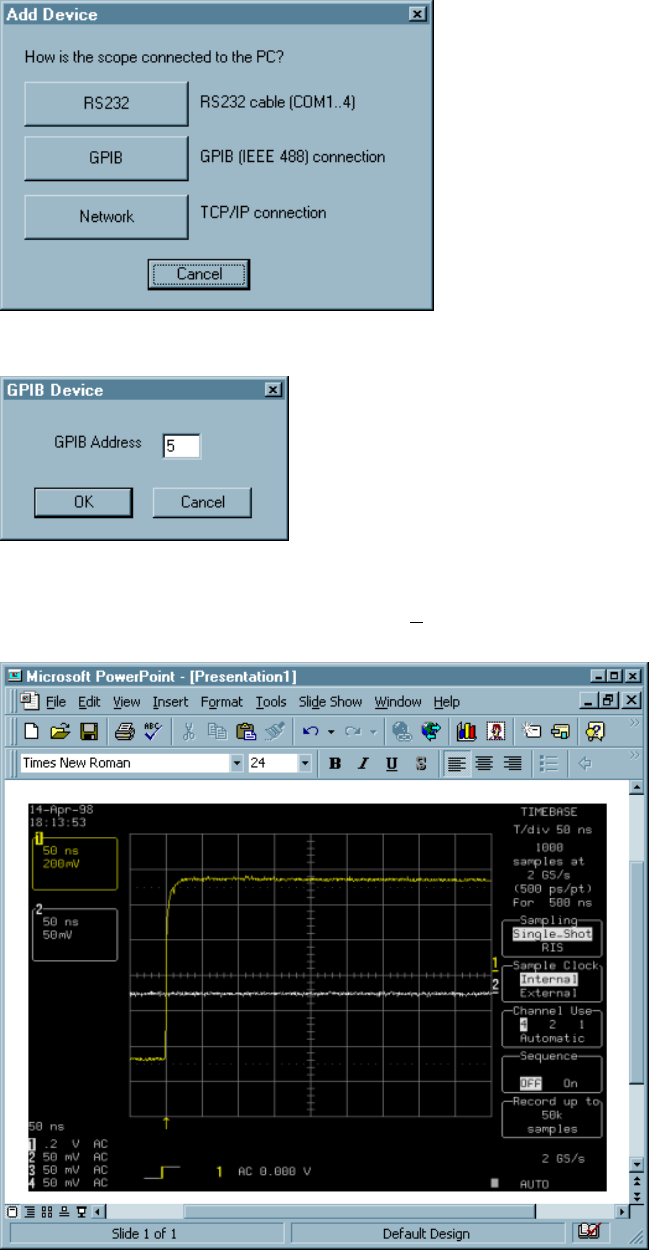
Right-click on the object and select the Make Connection menu item.
Developers’ Guide
3
Embedded Control Example: Step 3
Select the type of connection that is required to communicate with your instrument. GPIB will be used in this example.
Enter the GPIB address of the device and click on OK.
Embedded Control Example: Step 4
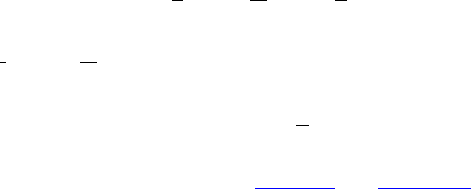
Right-click on the object again and select the Refresh Image menu item. If everything is functioning correctly then the
scope's current display image should appear in the control.
ActiveDSO
4
Accessing from VBA
VBA (Visual Basic for Applications) is the programming language built in to many of the more recent Windows
applications. It is a subset of Visual Basic that makes it very simple to utilize the services of OLE Automation Servers
and ActiveX Controls.
The following VBA subroutine demonstrates how easy it is to connect to a remote device (DSO/Signalyst) and send
remote commands to it.
Sub LeCroyDSOTest()
Dim o As Object
Set o = CreateObject("LeCroy.ActiveDSOCtrl.1")
Call o.AboutBox ' Present the control's About box
Call o.MakeConnection("GPIB: 5") ' Connect to the GPIB device at address 5
Call o.WriteString("BUZZ BEEP", True) ' Make the instrument beep
End Sub
To enter the VBA editor in members of the Microsoft Office suite use the Tools -> Macro -> Visual Basic Editor menu
item.
When the Visual Basic application appears select the Insert -> Module menu item and type (or copy) the above example
into the editor window that appears.
To execute the example position the text cursor within the subroutine either select the Run -> Run Sub/UserForm or
press function key F5.
For more examples of control use from VBA refer to the description of each of the Methods and Properties.
Developers’ Guide
5
Accessing from Visual C++ 5.0
Accessing the ActiveDSO control from within a Visual C++ application is a little more involved than under VBA. The
following example shows how to create a 'wrapper' class for the control and then use the control to communicate with
the instrument.
The example assumes a Visual C++ application based on the MFC libraries.
Accessing an ActiveX control from within a C++ application requires the creation of a 'wrapper class'. This is an
automatically created file that contains a C++ interface to the ActiveDSO class.
Once the wrapper class has been created the object must be instantiated and 'created' before it may be accessed.
Once communication with the device has been established and an acquisition has been taken the next major step is to
read waveform data.
Accessing from Visual C++ 5.0: Creating the wrapper class
To create the wrapper class the following procedure may be used:
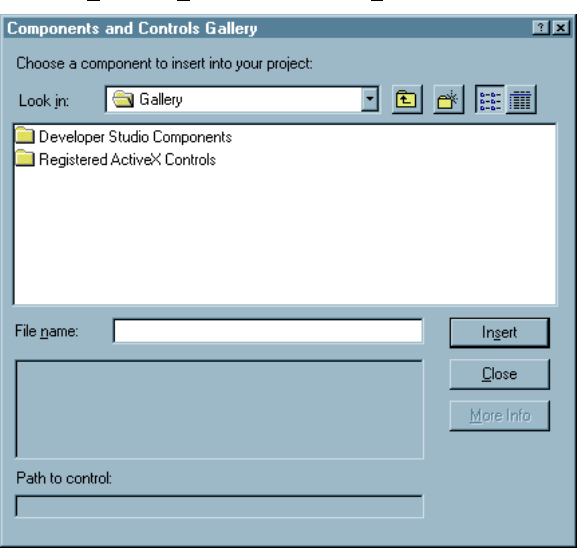
1. Enter the Project -> Add to project -> Components and controls… menu.
2. Select the Registered ActiveX Controls item.
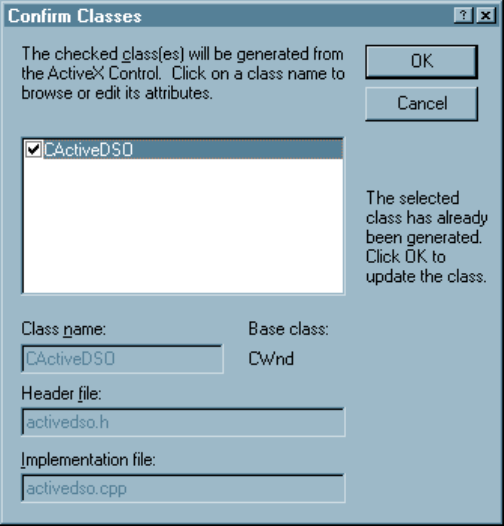
3. Select the LeCroy ActiveDSO Control from the (long) list that appears. The following dialog should appear:
ActiveDSO
6
This dialog allows the class & file names of the 'wrapper' class to be changed, although the default is usually
acceptable.
4. When the names are acceptable, click the OK button. Visual C++ will now create the two wrapper files.
Accessing from Visual C++ 5.0: Using the ActiveDSO control
1. Include the 'wrapper' header file created in Accessing from Visual C++ 5.0: Creating the wrapper class.
2. Create an instance of the control using the following code snippet (the call to dso.Create creates the control in a
hidden window since it will be used purely as an automation server):
CActiveDSO dso;
RECT dummyRect;
dso.Create("LeCroy.ActiveDSOCtrl.1", "HiddenWindowForDSOControl", 0, dummyRect, this, 0);
3. Make a connection to the instrument using the MakeConnection method:
Call dso.MakeConnection("GPIB: 5");
4. As a quick test of the control call the WriteString method to cause the instrument to beep:
Call dso.WriteString("BUZZ BEEP", True);
Developers’ Guide
7
Accessing from Visual C++ 5.0: Reading Waveform Data
Reading waveform data under Visual C++ is more complex than under Visual Basic since C++ does not natively support
the VARIANT data type.
The following code snippet shows one way to access waveform data using the SafeArray support included in MFC
(SafeArrayGetElement, SafeArrayGetLBound, and SafeArrayGetUBound).
The SafeArrayGetElement call is not terribly efficient. If performance is critical then the SafeArrayAccessData function
should be used instead. See the Microsoft Visual C++ documentation for more information on these functions.
void CTestDialog::OnReadWaveform()
{
// create the control
CActiveDSO dso;
RECT dummyRect;
dso.Create("LeCroy.ActiveDSOCtrl.1", "Hello", 0, dummyRect, this, 0);
Call dso.MakeConnection("GPIB: 5");
Call dso.WriteString("BUZZ BEEP", True);
// read up to 500 scaled data values from channel 1
COleVariant waveform;
waveform.Attach(dso.GetScaledWaveform("C1", // trace name
500, // numPoints
0); // transfer first array
// report any error that occurred above, if none occurred
// then loop through each data value
if(dso.GetErrorFlag())
AfxMessageBox(dso.GetErrorString());
else
{
long index = 0;
long lowerBounds = 0;
long upperBounds = 0;
float data;
// get the upper and lower bounds of the waveform
SafeArrayGetLBound(waveform.parray, 1, &lowerBounds);
SafeArrayGetUBound(waveform.parray, 1, &upperBounds);
// loop through each element in the array
for(index = lowerBounds; index <= upperBounds; ++index)
{
SafeArrayGetElement(waveform.parray, &index, &data);
…
}
}
}

ActiveDSO
8
Methods
The majority of the ActiveDSO methods return TRUE (non-zero) to indicate success, and FALSE (zero) to indicate failure.
Upon a failure the ErrorFlag and ErrorString properties may be interrogated to learn more information about the failure.
However, some of the methods return a VARIANT. To check for failure in this case, use the ErrorFlag and ErrorString
properties.
AboutBox
DeviceClear
Disconnect
GetByteWaveform
GetCommaDelimitedString
GetIntegerWaveform
GetNativeWaveform
GetPanel
GetParameterValue
GetScaledWaveform
GetScaledWaveformWithTimes
MakeConnection
ReadBinary
ReadString
RefreshImage
SerialPoll
SetPanel
SetNativeWaveform
SetRemoteLocal
SetTimeout
SetupWaveformTransfer
StoreHardcopyToFile
TransferFileToDso
TransferFileToPc
WaitForOPC
WaitForSRQ
WriteBinary
WriteGPIBCommand
WriteString
Developers’ Guide
9
AboutBox Method
The AboutBox method displays a dialog showing the ActiveDSO version number.
Syntax
controlName.AboutBox
Argument Description
controlname The name of the ActiveDSO control object.
ActiveDSO
10
DeviceClear Method
The DeviceClear method clears the connection to the device.
Syntax
Boolean controlName.DeviceClear
Argument Description
controlname The name of the ActiveDSO control object.
reboot Boolean, normally FALSE, if TRUE the device will be rebooted
Returns
True on success, False on failure.
Remarks
This method will send a device clear signal to the instrument. Any unread response currently in the device’s output
buffer will be cleared.
If the reboot argument is true then this method will reboot the instrument. This operation may take up to 20 seconds to
complete depending upon the type of device.
VBA Example
Sub example
Dim o as Object
set o = CreateObject("LeCroy.ActiveDSOCtrl.1")
Call o.MakeConnection("GPIB: 5") ‘ Connect to GPIB device at address 5
Call o.DeviceClear(True) ‘ Reboot the device
End sub
Developers’ Guide
11
Disconnect Method
The Disconnect method disconnects the control from the device.
Syntax
Boolean controlName.Disconnect
Argument Description
controlname The name of the ActiveDSO control object.
Returns
True on success, False on failure.
Remarks
This method performs the necessary termination functions, which will cleanup and disconnect the interface connection.
ActiveDSO
12
GetByteWaveform Method
The GetByteWaveform method reads raw 8-bit waveform data from the instrument into a Byte array.
Syntax
Variant controlName. GetByteWaveform
Argument Description
controlname The name of the ActiveDSO control object.
traceName String, Source trace name
maxBytes Long, maximum number of bytes to read
whichArray Integer, 0 = first array, 1 = second array (for dual-array waveform)
traceName := { C1 | C2 | C3 | C4 | M1 | M2 | M3 | M4 | TA | TB | TC | TD TD | F1 | Z1 | … } Some scopes/options support
many more trace names, refer to the documentation for each scope/option.
Remarks
This method should be used when unscaled 8-bit waveform data is required. It is especially useful for transferring huge
waveforms due to its efficient use of memory (1 byte per sample as opposed to 4 for the GetScaledWaveform).
Note that waveforms read using this function cannot be sent back into the instrument.
An important point to note when using this function is that in order to store the signed data that the scope emits (-128
to 127) into Visual-Basic's unsigned 'Byte' data type it has been shifted by 128 (0 to 255). This should be remembered
when scaling the data.
Use the SetupWaveformTransfer method to define the sparsing factor (to reduce large waveforms), first point to
transfer, and segment number to transfer (for sequence waveforms).
Processed waveforms are usually 16 bit waveforms and should be transmitted in 16 bit form to avoid losing precision.
Call the GetIntegerWaveform method to do this.
Use the GetScaledWaveformfunction to retrieve waveform data that has already been scaled.
The whichArray parameter should normally be zero, it is used only to specify that the second array of a dual-array
waveform is required. Examples of dual-array waveforms are envelope waveforms which have a min and a max value at
each sample, or a complex FFT which creates a real,imaginary pair.
See Also
SetupWaveformTransfer, GetNativeWaveform, SetNativeWaveform, GetIntegerWaveform, GetScaledWaveform,
GetScaledWaveformWithTimes
Developers’ Guide
13
VBA Example
Sub example
Dim o as Object
set o = CreateObject("LeCroy.ActiveDSOCtrl.1")
Call o.MakeConnection("GPIB: 5") ‘ Connect to GPIB device at address 5
‘ Read the contents of C1 into an array
Dim waveform() as Byte
waveform = o.GetByteWaveform("C1", 5000, 0)
' Determine the number of samples read
NumSamples = UBound(waveform)
' Loop through all ampl values
For i = 0 To NumSamples
amplitude = waveform(i)
Next i
End sub
ActiveDSO
14
GetCommaDelimitedString Method
The GetCommaDelimitedString method extracts strings from a comma-delimited list.
Syntax
String controlName. GetCommaDelimitedString
Argument Description
controlname The name of the ActiveDSO control object.
inputString String, Source String
index Long, zero-based index of string to extract
Returns
A string extracted from a comma-delimited list.
Remarks
The remote control language used by LeCroy Instruments can sometimes require a fair amount of string parsing in the
remote control application. This method provides a language-independent parsing tool to simplify this.
For example, the parameter query PAVA? returns a string that may look like this:
AMPL,1.02 V,OK
The GetCommaDelimitedString method may be used to extract just the parameter value:
Value = activeDSO.GetCommaDelimitedString(pavaResponse, 1)
VBA Example
Sub example
Dim o as Object
set o = CreateObject("LeCroy.ActiveDSOCtrl.1")
Call o.MakeConnection("GPIB: 5") ‘ Connect to GPIB device at address 5
Call o.WriteString("C1:PAVA?", True) ‘ Request a parameter value
replyString = o.ReadString(80) ‘ Ask for the instrument's reply
' Extract just the parameter value
amplitudeValue = o.GetCommaDelimitedString (replyString, 1)
End sub

Developers’ Guide
15
GetIntegerWaveform Method
The GetIntegerWaveform method reads raw 16-bit waveform data from the instrument into an Integer array.
Syntax
Variant controlName. GetIntegerWaveform
Argument Description
controlname The name of the ActiveDSO control object.
traceName String, Source trace name
maxBytes Long, maximum number of bytes to read
whichArray Integer, 0 = first array, 1 = second array (for dual-array waveform)
traceName := { C1 | C2 | C3 | C4 | M1 | M2 | M3 | M4 | TA | TB | TC | TD TD | F1 | Z1 | … } Some scopes/options support
many more trace names, refer to the documentation for each scope/option.
Remarks
This method should be used when unscaled 16-bit waveform data is required.
NOTE: Waveforms read using this function cannot be sent back into the instrument.
Use the SetupWaveformTransfer method to define the sparsing factor (to reduce large waveforms), first point to
transfer, and segment number to transfer (for sequence waveforms).
Processed waveforms are usually 16 bit waveforms and should be transmitted in 16-bit form to avoid losing precision.
Channel waveforms are usually 8 bit waveforms and may be transferred using the GetByteWaveform method to reduce
transfer time and storage requirements.
Use the GetScaledWaveform function to retrieve waveform data that has already been scaled.
The whichArray parameter should normally be zero, it is used only to specify that the second array of a dual-array
waveform is required. Examples of dual-array waveforms are envelope waveforms which have a min and a max value at
each sample, or a complex FFT which creates a real,imaginary pair.
See Also
SetupWaveformTransfer, GetNativeWaveform, SetNativeWaveform, GetByteWaveform, GetScaledWaveform,
GetScaledWaveformWithTimes
ActiveDSO
16
VBA Example
Sub example
Dim o as Object
set o = CreateObject("LeCroy.ActiveDSOCtrl.1")
Call o.MakeConnection("GPIB: 5") ‘ Connect to GPIB device at address 5
‘ Read the contents of C1 into an array
Dim waveform
waveform = o.GetIntegerWaveform("C1", 5000, 0)
' Determine the number of samples read
NumSamples = UBound(waveform)
' Loop through all ampl values
For i = 0 To NumSamples
amplitude = waveform(i)
Next i
End sub
Developers’ Guide
17
GetNativeWaveform Method
The GetNativeWaveform method reads a waveform from the instrument in its native binary form.
Syntax
Variant controlName. GetNativeWaveform
Argument Description
controlname The name of the ActiveDSO control object.
traceName String, Source trace name
maxBytes Long, maximum number of bytes to read
wordData Boolean, if TRUE transmit data as 16 bit words, FALSE for 8 bit words.
blockName String, Waveform block name
traceName := { C1 | C2 | C3 | C4 | M1 | M2 | M3 | M4 | TA | TB | TC | TD TD | F1 | Z1 | … } Some scopes/options support
many more trace names, refer to the documentation for each scope/option.
blockName := { DESC | TEXT | TIME | DAT1 | DAT2 | ALL }
Remarks
Channel waveforms (C1..C4) should be transmitted in 8-bit form by setting wordData FALSE.
Processed waveforms are usually 16 bit waveforms and should be transmitted in 16-bit form to avoid loosing precision.
Set wordData TRUE to do this.
Use the GetScaledWaveform function to retrieve waveform data that has already been scaled.
blockName should be used to transfer the descriptor (DESC), the user text (TEXT), the time descriptor (TIME), the data
(DAT1) block and optionally a second block of data (DAT2) or all entities (ALL).
Only complete waveforms transferred with (ALL) can be sent back into the instrument using the
SetNativeWaveformSetNativeWaveform_Method Method.
Use the BytesRead property to determine how many bytes were placed in the destination buffer. This value will be
required to know how many bytes to send back into the instrument with the SetNativeWaveform Method.
See Also
SetupWaveformTransfer, SetNativeWaveform, GetByteWaveform, GetIntegerWaveform, GetScaledWaveform,
GetScaledWaveformWithTimes
VBA Example
Sub example
Dim o as Object
set o = CreateObject("LeCroy.ActiveDSOCtrl.1")
Call o.MakeConnection("GPIB: 5") ‘ Connect to GPIB device at address 5
‘ Read the contents of C1 into an array
Dim waveform() as Byte
waveform = o.GetNativeWaveform("C1", 5000, False, "ALL")
End sub

ActiveDSO
18
GetParameterValue Method
The GetParameterValue method reads a parameter value from the instrument.
Syntax
Double controlName. GetParameterValue
Argument Description
controlname The name of the ActiveDSO control object.
sourceTrace String, Source trace name
paramName String, Parameter Name
retUnits String, storage for returned Units string
retState String, storage for returned State string
traceName := { C1 | C2 | C3 | C4 | M1 | M2 | M3 | M4 | TA | TB | TC | TD TD | F1 | Z1 | … } Some scopes/options support
many more trace names, refer to the documentation for each scope/option.
paramName := { see PAVA? In remote control manual }
retState := { see PAVA? In remote control manual }
Returns
A double-precision floating-point value containing the parameter value.
Remarks
This method provides a simple way to read parameter values from the Instrument. Internally the method uses the
PAVA? query to read a string containing the parameter value. This string is parsed and the value, units, and state
extracted and returned.
NOTE: If the units are required ensure that the instrument is in 'COMM_HEADER SHORT' or 'COMM_HEADER LONG'
mode before calling this method. If the COMM_HEADER is 'OFF' then the parameter value will be returned correctly, but
the units string will be empty.
VBA Example
Sub example
Dim o as Object
set o = CreateObject("LeCroy.ActiveDSOCtrl.1")
Call o.MakeConnection("GPIB: 5") ‘ Connect to GPIB device at address 5
' Read the amplitude parameter measurement
Dim units As String
Dim state As String
amplitudeValue = o.GetParameterValue("C1", "AMPL", units, state)
End sub
Developers’ Guide
19
GetPanel Method
The GetPanel method reads the instrument's control state into a String, allowing a future call to SetPanel to reproduce
the state.
Syntax
String controlName. GetPanel
Argument Description
controlname The name of the ActiveDSO control object.
Returns
A string containing the hex-ascii Panel.
Remarks
Use the SetPanel Method to send the panel back into the instrument.
The size of the panel will be approximately 5000 bytes, depending upon the instrument's firmware revision.
VBA Example
Sub example
Dim o as Object
set o = CreateObject("LeCroy.ActiveDSOCtrl.1")
Call o.MakeConnection("GPIB: 5") ‘ Connect to GPIB device at address 5
‘ Read the panel from the instrument and send it back in
Dim panelString as String
PanelString = o.GetPanel()
Call o.SetPanel(panelString)
End sub
ActiveDSO
20
GetScaledWaveform
The GetScaledWaveform method reads a scaled waveform from the instrument.
Syntax
Variant controlName. GetScaledWaveform
Argument Description
controlname The name of the ActiveDSO control object.
traceName String, Source trace name
maxBytes Long, maximum number of bytes to read
whichArray Integer, 0 = first array, 1 = second array (for dual-array waveform)
traceName := { C1 | C2 | C3 | C4 | M1 | M2 | M3 | M4 | TA | TB | TC | TD TD | F1 | Z1 | … } Some scopes/options support
many more trace names, refer to the documentation for each scope/option.
Returns
A variant containing the scaled waveform, stored as an array of single-precision floating point values.
Remarks
Use the GetByteWaveform or GetIntegerWaveform method to retrieve a waveform in its raw binary form. This may be
preferable in a time-critical application.
If the time value corresponding to each sample amplitude is required use the GetScaledWaveformWithTimes method.
The whichArray parameter should normally be zero, it is used only to specify that the second array of a dual-array
waveform is required. Examples of dual-array waveforms are envelope waveforms which have a min and a max value at
each sample, or a complex FFT which creates a real,imaginary pair.
See Also
SetupWaveformTransfer, GetNativeWaveform, SetNativeWaveform, GetByteWaveform, GetIntegerWaveform,
GetScaledWaveformWithTimes
VBA Example
Sub example
Dim o as Object
set o = CreateObject("LeCroy.ActiveDSOCtrl.1")
Call o.MakeConnection("GPIB: 5") ‘ Connect to GPIB device at address 5
‘ Read the contents of C1 (up to max. of 5000 points) into an array
Dim waveform
Waveform = o.GetScaledWaveform("C1", 5000, 0)
' Determine the number of samples read
NumSamples = UBound(waveform)
' Loop through all ampl values
For i = 0 To NumSamples
amplitude = waveform(i)
Next i
End sub
Developers’ Guide
21
GetScaledWaveformWithTimes Method
The GetScaledWaveformWithTimes method reads a scaled waveform from the instrument and stores the time and
amplitude at each sample point.
Syntax
Variant controlName. GetScaledWaveformWithTimes
Argument Description
controlname The name of the ActiveDSO control object.
traceName String, Source trace name
maxBytes Long, maximum number of bytes to read
whichArray Integer, 0 = first array, 1 = second array (for dual-array waveform)
traceName := { C1 | C2 | C3 | C4 | M1 | M2 | M3 | M4 | TA | TB | TC | TD TD | F1 | Z1 | … } Some scopes/options support
many more trace names, refer to the documentation for each scope/option.
Returns
A variant containing the scaled waveform, stored as a two-dimensional array of single-precision floating point values.
Time values are stored in the first column of the array, amplitude values are stored in the second column.
Remarks
Use the GetByteWaveform or GetIntegerWaveform method to retrieve a waveform in its raw binary form. This may be
preferable in a time-critical application.
If the time value corresponding to each sample amplitude is not required use the GetScaledWaveform method.
The whichArray parameter should normally be zero, it is used only to specify that the second array of a dual-array
waveform is required. Examples of dual-array waveforms are envelope waveforms which have a min and a max value at
each sample, or a complex FFT which creates a real,imaginary pair.
See Also
SetupWaveformTransfer, GetNativeWaveform, SetNativeWaveform, GetByteWaveform, GetIntegerWaveform,
GetScaledWaveform
ActiveDSO
22
VBA Example
Sub example
Dim o as Object
set o = CreateObject("LeCroy.ActiveDSOCtrl.1")
Call o.MakeConnection("GPIB: 5") ‘ Connect to GPIB device at address 5
' Read the contents of C1 (up to max. of 5000 points) into an array
Dim waveform
Waveform = o.GetScaledWaveformWithTimes("C1", 5000, 0)
' Determine the number of samples read
NumSamples = UBound(waveform, 2)
' Loop through all time, ampl pairs
For i = 0 To NumSamples
time = waveform(0, i)
amplitude = waveform(1, i)
Next i
End sub

Developers’ Guide
23
MakeConnection Method
The MakeConnection method creates the connection between the control and a device.
Syntax
Boolean controlName.MakeConnection
Argument Description
controlname The name of the ActiveDSO control object.
address Device address string
Returns
True on success, False on failure.
Remarks
Once the ActiveDSO object is created by the container application, this method is first one that needs to be invoked to
make the initial connection to the instrument. The address argument will take an address in the form of string.
Interface
Syntax
Example
GPIB
GPIBx: nn
x := 0..3 (optional)
nn := 1..30
GPIB: 5
Network
IP: a.b.c.d
a,b,c,d := 0 to 255
IP:128.23.24.21
RS232
COMn: baud,bits,parity,stop
n := 1..4
baud := { 300 | 1200 | 2400
| 4800 | 9600 |
19200 | 57600 | 115000 }
bits := 7 | 8
parity := N | O | E
stop := 1 | 1.5 | 2
COM1: 19200,8,N,1
USBTMC
USBTMC:<VISA-Resource Name>
USBTMC:USB0::0x05FF::0x1023::2807N59057::INSTR
VBA Example (GPIB)
Sub example
Dim o as Object
set o = CreateObject("LeCroy.ActiveDSOCtrl.1")
Call o.MakeConnection("GPIB: 5") ‘ Connect to GPIB device at address 5
Call o.WriteString("VDIV 50mV", True)
End sub
ActiveDSO
24
ReadBinary Method
The ReadBinary method reads a binary response from the instrument.
Syntax
Variant controlName. ReadBinary
Argument Description
controlname The name of the ActiveDSO control object.
maxBytes Long, Maximum number of bytes to read
Returns
This method returns the received data in a Variant containing an array of bytes.
Remarks
This method reads a binary response from the instrument. The maxBytes argument indicates the maximum number of
bytes to read. If there is more to read than the indicated maxBytes, then the remaining bytes will be left unread in the
instrument.
VBA Example
Sub example
Dim o as Object
set o = CreateObject("LeCroy.ActiveDSOCtrl.1")
Call o.MakeConnection("GPIB: 5") ‘ Connect to GPIB device at address 5
Call o.WriteString("C1:WF? DAT1", True) ‘ Request the waveform data for C1
Dim waveform
waveform = o.ReadBinary(10000) ‘ Read the data
End sub
Developers’ Guide
25
ReadString Method
The ReadString method reads a string response from the instrument.
Syntax
String controlName.ReadString
Argument Description
controlname The name of the ActiveDSO control object.
maxBytes Long, Maximum number of bytes to read
Returns
The device response is returned in a String.
Remarks
This method reads a string response from the instrument. The maxBytes argument indicates the maximum number of
characters to read. If there is more to read than the indicated maxBytes, then the remaining characters will be left
unread in the instrument.
VBA Example
Sub example
Dim o as Object
set o = CreateObject("LeCroy.ActiveDSOCtrl.1")
' Read the *IDN? Response
Call o.MakeConnection("GPIB: 5") ‘ Connect to GPIB device at address 5
Call o.WriteString("*IDN?", True) ‘ Request the Scope's ID string
replyString = o.ReadString(80) ‘ Read the DSO's reply
End sub
ActiveDSO
26
RefreshImage Method
The RefreshImage method updates the control's image with the current contents of the instrument's display.
Syntax
Boolean controlName. RefreshImage
Argument Description
controlname The name of the ActiveDSO control object.
Returns
True on success, False on failure.
Remarks
This method is only useful if the control is embedded into a form or document. When the control is being used as an
Automation server without it being visible it is of no use.
Developers’ Guide
27
SerialPoll Method
The SerialPoll method returns the device’s serial poll response (GPIB Devices Only).
Syntax
Boolean controlName.SerialPoll
Argument Description
controlname The name of the ActiveDSO control object.
response Integer, storage for serial poll response
Returns
True on success, False on failure.
Remarks
Serial polling usually takes place once an SRQ (service request) has been asserted and is advantageous when there are
several instruments involved.
The serial poll returns the STB register of the instrument. This contains a bit (SRQ) which indicates whether the device is
currently requesting service.
VBA Example
Sub example
Dim o as Object
set o = CreateObject("LeCroy.ActiveDSOCtrl.1")
Call o.MakeConnection("GPIB: 5") ‘ Connect to GPIB device at address 5
‘ Serially poll the device, returns STB register
Dim x As Integer
Call o.SerialPoll(x)
End sub
ActiveDSO
28
SetNativeWaveform Method
The SetNativeWaveform method writes a waveform in its native binary form into the instrument.
Syntax
Boolean controlName. SetNativeWaveform
Argument Description
controlname The name of the ActiveDSO control object.
destination String, Destination trace name
buffer Byte Array, Source buffer
destination := { M1 | M2 | M3 | M4 }
Returns
True on success, False on failure.
Remarks
This method sends a waveform captured using the GetNativeWaveform method back into the instrument. Note that
waveforms captured using the other GetxxxWaveform functions cannot be sent back into the instrument in this way.
VBA Example
Sub example
Dim o as Object
set o = CreateObject("LeCroy.ActiveDSOCtrl.1")
Call o.MakeConnection("GPIB: 5") ‘ Connect to GPIB device at address 5
‘ Read the contents of C1 into an array and write it back into M1
Dim waveform() as Byte
waveform = o.GetNativeWaveform("C1", 5000, False, "ALL")
Call o.SetNativeWaveform("M1", waveform)
End sub
Developers’ Guide
29
SetPanel Method
The SetPanel method sets the instrument's control state using a panel string captured using the method GetPanel.
Syntax
Boolean controlName. SetPanel
Argument Description
controlname The name of the ActiveDSO control object.
buffer String, panel string captured with GetPanel.
Returns
True on success, False on failure.
Remarks
Use the GetPanel method to read the panel string.
VBA Example
Sub example
Dim o as Object
set o = CreateObject("LeCroy.ActiveDSOCtrl.1")
Call o.MakeConnection("GPIB: 5") ‘ Connect to GPIB device at address 5
‘ Read the panel from the instrument and send it back in
Dim panelString as String
PanelString = o.GetPanel()
Call o.SetPanel(panelString)
End sub

ActiveDSO
30
SetRemoteLocal Method
The SetRemoteLocal method controls the Remote/Local state of the device.
Syntax
Boolean controlName.SetRemoteLocal
Argument Description
controlname The name of the ActiveDSO control object.
mode Long, 1 = Remote mode, 0 = Local mode
Returns
True on success, False on failure.
Remarks
This method sets the instrument to Remote or Local mode, if the mode argument is set to 1 then the oscilloscope is set
to Remote Mode, otherwise oscilloscope is set to Local Mode.
NOTE: All 94xx and 93xx/LCxxx oscilloscopes with firmware revisions prior to legacy firmware 7.2.0 require the
oscilloscope to be in Remote mode before remote commands (not queries) would be accepted. All 93xx/LCxxx/LSAxxxx
instruments running legacy 7.2.0 or later accept commands both in Local and Remote modes.
Developers’ Guide
31
SetTimeout Method
The SetTimeout method sets the control’s time-out time.
Syntax
Boolean controlName.SetTimeout
Argument Description
controlname The name of the ActiveDSO control object.
timeoutTime Single, Time-out time in seconds
Returns
True on success, False on failure.
Remarks
This method sets the time that the control will wait for a response from the instrument. The methods to which this
applies are:
ReadString, ReadBinary, WaitForOPC, GetByteWaveform, GetIntegerWaveform GetNativeWaveform,
GetScaledWaveform, GetScaledWaveformWithTimes
ActiveDSO
32
SetupWaveformTransfer Method
The SetupWaveformTransfer configures various parameters that control the transfer of waveforms from the instrument
to the PC.
Syntax
Boolean controlName. SetupWaveformTransfer
Argument Description
firstPoint Integer, The index of the first point to transfer (0 = first point).
sparsing Integer, The sparsing factor (0 = all points, 2 = skip every other pt.)
segmentNo Integer, Segment number to transfer (0 = all segments).
Returns
True on success, False on failure.
Remarks
This method affects how the various GetWaveform functions transfer a waveform.
For the majority of cases the default settings will be sufficient. These are:
Start Transfer at first point
Transfer all data points
Transfer all segments.
VBA Example
Sub example
Dim o as Object
set o = CreateObject("LeCroy.ActiveDSOCtrl.1")
Call o.MakeConnection("GPIB: 5") ‘ Connect to GPIB device at address 5
‘ Setup waveform transfer to start sending at point 100, transfer every
' other point, and transfer data only from segment 5 of a sequence waveform.
Call o.SetupWaveformTransfer(100, 2, 5)
End sub
Developers’ Guide
33
StoreHardcopyToFile Method
The StoreHardcopyToFile method transfers a hardcopy image from the instrument and stores it in a file on the
controlling PC.
Syntax
Boolean controlName. StoreHardcopyToFile
Argument Description
controlname The name of the ActiveDSO control object.
format String, Hardcopy format. See list/explanation below
auxFormat String, Auxiliary format, normally empty ("").
filename Destination filename.
Returns
True on success, False on failure.
Remarks
This method uses the instrument's HARDCOPY_SETUP and SCREEN_DUMP remote commands to retrieve a hardcopy
image and store it in a file on the controlling PC.
The format string may be any device shown in the remote control manual on the HARDCOPY_SETUP command page.
Depending on the family (93xx, LCxxx, and LSAxxxx) and the software version, these could include:
BMP, BMPCOMP, CANONCOL, EPSON, EPSONCOL, HPDJ, HPDJBW, HPPJ, HPTJ, HPLJ, HP7470A, HP7550A, TIFF,
TIFFCOL, TIFFCOMP, HPGL
The auxFormat string may be used to send extra information to the HARDCOPY_SETUP command. This could include
the paper orientation ("FORMAT,PORTRAIT", or "FORMAT,LANDSCAPE"), page-feed ("PFEED,ON"or "PFEED,OFF"), etc. Again, see the
HARDCOPY_SETUP page of the instrument remote control manual for more details.
VBA Example
Sub example
Dim o as Object
set o = CreateObject("LeCroy.ActiveDSOCtrl.1")
Call o.MakeConnection("GPIB: 5") ‘ Connect to GPIB device at address 5
‘ Read a BMP image from the instrument and store it in file 'C:\BMPImage.bmp'
Call o.StoreHardcopyToFile("BMP", "", "C:\BMPImage.bmp")
‘ Read a TIFF image from the instrument and store it in file 'C:\TIFFImage.tif'
Call o.StoreHardcopyToFile("TIFF", "", "C:\TIFFImage.tif")
‘ Read an HPGL image from the instrument and store it in file 'C:\HPGLImage.hpl'
Call o.StoreHardcopyToFile("HPGL", "", "C:\HPGLImage.hpl")
‘ Read an HP LaserJet formatted image from the instrument and store it in file
'C:\HPLJImage.img'
Call o.StoreHardcopyToFile("HPLJ", "PFEED,ON,FORMAT,PORTRAIT", "C:\HPLJImage.img")
End sub
ActiveDSO
34
TransferFileToDso Method
The TransferFileToDso method transfers a file from the PC to a mass storage device on the oscilloscope.
Syntax
Boolean controlName.TransferFileToDso
Argument Description
remoteDevice String, The device name for instrument end (CARD, HDD, FLPY).
remoteFileName String, The name (and path) of the destination file on the instrument.
localFileName String, The name (and path) of the source file on the PC.
Returns
True on success, False on failure.
Remarks
CARD applies only to legacy models.
VBA Example
Sub example
Dim o as Object
set o = CreateObject("LeCroy.ActiveDSOCtrl.1")
o.MakeConnection("GPIB: 5") ‘ Connect to GPIB device at address 5
‘ Copy localpath\localfile to remotepath\remotefile.
o.TransferFileToDso("HDD", "D:\dso\dest.txt", "C:\pc\src.txt")
End sub
Developers’ Guide
35
TransferFileToPc Method
The TransferFileToPc method transfers a file from a mass storage device on the instrument to the PC.
Syntax
Boolean controlName.TransferFileToPc
Argument Description
remoteDevice String, The device name for instrument end (CARD, HDD, FLPY).
remoteFileName String, The name (and path) of the source file on the instrument.
localFileName String, The name (and path) of the destination file on the PC.
Returns
True on success, False on failure.
Remarks
CARD applies only to legacy models.
VBA Example
Sub example
Dim o as Object
set o = CreateObject("LeCroy.ActiveDSOCtrl.1")
o.MakeConnection("GPIB: 5") ‘ Connect to GPIB device at address 5
‘ Copy remotepath\remotefile to localpath\localfile.
o.TransferFileToPc("HDD", "D:\dso\src.txt", "C:\pc\dest.txt")
End sub
ActiveDSO
36
WaitForOPC Method
The WaitForOPC method may be used to wait for previous commands to be interpreted before continuing.
Syntax
Boolean controlName.WaitForOPC
Argument Description
controlname The name of the ActiveDSO control object.
Returns
True on success, False on failure.
Remarks
This method sends the query ‘*OPC?’ to the device and waits for its reply.
Developers’ Guide
37
WaitForSRQ Method
The WaitForSRQ method may be used to wait for an SRQ (Service Request) from the device.
Syntax
Boolean controlName.WaitForSRQ
Argument Description
controlname The name of the ActiveDSO control object.
timeoutTime Single, Time to wait (in seconds) for an SRQ
Returns
True on success, False on failure.
Remarks
If an SRQ is detected from the device within the specified time the method will return TRUE.
ActiveDSO
38
WriteBinary Method
The WriteBinary method sends a binary data block to the device with or without a terminating EOI (End or Identify).
Syntax
Boolean controlName.WriteBinary
Argument Description
controlname The name of the ActiveDSO control object.
srcArray Byte Array, Data Array to send to the device.
numBytes Long, Number of bytes to send
EOI Boolean, True = terminate with EOI
Returns
True on success, False on failure.
Remarks
If EOI is set to TRUE then the device will start to interpret the command immediately. This is normally the desired
behavior.
If EOI is set to FALSE then a command may be sent in several parts with the device starting to interpret the command
only when it receives the final part which should have EOI set TRUE.
VBA Example
Sub example
Dim o as Object
set o = CreateObject("LeCroy.ActiveDSOCtrl.1")
Call o.MakeConnection("GPIB: 5") ‘ Connect to GPIB device at address 5
'read waveform into ‘wf’ Variant array
Call o.WriteString "VBS app.Memory.M2.ClearMem", True ' clear M2,
' Important ! turn header off
' Important ! ALL must be used as argument for WF?
' Request the waveform data for C1
Call o.WriteString "CHDR OFF;MSIZ 500;C1:WF? ALL", True
Dim wf
wf = o.ReadBinary(2000) ' Read C1 data
o.WaitForOPC
Call o.WriteString "M2:WF ", False ' Prepare the DSO to receive a waveform in M2
Call o.WriteBinary "wf, 2000, True" ' Send the waveform, terminate with EOI
o.WaitForOPC
End sub
Developers’ Guide
39
WriteGpibCommand Method
The WriteGpibCommand method sends low-level GPIB commands to the device.
Syntax
Boolean controlName.WriteGpibCommand
Argument Description
controlname The name of the ActiveDSO control object.
cmdArray Byte Array, GPIB commands to send to the device.
numBytes Long, Number of bytes to send
Returns
True on success, False on failure.
Remarks
This method is useful only for devices connected using the GPIB bus and is not usually required when communicating
with a LeCroy instrument. It is used to support older GPIB devices.
When invoked while the instrument is connected via other means than GPIB, this method does nothing and returns
immediately without error.
ActiveDSO
40
WriteString Method
The WriteString method sends a string to the connected device with or without a terminating EOI (End or Identify).
Syntax
Boolean controlName.WriteString
Argument Description
controlname The name of the ActiveDSO control object.
textString String, Text string to send to the device.
EOI Boolean, TRUE = terminate with EOI
Returns
True on success, False on failure.
Remarks
This method sends a string command to the instrument.
If EOI is set to TRUE then the device will start to interpret the command immediately. This is normally the desired
behavior.
If EOI is set to FALSE then a command may be sent in several parts with the device starting to interpret the command
only when it receives the final part which should have EOI set TRUE.
VBA Example
Sub example
Dim o as Object
set o = CreateObject("LeCroy.ActiveDSOCtrl.1")
Call o.MakeConnection("GPIB: 5") ‘ Connect to GPIB device at address 5
Call o.WriteString("VDIV ", False) ‘ First part of command, no EOI
Call o.WriteString("10V ", True)‘ Second part of command, terminate with EOI
End sub


ActiveDSO
42
BinTransferSupport Property
The BinTransferSupport property is a read-only Boolean value that is set TRUE during a call to the MakeConnection
method if it is determined that the connection can support binary data transfers.
NOTE: Binary data transfers are supported by the GPIB and Network interfaces but not by the RS232 interface. The
GetBinaryWaveform and SetBinaryWaveform methods automatically compensate for an interface that does not support
binary data transfers by transferring the waveform in hex-ascii form.
Developers’ Guide
43
BytesRead Property
The BytesRead property is a read-only Long value that indicates the number of bytes read from the device by the last
method used.
ActiveDSO
44
ConnectionType Property
The ConnectionType property is a read-only String value that is set to indicate the type of connection to the device when
the MakeConnection is called.
Settings
GPIB Device
Network Device
RS232 Device
Developers’ Guide
45
DeviceModel Property
The DeviceModel property is a read-only String value that is set to the device model string extracted from the *IDN?
query when the MakeConnection method is called.
ActiveDSO
46
ErrorFlag Property
The ErrorFlag property is a read-only Boolean value that is set TRUE if an error occurred since either the
MakeConnection call or the last time that it was read.
If the ErrorFlag is set TRUE the ErrorString property may be used to extract a verbose description of the error.
It is highly advisable to check the state of the ErrorFlag frequently during a remote control session.

Developers’ Guide
47
ErrorString Property
The ErrorString property is a read-only String value that should be read if the ErrorFlag property is set TRUE to extract a
verbose description of the error that occurred.
NOTE: The ErrorString property is cleared by a call to the MakeConnection method, or when the ErrorString property is
read.
ActiveDSO
48
NumChannels Property
The NumChannels property is a read-only Long value that is set to the number of channels supported by the device
when the MakeConnection method is called.
Developers’ Guide
49
ScreenType Property
The ScreenType property is a read-only String value that is set to the type of display supported by the device when the
MakeConnection method is called.
Settings
Color Screen
Monochome Screen
ActiveDSO
50
SerialNumber Property
The SerialNumber property is a read-only String value that is set to the device serial number string extracted from the
*IDN? query when the MakeConnection method is called.

Developers’ Guide
51
Appendix: Wiring for RS-232 Interfaces
DB-9 to DB-9 Null-Modem cable wiring is required.
NOTE: ScopeExplorer uses the oscilloscope in Hardware Handshake mode and therefore requires a full Null-Modem
cable. A cable that just connects TxD/RxD and Gnd will not function correctly.
A cable constructed using the following wiring diagram may be used to control a 93xx/LCxxx DSO from a standard PC
using the RS-232 port.
Description
DB-9 Male Pin #
DB-9 Male Pin #
Description
DCD+DSR
1 and 6
<->
4
DTR
RxD
2
<->
3
TxD
TxD
3
<->
2
RxD
DTR
4
<->
1 and 6
DCD+DSR
Gnd
5
<->
5
Gnd
RTS
7
<->
8
CTS
CTS
8
<->
7
RTS

926289 Rev B
September, 2015
