Avaya Aura AE Services TSAPI And CVLAN Client SDK Installation Guide 6 3 1
User Manual:
Open the PDF directly: View PDF  .
.
Page Count: 96
- Avaya Aura® Application Enablement Services TSAPI and CVLAN Client and SDK Installation Guide
- Contents
- About This Document
- Chapter 1: Getting the files for your installation
- Chapter 2: Installing the AE Services TSAPI clients and SDKs
- TSAPI client and SDK operating system requirements
- Gathering Pre-Installation Data
- Installing and Configuring the TSAPI Windows Client
- Installing the TSAPI Windows client
- Accessing the TSAPI Windows client desktop components
- Verifying the TSAPI Windows client installation
- Using TSAPI Spy while running TSAPI Test
- Removing the TSAPI Windows client
- Upgrading the TSAPI Windows client
- Editing the TSAPI Windows client configuration file (tslib.ini)
- Network-based installations for the TSAPI Windows client
- Installing and Configuring the TSAPI Linux Client
- About TSAPI Links (Tlinks)
- Administering port settings for a firewall
- Installing and Managing the TSAPI Windows SDK
- Installing and Managing the TSAPI Linux SDK
- Chapter 3: Installing the AE Services CVLAN Client/SDK
- The CVLAN Client
- CVLAN client and certificate management
- The CVLAN SDK
- CVLAN Client/SDK requirements
- Installing the CVLAN Windows Client/SDK
- Removing the CVLAN Windows Client/SDK
- Upgrading the CVLAN Windows Client/SDK
- Installing the CVLAN Linux Client/SDK
- Removing the CVLAN Linux Client/SDK
- Upgrading the CVLAN Linux Client/SDK
- The ASAI test utility
- Using the ASAI test utility
- Appendix A: Managing certificates
- Appendix B: File naming conventions
- Appendix C: TSAPI client message tracing
- Glossary
- Index

Avaya Aura® Application Enablement
Services TSAPI and CVLAN Client and
SDK Installation Guide
Release 6.3
October 2013
Issue 2

© 2013 Avaya Inc.
All Rights Reserved.
Notice
While reasonable efforts were made to ensure that the information in this
document was complete and accurate at the time of printing, Avaya Inc. can
assume no liability for any errors. Changes and corrections to the information
in this document might be incorporated in future releases.
Documentation disclaimer
Avaya Inc. is not responsible for any modifications, additions, or deletions to
the original published version of this documentation unless such modifications,
additions, or deletions were performed by Avaya. Customer and/or End User
agree to indemnify and hold harmless Avaya, Avaya's agents, servants and
employees against all claims, lawsuits, demands and judgments arising out of,
or in connection with, subsequent modifications, additions or deletions to this
documentation to the extent made by the Customer or End User.
Link disclaimer
Avaya Inc. is not responsible for the contents or reliability of any linked Web
sites referenced elsewhere within this documentation, and Avaya does not
necessarily endorse the products, services, or information described or offered
within them. We cannot guarantee that these links will work all the time and we
have no control over the availability of the linked pages.
Warranty
Avaya Inc. provides a limited warranty on this product. Refer to your sales
agreement to establish the terms of the limited warranty. In addition, Avaya’s
standard warranty language, as well as information regarding support for this
product, while under warranty, is available through the Avaya Support Web
site: http://www.avaya.com/support
Licenses
USE OR INSTALLATION OF THE PRODUCT INDICATES THE END USER'S
ACCEPTANCE OF THE TERMS SET FORTH HEREIN AND THE GENERAL
LICENSE TERMS AVAILABLE ON THE AVAYA WEB SITE
http://support.avaya.com/LicenseInfo/ ("GENERAL LICENSE TERMS"). IF
YOU DO NOT WISH TO BE BOUND BY THESE TERMS, YOU MUST
RETURN THE PRODUCT(S) TO THE POINT OF PURCHASE WITHIN TEN
(10) DAYS OF DELIVERY FOR A REFUND OR CREDIT.
Avaya grants End User a license within the scope of the license types
described below. The applicable number of licenses and units of capacity for
which the license is granted will be one (1), unless a different number of
licenses or units of capacity is specified in the Documentation or other
materials available to End User. "Designated Processor" means a single
stand-alone computing device. "Server" means a Designated Processor that
hosts a software application to be accessed by multiple users. "Software"
means the computer programs in object code, originally licensed by Avaya and
ultimately utilized by End User, whether as stand-alone Products or
pre-installed on Hardware. "Hardware" means the standard hardware
Products, originally sold by Avaya and ultimately utilized by End User.
License type(s)
Designated System(s) License (DS). End User may install and use each
copy of the Software on only one Designated Processor, unless a different
number of Designated Processors is indicated in the Documentation or other
materials available to End User. Avaya may require the Designated
Processor(s) to be identified by type, serial number, feature key, location or
other specific designation, or to be provided by End User to Avaya through
electronic means established by Avaya specifically for this purpose.
Concurrent User License (CU). End User may install and use the Software on
multiple Designated Processors or one or more Servers, so long as only the
licensed number of Units are accessing and using the Software at any given
time. A “Unit” means the unit on which Avaya, at its sole discretion, bases the
pricing of its licenses and can be, without limitation, an agent, port or user, an
e-mail or voice mail account in the name of a person or corporate function
(e.g., webmaster or helpdesk), or a directory entry in the administrative
database utilized by the Product that permits one user to interface with the
Software. Units may be linked to a specific, identified Server.
Database License (DL). Customer may install and use each copy of the
Software on one Server or on multiple Servers provided that each of the
Servers on which the Software is installed communicate with no more than a
single instance of the same database.
CPU License (CP). End User may install and use each copy of the Software
on a number of Servers up to the number indicated by Avaya provided that the
performance capacity of the Server(s) does not exceed the performance
capacity specified for the Software. End User may not re-install or operate the
Software on Server(s) with a larger performance capacity without Avaya's prior
consent and payment of an upgrade fee.
Named User License (NU). Customer may: (i) install and use the Software on
a single Designated Processor or Server per authorized Named User (defined
below); or (ii) install and use the Software on a Server so long as only
authorized Named Users access and use the Software. "Named User," means
a user or device that has been expressly authorized by Avaya to access and
use the Software. At Avaya's sole discretion, a "Named User" may be, without
limitation, designated by name, corporate function (e.g., webmaster or
helpdesk), an e-mail or voice mail account in the name of a person or corporate
function, or a directory entry in the administrative database utilized by the
Product that permits one user to interface with the Product.
Shrinkwrap License (SR). With respect to Software that contains elements
provided by third party suppliers, End User may install and use the Software in
accordance with the terms and conditions of the applicable license
agreements, such as "shrinkwrap" or "clickwrap" license accompanying or
applicable to the Software ("Shrinkwrap License"). The text of the Shrinkwrap
License will be available from Avaya upon End User’s request (see “Third-party
Components" for more information).
Copyright
Except where expressly stated otherwise, the Product is protected by copyright
and other laws respecting proprietary rights. Unauthorized reproduction,
transfer, and or use can be a criminal, as well as a civil, offense under the
applicable law.
Third-party components
Certain software programs or portions thereof included in the Product may
contain software distributed under third party agreements ("Third Party
Components"), which may contain terms that expand or limit rights to use
certain portions of the Product ("Third Party Terms"). Information identifying
Third Party Components and the Third Party Terms that apply to them is
available on the Avaya Support Web site:
http://support.avaya.com/ThirdPartyLicense/
Preventing toll fraud
"Toll fraud" is the unauthorized use of your telecommunications system by an
unauthorized party (for example, a person who is not a corporate employee,
agent, subcontractor, or is not working on your company's behalf). Be aware
that there can be a risk of toll fraud associated with your system and that, if toll
fraud occurs, it can result in substantial additional charges for your
telecommunications services.
Avaya fraud intervention
If you suspect that you are being victimized by toll fraud and you need technical
assistance or support, call Technical Service Center Toll Fraud Intervention
Hotline at +1-800-643-2353 for the United States and Canada. For additional
support telephone numbers, see the Avaya Support Web site:
http://www.avaya.com/support
Trademarks
Avaya and Avaya Aura are registered trademarks of Avaya Inc.
All non-Avaya trademarks are the property of their respective owners.
Downloading documents
For the most current versions of documentation, see the Avaya Support Web
site: http://www.avaya.com/support
Contact Avaya support
Avaya provides a telephone number for you to use to report problems or to ask
questions about your product. The support telephone number
is 1-800-242-2121 in the United States. For additional support telephone
numbers, see the Avaya Support Web site:
http://www.avaya.com/support

AE Services TSAPI and CVLAN Client and SDK Installation Guide October 2013 3
About This Document . . . . . . . . . . . . . . . . . . . . . . . . . . . . . . . . . . . 7
Intended Audiences . . . . . . . . . . . . . . . . . . . . . . . . . . . . . . . . . . 7
TSAPI and CVLAN backward compatibility . . . . . . . . . . . . . . . . . . . . . 8
TSAPI . . . . . . . . . . . . . . . . . . . . . . . . . . . . . . . . . . . . . . 8
CVLAN . . . . . . . . . . . . . . . . . . . . . . . . . . . . . . . . . . . . . 8
Conventions Used in This Document . . . . . . . . . . . . . . . . . . . . . . . . 9
About file naming conventions . . . . . . . . . . . . . . . . . . . . . . . . . . 9
TSAPI and CVLAN client and SDK documentation . . . . . . . . . . . . . . . . . 10
Customer Support . . . . . . . . . . . . . . . . . . . . . . . . . . . . . . . . . . . 10
Chapter 1: Getting the files for your installation . . . . . . . . . . . . . . . . . . . . 11
Downloading software from PLDS . . . . . . . . . . . . . . . . . . . . . . . . . . 12
Downloading clients and SDKs from Avaya Support . . . . . . . . . . . . . . . . 14
Downloading clients from Avaya DevConnect. . . . . . . . . . . . . . . . . . . . 15
Chapter 2: Installing the AE Services TSAPI clients and SDKs . . . . . . . . . . . . 17
TSAPI client and SDK operating system requirements . . . . . . . . . . . . . . . 17
Gathering Pre-Installation Data . . . . . . . . . . . . . . . . . . . . . . . . . . . . 20
If you do not have the host name or IP address . . . . . . . . . . . . . . . . . 20
Installing and Configuring the TSAPI Windows Client . . . . . . . . . . . . . . . 21
Installing the TSAPI Windows client . . . . . . . . . . . . . . . . . . . . . . 21
Accessing the TSAPI Windows client desktop components . . . . . . . . . . 23
Verifying the TSAPI Windows client installation . . . . . . . . . . . . . . . 24
Using TSAPI Spy while running TSAPI Test . . . . . . . . . . . . . . . . . . . 25
Removing the TSAPI Windows client . . . . . . . . . . . . . . . . . . . . . . 25
Removing the TSAPI Windows client from a non-Windows 8 system . . . 25
Removing the TSAPI Windows client from a Windows 8 system . . . . . 26
Upgrading the TSAPI Windows client . . . . . . . . . . . . . . . . . . . . . . 26
Editing the TSAPI Windows client configuration file (tslib.ini) . . . . . . . . . 27
Specifying Alternate Tlinks for the TSAPI Windows client . . . . . . . . . 28
About Specifying the location of certificates (tslib.ini) . . . . . . . . . . . 29
Adding Certificate Configuration statements to the tslib.ini file . . . . . . 30
Network-based installations for the TSAPI Windows client . . . . . . . . . . 33
Copying the software and installing the first TSAPI client . . . . . . . . . 34
Installing the next client: customizing the tslib.ini file prior to installation 35
Installing the next client: sharing a single tslib.ini file among clients . . . 36
Installing and Configuring the TSAPI Linux Client . . . . . . . . . . . . . . . . . 37
Installing the TSAPI Linux client . . . . . . . . . . . . . . . . . . . . . . . . . 37
Using TSAPI Test to verify Linux client installations . . . . . . . . . . . . . . 38
Removing the TSAPI Linux client . . . . . . . . . . . . . . . . . . . . . . . . 40
Contents

Contents
4AE Services TSAPI and CVLAN Client and SDK Installation Guide October 2013
Upgrading the TSAPI Linux client . . . . . . . . . . . . . . . . . . . . . . . . 40
Editing the Linux client configuration file . . . . . . . . . . . . . . . . . . . . 40
Specifying the location of the tslibrc file. . . . . . . . . . . . . . . . . . . 40
Making basic changes to the tslibrc file . . . . . . . . . . . . . . . . . . . 41
Specifying Alternate Tlinks for the Linux client . . . . . . . . . . . . . . . 41
About specifying the location of certificates (tslibrc) . . . . . . . . . . . . 43
Adding certificate configuration statements to the tslibrc file . . . . . . . 43
About TSAPI Links (Tlinks) . . . . . . . . . . . . . . . . . . . . . . . . . . . . . . 47
Administering port settings for a firewall . . . . . . . . . . . . . . . . . . . . . . 47
Installing and Managing the TSAPI Windows SDK . . . . . . . . . . . . . . . . . 48
The AE Services TSAPI SDK and the programming environment . . . . . . . 48
How to obtain the TSAPI SDK. . . . . . . . . . . . . . . . . . . . . . . . . . . 48
Installing the TSAPI Windows SDK. . . . . . . . . . . . . . . . . . . . . . . . 48
Viewing the TSAPI Windows SDK Components . . . . . . . . . . . . . . . . . 50
Removing the TSAPI Windows SDK . . . . . . . . . . . . . . . . . . . . . . . 50
Removing the TSAPI Windows SDK from a non-Windows 8 system . . . 50
Removing the TSAPI Windows SDK from a Windows 8 system . . . . . . 51
Upgrading the TSAPI Windows SDK . . . . . . . . . . . . . . . . . . . . . . . 51
Installing and Managing the TSAPI Linux SDK . . . . . . . . . . . . . . . . . . . 52
Installing the TSAPI Linux SDK . . . . . . . . . . . . . . . . . . . . . . . . . . 52
Removing the TSAPI Linux SDK . . . . . . . . . . . . . . . . . . . . . . . . 53
Upgrading the TSAPI Linux SDK . . . . . . . . . . . . . . . . . . . . . . . . . 53
Chapter 3: Installing the AE Services CVLAN Client/SDK . . . . . . . . . . . . . . . 55
The CVLAN Client . . . . . . . . . . . . . . . . . . . . . . . . . . . . . . . . . 55
CVLAN client and certificate management. . . . . . . . . . . . . . . . . . . . . . 55
The CVLAN SDK . . . . . . . . . . . . . . . . . . . . . . . . . . . . . . . . . . . . 56
CVLAN client connections with AE Services . . . . . . . . . . . . . . . . . . 56
CVLAN Client/SDK requirements . . . . . . . . . . . . . . . . . . . . . . . . . . . 57
Installing the CVLAN Windows Client/SDK . . . . . . . . . . . . . . . . . . . . . 60
Removing the CVLAN Windows Client/SDK . . . . . . . . . . . . . . . . . . . . 61
Removing the CVLAN Windows Client from a non-Windows 8 system . . 61
Removing the CVLAN Windows Client from a Windows 8 system . . . . . 61
Upgrading the CVLAN Windows Client/SDK. . . . . . . . . . . . . . . . . . . . . 62
Installing the CVLAN Linux Client/SDK . . . . . . . . . . . . . . . . . . . . . . . 63
Removing the CVLAN Linux Client/SDK . . . . . . . . . . . . . . . . . . . . . . . 64
Upgrading the CVLAN Linux Client/SDK . . . . . . . . . . . . . . . . . . . . . . . 64
The ASAI test utility . . . . . . . . . . . . . . . . . . . . . . . . . . . . . . . . . 65
Using the ASAI test utility. . . . . . . . . . . . . . . . . . . . . . . . . . . . . . . 65

Contents
AE Services TSAPI and CVLAN Client and SDK Installation Guide October 2013 5
Appendix A: Managing certificates. . . . . . . . . . . . . . . . . . . . . . . . . . . . 67
An overview of certificate management for TSAPI and CVLAN clients . . . . . . 67
Server authentication . . . . . . . . . . . . . . . . . . . . . . . . . . . . . . . 68
Using the default certificate - no certificate configuration required . . . . . . 70
If you use TSAPI and your own certificates -- the "default location" option 70
Using certificates issued by a trusted in-house or third-party certificate authority 72
AE Services certificate administration . . . . . . . . . . . . . . . . . . . . . . . . 73
Appendix B: File naming conventions . . . . . . . . . . . . . . . . . . . . . . . . . . 75
Appendix C: TSAPI client message tracing . . . . . . . . . . . . . . . . . . . . . . . 77
TSAPI Spy - a Windows client message tracing tool . . . . . . . . . . . . . . . . 77
Overview of the TSAPI Spy for Windows interface . . . . . . . . . . . . . . . 78
Using the Log to File option to direct output to a trace file . . . . . . . . . 80
Procedure for creating a trace file . . . . . . . . . . . . . . . . . . . . . . . . 81
Working with the streams list . . . . . . . . . . . . . . . . . . . . . . . . . 83
Understanding trace output. . . . . . . . . . . . . . . . . . . . . . . . . . . . 83
TSAPI Spy Trace Records . . . . . . . . . . . . . . . . . . . . . . . . . . . 84
TSAPI Spy Error Records . . . . . . . . . . . . . . . . . . . . . . . . . . . 86
Using the TSAPI Spy with Windows Server 2003 . . . . . . . . . . . . . . . . 86
Client message tracing for Linux-based TSAPI clients . . . . . . . . . . . . . . . 87
How to enable message tracing . . . . . . . . . . . . . . . . . . . . . . . . . 87
Examining trace files . . . . . . . . . . . . . . . . . . . . . . . . . . . . . . . 88
Glossary . . . . . . . . . . . . . . . . . . . . . . . . . . . . . . . . . . . . . . . . 91
Index . . . . . . . . . . . . . . . . . . . . . . . . . . . . . . . . . . . . . . . . 95

Contents
6AE Services TSAPI and CVLAN Client and SDK Installation Guide October 2013

Intended Audiences
AE Services TSAPI and CVLAN Client and SDK Installation Guide October 2013 7
About This Document
Use this document to install the following Avaya Aura® Application Enablement Services (AE
Services) clients and software development kits (SDKs):
●Telephony Services Application Programming Interface (TSAPI)
●CVLAN (CallVisor LAN)
Note:
Note: The CVLAN Client/SDK is provided for maintaining existing applications. It is not
intended for new application development.
This document no longer includes information about the AE Services JTAPI SDK. For
information about the JTAPI SDK, see the following document:
●Avaya Aura® Application Enablement Services JTAPI Programmer's Guide, 02-603488
Intended Audiences
This document is intended for anyone who is responsible for installing AE Services TSAPI or
CVLAN clients or SDKs. This document addresses two primary audiences:
●User - A user refers to someone who uses an AE Services TSAPI or CVLAN client along
with a Computer Telephony Integration (CTI) application. Users, in this sense, are
concerned with installing, removing, upgrading an AE Services TSAPI or CVLAN client,
and possibly running TSAPI Test or TSAPI Spy. You install the clients only; you do not
need to install the SDKs.
●Application Developer - An application developer refers to someone who creates or
maintains a TSAPI or CVLAN based CTI application. AE Services provides you with an
SDK that you can use for developing TSAPI or CVLAN based CTI applications. To develop
applications that run in an AE Services/Communication Manager environment, you must
install the client and the SDK.

About This Document
8AE Services TSAPI and CVLAN Client and SDK Installation Guide October 2013
TSAPI and CVLAN backward compatibility
TSAPI
The TSAPI Client, Release 6.3.1, is compatible with the following server releases:
●AE Services Release 6.3.1 TSAPI Service
●AE Services Release 6.3 TSAPI Service
●AE Services Release 6.2.x TSAPI Service
●AE Services Release 6.1.x TSAPI Service
●AE Services Release 5.2.x TSAPI Service
CVLAN
The CVLAN Client, Release 6.3.1, is compatible with the following server releases:
●AE Services Release 6.3.1 CVLAN Service
●AE Services Release 6.3 CVLAN Service
●AE Services Release 6.2.x CVLAN Service
●AE Services Release 6.1.x CVLAN Service
●AE Services Release 5.2.x CVLAN Service

Conventions Used in This Document
AE Services TSAPI and CVLAN Client and SDK Installation Guide October 2013 9
Conventions Used in This Document
Use this section to familiarize yourself with the conventions used in this document.
●Table 1 lists examples of typographical conventions.
●About file naming conventions provides some guidelines for working with filenames. For
more information about file names, see File naming conventions on page 75.
Table 1: Typographical conventions
About file naming conventions
This document contains many instructions that include file names of the TSAPI and CVLAN
client and SDK components, for example: tsapi-client-linux-6.3.1-x.i386.rpm
In most cases, build numbers in file names are expressed as x because build numbers change
frequently (an example of an actual file name would be
tsapi-client-linux-6.3.1-170.i386.rpm)
When you type a command containing a file name, substitute x with the actual build number.
For more information about file names, see File naming conventions on page 75.
Convention Example Usage
bold monospace add station Indicates a Linux-based or DOS command line
interface. Bold monospace indicates that you input
(type) characters exactly as depicted.
italic monospace in
angle brackets
<modname> Indicates a Linux-based or DOS command line
interface. Italic monospace indicates that you input
(type) an appropriate substitution for the term in
italics. Angle brackets are used as visual cues, do
not type them.
plain monospace Port: Indicates a Linux-based or DOS command line
interface. Plain monospace indicates standard
output from the terminal display or command prompt.
bold Start Indicates a Graphical User Interface (GUI). Bold can
indicate the following:
●Mouse and keyboard selections
●Web page displays
●Text you would type in a text box or a
selection you would make from a drop-down
list.
bold italic service name Indicates a GUI. Bold italic indicates that you input
(type) an appropriate substitution for the term in
italics.

About This Document
10 AE Services TSAPI and CVLAN Client and SDK Installation Guide October 2013
TSAPI and CVLAN client and SDK documentation
Customer Support
For information about contacting Avaya Customer Support, see the Avaya Aura® Application
Enablement Services Overview, 02-300360.
Title Description
TSAPI Client and SDK
Avaya Aura® Application Enablement
Services TSAPI and CVLAN Client and SDK
Installation Guide, 02-300543
Use this document to install the TSAPI client and SDK.
Avaya Aura® Application Enablement
Services TSAPI for Avaya Communication
Manager Programmer’s Reference,
02-300544
Use this document if you are developing or maintaining a TSAPI
application. It contains information about the function calls and
events that the AE Services TSAPI Service supports. For
example, you will need to use this document to set up your
application to open a stream to the AE Services TSAPI Service
and to negotiate private data.
Avaya Aura® Application Enablement
Services TSAPI Programmer’s Reference,
02-300545.
Use this document if you are developing or maintaining a TSAPI
application, and you need information about generic TSAPI
syntax.
CVLAN Client and SDK
Avaya Aura® Application Enablement
Services TSAPI and CVLAN Client and SDK
Installation Guide, 02-300543
Use this document to install the CVLAN client/SDK.
Avaya Aura® Application Enablement
Services CVLAN Programmer’s Reference,
02-300546
Use this document if you are developing or maintaining a CVLAN
application. It contains information about the function calls and
messages that CVLAN supports.
ASAI Technical Reference, 02-300549 Use this document if you are developing or maintaining a CVLAN
application and you need more information about ASAI
capabilities, event reports, and cause values.
ASAI Protocol Reference, 02-300550 Use this document if you are developing or maintaining a CVLAN
application and you need information about the contents of
message fields or the layout of ASAI messages.

AE Services TSAPI and CVLAN Client and SDK Installation Guide October 2013 11
Chapter 1: Getting the files for your
installation
You can download the clients and SDKs from the following Web sites:
●Avaya Product Licensing and Delivery System (PLDS) Web site
https://plds.avaya.com
●Avaya Support Web site (for Avaya customers with maintenance agreements)
http://support.avaya.com
●Avaya DevConnect Web site (for DevConnect members)
http://devconnect.avaya.com

Chapter 1: Getting the files for your installation
12 AE Services TSAPI and CVLAN Client and SDK Installation Guide October 2013
Downloading software from PLDS
Use the following procedure to download the TSAPI client or the CVLAN client and SDK from
the Avaya Product Licensing and Delivery System (PLDS) Web site. This procedure assumes
that you are an Avaya customer and you have registered on the Avaya PLDS Web site.
Note:
Note: The TSAPI client and CVLAN client and SDK are available from the Avaya PLDS
Web site, but the TSAPI SDK is not. To obtain the TSAPI SDK, contact an
authorized Avaya Business Partner or an Avaya Account Executive.
1. Type https://plds.avaya.com in your web browser to open the Product Licensing and
Delivery System Web site.
2. From the LOGIN NOW page, type your email address and password, and click SUBMIT.
3. From the main menu on the Home page, click Assets > View Downloads.
4. From the Downloads page, with the Search by Download tab displaying, follow these
steps.
a. In the Company name field, enter your company's name.
b. From the Application field, select Application Enablement Services.
c. From the Download Type field, select Software Downloads.
d. From the Version field, select the current release, 6.3.1, for example.
e. Click Search Downloads.
5. On the Software Downloads list, locate the appropriate download, and click Download.
●Avaya Aura Application Enablement Services TSAPI Client Linux 6.3.1
●Avaya Aura Application Enablement Services TSAPI Client MS Windows 6.3.1
●Avaya Aura Application Enablement Services CVLAN Client Windows 6.3.1
●Avaya Aura Application Enablement Services CVLAN Client Linux 6.3.1
6. From the About Download Manager page, click Click to download your file now.
Note:
Note: The first time you use the Download Manager, your browser displays a Security
Warning and asks if you want to install the Download Manager. Click Install and
complete the procedure for installing the Download Manager.
7. From the Save As dialog box, which displays the file name (for example,
tsapi-client-win32-6.3.1-454.zip), browse to a folder on your file system and click Save.
(Keep in mind that this is an example file name. The numbers following
tsapi-client-win32-6.3.1 are subject to change.)

Downloading software from PLDS
AE Services TSAPI and CVLAN Client and SDK Installation Guide October 2013 13
8. Your system displays the Avaya Download Manager window. Use this window to monitor
the status of your download.
When the status is "Finished," your file has been saved to the folder you specified in the
Save As dialog box.
9. Click Exit to exit the Avaya Download Manager. Your browser displays the PLDS
Downloads page. A check mark appears next to the software you downloaded.
10. Click Log out to log out of PLDS.
11. Close your browser.
Next steps
For the Windows clients, go to the folder you specified in the Save as dialog box, and extract
the .zip file.
Start the installation as directed in the following chapters. The installation instructions assume
that you have downloaded (and, when necessary, extracted) the files to an appropriate directory
on your file system.
●Chapter 2: Installing the AE Services TSAPI clients and SDKs
●Chapter 3: Installing the AE Services CVLAN Client/SDK

Chapter 1: Getting the files for your installation
14 AE Services TSAPI and CVLAN Client and SDK Installation Guide October 2013
Downloading clients and SDKs from Avaya Support
Use the following procedure to download the TSAPI client from the Avaya Support Web
site.This procedure assumes that you are an Avaya customer and you have registered on the
Avaya Support Web site.
Note:
Note: The TSAPI client is available from the Avaya Support Site, but the TSAPI SDK is
not. To obtain the TSAPI SDK, contact an authorized Avaya Business Partner or
an Avaya Account Executive.
1. Log in to the Avaya Support Web site, http://support.avaya.com.
2. From the main menu on the Welcome to Avaya Support page, click Downloads &
Documents.
3. Enter Application Enablement Services in the Enter Your Product Here box.
4. From the Choose Release menu, select 6.3.x.
5. Select Downloads for content type.
6. Click Enter.
7. From the Downloads list, click the appropriate download.
●Avaya Aura Application Enablement Services TSAPI Client MS Windows 6.3.1
●Avaya Aura Application Enablement Services TSAPI Client Linux 6.3.1
●Avaya Aura Application Enablement Services CVLAN Client Windows 6.3.1
●Avaya Aura Application Enablement Services CVLAN Client Linux 6.3.1
8. From the Downloads & Documents page, click the file name; for example,
tsapi-client-win32-6.3.1-454.zip. (Keep in mind that this is an example of a file name. The
numbers following tsapi-client-win32-6.3.1 are subject to change.)
Next steps
Save the file to your computer. For the Windows clients, extract the .zip file in a separate
directory on your computer. It can be any directory on your file system.
Start the installation as directed in the following chapters. The installation instructions assume
that you have downloaded (and, when necessary, extracted) the files to an appropriate directory
on your file system.
●Chapter 2: Installing the AE Services TSAPI clients and SDKs on page 17
●Chapter 3: Installing the AE Services CVLAN Client/SDK on page 55

Downloading clients from Avaya DevConnect
AE Services TSAPI and CVLAN Client and SDK Installation Guide October 2013 15
Downloading clients from Avaya DevConnect
Use the following procedure to download the TSAPI clients from the Avaya DevConnect Web
site.
Note:
Note: This procedure assumes that you are an Avaya DevConnect member and that
you have registered on the Avaya DevConnect Web site.
!Important:
Important: The TSAPI client is available from the DevConnect Web site, but the TSAPI SDK
is not. If you are a Gold or Platinum DevConnect member, you can order the
TSAPI SDK through DevConnect. For more information, contact an authorized
Avaya Business Partner or an Avaya Account Executive.
1. Log in to the Avaya DevConnect Web site, http://devconnect.avaya.com
2. Click Products and SDKs.
3. Click Avaya Aura® Application Enablement Services.
4. From the Avaya Aura Application Enablement Services page, select AE Services: TSAPI
SDK.
5. From the TSAPI SDK page, select Avaya Aura AE Services Release 6.3.1 Contents:
TSAPI Downloads.
6. From the Avaya Aura AE Services Release 6.3.1 Contents page, select the appropriate
download.
●Avaya Aura AE Services 6.3.1 TSAPI Client [Win32]
●Avaya Aura AE Services 6.3.1 TSAPI Client [Linux]
7. Read and accept the license agreement, and then click the Download button.
8. Save the file to your computer; for example, tsapi-client-win32-6.3.1-454.zip. (Keep in
mind that this is an example of a file name. The numbers following
tsapi-client-win32-6.3.1 are subject to change.)
Next steps
For the Windows clients, extract the .zip file in a separate directory on your computer. It can be
any directory on your file system.
Start the installation as directed in the following chapter. The installation instructions assume
that you have downloaded (and, when necessary, extracted) the files to an appropriate directory
on your file system.
●Chapter 2: Installing the AE Services TSAPI clients and SDKs on page 17

Chapter 1: Getting the files for your installation
16 AE Services TSAPI and CVLAN Client and SDK Installation Guide October 2013

TSAPI client and SDK operating system requirements
AE Services TSAPI and CVLAN Client and SDK Installation Guide October 2013 17
Chapter 2: Installing the AE Services
TSAPI clients and SDKs
This chapter describes the installation process for Avaya Aura Application Enablement Services
(AE Services) Telephony Services Application Programming Interface (TSAPI) clients and
software development kits (SDKs). For TSAPI applications to run in an AE Services/
Communication Manager environment, you must install the TSAPI client.
TSAPI client and SDK operating system requirements
The AE Services TSAPI client can be installed on the following client platforms:
●Windows, see Table 2: TSAPI Windows client and SDK - operating system
requirements on page 18
●Linux, see Table 3: TSAPI Linux client and SDK - hardware and software requirements on
page 19
●Citrix - Avaya supports multiple Citrix clients connected to a single Citrix Server running a
TSAPI Windows client application. AE Services supports Citrix Client Metaframe XPE
v4.0. For more information refer to the Citrix documentation at www.citrix.com.

Chapter 2: Installing the AE Services TSAPI clients and SDKs
18 AE Services TSAPI and CVLAN Client and SDK Installation Guide October 2013
Table 2: TSAPI Windows client and SDK - operating system requirements
Component Requirements
CPU Intel 8086 instruction set architecture
Windows 32-bit Client Platform Operating
Systems
●Windows 8 Pro
●Windows 8 Enterprise
●Windows 7 Professional
●Windows 7 Enterprise
●Windows 7 Ultimate
●Windows XP Professional
●Windows 2003 Server Standard Edition
Windows 64-bit Client Platform Operating
Systems supporting TSAPI applications
running in 32-bit compatibility mode
●Windows 8 Pro
●Windows 8 Enterprise
●Windows 7 Professional
●Windows 7 Enterprise
●Windows 7 Ultimate
●Windows Server 2008 R2

TSAPI client and SDK operating system requirements
AE Services TSAPI and CVLAN Client and SDK Installation Guide October 2013 19
Note:
Note: Before installing the TSAPI Linux Client on a Red Hat Enterprise Linux ES v5.0
system, you may need to perform a separate installation of the following RPM:
openssl097a-0.9.7a-9.el5_4.2.i386.rpm
This RPM may be available with your Red Hat Linux installation media and is also
available for download at http://rpm.pbone.net.
Table 3: TSAPI Linux client and SDK - hardware and software requirements
Component Requirements
CPU Intel 8086 instruction set architecture
Red Hat Enterprise Linux
(RHEL) 32-bit Versions
●Red Hat Enterprise Linux ES v4.0 Update 6
●Red Hat Enterprise Linux ES v5.0 Update 7
●Red Hat Enterprise Linux ES v5.0 Update 8
Red Hat Enterprise Linux
(RHEL) 64-bit Versions
supporting TSAPI
applications running in 32-bit
compatibility mode
●Red Hat Enterprise Linux ES v5.0 Update 7
●Red Hat Enterprise Linux ES v5.0 Update 8

Chapter 2: Installing the AE Services TSAPI clients and SDKs
20 AE Services TSAPI and CVLAN Client and SDK Installation Guide October 2013
Gathering Pre-Installation Data
Before you install the TSAPI client, obtain the following information:
●IP address or Host Name of the AE Server from the AE Services administrator
●whether the TSAPI links are encrypted and, if so, whether the default CA certificate is
being used for encryption. If the TSAPI links are encrypted, and the default CA certificate
is not being used, you will need to supply and configure the appropriate CA certificate on
the client.
●whether alternate TSAPI links are administered. If alternate TSAPI links are administered,
you should configure the alternate Tlinks after the installation.
If you do not have the host name or IP address
If you do not have the Host name or IP address of the AE Server, you can still install the client.
Follow the installation procedure (Installing the TSAPI Windows client on page 21), and at Step
7 complete the AE Services Server Configuration dialog box as follows.
In the Host Name or IP Address field, type a place holder, such as myserver or 1.2.3.4 and
accept the default port number. The setup program issues a Warning dialog when you click Add
to List or Next, but it lets you continue with the installation.
After installation, when you get a valid host name or IP address, you will need to edit the tslib.ini
file and add the appropriate host name or IP address for the AE Server. For more information,
see Editing the TSAPI Windows client configuration file (tslib.ini) on page 27.

Installing and Configuring the TSAPI Windows Client
AE Services TSAPI and CVLAN Client and SDK Installation Guide October 2013 21
Installing and Configuring the TSAPI Windows Client
Installing the TSAPI Windows client
Use the following procedure to install the TSAPI Windows client.
Note:
Note: Use the network drive based installation procedure if you need to install a
significant number of TSAPI Windows clients. For information about
network-based installation and setting up configuration files (tslib.ini), see
Network-based installations for the TSAPI Windows client on page 33.
!Important:
Important: Make sure you have completed the instructions for downloading the installation
files and saving them to your computer. See Chapter 1: Getting the files for your
installation.
1. Log on to your computer as a user with administrator-equivalent permissions.
2. Go to the directory that contains the TSAPI Windows client files that you downloaded, and
double-click setup.exe.
Setup displays the Welcome dialog box.
3. Click Next.
Setup searches for any older versions of the TSAPI client.
●If Setup detects the Avaya CT TS Win32 client, it issues the warning “The Avaya CT
Win 32 Client needs to be uninstalled before the installation can continue.” When you
click OK, the installation program exits. For information about uninstalling the Avaya
CT client, see Removing the TSAPI Windows client on page 25.
●If Setup detects an earlier, incompatible version of the Avaya Application Enablement
Services TSAPI client, it displays a dialog box with the message "Setup has detected
an older version of the Avaya Application Enablement Services TSAPI Client on your
system. This version needs to be removed before the installation can continue. Would
you like Setup to remove this version for your now?"
Click Yes to have Setup remove the earlier version of the TSAPI client software for you
automatically. Your exsiting TSAPI client configuration settings will be preserved.
After completing the search, Setup displays the Choose Destination Location dialog
box.

Chapter 2: Installing the AE Services TSAPI clients and SDKs
22 AE Services TSAPI and CVLAN Client and SDK Installation Guide October 2013
4. Click Next to accept the default destination folder. For 32-bit Windows platforms, the
default destination folder is C:\Program Files\Avaya\AE Services\TSAPI Client. For 64-bit
Windows platforms, the default destination folder is C:\Program Files (x86)\Avaya\AE
Services\TSAPI Client.
Setup displays the AE Services Server Configuration dialog box.
5. Complete the AE Services Server Configuration dialog box.
The information you specify in this dialog box is saved in the tslib.ini file. If you do not have
this information, see If you do not have the host name or IP address on page 20.
a. In the Host Name or IP Address field type a valid host name or IP address of the AE
Server, for example:
192.168.123.44 (IP address)
aeserver1 or aeserver.company.com (host name)
b. In the Port Number field, accept the default 450. If your installation uses more than
one AE Server, click Add to List.
You can repeat substeps a and b to add multiple host names or IP addresses to the
Configured AE Services Servers list box.
Note:
Note: If Setup detects a previously installed TSAPI client or a previous tslib.ini file, it will
display the list of previously configured AE Servers (along with the default port) in
the Configured AE Services Servers dialog box. If you are re-using any of the
same AE Servers from the list, you can click Next to proceed. Otherwise, you can
delete the AE Servers that are not required.
c. Click Next.
Setup displays the Ready to Install the Program dialog box.
6. Click Install to begin the installation.
Setup displays the Setup Status dialog box as it installs files, and then displays the
Installation Wizard Complete dialog box.
7. From the Installation Wizard Complete dialog box, click Finish.
Setup exits.
This completes the procedure to install the TSAPI Windows client. Your next step is to verify
that the components in your configuration can communicate. See Verifying the TSAPI Windows
client installation on page 24.

Installing and Configuring the TSAPI Windows Client
AE Services TSAPI and CVLAN Client and SDK Installation Guide October 2013 23
Accessing the TSAPI Windows client desktop components
After you have installed the TSAPI Windows client, access AE Services TSAPI Windows client
components:
1. Perform one of the following steps:
-
If you are using Windows 8:
Access the Start page, and go to Step 2.
-
If you are not using Windows 8:
Click Start > All Programs > Avaya AE Services > TSAPI Client.
2. Select any of the following:
-
Edit TSLIB.INI - When you select Edit TSLIB.INI, Windows opens the tslib.ini file. For
more information about editing this file, see Editing the TSAPI Windows client
configuration file (tslib.ini) on page 27.
-
TSAPI Spy - When you select TSAPI Spy, Windows opens the TSAPI Spy application.
TSAPI Spy is a client message tracing application that allows you to see the flow of
messages through the Telephony Services client library. For more information, see
TSAPI Spy - a Windows client message tracing tool on page 77.
-
TSAPI Test - When you select TSAPI Test, Windows opens the TSAPI Test
application. The TSAPI Test application allows you to test your TSAPI Client
installation by opening a stream and making a call.
-
TSAPI Client Readme - When you select TSAPI Client Readme, Windows opens the
TSAPI Windows Client Readme file. Review the Readme file for information about this
release of the TSAPI Windows client.
-
OpenSSL License - When you select OpenSSL License, Windows opens the
OpenSSL License file. Open the OpenSSL License file to review the terms of the
license.
-
Apache Software Foundation License - When you select Apache Software
Foundation License, Windows opens the Apache Software Foundation License file.
The TSAPI Spy application includes software developed by the Apache Software
Foundation.
-
Apache Software Foundation Notice - When you select Apache Software
Foundation Notice, Windows opens the Apache Software Foundation Notice file.
This file describes the software components developed by the Apache Software
Foundation that are included with the TSAPI Spy application.

Chapter 2: Installing the AE Services TSAPI clients and SDKs
24 AE Services TSAPI and CVLAN Client and SDK Installation Guide October 2013
Verifying the TSAPI Windows client installation
After you have installed the TSAPI Windows client, use TSAPI Test to verify that the
components in your configuration can communicate.
Follow this procedure to run the TSAPI Test application.
1. Perform one of the following steps:
-
If you are using Windows 8:
On the Start page, click on TSAPI Test.
-
If you are not using Windows 8:
Click Start > All Programs > Avaya AE Services > TSAPI Client > TSAPI Test.
AE Services displays the TSAPI Test Application dialog box.
2. Complete the TSAPI Test Application dialog box as follows:
a. In the Server field, select the tlink that corresponds to the AE Services server and
Avaya Communication Manager that you want to test. Tlinks are names that the
TSAPI Service assigns to the TSAPI CTI links between the AE Server and
Communication Manager.
b. In the User field, type your CT User user ID.
Note:
Note: A CT User is a person or an application administered in the AE Services User
database with the "CT User" field set to "yes." CT User authorization is controlled
by the AE Services Security Database.
c. In the Password field, type your CT User password.
d. In the From field, under Make Telephone Call, type a phone number that is
administered in Avaya Communication Manager.
Note:
Note: If the Security Database is enabled for the TSAPI Service, the CT User entered in
step 2b must have permission in the AE Services Security Database to control
this phone number.
e. In the To field, under Make Telephone Call, type a second phone number that is
administered in Avaya Communication Manager.
f. Click Dial.
If the call is successful TSAPI Test displays a message box with the following
message:
Call successfully originated. Dismiss this message box to terminate call.

Installing and Configuring the TSAPI Windows Client
AE Services TSAPI and CVLAN Client and SDK Installation Guide October 2013 25
Note:
Note: If the call is not successful, TSAPI Test displays a message box with a message
that indicates the reason for failure. See Using TSAPI Spy while running TSAPI
Test.
g. Click Close to exit TSAPI Test.
This completes the procedure to verify the TSAPI Windows client installation
Using TSAPI Spy while running TSAPI Test
If your call fails while you are running TSAPI Test, use TSAPI Spy to monitor the activity
between the AE Server and the client running TSAPI Test. For more information about TSAPI
Spy, see Appendix C: TSAPI client message tracing.
Follow this procedure to monitor your call with TSAPI Spy.
1. Perform one of the following steps:
-
If you are using Windows 8:
On the Start page, click on TSAPI Spy.
-
If you are not using Windows 8:
Click Start > All Programs > Avaya AE Services > TSAPI Client > TSAPI Spy.
AE Services displays the TSAPI Spy dialog box.
2. Perform the procedure Verifying the TSAPI Windows client installation and monitor the
activity between the AE Services TSAPI Service and TSAPI Test.
Removing the TSAPI Windows client
Removing the TSAPI Windows client from a non-Windows 8 system
Use the following procedure to remove either the TSAPI Windows client or the Avaya CT
Windows client from a non-Windows 8 system.
Note:
Note: If you are upgrading from the Avaya Computer Telephony TS Win32 client, you
must remove it before you can install the AE Services TSAPI Windows client.
1. Click Start > Control Panel.
2. From the Control Panel, click Add or Remove Programs.
Windows displays the Add or Remove Programs dialog box.

Chapter 2: Installing the AE Services TSAPI clients and SDKs
26 AE Services TSAPI and CVLAN Client and SDK Installation Guide October 2013
3. Select Avaya Application Enablement Services TSAPI Client, and click Remove.
(Select Avaya Computer Telephony TS Win32 Client if you are removing the Avaya CT
Win32 Client.)
A confirmation dialog box appears.
4. Click Yes.
Setup uninstalls the software, and displays the Uninstall Complete dialog box. (If you are
removing the Avaya Computer Telephony TS Win32 client, Setup does not display the
Uninstall Complete dialog box).
5. Click Finish.
This completes the procedure to remove the TSAPI Windows client. Note that the tslib.ini file
does not get removed from the TSAPI Client installation folder.
Removing the TSAPI Windows client from a Windows 8 system
Use the following procedure to remove either the TSAPI Windows client or the Avaya CT
Windows client from a Windows 8 system.
1. Access Control Panel.
2. From the Control Panel, click Uninstall a program.
Windows displays the Programs and Features window.
3. Select Avaya Application Enablement Services TSAPI Client, and click Uninstall.
A confirmation dialog box appears.
4. Click Yes.
Setup uninstalls the software, and displays the Uninstall Complete dialog box.
5. Click Finish.
This completes the procedure to remove the TSAPI Windows client. Note that the tslib.ini file
does not get removed from the c:\Program Files\Avaya\AE Services\TSAPI Client folder.
Upgrading the TSAPI Windows client
If you are upgrading the Avaya Computer Telephony (Avaya CT) TSAPI Windows (TS Win32)
client to the Avaya Application Enablement Services TSAPI Windows client, perform the
following procedure:
1. Remove the Avaya CT TS Win32 client. See Removing the TSAPI Windows client on
page 25.
2. Install the latest version of the client.

Installing and Configuring the TSAPI Windows Client
AE Services TSAPI and CVLAN Client and SDK Installation Guide October 2013 27
If you are upgrading from an older version of the Avaya Application Enablement Services
TSAPI Windows client to a newer version, you do not need to remove the older version first.
Follow the installation procedure in Installing the TSAPI Windows client on page 21.
Editing the TSAPI Windows client configuration file (tslib.ini)
You can customize the behavior of TSAPI Windows clients by editing the TSAPI client
configuration files. The tslib.ini file is a file that contains configuration information for the TSAPI
client. It is installed with the TSAPI Client installation folder. You can open the file by performing
one of the following steps:
●Windows 8 system:
On the Start page, click on Edit TSLIB.INI.
●non-Windows 8 system:
Click Start > All Programs > Avaya AE Services > TSAPI Client > Edit TSLIB.INI.
The configuration file is organized into several sections. Before you edit the configuration, read
through the following list to familiarize yourself with the contents of each section.
●[Telephony Servers]- When you install the TSAPI Client and complete the AE
Services Server Configuration dialog box, AE Services adds the host name or IP address
to the [Telephony Servers] section of the tslib.ini file.
You can edit [Telephony Servers] to change the Host Name or IP address of the AE
Server or to create entries for additional AE Servers. Each entry must be in the following
format (spaces are not valid in host names): hostname=port_number or
IPaddress=port_number. For example: aeserver.domain.com=450 or
192.168.123.44=450
Note:
Note: If you use a firewall, see Administering port settings for a firewall on page 47.
●[Config] - If you are using secure (encrypted) TSAPI links, use this section to specify
where the certificate for your trusted Certificate Authority (CA) is stored. This section only
applies if your AE Services Server is not using the default certificate and you are not using
the predefined location (aesCerts.cer) for your CA certificates. If you are not sure whether
you need to use this section, see About Specifying the location of certificates (tslib.ini) on
page 29. If you do plan to set up the [Config] section, see Adding Certificate
Configuration statements to the tslib.ini file on page 30.
●[Alternate Tlinks] - Use this section if you want your TSAPI Windows clients to
use the Alternate Tlinks feature. See Specifying Alternate Tlinks for the TSAPI Windows
client on page 28.
●[Shared Admin] - Use this section when you want to use a pointer to a server-based
tslib.ini file. See Installing the next client: sharing a single tslib.ini file among clients on
page 36.

Chapter 2: Installing the AE Services TSAPI clients and SDKs
28 AE Services TSAPI and CVLAN Client and SDK Installation Guide October 2013
Specifying Alternate Tlinks for the TSAPI Windows client
The Alternate Tlinks feature allows the TSAPI client library to select an alternate Tlink if the
preferred Tlink is unavailable when trying to establish a session. To put this feature into effect,
you must specify the alternate Tlinks in the TSAPI Configuration file. For a brief description of
Tlinks, see About TSAPI Links (Tlinks) on page 47.
!Important:
Important: When multiple AE Servers are used as alternates, the CT User user ID and
password used by the application must be configured identically on each AE
Server.
Follow these steps to set up a list of alternate Tlinks in the tslib.ini file. You are essentially
adding statements that specify a list of alternate Tlinks for the TSAPI Service.
1. Perform one of the following steps:
●Windows 8 system:
On the Start page, click on Edit TSLIB.INI.
●non-Windows 8 system:
Click Start > All Programs > Avaya AE Services > TSAPI Client > Edit TSLIB.INI.
to open the tslib.ini file.
2. Locate the line [Alternate Tlinks] in the tslib.ini file, or add this line to the end of the
file if it is not present. This line is required if you want your TSAPI Windows clients to use
the Alternate Tlinks feature.
3. Following the [Alternate Tlinks] line, add a list of alternate Tlink entries.
Alternates(TLINK)=TLINK1:TLINK2:TLINK3:TLINK4
where:
●Alternates is the label for the first ordered list (you can have up to 16 lists)
●(TLINK) is the name of the preferred Tlink, for example (AVAYA#CM1#CSTA#AESRV1).
Be sure to enclose the preferred Tlink name in parentheses.
●= The equal sign is a separator between the preferred Tlink, and the list of 1 to 4 alternate
Tlinks. You must use the equal sign (=) to separate the preferred Tlink and the list of
alternate Tlinks.
●TLINK1:TLINK2:TLINK3:TLINK4 is an ordered list of Tlink names that are used as
alternates if the preferred Tlink is not available. Be sure to separate each Tlink name with
a colon. You can specify from 1 to 4 Tlinks as alternates for the preferred Tlink.

Installing and Configuring the TSAPI Windows Client
AE Services TSAPI and CVLAN Client and SDK Installation Guide October 2013 29
Examples
In Example 1, there are two AE Servers, AESRV1 and AESRV2, that each have a TSAPI
link to the same switch, CM1. When opening a stream, if AESERV1 is unavailable, the
TSAPI client will attempt to use AESRV2 instead of AESRV1.
Example 1
[Alternate Tlinks]
Alternates(AVAYA#CM1#CSTA#AESRV1)=AVAYA#CM1#CSTA#AESRV2
In Example 2, there are four AE Servers that each have a TSAPI link to the same switch,
CM1.
When opening a stream:
●If AESRV1 is unavailable, the TSAPI client will attempt to use AESRV2 instead of
AESRV1.
●If AESRV2 is also unavailable, then the TSAPI client will attempt to use AESRV3.
●If AESRV3 is also unavailable, then the TSAPI client will attempt to use AESRV4.
●If AESRV4 is also unavailable, then the TSAPI client will not be able to establish a
connection with an AE server.
Example 2
[Alternate Tlinks]
Alternates(AVAYA#CM1#CSTA#AESRV1)=AVAYA#CM1#CSTA#AESRV2:AVAYA#CM1#CSTA#
AESRV3:AVAYA#CM1#CSTA#AESRV4
About Specifying the location of certificates (tslib.ini)
The TSAPI Service may be configured to provide Transport Layer Security (TLS) for encrypting
links between the TSAPI client and the AE Services server. If you plan to use encrypted links,
you have the option of using the Avaya Product Root Certificate Authority (CA) certificate (this is
the default), or the CA certificate issued by a trusted in-house or third-party certificate authority
(also referred to as your own certificate). For more information about certificates, see
Appendix A: Managing certificates on page 67.
Note:
Note: You do not have to add any certificate configuration settings under the following
conditions:
●You do not use encrypted links, and, hence, certificates.
●You use encrypted Tlinks with the default AE Services certificate. The default AE
Services certificate is signed by the Avaya Product Root Certificate Authority (CA).
The certificate for the Avaya Product Root CA is installed with the TSAPI client in
<installation-directory>\certs\ca\avayaprca.cer. Therefore, you do not need to
configure the location of the Trusted CA File in the tslib.ini file.

Chapter 2: Installing the AE Services TSAPI clients and SDKs
30 AE Services TSAPI and CVLAN Client and SDK Installation Guide October 2013
●You use encrypted Tlinks with your own certificates, and you have copied the
trusted CA certificate to the client computer as <installation-directory>\certs\ca\
aesCerts.cer. When establishing a secure connection, the TSAPI client checks to
see if you have provided this file. If so, you do not need to configure the location of
the Trusted CA File in the tslib.ini file.
Adding Certificate Configuration statements to the tslib.ini file
If you are using your own certificates, and you are not using the predefined location for storing
certificates (that is, the aesCerts.cer file), you must add statements to the tslib.ini file that
specify where your certificates are located. For example:
[Config]
Trusted CA File=certificate_location
Verify Server FQDN=0
where:
●Trusted CA File is the label for the file specification. The equal sign (=) is a separator
between the label and the file specification.
certificate_location is the full pathname of a file containing the certificate(s) for your
trusted CA in Privacy Enhanced Mail (PEM) format.
C:\Program Files\Avaya\AE Services\TSAPI Client\certs\ca\ExampleCorpServCert.cer
Note that the specified file may contain several certificates.
●Verify Server FQDN is a setting that determines whether the TSAPI client verifies the
Fully Qualified Domain Name (FQDN) in the Server Certificate (for added security).
Note:
Note: This setting should be set to 0 when the AE Server is using the Avaya Product
Root CA Certificate.
-
If you want the client to check the certificate for the FQDN, use this setting:
Verify Server FQDN=1.
-
If you do not want the client to check the certificate for the FQDN, use this setting:
Verify Server FQDN=0.

Installing and Configuring the TSAPI Windows Client
AE Services TSAPI and CVLAN Client and SDK Installation Guide October 2013 31
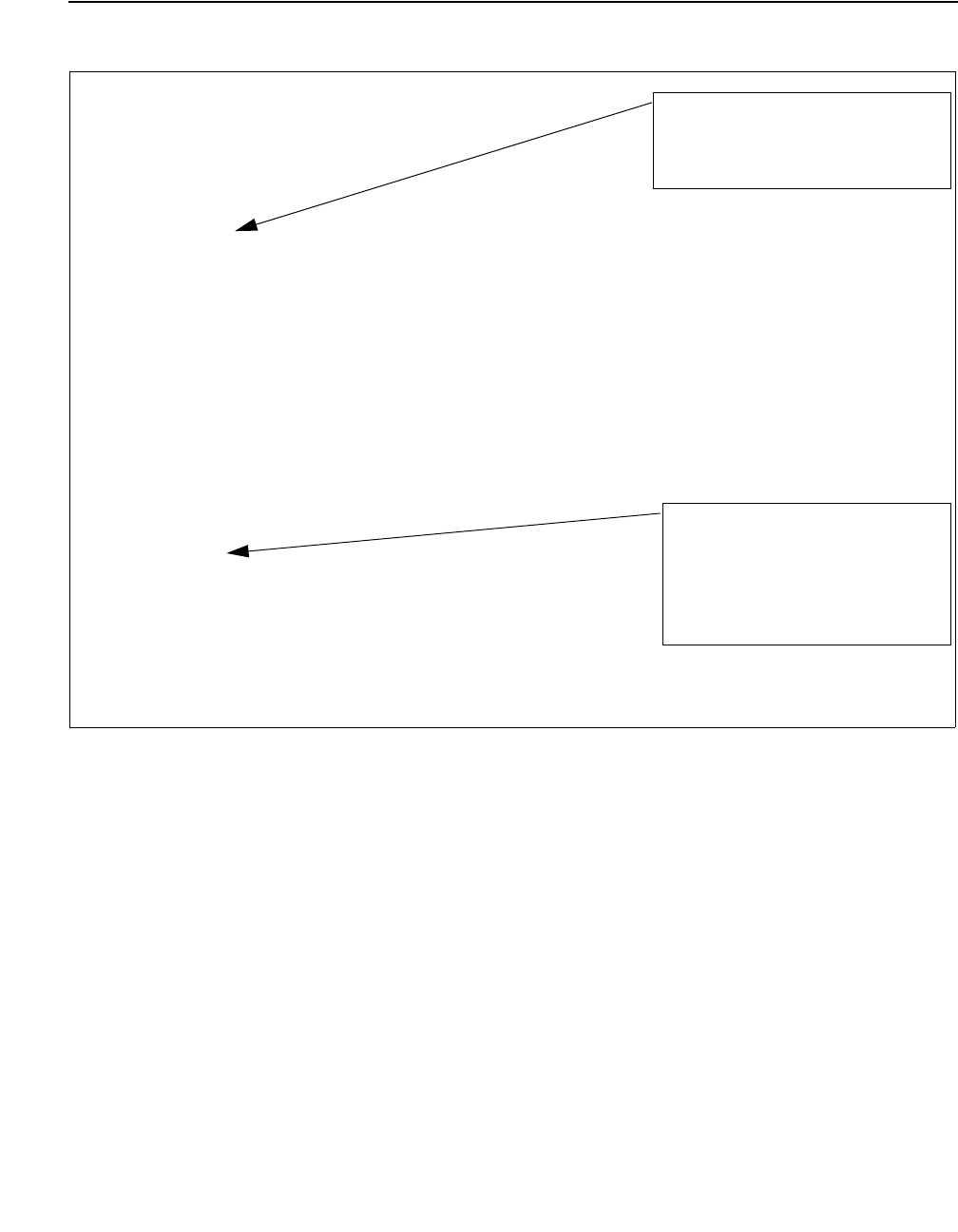
Figure 1: Sample tslib.ini file - Part 1
TSLIB.INI
[Telephony Servers]
; List your Telephony Servers and Application Enablement (AE) Services
; servers that offer TSAPI Telephony Services above.
; Each entry must have the following format:
; host_name=port_number
; where:
; - host_name is either the domain name or IP address of the
; AE Services server.
; - port_number is the TSAPI Service port number. The default port
; number used by AE Services is 450.
;For example:
; aeserver.mydomain.com=450
; 192.168.123.45=450
; 3ffe:ffff:100:f101:2e0:18ff:fe90:9205=450
[Config]
; When accessing Telephony Services via a secure, encrypted
; connection, the Application Enablement (AE) Services server
; sends its certificate to the TSAPI client, and the TSAPI client
; verifies that the certificate is signed by a trusted Certificate
; Authority (CA).
; If your organization has installed its own certificate on the AE
; server, then the TSAPI client must have access to the trusted
; CA certificate(s) for the AE Services server certificate. Provide
; the location of a file containing the trusted CA certificate(s) here.
; For example:
; Trusted CA File=c:\certificates\verisign.cer
The [Telephony Servers] section
specifies the AE Services servers
that your installation uses.
The [Config] section specifies
where your Trusted CA
certificate is stored. This line is
required if you are using your
own certificates, and you already
have a predefined location for
your certificates.
Chapter 2: Installing the AE Services TSAPI clients and SDKs
32 AE Services TSAPI and CVLAN Client and SDK Installation Guide October 2013
Figure 2: Sample tslib.ini file - Part 2
TSLIB.INI
[Alternate Tlinks]
; This file may specify alternate TSAPI links (Tlinks) for a
; preferred Tlink.
; The format of each entry is:
; Alternates(preferred_Tlink)=alternate_Tlink_1:alternate_Tlink2:...
; Each entry may specify between one and four alternate Tlinks for
; the preferred Tlink. Up to 16 entries are allowed.
; For example:
; Alternates(AVAYA#CM1#CSTA#AES1)=AVAYA#CM1#CSTA#AES2:AVAYA#CM1#CSTA#AES3
; specifies that both AVAYA#CM1#CSTA#AES2 and AVAYA#CM1#CSTA#AES3 are
; alternate Tlinks for AVAYA#CM1#CSTA#AES1.
[Shared Admin]
; Instead of each workstation maintaining its own list of servers, a
; shared tslib.ini file may be placed on a network file system,
; for example:
; tslib.ini=n:\csta\tslib.ini
; This entry overrides the [Telephony Servers] section, if any.
The [Alternate Tlinks] section
provides you with a way to
specify links to an alternate
The [Shared Admin] section
provides you with a way point to
another tslib.ini file. The local
tslib.ini file on the client machine
goes to the shared tslib.ini file
for the list of AE Servers.
AE Server or Switch Connection.

Installing and Configuring the TSAPI Windows Client
AE Services TSAPI and CVLAN Client and SDK Installation Guide October 2013 33
Network-based installations for the TSAPI Windows client
This section provides two installation scenarios for network-based installation. Use the following
table as your guide for the installation scenario that you want to use.
Scenario 1: Customizing the tslib.ini file
prior to installation
Scenario 2: Sharing a single tslib.ini file
among clients
Caution: Although this method allows you
to maintain only one centrally-located
configuration file, the drawback is that an
outage of the file server where the
configuration file resides could prevent all
of your TSAPI clients from connecting to
the AE Server.
1 Copy the software and install the first
TSAPI client as described in Copying the
software and installing the first TSAPI
client on page 34.
1 Copy the software and install the first
TSAPI client as described in Copying the
software and installing the first TSAPI
client on page 34.
2 Install the next TSAPI client and all
subsequent clients as described in
Installing the next client: customizing the
tslib.ini file prior to installation on page 35.
2 Install the next TSAPI client using the
[Shared Admin] settings in the tslib.ini file
as described in Installing the next client:
sharing a single tslib.ini file among
clients on page 36.

Chapter 2: Installing the AE Services TSAPI clients and SDKs
34 AE Services TSAPI and CVLAN Client and SDK Installation Guide October 2013
Copying the software and installing the first TSAPI client
To install the Windows client software from a network drive, you must first transfer the TSAPI
Windows client installation software to the network drive. Then client computers can install from
the file server.
1. Create or locate a directory such as \TSAPI\Client on a network drive (you can do this
remotely from a client computer, or directly from the file server).
2. Copy the files for the TSAPI Windows client installation software to the \TSAPI\Client
directory on the network drive. (If the TSAPI Windows client installation software is
provided as a .zip file, then extract the files from the .zip file to the \TSAPI\Client
directory on the network file server.)
3. [Initial client installation] On the client computer, go to the \TSAPI\Client directory on
the network drive, and double-click Setup.exe to install the TSAPI Windows client. At this
point you would follow Steps 3 through 7 of the procedure to install the TSAPI Windows
client (see Installing the TSAPI Windows client on page 21). Notice that in Step 5 of the
TSAPI Windows client installation procedure you are providing the Host Name or IP
Address of the AE Services Server that gets added to the tslib.ini file.
4. Make any other changes to the tslib.ini file, such as specifying alternate Tlinks or
configuration settings for secure Tlinks.

Installing and Configuring the TSAPI Windows Client
AE Services TSAPI and CVLAN Client and SDK Installation Guide October 2013 35
Installing the next client: customizing the tslib.ini file prior to installation
Follow these steps if you want each client to have its own local copy of the tslib.ini file. Using
this approach means that if there is a change that affects all of your clients (for example, the IP
address of the AE Server changes), you will need to update the tslib.ini files on all your client
computers individually.
1. After you have installed the TSAPI Windows client on the first client computer, copy the
client’s local tslib.ini file to the \TSAPI\Client directory on the network server.
The purpose of this step is to make subsequent client installations easier. By copying the
tslib.ini file to the network server, you are enabling Setup to provide the contents of the
updated tslib.ini file the next time a client computer runs the Setup program.
2. Next client installation and all subsequent clients - From the next client computer, go
to the \TSAPI\Client directory on the network drive, and double-click Setup.exe to
install the TSAPI Windows client. This time you do not have to complete the AE Services
Server Configuration dialog box. Setup will get this information from the tslib.ini file on the
server. When Setup completes the installation, it will create a local tslib.ini file with the
appropriate host name or IP address.
Chapter 2: Installing the AE Services TSAPI clients and SDKs
36 AE Services TSAPI and CVLAN Client and SDK Installation Guide October 2013
Installing the next client: sharing a single tslib.ini file among clients
Follow these steps if you want all of your clients to share a single copy of the tslib.ini file. Using
these settings means that the local tslib.ini file on each client will direct the TSAPI Windows
client library to obtain the host name or IP address of the AE Services server from the shared
TSLIB.INI file.
CAUTION:
!
CAUTION: This method allows you to maintain only one centrally-located configuration file,
and the drawback is that an outage of the file server where the configuration file
resides could prevent all of your TSAPI clients from connecting to the AE Server.
1. After you have installed the TSAPI Windows client on the first client computer, perform the
following steps:
a. Copy the client’s local TSLIB.INI file to the network file server (for example, h:\
TSAPI\Client\sharedtslib.ini). Do not overwrite the TSLIB.INI file in the \
TSAPI\Client folder containing the TSAPI Windows client installation software.
b. Edit the [Shared Admin] section of the client’s local tslib.ini file to contain the full
pathname of the shared TSLIB.INI file on the network file server. For example:
tslib.ini=h:\TSAPI\Client\sharedtslib.ini (where h:\TSAPI\Client
specifies the network drive and path to the tslib.ini file on your server).
c. Now copy the client’s local TSLIB.INI file to the \TSAPI\Client directory on the
network file server, overwriting the TSLIB.INI file in the directory that contains the
TSAPI Windows client installation software.
2. Next client installation and subsequent installations - From another client computer,
go to the \TSAPI\Client directory on the network drive, and double-click Setup.exe to
install the TSAPI Windows client. This time you do not have to complete the AE Services
Server Configuration dialog box. Setup will install the updated TSLIB.INI file that points to
the shared TSLIB.INI file.
[Shared Admin]
; Instead of each workstation maintaining its own list of servers, a shared
; tslib.ini file may be placed on a network file system.
tslib.ini=h:\TSAPI\Client\sharedtslib.ini

Installing and Configuring the TSAPI Linux Client
AE Services TSAPI and CVLAN Client and SDK Installation Guide October 2013 37
Installing and Configuring the TSAPI Linux Client
Installing the TSAPI Linux client
Follow this procedure to install the TSAPI Linux client.
Note:
Note: Make sure you have completed the instructions for downloading the installation
files and saving them to your computer. See Chapter 1: Getting the files for your
installation.
1. Log in to the client computer as root.
2. Go to the directory that contains the TSAPI Linux client files that you downloaded.
3. Install the TSAPI Linux client using the rpm command. For example:
rpm -i tsapi-client-linux-version-build.i386.rpm
where:
●version is the current version number.
●build is the curent build number.
For example:
rpm -i tsapi-client-linux-6.3.1-155.i386.rpm
Note:
Note: Before installing the TSAPI Linux Client on a Red Hat Enterprise Linux ES v5.0
system, you may need to perform a separate installation of the following RPM:
openssl097a-0.9.7a-9.el5_4.2.i386.rpm
This RPM may be available with your Red Hat Linux installation media and is also
available for download at http://rpm.pbone.net.
4. Use the rpm command to verify that the Linux client is installed. For example:
rpm -q tsapi-client-linux
5. The system will display the file name of the Linux client if it is installed; for example:
tsapi-client-linux-6.3.1-x
This completes the procedure to install the TSAPI Linux client. Your next step is to edit the
tslibrc file. See Editing the Linux client configuration file on page 40).

Chapter 2: Installing the AE Services TSAPI clients and SDKs
38 AE Services TSAPI and CVLAN Client and SDK Installation Guide October 2013
Using TSAPI Test to verify Linux client installations
To verify the TSAPI Linux client installation, use TSAPI Test to make a call.
Follow this procedure to run a TSAPI Test session for the Linux clients. See Figure 3 an
example of a TSAPI Test session.
Note:
Note: Before performing this procedure, you must edit the /usr/lib/tslibrc file (or the
.tslibrc file in your home directory) so that it contains the host name or IP address
of the AE Services server. See Making basic changes to the tslibrc file on
page 41.
1. Log into the client computer.
2. Start the TSAPI Test program by typing /usr/lib/tstest at the command prompt.
The TSAPI Test program displays a numbered list of the available servers.
3. At the prompt to enter a server number (the range of numbers varies according to your
configuration), type an appropriate number.
4. At the Server login prompt type your CT User user id.
Note:
Note: A CT User is a person or an application administered in the AE Services User
database with the "CT User" field set to "yes." CT User authorization is controlled
by the AE Services Security Database.
5. At the Server password prompt enter your CT User password.
6. At the calling number prompt, enter a valid extension number, for example: 72412.
Note:
Note: If the Security Database is enabled for the TSAPI Service, the CT User entered in
Step 4 must have permission in the AE Services Security Database to control this
phone number.
7. At the called number prompt, type another valid extension number, for example: 75587.
After entering all the information, TSAPI Test attempts to open a stream and make a call
from the calling number to the called number. TSAPI Test indicates the results of the test. If
the open stream request cannot open a stream to the server, TSAPI Test will display an
error message, and TSAPI Test will terminate.
●For information about Application control services (ACS) error messages, see Appendix A:
Universal Failure Events, in the Avaya Aura® Application Enablement Services TSAPI for
Avaya Communication Manager Programmer’s Reference, 02-300544.
●For information about CSTA messages see, Chapter 4 of the Avaya Aura® Application
Enablement Services TSAPI for Avaya Communication Manager Programmer’s
Reference, 02-300544.

Installing and Configuring the TSAPI Linux Client
AE Services TSAPI and CVLAN Client and SDK Installation Guide October 2013 39
Figure 3: Sample TSAPI Test session
Start the session
Telephony Services
*** Make Call Test ***
Searching for Servers...
1) ATT#G3_SWITCH#CSTA#SERVER1
2) ATT#G3_SWITCH#CSTA#POOH
3) ATT#G3_SWITCH#CSTA#DAGOTTO
Enter a server number between 1 and 3 (default 1):
Server login (default admin):
Server password:
CallING number: 72412
CallED number: 75587
If the open stream succeeds, TSAPI Test displays the following:
cstaMakeCall() succeeded!
cstaClearConnection() succeeded!
If the open stream fails, TSAPI Test will display an ACS error, for example:
acsOpenStream() failed with ACS Universal Failure
Error 25:
Bad password or login.
If a CSTA service fails, TSAPI Test will display a CSTA error, for example:
cstaMakeCall() failed with CSTA Universal Failure
Error 12:
Invalid CSTA device identifier

Chapter 2: Installing the AE Services TSAPI clients and SDKs
40 AE Services TSAPI and CVLAN Client and SDK Installation Guide October 2013
Removing the TSAPI Linux client
Follow this procedure to remove the TSAPI Linux client.
1. Log in as root.
2. Use the rpm -e command to remove the TSAPI client. For example:
rpm -e tsapi-client-linux
The Red Hat package manager removes the TSAPI Linux client
3. To verify that the software has been removed, type the following command:
rpm -q tsapi-client-linux
The system responds with the following message:
package tsapi-client-linux is not installed
This completes the procedure to remove the TSAPI Linux client.
Upgrading the TSAPI Linux client
Follow these steps to upgrade the AE Services TSAPI Linux client.
1. Remove the previous version of the client (see Removing the TSAPI Linux client on
page 40)
2. Install the latest version of the client (see Installing the TSAPI Linux client on page 37).
Editing the Linux client configuration file
You can customize the behavior of TSAPI Linux clients by editing the TSAPI client configuration
files. The TSAPI Linux client uses a configuration file called tslibrc, which, by default, is located
in /usr/lib/tslibrc.
Specifying the location of the tslibrc file
TSAPI Linux clients rely on the tslibrc configuration file to identify the AE Servers that are
available on the network. To provide TSAPI Linux clients with access to the AE Servers, you
must edit the tslibrc configuration file.
You can specify an alternate location for this file by setting and exporting the shell environment
variable TSLIBRC. If the TSLIBRC variable is not set, the client library searches your $HOME
directory for a file named .tslibrc. If the client library cannot locate a configuration file after
looking in both TSLIBRC and .tslibrc, it looks for the file /usr/lib/tslibrc.

Installing and Configuring the TSAPI Linux Client
AE Services TSAPI and CVLAN Client and SDK Installation Guide October 2013 41
Making basic changes to the tslibrc file
Follow this procedure to edit the tslibrc file.
1. Use your text editor to open the /usr/lib/tslibrc file.
2. Replace 127.0.0.1 with either the fully qualified domain name or the IP address of the
AE Server that you want to access, and the port number you want to use (450 is the
default port number for the TSAPI Service).
host_name port_number # comment
where:
●host_name is an Internet domain name or IP address (spaces are not valid in host names)
●port_number is the TCP port for the TSAPI Service’s name. If the port number is omitted, a
default value of 450 is assumed.
●# comment is the area to the right of the pound sign for comments.
If you use a firewall, see Administering port settings for a firewall on page 47.
Specifying Alternate Tlinks for the Linux client
The Alternate Tlinks feature allows the TSAPI client library to select an alternate Tlink if the
preferred Tlink is unavailable when trying to establish a session. To put this feature into effect,
you must specify the alternate Tlinks in the TSAPI Configuration file. For a brief description of
Tlinks, see About TSAPI Links (Tlinks) on page 47.
!Important:
Important: When multiple AE Servers are used as alternates, the CT User user id and
password used by the application must be configured identically for each AE
Server.
Follow these steps to set up a list of alternate Tlinks in the tslib.ini file.
1. Use your text editor to open the /usr/lib/tslibrc file.
2. Add a list of alternate Tlink entries, using the following format.
Alternates(TLINK)=TLINK1:TLINK2:TLINK3:TLINK4
where:
●Alternates is the label for the first ordered list (you can have up to 16 lists)
●(TLINK) is the name of the preferred Tlink, for example (AVAYA#CM1#CSTA#AESRV1).
Be sure to enclose the preferred Tlink name in parentheses.
●= The equal sign is a separator between the preferred Tlink, and the list of 1 to 4 alternate
Tlinks. You must use the equal sign (=) to separate the preferred Tlink and the list of
additional alternate Tlinks.

Chapter 2: Installing the AE Services TSAPI clients and SDKs
42 AE Services TSAPI and CVLAN Client and SDK Installation Guide October 2013
●TLINK1:TLINK2:TLINK3:TLINK4 is an ordered list of Tlink names that are used as
alternates if the preferred Tlink is not available. Be sure to separate each Tlink name with
a colon. You can specify from 1 to 4 Tlinks for each list of alternates.
Examples
In Example 1, there are two AE Servers, AESRV1 and AESRV2, that each have a TSAPI
link to the same switch, CM1. When opening a stream, if AESERV1 is unavailable, the
TSAPI client will attempt to use AESRV2 instead of AESRV1.
Example 1
#[Alternate Tlinks]
Alternates(AVAYA#CM1#CSTA#AESRV1)=AVAYA#CM1#CSTA#AESRV2
In Example 2, there are four AE Servers that each have a TSAPI link to the same switch,
CM1.
When opening a stream:
●If AESRV1 is unavailable, the TSAPI client will attempt to use AESRV2 instead of
AESRV1.
●If AESRV2 is also unavailable, then the TSAPI client will attempt to use AESRV3.
●If AESRV3 is also unavailable, then the TSAPI client will attempt to use AESRV4.
●If AESRV4 is also unavailable, then the TSAPI client will not be able to establish a
connection with an AE server.
Example 2
#[Alternate Tlinks]
Alternates(AVAYA#CM1#CSTA#AESRV1)=AVAYA#CM1#CSTA#AESRV2:AVAYA#CM1
#CSTA#AESRV3:AVAYA#CM1#CSTA#AESRV4

Installing and Configuring the TSAPI Linux Client
AE Services TSAPI and CVLAN Client and SDK Installation Guide October 2013 43
About specifying the location of certificates (tslibrc)
The TSAPI Service may be configured to provide Transport Layer Security (TLS) for encrypting
data exchanged between the TSAPI client and the AE Services server. If you plan to use
encrypted links, you have the option of using the Avaya Product Root Certificate Authority (CA)
certificate (this is the default), or using certificates issued by a trusted in-house or third-party
certificate authority (also referred to as your own certificates). For more information about
certificates, see Appendix A: Managing certificates on page 67.
Note:
Note: You do not have to add any configuration settings for certificates under the
following conditions:
●You do not use encrypted links, and, hence, certificates.
●You use encrypted Tlinks with the default AE Services certificate. The default AE
Services certificate is signed by the Avaya Product Root Certificate Authority (CA).
The certificate for the Avaya Product Root CA is installed with the TSAPI Linux
client in /opt/mvap/tsapi/client/certs/CA/avayaprca.pem.
●You use encrypted Tlinks with your own certificates, and you have copied the
trusted CA certificate to the client computer as /opt/mvap/tsapi/client/certs/CA/
aesCerts.pem. When establishing a secure connection, the TSAPI client checks
to see if you have provided this file. If so, you do not need to configure the location
of the Trusted CA File in the tslibrc file.
Adding certificate configuration statements to the tslibrc file
If you are using your own certificates, and you are not using the predefined location for storing
certificates (that is, /opt/mvap/tsapi/client/certs/CA/aesCerts.pem), you must add statements to
the tslibrc file that specify where your certificates are located. For example:
Trusted CA File=certificate_location
Verify Server FQDN=0
where:
●Trusted CA File is the label for the file specification. The equal sign (=) is a separator
between the label and the file specification.
certificate_location is the full pathname of a file containing the certificate(s) for your
trusted CA in Privacy Enhanced Mail (PEM) format. For example:
/opt/mvap/tsapi/clients/certs/CA/exampleCA.pem
Note that the specified file may contain several certificates.
●Verify Server FQDN is a setting that determines whether the TSAPI client verifies the
Fully Qualified Domain Name (FQDN) in the Server Certificate (for added security).

Chapter 2: Installing the AE Services TSAPI clients and SDKs
44 AE Services TSAPI and CVLAN Client and SDK Installation Guide October 2013
Note:
Note: This setting should be set to 0 when the AE Server is using the Avaya Product
Root CA Certificate.
-
If you want the client to check the certificate for the FQDN, use this setting: Verify
Server FQDN=1
-
If you do not want the client to check the certificate for the FQDN, use this setting:
Verify Server FQDN=0
Alternatively, you could just omit this line.

Installing and Configuring the TSAPI Linux Client
AE Services TSAPI and CVLAN Client and SDK Installation Guide October 2013 45
Figure 4: Editing the tslibrc file - Part 1
# /usr/lib/tslibrc - Linux Telephony Services Library Configuration File
# Blank lines and text beginning with "#" are ignored.
#
# [Telephony Servers]
#
# List your Telephony Servers and Application Enablement (AE) Services
# servers that offer TSAPI Telephony Services below.
#
# Each entry must have the following format:
#
# host_name [port_number]
#
# where:
#
# - host_name is either the domain name or IP address of the AE Services
# server.
# - port_number is the TSAPI Service port number. The default port number
# used by AE Services is 450.
#
# For example:
#
# aeserver.mydomain.com 450 # host name example
# 192.168.123.45 450 # IPv4 address example
# 3ffe:ffff:100:f101:2e0:18ff:fe90:9205 450 # IPv6 address example
#
# Edit the following entry to use the actual host name or IP address of
# your AE Services server.
127.0.0.1 450 # Edit this entry
# [Config]
#
# When accessing Telephony Services via a secure, encrypted connection,
# the Application Enablement (AE) Services server sends its certificate
# to the TSAPI client, and the TSAPI client verifies that the certificate
# is signed by a trusted Certificate Authority (CA).
#
# If your organization has installed its own certificate on the AE
# Server, then the TSAPI client must have access to the trusted CA
# certificate(s) for the AE Services server certificate. Provide the
# location of a file containing the trusted CA certificate(s) here.
# For example:
#
# Trusted CA File=/usr/local/ssl/certs/verisign.pem

Chapter 2: Installing the AE Services TSAPI clients and SDKs
46 AE Services TSAPI and CVLAN Client and SDK Installation Guide October 2013
Figure 5: Editing the tslibrc file - Part 2
# [Alternate Tlinks]
#
# This file may specify alternate TSAPI links (Tlinks) for a preferred
# Tlink.
#
# The format of each entry is:
#
# Alternates(preferred_Tlink)=alternate_Tlink_1:alternate_Tlink_2:...
#
# Each entry may specify between one and four alternate Tlinks for the
# preferred Tlink. Up to 16 entries are allowed.
#
# For example:
#
# Alternates(AVAYA#CM1#CSTA#AES1)=AVAYA#CM1#CSTA#AES2:AVAYA#CM1#CSTA#AES3
#
# specifies that both AVAYA#CM1#CSTA#AES2 and AVAYA#CM1#CSTA#AES3 are
# alternate Tlinks for AVAYA#CM1#CSTA#AES1.
# Individual users may override the contents of this file by setting
# the TSLIBRC environment variable to the pathname of an alternate file
# (in this same format) or by creating a ".tslibrc" file in their $HOME
# directory.

About TSAPI Links (Tlinks)
AE Services TSAPI and CVLAN Client and SDK Installation Guide October 2013 47
About TSAPI Links (Tlinks)
A TSAPI Link (Tlink) represents the availability of the TSAPI Service for a particular switch
connection by way of a particular AE Server. The AE Services administrator creates a Tlink by
adding a TSAPI Link through the AE Services Management Console (AE Services > TSAPI >
TSAPI Links). A Tlink name has the following format:
AVAYA#switch_connection_name#service_type#AE-server-name
where:
●AVAYA indicates that the TSAPI Service is provided by Avaya.
●switch_connection_name represents the Switch Connection name. The AE Services
administrator determines the switch connection name when he/she administers a Switch
Connection in AE Services OAM.
●service_type refers to the CSTA service type. It can be either of the following:
-
CSTA - If theTSAPI Link is administered as unencrypted (nonsecure).
-
CSTA-S - If the TSAPI Link is administered as encrypted (secure).
●AE_server_name is the name of the AE Server providing the TSAPI Service for the switch
connection. The AE Server name is assigned by the person who performs the AE Services
installation.
Example
AVAYA#CM1#CSTA-S#AESRV1
Administering port settings for a firewall
If you use a firewall, make sure that the address in the TSLIB.INI or tslibrc configuration file
uses the externally facing IP address of your firewall instead of the IP address of the AE Server.

Chapter 2: Installing the AE Services TSAPI clients and SDKs
48 AE Services TSAPI and CVLAN Client and SDK Installation Guide October 2013
Installing and Managing the TSAPI Windows SDK
The AE Services TSAPI SDK and the programming environment
AE Services recommends that you install the TSAPI client when you install the TSAPI SDK. The
TSAPI client provides the run-time libraries that are necessary for running your application in
the AE Services-Communication Manager environment, and it provides tools for verifying the
installation. Also, if you plan to use the TSAPI Exerciser, you must install the TSAPI Windows
client.
Note:
Note: The TSAPI Exerciser is available for the TSAPI Windows client only.
After you install the AE Services TSAPI client and SDK for your particular operating system, see
the Avaya Aura® Application Enablement Services TSAPI for Communication Manager
Programmer’s Reference, 02-3005444, for information about using the SDK components.
How to obtain the TSAPI SDK
The TSAPI SDK must be purchased. If you are a customer, contact an authorized Avaya
Business Partner or an Avaya Account Executive to obtain the TSAPI SDK. If you are a Gold or
Platinum DevConnect member, you can order the TSAPI SDK through DevConnect.
Installing the TSAPI Windows SDK
Follow this procedure to install the TSAPI Windows SDK.
Note:
Note: For information about obtaining the TSAPI SDK, see How to obtain the TSAPI
SDK on page 48.
1. Log on to your computer as a user with administrator-equivalent permissions.
2. Insert the TSAPI SDK CD into your computer’s CD-ROM drive.
3. From the toolbar, click Start > Run.
4. In the Run window, type the drive ID of your CD-ROM drive (for example, D:\), and click
OK.
5. From the window displaying the files on the CD, navigate to the sdk\Windows folder, open
the file tsapi-sdk-win32-6.3.1-build.zip, and double-click Setup.exe.
Setup displays the Welcome dialog box.

Installing and Managing the TSAPI Windows SDK
AE Services TSAPI and CVLAN Client and SDK Installation Guide October 2013 49
6. Click Next.
Setup searches for any previously installed files.
●If Setup detects the Avaya Computer Telephony version of the SDK, it issues the
following warning and stops the installation: "The Avaya CT SDK needs to be
uninstalled before the installation can continue." For more information about
uninstalling the Avaya CT SDK, see Removing the TSAPI Windows SDK on page 50.
●If Setup detects an earlier, incompatible version of the Avaya Application Enablement
Services TSAPI SDK, it displays a dialog box with the message: "Setup has detected
an older version of the Avaya Application Enablement Services TSAPI SDK on your
system. This version needs to be removed before the installation can continue. Would
you like Setup to remove this version for you now?"
Click Yes to have Setup remove the earlier version of the TSAPI SDK software for you
automatically.
Setup displays the License Agreement dialog box.
7. Carefully review the license agreement, select I accept the terms of the license
agreement, and then click Next.
Setup displays the Choose Destination Location dialog box with the default destination
folder. For 32-bit Windows platforms, the default destination is C:\Program Fles\Avaya\AE
Services\SDKs\TSAPI . For 64-bit Windows platforms, the default destination is C:\
Program Fles (x86)\Avaya\AE Services\SDKs\TSAPI .
8. Click Next.
Setup displays the Select Features dialog box with all of the TSAPI SDK Components
selected by default: Headers and Libraries, Sample Code, and TSAPI Exerciser.
9. Click Next.
Setup displays the Ready to Install the Program dialog box
10. Click Install .
Setup installs the files. When it has finished installing files, Setup displays the
InstallShield Wizard Complete dialog box.
11. Click Finish.
This completes the procedure to install the Windows TSAPI Windows SDK. Continue with
Viewing the TSAPI Windows SDK Components to learn about the TSAPI SDK.

Chapter 2: Installing the AE Services TSAPI clients and SDKs
50 AE Services TSAPI and CVLAN Client and SDK Installation Guide October 2013
Viewing the TSAPI Windows SDK Components
To view the TSAPI Windows SDK components:
1. Perform one of the following steps:
-
If you are using Windows 8:
On the Start page, click on Avaya AE Services.
-
If you are not using Windows 8:
Click Start > All Programs > Avaya AE Services > SDKs > TSAPI.
2. Select any of the following components:
-
Explore Sample Code - When you select Explore Sample Code, Windows displays
the Samples directory which includes additional directories that contain coding
examples for developing applications. For more information about Sample Code, see
“Contents of the TSAPI SDK,” in Chapter 2 of the Avaya Aura® Application
Enablement Services TSAPI for Communication Manager Programmer’s Reference,
02-300544.
-
Read Me - When you select Read Me, Windows displays the TSAPI Windows SDK
Readme file, which contains late-breaking information that might be not included in the
documentation.
-
TSAPI Exerciser - When you select TSAPI Exerciser, Windows opens the TSAPI
Exerciser. The TSAPI Exerciser is an application that enables you to send CSTA
requests across a TSAPI CTI link and view the exchange of messages between the
TSAPI Exerciser and the AE Server. For more information about using the TSAPI
Exerciser, see TSAPI Exerciser Help, which is included with the TSAPI Exerciser.
-
TSAPI Exerciser Scripting Instructions - When you select TSAPI Exerciser Scripting
Instructions, Windows opens a PDF file that describes the TSAPI Exerciser script
integrator.
Removing the TSAPI Windows SDK
Removing the TSAPI Windows SDK from a non-Windows 8 system
Use the standard Windows procedure to remove either the TSAPI Windows SDK or the Avaya
CT Windows SDK from a non-Windows 8 system.
1. From the desktop, open the Control Panel. For example, click Start > Control Panel.
2. From the Control Panel, click Add or Remove Programs.
Windows displays the Add or Remove Programs dialog box.

Installing and Managing the TSAPI Windows SDK
AE Services TSAPI and CVLAN Client and SDK Installation Guide October 2013 51
3. Select Avaya Application Enablement Services TSAPI SDK, and click Remove. (Select
Avaya Computer Telephony TS Win32 SDK if you are removing the Avaya CT Win32
SDK.)
A confirmation dialog box appears.
4. Click Yes.
Setup uninstalls the software, and displays the Uninstall Complete dialog box. (If you are
removing the Avaya Computer Telephony TS Win32 SDK, Setup does not display the
Uninstall Complete dialog box).
5. Click Finish.
This completes the procedure to remove the TSAPI Windows SDK.
Removing the TSAPI Windows SDK from a Windows 8 system
Use the following procedure to remove either the TSAPI Windows SDK or the Avaya CT
Windows SDK from a Windows 8 system.
1. Access Control Panel.
2. From the Control Panel, click Uninstall a program.
Windows displays the Programs and Features window.
3. Select Avaya Application Enablement Services TSAPI SDK, and click Uninstall.
A confirmation dialog box appears.
4. Click Yes.
Setup uninstalls the software, and displays the Uninstall Complete dialog box. (
Upgrading the TSAPI Windows SDK
If you are upgrading the Avaya Computer Telephony (Avaya CT) TSAPI Windows (Win32) SDK
to the Avaya Application Enablement Services TSAPI Windows SDK, follow this procedure.
1. Remove the Avaya CT TS Win32 SDK. See Removing the TSAPI Windows SDK on
page 50.
2. Remove the Avaya CT TS Win32 client. See Removing the TSAPI Windows client on
page 25. This step is necessary because the Avaya CT Windows SDK installed the
Windows client (TS Win32) by default.
3. Install the AE Services TSAPI Windows client. See Installing the TSAPI Windows client on
page 21.
4. Install the AE Services TSAPI Windows SDK. See Installing the TSAPI Windows SDK on
page 48.

Chapter 2: Installing the AE Services TSAPI clients and SDKs
52 AE Services TSAPI and CVLAN Client and SDK Installation Guide October 2013
Installing and Managing the TSAPI Linux SDK
Installing the TSAPI Linux SDK
Follow this procedure to install the TSAPI Linux SDK.
Note:
Note: The TSAPI Linux Client must be installed before the TSAPI Linux SDK can be
installed.
Note:
Note: For information about obtaining the TSAPI SDK, see How to obtain the TSAPI
SDK on page 48.
1. Log in to the computer where you are installing the SDK as root.
2. Insert the TSAPI SDK CD into your computer’s CD-ROM drive.
3. Type mount /mnt/cdrom/ to mount the file system.
4. Type cd /mnt/cdrom/sdk/Linux to change to the directory containing the TSAPI
Linux SDK .rpm file.
5. Install the TSAPI Linux SDK using the rpm command:
rpm -i tsapi-sdk-linux-version-build.i386.rpm
where:
●version is the current version number.
●build is the current build number.
For example:
rpm -i tsapi-sdk-linux-6.3.1-155.i386.rpm
6. Use the rpm command to verify that the TSAPI Linux SDK is installed. For example:
rpm -q tsapi-sdk-linux
The system will display the file name of the TSAPI Linux SDK if it is installed; for example:
tsapi-sdk-linux-6.3.1-155.i386.rpm
This completes the procedure to install the TSAPI Linux SDK.

Installing and Managing the TSAPI Linux SDK
AE Services TSAPI and CVLAN Client and SDK Installation Guide October 2013 53
Removing the TSAPI Linux SDK
Follow this procedure to remove the TSAPI Linux SDK.
1. Log in as root.
2. Use the rpm -e command to remove the TSAPI Linux SDK. For example:
rpm -e tsapi-sdk-linux
The Red Hat package manager removes the TSAPI Linux SDK.
3. To verify that the software has been removed, type the following command:
rpm -q tsapi-sdk-linux
The system responds with the following message:
package tsapi-sdk-linux is not installed
This completes the procedure to remove the TSAPI Linux SDK.
Upgrading the TSAPI Linux SDK
Follow these steps to upgrade the AE Services TSAPI Linux SDK.
1. Remove the previous version of the SDK (see Removing the TSAPI Linux SDK on
page 53).
2. If a previous version of the TSAPI Linux client is installed, remove the previous version of
the client (see Removing the TSAPI Linux client on page 40).
3. Install the latest version of the TSAPI Linux client (see Installing the TSAPI Linux client on
page 37.
4. Install the latest version of the SDK (see Installing the TSAPI Linux SDK on page 52).

Chapter 2: Installing the AE Services TSAPI clients and SDKs
54 AE Services TSAPI and CVLAN Client and SDK Installation Guide October 2013

CVLAN client and certificate management
AE Services TSAPI and CVLAN Client and SDK Installation Guide October 2013 55
Chapter 3: Installing the AE Services
CVLAN Client/SDK
The Avaya Aura Application Enablement Services CVLAN Client/SDK, which can be installed
on a client workstation, provides client computers with remote access to Communication
Manager third-party call control capabilities. Access is provided by the CVLAN Service running
on an AE Services Server (referred to as the AE Server).
The CVLAN Client and the CVLAN Software Development Kit (referred to in this document as
the CVLAN Client/SDK) are packaged together.
Note:
Note: The CVLAN Client/SDK is provided for maintaining existing applications. It is not
intended for new application development.
The CVLAN Client
The CVLAN client provides the runtime libraries (cvlancli.dll for Windows-based systems, and
libasai.so for Linux-based systems) that are required by CVLAN applications.
CVLAN client and certificate management
The CVLAN client/SDKs uses the OpenSSL mechanism of a trusted certificate directory that
contains a Privacy Enhanced Mail (PEM) file for the Avaya Root CA certificate. AE Services
provides a directory structure for the trusted certificates, and the Avaya Product Root Certificate
is installed as follows:
●Windows CVLAN clients: Avaya Product Root Certificate is installed in the following
location: <installation-directory>\certs\ca\avayaprca.cer
●Linux CVLAN client: /usr/adm/cvlan/certs/CA/avayaprca.pem.
If you use certificates issued by a trusted in-house or third-party certificate authority (also
referred to as your own certificates), you may overwrite this file with your trusted CA certificate.

Chapter 3: Installing the AE Services CVLAN Client/SDK
56 AE Services TSAPI and CVLAN Client and SDK Installation Guide October 2013
The CVLAN SDK
The CVLAN SDK provides additional software for developing and maintaining CVLAN based
applications. The CVLAN SDK contains the following components for developing or updating
your applications:
●CVLAN client (cvlancli.dll for Windows based systems and libasai.so for Linux systems)
●header files
●sample code
●utilities
For information about developing and maintaining CVLAN applications, see the Avaya Aura®
Application Enablement Services CVLAN Programmer’s Reference, 02-300546.
CVLAN client connections with AE Services
CVLAN application programs use the asai_open() and asai_open_port() functions to initiate
connections to the AE Server.
Use the asai_open() function in your program to specify a non-secure connection for port
number 9999 and a secure connection for any other port number. For more information, see the
Avaya Aura® Application Enablement Services CVLAN Programmer’s Reference, 02300546.
See asai_open (3ASAI).
The asai_open_port() API call allows your program to specify a specific port number in the
port_number parameter and to explicitly indicate whether the connection is secure. For more
information, see Avaya Aura® Application Enablement Services CVLAN Programmer’s
Reference, 02300546. See asai_open_port (3ASAI).

CVLAN Client/SDK requirements
AE Services TSAPI and CVLAN Client and SDK Installation Guide October 2013 57
CVLAN Client/SDK requirements
The AE Services CVLAN Client/SDK can be installed on the following client platforms.
●Windows - for more information, see Table 4: CVLAN Windows Client/SDK - hardware
and software requirements on page 57
●Linux - for more information, see Table 5: CVLAN Linux Client/SDK - hardware and
software requirements on page 57
Table 4: CVLAN Windows Client/SDK - hardware and software requirements
Component Requirements
CPU Intel 8086 instruction set architecture
Windows 32-bit Client Platform Operating
Systems
●Windows 8 Pro
●Windows 8 Enterprise
●Windows 7 Professional
●Windows 7 Enterprise
●Windows 7 Ultimate
●Windows XP Professional
●Windows 2003 Server Standard Edition
Windows 64-bit Client Platform Operating
Systems supporting CVLAN applications
running in 32-bit compatibility mode
●Windows 8 Pro
●Windows 8 Enterprise
●Windows 7 Professional
●Windows 7 Enterprise
●Windows 7 Ultimate
●Windows Server 2008 R2
Table 5: CVLAN Linux Client/SDK - hardware and software requirements
Component Requirements
CPU Intel 8086 instruction set architecture

Chapter 3: Installing the AE Services CVLAN Client/SDK
58 AE Services TSAPI and CVLAN Client and SDK Installation Guide October 2013
Red Hat Enterprise Linux
(RHEL) 32-bit Versions
Red Hat Enterprise Linux ES v5.0 Update 8
Red Hat Enterprise Linux
(RHEL) 64-bit Versions
supporting CVLAN
applications running in 32-bit
compatibility mode
Red Hat Enterprise Linux ES v5.0 Update 8
Table 5: CVLAN Linux Client/SDK - hardware and software requirements
Component Requirements

CVLAN Client/SDK requirements
AE Services TSAPI and CVLAN Client and SDK Installation Guide October 2013 59
Before installing this release of the CVLAN Linux Client on a Red Hat Enterprise Linux ES v5.8
system, you may need to perform a separate installation of the following RPM:
openssl097a-0.9.7a-9.el5_4.2.i386.rpm
This RPM may be available with your Red Hat Linux installation media and is also available for
download at http://rpm.pbone.net.

Chapter 3: Installing the AE Services CVLAN Client/SDK
60 AE Services TSAPI and CVLAN Client and SDK Installation Guide October 2013
Installing the CVLAN Windows Client/SDK
Follow this procedure to install the CVLAN Windows Client/SDK on a Windows workstation.
!Important:
Important: Make sure you have completed the instructions for downloading the installation
files and saving them to your computer. See Chapter 1: Getting the files for your
installation.
1. Log on to your computer as a user with administrator-equivalent permissions.
2. Go to the directory that contains the CVLAN Windows client/SDK files that you
downloaded, and double-click setup.exe.
Setup displays the Welcome dialog box.
3. Click Next.
Setup displays the License Agreement dialog box.
4. Carefully review the license agreement, select I accept the terms of the license
agreement, and then click Next.
Setup displays the Choose Destination Location dialog box with the default destination
folder. For 32-bit Windows platforms, the default destination folder is C:\Program Files\
Avaya\AE Services\CVLAN. For 64-bit Windows platforms, the default destination folder is
C:\Program Files (x86)\Avaya\AE Services\CVLAN.
5. Click Next.
Setup displays the Ready to Install the Program dialog box.
6. Click Install.
Setup installs the files. Next, Setup displays a Question box asking if you want to view the
Readme file now.
7. Click Yes to view the Readme file. After reviewing the Readme file, either close the file or
minimize the display.
Setup displays the InstallShield Wizard Complete dialog box.
8. Click Finish.
Continue with Using the ASAI test utility on page 65.

Removing the CVLAN Windows Client/SDK
AE Services TSAPI and CVLAN Client and SDK Installation Guide October 2013 61
Removing the CVLAN Windows Client/SDK
Removing the CVLAN Windows Client from a non-Windows 8 system
Follow this procedure to remove the CVLAN Windows Client/SDK from a non-Windows 8
system.
1. From the desktop, click Start > Control Panel.
2. From the Control Panel, click Add/Remove Programs.
Windows displays the Add/Remove Programs Properties dialog box.
3. Select Avaya Application Enablement Services CVLAN Client, and click Remove.
A confirmation dialog box appears.
4. Click Yes.
The uninstall program removes the software and displays an Information box indicating
that the program and all of its components have been removed.
5. Click Finish.
This completes the procedure to remove the CVLAN Windows Client/SDK.
Removing the CVLAN Windows Client from a Windows 8 system
Use the following procedure to remove the CVLAN Windows Client/SDK from a Windows 8
system.
1. Access Control Panel.
2. From the Control Panel, click Uninstall a program.
Windows displays the Programs and Features window.
3. Select Avaya Application Enablement Services CVLAN Client, and click Uninstall.
A confirmation dialog box appears.
4. Click Yes.
The uninstall program removes the software and displays an Information box indicating
that the program and all of its components have been removed.
5. Click Finish.
This completes the procedure to remove the CVLAN Windows Client/SDK.

Chapter 3: Installing the AE Services CVLAN Client/SDK
62 AE Services TSAPI and CVLAN Client and SDK Installation Guide October 2013
Upgrading the CVLAN Windows Client/SDK
If you are upgrading a previous CVLAN Windows client the recommended steps are as follows:
1. Remove the previous version of the Client/SDK. See Removing the CVLAN Windows
Client/SDK on page 61)
2. Install the latest version of the Client/SDK. See Installing the CVLAN Windows Client/
SDK on page 60).
Although it is not a requirement that you remove the previous version of the Client/SDK, it is
strongly recommended.

Installing the CVLAN Linux Client/SDK
AE Services TSAPI and CVLAN Client and SDK Installation Guide October 2013 63
Installing the CVLAN Linux Client/SDK
Follow this procedure to install the CVLAN Linux Client/SDK.
Note:
Note: Make sure you have completed the instructions for downloading the installation
files and saving them to your computer. See Chapter 1: Getting the files for your
installation.
1. Log in to the computer where you are installing the CVLAN Linux client/SDK as root.
2. Go to the directory that contains the CVLAN Linux client/SDK files that you downloaded.
3. Install the CVLAN Linux client/SDK using the rpm command. For example:
rpm -i cvlan-client-linux-6.3.1-x.i386.rpm
where:
x is the latest build number.
4. Use the rpm command to verify that the CVLAN Linux client is installed. For example:
rpm -q cvlan-client-linux
The system will display the file name of the CVLAN Linux client if it is installed; for
example: cvlan-client-6.3.1-1.linux.rpm
This completes the procedure to install the CVLAN Linux Client/SDK.
Note:
Note: Review the readme file (/usr/adm/cvlan/readme)for release-specific
information.
●Continue with Using the ASAI test utility on page 65.

Chapter 3: Installing the AE Services CVLAN Client/SDK
64 AE Services TSAPI and CVLAN Client and SDK Installation Guide October 2013
Removing the CVLAN Linux Client/SDK
Follow this procedure to remove the CVLAN Linux Client/SDK.
1. Log in to the client computer as root.
2. To remove the CVLAN Linux client, type the following command:
rpm -e cvlan-client-linux
3. To verify that the software has been removed, type
rpm -q cvlan-client-linux
The system responds with the following message:
package cvlan-client-linux is not installed
This completes the procedure to remove the CVLAN Linux Client/SDK.
Upgrading the CVLAN Linux Client/SDK
Use the following guidelines to upgrade the AE Services CVLAN Linux Client/SDK.
1. Remove the previous version of the Client/SDK. See Removing the CVLAN Linux Client/
SDK on page 64.
2. Install the latest version of the Client/SDK. See Installing the CVLAN Linux Client/SDK on
page 63.
Although it is not a requirement that you remove the previous version of the Client/SDK, it is
strongly recommended.

The ASAI test utility
AE Services TSAPI and CVLAN Client and SDK Installation Guide October 2013 65
The ASAI test utility
Use the ASAI test utility (asai_test) to determine if the CVLAN client and AE Server are
communicating. The format of the asai_test command is as follows:
Linux
/usr/adm/cvlan/bin/asai_test -m <server> <link number>
where:
<server> is the host name or IP address of the AE Server.
<link number> is the link number (1-16) of the CVLAN link to be tested. (The link
number is also known as the "signal number.")
Windows
\Program Files\Avaya\AE Services\CVLAN\utils\asai_test -m <server> <link number>
where:
<server> is the host name or IP address of the AE Server.
<link number> is the link number (1-16) of the CVLAN link to be tested. (The link
number is also known as the "signal number.")
Using the ASAI test utility
Follow this procedure to using the ASAI test utility.
1. At the command prompt (Linux based systems) or MS-DOS prompt (Windows), type the
following command.
Linux
/usr/adm/cvlan/bin/asai_test -m abcserver 2
where: abcserver is the host name or IP address of the AE Server.
Windows
\Program Files\Avaya\AE Services\CVLAN\utils\asai_test -m abcserver 2
where: abcserver is the host name or IP address of the AE Server.
If the test is successful, the CVLAN Service responds with results similar to the following:
=== Test for CVLAN Link 2===
Heartbeat test with switch for CVLAN Link 02 was successful
===Test Completed===

Chapter 3: Installing the AE Services CVLAN Client/SDK
66 AE Services TSAPI and CVLAN Client and SDK Installation Guide October 2013
2. If asai_test fails, take the appropriate course of action:
●Contact the AE Services administrator.
●If you are authorized to perform AE Services OAM administration, continue with the
following steps.
a. Log into the AE Server, and select Utilities > Diagnostics > AE Services > ASAI
Test.
AE Services OAM displays the ASAI Test page.
b. Select the link numbers you want to test with the ASAI Test utility, and click Test.
OAM displays the ASAI Test Result page, which indicates the results of the test. A
successful test will display the following message on the ASAI Test Result page.
Heartbeat test with switch for CVLAN Link 02 was successful.

An overview of certificate management for TSAPI and CVLAN clients
AE Services TSAPI and CVLAN Client and SDK Installation Guide October 2013 67
Appendix A: Managing certificates
An overview of certificate management for TSAPI and
CVLAN clients
!Important:
Important: The information in this appendix applies only if you are using encrypted links.
This overview of certificate management describes the authentication method that TSAPI and
CVLAN clients use, which is server authentication. Additionally it describes how to configure the
TSAPI and CLVAN clients if you plan to use certificates issued by a trusted in-house or
third-party certificate authority instead of using the default certificate, which the TSAPI and
CVLAN installation program installs. Certificates issued by a trusted in-house or third-party
certificate authority are also referred to as "your own certificates."
Note:
Note: Application Enablement Services (AE Services) does not support client
authentication for TSAPI and CVLAN. Client authentication refers to the AE
Server authenticating a TSAPI or CVLAN client computer’s certificate.

Appendix A: Managing certificates
68 AE Services TSAPI and CVLAN Client and SDK Installation Guide October 2013
Server authentication
In terms of certificate management, AE Services TSAPI and CVLAN clients rely on the server
authentication process. This process is the same if you use your own certificates or if you use
the AE Services default server certificate, which is signed by the Avaya Product Certificate
Authority certificate. See Figure 6: Server Authentication on page 69 for an illustration.
The process of server authentication occurs on the client, as follows:
1. The client sends a request to the server for a secure session.
2. The server sends its server certificate to the client.
3. The client checks the server certificate to determine the following:
a. If the server certificate is issued by a certificate authority that the client trusts. The
client checks the name of the CA.
To comply, the name of the certification authority (CA) on the certificate must match
the name of the CA on the client’s trusted certificate.
b. If the server certificate is within its validity window.
The client checks to see if the current time falls between the Not Before and Not After
dates in the server certificate.
c. If the common name in the server certificate matches the name of the server to which
the client is connected.
If the names do not match, the client can not trust the certificate. This only applies if
the client has been configured with "Verify Server FQDN=1".
When all the security checks are satisfied the client and server can exchange secure
messages.
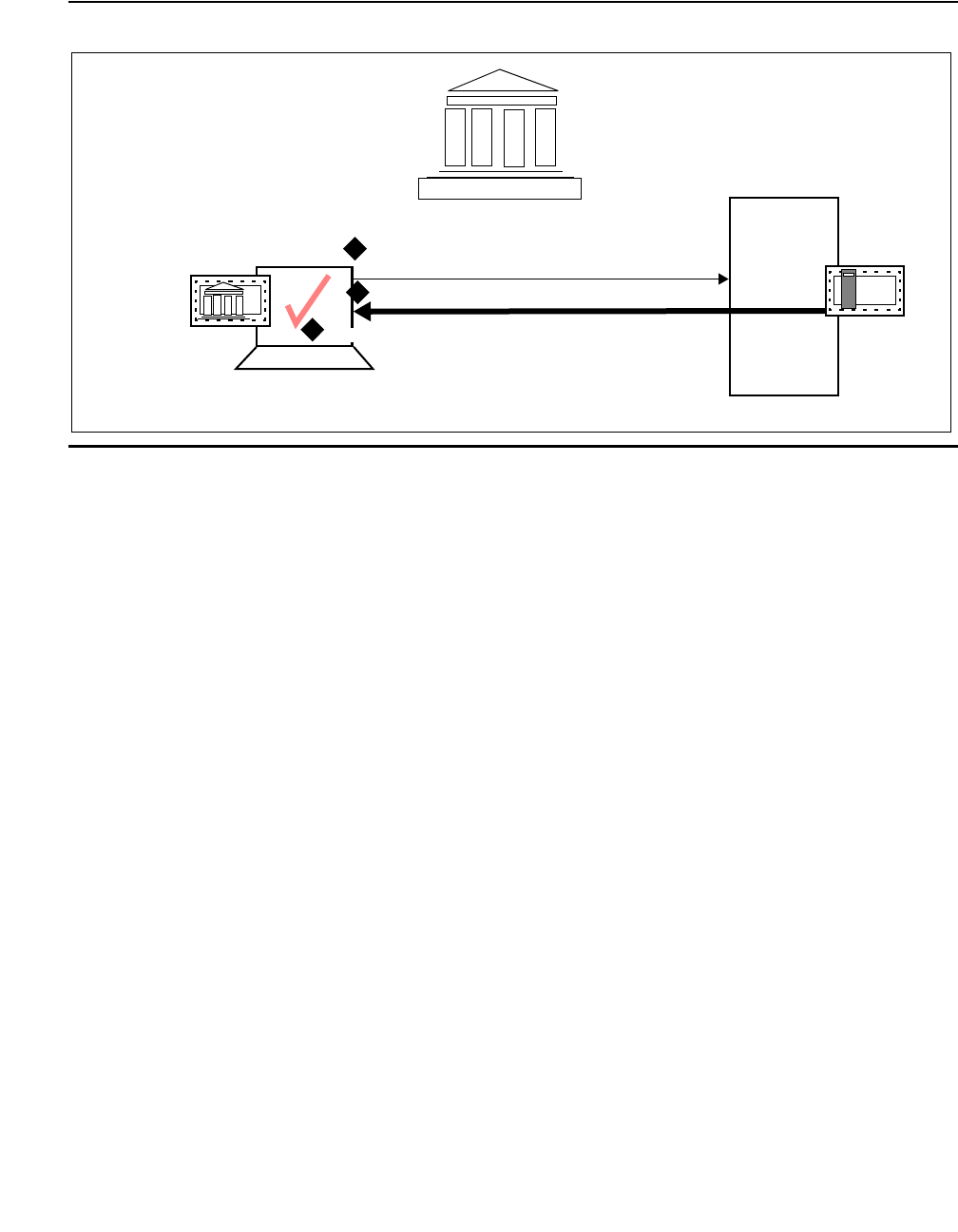
An overview of certificate management for TSAPI and CVLAN clients
AE Services TSAPI and CVLAN Client and SDK Installation Guide October 2013 69
Figure 6: Server Authentication
Client
Server
Server
Trusted CA’s
Certificate
Client sends request to Server for secure session
Server sends its certificate to client
(Issued by
Trusted CA
In this situation the client trusts the
server because the server presents
a certificate issued by the CA that the
client trusts.
1
2
3
Trusted Ca)
Certificate
Client checks the server certificate

Appendix A: Managing certificates
70 AE Services TSAPI and CVLAN Client and SDK Installation Guide October 2013
Using the default certificate - no certificate configuration required
The AE Services license file installs a default server certificate, which is signed by the Avaya
Product Certificate Authority (CA). Also, by default the AE Services client installation programs
for TSAPI and CVLAN install the Avaya Product CA certificate on the client computer. See
Figure 7 for an illustration.
!Important:
Important: If you plan to use the default certificate you do not have to perform any additional
client configuration.
Table 6: Where AE Services installs the default CA certificate
If you use TSAPI and your own certificates -- the "default location" option
Notice in Figure 7 that frame B is labeled as the "default location" option.
Note:
Note: This option is available for TSAPI clients only.
If you use your own certificates, and you copy your certificates to a specified location, you do
not have to update the configuration files (tslib.ini, for Win32 clients and tslibrc, for Linux
clients). The specified locations are listed in Table 7.
Table 7: TSAPI - if you use your own certificates: the "default location option"
TSAPI Win32 client C:\Program Files\Avaya\AE Services\TSAPI Client\certs\ca\avayaprca.cer
TSAPI Linux client /opt/mvap/tsapi/client/certs/CA/avayaprca.pem
CVLAN Linux client /usr/adm/cvlan/certs/CA/avayaprca.pem
CVLAN Win32 client C:\Program Files\Avaya\CT\CVLAN\certs\ca\avayaprca.cer
TSAPI Win32 client C:\Program Files\Avaya\AE Services
\TSAPI Client\certs\ca\aesCerts.cer
TSAPI Linux client /opt/mvap/tsapi/client/certs/CA/aesCerts.pem
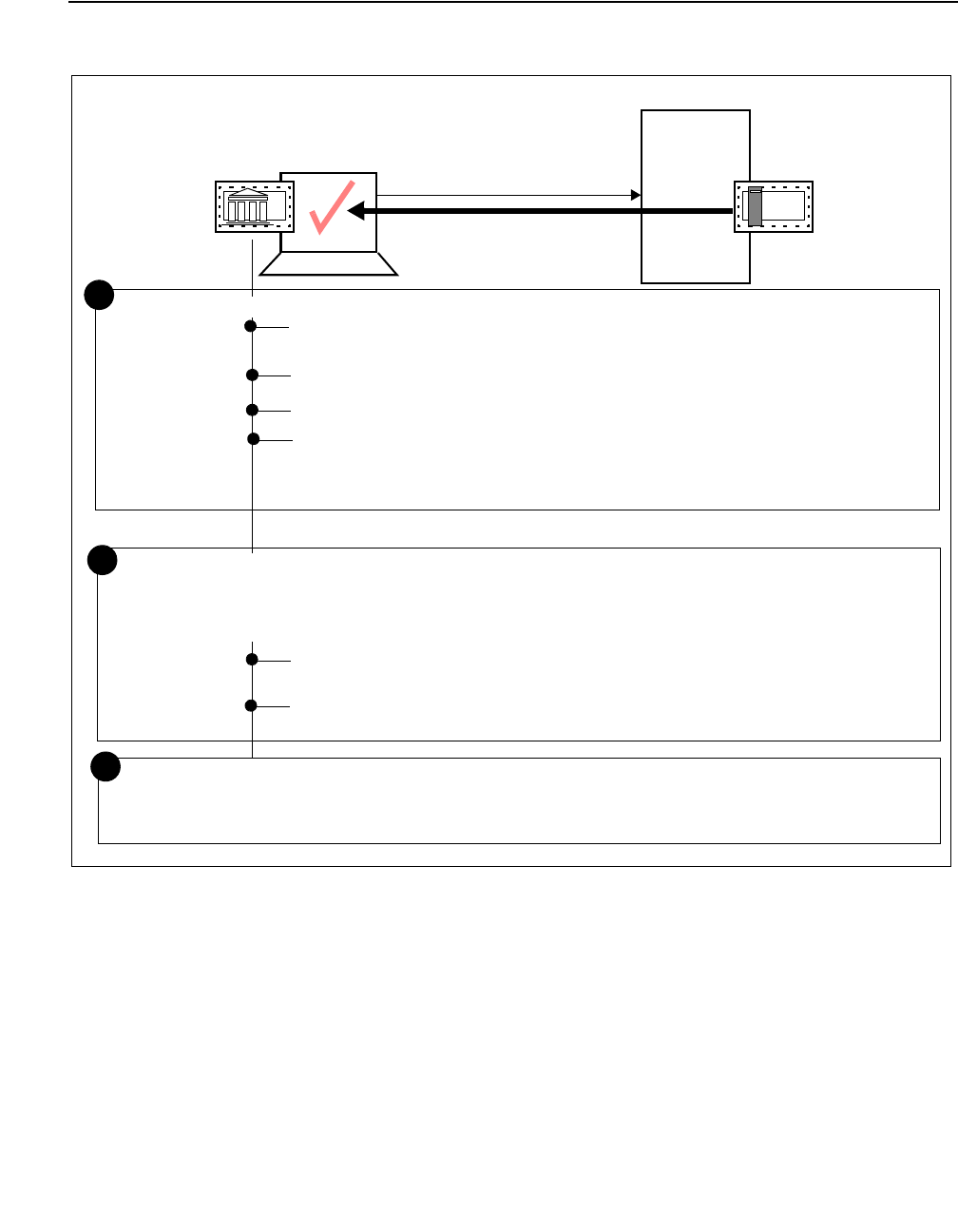
An overview of certificate management for TSAPI and CVLAN clients
AE Services TSAPI and CVLAN Client and SDK Installation Guide October 2013 71
Figure 7: Where AE Services installs the CA certificate (per-client)
Client
Server
Server Certificate
Trusted CA’s
Avaya Product Root CA
(Issued by Trusted CA)
Certificate
TSAPI Win32 client - C:\Program Files\Avaya\AE Services
\TSAPI Client\certs\ca\avayaprca.cer
TSAPI Linux client - /opt/mvap/tsapi/client/certs/CA/avayaprca.pem
CVLAN Linux client - /usr/adm/cvlan/certs/CA/avayaprca.pem
CVLAN Win32 client - C:\Program Files\Avaya\CT\CVLAN\certs\ca\avayaprca.cer
Default
certificates
The "default location" option
TSAPI Win32 client - C:\Program Files\Avaya\AE Services
\TSAPI Client\certs\ca\aesCerts.cer
TSAPI Linux client - /opt/mvap/tsapi/client/certs/CA/aesCerts.pem
Default certificate locations (provided for TSAPI only)
If you use your own certificates, and you copy your trusted CA certificate to a specified location, you
do not have to update the configuration files. The specified locations for Win32 and Linux are:
If you use your own certificates, you can copy the files to any directory you prefer, but you must
include the path in the TSAPI configuration files (tslib.ini or tslibrc).
A
B
C
No certificate configuration required
CVLAN does not use a configuration file.

Appendix A: Managing certificates
72 AE Services TSAPI and CVLAN Client and SDK Installation Guide October 2013
Using certificates issued by a trusted in-house or
third-party certificate authority
If you plan to use your own certificates, as opposed to using the default Avaya certificate,
familiarize yourself with the tasks described in Table 8.
Table 8: Scenario for setting up AE Services - if you use your own certificates
Task Interface
TSAPI
1 Install the Trusted CA’s Certificate on your
client.
On the computer where the client
software is installed.
2 If you are using your own certificates, and you
are not using the predefined location for
storing certificates, you must add statements
to the configuration file that specify where your
certificates are located.
On the Windows computer where the
TSAPI client software is installed.
Edit the tslib.ini file. See About
Specifying the location of certificates
(tslib.ini) on page 29.
On the Linux computer where the
TSAPI client software is installed.
Edit the tslibrc file. See About
specifying the location of certificates
(tslibrc) on page 43.
CVLAN
1 Install the Trusted CA’s Certificate on your
client.
On the computer where the client
software is installed.
2 Make sure the certificate is installed in the
proper location.
On the computer that the client is
installed on. See CVLAN client and
certificate management on page 55.
3 Set up your application to open a connection
to the AE Server.
On the computer where the client
software is installed. See the AE
Services CVLAN Programmer’s
Reference, 02300546 (asai_open
and asai_open_port).

AE Services certificate administration
AE Services TSAPI and CVLAN Client and SDK Installation Guide October 2013 73
AE Services certificate administration
If you are using your own certificates, the scope of both AE Services client and AE Services
server administration tasks increases. To be able to use your own certificates for the AE
Services TSAPI and CVLAN clients, certificate administration is required on the AE Services
server.
If you are configuring TSAPI and CVLAN clients in an environment that uses certificates issued
by a trusted in-house or third-party certificate authority, Table 9 provides you with a general
frame of reference for the related AE Services administrative tasks.
Table 9: Scenario for setting up TSAPI and CVLAN - if you use your own certificates
Description Notes
1 Create a server certificate request
for AE Services.
See "Creating a server certificate signing
request for the AE Services server" in the Avaya
Aura® Application Enablement Services
Administration and Maintenance Guide,
02-30357 (AE Services Administration and
Maintenance Guide).
2 Create an AE Services server
certificate.
See "Creating a server certificate for AE
Services" in the AE Services Administration and
Maintenance Guide.
3Import the server certificate into AE
Services.
See "Importing the server certificate into AE
Services" in the AE Services Administration and
Maintenance Guide.
TSAPI-related administrative tasks
1Administer TSAPI links as
encrypted.
See "Administering TSAPI Links" in the AE
Services Administration and Maintenance Guide.
CVLAN-related administrative tasks
1Add a CVLAN link. See "Administering CVLAN Links" in the AE
Services Administration and Maintenance Guide.
2Add a CVLAN client. See "Adding CVLAN Clients" in the AE Services
Administration and Maintenance Guide.

Appendix A: Managing certificates
74 AE Services TSAPI and CVLAN Client and SDK Installation Guide October 2013

AE Services TSAPI and CVLAN Client and SDK Installation Guide October 2013 75
Appendix B: File naming conventions
The following file naming convention provides you with a convenient way of interpreting the file
names of AE Services deliverables. This naming convention is not a formal standard, it is simply
a guideline for reading file names.
<api>- <type>- <target>- <version> - <build> [.<platform>] .<suffix>
Where:
Examples
●TSAPI Windows client - tsapi-client-win32-6.3.1-170.zip
●TSAPI Linux client - tsapi-client-linux-6.3.1-170.i386.rpm
●TSAPI Windows SDK - tsapi-sdk-win32-6.3.1-170.zip
●CVLAN Windows client - cvlan-client-win32-6.3.1-70.zip
●CVLAN Linux client - cvlan-client-linux-6.3.1-70.i386.rpm
Table 10 applies the naming convention to the AE Services deliverables.
<api>- Refers to the name of the API. For example, tsapi or cvlan
<type>- Refers to the type of deliverable. Can be client- , sdk- ,or
client-sdk (for ISOs).
<target> Refers to the name of the operating system.
<version>Refers to the software version.
- <build>Refers to the software build number, preceded by a dash.
Note: This number changes frequently. It is often represented in
this document by x instead of an actual build number.
[.platform]Refers to a platform designation. An optional field, currently used
for Linux rpms only.
.<suffix> Refers to the file or package type.

Appendix B: File naming conventions
76 AE Services TSAPI and CVLAN Client and SDK Installation Guide October 2013
Table 10: AE Services TSAPI and CVLAN software deliverables -- file names
<api>- <type>- <target>- <version>-<build>1
1. Build numbers change frequently. These numbers are provided as examples only.
[.<platform>] .<suffix>
tsapi- client- linux- 6.3.1 -170 .i386 .rpm
tsapi- client- win32- 6.3.1 -170 n/a .zip
tsapi- sdk- linux- 6.3.1 -170 .i386 .rpm
tsapi- sdk- win32- 6.3.1 -170 n/a .zip
cvlan- client- linux- 6.3.1 -70 n/a .rpm
cvlan- client- win32- 6.3.1 -70 n/a .zip

TSAPI Spy - a Windows client message tracing tool
AE Services TSAPI and CVLAN Client and SDK Installation Guide October 2013 77
Appendix C: TSAPI client message tracing
TSAPI Spy - a Windows client message tracing tool
The TSAPI Client includes TSAPI Spy, a client message tracing application that lets you see the
flow of messages through the client TSAPI Library (TSLIB). TSAPI Spy traces messages as
they enter and leave the library in both directions: from application(s) to the TSAPI Service; from
the TSAPI Service to application(s). This section includes the following topics:
●Overview of the TSAPI Spy for Windows interface on page 78
●Using the Log to File option to direct output to a trace file on page 80
●Working with the streams list on page 83
●TSAPI Spy Trace Records on page 84
●TSAPI Spy Error Records on page 86
●Using the TSAPI Spy with Windows Server 2003 on page 86

Appendix C: TSAPI client message tracing
78 AE Services TSAPI and CVLAN Client and SDK Installation Guide October 2013
Overview of the TSAPI Spy for Windows interface
Use this section to familiarize yourself with the TSAPI Spy for Windows interface.
●Read Table 11 and Table 12 for an operational summary of TSAPI Spy.
Table 11: Summary of TSAPI Spy main window
Tracing... ●Enabled - the default setting. When Tracing is enabled, message tracing
information is displayed in the two display areas of the TSAPI Spy main window.
●Disabled - Select Disabled to disable message tracing. Tracing can be disabled
at any time while TSAPI Spy is running. If you disable tracing, and then exit
TSAPI Spy (File > Exit), the next time you start TSAPI Spy, it will be Disabled.
Open Streams (+) Indicates the number of streams currently open from the TSLIB to all telephony
servers. This number is updated in real time as applications open and close
connections.
Closed Streams (-): Indicates the number of streams previously open from the TSLIB to all AE Servers, but
which are now closed. This number is updated in real time as applications close
streams.
Streams list (white background) - displays information about currently and previously open connections from the
TSLIB to all telephony servers. For more information see, Working with the streams list on page 83.
●Handle: The internal ID for a stream. All the message lines in the trace file are prefixed with the
handle of the connection to which the message belongs. The handle is generated by
the TSLIB. Currently open connections are indicated with a “+” prefix on the Handle.
Streams that were previously open but are now closed are indicated with a “-” prefix on
the Handle
●Server ID The Tlink to which this connection has been opened. This information is provided to
the TSLIB by the application when a request is made to open a connection.
●Appl The name of the application that has opened this connection. This information is
provided to the TSLIB by the application when a request is made to open a
connection.
●Login The login ID under which the application has opened this connection. Multiple
applications may be opened under the same or different login IDs at a single client.
This information is provided to the TSLIB by the application when a request is made to
open a connection.
Output display window (grey background) - displays the trace output in real time as messages are passed through
TSLIB. This output window can display approximately 30,000 characters of trace history. Once the output limit has
been reached, the oldest trace information is deleted in favor of the newer trace information. For long trace
outputs, it is recommended that the trace be logged to a file. For more information, see Using the Log to File option
to direct output to a trace file on page 80.
Trace file status
This line, below the Output window, indicates whether the Log To File option has been selected, and tracing. The
default is “No trace file.” When file logging is active, this line indicates the file name (with full path) and file size.

TSAPI Spy - a Windows client message tracing tool
AE Services TSAPI and CVLAN Client and SDK Installation Guide October 2013 79
Table 12: TSAPI Spy Menu Options
File:●Exit - Use menu item is used to exit TSAPI Spy. The system menu may
also be used to exit the application.
Edit: ●Copy - copies the selected text (if any) from the Output window onto the
Clipboard. The text is then available to be pasted into any application of
your choosing. If no text is selected in the Output window, this menu item is
grayed and disabled.
●Clear Buffer - clears out the contents of the Output window. Once this is
done, the original contents are lost (the data is NOT copied to the
Clipboard).
●Select All - selects all of the text in the Output window. The Copy menu
item can then be used.
●Purge Closed Streams - deletes all closed connections (indicated with a
“-” prefix) from the streams list and resets the Closed Streams count to 0,
leaving only currently open connections in the Streams List.
Options
All options, except Auto-Trace
New Streams, are disabled by
default.
●Always On Top - causes the TSAPI Spy window to be topmost on the
screen display.This setting is disabled by default (a check mark does not
appear next to it).
●Auto-Trace New Streams - causes newly opened connections (which
open after TSAPI Spy is started) to be traced automatically. This option is
described in more detail in Working with the streams list on page 83. This
setting is enabled by default (a check mark appears next to it).
●Show Internal Events - causes non-application messages to be traced.
The majority of messages normally traced through the CSTA32.DLL are
application-to-telephony server and telephony server-to-application
messages. There are, however, a small number of messages that the
TSLIB generates to facilitate application/telephony server
communications.This setting is disabled by default (a check mark does not
appear next to it).
●Log To File - causes all trace messages to be logged to a file specified by
the user. See Using the Log to File option to direct output to a trace file on
page 80. This setting is disabled by default (a check mark does not appear
next to it).

Appendix C: TSAPI client message tracing
80 AE Services TSAPI and CVLAN Client and SDK Installation Guide October 2013
Using the Log to File option to direct output to a trace file
The TSAPI Spy application allows you to trace the TSAPI messages exchanged by the TSAPI
Windows client library and the TSAPI Service. The trace output is displayed in the main window,
but you may also direct the trace output to a file by enabling the "Log to File" option.
Prior to Release 5.2, this option created a single log file that would grow without bound.
Beginning with Release 5.2, you can limit the amount of disk space used by the TSAPI Spy "Log
to File" option:
Within the TSAPI Spy "Log to File" dialog box, set the check box for "Use Multiple Trace Files".
Then adjust the values for "Maximum Number of Trace Files to Create" and "Maximum Size for
Each Trace File" based on your preferences.
Each time the trace file reaches its maximum size, the trace file will "roll over". This means that
if messages are being logged to file tsapispy.trc, then the first time the trace file rolls over, that
file is renamed as tsapispy.trc.1 and a new tsapispy.trc file is created to receive additional log
output.
To generalize, if the Trace File Name is tsapispy.trc and the "Maximum Number of Trace Files to
Create" is some value n, then each time the tsapispy.trc file reaches the maximum size:
●The file tsapispy.trc.n is removed.
●Any trace files (tsapispy.trc.1, tsapispy.trc.2, ..., tsapispy.trc.n-1) that exist are renamed as
(tsapispy.trc.2, tsapispy.trc.3, ..., tsapispy.trc.n).
●The file tsapispy.trc is renamed tsapispy.trc.1.
●A new tsapispy.trc file is created to receive additional log output.
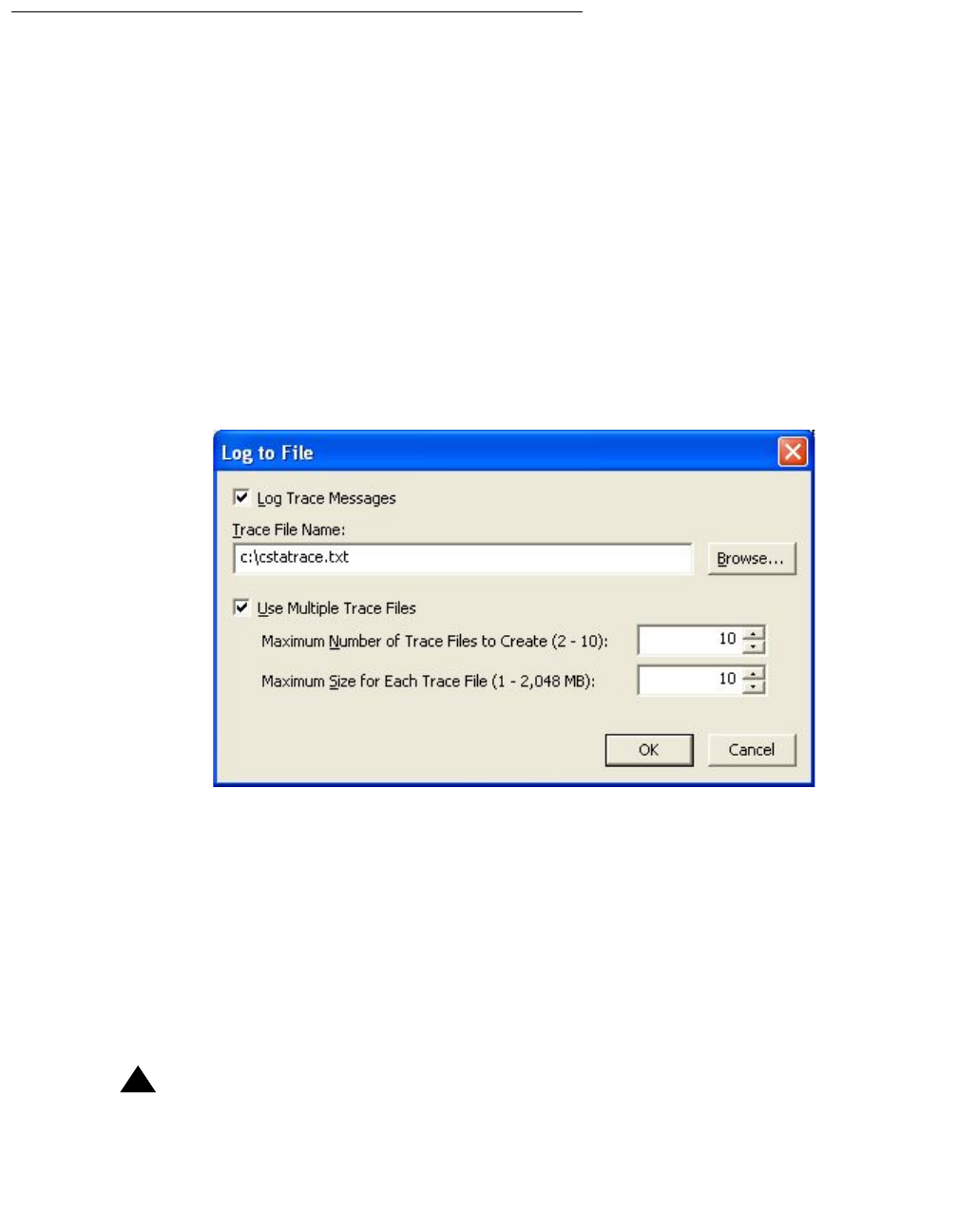
TSAPI Spy - a Windows client message tracing tool
AE Services TSAPI and CVLAN Client and SDK Installation Guide October 2013 81
Procedure for creating a trace file
Follow this procedure to create a trace file.
1. Perform one of the following steps:
-
If you are using Windows 8:
On the Start page, click on TSAPI Spy.
-
If you are not using Windows 8:
Click Start > All Programs > Avaya AE Services > TSAPI Client > TSAPI Spy.
AE Services displays the TSAPI Spy for Win32 window.
2. From the Telephony Services Spy for Win32 window, select Options > Log To File... .
Windows displays the Log to File dialog box.
3. Follow these steps to complete the Create Trace File dialog box:
a. Accept the default for Log Trace Messages (enabled).
b. In the Trace File Name field, type a name for the trace file
(for example, c:\cstatrace.txt), or, choose a location by clicking Browse.
The default extension assigned to trace files is .trc, but you can use any filename and
extension.
c. If you would like the trace messages to be logged to a single file that grows without
bound, clear the check box for Use Multiple Trace Files and click OK.
!Important:
Important: Use this option with care to avoid using excessive disk space.

Appendix C: TSAPI client message tracing
82 AE Services TSAPI and CVLAN Client and SDK Installation Guide October 2013
d. If you would like to control the amount of disk space consumed by the trace files, set
the check box for Use Multiple Trace Files. Then adjust the values for "Maximum
Number of Trace Files to Create" and "Maximum Size for Each Trace File" based on
your preferences and click OK.
Turning off Log to File
When you want to stop TSAPI Spy from writing output to the trace file, follow this procedure.
1. Select Options > Log To File (the Log to File option will have a check mark).
2. Uncheck the Log Trace Messages check box.
All of the options become disabled.
3. Click OK.
TSAPI Spy displays an information box that prompts you to confirm that you want to close
the trace file.
4. Click OK.
TSAPI Spy closes the trace file.

TSAPI Spy - a Windows client message tracing tool
AE Services TSAPI and CVLAN Client and SDK Installation Guide October 2013 83
Working with the streams list
When you first start TSAPI Spy, Tracing and Auto-Trace New Streams are enabled by default.
When Tracing is enabled, all connections that are currently open are traced. When Auto-Trace
New Stream is enabled, tracing is enabled when a new connection is opened.
To indicate that tracing is enabled for a connection (or connections), TSAPI Spy highlights the
connection displayed in the streams list.
●To disable Tracing for all streams, select the Disabled option button.
●To disable Auto-Trace New Streams, select Options > Auto-Trace New Streams. When
you clear the check mark for Auto-Trace New Streams, tracing is not enabled for a new
connection when it is opened.
Understanding trace output
To understand trace output, think of the client library as a two-way pipeline, with messages
entering and leaving both ends. Messages may originate or terminate in one of three places:
●the application
●the TSAPI Service
●the client library (for internal events)
The trace records track the progress of a message through the pipeline, enabling you to
determine which messages have been sent and whether or not they have reached their
destination.
Normally, two trace records are generated for each message: one as it enters the pipeline, and
one as it exits. Messages entering and leaving the application side (or the library itself) are
presented in detail, with the value of each data element displayed in an appropriate format. The
corresponding trace records to/from the TSAPI Service only indicate successful transport of the
message across the network.

Appendix C: TSAPI client message tracing
84 AE Services TSAPI and CVLAN Client and SDK Installation Guide October 2013
TSAPI Spy Trace Records
Trace records displayed in the Output window (or trace file) are separated by blank lines. Each
begins with a time stamp and one of the following phrases which describes the record:
●RECEIVED FROM APPLICATION - the application has generated a message to be delivered
to the TSAPI Service. The message is displayed in detail.
●RECEIVED FROM TSERVER - a message from the TSAPI Service has arrived in the client
library receive queue. Notification only.
●DELIVERED TO APPLICATION - the application has accepted the message from the client
library. The message is displayed in detail.
●FROM LIBRARY - the client library has generated an internal message to be delivered to the
TSAPI Service. The message is displayed in detail.
●FOR LIBRARY - the client library has accepted an internal message from the TSAPI Service.
The message is displayed in detail.
A typical request from an application generates three trace records, in the following sequence:
RECEIVED FROM APPLICATION, RECEIVED FROM TSERVER, DELIVERED TO
APPLICATION. An event report from the TSAPI Service generates only the latter two records.
Trace records from multiple messages may be interleaved.
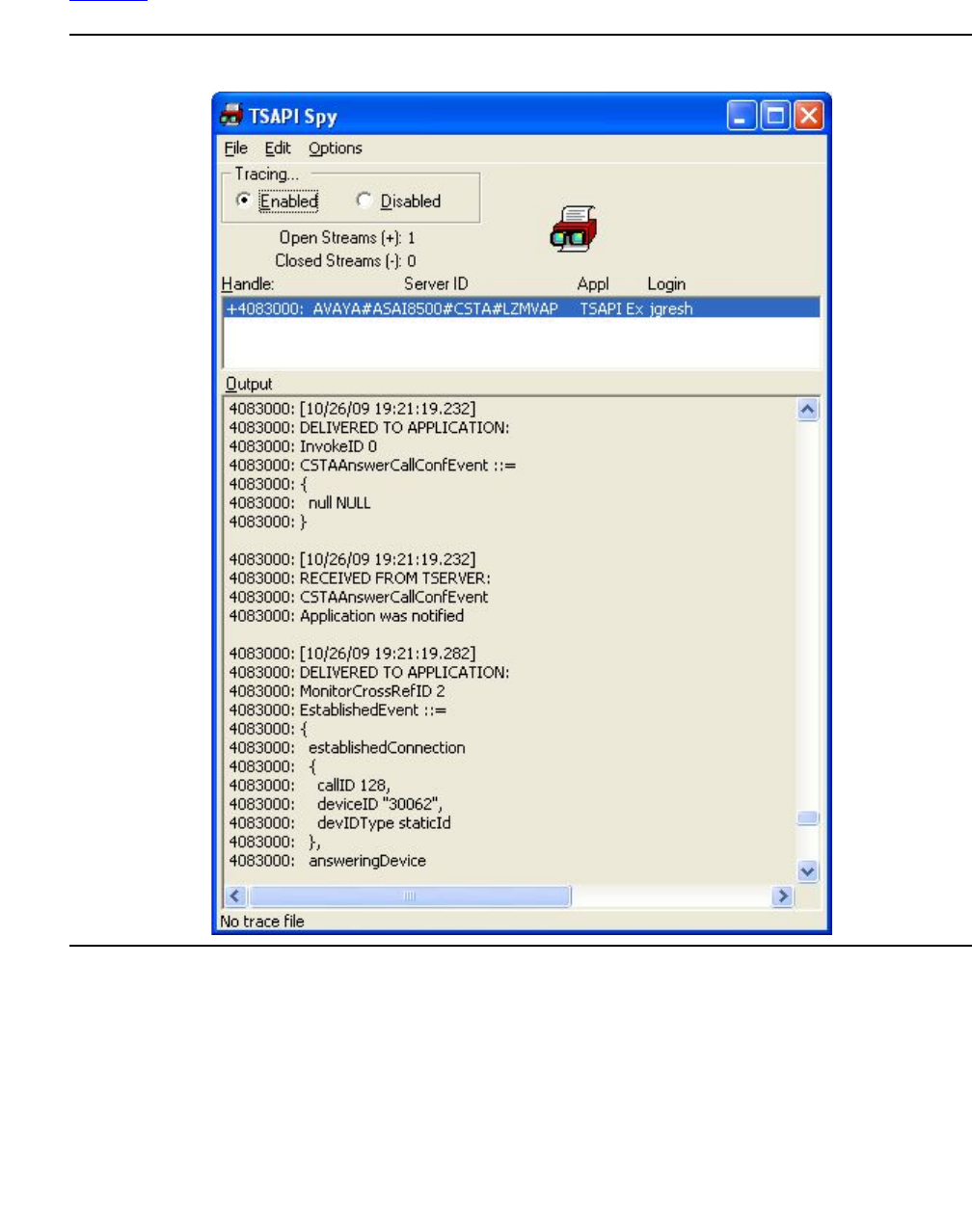

Appendix C: TSAPI client message tracing
86 AE Services TSAPI and CVLAN Client and SDK Installation Guide October 2013
TSAPI Spy Error Records
Certain network errors are also reported by TSAPI Spy. These reports are displayed in the
following form:
●CONNECTION TERMINATED BY TSERVER (condition code = xxxx)
where xxxx is a numerical error code in hexadecimal notation. The most common error
codes reported are:
-
2745 (this means the connection is aborted)
-
2746 (the connection has been reset)
-
2742 (the network is down)
●CONNECTION TERMINATED BY CLIENT LIBRARY (condition code = 0), which indicates
that the client has detected a loss of connectivity with the AE Services server
Other codes are possible under unusual conditions. Report the code to technical support when
you request assistance.
Using the TSAPI Spy with Windows Server 2003
When using a standard Windows Remote Desktop Connection to start the TSAPI Spy on a
Windows Server 2003-based server where the TSAPI application is running as a Windows
service, the TAPI Spy will not provide any trace messages. To capture the messages sent and
received by the TSAPI application, the Remote Desktop Connection used to start the TSAPI
Spy must connect to the console session.
Use the following procedure to open a console session to a Windows Server 2003-based
server:
1. Click Start > Run.
The Run dialog box appears.
2. Enter c:\windows\system32\mstsc.exe /console and click OK.
A Remote Desktop Connection window appears.
3. Complete the host name or IP address of the application, and configure any other options
you want.
4. Click Connect.
Note:
Note: Each computer has only one console session. When you connect to the console
session remotely, other users may be unable to log on to the computer locally.

Client message tracing for Linux-based TSAPI clients
AE Services TSAPI and CVLAN Client and SDK Installation Guide October 2013 87
Client message tracing for Linux-based TSAPI clients
For Linux-based clients, the message tracing ability is built into the shared client library file
(libcsta.so). The tracing capability allows a user to log the flow of messages through
applications using the TSAPI Linux clients.
Messages are traced as they enter and leave the library in both directions: from applications to
the TSAPI Service and from the TSAPI Service to applications. Trace messages are written
directly to a file specified by the user. Message tracing is performed on an
application-by-application basis, according to each application’s environment settings.
How to enable message tracing
To enable the TSAPI Message Tracing feature, set and export the environment variable
CSTATRACE before starting your TSAPI application. The CSTATRACE environment variable
specifies the name of the file where the TSAPI messages will be logged.
Beginning with Release 5.2 of the AE Services TSAPI Linux client, you can control the amount
of disk space used by the TSAPI Message Tracing feature by setting and exporting the
following additional environment variables:
●CSTATRACE_MAX_FILE_INDEX - This environment variable controls the number of
TSAPI trace files that will be created.
Each time the trace file reaches its maximum size (see CSTATRACE_MAX_FILE_SIZE,
described below), the trace file will "roll over". This means that if messages are being
logged to file cstatrace, then the first time the trace file rolls over, that file is renamed as
cstatrace.1 and a new cstatrace file is created to receive additional log output.
To generalize, if messages are being logged to file cstatrace and
CSTATRACE_MAX_FILE_INDEX is set to some value n, then each time the cstatrace file
reaches its maximum size:
-
The file cstatrace.n is removed.
-
Any trace files (cstatrace.1, cstatrace.2, ..., cstatrace.n-1) that exist are renamed as
(cstatrace.2, cstatrace.3, ..., cstatrace.n).
-
The file cstatrace is renamed cstatrace.1.
-
A new cstatrace file is created to receive additional log output.
In effect, the number of TSAPI trace files that may be created is limited to
CSTATRACE_MAX_FILE_INDEX + 1.
Valid values for CSTATRACE_MAX_FILE_INDEX are 1-9. If
CSTATRACE_MAX_FILE_SIZE is set but CSTATRACE_MAX_FILE_INDEX is not set,
then CSTATRACE_MAX_FILE_INDEX defaults to 9.

Appendix C: TSAPI client message tracing
88 AE Services TSAPI and CVLAN Client and SDK Installation Guide October 2013
●CSTATRACE_MAX_FILE_SIZE - This environment variable controls the maximum size of
each TSAPI trace file.
Valid values for CSTATRACE_MAX_FILE_SIZE are 1-10000 (MB). If
CSTATRACE_MAX_FILE_INDEX is set but CSTATRACE_MAX_FILE_SIZE is not set,
then CSTATRACE_MAX_FILE_SIZE defaults to 10 (MB).
When neither CSTATRACE_MAX_FILE_INDEX nor CSTATRACE_MAX_FILE_SIZE is
set, then messages will be logged to a single file that grows without bound. Use caution
when collecting TSAPI trace messages this way to avoid using excessive disk space.
Also, note that the TSAPI Message Tracing feature is provided for troubleshooting
purposes only. Enabling this feature will degrade the performance of the TSAPI Linux
client library.
Examining trace files
Figure 9 depicts sample output from a tracing session started by setting CSTATRACE. The
number that appears at the beginning of each line is the ACS handle for the stream.

Client message tracing for Linux-based TSAPI clients
AE Services TSAPI and CVLAN Client and SDK Installation Guide October 2013 89
Figure 9: Sample output from CSTA Trace
:
00722aa0: [10/26/09 19:26:44.444]
00722aa0: RECEIVED FROM APPLICATION:
00722aa0: InvokeID 00000002
00722aa0: ACSOpenStream ::=
00722aa0: {
00722aa0: streamType stCsta,
00722aa0: serverID "AVAYA#SCORPION#CSTA#LZMVAP244",
00722aa0: loginID "jgresh",
00722aa0: cryptPass '3A2578E343C2F56B95B84571FBF0F56B95 ...'H,
00722aa0: applicationName "TSTEST",
00722aa0: level acsLevel1,
00722aa0: apiVer "TS1-2",
00722aa0: libVer "AES6.3.1 Build 415",
00722aa0: tsrvVer ""
00722aa0: }
00722aa0: [10/26/09 19:26:44.451]
00722aa0: DELIVERED TO APPLICATION:
00722aa0: InvokeID 00000002
00722aa0: ACSOpenStreamConfEvent ::=
00722aa0: {
00722aa0: apiVer "ST2",
00722aa0: libVer "AES6.3.1 Build 415",
00722aa0: tsrvVer "6.3.1 Build 415",
00722aa0: drvrVer "6.3.1 Build 415"
00722aa0: }
00722aa0: [10/10/13 19:26:44.452]
00722aa0: RECEIVED FROM APPLICATION:
00722aa0: InvokeID 00000003
00722aa0: CSTAMakeCall ::=
00722aa0: {
00722aa0: callingDevice "32201",
00722aa0: calledDevice "32202"
00722aa0: }
00722aa0: [10/26/09 19:26:44.599]
00722aa0: DELIVERED TO APPLICATION:
00722aa0: InvokeID 00000003
00722aa0: CSTAMakeCallConfEvent ::=
00722aa0: {
00722aa0: newCall
00722aa0: {
00722aa0: callID 2261,
00722aa0: deviceID "32201",
00722aa0: devIDType staticId
00722aa0: }
00722aa0: }

Appendix C: TSAPI client message tracing
90 AE Services TSAPI and CVLAN Client and SDK Installation Guide October 2013

AE Services TSAPI and CVLAN Client and SDK Installation Guide October 2013 91
Glossary
API Application Programming Interface. An API is a published specification
that describes how to access the functions of a software-based service.
ASAI Adjunct Switch Application Interface - ASAI is a protocol that enables
software applications to access call processing capabilities provided by
Avaya Communication Manager.
Certificate Authority
(CA)
A certificate authority is an organization that issues and manages
security credentials, including digitally signed certificates containing
public keys for message encryption and decryption.
Computer Telephony
Integration
Abbreviated as CTI. The integration of services provided by a computer
and a telephone. In simplest terms, it means connecting a computer to a
communications server (or switch) and having the computer issue
commands that control calls. All services running on the AE server
(TSAPI, CVLAN, DLG, and DMCC) are CTI services.
CTI Computer Telephony Integration. CTI is the use of computers to manage
telephone calls.
CTI Link The term CTI link refers to a generic link type that is used in the context of
Communication Manager administration. As a generic link type, it can
refer to any of the following AE Services links: CVLAN links, DLG links,
and TSAPI links (JTAPI and the Telephony Web Service use TSAPI
links). When an OAM Web page, such as TSAPI Service Summary,
displays a column heading for a CTI link type, it is referring to TSAPI link
as it is administered on Communication Manager. Up to 64 links can be
administered on Communication Manager.

CT User
92 AE Services TSAPI and CVLAN Client and SDK Installation Guide October 2013
CT User Computer Telephony User. A user (or an application) administered in the
AE Services User Service as a CT User derives authorization from the
Security Database. CT Users include the following users or applications:
TSAPI Service users (including JTAPI users), Telephony Web Service
users, and Device, Media and Call Control users who use the Call
Control Services (CSTA III Single-Step Conference, Snapshot Call, and
Snapshot Device).
CVLAN CallVisor/LAN - CallVisor/LAN is a C programming API based on the
ASAI message set.
JTAPI Java Telephony Application Programming Interface. JTAPI is a scalable,
extensible API integrating both first-party and third-party call control
models. The AE Services JTAPI implementation provides access to the
complete set of Third Party call control features provided by the TSAPI
Service. JTAPI uses the TSAPI Service for communication with Avaya
Communication Manager. For information about JTAPI, see the Avaya
Aura® Application Enablement Services JTAPI Programmer’s Guide,
02-603488.
Link A communications channel between system components.
Operations,
Administration, and
Maintenance
Abbreviated as OAM. The administrative interface for the Application
Enablement Services platform.
PEM Privacy Enhanced Mail - A file format for storing private keys, public keys,
and certificates. A PEM file may contain either personal certificates or
certificates from a Certificate Authority.
Private Data Private data is a switch-specific software implementation that provides
value added services.
Routing Selecting an appropriate path for a call. When a routing application is
started, it sends route registration requests, which contain a device ID, to
Communication Manager. Routing requests instruct Communication
Manager to send all incoming calls to these device IDs (in the TSAPI
Service). The TSAPI Service sends the call to the application for routing.
Communication Manager does not route these calls. Also referred to as
adjunct routing.

TSAPI
AE Services TSAPI and CVLAN Client and SDK Installation Guide October 2013 93
SDK Software Development Kit. An SDK is a package that enables a
programmer to develop applications for a specific platform. Typically, an
SDK includes one or more APIs, documentation, and, in some cases,
programming tools.
Tlink A Tlink is a service identifier that is created when the administrator adds
a TSAPI Link in AE Services OAM. A Tlink refers to a switch connection
between a specific switch and a specific AE Server.
TLS Transport Layer Security. TLS is a protocol intended to secure and
authenticate communications across public networks through data
encryption. TLS is an enhancement to SSL version 3, and is a proposed
Internet Standard.
TSAPI Telephony Services API. TSAPI is a C- language based API for
third-party call and device control, and based on CSTA standards.

TSAPI
94 AE Services TSAPI and CVLAN Client and SDK Installation Guide October 2013

AE Services TSAPI and CVLAN Client and SDK Installation Guide October 2013 95
Index
Index
A
ASAI test utility . . . . . . . . . . . . . . . . . . 65
Avaya CT Windows SDK . . . . . . . . . . . 50, 51, 61
C
CVLAN
installing Linux Client . . . . . . . . . . . . . . 63
installing Linux SDK. . . . . . . . . . . . . . . 63
installing Windows Client . . . . . . . . . . . . 60
installing Windows SDK . . . . . . . . . . . . . 60
E
Errors
reported by TS Spy . . . . . . . . . . . . . . . 86
G
Glossary . . . . . . . . . . . . . . . . . . . . . 91
I
Installing CVLAN Linux Client and SDK . . . . . . . 63
Installing CVLAN Windows Client and SDK . . . . . 60
Installing TSAPI Linux client . . . . . . . . . . . . 37
Installing TSAPI Linux SDK . . . . . . . . . . . . . 52
Installing TSAPI Windows client. . . . . . . . . . . 21
Installing TSAPI Windows SDK . . . . . . . . . . . 48
O
operating system requirements . . . . . . . . . . . 17
R
Removing
TSAPI Windows SDK . . . . . . . . . . . 50, 51, 61
Removing CVLAN Windows client . . . . . . . . . 61
Removing TSAPI Linux client . . . . . . . . . . .40, 53
Removing TSAPI Linux SDK . . . . . . . . . . . . 53
Removing, TSAPI Windows client . . . . . . . . . . 25
S
Software
downloading . . . . . . . . . . . . . . . . . . 12
T
TS Spy
client library model . . . . . . . . . . . . . . . 83
error records . . . . . . . . . . . . . . . . . . 86
file logging . . . . . . . . . . . . . . . . . . . 80
trace records . . . . . . . . . . . . . . . . . . 84
TS Spy menu options . . . . . . . . . . . . . . . . 79
TSAPI Linux client, removing . . . . . . . . . . 40, 53
TSAPI Linux SDK, removing . . . . . . . . . . . . 53
TSAPI Test, verifying installation . . . . . . . . . . 24
TSAPI Win32 client, verifying installation . . . . . . . 24
TSAPI Windows client, installing. . . . . . . . . . . 21
TSLIB
tracing client messages with TS Spy . . . . . . . 77
V
Verifying installation of CVLAN client. . . . . . . . . 65

96 AE Services TSAPI and CVLAN Client and SDK Installation Guide October 2013
Index
