Arturia Matrixbrute Manual
User Manual:
Open the PDF directly: View PDF  .
.
Page Count: 59
- User Manual
- Special Thanks
- Thank you for purchasing the Arturia MatrixBrute!
- Special Message Section
- Introduction
- Table Of Contents
- Connections
- Getting Started with MatrixBrute
- Guided Tour
- Operation
- The Matrix
- MIDI
- Software License Agreement
- Declaration of Conformity
USER MANUAL

Special Thanks
DIRECTION
Frederic Brun Adrien Courdavault
ENGINEERING
Bruno Pillet
Thierry Chatelain
Robert Bocquier
Vivien Henry
Nadine Lantheaume
Pierre-Lin Laneyrie
Yves Usson
Nicolas Dubois
Benjamin Renard
Boele Gerkes
Victor Morello
MANUAL
Nick Batzdorf Glen Darcey Sebastien Rochard Morgan Perrier
DESIGN
Glen Darcey
Bruno Pillet
Sebastien Rochard
Daniel Vester
DesignBox
Frederic Brun
Thierry Chatelain
SOUND DESIGN
Boele Gerkes
Ken Flux Pierce
Victor Morello
Richard Devine
Stéphane Schott
Jean-Baptiste Arthus
Jean-Michel Blanchet
Lee Malcolm
© ARTURIA SA – 2017 – All rights reserved.
11 Chemin de la Dhuy
38240 Meylan
FRANCE
www.arturia.com
Information contained in this manual is subject to change without notice and does not
represent acommitment on the part of Arturia. The software described in this manual is
provided under the terms of alicense agreement or non-disclosure agreement. The software
license agreement specifies the terms and conditions for its lawful use.No part of this
manual may be reproduced or transmitted in any form or by any purpose other than
purchaser’s personal use, without the express written permission of ARTURIA S.A.
All other products, logos or company names quoted in this manual are trademarks or
registered trademarks of their respective owners.
Product version: 1.1
Revision date: 21 September 2018

Thank you for purchasing the Arturia MatrixBrute!
This manual covers the features and operation of Arturia’s MatrixBrute.
In this package you will find:
•One Matrixbrute analog synthesizer, with aserial number on the bottom. You will
need this information in order to register your MatrixBrute online.
•One IEC AC power cord.
Be sure to register your MatrixBrute as soon as possible! There is asticker on the bottom
panel that contains the serial number of your unit. This is required during the online
registration process. You may want to record these elsewhere or take a photo of the sticker
in case it becomes damaged.
Registering your MatrixBrute provides the following benefits:
• It enables you to download the MatrixBrute user manual and the latest version
of the MIDI Control Center software
• It allows you to receive special offers restricted to MatrixBrute owners.

Special Message Section
Specifications Subject to Change:
The information contained in this manual is believed to be correct at the time of printing.
However, Arturia reserves the right to changeor modify any of the specifications without
notice or obligation to update the hardware that has been purchased.
IMPORTANT:
The product and its software,when used in combination with an amplifier,headphones or
speakers, may be able to produce sound levels that could cause permanent hearing loss.
DO NOT operate for long periods of time at a high level or at a level that is uncomfortable.
If you encounter any hearing loss or ringing in the ears, you should consult an audiologist.
NOTICE:
Service charges incurred due to alack of knowledgerelating to how a function or feature
works (when the product is operating as designed) are not covered by the manufacturer’s
warranty, and are therefore the owner's responsibility. Please study this manual carefully
and consult your dealer before requesting service.
Precautions include, but are not limited to, the following:
1. Read and understand all the instructions.
2. Always follow the instructions on the instrument.
3. Before cleaning the instrument, always remove the USB cable.When cleaning,
use asoft and dry cloth. Do not use gasoline,alcohol, acetone,turpentine or any
other organic solutions; do not use a liquid cleaner, spray or cloth that's too wet.
4. Do not use the instrument near water or moisture,such as abathtub,sink,
swimming pool or similar place.
5. Do not place the instrument in an unstable position where it might accidentally
fall over.
6. Do not place heavy objects on the instrument. Do not block openings or vents
of the instrument; these locations are used for air circulation to prevent the
instrument from overheating. Do not place the instrument near aheat vent at any
location with poor air circulation.
7. Do not open or insert anything into the instrument that may cause afire or
electrical shock.
8. Do not spill any kind of liquid onto the instrument.
9. Always takethe instrument to aqualified service center. You will invalidate your
warranty if you open and remove the cover,and improper assembly may cause
electrical shock or other malfunctions.
10. Do not use the instrument with thunder and lightning present; otherwise it may
cause long distance electrical shock.
11. Do not expose the instrument to hot sunlight.
12. Do not use the instrument when there is a gas leak nearby.
13. Arturia is not responsible for any damageor data loss caused by improper
operation of the instrument.

Introduction
Congratulations on your purchase of the Arturia MatrixBrute!
The MatrixBrute is designed to be asupremely powerful, modern analog classic synthesizer.
The roots of this product stem from the greatest synthesizers of all time,all enhanced with
Arturia’s own modern touch and character. The now famous ‘Brute’ style oscillators, paired
with the classic sounds of both the Steiner Parker filter and Dr. Bob Moog ladder filter,and
our own analog effects section, giveyou a wealth of tools and amazing sonic character to
build your own sounds up.
The center point of the MatrixBrute is the impressiveMatrix Modulation, that the name is
derived from. This matrix allows you to takecontrol and route modulation sources in a
near endless amount of ways. Couple this with the preformance features of the sequencer,
arpeggiator,assignable macro knobs and the vast CV connectivity and you have a product
the will be the center piece in your studio or stage set up.
We are proud and thrilled to bring you this iconic synthesizer. It is the fusion of the
programable analog synthesizer wants and dreams of our entire development team.
Be sure to visit the www.arturia.com website and check for the latest firmware,download
the MIDI Control Center and check out the tutorials and FAQs. Get ready to explore synthesis
in a whole new way.
Musically yours, The Arturia team

Table Of Contents
1. Connections ..................................................................................................................................................................... 2
2. Getting Started with MatrixBrute....................................................................................................................... 4
2.1. Auto-Tuning MatrixBrute ................................................................................................................................................... 5
2.2. Understanding Digitally-Controlled Analog ........................................................................................................ 6
2.3. Load a Preset, Play, and Adjust the Output Level .......................................................................................... 7
3. Guided Tour...................................................................................................................................................................... 8
3.1. Subtractive synthesis overview ................................................................................................................................... 8
3.2. Initializing a Preset ............................................................................................................................................................. 9
3.3. Hands On................................................................................................................................................................................ 10
3.3.1. VCO 1 ................................................................................................................................................................................................................................. 10
3.3.2. VCF 1 .................................................................................................................................................................................................................................... 11
3.3.3. ENV 2 ................................................................................................................................................................................................................................. 12
3.3.4. LFO/Aftertouch/Matrix........................................................................................................................................................................................... 13
3.3.5. Analog Effects Section........................................................................................................................................................................................... 15
4. Operation......................................................................................................................................................................... 16
4.1. Master Controls..................................................................................................................................................................... 16
4.2. Utility Commands ............................................................................................................................................................... 17
4.3. VCOs ........................................................................................................................................................................................... 19
4.3.1. VCOs 1 and 2 ................................................................................................................................................................................................................. 19
4.3.2. Sub oscillator................................................................................................................................................................................................................ 19
4.3.3. Mixable waveforms ............................................................................................................................................................................................... 20
4.3.4. VCO 3 - LFO 3............................................................................................................................................................................................................ 20
4.3.5. Noise Generator ......................................................................................................................................................................................................... 21
4.4. Audio Mod................................................................................................................................................................................ 21
4.5. VCO Sync................................................................................................................................................................................. 21
4.6. Voice Mode............................................................................................................................................................................. 22
4.6.1. Monophonic................................................................................................................................................................................................................... 22
4.6.2. Paraphonic ................................................................................................................................................................................................................... 22
4.6.3. Duo Split mode .......................................................................................................................................................................................................... 23
4.7. Wheels...................................................................................................................................................................................... 24
4.8. Keyboard Performance Controls ............................................................................................................................ 25
4.8.1. Glide ................................................................................................................................................................................................................................... 25
4.8.2. Play Control.................................................................................................................................................................................................................. 26
4.9. Macro Knobs......................................................................................................................................................................... 27
4.10. Mixer........................................................................................................................................................................................ 28
4.11. LFOs 1 and 2......................................................................................................................................................................... 29
4.12. Filters....................................................................................................................................................................................... 30
4.13. Envelopes .............................................................................................................................................................................. 32
4.14. Analog Effects.................................................................................................................................................................... 34
5. The Matrix...................................................................................................................................................................... 35
5.1. PRESET mode........................................................................................................................................................................ 35
5.1.1. Panel ................................................................................................................................................................................................................................... 36
5.1.2. Recalling internal presets..................................................................................................................................................................................... 36
5.1.3. Saving a preset........................................................................................................................................................................................................... 36
5.2. MOD mode............................................................................................................................................................................. 37
5.2.1. Create a modulation path .................................................................................................................................................................................... 37
5.2.2. Setting the modulation amount....................................................................................................................................................................... 37
5.2.3. User assignable destinations........................................................................................................................................................................... 38
5.3. SEQ Mode .............................................................................................................................................................................. 40
5.3.1. Sequencer Mode ....................................................................................................................................................................................................... 40
5.3.2. Arpeggiator mode.................................................................................................................................................................................................... 46
5.3.3. Matrix Arpeggiator Mode ..................................................................................................................................................................................... 47
6. MIDI................................................................................................................................................................................... 48
6.1. MIDI Continuous Controller Assignments.......................................................................................................... 48
6.2. MIDI Control Center settings ..................................................................................................................................... 49
7. Software License Agreement............................................................................................................................ 52
8. Declaration of Conformity................................................................................................................................... 54
1. CONNECTIONS
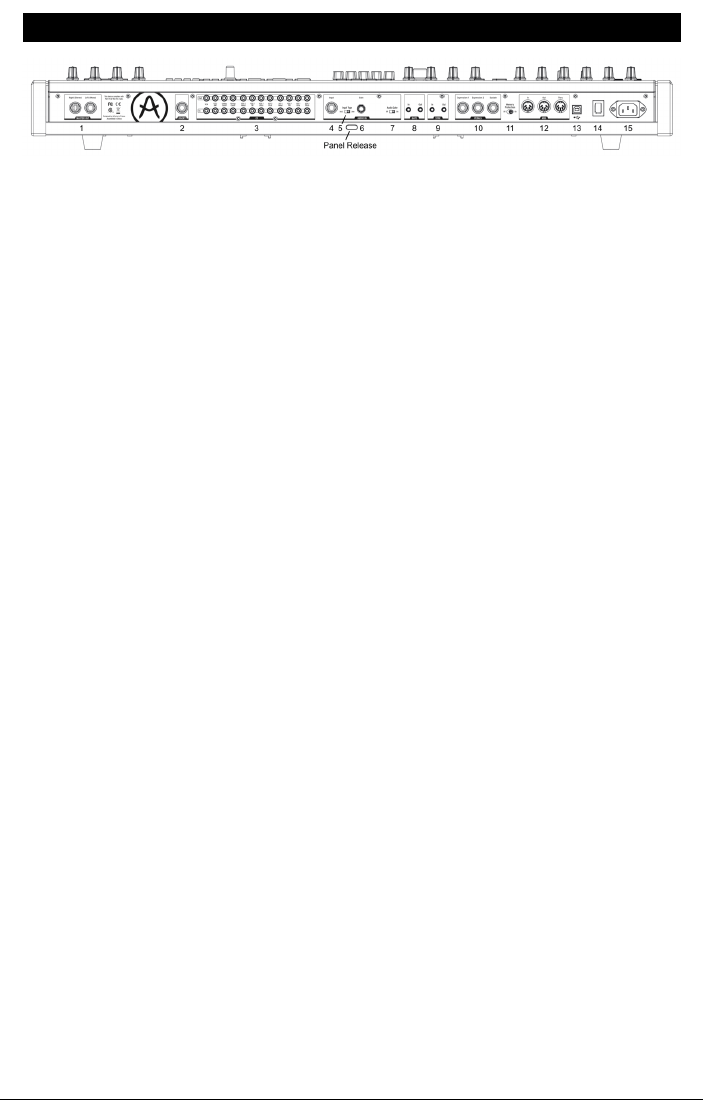
Panel Release latch - Push, then use the hinged propinside the case to set the control panel
at the most convenient angle. You can also leave the panel flat.
1. Master Out -1/4" unbalanced +4dBu stereo line-level outputs, intended to go to an amp and
speakers, or to an audio interface or mixer. For mono use the left channel only.
2. Insert Send/Return -+4dBu 1/4" TRS jack for sending the output of the synth (mono) to
an external processor and back in. This goes before the Master Out in the signal path. It
requires an insert cable, wired: Tip = Send, Ring = Return, Sleeve = Ground.
3. CV Ins/Outs -3.5mm control voltageoutputs and inputs for being controlled/controlling
by modular synthesizers. 12 parameters are available (VCA, LFO 1 Amount, Ladder Filter
Cutoff,Steiner Filter Cutoff, VCO 2Metal, Pulse Width, Ultra, Pitch; VCO 1Metal, Pulse Width,
Ultra, Pitch). The CV inputs are tolerant to +/-15V
4. Input -External input. Run external instruments through the MatrixBrute's synthesis
engine.
5. Input Type (Inst/Line) - For external instrument, use Instrument level for Hi-Z sources like
an electric guitar or bass; use Line level for sources such as another electronic instrument,
mixer output. This is an unbalanced input. Line = 68kΩ. Instrument = 1.1MegΩ
6. Gain -Level control for external instrument input, used in conjunction with the Gate (#7).
Line Gain = 0 -> 20dB. Instrument Gain = 0 -> 40dB
7. Audio Gate (Off/On) - A gate extractor that allows you to use external audio signals, like
aguitar,to trigger the envelope generators. The Gain control (#6) adjusts the level of the
instrument relative to this threshold.
8. Gate In/Out - Receives/sends a voltagetrigger,usually to/from another analog
synthesizer. Use it to trigger the MatrixBrute from another source,such as an analog drum
machine.
9. Sync In/Out -This allows you to syncronize the Matrixbrute with devices that support the
DIN 24 sync standard.
10. Expression 1, 2; Sustain - Pedal inputs. Expression 1and 2are for continuously variable
expression pedals (sometimes called volume pedals), Sustain is for amomentary on/off
pedal (i.e. a sustain pedal).
Some manufacturers reverse the polarity of their pedals; download the MIDI Control Center
software from www.arturia.com to correct the polarity of any of them. These pedals are
converted to MIDI, so they appear in the MIDI Out datastream. Expression pedal wiring is
Tip = pot center tap; Ring = 3.3V; Sleeve = Gnd
11. Memory Protection On/Off -When On, prevents the MatrixBrute's patch Preset and
sequencer Pattern memories from being overwritten.
12. MIDI In/Out/Thru -Standard 5-pin DIN jacks. Connect to MIDIinterfaces and other
equipment.
Back View
Arturia - User Manual MatrixBrute - Connections 2

13. USB -USB B jack for connecting MatrixBrute to aMac or PC (which normally haveUSB
Aconnections; the cable is often called a"printer cable.") This lets you use Arturia's MIDI
Control Center software (available from www.arturia.com), and it also sends/receives MIDI
- no additional MIDI interface is required.
14. Power switch - Turn the instrument on and off.
15. AC jack 100-240Vac, 50-60Hz, 45W
3 Arturia - User Manual MatrixBrute - Connections
2. GETTING STARTED WITH MATRIXBRUTE
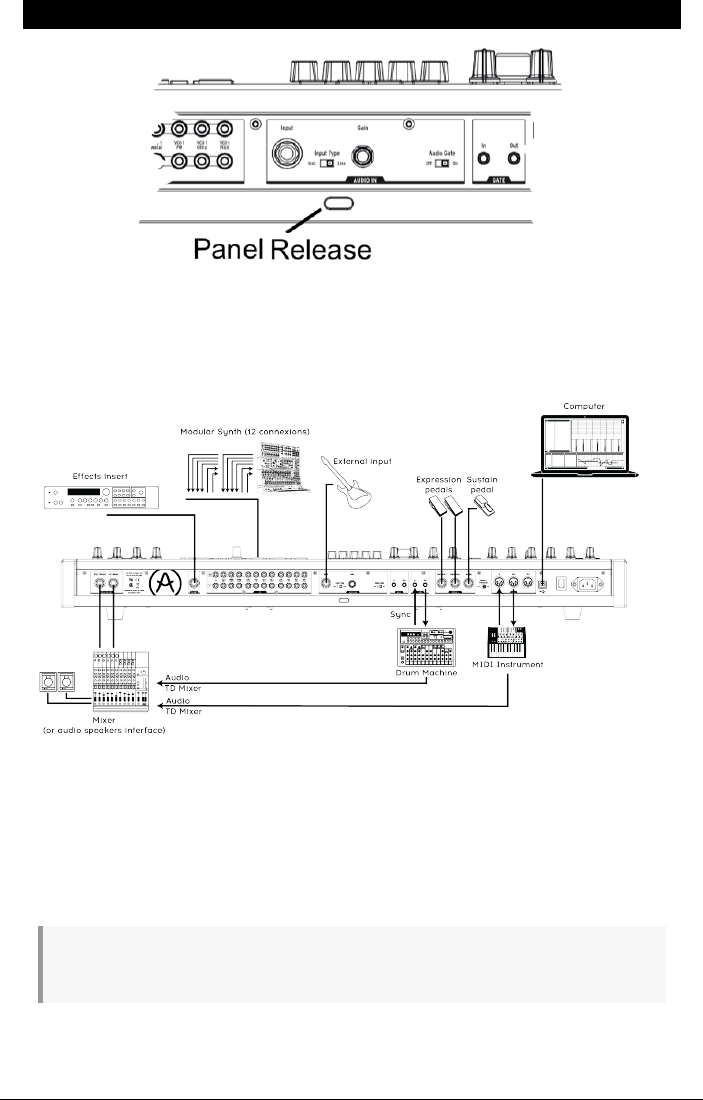
With the MatrixBrute on asolid playing surface,push the Panel Release latch and use the
hinged propinside to set the control panel at the most convenient angle (or just leaveit flat
if that works better). Takecare when lifting on the Matrixbrute panel as it could cause the
support to fall.
In order to hear the instrument, connect cables from the Master Out to your amp and
speakers. Use the left output for mono,i.e.if you're only using one cable.(You can also just
use headphones - the jack is on the left side of the front edge, by the wheels.)
Register and update first: MatrixBrute is designed so it can work stand-alone,but it also brings some
very useful features to a computer environment.
Please use a USB-B to USB-A cable to connect it to a Mac or PC when you first get it.
Back View
Arturia - User Manual MatrixBrute - Getting Started with MatrixBrute 4
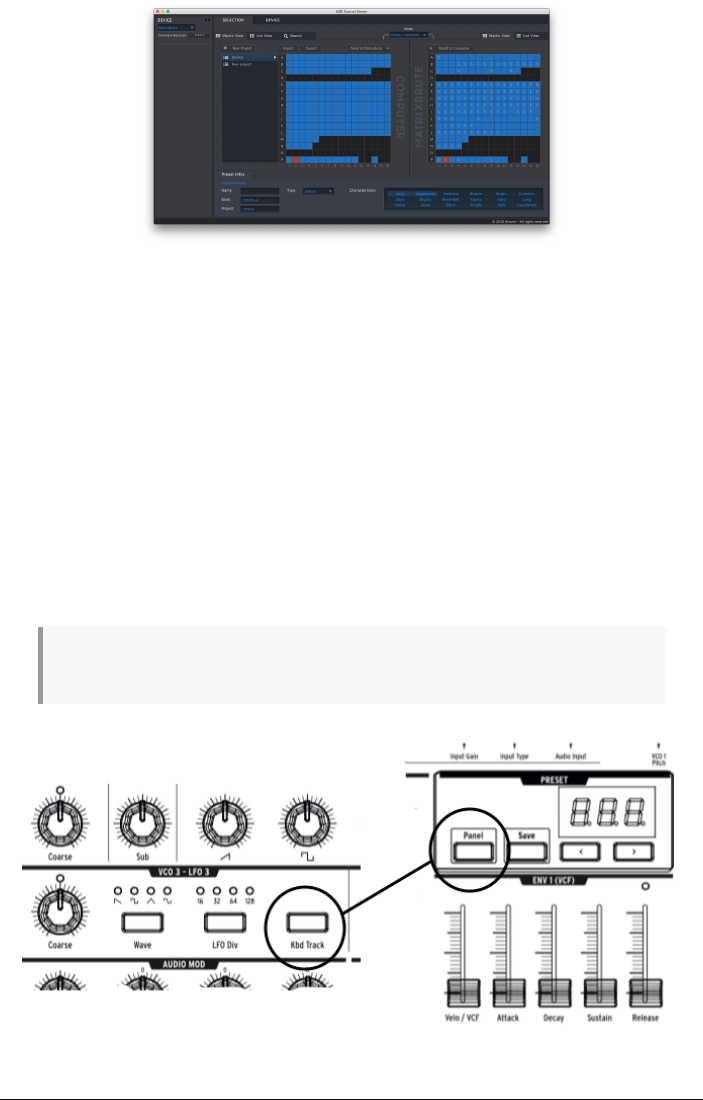
Then go to www.arturia.com and download the MIDI Control Center software for Mac and
PC. Arturia is constantly improving our instruments, so we askthat you update to the latest
firmware (which you do through this program).
MIDI Control Center is alibrarian for presets and sequences, and it's used to configure the
instrument's MIDI settings.
MIDI: In addition to the keyboard, almost all the knobs and sliders send and respond to
MIDI, so you can record and edit them in a DAW. This also makes the instrument useful as
ahands-on controller for other instruments. MIDIcan go in and out the USB port, the 5-pin
DIN ports, both, or neither.
For details about which MIDI Continuous Controllers each fader and knob sends/receives,
please see the section on MIDI[p.48].
2.1. Auto-Tuning MatrixBrute
Kbd Track + Panel auto-tunes the instrument. You'll need to do that once in awhile,more often before
it warms up.
MIDI CC
5 Arturia - User Manual MatrixBrute - Getting Started with MatrixBrute

Part of the beauty of analog synths likethe MatrixBrute is that the components in the
analog circuits are temperature sensitive, giving them aslightly random character. It also
takes awhile for the voltageto stabilize when you first turn the synth on; the warmer the
temperature,the shorter the time it takes, but you'll still need to auto-tune the instrument
from time to time.
Hold down Kbd Track and Panel to initiate the auto-tuning process.
2.2. Understanding Digitally-Controlled Analog
Summary:
The knobs and sliders don't necessarily reflect the underlying settings. There are
some different behavior settings in the MIDI Control Center software,but in the default
mode you must sweep the knob past its actual setting to "hook" it.
Unlikeearly analog synths, MatrixBrute has the advantageof digital control over its analog
circuitry. It's the best of both worlds: the warmth and hands-on control of real analog, with
the ability to saveand recall patches and settings -to say nothing of the Matrix (electronic
patchbay), MIDI, and other modern conveniences.
Because of that, the instrument's knobs and sliders aren't actually controlling voltages
directly, they are knobs that instruct the digital circuitry howto control the analog voltages.
So the positions you see on the panel don't necessarily reflect where they're really set, for
example after you load a Preset sound.
The MIDI Control Center software has three modes. In Hookmode you must sweepthe knob
until it catches its actual position before it has any effect. Jump mode means the voltage
jumps to the knob position as soon as you move it; and Scaled mode scales the rangeof the
knob based on the stored value and the physical distance to either extreme.
The Panel button mentioned above will bypass the current preset and giveyou asound that
is based on the actual positions of the knobs and sliders.
Arturia - User Manual MatrixBrute - Getting Started with MatrixBrute 6
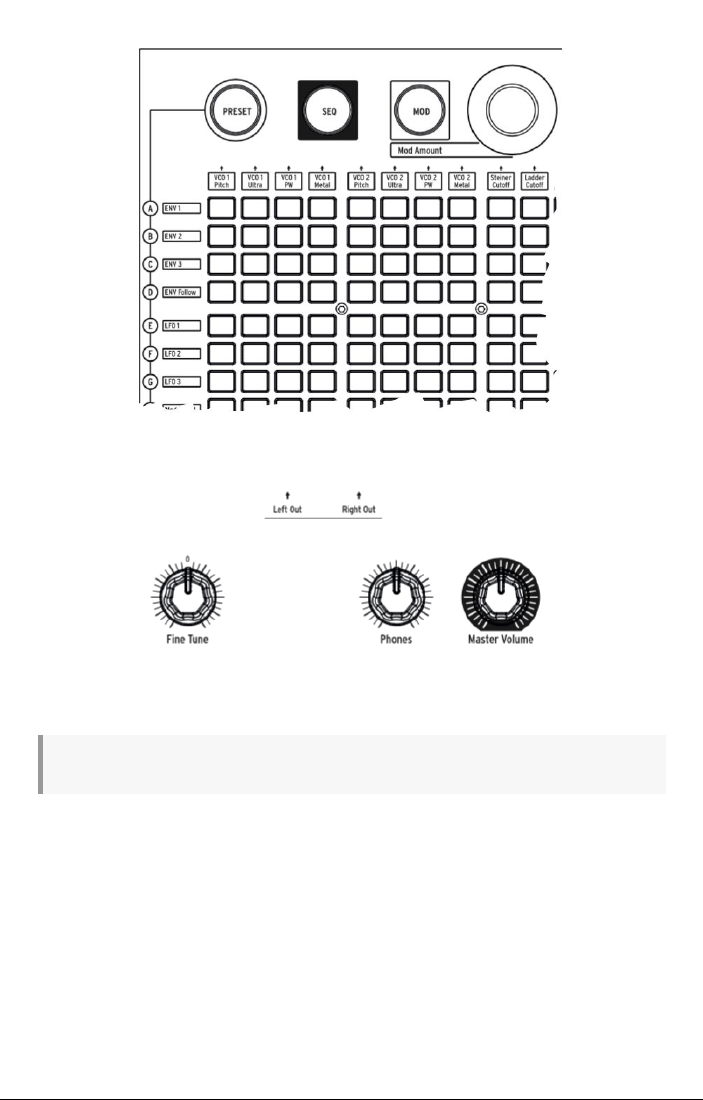
2.3. Load a Preset, Play, and Adjust the Output Level
Press PRESET, and the button will turn purple.
Push abutton to load a Patch so you can play the instrument. Adjust the output and/or
headphone levels, and fine-tune the pitch.
Be sure the Panel button mentioned above isn't lit, or you won't be listening to the Preset.
MatrixBrute stores 16 banks of 16 Presets (total 256). The banks are rows A - P on the left,
Presets within each bank are in columns 1-16. To select, say, patch B3, go tworows down
and three columns across; B 03 will appear in the numeric display.
(The Matrix is also used for the 64-steppattern sequencer/arpeggiator,and when you push
MOD it becomes the electronic patchbay.)
7 Arturia - User Manual MatrixBrute - Getting Started with MatrixBrute
3. GUIDED TOUR
The following walkthrough will giveyou asolid foundation for the MatrixBrute.After this
you'll have a good understanding of what you're doing when you create and shape sounds.
3.1. Subtractive synthesis overview
MatrixBrute is an analog subtractivesynthesizer. Subtractivesynthesis starts by generating
basic waveforms, and then you remove what you don't want to sculpt the timbre you're
after. MatrixBrute can also use external sounds as basic waveforms, and then process them
through its engines.
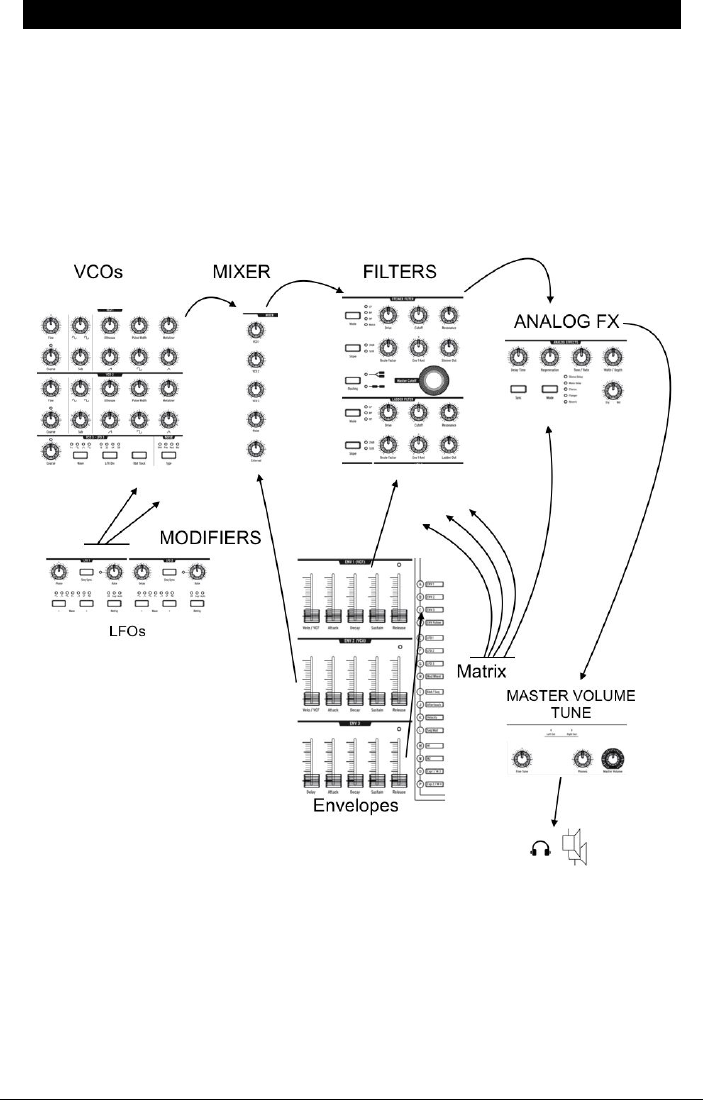
The basic signal flow is simple:
•VCO (voltage-controlled oscillators) [p.19] generate various kinds of waveforms.
•VCF (voltage-controlled filters) [p.30] shape the harmonic content, but they can
also self-oscillate to become sound sources.
• An extensivelist of modifiers, identified by acharcoal-colored background,
move the other parameters around over time in various ways. In some cases,
modulators can control other modulators.
Arturia - User Manual MatrixBrute - Guided Tour 8
One of the main features in the MatrixBrute is... its Matrix (hence the name). This is
an electronic modulation-routing patchbay, so everything that could be asource can be
routed to any and all possible destination parameters. Some modulation sources you move
physically, such as the modulation wheel; others can either run freely or lock to the internal
sequencer's clock. Or they can lock to MIDI.
Triggers from the 4-octave keyboard and the sequencer/arpeggiator -as well as incoming
MIDInotes -could also be considered modifiers when they're doing more than just playing
notes.
The final module in the MatrixBrute's audio path is an analog effects section, and the output
levels and master tuning are separate from the synthesis engine.
Throughout an analog synthesizer,frequencies are controlled by voltage. MatrixBrute uses
1V per octave, so for example from C3 to C4 is a1V increase,and from C3 to F#3 is a0.5V
increase.
3.2. Initializing a Preset
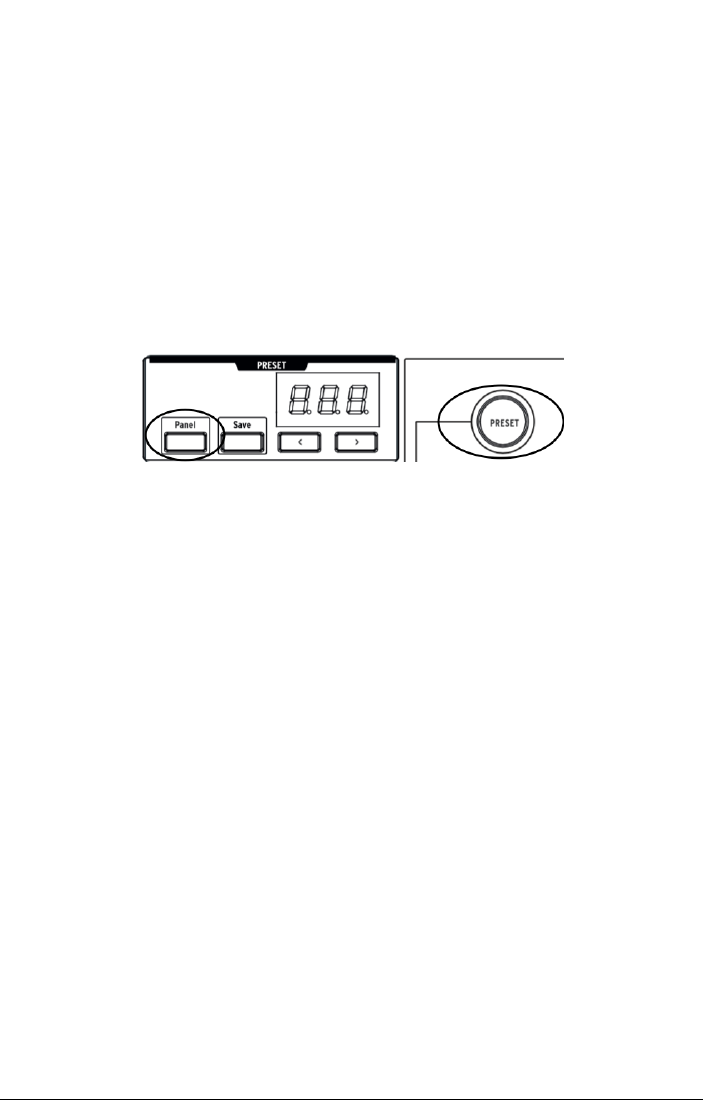
To create your own sound from scratch, begin by initializing apreset. This will create a
simple sound with no modulation routings that will allowyou to quickly build up your sound.
To do the initialization: Panel + Preset.
9 Arturia - User Manual MatrixBrute - Guided Tour
3.3. Hands On
MatrixBrute has more than one of every type of module,but it's only necessary to go
through one of each for this bird's-eye view. So we'll just use one VCO,one VCF,one LFO,
one envelope.
3.3.1. VCO 1
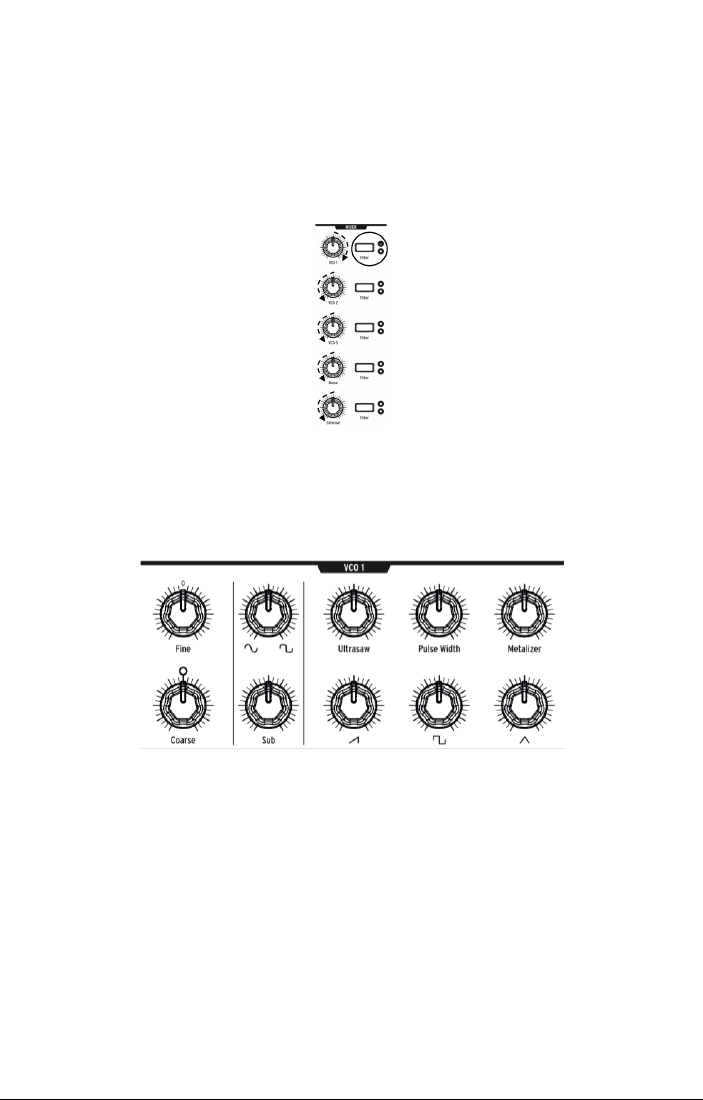
Play the keyboard, and you'll hear abuzzy sound. If you don't, push Preset to toggle to the
initialized sound.
Turn VCO 1up all the way, everything else all the way down in the mixer. These are all the
waveforms available for processing, and we're only working with VCO 1.
Keeppressing VCO 1's Filter button until it's only routed to the red one,the Steiner filter.
Oscillators must be routed to a filter to be audible.
Nowthat you're hearing VCO 1on its own, move the Coarse knob to hear what it sounds like
at different pitches.
There are four different waveforms in this VCO - a Sub oscillator that sounds an octave
belowthe other three.Each wave generator has alevel knob on the bottom rowand an
enhancer for it on the top.
Turn all four down, then bring each one in one at atime so you can hear the different
waveforms. Try the enhancers to hear their effects on the waveforms.
For now, leave everything at 12 o'clock. It doesn't matter that this isn't a great sound.
Arturia - User Manual MatrixBrute - Guided Tour 10
3.3.2. VCF 1
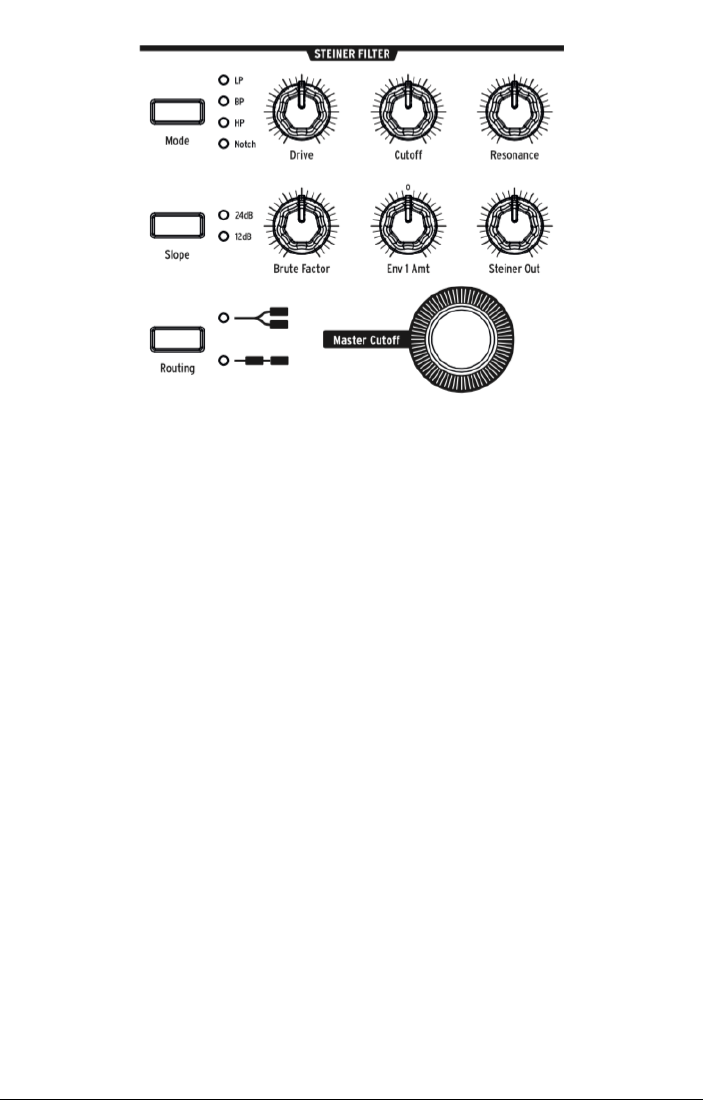
Now to shape the sound's timbre with VCF 1.
Sweepthe Master Cutoff knob while playing. (VCF 1's Cutoff knob has the same effect when
you're only listening to one filter; the Master controls both together.)
With the initialized setting, the filter is set to lowpass, meaning it removes high frequencies.
Cutoff selects the
corner frequency
,which is where it starts operating. This has aradical
effect on the timbre of the sound.
Notice that there's no sound when you turn the way down (because you're blocking all the
frequencies from passing). You'd think the VCO,the sound waveform generator, would be
what turn the sound on and off -and it does -but sounds can also be controlled by opening
up a filter.
Bring up the Brute Factor knob,and experiment it, and with Drive. It's not necessary to point
out that you're adding some real testosterone to the sound. The Resonance control adds
more brightness. You can leave VCF 1 set where it sounds good.
The sound in its present state is just on/off,which is what you want for,say, organ sounds.
We'll adjust that next.
11 Arturia - User Manual MatrixBrute - Guided Tour

3.3.3. ENV 2
Envelopes shape voltagelevels over time while you're triggering anote on the keyboard.
While it can be routed to additional places in the MOD Matrix (see below), ENV 2is always
hardwired to control the MatrixBrute's VCAs. VCA stands for voltage-controlled amplifiers,
which means all the sound sources that appear in the Mixer,i.e.the VCOs and/or any
external signals plugged into the back of the instrument.
•Start by raising ENV 2's Attack slider all the way up and down to "catch" the
fader's actual position. Play the keyboard while gradually raising it. This has the
effect of fading in the note. A quarter of the way seems like a reasonable setting.
•The middle twostages of the envelope,Decay and Sustain,are set to one-size-
fits-all settings in the initialized patch we started from. Attack is howlong it takes
the voltageto fade in to its initial level. From there,Decay sets howlong it takes
to glide to its Sustain level.
•Now for the Release stageof this 4-stageenvelope (Attack/Decay/Sustain/
Release,or ADSR). This sets how fast the note fades out when you release the
key. Again, a quarter of the way up might be a reasonable setting.
•Notice how every note plays at the same volume,no matter howhard you play
the keyboard? The Velo/VCA fader lets you dial in howresponsivethe envelope is
to keyboard
velocity
,which is what electronic keyboards use to determine how
hard you intended to play.
When the slider is all the way down, every note plays at full volume; all the way up, and you
haveto slam the keyboard to get it to speak up. See whether you likethree quarters of the
way up.
The MatrixBrute has twoother Envelopes. ENV 1is hardwired to the twofilters' Cutoffs. It
works the same way, so you can experiment with its effect.
Arturia - User Manual MatrixBrute - Guided Tour 12
3.3.4. LFO/Aftertouch/Matrix
Next, how to route modulation sources in the Matrix, including the LFOs.
Low Frequency Oscillators (LFOs) are periodic waveforms just like VCOs, only they're very
low - which by definition means they're very slow. Rather than being used as sound sources,
LFOs 1 & 2 are used as modifiers to add movement to other parameters. (However, VCO3 is
intended to be used as both a sound source and a modifier.)
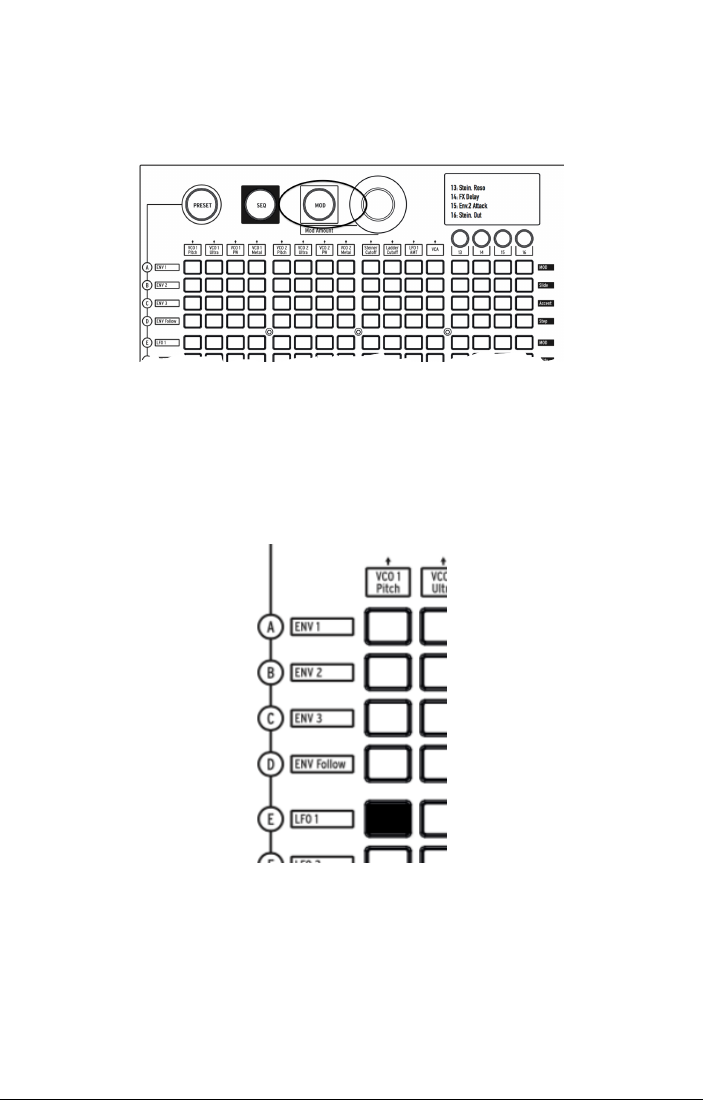
Press the MOD button. The Matrix becomes an electronic patchbay.
We're going to route LFO 1to VCO1's pitch. Depending on the settings, this can create
anything from a vibrato effect, to subtle movement, to some really crazy stuff.
Likeall modifiers (other than the hardwired envelopes), LFO 1has to be routed before it
does anything. Modulation sources are on the rows on the left of the Matrix, destinations are
columns across the top.
LFO 1is fiverows down, VCO 1 Pitch is the first column, so simply push the button where
the twointersect. The button lights purple,indicating it's the one that's selected; if you click
on another button to select additional modulation routings, it'll turn blue to showit's been
assigned.
13 Arturia - User Manual MatrixBrute - Guided Tour
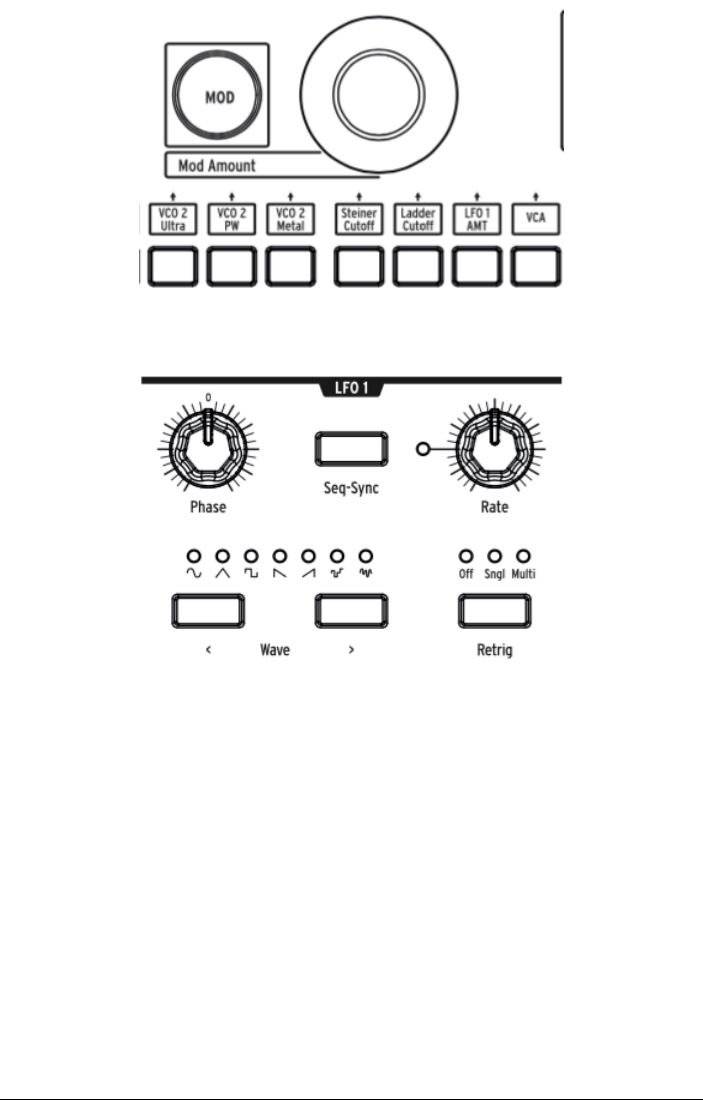
LFO 1still won't modulate the pitch until you dial in aMOD Amount. Try +or -13, a fairly
radical pitch modulation, so you can hear the effect.
You'll also need to set LFO 1's Phase and Rate knobs where they're audible,so try 12 o'clock
as a starting point (as usual, after sweeping them to catch their actual voltage positions).
The pitch should oscillate up and down when you play.
Increase the MOD Amount to +or -64, and it'll sound sci-fi. This is agood setting to
experiment with the Wavebuttons to understand what they do.
MatrixBrute's LFOs have a choice of seven LFO waveforms, and you may be surprised to
see that they sound just likethey look. Some of the same waveforms are available in the
VCOs, where they go by much faster,so this is agood way to get ahandle on howthey
sound.
Now the MOD Amount back to about 13, a vibrato effect.
The MatrixBrute's keys are pressure-sensitive. This is called Aftertouch, acontroller source
when you push down the keys after the note has sounded. We're going to use Aftertouch to
increase LFO 1's rate a lot to bring in some reedy growl.
Aftertouch is next to the letter J, but LFO 1's rate isn't one of the 12 hardwired modulation
destinations. Columns 13 -16 are user-assignable to pretty much any parameter on the
instrument.
Arturia - User Manual MatrixBrute - Guided Tour 14
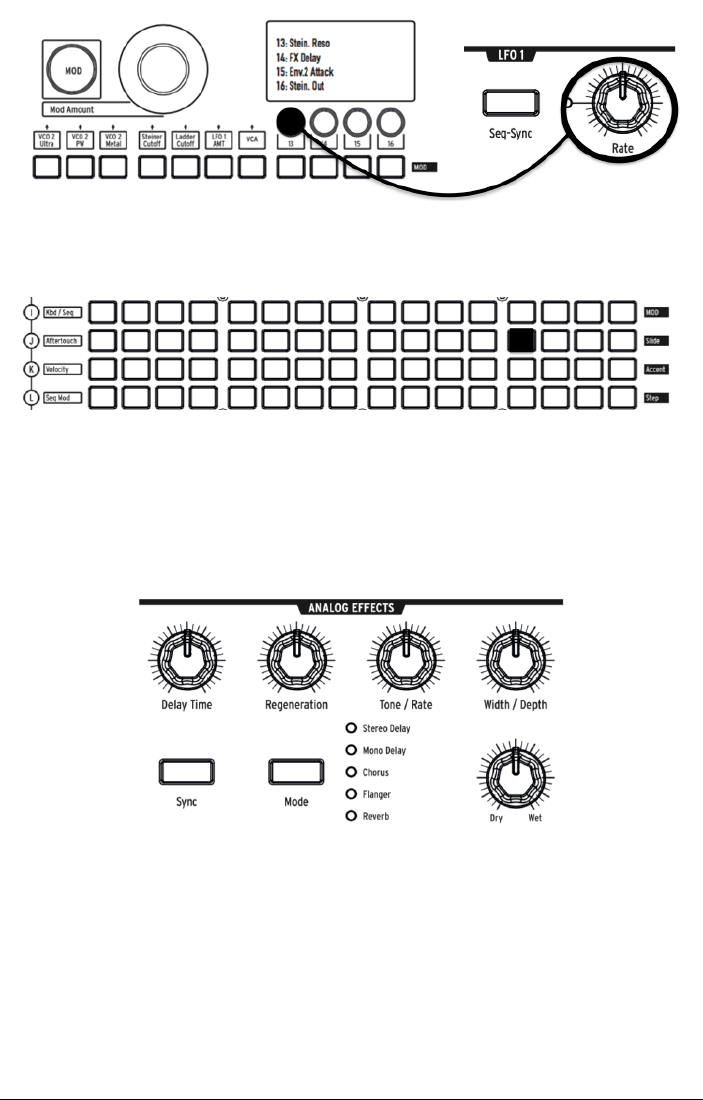
• Hold down button 13,then wiggle LFO 1 Rate alittle.The LCD display will darken
and lighten, and LFO 1 Rate will appear in its display to indicate that it's assigned.
•Nowtouch the button at the intersection of Aftertouch (J) and 13. Set its MOD
Amount to + 99.
Play a fairly lownote,then press the key more to bring in aftertouch, and you'll hear LFO 1
adding some soft growl.
3.3.5. Analog Effects Section
The operation instructions cover the MatrixBrute's Analog Effects [p.34] in detail, but just to
"finish" the sound and bring this module to your attention, turn the Wet/Dry knob up a little
to add some space. Use the Mode button to try other effects.
15 Arturia - User Manual MatrixBrute - Guided Tour

4. OPERATION
4.1. Master Controls
These controls are always active.
•Master Volume -The synthesizer itself will not distort with the level all the way up;
the control is only to avoid overloading the next stepin the chain (mixer,audio
interface, amp...).
•Phones - The headphone level is independent of the Master Volume.
•Fine Tune - Global tuning ± 1 semitone from the knob's center detent.
Arturia - User Manual MatrixBrute - Operation 16
4.2. Utility Commands
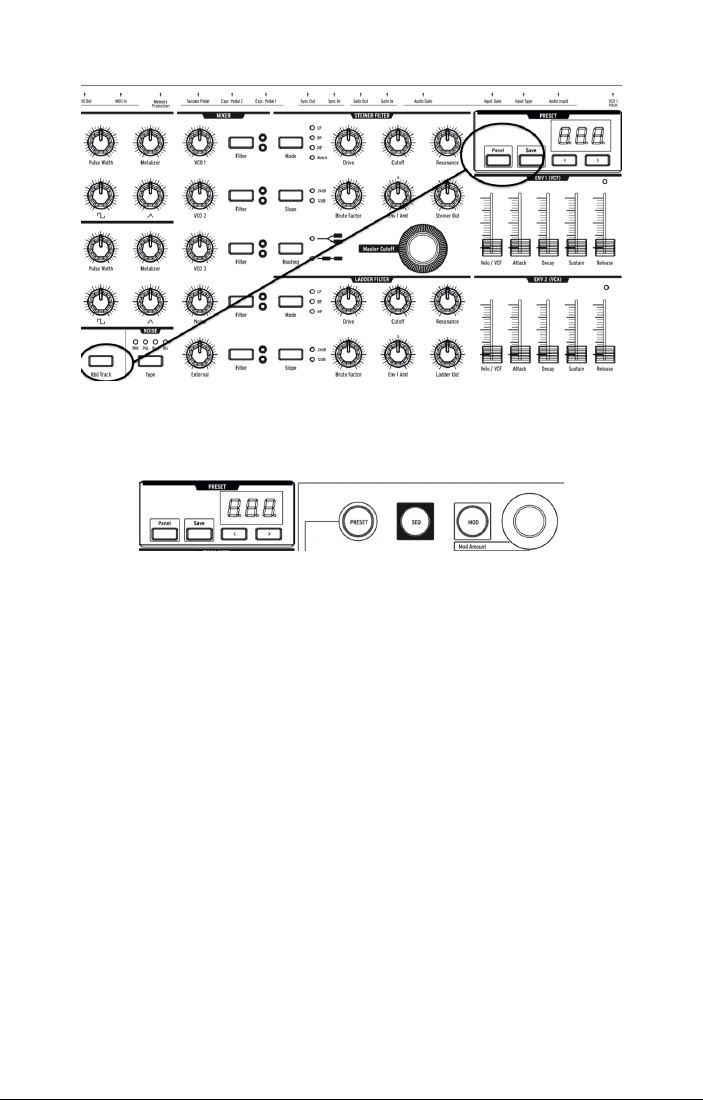
Pressing Panel plus another button invokes the following "hidden" commands.
•Panel +Kbd Track - Auto-tunes the instrument. Because voltages drift over time
-which is part of the character of analog synths -it's necessary to tune the
instrument occasionally, more frequently while it's first warming up.
•Panel + PRESET - Resets the current preset to an initialized voice (without saving
it and overwriting the preset). This is agood starting point for working with
MatrixBrute.
•Panel +MOD -Clears the Matrix (which is the electronic patchbay) of all
modulation routings. This will not affect the current sound in memory unless you
SAVE the preset.
•Panel +SEQ - Resets the current pattern in the sequencer giving you aclean slate
to start building on. To undo this, simply recall your last preset.
17 Arturia - User Manual MatrixBrute - Operation
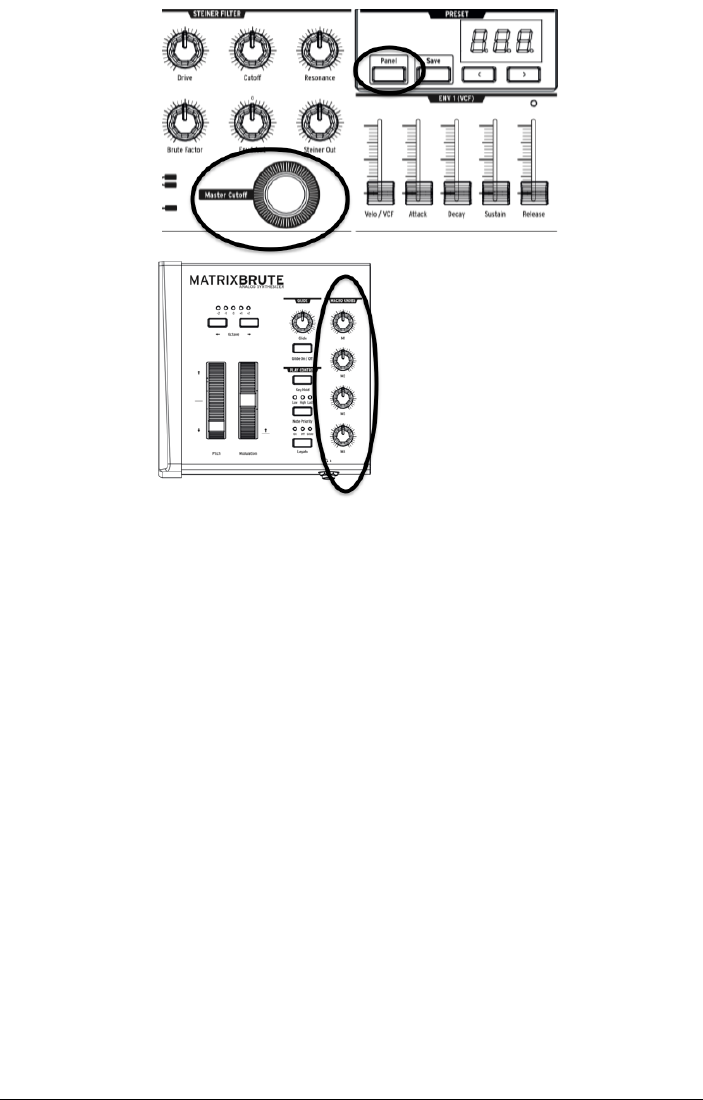
•Panel +[Macro knobs, Master Cutoff,MOD Amount] - Resets the 360˚knob's
value to 0.
•PRESET +[Knobs, Sliders] -Shows the offset between the preset value and the
current position of the Knob or Slider on the Preset display. Anegative value on
the display means that the Knob or Slider position is lower that the preset value.
A positive value means that it is higher than the preset value.
Arturia - User Manual MatrixBrute - Operation 18
4.3. VCOs
Unless you bring in external instruments for processing, the raw soundwaves for the
MatrixBrute are generated by its three Voltage-Controlled Oscillators (VCOs). A fourth
oscillator produces random noise waveforms.
VCOs 1and 2are exponential, likethe ones on the most famous original synthesizers. That
gives them a musical, slightly unpredictable character,because the pitch drifts alittle over
time. You may haveto auto-tune the instrument every once in awhile (hold down Panel and
Keyboard Track).
VCO 3is a multi-function oscillator. It can be used as asound source and as an extra
modulator, and its pitch is more stable due to its being linear.
4.3.1. VCOs 1 and 2
The only difference between these two VCOs is that VCO 1can be routed into VCO 2to
modulate it (this is called
frequency modulation
, or FM). Both VCOs operate the same way.
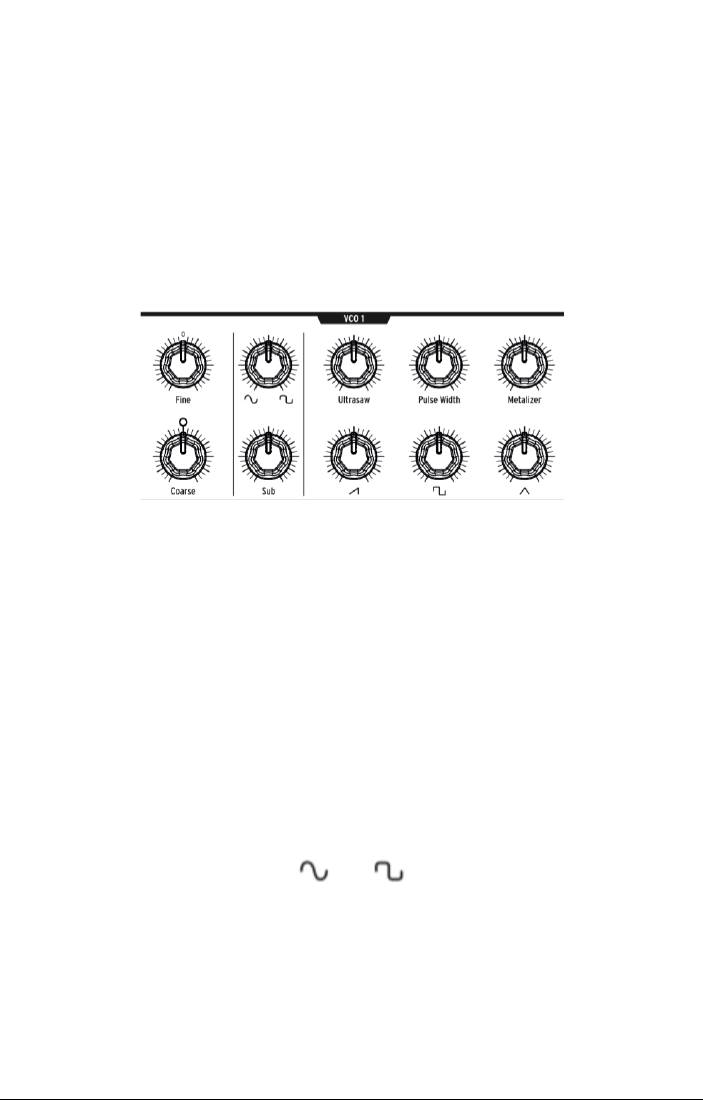
The controls are laid out so the topknob refines the more fundamental setting of the knob
below it.
Coarse
adjusts the pitch ± 2 octaves in semitone steps. The light comes on when it is
centered, when you're up or down one octave, and when you reach two octaves.
Fine
adjusts the pitch continuously up to ± 1 semitone.
4.3.2. Sub oscillator
The sub oscillator is combined with the mixable waveforms (discussed next), an octave
below them.
Sub
adjusts the level.
The
waveform selection
knob above it sweeps the sub wavefom between apure sinewave
to the left and a clipped one, which sounds buzzier, to the right.
19 Arturia - User Manual MatrixBrute - Operation
4.3.3. Mixable waveforms
There are three primary waveforms in VCOs 1and 2 - sawtooth, square,and triangle.
Subjectively, sawtooth sounds the richest, square sounds more hollow, and triangle sounds
like a flute.
Each waveform knob has asignal enhancer above it. These makethe waveform more
complex by combining slightly random, slightly time-shifted versions of it.
•Ultrasaw enhances the sawtooth waveby combining twoslightly time-shifted
copies of it, resulting in a brighter, edgier sound.
•Pulse Width varies the lengths of the flat tops and bottoms of the square pulses -
the width -so it's sometimes arectangle rather than asquare,making the sound
more complex.
•Metalizer adds ahard edgeto the triangle wave. The Metalizer is atype of wave
folder that adds harmonics to the original triangle wave.
4.3.4. VCO 3 - LFO 3
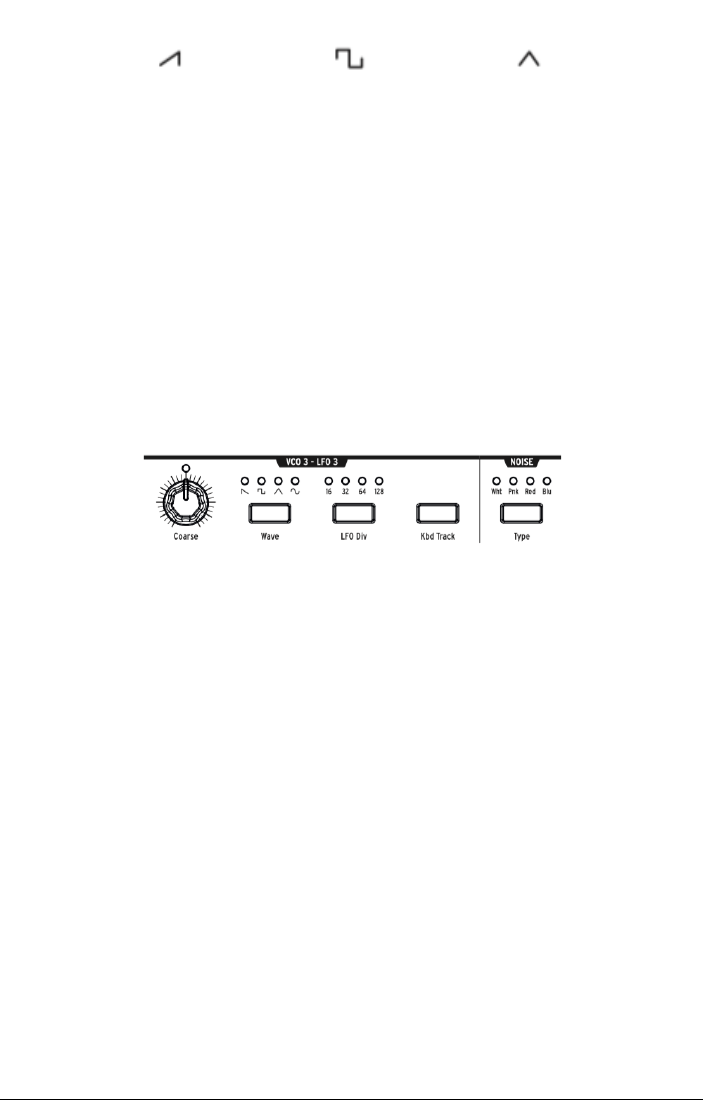
VCO 3is a multifunction oscillator,designed to be used as asound source or as a
modulation source.The Noise oscillator is next to it, and it can also be used as amodulation
source.
•Coarse adjusts the pitch ± 2 octaves in semitone steps. The light comes on when
it's centered, when you're up or down one octave, and when you reach two
octaves.
•Waveselects the waveform. Repeated button pushes go (from left to right)
between areverse sawtooth, square,triangle,and sine wave. Each sounds
successively less buzzy, until you get to the pure sine wave.
•LFO Div divides the frequency by up to four (16, 32, 64, 128) when it's being used
as a modulator. This determines the LFO speed.
•Kbd Track,an on/off toggle.This will cause VCO 3to followthe pitch of the
keyboard. It will also cause LFO 3 to speed up as you play up the keyboard.
Arturia - User Manual MatrixBrute - Operation 20
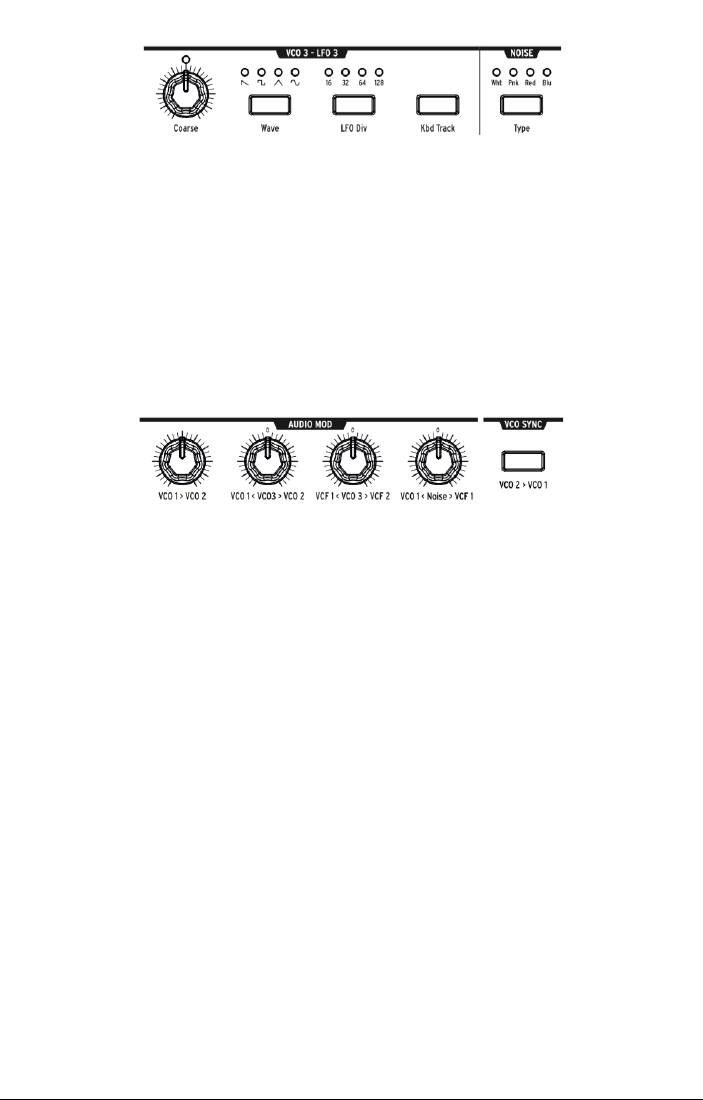
4.3.5. Noise Generator
The definition of noise is arandom waveform, so it's unpitched. The MatrixBrute offers four
noise types, and the difference is in their frequency spectrum.
As a practical description, blue noise has the most energy in the high frequencies and least
in the lowones, then white sounds alittle lower, followed by pink, and finally red sounds
the lowest. Noise can be an important component of asound, adding some grit, or it can be
used to modulate another wave.
Noise Type selects the four types successively, and each one has an appropriately colored
light.
4.4. Audio Mod
In addition to making sounds, the VCOs can modulate other VCOs and the two VCFs
(Voltage-Controlled Filters). These will create more character and add harmonics to the
sound of the modulation destination.
When the VCOs modulate other VCOs, it's called Frequency Modulation - FM.
•VCO 1 > VCO 2 adjusts how much VCO 1 modulates VCO 2.
•VCO 1 < VCO 3 > VCO 2lets VCO 3modulate VCO 1or 2. It modulates neither
when the knob hits its center detent.
•VCF 1 < VCO 3 > VCF 2lets VCO 3modulate VCF 1or 2. It modulates neither filter
when the knob is in its center detent.
•VCO 1 < Noise > VCF 1lets the Noise oscillator modulate VCO 1or VCF 1. Again, it
does neither when the knob is centered in the detent.
For the bi-polar knobs to be used in the modulation matrix, you will need to turn the knob in
the direction that you want it to modulate when assigning it. There is asmall dead zone on
either side of the center detent that will allowyou to haveno modulation but still allowthe
knob position to be sensed.
4.5. VCO Sync
VCO 2 > VCO 1causes VCO 1to follow VCO 2's pitch when it's engaged. Turning VCO 1’s
Coarse knob will allow you to hear the classic harmonic sync sweep sound.
21 Arturia - User Manual MatrixBrute - Operation

4.6. Voice Mode
There are 3 VOICE modes that are available on the MatrixBrute.These modes allowyou to
play the synth in ways beyond the standard monophonic way.
4.6.1. Monophonic
Monophonic is the standard voice mode. In this mode,all the oscillators will play when you
press a key ( or send MIDI or CV information ).
4.6.2. Paraphonic
Paraphonic mode allows you to play multiple notes at one time. It splits the three oscillators,
one per note played, so that you can play up to 3notes at once. Paraphonic differs from
polyphonic in that all 3 of the oscillators share the same filters and VCA settings.
Arturia - User Manual MatrixBrute - Operation 22
4.6.3. Duo Split mode
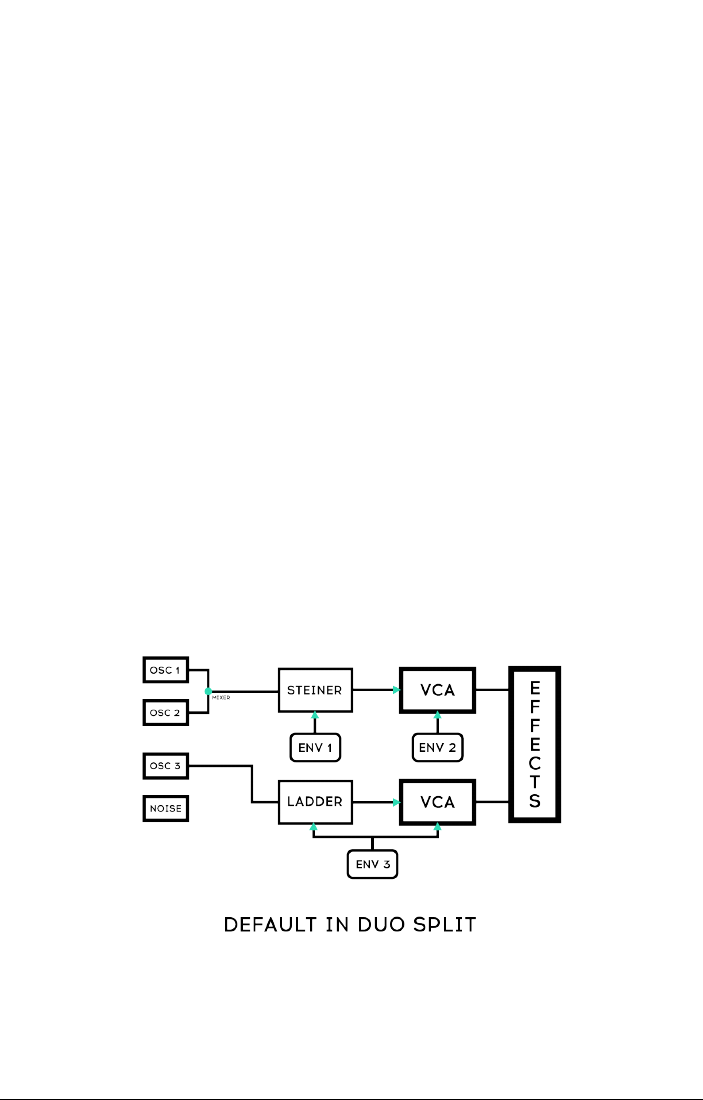
Duo split mode allows you to split the keyboard and have 2 completely different sounds
played on each half.Toaccomplish this, we split the voice up as shown in the diagram
below.
4.6.3.1. Upper part
Signals routed through VCF 1(the Steiner filter), are controlled by ENV 1and ENV 2. The
pitchbender will only affect this upper part as it is most likely used for playing melodies.
4.6.3.2. Lower Part
• Signals routed to VCF 2(the Ladder filter); are controlled by ENV 3which then
controls both the Ladder filter and a hidden VCA.
•The Sequencer and Arpeggiator are routed to the lower part, so you can hold a
key to play apattern or arpeggio on the lower part of the keyboard while playing
notes on the top part.
4.6.3.3. Setting the split point
Set the split point by pressing MODE button while playing a key. (This is the MODE button in
the VOICE panel area, not one of the filter mode buttons.)
4.6.3.4. Setting the octave of the lower section
Set the octaveof the lower part by pressing MODE button and use the Octave<- -> buttons
to transpose it.
23 Arturia - User Manual MatrixBrute - Operation

4.7. Wheels
As on most keyboards, the MatrixBrute's pitch wheel springs back to the center position (no
pitch shift), while the mod wheel is continuous.
•Bend Rangesets how far the pitch wheel bends up or down, up to amaximum
of ± 1 octave. The center position is up or down a fifth.
•Mod Wheel -successivepushes assign the mod wheel to the Matrix (where it
can be routed to multiple parameters); or to the master filter Cutoff frequency; to
LFO 1 Vibrato rate; or to LFO 1 amount.
Arturia - User Manual MatrixBrute - Operation 24
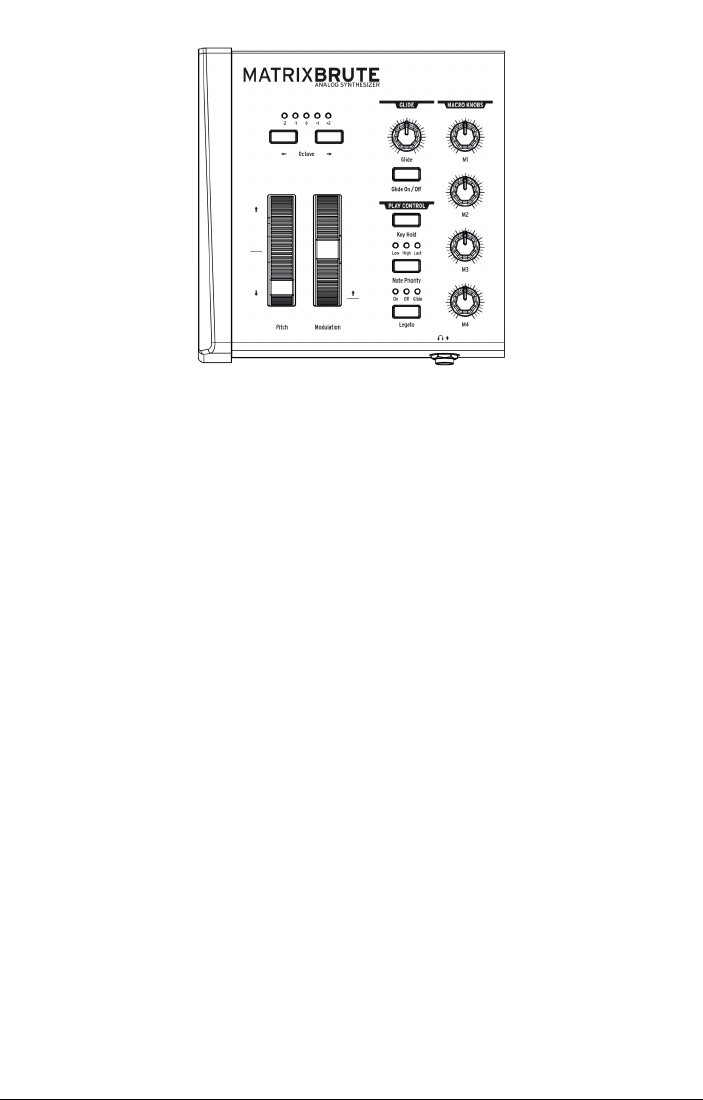
4.8. Keyboard Performance Controls
•Pitch and Modulation wheels - Please refer to the previous section (WHEELS) to
set the pitch bend range and Modulation wheel assignment.
•Octave<- -> - Transposes the entire 49-key keyboard ± 1 or 2octaves to extend its
range past four octaves. This affects the instrument locally as well as over MIDI.
4.8.1. Glide
•Glide On/Off -The Glide effect sweeps the pitch from one note to the next. The
ON/OFF button enables and disables the glide function.
•Glide -This knob sets the glide time from barely perceptible all the way to over
two seconds when it's all the way up.
25 Arturia - User Manual MatrixBrute - Operation

4.8.2. Play Control
•Legato -Legato allows for playing notes with or without retriggering the
envelopes on every key on. The following settings apply to each note sounding
in the current voice mode. In Monophonic they apply to the single sound, and in
Paraphonic and Duo-Split they apply to the one being played. See the Voice Mode
section [p.22].
•On -This will only retrigger the envelope after all notes havebeen released.
Holding anote while playing the next one,before releasing the first, creates a
slur effect. This works for successivenotes as well, and its effect is dependent on
the envelope settings (because asound's overall length is relativeto the first note
you play). If you play staccato,the envelope will trigger on each note played as
normal.
•Off - Every note played will trigger the envelopes.
•Glide -This mode is similar to Legato mode in the playing anotes while anote
is held, will not trigger then envelopes. If the GLIDE is active, then playing legato
will both prevent the envelope from triggering as well as gliding from one pitch
to the next.
Note Priority –Determines what happens when you play more voices than are available
(one in Monophonic voice mode and two in the other voice modes).
•Low - The lowest note you're holding keeps sustaining and other notes are cut
off;
•High -The highest note you're holding keeps sustaining and other notes are cut
off;
•Last - Held notes are cut off by the new ones you play.
Key Hold – Simulates the effect of holding anote forever. It plays the last note you triggered,
no matter how much time has passed, and holds it. It does not affect the envelopes so
sounds with no sustain will not actually sound beyond the decay time.This is also used to
hold an arpeggiation on.
Arturia - User Manual MatrixBrute - Operation 26
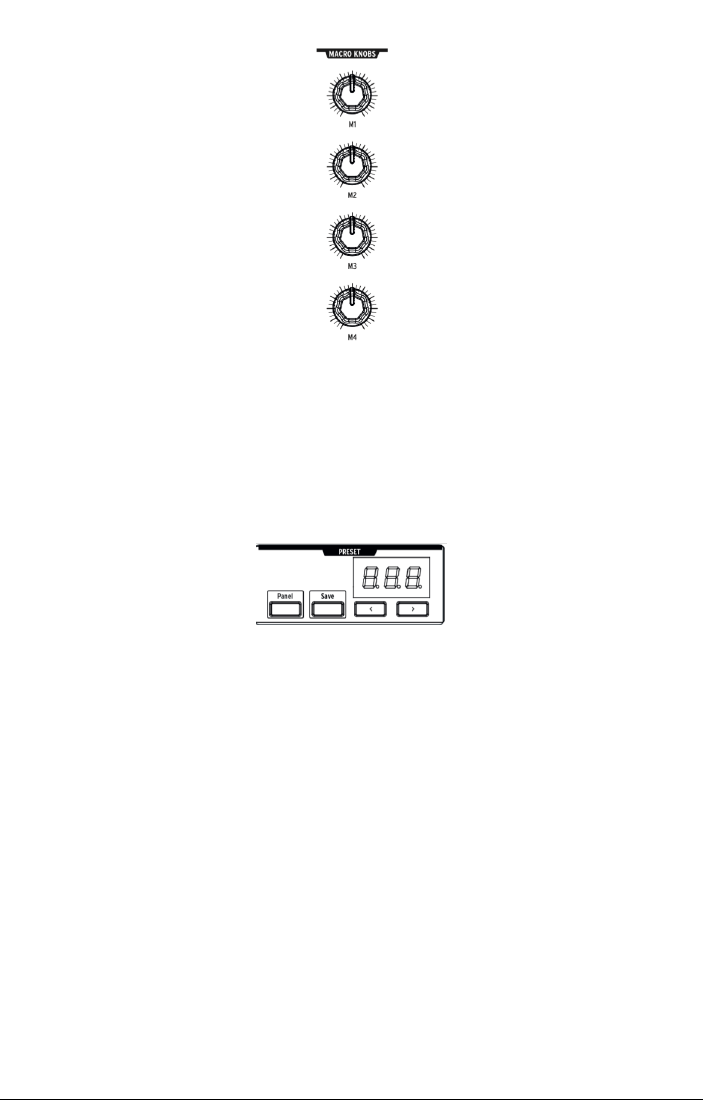
4.9. Macro Knobs
M1, M2, M3, and M4 knobs are modulation sources that appear the MOD Matrix (see Mode
Matrix Section [p.37] )on rows M, N, O, and P. They're designed to be convenient performance
controls.
Each MACRO knob can modulate multiple MatrixBrute parameters, and they all send MIDI
Continuous Controllers (CC#11, 2, 3, 4 in order).
4.9.0.1. Resetting Macro’s to 0
Press Panel + [M1 - M4] to reset the MACRO knob to 0.
Macro
Knobs
27 Arturia - User Manual MatrixBrute - Operation

4.10. Mixer
The levels of the MatrixBrute's fivepotential sound sources -the VCOs, Noise generator,and
External input - are set here. Sources must be sent to either or both filters to be heard.
(Ifyou'veassigned asource to one of the filters and still hear nothing, the cutoff frequency
may be outside its range.)
All five inputs to the mixer have the same features:
•Level [VCO 1, VCO 2, VCO 3, Noise, External]
•Filter routing -Press the button repeatedly to assign the sound source to VCF 1,
VCF 2, both, or neither. If the filters are in series, the VCOs can only be assigned
to VCF 1 (or turned off).
In Duo split mode,the routing here will assign the sound source to either the upper (Steiner)
or lower (Ladder) section of the keyboard.
Mixer Knobs
Arturia - User Manual MatrixBrute - Operation 28

4.11. LFOs 1 and 2
The twoLFOs (lowfrequency oscillators) are modulators that can be routed to add
movement to pretty much any parameter on the MatrixBrute.LFO waveforms are near or
belowthe bottom threshold of our hearing, ranging from about one cycle every 18 seconds
up to 100Hz. They're useful for creating all kinds of sounds, from vibrato to filter sweeps to
pitch changes; their effects range from subtle to wild.
Seven waveforms are available,from left to right: sine,triangle,square,reverse sawtooth,
sawtooth, S&H, and low frequency random.
The pictures of these waveforms showexactly howthey behave, for example the square
waveturns on and off abruptly and the triangle ramps up and back down. You can hear this
very clearly at slow rates.
•Wave Selection < and > scroll left and right through the waveforms.
LFO 1and 2are the same except for one similar parameter (Phase vs. Delay),
and you patch them into the signal path at the Matrix. See Matrix Section [p.35].
•Phase [LFO 1only] adjusts where in the LFO's wavecycle it starts relativeto the
note trigger,either early or late.The knob has center detent position to starts the
LFO at the beginning.
•Delay [LFO 2 only] delays when LFO starts and also fades it in gradually.
•Rate sets the frequency of the LFO.The light to the left of this knob flashes with
it (until the setting gets too high and the light remains solid).
•Seq-Sync locks the LFO's tempo to the Sequencer See Sequencer Section [p.40],
which in turn can be synced to various sources.
•Retrig cycles through the three choices for howthe LFOs respond to note
triggers/retriggers:
◦
Off
-The LFO keeps oscillating continuously on its own, independently
of whether notes are triggered; This mode simulates atraditional
analog LFO.
◦
Single
-The LFO goes through its waveone time only after anote is
triggered. This is useful for creating an interesting note attack, among
other applications.
◦
Multi
- The LFO starts its cycle over every time you trigger a note.
29 Arturia - User Manual MatrixBrute - Operation
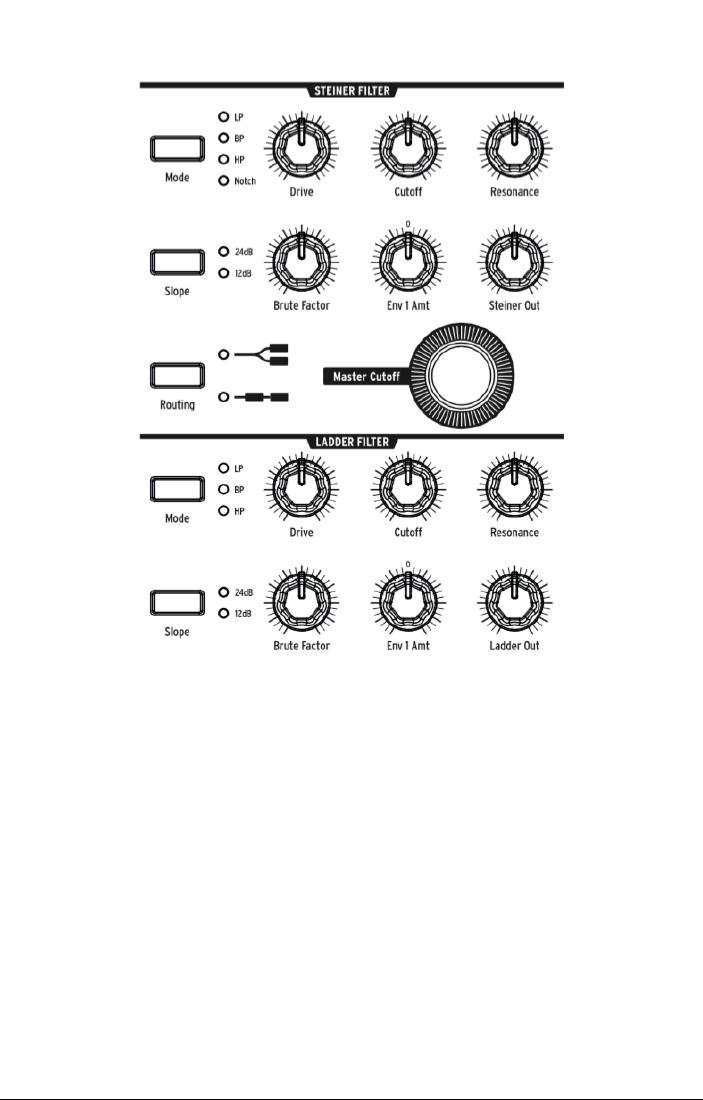
4.12. Filters
Steiner Filter (VCF 1) and Ladder Filter (VCF 2)
Filters remove frequencies from the sound sources coming from the Mixer see Mixer Section
[p.28],and they are aprimary component in the subtractivesynthesis technique used by the
MatrixBrute and all analog synths. Modulating them varies the timbre of the sound over time.
With very high Resonance levels they can self-oscillate, becoming another sound source.
MatrixBrute features two multimode Voltage-Controlled Filters (VCFs):
•The Steiner Filter (VCF 1) was designed by Nyle Steiner in the '70s. It has a
unique character that becomes apparent immediately at relatively pronounced
settings.
•The Ladder Filter (VCF 2) is the other classic filter, a famous standard-bearing
design known for its rich, thick sound; unlikethe original, this one is gain-
compensated to avoid the dipin volume that you find at higher resonance level.
This one also is a multimode filter and has both 12dB per octaveand 24dB per
octave options. These filters play a big role in the MatrixBrute's character.
Both filters havethe same basic parameters, but the Steiner Filter has acouple of additional
ones.
The central parameter in afilter is the corner frequency or frequencies where it starts
cutting. This is called Cutoff in synths. Maxibrute has two places to adjust this:
Arturia - User Manual MatrixBrute - Operation 30

•Cutoff sets the corner frequency/frequencies individually for each filter. These
are then fed to a combined control:
•Master Cutoff is a prominent knob that sweeps both filters' cutoffs together.
The word "multimode" means the filter can adopt different curves, which also changethe
sound completely.
Mode selects these curves:
•LP (Lowpass) does just that -allowlowfrequencies to pass while high
frequencies are attenuated.
•BP (Bandpass) allows aband of frequencies to pass while blocking everything
else. Another way to lookat it is that the treble and bass are turned down, leaving
a midrange band.
•HP (Highpass) allows high frequencies to pass while lowfrequencies are
blocked.
•Notch (Steiner/Parker filter only) removes a narrow band of frequencies.
The slope of the filter's roll-off changes the sharpness of the sound.
•Slope selects either the 12dB or 24dB per octavesetting. Usually 12dB sounds
brighter.
•Driveadjusts howhard the signal hits the filter. The higher you set it, the more
pleasant distortion you get.
•Brute Factor™ is Arturia secret sauce. It ranges from warming up the lowend to
creating amonstrous growl when turned up. The exact effect depends on how
it's interacting with other settings.
•Resonance emphasizes the frequencies at the point of the cutoff,because they're
fed back into the circuit. Higher resonance levels can cause the filters to self-
oscillate.NOTE: The Steiner filter does not track the keyboard well over a wide
range by nature. For better pitch to octave tracking, using the Ladder filter.
•Env 1 Amt sets how much Envelope 1(the one dedicated to the VCFs) modulates
the Cutoff frequency. This control allows for both positiveand negative
modulation amounts.
•Routing chooses between the twofilters running in parallel or having VCF 1feed
VCF 2. This unique control allows you to alter the voice path and create a wealth
of new sounds.
31 Arturia - User Manual MatrixBrute - Operation
4.13. Envelopes
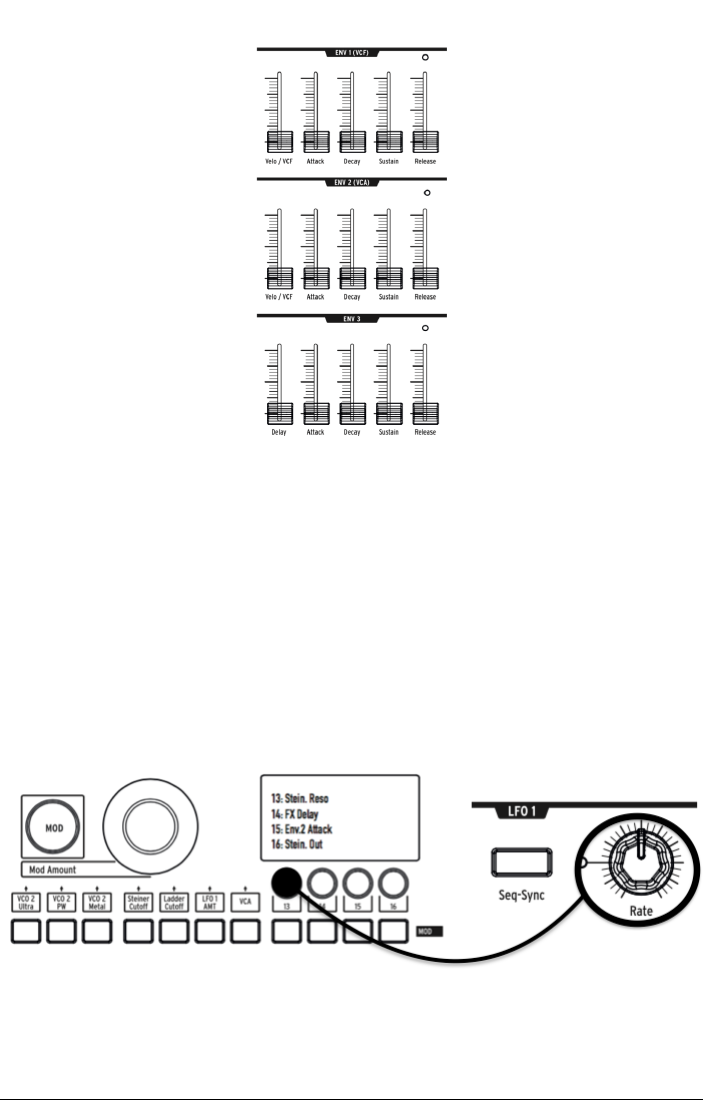
Envelopes are adjustable modulators that shape the voltage over time.MatrixBrute has two
4-stage, ADSR (Attack Decay Sustain Release) envelopes, plus athird one (ENV 3) which
adds aDelay phase before the ADSR (this is all explained below). Each envelope has a"gate"
LED that showwhen agate is receiveand will fade out to showwhen the release stageis
still active.
You can add assignments to the envelopes in the Matrix, but by default:
•ENV 1(VCF) is routed to the VCF's Master Cutoff frequency, so you can shape the
overall filter sweep;
•ENV 2(VCA) (voltage-controlled amplifier) controls the overall volume level of the
sound;
•ENV 3 is freely assignable in the Matrix.
In all three envelopes:
Arturia - User Manual MatrixBrute - Operation 32

•Attack sets the time,from 2ms to more than 10 seconds, the voltagetakes to
reach its initial level;
•Decay adjusts the time,again from 2ms to more than 10 seconds, it takes the
voltage to go from its initial level to the Sustain level;
•Sustain is the level the signal settles at after it decays. This level is usually
lower than the initial level (hence "decay"), however it can also be the same -in
which case the Decay setting has no effect. It can also be all the way down, for
example if you're programming percussive sounds.
•Release is the time it takes the voltageto fade all the way down after you release
the key that's triggering the sound.
•Velo/VCF and Velo/VCA (ENV 1and ENV 1only): You can tune ENV 1's and ENV 2's
response to key velocity, i.e.the "louder" you play, the higher the signal voltage.
(Unlikepianos, electronic keyboards measure how fast a key travels -its velocity
- to determine how loudly you intended to play.)
•Velo/VCF (ENV 1only) This slider offsets the ADSR levels so velocity has no effect
when it's all the way down; the higher you raise it, the more velocity is required
to reach the maximum filter Cutoff level.
•Velo/VCA (ENV 2only) When this slider's all the way down, the VCOs sound at
their maximum level, no matter howhard or softly you play; raise the slider to
increase the keyboard velocity response.
•ENV 3is slightly different in two ways. First, it doesn't do anything until it's
assigned in the Matrix. Second, it runs through its stages independently of
keyboard velocity (although you can modulate its stages in the Matrix).
◦
Delay (ENV 3only)
allows you to start ENV3 envelope after the key
trigger; all the way down is no delay. The delay time is from 2mSec
to over 10 Seconds.
33 Arturia - User Manual MatrixBrute - Operation
4.14. Analog Effects
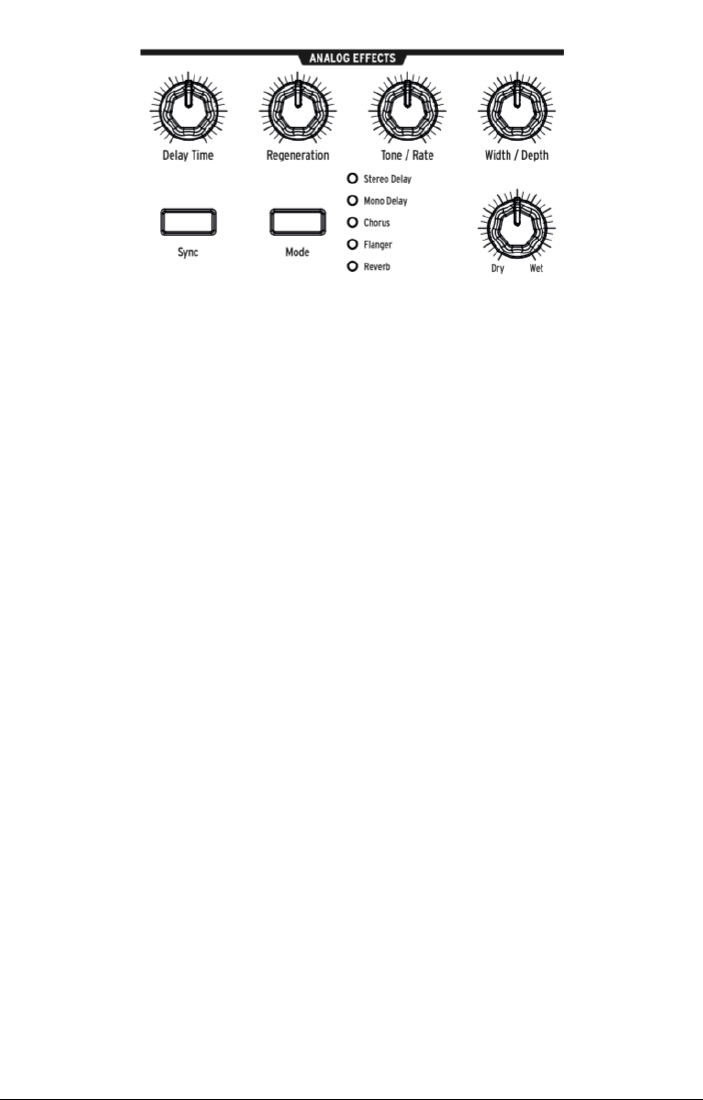
MatrixBrute features Analog Effects with 5 different modes on the output.
The Analog Effects are all based on classic Bucket Brigade Devices (BBD’s). The technical
differences between them are afunction of the delay times and howor whether they're
modulated. Note that all the knobs can be modulation destinations in the Matrix.
Mode cycles through the fiveeffects, which are tuned with the fiveknobs at the topof the
Analog Effects section:
•Stereo Delay has twotaps (meaning repetitions of the original sound), first left
then right. When the Delay Time knob (see below) is at 12 o'clock, the first one is
about 100ms and the second about 200ms. The maximum time is about half a
second.
•Mono Delay is asingle tap in the center (i.e.it's equal in both left and right sides).
•Chorus is an LFO modulated delay, in the vicinity of 5to 50ms. It's arich,
thickening sound.
•Flangeis ashorter modulated delay, somewhere around .5 to 10ms. Typically,
flangers havean "airplane" sound, and unlikechoruses the effect often moves in
and out.
•Reverb is aunique analog space effect, produced by recirculating the delays with
varying delay times.
The five effect-modifying parameters:
•Delay Time has different ranges in different Modes. Longer delay times are
achieved with clockwise turns.
•Regeneration is alevel control for the amount of the signal that gets fed back into
the processor. Things can get wild -in both good and bad ways -if you turn it up.
•Tone/Rate This control doubles as atone or lowpass filter control for the delays,
and as a rate control in the Chorus and Flanger modes.
•Width/Depth specifies the amount of stereo field in the stereo delay/reverb,and
the modulation depth of the LFO in the chorus and flanger.
Arturia - User Manual MatrixBrute - Operation 34
5. THE MATRIX
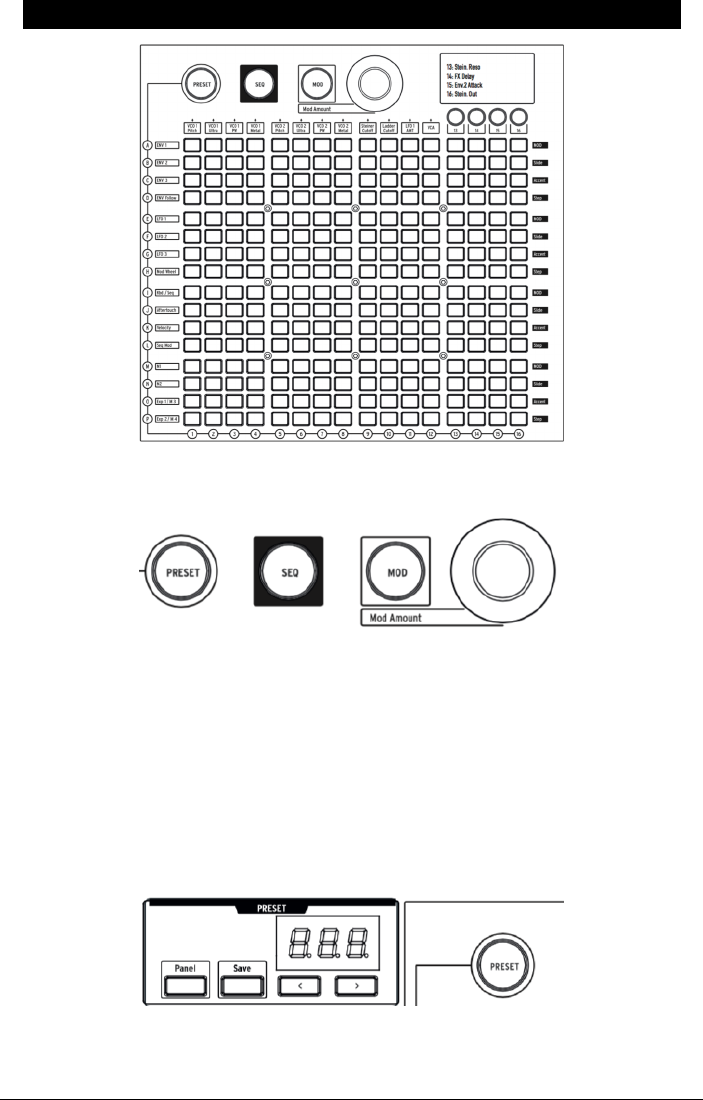
The Matrix is a 16 x 16 (256-button) grid that has three modes.
PRESET (pink), SEQ (red),and MOD (blue) are big buttons to select the active Matrix mode:
•PRESET,in which the Matrix is used to saveand recall patches in 16 banks (rows
A - P) of 16 patches each (columns 1-16). The patches can also include sequences.
•SEQ, a 64-step sequencer that also functions as an arpeggiator.
•MOD,an electronic patching matrix (hence the name "MatrixBrute") that routes 16
modulation sources (rows A-P) to 16 destinations (columns 1 - 16).
5.1. PRESET mode
35 Arturia - User Manual MatrixBrute - The Matrix

5.1.1. Panel
Panel toggles between the physical and loaded preset positions.
When in this mode,the positions of the knobs determine the sound. This is the mode to use
if you are looking to get 1:1 feedback of parameters and the sound you are editing.
IMPORTANT: To hear a preset you've loaded, the Panel button must be off!
5.1.2. Recalling internal presets
To recall one of the 256 internal presets:
In PRESET mode,simply select its button. The banks are rows A - P on the left, and presets
within each bank are columns 1-16. To select, say, patch B3, go tworows down and three
columns across; B03 will appear in the numeric display. Alternatively, use the <and >
buttons underneath the numeric display to scroll up and down through the presets.
5.1.3. Saving a preset
To save the Panel or edited Preset in an internal location:
Press Save+ [desired bank/channel location], using the Matrix buttons or <and >buttons.
Arturia - User Manual MatrixBrute - The Matrix 36
5.2. MOD mode
The MODulation Matrix is an electronic patchbay that routes all the MatrixBrute's modulation
sources to any or all possible destinations. Think of this as agrid of patch cords, each with
an attenuator that allows for positiveor negativemodulation. Every parameter that it would
makesense to modulate -pretty much anything with aknob or fader -can be adestination.
The 16 modulation sources are in rows A - P, and destinations are in columns 1 - 16.
Destinations 1 - 12 are hardwired, and 13 - 16 are freely assignable.
5.2.1. Create a modulation path
To assign a modulation source to a destination parameter:
1. In MOD mode,select amodulator and adestination by pressing any button in
the grid.
◦The current selection lights up pink.
◦You can select from 0to all 16 destinations for each modulation
source,and each destination parameter can be modulated by 0to 16
sources.
◦Modulation "patch points" light up blue when they're not the current
selection.
2. Set apositiveor negativemodulation amount (± 99 steps) for the current
selection with the Mod Amount knob. This is an offset from the input voltage.
Negative values decrease adestination's MOD Amount as the input voltagegoes
up, positive values increase it. For example,you might want Aftertouch to lower
VCO 1's pitch a small amount while increasing VCO 1's Metal a lot.
5.2.2. Setting the modulation amount
When MOD Amount is centered, only the red LED at 12 o'clock is lit. White LEDs in either
direction indicate the knob's position when it's off-center; each dot gets progressively
brighter when you've moving toward it.
Also, the exact modulation amount is shown in the numeric display in the Preset area.
37 Arturia - User Manual MatrixBrute - The Matrix

5.2.3. User assignable destinations
To assign a parameter to destinations 13 - 16:
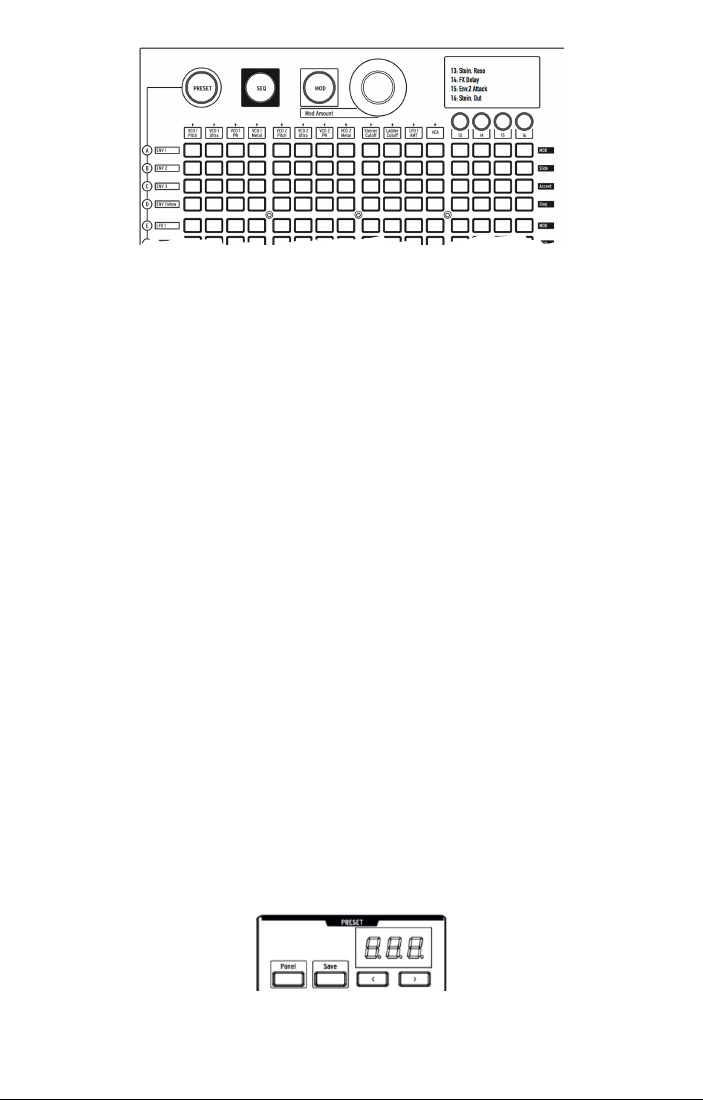
Hold [13, 14, 15, or 16]button while moving the desired knob or slider on the front panel. The
parameter will appear in the LCD display as shown above.
You can also assign amodulation amount in the matrix itself as amodulation destination
by pressing and holding the [13, 14, 15, or 16]button and pressing abutton in the modulation
grid.
For instance:
If you wanted to havethe mod wheel adjust the amount of modulation between the LFO2
and the Metalizer of VCO1, you would first route the LFO2 to the Metalizer of VCO1 by
pressing the F4 button. Then you would select F4 as amodulation destination by pressing
the [13 for example] button and the F4 button. Nowyou would choose MOD Wheel to F4 by
pressing the H13 button and using the encoder to turn up this value.
Arturia - User Manual MatrixBrute - The Matrix 38

#MOD
source list Notes
AENV 1 This is the voltage output of the Env 1 generator.
BENV 2 This is the voltage output of the Env 2 generator.
CENV 3 This is the voltage output of the Env 3 generator.
DENV
FollowGenerates a control voltage based on the level of the external input.
ELFO 1 Output from LFO1. This is a bi-polar voltage output (except square wave).
FLFO 2 Output from LFO2. This is a bi-polar voltage output (except square wave).
GLFO 3 Output from LFO3. This is a bi-polar voltage output (except square wave).
HMod
Wheel
Output from the modulation wheel when it is assigned to MATRIX. If the wheel is assigned
to the other options, it will not send a signal here.
IKbd/ Seq Constant voltageoutput corresponding to the key currently held on the keyboard, or the
note played by the SEQuencer
JAftertouch The keys are pressure-sensitive when you keep pushing after the note is triggered.
K Velocity Electronic keyboards measure how fast a key travels to determine howloudly you
intended to play.
LSeq Mod Mod from the SEQuencer
MM1 Macro knob M1
NM2 Macro knob M2
OExp 1/M3 Expression pedal plugged into the rear panel, and Macro knob M3.
PExp 2/M4 Expression pedal plugged into the rear panel, and Macro knob M4.
Note that both the Expression pedal and the M 3 or 4are summed before being routed to
the matrix
39 Arturia - User Manual MatrixBrute - The Matrix
5.3. SEQ Mode
MatrixBrute's 64-step sequencer has two modes: Sequencer and Arpeggiator.
5.3.1. Sequencer Mode
In Sequencer mode,you can record/program and play Patterns in "step" time,meaning one
note at atime. Patterns can be Linked to acorresponding preset so that they are stored
with Presets, or stored and recalled on their own. Play or stepthrough patterns forward,
backward, forward then backward, in random order,and at different note values (e.g. if
each step is an 1/8th note, switch it to 1/4 notes to halve the playback speed, etc.).
When step recording, the user can enter rests for each step by pressing the TAP button.
When the sequencer is being used as amodulation source and routed in the Matrix, each
stepcan send (or not send) modulation. Dial in the tempo,tap it, or sync it to incoming MIDI
clock. Slide one stepinto the next one.Steps respond to key velocity, and you can enter
accents manually.
In Arpeggiator mode the notes you hold down are stepped through in a variety of orders,
and repeated in higher octaves.
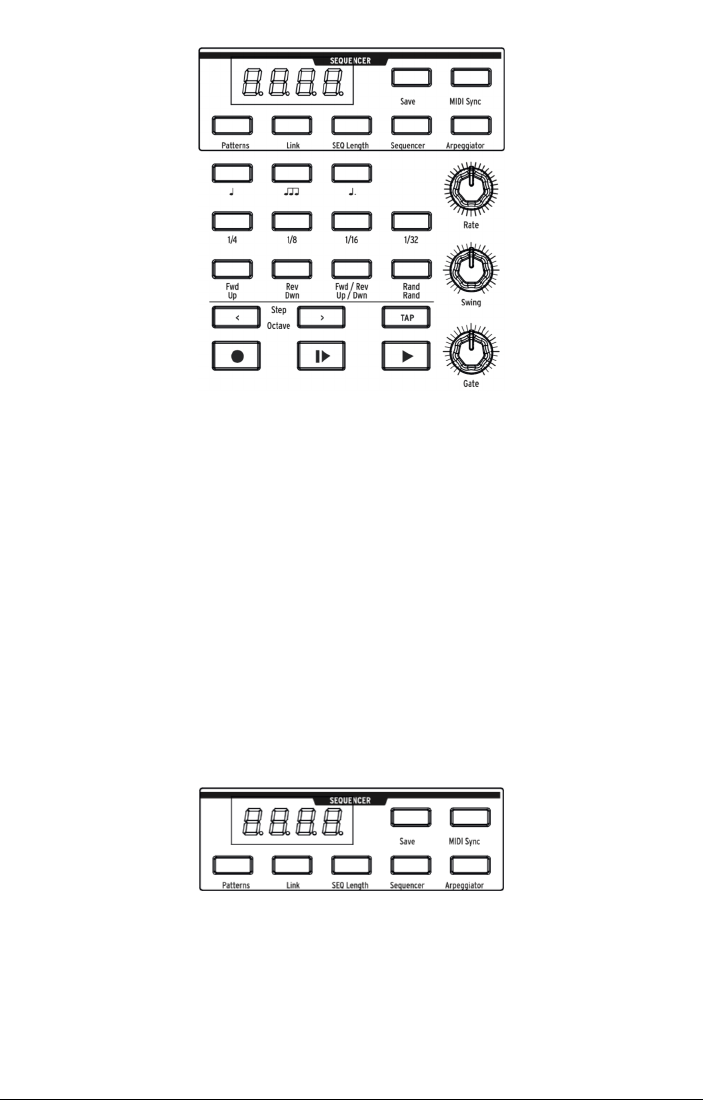
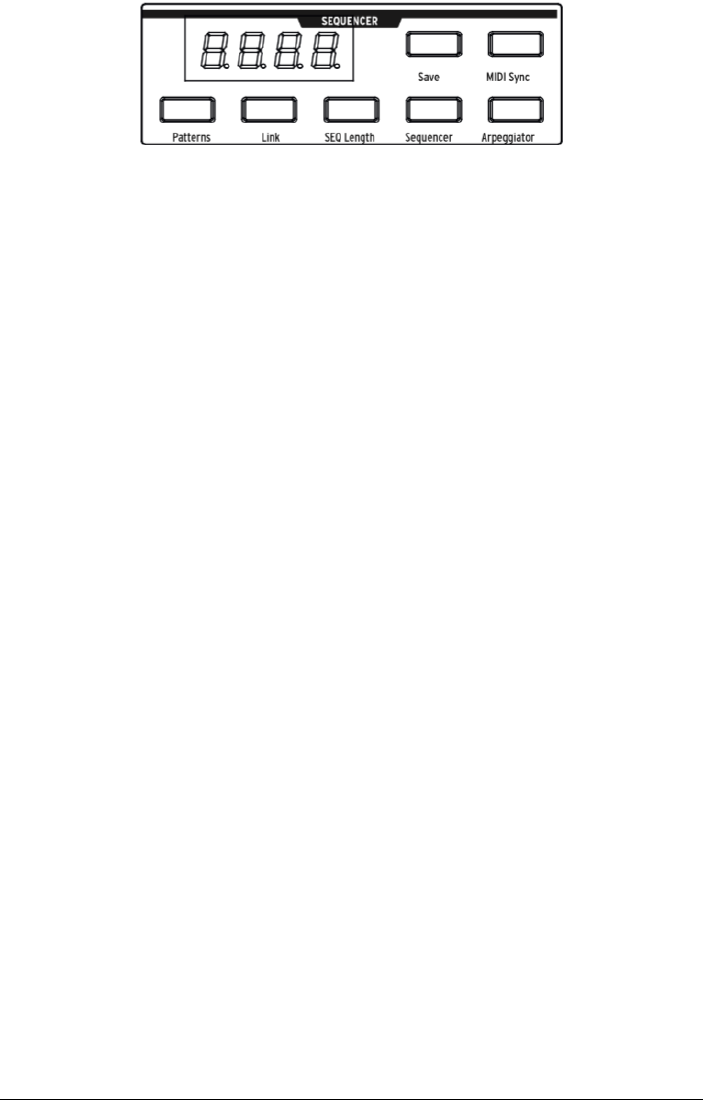
Press Sequencer to enter Sequencer mode.
Loading and saving sequencer Patterns:
Arturia - User Manual MatrixBrute - The Matrix 40
•Patterns - You can load and play different sequences, or pattern, by holding the
PATTERNS buttons and choosing from any of the 256 sequences. The banks are
rows A - P on the left, and presets within each bank are in columns 1-16. To load,
say, Pattern B3, go tworows down and three columns across; the B3 red light
shows you which sequence is loaded.
•Link -you can link asequence to your preset sound. When saving your preset,
enable the LINK button to store them together.
•Save-Just hold this button and select the bank/preset where you want to save
the Pattern.
Turn on
Link
to save a Pattern with a Preset.
See Matrix Preset
Section [p.35]
•SEQ Length To set the sequence length, i.e.the number of steps up to 64
maximum, hold SEQ Length and touch any of the four buttons in the last step
to be played. They'll light up, and after that the sequence will cycle back to the
beginning when it gets there (assuming you don't stopit first, and that it's playing
forward rather than backward or random).
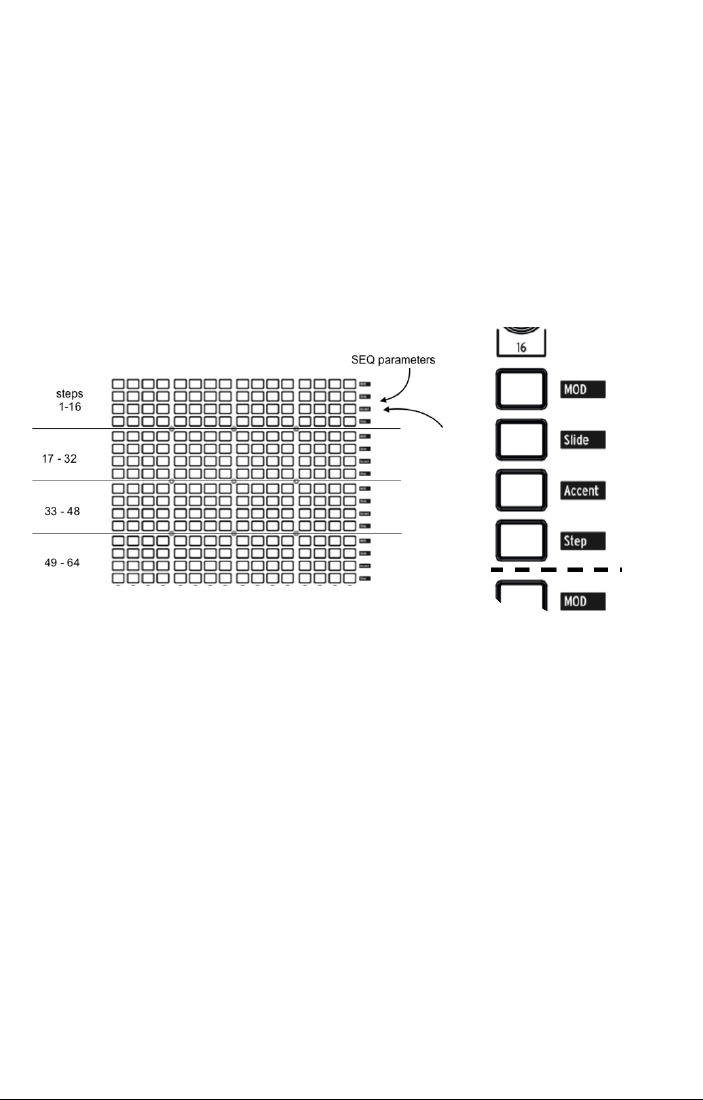
5.3.1.1. Step parameters:
The sequencer's 64 steps are in four 4-button rows of 16.
•Stepindicates atrigger on that step(when it's lit red). See the Record button
below for instructions on howto program patterns, but you can push the button
to turn aprogrammed/recorded note off. To tieseveral steps together,hold the
first stepbutton and press the last stepone. All stepbuttons but the first are
dimmed (darker).
•Accent lights automatically when you enter or record anote at higher velocities,
or you can turn it on to create an accent. This is used in conjunction with the
VELOCITY sliders on the ENV 1 (VCF) and ENV 2 (VCA).
•Slide activate the GLIDE enable button and will allowyou to slide from one note
to another.
•MOD toggles modulation on and off for the step. It has to be routed to a
parameter in the modulation Matrix to have an effect.
41 Arturia - User Manual MatrixBrute - The Matrix
Arturia - User Manual MatrixBrute - The Matrix 42
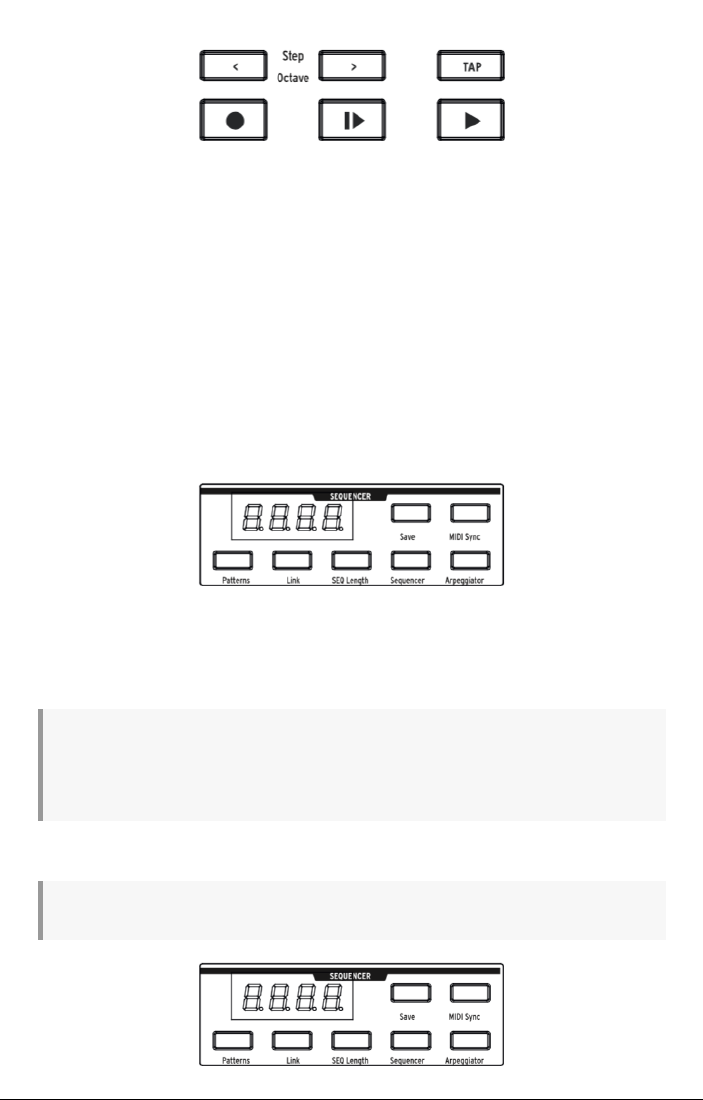
5.3.1.2. Sequencer transport and Pattern recording/programming
•<and >locate the transport backward or forward one step(when it's stopped)
and trigger the note on the step. (They have a different function in Arpeggiator
mode. See below.)
•Record -(Lights up red.) This works independently of whether the transport is
moving. When it's moving, your playing is recorded in real time,including Ties
and Accents. Turning the Mod knob will overwrite the Seq Mod track from the
first stepwhere the knob was turned until the last stepof the sequence. If Record
is pushed when the transport is stopped, press any of the 64 stepbuttons and
whatever note you play will be recorded on that step. The button turns pink to
indicate the current step. You can record over any note(s) in asequence,and you
can turn off individual notes simply by pushing their buttons.
•Play from beginning -(Lights up white.) This works under any condition -
transport moving or stopped, Record active, etc.
•Play/stop/continue - (Lights up green.) This also works under any condition.
•"Auto-play" feature: When the Sequencer button is lit, the pattern will start to play,
and continue as long you hold anote on the keyboard. Play from beginning lights
up, and the pattern continues until you release the note. Play the note again, and
the pattern starts over from the beginning.
NOTE: The pattern auto-plays its programmed pitches if you play middle C, but it transposes if you
play another note (and if you play subsequent notes, it transposes again without stopping, provided you
connect the notes closely enough). For that reason, it's agood idea to program/record patterns with C
as the base note.
•Tempo, rate, and playback controls
NOTE: These apply to both Sequencer and Arpeggiator modes.
43 Arturia - User Manual MatrixBrute - The Matrix

MIDISync ignores the internal tempo and locks the Sequencer and Arpeggiator to incoming
MIDIclock. Use this if you're using the MatrixBrute with aMIDIsequencer or other MIDI
equipment. External Sync may come from three sources: MIDI In, MIDI over USB and Sync
port. You can choose the source you wish to use with the MIDI Control Center.
•Gate sets the on/off length of each step, on ascale from 1to 99. At 99, each note
trigger is held until the following step.
•Swing delays every odd-numbered stepto create ashuffle rather than astraight
pattern. 50% is no swing, 75% is maximum swing. With 8th notes, for example,
50% swing gives you even 8th notes, and the more swing you add, the closer
you get to a dotted 8th followed by a 16th note.
•Rate dials in the sequencer tempo,from 30 to 259.9. The tempo is shown in the
display. When sync’d to MIDI, the rate knob will increment in exact divisions of
time based on the incoming clock.
•Tap this button to tap in the tempo.The sequencer engine updates with every
tap,so you can keeptapping if you need to follow a drifting tempo,and result is
shown in the display. Taps are relativeto the current note value (see the following
topic), so if you're set to quarter notes, each tap is aquarter note. If you're set to
1/8th note triplets, each tap is one of those, and do on.
Arturia - User Manual MatrixBrute - The Matrix 44

Note value buttons
These playback settings determine what note value each stepis, relativeto the playback
tempo. If you're using the MatrixBrute on its own, this will simply changethe playback speed
in apredictable way. But if you're locking the tempo to MIDIclock, it will changethe musical
value of each step in the sequencer or arpeggiator.
From left to right, the three buttons with musical notes represent "straight" notes, triplets, and
dotted notes. The "fraction" buttons belowthem determine what value the musical notes are.
Examples:
•1/4 + ♩ means each step is a quarter note;
•1/8 + ♩ makes each step an eighth note;
•1/8 + ♩♩♩ will make each step an 1/8th note triplet;
•1/16 + ♩. ...that's going to make each step a dotted 1/16th.
45 Arturia - User Manual MatrixBrute - The Matrix
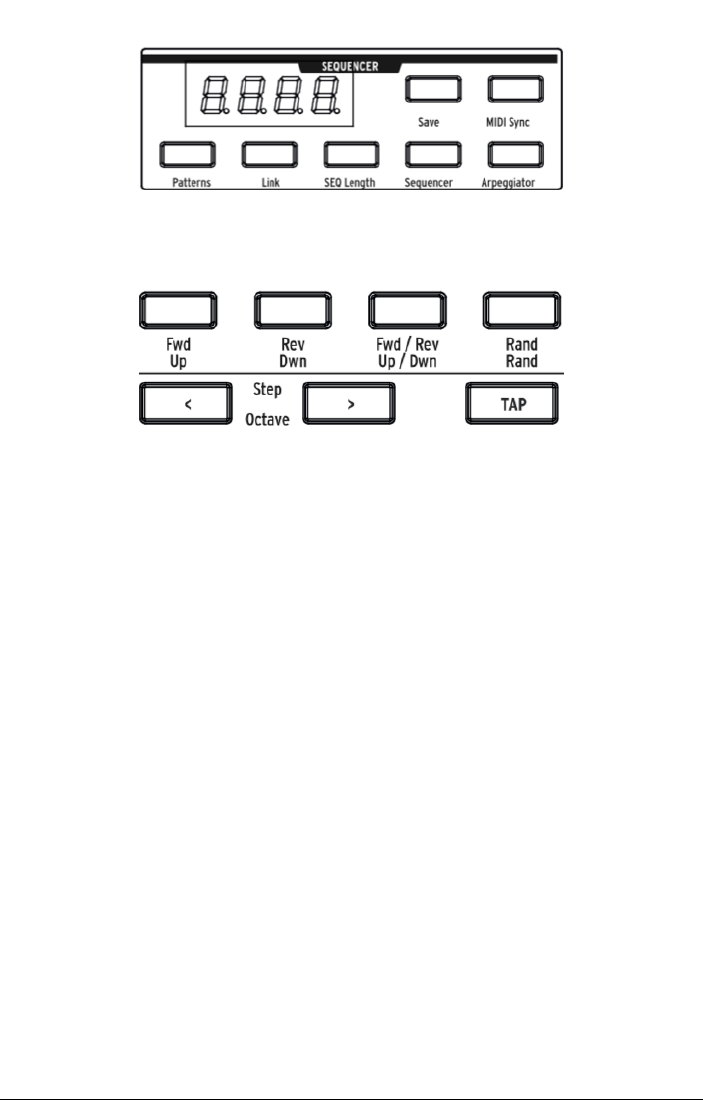
5.3.2. Arpeggiator mode
Arpeggiator enters this mode,in which the notes you hold are automatically stepped
through one at atime. You can hold down as many keys as your hands or even forearms
will cover; each note you hold lights up a red step in the Matrix.
The yellow lettering underneath buttons applies to the arpeggiator.
•Up steps through the notes from lowest to highest and repeats;
•Dwn steps through them from highest to lowest and repeats;
•Up/Down does just that: play from lowest to highest and back down;
•Rand plays the held notes in random order.
•Octave > Each push of this button causes the arpeggiator to repeat the up/down
or random sequence an additional octave higher, up to three octaves, and <
subtracts an octave with each push. The setting is shown in the display.
Arturia - User Manual MatrixBrute - The Matrix 46
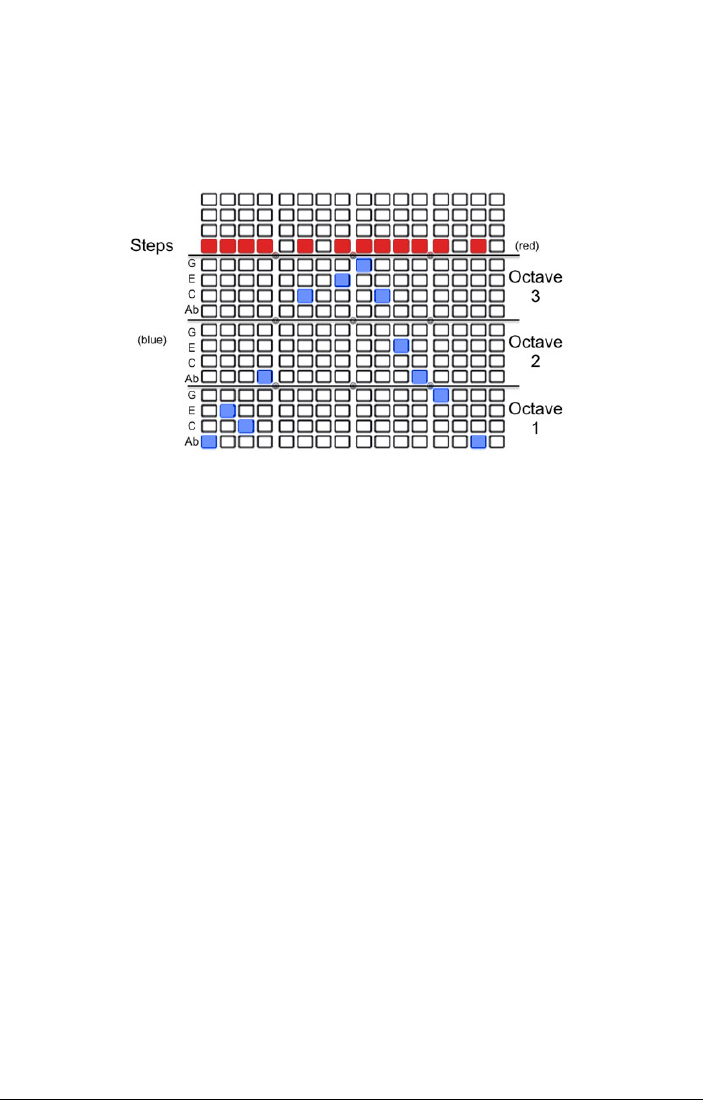
5.3.3. Matrix Arpeggiator Mode
Press both Sequencer and Arpeggiator.
This mode lets you hold up to four notes and play them in any order,in the octaveyou set
for each note, up to 16 steps. You can also vary the rhythm of the arpeggio up to 16 steps.
You can hold down any four notes (or fewer), in the example above, Ab-C-E-G are being
arpeggiated in the pattern shown, use the blue buttons to shift the specific note of your
arpeggio up or down within the three octaves. The red line shows the steps, i.e.the rhythm
pattern.
In addition, you can use chromatic approach notes:
•Lower approach note: If you hold the <transport control while pressing abutton
in the octavesection, the note sent is one half stepbelow, and the button turns
red instead of blue
• Upper approach note: If you hold the >transport control while pressing abutton
in the octavesection, the note sent is one half stepabove, and the button turns
purple instead of blue
47 Arturia - User Manual MatrixBrute - The Matrix
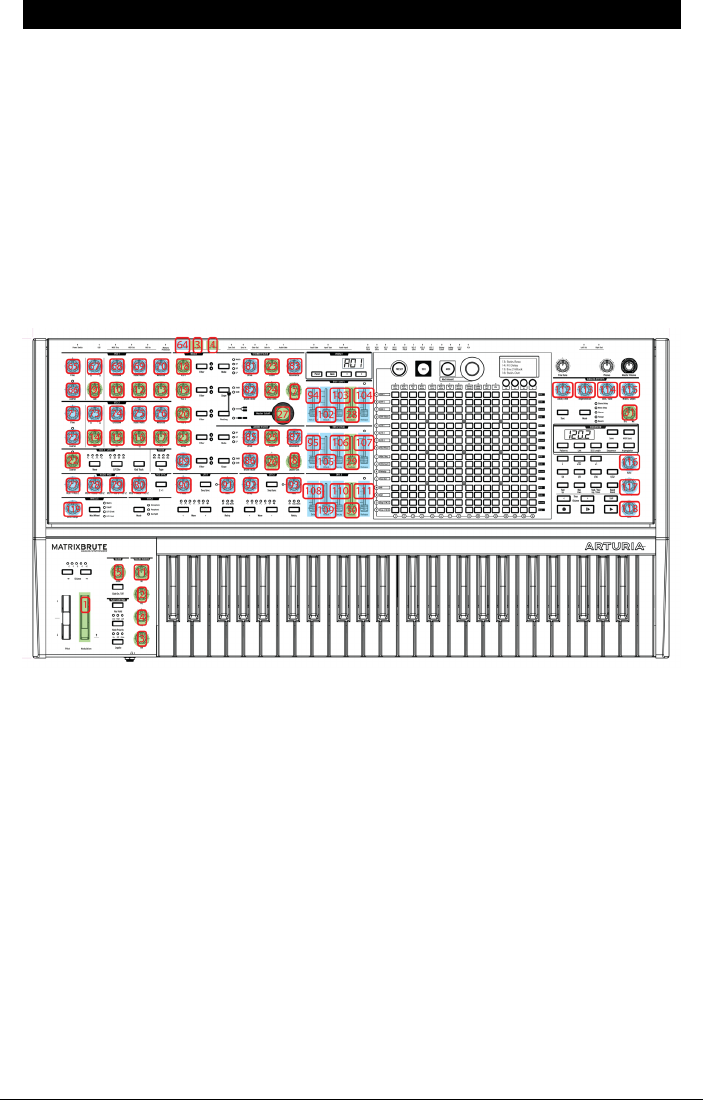
6. MIDI
In addition to the keyboard, almost all MatrixBrute's knobs, sliders, and wheels send
and respond to MIDI, so you can record and edit their movements in a DAW running
on acomputer. That makes the instrument useful as ahands-on controller for external
instruments, not just a master keyboard.
MIDIcan go in and out the USB port, the 5-pin DIN ports, both, or neither. All the MIDI
settings are in Arturia's MIDI Control Center Mac/PC program, which you download from
www.arturia.com. (See below.)
The sequencer and arpeggiator can lock to MIDIclock. They send MIDInotes, so you can
record and edit the notes they send in a DAW. Since the LFOs can lock to MIDIand then be
patched anywhere, effectively everything on the instrument can be in tempo.
6.1. MIDI Continuous Controller Assignments
In the graphic above, the numbers superimposed over knobs are all MIDI Continuous
Controllers (CC), so for example the Modulation wheel sends/receives MIDICC#1, and Macro
knob 1 to its right sends/receives CC#11 (Expression).
The controls shown in blue,are standard 7bit MIDIcontrols. The controls shown in yellow
are high resolution 14 bit MIDI controls.
While the Pitch wheel is unmarked, it is active; pitch isn't aCC in the MIDIprotocol -it's a
separate command in the protocol. If you connect expression pedals 1or 2to the rear panel,
they haveduplicate CC assignments to Macro knobs 3's and 4's (to the left of the keyboard).
The Sustain pedal input in the rear is CC#64, which is standard.
Arturia - User Manual MatrixBrute - MIDI 48

6.2. MIDI Control Center settings
The MIDIsettings are all using the MIDI Control Center's Device tab. Again, download the
software from www.arturia.com.
Input MIDIChannels - All, 1-16, none.MaxiBrute sends and receives on one 16-channel MIDI
port.
Output MIDI Channel - 1-16. Choose between the 16 MIDI channels to send on.
MIDIclock source -USB,MIDI, Sync. The USB port is the MaxiBrute's built-in MIDIinterface,
which you connect to a Mac or PC; MIDI is the 5-pin DIN MIDI in.
Use the Sync port to interface with pre-MIDIdevices, such as old Korg and Roland drum
machines. The following types are supported: 24 pulses per quarter note (Roland DIN).
MIDIparam send and receive- Turns MIDIfrom the panel on and off.The keyboard still
sends notes when it's off. You might not want the knobs and sliders to trigger or respond to
MIDI from another instrument while you're playing.
MIDIout select -The choices are Off,USB,MIDI, or MIDI + USB. USB has the advantageof
connecting directly to aMac or PC without aMIDIinterface,but you can run MIDIcables
over longer distances. Also note that if you save a DAW project that used the USB connection,
then load it again later,the DAW may get upset if the MatrixBrute isn't connected and turned
on; it'll be looking for a MIDI interface it doesn't see.
Local control -Local off means all the panel controls and the keyboard get sent out over
MIDI, but they're disconnected from the MatrixBrute.This is convenient if you're working
with a DAW; you'll hear the keyboard and controls on the MatrixBrute when its track is
selected and MIDIis being sent back to trigger it, but you won't hear it when DAW tracks
assigned to other instruments are selected. You can then play other instruments from the
MatrixBrute without it playing along. Also,the MatrixBrute can be playing back MIDIyou've
recorded while you play other instruments from its keyboard and controls.
Program Change Receive-MIDI Program Changecommands switch Presets. That can be
convenient, or you can turn it off to prevent Presets from changing when you don't want
them to.
Pedal 1, Pedal 2, Footswitch polarity -The choices are Normal and Inverted. Some
manufacturer's pedals are reversed, so higher is lower and off is on. This corrects for that.
Pot mode -Because the knobs are 270pots and not 360 degree encoders, they don't
necessarily reflect their underlying settings, there are three choices for howthey behave
when sending MIDI.
Jump means aknob sends the value of its physical position as soon as you move it,
regardless of its underlying setting. If the underlying setting is 12, the knob happens to be at
3, and you move it to 4, it will jump to 4. (These are not actual numbers.)
49 Arturia - User Manual MatrixBrute - MIDI

Hookwaits until you move a knob past its current setting to "catch" (hook) it before sending
anything. This is the default mode.
Scaled increases or decreases the actual setting regardless of where the knob is. So if the
actual value is 12 and you move the knob from 3to 4, the actual value will go to 13. Scaled
allows you to increment or decrement the knob value.The drawback is if the knob is at a
high or lowextreme,you obviously cannot move it further. In this case you need to turn the
knob and the value will have to go either negative or positive first.
Velocity curve-This lets you adjust the keyboard response to your playing style and
preference.
Linear (the default) has an even response across the dynamic range;
Log requires the least amount of force to play louder notes, but it's harder to control the
dynamics at lower levels;
Exponential is less jumpy at lower dynamic levels, but it takes more force to reach high
dynamic levels.
Sequencer/Arp Sends Notes -(On/Off) The sequencer/arpeggiator can send MIDInotes to
trigger other instruments or to be recorded in a DAW.
Enable 14-bit automation -(On/Off) Many of the knobs on the front panel can set to send
high resolution 14 bit MIDIdata. Some DAWs may not receivethis information correctly
however. In this case, you can turn off 14 bit automation.
Load sequence tempo -When set on never the tempo setting is global. Changing preset will
not update the tempo. If always is selected stored sequence tempo will always be loaded.
Aftertouch sensitivity -Let you adjust the keyboard aftertouch response.Default value is
20% if you need to reach max aftertouch value with less pressure increase this value.
AC Input Specifications
Voltage100V - 240V AC
Power 45W
Frequency 50-60 Hz
Pedal Connections
Expression(x2) Tip = Pot center tap ; Ring = 3.3V ; Sleeve = Gnd
Sustain Normal open
Arturia - User Manual MatrixBrute - MIDI 50

Control Voltages I/O
VCO1 Pitch 0 - 10V
VCO1 Ultra Saw +/- 5V
VCO1 Pulse Width +/- 5V
VCO1 Metalizer +/- 5V
VCO2 Pitch 0 - 10V
VCO2 Ultra Saw +/- 5V
VCO2 Pulse Width +/- 5V
VCO2 Metalizer +/- 5V
Steiner Cutoff 0 - 10V
Ladder Cutoff 0 - 10V
LFO 1 amount 0 - 10V
VCA 0 - 10V
Gate I/O (TS)
Gate (TS) 0 – 5V
Sync (TRS)
Gate 0 – 5V
Audio I/O
Label Jack Level Note
Master Out L/R Mono TS +4dBu
Audio In Mono TS Line =0-20dB Inst =0-40dB 68kΩ
1.1MΩ
Insert TRS = Tip=Send; Ring = Return; Sleeve = Gnd +4dBu
51 Arturia - User Manual MatrixBrute - MIDI

7. SOFTWARE LICENSE AGREEMENT
In consideration of payment of the Licensee fee,which is aportion of the price you paid,
Arturia, as Licensor,grants to you (hereinafter termed “Licensee”) anonexclusiveright to
use this copy of the SOFTWARE.
All intellectual property rights in the software belong to Arturia SA (hereinafter: “Arturia”).
Arturia permits you only to copy, download, install and use the software in accordance with
the terms and conditions of this Agreement.
The product contains product activation for protection against unlawful copying. The OEM
software can be used only following registration.
Internet access is required for the activation process. The terms and conditions for use of the
software by you, the end-user,appear below. By installing the software on your computer
you agree to these terms and conditions. Please read the following text carefully in its
entirety. If you do not approve these terms and conditions, you must not install this software.
In this event givethe product back to where you havepurchased it (including all written
material, the complete undamaged packing as well as the enclosed hardware) immediately
but at the latest within 30 days in return for a refund of the purchase price.
1. Software Ownership - Arturia shall retain full and complete title to the SOFTWARE
recorded on the enclosed disks and all subsequent copies of the SOFTWARE, regardless of
the media or form on or in which the original disks or copies may exist. The License is not a
sale of the original SOFTWARE.
2. Grant of License Arturia grants you anon-exclusivelicense for the use of the software
according to the terms and conditions of this Agreement. You may not lease,loan or sub-
license the software.
The use of the software within anetwork is illegal where there is the possibility of a
contemporaneous multiple use of the program.
You are entitled to prepare abackupcopy of the software which will not be used for
purposes other than storage purposes.
You shall haveno further right or interest to use the software other than the limited rights as
specified in this Agreement. Arturia reserves all rights not expressly granted.
3. Activation of the Software Arturia may use acompulsory activation of the software and
acompulsory registration of the OEM software for license control to protect the software
against unlawful copying. If you do not accept the terms and conditions of this Agreement,
the software will not work.
In such acase the product including the software may only be returned within 30 days
following acquisition of the product. Upon return a claim according to § 11 shall not apply.
4. Support, Upgrades and Updates after Product Registration You can only receivesupport,
upgrades and updates following the personal product registration. Support is provided only
for the current version and for the previous version during one year after publication of the
new version. Arturia can modify and partly or completely adjust the nature of the support
(hotline, forum on the website etc.), upgrades and updates at any time.
The product registration is possible during the activation process or at any time later through
the Internet. In such aprocess you are asked to agree to the storageand use of your
personal data (name,address, contact, email-address, and license data) for the purposes
specified above. Arturia may also forward these data to engaged third parties, in particular
distributors, for support purposes and for the verification of the upgrade or update right.
5. No Unbundling The software usually contains a variety of different files which in its
configuration ensure the complete functionality of the software.The software may be used
as one product only. It is not required that you use or install all components of the software.
You must not arrangecomponents of the software in anew way and develop a modified
version of the software or anewproduct as aresult. The configuration of the software may
not be modified for the purpose of distribution, assignment or resale.
Arturia - User Manual MatrixBrute - Software License Agreement 52

6. Assignment of Rights You may assign all your rights to use the software to another
person subject to the conditions that (a) you assign to this other person (i) this Agreement
and (ii) the software or hardware provided with the software,packed or preinstalled
thereon, including all copies, upgrades, updates, backupcopies and previous versions,
which granted aright to an update or upgrade on this software,(b) you do not retain
upgrades, updates, backupcopies und previous versions of this software and (c) the
recipient accepts the terms and conditions of this Agreement as well as other regulations
pursuant to which you acquired a valid software license.
Areturn of the product due to a failure to accept the terms and conditions of this Agreement,
e.g. the product activation, shall not be possible following the assignment of rights.
7. Upgrades and Updates You must have a valid license for the previous or more inferior
version of the software in order to be allowed to use an upgrade or update for the software.
Upon transferring this previous or more inferior version of the software to third parties the
right to use the upgrade or update of the software shall expire.
The acquisition of an upgrade or update does not in itself confer any right to use the
software.
The right of support for the previous or inferior version of the software expires upon the
installation of an upgrade or update.
8. Limited Warranty Arturia warrants that the disks on which the software is furnished is
free from defects in materials and workmanship under normal use for aperiod of thirty (30)
days from the date of purchase. Your receipt shall be evidence of the date of purchase. Any
implied warranties on the software are limited to thirty (30) days from the date of purchase.
Some states do not allowlimitations on duration of an implied warranty, so the above
limitation may not apply to you. All programs and accompanying materials are provided “as
is” without warranty of any kind. The complete riskas to the quality and performance of the
programs is with you. Should the program prove defective, you assume the entire cost of all
necessary servicing, repair or correction.
9. Remedies Arturia's entire liability and your exclusiveremedy shall be at Arturia's option
either (a) return of the purchase price or (b) replacement of the diskthat does not meet the
Limited Warranty and which is returned to Arturia with acopy of your receipt. This limited
Warranty is void if failure of the software has resulted from accident, abuse,modification,
or misapplication. Any replacement software will be warranted for the remainder of the
original warranty period or thirty (30) days, whichever is longer.
10. No other Warranties The above warranties are in lieu of all other warranties, expressed
or implied, including but not limited to,the implied warranties of merchantability and fitness
for aparticular purpose.No oral or written information or advice given by Arturia, its dealers,
distributors, agents or employees shall create a warranty or in any way increase the scope
of this limited warranty.
11. No Liability for Consequential Damages Neither Arturia nor anyone else involved in
the creation, production, or delivery of this product shall be liable for any direct, indirect,
consequential, or incidental damages arising out of the use of,or inability to use this product
(including without limitation, damages for loss of business profits, business interruption, loss
of business information and the like) even if Arturia was previously advised of the possibility
of such damages. Some states do not allowlimitations on the length of an implied warranty
or the exclusion or limitation of incidental or consequential damages, so the above limitation
or exclusions may not apply to you. This warranty gives you specific legal rights, and you
may also have other rights which vary from state to state.
53 Arturia - User Manual MatrixBrute - Software License Agreement

8. DECLARATION OF CONFORMITY
USA
Important notice: DO NOT MODIFY THE UNIT!
This product, when installed as indicate in the instructions contained in this manual, meets
FCC requirement. Modifications not expressly approved by Arturia may avoid your authority,
granted by the FCC, to use the product.
IMPORTANT:
When connecting this product to accessories and/or another product, use only
high quality shielded cables. Cable (s) supplied with this product MUST be used. Followall
installation instructions. Failure to followinstructions could void your FFC authorization to
use this product in the USA.
NOTE:
This product has been tested and found to comply with the limit for aClass B
Digital device,pursuant to Part 15 of the FCC rules. These limits are designed to provide
areasonable protection against harmful interference in aresidential environment. This
equipment generate,use and radiate radio frequency energy and, if not installed and used
according to the instructions found in the users manual, may cause interferences harmful
to the operation to other electronic devices. Compliance with FCC regulations does not
guarantee that interferences will not occur in all the installations. If this product is found to
be the source of interferences, witch can be determined by turning the unit “OFF” and “ON”,
please try to eliminate the problem by using one of the following measures:
• Relocate either this product or the device that is affected by the interference.
• Use power outlets that are on different branch (circuit breaker or fuse) circuits or
install AC line filter(s).
• In the case of radio or TV interferences, relocate/ reorient the antenna. If the
antenna lead-in is 300 ohm ribbon lead, change the lead-in to coaxial cable.
• If these correctivemeasures do not bring any satisfied results, please the local
retailer authorized to distribute this type of product. If you cannot locate the
appropriate retailer, please contact Arturia.
The above statements apply ONLY to those products distributed in the USA.
CANADA
NOTICE:
This class Bdigital apparatus meets all the requirements of the Canadian
Interference-Causing Equipment Regulation.
AVIS
: Cet appareil numérique de la classe Brespecte toutes les exigences du Règlement sur
le matériel brouilleur du Canada.
EUROPE
This product complies with the requirements of European Directive 89/336/EEC
This product may not work correctly by the influence of electro-static discharge; if it
happens, simply restart the product.
Arturia - User Manual MatrixBrute - Declaration of Conformity 54
