BD 2000 C01879279
User Manual: BD-2000
Open the PDF directly: View PDF  .
.
Page Count: 66
- Regulatory Information
- Before You Start
- Getting Started
- Playback
- Playing a Disc
- Playback Controls
- Forward or Reverse Playback
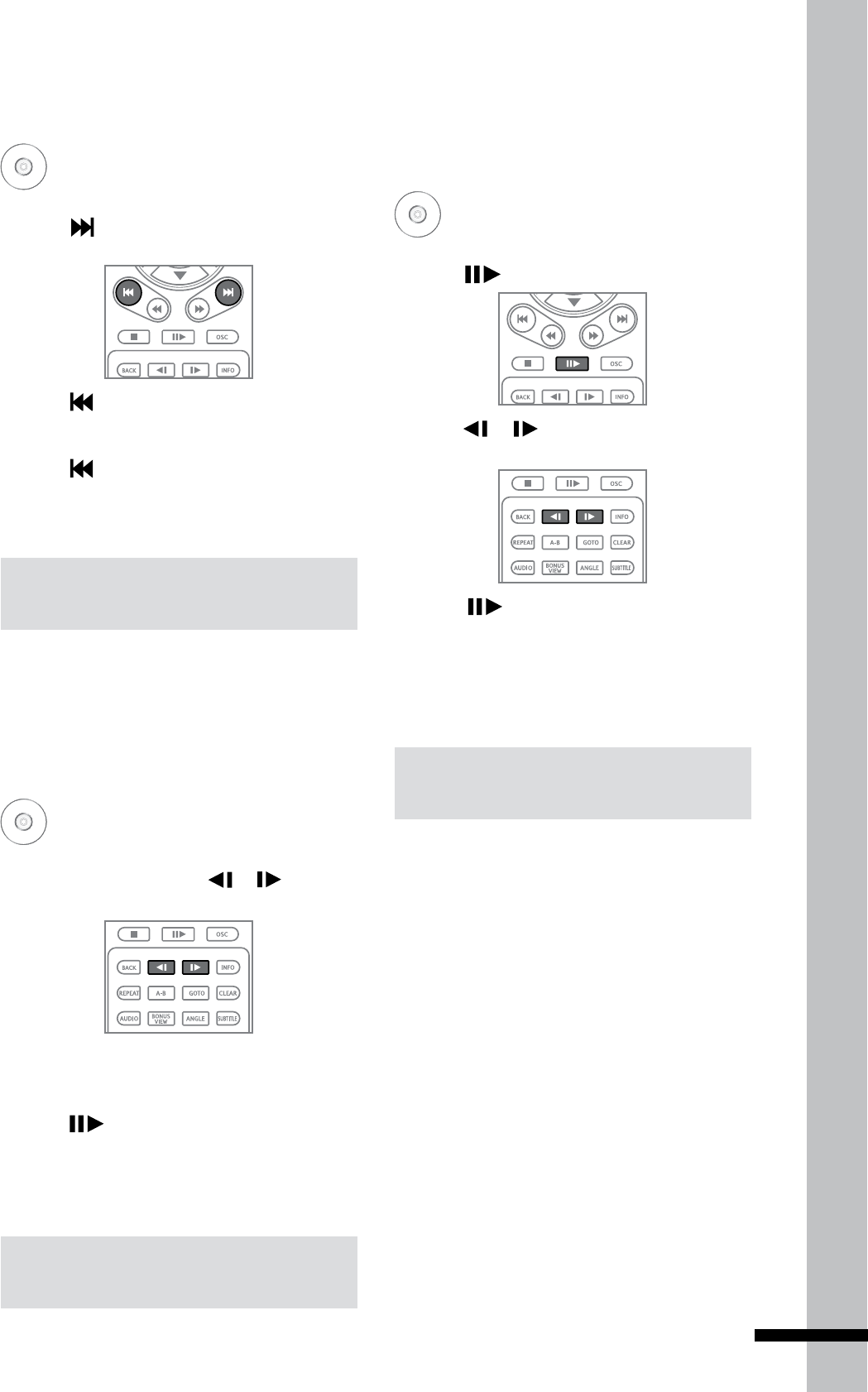
- Skipping Content
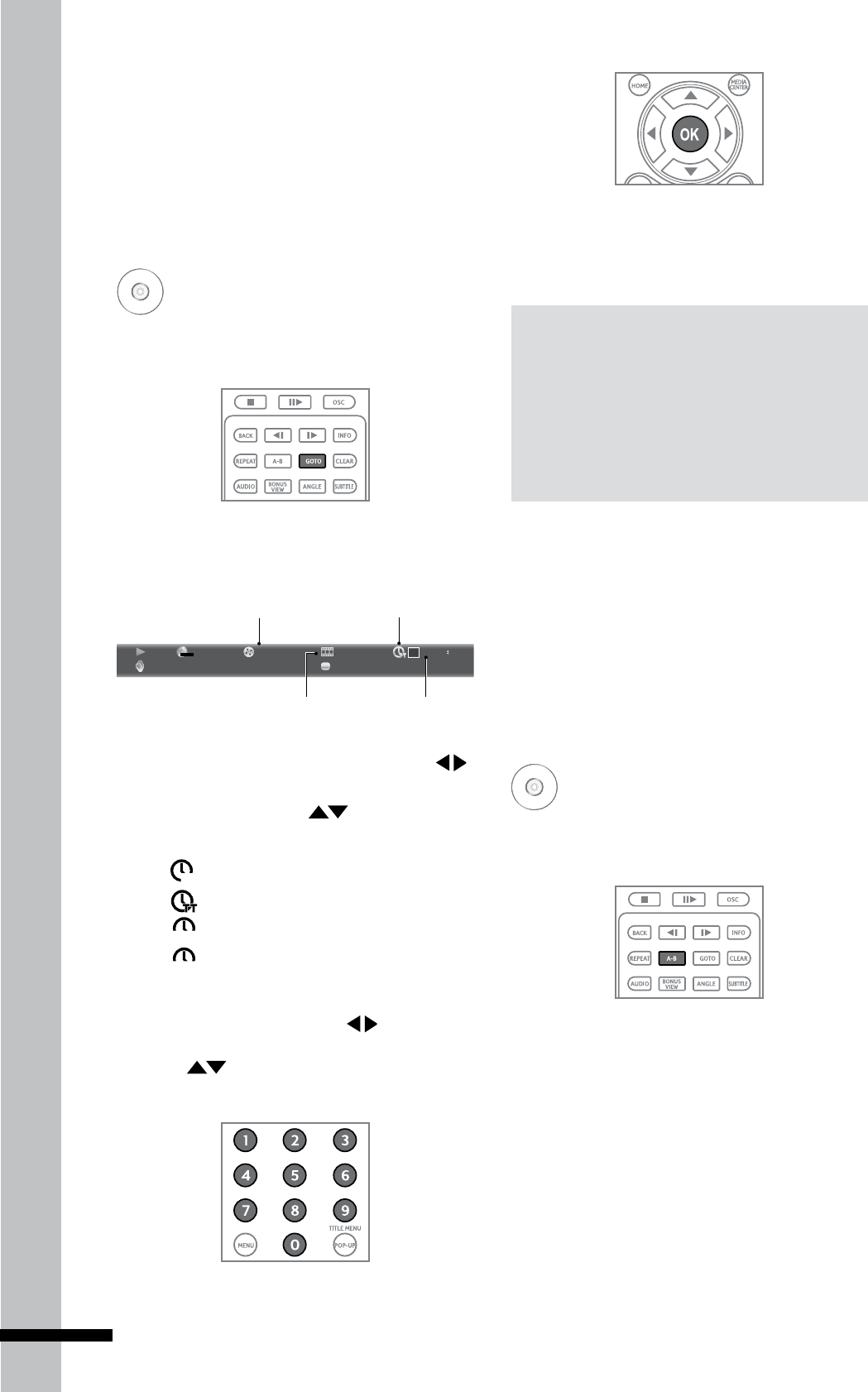
- Slow Rewind or Slow Forward Playback
- Step Rewind or Step Forward
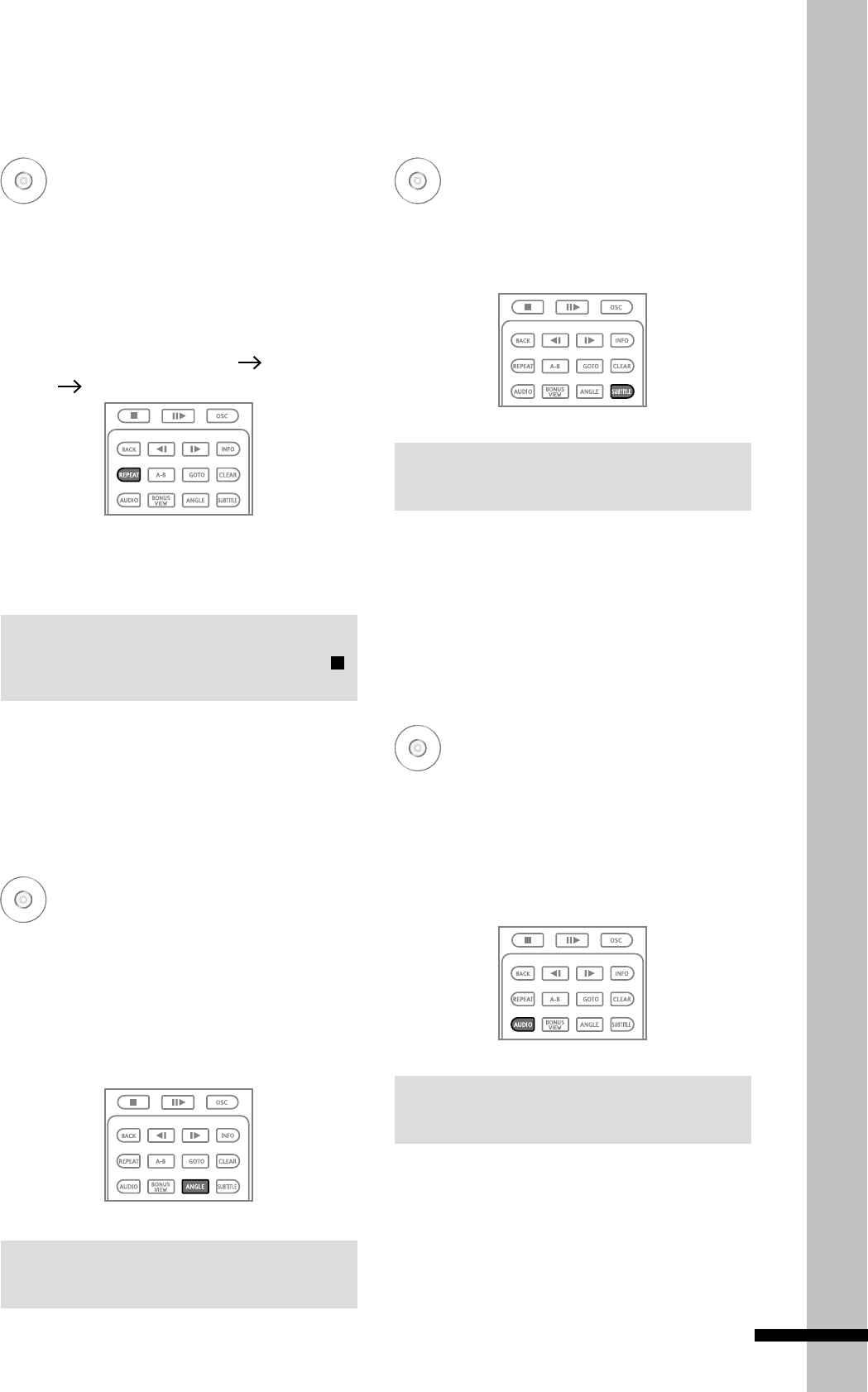
- Playing Specific Titles, Chapters, or Tracks
- Playing a Specific Section Repeatedly (A-B)
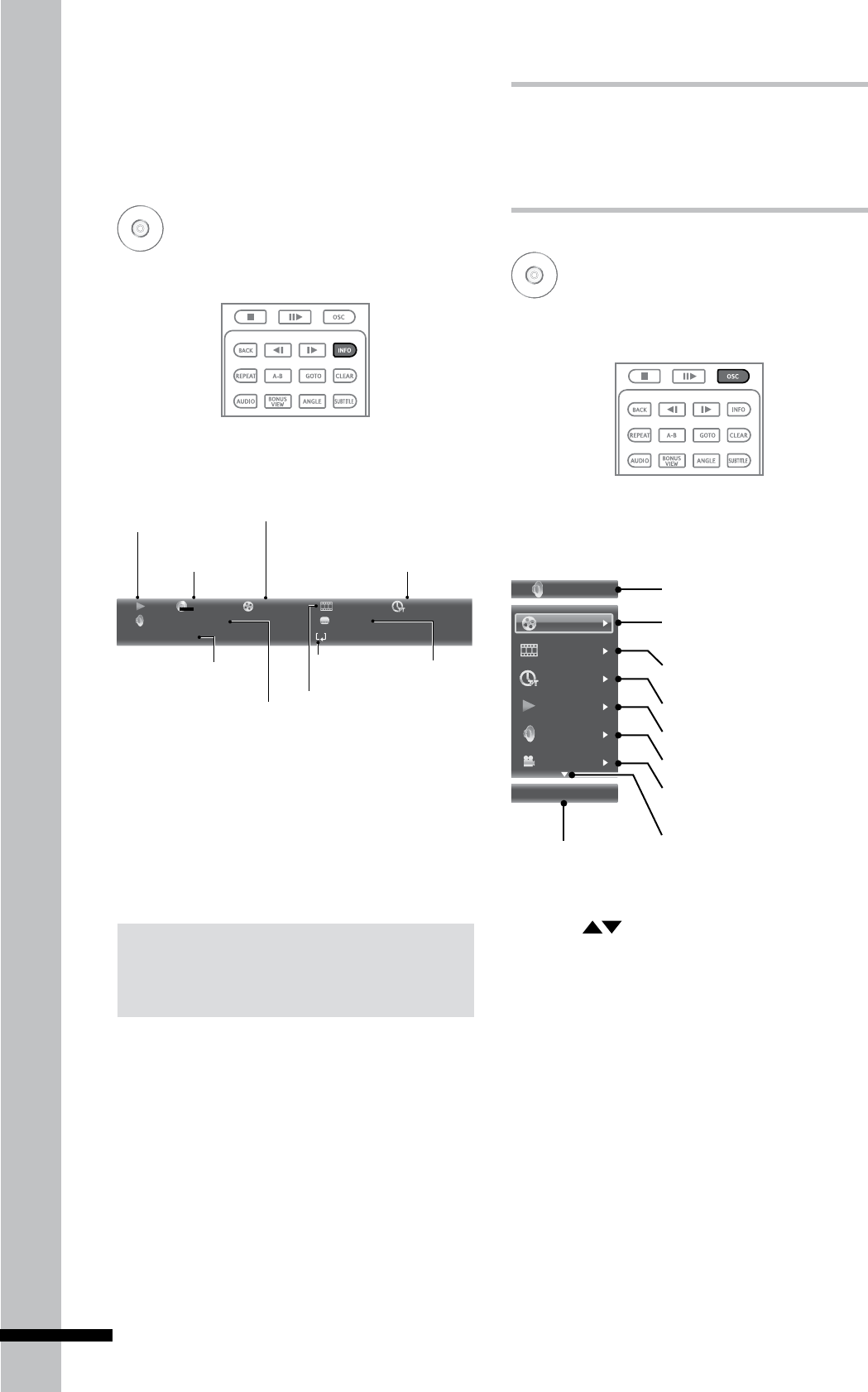
- Playing Repeatedly
- Switching Camera Angles
- Switching Subtitles
- Switching Audio Streams
- Displaying the Disc Information
- Using On-Screen Controls (OSC)
- BONUSVIEW™
- BD-Live™
- Playback Controls
- Chapter 4
- Playing a Disc
- Using Media Center
- Settings and Further Adjustments
- Troubleshooting
- Additional
- Information
- Appendix
- Glossary
HP BD-2000
Blu-ray Disc Player
User Manual
HI - SPEED
CERTIFIED
TM
USB
2
Preface
CAUTION: TO REDUCE THE RISK OF ELECTRIC SHOCK, DO NOT REMOVE THE COVER (OR BACK). NO
USER-SERVICEABLE PARTS INSIDE. REFER SERVICING TO QUALIFIED SERVICE PERSONNEL.
This lightning flash with arrowhead symbol within an equilateral triangle is intended
to alert the user to the presence of uninsulated dangerous voltage within the
product’s enclosure that may be of sufficient magnitude to constitute a risk of
electric shock to persons.
The exclamation point within an equilateral triangle is intended to alert the user to
the presence of important operating and maintenance (servicing) instructions in the
literature accompanying the product.
CAUTION
This product is a Class 1 laser product. To
ensure continued safety, do not remove
any covers or attempt to disassemble
the cabinet. Refer servicing to qualified
personnel.
WARNING
To prevent the risk of fire or electric shock
hazard, do not expose this product to rain
or moisture. Do not place near objects with
liquid, such as a vase.
CAUTION
The use of optical instruments with this
product may increase eye hazard.
WARNING
Slots and openings in the cabinet are for
ventilation purposes and to protect the
equipment from heating. Do not cover or
block the openings with items such as a
newspaper, table-cloths or curtains).
3
Preface
FCC Warning
This equipment may generate or use radio
frequency energy. Changes or modifications
to this equipment may cause harmful
interference unless the modifications
are expressly approved in this manual.
Alterations or modifications carried out
without appropriate authorization may
invalidate the user’s right to operate this
equipment.
FCC Statement
This equipment has been tested and found
to comply with the limits for a Class B digital
device, pursuant to Part 15 of the FCC Rules.
These limits are designed to provide
reasonable protection against harmful
interference when the product is operated
in a residential installation. This product
generates, uses, and can radiate radio
frequency energy and, if not installed and
used in accordance with the instruction
manual, may cause harmful interference
to radio communications. However, there
is no guarantee that interference will not
occur in a particular installation. If this
product does cause harmful interference to
radio or television reception, which can be
determined by turning the product off and
on, the user is encouraged to try to correct
the interference by one or more of the
following measures:
Reorient or relocate the receiving antenna.•
Increase the separation between the •
product and receiver.
Connect the product into an outlet on a •
circuit different from that to which the
receiver is connected.
Consult the dealer or an experienced •
radio/TV technician for help.
Important Safety
Instructions
1. Read these instructions.
2. Keep these instructions.
3. Heed all warnings.
4 . Follow all instructions.
5. Do not use this apparatus near water.
6. Clean only with dry cloth.
7. Do not block any ventilation openings.
Install in accordance with the
manufacturer’s instructions.
8. Do not install near any heat sources such
as radiators, heat registers, stoves, or
other apparatus (including amplifiers) that
produce heat.
9. Do not defeat the safety purpose of the
polarized or grounding-type plug. A
polarized plug has two blades with one
wider than the other. A grounding type
plug has two blades and a third grounding
prong. The wide blade or the third prong
are provided for your safety. If the
provided plug does not fit into your outlet,
consult an electrician for replacement of
the obsolete outlet.
10. Protect the power cord
from being walked on
or pinched particularly
at plugs, convenience
receptacles, and the
point where they exit
from the apparatus.
11. Only use attachments/accessories
specified by the manufacturer.
12. Use only with the cart, stand, tripod,
bracket, or table specified by the
manufacturer, or sold with the apparatus.
When a cart is used, use caution when
moving the cart/apparatus combination to
avoid injury from tip-over.
Regulatory
Information
4
Preface
13. Unplug this apparatus during lightning
storms or when unused for long periods
of time.
14. Refer all servicing to qualified service
personnel. Servicing is required when
the apparatus has been damaged in any
way, such as power-supply cord or plug
is damaged, liquid has been spilled or
objects have fallen into the apparatus,
the apparatus has been exposed to rain
or moisture, does not operate normally, or
has been dropped.
Notes About the
Discs
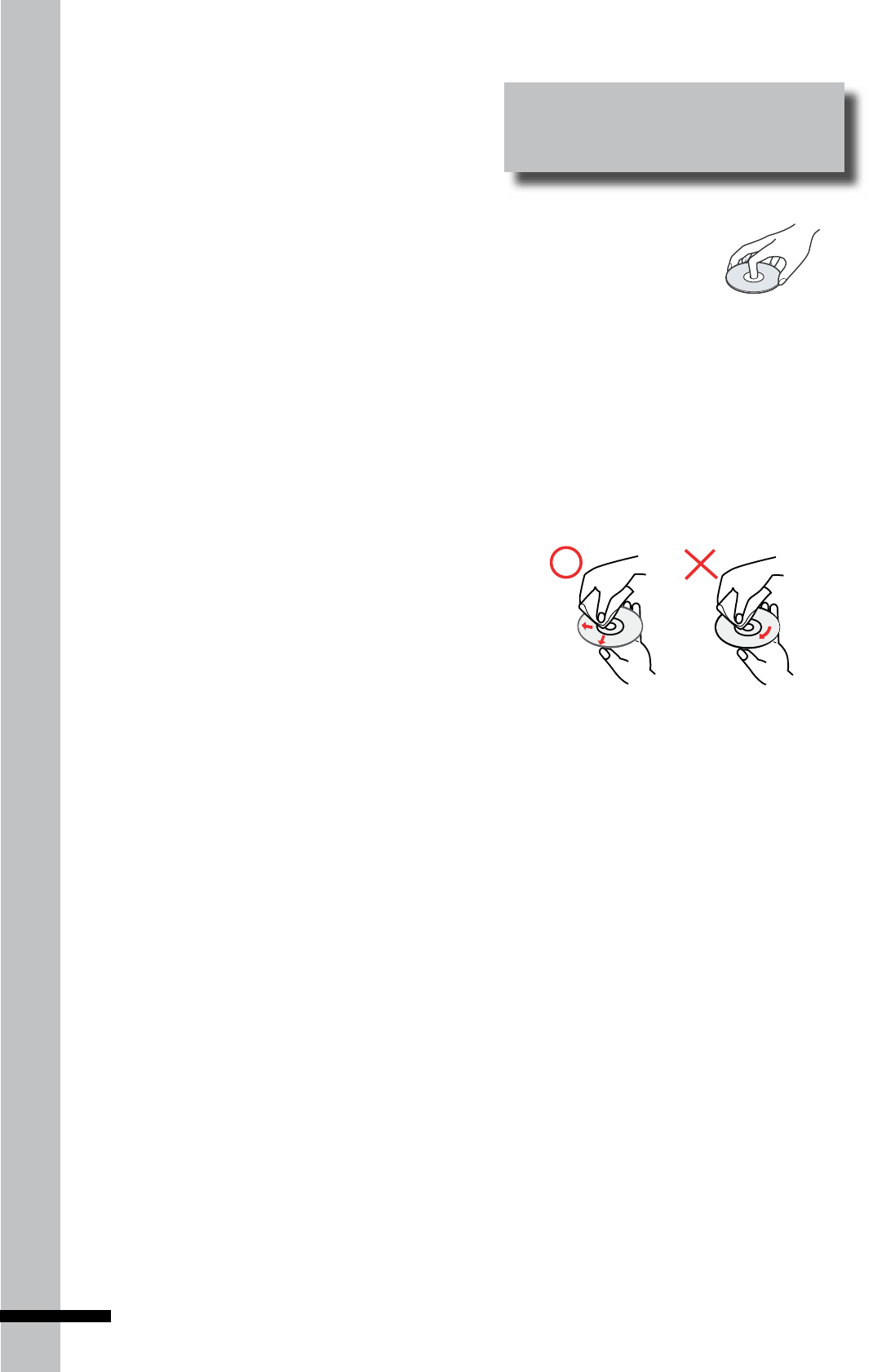
Do not touch the •
playback side of the
disc. Hold the disc by
its edge.
Never stick any paper or tape on the disc.•
After playing, store the disc in its case.•
Do not expose the disc to direct sunlight •
or sources of heat and never leave it in a
parked car as the temperature may rise
considerably inside the car.
Clean the disc with a cleaning cloth.•
Wipe the disc from the center out.•
Do not use strong solvents such as •
benzene, thinner, alcohol, commercially
available cleaners, or anti-static spray
intended for vinyl LPs.
5
Preface
Precautions
Safety
To prevent fire or electric shock hazard, do •
not place objects filled with liquids, such
as vases, on the device.
Should liquids spill or solid objects fall into •
the cabinet, have the device checked by
qualified personnel.
Operation
Before moving the player, remove any •
discs inside the device. Otherwise, the
disc may be damaged.
If the device is moved from a cold to a •
warm location, moisture may form inside
the device. Should this happen, do not
operate the device and leave it for 2 to 3
hours until the moisture evaporates.
Power
The device still consumes power when •
connected to a wall outlet even if the
power has been turned off. To completely
cut off the power, unplug the power cord
from the wall outlet.
If the device will not be used for long •
periods of time, disconnect the power cord
from the wall outlet.
When disconnecting the power cord, •
grasp the plug head, never pull the cord.
Placement
Place the device in a well-ventilated •
location to prevent the device from
overheating.
Do not place the device on a soft surface •
such as a rug.
Do not cover the slots and openings in the •
cabinet which are provided for ventilation.
Do not place the device near heat sources.•
Do not place the device near liquids.•
Do not place heavy objects on the device.•
Install the device where the power cord •
can be easily connected and disconnected
from the wall outlet.
Keep the device or the discs away from •
equipment with magnets, such as a
microwave open.
About this Manual
Blu-ray
DVD
AVCHD
VCD
CD
Video
Music
Photo
The following icons that appear below a
section title indicate the applicable discs or
file types.
Applies to Blu-ray , DVD, •
AVCHD, VCD, and CD discs.
Applies to data discs or USB •
drives that contains video,
music, or photo files.

6
Preface
Connecting an Amplifier .....................20
Connecting Using Analogue
Audio Cable ..................................................20
Connecting Using Digital Audio Cable .....21
Using a Coaxial Cable .............................21
Using an Optical Cable ...........................21
Connecting to the Internet .................22
Connecting the Power Cable .............23
Turning the Power On ..........................23
Easy Setup Wizard ...............................24
Chapter 3
Playback 25
Playing a Disc .......................................25
Playback Controls ........................................26
Forward or Reverse Playback ...................26
Skipping Content ..........................................27
Slow Rewind or
Slow Forward Playback ..............................27
Step Rewind or Step Forward ..................27
Playing Specific Titles, Chapters,
or Tracks........................................................28
Playing a Specific Section
Repeatedly (A-B) .........................................28
Playing Repeatedly ......................................29
Switching Camera Angles ..........................29
Switching Subtitles .....................................29
Switching Audio Streams ...........................29
Displaying the Disc Information ................30
Using On-Screen Controls (OSC) ......30
BONUSVIEW™ .....................................31
BD-Live™ ...............................................32
Setting Up the Player for BD-Live™ .........32
Using BD-Live™ ...........................................33
Table of Contents
Regulatory Information .......................3
Important Safety .................................3
Instructions ...........................................3
Notes About the Discs ........................4
Precautions ...........................................5
About this Manual................................5
Chapter 1
Before You Start 9
What’s in the Box? ...............................9
Playable Discs and Files .....................10
Playable Discs ..............................................10
Playing Blu-ray Discs .............................10
Playing DVD Discs ..................................10
Audio Formats ..........................................11
Playable Files ...............................................11
Player Overview ...................................12
Front Panel ....................................................12
Front Panel Display .....................................13
Rear Panel ....................................................13
Remote Control ............................................14
Installing the Remote Control
Batteries ...................................................16
Remote Control Signal ................................16
Chapter 2
Getting Started 17
How to Set up Your Blu-ray Player ....17
Connecting to a TV ..............................18
Connecting Using HDMI Cable ..................18
Connecting Using a Component Video
Cable..............................................................19
Connecting Using a Composite Video
Cable..............................................................19
7
Preface
Chapter 4
Using Media Center 34
Setting Up Data Disc
and USB Drive ......................................34
Setting Up Data Disc For Playback ...........34
Setting Up the USB Drive For Playback ...35
Playing Files from a Data Disc ...................35
Playing Files From a USB Drive .................35
Media Center Menu ............................36
Viewing Photos ............................................37
Using Photo On-Screen Control ...........37
Slide Show Functions .............................38
Playing Music ...............................................38
Music Playback Status Screen ............39
Playing Videos ..............................................39
Creating a Playlist ........................................40
Playing Files from the Playlist ....................40
Chapter 5
Settings and Further
Adjustments 41
Using the Home Menu ........................41
General Settings...................................43
System ...........................................................43
Screen Saver ...........................................43
Disc Auto Upgrade ..................................43
Load Default .............................................43
Upgrade ....................................................43
Easy Setup ................................................43
BD-Live Persistent Storage / BUDA .....43
Language ......................................................44
OSD ............................................................44
Menu .........................................................44
Audio .........................................................44
Subtitle ......................................................44
Playback ........................................................45
Closed Caption .........................................45
PBC ............................................................45
Security .........................................................46
Change Password ...................................46
Parental Control ......................................46
Country Code ...........................................46
Network .........................................................47
Internet Connection ................................47
BD-Live Connection ................................47
Display Settings....................................48
TV ...................................................................48
TV Screen .................................................48
Resolution .................................................48
TV System .................................................48
HDMI Deep Color ....................................48
HDMI 1080P 24Hz ....................................49
Video Process ..............................................49
Video Adjust .............................................49
Sharpness ................................................49
Audio Setting ........................................50
Audio Output .................................................50
Spdif ..........................................................50
HDMI .........................................................50
Down Sampling .......................................50
System Information .............................52
Chapter 6
Troubleshooting 53
Chapter 7
Additional
Information 55
Upgrading Your Player ........................55
To upgrade firmware
using a USB drive ....................................55
To upgrade firmware
using a data disc .....................................56

8
Preface
Video Output Resolutions ...................57
HDMI Video Output ....................................57
Component Video Outputs ........................57
Composite Video Output .............................57
Language Code Table ..........................58
Region Code Table ...............................59
Specifications .......................................60
Chapter 8
Glossary 61
Chapter 9
INDEX
63
Getting Help ..........................................65
9
Before You Start
Chapter 1
Before
You Start
This chapter will introduce the features,
supported types of discs and files,
and the panel and remote control
descriptions.
What’s in the
Box?
Check to ensure that the following items
come with your package.
Blu-ray Player
TM
BLU-RAY DISC PLAYER
AAA batteries x 2
Power cable x 1
Audio-Video cable x 1
(red/white/yellow)
Remote control x 1
Operating manual x 1
Please read through this Operating
Manual to operate your device properly
and keep it in a safe place for future
reference.
Warranty card x 1
Declaration of Conformity card x 1
HDMI cable x 1
10
Before You Start
Playable Discs and Files
Playable Discs
Your Blu-ray player supports playback of the
following discs:
Blu-ray Disc•
DVD-VIDEO•
DVD-R•
DVD-RW•
DVD+R•
DVD+RW•
Audio CD•
CD-R•
CD-RW•
CD-DA / CD-DTS•
VCD / SVCD•
“Blu-ray Disc“ and its logo are trademarks .
“DVD Video”, “DVD-R”, “DVD+R”, “DVD-RW”,
“DVD+RW” and their logos are trademarks of DVD
Format/Logo Licensing Corporation.
“CD” and its logo are trademarks.
Playing Blu-ray Discs
Features
Supports Blu-ray profile 1.0, 1.1, and 2.0.•
Access to BD-Live which allows •
interactive functions when your Blu-ray
player is connected to the Internet.
Supports BONUSVIEW functions that •
allows virtual packages or Picture-in-
Picture functions to be used.
“BONUSVIEW” and its logo are trademarks of Blu-ray
Disc Association.
Playable Blu-ray Formats
Blu-ray movies/Blu-ray Disc Read Only •
(BD-ROM)
Blu-ray Disc Recordable (BD-R)•
Blu-ray Disc Rewriteable (BD-RE)•
Playing DVD Discs
DVD-Video can be played.•
DVD-R /-RW/+R/+RW disc recorded in •
DVD-Video format can be played
DVD-R /-RW/+R/+RW disc recorded in •
DVD-Video and Video Recording (VR)
format can be played.
DVD disc recorded in AVCHD format can •
be played, including discs in x.v.Color
format.
11
Before You Start
Playable Files
Your Blu-ray player supports playback of
files recorded on DVD and CD discs, and
USB drives with the following formats:
Video compression format MPEG•
MPEG-2•
MPEG-4 •
(AVC)
Media container format *.AVI•
*.MKV•
*.MP4•
*.M4A•
*.M4V•
*.WMV•
*.DAT•
*.VOB•
*.ASF•
Photo file format JPEG•
PNG•
GIF•
Music file format *m4a•
*WAV•
*CD Digital •
Audio
*Dolby •
Digital
*DTS •
2.0+Digital
out
“AVCHD” and its logo are trademarks of
Matsushita Electric Industrial Co., Ltd and Sony
Corporation.
“x.v.Color” is a trademark of Sony Corporation.
Dual Layer DVD discs can be played.•
Audio Formats
Your Blu-ray player supports the following
audio formats:
Dolby Digital•
Dolby Digital Plus•
Dolby True HD•
DTS 2.0 + Digital Out•
Dolby Digital Sound•
MPEG•
MPEG-2•
Linear PCM•
For Dolby Digital Plus, Dolby True HD, and
DTS-HD, it is recommended to connect the
Blu-ray player to an amplifier or receiver to
enjoy the surround sound quality.
Manufactured under license from Dolby Laboratories.
“Dolby” and the double-D symbol are trademarks of
Dolby Laboratories.
Manufactured under license under U.S. Patent #’s:
4,631,603; 4,819,098; 4,907,093; 5,315,448; and
6,516,132 & other U.S. and worldwide patents issued
& pending. DTS is a registered trademark and the DTS
logos and Symbol are trademarks of DTS, Inc.
© 1996-2007 DTS,Inc. All Rights Reserved.
Notes:
A DVD disc will not play if it has not been •
nalizedcorrectly.
Some DVD and CD discs may not play on this •
Blu-rayplayerduetorecordingqualityorthe
physical condition of the disc.
12
Before You Start
Player Overview
Front Panel
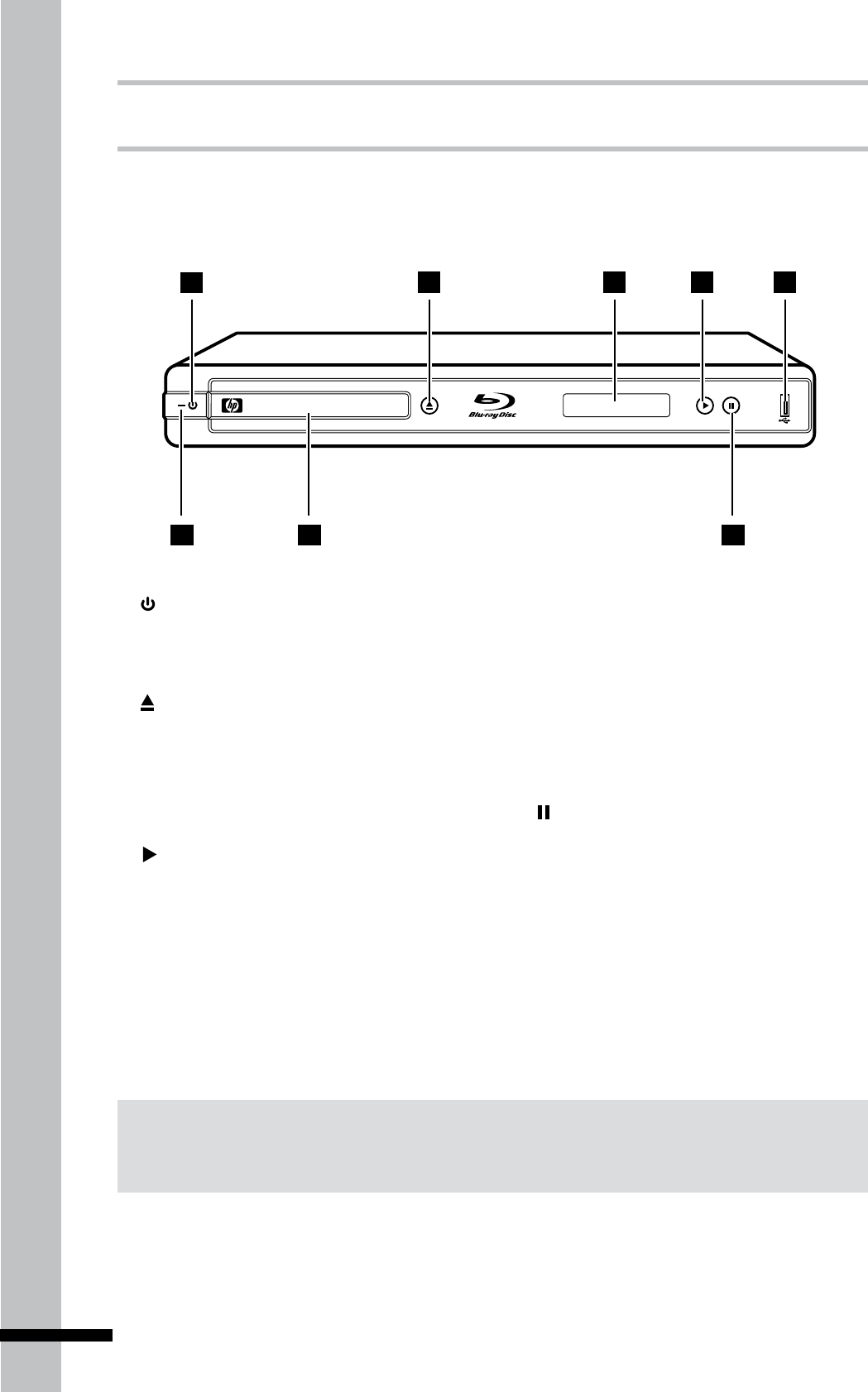
1 POWER ON/OFF button
Press to switch the Blu-ray player on or
off.
2 OPEN/CLOSE button
Press to open or close the disc tray.
3 Front Panel DISPLAY
Shows the current status information.
4 PLAY button
Press to start playback.
5 USB port
Use to connect a USB drive to play music,
photo or video les. It can also be used for
BD-Live storage.
TM
BLU-RAY DISC PLAYER
7
2 3 4 5
8
1
6
6 LED indicator
Indicates Blu-ray player status.
Lights red when the Blu-ray player is
turned off.
7 Disc tray
Holds the disc for playback.
8 PAUSE button
Press to pause playback.
Note:
ThedevicestillconsumespowerevenwhentheBlu-rayplayerhasbeenswitchedoff.Tocompletely
turnoffpower,unplugthepowercablefromtheoutlet.
13
Before You Start
Front Panel Display
The front panel display shows the operation status of the Blu-ray player or the elapsed time of
the discs being played.
Displays playback elapsed time.
Rear Panel
VIDEO
COAXIAL
L
R
Y
P
B
P
R
AC IN ~
DIGITAL AUDIO OUT
COMP OUT AV OUTPUT
DIGITAL AV OUTPUTLAN
OPTICAL
5
23
6
1
4
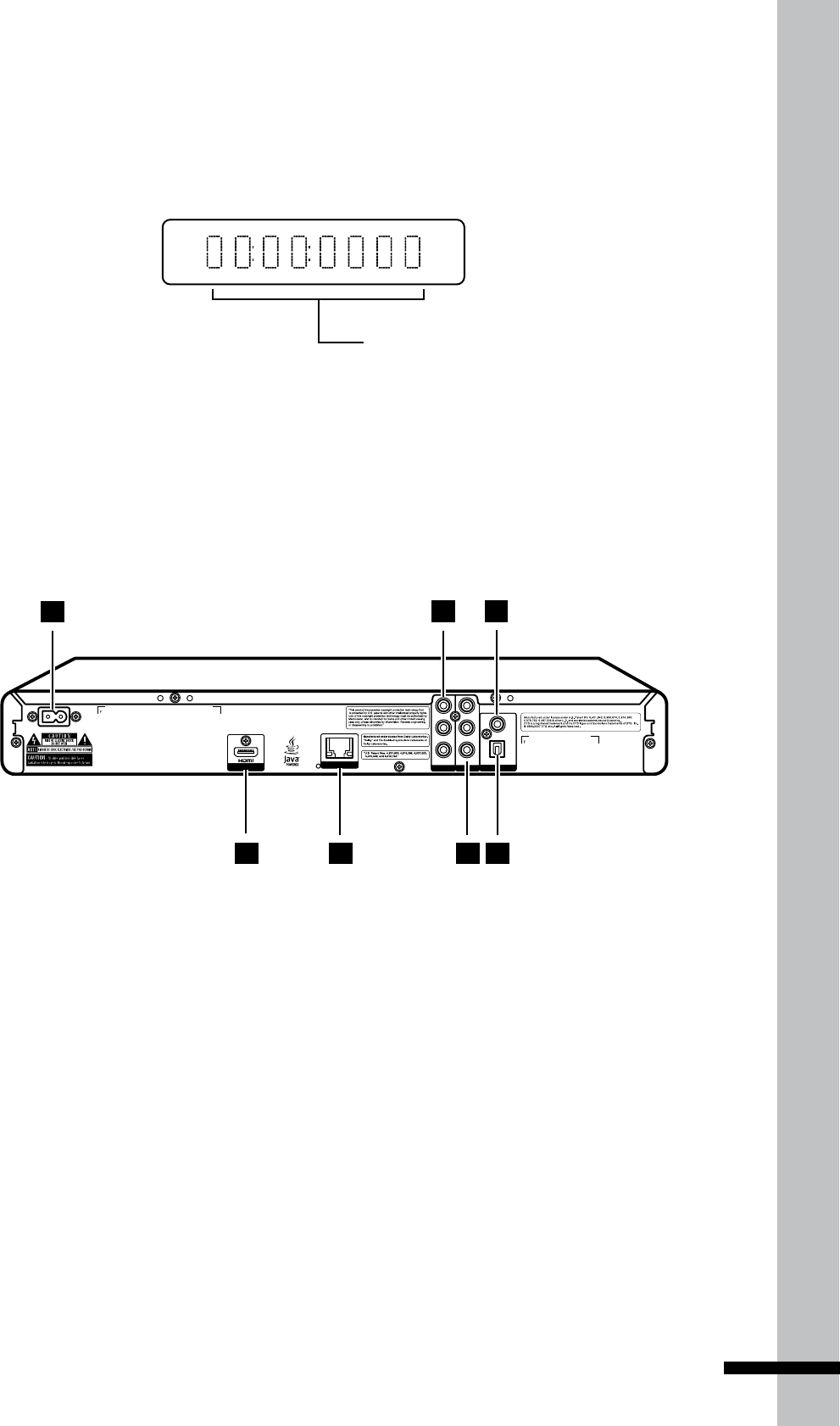
1 AC IN Terminal
Connects to the power cable.
2 COMPONENT Video
Connects to a TV, amplier or receiver
using a component video cable.
3 DIGITAL AUDIO OUT (COAXIAL)
Connects to an amplier or receiver using
a coaxial audio cable.
4 HDMI OUT
Connects to a HDMI-compatible TV,
amplier or receiver.
5 LAN Port
Connects to a network using an Ethernet
RJ-45 cable.
6 COMPOSITE Video
Connects to a TV, amplier or receiver
using a composite video cable.
7 DIGITAL AUDIO OUT (OPTICAL)
Connects to an amplier or receiver using
an optical audio cable.
7
14
Before You Start
Remote Control
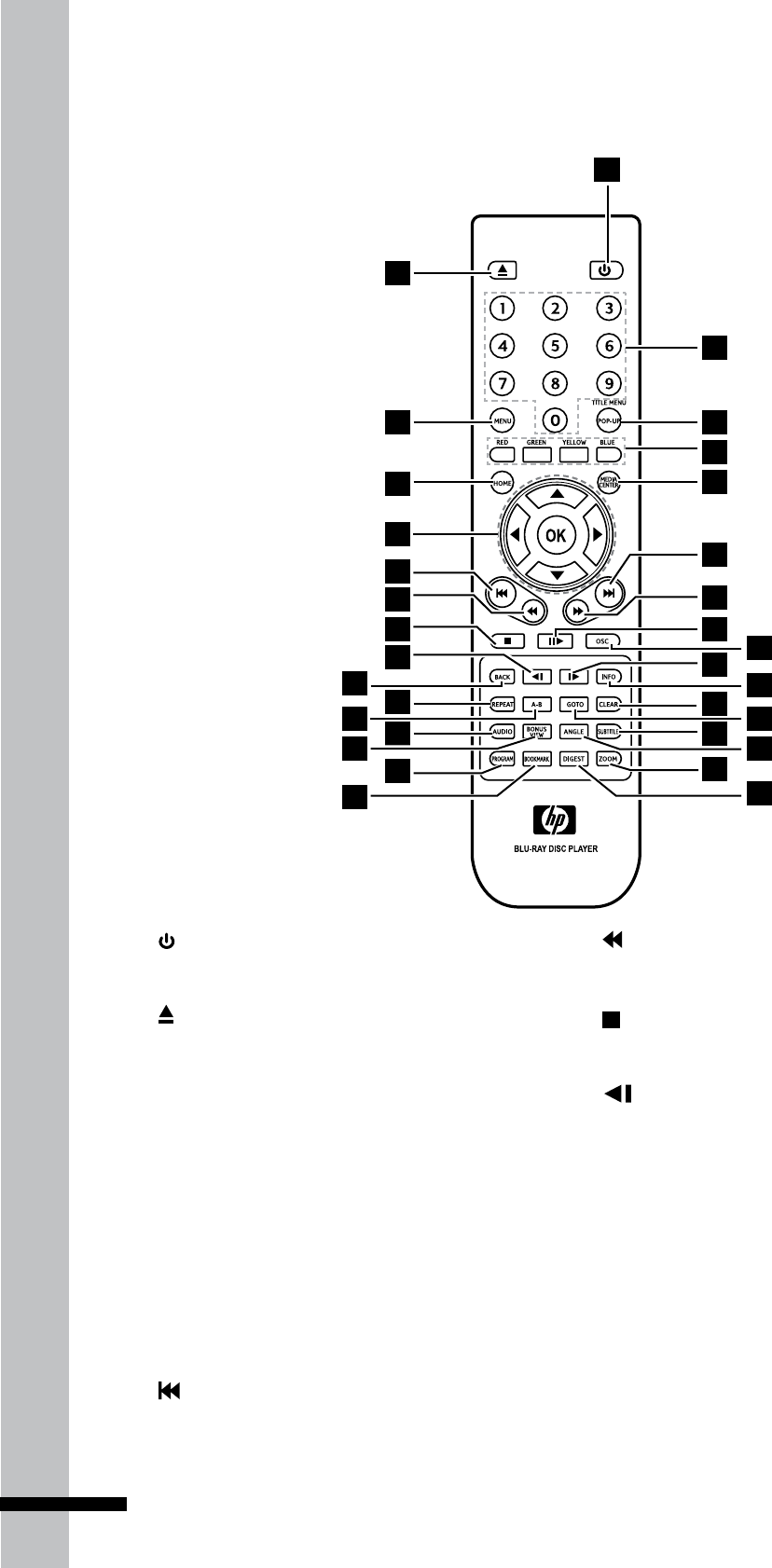
1 POWER ON/OFF
Switches the Blu-ray player on or off.
2 OPEN/CLOSE
Opens or closes the disc tray.
3 MENU
Displays the disc menu.
4 HOME
Displays the home menu.
5 Arrows
(▲▼◄►)
Select items, change settings or move the
cursor.
OK
Executes the selected item.
6 PREVIOUS
Goes to the previous chapter, title, track,
or le.
7 REVERSE
During playback, starts reverse scanning.
8 STOP
Stops playback.
9
SLOW Rewind
Rewinds playback in slow motion.
10 BACK (RETURN)
Goes back to the previous screen..
11 REPEAT
Repeats playback.
12 A-B Repeat
Repeats playback from A to B.
13 AUDIO
1
17
25
23
22
21
20
19
18
29
28
26
24
27
31
30
32
2
3
4
5
8
9
11
13
6
7
15
12
10
14
16
15
Before You Start
Displays the current audio stream.
14 BONUS VIEW
For BONUSVIEW functions.
15 PROGRAM
Displays the program list.
16 BOOKMARK
Bookmarks a point during playback.
17 NUMBERS
18 POP-UP MENU
Displays Blu-ray or DVD disc menu.
19 RED / BLUE / YELLOW / GREEN
Navigates Blu-ray menus. They are also
used for the Photo and Music menus.
20 MEDIA CENTER
Browse and play media les on a data
disc, USB drive, or playlist.
21 NEXT
Goes to the next chapter, title, track, or
le.
22 FORWARD
During playback, starts forward
scanning.
23 PLAY / PAUSE
Starts / pauses playback.
24 OSC
Displays OSC (on-screen controls) menu.
25
SLOW Forward
Forward playback in slow motion.
26 INFO
Displays disc/le information.
27 CLEAR
Clears the numeric input.
28 GOTO
Goes to the entered chapter, title or track.
29 SUBTITLE
Displays the current subtitle.
30 ANGLE
Displays the current camera angle.
31 ZOOM
Enlarges or reduces image size.
32 DIGEST
Displays photos as thumbnails.
16
Before You Start
Remote Control
Signal
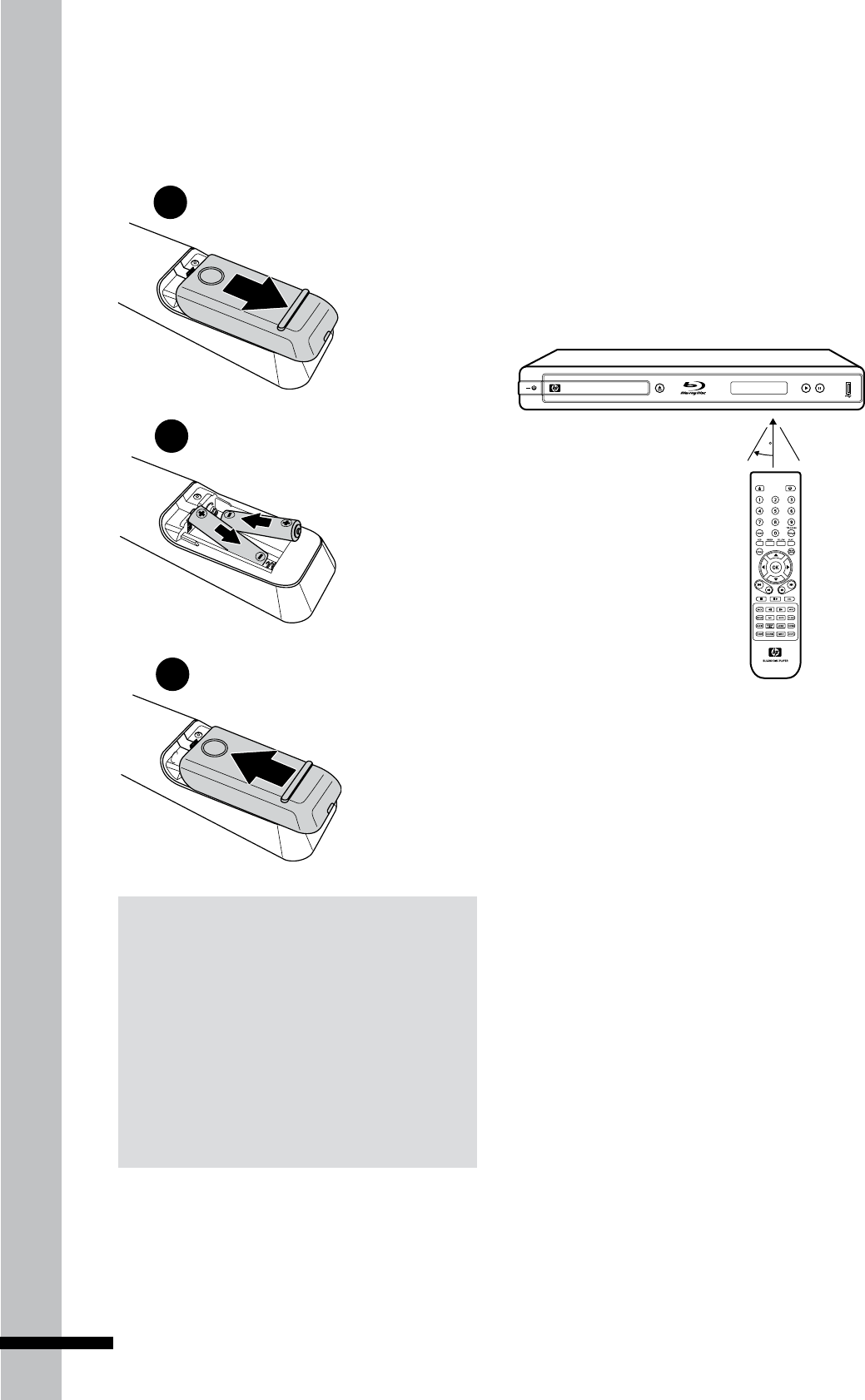
The remote control has an operating range
of approximately 7.5 m., and works best
when pointed directly at the unit horizontally
atanangleupto30˚fromthesensorwindow
of your Blu-ray player.
7.5M
30
TM
BLU-RAY DISC PLAYER
Installing the Remote Control
Batteries
1 2 3
Slightly push then slide to
remove the battery cover.
1 2 3
Replace the battery cover.
1 2 3
Insert two AAA batteries by
matching the + and - ends
of the batteries with the
markings inside
the battery
compartment.
Notes:
Donotmixoldandnewbatteriesormix•
differenttypesofbatteries.
Donotleavetheremotecontrolinan•
extremelyhotorhumidplace.
Donotexposetheremotecontroltodirect•
sunlight.
Iftheremotecontrolwillnotbeusedforlong•
periodsoftime,removethebatteries.
17
Getting Started
Chapter 2
Getting
Started
This chapter covers the following
topics:
Connecting to a TV•
Connecting to an amplifier or receiver•
Connecting a USB drive•
Connecting to the Internet•
Easy Setup Wizard•
How to Set up
Your Blu-ray
Player
You can set up your Blu-ray player in 5 easy
steps:
Step 1: Connecting to a TV
Step 2: Connecting an Amplifier
Step 3: Connecting to the Internet
Step 4: Connecting the Power Cable
Step 5: Run the Easy Setup Wizard
WARNING
Before you begin making any connections,
ensure that the Blu-ray player is turned off,
and that the power cable is disconnected
from the main outlet.
TIP
It is recommended to connect the VIDEO
OUT jack of your Blu-ray player directly to
the VIDEO IN jack of the TV. Connecting a TV
via VCR may cause viewing problems when
playing copy-protected discs.
18
Getting Started
Connecting to a TV
Depending on the capabilities of the TV, you can connect your Blu-ray player to the TV in
various ways: HDMI, component, or composite video connections.
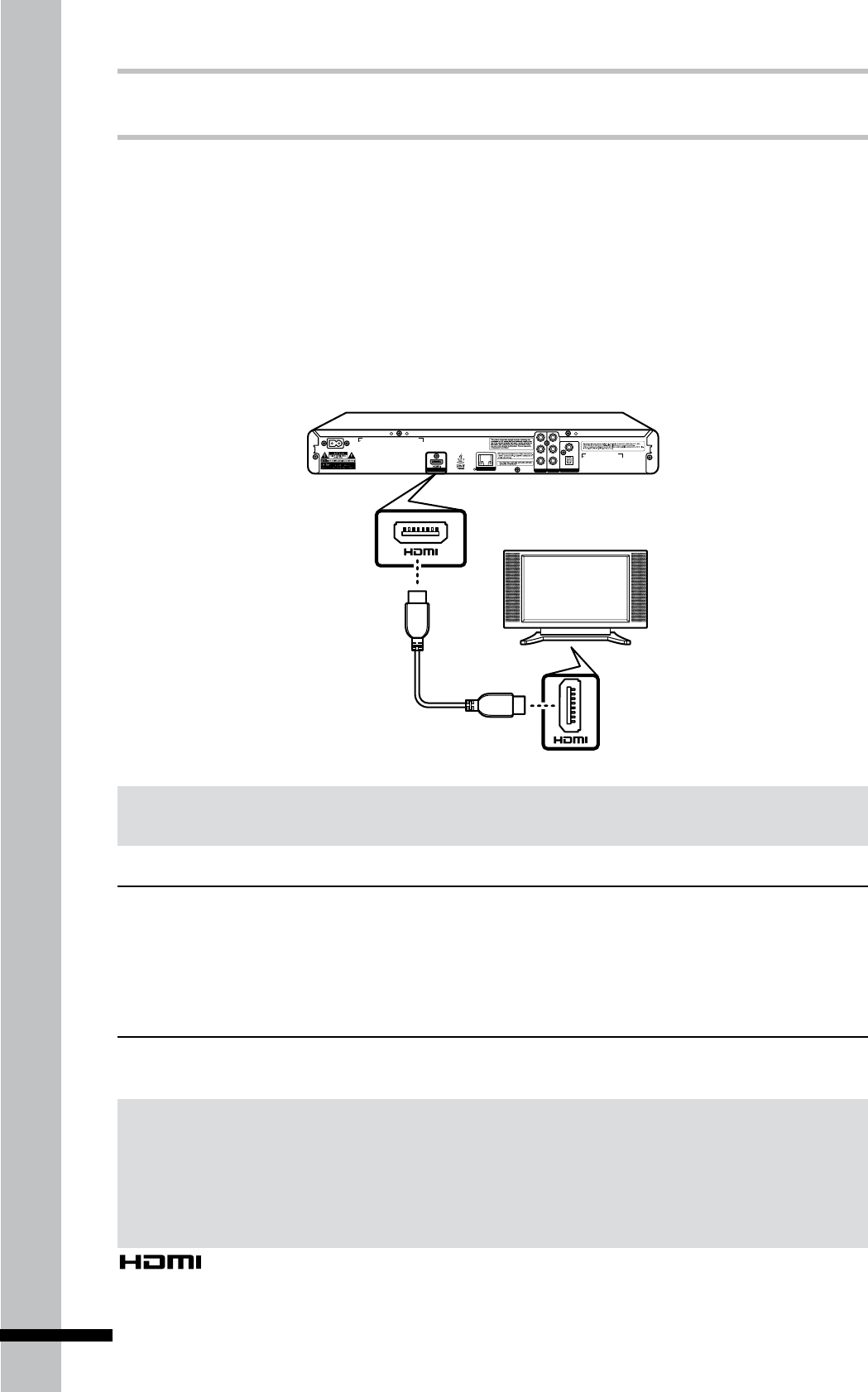
Connecting Using a HDMI Cable
HDMI cables can transmit high quality video and audio at the same time. Normally, when you
connect your TV using an HDMI cable, you do not need a separate analog audio connection.
Connect the HDMI OUT jack on the Blu-ray player to the HDMI IN jack on the TV.
VIDEO
COAXIAL
L
R
Y
P
B
P
R
AC IN ~
DIGITAL AUDIO OUT
COMP OUT AV OUTPUT
DIGITAL AV OUTPUTLAN
OPTICAL
Blu-rayPlayer
HDMI Out
HDMI cable
TV’s HDMI In jack
TIP
Ifyouwishtoenjoydigitalaudiosound,connectyourplayertoanamplierorreceiverusingacoaxialor
an optical cable. See ‘Connecting an Amplifier’ (p. 20)formoreinformation.
This Blu-ray player incorporates High Definition Multimedia Interface (HDMI) technology. “HDMI”,
“High Definition Multimedia Interface”, and their logo are registered trademarks of HDMI Licensing LLC.
Notes on HDCP:
YourBlu-rayplayersupportsHigh-bandwidthDigitalContentProtection(HDCP)technology.Toplay•
backHDCP-compliantdiscs,yourTVmustalsosupporttheHDCPcopyrightprotectionsystem.
IfyourTVdoesnotsupportHDCP,thepicturewillnotbedisplayedproperly.•
Notes on HDCP:
TheHDMIcableisthepreferredconnectionthatwesuggest.•
CAUTION
Hold the plug when connecting and disconnecting the cable.•
Do not force the plug into the HDMI jack. Match the connector’s shape correctly. Make sure •
the connector is not upside down.
Do not place any load on the cable.•
19
Getting Started
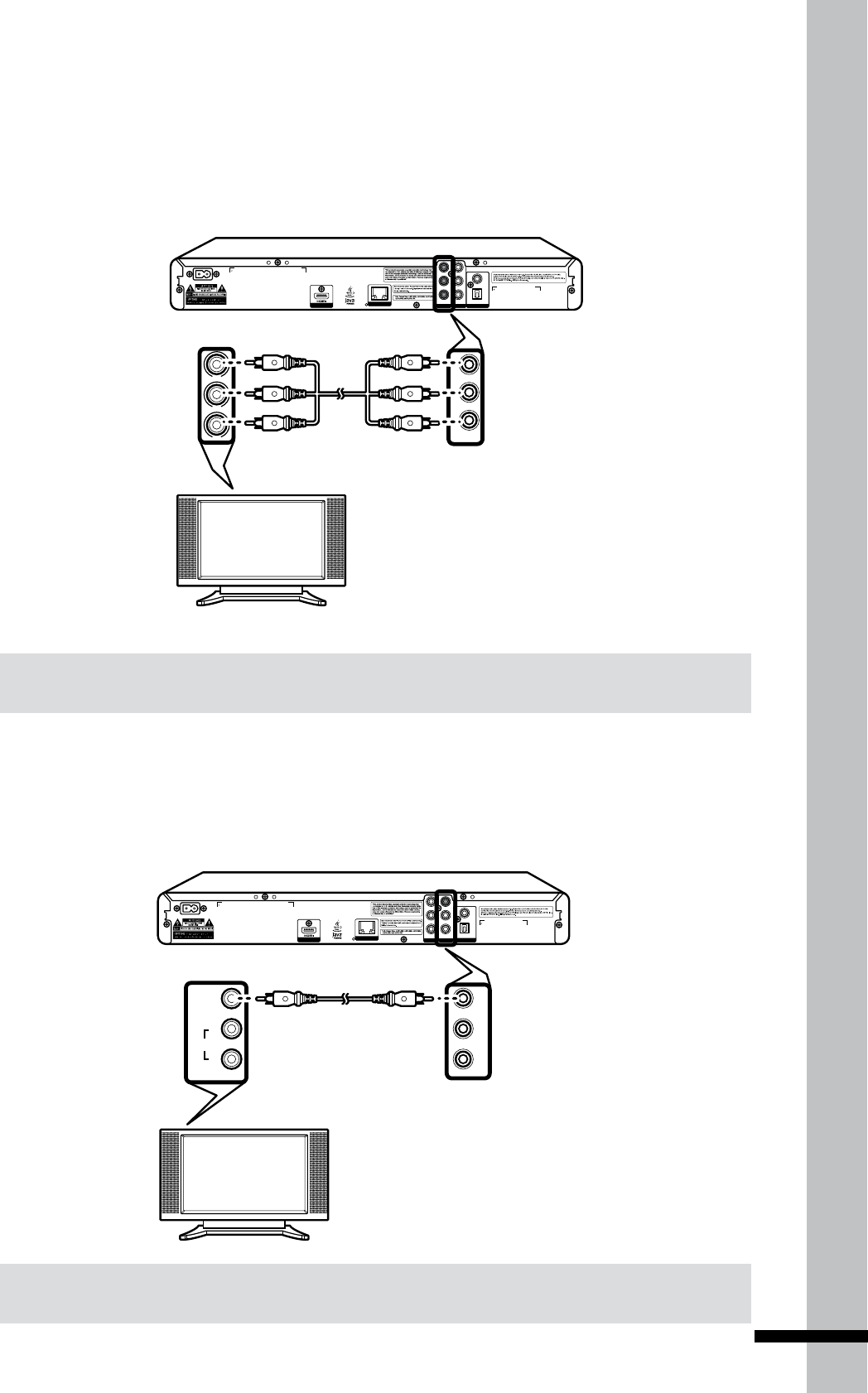
Connecting Using a Component Video Cable
Use a component video cable (green, blue, red) to connect the COMPONENT OUT jack on the
Blu-ray player to the COMPONENT IN jack on the TV.
VIDEO
COAXIAL
L
R
Y
P
B
P
R
AC IN ~
DIGITAL AUDIO OUT
COMP OUT AV OUTPUT
DIGITAL AV OUTPUTLAN
OPTICAL
Y
Pb
Pr
Y
PB
PR
Green
Blue
Red
Green
Blue
Red
Blu-rayPlayer
COMPONENT In COMPONENT Out
Connecting Using a Composite Video Cable
Use a composite video cable to connect the COMPOSITE OUT jack on the Blu-ray player to the
COMPOSITE IN jack on the TV.
VIDEO
COAXIAL
L
R
Y
P
B
P
R
AC IN ~
DIGITAL AUDIO OUT
COMP OUT AV OUTPUT
DIGITAL AV OUTPUTLAN
OPTICAL
VIDEO
L
R
VIDEO
AUDIO
L
R
Blu-rayPlayer
COMPOSITE In COMPOSITE Out
Notes on using a component connection:
The1080Presolutionisnotsupportedviacomponentconnection•
Notes on using a composite connection:
ThisconnectiondoesnotallowHDvideoandisnotthepreferredconnection.•
20
Getting Started
Connecting an Amplifier
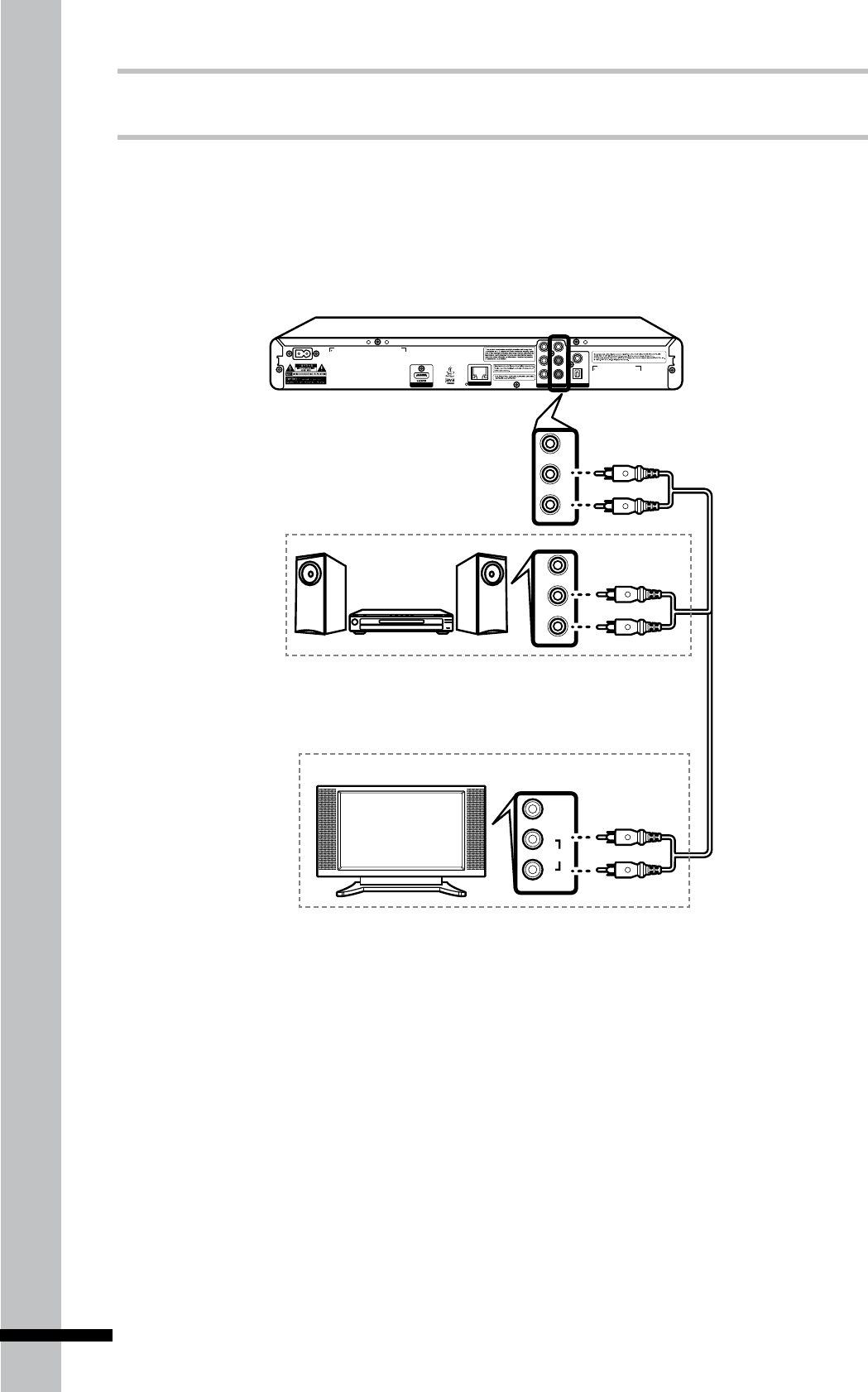
Connecting Using an Analog Audio Cable
Use a composite AV cable or a composite audio cable (red/white) to connect the AUDIO OUT
jack on the Blu-ray player to the AUDIO IN jack on the TV, amplifier or receiver.
VIDEO
COAXIAL
L
R
Y
P
B
P
R
AC IN ~
DIGITAL AUDIO OUT
COMP OUT AV OUTPUT
DIGITAL AV OUTPUTLAN
OPTICAL
VIDEO
L
R
VIDEO
L
R
VIDEO
AUDIO
L
R
StereoAmplier
TV
White
Red
AUDIO Out White
Red
White
Red
Or
Blu-rayPlayer
21
Getting Started
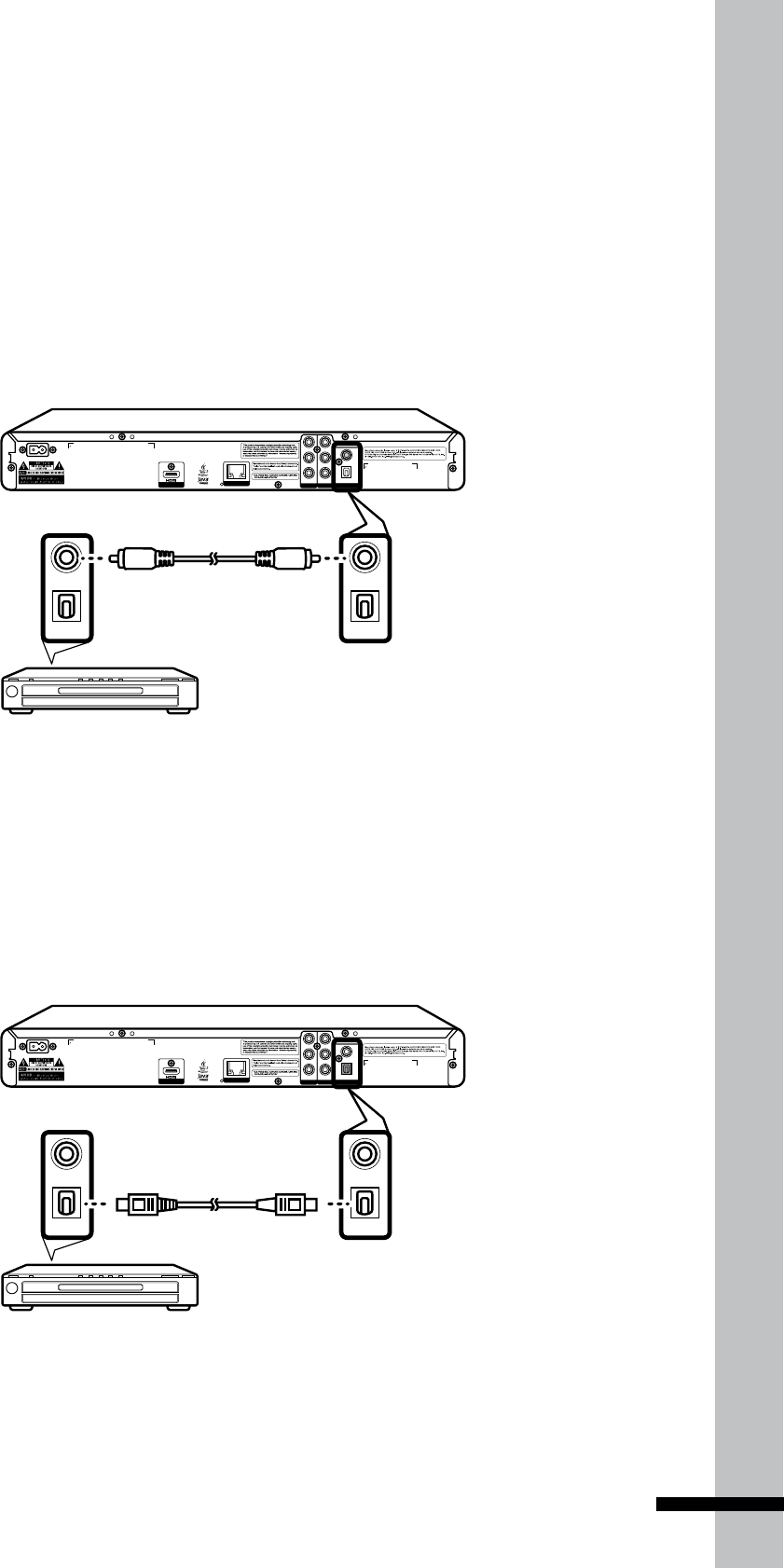
Connecting Using a Digital Audio Cable
If you want to enjoy Dolby Digital, or DTS audio on your amplifier or receiver, use either a
coaxial or optical audio cable.
Using a Coaxial Cable
Use a coaxial cable to connect the COAXIAL DIGITAL OUT jack on your Blu-ray player to the
COAXIAL DIGITAL INPUT on the amplifier or receiver.
VIDEO
COAXIAL
L
R
Y
P
B
P
R
AC IN ~
DIGITAL AUDIO OUT
COMP OUT AV OUTPUT
DIGITAL AV OUTPUTLAN
OPTICAL
COAXIAL
OPTICAL
COAXIAL
OPTICAL
Blu-rayPlayer
Amplierorreceiver
Using an Optical Cable
Use an optical cable to connect the OPTICAL DIGITAL OUT jack on your Blu-ray player to the
OPTICAL DIGITAL INPUT on the amplifier or receiver.
VIDEO
COAXIAL
L
R
Y
P
B
P
R
AC IN ~
DIGITAL AUDIO OUT
COMP OUT AV OUTPUT
DIGITAL AV OUTPUTLAN
OPTICAL
COAXIAL
OPTICAL
COAXIAL
OPTICAL
Blu-rayPlayer
Amplierorreceiver
22
Getting Started
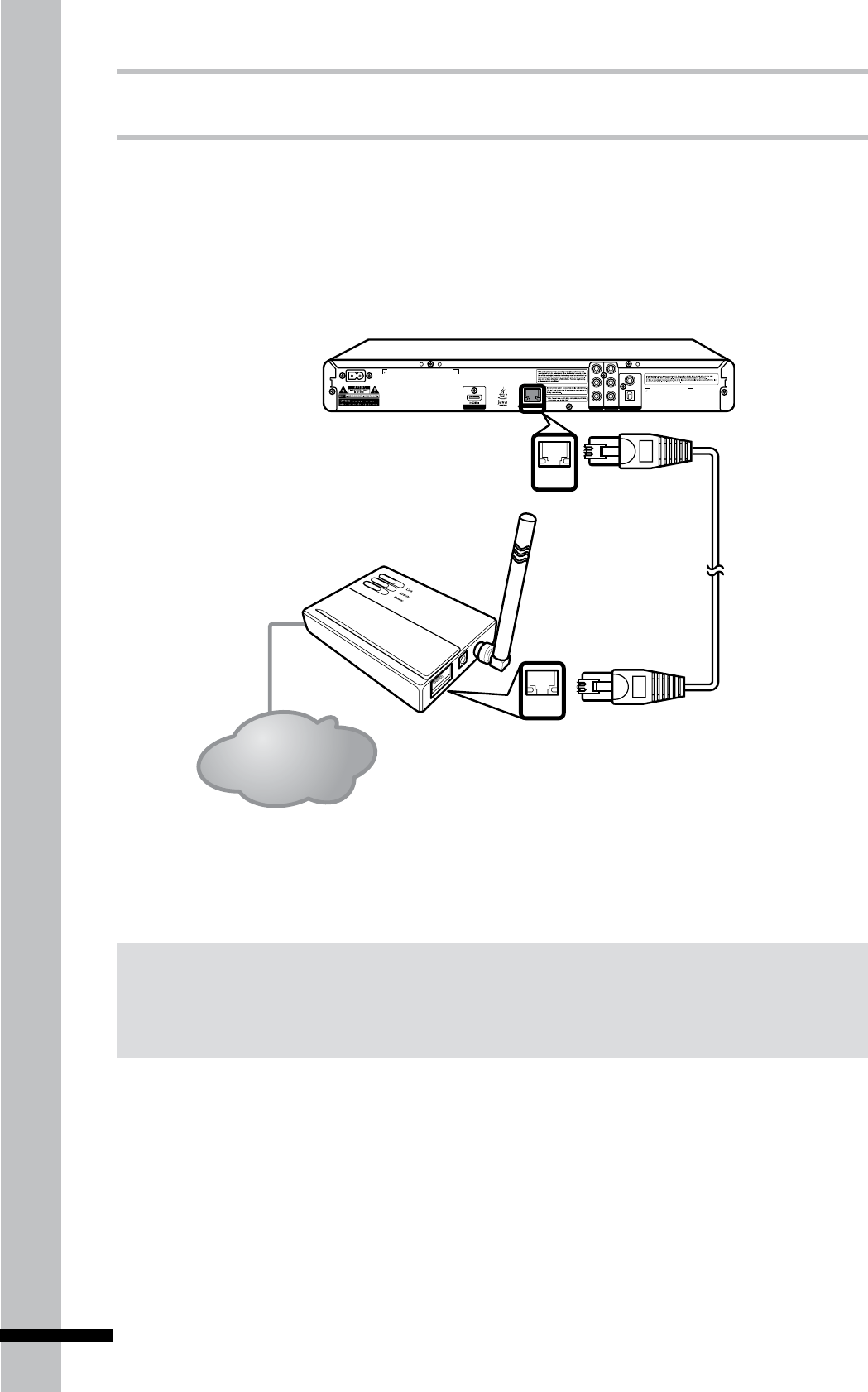
Connecting to the Internet
Your Blu-ray player can connect to a local area network (LAN) via the LAN port on the rear
panel. By connecting to the Internet, your Blu-ray player can use a Blu-ray disc that supports
the BD-Live function. See ‘Using BD-Live™’ (p. 33).
Use an Ethernet RJ-45 cable to connect the LAN port on the Blu-ray player to the LAN port on
your modem or router.
Note:
Dependingontheinternetserviceprovider(ISP),thenumberofdevicesthatcanreceiveInternet
connectionmaybelimited.IfyourISPlimitssubscriptiontoonedevice,yourBlu-rayplayermaynotbe
allowedtoconnectwhenaPCisconnected.DisconnectthePCrst.
VIDEO
COAXIAL
L
R
Y
P
B
P
R
AC IN ~
DIGITAL AUDIO OUT
COMP OUT AV OUTPUT
DIGITAL AV OUTPUTLAN
OPTICAL
LAN
LAN
Internet Connection
Blu-rayPlayer
Router
After connecting, configure your Blu-ray player for network communication in the Network
menu. See ‘Network’ (p. 47) for further details.
23
Getting Started
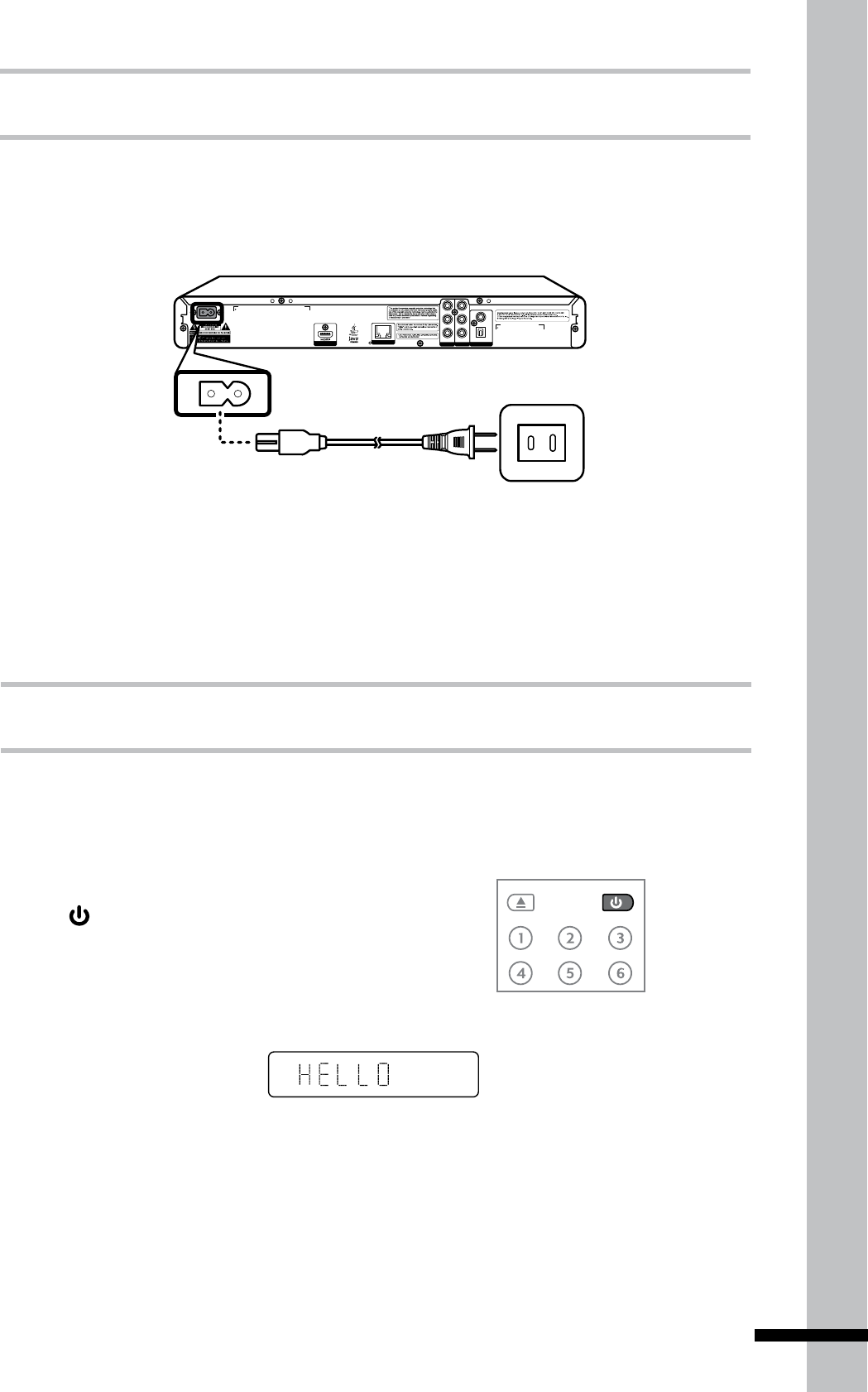
Connecting the Power Cable
After all the required connections are completed, connect the power cable to the AC IN
terminal of your Blu-ray player. Then plug the power cable of your Blu-ray player into the main
outlet.
VIDEO
COAXIAL
L
R
Y
P
B
P
R
AC IN ~
DIGITAL AUDIO OUT
COMP OUT AV OUTPUT
DIGITAL AV OUTPUTLAN
OPTICAL
Blu-rayPlayer
Main outlet
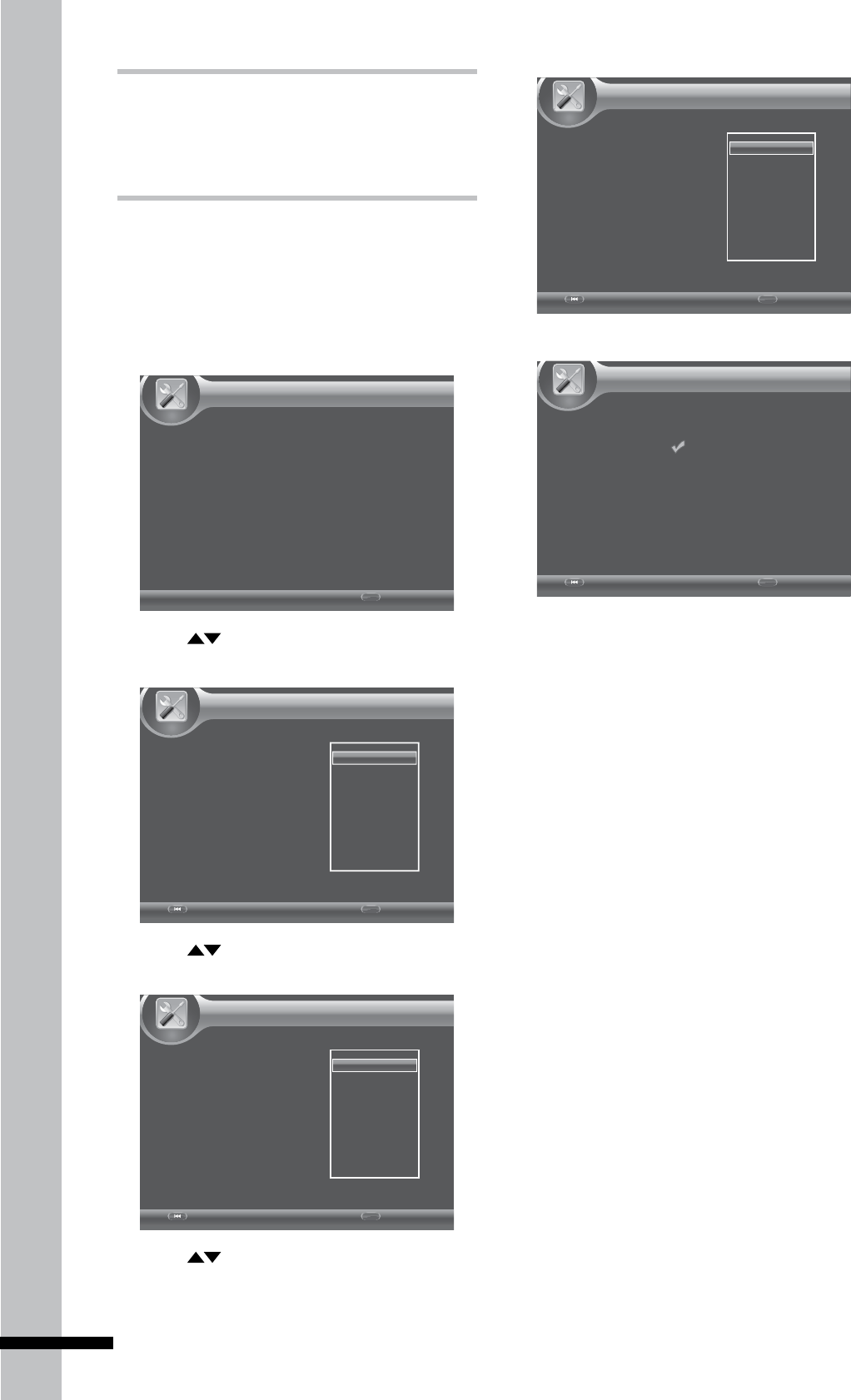
Turning the Power On
After completing all the required connections, you are now ready to start using your Blu-ray
player.
1 Turn on the TV first.
The LED indicator turns off and the front panel displays:
3 Select the input signal source of your TV so that the signal from the Blu-ray player appears
on the TV screen.
2 Press on the front panel of the Blu-ray player or on
the remote control to turn on your Blu-ray player.
24
Getting Started
Easy Setup
Wizard
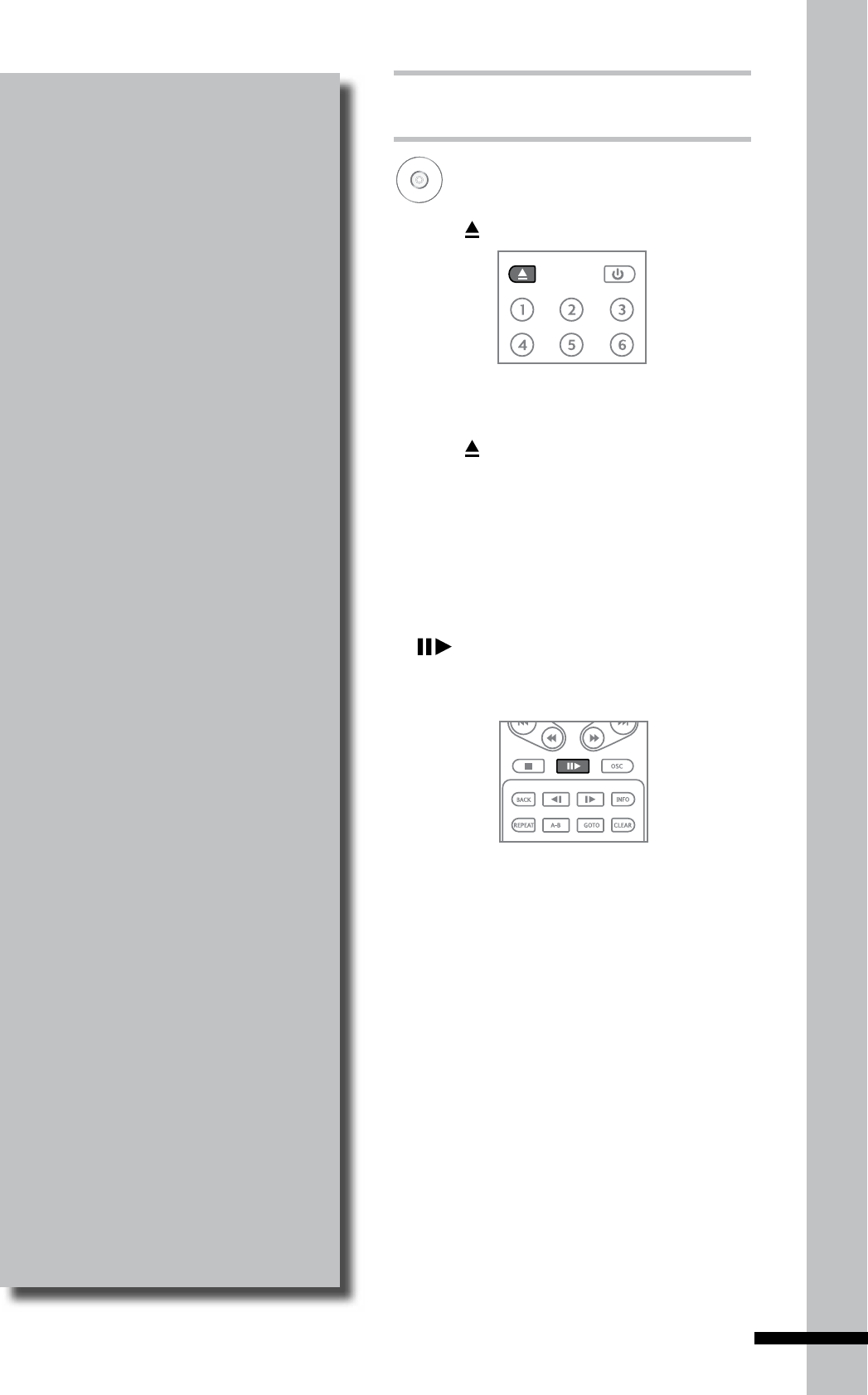
When turning on the Blu-ray player for the
first time, the Easy Setup Wizard is displayed
on screen. Follow the wizard to configure the
basic settings of your Blu-ray player.
1 Press OK to continue.
Page 1/5 Easy Setup
Welcome
to the BD Player Setting Wizard!
This wizard will ask you some simple
questions and will help guide you through the
player setup.
Next
OK
2 Press then OK to select the
on-screen display (OSD) language.
Page 2/5 Easy Setup
Choose
Your language
The selected language will be applied to all
on-screen display functions, including menus, etc.
Next
OK
Previous
English
French
3 Press then OK to select the
resolution.
Page 3/5 Easy Setup
Choose
a resolution that is supported by your TV.
Once you make a selection, the resolution will
change and you will be asked to confirm the
chosen setting. If you do not respond within
12 seconds, the resolution will automatically
return to the previous setting.
Next
OK
Previous
Auto
480I/576I
480P/576P
720P
1080I
1080P
4 Press then OK to select the aspect
ratio.
Page 4/5 Easy Setup
Choose
an aspect ratio that fits your TV
The change will be applied on the next
wizard page. If you like it, you can continue
on, or come back to this screen and modify
the aspect ratio.
Next
OK
Previous
16:9 Full
16:9 Normal
4:3 Pan&Scan
4:3 Letterbox
5 Press OK to complete setup.
Page 5/5 Easy Setup
Setting
The setup wizard is complete!
Please press the OK button to go to the Home Menu.
Finish
OK
Previous
25
Playback
Chapter 3
Playback
This chapter describes the main
operations of your Blu-ray player, such
as:
Playing a Disc•
Playing USB drive content•
Using BD-Live™•
Other Playback Functions•
The procedures described are remote
control based. Similar buttons can also
be pressed on the front panel of your
Blu-ray player.
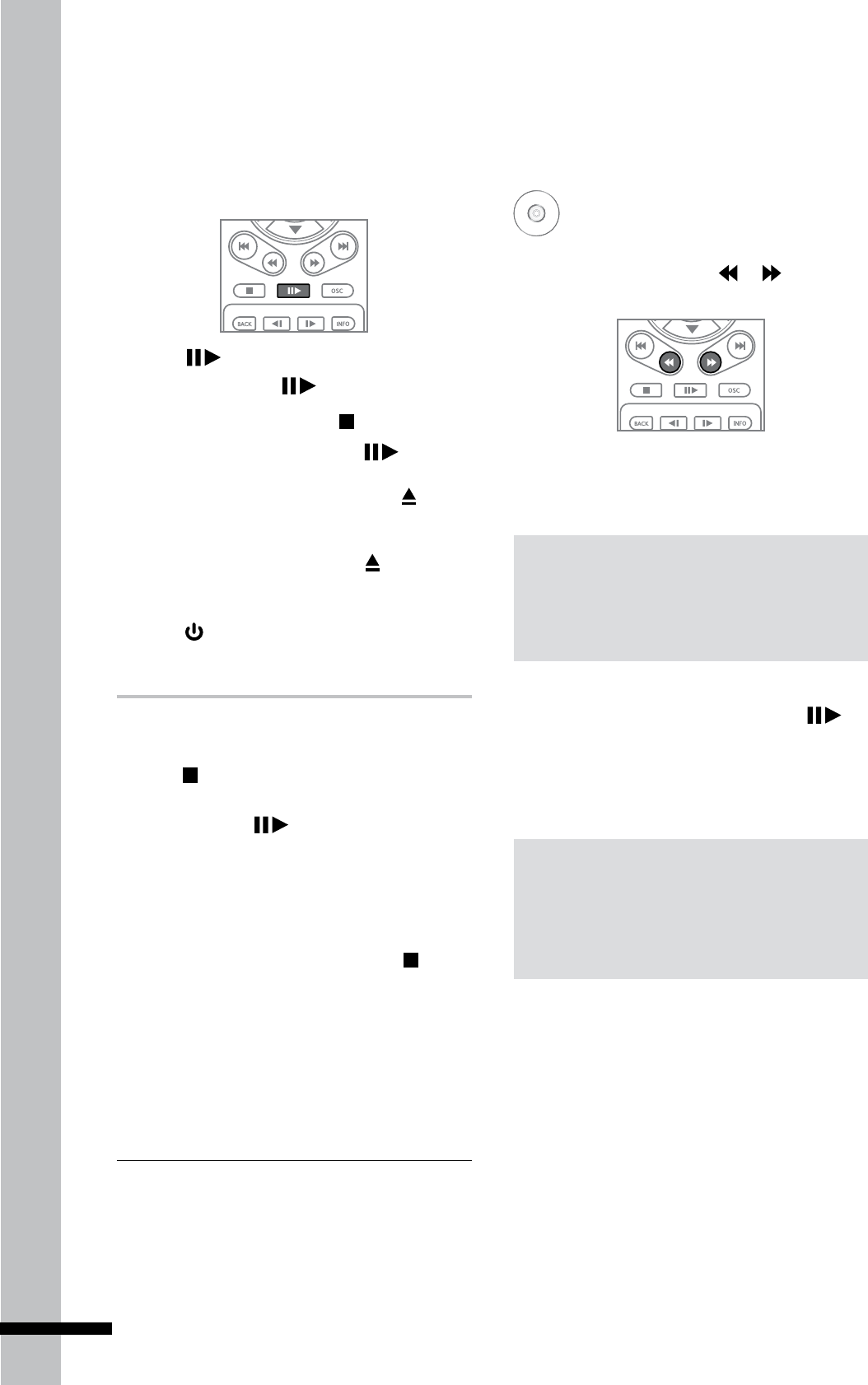
Playing a Disc
1 Press to open the disc tray.
2 Place the disc on the disc tray with the
playback side facing down.
3 Press to close the disc tray.
The Blu-ray player will determine the
type of disc inserted. It may take a short
while to load the disc. The disc type is
displayed on the TV screen.
4 Some discs start playing automatically,
and others do not. In this case, press
to start playback.
Blu-ray
DVD
AVCHD
VCD
CD
26
Playback
Forward or Reverse
Playback
Blu-ray
DVD
AVCHD
VCD
1 During playback, press or to reverse
or advance playback.
2 Press the button repeatedly to switch
scanning speed (2x, 4x, 8x, 16x, 32x, 64x,
128x).
Note:
Youcanalsoreverseorforwardscanbyholding
thebuttondown.Normalplaybackresumes
whenthebuttonisreleased.
3 To resume normal playback, press .
Some discs will automatically resume
normal playback when switching to a
new chapter.
Notes:
WhenscanningBlu-ray,DVD,andVCDdiscs,•
nosoundoutputisproduced.
SoundisoutputduringCD-Audiodisc•
scanning.
Playback Controls
Some discs start playing automatically after
the Blu-ray player loads the disc. If not, use
the remote control to start playback.
1 Press to start playback.
To pause, press
• .
To stop playback, press
• .
To resume playback, press
• again.
2 When playback is finished, press to
open the disc tray.
3 Remove the disc, then press to close
the disc tray.
4 Press to turn off the Blu-ray player.
Resuming playback
»
Some discs do not support the resume •
playback function.
When • is pressed, the point where it
stopped is saved in the Blu-ray player’s
memory. When is pressed, playback
resumes from the point where it stopped.
The resume settings are cleared when:
When the Blu-ray player’s power is
•
turned off.
To cancel resume playback, press • twice.
WARNING
DonotleavethediscinsidetheBlu-rayplayer.
27
Playback
Slow Rewind or Slow
Forward Playback
Blu-ray
DVD
AVCHD
VCD
1 During playback, press
or
to
rewind or playback in slow motion.
2 Press the button repeatedly to switch
slow motion speed (1/16, 1/8, 1/4, 1/2).
3 Press to resume playback at normal
speed.
Step Rewind or Step
Forward
Blu-ray
DVD
AVCHD
VCD
1 Press to pause playback.
2 Press
or
to rewind or advance the
playback one step or frame at a time.
3 Press to resume playback at normal
speed.
Skipping Content
Blu-ray
DVD
AVCHD
CD
1 Press to skip to the beginning of the
next chapter/title/track.
2 Press to skip to the beginning of the
current chapter/title/track.
3 Press twice to skip to the beginning of
the previous chapter/title/track.
Note:
Somediscsmaynotsupportthisfunction.
Note:
Somediscsmaynotsupportthisfunction.
Note:
Somediscsmaynotsupportthisfunction.
28
Playback
Playing a Specific
Section Repeatedly
(A-B)
Blu-ray
DVD
AVCHD
VCD
CD
1 During playback, press A-B to select the
starting point (A).
2 Press A-B again to select the end point
(B).
3 Press A-B again to cancel A-B Repeat.
Playing Specific
Titles, Chapters, or
Tracks
Blu-ray
DVD
AVCHD
CD
1 Press GOTO to jump to a specific title/
chapter/track/time.
The Info bar appears on the TV screen.
MPEG
1/1 English 1/1 ChinesePCM Stereo
2 / 8 3 / 3
00 :02 :40
DVD+VIDEO
Current chapter number/
Total number of chapters
Time Icon
Time
Current title or track number / Total
number of titles or tracks
2 To select title or chapter/track, press
then OK.
To select time, press . The time icon
changes as follows:
CH
Chaptertimeisselected.
Title time is selected.
TRACK
Tracktimeisselected.
DISC
Disc time is selected.
To select type of time, press OK. To move
between time eld, press .
3 Press or the number buttons of the
title/chapter/track/time you wish to jump
to.
4 Press OK.
Notes:
Press• CLEAR todeletethenumbersyou
haveentered.
Displayeditemsvarydependingonthe•
inserteddisc.
Somediscsmaynotsupportthisfunction.•
5 Press INFO to close the Info bar.
29
Playback
Playing Repeatedly
Blu-ray
DVD
AVCHD
VCD
CD
Use the repeat function to play the current
title, chapter or track repeatedly.
1 During playback, press REPEAT
repeatedly to select repeat mode option:
REPEAT CHAPTER/TRACK REPEAT
ALL REPEAT OFF.
2 Press REPEAT repeatedly again to select
REPEAT OFF.
Note:
Repeatfunctioniscancelledwhenyoupress .
Switching Camera
Angles
Blu-ray
DVD
AVCHD
When you insert a disc that is recorded with
different camera angles, use this function to
switch the angle view.
During playback, press ANGLE repeatedly to
select angle options.
Switching Subtitles
Blu-ray
DVD
During playback, press SUBTITLE repeatedly
to select subtitle options.
Note:
Somediscsmaynotsupportthisfunction.
Switching Audio
Streams
Blu-ray
DVD
AVCHD
VCD
Some discs are recorded with multiple audio
streams. Use this function to switch audio
streams during playback.
During playback, press AUDIO.
Note:
Somediscsmaynotsupportthisfunction.
Note:
Somediscsmaynotsupportthisfunction.
30
Playback
Displaying the Disc
Information
Blu-ray
DVD
AVCHD
VCD
CD
1 During playback, press INFO.
2 The disc information is displayed on the
upper left corner of the screen.
MPEG
1/1English 1/1 ChinesePCM
A-B
Stereo
2 / 83 / 3
00 :02 :40
DVD+VIDEO
TT
Current chapter number/
Total number of chapters
Time elapsed
Subtitle
Current title or track number / Total
number of titles or tracks
Disc type indicator
Repeat A-B enabled
Play mode
indicator
Repeat mode
indicator
Current audio stream
3 Press INFO again to close disc
information.
Using On-Screen
Controls (OSC)
Blu-ray
DVD
AVCHD
VCD
CD
1 During playback, press OSC.
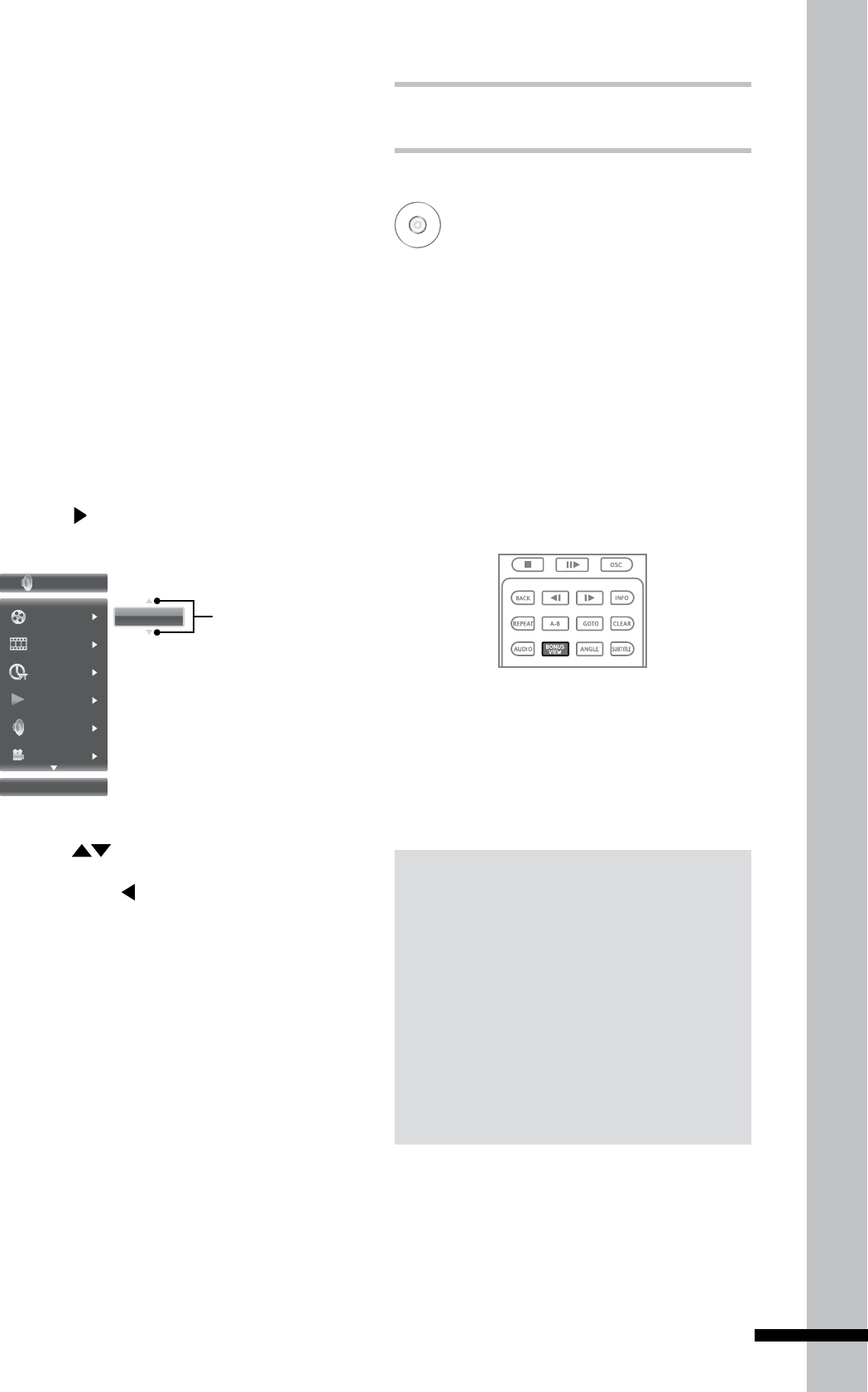
2 The OSC menu is displayed on the left of
the screen.
3 Press to highlight submenu. The
following submenu may be available:
Title/Track
•
Chapter•
Time•
Playback mode - Select this option to •
choose normal, shuffle, or random play
mode options. During shuffle mode,
each chapter/title will be played only
once. During random mode, titles/
chapters are randomly cued, repetition
of titles/chapters may also occur.
Available options are: Random ALL,
Random TT, Random CH, Shuffle ALL,
Shuffle TT, Shuffle CH, and Normal.
DVD Video
Title
04 / 08
03 / 08
00:02:24
Normal
English PCM
01 / 01
Disc type indicator
Current title or track number / Total
number of titles or tracks
Current chapter number /
Total number of chapters
Time elapsed
Playback mode
Audio stream
Current camera angle / Total
number of angles
Next page indicator
Selected submenu
Note:
Displayeditemsvarydependingontheinserted
disc.
31
Playback
DVD Video
Title
04 / 08
03 / 08
00:02:24
Normal
English PCM
01 / 01
04 / 08
Indicates button that can
be pressed; other options
are available.
5 Press to select other options.
6 Press OK or to apply selected option.
7 Press OSC to close OSC menu.
4 Press to enter submenu. The current
option is displayed.
Audio stream
•
Angle•
Subtitle•
Bitrate•
Still On/Off - Some DVD discs supports •
freezing of video pictures as a still
picture to provide better image view.
Select this option to enable or disable
the Still function. Availability of the Still
submenu depends on the inserted disc.
Instant Search -Advances playback 10
•
seconds ahead.
Instant Replay - Rewinds playback from
•
10 seconds ago.
BONUSVIEW™
Blu-ray
Your Blu-ray player supports BONUSVIEW™.
BONUSVIEW™ allows you to enjoy more
functions such as picture-in-picture,
secondary audio, and virtual packages,
among others with a Blu-ray disc that
supports BONUSVIEW™.
1 Insert the Blu-ray disc in the disc tray.
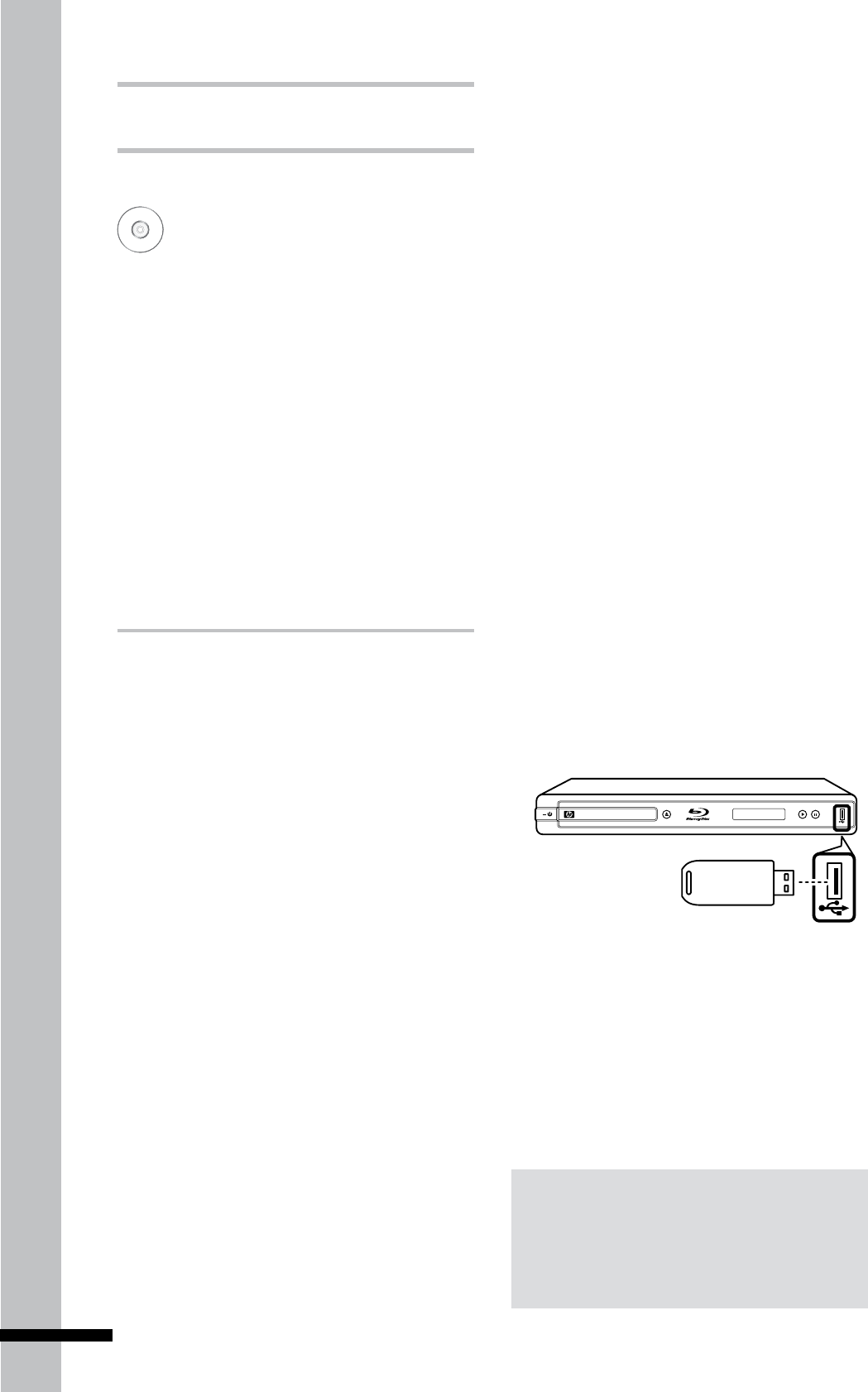
2 After the Blu-ray disc loads, press
BONUSVIEW to play secondary video.
Notes:
Some Blu-ray discs do not support •
BONUSVIEW features. The availability of
the BONUSVIEW function of your Blu-ray
player, depends on the inserted Blu-ray
disc.
When playing secondary video, some •
playback functions may not be available.
Functions like slow motion or step
forward works only during primary video
playback.
32
Playback
BD-Live™
Blu-ray
Some Blu-ray discs contain additional
features that are made available to players
that are connected to the Internet. These
additional features may include things like:
The ability to download new movie trailers•
Additional commentaries by actors or •
directors
Multiple people game and chat•
You can access these features on your Blu-
ray player using BD-Live™.
Requirements
»
You need the following:
Internet access•
Ethernet RJ-45 cable•
At least 1GB USB memory drive (FAT32 •
formatted)
Blu-ray disc that supports BD-Live™ •
features
Note:
Ifthereisnotatleast100MBoffreespaceon
theUSBdrive,clearupsomespace.
ThiscanbedonebyconnectingtheUSBdriveto
aPCanddeletinglesthatyounolongerneed.
Setting Up the Player
for BD-Live™
In order to access BD-Live™, do the
following steps:
1 Connect your Blu-ray player to the
Internet connection.
Connect one end of the Ethernet RJ-45
•
cable to the LAN port of your Blu-ray
player and the other end to a router or
modem. See ‘Connecting to the Internet’
(p. 22).
2 Allow BD-Live™ access in the Blu-ray
player’s home menu.
Press
• HOME on the remote control to
access the home menu.
Go to
• General Setting > Network. Set
BD-Live™ Connection to ‘Permitted’.
See ‘Network’ (p. 47) for details.
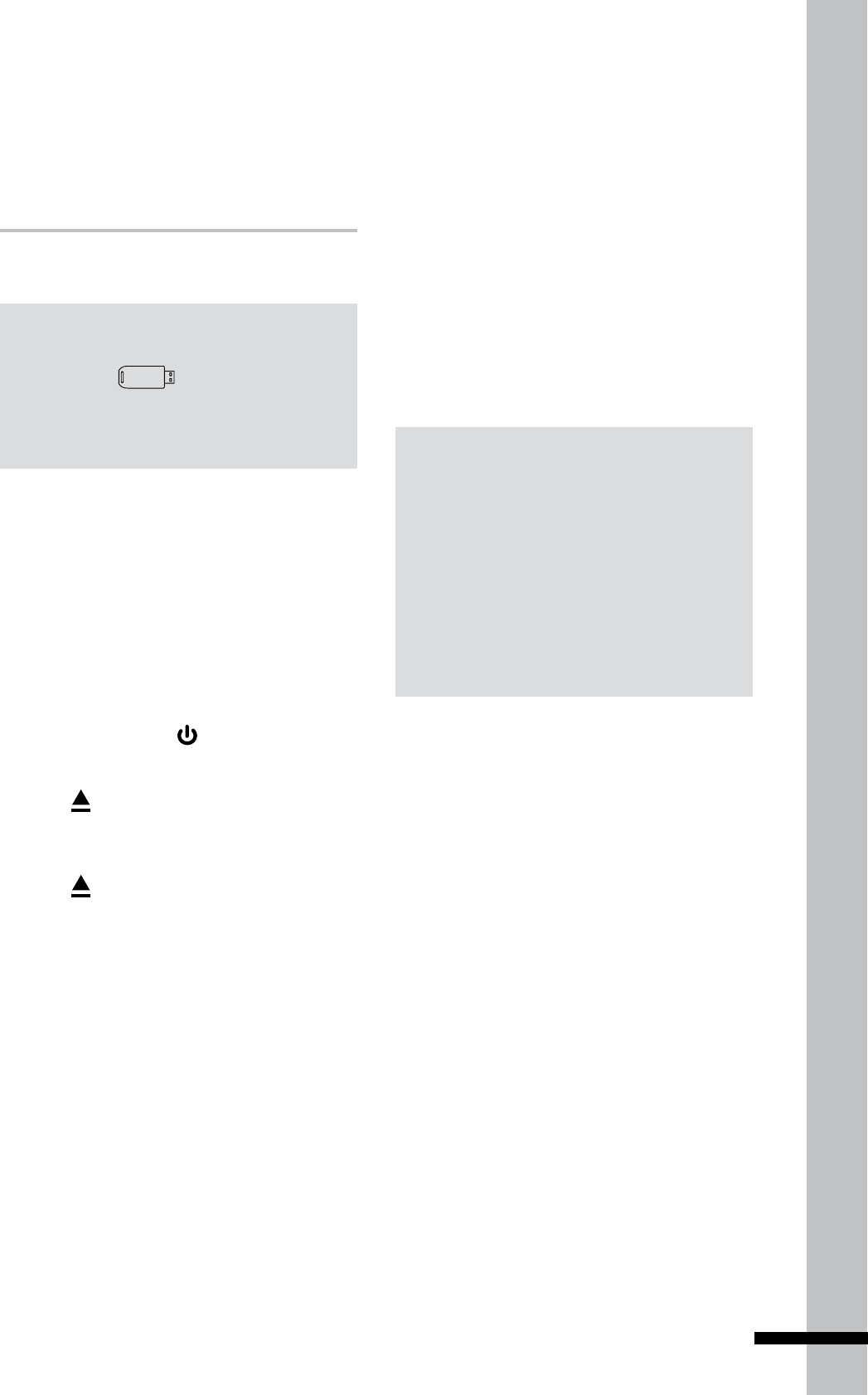
3 Insert a USB drive with at least 100MB
free space into the USB port of your Blu-
ray player.
TM
BLU-RAY DISC PLAYER
When a USB drive is inserted, the Blu-ray
player automatically assigns it as the Blu-
ray storage.

33
Playback
Using BD-Live™
When you insert a BD-Live™ that supports
BD-Live™, access BD-Live™ in its Special
Features menu.
You can download contents to your USB
drive. Downloaded contents are stored
under the ‘My Downloads’ folder.
WARNING
Do not remove the USB drive while •
downloading contents or when a Blu-ray
disc is still in the disc tray. The USB drive
may be damaged and become unusable
with BD-Live™.
Notes:
BD-Live™maytakeseveralminutestoload.•
DependingontheBlu-raydisc,theBD-Live™•
function may not be accessible.
Internetconnectionandspeedaffectaccess•
and download time.

34
Using Media Center
Chapter 4
Using
Media
Center
Media Center allows you to browse and
play media files such as videos, photos,
and music files stored on a data disc or
a USB drive.
Setting Up Data
Disc and USB
Drive
Video
Music
Photo
Many audio, video, and photo files that can
be viewed on a personal computer can also
be played back on the Blu-ray player. This
is accomplished by first putting the audio,
video, or photo files onto a data disc or a
USB drive.
Setting Up Data Disc
For Playback
Use a computer to set up a data disc. A data
disc is a disc where files have been copied
to or “burned” using a computer.
Insert the data disc into a computer and
copy the desired files onto the disc. You can
burn files onto any of the following discs:
CD R /RW•
DVD+R / +RW / Dual Layer•
DVD-R / -RW / Dual Layer•
BD-R•
BD-RE•
35
Using Media Center
Playing Files from a
Data Disc
1 If turned off, press to turn on the Blu-
ray player.
2 Press to open the disc tray.
3 Insert the data disc into the disc tray.
4 Press to close the disc tray.
3 The Blu-ray player determines whether
files on the data disc contain music,
videos, or photos.
If the data disc contains supported files,
the Media Browser screen is displayed
on screen. See ‘Media Center Menu’
(p.36) for details.
Setting Up a USB
Drive For Playback
USB Drive Requirements »
USB drive must be formatted as “FAT32”.•
Insert a USB drive into a computer and copy
the desired files onto the USB drive.
Note:
UseonlyaUSBdrive,sometimescalleda•
thumbdrive .
NeveruseanMP3playeroranexternalhard•
diskdrive.
Playing Files From a
USB Drive
1 Make sure the Blu-ray is turned on.
2 Insert a USB drive into the USB port of
your Blu-ray player.
3 Press Media Center to display the Media
Center menu. See ‘‘Media Center Menu’
(p.36) for details.
Note:
Onlytheleswiththefollowingextensionsare
supportedbytheBlu-rayplayer:
Video files:• *.WMV, *.AVI, *.MP4, *.M4V,
*.MKV
Music files:• *.WMA, *.AAC
Picture files:• *.JPG, *.JPEG, *.PNG, *.GIF
36
Using Media Center
Note:
EveniftheinserteddatadiscorUSBdrivecontainsamixofmusic,video,andphotoles,youcanonly
browseandplaybackonetypeofleatatime.Forexample,ifyouentertheMusicfolder,onlymusic
lescanbebrowsed,addedtoplaylistandplayedback.Tobrowsephotoles,gobacktotheMedia
BrowserscreenandselectPhoto.
Media Center Menu
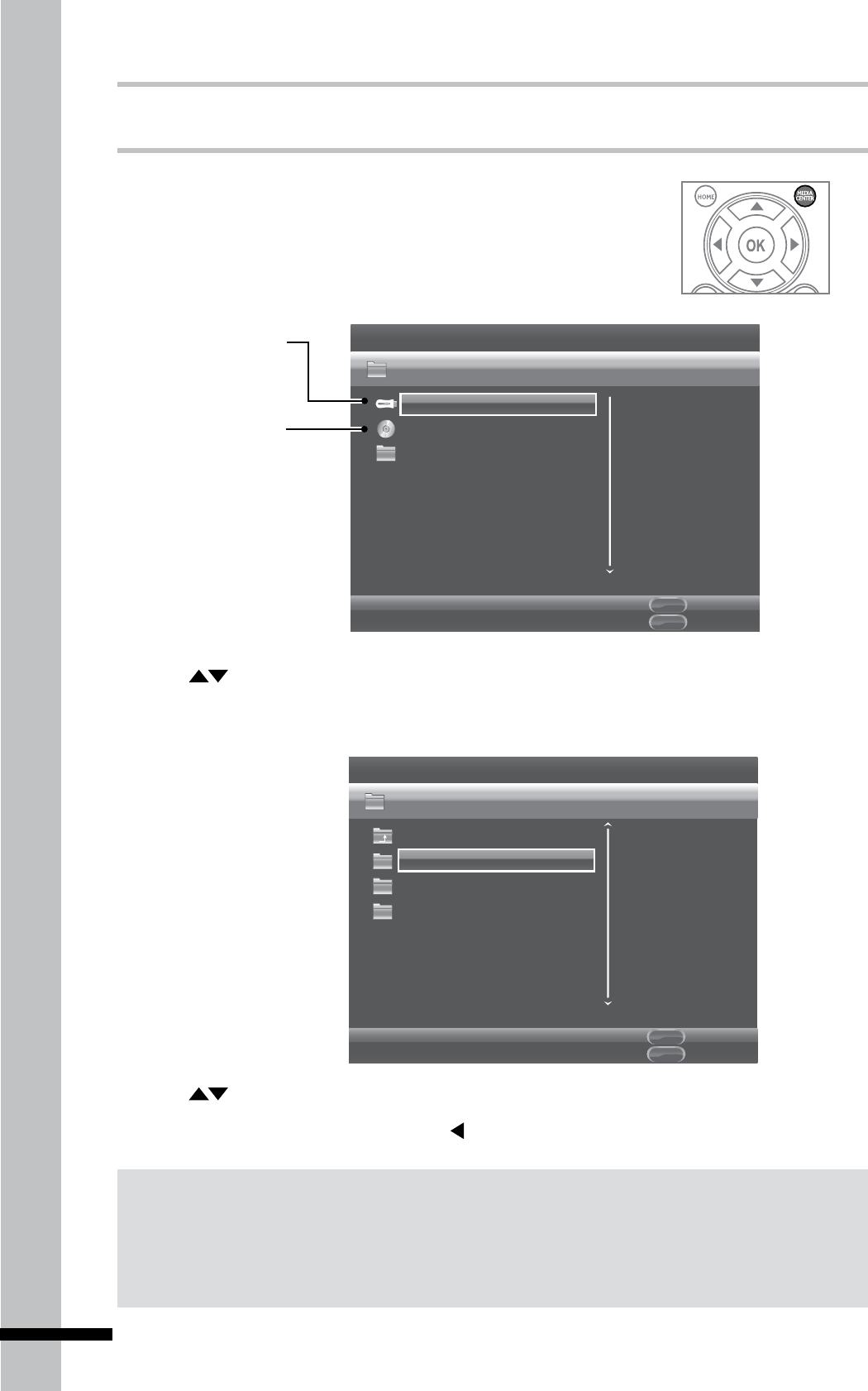
1 Press MEDIA CENTER to display the Media Center menu.
The items on the Media Center menu vary depending on the
type of disc inserted, or the type of files that is contained on
the disc or the USB drive.
Edit Menu
POPUP
Exit
MDEIA
CENTER
Media Center
Type:USB
Size:1620.281M
USB1
DVD Video
Playlist
Item 1 / 4
This icon appears when
supported video files are
saved on an inserted
USB drive.
This icon appears when a disc
is inserted in the disc tray.
In this case, a DVD disc is
inserted.
2 Press , then OK to select the source device or folder.
3 The Media Browser screen is displayed.
Edit Menu
POPUP
Exit
MDEIA
CENTER
Media Center
Type:Folder...
Photo
Music
Video
USB1
Item 1 / 3
4 Press , then OK to select the type of file to browse.
5 To return to the previous screen, press .
37
Using Media Center
Viewing Photos
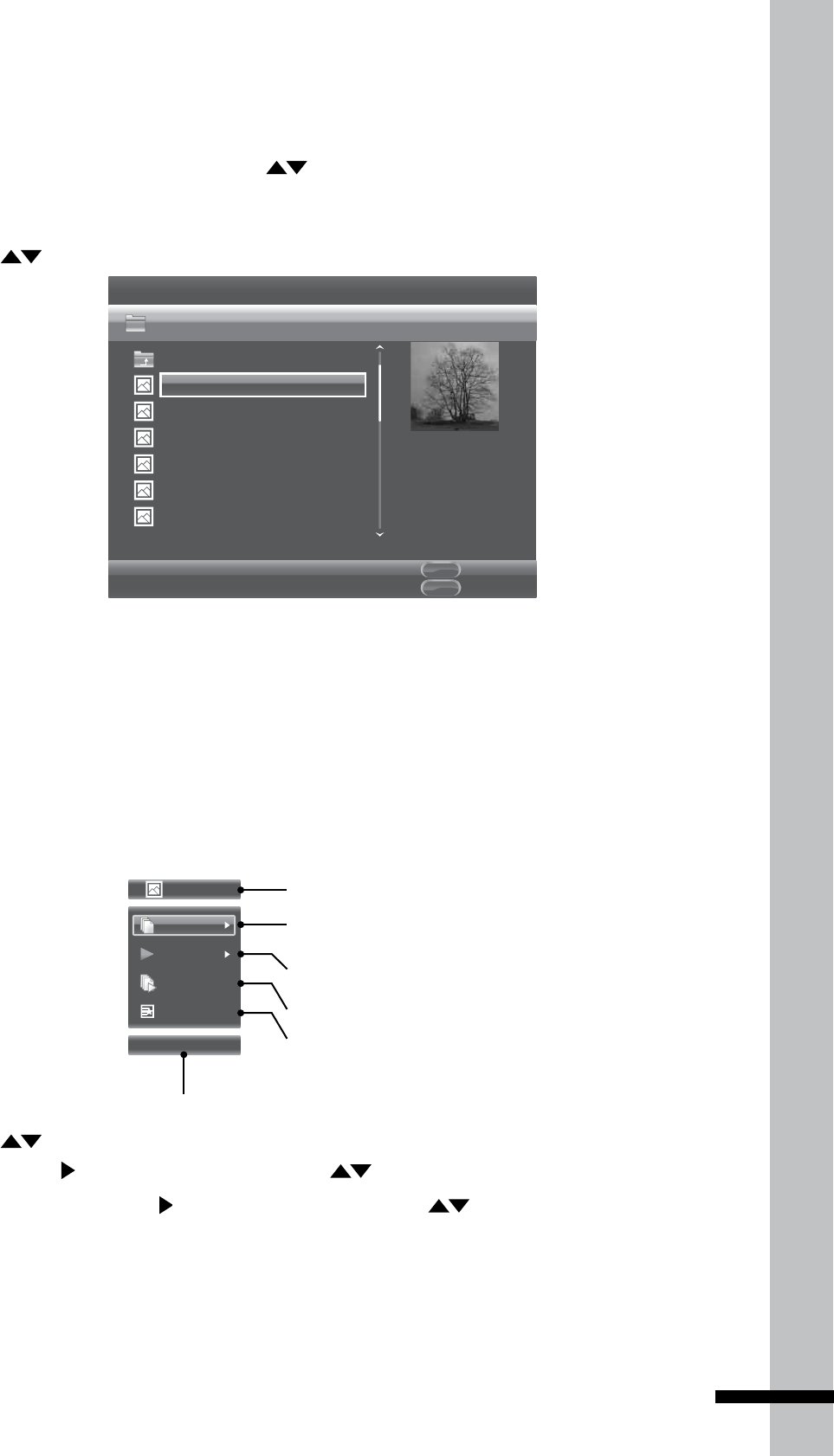
1 From the Media Browser menu, press to highlight Photo.
2 Press OK. The File Selection screen is displayed.
3 Press to choose a subfolder or file.
Edit Menu
POPUP
Exit
MDEIA
CENTER
Media Center
Type:JPG
Size:0.2MB
Resolution:725x510
...
P1000001
P1000002
P1000003
P1000004
P1000005
P1000006
USB1/Photo/Folder 1
Item 1 / 14
4 The thumbnail and information of the highlighted photo file is displayed on the right panel of
the screen.
5 To view a slide show of photos in the folder, press OK.
Using Photo On-Screen Control
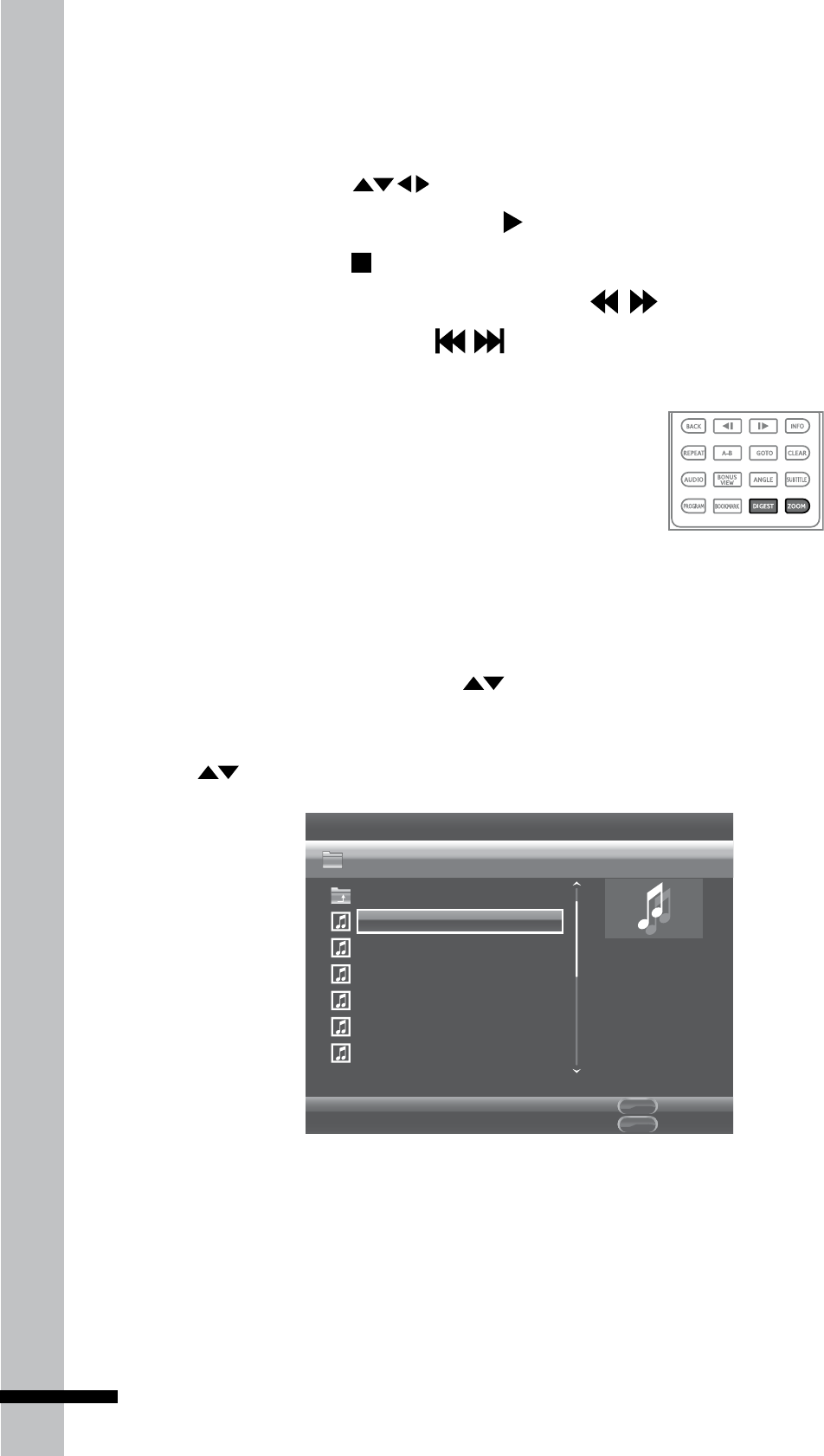
1 During a slide show, press OSC. The Photo on-screen control (OSC) menu is displayed on
the left side of the screen.
Picture File
File
01 / 14
Normal
Middle
None
File type indicator
Current file number / Total number of files
Playback mode
Selected submenu
Slide show speed
Transition
2 Press to highlight submenu. The following submenu may be available:
File -
• Press to enter submenu, then press and OK to select an option.
Playback mode -
• Press to enter submenu, then press and OK to select an option.
Slide show speed - Press
• OK repeatedly to select speed: Slow, Middle, Fast.
Transition - Press
• OK repeatedly to select transition: None, Wipe left/right, Wipe up/down,
Box in/out, Bleeding, Dissolve, Interlace H/V, Split in H/V, Split out H/V.
3 Press OSC to close OSC menu.
38
Using Media Center
Slide Show Functions
During a slide show, use the following buttons to perform slide show functions:
To rotate an image, press • . Slide show is paused while rotating image.
To continue slide show after pausing, press • .
To stop slide show, press • .
To adjust slide show speed (Slow, Middle, Fast), press • .
To view previous/next image, press • .
To set repeat mode (Repeat, Repeat All, Off), press • REPEAT repeatedly.
Playing Music
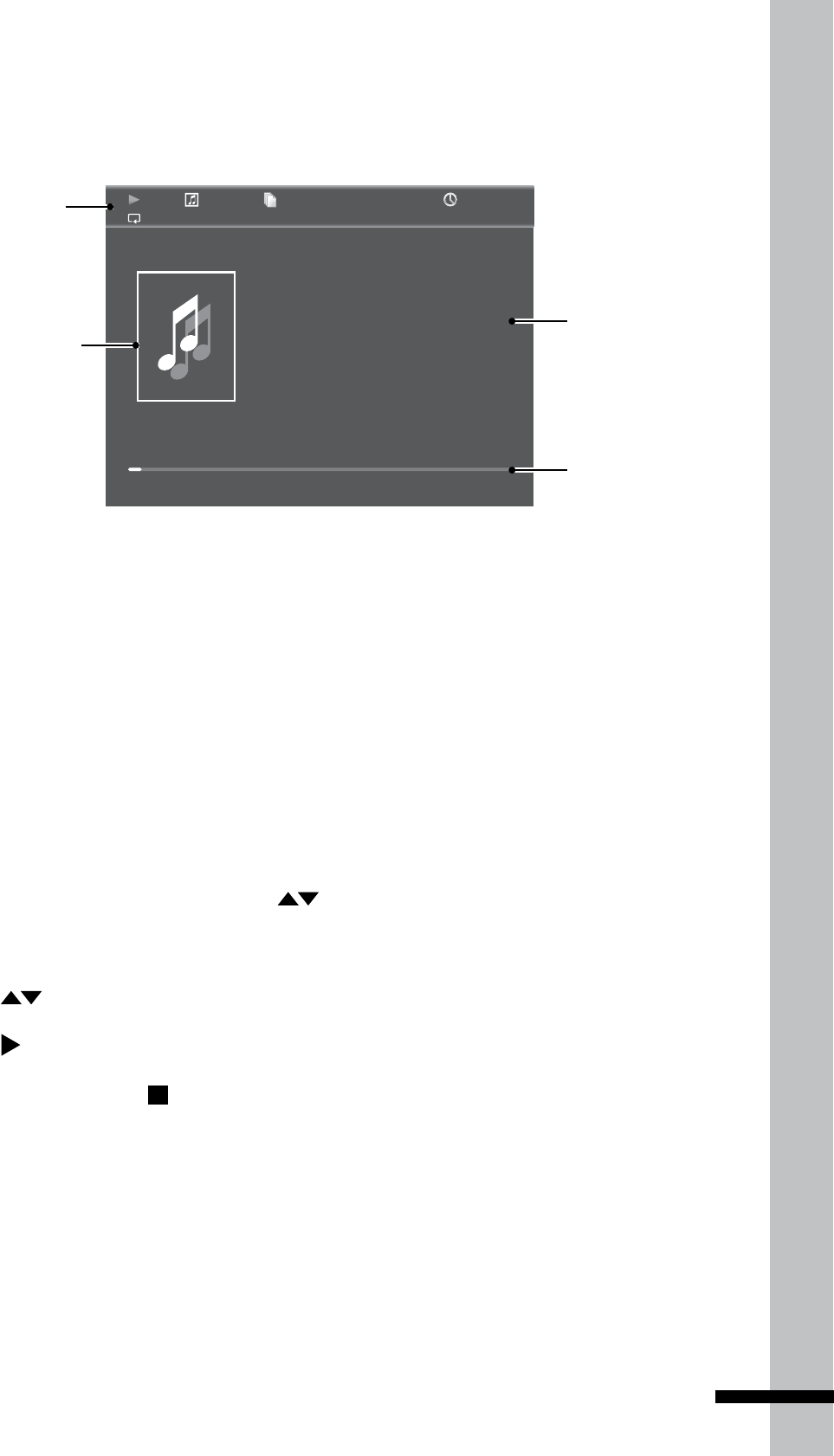
1 From the Media Browser menu, press to highlight Music.
2 Press OK. The File Selection screen is displayed.
3 Press to choose a subfolder or file.
Edit Menu
POPUP
Exit
MDEIA
CENTER
Media Center
Type:MP3
Total Time:03:41
Title:Get Back
Artist:Britney Spears
Album:Blackout
Genre:Pop
...
Get Back
Fillin' Me Up
Everybody
Gimme More
A Song About U
Been A While
USB1/Music/Folder 1
Item 1 / 8
4 The information of the highlighted music file is displayed on the right panel of the screen.
5 To play the music files in the folder, press OK.
To zoom in/out an image, press • ZOOM repeatedly.
To view thumbnails, press • DIGEST. To return to slide
show, press DIGEST again.
39
Using Media Center
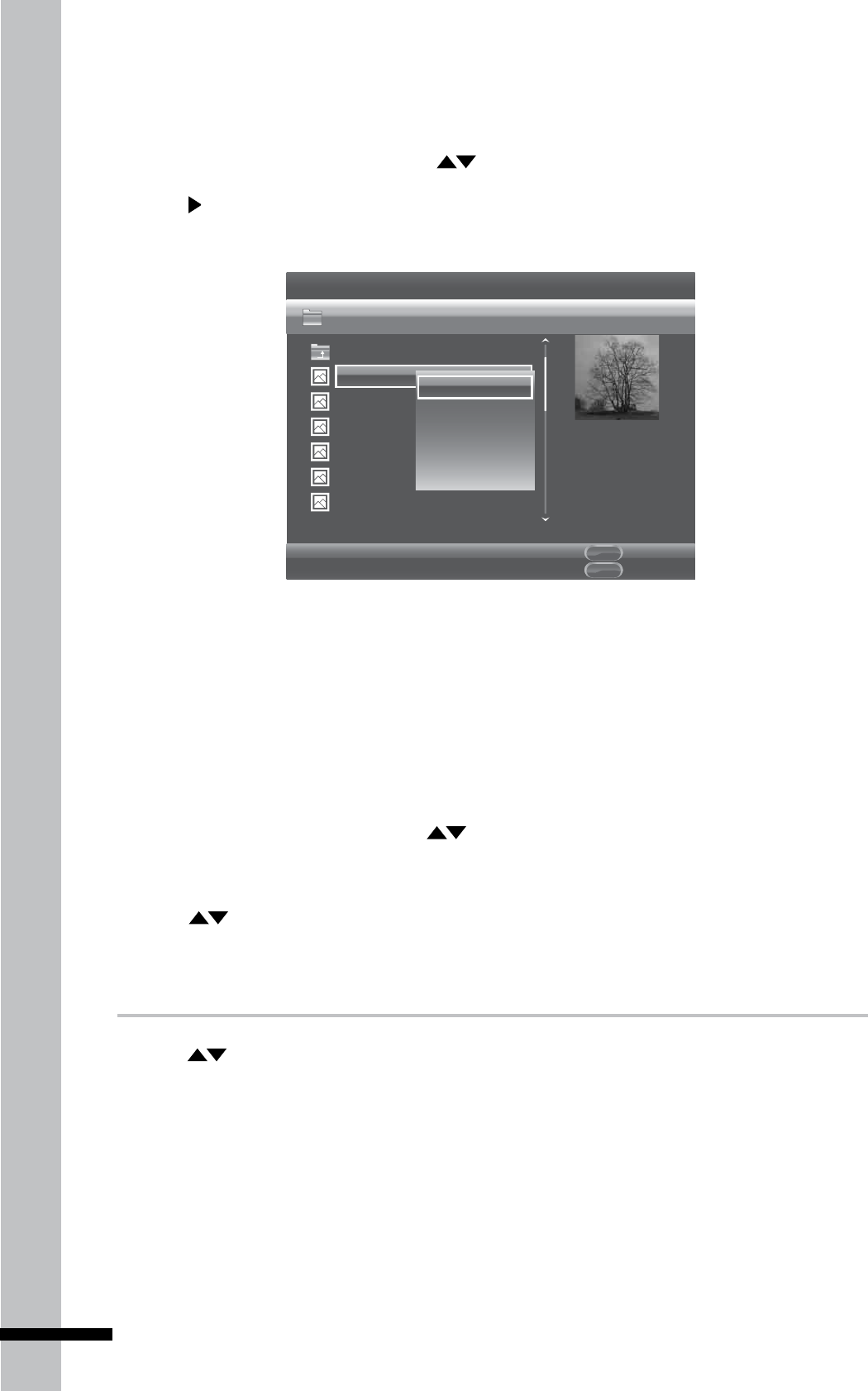
Press • INFO to view or hide the Music Playback Status screen.
During music playback, you can continue to browse for other music files or view photos. •
Press MEDIA CENTER.
Press • OSC to display the music on-screen control menu. See ‘Using On-Screen Controls
(OSC)’ (p. 30) for details.
1 / 8
00 :02 :40
Type:
Total Time:
Title:
Artist:
Album:
Genre:
MP3
03:41
Get Back
Britney Spears
Blackout
Pop
A-B
Album art
Song Title, Artist
and Album
Progress bar
Playback mode
indicators
Music Playback Status Screen
Once music starts playing, the Music Playback Status screen appears.
Playing Videos
1 From the Media Browser screen, press to highlight Video.
2 Press OK. The File Selection screen is displayed.
3 Press to choose a subfolder or file.
4 Press to start playing the video file.
5 To stop playback, press .
40
Using Media Center
Creating a Playlist
1 From the File Selection screen, press to highlight the file you want.
2 Press to select the file. A check mark before the file name is displayed.
3 Press MENU. A pop-up menu is displayed.
Edit Menu
POPUP
Exit
MDEIA
CENTER
Media Center
Type:JPG
Size:0.2MB
Resolution:725x510
...
P1000001
P1000002
P1000003
P1000004
P1000005
P1000006
USB1/Photo/Folder 1
Item 1 / 14
Add to Playlist
Select all
Clear all
Cancel
4 To select all files, select Select All, then press OK. All files will be checked.
5 To add selected files to playlist, press MENU.
6 Select Add to Playlist, then press OK.
Playing Files from the Playlist
1 From the Media Center menu, press to highlight Playlist.
2 Press OK. The File Selection screen is displayed.
3 Press to select the type of playlist file to browse.
4 Press OK to play playlist.
To remove files from the playlist
»
1 Press to highlight the file to remove.
2 Press MENU to display the pop-up menu.
3 Select Remove from Playlist, then press OK to remove the highlighted file.
4 To select all files, select Select All from the pop-up menu. All files will be checked.
5 To remove selected files from the playlist, press MENU.
6 Select Remove from Playlist, then press OK.
41
Settings and Further Adjustments
Chapter 5
Settings
and Further
Adjustments
In order to configure the Blu-ray player
for proper audio and video output,
configure the required settings in the
Home menu.
This chapter explains how to configure
your Blu-ray player.
Using the Home
Menu
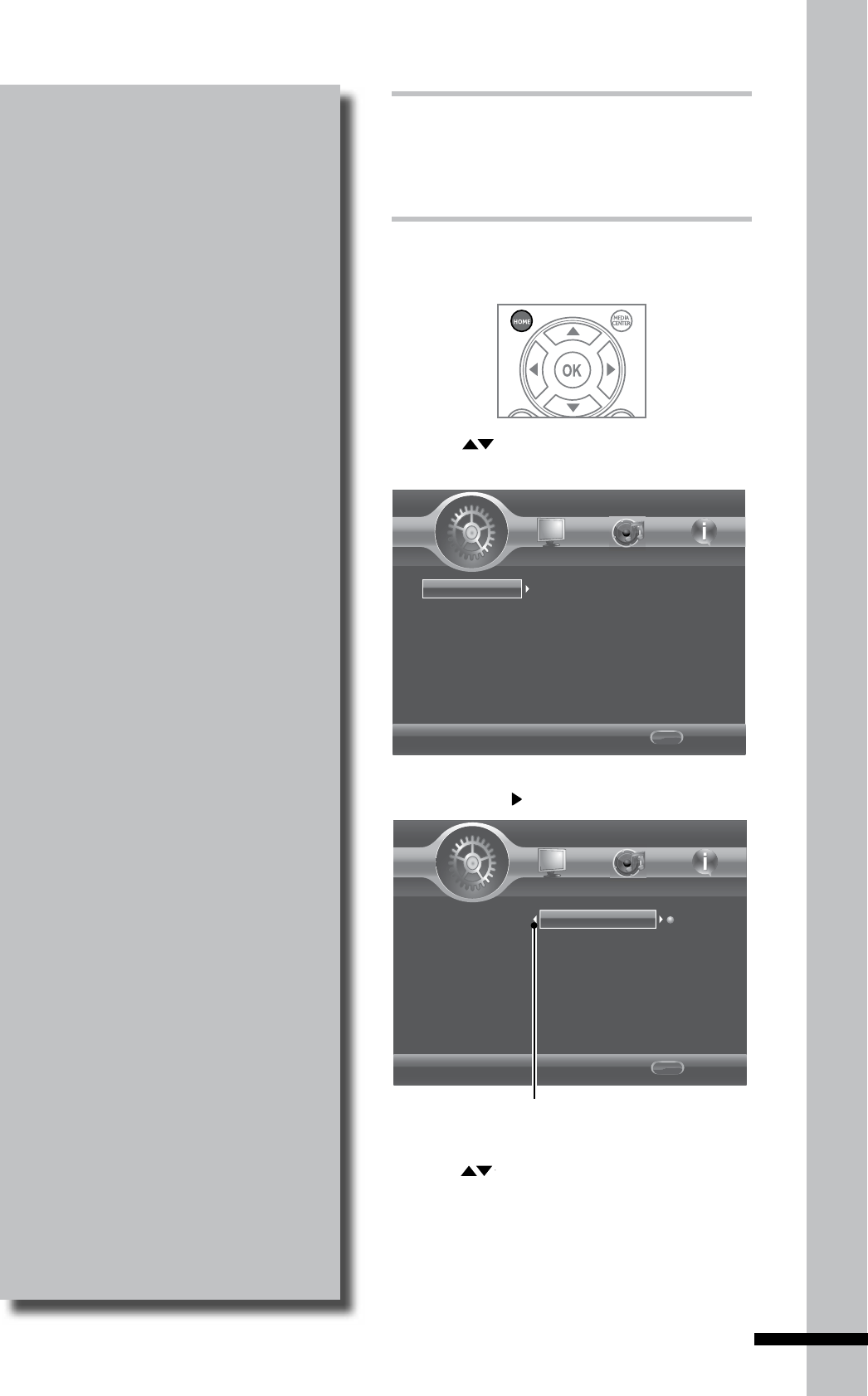
1 Press HOME to display the Home Menu.
2 Press to move up and down the menu
selection.
System
Language
Playback
Security
Network
Home Menu
--- General Setting ---
Screen Saver
Load Default
Upgrade
Easy Setup
BUDA
On
More...
More...
More...
Exit
Use cursor key to move focus, use
"OK" key to select. HOME
lS tt
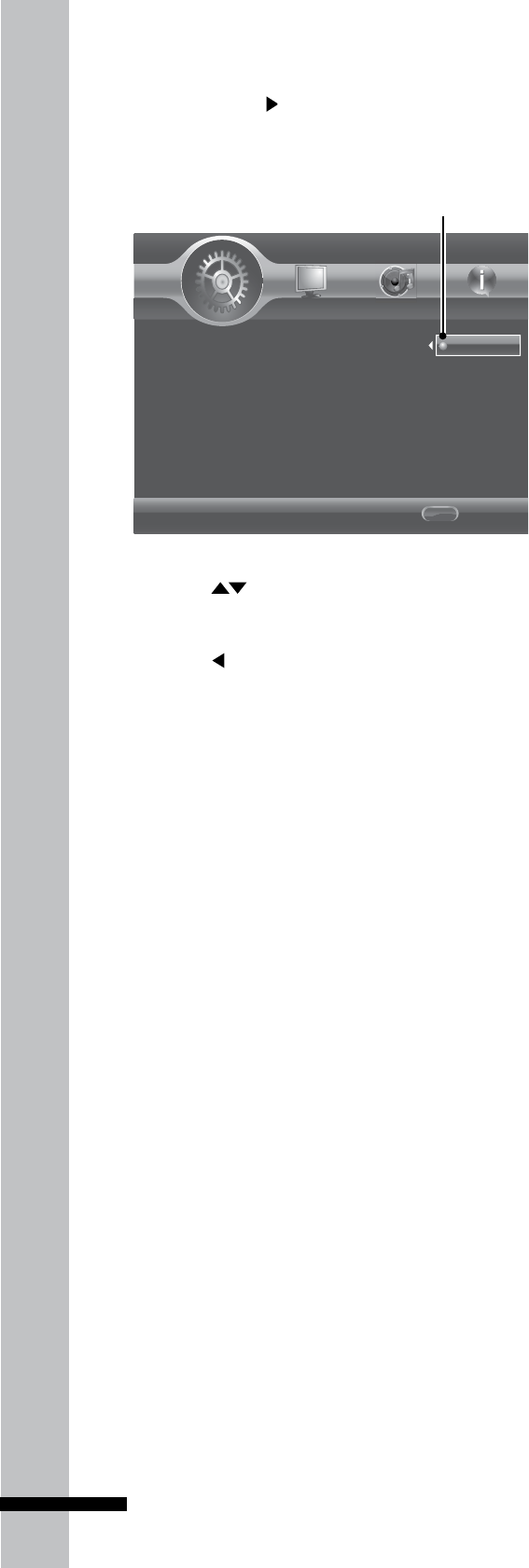
3 Press OK or to enter menu.
System
Language
Playback
Security
Network
Home Menu
--- General Setting ---
Screen Saver
Load Default
Upgrade
Easy Setup
BUDA
On
Off
Exit
Use cursor key to move focus, use
"OK" key to select. HOME
lS tt
Arrows indicate buttons that
can be pressed.
4 Press to move up and down the
submenu.
42
Settings and Further Adjustments
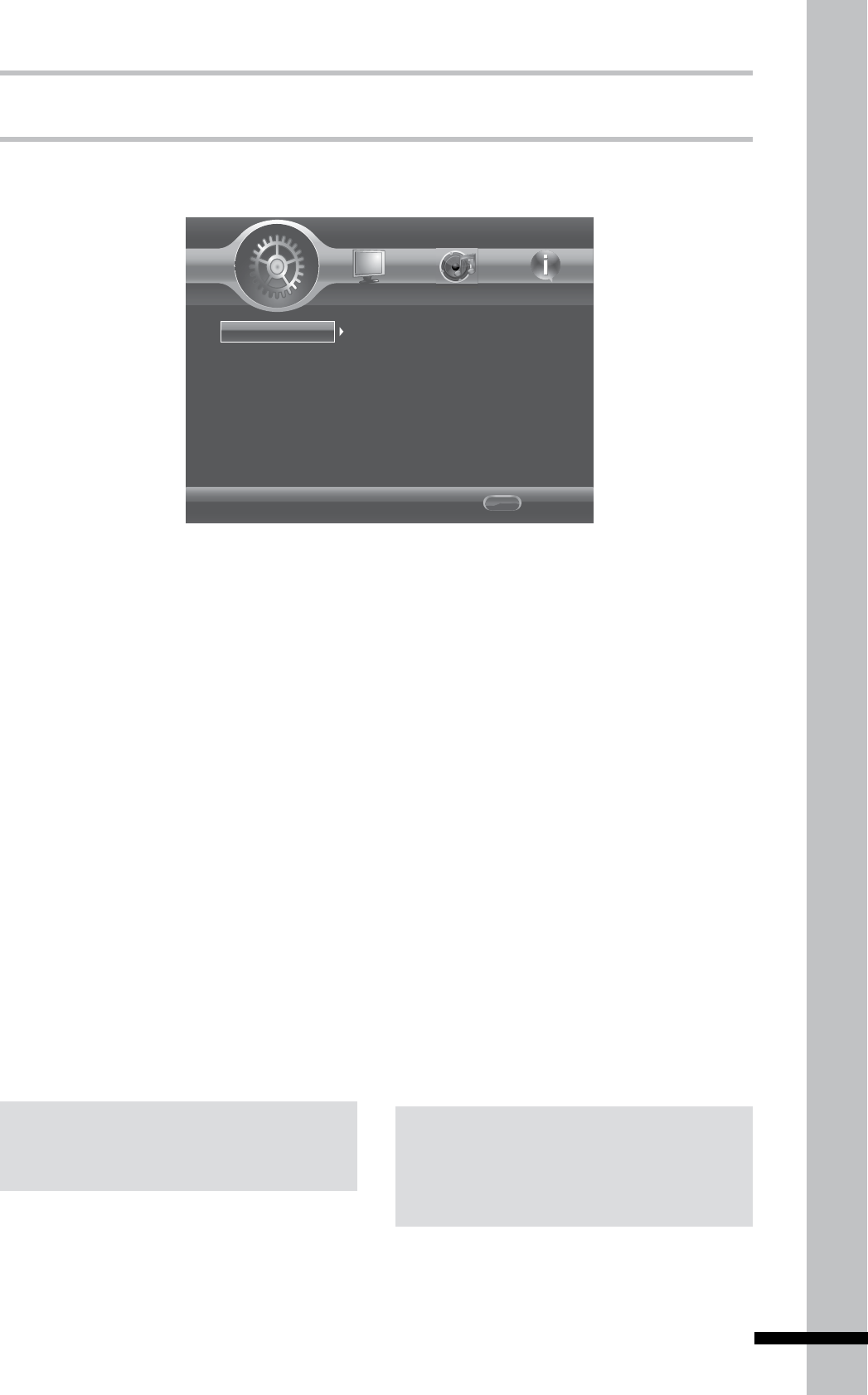
6 Press to select desired setting then
press OK to confirm.
7 Press to return to the previous screen
or menu.
8 Press HOME again to exit Home menu.
5 Press OK or to access the next level
submenu.
System
Language
Playback
Security
Network
Home Menu
--- General Setting ---
Screen Saver
Load Default
Upgrade
Easy Setup
BUDA
On
Off
Exit
Use cursor key to move focus, use
"OK" key to select.
HOME
lS tt
Indicates currently
selected setting.
43
Settings and Further Adjustments
General Settings
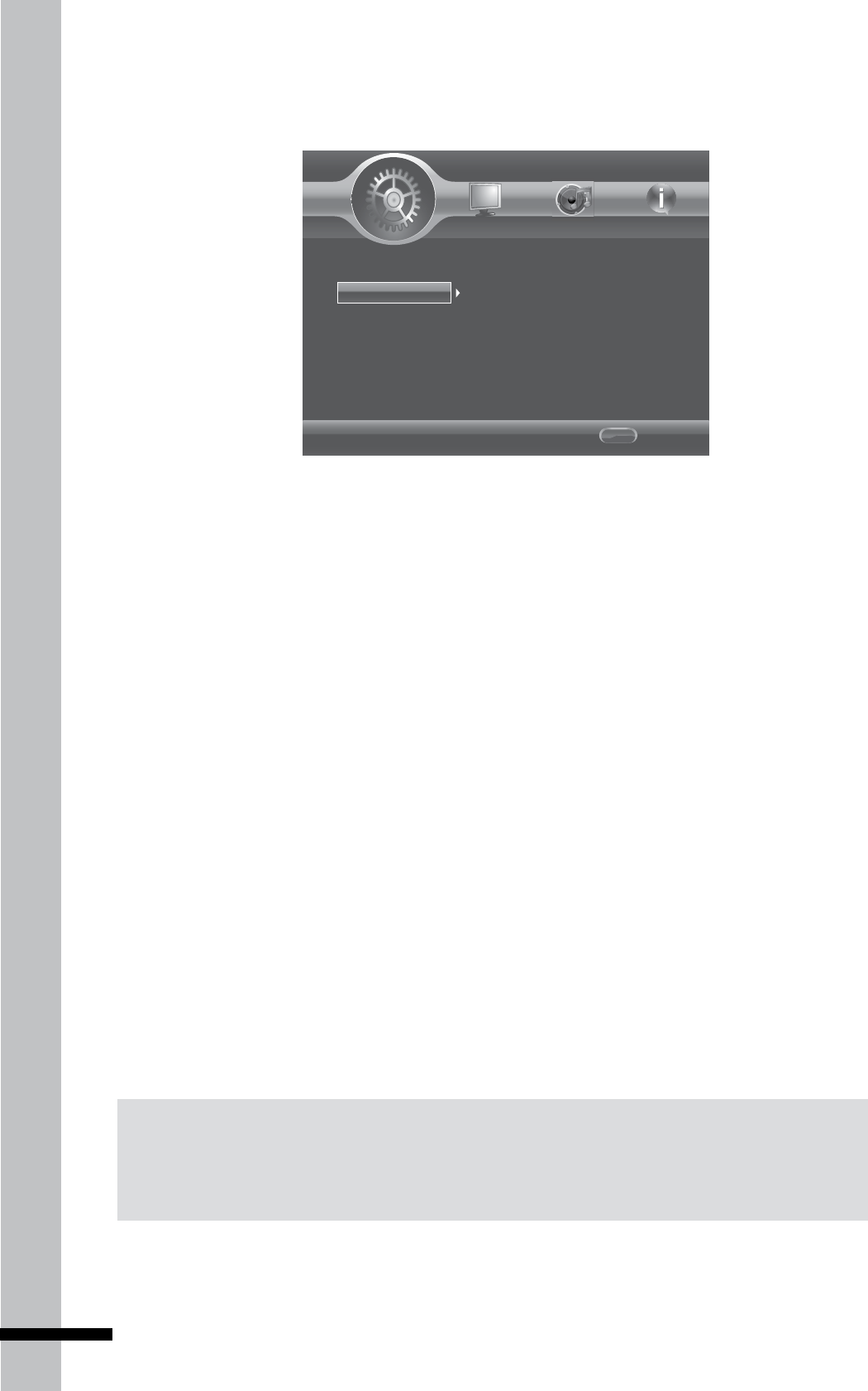
System
Screen Saver
Set to ‘On’ to activate the screen saver
capability of the Blu-ray player. This function
causes the TV to display a moving logo after
a certain period of time without pressing
any buttons on the front panel or the remote
control, when a setup menu or disc title
menu is displayed on the screen.
Load Default
Use this option to reset the Blu-ray player to
its default factory settings.
Upgrade
Use this option to select the system upgrade
method. Available options are via:
Disc•
USB Storage•
Note:
EnsurethatDiscAutoPlaybackissettoOn
whenusingupgradeviadisc.
System
Language
Playback
Security
Network
Home Menu
--- General Setting ---
Screen Saver
Load Default
Upgrade
Easy Setup
BUDA
On
More...
More...
More...
Exit
Use cursor key to move focus, use
"OK" key to select.
HOME
lS tt
Easy Setup
Use this option to activate the initial setup
wizard. See ‘Easy Setup Wizard’ (p.24) for
details.
BD-Live Persistent Storage /
BUDA
Use this menu option to perform the
following functions:
Select either internal memory or a USB •
flash drive to use as your local storage
device.
View the amount of free space left on your •
selected storage device.
Delete/Re-format your selected storage •
space.
Note:
Thispersistentstoragespace,sometimes
referredtoas“BUDA”,isusedasstoragefor
functionssuchasdownloadingBD-Livecontent.
44
Settings and Further Adjustments
Language
System
Language
Playback
Security
Network
Home Menu
--- General Setting ---
OSD
Menu
Audio
Subtitle
English
English
English
English
Exit
Use cursor key to move focus, use
"OK" key to select.
HOME
lS tt
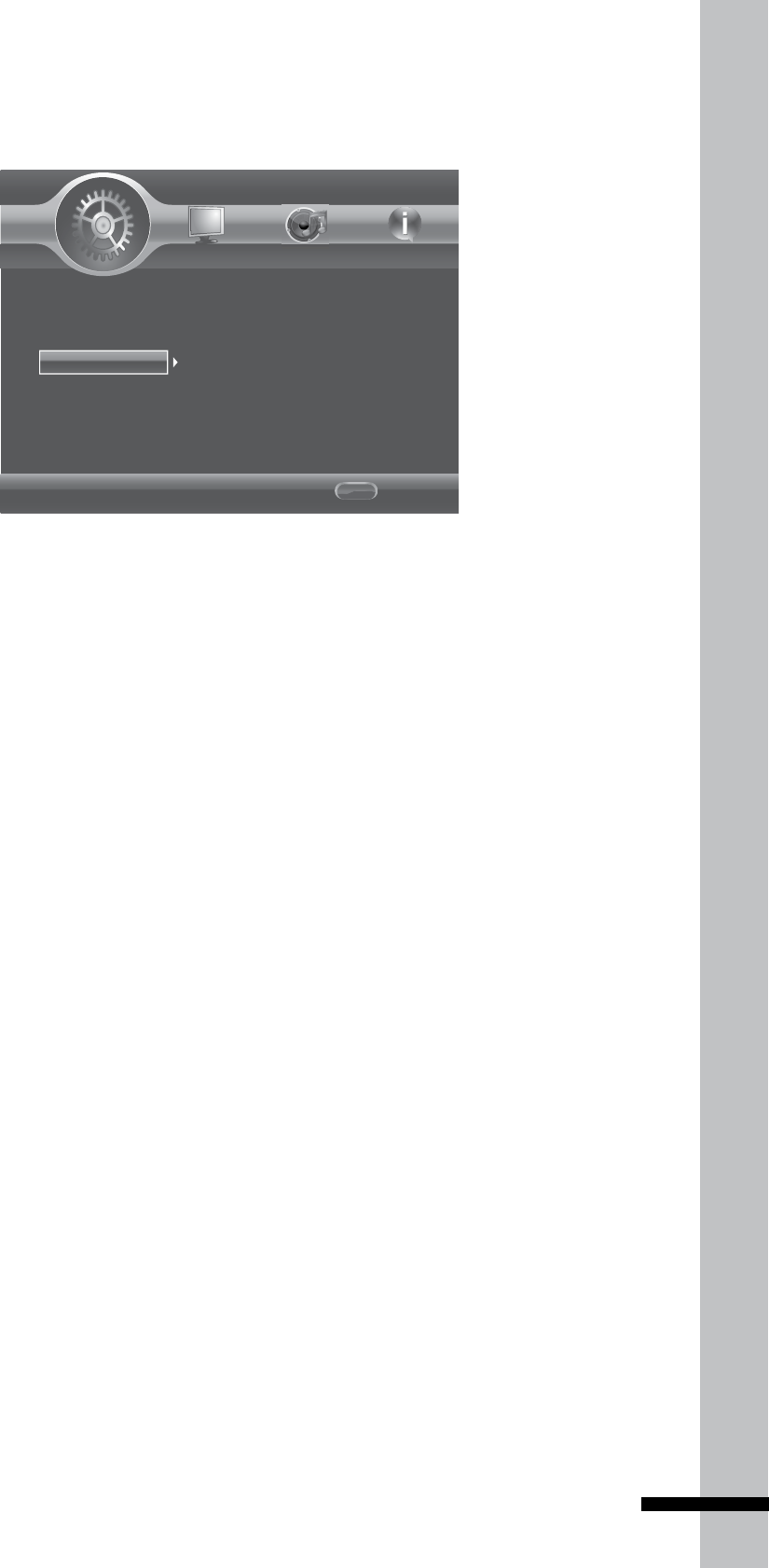
The Language menu allows you to configure
the language that is displayed for the
following:
OSD
Set the on-screen display (OSD) language.
Available options are English, German,
French, Italian, Spanish, Dutch, Portuguese,
Traditional Chinese, Russian, Turkish, and
Japanese.
Menu
Set the menu language. Available options
are English, German, French, Italian,
Spanish, Dutch, Portuguese, Traditional
Chinese, Russian, Swedish, Finnish,
Norwegian, Korean, Japanese and more.
Notes:
NotallthesupportedlanguagesoftheBlu-rayplayerareavailableonalldiscs.•
SomediscsmaynotallowtheaudiolanguagetobesetonthesettingsmenuoftheBlu-rayplayer.•
Inthiscase,selecttheaudiolanguagefromthemenuofthedisc.
Audio
Set the audio language. Available options
are English, German, French, Italian,
Spanish, Dutch, Portuguese, Chinese,
Russian, Danish, Swedish, Finnish,
Norwegian, Korean, Japanese and more.
Subtitle
Set the subtitle language. Available options
are English, German, French, Italian,
Spanish, Dutch, Portuguese, Traditional
Chinese, Russian, Swedish, Finnish,
Norwegian, Korean, Japanese and more.
To disable subtitle, select ‘Off’.
45
Settings and Further Adjustments
Playback
System
Language
Playback
Security
Network
Home Menu
--- General Setting ---
Closed Caption
PBC
On
On
Exit
Use cursor key to move focus, use
"OK" key to select.
HOME
lS tt
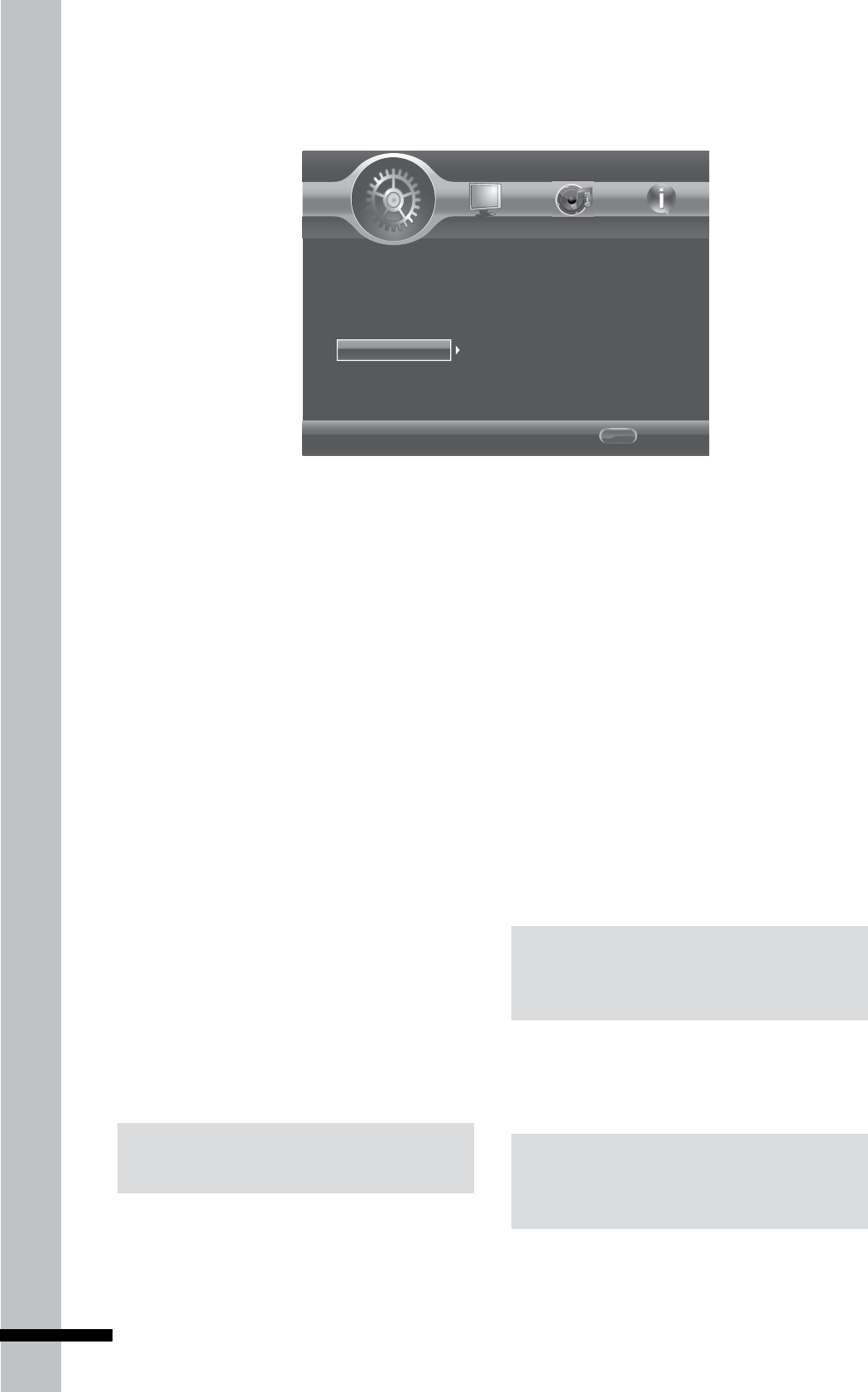
Closed Caption
Use this option to enable or disable closed
caption function.
PBC
Use this option to display or hide the
playback control (PBC) menu.
46
Settings and Further Adjustments
Security
System
Language
Playback
Security
Network
Home Menu
--- General Setting ---
Change Password
Parental Control
Country Code
More...
More...
More...
Exit
Use cursor key to move focus, use
"OK" key to select.
HOME
lS tt
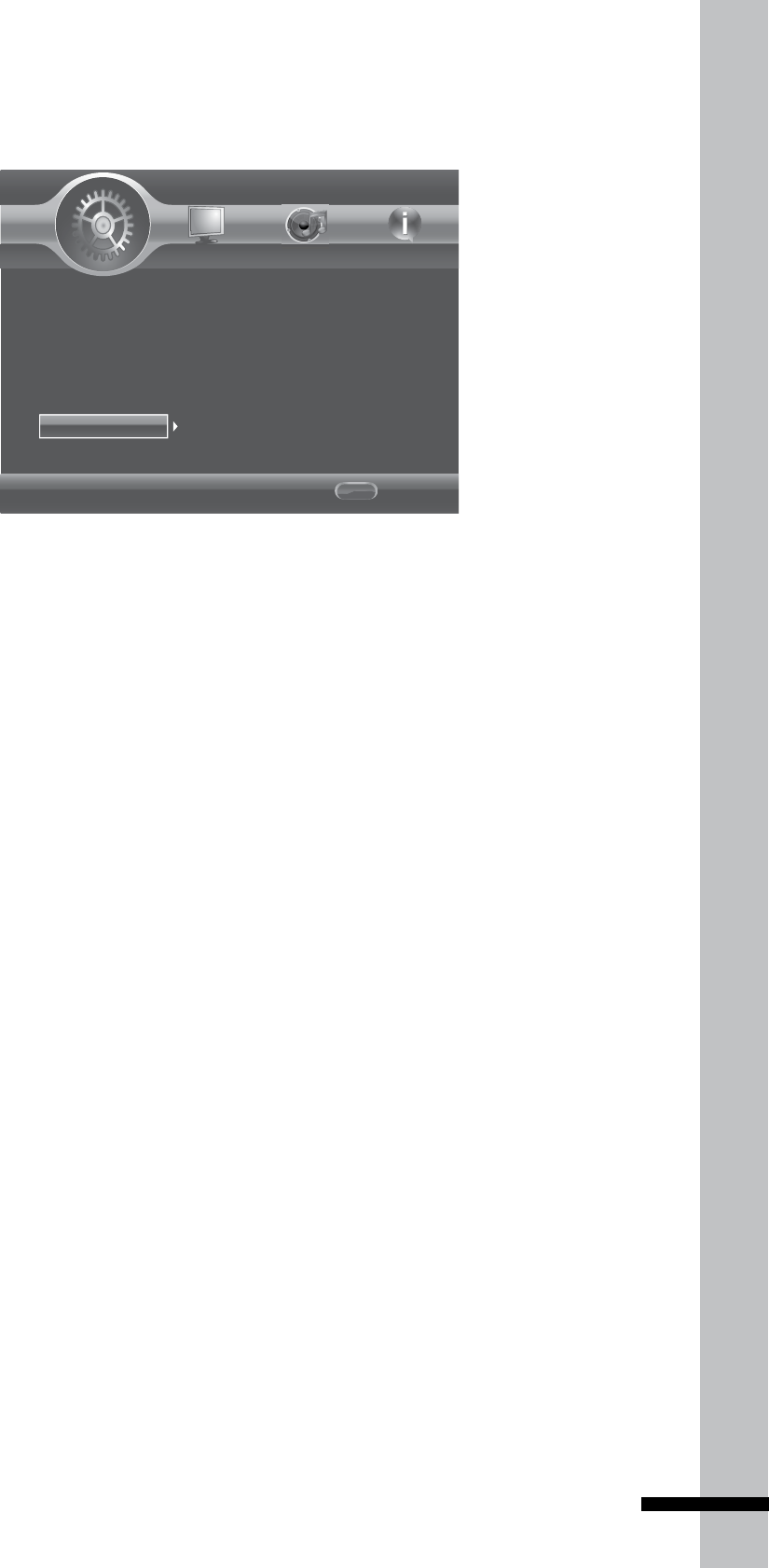
The Security menu allows you to control the
playback of inappropriate discs.
After parental control is set and a disc
with a higher rating level than the one set
is inserted into the disc tray, you will be
prompted to enter the password first before
playing the disc.
Change Password
Set the 4-digit security password.
1 Press the number buttons to enter the
current password.
2 Press OK.
3 Enter the new password, then press OK.
4 Re-enter the new password, then press
OK.
Once a password has been saved, it must be
entered first before you can change any item
in the security menu.
Note:
Youwillbepromptedtoenterthepassword
beforebeingallowedtochangethissetting.
Parental Control
Use this option to the restrict playback of
discs encoded with a rating level equal to
or higher than the level you set. Available
settings are:
Off•
KID SAFE•
G•
PG•
PG-13•
PGR•
R•
NC-17•
ADULT•
Country Code
Set the country where you are located.
Note:
Youwillbepromptedtoenterthepassword
beforebeingallowedtochangethissetting.
Note:
Thedefaultinitialpasswordis0000.
47
Settings and Further Adjustments
Network
System
Language
Playback
Security
Network
Home Menu
--- General Setting ---
Internet Connection
BD-Live Connection
Enable
Permitted
Exit
Use cursor key to move focus, use
"OK" key to select.
HOME
lS tt
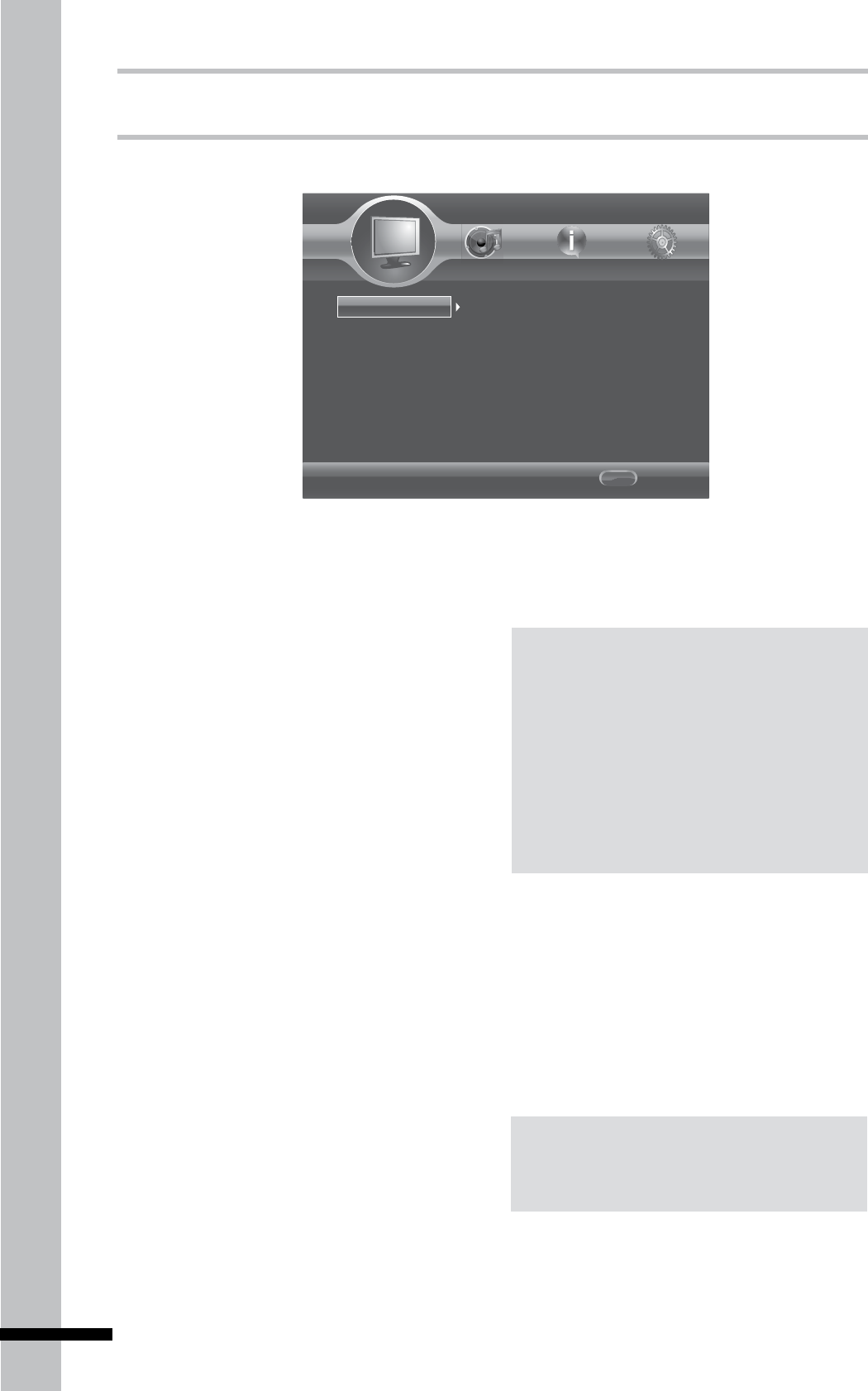
Internet Connection
Use this option to enable or disable the
Internet connection.
BD-Live Connection
Use this option to control which websites
the Blu-ray player is allowed to access
when connected to BD-Live™ content.
Available settings are:
Permitted: • Allow the inserted Blu-ray
disc to access content from all BD-Live™
Internet sites whose Internet address is
encoded onto the disc. There is no danger
of malicious code download from valid
commercial Blu-ray discs, but choosing
this option and downloading BD-Live™
content via illegally authored Blu-ray
discs, or discs obtained from questionable
sources, could result in malicious code
being downloaded onto the Blu-ray player.
Partial Permitted:• Only allow the inserted
Blu-ray disc to download content from a
BD-Live™ website which has a valid online
certificate. This will reduce the changes
of downloading malicious content onto the
Blu-ray player.
Prohibited:• Blocks inserted Blu-ray disc
from accessing BD-Live™ content over the
Internet.
48
Settings and Further Adjustments
Display Settings
TV
TV Screen
Select this option to set the aspect ratio of
your TV. Available settings are:
16:9 Full:• For a disc with the aspect ratio of
4:3, the output video is stretched into 16:9
full screen.
16:9 Normal: • For a disc with the aspect
ratio of 4:3, the output video is resized
vertically to match what will be seen on
the display.
4:3 Pan&Scan:• Display a wide picture
on the entire screen and cuts off the
redundant portions. Select when a
standard 4:3 TV is connected. The
scanning line is complete, but part of the
image is clipped.
4:3 Letterbox:• Display a wide picture with
two black borders on the top and bottom
of a 4:3 screen. Select when a standard 4:3
TV is connected.
TV
Video Processing
Home Menu
--- Display Setting ---
TV Screen
Resolution
TV System
Color Space
HDMI Deep Color
16:9 Full
Auto
NTSC
RGB
Off
Exit
Use cursor key to move focus, use
"OK" key to select.
HOME
Resolution
Select the video resolution according to the
maximum resolution of your TV. Check your
TV’s user manual. Available settings are:
Auto•
480I/576I•
480P/576P•
Notes:
SettingtheBlu-rayplayerforanoutput•
resolutionthatisnotsupportedbyyour
TVwillresultinablankorunreadableTV
screen.
ToplayaBlu-rayorDVDdiscwhen•
connected to an HDMI TV, the TV MUST
supporttheHDCPcopyrightprotection
system.
TV System
Select this option to set the TV system in
your area. Available settings are:
NTSC•
PAL•
Multi•
Note:
TVTypemustbesetappropriately.Choosingthe
wrongtypemayresultinablackscreen.
Color Space
Select the color space. Available settings
720P•
1080I•
1080P•
49
Settings and Further Adjustments
are:
RGB•
YCbCr•
YCbCr422•
Full RGB•
HDMI Deep Color
Select this option to set HDMI deep color.
Available settings are:
30 bits•
36 bits•
Off•
HDMI 1080P 24Hz
Set to ‘On’ if connected to a 1920 x 1080/24P
HDMI TV.
Video Processing
The Video Process menu allows you to
adjust basic display settings such as
brightness, contrast, hue, saturation, and
sharpness.
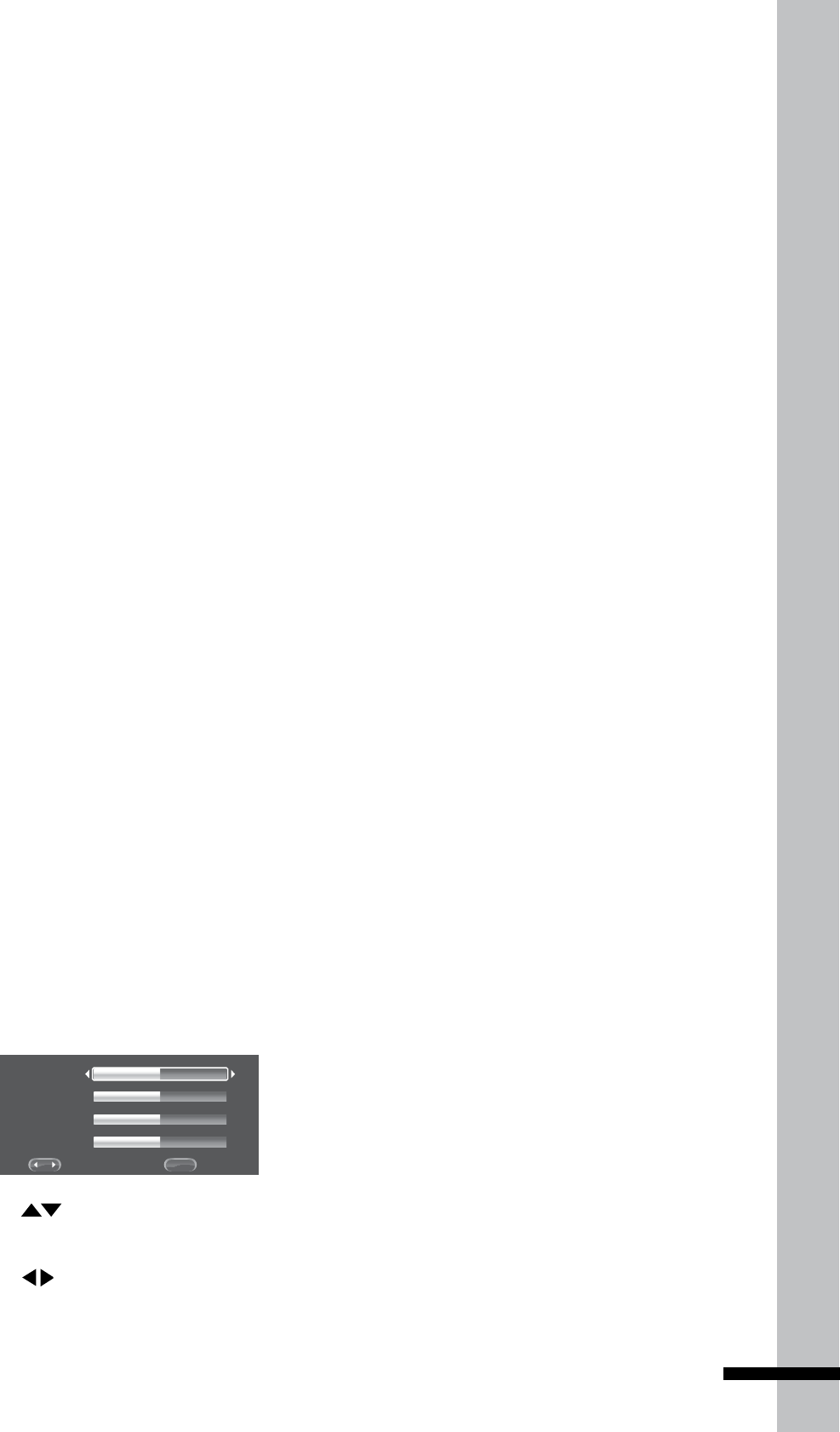
Video Adjust
Select this option to adjust the video
brightness, contrast, hue, and saturation.
Exit
BACK
Change
Brightness
Contrast
Hue
Saturation
1 Press to move the selection up and
down.
2 Press to adjust the selected setting.
3 Press BACK (Return) to exit the screen.
Sharpness
Select the sharpness level of the video.
Available settings are:
High•
Medium•
Low•
50
Settings and Further Adjustments
Audio Setting
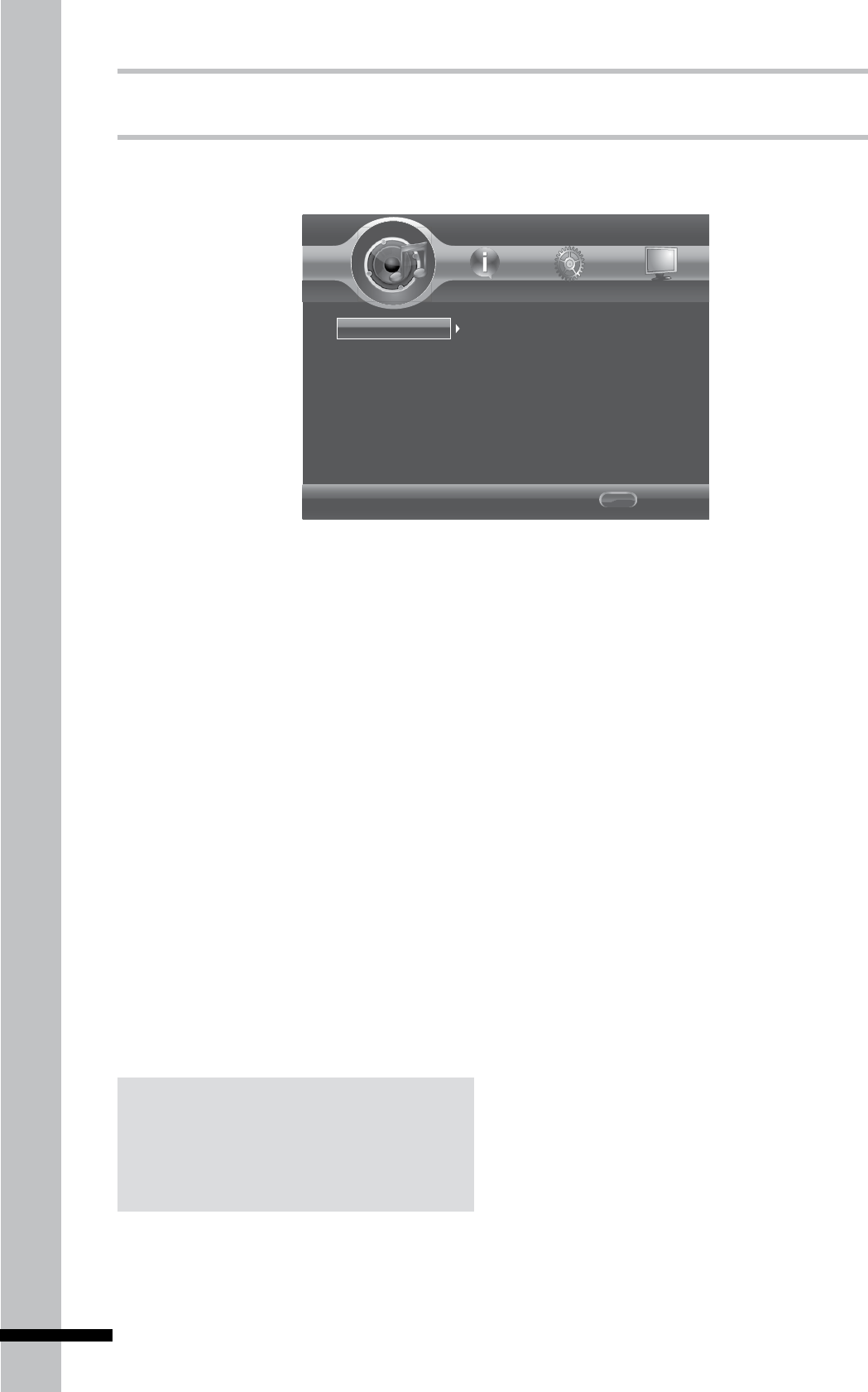
The Audio Setting menu allows you to configure the proper audio settings according to the
type of audio system you use.
Audio Output
Home Menu
--- Audio Setting ---
SPDIF
HDMI
Down_samp
PCM
PCM
48K
Exit
Use cursor key to move focus, use
"OK" key to select.
HOME
Audio Output
Spdif
SPDIF (Sony Philips Digital InterFace) is a
digital audio format which carries digital
audio signals between devices.
Select this option to set the SPDIF audio
output format if your Blu-ray player is
connected to an amplifier or receiver which
supports Dolby Digital or DTS surround
sound using a digital coaxial/optical cable.
Available settings are:
Bitstream:• Outputs the original bitstream
audio signal without processing.
PCM:• Audio output is converted to Linear
PCM.
Reencode:• Select this option if the Blu-ray
player is connected to a decoder.
Off•
HDMI
Select this option to set the audio output
format if your Blu-ray player is connected
to an amplifier or receiver which supports
Dolby Digital or DTS surround sound using
an HDMI cable. Available settings are:
Bitstream: • Outputs the original bitstream
audio signal without processing.
PCM:• Audio output is converted to linear
PCM.
Reencode:• Select this option if the Blu-ray
player is connected to a decoder.
Off•
Down Sampling
Set the PCM capabilities of the connected
surround receiver or amplifier. This setting
is applicable when the Blu-ray player is
connected to an amplifier or receiver and
has no effect when connected via HDMI.
Check the PCM sampling rate of
Note:
Toachievethebestaudioquality,youmustalso
setupthemenuonthedisctosetthehighest
qualityaudiotracksupportedbythereceiveror
amplier.

51
Settings and Further Adjustments
your surround receiver or amplifier to set the
appropriate PCM sampling rate:
48K:• This is the default setting. It is best
to retain this setting in the following
conditions:
If the Blu-ray player is not connected to
•
a surround receiver or amplifier.
If the Blu-ray player is connected to a
•
surround receiver or amplifier via HDMI
output.
If you are unsure of the surround
•
receiver or the amplifier’s PCM sampling
rate.
96K:• Select this option if the connected
amplifier or receiver is not capable of
handling 192 kHz signals.
192K: • Select this option if the connected
amplifier or receiver is capable of handling
192 kHz signals.
Note:
SettinganincorrectPCMsamplingratemay
resultinunpredictableaudioplayback.
52
Settings and Further Adjustments
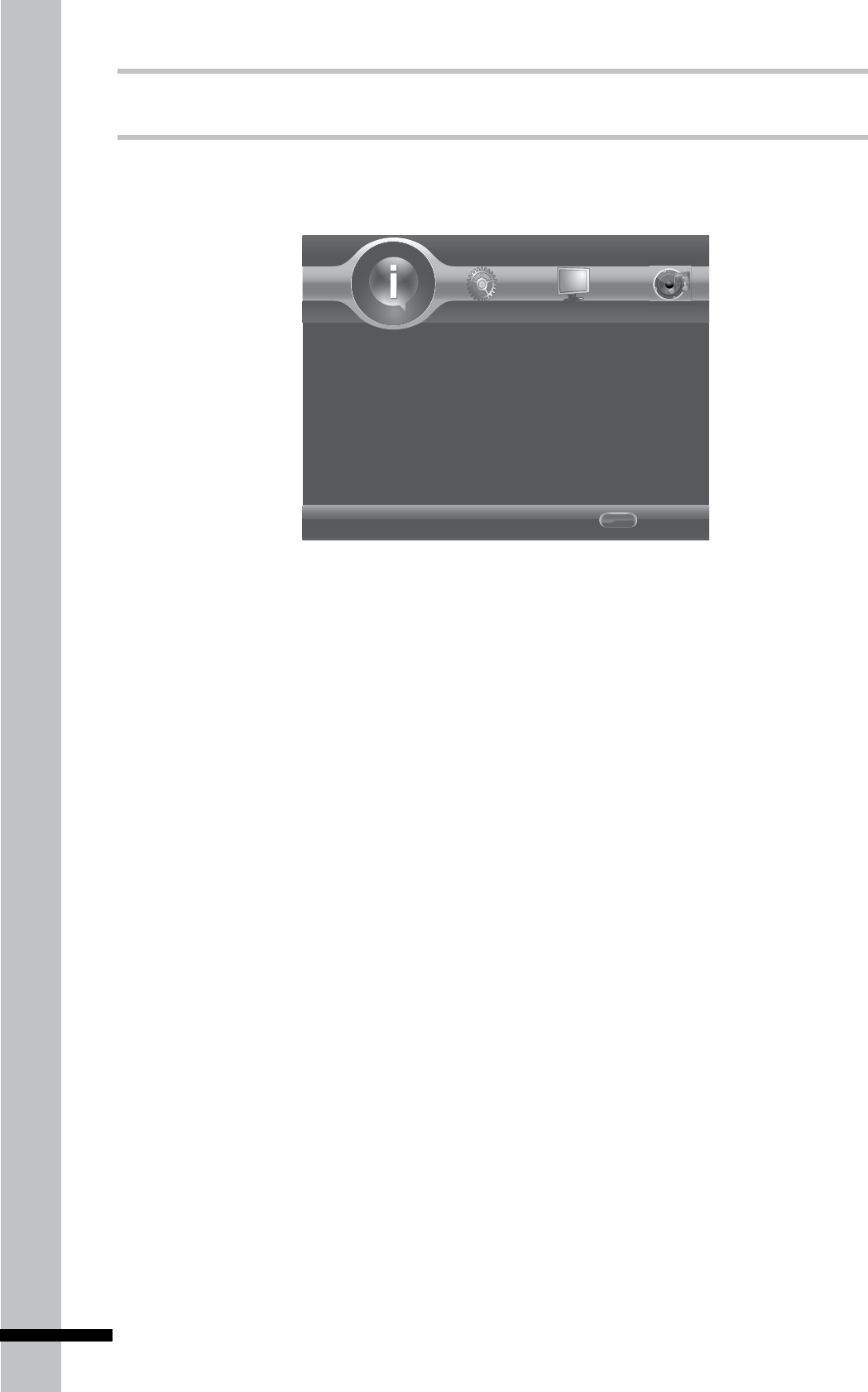
System Information
The System Information menu displays the software version and the MAC address of your Blu-
ray player.
Software Version: BDP V2.0
MAC: FF -FF -FF -FF -FF -FF
Home Menu
--- System Information ---
Exit
Use cursor key to move focus, use
"OK" key to select.
HOME
53
Troubleshooting
Chapter 6
Troubleshooting
Use this chapter to find solutions to
some questions that may arise when
using your Blu-ray player.
No power. »
Check if the power cord is connected •
securely.
The POWER button is not pressed.•
Disc tray opens automatically.
»
The disc is scratched.•
The disc is dirty.•
The disc is not properly seated on the disc •
tray.
Disc does not play / The front panel
»
display shows “NO DISC”.
The disc is upside down. Re-insert the disc •
with the printed side facing up.
The inserted disc is not supported.•
The region code of the disc does not match •
the Blu-ray player.
No picture is displayed.
»
The audio/video cables are not properly •
connected.
The audio/video cables are damaged. •
Replace with new ones.
Check the settings in the Display Settings •
menu.
Select the appropriate video input source •
of your TV.
The video output from the Blu-ray player •
goes through a VCR before it gets to your
TV. Connect the Blu-ray player directly to
your TV.
The picture is not displayed properly.
»
Check the settings in the Display Settings •
menu.
Check if the video input signal source of •
54
Troubleshooting
your TV is set appropriately.•
There is no sound.
»
The audio/video cables are not properly •
connected.
The audio/video cables are damaged. •
Replace with new ones.
The audio setting on the Blu-ray disc is not •
set appropriately.
Slow motion / step mode is on.•
The playback is paused.•
If connected via optical or coaxial digital •
cable, check if the settings in the Audio
Settings menu is set appropriately.
The music file does not play
»
The data disc is not recorded in a •
recognized format.
The audio file is not a supported format.•
The photo file cannot be played.•
The data disc is dirty.•
The photo files does not have the •
extension *.jpg / *.jpeg / *.png / *.gif.
The disc does not start playback from
»
the beginning.
Random mode is on.•
Repeat mode is on.•
Last memory mode is on.•
The Blu-ray player does not start playing
»
the disc automatically.
Disc Auto Playback is set to ‘Off’.•
Some functions, such as Search, Slow,
»
Step, Repeat, Random, do not work.
Some discs do not support these functions. •
Refer to the disc’s manual.
The remote control does not work.
»
The remote control is not pointed at the •
remote sensor on the Blu-ray player.
The remote control batteries are depleted. •
Try again with new batteries.
The remote control is too far from the Blu-•
ray player.
The angles cannot be changed.
»
The inserted disc is recorded with single •
angle only.
The disc tray does not open.
»
Turn the Blu-ray player off and on,the •
press .
BD-Live feature does not work.
»
Check if the Ethernet RJ-45 cable is •
properly connected.
Internet connection is not established.•
The USB drive is not connected.•
The connected USB drive is not FAT32 •
formatted.
The connected USB drive is damaged.•
There is no Blu-ray disc inserted.•
The inserted disc does not support BD-•
Live™ features.
Note:
See ‘Getting Help’ fordetails(p.65).

55
Additional Information
Chapter 7
Additional
Information
This chapter covers the following topics:
How to upgrade your Blu-ray player•
Supported video resolution•
Supported audio output format•
Language code table•
Region code table•
Player specifications•
Upgrading Your
Player
The Blu-ray player’s firmware is updated
regularly. Updates are available from the
manufacturer’s website.
To upgrade firmware using a
USB drive
1 From your computer, connect to the
Internet and visit the manufacturer’s
website.
2 Insert the USB drive into the USB port on
your computer.
3 Copy the firmware upgrade file to the root
directory of the USB drive.
4 Remove any inserted disc or USB drive
from the Blu-ray player. And turn off the
Blu-ray player.
5 Insert the USB drive into the USB port on
the Blu-ray player.
6 Turn on the Blu-ray player.
7 Press HOME on the remote control.
8 Use to select General Setting >
System > Upgrade > USB Storage, then
press OK. The firmware upgrade will
begin.
9 Once completed, a message will appear
on the screen.
WARNING
»
DO NOT TURN OFF THE POWER while
upgrading is in progress!

56
Additional Information
To upgrade firmware using a
data disc
1 From your computer, connect to the
Internet and visit the manufacturer’s
website.
2 Download the firmware upgrade file to
your computer.
3 Use commercial CD/DVD recording
software, such as Nero™, to convert the
*.iso file to a disc image.
4 Burn the converted file onto a disc.
5 Remove any inserted disc or USB drive
from the Blu-ray player. And turn off the
Blu-ray player.
6 Turn the Blu-ray player back on.
7 Insert the upgrade disc. The upgrade
screen may take some time to appear.
8 Follow the on-screen instructions to
start the upgrade. If the disc does not
automatically update, press HOME on
the remote control. Use to select
General Setting > System > Upgrade
> Disc, then press OK. The firmware
upgrade will begin.
9 Once completed, a message will appear
on the screen.
WARNING
»
DO NOT TURN OFF THE POWER while
upgrading is in progress!
57
Additional Information
Component Video
Outputs
Supported
Resolution
Component Video
Output Resolution
1080p
Film mode 1080i
1080p 1080i
1080i 1080i
720p 720p
480p 480p/576p
480i 480i/576i
Auto 480p/576p
Note
Applies when video output is not connected •
via HDMI.
DigitalRightsManagement(DRM)on•
commercialdiscsmayprohibittheoutputof
resolutionhigherthan480poncomponent
outputs.
Composite Video
Output
Composite output is always 480i (standard
definition).
Video Output
Resolutions
HDMI Video Output
Supported
Resolution
HDMI Video Output
Resolution
1080p
Film mode
Blu-ray - 1080p24 1
DVD - 1080p60
1080p 1080p60
1080i 1080i
720p 720p
480p 480p/576p
480i 480i/576i
Auto Depends on TV
capabilities
Note
ThisoutputresolutionappliesonlyiftheTV•
supportstheselectedresolution.
1 AppliesonlyifTVsupports1080p24.
Otherwise,thehighestresolutionsupportedby
theTVistheoutputresolution.

58
Additional Information
Language Code
Table
Language Abbr. Code
Japanese (ja/jpn) 1001
English (en/eng) 0514
French (fr/fra) 0618
German (de/deu) 0405
Italian (it/ita) 0920
Spanish (es/spa) 0519
Chinese (zh/zho) 2608
Dutch (nl/nld) 1412
Portuguese (pt/por) 1620
Swedish (sv/swe) 1922
Russian (ru/rus) 1821
Korean (ko/kor) 1115
Greek (el/ell) 0512
Afar (aa/aar) 0101
Abkhazian (ab/abk) 0102
Afrikaans (af/afr) 0106
Amharic (am/amh) 0113
Arabic (ar/ara) 0118
Assamese (as/asm) 0119
Aymara (ay/aym) 0125
Azerbaijani (az/aze) 0126
Bashkir (ba/bak) 0201
Belarusian (be/bel) 0205
Bulgarian (bg/bul) 0207
Bihari (bh/bih) 0208
Bislama (bi/bis) 0209
Bengali (bn/ben) 0214
Tibetan (bo/bod) 0215
Breton (br/bre) 0218
Catalan (ca/cat) 0301
Corsican (co/cos) 0315
Czech (cs/ces) 0319
Welsh (cy/cym) 0325
Danish (da/dan) 0401
Dzongkha (dz/dzo) 0426
Esperanto (eo/epo) 0515
Estonian (et/est) 0520
Basque (eu/eus) 0521
Persian (fa/fas) 0601
Finnish (fi/fin) 0609
Fijian (fj/fij) 0610
Faroese (fo/fao) 0615
Frisian (fy/fry) 0625
Irish (ga/gle) 0701
Scots-Gaelic (gd/gla) 0704
Galician (gl/glg) 0712
Guarani (gn/grn) 0714
Gujarati (gu/guj) 0721
Hausa (ha/hau) 0801
Hindi (hi/hin) 0809
Croatian (hr/hrv) 0818
Hungarian (hu/hun) 0821
Armenian (hy/hye) 0825
Interlingua (ia/ina) 0901
Interlingue (ie/ile) 0905
Inupiaq (ik/ipk) 0911
Indonesian (in/ind) 0914
Icelandic (is/isl) 0919
Hebrew (iw/heb) 0923
Yiddish (ji/yid) 1009
Javanese (jw/jav) 1023
Georgian (ka/kat) 1101
Kazakh (kk/kaz) 1111
Kalaallisut (kl/kal) 1112
Khmer (km/khm) 1113
Kannada (kn/kan) 1114
Kashmiri (ks/kas) 1119
Kurdish (ku/kur) 1121
Kirghiz (ky/kir) 1125
Latin (la/lat) 1201
Lingala (ln/lin) 1214
Lao (lo/lao) 1215
Lithuanian (lt/lit) 1220
Latvian (lv/lav) 1222
Malagasy (mg/mlg) 1307
Maori (mi/mri) 1309
Macedonian (mk/mkd) 1311
Malayalam (ml/mal) 1312
Mongolian (mn/mon) 1314
Moldavian (mo/mol) 1315
Marathi (mr/mar) 1318
Malay (ms/msa) 1319
Maltese (mt/mlt) 1320
Burmese (my/mya) 1325
Nauru (na/nau) 1401
Nepali (ne/nep) 1405
Norwegian (no/nor) 1415
Occitan (oc/oci) 1503
Oromo (om/orm) 1513
Oriya (or/ori) 1518
Panjabi (pa/pan) 1601
Language Abbr. Code

59
Additional Information
Polish (pl/pol) 1612
Pushto (ps/pus) 1619
Quechua (qu/que) 1721
Rhaeto-Romance (rm/roh) 1813
Rundi (rn/run) 1814
Romanian (ro/ron) 1815
Kinyarwanda (rw/kin) 1823
Sanskrit (sa/san) 1901
Sindhi (sd/snd) 1904
Sango (sg/sag) 1907
Serbo-Croatian (sh/scr) 1908
Sinhalese (si/sin) 1909
Slovak (sk/slk) 1911
Slovenian (sl/slv) 1912
Samoan (sm/smo) 1913
Shona (sn/sna) 1914
Somali (so/som) 1915
Albanian (sq/sqi) 1917
Serbian (sr/srp) 1918
Swati (ss/ssw) 1919
Sotho, Southern (st/sot) 1920
Sundanese (su/sun) 1921
Swahili (sw/swa) 1923
Tamil (ta/tam) 2001
Telugu (te/tel) 2005
Tajik (tg/tgk) 2007
Thai (th/tha) 2008
Tigrinya (ti/tir) 2009
Turkmen (tk/tuk) 2011
Tagalog (tl/tgl) 2012
Tswana (tn/tsn) 2014
Tong (to/ton) 2015
Turkish (tr/tur) 2018
Tsonga (ts/tso) 2019
Tatar (tt/tat) 2020
Twi (tw/twi) 2023
Ukrainian (uk/ukr) 2111
Urdu (ur/urd) 2118
Uzbek (uz/uzb) 2126
Vietnamese (vi/vie) 2209
Volapük (vo/vol) 2215
Wolof (wo/wol) 2315
Xhosa (xh/xho) 2408
Yoruba (yo/yor) 2515
Zulu (zu/zul) 2621
Language Abbr. Code Region Code
Table
Area abbr. Code
Argentina (ar) 0118
Australia (au) 0121
Austria (at) 0120
Belgium (be) 0205
Brazil (br) 0218
Canada (ca) 0301
Chile (cl) 0312
China (cn) 0314
Denmark (dk) 0411
Finland (fi) 0609
France (fr) 0618
Germany (de) 0405
Hong Kong (hk) 0811
India (in) 0914
Indonesia (id) 0904
Italy (it) 0920
Japan (jp) 1016
Korea (kr) 1118
Malaysia (my) 1325
Mexico (mx) 1324
Netherlands (nl) 1412
New Zealand (nz) 1426
Norway (no) 1415
Pakistan (pk) 1611
Philippines (ph) 1608
Portugal (pt) 1620
Russia (ru) 1821
Singapore (sg) 1907
Spain (es) 0519
Switzerland (ch) 0308
Sweden (se) 1905
Taiwan (tw) 2023
Thailand (th) 2008
United Kingdom (gb) 0702
USA (us) 2119
60
Additional Information
Specifications
Model BD-2000
Type Blu-ray Disc Player
Product Dimension L 435 mm x W 307.5 mm x H 58 mm
Power Consumption < 0.5 W
Video Outputs HDMI
Composite
Component
Audio Outputs Coaxial Digital Audio
Optical Digital Audio
Composite Audio
HDMI
Video Disc Formats BD-ROM (DL, SL), BD-R/RE, DVD Digital Video 8cm/12cm, DVD+RW
(SL), DVD+R (DL, SL), DVD-RW (SL), DVD-R (DL, SL), CD
Digital Video 8cm/12cm, CD-R/RW
Video Compression
formats
AVI, MPEG-2, MPEG-4 AVC (H.264), SMPTE VC-1, VCD 1.1/2.0,
SVCD, WMV, MKV, MP4, M4V, MPG, DAT, VOB, ASF
Video disc playback
system
NTSC/PAL
Video Enhancement Progressive Scan
Audio Compression
formats
WMA, m4a, WAV, CD Digial Audio, LPCM, Dolby Digital, DTS
Multichannel decoding Dolby Digital/Dolby Digital Plus, Dolby True HD, DTS 2.0 + Digital
Out
Image Compression
formats
JPEG, PNG, GIF
Blu-ray Special BD-Live™ 1.1/2.0
61
Glossary
Chapter 8
Glossary
Aspect ratio »
The ratio of a TV screen’s width to its height.
Standard TVs have an aspect ratio of 4:3,
while high definition (HD) and widescreen
TVs have an aspect ratio of 16:9.
AVCHD
»
(Advanced Video Codec High Definition)
The AVCHD is a high definition (HD) digital
video camera recorder format, recording
high-definition onto certain media by using
highly efficient codec technologies.
Component video output
»
This video output terminal provides clearer
pictures when connected to a TV equipped
with component inputs. Component video
signals consist of three signals, Y, PB and
PR.
Composite video output
»
Signals mixing the luminance signal (Y)
and the color signal (C) so they can be
transferred on a single cord are output from
this terminal.
Dolby Digital
»
Dolby Digital is an audio format to record the
sound in up to 5.1 channels with a fraction
of the amount of data as compared to linear
PCM audio signals.
Dolby Digital Plus
»
Dolby Digital Plus is an audio format for
high-definition media. Built on Dolby Digital,
it combines the efficiency and flexibility to
provide high quality multi-channel audio.
With Blu-ray, up to 7.1 channels of digital
sound can be recorded.
Dolby TrueHD
»
Dolby TrueHD is an audio format using
lossless coding. With Blu-ray, up to 8
channels can be recorded at 96 kHz/24 bits,
or up to 6 channels at 192 kHz/24 bits.

62
Glossary
DTS 2.0 + Digital Out »
DTS 2.0 + Digital Out denotes the dual ability
to pass the DTS encoded digital bitstream
to an external DTS decoder for playback
as well as fold down the digital surround
soundtrack for playback in a 2-channel
environment through analog outputs.
Dynamic range
»
This refers to the difference between the
maximum and minimum level of the sound.
The dynamic range is measured in units
of decibels (dB). When the dynamic range
is compressed (Audio DRC), the minimum
signal level is increased and the maximum
signal level decreased. This way, the
volume of loud sounds such as explosions is
reduced, while the sounds with a low level,
such as human voices, are easier to listen
to.
HDCP
»
(High-bandwidth Digital Content Protection)
A technology for protecting copyrights that
encrypts digital video signals.
HDMI
»
(High-Definition Multimedia Interface)
A digital interface standard for next-
generation TVs expanding the DVI (Digital
Video Interface) terminal used for computer
displays. It allows transfer of non-
compressed digital video and audio signals
(Dolby TrueHD, Dolby Digital Plus, Dolby
Digital, DTS-HD Master Audio, DTS-HD High
Resolution Audio, DTS Digital Surround,
MPEG-2 AAC, linear PCM, etc.) with a single
connector.
Linear PCM
»
This is referred as the audio signals that are
not compressed, frequently used for DVD-
Video discs containing musicals or music
concerts. This can also be indicated “48
kHz/16 bit”, “96 kHz”, etc.
MPEG
»
(Moving Picture Experts Group)
The name of a family of standards used to
encode video and audio signals in a digital
compressed format. The video encoding
standards include MPEG-1 Video, MPEG-2
Video, MPEG-4 Visual, MPEG-4 AVC, etc. The
audio encoding standards include MPEG-1
Audio, MPEG-2 Audio, MPEG-2 AAC, etc.
63
INDEX
Chapter 9
INDEX
A »
Amplifier 20
Angle 29
Audio 44
Analog 20
Digital, Coaxial 13
Digital, Optical 13
Audio Setting 50
Audio Streams 29
B
»
BD-Live
Connection setting 47
Setting up 32
BONUSVIEW 15, 31
C
»
Closed Caption 45
D
»
Digital Audio
Coaxial 21
Optical 21
Disc Auto Playback 43
Down Sampling 50
H
»
HDMI 13, 18, 50
HDMI 1080P 24Hz 49
HDMI Deep Color 48
Home Menu 41
I
»
Internet 22
L
»
Language 44
Language Code Table 58
Load Default 43

64
INDEX
M »
Media Center 36
Menu 44
Music
Playing 38
N
»
Network 47
O
»
OSC 30
OSD 44
P
»
Parental Control 46
Password 46
PBC 45
Photo
Slideshow 38
Viewing 37
Playback 25
Controls 26
menu 45
Playlist 40
R
»
Region Code Table 59
Resolution 48
S
»
Screen Saver 43
Security 46
Sharpness 49
SPDIF 50
Specifications 60
Subtitle 44
System Information 52
T
»
TV 18
menu 48
TV Screen 48
TV System 48
U
»
Upgrade 43, 55
V
»
Video
Component 13, 19
Composite 13, 19
Video Adjust 49
Video Output Resolutions 57
Video Processing 49
Videos
Playing 39
W
»
Wizard
Setup 24
65
INDEX
Getting Help
Should your HP Branded Product require service within the Warranty period, please contact
the original point of purchase or an authorized HP reseller in your country. If service is not
available at those locations, please contact an HP Branded Product warranty agent from the
support contact list provided on this document. Supported languages are: English, French,
German, Italian, Portuguese and Spanish. A warranty agent will work with you to trouble-
shoot your issue and if necessary, issue a Return Material Authorization (RMA) number in or-
der to replace your HP Branded Product. For warranty claims, you will be required to provide
a copy of your original dated sales receipt as proof of purchase and the issued RMA number.
End User customer shall be responsible for shipping charges when shipping the product to
the service center. The service agent will provide you with an address and you will also be
responsible for any shipping charges to the warranty service center. Once your product is
received by the service center, a replacement unit will be shipped back to you within 5 busi-
ness days.
Contact/phone Support:
Language Contact/phone Support:
Chinese simp.chinese@hpodd.com
trad.chinese@hpodd.com
Deutsch deutsch@hpodd.com
Dutch hollands@hpodd.com
English english@hpodd.com
Espanol espanol@hpodd.com
Français francais@hpodd.com
Italiano italiano@hpodd.com
Japanese nippon@hpodd.com
Korean korean@hpodd.com
Portuguese portugues@hpodd.com
Svensk svensk@hpodd.com
Contact/phone Support:
Country Language Number
Europe Region (EMEA)
België Dutch and German + 32 2700 1724
Deutschland German + 49 6950073896
Espana Spanish + 34 914533458
Français French + 33 171230454
Ireland English + 353 1850882016
Italia Italian + 39 269682189
Netherlands Dutch + 31 202015093
Switzerland German/French/Italian + 41 18009686
UK English + 44 2073652400
North America
Canada English and French 1.866.694.7633
United States English 1.866.694.7633
P/N: 7525C00054A
7925000053A
