Chapter 10 Ch10
User Manual: Chapter 10 DL305 User Manual
Open the PDF directly: View PDF  .
.
Page Count: 38
- RLLPLUS Programming Basics
- Introduction
- An Example Machine
- An RLL Solution
- An RLLPLUS Solution
- Stage Instruction Execution
- Activating Stages
- Using Outputs in Stages
- Using Timers and Counters in Stages
- Using Data Instructions in Stages
- Using Comparative Contacts in Stages
- Parallel Branching Concepts
- Unusual Operations in Stages
- Two Ways to View RLLPLUS Programs
- Designing a Program Using RLLPLUS Instructions

1
10
RLLPLUS
Programming Basics
InThisChapter....
— Introduction
— An Example Machine
— An RLL Solution
—AnRLL
PLUS Solution
— Stage Instruction Execution
— Activating Stages
— Using Outputs in Stages
— Using Timers and Counters in Stages
— Using Data Instructions in Stages
— Using Comparative Contacts in Stages
— Parallel Branching Concepts
— Unusual Operations in Stages
— Two Ways to View RLLPLUS Programs
— Designing a Program Using RLLPLUS Instructions
RLL
Programming Basics
PLUS
10--2 RLLPLUS Programming Basics
DL305 User Manual, Rev. D
Introduction
If you’ve ever been around some really accomplished RLL programmers you have
probably been amazed at how easily they seem to be able to create programs of
incredible complexity. Well, not everyone has years of experience in programming
PLCs. Because of this the DL330P CPU has RLLPLUS instructions that make it
considerably easier to design and create programming solutions. These instructions
are especially useful to those of you who aren’t that familiar with the interlocking
concepts commonly used in RLL programs.
You can still use the normal instructions you’ve already seen, plus you only have to
become familiar with a few new instructions that help you organize your program into
manageable pieces.
This programming method is similar to Sequential Function Chart programming and
literally allows you to design a flowchart of the program operation sequence and load
it into the CPU! You can expect to see several benefits by using this method.
SConsiderably reduced program design time. We’ve seen many, many
cases where these few instructions have cut program design time by
well over 50%.
SShorter, more simple programs. Later in this chapter we’ll show you why
your programs sometimes end up being a lot larger than you first
anticipated. The RLLPLUS instructions can help make your programs
simple for everyone to understand.
SEasier program troubleshooting. How many times have you tried to
troubleshoot or modify a program that was written by someone else? If
you’ve done this very often you know it’s not an easy task. This chapter
will show you a few instructions that will also help with this problem as
well.
The following paragraphs discuss several RLLPLUS programming concepts. We’ll
use a simple example to show you how to use the various types of instructions. Also,
we’ll show you the equivalent program without RLLPLUS instructions to give you an
idea of the differences between the two approaches.
NOTE: The DL330P has several instructions that do not operate quite the same as
the equivalent instructions in the DL330 or DL340. If you want to take advantage of
the benefits associated with the RLLPLUS instructions, make sure you also take time
to review Chapter 12. This chapter discusses the instructions that are unique or
different with the DL330P CPU.
RLL
Programming Basics
PLUS
10--3
RLLPLUS Programming Basics
DL305 User Manual, Rev. D
An Example Machine
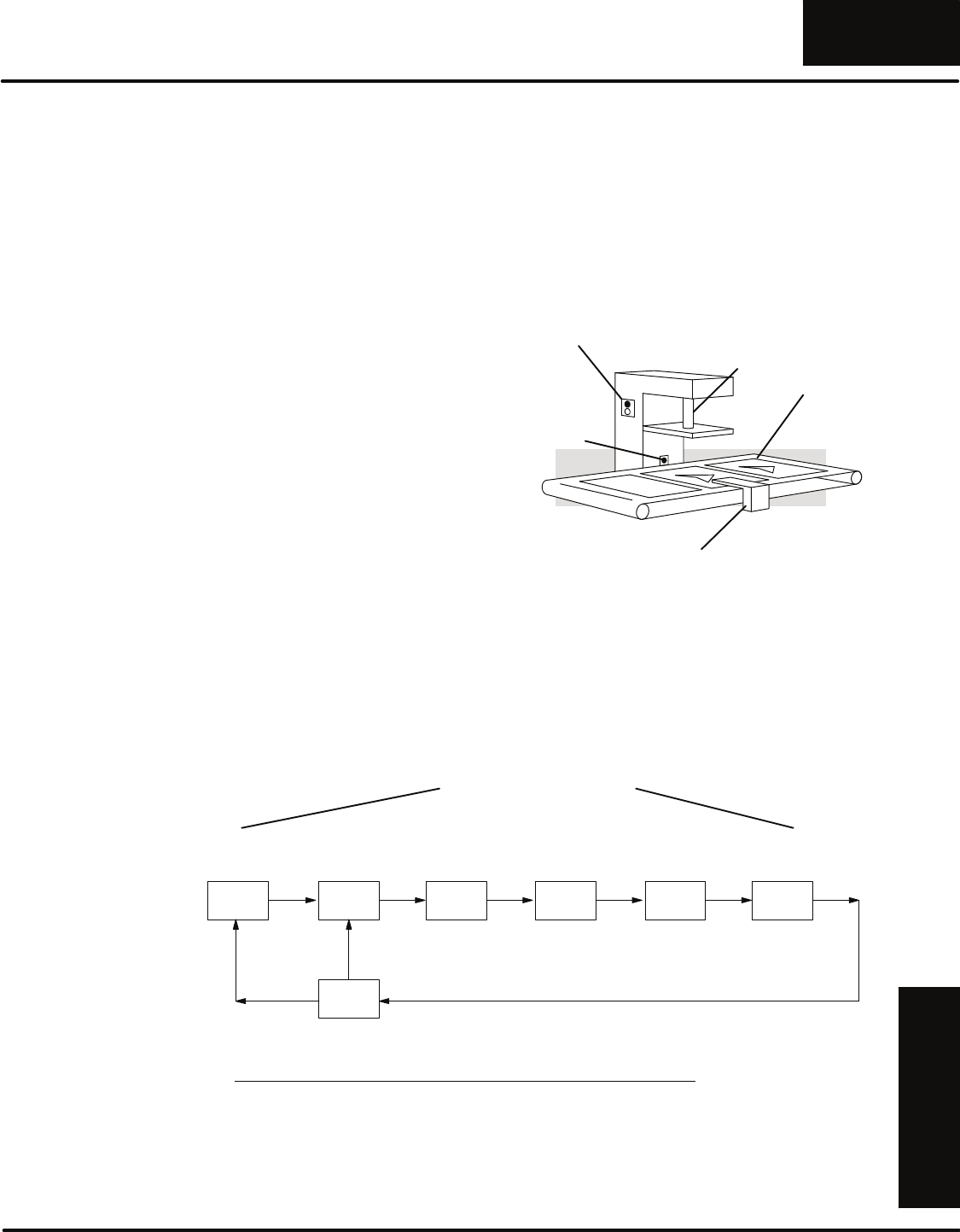
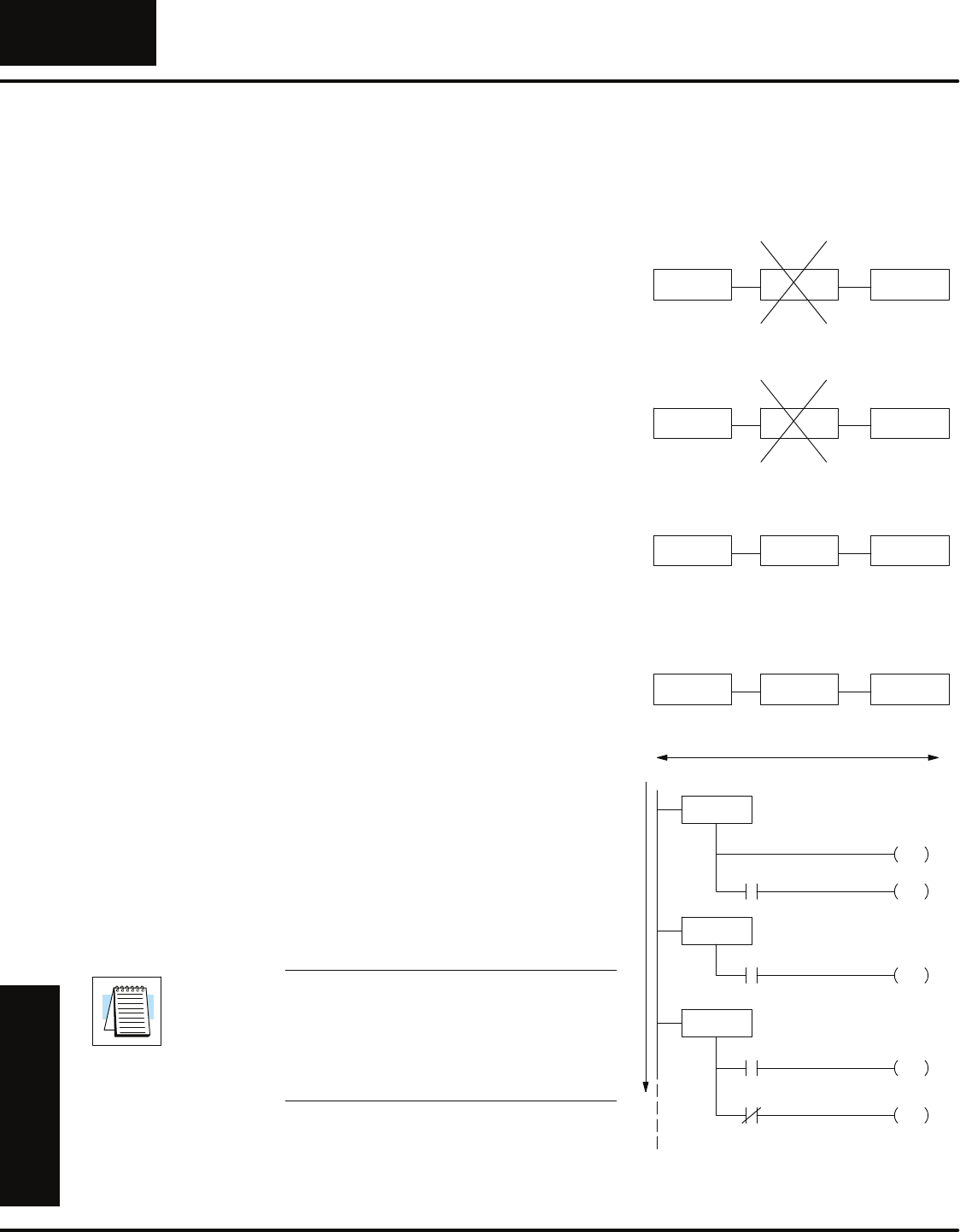
Most any application can be described as
a sequence of events. The PLC program
merely makes sure the events are
completed in a specific order. Not only
does the program control normal
operation, but it also has to allow for
machine failures and emergency
conditions. Consider a simple example.
1. The operator presses the start
switch.
2. The machine checks for a part. If the
part is present, the process
continues. If not, the conveyor moves
until a part is present.
3. The part is locked in place with a
clamp.
4. The press stamps the part.
5. The clamp is unlocked and the
finished piece is moved out of the
press.
6. The process stops if the machine is in
one-cycle mode, or the process
continues if automatic mode is
selected.
On/Off
Switch
Part
Detection
Sensor
Clamp
Press Arm
Part
The following diagram provides a flowchart of this operations sequence.
Step 7
Step 1
The flowchart
breaks the program
into logical steps
Wait for
Start
Step 2
Check for
Part
Step 3
Lock the
clamp
Step 4
Press the
Part
Step 5
Unlock
clamp
Step 6
Move
Conveyor
Check
Mode
One
Cycle
Continuous
Inputs Outputs
Start Switch 000 Clamp 020
Part Present 001 Press 021
Part Locked 002 Conveyor 022
Part Unlocked 003
Lower Limit 004
Upper Limit 005
Conveyor Indexed 006
One-Cycle Switch 007
Machine Operation
Machine Flowchart
RLL
Programming Basics
PLUS
10--4 RLLPLUS Programming Basics
DL305 User Manual, Rev. D
An RLL Solution
Why is RLL so popular? Simple. Before
the PLC arrived control problems were
generally solved with hardwired relays
and switches. About 30 years ago people
started experimenting with a way to
make quick and easy changes without
changing the actual panel wiring. Thus,
the PLC was born. Since the people
developing and using this new
technology were familiar with the relay
and switch solution, it made sense to
have this new technology emulate
something that was familiar to them.
That’s why RLL programs emulate a
relay panel solution.
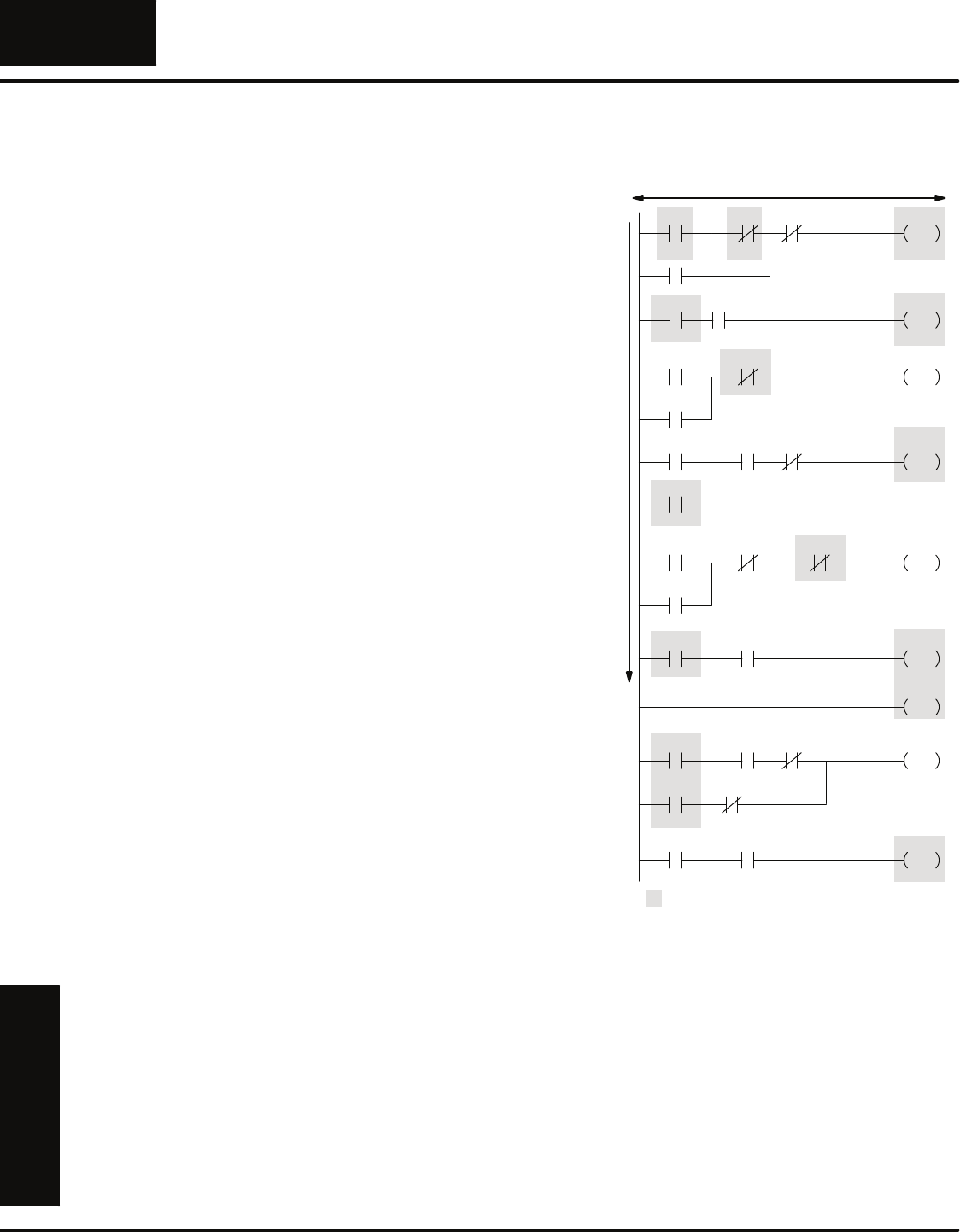
When you supply power to a relay panel
the combination of contact and coil status
determines what actions take place.
Since the RLL program emulates the
relay panel solution, the entire program
is scanned left-to-right, top-to-bottom.
The program executes the operations
sequence when a certain combination of
contacts are activated. This process is
known as interlocking.
Since many PLCs do not have
instructions to help manage the
operations sequence, the programmer
has to make sure the program carries out
the correct sequence by adding the
required interlocks. One great thing
about the RLL solution is the individual
rungs are easy to understand. By
examining the contacts you can easily
determine if the output will be on or off.
Run 1 Cycle RUN
OUT
Start
RUN Present
MCS
Unlocked Clamp
OUT
Stop
Part
160
Release
Clamp
160 001
003 162
163 011
Clamp
020
000
-- Interlock
Executes all rungs Left to Right, Top to bottom
160
Part
020
Locked Press
OUT
Lower
Limit
002 004
Press
021
Part
021
Press
Complete
161
Press Complete
OUT
Conveyor
021 006 161
Press
Complete
161
Lower
Limit
004
Index Press
Press
Complete
161
Clamp
OUT
162
Release
Upper
Limit
005
MCR
Conveyor
OUT
Conveyor
006 022
Run
160
Part
Unlocked
003
Index
Press
Complete
161 Part
Present
001
1 Cycle
OUT
Conveyor
006 163
Index
1 Cycle
007
Many accomplished RLL programmers use things such as Master Control Relays
and Subroutines to reduce the amount of interlocking required. However, these
instructions can sometimes make the program more difficult to understand. There
are several things you should notice about our simple press program.
SMost all rungs use some amount of interlocking.
SThe number of interlocks is usually proportional to the number of tasks
in the operations sequence.
SMost of the instructions are devoted to processing the interlocks. (Plus,
since the program is larger, it takes more time to process.)
SIt usually requires several attempts until a program is designed that is
not susceptible to inadvertent activation and deactivation.
SThe program can be difficult to debug if you do not have a considerable
amount of RLL programming experience.
RLL
Programming Basics
PLUS
10--5
RLLPLUS Programming Basics
DL305 User Manual, Rev. D
An RLLPLUS Solution
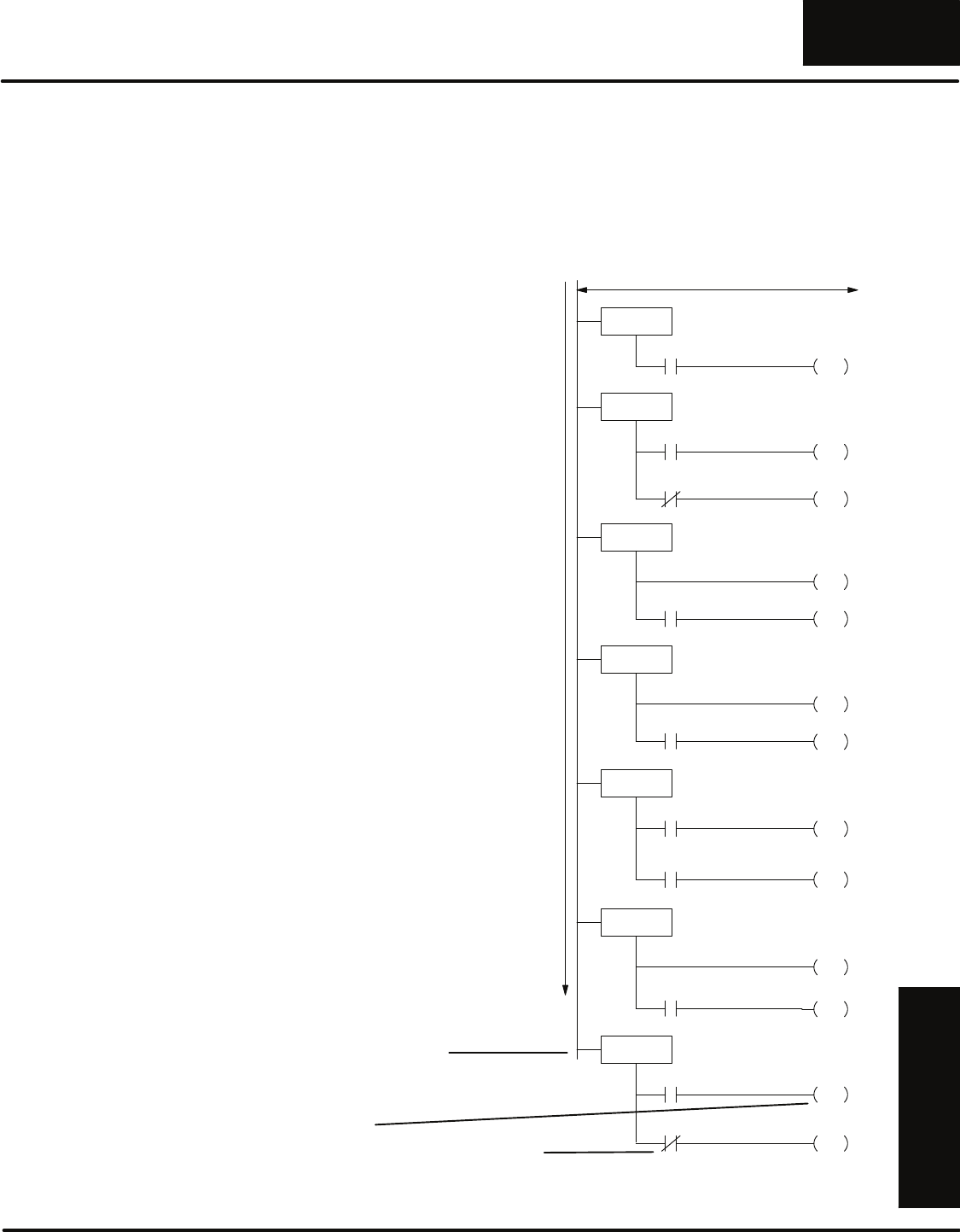
The RLLPLUS instructions keep the simplicity of the contacts and coils while
removing some of the problems associated with the enormous amount of interlocks.
There are several RLLPLUS instructions, but the most often used are the Initial Stage
(ISG), Stage (SG), and Jump (JMP) instructions. Here’s the example press program
created using RLLPLUS instructions. There are two things you should notice.
SControl Relay interlocks are not
required.
SThe program directly follows the
flowchart of the press operation.
How can this happen? Simple. The
interlocks were added to the RLL
program to keep the outputs from coming
on at the improper time. This is because
every rung of the RLL program was
examined on every scan.
The Stage instructions (and the logic
between the Stage instruction and the
next stage instruction) are not
necessarily examined on every scan.
Only stages that are on are examined.
Each stage instruction has a status bit
that is on when the stage is active, and off
when the stage is inactive. On every scan
the CPU examines which stage status
bits are on and only examines the logic in
those stages. If a stage is inactive, the
CPU skips the logic between that stage
and the next active stage.
The following pages will talk about
several different aspects of the CPU
execution for the Stage Instructions. It
will help to understand the pieces of an
individual stage.
Stage Nomenclature
As we discuss the examples it will be
necessary for you to understand the
various pieces that can make up a
program stage.
SStages — a instruction that denotes
a piece of the program
SActions— an event in the program,
such as an output, jump, or some
other instruction.
STransitions — the event that causes
the program to move to the next
stage.
ISG S000
Start S1
JMP
SG S001
Present S2
JMP
Part
001
000
S5
JMP
Present
Part
001
SG S002
Clamp
SET
S4
JMP
Locked
Part
002
SG S003
Down
021
S4
JMP
Limit
Lower
004
Press
SG S004
Clamp
RST
S5
JMP
Unlocked
Part
003
020
SG S005
Conveyor
022
S6
JMP
Moved
Conveyor
006
Move
SG S006
Cycle S0
JMP
One
007
S1
JMP
Cycle
One
007
Wait for start
Check for a part
Lock the clamp
Press the part
Unlock the clamp
Index the conveyor
One cycle or automatic?
Only e
x
ecutes logic in stages that are activ
e
Limit
Top
005 020
RLL
Programming Basics
PLUS
10--6 RLLPLUS Programming Basics
DL305 User Manual, Rev. D
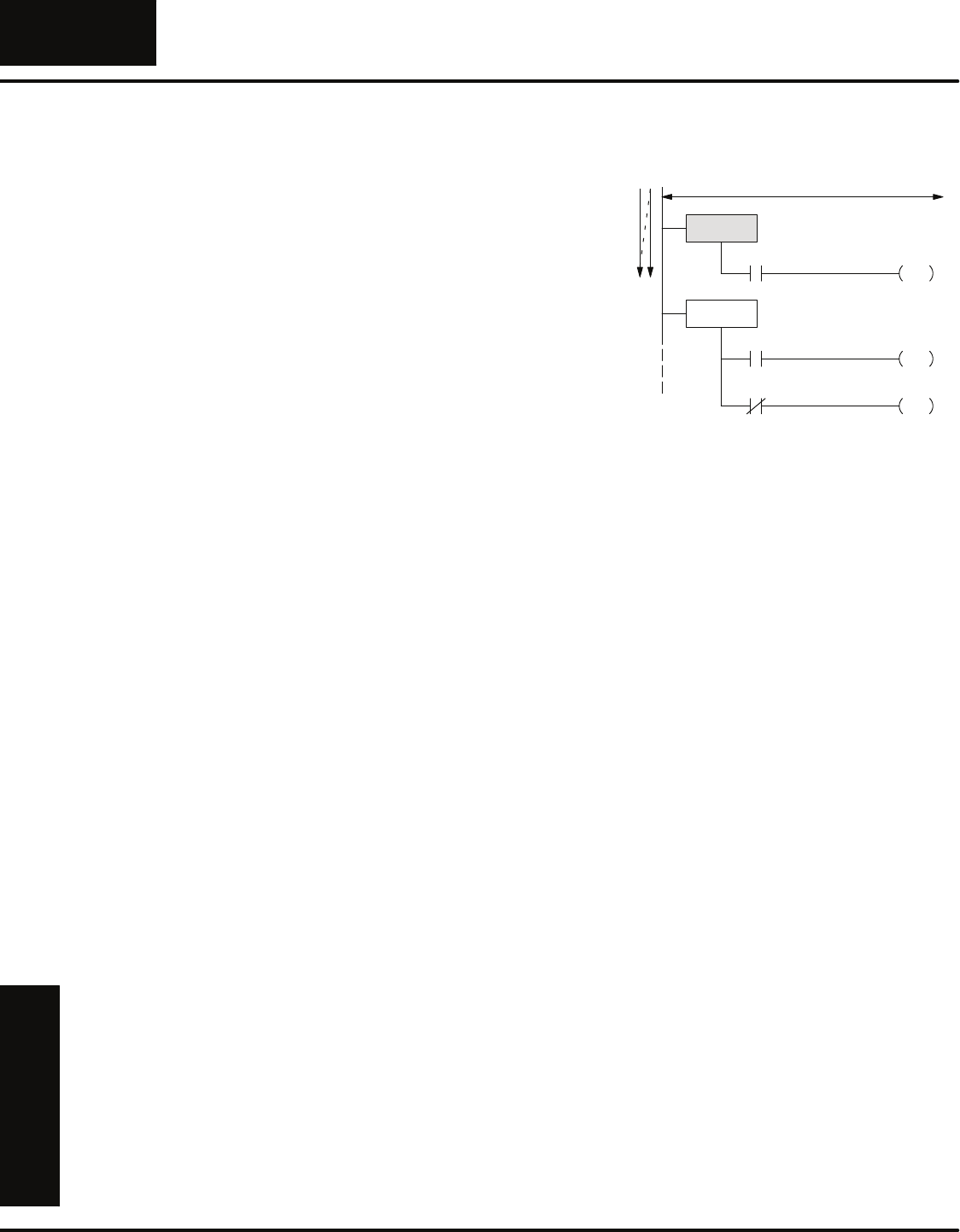
Stage Instruction Execution
Stages are numbered in octal, so you
can’t have any stages with the numbers 8
or 9 in them. Notice the stages skipped
from 7 to 10 since the numbers 8 and 9
are not used. There are 128 (decimal)
stages available in the DL330P CPU,
numbered 0 through 177.
Since each stage has a unique status bit,
you cannot have stages with the same
address number. For example, since the
example program already has a Stage1,
we wouldn’t want to use that number
again.
There’s another advantage to having a
status bit for each stage. This allows you
to skip stage numbers as necessary. This
is a good practice to follow because it
makes it easier to insert stages later
without affecting the appearance of the
program flow.
The stage numbers do not necessarily
have to be numbered sequentially, but it
can be extremely helpful to use
sequential numbers if you are working
with large programs.
Also, the stages do not have to be
entered sequentially with the
programming device. For example, you
could have Stage 100 be the first entry in
the program. This is not a good
programming practice, but since the
CPU looks at the active status bits to
determine which stages to execute, it
doesn’t care where the stages are
physically located in the program.
NOTE: Remember, machines do break.
We recommend you use numbering that
matches the machine flowchart. Also, we
recommend you enter the program in the
same order whenever possible. This will
make troubleshooting much easier.
The section on Designing an RLLPLUS
Program at the end of this chapter
provides guidelines for assigning
numbers to the stage instructions.
Only executes logic in stages that are active
ISG S000
Start S1
JMP
SG S001
Present S2
JMP
Part
001
000
S5
JMP
Present
Part
001
SG S003
Down
021
S4
JMP
Limit
Lower
004
Press
Wait for start
Check for a part
Press the part
SGS007 SGS008 SGS010
SGS001 SGS001 SGS002
SGS010 SGS020 SGS030
SGS012 SGS001 SGS020
Octal Numbering
No Duplicate Numbers
Skip Numbers if Necessary
Non-sequential Numbering
Stage Instruction
Numbering

RLL
Programming Basics
PLUS
10--7
RLLPLUS Programming Basics
DL305 User Manual, Rev. D
Since the CPU will only examine the logic in those stages that are active, it is
important you understand how stages can be turned on and off. There are a few
simple rules that dictate how this works. This may seem like quite a few things to
remember, but it’s really pretty simple. We’ll show examples in the following pages
that show how each of these rules apply to the program execution.
1. Only active stages are executed. If a stage is inactive, the CPU skips the
logic between that stage and the next active stage.
2. You can turn stages on by the following methods.
2.a Initial Stages are automatically turned on when the CPU transitions
from Program Mode to Run Mode.
2.b A stage can be turned on when the program “jumps” from stage to stage
with the Jump (JMP) instruction.
2.c You can use the SET instruction to set a stage status bit just like you
would SET an output.
2.d A stage can be turned on when the program has power flow between
two stages that are tied together by a single transition element.
3. You can turn stages off by the following methods.
3.a An active stage is automatically turned off if the program jumps from the
active stage to another stage.
3.b You can use the Reset (RST) instruction to turn off a stage just like you
use Reset to turn off an output point.
3.c The current stage is automatically turned off if the program has power
flow between the current stage and the next stage.
A Few
Simple Rules for
Execution
RLL
Programming Basics
PLUS
10--8 RLLPLUS Programming Basics
DL305 User Manual, Rev. D
Activating Stages
A
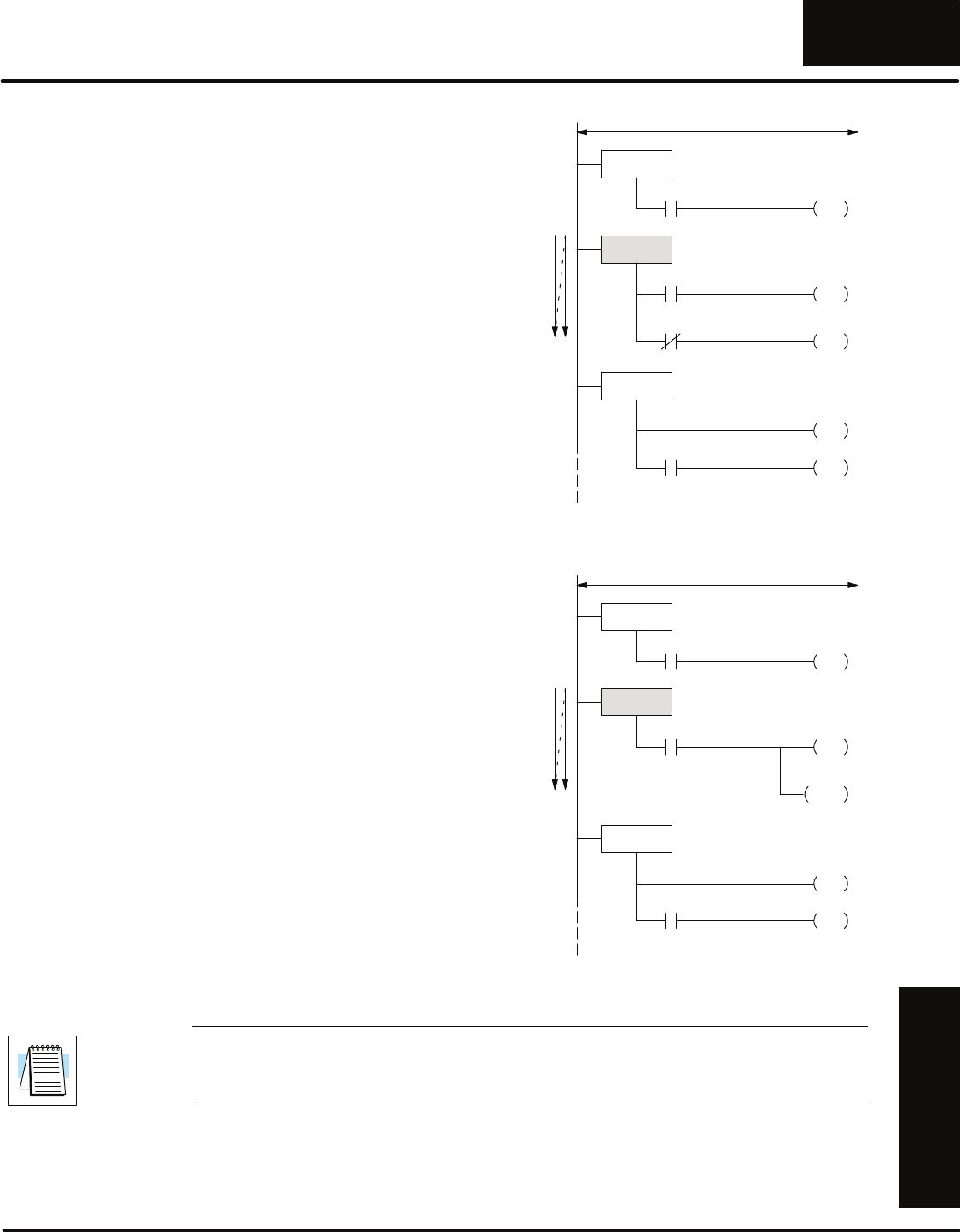
ny initial stages (ISG instructions) are
automatically turned on when the CPU
goes from Program Mode to Run Mode.
For example, when the CPU executing
our example program enters Run Mode,
the Initial Stage (ISG 000) will be turned
on automatically. The other stages are
off, so the CPU only scans the portion of
the program associated with ISG 000.
Since there’s only one rung in Stage 0,
the CPU continually monitors the start
switch. Nothing else will happen until the
start switch is pressed.
ISG S000
Start S1
JMP
SG S001
Present S2
JMP
Part
001
000
S5
JMP
Present
Part
001
Wait for start
Check for a part
Only e
x
ecutes logic in stages that are activ
e
Although it is unusual, there may be times when you need more than one initial
stage. There is nothing at all wrong with this. If your application has a need for more
than one starting point, you can use more than one initial stage. For example, if you
had three initial stages, then those three stages would all be active when the CPU
entered the Run Mode.
Using Initial Stages
RLL
Programming Basics
PLUS
10--9
RLLPLUS Programming Basics
DL305 User Manual, Rev. D
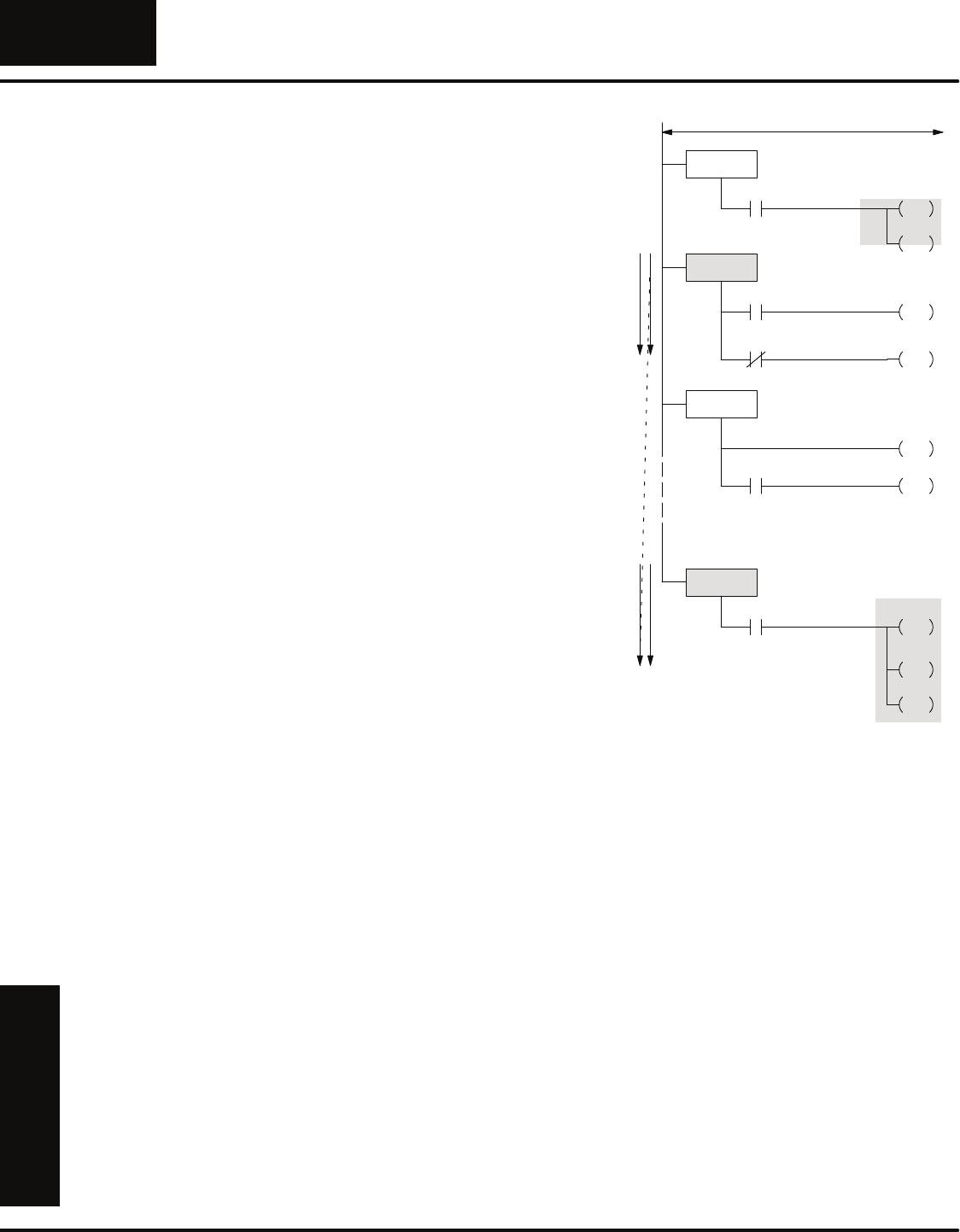
When the operator presses the start
switch input 000 comes on. When 000
comes on the CPU executes the Jump
instruction and “jumps” to Stage 1.
Now the CPU only scans Stage 1. Stage
0 is no longer scanned after the program
jumped to stage 1. This means the Jump
instruction did two things.
SIt activated the destination stage. In
this case, it activated stage 1.
SIt deactivated the stage it came
from, which was stage 0 in this
case.
So, you can jump to a stage to turn it on,
and when you jump from a stage it turns
off.
ISG S000
Start S1
JMP
SG S001
Present S2
JMP
Part
001
000
S5
JMP
Present
Part
001
Wait for start
Check for a part
Only e
x
ecutes logic in stages that are activ
e
SG S002
Clamp
SET
S3
JMP
Locked
Part
002
020
Lock the clamp
This example only shows an action that initiates a jump to one destination. You can
use several jumps ORed together if necessary. Examples of this will be shown later.
There’s also another type o
f
Jump
instruction called a Not Jump. This
instruction only works if the input
conditions are not true, whereas the
regular JMP instruction only works if the
input conditions are true.
In the previous example we examined a
single contact to determine which part of
the program to jump to next. If the part is
present (001 closed), the program jumps
to Stage 2. If a part is not present (001
open), the program jumped to Stage 5.
We could have used a single contact and
the NJMP instruction.
The program example to the right shows
how the NJMP instruction would be used
in this situation. Notice there is one less
instruction required in this example
compared to the previous one.
ISG S000
Start S1
JMP
SG S001
Present S2
JMP
Part
001
000
S5
NJMP
Wait for start
Check for a part
Only e
x
ecutes logic in stages that are activ
e
SG S002
Clamp
SET
S3
JMP
Locked
Part
002
020
Lock the clamp
NOTE: We strongly recommend you avoid using the NJMP instruction. This is
because program debugging can become more difficult, especially for those who
are not so familiar with structured programming concepts.
Using Jump
Instructions
RLL
Programming Basics
PLUS
10--10 RLLPLUS Programming Basics
DL305 User Manual, Rev. D
When you examine the instruction set
more carefully you’ll notice the DL330P
CPU offers a Set (SET) instruction that
works similarly to a latching operation.
For example, you could use a SET
instruction to latch an output point. The
output point can then be unlatched with
the Reset (RST) instruction.
You can also use a SET instruction to turn
on a stage. To show how this works,
we’re going to add a stage to the
program. You may have noticed the
original flowchart did not contain a stop
switch. Well, we don’t want to make
these little widgets forever, so we’re
adding Stage 150, which monitors for a
stop switch. (This is also a good example
of how you can skip stage numbers.)
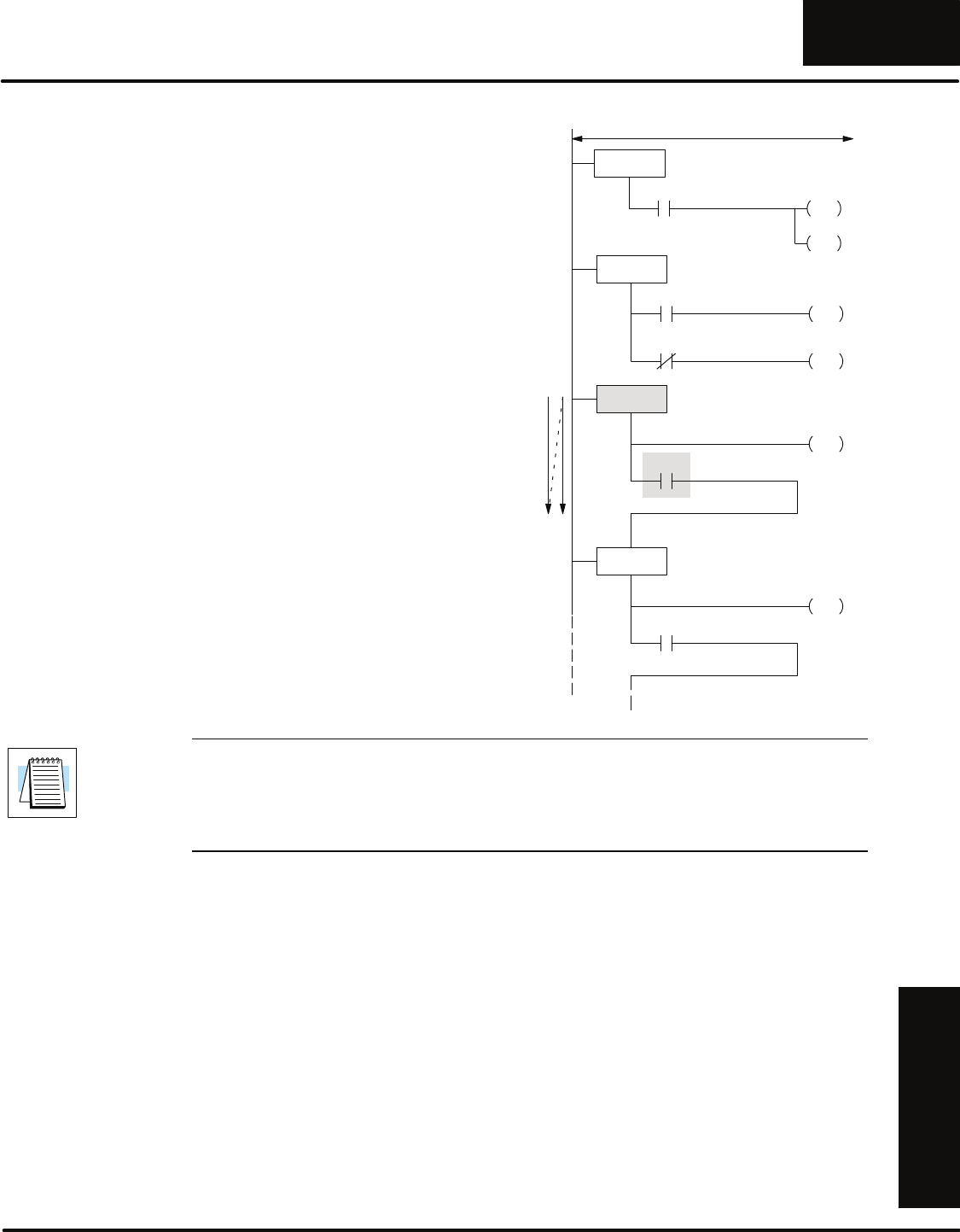
Notice we added a SET instruction in the
first stage. Now when the start switch is
pressed, two stages will be activated.
The CPU examines Stage 1, which
monitors for a part, and it also examines
Stage 150, which monitors the stop
switch.
ISG S000
Start S0
JMP
SG S001
Present S2
JMP
Part
001
000
S5
JMP
Present
Part
001
Wait for start
Check for a part
Only e
x
ecutes logic in stages that are activ
e
SG S002
Clamp
SET
S3
JMP
Locked
Part
002
020
Lock the clamp
S150
SET
SG S150
Stop
S0 -- S6
RST
010
Monitor for stop
S0
JMP
020 -- 022
RST
We did not absolutely have to use a SET instruction in the example. We could have
used a Jump, since you can jump to more than one stage. We just used a SET to
show how it works.
If you examine Stage 150, you’ll notice we do three things when the stop switch is
pressed.
SThe RST 020 -- 022 instruction makes sure all the outputs are turned off.
(We’ll discuss this in more detail in the next section.)
SThe RST S0--S6 instruction resets (turns off) stages 0 through 6. We
reset the entire range so that we guarantee we can stop the press no
matter which stage is currently executing. Notice we reset stages that
were not necessarily turned on with the SET instruction. The Reset
(RST) instruction can be used to turn off stages, no matter how they
were turned on. This is especially handy in larger, more complex
programs.
SThe program jumps back to Stage 0 and starts over again. Note, just
because Stage 0 is an initial stage does not mean it can only be active
at a transition to Run Mode. You can return to an Initial Stage at any
time. It’s just the CPU automatically activates Initial Stages at the Run
Mode transition.
Using Set
Instructions with
Stages
RLL
Programming Basics
PLUS
10--11
RLLPLUS Programming Basics
DL305 User Manual, Rev. D
You do not always have to use a Jump
instruction to move from stage to stage. If
you only move to one stage, instead of
multiple stages, you can use what it is
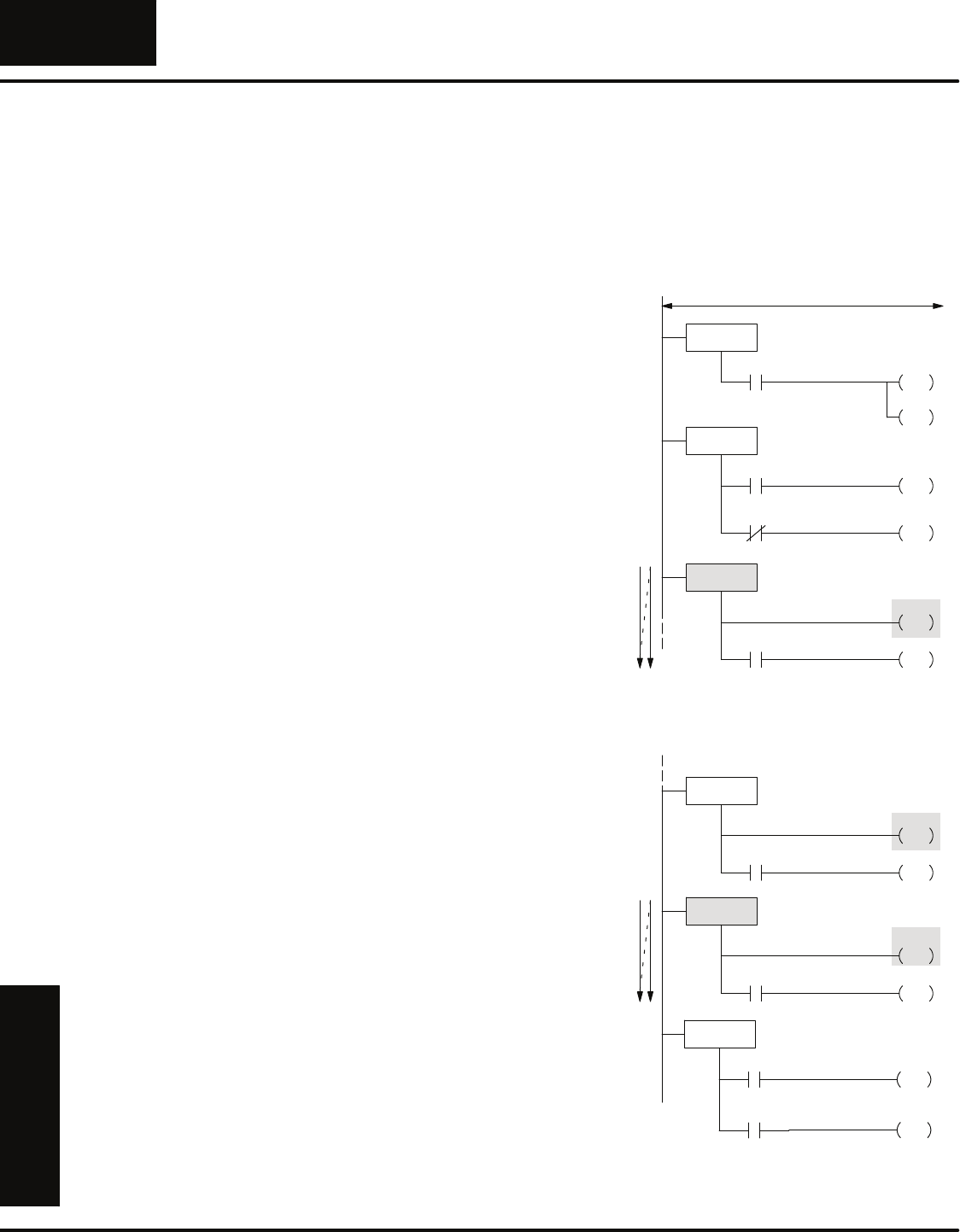
called a power flow transition. For
example, we used Jump instructions in
our sample program. For those stages
that did not have multiple transition
possibilities, we could have just used
power flow transitions.
Look at Stage 2. Notice how the
transition contact, 002 now is directly
connected to the next stage, Stage 3.
You can only do this if you are moving
from one stage to one other stage.
If you examine Stage 1, you’ll notice we
have to use the Jump instructions
because the program can transition to
more than one stage.
SG S001
Present S2
JMP
Part
001
S5
JMP
Present
Part
001
SG S002
Clamp
SET
Locked
Part
002
SG S003
Down
021
Limit
Lower
004
Press
020
Check for a part
Lock the clamp
Press the part
Only executes logic in stages that are active
ISG S000
Start S1
JMP
000
Wait for start
S150
SET
NOTE: We suggest you use Jump Instructions instead of power flow transitions.
This is because we’ve seen many cases where we had to come back and add things
to the program. If you used Jumps from the beginning, you only have to add another
Jump instruction. If you used power flow transitions, the program edits can take a
little longer.
Power Flow
Transitions
RLL
Programming Basics
PLUS
10--12 RLLPLUS Programming Basics
DL305 User Manual, Rev. D
Using Outputs in Stages
Since the CPU only examines the logic in stages that are on, you have a lot more
flexibility in how you use outputs with the RLLPLUS instructions. Also, you don’t have
to worry about adding several permissive contacts to keep the output from coming
on at an inappropriate time. (If the stage is not on,the CPU doesn’t even scan the
stage, so the output can’t possibly be turned on by the logic in that stage.)
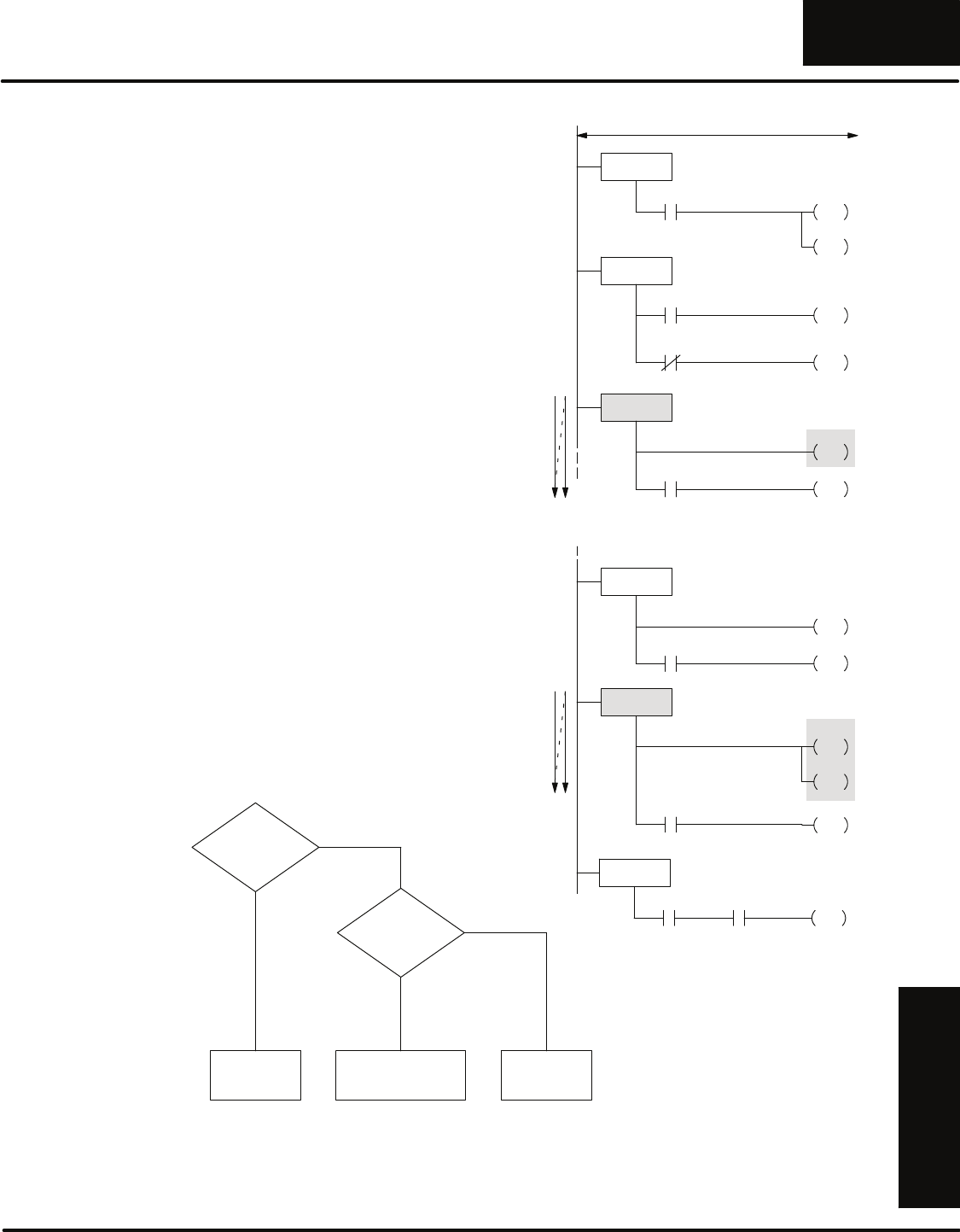
If you examine Stage 2, you’ll notice we
use a SET instruction to clamp the part in
place. Why a set? Simple. If we used a
regular output the clamp will be
deactivated when the program
transitions to Stage 3. Remember, when
you leave a stage the CPU no longer
scans that stage until it is turned on
again. So if we had used a regular OUT
instruction, the CPU would have
automatically turned off the output, which
would have unclamped the part.
The first example shows the program
execution in Stage 2. The second
example shows what happens on the
next scan after the part is locked. Notice
the clamp output is still on even though
the CPU is not scanning this portion of
the program. This is why we use the SET
instruction in this case. We want the
clamptostayonwhilethepress
completes the cycle.
The clamp will stay on until the program
enters Stage 4. Stage 4 unlocks the part
by resetting output 020 when the press
returns to the top limit.
ISG S000
Start S1
JMP
SG S001
Present S2
JMP
Part
001
000
S5
JMP
Present
Part
001
Wait for start
Check for a part
SG S002
Clamp
SET
S3
JMP
Locked
Part
002
020
Lock the clamp
S150
SET
SG S003
Down
021
S4
JMP
Limit
Lower
004
Press
Press the part
Next Scan after part is locked
SG S002
Clamp
SET
S3
JMP
Locked
Part
002
020
Lock the clamp
SG S004
Clamp
RST
S5
JMP
Unlocked
Part
003
Unlock the clamp
Limit
Top
005 020
Setting Outputs
with the SET
Instruction
RLL
Programming Basics
PLUS
10--13
RLLPLUS Programming Basics
DL305 User Manual, Rev. D
SG S004
S5
JMP
Unlocked
Part
003
Unlock the clamp
Limit
Top
005
One other benefit with RLLPLUS is the
ability to use the same output in multiple
places. Instead of using the SET
instruction in Stage 2, we could have just
put the clamp output, 020, in all the
stages where we wanted the part to
remain clamped.
If you examine Stage 2 you’ll notice
output 020 is on because the stage is
active. The next example shows what
happens after the part is locked in place.
The program moves to Stage 3 from
Stage 2. Notice output 020 is now off in
Stage 2. However, since we included the
same clamp output in Stage 3, the part
remains clamped in place.
The clamp will automatically turn off
when the program enters Stage 4. Notice
Stage 4 does not have to have any kind of
Reset instruction, since the output is
automatically turned off when the
program exits Stage 3.
The concept of automatically turning off
the outputs sometimes confuses many
people. However, the CPU just uses a
very simple algorithm to determine if the
output should be turned off. The following
diagram shows how this algorithm
works.
ISG S000
Start S1
JMP
SG S001
Present S2
JMP
Part
001
000
S5
JMP
Present
Part
001
Wait for start
Check for a part
SG S002
Clamp
OUT
S3
JMP
Locked
Part
002
020
Lock the clamp
S150
SET
SG S003
Down
021
S4
JMP
Limit
Lower
004
Press
Press the part
Next Scan after part is locked
SG S002
Clamp
OUT
S3
JMP
Locked
Part
002
020
Lock the clamp
Clamp
OUT
020
Stage=On
Execute
Logic
Yes
No
Examine Logic,
AND results
with 0
Any outputs
on last
scan?
Yes
No
Skip to next
active stage
Using the OUT
Instruction

RLL
Programming Basics
PLUS
10--14 RLLPLUS Programming Basics
DL305 User Manual, Rev. D
There’s one more way to control outputs
with the Stage instructions. You may
recall once a stage is turned on, you can
only turn it off by resetting it, or by having
a transition from it, either by a Jump or a
power flow.
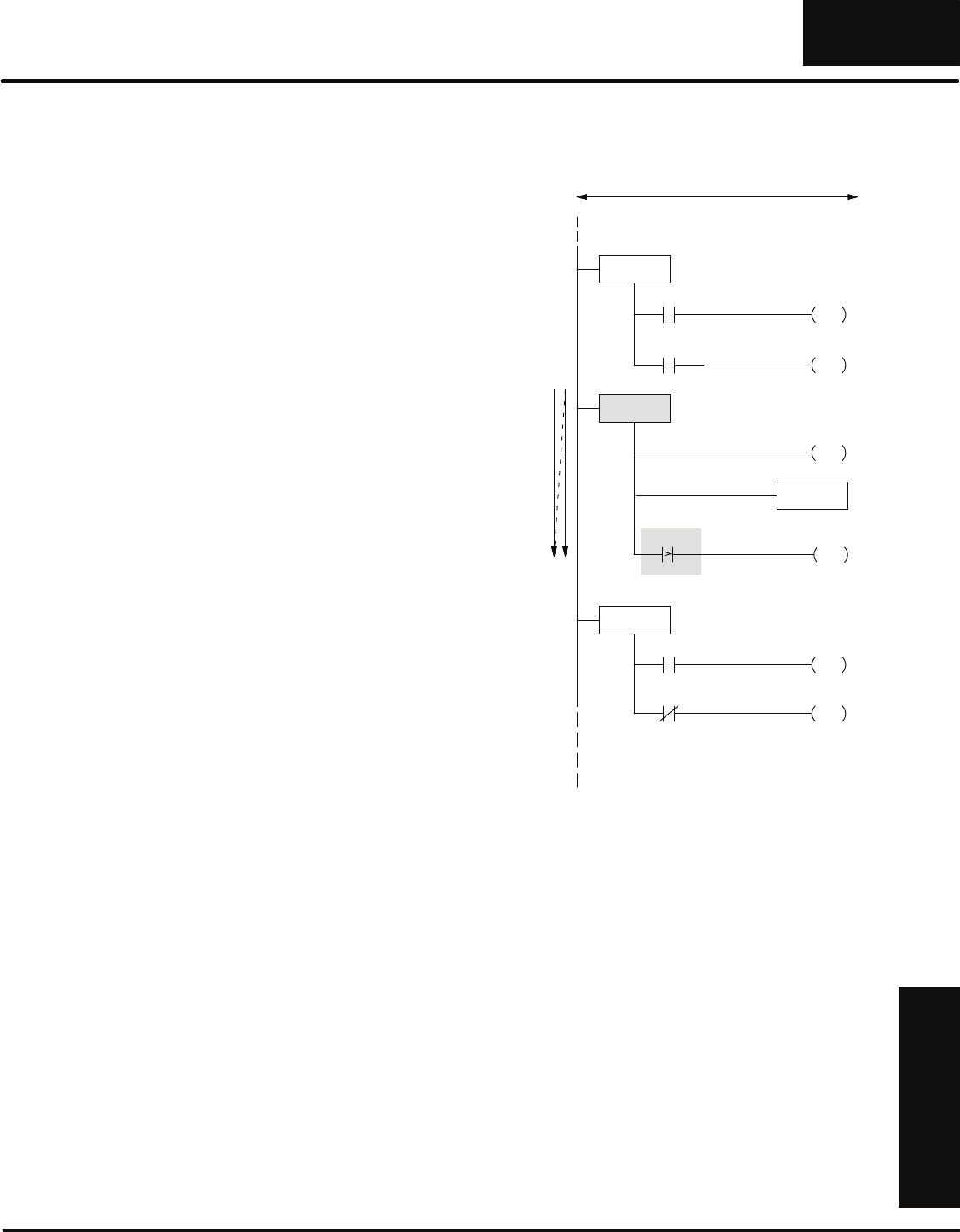
What happens if you have a stage that
does not have any kind of transition?
What if it doesn’t have a Jump instruction
or any other kind of transition contact
leading to another stage? Simple. The
stage will stay on until it is reset by some
other part of the program that uses a
Reset instruction.
This makes it easy to use a stage without
a transition to latch an output. For
example, if you examine Stage 2 you’ll
notice we’ve now changed this part of the
program again. Now this stage sets
Stage 140,which will be used to control
the clamp.
Notice Stage 140 does not have any type
of transition. The only way to turn off the
clamp is to Reset Stage 140. This
instruction has now been included in
Stage 4. So, after the program transitions
to Stage 4, the Reset instruction will turn
off Stage 140.
ISG S000
Start S1
JMP
SG S001
Present S2
JMP
Part
001
000
S5
JMP
Present
Part
001
Wait for start
Check for a part
SG S002
SET
S3
JMP
Locked
Part
002
S140
Lock the Clamp
S150
SET
SG S003
Down
021
S4
JMP
Limit
Lower
004
Press
Press the part
Next Scan after part is locked
SG S002
SET
S3
JMP
Locked
Part
002
S140
Lock the clamp
SG S140
Clamp
020
Clamp
SG S004
Clamp
RST
S5
JMP
Unlocked
Part
003
Unlock the clamp
Limit
Top
005 S140
Latching Outputs
with Stages
RLL
Programming Basics
PLUS
10--15
RLLPLUS Programming Basics
DL305 User Manual, Rev. D
Using Timers and Counters in Stages
Up to this point we’ve been using certain
events that triggered the transition from
stage to stage. There will probably be
many cases where the transition should
be related to a timer value. For example,
if you know the speed of the conveyor
you could use a timer to control the
conveyor movement.
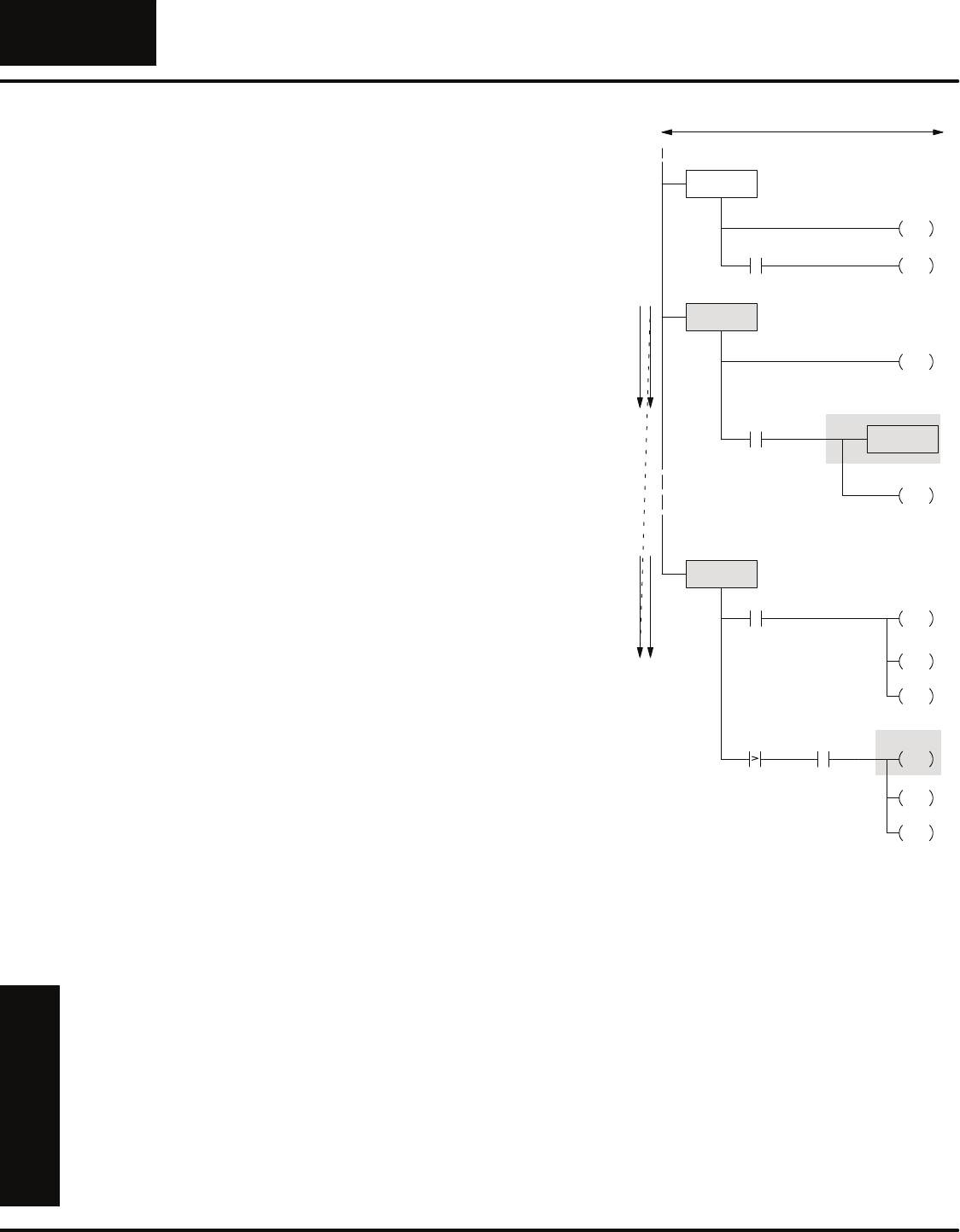
If we used this approach we would
modify Stage 5 as shown. Notice the
timer does not have a preset value. The
timer begins incrementing as soon as it
becomes active. Since the timer does not
have a preset value, you do not have a
timer contact, so you have to use a
comparative instruction.
In the example shown, the conveyor will
be turned on for 5 seconds and then the
program will jump to the next stage.
Only e
x
ecutes logic in stages that are active
S6
JMP
TMR T600
SG S004
Clamp
RST
S5
JMP
Unlocked
Part
003
SG S005
Conveyor
022
Move
SG S006
Cycle S0
JMP
One
007
S1
JMP
Cycle
One
007
Unlock the clamp
Index the conveyor
One cycle or automatic?
Limit
Top
005 020
T600 50
Time Based
Transitions
RLL
Programming Basics
PLUS
10--16 RLLPLUS Programming Basics
DL305 User Manual, Rev. D
There will also be times when you need
to count things that happen throughout
the process. For example, you may want
to know the number of parts produced
during any given shift, or you may know
the presses generally require some type
of maintenance after a certain number of
cycles.
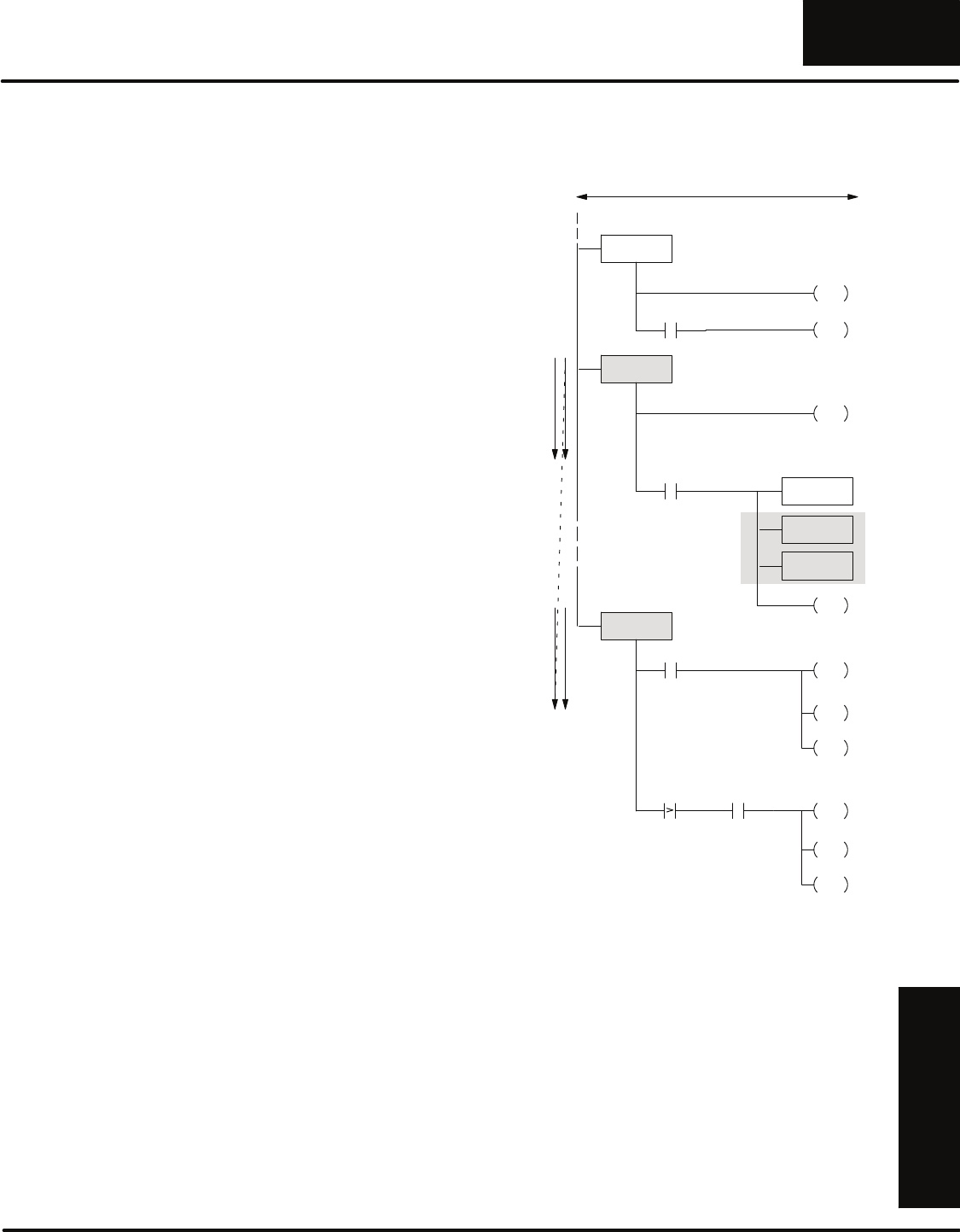
If we wanted to count the number of
widgets made on our simple press, we
could just add a counter to Stage 4 to
monitor how many times the press is
used. We’re also going to use the counter
as an automatic shutdown when the
press has made 5000 parts so we’ve
added a new rung in Stage 150 to
perform the shutdown operation.
Notice the counter does not have a reset
leg. This is true only when you use a
counter with the DL330P. (The other
CPUs have counters with reset legs.)
Even though this counter does not have a
reset leg, it can be reset with a Reset
instruction. This works just like an output
reset, so you could place this reset
wherever it is appropriate. We’ve placed
it in Stage 150 for this example.
When the parts count reaches 5000, the
program will finish the current cycle,
reset the part counter, and jump to Stage
0 to wait for another start cycle. You may
notice we added an additional input, 006.
This is what allows the program to finish
the current cycle. (You may recall 006
only came on after the part was unlocked
and the conveyor was indexed.)
SG S003
Down
021
S4
JMP
Limit
Lower
004
Press
Press the part
SG S002
SET
S3
JMP
Locked
Part
002
S150
Lock the clamp
CNT C600
SG S150 Monitor for stop
S0 -- S6
RST
S0
JMP
C600
RST
Stop
S0 -- S6
RST
010
S0
JMP
020 -- 022
RST
Conveyor
006
Index
C600 K5000
Parts Count
Using Counters
RLL
Programming Basics
PLUS
10--17
RLLPLUS Programming Basics
DL305 User Manual, Rev. D
Using Data Instructions in Stages
Even though there are a few differences
in the way some of the instructions
operate between the various CPUs,
there are many of the normal instructions
that can be used inside an individual
stage. For example, you may need to
load data into the accumulator to perform
some type of math, or, you may need to
store values into register locations.
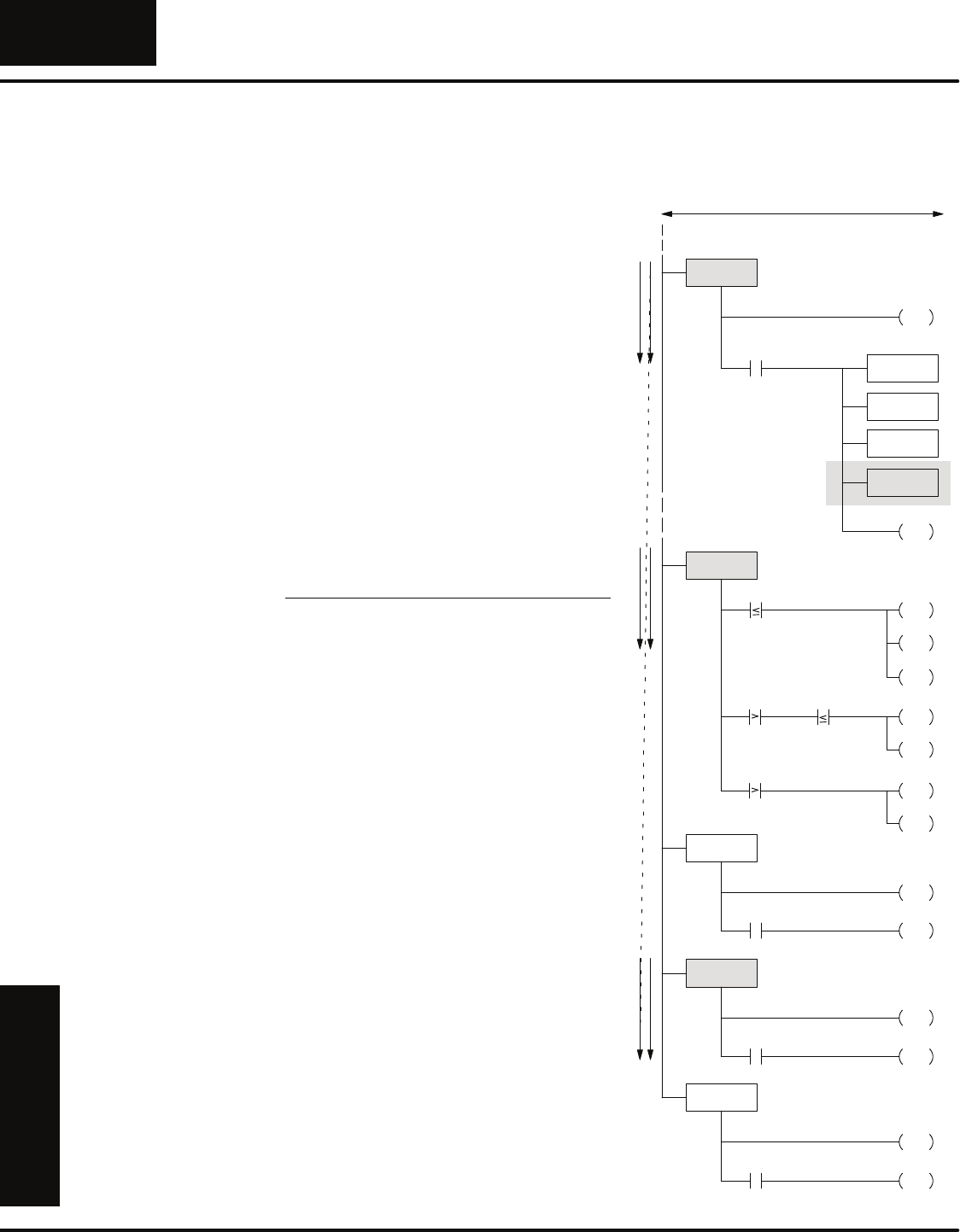
If you examine Stage 3, you’ll notice
we’ve added a couple of instructions.
These instructions store the current parts
count in a register.
Now the CPU will take the current parts
count, stored in R600, and load it into the
accumulator with the DSTR instruction.
Then this 4-digit BCD count will be
moved to R400 with the DOUT
instruction.
This is just one example of how you can
use the various types of data
instructions. There are many other
possibilities. Just remember, if the stage
is active, the instructions can be
executed. If the stage isn’t active, the
instructions will not even be examined.
SG S0003
Down
021
S4
JMP
Limit
Lower
004
Press
Press the part
SG S0002
SET
S3
JMP
Locked
Part
002
S150
Lock the clamp
CNT C600
SG S150 Monitor for stop
S0 -- S6
RST
S0
JMP
CT0
RST
Stop
S0 -- S6
RST
010
S0
JMP
020 -- 021
RST
Conveyor
006
Index
DSTR F50
R600
DOUT F60
R400
C600 5000
Parts Count
RLL
Programming Basics
PLUS
10--18 RLLPLUS Programming Basics
DL305 User Manual, Rev. D
Using Comparative Contacts in Stages
You may recall you had to use a
comparative instruction with the timers
and counters. The DL330P provides
several comparative contacts that are
very useful. You can use these contacts
to examine the relationship between a
counter or timer value and a constant or
register value.
For example, let’s assume the pressed
widgets move off the conveyor into a
holding bin. The bin can only hold 1000
widgets, so we’ll add another counter,
C601, to note how many widgets are in
the bin. Also, we want to use different
colored lights mounted on top of the
press to alert a forklift driver the bin
needs to be carried to the next operation.
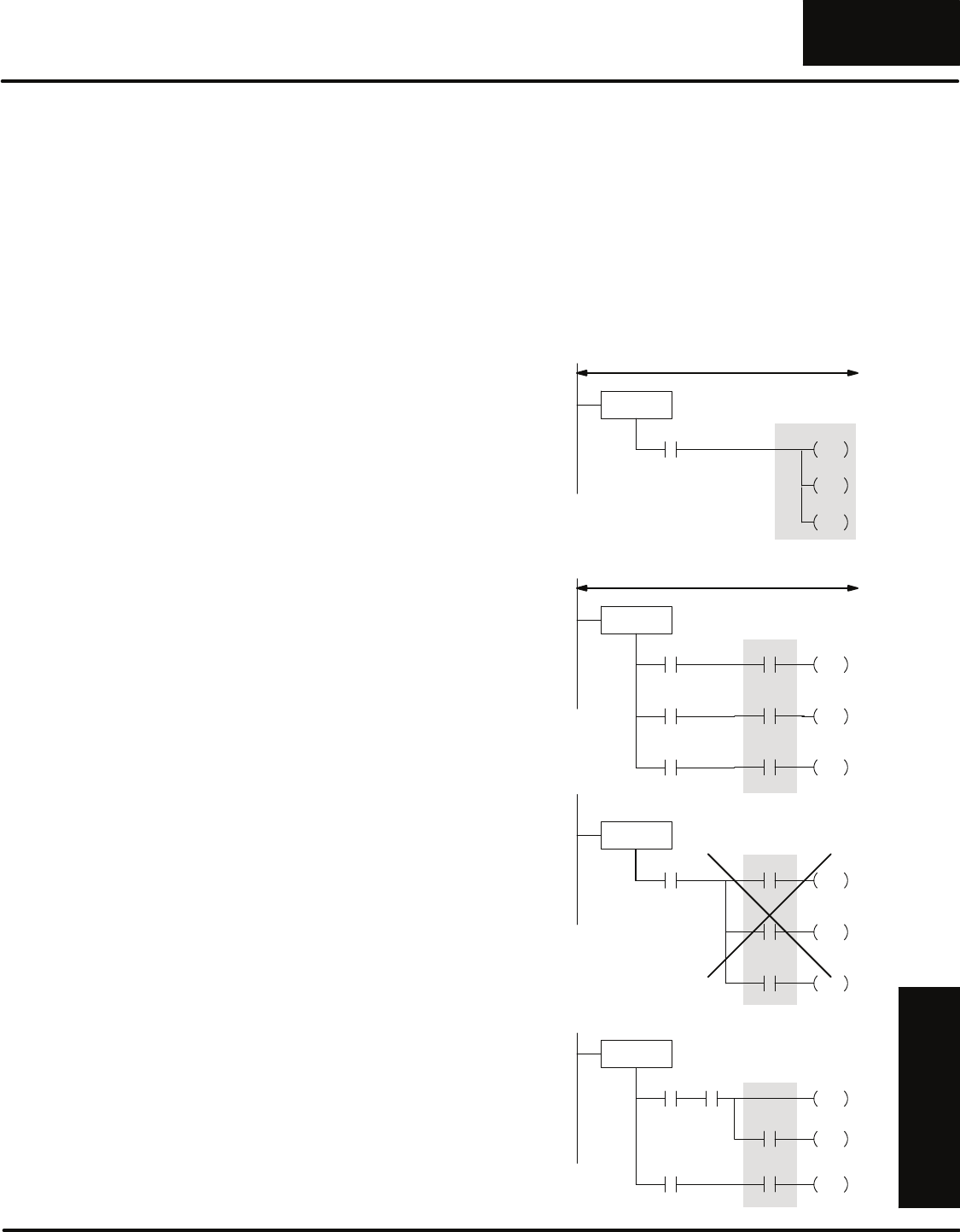
We’ll use the following indicators.
Indicator Meaning Address Stage
Green OK 040 21
Yellow Soon 041 22
Red Urgent 042 23
Reset Emptied 030
Notice we’ve added a few more stages to
monitor this condition. For this example,
assume the press has made 750
widgets. This means the Yellow indicator
(Stage 22) should be active.
We also need a way to reset the bin
counter whenever the forklift driver
empties the bin. If you examine Stage 21
through Stage 23, you’ll notice we reset
the bin counter whenever the bin reset
(030) is active.
This example doesn’t show it, but you
would also have to make some changes
to other parts of the program. For
example, you’d need to modify the Stop
Stage to shut off these stages when the
machine was stopped.
SG S0003
Down
021
S4
JMP
Limit
Lower
004
Press
Press the part
CNT C600
SG S0020 Monitor lights for forklift
S21
RST
S21
SET
DSTR F50
R600
DOUT F60
R400
R601 500
R601 K499
S22
SET
S22
RST
R601 K900 S23
SET
R601 K899
SG S0021 Bin level OK
040
OUT
SG S0022 Empty bin soon
041
OUT
CNT C601
Emptied
Bin
030
C601
RST
SG S0023 Empty bin now
042
OUT
Emptied
Bin
030
C601
RST
S22
RST
S23
RST
Emptied
Bin
030
C601
RST
Bin counter
RLL
Programming Basics
PLUS
10--19
RLLPLUS Programming Basics
DL305 User Manual, Rev. D
Parallel Branching Concepts
As you examined some of the previous examples you saw we could have more than
one stage being processed on any given scan. The CPU scanned the first active
stage and then moved on to the next active stage, skipping any inactive stages in
between. For some complex applications, you can easily have as many parallel
paths as necessary. This is often called branching or divergence.
There are a couple of approaches you can take when you want to turn on more than
one stage. The diagrams shown don’t necessarily apply to our press example, but
instead show the various approaches.
S2
JMP
In this example, you use one transition
contact to activate several stages.
SThe SET instruction sets a range of
stages. These stages would remain
on until they were reset, or, until
any transition instructions contained
within the stages were executed.
SThere are two Jump instructions,
both activating different stages.
ISG S000
Start
000
Wait for start
Only e
x
ecutes logic in stages that are activ
e
S20 -- S30
SET
S50
JMP
In this example, notice the stage that gets
activated depends on an extra condition.
For example, if the machine was capable
of producing three different patterns,
there may be a section of program for
each pattern.
There are other types of contacts that
can be used. For example, you may
recall we used Comparative contacts in
some earlier examples.
Notice we had to repeat the start switch in
a separate rung each time. At first glance
you would think you could simply have
one Start switch contact and OR the
remaining switches. The DL305 CPUs
do support midline outputs (which is what
this is called), but only in an AND
situation.
ISG S000
Start S100
JMP
000
Wait for start
Only e
x
ecutes logic in stages that are activ
e
S200
JMP
S300
JMP
Pattern 1
020
Pattern 2
021
Pattern 3
022
Start
000
Start
000
ISGS0000
Start S100
JMP
000
Wait for start
S200
JMP
S300
JMP
Pattern 1
020
Pattern 2
021
Pattern 3
022
You can also use midline outputs to
control branching conditions. Here’s an
example of branching instructions that
follow the guidelines for midline outputs.
(This example is not for the press
program, but merely shows how the
midline outputs would appear.)
ISG S000
S100
SET
S300
JMP
023
000
000 001
S200
JMP
002
Branching
Methods

RLL
Programming Basics
PLUS
10--20 RLLPLUS Programming Basics
DL305 User Manual, Rev. D
There are many times you have to bring parallel branches back together at some
point in the program. You may recall the stages have status bits associated with
them. You can use this status bit as a contact to easily converge the parallel paths.
To illustrate this method, we’re going to use a simple press with two stations. Now a
widget must get pressed at each station before it is a finished product. Since there
are two stations, we must make sure both operations are complete before we move
the conveyor.
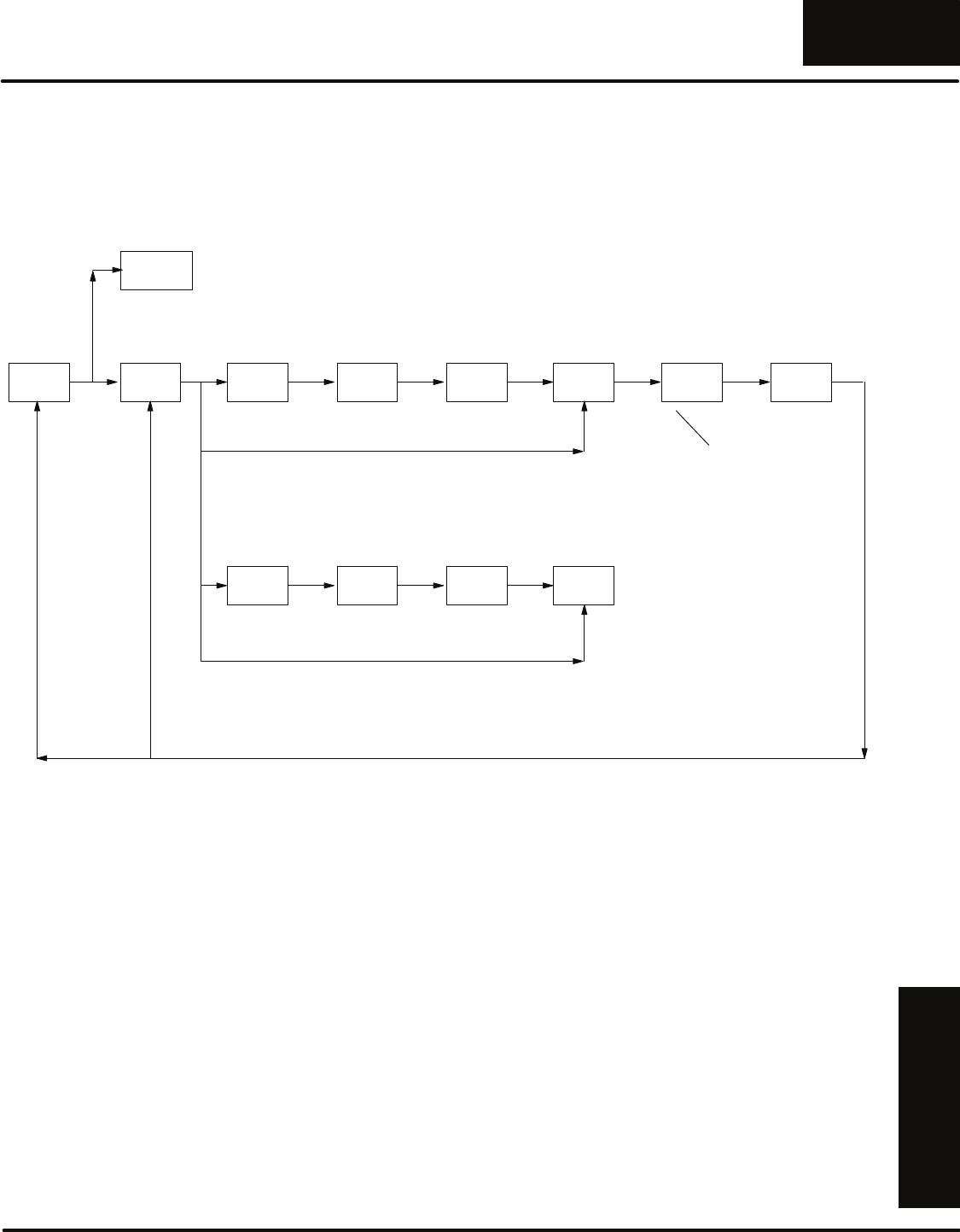
Joining Parallel
Branches
RLL
Programming Basics
PLUS
10--21
RLLPLUS Programming Basics
DL305 User Manual, Rev. D
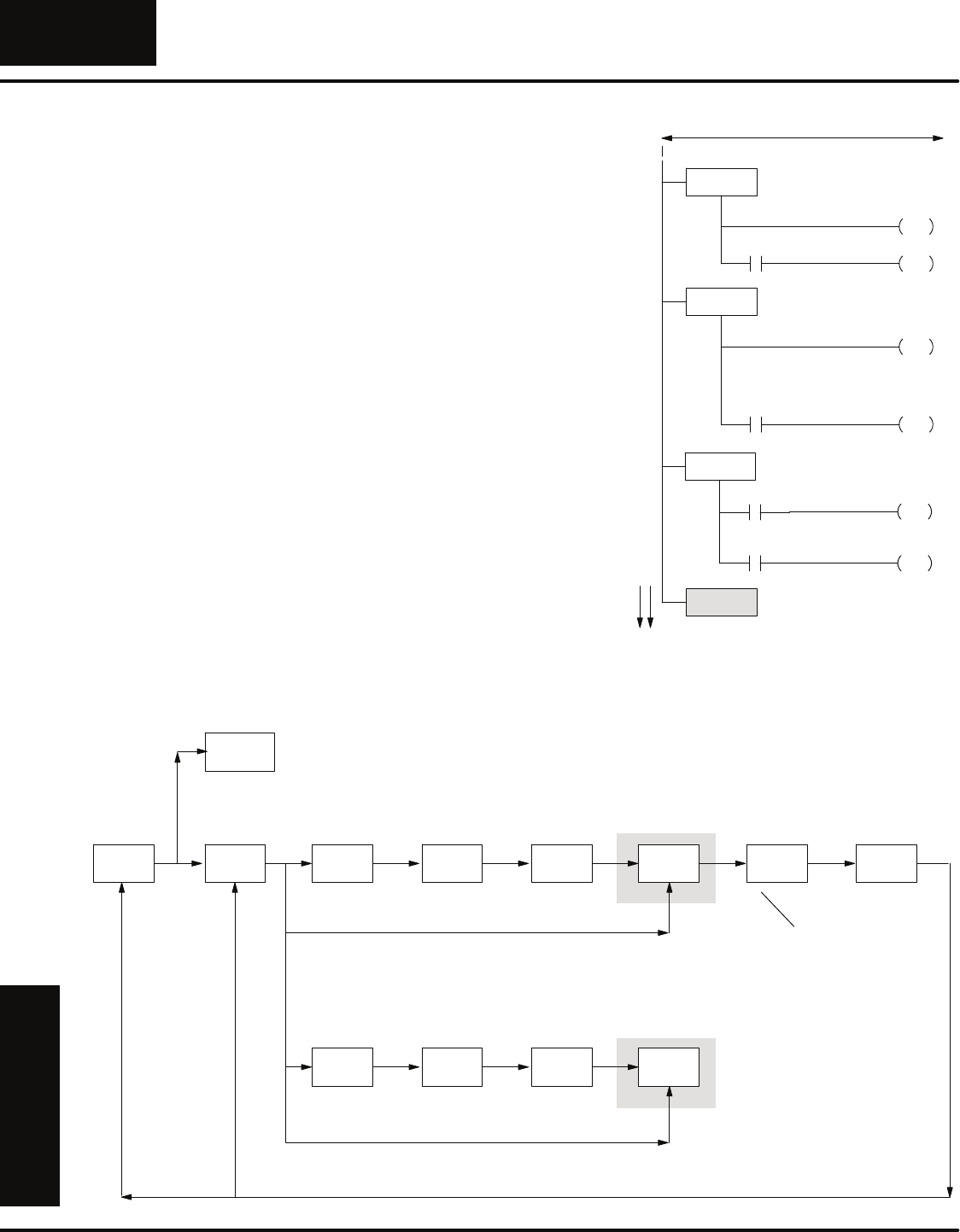
Here’s a flowchart that describes the two-station press. Please note we’ve changed
some of the stage numbers, input numbers, and output numbers, so they won’t
necessarily match the previous examples.
Stage 50Stage 0
Wait for
Start
Stage 10
Check for
Parts in
A&B
Stage 20
Lock the
clamp
Stage 21
Press the
Part
Stage 22
Unlock
clamp
Stage 23
Wait for
Station B Check
Mode
One
Cycle Continuous
Station A
Stage 30
Lock the
clamp
Stage 31
Press the
Part
Stage 32
Unlock
clamp
Stage 33
Station B
Finished
Station B
Stage 40
Move
Conveyor
No Part in A
A
No Part in B
Stage150
Check for
Stop
Reset all stages
Jump to Start
B
Program must
converge into
a single path
again
You’ve already seen how the basic sequence of operations was executed. so we’re
only going to show the portions of the program that describe how the branches are
joined together.
RLL
Programming Basics
PLUS
10--22 RLLPLUS Programming Basics
DL305 User Manual, Rev. D
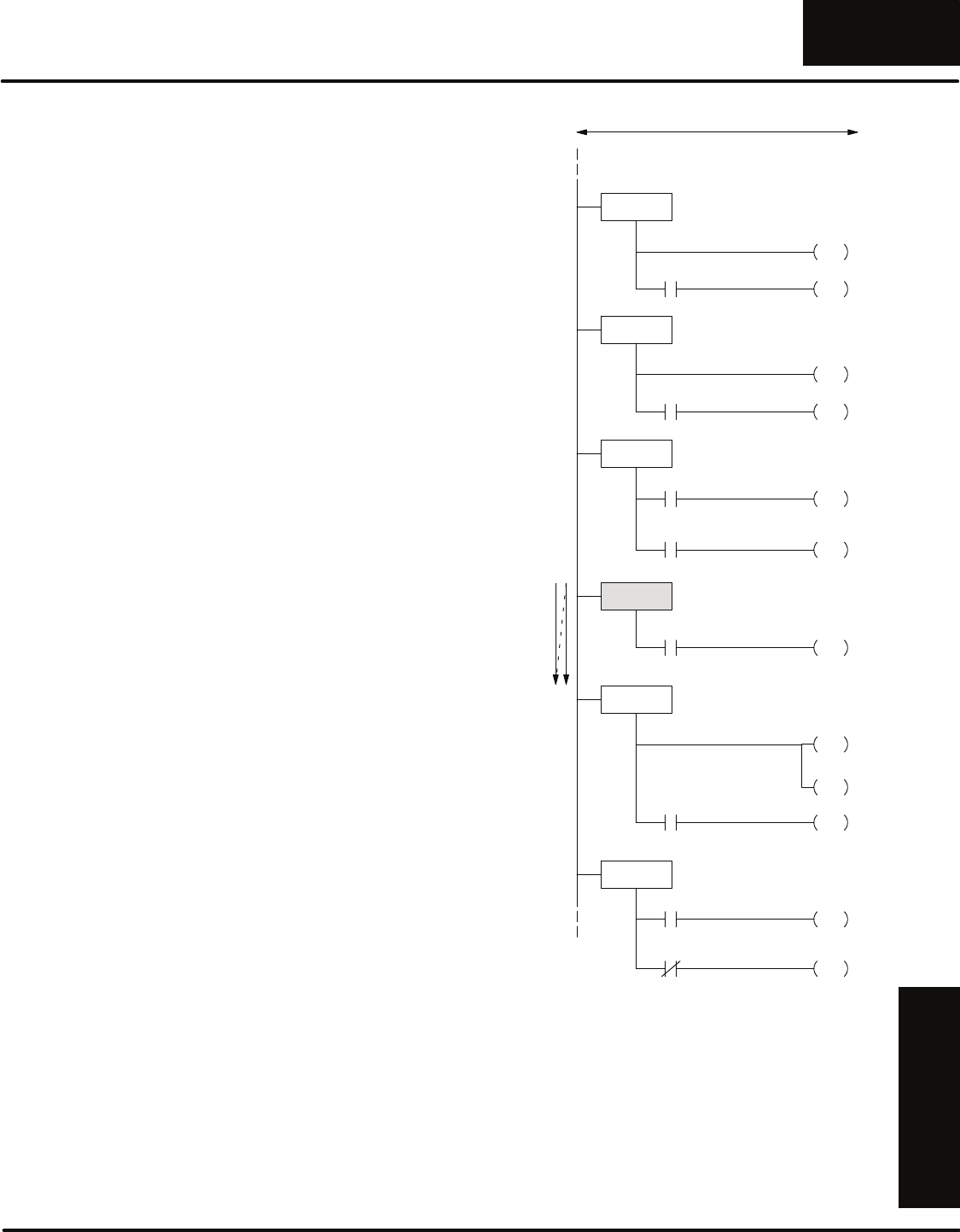
If you examine the flowchart you’ll notice
once the part is unclamped in station B,
the program transitions to Stage 33
which indicates Station B is complete.
If you look at that portion of the program
shown here, you’ll notice there are no
other instructions or actions that take
place in this stage. This is why we call it a
“dummy” stage. We’re just going to use
the status of the stage bit associated with
this dummy stage as a contact elsewhere
in the program to indicate station B is
finished.
You may be wondering how we can turn
off this stage. Since it does not have any
type of jump or power flow transition, the
only other option is to Reset the stage.
We’ll do this later in the program.
SG S031
Down
021
S32
JMP
Limit
Lower
024
Press
Press the part
SG S030
Clamp
SET
S31
JMP
Locked
Part
023
020
Lock the clamp
SG S0033 Station B Finished
SG S031
Clamp
RST
S33
JMP
Unlocked
Part
023
Unlock the clamp
Limit
Top
025 020
Station B
Stage 50Stage 0
Wait for
Start
Stage 10
Check for
Parts in
A&B
Stage 20
Lock the
clamp
Stage 21
Press the
Part
Stage 22
Unlock
clamp
Stage 23
Wait for
Station B Check
Mode
One
Cycle Continuous
Station A
Stage 30
Lock the
clamp
Stage 31
Press the
Part
Stage 32
Unlock
clamp
Stage 33
Station B
Finished
Station B
Stage 40
Move
Conveyor
No Part in A
A
No Part in B
Stage 150
Check for
Stop
Reset all stages
Jump to Start
B
Program must
converge into
a single path
again
Using Stage Bits
as Contacts
RLL
Programming Basics
PLUS
10--23
RLLPLUS Programming Basics
DL305 User Manual, Rev. D
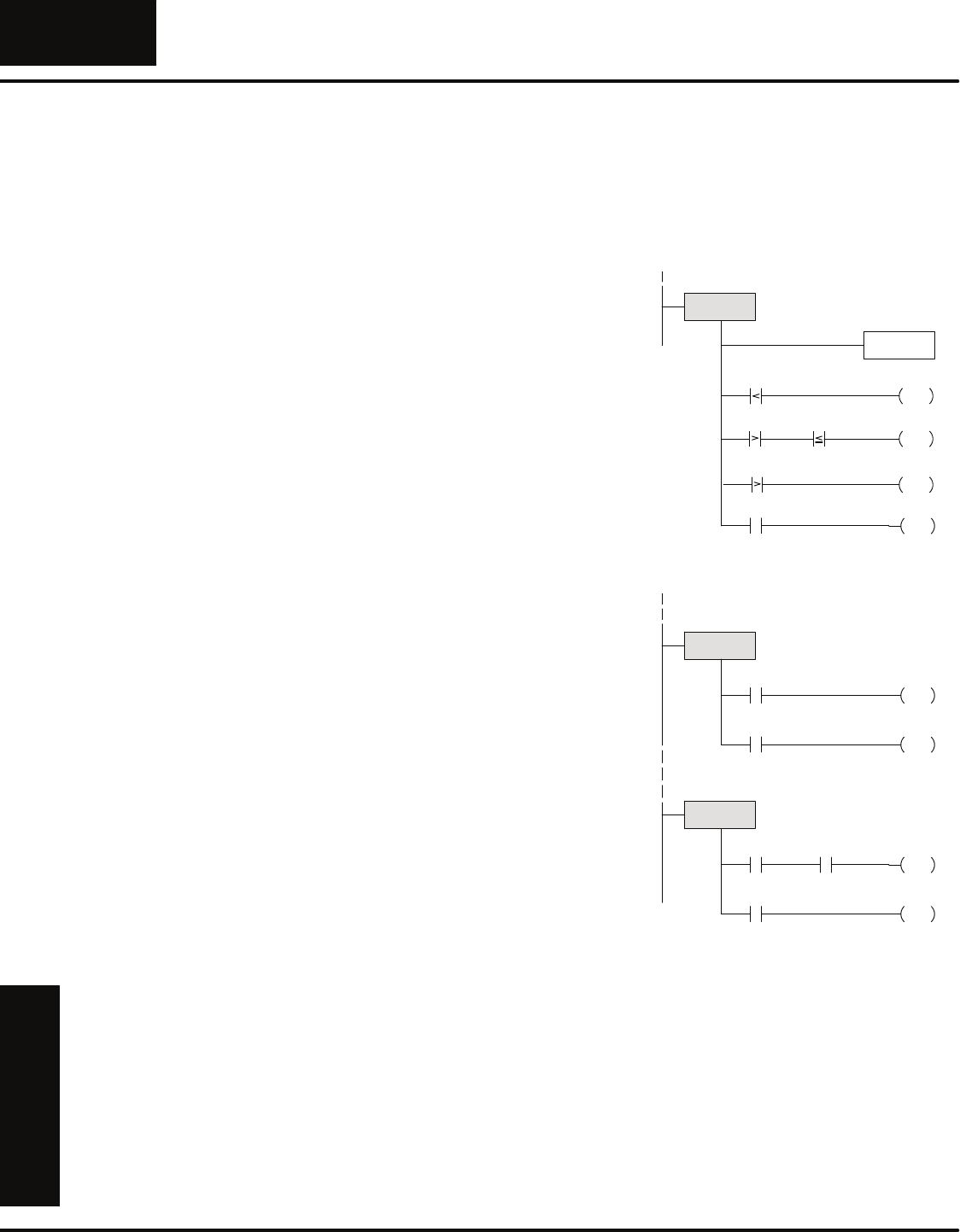
Since each stage has a status bit that is
either on or off, you can use this bit as a
contact in the program. If you examine
Stage 23 you’ll notice we’ve used a
contact labeled S33. This contact
reflects the status of Stage 33, which
indicated Station B was finished.
When S33 is on, the contact labeled S33
is also on and the program will transition
to Stage 40. In Stage 40 we use a reset
instruction to reset Stage 33 before we
move the conveyor.
SG S020
Clamp
SET
S21
JMP
Locked
Part
002
SG S021
Down
021
S22
JMP
Limit
Lower
004
Press
SG S022
Clamp
RST
S23
JMP
Unlocked
Part
003
020
SG S040
Finished
RST
S50
JMP
Moved
Conveyor
006
B
SG S050
Cycle S0
JMP
One
007
S10
JMP
Cycle
One
007
Clamp the part
Press the part
Unlock the clamp
Index the
conveyor
One cycle or automatic?
Only e
x
ecutes logic in stages that are activ
e
Limit
Top
005 020
Station A
SG S023
S40
JMP
Finished
B
S33
Wait for Station B to finish
S33
Conveyor
022
Stage Contact
Example
RLL
Programming Basics
PLUS
10--24 RLLPLUS Programming Basics
DL305 User Manual, Rev. D
Unusual Operations in Stages
Over the last few pages you’ve learned how the CPU executes the Stage
instructions. However, there are a few unusual circumstances that may not work
exactly as the appear.
In the program shown it appears output
021 will be turned on at three separate
times before the program jumps to the
next stage. However, the only time the
output actually comes on is when the
final condition has been met.
Why? Remember if you use multiple
outputs in a program, the last rung
containing the output controls the status
that will be written to the module. This is
no different in a program that uses
RLLPLUS instructions.
In this example, the last comparison rung
says the output should be off until the
timer value reaches 90 seconds.
SG S0010
021
OUT
T600 K200
T600 K100
T600 900
S20
JMP
TMR T600
Finished
001
021
OUT
021
OUT
T600 K500
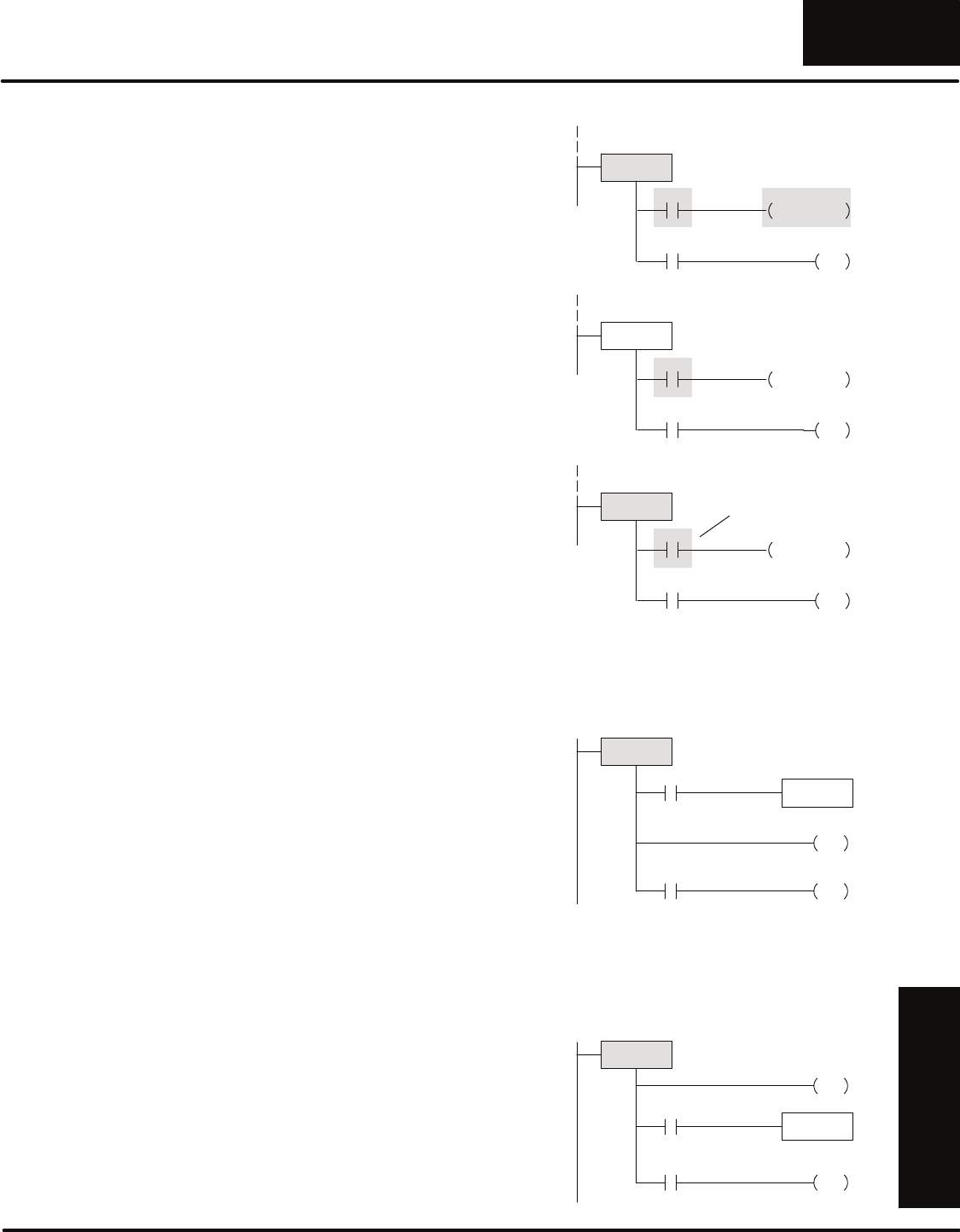
In the previous example the same output
was used multiple times in the same
stage. The last use of the output
controlled the status of the output.
There may be occasions when you have
the same output in different stages. Even
though it’s not advisable to do this in
normal RLL programs, this is perfectly
acceptable with a program that uses
RLLPLUS instructions. However, if both
stages are active at the same time, then
the logic in the last stage will control the
status of the output.
In the example shown, if both stages are
active, then the logic in Stage 70 will
control the output status.
SG S0010
021
OUT
001
S002
JMP
002
SG S070
021
OUT
010
S002
JMP
006
011
Using the Same
Output Multiple
Times
RLL
Programming Basics
PLUS
10--25
RLLPLUS Programming Basics
DL305 User Manual, Rev. D
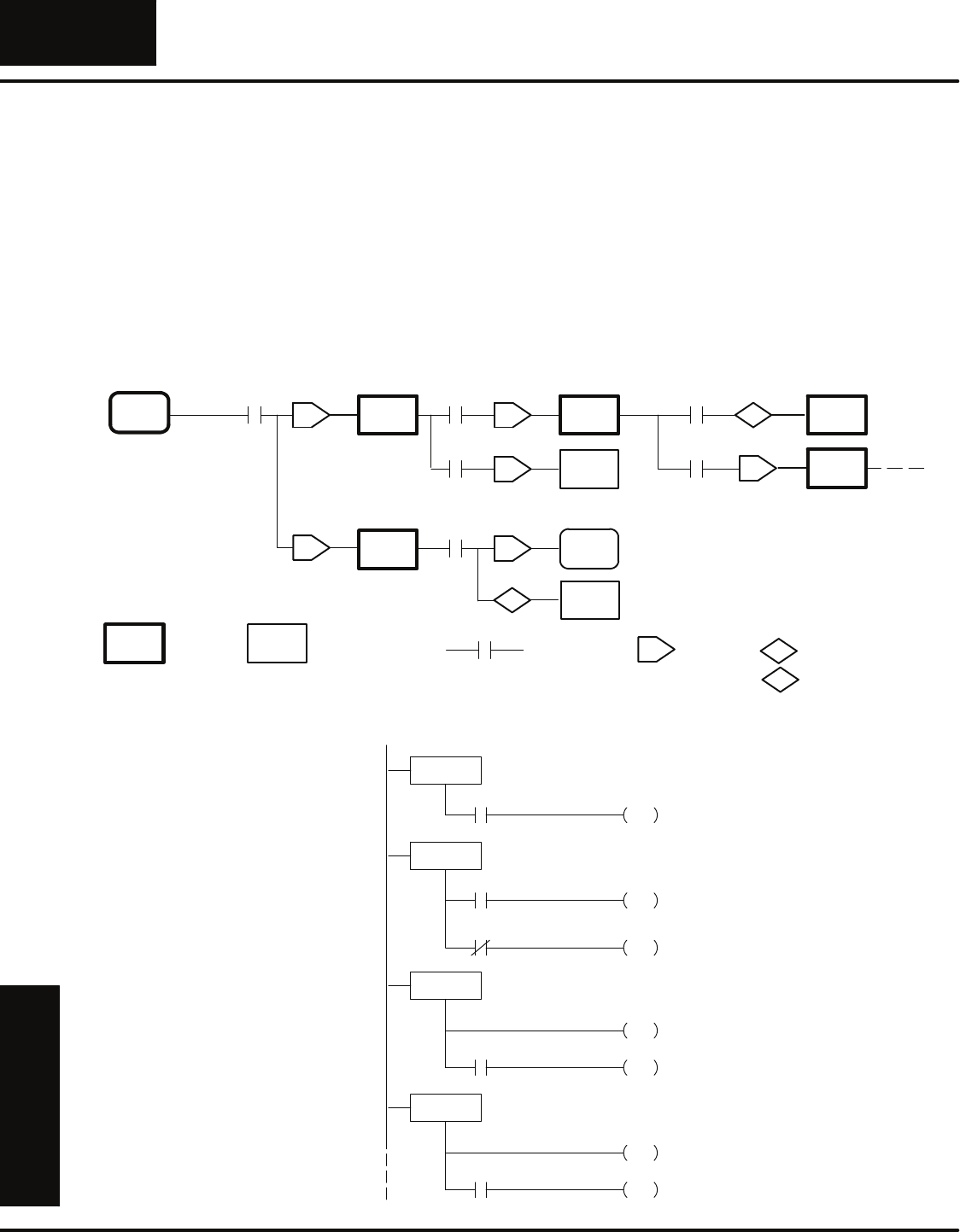
Many normal RLL programs use
one-shot instructions. In the DL305
instruction set, this instruction is called a
Set Out Reset (SET OUT RST).
In the program shown, input 001 will
trigger the SET OUT RST 160
instruction, which will in turn activate
output 021 for one scan.
However, what happens if 001 stays on
and Stage 10 is activated, deactivated,
and then activated again? At first glance
it appears the one shot only gets
executed one time since 001 stayed on
while Stage 10 was turning on and off. It
doesn’t work this way.
The logic in an inactive stage is not
executed. So even though the stage
became active the SET OUT RST
instruction did not see an off to on
transition, so the instruction is not
executed.
The SET OUT RST instruction will work
in an active stage as long as the input
transitions from off to on while the stage
is active.
SG S010
160
SET OUT RST
001
021
OUT
160
SG S0010
001
021
OUT
160
One Shot is executed
Stage off,
One Shot is not executed
SG S0010
001
021
OUT
160
One shot must see off to on
Scan N
Scan N + 10
Scan N + 20
160
SET OUT RST
160
SET OUT RST
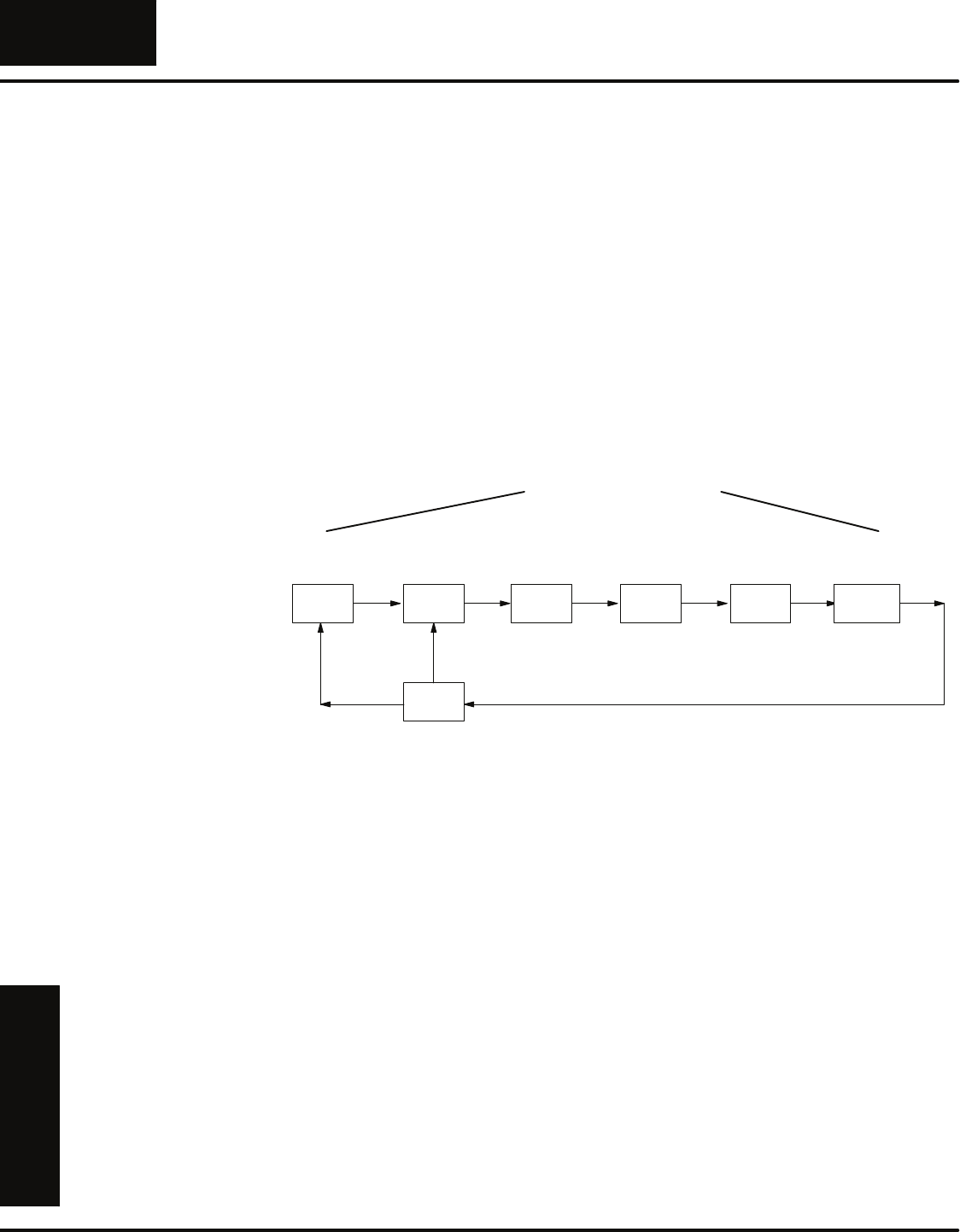
As you’ve seen in some of the previous
examples, we always place
unconditional outputs immediately
following the Stage Instructions. There’s
a reason for doing this.
If you look at the example stage shown
here, the output is placed after a counter
box. The DirectSOFT software and the
Handheld Programmer will allow you to
enter this as shown. However, the CPU
will only turn on output 021 when the
counter input 001 is turned on. This is
because the CPU interprets the output as
being tied to the counter input leg instead
of the Stage power rail.
You can easily avoid this problem by
placing any unconditional actions at the
very beginning of the stage. Then, the
output will work the way you expect.
SG S0010
021
OUT
S11
JMP
001
003
Incorrect Placement
SG S0010
021
OUT
Correct Placement
CNT C600
S11
JMP
001
003
CNT C600
UsingaSetOut
Reset (SET OUT
RST) Instruction
Output Placement
RLL
Programming Basics
PLUS
10--26 RLLPLUS Programming Basics
DL305 User Manual, Rev. D
Two Ways to View RLLPLUS Programs
Throughout the example programs, we’ve consistently shown how the instructions
appear in when viewed as ladder instructions. However, with DirectSOFT, you also
have the capability to view the program as a flowchart. You can even view the
program flowchart (in Stage View) and view the ladder program at the same time
with a split screen feature. The DirectSOFT manual provides detailed information
on how to view the programs in this manner.
ISG
S0
SG
S1
SG
S150
SG
S2
SG
S6
SG
S140
SG
S3
J
J
J
J
JISG
S0
S
SG
S140
R
J
SG Stage Reference to
aStage JJump SSet Stage
RReset Stage
Transition
Logic
ISG S000
Start S1
JMP
SG S001
Present S2
JMP
Part
001
000
S5
JMP
Present
Part
001
SG S002
Clamp
SET
S4
JMP
Locked
Part
002
SG S003
Down
021
S4
JMP
Limit
Lower
004
Press
020
Wait for start
Check for a part
Lock the clamp
Press the part
DirectSOFT
Stage View
DirectSOFT
Ladder View

RLL
Programming Basics
PLUS
10--27
RLLPLUS Programming Basics
DL305 User Manual, Rev. D
Designing a Program Using RLLPLUS Instructions
As with most any application problem, a thorough understanding of the tasks
combined with a good plan of execution often results in success. The RLLPLUS
instructions provide an easy way to load the plan of execution directly into the CPU.
The easiest way to make sure you understand the tasks is to make a flowchart. This
is often the most critical part of creating a program that uses RLLPLUS instructions.
There are a few simple steps you can follow to create a detailed flowchart.
1. Create a top-level flowchart.
2. Expand the flowchart by adding things that cause the transitions from step
to step.
3. Add any actions that must occur in each step.
4. Add any conditions that control the actions.
5. Add any special monitoring or alarm steps that must be performed.
6. Assign numbers to the stages (steps).
7. Add the I/O instructions and addresses (input contacts, output coils, jump
instructions, etc.)
8. Enter the program.
The DirectSOFT programming package allows you to quickly and easily create
programs with RLLPLUS instructions. The software has special features that allow
you to create the flowcharts, add the transitions, actions, etc. Even if your programs
are fairly small, DirectSOFT can make the job much easier.
Use DirectSOFT to
Save Time
RLL
Programming Basics
PLUS
10--28 RLLPLUS Programming Basics
DL305 User Manual, Rev. D
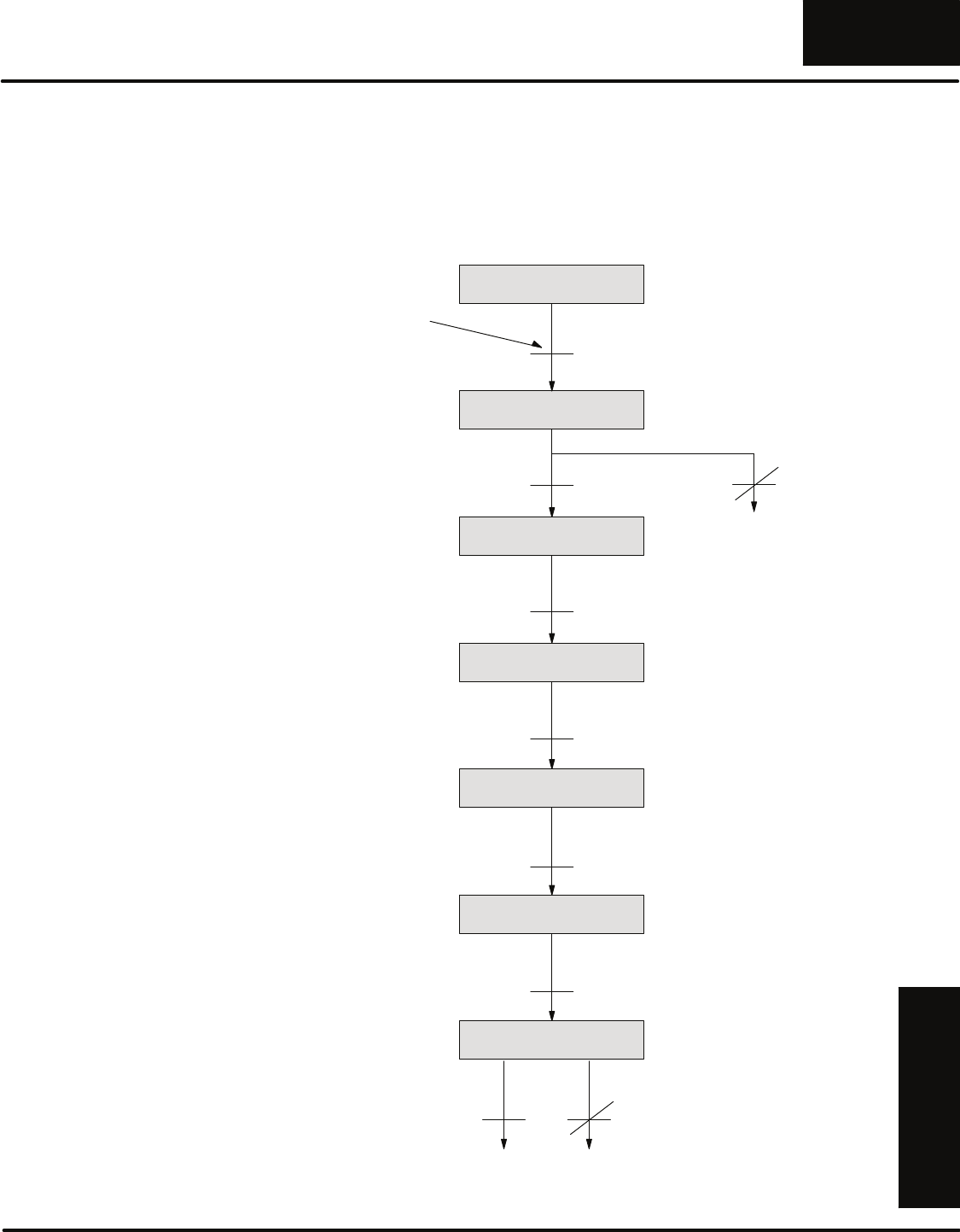
There are many different ways to design a flowchart of the application problem, but
there are a few guidelines that will make the job easier.
1. Start with a “top-level” flowchart that breaks the operation sequence into
simple pieces.
2. Each piece of the top-level flowchart should only represent one action.
Resist the temptation to group several operations into one part of the
flowchart.
3. Don’t try to add input or output addresses to the flowchart. Only use words
to describe the things that are taking place.
4. Don’t worry about special conditions, such as stop conditions, alarms, etc
at this point. These will be added later when you fully understand how the
main part of the operations sequence is organized.
You can draw the flowchart horizontally or vertically at any point in the design
process, the choice is yours. Here’s an example top level flowchart for our simple
one-station press.
Wait for
Start
The flowchart
breaks the program
into logical steps
Check
for Part Lock
Clamp Press
Part Unlock
Clamp Move
Conveyor
One
Cycle
Continuous
Check
Mode
Step 1:
Design a Top-level
Flowchart
RLL
Programming Basics
PLUS
10--29
RLLPLUS Programming Basics
DL305 User Manual, Rev. D
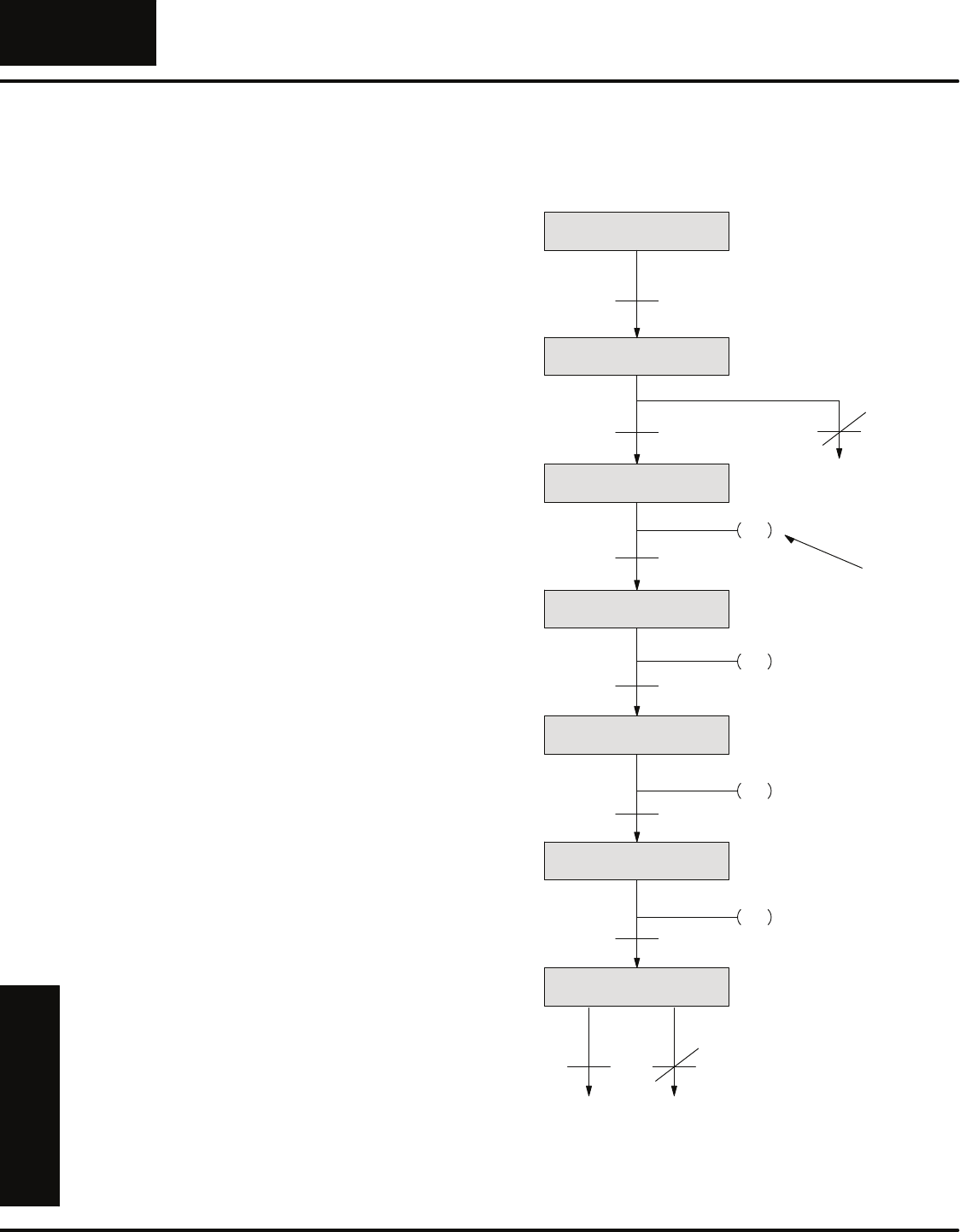
Once you have designed the basic operating sequence you should determine the
events that cause a transition from step to step. During this phase you may find
things need to be added to the flowchart. All you’re really doing is adding more detail
to the top-level flowchart. Once again, don’t try to use addresses yet. Concentrate on
using words to describe the events taking place. The following flowchart adds the
transition conditions for our one-station press.
Check Mode
Lock the Clamp
Wait for Start
Check for Part
Press the Part
Unlock the Clamp
Move Conveyor
Press Start Switch
Part in place
Clamp Limit Switch
Press Lower Limit Switch
Unclamp Limit Switch
Conveyor Index Limit Switch
Check 1-cycle Switch ON Check 1-cycle Switch OFF
Transition
Symbol
No Part
Jump to
Move
Conveyor
Jump to Wait
for Start Jump to
Check for
Part
Step 2:
Add Flowchart
Transitions
RLL
Programming Basics
PLUS
10--30 RLLPLUS Programming Basics
DL305 User Manual, Rev. D
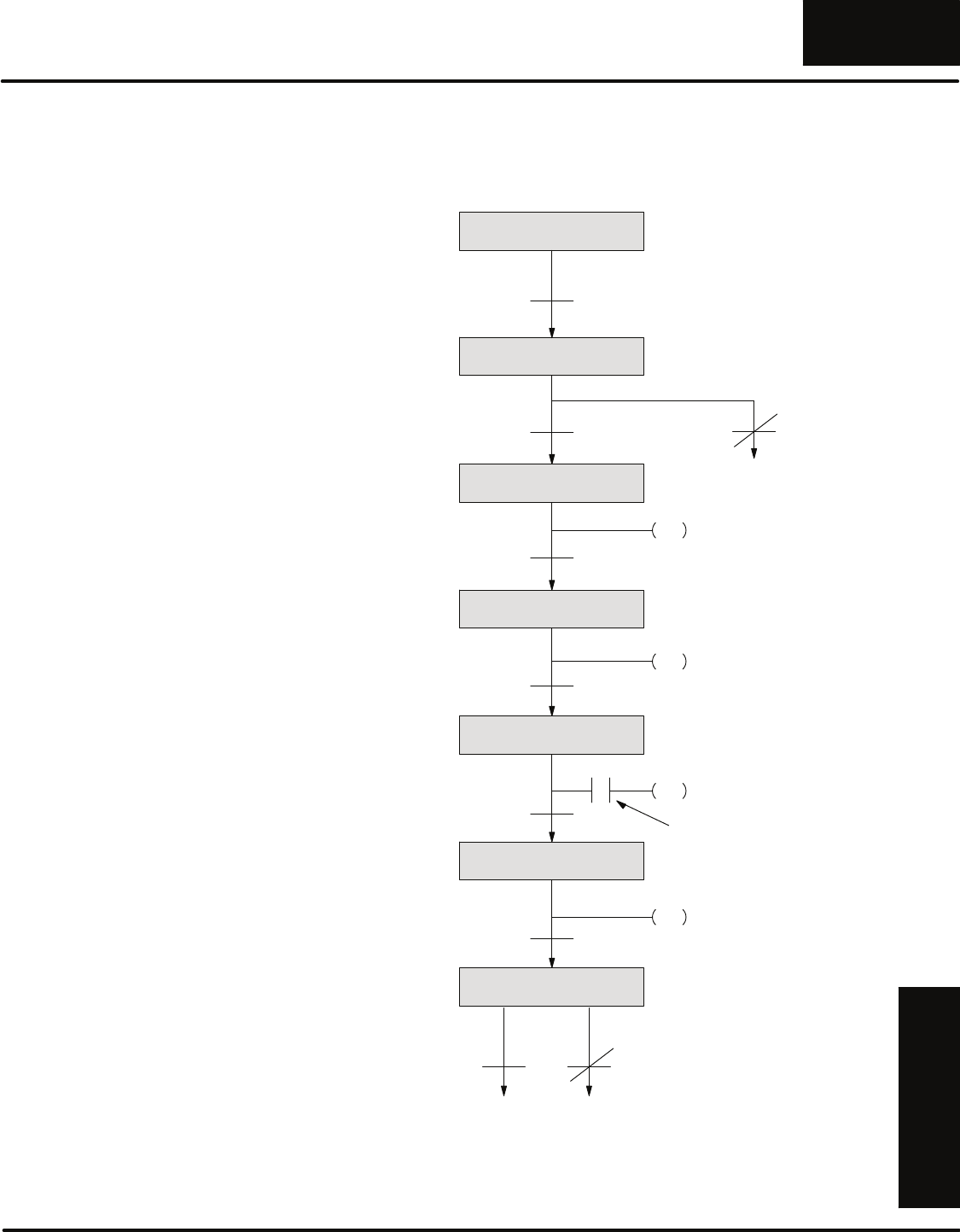
After you determine the events that cause a transition from step to step you should
add any actions that need to take place during the sequence. Again, don’t try to use
addresses yet. Concentrate on using words to describe the actions taking place. The
following flowchart adds the actions that take place during each part of the program.
Check Mode
Lock the Clamp
Wait for Start
Check for Part
Press the Part
Unlock the Clamp
Move Conveyor
Press Start Switch
Part in place
Clamp Limit Switch
Press Lower Limit Switch
Unclamp Limit Switch
Conveyor Index Limit Switch
Check 1-cycle Switch ON Check 1-cycle Switch OFF
No Part
Jump to
Move
Conveyor
Jump to Wait
for Start Jump to
Check for
Part
Clamp On
Press
Clamp Off
Conveyor On
Action
Symbol
Step 3:
Add Actions
RLL
Programming Basics
PLUS
10--31
RLLPLUS Programming Basics
DL305 User Manual, Rev. D
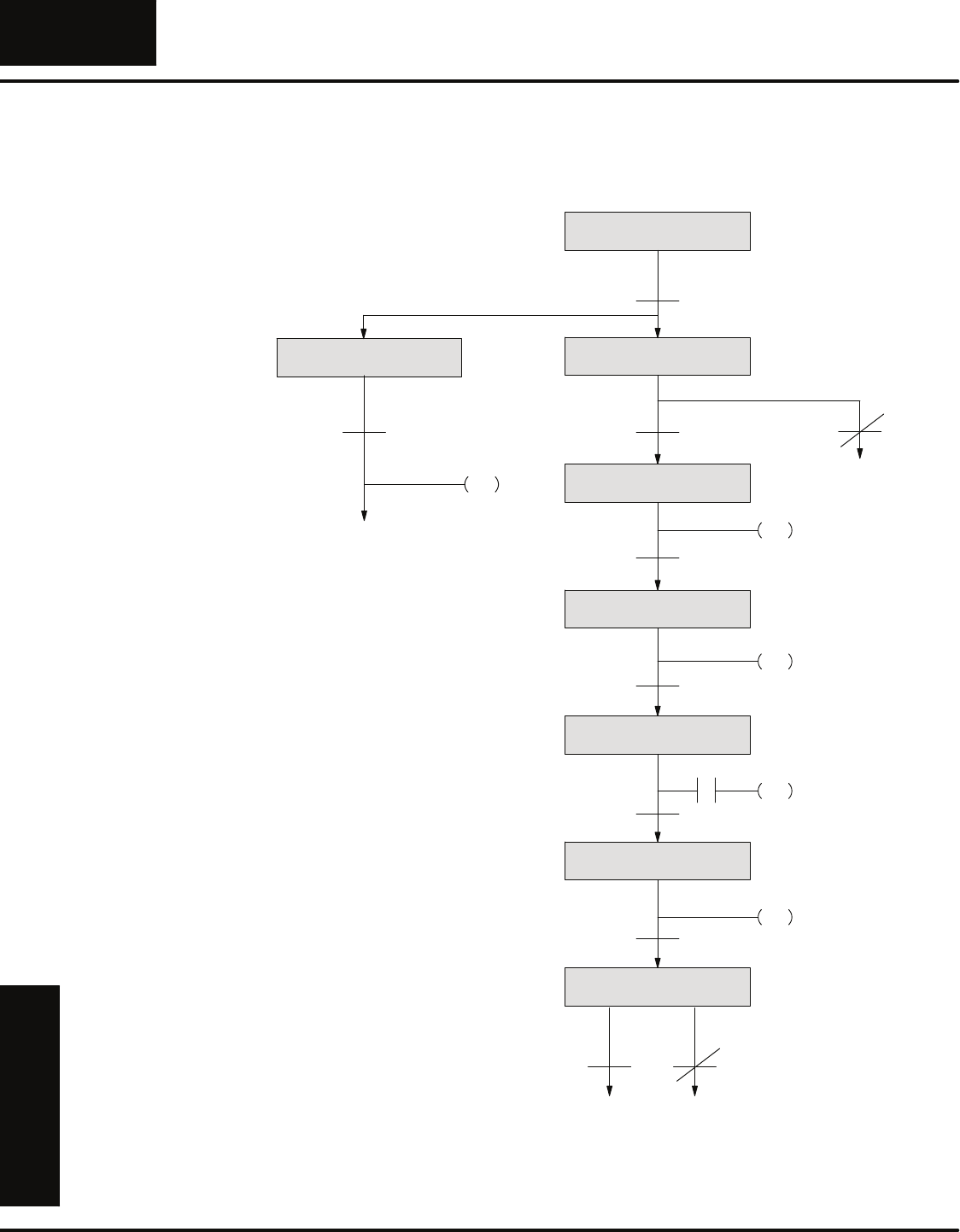
Some actions may only take place if certain conditions are met. Examine the
program carefully to determine any conditions that should be added. The following
flowchart adds any conditions for the actions that take place during each part of the
program.
Check Mode
Lock the Clamp
Wait for Start
Check for Part
Press the Part
Unlock the Clamp
Move Conveyor
Press Start Switch
Part in place
Clamp Limit Switch
Press Lower Limit Switch
Unclamp Limit Switch
Conveyor Index Limit Switch
Check 1-cycle Switch ON Check 1-cycle Switch OFF
No Part
Jump to
Move
Conveyor
Jump to Wait
for Start Jump to
Check for
Part
Clamp On
Press
Clamp Off
Conveyor On
Condition
Symbol
Press Up
Step 4:
Add Conditions for
Actions
RLL
Programming Basics
PLUS
10--32 RLLPLUS Programming Basics
DL305 User Manual, Rev. D
Many people are tempted to add alarm or monitoring operations earlier in the
flowchart design process. It is almost always easier to add them last because then
you know how they should affect the main part of the program. The following
flowchart adds an operation that monitors for the conditions that will stop the press.
Press Up
Check Mode
Lock the Clamp
Wait for Start
Check for Part
Press the Part
Unlock the Clamp
Move Conveyor
Press Start Switch
Part in place
Clamp Limit Switch
Press Lower Limit Switch
Unclamp Limit Switch
Conveyor Index Limit Switch
Check 1-cycle Switch ON Check 1-cycle Switch OFF
No Part
Jump to
Move
Conveyor
Jump to Wait
for Start Jump to
Check for
Part
Clamp On
Press On
Clamp Off
Conveyor On
Monitor for Stop
Stop Switch
Reset all Operations
Jump to Wait
for Start
Step 5:
Add Alarm or
Monitoring
Operations

RLL
Programming Basics
PLUS
10--33
RLLPLUS Programming Basics
DL305 User Manual, Rev. D
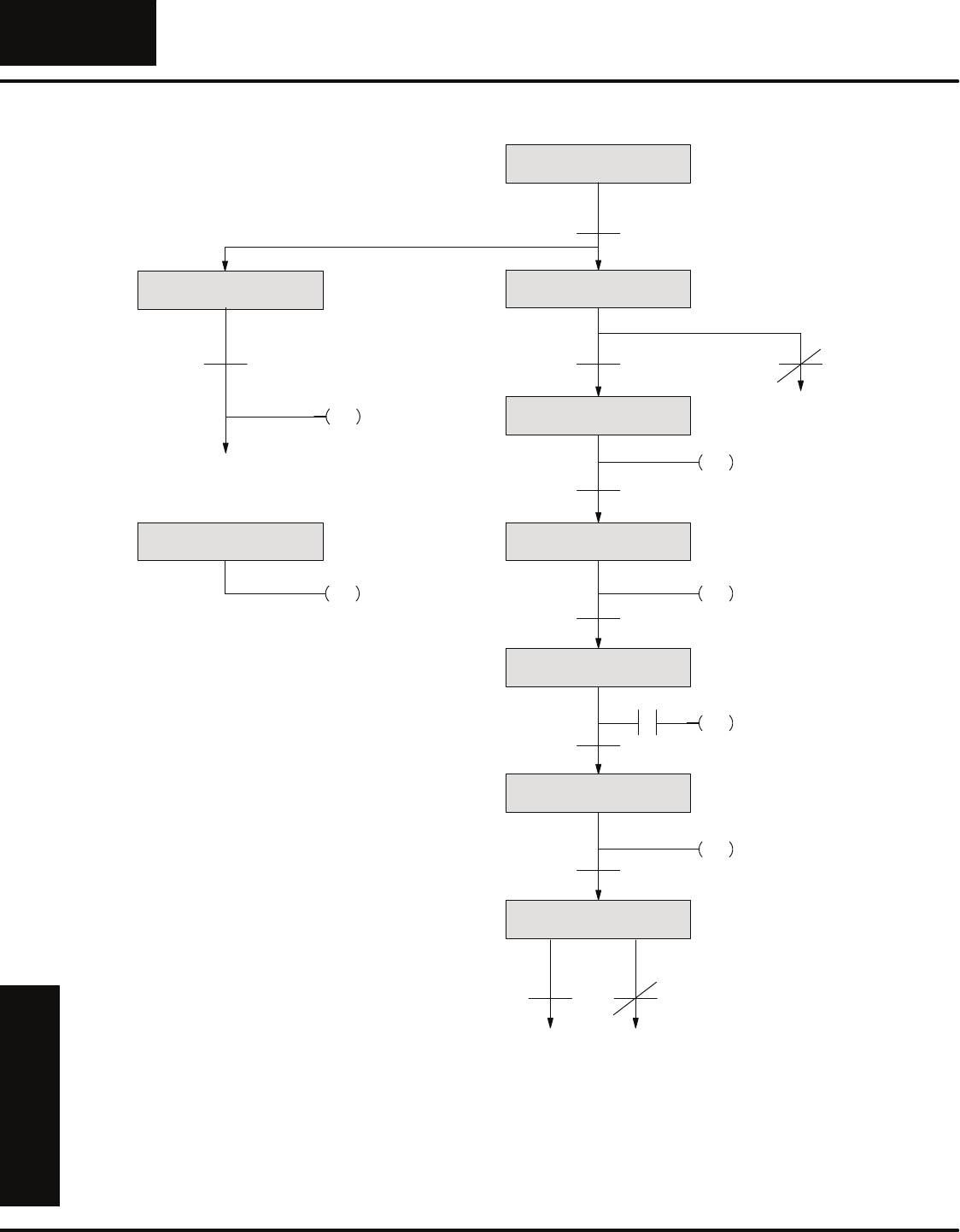
You can number the stages any way you would like, but it’s usually best to follow
some type of sequence that matches the flow of the program. This makes it much
easier to understand. There are a few guidelines we have used to determine the best
numbering sequence. You don’t have to follow these guidelines, but they may help.
You can typically find these types of operations in any program.
SSequential Operations — a certain sequence of events, one after the
other. This is usually the main part of the program. It’s usually best to
number these first. For example, you may want to always number these
stages from 0 -- 127 (octal).
SIndependent Operations — these operations usually only perform one
task, such as activating a motor or turning on a horn. For example, you
may want to number all independent operations starting from 130 -- 147
(octal).
SAlarm and Monitoring Operations — These operations usually monitor
the main parts of the program. Since you may want to reset parts of the
program during an alarm condition, it is usually best to number these
last. This way you can use one Reset (RST) instruction to reset almost
the entire program. Use stages 150 -- 177 for alarming and monitoring
stages.
These guidelines are especially helpful if you have many different programs. By
using a standard numbering scheme, you always know where to look for the various
types of operations.
The example shows how we assigned numbers for the example press. Notice we’ve
also made a separate stage for the clamp. This was not an absolute requirement
because there are several ways you could have done this. We just did it to show you
an example of an independent operation.
Step 6:
Determine Stage
Numbering
RLL
Programming Basics
PLUS
10--34 RLLPLUS Programming Basics
DL305 User Manual, Rev. D
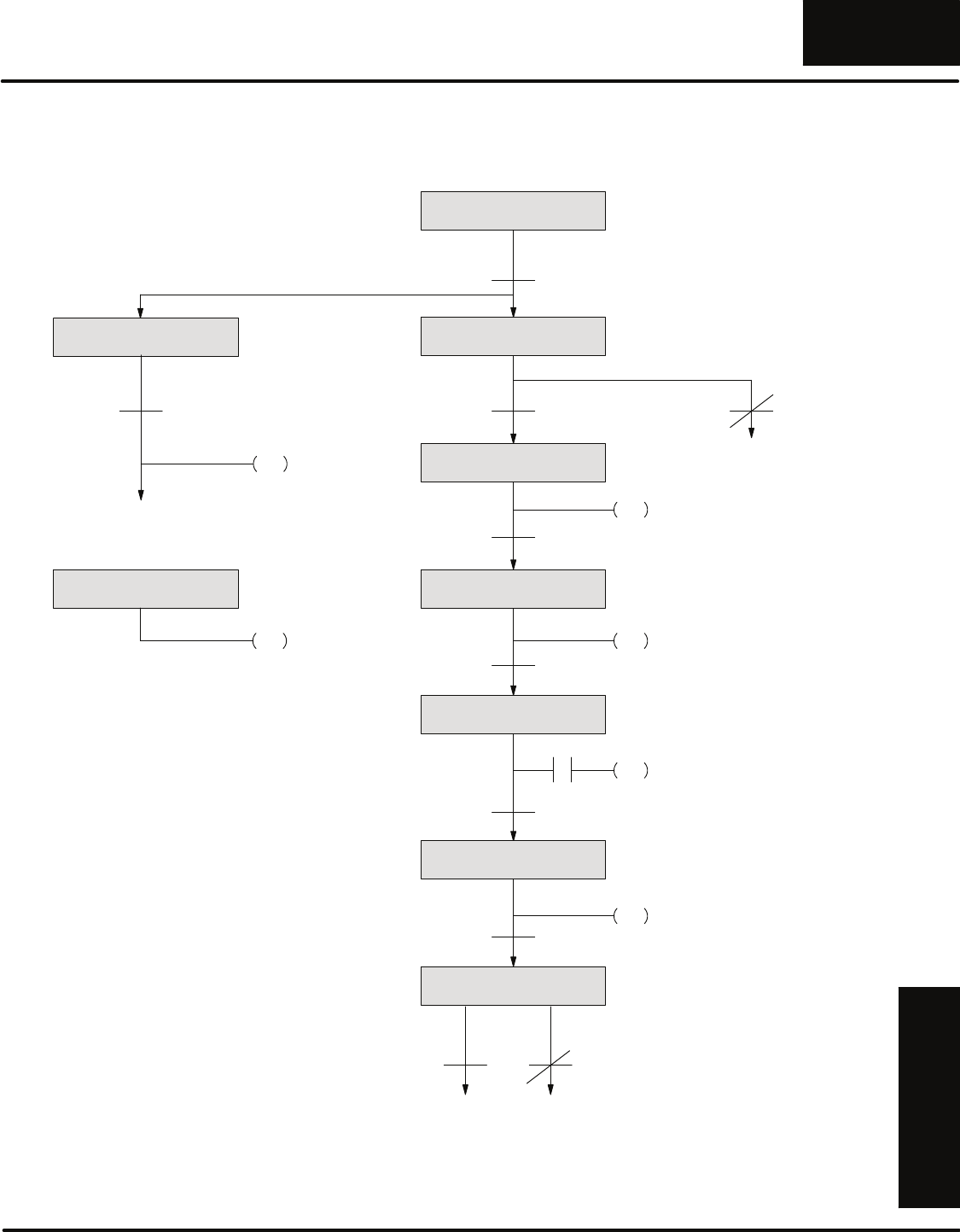
Press Up
Stage 6
Stage 2
Initial Stage 0
Stage 1
Stage 3
Stage 4
Stage 5
Press Start Switch
Part in place
Clamp Limit Switch
Press Lower Limit Switch
Unclamp Limit Switch
Conveyor Index Limit Switch
Check 1-cycle Switch ON Check 1-cycle Switch OFF
No Part
Jump to
Move
Conveyor
Jump to Wait
for Start Jump to
Check for
Part
Clamp On
Press On
Clamp Off
Conveyor On
Stage 150
Stop Switch
Reset all Operations
Jump to Wait
for Start
Wait for Start
Check for Part
Lock the Clamp
Press the Part
Unlock the Clamp
Move the Conveyor
Check Mode
Monitor for Stop
Stage 140
Clamp
Clamp
RLL
Programming Basics
PLUS
10--35
RLLPLUS Programming Basics
DL305 User Manual, Rev. D
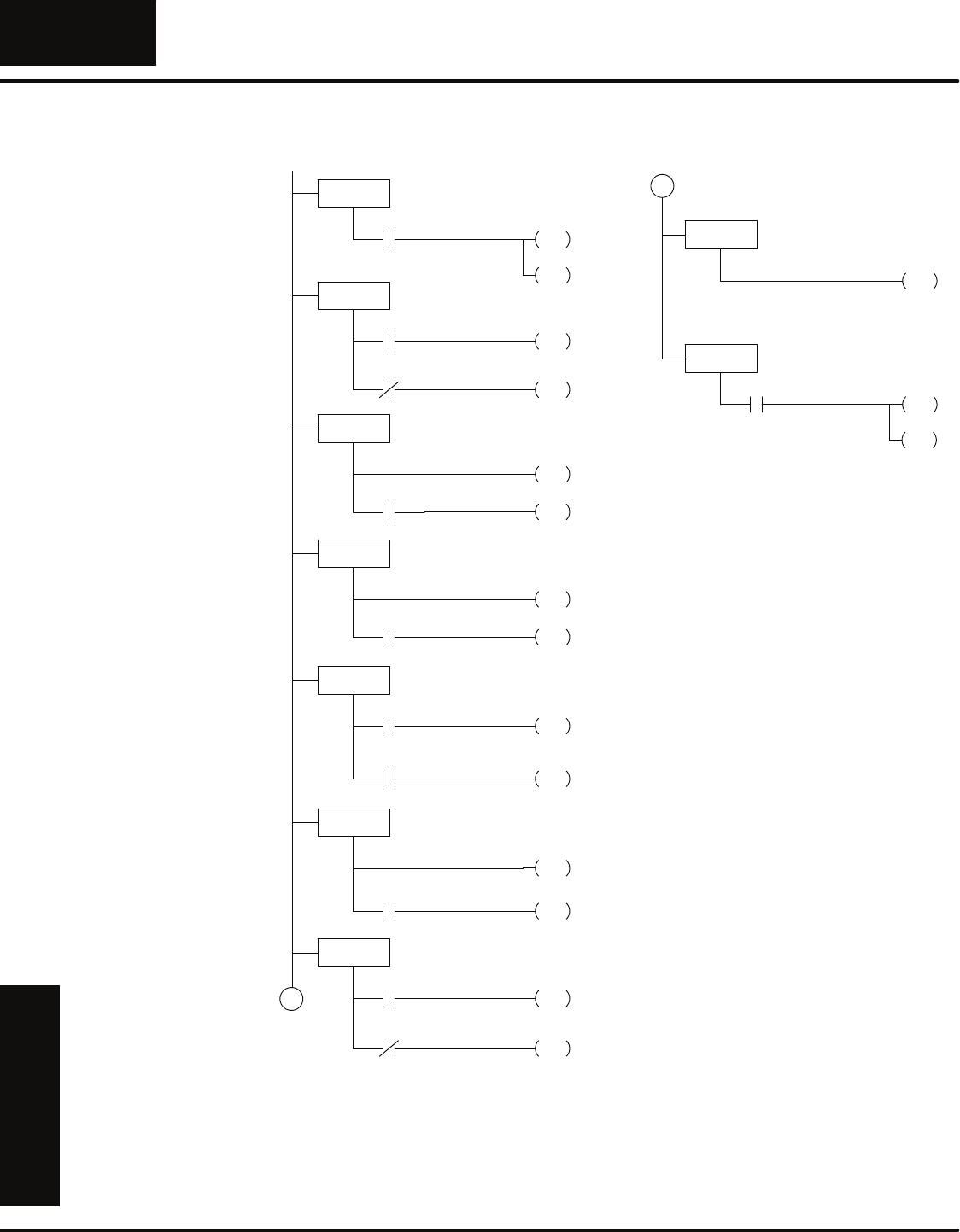
The final step before you enter the program is to assign the I/O addresses and the
destinations for any Jump, Set, or Reset instructions.
Press Up
Stage 6
Stage 2
Initial Stage 0
Stage 1
Stage 3
Stage 4
Stage 5
Press Start Switch
Part in place
Clamp Limit Switch
Press Lower Limit Switch
Unclamp Limit Switch
Conveyor Index Limit Switch
Check 1-cycle Switch ON Check 1-cycle Switch OFF
No Part
Jump to
Move
Conveyor
Jump to
Wait for Start Jump to
Check for
Part
Clamp
SET
Press On
OUT
Stage 150
Stop Switch
Jump to
Wait for Start
Wait for Start
Check for Part
Lock the Clamp
Press the Part
Unlock the Clamp
Move the Conveyor
Check Mode
Monitor for Stop
Stage 140
Clamp
000
001
S140
021
Clamp
OUT
020
002
004
003
005
Clamp
RST
S140
Conveyor
OUT
022
006
010
Reset All Operations
RST
S0 -- S140
007 Open007 Closed
Step 7:
Assign I/O
Addresses
RLL
Programming Basics
PLUS
10--36 RLLPLUS Programming Basics
DL305 User Manual, Rev. D
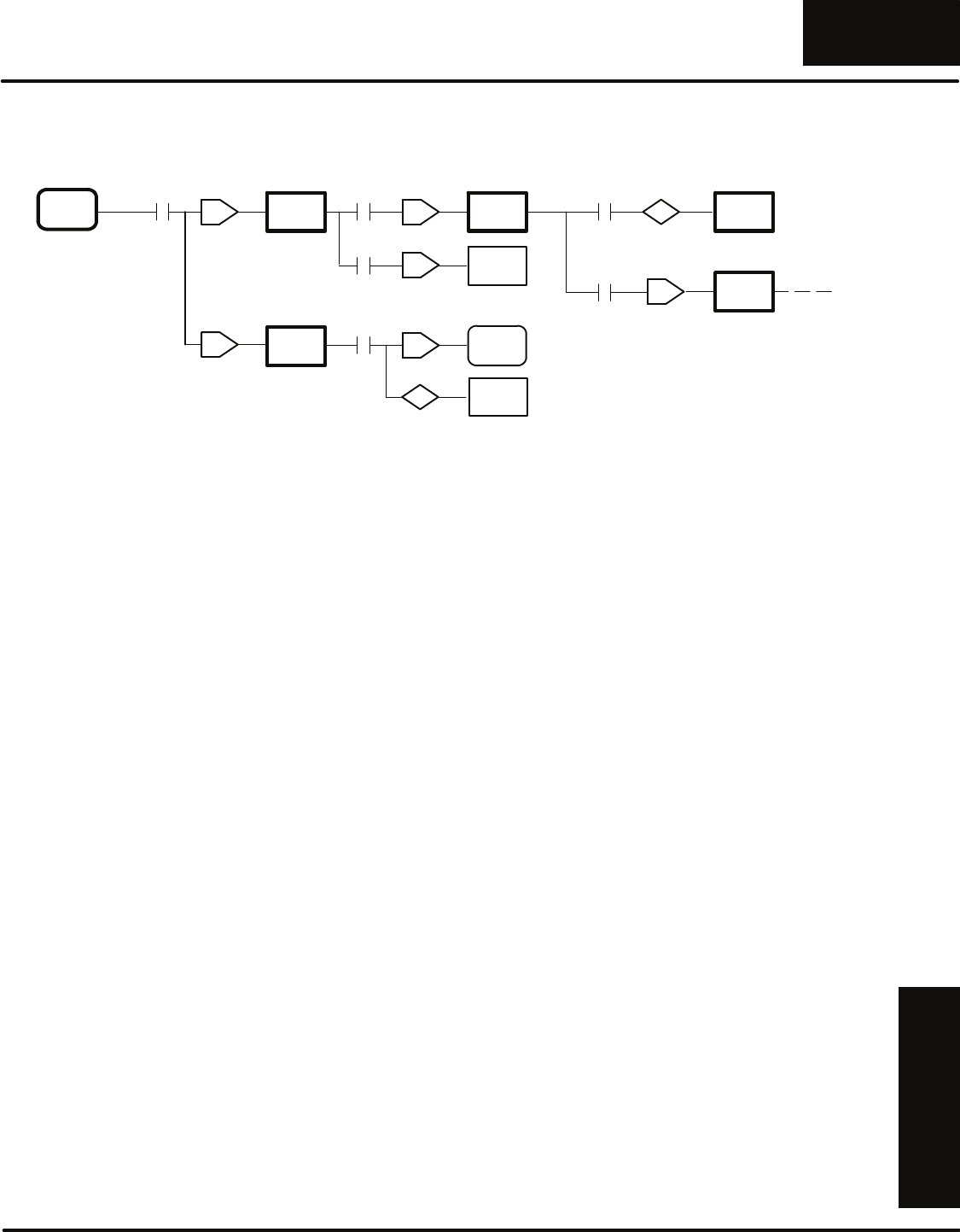
The following diagram shows how the program would look when viewed as a ladder
program.
ISG S000
Start S1
JMP
SG S001
Present S2
JMP
Part
001
000
S6
JMP
Present
Part
001
SG S002
Clamp
SET
S3
JMP
Locked
Part
002
SG S003
Down
021
S4
JMP
Limit
Lower
004
Press
SG S004
Clamp
RST
S5
JMP
Unlocked
Part
003
S140
SG S005
Conveyor
022
S6
JMP
Moved
Conveyor
006
Move
SG S006
Cycle S0
JMP
One
007
S1
JMP
Cycle
One
007
Wait forStart
Check for a Part
Clamp the part
Press the part
Unclamp the part
Index the conveyor
One cycle or automatic?
Limit
Top
005 S140
A
A
SG S140
SG S150
Stop S0 -- S140
RST
010
Clamp
Check for Stop
Clamp
OUT
020
S150
JMP
S000
JMP
Step 8:
Enter the Program
RLL
Programming Basics
PLUS
10--37
RLLPLUS Programming Basics
DL305 User Manual, Rev. D
This diagram shows how a portion of the program would look when viewed as a
Stage Diagram in DirectSOFT.
ISG
S0
SG
S1
SG
S150
SG
S2
SG
S6
SG
S140
SG
S3
J
J
J
J
JISG
S0
S
SG
S140
R
J
Wait forStart Check for a Part Clamp the part
Press the part
Clamp
Check for Stop
